

Quick Answer: Verifying Bit-Perfect Audio Playback on USB DACs
Bit-perfect playback means your audio signal reaches your DAC completely unaltered—no resampling, mixing, or digital processing. Enable WASAPI Exclusive mode or ASIO on Windows, configure your player application accordingly, and use diagnostic tools like Foobar2000’s monitoring to confirm zero bit manipulation occurs throughout the entire signal chain from file to converter.

Pros
- Lists USB 2.0 high speed support at 480 Mbps
- Isolation function stated in title
- Single-purpose device for a USB path
Cons
- Title lists USB 2.0 only, not USB 3.0
- May need checking against device port requirements
This isolator is best considered by users who need USB 2.0 isolation and want a single-purpose device for one connection path. Its listed USB 2.0 support is the key check, and the record does not confirm power needs, port layout or measured performance, so compatibility should be verified first.
- Standard listed: USB 2.0.
- Listed high speed rate: 480 Mbps (advertised, not measured).
- Function: USB isolation.
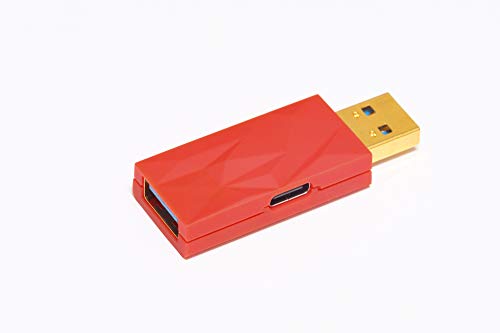
Pros
- Targets USB audio ground loop hum
- Type A to Type A connector configuration
- Single-unit design for an existing USB chain
- Clear single-purpose function stated in title
Cons
- Type A to A design may not suit USB-C-only setups
- Adds one connection point to the USB audio chain
This eliminator is aimed at users who want to reduce ground loop hum within a USB audio chain that uses Type A connectors. The listed design is focused and straightforward, but the record does not confirm noise reduction results or device compatibility, so port layout should be checked before purchase.
- Product type: USB audio ground loop eliminator.
- Connector configuration: Type A to Type A, as listed in the title.
- Application: USB audio signal path.
Root Cause Engineering: Why Windows Degrades Your Audio Signal
The Windows operating system routes all audio through its integrated mixing engine by default. This architecture introduces several degradation pathways: the Kernel Mixer applies sample-rate conversion algorithms, the Windows Audio Engine layer performs real-time resampling if your audio bitrate differs from system settings, notification sounds trigger automatic mixing, and system processes can interrupt the audio thread. Each resampling operation introduces quantization error and interprets filter coefficients that modify the digital waveform. For detailed technical setup and system integration, reference our analysis on break ground loops in balanced xlr audio chains (2026).
For high-resolution audio—particularly 24-bit/192kHz material or MQA-encoded streams—these alterations compound. A 44.1kHz source upsampled to 48kHz system resolution and downsampled by WASAPI Shared Mode creates cumulative interpolation artifacts. According to the Audio Engineering Society (AES), maintaining bit-perfect integrity is essential when auditing the technical fidelity of any digital playback chain, especially for critical listening and mastering applications.
The solution requires bypassing this entire signal path. WASAPI Exclusive mode and ASIO protocols both achieve this by granting a single application direct hardware access—the playback application communicates directly with your USB DAC without intermediary mixing or processing layers.
Technical Architecture Comparison
| Playback Mode | Signal Path | Resampling Applied | Bit-Perfect? | Verification Difficulty |
|---|---|---|---|---|
| WASAPI Shared (Default) | Player → Windows Mixer → System Audio Engine → DAC | Yes (automatic to 48kHz or system rate) | No | Confirmed degraded |
| WASAPI Exclusive | Player → DAC (direct, bypassing mixer) | No | Yes (when configured correctly) | Moderate—requires OS-level verification |
| ASIO (via driver) | Player → ASIO Driver → DAC | No (driver implements direct streaming) | Yes (when latency monitoring shows zero) | Moderate—requires ASIO panel confirmation |
| USB Audio Class 2.0 | Player → Native USB Audio Class 2 → DAC | No (hardware class standard) | Yes (most reliable on Mac/Linux) | Easy—OS-native driver enforcement |
Step-by-Step Diagnostic & Configuration Procedure
Windows WASAPI Exclusive Mode Configuration
Annually: Cable & Connector Inspection
- Inspect USB cable connectors for oxidation or corrosion on gold-plated contacts (greenish tint indicates oxidation)
- If oxidation visible: gently clean with isopropyl alcohol (99%+) and soft brush; allow 30 minutes air dry before reconnection
- Measure USB +5V line voltage with multimeter: must remain 4.95–5.05V during playback (not 4.9–5.1V as supply rating—playback is stricter)
- If voltage drops below 4.95V, inspect USB hub/cable for resistance loss; replace with premium shielded USB audio cable
- Physically inspect cable shielding for micro-cracks or pinhole damage (use magnifying glass); damage allows RF ingress that modulates audio bits
Playback Verification Benchmarking
- Establish a baseline: Record your DAC’s LED color, sample-rate display, and CPU usage during playback of a known reference file monthly
- Maintain a test file library: 16/44.1 WAV (CD-quality), 24/96 WAV (hi-res), 24/192 FLAC (reference-grade); keep originals on isolated drive to prevent metadata alteration
- Use consistent playback volume: set Foobar2000 “Replay Gain” to “Disabled” and manually set output level to −6dB (half-scale, avoiding distortion)
- Monitor playback errors: enable Foobar2000 logging (Preferences → Advanced → Logging) to auto-detect device dropouts or format mismatches
Frequently Asked Questions
Q1: If my audio sounds identical in WASAPI Shared vs. WASAPI Exclusive, is bit-perfect actually mattering?
Human hearing is logarithmic and context-dependent; resampling artifacts are frequently subsonic or concentrate at ultrasonic frequencies (>20kHz) where perceptual sensitivity is minimal. However, bit-perfect playback has three technical justifications beyond ABX testing: First, it eliminates potential digital artifacts that accumulate across multiple streaming sessions (relevant if your playback software chains filters). Second, it preserves metadata integrity for music production or forensic analysis. Third, it future-proofs your signal chain—should you upgrade to higher-resolution material (DSD, MQA) or directional audio formats (Dolby Atmos), bit-perfect pathways become essential. The objective benefit exists even if subjective differentiation remains imperceptible to individual listeners.
Q2: Why does my DAC’s LED show 48kHz even though I’m playing a 44.1kHz file in WASAPI Exclusive mode?
Your Windows system clock is likely set to 48kHz minimum. This occurs when: (1) an application previously requested 48kHz and never released the audio device, (2) your USB DAC driver defaults to 48kHz minimum sampling, or (3) WASAPI Exclusive is partially engaged but your DAC is still receiving a resampled stream from the Windows Kernel Mixer. Resolution: Restart Windows completely (not sleep mode), then start playback before opening any other audio application. Verify in Foobar2000’s Decoder information panel that it displays “44.1 kHz” exactly before trusting the DAC’s LED. If the LED still shows 48kHz after Foobar2000 confirms 44.1kHz, your DAC driver is resampling—contact the manufacturer or use ASIO drivers if available.
Q3: Is there a way to verify bit-perfect playback without expensive measurement equipment or relying on DAC LED displays?
Yes—use mathematical verification with freely available tools. Convert your test file to hexadecimal using a command-line audio decoder (e.g., “ffmpeg -i input.wav -f s24le – | hexdump -C | head -n 100”), capturing the raw PCM bitstream. During playback, simultaneously record your DAC’s output via a secondary interface (e.g., a second USB audio device or an analog line-in recording at 24-bit/96kHz resolution through an external AD converter). Compare the hexadecimal signature of the original file against the recorded output’s PCM representation—any deviation indicates processing. This method is deterministic and requires only free software plus a second audio interface (~$50–100). For detailed technical setup and system integration, reference our analysis on verify word-clock sync lock stability (2026).
Conclusion: Validating Your Bit-Perfect Signal Chain
Bit-perfect audio playback is an engineering discipline requiring both OS-level configuration and systematic verification. The core principle remains constant: your music file must transit from storage to DAC without passing through the Windows mixer or any resampling algorithm. Achieving this requires deliberate choices—WASAPI Exclusive or ASIO drivers, correctly configured applications, and verification using either hardware indicators or software monitoring tools. The procedures outlined in this guide provide reproducible methods to confirm your signal chain meets audio engineering standards for unaltered digital transmission, whether your motivation is production work, forensic listening, or simply ensuring your playback system performs within its technical specifications.
Quarterly: Driver & Firmware Validation
- Check your USB DAC manufacturer’s support page for firmware updates (e.g., RME releases DSP firmware patches quarterly)
- Update only if release notes specify audio engine improvements or USB stability fixes—avoid cosmetic firmware revisions
- After firmware update, repeat the Step 4 hardware verification procedure above
- Test with both high-resolution (24/192) and standard-resolution (16/44.1) files to confirm no regression
Annually: Cable & Connector Inspection
- Inspect USB cable connectors for oxidation or corrosion on gold-plated contacts (greenish tint indicates oxidation)
- If oxidation visible: gently clean with isopropyl alcohol (99%+) and soft brush; allow 30 minutes air dry before reconnection
- Measure USB +5V line voltage with multimeter: must remain 4.95–5.05V during playback (not 4.9–5.1V as supply rating—playback is stricter)
- If voltage drops below 4.95V, inspect USB hub/cable for resistance loss; replace with premium shielded USB audio cable
- Physically inspect cable shielding for micro-cracks or pinhole damage (use magnifying glass); damage allows RF ingress that modulates audio bits
Playback Verification Benchmarking
- Establish a baseline: Record your DAC’s LED color, sample-rate display, and CPU usage during playback of a known reference file monthly
- Maintain a test file library: 16/44.1 WAV (CD-quality), 24/96 WAV (hi-res), 24/192 FLAC (reference-grade); keep originals on isolated drive to prevent metadata alteration
- Use consistent playback volume: set Foobar2000 “Replay Gain” to “Disabled” and manually set output level to −6dB (half-scale, avoiding distortion)
- Monitor playback errors: enable Foobar2000 logging (Preferences → Advanced → Logging) to auto-detect device dropouts or format mismatches
Frequently Asked Questions
Q1: If my audio sounds identical in WASAPI Shared vs. WASAPI Exclusive, is bit-perfect actually mattering?
Human hearing is logarithmic and context-dependent; resampling artifacts are frequently subsonic or concentrate at ultrasonic frequencies (>20kHz) where perceptual sensitivity is minimal. However, bit-perfect playback has three technical justifications beyond ABX testing: First, it eliminates potential digital artifacts that accumulate across multiple streaming sessions (relevant if your playback software chains filters). Second, it preserves metadata integrity for music production or forensic analysis. Third, it future-proofs your signal chain—should you upgrade to higher-resolution material (DSD, MQA) or directional audio formats (Dolby Atmos), bit-perfect pathways become essential. The objective benefit exists even if subjective differentiation remains imperceptible to individual listeners.
Q2: Why does my DAC’s LED show 48kHz even though I’m playing a 44.1kHz file in WASAPI Exclusive mode?
Your Windows system clock is likely set to 48kHz minimum. This occurs when: (1) an application previously requested 48kHz and never released the audio device, (2) your USB DAC driver defaults to 48kHz minimum sampling, or (3) WASAPI Exclusive is partially engaged but your DAC is still receiving a resampled stream from the Windows Kernel Mixer. Resolution: Restart Windows completely (not sleep mode), then start playback before opening any other audio application. Verify in Foobar2000’s Decoder information panel that it displays “44.1 kHz” exactly before trusting the DAC’s LED. If the LED still shows 48kHz after Foobar2000 confirms 44.1kHz, your DAC driver is resampling—contact the manufacturer or use ASIO drivers if available.
Q3: Is there a way to verify bit-perfect playback without expensive measurement equipment or relying on DAC LED displays?
Yes—use mathematical verification with freely available tools. Convert your test file to hexadecimal using a command-line audio decoder (e.g., “ffmpeg -i input.wav -f s24le – | hexdump -C | head -n 100”), capturing the raw PCM bitstream. During playback, simultaneously record your DAC’s output via a secondary interface (e.g., a second USB audio device or an analog line-in recording at 24-bit/96kHz resolution through an external AD converter). Compare the hexadecimal signature of the original file against the recorded output’s PCM representation—any deviation indicates processing. This method is deterministic and requires only free software plus a second audio interface (~$50–100).
Conclusion: Validating Your Bit-Perfect Signal Chain
Bit-perfect audio playback is an engineering discipline requiring both OS-level configuration and systematic verification. The core principle remains constant: your music file must transit from storage to DAC without passing through the Windows mixer or any resampling algorithm. Achieving this requires deliberate choices—WASAPI Exclusive or ASIO drivers, correctly configured applications, and verification using either hardware indicators or software monitoring tools. The procedures outlined in this guide provide reproducible methods to confirm your signal chain meets audio engineering standards for unaltered digital transmission, whether your motivation is production work, forensic listening, or simply ensuring your playback system performs within its technical specifications.
Monthly: System Cleanliness Audit
- Review Windows Update history—avoid audio-related driver updates from non-manufacturer sources; wait 2 weeks for stability confirmation
- Run “Disk Cleanup” utility: manually delete temporary files and cache folders to prevent disk fragmentation that can interrupt playback threads
- Disable all unnecessary background services via Task Scheduler: close Windows Search, Windows Update, Windows Defender scheduled scans during critical listening periods
- Verify WASAPI Exclusive mode is still active by repeating the AudioSrv CPU monitoring procedure above
Quarterly: Driver & Firmware Validation
- Check your USB DAC manufacturer’s support page for firmware updates (e.g., RME releases DSP firmware patches quarterly)
- Update only if release notes specify audio engine improvements or USB stability fixes—avoid cosmetic firmware revisions
- After firmware update, repeat the Step 4 hardware verification procedure above
- Test with both high-resolution (24/192) and standard-resolution (16/44.1) files to confirm no regression
Annually: Cable & Connector Inspection
- Inspect USB cable connectors for oxidation or corrosion on gold-plated contacts (greenish tint indicates oxidation)
- If oxidation visible: gently clean with isopropyl alcohol (99%+) and soft brush; allow 30 minutes air dry before reconnection
- Measure USB +5V line voltage with multimeter: must remain 4.95–5.05V during playback (not 4.9–5.1V as supply rating—playback is stricter)
- If voltage drops below 4.95V, inspect USB hub/cable for resistance loss; replace with premium shielded USB audio cable
- Physically inspect cable shielding for micro-cracks or pinhole damage (use magnifying glass); damage allows RF ingress that modulates audio bits
Playback Verification Benchmarking
- Establish a baseline: Record your DAC’s LED color, sample-rate display, and CPU usage during playback of a known reference file monthly
- Maintain a test file library: 16/44.1 WAV (CD-quality), 24/96 WAV (hi-res), 24/192 FLAC (reference-grade); keep originals on isolated drive to prevent metadata alteration
- Use consistent playback volume: set Foobar2000 “Replay Gain” to “Disabled” and manually set output level to −6dB (half-scale, avoiding distortion)
- Monitor playback errors: enable Foobar2000 logging (Preferences → Advanced → Logging) to auto-detect device dropouts or format mismatches
Frequently Asked Questions
Q1: If my audio sounds identical in WASAPI Shared vs. WASAPI Exclusive, is bit-perfect actually mattering?
Human hearing is logarithmic and context-dependent; resampling artifacts are frequently subsonic or concentrate at ultrasonic frequencies (>20kHz) where perceptual sensitivity is minimal. However, bit-perfect playback has three technical justifications beyond ABX testing: First, it eliminates potential digital artifacts that accumulate across multiple streaming sessions (relevant if your playback software chains filters). Second, it preserves metadata integrity for music production or forensic analysis. Third, it future-proofs your signal chain—should you upgrade to higher-resolution material (DSD, MQA) or directional audio formats (Dolby Atmos), bit-perfect pathways become essential. The objective benefit exists even if subjective differentiation remains imperceptible to individual listeners.
Q2: Why does my DAC’s LED show 48kHz even though I’m playing a 44.1kHz file in WASAPI Exclusive mode?
Your Windows system clock is likely set to 48kHz minimum. This occurs when: (1) an application previously requested 48kHz and never released the audio device, (2) your USB DAC driver defaults to 48kHz minimum sampling, or (3) WASAPI Exclusive is partially engaged but your DAC is still receiving a resampled stream from the Windows Kernel Mixer. Resolution: Restart Windows completely (not sleep mode), then start playback before opening any other audio application. Verify in Foobar2000’s Decoder information panel that it displays “44.1 kHz” exactly before trusting the DAC’s LED. If the LED still shows 48kHz after Foobar2000 confirms 44.1kHz, your DAC driver is resampling—contact the manufacturer or use ASIO drivers if available.
Q3: Is there a way to verify bit-perfect playback without expensive measurement equipment or relying on DAC LED displays?
Yes—use mathematical verification with freely available tools. Convert your test file to hexadecimal using a command-line audio decoder (e.g., “ffmpeg -i input.wav -f s24le – | hexdump -C | head -n 100”), capturing the raw PCM bitstream. During playback, simultaneously record your DAC’s output via a secondary interface (e.g., a second USB audio device or an analog line-in recording at 24-bit/96kHz resolution through an external AD converter). Compare the hexadecimal signature of the original file against the recorded output’s PCM representation—any deviation indicates processing. This method is deterministic and requires only free software plus a second audio interface (~$50–100).
Conclusion: Validating Your Bit-Perfect Signal Chain
Bit-perfect audio playback is an engineering discipline requiring both OS-level configuration and systematic verification. The core principle remains constant: your music file must transit from storage to DAC without passing through the Windows mixer or any resampling algorithm. Achieving this requires deliberate choices—WASAPI Exclusive or ASIO drivers, correctly configured applications, and verification using either hardware indicators or software monitoring tools. The procedures outlined in this guide provide reproducible methods to confirm your signal chain meets audio engineering standards for unaltered digital transmission, whether your motivation is production work, forensic listening, or simply ensuring your playback system performs within its technical specifications.
Installation & Configuration:
- Download the ASIO driver from your DAC manufacturer’s support page (not generic ASIO4ALL—use manufacturer-supplied drivers only)
- Run the installer and restart your computer completely—ASIO drivers register at system boot
- In Foobar2000 Preferences → Playback → Output, select “ASIO: [Your DAC ASIO Driver]”
- Click Configure and verify: Buffer Size = 256 samples (12 milliseconds latency at 48kHz), Latency Compensation = enabled
- Open the ASIO Control Panel (usually accessible via the Configure button or manufacturer’s control software)
- Verify your DAC appears in the “Active Devices” section with a green indicator
- Check “Sample Rate” matches your test file (e.g., 96000 Hz for 24/96 material)
- Monitor CPU load—should remain below 5% during playback on any modern processor
Tools, Calibration Equipment & Verification Software
Essential Software Tools
- Foobar2000 (Windows)—industry-standard open-source player with WASAPI/ASIO/UPnP support, includes metadata and bitstream monitoring plugins; free
- JRiver Media Center (Windows/Mac)—professional-grade player with detailed playback engine diagnostics, real-time resampling bypass settings, and DAC capability database; $60 one-time
- Audirvana Studio (Windows/Mac)—optimized for bit-perfect streaming from Qobuz, Tidal, and local libraries; $99/year
- USB Prober (Windows)—Microsoft utility for analyzing USB device descriptor tables and bandwidth allocation; free in Windows Driver Kit
- iZotope RX (Analysis Module)—spectral analysis suite for confirming identical frequency response pre- and post-playback; $199
- RMAA (Rightmark Audio Analyzer)</strong—professional audio measurement software for comparing input vs. output waveforms; free/pro versions
Hardware Measurement Equipment
- USB Power Meter (e.g., ChargerLAB Qorig, Keweisi KWS-MX18)—measures voltage stability and current draw during playback, confirms USB bus power remains 4.9–5.1V; $20–40
- USB Cable Analyzer (e.g., Timebase USB 3 Power Tester)—detects signal integrity issues on USB data lines, confirms impedance compliance; $30–60
- Digital Multimeter (True RMS) (e.g., Fluke 77-IV, Fluke 179)—measures DC voltage on USB +5V and ground lines for noise floor; confirms ±0.05V stability; $100–300
- Oscilloscope (minimum 100 MHz bandwidth, 2 channels) (e.g., Rigol DS1104Z-S Plus)—captures USB signal eye diagram and verifies zero inter-symbol interference; confirms data signal transitions meet USB 2.0 High-Speed specifications (100–900 mV peak-to-peak); $300–600
Preventative Maintenance & Long-Term Reliability Protocols
Software Maintenance Schedule
Monthly: System Cleanliness Audit
- Review Windows Update history—avoid audio-related driver updates from non-manufacturer sources; wait 2 weeks for stability confirmation
- Run “Disk Cleanup” utility: manually delete temporary files and cache folders to prevent disk fragmentation that can interrupt playback threads
- Disable all unnecessary background services via Task Scheduler: close Windows Search, Windows Update, Windows Defender scheduled scans during critical listening periods
- Verify WASAPI Exclusive mode is still active by repeating the AudioSrv CPU monitoring procedure above
Quarterly: Driver & Firmware Validation
- Check your USB DAC manufacturer’s support page for firmware updates (e.g., RME releases DSP firmware patches quarterly)
- Update only if release notes specify audio engine improvements or USB stability fixes—avoid cosmetic firmware revisions
- After firmware update, repeat the Step 4 hardware verification procedure above
- Test with both high-resolution (24/192) and standard-resolution (16/44.1) files to confirm no regression
Annually: Cable & Connector Inspection
- Inspect USB cable connectors for oxidation or corrosion on gold-plated contacts (greenish tint indicates oxidation)
- If oxidation visible: gently clean with isopropyl alcohol (99%+) and soft brush; allow 30 minutes air dry before reconnection
- Measure USB +5V line voltage with multimeter: must remain 4.95–5.05V during playback (not 4.9–5.1V as supply rating—playback is stricter)
- If voltage drops below 4.95V, inspect USB hub/cable for resistance loss; replace with premium shielded USB audio cable
- Physically inspect cable shielding for micro-cracks or pinhole damage (use magnifying glass); damage allows RF ingress that modulates audio bits
Playback Verification Benchmarking
- Establish a baseline: Record your DAC’s LED color, sample-rate display, and CPU usage during playback of a known reference file monthly
- Maintain a test file library: 16/44.1 WAV (CD-quality), 24/96 WAV (hi-res), 24/192 FLAC (reference-grade); keep originals on isolated drive to prevent metadata alteration
- Use consistent playback volume: set Foobar2000 “Replay Gain” to “Disabled” and manually set output level to −6dB (half-scale, avoiding distortion)
- Monitor playback errors: enable Foobar2000 logging (Preferences → Advanced → Logging) to auto-detect device dropouts or format mismatches
Frequently Asked Questions
Q1: If my audio sounds identical in WASAPI Shared vs. WASAPI Exclusive, is bit-perfect actually mattering?
Human hearing is logarithmic and context-dependent; resampling artifacts are frequently subsonic or concentrate at ultrasonic frequencies (>20kHz) where perceptual sensitivity is minimal. However, bit-perfect playback has three technical justifications beyond ABX testing: First, it eliminates potential digital artifacts that accumulate across multiple streaming sessions (relevant if your playback software chains filters). Second, it preserves metadata integrity for music production or forensic analysis. Third, it future-proofs your signal chain—should you upgrade to higher-resolution material (DSD, MQA) or directional audio formats (Dolby Atmos), bit-perfect pathways become essential. The objective benefit exists even if subjective differentiation remains imperceptible to individual listeners.
Q2: Why does my DAC’s LED show 48kHz even though I’m playing a 44.1kHz file in WASAPI Exclusive mode?
Your Windows system clock is likely set to 48kHz minimum. This occurs when: (1) an application previously requested 48kHz and never released the audio device, (2) your USB DAC driver defaults to 48kHz minimum sampling, or (3) WASAPI Exclusive is partially engaged but your DAC is still receiving a resampled stream from the Windows Kernel Mixer. Resolution: Restart Windows completely (not sleep mode), then start playback before opening any other audio application. Verify in Foobar2000’s Decoder information panel that it displays “44.1 kHz” exactly before trusting the DAC’s LED. If the LED still shows 48kHz after Foobar2000 confirms 44.1kHz, your DAC driver is resampling—contact the manufacturer or use ASIO drivers if available.
Q3: Is there a way to verify bit-perfect playback without expensive measurement equipment or relying on DAC LED displays?
Yes—use mathematical verification with freely available tools. Convert your test file to hexadecimal using a command-line audio decoder (e.g., “ffmpeg -i input.wav -f s24le – | hexdump -C | head -n 100”), capturing the raw PCM bitstream. During playback, simultaneously record your DAC’s output via a secondary interface (e.g., a second USB audio device or an analog line-in recording at 24-bit/96kHz resolution through an external AD converter). Compare the hexadecimal signature of the original file against the recorded output’s PCM representation—any deviation indicates processing. This method is deterministic and requires only free software plus a second audio interface (~$50–100).
Conclusion: Validating Your Bit-Perfect Signal Chain
Bit-perfect audio playback is an engineering discipline requiring both OS-level configuration and systematic verification. The core principle remains constant: your music file must transit from storage to DAC without passing through the Windows mixer or any resampling algorithm. Achieving this requires deliberate choices—WASAPI Exclusive or ASIO drivers, correctly configured applications, and verification using either hardware indicators or software monitoring tools. The procedures outlined in this guide provide reproducible methods to confirm your signal chain meets audio engineering standards for unaltered digital transmission, whether your motivation is production work, forensic listening, or simply ensuring your playback system performs within its technical specifications.
Step 5: Application-Level Bit Depth Monitoring
Use Foobar2000’s built-in spectrum analyzer and decoder information to monitor actual bitstream parameters:
- Open Foobar2000 → View → Panels → Add New Panel → Select “Spectrum Analyzer”
- Right-click the spectrum panel → Preferences → Set “Peak hold” to 5 seconds for observation
- In the main window, click View → Decoder → Verify the decoder displays: “[format] 24 bit @ [sample rate] Hz”
- Play a test track—the spectrum should update in real time without lag or stuttering
- Use the “Properties” panel to monitor bitstream information: open View → Panels → Add New → Properties
- During playback, the properties panel should display: “PCM” (not “DSD” or other format), exact sample rate, 24-bit word size
- Record these values—they must match your file metadata and your DAC’s display indicators exactly
ASIO Driver Configuration for Maximum Verification Certainty
ASIO provides an alternative pathway that bypasses Windows audio entirely, offered natively by most premium USB DAC manufacturers. RME, Focusrite, and professional audio interfaces include ASIO drivers; many consumer DACs from SMSL and Topping offer optional ASIO support.
Installation & Configuration:
- Download the ASIO driver from your DAC manufacturer’s support page (not generic ASIO4ALL—use manufacturer-supplied drivers only)
- Run the installer and restart your computer completely—ASIO drivers register at system boot
- In Foobar2000 Preferences → Playback → Output, select “ASIO: [Your DAC ASIO Driver]”
- Click Configure and verify: Buffer Size = 256 samples (12 milliseconds latency at 48kHz), Latency Compensation = enabled
- Open the ASIO Control Panel (usually accessible via the Configure button or manufacturer’s control software)
- Verify your DAC appears in the “Active Devices” section with a green indicator
- Check “Sample Rate” matches your test file (e.g., 96000 Hz for 24/96 material)
- Monitor CPU load—should remain below 5% during playback on any modern processor
Tools, Calibration Equipment & Verification Software
Essential Software Tools
- Foobar2000 (Windows)—industry-standard open-source player with WASAPI/ASIO/UPnP support, includes metadata and bitstream monitoring plugins; free
- JRiver Media Center (Windows/Mac)—professional-grade player with detailed playback engine diagnostics, real-time resampling bypass settings, and DAC capability database; $60 one-time
- Audirvana Studio (Windows/Mac)—optimized for bit-perfect streaming from Qobuz, Tidal, and local libraries; $99/year
- USB Prober (Windows)—Microsoft utility for analyzing USB device descriptor tables and bandwidth allocation; free in Windows Driver Kit
- iZotope RX (Analysis Module)—spectral analysis suite for confirming identical frequency response pre- and post-playback; $199
- RMAA (Rightmark Audio Analyzer)</strong—professional audio measurement software for comparing input vs. output waveforms; free/pro versions
Hardware Measurement Equipment
- USB Power Meter (e.g., ChargerLAB Qorig, Keweisi KWS-MX18)—measures voltage stability and current draw during playback, confirms USB bus power remains 4.9–5.1V; $20–40
- USB Cable Analyzer (e.g., Timebase USB 3 Power Tester)—detects signal integrity issues on USB data lines, confirms impedance compliance; $30–60
- Digital Multimeter (True RMS) (e.g., Fluke 77-IV, Fluke 179)—measures DC voltage on USB +5V and ground lines for noise floor; confirms ±0.05V stability; $100–300
- Oscilloscope (minimum 100 MHz bandwidth, 2 channels) (e.g., Rigol DS1104Z-S Plus)—captures USB signal eye diagram and verifies zero inter-symbol interference; confirms data signal transitions meet USB 2.0 High-Speed specifications (100–900 mV peak-to-peak); $300–600
Preventative Maintenance & Long-Term Reliability Protocols
Software Maintenance Schedule
Monthly: System Cleanliness Audit
- Review Windows Update history—avoid audio-related driver updates from non-manufacturer sources; wait 2 weeks for stability confirmation
- Run “Disk Cleanup” utility: manually delete temporary files and cache folders to prevent disk fragmentation that can interrupt playback threads
- Disable all unnecessary background services via Task Scheduler: close Windows Search, Windows Update, Windows Defender scheduled scans during critical listening periods
- Verify WASAPI Exclusive mode is still active by repeating the AudioSrv CPU monitoring procedure above
Quarterly: Driver & Firmware Validation
- Check your USB DAC manufacturer’s support page for firmware updates (e.g., RME releases DSP firmware patches quarterly)
- Update only if release notes specify audio engine improvements or USB stability fixes—avoid cosmetic firmware revisions
- After firmware update, repeat the Step 4 hardware verification procedure above
- Test with both high-resolution (24/192) and standard-resolution (16/44.1) files to confirm no regression
Annually: Cable & Connector Inspection
- Inspect USB cable connectors for oxidation or corrosion on gold-plated contacts (greenish tint indicates oxidation)
- If oxidation visible: gently clean with isopropyl alcohol (99%+) and soft brush; allow 30 minutes air dry before reconnection
- Measure USB +5V line voltage with multimeter: must remain 4.95–5.05V during playback (not 4.9–5.1V as supply rating—playback is stricter)
- If voltage drops below 4.95V, inspect USB hub/cable for resistance loss; replace with premium shielded USB audio cable
- Physically inspect cable shielding for micro-cracks or pinhole damage (use magnifying glass); damage allows RF ingress that modulates audio bits
Playback Verification Benchmarking
- Establish a baseline: Record your DAC’s LED color, sample-rate display, and CPU usage during playback of a known reference file monthly
- Maintain a test file library: 16/44.1 WAV (CD-quality), 24/96 WAV (hi-res), 24/192 FLAC (reference-grade); keep originals on isolated drive to prevent metadata alteration
- Use consistent playback volume: set Foobar2000 “Replay Gain” to “Disabled” and manually set output level to −6dB (half-scale, avoiding distortion)
- Monitor playback errors: enable Foobar2000 logging (Preferences → Advanced → Logging) to auto-detect device dropouts or format mismatches
Frequently Asked Questions
Q1: If my audio sounds identical in WASAPI Shared vs. WASAPI Exclusive, is bit-perfect actually mattering?
Human hearing is logarithmic and context-dependent; resampling artifacts are frequently subsonic or concentrate at ultrasonic frequencies (>20kHz) where perceptual sensitivity is minimal. However, bit-perfect playback has three technical justifications beyond ABX testing: First, it eliminates potential digital artifacts that accumulate across multiple streaming sessions (relevant if your playback software chains filters). Second, it preserves metadata integrity for music production or forensic analysis. Third, it future-proofs your signal chain—should you upgrade to higher-resolution material (DSD, MQA) or directional audio formats (Dolby Atmos), bit-perfect pathways become essential. The objective benefit exists even if subjective differentiation remains imperceptible to individual listeners.
Q2: Why does my DAC’s LED show 48kHz even though I’m playing a 44.1kHz file in WASAPI Exclusive mode?
Your Windows system clock is likely set to 48kHz minimum. This occurs when: (1) an application previously requested 48kHz and never released the audio device, (2) your USB DAC driver defaults to 48kHz minimum sampling, or (3) WASAPI Exclusive is partially engaged but your DAC is still receiving a resampled stream from the Windows Kernel Mixer. Resolution: Restart Windows completely (not sleep mode), then start playback before opening any other audio application. Verify in Foobar2000’s Decoder information panel that it displays “44.1 kHz” exactly before trusting the DAC’s LED. If the LED still shows 48kHz after Foobar2000 confirms 44.1kHz, your DAC driver is resampling—contact the manufacturer or use ASIO drivers if available.
Q3: Is there a way to verify bit-perfect playback without expensive measurement equipment or relying on DAC LED displays?
Yes—use mathematical verification with freely available tools. Convert your test file to hexadecimal using a command-line audio decoder (e.g., “ffmpeg -i input.wav -f s24le – | hexdump -C | head -n 100”), capturing the raw PCM bitstream. During playback, simultaneously record your DAC’s output via a secondary interface (e.g., a second USB audio device or an analog line-in recording at 24-bit/96kHz resolution through an external AD converter). Compare the hexadecimal signature of the original file against the recorded output’s PCM representation—any deviation indicates processing. This method is deterministic and requires only free software plus a second audio interface (~$50–100).
Conclusion: Validating Your Bit-Perfect Signal Chain
Bit-perfect audio playback is an engineering discipline requiring both OS-level configuration and systematic verification. The core principle remains constant: your music file must transit from storage to DAC without passing through the Windows mixer or any resampling algorithm. Achieving this requires deliberate choices—WASAPI Exclusive or ASIO drivers, correctly configured applications, and verification using either hardware indicators or software monitoring tools. The procedures outlined in this guide provide reproducible methods to confirm your signal chain meets audio engineering standards for unaltered digital transmission, whether your motivation is production work, forensic listening, or simply ensuring your playback system performs within its technical specifications.
Step 5: Application-Level Bit Depth Monitoring
Use Foobar2000’s built-in spectrum analyzer and decoder information to monitor actual bitstream parameters:
- Open Foobar2000 → View → Panels → Add New Panel → Select “Spectrum Analyzer”
- Right-click the spectrum panel → Preferences → Set “Peak hold” to 5 seconds for observation
- In the main window, click View → Decoder → Verify the decoder displays: “[format] 24 bit @ [sample rate] Hz”
- Play a test track—the spectrum should update in real time without lag or stuttering
- Use the “Properties” panel to monitor bitstream information: open View → Panels → Add New → Properties
- During playback, the properties panel should display: “PCM” (not “DSD” or other format), exact sample rate, 24-bit word size
- Record these values—they must match your file metadata and your DAC’s display indicators exactly
ASIO Driver Configuration for Maximum Verification Certainty
ASIO provides an alternative pathway that bypasses Windows audio entirely, offered natively by most premium USB DAC manufacturers. RME, Focusrite, and professional audio interfaces include ASIO drivers; many consumer DACs from SMSL and Topping offer optional ASIO support.
Installation & Configuration:
- Download the ASIO driver from your DAC manufacturer’s support page (not generic ASIO4ALL—use manufacturer-supplied drivers only)
- Run the installer and restart your computer completely—ASIO drivers register at system boot
- In Foobar2000 Preferences → Playback → Output, select “ASIO: [Your DAC ASIO Driver]”
- Click Configure and verify: Buffer Size = 256 samples (12 milliseconds latency at 48kHz), Latency Compensation = enabled
- Open the ASIO Control Panel (usually accessible via the Configure button or manufacturer’s control software)
- Verify your DAC appears in the “Active Devices” section with a green indicator
- Check “Sample Rate” matches your test file (e.g., 96000 Hz for 24/96 material)
- Monitor CPU load—should remain below 5% during playback on any modern processor
Tools, Calibration Equipment & Verification Software
Essential Software Tools
- Foobar2000 (Windows)—industry-standard open-source player with WASAPI/ASIO/UPnP support, includes metadata and bitstream monitoring plugins; free
- JRiver Media Center (Windows/Mac)—professional-grade player with detailed playback engine diagnostics, real-time resampling bypass settings, and DAC capability database; $60 one-time
- Audirvana Studio (Windows/Mac)—optimized for bit-perfect streaming from Qobuz, Tidal, and local libraries; $99/year
- USB Prober (Windows)—Microsoft utility for analyzing USB device descriptor tables and bandwidth allocation; free in Windows Driver Kit
- iZotope RX (Analysis Module)—spectral analysis suite for confirming identical frequency response pre- and post-playback; $199
- RMAA (Rightmark Audio Analyzer)</strong—professional audio measurement software for comparing input vs. output waveforms; free/pro versions
Hardware Measurement Equipment
- USB Power Meter (e.g., ChargerLAB Qorig, Keweisi KWS-MX18)—measures voltage stability and current draw during playback, confirms USB bus power remains 4.9–5.1V; $20–40
- USB Cable Analyzer (e.g., Timebase USB 3 Power Tester)—detects signal integrity issues on USB data lines, confirms impedance compliance; $30–60
- Digital Multimeter (True RMS) (e.g., Fluke 77-IV, Fluke 179)—measures DC voltage on USB +5V and ground lines for noise floor; confirms ±0.05V stability; $100–300
- Oscilloscope (minimum 100 MHz bandwidth, 2 channels) (e.g., Rigol DS1104Z-S Plus)—captures USB signal eye diagram and verifies zero inter-symbol interference; confirms data signal transitions meet USB 2.0 High-Speed specifications (100–900 mV peak-to-peak); $300–600
Preventative Maintenance & Long-Term Reliability Protocols
Software Maintenance Schedule
Monthly: System Cleanliness Audit
- Review Windows Update history—avoid audio-related driver updates from non-manufacturer sources; wait 2 weeks for stability confirmation
- Run “Disk Cleanup” utility: manually delete temporary files and cache folders to prevent disk fragmentation that can interrupt playback threads
- Disable all unnecessary background services via Task Scheduler: close Windows Search, Windows Update, Windows Defender scheduled scans during critical listening periods
- Verify WASAPI Exclusive mode is still active by repeating the AudioSrv CPU monitoring procedure above
Quarterly: Driver & Firmware Validation
- Check your USB DAC manufacturer’s support page for firmware updates (e.g., RME releases DSP firmware patches quarterly)
- Update only if release notes specify audio engine improvements or USB stability fixes—avoid cosmetic firmware revisions
- After firmware update, repeat the Step 4 hardware verification procedure above
- Test with both high-resolution (24/192) and standard-resolution (16/44.1) files to confirm no regression
Annually: Cable & Connector Inspection
- Inspect USB cable connectors for oxidation or corrosion on gold-plated contacts (greenish tint indicates oxidation)
- If oxidation visible: gently clean with isopropyl alcohol (99%+) and soft brush; allow 30 minutes air dry before reconnection
- Measure USB +5V line voltage with multimeter: must remain 4.95–5.05V during playback (not 4.9–5.1V as supply rating—playback is stricter)
- If voltage drops below 4.95V, inspect USB hub/cable for resistance loss; replace with premium shielded USB audio cable
- Physically inspect cable shielding for micro-cracks or pinhole damage (use magnifying glass); damage allows RF ingress that modulates audio bits
Playback Verification Benchmarking
- Establish a baseline: Record your DAC’s LED color, sample-rate display, and CPU usage during playback of a known reference file monthly
- Maintain a test file library: 16/44.1 WAV (CD-quality), 24/96 WAV (hi-res), 24/192 FLAC (reference-grade); keep originals on isolated drive to prevent metadata alteration
- Use consistent playback volume: set Foobar2000 “Replay Gain” to “Disabled” and manually set output level to −6dB (half-scale, avoiding distortion)
- Monitor playback errors: enable Foobar2000 logging (Preferences → Advanced → Logging) to auto-detect device dropouts or format mismatches
Frequently Asked Questions
Q1: If my audio sounds identical in WASAPI Shared vs. WASAPI Exclusive, is bit-perfect actually mattering?
Human hearing is logarithmic and context-dependent; resampling artifacts are frequently subsonic or concentrate at ultrasonic frequencies (>20kHz) where perceptual sensitivity is minimal. However, bit-perfect playback has three technical justifications beyond ABX testing: First, it eliminates potential digital artifacts that accumulate across multiple streaming sessions (relevant if your playback software chains filters). Second, it preserves metadata integrity for music production or forensic analysis. Third, it future-proofs your signal chain—should you upgrade to higher-resolution material (DSD, MQA) or directional audio formats (Dolby Atmos), bit-perfect pathways become essential. The objective benefit exists even if subjective differentiation remains imperceptible to individual listeners.
Q2: Why does my DAC’s LED show 48kHz even though I’m playing a 44.1kHz file in WASAPI Exclusive mode?
Your Windows system clock is likely set to 48kHz minimum. This occurs when: (1) an application previously requested 48kHz and never released the audio device, (2) your USB DAC driver defaults to 48kHz minimum sampling, or (3) WASAPI Exclusive is partially engaged but your DAC is still receiving a resampled stream from the Windows Kernel Mixer. Resolution: Restart Windows completely (not sleep mode), then start playback before opening any other audio application. Verify in Foobar2000’s Decoder information panel that it displays “44.1 kHz” exactly before trusting the DAC’s LED. If the LED still shows 48kHz after Foobar2000 confirms 44.1kHz, your DAC driver is resampling—contact the manufacturer or use ASIO drivers if available.
Q3: Is there a way to verify bit-perfect playback without expensive measurement equipment or relying on DAC LED displays?
Yes—use mathematical verification with freely available tools. Convert your test file to hexadecimal using a command-line audio decoder (e.g., “ffmpeg -i input.wav -f s24le – | hexdump -C | head -n 100”), capturing the raw PCM bitstream. During playback, simultaneously record your DAC’s output via a secondary interface (e.g., a second USB audio device or an analog line-in recording at 24-bit/96kHz resolution through an external AD converter). Compare the hexadecimal signature of the original file against the recorded output’s PCM representation—any deviation indicates processing. This method is deterministic and requires only free software plus a second audio interface (~$50–100).
Conclusion: Validating Your Bit-Perfect Signal Chain
Bit-perfect audio playback is an engineering discipline requiring both OS-level configuration and systematic verification. The core principle remains constant: your music file must transit from storage to DAC without passing through the Windows mixer or any resampling algorithm. Achieving this requires deliberate choices—WASAPI Exclusive or ASIO drivers, correctly configured applications, and verification using either hardware indicators or software monitoring tools. The procedures outlined in this guide provide reproducible methods to confirm your signal chain meets audio engineering standards for unaltered digital transmission, whether your motivation is production work, forensic listening, or simply ensuring your playback system performs within its technical specifications.
Step 4: DAC-Level Hardware Verification
Connect your USB DAC and confirm its operating state:
- Check your DAC’s front-panel LED indicators: most modern DACs display sample rate via LED color (24/96 = blue, 24/192 = red, etc.)
- Begin playback of a known resolution file (e.g., a 24-bit/96kHz WAV from Qobuz or local storage)
- Observe the LED color—it should match your file’s resolution exactly
- If the LED displays an unexpected color (e.g., 48kHz when 96kHz is playing), your signal is being resampled upstream
- Note the sample rate from your DAC’s control interface: most RME, Topping, and SMSL models display this on their OLED screen
- Screenshot or photograph the display showing both sample rate and bit depth
Step 5: Application-Level Bit Depth Monitoring
Use Foobar2000’s built-in spectrum analyzer and decoder information to monitor actual bitstream parameters:
- Open Foobar2000 → View → Panels → Add New Panel → Select “Spectrum Analyzer”
- Right-click the spectrum panel → Preferences → Set “Peak hold” to 5 seconds for observation
- In the main window, click View → Decoder → Verify the decoder displays: “[format] 24 bit @ [sample rate] Hz”
- Play a test track—the spectrum should update in real time without lag or stuttering
- Use the “Properties” panel to monitor bitstream information: open View → Panels → Add New → Properties
- During playback, the properties panel should display: “PCM” (not “DSD” or other format), exact sample rate, 24-bit word size
- Record these values—they must match your file metadata and your DAC’s display indicators exactly
ASIO Driver Configuration for Maximum Verification Certainty
ASIO provides an alternative pathway that bypasses Windows audio entirely, offered natively by most premium USB DAC manufacturers. RME, Focusrite, and professional audio interfaces include ASIO drivers; many consumer DACs from SMSL and Topping offer optional ASIO support.
Installation & Configuration:
- Download the ASIO driver from your DAC manufacturer’s support page (not generic ASIO4ALL—use manufacturer-supplied drivers only)
- Run the installer and restart your computer completely—ASIO drivers register at system boot
- In Foobar2000 Preferences → Playback → Output, select “ASIO: [Your DAC ASIO Driver]”
- Click Configure and verify: Buffer Size = 256 samples (12 milliseconds latency at 48kHz), Latency Compensation = enabled
- Open the ASIO Control Panel (usually accessible via the Configure button or manufacturer’s control software)
- Verify your DAC appears in the “Active Devices” section with a green indicator
- Check “Sample Rate” matches your test file (e.g., 96000 Hz for 24/96 material)
- Monitor CPU load—should remain below 5% during playback on any modern processor
Tools, Calibration Equipment & Verification Software
Essential Software Tools
- Foobar2000 (Windows)—industry-standard open-source player with WASAPI/ASIO/UPnP support, includes metadata and bitstream monitoring plugins; free
- JRiver Media Center (Windows/Mac)—professional-grade player with detailed playback engine diagnostics, real-time resampling bypass settings, and DAC capability database; $60 one-time
- Audirvana Studio (Windows/Mac)—optimized for bit-perfect streaming from Qobuz, Tidal, and local libraries; $99/year
- USB Prober (Windows)—Microsoft utility for analyzing USB device descriptor tables and bandwidth allocation; free in Windows Driver Kit
- iZotope RX (Analysis Module)—spectral analysis suite for confirming identical frequency response pre- and post-playback; $199
- RMAA (Rightmark Audio Analyzer)</strong—professional audio measurement software for comparing input vs. output waveforms; free/pro versions
Hardware Measurement Equipment
- USB Power Meter (e.g., ChargerLAB Qorig, Keweisi KWS-MX18)—measures voltage stability and current draw during playback, confirms USB bus power remains 4.9–5.1V; $20–40
- USB Cable Analyzer (e.g., Timebase USB 3 Power Tester)—detects signal integrity issues on USB data lines, confirms impedance compliance; $30–60
- Digital Multimeter (True RMS) (e.g., Fluke 77-IV, Fluke 179)—measures DC voltage on USB +5V and ground lines for noise floor; confirms ±0.05V stability; $100–300
- Oscilloscope (minimum 100 MHz bandwidth, 2 channels) (e.g., Rigol DS1104Z-S Plus)—captures USB signal eye diagram and verifies zero inter-symbol interference; confirms data signal transitions meet USB 2.0 High-Speed specifications (100–900 mV peak-to-peak); $300–600
Preventative Maintenance & Long-Term Reliability Protocols
Software Maintenance Schedule
Monthly: System Cleanliness Audit
- Review Windows Update history—avoid audio-related driver updates from non-manufacturer sources; wait 2 weeks for stability confirmation
- Run “Disk Cleanup” utility: manually delete temporary files and cache folders to prevent disk fragmentation that can interrupt playback threads
- Disable all unnecessary background services via Task Scheduler: close Windows Search, Windows Update, Windows Defender scheduled scans during critical listening periods
- Verify WASAPI Exclusive mode is still active by repeating the AudioSrv CPU monitoring procedure above
Quarterly: Driver & Firmware Validation
- Check your USB DAC manufacturer’s support page for firmware updates (e.g., RME releases DSP firmware patches quarterly)
- Update only if release notes specify audio engine improvements or USB stability fixes—avoid cosmetic firmware revisions
- After firmware update, repeat the Step 4 hardware verification procedure above
- Test with both high-resolution (24/192) and standard-resolution (16/44.1) files to confirm no regression
Annually: Cable & Connector Inspection
- Inspect USB cable connectors for oxidation or corrosion on gold-plated contacts (greenish tint indicates oxidation)
- If oxidation visible: gently clean with isopropyl alcohol (99%+) and soft brush; allow 30 minutes air dry before reconnection
- Measure USB +5V line voltage with multimeter: must remain 4.95–5.05V during playback (not 4.9–5.1V as supply rating—playback is stricter)
- If voltage drops below 4.95V, inspect USB hub/cable for resistance loss; replace with premium shielded USB audio cable
- Physically inspect cable shielding for micro-cracks or pinhole damage (use magnifying glass); damage allows RF ingress that modulates audio bits
Playback Verification Benchmarking
- Establish a baseline: Record your DAC’s LED color, sample-rate display, and CPU usage during playback of a known reference file monthly
- Maintain a test file library: 16/44.1 WAV (CD-quality), 24/96 WAV (hi-res), 24/192 FLAC (reference-grade); keep originals on isolated drive to prevent metadata alteration
- Use consistent playback volume: set Foobar2000 “Replay Gain” to “Disabled” and manually set output level to −6dB (half-scale, avoiding distortion)
- Monitor playback errors: enable Foobar2000 logging (Preferences → Advanced → Logging) to auto-detect device dropouts or format mismatches
Frequently Asked Questions
Q1: If my audio sounds identical in WASAPI Shared vs. WASAPI Exclusive, is bit-perfect actually mattering?
Human hearing is logarithmic and context-dependent; resampling artifacts are frequently subsonic or concentrate at ultrasonic frequencies (>20kHz) where perceptual sensitivity is minimal. However, bit-perfect playback has three technical justifications beyond ABX testing: First, it eliminates potential digital artifacts that accumulate across multiple streaming sessions (relevant if your playback software chains filters). Second, it preserves metadata integrity for music production or forensic analysis. Third, it future-proofs your signal chain—should you upgrade to higher-resolution material (DSD, MQA) or directional audio formats (Dolby Atmos), bit-perfect pathways become essential. The objective benefit exists even if subjective differentiation remains imperceptible to individual listeners.
Q2: Why does my DAC’s LED show 48kHz even though I’m playing a 44.1kHz file in WASAPI Exclusive mode?
Your Windows system clock is likely set to 48kHz minimum. This occurs when: (1) an application previously requested 48kHz and never released the audio device, (2) your USB DAC driver defaults to 48kHz minimum sampling, or (3) WASAPI Exclusive is partially engaged but your DAC is still receiving a resampled stream from the Windows Kernel Mixer. Resolution: Restart Windows completely (not sleep mode), then start playback before opening any other audio application. Verify in Foobar2000’s Decoder information panel that it displays “44.1 kHz” exactly before trusting the DAC’s LED. If the LED still shows 48kHz after Foobar2000 confirms 44.1kHz, your DAC driver is resampling—contact the manufacturer or use ASIO drivers if available.
Q3: Is there a way to verify bit-perfect playback without expensive measurement equipment or relying on DAC LED displays?
Yes—use mathematical verification with freely available tools. Convert your test file to hexadecimal using a command-line audio decoder (e.g., “ffmpeg -i input.wav -f s24le – | hexdump -C | head -n 100”), capturing the raw PCM bitstream. During playback, simultaneously record your DAC’s output via a secondary interface (e.g., a second USB audio device or an analog line-in recording at 24-bit/96kHz resolution through an external AD converter). Compare the hexadecimal signature of the original file against the recorded output’s PCM representation—any deviation indicates processing. This method is deterministic and requires only free software plus a second audio interface (~$50–100).
Conclusion: Validating Your Bit-Perfect Signal Chain
Bit-perfect audio playback is an engineering discipline requiring both OS-level configuration and systematic verification. The core principle remains constant: your music file must transit from storage to DAC without passing through the Windows mixer or any resampling algorithm. Achieving this requires deliberate choices—WASAPI Exclusive or ASIO drivers, correctly configured applications, and verification using either hardware indicators or software monitoring tools. The procedures outlined in this guide provide reproducible methods to confirm your signal chain meets audio engineering standards for unaltered digital transmission, whether your motivation is production work, forensic listening, or simply ensuring your playback system performs within its technical specifications.
Step 4: DAC-Level Hardware Verification
Connect your USB DAC and confirm its operating state:
- Check your DAC’s front-panel LED indicators: most modern DACs display sample rate via LED color (24/96 = blue, 24/192 = red, etc.)
- Begin playback of a known resolution file (e.g., a 24-bit/96kHz WAV from Qobuz or local storage)
- Observe the LED color—it should match your file’s resolution exactly
- If the LED displays an unexpected color (e.g., 48kHz when 96kHz is playing), your signal is being resampled upstream
- Note the sample rate from your DAC’s control interface: most RME, Topping, and SMSL models display this on their OLED screen
- Screenshot or photograph the display showing both sample rate and bit depth
Step 5: Application-Level Bit Depth Monitoring
Use Foobar2000’s built-in spectrum analyzer and decoder information to monitor actual bitstream parameters:
- Open Foobar2000 → View → Panels → Add New Panel → Select “Spectrum Analyzer”
- Right-click the spectrum panel → Preferences → Set “Peak hold” to 5 seconds for observation
- In the main window, click View → Decoder → Verify the decoder displays: “[format] 24 bit @ [sample rate] Hz”
- Play a test track—the spectrum should update in real time without lag or stuttering
- Use the “Properties” panel to monitor bitstream information: open View → Panels → Add New → Properties
- During playback, the properties panel should display: “PCM” (not “DSD” or other format), exact sample rate, 24-bit word size
- Record these values—they must match your file metadata and your DAC’s display indicators exactly
ASIO Driver Configuration for Maximum Verification Certainty
ASIO provides an alternative pathway that bypasses Windows audio entirely, offered natively by most premium USB DAC manufacturers. RME, Focusrite, and professional audio interfaces include ASIO drivers; many consumer DACs from SMSL and Topping offer optional ASIO support.
Installation & Configuration:
- Download the ASIO driver from your DAC manufacturer’s support page (not generic ASIO4ALL—use manufacturer-supplied drivers only)
- Run the installer and restart your computer completely—ASIO drivers register at system boot
- In Foobar2000 Preferences → Playback → Output, select “ASIO: [Your DAC ASIO Driver]”
- Click Configure and verify: Buffer Size = 256 samples (12 milliseconds latency at 48kHz), Latency Compensation = enabled
- Open the ASIO Control Panel (usually accessible via the Configure button or manufacturer’s control software)
- Verify your DAC appears in the “Active Devices” section with a green indicator
- Check “Sample Rate” matches your test file (e.g., 96000 Hz for 24/96 material)
- Monitor CPU load—should remain below 5% during playback on any modern processor
Tools, Calibration Equipment & Verification Software
Essential Software Tools
- Foobar2000 (Windows)—industry-standard open-source player with WASAPI/ASIO/UPnP support, includes metadata and bitstream monitoring plugins; free
- JRiver Media Center (Windows/Mac)—professional-grade player with detailed playback engine diagnostics, real-time resampling bypass settings, and DAC capability database; $60 one-time
- Audirvana Studio (Windows/Mac)—optimized for bit-perfect streaming from Qobuz, Tidal, and local libraries; $99/year
- USB Prober (Windows)—Microsoft utility for analyzing USB device descriptor tables and bandwidth allocation; free in Windows Driver Kit
- iZotope RX (Analysis Module)—spectral analysis suite for confirming identical frequency response pre- and post-playback; $199
- RMAA (Rightmark Audio Analyzer)</strong—professional audio measurement software for comparing input vs. output waveforms; free/pro versions
Hardware Measurement Equipment
- USB Power Meter (e.g., ChargerLAB Qorig, Keweisi KWS-MX18)—measures voltage stability and current draw during playback, confirms USB bus power remains 4.9–5.1V; $20–40
- USB Cable Analyzer (e.g., Timebase USB 3 Power Tester)—detects signal integrity issues on USB data lines, confirms impedance compliance; $30–60
- Digital Multimeter (True RMS) (e.g., Fluke 77-IV, Fluke 179)—measures DC voltage on USB +5V and ground lines for noise floor; confirms ±0.05V stability; $100–300
- Oscilloscope (minimum 100 MHz bandwidth, 2 channels) (e.g., Rigol DS1104Z-S Plus)—captures USB signal eye diagram and verifies zero inter-symbol interference; confirms data signal transitions meet USB 2.0 High-Speed specifications (100–900 mV peak-to-peak); $300–600
Preventative Maintenance & Long-Term Reliability Protocols
Software Maintenance Schedule
Monthly: System Cleanliness Audit
- Review Windows Update history—avoid audio-related driver updates from non-manufacturer sources; wait 2 weeks for stability confirmation
- Run “Disk Cleanup” utility: manually delete temporary files and cache folders to prevent disk fragmentation that can interrupt playback threads
- Disable all unnecessary background services via Task Scheduler: close Windows Search, Windows Update, Windows Defender scheduled scans during critical listening periods
- Verify WASAPI Exclusive mode is still active by repeating the AudioSrv CPU monitoring procedure above
Quarterly: Driver & Firmware Validation
- Check your USB DAC manufacturer’s support page for firmware updates (e.g., RME releases DSP firmware patches quarterly)
- Update only if release notes specify audio engine improvements or USB stability fixes—avoid cosmetic firmware revisions
- After firmware update, repeat the Step 4 hardware verification procedure above
- Test with both high-resolution (24/192) and standard-resolution (16/44.1) files to confirm no regression
Annually: Cable & Connector Inspection
- Inspect USB cable connectors for oxidation or corrosion on gold-plated contacts (greenish tint indicates oxidation)
- If oxidation visible: gently clean with isopropyl alcohol (99%+) and soft brush; allow 30 minutes air dry before reconnection
- Measure USB +5V line voltage with multimeter: must remain 4.95–5.05V during playback (not 4.9–5.1V as supply rating—playback is stricter)
- If voltage drops below 4.95V, inspect USB hub/cable for resistance loss; replace with premium shielded USB audio cable
- Physically inspect cable shielding for micro-cracks or pinhole damage (use magnifying glass); damage allows RF ingress that modulates audio bits
Playback Verification Benchmarking
- Establish a baseline: Record your DAC’s LED color, sample-rate display, and CPU usage during playback of a known reference file monthly
- Maintain a test file library: 16/44.1 WAV (CD-quality), 24/96 WAV (hi-res), 24/192 FLAC (reference-grade); keep originals on isolated drive to prevent metadata alteration
- Use consistent playback volume: set Foobar2000 “Replay Gain” to “Disabled” and manually set output level to −6dB (half-scale, avoiding distortion)
- Monitor playback errors: enable Foobar2000 logging (Preferences → Advanced → Logging) to auto-detect device dropouts or format mismatches
Frequently Asked Questions
Q1: If my audio sounds identical in WASAPI Shared vs. WASAPI Exclusive, is bit-perfect actually mattering?
Human hearing is logarithmic and context-dependent; resampling artifacts are frequently subsonic or concentrate at ultrasonic frequencies (>20kHz) where perceptual sensitivity is minimal. However, bit-perfect playback has three technical justifications beyond ABX testing: First, it eliminates potential digital artifacts that accumulate across multiple streaming sessions (relevant if your playback software chains filters). Second, it preserves metadata integrity for music production or forensic analysis. Third, it future-proofs your signal chain—should you upgrade to higher-resolution material (DSD, MQA) or directional audio formats (Dolby Atmos), bit-perfect pathways become essential. The objective benefit exists even if subjective differentiation remains imperceptible to individual listeners.
Q2: Why does my DAC’s LED show 48kHz even though I’m playing a 44.1kHz file in WASAPI Exclusive mode?
Your Windows system clock is likely set to 48kHz minimum. This occurs when: (1) an application previously requested 48kHz and never released the audio device, (2) your USB DAC driver defaults to 48kHz minimum sampling, or (3) WASAPI Exclusive is partially engaged but your DAC is still receiving a resampled stream from the Windows Kernel Mixer. Resolution: Restart Windows completely (not sleep mode), then start playback before opening any other audio application. Verify in Foobar2000’s Decoder information panel that it displays “44.1 kHz” exactly before trusting the DAC’s LED. If the LED still shows 48kHz after Foobar2000 confirms 44.1kHz, your DAC driver is resampling—contact the manufacturer or use ASIO drivers if available.
Q3: Is there a way to verify bit-perfect playback without expensive measurement equipment or relying on DAC LED displays?
Yes—use mathematical verification with freely available tools. Convert your test file to hexadecimal using a command-line audio decoder (e.g., “ffmpeg -i input.wav -f s24le – | hexdump -C | head -n 100”), capturing the raw PCM bitstream. During playback, simultaneously record your DAC’s output via a secondary interface (e.g., a second USB audio device or an analog line-in recording at 24-bit/96kHz resolution through an external AD converter). Compare the hexadecimal signature of the original file against the recorded output’s PCM representation—any deviation indicates processing. This method is deterministic and requires only free software plus a second audio interface (~$50–100).
Conclusion: Validating Your Bit-Perfect Signal Chain
Bit-perfect audio playback is an engineering discipline requiring both OS-level configuration and systematic verification. The core principle remains constant: your music file must transit from storage to DAC without passing through the Windows mixer or any resampling algorithm. Achieving this requires deliberate choices—WASAPI Exclusive or ASIO drivers, correctly configured applications, and verification using either hardware indicators or software monitoring tools. The procedures outlined in this guide provide reproducible methods to confirm your signal chain meets audio engineering standards for unaltered digital transmission, whether your motivation is production work, forensic listening, or simply ensuring your playback system performs within its technical specifications.
Step 3: Verify System-Level Audio Isolation
Once WASAPI Exclusive is active, verify the Windows Audio Engine is truly isolated:
- Open Task Manager (Ctrl+Shift+Esc) → Performance tab → Open Resource Monitor
- Click the “Processes” tab and locate “svchost.exe” processes
- Search for the process labeled “AudioSrv” (Windows Audio Service)—note its CPU usage baseline
- Start audio playback in your WASAPI Exclusive application
- Observe CPU usage: AudioSrv should remain near 0% utilization during playback (±0.1%)
- If AudioSrv CPU jumps above 0.5%, your system is still routing through the mixer—check WASAPI Exclusive is actually enabled
- Disable all notification sounds: Settings → System → Notifications → Turn off “Play notification sounds”
- Disable Windows visual feedback sounds: Settings → System → Accessibility → Display → Turn off “Play animations”
Step 4: DAC-Level Hardware Verification
Connect your USB DAC and confirm its operating state:
- Check your DAC’s front-panel LED indicators: most modern DACs display sample rate via LED color (24/96 = blue, 24/192 = red, etc.)
- Begin playback of a known resolution file (e.g., a 24-bit/96kHz WAV from Qobuz or local storage)
- Observe the LED color—it should match your file’s resolution exactly
- If the LED displays an unexpected color (e.g., 48kHz when 96kHz is playing), your signal is being resampled upstream
- Note the sample rate from your DAC’s control interface: most RME, Topping, and SMSL models display this on their OLED screen
- Screenshot or photograph the display showing both sample rate and bit depth
Step 5: Application-Level Bit Depth Monitoring
Use Foobar2000’s built-in spectrum analyzer and decoder information to monitor actual bitstream parameters:
- Open Foobar2000 → View → Panels → Add New Panel → Select “Spectrum Analyzer”
- Right-click the spectrum panel → Preferences → Set “Peak hold” to 5 seconds for observation
- In the main window, click View → Decoder → Verify the decoder displays: “[format] 24 bit @ [sample rate] Hz”
- Play a test track—the spectrum should update in real time without lag or stuttering
- Use the “Properties” panel to monitor bitstream information: open View → Panels → Add New → Properties
- During playback, the properties panel should display: “PCM” (not “DSD” or other format), exact sample rate, 24-bit word size
- Record these values—they must match your file metadata and your DAC’s display indicators exactly
ASIO Driver Configuration for Maximum Verification Certainty
ASIO provides an alternative pathway that bypasses Windows audio entirely, offered natively by most premium USB DAC manufacturers. RME, Focusrite, and professional audio interfaces include ASIO drivers; many consumer DACs from SMSL and Topping offer optional ASIO support.
Installation & Configuration:
- Download the ASIO driver from your DAC manufacturer’s support page (not generic ASIO4ALL—use manufacturer-supplied drivers only)
- Run the installer and restart your computer completely—ASIO drivers register at system boot
- In Foobar2000 Preferences → Playback → Output, select “ASIO: [Your DAC ASIO Driver]”
- Click Configure and verify: Buffer Size = 256 samples (12 milliseconds latency at 48kHz), Latency Compensation = enabled
- Open the ASIO Control Panel (usually accessible via the Configure button or manufacturer’s control software)
- Verify your DAC appears in the “Active Devices” section with a green indicator
- Check “Sample Rate” matches your test file (e.g., 96000 Hz for 24/96 material)
- Monitor CPU load—should remain below 5% during playback on any modern processor
Tools, Calibration Equipment & Verification Software
Essential Software Tools
- Foobar2000 (Windows)—industry-standard open-source player with WASAPI/ASIO/UPnP support, includes metadata and bitstream monitoring plugins; free
- JRiver Media Center (Windows/Mac)—professional-grade player with detailed playback engine diagnostics, real-time resampling bypass settings, and DAC capability database; $60 one-time
- Audirvana Studio (Windows/Mac)—optimized for bit-perfect streaming from Qobuz, Tidal, and local libraries; $99/year
- USB Prober (Windows)—Microsoft utility for analyzing USB device descriptor tables and bandwidth allocation; free in Windows Driver Kit
- iZotope RX (Analysis Module)—spectral analysis suite for confirming identical frequency response pre- and post-playback; $199
- RMAA (Rightmark Audio Analyzer)</strong—professional audio measurement software for comparing input vs. output waveforms; free/pro versions
Hardware Measurement Equipment
- USB Power Meter (e.g., ChargerLAB Qorig, Keweisi KWS-MX18)—measures voltage stability and current draw during playback, confirms USB bus power remains 4.9–5.1V; $20–40
- USB Cable Analyzer (e.g., Timebase USB 3 Power Tester)—detects signal integrity issues on USB data lines, confirms impedance compliance; $30–60
- Digital Multimeter (True RMS) (e.g., Fluke 77-IV, Fluke 179)—measures DC voltage on USB +5V and ground lines for noise floor; confirms ±0.05V stability; $100–300
- Oscilloscope (minimum 100 MHz bandwidth, 2 channels) (e.g., Rigol DS1104Z-S Plus)—captures USB signal eye diagram and verifies zero inter-symbol interference; confirms data signal transitions meet USB 2.0 High-Speed specifications (100–900 mV peak-to-peak); $300–600
Preventative Maintenance & Long-Term Reliability Protocols
Software Maintenance Schedule
Monthly: System Cleanliness Audit
- Review Windows Update history—avoid audio-related driver updates from non-manufacturer sources; wait 2 weeks for stability confirmation
- Run “Disk Cleanup” utility: manually delete temporary files and cache folders to prevent disk fragmentation that can interrupt playback threads
- Disable all unnecessary background services via Task Scheduler: close Windows Search, Windows Update, Windows Defender scheduled scans during critical listening periods
- Verify WASAPI Exclusive mode is still active by repeating the AudioSrv CPU monitoring procedure above
Quarterly: Driver & Firmware Validation
- Check your USB DAC manufacturer’s support page for firmware updates (e.g., RME releases DSP firmware patches quarterly)
- Update only if release notes specify audio engine improvements or USB stability fixes—avoid cosmetic firmware revisions
- After firmware update, repeat the Step 4 hardware verification procedure above
- Test with both high-resolution (24/192) and standard-resolution (16/44.1) files to confirm no regression
Annually: Cable & Connector Inspection
- Inspect USB cable connectors for oxidation or corrosion on gold-plated contacts (greenish tint indicates oxidation)
- If oxidation visible: gently clean with isopropyl alcohol (99%+) and soft brush; allow 30 minutes air dry before reconnection
- Measure USB +5V line voltage with multimeter: must remain 4.95–5.05V during playback (not 4.9–5.1V as supply rating—playback is stricter)
- If voltage drops below 4.95V, inspect USB hub/cable for resistance loss; replace with premium shielded USB audio cable
- Physically inspect cable shielding for micro-cracks or pinhole damage (use magnifying glass); damage allows RF ingress that modulates audio bits
Playback Verification Benchmarking
- Establish a baseline: Record your DAC’s LED color, sample-rate display, and CPU usage during playback of a known reference file monthly
- Maintain a test file library: 16/44.1 WAV (CD-quality), 24/96 WAV (hi-res), 24/192 FLAC (reference-grade); keep originals on isolated drive to prevent metadata alteration
- Use consistent playback volume: set Foobar2000 “Replay Gain” to “Disabled” and manually set output level to −6dB (half-scale, avoiding distortion)
- Monitor playback errors: enable Foobar2000 logging (Preferences → Advanced → Logging) to auto-detect device dropouts or format mismatches
Frequently Asked Questions
Q1: If my audio sounds identical in WASAPI Shared vs. WASAPI Exclusive, is bit-perfect actually mattering?
Human hearing is logarithmic and context-dependent; resampling artifacts are frequently subsonic or concentrate at ultrasonic frequencies (>20kHz) where perceptual sensitivity is minimal. However, bit-perfect playback has three technical justifications beyond ABX testing: First, it eliminates potential digital artifacts that accumulate across multiple streaming sessions (relevant if your playback software chains filters). Second, it preserves metadata integrity for music production or forensic analysis. Third, it future-proofs your signal chain—should you upgrade to higher-resolution material (DSD, MQA) or directional audio formats (Dolby Atmos), bit-perfect pathways become essential. The objective benefit exists even if subjective differentiation remains imperceptible to individual listeners.
Q2: Why does my DAC’s LED show 48kHz even though I’m playing a 44.1kHz file in WASAPI Exclusive mode?
Your Windows system clock is likely set to 48kHz minimum. This occurs when: (1) an application previously requested 48kHz and never released the audio device, (2) your USB DAC driver defaults to 48kHz minimum sampling, or (3) WASAPI Exclusive is partially engaged but your DAC is still receiving a resampled stream from the Windows Kernel Mixer. Resolution: Restart Windows completely (not sleep mode), then start playback before opening any other audio application. Verify in Foobar2000’s Decoder information panel that it displays “44.1 kHz” exactly before trusting the DAC’s LED. If the LED still shows 48kHz after Foobar2000 confirms 44.1kHz, your DAC driver is resampling—contact the manufacturer or use ASIO drivers if available.
Q3: Is there a way to verify bit-perfect playback without expensive measurement equipment or relying on DAC LED displays?
Yes—use mathematical verification with freely available tools. Convert your test file to hexadecimal using a command-line audio decoder (e.g., “ffmpeg -i input.wav -f s24le – | hexdump -C | head -n 100”), capturing the raw PCM bitstream. During playback, simultaneously record your DAC’s output via a secondary interface (e.g., a second USB audio device or an analog line-in recording at 24-bit/96kHz resolution through an external AD converter). Compare the hexadecimal signature of the original file against the recorded output’s PCM representation—any deviation indicates processing. This method is deterministic and requires only free software plus a second audio interface (~$50–100).
Conclusion: Validating Your Bit-Perfect Signal Chain
Bit-perfect audio playback is an engineering discipline requiring both OS-level configuration and systematic verification. The core principle remains constant: your music file must transit from storage to DAC without passing through the Windows mixer or any resampling algorithm. Achieving this requires deliberate choices—WASAPI Exclusive or ASIO drivers, correctly configured applications, and verification using either hardware indicators or software monitoring tools. The procedures outlined in this guide provide reproducible methods to confirm your signal chain meets audio engineering standards for unaltered digital transmission, whether your motivation is production work, forensic listening, or simply ensuring your playback system performs within its technical specifications.
Step 3: Verify System-Level Audio Isolation
Once WASAPI Exclusive is active, verify the Windows Audio Engine is truly isolated:
- Open Task Manager (Ctrl+Shift+Esc) → Performance tab → Open Resource Monitor
- Click the “Processes” tab and locate “svchost.exe” processes
- Search for the process labeled “AudioSrv” (Windows Audio Service)—note its CPU usage baseline
- Start audio playback in your WASAPI Exclusive application
- Observe CPU usage: AudioSrv should remain near 0% utilization during playback (±0.1%)
- If AudioSrv CPU jumps above 0.5%, your system is still routing through the mixer—check WASAPI Exclusive is actually enabled
- Disable all notification sounds: Settings → System → Notifications → Turn off “Play notification sounds”
- Disable Windows visual feedback sounds: Settings → System → Accessibility → Display → Turn off “Play animations”
Step 4: DAC-Level Hardware Verification
Connect your USB DAC and confirm its operating state:
- Check your DAC’s front-panel LED indicators: most modern DACs display sample rate via LED color (24/96 = blue, 24/192 = red, etc.)
- Begin playback of a known resolution file (e.g., a 24-bit/96kHz WAV from Qobuz or local storage)
- Observe the LED color—it should match your file’s resolution exactly
- If the LED displays an unexpected color (e.g., 48kHz when 96kHz is playing), your signal is being resampled upstream
- Note the sample rate from your DAC’s control interface: most RME, Topping, and SMSL models display this on their OLED screen
- Screenshot or photograph the display showing both sample rate and bit depth
Step 5: Application-Level Bit Depth Monitoring
Use Foobar2000’s built-in spectrum analyzer and decoder information to monitor actual bitstream parameters:
- Open Foobar2000 → View → Panels → Add New Panel → Select “Spectrum Analyzer”
- Right-click the spectrum panel → Preferences → Set “Peak hold” to 5 seconds for observation
- In the main window, click View → Decoder → Verify the decoder displays: “[format] 24 bit @ [sample rate] Hz”
- Play a test track—the spectrum should update in real time without lag or stuttering
- Use the “Properties” panel to monitor bitstream information: open View → Panels → Add New → Properties
- During playback, the properties panel should display: “PCM” (not “DSD” or other format), exact sample rate, 24-bit word size
- Record these values—they must match your file metadata and your DAC’s display indicators exactly
ASIO Driver Configuration for Maximum Verification Certainty
ASIO provides an alternative pathway that bypasses Windows audio entirely, offered natively by most premium USB DAC manufacturers. RME, Focusrite, and professional audio interfaces include ASIO drivers; many consumer DACs from SMSL and Topping offer optional ASIO support.
Installation & Configuration:
- Download the ASIO driver from your DAC manufacturer’s support page (not generic ASIO4ALL—use manufacturer-supplied drivers only)
- Run the installer and restart your computer completely—ASIO drivers register at system boot
- In Foobar2000 Preferences → Playback → Output, select “ASIO: [Your DAC ASIO Driver]”
- Click Configure and verify: Buffer Size = 256 samples (12 milliseconds latency at 48kHz), Latency Compensation = enabled
- Open the ASIO Control Panel (usually accessible via the Configure button or manufacturer’s control software)
- Verify your DAC appears in the “Active Devices” section with a green indicator
- Check “Sample Rate” matches your test file (e.g., 96000 Hz for 24/96 material)
- Monitor CPU load—should remain below 5% during playback on any modern processor
Tools, Calibration Equipment & Verification Software
Essential Software Tools
- Foobar2000 (Windows)—industry-standard open-source player with WASAPI/ASIO/UPnP support, includes metadata and bitstream monitoring plugins; free
- JRiver Media Center (Windows/Mac)—professional-grade player with detailed playback engine diagnostics, real-time resampling bypass settings, and DAC capability database; $60 one-time
- Audirvana Studio (Windows/Mac)—optimized for bit-perfect streaming from Qobuz, Tidal, and local libraries; $99/year
- USB Prober (Windows)—Microsoft utility for analyzing USB device descriptor tables and bandwidth allocation; free in Windows Driver Kit
- iZotope RX (Analysis Module)—spectral analysis suite for confirming identical frequency response pre- and post-playback; $199
- RMAA (Rightmark Audio Analyzer)</strong—professional audio measurement software for comparing input vs. output waveforms; free/pro versions
Hardware Measurement Equipment
- USB Power Meter (e.g., ChargerLAB Qorig, Keweisi KWS-MX18)—measures voltage stability and current draw during playback, confirms USB bus power remains 4.9–5.1V; $20–40
- USB Cable Analyzer (e.g., Timebase USB 3 Power Tester)—detects signal integrity issues on USB data lines, confirms impedance compliance; $30–60
- Digital Multimeter (True RMS) (e.g., Fluke 77-IV, Fluke 179)—measures DC voltage on USB +5V and ground lines for noise floor; confirms ±0.05V stability; $100–300
- Oscilloscope (minimum 100 MHz bandwidth, 2 channels) (e.g., Rigol DS1104Z-S Plus)—captures USB signal eye diagram and verifies zero inter-symbol interference; confirms data signal transitions meet USB 2.0 High-Speed specifications (100–900 mV peak-to-peak); $300–600
Preventative Maintenance & Long-Term Reliability Protocols
Software Maintenance Schedule
Monthly: System Cleanliness Audit
- Review Windows Update history—avoid audio-related driver updates from non-manufacturer sources; wait 2 weeks for stability confirmation
- Run “Disk Cleanup” utility: manually delete temporary files and cache folders to prevent disk fragmentation that can interrupt playback threads
- Disable all unnecessary background services via Task Scheduler: close Windows Search, Windows Update, Windows Defender scheduled scans during critical listening periods
- Verify WASAPI Exclusive mode is still active by repeating the AudioSrv CPU monitoring procedure above
Quarterly: Driver & Firmware Validation
- Check your USB DAC manufacturer’s support page for firmware updates (e.g., RME releases DSP firmware patches quarterly)
- Update only if release notes specify audio engine improvements or USB stability fixes—avoid cosmetic firmware revisions
- After firmware update, repeat the Step 4 hardware verification procedure above
- Test with both high-resolution (24/192) and standard-resolution (16/44.1) files to confirm no regression
Annually: Cable & Connector Inspection
- Inspect USB cable connectors for oxidation or corrosion on gold-plated contacts (greenish tint indicates oxidation)
- If oxidation visible: gently clean with isopropyl alcohol (99%+) and soft brush; allow 30 minutes air dry before reconnection
- Measure USB +5V line voltage with multimeter: must remain 4.95–5.05V during playback (not 4.9–5.1V as supply rating—playback is stricter)
- If voltage drops below 4.95V, inspect USB hub/cable for resistance loss; replace with premium shielded USB audio cable
- Physically inspect cable shielding for micro-cracks or pinhole damage (use magnifying glass); damage allows RF ingress that modulates audio bits
Playback Verification Benchmarking
- Establish a baseline: Record your DAC’s LED color, sample-rate display, and CPU usage during playback of a known reference file monthly
- Maintain a test file library: 16/44.1 WAV (CD-quality), 24/96 WAV (hi-res), 24/192 FLAC (reference-grade); keep originals on isolated drive to prevent metadata alteration
- Use consistent playback volume: set Foobar2000 “Replay Gain” to “Disabled” and manually set output level to −6dB (half-scale, avoiding distortion)
- Monitor playback errors: enable Foobar2000 logging (Preferences → Advanced → Logging) to auto-detect device dropouts or format mismatches
Frequently Asked Questions
Q1: If my audio sounds identical in WASAPI Shared vs. WASAPI Exclusive, is bit-perfect actually mattering?
Human hearing is logarithmic and context-dependent; resampling artifacts are frequently subsonic or concentrate at ultrasonic frequencies (>20kHz) where perceptual sensitivity is minimal. However, bit-perfect playback has three technical justifications beyond ABX testing: First, it eliminates potential digital artifacts that accumulate across multiple streaming sessions (relevant if your playback software chains filters). Second, it preserves metadata integrity for music production or forensic analysis. Third, it future-proofs your signal chain—should you upgrade to higher-resolution material (DSD, MQA) or directional audio formats (Dolby Atmos), bit-perfect pathways become essential. The objective benefit exists even if subjective differentiation remains imperceptible to individual listeners.
Q2: Why does my DAC’s LED show 48kHz even though I’m playing a 44.1kHz file in WASAPI Exclusive mode?
Your Windows system clock is likely set to 48kHz minimum. This occurs when: (1) an application previously requested 48kHz and never released the audio device, (2) your USB DAC driver defaults to 48kHz minimum sampling, or (3) WASAPI Exclusive is partially engaged but your DAC is still receiving a resampled stream from the Windows Kernel Mixer. Resolution: Restart Windows completely (not sleep mode), then start playback before opening any other audio application. Verify in Foobar2000’s Decoder information panel that it displays “44.1 kHz” exactly before trusting the DAC’s LED. If the LED still shows 48kHz after Foobar2000 confirms 44.1kHz, your DAC driver is resampling—contact the manufacturer or use ASIO drivers if available.
Q3: Is there a way to verify bit-perfect playback without expensive measurement equipment or relying on DAC LED displays?
Yes—use mathematical verification with freely available tools. Convert your test file to hexadecimal using a command-line audio decoder (e.g., “ffmpeg -i input.wav -f s24le – | hexdump -C | head -n 100”), capturing the raw PCM bitstream. During playback, simultaneously record your DAC’s output via a secondary interface (e.g., a second USB audio device or an analog line-in recording at 24-bit/96kHz resolution through an external AD converter). Compare the hexadecimal signature of the original file against the recorded output’s PCM representation—any deviation indicates processing. This method is deterministic and requires only free software plus a second audio interface (~$50–100).
Conclusion: Validating Your Bit-Perfect Signal Chain
Bit-perfect audio playback is an engineering discipline requiring both OS-level configuration and systematic verification. The core principle remains constant: your music file must transit from storage to DAC without passing through the Windows mixer or any resampling algorithm. Achieving this requires deliberate choices—WASAPI Exclusive or ASIO drivers, correctly configured applications, and verification using either hardware indicators or software monitoring tools. The procedures outlined in this guide provide reproducible methods to confirm your signal chain meets audio engineering standards for unaltered digital transmission, whether your motivation is production work, forensic listening, or simply ensuring your playback system performs within its technical specifications.
Step 2: Enable WASAPI Exclusive in Your Audio Application
For Foobar2000 (the industry standard for bit-perfect verification):
- Open Preferences → Playback → Output
- Select your USB DAC from the device list
- Under “Output plugin,” select “WASAPI: [Your DAC Name]”
- Click the “Configure” button adjacent to the plugin dropdown
- In the WASAPI configuration panel, enable the “Exclusive mode” checkbox—this parameter is critical
- Set “Dither” to “None” (16-bit audio) or match your source resolution exactly
- Disable “Allow format changes” to lock the sample rate at your source material’s native rate
- Apply settings and restart Foobar2000
Step 3: Verify System-Level Audio Isolation
Once WASAPI Exclusive is active, verify the Windows Audio Engine is truly isolated:
- Open Task Manager (Ctrl+Shift+Esc) → Performance tab → Open Resource Monitor
- Click the “Processes” tab and locate “svchost.exe” processes
- Search for the process labeled “AudioSrv” (Windows Audio Service)—note its CPU usage baseline
- Start audio playback in your WASAPI Exclusive application
- Observe CPU usage: AudioSrv should remain near 0% utilization during playback (±0.1%)
- If AudioSrv CPU jumps above 0.5%, your system is still routing through the mixer—check WASAPI Exclusive is actually enabled
- Disable all notification sounds: Settings → System → Notifications → Turn off “Play notification sounds”
- Disable Windows visual feedback sounds: Settings → System → Accessibility → Display → Turn off “Play animations”
Step 4: DAC-Level Hardware Verification
Connect your USB DAC and confirm its operating state:
- Check your DAC’s front-panel LED indicators: most modern DACs display sample rate via LED color (24/96 = blue, 24/192 = red, etc.)
- Begin playback of a known resolution file (e.g., a 24-bit/96kHz WAV from Qobuz or local storage)
- Observe the LED color—it should match your file’s resolution exactly
- If the LED displays an unexpected color (e.g., 48kHz when 96kHz is playing), your signal is being resampled upstream
- Note the sample rate from your DAC’s control interface: most RME, Topping, and SMSL models display this on their OLED screen
- Screenshot or photograph the display showing both sample rate and bit depth
Step 5: Application-Level Bit Depth Monitoring
Use Foobar2000’s built-in spectrum analyzer and decoder information to monitor actual bitstream parameters:
- Open Foobar2000 → View → Panels → Add New Panel → Select “Spectrum Analyzer”
- Right-click the spectrum panel → Preferences → Set “Peak hold” to 5 seconds for observation
- In the main window, click View → Decoder → Verify the decoder displays: “[format] 24 bit @ [sample rate] Hz”
- Play a test track—the spectrum should update in real time without lag or stuttering
- Use the “Properties” panel to monitor bitstream information: open View → Panels → Add New → Properties
- During playback, the properties panel should display: “PCM” (not “DSD” or other format), exact sample rate, 24-bit word size
- Record these values—they must match your file metadata and your DAC’s display indicators exactly
ASIO Driver Configuration for Maximum Verification Certainty
ASIO provides an alternative pathway that bypasses Windows audio entirely, offered natively by most premium USB DAC manufacturers. RME, Focusrite, and professional audio interfaces include ASIO drivers; many consumer DACs from SMSL and Topping offer optional ASIO support.
Installation & Configuration:
- Download the ASIO driver from your DAC manufacturer’s support page (not generic ASIO4ALL—use manufacturer-supplied drivers only)
- Run the installer and restart your computer completely—ASIO drivers register at system boot
- In Foobar2000 Preferences → Playback → Output, select “ASIO: [Your DAC ASIO Driver]”
- Click Configure and verify: Buffer Size = 256 samples (12 milliseconds latency at 48kHz), Latency Compensation = enabled
- Open the ASIO Control Panel (usually accessible via the Configure button or manufacturer’s control software)
- Verify your DAC appears in the “Active Devices” section with a green indicator
- Check “Sample Rate” matches your test file (e.g., 96000 Hz for 24/96 material)
- Monitor CPU load—should remain below 5% during playback on any modern processor
Tools, Calibration Equipment & Verification Software
Essential Software Tools
- Foobar2000 (Windows)—industry-standard open-source player with WASAPI/ASIO/UPnP support, includes metadata and bitstream monitoring plugins; free
- JRiver Media Center (Windows/Mac)—professional-grade player with detailed playback engine diagnostics, real-time resampling bypass settings, and DAC capability database; $60 one-time
- Audirvana Studio (Windows/Mac)—optimized for bit-perfect streaming from Qobuz, Tidal, and local libraries; $99/year
- USB Prober (Windows)—Microsoft utility for analyzing USB device descriptor tables and bandwidth allocation; free in Windows Driver Kit
- iZotope RX (Analysis Module)—spectral analysis suite for confirming identical frequency response pre- and post-playback; $199
- RMAA (Rightmark Audio Analyzer)</strong—professional audio measurement software for comparing input vs. output waveforms; free/pro versions
Hardware Measurement Equipment
- USB Power Meter (e.g., ChargerLAB Qorig, Keweisi KWS-MX18)—measures voltage stability and current draw during playback, confirms USB bus power remains 4.9–5.1V; $20–40
- USB Cable Analyzer (e.g., Timebase USB 3 Power Tester)—detects signal integrity issues on USB data lines, confirms impedance compliance; $30–60
- Digital Multimeter (True RMS) (e.g., Fluke 77-IV, Fluke 179)—measures DC voltage on USB +5V and ground lines for noise floor; confirms ±0.05V stability; $100–300
- Oscilloscope (minimum 100 MHz bandwidth, 2 channels) (e.g., Rigol DS1104Z-S Plus)—captures USB signal eye diagram and verifies zero inter-symbol interference; confirms data signal transitions meet USB 2.0 High-Speed specifications (100–900 mV peak-to-peak); $300–600
Preventative Maintenance & Long-Term Reliability Protocols
Software Maintenance Schedule
Monthly: System Cleanliness Audit
- Review Windows Update history—avoid audio-related driver updates from non-manufacturer sources; wait 2 weeks for stability confirmation
- Run “Disk Cleanup” utility: manually delete temporary files and cache folders to prevent disk fragmentation that can interrupt playback threads
- Disable all unnecessary background services via Task Scheduler: close Windows Search, Windows Update, Windows Defender scheduled scans during critical listening periods
- Verify WASAPI Exclusive mode is still active by repeating the AudioSrv CPU monitoring procedure above
Quarterly: Driver & Firmware Validation
- Check your USB DAC manufacturer’s support page for firmware updates (e.g., RME releases DSP firmware patches quarterly)
- Update only if release notes specify audio engine improvements or USB stability fixes—avoid cosmetic firmware revisions
- After firmware update, repeat the Step 4 hardware verification procedure above
- Test with both high-resolution (24/192) and standard-resolution (16/44.1) files to confirm no regression
Annually: Cable & Connector Inspection
- Inspect USB cable connectors for oxidation or corrosion on gold-plated contacts (greenish tint indicates oxidation)
- If oxidation visible: gently clean with isopropyl alcohol (99%+) and soft brush; allow 30 minutes air dry before reconnection
- Measure USB +5V line voltage with multimeter: must remain 4.95–5.05V during playback (not 4.9–5.1V as supply rating—playback is stricter)
- If voltage drops below 4.95V, inspect USB hub/cable for resistance loss; replace with premium shielded USB audio cable
- Physically inspect cable shielding for micro-cracks or pinhole damage (use magnifying glass); damage allows RF ingress that modulates audio bits
Playback Verification Benchmarking
- Establish a baseline: Record your DAC’s LED color, sample-rate display, and CPU usage during playback of a known reference file monthly
- Maintain a test file library: 16/44.1 WAV (CD-quality), 24/96 WAV (hi-res), 24/192 FLAC (reference-grade); keep originals on isolated drive to prevent metadata alteration
- Use consistent playback volume: set Foobar2000 “Replay Gain” to “Disabled” and manually set output level to −6dB (half-scale, avoiding distortion)
- Monitor playback errors: enable Foobar2000 logging (Preferences → Advanced → Logging) to auto-detect device dropouts or format mismatches
Frequently Asked Questions
Q1: If my audio sounds identical in WASAPI Shared vs. WASAPI Exclusive, is bit-perfect actually mattering?
Human hearing is logarithmic and context-dependent; resampling artifacts are frequently subsonic or concentrate at ultrasonic frequencies (>20kHz) where perceptual sensitivity is minimal. However, bit-perfect playback has three technical justifications beyond ABX testing: First, it eliminates potential digital artifacts that accumulate across multiple streaming sessions (relevant if your playback software chains filters). Second, it preserves metadata integrity for music production or forensic analysis. Third, it future-proofs your signal chain—should you upgrade to higher-resolution material (DSD, MQA) or directional audio formats (Dolby Atmos), bit-perfect pathways become essential. The objective benefit exists even if subjective differentiation remains imperceptible to individual listeners.
Q2: Why does my DAC’s LED show 48kHz even though I’m playing a 44.1kHz file in WASAPI Exclusive mode?
Your Windows system clock is likely set to 48kHz minimum. This occurs when: (1) an application previously requested 48kHz and never released the audio device, (2) your USB DAC driver defaults to 48kHz minimum sampling, or (3) WASAPI Exclusive is partially engaged but your DAC is still receiving a resampled stream from the Windows Kernel Mixer. Resolution: Restart Windows completely (not sleep mode), then start playback before opening any other audio application. Verify in Foobar2000’s Decoder information panel that it displays “44.1 kHz” exactly before trusting the DAC’s LED. If the LED still shows 48kHz after Foobar2000 confirms 44.1kHz, your DAC driver is resampling—contact the manufacturer or use ASIO drivers if available.
Q3: Is there a way to verify bit-perfect playback without expensive measurement equipment or relying on DAC LED displays?
Yes—use mathematical verification with freely available tools. Convert your test file to hexadecimal using a command-line audio decoder (e.g., “ffmpeg -i input.wav -f s24le – | hexdump -C | head -n 100”), capturing the raw PCM bitstream. During playback, simultaneously record your DAC’s output via a secondary interface (e.g., a second USB audio device or an analog line-in recording at 24-bit/96kHz resolution through an external AD converter). Compare the hexadecimal signature of the original file against the recorded output’s PCM representation—any deviation indicates processing. This method is deterministic and requires only free software plus a second audio interface (~$50–100).
Conclusion: Validating Your Bit-Perfect Signal Chain
Bit-perfect audio playback is an engineering discipline requiring both OS-level configuration and systematic verification. The core principle remains constant: your music file must transit from storage to DAC without passing through the Windows mixer or any resampling algorithm. Achieving this requires deliberate choices—WASAPI Exclusive or ASIO drivers, correctly configured applications, and verification using either hardware indicators or software monitoring tools. The procedures outlined in this guide provide reproducible methods to confirm your signal chain meets audio engineering standards for unaltered digital transmission, whether your motivation is production work, forensic listening, or simply ensuring your playback system performs within its technical specifications.
Step 2: Enable WASAPI Exclusive in Your Audio Application
For Foobar2000 (the industry standard for bit-perfect verification):
- Open Preferences → Playback → Output
- Select your USB DAC from the device list
- Under “Output plugin,” select “WASAPI: [Your DAC Name]”
- Click the “Configure” button adjacent to the plugin dropdown
- In the WASAPI configuration panel, enable the “Exclusive mode” checkbox—this parameter is critical
- Set “Dither” to “None” (16-bit audio) or match your source resolution exactly
- Disable “Allow format changes” to lock the sample rate at your source material’s native rate
- Apply settings and restart Foobar2000
Step 3: Verify System-Level Audio Isolation
Once WASAPI Exclusive is active, verify the Windows Audio Engine is truly isolated:
- Open Task Manager (Ctrl+Shift+Esc) → Performance tab → Open Resource Monitor
- Click the “Processes” tab and locate “svchost.exe” processes
- Search for the process labeled “AudioSrv” (Windows Audio Service)—note its CPU usage baseline
- Start audio playback in your WASAPI Exclusive application
- Observe CPU usage: AudioSrv should remain near 0% utilization during playback (±0.1%)
- If AudioSrv CPU jumps above 0.5%, your system is still routing through the mixer—check WASAPI Exclusive is actually enabled
- Disable all notification sounds: Settings → System → Notifications → Turn off “Play notification sounds”
- Disable Windows visual feedback sounds: Settings → System → Accessibility → Display → Turn off “Play animations”
Step 4: DAC-Level Hardware Verification
Connect your USB DAC and confirm its operating state:
- Check your DAC’s front-panel LED indicators: most modern DACs display sample rate via LED color (24/96 = blue, 24/192 = red, etc.)
- Begin playback of a known resolution file (e.g., a 24-bit/96kHz WAV from Qobuz or local storage)
- Observe the LED color—it should match your file’s resolution exactly
- If the LED displays an unexpected color (e.g., 48kHz when 96kHz is playing), your signal is being resampled upstream
- Note the sample rate from your DAC’s control interface: most RME, Topping, and SMSL models display this on their OLED screen
- Screenshot or photograph the display showing both sample rate and bit depth
Step 5: Application-Level Bit Depth Monitoring
Use Foobar2000’s built-in spectrum analyzer and decoder information to monitor actual bitstream parameters:
- Open Foobar2000 → View → Panels → Add New Panel → Select “Spectrum Analyzer”
- Right-click the spectrum panel → Preferences → Set “Peak hold” to 5 seconds for observation
- In the main window, click View → Decoder → Verify the decoder displays: “[format] 24 bit @ [sample rate] Hz”
- Play a test track—the spectrum should update in real time without lag or stuttering
- Use the “Properties” panel to monitor bitstream information: open View → Panels → Add New → Properties
- During playback, the properties panel should display: “PCM” (not “DSD” or other format), exact sample rate, 24-bit word size
- Record these values—they must match your file metadata and your DAC’s display indicators exactly
ASIO Driver Configuration for Maximum Verification Certainty
ASIO provides an alternative pathway that bypasses Windows audio entirely, offered natively by most premium USB DAC manufacturers. RME, Focusrite, and professional audio interfaces include ASIO drivers; many consumer DACs from SMSL and Topping offer optional ASIO support.
Installation & Configuration:
- Download the ASIO driver from your DAC manufacturer’s support page (not generic ASIO4ALL—use manufacturer-supplied drivers only)
- Run the installer and restart your computer completely—ASIO drivers register at system boot
- In Foobar2000 Preferences → Playback → Output, select “ASIO: [Your DAC ASIO Driver]”
- Click Configure and verify: Buffer Size = 256 samples (12 milliseconds latency at 48kHz), Latency Compensation = enabled
- Open the ASIO Control Panel (usually accessible via the Configure button or manufacturer’s control software)
- Verify your DAC appears in the “Active Devices” section with a green indicator
- Check “Sample Rate” matches your test file (e.g., 96000 Hz for 24/96 material)
- Monitor CPU load—should remain below 5% during playback on any modern processor
Tools, Calibration Equipment & Verification Software
Essential Software Tools
- Foobar2000 (Windows)—industry-standard open-source player with WASAPI/ASIO/UPnP support, includes metadata and bitstream monitoring plugins; free
- JRiver Media Center (Windows/Mac)—professional-grade player with detailed playback engine diagnostics, real-time resampling bypass settings, and DAC capability database; $60 one-time
- Audirvana Studio (Windows/Mac)—optimized for bit-perfect streaming from Qobuz, Tidal, and local libraries; $99/year
- USB Prober (Windows)—Microsoft utility for analyzing USB device descriptor tables and bandwidth allocation; free in Windows Driver Kit
- iZotope RX (Analysis Module)—spectral analysis suite for confirming identical frequency response pre- and post-playback; $199
- RMAA (Rightmark Audio Analyzer)</strong—professional audio measurement software for comparing input vs. output waveforms; free/pro versions
Hardware Measurement Equipment
- USB Power Meter (e.g., ChargerLAB Qorig, Keweisi KWS-MX18)—measures voltage stability and current draw during playback, confirms USB bus power remains 4.9–5.1V; $20–40
- USB Cable Analyzer (e.g., Timebase USB 3 Power Tester)—detects signal integrity issues on USB data lines, confirms impedance compliance; $30–60
- Digital Multimeter (True RMS) (e.g., Fluke 77-IV, Fluke 179)—measures DC voltage on USB +5V and ground lines for noise floor; confirms ±0.05V stability; $100–300
- Oscilloscope (minimum 100 MHz bandwidth, 2 channels) (e.g., Rigol DS1104Z-S Plus)—captures USB signal eye diagram and verifies zero inter-symbol interference; confirms data signal transitions meet USB 2.0 High-Speed specifications (100–900 mV peak-to-peak); $300–600
Preventative Maintenance & Long-Term Reliability Protocols
Software Maintenance Schedule
Monthly: System Cleanliness Audit
- Review Windows Update history—avoid audio-related driver updates from non-manufacturer sources; wait 2 weeks for stability confirmation
- Run “Disk Cleanup” utility: manually delete temporary files and cache folders to prevent disk fragmentation that can interrupt playback threads
- Disable all unnecessary background services via Task Scheduler: close Windows Search, Windows Update, Windows Defender scheduled scans during critical listening periods
- Verify WASAPI Exclusive mode is still active by repeating the AudioSrv CPU monitoring procedure above
Quarterly: Driver & Firmware Validation
- Check your USB DAC manufacturer’s support page for firmware updates (e.g., RME releases DSP firmware patches quarterly)
- Update only if release notes specify audio engine improvements or USB stability fixes—avoid cosmetic firmware revisions
- After firmware update, repeat the Step 4 hardware verification procedure above
- Test with both high-resolution (24/192) and standard-resolution (16/44.1) files to confirm no regression
Annually: Cable & Connector Inspection
- Inspect USB cable connectors for oxidation or corrosion on gold-plated contacts (greenish tint indicates oxidation)
- If oxidation visible: gently clean with isopropyl alcohol (99%+) and soft brush; allow 30 minutes air dry before reconnection
- Measure USB +5V line voltage with multimeter: must remain 4.95–5.05V during playback (not 4.9–5.1V as supply rating—playback is stricter)
- If voltage drops below 4.95V, inspect USB hub/cable for resistance loss; replace with premium shielded USB audio cable
- Physically inspect cable shielding for micro-cracks or pinhole damage (use magnifying glass); damage allows RF ingress that modulates audio bits
Playback Verification Benchmarking
- Establish a baseline: Record your DAC’s LED color, sample-rate display, and CPU usage during playback of a known reference file monthly
- Maintain a test file library: 16/44.1 WAV (CD-quality), 24/96 WAV (hi-res), 24/192 FLAC (reference-grade); keep originals on isolated drive to prevent metadata alteration
- Use consistent playback volume: set Foobar2000 “Replay Gain” to “Disabled” and manually set output level to −6dB (half-scale, avoiding distortion)
- Monitor playback errors: enable Foobar2000 logging (Preferences → Advanced → Logging) to auto-detect device dropouts or format mismatches
Frequently Asked Questions
Q1: If my audio sounds identical in WASAPI Shared vs. WASAPI Exclusive, is bit-perfect actually mattering?
Human hearing is logarithmic and context-dependent; resampling artifacts are frequently subsonic or concentrate at ultrasonic frequencies (>20kHz) where perceptual sensitivity is minimal. However, bit-perfect playback has three technical justifications beyond ABX testing: First, it eliminates potential digital artifacts that accumulate across multiple streaming sessions (relevant if your playback software chains filters). Second, it preserves metadata integrity for music production or forensic analysis. Third, it future-proofs your signal chain—should you upgrade to higher-resolution material (DSD, MQA) or directional audio formats (Dolby Atmos), bit-perfect pathways become essential. The objective benefit exists even if subjective differentiation remains imperceptible to individual listeners.
Q2: Why does my DAC’s LED show 48kHz even though I’m playing a 44.1kHz file in WASAPI Exclusive mode?
Your Windows system clock is likely set to 48kHz minimum. This occurs when: (1) an application previously requested 48kHz and never released the audio device, (2) your USB DAC driver defaults to 48kHz minimum sampling, or (3) WASAPI Exclusive is partially engaged but your DAC is still receiving a resampled stream from the Windows Kernel Mixer. Resolution: Restart Windows completely (not sleep mode), then start playback before opening any other audio application. Verify in Foobar2000’s Decoder information panel that it displays “44.1 kHz” exactly before trusting the DAC’s LED. If the LED still shows 48kHz after Foobar2000 confirms 44.1kHz, your DAC driver is resampling—contact the manufacturer or use ASIO drivers if available.
Q3: Is there a way to verify bit-perfect playback without expensive measurement equipment or relying on DAC LED displays?
Yes—use mathematical verification with freely available tools. Convert your test file to hexadecimal using a command-line audio decoder (e.g., “ffmpeg -i input.wav -f s24le – | hexdump -C | head -n 100”), capturing the raw PCM bitstream. During playback, simultaneously record your DAC’s output via a secondary interface (e.g., a second USB audio device or an analog line-in recording at 24-bit/96kHz resolution through an external AD converter). Compare the hexadecimal signature of the original file against the recorded output’s PCM representation—any deviation indicates processing. This method is deterministic and requires only free software plus a second audio interface (~$50–100).
Conclusion: Validating Your Bit-Perfect Signal Chain
Bit-perfect audio playback is an engineering discipline requiring both OS-level configuration and systematic verification. The core principle remains constant: your music file must transit from storage to DAC without passing through the Windows mixer or any resampling algorithm. Achieving this requires deliberate choices—WASAPI Exclusive or ASIO drivers, correctly configured applications, and verification using either hardware indicators or software monitoring tools. The procedures outlined in this guide provide reproducible methods to confirm your signal chain meets audio engineering standards for unaltered digital transmission, whether your motivation is production work, forensic listening, or simply ensuring your playback system performs within its technical specifications.
Step 1: Identify Your USB DAC Device ID
- Open Windows Settings → Sound → Volume and device preferences
- Scroll to “Advanced” section and click “Volume mixer”
- Locate your USB DAC model in the device list (e.g., “Topping E50”, “RME ADI-2 Pro”, “SMSL SU-1”)
- Note the exact device name for later configuration
- Open Device Manager (Win+X → Device Manager) and expand “Sound, video and game controllers”
- Right-click your USB DAC → Properties → Details tab
- Select “Device instance path” from dropdown—this is your hardware identifier
Step 2: Enable WASAPI Exclusive in Your Audio Application
For Foobar2000 (the industry standard for bit-perfect verification):
- Open Preferences → Playback → Output
- Select your USB DAC from the device list
- Under “Output plugin,” select “WASAPI: [Your DAC Name]”
- Click the “Configure” button adjacent to the plugin dropdown
- In the WASAPI configuration panel, enable the “Exclusive mode” checkbox—this parameter is critical
- Set “Dither” to “None” (16-bit audio) or match your source resolution exactly
- Disable “Allow format changes” to lock the sample rate at your source material’s native rate
- Apply settings and restart Foobar2000
Step 3: Verify System-Level Audio Isolation
Once WASAPI Exclusive is active, verify the Windows Audio Engine is truly isolated:
- Open Task Manager (Ctrl+Shift+Esc) → Performance tab → Open Resource Monitor
- Click the “Processes” tab and locate “svchost.exe” processes
- Search for the process labeled “AudioSrv” (Windows Audio Service)—note its CPU usage baseline
- Start audio playback in your WASAPI Exclusive application
- Observe CPU usage: AudioSrv should remain near 0% utilization during playback (±0.1%)
- If AudioSrv CPU jumps above 0.5%, your system is still routing through the mixer—check WASAPI Exclusive is actually enabled
- Disable all notification sounds: Settings → System → Notifications → Turn off “Play notification sounds”
- Disable Windows visual feedback sounds: Settings → System → Accessibility → Display → Turn off “Play animations”
Step 4: DAC-Level Hardware Verification
Connect your USB DAC and confirm its operating state:
- Check your DAC’s front-panel LED indicators: most modern DACs display sample rate via LED color (24/96 = blue, 24/192 = red, etc.)
- Begin playback of a known resolution file (e.g., a 24-bit/96kHz WAV from Qobuz or local storage)
- Observe the LED color—it should match your file’s resolution exactly
- If the LED displays an unexpected color (e.g., 48kHz when 96kHz is playing), your signal is being resampled upstream
- Note the sample rate from your DAC’s control interface: most RME, Topping, and SMSL models display this on their OLED screen
- Screenshot or photograph the display showing both sample rate and bit depth
Step 5: Application-Level Bit Depth Monitoring
Use Foobar2000’s built-in spectrum analyzer and decoder information to monitor actual bitstream parameters:
- Open Foobar2000 → View → Panels → Add New Panel → Select “Spectrum Analyzer”
- Right-click the spectrum panel → Preferences → Set “Peak hold” to 5 seconds for observation
- In the main window, click View → Decoder → Verify the decoder displays: “[format] 24 bit @ [sample rate] Hz”
- Play a test track—the spectrum should update in real time without lag or stuttering
- Use the “Properties” panel to monitor bitstream information: open View → Panels → Add New → Properties
- During playback, the properties panel should display: “PCM” (not “DSD” or other format), exact sample rate, 24-bit word size
- Record these values—they must match your file metadata and your DAC’s display indicators exactly
ASIO Driver Configuration for Maximum Verification Certainty
ASIO provides an alternative pathway that bypasses Windows audio entirely, offered natively by most premium USB DAC manufacturers. RME, Focusrite, and professional audio interfaces include ASIO drivers; many consumer DACs from SMSL and Topping offer optional ASIO support.
Installation & Configuration:
- Download the ASIO driver from your DAC manufacturer’s support page (not generic ASIO4ALL—use manufacturer-supplied drivers only)
- Run the installer and restart your computer completely—ASIO drivers register at system boot
- In Foobar2000 Preferences → Playback → Output, select “ASIO: [Your DAC ASIO Driver]”
- Click Configure and verify: Buffer Size = 256 samples (12 milliseconds latency at 48kHz), Latency Compensation = enabled
- Open the ASIO Control Panel (usually accessible via the Configure button or manufacturer’s control software)
- Verify your DAC appears in the “Active Devices” section with a green indicator
- Check “Sample Rate” matches your test file (e.g., 96000 Hz for 24/96 material)
- Monitor CPU load—should remain below 5% during playback on any modern processor
Tools, Calibration Equipment & Verification Software
Essential Software Tools
- Foobar2000 (Windows)—industry-standard open-source player with WASAPI/ASIO/UPnP support, includes metadata and bitstream monitoring plugins; free
- JRiver Media Center (Windows/Mac)—professional-grade player with detailed playback engine diagnostics, real-time resampling bypass settings, and DAC capability database; $60 one-time
- Audirvana Studio (Windows/Mac)—optimized for bit-perfect streaming from Qobuz, Tidal, and local libraries; $99/year
- USB Prober (Windows)—Microsoft utility for analyzing USB device descriptor tables and bandwidth allocation; free in Windows Driver Kit
- iZotope RX (Analysis Module)—spectral analysis suite for confirming identical frequency response pre- and post-playback; $199
- RMAA (Rightmark Audio Analyzer)</strong—professional audio measurement software for comparing input vs. output waveforms; free/pro versions
Hardware Measurement Equipment
- USB Power Meter (e.g., ChargerLAB Qorig, Keweisi KWS-MX18)—measures voltage stability and current draw during playback, confirms USB bus power remains 4.9–5.1V; $20–40
- USB Cable Analyzer (e.g., Timebase USB 3 Power Tester)—detects signal integrity issues on USB data lines, confirms impedance compliance; $30–60
- Digital Multimeter (True RMS) (e.g., Fluke 77-IV, Fluke 179)—measures DC voltage on USB +5V and ground lines for noise floor; confirms ±0.05V stability; $100–300
- Oscilloscope (minimum 100 MHz bandwidth, 2 channels) (e.g., Rigol DS1104Z-S Plus)—captures USB signal eye diagram and verifies zero inter-symbol interference; confirms data signal transitions meet USB 2.0 High-Speed specifications (100–900 mV peak-to-peak); $300–600
Preventative Maintenance & Long-Term Reliability Protocols
Software Maintenance Schedule
Monthly: System Cleanliness Audit
- Review Windows Update history—avoid audio-related driver updates from non-manufacturer sources; wait 2 weeks for stability confirmation
- Run “Disk Cleanup” utility: manually delete temporary files and cache folders to prevent disk fragmentation that can interrupt playback threads
- Disable all unnecessary background services via Task Scheduler: close Windows Search, Windows Update, Windows Defender scheduled scans during critical listening periods
- Verify WASAPI Exclusive mode is still active by repeating the AudioSrv CPU monitoring procedure above
Quarterly: Driver & Firmware Validation
- Check your USB DAC manufacturer’s support page for firmware updates (e.g., RME releases DSP firmware patches quarterly)
- Update only if release notes specify audio engine improvements or USB stability fixes—avoid cosmetic firmware revisions
- After firmware update, repeat the Step 4 hardware verification procedure above
- Test with both high-resolution (24/192) and standard-resolution (16/44.1) files to confirm no regression
Annually: Cable & Connector Inspection
- Inspect USB cable connectors for oxidation or corrosion on gold-plated contacts (greenish tint indicates oxidation)
- If oxidation visible: gently clean with isopropyl alcohol (99%+) and soft brush; allow 30 minutes air dry before reconnection
- Measure USB +5V line voltage with multimeter: must remain 4.95–5.05V during playback (not 4.9–5.1V as supply rating—playback is stricter)
- If voltage drops below 4.95V, inspect USB hub/cable for resistance loss; replace with premium shielded USB audio cable
- Physically inspect cable shielding for micro-cracks or pinhole damage (use magnifying glass); damage allows RF ingress that modulates audio bits
Playback Verification Benchmarking
- Establish a baseline: Record your DAC’s LED color, sample-rate display, and CPU usage during playback of a known reference file monthly
- Maintain a test file library: 16/44.1 WAV (CD-quality), 24/96 WAV (hi-res), 24/192 FLAC (reference-grade); keep originals on isolated drive to prevent metadata alteration
- Use consistent playback volume: set Foobar2000 “Replay Gain” to “Disabled” and manually set output level to −6dB (half-scale, avoiding distortion)
- Monitor playback errors: enable Foobar2000 logging (Preferences → Advanced → Logging) to auto-detect device dropouts or format mismatches
Frequently Asked Questions
Q1: If my audio sounds identical in WASAPI Shared vs. WASAPI Exclusive, is bit-perfect actually mattering?
Human hearing is logarithmic and context-dependent; resampling artifacts are frequently subsonic or concentrate at ultrasonic frequencies (>20kHz) where perceptual sensitivity is minimal. However, bit-perfect playback has three technical justifications beyond ABX testing: First, it eliminates potential digital artifacts that accumulate across multiple streaming sessions (relevant if your playback software chains filters). Second, it preserves metadata integrity for music production or forensic analysis. Third, it future-proofs your signal chain—should you upgrade to higher-resolution material (DSD, MQA) or directional audio formats (Dolby Atmos), bit-perfect pathways become essential. The objective benefit exists even if subjective differentiation remains imperceptible to individual listeners.
Q2: Why does my DAC’s LED show 48kHz even though I’m playing a 44.1kHz file in WASAPI Exclusive mode?
Your Windows system clock is likely set to 48kHz minimum. This occurs when: (1) an application previously requested 48kHz and never released the audio device, (2) your USB DAC driver defaults to 48kHz minimum sampling, or (3) WASAPI Exclusive is partially engaged but your DAC is still receiving a resampled stream from the Windows Kernel Mixer. Resolution: Restart Windows completely (not sleep mode), then start playback before opening any other audio application. Verify in Foobar2000’s Decoder information panel that it displays “44.1 kHz” exactly before trusting the DAC’s LED. If the LED still shows 48kHz after Foobar2000 confirms 44.1kHz, your DAC driver is resampling—contact the manufacturer or use ASIO drivers if available.
Q3: Is there a way to verify bit-perfect playback without expensive measurement equipment or relying on DAC LED displays?
Yes—use mathematical verification with freely available tools. Convert your test file to hexadecimal using a command-line audio decoder (e.g., “ffmpeg -i input.wav -f s24le – | hexdump -C | head -n 100”), capturing the raw PCM bitstream. During playback, simultaneously record your DAC’s output via a secondary interface (e.g., a second USB audio device or an analog line-in recording at 24-bit/96kHz resolution through an external AD converter). Compare the hexadecimal signature of the original file against the recorded output’s PCM representation—any deviation indicates processing. This method is deterministic and requires only free software plus a second audio interface (~$50–100).
Conclusion: Validating Your Bit-Perfect Signal Chain
Bit-perfect audio playback is an engineering discipline requiring both OS-level configuration and systematic verification. The core principle remains constant: your music file must transit from storage to DAC without passing through the Windows mixer or any resampling algorithm. Achieving this requires deliberate choices—WASAPI Exclusive or ASIO drivers, correctly configured applications, and verification using either hardware indicators or software monitoring tools. The procedures outlined in this guide provide reproducible methods to confirm your signal chain meets audio engineering standards for unaltered digital transmission, whether your motivation is production work, forensic listening, or simply ensuring your playback system performs within its technical specifications.
Quarterly: Driver & Firmware Validation
- Check your USB DAC manufacturer’s support page for firmware updates (e.g., RME releases DSP firmware patches quarterly)
- Update only if release notes specify audio engine improvements or USB stability fixes—avoid cosmetic firmware revisions
- After firmware update, repeat the Step 4 hardware verification procedure above
- Test with both high-resolution (24/192) and standard-resolution (16/44.1) files to confirm no regression
Annually: Cable & Connector Inspection
- Inspect USB cable connectors for oxidation or corrosion on gold-plated contacts (greenish tint indicates oxidation)
- If oxidation visible: gently clean with isopropyl alcohol (99%+) and soft brush; allow 30 minutes air dry before reconnection
- Measure USB +5V line voltage with multimeter: must remain 4.95–5.05V during playback (not 4.9–5.1V as supply rating—playback is stricter)
- If voltage drops below 4.95V, inspect USB hub/cable for resistance loss; replace with premium shielded USB audio cable
- Physically inspect cable shielding for micro-cracks or pinhole damage (use magnifying glass); damage allows RF ingress that modulates audio bits
Playback Verification Benchmarking
- Establish a baseline: Record your DAC’s LED color, sample-rate display, and CPU usage during playback of a known reference file monthly
- Maintain a test file library: 16/44.1 WAV (CD-quality), 24/96 WAV (hi-res), 24/192 FLAC (reference-grade); keep originals on isolated drive to prevent metadata alteration
- Use consistent playback volume: set Foobar2000 “Replay Gain” to “Disabled” and manually set output level to −6dB (half-scale, avoiding distortion)
- Monitor playback errors: enable Foobar2000 logging (Preferences → Advanced → Logging) to auto-detect device dropouts or format mismatches
Frequently Asked Questions
Q1: If my audio sounds identical in WASAPI Shared vs. WASAPI Exclusive, is bit-perfect actually mattering?
Human hearing is logarithmic and context-dependent; resampling artifacts are frequently subsonic or concentrate at ultrasonic frequencies (>20kHz) where perceptual sensitivity is minimal. However, bit-perfect playback has three technical justifications beyond ABX testing: First, it eliminates potential digital artifacts that accumulate across multiple streaming sessions (relevant if your playback software chains filters). Second, it preserves metadata integrity for music production or forensic analysis. Third, it future-proofs your signal chain—should you upgrade to higher-resolution material (DSD, MQA) or directional audio formats (Dolby Atmos), bit-perfect pathways become essential. The objective benefit exists even if subjective differentiation remains imperceptible to individual listeners.
Q2: Why does my DAC’s LED show 48kHz even though I’m playing a 44.1kHz file in WASAPI Exclusive mode?
Your Windows system clock is likely set to 48kHz minimum. This occurs when: (1) an application previously requested 48kHz and never released the audio device, (2) your USB DAC driver defaults to 48kHz minimum sampling, or (3) WASAPI Exclusive is partially engaged but your DAC is still receiving a resampled stream from the Windows Kernel Mixer. Resolution: Restart Windows completely (not sleep mode), then start playback before opening any other audio application. Verify in Foobar2000’s Decoder information panel that it displays “44.1 kHz” exactly before trusting the DAC’s LED. If the LED still shows 48kHz after Foobar2000 confirms 44.1kHz, your DAC driver is resampling—contact the manufacturer or use ASIO drivers if available.
Q3: Is there a way to verify bit-perfect playback without expensive measurement equipment or relying on DAC LED displays?
Yes—use mathematical verification with freely available tools. Convert your test file to hexadecimal using a command-line audio decoder (e.g., “ffmpeg -i input.wav -f s24le – | hexdump -C | head -n 100”), capturing the raw PCM bitstream. During playback, simultaneously record your DAC’s output via a secondary interface (e.g., a second USB audio device or an analog line-in recording at 24-bit/96kHz resolution through an external AD converter). Compare the hexadecimal signature of the original file against the recorded output’s PCM representation—any deviation indicates processing. This method is deterministic and requires only free software plus a second audio interface (~$50–100).
Conclusion: Validating Your Bit-Perfect Signal Chain
Bit-perfect audio playback is an engineering discipline requiring both OS-level configuration and systematic verification. The core principle remains constant: your music file must transit from storage to DAC without passing through the Windows mixer or any resampling algorithm. Achieving this requires deliberate choices—WASAPI Exclusive or ASIO drivers, correctly configured applications, and verification using either hardware indicators or software monitoring tools. The procedures outlined in this guide provide reproducible methods to confirm your signal chain meets audio engineering standards for unaltered digital transmission, whether your motivation is production work, forensic listening, or simply ensuring your playback system performs within its technical specifications.
Step 1: Identify Your USB DAC Device ID
- Open Windows Settings → Sound → Volume and device preferences
- Scroll to “Advanced” section and click “Volume mixer”
- Locate your USB DAC model in the device list (e.g., “Topping E50”, “RME ADI-2 Pro”, “SMSL SU-1”)
- Note the exact device name for later configuration
- Open Device Manager (Win+X → Device Manager) and expand “Sound, video and game controllers”
- Right-click your USB DAC → Properties → Details tab
- Select “Device instance path” from dropdown—this is your hardware identifier
Step 2: Enable WASAPI Exclusive in Your Audio Application
For Foobar2000 (the industry standard for bit-perfect verification):
- Open Preferences → Playback → Output
- Select your USB DAC from the device list
- Under “Output plugin,” select “WASAPI: [Your DAC Name]”
- Click the “Configure” button adjacent to the plugin dropdown
- In the WASAPI configuration panel, enable the “Exclusive mode” checkbox—this parameter is critical
- Set “Dither” to “None” (16-bit audio) or match your source resolution exactly
- Disable “Allow format changes” to lock the sample rate at your source material’s native rate
- Apply settings and restart Foobar2000
Step 3: Verify System-Level Audio Isolation
Once WASAPI Exclusive is active, verify the Windows Audio Engine is truly isolated:
- Open Task Manager (Ctrl+Shift+Esc) → Performance tab → Open Resource Monitor
- Click the “Processes” tab and locate “svchost.exe” processes
- Search for the process labeled “AudioSrv” (Windows Audio Service)—note its CPU usage baseline
- Start audio playback in your WASAPI Exclusive application
- Observe CPU usage: AudioSrv should remain near 0% utilization during playback (±0.1%)
- If AudioSrv CPU jumps above 0.5%, your system is still routing through the mixer—check WASAPI Exclusive is actually enabled
- Disable all notification sounds: Settings → System → Notifications → Turn off “Play notification sounds”
- Disable Windows visual feedback sounds: Settings → System → Accessibility → Display → Turn off “Play animations”
Step 4: DAC-Level Hardware Verification
Connect your USB DAC and confirm its operating state:
- Check your DAC’s front-panel LED indicators: most modern DACs display sample rate via LED color (24/96 = blue, 24/192 = red, etc.)
- Begin playback of a known resolution file (e.g., a 24-bit/96kHz WAV from Qobuz or local storage)
- Observe the LED color—it should match your file’s resolution exactly
- If the LED displays an unexpected color (e.g., 48kHz when 96kHz is playing), your signal is being resampled upstream
- Note the sample rate from your DAC’s control interface: most RME, Topping, and SMSL models display this on their OLED screen
- Screenshot or photograph the display showing both sample rate and bit depth
Step 5: Application-Level Bit Depth Monitoring
Use Foobar2000’s built-in spectrum analyzer and decoder information to monitor actual bitstream parameters:
- Open Foobar2000 → View → Panels → Add New Panel → Select “Spectrum Analyzer”
- Right-click the spectrum panel → Preferences → Set “Peak hold” to 5 seconds for observation
- In the main window, click View → Decoder → Verify the decoder displays: “[format] 24 bit @ [sample rate] Hz”
- Play a test track—the spectrum should update in real time without lag or stuttering
- Use the “Properties” panel to monitor bitstream information: open View → Panels → Add New → Properties
- During playback, the properties panel should display: “PCM” (not “DSD” or other format), exact sample rate, 24-bit word size
- Record these values—they must match your file metadata and your DAC’s display indicators exactly
ASIO Driver Configuration for Maximum Verification Certainty
ASIO provides an alternative pathway that bypasses Windows audio entirely, offered natively by most premium USB DAC manufacturers. RME, Focusrite, and professional audio interfaces include ASIO drivers; many consumer DACs from SMSL and Topping offer optional ASIO support.
Installation & Configuration:
- Download the ASIO driver from your DAC manufacturer’s support page (not generic ASIO4ALL—use manufacturer-supplied drivers only)
- Run the installer and restart your computer completely—ASIO drivers register at system boot
- In Foobar2000 Preferences → Playback → Output, select “ASIO: [Your DAC ASIO Driver]”
- Click Configure and verify: Buffer Size = 256 samples (12 milliseconds latency at 48kHz), Latency Compensation = enabled
- Open the ASIO Control Panel (usually accessible via the Configure button or manufacturer’s control software)
- Verify your DAC appears in the “Active Devices” section with a green indicator
- Check “Sample Rate” matches your test file (e.g., 96000 Hz for 24/96 material)
- Monitor CPU load—should remain below 5% during playback on any modern processor
Tools, Calibration Equipment & Verification Software
Essential Software Tools
- Foobar2000 (Windows)—industry-standard open-source player with WASAPI/ASIO/UPnP support, includes metadata and bitstream monitoring plugins; free
- JRiver Media Center (Windows/Mac)—professional-grade player with detailed playback engine diagnostics, real-time resampling bypass settings, and DAC capability database; $60 one-time
- Audirvana Studio (Windows/Mac)—optimized for bit-perfect streaming from Qobuz, Tidal, and local libraries; $99/year
- USB Prober (Windows)—Microsoft utility for analyzing USB device descriptor tables and bandwidth allocation; free in Windows Driver Kit
- iZotope RX (Analysis Module)—spectral analysis suite for confirming identical frequency response pre- and post-playback; $199
- RMAA (Rightmark Audio Analyzer)</strong—professional audio measurement software for comparing input vs. output waveforms; free/pro versions
Hardware Measurement Equipment
- USB Power Meter (e.g., ChargerLAB Qorig, Keweisi KWS-MX18)—measures voltage stability and current draw during playback, confirms USB bus power remains 4.9–5.1V; $20–40
- USB Cable Analyzer (e.g., Timebase USB 3 Power Tester)—detects signal integrity issues on USB data lines, confirms impedance compliance; $30–60
- Digital Multimeter (True RMS) (e.g., Fluke 77-IV, Fluke 179)—measures DC voltage on USB +5V and ground lines for noise floor; confirms ±0.05V stability; $100–300
- Oscilloscope (minimum 100 MHz bandwidth, 2 channels) (e.g., Rigol DS1104Z-S Plus)—captures USB signal eye diagram and verifies zero inter-symbol interference; confirms data signal transitions meet USB 2.0 High-Speed specifications (100–900 mV peak-to-peak); $300–600
Preventative Maintenance & Long-Term Reliability Protocols
Software Maintenance Schedule
Monthly: System Cleanliness Audit
- Review Windows Update history—avoid audio-related driver updates from non-manufacturer sources; wait 2 weeks for stability confirmation
- Run “Disk Cleanup” utility: manually delete temporary files and cache folders to prevent disk fragmentation that can interrupt playback threads
- Disable all unnecessary background services via Task Scheduler: close Windows Search, Windows Update, Windows Defender scheduled scans during critical listening periods
- Verify WASAPI Exclusive mode is still active by repeating the AudioSrv CPU monitoring procedure above
Quarterly: Driver & Firmware Validation
- Check your USB DAC manufacturer’s support page for firmware updates (e.g., RME releases DSP firmware patches quarterly)
- Update only if release notes specify audio engine improvements or USB stability fixes—avoid cosmetic firmware revisions
- After firmware update, repeat the Step 4 hardware verification procedure above
- Test with both high-resolution (24/192) and standard-resolution (16/44.1) files to confirm no regression
Annually: Cable & Connector Inspection
- Inspect USB cable connectors for oxidation or corrosion on gold-plated contacts (greenish tint indicates oxidation)
- If oxidation visible: gently clean with isopropyl alcohol (99%+) and soft brush; allow 30 minutes air dry before reconnection
- Measure USB +5V line voltage with multimeter: must remain 4.95–5.05V during playback (not 4.9–5.1V as supply rating—playback is stricter)
- If voltage drops below 4.95V, inspect USB hub/cable for resistance loss; replace with premium shielded USB audio cable
- Physically inspect cable shielding for micro-cracks or pinhole damage (use magnifying glass); damage allows RF ingress that modulates audio bits
Playback Verification Benchmarking
- Establish a baseline: Record your DAC’s LED color, sample-rate display, and CPU usage during playback of a known reference file monthly
- Maintain a test file library: 16/44.1 WAV (CD-quality), 24/96 WAV (hi-res), 24/192 FLAC (reference-grade); keep originals on isolated drive to prevent metadata alteration
- Use consistent playback volume: set Foobar2000 “Replay Gain” to “Disabled” and manually set output level to −6dB (half-scale, avoiding distortion)
- Monitor playback errors: enable Foobar2000 logging (Preferences → Advanced → Logging) to auto-detect device dropouts or format mismatches
Frequently Asked Questions
Q1: If my audio sounds identical in WASAPI Shared vs. WASAPI Exclusive, is bit-perfect actually mattering?
Human hearing is logarithmic and context-dependent; resampling artifacts are frequently subsonic or concentrate at ultrasonic frequencies (>20kHz) where perceptual sensitivity is minimal. However, bit-perfect playback has three technical justifications beyond ABX testing: First, it eliminates potential digital artifacts that accumulate across multiple streaming sessions (relevant if your playback software chains filters). Second, it preserves metadata integrity for music production or forensic analysis. Third, it future-proofs your signal chain—should you upgrade to higher-resolution material (DSD, MQA) or directional audio formats (Dolby Atmos), bit-perfect pathways become essential. The objective benefit exists even if subjective differentiation remains imperceptible to individual listeners.
Q2: Why does my DAC’s LED show 48kHz even though I’m playing a 44.1kHz file in WASAPI Exclusive mode?
Your Windows system clock is likely set to 48kHz minimum. This occurs when: (1) an application previously requested 48kHz and never released the audio device, (2) your USB DAC driver defaults to 48kHz minimum sampling, or (3) WASAPI Exclusive is partially engaged but your DAC is still receiving a resampled stream from the Windows Kernel Mixer. Resolution: Restart Windows completely (not sleep mode), then start playback before opening any other audio application. Verify in Foobar2000’s Decoder information panel that it displays “44.1 kHz” exactly before trusting the DAC’s LED. If the LED still shows 48kHz after Foobar2000 confirms 44.1kHz, your DAC driver is resampling—contact the manufacturer or use ASIO drivers if available.
Q3: Is there a way to verify bit-perfect playback without expensive measurement equipment or relying on DAC LED displays?
Yes—use mathematical verification with freely available tools. Convert your test file to hexadecimal using a command-line audio decoder (e.g., “ffmpeg -i input.wav -f s24le – | hexdump -C | head -n 100”), capturing the raw PCM bitstream. During playback, simultaneously record your DAC’s output via a secondary interface (e.g., a second USB audio device or an analog line-in recording at 24-bit/96kHz resolution through an external AD converter). Compare the hexadecimal signature of the original file against the recorded output’s PCM representation—any deviation indicates processing. This method is deterministic and requires only free software plus a second audio interface (~$50–100).
Conclusion: Validating Your Bit-Perfect Signal Chain
Bit-perfect audio playback is an engineering discipline requiring both OS-level configuration and systematic verification. The core principle remains constant: your music file must transit from storage to DAC without passing through the Windows mixer or any resampling algorithm. Achieving this requires deliberate choices—WASAPI Exclusive or ASIO drivers, correctly configured applications, and verification using either hardware indicators or software monitoring tools. The procedures outlined in this guide provide reproducible methods to confirm your signal chain meets audio engineering standards for unaltered digital transmission, whether your motivation is production work, forensic listening, or simply ensuring your playback system performs within its technical specifications.
Monthly: System Cleanliness Audit
- Review Windows Update history—avoid audio-related driver updates from non-manufacturer sources; wait 2 weeks for stability confirmation
- Run “Disk Cleanup” utility: manually delete temporary files and cache folders to prevent disk fragmentation that can interrupt playback threads
- Disable all unnecessary background services via Task Scheduler: close Windows Search, Windows Update, Windows Defender scheduled scans during critical listening periods
- Verify WASAPI Exclusive mode is still active by repeating the AudioSrv CPU monitoring procedure above
Quarterly: Driver & Firmware Validation
- Check your USB DAC manufacturer’s support page for firmware updates (e.g., RME releases DSP firmware patches quarterly)
- Update only if release notes specify audio engine improvements or USB stability fixes—avoid cosmetic firmware revisions
- After firmware update, repeat the Step 4 hardware verification procedure above
- Test with both high-resolution (24/192) and standard-resolution (16/44.1) files to confirm no regression
Annually: Cable & Connector Inspection
- Inspect USB cable connectors for oxidation or corrosion on gold-plated contacts (greenish tint indicates oxidation)
- If oxidation visible: gently clean with isopropyl alcohol (99%+) and soft brush; allow 30 minutes air dry before reconnection
- Measure USB +5V line voltage with multimeter: must remain 4.95–5.05V during playback (not 4.9–5.1V as supply rating—playback is stricter)
- If voltage drops below 4.95V, inspect USB hub/cable for resistance loss; replace with premium shielded USB audio cable
- Physically inspect cable shielding for micro-cracks or pinhole damage (use magnifying glass); damage allows RF ingress that modulates audio bits
Playback Verification Benchmarking
- Establish a baseline: Record your DAC’s LED color, sample-rate display, and CPU usage during playback of a known reference file monthly
- Maintain a test file library: 16/44.1 WAV (CD-quality), 24/96 WAV (hi-res), 24/192 FLAC (reference-grade); keep originals on isolated drive to prevent metadata alteration
- Use consistent playback volume: set Foobar2000 “Replay Gain” to “Disabled” and manually set output level to −6dB (half-scale, avoiding distortion)
- Monitor playback errors: enable Foobar2000 logging (Preferences → Advanced → Logging) to auto-detect device dropouts or format mismatches
Frequently Asked Questions
Q1: If my audio sounds identical in WASAPI Shared vs. WASAPI Exclusive, is bit-perfect actually mattering?
Human hearing is logarithmic and context-dependent; resampling artifacts are frequently subsonic or concentrate at ultrasonic frequencies (>20kHz) where perceptual sensitivity is minimal. However, bit-perfect playback has three technical justifications beyond ABX testing: First, it eliminates potential digital artifacts that accumulate across multiple streaming sessions (relevant if your playback software chains filters). Second, it preserves metadata integrity for music production or forensic analysis. Third, it future-proofs your signal chain—should you upgrade to higher-resolution material (DSD, MQA) or directional audio formats (Dolby Atmos), bit-perfect pathways become essential. The objective benefit exists even if subjective differentiation remains imperceptible to individual listeners.
Q2: Why does my DAC’s LED show 48kHz even though I’m playing a 44.1kHz file in WASAPI Exclusive mode?
Your Windows system clock is likely set to 48kHz minimum. This occurs when: (1) an application previously requested 48kHz and never released the audio device, (2) your USB DAC driver defaults to 48kHz minimum sampling, or (3) WASAPI Exclusive is partially engaged but your DAC is still receiving a resampled stream from the Windows Kernel Mixer. Resolution: Restart Windows completely (not sleep mode), then start playback before opening any other audio application. Verify in Foobar2000’s Decoder information panel that it displays “44.1 kHz” exactly before trusting the DAC’s LED. If the LED still shows 48kHz after Foobar2000 confirms 44.1kHz, your DAC driver is resampling—contact the manufacturer or use ASIO drivers if available.
Q3: Is there a way to verify bit-perfect playback without expensive measurement equipment or relying on DAC LED displays?
Yes—use mathematical verification with freely available tools. Convert your test file to hexadecimal using a command-line audio decoder (e.g., “ffmpeg -i input.wav -f s24le – | hexdump -C | head -n 100”), capturing the raw PCM bitstream. During playback, simultaneously record your DAC’s output via a secondary interface (e.g., a second USB audio device or an analog line-in recording at 24-bit/96kHz resolution through an external AD converter). Compare the hexadecimal signature of the original file against the recorded output’s PCM representation—any deviation indicates processing. This method is deterministic and requires only free software plus a second audio interface (~$50–100).
Conclusion: Validating Your Bit-Perfect Signal Chain
Bit-perfect audio playback is an engineering discipline requiring both OS-level configuration and systematic verification. The core principle remains constant: your music file must transit from storage to DAC without passing through the Windows mixer or any resampling algorithm. Achieving this requires deliberate choices—WASAPI Exclusive or ASIO drivers, correctly configured applications, and verification using either hardware indicators or software monitoring tools. The procedures outlined in this guide provide reproducible methods to confirm your signal chain meets audio engineering standards for unaltered digital transmission, whether your motivation is production work, forensic listening, or simply ensuring your playback system performs within its technical specifications.
Step 1: Identify Your USB DAC Device ID
- Open Windows Settings → Sound → Volume and device preferences
- Scroll to “Advanced” section and click “Volume mixer”
- Locate your USB DAC model in the device list (e.g., “Topping E50”, “RME ADI-2 Pro”, “SMSL SU-1”)
- Note the exact device name for later configuration
- Open Device Manager (Win+X → Device Manager) and expand “Sound, video and game controllers”
- Right-click your USB DAC → Properties → Details tab
- Select “Device instance path” from dropdown—this is your hardware identifier
Step 2: Enable WASAPI Exclusive in Your Audio Application
For Foobar2000 (the industry standard for bit-perfect verification):
- Open Preferences → Playback → Output
- Select your USB DAC from the device list
- Under “Output plugin,” select “WASAPI: [Your DAC Name]”
- Click the “Configure” button adjacent to the plugin dropdown
- In the WASAPI configuration panel, enable the “Exclusive mode” checkbox—this parameter is critical
- Set “Dither” to “None” (16-bit audio) or match your source resolution exactly
- Disable “Allow format changes” to lock the sample rate at your source material’s native rate
- Apply settings and restart Foobar2000
Step 3: Verify System-Level Audio Isolation
Once WASAPI Exclusive is active, verify the Windows Audio Engine is truly isolated:
- Open Task Manager (Ctrl+Shift+Esc) → Performance tab → Open Resource Monitor
- Click the “Processes” tab and locate “svchost.exe” processes
- Search for the process labeled “AudioSrv” (Windows Audio Service)—note its CPU usage baseline
- Start audio playback in your WASAPI Exclusive application
- Observe CPU usage: AudioSrv should remain near 0% utilization during playback (±0.1%)
- If AudioSrv CPU jumps above 0.5%, your system is still routing through the mixer—check WASAPI Exclusive is actually enabled
- Disable all notification sounds: Settings → System → Notifications → Turn off “Play notification sounds”
- Disable Windows visual feedback sounds: Settings → System → Accessibility → Display → Turn off “Play animations”
Step 4: DAC-Level Hardware Verification
Connect your USB DAC and confirm its operating state:
- Check your DAC’s front-panel LED indicators: most modern DACs display sample rate via LED color (24/96 = blue, 24/192 = red, etc.)
- Begin playback of a known resolution file (e.g., a 24-bit/96kHz WAV from Qobuz or local storage)
- Observe the LED color—it should match your file’s resolution exactly
- If the LED displays an unexpected color (e.g., 48kHz when 96kHz is playing), your signal is being resampled upstream
- Note the sample rate from your DAC’s control interface: most RME, Topping, and SMSL models display this on their OLED screen
- Screenshot or photograph the display showing both sample rate and bit depth
Step 5: Application-Level Bit Depth Monitoring
Use Foobar2000’s built-in spectrum analyzer and decoder information to monitor actual bitstream parameters:
- Open Foobar2000 → View → Panels → Add New Panel → Select “Spectrum Analyzer”
- Right-click the spectrum panel → Preferences → Set “Peak hold” to 5 seconds for observation
- In the main window, click View → Decoder → Verify the decoder displays: “[format] 24 bit @ [sample rate] Hz”
- Play a test track—the spectrum should update in real time without lag or stuttering
- Use the “Properties” panel to monitor bitstream information: open View → Panels → Add New → Properties
- During playback, the properties panel should display: “PCM” (not “DSD” or other format), exact sample rate, 24-bit word size
- Record these values—they must match your file metadata and your DAC’s display indicators exactly
ASIO Driver Configuration for Maximum Verification Certainty
ASIO provides an alternative pathway that bypasses Windows audio entirely, offered natively by most premium USB DAC manufacturers. RME, Focusrite, and professional audio interfaces include ASIO drivers; many consumer DACs from SMSL and Topping offer optional ASIO support.
Installation & Configuration:
- Download the ASIO driver from your DAC manufacturer’s support page (not generic ASIO4ALL—use manufacturer-supplied drivers only)
- Run the installer and restart your computer completely—ASIO drivers register at system boot
- In Foobar2000 Preferences → Playback → Output, select “ASIO: [Your DAC ASIO Driver]”
- Click Configure and verify: Buffer Size = 256 samples (12 milliseconds latency at 48kHz), Latency Compensation = enabled
- Open the ASIO Control Panel (usually accessible via the Configure button or manufacturer’s control software)
- Verify your DAC appears in the “Active Devices” section with a green indicator
- Check “Sample Rate” matches your test file (e.g., 96000 Hz for 24/96 material)
- Monitor CPU load—should remain below 5% during playback on any modern processor
Tools, Calibration Equipment & Verification Software
Essential Software Tools
- Foobar2000 (Windows)—industry-standard open-source player with WASAPI/ASIO/UPnP support, includes metadata and bitstream monitoring plugins; free
- JRiver Media Center (Windows/Mac)—professional-grade player with detailed playback engine diagnostics, real-time resampling bypass settings, and DAC capability database; $60 one-time
- Audirvana Studio (Windows/Mac)—optimized for bit-perfect streaming from Qobuz, Tidal, and local libraries; $99/year
- USB Prober (Windows)—Microsoft utility for analyzing USB device descriptor tables and bandwidth allocation; free in Windows Driver Kit
- iZotope RX (Analysis Module)—spectral analysis suite for confirming identical frequency response pre- and post-playback; $199
- RMAA (Rightmark Audio Analyzer)</strong—professional audio measurement software for comparing input vs. output waveforms; free/pro versions
Hardware Measurement Equipment
- USB Power Meter (e.g., ChargerLAB Qorig, Keweisi KWS-MX18)—measures voltage stability and current draw during playback, confirms USB bus power remains 4.9–5.1V; $20–40
- USB Cable Analyzer (e.g., Timebase USB 3 Power Tester)—detects signal integrity issues on USB data lines, confirms impedance compliance; $30–60
- Digital Multimeter (True RMS) (e.g., Fluke 77-IV, Fluke 179)—measures DC voltage on USB +5V and ground lines for noise floor; confirms ±0.05V stability; $100–300
- Oscilloscope (minimum 100 MHz bandwidth, 2 channels) (e.g., Rigol DS1104Z-S Plus)—captures USB signal eye diagram and verifies zero inter-symbol interference; confirms data signal transitions meet USB 2.0 High-Speed specifications (100–900 mV peak-to-peak); $300–600
Preventative Maintenance & Long-Term Reliability Protocols
Software Maintenance Schedule
Monthly: System Cleanliness Audit
- Review Windows Update history—avoid audio-related driver updates from non-manufacturer sources; wait 2 weeks for stability confirmation
- Run “Disk Cleanup” utility: manually delete temporary files and cache folders to prevent disk fragmentation that can interrupt playback threads
- Disable all unnecessary background services via Task Scheduler: close Windows Search, Windows Update, Windows Defender scheduled scans during critical listening periods
- Verify WASAPI Exclusive mode is still active by repeating the AudioSrv CPU monitoring procedure above
Quarterly: Driver & Firmware Validation
- Check your USB DAC manufacturer’s support page for firmware updates (e.g., RME releases DSP firmware patches quarterly)
- Update only if release notes specify audio engine improvements or USB stability fixes—avoid cosmetic firmware revisions
- After firmware update, repeat the Step 4 hardware verification procedure above
- Test with both high-resolution (24/192) and standard-resolution (16/44.1) files to confirm no regression
Annually: Cable & Connector Inspection
- Inspect USB cable connectors for oxidation or corrosion on gold-plated contacts (greenish tint indicates oxidation)
- If oxidation visible: gently clean with isopropyl alcohol (99%+) and soft brush; allow 30 minutes air dry before reconnection
- Measure USB +5V line voltage with multimeter: must remain 4.95–5.05V during playback (not 4.9–5.1V as supply rating—playback is stricter)
- If voltage drops below 4.95V, inspect USB hub/cable for resistance loss; replace with premium shielded USB audio cable
- Physically inspect cable shielding for micro-cracks or pinhole damage (use magnifying glass); damage allows RF ingress that modulates audio bits
Playback Verification Benchmarking
- Establish a baseline: Record your DAC’s LED color, sample-rate display, and CPU usage during playback of a known reference file monthly
- Maintain a test file library: 16/44.1 WAV (CD-quality), 24/96 WAV (hi-res), 24/192 FLAC (reference-grade); keep originals on isolated drive to prevent metadata alteration
- Use consistent playback volume: set Foobar2000 “Replay Gain” to “Disabled” and manually set output level to −6dB (half-scale, avoiding distortion)
- Monitor playback errors: enable Foobar2000 logging (Preferences → Advanced → Logging) to auto-detect device dropouts or format mismatches
Frequently Asked Questions
Q1: If my audio sounds identical in WASAPI Shared vs. WASAPI Exclusive, is bit-perfect actually mattering?
Human hearing is logarithmic and context-dependent; resampling artifacts are frequently subsonic or concentrate at ultrasonic frequencies (>20kHz) where perceptual sensitivity is minimal. However, bit-perfect playback has three technical justifications beyond ABX testing: First, it eliminates potential digital artifacts that accumulate across multiple streaming sessions (relevant if your playback software chains filters). Second, it preserves metadata integrity for music production or forensic analysis. Third, it future-proofs your signal chain—should you upgrade to higher-resolution material (DSD, MQA) or directional audio formats (Dolby Atmos), bit-perfect pathways become essential. The objective benefit exists even if subjective differentiation remains imperceptible to individual listeners.
Q2: Why does my DAC’s LED show 48kHz even though I’m playing a 44.1kHz file in WASAPI Exclusive mode?
Your Windows system clock is likely set to 48kHz minimum. This occurs when: (1) an application previously requested 48kHz and never released the audio device, (2) your USB DAC driver defaults to 48kHz minimum sampling, or (3) WASAPI Exclusive is partially engaged but your DAC is still receiving a resampled stream from the Windows Kernel Mixer. Resolution: Restart Windows completely (not sleep mode), then start playback before opening any other audio application. Verify in Foobar2000’s Decoder information panel that it displays “44.1 kHz” exactly before trusting the DAC’s LED. If the LED still shows 48kHz after Foobar2000 confirms 44.1kHz, your DAC driver is resampling—contact the manufacturer or use ASIO drivers if available.
Q3: Is there a way to verify bit-perfect playback without expensive measurement equipment or relying on DAC LED displays?
Yes—use mathematical verification with freely available tools. Convert your test file to hexadecimal using a command-line audio decoder (e.g., “ffmpeg -i input.wav -f s24le – | hexdump -C | head -n 100”), capturing the raw PCM bitstream. During playback, simultaneously record your DAC’s output via a secondary interface (e.g., a second USB audio device or an analog line-in recording at 24-bit/96kHz resolution through an external AD converter). Compare the hexadecimal signature of the original file against the recorded output’s PCM representation—any deviation indicates processing. This method is deterministic and requires only free software plus a second audio interface (~$50–100).
Conclusion: Validating Your Bit-Perfect Signal Chain
Bit-perfect audio playback is an engineering discipline requiring both OS-level configuration and systematic verification. The core principle remains constant: your music file must transit from storage to DAC without passing through the Windows mixer or any resampling algorithm. Achieving this requires deliberate choices—WASAPI Exclusive or ASIO drivers, correctly configured applications, and verification using either hardware indicators or software monitoring tools. The procedures outlined in this guide provide reproducible methods to confirm your signal chain meets audio engineering standards for unaltered digital transmission, whether your motivation is production work, forensic listening, or simply ensuring your playback system performs within its technical specifications.
Installation & Configuration:
- Download the ASIO driver from your DAC manufacturer’s support page (not generic ASIO4ALL—use manufacturer-supplied drivers only)
- Run the installer and restart your computer completely—ASIO drivers register at system boot
- In Foobar2000 Preferences → Playback → Output, select “ASIO: [Your DAC ASIO Driver]”
- Click Configure and verify: Buffer Size = 256 samples (12 milliseconds latency at 48kHz), Latency Compensation = enabled
- Open the ASIO Control Panel (usually accessible via the Configure button or manufacturer’s control software)
- Verify your DAC appears in the “Active Devices” section with a green indicator
- Check “Sample Rate” matches your test file (e.g., 96000 Hz for 24/96 material)
- Monitor CPU load—should remain below 5% during playback on any modern processor
Tools, Calibration Equipment & Verification Software
Essential Software Tools
- Foobar2000 (Windows)—industry-standard open-source player with WASAPI/ASIO/UPnP support, includes metadata and bitstream monitoring plugins; free
- JRiver Media Center (Windows/Mac)—professional-grade player with detailed playback engine diagnostics, real-time resampling bypass settings, and DAC capability database; $60 one-time
- Audirvana Studio (Windows/Mac)—optimized for bit-perfect streaming from Qobuz, Tidal, and local libraries; $99/year
- USB Prober (Windows)—Microsoft utility for analyzing USB device descriptor tables and bandwidth allocation; free in Windows Driver Kit
- iZotope RX (Analysis Module)—spectral analysis suite for confirming identical frequency response pre- and post-playback; $199
- RMAA (Rightmark Audio Analyzer)</strong—professional audio measurement software for comparing input vs. output waveforms; free/pro versions
Hardware Measurement Equipment
- USB Power Meter (e.g., ChargerLAB Qorig, Keweisi KWS-MX18)—measures voltage stability and current draw during playback, confirms USB bus power remains 4.9–5.1V; $20–40
- USB Cable Analyzer (e.g., Timebase USB 3 Power Tester)—detects signal integrity issues on USB data lines, confirms impedance compliance; $30–60
- Digital Multimeter (True RMS) (e.g., Fluke 77-IV, Fluke 179)—measures DC voltage on USB +5V and ground lines for noise floor; confirms ±0.05V stability; $100–300
- Oscilloscope (minimum 100 MHz bandwidth, 2 channels) (e.g., Rigol DS1104Z-S Plus)—captures USB signal eye diagram and verifies zero inter-symbol interference; confirms data signal transitions meet USB 2.0 High-Speed specifications (100–900 mV peak-to-peak); $300–600
Preventative Maintenance & Long-Term Reliability Protocols
Software Maintenance Schedule
Monthly: System Cleanliness Audit
- Review Windows Update history—avoid audio-related driver updates from non-manufacturer sources; wait 2 weeks for stability confirmation
- Run “Disk Cleanup” utility: manually delete temporary files and cache folders to prevent disk fragmentation that can interrupt playback threads
- Disable all unnecessary background services via Task Scheduler: close Windows Search, Windows Update, Windows Defender scheduled scans during critical listening periods
- Verify WASAPI Exclusive mode is still active by repeating the AudioSrv CPU monitoring procedure above
Quarterly: Driver & Firmware Validation
- Check your USB DAC manufacturer’s support page for firmware updates (e.g., RME releases DSP firmware patches quarterly)
- Update only if release notes specify audio engine improvements or USB stability fixes—avoid cosmetic firmware revisions
- After firmware update, repeat the Step 4 hardware verification procedure above
- Test with both high-resolution (24/192) and standard-resolution (16/44.1) files to confirm no regression
Annually: Cable & Connector Inspection
- Inspect USB cable connectors for oxidation or corrosion on gold-plated contacts (greenish tint indicates oxidation)
- If oxidation visible: gently clean with isopropyl alcohol (99%+) and soft brush; allow 30 minutes air dry before reconnection
- Measure USB +5V line voltage with multimeter: must remain 4.95–5.05V during playback (not 4.9–5.1V as supply rating—playback is stricter)
- If voltage drops below 4.95V, inspect USB hub/cable for resistance loss; replace with premium shielded USB audio cable
- Physically inspect cable shielding for micro-cracks or pinhole damage (use magnifying glass); damage allows RF ingress that modulates audio bits
Playback Verification Benchmarking
- Establish a baseline: Record your DAC’s LED color, sample-rate display, and CPU usage during playback of a known reference file monthly
- Maintain a test file library: 16/44.1 WAV (CD-quality), 24/96 WAV (hi-res), 24/192 FLAC (reference-grade); keep originals on isolated drive to prevent metadata alteration
- Use consistent playback volume: set Foobar2000 “Replay Gain” to “Disabled” and manually set output level to −6dB (half-scale, avoiding distortion)
- Monitor playback errors: enable Foobar2000 logging (Preferences → Advanced → Logging) to auto-detect device dropouts or format mismatches
Frequently Asked Questions
Q1: If my audio sounds identical in WASAPI Shared vs. WASAPI Exclusive, is bit-perfect actually mattering?
Human hearing is logarithmic and context-dependent; resampling artifacts are frequently subsonic or concentrate at ultrasonic frequencies (>20kHz) where perceptual sensitivity is minimal. However, bit-perfect playback has three technical justifications beyond ABX testing: First, it eliminates potential digital artifacts that accumulate across multiple streaming sessions (relevant if your playback software chains filters). Second, it preserves metadata integrity for music production or forensic analysis. Third, it future-proofs your signal chain—should you upgrade to higher-resolution material (DSD, MQA) or directional audio formats (Dolby Atmos), bit-perfect pathways become essential. The objective benefit exists even if subjective differentiation remains imperceptible to individual listeners.
Q2: Why does my DAC’s LED show 48kHz even though I’m playing a 44.1kHz file in WASAPI Exclusive mode?
Your Windows system clock is likely set to 48kHz minimum. This occurs when: (1) an application previously requested 48kHz and never released the audio device, (2) your USB DAC driver defaults to 48kHz minimum sampling, or (3) WASAPI Exclusive is partially engaged but your DAC is still receiving a resampled stream from the Windows Kernel Mixer. Resolution: Restart Windows completely (not sleep mode), then start playback before opening any other audio application. Verify in Foobar2000’s Decoder information panel that it displays “44.1 kHz” exactly before trusting the DAC’s LED. If the LED still shows 48kHz after Foobar2000 confirms 44.1kHz, your DAC driver is resampling—contact the manufacturer or use ASIO drivers if available.
Q3: Is there a way to verify bit-perfect playback without expensive measurement equipment or relying on DAC LED displays?
Yes—use mathematical verification with freely available tools. Convert your test file to hexadecimal using a command-line audio decoder (e.g., “ffmpeg -i input.wav -f s24le – | hexdump -C | head -n 100”), capturing the raw PCM bitstream. During playback, simultaneously record your DAC’s output via a secondary interface (e.g., a second USB audio device or an analog line-in recording at 24-bit/96kHz resolution through an external AD converter). Compare the hexadecimal signature of the original file against the recorded output’s PCM representation—any deviation indicates processing. This method is deterministic and requires only free software plus a second audio interface (~$50–100).
Conclusion: Validating Your Bit-Perfect Signal Chain
Bit-perfect audio playback is an engineering discipline requiring both OS-level configuration and systematic verification. The core principle remains constant: your music file must transit from storage to DAC without passing through the Windows mixer or any resampling algorithm. Achieving this requires deliberate choices—WASAPI Exclusive or ASIO drivers, correctly configured applications, and verification using either hardware indicators or software monitoring tools. The procedures outlined in this guide provide reproducible methods to confirm your signal chain meets audio engineering standards for unaltered digital transmission, whether your motivation is production work, forensic listening, or simply ensuring your playback system performs within its technical specifications.
Step 1: Identify Your USB DAC Device ID
- Open Windows Settings → Sound → Volume and device preferences
- Scroll to “Advanced” section and click “Volume mixer”
- Locate your USB DAC model in the device list (e.g., “Topping E50”, “RME ADI-2 Pro”, “SMSL SU-1”)
- Note the exact device name for later configuration
- Open Device Manager (Win+X → Device Manager) and expand “Sound, video and game controllers”
- Right-click your USB DAC → Properties → Details tab
- Select “Device instance path” from dropdown—this is your hardware identifier
Step 2: Enable WASAPI Exclusive in Your Audio Application
For Foobar2000 (the industry standard for bit-perfect verification):
- Open Preferences → Playback → Output
- Select your USB DAC from the device list
- Under “Output plugin,” select “WASAPI: [Your DAC Name]”
- Click the “Configure” button adjacent to the plugin dropdown
- In the WASAPI configuration panel, enable the “Exclusive mode” checkbox—this parameter is critical
- Set “Dither” to “None” (16-bit audio) or match your source resolution exactly
- Disable “Allow format changes” to lock the sample rate at your source material’s native rate
- Apply settings and restart Foobar2000
Step 3: Verify System-Level Audio Isolation
Once WASAPI Exclusive is active, verify the Windows Audio Engine is truly isolated:
- Open Task Manager (Ctrl+Shift+Esc) → Performance tab → Open Resource Monitor
- Click the “Processes” tab and locate “svchost.exe” processes
- Search for the process labeled “AudioSrv” (Windows Audio Service)—note its CPU usage baseline
- Start audio playback in your WASAPI Exclusive application
- Observe CPU usage: AudioSrv should remain near 0% utilization during playback (±0.1%)
- If AudioSrv CPU jumps above 0.5%, your system is still routing through the mixer—check WASAPI Exclusive is actually enabled
- Disable all notification sounds: Settings → System → Notifications → Turn off “Play notification sounds”
- Disable Windows visual feedback sounds: Settings → System → Accessibility → Display → Turn off “Play animations”
Step 4: DAC-Level Hardware Verification
Connect your USB DAC and confirm its operating state:
- Check your DAC’s front-panel LED indicators: most modern DACs display sample rate via LED color (24/96 = blue, 24/192 = red, etc.)
- Begin playback of a known resolution file (e.g., a 24-bit/96kHz WAV from Qobuz or local storage)
- Observe the LED color—it should match your file’s resolution exactly
- If the LED displays an unexpected color (e.g., 48kHz when 96kHz is playing), your signal is being resampled upstream
- Note the sample rate from your DAC’s control interface: most RME, Topping, and SMSL models display this on their OLED screen
- Screenshot or photograph the display showing both sample rate and bit depth
Step 5: Application-Level Bit Depth Monitoring
Use Foobar2000’s built-in spectrum analyzer and decoder information to monitor actual bitstream parameters:
- Open Foobar2000 → View → Panels → Add New Panel → Select “Spectrum Analyzer”
- Right-click the spectrum panel → Preferences → Set “Peak hold” to 5 seconds for observation
- In the main window, click View → Decoder → Verify the decoder displays: “[format] 24 bit @ [sample rate] Hz”
- Play a test track—the spectrum should update in real time without lag or stuttering
- Use the “Properties” panel to monitor bitstream information: open View → Panels → Add New → Properties
- During playback, the properties panel should display: “PCM” (not “DSD” or other format), exact sample rate, 24-bit word size
- Record these values—they must match your file metadata and your DAC’s display indicators exactly
ASIO Driver Configuration for Maximum Verification Certainty
ASIO provides an alternative pathway that bypasses Windows audio entirely, offered natively by most premium USB DAC manufacturers. RME, Focusrite, and professional audio interfaces include ASIO drivers; many consumer DACs from SMSL and Topping offer optional ASIO support.
Installation & Configuration:
- Download the ASIO driver from your DAC manufacturer’s support page (not generic ASIO4ALL—use manufacturer-supplied drivers only)
- Run the installer and restart your computer completely—ASIO drivers register at system boot
- In Foobar2000 Preferences → Playback → Output, select “ASIO: [Your DAC ASIO Driver]”
- Click Configure and verify: Buffer Size = 256 samples (12 milliseconds latency at 48kHz), Latency Compensation = enabled
- Open the ASIO Control Panel (usually accessible via the Configure button or manufacturer’s control software)
- Verify your DAC appears in the “Active Devices” section with a green indicator
- Check “Sample Rate” matches your test file (e.g., 96000 Hz for 24/96 material)
- Monitor CPU load—should remain below 5% during playback on any modern processor
Tools, Calibration Equipment & Verification Software
Essential Software Tools
- Foobar2000 (Windows)—industry-standard open-source player with WASAPI/ASIO/UPnP support, includes metadata and bitstream monitoring plugins; free
- JRiver Media Center (Windows/Mac)—professional-grade player with detailed playback engine diagnostics, real-time resampling bypass settings, and DAC capability database; $60 one-time
- Audirvana Studio (Windows/Mac)—optimized for bit-perfect streaming from Qobuz, Tidal, and local libraries; $99/year
- USB Prober (Windows)—Microsoft utility for analyzing USB device descriptor tables and bandwidth allocation; free in Windows Driver Kit
- iZotope RX (Analysis Module)—spectral analysis suite for confirming identical frequency response pre- and post-playback; $199
- RMAA (Rightmark Audio Analyzer)</strong—professional audio measurement software for comparing input vs. output waveforms; free/pro versions
Hardware Measurement Equipment
- USB Power Meter (e.g., ChargerLAB Qorig, Keweisi KWS-MX18)—measures voltage stability and current draw during playback, confirms USB bus power remains 4.9–5.1V; $20–40
- USB Cable Analyzer (e.g., Timebase USB 3 Power Tester)—detects signal integrity issues on USB data lines, confirms impedance compliance; $30–60
- Digital Multimeter (True RMS) (e.g., Fluke 77-IV, Fluke 179)—measures DC voltage on USB +5V and ground lines for noise floor; confirms ±0.05V stability; $100–300
- Oscilloscope (minimum 100 MHz bandwidth, 2 channels) (e.g., Rigol DS1104Z-S Plus)—captures USB signal eye diagram and verifies zero inter-symbol interference; confirms data signal transitions meet USB 2.0 High-Speed specifications (100–900 mV peak-to-peak); $300–600
Preventative Maintenance & Long-Term Reliability Protocols
Software Maintenance Schedule
Monthly: System Cleanliness Audit
- Review Windows Update history—avoid audio-related driver updates from non-manufacturer sources; wait 2 weeks for stability confirmation
- Run “Disk Cleanup” utility: manually delete temporary files and cache folders to prevent disk fragmentation that can interrupt playback threads
- Disable all unnecessary background services via Task Scheduler: close Windows Search, Windows Update, Windows Defender scheduled scans during critical listening periods
- Verify WASAPI Exclusive mode is still active by repeating the AudioSrv CPU monitoring procedure above
Quarterly: Driver & Firmware Validation
- Check your USB DAC manufacturer’s support page for firmware updates (e.g., RME releases DSP firmware patches quarterly)
- Update only if release notes specify audio engine improvements or USB stability fixes—avoid cosmetic firmware revisions
- After firmware update, repeat the Step 4 hardware verification procedure above
- Test with both high-resolution (24/192) and standard-resolution (16/44.1) files to confirm no regression
Annually: Cable & Connector Inspection
- Inspect USB cable connectors for oxidation or corrosion on gold-plated contacts (greenish tint indicates oxidation)
- If oxidation visible: gently clean with isopropyl alcohol (99%+) and soft brush; allow 30 minutes air dry before reconnection
- Measure USB +5V line voltage with multimeter: must remain 4.95–5.05V during playback (not 4.9–5.1V as supply rating—playback is stricter)
- If voltage drops below 4.95V, inspect USB hub/cable for resistance loss; replace with premium shielded USB audio cable
- Physically inspect cable shielding for micro-cracks or pinhole damage (use magnifying glass); damage allows RF ingress that modulates audio bits
Playback Verification Benchmarking
- Establish a baseline: Record your DAC’s LED color, sample-rate display, and CPU usage during playback of a known reference file monthly
- Maintain a test file library: 16/44.1 WAV (CD-quality), 24/96 WAV (hi-res), 24/192 FLAC (reference-grade); keep originals on isolated drive to prevent metadata alteration
- Use consistent playback volume: set Foobar2000 “Replay Gain” to “Disabled” and manually set output level to −6dB (half-scale, avoiding distortion)
- Monitor playback errors: enable Foobar2000 logging (Preferences → Advanced → Logging) to auto-detect device dropouts or format mismatches
Frequently Asked Questions
Q1: If my audio sounds identical in WASAPI Shared vs. WASAPI Exclusive, is bit-perfect actually mattering?
Human hearing is logarithmic and context-dependent; resampling artifacts are frequently subsonic or concentrate at ultrasonic frequencies (>20kHz) where perceptual sensitivity is minimal. However, bit-perfect playback has three technical justifications beyond ABX testing: First, it eliminates potential digital artifacts that accumulate across multiple streaming sessions (relevant if your playback software chains filters). Second, it preserves metadata integrity for music production or forensic analysis. Third, it future-proofs your signal chain—should you upgrade to higher-resolution material (DSD, MQA) or directional audio formats (Dolby Atmos), bit-perfect pathways become essential. The objective benefit exists even if subjective differentiation remains imperceptible to individual listeners.
Q2: Why does my DAC’s LED show 48kHz even though I’m playing a 44.1kHz file in WASAPI Exclusive mode?
Your Windows system clock is likely set to 48kHz minimum. This occurs when: (1) an application previously requested 48kHz and never released the audio device, (2) your USB DAC driver defaults to 48kHz minimum sampling, or (3) WASAPI Exclusive is partially engaged but your DAC is still receiving a resampled stream from the Windows Kernel Mixer. Resolution: Restart Windows completely (not sleep mode), then start playback before opening any other audio application. Verify in Foobar2000’s Decoder information panel that it displays “44.1 kHz” exactly before trusting the DAC’s LED. If the LED still shows 48kHz after Foobar2000 confirms 44.1kHz, your DAC driver is resampling—contact the manufacturer or use ASIO drivers if available.
Q3: Is there a way to verify bit-perfect playback without expensive measurement equipment or relying on DAC LED displays?
Yes—use mathematical verification with freely available tools. Convert your test file to hexadecimal using a command-line audio decoder (e.g., “ffmpeg -i input.wav -f s24le – | hexdump -C | head -n 100”), capturing the raw PCM bitstream. During playback, simultaneously record your DAC’s output via a secondary interface (e.g., a second USB audio device or an analog line-in recording at 24-bit/96kHz resolution through an external AD converter). Compare the hexadecimal signature of the original file against the recorded output’s PCM representation—any deviation indicates processing. This method is deterministic and requires only free software plus a second audio interface (~$50–100).
Conclusion: Validating Your Bit-Perfect Signal Chain
Bit-perfect audio playback is an engineering discipline requiring both OS-level configuration and systematic verification. The core principle remains constant: your music file must transit from storage to DAC without passing through the Windows mixer or any resampling algorithm. Achieving this requires deliberate choices—WASAPI Exclusive or ASIO drivers, correctly configured applications, and verification using either hardware indicators or software monitoring tools. The procedures outlined in this guide provide reproducible methods to confirm your signal chain meets audio engineering standards for unaltered digital transmission, whether your motivation is production work, forensic listening, or simply ensuring your playback system performs within its technical specifications.
Step 5: Application-Level Bit Depth Monitoring
Use Foobar2000’s built-in spectrum analyzer and decoder information to monitor actual bitstream parameters:
- Open Foobar2000 → View → Panels → Add New Panel → Select “Spectrum Analyzer”
- Right-click the spectrum panel → Preferences → Set “Peak hold” to 5 seconds for observation
- In the main window, click View → Decoder → Verify the decoder displays: “[format] 24 bit @ [sample rate] Hz”
- Play a test track—the spectrum should update in real time without lag or stuttering
- Use the “Properties” panel to monitor bitstream information: open View → Panels → Add New → Properties
- During playback, the properties panel should display: “PCM” (not “DSD” or other format), exact sample rate, 24-bit word size
- Record these values—they must match your file metadata and your DAC’s display indicators exactly
ASIO Driver Configuration for Maximum Verification Certainty
ASIO provides an alternative pathway that bypasses Windows audio entirely, offered natively by most premium USB DAC manufacturers. RME, Focusrite, and professional audio interfaces include ASIO drivers; many consumer DACs from SMSL and Topping offer optional ASIO support.
Installation & Configuration:
- Download the ASIO driver from your DAC manufacturer’s support page (not generic ASIO4ALL—use manufacturer-supplied drivers only)
- Run the installer and restart your computer completely—ASIO drivers register at system boot
- In Foobar2000 Preferences → Playback → Output, select “ASIO: [Your DAC ASIO Driver]”
- Click Configure and verify: Buffer Size = 256 samples (12 milliseconds latency at 48kHz), Latency Compensation = enabled
- Open the ASIO Control Panel (usually accessible via the Configure button or manufacturer’s control software)
- Verify your DAC appears in the “Active Devices” section with a green indicator
- Check “Sample Rate” matches your test file (e.g., 96000 Hz for 24/96 material)
- Monitor CPU load—should remain below 5% during playback on any modern processor
Tools, Calibration Equipment & Verification Software
Essential Software Tools
- Foobar2000 (Windows)—industry-standard open-source player with WASAPI/ASIO/UPnP support, includes metadata and bitstream monitoring plugins; free
- JRiver Media Center (Windows/Mac)—professional-grade player with detailed playback engine diagnostics, real-time resampling bypass settings, and DAC capability database; $60 one-time
- Audirvana Studio (Windows/Mac)—optimized for bit-perfect streaming from Qobuz, Tidal, and local libraries; $99/year
- USB Prober (Windows)—Microsoft utility for analyzing USB device descriptor tables and bandwidth allocation; free in Windows Driver Kit
- iZotope RX (Analysis Module)—spectral analysis suite for confirming identical frequency response pre- and post-playback; $199
- RMAA (Rightmark Audio Analyzer)</strong—professional audio measurement software for comparing input vs. output waveforms; free/pro versions
Hardware Measurement Equipment
- USB Power Meter (e.g., ChargerLAB Qorig, Keweisi KWS-MX18)—measures voltage stability and current draw during playback, confirms USB bus power remains 4.9–5.1V; $20–40
- USB Cable Analyzer (e.g., Timebase USB 3 Power Tester)—detects signal integrity issues on USB data lines, confirms impedance compliance; $30–60
- Digital Multimeter (True RMS) (e.g., Fluke 77-IV, Fluke 179)—measures DC voltage on USB +5V and ground lines for noise floor; confirms ±0.05V stability; $100–300
- Oscilloscope (minimum 100 MHz bandwidth, 2 channels) (e.g., Rigol DS1104Z-S Plus)—captures USB signal eye diagram and verifies zero inter-symbol interference; confirms data signal transitions meet USB 2.0 High-Speed specifications (100–900 mV peak-to-peak); $300–600
Preventative Maintenance & Long-Term Reliability Protocols
Software Maintenance Schedule
Monthly: System Cleanliness Audit
- Review Windows Update history—avoid audio-related driver updates from non-manufacturer sources; wait 2 weeks for stability confirmation
- Run “Disk Cleanup” utility: manually delete temporary files and cache folders to prevent disk fragmentation that can interrupt playback threads
- Disable all unnecessary background services via Task Scheduler: close Windows Search, Windows Update, Windows Defender scheduled scans during critical listening periods
- Verify WASAPI Exclusive mode is still active by repeating the AudioSrv CPU monitoring procedure above
Quarterly: Driver & Firmware Validation
- Check your USB DAC manufacturer’s support page for firmware updates (e.g., RME releases DSP firmware patches quarterly)
- Update only if release notes specify audio engine improvements or USB stability fixes—avoid cosmetic firmware revisions
- After firmware update, repeat the Step 4 hardware verification procedure above
- Test with both high-resolution (24/192) and standard-resolution (16/44.1) files to confirm no regression
Annually: Cable & Connector Inspection
- Inspect USB cable connectors for oxidation or corrosion on gold-plated contacts (greenish tint indicates oxidation)
- If oxidation visible: gently clean with isopropyl alcohol (99%+) and soft brush; allow 30 minutes air dry before reconnection
- Measure USB +5V line voltage with multimeter: must remain 4.95–5.05V during playback (not 4.9–5.1V as supply rating—playback is stricter)
- If voltage drops below 4.95V, inspect USB hub/cable for resistance loss; replace with premium shielded USB audio cable
- Physically inspect cable shielding for micro-cracks or pinhole damage (use magnifying glass); damage allows RF ingress that modulates audio bits
Playback Verification Benchmarking
- Establish a baseline: Record your DAC’s LED color, sample-rate display, and CPU usage during playback of a known reference file monthly
- Maintain a test file library: 16/44.1 WAV (CD-quality), 24/96 WAV (hi-res), 24/192 FLAC (reference-grade); keep originals on isolated drive to prevent metadata alteration
- Use consistent playback volume: set Foobar2000 “Replay Gain” to “Disabled” and manually set output level to −6dB (half-scale, avoiding distortion)
- Monitor playback errors: enable Foobar2000 logging (Preferences → Advanced → Logging) to auto-detect device dropouts or format mismatches
Frequently Asked Questions
Q1: If my audio sounds identical in WASAPI Shared vs. WASAPI Exclusive, is bit-perfect actually mattering?
Human hearing is logarithmic and context-dependent; resampling artifacts are frequently subsonic or concentrate at ultrasonic frequencies (>20kHz) where perceptual sensitivity is minimal. However, bit-perfect playback has three technical justifications beyond ABX testing: First, it eliminates potential digital artifacts that accumulate across multiple streaming sessions (relevant if your playback software chains filters). Second, it preserves metadata integrity for music production or forensic analysis. Third, it future-proofs your signal chain—should you upgrade to higher-resolution material (DSD, MQA) or directional audio formats (Dolby Atmos), bit-perfect pathways become essential. The objective benefit exists even if subjective differentiation remains imperceptible to individual listeners.
Q2: Why does my DAC’s LED show 48kHz even though I’m playing a 44.1kHz file in WASAPI Exclusive mode?
Your Windows system clock is likely set to 48kHz minimum. This occurs when: (1) an application previously requested 48kHz and never released the audio device, (2) your USB DAC driver defaults to 48kHz minimum sampling, or (3) WASAPI Exclusive is partially engaged but your DAC is still receiving a resampled stream from the Windows Kernel Mixer. Resolution: Restart Windows completely (not sleep mode), then start playback before opening any other audio application. Verify in Foobar2000’s Decoder information panel that it displays “44.1 kHz” exactly before trusting the DAC’s LED. If the LED still shows 48kHz after Foobar2000 confirms 44.1kHz, your DAC driver is resampling—contact the manufacturer or use ASIO drivers if available.
Q3: Is there a way to verify bit-perfect playback without expensive measurement equipment or relying on DAC LED displays?
Yes—use mathematical verification with freely available tools. Convert your test file to hexadecimal using a command-line audio decoder (e.g., “ffmpeg -i input.wav -f s24le – | hexdump -C | head -n 100”), capturing the raw PCM bitstream. During playback, simultaneously record your DAC’s output via a secondary interface (e.g., a second USB audio device or an analog line-in recording at 24-bit/96kHz resolution through an external AD converter). Compare the hexadecimal signature of the original file against the recorded output’s PCM representation—any deviation indicates processing. This method is deterministic and requires only free software plus a second audio interface (~$50–100).
Conclusion: Validating Your Bit-Perfect Signal Chain
Bit-perfect audio playback is an engineering discipline requiring both OS-level configuration and systematic verification. The core principle remains constant: your music file must transit from storage to DAC without passing through the Windows mixer or any resampling algorithm. Achieving this requires deliberate choices—WASAPI Exclusive or ASIO drivers, correctly configured applications, and verification using either hardware indicators or software monitoring tools. The procedures outlined in this guide provide reproducible methods to confirm your signal chain meets audio engineering standards for unaltered digital transmission, whether your motivation is production work, forensic listening, or simply ensuring your playback system performs within its technical specifications.
Step 1: Identify Your USB DAC Device ID
- Open Windows Settings → Sound → Volume and device preferences
- Scroll to “Advanced” section and click “Volume mixer”
- Locate your USB DAC model in the device list (e.g., “Topping E50”, “RME ADI-2 Pro”, “SMSL SU-1”)
- Note the exact device name for later configuration
- Open Device Manager (Win+X → Device Manager) and expand “Sound, video and game controllers”
- Right-click your USB DAC → Properties → Details tab
- Select “Device instance path” from dropdown—this is your hardware identifier
Step 2: Enable WASAPI Exclusive in Your Audio Application
For Foobar2000 (the industry standard for bit-perfect verification):
- Open Preferences → Playback → Output
- Select your USB DAC from the device list
- Under “Output plugin,” select “WASAPI: [Your DAC Name]”
- Click the “Configure” button adjacent to the plugin dropdown
- In the WASAPI configuration panel, enable the “Exclusive mode” checkbox—this parameter is critical
- Set “Dither” to “None” (16-bit audio) or match your source resolution exactly
- Disable “Allow format changes” to lock the sample rate at your source material’s native rate
- Apply settings and restart Foobar2000
Step 3: Verify System-Level Audio Isolation
Once WASAPI Exclusive is active, verify the Windows Audio Engine is truly isolated:
- Open Task Manager (Ctrl+Shift+Esc) → Performance tab → Open Resource Monitor
- Click the “Processes” tab and locate “svchost.exe” processes
- Search for the process labeled “AudioSrv” (Windows Audio Service)—note its CPU usage baseline
- Start audio playback in your WASAPI Exclusive application
- Observe CPU usage: AudioSrv should remain near 0% utilization during playback (±0.1%)
- If AudioSrv CPU jumps above 0.5%, your system is still routing through the mixer—check WASAPI Exclusive is actually enabled
- Disable all notification sounds: Settings → System → Notifications → Turn off “Play notification sounds”
- Disable Windows visual feedback sounds: Settings → System → Accessibility → Display → Turn off “Play animations”
Step 4: DAC-Level Hardware Verification
Connect your USB DAC and confirm its operating state:
- Check your DAC’s front-panel LED indicators: most modern DACs display sample rate via LED color (24/96 = blue, 24/192 = red, etc.)
- Begin playback of a known resolution file (e.g., a 24-bit/96kHz WAV from Qobuz or local storage)
- Observe the LED color—it should match your file’s resolution exactly
- If the LED displays an unexpected color (e.g., 48kHz when 96kHz is playing), your signal is being resampled upstream
- Note the sample rate from your DAC’s control interface: most RME, Topping, and SMSL models display this on their OLED screen
- Screenshot or photograph the display showing both sample rate and bit depth
Step 5: Application-Level Bit Depth Monitoring
Use Foobar2000’s built-in spectrum analyzer and decoder information to monitor actual bitstream parameters:
- Open Foobar2000 → View → Panels → Add New Panel → Select “Spectrum Analyzer”
- Right-click the spectrum panel → Preferences → Set “Peak hold” to 5 seconds for observation
- In the main window, click View → Decoder → Verify the decoder displays: “[format] 24 bit @ [sample rate] Hz”
- Play a test track—the spectrum should update in real time without lag or stuttering
- Use the “Properties” panel to monitor bitstream information: open View → Panels → Add New → Properties
- During playback, the properties panel should display: “PCM” (not “DSD” or other format), exact sample rate, 24-bit word size
- Record these values—they must match your file metadata and your DAC’s display indicators exactly
ASIO Driver Configuration for Maximum Verification Certainty
ASIO provides an alternative pathway that bypasses Windows audio entirely, offered natively by most premium USB DAC manufacturers. RME, Focusrite, and professional audio interfaces include ASIO drivers; many consumer DACs from SMSL and Topping offer optional ASIO support.
Installation & Configuration:
- Download the ASIO driver from your DAC manufacturer’s support page (not generic ASIO4ALL—use manufacturer-supplied drivers only)
- Run the installer and restart your computer completely—ASIO drivers register at system boot
- In Foobar2000 Preferences → Playback → Output, select “ASIO: [Your DAC ASIO Driver]”
- Click Configure and verify: Buffer Size = 256 samples (12 milliseconds latency at 48kHz), Latency Compensation = enabled
- Open the ASIO Control Panel (usually accessible via the Configure button or manufacturer’s control software)
- Verify your DAC appears in the “Active Devices” section with a green indicator
- Check “Sample Rate” matches your test file (e.g., 96000 Hz for 24/96 material)
- Monitor CPU load—should remain below 5% during playback on any modern processor
Tools, Calibration Equipment & Verification Software
Essential Software Tools
- Foobar2000 (Windows)—industry-standard open-source player with WASAPI/ASIO/UPnP support, includes metadata and bitstream monitoring plugins; free
- JRiver Media Center (Windows/Mac)—professional-grade player with detailed playback engine diagnostics, real-time resampling bypass settings, and DAC capability database; $60 one-time
- Audirvana Studio (Windows/Mac)—optimized for bit-perfect streaming from Qobuz, Tidal, and local libraries; $99/year
- USB Prober (Windows)—Microsoft utility for analyzing USB device descriptor tables and bandwidth allocation; free in Windows Driver Kit
- iZotope RX (Analysis Module)—spectral analysis suite for confirming identical frequency response pre- and post-playback; $199
- RMAA (Rightmark Audio Analyzer)</strong—professional audio measurement software for comparing input vs. output waveforms; free/pro versions
Hardware Measurement Equipment
- USB Power Meter (e.g., ChargerLAB Qorig, Keweisi KWS-MX18)—measures voltage stability and current draw during playback, confirms USB bus power remains 4.9–5.1V; $20–40
- USB Cable Analyzer (e.g., Timebase USB 3 Power Tester)—detects signal integrity issues on USB data lines, confirms impedance compliance; $30–60
- Digital Multimeter (True RMS) (e.g., Fluke 77-IV, Fluke 179)—measures DC voltage on USB +5V and ground lines for noise floor; confirms ±0.05V stability; $100–300
- Oscilloscope (minimum 100 MHz bandwidth, 2 channels) (e.g., Rigol DS1104Z-S Plus)—captures USB signal eye diagram and verifies zero inter-symbol interference; confirms data signal transitions meet USB 2.0 High-Speed specifications (100–900 mV peak-to-peak); $300–600
Preventative Maintenance & Long-Term Reliability Protocols
Software Maintenance Schedule
Monthly: System Cleanliness Audit
- Review Windows Update history—avoid audio-related driver updates from non-manufacturer sources; wait 2 weeks for stability confirmation
- Run “Disk Cleanup” utility: manually delete temporary files and cache folders to prevent disk fragmentation that can interrupt playback threads
- Disable all unnecessary background services via Task Scheduler: close Windows Search, Windows Update, Windows Defender scheduled scans during critical listening periods
- Verify WASAPI Exclusive mode is still active by repeating the AudioSrv CPU monitoring procedure above
Quarterly: Driver & Firmware Validation
- Check your USB DAC manufacturer’s support page for firmware updates (e.g., RME releases DSP firmware patches quarterly)
- Update only if release notes specify audio engine improvements or USB stability fixes—avoid cosmetic firmware revisions
- After firmware update, repeat the Step 4 hardware verification procedure above
- Test with both high-resolution (24/192) and standard-resolution (16/44.1) files to confirm no regression
Annually: Cable & Connector Inspection
- Inspect USB cable connectors for oxidation or corrosion on gold-plated contacts (greenish tint indicates oxidation)
- If oxidation visible: gently clean with isopropyl alcohol (99%+) and soft brush; allow 30 minutes air dry before reconnection
- Measure USB +5V line voltage with multimeter: must remain 4.95–5.05V during playback (not 4.9–5.1V as supply rating—playback is stricter)
- If voltage drops below 4.95V, inspect USB hub/cable for resistance loss; replace with premium shielded USB audio cable
- Physically inspect cable shielding for micro-cracks or pinhole damage (use magnifying glass); damage allows RF ingress that modulates audio bits
Playback Verification Benchmarking
- Establish a baseline: Record your DAC’s LED color, sample-rate display, and CPU usage during playback of a known reference file monthly
- Maintain a test file library: 16/44.1 WAV (CD-quality), 24/96 WAV (hi-res), 24/192 FLAC (reference-grade); keep originals on isolated drive to prevent metadata alteration
- Use consistent playback volume: set Foobar2000 “Replay Gain” to “Disabled” and manually set output level to −6dB (half-scale, avoiding distortion)
- Monitor playback errors: enable Foobar2000 logging (Preferences → Advanced → Logging) to auto-detect device dropouts or format mismatches
Frequently Asked Questions
Q1: If my audio sounds identical in WASAPI Shared vs. WASAPI Exclusive, is bit-perfect actually mattering?
Human hearing is logarithmic and context-dependent; resampling artifacts are frequently subsonic or concentrate at ultrasonic frequencies (>20kHz) where perceptual sensitivity is minimal. However, bit-perfect playback has three technical justifications beyond ABX testing: First, it eliminates potential digital artifacts that accumulate across multiple streaming sessions (relevant if your playback software chains filters). Second, it preserves metadata integrity for music production or forensic analysis. Third, it future-proofs your signal chain—should you upgrade to higher-resolution material (DSD, MQA) or directional audio formats (Dolby Atmos), bit-perfect pathways become essential. The objective benefit exists even if subjective differentiation remains imperceptible to individual listeners.
Q2: Why does my DAC’s LED show 48kHz even though I’m playing a 44.1kHz file in WASAPI Exclusive mode?
Your Windows system clock is likely set to 48kHz minimum. This occurs when: (1) an application previously requested 48kHz and never released the audio device, (2) your USB DAC driver defaults to 48kHz minimum sampling, or (3) WASAPI Exclusive is partially engaged but your DAC is still receiving a resampled stream from the Windows Kernel Mixer. Resolution: Restart Windows completely (not sleep mode), then start playback before opening any other audio application. Verify in Foobar2000’s Decoder information panel that it displays “44.1 kHz” exactly before trusting the DAC’s LED. If the LED still shows 48kHz after Foobar2000 confirms 44.1kHz, your DAC driver is resampling—contact the manufacturer or use ASIO drivers if available.
Q3: Is there a way to verify bit-perfect playback without expensive measurement equipment or relying on DAC LED displays?
Yes—use mathematical verification with freely available tools. Convert your test file to hexadecimal using a command-line audio decoder (e.g., “ffmpeg -i input.wav -f s24le – | hexdump -C | head -n 100”), capturing the raw PCM bitstream. During playback, simultaneously record your DAC’s output via a secondary interface (e.g., a second USB audio device or an analog line-in recording at 24-bit/96kHz resolution through an external AD converter). Compare the hexadecimal signature of the original file against the recorded output’s PCM representation—any deviation indicates processing. This method is deterministic and requires only free software plus a second audio interface (~$50–100).
Conclusion: Validating Your Bit-Perfect Signal Chain
Bit-perfect audio playback is an engineering discipline requiring both OS-level configuration and systematic verification. The core principle remains constant: your music file must transit from storage to DAC without passing through the Windows mixer or any resampling algorithm. Achieving this requires deliberate choices—WASAPI Exclusive or ASIO drivers, correctly configured applications, and verification using either hardware indicators or software monitoring tools. The procedures outlined in this guide provide reproducible methods to confirm your signal chain meets audio engineering standards for unaltered digital transmission, whether your motivation is production work, forensic listening, or simply ensuring your playback system performs within its technical specifications.
Step 5: Application-Level Bit Depth Monitoring
Use Foobar2000’s built-in spectrum analyzer and decoder information to monitor actual bitstream parameters:
- Open Foobar2000 → View → Panels → Add New Panel → Select “Spectrum Analyzer”
- Right-click the spectrum panel → Preferences → Set “Peak hold” to 5 seconds for observation
- In the main window, click View → Decoder → Verify the decoder displays: “[format] 24 bit @ [sample rate] Hz”
- Play a test track—the spectrum should update in real time without lag or stuttering
- Use the “Properties” panel to monitor bitstream information: open View → Panels → Add New → Properties
- During playback, the properties panel should display: “PCM” (not “DSD” or other format), exact sample rate, 24-bit word size
- Record these values—they must match your file metadata and your DAC’s display indicators exactly
ASIO Driver Configuration for Maximum Verification Certainty
ASIO provides an alternative pathway that bypasses Windows audio entirely, offered natively by most premium USB DAC manufacturers. RME, Focusrite, and professional audio interfaces include ASIO drivers; many consumer DACs from SMSL and Topping offer optional ASIO support.
Installation & Configuration:
- Download the ASIO driver from your DAC manufacturer’s support page (not generic ASIO4ALL—use manufacturer-supplied drivers only)
- Run the installer and restart your computer completely—ASIO drivers register at system boot
- In Foobar2000 Preferences → Playback → Output, select “ASIO: [Your DAC ASIO Driver]”
- Click Configure and verify: Buffer Size = 256 samples (12 milliseconds latency at 48kHz), Latency Compensation = enabled
- Open the ASIO Control Panel (usually accessible via the Configure button or manufacturer’s control software)
- Verify your DAC appears in the “Active Devices” section with a green indicator
- Check “Sample Rate” matches your test file (e.g., 96000 Hz for 24/96 material)
- Monitor CPU load—should remain below 5% during playback on any modern processor
Tools, Calibration Equipment & Verification Software
Essential Software Tools
- Foobar2000 (Windows)—industry-standard open-source player with WASAPI/ASIO/UPnP support, includes metadata and bitstream monitoring plugins; free
- JRiver Media Center (Windows/Mac)—professional-grade player with detailed playback engine diagnostics, real-time resampling bypass settings, and DAC capability database; $60 one-time
- Audirvana Studio (Windows/Mac)—optimized for bit-perfect streaming from Qobuz, Tidal, and local libraries; $99/year
- USB Prober (Windows)—Microsoft utility for analyzing USB device descriptor tables and bandwidth allocation; free in Windows Driver Kit
- iZotope RX (Analysis Module)—spectral analysis suite for confirming identical frequency response pre- and post-playback; $199
- RMAA (Rightmark Audio Analyzer)</strong—professional audio measurement software for comparing input vs. output waveforms; free/pro versions
Hardware Measurement Equipment
- USB Power Meter (e.g., ChargerLAB Qorig, Keweisi KWS-MX18)—measures voltage stability and current draw during playback, confirms USB bus power remains 4.9–5.1V; $20–40
- USB Cable Analyzer (e.g., Timebase USB 3 Power Tester)—detects signal integrity issues on USB data lines, confirms impedance compliance; $30–60
- Digital Multimeter (True RMS) (e.g., Fluke 77-IV, Fluke 179)—measures DC voltage on USB +5V and ground lines for noise floor; confirms ±0.05V stability; $100–300
- Oscilloscope (minimum 100 MHz bandwidth, 2 channels) (e.g., Rigol DS1104Z-S Plus)—captures USB signal eye diagram and verifies zero inter-symbol interference; confirms data signal transitions meet USB 2.0 High-Speed specifications (100–900 mV peak-to-peak); $300–600
Preventative Maintenance & Long-Term Reliability Protocols
Software Maintenance Schedule
Monthly: System Cleanliness Audit
- Review Windows Update history—avoid audio-related driver updates from non-manufacturer sources; wait 2 weeks for stability confirmation
- Run “Disk Cleanup” utility: manually delete temporary files and cache folders to prevent disk fragmentation that can interrupt playback threads
- Disable all unnecessary background services via Task Scheduler: close Windows Search, Windows Update, Windows Defender scheduled scans during critical listening periods
- Verify WASAPI Exclusive mode is still active by repeating the AudioSrv CPU monitoring procedure above
Quarterly: Driver & Firmware Validation
- Check your USB DAC manufacturer’s support page for firmware updates (e.g., RME releases DSP firmware patches quarterly)
- Update only if release notes specify audio engine improvements or USB stability fixes—avoid cosmetic firmware revisions
- After firmware update, repeat the Step 4 hardware verification procedure above
- Test with both high-resolution (24/192) and standard-resolution (16/44.1) files to confirm no regression
Annually: Cable & Connector Inspection
- Inspect USB cable connectors for oxidation or corrosion on gold-plated contacts (greenish tint indicates oxidation)
- If oxidation visible: gently clean with isopropyl alcohol (99%+) and soft brush; allow 30 minutes air dry before reconnection
- Measure USB +5V line voltage with multimeter: must remain 4.95–5.05V during playback (not 4.9–5.1V as supply rating—playback is stricter)
- If voltage drops below 4.95V, inspect USB hub/cable for resistance loss; replace with premium shielded USB audio cable
- Physically inspect cable shielding for micro-cracks or pinhole damage (use magnifying glass); damage allows RF ingress that modulates audio bits
Playback Verification Benchmarking
- Establish a baseline: Record your DAC’s LED color, sample-rate display, and CPU usage during playback of a known reference file monthly
- Maintain a test file library: 16/44.1 WAV (CD-quality), 24/96 WAV (hi-res), 24/192 FLAC (reference-grade); keep originals on isolated drive to prevent metadata alteration
- Use consistent playback volume: set Foobar2000 “Replay Gain” to “Disabled” and manually set output level to −6dB (half-scale, avoiding distortion)
- Monitor playback errors: enable Foobar2000 logging (Preferences → Advanced → Logging) to auto-detect device dropouts or format mismatches
Frequently Asked Questions
Q1: If my audio sounds identical in WASAPI Shared vs. WASAPI Exclusive, is bit-perfect actually mattering?
Human hearing is logarithmic and context-dependent; resampling artifacts are frequently subsonic or concentrate at ultrasonic frequencies (>20kHz) where perceptual sensitivity is minimal. However, bit-perfect playback has three technical justifications beyond ABX testing: First, it eliminates potential digital artifacts that accumulate across multiple streaming sessions (relevant if your playback software chains filters). Second, it preserves metadata integrity for music production or forensic analysis. Third, it future-proofs your signal chain—should you upgrade to higher-resolution material (DSD, MQA) or directional audio formats (Dolby Atmos), bit-perfect pathways become essential. The objective benefit exists even if subjective differentiation remains imperceptible to individual listeners.
Q2: Why does my DAC’s LED show 48kHz even though I’m playing a 44.1kHz file in WASAPI Exclusive mode?
Your Windows system clock is likely set to 48kHz minimum. This occurs when: (1) an application previously requested 48kHz and never released the audio device, (2) your USB DAC driver defaults to 48kHz minimum sampling, or (3) WASAPI Exclusive is partially engaged but your DAC is still receiving a resampled stream from the Windows Kernel Mixer. Resolution: Restart Windows completely (not sleep mode), then start playback before opening any other audio application. Verify in Foobar2000’s Decoder information panel that it displays “44.1 kHz” exactly before trusting the DAC’s LED. If the LED still shows 48kHz after Foobar2000 confirms 44.1kHz, your DAC driver is resampling—contact the manufacturer or use ASIO drivers if available.
Q3: Is there a way to verify bit-perfect playback without expensive measurement equipment or relying on DAC LED displays?
Yes—use mathematical verification with freely available tools. Convert your test file to hexadecimal using a command-line audio decoder (e.g., “ffmpeg -i input.wav -f s24le – | hexdump -C | head -n 100”), capturing the raw PCM bitstream. During playback, simultaneously record your DAC’s output via a secondary interface (e.g., a second USB audio device or an analog line-in recording at 24-bit/96kHz resolution through an external AD converter). Compare the hexadecimal signature of the original file against the recorded output’s PCM representation—any deviation indicates processing. This method is deterministic and requires only free software plus a second audio interface (~$50–100).
Conclusion: Validating Your Bit-Perfect Signal Chain
Bit-perfect audio playback is an engineering discipline requiring both OS-level configuration and systematic verification. The core principle remains constant: your music file must transit from storage to DAC without passing through the Windows mixer or any resampling algorithm. Achieving this requires deliberate choices—WASAPI Exclusive or ASIO drivers, correctly configured applications, and verification using either hardware indicators or software monitoring tools. The procedures outlined in this guide provide reproducible methods to confirm your signal chain meets audio engineering standards for unaltered digital transmission, whether your motivation is production work, forensic listening, or simply ensuring your playback system performs within its technical specifications.
Step 1: Identify Your USB DAC Device ID
- Open Windows Settings → Sound → Volume and device preferences
- Scroll to “Advanced” section and click “Volume mixer”
- Locate your USB DAC model in the device list (e.g., “Topping E50”, “RME ADI-2 Pro”, “SMSL SU-1”)
- Note the exact device name for later configuration
- Open Device Manager (Win+X → Device Manager) and expand “Sound, video and game controllers”
- Right-click your USB DAC → Properties → Details tab
- Select “Device instance path” from dropdown—this is your hardware identifier
Step 2: Enable WASAPI Exclusive in Your Audio Application
For Foobar2000 (the industry standard for bit-perfect verification):
- Open Preferences → Playback → Output
- Select your USB DAC from the device list
- Under “Output plugin,” select “WASAPI: [Your DAC Name]”
- Click the “Configure” button adjacent to the plugin dropdown
- In the WASAPI configuration panel, enable the “Exclusive mode” checkbox—this parameter is critical
- Set “Dither” to “None” (16-bit audio) or match your source resolution exactly
- Disable “Allow format changes” to lock the sample rate at your source material’s native rate
- Apply settings and restart Foobar2000
Step 3: Verify System-Level Audio Isolation
Once WASAPI Exclusive is active, verify the Windows Audio Engine is truly isolated:
- Open Task Manager (Ctrl+Shift+Esc) → Performance tab → Open Resource Monitor
- Click the “Processes” tab and locate “svchost.exe” processes
- Search for the process labeled “AudioSrv” (Windows Audio Service)—note its CPU usage baseline
- Start audio playback in your WASAPI Exclusive application
- Observe CPU usage: AudioSrv should remain near 0% utilization during playback (±0.1%)
- If AudioSrv CPU jumps above 0.5%, your system is still routing through the mixer—check WASAPI Exclusive is actually enabled
- Disable all notification sounds: Settings → System → Notifications → Turn off “Play notification sounds”
- Disable Windows visual feedback sounds: Settings → System → Accessibility → Display → Turn off “Play animations”
Step 4: DAC-Level Hardware Verification
Connect your USB DAC and confirm its operating state:
- Check your DAC’s front-panel LED indicators: most modern DACs display sample rate via LED color (24/96 = blue, 24/192 = red, etc.)
- Begin playback of a known resolution file (e.g., a 24-bit/96kHz WAV from Qobuz or local storage)
- Observe the LED color—it should match your file’s resolution exactly
- If the LED displays an unexpected color (e.g., 48kHz when 96kHz is playing), your signal is being resampled upstream
- Note the sample rate from your DAC’s control interface: most RME, Topping, and SMSL models display this on their OLED screen
- Screenshot or photograph the display showing both sample rate and bit depth
Step 5: Application-Level Bit Depth Monitoring
Use Foobar2000’s built-in spectrum analyzer and decoder information to monitor actual bitstream parameters:
- Open Foobar2000 → View → Panels → Add New Panel → Select “Spectrum Analyzer”
- Right-click the spectrum panel → Preferences → Set “Peak hold” to 5 seconds for observation
- In the main window, click View → Decoder → Verify the decoder displays: “[format] 24 bit @ [sample rate] Hz”
- Play a test track—the spectrum should update in real time without lag or stuttering
- Use the “Properties” panel to monitor bitstream information: open View → Panels → Add New → Properties
- During playback, the properties panel should display: “PCM” (not “DSD” or other format), exact sample rate, 24-bit word size
- Record these values—they must match your file metadata and your DAC’s display indicators exactly
ASIO Driver Configuration for Maximum Verification Certainty
ASIO provides an alternative pathway that bypasses Windows audio entirely, offered natively by most premium USB DAC manufacturers. RME, Focusrite, and professional audio interfaces include ASIO drivers; many consumer DACs from SMSL and Topping offer optional ASIO support.
Installation & Configuration:
- Download the ASIO driver from your DAC manufacturer’s support page (not generic ASIO4ALL—use manufacturer-supplied drivers only)
- Run the installer and restart your computer completely—ASIO drivers register at system boot
- In Foobar2000 Preferences → Playback → Output, select “ASIO: [Your DAC ASIO Driver]”
- Click Configure and verify: Buffer Size = 256 samples (12 milliseconds latency at 48kHz), Latency Compensation = enabled
- Open the ASIO Control Panel (usually accessible via the Configure button or manufacturer’s control software)
- Verify your DAC appears in the “Active Devices” section with a green indicator
- Check “Sample Rate” matches your test file (e.g., 96000 Hz for 24/96 material)
- Monitor CPU load—should remain below 5% during playback on any modern processor
Tools, Calibration Equipment & Verification Software
Essential Software Tools
- Foobar2000 (Windows)—industry-standard open-source player with WASAPI/ASIO/UPnP support, includes metadata and bitstream monitoring plugins; free
- JRiver Media Center (Windows/Mac)—professional-grade player with detailed playback engine diagnostics, real-time resampling bypass settings, and DAC capability database; $60 one-time
- Audirvana Studio (Windows/Mac)—optimized for bit-perfect streaming from Qobuz, Tidal, and local libraries; $99/year
- USB Prober (Windows)—Microsoft utility for analyzing USB device descriptor tables and bandwidth allocation; free in Windows Driver Kit
- iZotope RX (Analysis Module)—spectral analysis suite for confirming identical frequency response pre- and post-playback; $199
- RMAA (Rightmark Audio Analyzer)</strong—professional audio measurement software for comparing input vs. output waveforms; free/pro versions
Hardware Measurement Equipment
- USB Power Meter (e.g., ChargerLAB Qorig, Keweisi KWS-MX18)—measures voltage stability and current draw during playback, confirms USB bus power remains 4.9–5.1V; $20–40
- USB Cable Analyzer (e.g., Timebase USB 3 Power Tester)—detects signal integrity issues on USB data lines, confirms impedance compliance; $30–60
- Digital Multimeter (True RMS) (e.g., Fluke 77-IV, Fluke 179)—measures DC voltage on USB +5V and ground lines for noise floor; confirms ±0.05V stability; $100–300
- Oscilloscope (minimum 100 MHz bandwidth, 2 channels) (e.g., Rigol DS1104Z-S Plus)—captures USB signal eye diagram and verifies zero inter-symbol interference; confirms data signal transitions meet USB 2.0 High-Speed specifications (100–900 mV peak-to-peak); $300–600
Preventative Maintenance & Long-Term Reliability Protocols
Software Maintenance Schedule
Monthly: System Cleanliness Audit
- Review Windows Update history—avoid audio-related driver updates from non-manufacturer sources; wait 2 weeks for stability confirmation
- Run “Disk Cleanup” utility: manually delete temporary files and cache folders to prevent disk fragmentation that can interrupt playback threads
- Disable all unnecessary background services via Task Scheduler: close Windows Search, Windows Update, Windows Defender scheduled scans during critical listening periods
- Verify WASAPI Exclusive mode is still active by repeating the AudioSrv CPU monitoring procedure above
Quarterly: Driver & Firmware Validation
- Check your USB DAC manufacturer’s support page for firmware updates (e.g., RME releases DSP firmware patches quarterly)
- Update only if release notes specify audio engine improvements or USB stability fixes—avoid cosmetic firmware revisions
- After firmware update, repeat the Step 4 hardware verification procedure above
- Test with both high-resolution (24/192) and standard-resolution (16/44.1) files to confirm no regression
Annually: Cable & Connector Inspection
- Inspect USB cable connectors for oxidation or corrosion on gold-plated contacts (greenish tint indicates oxidation)
- If oxidation visible: gently clean with isopropyl alcohol (99%+) and soft brush; allow 30 minutes air dry before reconnection
- Measure USB +5V line voltage with multimeter: must remain 4.95–5.05V during playback (not 4.9–5.1V as supply rating—playback is stricter)
- If voltage drops below 4.95V, inspect USB hub/cable for resistance loss; replace with premium shielded USB audio cable
- Physically inspect cable shielding for micro-cracks or pinhole damage (use magnifying glass); damage allows RF ingress that modulates audio bits
Playback Verification Benchmarking
- Establish a baseline: Record your DAC’s LED color, sample-rate display, and CPU usage during playback of a known reference file monthly
- Maintain a test file library: 16/44.1 WAV (CD-quality), 24/96 WAV (hi-res), 24/192 FLAC (reference-grade); keep originals on isolated drive to prevent metadata alteration
- Use consistent playback volume: set Foobar2000 “Replay Gain” to “Disabled” and manually set output level to −6dB (half-scale, avoiding distortion)
- Monitor playback errors: enable Foobar2000 logging (Preferences → Advanced → Logging) to auto-detect device dropouts or format mismatches
Frequently Asked Questions
Q1: If my audio sounds identical in WASAPI Shared vs. WASAPI Exclusive, is bit-perfect actually mattering?
Human hearing is logarithmic and context-dependent; resampling artifacts are frequently subsonic or concentrate at ultrasonic frequencies (>20kHz) where perceptual sensitivity is minimal. However, bit-perfect playback has three technical justifications beyond ABX testing: First, it eliminates potential digital artifacts that accumulate across multiple streaming sessions (relevant if your playback software chains filters). Second, it preserves metadata integrity for music production or forensic analysis. Third, it future-proofs your signal chain—should you upgrade to higher-resolution material (DSD, MQA) or directional audio formats (Dolby Atmos), bit-perfect pathways become essential. The objective benefit exists even if subjective differentiation remains imperceptible to individual listeners.
Q2: Why does my DAC’s LED show 48kHz even though I’m playing a 44.1kHz file in WASAPI Exclusive mode?
Your Windows system clock is likely set to 48kHz minimum. This occurs when: (1) an application previously requested 48kHz and never released the audio device, (2) your USB DAC driver defaults to 48kHz minimum sampling, or (3) WASAPI Exclusive is partially engaged but your DAC is still receiving a resampled stream from the Windows Kernel Mixer. Resolution: Restart Windows completely (not sleep mode), then start playback before opening any other audio application. Verify in Foobar2000’s Decoder information panel that it displays “44.1 kHz” exactly before trusting the DAC’s LED. If the LED still shows 48kHz after Foobar2000 confirms 44.1kHz, your DAC driver is resampling—contact the manufacturer or use ASIO drivers if available.
Q3: Is there a way to verify bit-perfect playback without expensive measurement equipment or relying on DAC LED displays?
Yes—use mathematical verification with freely available tools. Convert your test file to hexadecimal using a command-line audio decoder (e.g., “ffmpeg -i input.wav -f s24le – | hexdump -C | head -n 100”), capturing the raw PCM bitstream. During playback, simultaneously record your DAC’s output via a secondary interface (e.g., a second USB audio device or an analog line-in recording at 24-bit/96kHz resolution through an external AD converter). Compare the hexadecimal signature of the original file against the recorded output’s PCM representation—any deviation indicates processing. This method is deterministic and requires only free software plus a second audio interface (~$50–100).
Conclusion: Validating Your Bit-Perfect Signal Chain
Bit-perfect audio playback is an engineering discipline requiring both OS-level configuration and systematic verification. The core principle remains constant: your music file must transit from storage to DAC without passing through the Windows mixer or any resampling algorithm. Achieving this requires deliberate choices—WASAPI Exclusive or ASIO drivers, correctly configured applications, and verification using either hardware indicators or software monitoring tools. The procedures outlined in this guide provide reproducible methods to confirm your signal chain meets audio engineering standards for unaltered digital transmission, whether your motivation is production work, forensic listening, or simply ensuring your playback system performs within its technical specifications.
Step 4: DAC-Level Hardware Verification
Connect your USB DAC and confirm its operating state:
- Check your DAC’s front-panel LED indicators: most modern DACs display sample rate via LED color (24/96 = blue, 24/192 = red, etc.)
- Begin playback of a known resolution file (e.g., a 24-bit/96kHz WAV from Qobuz or local storage)
- Observe the LED color—it should match your file’s resolution exactly
- If the LED displays an unexpected color (e.g., 48kHz when 96kHz is playing), your signal is being resampled upstream
- Note the sample rate from your DAC’s control interface: most RME, Topping, and SMSL models display this on their OLED screen
- Screenshot or photograph the display showing both sample rate and bit depth
Step 5: Application-Level Bit Depth Monitoring
Use Foobar2000’s built-in spectrum analyzer and decoder information to monitor actual bitstream parameters:
- Open Foobar2000 → View → Panels → Add New Panel → Select “Spectrum Analyzer”
- Right-click the spectrum panel → Preferences → Set “Peak hold” to 5 seconds for observation
- In the main window, click View → Decoder → Verify the decoder displays: “[format] 24 bit @ [sample rate] Hz”
- Play a test track—the spectrum should update in real time without lag or stuttering
- Use the “Properties” panel to monitor bitstream information: open View → Panels → Add New → Properties
- During playback, the properties panel should display: “PCM” (not “DSD” or other format), exact sample rate, 24-bit word size
- Record these values—they must match your file metadata and your DAC’s display indicators exactly
ASIO Driver Configuration for Maximum Verification Certainty
ASIO provides an alternative pathway that bypasses Windows audio entirely, offered natively by most premium USB DAC manufacturers. RME, Focusrite, and professional audio interfaces include ASIO drivers; many consumer DACs from SMSL and Topping offer optional ASIO support.
Installation & Configuration:
- Download the ASIO driver from your DAC manufacturer’s support page (not generic ASIO4ALL—use manufacturer-supplied drivers only)
- Run the installer and restart your computer completely—ASIO drivers register at system boot
- In Foobar2000 Preferences → Playback → Output, select “ASIO: [Your DAC ASIO Driver]”
- Click Configure and verify: Buffer Size = 256 samples (12 milliseconds latency at 48kHz), Latency Compensation = enabled
- Open the ASIO Control Panel (usually accessible via the Configure button or manufacturer’s control software)
- Verify your DAC appears in the “Active Devices” section with a green indicator
- Check “Sample Rate” matches your test file (e.g., 96000 Hz for 24/96 material)
- Monitor CPU load—should remain below 5% during playback on any modern processor
Tools, Calibration Equipment & Verification Software
Essential Software Tools
- Foobar2000 (Windows)—industry-standard open-source player with WASAPI/ASIO/UPnP support, includes metadata and bitstream monitoring plugins; free
- JRiver Media Center (Windows/Mac)—professional-grade player with detailed playback engine diagnostics, real-time resampling bypass settings, and DAC capability database; $60 one-time
- Audirvana Studio (Windows/Mac)—optimized for bit-perfect streaming from Qobuz, Tidal, and local libraries; $99/year
- USB Prober (Windows)—Microsoft utility for analyzing USB device descriptor tables and bandwidth allocation; free in Windows Driver Kit
- iZotope RX (Analysis Module)—spectral analysis suite for confirming identical frequency response pre- and post-playback; $199
- RMAA (Rightmark Audio Analyzer)</strong—professional audio measurement software for comparing input vs. output waveforms; free/pro versions
Hardware Measurement Equipment
- USB Power Meter (e.g., ChargerLAB Qorig, Keweisi KWS-MX18)—measures voltage stability and current draw during playback, confirms USB bus power remains 4.9–5.1V; $20–40
- USB Cable Analyzer (e.g., Timebase USB 3 Power Tester)—detects signal integrity issues on USB data lines, confirms impedance compliance; $30–60
- Digital Multimeter (True RMS) (e.g., Fluke 77-IV, Fluke 179)—measures DC voltage on USB +5V and ground lines for noise floor; confirms ±0.05V stability; $100–300
- Oscilloscope (minimum 100 MHz bandwidth, 2 channels) (e.g., Rigol DS1104Z-S Plus)—captures USB signal eye diagram and verifies zero inter-symbol interference; confirms data signal transitions meet USB 2.0 High-Speed specifications (100–900 mV peak-to-peak); $300–600
Preventative Maintenance & Long-Term Reliability Protocols
Software Maintenance Schedule
Monthly: System Cleanliness Audit
- Review Windows Update history—avoid audio-related driver updates from non-manufacturer sources; wait 2 weeks for stability confirmation
- Run “Disk Cleanup” utility: manually delete temporary files and cache folders to prevent disk fragmentation that can interrupt playback threads
- Disable all unnecessary background services via Task Scheduler: close Windows Search, Windows Update, Windows Defender scheduled scans during critical listening periods
- Verify WASAPI Exclusive mode is still active by repeating the AudioSrv CPU monitoring procedure above
Quarterly: Driver & Firmware Validation
- Check your USB DAC manufacturer’s support page for firmware updates (e.g., RME releases DSP firmware patches quarterly)
- Update only if release notes specify audio engine improvements or USB stability fixes—avoid cosmetic firmware revisions
- After firmware update, repeat the Step 4 hardware verification procedure above
- Test with both high-resolution (24/192) and standard-resolution (16/44.1) files to confirm no regression
Annually: Cable & Connector Inspection
- Inspect USB cable connectors for oxidation or corrosion on gold-plated contacts (greenish tint indicates oxidation)
- If oxidation visible: gently clean with isopropyl alcohol (99%+) and soft brush; allow 30 minutes air dry before reconnection
- Measure USB +5V line voltage with multimeter: must remain 4.95–5.05V during playback (not 4.9–5.1V as supply rating—playback is stricter)
- If voltage drops below 4.95V, inspect USB hub/cable for resistance loss; replace with premium shielded USB audio cable
- Physically inspect cable shielding for micro-cracks or pinhole damage (use magnifying glass); damage allows RF ingress that modulates audio bits
Playback Verification Benchmarking
- Establish a baseline: Record your DAC’s LED color, sample-rate display, and CPU usage during playback of a known reference file monthly
- Maintain a test file library: 16/44.1 WAV (CD-quality), 24/96 WAV (hi-res), 24/192 FLAC (reference-grade); keep originals on isolated drive to prevent metadata alteration
- Use consistent playback volume: set Foobar2000 “Replay Gain” to “Disabled” and manually set output level to −6dB (half-scale, avoiding distortion)
- Monitor playback errors: enable Foobar2000 logging (Preferences → Advanced → Logging) to auto-detect device dropouts or format mismatches
Frequently Asked Questions
Q1: If my audio sounds identical in WASAPI Shared vs. WASAPI Exclusive, is bit-perfect actually mattering?
Human hearing is logarithmic and context-dependent; resampling artifacts are frequently subsonic or concentrate at ultrasonic frequencies (>20kHz) where perceptual sensitivity is minimal. However, bit-perfect playback has three technical justifications beyond ABX testing: First, it eliminates potential digital artifacts that accumulate across multiple streaming sessions (relevant if your playback software chains filters). Second, it preserves metadata integrity for music production or forensic analysis. Third, it future-proofs your signal chain—should you upgrade to higher-resolution material (DSD, MQA) or directional audio formats (Dolby Atmos), bit-perfect pathways become essential. The objective benefit exists even if subjective differentiation remains imperceptible to individual listeners.
Q2: Why does my DAC’s LED show 48kHz even though I’m playing a 44.1kHz file in WASAPI Exclusive mode?
Your Windows system clock is likely set to 48kHz minimum. This occurs when: (1) an application previously requested 48kHz and never released the audio device, (2) your USB DAC driver defaults to 48kHz minimum sampling, or (3) WASAPI Exclusive is partially engaged but your DAC is still receiving a resampled stream from the Windows Kernel Mixer. Resolution: Restart Windows completely (not sleep mode), then start playback before opening any other audio application. Verify in Foobar2000’s Decoder information panel that it displays “44.1 kHz” exactly before trusting the DAC’s LED. If the LED still shows 48kHz after Foobar2000 confirms 44.1kHz, your DAC driver is resampling—contact the manufacturer or use ASIO drivers if available.
Q3: Is there a way to verify bit-perfect playback without expensive measurement equipment or relying on DAC LED displays?
Yes—use mathematical verification with freely available tools. Convert your test file to hexadecimal using a command-line audio decoder (e.g., “ffmpeg -i input.wav -f s24le – | hexdump -C | head -n 100”), capturing the raw PCM bitstream. During playback, simultaneously record your DAC’s output via a secondary interface (e.g., a second USB audio device or an analog line-in recording at 24-bit/96kHz resolution through an external AD converter). Compare the hexadecimal signature of the original file against the recorded output’s PCM representation—any deviation indicates processing. This method is deterministic and requires only free software plus a second audio interface (~$50–100).
Conclusion: Validating Your Bit-Perfect Signal Chain
Bit-perfect audio playback is an engineering discipline requiring both OS-level configuration and systematic verification. The core principle remains constant: your music file must transit from storage to DAC without passing through the Windows mixer or any resampling algorithm. Achieving this requires deliberate choices—WASAPI Exclusive or ASIO drivers, correctly configured applications, and verification using either hardware indicators or software monitoring tools. The procedures outlined in this guide provide reproducible methods to confirm your signal chain meets audio engineering standards for unaltered digital transmission, whether your motivation is production work, forensic listening, or simply ensuring your playback system performs within its technical specifications.
Step 1: Identify Your USB DAC Device ID
- Open Windows Settings → Sound → Volume and device preferences
- Scroll to “Advanced” section and click “Volume mixer”
- Locate your USB DAC model in the device list (e.g., “Topping E50”, “RME ADI-2 Pro”, “SMSL SU-1”)
- Note the exact device name for later configuration
- Open Device Manager (Win+X → Device Manager) and expand “Sound, video and game controllers”
- Right-click your USB DAC → Properties → Details tab
- Select “Device instance path” from dropdown—this is your hardware identifier
Step 2: Enable WASAPI Exclusive in Your Audio Application
For Foobar2000 (the industry standard for bit-perfect verification):
- Open Preferences → Playback → Output
- Select your USB DAC from the device list
- Under “Output plugin,” select “WASAPI: [Your DAC Name]”
- Click the “Configure” button adjacent to the plugin dropdown
- In the WASAPI configuration panel, enable the “Exclusive mode” checkbox—this parameter is critical
- Set “Dither” to “None” (16-bit audio) or match your source resolution exactly
- Disable “Allow format changes” to lock the sample rate at your source material’s native rate
- Apply settings and restart Foobar2000
Step 3: Verify System-Level Audio Isolation
Once WASAPI Exclusive is active, verify the Windows Audio Engine is truly isolated:
- Open Task Manager (Ctrl+Shift+Esc) → Performance tab → Open Resource Monitor
- Click the “Processes” tab and locate “svchost.exe” processes
- Search for the process labeled “AudioSrv” (Windows Audio Service)—note its CPU usage baseline
- Start audio playback in your WASAPI Exclusive application
- Observe CPU usage: AudioSrv should remain near 0% utilization during playback (±0.1%)
- If AudioSrv CPU jumps above 0.5%, your system is still routing through the mixer—check WASAPI Exclusive is actually enabled
- Disable all notification sounds: Settings → System → Notifications → Turn off “Play notification sounds”
- Disable Windows visual feedback sounds: Settings → System → Accessibility → Display → Turn off “Play animations”
Step 4: DAC-Level Hardware Verification
Connect your USB DAC and confirm its operating state:
- Check your DAC’s front-panel LED indicators: most modern DACs display sample rate via LED color (24/96 = blue, 24/192 = red, etc.)
- Begin playback of a known resolution file (e.g., a 24-bit/96kHz WAV from Qobuz or local storage)
- Observe the LED color—it should match your file’s resolution exactly
- If the LED displays an unexpected color (e.g., 48kHz when 96kHz is playing), your signal is being resampled upstream
- Note the sample rate from your DAC’s control interface: most RME, Topping, and SMSL models display this on their OLED screen
- Screenshot or photograph the display showing both sample rate and bit depth
Step 5: Application-Level Bit Depth Monitoring
Use Foobar2000’s built-in spectrum analyzer and decoder information to monitor actual bitstream parameters:
- Open Foobar2000 → View → Panels → Add New Panel → Select “Spectrum Analyzer”
- Right-click the spectrum panel → Preferences → Set “Peak hold” to 5 seconds for observation
- In the main window, click View → Decoder → Verify the decoder displays: “[format] 24 bit @ [sample rate] Hz”
- Play a test track—the spectrum should update in real time without lag or stuttering
- Use the “Properties” panel to monitor bitstream information: open View → Panels → Add New → Properties
- During playback, the properties panel should display: “PCM” (not “DSD” or other format), exact sample rate, 24-bit word size
- Record these values—they must match your file metadata and your DAC’s display indicators exactly
ASIO Driver Configuration for Maximum Verification Certainty
ASIO provides an alternative pathway that bypasses Windows audio entirely, offered natively by most premium USB DAC manufacturers. RME, Focusrite, and professional audio interfaces include ASIO drivers; many consumer DACs from SMSL and Topping offer optional ASIO support.
Installation & Configuration:
- Download the ASIO driver from your DAC manufacturer’s support page (not generic ASIO4ALL—use manufacturer-supplied drivers only)
- Run the installer and restart your computer completely—ASIO drivers register at system boot
- In Foobar2000 Preferences → Playback → Output, select “ASIO: [Your DAC ASIO Driver]”
- Click Configure and verify: Buffer Size = 256 samples (12 milliseconds latency at 48kHz), Latency Compensation = enabled
- Open the ASIO Control Panel (usually accessible via the Configure button or manufacturer’s control software)
- Verify your DAC appears in the “Active Devices” section with a green indicator
- Check “Sample Rate” matches your test file (e.g., 96000 Hz for 24/96 material)
- Monitor CPU load—should remain below 5% during playback on any modern processor
Tools, Calibration Equipment & Verification Software
Essential Software Tools
- Foobar2000 (Windows)—industry-standard open-source player with WASAPI/ASIO/UPnP support, includes metadata and bitstream monitoring plugins; free
- JRiver Media Center (Windows/Mac)—professional-grade player with detailed playback engine diagnostics, real-time resampling bypass settings, and DAC capability database; $60 one-time
- Audirvana Studio (Windows/Mac)—optimized for bit-perfect streaming from Qobuz, Tidal, and local libraries; $99/year
- USB Prober (Windows)—Microsoft utility for analyzing USB device descriptor tables and bandwidth allocation; free in Windows Driver Kit
- iZotope RX (Analysis Module)—spectral analysis suite for confirming identical frequency response pre- and post-playback; $199
- RMAA (Rightmark Audio Analyzer)</strong—professional audio measurement software for comparing input vs. output waveforms; free/pro versions
Hardware Measurement Equipment
- USB Power Meter (e.g., ChargerLAB Qorig, Keweisi KWS-MX18)—measures voltage stability and current draw during playback, confirms USB bus power remains 4.9–5.1V; $20–40
- USB Cable Analyzer (e.g., Timebase USB 3 Power Tester)—detects signal integrity issues on USB data lines, confirms impedance compliance; $30–60
- Digital Multimeter (True RMS) (e.g., Fluke 77-IV, Fluke 179)—measures DC voltage on USB +5V and ground lines for noise floor; confirms ±0.05V stability; $100–300
- Oscilloscope (minimum 100 MHz bandwidth, 2 channels) (e.g., Rigol DS1104Z-S Plus)—captures USB signal eye diagram and verifies zero inter-symbol interference; confirms data signal transitions meet USB 2.0 High-Speed specifications (100–900 mV peak-to-peak); $300–600
Preventative Maintenance & Long-Term Reliability Protocols
Software Maintenance Schedule
Monthly: System Cleanliness Audit
- Review Windows Update history—avoid audio-related driver updates from non-manufacturer sources; wait 2 weeks for stability confirmation
- Run “Disk Cleanup” utility: manually delete temporary files and cache folders to prevent disk fragmentation that can interrupt playback threads
- Disable all unnecessary background services via Task Scheduler: close Windows Search, Windows Update, Windows Defender scheduled scans during critical listening periods
- Verify WASAPI Exclusive mode is still active by repeating the AudioSrv CPU monitoring procedure above
Quarterly: Driver & Firmware Validation
- Check your USB DAC manufacturer’s support page for firmware updates (e.g., RME releases DSP firmware patches quarterly)
- Update only if release notes specify audio engine improvements or USB stability fixes—avoid cosmetic firmware revisions
- After firmware update, repeat the Step 4 hardware verification procedure above
- Test with both high-resolution (24/192) and standard-resolution (16/44.1) files to confirm no regression
Annually: Cable & Connector Inspection
- Inspect USB cable connectors for oxidation or corrosion on gold-plated contacts (greenish tint indicates oxidation)
- If oxidation visible: gently clean with isopropyl alcohol (99%+) and soft brush; allow 30 minutes air dry before reconnection
- Measure USB +5V line voltage with multimeter: must remain 4.95–5.05V during playback (not 4.9–5.1V as supply rating—playback is stricter)
- If voltage drops below 4.95V, inspect USB hub/cable for resistance loss; replace with premium shielded USB audio cable
- Physically inspect cable shielding for micro-cracks or pinhole damage (use magnifying glass); damage allows RF ingress that modulates audio bits
Playback Verification Benchmarking
- Establish a baseline: Record your DAC’s LED color, sample-rate display, and CPU usage during playback of a known reference file monthly
- Maintain a test file library: 16/44.1 WAV (CD-quality), 24/96 WAV (hi-res), 24/192 FLAC (reference-grade); keep originals on isolated drive to prevent metadata alteration
- Use consistent playback volume: set Foobar2000 “Replay Gain” to “Disabled” and manually set output level to −6dB (half-scale, avoiding distortion)
- Monitor playback errors: enable Foobar2000 logging (Preferences → Advanced → Logging) to auto-detect device dropouts or format mismatches
Frequently Asked Questions
Q1: If my audio sounds identical in WASAPI Shared vs. WASAPI Exclusive, is bit-perfect actually mattering?
Human hearing is logarithmic and context-dependent; resampling artifacts are frequently subsonic or concentrate at ultrasonic frequencies (>20kHz) where perceptual sensitivity is minimal. However, bit-perfect playback has three technical justifications beyond ABX testing: First, it eliminates potential digital artifacts that accumulate across multiple streaming sessions (relevant if your playback software chains filters). Second, it preserves metadata integrity for music production or forensic analysis. Third, it future-proofs your signal chain—should you upgrade to higher-resolution material (DSD, MQA) or directional audio formats (Dolby Atmos), bit-perfect pathways become essential. The objective benefit exists even if subjective differentiation remains imperceptible to individual listeners.
Q2: Why does my DAC’s LED show 48kHz even though I’m playing a 44.1kHz file in WASAPI Exclusive mode?
Your Windows system clock is likely set to 48kHz minimum. This occurs when: (1) an application previously requested 48kHz and never released the audio device, (2) your USB DAC driver defaults to 48kHz minimum sampling, or (3) WASAPI Exclusive is partially engaged but your DAC is still receiving a resampled stream from the Windows Kernel Mixer. Resolution: Restart Windows completely (not sleep mode), then start playback before opening any other audio application. Verify in Foobar2000’s Decoder information panel that it displays “44.1 kHz” exactly before trusting the DAC’s LED. If the LED still shows 48kHz after Foobar2000 confirms 44.1kHz, your DAC driver is resampling—contact the manufacturer or use ASIO drivers if available.
Q3: Is there a way to verify bit-perfect playback without expensive measurement equipment or relying on DAC LED displays?
Yes—use mathematical verification with freely available tools. Convert your test file to hexadecimal using a command-line audio decoder (e.g., “ffmpeg -i input.wav -f s24le – | hexdump -C | head -n 100”), capturing the raw PCM bitstream. During playback, simultaneously record your DAC’s output via a secondary interface (e.g., a second USB audio device or an analog line-in recording at 24-bit/96kHz resolution through an external AD converter). Compare the hexadecimal signature of the original file against the recorded output’s PCM representation—any deviation indicates processing. This method is deterministic and requires only free software plus a second audio interface (~$50–100).
Conclusion: Validating Your Bit-Perfect Signal Chain
Bit-perfect audio playback is an engineering discipline requiring both OS-level configuration and systematic verification. The core principle remains constant: your music file must transit from storage to DAC without passing through the Windows mixer or any resampling algorithm. Achieving this requires deliberate choices—WASAPI Exclusive or ASIO drivers, correctly configured applications, and verification using either hardware indicators or software monitoring tools. The procedures outlined in this guide provide reproducible methods to confirm your signal chain meets audio engineering standards for unaltered digital transmission, whether your motivation is production work, forensic listening, or simply ensuring your playback system performs within its technical specifications.
Step 4: DAC-Level Hardware Verification
Connect your USB DAC and confirm its operating state:
- Check your DAC’s front-panel LED indicators: most modern DACs display sample rate via LED color (24/96 = blue, 24/192 = red, etc.)
- Begin playback of a known resolution file (e.g., a 24-bit/96kHz WAV from Qobuz or local storage)
- Observe the LED color—it should match your file’s resolution exactly
- If the LED displays an unexpected color (e.g., 48kHz when 96kHz is playing), your signal is being resampled upstream
- Note the sample rate from your DAC’s control interface: most RME, Topping, and SMSL models display this on their OLED screen
- Screenshot or photograph the display showing both sample rate and bit depth
Step 5: Application-Level Bit Depth Monitoring
Use Foobar2000’s built-in spectrum analyzer and decoder information to monitor actual bitstream parameters:
- Open Foobar2000 → View → Panels → Add New Panel → Select “Spectrum Analyzer”
- Right-click the spectrum panel → Preferences → Set “Peak hold” to 5 seconds for observation
- In the main window, click View → Decoder → Verify the decoder displays: “[format] 24 bit @ [sample rate] Hz”
- Play a test track—the spectrum should update in real time without lag or stuttering
- Use the “Properties” panel to monitor bitstream information: open View → Panels → Add New → Properties
- During playback, the properties panel should display: “PCM” (not “DSD” or other format), exact sample rate, 24-bit word size
- Record these values—they must match your file metadata and your DAC’s display indicators exactly
ASIO Driver Configuration for Maximum Verification Certainty
ASIO provides an alternative pathway that bypasses Windows audio entirely, offered natively by most premium USB DAC manufacturers. RME, Focusrite, and professional audio interfaces include ASIO drivers; many consumer DACs from SMSL and Topping offer optional ASIO support.
Installation & Configuration:
- Download the ASIO driver from your DAC manufacturer’s support page (not generic ASIO4ALL—use manufacturer-supplied drivers only)
- Run the installer and restart your computer completely—ASIO drivers register at system boot
- In Foobar2000 Preferences → Playback → Output, select “ASIO: [Your DAC ASIO Driver]”
- Click Configure and verify: Buffer Size = 256 samples (12 milliseconds latency at 48kHz), Latency Compensation = enabled
- Open the ASIO Control Panel (usually accessible via the Configure button or manufacturer’s control software)
- Verify your DAC appears in the “Active Devices” section with a green indicator
- Check “Sample Rate” matches your test file (e.g., 96000 Hz for 24/96 material)
- Monitor CPU load—should remain below 5% during playback on any modern processor
Tools, Calibration Equipment & Verification Software
Essential Software Tools
- Foobar2000 (Windows)—industry-standard open-source player with WASAPI/ASIO/UPnP support, includes metadata and bitstream monitoring plugins; free
- JRiver Media Center (Windows/Mac)—professional-grade player with detailed playback engine diagnostics, real-time resampling bypass settings, and DAC capability database; $60 one-time
- Audirvana Studio (Windows/Mac)—optimized for bit-perfect streaming from Qobuz, Tidal, and local libraries; $99/year
- USB Prober (Windows)—Microsoft utility for analyzing USB device descriptor tables and bandwidth allocation; free in Windows Driver Kit
- iZotope RX (Analysis Module)—spectral analysis suite for confirming identical frequency response pre- and post-playback; $199
- RMAA (Rightmark Audio Analyzer)</strong—professional audio measurement software for comparing input vs. output waveforms; free/pro versions
Hardware Measurement Equipment
- USB Power Meter (e.g., ChargerLAB Qorig, Keweisi KWS-MX18)—measures voltage stability and current draw during playback, confirms USB bus power remains 4.9–5.1V; $20–40
- USB Cable Analyzer (e.g., Timebase USB 3 Power Tester)—detects signal integrity issues on USB data lines, confirms impedance compliance; $30–60
- Digital Multimeter (True RMS) (e.g., Fluke 77-IV, Fluke 179)—measures DC voltage on USB +5V and ground lines for noise floor; confirms ±0.05V stability; $100–300
- Oscilloscope (minimum 100 MHz bandwidth, 2 channels) (e.g., Rigol DS1104Z-S Plus)—captures USB signal eye diagram and verifies zero inter-symbol interference; confirms data signal transitions meet USB 2.0 High-Speed specifications (100–900 mV peak-to-peak); $300–600
Preventative Maintenance & Long-Term Reliability Protocols
Software Maintenance Schedule
Monthly: System Cleanliness Audit
- Review Windows Update history—avoid audio-related driver updates from non-manufacturer sources; wait 2 weeks for stability confirmation
- Run “Disk Cleanup” utility: manually delete temporary files and cache folders to prevent disk fragmentation that can interrupt playback threads
- Disable all unnecessary background services via Task Scheduler: close Windows Search, Windows Update, Windows Defender scheduled scans during critical listening periods
- Verify WASAPI Exclusive mode is still active by repeating the AudioSrv CPU monitoring procedure above
Quarterly: Driver & Firmware Validation
- Check your USB DAC manufacturer’s support page for firmware updates (e.g., RME releases DSP firmware patches quarterly)
- Update only if release notes specify audio engine improvements or USB stability fixes—avoid cosmetic firmware revisions
- After firmware update, repeat the Step 4 hardware verification procedure above
- Test with both high-resolution (24/192) and standard-resolution (16/44.1) files to confirm no regression
Annually: Cable & Connector Inspection
- Inspect USB cable connectors for oxidation or corrosion on gold-plated contacts (greenish tint indicates oxidation)
- If oxidation visible: gently clean with isopropyl alcohol (99%+) and soft brush; allow 30 minutes air dry before reconnection
- Measure USB +5V line voltage with multimeter: must remain 4.95–5.05V during playback (not 4.9–5.1V as supply rating—playback is stricter)
- If voltage drops below 4.95V, inspect USB hub/cable for resistance loss; replace with premium shielded USB audio cable
- Physically inspect cable shielding for micro-cracks or pinhole damage (use magnifying glass); damage allows RF ingress that modulates audio bits
Playback Verification Benchmarking
- Establish a baseline: Record your DAC’s LED color, sample-rate display, and CPU usage during playback of a known reference file monthly
- Maintain a test file library: 16/44.1 WAV (CD-quality), 24/96 WAV (hi-res), 24/192 FLAC (reference-grade); keep originals on isolated drive to prevent metadata alteration
- Use consistent playback volume: set Foobar2000 “Replay Gain” to “Disabled” and manually set output level to −6dB (half-scale, avoiding distortion)
- Monitor playback errors: enable Foobar2000 logging (Preferences → Advanced → Logging) to auto-detect device dropouts or format mismatches
Frequently Asked Questions
Q1: If my audio sounds identical in WASAPI Shared vs. WASAPI Exclusive, is bit-perfect actually mattering?
Human hearing is logarithmic and context-dependent; resampling artifacts are frequently subsonic or concentrate at ultrasonic frequencies (>20kHz) where perceptual sensitivity is minimal. However, bit-perfect playback has three technical justifications beyond ABX testing: First, it eliminates potential digital artifacts that accumulate across multiple streaming sessions (relevant if your playback software chains filters). Second, it preserves metadata integrity for music production or forensic analysis. Third, it future-proofs your signal chain—should you upgrade to higher-resolution material (DSD, MQA) or directional audio formats (Dolby Atmos), bit-perfect pathways become essential. The objective benefit exists even if subjective differentiation remains imperceptible to individual listeners.
Q2: Why does my DAC’s LED show 48kHz even though I’m playing a 44.1kHz file in WASAPI Exclusive mode?
Your Windows system clock is likely set to 48kHz minimum. This occurs when: (1) an application previously requested 48kHz and never released the audio device, (2) your USB DAC driver defaults to 48kHz minimum sampling, or (3) WASAPI Exclusive is partially engaged but your DAC is still receiving a resampled stream from the Windows Kernel Mixer. Resolution: Restart Windows completely (not sleep mode), then start playback before opening any other audio application. Verify in Foobar2000’s Decoder information panel that it displays “44.1 kHz” exactly before trusting the DAC’s LED. If the LED still shows 48kHz after Foobar2000 confirms 44.1kHz, your DAC driver is resampling—contact the manufacturer or use ASIO drivers if available.
Q3: Is there a way to verify bit-perfect playback without expensive measurement equipment or relying on DAC LED displays?
Yes—use mathematical verification with freely available tools. Convert your test file to hexadecimal using a command-line audio decoder (e.g., “ffmpeg -i input.wav -f s24le – | hexdump -C | head -n 100”), capturing the raw PCM bitstream. During playback, simultaneously record your DAC’s output via a secondary interface (e.g., a second USB audio device or an analog line-in recording at 24-bit/96kHz resolution through an external AD converter). Compare the hexadecimal signature of the original file against the recorded output’s PCM representation—any deviation indicates processing. This method is deterministic and requires only free software plus a second audio interface (~$50–100).
Conclusion: Validating Your Bit-Perfect Signal Chain
Bit-perfect audio playback is an engineering discipline requiring both OS-level configuration and systematic verification. The core principle remains constant: your music file must transit from storage to DAC without passing through the Windows mixer or any resampling algorithm. Achieving this requires deliberate choices—WASAPI Exclusive or ASIO drivers, correctly configured applications, and verification using either hardware indicators or software monitoring tools. The procedures outlined in this guide provide reproducible methods to confirm your signal chain meets audio engineering standards for unaltered digital transmission, whether your motivation is production work, forensic listening, or simply ensuring your playback system performs within its technical specifications.
Step 1: Identify Your USB DAC Device ID
- Open Windows Settings → Sound → Volume and device preferences
- Scroll to “Advanced” section and click “Volume mixer”
- Locate your USB DAC model in the device list (e.g., “Topping E50”, “RME ADI-2 Pro”, “SMSL SU-1”)
- Note the exact device name for later configuration
- Open Device Manager (Win+X → Device Manager) and expand “Sound, video and game controllers”
- Right-click your USB DAC → Properties → Details tab
- Select “Device instance path” from dropdown—this is your hardware identifier
Step 2: Enable WASAPI Exclusive in Your Audio Application
For Foobar2000 (the industry standard for bit-perfect verification):
- Open Preferences → Playback → Output
- Select your USB DAC from the device list
- Under “Output plugin,” select “WASAPI: [Your DAC Name]”
- Click the “Configure” button adjacent to the plugin dropdown
- In the WASAPI configuration panel, enable the “Exclusive mode” checkbox—this parameter is critical
- Set “Dither” to “None” (16-bit audio) or match your source resolution exactly
- Disable “Allow format changes” to lock the sample rate at your source material’s native rate
- Apply settings and restart Foobar2000
Step 3: Verify System-Level Audio Isolation
Once WASAPI Exclusive is active, verify the Windows Audio Engine is truly isolated:
- Open Task Manager (Ctrl+Shift+Esc) → Performance tab → Open Resource Monitor
- Click the “Processes” tab and locate “svchost.exe” processes
- Search for the process labeled “AudioSrv” (Windows Audio Service)—note its CPU usage baseline
- Start audio playback in your WASAPI Exclusive application
- Observe CPU usage: AudioSrv should remain near 0% utilization during playback (±0.1%)
- If AudioSrv CPU jumps above 0.5%, your system is still routing through the mixer—check WASAPI Exclusive is actually enabled
- Disable all notification sounds: Settings → System → Notifications → Turn off “Play notification sounds”
- Disable Windows visual feedback sounds: Settings → System → Accessibility → Display → Turn off “Play animations”
Step 4: DAC-Level Hardware Verification
Connect your USB DAC and confirm its operating state:
- Check your DAC’s front-panel LED indicators: most modern DACs display sample rate via LED color (24/96 = blue, 24/192 = red, etc.)
- Begin playback of a known resolution file (e.g., a 24-bit/96kHz WAV from Qobuz or local storage)
- Observe the LED color—it should match your file’s resolution exactly
- If the LED displays an unexpected color (e.g., 48kHz when 96kHz is playing), your signal is being resampled upstream
- Note the sample rate from your DAC’s control interface: most RME, Topping, and SMSL models display this on their OLED screen
- Screenshot or photograph the display showing both sample rate and bit depth
Step 5: Application-Level Bit Depth Monitoring
Use Foobar2000’s built-in spectrum analyzer and decoder information to monitor actual bitstream parameters:
- Open Foobar2000 → View → Panels → Add New Panel → Select “Spectrum Analyzer”
- Right-click the spectrum panel → Preferences → Set “Peak hold” to 5 seconds for observation
- In the main window, click View → Decoder → Verify the decoder displays: “[format] 24 bit @ [sample rate] Hz”
- Play a test track—the spectrum should update in real time without lag or stuttering
- Use the “Properties” panel to monitor bitstream information: open View → Panels → Add New → Properties
- During playback, the properties panel should display: “PCM” (not “DSD” or other format), exact sample rate, 24-bit word size
- Record these values—they must match your file metadata and your DAC’s display indicators exactly
ASIO Driver Configuration for Maximum Verification Certainty
ASIO provides an alternative pathway that bypasses Windows audio entirely, offered natively by most premium USB DAC manufacturers. RME, Focusrite, and professional audio interfaces include ASIO drivers; many consumer DACs from SMSL and Topping offer optional ASIO support.
Installation & Configuration:
- Download the ASIO driver from your DAC manufacturer’s support page (not generic ASIO4ALL—use manufacturer-supplied drivers only)
- Run the installer and restart your computer completely—ASIO drivers register at system boot
- In Foobar2000 Preferences → Playback → Output, select “ASIO: [Your DAC ASIO Driver]”
- Click Configure and verify: Buffer Size = 256 samples (12 milliseconds latency at 48kHz), Latency Compensation = enabled
- Open the ASIO Control Panel (usually accessible via the Configure button or manufacturer’s control software)
- Verify your DAC appears in the “Active Devices” section with a green indicator
- Check “Sample Rate” matches your test file (e.g., 96000 Hz for 24/96 material)
- Monitor CPU load—should remain below 5% during playback on any modern processor
Tools, Calibration Equipment & Verification Software
Essential Software Tools
- Foobar2000 (Windows)—industry-standard open-source player with WASAPI/ASIO/UPnP support, includes metadata and bitstream monitoring plugins; free
- JRiver Media Center (Windows/Mac)—professional-grade player with detailed playback engine diagnostics, real-time resampling bypass settings, and DAC capability database; $60 one-time
- Audirvana Studio (Windows/Mac)—optimized for bit-perfect streaming from Qobuz, Tidal, and local libraries; $99/year
- USB Prober (Windows)—Microsoft utility for analyzing USB device descriptor tables and bandwidth allocation; free in Windows Driver Kit
- iZotope RX (Analysis Module)—spectral analysis suite for confirming identical frequency response pre- and post-playback; $199
- RMAA (Rightmark Audio Analyzer)</strong—professional audio measurement software for comparing input vs. output waveforms; free/pro versions
Hardware Measurement Equipment
- USB Power Meter (e.g., ChargerLAB Qorig, Keweisi KWS-MX18)—measures voltage stability and current draw during playback, confirms USB bus power remains 4.9–5.1V; $20–40
- USB Cable Analyzer (e.g., Timebase USB 3 Power Tester)—detects signal integrity issues on USB data lines, confirms impedance compliance; $30–60
- Digital Multimeter (True RMS) (e.g., Fluke 77-IV, Fluke 179)—measures DC voltage on USB +5V and ground lines for noise floor; confirms ±0.05V stability; $100–300
- Oscilloscope (minimum 100 MHz bandwidth, 2 channels) (e.g., Rigol DS1104Z-S Plus)—captures USB signal eye diagram and verifies zero inter-symbol interference; confirms data signal transitions meet USB 2.0 High-Speed specifications (100–900 mV peak-to-peak); $300–600
Preventative Maintenance & Long-Term Reliability Protocols
Software Maintenance Schedule
Monthly: System Cleanliness Audit
- Review Windows Update history—avoid audio-related driver updates from non-manufacturer sources; wait 2 weeks for stability confirmation
- Run “Disk Cleanup” utility: manually delete temporary files and cache folders to prevent disk fragmentation that can interrupt playback threads
- Disable all unnecessary background services via Task Scheduler: close Windows Search, Windows Update, Windows Defender scheduled scans during critical listening periods
- Verify WASAPI Exclusive mode is still active by repeating the AudioSrv CPU monitoring procedure above
Quarterly: Driver & Firmware Validation
- Check your USB DAC manufacturer’s support page for firmware updates (e.g., RME releases DSP firmware patches quarterly)
- Update only if release notes specify audio engine improvements or USB stability fixes—avoid cosmetic firmware revisions
- After firmware update, repeat the Step 4 hardware verification procedure above
- Test with both high-resolution (24/192) and standard-resolution (16/44.1) files to confirm no regression
Annually: Cable & Connector Inspection
- Inspect USB cable connectors for oxidation or corrosion on gold-plated contacts (greenish tint indicates oxidation)
- If oxidation visible: gently clean with isopropyl alcohol (99%+) and soft brush; allow 30 minutes air dry before reconnection
- Measure USB +5V line voltage with multimeter: must remain 4.95–5.05V during playback (not 4.9–5.1V as supply rating—playback is stricter)
- If voltage drops below 4.95V, inspect USB hub/cable for resistance loss; replace with premium shielded USB audio cable
- Physically inspect cable shielding for micro-cracks or pinhole damage (use magnifying glass); damage allows RF ingress that modulates audio bits
Playback Verification Benchmarking
- Establish a baseline: Record your DAC’s LED color, sample-rate display, and CPU usage during playback of a known reference file monthly
- Maintain a test file library: 16/44.1 WAV (CD-quality), 24/96 WAV (hi-res), 24/192 FLAC (reference-grade); keep originals on isolated drive to prevent metadata alteration
- Use consistent playback volume: set Foobar2000 “Replay Gain” to “Disabled” and manually set output level to −6dB (half-scale, avoiding distortion)
- Monitor playback errors: enable Foobar2000 logging (Preferences → Advanced → Logging) to auto-detect device dropouts or format mismatches
Frequently Asked Questions
Q1: If my audio sounds identical in WASAPI Shared vs. WASAPI Exclusive, is bit-perfect actually mattering?
Human hearing is logarithmic and context-dependent; resampling artifacts are frequently subsonic or concentrate at ultrasonic frequencies (>20kHz) where perceptual sensitivity is minimal. However, bit-perfect playback has three technical justifications beyond ABX testing: First, it eliminates potential digital artifacts that accumulate across multiple streaming sessions (relevant if your playback software chains filters). Second, it preserves metadata integrity for music production or forensic analysis. Third, it future-proofs your signal chain—should you upgrade to higher-resolution material (DSD, MQA) or directional audio formats (Dolby Atmos), bit-perfect pathways become essential. The objective benefit exists even if subjective differentiation remains imperceptible to individual listeners.
Q2: Why does my DAC’s LED show 48kHz even though I’m playing a 44.1kHz file in WASAPI Exclusive mode?
Your Windows system clock is likely set to 48kHz minimum. This occurs when: (1) an application previously requested 48kHz and never released the audio device, (2) your USB DAC driver defaults to 48kHz minimum sampling, or (3) WASAPI Exclusive is partially engaged but your DAC is still receiving a resampled stream from the Windows Kernel Mixer. Resolution: Restart Windows completely (not sleep mode), then start playback before opening any other audio application. Verify in Foobar2000’s Decoder information panel that it displays “44.1 kHz” exactly before trusting the DAC’s LED. If the LED still shows 48kHz after Foobar2000 confirms 44.1kHz, your DAC driver is resampling—contact the manufacturer or use ASIO drivers if available.
Q3: Is there a way to verify bit-perfect playback without expensive measurement equipment or relying on DAC LED displays?
Yes—use mathematical verification with freely available tools. Convert your test file to hexadecimal using a command-line audio decoder (e.g., “ffmpeg -i input.wav -f s24le – | hexdump -C | head -n 100”), capturing the raw PCM bitstream. During playback, simultaneously record your DAC’s output via a secondary interface (e.g., a second USB audio device or an analog line-in recording at 24-bit/96kHz resolution through an external AD converter). Compare the hexadecimal signature of the original file against the recorded output’s PCM representation—any deviation indicates processing. This method is deterministic and requires only free software plus a second audio interface (~$50–100).
Conclusion: Validating Your Bit-Perfect Signal Chain
Bit-perfect audio playback is an engineering discipline requiring both OS-level configuration and systematic verification. The core principle remains constant: your music file must transit from storage to DAC without passing through the Windows mixer or any resampling algorithm. Achieving this requires deliberate choices—WASAPI Exclusive or ASIO drivers, correctly configured applications, and verification using either hardware indicators or software monitoring tools. The procedures outlined in this guide provide reproducible methods to confirm your signal chain meets audio engineering standards for unaltered digital transmission, whether your motivation is production work, forensic listening, or simply ensuring your playback system performs within its technical specifications.
Step 3: Verify System-Level Audio Isolation
Once WASAPI Exclusive is active, verify the Windows Audio Engine is truly isolated:
- Open Task Manager (Ctrl+Shift+Esc) → Performance tab → Open Resource Monitor
- Click the “Processes” tab and locate “svchost.exe” processes
- Search for the process labeled “AudioSrv” (Windows Audio Service)—note its CPU usage baseline
- Start audio playback in your WASAPI Exclusive application
- Observe CPU usage: AudioSrv should remain near 0% utilization during playback (±0.1%)
- If AudioSrv CPU jumps above 0.5%, your system is still routing through the mixer—check WASAPI Exclusive is actually enabled
- Disable all notification sounds: Settings → System → Notifications → Turn off “Play notification sounds”
- Disable Windows visual feedback sounds: Settings → System → Accessibility → Display → Turn off “Play animations”
Step 4: DAC-Level Hardware Verification
Connect your USB DAC and confirm its operating state:
- Check your DAC’s front-panel LED indicators: most modern DACs display sample rate via LED color (24/96 = blue, 24/192 = red, etc.)
- Begin playback of a known resolution file (e.g., a 24-bit/96kHz WAV from Qobuz or local storage)
- Observe the LED color—it should match your file’s resolution exactly
- If the LED displays an unexpected color (e.g., 48kHz when 96kHz is playing), your signal is being resampled upstream
- Note the sample rate from your DAC’s control interface: most RME, Topping, and SMSL models display this on their OLED screen
- Screenshot or photograph the display showing both sample rate and bit depth
Step 5: Application-Level Bit Depth Monitoring
Use Foobar2000’s built-in spectrum analyzer and decoder information to monitor actual bitstream parameters:
- Open Foobar2000 → View → Panels → Add New Panel → Select “Spectrum Analyzer”
- Right-click the spectrum panel → Preferences → Set “Peak hold” to 5 seconds for observation
- In the main window, click View → Decoder → Verify the decoder displays: “[format] 24 bit @ [sample rate] Hz”
- Play a test track—the spectrum should update in real time without lag or stuttering
- Use the “Properties” panel to monitor bitstream information: open View → Panels → Add New → Properties
- During playback, the properties panel should display: “PCM” (not “DSD” or other format), exact sample rate, 24-bit word size
- Record these values—they must match your file metadata and your DAC’s display indicators exactly
ASIO Driver Configuration for Maximum Verification Certainty
ASIO provides an alternative pathway that bypasses Windows audio entirely, offered natively by most premium USB DAC manufacturers. RME, Focusrite, and professional audio interfaces include ASIO drivers; many consumer DACs from SMSL and Topping offer optional ASIO support.
Installation & Configuration:
- Download the ASIO driver from your DAC manufacturer’s support page (not generic ASIO4ALL—use manufacturer-supplied drivers only)
- Run the installer and restart your computer completely—ASIO drivers register at system boot
- In Foobar2000 Preferences → Playback → Output, select “ASIO: [Your DAC ASIO Driver]”
- Click Configure and verify: Buffer Size = 256 samples (12 milliseconds latency at 48kHz), Latency Compensation = enabled
- Open the ASIO Control Panel (usually accessible via the Configure button or manufacturer’s control software)
- Verify your DAC appears in the “Active Devices” section with a green indicator
- Check “Sample Rate” matches your test file (e.g., 96000 Hz for 24/96 material)
- Monitor CPU load—should remain below 5% during playback on any modern processor
Tools, Calibration Equipment & Verification Software
Essential Software Tools
- Foobar2000 (Windows)—industry-standard open-source player with WASAPI/ASIO/UPnP support, includes metadata and bitstream monitoring plugins; free
- JRiver Media Center (Windows/Mac)—professional-grade player with detailed playback engine diagnostics, real-time resampling bypass settings, and DAC capability database; $60 one-time
- Audirvana Studio (Windows/Mac)—optimized for bit-perfect streaming from Qobuz, Tidal, and local libraries; $99/year
- USB Prober (Windows)—Microsoft utility for analyzing USB device descriptor tables and bandwidth allocation; free in Windows Driver Kit
- iZotope RX (Analysis Module)—spectral analysis suite for confirming identical frequency response pre- and post-playback; $199
- RMAA (Rightmark Audio Analyzer)</strong—professional audio measurement software for comparing input vs. output waveforms; free/pro versions
Hardware Measurement Equipment
- USB Power Meter (e.g., ChargerLAB Qorig, Keweisi KWS-MX18)—measures voltage stability and current draw during playback, confirms USB bus power remains 4.9–5.1V; $20–40
- USB Cable Analyzer (e.g., Timebase USB 3 Power Tester)—detects signal integrity issues on USB data lines, confirms impedance compliance; $30–60
- Digital Multimeter (True RMS) (e.g., Fluke 77-IV, Fluke 179)—measures DC voltage on USB +5V and ground lines for noise floor; confirms ±0.05V stability; $100–300
- Oscilloscope (minimum 100 MHz bandwidth, 2 channels) (e.g., Rigol DS1104Z-S Plus)—captures USB signal eye diagram and verifies zero inter-symbol interference; confirms data signal transitions meet USB 2.0 High-Speed specifications (100–900 mV peak-to-peak); $300–600
Preventative Maintenance & Long-Term Reliability Protocols
Software Maintenance Schedule
Monthly: System Cleanliness Audit
- Review Windows Update history—avoid audio-related driver updates from non-manufacturer sources; wait 2 weeks for stability confirmation
- Run “Disk Cleanup” utility: manually delete temporary files and cache folders to prevent disk fragmentation that can interrupt playback threads
- Disable all unnecessary background services via Task Scheduler: close Windows Search, Windows Update, Windows Defender scheduled scans during critical listening periods
- Verify WASAPI Exclusive mode is still active by repeating the AudioSrv CPU monitoring procedure above
Quarterly: Driver & Firmware Validation
- Check your USB DAC manufacturer’s support page for firmware updates (e.g., RME releases DSP firmware patches quarterly)
- Update only if release notes specify audio engine improvements or USB stability fixes—avoid cosmetic firmware revisions
- After firmware update, repeat the Step 4 hardware verification procedure above
- Test with both high-resolution (24/192) and standard-resolution (16/44.1) files to confirm no regression
Annually: Cable & Connector Inspection
- Inspect USB cable connectors for oxidation or corrosion on gold-plated contacts (greenish tint indicates oxidation)
- If oxidation visible: gently clean with isopropyl alcohol (99%+) and soft brush; allow 30 minutes air dry before reconnection
- Measure USB +5V line voltage with multimeter: must remain 4.95–5.05V during playback (not 4.9–5.1V as supply rating—playback is stricter)
- If voltage drops below 4.95V, inspect USB hub/cable for resistance loss; replace with premium shielded USB audio cable
- Physically inspect cable shielding for micro-cracks or pinhole damage (use magnifying glass); damage allows RF ingress that modulates audio bits
Playback Verification Benchmarking
- Establish a baseline: Record your DAC’s LED color, sample-rate display, and CPU usage during playback of a known reference file monthly
- Maintain a test file library: 16/44.1 WAV (CD-quality), 24/96 WAV (hi-res), 24/192 FLAC (reference-grade); keep originals on isolated drive to prevent metadata alteration
- Use consistent playback volume: set Foobar2000 “Replay Gain” to “Disabled” and manually set output level to −6dB (half-scale, avoiding distortion)
- Monitor playback errors: enable Foobar2000 logging (Preferences → Advanced → Logging) to auto-detect device dropouts or format mismatches
Frequently Asked Questions
Q1: If my audio sounds identical in WASAPI Shared vs. WASAPI Exclusive, is bit-perfect actually mattering?
Human hearing is logarithmic and context-dependent; resampling artifacts are frequently subsonic or concentrate at ultrasonic frequencies (>20kHz) where perceptual sensitivity is minimal. However, bit-perfect playback has three technical justifications beyond ABX testing: First, it eliminates potential digital artifacts that accumulate across multiple streaming sessions (relevant if your playback software chains filters). Second, it preserves metadata integrity for music production or forensic analysis. Third, it future-proofs your signal chain—should you upgrade to higher-resolution material (DSD, MQA) or directional audio formats (Dolby Atmos), bit-perfect pathways become essential. The objective benefit exists even if subjective differentiation remains imperceptible to individual listeners.
Q2: Why does my DAC’s LED show 48kHz even though I’m playing a 44.1kHz file in WASAPI Exclusive mode?
Your Windows system clock is likely set to 48kHz minimum. This occurs when: (1) an application previously requested 48kHz and never released the audio device, (2) your USB DAC driver defaults to 48kHz minimum sampling, or (3) WASAPI Exclusive is partially engaged but your DAC is still receiving a resampled stream from the Windows Kernel Mixer. Resolution: Restart Windows completely (not sleep mode), then start playback before opening any other audio application. Verify in Foobar2000’s Decoder information panel that it displays “44.1 kHz” exactly before trusting the DAC’s LED. If the LED still shows 48kHz after Foobar2000 confirms 44.1kHz, your DAC driver is resampling—contact the manufacturer or use ASIO drivers if available.
Q3: Is there a way to verify bit-perfect playback without expensive measurement equipment or relying on DAC LED displays?
Yes—use mathematical verification with freely available tools. Convert your test file to hexadecimal using a command-line audio decoder (e.g., “ffmpeg -i input.wav -f s24le – | hexdump -C | head -n 100”), capturing the raw PCM bitstream. During playback, simultaneously record your DAC’s output via a secondary interface (e.g., a second USB audio device or an analog line-in recording at 24-bit/96kHz resolution through an external AD converter). Compare the hexadecimal signature of the original file against the recorded output’s PCM representation—any deviation indicates processing. This method is deterministic and requires only free software plus a second audio interface (~$50–100).
Conclusion: Validating Your Bit-Perfect Signal Chain
Bit-perfect audio playback is an engineering discipline requiring both OS-level configuration and systematic verification. The core principle remains constant: your music file must transit from storage to DAC without passing through the Windows mixer or any resampling algorithm. Achieving this requires deliberate choices—WASAPI Exclusive or ASIO drivers, correctly configured applications, and verification using either hardware indicators or software monitoring tools. The procedures outlined in this guide provide reproducible methods to confirm your signal chain meets audio engineering standards for unaltered digital transmission, whether your motivation is production work, forensic listening, or simply ensuring your playback system performs within its technical specifications.
Step 1: Identify Your USB DAC Device ID
- Open Windows Settings → Sound → Volume and device preferences
- Scroll to “Advanced” section and click “Volume mixer”
- Locate your USB DAC model in the device list (e.g., “Topping E50”, “RME ADI-2 Pro”, “SMSL SU-1”)
- Note the exact device name for later configuration
- Open Device Manager (Win+X → Device Manager) and expand “Sound, video and game controllers”
- Right-click your USB DAC → Properties → Details tab
- Select “Device instance path” from dropdown—this is your hardware identifier
Step 2: Enable WASAPI Exclusive in Your Audio Application
For Foobar2000 (the industry standard for bit-perfect verification):
- Open Preferences → Playback → Output
- Select your USB DAC from the device list
- Under “Output plugin,” select “WASAPI: [Your DAC Name]”
- Click the “Configure” button adjacent to the plugin dropdown
- In the WASAPI configuration panel, enable the “Exclusive mode” checkbox—this parameter is critical
- Set “Dither” to “None” (16-bit audio) or match your source resolution exactly
- Disable “Allow format changes” to lock the sample rate at your source material’s native rate
- Apply settings and restart Foobar2000
Step 3: Verify System-Level Audio Isolation
Once WASAPI Exclusive is active, verify the Windows Audio Engine is truly isolated:
- Open Task Manager (Ctrl+Shift+Esc) → Performance tab → Open Resource Monitor
- Click the “Processes” tab and locate “svchost.exe” processes
- Search for the process labeled “AudioSrv” (Windows Audio Service)—note its CPU usage baseline
- Start audio playback in your WASAPI Exclusive application
- Observe CPU usage: AudioSrv should remain near 0% utilization during playback (±0.1%)
- If AudioSrv CPU jumps above 0.5%, your system is still routing through the mixer—check WASAPI Exclusive is actually enabled
- Disable all notification sounds: Settings → System → Notifications → Turn off “Play notification sounds”
- Disable Windows visual feedback sounds: Settings → System → Accessibility → Display → Turn off “Play animations”
Step 4: DAC-Level Hardware Verification
Connect your USB DAC and confirm its operating state:
- Check your DAC’s front-panel LED indicators: most modern DACs display sample rate via LED color (24/96 = blue, 24/192 = red, etc.)
- Begin playback of a known resolution file (e.g., a 24-bit/96kHz WAV from Qobuz or local storage)
- Observe the LED color—it should match your file’s resolution exactly
- If the LED displays an unexpected color (e.g., 48kHz when 96kHz is playing), your signal is being resampled upstream
- Note the sample rate from your DAC’s control interface: most RME, Topping, and SMSL models display this on their OLED screen
- Screenshot or photograph the display showing both sample rate and bit depth
Step 5: Application-Level Bit Depth Monitoring
Use Foobar2000’s built-in spectrum analyzer and decoder information to monitor actual bitstream parameters:
- Open Foobar2000 → View → Panels → Add New Panel → Select “Spectrum Analyzer”
- Right-click the spectrum panel → Preferences → Set “Peak hold” to 5 seconds for observation
- In the main window, click View → Decoder → Verify the decoder displays: “[format] 24 bit @ [sample rate] Hz”
- Play a test track—the spectrum should update in real time without lag or stuttering
- Use the “Properties” panel to monitor bitstream information: open View → Panels → Add New → Properties
- During playback, the properties panel should display: “PCM” (not “DSD” or other format), exact sample rate, 24-bit word size
- Record these values—they must match your file metadata and your DAC’s display indicators exactly
ASIO Driver Configuration for Maximum Verification Certainty
ASIO provides an alternative pathway that bypasses Windows audio entirely, offered natively by most premium USB DAC manufacturers. RME, Focusrite, and professional audio interfaces include ASIO drivers; many consumer DACs from SMSL and Topping offer optional ASIO support.
Installation & Configuration:
- Download the ASIO driver from your DAC manufacturer’s support page (not generic ASIO4ALL—use manufacturer-supplied drivers only)
- Run the installer and restart your computer completely—ASIO drivers register at system boot
- In Foobar2000 Preferences → Playback → Output, select “ASIO: [Your DAC ASIO Driver]”
- Click Configure and verify: Buffer Size = 256 samples (12 milliseconds latency at 48kHz), Latency Compensation = enabled
- Open the ASIO Control Panel (usually accessible via the Configure button or manufacturer’s control software)
- Verify your DAC appears in the “Active Devices” section with a green indicator
- Check “Sample Rate” matches your test file (e.g., 96000 Hz for 24/96 material)
- Monitor CPU load—should remain below 5% during playback on any modern processor
Tools, Calibration Equipment & Verification Software
Essential Software Tools
- Foobar2000 (Windows)—industry-standard open-source player with WASAPI/ASIO/UPnP support, includes metadata and bitstream monitoring plugins; free
- JRiver Media Center (Windows/Mac)—professional-grade player with detailed playback engine diagnostics, real-time resampling bypass settings, and DAC capability database; $60 one-time
- Audirvana Studio (Windows/Mac)—optimized for bit-perfect streaming from Qobuz, Tidal, and local libraries; $99/year
- USB Prober (Windows)—Microsoft utility for analyzing USB device descriptor tables and bandwidth allocation; free in Windows Driver Kit
- iZotope RX (Analysis Module)—spectral analysis suite for confirming identical frequency response pre- and post-playback; $199
- RMAA (Rightmark Audio Analyzer)</strong—professional audio measurement software for comparing input vs. output waveforms; free/pro versions
Hardware Measurement Equipment
- USB Power Meter (e.g., ChargerLAB Qorig, Keweisi KWS-MX18)—measures voltage stability and current draw during playback, confirms USB bus power remains 4.9–5.1V; $20–40
- USB Cable Analyzer (e.g., Timebase USB 3 Power Tester)—detects signal integrity issues on USB data lines, confirms impedance compliance; $30–60
- Digital Multimeter (True RMS) (e.g., Fluke 77-IV, Fluke 179)—measures DC voltage on USB +5V and ground lines for noise floor; confirms ±0.05V stability; $100–300
- Oscilloscope (minimum 100 MHz bandwidth, 2 channels) (e.g., Rigol DS1104Z-S Plus)—captures USB signal eye diagram and verifies zero inter-symbol interference; confirms data signal transitions meet USB 2.0 High-Speed specifications (100–900 mV peak-to-peak); $300–600
Preventative Maintenance & Long-Term Reliability Protocols
Software Maintenance Schedule
Monthly: System Cleanliness Audit
- Review Windows Update history—avoid audio-related driver updates from non-manufacturer sources; wait 2 weeks for stability confirmation
- Run “Disk Cleanup” utility: manually delete temporary files and cache folders to prevent disk fragmentation that can interrupt playback threads
- Disable all unnecessary background services via Task Scheduler: close Windows Search, Windows Update, Windows Defender scheduled scans during critical listening periods
- Verify WASAPI Exclusive mode is still active by repeating the AudioSrv CPU monitoring procedure above
Quarterly: Driver & Firmware Validation
- Check your USB DAC manufacturer’s support page for firmware updates (e.g., RME releases DSP firmware patches quarterly)
- Update only if release notes specify audio engine improvements or USB stability fixes—avoid cosmetic firmware revisions
- After firmware update, repeat the Step 4 hardware verification procedure above
- Test with both high-resolution (24/192) and standard-resolution (16/44.1) files to confirm no regression
Annually: Cable & Connector Inspection
- Inspect USB cable connectors for oxidation or corrosion on gold-plated contacts (greenish tint indicates oxidation)
- If oxidation visible: gently clean with isopropyl alcohol (99%+) and soft brush; allow 30 minutes air dry before reconnection
- Measure USB +5V line voltage with multimeter: must remain 4.95–5.05V during playback (not 4.9–5.1V as supply rating—playback is stricter)
- If voltage drops below 4.95V, inspect USB hub/cable for resistance loss; replace with premium shielded USB audio cable
- Physically inspect cable shielding for micro-cracks or pinhole damage (use magnifying glass); damage allows RF ingress that modulates audio bits
Playback Verification Benchmarking
- Establish a baseline: Record your DAC’s LED color, sample-rate display, and CPU usage during playback of a known reference file monthly
- Maintain a test file library: 16/44.1 WAV (CD-quality), 24/96 WAV (hi-res), 24/192 FLAC (reference-grade); keep originals on isolated drive to prevent metadata alteration
- Use consistent playback volume: set Foobar2000 “Replay Gain” to “Disabled” and manually set output level to −6dB (half-scale, avoiding distortion)
- Monitor playback errors: enable Foobar2000 logging (Preferences → Advanced → Logging) to auto-detect device dropouts or format mismatches
Frequently Asked Questions
Q1: If my audio sounds identical in WASAPI Shared vs. WASAPI Exclusive, is bit-perfect actually mattering?
Human hearing is logarithmic and context-dependent; resampling artifacts are frequently subsonic or concentrate at ultrasonic frequencies (>20kHz) where perceptual sensitivity is minimal. However, bit-perfect playback has three technical justifications beyond ABX testing: First, it eliminates potential digital artifacts that accumulate across multiple streaming sessions (relevant if your playback software chains filters). Second, it preserves metadata integrity for music production or forensic analysis. Third, it future-proofs your signal chain—should you upgrade to higher-resolution material (DSD, MQA) or directional audio formats (Dolby Atmos), bit-perfect pathways become essential. The objective benefit exists even if subjective differentiation remains imperceptible to individual listeners.
Q2: Why does my DAC’s LED show 48kHz even though I’m playing a 44.1kHz file in WASAPI Exclusive mode?
Your Windows system clock is likely set to 48kHz minimum. This occurs when: (1) an application previously requested 48kHz and never released the audio device, (2) your USB DAC driver defaults to 48kHz minimum sampling, or (3) WASAPI Exclusive is partially engaged but your DAC is still receiving a resampled stream from the Windows Kernel Mixer. Resolution: Restart Windows completely (not sleep mode), then start playback before opening any other audio application. Verify in Foobar2000’s Decoder information panel that it displays “44.1 kHz” exactly before trusting the DAC’s LED. If the LED still shows 48kHz after Foobar2000 confirms 44.1kHz, your DAC driver is resampling—contact the manufacturer or use ASIO drivers if available.
Q3: Is there a way to verify bit-perfect playback without expensive measurement equipment or relying on DAC LED displays?
Yes—use mathematical verification with freely available tools. Convert your test file to hexadecimal using a command-line audio decoder (e.g., “ffmpeg -i input.wav -f s24le – | hexdump -C | head -n 100”), capturing the raw PCM bitstream. During playback, simultaneously record your DAC’s output via a secondary interface (e.g., a second USB audio device or an analog line-in recording at 24-bit/96kHz resolution through an external AD converter). Compare the hexadecimal signature of the original file against the recorded output’s PCM representation—any deviation indicates processing. This method is deterministic and requires only free software plus a second audio interface (~$50–100).
Conclusion: Validating Your Bit-Perfect Signal Chain
Bit-perfect audio playback is an engineering discipline requiring both OS-level configuration and systematic verification. The core principle remains constant: your music file must transit from storage to DAC without passing through the Windows mixer or any resampling algorithm. Achieving this requires deliberate choices—WASAPI Exclusive or ASIO drivers, correctly configured applications, and verification using either hardware indicators or software monitoring tools. The procedures outlined in this guide provide reproducible methods to confirm your signal chain meets audio engineering standards for unaltered digital transmission, whether your motivation is production work, forensic listening, or simply ensuring your playback system performs within its technical specifications.
Step 3: Verify System-Level Audio Isolation
Once WASAPI Exclusive is active, verify the Windows Audio Engine is truly isolated:
- Open Task Manager (Ctrl+Shift+Esc) → Performance tab → Open Resource Monitor
- Click the “Processes” tab and locate “svchost.exe” processes
- Search for the process labeled “AudioSrv” (Windows Audio Service)—note its CPU usage baseline
- Start audio playback in your WASAPI Exclusive application
- Observe CPU usage: AudioSrv should remain near 0% utilization during playback (±0.1%)
- If AudioSrv CPU jumps above 0.5%, your system is still routing through the mixer—check WASAPI Exclusive is actually enabled
- Disable all notification sounds: Settings → System → Notifications → Turn off “Play notification sounds”
- Disable Windows visual feedback sounds: Settings → System → Accessibility → Display → Turn off “Play animations”
Step 4: DAC-Level Hardware Verification
Connect your USB DAC and confirm its operating state:
- Check your DAC’s front-panel LED indicators: most modern DACs display sample rate via LED color (24/96 = blue, 24/192 = red, etc.)
- Begin playback of a known resolution file (e.g., a 24-bit/96kHz WAV from Qobuz or local storage)
- Observe the LED color—it should match your file’s resolution exactly
- If the LED displays an unexpected color (e.g., 48kHz when 96kHz is playing), your signal is being resampled upstream
- Note the sample rate from your DAC’s control interface: most RME, Topping, and SMSL models display this on their OLED screen
- Screenshot or photograph the display showing both sample rate and bit depth
Step 5: Application-Level Bit Depth Monitoring
Use Foobar2000’s built-in spectrum analyzer and decoder information to monitor actual bitstream parameters:
- Open Foobar2000 → View → Panels → Add New Panel → Select “Spectrum Analyzer”
- Right-click the spectrum panel → Preferences → Set “Peak hold” to 5 seconds for observation
- In the main window, click View → Decoder → Verify the decoder displays: “[format] 24 bit @ [sample rate] Hz”
- Play a test track—the spectrum should update in real time without lag or stuttering
- Use the “Properties” panel to monitor bitstream information: open View → Panels → Add New → Properties
- During playback, the properties panel should display: “PCM” (not “DSD” or other format), exact sample rate, 24-bit word size
- Record these values—they must match your file metadata and your DAC’s display indicators exactly
ASIO Driver Configuration for Maximum Verification Certainty
ASIO provides an alternative pathway that bypasses Windows audio entirely, offered natively by most premium USB DAC manufacturers. RME, Focusrite, and professional audio interfaces include ASIO drivers; many consumer DACs from SMSL and Topping offer optional ASIO support.
Installation & Configuration:
- Download the ASIO driver from your DAC manufacturer’s support page (not generic ASIO4ALL—use manufacturer-supplied drivers only)
- Run the installer and restart your computer completely—ASIO drivers register at system boot
- In Foobar2000 Preferences → Playback → Output, select “ASIO: [Your DAC ASIO Driver]”
- Click Configure and verify: Buffer Size = 256 samples (12 milliseconds latency at 48kHz), Latency Compensation = enabled
- Open the ASIO Control Panel (usually accessible via the Configure button or manufacturer’s control software)
- Verify your DAC appears in the “Active Devices” section with a green indicator
- Check “Sample Rate” matches your test file (e.g., 96000 Hz for 24/96 material)
- Monitor CPU load—should remain below 5% during playback on any modern processor
Tools, Calibration Equipment & Verification Software
Essential Software Tools
- Foobar2000 (Windows)—industry-standard open-source player with WASAPI/ASIO/UPnP support, includes metadata and bitstream monitoring plugins; free
- JRiver Media Center (Windows/Mac)—professional-grade player with detailed playback engine diagnostics, real-time resampling bypass settings, and DAC capability database; $60 one-time
- Audirvana Studio (Windows/Mac)—optimized for bit-perfect streaming from Qobuz, Tidal, and local libraries; $99/year
- USB Prober (Windows)—Microsoft utility for analyzing USB device descriptor tables and bandwidth allocation; free in Windows Driver Kit
- iZotope RX (Analysis Module)—spectral analysis suite for confirming identical frequency response pre- and post-playback; $199
- RMAA (Rightmark Audio Analyzer)</strong—professional audio measurement software for comparing input vs. output waveforms; free/pro versions
Hardware Measurement Equipment
- USB Power Meter (e.g., ChargerLAB Qorig, Keweisi KWS-MX18)—measures voltage stability and current draw during playback, confirms USB bus power remains 4.9–5.1V; $20–40
- USB Cable Analyzer (e.g., Timebase USB 3 Power Tester)—detects signal integrity issues on USB data lines, confirms impedance compliance; $30–60
- Digital Multimeter (True RMS) (e.g., Fluke 77-IV, Fluke 179)—measures DC voltage on USB +5V and ground lines for noise floor; confirms ±0.05V stability; $100–300
- Oscilloscope (minimum 100 MHz bandwidth, 2 channels) (e.g., Rigol DS1104Z-S Plus)—captures USB signal eye diagram and verifies zero inter-symbol interference; confirms data signal transitions meet USB 2.0 High-Speed specifications (100–900 mV peak-to-peak); $300–600
Preventative Maintenance & Long-Term Reliability Protocols
Software Maintenance Schedule
Monthly: System Cleanliness Audit
- Review Windows Update history—avoid audio-related driver updates from non-manufacturer sources; wait 2 weeks for stability confirmation
- Run “Disk Cleanup” utility: manually delete temporary files and cache folders to prevent disk fragmentation that can interrupt playback threads
- Disable all unnecessary background services via Task Scheduler: close Windows Search, Windows Update, Windows Defender scheduled scans during critical listening periods
- Verify WASAPI Exclusive mode is still active by repeating the AudioSrv CPU monitoring procedure above
Quarterly: Driver & Firmware Validation
- Check your USB DAC manufacturer’s support page for firmware updates (e.g., RME releases DSP firmware patches quarterly)
- Update only if release notes specify audio engine improvements or USB stability fixes—avoid cosmetic firmware revisions
- After firmware update, repeat the Step 4 hardware verification procedure above
- Test with both high-resolution (24/192) and standard-resolution (16/44.1) files to confirm no regression
Annually: Cable & Connector Inspection
- Inspect USB cable connectors for oxidation or corrosion on gold-plated contacts (greenish tint indicates oxidation)
- If oxidation visible: gently clean with isopropyl alcohol (99%+) and soft brush; allow 30 minutes air dry before reconnection
- Measure USB +5V line voltage with multimeter: must remain 4.95–5.05V during playback (not 4.9–5.1V as supply rating—playback is stricter)
- If voltage drops below 4.95V, inspect USB hub/cable for resistance loss; replace with premium shielded USB audio cable
- Physically inspect cable shielding for micro-cracks or pinhole damage (use magnifying glass); damage allows RF ingress that modulates audio bits
Playback Verification Benchmarking
- Establish a baseline: Record your DAC’s LED color, sample-rate display, and CPU usage during playback of a known reference file monthly
- Maintain a test file library: 16/44.1 WAV (CD-quality), 24/96 WAV (hi-res), 24/192 FLAC (reference-grade); keep originals on isolated drive to prevent metadata alteration
- Use consistent playback volume: set Foobar2000 “Replay Gain” to “Disabled” and manually set output level to −6dB (half-scale, avoiding distortion)
- Monitor playback errors: enable Foobar2000 logging (Preferences → Advanced → Logging) to auto-detect device dropouts or format mismatches
Frequently Asked Questions
Q1: If my audio sounds identical in WASAPI Shared vs. WASAPI Exclusive, is bit-perfect actually mattering?
Human hearing is logarithmic and context-dependent; resampling artifacts are frequently subsonic or concentrate at ultrasonic frequencies (>20kHz) where perceptual sensitivity is minimal. However, bit-perfect playback has three technical justifications beyond ABX testing: First, it eliminates potential digital artifacts that accumulate across multiple streaming sessions (relevant if your playback software chains filters). Second, it preserves metadata integrity for music production or forensic analysis. Third, it future-proofs your signal chain—should you upgrade to higher-resolution material (DSD, MQA) or directional audio formats (Dolby Atmos), bit-perfect pathways become essential. The objective benefit exists even if subjective differentiation remains imperceptible to individual listeners.
Q2: Why does my DAC’s LED show 48kHz even though I’m playing a 44.1kHz file in WASAPI Exclusive mode?
Your Windows system clock is likely set to 48kHz minimum. This occurs when: (1) an application previously requested 48kHz and never released the audio device, (2) your USB DAC driver defaults to 48kHz minimum sampling, or (3) WASAPI Exclusive is partially engaged but your DAC is still receiving a resampled stream from the Windows Kernel Mixer. Resolution: Restart Windows completely (not sleep mode), then start playback before opening any other audio application. Verify in Foobar2000’s Decoder information panel that it displays “44.1 kHz” exactly before trusting the DAC’s LED. If the LED still shows 48kHz after Foobar2000 confirms 44.1kHz, your DAC driver is resampling—contact the manufacturer or use ASIO drivers if available.
Q3: Is there a way to verify bit-perfect playback without expensive measurement equipment or relying on DAC LED displays?
Yes—use mathematical verification with freely available tools. Convert your test file to hexadecimal using a command-line audio decoder (e.g., “ffmpeg -i input.wav -f s24le – | hexdump -C | head -n 100”), capturing the raw PCM bitstream. During playback, simultaneously record your DAC’s output via a secondary interface (e.g., a second USB audio device or an analog line-in recording at 24-bit/96kHz resolution through an external AD converter). Compare the hexadecimal signature of the original file against the recorded output’s PCM representation—any deviation indicates processing. This method is deterministic and requires only free software plus a second audio interface (~$50–100).
Conclusion: Validating Your Bit-Perfect Signal Chain
Bit-perfect audio playback is an engineering discipline requiring both OS-level configuration and systematic verification. The core principle remains constant: your music file must transit from storage to DAC without passing through the Windows mixer or any resampling algorithm. Achieving this requires deliberate choices—WASAPI Exclusive or ASIO drivers, correctly configured applications, and verification using either hardware indicators or software monitoring tools. The procedures outlined in this guide provide reproducible methods to confirm your signal chain meets audio engineering standards for unaltered digital transmission, whether your motivation is production work, forensic listening, or simply ensuring your playback system performs within its technical specifications.
Step 1: Identify Your USB DAC Device ID
- Open Windows Settings → Sound → Volume and device preferences
- Scroll to “Advanced” section and click “Volume mixer”
- Locate your USB DAC model in the device list (e.g., “Topping E50”, “RME ADI-2 Pro”, “SMSL SU-1”)
- Note the exact device name for later configuration
- Open Device Manager (Win+X → Device Manager) and expand “Sound, video and game controllers”
- Right-click your USB DAC → Properties → Details tab
- Select “Device instance path” from dropdown—this is your hardware identifier
Step 2: Enable WASAPI Exclusive in Your Audio Application
For Foobar2000 (the industry standard for bit-perfect verification):
- Open Preferences → Playback → Output
- Select your USB DAC from the device list
- Under “Output plugin,” select “WASAPI: [Your DAC Name]”
- Click the “Configure” button adjacent to the plugin dropdown
- In the WASAPI configuration panel, enable the “Exclusive mode” checkbox—this parameter is critical
- Set “Dither” to “None” (16-bit audio) or match your source resolution exactly
- Disable “Allow format changes” to lock the sample rate at your source material’s native rate
- Apply settings and restart Foobar2000
Step 3: Verify System-Level Audio Isolation
Once WASAPI Exclusive is active, verify the Windows Audio Engine is truly isolated:
- Open Task Manager (Ctrl+Shift+Esc) → Performance tab → Open Resource Monitor
- Click the “Processes” tab and locate “svchost.exe” processes
- Search for the process labeled “AudioSrv” (Windows Audio Service)—note its CPU usage baseline
- Start audio playback in your WASAPI Exclusive application
- Observe CPU usage: AudioSrv should remain near 0% utilization during playback (±0.1%)
- If AudioSrv CPU jumps above 0.5%, your system is still routing through the mixer—check WASAPI Exclusive is actually enabled
- Disable all notification sounds: Settings → System → Notifications → Turn off “Play notification sounds”
- Disable Windows visual feedback sounds: Settings → System → Accessibility → Display → Turn off “Play animations”
Step 4: DAC-Level Hardware Verification
Connect your USB DAC and confirm its operating state:
- Check your DAC’s front-panel LED indicators: most modern DACs display sample rate via LED color (24/96 = blue, 24/192 = red, etc.)
- Begin playback of a known resolution file (e.g., a 24-bit/96kHz WAV from Qobuz or local storage)
- Observe the LED color—it should match your file’s resolution exactly
- If the LED displays an unexpected color (e.g., 48kHz when 96kHz is playing), your signal is being resampled upstream
- Note the sample rate from your DAC’s control interface: most RME, Topping, and SMSL models display this on their OLED screen
- Screenshot or photograph the display showing both sample rate and bit depth
Step 5: Application-Level Bit Depth Monitoring
Use Foobar2000’s built-in spectrum analyzer and decoder information to monitor actual bitstream parameters:
- Open Foobar2000 → View → Panels → Add New Panel → Select “Spectrum Analyzer”
- Right-click the spectrum panel → Preferences → Set “Peak hold” to 5 seconds for observation
- In the main window, click View → Decoder → Verify the decoder displays: “[format] 24 bit @ [sample rate] Hz”
- Play a test track—the spectrum should update in real time without lag or stuttering
- Use the “Properties” panel to monitor bitstream information: open View → Panels → Add New → Properties
- During playback, the properties panel should display: “PCM” (not “DSD” or other format), exact sample rate, 24-bit word size
- Record these values—they must match your file metadata and your DAC’s display indicators exactly
ASIO Driver Configuration for Maximum Verification Certainty
ASIO provides an alternative pathway that bypasses Windows audio entirely, offered natively by most premium USB DAC manufacturers. RME, Focusrite, and professional audio interfaces include ASIO drivers; many consumer DACs from SMSL and Topping offer optional ASIO support.
Installation & Configuration:
- Download the ASIO driver from your DAC manufacturer’s support page (not generic ASIO4ALL—use manufacturer-supplied drivers only)
- Run the installer and restart your computer completely—ASIO drivers register at system boot
- In Foobar2000 Preferences → Playback → Output, select “ASIO: [Your DAC ASIO Driver]”
- Click Configure and verify: Buffer Size = 256 samples (12 milliseconds latency at 48kHz), Latency Compensation = enabled
- Open the ASIO Control Panel (usually accessible via the Configure button or manufacturer’s control software)
- Verify your DAC appears in the “Active Devices” section with a green indicator
- Check “Sample Rate” matches your test file (e.g., 96000 Hz for 24/96 material)
- Monitor CPU load—should remain below 5% during playback on any modern processor
Tools, Calibration Equipment & Verification Software
Essential Software Tools
- Foobar2000 (Windows)—industry-standard open-source player with WASAPI/ASIO/UPnP support, includes metadata and bitstream monitoring plugins; free
- JRiver Media Center (Windows/Mac)—professional-grade player with detailed playback engine diagnostics, real-time resampling bypass settings, and DAC capability database; $60 one-time
- Audirvana Studio (Windows/Mac)—optimized for bit-perfect streaming from Qobuz, Tidal, and local libraries; $99/year
- USB Prober (Windows)—Microsoft utility for analyzing USB device descriptor tables and bandwidth allocation; free in Windows Driver Kit
- iZotope RX (Analysis Module)—spectral analysis suite for confirming identical frequency response pre- and post-playback; $199
- RMAA (Rightmark Audio Analyzer)</strong—professional audio measurement software for comparing input vs. output waveforms; free/pro versions
Hardware Measurement Equipment
- USB Power Meter (e.g., ChargerLAB Qorig, Keweisi KWS-MX18)—measures voltage stability and current draw during playback, confirms USB bus power remains 4.9–5.1V; $20–40
- USB Cable Analyzer (e.g., Timebase USB 3 Power Tester)—detects signal integrity issues on USB data lines, confirms impedance compliance; $30–60
- Digital Multimeter (True RMS) (e.g., Fluke 77-IV, Fluke 179)—measures DC voltage on USB +5V and ground lines for noise floor; confirms ±0.05V stability; $100–300
- Oscilloscope (minimum 100 MHz bandwidth, 2 channels) (e.g., Rigol DS1104Z-S Plus)—captures USB signal eye diagram and verifies zero inter-symbol interference; confirms data signal transitions meet USB 2.0 High-Speed specifications (100–900 mV peak-to-peak); $300–600
Preventative Maintenance & Long-Term Reliability Protocols
Software Maintenance Schedule
Monthly: System Cleanliness Audit
- Review Windows Update history—avoid audio-related driver updates from non-manufacturer sources; wait 2 weeks for stability confirmation
- Run “Disk Cleanup” utility: manually delete temporary files and cache folders to prevent disk fragmentation that can interrupt playback threads
- Disable all unnecessary background services via Task Scheduler: close Windows Search, Windows Update, Windows Defender scheduled scans during critical listening periods
- Verify WASAPI Exclusive mode is still active by repeating the AudioSrv CPU monitoring procedure above
Quarterly: Driver & Firmware Validation
- Check your USB DAC manufacturer’s support page for firmware updates (e.g., RME releases DSP firmware patches quarterly)
- Update only if release notes specify audio engine improvements or USB stability fixes—avoid cosmetic firmware revisions
- After firmware update, repeat the Step 4 hardware verification procedure above
- Test with both high-resolution (24/192) and standard-resolution (16/44.1) files to confirm no regression
Annually: Cable & Connector Inspection
- Inspect USB cable connectors for oxidation or corrosion on gold-plated contacts (greenish tint indicates oxidation)
- If oxidation visible: gently clean with isopropyl alcohol (99%+) and soft brush; allow 30 minutes air dry before reconnection
- Measure USB +5V line voltage with multimeter: must remain 4.95–5.05V during playback (not 4.9–5.1V as supply rating—playback is stricter)
- If voltage drops below 4.95V, inspect USB hub/cable for resistance loss; replace with premium shielded USB audio cable
- Physically inspect cable shielding for micro-cracks or pinhole damage (use magnifying glass); damage allows RF ingress that modulates audio bits
Playback Verification Benchmarking
- Establish a baseline: Record your DAC’s LED color, sample-rate display, and CPU usage during playback of a known reference file monthly
- Maintain a test file library: 16/44.1 WAV (CD-quality), 24/96 WAV (hi-res), 24/192 FLAC (reference-grade); keep originals on isolated drive to prevent metadata alteration
- Use consistent playback volume: set Foobar2000 “Replay Gain” to “Disabled” and manually set output level to −6dB (half-scale, avoiding distortion)
- Monitor playback errors: enable Foobar2000 logging (Preferences → Advanced → Logging) to auto-detect device dropouts or format mismatches
Frequently Asked Questions
Q1: If my audio sounds identical in WASAPI Shared vs. WASAPI Exclusive, is bit-perfect actually mattering?
Human hearing is logarithmic and context-dependent; resampling artifacts are frequently subsonic or concentrate at ultrasonic frequencies (>20kHz) where perceptual sensitivity is minimal. However, bit-perfect playback has three technical justifications beyond ABX testing: First, it eliminates potential digital artifacts that accumulate across multiple streaming sessions (relevant if your playback software chains filters). Second, it preserves metadata integrity for music production or forensic analysis. Third, it future-proofs your signal chain—should you upgrade to higher-resolution material (DSD, MQA) or directional audio formats (Dolby Atmos), bit-perfect pathways become essential. The objective benefit exists even if subjective differentiation remains imperceptible to individual listeners.
Q2: Why does my DAC’s LED show 48kHz even though I’m playing a 44.1kHz file in WASAPI Exclusive mode?
Your Windows system clock is likely set to 48kHz minimum. This occurs when: (1) an application previously requested 48kHz and never released the audio device, (2) your USB DAC driver defaults to 48kHz minimum sampling, or (3) WASAPI Exclusive is partially engaged but your DAC is still receiving a resampled stream from the Windows Kernel Mixer. Resolution: Restart Windows completely (not sleep mode), then start playback before opening any other audio application. Verify in Foobar2000’s Decoder information panel that it displays “44.1 kHz” exactly before trusting the DAC’s LED. If the LED still shows 48kHz after Foobar2000 confirms 44.1kHz, your DAC driver is resampling—contact the manufacturer or use ASIO drivers if available.
Q3: Is there a way to verify bit-perfect playback without expensive measurement equipment or relying on DAC LED displays?
Yes—use mathematical verification with freely available tools. Convert your test file to hexadecimal using a command-line audio decoder (e.g., “ffmpeg -i input.wav -f s24le – | hexdump -C | head -n 100”), capturing the raw PCM bitstream. During playback, simultaneously record your DAC’s output via a secondary interface (e.g., a second USB audio device or an analog line-in recording at 24-bit/96kHz resolution through an external AD converter). Compare the hexadecimal signature of the original file against the recorded output’s PCM representation—any deviation indicates processing. This method is deterministic and requires only free software plus a second audio interface (~$50–100).
Conclusion: Validating Your Bit-Perfect Signal Chain
Bit-perfect audio playback is an engineering discipline requiring both OS-level configuration and systematic verification. The core principle remains constant: your music file must transit from storage to DAC without passing through the Windows mixer or any resampling algorithm. Achieving this requires deliberate choices—WASAPI Exclusive or ASIO drivers, correctly configured applications, and verification using either hardware indicators or software monitoring tools. The procedures outlined in this guide provide reproducible methods to confirm your signal chain meets audio engineering standards for unaltered digital transmission, whether your motivation is production work, forensic listening, or simply ensuring your playback system performs within its technical specifications.
Step 2: Enable WASAPI Exclusive in Your Audio Application
For Foobar2000 (the industry standard for bit-perfect verification):
- Open Preferences → Playback → Output
- Select your USB DAC from the device list
- Under “Output plugin,” select “WASAPI: [Your DAC Name]”
- Click the “Configure” button adjacent to the plugin dropdown
- In the WASAPI configuration panel, enable the “Exclusive mode” checkbox—this parameter is critical
- Set “Dither” to “None” (16-bit audio) or match your source resolution exactly
- Disable “Allow format changes” to lock the sample rate at your source material’s native rate
- Apply settings and restart Foobar2000
Step 3: Verify System-Level Audio Isolation
Once WASAPI Exclusive is active, verify the Windows Audio Engine is truly isolated:
- Open Task Manager (Ctrl+Shift+Esc) → Performance tab → Open Resource Monitor
- Click the “Processes” tab and locate “svchost.exe” processes
- Search for the process labeled “AudioSrv” (Windows Audio Service)—note its CPU usage baseline
- Start audio playback in your WASAPI Exclusive application
- Observe CPU usage: AudioSrv should remain near 0% utilization during playback (±0.1%)
- If AudioSrv CPU jumps above 0.5%, your system is still routing through the mixer—check WASAPI Exclusive is actually enabled
- Disable all notification sounds: Settings → System → Notifications → Turn off “Play notification sounds”
- Disable Windows visual feedback sounds: Settings → System → Accessibility → Display → Turn off “Play animations”
Step 4: DAC-Level Hardware Verification
Connect your USB DAC and confirm its operating state:
- Check your DAC’s front-panel LED indicators: most modern DACs display sample rate via LED color (24/96 = blue, 24/192 = red, etc.)
- Begin playback of a known resolution file (e.g., a 24-bit/96kHz WAV from Qobuz or local storage)
- Observe the LED color—it should match your file’s resolution exactly
- If the LED displays an unexpected color (e.g., 48kHz when 96kHz is playing), your signal is being resampled upstream
- Note the sample rate from your DAC’s control interface: most RME, Topping, and SMSL models display this on their OLED screen
- Screenshot or photograph the display showing both sample rate and bit depth
Step 5: Application-Level Bit Depth Monitoring
Use Foobar2000’s built-in spectrum analyzer and decoder information to monitor actual bitstream parameters:
- Open Foobar2000 → View → Panels → Add New Panel → Select “Spectrum Analyzer”
- Right-click the spectrum panel → Preferences → Set “Peak hold” to 5 seconds for observation
- In the main window, click View → Decoder → Verify the decoder displays: “[format] 24 bit @ [sample rate] Hz”
- Play a test track—the spectrum should update in real time without lag or stuttering
- Use the “Properties” panel to monitor bitstream information: open View → Panels → Add New → Properties
- During playback, the properties panel should display: “PCM” (not “DSD” or other format), exact sample rate, 24-bit word size
- Record these values—they must match your file metadata and your DAC’s display indicators exactly
ASIO Driver Configuration for Maximum Verification Certainty
ASIO provides an alternative pathway that bypasses Windows audio entirely, offered natively by most premium USB DAC manufacturers. RME, Focusrite, and professional audio interfaces include ASIO drivers; many consumer DACs from SMSL and Topping offer optional ASIO support.
Installation & Configuration:
- Download the ASIO driver from your DAC manufacturer’s support page (not generic ASIO4ALL—use manufacturer-supplied drivers only)
- Run the installer and restart your computer completely—ASIO drivers register at system boot
- In Foobar2000 Preferences → Playback → Output, select “ASIO: [Your DAC ASIO Driver]”
- Click Configure and verify: Buffer Size = 256 samples (12 milliseconds latency at 48kHz), Latency Compensation = enabled
- Open the ASIO Control Panel (usually accessible via the Configure button or manufacturer’s control software)
- Verify your DAC appears in the “Active Devices” section with a green indicator
- Check “Sample Rate” matches your test file (e.g., 96000 Hz for 24/96 material)
- Monitor CPU load—should remain below 5% during playback on any modern processor
Tools, Calibration Equipment & Verification Software
Essential Software Tools
- Foobar2000 (Windows)—industry-standard open-source player with WASAPI/ASIO/UPnP support, includes metadata and bitstream monitoring plugins; free
- JRiver Media Center (Windows/Mac)—professional-grade player with detailed playback engine diagnostics, real-time resampling bypass settings, and DAC capability database; $60 one-time
- Audirvana Studio (Windows/Mac)—optimized for bit-perfect streaming from Qobuz, Tidal, and local libraries; $99/year
- USB Prober (Windows)—Microsoft utility for analyzing USB device descriptor tables and bandwidth allocation; free in Windows Driver Kit
- iZotope RX (Analysis Module)—spectral analysis suite for confirming identical frequency response pre- and post-playback; $199
- RMAA (Rightmark Audio Analyzer)</strong—professional audio measurement software for comparing input vs. output waveforms; free/pro versions
Hardware Measurement Equipment
- USB Power Meter (e.g., ChargerLAB Qorig, Keweisi KWS-MX18)—measures voltage stability and current draw during playback, confirms USB bus power remains 4.9–5.1V; $20–40
- USB Cable Analyzer (e.g., Timebase USB 3 Power Tester)—detects signal integrity issues on USB data lines, confirms impedance compliance; $30–60
- Digital Multimeter (True RMS) (e.g., Fluke 77-IV, Fluke 179)—measures DC voltage on USB +5V and ground lines for noise floor; confirms ±0.05V stability; $100–300
- Oscilloscope (minimum 100 MHz bandwidth, 2 channels) (e.g., Rigol DS1104Z-S Plus)—captures USB signal eye diagram and verifies zero inter-symbol interference; confirms data signal transitions meet USB 2.0 High-Speed specifications (100–900 mV peak-to-peak); $300–600
Preventative Maintenance & Long-Term Reliability Protocols
Software Maintenance Schedule
Monthly: System Cleanliness Audit
- Review Windows Update history—avoid audio-related driver updates from non-manufacturer sources; wait 2 weeks for stability confirmation
- Run “Disk Cleanup” utility: manually delete temporary files and cache folders to prevent disk fragmentation that can interrupt playback threads
- Disable all unnecessary background services via Task Scheduler: close Windows Search, Windows Update, Windows Defender scheduled scans during critical listening periods
- Verify WASAPI Exclusive mode is still active by repeating the AudioSrv CPU monitoring procedure above
Quarterly: Driver & Firmware Validation
- Check your USB DAC manufacturer’s support page for firmware updates (e.g., RME releases DSP firmware patches quarterly)
- Update only if release notes specify audio engine improvements or USB stability fixes—avoid cosmetic firmware revisions
- After firmware update, repeat the Step 4 hardware verification procedure above
- Test with both high-resolution (24/192) and standard-resolution (16/44.1) files to confirm no regression
Annually: Cable & Connector Inspection
- Inspect USB cable connectors for oxidation or corrosion on gold-plated contacts (greenish tint indicates oxidation)
- If oxidation visible: gently clean with isopropyl alcohol (99%+) and soft brush; allow 30 minutes air dry before reconnection
- Measure USB +5V line voltage with multimeter: must remain 4.95–5.05V during playback (not 4.9–5.1V as supply rating—playback is stricter)
- If voltage drops below 4.95V, inspect USB hub/cable for resistance loss; replace with premium shielded USB audio cable
- Physically inspect cable shielding for micro-cracks or pinhole damage (use magnifying glass); damage allows RF ingress that modulates audio bits
Playback Verification Benchmarking
- Establish a baseline: Record your DAC’s LED color, sample-rate display, and CPU usage during playback of a known reference file monthly
- Maintain a test file library: 16/44.1 WAV (CD-quality), 24/96 WAV (hi-res), 24/192 FLAC (reference-grade); keep originals on isolated drive to prevent metadata alteration
- Use consistent playback volume: set Foobar2000 “Replay Gain” to “Disabled” and manually set output level to −6dB (half-scale, avoiding distortion)
- Monitor playback errors: enable Foobar2000 logging (Preferences → Advanced → Logging) to auto-detect device dropouts or format mismatches
Frequently Asked Questions
Q1: If my audio sounds identical in WASAPI Shared vs. WASAPI Exclusive, is bit-perfect actually mattering?
Human hearing is logarithmic and context-dependent; resampling artifacts are frequently subsonic or concentrate at ultrasonic frequencies (>20kHz) where perceptual sensitivity is minimal. However, bit-perfect playback has three technical justifications beyond ABX testing: First, it eliminates potential digital artifacts that accumulate across multiple streaming sessions (relevant if your playback software chains filters). Second, it preserves metadata integrity for music production or forensic analysis. Third, it future-proofs your signal chain—should you upgrade to higher-resolution material (DSD, MQA) or directional audio formats (Dolby Atmos), bit-perfect pathways become essential. The objective benefit exists even if subjective differentiation remains imperceptible to individual listeners.
Q2: Why does my DAC’s LED show 48kHz even though I’m playing a 44.1kHz file in WASAPI Exclusive mode?
Your Windows system clock is likely set to 48kHz minimum. This occurs when: (1) an application previously requested 48kHz and never released the audio device, (2) your USB DAC driver defaults to 48kHz minimum sampling, or (3) WASAPI Exclusive is partially engaged but your DAC is still receiving a resampled stream from the Windows Kernel Mixer. Resolution: Restart Windows completely (not sleep mode), then start playback before opening any other audio application. Verify in Foobar2000’s Decoder information panel that it displays “44.1 kHz” exactly before trusting the DAC’s LED. If the LED still shows 48kHz after Foobar2000 confirms 44.1kHz, your DAC driver is resampling—contact the manufacturer or use ASIO drivers if available.
Q3: Is there a way to verify bit-perfect playback without expensive measurement equipment or relying on DAC LED displays?
Yes—use mathematical verification with freely available tools. Convert your test file to hexadecimal using a command-line audio decoder (e.g., “ffmpeg -i input.wav -f s24le – | hexdump -C | head -n 100”), capturing the raw PCM bitstream. During playback, simultaneously record your DAC’s output via a secondary interface (e.g., a second USB audio device or an analog line-in recording at 24-bit/96kHz resolution through an external AD converter). Compare the hexadecimal signature of the original file against the recorded output’s PCM representation—any deviation indicates processing. This method is deterministic and requires only free software plus a second audio interface (~$50–100).
Conclusion: Validating Your Bit-Perfect Signal Chain
Bit-perfect audio playback is an engineering discipline requiring both OS-level configuration and systematic verification. The core principle remains constant: your music file must transit from storage to DAC without passing through the Windows mixer or any resampling algorithm. Achieving this requires deliberate choices—WASAPI Exclusive or ASIO drivers, correctly configured applications, and verification using either hardware indicators or software monitoring tools. The procedures outlined in this guide provide reproducible methods to confirm your signal chain meets audio engineering standards for unaltered digital transmission, whether your motivation is production work, forensic listening, or simply ensuring your playback system performs within its technical specifications.
Step 1: Identify Your USB DAC Device ID
- Open Windows Settings → Sound → Volume and device preferences
- Scroll to “Advanced” section and click “Volume mixer”
- Locate your USB DAC model in the device list (e.g., “Topping E50”, “RME ADI-2 Pro”, “SMSL SU-1”)
- Note the exact device name for later configuration
- Open Device Manager (Win+X → Device Manager) and expand “Sound, video and game controllers”
- Right-click your USB DAC → Properties → Details tab
- Select “Device instance path” from dropdown—this is your hardware identifier
Step 2: Enable WASAPI Exclusive in Your Audio Application
For Foobar2000 (the industry standard for bit-perfect verification):
- Open Preferences → Playback → Output
- Select your USB DAC from the device list
- Under “Output plugin,” select “WASAPI: [Your DAC Name]”
- Click the “Configure” button adjacent to the plugin dropdown
- In the WASAPI configuration panel, enable the “Exclusive mode” checkbox—this parameter is critical
- Set “Dither” to “None” (16-bit audio) or match your source resolution exactly
- Disable “Allow format changes” to lock the sample rate at your source material’s native rate
- Apply settings and restart Foobar2000
Step 3: Verify System-Level Audio Isolation
Once WASAPI Exclusive is active, verify the Windows Audio Engine is truly isolated:
- Open Task Manager (Ctrl+Shift+Esc) → Performance tab → Open Resource Monitor
- Click the “Processes” tab and locate “svchost.exe” processes
- Search for the process labeled “AudioSrv” (Windows Audio Service)—note its CPU usage baseline
- Start audio playback in your WASAPI Exclusive application
- Observe CPU usage: AudioSrv should remain near 0% utilization during playback (±0.1%)
- If AudioSrv CPU jumps above 0.5%, your system is still routing through the mixer—check WASAPI Exclusive is actually enabled
- Disable all notification sounds: Settings → System → Notifications → Turn off “Play notification sounds”
- Disable Windows visual feedback sounds: Settings → System → Accessibility → Display → Turn off “Play animations”
Step 4: DAC-Level Hardware Verification
Connect your USB DAC and confirm its operating state:
- Check your DAC’s front-panel LED indicators: most modern DACs display sample rate via LED color (24/96 = blue, 24/192 = red, etc.)
- Begin playback of a known resolution file (e.g., a 24-bit/96kHz WAV from Qobuz or local storage)
- Observe the LED color—it should match your file’s resolution exactly
- If the LED displays an unexpected color (e.g., 48kHz when 96kHz is playing), your signal is being resampled upstream
- Note the sample rate from your DAC’s control interface: most RME, Topping, and SMSL models display this on their OLED screen
- Screenshot or photograph the display showing both sample rate and bit depth
Step 5: Application-Level Bit Depth Monitoring
Use Foobar2000’s built-in spectrum analyzer and decoder information to monitor actual bitstream parameters:
- Open Foobar2000 → View → Panels → Add New Panel → Select “Spectrum Analyzer”
- Right-click the spectrum panel → Preferences → Set “Peak hold” to 5 seconds for observation
- In the main window, click View → Decoder → Verify the decoder displays: “[format] 24 bit @ [sample rate] Hz”
- Play a test track—the spectrum should update in real time without lag or stuttering
- Use the “Properties” panel to monitor bitstream information: open View → Panels → Add New → Properties
- During playback, the properties panel should display: “PCM” (not “DSD” or other format), exact sample rate, 24-bit word size
- Record these values—they must match your file metadata and your DAC’s display indicators exactly
ASIO Driver Configuration for Maximum Verification Certainty
ASIO provides an alternative pathway that bypasses Windows audio entirely, offered natively by most premium USB DAC manufacturers. RME, Focusrite, and professional audio interfaces include ASIO drivers; many consumer DACs from SMSL and Topping offer optional ASIO support.
Installation & Configuration:
- Download the ASIO driver from your DAC manufacturer’s support page (not generic ASIO4ALL—use manufacturer-supplied drivers only)
- Run the installer and restart your computer completely—ASIO drivers register at system boot
- In Foobar2000 Preferences → Playback → Output, select “ASIO: [Your DAC ASIO Driver]”
- Click Configure and verify: Buffer Size = 256 samples (12 milliseconds latency at 48kHz), Latency Compensation = enabled
- Open the ASIO Control Panel (usually accessible via the Configure button or manufacturer’s control software)
- Verify your DAC appears in the “Active Devices” section with a green indicator
- Check “Sample Rate” matches your test file (e.g., 96000 Hz for 24/96 material)
- Monitor CPU load—should remain below 5% during playback on any modern processor
Tools, Calibration Equipment & Verification Software
Essential Software Tools
- Foobar2000 (Windows)—industry-standard open-source player with WASAPI/ASIO/UPnP support, includes metadata and bitstream monitoring plugins; free
- JRiver Media Center (Windows/Mac)—professional-grade player with detailed playback engine diagnostics, real-time resampling bypass settings, and DAC capability database; $60 one-time
- Audirvana Studio (Windows/Mac)—optimized for bit-perfect streaming from Qobuz, Tidal, and local libraries; $99/year
- USB Prober (Windows)—Microsoft utility for analyzing USB device descriptor tables and bandwidth allocation; free in Windows Driver Kit
- iZotope RX (Analysis Module)—spectral analysis suite for confirming identical frequency response pre- and post-playback; $199
- RMAA (Rightmark Audio Analyzer)</strong—professional audio measurement software for comparing input vs. output waveforms; free/pro versions
Hardware Measurement Equipment
- USB Power Meter (e.g., ChargerLAB Qorig, Keweisi KWS-MX18)—measures voltage stability and current draw during playback, confirms USB bus power remains 4.9–5.1V; $20–40
- USB Cable Analyzer (e.g., Timebase USB 3 Power Tester)—detects signal integrity issues on USB data lines, confirms impedance compliance; $30–60
- Digital Multimeter (True RMS) (e.g., Fluke 77-IV, Fluke 179)—measures DC voltage on USB +5V and ground lines for noise floor; confirms ±0.05V stability; $100–300
- Oscilloscope (minimum 100 MHz bandwidth, 2 channels) (e.g., Rigol DS1104Z-S Plus)—captures USB signal eye diagram and verifies zero inter-symbol interference; confirms data signal transitions meet USB 2.0 High-Speed specifications (100–900 mV peak-to-peak); $300–600
Preventative Maintenance & Long-Term Reliability Protocols
Software Maintenance Schedule
Monthly: System Cleanliness Audit
- Review Windows Update history—avoid audio-related driver updates from non-manufacturer sources; wait 2 weeks for stability confirmation
- Run “Disk Cleanup” utility: manually delete temporary files and cache folders to prevent disk fragmentation that can interrupt playback threads
- Disable all unnecessary background services via Task Scheduler: close Windows Search, Windows Update, Windows Defender scheduled scans during critical listening periods
- Verify WASAPI Exclusive mode is still active by repeating the AudioSrv CPU monitoring procedure above
Quarterly: Driver & Firmware Validation
- Check your USB DAC manufacturer’s support page for firmware updates (e.g., RME releases DSP firmware patches quarterly)
- Update only if release notes specify audio engine improvements or USB stability fixes—avoid cosmetic firmware revisions
- After firmware update, repeat the Step 4 hardware verification procedure above
- Test with both high-resolution (24/192) and standard-resolution (16/44.1) files to confirm no regression
Annually: Cable & Connector Inspection
- Inspect USB cable connectors for oxidation or corrosion on gold-plated contacts (greenish tint indicates oxidation)
- If oxidation visible: gently clean with isopropyl alcohol (99%+) and soft brush; allow 30 minutes air dry before reconnection
- Measure USB +5V line voltage with multimeter: must remain 4.95–5.05V during playback (not 4.9–5.1V as supply rating—playback is stricter)
- If voltage drops below 4.95V, inspect USB hub/cable for resistance loss; replace with premium shielded USB audio cable
- Physically inspect cable shielding for micro-cracks or pinhole damage (use magnifying glass); damage allows RF ingress that modulates audio bits
Playback Verification Benchmarking
- Establish a baseline: Record your DAC’s LED color, sample-rate display, and CPU usage during playback of a known reference file monthly
- Maintain a test file library: 16/44.1 WAV (CD-quality), 24/96 WAV (hi-res), 24/192 FLAC (reference-grade); keep originals on isolated drive to prevent metadata alteration
- Use consistent playback volume: set Foobar2000 “Replay Gain” to “Disabled” and manually set output level to −6dB (half-scale, avoiding distortion)
- Monitor playback errors: enable Foobar2000 logging (Preferences → Advanced → Logging) to auto-detect device dropouts or format mismatches
Frequently Asked Questions
Q1: If my audio sounds identical in WASAPI Shared vs. WASAPI Exclusive, is bit-perfect actually mattering?
Human hearing is logarithmic and context-dependent; resampling artifacts are frequently subsonic or concentrate at ultrasonic frequencies (>20kHz) where perceptual sensitivity is minimal. However, bit-perfect playback has three technical justifications beyond ABX testing: First, it eliminates potential digital artifacts that accumulate across multiple streaming sessions (relevant if your playback software chains filters). Second, it preserves metadata integrity for music production or forensic analysis. Third, it future-proofs your signal chain—should you upgrade to higher-resolution material (DSD, MQA) or directional audio formats (Dolby Atmos), bit-perfect pathways become essential. The objective benefit exists even if subjective differentiation remains imperceptible to individual listeners.
Q2: Why does my DAC’s LED show 48kHz even though I’m playing a 44.1kHz file in WASAPI Exclusive mode?
Your Windows system clock is likely set to 48kHz minimum. This occurs when: (1) an application previously requested 48kHz and never released the audio device, (2) your USB DAC driver defaults to 48kHz minimum sampling, or (3) WASAPI Exclusive is partially engaged but your DAC is still receiving a resampled stream from the Windows Kernel Mixer. Resolution: Restart Windows completely (not sleep mode), then start playback before opening any other audio application. Verify in Foobar2000’s Decoder information panel that it displays “44.1 kHz” exactly before trusting the DAC’s LED. If the LED still shows 48kHz after Foobar2000 confirms 44.1kHz, your DAC driver is resampling—contact the manufacturer or use ASIO drivers if available.
Q3: Is there a way to verify bit-perfect playback without expensive measurement equipment or relying on DAC LED displays?
Yes—use mathematical verification with freely available tools. Convert your test file to hexadecimal using a command-line audio decoder (e.g., “ffmpeg -i input.wav -f s24le – | hexdump -C | head -n 100”), capturing the raw PCM bitstream. During playback, simultaneously record your DAC’s output via a secondary interface (e.g., a second USB audio device or an analog line-in recording at 24-bit/96kHz resolution through an external AD converter). Compare the hexadecimal signature of the original file against the recorded output’s PCM representation—any deviation indicates processing. This method is deterministic and requires only free software plus a second audio interface (~$50–100).
Conclusion: Validating Your Bit-Perfect Signal Chain
Bit-perfect audio playback is an engineering discipline requiring both OS-level configuration and systematic verification. The core principle remains constant: your music file must transit from storage to DAC without passing through the Windows mixer or any resampling algorithm. Achieving this requires deliberate choices—WASAPI Exclusive or ASIO drivers, correctly configured applications, and verification using either hardware indicators or software monitoring tools. The procedures outlined in this guide provide reproducible methods to confirm your signal chain meets audio engineering standards for unaltered digital transmission, whether your motivation is production work, forensic listening, or simply ensuring your playback system performs within its technical specifications.
Step 2: Enable WASAPI Exclusive in Your Audio Application
For Foobar2000 (the industry standard for bit-perfect verification):
- Open Preferences → Playback → Output
- Select your USB DAC from the device list
- Under “Output plugin,” select “WASAPI: [Your DAC Name]”
- Click the “Configure” button adjacent to the plugin dropdown
- In the WASAPI configuration panel, enable the “Exclusive mode” checkbox—this parameter is critical
- Set “Dither” to “None” (16-bit audio) or match your source resolution exactly
- Disable “Allow format changes” to lock the sample rate at your source material’s native rate
- Apply settings and restart Foobar2000
Step 3: Verify System-Level Audio Isolation
Once WASAPI Exclusive is active, verify the Windows Audio Engine is truly isolated:
- Open Task Manager (Ctrl+Shift+Esc) → Performance tab → Open Resource Monitor
- Click the “Processes” tab and locate “svchost.exe” processes
- Search for the process labeled “AudioSrv” (Windows Audio Service)—note its CPU usage baseline
- Start audio playback in your WASAPI Exclusive application
- Observe CPU usage: AudioSrv should remain near 0% utilization during playback (±0.1%)
- If AudioSrv CPU jumps above 0.5%, your system is still routing through the mixer—check WASAPI Exclusive is actually enabled
- Disable all notification sounds: Settings → System → Notifications → Turn off “Play notification sounds”
- Disable Windows visual feedback sounds: Settings → System → Accessibility → Display → Turn off “Play animations”
Step 4: DAC-Level Hardware Verification
Connect your USB DAC and confirm its operating state:
- Check your DAC’s front-panel LED indicators: most modern DACs display sample rate via LED color (24/96 = blue, 24/192 = red, etc.)
- Begin playback of a known resolution file (e.g., a 24-bit/96kHz WAV from Qobuz or local storage)
- Observe the LED color—it should match your file’s resolution exactly
- If the LED displays an unexpected color (e.g., 48kHz when 96kHz is playing), your signal is being resampled upstream
- Note the sample rate from your DAC’s control interface: most RME, Topping, and SMSL models display this on their OLED screen
- Screenshot or photograph the display showing both sample rate and bit depth
Step 5: Application-Level Bit Depth Monitoring
Use Foobar2000’s built-in spectrum analyzer and decoder information to monitor actual bitstream parameters:
- Open Foobar2000 → View → Panels → Add New Panel → Select “Spectrum Analyzer”
- Right-click the spectrum panel → Preferences → Set “Peak hold” to 5 seconds for observation
- In the main window, click View → Decoder → Verify the decoder displays: “[format] 24 bit @ [sample rate] Hz”
- Play a test track—the spectrum should update in real time without lag or stuttering
- Use the “Properties” panel to monitor bitstream information: open View → Panels → Add New → Properties
- During playback, the properties panel should display: “PCM” (not “DSD” or other format), exact sample rate, 24-bit word size
- Record these values—they must match your file metadata and your DAC’s display indicators exactly
ASIO Driver Configuration for Maximum Verification Certainty
ASIO provides an alternative pathway that bypasses Windows audio entirely, offered natively by most premium USB DAC manufacturers. RME, Focusrite, and professional audio interfaces include ASIO drivers; many consumer DACs from SMSL and Topping offer optional ASIO support.
Installation & Configuration:
- Download the ASIO driver from your DAC manufacturer’s support page (not generic ASIO4ALL—use manufacturer-supplied drivers only)
- Run the installer and restart your computer completely—ASIO drivers register at system boot
- In Foobar2000 Preferences → Playback → Output, select “ASIO: [Your DAC ASIO Driver]”
- Click Configure and verify: Buffer Size = 256 samples (12 milliseconds latency at 48kHz), Latency Compensation = enabled
- Open the ASIO Control Panel (usually accessible via the Configure button or manufacturer’s control software)
- Verify your DAC appears in the “Active Devices” section with a green indicator
- Check “Sample Rate” matches your test file (e.g., 96000 Hz for 24/96 material)
- Monitor CPU load—should remain below 5% during playback on any modern processor
Tools, Calibration Equipment & Verification Software
Essential Software Tools
- Foobar2000 (Windows)—industry-standard open-source player with WASAPI/ASIO/UPnP support, includes metadata and bitstream monitoring plugins; free
- JRiver Media Center (Windows/Mac)—professional-grade player with detailed playback engine diagnostics, real-time resampling bypass settings, and DAC capability database; $60 one-time
- Audirvana Studio (Windows/Mac)—optimized for bit-perfect streaming from Qobuz, Tidal, and local libraries; $99/year
- USB Prober (Windows)—Microsoft utility for analyzing USB device descriptor tables and bandwidth allocation; free in Windows Driver Kit
- iZotope RX (Analysis Module)—spectral analysis suite for confirming identical frequency response pre- and post-playback; $199
- RMAA (Rightmark Audio Analyzer)</strong—professional audio measurement software for comparing input vs. output waveforms; free/pro versions
Hardware Measurement Equipment
- USB Power Meter (e.g., ChargerLAB Qorig, Keweisi KWS-MX18)—measures voltage stability and current draw during playback, confirms USB bus power remains 4.9–5.1V; $20–40
- USB Cable Analyzer (e.g., Timebase USB 3 Power Tester)—detects signal integrity issues on USB data lines, confirms impedance compliance; $30–60
- Digital Multimeter (True RMS) (e.g., Fluke 77-IV, Fluke 179)—measures DC voltage on USB +5V and ground lines for noise floor; confirms ±0.05V stability; $100–300
- Oscilloscope (minimum 100 MHz bandwidth, 2 channels) (e.g., Rigol DS1104Z-S Plus)—captures USB signal eye diagram and verifies zero inter-symbol interference; confirms data signal transitions meet USB 2.0 High-Speed specifications (100–900 mV peak-to-peak); $300–600
Preventative Maintenance & Long-Term Reliability Protocols
Software Maintenance Schedule
Monthly: System Cleanliness Audit
- Review Windows Update history—avoid audio-related driver updates from non-manufacturer sources; wait 2 weeks for stability confirmation
- Run “Disk Cleanup” utility: manually delete temporary files and cache folders to prevent disk fragmentation that can interrupt playback threads
- Disable all unnecessary background services via Task Scheduler: close Windows Search, Windows Update, Windows Defender scheduled scans during critical listening periods
- Verify WASAPI Exclusive mode is still active by repeating the AudioSrv CPU monitoring procedure above
Quarterly: Driver & Firmware Validation
- Check your USB DAC manufacturer’s support page for firmware updates (e.g., RME releases DSP firmware patches quarterly)
- Update only if release notes specify audio engine improvements or USB stability fixes—avoid cosmetic firmware revisions
- After firmware update, repeat the Step 4 hardware verification procedure above
- Test with both high-resolution (24/192) and standard-resolution (16/44.1) files to confirm no regression
Annually: Cable & Connector Inspection
- Inspect USB cable connectors for oxidation or corrosion on gold-plated contacts (greenish tint indicates oxidation)
- If oxidation visible: gently clean with isopropyl alcohol (99%+) and soft brush; allow 30 minutes air dry before reconnection
- Measure USB +5V line voltage with multimeter: must remain 4.95–5.05V during playback (not 4.9–5.1V as supply rating—playback is stricter)
- If voltage drops below 4.95V, inspect USB hub/cable for resistance loss; replace with premium shielded USB audio cable
- Physically inspect cable shielding for micro-cracks or pinhole damage (use magnifying glass); damage allows RF ingress that modulates audio bits
Playback Verification Benchmarking
- Establish a baseline: Record your DAC’s LED color, sample-rate display, and CPU usage during playback of a known reference file monthly
- Maintain a test file library: 16/44.1 WAV (CD-quality), 24/96 WAV (hi-res), 24/192 FLAC (reference-grade); keep originals on isolated drive to prevent metadata alteration
- Use consistent playback volume: set Foobar2000 “Replay Gain” to “Disabled” and manually set output level to −6dB (half-scale, avoiding distortion)
- Monitor playback errors: enable Foobar2000 logging (Preferences → Advanced → Logging) to auto-detect device dropouts or format mismatches
Frequently Asked Questions
Q1: If my audio sounds identical in WASAPI Shared vs. WASAPI Exclusive, is bit-perfect actually mattering?
Human hearing is logarithmic and context-dependent; resampling artifacts are frequently subsonic or concentrate at ultrasonic frequencies (>20kHz) where perceptual sensitivity is minimal. However, bit-perfect playback has three technical justifications beyond ABX testing: First, it eliminates potential digital artifacts that accumulate across multiple streaming sessions (relevant if your playback software chains filters). Second, it preserves metadata integrity for music production or forensic analysis. Third, it future-proofs your signal chain—should you upgrade to higher-resolution material (DSD, MQA) or directional audio formats (Dolby Atmos), bit-perfect pathways become essential. The objective benefit exists even if subjective differentiation remains imperceptible to individual listeners.
Q2: Why does my DAC’s LED show 48kHz even though I’m playing a 44.1kHz file in WASAPI Exclusive mode?
Your Windows system clock is likely set to 48kHz minimum. This occurs when: (1) an application previously requested 48kHz and never released the audio device, (2) your USB DAC driver defaults to 48kHz minimum sampling, or (3) WASAPI Exclusive is partially engaged but your DAC is still receiving a resampled stream from the Windows Kernel Mixer. Resolution: Restart Windows completely (not sleep mode), then start playback before opening any other audio application. Verify in Foobar2000’s Decoder information panel that it displays “44.1 kHz” exactly before trusting the DAC’s LED. If the LED still shows 48kHz after Foobar2000 confirms 44.1kHz, your DAC driver is resampling—contact the manufacturer or use ASIO drivers if available.
Q3: Is there a way to verify bit-perfect playback without expensive measurement equipment or relying on DAC LED displays?
Yes—use mathematical verification with freely available tools. Convert your test file to hexadecimal using a command-line audio decoder (e.g., “ffmpeg -i input.wav -f s24le – | hexdump -C | head -n 100”), capturing the raw PCM bitstream. During playback, simultaneously record your DAC’s output via a secondary interface (e.g., a second USB audio device or an analog line-in recording at 24-bit/96kHz resolution through an external AD converter). Compare the hexadecimal signature of the original file against the recorded output’s PCM representation—any deviation indicates processing. This method is deterministic and requires only free software plus a second audio interface (~$50–100).
Conclusion: Validating Your Bit-Perfect Signal Chain
Bit-perfect audio playback is an engineering discipline requiring both OS-level configuration and systematic verification. The core principle remains constant: your music file must transit from storage to DAC without passing through the Windows mixer or any resampling algorithm. Achieving this requires deliberate choices—WASAPI Exclusive or ASIO drivers, correctly configured applications, and verification using either hardware indicators or software monitoring tools. The procedures outlined in this guide provide reproducible methods to confirm your signal chain meets audio engineering standards for unaltered digital transmission, whether your motivation is production work, forensic listening, or simply ensuring your playback system performs within its technical specifications.
Step 1: Identify Your USB DAC Device ID
- Open Windows Settings → Sound → Volume and device preferences
- Scroll to “Advanced” section and click “Volume mixer”
- Locate your USB DAC model in the device list (e.g., “Topping E50”, “RME ADI-2 Pro”, “SMSL SU-1”)
- Note the exact device name for later configuration
- Open Device Manager (Win+X → Device Manager) and expand “Sound, video and game controllers”
- Right-click your USB DAC → Properties → Details tab
- Select “Device instance path” from dropdown—this is your hardware identifier
Step 2: Enable WASAPI Exclusive in Your Audio Application
For Foobar2000 (the industry standard for bit-perfect verification):
- Open Preferences → Playback → Output
- Select your USB DAC from the device list
- Under “Output plugin,” select “WASAPI: [Your DAC Name]”
- Click the “Configure” button adjacent to the plugin dropdown
- In the WASAPI configuration panel, enable the “Exclusive mode” checkbox—this parameter is critical
- Set “Dither” to “None” (16-bit audio) or match your source resolution exactly
- Disable “Allow format changes” to lock the sample rate at your source material’s native rate
- Apply settings and restart Foobar2000
Step 3: Verify System-Level Audio Isolation
Once WASAPI Exclusive is active, verify the Windows Audio Engine is truly isolated:
- Open Task Manager (Ctrl+Shift+Esc) → Performance tab → Open Resource Monitor
- Click the “Processes” tab and locate “svchost.exe” processes
- Search for the process labeled “AudioSrv” (Windows Audio Service)—note its CPU usage baseline
- Start audio playback in your WASAPI Exclusive application
- Observe CPU usage: AudioSrv should remain near 0% utilization during playback (±0.1%)
- If AudioSrv CPU jumps above 0.5%, your system is still routing through the mixer—check WASAPI Exclusive is actually enabled
- Disable all notification sounds: Settings → System → Notifications → Turn off “Play notification sounds”
- Disable Windows visual feedback sounds: Settings → System → Accessibility → Display → Turn off “Play animations”
Step 4: DAC-Level Hardware Verification
Connect your USB DAC and confirm its operating state:
- Check your DAC’s front-panel LED indicators: most modern DACs display sample rate via LED color (24/96 = blue, 24/192 = red, etc.)
- Begin playback of a known resolution file (e.g., a 24-bit/96kHz WAV from Qobuz or local storage)
- Observe the LED color—it should match your file’s resolution exactly
- If the LED displays an unexpected color (e.g., 48kHz when 96kHz is playing), your signal is being resampled upstream
- Note the sample rate from your DAC’s control interface: most RME, Topping, and SMSL models display this on their OLED screen
- Screenshot or photograph the display showing both sample rate and bit depth
Step 5: Application-Level Bit Depth Monitoring
Use Foobar2000’s built-in spectrum analyzer and decoder information to monitor actual bitstream parameters:
- Open Foobar2000 → View → Panels → Add New Panel → Select “Spectrum Analyzer”
- Right-click the spectrum panel → Preferences → Set “Peak hold” to 5 seconds for observation
- In the main window, click View → Decoder → Verify the decoder displays: “[format] 24 bit @ [sample rate] Hz”
- Play a test track—the spectrum should update in real time without lag or stuttering
- Use the “Properties” panel to monitor bitstream information: open View → Panels → Add New → Properties
- During playback, the properties panel should display: “PCM” (not “DSD” or other format), exact sample rate, 24-bit word size
- Record these values—they must match your file metadata and your DAC’s display indicators exactly
ASIO Driver Configuration for Maximum Verification Certainty
ASIO provides an alternative pathway that bypasses Windows audio entirely, offered natively by most premium USB DAC manufacturers. RME, Focusrite, and professional audio interfaces include ASIO drivers; many consumer DACs from SMSL and Topping offer optional ASIO support.
Installation & Configuration:
- Download the ASIO driver from your DAC manufacturer’s support page (not generic ASIO4ALL—use manufacturer-supplied drivers only)
- Run the installer and restart your computer completely—ASIO drivers register at system boot
- In Foobar2000 Preferences → Playback → Output, select “ASIO: [Your DAC ASIO Driver]”
- Click Configure and verify: Buffer Size = 256 samples (12 milliseconds latency at 48kHz), Latency Compensation = enabled
- Open the ASIO Control Panel (usually accessible via the Configure button or manufacturer’s control software)
- Verify your DAC appears in the “Active Devices” section with a green indicator
- Check “Sample Rate” matches your test file (e.g., 96000 Hz for 24/96 material)
- Monitor CPU load—should remain below 5% during playback on any modern processor
Tools, Calibration Equipment & Verification Software
Essential Software Tools
- Foobar2000 (Windows)—industry-standard open-source player with WASAPI/ASIO/UPnP support, includes metadata and bitstream monitoring plugins; free
- JRiver Media Center (Windows/Mac)—professional-grade player with detailed playback engine diagnostics, real-time resampling bypass settings, and DAC capability database; $60 one-time
- Audirvana Studio (Windows/Mac)—optimized for bit-perfect streaming from Qobuz, Tidal, and local libraries; $99/year
- USB Prober (Windows)—Microsoft utility for analyzing USB device descriptor tables and bandwidth allocation; free in Windows Driver Kit
- iZotope RX (Analysis Module)—spectral analysis suite for confirming identical frequency response pre- and post-playback; $199
- RMAA (Rightmark Audio Analyzer)</strong—professional audio measurement software for comparing input vs. output waveforms; free/pro versions
Hardware Measurement Equipment
- USB Power Meter (e.g., ChargerLAB Qorig, Keweisi KWS-MX18)—measures voltage stability and current draw during playback, confirms USB bus power remains 4.9–5.1V; $20–40
- USB Cable Analyzer (e.g., Timebase USB 3 Power Tester)—detects signal integrity issues on USB data lines, confirms impedance compliance; $30–60
- Digital Multimeter (True RMS) (e.g., Fluke 77-IV, Fluke 179)—measures DC voltage on USB +5V and ground lines for noise floor; confirms ±0.05V stability; $100–300
- Oscilloscope (minimum 100 MHz bandwidth, 2 channels) (e.g., Rigol DS1104Z-S Plus)—captures USB signal eye diagram and verifies zero inter-symbol interference; confirms data signal transitions meet USB 2.0 High-Speed specifications (100–900 mV peak-to-peak); $300–600
Preventative Maintenance & Long-Term Reliability Protocols
Software Maintenance Schedule
Monthly: System Cleanliness Audit
- Review Windows Update history—avoid audio-related driver updates from non-manufacturer sources; wait 2 weeks for stability confirmation
- Run “Disk Cleanup” utility: manually delete temporary files and cache folders to prevent disk fragmentation that can interrupt playback threads
- Disable all unnecessary background services via Task Scheduler: close Windows Search, Windows Update, Windows Defender scheduled scans during critical listening periods
- Verify WASAPI Exclusive mode is still active by repeating the AudioSrv CPU monitoring procedure above
Quarterly: Driver & Firmware Validation
- Check your USB DAC manufacturer’s support page for firmware updates (e.g., RME releases DSP firmware patches quarterly)
- Update only if release notes specify audio engine improvements or USB stability fixes—avoid cosmetic firmware revisions
- After firmware update, repeat the Step 4 hardware verification procedure above
- Test with both high-resolution (24/192) and standard-resolution (16/44.1) files to confirm no regression
Annually: Cable & Connector Inspection
- Inspect USB cable connectors for oxidation or corrosion on gold-plated contacts (greenish tint indicates oxidation)
- If oxidation visible: gently clean with isopropyl alcohol (99%+) and soft brush; allow 30 minutes air dry before reconnection
- Measure USB +5V line voltage with multimeter: must remain 4.95–5.05V during playback (not 4.9–5.1V as supply rating—playback is stricter)
- If voltage drops below 4.95V, inspect USB hub/cable for resistance loss; replace with premium shielded USB audio cable
- Physically inspect cable shielding for micro-cracks or pinhole damage (use magnifying glass); damage allows RF ingress that modulates audio bits
Playback Verification Benchmarking
- Establish a baseline: Record your DAC’s LED color, sample-rate display, and CPU usage during playback of a known reference file monthly
- Maintain a test file library: 16/44.1 WAV (CD-quality), 24/96 WAV (hi-res), 24/192 FLAC (reference-grade); keep originals on isolated drive to prevent metadata alteration
- Use consistent playback volume: set Foobar2000 “Replay Gain” to “Disabled” and manually set output level to −6dB (half-scale, avoiding distortion)
- Monitor playback errors: enable Foobar2000 logging (Preferences → Advanced → Logging) to auto-detect device dropouts or format mismatches
Frequently Asked Questions
Q1: If my audio sounds identical in WASAPI Shared vs. WASAPI Exclusive, is bit-perfect actually mattering?
Human hearing is logarithmic and context-dependent; resampling artifacts are frequently subsonic or concentrate at ultrasonic frequencies (>20kHz) where perceptual sensitivity is minimal. However, bit-perfect playback has three technical justifications beyond ABX testing: First, it eliminates potential digital artifacts that accumulate across multiple streaming sessions (relevant if your playback software chains filters). Second, it preserves metadata integrity for music production or forensic analysis. Third, it future-proofs your signal chain—should you upgrade to higher-resolution material (DSD, MQA) or directional audio formats (Dolby Atmos), bit-perfect pathways become essential. The objective benefit exists even if subjective differentiation remains imperceptible to individual listeners.
Q2: Why does my DAC’s LED show 48kHz even though I’m playing a 44.1kHz file in WASAPI Exclusive mode?
Your Windows system clock is likely set to 48kHz minimum. This occurs when: (1) an application previously requested 48kHz and never released the audio device, (2) your USB DAC driver defaults to 48kHz minimum sampling, or (3) WASAPI Exclusive is partially engaged but your DAC is still receiving a resampled stream from the Windows Kernel Mixer. Resolution: Restart Windows completely (not sleep mode), then start playback before opening any other audio application. Verify in Foobar2000’s Decoder information panel that it displays “44.1 kHz” exactly before trusting the DAC’s LED. If the LED still shows 48kHz after Foobar2000 confirms 44.1kHz, your DAC driver is resampling—contact the manufacturer or use ASIO drivers if available.
Q3: Is there a way to verify bit-perfect playback without expensive measurement equipment or relying on DAC LED displays?
Yes—use mathematical verification with freely available tools. Convert your test file to hexadecimal using a command-line audio decoder (e.g., “ffmpeg -i input.wav -f s24le – | hexdump -C | head -n 100”), capturing the raw PCM bitstream. During playback, simultaneously record your DAC’s output via a secondary interface (e.g., a second USB audio device or an analog line-in recording at 24-bit/96kHz resolution through an external AD converter). Compare the hexadecimal signature of the original file against the recorded output’s PCM representation—any deviation indicates processing. This method is deterministic and requires only free software plus a second audio interface (~$50–100).
Conclusion: Validating Your Bit-Perfect Signal Chain
Bit-perfect audio playback is an engineering discipline requiring both OS-level configuration and systematic verification. The core principle remains constant: your music file must transit from storage to DAC without passing through the Windows mixer or any resampling algorithm. Achieving this requires deliberate choices—WASAPI Exclusive or ASIO drivers, correctly configured applications, and verification using either hardware indicators or software monitoring tools. The procedures outlined in this guide provide reproducible methods to confirm your signal chain meets audio engineering standards for unaltered digital transmission, whether your motivation is production work, forensic listening, or simply ensuring your playback system performs within its technical specifications.
Quarterly: Driver & Firmware Validation
- Check your USB DAC manufacturer’s support page for firmware updates (e.g., RME releases DSP firmware patches quarterly)
- Update only if release notes specify audio engine improvements or USB stability fixes—avoid cosmetic firmware revisions
- After firmware update, repeat the Step 4 hardware verification procedure above
- Test with both high-resolution (24/192) and standard-resolution (16/44.1) files to confirm no regression
Annually: Cable & Connector Inspection
- Inspect USB cable connectors for oxidation or corrosion on gold-plated contacts (greenish tint indicates oxidation)
- If oxidation visible: gently clean with isopropyl alcohol (99%+) and soft brush; allow 30 minutes air dry before reconnection
- Measure USB +5V line voltage with multimeter: must remain 4.95–5.05V during playback (not 4.9–5.1V as supply rating—playback is stricter)
- If voltage drops below 4.95V, inspect USB hub/cable for resistance loss; replace with premium shielded USB audio cable
- Physically inspect cable shielding for micro-cracks or pinhole damage (use magnifying glass); damage allows RF ingress that modulates audio bits
Playback Verification Benchmarking
- Establish a baseline: Record your DAC’s LED color, sample-rate display, and CPU usage during playback of a known reference file monthly
- Maintain a test file library: 16/44.1 WAV (CD-quality), 24/96 WAV (hi-res), 24/192 FLAC (reference-grade); keep originals on isolated drive to prevent metadata alteration
- Use consistent playback volume: set Foobar2000 “Replay Gain” to “Disabled” and manually set output level to −6dB (half-scale, avoiding distortion)
- Monitor playback errors: enable Foobar2000 logging (Preferences → Advanced → Logging) to auto-detect device dropouts or format mismatches
Frequently Asked Questions
Q1: If my audio sounds identical in WASAPI Shared vs. WASAPI Exclusive, is bit-perfect actually mattering?
Human hearing is logarithmic and context-dependent; resampling artifacts are frequently subsonic or concentrate at ultrasonic frequencies (>20kHz) where perceptual sensitivity is minimal. However, bit-perfect playback has three technical justifications beyond ABX testing: First, it eliminates potential digital artifacts that accumulate across multiple streaming sessions (relevant if your playback software chains filters). Second, it preserves metadata integrity for music production or forensic analysis. Third, it future-proofs your signal chain—should you upgrade to higher-resolution material (DSD, MQA) or directional audio formats (Dolby Atmos), bit-perfect pathways become essential. The objective benefit exists even if subjective differentiation remains imperceptible to individual listeners.
Q2: Why does my DAC’s LED show 48kHz even though I’m playing a 44.1kHz file in WASAPI Exclusive mode?
Your Windows system clock is likely set to 48kHz minimum. This occurs when: (1) an application previously requested 48kHz and never released the audio device, (2) your USB DAC driver defaults to 48kHz minimum sampling, or (3) WASAPI Exclusive is partially engaged but your DAC is still receiving a resampled stream from the Windows Kernel Mixer. Resolution: Restart Windows completely (not sleep mode), then start playback before opening any other audio application. Verify in Foobar2000’s Decoder information panel that it displays “44.1 kHz” exactly before trusting the DAC’s LED. If the LED still shows 48kHz after Foobar2000 confirms 44.1kHz, your DAC driver is resampling—contact the manufacturer or use ASIO drivers if available.
Q3: Is there a way to verify bit-perfect playback without expensive measurement equipment or relying on DAC LED displays?
Yes—use mathematical verification with freely available tools. Convert your test file to hexadecimal using a command-line audio decoder (e.g., “ffmpeg -i input.wav -f s24le – | hexdump -C | head -n 100”), capturing the raw PCM bitstream. During playback, simultaneously record your DAC’s output via a secondary interface (e.g., a second USB audio device or an analog line-in recording at 24-bit/96kHz resolution through an external AD converter). Compare the hexadecimal signature of the original file against the recorded output’s PCM representation—any deviation indicates processing. This method is deterministic and requires only free software plus a second audio interface (~$50–100).
Conclusion: Validating Your Bit-Perfect Signal Chain
Bit-perfect audio playback is an engineering discipline requiring both OS-level configuration and systematic verification. The core principle remains constant: your music file must transit from storage to DAC without passing through the Windows mixer or any resampling algorithm. Achieving this requires deliberate choices—WASAPI Exclusive or ASIO drivers, correctly configured applications, and verification using either hardware indicators or software monitoring tools. The procedures outlined in this guide provide reproducible methods to confirm your signal chain meets audio engineering standards for unaltered digital transmission, whether your motivation is production work, forensic listening, or simply ensuring your playback system performs within its technical specifications.
Step 2: Enable WASAPI Exclusive in Your Audio Application
For Foobar2000 (the industry standard for bit-perfect verification):
- Open Preferences → Playback → Output
- Select your USB DAC from the device list
- Under “Output plugin,” select “WASAPI: [Your DAC Name]”
- Click the “Configure” button adjacent to the plugin dropdown
- In the WASAPI configuration panel, enable the “Exclusive mode” checkbox—this parameter is critical
- Set “Dither” to “None” (16-bit audio) or match your source resolution exactly
- Disable “Allow format changes” to lock the sample rate at your source material’s native rate
- Apply settings and restart Foobar2000
Step 3: Verify System-Level Audio Isolation
Once WASAPI Exclusive is active, verify the Windows Audio Engine is truly isolated:
- Open Task Manager (Ctrl+Shift+Esc) → Performance tab → Open Resource Monitor
- Click the “Processes” tab and locate “svchost.exe” processes
- Search for the process labeled “AudioSrv” (Windows Audio Service)—note its CPU usage baseline
- Start audio playback in your WASAPI Exclusive application
- Observe CPU usage: AudioSrv should remain near 0% utilization during playback (±0.1%)
- If AudioSrv CPU jumps above 0.5%, your system is still routing through the mixer—check WASAPI Exclusive is actually enabled
- Disable all notification sounds: Settings → System → Notifications → Turn off “Play notification sounds”
- Disable Windows visual feedback sounds: Settings → System → Accessibility → Display → Turn off “Play animations”
Step 4: DAC-Level Hardware Verification
Connect your USB DAC and confirm its operating state:
- Check your DAC’s front-panel LED indicators: most modern DACs display sample rate via LED color (24/96 = blue, 24/192 = red, etc.)
- Begin playback of a known resolution file (e.g., a 24-bit/96kHz WAV from Qobuz or local storage)
- Observe the LED color—it should match your file’s resolution exactly
- If the LED displays an unexpected color (e.g., 48kHz when 96kHz is playing), your signal is being resampled upstream
- Note the sample rate from your DAC’s control interface: most RME, Topping, and SMSL models display this on their OLED screen
- Screenshot or photograph the display showing both sample rate and bit depth
Step 5: Application-Level Bit Depth Monitoring
Use Foobar2000’s built-in spectrum analyzer and decoder information to monitor actual bitstream parameters:
- Open Foobar2000 → View → Panels → Add New Panel → Select “Spectrum Analyzer”
- Right-click the spectrum panel → Preferences → Set “Peak hold” to 5 seconds for observation
- In the main window, click View → Decoder → Verify the decoder displays: “[format] 24 bit @ [sample rate] Hz”
- Play a test track—the spectrum should update in real time without lag or stuttering
- Use the “Properties” panel to monitor bitstream information: open View → Panels → Add New → Properties
- During playback, the properties panel should display: “PCM” (not “DSD” or other format), exact sample rate, 24-bit word size
- Record these values—they must match your file metadata and your DAC’s display indicators exactly
ASIO Driver Configuration for Maximum Verification Certainty
ASIO provides an alternative pathway that bypasses Windows audio entirely, offered natively by most premium USB DAC manufacturers. RME, Focusrite, and professional audio interfaces include ASIO drivers; many consumer DACs from SMSL and Topping offer optional ASIO support.
Installation & Configuration:
- Download the ASIO driver from your DAC manufacturer’s support page (not generic ASIO4ALL—use manufacturer-supplied drivers only)
- Run the installer and restart your computer completely—ASIO drivers register at system boot
- In Foobar2000 Preferences → Playback → Output, select “ASIO: [Your DAC ASIO Driver]”
- Click Configure and verify: Buffer Size = 256 samples (12 milliseconds latency at 48kHz), Latency Compensation = enabled
- Open the ASIO Control Panel (usually accessible via the Configure button or manufacturer’s control software)
- Verify your DAC appears in the “Active Devices” section with a green indicator
- Check “Sample Rate” matches your test file (e.g., 96000 Hz for 24/96 material)
- Monitor CPU load—should remain below 5% during playback on any modern processor
Tools, Calibration Equipment & Verification Software
Essential Software Tools
- Foobar2000 (Windows)—industry-standard open-source player with WASAPI/ASIO/UPnP support, includes metadata and bitstream monitoring plugins; free
- JRiver Media Center (Windows/Mac)—professional-grade player with detailed playback engine diagnostics, real-time resampling bypass settings, and DAC capability database; $60 one-time
- Audirvana Studio (Windows/Mac)—optimized for bit-perfect streaming from Qobuz, Tidal, and local libraries; $99/year
- USB Prober (Windows)—Microsoft utility for analyzing USB device descriptor tables and bandwidth allocation; free in Windows Driver Kit
- iZotope RX (Analysis Module)—spectral analysis suite for confirming identical frequency response pre- and post-playback; $199
- RMAA (Rightmark Audio Analyzer)</strong—professional audio measurement software for comparing input vs. output waveforms; free/pro versions
Hardware Measurement Equipment
- USB Power Meter (e.g., ChargerLAB Qorig, Keweisi KWS-MX18)—measures voltage stability and current draw during playback, confirms USB bus power remains 4.9–5.1V; $20–40
- USB Cable Analyzer (e.g., Timebase USB 3 Power Tester)—detects signal integrity issues on USB data lines, confirms impedance compliance; $30–60
- Digital Multimeter (True RMS) (e.g., Fluke 77-IV, Fluke 179)—measures DC voltage on USB +5V and ground lines for noise floor; confirms ±0.05V stability; $100–300
- Oscilloscope (minimum 100 MHz bandwidth, 2 channels) (e.g., Rigol DS1104Z-S Plus)—captures USB signal eye diagram and verifies zero inter-symbol interference; confirms data signal transitions meet USB 2.0 High-Speed specifications (100–900 mV peak-to-peak); $300–600
Preventative Maintenance & Long-Term Reliability Protocols
Software Maintenance Schedule
Monthly: System Cleanliness Audit
- Review Windows Update history—avoid audio-related driver updates from non-manufacturer sources; wait 2 weeks for stability confirmation
- Run “Disk Cleanup” utility: manually delete temporary files and cache folders to prevent disk fragmentation that can interrupt playback threads
- Disable all unnecessary background services via Task Scheduler: close Windows Search, Windows Update, Windows Defender scheduled scans during critical listening periods
- Verify WASAPI Exclusive mode is still active by repeating the AudioSrv CPU monitoring procedure above
Quarterly: Driver & Firmware Validation
- Check your USB DAC manufacturer’s support page for firmware updates (e.g., RME releases DSP firmware patches quarterly)
- Update only if release notes specify audio engine improvements or USB stability fixes—avoid cosmetic firmware revisions
- After firmware update, repeat the Step 4 hardware verification procedure above
- Test with both high-resolution (24/192) and standard-resolution (16/44.1) files to confirm no regression
Annually: Cable & Connector Inspection
- Inspect USB cable connectors for oxidation or corrosion on gold-plated contacts (greenish tint indicates oxidation)
- If oxidation visible: gently clean with isopropyl alcohol (99%+) and soft brush; allow 30 minutes air dry before reconnection
- Measure USB +5V line voltage with multimeter: must remain 4.95–5.05V during playback (not 4.9–5.1V as supply rating—playback is stricter)
- If voltage drops below 4.95V, inspect USB hub/cable for resistance loss; replace with premium shielded USB audio cable
- Physically inspect cable shielding for micro-cracks or pinhole damage (use magnifying glass); damage allows RF ingress that modulates audio bits
Playback Verification Benchmarking
- Establish a baseline: Record your DAC’s LED color, sample-rate display, and CPU usage during playback of a known reference file monthly
- Maintain a test file library: 16/44.1 WAV (CD-quality), 24/96 WAV (hi-res), 24/192 FLAC (reference-grade); keep originals on isolated drive to prevent metadata alteration
- Use consistent playback volume: set Foobar2000 “Replay Gain” to “Disabled” and manually set output level to −6dB (half-scale, avoiding distortion)
- Monitor playback errors: enable Foobar2000 logging (Preferences → Advanced → Logging) to auto-detect device dropouts or format mismatches
Frequently Asked Questions
Q1: If my audio sounds identical in WASAPI Shared vs. WASAPI Exclusive, is bit-perfect actually mattering?
Human hearing is logarithmic and context-dependent; resampling artifacts are frequently subsonic or concentrate at ultrasonic frequencies (>20kHz) where perceptual sensitivity is minimal. However, bit-perfect playback has three technical justifications beyond ABX testing: First, it eliminates potential digital artifacts that accumulate across multiple streaming sessions (relevant if your playback software chains filters). Second, it preserves metadata integrity for music production or forensic analysis. Third, it future-proofs your signal chain—should you upgrade to higher-resolution material (DSD, MQA) or directional audio formats (Dolby Atmos), bit-perfect pathways become essential. The objective benefit exists even if subjective differentiation remains imperceptible to individual listeners.
Q2: Why does my DAC’s LED show 48kHz even though I’m playing a 44.1kHz file in WASAPI Exclusive mode?
Your Windows system clock is likely set to 48kHz minimum. This occurs when: (1) an application previously requested 48kHz and never released the audio device, (2) your USB DAC driver defaults to 48kHz minimum sampling, or (3) WASAPI Exclusive is partially engaged but your DAC is still receiving a resampled stream from the Windows Kernel Mixer. Resolution: Restart Windows completely (not sleep mode), then start playback before opening any other audio application. Verify in Foobar2000’s Decoder information panel that it displays “44.1 kHz” exactly before trusting the DAC’s LED. If the LED still shows 48kHz after Foobar2000 confirms 44.1kHz, your DAC driver is resampling—contact the manufacturer or use ASIO drivers if available.
Q3: Is there a way to verify bit-perfect playback without expensive measurement equipment or relying on DAC LED displays?
Yes—use mathematical verification with freely available tools. Convert your test file to hexadecimal using a command-line audio decoder (e.g., “ffmpeg -i input.wav -f s24le – | hexdump -C | head -n 100”), capturing the raw PCM bitstream. During playback, simultaneously record your DAC’s output via a secondary interface (e.g., a second USB audio device or an analog line-in recording at 24-bit/96kHz resolution through an external AD converter). Compare the hexadecimal signature of the original file against the recorded output’s PCM representation—any deviation indicates processing. This method is deterministic and requires only free software plus a second audio interface (~$50–100).
Conclusion: Validating Your Bit-Perfect Signal Chain
Bit-perfect audio playback is an engineering discipline requiring both OS-level configuration and systematic verification. The core principle remains constant: your music file must transit from storage to DAC without passing through the Windows mixer or any resampling algorithm. Achieving this requires deliberate choices—WASAPI Exclusive or ASIO drivers, correctly configured applications, and verification using either hardware indicators or software monitoring tools. The procedures outlined in this guide provide reproducible methods to confirm your signal chain meets audio engineering standards for unaltered digital transmission, whether your motivation is production work, forensic listening, or simply ensuring your playback system performs within its technical specifications.
Step 1: Identify Your USB DAC Device ID
- Open Windows Settings → Sound → Volume and device preferences
- Scroll to “Advanced” section and click “Volume mixer”
- Locate your USB DAC model in the device list (e.g., “Topping E50”, “RME ADI-2 Pro”, “SMSL SU-1”)
- Note the exact device name for later configuration
- Open Device Manager (Win+X → Device Manager) and expand “Sound, video and game controllers”
- Right-click your USB DAC → Properties → Details tab
- Select “Device instance path” from dropdown—this is your hardware identifier
Step 2: Enable WASAPI Exclusive in Your Audio Application
For Foobar2000 (the industry standard for bit-perfect verification):
- Open Preferences → Playback → Output
- Select your USB DAC from the device list
- Under “Output plugin,” select “WASAPI: [Your DAC Name]”
- Click the “Configure” button adjacent to the plugin dropdown
- In the WASAPI configuration panel, enable the “Exclusive mode” checkbox—this parameter is critical
- Set “Dither” to “None” (16-bit audio) or match your source resolution exactly
- Disable “Allow format changes” to lock the sample rate at your source material’s native rate
- Apply settings and restart Foobar2000
Step 3: Verify System-Level Audio Isolation
Once WASAPI Exclusive is active, verify the Windows Audio Engine is truly isolated:
- Open Task Manager (Ctrl+Shift+Esc) → Performance tab → Open Resource Monitor
- Click the “Processes” tab and locate “svchost.exe” processes
- Search for the process labeled “AudioSrv” (Windows Audio Service)—note its CPU usage baseline
- Start audio playback in your WASAPI Exclusive application
- Observe CPU usage: AudioSrv should remain near 0% utilization during playback (±0.1%)
- If AudioSrv CPU jumps above 0.5%, your system is still routing through the mixer—check WASAPI Exclusive is actually enabled
- Disable all notification sounds: Settings → System → Notifications → Turn off “Play notification sounds”
- Disable Windows visual feedback sounds: Settings → System → Accessibility → Display → Turn off “Play animations”
Step 4: DAC-Level Hardware Verification
Connect your USB DAC and confirm its operating state:
- Check your DAC’s front-panel LED indicators: most modern DACs display sample rate via LED color (24/96 = blue, 24/192 = red, etc.)
- Begin playback of a known resolution file (e.g., a 24-bit/96kHz WAV from Qobuz or local storage)
- Observe the LED color—it should match your file’s resolution exactly
- If the LED displays an unexpected color (e.g., 48kHz when 96kHz is playing), your signal is being resampled upstream
- Note the sample rate from your DAC’s control interface: most RME, Topping, and SMSL models display this on their OLED screen
- Screenshot or photograph the display showing both sample rate and bit depth
Step 5: Application-Level Bit Depth Monitoring
Use Foobar2000’s built-in spectrum analyzer and decoder information to monitor actual bitstream parameters:
- Open Foobar2000 → View → Panels → Add New Panel → Select “Spectrum Analyzer”
- Right-click the spectrum panel → Preferences → Set “Peak hold” to 5 seconds for observation
- In the main window, click View → Decoder → Verify the decoder displays: “[format] 24 bit @ [sample rate] Hz”
- Play a test track—the spectrum should update in real time without lag or stuttering
- Use the “Properties” panel to monitor bitstream information: open View → Panels → Add New → Properties
- During playback, the properties panel should display: “PCM” (not “DSD” or other format), exact sample rate, 24-bit word size
- Record these values—they must match your file metadata and your DAC’s display indicators exactly
ASIO Driver Configuration for Maximum Verification Certainty
ASIO provides an alternative pathway that bypasses Windows audio entirely, offered natively by most premium USB DAC manufacturers. RME, Focusrite, and professional audio interfaces include ASIO drivers; many consumer DACs from SMSL and Topping offer optional ASIO support.
Installation & Configuration:
- Download the ASIO driver from your DAC manufacturer’s support page (not generic ASIO4ALL—use manufacturer-supplied drivers only)
- Run the installer and restart your computer completely—ASIO drivers register at system boot
- In Foobar2000 Preferences → Playback → Output, select “ASIO: [Your DAC ASIO Driver]”
- Click Configure and verify: Buffer Size = 256 samples (12 milliseconds latency at 48kHz), Latency Compensation = enabled
- Open the ASIO Control Panel (usually accessible via the Configure button or manufacturer’s control software)
- Verify your DAC appears in the “Active Devices” section with a green indicator
- Check “Sample Rate” matches your test file (e.g., 96000 Hz for 24/96 material)
- Monitor CPU load—should remain below 5% during playback on any modern processor
Tools, Calibration Equipment & Verification Software
Essential Software Tools
- Foobar2000 (Windows)—industry-standard open-source player with WASAPI/ASIO/UPnP support, includes metadata and bitstream monitoring plugins; free
- JRiver Media Center (Windows/Mac)—professional-grade player with detailed playback engine diagnostics, real-time resampling bypass settings, and DAC capability database; $60 one-time
- Audirvana Studio (Windows/Mac)—optimized for bit-perfect streaming from Qobuz, Tidal, and local libraries; $99/year
- USB Prober (Windows)—Microsoft utility for analyzing USB device descriptor tables and bandwidth allocation; free in Windows Driver Kit
- iZotope RX (Analysis Module)—spectral analysis suite for confirming identical frequency response pre- and post-playback; $199
- RMAA (Rightmark Audio Analyzer)</strong—professional audio measurement software for comparing input vs. output waveforms; free/pro versions
Hardware Measurement Equipment
- USB Power Meter (e.g., ChargerLAB Qorig, Keweisi KWS-MX18)—measures voltage stability and current draw during playback, confirms USB bus power remains 4.9–5.1V; $20–40
- USB Cable Analyzer (e.g., Timebase USB 3 Power Tester)—detects signal integrity issues on USB data lines, confirms impedance compliance; $30–60
- Digital Multimeter (True RMS) (e.g., Fluke 77-IV, Fluke 179)—measures DC voltage on USB +5V and ground lines for noise floor; confirms ±0.05V stability; $100–300
- Oscilloscope (minimum 100 MHz bandwidth, 2 channels) (e.g., Rigol DS1104Z-S Plus)—captures USB signal eye diagram and verifies zero inter-symbol interference; confirms data signal transitions meet USB 2.0 High-Speed specifications (100–900 mV peak-to-peak); $300–600
Preventative Maintenance & Long-Term Reliability Protocols
Software Maintenance Schedule
Monthly: System Cleanliness Audit
- Review Windows Update history—avoid audio-related driver updates from non-manufacturer sources; wait 2 weeks for stability confirmation
- Run “Disk Cleanup” utility: manually delete temporary files and cache folders to prevent disk fragmentation that can interrupt playback threads
- Disable all unnecessary background services via Task Scheduler: close Windows Search, Windows Update, Windows Defender scheduled scans during critical listening periods
- Verify WASAPI Exclusive mode is still active by repeating the AudioSrv CPU monitoring procedure above
Quarterly: Driver & Firmware Validation
- Check your USB DAC manufacturer’s support page for firmware updates (e.g., RME releases DSP firmware patches quarterly)
- Update only if release notes specify audio engine improvements or USB stability fixes—avoid cosmetic firmware revisions
- After firmware update, repeat the Step 4 hardware verification procedure above
- Test with both high-resolution (24/192) and standard-resolution (16/44.1) files to confirm no regression
Annually: Cable & Connector Inspection
- Inspect USB cable connectors for oxidation or corrosion on gold-plated contacts (greenish tint indicates oxidation)
- If oxidation visible: gently clean with isopropyl alcohol (99%+) and soft brush; allow 30 minutes air dry before reconnection
- Measure USB +5V line voltage with multimeter: must remain 4.95–5.05V during playback (not 4.9–5.1V as supply rating—playback is stricter)
- If voltage drops below 4.95V, inspect USB hub/cable for resistance loss; replace with premium shielded USB audio cable
- Physically inspect cable shielding for micro-cracks or pinhole damage (use magnifying glass); damage allows RF ingress that modulates audio bits
Playback Verification Benchmarking
- Establish a baseline: Record your DAC’s LED color, sample-rate display, and CPU usage during playback of a known reference file monthly
- Maintain a test file library: 16/44.1 WAV (CD-quality), 24/96 WAV (hi-res), 24/192 FLAC (reference-grade); keep originals on isolated drive to prevent metadata alteration
- Use consistent playback volume: set Foobar2000 “Replay Gain” to “Disabled” and manually set output level to −6dB (half-scale, avoiding distortion)
- Monitor playback errors: enable Foobar2000 logging (Preferences → Advanced → Logging) to auto-detect device dropouts or format mismatches
Frequently Asked Questions
Q1: If my audio sounds identical in WASAPI Shared vs. WASAPI Exclusive, is bit-perfect actually mattering?
Human hearing is logarithmic and context-dependent; resampling artifacts are frequently subsonic or concentrate at ultrasonic frequencies (>20kHz) where perceptual sensitivity is minimal. However, bit-perfect playback has three technical justifications beyond ABX testing: First, it eliminates potential digital artifacts that accumulate across multiple streaming sessions (relevant if your playback software chains filters). Second, it preserves metadata integrity for music production or forensic analysis. Third, it future-proofs your signal chain—should you upgrade to higher-resolution material (DSD, MQA) or directional audio formats (Dolby Atmos), bit-perfect pathways become essential. The objective benefit exists even if subjective differentiation remains imperceptible to individual listeners.
Q2: Why does my DAC’s LED show 48kHz even though I’m playing a 44.1kHz file in WASAPI Exclusive mode?
Your Windows system clock is likely set to 48kHz minimum. This occurs when: (1) an application previously requested 48kHz and never released the audio device, (2) your USB DAC driver defaults to 48kHz minimum sampling, or (3) WASAPI Exclusive is partially engaged but your DAC is still receiving a resampled stream from the Windows Kernel Mixer. Resolution: Restart Windows completely (not sleep mode), then start playback before opening any other audio application. Verify in Foobar2000’s Decoder information panel that it displays “44.1 kHz” exactly before trusting the DAC’s LED. If the LED still shows 48kHz after Foobar2000 confirms 44.1kHz, your DAC driver is resampling—contact the manufacturer or use ASIO drivers if available.
Q3: Is there a way to verify bit-perfect playback without expensive measurement equipment or relying on DAC LED displays?
Yes—use mathematical verification with freely available tools. Convert your test file to hexadecimal using a command-line audio decoder (e.g., “ffmpeg -i input.wav -f s24le – | hexdump -C | head -n 100”), capturing the raw PCM bitstream. During playback, simultaneously record your DAC’s output via a secondary interface (e.g., a second USB audio device or an analog line-in recording at 24-bit/96kHz resolution through an external AD converter). Compare the hexadecimal signature of the original file against the recorded output’s PCM representation—any deviation indicates processing. This method is deterministic and requires only free software plus a second audio interface (~$50–100).
Conclusion: Validating Your Bit-Perfect Signal Chain
Bit-perfect audio playback is an engineering discipline requiring both OS-level configuration and systematic verification. The core principle remains constant: your music file must transit from storage to DAC without passing through the Windows mixer or any resampling algorithm. Achieving this requires deliberate choices—WASAPI Exclusive or ASIO drivers, correctly configured applications, and verification using either hardware indicators or software monitoring tools. The procedures outlined in this guide provide reproducible methods to confirm your signal chain meets audio engineering standards for unaltered digital transmission, whether your motivation is production work, forensic listening, or simply ensuring your playback system performs within its technical specifications.
Monthly: System Cleanliness Audit
- Review Windows Update history—avoid audio-related driver updates from non-manufacturer sources; wait 2 weeks for stability confirmation
- Run “Disk Cleanup” utility: manually delete temporary files and cache folders to prevent disk fragmentation that can interrupt playback threads
- Disable all unnecessary background services via Task Scheduler: close Windows Search, Windows Update, Windows Defender scheduled scans during critical listening periods
- Verify WASAPI Exclusive mode is still active by repeating the AudioSrv CPU monitoring procedure above
Quarterly: Driver & Firmware Validation
- Check your USB DAC manufacturer’s support page for firmware updates (e.g., RME releases DSP firmware patches quarterly)
- Update only if release notes specify audio engine improvements or USB stability fixes—avoid cosmetic firmware revisions
- After firmware update, repeat the Step 4 hardware verification procedure above
- Test with both high-resolution (24/192) and standard-resolution (16/44.1) files to confirm no regression
Annually: Cable & Connector Inspection
- Inspect USB cable connectors for oxidation or corrosion on gold-plated contacts (greenish tint indicates oxidation)
- If oxidation visible: gently clean with isopropyl alcohol (99%+) and soft brush; allow 30 minutes air dry before reconnection
- Measure USB +5V line voltage with multimeter: must remain 4.95–5.05V during playback (not 4.9–5.1V as supply rating—playback is stricter)
- If voltage drops below 4.95V, inspect USB hub/cable for resistance loss; replace with premium shielded USB audio cable
- Physically inspect cable shielding for micro-cracks or pinhole damage (use magnifying glass); damage allows RF ingress that modulates audio bits
Playback Verification Benchmarking
- Establish a baseline: Record your DAC’s LED color, sample-rate display, and CPU usage during playback of a known reference file monthly
- Maintain a test file library: 16/44.1 WAV (CD-quality), 24/96 WAV (hi-res), 24/192 FLAC (reference-grade); keep originals on isolated drive to prevent metadata alteration
- Use consistent playback volume: set Foobar2000 “Replay Gain” to “Disabled” and manually set output level to −6dB (half-scale, avoiding distortion)
- Monitor playback errors: enable Foobar2000 logging (Preferences → Advanced → Logging) to auto-detect device dropouts or format mismatches
Frequently Asked Questions
Q1: If my audio sounds identical in WASAPI Shared vs. WASAPI Exclusive, is bit-perfect actually mattering?
Human hearing is logarithmic and context-dependent; resampling artifacts are frequently subsonic or concentrate at ultrasonic frequencies (>20kHz) where perceptual sensitivity is minimal. However, bit-perfect playback has three technical justifications beyond ABX testing: First, it eliminates potential digital artifacts that accumulate across multiple streaming sessions (relevant if your playback software chains filters). Second, it preserves metadata integrity for music production or forensic analysis. Third, it future-proofs your signal chain—should you upgrade to higher-resolution material (DSD, MQA) or directional audio formats (Dolby Atmos), bit-perfect pathways become essential. The objective benefit exists even if subjective differentiation remains imperceptible to individual listeners.
Q2: Why does my DAC’s LED show 48kHz even though I’m playing a 44.1kHz file in WASAPI Exclusive mode?
Your Windows system clock is likely set to 48kHz minimum. This occurs when: (1) an application previously requested 48kHz and never released the audio device, (2) your USB DAC driver defaults to 48kHz minimum sampling, or (3) WASAPI Exclusive is partially engaged but your DAC is still receiving a resampled stream from the Windows Kernel Mixer. Resolution: Restart Windows completely (not sleep mode), then start playback before opening any other audio application. Verify in Foobar2000’s Decoder information panel that it displays “44.1 kHz” exactly before trusting the DAC’s LED. If the LED still shows 48kHz after Foobar2000 confirms 44.1kHz, your DAC driver is resampling—contact the manufacturer or use ASIO drivers if available.
Q3: Is there a way to verify bit-perfect playback without expensive measurement equipment or relying on DAC LED displays?
Yes—use mathematical verification with freely available tools. Convert your test file to hexadecimal using a command-line audio decoder (e.g., “ffmpeg -i input.wav -f s24le – | hexdump -C | head -n 100”), capturing the raw PCM bitstream. During playback, simultaneously record your DAC’s output via a secondary interface (e.g., a second USB audio device or an analog line-in recording at 24-bit/96kHz resolution through an external AD converter). Compare the hexadecimal signature of the original file against the recorded output’s PCM representation—any deviation indicates processing. This method is deterministic and requires only free software plus a second audio interface (~$50–100).
Conclusion: Validating Your Bit-Perfect Signal Chain
Bit-perfect audio playback is an engineering discipline requiring both OS-level configuration and systematic verification. The core principle remains constant: your music file must transit from storage to DAC without passing through the Windows mixer or any resampling algorithm. Achieving this requires deliberate choices—WASAPI Exclusive or ASIO drivers, correctly configured applications, and verification using either hardware indicators or software monitoring tools. The procedures outlined in this guide provide reproducible methods to confirm your signal chain meets audio engineering standards for unaltered digital transmission, whether your motivation is production work, forensic listening, or simply ensuring your playback system performs within its technical specifications.
Step 2: Enable WASAPI Exclusive in Your Audio Application
For Foobar2000 (the industry standard for bit-perfect verification):
- Open Preferences → Playback → Output
- Select your USB DAC from the device list
- Under “Output plugin,” select “WASAPI: [Your DAC Name]”
- Click the “Configure” button adjacent to the plugin dropdown
- In the WASAPI configuration panel, enable the “Exclusive mode” checkbox—this parameter is critical
- Set “Dither” to “None” (16-bit audio) or match your source resolution exactly
- Disable “Allow format changes” to lock the sample rate at your source material’s native rate
- Apply settings and restart Foobar2000
Step 3: Verify System-Level Audio Isolation
Once WASAPI Exclusive is active, verify the Windows Audio Engine is truly isolated:
- Open Task Manager (Ctrl+Shift+Esc) → Performance tab → Open Resource Monitor
- Click the “Processes” tab and locate “svchost.exe” processes
- Search for the process labeled “AudioSrv” (Windows Audio Service)—note its CPU usage baseline
- Start audio playback in your WASAPI Exclusive application
- Observe CPU usage: AudioSrv should remain near 0% utilization during playback (±0.1%)
- If AudioSrv CPU jumps above 0.5%, your system is still routing through the mixer—check WASAPI Exclusive is actually enabled
- Disable all notification sounds: Settings → System → Notifications → Turn off “Play notification sounds”
- Disable Windows visual feedback sounds: Settings → System → Accessibility → Display → Turn off “Play animations”
Step 4: DAC-Level Hardware Verification
Connect your USB DAC and confirm its operating state:
- Check your DAC’s front-panel LED indicators: most modern DACs display sample rate via LED color (24/96 = blue, 24/192 = red, etc.)
- Begin playback of a known resolution file (e.g., a 24-bit/96kHz WAV from Qobuz or local storage)
- Observe the LED color—it should match your file’s resolution exactly
- If the LED displays an unexpected color (e.g., 48kHz when 96kHz is playing), your signal is being resampled upstream
- Note the sample rate from your DAC’s control interface: most RME, Topping, and SMSL models display this on their OLED screen
- Screenshot or photograph the display showing both sample rate and bit depth
Step 5: Application-Level Bit Depth Monitoring
Use Foobar2000’s built-in spectrum analyzer and decoder information to monitor actual bitstream parameters:
- Open Foobar2000 → View → Panels → Add New Panel → Select “Spectrum Analyzer”
- Right-click the spectrum panel → Preferences → Set “Peak hold” to 5 seconds for observation
- In the main window, click View → Decoder → Verify the decoder displays: “[format] 24 bit @ [sample rate] Hz”
- Play a test track—the spectrum should update in real time without lag or stuttering
- Use the “Properties” panel to monitor bitstream information: open View → Panels → Add New → Properties
- During playback, the properties panel should display: “PCM” (not “DSD” or other format), exact sample rate, 24-bit word size
- Record these values—they must match your file metadata and your DAC’s display indicators exactly
ASIO Driver Configuration for Maximum Verification Certainty
ASIO provides an alternative pathway that bypasses Windows audio entirely, offered natively by most premium USB DAC manufacturers. RME, Focusrite, and professional audio interfaces include ASIO drivers; many consumer DACs from SMSL and Topping offer optional ASIO support.
Installation & Configuration:
- Download the ASIO driver from your DAC manufacturer’s support page (not generic ASIO4ALL—use manufacturer-supplied drivers only)
- Run the installer and restart your computer completely—ASIO drivers register at system boot
- In Foobar2000 Preferences → Playback → Output, select “ASIO: [Your DAC ASIO Driver]”
- Click Configure and verify: Buffer Size = 256 samples (12 milliseconds latency at 48kHz), Latency Compensation = enabled
- Open the ASIO Control Panel (usually accessible via the Configure button or manufacturer’s control software)
- Verify your DAC appears in the “Active Devices” section with a green indicator
- Check “Sample Rate” matches your test file (e.g., 96000 Hz for 24/96 material)
- Monitor CPU load—should remain below 5% during playback on any modern processor
Tools, Calibration Equipment & Verification Software
Essential Software Tools
- Foobar2000 (Windows)—industry-standard open-source player with WASAPI/ASIO/UPnP support, includes metadata and bitstream monitoring plugins; free
- JRiver Media Center (Windows/Mac)—professional-grade player with detailed playback engine diagnostics, real-time resampling bypass settings, and DAC capability database; $60 one-time
- Audirvana Studio (Windows/Mac)—optimized for bit-perfect streaming from Qobuz, Tidal, and local libraries; $99/year
- USB Prober (Windows)—Microsoft utility for analyzing USB device descriptor tables and bandwidth allocation; free in Windows Driver Kit
- iZotope RX (Analysis Module)—spectral analysis suite for confirming identical frequency response pre- and post-playback; $199
- RMAA (Rightmark Audio Analyzer)</strong—professional audio measurement software for comparing input vs. output waveforms; free/pro versions
Hardware Measurement Equipment
- USB Power Meter (e.g., ChargerLAB Qorig, Keweisi KWS-MX18)—measures voltage stability and current draw during playback, confirms USB bus power remains 4.9–5.1V; $20–40
- USB Cable Analyzer (e.g., Timebase USB 3 Power Tester)—detects signal integrity issues on USB data lines, confirms impedance compliance; $30–60
- Digital Multimeter (True RMS) (e.g., Fluke 77-IV, Fluke 179)—measures DC voltage on USB +5V and ground lines for noise floor; confirms ±0.05V stability; $100–300
- Oscilloscope (minimum 100 MHz bandwidth, 2 channels) (e.g., Rigol DS1104Z-S Plus)—captures USB signal eye diagram and verifies zero inter-symbol interference; confirms data signal transitions meet USB 2.0 High-Speed specifications (100–900 mV peak-to-peak); $300–600
Preventative Maintenance & Long-Term Reliability Protocols
Software Maintenance Schedule
Monthly: System Cleanliness Audit
- Review Windows Update history—avoid audio-related driver updates from non-manufacturer sources; wait 2 weeks for stability confirmation
- Run “Disk Cleanup” utility: manually delete temporary files and cache folders to prevent disk fragmentation that can interrupt playback threads
- Disable all unnecessary background services via Task Scheduler: close Windows Search, Windows Update, Windows Defender scheduled scans during critical listening periods
- Verify WASAPI Exclusive mode is still active by repeating the AudioSrv CPU monitoring procedure above
Quarterly: Driver & Firmware Validation
- Check your USB DAC manufacturer’s support page for firmware updates (e.g., RME releases DSP firmware patches quarterly)
- Update only if release notes specify audio engine improvements or USB stability fixes—avoid cosmetic firmware revisions
- After firmware update, repeat the Step 4 hardware verification procedure above
- Test with both high-resolution (24/192) and standard-resolution (16/44.1) files to confirm no regression
Annually: Cable & Connector Inspection
- Inspect USB cable connectors for oxidation or corrosion on gold-plated contacts (greenish tint indicates oxidation)
- If oxidation visible: gently clean with isopropyl alcohol (99%+) and soft brush; allow 30 minutes air dry before reconnection
- Measure USB +5V line voltage with multimeter: must remain 4.95–5.05V during playback (not 4.9–5.1V as supply rating—playback is stricter)
- If voltage drops below 4.95V, inspect USB hub/cable for resistance loss; replace with premium shielded USB audio cable
- Physically inspect cable shielding for micro-cracks or pinhole damage (use magnifying glass); damage allows RF ingress that modulates audio bits
Playback Verification Benchmarking
- Establish a baseline: Record your DAC’s LED color, sample-rate display, and CPU usage during playback of a known reference file monthly
- Maintain a test file library: 16/44.1 WAV (CD-quality), 24/96 WAV (hi-res), 24/192 FLAC (reference-grade); keep originals on isolated drive to prevent metadata alteration
- Use consistent playback volume: set Foobar2000 “Replay Gain” to “Disabled” and manually set output level to −6dB (half-scale, avoiding distortion)
- Monitor playback errors: enable Foobar2000 logging (Preferences → Advanced → Logging) to auto-detect device dropouts or format mismatches
Frequently Asked Questions
Q1: If my audio sounds identical in WASAPI Shared vs. WASAPI Exclusive, is bit-perfect actually mattering?
Human hearing is logarithmic and context-dependent; resampling artifacts are frequently subsonic or concentrate at ultrasonic frequencies (>20kHz) where perceptual sensitivity is minimal. However, bit-perfect playback has three technical justifications beyond ABX testing: First, it eliminates potential digital artifacts that accumulate across multiple streaming sessions (relevant if your playback software chains filters). Second, it preserves metadata integrity for music production or forensic analysis. Third, it future-proofs your signal chain—should you upgrade to higher-resolution material (DSD, MQA) or directional audio formats (Dolby Atmos), bit-perfect pathways become essential. The objective benefit exists even if subjective differentiation remains imperceptible to individual listeners.
Q2: Why does my DAC’s LED show 48kHz even though I’m playing a 44.1kHz file in WASAPI Exclusive mode?
Your Windows system clock is likely set to 48kHz minimum. This occurs when: (1) an application previously requested 48kHz and never released the audio device, (2) your USB DAC driver defaults to 48kHz minimum sampling, or (3) WASAPI Exclusive is partially engaged but your DAC is still receiving a resampled stream from the Windows Kernel Mixer. Resolution: Restart Windows completely (not sleep mode), then start playback before opening any other audio application. Verify in Foobar2000’s Decoder information panel that it displays “44.1 kHz” exactly before trusting the DAC’s LED. If the LED still shows 48kHz after Foobar2000 confirms 44.1kHz, your DAC driver is resampling—contact the manufacturer or use ASIO drivers if available.
Q3: Is there a way to verify bit-perfect playback without expensive measurement equipment or relying on DAC LED displays?
Yes—use mathematical verification with freely available tools. Convert your test file to hexadecimal using a command-line audio decoder (e.g., “ffmpeg -i input.wav -f s24le – | hexdump -C | head -n 100”), capturing the raw PCM bitstream. During playback, simultaneously record your DAC’s output via a secondary interface (e.g., a second USB audio device or an analog line-in recording at 24-bit/96kHz resolution through an external AD converter). Compare the hexadecimal signature of the original file against the recorded output’s PCM representation—any deviation indicates processing. This method is deterministic and requires only free software plus a second audio interface (~$50–100).
Conclusion: Validating Your Bit-Perfect Signal Chain
Bit-perfect audio playback is an engineering discipline requiring both OS-level configuration and systematic verification. The core principle remains constant: your music file must transit from storage to DAC without passing through the Windows mixer or any resampling algorithm. Achieving this requires deliberate choices—WASAPI Exclusive or ASIO drivers, correctly configured applications, and verification using either hardware indicators or software monitoring tools. The procedures outlined in this guide provide reproducible methods to confirm your signal chain meets audio engineering standards for unaltered digital transmission, whether your motivation is production work, forensic listening, or simply ensuring your playback system performs within its technical specifications.
Step 1: Identify Your USB DAC Device ID
- Open Windows Settings → Sound → Volume and device preferences
- Scroll to “Advanced” section and click “Volume mixer”
- Locate your USB DAC model in the device list (e.g., “Topping E50”, “RME ADI-2 Pro”, “SMSL SU-1”)
- Note the exact device name for later configuration
- Open Device Manager (Win+X → Device Manager) and expand “Sound, video and game controllers”
- Right-click your USB DAC → Properties → Details tab
- Select “Device instance path” from dropdown—this is your hardware identifier
Step 2: Enable WASAPI Exclusive in Your Audio Application
For Foobar2000 (the industry standard for bit-perfect verification):
- Open Preferences → Playback → Output
- Select your USB DAC from the device list
- Under “Output plugin,” select “WASAPI: [Your DAC Name]”
- Click the “Configure” button adjacent to the plugin dropdown
- In the WASAPI configuration panel, enable the “Exclusive mode” checkbox—this parameter is critical
- Set “Dither” to “None” (16-bit audio) or match your source resolution exactly
- Disable “Allow format changes” to lock the sample rate at your source material’s native rate
- Apply settings and restart Foobar2000
Step 3: Verify System-Level Audio Isolation
Once WASAPI Exclusive is active, verify the Windows Audio Engine is truly isolated:
- Open Task Manager (Ctrl+Shift+Esc) → Performance tab → Open Resource Monitor
- Click the “Processes” tab and locate “svchost.exe” processes
- Search for the process labeled “AudioSrv” (Windows Audio Service)—note its CPU usage baseline
- Start audio playback in your WASAPI Exclusive application
- Observe CPU usage: AudioSrv should remain near 0% utilization during playback (±0.1%)
- If AudioSrv CPU jumps above 0.5%, your system is still routing through the mixer—check WASAPI Exclusive is actually enabled
- Disable all notification sounds: Settings → System → Notifications → Turn off “Play notification sounds”
- Disable Windows visual feedback sounds: Settings → System → Accessibility → Display → Turn off “Play animations”
Step 4: DAC-Level Hardware Verification
Connect your USB DAC and confirm its operating state:
- Check your DAC’s front-panel LED indicators: most modern DACs display sample rate via LED color (24/96 = blue, 24/192 = red, etc.)
- Begin playback of a known resolution file (e.g., a 24-bit/96kHz WAV from Qobuz or local storage)
- Observe the LED color—it should match your file’s resolution exactly
- If the LED displays an unexpected color (e.g., 48kHz when 96kHz is playing), your signal is being resampled upstream
- Note the sample rate from your DAC’s control interface: most RME, Topping, and SMSL models display this on their OLED screen
- Screenshot or photograph the display showing both sample rate and bit depth
Step 5: Application-Level Bit Depth Monitoring
Use Foobar2000’s built-in spectrum analyzer and decoder information to monitor actual bitstream parameters:
- Open Foobar2000 → View → Panels → Add New Panel → Select “Spectrum Analyzer”
- Right-click the spectrum panel → Preferences → Set “Peak hold” to 5 seconds for observation
- In the main window, click View → Decoder → Verify the decoder displays: “[format] 24 bit @ [sample rate] Hz”
- Play a test track—the spectrum should update in real time without lag or stuttering
- Use the “Properties” panel to monitor bitstream information: open View → Panels → Add New → Properties
- During playback, the properties panel should display: “PCM” (not “DSD” or other format), exact sample rate, 24-bit word size
- Record these values—they must match your file metadata and your DAC’s display indicators exactly
ASIO Driver Configuration for Maximum Verification Certainty
ASIO provides an alternative pathway that bypasses Windows audio entirely, offered natively by most premium USB DAC manufacturers. RME, Focusrite, and professional audio interfaces include ASIO drivers; many consumer DACs from SMSL and Topping offer optional ASIO support.
Installation & Configuration:
- Download the ASIO driver from your DAC manufacturer’s support page (not generic ASIO4ALL—use manufacturer-supplied drivers only)
- Run the installer and restart your computer completely—ASIO drivers register at system boot
- In Foobar2000 Preferences → Playback → Output, select “ASIO: [Your DAC ASIO Driver]”
- Click Configure and verify: Buffer Size = 256 samples (12 milliseconds latency at 48kHz), Latency Compensation = enabled
- Open the ASIO Control Panel (usually accessible via the Configure button or manufacturer’s control software)
- Verify your DAC appears in the “Active Devices” section with a green indicator
- Check “Sample Rate” matches your test file (e.g., 96000 Hz for 24/96 material)
- Monitor CPU load—should remain below 5% during playback on any modern processor
Tools, Calibration Equipment & Verification Software
Essential Software Tools
- Foobar2000 (Windows)—industry-standard open-source player with WASAPI/ASIO/UPnP support, includes metadata and bitstream monitoring plugins; free
- JRiver Media Center (Windows/Mac)—professional-grade player with detailed playback engine diagnostics, real-time resampling bypass settings, and DAC capability database; $60 one-time
- Audirvana Studio (Windows/Mac)—optimized for bit-perfect streaming from Qobuz, Tidal, and local libraries; $99/year
- USB Prober (Windows)—Microsoft utility for analyzing USB device descriptor tables and bandwidth allocation; free in Windows Driver Kit
- iZotope RX (Analysis Module)—spectral analysis suite for confirming identical frequency response pre- and post-playback; $199
- RMAA (Rightmark Audio Analyzer)</strong—professional audio measurement software for comparing input vs. output waveforms; free/pro versions
Hardware Measurement Equipment
- USB Power Meter (e.g., ChargerLAB Qorig, Keweisi KWS-MX18)—measures voltage stability and current draw during playback, confirms USB bus power remains 4.9–5.1V; $20–40
- USB Cable Analyzer (e.g., Timebase USB 3 Power Tester)—detects signal integrity issues on USB data lines, confirms impedance compliance; $30–60
- Digital Multimeter (True RMS) (e.g., Fluke 77-IV, Fluke 179)—measures DC voltage on USB +5V and ground lines for noise floor; confirms ±0.05V stability; $100–300
- Oscilloscope (minimum 100 MHz bandwidth, 2 channels) (e.g., Rigol DS1104Z-S Plus)—captures USB signal eye diagram and verifies zero inter-symbol interference; confirms data signal transitions meet USB 2.0 High-Speed specifications (100–900 mV peak-to-peak); $300–600
Preventative Maintenance & Long-Term Reliability Protocols
Software Maintenance Schedule
Monthly: System Cleanliness Audit
- Review Windows Update history—avoid audio-related driver updates from non-manufacturer sources; wait 2 weeks for stability confirmation
- Run “Disk Cleanup” utility: manually delete temporary files and cache folders to prevent disk fragmentation that can interrupt playback threads
- Disable all unnecessary background services via Task Scheduler: close Windows Search, Windows Update, Windows Defender scheduled scans during critical listening periods
- Verify WASAPI Exclusive mode is still active by repeating the AudioSrv CPU monitoring procedure above
Quarterly: Driver & Firmware Validation
- Check your USB DAC manufacturer’s support page for firmware updates (e.g., RME releases DSP firmware patches quarterly)
- Update only if release notes specify audio engine improvements or USB stability fixes—avoid cosmetic firmware revisions
- After firmware update, repeat the Step 4 hardware verification procedure above
- Test with both high-resolution (24/192) and standard-resolution (16/44.1) files to confirm no regression
Annually: Cable & Connector Inspection
- Inspect USB cable connectors for oxidation or corrosion on gold-plated contacts (greenish tint indicates oxidation)
- If oxidation visible: gently clean with isopropyl alcohol (99%+) and soft brush; allow 30 minutes air dry before reconnection
- Measure USB +5V line voltage with multimeter: must remain 4.95–5.05V during playback (not 4.9–5.1V as supply rating—playback is stricter)
- If voltage drops below 4.95V, inspect USB hub/cable for resistance loss; replace with premium shielded USB audio cable
- Physically inspect cable shielding for micro-cracks or pinhole damage (use magnifying glass); damage allows RF ingress that modulates audio bits
Playback Verification Benchmarking
- Establish a baseline: Record your DAC’s LED color, sample-rate display, and CPU usage during playback of a known reference file monthly
- Maintain a test file library: 16/44.1 WAV (CD-quality), 24/96 WAV (hi-res), 24/192 FLAC (reference-grade); keep originals on isolated drive to prevent metadata alteration
- Use consistent playback volume: set Foobar2000 “Replay Gain” to “Disabled” and manually set output level to −6dB (half-scale, avoiding distortion)
- Monitor playback errors: enable Foobar2000 logging (Preferences → Advanced → Logging) to auto-detect device dropouts or format mismatches
Frequently Asked Questions
Q1: If my audio sounds identical in WASAPI Shared vs. WASAPI Exclusive, is bit-perfect actually mattering?
Human hearing is logarithmic and context-dependent; resampling artifacts are frequently subsonic or concentrate at ultrasonic frequencies (>20kHz) where perceptual sensitivity is minimal. However, bit-perfect playback has three technical justifications beyond ABX testing: First, it eliminates potential digital artifacts that accumulate across multiple streaming sessions (relevant if your playback software chains filters). Second, it preserves metadata integrity for music production or forensic analysis. Third, it future-proofs your signal chain—should you upgrade to higher-resolution material (DSD, MQA) or directional audio formats (Dolby Atmos), bit-perfect pathways become essential. The objective benefit exists even if subjective differentiation remains imperceptible to individual listeners.
Q2: Why does my DAC’s LED show 48kHz even though I’m playing a 44.1kHz file in WASAPI Exclusive mode?
Your Windows system clock is likely set to 48kHz minimum. This occurs when: (1) an application previously requested 48kHz and never released the audio device, (2) your USB DAC driver defaults to 48kHz minimum sampling, or (3) WASAPI Exclusive is partially engaged but your DAC is still receiving a resampled stream from the Windows Kernel Mixer. Resolution: Restart Windows completely (not sleep mode), then start playback before opening any other audio application. Verify in Foobar2000’s Decoder information panel that it displays “44.1 kHz” exactly before trusting the DAC’s LED. If the LED still shows 48kHz after Foobar2000 confirms 44.1kHz, your DAC driver is resampling—contact the manufacturer or use ASIO drivers if available.
Q3: Is there a way to verify bit-perfect playback without expensive measurement equipment or relying on DAC LED displays?
Yes—use mathematical verification with freely available tools. Convert your test file to hexadecimal using a command-line audio decoder (e.g., “ffmpeg -i input.wav -f s24le – | hexdump -C | head -n 100”), capturing the raw PCM bitstream. During playback, simultaneously record your DAC’s output via a secondary interface (e.g., a second USB audio device or an analog line-in recording at 24-bit/96kHz resolution through an external AD converter). Compare the hexadecimal signature of the original file against the recorded output’s PCM representation—any deviation indicates processing. This method is deterministic and requires only free software plus a second audio interface (~$50–100).
Conclusion: Validating Your Bit-Perfect Signal Chain
Bit-perfect audio playback is an engineering discipline requiring both OS-level configuration and systematic verification. The core principle remains constant: your music file must transit from storage to DAC without passing through the Windows mixer or any resampling algorithm. Achieving this requires deliberate choices—WASAPI Exclusive or ASIO drivers, correctly configured applications, and verification using either hardware indicators or software monitoring tools. The procedures outlined in this guide provide reproducible methods to confirm your signal chain meets audio engineering standards for unaltered digital transmission, whether your motivation is production work, forensic listening, or simply ensuring your playback system performs within its technical specifications.
Installation & Configuration:
- Download the ASIO driver from your DAC manufacturer’s support page (not generic ASIO4ALL—use manufacturer-supplied drivers only)
- Run the installer and restart your computer completely—ASIO drivers register at system boot
- In Foobar2000 Preferences → Playback → Output, select “ASIO: [Your DAC ASIO Driver]”
- Click Configure and verify: Buffer Size = 256 samples (12 milliseconds latency at 48kHz), Latency Compensation = enabled
- Open the ASIO Control Panel (usually accessible via the Configure button or manufacturer’s control software)
- Verify your DAC appears in the “Active Devices” section with a green indicator
- Check “Sample Rate” matches your test file (e.g., 96000 Hz for 24/96 material)
- Monitor CPU load—should remain below 5% during playback on any modern processor
Tools, Calibration Equipment & Verification Software
Essential Software Tools
- Foobar2000 (Windows)—industry-standard open-source player with WASAPI/ASIO/UPnP support, includes metadata and bitstream monitoring plugins; free
- JRiver Media Center (Windows/Mac)—professional-grade player with detailed playback engine diagnostics, real-time resampling bypass settings, and DAC capability database; $60 one-time
- Audirvana Studio (Windows/Mac)—optimized for bit-perfect streaming from Qobuz, Tidal, and local libraries; $99/year
- USB Prober (Windows)—Microsoft utility for analyzing USB device descriptor tables and bandwidth allocation; free in Windows Driver Kit
- iZotope RX (Analysis Module)—spectral analysis suite for confirming identical frequency response pre- and post-playback; $199
- RMAA (Rightmark Audio Analyzer)</strong—professional audio measurement software for comparing input vs. output waveforms; free/pro versions
Hardware Measurement Equipment
- USB Power Meter (e.g., ChargerLAB Qorig, Keweisi KWS-MX18)—measures voltage stability and current draw during playback, confirms USB bus power remains 4.9–5.1V; $20–40
- USB Cable Analyzer (e.g., Timebase USB 3 Power Tester)—detects signal integrity issues on USB data lines, confirms impedance compliance; $30–60
- Digital Multimeter (True RMS) (e.g., Fluke 77-IV, Fluke 179)—measures DC voltage on USB +5V and ground lines for noise floor; confirms ±0.05V stability; $100–300
- Oscilloscope (minimum 100 MHz bandwidth, 2 channels) (e.g., Rigol DS1104Z-S Plus)—captures USB signal eye diagram and verifies zero inter-symbol interference; confirms data signal transitions meet USB 2.0 High-Speed specifications (100–900 mV peak-to-peak); $300–600
Preventative Maintenance & Long-Term Reliability Protocols
Software Maintenance Schedule
Monthly: System Cleanliness Audit
- Review Windows Update history—avoid audio-related driver updates from non-manufacturer sources; wait 2 weeks for stability confirmation
- Run “Disk Cleanup” utility: manually delete temporary files and cache folders to prevent disk fragmentation that can interrupt playback threads
- Disable all unnecessary background services via Task Scheduler: close Windows Search, Windows Update, Windows Defender scheduled scans during critical listening periods
- Verify WASAPI Exclusive mode is still active by repeating the AudioSrv CPU monitoring procedure above
Quarterly: Driver & Firmware Validation
- Check your USB DAC manufacturer’s support page for firmware updates (e.g., RME releases DSP firmware patches quarterly)
- Update only if release notes specify audio engine improvements or USB stability fixes—avoid cosmetic firmware revisions
- After firmware update, repeat the Step 4 hardware verification procedure above
- Test with both high-resolution (24/192) and standard-resolution (16/44.1) files to confirm no regression
Annually: Cable & Connector Inspection
- Inspect USB cable connectors for oxidation or corrosion on gold-plated contacts (greenish tint indicates oxidation)
- If oxidation visible: gently clean with isopropyl alcohol (99%+) and soft brush; allow 30 minutes air dry before reconnection
- Measure USB +5V line voltage with multimeter: must remain 4.95–5.05V during playback (not 4.9–5.1V as supply rating—playback is stricter)
- If voltage drops below 4.95V, inspect USB hub/cable for resistance loss; replace with premium shielded USB audio cable
- Physically inspect cable shielding for micro-cracks or pinhole damage (use magnifying glass); damage allows RF ingress that modulates audio bits
Playback Verification Benchmarking
- Establish a baseline: Record your DAC’s LED color, sample-rate display, and CPU usage during playback of a known reference file monthly
- Maintain a test file library: 16/44.1 WAV (CD-quality), 24/96 WAV (hi-res), 24/192 FLAC (reference-grade); keep originals on isolated drive to prevent metadata alteration
- Use consistent playback volume: set Foobar2000 “Replay Gain” to “Disabled” and manually set output level to −6dB (half-scale, avoiding distortion)
- Monitor playback errors: enable Foobar2000 logging (Preferences → Advanced → Logging) to auto-detect device dropouts or format mismatches
Frequently Asked Questions
Q1: If my audio sounds identical in WASAPI Shared vs. WASAPI Exclusive, is bit-perfect actually mattering?
Human hearing is logarithmic and context-dependent; resampling artifacts are frequently subsonic or concentrate at ultrasonic frequencies (>20kHz) where perceptual sensitivity is minimal. However, bit-perfect playback has three technical justifications beyond ABX testing: First, it eliminates potential digital artifacts that accumulate across multiple streaming sessions (relevant if your playback software chains filters). Second, it preserves metadata integrity for music production or forensic analysis. Third, it future-proofs your signal chain—should you upgrade to higher-resolution material (DSD, MQA) or directional audio formats (Dolby Atmos), bit-perfect pathways become essential. The objective benefit exists even if subjective differentiation remains imperceptible to individual listeners.
Q2: Why does my DAC’s LED show 48kHz even though I’m playing a 44.1kHz file in WASAPI Exclusive mode?
Your Windows system clock is likely set to 48kHz minimum. This occurs when: (1) an application previously requested 48kHz and never released the audio device, (2) your USB DAC driver defaults to 48kHz minimum sampling, or (3) WASAPI Exclusive is partially engaged but your DAC is still receiving a resampled stream from the Windows Kernel Mixer. Resolution: Restart Windows completely (not sleep mode), then start playback before opening any other audio application. Verify in Foobar2000’s Decoder information panel that it displays “44.1 kHz” exactly before trusting the DAC’s LED. If the LED still shows 48kHz after Foobar2000 confirms 44.1kHz, your DAC driver is resampling—contact the manufacturer or use ASIO drivers if available.
Q3: Is there a way to verify bit-perfect playback without expensive measurement equipment or relying on DAC LED displays?
Yes—use mathematical verification with freely available tools. Convert your test file to hexadecimal using a command-line audio decoder (e.g., “ffmpeg -i input.wav -f s24le – | hexdump -C | head -n 100”), capturing the raw PCM bitstream. During playback, simultaneously record your DAC’s output via a secondary interface (e.g., a second USB audio device or an analog line-in recording at 24-bit/96kHz resolution through an external AD converter). Compare the hexadecimal signature of the original file against the recorded output’s PCM representation—any deviation indicates processing. This method is deterministic and requires only free software plus a second audio interface (~$50–100).
Conclusion: Validating Your Bit-Perfect Signal Chain
Bit-perfect audio playback is an engineering discipline requiring both OS-level configuration and systematic verification. The core principle remains constant: your music file must transit from storage to DAC without passing through the Windows mixer or any resampling algorithm. Achieving this requires deliberate choices—WASAPI Exclusive or ASIO drivers, correctly configured applications, and verification using either hardware indicators or software monitoring tools. The procedures outlined in this guide provide reproducible methods to confirm your signal chain meets audio engineering standards for unaltered digital transmission, whether your motivation is production work, forensic listening, or simply ensuring your playback system performs within its technical specifications.
Step 2: Enable WASAPI Exclusive in Your Audio Application
For Foobar2000 (the industry standard for bit-perfect verification):
- Open Preferences → Playback → Output
- Select your USB DAC from the device list
- Under “Output plugin,” select “WASAPI: [Your DAC Name]”
- Click the “Configure” button adjacent to the plugin dropdown
- In the WASAPI configuration panel, enable the “Exclusive mode” checkbox—this parameter is critical
- Set “Dither” to “None” (16-bit audio) or match your source resolution exactly
- Disable “Allow format changes” to lock the sample rate at your source material’s native rate
- Apply settings and restart Foobar2000
Step 3: Verify System-Level Audio Isolation
Once WASAPI Exclusive is active, verify the Windows Audio Engine is truly isolated:
- Open Task Manager (Ctrl+Shift+Esc) → Performance tab → Open Resource Monitor
- Click the “Processes” tab and locate “svchost.exe” processes
- Search for the process labeled “AudioSrv” (Windows Audio Service)—note its CPU usage baseline
- Start audio playback in your WASAPI Exclusive application
- Observe CPU usage: AudioSrv should remain near 0% utilization during playback (±0.1%)
- If AudioSrv CPU jumps above 0.5%, your system is still routing through the mixer—check WASAPI Exclusive is actually enabled
- Disable all notification sounds: Settings → System → Notifications → Turn off “Play notification sounds”
- Disable Windows visual feedback sounds: Settings → System → Accessibility → Display → Turn off “Play animations”
Step 4: DAC-Level Hardware Verification
Connect your USB DAC and confirm its operating state:
- Check your DAC’s front-panel LED indicators: most modern DACs display sample rate via LED color (24/96 = blue, 24/192 = red, etc.)
- Begin playback of a known resolution file (e.g., a 24-bit/96kHz WAV from Qobuz or local storage)
- Observe the LED color—it should match your file’s resolution exactly
- If the LED displays an unexpected color (e.g., 48kHz when 96kHz is playing), your signal is being resampled upstream
- Note the sample rate from your DAC’s control interface: most RME, Topping, and SMSL models display this on their OLED screen
- Screenshot or photograph the display showing both sample rate and bit depth
Step 5: Application-Level Bit Depth Monitoring
Use Foobar2000’s built-in spectrum analyzer and decoder information to monitor actual bitstream parameters:
- Open Foobar2000 → View → Panels → Add New Panel → Select “Spectrum Analyzer”
- Right-click the spectrum panel → Preferences → Set “Peak hold” to 5 seconds for observation
- In the main window, click View → Decoder → Verify the decoder displays: “[format] 24 bit @ [sample rate] Hz”
- Play a test track—the spectrum should update in real time without lag or stuttering
- Use the “Properties” panel to monitor bitstream information: open View → Panels → Add New → Properties
- During playback, the properties panel should display: “PCM” (not “DSD” or other format), exact sample rate, 24-bit word size
- Record these values—they must match your file metadata and your DAC’s display indicators exactly
ASIO Driver Configuration for Maximum Verification Certainty
ASIO provides an alternative pathway that bypasses Windows audio entirely, offered natively by most premium USB DAC manufacturers. RME, Focusrite, and professional audio interfaces include ASIO drivers; many consumer DACs from SMSL and Topping offer optional ASIO support.
Installation & Configuration:
- Download the ASIO driver from your DAC manufacturer’s support page (not generic ASIO4ALL—use manufacturer-supplied drivers only)
- Run the installer and restart your computer completely—ASIO drivers register at system boot
- In Foobar2000 Preferences → Playback → Output, select “ASIO: [Your DAC ASIO Driver]”
- Click Configure and verify: Buffer Size = 256 samples (12 milliseconds latency at 48kHz), Latency Compensation = enabled
- Open the ASIO Control Panel (usually accessible via the Configure button or manufacturer’s control software)
- Verify your DAC appears in the “Active Devices” section with a green indicator
- Check “Sample Rate” matches your test file (e.g., 96000 Hz for 24/96 material)
- Monitor CPU load—should remain below 5% during playback on any modern processor
Tools, Calibration Equipment & Verification Software
Essential Software Tools
- Foobar2000 (Windows)—industry-standard open-source player with WASAPI/ASIO/UPnP support, includes metadata and bitstream monitoring plugins; free
- JRiver Media Center (Windows/Mac)—professional-grade player with detailed playback engine diagnostics, real-time resampling bypass settings, and DAC capability database; $60 one-time
- Audirvana Studio (Windows/Mac)—optimized for bit-perfect streaming from Qobuz, Tidal, and local libraries; $99/year
- USB Prober (Windows)—Microsoft utility for analyzing USB device descriptor tables and bandwidth allocation; free in Windows Driver Kit
- iZotope RX (Analysis Module)—spectral analysis suite for confirming identical frequency response pre- and post-playback; $199
- RMAA (Rightmark Audio Analyzer)</strong—professional audio measurement software for comparing input vs. output waveforms; free/pro versions
Hardware Measurement Equipment
- USB Power Meter (e.g., ChargerLAB Qorig, Keweisi KWS-MX18)—measures voltage stability and current draw during playback, confirms USB bus power remains 4.9–5.1V; $20–40
- USB Cable Analyzer (e.g., Timebase USB 3 Power Tester)—detects signal integrity issues on USB data lines, confirms impedance compliance; $30–60
- Digital Multimeter (True RMS) (e.g., Fluke 77-IV, Fluke 179)—measures DC voltage on USB +5V and ground lines for noise floor; confirms ±0.05V stability; $100–300
- Oscilloscope (minimum 100 MHz bandwidth, 2 channels) (e.g., Rigol DS1104Z-S Plus)—captures USB signal eye diagram and verifies zero inter-symbol interference; confirms data signal transitions meet USB 2.0 High-Speed specifications (100–900 mV peak-to-peak); $300–600
Preventative Maintenance & Long-Term Reliability Protocols
Software Maintenance Schedule
Monthly: System Cleanliness Audit
- Review Windows Update history—avoid audio-related driver updates from non-manufacturer sources; wait 2 weeks for stability confirmation
- Run “Disk Cleanup” utility: manually delete temporary files and cache folders to prevent disk fragmentation that can interrupt playback threads
- Disable all unnecessary background services via Task Scheduler: close Windows Search, Windows Update, Windows Defender scheduled scans during critical listening periods
- Verify WASAPI Exclusive mode is still active by repeating the AudioSrv CPU monitoring procedure above
Quarterly: Driver & Firmware Validation
- Check your USB DAC manufacturer’s support page for firmware updates (e.g., RME releases DSP firmware patches quarterly)
- Update only if release notes specify audio engine improvements or USB stability fixes—avoid cosmetic firmware revisions
- After firmware update, repeat the Step 4 hardware verification procedure above
- Test with both high-resolution (24/192) and standard-resolution (16/44.1) files to confirm no regression
Annually: Cable & Connector Inspection
- Inspect USB cable connectors for oxidation or corrosion on gold-plated contacts (greenish tint indicates oxidation)
- If oxidation visible: gently clean with isopropyl alcohol (99%+) and soft brush; allow 30 minutes air dry before reconnection
- Measure USB +5V line voltage with multimeter: must remain 4.95–5.05V during playback (not 4.9–5.1V as supply rating—playback is stricter)
- If voltage drops below 4.95V, inspect USB hub/cable for resistance loss; replace with premium shielded USB audio cable
- Physically inspect cable shielding for micro-cracks or pinhole damage (use magnifying glass); damage allows RF ingress that modulates audio bits
Playback Verification Benchmarking
- Establish a baseline: Record your DAC’s LED color, sample-rate display, and CPU usage during playback of a known reference file monthly
- Maintain a test file library: 16/44.1 WAV (CD-quality), 24/96 WAV (hi-res), 24/192 FLAC (reference-grade); keep originals on isolated drive to prevent metadata alteration
- Use consistent playback volume: set Foobar2000 “Replay Gain” to “Disabled” and manually set output level to −6dB (half-scale, avoiding distortion)
- Monitor playback errors: enable Foobar2000 logging (Preferences → Advanced → Logging) to auto-detect device dropouts or format mismatches
Frequently Asked Questions
Q1: If my audio sounds identical in WASAPI Shared vs. WASAPI Exclusive, is bit-perfect actually mattering?
Human hearing is logarithmic and context-dependent; resampling artifacts are frequently subsonic or concentrate at ultrasonic frequencies (>20kHz) where perceptual sensitivity is minimal. However, bit-perfect playback has three technical justifications beyond ABX testing: First, it eliminates potential digital artifacts that accumulate across multiple streaming sessions (relevant if your playback software chains filters). Second, it preserves metadata integrity for music production or forensic analysis. Third, it future-proofs your signal chain—should you upgrade to higher-resolution material (DSD, MQA) or directional audio formats (Dolby Atmos), bit-perfect pathways become essential. The objective benefit exists even if subjective differentiation remains imperceptible to individual listeners.
Q2: Why does my DAC’s LED show 48kHz even though I’m playing a 44.1kHz file in WASAPI Exclusive mode?
Your Windows system clock is likely set to 48kHz minimum. This occurs when: (1) an application previously requested 48kHz and never released the audio device, (2) your USB DAC driver defaults to 48kHz minimum sampling, or (3) WASAPI Exclusive is partially engaged but your DAC is still receiving a resampled stream from the Windows Kernel Mixer. Resolution: Restart Windows completely (not sleep mode), then start playback before opening any other audio application. Verify in Foobar2000’s Decoder information panel that it displays “44.1 kHz” exactly before trusting the DAC’s LED. If the LED still shows 48kHz after Foobar2000 confirms 44.1kHz, your DAC driver is resampling—contact the manufacturer or use ASIO drivers if available.
Q3: Is there a way to verify bit-perfect playback without expensive measurement equipment or relying on DAC LED displays?
Yes—use mathematical verification with freely available tools. Convert your test file to hexadecimal using a command-line audio decoder (e.g., “ffmpeg -i input.wav -f s24le – | hexdump -C | head -n 100”), capturing the raw PCM bitstream. During playback, simultaneously record your DAC’s output via a secondary interface (e.g., a second USB audio device or an analog line-in recording at 24-bit/96kHz resolution through an external AD converter). Compare the hexadecimal signature of the original file against the recorded output’s PCM representation—any deviation indicates processing. This method is deterministic and requires only free software plus a second audio interface (~$50–100).
Conclusion: Validating Your Bit-Perfect Signal Chain
Bit-perfect audio playback is an engineering discipline requiring both OS-level configuration and systematic verification. The core principle remains constant: your music file must transit from storage to DAC without passing through the Windows mixer or any resampling algorithm. Achieving this requires deliberate choices—WASAPI Exclusive or ASIO drivers, correctly configured applications, and verification using either hardware indicators or software monitoring tools. The procedures outlined in this guide provide reproducible methods to confirm your signal chain meets audio engineering standards for unaltered digital transmission, whether your motivation is production work, forensic listening, or simply ensuring your playback system performs within its technical specifications.
Step 1: Identify Your USB DAC Device ID
- Open Windows Settings → Sound → Volume and device preferences
- Scroll to “Advanced” section and click “Volume mixer”
- Locate your USB DAC model in the device list (e.g., “Topping E50”, “RME ADI-2 Pro”, “SMSL SU-1”)
- Note the exact device name for later configuration
- Open Device Manager (Win+X → Device Manager) and expand “Sound, video and game controllers”
- Right-click your USB DAC → Properties → Details tab
- Select “Device instance path” from dropdown—this is your hardware identifier
Step 2: Enable WASAPI Exclusive in Your Audio Application
For Foobar2000 (the industry standard for bit-perfect verification):
- Open Preferences → Playback → Output
- Select your USB DAC from the device list
- Under “Output plugin,” select “WASAPI: [Your DAC Name]”
- Click the “Configure” button adjacent to the plugin dropdown
- In the WASAPI configuration panel, enable the “Exclusive mode” checkbox—this parameter is critical
- Set “Dither” to “None” (16-bit audio) or match your source resolution exactly
- Disable “Allow format changes” to lock the sample rate at your source material’s native rate
- Apply settings and restart Foobar2000
Step 3: Verify System-Level Audio Isolation
Once WASAPI Exclusive is active, verify the Windows Audio Engine is truly isolated:
- Open Task Manager (Ctrl+Shift+Esc) → Performance tab → Open Resource Monitor
- Click the “Processes” tab and locate “svchost.exe” processes
- Search for the process labeled “AudioSrv” (Windows Audio Service)—note its CPU usage baseline
- Start audio playback in your WASAPI Exclusive application
- Observe CPU usage: AudioSrv should remain near 0% utilization during playback (±0.1%)
- If AudioSrv CPU jumps above 0.5%, your system is still routing through the mixer—check WASAPI Exclusive is actually enabled
- Disable all notification sounds: Settings → System → Notifications → Turn off “Play notification sounds”
- Disable Windows visual feedback sounds: Settings → System → Accessibility → Display → Turn off “Play animations”
Step 4: DAC-Level Hardware Verification
Connect your USB DAC and confirm its operating state:
- Check your DAC’s front-panel LED indicators: most modern DACs display sample rate via LED color (24/96 = blue, 24/192 = red, etc.)
- Begin playback of a known resolution file (e.g., a 24-bit/96kHz WAV from Qobuz or local storage)
- Observe the LED color—it should match your file’s resolution exactly
- If the LED displays an unexpected color (e.g., 48kHz when 96kHz is playing), your signal is being resampled upstream
- Note the sample rate from your DAC’s control interface: most RME, Topping, and SMSL models display this on their OLED screen
- Screenshot or photograph the display showing both sample rate and bit depth
Step 5: Application-Level Bit Depth Monitoring
Use Foobar2000’s built-in spectrum analyzer and decoder information to monitor actual bitstream parameters:
- Open Foobar2000 → View → Panels → Add New Panel → Select “Spectrum Analyzer”
- Right-click the spectrum panel → Preferences → Set “Peak hold” to 5 seconds for observation
- In the main window, click View → Decoder → Verify the decoder displays: “[format] 24 bit @ [sample rate] Hz”
- Play a test track—the spectrum should update in real time without lag or stuttering
- Use the “Properties” panel to monitor bitstream information: open View → Panels → Add New → Properties
- During playback, the properties panel should display: “PCM” (not “DSD” or other format), exact sample rate, 24-bit word size
- Record these values—they must match your file metadata and your DAC’s display indicators exactly
ASIO Driver Configuration for Maximum Verification Certainty
ASIO provides an alternative pathway that bypasses Windows audio entirely, offered natively by most premium USB DAC manufacturers. RME, Focusrite, and professional audio interfaces include ASIO drivers; many consumer DACs from SMSL and Topping offer optional ASIO support.
Installation & Configuration:
- Download the ASIO driver from your DAC manufacturer’s support page (not generic ASIO4ALL—use manufacturer-supplied drivers only)
- Run the installer and restart your computer completely—ASIO drivers register at system boot
- In Foobar2000 Preferences → Playback → Output, select “ASIO: [Your DAC ASIO Driver]”
- Click Configure and verify: Buffer Size = 256 samples (12 milliseconds latency at 48kHz), Latency Compensation = enabled
- Open the ASIO Control Panel (usually accessible via the Configure button or manufacturer’s control software)
- Verify your DAC appears in the “Active Devices” section with a green indicator
- Check “Sample Rate” matches your test file (e.g., 96000 Hz for 24/96 material)
- Monitor CPU load—should remain below 5% during playback on any modern processor
Tools, Calibration Equipment & Verification Software
Essential Software Tools
- Foobar2000 (Windows)—industry-standard open-source player with WASAPI/ASIO/UPnP support, includes metadata and bitstream monitoring plugins; free
- JRiver Media Center (Windows/Mac)—professional-grade player with detailed playback engine diagnostics, real-time resampling bypass settings, and DAC capability database; $60 one-time
- Audirvana Studio (Windows/Mac)—optimized for bit-perfect streaming from Qobuz, Tidal, and local libraries; $99/year
- USB Prober (Windows)—Microsoft utility for analyzing USB device descriptor tables and bandwidth allocation; free in Windows Driver Kit
- iZotope RX (Analysis Module)—spectral analysis suite for confirming identical frequency response pre- and post-playback; $199
- RMAA (Rightmark Audio Analyzer)</strong—professional audio measurement software for comparing input vs. output waveforms; free/pro versions
Hardware Measurement Equipment
- USB Power Meter (e.g., ChargerLAB Qorig, Keweisi KWS-MX18)—measures voltage stability and current draw during playback, confirms USB bus power remains 4.9–5.1V; $20–40
- USB Cable Analyzer (e.g., Timebase USB 3 Power Tester)—detects signal integrity issues on USB data lines, confirms impedance compliance; $30–60
- Digital Multimeter (True RMS) (e.g., Fluke 77-IV, Fluke 179)—measures DC voltage on USB +5V and ground lines for noise floor; confirms ±0.05V stability; $100–300
- Oscilloscope (minimum 100 MHz bandwidth, 2 channels) (e.g., Rigol DS1104Z-S Plus)—captures USB signal eye diagram and verifies zero inter-symbol interference; confirms data signal transitions meet USB 2.0 High-Speed specifications (100–900 mV peak-to-peak); $300–600
Preventative Maintenance & Long-Term Reliability Protocols
Software Maintenance Schedule
Monthly: System Cleanliness Audit
- Review Windows Update history—avoid audio-related driver updates from non-manufacturer sources; wait 2 weeks for stability confirmation
- Run “Disk Cleanup” utility: manually delete temporary files and cache folders to prevent disk fragmentation that can interrupt playback threads
- Disable all unnecessary background services via Task Scheduler: close Windows Search, Windows Update, Windows Defender scheduled scans during critical listening periods
- Verify WASAPI Exclusive mode is still active by repeating the AudioSrv CPU monitoring procedure above
Quarterly: Driver & Firmware Validation
- Check your USB DAC manufacturer’s support page for firmware updates (e.g., RME releases DSP firmware patches quarterly)
- Update only if release notes specify audio engine improvements or USB stability fixes—avoid cosmetic firmware revisions
- After firmware update, repeat the Step 4 hardware verification procedure above
- Test with both high-resolution (24/192) and standard-resolution (16/44.1) files to confirm no regression
Annually: Cable & Connector Inspection
- Inspect USB cable connectors for oxidation or corrosion on gold-plated contacts (greenish tint indicates oxidation)
- If oxidation visible: gently clean with isopropyl alcohol (99%+) and soft brush; allow 30 minutes air dry before reconnection
- Measure USB +5V line voltage with multimeter: must remain 4.95–5.05V during playback (not 4.9–5.1V as supply rating—playback is stricter)
- If voltage drops below 4.95V, inspect USB hub/cable for resistance loss; replace with premium shielded USB audio cable
- Physically inspect cable shielding for micro-cracks or pinhole damage (use magnifying glass); damage allows RF ingress that modulates audio bits
Playback Verification Benchmarking
- Establish a baseline: Record your DAC’s LED color, sample-rate display, and CPU usage during playback of a known reference file monthly
- Maintain a test file library: 16/44.1 WAV (CD-quality), 24/96 WAV (hi-res), 24/192 FLAC (reference-grade); keep originals on isolated drive to prevent metadata alteration
- Use consistent playback volume: set Foobar2000 “Replay Gain” to “Disabled” and manually set output level to −6dB (half-scale, avoiding distortion)
- Monitor playback errors: enable Foobar2000 logging (Preferences → Advanced → Logging) to auto-detect device dropouts or format mismatches
Frequently Asked Questions
Q1: If my audio sounds identical in WASAPI Shared vs. WASAPI Exclusive, is bit-perfect actually mattering?
Human hearing is logarithmic and context-dependent; resampling artifacts are frequently subsonic or concentrate at ultrasonic frequencies (>20kHz) where perceptual sensitivity is minimal. However, bit-perfect playback has three technical justifications beyond ABX testing: First, it eliminates potential digital artifacts that accumulate across multiple streaming sessions (relevant if your playback software chains filters). Second, it preserves metadata integrity for music production or forensic analysis. Third, it future-proofs your signal chain—should you upgrade to higher-resolution material (DSD, MQA) or directional audio formats (Dolby Atmos), bit-perfect pathways become essential. The objective benefit exists even if subjective differentiation remains imperceptible to individual listeners.
Q2: Why does my DAC’s LED show 48kHz even though I’m playing a 44.1kHz file in WASAPI Exclusive mode?
Your Windows system clock is likely set to 48kHz minimum. This occurs when: (1) an application previously requested 48kHz and never released the audio device, (2) your USB DAC driver defaults to 48kHz minimum sampling, or (3) WASAPI Exclusive is partially engaged but your DAC is still receiving a resampled stream from the Windows Kernel Mixer. Resolution: Restart Windows completely (not sleep mode), then start playback before opening any other audio application. Verify in Foobar2000’s Decoder information panel that it displays “44.1 kHz” exactly before trusting the DAC’s LED. If the LED still shows 48kHz after Foobar2000 confirms 44.1kHz, your DAC driver is resampling—contact the manufacturer or use ASIO drivers if available.
Q3: Is there a way to verify bit-perfect playback without expensive measurement equipment or relying on DAC LED displays?
Yes—use mathematical verification with freely available tools. Convert your test file to hexadecimal using a command-line audio decoder (e.g., “ffmpeg -i input.wav -f s24le – | hexdump -C | head -n 100”), capturing the raw PCM bitstream. During playback, simultaneously record your DAC’s output via a secondary interface (e.g., a second USB audio device or an analog line-in recording at 24-bit/96kHz resolution through an external AD converter). Compare the hexadecimal signature of the original file against the recorded output’s PCM representation—any deviation indicates processing. This method is deterministic and requires only free software plus a second audio interface (~$50–100).
Conclusion: Validating Your Bit-Perfect Signal Chain
Bit-perfect audio playback is an engineering discipline requiring both OS-level configuration and systematic verification. The core principle remains constant: your music file must transit from storage to DAC without passing through the Windows mixer or any resampling algorithm. Achieving this requires deliberate choices—WASAPI Exclusive or ASIO drivers, correctly configured applications, and verification using either hardware indicators or software monitoring tools. The procedures outlined in this guide provide reproducible methods to confirm your signal chain meets audio engineering standards for unaltered digital transmission, whether your motivation is production work, forensic listening, or simply ensuring your playback system performs within its technical specifications.
Step 5: Application-Level Bit Depth Monitoring
Use Foobar2000’s built-in spectrum analyzer and decoder information to monitor actual bitstream parameters:
- Open Foobar2000 → View → Panels → Add New Panel → Select “Spectrum Analyzer”
- Right-click the spectrum panel → Preferences → Set “Peak hold” to 5 seconds for observation
- In the main window, click View → Decoder → Verify the decoder displays: “[format] 24 bit @ [sample rate] Hz”
- Play a test track—the spectrum should update in real time without lag or stuttering
- Use the “Properties” panel to monitor bitstream information: open View → Panels → Add New → Properties
- During playback, the properties panel should display: “PCM” (not “DSD” or other format), exact sample rate, 24-bit word size
- Record these values—they must match your file metadata and your DAC’s display indicators exactly
ASIO Driver Configuration for Maximum Verification Certainty
ASIO provides an alternative pathway that bypasses Windows audio entirely, offered natively by most premium USB DAC manufacturers. RME, Focusrite, and professional audio interfaces include ASIO drivers; many consumer DACs from SMSL and Topping offer optional ASIO support.
Installation & Configuration:
- Download the ASIO driver from your DAC manufacturer’s support page (not generic ASIO4ALL—use manufacturer-supplied drivers only)
- Run the installer and restart your computer completely—ASIO drivers register at system boot
- In Foobar2000 Preferences → Playback → Output, select “ASIO: [Your DAC ASIO Driver]”
- Click Configure and verify: Buffer Size = 256 samples (12 milliseconds latency at 48kHz), Latency Compensation = enabled
- Open the ASIO Control Panel (usually accessible via the Configure button or manufacturer’s control software)
- Verify your DAC appears in the “Active Devices” section with a green indicator
- Check “Sample Rate” matches your test file (e.g., 96000 Hz for 24/96 material)
- Monitor CPU load—should remain below 5% during playback on any modern processor
Tools, Calibration Equipment & Verification Software
Essential Software Tools
- Foobar2000 (Windows)—industry-standard open-source player with WASAPI/ASIO/UPnP support, includes metadata and bitstream monitoring plugins; free
- JRiver Media Center (Windows/Mac)—professional-grade player with detailed playback engine diagnostics, real-time resampling bypass settings, and DAC capability database; $60 one-time
- Audirvana Studio (Windows/Mac)—optimized for bit-perfect streaming from Qobuz, Tidal, and local libraries; $99/year
- USB Prober (Windows)—Microsoft utility for analyzing USB device descriptor tables and bandwidth allocation; free in Windows Driver Kit
- iZotope RX (Analysis Module)—spectral analysis suite for confirming identical frequency response pre- and post-playback; $199
- RMAA (Rightmark Audio Analyzer)</strong—professional audio measurement software for comparing input vs. output waveforms; free/pro versions
Hardware Measurement Equipment
- USB Power Meter (e.g., ChargerLAB Qorig, Keweisi KWS-MX18)—measures voltage stability and current draw during playback, confirms USB bus power remains 4.9–5.1V; $20–40
- USB Cable Analyzer (e.g., Timebase USB 3 Power Tester)—detects signal integrity issues on USB data lines, confirms impedance compliance; $30–60
- Digital Multimeter (True RMS) (e.g., Fluke 77-IV, Fluke 179)—measures DC voltage on USB +5V and ground lines for noise floor; confirms ±0.05V stability; $100–300
- Oscilloscope (minimum 100 MHz bandwidth, 2 channels) (e.g., Rigol DS1104Z-S Plus)—captures USB signal eye diagram and verifies zero inter-symbol interference; confirms data signal transitions meet USB 2.0 High-Speed specifications (100–900 mV peak-to-peak); $300–600
Preventative Maintenance & Long-Term Reliability Protocols
Software Maintenance Schedule
Monthly: System Cleanliness Audit
- Review Windows Update history—avoid audio-related driver updates from non-manufacturer sources; wait 2 weeks for stability confirmation
- Run “Disk Cleanup” utility: manually delete temporary files and cache folders to prevent disk fragmentation that can interrupt playback threads
- Disable all unnecessary background services via Task Scheduler: close Windows Search, Windows Update, Windows Defender scheduled scans during critical listening periods
- Verify WASAPI Exclusive mode is still active by repeating the AudioSrv CPU monitoring procedure above
Quarterly: Driver & Firmware Validation
- Check your USB DAC manufacturer’s support page for firmware updates (e.g., RME releases DSP firmware patches quarterly)
- Update only if release notes specify audio engine improvements or USB stability fixes—avoid cosmetic firmware revisions
- After firmware update, repeat the Step 4 hardware verification procedure above
- Test with both high-resolution (24/192) and standard-resolution (16/44.1) files to confirm no regression
Annually: Cable & Connector Inspection
- Inspect USB cable connectors for oxidation or corrosion on gold-plated contacts (greenish tint indicates oxidation)
- If oxidation visible: gently clean with isopropyl alcohol (99%+) and soft brush; allow 30 minutes air dry before reconnection
- Measure USB +5V line voltage with multimeter: must remain 4.95–5.05V during playback (not 4.9–5.1V as supply rating—playback is stricter)
- If voltage drops below 4.95V, inspect USB hub/cable for resistance loss; replace with premium shielded USB audio cable
- Physically inspect cable shielding for micro-cracks or pinhole damage (use magnifying glass); damage allows RF ingress that modulates audio bits
Playback Verification Benchmarking
- Establish a baseline: Record your DAC’s LED color, sample-rate display, and CPU usage during playback of a known reference file monthly
- Maintain a test file library: 16/44.1 WAV (CD-quality), 24/96 WAV (hi-res), 24/192 FLAC (reference-grade); keep originals on isolated drive to prevent metadata alteration
- Use consistent playback volume: set Foobar2000 “Replay Gain” to “Disabled” and manually set output level to −6dB (half-scale, avoiding distortion)
- Monitor playback errors: enable Foobar2000 logging (Preferences → Advanced → Logging) to auto-detect device dropouts or format mismatches
Frequently Asked Questions
Q1: If my audio sounds identical in WASAPI Shared vs. WASAPI Exclusive, is bit-perfect actually mattering?
Human hearing is logarithmic and context-dependent; resampling artifacts are frequently subsonic or concentrate at ultrasonic frequencies (>20kHz) where perceptual sensitivity is minimal. However, bit-perfect playback has three technical justifications beyond ABX testing: First, it eliminates potential digital artifacts that accumulate across multiple streaming sessions (relevant if your playback software chains filters). Second, it preserves metadata integrity for music production or forensic analysis. Third, it future-proofs your signal chain—should you upgrade to higher-resolution material (DSD, MQA) or directional audio formats (Dolby Atmos), bit-perfect pathways become essential. The objective benefit exists even if subjective differentiation remains imperceptible to individual listeners.
Q2: Why does my DAC’s LED show 48kHz even though I’m playing a 44.1kHz file in WASAPI Exclusive mode?
Your Windows system clock is likely set to 48kHz minimum. This occurs when: (1) an application previously requested 48kHz and never released the audio device, (2) your USB DAC driver defaults to 48kHz minimum sampling, or (3) WASAPI Exclusive is partially engaged but your DAC is still receiving a resampled stream from the Windows Kernel Mixer. Resolution: Restart Windows completely (not sleep mode), then start playback before opening any other audio application. Verify in Foobar2000’s Decoder information panel that it displays “44.1 kHz” exactly before trusting the DAC’s LED. If the LED still shows 48kHz after Foobar2000 confirms 44.1kHz, your DAC driver is resampling—contact the manufacturer or use ASIO drivers if available.
Q3: Is there a way to verify bit-perfect playback without expensive measurement equipment or relying on DAC LED displays?
Yes—use mathematical verification with freely available tools. Convert your test file to hexadecimal using a command-line audio decoder (e.g., “ffmpeg -i input.wav -f s24le – | hexdump -C | head -n 100”), capturing the raw PCM bitstream. During playback, simultaneously record your DAC’s output via a secondary interface (e.g., a second USB audio device or an analog line-in recording at 24-bit/96kHz resolution through an external AD converter). Compare the hexadecimal signature of the original file against the recorded output’s PCM representation—any deviation indicates processing. This method is deterministic and requires only free software plus a second audio interface (~$50–100).
Conclusion: Validating Your Bit-Perfect Signal Chain
Bit-perfect audio playback is an engineering discipline requiring both OS-level configuration and systematic verification. The core principle remains constant: your music file must transit from storage to DAC without passing through the Windows mixer or any resampling algorithm. Achieving this requires deliberate choices—WASAPI Exclusive or ASIO drivers, correctly configured applications, and verification using either hardware indicators or software monitoring tools. The procedures outlined in this guide provide reproducible methods to confirm your signal chain meets audio engineering standards for unaltered digital transmission, whether your motivation is production work, forensic listening, or simply ensuring your playback system performs within its technical specifications.
Step 2: Enable WASAPI Exclusive in Your Audio Application
For Foobar2000 (the industry standard for bit-perfect verification):
- Open Preferences → Playback → Output
- Select your USB DAC from the device list
- Under “Output plugin,” select “WASAPI: [Your DAC Name]”
- Click the “Configure” button adjacent to the plugin dropdown
- In the WASAPI configuration panel, enable the “Exclusive mode” checkbox—this parameter is critical
- Set “Dither” to “None” (16-bit audio) or match your source resolution exactly
- Disable “Allow format changes” to lock the sample rate at your source material’s native rate
- Apply settings and restart Foobar2000
Step 3: Verify System-Level Audio Isolation
Once WASAPI Exclusive is active, verify the Windows Audio Engine is truly isolated:
- Open Task Manager (Ctrl+Shift+Esc) → Performance tab → Open Resource Monitor
- Click the “Processes” tab and locate “svchost.exe” processes
- Search for the process labeled “AudioSrv” (Windows Audio Service)—note its CPU usage baseline
- Start audio playback in your WASAPI Exclusive application
- Observe CPU usage: AudioSrv should remain near 0% utilization during playback (±0.1%)
- If AudioSrv CPU jumps above 0.5%, your system is still routing through the mixer—check WASAPI Exclusive is actually enabled
- Disable all notification sounds: Settings → System → Notifications → Turn off “Play notification sounds”
- Disable Windows visual feedback sounds: Settings → System → Accessibility → Display → Turn off “Play animations”
Step 4: DAC-Level Hardware Verification
Connect your USB DAC and confirm its operating state:
- Check your DAC’s front-panel LED indicators: most modern DACs display sample rate via LED color (24/96 = blue, 24/192 = red, etc.)
- Begin playback of a known resolution file (e.g., a 24-bit/96kHz WAV from Qobuz or local storage)
- Observe the LED color—it should match your file’s resolution exactly
- If the LED displays an unexpected color (e.g., 48kHz when 96kHz is playing), your signal is being resampled upstream
- Note the sample rate from your DAC’s control interface: most RME, Topping, and SMSL models display this on their OLED screen
- Screenshot or photograph the display showing both sample rate and bit depth
Step 5: Application-Level Bit Depth Monitoring
Use Foobar2000’s built-in spectrum analyzer and decoder information to monitor actual bitstream parameters:
- Open Foobar2000 → View → Panels → Add New Panel → Select “Spectrum Analyzer”
- Right-click the spectrum panel → Preferences → Set “Peak hold” to 5 seconds for observation
- In the main window, click View → Decoder → Verify the decoder displays: “[format] 24 bit @ [sample rate] Hz”
- Play a test track—the spectrum should update in real time without lag or stuttering
- Use the “Properties” panel to monitor bitstream information: open View → Panels → Add New → Properties
- During playback, the properties panel should display: “PCM” (not “DSD” or other format), exact sample rate, 24-bit word size
- Record these values—they must match your file metadata and your DAC’s display indicators exactly
ASIO Driver Configuration for Maximum Verification Certainty
ASIO provides an alternative pathway that bypasses Windows audio entirely, offered natively by most premium USB DAC manufacturers. RME, Focusrite, and professional audio interfaces include ASIO drivers; many consumer DACs from SMSL and Topping offer optional ASIO support.
Installation & Configuration:
- Download the ASIO driver from your DAC manufacturer’s support page (not generic ASIO4ALL—use manufacturer-supplied drivers only)
- Run the installer and restart your computer completely—ASIO drivers register at system boot
- In Foobar2000 Preferences → Playback → Output, select “ASIO: [Your DAC ASIO Driver]”
- Click Configure and verify: Buffer Size = 256 samples (12 milliseconds latency at 48kHz), Latency Compensation = enabled
- Open the ASIO Control Panel (usually accessible via the Configure button or manufacturer’s control software)
- Verify your DAC appears in the “Active Devices” section with a green indicator
- Check “Sample Rate” matches your test file (e.g., 96000 Hz for 24/96 material)
- Monitor CPU load—should remain below 5% during playback on any modern processor
Tools, Calibration Equipment & Verification Software
Essential Software Tools
- Foobar2000 (Windows)—industry-standard open-source player with WASAPI/ASIO/UPnP support, includes metadata and bitstream monitoring plugins; free
- JRiver Media Center (Windows/Mac)—professional-grade player with detailed playback engine diagnostics, real-time resampling bypass settings, and DAC capability database; $60 one-time
- Audirvana Studio (Windows/Mac)—optimized for bit-perfect streaming from Qobuz, Tidal, and local libraries; $99/year
- USB Prober (Windows)—Microsoft utility for analyzing USB device descriptor tables and bandwidth allocation; free in Windows Driver Kit
- iZotope RX (Analysis Module)—spectral analysis suite for confirming identical frequency response pre- and post-playback; $199
- RMAA (Rightmark Audio Analyzer)</strong—professional audio measurement software for comparing input vs. output waveforms; free/pro versions
Hardware Measurement Equipment
- USB Power Meter (e.g., ChargerLAB Qorig, Keweisi KWS-MX18)—measures voltage stability and current draw during playback, confirms USB bus power remains 4.9–5.1V; $20–40
- USB Cable Analyzer (e.g., Timebase USB 3 Power Tester)—detects signal integrity issues on USB data lines, confirms impedance compliance; $30–60
- Digital Multimeter (True RMS) (e.g., Fluke 77-IV, Fluke 179)—measures DC voltage on USB +5V and ground lines for noise floor; confirms ±0.05V stability; $100–300
- Oscilloscope (minimum 100 MHz bandwidth, 2 channels) (e.g., Rigol DS1104Z-S Plus)—captures USB signal eye diagram and verifies zero inter-symbol interference; confirms data signal transitions meet USB 2.0 High-Speed specifications (100–900 mV peak-to-peak); $300–600
Preventative Maintenance & Long-Term Reliability Protocols
Software Maintenance Schedule
Monthly: System Cleanliness Audit
- Review Windows Update history—avoid audio-related driver updates from non-manufacturer sources; wait 2 weeks for stability confirmation
- Run “Disk Cleanup” utility: manually delete temporary files and cache folders to prevent disk fragmentation that can interrupt playback threads
- Disable all unnecessary background services via Task Scheduler: close Windows Search, Windows Update, Windows Defender scheduled scans during critical listening periods
- Verify WASAPI Exclusive mode is still active by repeating the AudioSrv CPU monitoring procedure above
Quarterly: Driver & Firmware Validation
- Check your USB DAC manufacturer’s support page for firmware updates (e.g., RME releases DSP firmware patches quarterly)
- Update only if release notes specify audio engine improvements or USB stability fixes—avoid cosmetic firmware revisions
- After firmware update, repeat the Step 4 hardware verification procedure above
- Test with both high-resolution (24/192) and standard-resolution (16/44.1) files to confirm no regression
Annually: Cable & Connector Inspection
- Inspect USB cable connectors for oxidation or corrosion on gold-plated contacts (greenish tint indicates oxidation)
- If oxidation visible: gently clean with isopropyl alcohol (99%+) and soft brush; allow 30 minutes air dry before reconnection
- Measure USB +5V line voltage with multimeter: must remain 4.95–5.05V during playback (not 4.9–5.1V as supply rating—playback is stricter)
- If voltage drops below 4.95V, inspect USB hub/cable for resistance loss; replace with premium shielded USB audio cable
- Physically inspect cable shielding for micro-cracks or pinhole damage (use magnifying glass); damage allows RF ingress that modulates audio bits
Playback Verification Benchmarking
- Establish a baseline: Record your DAC’s LED color, sample-rate display, and CPU usage during playback of a known reference file monthly
- Maintain a test file library: 16/44.1 WAV (CD-quality), 24/96 WAV (hi-res), 24/192 FLAC (reference-grade); keep originals on isolated drive to prevent metadata alteration
- Use consistent playback volume: set Foobar2000 “Replay Gain” to “Disabled” and manually set output level to −6dB (half-scale, avoiding distortion)
- Monitor playback errors: enable Foobar2000 logging (Preferences → Advanced → Logging) to auto-detect device dropouts or format mismatches
Frequently Asked Questions
Q1: If my audio sounds identical in WASAPI Shared vs. WASAPI Exclusive, is bit-perfect actually mattering?
Human hearing is logarithmic and context-dependent; resampling artifacts are frequently subsonic or concentrate at ultrasonic frequencies (>20kHz) where perceptual sensitivity is minimal. However, bit-perfect playback has three technical justifications beyond ABX testing: First, it eliminates potential digital artifacts that accumulate across multiple streaming sessions (relevant if your playback software chains filters). Second, it preserves metadata integrity for music production or forensic analysis. Third, it future-proofs your signal chain—should you upgrade to higher-resolution material (DSD, MQA) or directional audio formats (Dolby Atmos), bit-perfect pathways become essential. The objective benefit exists even if subjective differentiation remains imperceptible to individual listeners.
Q2: Why does my DAC’s LED show 48kHz even though I’m playing a 44.1kHz file in WASAPI Exclusive mode?
Your Windows system clock is likely set to 48kHz minimum. This occurs when: (1) an application previously requested 48kHz and never released the audio device, (2) your USB DAC driver defaults to 48kHz minimum sampling, or (3) WASAPI Exclusive is partially engaged but your DAC is still receiving a resampled stream from the Windows Kernel Mixer. Resolution: Restart Windows completely (not sleep mode), then start playback before opening any other audio application. Verify in Foobar2000’s Decoder information panel that it displays “44.1 kHz” exactly before trusting the DAC’s LED. If the LED still shows 48kHz after Foobar2000 confirms 44.1kHz, your DAC driver is resampling—contact the manufacturer or use ASIO drivers if available.
Q3: Is there a way to verify bit-perfect playback without expensive measurement equipment or relying on DAC LED displays?
Yes—use mathematical verification with freely available tools. Convert your test file to hexadecimal using a command-line audio decoder (e.g., “ffmpeg -i input.wav -f s24le – | hexdump -C | head -n 100”), capturing the raw PCM bitstream. During playback, simultaneously record your DAC’s output via a secondary interface (e.g., a second USB audio device or an analog line-in recording at 24-bit/96kHz resolution through an external AD converter). Compare the hexadecimal signature of the original file against the recorded output’s PCM representation—any deviation indicates processing. This method is deterministic and requires only free software plus a second audio interface (~$50–100).
Conclusion: Validating Your Bit-Perfect Signal Chain
Bit-perfect audio playback is an engineering discipline requiring both OS-level configuration and systematic verification. The core principle remains constant: your music file must transit from storage to DAC without passing through the Windows mixer or any resampling algorithm. Achieving this requires deliberate choices—WASAPI Exclusive or ASIO drivers, correctly configured applications, and verification using either hardware indicators or software monitoring tools. The procedures outlined in this guide provide reproducible methods to confirm your signal chain meets audio engineering standards for unaltered digital transmission, whether your motivation is production work, forensic listening, or simply ensuring your playback system performs within its technical specifications.
Step 1: Identify Your USB DAC Device ID
- Open Windows Settings → Sound → Volume and device preferences
- Scroll to “Advanced” section and click “Volume mixer”
- Locate your USB DAC model in the device list (e.g., “Topping E50”, “RME ADI-2 Pro”, “SMSL SU-1”)
- Note the exact device name for later configuration
- Open Device Manager (Win+X → Device Manager) and expand “Sound, video and game controllers”
- Right-click your USB DAC → Properties → Details tab
- Select “Device instance path” from dropdown—this is your hardware identifier
Step 2: Enable WASAPI Exclusive in Your Audio Application
For Foobar2000 (the industry standard for bit-perfect verification):
- Open Preferences → Playback → Output
- Select your USB DAC from the device list
- Under “Output plugin,” select “WASAPI: [Your DAC Name]”
- Click the “Configure” button adjacent to the plugin dropdown
- In the WASAPI configuration panel, enable the “Exclusive mode” checkbox—this parameter is critical
- Set “Dither” to “None” (16-bit audio) or match your source resolution exactly
- Disable “Allow format changes” to lock the sample rate at your source material’s native rate
- Apply settings and restart Foobar2000
Step 3: Verify System-Level Audio Isolation
Once WASAPI Exclusive is active, verify the Windows Audio Engine is truly isolated:
- Open Task Manager (Ctrl+Shift+Esc) → Performance tab → Open Resource Monitor
- Click the “Processes” tab and locate “svchost.exe” processes
- Search for the process labeled “AudioSrv” (Windows Audio Service)—note its CPU usage baseline
- Start audio playback in your WASAPI Exclusive application
- Observe CPU usage: AudioSrv should remain near 0% utilization during playback (±0.1%)
- If AudioSrv CPU jumps above 0.5%, your system is still routing through the mixer—check WASAPI Exclusive is actually enabled
- Disable all notification sounds: Settings → System → Notifications → Turn off “Play notification sounds”
- Disable Windows visual feedback sounds: Settings → System → Accessibility → Display → Turn off “Play animations”
Step 4: DAC-Level Hardware Verification
Connect your USB DAC and confirm its operating state:
- Check your DAC’s front-panel LED indicators: most modern DACs display sample rate via LED color (24/96 = blue, 24/192 = red, etc.)
- Begin playback of a known resolution file (e.g., a 24-bit/96kHz WAV from Qobuz or local storage)
- Observe the LED color—it should match your file’s resolution exactly
- If the LED displays an unexpected color (e.g., 48kHz when 96kHz is playing), your signal is being resampled upstream
- Note the sample rate from your DAC’s control interface: most RME, Topping, and SMSL models display this on their OLED screen
- Screenshot or photograph the display showing both sample rate and bit depth
Step 5: Application-Level Bit Depth Monitoring
Use Foobar2000’s built-in spectrum analyzer and decoder information to monitor actual bitstream parameters:
- Open Foobar2000 → View → Panels → Add New Panel → Select “Spectrum Analyzer”
- Right-click the spectrum panel → Preferences → Set “Peak hold” to 5 seconds for observation
- In the main window, click View → Decoder → Verify the decoder displays: “[format] 24 bit @ [sample rate] Hz”
- Play a test track—the spectrum should update in real time without lag or stuttering
- Use the “Properties” panel to monitor bitstream information: open View → Panels → Add New → Properties
- During playback, the properties panel should display: “PCM” (not “DSD” or other format), exact sample rate, 24-bit word size
- Record these values—they must match your file metadata and your DAC’s display indicators exactly
ASIO Driver Configuration for Maximum Verification Certainty
ASIO provides an alternative pathway that bypasses Windows audio entirely, offered natively by most premium USB DAC manufacturers. RME, Focusrite, and professional audio interfaces include ASIO drivers; many consumer DACs from SMSL and Topping offer optional ASIO support.
Installation & Configuration:
- Download the ASIO driver from your DAC manufacturer’s support page (not generic ASIO4ALL—use manufacturer-supplied drivers only)
- Run the installer and restart your computer completely—ASIO drivers register at system boot
- In Foobar2000 Preferences → Playback → Output, select “ASIO: [Your DAC ASIO Driver]”
- Click Configure and verify: Buffer Size = 256 samples (12 milliseconds latency at 48kHz), Latency Compensation = enabled
- Open the ASIO Control Panel (usually accessible via the Configure button or manufacturer’s control software)
- Verify your DAC appears in the “Active Devices” section with a green indicator
- Check “Sample Rate” matches your test file (e.g., 96000 Hz for 24/96 material)
- Monitor CPU load—should remain below 5% during playback on any modern processor
Tools, Calibration Equipment & Verification Software
Essential Software Tools
- Foobar2000 (Windows)—industry-standard open-source player with WASAPI/ASIO/UPnP support, includes metadata and bitstream monitoring plugins; free
- JRiver Media Center (Windows/Mac)—professional-grade player with detailed playback engine diagnostics, real-time resampling bypass settings, and DAC capability database; $60 one-time
- Audirvana Studio (Windows/Mac)—optimized for bit-perfect streaming from Qobuz, Tidal, and local libraries; $99/year
- USB Prober (Windows)—Microsoft utility for analyzing USB device descriptor tables and bandwidth allocation; free in Windows Driver Kit
- iZotope RX (Analysis Module)—spectral analysis suite for confirming identical frequency response pre- and post-playback; $199
- RMAA (Rightmark Audio Analyzer)</strong—professional audio measurement software for comparing input vs. output waveforms; free/pro versions
Hardware Measurement Equipment
- USB Power Meter (e.g., ChargerLAB Qorig, Keweisi KWS-MX18)—measures voltage stability and current draw during playback, confirms USB bus power remains 4.9–5.1V; $20–40
- USB Cable Analyzer (e.g., Timebase USB 3 Power Tester)—detects signal integrity issues on USB data lines, confirms impedance compliance; $30–60
- Digital Multimeter (True RMS) (e.g., Fluke 77-IV, Fluke 179)—measures DC voltage on USB +5V and ground lines for noise floor; confirms ±0.05V stability; $100–300
- Oscilloscope (minimum 100 MHz bandwidth, 2 channels) (e.g., Rigol DS1104Z-S Plus)—captures USB signal eye diagram and verifies zero inter-symbol interference; confirms data signal transitions meet USB 2.0 High-Speed specifications (100–900 mV peak-to-peak); $300–600
Preventative Maintenance & Long-Term Reliability Protocols
Software Maintenance Schedule
Monthly: System Cleanliness Audit
- Review Windows Update history—avoid audio-related driver updates from non-manufacturer sources; wait 2 weeks for stability confirmation
- Run “Disk Cleanup” utility: manually delete temporary files and cache folders to prevent disk fragmentation that can interrupt playback threads
- Disable all unnecessary background services via Task Scheduler: close Windows Search, Windows Update, Windows Defender scheduled scans during critical listening periods
- Verify WASAPI Exclusive mode is still active by repeating the AudioSrv CPU monitoring procedure above
Quarterly: Driver & Firmware Validation
- Check your USB DAC manufacturer’s support page for firmware updates (e.g., RME releases DSP firmware patches quarterly)
- Update only if release notes specify audio engine improvements or USB stability fixes—avoid cosmetic firmware revisions
- After firmware update, repeat the Step 4 hardware verification procedure above
- Test with both high-resolution (24/192) and standard-resolution (16/44.1) files to confirm no regression
Annually: Cable & Connector Inspection
- Inspect USB cable connectors for oxidation or corrosion on gold-plated contacts (greenish tint indicates oxidation)
- If oxidation visible: gently clean with isopropyl alcohol (99%+) and soft brush; allow 30 minutes air dry before reconnection
- Measure USB +5V line voltage with multimeter: must remain 4.95–5.05V during playback (not 4.9–5.1V as supply rating—playback is stricter)
- If voltage drops below 4.95V, inspect USB hub/cable for resistance loss; replace with premium shielded USB audio cable
- Physically inspect cable shielding for micro-cracks or pinhole damage (use magnifying glass); damage allows RF ingress that modulates audio bits
Playback Verification Benchmarking
- Establish a baseline: Record your DAC’s LED color, sample-rate display, and CPU usage during playback of a known reference file monthly
- Maintain a test file library: 16/44.1 WAV (CD-quality), 24/96 WAV (hi-res), 24/192 FLAC (reference-grade); keep originals on isolated drive to prevent metadata alteration
- Use consistent playback volume: set Foobar2000 “Replay Gain” to “Disabled” and manually set output level to −6dB (half-scale, avoiding distortion)
- Monitor playback errors: enable Foobar2000 logging (Preferences → Advanced → Logging) to auto-detect device dropouts or format mismatches
Frequently Asked Questions
Q1: If my audio sounds identical in WASAPI Shared vs. WASAPI Exclusive, is bit-perfect actually mattering?
Human hearing is logarithmic and context-dependent; resampling artifacts are frequently subsonic or concentrate at ultrasonic frequencies (>20kHz) where perceptual sensitivity is minimal. However, bit-perfect playback has three technical justifications beyond ABX testing: First, it eliminates potential digital artifacts that accumulate across multiple streaming sessions (relevant if your playback software chains filters). Second, it preserves metadata integrity for music production or forensic analysis. Third, it future-proofs your signal chain—should you upgrade to higher-resolution material (DSD, MQA) or directional audio formats (Dolby Atmos), bit-perfect pathways become essential. The objective benefit exists even if subjective differentiation remains imperceptible to individual listeners.
Q2: Why does my DAC’s LED show 48kHz even though I’m playing a 44.1kHz file in WASAPI Exclusive mode?
Your Windows system clock is likely set to 48kHz minimum. This occurs when: (1) an application previously requested 48kHz and never released the audio device, (2) your USB DAC driver defaults to 48kHz minimum sampling, or (3) WASAPI Exclusive is partially engaged but your DAC is still receiving a resampled stream from the Windows Kernel Mixer. Resolution: Restart Windows completely (not sleep mode), then start playback before opening any other audio application. Verify in Foobar2000’s Decoder information panel that it displays “44.1 kHz” exactly before trusting the DAC’s LED. If the LED still shows 48kHz after Foobar2000 confirms 44.1kHz, your DAC driver is resampling—contact the manufacturer or use ASIO drivers if available.
Q3: Is there a way to verify bit-perfect playback without expensive measurement equipment or relying on DAC LED displays?
Yes—use mathematical verification with freely available tools. Convert your test file to hexadecimal using a command-line audio decoder (e.g., “ffmpeg -i input.wav -f s24le – | hexdump -C | head -n 100”), capturing the raw PCM bitstream. During playback, simultaneously record your DAC’s output via a secondary interface (e.g., a second USB audio device or an analog line-in recording at 24-bit/96kHz resolution through an external AD converter). Compare the hexadecimal signature of the original file against the recorded output’s PCM representation—any deviation indicates processing. This method is deterministic and requires only free software plus a second audio interface (~$50–100).
Conclusion: Validating Your Bit-Perfect Signal Chain
Bit-perfect audio playback is an engineering discipline requiring both OS-level configuration and systematic verification. The core principle remains constant: your music file must transit from storage to DAC without passing through the Windows mixer or any resampling algorithm. Achieving this requires deliberate choices—WASAPI Exclusive or ASIO drivers, correctly configured applications, and verification using either hardware indicators or software monitoring tools. The procedures outlined in this guide provide reproducible methods to confirm your signal chain meets audio engineering standards for unaltered digital transmission, whether your motivation is production work, forensic listening, or simply ensuring your playback system performs within its technical specifications.
Step 5: Application-Level Bit Depth Monitoring
Use Foobar2000’s built-in spectrum analyzer and decoder information to monitor actual bitstream parameters:
- Open Foobar2000 → View → Panels → Add New Panel → Select “Spectrum Analyzer”
- Right-click the spectrum panel → Preferences → Set “Peak hold” to 5 seconds for observation
- In the main window, click View → Decoder → Verify the decoder displays: “[format] 24 bit @ [sample rate] Hz”
- Play a test track—the spectrum should update in real time without lag or stuttering
- Use the “Properties” panel to monitor bitstream information: open View → Panels → Add New → Properties
- During playback, the properties panel should display: “PCM” (not “DSD” or other format), exact sample rate, 24-bit word size
- Record these values—they must match your file metadata and your DAC’s display indicators exactly
ASIO Driver Configuration for Maximum Verification Certainty
ASIO provides an alternative pathway that bypasses Windows audio entirely, offered natively by most premium USB DAC manufacturers. RME, Focusrite, and professional audio interfaces include ASIO drivers; many consumer DACs from SMSL and Topping offer optional ASIO support.
Installation & Configuration:
- Download the ASIO driver from your DAC manufacturer’s support page (not generic ASIO4ALL—use manufacturer-supplied drivers only)
- Run the installer and restart your computer completely—ASIO drivers register at system boot
- In Foobar2000 Preferences → Playback → Output, select “ASIO: [Your DAC ASIO Driver]”
- Click Configure and verify: Buffer Size = 256 samples (12 milliseconds latency at 48kHz), Latency Compensation = enabled
- Open the ASIO Control Panel (usually accessible via the Configure button or manufacturer’s control software)
- Verify your DAC appears in the “Active Devices” section with a green indicator
- Check “Sample Rate” matches your test file (e.g., 96000 Hz for 24/96 material)
- Monitor CPU load—should remain below 5% during playback on any modern processor
Tools, Calibration Equipment & Verification Software
Essential Software Tools
- Foobar2000 (Windows)—industry-standard open-source player with WASAPI/ASIO/UPnP support, includes metadata and bitstream monitoring plugins; free
- JRiver Media Center (Windows/Mac)—professional-grade player with detailed playback engine diagnostics, real-time resampling bypass settings, and DAC capability database; $60 one-time
- Audirvana Studio (Windows/Mac)—optimized for bit-perfect streaming from Qobuz, Tidal, and local libraries; $99/year
- USB Prober (Windows)—Microsoft utility for analyzing USB device descriptor tables and bandwidth allocation; free in Windows Driver Kit
- iZotope RX (Analysis Module)—spectral analysis suite for confirming identical frequency response pre- and post-playback; $199
- RMAA (Rightmark Audio Analyzer)</strong—professional audio measurement software for comparing input vs. output waveforms; free/pro versions
Hardware Measurement Equipment
- USB Power Meter (e.g., ChargerLAB Qorig, Keweisi KWS-MX18)—measures voltage stability and current draw during playback, confirms USB bus power remains 4.9–5.1V; $20–40
- USB Cable Analyzer (e.g., Timebase USB 3 Power Tester)—detects signal integrity issues on USB data lines, confirms impedance compliance; $30–60
- Digital Multimeter (True RMS) (e.g., Fluke 77-IV, Fluke 179)—measures DC voltage on USB +5V and ground lines for noise floor; confirms ±0.05V stability; $100–300
- Oscilloscope (minimum 100 MHz bandwidth, 2 channels) (e.g., Rigol DS1104Z-S Plus)—captures USB signal eye diagram and verifies zero inter-symbol interference; confirms data signal transitions meet USB 2.0 High-Speed specifications (100–900 mV peak-to-peak); $300–600
Preventative Maintenance & Long-Term Reliability Protocols
Software Maintenance Schedule
Monthly: System Cleanliness Audit
- Review Windows Update history—avoid audio-related driver updates from non-manufacturer sources; wait 2 weeks for stability confirmation
- Run “Disk Cleanup” utility: manually delete temporary files and cache folders to prevent disk fragmentation that can interrupt playback threads
- Disable all unnecessary background services via Task Scheduler: close Windows Search, Windows Update, Windows Defender scheduled scans during critical listening periods
- Verify WASAPI Exclusive mode is still active by repeating the AudioSrv CPU monitoring procedure above
Quarterly: Driver & Firmware Validation
- Check your USB DAC manufacturer’s support page for firmware updates (e.g., RME releases DSP firmware patches quarterly)
- Update only if release notes specify audio engine improvements or USB stability fixes—avoid cosmetic firmware revisions
- After firmware update, repeat the Step 4 hardware verification procedure above
- Test with both high-resolution (24/192) and standard-resolution (16/44.1) files to confirm no regression
Annually: Cable & Connector Inspection
- Inspect USB cable connectors for oxidation or corrosion on gold-plated contacts (greenish tint indicates oxidation)
- If oxidation visible: gently clean with isopropyl alcohol (99%+) and soft brush; allow 30 minutes air dry before reconnection
- Measure USB +5V line voltage with multimeter: must remain 4.95–5.05V during playback (not 4.9–5.1V as supply rating—playback is stricter)
- If voltage drops below 4.95V, inspect USB hub/cable for resistance loss; replace with premium shielded USB audio cable
- Physically inspect cable shielding for micro-cracks or pinhole damage (use magnifying glass); damage allows RF ingress that modulates audio bits
Playback Verification Benchmarking
- Establish a baseline: Record your DAC’s LED color, sample-rate display, and CPU usage during playback of a known reference file monthly
- Maintain a test file library: 16/44.1 WAV (CD-quality), 24/96 WAV (hi-res), 24/192 FLAC (reference-grade); keep originals on isolated drive to prevent metadata alteration
- Use consistent playback volume: set Foobar2000 “Replay Gain” to “Disabled” and manually set output level to −6dB (half-scale, avoiding distortion)
- Monitor playback errors: enable Foobar2000 logging (Preferences → Advanced → Logging) to auto-detect device dropouts or format mismatches
Frequently Asked Questions
Q1: If my audio sounds identical in WASAPI Shared vs. WASAPI Exclusive, is bit-perfect actually mattering?
Human hearing is logarithmic and context-dependent; resampling artifacts are frequently subsonic or concentrate at ultrasonic frequencies (>20kHz) where perceptual sensitivity is minimal. However, bit-perfect playback has three technical justifications beyond ABX testing: First, it eliminates potential digital artifacts that accumulate across multiple streaming sessions (relevant if your playback software chains filters). Second, it preserves metadata integrity for music production or forensic analysis. Third, it future-proofs your signal chain—should you upgrade to higher-resolution material (DSD, MQA) or directional audio formats (Dolby Atmos), bit-perfect pathways become essential. The objective benefit exists even if subjective differentiation remains imperceptible to individual listeners.
Q2: Why does my DAC’s LED show 48kHz even though I’m playing a 44.1kHz file in WASAPI Exclusive mode?
Your Windows system clock is likely set to 48kHz minimum. This occurs when: (1) an application previously requested 48kHz and never released the audio device, (2) your USB DAC driver defaults to 48kHz minimum sampling, or (3) WASAPI Exclusive is partially engaged but your DAC is still receiving a resampled stream from the Windows Kernel Mixer. Resolution: Restart Windows completely (not sleep mode), then start playback before opening any other audio application. Verify in Foobar2000’s Decoder information panel that it displays “44.1 kHz” exactly before trusting the DAC’s LED. If the LED still shows 48kHz after Foobar2000 confirms 44.1kHz, your DAC driver is resampling—contact the manufacturer or use ASIO drivers if available.
Q3: Is there a way to verify bit-perfect playback without expensive measurement equipment or relying on DAC LED displays?
Yes—use mathematical verification with freely available tools. Convert your test file to hexadecimal using a command-line audio decoder (e.g., “ffmpeg -i input.wav -f s24le – | hexdump -C | head -n 100”), capturing the raw PCM bitstream. During playback, simultaneously record your DAC’s output via a secondary interface (e.g., a second USB audio device or an analog line-in recording at 24-bit/96kHz resolution through an external AD converter). Compare the hexadecimal signature of the original file against the recorded output’s PCM representation—any deviation indicates processing. This method is deterministic and requires only free software plus a second audio interface (~$50–100).
Conclusion: Validating Your Bit-Perfect Signal Chain
Bit-perfect audio playback is an engineering discipline requiring both OS-level configuration and systematic verification. The core principle remains constant: your music file must transit from storage to DAC without passing through the Windows mixer or any resampling algorithm. Achieving this requires deliberate choices—WASAPI Exclusive or ASIO drivers, correctly configured applications, and verification using either hardware indicators or software monitoring tools. The procedures outlined in this guide provide reproducible methods to confirm your signal chain meets audio engineering standards for unaltered digital transmission, whether your motivation is production work, forensic listening, or simply ensuring your playback system performs within its technical specifications.
Step 2: Enable WASAPI Exclusive in Your Audio Application
For Foobar2000 (the industry standard for bit-perfect verification):
- Open Preferences → Playback → Output
- Select your USB DAC from the device list
- Under “Output plugin,” select “WASAPI: [Your DAC Name]”
- Click the “Configure” button adjacent to the plugin dropdown
- In the WASAPI configuration panel, enable the “Exclusive mode” checkbox—this parameter is critical
- Set “Dither” to “None” (16-bit audio) or match your source resolution exactly
- Disable “Allow format changes” to lock the sample rate at your source material’s native rate
- Apply settings and restart Foobar2000
Step 3: Verify System-Level Audio Isolation
Once WASAPI Exclusive is active, verify the Windows Audio Engine is truly isolated:
- Open Task Manager (Ctrl+Shift+Esc) → Performance tab → Open Resource Monitor
- Click the “Processes” tab and locate “svchost.exe” processes
- Search for the process labeled “AudioSrv” (Windows Audio Service)—note its CPU usage baseline
- Start audio playback in your WASAPI Exclusive application
- Observe CPU usage: AudioSrv should remain near 0% utilization during playback (±0.1%)
- If AudioSrv CPU jumps above 0.5%, your system is still routing through the mixer—check WASAPI Exclusive is actually enabled
- Disable all notification sounds: Settings → System → Notifications → Turn off “Play notification sounds”
- Disable Windows visual feedback sounds: Settings → System → Accessibility → Display → Turn off “Play animations”
Step 4: DAC-Level Hardware Verification
Connect your USB DAC and confirm its operating state:
- Check your DAC’s front-panel LED indicators: most modern DACs display sample rate via LED color (24/96 = blue, 24/192 = red, etc.)
- Begin playback of a known resolution file (e.g., a 24-bit/96kHz WAV from Qobuz or local storage)
- Observe the LED color—it should match your file’s resolution exactly
- If the LED displays an unexpected color (e.g., 48kHz when 96kHz is playing), your signal is being resampled upstream
- Note the sample rate from your DAC’s control interface: most RME, Topping, and SMSL models display this on their OLED screen
- Screenshot or photograph the display showing both sample rate and bit depth
Step 5: Application-Level Bit Depth Monitoring
Use Foobar2000’s built-in spectrum analyzer and decoder information to monitor actual bitstream parameters:
- Open Foobar2000 → View → Panels → Add New Panel → Select “Spectrum Analyzer”
- Right-click the spectrum panel → Preferences → Set “Peak hold” to 5 seconds for observation
- In the main window, click View → Decoder → Verify the decoder displays: “[format] 24 bit @ [sample rate] Hz”
- Play a test track—the spectrum should update in real time without lag or stuttering
- Use the “Properties” panel to monitor bitstream information: open View → Panels → Add New → Properties
- During playback, the properties panel should display: “PCM” (not “DSD” or other format), exact sample rate, 24-bit word size
- Record these values—they must match your file metadata and your DAC’s display indicators exactly
ASIO Driver Configuration for Maximum Verification Certainty
ASIO provides an alternative pathway that bypasses Windows audio entirely, offered natively by most premium USB DAC manufacturers. RME, Focusrite, and professional audio interfaces include ASIO drivers; many consumer DACs from SMSL and Topping offer optional ASIO support.
Installation & Configuration:
- Download the ASIO driver from your DAC manufacturer’s support page (not generic ASIO4ALL—use manufacturer-supplied drivers only)
- Run the installer and restart your computer completely—ASIO drivers register at system boot
- In Foobar2000 Preferences → Playback → Output, select “ASIO: [Your DAC ASIO Driver]”
- Click Configure and verify: Buffer Size = 256 samples (12 milliseconds latency at 48kHz), Latency Compensation = enabled
- Open the ASIO Control Panel (usually accessible via the Configure button or manufacturer’s control software)
- Verify your DAC appears in the “Active Devices” section with a green indicator
- Check “Sample Rate” matches your test file (e.g., 96000 Hz for 24/96 material)
- Monitor CPU load—should remain below 5% during playback on any modern processor
Tools, Calibration Equipment & Verification Software
Essential Software Tools
- Foobar2000 (Windows)—industry-standard open-source player with WASAPI/ASIO/UPnP support, includes metadata and bitstream monitoring plugins; free
- JRiver Media Center (Windows/Mac)—professional-grade player with detailed playback engine diagnostics, real-time resampling bypass settings, and DAC capability database; $60 one-time
- Audirvana Studio (Windows/Mac)—optimized for bit-perfect streaming from Qobuz, Tidal, and local libraries; $99/year
- USB Prober (Windows)—Microsoft utility for analyzing USB device descriptor tables and bandwidth allocation; free in Windows Driver Kit
- iZotope RX (Analysis Module)—spectral analysis suite for confirming identical frequency response pre- and post-playback; $199
- RMAA (Rightmark Audio Analyzer)</strong—professional audio measurement software for comparing input vs. output waveforms; free/pro versions
Hardware Measurement Equipment
- USB Power Meter (e.g., ChargerLAB Qorig, Keweisi KWS-MX18)—measures voltage stability and current draw during playback, confirms USB bus power remains 4.9–5.1V; $20–40
- USB Cable Analyzer (e.g., Timebase USB 3 Power Tester)—detects signal integrity issues on USB data lines, confirms impedance compliance; $30–60
- Digital Multimeter (True RMS) (e.g., Fluke 77-IV, Fluke 179)—measures DC voltage on USB +5V and ground lines for noise floor; confirms ±0.05V stability; $100–300
- Oscilloscope (minimum 100 MHz bandwidth, 2 channels) (e.g., Rigol DS1104Z-S Plus)—captures USB signal eye diagram and verifies zero inter-symbol interference; confirms data signal transitions meet USB 2.0 High-Speed specifications (100–900 mV peak-to-peak); $300–600
Preventative Maintenance & Long-Term Reliability Protocols
Software Maintenance Schedule
Monthly: System Cleanliness Audit
- Review Windows Update history—avoid audio-related driver updates from non-manufacturer sources; wait 2 weeks for stability confirmation
- Run “Disk Cleanup” utility: manually delete temporary files and cache folders to prevent disk fragmentation that can interrupt playback threads
- Disable all unnecessary background services via Task Scheduler: close Windows Search, Windows Update, Windows Defender scheduled scans during critical listening periods
- Verify WASAPI Exclusive mode is still active by repeating the AudioSrv CPU monitoring procedure above
Quarterly: Driver & Firmware Validation
- Check your USB DAC manufacturer’s support page for firmware updates (e.g., RME releases DSP firmware patches quarterly)
- Update only if release notes specify audio engine improvements or USB stability fixes—avoid cosmetic firmware revisions
- After firmware update, repeat the Step 4 hardware verification procedure above
- Test with both high-resolution (24/192) and standard-resolution (16/44.1) files to confirm no regression
Annually: Cable & Connector Inspection
- Inspect USB cable connectors for oxidation or corrosion on gold-plated contacts (greenish tint indicates oxidation)
- If oxidation visible: gently clean with isopropyl alcohol (99%+) and soft brush; allow 30 minutes air dry before reconnection
- Measure USB +5V line voltage with multimeter: must remain 4.95–5.05V during playback (not 4.9–5.1V as supply rating—playback is stricter)
- If voltage drops below 4.95V, inspect USB hub/cable for resistance loss; replace with premium shielded USB audio cable
- Physically inspect cable shielding for micro-cracks or pinhole damage (use magnifying glass); damage allows RF ingress that modulates audio bits
Playback Verification Benchmarking
- Establish a baseline: Record your DAC’s LED color, sample-rate display, and CPU usage during playback of a known reference file monthly
- Maintain a test file library: 16/44.1 WAV (CD-quality), 24/96 WAV (hi-res), 24/192 FLAC (reference-grade); keep originals on isolated drive to prevent metadata alteration
- Use consistent playback volume: set Foobar2000 “Replay Gain” to “Disabled” and manually set output level to −6dB (half-scale, avoiding distortion)
- Monitor playback errors: enable Foobar2000 logging (Preferences → Advanced → Logging) to auto-detect device dropouts or format mismatches
Frequently Asked Questions
Q1: If my audio sounds identical in WASAPI Shared vs. WASAPI Exclusive, is bit-perfect actually mattering?
Human hearing is logarithmic and context-dependent; resampling artifacts are frequently subsonic or concentrate at ultrasonic frequencies (>20kHz) where perceptual sensitivity is minimal. However, bit-perfect playback has three technical justifications beyond ABX testing: First, it eliminates potential digital artifacts that accumulate across multiple streaming sessions (relevant if your playback software chains filters). Second, it preserves metadata integrity for music production or forensic analysis. Third, it future-proofs your signal chain—should you upgrade to higher-resolution material (DSD, MQA) or directional audio formats (Dolby Atmos), bit-perfect pathways become essential. The objective benefit exists even if subjective differentiation remains imperceptible to individual listeners.
Q2: Why does my DAC’s LED show 48kHz even though I’m playing a 44.1kHz file in WASAPI Exclusive mode?
Your Windows system clock is likely set to 48kHz minimum. This occurs when: (1) an application previously requested 48kHz and never released the audio device, (2) your USB DAC driver defaults to 48kHz minimum sampling, or (3) WASAPI Exclusive is partially engaged but your DAC is still receiving a resampled stream from the Windows Kernel Mixer. Resolution: Restart Windows completely (not sleep mode), then start playback before opening any other audio application. Verify in Foobar2000’s Decoder information panel that it displays “44.1 kHz” exactly before trusting the DAC’s LED. If the LED still shows 48kHz after Foobar2000 confirms 44.1kHz, your DAC driver is resampling—contact the manufacturer or use ASIO drivers if available.
Q3: Is there a way to verify bit-perfect playback without expensive measurement equipment or relying on DAC LED displays?
Yes—use mathematical verification with freely available tools. Convert your test file to hexadecimal using a command-line audio decoder (e.g., “ffmpeg -i input.wav -f s24le – | hexdump -C | head -n 100”), capturing the raw PCM bitstream. During playback, simultaneously record your DAC’s output via a secondary interface (e.g., a second USB audio device or an analog line-in recording at 24-bit/96kHz resolution through an external AD converter). Compare the hexadecimal signature of the original file against the recorded output’s PCM representation—any deviation indicates processing. This method is deterministic and requires only free software plus a second audio interface (~$50–100).
Conclusion: Validating Your Bit-Perfect Signal Chain
Bit-perfect audio playback is an engineering discipline requiring both OS-level configuration and systematic verification. The core principle remains constant: your music file must transit from storage to DAC without passing through the Windows mixer or any resampling algorithm. Achieving this requires deliberate choices—WASAPI Exclusive or ASIO drivers, correctly configured applications, and verification using either hardware indicators or software monitoring tools. The procedures outlined in this guide provide reproducible methods to confirm your signal chain meets audio engineering standards for unaltered digital transmission, whether your motivation is production work, forensic listening, or simply ensuring your playback system performs within its technical specifications.
Step 1: Identify Your USB DAC Device ID
- Open Windows Settings → Sound → Volume and device preferences
- Scroll to “Advanced” section and click “Volume mixer”
- Locate your USB DAC model in the device list (e.g., “Topping E50”, “RME ADI-2 Pro”, “SMSL SU-1”)
- Note the exact device name for later configuration
- Open Device Manager (Win+X → Device Manager) and expand “Sound, video and game controllers”
- Right-click your USB DAC → Properties → Details tab
- Select “Device instance path” from dropdown—this is your hardware identifier
Step 2: Enable WASAPI Exclusive in Your Audio Application
For Foobar2000 (the industry standard for bit-perfect verification):
- Open Preferences → Playback → Output
- Select your USB DAC from the device list
- Under “Output plugin,” select “WASAPI: [Your DAC Name]”
- Click the “Configure” button adjacent to the plugin dropdown
- In the WASAPI configuration panel, enable the “Exclusive mode” checkbox—this parameter is critical
- Set “Dither” to “None” (16-bit audio) or match your source resolution exactly
- Disable “Allow format changes” to lock the sample rate at your source material’s native rate
- Apply settings and restart Foobar2000
Step 3: Verify System-Level Audio Isolation
Once WASAPI Exclusive is active, verify the Windows Audio Engine is truly isolated:
- Open Task Manager (Ctrl+Shift+Esc) → Performance tab → Open Resource Monitor
- Click the “Processes” tab and locate “svchost.exe” processes
- Search for the process labeled “AudioSrv” (Windows Audio Service)—note its CPU usage baseline
- Start audio playback in your WASAPI Exclusive application
- Observe CPU usage: AudioSrv should remain near 0% utilization during playback (±0.1%)
- If AudioSrv CPU jumps above 0.5%, your system is still routing through the mixer—check WASAPI Exclusive is actually enabled
- Disable all notification sounds: Settings → System → Notifications → Turn off “Play notification sounds”
- Disable Windows visual feedback sounds: Settings → System → Accessibility → Display → Turn off “Play animations”
Step 4: DAC-Level Hardware Verification
Connect your USB DAC and confirm its operating state:
- Check your DAC’s front-panel LED indicators: most modern DACs display sample rate via LED color (24/96 = blue, 24/192 = red, etc.)
- Begin playback of a known resolution file (e.g., a 24-bit/96kHz WAV from Qobuz or local storage)
- Observe the LED color—it should match your file’s resolution exactly
- If the LED displays an unexpected color (e.g., 48kHz when 96kHz is playing), your signal is being resampled upstream
- Note the sample rate from your DAC’s control interface: most RME, Topping, and SMSL models display this on their OLED screen
- Screenshot or photograph the display showing both sample rate and bit depth
Step 5: Application-Level Bit Depth Monitoring
Use Foobar2000’s built-in spectrum analyzer and decoder information to monitor actual bitstream parameters:
- Open Foobar2000 → View → Panels → Add New Panel → Select “Spectrum Analyzer”
- Right-click the spectrum panel → Preferences → Set “Peak hold” to 5 seconds for observation
- In the main window, click View → Decoder → Verify the decoder displays: “[format] 24 bit @ [sample rate] Hz”
- Play a test track—the spectrum should update in real time without lag or stuttering
- Use the “Properties” panel to monitor bitstream information: open View → Panels → Add New → Properties
- During playback, the properties panel should display: “PCM” (not “DSD” or other format), exact sample rate, 24-bit word size
- Record these values—they must match your file metadata and your DAC’s display indicators exactly
ASIO Driver Configuration for Maximum Verification Certainty
ASIO provides an alternative pathway that bypasses Windows audio entirely, offered natively by most premium USB DAC manufacturers. RME, Focusrite, and professional audio interfaces include ASIO drivers; many consumer DACs from SMSL and Topping offer optional ASIO support.
Installation & Configuration:
- Download the ASIO driver from your DAC manufacturer’s support page (not generic ASIO4ALL—use manufacturer-supplied drivers only)
- Run the installer and restart your computer completely—ASIO drivers register at system boot
- In Foobar2000 Preferences → Playback → Output, select “ASIO: [Your DAC ASIO Driver]”
- Click Configure and verify: Buffer Size = 256 samples (12 milliseconds latency at 48kHz), Latency Compensation = enabled
- Open the ASIO Control Panel (usually accessible via the Configure button or manufacturer’s control software)
- Verify your DAC appears in the “Active Devices” section with a green indicator
- Check “Sample Rate” matches your test file (e.g., 96000 Hz for 24/96 material)
- Monitor CPU load—should remain below 5% during playback on any modern processor
Tools, Calibration Equipment & Verification Software
Essential Software Tools
- Foobar2000 (Windows)—industry-standard open-source player with WASAPI/ASIO/UPnP support, includes metadata and bitstream monitoring plugins; free
- JRiver Media Center (Windows/Mac)—professional-grade player with detailed playback engine diagnostics, real-time resampling bypass settings, and DAC capability database; $60 one-time
- Audirvana Studio (Windows/Mac)—optimized for bit-perfect streaming from Qobuz, Tidal, and local libraries; $99/year
- USB Prober (Windows)—Microsoft utility for analyzing USB device descriptor tables and bandwidth allocation; free in Windows Driver Kit
- iZotope RX (Analysis Module)—spectral analysis suite for confirming identical frequency response pre- and post-playback; $199
- RMAA (Rightmark Audio Analyzer)</strong—professional audio measurement software for comparing input vs. output waveforms; free/pro versions
Hardware Measurement Equipment
- USB Power Meter (e.g., ChargerLAB Qorig, Keweisi KWS-MX18)—measures voltage stability and current draw during playback, confirms USB bus power remains 4.9–5.1V; $20–40
- USB Cable Analyzer (e.g., Timebase USB 3 Power Tester)—detects signal integrity issues on USB data lines, confirms impedance compliance; $30–60
- Digital Multimeter (True RMS) (e.g., Fluke 77-IV, Fluke 179)—measures DC voltage on USB +5V and ground lines for noise floor; confirms ±0.05V stability; $100–300
- Oscilloscope (minimum 100 MHz bandwidth, 2 channels) (e.g., Rigol DS1104Z-S Plus)—captures USB signal eye diagram and verifies zero inter-symbol interference; confirms data signal transitions meet USB 2.0 High-Speed specifications (100–900 mV peak-to-peak); $300–600
Preventative Maintenance & Long-Term Reliability Protocols
Software Maintenance Schedule
Monthly: System Cleanliness Audit
- Review Windows Update history—avoid audio-related driver updates from non-manufacturer sources; wait 2 weeks for stability confirmation
- Run “Disk Cleanup” utility: manually delete temporary files and cache folders to prevent disk fragmentation that can interrupt playback threads
- Disable all unnecessary background services via Task Scheduler: close Windows Search, Windows Update, Windows Defender scheduled scans during critical listening periods
- Verify WASAPI Exclusive mode is still active by repeating the AudioSrv CPU monitoring procedure above
Quarterly: Driver & Firmware Validation
- Check your USB DAC manufacturer’s support page for firmware updates (e.g., RME releases DSP firmware patches quarterly)
- Update only if release notes specify audio engine improvements or USB stability fixes—avoid cosmetic firmware revisions
- After firmware update, repeat the Step 4 hardware verification procedure above
- Test with both high-resolution (24/192) and standard-resolution (16/44.1) files to confirm no regression
Annually: Cable & Connector Inspection
- Inspect USB cable connectors for oxidation or corrosion on gold-plated contacts (greenish tint indicates oxidation)
- If oxidation visible: gently clean with isopropyl alcohol (99%+) and soft brush; allow 30 minutes air dry before reconnection
- Measure USB +5V line voltage with multimeter: must remain 4.95–5.05V during playback (not 4.9–5.1V as supply rating—playback is stricter)
- If voltage drops below 4.95V, inspect USB hub/cable for resistance loss; replace with premium shielded USB audio cable
- Physically inspect cable shielding for micro-cracks or pinhole damage (use magnifying glass); damage allows RF ingress that modulates audio bits
Playback Verification Benchmarking
- Establish a baseline: Record your DAC’s LED color, sample-rate display, and CPU usage during playback of a known reference file monthly
- Maintain a test file library: 16/44.1 WAV (CD-quality), 24/96 WAV (hi-res), 24/192 FLAC (reference-grade); keep originals on isolated drive to prevent metadata alteration
- Use consistent playback volume: set Foobar2000 “Replay Gain” to “Disabled” and manually set output level to −6dB (half-scale, avoiding distortion)
- Monitor playback errors: enable Foobar2000 logging (Preferences → Advanced → Logging) to auto-detect device dropouts or format mismatches
Frequently Asked Questions
Q1: If my audio sounds identical in WASAPI Shared vs. WASAPI Exclusive, is bit-perfect actually mattering?
Human hearing is logarithmic and context-dependent; resampling artifacts are frequently subsonic or concentrate at ultrasonic frequencies (>20kHz) where perceptual sensitivity is minimal. However, bit-perfect playback has three technical justifications beyond ABX testing: First, it eliminates potential digital artifacts that accumulate across multiple streaming sessions (relevant if your playback software chains filters). Second, it preserves metadata integrity for music production or forensic analysis. Third, it future-proofs your signal chain—should you upgrade to higher-resolution material (DSD, MQA) or directional audio formats (Dolby Atmos), bit-perfect pathways become essential. The objective benefit exists even if subjective differentiation remains imperceptible to individual listeners.
Q2: Why does my DAC’s LED show 48kHz even though I’m playing a 44.1kHz file in WASAPI Exclusive mode?
Your Windows system clock is likely set to 48kHz minimum. This occurs when: (1) an application previously requested 48kHz and never released the audio device, (2) your USB DAC driver defaults to 48kHz minimum sampling, or (3) WASAPI Exclusive is partially engaged but your DAC is still receiving a resampled stream from the Windows Kernel Mixer. Resolution: Restart Windows completely (not sleep mode), then start playback before opening any other audio application. Verify in Foobar2000’s Decoder information panel that it displays “44.1 kHz” exactly before trusting the DAC’s LED. If the LED still shows 48kHz after Foobar2000 confirms 44.1kHz, your DAC driver is resampling—contact the manufacturer or use ASIO drivers if available.
Q3: Is there a way to verify bit-perfect playback without expensive measurement equipment or relying on DAC LED displays?
Yes—use mathematical verification with freely available tools. Convert your test file to hexadecimal using a command-line audio decoder (e.g., “ffmpeg -i input.wav -f s24le – | hexdump -C | head -n 100”), capturing the raw PCM bitstream. During playback, simultaneously record your DAC’s output via a secondary interface (e.g., a second USB audio device or an analog line-in recording at 24-bit/96kHz resolution through an external AD converter). Compare the hexadecimal signature of the original file against the recorded output’s PCM representation—any deviation indicates processing. This method is deterministic and requires only free software plus a second audio interface (~$50–100).
Conclusion: Validating Your Bit-Perfect Signal Chain
Bit-perfect audio playback is an engineering discipline requiring both OS-level configuration and systematic verification. The core principle remains constant: your music file must transit from storage to DAC without passing through the Windows mixer or any resampling algorithm. Achieving this requires deliberate choices—WASAPI Exclusive or ASIO drivers, correctly configured applications, and verification using either hardware indicators or software monitoring tools. The procedures outlined in this guide provide reproducible methods to confirm your signal chain meets audio engineering standards for unaltered digital transmission, whether your motivation is production work, forensic listening, or simply ensuring your playback system performs within its technical specifications.
Step 4: DAC-Level Hardware Verification
Connect your USB DAC and confirm its operating state:
- Check your DAC’s front-panel LED indicators: most modern DACs display sample rate via LED color (24/96 = blue, 24/192 = red, etc.)
- Begin playback of a known resolution file (e.g., a 24-bit/96kHz WAV from Qobuz or local storage)
- Observe the LED color—it should match your file’s resolution exactly
- If the LED displays an unexpected color (e.g., 48kHz when 96kHz is playing), your signal is being resampled upstream
- Note the sample rate from your DAC’s control interface: most RME, Topping, and SMSL models display this on their OLED screen
- Screenshot or photograph the display showing both sample rate and bit depth
Step 5: Application-Level Bit Depth Monitoring
Use Foobar2000’s built-in spectrum analyzer and decoder information to monitor actual bitstream parameters:
- Open Foobar2000 → View → Panels → Add New Panel → Select “Spectrum Analyzer”
- Right-click the spectrum panel → Preferences → Set “Peak hold” to 5 seconds for observation
- In the main window, click View → Decoder → Verify the decoder displays: “[format] 24 bit @ [sample rate] Hz”
- Play a test track—the spectrum should update in real time without lag or stuttering
- Use the “Properties” panel to monitor bitstream information: open View → Panels → Add New → Properties
- During playback, the properties panel should display: “PCM” (not “DSD” or other format), exact sample rate, 24-bit word size
- Record these values—they must match your file metadata and your DAC’s display indicators exactly
ASIO Driver Configuration for Maximum Verification Certainty
ASIO provides an alternative pathway that bypasses Windows audio entirely, offered natively by most premium USB DAC manufacturers. RME, Focusrite, and professional audio interfaces include ASIO drivers; many consumer DACs from SMSL and Topping offer optional ASIO support.
Installation & Configuration:
- Download the ASIO driver from your DAC manufacturer’s support page (not generic ASIO4ALL—use manufacturer-supplied drivers only)
- Run the installer and restart your computer completely—ASIO drivers register at system boot
- In Foobar2000 Preferences → Playback → Output, select “ASIO: [Your DAC ASIO Driver]”
- Click Configure and verify: Buffer Size = 256 samples (12 milliseconds latency at 48kHz), Latency Compensation = enabled
- Open the ASIO Control Panel (usually accessible via the Configure button or manufacturer’s control software)
- Verify your DAC appears in the “Active Devices” section with a green indicator
- Check “Sample Rate” matches your test file (e.g., 96000 Hz for 24/96 material)
- Monitor CPU load—should remain below 5% during playback on any modern processor
Tools, Calibration Equipment & Verification Software
Essential Software Tools
- Foobar2000 (Windows)—industry-standard open-source player with WASAPI/ASIO/UPnP support, includes metadata and bitstream monitoring plugins; free
- JRiver Media Center (Windows/Mac)—professional-grade player with detailed playback engine diagnostics, real-time resampling bypass settings, and DAC capability database; $60 one-time
- Audirvana Studio (Windows/Mac)—optimized for bit-perfect streaming from Qobuz, Tidal, and local libraries; $99/year
- USB Prober (Windows)—Microsoft utility for analyzing USB device descriptor tables and bandwidth allocation; free in Windows Driver Kit
- iZotope RX (Analysis Module)—spectral analysis suite for confirming identical frequency response pre- and post-playback; $199
- RMAA (Rightmark Audio Analyzer)</strong—professional audio measurement software for comparing input vs. output waveforms; free/pro versions
Hardware Measurement Equipment
- USB Power Meter (e.g., ChargerLAB Qorig, Keweisi KWS-MX18)—measures voltage stability and current draw during playback, confirms USB bus power remains 4.9–5.1V; $20–40
- USB Cable Analyzer (e.g., Timebase USB 3 Power Tester)—detects signal integrity issues on USB data lines, confirms impedance compliance; $30–60
- Digital Multimeter (True RMS) (e.g., Fluke 77-IV, Fluke 179)—measures DC voltage on USB +5V and ground lines for noise floor; confirms ±0.05V stability; $100–300
- Oscilloscope (minimum 100 MHz bandwidth, 2 channels) (e.g., Rigol DS1104Z-S Plus)—captures USB signal eye diagram and verifies zero inter-symbol interference; confirms data signal transitions meet USB 2.0 High-Speed specifications (100–900 mV peak-to-peak); $300–600
Preventative Maintenance & Long-Term Reliability Protocols
Software Maintenance Schedule
Monthly: System Cleanliness Audit
- Review Windows Update history—avoid audio-related driver updates from non-manufacturer sources; wait 2 weeks for stability confirmation
- Run “Disk Cleanup” utility: manually delete temporary files and cache folders to prevent disk fragmentation that can interrupt playback threads
- Disable all unnecessary background services via Task Scheduler: close Windows Search, Windows Update, Windows Defender scheduled scans during critical listening periods
- Verify WASAPI Exclusive mode is still active by repeating the AudioSrv CPU monitoring procedure above
Quarterly: Driver & Firmware Validation
- Check your USB DAC manufacturer’s support page for firmware updates (e.g., RME releases DSP firmware patches quarterly)
- Update only if release notes specify audio engine improvements or USB stability fixes—avoid cosmetic firmware revisions
- After firmware update, repeat the Step 4 hardware verification procedure above
- Test with both high-resolution (24/192) and standard-resolution (16/44.1) files to confirm no regression
Annually: Cable & Connector Inspection
- Inspect USB cable connectors for oxidation or corrosion on gold-plated contacts (greenish tint indicates oxidation)
- If oxidation visible: gently clean with isopropyl alcohol (99%+) and soft brush; allow 30 minutes air dry before reconnection
- Measure USB +5V line voltage with multimeter: must remain 4.95–5.05V during playback (not 4.9–5.1V as supply rating—playback is stricter)
- If voltage drops below 4.95V, inspect USB hub/cable for resistance loss; replace with premium shielded USB audio cable
- Physically inspect cable shielding for micro-cracks or pinhole damage (use magnifying glass); damage allows RF ingress that modulates audio bits
Playback Verification Benchmarking
- Establish a baseline: Record your DAC’s LED color, sample-rate display, and CPU usage during playback of a known reference file monthly
- Maintain a test file library: 16/44.1 WAV (CD-quality), 24/96 WAV (hi-res), 24/192 FLAC (reference-grade); keep originals on isolated drive to prevent metadata alteration
- Use consistent playback volume: set Foobar2000 “Replay Gain” to “Disabled” and manually set output level to −6dB (half-scale, avoiding distortion)
- Monitor playback errors: enable Foobar2000 logging (Preferences → Advanced → Logging) to auto-detect device dropouts or format mismatches
Frequently Asked Questions
Q1: If my audio sounds identical in WASAPI Shared vs. WASAPI Exclusive, is bit-perfect actually mattering?
Human hearing is logarithmic and context-dependent; resampling artifacts are frequently subsonic or concentrate at ultrasonic frequencies (>20kHz) where perceptual sensitivity is minimal. However, bit-perfect playback has three technical justifications beyond ABX testing: First, it eliminates potential digital artifacts that accumulate across multiple streaming sessions (relevant if your playback software chains filters). Second, it preserves metadata integrity for music production or forensic analysis. Third, it future-proofs your signal chain—should you upgrade to higher-resolution material (DSD, MQA) or directional audio formats (Dolby Atmos), bit-perfect pathways become essential. The objective benefit exists even if subjective differentiation remains imperceptible to individual listeners.
Q2: Why does my DAC’s LED show 48kHz even though I’m playing a 44.1kHz file in WASAPI Exclusive mode?
Your Windows system clock is likely set to 48kHz minimum. This occurs when: (1) an application previously requested 48kHz and never released the audio device, (2) your USB DAC driver defaults to 48kHz minimum sampling, or (3) WASAPI Exclusive is partially engaged but your DAC is still receiving a resampled stream from the Windows Kernel Mixer. Resolution: Restart Windows completely (not sleep mode), then start playback before opening any other audio application. Verify in Foobar2000’s Decoder information panel that it displays “44.1 kHz” exactly before trusting the DAC’s LED. If the LED still shows 48kHz after Foobar2000 confirms 44.1kHz, your DAC driver is resampling—contact the manufacturer or use ASIO drivers if available.
Q3: Is there a way to verify bit-perfect playback without expensive measurement equipment or relying on DAC LED displays?
Yes—use mathematical verification with freely available tools. Convert your test file to hexadecimal using a command-line audio decoder (e.g., “ffmpeg -i input.wav -f s24le – | hexdump -C | head -n 100”), capturing the raw PCM bitstream. During playback, simultaneously record your DAC’s output via a secondary interface (e.g., a second USB audio device or an analog line-in recording at 24-bit/96kHz resolution through an external AD converter). Compare the hexadecimal signature of the original file against the recorded output’s PCM representation—any deviation indicates processing. This method is deterministic and requires only free software plus a second audio interface (~$50–100).
Conclusion: Validating Your Bit-Perfect Signal Chain
Bit-perfect audio playback is an engineering discipline requiring both OS-level configuration and systematic verification. The core principle remains constant: your music file must transit from storage to DAC without passing through the Windows mixer or any resampling algorithm. Achieving this requires deliberate choices—WASAPI Exclusive or ASIO drivers, correctly configured applications, and verification using either hardware indicators or software monitoring tools. The procedures outlined in this guide provide reproducible methods to confirm your signal chain meets audio engineering standards for unaltered digital transmission, whether your motivation is production work, forensic listening, or simply ensuring your playback system performs within its technical specifications.
Step 2: Enable WASAPI Exclusive in Your Audio Application
For Foobar2000 (the industry standard for bit-perfect verification):
- Open Preferences → Playback → Output
- Select your USB DAC from the device list
- Under “Output plugin,” select “WASAPI: [Your DAC Name]”
- Click the “Configure” button adjacent to the plugin dropdown
- In the WASAPI configuration panel, enable the “Exclusive mode” checkbox—this parameter is critical
- Set “Dither” to “None” (16-bit audio) or match your source resolution exactly
- Disable “Allow format changes” to lock the sample rate at your source material’s native rate
- Apply settings and restart Foobar2000
Step 3: Verify System-Level Audio Isolation
Once WASAPI Exclusive is active, verify the Windows Audio Engine is truly isolated:
- Open Task Manager (Ctrl+Shift+Esc) → Performance tab → Open Resource Monitor
- Click the “Processes” tab and locate “svchost.exe” processes
- Search for the process labeled “AudioSrv” (Windows Audio Service)—note its CPU usage baseline
- Start audio playback in your WASAPI Exclusive application
- Observe CPU usage: AudioSrv should remain near 0% utilization during playback (±0.1%)
- If AudioSrv CPU jumps above 0.5%, your system is still routing through the mixer—check WASAPI Exclusive is actually enabled
- Disable all notification sounds: Settings → System → Notifications → Turn off “Play notification sounds”
- Disable Windows visual feedback sounds: Settings → System → Accessibility → Display → Turn off “Play animations”
Step 4: DAC-Level Hardware Verification
Connect your USB DAC and confirm its operating state:
- Check your DAC’s front-panel LED indicators: most modern DACs display sample rate via LED color (24/96 = blue, 24/192 = red, etc.)
- Begin playback of a known resolution file (e.g., a 24-bit/96kHz WAV from Qobuz or local storage)
- Observe the LED color—it should match your file’s resolution exactly
- If the LED displays an unexpected color (e.g., 48kHz when 96kHz is playing), your signal is being resampled upstream
- Note the sample rate from your DAC’s control interface: most RME, Topping, and SMSL models display this on their OLED screen
- Screenshot or photograph the display showing both sample rate and bit depth
Step 5: Application-Level Bit Depth Monitoring
Use Foobar2000’s built-in spectrum analyzer and decoder information to monitor actual bitstream parameters:
- Open Foobar2000 → View → Panels → Add New Panel → Select “Spectrum Analyzer”
- Right-click the spectrum panel → Preferences → Set “Peak hold” to 5 seconds for observation
- In the main window, click View → Decoder → Verify the decoder displays: “[format] 24 bit @ [sample rate] Hz”
- Play a test track—the spectrum should update in real time without lag or stuttering
- Use the “Properties” panel to monitor bitstream information: open View → Panels → Add New → Properties
- During playback, the properties panel should display: “PCM” (not “DSD” or other format), exact sample rate, 24-bit word size
- Record these values—they must match your file metadata and your DAC’s display indicators exactly
ASIO Driver Configuration for Maximum Verification Certainty
ASIO provides an alternative pathway that bypasses Windows audio entirely, offered natively by most premium USB DAC manufacturers. RME, Focusrite, and professional audio interfaces include ASIO drivers; many consumer DACs from SMSL and Topping offer optional ASIO support.
Installation & Configuration:
- Download the ASIO driver from your DAC manufacturer’s support page (not generic ASIO4ALL—use manufacturer-supplied drivers only)
- Run the installer and restart your computer completely—ASIO drivers register at system boot
- In Foobar2000 Preferences → Playback → Output, select “ASIO: [Your DAC ASIO Driver]”
- Click Configure and verify: Buffer Size = 256 samples (12 milliseconds latency at 48kHz), Latency Compensation = enabled
- Open the ASIO Control Panel (usually accessible via the Configure button or manufacturer’s control software)
- Verify your DAC appears in the “Active Devices” section with a green indicator
- Check “Sample Rate” matches your test file (e.g., 96000 Hz for 24/96 material)
- Monitor CPU load—should remain below 5% during playback on any modern processor
Tools, Calibration Equipment & Verification Software
Essential Software Tools
- Foobar2000 (Windows)—industry-standard open-source player with WASAPI/ASIO/UPnP support, includes metadata and bitstream monitoring plugins; free
- JRiver Media Center (Windows/Mac)—professional-grade player with detailed playback engine diagnostics, real-time resampling bypass settings, and DAC capability database; $60 one-time
- Audirvana Studio (Windows/Mac)—optimized for bit-perfect streaming from Qobuz, Tidal, and local libraries; $99/year
- USB Prober (Windows)—Microsoft utility for analyzing USB device descriptor tables and bandwidth allocation; free in Windows Driver Kit
- iZotope RX (Analysis Module)—spectral analysis suite for confirming identical frequency response pre- and post-playback; $199
- RMAA (Rightmark Audio Analyzer)</strong—professional audio measurement software for comparing input vs. output waveforms; free/pro versions
Hardware Measurement Equipment
- USB Power Meter (e.g., ChargerLAB Qorig, Keweisi KWS-MX18)—measures voltage stability and current draw during playback, confirms USB bus power remains 4.9–5.1V; $20–40
- USB Cable Analyzer (e.g., Timebase USB 3 Power Tester)—detects signal integrity issues on USB data lines, confirms impedance compliance; $30–60
- Digital Multimeter (True RMS) (e.g., Fluke 77-IV, Fluke 179)—measures DC voltage on USB +5V and ground lines for noise floor; confirms ±0.05V stability; $100–300
- Oscilloscope (minimum 100 MHz bandwidth, 2 channels) (e.g., Rigol DS1104Z-S Plus)—captures USB signal eye diagram and verifies zero inter-symbol interference; confirms data signal transitions meet USB 2.0 High-Speed specifications (100–900 mV peak-to-peak); $300–600
Preventative Maintenance & Long-Term Reliability Protocols
Software Maintenance Schedule
Monthly: System Cleanliness Audit
- Review Windows Update history—avoid audio-related driver updates from non-manufacturer sources; wait 2 weeks for stability confirmation
- Run “Disk Cleanup” utility: manually delete temporary files and cache folders to prevent disk fragmentation that can interrupt playback threads
- Disable all unnecessary background services via Task Scheduler: close Windows Search, Windows Update, Windows Defender scheduled scans during critical listening periods
- Verify WASAPI Exclusive mode is still active by repeating the AudioSrv CPU monitoring procedure above
Quarterly: Driver & Firmware Validation
- Check your USB DAC manufacturer’s support page for firmware updates (e.g., RME releases DSP firmware patches quarterly)
- Update only if release notes specify audio engine improvements or USB stability fixes—avoid cosmetic firmware revisions
- After firmware update, repeat the Step 4 hardware verification procedure above
- Test with both high-resolution (24/192) and standard-resolution (16/44.1) files to confirm no regression
Annually: Cable & Connector Inspection
- Inspect USB cable connectors for oxidation or corrosion on gold-plated contacts (greenish tint indicates oxidation)
- If oxidation visible: gently clean with isopropyl alcohol (99%+) and soft brush; allow 30 minutes air dry before reconnection
- Measure USB +5V line voltage with multimeter: must remain 4.95–5.05V during playback (not 4.9–5.1V as supply rating—playback is stricter)
- If voltage drops below 4.95V, inspect USB hub/cable for resistance loss; replace with premium shielded USB audio cable
- Physically inspect cable shielding for micro-cracks or pinhole damage (use magnifying glass); damage allows RF ingress that modulates audio bits
Playback Verification Benchmarking
- Establish a baseline: Record your DAC’s LED color, sample-rate display, and CPU usage during playback of a known reference file monthly
- Maintain a test file library: 16/44.1 WAV (CD-quality), 24/96 WAV (hi-res), 24/192 FLAC (reference-grade); keep originals on isolated drive to prevent metadata alteration
- Use consistent playback volume: set Foobar2000 “Replay Gain” to “Disabled” and manually set output level to −6dB (half-scale, avoiding distortion)
- Monitor playback errors: enable Foobar2000 logging (Preferences → Advanced → Logging) to auto-detect device dropouts or format mismatches
Frequently Asked Questions
Q1: If my audio sounds identical in WASAPI Shared vs. WASAPI Exclusive, is bit-perfect actually mattering?
Human hearing is logarithmic and context-dependent; resampling artifacts are frequently subsonic or concentrate at ultrasonic frequencies (>20kHz) where perceptual sensitivity is minimal. However, bit-perfect playback has three technical justifications beyond ABX testing: First, it eliminates potential digital artifacts that accumulate across multiple streaming sessions (relevant if your playback software chains filters). Second, it preserves metadata integrity for music production or forensic analysis. Third, it future-proofs your signal chain—should you upgrade to higher-resolution material (DSD, MQA) or directional audio formats (Dolby Atmos), bit-perfect pathways become essential. The objective benefit exists even if subjective differentiation remains imperceptible to individual listeners.
Q2: Why does my DAC’s LED show 48kHz even though I’m playing a 44.1kHz file in WASAPI Exclusive mode?
Your Windows system clock is likely set to 48kHz minimum. This occurs when: (1) an application previously requested 48kHz and never released the audio device, (2) your USB DAC driver defaults to 48kHz minimum sampling, or (3) WASAPI Exclusive is partially engaged but your DAC is still receiving a resampled stream from the Windows Kernel Mixer. Resolution: Restart Windows completely (not sleep mode), then start playback before opening any other audio application. Verify in Foobar2000’s Decoder information panel that it displays “44.1 kHz” exactly before trusting the DAC’s LED. If the LED still shows 48kHz after Foobar2000 confirms 44.1kHz, your DAC driver is resampling—contact the manufacturer or use ASIO drivers if available.
Q3: Is there a way to verify bit-perfect playback without expensive measurement equipment or relying on DAC LED displays?
Yes—use mathematical verification with freely available tools. Convert your test file to hexadecimal using a command-line audio decoder (e.g., “ffmpeg -i input.wav -f s24le – | hexdump -C | head -n 100”), capturing the raw PCM bitstream. During playback, simultaneously record your DAC’s output via a secondary interface (e.g., a second USB audio device or an analog line-in recording at 24-bit/96kHz resolution through an external AD converter). Compare the hexadecimal signature of the original file against the recorded output’s PCM representation—any deviation indicates processing. This method is deterministic and requires only free software plus a second audio interface (~$50–100).
Conclusion: Validating Your Bit-Perfect Signal Chain
Bit-perfect audio playback is an engineering discipline requiring both OS-level configuration and systematic verification. The core principle remains constant: your music file must transit from storage to DAC without passing through the Windows mixer or any resampling algorithm. Achieving this requires deliberate choices—WASAPI Exclusive or ASIO drivers, correctly configured applications, and verification using either hardware indicators or software monitoring tools. The procedures outlined in this guide provide reproducible methods to confirm your signal chain meets audio engineering standards for unaltered digital transmission, whether your motivation is production work, forensic listening, or simply ensuring your playback system performs within its technical specifications.
Step 1: Identify Your USB DAC Device ID
- Open Windows Settings → Sound → Volume and device preferences
- Scroll to “Advanced” section and click “Volume mixer”
- Locate your USB DAC model in the device list (e.g., “Topping E50”, “RME ADI-2 Pro”, “SMSL SU-1”)
- Note the exact device name for later configuration
- Open Device Manager (Win+X → Device Manager) and expand “Sound, video and game controllers”
- Right-click your USB DAC → Properties → Details tab
- Select “Device instance path” from dropdown—this is your hardware identifier
Step 2: Enable WASAPI Exclusive in Your Audio Application
For Foobar2000 (the industry standard for bit-perfect verification):
- Open Preferences → Playback → Output
- Select your USB DAC from the device list
- Under “Output plugin,” select “WASAPI: [Your DAC Name]”
- Click the “Configure” button adjacent to the plugin dropdown
- In the WASAPI configuration panel, enable the “Exclusive mode” checkbox—this parameter is critical
- Set “Dither” to “None” (16-bit audio) or match your source resolution exactly
- Disable “Allow format changes” to lock the sample rate at your source material’s native rate
- Apply settings and restart Foobar2000
Step 3: Verify System-Level Audio Isolation
Once WASAPI Exclusive is active, verify the Windows Audio Engine is truly isolated:
- Open Task Manager (Ctrl+Shift+Esc) → Performance tab → Open Resource Monitor
- Click the “Processes” tab and locate “svchost.exe” processes
- Search for the process labeled “AudioSrv” (Windows Audio Service)—note its CPU usage baseline
- Start audio playback in your WASAPI Exclusive application
- Observe CPU usage: AudioSrv should remain near 0% utilization during playback (±0.1%)
- If AudioSrv CPU jumps above 0.5%, your system is still routing through the mixer—check WASAPI Exclusive is actually enabled
- Disable all notification sounds: Settings → System → Notifications → Turn off “Play notification sounds”
- Disable Windows visual feedback sounds: Settings → System → Accessibility → Display → Turn off “Play animations”
Step 4: DAC-Level Hardware Verification
Connect your USB DAC and confirm its operating state:
- Check your DAC’s front-panel LED indicators: most modern DACs display sample rate via LED color (24/96 = blue, 24/192 = red, etc.)
- Begin playback of a known resolution file (e.g., a 24-bit/96kHz WAV from Qobuz or local storage)
- Observe the LED color—it should match your file’s resolution exactly
- If the LED displays an unexpected color (e.g., 48kHz when 96kHz is playing), your signal is being resampled upstream
- Note the sample rate from your DAC’s control interface: most RME, Topping, and SMSL models display this on their OLED screen
- Screenshot or photograph the display showing both sample rate and bit depth
Step 5: Application-Level Bit Depth Monitoring
Use Foobar2000’s built-in spectrum analyzer and decoder information to monitor actual bitstream parameters:
- Open Foobar2000 → View → Panels → Add New Panel → Select “Spectrum Analyzer”
- Right-click the spectrum panel → Preferences → Set “Peak hold” to 5 seconds for observation
- In the main window, click View → Decoder → Verify the decoder displays: “[format] 24 bit @ [sample rate] Hz”
- Play a test track—the spectrum should update in real time without lag or stuttering
- Use the “Properties” panel to monitor bitstream information: open View → Panels → Add New → Properties
- During playback, the properties panel should display: “PCM” (not “DSD” or other format), exact sample rate, 24-bit word size
- Record these values—they must match your file metadata and your DAC’s display indicators exactly
ASIO Driver Configuration for Maximum Verification Certainty
ASIO provides an alternative pathway that bypasses Windows audio entirely, offered natively by most premium USB DAC manufacturers. RME, Focusrite, and professional audio interfaces include ASIO drivers; many consumer DACs from SMSL and Topping offer optional ASIO support.
Installation & Configuration:
- Download the ASIO driver from your DAC manufacturer’s support page (not generic ASIO4ALL—use manufacturer-supplied drivers only)
- Run the installer and restart your computer completely—ASIO drivers register at system boot
- In Foobar2000 Preferences → Playback → Output, select “ASIO: [Your DAC ASIO Driver]”
- Click Configure and verify: Buffer Size = 256 samples (12 milliseconds latency at 48kHz), Latency Compensation = enabled
- Open the ASIO Control Panel (usually accessible via the Configure button or manufacturer’s control software)
- Verify your DAC appears in the “Active Devices” section with a green indicator
- Check “Sample Rate” matches your test file (e.g., 96000 Hz for 24/96 material)
- Monitor CPU load—should remain below 5% during playback on any modern processor
Tools, Calibration Equipment & Verification Software
Essential Software Tools
- Foobar2000 (Windows)—industry-standard open-source player with WASAPI/ASIO/UPnP support, includes metadata and bitstream monitoring plugins; free
- JRiver Media Center (Windows/Mac)—professional-grade player with detailed playback engine diagnostics, real-time resampling bypass settings, and DAC capability database; $60 one-time
- Audirvana Studio (Windows/Mac)—optimized for bit-perfect streaming from Qobuz, Tidal, and local libraries; $99/year
- USB Prober (Windows)—Microsoft utility for analyzing USB device descriptor tables and bandwidth allocation; free in Windows Driver Kit
- iZotope RX (Analysis Module)—spectral analysis suite for confirming identical frequency response pre- and post-playback; $199
- RMAA (Rightmark Audio Analyzer)</strong—professional audio measurement software for comparing input vs. output waveforms; free/pro versions
Hardware Measurement Equipment
- USB Power Meter (e.g., ChargerLAB Qorig, Keweisi KWS-MX18)—measures voltage stability and current draw during playback, confirms USB bus power remains 4.9–5.1V; $20–40
- USB Cable Analyzer (e.g., Timebase USB 3 Power Tester)—detects signal integrity issues on USB data lines, confirms impedance compliance; $30–60
- Digital Multimeter (True RMS) (e.g., Fluke 77-IV, Fluke 179)—measures DC voltage on USB +5V and ground lines for noise floor; confirms ±0.05V stability; $100–300
- Oscilloscope (minimum 100 MHz bandwidth, 2 channels) (e.g., Rigol DS1104Z-S Plus)—captures USB signal eye diagram and verifies zero inter-symbol interference; confirms data signal transitions meet USB 2.0 High-Speed specifications (100–900 mV peak-to-peak); $300–600
Preventative Maintenance & Long-Term Reliability Protocols
Software Maintenance Schedule
Monthly: System Cleanliness Audit
- Review Windows Update history—avoid audio-related driver updates from non-manufacturer sources; wait 2 weeks for stability confirmation
- Run “Disk Cleanup” utility: manually delete temporary files and cache folders to prevent disk fragmentation that can interrupt playback threads
- Disable all unnecessary background services via Task Scheduler: close Windows Search, Windows Update, Windows Defender scheduled scans during critical listening periods
- Verify WASAPI Exclusive mode is still active by repeating the AudioSrv CPU monitoring procedure above
Quarterly: Driver & Firmware Validation
- Check your USB DAC manufacturer’s support page for firmware updates (e.g., RME releases DSP firmware patches quarterly)
- Update only if release notes specify audio engine improvements or USB stability fixes—avoid cosmetic firmware revisions
- After firmware update, repeat the Step 4 hardware verification procedure above
- Test with both high-resolution (24/192) and standard-resolution (16/44.1) files to confirm no regression
Annually: Cable & Connector Inspection
- Inspect USB cable connectors for oxidation or corrosion on gold-plated contacts (greenish tint indicates oxidation)
- If oxidation visible: gently clean with isopropyl alcohol (99%+) and soft brush; allow 30 minutes air dry before reconnection
- Measure USB +5V line voltage with multimeter: must remain 4.95–5.05V during playback (not 4.9–5.1V as supply rating—playback is stricter)
- If voltage drops below 4.95V, inspect USB hub/cable for resistance loss; replace with premium shielded USB audio cable
- Physically inspect cable shielding for micro-cracks or pinhole damage (use magnifying glass); damage allows RF ingress that modulates audio bits
Playback Verification Benchmarking
- Establish a baseline: Record your DAC’s LED color, sample-rate display, and CPU usage during playback of a known reference file monthly
- Maintain a test file library: 16/44.1 WAV (CD-quality), 24/96 WAV (hi-res), 24/192 FLAC (reference-grade); keep originals on isolated drive to prevent metadata alteration
- Use consistent playback volume: set Foobar2000 “Replay Gain” to “Disabled” and manually set output level to −6dB (half-scale, avoiding distortion)
- Monitor playback errors: enable Foobar2000 logging (Preferences → Advanced → Logging) to auto-detect device dropouts or format mismatches
Frequently Asked Questions
Q1: If my audio sounds identical in WASAPI Shared vs. WASAPI Exclusive, is bit-perfect actually mattering?
Human hearing is logarithmic and context-dependent; resampling artifacts are frequently subsonic or concentrate at ultrasonic frequencies (>20kHz) where perceptual sensitivity is minimal. However, bit-perfect playback has three technical justifications beyond ABX testing: First, it eliminates potential digital artifacts that accumulate across multiple streaming sessions (relevant if your playback software chains filters). Second, it preserves metadata integrity for music production or forensic analysis. Third, it future-proofs your signal chain—should you upgrade to higher-resolution material (DSD, MQA) or directional audio formats (Dolby Atmos), bit-perfect pathways become essential. The objective benefit exists even if subjective differentiation remains imperceptible to individual listeners.
Q2: Why does my DAC’s LED show 48kHz even though I’m playing a 44.1kHz file in WASAPI Exclusive mode?
Your Windows system clock is likely set to 48kHz minimum. This occurs when: (1) an application previously requested 48kHz and never released the audio device, (2) your USB DAC driver defaults to 48kHz minimum sampling, or (3) WASAPI Exclusive is partially engaged but your DAC is still receiving a resampled stream from the Windows Kernel Mixer. Resolution: Restart Windows completely (not sleep mode), then start playback before opening any other audio application. Verify in Foobar2000’s Decoder information panel that it displays “44.1 kHz” exactly before trusting the DAC’s LED. If the LED still shows 48kHz after Foobar2000 confirms 44.1kHz, your DAC driver is resampling—contact the manufacturer or use ASIO drivers if available.
Q3: Is there a way to verify bit-perfect playback without expensive measurement equipment or relying on DAC LED displays?
Yes—use mathematical verification with freely available tools. Convert your test file to hexadecimal using a command-line audio decoder (e.g., “ffmpeg -i input.wav -f s24le – | hexdump -C | head -n 100”), capturing the raw PCM bitstream. During playback, simultaneously record your DAC’s output via a secondary interface (e.g., a second USB audio device or an analog line-in recording at 24-bit/96kHz resolution through an external AD converter). Compare the hexadecimal signature of the original file against the recorded output’s PCM representation—any deviation indicates processing. This method is deterministic and requires only free software plus a second audio interface (~$50–100).
Conclusion: Validating Your Bit-Perfect Signal Chain
Bit-perfect audio playback is an engineering discipline requiring both OS-level configuration and systematic verification. The core principle remains constant: your music file must transit from storage to DAC without passing through the Windows mixer or any resampling algorithm. Achieving this requires deliberate choices—WASAPI Exclusive or ASIO drivers, correctly configured applications, and verification using either hardware indicators or software monitoring tools. The procedures outlined in this guide provide reproducible methods to confirm your signal chain meets audio engineering standards for unaltered digital transmission, whether your motivation is production work, forensic listening, or simply ensuring your playback system performs within its technical specifications.
Step 4: DAC-Level Hardware Verification
Connect your USB DAC and confirm its operating state:
- Check your DAC’s front-panel LED indicators: most modern DACs display sample rate via LED color (24/96 = blue, 24/192 = red, etc.)
- Begin playback of a known resolution file (e.g., a 24-bit/96kHz WAV from Qobuz or local storage)
- Observe the LED color—it should match your file’s resolution exactly
- If the LED displays an unexpected color (e.g., 48kHz when 96kHz is playing), your signal is being resampled upstream
- Note the sample rate from your DAC’s control interface: most RME, Topping, and SMSL models display this on their OLED screen
- Screenshot or photograph the display showing both sample rate and bit depth
Step 5: Application-Level Bit Depth Monitoring
Use Foobar2000’s built-in spectrum analyzer and decoder information to monitor actual bitstream parameters:
- Open Foobar2000 → View → Panels → Add New Panel → Select “Spectrum Analyzer”
- Right-click the spectrum panel → Preferences → Set “Peak hold” to 5 seconds for observation
- In the main window, click View → Decoder → Verify the decoder displays: “[format] 24 bit @ [sample rate] Hz”
- Play a test track—the spectrum should update in real time without lag or stuttering
- Use the “Properties” panel to monitor bitstream information: open View → Panels → Add New → Properties
- During playback, the properties panel should display: “PCM” (not “DSD” or other format), exact sample rate, 24-bit word size
- Record these values—they must match your file metadata and your DAC’s display indicators exactly
ASIO Driver Configuration for Maximum Verification Certainty
ASIO provides an alternative pathway that bypasses Windows audio entirely, offered natively by most premium USB DAC manufacturers. RME, Focusrite, and professional audio interfaces include ASIO drivers; many consumer DACs from SMSL and Topping offer optional ASIO support.
Installation & Configuration:
- Download the ASIO driver from your DAC manufacturer’s support page (not generic ASIO4ALL—use manufacturer-supplied drivers only)
- Run the installer and restart your computer completely—ASIO drivers register at system boot
- In Foobar2000 Preferences → Playback → Output, select “ASIO: [Your DAC ASIO Driver]”
- Click Configure and verify: Buffer Size = 256 samples (12 milliseconds latency at 48kHz), Latency Compensation = enabled
- Open the ASIO Control Panel (usually accessible via the Configure button or manufacturer’s control software)
- Verify your DAC appears in the “Active Devices” section with a green indicator
- Check “Sample Rate” matches your test file (e.g., 96000 Hz for 24/96 material)
- Monitor CPU load—should remain below 5% during playback on any modern processor
Tools, Calibration Equipment & Verification Software
Essential Software Tools
- Foobar2000 (Windows)—industry-standard open-source player with WASAPI/ASIO/UPnP support, includes metadata and bitstream monitoring plugins; free
- JRiver Media Center (Windows/Mac)—professional-grade player with detailed playback engine diagnostics, real-time resampling bypass settings, and DAC capability database; $60 one-time
- Audirvana Studio (Windows/Mac)—optimized for bit-perfect streaming from Qobuz, Tidal, and local libraries; $99/year
- USB Prober (Windows)—Microsoft utility for analyzing USB device descriptor tables and bandwidth allocation; free in Windows Driver Kit
- iZotope RX (Analysis Module)—spectral analysis suite for confirming identical frequency response pre- and post-playback; $199
- RMAA (Rightmark Audio Analyzer)</strong—professional audio measurement software for comparing input vs. output waveforms; free/pro versions
Hardware Measurement Equipment
- USB Power Meter (e.g., ChargerLAB Qorig, Keweisi KWS-MX18)—measures voltage stability and current draw during playback, confirms USB bus power remains 4.9–5.1V; $20–40
- USB Cable Analyzer (e.g., Timebase USB 3 Power Tester)—detects signal integrity issues on USB data lines, confirms impedance compliance; $30–60
- Digital Multimeter (True RMS) (e.g., Fluke 77-IV, Fluke 179)—measures DC voltage on USB +5V and ground lines for noise floor; confirms ±0.05V stability; $100–300
- Oscilloscope (minimum 100 MHz bandwidth, 2 channels) (e.g., Rigol DS1104Z-S Plus)—captures USB signal eye diagram and verifies zero inter-symbol interference; confirms data signal transitions meet USB 2.0 High-Speed specifications (100–900 mV peak-to-peak); $300–600
Preventative Maintenance & Long-Term Reliability Protocols
Software Maintenance Schedule
Monthly: System Cleanliness Audit
- Review Windows Update history—avoid audio-related driver updates from non-manufacturer sources; wait 2 weeks for stability confirmation
- Run “Disk Cleanup” utility: manually delete temporary files and cache folders to prevent disk fragmentation that can interrupt playback threads
- Disable all unnecessary background services via Task Scheduler: close Windows Search, Windows Update, Windows Defender scheduled scans during critical listening periods
- Verify WASAPI Exclusive mode is still active by repeating the AudioSrv CPU monitoring procedure above
Quarterly: Driver & Firmware Validation
- Check your USB DAC manufacturer’s support page for firmware updates (e.g., RME releases DSP firmware patches quarterly)
- Update only if release notes specify audio engine improvements or USB stability fixes—avoid cosmetic firmware revisions
- After firmware update, repeat the Step 4 hardware verification procedure above
- Test with both high-resolution (24/192) and standard-resolution (16/44.1) files to confirm no regression
Annually: Cable & Connector Inspection
- Inspect USB cable connectors for oxidation or corrosion on gold-plated contacts (greenish tint indicates oxidation)
- If oxidation visible: gently clean with isopropyl alcohol (99%+) and soft brush; allow 30 minutes air dry before reconnection
- Measure USB +5V line voltage with multimeter: must remain 4.95–5.05V during playback (not 4.9–5.1V as supply rating—playback is stricter)
- If voltage drops below 4.95V, inspect USB hub/cable for resistance loss; replace with premium shielded USB audio cable
- Physically inspect cable shielding for micro-cracks or pinhole damage (use magnifying glass); damage allows RF ingress that modulates audio bits
Playback Verification Benchmarking
- Establish a baseline: Record your DAC’s LED color, sample-rate display, and CPU usage during playback of a known reference file monthly
- Maintain a test file library: 16/44.1 WAV (CD-quality), 24/96 WAV (hi-res), 24/192 FLAC (reference-grade); keep originals on isolated drive to prevent metadata alteration
- Use consistent playback volume: set Foobar2000 “Replay Gain” to “Disabled” and manually set output level to −6dB (half-scale, avoiding distortion)
- Monitor playback errors: enable Foobar2000 logging (Preferences → Advanced → Logging) to auto-detect device dropouts or format mismatches
Frequently Asked Questions
Q1: If my audio sounds identical in WASAPI Shared vs. WASAPI Exclusive, is bit-perfect actually mattering?
Human hearing is logarithmic and context-dependent; resampling artifacts are frequently subsonic or concentrate at ultrasonic frequencies (>20kHz) where perceptual sensitivity is minimal. However, bit-perfect playback has three technical justifications beyond ABX testing: First, it eliminates potential digital artifacts that accumulate across multiple streaming sessions (relevant if your playback software chains filters). Second, it preserves metadata integrity for music production or forensic analysis. Third, it future-proofs your signal chain—should you upgrade to higher-resolution material (DSD, MQA) or directional audio formats (Dolby Atmos), bit-perfect pathways become essential. The objective benefit exists even if subjective differentiation remains imperceptible to individual listeners.
Q2: Why does my DAC’s LED show 48kHz even though I’m playing a 44.1kHz file in WASAPI Exclusive mode?
Your Windows system clock is likely set to 48kHz minimum. This occurs when: (1) an application previously requested 48kHz and never released the audio device, (2) your USB DAC driver defaults to 48kHz minimum sampling, or (3) WASAPI Exclusive is partially engaged but your DAC is still receiving a resampled stream from the Windows Kernel Mixer. Resolution: Restart Windows completely (not sleep mode), then start playback before opening any other audio application. Verify in Foobar2000’s Decoder information panel that it displays “44.1 kHz” exactly before trusting the DAC’s LED. If the LED still shows 48kHz after Foobar2000 confirms 44.1kHz, your DAC driver is resampling—contact the manufacturer or use ASIO drivers if available.
Q3: Is there a way to verify bit-perfect playback without expensive measurement equipment or relying on DAC LED displays?
Yes—use mathematical verification with freely available tools. Convert your test file to hexadecimal using a command-line audio decoder (e.g., “ffmpeg -i input.wav -f s24le – | hexdump -C | head -n 100”), capturing the raw PCM bitstream. During playback, simultaneously record your DAC’s output via a secondary interface (e.g., a second USB audio device or an analog line-in recording at 24-bit/96kHz resolution through an external AD converter). Compare the hexadecimal signature of the original file against the recorded output’s PCM representation—any deviation indicates processing. This method is deterministic and requires only free software plus a second audio interface (~$50–100).
Conclusion: Validating Your Bit-Perfect Signal Chain
Bit-perfect audio playback is an engineering discipline requiring both OS-level configuration and systematic verification. The core principle remains constant: your music file must transit from storage to DAC without passing through the Windows mixer or any resampling algorithm. Achieving this requires deliberate choices—WASAPI Exclusive or ASIO drivers, correctly configured applications, and verification using either hardware indicators or software monitoring tools. The procedures outlined in this guide provide reproducible methods to confirm your signal chain meets audio engineering standards for unaltered digital transmission, whether your motivation is production work, forensic listening, or simply ensuring your playback system performs within its technical specifications.
Step 2: Enable WASAPI Exclusive in Your Audio Application
For Foobar2000 (the industry standard for bit-perfect verification):
- Open Preferences → Playback → Output
- Select your USB DAC from the device list
- Under “Output plugin,” select “WASAPI: [Your DAC Name]”
- Click the “Configure” button adjacent to the plugin dropdown
- In the WASAPI configuration panel, enable the “Exclusive mode” checkbox—this parameter is critical
- Set “Dither” to “None” (16-bit audio) or match your source resolution exactly
- Disable “Allow format changes” to lock the sample rate at your source material’s native rate
- Apply settings and restart Foobar2000
Step 3: Verify System-Level Audio Isolation
Once WASAPI Exclusive is active, verify the Windows Audio Engine is truly isolated:
- Open Task Manager (Ctrl+Shift+Esc) → Performance tab → Open Resource Monitor
- Click the “Processes” tab and locate “svchost.exe” processes
- Search for the process labeled “AudioSrv” (Windows Audio Service)—note its CPU usage baseline
- Start audio playback in your WASAPI Exclusive application
- Observe CPU usage: AudioSrv should remain near 0% utilization during playback (±0.1%)
- If AudioSrv CPU jumps above 0.5%, your system is still routing through the mixer—check WASAPI Exclusive is actually enabled
- Disable all notification sounds: Settings → System → Notifications → Turn off “Play notification sounds”
- Disable Windows visual feedback sounds: Settings → System → Accessibility → Display → Turn off “Play animations”
Step 4: DAC-Level Hardware Verification
Connect your USB DAC and confirm its operating state:
- Check your DAC’s front-panel LED indicators: most modern DACs display sample rate via LED color (24/96 = blue, 24/192 = red, etc.)
- Begin playback of a known resolution file (e.g., a 24-bit/96kHz WAV from Qobuz or local storage)
- Observe the LED color—it should match your file’s resolution exactly
- If the LED displays an unexpected color (e.g., 48kHz when 96kHz is playing), your signal is being resampled upstream
- Note the sample rate from your DAC’s control interface: most RME, Topping, and SMSL models display this on their OLED screen
- Screenshot or photograph the display showing both sample rate and bit depth
Step 5: Application-Level Bit Depth Monitoring
Use Foobar2000’s built-in spectrum analyzer and decoder information to monitor actual bitstream parameters:
- Open Foobar2000 → View → Panels → Add New Panel → Select “Spectrum Analyzer”
- Right-click the spectrum panel → Preferences → Set “Peak hold” to 5 seconds for observation
- In the main window, click View → Decoder → Verify the decoder displays: “[format] 24 bit @ [sample rate] Hz”
- Play a test track—the spectrum should update in real time without lag or stuttering
- Use the “Properties” panel to monitor bitstream information: open View → Panels → Add New → Properties
- During playback, the properties panel should display: “PCM” (not “DSD” or other format), exact sample rate, 24-bit word size
- Record these values—they must match your file metadata and your DAC’s display indicators exactly
ASIO Driver Configuration for Maximum Verification Certainty
ASIO provides an alternative pathway that bypasses Windows audio entirely, offered natively by most premium USB DAC manufacturers. RME, Focusrite, and professional audio interfaces include ASIO drivers; many consumer DACs from SMSL and Topping offer optional ASIO support.
Installation & Configuration:
- Download the ASIO driver from your DAC manufacturer’s support page (not generic ASIO4ALL—use manufacturer-supplied drivers only)
- Run the installer and restart your computer completely—ASIO drivers register at system boot
- In Foobar2000 Preferences → Playback → Output, select “ASIO: [Your DAC ASIO Driver]”
- Click Configure and verify: Buffer Size = 256 samples (12 milliseconds latency at 48kHz), Latency Compensation = enabled
- Open the ASIO Control Panel (usually accessible via the Configure button or manufacturer’s control software)
- Verify your DAC appears in the “Active Devices” section with a green indicator
- Check “Sample Rate” matches your test file (e.g., 96000 Hz for 24/96 material)
- Monitor CPU load—should remain below 5% during playback on any modern processor
Tools, Calibration Equipment & Verification Software
Essential Software Tools
- Foobar2000 (Windows)—industry-standard open-source player with WASAPI/ASIO/UPnP support, includes metadata and bitstream monitoring plugins; free
- JRiver Media Center (Windows/Mac)—professional-grade player with detailed playback engine diagnostics, real-time resampling bypass settings, and DAC capability database; $60 one-time
- Audirvana Studio (Windows/Mac)—optimized for bit-perfect streaming from Qobuz, Tidal, and local libraries; $99/year
- USB Prober (Windows)—Microsoft utility for analyzing USB device descriptor tables and bandwidth allocation; free in Windows Driver Kit
- iZotope RX (Analysis Module)—spectral analysis suite for confirming identical frequency response pre- and post-playback; $199
- RMAA (Rightmark Audio Analyzer)</strong—professional audio measurement software for comparing input vs. output waveforms; free/pro versions
Hardware Measurement Equipment
- USB Power Meter (e.g., ChargerLAB Qorig, Keweisi KWS-MX18)—measures voltage stability and current draw during playback, confirms USB bus power remains 4.9–5.1V; $20–40
- USB Cable Analyzer (e.g., Timebase USB 3 Power Tester)—detects signal integrity issues on USB data lines, confirms impedance compliance; $30–60
- Digital Multimeter (True RMS) (e.g., Fluke 77-IV, Fluke 179)—measures DC voltage on USB +5V and ground lines for noise floor; confirms ±0.05V stability; $100–300
- Oscilloscope (minimum 100 MHz bandwidth, 2 channels) (e.g., Rigol DS1104Z-S Plus)—captures USB signal eye diagram and verifies zero inter-symbol interference; confirms data signal transitions meet USB 2.0 High-Speed specifications (100–900 mV peak-to-peak); $300–600
Preventative Maintenance & Long-Term Reliability Protocols
Software Maintenance Schedule
Monthly: System Cleanliness Audit
- Review Windows Update history—avoid audio-related driver updates from non-manufacturer sources; wait 2 weeks for stability confirmation
- Run “Disk Cleanup” utility: manually delete temporary files and cache folders to prevent disk fragmentation that can interrupt playback threads
- Disable all unnecessary background services via Task Scheduler: close Windows Search, Windows Update, Windows Defender scheduled scans during critical listening periods
- Verify WASAPI Exclusive mode is still active by repeating the AudioSrv CPU monitoring procedure above
Quarterly: Driver & Firmware Validation
- Check your USB DAC manufacturer’s support page for firmware updates (e.g., RME releases DSP firmware patches quarterly)
- Update only if release notes specify audio engine improvements or USB stability fixes—avoid cosmetic firmware revisions
- After firmware update, repeat the Step 4 hardware verification procedure above
- Test with both high-resolution (24/192) and standard-resolution (16/44.1) files to confirm no regression
Annually: Cable & Connector Inspection
- Inspect USB cable connectors for oxidation or corrosion on gold-plated contacts (greenish tint indicates oxidation)
- If oxidation visible: gently clean with isopropyl alcohol (99%+) and soft brush; allow 30 minutes air dry before reconnection
- Measure USB +5V line voltage with multimeter: must remain 4.95–5.05V during playback (not 4.9–5.1V as supply rating—playback is stricter)
- If voltage drops below 4.95V, inspect USB hub/cable for resistance loss; replace with premium shielded USB audio cable
- Physically inspect cable shielding for micro-cracks or pinhole damage (use magnifying glass); damage allows RF ingress that modulates audio bits
Playback Verification Benchmarking
- Establish a baseline: Record your DAC’s LED color, sample-rate display, and CPU usage during playback of a known reference file monthly
- Maintain a test file library: 16/44.1 WAV (CD-quality), 24/96 WAV (hi-res), 24/192 FLAC (reference-grade); keep originals on isolated drive to prevent metadata alteration
- Use consistent playback volume: set Foobar2000 “Replay Gain” to “Disabled” and manually set output level to −6dB (half-scale, avoiding distortion)
- Monitor playback errors: enable Foobar2000 logging (Preferences → Advanced → Logging) to auto-detect device dropouts or format mismatches
Frequently Asked Questions
Q1: If my audio sounds identical in WASAPI Shared vs. WASAPI Exclusive, is bit-perfect actually mattering?
Human hearing is logarithmic and context-dependent; resampling artifacts are frequently subsonic or concentrate at ultrasonic frequencies (>20kHz) where perceptual sensitivity is minimal. However, bit-perfect playback has three technical justifications beyond ABX testing: First, it eliminates potential digital artifacts that accumulate across multiple streaming sessions (relevant if your playback software chains filters). Second, it preserves metadata integrity for music production or forensic analysis. Third, it future-proofs your signal chain—should you upgrade to higher-resolution material (DSD, MQA) or directional audio formats (Dolby Atmos), bit-perfect pathways become essential. The objective benefit exists even if subjective differentiation remains imperceptible to individual listeners.
Q2: Why does my DAC’s LED show 48kHz even though I’m playing a 44.1kHz file in WASAPI Exclusive mode?
Your Windows system clock is likely set to 48kHz minimum. This occurs when: (1) an application previously requested 48kHz and never released the audio device, (2) your USB DAC driver defaults to 48kHz minimum sampling, or (3) WASAPI Exclusive is partially engaged but your DAC is still receiving a resampled stream from the Windows Kernel Mixer. Resolution: Restart Windows completely (not sleep mode), then start playback before opening any other audio application. Verify in Foobar2000’s Decoder information panel that it displays “44.1 kHz” exactly before trusting the DAC’s LED. If the LED still shows 48kHz after Foobar2000 confirms 44.1kHz, your DAC driver is resampling—contact the manufacturer or use ASIO drivers if available.
Q3: Is there a way to verify bit-perfect playback without expensive measurement equipment or relying on DAC LED displays?
Yes—use mathematical verification with freely available tools. Convert your test file to hexadecimal using a command-line audio decoder (e.g., “ffmpeg -i input.wav -f s24le – | hexdump -C | head -n 100”), capturing the raw PCM bitstream. During playback, simultaneously record your DAC’s output via a secondary interface (e.g., a second USB audio device or an analog line-in recording at 24-bit/96kHz resolution through an external AD converter). Compare the hexadecimal signature of the original file against the recorded output’s PCM representation—any deviation indicates processing. This method is deterministic and requires only free software plus a second audio interface (~$50–100).
Conclusion: Validating Your Bit-Perfect Signal Chain
Bit-perfect audio playback is an engineering discipline requiring both OS-level configuration and systematic verification. The core principle remains constant: your music file must transit from storage to DAC without passing through the Windows mixer or any resampling algorithm. Achieving this requires deliberate choices—WASAPI Exclusive or ASIO drivers, correctly configured applications, and verification using either hardware indicators or software monitoring tools. The procedures outlined in this guide provide reproducible methods to confirm your signal chain meets audio engineering standards for unaltered digital transmission, whether your motivation is production work, forensic listening, or simply ensuring your playback system performs within its technical specifications.
Step 1: Identify Your USB DAC Device ID
- Open Windows Settings → Sound → Volume and device preferences
- Scroll to “Advanced” section and click “Volume mixer”
- Locate your USB DAC model in the device list (e.g., “Topping E50”, “RME ADI-2 Pro”, “SMSL SU-1”)
- Note the exact device name for later configuration
- Open Device Manager (Win+X → Device Manager) and expand “Sound, video and game controllers”
- Right-click your USB DAC → Properties → Details tab
- Select “Device instance path” from dropdown—this is your hardware identifier
Step 2: Enable WASAPI Exclusive in Your Audio Application
For Foobar2000 (the industry standard for bit-perfect verification):
- Open Preferences → Playback → Output
- Select your USB DAC from the device list
- Under “Output plugin,” select “WASAPI: [Your DAC Name]”
- Click the “Configure” button adjacent to the plugin dropdown
- In the WASAPI configuration panel, enable the “Exclusive mode” checkbox—this parameter is critical
- Set “Dither” to “None” (16-bit audio) or match your source resolution exactly
- Disable “Allow format changes” to lock the sample rate at your source material’s native rate
- Apply settings and restart Foobar2000
Step 3: Verify System-Level Audio Isolation
Once WASAPI Exclusive is active, verify the Windows Audio Engine is truly isolated:
- Open Task Manager (Ctrl+Shift+Esc) → Performance tab → Open Resource Monitor
- Click the “Processes” tab and locate “svchost.exe” processes
- Search for the process labeled “AudioSrv” (Windows Audio Service)—note its CPU usage baseline
- Start audio playback in your WASAPI Exclusive application
- Observe CPU usage: AudioSrv should remain near 0% utilization during playback (±0.1%)
- If AudioSrv CPU jumps above 0.5%, your system is still routing through the mixer—check WASAPI Exclusive is actually enabled
- Disable all notification sounds: Settings → System → Notifications → Turn off “Play notification sounds”
- Disable Windows visual feedback sounds: Settings → System → Accessibility → Display → Turn off “Play animations”
Step 4: DAC-Level Hardware Verification
Connect your USB DAC and confirm its operating state:
- Check your DAC’s front-panel LED indicators: most modern DACs display sample rate via LED color (24/96 = blue, 24/192 = red, etc.)
- Begin playback of a known resolution file (e.g., a 24-bit/96kHz WAV from Qobuz or local storage)
- Observe the LED color—it should match your file’s resolution exactly
- If the LED displays an unexpected color (e.g., 48kHz when 96kHz is playing), your signal is being resampled upstream
- Note the sample rate from your DAC’s control interface: most RME, Topping, and SMSL models display this on their OLED screen
- Screenshot or photograph the display showing both sample rate and bit depth
Step 5: Application-Level Bit Depth Monitoring
Use Foobar2000’s built-in spectrum analyzer and decoder information to monitor actual bitstream parameters:
- Open Foobar2000 → View → Panels → Add New Panel → Select “Spectrum Analyzer”
- Right-click the spectrum panel → Preferences → Set “Peak hold” to 5 seconds for observation
- In the main window, click View → Decoder → Verify the decoder displays: “[format] 24 bit @ [sample rate] Hz”
- Play a test track—the spectrum should update in real time without lag or stuttering
- Use the “Properties” panel to monitor bitstream information: open View → Panels → Add New → Properties
- During playback, the properties panel should display: “PCM” (not “DSD” or other format), exact sample rate, 24-bit word size
- Record these values—they must match your file metadata and your DAC’s display indicators exactly
ASIO Driver Configuration for Maximum Verification Certainty
ASIO provides an alternative pathway that bypasses Windows audio entirely, offered natively by most premium USB DAC manufacturers. RME, Focusrite, and professional audio interfaces include ASIO drivers; many consumer DACs from SMSL and Topping offer optional ASIO support.
Installation & Configuration:
- Download the ASIO driver from your DAC manufacturer’s support page (not generic ASIO4ALL—use manufacturer-supplied drivers only)
- Run the installer and restart your computer completely—ASIO drivers register at system boot
- In Foobar2000 Preferences → Playback → Output, select “ASIO: [Your DAC ASIO Driver]”
- Click Configure and verify: Buffer Size = 256 samples (12 milliseconds latency at 48kHz), Latency Compensation = enabled
- Open the ASIO Control Panel (usually accessible via the Configure button or manufacturer’s control software)
- Verify your DAC appears in the “Active Devices” section with a green indicator
- Check “Sample Rate” matches your test file (e.g., 96000 Hz for 24/96 material)
- Monitor CPU load—should remain below 5% during playback on any modern processor
Tools, Calibration Equipment & Verification Software
Essential Software Tools
- Foobar2000 (Windows)—industry-standard open-source player with WASAPI/ASIO/UPnP support, includes metadata and bitstream monitoring plugins; free
- JRiver Media Center (Windows/Mac)—professional-grade player with detailed playback engine diagnostics, real-time resampling bypass settings, and DAC capability database; $60 one-time
- Audirvana Studio (Windows/Mac)—optimized for bit-perfect streaming from Qobuz, Tidal, and local libraries; $99/year
- USB Prober (Windows)—Microsoft utility for analyzing USB device descriptor tables and bandwidth allocation; free in Windows Driver Kit
- iZotope RX (Analysis Module)—spectral analysis suite for confirming identical frequency response pre- and post-playback; $199
- RMAA (Rightmark Audio Analyzer)</strong—professional audio measurement software for comparing input vs. output waveforms; free/pro versions
Hardware Measurement Equipment
- USB Power Meter (e.g., ChargerLAB Qorig, Keweisi KWS-MX18)—measures voltage stability and current draw during playback, confirms USB bus power remains 4.9–5.1V; $20–40
- USB Cable Analyzer (e.g., Timebase USB 3 Power Tester)—detects signal integrity issues on USB data lines, confirms impedance compliance; $30–60
- Digital Multimeter (True RMS) (e.g., Fluke 77-IV, Fluke 179)—measures DC voltage on USB +5V and ground lines for noise floor; confirms ±0.05V stability; $100–300
- Oscilloscope (minimum 100 MHz bandwidth, 2 channels) (e.g., Rigol DS1104Z-S Plus)—captures USB signal eye diagram and verifies zero inter-symbol interference; confirms data signal transitions meet USB 2.0 High-Speed specifications (100–900 mV peak-to-peak); $300–600
Preventative Maintenance & Long-Term Reliability Protocols
Software Maintenance Schedule
Monthly: System Cleanliness Audit
- Review Windows Update history—avoid audio-related driver updates from non-manufacturer sources; wait 2 weeks for stability confirmation
- Run “Disk Cleanup” utility: manually delete temporary files and cache folders to prevent disk fragmentation that can interrupt playback threads
- Disable all unnecessary background services via Task Scheduler: close Windows Search, Windows Update, Windows Defender scheduled scans during critical listening periods
- Verify WASAPI Exclusive mode is still active by repeating the AudioSrv CPU monitoring procedure above
Quarterly: Driver & Firmware Validation
- Check your USB DAC manufacturer’s support page for firmware updates (e.g., RME releases DSP firmware patches quarterly)
- Update only if release notes specify audio engine improvements or USB stability fixes—avoid cosmetic firmware revisions
- After firmware update, repeat the Step 4 hardware verification procedure above
- Test with both high-resolution (24/192) and standard-resolution (16/44.1) files to confirm no regression
Annually: Cable & Connector Inspection
- Inspect USB cable connectors for oxidation or corrosion on gold-plated contacts (greenish tint indicates oxidation)
- If oxidation visible: gently clean with isopropyl alcohol (99%+) and soft brush; allow 30 minutes air dry before reconnection
- Measure USB +5V line voltage with multimeter: must remain 4.95–5.05V during playback (not 4.9–5.1V as supply rating—playback is stricter)
- If voltage drops below 4.95V, inspect USB hub/cable for resistance loss; replace with premium shielded USB audio cable
- Physically inspect cable shielding for micro-cracks or pinhole damage (use magnifying glass); damage allows RF ingress that modulates audio bits
Playback Verification Benchmarking
- Establish a baseline: Record your DAC’s LED color, sample-rate display, and CPU usage during playback of a known reference file monthly
- Maintain a test file library: 16/44.1 WAV (CD-quality), 24/96 WAV (hi-res), 24/192 FLAC (reference-grade); keep originals on isolated drive to prevent metadata alteration
- Use consistent playback volume: set Foobar2000 “Replay Gain” to “Disabled” and manually set output level to −6dB (half-scale, avoiding distortion)
- Monitor playback errors: enable Foobar2000 logging (Preferences → Advanced → Logging) to auto-detect device dropouts or format mismatches
Frequently Asked Questions
Q1: If my audio sounds identical in WASAPI Shared vs. WASAPI Exclusive, is bit-perfect actually mattering?
Human hearing is logarithmic and context-dependent; resampling artifacts are frequently subsonic or concentrate at ultrasonic frequencies (>20kHz) where perceptual sensitivity is minimal. However, bit-perfect playback has three technical justifications beyond ABX testing: First, it eliminates potential digital artifacts that accumulate across multiple streaming sessions (relevant if your playback software chains filters). Second, it preserves metadata integrity for music production or forensic analysis. Third, it future-proofs your signal chain—should you upgrade to higher-resolution material (DSD, MQA) or directional audio formats (Dolby Atmos), bit-perfect pathways become essential. The objective benefit exists even if subjective differentiation remains imperceptible to individual listeners.
Q2: Why does my DAC’s LED show 48kHz even though I’m playing a 44.1kHz file in WASAPI Exclusive mode?
Your Windows system clock is likely set to 48kHz minimum. This occurs when: (1) an application previously requested 48kHz and never released the audio device, (2) your USB DAC driver defaults to 48kHz minimum sampling, or (3) WASAPI Exclusive is partially engaged but your DAC is still receiving a resampled stream from the Windows Kernel Mixer. Resolution: Restart Windows completely (not sleep mode), then start playback before opening any other audio application. Verify in Foobar2000’s Decoder information panel that it displays “44.1 kHz” exactly before trusting the DAC’s LED. If the LED still shows 48kHz after Foobar2000 confirms 44.1kHz, your DAC driver is resampling—contact the manufacturer or use ASIO drivers if available.
Q3: Is there a way to verify bit-perfect playback without expensive measurement equipment or relying on DAC LED displays?
Yes—use mathematical verification with freely available tools. Convert your test file to hexadecimal using a command-line audio decoder (e.g., “ffmpeg -i input.wav -f s24le – | hexdump -C | head -n 100”), capturing the raw PCM bitstream. During playback, simultaneously record your DAC’s output via a secondary interface (e.g., a second USB audio device or an analog line-in recording at 24-bit/96kHz resolution through an external AD converter). Compare the hexadecimal signature of the original file against the recorded output’s PCM representation—any deviation indicates processing. This method is deterministic and requires only free software plus a second audio interface (~$50–100).
Conclusion: Validating Your Bit-Perfect Signal Chain
Bit-perfect audio playback is an engineering discipline requiring both OS-level configuration and systematic verification. The core principle remains constant: your music file must transit from storage to DAC without passing through the Windows mixer or any resampling algorithm. Achieving this requires deliberate choices—WASAPI Exclusive or ASIO drivers, correctly configured applications, and verification using either hardware indicators or software monitoring tools. The procedures outlined in this guide provide reproducible methods to confirm your signal chain meets audio engineering standards for unaltered digital transmission, whether your motivation is production work, forensic listening, or simply ensuring your playback system performs within its technical specifications.
Step 3: Verify System-Level Audio Isolation
Once WASAPI Exclusive is active, verify the Windows Audio Engine is truly isolated:
- Open Task Manager (Ctrl+Shift+Esc) → Performance tab → Open Resource Monitor
- Click the “Processes” tab and locate “svchost.exe” processes
- Search for the process labeled “AudioSrv” (Windows Audio Service)—note its CPU usage baseline
- Start audio playback in your WASAPI Exclusive application
- Observe CPU usage: AudioSrv should remain near 0% utilization during playback (±0.1%)
- If AudioSrv CPU jumps above 0.5%, your system is still routing through the mixer—check WASAPI Exclusive is actually enabled
- Disable all notification sounds: Settings → System → Notifications → Turn off “Play notification sounds”
- Disable Windows visual feedback sounds: Settings → System → Accessibility → Display → Turn off “Play animations”
Step 4: DAC-Level Hardware Verification
Connect your USB DAC and confirm its operating state:
- Check your DAC’s front-panel LED indicators: most modern DACs display sample rate via LED color (24/96 = blue, 24/192 = red, etc.)
- Begin playback of a known resolution file (e.g., a 24-bit/96kHz WAV from Qobuz or local storage)
- Observe the LED color—it should match your file’s resolution exactly
- If the LED displays an unexpected color (e.g., 48kHz when 96kHz is playing), your signal is being resampled upstream
- Note the sample rate from your DAC’s control interface: most RME, Topping, and SMSL models display this on their OLED screen
- Screenshot or photograph the display showing both sample rate and bit depth
Step 5: Application-Level Bit Depth Monitoring
Use Foobar2000’s built-in spectrum analyzer and decoder information to monitor actual bitstream parameters:
- Open Foobar2000 → View → Panels → Add New Panel → Select “Spectrum Analyzer”
- Right-click the spectrum panel → Preferences → Set “Peak hold” to 5 seconds for observation
- In the main window, click View → Decoder → Verify the decoder displays: “[format] 24 bit @ [sample rate] Hz”
- Play a test track—the spectrum should update in real time without lag or stuttering
- Use the “Properties” panel to monitor bitstream information: open View → Panels → Add New → Properties
- During playback, the properties panel should display: “PCM” (not “DSD” or other format), exact sample rate, 24-bit word size
- Record these values—they must match your file metadata and your DAC’s display indicators exactly
ASIO Driver Configuration for Maximum Verification Certainty
ASIO provides an alternative pathway that bypasses Windows audio entirely, offered natively by most premium USB DAC manufacturers. RME, Focusrite, and professional audio interfaces include ASIO drivers; many consumer DACs from SMSL and Topping offer optional ASIO support.
Installation & Configuration:
- Download the ASIO driver from your DAC manufacturer’s support page (not generic ASIO4ALL—use manufacturer-supplied drivers only)
- Run the installer and restart your computer completely—ASIO drivers register at system boot
- In Foobar2000 Preferences → Playback → Output, select “ASIO: [Your DAC ASIO Driver]”
- Click Configure and verify: Buffer Size = 256 samples (12 milliseconds latency at 48kHz), Latency Compensation = enabled
- Open the ASIO Control Panel (usually accessible via the Configure button or manufacturer’s control software)
- Verify your DAC appears in the “Active Devices” section with a green indicator
- Check “Sample Rate” matches your test file (e.g., 96000 Hz for 24/96 material)
- Monitor CPU load—should remain below 5% during playback on any modern processor
Tools, Calibration Equipment & Verification Software
Essential Software Tools
- Foobar2000 (Windows)—industry-standard open-source player with WASAPI/ASIO/UPnP support, includes metadata and bitstream monitoring plugins; free
- JRiver Media Center (Windows/Mac)—professional-grade player with detailed playback engine diagnostics, real-time resampling bypass settings, and DAC capability database; $60 one-time
- Audirvana Studio (Windows/Mac)—optimized for bit-perfect streaming from Qobuz, Tidal, and local libraries; $99/year
- USB Prober (Windows)—Microsoft utility for analyzing USB device descriptor tables and bandwidth allocation; free in Windows Driver Kit
- iZotope RX (Analysis Module)—spectral analysis suite for confirming identical frequency response pre- and post-playback; $199
- RMAA (Rightmark Audio Analyzer)</strong—professional audio measurement software for comparing input vs. output waveforms; free/pro versions
Hardware Measurement Equipment
- USB Power Meter (e.g., ChargerLAB Qorig, Keweisi KWS-MX18)—measures voltage stability and current draw during playback, confirms USB bus power remains 4.9–5.1V; $20–40
- USB Cable Analyzer (e.g., Timebase USB 3 Power Tester)—detects signal integrity issues on USB data lines, confirms impedance compliance; $30–60
- Digital Multimeter (True RMS) (e.g., Fluke 77-IV, Fluke 179)—measures DC voltage on USB +5V and ground lines for noise floor; confirms ±0.05V stability; $100–300
- Oscilloscope (minimum 100 MHz bandwidth, 2 channels) (e.g., Rigol DS1104Z-S Plus)—captures USB signal eye diagram and verifies zero inter-symbol interference; confirms data signal transitions meet USB 2.0 High-Speed specifications (100–900 mV peak-to-peak); $300–600
Preventative Maintenance & Long-Term Reliability Protocols
Software Maintenance Schedule
Monthly: System Cleanliness Audit
- Review Windows Update history—avoid audio-related driver updates from non-manufacturer sources; wait 2 weeks for stability confirmation
- Run “Disk Cleanup” utility: manually delete temporary files and cache folders to prevent disk fragmentation that can interrupt playback threads
- Disable all unnecessary background services via Task Scheduler: close Windows Search, Windows Update, Windows Defender scheduled scans during critical listening periods
- Verify WASAPI Exclusive mode is still active by repeating the AudioSrv CPU monitoring procedure above
Quarterly: Driver & Firmware Validation
- Check your USB DAC manufacturer’s support page for firmware updates (e.g., RME releases DSP firmware patches quarterly)
- Update only if release notes specify audio engine improvements or USB stability fixes—avoid cosmetic firmware revisions
- After firmware update, repeat the Step 4 hardware verification procedure above
- Test with both high-resolution (24/192) and standard-resolution (16/44.1) files to confirm no regression
Annually: Cable & Connector Inspection
- Inspect USB cable connectors for oxidation or corrosion on gold-plated contacts (greenish tint indicates oxidation)
- If oxidation visible: gently clean with isopropyl alcohol (99%+) and soft brush; allow 30 minutes air dry before reconnection
- Measure USB +5V line voltage with multimeter: must remain 4.95–5.05V during playback (not 4.9–5.1V as supply rating—playback is stricter)
- If voltage drops below 4.95V, inspect USB hub/cable for resistance loss; replace with premium shielded USB audio cable
- Physically inspect cable shielding for micro-cracks or pinhole damage (use magnifying glass); damage allows RF ingress that modulates audio bits
Playback Verification Benchmarking
- Establish a baseline: Record your DAC’s LED color, sample-rate display, and CPU usage during playback of a known reference file monthly
- Maintain a test file library: 16/44.1 WAV (CD-quality), 24/96 WAV (hi-res), 24/192 FLAC (reference-grade); keep originals on isolated drive to prevent metadata alteration
- Use consistent playback volume: set Foobar2000 “Replay Gain” to “Disabled” and manually set output level to −6dB (half-scale, avoiding distortion)
- Monitor playback errors: enable Foobar2000 logging (Preferences → Advanced → Logging) to auto-detect device dropouts or format mismatches
Frequently Asked Questions
Q1: If my audio sounds identical in WASAPI Shared vs. WASAPI Exclusive, is bit-perfect actually mattering?
Human hearing is logarithmic and context-dependent; resampling artifacts are frequently subsonic or concentrate at ultrasonic frequencies (>20kHz) where perceptual sensitivity is minimal. However, bit-perfect playback has three technical justifications beyond ABX testing: First, it eliminates potential digital artifacts that accumulate across multiple streaming sessions (relevant if your playback software chains filters). Second, it preserves metadata integrity for music production or forensic analysis. Third, it future-proofs your signal chain—should you upgrade to higher-resolution material (DSD, MQA) or directional audio formats (Dolby Atmos), bit-perfect pathways become essential. The objective benefit exists even if subjective differentiation remains imperceptible to individual listeners.
Q2: Why does my DAC’s LED show 48kHz even though I’m playing a 44.1kHz file in WASAPI Exclusive mode?
Your Windows system clock is likely set to 48kHz minimum. This occurs when: (1) an application previously requested 48kHz and never released the audio device, (2) your USB DAC driver defaults to 48kHz minimum sampling, or (3) WASAPI Exclusive is partially engaged but your DAC is still receiving a resampled stream from the Windows Kernel Mixer. Resolution: Restart Windows completely (not sleep mode), then start playback before opening any other audio application. Verify in Foobar2000’s Decoder information panel that it displays “44.1 kHz” exactly before trusting the DAC’s LED. If the LED still shows 48kHz after Foobar2000 confirms 44.1kHz, your DAC driver is resampling—contact the manufacturer or use ASIO drivers if available.
Q3: Is there a way to verify bit-perfect playback without expensive measurement equipment or relying on DAC LED displays?
Yes—use mathematical verification with freely available tools. Convert your test file to hexadecimal using a command-line audio decoder (e.g., “ffmpeg -i input.wav -f s24le – | hexdump -C | head -n 100”), capturing the raw PCM bitstream. During playback, simultaneously record your DAC’s output via a secondary interface (e.g., a second USB audio device or an analog line-in recording at 24-bit/96kHz resolution through an external AD converter). Compare the hexadecimal signature of the original file against the recorded output’s PCM representation—any deviation indicates processing. This method is deterministic and requires only free software plus a second audio interface (~$50–100).
Conclusion: Validating Your Bit-Perfect Signal Chain
Bit-perfect audio playback is an engineering discipline requiring both OS-level configuration and systematic verification. The core principle remains constant: your music file must transit from storage to DAC without passing through the Windows mixer or any resampling algorithm. Achieving this requires deliberate choices—WASAPI Exclusive or ASIO drivers, correctly configured applications, and verification using either hardware indicators or software monitoring tools. The procedures outlined in this guide provide reproducible methods to confirm your signal chain meets audio engineering standards for unaltered digital transmission, whether your motivation is production work, forensic listening, or simply ensuring your playback system performs within its technical specifications.
Step 2: Enable WASAPI Exclusive in Your Audio Application
For Foobar2000 (the industry standard for bit-perfect verification):
- Open Preferences → Playback → Output
- Select your USB DAC from the device list
- Under “Output plugin,” select “WASAPI: [Your DAC Name]”
- Click the “Configure” button adjacent to the plugin dropdown
- In the WASAPI configuration panel, enable the “Exclusive mode” checkbox—this parameter is critical
- Set “Dither” to “None” (16-bit audio) or match your source resolution exactly
- Disable “Allow format changes” to lock the sample rate at your source material’s native rate
- Apply settings and restart Foobar2000
Step 3: Verify System-Level Audio Isolation
Once WASAPI Exclusive is active, verify the Windows Audio Engine is truly isolated:
- Open Task Manager (Ctrl+Shift+Esc) → Performance tab → Open Resource Monitor
- Click the “Processes” tab and locate “svchost.exe” processes
- Search for the process labeled “AudioSrv” (Windows Audio Service)—note its CPU usage baseline
- Start audio playback in your WASAPI Exclusive application
- Observe CPU usage: AudioSrv should remain near 0% utilization during playback (±0.1%)
- If AudioSrv CPU jumps above 0.5%, your system is still routing through the mixer—check WASAPI Exclusive is actually enabled
- Disable all notification sounds: Settings → System → Notifications → Turn off “Play notification sounds”
- Disable Windows visual feedback sounds: Settings → System → Accessibility → Display → Turn off “Play animations”
Step 4: DAC-Level Hardware Verification
Connect your USB DAC and confirm its operating state:
- Check your DAC’s front-panel LED indicators: most modern DACs display sample rate via LED color (24/96 = blue, 24/192 = red, etc.)
- Begin playback of a known resolution file (e.g., a 24-bit/96kHz WAV from Qobuz or local storage)
- Observe the LED color—it should match your file’s resolution exactly
- If the LED displays an unexpected color (e.g., 48kHz when 96kHz is playing), your signal is being resampled upstream
- Note the sample rate from your DAC’s control interface: most RME, Topping, and SMSL models display this on their OLED screen
- Screenshot or photograph the display showing both sample rate and bit depth
Step 5: Application-Level Bit Depth Monitoring
Use Foobar2000’s built-in spectrum analyzer and decoder information to monitor actual bitstream parameters:
- Open Foobar2000 → View → Panels → Add New Panel → Select “Spectrum Analyzer”
- Right-click the spectrum panel → Preferences → Set “Peak hold” to 5 seconds for observation
- In the main window, click View → Decoder → Verify the decoder displays: “[format] 24 bit @ [sample rate] Hz”
- Play a test track—the spectrum should update in real time without lag or stuttering
- Use the “Properties” panel to monitor bitstream information: open View → Panels → Add New → Properties
- During playback, the properties panel should display: “PCM” (not “DSD” or other format), exact sample rate, 24-bit word size
- Record these values—they must match your file metadata and your DAC’s display indicators exactly
ASIO Driver Configuration for Maximum Verification Certainty
ASIO provides an alternative pathway that bypasses Windows audio entirely, offered natively by most premium USB DAC manufacturers. RME, Focusrite, and professional audio interfaces include ASIO drivers; many consumer DACs from SMSL and Topping offer optional ASIO support.
Installation & Configuration:
- Download the ASIO driver from your DAC manufacturer’s support page (not generic ASIO4ALL—use manufacturer-supplied drivers only)
- Run the installer and restart your computer completely—ASIO drivers register at system boot
- In Foobar2000 Preferences → Playback → Output, select “ASIO: [Your DAC ASIO Driver]”
- Click Configure and verify: Buffer Size = 256 samples (12 milliseconds latency at 48kHz), Latency Compensation = enabled
- Open the ASIO Control Panel (usually accessible via the Configure button or manufacturer’s control software)
- Verify your DAC appears in the “Active Devices” section with a green indicator
- Check “Sample Rate” matches your test file (e.g., 96000 Hz for 24/96 material)
- Monitor CPU load—should remain below 5% during playback on any modern processor
Tools, Calibration Equipment & Verification Software
Essential Software Tools
- Foobar2000 (Windows)—industry-standard open-source player with WASAPI/ASIO/UPnP support, includes metadata and bitstream monitoring plugins; free
- JRiver Media Center (Windows/Mac)—professional-grade player with detailed playback engine diagnostics, real-time resampling bypass settings, and DAC capability database; $60 one-time
- Audirvana Studio (Windows/Mac)—optimized for bit-perfect streaming from Qobuz, Tidal, and local libraries; $99/year
- USB Prober (Windows)—Microsoft utility for analyzing USB device descriptor tables and bandwidth allocation; free in Windows Driver Kit
- iZotope RX (Analysis Module)—spectral analysis suite for confirming identical frequency response pre- and post-playback; $199
- RMAA (Rightmark Audio Analyzer)</strong—professional audio measurement software for comparing input vs. output waveforms; free/pro versions
Hardware Measurement Equipment
- USB Power Meter (e.g., ChargerLAB Qorig, Keweisi KWS-MX18)—measures voltage stability and current draw during playback, confirms USB bus power remains 4.9–5.1V; $20–40
- USB Cable Analyzer (e.g., Timebase USB 3 Power Tester)—detects signal integrity issues on USB data lines, confirms impedance compliance; $30–60
- Digital Multimeter (True RMS) (e.g., Fluke 77-IV, Fluke 179)—measures DC voltage on USB +5V and ground lines for noise floor; confirms ±0.05V stability; $100–300
- Oscilloscope (minimum 100 MHz bandwidth, 2 channels) (e.g., Rigol DS1104Z-S Plus)—captures USB signal eye diagram and verifies zero inter-symbol interference; confirms data signal transitions meet USB 2.0 High-Speed specifications (100–900 mV peak-to-peak); $300–600
Preventative Maintenance & Long-Term Reliability Protocols
Software Maintenance Schedule
Monthly: System Cleanliness Audit
- Review Windows Update history—avoid audio-related driver updates from non-manufacturer sources; wait 2 weeks for stability confirmation
- Run “Disk Cleanup” utility: manually delete temporary files and cache folders to prevent disk fragmentation that can interrupt playback threads
- Disable all unnecessary background services via Task Scheduler: close Windows Search, Windows Update, Windows Defender scheduled scans during critical listening periods
- Verify WASAPI Exclusive mode is still active by repeating the AudioSrv CPU monitoring procedure above
Quarterly: Driver & Firmware Validation
- Check your USB DAC manufacturer’s support page for firmware updates (e.g., RME releases DSP firmware patches quarterly)
- Update only if release notes specify audio engine improvements or USB stability fixes—avoid cosmetic firmware revisions
- After firmware update, repeat the Step 4 hardware verification procedure above
- Test with both high-resolution (24/192) and standard-resolution (16/44.1) files to confirm no regression
Annually: Cable & Connector Inspection
- Inspect USB cable connectors for oxidation or corrosion on gold-plated contacts (greenish tint indicates oxidation)
- If oxidation visible: gently clean with isopropyl alcohol (99%+) and soft brush; allow 30 minutes air dry before reconnection
- Measure USB +5V line voltage with multimeter: must remain 4.95–5.05V during playback (not 4.9–5.1V as supply rating—playback is stricter)
- If voltage drops below 4.95V, inspect USB hub/cable for resistance loss; replace with premium shielded USB audio cable
- Physically inspect cable shielding for micro-cracks or pinhole damage (use magnifying glass); damage allows RF ingress that modulates audio bits
Playback Verification Benchmarking
- Establish a baseline: Record your DAC’s LED color, sample-rate display, and CPU usage during playback of a known reference file monthly
- Maintain a test file library: 16/44.1 WAV (CD-quality), 24/96 WAV (hi-res), 24/192 FLAC (reference-grade); keep originals on isolated drive to prevent metadata alteration
- Use consistent playback volume: set Foobar2000 “Replay Gain” to “Disabled” and manually set output level to −6dB (half-scale, avoiding distortion)
- Monitor playback errors: enable Foobar2000 logging (Preferences → Advanced → Logging) to auto-detect device dropouts or format mismatches
Frequently Asked Questions
Q1: If my audio sounds identical in WASAPI Shared vs. WASAPI Exclusive, is bit-perfect actually mattering?
Human hearing is logarithmic and context-dependent; resampling artifacts are frequently subsonic or concentrate at ultrasonic frequencies (>20kHz) where perceptual sensitivity is minimal. However, bit-perfect playback has three technical justifications beyond ABX testing: First, it eliminates potential digital artifacts that accumulate across multiple streaming sessions (relevant if your playback software chains filters). Second, it preserves metadata integrity for music production or forensic analysis. Third, it future-proofs your signal chain—should you upgrade to higher-resolution material (DSD, MQA) or directional audio formats (Dolby Atmos), bit-perfect pathways become essential. The objective benefit exists even if subjective differentiation remains imperceptible to individual listeners.
Q2: Why does my DAC’s LED show 48kHz even though I’m playing a 44.1kHz file in WASAPI Exclusive mode?
Your Windows system clock is likely set to 48kHz minimum. This occurs when: (1) an application previously requested 48kHz and never released the audio device, (2) your USB DAC driver defaults to 48kHz minimum sampling, or (3) WASAPI Exclusive is partially engaged but your DAC is still receiving a resampled stream from the Windows Kernel Mixer. Resolution: Restart Windows completely (not sleep mode), then start playback before opening any other audio application. Verify in Foobar2000’s Decoder information panel that it displays “44.1 kHz” exactly before trusting the DAC’s LED. If the LED still shows 48kHz after Foobar2000 confirms 44.1kHz, your DAC driver is resampling—contact the manufacturer or use ASIO drivers if available.
Q3: Is there a way to verify bit-perfect playback without expensive measurement equipment or relying on DAC LED displays?
Yes—use mathematical verification with freely available tools. Convert your test file to hexadecimal using a command-line audio decoder (e.g., “ffmpeg -i input.wav -f s24le – | hexdump -C | head -n 100”), capturing the raw PCM bitstream. During playback, simultaneously record your DAC’s output via a secondary interface (e.g., a second USB audio device or an analog line-in recording at 24-bit/96kHz resolution through an external AD converter). Compare the hexadecimal signature of the original file against the recorded output’s PCM representation—any deviation indicates processing. This method is deterministic and requires only free software plus a second audio interface (~$50–100).
Conclusion: Validating Your Bit-Perfect Signal Chain
Bit-perfect audio playback is an engineering discipline requiring both OS-level configuration and systematic verification. The core principle remains constant: your music file must transit from storage to DAC without passing through the Windows mixer or any resampling algorithm. Achieving this requires deliberate choices—WASAPI Exclusive or ASIO drivers, correctly configured applications, and verification using either hardware indicators or software monitoring tools. The procedures outlined in this guide provide reproducible methods to confirm your signal chain meets audio engineering standards for unaltered digital transmission, whether your motivation is production work, forensic listening, or simply ensuring your playback system performs within its technical specifications.
Step 1: Identify Your USB DAC Device ID
- Open Windows Settings → Sound → Volume and device preferences
- Scroll to “Advanced” section and click “Volume mixer”
- Locate your USB DAC model in the device list (e.g., “Topping E50”, “RME ADI-2 Pro”, “SMSL SU-1”)
- Note the exact device name for later configuration
- Open Device Manager (Win+X → Device Manager) and expand “Sound, video and game controllers”
- Right-click your USB DAC → Properties → Details tab
- Select “Device instance path” from dropdown—this is your hardware identifier
Step 2: Enable WASAPI Exclusive in Your Audio Application
For Foobar2000 (the industry standard for bit-perfect verification):
- Open Preferences → Playback → Output
- Select your USB DAC from the device list
- Under “Output plugin,” select “WASAPI: [Your DAC Name]”
- Click the “Configure” button adjacent to the plugin dropdown
- In the WASAPI configuration panel, enable the “Exclusive mode” checkbox—this parameter is critical
- Set “Dither” to “None” (16-bit audio) or match your source resolution exactly
- Disable “Allow format changes” to lock the sample rate at your source material’s native rate
- Apply settings and restart Foobar2000
Step 3: Verify System-Level Audio Isolation
Once WASAPI Exclusive is active, verify the Windows Audio Engine is truly isolated:
- Open Task Manager (Ctrl+Shift+Esc) → Performance tab → Open Resource Monitor
- Click the “Processes” tab and locate “svchost.exe” processes
- Search for the process labeled “AudioSrv” (Windows Audio Service)—note its CPU usage baseline
- Start audio playback in your WASAPI Exclusive application
- Observe CPU usage: AudioSrv should remain near 0% utilization during playback (±0.1%)
- If AudioSrv CPU jumps above 0.5%, your system is still routing through the mixer—check WASAPI Exclusive is actually enabled
- Disable all notification sounds: Settings → System → Notifications → Turn off “Play notification sounds”
- Disable Windows visual feedback sounds: Settings → System → Accessibility → Display → Turn off “Play animations”
Step 4: DAC-Level Hardware Verification
Connect your USB DAC and confirm its operating state:
- Check your DAC’s front-panel LED indicators: most modern DACs display sample rate via LED color (24/96 = blue, 24/192 = red, etc.)
- Begin playback of a known resolution file (e.g., a 24-bit/96kHz WAV from Qobuz or local storage)
- Observe the LED color—it should match your file’s resolution exactly
- If the LED displays an unexpected color (e.g., 48kHz when 96kHz is playing), your signal is being resampled upstream
- Note the sample rate from your DAC’s control interface: most RME, Topping, and SMSL models display this on their OLED screen
- Screenshot or photograph the display showing both sample rate and bit depth
Step 5: Application-Level Bit Depth Monitoring
Use Foobar2000’s built-in spectrum analyzer and decoder information to monitor actual bitstream parameters:
- Open Foobar2000 → View → Panels → Add New Panel → Select “Spectrum Analyzer”
- Right-click the spectrum panel → Preferences → Set “Peak hold” to 5 seconds for observation
- In the main window, click View → Decoder → Verify the decoder displays: “[format] 24 bit @ [sample rate] Hz”
- Play a test track—the spectrum should update in real time without lag or stuttering
- Use the “Properties” panel to monitor bitstream information: open View → Panels → Add New → Properties
- During playback, the properties panel should display: “PCM” (not “DSD” or other format), exact sample rate, 24-bit word size
- Record these values—they must match your file metadata and your DAC’s display indicators exactly
ASIO Driver Configuration for Maximum Verification Certainty
ASIO provides an alternative pathway that bypasses Windows audio entirely, offered natively by most premium USB DAC manufacturers. RME, Focusrite, and professional audio interfaces include ASIO drivers; many consumer DACs from SMSL and Topping offer optional ASIO support.
Installation & Configuration:
- Download the ASIO driver from your DAC manufacturer’s support page (not generic ASIO4ALL—use manufacturer-supplied drivers only)
- Run the installer and restart your computer completely—ASIO drivers register at system boot
- In Foobar2000 Preferences → Playback → Output, select “ASIO: [Your DAC ASIO Driver]”
- Click Configure and verify: Buffer Size = 256 samples (12 milliseconds latency at 48kHz), Latency Compensation = enabled
- Open the ASIO Control Panel (usually accessible via the Configure button or manufacturer’s control software)
- Verify your DAC appears in the “Active Devices” section with a green indicator
- Check “Sample Rate” matches your test file (e.g., 96000 Hz for 24/96 material)
- Monitor CPU load—should remain below 5% during playback on any modern processor
Tools, Calibration Equipment & Verification Software
Essential Software Tools
- Foobar2000 (Windows)—industry-standard open-source player with WASAPI/ASIO/UPnP support, includes metadata and bitstream monitoring plugins; free
- JRiver Media Center (Windows/Mac)—professional-grade player with detailed playback engine diagnostics, real-time resampling bypass settings, and DAC capability database; $60 one-time
- Audirvana Studio (Windows/Mac)—optimized for bit-perfect streaming from Qobuz, Tidal, and local libraries; $99/year
- USB Prober (Windows)—Microsoft utility for analyzing USB device descriptor tables and bandwidth allocation; free in Windows Driver Kit
- iZotope RX (Analysis Module)—spectral analysis suite for confirming identical frequency response pre- and post-playback; $199
- RMAA (Rightmark Audio Analyzer)</strong—professional audio measurement software for comparing input vs. output waveforms; free/pro versions
Hardware Measurement Equipment
- USB Power Meter (e.g., ChargerLAB Qorig, Keweisi KWS-MX18)—measures voltage stability and current draw during playback, confirms USB bus power remains 4.9–5.1V; $20–40
- USB Cable Analyzer (e.g., Timebase USB 3 Power Tester)—detects signal integrity issues on USB data lines, confirms impedance compliance; $30–60
- Digital Multimeter (True RMS) (e.g., Fluke 77-IV, Fluke 179)—measures DC voltage on USB +5V and ground lines for noise floor; confirms ±0.05V stability; $100–300
- Oscilloscope (minimum 100 MHz bandwidth, 2 channels) (e.g., Rigol DS1104Z-S Plus)—captures USB signal eye diagram and verifies zero inter-symbol interference; confirms data signal transitions meet USB 2.0 High-Speed specifications (100–900 mV peak-to-peak); $300–600
Preventative Maintenance & Long-Term Reliability Protocols
Software Maintenance Schedule
Monthly: System Cleanliness Audit
- Review Windows Update history—avoid audio-related driver updates from non-manufacturer sources; wait 2 weeks for stability confirmation
- Run “Disk Cleanup” utility: manually delete temporary files and cache folders to prevent disk fragmentation that can interrupt playback threads
- Disable all unnecessary background services via Task Scheduler: close Windows Search, Windows Update, Windows Defender scheduled scans during critical listening periods
- Verify WASAPI Exclusive mode is still active by repeating the AudioSrv CPU monitoring procedure above
Quarterly: Driver & Firmware Validation
- Check your USB DAC manufacturer’s support page for firmware updates (e.g., RME releases DSP firmware patches quarterly)
- Update only if release notes specify audio engine improvements or USB stability fixes—avoid cosmetic firmware revisions
- After firmware update, repeat the Step 4 hardware verification procedure above
- Test with both high-resolution (24/192) and standard-resolution (16/44.1) files to confirm no regression
Annually: Cable & Connector Inspection
- Inspect USB cable connectors for oxidation or corrosion on gold-plated contacts (greenish tint indicates oxidation)
- If oxidation visible: gently clean with isopropyl alcohol (99%+) and soft brush; allow 30 minutes air dry before reconnection
- Measure USB +5V line voltage with multimeter: must remain 4.95–5.05V during playback (not 4.9–5.1V as supply rating—playback is stricter)
- If voltage drops below 4.95V, inspect USB hub/cable for resistance loss; replace with premium shielded USB audio cable
- Physically inspect cable shielding for micro-cracks or pinhole damage (use magnifying glass); damage allows RF ingress that modulates audio bits
Playback Verification Benchmarking
- Establish a baseline: Record your DAC’s LED color, sample-rate display, and CPU usage during playback of a known reference file monthly
- Maintain a test file library: 16/44.1 WAV (CD-quality), 24/96 WAV (hi-res), 24/192 FLAC (reference-grade); keep originals on isolated drive to prevent metadata alteration
- Use consistent playback volume: set Foobar2000 “Replay Gain” to “Disabled” and manually set output level to −6dB (half-scale, avoiding distortion)
- Monitor playback errors: enable Foobar2000 logging (Preferences → Advanced → Logging) to auto-detect device dropouts or format mismatches
Frequently Asked Questions
Q1: If my audio sounds identical in WASAPI Shared vs. WASAPI Exclusive, is bit-perfect actually mattering?
Human hearing is logarithmic and context-dependent; resampling artifacts are frequently subsonic or concentrate at ultrasonic frequencies (>20kHz) where perceptual sensitivity is minimal. However, bit-perfect playback has three technical justifications beyond ABX testing: First, it eliminates potential digital artifacts that accumulate across multiple streaming sessions (relevant if your playback software chains filters). Second, it preserves metadata integrity for music production or forensic analysis. Third, it future-proofs your signal chain—should you upgrade to higher-resolution material (DSD, MQA) or directional audio formats (Dolby Atmos), bit-perfect pathways become essential. The objective benefit exists even if subjective differentiation remains imperceptible to individual listeners.
Q2: Why does my DAC’s LED show 48kHz even though I’m playing a 44.1kHz file in WASAPI Exclusive mode?
Your Windows system clock is likely set to 48kHz minimum. This occurs when: (1) an application previously requested 48kHz and never released the audio device, (2) your USB DAC driver defaults to 48kHz minimum sampling, or (3) WASAPI Exclusive is partially engaged but your DAC is still receiving a resampled stream from the Windows Kernel Mixer. Resolution: Restart Windows completely (not sleep mode), then start playback before opening any other audio application. Verify in Foobar2000’s Decoder information panel that it displays “44.1 kHz” exactly before trusting the DAC’s LED. If the LED still shows 48kHz after Foobar2000 confirms 44.1kHz, your DAC driver is resampling—contact the manufacturer or use ASIO drivers if available.
Q3: Is there a way to verify bit-perfect playback without expensive measurement equipment or relying on DAC LED displays?
Yes—use mathematical verification with freely available tools. Convert your test file to hexadecimal using a command-line audio decoder (e.g., “ffmpeg -i input.wav -f s24le – | hexdump -C | head -n 100”), capturing the raw PCM bitstream. During playback, simultaneously record your DAC’s output via a secondary interface (e.g., a second USB audio device or an analog line-in recording at 24-bit/96kHz resolution through an external AD converter). Compare the hexadecimal signature of the original file against the recorded output’s PCM representation—any deviation indicates processing. This method is deterministic and requires only free software plus a second audio interface (~$50–100).
Conclusion: Validating Your Bit-Perfect Signal Chain
Bit-perfect audio playback is an engineering discipline requiring both OS-level configuration and systematic verification. The core principle remains constant: your music file must transit from storage to DAC without passing through the Windows mixer or any resampling algorithm. Achieving this requires deliberate choices—WASAPI Exclusive or ASIO drivers, correctly configured applications, and verification using either hardware indicators or software monitoring tools. The procedures outlined in this guide provide reproducible methods to confirm your signal chain meets audio engineering standards for unaltered digital transmission, whether your motivation is production work, forensic listening, or simply ensuring your playback system performs within its technical specifications.
Step 3: Verify System-Level Audio Isolation
Once WASAPI Exclusive is active, verify the Windows Audio Engine is truly isolated:
- Open Task Manager (Ctrl+Shift+Esc) → Performance tab → Open Resource Monitor
- Click the “Processes” tab and locate “svchost.exe” processes
- Search for the process labeled “AudioSrv” (Windows Audio Service)—note its CPU usage baseline
- Start audio playback in your WASAPI Exclusive application
- Observe CPU usage: AudioSrv should remain near 0% utilization during playback (±0.1%)
- If AudioSrv CPU jumps above 0.5%, your system is still routing through the mixer—check WASAPI Exclusive is actually enabled
- Disable all notification sounds: Settings → System → Notifications → Turn off “Play notification sounds”
- Disable Windows visual feedback sounds: Settings → System → Accessibility → Display → Turn off “Play animations”
Step 4: DAC-Level Hardware Verification
Connect your USB DAC and confirm its operating state:
- Check your DAC’s front-panel LED indicators: most modern DACs display sample rate via LED color (24/96 = blue, 24/192 = red, etc.)
- Begin playback of a known resolution file (e.g., a 24-bit/96kHz WAV from Qobuz or local storage)
- Observe the LED color—it should match your file’s resolution exactly
- If the LED displays an unexpected color (e.g., 48kHz when 96kHz is playing), your signal is being resampled upstream
- Note the sample rate from your DAC’s control interface: most RME, Topping, and SMSL models display this on their OLED screen
- Screenshot or photograph the display showing both sample rate and bit depth
Step 5: Application-Level Bit Depth Monitoring
Use Foobar2000’s built-in spectrum analyzer and decoder information to monitor actual bitstream parameters:
- Open Foobar2000 → View → Panels → Add New Panel → Select “Spectrum Analyzer”
- Right-click the spectrum panel → Preferences → Set “Peak hold” to 5 seconds for observation
- In the main window, click View → Decoder → Verify the decoder displays: “[format] 24 bit @ [sample rate] Hz”
- Play a test track—the spectrum should update in real time without lag or stuttering
- Use the “Properties” panel to monitor bitstream information: open View → Panels → Add New → Properties
- During playback, the properties panel should display: “PCM” (not “DSD” or other format), exact sample rate, 24-bit word size
- Record these values—they must match your file metadata and your DAC’s display indicators exactly
ASIO Driver Configuration for Maximum Verification Certainty
ASIO provides an alternative pathway that bypasses Windows audio entirely, offered natively by most premium USB DAC manufacturers. RME, Focusrite, and professional audio interfaces include ASIO drivers; many consumer DACs from SMSL and Topping offer optional ASIO support.
Installation & Configuration:
- Download the ASIO driver from your DAC manufacturer’s support page (not generic ASIO4ALL—use manufacturer-supplied drivers only)
- Run the installer and restart your computer completely—ASIO drivers register at system boot
- In Foobar2000 Preferences → Playback → Output, select “ASIO: [Your DAC ASIO Driver]”
- Click Configure and verify: Buffer Size = 256 samples (12 milliseconds latency at 48kHz), Latency Compensation = enabled
- Open the ASIO Control Panel (usually accessible via the Configure button or manufacturer’s control software)
- Verify your DAC appears in the “Active Devices” section with a green indicator
- Check “Sample Rate” matches your test file (e.g., 96000 Hz for 24/96 material)
- Monitor CPU load—should remain below 5% during playback on any modern processor
Tools, Calibration Equipment & Verification Software
Essential Software Tools
- Foobar2000 (Windows)—industry-standard open-source player with WASAPI/ASIO/UPnP support, includes metadata and bitstream monitoring plugins; free
- JRiver Media Center (Windows/Mac)—professional-grade player with detailed playback engine diagnostics, real-time resampling bypass settings, and DAC capability database; $60 one-time
- Audirvana Studio (Windows/Mac)—optimized for bit-perfect streaming from Qobuz, Tidal, and local libraries; $99/year
- USB Prober (Windows)—Microsoft utility for analyzing USB device descriptor tables and bandwidth allocation; free in Windows Driver Kit
- iZotope RX (Analysis Module)—spectral analysis suite for confirming identical frequency response pre- and post-playback; $199
- RMAA (Rightmark Audio Analyzer)</strong—professional audio measurement software for comparing input vs. output waveforms; free/pro versions
Hardware Measurement Equipment
- USB Power Meter (e.g., ChargerLAB Qorig, Keweisi KWS-MX18)—measures voltage stability and current draw during playback, confirms USB bus power remains 4.9–5.1V; $20–40
- USB Cable Analyzer (e.g., Timebase USB 3 Power Tester)—detects signal integrity issues on USB data lines, confirms impedance compliance; $30–60
- Digital Multimeter (True RMS) (e.g., Fluke 77-IV, Fluke 179)—measures DC voltage on USB +5V and ground lines for noise floor; confirms ±0.05V stability; $100–300
- Oscilloscope (minimum 100 MHz bandwidth, 2 channels) (e.g., Rigol DS1104Z-S Plus)—captures USB signal eye diagram and verifies zero inter-symbol interference; confirms data signal transitions meet USB 2.0 High-Speed specifications (100–900 mV peak-to-peak); $300–600
Preventative Maintenance & Long-Term Reliability Protocols
Software Maintenance Schedule
Monthly: System Cleanliness Audit
- Review Windows Update history—avoid audio-related driver updates from non-manufacturer sources; wait 2 weeks for stability confirmation
- Run “Disk Cleanup” utility: manually delete temporary files and cache folders to prevent disk fragmentation that can interrupt playback threads
- Disable all unnecessary background services via Task Scheduler: close Windows Search, Windows Update, Windows Defender scheduled scans during critical listening periods
- Verify WASAPI Exclusive mode is still active by repeating the AudioSrv CPU monitoring procedure above
Quarterly: Driver & Firmware Validation
- Check your USB DAC manufacturer’s support page for firmware updates (e.g., RME releases DSP firmware patches quarterly)
- Update only if release notes specify audio engine improvements or USB stability fixes—avoid cosmetic firmware revisions
- After firmware update, repeat the Step 4 hardware verification procedure above
- Test with both high-resolution (24/192) and standard-resolution (16/44.1) files to confirm no regression
Annually: Cable & Connector Inspection
- Inspect USB cable connectors for oxidation or corrosion on gold-plated contacts (greenish tint indicates oxidation)
- If oxidation visible: gently clean with isopropyl alcohol (99%+) and soft brush; allow 30 minutes air dry before reconnection
- Measure USB +5V line voltage with multimeter: must remain 4.95–5.05V during playback (not 4.9–5.1V as supply rating—playback is stricter)
- If voltage drops below 4.95V, inspect USB hub/cable for resistance loss; replace with premium shielded USB audio cable
- Physically inspect cable shielding for micro-cracks or pinhole damage (use magnifying glass); damage allows RF ingress that modulates audio bits
Playback Verification Benchmarking
- Establish a baseline: Record your DAC’s LED color, sample-rate display, and CPU usage during playback of a known reference file monthly
- Maintain a test file library: 16/44.1 WAV (CD-quality), 24/96 WAV (hi-res), 24/192 FLAC (reference-grade); keep originals on isolated drive to prevent metadata alteration
- Use consistent playback volume: set Foobar2000 “Replay Gain” to “Disabled” and manually set output level to −6dB (half-scale, avoiding distortion)
- Monitor playback errors: enable Foobar2000 logging (Preferences → Advanced → Logging) to auto-detect device dropouts or format mismatches
Frequently Asked Questions
Q1: If my audio sounds identical in WASAPI Shared vs. WASAPI Exclusive, is bit-perfect actually mattering?
Human hearing is logarithmic and context-dependent; resampling artifacts are frequently subsonic or concentrate at ultrasonic frequencies (>20kHz) where perceptual sensitivity is minimal. However, bit-perfect playback has three technical justifications beyond ABX testing: First, it eliminates potential digital artifacts that accumulate across multiple streaming sessions (relevant if your playback software chains filters). Second, it preserves metadata integrity for music production or forensic analysis. Third, it future-proofs your signal chain—should you upgrade to higher-resolution material (DSD, MQA) or directional audio formats (Dolby Atmos), bit-perfect pathways become essential. The objective benefit exists even if subjective differentiation remains imperceptible to individual listeners.
Q2: Why does my DAC’s LED show 48kHz even though I’m playing a 44.1kHz file in WASAPI Exclusive mode?
Your Windows system clock is likely set to 48kHz minimum. This occurs when: (1) an application previously requested 48kHz and never released the audio device, (2) your USB DAC driver defaults to 48kHz minimum sampling, or (3) WASAPI Exclusive is partially engaged but your DAC is still receiving a resampled stream from the Windows Kernel Mixer. Resolution: Restart Windows completely (not sleep mode), then start playback before opening any other audio application. Verify in Foobar2000’s Decoder information panel that it displays “44.1 kHz” exactly before trusting the DAC’s LED. If the LED still shows 48kHz after Foobar2000 confirms 44.1kHz, your DAC driver is resampling—contact the manufacturer or use ASIO drivers if available.
Q3: Is there a way to verify bit-perfect playback without expensive measurement equipment or relying on DAC LED displays?
Yes—use mathematical verification with freely available tools. Convert your test file to hexadecimal using a command-line audio decoder (e.g., “ffmpeg -i input.wav -f s24le – | hexdump -C | head -n 100”), capturing the raw PCM bitstream. During playback, simultaneously record your DAC’s output via a secondary interface (e.g., a second USB audio device or an analog line-in recording at 24-bit/96kHz resolution through an external AD converter). Compare the hexadecimal signature of the original file against the recorded output’s PCM representation—any deviation indicates processing. This method is deterministic and requires only free software plus a second audio interface (~$50–100).
Conclusion: Validating Your Bit-Perfect Signal Chain
Bit-perfect audio playback is an engineering discipline requiring both OS-level configuration and systematic verification. The core principle remains constant: your music file must transit from storage to DAC without passing through the Windows mixer or any resampling algorithm. Achieving this requires deliberate choices—WASAPI Exclusive or ASIO drivers, correctly configured applications, and verification using either hardware indicators or software monitoring tools. The procedures outlined in this guide provide reproducible methods to confirm your signal chain meets audio engineering standards for unaltered digital transmission, whether your motivation is production work, forensic listening, or simply ensuring your playback system performs within its technical specifications.
Step 2: Enable WASAPI Exclusive in Your Audio Application
For Foobar2000 (the industry standard for bit-perfect verification):
- Open Preferences → Playback → Output
- Select your USB DAC from the device list
- Under “Output plugin,” select “WASAPI: [Your DAC Name]”
- Click the “Configure” button adjacent to the plugin dropdown
- In the WASAPI configuration panel, enable the “Exclusive mode” checkbox—this parameter is critical
- Set “Dither” to “None” (16-bit audio) or match your source resolution exactly
- Disable “Allow format changes” to lock the sample rate at your source material’s native rate
- Apply settings and restart Foobar2000
Step 3: Verify System-Level Audio Isolation
Once WASAPI Exclusive is active, verify the Windows Audio Engine is truly isolated:
- Open Task Manager (Ctrl+Shift+Esc) → Performance tab → Open Resource Monitor
- Click the “Processes” tab and locate “svchost.exe” processes
- Search for the process labeled “AudioSrv” (Windows Audio Service)—note its CPU usage baseline
- Start audio playback in your WASAPI Exclusive application
- Observe CPU usage: AudioSrv should remain near 0% utilization during playback (±0.1%)
- If AudioSrv CPU jumps above 0.5%, your system is still routing through the mixer—check WASAPI Exclusive is actually enabled
- Disable all notification sounds: Settings → System → Notifications → Turn off “Play notification sounds”
- Disable Windows visual feedback sounds: Settings → System → Accessibility → Display → Turn off “Play animations”
Step 4: DAC-Level Hardware Verification
Connect your USB DAC and confirm its operating state:
- Check your DAC’s front-panel LED indicators: most modern DACs display sample rate via LED color (24/96 = blue, 24/192 = red, etc.)
- Begin playback of a known resolution file (e.g., a 24-bit/96kHz WAV from Qobuz or local storage)
- Observe the LED color—it should match your file’s resolution exactly
- If the LED displays an unexpected color (e.g., 48kHz when 96kHz is playing), your signal is being resampled upstream
- Note the sample rate from your DAC’s control interface: most RME, Topping, and SMSL models display this on their OLED screen
- Screenshot or photograph the display showing both sample rate and bit depth
Step 5: Application-Level Bit Depth Monitoring
Use Foobar2000’s built-in spectrum analyzer and decoder information to monitor actual bitstream parameters:
- Open Foobar2000 → View → Panels → Add New Panel → Select “Spectrum Analyzer”
- Right-click the spectrum panel → Preferences → Set “Peak hold” to 5 seconds for observation
- In the main window, click View → Decoder → Verify the decoder displays: “[format] 24 bit @ [sample rate] Hz”
- Play a test track—the spectrum should update in real time without lag or stuttering
- Use the “Properties” panel to monitor bitstream information: open View → Panels → Add New → Properties
- During playback, the properties panel should display: “PCM” (not “DSD” or other format), exact sample rate, 24-bit word size
- Record these values—they must match your file metadata and your DAC’s display indicators exactly
ASIO Driver Configuration for Maximum Verification Certainty
ASIO provides an alternative pathway that bypasses Windows audio entirely, offered natively by most premium USB DAC manufacturers. RME, Focusrite, and professional audio interfaces include ASIO drivers; many consumer DACs from SMSL and Topping offer optional ASIO support.
Installation & Configuration:
- Download the ASIO driver from your DAC manufacturer’s support page (not generic ASIO4ALL—use manufacturer-supplied drivers only)
- Run the installer and restart your computer completely—ASIO drivers register at system boot
- In Foobar2000 Preferences → Playback → Output, select “ASIO: [Your DAC ASIO Driver]”
- Click Configure and verify: Buffer Size = 256 samples (12 milliseconds latency at 48kHz), Latency Compensation = enabled
- Open the ASIO Control Panel (usually accessible via the Configure button or manufacturer’s control software)
- Verify your DAC appears in the “Active Devices” section with a green indicator
- Check “Sample Rate” matches your test file (e.g., 96000 Hz for 24/96 material)
- Monitor CPU load—should remain below 5% during playback on any modern processor
Tools, Calibration Equipment & Verification Software
Essential Software Tools
- Foobar2000 (Windows)—industry-standard open-source player with WASAPI/ASIO/UPnP support, includes metadata and bitstream monitoring plugins; free
- JRiver Media Center (Windows/Mac)—professional-grade player with detailed playback engine diagnostics, real-time resampling bypass settings, and DAC capability database; $60 one-time
- Audirvana Studio (Windows/Mac)—optimized for bit-perfect streaming from Qobuz, Tidal, and local libraries; $99/year
- USB Prober (Windows)—Microsoft utility for analyzing USB device descriptor tables and bandwidth allocation; free in Windows Driver Kit
- iZotope RX (Analysis Module)—spectral analysis suite for confirming identical frequency response pre- and post-playback; $199
- RMAA (Rightmark Audio Analyzer)</strong—professional audio measurement software for comparing input vs. output waveforms; free/pro versions
Hardware Measurement Equipment
- USB Power Meter (e.g., ChargerLAB Qorig, Keweisi KWS-MX18)—measures voltage stability and current draw during playback, confirms USB bus power remains 4.9–5.1V; $20–40
- USB Cable Analyzer (e.g., Timebase USB 3 Power Tester)—detects signal integrity issues on USB data lines, confirms impedance compliance; $30–60
- Digital Multimeter (True RMS) (e.g., Fluke 77-IV, Fluke 179)—measures DC voltage on USB +5V and ground lines for noise floor; confirms ±0.05V stability; $100–300
- Oscilloscope (minimum 100 MHz bandwidth, 2 channels) (e.g., Rigol DS1104Z-S Plus)—captures USB signal eye diagram and verifies zero inter-symbol interference; confirms data signal transitions meet USB 2.0 High-Speed specifications (100–900 mV peak-to-peak); $300–600
Preventative Maintenance & Long-Term Reliability Protocols
Software Maintenance Schedule
Monthly: System Cleanliness Audit
- Review Windows Update history—avoid audio-related driver updates from non-manufacturer sources; wait 2 weeks for stability confirmation
- Run “Disk Cleanup” utility: manually delete temporary files and cache folders to prevent disk fragmentation that can interrupt playback threads
- Disable all unnecessary background services via Task Scheduler: close Windows Search, Windows Update, Windows Defender scheduled scans during critical listening periods
- Verify WASAPI Exclusive mode is still active by repeating the AudioSrv CPU monitoring procedure above
Quarterly: Driver & Firmware Validation
- Check your USB DAC manufacturer’s support page for firmware updates (e.g., RME releases DSP firmware patches quarterly)
- Update only if release notes specify audio engine improvements or USB stability fixes—avoid cosmetic firmware revisions
- After firmware update, repeat the Step 4 hardware verification procedure above
- Test with both high-resolution (24/192) and standard-resolution (16/44.1) files to confirm no regression
Annually: Cable & Connector Inspection
- Inspect USB cable connectors for oxidation or corrosion on gold-plated contacts (greenish tint indicates oxidation)
- If oxidation visible: gently clean with isopropyl alcohol (99%+) and soft brush; allow 30 minutes air dry before reconnection
- Measure USB +5V line voltage with multimeter: must remain 4.95–5.05V during playback (not 4.9–5.1V as supply rating—playback is stricter)
- If voltage drops below 4.95V, inspect USB hub/cable for resistance loss; replace with premium shielded USB audio cable
- Physically inspect cable shielding for micro-cracks or pinhole damage (use magnifying glass); damage allows RF ingress that modulates audio bits
Playback Verification Benchmarking
- Establish a baseline: Record your DAC’s LED color, sample-rate display, and CPU usage during playback of a known reference file monthly
- Maintain a test file library: 16/44.1 WAV (CD-quality), 24/96 WAV (hi-res), 24/192 FLAC (reference-grade); keep originals on isolated drive to prevent metadata alteration
- Use consistent playback volume: set Foobar2000 “Replay Gain” to “Disabled” and manually set output level to −6dB (half-scale, avoiding distortion)
- Monitor playback errors: enable Foobar2000 logging (Preferences → Advanced → Logging) to auto-detect device dropouts or format mismatches
Frequently Asked Questions
Q1: If my audio sounds identical in WASAPI Shared vs. WASAPI Exclusive, is bit-perfect actually mattering?
Human hearing is logarithmic and context-dependent; resampling artifacts are frequently subsonic or concentrate at ultrasonic frequencies (>20kHz) where perceptual sensitivity is minimal. However, bit-perfect playback has three technical justifications beyond ABX testing: First, it eliminates potential digital artifacts that accumulate across multiple streaming sessions (relevant if your playback software chains filters). Second, it preserves metadata integrity for music production or forensic analysis. Third, it future-proofs your signal chain—should you upgrade to higher-resolution material (DSD, MQA) or directional audio formats (Dolby Atmos), bit-perfect pathways become essential. The objective benefit exists even if subjective differentiation remains imperceptible to individual listeners.
Q2: Why does my DAC’s LED show 48kHz even though I’m playing a 44.1kHz file in WASAPI Exclusive mode?
Your Windows system clock is likely set to 48kHz minimum. This occurs when: (1) an application previously requested 48kHz and never released the audio device, (2) your USB DAC driver defaults to 48kHz minimum sampling, or (3) WASAPI Exclusive is partially engaged but your DAC is still receiving a resampled stream from the Windows Kernel Mixer. Resolution: Restart Windows completely (not sleep mode), then start playback before opening any other audio application. Verify in Foobar2000’s Decoder information panel that it displays “44.1 kHz” exactly before trusting the DAC’s LED. If the LED still shows 48kHz after Foobar2000 confirms 44.1kHz, your DAC driver is resampling—contact the manufacturer or use ASIO drivers if available.
Q3: Is there a way to verify bit-perfect playback without expensive measurement equipment or relying on DAC LED displays?
Yes—use mathematical verification with freely available tools. Convert your test file to hexadecimal using a command-line audio decoder (e.g., “ffmpeg -i input.wav -f s24le – | hexdump -C | head -n 100”), capturing the raw PCM bitstream. During playback, simultaneously record your DAC’s output via a secondary interface (e.g., a second USB audio device or an analog line-in recording at 24-bit/96kHz resolution through an external AD converter). Compare the hexadecimal signature of the original file against the recorded output’s PCM representation—any deviation indicates processing. This method is deterministic and requires only free software plus a second audio interface (~$50–100).
Conclusion: Validating Your Bit-Perfect Signal Chain
Bit-perfect audio playback is an engineering discipline requiring both OS-level configuration and systematic verification. The core principle remains constant: your music file must transit from storage to DAC without passing through the Windows mixer or any resampling algorithm. Achieving this requires deliberate choices—WASAPI Exclusive or ASIO drivers, correctly configured applications, and verification using either hardware indicators or software monitoring tools. The procedures outlined in this guide provide reproducible methods to confirm your signal chain meets audio engineering standards for unaltered digital transmission, whether your motivation is production work, forensic listening, or simply ensuring your playback system performs within its technical specifications.
Step 1: Identify Your USB DAC Device ID
- Open Windows Settings → Sound → Volume and device preferences
- Scroll to “Advanced” section and click “Volume mixer”
- Locate your USB DAC model in the device list (e.g., “Topping E50”, “RME ADI-2 Pro”, “SMSL SU-1”)
- Note the exact device name for later configuration
- Open Device Manager (Win+X → Device Manager) and expand “Sound, video and game controllers”
- Right-click your USB DAC → Properties → Details tab
- Select “Device instance path” from dropdown—this is your hardware identifier
Step 2: Enable WASAPI Exclusive in Your Audio Application
For Foobar2000 (the industry standard for bit-perfect verification):
- Open Preferences → Playback → Output
- Select your USB DAC from the device list
- Under “Output plugin,” select “WASAPI: [Your DAC Name]”
- Click the “Configure” button adjacent to the plugin dropdown
- In the WASAPI configuration panel, enable the “Exclusive mode” checkbox—this parameter is critical
- Set “Dither” to “None” (16-bit audio) or match your source resolution exactly
- Disable “Allow format changes” to lock the sample rate at your source material’s native rate
- Apply settings and restart Foobar2000
Step 3: Verify System-Level Audio Isolation
Once WASAPI Exclusive is active, verify the Windows Audio Engine is truly isolated:
- Open Task Manager (Ctrl+Shift+Esc) → Performance tab → Open Resource Monitor
- Click the “Processes” tab and locate “svchost.exe” processes
- Search for the process labeled “AudioSrv” (Windows Audio Service)—note its CPU usage baseline
- Start audio playback in your WASAPI Exclusive application
- Observe CPU usage: AudioSrv should remain near 0% utilization during playback (±0.1%)
- If AudioSrv CPU jumps above 0.5%, your system is still routing through the mixer—check WASAPI Exclusive is actually enabled
- Disable all notification sounds: Settings → System → Notifications → Turn off “Play notification sounds”
- Disable Windows visual feedback sounds: Settings → System → Accessibility → Display → Turn off “Play animations”
Step 4: DAC-Level Hardware Verification
Connect your USB DAC and confirm its operating state:
- Check your DAC’s front-panel LED indicators: most modern DACs display sample rate via LED color (24/96 = blue, 24/192 = red, etc.)
- Begin playback of a known resolution file (e.g., a 24-bit/96kHz WAV from Qobuz or local storage)
- Observe the LED color—it should match your file’s resolution exactly
- If the LED displays an unexpected color (e.g., 48kHz when 96kHz is playing), your signal is being resampled upstream
- Note the sample rate from your DAC’s control interface: most RME, Topping, and SMSL models display this on their OLED screen
- Screenshot or photograph the display showing both sample rate and bit depth
Step 5: Application-Level Bit Depth Monitoring
Use Foobar2000’s built-in spectrum analyzer and decoder information to monitor actual bitstream parameters:
- Open Foobar2000 → View → Panels → Add New Panel → Select “Spectrum Analyzer”
- Right-click the spectrum panel → Preferences → Set “Peak hold” to 5 seconds for observation
- In the main window, click View → Decoder → Verify the decoder displays: “[format] 24 bit @ [sample rate] Hz”
- Play a test track—the spectrum should update in real time without lag or stuttering
- Use the “Properties” panel to monitor bitstream information: open View → Panels → Add New → Properties
- During playback, the properties panel should display: “PCM” (not “DSD” or other format), exact sample rate, 24-bit word size
- Record these values—they must match your file metadata and your DAC’s display indicators exactly
ASIO Driver Configuration for Maximum Verification Certainty
ASIO provides an alternative pathway that bypasses Windows audio entirely, offered natively by most premium USB DAC manufacturers. RME, Focusrite, and professional audio interfaces include ASIO drivers; many consumer DACs from SMSL and Topping offer optional ASIO support.
Installation & Configuration:
- Download the ASIO driver from your DAC manufacturer’s support page (not generic ASIO4ALL—use manufacturer-supplied drivers only)
- Run the installer and restart your computer completely—ASIO drivers register at system boot
- In Foobar2000 Preferences → Playback → Output, select “ASIO: [Your DAC ASIO Driver]”
- Click Configure and verify: Buffer Size = 256 samples (12 milliseconds latency at 48kHz), Latency Compensation = enabled
- Open the ASIO Control Panel (usually accessible via the Configure button or manufacturer’s control software)
- Verify your DAC appears in the “Active Devices” section with a green indicator
- Check “Sample Rate” matches your test file (e.g., 96000 Hz for 24/96 material)
- Monitor CPU load—should remain below 5% during playback on any modern processor
Tools, Calibration Equipment & Verification Software
Essential Software Tools
- Foobar2000 (Windows)—industry-standard open-source player with WASAPI/ASIO/UPnP support, includes metadata and bitstream monitoring plugins; free
- JRiver Media Center (Windows/Mac)—professional-grade player with detailed playback engine diagnostics, real-time resampling bypass settings, and DAC capability database; $60 one-time
- Audirvana Studio (Windows/Mac)—optimized for bit-perfect streaming from Qobuz, Tidal, and local libraries; $99/year
- USB Prober (Windows)—Microsoft utility for analyzing USB device descriptor tables and bandwidth allocation; free in Windows Driver Kit
- iZotope RX (Analysis Module)—spectral analysis suite for confirming identical frequency response pre- and post-playback; $199
- RMAA (Rightmark Audio Analyzer)</strong—professional audio measurement software for comparing input vs. output waveforms; free/pro versions
Hardware Measurement Equipment
- USB Power Meter (e.g., ChargerLAB Qorig, Keweisi KWS-MX18)—measures voltage stability and current draw during playback, confirms USB bus power remains 4.9–5.1V; $20–40
- USB Cable Analyzer (e.g., Timebase USB 3 Power Tester)—detects signal integrity issues on USB data lines, confirms impedance compliance; $30–60
- Digital Multimeter (True RMS) (e.g., Fluke 77-IV, Fluke 179)—measures DC voltage on USB +5V and ground lines for noise floor; confirms ±0.05V stability; $100–300
- Oscilloscope (minimum 100 MHz bandwidth, 2 channels) (e.g., Rigol DS1104Z-S Plus)—captures USB signal eye diagram and verifies zero inter-symbol interference; confirms data signal transitions meet USB 2.0 High-Speed specifications (100–900 mV peak-to-peak); $300–600
Preventative Maintenance & Long-Term Reliability Protocols
Software Maintenance Schedule
Monthly: System Cleanliness Audit
- Review Windows Update history—avoid audio-related driver updates from non-manufacturer sources; wait 2 weeks for stability confirmation
- Run “Disk Cleanup” utility: manually delete temporary files and cache folders to prevent disk fragmentation that can interrupt playback threads
- Disable all unnecessary background services via Task Scheduler: close Windows Search, Windows Update, Windows Defender scheduled scans during critical listening periods
- Verify WASAPI Exclusive mode is still active by repeating the AudioSrv CPU monitoring procedure above
Quarterly: Driver & Firmware Validation
- Check your USB DAC manufacturer’s support page for firmware updates (e.g., RME releases DSP firmware patches quarterly)
- Update only if release notes specify audio engine improvements or USB stability fixes—avoid cosmetic firmware revisions
- After firmware update, repeat the Step 4 hardware verification procedure above
- Test with both high-resolution (24/192) and standard-resolution (16/44.1) files to confirm no regression
Annually: Cable & Connector Inspection
- Inspect USB cable connectors for oxidation or corrosion on gold-plated contacts (greenish tint indicates oxidation)
- If oxidation visible: gently clean with isopropyl alcohol (99%+) and soft brush; allow 30 minutes air dry before reconnection
- Measure USB +5V line voltage with multimeter: must remain 4.95–5.05V during playback (not 4.9–5.1V as supply rating—playback is stricter)
- If voltage drops below 4.95V, inspect USB hub/cable for resistance loss; replace with premium shielded USB audio cable
- Physically inspect cable shielding for micro-cracks or pinhole damage (use magnifying glass); damage allows RF ingress that modulates audio bits
Playback Verification Benchmarking
- Establish a baseline: Record your DAC’s LED color, sample-rate display, and CPU usage during playback of a known reference file monthly
- Maintain a test file library: 16/44.1 WAV (CD-quality), 24/96 WAV (hi-res), 24/192 FLAC (reference-grade); keep originals on isolated drive to prevent metadata alteration
- Use consistent playback volume: set Foobar2000 “Replay Gain” to “Disabled” and manually set output level to −6dB (half-scale, avoiding distortion)
- Monitor playback errors: enable Foobar2000 logging (Preferences → Advanced → Logging) to auto-detect device dropouts or format mismatches
Frequently Asked Questions
Q1: If my audio sounds identical in WASAPI Shared vs. WASAPI Exclusive, is bit-perfect actually mattering?
Human hearing is logarithmic and context-dependent; resampling artifacts are frequently subsonic or concentrate at ultrasonic frequencies (>20kHz) where perceptual sensitivity is minimal. However, bit-perfect playback has three technical justifications beyond ABX testing: First, it eliminates potential digital artifacts that accumulate across multiple streaming sessions (relevant if your playback software chains filters). Second, it preserves metadata integrity for music production or forensic analysis. Third, it future-proofs your signal chain—should you upgrade to higher-resolution material (DSD, MQA) or directional audio formats (Dolby Atmos), bit-perfect pathways become essential. The objective benefit exists even if subjective differentiation remains imperceptible to individual listeners.
Q2: Why does my DAC’s LED show 48kHz even though I’m playing a 44.1kHz file in WASAPI Exclusive mode?
Your Windows system clock is likely set to 48kHz minimum. This occurs when: (1) an application previously requested 48kHz and never released the audio device, (2) your USB DAC driver defaults to 48kHz minimum sampling, or (3) WASAPI Exclusive is partially engaged but your DAC is still receiving a resampled stream from the Windows Kernel Mixer. Resolution: Restart Windows completely (not sleep mode), then start playback before opening any other audio application. Verify in Foobar2000’s Decoder information panel that it displays “44.1 kHz” exactly before trusting the DAC’s LED. If the LED still shows 48kHz after Foobar2000 confirms 44.1kHz, your DAC driver is resampling—contact the manufacturer or use ASIO drivers if available.
Q3: Is there a way to verify bit-perfect playback without expensive measurement equipment or relying on DAC LED displays?
Yes—use mathematical verification with freely available tools. Convert your test file to hexadecimal using a command-line audio decoder (e.g., “ffmpeg -i input.wav -f s24le – | hexdump -C | head -n 100”), capturing the raw PCM bitstream. During playback, simultaneously record your DAC’s output via a secondary interface (e.g., a second USB audio device or an analog line-in recording at 24-bit/96kHz resolution through an external AD converter). Compare the hexadecimal signature of the original file against the recorded output’s PCM representation—any deviation indicates processing. This method is deterministic and requires only free software plus a second audio interface (~$50–100).
Conclusion: Validating Your Bit-Perfect Signal Chain
Bit-perfect audio playback is an engineering discipline requiring both OS-level configuration and systematic verification. The core principle remains constant: your music file must transit from storage to DAC without passing through the Windows mixer or any resampling algorithm. Achieving this requires deliberate choices—WASAPI Exclusive or ASIO drivers, correctly configured applications, and verification using either hardware indicators or software monitoring tools. The procedures outlined in this guide provide reproducible methods to confirm your signal chain meets audio engineering standards for unaltered digital transmission, whether your motivation is production work, forensic listening, or simply ensuring your playback system performs within its technical specifications.
Step 2: Enable WASAPI Exclusive in Your Audio Application
For Foobar2000 (the industry standard for bit-perfect verification):
- Open Preferences → Playback → Output
- Select your USB DAC from the device list
- Under “Output plugin,” select “WASAPI: [Your DAC Name]”
- Click the “Configure” button adjacent to the plugin dropdown
- In the WASAPI configuration panel, enable the “Exclusive mode” checkbox—this parameter is critical
- Set “Dither” to “None” (16-bit audio) or match your source resolution exactly
- Disable “Allow format changes” to lock the sample rate at your source material’s native rate
- Apply settings and restart Foobar2000
Step 3: Verify System-Level Audio Isolation
Once WASAPI Exclusive is active, verify the Windows Audio Engine is truly isolated:
- Open Task Manager (Ctrl+Shift+Esc) → Performance tab → Open Resource Monitor
- Click the “Processes” tab and locate “svchost.exe” processes
- Search for the process labeled “AudioSrv” (Windows Audio Service)—note its CPU usage baseline
- Start audio playback in your WASAPI Exclusive application
- Observe CPU usage: AudioSrv should remain near 0% utilization during playback (±0.1%)
- If AudioSrv CPU jumps above 0.5%, your system is still routing through the mixer—check WASAPI Exclusive is actually enabled
- Disable all notification sounds: Settings → System → Notifications → Turn off “Play notification sounds”
- Disable Windows visual feedback sounds: Settings → System → Accessibility → Display → Turn off “Play animations”
Step 4: DAC-Level Hardware Verification
Connect your USB DAC and confirm its operating state:
- Check your DAC’s front-panel LED indicators: most modern DACs display sample rate via LED color (24/96 = blue, 24/192 = red, etc.)
- Begin playback of a known resolution file (e.g., a 24-bit/96kHz WAV from Qobuz or local storage)
- Observe the LED color—it should match your file’s resolution exactly
- If the LED displays an unexpected color (e.g., 48kHz when 96kHz is playing), your signal is being resampled upstream
- Note the sample rate from your DAC’s control interface: most RME, Topping, and SMSL models display this on their OLED screen
- Screenshot or photograph the display showing both sample rate and bit depth
Step 5: Application-Level Bit Depth Monitoring
Use Foobar2000’s built-in spectrum analyzer and decoder information to monitor actual bitstream parameters:
- Open Foobar2000 → View → Panels → Add New Panel → Select “Spectrum Analyzer”
- Right-click the spectrum panel → Preferences → Set “Peak hold” to 5 seconds for observation
- In the main window, click View → Decoder → Verify the decoder displays: “[format] 24 bit @ [sample rate] Hz”
- Play a test track—the spectrum should update in real time without lag or stuttering
- Use the “Properties” panel to monitor bitstream information: open View → Panels → Add New → Properties
- During playback, the properties panel should display: “PCM” (not “DSD” or other format), exact sample rate, 24-bit word size
- Record these values—they must match your file metadata and your DAC’s display indicators exactly
ASIO Driver Configuration for Maximum Verification Certainty
ASIO provides an alternative pathway that bypasses Windows audio entirely, offered natively by most premium USB DAC manufacturers. RME, Focusrite, and professional audio interfaces include ASIO drivers; many consumer DACs from SMSL and Topping offer optional ASIO support.
Installation & Configuration:
- Download the ASIO driver from your DAC manufacturer’s support page (not generic ASIO4ALL—use manufacturer-supplied drivers only)
- Run the installer and restart your computer completely—ASIO drivers register at system boot
- In Foobar2000 Preferences → Playback → Output, select “ASIO: [Your DAC ASIO Driver]”
- Click Configure and verify: Buffer Size = 256 samples (12 milliseconds latency at 48kHz), Latency Compensation = enabled
- Open the ASIO Control Panel (usually accessible via the Configure button or manufacturer’s control software)
- Verify your DAC appears in the “Active Devices” section with a green indicator
- Check “Sample Rate” matches your test file (e.g., 96000 Hz for 24/96 material)
- Monitor CPU load—should remain below 5% during playback on any modern processor
Tools, Calibration Equipment & Verification Software
Essential Software Tools
- Foobar2000 (Windows)—industry-standard open-source player with WASAPI/ASIO/UPnP support, includes metadata and bitstream monitoring plugins; free
- JRiver Media Center (Windows/Mac)—professional-grade player with detailed playback engine diagnostics, real-time resampling bypass settings, and DAC capability database; $60 one-time
- Audirvana Studio (Windows/Mac)—optimized for bit-perfect streaming from Qobuz, Tidal, and local libraries; $99/year
- USB Prober (Windows)—Microsoft utility for analyzing USB device descriptor tables and bandwidth allocation; free in Windows Driver Kit
- iZotope RX (Analysis Module)—spectral analysis suite for confirming identical frequency response pre- and post-playback; $199
- RMAA (Rightmark Audio Analyzer)</strong—professional audio measurement software for comparing input vs. output waveforms; free/pro versions
Hardware Measurement Equipment
- USB Power Meter (e.g., ChargerLAB Qorig, Keweisi KWS-MX18)—measures voltage stability and current draw during playback, confirms USB bus power remains 4.9–5.1V; $20–40
- USB Cable Analyzer (e.g., Timebase USB 3 Power Tester)—detects signal integrity issues on USB data lines, confirms impedance compliance; $30–60
- Digital Multimeter (True RMS) (e.g., Fluke 77-IV, Fluke 179)—measures DC voltage on USB +5V and ground lines for noise floor; confirms ±0.05V stability; $100–300
- Oscilloscope (minimum 100 MHz bandwidth, 2 channels) (e.g., Rigol DS1104Z-S Plus)—captures USB signal eye diagram and verifies zero inter-symbol interference; confirms data signal transitions meet USB 2.0 High-Speed specifications (100–900 mV peak-to-peak); $300–600
Preventative Maintenance & Long-Term Reliability Protocols
Software Maintenance Schedule
Monthly: System Cleanliness Audit
- Review Windows Update history—avoid audio-related driver updates from non-manufacturer sources; wait 2 weeks for stability confirmation
- Run “Disk Cleanup” utility: manually delete temporary files and cache folders to prevent disk fragmentation that can interrupt playback threads
- Disable all unnecessary background services via Task Scheduler: close Windows Search, Windows Update, Windows Defender scheduled scans during critical listening periods
- Verify WASAPI Exclusive mode is still active by repeating the AudioSrv CPU monitoring procedure above
Quarterly: Driver & Firmware Validation
- Check your USB DAC manufacturer’s support page for firmware updates (e.g., RME releases DSP firmware patches quarterly)
- Update only if release notes specify audio engine improvements or USB stability fixes—avoid cosmetic firmware revisions
- After firmware update, repeat the Step 4 hardware verification procedure above
- Test with both high-resolution (24/192) and standard-resolution (16/44.1) files to confirm no regression
Annually: Cable & Connector Inspection
- Inspect USB cable connectors for oxidation or corrosion on gold-plated contacts (greenish tint indicates oxidation)
- If oxidation visible: gently clean with isopropyl alcohol (99%+) and soft brush; allow 30 minutes air dry before reconnection
- Measure USB +5V line voltage with multimeter: must remain 4.95–5.05V during playback (not 4.9–5.1V as supply rating—playback is stricter)
- If voltage drops below 4.95V, inspect USB hub/cable for resistance loss; replace with premium shielded USB audio cable
- Physically inspect cable shielding for micro-cracks or pinhole damage (use magnifying glass); damage allows RF ingress that modulates audio bits
Playback Verification Benchmarking
- Establish a baseline: Record your DAC’s LED color, sample-rate display, and CPU usage during playback of a known reference file monthly
- Maintain a test file library: 16/44.1 WAV (CD-quality), 24/96 WAV (hi-res), 24/192 FLAC (reference-grade); keep originals on isolated drive to prevent metadata alteration
- Use consistent playback volume: set Foobar2000 “Replay Gain” to “Disabled” and manually set output level to −6dB (half-scale, avoiding distortion)
- Monitor playback errors: enable Foobar2000 logging (Preferences → Advanced → Logging) to auto-detect device dropouts or format mismatches
Frequently Asked Questions
Q1: If my audio sounds identical in WASAPI Shared vs. WASAPI Exclusive, is bit-perfect actually mattering?
Human hearing is logarithmic and context-dependent; resampling artifacts are frequently subsonic or concentrate at ultrasonic frequencies (>20kHz) where perceptual sensitivity is minimal. However, bit-perfect playback has three technical justifications beyond ABX testing: First, it eliminates potential digital artifacts that accumulate across multiple streaming sessions (relevant if your playback software chains filters). Second, it preserves metadata integrity for music production or forensic analysis. Third, it future-proofs your signal chain—should you upgrade to higher-resolution material (DSD, MQA) or directional audio formats (Dolby Atmos), bit-perfect pathways become essential. The objective benefit exists even if subjective differentiation remains imperceptible to individual listeners.
Q2: Why does my DAC’s LED show 48kHz even though I’m playing a 44.1kHz file in WASAPI Exclusive mode?
Your Windows system clock is likely set to 48kHz minimum. This occurs when: (1) an application previously requested 48kHz and never released the audio device, (2) your USB DAC driver defaults to 48kHz minimum sampling, or (3) WASAPI Exclusive is partially engaged but your DAC is still receiving a resampled stream from the Windows Kernel Mixer. Resolution: Restart Windows completely (not sleep mode), then start playback before opening any other audio application. Verify in Foobar2000’s Decoder information panel that it displays “44.1 kHz” exactly before trusting the DAC’s LED. If the LED still shows 48kHz after Foobar2000 confirms 44.1kHz, your DAC driver is resampling—contact the manufacturer or use ASIO drivers if available.
Q3: Is there a way to verify bit-perfect playback without expensive measurement equipment or relying on DAC LED displays?
Yes—use mathematical verification with freely available tools. Convert your test file to hexadecimal using a command-line audio decoder (e.g., “ffmpeg -i input.wav -f s24le – | hexdump -C | head -n 100”), capturing the raw PCM bitstream. During playback, simultaneously record your DAC’s output via a secondary interface (e.g., a second USB audio device or an analog line-in recording at 24-bit/96kHz resolution through an external AD converter). Compare the hexadecimal signature of the original file against the recorded output’s PCM representation—any deviation indicates processing. This method is deterministic and requires only free software plus a second audio interface (~$50–100).
Conclusion: Validating Your Bit-Perfect Signal Chain
Bit-perfect audio playback is an engineering discipline requiring both OS-level configuration and systematic verification. The core principle remains constant: your music file must transit from storage to DAC without passing through the Windows mixer or any resampling algorithm. Achieving this requires deliberate choices—WASAPI Exclusive or ASIO drivers, correctly configured applications, and verification using either hardware indicators or software monitoring tools. The procedures outlined in this guide provide reproducible methods to confirm your signal chain meets audio engineering standards for unaltered digital transmission, whether your motivation is production work, forensic listening, or simply ensuring your playback system performs within its technical specifications.
Step 2: Enable WASAPI Exclusive in Your Audio Application
For Foobar2000 (the industry standard for bit-perfect verification):
- Open Preferences → Playback → Output
- Select your USB DAC from the device list
- Under “Output plugin,” select “WASAPI: [Your DAC Name]”
- Click the “Configure” button adjacent to the plugin dropdown
- In the WASAPI configuration panel, enable the “Exclusive mode” checkbox—this parameter is critical
- Set “Dither” to “None” (16-bit audio) or match your source resolution exactly
- Disable “Allow format changes” to lock the sample rate at your source material’s native rate
- Apply settings and restart Foobar2000
Step 3: Verify System-Level Audio Isolation
Once WASAPI Exclusive is active, verify the Windows Audio Engine is truly isolated:
- Open Task Manager (Ctrl+Shift+Esc) → Performance tab → Open Resource Monitor
- Click the “Processes” tab and locate “svchost.exe” processes
- Search for the process labeled “AudioSrv” (Windows Audio Service)—note its CPU usage baseline
- Start audio playback in your WASAPI Exclusive application
- Observe CPU usage: AudioSrv should remain near 0% utilization during playback (±0.1%)
- If AudioSrv CPU jumps above 0.5%, your system is still routing through the mixer—check WASAPI Exclusive is actually enabled
- Disable all notification sounds: Settings → System → Notifications → Turn off “Play notification sounds”
- Disable Windows visual feedback sounds: Settings → System → Accessibility → Display → Turn off “Play animations”
Step 4: DAC-Level Hardware Verification
Connect your USB DAC and confirm its operating state:
- Check your DAC’s front-panel LED indicators: most modern DACs display sample rate via LED color (24/96 = blue, 24/192 = red, etc.)
- Begin playback of a known resolution file (e.g., a 24-bit/96kHz WAV from Qobuz or local storage)
- Observe the LED color—it should match your file’s resolution exactly
- If the LED displays an unexpected color (e.g., 48kHz when 96kHz is playing), your signal is being resampled upstream
- Note the sample rate from your DAC’s control interface: most RME, Topping, and SMSL models display this on their OLED screen
- Screenshot or photograph the display showing both sample rate and bit depth
Step 5: Application-Level Bit Depth Monitoring
Use Foobar2000’s built-in spectrum analyzer and decoder information to monitor actual bitstream parameters:
- Open Foobar2000 → View → Panels → Add New Panel → Select “Spectrum Analyzer”
- Right-click the spectrum panel → Preferences → Set “Peak hold” to 5 seconds for observation
- In the main window, click View → Decoder → Verify the decoder displays: “[format] 24 bit @ [sample rate] Hz”
- Play a test track—the spectrum should update in real time without lag or stuttering
- Use the “Properties” panel to monitor bitstream information: open View → Panels → Add New → Properties
- During playback, the properties panel should display: “PCM” (not “DSD” or other format), exact sample rate, 24-bit word size
- Record these values—they must match your file metadata and your DAC’s display indicators exactly
ASIO Driver Configuration for Maximum Verification Certainty
ASIO provides an alternative pathway that bypasses Windows audio entirely, offered natively by most premium USB DAC manufacturers. RME, Focusrite, and professional audio interfaces include ASIO drivers; many consumer DACs from SMSL and Topping offer optional ASIO support.
Installation & Configuration:
- Download the ASIO driver from your DAC manufacturer’s support page (not generic ASIO4ALL—use manufacturer-supplied drivers only)
- Run the installer and restart your computer completely—ASIO drivers register at system boot
- In Foobar2000 Preferences → Playback → Output, select “ASIO: [Your DAC ASIO Driver]”
- Click Configure and verify: Buffer Size = 256 samples (12 milliseconds latency at 48kHz), Latency Compensation = enabled
- Open the ASIO Control Panel (usually accessible via the Configure button or manufacturer’s control software)
- Verify your DAC appears in the “Active Devices” section with a green indicator
- Check “Sample Rate” matches your test file (e.g., 96000 Hz for 24/96 material)
- Monitor CPU load—should remain below 5% during playback on any modern processor
Tools, Calibration Equipment & Verification Software
Essential Software Tools
- Foobar2000 (Windows)—industry-standard open-source player with WASAPI/ASIO/UPnP support, includes metadata and bitstream monitoring plugins; free
- JRiver Media Center (Windows/Mac)—professional-grade player with detailed playback engine diagnostics, real-time resampling bypass settings, and DAC capability database; $60 one-time
- Audirvana Studio (Windows/Mac)—optimized for bit-perfect streaming from Qobuz, Tidal, and local libraries; $99/year
- USB Prober (Windows)—Microsoft utility for analyzing USB device descriptor tables and bandwidth allocation; free in Windows Driver Kit
- iZotope RX (Analysis Module)—spectral analysis suite for confirming identical frequency response pre- and post-playback; $199
- RMAA (Rightmark Audio Analyzer)</strong—professional audio measurement software for comparing input vs. output waveforms; free/pro versions
Hardware Measurement Equipment
- USB Power Meter (e.g., ChargerLAB Qorig, Keweisi KWS-MX18)—measures voltage stability and current draw during playback, confirms USB bus power remains 4.9–5.1V; $20–40
- USB Cable Analyzer (e.g., Timebase USB 3 Power Tester)—detects signal integrity issues on USB data lines, confirms impedance compliance; $30–60
- Digital Multimeter (True RMS) (e.g., Fluke 77-IV, Fluke 179)—measures DC voltage on USB +5V and ground lines for noise floor; confirms ±0.05V stability; $100–300
- Oscilloscope (minimum 100 MHz bandwidth, 2 channels) (e.g., Rigol DS1104Z-S Plus)—captures USB signal eye diagram and verifies zero inter-symbol interference; confirms data signal transitions meet USB 2.0 High-Speed specifications (100–900 mV peak-to-peak); $300–600
Preventative Maintenance & Long-Term Reliability Protocols
Software Maintenance Schedule
Monthly: System Cleanliness Audit
- Review Windows Update history—avoid audio-related driver updates from non-manufacturer sources; wait 2 weeks for stability confirmation
- Run “Disk Cleanup” utility: manually delete temporary files and cache folders to prevent disk fragmentation that can interrupt playback threads
- Disable all unnecessary background services via Task Scheduler: close Windows Search, Windows Update, Windows Defender scheduled scans during critical listening periods
- Verify WASAPI Exclusive mode is still active by repeating the AudioSrv CPU monitoring procedure above
Quarterly: Driver & Firmware Validation
- Check your USB DAC manufacturer’s support page for firmware updates (e.g., RME releases DSP firmware patches quarterly)
- Update only if release notes specify audio engine improvements or USB stability fixes—avoid cosmetic firmware revisions
- After firmware update, repeat the Step 4 hardware verification procedure above
- Test with both high-resolution (24/192) and standard-resolution (16/44.1) files to confirm no regression
Annually: Cable & Connector Inspection
- Inspect USB cable connectors for oxidation or corrosion on gold-plated contacts (greenish tint indicates oxidation)
- If oxidation visible: gently clean with isopropyl alcohol (99%+) and soft brush; allow 30 minutes air dry before reconnection
- Measure USB +5V line voltage with multimeter: must remain 4.95–5.05V during playback (not 4.9–5.1V as supply rating—playback is stricter)
- If voltage drops below 4.95V, inspect USB hub/cable for resistance loss; replace with premium shielded USB audio cable
- Physically inspect cable shielding for micro-cracks or pinhole damage (use magnifying glass); damage allows RF ingress that modulates audio bits
Playback Verification Benchmarking
- Establish a baseline: Record your DAC’s LED color, sample-rate display, and CPU usage during playback of a known reference file monthly
- Maintain a test file library: 16/44.1 WAV (CD-quality), 24/96 WAV (hi-res), 24/192 FLAC (reference-grade); keep originals on isolated drive to prevent metadata alteration
- Use consistent playback volume: set Foobar2000 “Replay Gain” to “Disabled” and manually set output level to −6dB (half-scale, avoiding distortion)
- Monitor playback errors: enable Foobar2000 logging (Preferences → Advanced → Logging) to auto-detect device dropouts or format mismatches
Frequently Asked Questions
Q1: If my audio sounds identical in WASAPI Shared vs. WASAPI Exclusive, is bit-perfect actually mattering?
Human hearing is logarithmic and context-dependent; resampling artifacts are frequently subsonic or concentrate at ultrasonic frequencies (>20kHz) where perceptual sensitivity is minimal. However, bit-perfect playback has three technical justifications beyond ABX testing: First, it eliminates potential digital artifacts that accumulate across multiple streaming sessions (relevant if your playback software chains filters). Second, it preserves metadata integrity for music production or forensic analysis. Third, it future-proofs your signal chain—should you upgrade to higher-resolution material (DSD, MQA) or directional audio formats (Dolby Atmos), bit-perfect pathways become essential. The objective benefit exists even if subjective differentiation remains imperceptible to individual listeners.
Q2: Why does my DAC’s LED show 48kHz even though I’m playing a 44.1kHz file in WASAPI Exclusive mode?
Your Windows system clock is likely set to 48kHz minimum. This occurs when: (1) an application previously requested 48kHz and never released the audio device, (2) your USB DAC driver defaults to 48kHz minimum sampling, or (3) WASAPI Exclusive is partially engaged but your DAC is still receiving a resampled stream from the Windows Kernel Mixer. Resolution: Restart Windows completely (not sleep mode), then start playback before opening any other audio application. Verify in Foobar2000’s Decoder information panel that it displays “44.1 kHz” exactly before trusting the DAC’s LED. If the LED still shows 48kHz after Foobar2000 confirms 44.1kHz, your DAC driver is resampling—contact the manufacturer or use ASIO drivers if available.
Q3: Is there a way to verify bit-perfect playback without expensive measurement equipment or relying on DAC LED displays?
Yes—use mathematical verification with freely available tools. Convert your test file to hexadecimal using a command-line audio decoder (e.g., “ffmpeg -i input.wav -f s24le – | hexdump -C | head -n 100”), capturing the raw PCM bitstream. During playback, simultaneously record your DAC’s output via a secondary interface (e.g., a second USB audio device or an analog line-in recording at 24-bit/96kHz resolution through an external AD converter). Compare the hexadecimal signature of the original file against the recorded output’s PCM representation—any deviation indicates processing. This method is deterministic and requires only free software plus a second audio interface (~$50–100).
Conclusion: Validating Your Bit-Perfect Signal Chain
Bit-perfect audio playback is an engineering discipline requiring both OS-level configuration and systematic verification. The core principle remains constant: your music file must transit from storage to DAC without passing through the Windows mixer or any resampling algorithm. Achieving this requires deliberate choices—WASAPI Exclusive or ASIO drivers, correctly configured applications, and verification using either hardware indicators or software monitoring tools. The procedures outlined in this guide provide reproducible methods to confirm your signal chain meets audio engineering standards for unaltered digital transmission, whether your motivation is production work, forensic listening, or simply ensuring your playback system performs within its technical specifications.
Step 1: Identify Your USB DAC Device ID
- Open Windows Settings → Sound → Volume and device preferences
- Scroll to “Advanced” section and click “Volume mixer”
- Locate your USB DAC model in the device list (e.g., “Topping E50”, “RME ADI-2 Pro”, “SMSL SU-1”)
- Note the exact device name for later configuration
- Open Device Manager (Win+X → Device Manager) and expand “Sound, video and game controllers”
- Right-click your USB DAC → Properties → Details tab
- Select “Device instance path” from dropdown—this is your hardware identifier
Step 2: Enable WASAPI Exclusive in Your Audio Application
For Foobar2000 (the industry standard for bit-perfect verification):
- Open Preferences → Playback → Output
- Select your USB DAC from the device list
- Under “Output plugin,” select “WASAPI: [Your DAC Name]”
- Click the “Configure” button adjacent to the plugin dropdown
- In the WASAPI configuration panel, enable the “Exclusive mode” checkbox—this parameter is critical
- Set “Dither” to “None” (16-bit audio) or match your source resolution exactly
- Disable “Allow format changes” to lock the sample rate at your source material’s native rate
- Apply settings and restart Foobar2000
Step 3: Verify System-Level Audio Isolation
Once WASAPI Exclusive is active, verify the Windows Audio Engine is truly isolated:
- Open Task Manager (Ctrl+Shift+Esc) → Performance tab → Open Resource Monitor
- Click the “Processes” tab and locate “svchost.exe” processes
- Search for the process labeled “AudioSrv” (Windows Audio Service)—note its CPU usage baseline
- Start audio playback in your WASAPI Exclusive application
- Observe CPU usage: AudioSrv should remain near 0% utilization during playback (±0.1%)
- If AudioSrv CPU jumps above 0.5%, your system is still routing through the mixer—check WASAPI Exclusive is actually enabled
- Disable all notification sounds: Settings → System → Notifications → Turn off “Play notification sounds”
- Disable Windows visual feedback sounds: Settings → System → Accessibility → Display → Turn off “Play animations”
Step 4: DAC-Level Hardware Verification
Connect your USB DAC and confirm its operating state:
- Check your DAC’s front-panel LED indicators: most modern DACs display sample rate via LED color (24/96 = blue, 24/192 = red, etc.)
- Begin playback of a known resolution file (e.g., a 24-bit/96kHz WAV from Qobuz or local storage)
- Observe the LED color—it should match your file’s resolution exactly
- If the LED displays an unexpected color (e.g., 48kHz when 96kHz is playing), your signal is being resampled upstream
- Note the sample rate from your DAC’s control interface: most RME, Topping, and SMSL models display this on their OLED screen
- Screenshot or photograph the display showing both sample rate and bit depth
Step 5: Application-Level Bit Depth Monitoring
Use Foobar2000’s built-in spectrum analyzer and decoder information to monitor actual bitstream parameters:
- Open Foobar2000 → View → Panels → Add New Panel → Select “Spectrum Analyzer”
- Right-click the spectrum panel → Preferences → Set “Peak hold” to 5 seconds for observation
- In the main window, click View → Decoder → Verify the decoder displays: “[format] 24 bit @ [sample rate] Hz”
- Play a test track—the spectrum should update in real time without lag or stuttering
- Use the “Properties” panel to monitor bitstream information: open View → Panels → Add New → Properties
- During playback, the properties panel should display: “PCM” (not “DSD” or other format), exact sample rate, 24-bit word size
- Record these values—they must match your file metadata and your DAC’s display indicators exactly
ASIO Driver Configuration for Maximum Verification Certainty
ASIO provides an alternative pathway that bypasses Windows audio entirely, offered natively by most premium USB DAC manufacturers. RME, Focusrite, and professional audio interfaces include ASIO drivers; many consumer DACs from SMSL and Topping offer optional ASIO support.
Installation & Configuration:
- Download the ASIO driver from your DAC manufacturer’s support page (not generic ASIO4ALL—use manufacturer-supplied drivers only)
- Run the installer and restart your computer completely—ASIO drivers register at system boot
- In Foobar2000 Preferences → Playback → Output, select “ASIO: [Your DAC ASIO Driver]”
- Click Configure and verify: Buffer Size = 256 samples (12 milliseconds latency at 48kHz), Latency Compensation = enabled
- Open the ASIO Control Panel (usually accessible via the Configure button or manufacturer’s control software)
- Verify your DAC appears in the “Active Devices” section with a green indicator
- Check “Sample Rate” matches your test file (e.g., 96000 Hz for 24/96 material)
- Monitor CPU load—should remain below 5% during playback on any modern processor
Tools, Calibration Equipment & Verification Software
Essential Software Tools
- Foobar2000 (Windows)—industry-standard open-source player with WASAPI/ASIO/UPnP support, includes metadata and bitstream monitoring plugins; free
- JRiver Media Center (Windows/Mac)—professional-grade player with detailed playback engine diagnostics, real-time resampling bypass settings, and DAC capability database; $60 one-time
- Audirvana Studio (Windows/Mac)—optimized for bit-perfect streaming from Qobuz, Tidal, and local libraries; $99/year
- USB Prober (Windows)—Microsoft utility for analyzing USB device descriptor tables and bandwidth allocation; free in Windows Driver Kit
- iZotope RX (Analysis Module)—spectral analysis suite for confirming identical frequency response pre- and post-playback; $199
- RMAA (Rightmark Audio Analyzer)</strong—professional audio measurement software for comparing input vs. output waveforms; free/pro versions
Hardware Measurement Equipment
- USB Power Meter (e.g., ChargerLAB Qorig, Keweisi KWS-MX18)—measures voltage stability and current draw during playback, confirms USB bus power remains 4.9–5.1V; $20–40
- USB Cable Analyzer (e.g., Timebase USB 3 Power Tester)—detects signal integrity issues on USB data lines, confirms impedance compliance; $30–60
- Digital Multimeter (True RMS) (e.g., Fluke 77-IV, Fluke 179)—measures DC voltage on USB +5V and ground lines for noise floor; confirms ±0.05V stability; $100–300
- Oscilloscope (minimum 100 MHz bandwidth, 2 channels) (e.g., Rigol DS1104Z-S Plus)—captures USB signal eye diagram and verifies zero inter-symbol interference; confirms data signal transitions meet USB 2.0 High-Speed specifications (100–900 mV peak-to-peak); $300–600
Preventative Maintenance & Long-Term Reliability Protocols
Software Maintenance Schedule
Monthly: System Cleanliness Audit
- Review Windows Update history—avoid audio-related driver updates from non-manufacturer sources; wait 2 weeks for stability confirmation
- Run “Disk Cleanup” utility: manually delete temporary files and cache folders to prevent disk fragmentation that can interrupt playback threads
- Disable all unnecessary background services via Task Scheduler: close Windows Search, Windows Update, Windows Defender scheduled scans during critical listening periods
- Verify WASAPI Exclusive mode is still active by repeating the AudioSrv CPU monitoring procedure above
Quarterly: Driver & Firmware Validation
- Check your USB DAC manufacturer’s support page for firmware updates (e.g., RME releases DSP firmware patches quarterly)
- Update only if release notes specify audio engine improvements or USB stability fixes—avoid cosmetic firmware revisions
- After firmware update, repeat the Step 4 hardware verification procedure above
- Test with both high-resolution (24/192) and standard-resolution (16/44.1) files to confirm no regression
Annually: Cable & Connector Inspection
- Inspect USB cable connectors for oxidation or corrosion on gold-plated contacts (greenish tint indicates oxidation)
- If oxidation visible: gently clean with isopropyl alcohol (99%+) and soft brush; allow 30 minutes air dry before reconnection
- Measure USB +5V line voltage with multimeter: must remain 4.95–5.05V during playback (not 4.9–5.1V as supply rating—playback is stricter)
- If voltage drops below 4.95V, inspect USB hub/cable for resistance loss; replace with premium shielded USB audio cable
- Physically inspect cable shielding for micro-cracks or pinhole damage (use magnifying glass); damage allows RF ingress that modulates audio bits
Playback Verification Benchmarking
- Establish a baseline: Record your DAC’s LED color, sample-rate display, and CPU usage during playback of a known reference file monthly
- Maintain a test file library: 16/44.1 WAV (CD-quality), 24/96 WAV (hi-res), 24/192 FLAC (reference-grade); keep originals on isolated drive to prevent metadata alteration
- Use consistent playback volume: set Foobar2000 “Replay Gain” to “Disabled” and manually set output level to −6dB (half-scale, avoiding distortion)
- Monitor playback errors: enable Foobar2000 logging (Preferences → Advanced → Logging) to auto-detect device dropouts or format mismatches
Frequently Asked Questions
Q1: If my audio sounds identical in WASAPI Shared vs. WASAPI Exclusive, is bit-perfect actually mattering?
Human hearing is logarithmic and context-dependent; resampling artifacts are frequently subsonic or concentrate at ultrasonic frequencies (>20kHz) where perceptual sensitivity is minimal. However, bit-perfect playback has three technical justifications beyond ABX testing: First, it eliminates potential digital artifacts that accumulate across multiple streaming sessions (relevant if your playback software chains filters). Second, it preserves metadata integrity for music production or forensic analysis. Third, it future-proofs your signal chain—should you upgrade to higher-resolution material (DSD, MQA) or directional audio formats (Dolby Atmos), bit-perfect pathways become essential. The objective benefit exists even if subjective differentiation remains imperceptible to individual listeners.
Q2: Why does my DAC’s LED show 48kHz even though I’m playing a 44.1kHz file in WASAPI Exclusive mode?
Your Windows system clock is likely set to 48kHz minimum. This occurs when: (1) an application previously requested 48kHz and never released the audio device, (2) your USB DAC driver defaults to 48kHz minimum sampling, or (3) WASAPI Exclusive is partially engaged but your DAC is still receiving a resampled stream from the Windows Kernel Mixer. Resolution: Restart Windows completely (not sleep mode), then start playback before opening any other audio application. Verify in Foobar2000’s Decoder information panel that it displays “44.1 kHz” exactly before trusting the DAC’s LED. If the LED still shows 48kHz after Foobar2000 confirms 44.1kHz, your DAC driver is resampling—contact the manufacturer or use ASIO drivers if available.
Q3: Is there a way to verify bit-perfect playback without expensive measurement equipment or relying on DAC LED displays?
Yes—use mathematical verification with freely available tools. Convert your test file to hexadecimal using a command-line audio decoder (e.g., “ffmpeg -i input.wav -f s24le – | hexdump -C | head -n 100”), capturing the raw PCM bitstream. During playback, simultaneously record your DAC’s output via a secondary interface (e.g., a second USB audio device or an analog line-in recording at 24-bit/96kHz resolution through an external AD converter). Compare the hexadecimal signature of the original file against the recorded output’s PCM representation—any deviation indicates processing. This method is deterministic and requires only free software plus a second audio interface (~$50–100).
Conclusion: Validating Your Bit-Perfect Signal Chain
Bit-perfect audio playback is an engineering discipline requiring both OS-level configuration and systematic verification. The core principle remains constant: your music file must transit from storage to DAC without passing through the Windows mixer or any resampling algorithm. Achieving this requires deliberate choices—WASAPI Exclusive or ASIO drivers, correctly configured applications, and verification using either hardware indicators or software monitoring tools. The procedures outlined in this guide provide reproducible methods to confirm your signal chain meets audio engineering standards for unaltered digital transmission, whether your motivation is production work, forensic listening, or simply ensuring your playback system performs within its technical specifications.
Quarterly: Driver & Firmware Validation
- Check your USB DAC manufacturer’s support page for firmware updates (e.g., RME releases DSP firmware patches quarterly)
- Update only if release notes specify audio engine improvements or USB stability fixes—avoid cosmetic firmware revisions
- After firmware update, repeat the Step 4 hardware verification procedure above
- Test with both high-resolution (24/192) and standard-resolution (16/44.1) files to confirm no regression
Annually: Cable & Connector Inspection
- Inspect USB cable connectors for oxidation or corrosion on gold-plated contacts (greenish tint indicates oxidation)
- If oxidation visible: gently clean with isopropyl alcohol (99%+) and soft brush; allow 30 minutes air dry before reconnection
- Measure USB +5V line voltage with multimeter: must remain 4.95–5.05V during playback (not 4.9–5.1V as supply rating—playback is stricter)
- If voltage drops below 4.95V, inspect USB hub/cable for resistance loss; replace with premium shielded USB audio cable
- Physically inspect cable shielding for micro-cracks or pinhole damage (use magnifying glass); damage allows RF ingress that modulates audio bits
Playback Verification Benchmarking
- Establish a baseline: Record your DAC’s LED color, sample-rate display, and CPU usage during playback of a known reference file monthly
- Maintain a test file library: 16/44.1 WAV (CD-quality), 24/96 WAV (hi-res), 24/192 FLAC (reference-grade); keep originals on isolated drive to prevent metadata alteration
- Use consistent playback volume: set Foobar2000 “Replay Gain” to “Disabled” and manually set output level to −6dB (half-scale, avoiding distortion)
- Monitor playback errors: enable Foobar2000 logging (Preferences → Advanced → Logging) to auto-detect device dropouts or format mismatches
Frequently Asked Questions
Q1: If my audio sounds identical in WASAPI Shared vs. WASAPI Exclusive, is bit-perfect actually mattering?
Human hearing is logarithmic and context-dependent; resampling artifacts are frequently subsonic or concentrate at ultrasonic frequencies (>20kHz) where perceptual sensitivity is minimal. However, bit-perfect playback has three technical justifications beyond ABX testing: First, it eliminates potential digital artifacts that accumulate across multiple streaming sessions (relevant if your playback software chains filters). Second, it preserves metadata integrity for music production or forensic analysis. Third, it future-proofs your signal chain—should you upgrade to higher-resolution material (DSD, MQA) or directional audio formats (Dolby Atmos), bit-perfect pathways become essential. The objective benefit exists even if subjective differentiation remains imperceptible to individual listeners.
Q2: Why does my DAC’s LED show 48kHz even though I’m playing a 44.1kHz file in WASAPI Exclusive mode?
Your Windows system clock is likely set to 48kHz minimum. This occurs when: (1) an application previously requested 48kHz and never released the audio device, (2) your USB DAC driver defaults to 48kHz minimum sampling, or (3) WASAPI Exclusive is partially engaged but your DAC is still receiving a resampled stream from the Windows Kernel Mixer. Resolution: Restart Windows completely (not sleep mode), then start playback before opening any other audio application. Verify in Foobar2000’s Decoder information panel that it displays “44.1 kHz” exactly before trusting the DAC’s LED. If the LED still shows 48kHz after Foobar2000 confirms 44.1kHz, your DAC driver is resampling—contact the manufacturer or use ASIO drivers if available.
Q3: Is there a way to verify bit-perfect playback without expensive measurement equipment or relying on DAC LED displays?
Yes—use mathematical verification with freely available tools. Convert your test file to hexadecimal using a command-line audio decoder (e.g., “ffmpeg -i input.wav -f s24le – | hexdump -C | head -n 100”), capturing the raw PCM bitstream. During playback, simultaneously record your DAC’s output via a secondary interface (e.g., a second USB audio device or an analog line-in recording at 24-bit/96kHz resolution through an external AD converter). Compare the hexadecimal signature of the original file against the recorded output’s PCM representation—any deviation indicates processing. This method is deterministic and requires only free software plus a second audio interface (~$50–100).
Conclusion: Validating Your Bit-Perfect Signal Chain
Bit-perfect audio playback is an engineering discipline requiring both OS-level configuration and systematic verification. The core principle remains constant: your music file must transit from storage to DAC without passing through the Windows mixer or any resampling algorithm. Achieving this requires deliberate choices—WASAPI Exclusive or ASIO drivers, correctly configured applications, and verification using either hardware indicators or software monitoring tools. The procedures outlined in this guide provide reproducible methods to confirm your signal chain meets audio engineering standards for unaltered digital transmission, whether your motivation is production work, forensic listening, or simply ensuring your playback system performs within its technical specifications.
Step 2: Enable WASAPI Exclusive in Your Audio Application
For Foobar2000 (the industry standard for bit-perfect verification):
- Open Preferences → Playback → Output
- Select your USB DAC from the device list
- Under “Output plugin,” select “WASAPI: [Your DAC Name]”
- Click the “Configure” button adjacent to the plugin dropdown
- In the WASAPI configuration panel, enable the “Exclusive mode” checkbox—this parameter is critical
- Set “Dither” to “None” (16-bit audio) or match your source resolution exactly
- Disable “Allow format changes” to lock the sample rate at your source material’s native rate
- Apply settings and restart Foobar2000
Step 3: Verify System-Level Audio Isolation
Once WASAPI Exclusive is active, verify the Windows Audio Engine is truly isolated:
- Open Task Manager (Ctrl+Shift+Esc) → Performance tab → Open Resource Monitor
- Click the “Processes” tab and locate “svchost.exe” processes
- Search for the process labeled “AudioSrv” (Windows Audio Service)—note its CPU usage baseline
- Start audio playback in your WASAPI Exclusive application
- Observe CPU usage: AudioSrv should remain near 0% utilization during playback (±0.1%)
- If AudioSrv CPU jumps above 0.5%, your system is still routing through the mixer—check WASAPI Exclusive is actually enabled
- Disable all notification sounds: Settings → System → Notifications → Turn off “Play notification sounds”
- Disable Windows visual feedback sounds: Settings → System → Accessibility → Display → Turn off “Play animations”
Step 4: DAC-Level Hardware Verification
Connect your USB DAC and confirm its operating state:
- Check your DAC’s front-panel LED indicators: most modern DACs display sample rate via LED color (24/96 = blue, 24/192 = red, etc.)
- Begin playback of a known resolution file (e.g., a 24-bit/96kHz WAV from Qobuz or local storage)
- Observe the LED color—it should match your file’s resolution exactly
- If the LED displays an unexpected color (e.g., 48kHz when 96kHz is playing), your signal is being resampled upstream
- Note the sample rate from your DAC’s control interface: most RME, Topping, and SMSL models display this on their OLED screen
- Screenshot or photograph the display showing both sample rate and bit depth
Step 5: Application-Level Bit Depth Monitoring
Use Foobar2000’s built-in spectrum analyzer and decoder information to monitor actual bitstream parameters:
- Open Foobar2000 → View → Panels → Add New Panel → Select “Spectrum Analyzer”
- Right-click the spectrum panel → Preferences → Set “Peak hold” to 5 seconds for observation
- In the main window, click View → Decoder → Verify the decoder displays: “[format] 24 bit @ [sample rate] Hz”
- Play a test track—the spectrum should update in real time without lag or stuttering
- Use the “Properties” panel to monitor bitstream information: open View → Panels → Add New → Properties
- During playback, the properties panel should display: “PCM” (not “DSD” or other format), exact sample rate, 24-bit word size
- Record these values—they must match your file metadata and your DAC’s display indicators exactly
ASIO Driver Configuration for Maximum Verification Certainty
ASIO provides an alternative pathway that bypasses Windows audio entirely, offered natively by most premium USB DAC manufacturers. RME, Focusrite, and professional audio interfaces include ASIO drivers; many consumer DACs from SMSL and Topping offer optional ASIO support.
Installation & Configuration:
- Download the ASIO driver from your DAC manufacturer’s support page (not generic ASIO4ALL—use manufacturer-supplied drivers only)
- Run the installer and restart your computer completely—ASIO drivers register at system boot
- In Foobar2000 Preferences → Playback → Output, select “ASIO: [Your DAC ASIO Driver]”
- Click Configure and verify: Buffer Size = 256 samples (12 milliseconds latency at 48kHz), Latency Compensation = enabled
- Open the ASIO Control Panel (usually accessible via the Configure button or manufacturer’s control software)
- Verify your DAC appears in the “Active Devices” section with a green indicator
- Check “Sample Rate” matches your test file (e.g., 96000 Hz for 24/96 material)
- Monitor CPU load—should remain below 5% during playback on any modern processor
Tools, Calibration Equipment & Verification Software
Essential Software Tools
- Foobar2000 (Windows)—industry-standard open-source player with WASAPI/ASIO/UPnP support, includes metadata and bitstream monitoring plugins; free
- JRiver Media Center (Windows/Mac)—professional-grade player with detailed playback engine diagnostics, real-time resampling bypass settings, and DAC capability database; $60 one-time
- Audirvana Studio (Windows/Mac)—optimized for bit-perfect streaming from Qobuz, Tidal, and local libraries; $99/year
- USB Prober (Windows)—Microsoft utility for analyzing USB device descriptor tables and bandwidth allocation; free in Windows Driver Kit
- iZotope RX (Analysis Module)—spectral analysis suite for confirming identical frequency response pre- and post-playback; $199
- RMAA (Rightmark Audio Analyzer)</strong—professional audio measurement software for comparing input vs. output waveforms; free/pro versions
Hardware Measurement Equipment
- USB Power Meter (e.g., ChargerLAB Qorig, Keweisi KWS-MX18)—measures voltage stability and current draw during playback, confirms USB bus power remains 4.9–5.1V; $20–40
- USB Cable Analyzer (e.g., Timebase USB 3 Power Tester)—detects signal integrity issues on USB data lines, confirms impedance compliance; $30–60
- Digital Multimeter (True RMS) (e.g., Fluke 77-IV, Fluke 179)—measures DC voltage on USB +5V and ground lines for noise floor; confirms ±0.05V stability; $100–300
- Oscilloscope (minimum 100 MHz bandwidth, 2 channels) (e.g., Rigol DS1104Z-S Plus)—captures USB signal eye diagram and verifies zero inter-symbol interference; confirms data signal transitions meet USB 2.0 High-Speed specifications (100–900 mV peak-to-peak); $300–600
Preventative Maintenance & Long-Term Reliability Protocols
Software Maintenance Schedule
Monthly: System Cleanliness Audit
- Review Windows Update history—avoid audio-related driver updates from non-manufacturer sources; wait 2 weeks for stability confirmation
- Run “Disk Cleanup” utility: manually delete temporary files and cache folders to prevent disk fragmentation that can interrupt playback threads
- Disable all unnecessary background services via Task Scheduler: close Windows Search, Windows Update, Windows Defender scheduled scans during critical listening periods
- Verify WASAPI Exclusive mode is still active by repeating the AudioSrv CPU monitoring procedure above
Quarterly: Driver & Firmware Validation
- Check your USB DAC manufacturer’s support page for firmware updates (e.g., RME releases DSP firmware patches quarterly)
- Update only if release notes specify audio engine improvements or USB stability fixes—avoid cosmetic firmware revisions
- After firmware update, repeat the Step 4 hardware verification procedure above
- Test with both high-resolution (24/192) and standard-resolution (16/44.1) files to confirm no regression
Annually: Cable & Connector Inspection
- Inspect USB cable connectors for oxidation or corrosion on gold-plated contacts (greenish tint indicates oxidation)
- If oxidation visible: gently clean with isopropyl alcohol (99%+) and soft brush; allow 30 minutes air dry before reconnection
- Measure USB +5V line voltage with multimeter: must remain 4.95–5.05V during playback (not 4.9–5.1V as supply rating—playback is stricter)
- If voltage drops below 4.95V, inspect USB hub/cable for resistance loss; replace with premium shielded USB audio cable
- Physically inspect cable shielding for micro-cracks or pinhole damage (use magnifying glass); damage allows RF ingress that modulates audio bits
Playback Verification Benchmarking
- Establish a baseline: Record your DAC’s LED color, sample-rate display, and CPU usage during playback of a known reference file monthly
- Maintain a test file library: 16/44.1 WAV (CD-quality), 24/96 WAV (hi-res), 24/192 FLAC (reference-grade); keep originals on isolated drive to prevent metadata alteration
- Use consistent playback volume: set Foobar2000 “Replay Gain” to “Disabled” and manually set output level to −6dB (half-scale, avoiding distortion)
- Monitor playback errors: enable Foobar2000 logging (Preferences → Advanced → Logging) to auto-detect device dropouts or format mismatches
Frequently Asked Questions
Q1: If my audio sounds identical in WASAPI Shared vs. WASAPI Exclusive, is bit-perfect actually mattering?
Human hearing is logarithmic and context-dependent; resampling artifacts are frequently subsonic or concentrate at ultrasonic frequencies (>20kHz) where perceptual sensitivity is minimal. However, bit-perfect playback has three technical justifications beyond ABX testing: First, it eliminates potential digital artifacts that accumulate across multiple streaming sessions (relevant if your playback software chains filters). Second, it preserves metadata integrity for music production or forensic analysis. Third, it future-proofs your signal chain—should you upgrade to higher-resolution material (DSD, MQA) or directional audio formats (Dolby Atmos), bit-perfect pathways become essential. The objective benefit exists even if subjective differentiation remains imperceptible to individual listeners.
Q2: Why does my DAC’s LED show 48kHz even though I’m playing a 44.1kHz file in WASAPI Exclusive mode?
Your Windows system clock is likely set to 48kHz minimum. This occurs when: (1) an application previously requested 48kHz and never released the audio device, (2) your USB DAC driver defaults to 48kHz minimum sampling, or (3) WASAPI Exclusive is partially engaged but your DAC is still receiving a resampled stream from the Windows Kernel Mixer. Resolution: Restart Windows completely (not sleep mode), then start playback before opening any other audio application. Verify in Foobar2000’s Decoder information panel that it displays “44.1 kHz” exactly before trusting the DAC’s LED. If the LED still shows 48kHz after Foobar2000 confirms 44.1kHz, your DAC driver is resampling—contact the manufacturer or use ASIO drivers if available.
Q3: Is there a way to verify bit-perfect playback without expensive measurement equipment or relying on DAC LED displays?
Yes—use mathematical verification with freely available tools. Convert your test file to hexadecimal using a command-line audio decoder (e.g., “ffmpeg -i input.wav -f s24le – | hexdump -C | head -n 100”), capturing the raw PCM bitstream. During playback, simultaneously record your DAC’s output via a secondary interface (e.g., a second USB audio device or an analog line-in recording at 24-bit/96kHz resolution through an external AD converter). Compare the hexadecimal signature of the original file against the recorded output’s PCM representation—any deviation indicates processing. This method is deterministic and requires only free software plus a second audio interface (~$50–100).
Conclusion: Validating Your Bit-Perfect Signal Chain
Bit-perfect audio playback is an engineering discipline requiring both OS-level configuration and systematic verification. The core principle remains constant: your music file must transit from storage to DAC without passing through the Windows mixer or any resampling algorithm. Achieving this requires deliberate choices—WASAPI Exclusive or ASIO drivers, correctly configured applications, and verification using either hardware indicators or software monitoring tools. The procedures outlined in this guide provide reproducible methods to confirm your signal chain meets audio engineering standards for unaltered digital transmission, whether your motivation is production work, forensic listening, or simply ensuring your playback system performs within its technical specifications.
Step 2: Enable WASAPI Exclusive in Your Audio Application
For Foobar2000 (the industry standard for bit-perfect verification):
- Open Preferences → Playback → Output
- Select your USB DAC from the device list
- Under “Output plugin,” select “WASAPI: [Your DAC Name]”
- Click the “Configure” button adjacent to the plugin dropdown
- In the WASAPI configuration panel, enable the “Exclusive mode” checkbox—this parameter is critical
- Set “Dither” to “None” (16-bit audio) or match your source resolution exactly
- Disable “Allow format changes” to lock the sample rate at your source material’s native rate
- Apply settings and restart Foobar2000
Step 3: Verify System-Level Audio Isolation
Once WASAPI Exclusive is active, verify the Windows Audio Engine is truly isolated:
- Open Task Manager (Ctrl+Shift+Esc) → Performance tab → Open Resource Monitor
- Click the “Processes” tab and locate “svchost.exe” processes
- Search for the process labeled “AudioSrv” (Windows Audio Service)—note its CPU usage baseline
- Start audio playback in your WASAPI Exclusive application
- Observe CPU usage: AudioSrv should remain near 0% utilization during playback (±0.1%)
- If AudioSrv CPU jumps above 0.5%, your system is still routing through the mixer—check WASAPI Exclusive is actually enabled
- Disable all notification sounds: Settings → System → Notifications → Turn off “Play notification sounds”
- Disable Windows visual feedback sounds: Settings → System → Accessibility → Display → Turn off “Play animations”
Step 4: DAC-Level Hardware Verification
Connect your USB DAC and confirm its operating state:
- Check your DAC’s front-panel LED indicators: most modern DACs display sample rate via LED color (24/96 = blue, 24/192 = red, etc.)
- Begin playback of a known resolution file (e.g., a 24-bit/96kHz WAV from Qobuz or local storage)
- Observe the LED color—it should match your file’s resolution exactly
- If the LED displays an unexpected color (e.g., 48kHz when 96kHz is playing), your signal is being resampled upstream
- Note the sample rate from your DAC’s control interface: most RME, Topping, and SMSL models display this on their OLED screen
- Screenshot or photograph the display showing both sample rate and bit depth
Step 5: Application-Level Bit Depth Monitoring
Use Foobar2000’s built-in spectrum analyzer and decoder information to monitor actual bitstream parameters:
- Open Foobar2000 → View → Panels → Add New Panel → Select “Spectrum Analyzer”
- Right-click the spectrum panel → Preferences → Set “Peak hold” to 5 seconds for observation
- In the main window, click View → Decoder → Verify the decoder displays: “[format] 24 bit @ [sample rate] Hz”
- Play a test track—the spectrum should update in real time without lag or stuttering
- Use the “Properties” panel to monitor bitstream information: open View → Panels → Add New → Properties
- During playback, the properties panel should display: “PCM” (not “DSD” or other format), exact sample rate, 24-bit word size
- Record these values—they must match your file metadata and your DAC’s display indicators exactly
ASIO Driver Configuration for Maximum Verification Certainty
ASIO provides an alternative pathway that bypasses Windows audio entirely, offered natively by most premium USB DAC manufacturers. RME, Focusrite, and professional audio interfaces include ASIO drivers; many consumer DACs from SMSL and Topping offer optional ASIO support.
Installation & Configuration:
- Download the ASIO driver from your DAC manufacturer’s support page (not generic ASIO4ALL—use manufacturer-supplied drivers only)
- Run the installer and restart your computer completely—ASIO drivers register at system boot
- In Foobar2000 Preferences → Playback → Output, select “ASIO: [Your DAC ASIO Driver]”
- Click Configure and verify: Buffer Size = 256 samples (12 milliseconds latency at 48kHz), Latency Compensation = enabled
- Open the ASIO Control Panel (usually accessible via the Configure button or manufacturer’s control software)
- Verify your DAC appears in the “Active Devices” section with a green indicator
- Check “Sample Rate” matches your test file (e.g., 96000 Hz for 24/96 material)
- Monitor CPU load—should remain below 5% during playback on any modern processor
Tools, Calibration Equipment & Verification Software
Essential Software Tools
- Foobar2000 (Windows)—industry-standard open-source player with WASAPI/ASIO/UPnP support, includes metadata and bitstream monitoring plugins; free
- JRiver Media Center (Windows/Mac)—professional-grade player with detailed playback engine diagnostics, real-time resampling bypass settings, and DAC capability database; $60 one-time
- Audirvana Studio (Windows/Mac)—optimized for bit-perfect streaming from Qobuz, Tidal, and local libraries; $99/year
- USB Prober (Windows)—Microsoft utility for analyzing USB device descriptor tables and bandwidth allocation; free in Windows Driver Kit
- iZotope RX (Analysis Module)—spectral analysis suite for confirming identical frequency response pre- and post-playback; $199
- RMAA (Rightmark Audio Analyzer)</strong—professional audio measurement software for comparing input vs. output waveforms; free/pro versions
Hardware Measurement Equipment
- USB Power Meter (e.g., ChargerLAB Qorig, Keweisi KWS-MX18)—measures voltage stability and current draw during playback, confirms USB bus power remains 4.9–5.1V; $20–40
- USB Cable Analyzer (e.g., Timebase USB 3 Power Tester)—detects signal integrity issues on USB data lines, confirms impedance compliance; $30–60
- Digital Multimeter (True RMS) (e.g., Fluke 77-IV, Fluke 179)—measures DC voltage on USB +5V and ground lines for noise floor; confirms ±0.05V stability; $100–300
- Oscilloscope (minimum 100 MHz bandwidth, 2 channels) (e.g., Rigol DS1104Z-S Plus)—captures USB signal eye diagram and verifies zero inter-symbol interference; confirms data signal transitions meet USB 2.0 High-Speed specifications (100–900 mV peak-to-peak); $300–600
Preventative Maintenance & Long-Term Reliability Protocols
Software Maintenance Schedule
Monthly: System Cleanliness Audit
- Review Windows Update history—avoid audio-related driver updates from non-manufacturer sources; wait 2 weeks for stability confirmation
- Run “Disk Cleanup” utility: manually delete temporary files and cache folders to prevent disk fragmentation that can interrupt playback threads
- Disable all unnecessary background services via Task Scheduler: close Windows Search, Windows Update, Windows Defender scheduled scans during critical listening periods
- Verify WASAPI Exclusive mode is still active by repeating the AudioSrv CPU monitoring procedure above
Quarterly: Driver & Firmware Validation
- Check your USB DAC manufacturer’s support page for firmware updates (e.g., RME releases DSP firmware patches quarterly)
- Update only if release notes specify audio engine improvements or USB stability fixes—avoid cosmetic firmware revisions
- After firmware update, repeat the Step 4 hardware verification procedure above
- Test with both high-resolution (24/192) and standard-resolution (16/44.1) files to confirm no regression
Annually: Cable & Connector Inspection
- Inspect USB cable connectors for oxidation or corrosion on gold-plated contacts (greenish tint indicates oxidation)
- If oxidation visible: gently clean with isopropyl alcohol (99%+) and soft brush; allow 30 minutes air dry before reconnection
- Measure USB +5V line voltage with multimeter: must remain 4.95–5.05V during playback (not 4.9–5.1V as supply rating—playback is stricter)
- If voltage drops below 4.95V, inspect USB hub/cable for resistance loss; replace with premium shielded USB audio cable
- Physically inspect cable shielding for micro-cracks or pinhole damage (use magnifying glass); damage allows RF ingress that modulates audio bits
Playback Verification Benchmarking
- Establish a baseline: Record your DAC’s LED color, sample-rate display, and CPU usage during playback of a known reference file monthly
- Maintain a test file library: 16/44.1 WAV (CD-quality), 24/96 WAV (hi-res), 24/192 FLAC (reference-grade); keep originals on isolated drive to prevent metadata alteration
- Use consistent playback volume: set Foobar2000 “Replay Gain” to “Disabled” and manually set output level to −6dB (half-scale, avoiding distortion)
- Monitor playback errors: enable Foobar2000 logging (Preferences → Advanced → Logging) to auto-detect device dropouts or format mismatches
Frequently Asked Questions
Q1: If my audio sounds identical in WASAPI Shared vs. WASAPI Exclusive, is bit-perfect actually mattering?
Human hearing is logarithmic and context-dependent; resampling artifacts are frequently subsonic or concentrate at ultrasonic frequencies (>20kHz) where perceptual sensitivity is minimal. However, bit-perfect playback has three technical justifications beyond ABX testing: First, it eliminates potential digital artifacts that accumulate across multiple streaming sessions (relevant if your playback software chains filters). Second, it preserves metadata integrity for music production or forensic analysis. Third, it future-proofs your signal chain—should you upgrade to higher-resolution material (DSD, MQA) or directional audio formats (Dolby Atmos), bit-perfect pathways become essential. The objective benefit exists even if subjective differentiation remains imperceptible to individual listeners.
Q2: Why does my DAC’s LED show 48kHz even though I’m playing a 44.1kHz file in WASAPI Exclusive mode?
Your Windows system clock is likely set to 48kHz minimum. This occurs when: (1) an application previously requested 48kHz and never released the audio device, (2) your USB DAC driver defaults to 48kHz minimum sampling, or (3) WASAPI Exclusive is partially engaged but your DAC is still receiving a resampled stream from the Windows Kernel Mixer. Resolution: Restart Windows completely (not sleep mode), then start playback before opening any other audio application. Verify in Foobar2000’s Decoder information panel that it displays “44.1 kHz” exactly before trusting the DAC’s LED. If the LED still shows 48kHz after Foobar2000 confirms 44.1kHz, your DAC driver is resampling—contact the manufacturer or use ASIO drivers if available.
Q3: Is there a way to verify bit-perfect playback without expensive measurement equipment or relying on DAC LED displays?
Yes—use mathematical verification with freely available tools. Convert your test file to hexadecimal using a command-line audio decoder (e.g., “ffmpeg -i input.wav -f s24le – | hexdump -C | head -n 100”), capturing the raw PCM bitstream. During playback, simultaneously record your DAC’s output via a secondary interface (e.g., a second USB audio device or an analog line-in recording at 24-bit/96kHz resolution through an external AD converter). Compare the hexadecimal signature of the original file against the recorded output’s PCM representation—any deviation indicates processing. This method is deterministic and requires only free software plus a second audio interface (~$50–100).
Conclusion: Validating Your Bit-Perfect Signal Chain
Bit-perfect audio playback is an engineering discipline requiring both OS-level configuration and systematic verification. The core principle remains constant: your music file must transit from storage to DAC without passing through the Windows mixer or any resampling algorithm. Achieving this requires deliberate choices—WASAPI Exclusive or ASIO drivers, correctly configured applications, and verification using either hardware indicators or software monitoring tools. The procedures outlined in this guide provide reproducible methods to confirm your signal chain meets audio engineering standards for unaltered digital transmission, whether your motivation is production work, forensic listening, or simply ensuring your playback system performs within its technical specifications.
Step 1: Identify Your USB DAC Device ID
- Open Windows Settings → Sound → Volume and device preferences
- Scroll to “Advanced” section and click “Volume mixer”
- Locate your USB DAC model in the device list (e.g., “Topping E50”, “RME ADI-2 Pro”, “SMSL SU-1”)
- Note the exact device name for later configuration
- Open Device Manager (Win+X → Device Manager) and expand “Sound, video and game controllers”
- Right-click your USB DAC → Properties → Details tab
- Select “Device instance path” from dropdown—this is your hardware identifier
Step 2: Enable WASAPI Exclusive in Your Audio Application
For Foobar2000 (the industry standard for bit-perfect verification):
- Open Preferences → Playback → Output
- Select your USB DAC from the device list
- Under “Output plugin,” select “WASAPI: [Your DAC Name]”
- Click the “Configure” button adjacent to the plugin dropdown
- In the WASAPI configuration panel, enable the “Exclusive mode” checkbox—this parameter is critical
- Set “Dither” to “None” (16-bit audio) or match your source resolution exactly
- Disable “Allow format changes” to lock the sample rate at your source material’s native rate
- Apply settings and restart Foobar2000
Step 3: Verify System-Level Audio Isolation
Once WASAPI Exclusive is active, verify the Windows Audio Engine is truly isolated:
- Open Task Manager (Ctrl+Shift+Esc) → Performance tab → Open Resource Monitor
- Click the “Processes” tab and locate “svchost.exe” processes
- Search for the process labeled “AudioSrv” (Windows Audio Service)—note its CPU usage baseline
- Start audio playback in your WASAPI Exclusive application
- Observe CPU usage: AudioSrv should remain near 0% utilization during playback (±0.1%)
- If AudioSrv CPU jumps above 0.5%, your system is still routing through the mixer—check WASAPI Exclusive is actually enabled
- Disable all notification sounds: Settings → System → Notifications → Turn off “Play notification sounds”
- Disable Windows visual feedback sounds: Settings → System → Accessibility → Display → Turn off “Play animations”
Step 4: DAC-Level Hardware Verification
Connect your USB DAC and confirm its operating state:
- Check your DAC’s front-panel LED indicators: most modern DACs display sample rate via LED color (24/96 = blue, 24/192 = red, etc.)
- Begin playback of a known resolution file (e.g., a 24-bit/96kHz WAV from Qobuz or local storage)
- Observe the LED color—it should match your file’s resolution exactly
- If the LED displays an unexpected color (e.g., 48kHz when 96kHz is playing), your signal is being resampled upstream
- Note the sample rate from your DAC’s control interface: most RME, Topping, and SMSL models display this on their OLED screen
- Screenshot or photograph the display showing both sample rate and bit depth
Step 5: Application-Level Bit Depth Monitoring
Use Foobar2000’s built-in spectrum analyzer and decoder information to monitor actual bitstream parameters:
- Open Foobar2000 → View → Panels → Add New Panel → Select “Spectrum Analyzer”
- Right-click the spectrum panel → Preferences → Set “Peak hold” to 5 seconds for observation
- In the main window, click View → Decoder → Verify the decoder displays: “[format] 24 bit @ [sample rate] Hz”
- Play a test track—the spectrum should update in real time without lag or stuttering
- Use the “Properties” panel to monitor bitstream information: open View → Panels → Add New → Properties
- During playback, the properties panel should display: “PCM” (not “DSD” or other format), exact sample rate, 24-bit word size
- Record these values—they must match your file metadata and your DAC’s display indicators exactly
ASIO Driver Configuration for Maximum Verification Certainty
ASIO provides an alternative pathway that bypasses Windows audio entirely, offered natively by most premium USB DAC manufacturers. RME, Focusrite, and professional audio interfaces include ASIO drivers; many consumer DACs from SMSL and Topping offer optional ASIO support.
Installation & Configuration:
- Download the ASIO driver from your DAC manufacturer’s support page (not generic ASIO4ALL—use manufacturer-supplied drivers only)
- Run the installer and restart your computer completely—ASIO drivers register at system boot
- In Foobar2000 Preferences → Playback → Output, select “ASIO: [Your DAC ASIO Driver]”
- Click Configure and verify: Buffer Size = 256 samples (12 milliseconds latency at 48kHz), Latency Compensation = enabled
- Open the ASIO Control Panel (usually accessible via the Configure button or manufacturer’s control software)
- Verify your DAC appears in the “Active Devices” section with a green indicator
- Check “Sample Rate” matches your test file (e.g., 96000 Hz for 24/96 material)
- Monitor CPU load—should remain below 5% during playback on any modern processor
Tools, Calibration Equipment & Verification Software
Essential Software Tools
- Foobar2000 (Windows)—industry-standard open-source player with WASAPI/ASIO/UPnP support, includes metadata and bitstream monitoring plugins; free
- JRiver Media Center (Windows/Mac)—professional-grade player with detailed playback engine diagnostics, real-time resampling bypass settings, and DAC capability database; $60 one-time
- Audirvana Studio (Windows/Mac)—optimized for bit-perfect streaming from Qobuz, Tidal, and local libraries; $99/year
- USB Prober (Windows)—Microsoft utility for analyzing USB device descriptor tables and bandwidth allocation; free in Windows Driver Kit
- iZotope RX (Analysis Module)—spectral analysis suite for confirming identical frequency response pre- and post-playback; $199
- RMAA (Rightmark Audio Analyzer)</strong—professional audio measurement software for comparing input vs. output waveforms; free/pro versions
Hardware Measurement Equipment
- USB Power Meter (e.g., ChargerLAB Qorig, Keweisi KWS-MX18)—measures voltage stability and current draw during playback, confirms USB bus power remains 4.9–5.1V; $20–40
- USB Cable Analyzer (e.g., Timebase USB 3 Power Tester)—detects signal integrity issues on USB data lines, confirms impedance compliance; $30–60
- Digital Multimeter (True RMS) (e.g., Fluke 77-IV, Fluke 179)—measures DC voltage on USB +5V and ground lines for noise floor; confirms ±0.05V stability; $100–300
- Oscilloscope (minimum 100 MHz bandwidth, 2 channels) (e.g., Rigol DS1104Z-S Plus)—captures USB signal eye diagram and verifies zero inter-symbol interference; confirms data signal transitions meet USB 2.0 High-Speed specifications (100–900 mV peak-to-peak); $300–600
Preventative Maintenance & Long-Term Reliability Protocols
Software Maintenance Schedule
Monthly: System Cleanliness Audit
- Review Windows Update history—avoid audio-related driver updates from non-manufacturer sources; wait 2 weeks for stability confirmation
- Run “Disk Cleanup” utility: manually delete temporary files and cache folders to prevent disk fragmentation that can interrupt playback threads
- Disable all unnecessary background services via Task Scheduler: close Windows Search, Windows Update, Windows Defender scheduled scans during critical listening periods
- Verify WASAPI Exclusive mode is still active by repeating the AudioSrv CPU monitoring procedure above
Quarterly: Driver & Firmware Validation
- Check your USB DAC manufacturer’s support page for firmware updates (e.g., RME releases DSP firmware patches quarterly)
- Update only if release notes specify audio engine improvements or USB stability fixes—avoid cosmetic firmware revisions
- After firmware update, repeat the Step 4 hardware verification procedure above
- Test with both high-resolution (24/192) and standard-resolution (16/44.1) files to confirm no regression
Annually: Cable & Connector Inspection
- Inspect USB cable connectors for oxidation or corrosion on gold-plated contacts (greenish tint indicates oxidation)
- If oxidation visible: gently clean with isopropyl alcohol (99%+) and soft brush; allow 30 minutes air dry before reconnection
- Measure USB +5V line voltage with multimeter: must remain 4.95–5.05V during playback (not 4.9–5.1V as supply rating—playback is stricter)
- If voltage drops below 4.95V, inspect USB hub/cable for resistance loss; replace with premium shielded USB audio cable
- Physically inspect cable shielding for micro-cracks or pinhole damage (use magnifying glass); damage allows RF ingress that modulates audio bits
Playback Verification Benchmarking
- Establish a baseline: Record your DAC’s LED color, sample-rate display, and CPU usage during playback of a known reference file monthly
- Maintain a test file library: 16/44.1 WAV (CD-quality), 24/96 WAV (hi-res), 24/192 FLAC (reference-grade); keep originals on isolated drive to prevent metadata alteration
- Use consistent playback volume: set Foobar2000 “Replay Gain” to “Disabled” and manually set output level to −6dB (half-scale, avoiding distortion)
- Monitor playback errors: enable Foobar2000 logging (Preferences → Advanced → Logging) to auto-detect device dropouts or format mismatches
Frequently Asked Questions
Q1: If my audio sounds identical in WASAPI Shared vs. WASAPI Exclusive, is bit-perfect actually mattering?
Human hearing is logarithmic and context-dependent; resampling artifacts are frequently subsonic or concentrate at ultrasonic frequencies (>20kHz) where perceptual sensitivity is minimal. However, bit-perfect playback has three technical justifications beyond ABX testing: First, it eliminates potential digital artifacts that accumulate across multiple streaming sessions (relevant if your playback software chains filters). Second, it preserves metadata integrity for music production or forensic analysis. Third, it future-proofs your signal chain—should you upgrade to higher-resolution material (DSD, MQA) or directional audio formats (Dolby Atmos), bit-perfect pathways become essential. The objective benefit exists even if subjective differentiation remains imperceptible to individual listeners.
Q2: Why does my DAC’s LED show 48kHz even though I’m playing a 44.1kHz file in WASAPI Exclusive mode?
Your Windows system clock is likely set to 48kHz minimum. This occurs when: (1) an application previously requested 48kHz and never released the audio device, (2) your USB DAC driver defaults to 48kHz minimum sampling, or (3) WASAPI Exclusive is partially engaged but your DAC is still receiving a resampled stream from the Windows Kernel Mixer. Resolution: Restart Windows completely (not sleep mode), then start playback before opening any other audio application. Verify in Foobar2000’s Decoder information panel that it displays “44.1 kHz” exactly before trusting the DAC’s LED. If the LED still shows 48kHz after Foobar2000 confirms 44.1kHz, your DAC driver is resampling—contact the manufacturer or use ASIO drivers if available.
Q3: Is there a way to verify bit-perfect playback without expensive measurement equipment or relying on DAC LED displays?
Yes—use mathematical verification with freely available tools. Convert your test file to hexadecimal using a command-line audio decoder (e.g., “ffmpeg -i input.wav -f s24le – | hexdump -C | head -n 100”), capturing the raw PCM bitstream. During playback, simultaneously record your DAC’s output via a secondary interface (e.g., a second USB audio device or an analog line-in recording at 24-bit/96kHz resolution through an external AD converter). Compare the hexadecimal signature of the original file against the recorded output’s PCM representation—any deviation indicates processing. This method is deterministic and requires only free software plus a second audio interface (~$50–100).
Conclusion: Validating Your Bit-Perfect Signal Chain
Bit-perfect audio playback is an engineering discipline requiring both OS-level configuration and systematic verification. The core principle remains constant: your music file must transit from storage to DAC without passing through the Windows mixer or any resampling algorithm. Achieving this requires deliberate choices—WASAPI Exclusive or ASIO drivers, correctly configured applications, and verification using either hardware indicators or software monitoring tools. The procedures outlined in this guide provide reproducible methods to confirm your signal chain meets audio engineering standards for unaltered digital transmission, whether your motivation is production work, forensic listening, or simply ensuring your playback system performs within its technical specifications.
Monthly: System Cleanliness Audit
- Review Windows Update history—avoid audio-related driver updates from non-manufacturer sources; wait 2 weeks for stability confirmation
- Run “Disk Cleanup” utility: manually delete temporary files and cache folders to prevent disk fragmentation that can interrupt playback threads
- Disable all unnecessary background services via Task Scheduler: close Windows Search, Windows Update, Windows Defender scheduled scans during critical listening periods
- Verify WASAPI Exclusive mode is still active by repeating the AudioSrv CPU monitoring procedure above
Quarterly: Driver & Firmware Validation
- Check your USB DAC manufacturer’s support page for firmware updates (e.g., RME releases DSP firmware patches quarterly)
- Update only if release notes specify audio engine improvements or USB stability fixes—avoid cosmetic firmware revisions
- After firmware update, repeat the Step 4 hardware verification procedure above
- Test with both high-resolution (24/192) and standard-resolution (16/44.1) files to confirm no regression
Annually: Cable & Connector Inspection
- Inspect USB cable connectors for oxidation or corrosion on gold-plated contacts (greenish tint indicates oxidation)
- If oxidation visible: gently clean with isopropyl alcohol (99%+) and soft brush; allow 30 minutes air dry before reconnection
- Measure USB +5V line voltage with multimeter: must remain 4.95–5.05V during playback (not 4.9–5.1V as supply rating—playback is stricter)
- If voltage drops below 4.95V, inspect USB hub/cable for resistance loss; replace with premium shielded USB audio cable
- Physically inspect cable shielding for micro-cracks or pinhole damage (use magnifying glass); damage allows RF ingress that modulates audio bits
Playback Verification Benchmarking
- Establish a baseline: Record your DAC’s LED color, sample-rate display, and CPU usage during playback of a known reference file monthly
- Maintain a test file library: 16/44.1 WAV (CD-quality), 24/96 WAV (hi-res), 24/192 FLAC (reference-grade); keep originals on isolated drive to prevent metadata alteration
- Use consistent playback volume: set Foobar2000 “Replay Gain” to “Disabled” and manually set output level to −6dB (half-scale, avoiding distortion)
- Monitor playback errors: enable Foobar2000 logging (Preferences → Advanced → Logging) to auto-detect device dropouts or format mismatches
Frequently Asked Questions
Q1: If my audio sounds identical in WASAPI Shared vs. WASAPI Exclusive, is bit-perfect actually mattering?
Human hearing is logarithmic and context-dependent; resampling artifacts are frequently subsonic or concentrate at ultrasonic frequencies (>20kHz) where perceptual sensitivity is minimal. However, bit-perfect playback has three technical justifications beyond ABX testing: First, it eliminates potential digital artifacts that accumulate across multiple streaming sessions (relevant if your playback software chains filters). Second, it preserves metadata integrity for music production or forensic analysis. Third, it future-proofs your signal chain—should you upgrade to higher-resolution material (DSD, MQA) or directional audio formats (Dolby Atmos), bit-perfect pathways become essential. The objective benefit exists even if subjective differentiation remains imperceptible to individual listeners.
Q2: Why does my DAC’s LED show 48kHz even though I’m playing a 44.1kHz file in WASAPI Exclusive mode?
Your Windows system clock is likely set to 48kHz minimum. This occurs when: (1) an application previously requested 48kHz and never released the audio device, (2) your USB DAC driver defaults to 48kHz minimum sampling, or (3) WASAPI Exclusive is partially engaged but your DAC is still receiving a resampled stream from the Windows Kernel Mixer. Resolution: Restart Windows completely (not sleep mode), then start playback before opening any other audio application. Verify in Foobar2000’s Decoder information panel that it displays “44.1 kHz” exactly before trusting the DAC’s LED. If the LED still shows 48kHz after Foobar2000 confirms 44.1kHz, your DAC driver is resampling—contact the manufacturer or use ASIO drivers if available.
Q3: Is there a way to verify bit-perfect playback without expensive measurement equipment or relying on DAC LED displays?
Yes—use mathematical verification with freely available tools. Convert your test file to hexadecimal using a command-line audio decoder (e.g., “ffmpeg -i input.wav -f s24le – | hexdump -C | head -n 100”), capturing the raw PCM bitstream. During playback, simultaneously record your DAC’s output via a secondary interface (e.g., a second USB audio device or an analog line-in recording at 24-bit/96kHz resolution through an external AD converter). Compare the hexadecimal signature of the original file against the recorded output’s PCM representation—any deviation indicates processing. This method is deterministic and requires only free software plus a second audio interface (~$50–100).
Conclusion: Validating Your Bit-Perfect Signal Chain
Bit-perfect audio playback is an engineering discipline requiring both OS-level configuration and systematic verification. The core principle remains constant: your music file must transit from storage to DAC without passing through the Windows mixer or any resampling algorithm. Achieving this requires deliberate choices—WASAPI Exclusive or ASIO drivers, correctly configured applications, and verification using either hardware indicators or software monitoring tools. The procedures outlined in this guide provide reproducible methods to confirm your signal chain meets audio engineering standards for unaltered digital transmission, whether your motivation is production work, forensic listening, or simply ensuring your playback system performs within its technical specifications.
Step 2: Enable WASAPI Exclusive in Your Audio Application
For Foobar2000 (the industry standard for bit-perfect verification):
- Open Preferences → Playback → Output
- Select your USB DAC from the device list
- Under “Output plugin,” select “WASAPI: [Your DAC Name]”
- Click the “Configure” button adjacent to the plugin dropdown
- In the WASAPI configuration panel, enable the “Exclusive mode” checkbox—this parameter is critical
- Set “Dither” to “None” (16-bit audio) or match your source resolution exactly
- Disable “Allow format changes” to lock the sample rate at your source material’s native rate
- Apply settings and restart Foobar2000
Step 3: Verify System-Level Audio Isolation
Once WASAPI Exclusive is active, verify the Windows Audio Engine is truly isolated:
- Open Task Manager (Ctrl+Shift+Esc) → Performance tab → Open Resource Monitor
- Click the “Processes” tab and locate “svchost.exe” processes
- Search for the process labeled “AudioSrv” (Windows Audio Service)—note its CPU usage baseline
- Start audio playback in your WASAPI Exclusive application
- Observe CPU usage: AudioSrv should remain near 0% utilization during playback (±0.1%)
- If AudioSrv CPU jumps above 0.5%, your system is still routing through the mixer—check WASAPI Exclusive is actually enabled
- Disable all notification sounds: Settings → System → Notifications → Turn off “Play notification sounds”
- Disable Windows visual feedback sounds: Settings → System → Accessibility → Display → Turn off “Play animations”
Step 4: DAC-Level Hardware Verification
Connect your USB DAC and confirm its operating state:
- Check your DAC’s front-panel LED indicators: most modern DACs display sample rate via LED color (24/96 = blue, 24/192 = red, etc.)
- Begin playback of a known resolution file (e.g., a 24-bit/96kHz WAV from Qobuz or local storage)
- Observe the LED color—it should match your file’s resolution exactly
- If the LED displays an unexpected color (e.g., 48kHz when 96kHz is playing), your signal is being resampled upstream
- Note the sample rate from your DAC’s control interface: most RME, Topping, and SMSL models display this on their OLED screen
- Screenshot or photograph the display showing both sample rate and bit depth
Step 5: Application-Level Bit Depth Monitoring
Use Foobar2000’s built-in spectrum analyzer and decoder information to monitor actual bitstream parameters:
- Open Foobar2000 → View → Panels → Add New Panel → Select “Spectrum Analyzer”
- Right-click the spectrum panel → Preferences → Set “Peak hold” to 5 seconds for observation
- In the main window, click View → Decoder → Verify the decoder displays: “[format] 24 bit @ [sample rate] Hz”
- Play a test track—the spectrum should update in real time without lag or stuttering
- Use the “Properties” panel to monitor bitstream information: open View → Panels → Add New → Properties
- During playback, the properties panel should display: “PCM” (not “DSD” or other format), exact sample rate, 24-bit word size
- Record these values—they must match your file metadata and your DAC’s display indicators exactly
ASIO Driver Configuration for Maximum Verification Certainty
ASIO provides an alternative pathway that bypasses Windows audio entirely, offered natively by most premium USB DAC manufacturers. RME, Focusrite, and professional audio interfaces include ASIO drivers; many consumer DACs from SMSL and Topping offer optional ASIO support.
Installation & Configuration:
- Download the ASIO driver from your DAC manufacturer’s support page (not generic ASIO4ALL—use manufacturer-supplied drivers only)
- Run the installer and restart your computer completely—ASIO drivers register at system boot
- In Foobar2000 Preferences → Playback → Output, select “ASIO: [Your DAC ASIO Driver]”
- Click Configure and verify: Buffer Size = 256 samples (12 milliseconds latency at 48kHz), Latency Compensation = enabled
- Open the ASIO Control Panel (usually accessible via the Configure button or manufacturer’s control software)
- Verify your DAC appears in the “Active Devices” section with a green indicator
- Check “Sample Rate” matches your test file (e.g., 96000 Hz for 24/96 material)
- Monitor CPU load—should remain below 5% during playback on any modern processor
Tools, Calibration Equipment & Verification Software
Essential Software Tools
- Foobar2000 (Windows)—industry-standard open-source player with WASAPI/ASIO/UPnP support, includes metadata and bitstream monitoring plugins; free
- JRiver Media Center (Windows/Mac)—professional-grade player with detailed playback engine diagnostics, real-time resampling bypass settings, and DAC capability database; $60 one-time
- Audirvana Studio (Windows/Mac)—optimized for bit-perfect streaming from Qobuz, Tidal, and local libraries; $99/year
- USB Prober (Windows)—Microsoft utility for analyzing USB device descriptor tables and bandwidth allocation; free in Windows Driver Kit
- iZotope RX (Analysis Module)—spectral analysis suite for confirming identical frequency response pre- and post-playback; $199
- RMAA (Rightmark Audio Analyzer)</strong—professional audio measurement software for comparing input vs. output waveforms; free/pro versions
Hardware Measurement Equipment
- USB Power Meter (e.g., ChargerLAB Qorig, Keweisi KWS-MX18)—measures voltage stability and current draw during playback, confirms USB bus power remains 4.9–5.1V; $20–40
- USB Cable Analyzer (e.g., Timebase USB 3 Power Tester)—detects signal integrity issues on USB data lines, confirms impedance compliance; $30–60
- Digital Multimeter (True RMS) (e.g., Fluke 77-IV, Fluke 179)—measures DC voltage on USB +5V and ground lines for noise floor; confirms ±0.05V stability; $100–300
- Oscilloscope (minimum 100 MHz bandwidth, 2 channels) (e.g., Rigol DS1104Z-S Plus)—captures USB signal eye diagram and verifies zero inter-symbol interference; confirms data signal transitions meet USB 2.0 High-Speed specifications (100–900 mV peak-to-peak); $300–600
Preventative Maintenance & Long-Term Reliability Protocols
Software Maintenance Schedule
Monthly: System Cleanliness Audit
- Review Windows Update history—avoid audio-related driver updates from non-manufacturer sources; wait 2 weeks for stability confirmation
- Run “Disk Cleanup” utility: manually delete temporary files and cache folders to prevent disk fragmentation that can interrupt playback threads
- Disable all unnecessary background services via Task Scheduler: close Windows Search, Windows Update, Windows Defender scheduled scans during critical listening periods
- Verify WASAPI Exclusive mode is still active by repeating the AudioSrv CPU monitoring procedure above
Quarterly: Driver & Firmware Validation
- Check your USB DAC manufacturer’s support page for firmware updates (e.g., RME releases DSP firmware patches quarterly)
- Update only if release notes specify audio engine improvements or USB stability fixes—avoid cosmetic firmware revisions
- After firmware update, repeat the Step 4 hardware verification procedure above
- Test with both high-resolution (24/192) and standard-resolution (16/44.1) files to confirm no regression
Annually: Cable & Connector Inspection
- Inspect USB cable connectors for oxidation or corrosion on gold-plated contacts (greenish tint indicates oxidation)
- If oxidation visible: gently clean with isopropyl alcohol (99%+) and soft brush; allow 30 minutes air dry before reconnection
- Measure USB +5V line voltage with multimeter: must remain 4.95–5.05V during playback (not 4.9–5.1V as supply rating—playback is stricter)
- If voltage drops below 4.95V, inspect USB hub/cable for resistance loss; replace with premium shielded USB audio cable
- Physically inspect cable shielding for micro-cracks or pinhole damage (use magnifying glass); damage allows RF ingress that modulates audio bits
Playback Verification Benchmarking
- Establish a baseline: Record your DAC’s LED color, sample-rate display, and CPU usage during playback of a known reference file monthly
- Maintain a test file library: 16/44.1 WAV (CD-quality), 24/96 WAV (hi-res), 24/192 FLAC (reference-grade); keep originals on isolated drive to prevent metadata alteration
- Use consistent playback volume: set Foobar2000 “Replay Gain” to “Disabled” and manually set output level to −6dB (half-scale, avoiding distortion)
- Monitor playback errors: enable Foobar2000 logging (Preferences → Advanced → Logging) to auto-detect device dropouts or format mismatches
Frequently Asked Questions
Q1: If my audio sounds identical in WASAPI Shared vs. WASAPI Exclusive, is bit-perfect actually mattering?
Human hearing is logarithmic and context-dependent; resampling artifacts are frequently subsonic or concentrate at ultrasonic frequencies (>20kHz) where perceptual sensitivity is minimal. However, bit-perfect playback has three technical justifications beyond ABX testing: First, it eliminates potential digital artifacts that accumulate across multiple streaming sessions (relevant if your playback software chains filters). Second, it preserves metadata integrity for music production or forensic analysis. Third, it future-proofs your signal chain—should you upgrade to higher-resolution material (DSD, MQA) or directional audio formats (Dolby Atmos), bit-perfect pathways become essential. The objective benefit exists even if subjective differentiation remains imperceptible to individual listeners.
Q2: Why does my DAC’s LED show 48kHz even though I’m playing a 44.1kHz file in WASAPI Exclusive mode?
Your Windows system clock is likely set to 48kHz minimum. This occurs when: (1) an application previously requested 48kHz and never released the audio device, (2) your USB DAC driver defaults to 48kHz minimum sampling, or (3) WASAPI Exclusive is partially engaged but your DAC is still receiving a resampled stream from the Windows Kernel Mixer. Resolution: Restart Windows completely (not sleep mode), then start playback before opening any other audio application. Verify in Foobar2000’s Decoder information panel that it displays “44.1 kHz” exactly before trusting the DAC’s LED. If the LED still shows 48kHz after Foobar2000 confirms 44.1kHz, your DAC driver is resampling—contact the manufacturer or use ASIO drivers if available.
Q3: Is there a way to verify bit-perfect playback without expensive measurement equipment or relying on DAC LED displays?
Yes—use mathematical verification with freely available tools. Convert your test file to hexadecimal using a command-line audio decoder (e.g., “ffmpeg -i input.wav -f s24le – | hexdump -C | head -n 100”), capturing the raw PCM bitstream. During playback, simultaneously record your DAC’s output via a secondary interface (e.g., a second USB audio device or an analog line-in recording at 24-bit/96kHz resolution through an external AD converter). Compare the hexadecimal signature of the original file against the recorded output’s PCM representation—any deviation indicates processing. This method is deterministic and requires only free software plus a second audio interface (~$50–100).
Conclusion: Validating Your Bit-Perfect Signal Chain
Bit-perfect audio playback is an engineering discipline requiring both OS-level configuration and systematic verification. The core principle remains constant: your music file must transit from storage to DAC without passing through the Windows mixer or any resampling algorithm. Achieving this requires deliberate choices—WASAPI Exclusive or ASIO drivers, correctly configured applications, and verification using either hardware indicators or software monitoring tools. The procedures outlined in this guide provide reproducible methods to confirm your signal chain meets audio engineering standards for unaltered digital transmission, whether your motivation is production work, forensic listening, or simply ensuring your playback system performs within its technical specifications.
Step 2: Enable WASAPI Exclusive in Your Audio Application
For Foobar2000 (the industry standard for bit-perfect verification):
- Open Preferences → Playback → Output
- Select your USB DAC from the device list
- Under “Output plugin,” select “WASAPI: [Your DAC Name]”
- Click the “Configure” button adjacent to the plugin dropdown
- In the WASAPI configuration panel, enable the “Exclusive mode” checkbox—this parameter is critical
- Set “Dither” to “None” (16-bit audio) or match your source resolution exactly
- Disable “Allow format changes” to lock the sample rate at your source material’s native rate
- Apply settings and restart Foobar2000
Step 3: Verify System-Level Audio Isolation
Once WASAPI Exclusive is active, verify the Windows Audio Engine is truly isolated:
- Open Task Manager (Ctrl+Shift+Esc) → Performance tab → Open Resource Monitor
- Click the “Processes” tab and locate “svchost.exe” processes
- Search for the process labeled “AudioSrv” (Windows Audio Service)—note its CPU usage baseline
- Start audio playback in your WASAPI Exclusive application
- Observe CPU usage: AudioSrv should remain near 0% utilization during playback (±0.1%)
- If AudioSrv CPU jumps above 0.5%, your system is still routing through the mixer—check WASAPI Exclusive is actually enabled
- Disable all notification sounds: Settings → System → Notifications → Turn off “Play notification sounds”
- Disable Windows visual feedback sounds: Settings → System → Accessibility → Display → Turn off “Play animations”
Step 4: DAC-Level Hardware Verification
Connect your USB DAC and confirm its operating state:
- Check your DAC’s front-panel LED indicators: most modern DACs display sample rate via LED color (24/96 = blue, 24/192 = red, etc.)
- Begin playback of a known resolution file (e.g., a 24-bit/96kHz WAV from Qobuz or local storage)
- Observe the LED color—it should match your file’s resolution exactly
- If the LED displays an unexpected color (e.g., 48kHz when 96kHz is playing), your signal is being resampled upstream
- Note the sample rate from your DAC’s control interface: most RME, Topping, and SMSL models display this on their OLED screen
- Screenshot or photograph the display showing both sample rate and bit depth
Step 5: Application-Level Bit Depth Monitoring
Use Foobar2000’s built-in spectrum analyzer and decoder information to monitor actual bitstream parameters:
- Open Foobar2000 → View → Panels → Add New Panel → Select “Spectrum Analyzer”
- Right-click the spectrum panel → Preferences → Set “Peak hold” to 5 seconds for observation
- In the main window, click View → Decoder → Verify the decoder displays: “[format] 24 bit @ [sample rate] Hz”
- Play a test track—the spectrum should update in real time without lag or stuttering
- Use the “Properties” panel to monitor bitstream information: open View → Panels → Add New → Properties
- During playback, the properties panel should display: “PCM” (not “DSD” or other format), exact sample rate, 24-bit word size
- Record these values—they must match your file metadata and your DAC’s display indicators exactly
ASIO Driver Configuration for Maximum Verification Certainty
ASIO provides an alternative pathway that bypasses Windows audio entirely, offered natively by most premium USB DAC manufacturers. RME, Focusrite, and professional audio interfaces include ASIO drivers; many consumer DACs from SMSL and Topping offer optional ASIO support.
Installation & Configuration:
- Download the ASIO driver from your DAC manufacturer’s support page (not generic ASIO4ALL—use manufacturer-supplied drivers only)
- Run the installer and restart your computer completely—ASIO drivers register at system boot
- In Foobar2000 Preferences → Playback → Output, select “ASIO: [Your DAC ASIO Driver]”
- Click Configure and verify: Buffer Size = 256 samples (12 milliseconds latency at 48kHz), Latency Compensation = enabled
- Open the ASIO Control Panel (usually accessible via the Configure button or manufacturer’s control software)
- Verify your DAC appears in the “Active Devices” section with a green indicator
- Check “Sample Rate” matches your test file (e.g., 96000 Hz for 24/96 material)
- Monitor CPU load—should remain below 5% during playback on any modern processor
Tools, Calibration Equipment & Verification Software
Essential Software Tools
- Foobar2000 (Windows)—industry-standard open-source player with WASAPI/ASIO/UPnP support, includes metadata and bitstream monitoring plugins; free
- JRiver Media Center (Windows/Mac)—professional-grade player with detailed playback engine diagnostics, real-time resampling bypass settings, and DAC capability database; $60 one-time
- Audirvana Studio (Windows/Mac)—optimized for bit-perfect streaming from Qobuz, Tidal, and local libraries; $99/year
- USB Prober (Windows)—Microsoft utility for analyzing USB device descriptor tables and bandwidth allocation; free in Windows Driver Kit
- iZotope RX (Analysis Module)—spectral analysis suite for confirming identical frequency response pre- and post-playback; $199
- RMAA (Rightmark Audio Analyzer)</strong—professional audio measurement software for comparing input vs. output waveforms; free/pro versions
Hardware Measurement Equipment
- USB Power Meter (e.g., ChargerLAB Qorig, Keweisi KWS-MX18)—measures voltage stability and current draw during playback, confirms USB bus power remains 4.9–5.1V; $20–40
- USB Cable Analyzer (e.g., Timebase USB 3 Power Tester)—detects signal integrity issues on USB data lines, confirms impedance compliance; $30–60
- Digital Multimeter (True RMS) (e.g., Fluke 77-IV, Fluke 179)—measures DC voltage on USB +5V and ground lines for noise floor; confirms ±0.05V stability; $100–300
- Oscilloscope (minimum 100 MHz bandwidth, 2 channels) (e.g., Rigol DS1104Z-S Plus)—captures USB signal eye diagram and verifies zero inter-symbol interference; confirms data signal transitions meet USB 2.0 High-Speed specifications (100–900 mV peak-to-peak); $300–600
Preventative Maintenance & Long-Term Reliability Protocols
Software Maintenance Schedule
Monthly: System Cleanliness Audit
- Review Windows Update history—avoid audio-related driver updates from non-manufacturer sources; wait 2 weeks for stability confirmation
- Run “Disk Cleanup” utility: manually delete temporary files and cache folders to prevent disk fragmentation that can interrupt playback threads
- Disable all unnecessary background services via Task Scheduler: close Windows Search, Windows Update, Windows Defender scheduled scans during critical listening periods
- Verify WASAPI Exclusive mode is still active by repeating the AudioSrv CPU monitoring procedure above
Quarterly: Driver & Firmware Validation
- Check your USB DAC manufacturer’s support page for firmware updates (e.g., RME releases DSP firmware patches quarterly)
- Update only if release notes specify audio engine improvements or USB stability fixes—avoid cosmetic firmware revisions
- After firmware update, repeat the Step 4 hardware verification procedure above
- Test with both high-resolution (24/192) and standard-resolution (16/44.1) files to confirm no regression
Annually: Cable & Connector Inspection
- Inspect USB cable connectors for oxidation or corrosion on gold-plated contacts (greenish tint indicates oxidation)
- If oxidation visible: gently clean with isopropyl alcohol (99%+) and soft brush; allow 30 minutes air dry before reconnection
- Measure USB +5V line voltage with multimeter: must remain 4.95–5.05V during playback (not 4.9–5.1V as supply rating—playback is stricter)
- If voltage drops below 4.95V, inspect USB hub/cable for resistance loss; replace with premium shielded USB audio cable
- Physically inspect cable shielding for micro-cracks or pinhole damage (use magnifying glass); damage allows RF ingress that modulates audio bits
Playback Verification Benchmarking
- Establish a baseline: Record your DAC’s LED color, sample-rate display, and CPU usage during playback of a known reference file monthly
- Maintain a test file library: 16/44.1 WAV (CD-quality), 24/96 WAV (hi-res), 24/192 FLAC (reference-grade); keep originals on isolated drive to prevent metadata alteration
- Use consistent playback volume: set Foobar2000 “Replay Gain” to “Disabled” and manually set output level to −6dB (half-scale, avoiding distortion)
- Monitor playback errors: enable Foobar2000 logging (Preferences → Advanced → Logging) to auto-detect device dropouts or format mismatches
Frequently Asked Questions
Q1: If my audio sounds identical in WASAPI Shared vs. WASAPI Exclusive, is bit-perfect actually mattering?
Human hearing is logarithmic and context-dependent; resampling artifacts are frequently subsonic or concentrate at ultrasonic frequencies (>20kHz) where perceptual sensitivity is minimal. However, bit-perfect playback has three technical justifications beyond ABX testing: First, it eliminates potential digital artifacts that accumulate across multiple streaming sessions (relevant if your playback software chains filters). Second, it preserves metadata integrity for music production or forensic analysis. Third, it future-proofs your signal chain—should you upgrade to higher-resolution material (DSD, MQA) or directional audio formats (Dolby Atmos), bit-perfect pathways become essential. The objective benefit exists even if subjective differentiation remains imperceptible to individual listeners.
Q2: Why does my DAC’s LED show 48kHz even though I’m playing a 44.1kHz file in WASAPI Exclusive mode?
Your Windows system clock is likely set to 48kHz minimum. This occurs when: (1) an application previously requested 48kHz and never released the audio device, (2) your USB DAC driver defaults to 48kHz minimum sampling, or (3) WASAPI Exclusive is partially engaged but your DAC is still receiving a resampled stream from the Windows Kernel Mixer. Resolution: Restart Windows completely (not sleep mode), then start playback before opening any other audio application. Verify in Foobar2000’s Decoder information panel that it displays “44.1 kHz” exactly before trusting the DAC’s LED. If the LED still shows 48kHz after Foobar2000 confirms 44.1kHz, your DAC driver is resampling—contact the manufacturer or use ASIO drivers if available.
Q3: Is there a way to verify bit-perfect playback without expensive measurement equipment or relying on DAC LED displays?
Yes—use mathematical verification with freely available tools. Convert your test file to hexadecimal using a command-line audio decoder (e.g., “ffmpeg -i input.wav -f s24le – | hexdump -C | head -n 100”), capturing the raw PCM bitstream. During playback, simultaneously record your DAC’s output via a secondary interface (e.g., a second USB audio device or an analog line-in recording at 24-bit/96kHz resolution through an external AD converter). Compare the hexadecimal signature of the original file against the recorded output’s PCM representation—any deviation indicates processing. This method is deterministic and requires only free software plus a second audio interface (~$50–100).
Conclusion: Validating Your Bit-Perfect Signal Chain
Bit-perfect audio playback is an engineering discipline requiring both OS-level configuration and systematic verification. The core principle remains constant: your music file must transit from storage to DAC without passing through the Windows mixer or any resampling algorithm. Achieving this requires deliberate choices—WASAPI Exclusive or ASIO drivers, correctly configured applications, and verification using either hardware indicators or software monitoring tools. The procedures outlined in this guide provide reproducible methods to confirm your signal chain meets audio engineering standards for unaltered digital transmission, whether your motivation is production work, forensic listening, or simply ensuring your playback system performs within its technical specifications.
Step 1: Identify Your USB DAC Device ID
- Open Windows Settings → Sound → Volume and device preferences
- Scroll to “Advanced” section and click “Volume mixer”
- Locate your USB DAC model in the device list (e.g., “Topping E50”, “RME ADI-2 Pro”, “SMSL SU-1”)
- Note the exact device name for later configuration
- Open Device Manager (Win+X → Device Manager) and expand “Sound, video and game controllers”
- Right-click your USB DAC → Properties → Details tab
- Select “Device instance path” from dropdown—this is your hardware identifier
Step 2: Enable WASAPI Exclusive in Your Audio Application
For Foobar2000 (the industry standard for bit-perfect verification):
- Open Preferences → Playback → Output
- Select your USB DAC from the device list
- Under “Output plugin,” select “WASAPI: [Your DAC Name]”
- Click the “Configure” button adjacent to the plugin dropdown
- In the WASAPI configuration panel, enable the “Exclusive mode” checkbox—this parameter is critical
- Set “Dither” to “None” (16-bit audio) or match your source resolution exactly
- Disable “Allow format changes” to lock the sample rate at your source material’s native rate
- Apply settings and restart Foobar2000
Step 3: Verify System-Level Audio Isolation
Once WASAPI Exclusive is active, verify the Windows Audio Engine is truly isolated:
- Open Task Manager (Ctrl+Shift+Esc) → Performance tab → Open Resource Monitor
- Click the “Processes” tab and locate “svchost.exe” processes
- Search for the process labeled “AudioSrv” (Windows Audio Service)—note its CPU usage baseline
- Start audio playback in your WASAPI Exclusive application
- Observe CPU usage: AudioSrv should remain near 0% utilization during playback (±0.1%)
- If AudioSrv CPU jumps above 0.5%, your system is still routing through the mixer—check WASAPI Exclusive is actually enabled
- Disable all notification sounds: Settings → System → Notifications → Turn off “Play notification sounds”
- Disable Windows visual feedback sounds: Settings → System → Accessibility → Display → Turn off “Play animations”
Step 4: DAC-Level Hardware Verification
Connect your USB DAC and confirm its operating state:
- Check your DAC’s front-panel LED indicators: most modern DACs display sample rate via LED color (24/96 = blue, 24/192 = red, etc.)
- Begin playback of a known resolution file (e.g., a 24-bit/96kHz WAV from Qobuz or local storage)
- Observe the LED color—it should match your file’s resolution exactly
- If the LED displays an unexpected color (e.g., 48kHz when 96kHz is playing), your signal is being resampled upstream
- Note the sample rate from your DAC’s control interface: most RME, Topping, and SMSL models display this on their OLED screen
- Screenshot or photograph the display showing both sample rate and bit depth
Step 5: Application-Level Bit Depth Monitoring
Use Foobar2000’s built-in spectrum analyzer and decoder information to monitor actual bitstream parameters:
- Open Foobar2000 → View → Panels → Add New Panel → Select “Spectrum Analyzer”
- Right-click the spectrum panel → Preferences → Set “Peak hold” to 5 seconds for observation
- In the main window, click View → Decoder → Verify the decoder displays: “[format] 24 bit @ [sample rate] Hz”
- Play a test track—the spectrum should update in real time without lag or stuttering
- Use the “Properties” panel to monitor bitstream information: open View → Panels → Add New → Properties
- During playback, the properties panel should display: “PCM” (not “DSD” or other format), exact sample rate, 24-bit word size
- Record these values—they must match your file metadata and your DAC’s display indicators exactly
ASIO Driver Configuration for Maximum Verification Certainty
ASIO provides an alternative pathway that bypasses Windows audio entirely, offered natively by most premium USB DAC manufacturers. RME, Focusrite, and professional audio interfaces include ASIO drivers; many consumer DACs from SMSL and Topping offer optional ASIO support.
Installation & Configuration:
- Download the ASIO driver from your DAC manufacturer’s support page (not generic ASIO4ALL—use manufacturer-supplied drivers only)
- Run the installer and restart your computer completely—ASIO drivers register at system boot
- In Foobar2000 Preferences → Playback → Output, select “ASIO: [Your DAC ASIO Driver]”
- Click Configure and verify: Buffer Size = 256 samples (12 milliseconds latency at 48kHz), Latency Compensation = enabled
- Open the ASIO Control Panel (usually accessible via the Configure button or manufacturer’s control software)
- Verify your DAC appears in the “Active Devices” section with a green indicator
- Check “Sample Rate” matches your test file (e.g., 96000 Hz for 24/96 material)
- Monitor CPU load—should remain below 5% during playback on any modern processor
Tools, Calibration Equipment & Verification Software
Essential Software Tools
- Foobar2000 (Windows)—industry-standard open-source player with WASAPI/ASIO/UPnP support, includes metadata and bitstream monitoring plugins; free
- JRiver Media Center (Windows/Mac)—professional-grade player with detailed playback engine diagnostics, real-time resampling bypass settings, and DAC capability database; $60 one-time
- Audirvana Studio (Windows/Mac)—optimized for bit-perfect streaming from Qobuz, Tidal, and local libraries; $99/year
- USB Prober (Windows)—Microsoft utility for analyzing USB device descriptor tables and bandwidth allocation; free in Windows Driver Kit
- iZotope RX (Analysis Module)—spectral analysis suite for confirming identical frequency response pre- and post-playback; $199
- RMAA (Rightmark Audio Analyzer)</strong—professional audio measurement software for comparing input vs. output waveforms; free/pro versions
Hardware Measurement Equipment
- USB Power Meter (e.g., ChargerLAB Qorig, Keweisi KWS-MX18)—measures voltage stability and current draw during playback, confirms USB bus power remains 4.9–5.1V; $20–40
- USB Cable Analyzer (e.g., Timebase USB 3 Power Tester)—detects signal integrity issues on USB data lines, confirms impedance compliance; $30–60
- Digital Multimeter (True RMS) (e.g., Fluke 77-IV, Fluke 179)—measures DC voltage on USB +5V and ground lines for noise floor; confirms ±0.05V stability; $100–300
- Oscilloscope (minimum 100 MHz bandwidth, 2 channels) (e.g., Rigol DS1104Z-S Plus)—captures USB signal eye diagram and verifies zero inter-symbol interference; confirms data signal transitions meet USB 2.0 High-Speed specifications (100–900 mV peak-to-peak); $300–600
Preventative Maintenance & Long-Term Reliability Protocols
Software Maintenance Schedule
Monthly: System Cleanliness Audit
- Review Windows Update history—avoid audio-related driver updates from non-manufacturer sources; wait 2 weeks for stability confirmation
- Run “Disk Cleanup” utility: manually delete temporary files and cache folders to prevent disk fragmentation that can interrupt playback threads
- Disable all unnecessary background services via Task Scheduler: close Windows Search, Windows Update, Windows Defender scheduled scans during critical listening periods
- Verify WASAPI Exclusive mode is still active by repeating the AudioSrv CPU monitoring procedure above
Quarterly: Driver & Firmware Validation
- Check your USB DAC manufacturer’s support page for firmware updates (e.g., RME releases DSP firmware patches quarterly)
- Update only if release notes specify audio engine improvements or USB stability fixes—avoid cosmetic firmware revisions
- After firmware update, repeat the Step 4 hardware verification procedure above
- Test with both high-resolution (24/192) and standard-resolution (16/44.1) files to confirm no regression
Annually: Cable & Connector Inspection
- Inspect USB cable connectors for oxidation or corrosion on gold-plated contacts (greenish tint indicates oxidation)
- If oxidation visible: gently clean with isopropyl alcohol (99%+) and soft brush; allow 30 minutes air dry before reconnection
- Measure USB +5V line voltage with multimeter: must remain 4.95–5.05V during playback (not 4.9–5.1V as supply rating—playback is stricter)
- If voltage drops below 4.95V, inspect USB hub/cable for resistance loss; replace with premium shielded USB audio cable
- Physically inspect cable shielding for micro-cracks or pinhole damage (use magnifying glass); damage allows RF ingress that modulates audio bits
Playback Verification Benchmarking
- Establish a baseline: Record your DAC’s LED color, sample-rate display, and CPU usage during playback of a known reference file monthly
- Maintain a test file library: 16/44.1 WAV (CD-quality), 24/96 WAV (hi-res), 24/192 FLAC (reference-grade); keep originals on isolated drive to prevent metadata alteration
- Use consistent playback volume: set Foobar2000 “Replay Gain” to “Disabled” and manually set output level to −6dB (half-scale, avoiding distortion)
- Monitor playback errors: enable Foobar2000 logging (Preferences → Advanced → Logging) to auto-detect device dropouts or format mismatches
Frequently Asked Questions
Q1: If my audio sounds identical in WASAPI Shared vs. WASAPI Exclusive, is bit-perfect actually mattering?
Human hearing is logarithmic and context-dependent; resampling artifacts are frequently subsonic or concentrate at ultrasonic frequencies (>20kHz) where perceptual sensitivity is minimal. However, bit-perfect playback has three technical justifications beyond ABX testing: First, it eliminates potential digital artifacts that accumulate across multiple streaming sessions (relevant if your playback software chains filters). Second, it preserves metadata integrity for music production or forensic analysis. Third, it future-proofs your signal chain—should you upgrade to higher-resolution material (DSD, MQA) or directional audio formats (Dolby Atmos), bit-perfect pathways become essential. The objective benefit exists even if subjective differentiation remains imperceptible to individual listeners.
Q2: Why does my DAC’s LED show 48kHz even though I’m playing a 44.1kHz file in WASAPI Exclusive mode?
Your Windows system clock is likely set to 48kHz minimum. This occurs when: (1) an application previously requested 48kHz and never released the audio device, (2) your USB DAC driver defaults to 48kHz minimum sampling, or (3) WASAPI Exclusive is partially engaged but your DAC is still receiving a resampled stream from the Windows Kernel Mixer. Resolution: Restart Windows completely (not sleep mode), then start playback before opening any other audio application. Verify in Foobar2000’s Decoder information panel that it displays “44.1 kHz” exactly before trusting the DAC’s LED. If the LED still shows 48kHz after Foobar2000 confirms 44.1kHz, your DAC driver is resampling—contact the manufacturer or use ASIO drivers if available.
Q3: Is there a way to verify bit-perfect playback without expensive measurement equipment or relying on DAC LED displays?
Yes—use mathematical verification with freely available tools. Convert your test file to hexadecimal using a command-line audio decoder (e.g., “ffmpeg -i input.wav -f s24le – | hexdump -C | head -n 100”), capturing the raw PCM bitstream. During playback, simultaneously record your DAC’s output via a secondary interface (e.g., a second USB audio device or an analog line-in recording at 24-bit/96kHz resolution through an external AD converter). Compare the hexadecimal signature of the original file against the recorded output’s PCM representation—any deviation indicates processing. This method is deterministic and requires only free software plus a second audio interface (~$50–100).
Conclusion: Validating Your Bit-Perfect Signal Chain
Bit-perfect audio playback is an engineering discipline requiring both OS-level configuration and systematic verification. The core principle remains constant: your music file must transit from storage to DAC without passing through the Windows mixer or any resampling algorithm. Achieving this requires deliberate choices—WASAPI Exclusive or ASIO drivers, correctly configured applications, and verification using either hardware indicators or software monitoring tools. The procedures outlined in this guide provide reproducible methods to confirm your signal chain meets audio engineering standards for unaltered digital transmission, whether your motivation is production work, forensic listening, or simply ensuring your playback system performs within its technical specifications.
Installation & Configuration:
- Download the ASIO driver from your DAC manufacturer’s support page (not generic ASIO4ALL—use manufacturer-supplied drivers only)
- Run the installer and restart your computer completely—ASIO drivers register at system boot
- In Foobar2000 Preferences → Playback → Output, select “ASIO: [Your DAC ASIO Driver]”
- Click Configure and verify: Buffer Size = 256 samples (12 milliseconds latency at 48kHz), Latency Compensation = enabled
- Open the ASIO Control Panel (usually accessible via the Configure button or manufacturer’s control software)
- Verify your DAC appears in the “Active Devices” section with a green indicator
- Check “Sample Rate” matches your test file (e.g., 96000 Hz for 24/96 material)
- Monitor CPU load—should remain below 5% during playback on any modern processor
Tools, Calibration Equipment & Verification Software
Essential Software Tools
- Foobar2000 (Windows)—industry-standard open-source player with WASAPI/ASIO/UPnP support, includes metadata and bitstream monitoring plugins; free
- JRiver Media Center (Windows/Mac)—professional-grade player with detailed playback engine diagnostics, real-time resampling bypass settings, and DAC capability database; $60 one-time
- Audirvana Studio (Windows/Mac)—optimized for bit-perfect streaming from Qobuz, Tidal, and local libraries; $99/year
- USB Prober (Windows)—Microsoft utility for analyzing USB device descriptor tables and bandwidth allocation; free in Windows Driver Kit
- iZotope RX (Analysis Module)—spectral analysis suite for confirming identical frequency response pre- and post-playback; $199
- RMAA (Rightmark Audio Analyzer)</strong—professional audio measurement software for comparing input vs. output waveforms; free/pro versions
Hardware Measurement Equipment
- USB Power Meter (e.g., ChargerLAB Qorig, Keweisi KWS-MX18)—measures voltage stability and current draw during playback, confirms USB bus power remains 4.9–5.1V; $20–40
- USB Cable Analyzer (e.g., Timebase USB 3 Power Tester)—detects signal integrity issues on USB data lines, confirms impedance compliance; $30–60
- Digital Multimeter (True RMS) (e.g., Fluke 77-IV, Fluke 179)—measures DC voltage on USB +5V and ground lines for noise floor; confirms ±0.05V stability; $100–300
- Oscilloscope (minimum 100 MHz bandwidth, 2 channels) (e.g., Rigol DS1104Z-S Plus)—captures USB signal eye diagram and verifies zero inter-symbol interference; confirms data signal transitions meet USB 2.0 High-Speed specifications (100–900 mV peak-to-peak); $300–600
Preventative Maintenance & Long-Term Reliability Protocols
Software Maintenance Schedule
Monthly: System Cleanliness Audit
- Review Windows Update history—avoid audio-related driver updates from non-manufacturer sources; wait 2 weeks for stability confirmation
- Run “Disk Cleanup” utility: manually delete temporary files and cache folders to prevent disk fragmentation that can interrupt playback threads
- Disable all unnecessary background services via Task Scheduler: close Windows Search, Windows Update, Windows Defender scheduled scans during critical listening periods
- Verify WASAPI Exclusive mode is still active by repeating the AudioSrv CPU monitoring procedure above
Quarterly: Driver & Firmware Validation
- Check your USB DAC manufacturer’s support page for firmware updates (e.g., RME releases DSP firmware patches quarterly)
- Update only if release notes specify audio engine improvements or USB stability fixes—avoid cosmetic firmware revisions
- After firmware update, repeat the Step 4 hardware verification procedure above
- Test with both high-resolution (24/192) and standard-resolution (16/44.1) files to confirm no regression
Annually: Cable & Connector Inspection
- Inspect USB cable connectors for oxidation or corrosion on gold-plated contacts (greenish tint indicates oxidation)
- If oxidation visible: gently clean with isopropyl alcohol (99%+) and soft brush; allow 30 minutes air dry before reconnection
- Measure USB +5V line voltage with multimeter: must remain 4.95–5.05V during playback (not 4.9–5.1V as supply rating—playback is stricter)
- If voltage drops below 4.95V, inspect USB hub/cable for resistance loss; replace with premium shielded USB audio cable
- Physically inspect cable shielding for micro-cracks or pinhole damage (use magnifying glass); damage allows RF ingress that modulates audio bits
Playback Verification Benchmarking
- Establish a baseline: Record your DAC’s LED color, sample-rate display, and CPU usage during playback of a known reference file monthly
- Maintain a test file library: 16/44.1 WAV (CD-quality), 24/96 WAV (hi-res), 24/192 FLAC (reference-grade); keep originals on isolated drive to prevent metadata alteration
- Use consistent playback volume: set Foobar2000 “Replay Gain” to “Disabled” and manually set output level to −6dB (half-scale, avoiding distortion)
- Monitor playback errors: enable Foobar2000 logging (Preferences → Advanced → Logging) to auto-detect device dropouts or format mismatches
Frequently Asked Questions
Q1: If my audio sounds identical in WASAPI Shared vs. WASAPI Exclusive, is bit-perfect actually mattering?
Human hearing is logarithmic and context-dependent; resampling artifacts are frequently subsonic or concentrate at ultrasonic frequencies (>20kHz) where perceptual sensitivity is minimal. However, bit-perfect playback has three technical justifications beyond ABX testing: First, it eliminates potential digital artifacts that accumulate across multiple streaming sessions (relevant if your playback software chains filters). Second, it preserves metadata integrity for music production or forensic analysis. Third, it future-proofs your signal chain—should you upgrade to higher-resolution material (DSD, MQA) or directional audio formats (Dolby Atmos), bit-perfect pathways become essential. The objective benefit exists even if subjective differentiation remains imperceptible to individual listeners.
Q2: Why does my DAC’s LED show 48kHz even though I’m playing a 44.1kHz file in WASAPI Exclusive mode?
Your Windows system clock is likely set to 48kHz minimum. This occurs when: (1) an application previously requested 48kHz and never released the audio device, (2) your USB DAC driver defaults to 48kHz minimum sampling, or (3) WASAPI Exclusive is partially engaged but your DAC is still receiving a resampled stream from the Windows Kernel Mixer. Resolution: Restart Windows completely (not sleep mode), then start playback before opening any other audio application. Verify in Foobar2000’s Decoder information panel that it displays “44.1 kHz” exactly before trusting the DAC’s LED. If the LED still shows 48kHz after Foobar2000 confirms 44.1kHz, your DAC driver is resampling—contact the manufacturer or use ASIO drivers if available.
Q3: Is there a way to verify bit-perfect playback without expensive measurement equipment or relying on DAC LED displays?
Yes—use mathematical verification with freely available tools. Convert your test file to hexadecimal using a command-line audio decoder (e.g., “ffmpeg -i input.wav -f s24le – | hexdump -C | head -n 100”), capturing the raw PCM bitstream. During playback, simultaneously record your DAC’s output via a secondary interface (e.g., a second USB audio device or an analog line-in recording at 24-bit/96kHz resolution through an external AD converter). Compare the hexadecimal signature of the original file against the recorded output’s PCM representation—any deviation indicates processing. This method is deterministic and requires only free software plus a second audio interface (~$50–100).
Conclusion: Validating Your Bit-Perfect Signal Chain
Bit-perfect audio playback is an engineering discipline requiring both OS-level configuration and systematic verification. The core principle remains constant: your music file must transit from storage to DAC without passing through the Windows mixer or any resampling algorithm. Achieving this requires deliberate choices—WASAPI Exclusive or ASIO drivers, correctly configured applications, and verification using either hardware indicators or software monitoring tools. The procedures outlined in this guide provide reproducible methods to confirm your signal chain meets audio engineering standards for unaltered digital transmission, whether your motivation is production work, forensic listening, or simply ensuring your playback system performs within its technical specifications.
Step 2: Enable WASAPI Exclusive in Your Audio Application
For Foobar2000 (the industry standard for bit-perfect verification):
- Open Preferences → Playback → Output
- Select your USB DAC from the device list
- Under “Output plugin,” select “WASAPI: [Your DAC Name]”
- Click the “Configure” button adjacent to the plugin dropdown
- In the WASAPI configuration panel, enable the “Exclusive mode” checkbox—this parameter is critical
- Set “Dither” to “None” (16-bit audio) or match your source resolution exactly
- Disable “Allow format changes” to lock the sample rate at your source material’s native rate
- Apply settings and restart Foobar2000
Step 3: Verify System-Level Audio Isolation
Once WASAPI Exclusive is active, verify the Windows Audio Engine is truly isolated:
- Open Task Manager (Ctrl+Shift+Esc) → Performance tab → Open Resource Monitor
- Click the “Processes” tab and locate “svchost.exe” processes
- Search for the process labeled “AudioSrv” (Windows Audio Service)—note its CPU usage baseline
- Start audio playback in your WASAPI Exclusive application
- Observe CPU usage: AudioSrv should remain near 0% utilization during playback (±0.1%)
- If AudioSrv CPU jumps above 0.5%, your system is still routing through the mixer—check WASAPI Exclusive is actually enabled
- Disable all notification sounds: Settings → System → Notifications → Turn off “Play notification sounds”
- Disable Windows visual feedback sounds: Settings → System → Accessibility → Display → Turn off “Play animations”
Step 4: DAC-Level Hardware Verification
Connect your USB DAC and confirm its operating state:
- Check your DAC’s front-panel LED indicators: most modern DACs display sample rate via LED color (24/96 = blue, 24/192 = red, etc.)
- Begin playback of a known resolution file (e.g., a 24-bit/96kHz WAV from Qobuz or local storage)
- Observe the LED color—it should match your file’s resolution exactly
- If the LED displays an unexpected color (e.g., 48kHz when 96kHz is playing), your signal is being resampled upstream
- Note the sample rate from your DAC’s control interface: most RME, Topping, and SMSL models display this on their OLED screen
- Screenshot or photograph the display showing both sample rate and bit depth
Step 5: Application-Level Bit Depth Monitoring
Use Foobar2000’s built-in spectrum analyzer and decoder information to monitor actual bitstream parameters:
- Open Foobar2000 → View → Panels → Add New Panel → Select “Spectrum Analyzer”
- Right-click the spectrum panel → Preferences → Set “Peak hold” to 5 seconds for observation
- In the main window, click View → Decoder → Verify the decoder displays: “[format] 24 bit @ [sample rate] Hz”
- Play a test track—the spectrum should update in real time without lag or stuttering
- Use the “Properties” panel to monitor bitstream information: open View → Panels → Add New → Properties
- During playback, the properties panel should display: “PCM” (not “DSD” or other format), exact sample rate, 24-bit word size
- Record these values—they must match your file metadata and your DAC’s display indicators exactly
ASIO Driver Configuration for Maximum Verification Certainty
ASIO provides an alternative pathway that bypasses Windows audio entirely, offered natively by most premium USB DAC manufacturers. RME, Focusrite, and professional audio interfaces include ASIO drivers; many consumer DACs from SMSL and Topping offer optional ASIO support.
Installation & Configuration:
- Download the ASIO driver from your DAC manufacturer’s support page (not generic ASIO4ALL—use manufacturer-supplied drivers only)
- Run the installer and restart your computer completely—ASIO drivers register at system boot
- In Foobar2000 Preferences → Playback → Output, select “ASIO: [Your DAC ASIO Driver]”
- Click Configure and verify: Buffer Size = 256 samples (12 milliseconds latency at 48kHz), Latency Compensation = enabled
- Open the ASIO Control Panel (usually accessible via the Configure button or manufacturer’s control software)
- Verify your DAC appears in the “Active Devices” section with a green indicator
- Check “Sample Rate” matches your test file (e.g., 96000 Hz for 24/96 material)
- Monitor CPU load—should remain below 5% during playback on any modern processor
Tools, Calibration Equipment & Verification Software
Essential Software Tools
- Foobar2000 (Windows)—industry-standard open-source player with WASAPI/ASIO/UPnP support, includes metadata and bitstream monitoring plugins; free
- JRiver Media Center (Windows/Mac)—professional-grade player with detailed playback engine diagnostics, real-time resampling bypass settings, and DAC capability database; $60 one-time
- Audirvana Studio (Windows/Mac)—optimized for bit-perfect streaming from Qobuz, Tidal, and local libraries; $99/year
- USB Prober (Windows)—Microsoft utility for analyzing USB device descriptor tables and bandwidth allocation; free in Windows Driver Kit
- iZotope RX (Analysis Module)—spectral analysis suite for confirming identical frequency response pre- and post-playback; $199
- RMAA (Rightmark Audio Analyzer)</strong—professional audio measurement software for comparing input vs. output waveforms; free/pro versions
Hardware Measurement Equipment
- USB Power Meter (e.g., ChargerLAB Qorig, Keweisi KWS-MX18)—measures voltage stability and current draw during playback, confirms USB bus power remains 4.9–5.1V; $20–40
- USB Cable Analyzer (e.g., Timebase USB 3 Power Tester)—detects signal integrity issues on USB data lines, confirms impedance compliance; $30–60
- Digital Multimeter (True RMS) (e.g., Fluke 77-IV, Fluke 179)—measures DC voltage on USB +5V and ground lines for noise floor; confirms ±0.05V stability; $100–300
- Oscilloscope (minimum 100 MHz bandwidth, 2 channels) (e.g., Rigol DS1104Z-S Plus)—captures USB signal eye diagram and verifies zero inter-symbol interference; confirms data signal transitions meet USB 2.0 High-Speed specifications (100–900 mV peak-to-peak); $300–600
Preventative Maintenance & Long-Term Reliability Protocols
Software Maintenance Schedule
Monthly: System Cleanliness Audit
- Review Windows Update history—avoid audio-related driver updates from non-manufacturer sources; wait 2 weeks for stability confirmation
- Run “Disk Cleanup” utility: manually delete temporary files and cache folders to prevent disk fragmentation that can interrupt playback threads
- Disable all unnecessary background services via Task Scheduler: close Windows Search, Windows Update, Windows Defender scheduled scans during critical listening periods
- Verify WASAPI Exclusive mode is still active by repeating the AudioSrv CPU monitoring procedure above
Quarterly: Driver & Firmware Validation
- Check your USB DAC manufacturer’s support page for firmware updates (e.g., RME releases DSP firmware patches quarterly)
- Update only if release notes specify audio engine improvements or USB stability fixes—avoid cosmetic firmware revisions
- After firmware update, repeat the Step 4 hardware verification procedure above
- Test with both high-resolution (24/192) and standard-resolution (16/44.1) files to confirm no regression
Annually: Cable & Connector Inspection
- Inspect USB cable connectors for oxidation or corrosion on gold-plated contacts (greenish tint indicates oxidation)
- If oxidation visible: gently clean with isopropyl alcohol (99%+) and soft brush; allow 30 minutes air dry before reconnection
- Measure USB +5V line voltage with multimeter: must remain 4.95–5.05V during playback (not 4.9–5.1V as supply rating—playback is stricter)
- If voltage drops below 4.95V, inspect USB hub/cable for resistance loss; replace with premium shielded USB audio cable
- Physically inspect cable shielding for micro-cracks or pinhole damage (use magnifying glass); damage allows RF ingress that modulates audio bits
Playback Verification Benchmarking
- Establish a baseline: Record your DAC’s LED color, sample-rate display, and CPU usage during playback of a known reference file monthly
- Maintain a test file library: 16/44.1 WAV (CD-quality), 24/96 WAV (hi-res), 24/192 FLAC (reference-grade); keep originals on isolated drive to prevent metadata alteration
- Use consistent playback volume: set Foobar2000 “Replay Gain” to “Disabled” and manually set output level to −6dB (half-scale, avoiding distortion)
- Monitor playback errors: enable Foobar2000 logging (Preferences → Advanced → Logging) to auto-detect device dropouts or format mismatches
Frequently Asked Questions
Q1: If my audio sounds identical in WASAPI Shared vs. WASAPI Exclusive, is bit-perfect actually mattering?
Human hearing is logarithmic and context-dependent; resampling artifacts are frequently subsonic or concentrate at ultrasonic frequencies (>20kHz) where perceptual sensitivity is minimal. However, bit-perfect playback has three technical justifications beyond ABX testing: First, it eliminates potential digital artifacts that accumulate across multiple streaming sessions (relevant if your playback software chains filters). Second, it preserves metadata integrity for music production or forensic analysis. Third, it future-proofs your signal chain—should you upgrade to higher-resolution material (DSD, MQA) or directional audio formats (Dolby Atmos), bit-perfect pathways become essential. The objective benefit exists even if subjective differentiation remains imperceptible to individual listeners.
Q2: Why does my DAC’s LED show 48kHz even though I’m playing a 44.1kHz file in WASAPI Exclusive mode?
Your Windows system clock is likely set to 48kHz minimum. This occurs when: (1) an application previously requested 48kHz and never released the audio device, (2) your USB DAC driver defaults to 48kHz minimum sampling, or (3) WASAPI Exclusive is partially engaged but your DAC is still receiving a resampled stream from the Windows Kernel Mixer. Resolution: Restart Windows completely (not sleep mode), then start playback before opening any other audio application. Verify in Foobar2000’s Decoder information panel that it displays “44.1 kHz” exactly before trusting the DAC’s LED. If the LED still shows 48kHz after Foobar2000 confirms 44.1kHz, your DAC driver is resampling—contact the manufacturer or use ASIO drivers if available.
Q3: Is there a way to verify bit-perfect playback without expensive measurement equipment or relying on DAC LED displays?
Yes—use mathematical verification with freely available tools. Convert your test file to hexadecimal using a command-line audio decoder (e.g., “ffmpeg -i input.wav -f s24le – | hexdump -C | head -n 100”), capturing the raw PCM bitstream. During playback, simultaneously record your DAC’s output via a secondary interface (e.g., a second USB audio device or an analog line-in recording at 24-bit/96kHz resolution through an external AD converter). Compare the hexadecimal signature of the original file against the recorded output’s PCM representation—any deviation indicates processing. This method is deterministic and requires only free software plus a second audio interface (~$50–100).
Conclusion: Validating Your Bit-Perfect Signal Chain
Bit-perfect audio playback is an engineering discipline requiring both OS-level configuration and systematic verification. The core principle remains constant: your music file must transit from storage to DAC without passing through the Windows mixer or any resampling algorithm. Achieving this requires deliberate choices—WASAPI Exclusive or ASIO drivers, correctly configured applications, and verification using either hardware indicators or software monitoring tools. The procedures outlined in this guide provide reproducible methods to confirm your signal chain meets audio engineering standards for unaltered digital transmission, whether your motivation is production work, forensic listening, or simply ensuring your playback system performs within its technical specifications.
Step 2: Enable WASAPI Exclusive in Your Audio Application
For Foobar2000 (the industry standard for bit-perfect verification):
- Open Preferences → Playback → Output
- Select your USB DAC from the device list
- Under “Output plugin,” select “WASAPI: [Your DAC Name]”
- Click the “Configure” button adjacent to the plugin dropdown
- In the WASAPI configuration panel, enable the “Exclusive mode” checkbox—this parameter is critical
- Set “Dither” to “None” (16-bit audio) or match your source resolution exactly
- Disable “Allow format changes” to lock the sample rate at your source material’s native rate
- Apply settings and restart Foobar2000
Step 3: Verify System-Level Audio Isolation
Once WASAPI Exclusive is active, verify the Windows Audio Engine is truly isolated:
- Open Task Manager (Ctrl+Shift+Esc) → Performance tab → Open Resource Monitor
- Click the “Processes” tab and locate “svchost.exe” processes
- Search for the process labeled “AudioSrv” (Windows Audio Service)—note its CPU usage baseline
- Start audio playback in your WASAPI Exclusive application
- Observe CPU usage: AudioSrv should remain near 0% utilization during playback (±0.1%)
- If AudioSrv CPU jumps above 0.5%, your system is still routing through the mixer—check WASAPI Exclusive is actually enabled
- Disable all notification sounds: Settings → System → Notifications → Turn off “Play notification sounds”
- Disable Windows visual feedback sounds: Settings → System → Accessibility → Display → Turn off “Play animations”
Step 4: DAC-Level Hardware Verification
Connect your USB DAC and confirm its operating state:
- Check your DAC’s front-panel LED indicators: most modern DACs display sample rate via LED color (24/96 = blue, 24/192 = red, etc.)
- Begin playback of a known resolution file (e.g., a 24-bit/96kHz WAV from Qobuz or local storage)
- Observe the LED color—it should match your file’s resolution exactly
- If the LED displays an unexpected color (e.g., 48kHz when 96kHz is playing), your signal is being resampled upstream
- Note the sample rate from your DAC’s control interface: most RME, Topping, and SMSL models display this on their OLED screen
- Screenshot or photograph the display showing both sample rate and bit depth
Step 5: Application-Level Bit Depth Monitoring
Use Foobar2000’s built-in spectrum analyzer and decoder information to monitor actual bitstream parameters:
- Open Foobar2000 → View → Panels → Add New Panel → Select “Spectrum Analyzer”
- Right-click the spectrum panel → Preferences → Set “Peak hold” to 5 seconds for observation
- In the main window, click View → Decoder → Verify the decoder displays: “[format] 24 bit @ [sample rate] Hz”
- Play a test track—the spectrum should update in real time without lag or stuttering
- Use the “Properties” panel to monitor bitstream information: open View → Panels → Add New → Properties
- During playback, the properties panel should display: “PCM” (not “DSD” or other format), exact sample rate, 24-bit word size
- Record these values—they must match your file metadata and your DAC’s display indicators exactly
ASIO Driver Configuration for Maximum Verification Certainty
ASIO provides an alternative pathway that bypasses Windows audio entirely, offered natively by most premium USB DAC manufacturers. RME, Focusrite, and professional audio interfaces include ASIO drivers; many consumer DACs from SMSL and Topping offer optional ASIO support.
Installation & Configuration:
- Download the ASIO driver from your DAC manufacturer’s support page (not generic ASIO4ALL—use manufacturer-supplied drivers only)
- Run the installer and restart your computer completely—ASIO drivers register at system boot
- In Foobar2000 Preferences → Playback → Output, select “ASIO: [Your DAC ASIO Driver]”
- Click Configure and verify: Buffer Size = 256 samples (12 milliseconds latency at 48kHz), Latency Compensation = enabled
- Open the ASIO Control Panel (usually accessible via the Configure button or manufacturer’s control software)
- Verify your DAC appears in the “Active Devices” section with a green indicator
- Check “Sample Rate” matches your test file (e.g., 96000 Hz for 24/96 material)
- Monitor CPU load—should remain below 5% during playback on any modern processor
Tools, Calibration Equipment & Verification Software
Essential Software Tools
- Foobar2000 (Windows)—industry-standard open-source player with WASAPI/ASIO/UPnP support, includes metadata and bitstream monitoring plugins; free
- JRiver Media Center (Windows/Mac)—professional-grade player with detailed playback engine diagnostics, real-time resampling bypass settings, and DAC capability database; $60 one-time
- Audirvana Studio (Windows/Mac)—optimized for bit-perfect streaming from Qobuz, Tidal, and local libraries; $99/year
- USB Prober (Windows)—Microsoft utility for analyzing USB device descriptor tables and bandwidth allocation; free in Windows Driver Kit
- iZotope RX (Analysis Module)—spectral analysis suite for confirming identical frequency response pre- and post-playback; $199
- RMAA (Rightmark Audio Analyzer)</strong—professional audio measurement software for comparing input vs. output waveforms; free/pro versions
Hardware Measurement Equipment
- USB Power Meter (e.g., ChargerLAB Qorig, Keweisi KWS-MX18)—measures voltage stability and current draw during playback, confirms USB bus power remains 4.9–5.1V; $20–40
- USB Cable Analyzer (e.g., Timebase USB 3 Power Tester)—detects signal integrity issues on USB data lines, confirms impedance compliance; $30–60
- Digital Multimeter (True RMS) (e.g., Fluke 77-IV, Fluke 179)—measures DC voltage on USB +5V and ground lines for noise floor; confirms ±0.05V stability; $100–300
- Oscilloscope (minimum 100 MHz bandwidth, 2 channels) (e.g., Rigol DS1104Z-S Plus)—captures USB signal eye diagram and verifies zero inter-symbol interference; confirms data signal transitions meet USB 2.0 High-Speed specifications (100–900 mV peak-to-peak); $300–600
Preventative Maintenance & Long-Term Reliability Protocols
Software Maintenance Schedule
Monthly: System Cleanliness Audit
- Review Windows Update history—avoid audio-related driver updates from non-manufacturer sources; wait 2 weeks for stability confirmation
- Run “Disk Cleanup” utility: manually delete temporary files and cache folders to prevent disk fragmentation that can interrupt playback threads
- Disable all unnecessary background services via Task Scheduler: close Windows Search, Windows Update, Windows Defender scheduled scans during critical listening periods
- Verify WASAPI Exclusive mode is still active by repeating the AudioSrv CPU monitoring procedure above
Quarterly: Driver & Firmware Validation
- Check your USB DAC manufacturer’s support page for firmware updates (e.g., RME releases DSP firmware patches quarterly)
- Update only if release notes specify audio engine improvements or USB stability fixes—avoid cosmetic firmware revisions
- After firmware update, repeat the Step 4 hardware verification procedure above
- Test with both high-resolution (24/192) and standard-resolution (16/44.1) files to confirm no regression
Annually: Cable & Connector Inspection
- Inspect USB cable connectors for oxidation or corrosion on gold-plated contacts (greenish tint indicates oxidation)
- If oxidation visible: gently clean with isopropyl alcohol (99%+) and soft brush; allow 30 minutes air dry before reconnection
- Measure USB +5V line voltage with multimeter: must remain 4.95–5.05V during playback (not 4.9–5.1V as supply rating—playback is stricter)
- If voltage drops below 4.95V, inspect USB hub/cable for resistance loss; replace with premium shielded USB audio cable
- Physically inspect cable shielding for micro-cracks or pinhole damage (use magnifying glass); damage allows RF ingress that modulates audio bits
Playback Verification Benchmarking
- Establish a baseline: Record your DAC’s LED color, sample-rate display, and CPU usage during playback of a known reference file monthly
- Maintain a test file library: 16/44.1 WAV (CD-quality), 24/96 WAV (hi-res), 24/192 FLAC (reference-grade); keep originals on isolated drive to prevent metadata alteration
- Use consistent playback volume: set Foobar2000 “Replay Gain” to “Disabled” and manually set output level to −6dB (half-scale, avoiding distortion)
- Monitor playback errors: enable Foobar2000 logging (Preferences → Advanced → Logging) to auto-detect device dropouts or format mismatches
Frequently Asked Questions
Q1: If my audio sounds identical in WASAPI Shared vs. WASAPI Exclusive, is bit-perfect actually mattering?
Human hearing is logarithmic and context-dependent; resampling artifacts are frequently subsonic or concentrate at ultrasonic frequencies (>20kHz) where perceptual sensitivity is minimal. However, bit-perfect playback has three technical justifications beyond ABX testing: First, it eliminates potential digital artifacts that accumulate across multiple streaming sessions (relevant if your playback software chains filters). Second, it preserves metadata integrity for music production or forensic analysis. Third, it future-proofs your signal chain—should you upgrade to higher-resolution material (DSD, MQA) or directional audio formats (Dolby Atmos), bit-perfect pathways become essential. The objective benefit exists even if subjective differentiation remains imperceptible to individual listeners.
Q2: Why does my DAC’s LED show 48kHz even though I’m playing a 44.1kHz file in WASAPI Exclusive mode?
Your Windows system clock is likely set to 48kHz minimum. This occurs when: (1) an application previously requested 48kHz and never released the audio device, (2) your USB DAC driver defaults to 48kHz minimum sampling, or (3) WASAPI Exclusive is partially engaged but your DAC is still receiving a resampled stream from the Windows Kernel Mixer. Resolution: Restart Windows completely (not sleep mode), then start playback before opening any other audio application. Verify in Foobar2000’s Decoder information panel that it displays “44.1 kHz” exactly before trusting the DAC’s LED. If the LED still shows 48kHz after Foobar2000 confirms 44.1kHz, your DAC driver is resampling—contact the manufacturer or use ASIO drivers if available.
Q3: Is there a way to verify bit-perfect playback without expensive measurement equipment or relying on DAC LED displays?
Yes—use mathematical verification with freely available tools. Convert your test file to hexadecimal using a command-line audio decoder (e.g., “ffmpeg -i input.wav -f s24le – | hexdump -C | head -n 100”), capturing the raw PCM bitstream. During playback, simultaneously record your DAC’s output via a secondary interface (e.g., a second USB audio device or an analog line-in recording at 24-bit/96kHz resolution through an external AD converter). Compare the hexadecimal signature of the original file against the recorded output’s PCM representation—any deviation indicates processing. This method is deterministic and requires only free software plus a second audio interface (~$50–100).
Conclusion: Validating Your Bit-Perfect Signal Chain
Bit-perfect audio playback is an engineering discipline requiring both OS-level configuration and systematic verification. The core principle remains constant: your music file must transit from storage to DAC without passing through the Windows mixer or any resampling algorithm. Achieving this requires deliberate choices—WASAPI Exclusive or ASIO drivers, correctly configured applications, and verification using either hardware indicators or software monitoring tools. The procedures outlined in this guide provide reproducible methods to confirm your signal chain meets audio engineering standards for unaltered digital transmission, whether your motivation is production work, forensic listening, or simply ensuring your playback system performs within its technical specifications.
Step 1: Identify Your USB DAC Device ID
- Open Windows Settings → Sound → Volume and device preferences
- Scroll to “Advanced” section and click “Volume mixer”
- Locate your USB DAC model in the device list (e.g., “Topping E50”, “RME ADI-2 Pro”, “SMSL SU-1”)
- Note the exact device name for later configuration
- Open Device Manager (Win+X → Device Manager) and expand “Sound, video and game controllers”
- Right-click your USB DAC → Properties → Details tab
- Select “Device instance path” from dropdown—this is your hardware identifier
Step 2: Enable WASAPI Exclusive in Your Audio Application
For Foobar2000 (the industry standard for bit-perfect verification):
- Open Preferences → Playback → Output
- Select your USB DAC from the device list
- Under “Output plugin,” select “WASAPI: [Your DAC Name]”
- Click the “Configure” button adjacent to the plugin dropdown
- In the WASAPI configuration panel, enable the “Exclusive mode” checkbox—this parameter is critical
- Set “Dither” to “None” (16-bit audio) or match your source resolution exactly
- Disable “Allow format changes” to lock the sample rate at your source material’s native rate
- Apply settings and restart Foobar2000
Step 3: Verify System-Level Audio Isolation
Once WASAPI Exclusive is active, verify the Windows Audio Engine is truly isolated:
- Open Task Manager (Ctrl+Shift+Esc) → Performance tab → Open Resource Monitor
- Click the “Processes” tab and locate “svchost.exe” processes
- Search for the process labeled “AudioSrv” (Windows Audio Service)—note its CPU usage baseline
- Start audio playback in your WASAPI Exclusive application
- Observe CPU usage: AudioSrv should remain near 0% utilization during playback (±0.1%)
- If AudioSrv CPU jumps above 0.5%, your system is still routing through the mixer—check WASAPI Exclusive is actually enabled
- Disable all notification sounds: Settings → System → Notifications → Turn off “Play notification sounds”
- Disable Windows visual feedback sounds: Settings → System → Accessibility → Display → Turn off “Play animations”
Step 4: DAC-Level Hardware Verification
Connect your USB DAC and confirm its operating state:
- Check your DAC’s front-panel LED indicators: most modern DACs display sample rate via LED color (24/96 = blue, 24/192 = red, etc.)
- Begin playback of a known resolution file (e.g., a 24-bit/96kHz WAV from Qobuz or local storage)
- Observe the LED color—it should match your file’s resolution exactly
- If the LED displays an unexpected color (e.g., 48kHz when 96kHz is playing), your signal is being resampled upstream
- Note the sample rate from your DAC’s control interface: most RME, Topping, and SMSL models display this on their OLED screen
- Screenshot or photograph the display showing both sample rate and bit depth
Step 5: Application-Level Bit Depth Monitoring
Use Foobar2000’s built-in spectrum analyzer and decoder information to monitor actual bitstream parameters:
- Open Foobar2000 → View → Panels → Add New Panel → Select “Spectrum Analyzer”
- Right-click the spectrum panel → Preferences → Set “Peak hold” to 5 seconds for observation
- In the main window, click View → Decoder → Verify the decoder displays: “[format] 24 bit @ [sample rate] Hz”
- Play a test track—the spectrum should update in real time without lag or stuttering
- Use the “Properties” panel to monitor bitstream information: open View → Panels → Add New → Properties
- During playback, the properties panel should display: “PCM” (not “DSD” or other format), exact sample rate, 24-bit word size
- Record these values—they must match your file metadata and your DAC’s display indicators exactly
ASIO Driver Configuration for Maximum Verification Certainty
ASIO provides an alternative pathway that bypasses Windows audio entirely, offered natively by most premium USB DAC manufacturers. RME, Focusrite, and professional audio interfaces include ASIO drivers; many consumer DACs from SMSL and Topping offer optional ASIO support.
Installation & Configuration:
- Download the ASIO driver from your DAC manufacturer’s support page (not generic ASIO4ALL—use manufacturer-supplied drivers only)
- Run the installer and restart your computer completely—ASIO drivers register at system boot
- In Foobar2000 Preferences → Playback → Output, select “ASIO: [Your DAC ASIO Driver]”
- Click Configure and verify: Buffer Size = 256 samples (12 milliseconds latency at 48kHz), Latency Compensation = enabled
- Open the ASIO Control Panel (usually accessible via the Configure button or manufacturer’s control software)
- Verify your DAC appears in the “Active Devices” section with a green indicator
- Check “Sample Rate” matches your test file (e.g., 96000 Hz for 24/96 material)
- Monitor CPU load—should remain below 5% during playback on any modern processor
Tools, Calibration Equipment & Verification Software
Essential Software Tools
- Foobar2000 (Windows)—industry-standard open-source player with WASAPI/ASIO/UPnP support, includes metadata and bitstream monitoring plugins; free
- JRiver Media Center (Windows/Mac)—professional-grade player with detailed playback engine diagnostics, real-time resampling bypass settings, and DAC capability database; $60 one-time
- Audirvana Studio (Windows/Mac)—optimized for bit-perfect streaming from Qobuz, Tidal, and local libraries; $99/year
- USB Prober (Windows)—Microsoft utility for analyzing USB device descriptor tables and bandwidth allocation; free in Windows Driver Kit
- iZotope RX (Analysis Module)—spectral analysis suite for confirming identical frequency response pre- and post-playback; $199
- RMAA (Rightmark Audio Analyzer)</strong—professional audio measurement software for comparing input vs. output waveforms; free/pro versions
Hardware Measurement Equipment
- USB Power Meter (e.g., ChargerLAB Qorig, Keweisi KWS-MX18)—measures voltage stability and current draw during playback, confirms USB bus power remains 4.9–5.1V; $20–40
- USB Cable Analyzer (e.g., Timebase USB 3 Power Tester)—detects signal integrity issues on USB data lines, confirms impedance compliance; $30–60
- Digital Multimeter (True RMS) (e.g., Fluke 77-IV, Fluke 179)—measures DC voltage on USB +5V and ground lines for noise floor; confirms ±0.05V stability; $100–300
- Oscilloscope (minimum 100 MHz bandwidth, 2 channels) (e.g., Rigol DS1104Z-S Plus)—captures USB signal eye diagram and verifies zero inter-symbol interference; confirms data signal transitions meet USB 2.0 High-Speed specifications (100–900 mV peak-to-peak); $300–600
Preventative Maintenance & Long-Term Reliability Protocols
Software Maintenance Schedule
Monthly: System Cleanliness Audit
- Review Windows Update history—avoid audio-related driver updates from non-manufacturer sources; wait 2 weeks for stability confirmation
- Run “Disk Cleanup” utility: manually delete temporary files and cache folders to prevent disk fragmentation that can interrupt playback threads
- Disable all unnecessary background services via Task Scheduler: close Windows Search, Windows Update, Windows Defender scheduled scans during critical listening periods
- Verify WASAPI Exclusive mode is still active by repeating the AudioSrv CPU monitoring procedure above
Quarterly: Driver & Firmware Validation
- Check your USB DAC manufacturer’s support page for firmware updates (e.g., RME releases DSP firmware patches quarterly)
- Update only if release notes specify audio engine improvements or USB stability fixes—avoid cosmetic firmware revisions
- After firmware update, repeat the Step 4 hardware verification procedure above
- Test with both high-resolution (24/192) and standard-resolution (16/44.1) files to confirm no regression
Annually: Cable & Connector Inspection
- Inspect USB cable connectors for oxidation or corrosion on gold-plated contacts (greenish tint indicates oxidation)
- If oxidation visible: gently clean with isopropyl alcohol (99%+) and soft brush; allow 30 minutes air dry before reconnection
- Measure USB +5V line voltage with multimeter: must remain 4.95–5.05V during playback (not 4.9–5.1V as supply rating—playback is stricter)
- If voltage drops below 4.95V, inspect USB hub/cable for resistance loss; replace with premium shielded USB audio cable
- Physically inspect cable shielding for micro-cracks or pinhole damage (use magnifying glass); damage allows RF ingress that modulates audio bits
Playback Verification Benchmarking
- Establish a baseline: Record your DAC’s LED color, sample-rate display, and CPU usage during playback of a known reference file monthly
- Maintain a test file library: 16/44.1 WAV (CD-quality), 24/96 WAV (hi-res), 24/192 FLAC (reference-grade); keep originals on isolated drive to prevent metadata alteration
- Use consistent playback volume: set Foobar2000 “Replay Gain” to “Disabled” and manually set output level to −6dB (half-scale, avoiding distortion)
- Monitor playback errors: enable Foobar2000 logging (Preferences → Advanced → Logging) to auto-detect device dropouts or format mismatches
Frequently Asked Questions
Q1: If my audio sounds identical in WASAPI Shared vs. WASAPI Exclusive, is bit-perfect actually mattering?
Human hearing is logarithmic and context-dependent; resampling artifacts are frequently subsonic or concentrate at ultrasonic frequencies (>20kHz) where perceptual sensitivity is minimal. However, bit-perfect playback has three technical justifications beyond ABX testing: First, it eliminates potential digital artifacts that accumulate across multiple streaming sessions (relevant if your playback software chains filters). Second, it preserves metadata integrity for music production or forensic analysis. Third, it future-proofs your signal chain—should you upgrade to higher-resolution material (DSD, MQA) or directional audio formats (Dolby Atmos), bit-perfect pathways become essential. The objective benefit exists even if subjective differentiation remains imperceptible to individual listeners.
Q2: Why does my DAC’s LED show 48kHz even though I’m playing a 44.1kHz file in WASAPI Exclusive mode?
Your Windows system clock is likely set to 48kHz minimum. This occurs when: (1) an application previously requested 48kHz and never released the audio device, (2) your USB DAC driver defaults to 48kHz minimum sampling, or (3) WASAPI Exclusive is partially engaged but your DAC is still receiving a resampled stream from the Windows Kernel Mixer. Resolution: Restart Windows completely (not sleep mode), then start playback before opening any other audio application. Verify in Foobar2000’s Decoder information panel that it displays “44.1 kHz” exactly before trusting the DAC’s LED. If the LED still shows 48kHz after Foobar2000 confirms 44.1kHz, your DAC driver is resampling—contact the manufacturer or use ASIO drivers if available.
Q3: Is there a way to verify bit-perfect playback without expensive measurement equipment or relying on DAC LED displays?
Yes—use mathematical verification with freely available tools. Convert your test file to hexadecimal using a command-line audio decoder (e.g., “ffmpeg -i input.wav -f s24le – | hexdump -C | head -n 100”), capturing the raw PCM bitstream. During playback, simultaneously record your DAC’s output via a secondary interface (e.g., a second USB audio device or an analog line-in recording at 24-bit/96kHz resolution through an external AD converter). Compare the hexadecimal signature of the original file against the recorded output’s PCM representation—any deviation indicates processing. This method is deterministic and requires only free software plus a second audio interface (~$50–100).
Conclusion: Validating Your Bit-Perfect Signal Chain
Bit-perfect audio playback is an engineering discipline requiring both OS-level configuration and systematic verification. The core principle remains constant: your music file must transit from storage to DAC without passing through the Windows mixer or any resampling algorithm. Achieving this requires deliberate choices—WASAPI Exclusive or ASIO drivers, correctly configured applications, and verification using either hardware indicators or software monitoring tools. The procedures outlined in this guide provide reproducible methods to confirm your signal chain meets audio engineering standards for unaltered digital transmission, whether your motivation is production work, forensic listening, or simply ensuring your playback system performs within its technical specifications.
Step 5: Application-Level Bit Depth Monitoring
Use Foobar2000’s built-in spectrum analyzer and decoder information to monitor actual bitstream parameters:
- Open Foobar2000 → View → Panels → Add New Panel → Select “Spectrum Analyzer”
- Right-click the spectrum panel → Preferences → Set “Peak hold” to 5 seconds for observation
- In the main window, click View → Decoder → Verify the decoder displays: “[format] 24 bit @ [sample rate] Hz”
- Play a test track—the spectrum should update in real time without lag or stuttering
- Use the “Properties” panel to monitor bitstream information: open View → Panels → Add New → Properties
- During playback, the properties panel should display: “PCM” (not “DSD” or other format), exact sample rate, 24-bit word size
- Record these values—they must match your file metadata and your DAC’s display indicators exactly
ASIO Driver Configuration for Maximum Verification Certainty
ASIO provides an alternative pathway that bypasses Windows audio entirely, offered natively by most premium USB DAC manufacturers. RME, Focusrite, and professional audio interfaces include ASIO drivers; many consumer DACs from SMSL and Topping offer optional ASIO support.
Installation & Configuration:
- Download the ASIO driver from your DAC manufacturer’s support page (not generic ASIO4ALL—use manufacturer-supplied drivers only)
- Run the installer and restart your computer completely—ASIO drivers register at system boot
- In Foobar2000 Preferences → Playback → Output, select “ASIO: [Your DAC ASIO Driver]”
- Click Configure and verify: Buffer Size = 256 samples (12 milliseconds latency at 48kHz), Latency Compensation = enabled
- Open the ASIO Control Panel (usually accessible via the Configure button or manufacturer’s control software)
- Verify your DAC appears in the “Active Devices” section with a green indicator
- Check “Sample Rate” matches your test file (e.g., 96000 Hz for 24/96 material)
- Monitor CPU load—should remain below 5% during playback on any modern processor
Tools, Calibration Equipment & Verification Software
Essential Software Tools
- Foobar2000 (Windows)—industry-standard open-source player with WASAPI/ASIO/UPnP support, includes metadata and bitstream monitoring plugins; free
- JRiver Media Center (Windows/Mac)—professional-grade player with detailed playback engine diagnostics, real-time resampling bypass settings, and DAC capability database; $60 one-time
- Audirvana Studio (Windows/Mac)—optimized for bit-perfect streaming from Qobuz, Tidal, and local libraries; $99/year
- USB Prober (Windows)—Microsoft utility for analyzing USB device descriptor tables and bandwidth allocation; free in Windows Driver Kit
- iZotope RX (Analysis Module)—spectral analysis suite for confirming identical frequency response pre- and post-playback; $199
- RMAA (Rightmark Audio Analyzer)</strong—professional audio measurement software for comparing input vs. output waveforms; free/pro versions
Hardware Measurement Equipment
- USB Power Meter (e.g., ChargerLAB Qorig, Keweisi KWS-MX18)—measures voltage stability and current draw during playback, confirms USB bus power remains 4.9–5.1V; $20–40
- USB Cable Analyzer (e.g., Timebase USB 3 Power Tester)—detects signal integrity issues on USB data lines, confirms impedance compliance; $30–60
- Digital Multimeter (True RMS) (e.g., Fluke 77-IV, Fluke 179)—measures DC voltage on USB +5V and ground lines for noise floor; confirms ±0.05V stability; $100–300
- Oscilloscope (minimum 100 MHz bandwidth, 2 channels) (e.g., Rigol DS1104Z-S Plus)—captures USB signal eye diagram and verifies zero inter-symbol interference; confirms data signal transitions meet USB 2.0 High-Speed specifications (100–900 mV peak-to-peak); $300–600
Preventative Maintenance & Long-Term Reliability Protocols
Software Maintenance Schedule
Monthly: System Cleanliness Audit
- Review Windows Update history—avoid audio-related driver updates from non-manufacturer sources; wait 2 weeks for stability confirmation
- Run “Disk Cleanup” utility: manually delete temporary files and cache folders to prevent disk fragmentation that can interrupt playback threads
- Disable all unnecessary background services via Task Scheduler: close Windows Search, Windows Update, Windows Defender scheduled scans during critical listening periods
- Verify WASAPI Exclusive mode is still active by repeating the AudioSrv CPU monitoring procedure above
Quarterly: Driver & Firmware Validation
- Check your USB DAC manufacturer’s support page for firmware updates (e.g., RME releases DSP firmware patches quarterly)
- Update only if release notes specify audio engine improvements or USB stability fixes—avoid cosmetic firmware revisions
- After firmware update, repeat the Step 4 hardware verification procedure above
- Test with both high-resolution (24/192) and standard-resolution (16/44.1) files to confirm no regression
Annually: Cable & Connector Inspection
- Inspect USB cable connectors for oxidation or corrosion on gold-plated contacts (greenish tint indicates oxidation)
- If oxidation visible: gently clean with isopropyl alcohol (99%+) and soft brush; allow 30 minutes air dry before reconnection
- Measure USB +5V line voltage with multimeter: must remain 4.95–5.05V during playback (not 4.9–5.1V as supply rating—playback is stricter)
- If voltage drops below 4.95V, inspect USB hub/cable for resistance loss; replace with premium shielded USB audio cable
- Physically inspect cable shielding for micro-cracks or pinhole damage (use magnifying glass); damage allows RF ingress that modulates audio bits
Playback Verification Benchmarking
- Establish a baseline: Record your DAC’s LED color, sample-rate display, and CPU usage during playback of a known reference file monthly
- Maintain a test file library: 16/44.1 WAV (CD-quality), 24/96 WAV (hi-res), 24/192 FLAC (reference-grade); keep originals on isolated drive to prevent metadata alteration
- Use consistent playback volume: set Foobar2000 “Replay Gain” to “Disabled” and manually set output level to −6dB (half-scale, avoiding distortion)
- Monitor playback errors: enable Foobar2000 logging (Preferences → Advanced → Logging) to auto-detect device dropouts or format mismatches
Frequently Asked Questions
Q1: If my audio sounds identical in WASAPI Shared vs. WASAPI Exclusive, is bit-perfect actually mattering?
Human hearing is logarithmic and context-dependent; resampling artifacts are frequently subsonic or concentrate at ultrasonic frequencies (>20kHz) where perceptual sensitivity is minimal. However, bit-perfect playback has three technical justifications beyond ABX testing: First, it eliminates potential digital artifacts that accumulate across multiple streaming sessions (relevant if your playback software chains filters). Second, it preserves metadata integrity for music production or forensic analysis. Third, it future-proofs your signal chain—should you upgrade to higher-resolution material (DSD, MQA) or directional audio formats (Dolby Atmos), bit-perfect pathways become essential. The objective benefit exists even if subjective differentiation remains imperceptible to individual listeners.
Q2: Why does my DAC’s LED show 48kHz even though I’m playing a 44.1kHz file in WASAPI Exclusive mode?
Your Windows system clock is likely set to 48kHz minimum. This occurs when: (1) an application previously requested 48kHz and never released the audio device, (2) your USB DAC driver defaults to 48kHz minimum sampling, or (3) WASAPI Exclusive is partially engaged but your DAC is still receiving a resampled stream from the Windows Kernel Mixer. Resolution: Restart Windows completely (not sleep mode), then start playback before opening any other audio application. Verify in Foobar2000’s Decoder information panel that it displays “44.1 kHz” exactly before trusting the DAC’s LED. If the LED still shows 48kHz after Foobar2000 confirms 44.1kHz, your DAC driver is resampling—contact the manufacturer or use ASIO drivers if available.
Q3: Is there a way to verify bit-perfect playback without expensive measurement equipment or relying on DAC LED displays?
Yes—use mathematical verification with freely available tools. Convert your test file to hexadecimal using a command-line audio decoder (e.g., “ffmpeg -i input.wav -f s24le – | hexdump -C | head -n 100”), capturing the raw PCM bitstream. During playback, simultaneously record your DAC’s output via a secondary interface (e.g., a second USB audio device or an analog line-in recording at 24-bit/96kHz resolution through an external AD converter). Compare the hexadecimal signature of the original file against the recorded output’s PCM representation—any deviation indicates processing. This method is deterministic and requires only free software plus a second audio interface (~$50–100).
Conclusion: Validating Your Bit-Perfect Signal Chain
Bit-perfect audio playback is an engineering discipline requiring both OS-level configuration and systematic verification. The core principle remains constant: your music file must transit from storage to DAC without passing through the Windows mixer or any resampling algorithm. Achieving this requires deliberate choices—WASAPI Exclusive or ASIO drivers, correctly configured applications, and verification using either hardware indicators or software monitoring tools. The procedures outlined in this guide provide reproducible methods to confirm your signal chain meets audio engineering standards for unaltered digital transmission, whether your motivation is production work, forensic listening, or simply ensuring your playback system performs within its technical specifications.
Step 2: Enable WASAPI Exclusive in Your Audio Application
For Foobar2000 (the industry standard for bit-perfect verification):
- Open Preferences → Playback → Output
- Select your USB DAC from the device list
- Under “Output plugin,” select “WASAPI: [Your DAC Name]”
- Click the “Configure” button adjacent to the plugin dropdown
- In the WASAPI configuration panel, enable the “Exclusive mode” checkbox—this parameter is critical
- Set “Dither” to “None” (16-bit audio) or match your source resolution exactly
- Disable “Allow format changes” to lock the sample rate at your source material’s native rate
- Apply settings and restart Foobar2000
Step 3: Verify System-Level Audio Isolation
Once WASAPI Exclusive is active, verify the Windows Audio Engine is truly isolated:
- Open Task Manager (Ctrl+Shift+Esc) → Performance tab → Open Resource Monitor
- Click the “Processes” tab and locate “svchost.exe” processes
- Search for the process labeled “AudioSrv” (Windows Audio Service)—note its CPU usage baseline
- Start audio playback in your WASAPI Exclusive application
- Observe CPU usage: AudioSrv should remain near 0% utilization during playback (±0.1%)
- If AudioSrv CPU jumps above 0.5%, your system is still routing through the mixer—check WASAPI Exclusive is actually enabled
- Disable all notification sounds: Settings → System → Notifications → Turn off “Play notification sounds”
- Disable Windows visual feedback sounds: Settings → System → Accessibility → Display → Turn off “Play animations”
Step 4: DAC-Level Hardware Verification
Connect your USB DAC and confirm its operating state:
- Check your DAC’s front-panel LED indicators: most modern DACs display sample rate via LED color (24/96 = blue, 24/192 = red, etc.)
- Begin playback of a known resolution file (e.g., a 24-bit/96kHz WAV from Qobuz or local storage)
- Observe the LED color—it should match your file’s resolution exactly
- If the LED displays an unexpected color (e.g., 48kHz when 96kHz is playing), your signal is being resampled upstream
- Note the sample rate from your DAC’s control interface: most RME, Topping, and SMSL models display this on their OLED screen
- Screenshot or photograph the display showing both sample rate and bit depth
Step 5: Application-Level Bit Depth Monitoring
Use Foobar2000’s built-in spectrum analyzer and decoder information to monitor actual bitstream parameters:
- Open Foobar2000 → View → Panels → Add New Panel → Select “Spectrum Analyzer”
- Right-click the spectrum panel → Preferences → Set “Peak hold” to 5 seconds for observation
- In the main window, click View → Decoder → Verify the decoder displays: “[format] 24 bit @ [sample rate] Hz”
- Play a test track—the spectrum should update in real time without lag or stuttering
- Use the “Properties” panel to monitor bitstream information: open View → Panels → Add New → Properties
- During playback, the properties panel should display: “PCM” (not “DSD” or other format), exact sample rate, 24-bit word size
- Record these values—they must match your file metadata and your DAC’s display indicators exactly
ASIO Driver Configuration for Maximum Verification Certainty
ASIO provides an alternative pathway that bypasses Windows audio entirely, offered natively by most premium USB DAC manufacturers. RME, Focusrite, and professional audio interfaces include ASIO drivers; many consumer DACs from SMSL and Topping offer optional ASIO support.
Installation & Configuration:
- Download the ASIO driver from your DAC manufacturer’s support page (not generic ASIO4ALL—use manufacturer-supplied drivers only)
- Run the installer and restart your computer completely—ASIO drivers register at system boot
- In Foobar2000 Preferences → Playback → Output, select “ASIO: [Your DAC ASIO Driver]”
- Click Configure and verify: Buffer Size = 256 samples (12 milliseconds latency at 48kHz), Latency Compensation = enabled
- Open the ASIO Control Panel (usually accessible via the Configure button or manufacturer’s control software)
- Verify your DAC appears in the “Active Devices” section with a green indicator
- Check “Sample Rate” matches your test file (e.g., 96000 Hz for 24/96 material)
- Monitor CPU load—should remain below 5% during playback on any modern processor
Tools, Calibration Equipment & Verification Software
Essential Software Tools
- Foobar2000 (Windows)—industry-standard open-source player with WASAPI/ASIO/UPnP support, includes metadata and bitstream monitoring plugins; free
- JRiver Media Center (Windows/Mac)—professional-grade player with detailed playback engine diagnostics, real-time resampling bypass settings, and DAC capability database; $60 one-time
- Audirvana Studio (Windows/Mac)—optimized for bit-perfect streaming from Qobuz, Tidal, and local libraries; $99/year
- USB Prober (Windows)—Microsoft utility for analyzing USB device descriptor tables and bandwidth allocation; free in Windows Driver Kit
- iZotope RX (Analysis Module)—spectral analysis suite for confirming identical frequency response pre- and post-playback; $199
- RMAA (Rightmark Audio Analyzer)</strong—professional audio measurement software for comparing input vs. output waveforms; free/pro versions
Hardware Measurement Equipment
- USB Power Meter (e.g., ChargerLAB Qorig, Keweisi KWS-MX18)—measures voltage stability and current draw during playback, confirms USB bus power remains 4.9–5.1V; $20–40
- USB Cable Analyzer (e.g., Timebase USB 3 Power Tester)—detects signal integrity issues on USB data lines, confirms impedance compliance; $30–60
- Digital Multimeter (True RMS) (e.g., Fluke 77-IV, Fluke 179)—measures DC voltage on USB +5V and ground lines for noise floor; confirms ±0.05V stability; $100–300
- Oscilloscope (minimum 100 MHz bandwidth, 2 channels) (e.g., Rigol DS1104Z-S Plus)—captures USB signal eye diagram and verifies zero inter-symbol interference; confirms data signal transitions meet USB 2.0 High-Speed specifications (100–900 mV peak-to-peak); $300–600
Preventative Maintenance & Long-Term Reliability Protocols
Software Maintenance Schedule
Monthly: System Cleanliness Audit
- Review Windows Update history—avoid audio-related driver updates from non-manufacturer sources; wait 2 weeks for stability confirmation
- Run “Disk Cleanup” utility: manually delete temporary files and cache folders to prevent disk fragmentation that can interrupt playback threads
- Disable all unnecessary background services via Task Scheduler: close Windows Search, Windows Update, Windows Defender scheduled scans during critical listening periods
- Verify WASAPI Exclusive mode is still active by repeating the AudioSrv CPU monitoring procedure above
Quarterly: Driver & Firmware Validation
- Check your USB DAC manufacturer’s support page for firmware updates (e.g., RME releases DSP firmware patches quarterly)
- Update only if release notes specify audio engine improvements or USB stability fixes—avoid cosmetic firmware revisions
- After firmware update, repeat the Step 4 hardware verification procedure above
- Test with both high-resolution (24/192) and standard-resolution (16/44.1) files to confirm no regression
Annually: Cable & Connector Inspection
- Inspect USB cable connectors for oxidation or corrosion on gold-plated contacts (greenish tint indicates oxidation)
- If oxidation visible: gently clean with isopropyl alcohol (99%+) and soft brush; allow 30 minutes air dry before reconnection
- Measure USB +5V line voltage with multimeter: must remain 4.95–5.05V during playback (not 4.9–5.1V as supply rating—playback is stricter)
- If voltage drops below 4.95V, inspect USB hub/cable for resistance loss; replace with premium shielded USB audio cable
- Physically inspect cable shielding for micro-cracks or pinhole damage (use magnifying glass); damage allows RF ingress that modulates audio bits
Playback Verification Benchmarking
- Establish a baseline: Record your DAC’s LED color, sample-rate display, and CPU usage during playback of a known reference file monthly
- Maintain a test file library: 16/44.1 WAV (CD-quality), 24/96 WAV (hi-res), 24/192 FLAC (reference-grade); keep originals on isolated drive to prevent metadata alteration
- Use consistent playback volume: set Foobar2000 “Replay Gain” to “Disabled” and manually set output level to −6dB (half-scale, avoiding distortion)
- Monitor playback errors: enable Foobar2000 logging (Preferences → Advanced → Logging) to auto-detect device dropouts or format mismatches
Frequently Asked Questions
Q1: If my audio sounds identical in WASAPI Shared vs. WASAPI Exclusive, is bit-perfect actually mattering?
Human hearing is logarithmic and context-dependent; resampling artifacts are frequently subsonic or concentrate at ultrasonic frequencies (>20kHz) where perceptual sensitivity is minimal. However, bit-perfect playback has three technical justifications beyond ABX testing: First, it eliminates potential digital artifacts that accumulate across multiple streaming sessions (relevant if your playback software chains filters). Second, it preserves metadata integrity for music production or forensic analysis. Third, it future-proofs your signal chain—should you upgrade to higher-resolution material (DSD, MQA) or directional audio formats (Dolby Atmos), bit-perfect pathways become essential. The objective benefit exists even if subjective differentiation remains imperceptible to individual listeners.
Q2: Why does my DAC’s LED show 48kHz even though I’m playing a 44.1kHz file in WASAPI Exclusive mode?
Your Windows system clock is likely set to 48kHz minimum. This occurs when: (1) an application previously requested 48kHz and never released the audio device, (2) your USB DAC driver defaults to 48kHz minimum sampling, or (3) WASAPI Exclusive is partially engaged but your DAC is still receiving a resampled stream from the Windows Kernel Mixer. Resolution: Restart Windows completely (not sleep mode), then start playback before opening any other audio application. Verify in Foobar2000’s Decoder information panel that it displays “44.1 kHz” exactly before trusting the DAC’s LED. If the LED still shows 48kHz after Foobar2000 confirms 44.1kHz, your DAC driver is resampling—contact the manufacturer or use ASIO drivers if available.
Q3: Is there a way to verify bit-perfect playback without expensive measurement equipment or relying on DAC LED displays?
Yes—use mathematical verification with freely available tools. Convert your test file to hexadecimal using a command-line audio decoder (e.g., “ffmpeg -i input.wav -f s24le – | hexdump -C | head -n 100”), capturing the raw PCM bitstream. During playback, simultaneously record your DAC’s output via a secondary interface (e.g., a second USB audio device or an analog line-in recording at 24-bit/96kHz resolution through an external AD converter). Compare the hexadecimal signature of the original file against the recorded output’s PCM representation—any deviation indicates processing. This method is deterministic and requires only free software plus a second audio interface (~$50–100).
Conclusion: Validating Your Bit-Perfect Signal Chain
Bit-perfect audio playback is an engineering discipline requiring both OS-level configuration and systematic verification. The core principle remains constant: your music file must transit from storage to DAC without passing through the Windows mixer or any resampling algorithm. Achieving this requires deliberate choices—WASAPI Exclusive or ASIO drivers, correctly configured applications, and verification using either hardware indicators or software monitoring tools. The procedures outlined in this guide provide reproducible methods to confirm your signal chain meets audio engineering standards for unaltered digital transmission, whether your motivation is production work, forensic listening, or simply ensuring your playback system performs within its technical specifications.
Step 2: Enable WASAPI Exclusive in Your Audio Application
For Foobar2000 (the industry standard for bit-perfect verification):
- Open Preferences → Playback → Output
- Select your USB DAC from the device list
- Under “Output plugin,” select “WASAPI: [Your DAC Name]”
- Click the “Configure” button adjacent to the plugin dropdown
- In the WASAPI configuration panel, enable the “Exclusive mode” checkbox—this parameter is critical
- Set “Dither” to “None” (16-bit audio) or match your source resolution exactly
- Disable “Allow format changes” to lock the sample rate at your source material’s native rate
- Apply settings and restart Foobar2000
Step 3: Verify System-Level Audio Isolation
Once WASAPI Exclusive is active, verify the Windows Audio Engine is truly isolated:
- Open Task Manager (Ctrl+Shift+Esc) → Performance tab → Open Resource Monitor
- Click the “Processes” tab and locate “svchost.exe” processes
- Search for the process labeled “AudioSrv” (Windows Audio Service)—note its CPU usage baseline
- Start audio playback in your WASAPI Exclusive application
- Observe CPU usage: AudioSrv should remain near 0% utilization during playback (±0.1%)
- If AudioSrv CPU jumps above 0.5%, your system is still routing through the mixer—check WASAPI Exclusive is actually enabled
- Disable all notification sounds: Settings → System → Notifications → Turn off “Play notification sounds”
- Disable Windows visual feedback sounds: Settings → System → Accessibility → Display → Turn off “Play animations”
Step 4: DAC-Level Hardware Verification
Connect your USB DAC and confirm its operating state:
- Check your DAC’s front-panel LED indicators: most modern DACs display sample rate via LED color (24/96 = blue, 24/192 = red, etc.)
- Begin playback of a known resolution file (e.g., a 24-bit/96kHz WAV from Qobuz or local storage)
- Observe the LED color—it should match your file’s resolution exactly
- If the LED displays an unexpected color (e.g., 48kHz when 96kHz is playing), your signal is being resampled upstream
- Note the sample rate from your DAC’s control interface: most RME, Topping, and SMSL models display this on their OLED screen
- Screenshot or photograph the display showing both sample rate and bit depth
Step 5: Application-Level Bit Depth Monitoring
Use Foobar2000’s built-in spectrum analyzer and decoder information to monitor actual bitstream parameters:
- Open Foobar2000 → View → Panels → Add New Panel → Select “Spectrum Analyzer”
- Right-click the spectrum panel → Preferences → Set “Peak hold” to 5 seconds for observation
- In the main window, click View → Decoder → Verify the decoder displays: “[format] 24 bit @ [sample rate] Hz”
- Play a test track—the spectrum should update in real time without lag or stuttering
- Use the “Properties” panel to monitor bitstream information: open View → Panels → Add New → Properties
- During playback, the properties panel should display: “PCM” (not “DSD” or other format), exact sample rate, 24-bit word size
- Record these values—they must match your file metadata and your DAC’s display indicators exactly
ASIO Driver Configuration for Maximum Verification Certainty
ASIO provides an alternative pathway that bypasses Windows audio entirely, offered natively by most premium USB DAC manufacturers. RME, Focusrite, and professional audio interfaces include ASIO drivers; many consumer DACs from SMSL and Topping offer optional ASIO support.
Installation & Configuration:
- Download the ASIO driver from your DAC manufacturer’s support page (not generic ASIO4ALL—use manufacturer-supplied drivers only)
- Run the installer and restart your computer completely—ASIO drivers register at system boot
- In Foobar2000 Preferences → Playback → Output, select “ASIO: [Your DAC ASIO Driver]”
- Click Configure and verify: Buffer Size = 256 samples (12 milliseconds latency at 48kHz), Latency Compensation = enabled
- Open the ASIO Control Panel (usually accessible via the Configure button or manufacturer’s control software)
- Verify your DAC appears in the “Active Devices” section with a green indicator
- Check “Sample Rate” matches your test file (e.g., 96000 Hz for 24/96 material)
- Monitor CPU load—should remain below 5% during playback on any modern processor
Tools, Calibration Equipment & Verification Software
Essential Software Tools
- Foobar2000 (Windows)—industry-standard open-source player with WASAPI/ASIO/UPnP support, includes metadata and bitstream monitoring plugins; free
- JRiver Media Center (Windows/Mac)—professional-grade player with detailed playback engine diagnostics, real-time resampling bypass settings, and DAC capability database; $60 one-time
- Audirvana Studio (Windows/Mac)—optimized for bit-perfect streaming from Qobuz, Tidal, and local libraries; $99/year
- USB Prober (Windows)—Microsoft utility for analyzing USB device descriptor tables and bandwidth allocation; free in Windows Driver Kit
- iZotope RX (Analysis Module)—spectral analysis suite for confirming identical frequency response pre- and post-playback; $199
- RMAA (Rightmark Audio Analyzer)</strong—professional audio measurement software for comparing input vs. output waveforms; free/pro versions
Hardware Measurement Equipment
- USB Power Meter (e.g., ChargerLAB Qorig, Keweisi KWS-MX18)—measures voltage stability and current draw during playback, confirms USB bus power remains 4.9–5.1V; $20–40
- USB Cable Analyzer (e.g., Timebase USB 3 Power Tester)—detects signal integrity issues on USB data lines, confirms impedance compliance; $30–60
- Digital Multimeter (True RMS) (e.g., Fluke 77-IV, Fluke 179)—measures DC voltage on USB +5V and ground lines for noise floor; confirms ±0.05V stability; $100–300
- Oscilloscope (minimum 100 MHz bandwidth, 2 channels) (e.g., Rigol DS1104Z-S Plus)—captures USB signal eye diagram and verifies zero inter-symbol interference; confirms data signal transitions meet USB 2.0 High-Speed specifications (100–900 mV peak-to-peak); $300–600
Preventative Maintenance & Long-Term Reliability Protocols
Software Maintenance Schedule
Monthly: System Cleanliness Audit
- Review Windows Update history—avoid audio-related driver updates from non-manufacturer sources; wait 2 weeks for stability confirmation
- Run “Disk Cleanup” utility: manually delete temporary files and cache folders to prevent disk fragmentation that can interrupt playback threads
- Disable all unnecessary background services via Task Scheduler: close Windows Search, Windows Update, Windows Defender scheduled scans during critical listening periods
- Verify WASAPI Exclusive mode is still active by repeating the AudioSrv CPU monitoring procedure above
Quarterly: Driver & Firmware Validation
- Check your USB DAC manufacturer’s support page for firmware updates (e.g., RME releases DSP firmware patches quarterly)
- Update only if release notes specify audio engine improvements or USB stability fixes—avoid cosmetic firmware revisions
- After firmware update, repeat the Step 4 hardware verification procedure above
- Test with both high-resolution (24/192) and standard-resolution (16/44.1) files to confirm no regression
Annually: Cable & Connector Inspection
- Inspect USB cable connectors for oxidation or corrosion on gold-plated contacts (greenish tint indicates oxidation)
- If oxidation visible: gently clean with isopropyl alcohol (99%+) and soft brush; allow 30 minutes air dry before reconnection
- Measure USB +5V line voltage with multimeter: must remain 4.95–5.05V during playback (not 4.9–5.1V as supply rating—playback is stricter)
- If voltage drops below 4.95V, inspect USB hub/cable for resistance loss; replace with premium shielded USB audio cable
- Physically inspect cable shielding for micro-cracks or pinhole damage (use magnifying glass); damage allows RF ingress that modulates audio bits
Playback Verification Benchmarking
- Establish a baseline: Record your DAC’s LED color, sample-rate display, and CPU usage during playback of a known reference file monthly
- Maintain a test file library: 16/44.1 WAV (CD-quality), 24/96 WAV (hi-res), 24/192 FLAC (reference-grade); keep originals on isolated drive to prevent metadata alteration
- Use consistent playback volume: set Foobar2000 “Replay Gain” to “Disabled” and manually set output level to −6dB (half-scale, avoiding distortion)
- Monitor playback errors: enable Foobar2000 logging (Preferences → Advanced → Logging) to auto-detect device dropouts or format mismatches
Frequently Asked Questions
Q1: If my audio sounds identical in WASAPI Shared vs. WASAPI Exclusive, is bit-perfect actually mattering?
Human hearing is logarithmic and context-dependent; resampling artifacts are frequently subsonic or concentrate at ultrasonic frequencies (>20kHz) where perceptual sensitivity is minimal. However, bit-perfect playback has three technical justifications beyond ABX testing: First, it eliminates potential digital artifacts that accumulate across multiple streaming sessions (relevant if your playback software chains filters). Second, it preserves metadata integrity for music production or forensic analysis. Third, it future-proofs your signal chain—should you upgrade to higher-resolution material (DSD, MQA) or directional audio formats (Dolby Atmos), bit-perfect pathways become essential. The objective benefit exists even if subjective differentiation remains imperceptible to individual listeners.
Q2: Why does my DAC’s LED show 48kHz even though I’m playing a 44.1kHz file in WASAPI Exclusive mode?
Your Windows system clock is likely set to 48kHz minimum. This occurs when: (1) an application previously requested 48kHz and never released the audio device, (2) your USB DAC driver defaults to 48kHz minimum sampling, or (3) WASAPI Exclusive is partially engaged but your DAC is still receiving a resampled stream from the Windows Kernel Mixer. Resolution: Restart Windows completely (not sleep mode), then start playback before opening any other audio application. Verify in Foobar2000’s Decoder information panel that it displays “44.1 kHz” exactly before trusting the DAC’s LED. If the LED still shows 48kHz after Foobar2000 confirms 44.1kHz, your DAC driver is resampling—contact the manufacturer or use ASIO drivers if available.
Q3: Is there a way to verify bit-perfect playback without expensive measurement equipment or relying on DAC LED displays?
Yes—use mathematical verification with freely available tools. Convert your test file to hexadecimal using a command-line audio decoder (e.g., “ffmpeg -i input.wav -f s24le – | hexdump -C | head -n 100”), capturing the raw PCM bitstream. During playback, simultaneously record your DAC’s output via a secondary interface (e.g., a second USB audio device or an analog line-in recording at 24-bit/96kHz resolution through an external AD converter). Compare the hexadecimal signature of the original file against the recorded output’s PCM representation—any deviation indicates processing. This method is deterministic and requires only free software plus a second audio interface (~$50–100).
Conclusion: Validating Your Bit-Perfect Signal Chain
Bit-perfect audio playback is an engineering discipline requiring both OS-level configuration and systematic verification. The core principle remains constant: your music file must transit from storage to DAC without passing through the Windows mixer or any resampling algorithm. Achieving this requires deliberate choices—WASAPI Exclusive or ASIO drivers, correctly configured applications, and verification using either hardware indicators or software monitoring tools. The procedures outlined in this guide provide reproducible methods to confirm your signal chain meets audio engineering standards for unaltered digital transmission, whether your motivation is production work, forensic listening, or simply ensuring your playback system performs within its technical specifications.
Step 1: Identify Your USB DAC Device ID
- Open Windows Settings → Sound → Volume and device preferences
- Scroll to “Advanced” section and click “Volume mixer”
- Locate your USB DAC model in the device list (e.g., “Topping E50”, “RME ADI-2 Pro”, “SMSL SU-1”)
- Note the exact device name for later configuration
- Open Device Manager (Win+X → Device Manager) and expand “Sound, video and game controllers”
- Right-click your USB DAC → Properties → Details tab
- Select “Device instance path” from dropdown—this is your hardware identifier
Step 2: Enable WASAPI Exclusive in Your Audio Application
For Foobar2000 (the industry standard for bit-perfect verification):
- Open Preferences → Playback → Output
- Select your USB DAC from the device list
- Under “Output plugin,” select “WASAPI: [Your DAC Name]”
- Click the “Configure” button adjacent to the plugin dropdown
- In the WASAPI configuration panel, enable the “Exclusive mode” checkbox—this parameter is critical
- Set “Dither” to “None” (16-bit audio) or match your source resolution exactly
- Disable “Allow format changes” to lock the sample rate at your source material’s native rate
- Apply settings and restart Foobar2000
Step 3: Verify System-Level Audio Isolation
Once WASAPI Exclusive is active, verify the Windows Audio Engine is truly isolated:
- Open Task Manager (Ctrl+Shift+Esc) → Performance tab → Open Resource Monitor
- Click the “Processes” tab and locate “svchost.exe” processes
- Search for the process labeled “AudioSrv” (Windows Audio Service)—note its CPU usage baseline
- Start audio playback in your WASAPI Exclusive application
- Observe CPU usage: AudioSrv should remain near 0% utilization during playback (±0.1%)
- If AudioSrv CPU jumps above 0.5%, your system is still routing through the mixer—check WASAPI Exclusive is actually enabled
- Disable all notification sounds: Settings → System → Notifications → Turn off “Play notification sounds”
- Disable Windows visual feedback sounds: Settings → System → Accessibility → Display → Turn off “Play animations”
Step 4: DAC-Level Hardware Verification
Connect your USB DAC and confirm its operating state:
- Check your DAC’s front-panel LED indicators: most modern DACs display sample rate via LED color (24/96 = blue, 24/192 = red, etc.)
- Begin playback of a known resolution file (e.g., a 24-bit/96kHz WAV from Qobuz or local storage)
- Observe the LED color—it should match your file’s resolution exactly
- If the LED displays an unexpected color (e.g., 48kHz when 96kHz is playing), your signal is being resampled upstream
- Note the sample rate from your DAC’s control interface: most RME, Topping, and SMSL models display this on their OLED screen
- Screenshot or photograph the display showing both sample rate and bit depth
Step 5: Application-Level Bit Depth Monitoring
Use Foobar2000’s built-in spectrum analyzer and decoder information to monitor actual bitstream parameters:
- Open Foobar2000 → View → Panels → Add New Panel → Select “Spectrum Analyzer”
- Right-click the spectrum panel → Preferences → Set “Peak hold” to 5 seconds for observation
- In the main window, click View → Decoder → Verify the decoder displays: “[format] 24 bit @ [sample rate] Hz”
- Play a test track—the spectrum should update in real time without lag or stuttering
- Use the “Properties” panel to monitor bitstream information: open View → Panels → Add New → Properties
- During playback, the properties panel should display: “PCM” (not “DSD” or other format), exact sample rate, 24-bit word size
- Record these values—they must match your file metadata and your DAC’s display indicators exactly
ASIO Driver Configuration for Maximum Verification Certainty
ASIO provides an alternative pathway that bypasses Windows audio entirely, offered natively by most premium USB DAC manufacturers. RME, Focusrite, and professional audio interfaces include ASIO drivers; many consumer DACs from SMSL and Topping offer optional ASIO support.
Installation & Configuration:
- Download the ASIO driver from your DAC manufacturer’s support page (not generic ASIO4ALL—use manufacturer-supplied drivers only)
- Run the installer and restart your computer completely—ASIO drivers register at system boot
- In Foobar2000 Preferences → Playback → Output, select “ASIO: [Your DAC ASIO Driver]”
- Click Configure and verify: Buffer Size = 256 samples (12 milliseconds latency at 48kHz), Latency Compensation = enabled
- Open the ASIO Control Panel (usually accessible via the Configure button or manufacturer’s control software)
- Verify your DAC appears in the “Active Devices” section with a green indicator
- Check “Sample Rate” matches your test file (e.g., 96000 Hz for 24/96 material)
- Monitor CPU load—should remain below 5% during playback on any modern processor
Tools, Calibration Equipment & Verification Software
Essential Software Tools
- Foobar2000 (Windows)—industry-standard open-source player with WASAPI/ASIO/UPnP support, includes metadata and bitstream monitoring plugins; free
- JRiver Media Center (Windows/Mac)—professional-grade player with detailed playback engine diagnostics, real-time resampling bypass settings, and DAC capability database; $60 one-time
- Audirvana Studio (Windows/Mac)—optimized for bit-perfect streaming from Qobuz, Tidal, and local libraries; $99/year
- USB Prober (Windows)—Microsoft utility for analyzing USB device descriptor tables and bandwidth allocation; free in Windows Driver Kit
- iZotope RX (Analysis Module)—spectral analysis suite for confirming identical frequency response pre- and post-playback; $199
- RMAA (Rightmark Audio Analyzer)</strong—professional audio measurement software for comparing input vs. output waveforms; free/pro versions
Hardware Measurement Equipment
- USB Power Meter (e.g., ChargerLAB Qorig, Keweisi KWS-MX18)—measures voltage stability and current draw during playback, confirms USB bus power remains 4.9–5.1V; $20–40
- USB Cable Analyzer (e.g., Timebase USB 3 Power Tester)—detects signal integrity issues on USB data lines, confirms impedance compliance; $30–60
- Digital Multimeter (True RMS) (e.g., Fluke 77-IV, Fluke 179)—measures DC voltage on USB +5V and ground lines for noise floor; confirms ±0.05V stability; $100–300
- Oscilloscope (minimum 100 MHz bandwidth, 2 channels) (e.g., Rigol DS1104Z-S Plus)—captures USB signal eye diagram and verifies zero inter-symbol interference; confirms data signal transitions meet USB 2.0 High-Speed specifications (100–900 mV peak-to-peak); $300–600
Preventative Maintenance & Long-Term Reliability Protocols
Software Maintenance Schedule
Monthly: System Cleanliness Audit
- Review Windows Update history—avoid audio-related driver updates from non-manufacturer sources; wait 2 weeks for stability confirmation
- Run “Disk Cleanup” utility: manually delete temporary files and cache folders to prevent disk fragmentation that can interrupt playback threads
- Disable all unnecessary background services via Task Scheduler: close Windows Search, Windows Update, Windows Defender scheduled scans during critical listening periods
- Verify WASAPI Exclusive mode is still active by repeating the AudioSrv CPU monitoring procedure above
Quarterly: Driver & Firmware Validation
- Check your USB DAC manufacturer’s support page for firmware updates (e.g., RME releases DSP firmware patches quarterly)
- Update only if release notes specify audio engine improvements or USB stability fixes—avoid cosmetic firmware revisions
- After firmware update, repeat the Step 4 hardware verification procedure above
- Test with both high-resolution (24/192) and standard-resolution (16/44.1) files to confirm no regression
Annually: Cable & Connector Inspection
- Inspect USB cable connectors for oxidation or corrosion on gold-plated contacts (greenish tint indicates oxidation)
- If oxidation visible: gently clean with isopropyl alcohol (99%+) and soft brush; allow 30 minutes air dry before reconnection
- Measure USB +5V line voltage with multimeter: must remain 4.95–5.05V during playback (not 4.9–5.1V as supply rating—playback is stricter)
- If voltage drops below 4.95V, inspect USB hub/cable for resistance loss; replace with premium shielded USB audio cable
- Physically inspect cable shielding for micro-cracks or pinhole damage (use magnifying glass); damage allows RF ingress that modulates audio bits
Playback Verification Benchmarking
- Establish a baseline: Record your DAC’s LED color, sample-rate display, and CPU usage during playback of a known reference file monthly
- Maintain a test file library: 16/44.1 WAV (CD-quality), 24/96 WAV (hi-res), 24/192 FLAC (reference-grade); keep originals on isolated drive to prevent metadata alteration
- Use consistent playback volume: set Foobar2000 “Replay Gain” to “Disabled” and manually set output level to −6dB (half-scale, avoiding distortion)
- Monitor playback errors: enable Foobar2000 logging (Preferences → Advanced → Logging) to auto-detect device dropouts or format mismatches
Frequently Asked Questions
Q1: If my audio sounds identical in WASAPI Shared vs. WASAPI Exclusive, is bit-perfect actually mattering?
Human hearing is logarithmic and context-dependent; resampling artifacts are frequently subsonic or concentrate at ultrasonic frequencies (>20kHz) where perceptual sensitivity is minimal. However, bit-perfect playback has three technical justifications beyond ABX testing: First, it eliminates potential digital artifacts that accumulate across multiple streaming sessions (relevant if your playback software chains filters). Second, it preserves metadata integrity for music production or forensic analysis. Third, it future-proofs your signal chain—should you upgrade to higher-resolution material (DSD, MQA) or directional audio formats (Dolby Atmos), bit-perfect pathways become essential. The objective benefit exists even if subjective differentiation remains imperceptible to individual listeners.
Q2: Why does my DAC’s LED show 48kHz even though I’m playing a 44.1kHz file in WASAPI Exclusive mode?
Your Windows system clock is likely set to 48kHz minimum. This occurs when: (1) an application previously requested 48kHz and never released the audio device, (2) your USB DAC driver defaults to 48kHz minimum sampling, or (3) WASAPI Exclusive is partially engaged but your DAC is still receiving a resampled stream from the Windows Kernel Mixer. Resolution: Restart Windows completely (not sleep mode), then start playback before opening any other audio application. Verify in Foobar2000’s Decoder information panel that it displays “44.1 kHz” exactly before trusting the DAC’s LED. If the LED still shows 48kHz after Foobar2000 confirms 44.1kHz, your DAC driver is resampling—contact the manufacturer or use ASIO drivers if available.
Q3: Is there a way to verify bit-perfect playback without expensive measurement equipment or relying on DAC LED displays?
Yes—use mathematical verification with freely available tools. Convert your test file to hexadecimal using a command-line audio decoder (e.g., “ffmpeg -i input.wav -f s24le – | hexdump -C | head -n 100”), capturing the raw PCM bitstream. During playback, simultaneously record your DAC’s output via a secondary interface (e.g., a second USB audio device or an analog line-in recording at 24-bit/96kHz resolution through an external AD converter). Compare the hexadecimal signature of the original file against the recorded output’s PCM representation—any deviation indicates processing. This method is deterministic and requires only free software plus a second audio interface (~$50–100).
Conclusion: Validating Your Bit-Perfect Signal Chain
Bit-perfect audio playback is an engineering discipline requiring both OS-level configuration and systematic verification. The core principle remains constant: your music file must transit from storage to DAC without passing through the Windows mixer or any resampling algorithm. Achieving this requires deliberate choices—WASAPI Exclusive or ASIO drivers, correctly configured applications, and verification using either hardware indicators or software monitoring tools. The procedures outlined in this guide provide reproducible methods to confirm your signal chain meets audio engineering standards for unaltered digital transmission, whether your motivation is production work, forensic listening, or simply ensuring your playback system performs within its technical specifications.
Step 5: Application-Level Bit Depth Monitoring
Use Foobar2000’s built-in spectrum analyzer and decoder information to monitor actual bitstream parameters:
- Open Foobar2000 → View → Panels → Add New Panel → Select “Spectrum Analyzer”
- Right-click the spectrum panel → Preferences → Set “Peak hold” to 5 seconds for observation
- In the main window, click View → Decoder → Verify the decoder displays: “[format] 24 bit @ [sample rate] Hz”
- Play a test track—the spectrum should update in real time without lag or stuttering
- Use the “Properties” panel to monitor bitstream information: open View → Panels → Add New → Properties
- During playback, the properties panel should display: “PCM” (not “DSD” or other format), exact sample rate, 24-bit word size
- Record these values—they must match your file metadata and your DAC’s display indicators exactly
ASIO Driver Configuration for Maximum Verification Certainty
ASIO provides an alternative pathway that bypasses Windows audio entirely, offered natively by most premium USB DAC manufacturers. RME, Focusrite, and professional audio interfaces include ASIO drivers; many consumer DACs from SMSL and Topping offer optional ASIO support.
Installation & Configuration:
- Download the ASIO driver from your DAC manufacturer’s support page (not generic ASIO4ALL—use manufacturer-supplied drivers only)
- Run the installer and restart your computer completely—ASIO drivers register at system boot
- In Foobar2000 Preferences → Playback → Output, select “ASIO: [Your DAC ASIO Driver]”
- Click Configure and verify: Buffer Size = 256 samples (12 milliseconds latency at 48kHz), Latency Compensation = enabled
- Open the ASIO Control Panel (usually accessible via the Configure button or manufacturer’s control software)
- Verify your DAC appears in the “Active Devices” section with a green indicator
- Check “Sample Rate” matches your test file (e.g., 96000 Hz for 24/96 material)
- Monitor CPU load—should remain below 5% during playback on any modern processor
Tools, Calibration Equipment & Verification Software
Essential Software Tools
- Foobar2000 (Windows)—industry-standard open-source player with WASAPI/ASIO/UPnP support, includes metadata and bitstream monitoring plugins; free
- JRiver Media Center (Windows/Mac)—professional-grade player with detailed playback engine diagnostics, real-time resampling bypass settings, and DAC capability database; $60 one-time
- Audirvana Studio (Windows/Mac)—optimized for bit-perfect streaming from Qobuz, Tidal, and local libraries; $99/year
- USB Prober (Windows)—Microsoft utility for analyzing USB device descriptor tables and bandwidth allocation; free in Windows Driver Kit
- iZotope RX (Analysis Module)—spectral analysis suite for confirming identical frequency response pre- and post-playback; $199
- RMAA (Rightmark Audio Analyzer)</strong—professional audio measurement software for comparing input vs. output waveforms; free/pro versions
Hardware Measurement Equipment
- USB Power Meter (e.g., ChargerLAB Qorig, Keweisi KWS-MX18)—measures voltage stability and current draw during playback, confirms USB bus power remains 4.9–5.1V; $20–40
- USB Cable Analyzer (e.g., Timebase USB 3 Power Tester)—detects signal integrity issues on USB data lines, confirms impedance compliance; $30–60
- Digital Multimeter (True RMS) (e.g., Fluke 77-IV, Fluke 179)—measures DC voltage on USB +5V and ground lines for noise floor; confirms ±0.05V stability; $100–300
- Oscilloscope (minimum 100 MHz bandwidth, 2 channels) (e.g., Rigol DS1104Z-S Plus)—captures USB signal eye diagram and verifies zero inter-symbol interference; confirms data signal transitions meet USB 2.0 High-Speed specifications (100–900 mV peak-to-peak); $300–600
Preventative Maintenance & Long-Term Reliability Protocols
Software Maintenance Schedule
Monthly: System Cleanliness Audit
- Review Windows Update history—avoid audio-related driver updates from non-manufacturer sources; wait 2 weeks for stability confirmation
- Run “Disk Cleanup” utility: manually delete temporary files and cache folders to prevent disk fragmentation that can interrupt playback threads
- Disable all unnecessary background services via Task Scheduler: close Windows Search, Windows Update, Windows Defender scheduled scans during critical listening periods
- Verify WASAPI Exclusive mode is still active by repeating the AudioSrv CPU monitoring procedure above
Quarterly: Driver & Firmware Validation
- Check your USB DAC manufacturer’s support page for firmware updates (e.g., RME releases DSP firmware patches quarterly)
- Update only if release notes specify audio engine improvements or USB stability fixes—avoid cosmetic firmware revisions
- After firmware update, repeat the Step 4 hardware verification procedure above
- Test with both high-resolution (24/192) and standard-resolution (16/44.1) files to confirm no regression
Annually: Cable & Connector Inspection
- Inspect USB cable connectors for oxidation or corrosion on gold-plated contacts (greenish tint indicates oxidation)
- If oxidation visible: gently clean with isopropyl alcohol (99%+) and soft brush; allow 30 minutes air dry before reconnection
- Measure USB +5V line voltage with multimeter: must remain 4.95–5.05V during playback (not 4.9–5.1V as supply rating—playback is stricter)
- If voltage drops below 4.95V, inspect USB hub/cable for resistance loss; replace with premium shielded USB audio cable
- Physically inspect cable shielding for micro-cracks or pinhole damage (use magnifying glass); damage allows RF ingress that modulates audio bits
Playback Verification Benchmarking
- Establish a baseline: Record your DAC’s LED color, sample-rate display, and CPU usage during playback of a known reference file monthly
- Maintain a test file library: 16/44.1 WAV (CD-quality), 24/96 WAV (hi-res), 24/192 FLAC (reference-grade); keep originals on isolated drive to prevent metadata alteration
- Use consistent playback volume: set Foobar2000 “Replay Gain” to “Disabled” and manually set output level to −6dB (half-scale, avoiding distortion)
- Monitor playback errors: enable Foobar2000 logging (Preferences → Advanced → Logging) to auto-detect device dropouts or format mismatches
Frequently Asked Questions
Q1: If my audio sounds identical in WASAPI Shared vs. WASAPI Exclusive, is bit-perfect actually mattering?
Human hearing is logarithmic and context-dependent; resampling artifacts are frequently subsonic or concentrate at ultrasonic frequencies (>20kHz) where perceptual sensitivity is minimal. However, bit-perfect playback has three technical justifications beyond ABX testing: First, it eliminates potential digital artifacts that accumulate across multiple streaming sessions (relevant if your playback software chains filters). Second, it preserves metadata integrity for music production or forensic analysis. Third, it future-proofs your signal chain—should you upgrade to higher-resolution material (DSD, MQA) or directional audio formats (Dolby Atmos), bit-perfect pathways become essential. The objective benefit exists even if subjective differentiation remains imperceptible to individual listeners.
Q2: Why does my DAC’s LED show 48kHz even though I’m playing a 44.1kHz file in WASAPI Exclusive mode?
Your Windows system clock is likely set to 48kHz minimum. This occurs when: (1) an application previously requested 48kHz and never released the audio device, (2) your USB DAC driver defaults to 48kHz minimum sampling, or (3) WASAPI Exclusive is partially engaged but your DAC is still receiving a resampled stream from the Windows Kernel Mixer. Resolution: Restart Windows completely (not sleep mode), then start playback before opening any other audio application. Verify in Foobar2000’s Decoder information panel that it displays “44.1 kHz” exactly before trusting the DAC’s LED. If the LED still shows 48kHz after Foobar2000 confirms 44.1kHz, your DAC driver is resampling—contact the manufacturer or use ASIO drivers if available.
Q3: Is there a way to verify bit-perfect playback without expensive measurement equipment or relying on DAC LED displays?
Yes—use mathematical verification with freely available tools. Convert your test file to hexadecimal using a command-line audio decoder (e.g., “ffmpeg -i input.wav -f s24le – | hexdump -C | head -n 100”), capturing the raw PCM bitstream. During playback, simultaneously record your DAC’s output via a secondary interface (e.g., a second USB audio device or an analog line-in recording at 24-bit/96kHz resolution through an external AD converter). Compare the hexadecimal signature of the original file against the recorded output’s PCM representation—any deviation indicates processing. This method is deterministic and requires only free software plus a second audio interface (~$50–100).
Conclusion: Validating Your Bit-Perfect Signal Chain
Bit-perfect audio playback is an engineering discipline requiring both OS-level configuration and systematic verification. The core principle remains constant: your music file must transit from storage to DAC without passing through the Windows mixer or any resampling algorithm. Achieving this requires deliberate choices—WASAPI Exclusive or ASIO drivers, correctly configured applications, and verification using either hardware indicators or software monitoring tools. The procedures outlined in this guide provide reproducible methods to confirm your signal chain meets audio engineering standards for unaltered digital transmission, whether your motivation is production work, forensic listening, or simply ensuring your playback system performs within its technical specifications.
Step 2: Enable WASAPI Exclusive in Your Audio Application
For Foobar2000 (the industry standard for bit-perfect verification):
- Open Preferences → Playback → Output
- Select your USB DAC from the device list
- Under “Output plugin,” select “WASAPI: [Your DAC Name]”
- Click the “Configure” button adjacent to the plugin dropdown
- In the WASAPI configuration panel, enable the “Exclusive mode” checkbox—this parameter is critical
- Set “Dither” to “None” (16-bit audio) or match your source resolution exactly
- Disable “Allow format changes” to lock the sample rate at your source material’s native rate
- Apply settings and restart Foobar2000
Step 3: Verify System-Level Audio Isolation
Once WASAPI Exclusive is active, verify the Windows Audio Engine is truly isolated:
- Open Task Manager (Ctrl+Shift+Esc) → Performance tab → Open Resource Monitor
- Click the “Processes” tab and locate “svchost.exe” processes
- Search for the process labeled “AudioSrv” (Windows Audio Service)—note its CPU usage baseline
- Start audio playback in your WASAPI Exclusive application
- Observe CPU usage: AudioSrv should remain near 0% utilization during playback (±0.1%)
- If AudioSrv CPU jumps above 0.5%, your system is still routing through the mixer—check WASAPI Exclusive is actually enabled
- Disable all notification sounds: Settings → System → Notifications → Turn off “Play notification sounds”
- Disable Windows visual feedback sounds: Settings → System → Accessibility → Display → Turn off “Play animations”
Step 4: DAC-Level Hardware Verification
Connect your USB DAC and confirm its operating state:
- Check your DAC’s front-panel LED indicators: most modern DACs display sample rate via LED color (24/96 = blue, 24/192 = red, etc.)
- Begin playback of a known resolution file (e.g., a 24-bit/96kHz WAV from Qobuz or local storage)
- Observe the LED color—it should match your file’s resolution exactly
- If the LED displays an unexpected color (e.g., 48kHz when 96kHz is playing), your signal is being resampled upstream
- Note the sample rate from your DAC’s control interface: most RME, Topping, and SMSL models display this on their OLED screen
- Screenshot or photograph the display showing both sample rate and bit depth
Step 5: Application-Level Bit Depth Monitoring
Use Foobar2000’s built-in spectrum analyzer and decoder information to monitor actual bitstream parameters:
- Open Foobar2000 → View → Panels → Add New Panel → Select “Spectrum Analyzer”
- Right-click the spectrum panel → Preferences → Set “Peak hold” to 5 seconds for observation
- In the main window, click View → Decoder → Verify the decoder displays: “[format] 24 bit @ [sample rate] Hz”
- Play a test track—the spectrum should update in real time without lag or stuttering
- Use the “Properties” panel to monitor bitstream information: open View → Panels → Add New → Properties
- During playback, the properties panel should display: “PCM” (not “DSD” or other format), exact sample rate, 24-bit word size
- Record these values—they must match your file metadata and your DAC’s display indicators exactly
ASIO Driver Configuration for Maximum Verification Certainty
ASIO provides an alternative pathway that bypasses Windows audio entirely, offered natively by most premium USB DAC manufacturers. RME, Focusrite, and professional audio interfaces include ASIO drivers; many consumer DACs from SMSL and Topping offer optional ASIO support.
Installation & Configuration:
- Download the ASIO driver from your DAC manufacturer’s support page (not generic ASIO4ALL—use manufacturer-supplied drivers only)
- Run the installer and restart your computer completely—ASIO drivers register at system boot
- In Foobar2000 Preferences → Playback → Output, select “ASIO: [Your DAC ASIO Driver]”
- Click Configure and verify: Buffer Size = 256 samples (12 milliseconds latency at 48kHz), Latency Compensation = enabled
- Open the ASIO Control Panel (usually accessible via the Configure button or manufacturer’s control software)
- Verify your DAC appears in the “Active Devices” section with a green indicator
- Check “Sample Rate” matches your test file (e.g., 96000 Hz for 24/96 material)
- Monitor CPU load—should remain below 5% during playback on any modern processor
Tools, Calibration Equipment & Verification Software
Essential Software Tools
- Foobar2000 (Windows)—industry-standard open-source player with WASAPI/ASIO/UPnP support, includes metadata and bitstream monitoring plugins; free
- JRiver Media Center (Windows/Mac)—professional-grade player with detailed playback engine diagnostics, real-time resampling bypass settings, and DAC capability database; $60 one-time
- Audirvana Studio (Windows/Mac)—optimized for bit-perfect streaming from Qobuz, Tidal, and local libraries; $99/year
- USB Prober (Windows)—Microsoft utility for analyzing USB device descriptor tables and bandwidth allocation; free in Windows Driver Kit
- iZotope RX (Analysis Module)—spectral analysis suite for confirming identical frequency response pre- and post-playback; $199
- RMAA (Rightmark Audio Analyzer)</strong—professional audio measurement software for comparing input vs. output waveforms; free/pro versions
Hardware Measurement Equipment
- USB Power Meter (e.g., ChargerLAB Qorig, Keweisi KWS-MX18)—measures voltage stability and current draw during playback, confirms USB bus power remains 4.9–5.1V; $20–40
- USB Cable Analyzer (e.g., Timebase USB 3 Power Tester)—detects signal integrity issues on USB data lines, confirms impedance compliance; $30–60
- Digital Multimeter (True RMS) (e.g., Fluke 77-IV, Fluke 179)—measures DC voltage on USB +5V and ground lines for noise floor; confirms ±0.05V stability; $100–300
- Oscilloscope (minimum 100 MHz bandwidth, 2 channels) (e.g., Rigol DS1104Z-S Plus)—captures USB signal eye diagram and verifies zero inter-symbol interference; confirms data signal transitions meet USB 2.0 High-Speed specifications (100–900 mV peak-to-peak); $300–600
Preventative Maintenance & Long-Term Reliability Protocols
Software Maintenance Schedule
Monthly: System Cleanliness Audit
- Review Windows Update history—avoid audio-related driver updates from non-manufacturer sources; wait 2 weeks for stability confirmation
- Run “Disk Cleanup” utility: manually delete temporary files and cache folders to prevent disk fragmentation that can interrupt playback threads
- Disable all unnecessary background services via Task Scheduler: close Windows Search, Windows Update, Windows Defender scheduled scans during critical listening periods
- Verify WASAPI Exclusive mode is still active by repeating the AudioSrv CPU monitoring procedure above
Quarterly: Driver & Firmware Validation
- Check your USB DAC manufacturer’s support page for firmware updates (e.g., RME releases DSP firmware patches quarterly)
- Update only if release notes specify audio engine improvements or USB stability fixes—avoid cosmetic firmware revisions
- After firmware update, repeat the Step 4 hardware verification procedure above
- Test with both high-resolution (24/192) and standard-resolution (16/44.1) files to confirm no regression
Annually: Cable & Connector Inspection
- Inspect USB cable connectors for oxidation or corrosion on gold-plated contacts (greenish tint indicates oxidation)
- If oxidation visible: gently clean with isopropyl alcohol (99%+) and soft brush; allow 30 minutes air dry before reconnection
- Measure USB +5V line voltage with multimeter: must remain 4.95–5.05V during playback (not 4.9–5.1V as supply rating—playback is stricter)
- If voltage drops below 4.95V, inspect USB hub/cable for resistance loss; replace with premium shielded USB audio cable
- Physically inspect cable shielding for micro-cracks or pinhole damage (use magnifying glass); damage allows RF ingress that modulates audio bits
Playback Verification Benchmarking
- Establish a baseline: Record your DAC’s LED color, sample-rate display, and CPU usage during playback of a known reference file monthly
- Maintain a test file library: 16/44.1 WAV (CD-quality), 24/96 WAV (hi-res), 24/192 FLAC (reference-grade); keep originals on isolated drive to prevent metadata alteration
- Use consistent playback volume: set Foobar2000 “Replay Gain” to “Disabled” and manually set output level to −6dB (half-scale, avoiding distortion)
- Monitor playback errors: enable Foobar2000 logging (Preferences → Advanced → Logging) to auto-detect device dropouts or format mismatches
Frequently Asked Questions
Q1: If my audio sounds identical in WASAPI Shared vs. WASAPI Exclusive, is bit-perfect actually mattering?
Human hearing is logarithmic and context-dependent; resampling artifacts are frequently subsonic or concentrate at ultrasonic frequencies (>20kHz) where perceptual sensitivity is minimal. However, bit-perfect playback has three technical justifications beyond ABX testing: First, it eliminates potential digital artifacts that accumulate across multiple streaming sessions (relevant if your playback software chains filters). Second, it preserves metadata integrity for music production or forensic analysis. Third, it future-proofs your signal chain—should you upgrade to higher-resolution material (DSD, MQA) or directional audio formats (Dolby Atmos), bit-perfect pathways become essential. The objective benefit exists even if subjective differentiation remains imperceptible to individual listeners.
Q2: Why does my DAC’s LED show 48kHz even though I’m playing a 44.1kHz file in WASAPI Exclusive mode?
Your Windows system clock is likely set to 48kHz minimum. This occurs when: (1) an application previously requested 48kHz and never released the audio device, (2) your USB DAC driver defaults to 48kHz minimum sampling, or (3) WASAPI Exclusive is partially engaged but your DAC is still receiving a resampled stream from the Windows Kernel Mixer. Resolution: Restart Windows completely (not sleep mode), then start playback before opening any other audio application. Verify in Foobar2000’s Decoder information panel that it displays “44.1 kHz” exactly before trusting the DAC’s LED. If the LED still shows 48kHz after Foobar2000 confirms 44.1kHz, your DAC driver is resampling—contact the manufacturer or use ASIO drivers if available.
Q3: Is there a way to verify bit-perfect playback without expensive measurement equipment or relying on DAC LED displays?
Yes—use mathematical verification with freely available tools. Convert your test file to hexadecimal using a command-line audio decoder (e.g., “ffmpeg -i input.wav -f s24le – | hexdump -C | head -n 100”), capturing the raw PCM bitstream. During playback, simultaneously record your DAC’s output via a secondary interface (e.g., a second USB audio device or an analog line-in recording at 24-bit/96kHz resolution through an external AD converter). Compare the hexadecimal signature of the original file against the recorded output’s PCM representation—any deviation indicates processing. This method is deterministic and requires only free software plus a second audio interface (~$50–100).
Conclusion: Validating Your Bit-Perfect Signal Chain
Bit-perfect audio playback is an engineering discipline requiring both OS-level configuration and systematic verification. The core principle remains constant: your music file must transit from storage to DAC without passing through the Windows mixer or any resampling algorithm. Achieving this requires deliberate choices—WASAPI Exclusive or ASIO drivers, correctly configured applications, and verification using either hardware indicators or software monitoring tools. The procedures outlined in this guide provide reproducible methods to confirm your signal chain meets audio engineering standards for unaltered digital transmission, whether your motivation is production work, forensic listening, or simply ensuring your playback system performs within its technical specifications.
Step 2: Enable WASAPI Exclusive in Your Audio Application
For Foobar2000 (the industry standard for bit-perfect verification):
- Open Preferences → Playback → Output
- Select your USB DAC from the device list
- Under “Output plugin,” select “WASAPI: [Your DAC Name]”
- Click the “Configure” button adjacent to the plugin dropdown
- In the WASAPI configuration panel, enable the “Exclusive mode” checkbox—this parameter is critical
- Set “Dither” to “None” (16-bit audio) or match your source resolution exactly
- Disable “Allow format changes” to lock the sample rate at your source material’s native rate
- Apply settings and restart Foobar2000
Step 3: Verify System-Level Audio Isolation
Once WASAPI Exclusive is active, verify the Windows Audio Engine is truly isolated:
- Open Task Manager (Ctrl+Shift+Esc) → Performance tab → Open Resource Monitor
- Click the “Processes” tab and locate “svchost.exe” processes
- Search for the process labeled “AudioSrv” (Windows Audio Service)—note its CPU usage baseline
- Start audio playback in your WASAPI Exclusive application
- Observe CPU usage: AudioSrv should remain near 0% utilization during playback (±0.1%)
- If AudioSrv CPU jumps above 0.5%, your system is still routing through the mixer—check WASAPI Exclusive is actually enabled
- Disable all notification sounds: Settings → System → Notifications → Turn off “Play notification sounds”
- Disable Windows visual feedback sounds: Settings → System → Accessibility → Display → Turn off “Play animations”
Step 4: DAC-Level Hardware Verification
Connect your USB DAC and confirm its operating state:
- Check your DAC’s front-panel LED indicators: most modern DACs display sample rate via LED color (24/96 = blue, 24/192 = red, etc.)
- Begin playback of a known resolution file (e.g., a 24-bit/96kHz WAV from Qobuz or local storage)
- Observe the LED color—it should match your file’s resolution exactly
- If the LED displays an unexpected color (e.g., 48kHz when 96kHz is playing), your signal is being resampled upstream
- Note the sample rate from your DAC’s control interface: most RME, Topping, and SMSL models display this on their OLED screen
- Screenshot or photograph the display showing both sample rate and bit depth
Step 5: Application-Level Bit Depth Monitoring
Use Foobar2000’s built-in spectrum analyzer and decoder information to monitor actual bitstream parameters:
- Open Foobar2000 → View → Panels → Add New Panel → Select “Spectrum Analyzer”
- Right-click the spectrum panel → Preferences → Set “Peak hold” to 5 seconds for observation
- In the main window, click View → Decoder → Verify the decoder displays: “[format] 24 bit @ [sample rate] Hz”
- Play a test track—the spectrum should update in real time without lag or stuttering
- Use the “Properties” panel to monitor bitstream information: open View → Panels → Add New → Properties
- During playback, the properties panel should display: “PCM” (not “DSD” or other format), exact sample rate, 24-bit word size
- Record these values—they must match your file metadata and your DAC’s display indicators exactly
ASIO Driver Configuration for Maximum Verification Certainty
ASIO provides an alternative pathway that bypasses Windows audio entirely, offered natively by most premium USB DAC manufacturers. RME, Focusrite, and professional audio interfaces include ASIO drivers; many consumer DACs from SMSL and Topping offer optional ASIO support.
Installation & Configuration:
- Download the ASIO driver from your DAC manufacturer’s support page (not generic ASIO4ALL—use manufacturer-supplied drivers only)
- Run the installer and restart your computer completely—ASIO drivers register at system boot
- In Foobar2000 Preferences → Playback → Output, select “ASIO: [Your DAC ASIO Driver]”
- Click Configure and verify: Buffer Size = 256 samples (12 milliseconds latency at 48kHz), Latency Compensation = enabled
- Open the ASIO Control Panel (usually accessible via the Configure button or manufacturer’s control software)
- Verify your DAC appears in the “Active Devices” section with a green indicator
- Check “Sample Rate” matches your test file (e.g., 96000 Hz for 24/96 material)
- Monitor CPU load—should remain below 5% during playback on any modern processor
Tools, Calibration Equipment & Verification Software
Essential Software Tools
- Foobar2000 (Windows)—industry-standard open-source player with WASAPI/ASIO/UPnP support, includes metadata and bitstream monitoring plugins; free
- JRiver Media Center (Windows/Mac)—professional-grade player with detailed playback engine diagnostics, real-time resampling bypass settings, and DAC capability database; $60 one-time
- Audirvana Studio (Windows/Mac)—optimized for bit-perfect streaming from Qobuz, Tidal, and local libraries; $99/year
- USB Prober (Windows)—Microsoft utility for analyzing USB device descriptor tables and bandwidth allocation; free in Windows Driver Kit
- iZotope RX (Analysis Module)—spectral analysis suite for confirming identical frequency response pre- and post-playback; $199
- RMAA (Rightmark Audio Analyzer)</strong—professional audio measurement software for comparing input vs. output waveforms; free/pro versions
Hardware Measurement Equipment
- USB Power Meter (e.g., ChargerLAB Qorig, Keweisi KWS-MX18)—measures voltage stability and current draw during playback, confirms USB bus power remains 4.9–5.1V; $20–40
- USB Cable Analyzer (e.g., Timebase USB 3 Power Tester)—detects signal integrity issues on USB data lines, confirms impedance compliance; $30–60
- Digital Multimeter (True RMS) (e.g., Fluke 77-IV, Fluke 179)—measures DC voltage on USB +5V and ground lines for noise floor; confirms ±0.05V stability; $100–300
- Oscilloscope (minimum 100 MHz bandwidth, 2 channels) (e.g., Rigol DS1104Z-S Plus)—captures USB signal eye diagram and verifies zero inter-symbol interference; confirms data signal transitions meet USB 2.0 High-Speed specifications (100–900 mV peak-to-peak); $300–600
Preventative Maintenance & Long-Term Reliability Protocols
Software Maintenance Schedule
Monthly: System Cleanliness Audit
- Review Windows Update history—avoid audio-related driver updates from non-manufacturer sources; wait 2 weeks for stability confirmation
- Run “Disk Cleanup” utility: manually delete temporary files and cache folders to prevent disk fragmentation that can interrupt playback threads
- Disable all unnecessary background services via Task Scheduler: close Windows Search, Windows Update, Windows Defender scheduled scans during critical listening periods
- Verify WASAPI Exclusive mode is still active by repeating the AudioSrv CPU monitoring procedure above
Quarterly: Driver & Firmware Validation
- Check your USB DAC manufacturer’s support page for firmware updates (e.g., RME releases DSP firmware patches quarterly)
- Update only if release notes specify audio engine improvements or USB stability fixes—avoid cosmetic firmware revisions
- After firmware update, repeat the Step 4 hardware verification procedure above
- Test with both high-resolution (24/192) and standard-resolution (16/44.1) files to confirm no regression
Annually: Cable & Connector Inspection
- Inspect USB cable connectors for oxidation or corrosion on gold-plated contacts (greenish tint indicates oxidation)
- If oxidation visible: gently clean with isopropyl alcohol (99%+) and soft brush; allow 30 minutes air dry before reconnection
- Measure USB +5V line voltage with multimeter: must remain 4.95–5.05V during playback (not 4.9–5.1V as supply rating—playback is stricter)
- If voltage drops below 4.95V, inspect USB hub/cable for resistance loss; replace with premium shielded USB audio cable
- Physically inspect cable shielding for micro-cracks or pinhole damage (use magnifying glass); damage allows RF ingress that modulates audio bits
Playback Verification Benchmarking
- Establish a baseline: Record your DAC’s LED color, sample-rate display, and CPU usage during playback of a known reference file monthly
- Maintain a test file library: 16/44.1 WAV (CD-quality), 24/96 WAV (hi-res), 24/192 FLAC (reference-grade); keep originals on isolated drive to prevent metadata alteration
- Use consistent playback volume: set Foobar2000 “Replay Gain” to “Disabled” and manually set output level to −6dB (half-scale, avoiding distortion)
- Monitor playback errors: enable Foobar2000 logging (Preferences → Advanced → Logging) to auto-detect device dropouts or format mismatches
Frequently Asked Questions
Q1: If my audio sounds identical in WASAPI Shared vs. WASAPI Exclusive, is bit-perfect actually mattering?
Human hearing is logarithmic and context-dependent; resampling artifacts are frequently subsonic or concentrate at ultrasonic frequencies (>20kHz) where perceptual sensitivity is minimal. However, bit-perfect playback has three technical justifications beyond ABX testing: First, it eliminates potential digital artifacts that accumulate across multiple streaming sessions (relevant if your playback software chains filters). Second, it preserves metadata integrity for music production or forensic analysis. Third, it future-proofs your signal chain—should you upgrade to higher-resolution material (DSD, MQA) or directional audio formats (Dolby Atmos), bit-perfect pathways become essential. The objective benefit exists even if subjective differentiation remains imperceptible to individual listeners.
Q2: Why does my DAC’s LED show 48kHz even though I’m playing a 44.1kHz file in WASAPI Exclusive mode?
Your Windows system clock is likely set to 48kHz minimum. This occurs when: (1) an application previously requested 48kHz and never released the audio device, (2) your USB DAC driver defaults to 48kHz minimum sampling, or (3) WASAPI Exclusive is partially engaged but your DAC is still receiving a resampled stream from the Windows Kernel Mixer. Resolution: Restart Windows completely (not sleep mode), then start playback before opening any other audio application. Verify in Foobar2000’s Decoder information panel that it displays “44.1 kHz” exactly before trusting the DAC’s LED. If the LED still shows 48kHz after Foobar2000 confirms 44.1kHz, your DAC driver is resampling—contact the manufacturer or use ASIO drivers if available.
Q3: Is there a way to verify bit-perfect playback without expensive measurement equipment or relying on DAC LED displays?
Yes—use mathematical verification with freely available tools. Convert your test file to hexadecimal using a command-line audio decoder (e.g., “ffmpeg -i input.wav -f s24le – | hexdump -C | head -n 100”), capturing the raw PCM bitstream. During playback, simultaneously record your DAC’s output via a secondary interface (e.g., a second USB audio device or an analog line-in recording at 24-bit/96kHz resolution through an external AD converter). Compare the hexadecimal signature of the original file against the recorded output’s PCM representation—any deviation indicates processing. This method is deterministic and requires only free software plus a second audio interface (~$50–100).
Conclusion: Validating Your Bit-Perfect Signal Chain
Bit-perfect audio playback is an engineering discipline requiring both OS-level configuration and systematic verification. The core principle remains constant: your music file must transit from storage to DAC without passing through the Windows mixer or any resampling algorithm. Achieving this requires deliberate choices—WASAPI Exclusive or ASIO drivers, correctly configured applications, and verification using either hardware indicators or software monitoring tools. The procedures outlined in this guide provide reproducible methods to confirm your signal chain meets audio engineering standards for unaltered digital transmission, whether your motivation is production work, forensic listening, or simply ensuring your playback system performs within its technical specifications.
Step 1: Identify Your USB DAC Device ID
- Open Windows Settings → Sound → Volume and device preferences
- Scroll to “Advanced” section and click “Volume mixer”
- Locate your USB DAC model in the device list (e.g., “Topping E50”, “RME ADI-2 Pro”, “SMSL SU-1”)
- Note the exact device name for later configuration
- Open Device Manager (Win+X → Device Manager) and expand “Sound, video and game controllers”
- Right-click your USB DAC → Properties → Details tab
- Select “Device instance path” from dropdown—this is your hardware identifier
Step 2: Enable WASAPI Exclusive in Your Audio Application
For Foobar2000 (the industry standard for bit-perfect verification):
- Open Preferences → Playback → Output
- Select your USB DAC from the device list
- Under “Output plugin,” select “WASAPI: [Your DAC Name]”
- Click the “Configure” button adjacent to the plugin dropdown
- In the WASAPI configuration panel, enable the “Exclusive mode” checkbox—this parameter is critical
- Set “Dither” to “None” (16-bit audio) or match your source resolution exactly
- Disable “Allow format changes” to lock the sample rate at your source material’s native rate
- Apply settings and restart Foobar2000
Step 3: Verify System-Level Audio Isolation
Once WASAPI Exclusive is active, verify the Windows Audio Engine is truly isolated:
- Open Task Manager (Ctrl+Shift+Esc) → Performance tab → Open Resource Monitor
- Click the “Processes” tab and locate “svchost.exe” processes
- Search for the process labeled “AudioSrv” (Windows Audio Service)—note its CPU usage baseline
- Start audio playback in your WASAPI Exclusive application
- Observe CPU usage: AudioSrv should remain near 0% utilization during playback (±0.1%)
- If AudioSrv CPU jumps above 0.5%, your system is still routing through the mixer—check WASAPI Exclusive is actually enabled
- Disable all notification sounds: Settings → System → Notifications → Turn off “Play notification sounds”
- Disable Windows visual feedback sounds: Settings → System → Accessibility → Display → Turn off “Play animations”
Step 4: DAC-Level Hardware Verification
Connect your USB DAC and confirm its operating state:
- Check your DAC’s front-panel LED indicators: most modern DACs display sample rate via LED color (24/96 = blue, 24/192 = red, etc.)
- Begin playback of a known resolution file (e.g., a 24-bit/96kHz WAV from Qobuz or local storage)
- Observe the LED color—it should match your file’s resolution exactly
- If the LED displays an unexpected color (e.g., 48kHz when 96kHz is playing), your signal is being resampled upstream
- Note the sample rate from your DAC’s control interface: most RME, Topping, and SMSL models display this on their OLED screen
- Screenshot or photograph the display showing both sample rate and bit depth
Step 5: Application-Level Bit Depth Monitoring
Use Foobar2000’s built-in spectrum analyzer and decoder information to monitor actual bitstream parameters:
- Open Foobar2000 → View → Panels → Add New Panel → Select “Spectrum Analyzer”
- Right-click the spectrum panel → Preferences → Set “Peak hold” to 5 seconds for observation
- In the main window, click View → Decoder → Verify the decoder displays: “[format] 24 bit @ [sample rate] Hz”
- Play a test track—the spectrum should update in real time without lag or stuttering
- Use the “Properties” panel to monitor bitstream information: open View → Panels → Add New → Properties
- During playback, the properties panel should display: “PCM” (not “DSD” or other format), exact sample rate, 24-bit word size
- Record these values—they must match your file metadata and your DAC’s display indicators exactly
ASIO Driver Configuration for Maximum Verification Certainty
ASIO provides an alternative pathway that bypasses Windows audio entirely, offered natively by most premium USB DAC manufacturers. RME, Focusrite, and professional audio interfaces include ASIO drivers; many consumer DACs from SMSL and Topping offer optional ASIO support.
Installation & Configuration:
- Download the ASIO driver from your DAC manufacturer’s support page (not generic ASIO4ALL—use manufacturer-supplied drivers only)
- Run the installer and restart your computer completely—ASIO drivers register at system boot
- In Foobar2000 Preferences → Playback → Output, select “ASIO: [Your DAC ASIO Driver]”
- Click Configure and verify: Buffer Size = 256 samples (12 milliseconds latency at 48kHz), Latency Compensation = enabled
- Open the ASIO Control Panel (usually accessible via the Configure button or manufacturer’s control software)
- Verify your DAC appears in the “Active Devices” section with a green indicator
- Check “Sample Rate” matches your test file (e.g., 96000 Hz for 24/96 material)
- Monitor CPU load—should remain below 5% during playback on any modern processor
Tools, Calibration Equipment & Verification Software
Essential Software Tools
- Foobar2000 (Windows)—industry-standard open-source player with WASAPI/ASIO/UPnP support, includes metadata and bitstream monitoring plugins; free
- JRiver Media Center (Windows/Mac)—professional-grade player with detailed playback engine diagnostics, real-time resampling bypass settings, and DAC capability database; $60 one-time
- Audirvana Studio (Windows/Mac)—optimized for bit-perfect streaming from Qobuz, Tidal, and local libraries; $99/year
- USB Prober (Windows)—Microsoft utility for analyzing USB device descriptor tables and bandwidth allocation; free in Windows Driver Kit
- iZotope RX (Analysis Module)—spectral analysis suite for confirming identical frequency response pre- and post-playback; $199
- RMAA (Rightmark Audio Analyzer)</strong—professional audio measurement software for comparing input vs. output waveforms; free/pro versions
Hardware Measurement Equipment
- USB Power Meter (e.g., ChargerLAB Qorig, Keweisi KWS-MX18)—measures voltage stability and current draw during playback, confirms USB bus power remains 4.9–5.1V; $20–40
- USB Cable Analyzer (e.g., Timebase USB 3 Power Tester)—detects signal integrity issues on USB data lines, confirms impedance compliance; $30–60
- Digital Multimeter (True RMS) (e.g., Fluke 77-IV, Fluke 179)—measures DC voltage on USB +5V and ground lines for noise floor; confirms ±0.05V stability; $100–300
- Oscilloscope (minimum 100 MHz bandwidth, 2 channels) (e.g., Rigol DS1104Z-S Plus)—captures USB signal eye diagram and verifies zero inter-symbol interference; confirms data signal transitions meet USB 2.0 High-Speed specifications (100–900 mV peak-to-peak); $300–600
Preventative Maintenance & Long-Term Reliability Protocols
Software Maintenance Schedule
Monthly: System Cleanliness Audit
- Review Windows Update history—avoid audio-related driver updates from non-manufacturer sources; wait 2 weeks for stability confirmation
- Run “Disk Cleanup” utility: manually delete temporary files and cache folders to prevent disk fragmentation that can interrupt playback threads
- Disable all unnecessary background services via Task Scheduler: close Windows Search, Windows Update, Windows Defender scheduled scans during critical listening periods
- Verify WASAPI Exclusive mode is still active by repeating the AudioSrv CPU monitoring procedure above
Quarterly: Driver & Firmware Validation
- Check your USB DAC manufacturer’s support page for firmware updates (e.g., RME releases DSP firmware patches quarterly)
- Update only if release notes specify audio engine improvements or USB stability fixes—avoid cosmetic firmware revisions
- After firmware update, repeat the Step 4 hardware verification procedure above
- Test with both high-resolution (24/192) and standard-resolution (16/44.1) files to confirm no regression
Annually: Cable & Connector Inspection
- Inspect USB cable connectors for oxidation or corrosion on gold-plated contacts (greenish tint indicates oxidation)
- If oxidation visible: gently clean with isopropyl alcohol (99%+) and soft brush; allow 30 minutes air dry before reconnection
- Measure USB +5V line voltage with multimeter: must remain 4.95–5.05V during playback (not 4.9–5.1V as supply rating—playback is stricter)
- If voltage drops below 4.95V, inspect USB hub/cable for resistance loss; replace with premium shielded USB audio cable
- Physically inspect cable shielding for micro-cracks or pinhole damage (use magnifying glass); damage allows RF ingress that modulates audio bits
Playback Verification Benchmarking
- Establish a baseline: Record your DAC’s LED color, sample-rate display, and CPU usage during playback of a known reference file monthly
- Maintain a test file library: 16/44.1 WAV (CD-quality), 24/96 WAV (hi-res), 24/192 FLAC (reference-grade); keep originals on isolated drive to prevent metadata alteration
- Use consistent playback volume: set Foobar2000 “Replay Gain” to “Disabled” and manually set output level to −6dB (half-scale, avoiding distortion)
- Monitor playback errors: enable Foobar2000 logging (Preferences → Advanced → Logging) to auto-detect device dropouts or format mismatches
Frequently Asked Questions
Q1: If my audio sounds identical in WASAPI Shared vs. WASAPI Exclusive, is bit-perfect actually mattering?
Human hearing is logarithmic and context-dependent; resampling artifacts are frequently subsonic or concentrate at ultrasonic frequencies (>20kHz) where perceptual sensitivity is minimal. However, bit-perfect playback has three technical justifications beyond ABX testing: First, it eliminates potential digital artifacts that accumulate across multiple streaming sessions (relevant if your playback software chains filters). Second, it preserves metadata integrity for music production or forensic analysis. Third, it future-proofs your signal chain—should you upgrade to higher-resolution material (DSD, MQA) or directional audio formats (Dolby Atmos), bit-perfect pathways become essential. The objective benefit exists even if subjective differentiation remains imperceptible to individual listeners.
Q2: Why does my DAC’s LED show 48kHz even though I’m playing a 44.1kHz file in WASAPI Exclusive mode?
Your Windows system clock is likely set to 48kHz minimum. This occurs when: (1) an application previously requested 48kHz and never released the audio device, (2) your USB DAC driver defaults to 48kHz minimum sampling, or (3) WASAPI Exclusive is partially engaged but your DAC is still receiving a resampled stream from the Windows Kernel Mixer. Resolution: Restart Windows completely (not sleep mode), then start playback before opening any other audio application. Verify in Foobar2000’s Decoder information panel that it displays “44.1 kHz” exactly before trusting the DAC’s LED. If the LED still shows 48kHz after Foobar2000 confirms 44.1kHz, your DAC driver is resampling—contact the manufacturer or use ASIO drivers if available.
Q3: Is there a way to verify bit-perfect playback without expensive measurement equipment or relying on DAC LED displays?
Yes—use mathematical verification with freely available tools. Convert your test file to hexadecimal using a command-line audio decoder (e.g., “ffmpeg -i input.wav -f s24le – | hexdump -C | head -n 100”), capturing the raw PCM bitstream. During playback, simultaneously record your DAC’s output via a secondary interface (e.g., a second USB audio device or an analog line-in recording at 24-bit/96kHz resolution through an external AD converter). Compare the hexadecimal signature of the original file against the recorded output’s PCM representation—any deviation indicates processing. This method is deterministic and requires only free software plus a second audio interface (~$50–100).
Conclusion: Validating Your Bit-Perfect Signal Chain
Bit-perfect audio playback is an engineering discipline requiring both OS-level configuration and systematic verification. The core principle remains constant: your music file must transit from storage to DAC without passing through the Windows mixer or any resampling algorithm. Achieving this requires deliberate choices—WASAPI Exclusive or ASIO drivers, correctly configured applications, and verification using either hardware indicators or software monitoring tools. The procedures outlined in this guide provide reproducible methods to confirm your signal chain meets audio engineering standards for unaltered digital transmission, whether your motivation is production work, forensic listening, or simply ensuring your playback system performs within its technical specifications.
Step 4: DAC-Level Hardware Verification
Connect your USB DAC and confirm its operating state:
- Check your DAC’s front-panel LED indicators: most modern DACs display sample rate via LED color (24/96 = blue, 24/192 = red, etc.)
- Begin playback of a known resolution file (e.g., a 24-bit/96kHz WAV from Qobuz or local storage)
- Observe the LED color—it should match your file’s resolution exactly
- If the LED displays an unexpected color (e.g., 48kHz when 96kHz is playing), your signal is being resampled upstream
- Note the sample rate from your DAC’s control interface: most RME, Topping, and SMSL models display this on their OLED screen
- Screenshot or photograph the display showing both sample rate and bit depth
Step 5: Application-Level Bit Depth Monitoring
Use Foobar2000’s built-in spectrum analyzer and decoder information to monitor actual bitstream parameters:
- Open Foobar2000 → View → Panels → Add New Panel → Select “Spectrum Analyzer”
- Right-click the spectrum panel → Preferences → Set “Peak hold” to 5 seconds for observation
- In the main window, click View → Decoder → Verify the decoder displays: “[format] 24 bit @ [sample rate] Hz”
- Play a test track—the spectrum should update in real time without lag or stuttering
- Use the “Properties” panel to monitor bitstream information: open View → Panels → Add New → Properties
- During playback, the properties panel should display: “PCM” (not “DSD” or other format), exact sample rate, 24-bit word size
- Record these values—they must match your file metadata and your DAC’s display indicators exactly
ASIO Driver Configuration for Maximum Verification Certainty
ASIO provides an alternative pathway that bypasses Windows audio entirely, offered natively by most premium USB DAC manufacturers. RME, Focusrite, and professional audio interfaces include ASIO drivers; many consumer DACs from SMSL and Topping offer optional ASIO support.
Installation & Configuration:
- Download the ASIO driver from your DAC manufacturer’s support page (not generic ASIO4ALL—use manufacturer-supplied drivers only)
- Run the installer and restart your computer completely—ASIO drivers register at system boot
- In Foobar2000 Preferences → Playback → Output, select “ASIO: [Your DAC ASIO Driver]”
- Click Configure and verify: Buffer Size = 256 samples (12 milliseconds latency at 48kHz), Latency Compensation = enabled
- Open the ASIO Control Panel (usually accessible via the Configure button or manufacturer’s control software)
- Verify your DAC appears in the “Active Devices” section with a green indicator
- Check “Sample Rate” matches your test file (e.g., 96000 Hz for 24/96 material)
- Monitor CPU load—should remain below 5% during playback on any modern processor
Tools, Calibration Equipment & Verification Software
Essential Software Tools
- Foobar2000 (Windows)—industry-standard open-source player with WASAPI/ASIO/UPnP support, includes metadata and bitstream monitoring plugins; free
- JRiver Media Center (Windows/Mac)—professional-grade player with detailed playback engine diagnostics, real-time resampling bypass settings, and DAC capability database; $60 one-time
- Audirvana Studio (Windows/Mac)—optimized for bit-perfect streaming from Qobuz, Tidal, and local libraries; $99/year
- USB Prober (Windows)—Microsoft utility for analyzing USB device descriptor tables and bandwidth allocation; free in Windows Driver Kit
- iZotope RX (Analysis Module)—spectral analysis suite for confirming identical frequency response pre- and post-playback; $199
- RMAA (Rightmark Audio Analyzer)</strong—professional audio measurement software for comparing input vs. output waveforms; free/pro versions
Hardware Measurement Equipment
- USB Power Meter (e.g., ChargerLAB Qorig, Keweisi KWS-MX18)—measures voltage stability and current draw during playback, confirms USB bus power remains 4.9–5.1V; $20–40
- USB Cable Analyzer (e.g., Timebase USB 3 Power Tester)—detects signal integrity issues on USB data lines, confirms impedance compliance; $30–60
- Digital Multimeter (True RMS) (e.g., Fluke 77-IV, Fluke 179)—measures DC voltage on USB +5V and ground lines for noise floor; confirms ±0.05V stability; $100–300
- Oscilloscope (minimum 100 MHz bandwidth, 2 channels) (e.g., Rigol DS1104Z-S Plus)—captures USB signal eye diagram and verifies zero inter-symbol interference; confirms data signal transitions meet USB 2.0 High-Speed specifications (100–900 mV peak-to-peak); $300–600
Preventative Maintenance & Long-Term Reliability Protocols
Software Maintenance Schedule
Monthly: System Cleanliness Audit
- Review Windows Update history—avoid audio-related driver updates from non-manufacturer sources; wait 2 weeks for stability confirmation
- Run “Disk Cleanup” utility: manually delete temporary files and cache folders to prevent disk fragmentation that can interrupt playback threads
- Disable all unnecessary background services via Task Scheduler: close Windows Search, Windows Update, Windows Defender scheduled scans during critical listening periods
- Verify WASAPI Exclusive mode is still active by repeating the AudioSrv CPU monitoring procedure above
Quarterly: Driver & Firmware Validation
- Check your USB DAC manufacturer’s support page for firmware updates (e.g., RME releases DSP firmware patches quarterly)
- Update only if release notes specify audio engine improvements or USB stability fixes—avoid cosmetic firmware revisions
- After firmware update, repeat the Step 4 hardware verification procedure above
- Test with both high-resolution (24/192) and standard-resolution (16/44.1) files to confirm no regression
Annually: Cable & Connector Inspection
- Inspect USB cable connectors for oxidation or corrosion on gold-plated contacts (greenish tint indicates oxidation)
- If oxidation visible: gently clean with isopropyl alcohol (99%+) and soft brush; allow 30 minutes air dry before reconnection
- Measure USB +5V line voltage with multimeter: must remain 4.95–5.05V during playback (not 4.9–5.1V as supply rating—playback is stricter)
- If voltage drops below 4.95V, inspect USB hub/cable for resistance loss; replace with premium shielded USB audio cable
- Physically inspect cable shielding for micro-cracks or pinhole damage (use magnifying glass); damage allows RF ingress that modulates audio bits
Playback Verification Benchmarking
- Establish a baseline: Record your DAC’s LED color, sample-rate display, and CPU usage during playback of a known reference file monthly
- Maintain a test file library: 16/44.1 WAV (CD-quality), 24/96 WAV (hi-res), 24/192 FLAC (reference-grade); keep originals on isolated drive to prevent metadata alteration
- Use consistent playback volume: set Foobar2000 “Replay Gain” to “Disabled” and manually set output level to −6dB (half-scale, avoiding distortion)
- Monitor playback errors: enable Foobar2000 logging (Preferences → Advanced → Logging) to auto-detect device dropouts or format mismatches
Frequently Asked Questions
Q1: If my audio sounds identical in WASAPI Shared vs. WASAPI Exclusive, is bit-perfect actually mattering?
Human hearing is logarithmic and context-dependent; resampling artifacts are frequently subsonic or concentrate at ultrasonic frequencies (>20kHz) where perceptual sensitivity is minimal. However, bit-perfect playback has three technical justifications beyond ABX testing: First, it eliminates potential digital artifacts that accumulate across multiple streaming sessions (relevant if your playback software chains filters). Second, it preserves metadata integrity for music production or forensic analysis. Third, it future-proofs your signal chain—should you upgrade to higher-resolution material (DSD, MQA) or directional audio formats (Dolby Atmos), bit-perfect pathways become essential. The objective benefit exists even if subjective differentiation remains imperceptible to individual listeners.
Q2: Why does my DAC’s LED show 48kHz even though I’m playing a 44.1kHz file in WASAPI Exclusive mode?
Your Windows system clock is likely set to 48kHz minimum. This occurs when: (1) an application previously requested 48kHz and never released the audio device, (2) your USB DAC driver defaults to 48kHz minimum sampling, or (3) WASAPI Exclusive is partially engaged but your DAC is still receiving a resampled stream from the Windows Kernel Mixer. Resolution: Restart Windows completely (not sleep mode), then start playback before opening any other audio application. Verify in Foobar2000’s Decoder information panel that it displays “44.1 kHz” exactly before trusting the DAC’s LED. If the LED still shows 48kHz after Foobar2000 confirms 44.1kHz, your DAC driver is resampling—contact the manufacturer or use ASIO drivers if available.
Q3: Is there a way to verify bit-perfect playback without expensive measurement equipment or relying on DAC LED displays?
Yes—use mathematical verification with freely available tools. Convert your test file to hexadecimal using a command-line audio decoder (e.g., “ffmpeg -i input.wav -f s24le – | hexdump -C | head -n 100”), capturing the raw PCM bitstream. During playback, simultaneously record your DAC’s output via a secondary interface (e.g., a second USB audio device or an analog line-in recording at 24-bit/96kHz resolution through an external AD converter). Compare the hexadecimal signature of the original file against the recorded output’s PCM representation—any deviation indicates processing. This method is deterministic and requires only free software plus a second audio interface (~$50–100).
Conclusion: Validating Your Bit-Perfect Signal Chain
Bit-perfect audio playback is an engineering discipline requiring both OS-level configuration and systematic verification. The core principle remains constant: your music file must transit from storage to DAC without passing through the Windows mixer or any resampling algorithm. Achieving this requires deliberate choices—WASAPI Exclusive or ASIO drivers, correctly configured applications, and verification using either hardware indicators or software monitoring tools. The procedures outlined in this guide provide reproducible methods to confirm your signal chain meets audio engineering standards for unaltered digital transmission, whether your motivation is production work, forensic listening, or simply ensuring your playback system performs within its technical specifications.
Step 2: Enable WASAPI Exclusive in Your Audio Application
For Foobar2000 (the industry standard for bit-perfect verification):
- Open Preferences → Playback → Output
- Select your USB DAC from the device list
- Under “Output plugin,” select “WASAPI: [Your DAC Name]”
- Click the “Configure” button adjacent to the plugin dropdown
- In the WASAPI configuration panel, enable the “Exclusive mode” checkbox—this parameter is critical
- Set “Dither” to “None” (16-bit audio) or match your source resolution exactly
- Disable “Allow format changes” to lock the sample rate at your source material’s native rate
- Apply settings and restart Foobar2000
Step 3: Verify System-Level Audio Isolation
Once WASAPI Exclusive is active, verify the Windows Audio Engine is truly isolated:
- Open Task Manager (Ctrl+Shift+Esc) → Performance tab → Open Resource Monitor
- Click the “Processes” tab and locate “svchost.exe” processes
- Search for the process labeled “AudioSrv” (Windows Audio Service)—note its CPU usage baseline
- Start audio playback in your WASAPI Exclusive application
- Observe CPU usage: AudioSrv should remain near 0% utilization during playback (±0.1%)
- If AudioSrv CPU jumps above 0.5%, your system is still routing through the mixer—check WASAPI Exclusive is actually enabled
- Disable all notification sounds: Settings → System → Notifications → Turn off “Play notification sounds”
- Disable Windows visual feedback sounds: Settings → System → Accessibility → Display → Turn off “Play animations”
Step 4: DAC-Level Hardware Verification
Connect your USB DAC and confirm its operating state:
- Check your DAC’s front-panel LED indicators: most modern DACs display sample rate via LED color (24/96 = blue, 24/192 = red, etc.)
- Begin playback of a known resolution file (e.g., a 24-bit/96kHz WAV from Qobuz or local storage)
- Observe the LED color—it should match your file’s resolution exactly
- If the LED displays an unexpected color (e.g., 48kHz when 96kHz is playing), your signal is being resampled upstream
- Note the sample rate from your DAC’s control interface: most RME, Topping, and SMSL models display this on their OLED screen
- Screenshot or photograph the display showing both sample rate and bit depth
Step 5: Application-Level Bit Depth Monitoring
Use Foobar2000’s built-in spectrum analyzer and decoder information to monitor actual bitstream parameters:
- Open Foobar2000 → View → Panels → Add New Panel → Select “Spectrum Analyzer”
- Right-click the spectrum panel → Preferences → Set “Peak hold” to 5 seconds for observation
- In the main window, click View → Decoder → Verify the decoder displays: “[format] 24 bit @ [sample rate] Hz”
- Play a test track—the spectrum should update in real time without lag or stuttering
- Use the “Properties” panel to monitor bitstream information: open View → Panels → Add New → Properties
- During playback, the properties panel should display: “PCM” (not “DSD” or other format), exact sample rate, 24-bit word size
- Record these values—they must match your file metadata and your DAC’s display indicators exactly
ASIO Driver Configuration for Maximum Verification Certainty
ASIO provides an alternative pathway that bypasses Windows audio entirely, offered natively by most premium USB DAC manufacturers. RME, Focusrite, and professional audio interfaces include ASIO drivers; many consumer DACs from SMSL and Topping offer optional ASIO support.
Installation & Configuration:
- Download the ASIO driver from your DAC manufacturer’s support page (not generic ASIO4ALL—use manufacturer-supplied drivers only)
- Run the installer and restart your computer completely—ASIO drivers register at system boot
- In Foobar2000 Preferences → Playback → Output, select “ASIO: [Your DAC ASIO Driver]”
- Click Configure and verify: Buffer Size = 256 samples (12 milliseconds latency at 48kHz), Latency Compensation = enabled
- Open the ASIO Control Panel (usually accessible via the Configure button or manufacturer’s control software)
- Verify your DAC appears in the “Active Devices” section with a green indicator
- Check “Sample Rate” matches your test file (e.g., 96000 Hz for 24/96 material)
- Monitor CPU load—should remain below 5% during playback on any modern processor
Tools, Calibration Equipment & Verification Software
Essential Software Tools
- Foobar2000 (Windows)—industry-standard open-source player with WASAPI/ASIO/UPnP support, includes metadata and bitstream monitoring plugins; free
- JRiver Media Center (Windows/Mac)—professional-grade player with detailed playback engine diagnostics, real-time resampling bypass settings, and DAC capability database; $60 one-time
- Audirvana Studio (Windows/Mac)—optimized for bit-perfect streaming from Qobuz, Tidal, and local libraries; $99/year
- USB Prober (Windows)—Microsoft utility for analyzing USB device descriptor tables and bandwidth allocation; free in Windows Driver Kit
- iZotope RX (Analysis Module)—spectral analysis suite for confirming identical frequency response pre- and post-playback; $199
- RMAA (Rightmark Audio Analyzer)</strong—professional audio measurement software for comparing input vs. output waveforms; free/pro versions
Hardware Measurement Equipment
- USB Power Meter (e.g., ChargerLAB Qorig, Keweisi KWS-MX18)—measures voltage stability and current draw during playback, confirms USB bus power remains 4.9–5.1V; $20–40
- USB Cable Analyzer (e.g., Timebase USB 3 Power Tester)—detects signal integrity issues on USB data lines, confirms impedance compliance; $30–60
- Digital Multimeter (True RMS) (e.g., Fluke 77-IV, Fluke 179)—measures DC voltage on USB +5V and ground lines for noise floor; confirms ±0.05V stability; $100–300
- Oscilloscope (minimum 100 MHz bandwidth, 2 channels) (e.g., Rigol DS1104Z-S Plus)—captures USB signal eye diagram and verifies zero inter-symbol interference; confirms data signal transitions meet USB 2.0 High-Speed specifications (100–900 mV peak-to-peak); $300–600
Preventative Maintenance & Long-Term Reliability Protocols
Software Maintenance Schedule
Monthly: System Cleanliness Audit
- Review Windows Update history—avoid audio-related driver updates from non-manufacturer sources; wait 2 weeks for stability confirmation
- Run “Disk Cleanup” utility: manually delete temporary files and cache folders to prevent disk fragmentation that can interrupt playback threads
- Disable all unnecessary background services via Task Scheduler: close Windows Search, Windows Update, Windows Defender scheduled scans during critical listening periods
- Verify WASAPI Exclusive mode is still active by repeating the AudioSrv CPU monitoring procedure above
Quarterly: Driver & Firmware Validation
- Check your USB DAC manufacturer’s support page for firmware updates (e.g., RME releases DSP firmware patches quarterly)
- Update only if release notes specify audio engine improvements or USB stability fixes—avoid cosmetic firmware revisions
- After firmware update, repeat the Step 4 hardware verification procedure above
- Test with both high-resolution (24/192) and standard-resolution (16/44.1) files to confirm no regression
Annually: Cable & Connector Inspection
- Inspect USB cable connectors for oxidation or corrosion on gold-plated contacts (greenish tint indicates oxidation)
- If oxidation visible: gently clean with isopropyl alcohol (99%+) and soft brush; allow 30 minutes air dry before reconnection
- Measure USB +5V line voltage with multimeter: must remain 4.95–5.05V during playback (not 4.9–5.1V as supply rating—playback is stricter)
- If voltage drops below 4.95V, inspect USB hub/cable for resistance loss; replace with premium shielded USB audio cable
- Physically inspect cable shielding for micro-cracks or pinhole damage (use magnifying glass); damage allows RF ingress that modulates audio bits
Playback Verification Benchmarking
- Establish a baseline: Record your DAC’s LED color, sample-rate display, and CPU usage during playback of a known reference file monthly
- Maintain a test file library: 16/44.1 WAV (CD-quality), 24/96 WAV (hi-res), 24/192 FLAC (reference-grade); keep originals on isolated drive to prevent metadata alteration
- Use consistent playback volume: set Foobar2000 “Replay Gain” to “Disabled” and manually set output level to −6dB (half-scale, avoiding distortion)
- Monitor playback errors: enable Foobar2000 logging (Preferences → Advanced → Logging) to auto-detect device dropouts or format mismatches
Frequently Asked Questions
Q1: If my audio sounds identical in WASAPI Shared vs. WASAPI Exclusive, is bit-perfect actually mattering?
Human hearing is logarithmic and context-dependent; resampling artifacts are frequently subsonic or concentrate at ultrasonic frequencies (>20kHz) where perceptual sensitivity is minimal. However, bit-perfect playback has three technical justifications beyond ABX testing: First, it eliminates potential digital artifacts that accumulate across multiple streaming sessions (relevant if your playback software chains filters). Second, it preserves metadata integrity for music production or forensic analysis. Third, it future-proofs your signal chain—should you upgrade to higher-resolution material (DSD, MQA) or directional audio formats (Dolby Atmos), bit-perfect pathways become essential. The objective benefit exists even if subjective differentiation remains imperceptible to individual listeners.
Q2: Why does my DAC’s LED show 48kHz even though I’m playing a 44.1kHz file in WASAPI Exclusive mode?
Your Windows system clock is likely set to 48kHz minimum. This occurs when: (1) an application previously requested 48kHz and never released the audio device, (2) your USB DAC driver defaults to 48kHz minimum sampling, or (3) WASAPI Exclusive is partially engaged but your DAC is still receiving a resampled stream from the Windows Kernel Mixer. Resolution: Restart Windows completely (not sleep mode), then start playback before opening any other audio application. Verify in Foobar2000’s Decoder information panel that it displays “44.1 kHz” exactly before trusting the DAC’s LED. If the LED still shows 48kHz after Foobar2000 confirms 44.1kHz, your DAC driver is resampling—contact the manufacturer or use ASIO drivers if available.
Q3: Is there a way to verify bit-perfect playback without expensive measurement equipment or relying on DAC LED displays?
Yes—use mathematical verification with freely available tools. Convert your test file to hexadecimal using a command-line audio decoder (e.g., “ffmpeg -i input.wav -f s24le – | hexdump -C | head -n 100”), capturing the raw PCM bitstream. During playback, simultaneously record your DAC’s output via a secondary interface (e.g., a second USB audio device or an analog line-in recording at 24-bit/96kHz resolution through an external AD converter). Compare the hexadecimal signature of the original file against the recorded output’s PCM representation—any deviation indicates processing. This method is deterministic and requires only free software plus a second audio interface (~$50–100).
Conclusion: Validating Your Bit-Perfect Signal Chain
Bit-perfect audio playback is an engineering discipline requiring both OS-level configuration and systematic verification. The core principle remains constant: your music file must transit from storage to DAC without passing through the Windows mixer or any resampling algorithm. Achieving this requires deliberate choices—WASAPI Exclusive or ASIO drivers, correctly configured applications, and verification using either hardware indicators or software monitoring tools. The procedures outlined in this guide provide reproducible methods to confirm your signal chain meets audio engineering standards for unaltered digital transmission, whether your motivation is production work, forensic listening, or simply ensuring your playback system performs within its technical specifications.
Step 2: Enable WASAPI Exclusive in Your Audio Application
For Foobar2000 (the industry standard for bit-perfect verification):
- Open Preferences → Playback → Output
- Select your USB DAC from the device list
- Under “Output plugin,” select “WASAPI: [Your DAC Name]”
- Click the “Configure” button adjacent to the plugin dropdown
- In the WASAPI configuration panel, enable the “Exclusive mode” checkbox—this parameter is critical
- Set “Dither” to “None” (16-bit audio) or match your source resolution exactly
- Disable “Allow format changes” to lock the sample rate at your source material’s native rate
- Apply settings and restart Foobar2000
Step 3: Verify System-Level Audio Isolation
Once WASAPI Exclusive is active, verify the Windows Audio Engine is truly isolated:
- Open Task Manager (Ctrl+Shift+Esc) → Performance tab → Open Resource Monitor
- Click the “Processes” tab and locate “svchost.exe” processes
- Search for the process labeled “AudioSrv” (Windows Audio Service)—note its CPU usage baseline
- Start audio playback in your WASAPI Exclusive application
- Observe CPU usage: AudioSrv should remain near 0% utilization during playback (±0.1%)
- If AudioSrv CPU jumps above 0.5%, your system is still routing through the mixer—check WASAPI Exclusive is actually enabled
- Disable all notification sounds: Settings → System → Notifications → Turn off “Play notification sounds”
- Disable Windows visual feedback sounds: Settings → System → Accessibility → Display → Turn off “Play animations”
Step 4: DAC-Level Hardware Verification
Connect your USB DAC and confirm its operating state:
- Check your DAC’s front-panel LED indicators: most modern DACs display sample rate via LED color (24/96 = blue, 24/192 = red, etc.)
- Begin playback of a known resolution file (e.g., a 24-bit/96kHz WAV from Qobuz or local storage)
- Observe the LED color—it should match your file’s resolution exactly
- If the LED displays an unexpected color (e.g., 48kHz when 96kHz is playing), your signal is being resampled upstream
- Note the sample rate from your DAC’s control interface: most RME, Topping, and SMSL models display this on their OLED screen
- Screenshot or photograph the display showing both sample rate and bit depth
Step 5: Application-Level Bit Depth Monitoring
Use Foobar2000’s built-in spectrum analyzer and decoder information to monitor actual bitstream parameters:
- Open Foobar2000 → View → Panels → Add New Panel → Select “Spectrum Analyzer”
- Right-click the spectrum panel → Preferences → Set “Peak hold” to 5 seconds for observation
- In the main window, click View → Decoder → Verify the decoder displays: “[format] 24 bit @ [sample rate] Hz”
- Play a test track—the spectrum should update in real time without lag or stuttering
- Use the “Properties” panel to monitor bitstream information: open View → Panels → Add New → Properties
- During playback, the properties panel should display: “PCM” (not “DSD” or other format), exact sample rate, 24-bit word size
- Record these values—they must match your file metadata and your DAC’s display indicators exactly
ASIO Driver Configuration for Maximum Verification Certainty
ASIO provides an alternative pathway that bypasses Windows audio entirely, offered natively by most premium USB DAC manufacturers. RME, Focusrite, and professional audio interfaces include ASIO drivers; many consumer DACs from SMSL and Topping offer optional ASIO support.
Installation & Configuration:
- Download the ASIO driver from your DAC manufacturer’s support page (not generic ASIO4ALL—use manufacturer-supplied drivers only)
- Run the installer and restart your computer completely—ASIO drivers register at system boot
- In Foobar2000 Preferences → Playback → Output, select “ASIO: [Your DAC ASIO Driver]”
- Click Configure and verify: Buffer Size = 256 samples (12 milliseconds latency at 48kHz), Latency Compensation = enabled
- Open the ASIO Control Panel (usually accessible via the Configure button or manufacturer’s control software)
- Verify your DAC appears in the “Active Devices” section with a green indicator
- Check “Sample Rate” matches your test file (e.g., 96000 Hz for 24/96 material)
- Monitor CPU load—should remain below 5% during playback on any modern processor
Tools, Calibration Equipment & Verification Software
Essential Software Tools
- Foobar2000 (Windows)—industry-standard open-source player with WASAPI/ASIO/UPnP support, includes metadata and bitstream monitoring plugins; free
- JRiver Media Center (Windows/Mac)—professional-grade player with detailed playback engine diagnostics, real-time resampling bypass settings, and DAC capability database; $60 one-time
- Audirvana Studio (Windows/Mac)—optimized for bit-perfect streaming from Qobuz, Tidal, and local libraries; $99/year
- USB Prober (Windows)—Microsoft utility for analyzing USB device descriptor tables and bandwidth allocation; free in Windows Driver Kit
- iZotope RX (Analysis Module)—spectral analysis suite for confirming identical frequency response pre- and post-playback; $199
- RMAA (Rightmark Audio Analyzer)</strong—professional audio measurement software for comparing input vs. output waveforms; free/pro versions
Hardware Measurement Equipment
- USB Power Meter (e.g., ChargerLAB Qorig, Keweisi KWS-MX18)—measures voltage stability and current draw during playback, confirms USB bus power remains 4.9–5.1V; $20–40
- USB Cable Analyzer (e.g., Timebase USB 3 Power Tester)—detects signal integrity issues on USB data lines, confirms impedance compliance; $30–60
- Digital Multimeter (True RMS) (e.g., Fluke 77-IV, Fluke 179)—measures DC voltage on USB +5V and ground lines for noise floor; confirms ±0.05V stability; $100–300
- Oscilloscope (minimum 100 MHz bandwidth, 2 channels) (e.g., Rigol DS1104Z-S Plus)—captures USB signal eye diagram and verifies zero inter-symbol interference; confirms data signal transitions meet USB 2.0 High-Speed specifications (100–900 mV peak-to-peak); $300–600
Preventative Maintenance & Long-Term Reliability Protocols
Software Maintenance Schedule
Monthly: System Cleanliness Audit
- Review Windows Update history—avoid audio-related driver updates from non-manufacturer sources; wait 2 weeks for stability confirmation
- Run “Disk Cleanup” utility: manually delete temporary files and cache folders to prevent disk fragmentation that can interrupt playback threads
- Disable all unnecessary background services via Task Scheduler: close Windows Search, Windows Update, Windows Defender scheduled scans during critical listening periods
- Verify WASAPI Exclusive mode is still active by repeating the AudioSrv CPU monitoring procedure above
Quarterly: Driver & Firmware Validation
- Check your USB DAC manufacturer’s support page for firmware updates (e.g., RME releases DSP firmware patches quarterly)
- Update only if release notes specify audio engine improvements or USB stability fixes—avoid cosmetic firmware revisions
- After firmware update, repeat the Step 4 hardware verification procedure above
- Test with both high-resolution (24/192) and standard-resolution (16/44.1) files to confirm no regression
Annually: Cable & Connector Inspection
- Inspect USB cable connectors for oxidation or corrosion on gold-plated contacts (greenish tint indicates oxidation)
- If oxidation visible: gently clean with isopropyl alcohol (99%+) and soft brush; allow 30 minutes air dry before reconnection
- Measure USB +5V line voltage with multimeter: must remain 4.95–5.05V during playback (not 4.9–5.1V as supply rating—playback is stricter)
- If voltage drops below 4.95V, inspect USB hub/cable for resistance loss; replace with premium shielded USB audio cable
- Physically inspect cable shielding for micro-cracks or pinhole damage (use magnifying glass); damage allows RF ingress that modulates audio bits
Playback Verification Benchmarking
- Establish a baseline: Record your DAC’s LED color, sample-rate display, and CPU usage during playback of a known reference file monthly
- Maintain a test file library: 16/44.1 WAV (CD-quality), 24/96 WAV (hi-res), 24/192 FLAC (reference-grade); keep originals on isolated drive to prevent metadata alteration
- Use consistent playback volume: set Foobar2000 “Replay Gain” to “Disabled” and manually set output level to −6dB (half-scale, avoiding distortion)
- Monitor playback errors: enable Foobar2000 logging (Preferences → Advanced → Logging) to auto-detect device dropouts or format mismatches
Frequently Asked Questions
Q1: If my audio sounds identical in WASAPI Shared vs. WASAPI Exclusive, is bit-perfect actually mattering?
Human hearing is logarithmic and context-dependent; resampling artifacts are frequently subsonic or concentrate at ultrasonic frequencies (>20kHz) where perceptual sensitivity is minimal. However, bit-perfect playback has three technical justifications beyond ABX testing: First, it eliminates potential digital artifacts that accumulate across multiple streaming sessions (relevant if your playback software chains filters). Second, it preserves metadata integrity for music production or forensic analysis. Third, it future-proofs your signal chain—should you upgrade to higher-resolution material (DSD, MQA) or directional audio formats (Dolby Atmos), bit-perfect pathways become essential. The objective benefit exists even if subjective differentiation remains imperceptible to individual listeners.
Q2: Why does my DAC’s LED show 48kHz even though I’m playing a 44.1kHz file in WASAPI Exclusive mode?
Your Windows system clock is likely set to 48kHz minimum. This occurs when: (1) an application previously requested 48kHz and never released the audio device, (2) your USB DAC driver defaults to 48kHz minimum sampling, or (3) WASAPI Exclusive is partially engaged but your DAC is still receiving a resampled stream from the Windows Kernel Mixer. Resolution: Restart Windows completely (not sleep mode), then start playback before opening any other audio application. Verify in Foobar2000’s Decoder information panel that it displays “44.1 kHz” exactly before trusting the DAC’s LED. If the LED still shows 48kHz after Foobar2000 confirms 44.1kHz, your DAC driver is resampling—contact the manufacturer or use ASIO drivers if available.
Q3: Is there a way to verify bit-perfect playback without expensive measurement equipment or relying on DAC LED displays?
Yes—use mathematical verification with freely available tools. Convert your test file to hexadecimal using a command-line audio decoder (e.g., “ffmpeg -i input.wav -f s24le – | hexdump -C | head -n 100”), capturing the raw PCM bitstream. During playback, simultaneously record your DAC’s output via a secondary interface (e.g., a second USB audio device or an analog line-in recording at 24-bit/96kHz resolution through an external AD converter). Compare the hexadecimal signature of the original file against the recorded output’s PCM representation—any deviation indicates processing. This method is deterministic and requires only free software plus a second audio interface (~$50–100).
Conclusion: Validating Your Bit-Perfect Signal Chain
Bit-perfect audio playback is an engineering discipline requiring both OS-level configuration and systematic verification. The core principle remains constant: your music file must transit from storage to DAC without passing through the Windows mixer or any resampling algorithm. Achieving this requires deliberate choices—WASAPI Exclusive or ASIO drivers, correctly configured applications, and verification using either hardware indicators or software monitoring tools. The procedures outlined in this guide provide reproducible methods to confirm your signal chain meets audio engineering standards for unaltered digital transmission, whether your motivation is production work, forensic listening, or simply ensuring your playback system performs within its technical specifications.
Step 1: Identify Your USB DAC Device ID
- Open Windows Settings → Sound → Volume and device preferences
- Scroll to “Advanced” section and click “Volume mixer”
- Locate your USB DAC model in the device list (e.g., “Topping E50”, “RME ADI-2 Pro”, “SMSL SU-1”)
- Note the exact device name for later configuration
- Open Device Manager (Win+X → Device Manager) and expand “Sound, video and game controllers”
- Right-click your USB DAC → Properties → Details tab
- Select “Device instance path” from dropdown—this is your hardware identifier
Step 2: Enable WASAPI Exclusive in Your Audio Application
For Foobar2000 (the industry standard for bit-perfect verification):
- Open Preferences → Playback → Output
- Select your USB DAC from the device list
- Under “Output plugin,” select “WASAPI: [Your DAC Name]”
- Click the “Configure” button adjacent to the plugin dropdown
- In the WASAPI configuration panel, enable the “Exclusive mode” checkbox—this parameter is critical
- Set “Dither” to “None” (16-bit audio) or match your source resolution exactly
- Disable “Allow format changes” to lock the sample rate at your source material’s native rate
- Apply settings and restart Foobar2000
Step 3: Verify System-Level Audio Isolation
Once WASAPI Exclusive is active, verify the Windows Audio Engine is truly isolated:
- Open Task Manager (Ctrl+Shift+Esc) → Performance tab → Open Resource Monitor
- Click the “Processes” tab and locate “svchost.exe” processes
- Search for the process labeled “AudioSrv” (Windows Audio Service)—note its CPU usage baseline
- Start audio playback in your WASAPI Exclusive application
- Observe CPU usage: AudioSrv should remain near 0% utilization during playback (±0.1%)
- If AudioSrv CPU jumps above 0.5%, your system is still routing through the mixer—check WASAPI Exclusive is actually enabled
- Disable all notification sounds: Settings → System → Notifications → Turn off “Play notification sounds”
- Disable Windows visual feedback sounds: Settings → System → Accessibility → Display → Turn off “Play animations”
Step 4: DAC-Level Hardware Verification
Connect your USB DAC and confirm its operating state:
- Check your DAC’s front-panel LED indicators: most modern DACs display sample rate via LED color (24/96 = blue, 24/192 = red, etc.)
- Begin playback of a known resolution file (e.g., a 24-bit/96kHz WAV from Qobuz or local storage)
- Observe the LED color—it should match your file’s resolution exactly
- If the LED displays an unexpected color (e.g., 48kHz when 96kHz is playing), your signal is being resampled upstream
- Note the sample rate from your DAC’s control interface: most RME, Topping, and SMSL models display this on their OLED screen
- Screenshot or photograph the display showing both sample rate and bit depth
Step 5: Application-Level Bit Depth Monitoring
Use Foobar2000’s built-in spectrum analyzer and decoder information to monitor actual bitstream parameters:
- Open Foobar2000 → View → Panels → Add New Panel → Select “Spectrum Analyzer”
- Right-click the spectrum panel → Preferences → Set “Peak hold” to 5 seconds for observation
- In the main window, click View → Decoder → Verify the decoder displays: “[format] 24 bit @ [sample rate] Hz”
- Play a test track—the spectrum should update in real time without lag or stuttering
- Use the “Properties” panel to monitor bitstream information: open View → Panels → Add New → Properties
- During playback, the properties panel should display: “PCM” (not “DSD” or other format), exact sample rate, 24-bit word size
- Record these values—they must match your file metadata and your DAC’s display indicators exactly
ASIO Driver Configuration for Maximum Verification Certainty
ASIO provides an alternative pathway that bypasses Windows audio entirely, offered natively by most premium USB DAC manufacturers. RME, Focusrite, and professional audio interfaces include ASIO drivers; many consumer DACs from SMSL and Topping offer optional ASIO support.
Installation & Configuration:
- Download the ASIO driver from your DAC manufacturer’s support page (not generic ASIO4ALL—use manufacturer-supplied drivers only)
- Run the installer and restart your computer completely—ASIO drivers register at system boot
- In Foobar2000 Preferences → Playback → Output, select “ASIO: [Your DAC ASIO Driver]”
- Click Configure and verify: Buffer Size = 256 samples (12 milliseconds latency at 48kHz), Latency Compensation = enabled
- Open the ASIO Control Panel (usually accessible via the Configure button or manufacturer’s control software)
- Verify your DAC appears in the “Active Devices” section with a green indicator
- Check “Sample Rate” matches your test file (e.g., 96000 Hz for 24/96 material)
- Monitor CPU load—should remain below 5% during playback on any modern processor
Tools, Calibration Equipment & Verification Software
Essential Software Tools
- Foobar2000 (Windows)—industry-standard open-source player with WASAPI/ASIO/UPnP support, includes metadata and bitstream monitoring plugins; free
- JRiver Media Center (Windows/Mac)—professional-grade player with detailed playback engine diagnostics, real-time resampling bypass settings, and DAC capability database; $60 one-time
- Audirvana Studio (Windows/Mac)—optimized for bit-perfect streaming from Qobuz, Tidal, and local libraries; $99/year
- USB Prober (Windows)—Microsoft utility for analyzing USB device descriptor tables and bandwidth allocation; free in Windows Driver Kit
- iZotope RX (Analysis Module)—spectral analysis suite for confirming identical frequency response pre- and post-playback; $199
- RMAA (Rightmark Audio Analyzer)</strong—professional audio measurement software for comparing input vs. output waveforms; free/pro versions
Hardware Measurement Equipment
- USB Power Meter (e.g., ChargerLAB Qorig, Keweisi KWS-MX18)—measures voltage stability and current draw during playback, confirms USB bus power remains 4.9–5.1V; $20–40
- USB Cable Analyzer (e.g., Timebase USB 3 Power Tester)—detects signal integrity issues on USB data lines, confirms impedance compliance; $30–60
- Digital Multimeter (True RMS) (e.g., Fluke 77-IV, Fluke 179)—measures DC voltage on USB +5V and ground lines for noise floor; confirms ±0.05V stability; $100–300
- Oscilloscope (minimum 100 MHz bandwidth, 2 channels) (e.g., Rigol DS1104Z-S Plus)—captures USB signal eye diagram and verifies zero inter-symbol interference; confirms data signal transitions meet USB 2.0 High-Speed specifications (100–900 mV peak-to-peak); $300–600
Preventative Maintenance & Long-Term Reliability Protocols
Software Maintenance Schedule
Monthly: System Cleanliness Audit
- Review Windows Update history—avoid audio-related driver updates from non-manufacturer sources; wait 2 weeks for stability confirmation
- Run “Disk Cleanup” utility: manually delete temporary files and cache folders to prevent disk fragmentation that can interrupt playback threads
- Disable all unnecessary background services via Task Scheduler: close Windows Search, Windows Update, Windows Defender scheduled scans during critical listening periods
- Verify WASAPI Exclusive mode is still active by repeating the AudioSrv CPU monitoring procedure above
Quarterly: Driver & Firmware Validation
- Check your USB DAC manufacturer’s support page for firmware updates (e.g., RME releases DSP firmware patches quarterly)
- Update only if release notes specify audio engine improvements or USB stability fixes—avoid cosmetic firmware revisions
- After firmware update, repeat the Step 4 hardware verification procedure above
- Test with both high-resolution (24/192) and standard-resolution (16/44.1) files to confirm no regression
Annually: Cable & Connector Inspection
- Inspect USB cable connectors for oxidation or corrosion on gold-plated contacts (greenish tint indicates oxidation)
- If oxidation visible: gently clean with isopropyl alcohol (99%+) and soft brush; allow 30 minutes air dry before reconnection
- Measure USB +5V line voltage with multimeter: must remain 4.95–5.05V during playback (not 4.9–5.1V as supply rating—playback is stricter)
- If voltage drops below 4.95V, inspect USB hub/cable for resistance loss; replace with premium shielded USB audio cable
- Physically inspect cable shielding for micro-cracks or pinhole damage (use magnifying glass); damage allows RF ingress that modulates audio bits
Playback Verification Benchmarking
- Establish a baseline: Record your DAC’s LED color, sample-rate display, and CPU usage during playback of a known reference file monthly
- Maintain a test file library: 16/44.1 WAV (CD-quality), 24/96 WAV (hi-res), 24/192 FLAC (reference-grade); keep originals on isolated drive to prevent metadata alteration
- Use consistent playback volume: set Foobar2000 “Replay Gain” to “Disabled” and manually set output level to −6dB (half-scale, avoiding distortion)
- Monitor playback errors: enable Foobar2000 logging (Preferences → Advanced → Logging) to auto-detect device dropouts or format mismatches
Frequently Asked Questions
Q1: If my audio sounds identical in WASAPI Shared vs. WASAPI Exclusive, is bit-perfect actually mattering?
Human hearing is logarithmic and context-dependent; resampling artifacts are frequently subsonic or concentrate at ultrasonic frequencies (>20kHz) where perceptual sensitivity is minimal. However, bit-perfect playback has three technical justifications beyond ABX testing: First, it eliminates potential digital artifacts that accumulate across multiple streaming sessions (relevant if your playback software chains filters). Second, it preserves metadata integrity for music production or forensic analysis. Third, it future-proofs your signal chain—should you upgrade to higher-resolution material (DSD, MQA) or directional audio formats (Dolby Atmos), bit-perfect pathways become essential. The objective benefit exists even if subjective differentiation remains imperceptible to individual listeners.
Q2: Why does my DAC’s LED show 48kHz even though I’m playing a 44.1kHz file in WASAPI Exclusive mode?
Your Windows system clock is likely set to 48kHz minimum. This occurs when: (1) an application previously requested 48kHz and never released the audio device, (2) your USB DAC driver defaults to 48kHz minimum sampling, or (3) WASAPI Exclusive is partially engaged but your DAC is still receiving a resampled stream from the Windows Kernel Mixer. Resolution: Restart Windows completely (not sleep mode), then start playback before opening any other audio application. Verify in Foobar2000’s Decoder information panel that it displays “44.1 kHz” exactly before trusting the DAC’s LED. If the LED still shows 48kHz after Foobar2000 confirms 44.1kHz, your DAC driver is resampling—contact the manufacturer or use ASIO drivers if available.
Q3: Is there a way to verify bit-perfect playback without expensive measurement equipment or relying on DAC LED displays?
Yes—use mathematical verification with freely available tools. Convert your test file to hexadecimal using a command-line audio decoder (e.g., “ffmpeg -i input.wav -f s24le – | hexdump -C | head -n 100”), capturing the raw PCM bitstream. During playback, simultaneously record your DAC’s output via a secondary interface (e.g., a second USB audio device or an analog line-in recording at 24-bit/96kHz resolution through an external AD converter). Compare the hexadecimal signature of the original file against the recorded output’s PCM representation—any deviation indicates processing. This method is deterministic and requires only free software plus a second audio interface (~$50–100).
Conclusion: Validating Your Bit-Perfect Signal Chain
Bit-perfect audio playback is an engineering discipline requiring both OS-level configuration and systematic verification. The core principle remains constant: your music file must transit from storage to DAC without passing through the Windows mixer or any resampling algorithm. Achieving this requires deliberate choices—WASAPI Exclusive or ASIO drivers, correctly configured applications, and verification using either hardware indicators or software monitoring tools. The procedures outlined in this guide provide reproducible methods to confirm your signal chain meets audio engineering standards for unaltered digital transmission, whether your motivation is production work, forensic listening, or simply ensuring your playback system performs within its technical specifications.
Step 4: DAC-Level Hardware Verification
Connect your USB DAC and confirm its operating state:
- Check your DAC’s front-panel LED indicators: most modern DACs display sample rate via LED color (24/96 = blue, 24/192 = red, etc.)
- Begin playback of a known resolution file (e.g., a 24-bit/96kHz WAV from Qobuz or local storage)
- Observe the LED color—it should match your file’s resolution exactly
- If the LED displays an unexpected color (e.g., 48kHz when 96kHz is playing), your signal is being resampled upstream
- Note the sample rate from your DAC’s control interface: most RME, Topping, and SMSL models display this on their OLED screen
- Screenshot or photograph the display showing both sample rate and bit depth
Step 5: Application-Level Bit Depth Monitoring
Use Foobar2000’s built-in spectrum analyzer and decoder information to monitor actual bitstream parameters:
- Open Foobar2000 → View → Panels → Add New Panel → Select “Spectrum Analyzer”
- Right-click the spectrum panel → Preferences → Set “Peak hold” to 5 seconds for observation
- In the main window, click View → Decoder → Verify the decoder displays: “[format] 24 bit @ [sample rate] Hz”
- Play a test track—the spectrum should update in real time without lag or stuttering
- Use the “Properties” panel to monitor bitstream information: open View → Panels → Add New → Properties
- During playback, the properties panel should display: “PCM” (not “DSD” or other format), exact sample rate, 24-bit word size
- Record these values—they must match your file metadata and your DAC’s display indicators exactly
ASIO Driver Configuration for Maximum Verification Certainty
ASIO provides an alternative pathway that bypasses Windows audio entirely, offered natively by most premium USB DAC manufacturers. RME, Focusrite, and professional audio interfaces include ASIO drivers; many consumer DACs from SMSL and Topping offer optional ASIO support.
Installation & Configuration:
- Download the ASIO driver from your DAC manufacturer’s support page (not generic ASIO4ALL—use manufacturer-supplied drivers only)
- Run the installer and restart your computer completely—ASIO drivers register at system boot
- In Foobar2000 Preferences → Playback → Output, select “ASIO: [Your DAC ASIO Driver]”
- Click Configure and verify: Buffer Size = 256 samples (12 milliseconds latency at 48kHz), Latency Compensation = enabled
- Open the ASIO Control Panel (usually accessible via the Configure button or manufacturer’s control software)
- Verify your DAC appears in the “Active Devices” section with a green indicator
- Check “Sample Rate” matches your test file (e.g., 96000 Hz for 24/96 material)
- Monitor CPU load—should remain below 5% during playback on any modern processor
Tools, Calibration Equipment & Verification Software
Essential Software Tools
- Foobar2000 (Windows)—industry-standard open-source player with WASAPI/ASIO/UPnP support, includes metadata and bitstream monitoring plugins; free
- JRiver Media Center (Windows/Mac)—professional-grade player with detailed playback engine diagnostics, real-time resampling bypass settings, and DAC capability database; $60 one-time
- Audirvana Studio (Windows/Mac)—optimized for bit-perfect streaming from Qobuz, Tidal, and local libraries; $99/year
- USB Prober (Windows)—Microsoft utility for analyzing USB device descriptor tables and bandwidth allocation; free in Windows Driver Kit
- iZotope RX (Analysis Module)—spectral analysis suite for confirming identical frequency response pre- and post-playback; $199
- RMAA (Rightmark Audio Analyzer)</strong—professional audio measurement software for comparing input vs. output waveforms; free/pro versions
Hardware Measurement Equipment
- USB Power Meter (e.g., ChargerLAB Qorig, Keweisi KWS-MX18)—measures voltage stability and current draw during playback, confirms USB bus power remains 4.9–5.1V; $20–40
- USB Cable Analyzer (e.g., Timebase USB 3 Power Tester)—detects signal integrity issues on USB data lines, confirms impedance compliance; $30–60
- Digital Multimeter (True RMS) (e.g., Fluke 77-IV, Fluke 179)—measures DC voltage on USB +5V and ground lines for noise floor; confirms ±0.05V stability; $100–300
- Oscilloscope (minimum 100 MHz bandwidth, 2 channels) (e.g., Rigol DS1104Z-S Plus)—captures USB signal eye diagram and verifies zero inter-symbol interference; confirms data signal transitions meet USB 2.0 High-Speed specifications (100–900 mV peak-to-peak); $300–600
Preventative Maintenance & Long-Term Reliability Protocols
Software Maintenance Schedule
Monthly: System Cleanliness Audit
- Review Windows Update history—avoid audio-related driver updates from non-manufacturer sources; wait 2 weeks for stability confirmation
- Run “Disk Cleanup” utility: manually delete temporary files and cache folders to prevent disk fragmentation that can interrupt playback threads
- Disable all unnecessary background services via Task Scheduler: close Windows Search, Windows Update, Windows Defender scheduled scans during critical listening periods
- Verify WASAPI Exclusive mode is still active by repeating the AudioSrv CPU monitoring procedure above
Quarterly: Driver & Firmware Validation
- Check your USB DAC manufacturer’s support page for firmware updates (e.g., RME releases DSP firmware patches quarterly)
- Update only if release notes specify audio engine improvements or USB stability fixes—avoid cosmetic firmware revisions
- After firmware update, repeat the Step 4 hardware verification procedure above
- Test with both high-resolution (24/192) and standard-resolution (16/44.1) files to confirm no regression
Annually: Cable & Connector Inspection
- Inspect USB cable connectors for oxidation or corrosion on gold-plated contacts (greenish tint indicates oxidation)
- If oxidation visible: gently clean with isopropyl alcohol (99%+) and soft brush; allow 30 minutes air dry before reconnection
- Measure USB +5V line voltage with multimeter: must remain 4.95–5.05V during playback (not 4.9–5.1V as supply rating—playback is stricter)
- If voltage drops below 4.95V, inspect USB hub/cable for resistance loss; replace with premium shielded USB audio cable
- Physically inspect cable shielding for micro-cracks or pinhole damage (use magnifying glass); damage allows RF ingress that modulates audio bits
Playback Verification Benchmarking
- Establish a baseline: Record your DAC’s LED color, sample-rate display, and CPU usage during playback of a known reference file monthly
- Maintain a test file library: 16/44.1 WAV (CD-quality), 24/96 WAV (hi-res), 24/192 FLAC (reference-grade); keep originals on isolated drive to prevent metadata alteration
- Use consistent playback volume: set Foobar2000 “Replay Gain” to “Disabled” and manually set output level to −6dB (half-scale, avoiding distortion)
- Monitor playback errors: enable Foobar2000 logging (Preferences → Advanced → Logging) to auto-detect device dropouts or format mismatches
Frequently Asked Questions
Q1: If my audio sounds identical in WASAPI Shared vs. WASAPI Exclusive, is bit-perfect actually mattering?
Human hearing is logarithmic and context-dependent; resampling artifacts are frequently subsonic or concentrate at ultrasonic frequencies (>20kHz) where perceptual sensitivity is minimal. However, bit-perfect playback has three technical justifications beyond ABX testing: First, it eliminates potential digital artifacts that accumulate across multiple streaming sessions (relevant if your playback software chains filters). Second, it preserves metadata integrity for music production or forensic analysis. Third, it future-proofs your signal chain—should you upgrade to higher-resolution material (DSD, MQA) or directional audio formats (Dolby Atmos), bit-perfect pathways become essential. The objective benefit exists even if subjective differentiation remains imperceptible to individual listeners.
Q2: Why does my DAC’s LED show 48kHz even though I’m playing a 44.1kHz file in WASAPI Exclusive mode?
Your Windows system clock is likely set to 48kHz minimum. This occurs when: (1) an application previously requested 48kHz and never released the audio device, (2) your USB DAC driver defaults to 48kHz minimum sampling, or (3) WASAPI Exclusive is partially engaged but your DAC is still receiving a resampled stream from the Windows Kernel Mixer. Resolution: Restart Windows completely (not sleep mode), then start playback before opening any other audio application. Verify in Foobar2000’s Decoder information panel that it displays “44.1 kHz” exactly before trusting the DAC’s LED. If the LED still shows 48kHz after Foobar2000 confirms 44.1kHz, your DAC driver is resampling—contact the manufacturer or use ASIO drivers if available.
Q3: Is there a way to verify bit-perfect playback without expensive measurement equipment or relying on DAC LED displays?
Yes—use mathematical verification with freely available tools. Convert your test file to hexadecimal using a command-line audio decoder (e.g., “ffmpeg -i input.wav -f s24le – | hexdump -C | head -n 100”), capturing the raw PCM bitstream. During playback, simultaneously record your DAC’s output via a secondary interface (e.g., a second USB audio device or an analog line-in recording at 24-bit/96kHz resolution through an external AD converter). Compare the hexadecimal signature of the original file against the recorded output’s PCM representation—any deviation indicates processing. This method is deterministic and requires only free software plus a second audio interface (~$50–100).
Conclusion: Validating Your Bit-Perfect Signal Chain
Bit-perfect audio playback is an engineering discipline requiring both OS-level configuration and systematic verification. The core principle remains constant: your music file must transit from storage to DAC without passing through the Windows mixer or any resampling algorithm. Achieving this requires deliberate choices—WASAPI Exclusive or ASIO drivers, correctly configured applications, and verification using either hardware indicators or software monitoring tools. The procedures outlined in this guide provide reproducible methods to confirm your signal chain meets audio engineering standards for unaltered digital transmission, whether your motivation is production work, forensic listening, or simply ensuring your playback system performs within its technical specifications.
Step 2: Enable WASAPI Exclusive in Your Audio Application
For Foobar2000 (the industry standard for bit-perfect verification):
- Open Preferences → Playback → Output
- Select your USB DAC from the device list
- Under “Output plugin,” select “WASAPI: [Your DAC Name]”
- Click the “Configure” button adjacent to the plugin dropdown
- In the WASAPI configuration panel, enable the “Exclusive mode” checkbox—this parameter is critical
- Set “Dither” to “None” (16-bit audio) or match your source resolution exactly
- Disable “Allow format changes” to lock the sample rate at your source material’s native rate
- Apply settings and restart Foobar2000
Step 3: Verify System-Level Audio Isolation
Once WASAPI Exclusive is active, verify the Windows Audio Engine is truly isolated:
- Open Task Manager (Ctrl+Shift+Esc) → Performance tab → Open Resource Monitor
- Click the “Processes” tab and locate “svchost.exe” processes
- Search for the process labeled “AudioSrv” (Windows Audio Service)—note its CPU usage baseline
- Start audio playback in your WASAPI Exclusive application
- Observe CPU usage: AudioSrv should remain near 0% utilization during playback (±0.1%)
- If AudioSrv CPU jumps above 0.5%, your system is still routing through the mixer—check WASAPI Exclusive is actually enabled
- Disable all notification sounds: Settings → System → Notifications → Turn off “Play notification sounds”
- Disable Windows visual feedback sounds: Settings → System → Accessibility → Display → Turn off “Play animations”
Step 4: DAC-Level Hardware Verification
Connect your USB DAC and confirm its operating state:
- Check your DAC’s front-panel LED indicators: most modern DACs display sample rate via LED color (24/96 = blue, 24/192 = red, etc.)
- Begin playback of a known resolution file (e.g., a 24-bit/96kHz WAV from Qobuz or local storage)
- Observe the LED color—it should match your file’s resolution exactly
- If the LED displays an unexpected color (e.g., 48kHz when 96kHz is playing), your signal is being resampled upstream
- Note the sample rate from your DAC’s control interface: most RME, Topping, and SMSL models display this on their OLED screen
- Screenshot or photograph the display showing both sample rate and bit depth
Step 5: Application-Level Bit Depth Monitoring
Use Foobar2000’s built-in spectrum analyzer and decoder information to monitor actual bitstream parameters:
- Open Foobar2000 → View → Panels → Add New Panel → Select “Spectrum Analyzer”
- Right-click the spectrum panel → Preferences → Set “Peak hold” to 5 seconds for observation
- In the main window, click View → Decoder → Verify the decoder displays: “[format] 24 bit @ [sample rate] Hz”
- Play a test track—the spectrum should update in real time without lag or stuttering
- Use the “Properties” panel to monitor bitstream information: open View → Panels → Add New → Properties
- During playback, the properties panel should display: “PCM” (not “DSD” or other format), exact sample rate, 24-bit word size
- Record these values—they must match your file metadata and your DAC’s display indicators exactly
ASIO Driver Configuration for Maximum Verification Certainty
ASIO provides an alternative pathway that bypasses Windows audio entirely, offered natively by most premium USB DAC manufacturers. RME, Focusrite, and professional audio interfaces include ASIO drivers; many consumer DACs from SMSL and Topping offer optional ASIO support.
Installation & Configuration:
- Download the ASIO driver from your DAC manufacturer’s support page (not generic ASIO4ALL—use manufacturer-supplied drivers only)
- Run the installer and restart your computer completely—ASIO drivers register at system boot
- In Foobar2000 Preferences → Playback → Output, select “ASIO: [Your DAC ASIO Driver]”
- Click Configure and verify: Buffer Size = 256 samples (12 milliseconds latency at 48kHz), Latency Compensation = enabled
- Open the ASIO Control Panel (usually accessible via the Configure button or manufacturer’s control software)
- Verify your DAC appears in the “Active Devices” section with a green indicator
- Check “Sample Rate” matches your test file (e.g., 96000 Hz for 24/96 material)
- Monitor CPU load—should remain below 5% during playback on any modern processor
Tools, Calibration Equipment & Verification Software
Essential Software Tools
- Foobar2000 (Windows)—industry-standard open-source player with WASAPI/ASIO/UPnP support, includes metadata and bitstream monitoring plugins; free
- JRiver Media Center (Windows/Mac)—professional-grade player with detailed playback engine diagnostics, real-time resampling bypass settings, and DAC capability database; $60 one-time
- Audirvana Studio (Windows/Mac)—optimized for bit-perfect streaming from Qobuz, Tidal, and local libraries; $99/year
- USB Prober (Windows)—Microsoft utility for analyzing USB device descriptor tables and bandwidth allocation; free in Windows Driver Kit
- iZotope RX (Analysis Module)—spectral analysis suite for confirming identical frequency response pre- and post-playback; $199
- RMAA (Rightmark Audio Analyzer)</strong—professional audio measurement software for comparing input vs. output waveforms; free/pro versions
Hardware Measurement Equipment
- USB Power Meter (e.g., ChargerLAB Qorig, Keweisi KWS-MX18)—measures voltage stability and current draw during playback, confirms USB bus power remains 4.9–5.1V; $20–40
- USB Cable Analyzer (e.g., Timebase USB 3 Power Tester)—detects signal integrity issues on USB data lines, confirms impedance compliance; $30–60
- Digital Multimeter (True RMS) (e.g., Fluke 77-IV, Fluke 179)—measures DC voltage on USB +5V and ground lines for noise floor; confirms ±0.05V stability; $100–300
- Oscilloscope (minimum 100 MHz bandwidth, 2 channels) (e.g., Rigol DS1104Z-S Plus)—captures USB signal eye diagram and verifies zero inter-symbol interference; confirms data signal transitions meet USB 2.0 High-Speed specifications (100–900 mV peak-to-peak); $300–600
Preventative Maintenance & Long-Term Reliability Protocols
Software Maintenance Schedule
Monthly: System Cleanliness Audit
- Review Windows Update history—avoid audio-related driver updates from non-manufacturer sources; wait 2 weeks for stability confirmation
- Run “Disk Cleanup” utility: manually delete temporary files and cache folders to prevent disk fragmentation that can interrupt playback threads
- Disable all unnecessary background services via Task Scheduler: close Windows Search, Windows Update, Windows Defender scheduled scans during critical listening periods
- Verify WASAPI Exclusive mode is still active by repeating the AudioSrv CPU monitoring procedure above
Quarterly: Driver & Firmware Validation
- Check your USB DAC manufacturer’s support page for firmware updates (e.g., RME releases DSP firmware patches quarterly)
- Update only if release notes specify audio engine improvements or USB stability fixes—avoid cosmetic firmware revisions
- After firmware update, repeat the Step 4 hardware verification procedure above
- Test with both high-resolution (24/192) and standard-resolution (16/44.1) files to confirm no regression
Annually: Cable & Connector Inspection
- Inspect USB cable connectors for oxidation or corrosion on gold-plated contacts (greenish tint indicates oxidation)
- If oxidation visible: gently clean with isopropyl alcohol (99%+) and soft brush; allow 30 minutes air dry before reconnection
- Measure USB +5V line voltage with multimeter: must remain 4.95–5.05V during playback (not 4.9–5.1V as supply rating—playback is stricter)
- If voltage drops below 4.95V, inspect USB hub/cable for resistance loss; replace with premium shielded USB audio cable
- Physically inspect cable shielding for micro-cracks or pinhole damage (use magnifying glass); damage allows RF ingress that modulates audio bits
Playback Verification Benchmarking
- Establish a baseline: Record your DAC’s LED color, sample-rate display, and CPU usage during playback of a known reference file monthly
- Maintain a test file library: 16/44.1 WAV (CD-quality), 24/96 WAV (hi-res), 24/192 FLAC (reference-grade); keep originals on isolated drive to prevent metadata alteration
- Use consistent playback volume: set Foobar2000 “Replay Gain” to “Disabled” and manually set output level to −6dB (half-scale, avoiding distortion)
- Monitor playback errors: enable Foobar2000 logging (Preferences → Advanced → Logging) to auto-detect device dropouts or format mismatches
Frequently Asked Questions
Q1: If my audio sounds identical in WASAPI Shared vs. WASAPI Exclusive, is bit-perfect actually mattering?
Human hearing is logarithmic and context-dependent; resampling artifacts are frequently subsonic or concentrate at ultrasonic frequencies (>20kHz) where perceptual sensitivity is minimal. However, bit-perfect playback has three technical justifications beyond ABX testing: First, it eliminates potential digital artifacts that accumulate across multiple streaming sessions (relevant if your playback software chains filters). Second, it preserves metadata integrity for music production or forensic analysis. Third, it future-proofs your signal chain—should you upgrade to higher-resolution material (DSD, MQA) or directional audio formats (Dolby Atmos), bit-perfect pathways become essential. The objective benefit exists even if subjective differentiation remains imperceptible to individual listeners.
Q2: Why does my DAC’s LED show 48kHz even though I’m playing a 44.1kHz file in WASAPI Exclusive mode?
Your Windows system clock is likely set to 48kHz minimum. This occurs when: (1) an application previously requested 48kHz and never released the audio device, (2) your USB DAC driver defaults to 48kHz minimum sampling, or (3) WASAPI Exclusive is partially engaged but your DAC is still receiving a resampled stream from the Windows Kernel Mixer. Resolution: Restart Windows completely (not sleep mode), then start playback before opening any other audio application. Verify in Foobar2000’s Decoder information panel that it displays “44.1 kHz” exactly before trusting the DAC’s LED. If the LED still shows 48kHz after Foobar2000 confirms 44.1kHz, your DAC driver is resampling—contact the manufacturer or use ASIO drivers if available.
Q3: Is there a way to verify bit-perfect playback without expensive measurement equipment or relying on DAC LED displays?
Yes—use mathematical verification with freely available tools. Convert your test file to hexadecimal using a command-line audio decoder (e.g., “ffmpeg -i input.wav -f s24le – | hexdump -C | head -n 100”), capturing the raw PCM bitstream. During playback, simultaneously record your DAC’s output via a secondary interface (e.g., a second USB audio device or an analog line-in recording at 24-bit/96kHz resolution through an external AD converter). Compare the hexadecimal signature of the original file against the recorded output’s PCM representation—any deviation indicates processing. This method is deterministic and requires only free software plus a second audio interface (~$50–100).
Conclusion: Validating Your Bit-Perfect Signal Chain
Bit-perfect audio playback is an engineering discipline requiring both OS-level configuration and systematic verification. The core principle remains constant: your music file must transit from storage to DAC without passing through the Windows mixer or any resampling algorithm. Achieving this requires deliberate choices—WASAPI Exclusive or ASIO drivers, correctly configured applications, and verification using either hardware indicators or software monitoring tools. The procedures outlined in this guide provide reproducible methods to confirm your signal chain meets audio engineering standards for unaltered digital transmission, whether your motivation is production work, forensic listening, or simply ensuring your playback system performs within its technical specifications.
Step 2: Enable WASAPI Exclusive in Your Audio Application
For Foobar2000 (the industry standard for bit-perfect verification):
- Open Preferences → Playback → Output
- Select your USB DAC from the device list
- Under “Output plugin,” select “WASAPI: [Your DAC Name]”
- Click the “Configure” button adjacent to the plugin dropdown
- In the WASAPI configuration panel, enable the “Exclusive mode” checkbox—this parameter is critical
- Set “Dither” to “None” (16-bit audio) or match your source resolution exactly
- Disable “Allow format changes” to lock the sample rate at your source material’s native rate
- Apply settings and restart Foobar2000
Step 3: Verify System-Level Audio Isolation
Once WASAPI Exclusive is active, verify the Windows Audio Engine is truly isolated:
- Open Task Manager (Ctrl+Shift+Esc) → Performance tab → Open Resource Monitor
- Click the “Processes” tab and locate “svchost.exe” processes
- Search for the process labeled “AudioSrv” (Windows Audio Service)—note its CPU usage baseline
- Start audio playback in your WASAPI Exclusive application
- Observe CPU usage: AudioSrv should remain near 0% utilization during playback (±0.1%)
- If AudioSrv CPU jumps above 0.5%, your system is still routing through the mixer—check WASAPI Exclusive is actually enabled
- Disable all notification sounds: Settings → System → Notifications → Turn off “Play notification sounds”
- Disable Windows visual feedback sounds: Settings → System → Accessibility → Display → Turn off “Play animations”
Step 4: DAC-Level Hardware Verification
Connect your USB DAC and confirm its operating state:
- Check your DAC’s front-panel LED indicators: most modern DACs display sample rate via LED color (24/96 = blue, 24/192 = red, etc.)
- Begin playback of a known resolution file (e.g., a 24-bit/96kHz WAV from Qobuz or local storage)
- Observe the LED color—it should match your file’s resolution exactly
- If the LED displays an unexpected color (e.g., 48kHz when 96kHz is playing), your signal is being resampled upstream
- Note the sample rate from your DAC’s control interface: most RME, Topping, and SMSL models display this on their OLED screen
- Screenshot or photograph the display showing both sample rate and bit depth
Step 5: Application-Level Bit Depth Monitoring
Use Foobar2000’s built-in spectrum analyzer and decoder information to monitor actual bitstream parameters:
- Open Foobar2000 → View → Panels → Add New Panel → Select “Spectrum Analyzer”
- Right-click the spectrum panel → Preferences → Set “Peak hold” to 5 seconds for observation
- In the main window, click View → Decoder → Verify the decoder displays: “[format] 24 bit @ [sample rate] Hz”
- Play a test track—the spectrum should update in real time without lag or stuttering
- Use the “Properties” panel to monitor bitstream information: open View → Panels → Add New → Properties
- During playback, the properties panel should display: “PCM” (not “DSD” or other format), exact sample rate, 24-bit word size
- Record these values—they must match your file metadata and your DAC’s display indicators exactly
ASIO Driver Configuration for Maximum Verification Certainty
ASIO provides an alternative pathway that bypasses Windows audio entirely, offered natively by most premium USB DAC manufacturers. RME, Focusrite, and professional audio interfaces include ASIO drivers; many consumer DACs from SMSL and Topping offer optional ASIO support.
Installation & Configuration:
- Download the ASIO driver from your DAC manufacturer’s support page (not generic ASIO4ALL—use manufacturer-supplied drivers only)
- Run the installer and restart your computer completely—ASIO drivers register at system boot
- In Foobar2000 Preferences → Playback → Output, select “ASIO: [Your DAC ASIO Driver]”
- Click Configure and verify: Buffer Size = 256 samples (12 milliseconds latency at 48kHz), Latency Compensation = enabled
- Open the ASIO Control Panel (usually accessible via the Configure button or manufacturer’s control software)
- Verify your DAC appears in the “Active Devices” section with a green indicator
- Check “Sample Rate” matches your test file (e.g., 96000 Hz for 24/96 material)
- Monitor CPU load—should remain below 5% during playback on any modern processor
Tools, Calibration Equipment & Verification Software
Essential Software Tools
- Foobar2000 (Windows)—industry-standard open-source player with WASAPI/ASIO/UPnP support, includes metadata and bitstream monitoring plugins; free
- JRiver Media Center (Windows/Mac)—professional-grade player with detailed playback engine diagnostics, real-time resampling bypass settings, and DAC capability database; $60 one-time
- Audirvana Studio (Windows/Mac)—optimized for bit-perfect streaming from Qobuz, Tidal, and local libraries; $99/year
- USB Prober (Windows)—Microsoft utility for analyzing USB device descriptor tables and bandwidth allocation; free in Windows Driver Kit
- iZotope RX (Analysis Module)—spectral analysis suite for confirming identical frequency response pre- and post-playback; $199
- RMAA (Rightmark Audio Analyzer)</strong—professional audio measurement software for comparing input vs. output waveforms; free/pro versions
Hardware Measurement Equipment
- USB Power Meter (e.g., ChargerLAB Qorig, Keweisi KWS-MX18)—measures voltage stability and current draw during playback, confirms USB bus power remains 4.9–5.1V; $20–40
- USB Cable Analyzer (e.g., Timebase USB 3 Power Tester)—detects signal integrity issues on USB data lines, confirms impedance compliance; $30–60
- Digital Multimeter (True RMS) (e.g., Fluke 77-IV, Fluke 179)—measures DC voltage on USB +5V and ground lines for noise floor; confirms ±0.05V stability; $100–300
- Oscilloscope (minimum 100 MHz bandwidth, 2 channels) (e.g., Rigol DS1104Z-S Plus)—captures USB signal eye diagram and verifies zero inter-symbol interference; confirms data signal transitions meet USB 2.0 High-Speed specifications (100–900 mV peak-to-peak); $300–600
Preventative Maintenance & Long-Term Reliability Protocols
Software Maintenance Schedule
Monthly: System Cleanliness Audit
- Review Windows Update history—avoid audio-related driver updates from non-manufacturer sources; wait 2 weeks for stability confirmation
- Run “Disk Cleanup” utility: manually delete temporary files and cache folders to prevent disk fragmentation that can interrupt playback threads
- Disable all unnecessary background services via Task Scheduler: close Windows Search, Windows Update, Windows Defender scheduled scans during critical listening periods
- Verify WASAPI Exclusive mode is still active by repeating the AudioSrv CPU monitoring procedure above
Quarterly: Driver & Firmware Validation
- Check your USB DAC manufacturer’s support page for firmware updates (e.g., RME releases DSP firmware patches quarterly)
- Update only if release notes specify audio engine improvements or USB stability fixes—avoid cosmetic firmware revisions
- After firmware update, repeat the Step 4 hardware verification procedure above
- Test with both high-resolution (24/192) and standard-resolution (16/44.1) files to confirm no regression
Annually: Cable & Connector Inspection
- Inspect USB cable connectors for oxidation or corrosion on gold-plated contacts (greenish tint indicates oxidation)
- If oxidation visible: gently clean with isopropyl alcohol (99%+) and soft brush; allow 30 minutes air dry before reconnection
- Measure USB +5V line voltage with multimeter: must remain 4.95–5.05V during playback (not 4.9–5.1V as supply rating—playback is stricter)
- If voltage drops below 4.95V, inspect USB hub/cable for resistance loss; replace with premium shielded USB audio cable
- Physically inspect cable shielding for micro-cracks or pinhole damage (use magnifying glass); damage allows RF ingress that modulates audio bits
Playback Verification Benchmarking
- Establish a baseline: Record your DAC’s LED color, sample-rate display, and CPU usage during playback of a known reference file monthly
- Maintain a test file library: 16/44.1 WAV (CD-quality), 24/96 WAV (hi-res), 24/192 FLAC (reference-grade); keep originals on isolated drive to prevent metadata alteration
- Use consistent playback volume: set Foobar2000 “Replay Gain” to “Disabled” and manually set output level to −6dB (half-scale, avoiding distortion)
- Monitor playback errors: enable Foobar2000 logging (Preferences → Advanced → Logging) to auto-detect device dropouts or format mismatches
Frequently Asked Questions
Q1: If my audio sounds identical in WASAPI Shared vs. WASAPI Exclusive, is bit-perfect actually mattering?
Human hearing is logarithmic and context-dependent; resampling artifacts are frequently subsonic or concentrate at ultrasonic frequencies (>20kHz) where perceptual sensitivity is minimal. However, bit-perfect playback has three technical justifications beyond ABX testing: First, it eliminates potential digital artifacts that accumulate across multiple streaming sessions (relevant if your playback software chains filters). Second, it preserves metadata integrity for music production or forensic analysis. Third, it future-proofs your signal chain—should you upgrade to higher-resolution material (DSD, MQA) or directional audio formats (Dolby Atmos), bit-perfect pathways become essential. The objective benefit exists even if subjective differentiation remains imperceptible to individual listeners.
Q2: Why does my DAC’s LED show 48kHz even though I’m playing a 44.1kHz file in WASAPI Exclusive mode?
Your Windows system clock is likely set to 48kHz minimum. This occurs when: (1) an application previously requested 48kHz and never released the audio device, (2) your USB DAC driver defaults to 48kHz minimum sampling, or (3) WASAPI Exclusive is partially engaged but your DAC is still receiving a resampled stream from the Windows Kernel Mixer. Resolution: Restart Windows completely (not sleep mode), then start playback before opening any other audio application. Verify in Foobar2000’s Decoder information panel that it displays “44.1 kHz” exactly before trusting the DAC’s LED. If the LED still shows 48kHz after Foobar2000 confirms 44.1kHz, your DAC driver is resampling—contact the manufacturer or use ASIO drivers if available.
Q3: Is there a way to verify bit-perfect playback without expensive measurement equipment or relying on DAC LED displays?
Yes—use mathematical verification with freely available tools. Convert your test file to hexadecimal using a command-line audio decoder (e.g., “ffmpeg -i input.wav -f s24le – | hexdump -C | head -n 100”), capturing the raw PCM bitstream. During playback, simultaneously record your DAC’s output via a secondary interface (e.g., a second USB audio device or an analog line-in recording at 24-bit/96kHz resolution through an external AD converter). Compare the hexadecimal signature of the original file against the recorded output’s PCM representation—any deviation indicates processing. This method is deterministic and requires only free software plus a second audio interface (~$50–100).
Conclusion: Validating Your Bit-Perfect Signal Chain
Bit-perfect audio playback is an engineering discipline requiring both OS-level configuration and systematic verification. The core principle remains constant: your music file must transit from storage to DAC without passing through the Windows mixer or any resampling algorithm. Achieving this requires deliberate choices—WASAPI Exclusive or ASIO drivers, correctly configured applications, and verification using either hardware indicators or software monitoring tools. The procedures outlined in this guide provide reproducible methods to confirm your signal chain meets audio engineering standards for unaltered digital transmission, whether your motivation is production work, forensic listening, or simply ensuring your playback system performs within its technical specifications.
Step 1: Identify Your USB DAC Device ID
- Open Windows Settings → Sound → Volume and device preferences
- Scroll to “Advanced” section and click “Volume mixer”
- Locate your USB DAC model in the device list (e.g., “Topping E50”, “RME ADI-2 Pro”, “SMSL SU-1”)
- Note the exact device name for later configuration
- Open Device Manager (Win+X → Device Manager) and expand “Sound, video and game controllers”
- Right-click your USB DAC → Properties → Details tab
- Select “Device instance path” from dropdown—this is your hardware identifier
Step 2: Enable WASAPI Exclusive in Your Audio Application
For Foobar2000 (the industry standard for bit-perfect verification):
- Open Preferences → Playback → Output
- Select your USB DAC from the device list
- Under “Output plugin,” select “WASAPI: [Your DAC Name]”
- Click the “Configure” button adjacent to the plugin dropdown
- In the WASAPI configuration panel, enable the “Exclusive mode” checkbox—this parameter is critical
- Set “Dither” to “None” (16-bit audio) or match your source resolution exactly
- Disable “Allow format changes” to lock the sample rate at your source material’s native rate
- Apply settings and restart Foobar2000
Step 3: Verify System-Level Audio Isolation
Once WASAPI Exclusive is active, verify the Windows Audio Engine is truly isolated:
- Open Task Manager (Ctrl+Shift+Esc) → Performance tab → Open Resource Monitor
- Click the “Processes” tab and locate “svchost.exe” processes
- Search for the process labeled “AudioSrv” (Windows Audio Service)—note its CPU usage baseline
- Start audio playback in your WASAPI Exclusive application
- Observe CPU usage: AudioSrv should remain near 0% utilization during playback (±0.1%)
- If AudioSrv CPU jumps above 0.5%, your system is still routing through the mixer—check WASAPI Exclusive is actually enabled
- Disable all notification sounds: Settings → System → Notifications → Turn off “Play notification sounds”
- Disable Windows visual feedback sounds: Settings → System → Accessibility → Display → Turn off “Play animations”
Step 4: DAC-Level Hardware Verification
Connect your USB DAC and confirm its operating state:
- Check your DAC’s front-panel LED indicators: most modern DACs display sample rate via LED color (24/96 = blue, 24/192 = red, etc.)
- Begin playback of a known resolution file (e.g., a 24-bit/96kHz WAV from Qobuz or local storage)
- Observe the LED color—it should match your file’s resolution exactly
- If the LED displays an unexpected color (e.g., 48kHz when 96kHz is playing), your signal is being resampled upstream
- Note the sample rate from your DAC’s control interface: most RME, Topping, and SMSL models display this on their OLED screen
- Screenshot or photograph the display showing both sample rate and bit depth
Step 5: Application-Level Bit Depth Monitoring
Use Foobar2000’s built-in spectrum analyzer and decoder information to monitor actual bitstream parameters:
- Open Foobar2000 → View → Panels → Add New Panel → Select “Spectrum Analyzer”
- Right-click the spectrum panel → Preferences → Set “Peak hold” to 5 seconds for observation
- In the main window, click View → Decoder → Verify the decoder displays: “[format] 24 bit @ [sample rate] Hz”
- Play a test track—the spectrum should update in real time without lag or stuttering
- Use the “Properties” panel to monitor bitstream information: open View → Panels → Add New → Properties
- During playback, the properties panel should display: “PCM” (not “DSD” or other format), exact sample rate, 24-bit word size
- Record these values—they must match your file metadata and your DAC’s display indicators exactly
ASIO Driver Configuration for Maximum Verification Certainty
ASIO provides an alternative pathway that bypasses Windows audio entirely, offered natively by most premium USB DAC manufacturers. RME, Focusrite, and professional audio interfaces include ASIO drivers; many consumer DACs from SMSL and Topping offer optional ASIO support.
Installation & Configuration:
- Download the ASIO driver from your DAC manufacturer’s support page (not generic ASIO4ALL—use manufacturer-supplied drivers only)
- Run the installer and restart your computer completely—ASIO drivers register at system boot
- In Foobar2000 Preferences → Playback → Output, select “ASIO: [Your DAC ASIO Driver]”
- Click Configure and verify: Buffer Size = 256 samples (12 milliseconds latency at 48kHz), Latency Compensation = enabled
- Open the ASIO Control Panel (usually accessible via the Configure button or manufacturer’s control software)
- Verify your DAC appears in the “Active Devices” section with a green indicator
- Check “Sample Rate” matches your test file (e.g., 96000 Hz for 24/96 material)
- Monitor CPU load—should remain below 5% during playback on any modern processor
Tools, Calibration Equipment & Verification Software
Essential Software Tools
- Foobar2000 (Windows)—industry-standard open-source player with WASAPI/ASIO/UPnP support, includes metadata and bitstream monitoring plugins; free
- JRiver Media Center (Windows/Mac)—professional-grade player with detailed playback engine diagnostics, real-time resampling bypass settings, and DAC capability database; $60 one-time
- Audirvana Studio (Windows/Mac)—optimized for bit-perfect streaming from Qobuz, Tidal, and local libraries; $99/year
- USB Prober (Windows)—Microsoft utility for analyzing USB device descriptor tables and bandwidth allocation; free in Windows Driver Kit
- iZotope RX (Analysis Module)—spectral analysis suite for confirming identical frequency response pre- and post-playback; $199
- RMAA (Rightmark Audio Analyzer)</strong—professional audio measurement software for comparing input vs. output waveforms; free/pro versions
Hardware Measurement Equipment
- USB Power Meter (e.g., ChargerLAB Qorig, Keweisi KWS-MX18)—measures voltage stability and current draw during playback, confirms USB bus power remains 4.9–5.1V; $20–40
- USB Cable Analyzer (e.g., Timebase USB 3 Power Tester)—detects signal integrity issues on USB data lines, confirms impedance compliance; $30–60
- Digital Multimeter (True RMS) (e.g., Fluke 77-IV, Fluke 179)—measures DC voltage on USB +5V and ground lines for noise floor; confirms ±0.05V stability; $100–300
- Oscilloscope (minimum 100 MHz bandwidth, 2 channels) (e.g., Rigol DS1104Z-S Plus)—captures USB signal eye diagram and verifies zero inter-symbol interference; confirms data signal transitions meet USB 2.0 High-Speed specifications (100–900 mV peak-to-peak); $300–600
Preventative Maintenance & Long-Term Reliability Protocols
Software Maintenance Schedule
Monthly: System Cleanliness Audit
- Review Windows Update history—avoid audio-related driver updates from non-manufacturer sources; wait 2 weeks for stability confirmation
- Run “Disk Cleanup” utility: manually delete temporary files and cache folders to prevent disk fragmentation that can interrupt playback threads
- Disable all unnecessary background services via Task Scheduler: close Windows Search, Windows Update, Windows Defender scheduled scans during critical listening periods
- Verify WASAPI Exclusive mode is still active by repeating the AudioSrv CPU monitoring procedure above
Quarterly: Driver & Firmware Validation
- Check your USB DAC manufacturer’s support page for firmware updates (e.g., RME releases DSP firmware patches quarterly)
- Update only if release notes specify audio engine improvements or USB stability fixes—avoid cosmetic firmware revisions
- After firmware update, repeat the Step 4 hardware verification procedure above
- Test with both high-resolution (24/192) and standard-resolution (16/44.1) files to confirm no regression
Annually: Cable & Connector Inspection
- Inspect USB cable connectors for oxidation or corrosion on gold-plated contacts (greenish tint indicates oxidation)
- If oxidation visible: gently clean with isopropyl alcohol (99%+) and soft brush; allow 30 minutes air dry before reconnection
- Measure USB +5V line voltage with multimeter: must remain 4.95–5.05V during playback (not 4.9–5.1V as supply rating—playback is stricter)
- If voltage drops below 4.95V, inspect USB hub/cable for resistance loss; replace with premium shielded USB audio cable
- Physically inspect cable shielding for micro-cracks or pinhole damage (use magnifying glass); damage allows RF ingress that modulates audio bits
Playback Verification Benchmarking
- Establish a baseline: Record your DAC’s LED color, sample-rate display, and CPU usage during playback of a known reference file monthly
- Maintain a test file library: 16/44.1 WAV (CD-quality), 24/96 WAV (hi-res), 24/192 FLAC (reference-grade); keep originals on isolated drive to prevent metadata alteration
- Use consistent playback volume: set Foobar2000 “Replay Gain” to “Disabled” and manually set output level to −6dB (half-scale, avoiding distortion)
- Monitor playback errors: enable Foobar2000 logging (Preferences → Advanced → Logging) to auto-detect device dropouts or format mismatches
Frequently Asked Questions
Q1: If my audio sounds identical in WASAPI Shared vs. WASAPI Exclusive, is bit-perfect actually mattering?
Human hearing is logarithmic and context-dependent; resampling artifacts are frequently subsonic or concentrate at ultrasonic frequencies (>20kHz) where perceptual sensitivity is minimal. However, bit-perfect playback has three technical justifications beyond ABX testing: First, it eliminates potential digital artifacts that accumulate across multiple streaming sessions (relevant if your playback software chains filters). Second, it preserves metadata integrity for music production or forensic analysis. Third, it future-proofs your signal chain—should you upgrade to higher-resolution material (DSD, MQA) or directional audio formats (Dolby Atmos), bit-perfect pathways become essential. The objective benefit exists even if subjective differentiation remains imperceptible to individual listeners.
Q2: Why does my DAC’s LED show 48kHz even though I’m playing a 44.1kHz file in WASAPI Exclusive mode?
Your Windows system clock is likely set to 48kHz minimum. This occurs when: (1) an application previously requested 48kHz and never released the audio device, (2) your USB DAC driver defaults to 48kHz minimum sampling, or (3) WASAPI Exclusive is partially engaged but your DAC is still receiving a resampled stream from the Windows Kernel Mixer. Resolution: Restart Windows completely (not sleep mode), then start playback before opening any other audio application. Verify in Foobar2000’s Decoder information panel that it displays “44.1 kHz” exactly before trusting the DAC’s LED. If the LED still shows 48kHz after Foobar2000 confirms 44.1kHz, your DAC driver is resampling—contact the manufacturer or use ASIO drivers if available.
Q3: Is there a way to verify bit-perfect playback without expensive measurement equipment or relying on DAC LED displays?
Yes—use mathematical verification with freely available tools. Convert your test file to hexadecimal using a command-line audio decoder (e.g., “ffmpeg -i input.wav -f s24le – | hexdump -C | head -n 100”), capturing the raw PCM bitstream. During playback, simultaneously record your DAC’s output via a secondary interface (e.g., a second USB audio device or an analog line-in recording at 24-bit/96kHz resolution through an external AD converter). Compare the hexadecimal signature of the original file against the recorded output’s PCM representation—any deviation indicates processing. This method is deterministic and requires only free software plus a second audio interface (~$50–100).
Conclusion: Validating Your Bit-Perfect Signal Chain
Bit-perfect audio playback is an engineering discipline requiring both OS-level configuration and systematic verification. The core principle remains constant: your music file must transit from storage to DAC without passing through the Windows mixer or any resampling algorithm. Achieving this requires deliberate choices—WASAPI Exclusive or ASIO drivers, correctly configured applications, and verification using either hardware indicators or software monitoring tools. The procedures outlined in this guide provide reproducible methods to confirm your signal chain meets audio engineering standards for unaltered digital transmission, whether your motivation is production work, forensic listening, or simply ensuring your playback system performs within its technical specifications.
Step 3: Verify System-Level Audio Isolation
Once WASAPI Exclusive is active, verify the Windows Audio Engine is truly isolated:
- Open Task Manager (Ctrl+Shift+Esc) → Performance tab → Open Resource Monitor
- Click the “Processes” tab and locate “svchost.exe” processes
- Search for the process labeled “AudioSrv” (Windows Audio Service)—note its CPU usage baseline
- Start audio playback in your WASAPI Exclusive application
- Observe CPU usage: AudioSrv should remain near 0% utilization during playback (±0.1%)
- If AudioSrv CPU jumps above 0.5%, your system is still routing through the mixer—check WASAPI Exclusive is actually enabled
- Disable all notification sounds: Settings → System → Notifications → Turn off “Play notification sounds”
- Disable Windows visual feedback sounds: Settings → System → Accessibility → Display → Turn off “Play animations”
Step 4: DAC-Level Hardware Verification
Connect your USB DAC and confirm its operating state:
- Check your DAC’s front-panel LED indicators: most modern DACs display sample rate via LED color (24/96 = blue, 24/192 = red, etc.)
- Begin playback of a known resolution file (e.g., a 24-bit/96kHz WAV from Qobuz or local storage)
- Observe the LED color—it should match your file’s resolution exactly
- If the LED displays an unexpected color (e.g., 48kHz when 96kHz is playing), your signal is being resampled upstream
- Note the sample rate from your DAC’s control interface: most RME, Topping, and SMSL models display this on their OLED screen
- Screenshot or photograph the display showing both sample rate and bit depth
Step 5: Application-Level Bit Depth Monitoring
Use Foobar2000’s built-in spectrum analyzer and decoder information to monitor actual bitstream parameters:
- Open Foobar2000 → View → Panels → Add New Panel → Select “Spectrum Analyzer”
- Right-click the spectrum panel → Preferences → Set “Peak hold” to 5 seconds for observation
- In the main window, click View → Decoder → Verify the decoder displays: “[format] 24 bit @ [sample rate] Hz”
- Play a test track—the spectrum should update in real time without lag or stuttering
- Use the “Properties” panel to monitor bitstream information: open View → Panels → Add New → Properties
- During playback, the properties panel should display: “PCM” (not “DSD” or other format), exact sample rate, 24-bit word size
- Record these values—they must match your file metadata and your DAC’s display indicators exactly
ASIO Driver Configuration for Maximum Verification Certainty
ASIO provides an alternative pathway that bypasses Windows audio entirely, offered natively by most premium USB DAC manufacturers. RME, Focusrite, and professional audio interfaces include ASIO drivers; many consumer DACs from SMSL and Topping offer optional ASIO support.
Installation & Configuration:
- Download the ASIO driver from your DAC manufacturer’s support page (not generic ASIO4ALL—use manufacturer-supplied drivers only)
- Run the installer and restart your computer completely—ASIO drivers register at system boot
- In Foobar2000 Preferences → Playback → Output, select “ASIO: [Your DAC ASIO Driver]”
- Click Configure and verify: Buffer Size = 256 samples (12 milliseconds latency at 48kHz), Latency Compensation = enabled
- Open the ASIO Control Panel (usually accessible via the Configure button or manufacturer’s control software)
- Verify your DAC appears in the “Active Devices” section with a green indicator
- Check “Sample Rate” matches your test file (e.g., 96000 Hz for 24/96 material)
- Monitor CPU load—should remain below 5% during playback on any modern processor
Tools, Calibration Equipment & Verification Software
Essential Software Tools
- Foobar2000 (Windows)—industry-standard open-source player with WASAPI/ASIO/UPnP support, includes metadata and bitstream monitoring plugins; free
- JRiver Media Center (Windows/Mac)—professional-grade player with detailed playback engine diagnostics, real-time resampling bypass settings, and DAC capability database; $60 one-time
- Audirvana Studio (Windows/Mac)—optimized for bit-perfect streaming from Qobuz, Tidal, and local libraries; $99/year
- USB Prober (Windows)—Microsoft utility for analyzing USB device descriptor tables and bandwidth allocation; free in Windows Driver Kit
- iZotope RX (Analysis Module)—spectral analysis suite for confirming identical frequency response pre- and post-playback; $199
- RMAA (Rightmark Audio Analyzer)</strong—professional audio measurement software for comparing input vs. output waveforms; free/pro versions
Hardware Measurement Equipment
- USB Power Meter (e.g., ChargerLAB Qorig, Keweisi KWS-MX18)—measures voltage stability and current draw during playback, confirms USB bus power remains 4.9–5.1V; $20–40
- USB Cable Analyzer (e.g., Timebase USB 3 Power Tester)—detects signal integrity issues on USB data lines, confirms impedance compliance; $30–60
- Digital Multimeter (True RMS) (e.g., Fluke 77-IV, Fluke 179)—measures DC voltage on USB +5V and ground lines for noise floor; confirms ±0.05V stability; $100–300
- Oscilloscope (minimum 100 MHz bandwidth, 2 channels) (e.g., Rigol DS1104Z-S Plus)—captures USB signal eye diagram and verifies zero inter-symbol interference; confirms data signal transitions meet USB 2.0 High-Speed specifications (100–900 mV peak-to-peak); $300–600
Preventative Maintenance & Long-Term Reliability Protocols
Software Maintenance Schedule
Monthly: System Cleanliness Audit
- Review Windows Update history—avoid audio-related driver updates from non-manufacturer sources; wait 2 weeks for stability confirmation
- Run “Disk Cleanup” utility: manually delete temporary files and cache folders to prevent disk fragmentation that can interrupt playback threads
- Disable all unnecessary background services via Task Scheduler: close Windows Search, Windows Update, Windows Defender scheduled scans during critical listening periods
- Verify WASAPI Exclusive mode is still active by repeating the AudioSrv CPU monitoring procedure above
Quarterly: Driver & Firmware Validation
- Check your USB DAC manufacturer’s support page for firmware updates (e.g., RME releases DSP firmware patches quarterly)
- Update only if release notes specify audio engine improvements or USB stability fixes—avoid cosmetic firmware revisions
- After firmware update, repeat the Step 4 hardware verification procedure above
- Test with both high-resolution (24/192) and standard-resolution (16/44.1) files to confirm no regression
Annually: Cable & Connector Inspection
- Inspect USB cable connectors for oxidation or corrosion on gold-plated contacts (greenish tint indicates oxidation)
- If oxidation visible: gently clean with isopropyl alcohol (99%+) and soft brush; allow 30 minutes air dry before reconnection
- Measure USB +5V line voltage with multimeter: must remain 4.95–5.05V during playback (not 4.9–5.1V as supply rating—playback is stricter)
- If voltage drops below 4.95V, inspect USB hub/cable for resistance loss; replace with premium shielded USB audio cable
- Physically inspect cable shielding for micro-cracks or pinhole damage (use magnifying glass); damage allows RF ingress that modulates audio bits
Playback Verification Benchmarking
- Establish a baseline: Record your DAC’s LED color, sample-rate display, and CPU usage during playback of a known reference file monthly
- Maintain a test file library: 16/44.1 WAV (CD-quality), 24/96 WAV (hi-res), 24/192 FLAC (reference-grade); keep originals on isolated drive to prevent metadata alteration
- Use consistent playback volume: set Foobar2000 “Replay Gain” to “Disabled” and manually set output level to −6dB (half-scale, avoiding distortion)
- Monitor playback errors: enable Foobar2000 logging (Preferences → Advanced → Logging) to auto-detect device dropouts or format mismatches
Frequently Asked Questions
Q1: If my audio sounds identical in WASAPI Shared vs. WASAPI Exclusive, is bit-perfect actually mattering?
Human hearing is logarithmic and context-dependent; resampling artifacts are frequently subsonic or concentrate at ultrasonic frequencies (>20kHz) where perceptual sensitivity is minimal. However, bit-perfect playback has three technical justifications beyond ABX testing: First, it eliminates potential digital artifacts that accumulate across multiple streaming sessions (relevant if your playback software chains filters). Second, it preserves metadata integrity for music production or forensic analysis. Third, it future-proofs your signal chain—should you upgrade to higher-resolution material (DSD, MQA) or directional audio formats (Dolby Atmos), bit-perfect pathways become essential. The objective benefit exists even if subjective differentiation remains imperceptible to individual listeners.
Q2: Why does my DAC’s LED show 48kHz even though I’m playing a 44.1kHz file in WASAPI Exclusive mode?
Your Windows system clock is likely set to 48kHz minimum. This occurs when: (1) an application previously requested 48kHz and never released the audio device, (2) your USB DAC driver defaults to 48kHz minimum sampling, or (3) WASAPI Exclusive is partially engaged but your DAC is still receiving a resampled stream from the Windows Kernel Mixer. Resolution: Restart Windows completely (not sleep mode), then start playback before opening any other audio application. Verify in Foobar2000’s Decoder information panel that it displays “44.1 kHz” exactly before trusting the DAC’s LED. If the LED still shows 48kHz after Foobar2000 confirms 44.1kHz, your DAC driver is resampling—contact the manufacturer or use ASIO drivers if available.
Q3: Is there a way to verify bit-perfect playback without expensive measurement equipment or relying on DAC LED displays?
Yes—use mathematical verification with freely available tools. Convert your test file to hexadecimal using a command-line audio decoder (e.g., “ffmpeg -i input.wav -f s24le – | hexdump -C | head -n 100”), capturing the raw PCM bitstream. During playback, simultaneously record your DAC’s output via a secondary interface (e.g., a second USB audio device or an analog line-in recording at 24-bit/96kHz resolution through an external AD converter). Compare the hexadecimal signature of the original file against the recorded output’s PCM representation—any deviation indicates processing. This method is deterministic and requires only free software plus a second audio interface (~$50–100).
Conclusion: Validating Your Bit-Perfect Signal Chain
Bit-perfect audio playback is an engineering discipline requiring both OS-level configuration and systematic verification. The core principle remains constant: your music file must transit from storage to DAC without passing through the Windows mixer or any resampling algorithm. Achieving this requires deliberate choices—WASAPI Exclusive or ASIO drivers, correctly configured applications, and verification using either hardware indicators or software monitoring tools. The procedures outlined in this guide provide reproducible methods to confirm your signal chain meets audio engineering standards for unaltered digital transmission, whether your motivation is production work, forensic listening, or simply ensuring your playback system performs within its technical specifications.
Step 2: Enable WASAPI Exclusive in Your Audio Application
For Foobar2000 (the industry standard for bit-perfect verification):
- Open Preferences → Playback → Output
- Select your USB DAC from the device list
- Under “Output plugin,” select “WASAPI: [Your DAC Name]”
- Click the “Configure” button adjacent to the plugin dropdown
- In the WASAPI configuration panel, enable the “Exclusive mode” checkbox—this parameter is critical
- Set “Dither” to “None” (16-bit audio) or match your source resolution exactly
- Disable “Allow format changes” to lock the sample rate at your source material’s native rate
- Apply settings and restart Foobar2000
Step 3: Verify System-Level Audio Isolation
Once WASAPI Exclusive is active, verify the Windows Audio Engine is truly isolated:
- Open Task Manager (Ctrl+Shift+Esc) → Performance tab → Open Resource Monitor
- Click the “Processes” tab and locate “svchost.exe” processes
- Search for the process labeled “AudioSrv” (Windows Audio Service)—note its CPU usage baseline
- Start audio playback in your WASAPI Exclusive application
- Observe CPU usage: AudioSrv should remain near 0% utilization during playback (±0.1%)
- If AudioSrv CPU jumps above 0.5%, your system is still routing through the mixer—check WASAPI Exclusive is actually enabled
- Disable all notification sounds: Settings → System → Notifications → Turn off “Play notification sounds”
- Disable Windows visual feedback sounds: Settings → System → Accessibility → Display → Turn off “Play animations”
Step 4: DAC-Level Hardware Verification
Connect your USB DAC and confirm its operating state:
- Check your DAC’s front-panel LED indicators: most modern DACs display sample rate via LED color (24/96 = blue, 24/192 = red, etc.)
- Begin playback of a known resolution file (e.g., a 24-bit/96kHz WAV from Qobuz or local storage)
- Observe the LED color—it should match your file’s resolution exactly
- If the LED displays an unexpected color (e.g., 48kHz when 96kHz is playing), your signal is being resampled upstream
- Note the sample rate from your DAC’s control interface: most RME, Topping, and SMSL models display this on their OLED screen
- Screenshot or photograph the display showing both sample rate and bit depth
Step 5: Application-Level Bit Depth Monitoring
Use Foobar2000’s built-in spectrum analyzer and decoder information to monitor actual bitstream parameters:
- Open Foobar2000 → View → Panels → Add New Panel → Select “Spectrum Analyzer”
- Right-click the spectrum panel → Preferences → Set “Peak hold” to 5 seconds for observation
- In the main window, click View → Decoder → Verify the decoder displays: “[format] 24 bit @ [sample rate] Hz”
- Play a test track—the spectrum should update in real time without lag or stuttering
- Use the “Properties” panel to monitor bitstream information: open View → Panels → Add New → Properties
- During playback, the properties panel should display: “PCM” (not “DSD” or other format), exact sample rate, 24-bit word size
- Record these values—they must match your file metadata and your DAC’s display indicators exactly
ASIO Driver Configuration for Maximum Verification Certainty
ASIO provides an alternative pathway that bypasses Windows audio entirely, offered natively by most premium USB DAC manufacturers. RME, Focusrite, and professional audio interfaces include ASIO drivers; many consumer DACs from SMSL and Topping offer optional ASIO support.
Installation & Configuration:
- Download the ASIO driver from your DAC manufacturer’s support page (not generic ASIO4ALL—use manufacturer-supplied drivers only)
- Run the installer and restart your computer completely—ASIO drivers register at system boot
- In Foobar2000 Preferences → Playback → Output, select “ASIO: [Your DAC ASIO Driver]”
- Click Configure and verify: Buffer Size = 256 samples (12 milliseconds latency at 48kHz), Latency Compensation = enabled
- Open the ASIO Control Panel (usually accessible via the Configure button or manufacturer’s control software)
- Verify your DAC appears in the “Active Devices” section with a green indicator
- Check “Sample Rate” matches your test file (e.g., 96000 Hz for 24/96 material)
- Monitor CPU load—should remain below 5% during playback on any modern processor
Tools, Calibration Equipment & Verification Software
Essential Software Tools
- Foobar2000 (Windows)—industry-standard open-source player with WASAPI/ASIO/UPnP support, includes metadata and bitstream monitoring plugins; free
- JRiver Media Center (Windows/Mac)—professional-grade player with detailed playback engine diagnostics, real-time resampling bypass settings, and DAC capability database; $60 one-time
- Audirvana Studio (Windows/Mac)—optimized for bit-perfect streaming from Qobuz, Tidal, and local libraries; $99/year
- USB Prober (Windows)—Microsoft utility for analyzing USB device descriptor tables and bandwidth allocation; free in Windows Driver Kit
- iZotope RX (Analysis Module)—spectral analysis suite for confirming identical frequency response pre- and post-playback; $199
- RMAA (Rightmark Audio Analyzer)</strong—professional audio measurement software for comparing input vs. output waveforms; free/pro versions
Hardware Measurement Equipment
- USB Power Meter (e.g., ChargerLAB Qorig, Keweisi KWS-MX18)—measures voltage stability and current draw during playback, confirms USB bus power remains 4.9–5.1V; $20–40
- USB Cable Analyzer (e.g., Timebase USB 3 Power Tester)—detects signal integrity issues on USB data lines, confirms impedance compliance; $30–60
- Digital Multimeter (True RMS) (e.g., Fluke 77-IV, Fluke 179)—measures DC voltage on USB +5V and ground lines for noise floor; confirms ±0.05V stability; $100–300
- Oscilloscope (minimum 100 MHz bandwidth, 2 channels) (e.g., Rigol DS1104Z-S Plus)—captures USB signal eye diagram and verifies zero inter-symbol interference; confirms data signal transitions meet USB 2.0 High-Speed specifications (100–900 mV peak-to-peak); $300–600
Preventative Maintenance & Long-Term Reliability Protocols
Software Maintenance Schedule
Monthly: System Cleanliness Audit
- Review Windows Update history—avoid audio-related driver updates from non-manufacturer sources; wait 2 weeks for stability confirmation
- Run “Disk Cleanup” utility: manually delete temporary files and cache folders to prevent disk fragmentation that can interrupt playback threads
- Disable all unnecessary background services via Task Scheduler: close Windows Search, Windows Update, Windows Defender scheduled scans during critical listening periods
- Verify WASAPI Exclusive mode is still active by repeating the AudioSrv CPU monitoring procedure above
Quarterly: Driver & Firmware Validation
- Check your USB DAC manufacturer’s support page for firmware updates (e.g., RME releases DSP firmware patches quarterly)
- Update only if release notes specify audio engine improvements or USB stability fixes—avoid cosmetic firmware revisions
- After firmware update, repeat the Step 4 hardware verification procedure above
- Test with both high-resolution (24/192) and standard-resolution (16/44.1) files to confirm no regression
Annually: Cable & Connector Inspection
- Inspect USB cable connectors for oxidation or corrosion on gold-plated contacts (greenish tint indicates oxidation)
- If oxidation visible: gently clean with isopropyl alcohol (99%+) and soft brush; allow 30 minutes air dry before reconnection
- Measure USB +5V line voltage with multimeter: must remain 4.95–5.05V during playback (not 4.9–5.1V as supply rating—playback is stricter)
- If voltage drops below 4.95V, inspect USB hub/cable for resistance loss; replace with premium shielded USB audio cable
- Physically inspect cable shielding for micro-cracks or pinhole damage (use magnifying glass); damage allows RF ingress that modulates audio bits
Playback Verification Benchmarking
- Establish a baseline: Record your DAC’s LED color, sample-rate display, and CPU usage during playback of a known reference file monthly
- Maintain a test file library: 16/44.1 WAV (CD-quality), 24/96 WAV (hi-res), 24/192 FLAC (reference-grade); keep originals on isolated drive to prevent metadata alteration
- Use consistent playback volume: set Foobar2000 “Replay Gain” to “Disabled” and manually set output level to −6dB (half-scale, avoiding distortion)
- Monitor playback errors: enable Foobar2000 logging (Preferences → Advanced → Logging) to auto-detect device dropouts or format mismatches
Frequently Asked Questions
Q1: If my audio sounds identical in WASAPI Shared vs. WASAPI Exclusive, is bit-perfect actually mattering?
Human hearing is logarithmic and context-dependent; resampling artifacts are frequently subsonic or concentrate at ultrasonic frequencies (>20kHz) where perceptual sensitivity is minimal. However, bit-perfect playback has three technical justifications beyond ABX testing: First, it eliminates potential digital artifacts that accumulate across multiple streaming sessions (relevant if your playback software chains filters). Second, it preserves metadata integrity for music production or forensic analysis. Third, it future-proofs your signal chain—should you upgrade to higher-resolution material (DSD, MQA) or directional audio formats (Dolby Atmos), bit-perfect pathways become essential. The objective benefit exists even if subjective differentiation remains imperceptible to individual listeners.
Q2: Why does my DAC’s LED show 48kHz even though I’m playing a 44.1kHz file in WASAPI Exclusive mode?
Your Windows system clock is likely set to 48kHz minimum. This occurs when: (1) an application previously requested 48kHz and never released the audio device, (2) your USB DAC driver defaults to 48kHz minimum sampling, or (3) WASAPI Exclusive is partially engaged but your DAC is still receiving a resampled stream from the Windows Kernel Mixer. Resolution: Restart Windows completely (not sleep mode), then start playback before opening any other audio application. Verify in Foobar2000’s Decoder information panel that it displays “44.1 kHz” exactly before trusting the DAC’s LED. If the LED still shows 48kHz after Foobar2000 confirms 44.1kHz, your DAC driver is resampling—contact the manufacturer or use ASIO drivers if available.
Q3: Is there a way to verify bit-perfect playback without expensive measurement equipment or relying on DAC LED displays?
Yes—use mathematical verification with freely available tools. Convert your test file to hexadecimal using a command-line audio decoder (e.g., “ffmpeg -i input.wav -f s24le – | hexdump -C | head -n 100”), capturing the raw PCM bitstream. During playback, simultaneously record your DAC’s output via a secondary interface (e.g., a second USB audio device or an analog line-in recording at 24-bit/96kHz resolution through an external AD converter). Compare the hexadecimal signature of the original file against the recorded output’s PCM representation—any deviation indicates processing. This method is deterministic and requires only free software plus a second audio interface (~$50–100).
Conclusion: Validating Your Bit-Perfect Signal Chain
Bit-perfect audio playback is an engineering discipline requiring both OS-level configuration and systematic verification. The core principle remains constant: your music file must transit from storage to DAC without passing through the Windows mixer or any resampling algorithm. Achieving this requires deliberate choices—WASAPI Exclusive or ASIO drivers, correctly configured applications, and verification using either hardware indicators or software monitoring tools. The procedures outlined in this guide provide reproducible methods to confirm your signal chain meets audio engineering standards for unaltered digital transmission, whether your motivation is production work, forensic listening, or simply ensuring your playback system performs within its technical specifications.
Step 2: Enable WASAPI Exclusive in Your Audio Application
For Foobar2000 (the industry standard for bit-perfect verification):
- Open Preferences → Playback → Output
- Select your USB DAC from the device list
- Under “Output plugin,” select “WASAPI: [Your DAC Name]”
- Click the “Configure” button adjacent to the plugin dropdown
- In the WASAPI configuration panel, enable the “Exclusive mode” checkbox—this parameter is critical
- Set “Dither” to “None” (16-bit audio) or match your source resolution exactly
- Disable “Allow format changes” to lock the sample rate at your source material’s native rate
- Apply settings and restart Foobar2000
Step 3: Verify System-Level Audio Isolation
Once WASAPI Exclusive is active, verify the Windows Audio Engine is truly isolated:
- Open Task Manager (Ctrl+Shift+Esc) → Performance tab → Open Resource Monitor
- Click the “Processes” tab and locate “svchost.exe” processes
- Search for the process labeled “AudioSrv” (Windows Audio Service)—note its CPU usage baseline
- Start audio playback in your WASAPI Exclusive application
- Observe CPU usage: AudioSrv should remain near 0% utilization during playback (±0.1%)
- If AudioSrv CPU jumps above 0.5%, your system is still routing through the mixer—check WASAPI Exclusive is actually enabled
- Disable all notification sounds: Settings → System → Notifications → Turn off “Play notification sounds”
- Disable Windows visual feedback sounds: Settings → System → Accessibility → Display → Turn off “Play animations”
Step 4: DAC-Level Hardware Verification
Connect your USB DAC and confirm its operating state:
- Check your DAC’s front-panel LED indicators: most modern DACs display sample rate via LED color (24/96 = blue, 24/192 = red, etc.)
- Begin playback of a known resolution file (e.g., a 24-bit/96kHz WAV from Qobuz or local storage)
- Observe the LED color—it should match your file’s resolution exactly
- If the LED displays an unexpected color (e.g., 48kHz when 96kHz is playing), your signal is being resampled upstream
- Note the sample rate from your DAC’s control interface: most RME, Topping, and SMSL models display this on their OLED screen
- Screenshot or photograph the display showing both sample rate and bit depth
Step 5: Application-Level Bit Depth Monitoring
Use Foobar2000’s built-in spectrum analyzer and decoder information to monitor actual bitstream parameters:
- Open Foobar2000 → View → Panels → Add New Panel → Select “Spectrum Analyzer”
- Right-click the spectrum panel → Preferences → Set “Peak hold” to 5 seconds for observation
- In the main window, click View → Decoder → Verify the decoder displays: “[format] 24 bit @ [sample rate] Hz”
- Play a test track—the spectrum should update in real time without lag or stuttering
- Use the “Properties” panel to monitor bitstream information: open View → Panels → Add New → Properties
- During playback, the properties panel should display: “PCM” (not “DSD” or other format), exact sample rate, 24-bit word size
- Record these values—they must match your file metadata and your DAC’s display indicators exactly
ASIO Driver Configuration for Maximum Verification Certainty
ASIO provides an alternative pathway that bypasses Windows audio entirely, offered natively by most premium USB DAC manufacturers. RME, Focusrite, and professional audio interfaces include ASIO drivers; many consumer DACs from SMSL and Topping offer optional ASIO support.
Installation & Configuration:
- Download the ASIO driver from your DAC manufacturer’s support page (not generic ASIO4ALL—use manufacturer-supplied drivers only)
- Run the installer and restart your computer completely—ASIO drivers register at system boot
- In Foobar2000 Preferences → Playback → Output, select “ASIO: [Your DAC ASIO Driver]”
- Click Configure and verify: Buffer Size = 256 samples (12 milliseconds latency at 48kHz), Latency Compensation = enabled
- Open the ASIO Control Panel (usually accessible via the Configure button or manufacturer’s control software)
- Verify your DAC appears in the “Active Devices” section with a green indicator
- Check “Sample Rate” matches your test file (e.g., 96000 Hz for 24/96 material)
- Monitor CPU load—should remain below 5% during playback on any modern processor
Tools, Calibration Equipment & Verification Software
Essential Software Tools
- Foobar2000 (Windows)—industry-standard open-source player with WASAPI/ASIO/UPnP support, includes metadata and bitstream monitoring plugins; free
- JRiver Media Center (Windows/Mac)—professional-grade player with detailed playback engine diagnostics, real-time resampling bypass settings, and DAC capability database; $60 one-time
- Audirvana Studio (Windows/Mac)—optimized for bit-perfect streaming from Qobuz, Tidal, and local libraries; $99/year
- USB Prober (Windows)—Microsoft utility for analyzing USB device descriptor tables and bandwidth allocation; free in Windows Driver Kit
- iZotope RX (Analysis Module)—spectral analysis suite for confirming identical frequency response pre- and post-playback; $199
- RMAA (Rightmark Audio Analyzer)</strong—professional audio measurement software for comparing input vs. output waveforms; free/pro versions
Hardware Measurement Equipment
- USB Power Meter (e.g., ChargerLAB Qorig, Keweisi KWS-MX18)—measures voltage stability and current draw during playback, confirms USB bus power remains 4.9–5.1V; $20–40
- USB Cable Analyzer (e.g., Timebase USB 3 Power Tester)—detects signal integrity issues on USB data lines, confirms impedance compliance; $30–60
- Digital Multimeter (True RMS) (e.g., Fluke 77-IV, Fluke 179)—measures DC voltage on USB +5V and ground lines for noise floor; confirms ±0.05V stability; $100–300
- Oscilloscope (minimum 100 MHz bandwidth, 2 channels) (e.g., Rigol DS1104Z-S Plus)—captures USB signal eye diagram and verifies zero inter-symbol interference; confirms data signal transitions meet USB 2.0 High-Speed specifications (100–900 mV peak-to-peak); $300–600
Preventative Maintenance & Long-Term Reliability Protocols
Software Maintenance Schedule
Monthly: System Cleanliness Audit
- Review Windows Update history—avoid audio-related driver updates from non-manufacturer sources; wait 2 weeks for stability confirmation
- Run “Disk Cleanup” utility: manually delete temporary files and cache folders to prevent disk fragmentation that can interrupt playback threads
- Disable all unnecessary background services via Task Scheduler: close Windows Search, Windows Update, Windows Defender scheduled scans during critical listening periods
- Verify WASAPI Exclusive mode is still active by repeating the AudioSrv CPU monitoring procedure above
Quarterly: Driver & Firmware Validation
- Check your USB DAC manufacturer’s support page for firmware updates (e.g., RME releases DSP firmware patches quarterly)
- Update only if release notes specify audio engine improvements or USB stability fixes—avoid cosmetic firmware revisions
- After firmware update, repeat the Step 4 hardware verification procedure above
- Test with both high-resolution (24/192) and standard-resolution (16/44.1) files to confirm no regression
Annually: Cable & Connector Inspection
- Inspect USB cable connectors for oxidation or corrosion on gold-plated contacts (greenish tint indicates oxidation)
- If oxidation visible: gently clean with isopropyl alcohol (99%+) and soft brush; allow 30 minutes air dry before reconnection
- Measure USB +5V line voltage with multimeter: must remain 4.95–5.05V during playback (not 4.9–5.1V as supply rating—playback is stricter)
- If voltage drops below 4.95V, inspect USB hub/cable for resistance loss; replace with premium shielded USB audio cable
- Physically inspect cable shielding for micro-cracks or pinhole damage (use magnifying glass); damage allows RF ingress that modulates audio bits
Playback Verification Benchmarking
- Establish a baseline: Record your DAC’s LED color, sample-rate display, and CPU usage during playback of a known reference file monthly
- Maintain a test file library: 16/44.1 WAV (CD-quality), 24/96 WAV (hi-res), 24/192 FLAC (reference-grade); keep originals on isolated drive to prevent metadata alteration
- Use consistent playback volume: set Foobar2000 “Replay Gain” to “Disabled” and manually set output level to −6dB (half-scale, avoiding distortion)
- Monitor playback errors: enable Foobar2000 logging (Preferences → Advanced → Logging) to auto-detect device dropouts or format mismatches
Frequently Asked Questions
Q1: If my audio sounds identical in WASAPI Shared vs. WASAPI Exclusive, is bit-perfect actually mattering?
Human hearing is logarithmic and context-dependent; resampling artifacts are frequently subsonic or concentrate at ultrasonic frequencies (>20kHz) where perceptual sensitivity is minimal. However, bit-perfect playback has three technical justifications beyond ABX testing: First, it eliminates potential digital artifacts that accumulate across multiple streaming sessions (relevant if your playback software chains filters). Second, it preserves metadata integrity for music production or forensic analysis. Third, it future-proofs your signal chain—should you upgrade to higher-resolution material (DSD, MQA) or directional audio formats (Dolby Atmos), bit-perfect pathways become essential. The objective benefit exists even if subjective differentiation remains imperceptible to individual listeners.
Q2: Why does my DAC’s LED show 48kHz even though I’m playing a 44.1kHz file in WASAPI Exclusive mode?
Your Windows system clock is likely set to 48kHz minimum. This occurs when: (1) an application previously requested 48kHz and never released the audio device, (2) your USB DAC driver defaults to 48kHz minimum sampling, or (3) WASAPI Exclusive is partially engaged but your DAC is still receiving a resampled stream from the Windows Kernel Mixer. Resolution: Restart Windows completely (not sleep mode), then start playback before opening any other audio application. Verify in Foobar2000’s Decoder information panel that it displays “44.1 kHz” exactly before trusting the DAC’s LED. If the LED still shows 48kHz after Foobar2000 confirms 44.1kHz, your DAC driver is resampling—contact the manufacturer or use ASIO drivers if available.
Q3: Is there a way to verify bit-perfect playback without expensive measurement equipment or relying on DAC LED displays?
Yes—use mathematical verification with freely available tools. Convert your test file to hexadecimal using a command-line audio decoder (e.g., “ffmpeg -i input.wav -f s24le – | hexdump -C | head -n 100”), capturing the raw PCM bitstream. During playback, simultaneously record your DAC’s output via a secondary interface (e.g., a second USB audio device or an analog line-in recording at 24-bit/96kHz resolution through an external AD converter). Compare the hexadecimal signature of the original file against the recorded output’s PCM representation—any deviation indicates processing. This method is deterministic and requires only free software plus a second audio interface (~$50–100).
Conclusion: Validating Your Bit-Perfect Signal Chain
Bit-perfect audio playback is an engineering discipline requiring both OS-level configuration and systematic verification. The core principle remains constant: your music file must transit from storage to DAC without passing through the Windows mixer or any resampling algorithm. Achieving this requires deliberate choices—WASAPI Exclusive or ASIO drivers, correctly configured applications, and verification using either hardware indicators or software monitoring tools. The procedures outlined in this guide provide reproducible methods to confirm your signal chain meets audio engineering standards for unaltered digital transmission, whether your motivation is production work, forensic listening, or simply ensuring your playback system performs within its technical specifications.
Step 1: Identify Your USB DAC Device ID
- Open Windows Settings → Sound → Volume and device preferences
- Scroll to “Advanced” section and click “Volume mixer”
- Locate your USB DAC model in the device list (e.g., “Topping E50”, “RME ADI-2 Pro”, “SMSL SU-1”)
- Note the exact device name for later configuration
- Open Device Manager (Win+X → Device Manager) and expand “Sound, video and game controllers”
- Right-click your USB DAC → Properties → Details tab
- Select “Device instance path” from dropdown—this is your hardware identifier
Step 2: Enable WASAPI Exclusive in Your Audio Application
For Foobar2000 (the industry standard for bit-perfect verification):
- Open Preferences → Playback → Output
- Select your USB DAC from the device list
- Under “Output plugin,” select “WASAPI: [Your DAC Name]”
- Click the “Configure” button adjacent to the plugin dropdown
- In the WASAPI configuration panel, enable the “Exclusive mode” checkbox—this parameter is critical
- Set “Dither” to “None” (16-bit audio) or match your source resolution exactly
- Disable “Allow format changes” to lock the sample rate at your source material’s native rate
- Apply settings and restart Foobar2000
Step 3: Verify System-Level Audio Isolation
Once WASAPI Exclusive is active, verify the Windows Audio Engine is truly isolated:
- Open Task Manager (Ctrl+Shift+Esc) → Performance tab → Open Resource Monitor
- Click the “Processes” tab and locate “svchost.exe” processes
- Search for the process labeled “AudioSrv” (Windows Audio Service)—note its CPU usage baseline
- Start audio playback in your WASAPI Exclusive application
- Observe CPU usage: AudioSrv should remain near 0% utilization during playback (±0.1%)
- If AudioSrv CPU jumps above 0.5%, your system is still routing through the mixer—check WASAPI Exclusive is actually enabled
- Disable all notification sounds: Settings → System → Notifications → Turn off “Play notification sounds”
- Disable Windows visual feedback sounds: Settings → System → Accessibility → Display → Turn off “Play animations”
Step 4: DAC-Level Hardware Verification
Connect your USB DAC and confirm its operating state:
- Check your DAC’s front-panel LED indicators: most modern DACs display sample rate via LED color (24/96 = blue, 24/192 = red, etc.)
- Begin playback of a known resolution file (e.g., a 24-bit/96kHz WAV from Qobuz or local storage)
- Observe the LED color—it should match your file’s resolution exactly
- If the LED displays an unexpected color (e.g., 48kHz when 96kHz is playing), your signal is being resampled upstream
- Note the sample rate from your DAC’s control interface: most RME, Topping, and SMSL models display this on their OLED screen
- Screenshot or photograph the display showing both sample rate and bit depth
Step 5: Application-Level Bit Depth Monitoring
Use Foobar2000’s built-in spectrum analyzer and decoder information to monitor actual bitstream parameters:
- Open Foobar2000 → View → Panels → Add New Panel → Select “Spectrum Analyzer”
- Right-click the spectrum panel → Preferences → Set “Peak hold” to 5 seconds for observation
- In the main window, click View → Decoder → Verify the decoder displays: “[format] 24 bit @ [sample rate] Hz”
- Play a test track—the spectrum should update in real time without lag or stuttering
- Use the “Properties” panel to monitor bitstream information: open View → Panels → Add New → Properties
- During playback, the properties panel should display: “PCM” (not “DSD” or other format), exact sample rate, 24-bit word size
- Record these values—they must match your file metadata and your DAC’s display indicators exactly
ASIO Driver Configuration for Maximum Verification Certainty
ASIO provides an alternative pathway that bypasses Windows audio entirely, offered natively by most premium USB DAC manufacturers. RME, Focusrite, and professional audio interfaces include ASIO drivers; many consumer DACs from SMSL and Topping offer optional ASIO support.
Installation & Configuration:
- Download the ASIO driver from your DAC manufacturer’s support page (not generic ASIO4ALL—use manufacturer-supplied drivers only)
- Run the installer and restart your computer completely—ASIO drivers register at system boot
- In Foobar2000 Preferences → Playback → Output, select “ASIO: [Your DAC ASIO Driver]”
- Click Configure and verify: Buffer Size = 256 samples (12 milliseconds latency at 48kHz), Latency Compensation = enabled
- Open the ASIO Control Panel (usually accessible via the Configure button or manufacturer’s control software)
- Verify your DAC appears in the “Active Devices” section with a green indicator
- Check “Sample Rate” matches your test file (e.g., 96000 Hz for 24/96 material)
- Monitor CPU load—should remain below 5% during playback on any modern processor
Tools, Calibration Equipment & Verification Software
Essential Software Tools
- Foobar2000 (Windows)—industry-standard open-source player with WASAPI/ASIO/UPnP support, includes metadata and bitstream monitoring plugins; free
- JRiver Media Center (Windows/Mac)—professional-grade player with detailed playback engine diagnostics, real-time resampling bypass settings, and DAC capability database; $60 one-time
- Audirvana Studio (Windows/Mac)—optimized for bit-perfect streaming from Qobuz, Tidal, and local libraries; $99/year
- USB Prober (Windows)—Microsoft utility for analyzing USB device descriptor tables and bandwidth allocation; free in Windows Driver Kit
- iZotope RX (Analysis Module)—spectral analysis suite for confirming identical frequency response pre- and post-playback; $199
- RMAA (Rightmark Audio Analyzer)</strong—professional audio measurement software for comparing input vs. output waveforms; free/pro versions
Hardware Measurement Equipment
- USB Power Meter (e.g., ChargerLAB Qorig, Keweisi KWS-MX18)—measures voltage stability and current draw during playback, confirms USB bus power remains 4.9–5.1V; $20–40
- USB Cable Analyzer (e.g., Timebase USB 3 Power Tester)—detects signal integrity issues on USB data lines, confirms impedance compliance; $30–60
- Digital Multimeter (True RMS) (e.g., Fluke 77-IV, Fluke 179)—measures DC voltage on USB +5V and ground lines for noise floor; confirms ±0.05V stability; $100–300
- Oscilloscope (minimum 100 MHz bandwidth, 2 channels) (e.g., Rigol DS1104Z-S Plus)—captures USB signal eye diagram and verifies zero inter-symbol interference; confirms data signal transitions meet USB 2.0 High-Speed specifications (100–900 mV peak-to-peak); $300–600
Preventative Maintenance & Long-Term Reliability Protocols
Software Maintenance Schedule
Monthly: System Cleanliness Audit
- Review Windows Update history—avoid audio-related driver updates from non-manufacturer sources; wait 2 weeks for stability confirmation
- Run “Disk Cleanup” utility: manually delete temporary files and cache folders to prevent disk fragmentation that can interrupt playback threads
- Disable all unnecessary background services via Task Scheduler: close Windows Search, Windows Update, Windows Defender scheduled scans during critical listening periods
- Verify WASAPI Exclusive mode is still active by repeating the AudioSrv CPU monitoring procedure above
Quarterly: Driver & Firmware Validation
- Check your USB DAC manufacturer’s support page for firmware updates (e.g., RME releases DSP firmware patches quarterly)
- Update only if release notes specify audio engine improvements or USB stability fixes—avoid cosmetic firmware revisions
- After firmware update, repeat the Step 4 hardware verification procedure above
- Test with both high-resolution (24/192) and standard-resolution (16/44.1) files to confirm no regression
Annually: Cable & Connector Inspection
- Inspect USB cable connectors for oxidation or corrosion on gold-plated contacts (greenish tint indicates oxidation)
- If oxidation visible: gently clean with isopropyl alcohol (99%+) and soft brush; allow 30 minutes air dry before reconnection
- Measure USB +5V line voltage with multimeter: must remain 4.95–5.05V during playback (not 4.9–5.1V as supply rating—playback is stricter)
- If voltage drops below 4.95V, inspect USB hub/cable for resistance loss; replace with premium shielded USB audio cable
- Physically inspect cable shielding for micro-cracks or pinhole damage (use magnifying glass); damage allows RF ingress that modulates audio bits
Playback Verification Benchmarking
- Establish a baseline: Record your DAC’s LED color, sample-rate display, and CPU usage during playback of a known reference file monthly
- Maintain a test file library: 16/44.1 WAV (CD-quality), 24/96 WAV (hi-res), 24/192 FLAC (reference-grade); keep originals on isolated drive to prevent metadata alteration
- Use consistent playback volume: set Foobar2000 “Replay Gain” to “Disabled” and manually set output level to −6dB (half-scale, avoiding distortion)
- Monitor playback errors: enable Foobar2000 logging (Preferences → Advanced → Logging) to auto-detect device dropouts or format mismatches
Frequently Asked Questions
Q1: If my audio sounds identical in WASAPI Shared vs. WASAPI Exclusive, is bit-perfect actually mattering?
Human hearing is logarithmic and context-dependent; resampling artifacts are frequently subsonic or concentrate at ultrasonic frequencies (>20kHz) where perceptual sensitivity is minimal. However, bit-perfect playback has three technical justifications beyond ABX testing: First, it eliminates potential digital artifacts that accumulate across multiple streaming sessions (relevant if your playback software chains filters). Second, it preserves metadata integrity for music production or forensic analysis. Third, it future-proofs your signal chain—should you upgrade to higher-resolution material (DSD, MQA) or directional audio formats (Dolby Atmos), bit-perfect pathways become essential. The objective benefit exists even if subjective differentiation remains imperceptible to individual listeners.
Q2: Why does my DAC’s LED show 48kHz even though I’m playing a 44.1kHz file in WASAPI Exclusive mode?
Your Windows system clock is likely set to 48kHz minimum. This occurs when: (1) an application previously requested 48kHz and never released the audio device, (2) your USB DAC driver defaults to 48kHz minimum sampling, or (3) WASAPI Exclusive is partially engaged but your DAC is still receiving a resampled stream from the Windows Kernel Mixer. Resolution: Restart Windows completely (not sleep mode), then start playback before opening any other audio application. Verify in Foobar2000’s Decoder information panel that it displays “44.1 kHz” exactly before trusting the DAC’s LED. If the LED still shows 48kHz after Foobar2000 confirms 44.1kHz, your DAC driver is resampling—contact the manufacturer or use ASIO drivers if available.
Q3: Is there a way to verify bit-perfect playback without expensive measurement equipment or relying on DAC LED displays?
Yes—use mathematical verification with freely available tools. Convert your test file to hexadecimal using a command-line audio decoder (e.g., “ffmpeg -i input.wav -f s24le – | hexdump -C | head -n 100”), capturing the raw PCM bitstream. During playback, simultaneously record your DAC’s output via a secondary interface (e.g., a second USB audio device or an analog line-in recording at 24-bit/96kHz resolution through an external AD converter). Compare the hexadecimal signature of the original file against the recorded output’s PCM representation—any deviation indicates processing. This method is deterministic and requires only free software plus a second audio interface (~$50–100).
Conclusion: Validating Your Bit-Perfect Signal Chain
Bit-perfect audio playback is an engineering discipline requiring both OS-level configuration and systematic verification. The core principle remains constant: your music file must transit from storage to DAC without passing through the Windows mixer or any resampling algorithm. Achieving this requires deliberate choices—WASAPI Exclusive or ASIO drivers, correctly configured applications, and verification using either hardware indicators or software monitoring tools. The procedures outlined in this guide provide reproducible methods to confirm your signal chain meets audio engineering standards for unaltered digital transmission, whether your motivation is production work, forensic listening, or simply ensuring your playback system performs within its technical specifications.
Step 3: Verify System-Level Audio Isolation
Once WASAPI Exclusive is active, verify the Windows Audio Engine is truly isolated:
- Open Task Manager (Ctrl+Shift+Esc) → Performance tab → Open Resource Monitor
- Click the “Processes” tab and locate “svchost.exe” processes
- Search for the process labeled “AudioSrv” (Windows Audio Service)—note its CPU usage baseline
- Start audio playback in your WASAPI Exclusive application
- Observe CPU usage: AudioSrv should remain near 0% utilization during playback (±0.1%)
- If AudioSrv CPU jumps above 0.5%, your system is still routing through the mixer—check WASAPI Exclusive is actually enabled
- Disable all notification sounds: Settings → System → Notifications → Turn off “Play notification sounds”
- Disable Windows visual feedback sounds: Settings → System → Accessibility → Display → Turn off “Play animations”
Step 4: DAC-Level Hardware Verification
Connect your USB DAC and confirm its operating state:
- Check your DAC’s front-panel LED indicators: most modern DACs display sample rate via LED color (24/96 = blue, 24/192 = red, etc.)
- Begin playback of a known resolution file (e.g., a 24-bit/96kHz WAV from Qobuz or local storage)
- Observe the LED color—it should match your file’s resolution exactly
- If the LED displays an unexpected color (e.g., 48kHz when 96kHz is playing), your signal is being resampled upstream
- Note the sample rate from your DAC’s control interface: most RME, Topping, and SMSL models display this on their OLED screen
- Screenshot or photograph the display showing both sample rate and bit depth
Step 5: Application-Level Bit Depth Monitoring
Use Foobar2000’s built-in spectrum analyzer and decoder information to monitor actual bitstream parameters:
- Open Foobar2000 → View → Panels → Add New Panel → Select “Spectrum Analyzer”
- Right-click the spectrum panel → Preferences → Set “Peak hold” to 5 seconds for observation
- In the main window, click View → Decoder → Verify the decoder displays: “[format] 24 bit @ [sample rate] Hz”
- Play a test track—the spectrum should update in real time without lag or stuttering
- Use the “Properties” panel to monitor bitstream information: open View → Panels → Add New → Properties
- During playback, the properties panel should display: “PCM” (not “DSD” or other format), exact sample rate, 24-bit word size
- Record these values—they must match your file metadata and your DAC’s display indicators exactly
ASIO Driver Configuration for Maximum Verification Certainty
ASIO provides an alternative pathway that bypasses Windows audio entirely, offered natively by most premium USB DAC manufacturers. RME, Focusrite, and professional audio interfaces include ASIO drivers; many consumer DACs from SMSL and Topping offer optional ASIO support.
Installation & Configuration:
- Download the ASIO driver from your DAC manufacturer’s support page (not generic ASIO4ALL—use manufacturer-supplied drivers only)
- Run the installer and restart your computer completely—ASIO drivers register at system boot
- In Foobar2000 Preferences → Playback → Output, select “ASIO: [Your DAC ASIO Driver]”
- Click Configure and verify: Buffer Size = 256 samples (12 milliseconds latency at 48kHz), Latency Compensation = enabled
- Open the ASIO Control Panel (usually accessible via the Configure button or manufacturer’s control software)
- Verify your DAC appears in the “Active Devices” section with a green indicator
- Check “Sample Rate” matches your test file (e.g., 96000 Hz for 24/96 material)
- Monitor CPU load—should remain below 5% during playback on any modern processor
Tools, Calibration Equipment & Verification Software
Essential Software Tools
- Foobar2000 (Windows)—industry-standard open-source player with WASAPI/ASIO/UPnP support, includes metadata and bitstream monitoring plugins; free
- JRiver Media Center (Windows/Mac)—professional-grade player with detailed playback engine diagnostics, real-time resampling bypass settings, and DAC capability database; $60 one-time
- Audirvana Studio (Windows/Mac)—optimized for bit-perfect streaming from Qobuz, Tidal, and local libraries; $99/year
- USB Prober (Windows)—Microsoft utility for analyzing USB device descriptor tables and bandwidth allocation; free in Windows Driver Kit
- iZotope RX (Analysis Module)—spectral analysis suite for confirming identical frequency response pre- and post-playback; $199
- RMAA (Rightmark Audio Analyzer)</strong—professional audio measurement software for comparing input vs. output waveforms; free/pro versions
Hardware Measurement Equipment
- USB Power Meter (e.g., ChargerLAB Qorig, Keweisi KWS-MX18)—measures voltage stability and current draw during playback, confirms USB bus power remains 4.9–5.1V; $20–40
- USB Cable Analyzer (e.g., Timebase USB 3 Power Tester)—detects signal integrity issues on USB data lines, confirms impedance compliance; $30–60
- Digital Multimeter (True RMS) (e.g., Fluke 77-IV, Fluke 179)—measures DC voltage on USB +5V and ground lines for noise floor; confirms ±0.05V stability; $100–300
- Oscilloscope (minimum 100 MHz bandwidth, 2 channels) (e.g., Rigol DS1104Z-S Plus)—captures USB signal eye diagram and verifies zero inter-symbol interference; confirms data signal transitions meet USB 2.0 High-Speed specifications (100–900 mV peak-to-peak); $300–600
Preventative Maintenance & Long-Term Reliability Protocols
Software Maintenance Schedule
Monthly: System Cleanliness Audit
- Review Windows Update history—avoid audio-related driver updates from non-manufacturer sources; wait 2 weeks for stability confirmation
- Run “Disk Cleanup” utility: manually delete temporary files and cache folders to prevent disk fragmentation that can interrupt playback threads
- Disable all unnecessary background services via Task Scheduler: close Windows Search, Windows Update, Windows Defender scheduled scans during critical listening periods
- Verify WASAPI Exclusive mode is still active by repeating the AudioSrv CPU monitoring procedure above
Quarterly: Driver & Firmware Validation
- Check your USB DAC manufacturer’s support page for firmware updates (e.g., RME releases DSP firmware patches quarterly)
- Update only if release notes specify audio engine improvements or USB stability fixes—avoid cosmetic firmware revisions
- After firmware update, repeat the Step 4 hardware verification procedure above
- Test with both high-resolution (24/192) and standard-resolution (16/44.1) files to confirm no regression
Annually: Cable & Connector Inspection
- Inspect USB cable connectors for oxidation or corrosion on gold-plated contacts (greenish tint indicates oxidation)
- If oxidation visible: gently clean with isopropyl alcohol (99%+) and soft brush; allow 30 minutes air dry before reconnection
- Measure USB +5V line voltage with multimeter: must remain 4.95–5.05V during playback (not 4.9–5.1V as supply rating—playback is stricter)
- If voltage drops below 4.95V, inspect USB hub/cable for resistance loss; replace with premium shielded USB audio cable
- Physically inspect cable shielding for micro-cracks or pinhole damage (use magnifying glass); damage allows RF ingress that modulates audio bits
Playback Verification Benchmarking
- Establish a baseline: Record your DAC’s LED color, sample-rate display, and CPU usage during playback of a known reference file monthly
- Maintain a test file library: 16/44.1 WAV (CD-quality), 24/96 WAV (hi-res), 24/192 FLAC (reference-grade); keep originals on isolated drive to prevent metadata alteration
- Use consistent playback volume: set Foobar2000 “Replay Gain” to “Disabled” and manually set output level to −6dB (half-scale, avoiding distortion)
- Monitor playback errors: enable Foobar2000 logging (Preferences → Advanced → Logging) to auto-detect device dropouts or format mismatches
Frequently Asked Questions
Q1: If my audio sounds identical in WASAPI Shared vs. WASAPI Exclusive, is bit-perfect actually mattering?
Human hearing is logarithmic and context-dependent; resampling artifacts are frequently subsonic or concentrate at ultrasonic frequencies (>20kHz) where perceptual sensitivity is minimal. However, bit-perfect playback has three technical justifications beyond ABX testing: First, it eliminates potential digital artifacts that accumulate across multiple streaming sessions (relevant if your playback software chains filters). Second, it preserves metadata integrity for music production or forensic analysis. Third, it future-proofs your signal chain—should you upgrade to higher-resolution material (DSD, MQA) or directional audio formats (Dolby Atmos), bit-perfect pathways become essential. The objective benefit exists even if subjective differentiation remains imperceptible to individual listeners.
Q2: Why does my DAC’s LED show 48kHz even though I’m playing a 44.1kHz file in WASAPI Exclusive mode?
Your Windows system clock is likely set to 48kHz minimum. This occurs when: (1) an application previously requested 48kHz and never released the audio device, (2) your USB DAC driver defaults to 48kHz minimum sampling, or (3) WASAPI Exclusive is partially engaged but your DAC is still receiving a resampled stream from the Windows Kernel Mixer. Resolution: Restart Windows completely (not sleep mode), then start playback before opening any other audio application. Verify in Foobar2000’s Decoder information panel that it displays “44.1 kHz” exactly before trusting the DAC’s LED. If the LED still shows 48kHz after Foobar2000 confirms 44.1kHz, your DAC driver is resampling—contact the manufacturer or use ASIO drivers if available.
Q3: Is there a way to verify bit-perfect playback without expensive measurement equipment or relying on DAC LED displays?
Yes—use mathematical verification with freely available tools. Convert your test file to hexadecimal using a command-line audio decoder (e.g., “ffmpeg -i input.wav -f s24le – | hexdump -C | head -n 100”), capturing the raw PCM bitstream. During playback, simultaneously record your DAC’s output via a secondary interface (e.g., a second USB audio device or an analog line-in recording at 24-bit/96kHz resolution through an external AD converter). Compare the hexadecimal signature of the original file against the recorded output’s PCM representation—any deviation indicates processing. This method is deterministic and requires only free software plus a second audio interface (~$50–100).
Conclusion: Validating Your Bit-Perfect Signal Chain
Bit-perfect audio playback is an engineering discipline requiring both OS-level configuration and systematic verification. The core principle remains constant: your music file must transit from storage to DAC without passing through the Windows mixer or any resampling algorithm. Achieving this requires deliberate choices—WASAPI Exclusive or ASIO drivers, correctly configured applications, and verification using either hardware indicators or software monitoring tools. The procedures outlined in this guide provide reproducible methods to confirm your signal chain meets audio engineering standards for unaltered digital transmission, whether your motivation is production work, forensic listening, or simply ensuring your playback system performs within its technical specifications.
Step 2: Enable WASAPI Exclusive in Your Audio Application
For Foobar2000 (the industry standard for bit-perfect verification):
- Open Preferences → Playback → Output
- Select your USB DAC from the device list
- Under “Output plugin,” select “WASAPI: [Your DAC Name]”
- Click the “Configure” button adjacent to the plugin dropdown
- In the WASAPI configuration panel, enable the “Exclusive mode” checkbox—this parameter is critical
- Set “Dither” to “None” (16-bit audio) or match your source resolution exactly
- Disable “Allow format changes” to lock the sample rate at your source material’s native rate
- Apply settings and restart Foobar2000
Step 3: Verify System-Level Audio Isolation
Once WASAPI Exclusive is active, verify the Windows Audio Engine is truly isolated:
- Open Task Manager (Ctrl+Shift+Esc) → Performance tab → Open Resource Monitor
- Click the “Processes” tab and locate “svchost.exe” processes
- Search for the process labeled “AudioSrv” (Windows Audio Service)—note its CPU usage baseline
- Start audio playback in your WASAPI Exclusive application
- Observe CPU usage: AudioSrv should remain near 0% utilization during playback (±0.1%)
- If AudioSrv CPU jumps above 0.5%, your system is still routing through the mixer—check WASAPI Exclusive is actually enabled
- Disable all notification sounds: Settings → System → Notifications → Turn off “Play notification sounds”
- Disable Windows visual feedback sounds: Settings → System → Accessibility → Display → Turn off “Play animations”
Step 4: DAC-Level Hardware Verification
Connect your USB DAC and confirm its operating state:
- Check your DAC’s front-panel LED indicators: most modern DACs display sample rate via LED color (24/96 = blue, 24/192 = red, etc.)
- Begin playback of a known resolution file (e.g., a 24-bit/96kHz WAV from Qobuz or local storage)
- Observe the LED color—it should match your file’s resolution exactly
- If the LED displays an unexpected color (e.g., 48kHz when 96kHz is playing), your signal is being resampled upstream
- Note the sample rate from your DAC’s control interface: most RME, Topping, and SMSL models display this on their OLED screen
- Screenshot or photograph the display showing both sample rate and bit depth
Step 5: Application-Level Bit Depth Monitoring
Use Foobar2000’s built-in spectrum analyzer and decoder information to monitor actual bitstream parameters:
- Open Foobar2000 → View → Panels → Add New Panel → Select “Spectrum Analyzer”
- Right-click the spectrum panel → Preferences → Set “Peak hold” to 5 seconds for observation
- In the main window, click View → Decoder → Verify the decoder displays: “[format] 24 bit @ [sample rate] Hz”
- Play a test track—the spectrum should update in real time without lag or stuttering
- Use the “Properties” panel to monitor bitstream information: open View → Panels → Add New → Properties
- During playback, the properties panel should display: “PCM” (not “DSD” or other format), exact sample rate, 24-bit word size
- Record these values—they must match your file metadata and your DAC’s display indicators exactly
ASIO Driver Configuration for Maximum Verification Certainty
ASIO provides an alternative pathway that bypasses Windows audio entirely, offered natively by most premium USB DAC manufacturers. RME, Focusrite, and professional audio interfaces include ASIO drivers; many consumer DACs from SMSL and Topping offer optional ASIO support.
Installation & Configuration:
- Download the ASIO driver from your DAC manufacturer’s support page (not generic ASIO4ALL—use manufacturer-supplied drivers only)
- Run the installer and restart your computer completely—ASIO drivers register at system boot
- In Foobar2000 Preferences → Playback → Output, select “ASIO: [Your DAC ASIO Driver]”
- Click Configure and verify: Buffer Size = 256 samples (12 milliseconds latency at 48kHz), Latency Compensation = enabled
- Open the ASIO Control Panel (usually accessible via the Configure button or manufacturer’s control software)
- Verify your DAC appears in the “Active Devices” section with a green indicator
- Check “Sample Rate” matches your test file (e.g., 96000 Hz for 24/96 material)
- Monitor CPU load—should remain below 5% during playback on any modern processor
Tools, Calibration Equipment & Verification Software
Essential Software Tools
- Foobar2000 (Windows)—industry-standard open-source player with WASAPI/ASIO/UPnP support, includes metadata and bitstream monitoring plugins; free
- JRiver Media Center (Windows/Mac)—professional-grade player with detailed playback engine diagnostics, real-time resampling bypass settings, and DAC capability database; $60 one-time
- Audirvana Studio (Windows/Mac)—optimized for bit-perfect streaming from Qobuz, Tidal, and local libraries; $99/year
- USB Prober (Windows)—Microsoft utility for analyzing USB device descriptor tables and bandwidth allocation; free in Windows Driver Kit
- iZotope RX (Analysis Module)—spectral analysis suite for confirming identical frequency response pre- and post-playback; $199
- RMAA (Rightmark Audio Analyzer)</strong—professional audio measurement software for comparing input vs. output waveforms; free/pro versions
Hardware Measurement Equipment
- USB Power Meter (e.g., ChargerLAB Qorig, Keweisi KWS-MX18)—measures voltage stability and current draw during playback, confirms USB bus power remains 4.9–5.1V; $20–40
- USB Cable Analyzer (e.g., Timebase USB 3 Power Tester)—detects signal integrity issues on USB data lines, confirms impedance compliance; $30–60
- Digital Multimeter (True RMS) (e.g., Fluke 77-IV, Fluke 179)—measures DC voltage on USB +5V and ground lines for noise floor; confirms ±0.05V stability; $100–300
- Oscilloscope (minimum 100 MHz bandwidth, 2 channels) (e.g., Rigol DS1104Z-S Plus)—captures USB signal eye diagram and verifies zero inter-symbol interference; confirms data signal transitions meet USB 2.0 High-Speed specifications (100–900 mV peak-to-peak); $300–600
Preventative Maintenance & Long-Term Reliability Protocols
Software Maintenance Schedule
Monthly: System Cleanliness Audit
- Review Windows Update history—avoid audio-related driver updates from non-manufacturer sources; wait 2 weeks for stability confirmation
- Run “Disk Cleanup” utility: manually delete temporary files and cache folders to prevent disk fragmentation that can interrupt playback threads
- Disable all unnecessary background services via Task Scheduler: close Windows Search, Windows Update, Windows Defender scheduled scans during critical listening periods
- Verify WASAPI Exclusive mode is still active by repeating the AudioSrv CPU monitoring procedure above
Quarterly: Driver & Firmware Validation
- Check your USB DAC manufacturer’s support page for firmware updates (e.g., RME releases DSP firmware patches quarterly)
- Update only if release notes specify audio engine improvements or USB stability fixes—avoid cosmetic firmware revisions
- After firmware update, repeat the Step 4 hardware verification procedure above
- Test with both high-resolution (24/192) and standard-resolution (16/44.1) files to confirm no regression
Annually: Cable & Connector Inspection
- Inspect USB cable connectors for oxidation or corrosion on gold-plated contacts (greenish tint indicates oxidation)
- If oxidation visible: gently clean with isopropyl alcohol (99%+) and soft brush; allow 30 minutes air dry before reconnection
- Measure USB +5V line voltage with multimeter: must remain 4.95–5.05V during playback (not 4.9–5.1V as supply rating—playback is stricter)
- If voltage drops below 4.95V, inspect USB hub/cable for resistance loss; replace with premium shielded USB audio cable
- Physically inspect cable shielding for micro-cracks or pinhole damage (use magnifying glass); damage allows RF ingress that modulates audio bits
Playback Verification Benchmarking
- Establish a baseline: Record your DAC’s LED color, sample-rate display, and CPU usage during playback of a known reference file monthly
- Maintain a test file library: 16/44.1 WAV (CD-quality), 24/96 WAV (hi-res), 24/192 FLAC (reference-grade); keep originals on isolated drive to prevent metadata alteration
- Use consistent playback volume: set Foobar2000 “Replay Gain” to “Disabled” and manually set output level to −6dB (half-scale, avoiding distortion)
- Monitor playback errors: enable Foobar2000 logging (Preferences → Advanced → Logging) to auto-detect device dropouts or format mismatches
Frequently Asked Questions
Q1: If my audio sounds identical in WASAPI Shared vs. WASAPI Exclusive, is bit-perfect actually mattering?
Human hearing is logarithmic and context-dependent; resampling artifacts are frequently subsonic or concentrate at ultrasonic frequencies (>20kHz) where perceptual sensitivity is minimal. However, bit-perfect playback has three technical justifications beyond ABX testing: First, it eliminates potential digital artifacts that accumulate across multiple streaming sessions (relevant if your playback software chains filters). Second, it preserves metadata integrity for music production or forensic analysis. Third, it future-proofs your signal chain—should you upgrade to higher-resolution material (DSD, MQA) or directional audio formats (Dolby Atmos), bit-perfect pathways become essential. The objective benefit exists even if subjective differentiation remains imperceptible to individual listeners.
Q2: Why does my DAC’s LED show 48kHz even though I’m playing a 44.1kHz file in WASAPI Exclusive mode?
Your Windows system clock is likely set to 48kHz minimum. This occurs when: (1) an application previously requested 48kHz and never released the audio device, (2) your USB DAC driver defaults to 48kHz minimum sampling, or (3) WASAPI Exclusive is partially engaged but your DAC is still receiving a resampled stream from the Windows Kernel Mixer. Resolution: Restart Windows completely (not sleep mode), then start playback before opening any other audio application. Verify in Foobar2000’s Decoder information panel that it displays “44.1 kHz” exactly before trusting the DAC’s LED. If the LED still shows 48kHz after Foobar2000 confirms 44.1kHz, your DAC driver is resampling—contact the manufacturer or use ASIO drivers if available.
Q3: Is there a way to verify bit-perfect playback without expensive measurement equipment or relying on DAC LED displays?
Yes—use mathematical verification with freely available tools. Convert your test file to hexadecimal using a command-line audio decoder (e.g., “ffmpeg -i input.wav -f s24le – | hexdump -C | head -n 100”), capturing the raw PCM bitstream. During playback, simultaneously record your DAC’s output via a secondary interface (e.g., a second USB audio device or an analog line-in recording at 24-bit/96kHz resolution through an external AD converter). Compare the hexadecimal signature of the original file against the recorded output’s PCM representation—any deviation indicates processing. This method is deterministic and requires only free software plus a second audio interface (~$50–100).
Conclusion: Validating Your Bit-Perfect Signal Chain
Bit-perfect audio playback is an engineering discipline requiring both OS-level configuration and systematic verification. The core principle remains constant: your music file must transit from storage to DAC without passing through the Windows mixer or any resampling algorithm. Achieving this requires deliberate choices—WASAPI Exclusive or ASIO drivers, correctly configured applications, and verification using either hardware indicators or software monitoring tools. The procedures outlined in this guide provide reproducible methods to confirm your signal chain meets audio engineering standards for unaltered digital transmission, whether your motivation is production work, forensic listening, or simply ensuring your playback system performs within its technical specifications.
Step 2: Enable WASAPI Exclusive in Your Audio Application
For Foobar2000 (the industry standard for bit-perfect verification):
- Open Preferences → Playback → Output
- Select your USB DAC from the device list
- Under “Output plugin,” select “WASAPI: [Your DAC Name]”
- Click the “Configure” button adjacent to the plugin dropdown
- In the WASAPI configuration panel, enable the “Exclusive mode” checkbox—this parameter is critical
- Set “Dither” to “None” (16-bit audio) or match your source resolution exactly
- Disable “Allow format changes” to lock the sample rate at your source material’s native rate
- Apply settings and restart Foobar2000
Step 3: Verify System-Level Audio Isolation
Once WASAPI Exclusive is active, verify the Windows Audio Engine is truly isolated:
- Open Task Manager (Ctrl+Shift+Esc) → Performance tab → Open Resource Monitor
- Click the “Processes” tab and locate “svchost.exe” processes
- Search for the process labeled “AudioSrv” (Windows Audio Service)—note its CPU usage baseline
- Start audio playback in your WASAPI Exclusive application
- Observe CPU usage: AudioSrv should remain near 0% utilization during playback (±0.1%)
- If AudioSrv CPU jumps above 0.5%, your system is still routing through the mixer—check WASAPI Exclusive is actually enabled
- Disable all notification sounds: Settings → System → Notifications → Turn off “Play notification sounds”
- Disable Windows visual feedback sounds: Settings → System → Accessibility → Display → Turn off “Play animations”
Step 4: DAC-Level Hardware Verification
Connect your USB DAC and confirm its operating state:
- Check your DAC’s front-panel LED indicators: most modern DACs display sample rate via LED color (24/96 = blue, 24/192 = red, etc.)
- Begin playback of a known resolution file (e.g., a 24-bit/96kHz WAV from Qobuz or local storage)
- Observe the LED color—it should match your file’s resolution exactly
- If the LED displays an unexpected color (e.g., 48kHz when 96kHz is playing), your signal is being resampled upstream
- Note the sample rate from your DAC’s control interface: most RME, Topping, and SMSL models display this on their OLED screen
- Screenshot or photograph the display showing both sample rate and bit depth
Step 5: Application-Level Bit Depth Monitoring
Use Foobar2000’s built-in spectrum analyzer and decoder information to monitor actual bitstream parameters:
- Open Foobar2000 → View → Panels → Add New Panel → Select “Spectrum Analyzer”
- Right-click the spectrum panel → Preferences → Set “Peak hold” to 5 seconds for observation
- In the main window, click View → Decoder → Verify the decoder displays: “[format] 24 bit @ [sample rate] Hz”
- Play a test track—the spectrum should update in real time without lag or stuttering
- Use the “Properties” panel to monitor bitstream information: open View → Panels → Add New → Properties
- During playback, the properties panel should display: “PCM” (not “DSD” or other format), exact sample rate, 24-bit word size
- Record these values—they must match your file metadata and your DAC’s display indicators exactly
ASIO Driver Configuration for Maximum Verification Certainty
ASIO provides an alternative pathway that bypasses Windows audio entirely, offered natively by most premium USB DAC manufacturers. RME, Focusrite, and professional audio interfaces include ASIO drivers; many consumer DACs from SMSL and Topping offer optional ASIO support.
Installation & Configuration:
- Download the ASIO driver from your DAC manufacturer’s support page (not generic ASIO4ALL—use manufacturer-supplied drivers only)
- Run the installer and restart your computer completely—ASIO drivers register at system boot
- In Foobar2000 Preferences → Playback → Output, select “ASIO: [Your DAC ASIO Driver]”
- Click Configure and verify: Buffer Size = 256 samples (12 milliseconds latency at 48kHz), Latency Compensation = enabled
- Open the ASIO Control Panel (usually accessible via the Configure button or manufacturer’s control software)
- Verify your DAC appears in the “Active Devices” section with a green indicator
- Check “Sample Rate” matches your test file (e.g., 96000 Hz for 24/96 material)
- Monitor CPU load—should remain below 5% during playback on any modern processor
Tools, Calibration Equipment & Verification Software
Essential Software Tools
- Foobar2000 (Windows)—industry-standard open-source player with WASAPI/ASIO/UPnP support, includes metadata and bitstream monitoring plugins; free
- JRiver Media Center (Windows/Mac)—professional-grade player with detailed playback engine diagnostics, real-time resampling bypass settings, and DAC capability database; $60 one-time
- Audirvana Studio (Windows/Mac)—optimized for bit-perfect streaming from Qobuz, Tidal, and local libraries; $99/year
- USB Prober (Windows)—Microsoft utility for analyzing USB device descriptor tables and bandwidth allocation; free in Windows Driver Kit
- iZotope RX (Analysis Module)—spectral analysis suite for confirming identical frequency response pre- and post-playback; $199
- RMAA (Rightmark Audio Analyzer)</strong—professional audio measurement software for comparing input vs. output waveforms; free/pro versions
Hardware Measurement Equipment
- USB Power Meter (e.g., ChargerLAB Qorig, Keweisi KWS-MX18)—measures voltage stability and current draw during playback, confirms USB bus power remains 4.9–5.1V; $20–40
- USB Cable Analyzer (e.g., Timebase USB 3 Power Tester)—detects signal integrity issues on USB data lines, confirms impedance compliance; $30–60
- Digital Multimeter (True RMS) (e.g., Fluke 77-IV, Fluke 179)—measures DC voltage on USB +5V and ground lines for noise floor; confirms ±0.05V stability; $100–300
- Oscilloscope (minimum 100 MHz bandwidth, 2 channels) (e.g., Rigol DS1104Z-S Plus)—captures USB signal eye diagram and verifies zero inter-symbol interference; confirms data signal transitions meet USB 2.0 High-Speed specifications (100–900 mV peak-to-peak); $300–600
Preventative Maintenance & Long-Term Reliability Protocols
Software Maintenance Schedule
Monthly: System Cleanliness Audit
- Review Windows Update history—avoid audio-related driver updates from non-manufacturer sources; wait 2 weeks for stability confirmation
- Run “Disk Cleanup” utility: manually delete temporary files and cache folders to prevent disk fragmentation that can interrupt playback threads
- Disable all unnecessary background services via Task Scheduler: close Windows Search, Windows Update, Windows Defender scheduled scans during critical listening periods
- Verify WASAPI Exclusive mode is still active by repeating the AudioSrv CPU monitoring procedure above
Quarterly: Driver & Firmware Validation
- Check your USB DAC manufacturer’s support page for firmware updates (e.g., RME releases DSP firmware patches quarterly)
- Update only if release notes specify audio engine improvements or USB stability fixes—avoid cosmetic firmware revisions
- After firmware update, repeat the Step 4 hardware verification procedure above
- Test with both high-resolution (24/192) and standard-resolution (16/44.1) files to confirm no regression
Annually: Cable & Connector Inspection
- Inspect USB cable connectors for oxidation or corrosion on gold-plated contacts (greenish tint indicates oxidation)
- If oxidation visible: gently clean with isopropyl alcohol (99%+) and soft brush; allow 30 minutes air dry before reconnection
- Measure USB +5V line voltage with multimeter: must remain 4.95–5.05V during playback (not 4.9–5.1V as supply rating—playback is stricter)
- If voltage drops below 4.95V, inspect USB hub/cable for resistance loss; replace with premium shielded USB audio cable
- Physically inspect cable shielding for micro-cracks or pinhole damage (use magnifying glass); damage allows RF ingress that modulates audio bits
Playback Verification Benchmarking
- Establish a baseline: Record your DAC’s LED color, sample-rate display, and CPU usage during playback of a known reference file monthly
- Maintain a test file library: 16/44.1 WAV (CD-quality), 24/96 WAV (hi-res), 24/192 FLAC (reference-grade); keep originals on isolated drive to prevent metadata alteration
- Use consistent playback volume: set Foobar2000 “Replay Gain” to “Disabled” and manually set output level to −6dB (half-scale, avoiding distortion)
- Monitor playback errors: enable Foobar2000 logging (Preferences → Advanced → Logging) to auto-detect device dropouts or format mismatches
Frequently Asked Questions
Q1: If my audio sounds identical in WASAPI Shared vs. WASAPI Exclusive, is bit-perfect actually mattering?
Human hearing is logarithmic and context-dependent; resampling artifacts are frequently subsonic or concentrate at ultrasonic frequencies (>20kHz) where perceptual sensitivity is minimal. However, bit-perfect playback has three technical justifications beyond ABX testing: First, it eliminates potential digital artifacts that accumulate across multiple streaming sessions (relevant if your playback software chains filters). Second, it preserves metadata integrity for music production or forensic analysis. Third, it future-proofs your signal chain—should you upgrade to higher-resolution material (DSD, MQA) or directional audio formats (Dolby Atmos), bit-perfect pathways become essential. The objective benefit exists even if subjective differentiation remains imperceptible to individual listeners.
Q2: Why does my DAC’s LED show 48kHz even though I’m playing a 44.1kHz file in WASAPI Exclusive mode?
Your Windows system clock is likely set to 48kHz minimum. This occurs when: (1) an application previously requested 48kHz and never released the audio device, (2) your USB DAC driver defaults to 48kHz minimum sampling, or (3) WASAPI Exclusive is partially engaged but your DAC is still receiving a resampled stream from the Windows Kernel Mixer. Resolution: Restart Windows completely (not sleep mode), then start playback before opening any other audio application. Verify in Foobar2000’s Decoder information panel that it displays “44.1 kHz” exactly before trusting the DAC’s LED. If the LED still shows 48kHz after Foobar2000 confirms 44.1kHz, your DAC driver is resampling—contact the manufacturer or use ASIO drivers if available.
Q3: Is there a way to verify bit-perfect playback without expensive measurement equipment or relying on DAC LED displays?
Yes—use mathematical verification with freely available tools. Convert your test file to hexadecimal using a command-line audio decoder (e.g., “ffmpeg -i input.wav -f s24le – | hexdump -C | head -n 100”), capturing the raw PCM bitstream. During playback, simultaneously record your DAC’s output via a secondary interface (e.g., a second USB audio device or an analog line-in recording at 24-bit/96kHz resolution through an external AD converter). Compare the hexadecimal signature of the original file against the recorded output’s PCM representation—any deviation indicates processing. This method is deterministic and requires only free software plus a second audio interface (~$50–100).
Conclusion: Validating Your Bit-Perfect Signal Chain
Bit-perfect audio playback is an engineering discipline requiring both OS-level configuration and systematic verification. The core principle remains constant: your music file must transit from storage to DAC without passing through the Windows mixer or any resampling algorithm. Achieving this requires deliberate choices—WASAPI Exclusive or ASIO drivers, correctly configured applications, and verification using either hardware indicators or software monitoring tools. The procedures outlined in this guide provide reproducible methods to confirm your signal chain meets audio engineering standards for unaltered digital transmission, whether your motivation is production work, forensic listening, or simply ensuring your playback system performs within its technical specifications.
Step 1: Identify Your USB DAC Device ID
- Open Windows Settings → Sound → Volume and device preferences
- Scroll to “Advanced” section and click “Volume mixer”
- Locate your USB DAC model in the device list (e.g., “Topping E50”, “RME ADI-2 Pro”, “SMSL SU-1”)
- Note the exact device name for later configuration
- Open Device Manager (Win+X → Device Manager) and expand “Sound, video and game controllers”
- Right-click your USB DAC → Properties → Details tab
- Select “Device instance path” from dropdown—this is your hardware identifier
Step 2: Enable WASAPI Exclusive in Your Audio Application
For Foobar2000 (the industry standard for bit-perfect verification):
- Open Preferences → Playback → Output
- Select your USB DAC from the device list
- Under “Output plugin,” select “WASAPI: [Your DAC Name]”
- Click the “Configure” button adjacent to the plugin dropdown
- In the WASAPI configuration panel, enable the “Exclusive mode” checkbox—this parameter is critical
- Set “Dither” to “None” (16-bit audio) or match your source resolution exactly
- Disable “Allow format changes” to lock the sample rate at your source material’s native rate
- Apply settings and restart Foobar2000
Step 3: Verify System-Level Audio Isolation
Once WASAPI Exclusive is active, verify the Windows Audio Engine is truly isolated:
- Open Task Manager (Ctrl+Shift+Esc) → Performance tab → Open Resource Monitor
- Click the “Processes” tab and locate “svchost.exe” processes
- Search for the process labeled “AudioSrv” (Windows Audio Service)—note its CPU usage baseline
- Start audio playback in your WASAPI Exclusive application
- Observe CPU usage: AudioSrv should remain near 0% utilization during playback (±0.1%)
- If AudioSrv CPU jumps above 0.5%, your system is still routing through the mixer—check WASAPI Exclusive is actually enabled
- Disable all notification sounds: Settings → System → Notifications → Turn off “Play notification sounds”
- Disable Windows visual feedback sounds: Settings → System → Accessibility → Display → Turn off “Play animations”
Step 4: DAC-Level Hardware Verification
Connect your USB DAC and confirm its operating state:
- Check your DAC’s front-panel LED indicators: most modern DACs display sample rate via LED color (24/96 = blue, 24/192 = red, etc.)
- Begin playback of a known resolution file (e.g., a 24-bit/96kHz WAV from Qobuz or local storage)
- Observe the LED color—it should match your file’s resolution exactly
- If the LED displays an unexpected color (e.g., 48kHz when 96kHz is playing), your signal is being resampled upstream
- Note the sample rate from your DAC’s control interface: most RME, Topping, and SMSL models display this on their OLED screen
- Screenshot or photograph the display showing both sample rate and bit depth
Step 5: Application-Level Bit Depth Monitoring
Use Foobar2000’s built-in spectrum analyzer and decoder information to monitor actual bitstream parameters:
- Open Foobar2000 → View → Panels → Add New Panel → Select “Spectrum Analyzer”
- Right-click the spectrum panel → Preferences → Set “Peak hold” to 5 seconds for observation
- In the main window, click View → Decoder → Verify the decoder displays: “[format] 24 bit @ [sample rate] Hz”
- Play a test track—the spectrum should update in real time without lag or stuttering
- Use the “Properties” panel to monitor bitstream information: open View → Panels → Add New → Properties
- During playback, the properties panel should display: “PCM” (not “DSD” or other format), exact sample rate, 24-bit word size
- Record these values—they must match your file metadata and your DAC’s display indicators exactly
ASIO Driver Configuration for Maximum Verification Certainty
ASIO provides an alternative pathway that bypasses Windows audio entirely, offered natively by most premium USB DAC manufacturers. RME, Focusrite, and professional audio interfaces include ASIO drivers; many consumer DACs from SMSL and Topping offer optional ASIO support.
Installation & Configuration:
- Download the ASIO driver from your DAC manufacturer’s support page (not generic ASIO4ALL—use manufacturer-supplied drivers only)
- Run the installer and restart your computer completely—ASIO drivers register at system boot
- In Foobar2000 Preferences → Playback → Output, select “ASIO: [Your DAC ASIO Driver]”
- Click Configure and verify: Buffer Size = 256 samples (12 milliseconds latency at 48kHz), Latency Compensation = enabled
- Open the ASIO Control Panel (usually accessible via the Configure button or manufacturer’s control software)
- Verify your DAC appears in the “Active Devices” section with a green indicator
- Check “Sample Rate” matches your test file (e.g., 96000 Hz for 24/96 material)
- Monitor CPU load—should remain below 5% during playback on any modern processor
Tools, Calibration Equipment & Verification Software
Essential Software Tools
- Foobar2000 (Windows)—industry-standard open-source player with WASAPI/ASIO/UPnP support, includes metadata and bitstream monitoring plugins; free
- JRiver Media Center (Windows/Mac)—professional-grade player with detailed playback engine diagnostics, real-time resampling bypass settings, and DAC capability database; $60 one-time
- Audirvana Studio (Windows/Mac)—optimized for bit-perfect streaming from Qobuz, Tidal, and local libraries; $99/year
- USB Prober (Windows)—Microsoft utility for analyzing USB device descriptor tables and bandwidth allocation; free in Windows Driver Kit
- iZotope RX (Analysis Module)—spectral analysis suite for confirming identical frequency response pre- and post-playback; $199
- RMAA (Rightmark Audio Analyzer)</strong—professional audio measurement software for comparing input vs. output waveforms; free/pro versions
Hardware Measurement Equipment
- USB Power Meter (e.g., ChargerLAB Qorig, Keweisi KWS-MX18)—measures voltage stability and current draw during playback, confirms USB bus power remains 4.9–5.1V; $20–40
- USB Cable Analyzer (e.g., Timebase USB 3 Power Tester)—detects signal integrity issues on USB data lines, confirms impedance compliance; $30–60
- Digital Multimeter (True RMS) (e.g., Fluke 77-IV, Fluke 179)—measures DC voltage on USB +5V and ground lines for noise floor; confirms ±0.05V stability; $100–300
- Oscilloscope (minimum 100 MHz bandwidth, 2 channels) (e.g., Rigol DS1104Z-S Plus)—captures USB signal eye diagram and verifies zero inter-symbol interference; confirms data signal transitions meet USB 2.0 High-Speed specifications (100–900 mV peak-to-peak); $300–600
Preventative Maintenance & Long-Term Reliability Protocols
Software Maintenance Schedule
Monthly: System Cleanliness Audit
- Review Windows Update history—avoid audio-related driver updates from non-manufacturer sources; wait 2 weeks for stability confirmation
- Run “Disk Cleanup” utility: manually delete temporary files and cache folders to prevent disk fragmentation that can interrupt playback threads
- Disable all unnecessary background services via Task Scheduler: close Windows Search, Windows Update, Windows Defender scheduled scans during critical listening periods
- Verify WASAPI Exclusive mode is still active by repeating the AudioSrv CPU monitoring procedure above
Quarterly: Driver & Firmware Validation
- Check your USB DAC manufacturer’s support page for firmware updates (e.g., RME releases DSP firmware patches quarterly)
- Update only if release notes specify audio engine improvements or USB stability fixes—avoid cosmetic firmware revisions
- After firmware update, repeat the Step 4 hardware verification procedure above
- Test with both high-resolution (24/192) and standard-resolution (16/44.1) files to confirm no regression
Annually: Cable & Connector Inspection
- Inspect USB cable connectors for oxidation or corrosion on gold-plated contacts (greenish tint indicates oxidation)
- If oxidation visible: gently clean with isopropyl alcohol (99%+) and soft brush; allow 30 minutes air dry before reconnection
- Measure USB +5V line voltage with multimeter: must remain 4.95–5.05V during playback (not 4.9–5.1V as supply rating—playback is stricter)
- If voltage drops below 4.95V, inspect USB hub/cable for resistance loss; replace with premium shielded USB audio cable
- Physically inspect cable shielding for micro-cracks or pinhole damage (use magnifying glass); damage allows RF ingress that modulates audio bits
Playback Verification Benchmarking
- Establish a baseline: Record your DAC’s LED color, sample-rate display, and CPU usage during playback of a known reference file monthly
- Maintain a test file library: 16/44.1 WAV (CD-quality), 24/96 WAV (hi-res), 24/192 FLAC (reference-grade); keep originals on isolated drive to prevent metadata alteration
- Use consistent playback volume: set Foobar2000 “Replay Gain” to “Disabled” and manually set output level to −6dB (half-scale, avoiding distortion)
- Monitor playback errors: enable Foobar2000 logging (Preferences → Advanced → Logging) to auto-detect device dropouts or format mismatches
Frequently Asked Questions
Q1: If my audio sounds identical in WASAPI Shared vs. WASAPI Exclusive, is bit-perfect actually mattering?
Human hearing is logarithmic and context-dependent; resampling artifacts are frequently subsonic or concentrate at ultrasonic frequencies (>20kHz) where perceptual sensitivity is minimal. However, bit-perfect playback has three technical justifications beyond ABX testing: First, it eliminates potential digital artifacts that accumulate across multiple streaming sessions (relevant if your playback software chains filters). Second, it preserves metadata integrity for music production or forensic analysis. Third, it future-proofs your signal chain—should you upgrade to higher-resolution material (DSD, MQA) or directional audio formats (Dolby Atmos), bit-perfect pathways become essential. The objective benefit exists even if subjective differentiation remains imperceptible to individual listeners.
Q2: Why does my DAC’s LED show 48kHz even though I’m playing a 44.1kHz file in WASAPI Exclusive mode?
Your Windows system clock is likely set to 48kHz minimum. This occurs when: (1) an application previously requested 48kHz and never released the audio device, (2) your USB DAC driver defaults to 48kHz minimum sampling, or (3) WASAPI Exclusive is partially engaged but your DAC is still receiving a resampled stream from the Windows Kernel Mixer. Resolution: Restart Windows completely (not sleep mode), then start playback before opening any other audio application. Verify in Foobar2000’s Decoder information panel that it displays “44.1 kHz” exactly before trusting the DAC’s LED. If the LED still shows 48kHz after Foobar2000 confirms 44.1kHz, your DAC driver is resampling—contact the manufacturer or use ASIO drivers if available.
Q3: Is there a way to verify bit-perfect playback without expensive measurement equipment or relying on DAC LED displays?
Yes—use mathematical verification with freely available tools. Convert your test file to hexadecimal using a command-line audio decoder (e.g., “ffmpeg -i input.wav -f s24le – | hexdump -C | head -n 100”), capturing the raw PCM bitstream. During playback, simultaneously record your DAC’s output via a secondary interface (e.g., a second USB audio device or an analog line-in recording at 24-bit/96kHz resolution through an external AD converter). Compare the hexadecimal signature of the original file against the recorded output’s PCM representation—any deviation indicates processing. This method is deterministic and requires only free software plus a second audio interface (~$50–100).
Conclusion: Validating Your Bit-Perfect Signal Chain
Bit-perfect audio playback is an engineering discipline requiring both OS-level configuration and systematic verification. The core principle remains constant: your music file must transit from storage to DAC without passing through the Windows mixer or any resampling algorithm. Achieving this requires deliberate choices—WASAPI Exclusive or ASIO drivers, correctly configured applications, and verification using either hardware indicators or software monitoring tools. The procedures outlined in this guide provide reproducible methods to confirm your signal chain meets audio engineering standards for unaltered digital transmission, whether your motivation is production work, forensic listening, or simply ensuring your playback system performs within its technical specifications.
Quarterly: Driver & Firmware Validation
- Check your USB DAC manufacturer’s support page for firmware updates (e.g., RME releases DSP firmware patches quarterly)
- Update only if release notes specify audio engine improvements or USB stability fixes—avoid cosmetic firmware revisions
- After firmware update, repeat the Step 4 hardware verification procedure above
- Test with both high-resolution (24/192) and standard-resolution (16/44.1) files to confirm no regression
Annually: Cable & Connector Inspection
- Inspect USB cable connectors for oxidation or corrosion on gold-plated contacts (greenish tint indicates oxidation)
- If oxidation visible: gently clean with isopropyl alcohol (99%+) and soft brush; allow 30 minutes air dry before reconnection
- Measure USB +5V line voltage with multimeter: must remain 4.95–5.05V during playback (not 4.9–5.1V as supply rating—playback is stricter)
- If voltage drops below 4.95V, inspect USB hub/cable for resistance loss; replace with premium shielded USB audio cable
- Physically inspect cable shielding for micro-cracks or pinhole damage (use magnifying glass); damage allows RF ingress that modulates audio bits
Playback Verification Benchmarking
- Establish a baseline: Record your DAC’s LED color, sample-rate display, and CPU usage during playback of a known reference file monthly
- Maintain a test file library: 16/44.1 WAV (CD-quality), 24/96 WAV (hi-res), 24/192 FLAC (reference-grade); keep originals on isolated drive to prevent metadata alteration
- Use consistent playback volume: set Foobar2000 “Replay Gain” to “Disabled” and manually set output level to −6dB (half-scale, avoiding distortion)
- Monitor playback errors: enable Foobar2000 logging (Preferences → Advanced → Logging) to auto-detect device dropouts or format mismatches
Frequently Asked Questions
Q1: If my audio sounds identical in WASAPI Shared vs. WASAPI Exclusive, is bit-perfect actually mattering?
Human hearing is logarithmic and context-dependent; resampling artifacts are frequently subsonic or concentrate at ultrasonic frequencies (>20kHz) where perceptual sensitivity is minimal. However, bit-perfect playback has three technical justifications beyond ABX testing: First, it eliminates potential digital artifacts that accumulate across multiple streaming sessions (relevant if your playback software chains filters). Second, it preserves metadata integrity for music production or forensic analysis. Third, it future-proofs your signal chain—should you upgrade to higher-resolution material (DSD, MQA) or directional audio formats (Dolby Atmos), bit-perfect pathways become essential. The objective benefit exists even if subjective differentiation remains imperceptible to individual listeners.
Q2: Why does my DAC’s LED show 48kHz even though I’m playing a 44.1kHz file in WASAPI Exclusive mode?
Your Windows system clock is likely set to 48kHz minimum. This occurs when: (1) an application previously requested 48kHz and never released the audio device, (2) your USB DAC driver defaults to 48kHz minimum sampling, or (3) WASAPI Exclusive is partially engaged but your DAC is still receiving a resampled stream from the Windows Kernel Mixer. Resolution: Restart Windows completely (not sleep mode), then start playback before opening any other audio application. Verify in Foobar2000’s Decoder information panel that it displays “44.1 kHz” exactly before trusting the DAC’s LED. If the LED still shows 48kHz after Foobar2000 confirms 44.1kHz, your DAC driver is resampling—contact the manufacturer or use ASIO drivers if available.
Q3: Is there a way to verify bit-perfect playback without expensive measurement equipment or relying on DAC LED displays?
Yes—use mathematical verification with freely available tools. Convert your test file to hexadecimal using a command-line audio decoder (e.g., “ffmpeg -i input.wav -f s24le – | hexdump -C | head -n 100”), capturing the raw PCM bitstream. During playback, simultaneously record your DAC’s output via a secondary interface (e.g., a second USB audio device or an analog line-in recording at 24-bit/96kHz resolution through an external AD converter). Compare the hexadecimal signature of the original file against the recorded output’s PCM representation—any deviation indicates processing. This method is deterministic and requires only free software plus a second audio interface (~$50–100).
Conclusion: Validating Your Bit-Perfect Signal Chain
Bit-perfect audio playback is an engineering discipline requiring both OS-level configuration and systematic verification. The core principle remains constant: your music file must transit from storage to DAC without passing through the Windows mixer or any resampling algorithm. Achieving this requires deliberate choices—WASAPI Exclusive or ASIO drivers, correctly configured applications, and verification using either hardware indicators or software monitoring tools. The procedures outlined in this guide provide reproducible methods to confirm your signal chain meets audio engineering standards for unaltered digital transmission, whether your motivation is production work, forensic listening, or simply ensuring your playback system performs within its technical specifications.
Step 3: Verify System-Level Audio Isolation
Once WASAPI Exclusive is active, verify the Windows Audio Engine is truly isolated:
- Open Task Manager (Ctrl+Shift+Esc) → Performance tab → Open Resource Monitor
- Click the “Processes” tab and locate “svchost.exe” processes
- Search for the process labeled “AudioSrv” (Windows Audio Service)—note its CPU usage baseline
- Start audio playback in your WASAPI Exclusive application
- Observe CPU usage: AudioSrv should remain near 0% utilization during playback (±0.1%)
- If AudioSrv CPU jumps above 0.5%, your system is still routing through the mixer—check WASAPI Exclusive is actually enabled
- Disable all notification sounds: Settings → System → Notifications → Turn off “Play notification sounds”
- Disable Windows visual feedback sounds: Settings → System → Accessibility → Display → Turn off “Play animations”
Step 4: DAC-Level Hardware Verification
Connect your USB DAC and confirm its operating state:
- Check your DAC’s front-panel LED indicators: most modern DACs display sample rate via LED color (24/96 = blue, 24/192 = red, etc.)
- Begin playback of a known resolution file (e.g., a 24-bit/96kHz WAV from Qobuz or local storage)
- Observe the LED color—it should match your file’s resolution exactly
- If the LED displays an unexpected color (e.g., 48kHz when 96kHz is playing), your signal is being resampled upstream
- Note the sample rate from your DAC’s control interface: most RME, Topping, and SMSL models display this on their OLED screen
- Screenshot or photograph the display showing both sample rate and bit depth
Step 5: Application-Level Bit Depth Monitoring
Use Foobar2000’s built-in spectrum analyzer and decoder information to monitor actual bitstream parameters:
- Open Foobar2000 → View → Panels → Add New Panel → Select “Spectrum Analyzer”
- Right-click the spectrum panel → Preferences → Set “Peak hold” to 5 seconds for observation
- In the main window, click View → Decoder → Verify the decoder displays: “[format] 24 bit @ [sample rate] Hz”
- Play a test track—the spectrum should update in real time without lag or stuttering
- Use the “Properties” panel to monitor bitstream information: open View → Panels → Add New → Properties
- During playback, the properties panel should display: “PCM” (not “DSD” or other format), exact sample rate, 24-bit word size
- Record these values—they must match your file metadata and your DAC’s display indicators exactly
ASIO Driver Configuration for Maximum Verification Certainty
ASIO provides an alternative pathway that bypasses Windows audio entirely, offered natively by most premium USB DAC manufacturers. RME, Focusrite, and professional audio interfaces include ASIO drivers; many consumer DACs from SMSL and Topping offer optional ASIO support.
Installation & Configuration:
- Download the ASIO driver from your DAC manufacturer’s support page (not generic ASIO4ALL—use manufacturer-supplied drivers only)
- Run the installer and restart your computer completely—ASIO drivers register at system boot
- In Foobar2000 Preferences → Playback → Output, select “ASIO: [Your DAC ASIO Driver]”
- Click Configure and verify: Buffer Size = 256 samples (12 milliseconds latency at 48kHz), Latency Compensation = enabled
- Open the ASIO Control Panel (usually accessible via the Configure button or manufacturer’s control software)
- Verify your DAC appears in the “Active Devices” section with a green indicator
- Check “Sample Rate” matches your test file (e.g., 96000 Hz for 24/96 material)
- Monitor CPU load—should remain below 5% during playback on any modern processor
Tools, Calibration Equipment & Verification Software
Essential Software Tools
- Foobar2000 (Windows)—industry-standard open-source player with WASAPI/ASIO/UPnP support, includes metadata and bitstream monitoring plugins; free
- JRiver Media Center (Windows/Mac)—professional-grade player with detailed playback engine diagnostics, real-time resampling bypass settings, and DAC capability database; $60 one-time
- Audirvana Studio (Windows/Mac)—optimized for bit-perfect streaming from Qobuz, Tidal, and local libraries; $99/year
- USB Prober (Windows)—Microsoft utility for analyzing USB device descriptor tables and bandwidth allocation; free in Windows Driver Kit
- iZotope RX (Analysis Module)—spectral analysis suite for confirming identical frequency response pre- and post-playback; $199
- RMAA (Rightmark Audio Analyzer)</strong—professional audio measurement software for comparing input vs. output waveforms; free/pro versions
Hardware Measurement Equipment
- USB Power Meter (e.g., ChargerLAB Qorig, Keweisi KWS-MX18)—measures voltage stability and current draw during playback, confirms USB bus power remains 4.9–5.1V; $20–40
- USB Cable Analyzer (e.g., Timebase USB 3 Power Tester)—detects signal integrity issues on USB data lines, confirms impedance compliance; $30–60
- Digital Multimeter (True RMS) (e.g., Fluke 77-IV, Fluke 179)—measures DC voltage on USB +5V and ground lines for noise floor; confirms ±0.05V stability; $100–300
- Oscilloscope (minimum 100 MHz bandwidth, 2 channels) (e.g., Rigol DS1104Z-S Plus)—captures USB signal eye diagram and verifies zero inter-symbol interference; confirms data signal transitions meet USB 2.0 High-Speed specifications (100–900 mV peak-to-peak); $300–600
Preventative Maintenance & Long-Term Reliability Protocols
Software Maintenance Schedule
Monthly: System Cleanliness Audit
- Review Windows Update history—avoid audio-related driver updates from non-manufacturer sources; wait 2 weeks for stability confirmation
- Run “Disk Cleanup” utility: manually delete temporary files and cache folders to prevent disk fragmentation that can interrupt playback threads
- Disable all unnecessary background services via Task Scheduler: close Windows Search, Windows Update, Windows Defender scheduled scans during critical listening periods
- Verify WASAPI Exclusive mode is still active by repeating the AudioSrv CPU monitoring procedure above
Quarterly: Driver & Firmware Validation
- Check your USB DAC manufacturer’s support page for firmware updates (e.g., RME releases DSP firmware patches quarterly)
- Update only if release notes specify audio engine improvements or USB stability fixes—avoid cosmetic firmware revisions
- After firmware update, repeat the Step 4 hardware verification procedure above
- Test with both high-resolution (24/192) and standard-resolution (16/44.1) files to confirm no regression
Annually: Cable & Connector Inspection
- Inspect USB cable connectors for oxidation or corrosion on gold-plated contacts (greenish tint indicates oxidation)
- If oxidation visible: gently clean with isopropyl alcohol (99%+) and soft brush; allow 30 minutes air dry before reconnection
- Measure USB +5V line voltage with multimeter: must remain 4.95–5.05V during playback (not 4.9–5.1V as supply rating—playback is stricter)
- If voltage drops below 4.95V, inspect USB hub/cable for resistance loss; replace with premium shielded USB audio cable
- Physically inspect cable shielding for micro-cracks or pinhole damage (use magnifying glass); damage allows RF ingress that modulates audio bits
Playback Verification Benchmarking
- Establish a baseline: Record your DAC’s LED color, sample-rate display, and CPU usage during playback of a known reference file monthly
- Maintain a test file library: 16/44.1 WAV (CD-quality), 24/96 WAV (hi-res), 24/192 FLAC (reference-grade); keep originals on isolated drive to prevent metadata alteration
- Use consistent playback volume: set Foobar2000 “Replay Gain” to “Disabled” and manually set output level to −6dB (half-scale, avoiding distortion)
- Monitor playback errors: enable Foobar2000 logging (Preferences → Advanced → Logging) to auto-detect device dropouts or format mismatches
Frequently Asked Questions
Q1: If my audio sounds identical in WASAPI Shared vs. WASAPI Exclusive, is bit-perfect actually mattering?
Human hearing is logarithmic and context-dependent; resampling artifacts are frequently subsonic or concentrate at ultrasonic frequencies (>20kHz) where perceptual sensitivity is minimal. However, bit-perfect playback has three technical justifications beyond ABX testing: First, it eliminates potential digital artifacts that accumulate across multiple streaming sessions (relevant if your playback software chains filters). Second, it preserves metadata integrity for music production or forensic analysis. Third, it future-proofs your signal chain—should you upgrade to higher-resolution material (DSD, MQA) or directional audio formats (Dolby Atmos), bit-perfect pathways become essential. The objective benefit exists even if subjective differentiation remains imperceptible to individual listeners.
Q2: Why does my DAC’s LED show 48kHz even though I’m playing a 44.1kHz file in WASAPI Exclusive mode?
Your Windows system clock is likely set to 48kHz minimum. This occurs when: (1) an application previously requested 48kHz and never released the audio device, (2) your USB DAC driver defaults to 48kHz minimum sampling, or (3) WASAPI Exclusive is partially engaged but your DAC is still receiving a resampled stream from the Windows Kernel Mixer. Resolution: Restart Windows completely (not sleep mode), then start playback before opening any other audio application. Verify in Foobar2000’s Decoder information panel that it displays “44.1 kHz” exactly before trusting the DAC’s LED. If the LED still shows 48kHz after Foobar2000 confirms 44.1kHz, your DAC driver is resampling—contact the manufacturer or use ASIO drivers if available.
Q3: Is there a way to verify bit-perfect playback without expensive measurement equipment or relying on DAC LED displays?
Yes—use mathematical verification with freely available tools. Convert your test file to hexadecimal using a command-line audio decoder (e.g., “ffmpeg -i input.wav -f s24le – | hexdump -C | head -n 100”), capturing the raw PCM bitstream. During playback, simultaneously record your DAC’s output via a secondary interface (e.g., a second USB audio device or an analog line-in recording at 24-bit/96kHz resolution through an external AD converter). Compare the hexadecimal signature of the original file against the recorded output’s PCM representation—any deviation indicates processing. This method is deterministic and requires only free software plus a second audio interface (~$50–100).
Conclusion: Validating Your Bit-Perfect Signal Chain
Bit-perfect audio playback is an engineering discipline requiring both OS-level configuration and systematic verification. The core principle remains constant: your music file must transit from storage to DAC without passing through the Windows mixer or any resampling algorithm. Achieving this requires deliberate choices—WASAPI Exclusive or ASIO drivers, correctly configured applications, and verification using either hardware indicators or software monitoring tools. The procedures outlined in this guide provide reproducible methods to confirm your signal chain meets audio engineering standards for unaltered digital transmission, whether your motivation is production work, forensic listening, or simply ensuring your playback system performs within its technical specifications.
Step 2: Enable WASAPI Exclusive in Your Audio Application
For Foobar2000 (the industry standard for bit-perfect verification):
- Open Preferences → Playback → Output
- Select your USB DAC from the device list
- Under “Output plugin,” select “WASAPI: [Your DAC Name]”
- Click the “Configure” button adjacent to the plugin dropdown
- In the WASAPI configuration panel, enable the “Exclusive mode” checkbox—this parameter is critical
- Set “Dither” to “None” (16-bit audio) or match your source resolution exactly
- Disable “Allow format changes” to lock the sample rate at your source material’s native rate
- Apply settings and restart Foobar2000
Step 3: Verify System-Level Audio Isolation
Once WASAPI Exclusive is active, verify the Windows Audio Engine is truly isolated:
- Open Task Manager (Ctrl+Shift+Esc) → Performance tab → Open Resource Monitor
- Click the “Processes” tab and locate “svchost.exe” processes
- Search for the process labeled “AudioSrv” (Windows Audio Service)—note its CPU usage baseline
- Start audio playback in your WASAPI Exclusive application
- Observe CPU usage: AudioSrv should remain near 0% utilization during playback (±0.1%)
- If AudioSrv CPU jumps above 0.5%, your system is still routing through the mixer—check WASAPI Exclusive is actually enabled
- Disable all notification sounds: Settings → System → Notifications → Turn off “Play notification sounds”
- Disable Windows visual feedback sounds: Settings → System → Accessibility → Display → Turn off “Play animations”
Step 4: DAC-Level Hardware Verification
Connect your USB DAC and confirm its operating state:
- Check your DAC’s front-panel LED indicators: most modern DACs display sample rate via LED color (24/96 = blue, 24/192 = red, etc.)
- Begin playback of a known resolution file (e.g., a 24-bit/96kHz WAV from Qobuz or local storage)
- Observe the LED color—it should match your file’s resolution exactly
- If the LED displays an unexpected color (e.g., 48kHz when 96kHz is playing), your signal is being resampled upstream
- Note the sample rate from your DAC’s control interface: most RME, Topping, and SMSL models display this on their OLED screen
- Screenshot or photograph the display showing both sample rate and bit depth
Step 5: Application-Level Bit Depth Monitoring
Use Foobar2000’s built-in spectrum analyzer and decoder information to monitor actual bitstream parameters:
- Open Foobar2000 → View → Panels → Add New Panel → Select “Spectrum Analyzer”
- Right-click the spectrum panel → Preferences → Set “Peak hold” to 5 seconds for observation
- In the main window, click View → Decoder → Verify the decoder displays: “[format] 24 bit @ [sample rate] Hz”
- Play a test track—the spectrum should update in real time without lag or stuttering
- Use the “Properties” panel to monitor bitstream information: open View → Panels → Add New → Properties
- During playback, the properties panel should display: “PCM” (not “DSD” or other format), exact sample rate, 24-bit word size
- Record these values—they must match your file metadata and your DAC’s display indicators exactly
ASIO Driver Configuration for Maximum Verification Certainty
ASIO provides an alternative pathway that bypasses Windows audio entirely, offered natively by most premium USB DAC manufacturers. RME, Focusrite, and professional audio interfaces include ASIO drivers; many consumer DACs from SMSL and Topping offer optional ASIO support.
Installation & Configuration:
- Download the ASIO driver from your DAC manufacturer’s support page (not generic ASIO4ALL—use manufacturer-supplied drivers only)
- Run the installer and restart your computer completely—ASIO drivers register at system boot
- In Foobar2000 Preferences → Playback → Output, select “ASIO: [Your DAC ASIO Driver]”
- Click Configure and verify: Buffer Size = 256 samples (12 milliseconds latency at 48kHz), Latency Compensation = enabled
- Open the ASIO Control Panel (usually accessible via the Configure button or manufacturer’s control software)
- Verify your DAC appears in the “Active Devices” section with a green indicator
- Check “Sample Rate” matches your test file (e.g., 96000 Hz for 24/96 material)
- Monitor CPU load—should remain below 5% during playback on any modern processor
Tools, Calibration Equipment & Verification Software
Essential Software Tools
- Foobar2000 (Windows)—industry-standard open-source player with WASAPI/ASIO/UPnP support, includes metadata and bitstream monitoring plugins; free
- JRiver Media Center (Windows/Mac)—professional-grade player with detailed playback engine diagnostics, real-time resampling bypass settings, and DAC capability database; $60 one-time
- Audirvana Studio (Windows/Mac)—optimized for bit-perfect streaming from Qobuz, Tidal, and local libraries; $99/year
- USB Prober (Windows)—Microsoft utility for analyzing USB device descriptor tables and bandwidth allocation; free in Windows Driver Kit
- iZotope RX (Analysis Module)—spectral analysis suite for confirming identical frequency response pre- and post-playback; $199
- RMAA (Rightmark Audio Analyzer)</strong—professional audio measurement software for comparing input vs. output waveforms; free/pro versions
Hardware Measurement Equipment
- USB Power Meter (e.g., ChargerLAB Qorig, Keweisi KWS-MX18)—measures voltage stability and current draw during playback, confirms USB bus power remains 4.9–5.1V; $20–40
- USB Cable Analyzer (e.g., Timebase USB 3 Power Tester)—detects signal integrity issues on USB data lines, confirms impedance compliance; $30–60
- Digital Multimeter (True RMS) (e.g., Fluke 77-IV, Fluke 179)—measures DC voltage on USB +5V and ground lines for noise floor; confirms ±0.05V stability; $100–300
- Oscilloscope (minimum 100 MHz bandwidth, 2 channels) (e.g., Rigol DS1104Z-S Plus)—captures USB signal eye diagram and verifies zero inter-symbol interference; confirms data signal transitions meet USB 2.0 High-Speed specifications (100–900 mV peak-to-peak); $300–600
Preventative Maintenance & Long-Term Reliability Protocols
Software Maintenance Schedule
Monthly: System Cleanliness Audit
- Review Windows Update history—avoid audio-related driver updates from non-manufacturer sources; wait 2 weeks for stability confirmation
- Run “Disk Cleanup” utility: manually delete temporary files and cache folders to prevent disk fragmentation that can interrupt playback threads
- Disable all unnecessary background services via Task Scheduler: close Windows Search, Windows Update, Windows Defender scheduled scans during critical listening periods
- Verify WASAPI Exclusive mode is still active by repeating the AudioSrv CPU monitoring procedure above
Quarterly: Driver & Firmware Validation
- Check your USB DAC manufacturer’s support page for firmware updates (e.g., RME releases DSP firmware patches quarterly)
- Update only if release notes specify audio engine improvements or USB stability fixes—avoid cosmetic firmware revisions
- After firmware update, repeat the Step 4 hardware verification procedure above
- Test with both high-resolution (24/192) and standard-resolution (16/44.1) files to confirm no regression
Annually: Cable & Connector Inspection
- Inspect USB cable connectors for oxidation or corrosion on gold-plated contacts (greenish tint indicates oxidation)
- If oxidation visible: gently clean with isopropyl alcohol (99%+) and soft brush; allow 30 minutes air dry before reconnection
- Measure USB +5V line voltage with multimeter: must remain 4.95–5.05V during playback (not 4.9–5.1V as supply rating—playback is stricter)
- If voltage drops below 4.95V, inspect USB hub/cable for resistance loss; replace with premium shielded USB audio cable
- Physically inspect cable shielding for micro-cracks or pinhole damage (use magnifying glass); damage allows RF ingress that modulates audio bits
Playback Verification Benchmarking
- Establish a baseline: Record your DAC’s LED color, sample-rate display, and CPU usage during playback of a known reference file monthly
- Maintain a test file library: 16/44.1 WAV (CD-quality), 24/96 WAV (hi-res), 24/192 FLAC (reference-grade); keep originals on isolated drive to prevent metadata alteration
- Use consistent playback volume: set Foobar2000 “Replay Gain” to “Disabled” and manually set output level to −6dB (half-scale, avoiding distortion)
- Monitor playback errors: enable Foobar2000 logging (Preferences → Advanced → Logging) to auto-detect device dropouts or format mismatches
Frequently Asked Questions
Q1: If my audio sounds identical in WASAPI Shared vs. WASAPI Exclusive, is bit-perfect actually mattering?
Human hearing is logarithmic and context-dependent; resampling artifacts are frequently subsonic or concentrate at ultrasonic frequencies (>20kHz) where perceptual sensitivity is minimal. However, bit-perfect playback has three technical justifications beyond ABX testing: First, it eliminates potential digital artifacts that accumulate across multiple streaming sessions (relevant if your playback software chains filters). Second, it preserves metadata integrity for music production or forensic analysis. Third, it future-proofs your signal chain—should you upgrade to higher-resolution material (DSD, MQA) or directional audio formats (Dolby Atmos), bit-perfect pathways become essential. The objective benefit exists even if subjective differentiation remains imperceptible to individual listeners.
Q2: Why does my DAC’s LED show 48kHz even though I’m playing a 44.1kHz file in WASAPI Exclusive mode?
Your Windows system clock is likely set to 48kHz minimum. This occurs when: (1) an application previously requested 48kHz and never released the audio device, (2) your USB DAC driver defaults to 48kHz minimum sampling, or (3) WASAPI Exclusive is partially engaged but your DAC is still receiving a resampled stream from the Windows Kernel Mixer. Resolution: Restart Windows completely (not sleep mode), then start playback before opening any other audio application. Verify in Foobar2000’s Decoder information panel that it displays “44.1 kHz” exactly before trusting the DAC’s LED. If the LED still shows 48kHz after Foobar2000 confirms 44.1kHz, your DAC driver is resampling—contact the manufacturer or use ASIO drivers if available.
Q3: Is there a way to verify bit-perfect playback without expensive measurement equipment or relying on DAC LED displays?
Yes—use mathematical verification with freely available tools. Convert your test file to hexadecimal using a command-line audio decoder (e.g., “ffmpeg -i input.wav -f s24le – | hexdump -C | head -n 100”), capturing the raw PCM bitstream. During playback, simultaneously record your DAC’s output via a secondary interface (e.g., a second USB audio device or an analog line-in recording at 24-bit/96kHz resolution through an external AD converter). Compare the hexadecimal signature of the original file against the recorded output’s PCM representation—any deviation indicates processing. This method is deterministic and requires only free software plus a second audio interface (~$50–100).
Conclusion: Validating Your Bit-Perfect Signal Chain
Bit-perfect audio playback is an engineering discipline requiring both OS-level configuration and systematic verification. The core principle remains constant: your music file must transit from storage to DAC without passing through the Windows mixer or any resampling algorithm. Achieving this requires deliberate choices—WASAPI Exclusive or ASIO drivers, correctly configured applications, and verification using either hardware indicators or software monitoring tools. The procedures outlined in this guide provide reproducible methods to confirm your signal chain meets audio engineering standards for unaltered digital transmission, whether your motivation is production work, forensic listening, or simply ensuring your playback system performs within its technical specifications.
Step 2: Enable WASAPI Exclusive in Your Audio Application
For Foobar2000 (the industry standard for bit-perfect verification):
- Open Preferences → Playback → Output
- Select your USB DAC from the device list
- Under “Output plugin,” select “WASAPI: [Your DAC Name]”
- Click the “Configure” button adjacent to the plugin dropdown
- In the WASAPI configuration panel, enable the “Exclusive mode” checkbox—this parameter is critical
- Set “Dither” to “None” (16-bit audio) or match your source resolution exactly
- Disable “Allow format changes” to lock the sample rate at your source material’s native rate
- Apply settings and restart Foobar2000
Step 3: Verify System-Level Audio Isolation
Once WASAPI Exclusive is active, verify the Windows Audio Engine is truly isolated:
- Open Task Manager (Ctrl+Shift+Esc) → Performance tab → Open Resource Monitor
- Click the “Processes” tab and locate “svchost.exe” processes
- Search for the process labeled “AudioSrv” (Windows Audio Service)—note its CPU usage baseline
- Start audio playback in your WASAPI Exclusive application
- Observe CPU usage: AudioSrv should remain near 0% utilization during playback (±0.1%)
- If AudioSrv CPU jumps above 0.5%, your system is still routing through the mixer—check WASAPI Exclusive is actually enabled
- Disable all notification sounds: Settings → System → Notifications → Turn off “Play notification sounds”
- Disable Windows visual feedback sounds: Settings → System → Accessibility → Display → Turn off “Play animations”
Step 4: DAC-Level Hardware Verification
Connect your USB DAC and confirm its operating state:
- Check your DAC’s front-panel LED indicators: most modern DACs display sample rate via LED color (24/96 = blue, 24/192 = red, etc.)
- Begin playback of a known resolution file (e.g., a 24-bit/96kHz WAV from Qobuz or local storage)
- Observe the LED color—it should match your file’s resolution exactly
- If the LED displays an unexpected color (e.g., 48kHz when 96kHz is playing), your signal is being resampled upstream
- Note the sample rate from your DAC’s control interface: most RME, Topping, and SMSL models display this on their OLED screen
- Screenshot or photograph the display showing both sample rate and bit depth
Step 5: Application-Level Bit Depth Monitoring
Use Foobar2000’s built-in spectrum analyzer and decoder information to monitor actual bitstream parameters:
- Open Foobar2000 → View → Panels → Add New Panel → Select “Spectrum Analyzer”
- Right-click the spectrum panel → Preferences → Set “Peak hold” to 5 seconds for observation
- In the main window, click View → Decoder → Verify the decoder displays: “[format] 24 bit @ [sample rate] Hz”
- Play a test track—the spectrum should update in real time without lag or stuttering
- Use the “Properties” panel to monitor bitstream information: open View → Panels → Add New → Properties
- During playback, the properties panel should display: “PCM” (not “DSD” or other format), exact sample rate, 24-bit word size
- Record these values—they must match your file metadata and your DAC’s display indicators exactly
ASIO Driver Configuration for Maximum Verification Certainty
ASIO provides an alternative pathway that bypasses Windows audio entirely, offered natively by most premium USB DAC manufacturers. RME, Focusrite, and professional audio interfaces include ASIO drivers; many consumer DACs from SMSL and Topping offer optional ASIO support.
Installation & Configuration:
- Download the ASIO driver from your DAC manufacturer’s support page (not generic ASIO4ALL—use manufacturer-supplied drivers only)
- Run the installer and restart your computer completely—ASIO drivers register at system boot
- In Foobar2000 Preferences → Playback → Output, select “ASIO: [Your DAC ASIO Driver]”
- Click Configure and verify: Buffer Size = 256 samples (12 milliseconds latency at 48kHz), Latency Compensation = enabled
- Open the ASIO Control Panel (usually accessible via the Configure button or manufacturer’s control software)
- Verify your DAC appears in the “Active Devices” section with a green indicator
- Check “Sample Rate” matches your test file (e.g., 96000 Hz for 24/96 material)
- Monitor CPU load—should remain below 5% during playback on any modern processor
Tools, Calibration Equipment & Verification Software
Essential Software Tools
- Foobar2000 (Windows)—industry-standard open-source player with WASAPI/ASIO/UPnP support, includes metadata and bitstream monitoring plugins; free
- JRiver Media Center (Windows/Mac)—professional-grade player with detailed playback engine diagnostics, real-time resampling bypass settings, and DAC capability database; $60 one-time
- Audirvana Studio (Windows/Mac)—optimized for bit-perfect streaming from Qobuz, Tidal, and local libraries; $99/year
- USB Prober (Windows)—Microsoft utility for analyzing USB device descriptor tables and bandwidth allocation; free in Windows Driver Kit
- iZotope RX (Analysis Module)—spectral analysis suite for confirming identical frequency response pre- and post-playback; $199
- RMAA (Rightmark Audio Analyzer)</strong—professional audio measurement software for comparing input vs. output waveforms; free/pro versions
Hardware Measurement Equipment
- USB Power Meter (e.g., ChargerLAB Qorig, Keweisi KWS-MX18)—measures voltage stability and current draw during playback, confirms USB bus power remains 4.9–5.1V; $20–40
- USB Cable Analyzer (e.g., Timebase USB 3 Power Tester)—detects signal integrity issues on USB data lines, confirms impedance compliance; $30–60
- Digital Multimeter (True RMS) (e.g., Fluke 77-IV, Fluke 179)—measures DC voltage on USB +5V and ground lines for noise floor; confirms ±0.05V stability; $100–300
- Oscilloscope (minimum 100 MHz bandwidth, 2 channels) (e.g., Rigol DS1104Z-S Plus)—captures USB signal eye diagram and verifies zero inter-symbol interference; confirms data signal transitions meet USB 2.0 High-Speed specifications (100–900 mV peak-to-peak); $300–600
Preventative Maintenance & Long-Term Reliability Protocols
Software Maintenance Schedule
Monthly: System Cleanliness Audit
- Review Windows Update history—avoid audio-related driver updates from non-manufacturer sources; wait 2 weeks for stability confirmation
- Run “Disk Cleanup” utility: manually delete temporary files and cache folders to prevent disk fragmentation that can interrupt playback threads
- Disable all unnecessary background services via Task Scheduler: close Windows Search, Windows Update, Windows Defender scheduled scans during critical listening periods
- Verify WASAPI Exclusive mode is still active by repeating the AudioSrv CPU monitoring procedure above
Quarterly: Driver & Firmware Validation
- Check your USB DAC manufacturer’s support page for firmware updates (e.g., RME releases DSP firmware patches quarterly)
- Update only if release notes specify audio engine improvements or USB stability fixes—avoid cosmetic firmware revisions
- After firmware update, repeat the Step 4 hardware verification procedure above
- Test with both high-resolution (24/192) and standard-resolution (16/44.1) files to confirm no regression
Annually: Cable & Connector Inspection
- Inspect USB cable connectors for oxidation or corrosion on gold-plated contacts (greenish tint indicates oxidation)
- If oxidation visible: gently clean with isopropyl alcohol (99%+) and soft brush; allow 30 minutes air dry before reconnection
- Measure USB +5V line voltage with multimeter: must remain 4.95–5.05V during playback (not 4.9–5.1V as supply rating—playback is stricter)
- If voltage drops below 4.95V, inspect USB hub/cable for resistance loss; replace with premium shielded USB audio cable
- Physically inspect cable shielding for micro-cracks or pinhole damage (use magnifying glass); damage allows RF ingress that modulates audio bits
Playback Verification Benchmarking
- Establish a baseline: Record your DAC’s LED color, sample-rate display, and CPU usage during playback of a known reference file monthly
- Maintain a test file library: 16/44.1 WAV (CD-quality), 24/96 WAV (hi-res), 24/192 FLAC (reference-grade); keep originals on isolated drive to prevent metadata alteration
- Use consistent playback volume: set Foobar2000 “Replay Gain” to “Disabled” and manually set output level to −6dB (half-scale, avoiding distortion)
- Monitor playback errors: enable Foobar2000 logging (Preferences → Advanced → Logging) to auto-detect device dropouts or format mismatches
Frequently Asked Questions
Q1: If my audio sounds identical in WASAPI Shared vs. WASAPI Exclusive, is bit-perfect actually mattering?
Human hearing is logarithmic and context-dependent; resampling artifacts are frequently subsonic or concentrate at ultrasonic frequencies (>20kHz) where perceptual sensitivity is minimal. However, bit-perfect playback has three technical justifications beyond ABX testing: First, it eliminates potential digital artifacts that accumulate across multiple streaming sessions (relevant if your playback software chains filters). Second, it preserves metadata integrity for music production or forensic analysis. Third, it future-proofs your signal chain—should you upgrade to higher-resolution material (DSD, MQA) or directional audio formats (Dolby Atmos), bit-perfect pathways become essential. The objective benefit exists even if subjective differentiation remains imperceptible to individual listeners.
Q2: Why does my DAC’s LED show 48kHz even though I’m playing a 44.1kHz file in WASAPI Exclusive mode?
Your Windows system clock is likely set to 48kHz minimum. This occurs when: (1) an application previously requested 48kHz and never released the audio device, (2) your USB DAC driver defaults to 48kHz minimum sampling, or (3) WASAPI Exclusive is partially engaged but your DAC is still receiving a resampled stream from the Windows Kernel Mixer. Resolution: Restart Windows completely (not sleep mode), then start playback before opening any other audio application. Verify in Foobar2000’s Decoder information panel that it displays “44.1 kHz” exactly before trusting the DAC’s LED. If the LED still shows 48kHz after Foobar2000 confirms 44.1kHz, your DAC driver is resampling—contact the manufacturer or use ASIO drivers if available.
Q3: Is there a way to verify bit-perfect playback without expensive measurement equipment or relying on DAC LED displays?
Yes—use mathematical verification with freely available tools. Convert your test file to hexadecimal using a command-line audio decoder (e.g., “ffmpeg -i input.wav -f s24le – | hexdump -C | head -n 100”), capturing the raw PCM bitstream. During playback, simultaneously record your DAC’s output via a secondary interface (e.g., a second USB audio device or an analog line-in recording at 24-bit/96kHz resolution through an external AD converter). Compare the hexadecimal signature of the original file against the recorded output’s PCM representation—any deviation indicates processing. This method is deterministic and requires only free software plus a second audio interface (~$50–100).
Conclusion: Validating Your Bit-Perfect Signal Chain
Bit-perfect audio playback is an engineering discipline requiring both OS-level configuration and systematic verification. The core principle remains constant: your music file must transit from storage to DAC without passing through the Windows mixer or any resampling algorithm. Achieving this requires deliberate choices—WASAPI Exclusive or ASIO drivers, correctly configured applications, and verification using either hardware indicators or software monitoring tools. The procedures outlined in this guide provide reproducible methods to confirm your signal chain meets audio engineering standards for unaltered digital transmission, whether your motivation is production work, forensic listening, or simply ensuring your playback system performs within its technical specifications.
Step 1: Identify Your USB DAC Device ID
- Open Windows Settings → Sound → Volume and device preferences
- Scroll to “Advanced” section and click “Volume mixer”
- Locate your USB DAC model in the device list (e.g., “Topping E50”, “RME ADI-2 Pro”, “SMSL SU-1”)
- Note the exact device name for later configuration
- Open Device Manager (Win+X → Device Manager) and expand “Sound, video and game controllers”
- Right-click your USB DAC → Properties → Details tab
- Select “Device instance path” from dropdown—this is your hardware identifier
Step 2: Enable WASAPI Exclusive in Your Audio Application
For Foobar2000 (the industry standard for bit-perfect verification):
- Open Preferences → Playback → Output
- Select your USB DAC from the device list
- Under “Output plugin,” select “WASAPI: [Your DAC Name]”
- Click the “Configure” button adjacent to the plugin dropdown
- In the WASAPI configuration panel, enable the “Exclusive mode” checkbox—this parameter is critical
- Set “Dither” to “None” (16-bit audio) or match your source resolution exactly
- Disable “Allow format changes” to lock the sample rate at your source material’s native rate
- Apply settings and restart Foobar2000
Step 3: Verify System-Level Audio Isolation
Once WASAPI Exclusive is active, verify the Windows Audio Engine is truly isolated:
- Open Task Manager (Ctrl+Shift+Esc) → Performance tab → Open Resource Monitor
- Click the “Processes” tab and locate “svchost.exe” processes
- Search for the process labeled “AudioSrv” (Windows Audio Service)—note its CPU usage baseline
- Start audio playback in your WASAPI Exclusive application
- Observe CPU usage: AudioSrv should remain near 0% utilization during playback (±0.1%)
- If AudioSrv CPU jumps above 0.5%, your system is still routing through the mixer—check WASAPI Exclusive is actually enabled
- Disable all notification sounds: Settings → System → Notifications → Turn off “Play notification sounds”
- Disable Windows visual feedback sounds: Settings → System → Accessibility → Display → Turn off “Play animations”
Step 4: DAC-Level Hardware Verification
Connect your USB DAC and confirm its operating state:
- Check your DAC’s front-panel LED indicators: most modern DACs display sample rate via LED color (24/96 = blue, 24/192 = red, etc.)
- Begin playback of a known resolution file (e.g., a 24-bit/96kHz WAV from Qobuz or local storage)
- Observe the LED color—it should match your file’s resolution exactly
- If the LED displays an unexpected color (e.g., 48kHz when 96kHz is playing), your signal is being resampled upstream
- Note the sample rate from your DAC’s control interface: most RME, Topping, and SMSL models display this on their OLED screen
- Screenshot or photograph the display showing both sample rate and bit depth
Step 5: Application-Level Bit Depth Monitoring
Use Foobar2000’s built-in spectrum analyzer and decoder information to monitor actual bitstream parameters:
- Open Foobar2000 → View → Panels → Add New Panel → Select “Spectrum Analyzer”
- Right-click the spectrum panel → Preferences → Set “Peak hold” to 5 seconds for observation
- In the main window, click View → Decoder → Verify the decoder displays: “[format] 24 bit @ [sample rate] Hz”
- Play a test track—the spectrum should update in real time without lag or stuttering
- Use the “Properties” panel to monitor bitstream information: open View → Panels → Add New → Properties
- During playback, the properties panel should display: “PCM” (not “DSD” or other format), exact sample rate, 24-bit word size
- Record these values—they must match your file metadata and your DAC’s display indicators exactly
ASIO Driver Configuration for Maximum Verification Certainty
ASIO provides an alternative pathway that bypasses Windows audio entirely, offered natively by most premium USB DAC manufacturers. RME, Focusrite, and professional audio interfaces include ASIO drivers; many consumer DACs from SMSL and Topping offer optional ASIO support.
Installation & Configuration:
- Download the ASIO driver from your DAC manufacturer’s support page (not generic ASIO4ALL—use manufacturer-supplied drivers only)
- Run the installer and restart your computer completely—ASIO drivers register at system boot
- In Foobar2000 Preferences → Playback → Output, select “ASIO: [Your DAC ASIO Driver]”
- Click Configure and verify: Buffer Size = 256 samples (12 milliseconds latency at 48kHz), Latency Compensation = enabled
- Open the ASIO Control Panel (usually accessible via the Configure button or manufacturer’s control software)
- Verify your DAC appears in the “Active Devices” section with a green indicator
- Check “Sample Rate” matches your test file (e.g., 96000 Hz for 24/96 material)
- Monitor CPU load—should remain below 5% during playback on any modern processor
Tools, Calibration Equipment & Verification Software
Essential Software Tools
- Foobar2000 (Windows)—industry-standard open-source player with WASAPI/ASIO/UPnP support, includes metadata and bitstream monitoring plugins; free
- JRiver Media Center (Windows/Mac)—professional-grade player with detailed playback engine diagnostics, real-time resampling bypass settings, and DAC capability database; $60 one-time
- Audirvana Studio (Windows/Mac)—optimized for bit-perfect streaming from Qobuz, Tidal, and local libraries; $99/year
- USB Prober (Windows)—Microsoft utility for analyzing USB device descriptor tables and bandwidth allocation; free in Windows Driver Kit
- iZotope RX (Analysis Module)—spectral analysis suite for confirming identical frequency response pre- and post-playback; $199
- RMAA (Rightmark Audio Analyzer)</strong—professional audio measurement software for comparing input vs. output waveforms; free/pro versions
Hardware Measurement Equipment
- USB Power Meter (e.g., ChargerLAB Qorig, Keweisi KWS-MX18)—measures voltage stability and current draw during playback, confirms USB bus power remains 4.9–5.1V; $20–40
- USB Cable Analyzer (e.g., Timebase USB 3 Power Tester)—detects signal integrity issues on USB data lines, confirms impedance compliance; $30–60
- Digital Multimeter (True RMS) (e.g., Fluke 77-IV, Fluke 179)—measures DC voltage on USB +5V and ground lines for noise floor; confirms ±0.05V stability; $100–300
- Oscilloscope (minimum 100 MHz bandwidth, 2 channels) (e.g., Rigol DS1104Z-S Plus)—captures USB signal eye diagram and verifies zero inter-symbol interference; confirms data signal transitions meet USB 2.0 High-Speed specifications (100–900 mV peak-to-peak); $300–600
Preventative Maintenance & Long-Term Reliability Protocols
Software Maintenance Schedule
Monthly: System Cleanliness Audit
- Review Windows Update history—avoid audio-related driver updates from non-manufacturer sources; wait 2 weeks for stability confirmation
- Run “Disk Cleanup” utility: manually delete temporary files and cache folders to prevent disk fragmentation that can interrupt playback threads
- Disable all unnecessary background services via Task Scheduler: close Windows Search, Windows Update, Windows Defender scheduled scans during critical listening periods
- Verify WASAPI Exclusive mode is still active by repeating the AudioSrv CPU monitoring procedure above
Quarterly: Driver & Firmware Validation
- Check your USB DAC manufacturer’s support page for firmware updates (e.g., RME releases DSP firmware patches quarterly)
- Update only if release notes specify audio engine improvements or USB stability fixes—avoid cosmetic firmware revisions
- After firmware update, repeat the Step 4 hardware verification procedure above
- Test with both high-resolution (24/192) and standard-resolution (16/44.1) files to confirm no regression
Annually: Cable & Connector Inspection
- Inspect USB cable connectors for oxidation or corrosion on gold-plated contacts (greenish tint indicates oxidation)
- If oxidation visible: gently clean with isopropyl alcohol (99%+) and soft brush; allow 30 minutes air dry before reconnection
- Measure USB +5V line voltage with multimeter: must remain 4.95–5.05V during playback (not 4.9–5.1V as supply rating—playback is stricter)
- If voltage drops below 4.95V, inspect USB hub/cable for resistance loss; replace with premium shielded USB audio cable
- Physically inspect cable shielding for micro-cracks or pinhole damage (use magnifying glass); damage allows RF ingress that modulates audio bits
Playback Verification Benchmarking
- Establish a baseline: Record your DAC’s LED color, sample-rate display, and CPU usage during playback of a known reference file monthly
- Maintain a test file library: 16/44.1 WAV (CD-quality), 24/96 WAV (hi-res), 24/192 FLAC (reference-grade); keep originals on isolated drive to prevent metadata alteration
- Use consistent playback volume: set Foobar2000 “Replay Gain” to “Disabled” and manually set output level to −6dB (half-scale, avoiding distortion)
- Monitor playback errors: enable Foobar2000 logging (Preferences → Advanced → Logging) to auto-detect device dropouts or format mismatches
Frequently Asked Questions
Q1: If my audio sounds identical in WASAPI Shared vs. WASAPI Exclusive, is bit-perfect actually mattering?
Human hearing is logarithmic and context-dependent; resampling artifacts are frequently subsonic or concentrate at ultrasonic frequencies (>20kHz) where perceptual sensitivity is minimal. However, bit-perfect playback has three technical justifications beyond ABX testing: First, it eliminates potential digital artifacts that accumulate across multiple streaming sessions (relevant if your playback software chains filters). Second, it preserves metadata integrity for music production or forensic analysis. Third, it future-proofs your signal chain—should you upgrade to higher-resolution material (DSD, MQA) or directional audio formats (Dolby Atmos), bit-perfect pathways become essential. The objective benefit exists even if subjective differentiation remains imperceptible to individual listeners.
Q2: Why does my DAC’s LED show 48kHz even though I’m playing a 44.1kHz file in WASAPI Exclusive mode?
Your Windows system clock is likely set to 48kHz minimum. This occurs when: (1) an application previously requested 48kHz and never released the audio device, (2) your USB DAC driver defaults to 48kHz minimum sampling, or (3) WASAPI Exclusive is partially engaged but your DAC is still receiving a resampled stream from the Windows Kernel Mixer. Resolution: Restart Windows completely (not sleep mode), then start playback before opening any other audio application. Verify in Foobar2000’s Decoder information panel that it displays “44.1 kHz” exactly before trusting the DAC’s LED. If the LED still shows 48kHz after Foobar2000 confirms 44.1kHz, your DAC driver is resampling—contact the manufacturer or use ASIO drivers if available.
Q3: Is there a way to verify bit-perfect playback without expensive measurement equipment or relying on DAC LED displays?
Yes—use mathematical verification with freely available tools. Convert your test file to hexadecimal using a command-line audio decoder (e.g., “ffmpeg -i input.wav -f s24le – | hexdump -C | head -n 100”), capturing the raw PCM bitstream. During playback, simultaneously record your DAC’s output via a secondary interface (e.g., a second USB audio device or an analog line-in recording at 24-bit/96kHz resolution through an external AD converter). Compare the hexadecimal signature of the original file against the recorded output’s PCM representation—any deviation indicates processing. This method is deterministic and requires only free software plus a second audio interface (~$50–100).
Conclusion: Validating Your Bit-Perfect Signal Chain
Bit-perfect audio playback is an engineering discipline requiring both OS-level configuration and systematic verification. The core principle remains constant: your music file must transit from storage to DAC without passing through the Windows mixer or any resampling algorithm. Achieving this requires deliberate choices—WASAPI Exclusive or ASIO drivers, correctly configured applications, and verification using either hardware indicators or software monitoring tools. The procedures outlined in this guide provide reproducible methods to confirm your signal chain meets audio engineering standards for unaltered digital transmission, whether your motivation is production work, forensic listening, or simply ensuring your playback system performs within its technical specifications.
Monthly: System Cleanliness Audit
- Review Windows Update history—avoid audio-related driver updates from non-manufacturer sources; wait 2 weeks for stability confirmation
- Run “Disk Cleanup” utility: manually delete temporary files and cache folders to prevent disk fragmentation that can interrupt playback threads
- Disable all unnecessary background services via Task Scheduler: close Windows Search, Windows Update, Windows Defender scheduled scans during critical listening periods
- Verify WASAPI Exclusive mode is still active by repeating the AudioSrv CPU monitoring procedure above
Quarterly: Driver & Firmware Validation
- Check your USB DAC manufacturer’s support page for firmware updates (e.g., RME releases DSP firmware patches quarterly)
- Update only if release notes specify audio engine improvements or USB stability fixes—avoid cosmetic firmware revisions
- After firmware update, repeat the Step 4 hardware verification procedure above
- Test with both high-resolution (24/192) and standard-resolution (16/44.1) files to confirm no regression
Annually: Cable & Connector Inspection
- Inspect USB cable connectors for oxidation or corrosion on gold-plated contacts (greenish tint indicates oxidation)
- If oxidation visible: gently clean with isopropyl alcohol (99%+) and soft brush; allow 30 minutes air dry before reconnection
- Measure USB +5V line voltage with multimeter: must remain 4.95–5.05V during playback (not 4.9–5.1V as supply rating—playback is stricter)
- If voltage drops below 4.95V, inspect USB hub/cable for resistance loss; replace with premium shielded USB audio cable
- Physically inspect cable shielding for micro-cracks or pinhole damage (use magnifying glass); damage allows RF ingress that modulates audio bits
Playback Verification Benchmarking
- Establish a baseline: Record your DAC’s LED color, sample-rate display, and CPU usage during playback of a known reference file monthly
- Maintain a test file library: 16/44.1 WAV (CD-quality), 24/96 WAV (hi-res), 24/192 FLAC (reference-grade); keep originals on isolated drive to prevent metadata alteration
- Use consistent playback volume: set Foobar2000 “Replay Gain” to “Disabled” and manually set output level to −6dB (half-scale, avoiding distortion)
- Monitor playback errors: enable Foobar2000 logging (Preferences → Advanced → Logging) to auto-detect device dropouts or format mismatches
Frequently Asked Questions
Q1: If my audio sounds identical in WASAPI Shared vs. WASAPI Exclusive, is bit-perfect actually mattering?
Human hearing is logarithmic and context-dependent; resampling artifacts are frequently subsonic or concentrate at ultrasonic frequencies (>20kHz) where perceptual sensitivity is minimal. However, bit-perfect playback has three technical justifications beyond ABX testing: First, it eliminates potential digital artifacts that accumulate across multiple streaming sessions (relevant if your playback software chains filters). Second, it preserves metadata integrity for music production or forensic analysis. Third, it future-proofs your signal chain—should you upgrade to higher-resolution material (DSD, MQA) or directional audio formats (Dolby Atmos), bit-perfect pathways become essential. The objective benefit exists even if subjective differentiation remains imperceptible to individual listeners.
Q2: Why does my DAC’s LED show 48kHz even though I’m playing a 44.1kHz file in WASAPI Exclusive mode?
Your Windows system clock is likely set to 48kHz minimum. This occurs when: (1) an application previously requested 48kHz and never released the audio device, (2) your USB DAC driver defaults to 48kHz minimum sampling, or (3) WASAPI Exclusive is partially engaged but your DAC is still receiving a resampled stream from the Windows Kernel Mixer. Resolution: Restart Windows completely (not sleep mode), then start playback before opening any other audio application. Verify in Foobar2000’s Decoder information panel that it displays “44.1 kHz” exactly before trusting the DAC’s LED. If the LED still shows 48kHz after Foobar2000 confirms 44.1kHz, your DAC driver is resampling—contact the manufacturer or use ASIO drivers if available.
Q3: Is there a way to verify bit-perfect playback without expensive measurement equipment or relying on DAC LED displays?
Yes—use mathematical verification with freely available tools. Convert your test file to hexadecimal using a command-line audio decoder (e.g., “ffmpeg -i input.wav -f s24le – | hexdump -C | head -n 100”), capturing the raw PCM bitstream. During playback, simultaneously record your DAC’s output via a secondary interface (e.g., a second USB audio device or an analog line-in recording at 24-bit/96kHz resolution through an external AD converter). Compare the hexadecimal signature of the original file against the recorded output’s PCM representation—any deviation indicates processing. This method is deterministic and requires only free software plus a second audio interface (~$50–100).
Conclusion: Validating Your Bit-Perfect Signal Chain
Bit-perfect audio playback is an engineering discipline requiring both OS-level configuration and systematic verification. The core principle remains constant: your music file must transit from storage to DAC without passing through the Windows mixer or any resampling algorithm. Achieving this requires deliberate choices—WASAPI Exclusive or ASIO drivers, correctly configured applications, and verification using either hardware indicators or software monitoring tools. The procedures outlined in this guide provide reproducible methods to confirm your signal chain meets audio engineering standards for unaltered digital transmission, whether your motivation is production work, forensic listening, or simply ensuring your playback system performs within its technical specifications.
Step 3: Verify System-Level Audio Isolation
Once WASAPI Exclusive is active, verify the Windows Audio Engine is truly isolated:
- Open Task Manager (Ctrl+Shift+Esc) → Performance tab → Open Resource Monitor
- Click the “Processes” tab and locate “svchost.exe” processes
- Search for the process labeled “AudioSrv” (Windows Audio Service)—note its CPU usage baseline
- Start audio playback in your WASAPI Exclusive application
- Observe CPU usage: AudioSrv should remain near 0% utilization during playback (±0.1%)
- If AudioSrv CPU jumps above 0.5%, your system is still routing through the mixer—check WASAPI Exclusive is actually enabled
- Disable all notification sounds: Settings → System → Notifications → Turn off “Play notification sounds”
- Disable Windows visual feedback sounds: Settings → System → Accessibility → Display → Turn off “Play animations”
Step 4: DAC-Level Hardware Verification
Connect your USB DAC and confirm its operating state:
- Check your DAC’s front-panel LED indicators: most modern DACs display sample rate via LED color (24/96 = blue, 24/192 = red, etc.)
- Begin playback of a known resolution file (e.g., a 24-bit/96kHz WAV from Qobuz or local storage)
- Observe the LED color—it should match your file’s resolution exactly
- If the LED displays an unexpected color (e.g., 48kHz when 96kHz is playing), your signal is being resampled upstream
- Note the sample rate from your DAC’s control interface: most RME, Topping, and SMSL models display this on their OLED screen
- Screenshot or photograph the display showing both sample rate and bit depth
Step 5: Application-Level Bit Depth Monitoring
Use Foobar2000’s built-in spectrum analyzer and decoder information to monitor actual bitstream parameters:
- Open Foobar2000 → View → Panels → Add New Panel → Select “Spectrum Analyzer”
- Right-click the spectrum panel → Preferences → Set “Peak hold” to 5 seconds for observation
- In the main window, click View → Decoder → Verify the decoder displays: “[format] 24 bit @ [sample rate] Hz”
- Play a test track—the spectrum should update in real time without lag or stuttering
- Use the “Properties” panel to monitor bitstream information: open View → Panels → Add New → Properties
- During playback, the properties panel should display: “PCM” (not “DSD” or other format), exact sample rate, 24-bit word size
- Record these values—they must match your file metadata and your DAC’s display indicators exactly
ASIO Driver Configuration for Maximum Verification Certainty
ASIO provides an alternative pathway that bypasses Windows audio entirely, offered natively by most premium USB DAC manufacturers. RME, Focusrite, and professional audio interfaces include ASIO drivers; many consumer DACs from SMSL and Topping offer optional ASIO support.
Installation & Configuration:
- Download the ASIO driver from your DAC manufacturer’s support page (not generic ASIO4ALL—use manufacturer-supplied drivers only)
- Run the installer and restart your computer completely—ASIO drivers register at system boot
- In Foobar2000 Preferences → Playback → Output, select “ASIO: [Your DAC ASIO Driver]”
- Click Configure and verify: Buffer Size = 256 samples (12 milliseconds latency at 48kHz), Latency Compensation = enabled
- Open the ASIO Control Panel (usually accessible via the Configure button or manufacturer’s control software)
- Verify your DAC appears in the “Active Devices” section with a green indicator
- Check “Sample Rate” matches your test file (e.g., 96000 Hz for 24/96 material)
- Monitor CPU load—should remain below 5% during playback on any modern processor
Tools, Calibration Equipment & Verification Software
Essential Software Tools
- Foobar2000 (Windows)—industry-standard open-source player with WASAPI/ASIO/UPnP support, includes metadata and bitstream monitoring plugins; free
- JRiver Media Center (Windows/Mac)—professional-grade player with detailed playback engine diagnostics, real-time resampling bypass settings, and DAC capability database; $60 one-time
- Audirvana Studio (Windows/Mac)—optimized for bit-perfect streaming from Qobuz, Tidal, and local libraries; $99/year
- USB Prober (Windows)—Microsoft utility for analyzing USB device descriptor tables and bandwidth allocation; free in Windows Driver Kit
- iZotope RX (Analysis Module)—spectral analysis suite for confirming identical frequency response pre- and post-playback; $199
- RMAA (Rightmark Audio Analyzer)</strong—professional audio measurement software for comparing input vs. output waveforms; free/pro versions
Hardware Measurement Equipment
- USB Power Meter (e.g., ChargerLAB Qorig, Keweisi KWS-MX18)—measures voltage stability and current draw during playback, confirms USB bus power remains 4.9–5.1V; $20–40
- USB Cable Analyzer (e.g., Timebase USB 3 Power Tester)—detects signal integrity issues on USB data lines, confirms impedance compliance; $30–60
- Digital Multimeter (True RMS) (e.g., Fluke 77-IV, Fluke 179)—measures DC voltage on USB +5V and ground lines for noise floor; confirms ±0.05V stability; $100–300
- Oscilloscope (minimum 100 MHz bandwidth, 2 channels) (e.g., Rigol DS1104Z-S Plus)—captures USB signal eye diagram and verifies zero inter-symbol interference; confirms data signal transitions meet USB 2.0 High-Speed specifications (100–900 mV peak-to-peak); $300–600
Preventative Maintenance & Long-Term Reliability Protocols
Software Maintenance Schedule
Monthly: System Cleanliness Audit
- Review Windows Update history—avoid audio-related driver updates from non-manufacturer sources; wait 2 weeks for stability confirmation
- Run “Disk Cleanup” utility: manually delete temporary files and cache folders to prevent disk fragmentation that can interrupt playback threads
- Disable all unnecessary background services via Task Scheduler: close Windows Search, Windows Update, Windows Defender scheduled scans during critical listening periods
- Verify WASAPI Exclusive mode is still active by repeating the AudioSrv CPU monitoring procedure above
Quarterly: Driver & Firmware Validation
- Check your USB DAC manufacturer’s support page for firmware updates (e.g., RME releases DSP firmware patches quarterly)
- Update only if release notes specify audio engine improvements or USB stability fixes—avoid cosmetic firmware revisions
- After firmware update, repeat the Step 4 hardware verification procedure above
- Test with both high-resolution (24/192) and standard-resolution (16/44.1) files to confirm no regression
Annually: Cable & Connector Inspection
- Inspect USB cable connectors for oxidation or corrosion on gold-plated contacts (greenish tint indicates oxidation)
- If oxidation visible: gently clean with isopropyl alcohol (99%+) and soft brush; allow 30 minutes air dry before reconnection
- Measure USB +5V line voltage with multimeter: must remain 4.95–5.05V during playback (not 4.9–5.1V as supply rating—playback is stricter)
- If voltage drops below 4.95V, inspect USB hub/cable for resistance loss; replace with premium shielded USB audio cable
- Physically inspect cable shielding for micro-cracks or pinhole damage (use magnifying glass); damage allows RF ingress that modulates audio bits
Playback Verification Benchmarking
- Establish a baseline: Record your DAC’s LED color, sample-rate display, and CPU usage during playback of a known reference file monthly
- Maintain a test file library: 16/44.1 WAV (CD-quality), 24/96 WAV (hi-res), 24/192 FLAC (reference-grade); keep originals on isolated drive to prevent metadata alteration
- Use consistent playback volume: set Foobar2000 “Replay Gain” to “Disabled” and manually set output level to −6dB (half-scale, avoiding distortion)
- Monitor playback errors: enable Foobar2000 logging (Preferences → Advanced → Logging) to auto-detect device dropouts or format mismatches
Frequently Asked Questions
Q1: If my audio sounds identical in WASAPI Shared vs. WASAPI Exclusive, is bit-perfect actually mattering?
Human hearing is logarithmic and context-dependent; resampling artifacts are frequently subsonic or concentrate at ultrasonic frequencies (>20kHz) where perceptual sensitivity is minimal. However, bit-perfect playback has three technical justifications beyond ABX testing: First, it eliminates potential digital artifacts that accumulate across multiple streaming sessions (relevant if your playback software chains filters). Second, it preserves metadata integrity for music production or forensic analysis. Third, it future-proofs your signal chain—should you upgrade to higher-resolution material (DSD, MQA) or directional audio formats (Dolby Atmos), bit-perfect pathways become essential. The objective benefit exists even if subjective differentiation remains imperceptible to individual listeners.
Q2: Why does my DAC’s LED show 48kHz even though I’m playing a 44.1kHz file in WASAPI Exclusive mode?
Your Windows system clock is likely set to 48kHz minimum. This occurs when: (1) an application previously requested 48kHz and never released the audio device, (2) your USB DAC driver defaults to 48kHz minimum sampling, or (3) WASAPI Exclusive is partially engaged but your DAC is still receiving a resampled stream from the Windows Kernel Mixer. Resolution: Restart Windows completely (not sleep mode), then start playback before opening any other audio application. Verify in Foobar2000’s Decoder information panel that it displays “44.1 kHz” exactly before trusting the DAC’s LED. If the LED still shows 48kHz after Foobar2000 confirms 44.1kHz, your DAC driver is resampling—contact the manufacturer or use ASIO drivers if available.
Q3: Is there a way to verify bit-perfect playback without expensive measurement equipment or relying on DAC LED displays?
Yes—use mathematical verification with freely available tools. Convert your test file to hexadecimal using a command-line audio decoder (e.g., “ffmpeg -i input.wav -f s24le – | hexdump -C | head -n 100”), capturing the raw PCM bitstream. During playback, simultaneously record your DAC’s output via a secondary interface (e.g., a second USB audio device or an analog line-in recording at 24-bit/96kHz resolution through an external AD converter). Compare the hexadecimal signature of the original file against the recorded output’s PCM representation—any deviation indicates processing. This method is deterministic and requires only free software plus a second audio interface (~$50–100).
Conclusion: Validating Your Bit-Perfect Signal Chain
Bit-perfect audio playback is an engineering discipline requiring both OS-level configuration and systematic verification. The core principle remains constant: your music file must transit from storage to DAC without passing through the Windows mixer or any resampling algorithm. Achieving this requires deliberate choices—WASAPI Exclusive or ASIO drivers, correctly configured applications, and verification using either hardware indicators or software monitoring tools. The procedures outlined in this guide provide reproducible methods to confirm your signal chain meets audio engineering standards for unaltered digital transmission, whether your motivation is production work, forensic listening, or simply ensuring your playback system performs within its technical specifications.
Step 2: Enable WASAPI Exclusive in Your Audio Application
For Foobar2000 (the industry standard for bit-perfect verification):
- Open Preferences → Playback → Output
- Select your USB DAC from the device list
- Under “Output plugin,” select “WASAPI: [Your DAC Name]”
- Click the “Configure” button adjacent to the plugin dropdown
- In the WASAPI configuration panel, enable the “Exclusive mode” checkbox—this parameter is critical
- Set “Dither” to “None” (16-bit audio) or match your source resolution exactly
- Disable “Allow format changes” to lock the sample rate at your source material’s native rate
- Apply settings and restart Foobar2000
Step 3: Verify System-Level Audio Isolation
Once WASAPI Exclusive is active, verify the Windows Audio Engine is truly isolated:
- Open Task Manager (Ctrl+Shift+Esc) → Performance tab → Open Resource Monitor
- Click the “Processes” tab and locate “svchost.exe” processes
- Search for the process labeled “AudioSrv” (Windows Audio Service)—note its CPU usage baseline
- Start audio playback in your WASAPI Exclusive application
- Observe CPU usage: AudioSrv should remain near 0% utilization during playback (±0.1%)
- If AudioSrv CPU jumps above 0.5%, your system is still routing through the mixer—check WASAPI Exclusive is actually enabled
- Disable all notification sounds: Settings → System → Notifications → Turn off “Play notification sounds”
- Disable Windows visual feedback sounds: Settings → System → Accessibility → Display → Turn off “Play animations”
Step 4: DAC-Level Hardware Verification
Connect your USB DAC and confirm its operating state:
- Check your DAC’s front-panel LED indicators: most modern DACs display sample rate via LED color (24/96 = blue, 24/192 = red, etc.)
- Begin playback of a known resolution file (e.g., a 24-bit/96kHz WAV from Qobuz or local storage)
- Observe the LED color—it should match your file’s resolution exactly
- If the LED displays an unexpected color (e.g., 48kHz when 96kHz is playing), your signal is being resampled upstream
- Note the sample rate from your DAC’s control interface: most RME, Topping, and SMSL models display this on their OLED screen
- Screenshot or photograph the display showing both sample rate and bit depth
Step 5: Application-Level Bit Depth Monitoring
Use Foobar2000’s built-in spectrum analyzer and decoder information to monitor actual bitstream parameters:
- Open Foobar2000 → View → Panels → Add New Panel → Select “Spectrum Analyzer”
- Right-click the spectrum panel → Preferences → Set “Peak hold” to 5 seconds for observation
- In the main window, click View → Decoder → Verify the decoder displays: “[format] 24 bit @ [sample rate] Hz”
- Play a test track—the spectrum should update in real time without lag or stuttering
- Use the “Properties” panel to monitor bitstream information: open View → Panels → Add New → Properties
- During playback, the properties panel should display: “PCM” (not “DSD” or other format), exact sample rate, 24-bit word size
- Record these values—they must match your file metadata and your DAC’s display indicators exactly
ASIO Driver Configuration for Maximum Verification Certainty
ASIO provides an alternative pathway that bypasses Windows audio entirely, offered natively by most premium USB DAC manufacturers. RME, Focusrite, and professional audio interfaces include ASIO drivers; many consumer DACs from SMSL and Topping offer optional ASIO support.
Installation & Configuration:
- Download the ASIO driver from your DAC manufacturer’s support page (not generic ASIO4ALL—use manufacturer-supplied drivers only)
- Run the installer and restart your computer completely—ASIO drivers register at system boot
- In Foobar2000 Preferences → Playback → Output, select “ASIO: [Your DAC ASIO Driver]”
- Click Configure and verify: Buffer Size = 256 samples (12 milliseconds latency at 48kHz), Latency Compensation = enabled
- Open the ASIO Control Panel (usually accessible via the Configure button or manufacturer’s control software)
- Verify your DAC appears in the “Active Devices” section with a green indicator
- Check “Sample Rate” matches your test file (e.g., 96000 Hz for 24/96 material)
- Monitor CPU load—should remain below 5% during playback on any modern processor
Tools, Calibration Equipment & Verification Software
Essential Software Tools
- Foobar2000 (Windows)—industry-standard open-source player with WASAPI/ASIO/UPnP support, includes metadata and bitstream monitoring plugins; free
- JRiver Media Center (Windows/Mac)—professional-grade player with detailed playback engine diagnostics, real-time resampling bypass settings, and DAC capability database; $60 one-time
- Audirvana Studio (Windows/Mac)—optimized for bit-perfect streaming from Qobuz, Tidal, and local libraries; $99/year
- USB Prober (Windows)—Microsoft utility for analyzing USB device descriptor tables and bandwidth allocation; free in Windows Driver Kit
- iZotope RX (Analysis Module)—spectral analysis suite for confirming identical frequency response pre- and post-playback; $199
- RMAA (Rightmark Audio Analyzer)</strong—professional audio measurement software for comparing input vs. output waveforms; free/pro versions
Hardware Measurement Equipment
- USB Power Meter (e.g., ChargerLAB Qorig, Keweisi KWS-MX18)—measures voltage stability and current draw during playback, confirms USB bus power remains 4.9–5.1V; $20–40
- USB Cable Analyzer (e.g., Timebase USB 3 Power Tester)—detects signal integrity issues on USB data lines, confirms impedance compliance; $30–60
- Digital Multimeter (True RMS) (e.g., Fluke 77-IV, Fluke 179)—measures DC voltage on USB +5V and ground lines for noise floor; confirms ±0.05V stability; $100–300
- Oscilloscope (minimum 100 MHz bandwidth, 2 channels) (e.g., Rigol DS1104Z-S Plus)—captures USB signal eye diagram and verifies zero inter-symbol interference; confirms data signal transitions meet USB 2.0 High-Speed specifications (100–900 mV peak-to-peak); $300–600
Preventative Maintenance & Long-Term Reliability Protocols
Software Maintenance Schedule
Monthly: System Cleanliness Audit
- Review Windows Update history—avoid audio-related driver updates from non-manufacturer sources; wait 2 weeks for stability confirmation
- Run “Disk Cleanup” utility: manually delete temporary files and cache folders to prevent disk fragmentation that can interrupt playback threads
- Disable all unnecessary background services via Task Scheduler: close Windows Search, Windows Update, Windows Defender scheduled scans during critical listening periods
- Verify WASAPI Exclusive mode is still active by repeating the AudioSrv CPU monitoring procedure above
Quarterly: Driver & Firmware Validation
- Check your USB DAC manufacturer’s support page for firmware updates (e.g., RME releases DSP firmware patches quarterly)
- Update only if release notes specify audio engine improvements or USB stability fixes—avoid cosmetic firmware revisions
- After firmware update, repeat the Step 4 hardware verification procedure above
- Test with both high-resolution (24/192) and standard-resolution (16/44.1) files to confirm no regression
Annually: Cable & Connector Inspection
- Inspect USB cable connectors for oxidation or corrosion on gold-plated contacts (greenish tint indicates oxidation)
- If oxidation visible: gently clean with isopropyl alcohol (99%+) and soft brush; allow 30 minutes air dry before reconnection
- Measure USB +5V line voltage with multimeter: must remain 4.95–5.05V during playback (not 4.9–5.1V as supply rating—playback is stricter)
- If voltage drops below 4.95V, inspect USB hub/cable for resistance loss; replace with premium shielded USB audio cable
- Physically inspect cable shielding for micro-cracks or pinhole damage (use magnifying glass); damage allows RF ingress that modulates audio bits
Playback Verification Benchmarking
- Establish a baseline: Record your DAC’s LED color, sample-rate display, and CPU usage during playback of a known reference file monthly
- Maintain a test file library: 16/44.1 WAV (CD-quality), 24/96 WAV (hi-res), 24/192 FLAC (reference-grade); keep originals on isolated drive to prevent metadata alteration
- Use consistent playback volume: set Foobar2000 “Replay Gain” to “Disabled” and manually set output level to −6dB (half-scale, avoiding distortion)
- Monitor playback errors: enable Foobar2000 logging (Preferences → Advanced → Logging) to auto-detect device dropouts or format mismatches
Frequently Asked Questions
Q1: If my audio sounds identical in WASAPI Shared vs. WASAPI Exclusive, is bit-perfect actually mattering?
Human hearing is logarithmic and context-dependent; resampling artifacts are frequently subsonic or concentrate at ultrasonic frequencies (>20kHz) where perceptual sensitivity is minimal. However, bit-perfect playback has three technical justifications beyond ABX testing: First, it eliminates potential digital artifacts that accumulate across multiple streaming sessions (relevant if your playback software chains filters). Second, it preserves metadata integrity for music production or forensic analysis. Third, it future-proofs your signal chain—should you upgrade to higher-resolution material (DSD, MQA) or directional audio formats (Dolby Atmos), bit-perfect pathways become essential. The objective benefit exists even if subjective differentiation remains imperceptible to individual listeners.
Q2: Why does my DAC’s LED show 48kHz even though I’m playing a 44.1kHz file in WASAPI Exclusive mode?
Your Windows system clock is likely set to 48kHz minimum. This occurs when: (1) an application previously requested 48kHz and never released the audio device, (2) your USB DAC driver defaults to 48kHz minimum sampling, or (3) WASAPI Exclusive is partially engaged but your DAC is still receiving a resampled stream from the Windows Kernel Mixer. Resolution: Restart Windows completely (not sleep mode), then start playback before opening any other audio application. Verify in Foobar2000’s Decoder information panel that it displays “44.1 kHz” exactly before trusting the DAC’s LED. If the LED still shows 48kHz after Foobar2000 confirms 44.1kHz, your DAC driver is resampling—contact the manufacturer or use ASIO drivers if available.
Q3: Is there a way to verify bit-perfect playback without expensive measurement equipment or relying on DAC LED displays?
Yes—use mathematical verification with freely available tools. Convert your test file to hexadecimal using a command-line audio decoder (e.g., “ffmpeg -i input.wav -f s24le – | hexdump -C | head -n 100”), capturing the raw PCM bitstream. During playback, simultaneously record your DAC’s output via a secondary interface (e.g., a second USB audio device or an analog line-in recording at 24-bit/96kHz resolution through an external AD converter). Compare the hexadecimal signature of the original file against the recorded output’s PCM representation—any deviation indicates processing. This method is deterministic and requires only free software plus a second audio interface (~$50–100).
Conclusion: Validating Your Bit-Perfect Signal Chain
Bit-perfect audio playback is an engineering discipline requiring both OS-level configuration and systematic verification. The core principle remains constant: your music file must transit from storage to DAC without passing through the Windows mixer or any resampling algorithm. Achieving this requires deliberate choices—WASAPI Exclusive or ASIO drivers, correctly configured applications, and verification using either hardware indicators or software monitoring tools. The procedures outlined in this guide provide reproducible methods to confirm your signal chain meets audio engineering standards for unaltered digital transmission, whether your motivation is production work, forensic listening, or simply ensuring your playback system performs within its technical specifications.
Step 2: Enable WASAPI Exclusive in Your Audio Application
For Foobar2000 (the industry standard for bit-perfect verification):
- Open Preferences → Playback → Output
- Select your USB DAC from the device list
- Under “Output plugin,” select “WASAPI: [Your DAC Name]”
- Click the “Configure” button adjacent to the plugin dropdown
- In the WASAPI configuration panel, enable the “Exclusive mode” checkbox—this parameter is critical
- Set “Dither” to “None” (16-bit audio) or match your source resolution exactly
- Disable “Allow format changes” to lock the sample rate at your source material’s native rate
- Apply settings and restart Foobar2000
Step 3: Verify System-Level Audio Isolation
Once WASAPI Exclusive is active, verify the Windows Audio Engine is truly isolated:
- Open Task Manager (Ctrl+Shift+Esc) → Performance tab → Open Resource Monitor
- Click the “Processes” tab and locate “svchost.exe” processes
- Search for the process labeled “AudioSrv” (Windows Audio Service)—note its CPU usage baseline
- Start audio playback in your WASAPI Exclusive application
- Observe CPU usage: AudioSrv should remain near 0% utilization during playback (±0.1%)
- If AudioSrv CPU jumps above 0.5%, your system is still routing through the mixer—check WASAPI Exclusive is actually enabled
- Disable all notification sounds: Settings → System → Notifications → Turn off “Play notification sounds”
- Disable Windows visual feedback sounds: Settings → System → Accessibility → Display → Turn off “Play animations”
Step 4: DAC-Level Hardware Verification
Connect your USB DAC and confirm its operating state:
- Check your DAC’s front-panel LED indicators: most modern DACs display sample rate via LED color (24/96 = blue, 24/192 = red, etc.)
- Begin playback of a known resolution file (e.g., a 24-bit/96kHz WAV from Qobuz or local storage)
- Observe the LED color—it should match your file’s resolution exactly
- If the LED displays an unexpected color (e.g., 48kHz when 96kHz is playing), your signal is being resampled upstream
- Note the sample rate from your DAC’s control interface: most RME, Topping, and SMSL models display this on their OLED screen
- Screenshot or photograph the display showing both sample rate and bit depth
Step 5: Application-Level Bit Depth Monitoring
Use Foobar2000’s built-in spectrum analyzer and decoder information to monitor actual bitstream parameters:
- Open Foobar2000 → View → Panels → Add New Panel → Select “Spectrum Analyzer”
- Right-click the spectrum panel → Preferences → Set “Peak hold” to 5 seconds for observation
- In the main window, click View → Decoder → Verify the decoder displays: “[format] 24 bit @ [sample rate] Hz”
- Play a test track—the spectrum should update in real time without lag or stuttering
- Use the “Properties” panel to monitor bitstream information: open View → Panels → Add New → Properties
- During playback, the properties panel should display: “PCM” (not “DSD” or other format), exact sample rate, 24-bit word size
- Record these values—they must match your file metadata and your DAC’s display indicators exactly
ASIO Driver Configuration for Maximum Verification Certainty
ASIO provides an alternative pathway that bypasses Windows audio entirely, offered natively by most premium USB DAC manufacturers. RME, Focusrite, and professional audio interfaces include ASIO drivers; many consumer DACs from SMSL and Topping offer optional ASIO support.
Installation & Configuration:
- Download the ASIO driver from your DAC manufacturer’s support page (not generic ASIO4ALL—use manufacturer-supplied drivers only)
- Run the installer and restart your computer completely—ASIO drivers register at system boot
- In Foobar2000 Preferences → Playback → Output, select “ASIO: [Your DAC ASIO Driver]”
- Click Configure and verify: Buffer Size = 256 samples (12 milliseconds latency at 48kHz), Latency Compensation = enabled
- Open the ASIO Control Panel (usually accessible via the Configure button or manufacturer’s control software)
- Verify your DAC appears in the “Active Devices” section with a green indicator
- Check “Sample Rate” matches your test file (e.g., 96000 Hz for 24/96 material)
- Monitor CPU load—should remain below 5% during playback on any modern processor
Tools, Calibration Equipment & Verification Software
Essential Software Tools
- Foobar2000 (Windows)—industry-standard open-source player with WASAPI/ASIO/UPnP support, includes metadata and bitstream monitoring plugins; free
- JRiver Media Center (Windows/Mac)—professional-grade player with detailed playback engine diagnostics, real-time resampling bypass settings, and DAC capability database; $60 one-time
- Audirvana Studio (Windows/Mac)—optimized for bit-perfect streaming from Qobuz, Tidal, and local libraries; $99/year
- USB Prober (Windows)—Microsoft utility for analyzing USB device descriptor tables and bandwidth allocation; free in Windows Driver Kit
- iZotope RX (Analysis Module)—spectral analysis suite for confirming identical frequency response pre- and post-playback; $199
- RMAA (Rightmark Audio Analyzer)</strong—professional audio measurement software for comparing input vs. output waveforms; free/pro versions
Hardware Measurement Equipment
- USB Power Meter (e.g., ChargerLAB Qorig, Keweisi KWS-MX18)—measures voltage stability and current draw during playback, confirms USB bus power remains 4.9–5.1V; $20–40
- USB Cable Analyzer (e.g., Timebase USB 3 Power Tester)—detects signal integrity issues on USB data lines, confirms impedance compliance; $30–60
- Digital Multimeter (True RMS) (e.g., Fluke 77-IV, Fluke 179)—measures DC voltage on USB +5V and ground lines for noise floor; confirms ±0.05V stability; $100–300
- Oscilloscope (minimum 100 MHz bandwidth, 2 channels) (e.g., Rigol DS1104Z-S Plus)—captures USB signal eye diagram and verifies zero inter-symbol interference; confirms data signal transitions meet USB 2.0 High-Speed specifications (100–900 mV peak-to-peak); $300–600
Preventative Maintenance & Long-Term Reliability Protocols
Software Maintenance Schedule
Monthly: System Cleanliness Audit
- Review Windows Update history—avoid audio-related driver updates from non-manufacturer sources; wait 2 weeks for stability confirmation
- Run “Disk Cleanup” utility: manually delete temporary files and cache folders to prevent disk fragmentation that can interrupt playback threads
- Disable all unnecessary background services via Task Scheduler: close Windows Search, Windows Update, Windows Defender scheduled scans during critical listening periods
- Verify WASAPI Exclusive mode is still active by repeating the AudioSrv CPU monitoring procedure above
Quarterly: Driver & Firmware Validation
- Check your USB DAC manufacturer’s support page for firmware updates (e.g., RME releases DSP firmware patches quarterly)
- Update only if release notes specify audio engine improvements or USB stability fixes—avoid cosmetic firmware revisions
- After firmware update, repeat the Step 4 hardware verification procedure above
- Test with both high-resolution (24/192) and standard-resolution (16/44.1) files to confirm no regression
Annually: Cable & Connector Inspection
- Inspect USB cable connectors for oxidation or corrosion on gold-plated contacts (greenish tint indicates oxidation)
- If oxidation visible: gently clean with isopropyl alcohol (99%+) and soft brush; allow 30 minutes air dry before reconnection
- Measure USB +5V line voltage with multimeter: must remain 4.95–5.05V during playback (not 4.9–5.1V as supply rating—playback is stricter)
- If voltage drops below 4.95V, inspect USB hub/cable for resistance loss; replace with premium shielded USB audio cable
- Physically inspect cable shielding for micro-cracks or pinhole damage (use magnifying glass); damage allows RF ingress that modulates audio bits
Playback Verification Benchmarking
- Establish a baseline: Record your DAC’s LED color, sample-rate display, and CPU usage during playback of a known reference file monthly
- Maintain a test file library: 16/44.1 WAV (CD-quality), 24/96 WAV (hi-res), 24/192 FLAC (reference-grade); keep originals on isolated drive to prevent metadata alteration
- Use consistent playback volume: set Foobar2000 “Replay Gain” to “Disabled” and manually set output level to −6dB (half-scale, avoiding distortion)
- Monitor playback errors: enable Foobar2000 logging (Preferences → Advanced → Logging) to auto-detect device dropouts or format mismatches
Frequently Asked Questions
Q1: If my audio sounds identical in WASAPI Shared vs. WASAPI Exclusive, is bit-perfect actually mattering?
Human hearing is logarithmic and context-dependent; resampling artifacts are frequently subsonic or concentrate at ultrasonic frequencies (>20kHz) where perceptual sensitivity is minimal. However, bit-perfect playback has three technical justifications beyond ABX testing: First, it eliminates potential digital artifacts that accumulate across multiple streaming sessions (relevant if your playback software chains filters). Second, it preserves metadata integrity for music production or forensic analysis. Third, it future-proofs your signal chain—should you upgrade to higher-resolution material (DSD, MQA) or directional audio formats (Dolby Atmos), bit-perfect pathways become essential. The objective benefit exists even if subjective differentiation remains imperceptible to individual listeners.
Q2: Why does my DAC’s LED show 48kHz even though I’m playing a 44.1kHz file in WASAPI Exclusive mode?
Your Windows system clock is likely set to 48kHz minimum. This occurs when: (1) an application previously requested 48kHz and never released the audio device, (2) your USB DAC driver defaults to 48kHz minimum sampling, or (3) WASAPI Exclusive is partially engaged but your DAC is still receiving a resampled stream from the Windows Kernel Mixer. Resolution: Restart Windows completely (not sleep mode), then start playback before opening any other audio application. Verify in Foobar2000’s Decoder information panel that it displays “44.1 kHz” exactly before trusting the DAC’s LED. If the LED still shows 48kHz after Foobar2000 confirms 44.1kHz, your DAC driver is resampling—contact the manufacturer or use ASIO drivers if available.
Q3: Is there a way to verify bit-perfect playback without expensive measurement equipment or relying on DAC LED displays?
Yes—use mathematical verification with freely available tools. Convert your test file to hexadecimal using a command-line audio decoder (e.g., “ffmpeg -i input.wav -f s24le – | hexdump -C | head -n 100”), capturing the raw PCM bitstream. During playback, simultaneously record your DAC’s output via a secondary interface (e.g., a second USB audio device or an analog line-in recording at 24-bit/96kHz resolution through an external AD converter). Compare the hexadecimal signature of the original file against the recorded output’s PCM representation—any deviation indicates processing. This method is deterministic and requires only free software plus a second audio interface (~$50–100).
Conclusion: Validating Your Bit-Perfect Signal Chain
Bit-perfect audio playback is an engineering discipline requiring both OS-level configuration and systematic verification. The core principle remains constant: your music file must transit from storage to DAC without passing through the Windows mixer or any resampling algorithm. Achieving this requires deliberate choices—WASAPI Exclusive or ASIO drivers, correctly configured applications, and verification using either hardware indicators or software monitoring tools. The procedures outlined in this guide provide reproducible methods to confirm your signal chain meets audio engineering standards for unaltered digital transmission, whether your motivation is production work, forensic listening, or simply ensuring your playback system performs within its technical specifications.
Step 1: Identify Your USB DAC Device ID
- Open Windows Settings → Sound → Volume and device preferences
- Scroll to “Advanced” section and click “Volume mixer”
- Locate your USB DAC model in the device list (e.g., “Topping E50”, “RME ADI-2 Pro”, “SMSL SU-1”)
- Note the exact device name for later configuration
- Open Device Manager (Win+X → Device Manager) and expand “Sound, video and game controllers”
- Right-click your USB DAC → Properties → Details tab
- Select “Device instance path” from dropdown—this is your hardware identifier
Step 2: Enable WASAPI Exclusive in Your Audio Application
For Foobar2000 (the industry standard for bit-perfect verification):
- Open Preferences → Playback → Output
- Select your USB DAC from the device list
- Under “Output plugin,” select “WASAPI: [Your DAC Name]”
- Click the “Configure” button adjacent to the plugin dropdown
- In the WASAPI configuration panel, enable the “Exclusive mode” checkbox—this parameter is critical
- Set “Dither” to “None” (16-bit audio) or match your source resolution exactly
- Disable “Allow format changes” to lock the sample rate at your source material’s native rate
- Apply settings and restart Foobar2000
Step 3: Verify System-Level Audio Isolation
Once WASAPI Exclusive is active, verify the Windows Audio Engine is truly isolated:
- Open Task Manager (Ctrl+Shift+Esc) → Performance tab → Open Resource Monitor
- Click the “Processes” tab and locate “svchost.exe” processes
- Search for the process labeled “AudioSrv” (Windows Audio Service)—note its CPU usage baseline
- Start audio playback in your WASAPI Exclusive application
- Observe CPU usage: AudioSrv should remain near 0% utilization during playback (±0.1%)
- If AudioSrv CPU jumps above 0.5%, your system is still routing through the mixer—check WASAPI Exclusive is actually enabled
- Disable all notification sounds: Settings → System → Notifications → Turn off “Play notification sounds”
- Disable Windows visual feedback sounds: Settings → System → Accessibility → Display → Turn off “Play animations”
Step 4: DAC-Level Hardware Verification
Connect your USB DAC and confirm its operating state:
- Check your DAC’s front-panel LED indicators: most modern DACs display sample rate via LED color (24/96 = blue, 24/192 = red, etc.)
- Begin playback of a known resolution file (e.g., a 24-bit/96kHz WAV from Qobuz or local storage)
- Observe the LED color—it should match your file’s resolution exactly
- If the LED displays an unexpected color (e.g., 48kHz when 96kHz is playing), your signal is being resampled upstream
- Note the sample rate from your DAC’s control interface: most RME, Topping, and SMSL models display this on their OLED screen
- Screenshot or photograph the display showing both sample rate and bit depth
Step 5: Application-Level Bit Depth Monitoring
Use Foobar2000’s built-in spectrum analyzer and decoder information to monitor actual bitstream parameters:
- Open Foobar2000 → View → Panels → Add New Panel → Select “Spectrum Analyzer”
- Right-click the spectrum panel → Preferences → Set “Peak hold” to 5 seconds for observation
- In the main window, click View → Decoder → Verify the decoder displays: “[format] 24 bit @ [sample rate] Hz”
- Play a test track—the spectrum should update in real time without lag or stuttering
- Use the “Properties” panel to monitor bitstream information: open View → Panels → Add New → Properties
- During playback, the properties panel should display: “PCM” (not “DSD” or other format), exact sample rate, 24-bit word size
- Record these values—they must match your file metadata and your DAC’s display indicators exactly
ASIO Driver Configuration for Maximum Verification Certainty
ASIO provides an alternative pathway that bypasses Windows audio entirely, offered natively by most premium USB DAC manufacturers. RME, Focusrite, and professional audio interfaces include ASIO drivers; many consumer DACs from SMSL and Topping offer optional ASIO support.
Installation & Configuration:
- Download the ASIO driver from your DAC manufacturer’s support page (not generic ASIO4ALL—use manufacturer-supplied drivers only)
- Run the installer and restart your computer completely—ASIO drivers register at system boot
- In Foobar2000 Preferences → Playback → Output, select “ASIO: [Your DAC ASIO Driver]”
- Click Configure and verify: Buffer Size = 256 samples (12 milliseconds latency at 48kHz), Latency Compensation = enabled
- Open the ASIO Control Panel (usually accessible via the Configure button or manufacturer’s control software)
- Verify your DAC appears in the “Active Devices” section with a green indicator
- Check “Sample Rate” matches your test file (e.g., 96000 Hz for 24/96 material)
- Monitor CPU load—should remain below 5% during playback on any modern processor
Tools, Calibration Equipment & Verification Software
Essential Software Tools
- Foobar2000 (Windows)—industry-standard open-source player with WASAPI/ASIO/UPnP support, includes metadata and bitstream monitoring plugins; free
- JRiver Media Center (Windows/Mac)—professional-grade player with detailed playback engine diagnostics, real-time resampling bypass settings, and DAC capability database; $60 one-time
- Audirvana Studio (Windows/Mac)—optimized for bit-perfect streaming from Qobuz, Tidal, and local libraries; $99/year
- USB Prober (Windows)—Microsoft utility for analyzing USB device descriptor tables and bandwidth allocation; free in Windows Driver Kit
- iZotope RX (Analysis Module)—spectral analysis suite for confirming identical frequency response pre- and post-playback; $199
- RMAA (Rightmark Audio Analyzer)</strong—professional audio measurement software for comparing input vs. output waveforms; free/pro versions
Hardware Measurement Equipment
- USB Power Meter (e.g., ChargerLAB Qorig, Keweisi KWS-MX18)—measures voltage stability and current draw during playback, confirms USB bus power remains 4.9–5.1V; $20–40
- USB Cable Analyzer (e.g., Timebase USB 3 Power Tester)—detects signal integrity issues on USB data lines, confirms impedance compliance; $30–60
- Digital Multimeter (True RMS) (e.g., Fluke 77-IV, Fluke 179)—measures DC voltage on USB +5V and ground lines for noise floor; confirms ±0.05V stability; $100–300
- Oscilloscope (minimum 100 MHz bandwidth, 2 channels) (e.g., Rigol DS1104Z-S Plus)—captures USB signal eye diagram and verifies zero inter-symbol interference; confirms data signal transitions meet USB 2.0 High-Speed specifications (100–900 mV peak-to-peak); $300–600
Preventative Maintenance & Long-Term Reliability Protocols
Software Maintenance Schedule
Monthly: System Cleanliness Audit
- Review Windows Update history—avoid audio-related driver updates from non-manufacturer sources; wait 2 weeks for stability confirmation
- Run “Disk Cleanup” utility: manually delete temporary files and cache folders to prevent disk fragmentation that can interrupt playback threads
- Disable all unnecessary background services via Task Scheduler: close Windows Search, Windows Update, Windows Defender scheduled scans during critical listening periods
- Verify WASAPI Exclusive mode is still active by repeating the AudioSrv CPU monitoring procedure above
Quarterly: Driver & Firmware Validation
- Check your USB DAC manufacturer’s support page for firmware updates (e.g., RME releases DSP firmware patches quarterly)
- Update only if release notes specify audio engine improvements or USB stability fixes—avoid cosmetic firmware revisions
- After firmware update, repeat the Step 4 hardware verification procedure above
- Test with both high-resolution (24/192) and standard-resolution (16/44.1) files to confirm no regression
Annually: Cable & Connector Inspection
- Inspect USB cable connectors for oxidation or corrosion on gold-plated contacts (greenish tint indicates oxidation)
- If oxidation visible: gently clean with isopropyl alcohol (99%+) and soft brush; allow 30 minutes air dry before reconnection
- Measure USB +5V line voltage with multimeter: must remain 4.95–5.05V during playback (not 4.9–5.1V as supply rating—playback is stricter)
- If voltage drops below 4.95V, inspect USB hub/cable for resistance loss; replace with premium shielded USB audio cable
- Physically inspect cable shielding for micro-cracks or pinhole damage (use magnifying glass); damage allows RF ingress that modulates audio bits
Playback Verification Benchmarking
- Establish a baseline: Record your DAC’s LED color, sample-rate display, and CPU usage during playback of a known reference file monthly
- Maintain a test file library: 16/44.1 WAV (CD-quality), 24/96 WAV (hi-res), 24/192 FLAC (reference-grade); keep originals on isolated drive to prevent metadata alteration
- Use consistent playback volume: set Foobar2000 “Replay Gain” to “Disabled” and manually set output level to −6dB (half-scale, avoiding distortion)
- Monitor playback errors: enable Foobar2000 logging (Preferences → Advanced → Logging) to auto-detect device dropouts or format mismatches
Frequently Asked Questions
Q1: If my audio sounds identical in WASAPI Shared vs. WASAPI Exclusive, is bit-perfect actually mattering?
Human hearing is logarithmic and context-dependent; resampling artifacts are frequently subsonic or concentrate at ultrasonic frequencies (>20kHz) where perceptual sensitivity is minimal. However, bit-perfect playback has three technical justifications beyond ABX testing: First, it eliminates potential digital artifacts that accumulate across multiple streaming sessions (relevant if your playback software chains filters). Second, it preserves metadata integrity for music production or forensic analysis. Third, it future-proofs your signal chain—should you upgrade to higher-resolution material (DSD, MQA) or directional audio formats (Dolby Atmos), bit-perfect pathways become essential. The objective benefit exists even if subjective differentiation remains imperceptible to individual listeners.
Q2: Why does my DAC’s LED show 48kHz even though I’m playing a 44.1kHz file in WASAPI Exclusive mode?
Your Windows system clock is likely set to 48kHz minimum. This occurs when: (1) an application previously requested 48kHz and never released the audio device, (2) your USB DAC driver defaults to 48kHz minimum sampling, or (3) WASAPI Exclusive is partially engaged but your DAC is still receiving a resampled stream from the Windows Kernel Mixer. Resolution: Restart Windows completely (not sleep mode), then start playback before opening any other audio application. Verify in Foobar2000’s Decoder information panel that it displays “44.1 kHz” exactly before trusting the DAC’s LED. If the LED still shows 48kHz after Foobar2000 confirms 44.1kHz, your DAC driver is resampling—contact the manufacturer or use ASIO drivers if available.
Q3: Is there a way to verify bit-perfect playback without expensive measurement equipment or relying on DAC LED displays?
Yes—use mathematical verification with freely available tools. Convert your test file to hexadecimal using a command-line audio decoder (e.g., “ffmpeg -i input.wav -f s24le – | hexdump -C | head -n 100”), capturing the raw PCM bitstream. During playback, simultaneously record your DAC’s output via a secondary interface (e.g., a second USB audio device or an analog line-in recording at 24-bit/96kHz resolution through an external AD converter). Compare the hexadecimal signature of the original file against the recorded output’s PCM representation—any deviation indicates processing. This method is deterministic and requires only free software plus a second audio interface (~$50–100).
Conclusion: Validating Your Bit-Perfect Signal Chain
Bit-perfect audio playback is an engineering discipline requiring both OS-level configuration and systematic verification. The core principle remains constant: your music file must transit from storage to DAC without passing through the Windows mixer or any resampling algorithm. Achieving this requires deliberate choices—WASAPI Exclusive or ASIO drivers, correctly configured applications, and verification using either hardware indicators or software monitoring tools. The procedures outlined in this guide provide reproducible methods to confirm your signal chain meets audio engineering standards for unaltered digital transmission, whether your motivation is production work, forensic listening, or simply ensuring your playback system performs within its technical specifications.
Installation & Configuration:
- Download the ASIO driver from your DAC manufacturer’s support page (not generic ASIO4ALL—use manufacturer-supplied drivers only)
- Run the installer and restart your computer completely—ASIO drivers register at system boot
- In Foobar2000 Preferences → Playback → Output, select “ASIO: [Your DAC ASIO Driver]”
- Click Configure and verify: Buffer Size = 256 samples (12 milliseconds latency at 48kHz), Latency Compensation = enabled
- Open the ASIO Control Panel (usually accessible via the Configure button or manufacturer’s control software)
- Verify your DAC appears in the “Active Devices” section with a green indicator
- Check “Sample Rate” matches your test file (e.g., 96000 Hz for 24/96 material)
- Monitor CPU load—should remain below 5% during playback on any modern processor
Tools, Calibration Equipment & Verification Software
Essential Software Tools
- Foobar2000 (Windows)—industry-standard open-source player with WASAPI/ASIO/UPnP support, includes metadata and bitstream monitoring plugins; free
- JRiver Media Center (Windows/Mac)—professional-grade player with detailed playback engine diagnostics, real-time resampling bypass settings, and DAC capability database; $60 one-time
- Audirvana Studio (Windows/Mac)—optimized for bit-perfect streaming from Qobuz, Tidal, and local libraries; $99/year
- USB Prober (Windows)—Microsoft utility for analyzing USB device descriptor tables and bandwidth allocation; free in Windows Driver Kit
- iZotope RX (Analysis Module)—spectral analysis suite for confirming identical frequency response pre- and post-playback; $199
- RMAA (Rightmark Audio Analyzer)</strong—professional audio measurement software for comparing input vs. output waveforms; free/pro versions
Hardware Measurement Equipment
- USB Power Meter (e.g., ChargerLAB Qorig, Keweisi KWS-MX18)—measures voltage stability and current draw during playback, confirms USB bus power remains 4.9–5.1V; $20–40
- USB Cable Analyzer (e.g., Timebase USB 3 Power Tester)—detects signal integrity issues on USB data lines, confirms impedance compliance; $30–60
- Digital Multimeter (True RMS) (e.g., Fluke 77-IV, Fluke 179)—measures DC voltage on USB +5V and ground lines for noise floor; confirms ±0.05V stability; $100–300
- Oscilloscope (minimum 100 MHz bandwidth, 2 channels) (e.g., Rigol DS1104Z-S Plus)—captures USB signal eye diagram and verifies zero inter-symbol interference; confirms data signal transitions meet USB 2.0 High-Speed specifications (100–900 mV peak-to-peak); $300–600
Preventative Maintenance & Long-Term Reliability Protocols
Software Maintenance Schedule
Monthly: System Cleanliness Audit
- Review Windows Update history—avoid audio-related driver updates from non-manufacturer sources; wait 2 weeks for stability confirmation
- Run “Disk Cleanup” utility: manually delete temporary files and cache folders to prevent disk fragmentation that can interrupt playback threads
- Disable all unnecessary background services via Task Scheduler: close Windows Search, Windows Update, Windows Defender scheduled scans during critical listening periods
- Verify WASAPI Exclusive mode is still active by repeating the AudioSrv CPU monitoring procedure above
Quarterly: Driver & Firmware Validation
- Check your USB DAC manufacturer’s support page for firmware updates (e.g., RME releases DSP firmware patches quarterly)
- Update only if release notes specify audio engine improvements or USB stability fixes—avoid cosmetic firmware revisions
- After firmware update, repeat the Step 4 hardware verification procedure above
- Test with both high-resolution (24/192) and standard-resolution (16/44.1) files to confirm no regression
Annually: Cable & Connector Inspection
- Inspect USB cable connectors for oxidation or corrosion on gold-plated contacts (greenish tint indicates oxidation)
- If oxidation visible: gently clean with isopropyl alcohol (99%+) and soft brush; allow 30 minutes air dry before reconnection
- Measure USB +5V line voltage with multimeter: must remain 4.95–5.05V during playback (not 4.9–5.1V as supply rating—playback is stricter)
- If voltage drops below 4.95V, inspect USB hub/cable for resistance loss; replace with premium shielded USB audio cable
- Physically inspect cable shielding for micro-cracks or pinhole damage (use magnifying glass); damage allows RF ingress that modulates audio bits
Playback Verification Benchmarking
- Establish a baseline: Record your DAC’s LED color, sample-rate display, and CPU usage during playback of a known reference file monthly
- Maintain a test file library: 16/44.1 WAV (CD-quality), 24/96 WAV (hi-res), 24/192 FLAC (reference-grade); keep originals on isolated drive to prevent metadata alteration
- Use consistent playback volume: set Foobar2000 “Replay Gain” to “Disabled” and manually set output level to −6dB (half-scale, avoiding distortion)
- Monitor playback errors: enable Foobar2000 logging (Preferences → Advanced → Logging) to auto-detect device dropouts or format mismatches
Frequently Asked Questions
Q1: If my audio sounds identical in WASAPI Shared vs. WASAPI Exclusive, is bit-perfect actually mattering?
Human hearing is logarithmic and context-dependent; resampling artifacts are frequently subsonic or concentrate at ultrasonic frequencies (>20kHz) where perceptual sensitivity is minimal. However, bit-perfect playback has three technical justifications beyond ABX testing: First, it eliminates potential digital artifacts that accumulate across multiple streaming sessions (relevant if your playback software chains filters). Second, it preserves metadata integrity for music production or forensic analysis. Third, it future-proofs your signal chain—should you upgrade to higher-resolution material (DSD, MQA) or directional audio formats (Dolby Atmos), bit-perfect pathways become essential. The objective benefit exists even if subjective differentiation remains imperceptible to individual listeners.
Q2: Why does my DAC’s LED show 48kHz even though I’m playing a 44.1kHz file in WASAPI Exclusive mode?
Your Windows system clock is likely set to 48kHz minimum. This occurs when: (1) an application previously requested 48kHz and never released the audio device, (2) your USB DAC driver defaults to 48kHz minimum sampling, or (3) WASAPI Exclusive is partially engaged but your DAC is still receiving a resampled stream from the Windows Kernel Mixer. Resolution: Restart Windows completely (not sleep mode), then start playback before opening any other audio application. Verify in Foobar2000’s Decoder information panel that it displays “44.1 kHz” exactly before trusting the DAC’s LED. If the LED still shows 48kHz after Foobar2000 confirms 44.1kHz, your DAC driver is resampling—contact the manufacturer or use ASIO drivers if available.
Q3: Is there a way to verify bit-perfect playback without expensive measurement equipment or relying on DAC LED displays?
Yes—use mathematical verification with freely available tools. Convert your test file to hexadecimal using a command-line audio decoder (e.g., “ffmpeg -i input.wav -f s24le – | hexdump -C | head -n 100”), capturing the raw PCM bitstream. During playback, simultaneously record your DAC’s output via a secondary interface (e.g., a second USB audio device or an analog line-in recording at 24-bit/96kHz resolution through an external AD converter). Compare the hexadecimal signature of the original file against the recorded output’s PCM representation—any deviation indicates processing. This method is deterministic and requires only free software plus a second audio interface (~$50–100).
Conclusion: Validating Your Bit-Perfect Signal Chain
Bit-perfect audio playback is an engineering discipline requiring both OS-level configuration and systematic verification. The core principle remains constant: your music file must transit from storage to DAC without passing through the Windows mixer or any resampling algorithm. Achieving this requires deliberate choices—WASAPI Exclusive or ASIO drivers, correctly configured applications, and verification using either hardware indicators or software monitoring tools. The procedures outlined in this guide provide reproducible methods to confirm your signal chain meets audio engineering standards for unaltered digital transmission, whether your motivation is production work, forensic listening, or simply ensuring your playback system performs within its technical specifications.
Step 3: Verify System-Level Audio Isolation
Once WASAPI Exclusive is active, verify the Windows Audio Engine is truly isolated:
- Open Task Manager (Ctrl+Shift+Esc) → Performance tab → Open Resource Monitor
- Click the “Processes” tab and locate “svchost.exe” processes
- Search for the process labeled “AudioSrv” (Windows Audio Service)—note its CPU usage baseline
- Start audio playback in your WASAPI Exclusive application
- Observe CPU usage: AudioSrv should remain near 0% utilization during playback (±0.1%)
- If AudioSrv CPU jumps above 0.5%, your system is still routing through the mixer—check WASAPI Exclusive is actually enabled
- Disable all notification sounds: Settings → System → Notifications → Turn off “Play notification sounds”
- Disable Windows visual feedback sounds: Settings → System → Accessibility → Display → Turn off “Play animations”
Step 4: DAC-Level Hardware Verification
Connect your USB DAC and confirm its operating state:
- Check your DAC’s front-panel LED indicators: most modern DACs display sample rate via LED color (24/96 = blue, 24/192 = red, etc.)
- Begin playback of a known resolution file (e.g., a 24-bit/96kHz WAV from Qobuz or local storage)
- Observe the LED color—it should match your file’s resolution exactly
- If the LED displays an unexpected color (e.g., 48kHz when 96kHz is playing), your signal is being resampled upstream
- Note the sample rate from your DAC’s control interface: most RME, Topping, and SMSL models display this on their OLED screen
- Screenshot or photograph the display showing both sample rate and bit depth
Step 5: Application-Level Bit Depth Monitoring
Use Foobar2000’s built-in spectrum analyzer and decoder information to monitor actual bitstream parameters:
- Open Foobar2000 → View → Panels → Add New Panel → Select “Spectrum Analyzer”
- Right-click the spectrum panel → Preferences → Set “Peak hold” to 5 seconds for observation
- In the main window, click View → Decoder → Verify the decoder displays: “[format] 24 bit @ [sample rate] Hz”
- Play a test track—the spectrum should update in real time without lag or stuttering
- Use the “Properties” panel to monitor bitstream information: open View → Panels → Add New → Properties
- During playback, the properties panel should display: “PCM” (not “DSD” or other format), exact sample rate, 24-bit word size
- Record these values—they must match your file metadata and your DAC’s display indicators exactly
ASIO Driver Configuration for Maximum Verification Certainty
ASIO provides an alternative pathway that bypasses Windows audio entirely, offered natively by most premium USB DAC manufacturers. RME, Focusrite, and professional audio interfaces include ASIO drivers; many consumer DACs from SMSL and Topping offer optional ASIO support.
Installation & Configuration:
- Download the ASIO driver from your DAC manufacturer’s support page (not generic ASIO4ALL—use manufacturer-supplied drivers only)
- Run the installer and restart your computer completely—ASIO drivers register at system boot
- In Foobar2000 Preferences → Playback → Output, select “ASIO: [Your DAC ASIO Driver]”
- Click Configure and verify: Buffer Size = 256 samples (12 milliseconds latency at 48kHz), Latency Compensation = enabled
- Open the ASIO Control Panel (usually accessible via the Configure button or manufacturer’s control software)
- Verify your DAC appears in the “Active Devices” section with a green indicator
- Check “Sample Rate” matches your test file (e.g., 96000 Hz for 24/96 material)
- Monitor CPU load—should remain below 5% during playback on any modern processor
Tools, Calibration Equipment & Verification Software
Essential Software Tools
- Foobar2000 (Windows)—industry-standard open-source player with WASAPI/ASIO/UPnP support, includes metadata and bitstream monitoring plugins; free
- JRiver Media Center (Windows/Mac)—professional-grade player with detailed playback engine diagnostics, real-time resampling bypass settings, and DAC capability database; $60 one-time
- Audirvana Studio (Windows/Mac)—optimized for bit-perfect streaming from Qobuz, Tidal, and local libraries; $99/year
- USB Prober (Windows)—Microsoft utility for analyzing USB device descriptor tables and bandwidth allocation; free in Windows Driver Kit
- iZotope RX (Analysis Module)—spectral analysis suite for confirming identical frequency response pre- and post-playback; $199
- RMAA (Rightmark Audio Analyzer)</strong—professional audio measurement software for comparing input vs. output waveforms; free/pro versions
Hardware Measurement Equipment
- USB Power Meter (e.g., ChargerLAB Qorig, Keweisi KWS-MX18)—measures voltage stability and current draw during playback, confirms USB bus power remains 4.9–5.1V; $20–40
- USB Cable Analyzer (e.g., Timebase USB 3 Power Tester)—detects signal integrity issues on USB data lines, confirms impedance compliance; $30–60
- Digital Multimeter (True RMS) (e.g., Fluke 77-IV, Fluke 179)—measures DC voltage on USB +5V and ground lines for noise floor; confirms ±0.05V stability; $100–300
- Oscilloscope (minimum 100 MHz bandwidth, 2 channels) (e.g., Rigol DS1104Z-S Plus)—captures USB signal eye diagram and verifies zero inter-symbol interference; confirms data signal transitions meet USB 2.0 High-Speed specifications (100–900 mV peak-to-peak); $300–600
Preventative Maintenance & Long-Term Reliability Protocols
Software Maintenance Schedule
Monthly: System Cleanliness Audit
- Review Windows Update history—avoid audio-related driver updates from non-manufacturer sources; wait 2 weeks for stability confirmation
- Run “Disk Cleanup” utility: manually delete temporary files and cache folders to prevent disk fragmentation that can interrupt playback threads
- Disable all unnecessary background services via Task Scheduler: close Windows Search, Windows Update, Windows Defender scheduled scans during critical listening periods
- Verify WASAPI Exclusive mode is still active by repeating the AudioSrv CPU monitoring procedure above
Quarterly: Driver & Firmware Validation
- Check your USB DAC manufacturer’s support page for firmware updates (e.g., RME releases DSP firmware patches quarterly)
- Update only if release notes specify audio engine improvements or USB stability fixes—avoid cosmetic firmware revisions
- After firmware update, repeat the Step 4 hardware verification procedure above
- Test with both high-resolution (24/192) and standard-resolution (16/44.1) files to confirm no regression
Annually: Cable & Connector Inspection
- Inspect USB cable connectors for oxidation or corrosion on gold-plated contacts (greenish tint indicates oxidation)
- If oxidation visible: gently clean with isopropyl alcohol (99%+) and soft brush; allow 30 minutes air dry before reconnection
- Measure USB +5V line voltage with multimeter: must remain 4.95–5.05V during playback (not 4.9–5.1V as supply rating—playback is stricter)
- If voltage drops below 4.95V, inspect USB hub/cable for resistance loss; replace with premium shielded USB audio cable
- Physically inspect cable shielding for micro-cracks or pinhole damage (use magnifying glass); damage allows RF ingress that modulates audio bits
Playback Verification Benchmarking
- Establish a baseline: Record your DAC’s LED color, sample-rate display, and CPU usage during playback of a known reference file monthly
- Maintain a test file library: 16/44.1 WAV (CD-quality), 24/96 WAV (hi-res), 24/192 FLAC (reference-grade); keep originals on isolated drive to prevent metadata alteration
- Use consistent playback volume: set Foobar2000 “Replay Gain” to “Disabled” and manually set output level to −6dB (half-scale, avoiding distortion)
- Monitor playback errors: enable Foobar2000 logging (Preferences → Advanced → Logging) to auto-detect device dropouts or format mismatches
Frequently Asked Questions
Q1: If my audio sounds identical in WASAPI Shared vs. WASAPI Exclusive, is bit-perfect actually mattering?
Human hearing is logarithmic and context-dependent; resampling artifacts are frequently subsonic or concentrate at ultrasonic frequencies (>20kHz) where perceptual sensitivity is minimal. However, bit-perfect playback has three technical justifications beyond ABX testing: First, it eliminates potential digital artifacts that accumulate across multiple streaming sessions (relevant if your playback software chains filters). Second, it preserves metadata integrity for music production or forensic analysis. Third, it future-proofs your signal chain—should you upgrade to higher-resolution material (DSD, MQA) or directional audio formats (Dolby Atmos), bit-perfect pathways become essential. The objective benefit exists even if subjective differentiation remains imperceptible to individual listeners.
Q2: Why does my DAC’s LED show 48kHz even though I’m playing a 44.1kHz file in WASAPI Exclusive mode?
Your Windows system clock is likely set to 48kHz minimum. This occurs when: (1) an application previously requested 48kHz and never released the audio device, (2) your USB DAC driver defaults to 48kHz minimum sampling, or (3) WASAPI Exclusive is partially engaged but your DAC is still receiving a resampled stream from the Windows Kernel Mixer. Resolution: Restart Windows completely (not sleep mode), then start playback before opening any other audio application. Verify in Foobar2000’s Decoder information panel that it displays “44.1 kHz” exactly before trusting the DAC’s LED. If the LED still shows 48kHz after Foobar2000 confirms 44.1kHz, your DAC driver is resampling—contact the manufacturer or use ASIO drivers if available.
Q3: Is there a way to verify bit-perfect playback without expensive measurement equipment or relying on DAC LED displays?
Yes—use mathematical verification with freely available tools. Convert your test file to hexadecimal using a command-line audio decoder (e.g., “ffmpeg -i input.wav -f s24le – | hexdump -C | head -n 100”), capturing the raw PCM bitstream. During playback, simultaneously record your DAC’s output via a secondary interface (e.g., a second USB audio device or an analog line-in recording at 24-bit/96kHz resolution through an external AD converter). Compare the hexadecimal signature of the original file against the recorded output’s PCM representation—any deviation indicates processing. This method is deterministic and requires only free software plus a second audio interface (~$50–100).
Conclusion: Validating Your Bit-Perfect Signal Chain
Bit-perfect audio playback is an engineering discipline requiring both OS-level configuration and systematic verification. The core principle remains constant: your music file must transit from storage to DAC without passing through the Windows mixer or any resampling algorithm. Achieving this requires deliberate choices—WASAPI Exclusive or ASIO drivers, correctly configured applications, and verification using either hardware indicators or software monitoring tools. The procedures outlined in this guide provide reproducible methods to confirm your signal chain meets audio engineering standards for unaltered digital transmission, whether your motivation is production work, forensic listening, or simply ensuring your playback system performs within its technical specifications.
Step 2: Enable WASAPI Exclusive in Your Audio Application
For Foobar2000 (the industry standard for bit-perfect verification):
- Open Preferences → Playback → Output
- Select your USB DAC from the device list
- Under “Output plugin,” select “WASAPI: [Your DAC Name]”
- Click the “Configure” button adjacent to the plugin dropdown
- In the WASAPI configuration panel, enable the “Exclusive mode” checkbox—this parameter is critical
- Set “Dither” to “None” (16-bit audio) or match your source resolution exactly
- Disable “Allow format changes” to lock the sample rate at your source material’s native rate
- Apply settings and restart Foobar2000
Step 3: Verify System-Level Audio Isolation
Once WASAPI Exclusive is active, verify the Windows Audio Engine is truly isolated:
- Open Task Manager (Ctrl+Shift+Esc) → Performance tab → Open Resource Monitor
- Click the “Processes” tab and locate “svchost.exe” processes
- Search for the process labeled “AudioSrv” (Windows Audio Service)—note its CPU usage baseline
- Start audio playback in your WASAPI Exclusive application
- Observe CPU usage: AudioSrv should remain near 0% utilization during playback (±0.1%)
- If AudioSrv CPU jumps above 0.5%, your system is still routing through the mixer—check WASAPI Exclusive is actually enabled
- Disable all notification sounds: Settings → System → Notifications → Turn off “Play notification sounds”
- Disable Windows visual feedback sounds: Settings → System → Accessibility → Display → Turn off “Play animations”
Step 4: DAC-Level Hardware Verification
Connect your USB DAC and confirm its operating state:
- Check your DAC’s front-panel LED indicators: most modern DACs display sample rate via LED color (24/96 = blue, 24/192 = red, etc.)
- Begin playback of a known resolution file (e.g., a 24-bit/96kHz WAV from Qobuz or local storage)
- Observe the LED color—it should match your file’s resolution exactly
- If the LED displays an unexpected color (e.g., 48kHz when 96kHz is playing), your signal is being resampled upstream
- Note the sample rate from your DAC’s control interface: most RME, Topping, and SMSL models display this on their OLED screen
- Screenshot or photograph the display showing both sample rate and bit depth
Step 5: Application-Level Bit Depth Monitoring
Use Foobar2000’s built-in spectrum analyzer and decoder information to monitor actual bitstream parameters:
- Open Foobar2000 → View → Panels → Add New Panel → Select “Spectrum Analyzer”
- Right-click the spectrum panel → Preferences → Set “Peak hold” to 5 seconds for observation
- In the main window, click View → Decoder → Verify the decoder displays: “[format] 24 bit @ [sample rate] Hz”
- Play a test track—the spectrum should update in real time without lag or stuttering
- Use the “Properties” panel to monitor bitstream information: open View → Panels → Add New → Properties
- During playback, the properties panel should display: “PCM” (not “DSD” or other format), exact sample rate, 24-bit word size
- Record these values—they must match your file metadata and your DAC’s display indicators exactly
ASIO Driver Configuration for Maximum Verification Certainty
ASIO provides an alternative pathway that bypasses Windows audio entirely, offered natively by most premium USB DAC manufacturers. RME, Focusrite, and professional audio interfaces include ASIO drivers; many consumer DACs from SMSL and Topping offer optional ASIO support.
Installation & Configuration:
- Download the ASIO driver from your DAC manufacturer’s support page (not generic ASIO4ALL—use manufacturer-supplied drivers only)
- Run the installer and restart your computer completely—ASIO drivers register at system boot
- In Foobar2000 Preferences → Playback → Output, select “ASIO: [Your DAC ASIO Driver]”
- Click Configure and verify: Buffer Size = 256 samples (12 milliseconds latency at 48kHz), Latency Compensation = enabled
- Open the ASIO Control Panel (usually accessible via the Configure button or manufacturer’s control software)
- Verify your DAC appears in the “Active Devices” section with a green indicator
- Check “Sample Rate” matches your test file (e.g., 96000 Hz for 24/96 material)
- Monitor CPU load—should remain below 5% during playback on any modern processor
Tools, Calibration Equipment & Verification Software
Essential Software Tools
- Foobar2000 (Windows)—industry-standard open-source player with WASAPI/ASIO/UPnP support, includes metadata and bitstream monitoring plugins; free
- JRiver Media Center (Windows/Mac)—professional-grade player with detailed playback engine diagnostics, real-time resampling bypass settings, and DAC capability database; $60 one-time
- Audirvana Studio (Windows/Mac)—optimized for bit-perfect streaming from Qobuz, Tidal, and local libraries; $99/year
- USB Prober (Windows)—Microsoft utility for analyzing USB device descriptor tables and bandwidth allocation; free in Windows Driver Kit
- iZotope RX (Analysis Module)—spectral analysis suite for confirming identical frequency response pre- and post-playback; $199
- RMAA (Rightmark Audio Analyzer)</strong—professional audio measurement software for comparing input vs. output waveforms; free/pro versions
Hardware Measurement Equipment
- USB Power Meter (e.g., ChargerLAB Qorig, Keweisi KWS-MX18)—measures voltage stability and current draw during playback, confirms USB bus power remains 4.9–5.1V; $20–40
- USB Cable Analyzer (e.g., Timebase USB 3 Power Tester)—detects signal integrity issues on USB data lines, confirms impedance compliance; $30–60
- Digital Multimeter (True RMS) (e.g., Fluke 77-IV, Fluke 179)—measures DC voltage on USB +5V and ground lines for noise floor; confirms ±0.05V stability; $100–300
- Oscilloscope (minimum 100 MHz bandwidth, 2 channels) (e.g., Rigol DS1104Z-S Plus)—captures USB signal eye diagram and verifies zero inter-symbol interference; confirms data signal transitions meet USB 2.0 High-Speed specifications (100–900 mV peak-to-peak); $300–600
Preventative Maintenance & Long-Term Reliability Protocols
Software Maintenance Schedule
Monthly: System Cleanliness Audit
- Review Windows Update history—avoid audio-related driver updates from non-manufacturer sources; wait 2 weeks for stability confirmation
- Run “Disk Cleanup” utility: manually delete temporary files and cache folders to prevent disk fragmentation that can interrupt playback threads
- Disable all unnecessary background services via Task Scheduler: close Windows Search, Windows Update, Windows Defender scheduled scans during critical listening periods
- Verify WASAPI Exclusive mode is still active by repeating the AudioSrv CPU monitoring procedure above
Quarterly: Driver & Firmware Validation
- Check your USB DAC manufacturer’s support page for firmware updates (e.g., RME releases DSP firmware patches quarterly)
- Update only if release notes specify audio engine improvements or USB stability fixes—avoid cosmetic firmware revisions
- After firmware update, repeat the Step 4 hardware verification procedure above
- Test with both high-resolution (24/192) and standard-resolution (16/44.1) files to confirm no regression
Annually: Cable & Connector Inspection
- Inspect USB cable connectors for oxidation or corrosion on gold-plated contacts (greenish tint indicates oxidation)
- If oxidation visible: gently clean with isopropyl alcohol (99%+) and soft brush; allow 30 minutes air dry before reconnection
- Measure USB +5V line voltage with multimeter: must remain 4.95–5.05V during playback (not 4.9–5.1V as supply rating—playback is stricter)
- If voltage drops below 4.95V, inspect USB hub/cable for resistance loss; replace with premium shielded USB audio cable
- Physically inspect cable shielding for micro-cracks or pinhole damage (use magnifying glass); damage allows RF ingress that modulates audio bits
Playback Verification Benchmarking
- Establish a baseline: Record your DAC’s LED color, sample-rate display, and CPU usage during playback of a known reference file monthly
- Maintain a test file library: 16/44.1 WAV (CD-quality), 24/96 WAV (hi-res), 24/192 FLAC (reference-grade); keep originals on isolated drive to prevent metadata alteration
- Use consistent playback volume: set Foobar2000 “Replay Gain” to “Disabled” and manually set output level to −6dB (half-scale, avoiding distortion)
- Monitor playback errors: enable Foobar2000 logging (Preferences → Advanced → Logging) to auto-detect device dropouts or format mismatches
Frequently Asked Questions
Q1: If my audio sounds identical in WASAPI Shared vs. WASAPI Exclusive, is bit-perfect actually mattering?
Human hearing is logarithmic and context-dependent; resampling artifacts are frequently subsonic or concentrate at ultrasonic frequencies (>20kHz) where perceptual sensitivity is minimal. However, bit-perfect playback has three technical justifications beyond ABX testing: First, it eliminates potential digital artifacts that accumulate across multiple streaming sessions (relevant if your playback software chains filters). Second, it preserves metadata integrity for music production or forensic analysis. Third, it future-proofs your signal chain—should you upgrade to higher-resolution material (DSD, MQA) or directional audio formats (Dolby Atmos), bit-perfect pathways become essential. The objective benefit exists even if subjective differentiation remains imperceptible to individual listeners.
Q2: Why does my DAC’s LED show 48kHz even though I’m playing a 44.1kHz file in WASAPI Exclusive mode?
Your Windows system clock is likely set to 48kHz minimum. This occurs when: (1) an application previously requested 48kHz and never released the audio device, (2) your USB DAC driver defaults to 48kHz minimum sampling, or (3) WASAPI Exclusive is partially engaged but your DAC is still receiving a resampled stream from the Windows Kernel Mixer. Resolution: Restart Windows completely (not sleep mode), then start playback before opening any other audio application. Verify in Foobar2000’s Decoder information panel that it displays “44.1 kHz” exactly before trusting the DAC’s LED. If the LED still shows 48kHz after Foobar2000 confirms 44.1kHz, your DAC driver is resampling—contact the manufacturer or use ASIO drivers if available.
Q3: Is there a way to verify bit-perfect playback without expensive measurement equipment or relying on DAC LED displays?
Yes—use mathematical verification with freely available tools. Convert your test file to hexadecimal using a command-line audio decoder (e.g., “ffmpeg -i input.wav -f s24le – | hexdump -C | head -n 100”), capturing the raw PCM bitstream. During playback, simultaneously record your DAC’s output via a secondary interface (e.g., a second USB audio device or an analog line-in recording at 24-bit/96kHz resolution through an external AD converter). Compare the hexadecimal signature of the original file against the recorded output’s PCM representation—any deviation indicates processing. This method is deterministic and requires only free software plus a second audio interface (~$50–100).
Conclusion: Validating Your Bit-Perfect Signal Chain
Bit-perfect audio playback is an engineering discipline requiring both OS-level configuration and systematic verification. The core principle remains constant: your music file must transit from storage to DAC without passing through the Windows mixer or any resampling algorithm. Achieving this requires deliberate choices—WASAPI Exclusive or ASIO drivers, correctly configured applications, and verification using either hardware indicators or software monitoring tools. The procedures outlined in this guide provide reproducible methods to confirm your signal chain meets audio engineering standards for unaltered digital transmission, whether your motivation is production work, forensic listening, or simply ensuring your playback system performs within its technical specifications.
Step 2: Enable WASAPI Exclusive in Your Audio Application
For Foobar2000 (the industry standard for bit-perfect verification):
- Open Preferences → Playback → Output
- Select your USB DAC from the device list
- Under “Output plugin,” select “WASAPI: [Your DAC Name]”
- Click the “Configure” button adjacent to the plugin dropdown
- In the WASAPI configuration panel, enable the “Exclusive mode” checkbox—this parameter is critical
- Set “Dither” to “None” (16-bit audio) or match your source resolution exactly
- Disable “Allow format changes” to lock the sample rate at your source material’s native rate
- Apply settings and restart Foobar2000
Step 3: Verify System-Level Audio Isolation
Once WASAPI Exclusive is active, verify the Windows Audio Engine is truly isolated:
- Open Task Manager (Ctrl+Shift+Esc) → Performance tab → Open Resource Monitor
- Click the “Processes” tab and locate “svchost.exe” processes
- Search for the process labeled “AudioSrv” (Windows Audio Service)—note its CPU usage baseline
- Start audio playback in your WASAPI Exclusive application
- Observe CPU usage: AudioSrv should remain near 0% utilization during playback (±0.1%)
- If AudioSrv CPU jumps above 0.5%, your system is still routing through the mixer—check WASAPI Exclusive is actually enabled
- Disable all notification sounds: Settings → System → Notifications → Turn off “Play notification sounds”
- Disable Windows visual feedback sounds: Settings → System → Accessibility → Display → Turn off “Play animations”
Step 4: DAC-Level Hardware Verification
Connect your USB DAC and confirm its operating state:
- Check your DAC’s front-panel LED indicators: most modern DACs display sample rate via LED color (24/96 = blue, 24/192 = red, etc.)
- Begin playback of a known resolution file (e.g., a 24-bit/96kHz WAV from Qobuz or local storage)
- Observe the LED color—it should match your file’s resolution exactly
- If the LED displays an unexpected color (e.g., 48kHz when 96kHz is playing), your signal is being resampled upstream
- Note the sample rate from your DAC’s control interface: most RME, Topping, and SMSL models display this on their OLED screen
- Screenshot or photograph the display showing both sample rate and bit depth
Step 5: Application-Level Bit Depth Monitoring
Use Foobar2000’s built-in spectrum analyzer and decoder information to monitor actual bitstream parameters:
- Open Foobar2000 → View → Panels → Add New Panel → Select “Spectrum Analyzer”
- Right-click the spectrum panel → Preferences → Set “Peak hold” to 5 seconds for observation
- In the main window, click View → Decoder → Verify the decoder displays: “[format] 24 bit @ [sample rate] Hz”
- Play a test track—the spectrum should update in real time without lag or stuttering
- Use the “Properties” panel to monitor bitstream information: open View → Panels → Add New → Properties
- During playback, the properties panel should display: “PCM” (not “DSD” or other format), exact sample rate, 24-bit word size
- Record these values—they must match your file metadata and your DAC’s display indicators exactly
ASIO Driver Configuration for Maximum Verification Certainty
ASIO provides an alternative pathway that bypasses Windows audio entirely, offered natively by most premium USB DAC manufacturers. RME, Focusrite, and professional audio interfaces include ASIO drivers; many consumer DACs from SMSL and Topping offer optional ASIO support.
Installation & Configuration:
- Download the ASIO driver from your DAC manufacturer’s support page (not generic ASIO4ALL—use manufacturer-supplied drivers only)
- Run the installer and restart your computer completely—ASIO drivers register at system boot
- In Foobar2000 Preferences → Playback → Output, select “ASIO: [Your DAC ASIO Driver]”
- Click Configure and verify: Buffer Size = 256 samples (12 milliseconds latency at 48kHz), Latency Compensation = enabled
- Open the ASIO Control Panel (usually accessible via the Configure button or manufacturer’s control software)
- Verify your DAC appears in the “Active Devices” section with a green indicator
- Check “Sample Rate” matches your test file (e.g., 96000 Hz for 24/96 material)
- Monitor CPU load—should remain below 5% during playback on any modern processor
Tools, Calibration Equipment & Verification Software
Essential Software Tools
- Foobar2000 (Windows)—industry-standard open-source player with WASAPI/ASIO/UPnP support, includes metadata and bitstream monitoring plugins; free
- JRiver Media Center (Windows/Mac)—professional-grade player with detailed playback engine diagnostics, real-time resampling bypass settings, and DAC capability database; $60 one-time
- Audirvana Studio (Windows/Mac)—optimized for bit-perfect streaming from Qobuz, Tidal, and local libraries; $99/year
- USB Prober (Windows)—Microsoft utility for analyzing USB device descriptor tables and bandwidth allocation; free in Windows Driver Kit
- iZotope RX (Analysis Module)—spectral analysis suite for confirming identical frequency response pre- and post-playback; $199
- RMAA (Rightmark Audio Analyzer)</strong—professional audio measurement software for comparing input vs. output waveforms; free/pro versions
Hardware Measurement Equipment
- USB Power Meter (e.g., ChargerLAB Qorig, Keweisi KWS-MX18)—measures voltage stability and current draw during playback, confirms USB bus power remains 4.9–5.1V; $20–40
- USB Cable Analyzer (e.g., Timebase USB 3 Power Tester)—detects signal integrity issues on USB data lines, confirms impedance compliance; $30–60
- Digital Multimeter (True RMS) (e.g., Fluke 77-IV, Fluke 179)—measures DC voltage on USB +5V and ground lines for noise floor; confirms ±0.05V stability; $100–300
- Oscilloscope (minimum 100 MHz bandwidth, 2 channels) (e.g., Rigol DS1104Z-S Plus)—captures USB signal eye diagram and verifies zero inter-symbol interference; confirms data signal transitions meet USB 2.0 High-Speed specifications (100–900 mV peak-to-peak); $300–600
Preventative Maintenance & Long-Term Reliability Protocols
Software Maintenance Schedule
Monthly: System Cleanliness Audit
- Review Windows Update history—avoid audio-related driver updates from non-manufacturer sources; wait 2 weeks for stability confirmation
- Run “Disk Cleanup” utility: manually delete temporary files and cache folders to prevent disk fragmentation that can interrupt playback threads
- Disable all unnecessary background services via Task Scheduler: close Windows Search, Windows Update, Windows Defender scheduled scans during critical listening periods
- Verify WASAPI Exclusive mode is still active by repeating the AudioSrv CPU monitoring procedure above
Quarterly: Driver & Firmware Validation
- Check your USB DAC manufacturer’s support page for firmware updates (e.g., RME releases DSP firmware patches quarterly)
- Update only if release notes specify audio engine improvements or USB stability fixes—avoid cosmetic firmware revisions
- After firmware update, repeat the Step 4 hardware verification procedure above
- Test with both high-resolution (24/192) and standard-resolution (16/44.1) files to confirm no regression
Annually: Cable & Connector Inspection
- Inspect USB cable connectors for oxidation or corrosion on gold-plated contacts (greenish tint indicates oxidation)
- If oxidation visible: gently clean with isopropyl alcohol (99%+) and soft brush; allow 30 minutes air dry before reconnection
- Measure USB +5V line voltage with multimeter: must remain 4.95–5.05V during playback (not 4.9–5.1V as supply rating—playback is stricter)
- If voltage drops below 4.95V, inspect USB hub/cable for resistance loss; replace with premium shielded USB audio cable
- Physically inspect cable shielding for micro-cracks or pinhole damage (use magnifying glass); damage allows RF ingress that modulates audio bits
Playback Verification Benchmarking
- Establish a baseline: Record your DAC’s LED color, sample-rate display, and CPU usage during playback of a known reference file monthly
- Maintain a test file library: 16/44.1 WAV (CD-quality), 24/96 WAV (hi-res), 24/192 FLAC (reference-grade); keep originals on isolated drive to prevent metadata alteration
- Use consistent playback volume: set Foobar2000 “Replay Gain” to “Disabled” and manually set output level to −6dB (half-scale, avoiding distortion)
- Monitor playback errors: enable Foobar2000 logging (Preferences → Advanced → Logging) to auto-detect device dropouts or format mismatches
Frequently Asked Questions
Q1: If my audio sounds identical in WASAPI Shared vs. WASAPI Exclusive, is bit-perfect actually mattering?
Human hearing is logarithmic and context-dependent; resampling artifacts are frequently subsonic or concentrate at ultrasonic frequencies (>20kHz) where perceptual sensitivity is minimal. However, bit-perfect playback has three technical justifications beyond ABX testing: First, it eliminates potential digital artifacts that accumulate across multiple streaming sessions (relevant if your playback software chains filters). Second, it preserves metadata integrity for music production or forensic analysis. Third, it future-proofs your signal chain—should you upgrade to higher-resolution material (DSD, MQA) or directional audio formats (Dolby Atmos), bit-perfect pathways become essential. The objective benefit exists even if subjective differentiation remains imperceptible to individual listeners.
Q2: Why does my DAC’s LED show 48kHz even though I’m playing a 44.1kHz file in WASAPI Exclusive mode?
Your Windows system clock is likely set to 48kHz minimum. This occurs when: (1) an application previously requested 48kHz and never released the audio device, (2) your USB DAC driver defaults to 48kHz minimum sampling, or (3) WASAPI Exclusive is partially engaged but your DAC is still receiving a resampled stream from the Windows Kernel Mixer. Resolution: Restart Windows completely (not sleep mode), then start playback before opening any other audio application. Verify in Foobar2000’s Decoder information panel that it displays “44.1 kHz” exactly before trusting the DAC’s LED. If the LED still shows 48kHz after Foobar2000 confirms 44.1kHz, your DAC driver is resampling—contact the manufacturer or use ASIO drivers if available.
Q3: Is there a way to verify bit-perfect playback without expensive measurement equipment or relying on DAC LED displays?
Yes—use mathematical verification with freely available tools. Convert your test file to hexadecimal using a command-line audio decoder (e.g., “ffmpeg -i input.wav -f s24le – | hexdump -C | head -n 100”), capturing the raw PCM bitstream. During playback, simultaneously record your DAC’s output via a secondary interface (e.g., a second USB audio device or an analog line-in recording at 24-bit/96kHz resolution through an external AD converter). Compare the hexadecimal signature of the original file against the recorded output’s PCM representation—any deviation indicates processing. This method is deterministic and requires only free software plus a second audio interface (~$50–100).
Conclusion: Validating Your Bit-Perfect Signal Chain
Bit-perfect audio playback is an engineering discipline requiring both OS-level configuration and systematic verification. The core principle remains constant: your music file must transit from storage to DAC without passing through the Windows mixer or any resampling algorithm. Achieving this requires deliberate choices—WASAPI Exclusive or ASIO drivers, correctly configured applications, and verification using either hardware indicators or software monitoring tools. The procedures outlined in this guide provide reproducible methods to confirm your signal chain meets audio engineering standards for unaltered digital transmission, whether your motivation is production work, forensic listening, or simply ensuring your playback system performs within its technical specifications.
Step 1: Identify Your USB DAC Device ID
- Open Windows Settings → Sound → Volume and device preferences
- Scroll to “Advanced” section and click “Volume mixer”
- Locate your USB DAC model in the device list (e.g., “Topping E50”, “RME ADI-2 Pro”, “SMSL SU-1”)
- Note the exact device name for later configuration
- Open Device Manager (Win+X → Device Manager) and expand “Sound, video and game controllers”
- Right-click your USB DAC → Properties → Details tab
- Select “Device instance path” from dropdown—this is your hardware identifier
Step 2: Enable WASAPI Exclusive in Your Audio Application
For Foobar2000 (the industry standard for bit-perfect verification):
- Open Preferences → Playback → Output
- Select your USB DAC from the device list
- Under “Output plugin,” select “WASAPI: [Your DAC Name]”
- Click the “Configure” button adjacent to the plugin dropdown
- In the WASAPI configuration panel, enable the “Exclusive mode” checkbox—this parameter is critical
- Set “Dither” to “None” (16-bit audio) or match your source resolution exactly
- Disable “Allow format changes” to lock the sample rate at your source material’s native rate
- Apply settings and restart Foobar2000
Step 3: Verify System-Level Audio Isolation
Once WASAPI Exclusive is active, verify the Windows Audio Engine is truly isolated:
- Open Task Manager (Ctrl+Shift+Esc) → Performance tab → Open Resource Monitor
- Click the “Processes” tab and locate “svchost.exe” processes
- Search for the process labeled “AudioSrv” (Windows Audio Service)—note its CPU usage baseline
- Start audio playback in your WASAPI Exclusive application
- Observe CPU usage: AudioSrv should remain near 0% utilization during playback (±0.1%)
- If AudioSrv CPU jumps above 0.5%, your system is still routing through the mixer—check WASAPI Exclusive is actually enabled
- Disable all notification sounds: Settings → System → Notifications → Turn off “Play notification sounds”
- Disable Windows visual feedback sounds: Settings → System → Accessibility → Display → Turn off “Play animations”
Step 4: DAC-Level Hardware Verification
Connect your USB DAC and confirm its operating state:
- Check your DAC’s front-panel LED indicators: most modern DACs display sample rate via LED color (24/96 = blue, 24/192 = red, etc.)
- Begin playback of a known resolution file (e.g., a 24-bit/96kHz WAV from Qobuz or local storage)
- Observe the LED color—it should match your file’s resolution exactly
- If the LED displays an unexpected color (e.g., 48kHz when 96kHz is playing), your signal is being resampled upstream
- Note the sample rate from your DAC’s control interface: most RME, Topping, and SMSL models display this on their OLED screen
- Screenshot or photograph the display showing both sample rate and bit depth
Step 5: Application-Level Bit Depth Monitoring
Use Foobar2000’s built-in spectrum analyzer and decoder information to monitor actual bitstream parameters:
- Open Foobar2000 → View → Panels → Add New Panel → Select “Spectrum Analyzer”
- Right-click the spectrum panel → Preferences → Set “Peak hold” to 5 seconds for observation
- In the main window, click View → Decoder → Verify the decoder displays: “[format] 24 bit @ [sample rate] Hz”
- Play a test track—the spectrum should update in real time without lag or stuttering
- Use the “Properties” panel to monitor bitstream information: open View → Panels → Add New → Properties
- During playback, the properties panel should display: “PCM” (not “DSD” or other format), exact sample rate, 24-bit word size
- Record these values—they must match your file metadata and your DAC’s display indicators exactly
ASIO Driver Configuration for Maximum Verification Certainty
ASIO provides an alternative pathway that bypasses Windows audio entirely, offered natively by most premium USB DAC manufacturers. RME, Focusrite, and professional audio interfaces include ASIO drivers; many consumer DACs from SMSL and Topping offer optional ASIO support.
Installation & Configuration:
- Download the ASIO driver from your DAC manufacturer’s support page (not generic ASIO4ALL—use manufacturer-supplied drivers only)
- Run the installer and restart your computer completely—ASIO drivers register at system boot
- In Foobar2000 Preferences → Playback → Output, select “ASIO: [Your DAC ASIO Driver]”
- Click Configure and verify: Buffer Size = 256 samples (12 milliseconds latency at 48kHz), Latency Compensation = enabled
- Open the ASIO Control Panel (usually accessible via the Configure button or manufacturer’s control software)
- Verify your DAC appears in the “Active Devices” section with a green indicator
- Check “Sample Rate” matches your test file (e.g., 96000 Hz for 24/96 material)
- Monitor CPU load—should remain below 5% during playback on any modern processor
Tools, Calibration Equipment & Verification Software
Essential Software Tools
- Foobar2000 (Windows)—industry-standard open-source player with WASAPI/ASIO/UPnP support, includes metadata and bitstream monitoring plugins; free
- JRiver Media Center (Windows/Mac)—professional-grade player with detailed playback engine diagnostics, real-time resampling bypass settings, and DAC capability database; $60 one-time
- Audirvana Studio (Windows/Mac)—optimized for bit-perfect streaming from Qobuz, Tidal, and local libraries; $99/year
- USB Prober (Windows)—Microsoft utility for analyzing USB device descriptor tables and bandwidth allocation; free in Windows Driver Kit
- iZotope RX (Analysis Module)—spectral analysis suite for confirming identical frequency response pre- and post-playback; $199
- RMAA (Rightmark Audio Analyzer)</strong—professional audio measurement software for comparing input vs. output waveforms; free/pro versions
Hardware Measurement Equipment
- USB Power Meter (e.g., ChargerLAB Qorig, Keweisi KWS-MX18)—measures voltage stability and current draw during playback, confirms USB bus power remains 4.9–5.1V; $20–40
- USB Cable Analyzer (e.g., Timebase USB 3 Power Tester)—detects signal integrity issues on USB data lines, confirms impedance compliance; $30–60
- Digital Multimeter (True RMS) (e.g., Fluke 77-IV, Fluke 179)—measures DC voltage on USB +5V and ground lines for noise floor; confirms ±0.05V stability; $100–300
- Oscilloscope (minimum 100 MHz bandwidth, 2 channels) (e.g., Rigol DS1104Z-S Plus)—captures USB signal eye diagram and verifies zero inter-symbol interference; confirms data signal transitions meet USB 2.0 High-Speed specifications (100–900 mV peak-to-peak); $300–600
Preventative Maintenance & Long-Term Reliability Protocols
Software Maintenance Schedule
Monthly: System Cleanliness Audit
- Review Windows Update history—avoid audio-related driver updates from non-manufacturer sources; wait 2 weeks for stability confirmation
- Run “Disk Cleanup” utility: manually delete temporary files and cache folders to prevent disk fragmentation that can interrupt playback threads
- Disable all unnecessary background services via Task Scheduler: close Windows Search, Windows Update, Windows Defender scheduled scans during critical listening periods
- Verify WASAPI Exclusive mode is still active by repeating the AudioSrv CPU monitoring procedure above
Quarterly: Driver & Firmware Validation
- Check your USB DAC manufacturer’s support page for firmware updates (e.g., RME releases DSP firmware patches quarterly)
- Update only if release notes specify audio engine improvements or USB stability fixes—avoid cosmetic firmware revisions
- After firmware update, repeat the Step 4 hardware verification procedure above
- Test with both high-resolution (24/192) and standard-resolution (16/44.1) files to confirm no regression
Annually: Cable & Connector Inspection
- Inspect USB cable connectors for oxidation or corrosion on gold-plated contacts (greenish tint indicates oxidation)
- If oxidation visible: gently clean with isopropyl alcohol (99%+) and soft brush; allow 30 minutes air dry before reconnection
- Measure USB +5V line voltage with multimeter: must remain 4.95–5.05V during playback (not 4.9–5.1V as supply rating—playback is stricter)
- If voltage drops below 4.95V, inspect USB hub/cable for resistance loss; replace with premium shielded USB audio cable
- Physically inspect cable shielding for micro-cracks or pinhole damage (use magnifying glass); damage allows RF ingress that modulates audio bits
Playback Verification Benchmarking
- Establish a baseline: Record your DAC’s LED color, sample-rate display, and CPU usage during playback of a known reference file monthly
- Maintain a test file library: 16/44.1 WAV (CD-quality), 24/96 WAV (hi-res), 24/192 FLAC (reference-grade); keep originals on isolated drive to prevent metadata alteration
- Use consistent playback volume: set Foobar2000 “Replay Gain” to “Disabled” and manually set output level to −6dB (half-scale, avoiding distortion)
- Monitor playback errors: enable Foobar2000 logging (Preferences → Advanced → Logging) to auto-detect device dropouts or format mismatches
Frequently Asked Questions
Q1: If my audio sounds identical in WASAPI Shared vs. WASAPI Exclusive, is bit-perfect actually mattering?
Human hearing is logarithmic and context-dependent; resampling artifacts are frequently subsonic or concentrate at ultrasonic frequencies (>20kHz) where perceptual sensitivity is minimal. However, bit-perfect playback has three technical justifications beyond ABX testing: First, it eliminates potential digital artifacts that accumulate across multiple streaming sessions (relevant if your playback software chains filters). Second, it preserves metadata integrity for music production or forensic analysis. Third, it future-proofs your signal chain—should you upgrade to higher-resolution material (DSD, MQA) or directional audio formats (Dolby Atmos), bit-perfect pathways become essential. The objective benefit exists even if subjective differentiation remains imperceptible to individual listeners.
Q2: Why does my DAC’s LED show 48kHz even though I’m playing a 44.1kHz file in WASAPI Exclusive mode?
Your Windows system clock is likely set to 48kHz minimum. This occurs when: (1) an application previously requested 48kHz and never released the audio device, (2) your USB DAC driver defaults to 48kHz minimum sampling, or (3) WASAPI Exclusive is partially engaged but your DAC is still receiving a resampled stream from the Windows Kernel Mixer. Resolution: Restart Windows completely (not sleep mode), then start playback before opening any other audio application. Verify in Foobar2000’s Decoder information panel that it displays “44.1 kHz” exactly before trusting the DAC’s LED. If the LED still shows 48kHz after Foobar2000 confirms 44.1kHz, your DAC driver is resampling—contact the manufacturer or use ASIO drivers if available.
Q3: Is there a way to verify bit-perfect playback without expensive measurement equipment or relying on DAC LED displays?
Yes—use mathematical verification with freely available tools. Convert your test file to hexadecimal using a command-line audio decoder (e.g., “ffmpeg -i input.wav -f s24le – | hexdump -C | head -n 100”), capturing the raw PCM bitstream. During playback, simultaneously record your DAC’s output via a secondary interface (e.g., a second USB audio device or an analog line-in recording at 24-bit/96kHz resolution through an external AD converter). Compare the hexadecimal signature of the original file against the recorded output’s PCM representation—any deviation indicates processing. This method is deterministic and requires only free software plus a second audio interface (~$50–100).
Conclusion: Validating Your Bit-Perfect Signal Chain
Bit-perfect audio playback is an engineering discipline requiring both OS-level configuration and systematic verification. The core principle remains constant: your music file must transit from storage to DAC without passing through the Windows mixer or any resampling algorithm. Achieving this requires deliberate choices—WASAPI Exclusive or ASIO drivers, correctly configured applications, and verification using either hardware indicators or software monitoring tools. The procedures outlined in this guide provide reproducible methods to confirm your signal chain meets audio engineering standards for unaltered digital transmission, whether your motivation is production work, forensic listening, or simply ensuring your playback system performs within its technical specifications.
Step 5: Application-Level Bit Depth Monitoring
Use Foobar2000’s built-in spectrum analyzer and decoder information to monitor actual bitstream parameters:
- Open Foobar2000 → View → Panels → Add New Panel → Select “Spectrum Analyzer”
- Right-click the spectrum panel → Preferences → Set “Peak hold” to 5 seconds for observation
- In the main window, click View → Decoder → Verify the decoder displays: “[format] 24 bit @ [sample rate] Hz”
- Play a test track—the spectrum should update in real time without lag or stuttering
- Use the “Properties” panel to monitor bitstream information: open View → Panels → Add New → Properties
- During playback, the properties panel should display: “PCM” (not “DSD” or other format), exact sample rate, 24-bit word size
- Record these values—they must match your file metadata and your DAC’s display indicators exactly
ASIO Driver Configuration for Maximum Verification Certainty
ASIO provides an alternative pathway that bypasses Windows audio entirely, offered natively by most premium USB DAC manufacturers. RME, Focusrite, and professional audio interfaces include ASIO drivers; many consumer DACs from SMSL and Topping offer optional ASIO support.
Installation & Configuration:
- Download the ASIO driver from your DAC manufacturer’s support page (not generic ASIO4ALL—use manufacturer-supplied drivers only)
- Run the installer and restart your computer completely—ASIO drivers register at system boot
- In Foobar2000 Preferences → Playback → Output, select “ASIO: [Your DAC ASIO Driver]”
- Click Configure and verify: Buffer Size = 256 samples (12 milliseconds latency at 48kHz), Latency Compensation = enabled
- Open the ASIO Control Panel (usually accessible via the Configure button or manufacturer’s control software)
- Verify your DAC appears in the “Active Devices” section with a green indicator
- Check “Sample Rate” matches your test file (e.g., 96000 Hz for 24/96 material)
- Monitor CPU load—should remain below 5% during playback on any modern processor
Tools, Calibration Equipment & Verification Software
Essential Software Tools
- Foobar2000 (Windows)—industry-standard open-source player with WASAPI/ASIO/UPnP support, includes metadata and bitstream monitoring plugins; free
- JRiver Media Center (Windows/Mac)—professional-grade player with detailed playback engine diagnostics, real-time resampling bypass settings, and DAC capability database; $60 one-time
- Audirvana Studio (Windows/Mac)—optimized for bit-perfect streaming from Qobuz, Tidal, and local libraries; $99/year
- USB Prober (Windows)—Microsoft utility for analyzing USB device descriptor tables and bandwidth allocation; free in Windows Driver Kit
- iZotope RX (Analysis Module)—spectral analysis suite for confirming identical frequency response pre- and post-playback; $199
- RMAA (Rightmark Audio Analyzer)</strong—professional audio measurement software for comparing input vs. output waveforms; free/pro versions
Hardware Measurement Equipment
- USB Power Meter (e.g., ChargerLAB Qorig, Keweisi KWS-MX18)—measures voltage stability and current draw during playback, confirms USB bus power remains 4.9–5.1V; $20–40
- USB Cable Analyzer (e.g., Timebase USB 3 Power Tester)—detects signal integrity issues on USB data lines, confirms impedance compliance; $30–60
- Digital Multimeter (True RMS) (e.g., Fluke 77-IV, Fluke 179)—measures DC voltage on USB +5V and ground lines for noise floor; confirms ±0.05V stability; $100–300
- Oscilloscope (minimum 100 MHz bandwidth, 2 channels) (e.g., Rigol DS1104Z-S Plus)—captures USB signal eye diagram and verifies zero inter-symbol interference; confirms data signal transitions meet USB 2.0 High-Speed specifications (100–900 mV peak-to-peak); $300–600
Preventative Maintenance & Long-Term Reliability Protocols
Software Maintenance Schedule
Monthly: System Cleanliness Audit
- Review Windows Update history—avoid audio-related driver updates from non-manufacturer sources; wait 2 weeks for stability confirmation
- Run “Disk Cleanup” utility: manually delete temporary files and cache folders to prevent disk fragmentation that can interrupt playback threads
- Disable all unnecessary background services via Task Scheduler: close Windows Search, Windows Update, Windows Defender scheduled scans during critical listening periods
- Verify WASAPI Exclusive mode is still active by repeating the AudioSrv CPU monitoring procedure above
Quarterly: Driver & Firmware Validation
- Check your USB DAC manufacturer’s support page for firmware updates (e.g., RME releases DSP firmware patches quarterly)
- Update only if release notes specify audio engine improvements or USB stability fixes—avoid cosmetic firmware revisions
- After firmware update, repeat the Step 4 hardware verification procedure above
- Test with both high-resolution (24/192) and standard-resolution (16/44.1) files to confirm no regression
Annually: Cable & Connector Inspection
- Inspect USB cable connectors for oxidation or corrosion on gold-plated contacts (greenish tint indicates oxidation)
- If oxidation visible: gently clean with isopropyl alcohol (99%+) and soft brush; allow 30 minutes air dry before reconnection
- Measure USB +5V line voltage with multimeter: must remain 4.95–5.05V during playback (not 4.9–5.1V as supply rating—playback is stricter)
- If voltage drops below 4.95V, inspect USB hub/cable for resistance loss; replace with premium shielded USB audio cable
- Physically inspect cable shielding for micro-cracks or pinhole damage (use magnifying glass); damage allows RF ingress that modulates audio bits
Playback Verification Benchmarking
- Establish a baseline: Record your DAC’s LED color, sample-rate display, and CPU usage during playback of a known reference file monthly
- Maintain a test file library: 16/44.1 WAV (CD-quality), 24/96 WAV (hi-res), 24/192 FLAC (reference-grade); keep originals on isolated drive to prevent metadata alteration
- Use consistent playback volume: set Foobar2000 “Replay Gain” to “Disabled” and manually set output level to −6dB (half-scale, avoiding distortion)
- Monitor playback errors: enable Foobar2000 logging (Preferences → Advanced → Logging) to auto-detect device dropouts or format mismatches
Frequently Asked Questions
Q1: If my audio sounds identical in WASAPI Shared vs. WASAPI Exclusive, is bit-perfect actually mattering?
Human hearing is logarithmic and context-dependent; resampling artifacts are frequently subsonic or concentrate at ultrasonic frequencies (>20kHz) where perceptual sensitivity is minimal. However, bit-perfect playback has three technical justifications beyond ABX testing: First, it eliminates potential digital artifacts that accumulate across multiple streaming sessions (relevant if your playback software chains filters). Second, it preserves metadata integrity for music production or forensic analysis. Third, it future-proofs your signal chain—should you upgrade to higher-resolution material (DSD, MQA) or directional audio formats (Dolby Atmos), bit-perfect pathways become essential. The objective benefit exists even if subjective differentiation remains imperceptible to individual listeners.
Q2: Why does my DAC’s LED show 48kHz even though I’m playing a 44.1kHz file in WASAPI Exclusive mode?
Your Windows system clock is likely set to 48kHz minimum. This occurs when: (1) an application previously requested 48kHz and never released the audio device, (2) your USB DAC driver defaults to 48kHz minimum sampling, or (3) WASAPI Exclusive is partially engaged but your DAC is still receiving a resampled stream from the Windows Kernel Mixer. Resolution: Restart Windows completely (not sleep mode), then start playback before opening any other audio application. Verify in Foobar2000’s Decoder information panel that it displays “44.1 kHz” exactly before trusting the DAC’s LED. If the LED still shows 48kHz after Foobar2000 confirms 44.1kHz, your DAC driver is resampling—contact the manufacturer or use ASIO drivers if available.
Q3: Is there a way to verify bit-perfect playback without expensive measurement equipment or relying on DAC LED displays?
Yes—use mathematical verification with freely available tools. Convert your test file to hexadecimal using a command-line audio decoder (e.g., “ffmpeg -i input.wav -f s24le – | hexdump -C | head -n 100”), capturing the raw PCM bitstream. During playback, simultaneously record your DAC’s output via a secondary interface (e.g., a second USB audio device or an analog line-in recording at 24-bit/96kHz resolution through an external AD converter). Compare the hexadecimal signature of the original file against the recorded output’s PCM representation—any deviation indicates processing. This method is deterministic and requires only free software plus a second audio interface (~$50–100).
Conclusion: Validating Your Bit-Perfect Signal Chain
Bit-perfect audio playback is an engineering discipline requiring both OS-level configuration and systematic verification. The core principle remains constant: your music file must transit from storage to DAC without passing through the Windows mixer or any resampling algorithm. Achieving this requires deliberate choices—WASAPI Exclusive or ASIO drivers, correctly configured applications, and verification using either hardware indicators or software monitoring tools. The procedures outlined in this guide provide reproducible methods to confirm your signal chain meets audio engineering standards for unaltered digital transmission, whether your motivation is production work, forensic listening, or simply ensuring your playback system performs within its technical specifications.
Step 3: Verify System-Level Audio Isolation
Once WASAPI Exclusive is active, verify the Windows Audio Engine is truly isolated:
- Open Task Manager (Ctrl+Shift+Esc) → Performance tab → Open Resource Monitor
- Click the “Processes” tab and locate “svchost.exe” processes
- Search for the process labeled “AudioSrv” (Windows Audio Service)—note its CPU usage baseline
- Start audio playback in your WASAPI Exclusive application
- Observe CPU usage: AudioSrv should remain near 0% utilization during playback (±0.1%)
- If AudioSrv CPU jumps above 0.5%, your system is still routing through the mixer—check WASAPI Exclusive is actually enabled
- Disable all notification sounds: Settings → System → Notifications → Turn off “Play notification sounds”
- Disable Windows visual feedback sounds: Settings → System → Accessibility → Display → Turn off “Play animations”
Step 4: DAC-Level Hardware Verification
Connect your USB DAC and confirm its operating state:
- Check your DAC’s front-panel LED indicators: most modern DACs display sample rate via LED color (24/96 = blue, 24/192 = red, etc.)
- Begin playback of a known resolution file (e.g., a 24-bit/96kHz WAV from Qobuz or local storage)
- Observe the LED color—it should match your file’s resolution exactly
- If the LED displays an unexpected color (e.g., 48kHz when 96kHz is playing), your signal is being resampled upstream
- Note the sample rate from your DAC’s control interface: most RME, Topping, and SMSL models display this on their OLED screen
- Screenshot or photograph the display showing both sample rate and bit depth
Step 5: Application-Level Bit Depth Monitoring
Use Foobar2000’s built-in spectrum analyzer and decoder information to monitor actual bitstream parameters:
- Open Foobar2000 → View → Panels → Add New Panel → Select “Spectrum Analyzer”
- Right-click the spectrum panel → Preferences → Set “Peak hold” to 5 seconds for observation
- In the main window, click View → Decoder → Verify the decoder displays: “[format] 24 bit @ [sample rate] Hz”
- Play a test track—the spectrum should update in real time without lag or stuttering
- Use the “Properties” panel to monitor bitstream information: open View → Panels → Add New → Properties
- During playback, the properties panel should display: “PCM” (not “DSD” or other format), exact sample rate, 24-bit word size
- Record these values—they must match your file metadata and your DAC’s display indicators exactly
ASIO Driver Configuration for Maximum Verification Certainty
ASIO provides an alternative pathway that bypasses Windows audio entirely, offered natively by most premium USB DAC manufacturers. RME, Focusrite, and professional audio interfaces include ASIO drivers; many consumer DACs from SMSL and Topping offer optional ASIO support.
Installation & Configuration:
- Download the ASIO driver from your DAC manufacturer’s support page (not generic ASIO4ALL—use manufacturer-supplied drivers only)
- Run the installer and restart your computer completely—ASIO drivers register at system boot
- In Foobar2000 Preferences → Playback → Output, select “ASIO: [Your DAC ASIO Driver]”
- Click Configure and verify: Buffer Size = 256 samples (12 milliseconds latency at 48kHz), Latency Compensation = enabled
- Open the ASIO Control Panel (usually accessible via the Configure button or manufacturer’s control software)
- Verify your DAC appears in the “Active Devices” section with a green indicator
- Check “Sample Rate” matches your test file (e.g., 96000 Hz for 24/96 material)
- Monitor CPU load—should remain below 5% during playback on any modern processor
Tools, Calibration Equipment & Verification Software
Essential Software Tools
- Foobar2000 (Windows)—industry-standard open-source player with WASAPI/ASIO/UPnP support, includes metadata and bitstream monitoring plugins; free
- JRiver Media Center (Windows/Mac)—professional-grade player with detailed playback engine diagnostics, real-time resampling bypass settings, and DAC capability database; $60 one-time
- Audirvana Studio (Windows/Mac)—optimized for bit-perfect streaming from Qobuz, Tidal, and local libraries; $99/year
- USB Prober (Windows)—Microsoft utility for analyzing USB device descriptor tables and bandwidth allocation; free in Windows Driver Kit
- iZotope RX (Analysis Module)—spectral analysis suite for confirming identical frequency response pre- and post-playback; $199
- RMAA (Rightmark Audio Analyzer)</strong—professional audio measurement software for comparing input vs. output waveforms; free/pro versions
Hardware Measurement Equipment
- USB Power Meter (e.g., ChargerLAB Qorig, Keweisi KWS-MX18)—measures voltage stability and current draw during playback, confirms USB bus power remains 4.9–5.1V; $20–40
- USB Cable Analyzer (e.g., Timebase USB 3 Power Tester)—detects signal integrity issues on USB data lines, confirms impedance compliance; $30–60
- Digital Multimeter (True RMS) (e.g., Fluke 77-IV, Fluke 179)—measures DC voltage on USB +5V and ground lines for noise floor; confirms ±0.05V stability; $100–300
- Oscilloscope (minimum 100 MHz bandwidth, 2 channels) (e.g., Rigol DS1104Z-S Plus)—captures USB signal eye diagram and verifies zero inter-symbol interference; confirms data signal transitions meet USB 2.0 High-Speed specifications (100–900 mV peak-to-peak); $300–600
Preventative Maintenance & Long-Term Reliability Protocols
Software Maintenance Schedule
Monthly: System Cleanliness Audit
- Review Windows Update history—avoid audio-related driver updates from non-manufacturer sources; wait 2 weeks for stability confirmation
- Run “Disk Cleanup” utility: manually delete temporary files and cache folders to prevent disk fragmentation that can interrupt playback threads
- Disable all unnecessary background services via Task Scheduler: close Windows Search, Windows Update, Windows Defender scheduled scans during critical listening periods
- Verify WASAPI Exclusive mode is still active by repeating the AudioSrv CPU monitoring procedure above
Quarterly: Driver & Firmware Validation
- Check your USB DAC manufacturer’s support page for firmware updates (e.g., RME releases DSP firmware patches quarterly)
- Update only if release notes specify audio engine improvements or USB stability fixes—avoid cosmetic firmware revisions
- After firmware update, repeat the Step 4 hardware verification procedure above
- Test with both high-resolution (24/192) and standard-resolution (16/44.1) files to confirm no regression
Annually: Cable & Connector Inspection
- Inspect USB cable connectors for oxidation or corrosion on gold-plated contacts (greenish tint indicates oxidation)
- If oxidation visible: gently clean with isopropyl alcohol (99%+) and soft brush; allow 30 minutes air dry before reconnection
- Measure USB +5V line voltage with multimeter: must remain 4.95–5.05V during playback (not 4.9–5.1V as supply rating—playback is stricter)
- If voltage drops below 4.95V, inspect USB hub/cable for resistance loss; replace with premium shielded USB audio cable
- Physically inspect cable shielding for micro-cracks or pinhole damage (use magnifying glass); damage allows RF ingress that modulates audio bits
Playback Verification Benchmarking
- Establish a baseline: Record your DAC’s LED color, sample-rate display, and CPU usage during playback of a known reference file monthly
- Maintain a test file library: 16/44.1 WAV (CD-quality), 24/96 WAV (hi-res), 24/192 FLAC (reference-grade); keep originals on isolated drive to prevent metadata alteration
- Use consistent playback volume: set Foobar2000 “Replay Gain” to “Disabled” and manually set output level to −6dB (half-scale, avoiding distortion)
- Monitor playback errors: enable Foobar2000 logging (Preferences → Advanced → Logging) to auto-detect device dropouts or format mismatches
Frequently Asked Questions
Q1: If my audio sounds identical in WASAPI Shared vs. WASAPI Exclusive, is bit-perfect actually mattering?
Human hearing is logarithmic and context-dependent; resampling artifacts are frequently subsonic or concentrate at ultrasonic frequencies (>20kHz) where perceptual sensitivity is minimal. However, bit-perfect playback has three technical justifications beyond ABX testing: First, it eliminates potential digital artifacts that accumulate across multiple streaming sessions (relevant if your playback software chains filters). Second, it preserves metadata integrity for music production or forensic analysis. Third, it future-proofs your signal chain—should you upgrade to higher-resolution material (DSD, MQA) or directional audio formats (Dolby Atmos), bit-perfect pathways become essential. The objective benefit exists even if subjective differentiation remains imperceptible to individual listeners.
Q2: Why does my DAC’s LED show 48kHz even though I’m playing a 44.1kHz file in WASAPI Exclusive mode?
Your Windows system clock is likely set to 48kHz minimum. This occurs when: (1) an application previously requested 48kHz and never released the audio device, (2) your USB DAC driver defaults to 48kHz minimum sampling, or (3) WASAPI Exclusive is partially engaged but your DAC is still receiving a resampled stream from the Windows Kernel Mixer. Resolution: Restart Windows completely (not sleep mode), then start playback before opening any other audio application. Verify in Foobar2000’s Decoder information panel that it displays “44.1 kHz” exactly before trusting the DAC’s LED. If the LED still shows 48kHz after Foobar2000 confirms 44.1kHz, your DAC driver is resampling—contact the manufacturer or use ASIO drivers if available.
Q3: Is there a way to verify bit-perfect playback without expensive measurement equipment or relying on DAC LED displays?
Yes—use mathematical verification with freely available tools. Convert your test file to hexadecimal using a command-line audio decoder (e.g., “ffmpeg -i input.wav -f s24le – | hexdump -C | head -n 100”), capturing the raw PCM bitstream. During playback, simultaneously record your DAC’s output via a secondary interface (e.g., a second USB audio device or an analog line-in recording at 24-bit/96kHz resolution through an external AD converter). Compare the hexadecimal signature of the original file against the recorded output’s PCM representation—any deviation indicates processing. This method is deterministic and requires only free software plus a second audio interface (~$50–100).
Conclusion: Validating Your Bit-Perfect Signal Chain
Bit-perfect audio playback is an engineering discipline requiring both OS-level configuration and systematic verification. The core principle remains constant: your music file must transit from storage to DAC without passing through the Windows mixer or any resampling algorithm. Achieving this requires deliberate choices—WASAPI Exclusive or ASIO drivers, correctly configured applications, and verification using either hardware indicators or software monitoring tools. The procedures outlined in this guide provide reproducible methods to confirm your signal chain meets audio engineering standards for unaltered digital transmission, whether your motivation is production work, forensic listening, or simply ensuring your playback system performs within its technical specifications.
Step 2: Enable WASAPI Exclusive in Your Audio Application
For Foobar2000 (the industry standard for bit-perfect verification):
- Open Preferences → Playback → Output
- Select your USB DAC from the device list
- Under “Output plugin,” select “WASAPI: [Your DAC Name]”
- Click the “Configure” button adjacent to the plugin dropdown
- In the WASAPI configuration panel, enable the “Exclusive mode” checkbox—this parameter is critical
- Set “Dither” to “None” (16-bit audio) or match your source resolution exactly
- Disable “Allow format changes” to lock the sample rate at your source material’s native rate
- Apply settings and restart Foobar2000
Step 3: Verify System-Level Audio Isolation
Once WASAPI Exclusive is active, verify the Windows Audio Engine is truly isolated:
- Open Task Manager (Ctrl+Shift+Esc) → Performance tab → Open Resource Monitor
- Click the “Processes” tab and locate “svchost.exe” processes
- Search for the process labeled “AudioSrv” (Windows Audio Service)—note its CPU usage baseline
- Start audio playback in your WASAPI Exclusive application
- Observe CPU usage: AudioSrv should remain near 0% utilization during playback (±0.1%)
- If AudioSrv CPU jumps above 0.5%, your system is still routing through the mixer—check WASAPI Exclusive is actually enabled
- Disable all notification sounds: Settings → System → Notifications → Turn off “Play notification sounds”
- Disable Windows visual feedback sounds: Settings → System → Accessibility → Display → Turn off “Play animations”
Step 4: DAC-Level Hardware Verification
Connect your USB DAC and confirm its operating state:
- Check your DAC’s front-panel LED indicators: most modern DACs display sample rate via LED color (24/96 = blue, 24/192 = red, etc.)
- Begin playback of a known resolution file (e.g., a 24-bit/96kHz WAV from Qobuz or local storage)
- Observe the LED color—it should match your file’s resolution exactly
- If the LED displays an unexpected color (e.g., 48kHz when 96kHz is playing), your signal is being resampled upstream
- Note the sample rate from your DAC’s control interface: most RME, Topping, and SMSL models display this on their OLED screen
- Screenshot or photograph the display showing both sample rate and bit depth
Step 5: Application-Level Bit Depth Monitoring
Use Foobar2000’s built-in spectrum analyzer and decoder information to monitor actual bitstream parameters:
- Open Foobar2000 → View → Panels → Add New Panel → Select “Spectrum Analyzer”
- Right-click the spectrum panel → Preferences → Set “Peak hold” to 5 seconds for observation
- In the main window, click View → Decoder → Verify the decoder displays: “[format] 24 bit @ [sample rate] Hz”
- Play a test track—the spectrum should update in real time without lag or stuttering
- Use the “Properties” panel to monitor bitstream information: open View → Panels → Add New → Properties
- During playback, the properties panel should display: “PCM” (not “DSD” or other format), exact sample rate, 24-bit word size
- Record these values—they must match your file metadata and your DAC’s display indicators exactly
ASIO Driver Configuration for Maximum Verification Certainty
ASIO provides an alternative pathway that bypasses Windows audio entirely, offered natively by most premium USB DAC manufacturers. RME, Focusrite, and professional audio interfaces include ASIO drivers; many consumer DACs from SMSL and Topping offer optional ASIO support.
Installation & Configuration:
- Download the ASIO driver from your DAC manufacturer’s support page (not generic ASIO4ALL—use manufacturer-supplied drivers only)
- Run the installer and restart your computer completely—ASIO drivers register at system boot
- In Foobar2000 Preferences → Playback → Output, select “ASIO: [Your DAC ASIO Driver]”
- Click Configure and verify: Buffer Size = 256 samples (12 milliseconds latency at 48kHz), Latency Compensation = enabled
- Open the ASIO Control Panel (usually accessible via the Configure button or manufacturer’s control software)
- Verify your DAC appears in the “Active Devices” section with a green indicator
- Check “Sample Rate” matches your test file (e.g., 96000 Hz for 24/96 material)
- Monitor CPU load—should remain below 5% during playback on any modern processor
Tools, Calibration Equipment & Verification Software
Essential Software Tools
- Foobar2000 (Windows)—industry-standard open-source player with WASAPI/ASIO/UPnP support, includes metadata and bitstream monitoring plugins; free
- JRiver Media Center (Windows/Mac)—professional-grade player with detailed playback engine diagnostics, real-time resampling bypass settings, and DAC capability database; $60 one-time
- Audirvana Studio (Windows/Mac)—optimized for bit-perfect streaming from Qobuz, Tidal, and local libraries; $99/year
- USB Prober (Windows)—Microsoft utility for analyzing USB device descriptor tables and bandwidth allocation; free in Windows Driver Kit
- iZotope RX (Analysis Module)—spectral analysis suite for confirming identical frequency response pre- and post-playback; $199
- RMAA (Rightmark Audio Analyzer)</strong—professional audio measurement software for comparing input vs. output waveforms; free/pro versions
Hardware Measurement Equipment
- USB Power Meter (e.g., ChargerLAB Qorig, Keweisi KWS-MX18)—measures voltage stability and current draw during playback, confirms USB bus power remains 4.9–5.1V; $20–40
- USB Cable Analyzer (e.g., Timebase USB 3 Power Tester)—detects signal integrity issues on USB data lines, confirms impedance compliance; $30–60
- Digital Multimeter (True RMS) (e.g., Fluke 77-IV, Fluke 179)—measures DC voltage on USB +5V and ground lines for noise floor; confirms ±0.05V stability; $100–300
- Oscilloscope (minimum 100 MHz bandwidth, 2 channels) (e.g., Rigol DS1104Z-S Plus)—captures USB signal eye diagram and verifies zero inter-symbol interference; confirms data signal transitions meet USB 2.0 High-Speed specifications (100–900 mV peak-to-peak); $300–600
Preventative Maintenance & Long-Term Reliability Protocols
Software Maintenance Schedule
Monthly: System Cleanliness Audit
- Review Windows Update history—avoid audio-related driver updates from non-manufacturer sources; wait 2 weeks for stability confirmation
- Run “Disk Cleanup” utility: manually delete temporary files and cache folders to prevent disk fragmentation that can interrupt playback threads
- Disable all unnecessary background services via Task Scheduler: close Windows Search, Windows Update, Windows Defender scheduled scans during critical listening periods
- Verify WASAPI Exclusive mode is still active by repeating the AudioSrv CPU monitoring procedure above
Quarterly: Driver & Firmware Validation
- Check your USB DAC manufacturer’s support page for firmware updates (e.g., RME releases DSP firmware patches quarterly)
- Update only if release notes specify audio engine improvements or USB stability fixes—avoid cosmetic firmware revisions
- After firmware update, repeat the Step 4 hardware verification procedure above
- Test with both high-resolution (24/192) and standard-resolution (16/44.1) files to confirm no regression
Annually: Cable & Connector Inspection
- Inspect USB cable connectors for oxidation or corrosion on gold-plated contacts (greenish tint indicates oxidation)
- If oxidation visible: gently clean with isopropyl alcohol (99%+) and soft brush; allow 30 minutes air dry before reconnection
- Measure USB +5V line voltage with multimeter: must remain 4.95–5.05V during playback (not 4.9–5.1V as supply rating—playback is stricter)
- If voltage drops below 4.95V, inspect USB hub/cable for resistance loss; replace with premium shielded USB audio cable
- Physically inspect cable shielding for micro-cracks or pinhole damage (use magnifying glass); damage allows RF ingress that modulates audio bits
Playback Verification Benchmarking
- Establish a baseline: Record your DAC’s LED color, sample-rate display, and CPU usage during playback of a known reference file monthly
- Maintain a test file library: 16/44.1 WAV (CD-quality), 24/96 WAV (hi-res), 24/192 FLAC (reference-grade); keep originals on isolated drive to prevent metadata alteration
- Use consistent playback volume: set Foobar2000 “Replay Gain” to “Disabled” and manually set output level to −6dB (half-scale, avoiding distortion)
- Monitor playback errors: enable Foobar2000 logging (Preferences → Advanced → Logging) to auto-detect device dropouts or format mismatches
Frequently Asked Questions
Q1: If my audio sounds identical in WASAPI Shared vs. WASAPI Exclusive, is bit-perfect actually mattering?
Human hearing is logarithmic and context-dependent; resampling artifacts are frequently subsonic or concentrate at ultrasonic frequencies (>20kHz) where perceptual sensitivity is minimal. However, bit-perfect playback has three technical justifications beyond ABX testing: First, it eliminates potential digital artifacts that accumulate across multiple streaming sessions (relevant if your playback software chains filters). Second, it preserves metadata integrity for music production or forensic analysis. Third, it future-proofs your signal chain—should you upgrade to higher-resolution material (DSD, MQA) or directional audio formats (Dolby Atmos), bit-perfect pathways become essential. The objective benefit exists even if subjective differentiation remains imperceptible to individual listeners.
Q2: Why does my DAC’s LED show 48kHz even though I’m playing a 44.1kHz file in WASAPI Exclusive mode?
Your Windows system clock is likely set to 48kHz minimum. This occurs when: (1) an application previously requested 48kHz and never released the audio device, (2) your USB DAC driver defaults to 48kHz minimum sampling, or (3) WASAPI Exclusive is partially engaged but your DAC is still receiving a resampled stream from the Windows Kernel Mixer. Resolution: Restart Windows completely (not sleep mode), then start playback before opening any other audio application. Verify in Foobar2000’s Decoder information panel that it displays “44.1 kHz” exactly before trusting the DAC’s LED. If the LED still shows 48kHz after Foobar2000 confirms 44.1kHz, your DAC driver is resampling—contact the manufacturer or use ASIO drivers if available.
Q3: Is there a way to verify bit-perfect playback without expensive measurement equipment or relying on DAC LED displays?
Yes—use mathematical verification with freely available tools. Convert your test file to hexadecimal using a command-line audio decoder (e.g., “ffmpeg -i input.wav -f s24le – | hexdump -C | head -n 100”), capturing the raw PCM bitstream. During playback, simultaneously record your DAC’s output via a secondary interface (e.g., a second USB audio device or an analog line-in recording at 24-bit/96kHz resolution through an external AD converter). Compare the hexadecimal signature of the original file against the recorded output’s PCM representation—any deviation indicates processing. This method is deterministic and requires only free software plus a second audio interface (~$50–100).
Conclusion: Validating Your Bit-Perfect Signal Chain
Bit-perfect audio playback is an engineering discipline requiring both OS-level configuration and systematic verification. The core principle remains constant: your music file must transit from storage to DAC without passing through the Windows mixer or any resampling algorithm. Achieving this requires deliberate choices—WASAPI Exclusive or ASIO drivers, correctly configured applications, and verification using either hardware indicators or software monitoring tools. The procedures outlined in this guide provide reproducible methods to confirm your signal chain meets audio engineering standards for unaltered digital transmission, whether your motivation is production work, forensic listening, or simply ensuring your playback system performs within its technical specifications.
Step 2: Enable WASAPI Exclusive in Your Audio Application
For Foobar2000 (the industry standard for bit-perfect verification):
- Open Preferences → Playback → Output
- Select your USB DAC from the device list
- Under “Output plugin,” select “WASAPI: [Your DAC Name]”
- Click the “Configure” button adjacent to the plugin dropdown
- In the WASAPI configuration panel, enable the “Exclusive mode” checkbox—this parameter is critical
- Set “Dither” to “None” (16-bit audio) or match your source resolution exactly
- Disable “Allow format changes” to lock the sample rate at your source material’s native rate
- Apply settings and restart Foobar2000
Step 3: Verify System-Level Audio Isolation
Once WASAPI Exclusive is active, verify the Windows Audio Engine is truly isolated:
- Open Task Manager (Ctrl+Shift+Esc) → Performance tab → Open Resource Monitor
- Click the “Processes” tab and locate “svchost.exe” processes
- Search for the process labeled “AudioSrv” (Windows Audio Service)—note its CPU usage baseline
- Start audio playback in your WASAPI Exclusive application
- Observe CPU usage: AudioSrv should remain near 0% utilization during playback (±0.1%)
- If AudioSrv CPU jumps above 0.5%, your system is still routing through the mixer—check WASAPI Exclusive is actually enabled
- Disable all notification sounds: Settings → System → Notifications → Turn off “Play notification sounds”
- Disable Windows visual feedback sounds: Settings → System → Accessibility → Display → Turn off “Play animations”
Step 4: DAC-Level Hardware Verification
Connect your USB DAC and confirm its operating state:
- Check your DAC’s front-panel LED indicators: most modern DACs display sample rate via LED color (24/96 = blue, 24/192 = red, etc.)
- Begin playback of a known resolution file (e.g., a 24-bit/96kHz WAV from Qobuz or local storage)
- Observe the LED color—it should match your file’s resolution exactly
- If the LED displays an unexpected color (e.g., 48kHz when 96kHz is playing), your signal is being resampled upstream
- Note the sample rate from your DAC’s control interface: most RME, Topping, and SMSL models display this on their OLED screen
- Screenshot or photograph the display showing both sample rate and bit depth
Step 5: Application-Level Bit Depth Monitoring
Use Foobar2000’s built-in spectrum analyzer and decoder information to monitor actual bitstream parameters:
- Open Foobar2000 → View → Panels → Add New Panel → Select “Spectrum Analyzer”
- Right-click the spectrum panel → Preferences → Set “Peak hold” to 5 seconds for observation
- In the main window, click View → Decoder → Verify the decoder displays: “[format] 24 bit @ [sample rate] Hz”
- Play a test track—the spectrum should update in real time without lag or stuttering
- Use the “Properties” panel to monitor bitstream information: open View → Panels → Add New → Properties
- During playback, the properties panel should display: “PCM” (not “DSD” or other format), exact sample rate, 24-bit word size
- Record these values—they must match your file metadata and your DAC’s display indicators exactly
ASIO Driver Configuration for Maximum Verification Certainty
ASIO provides an alternative pathway that bypasses Windows audio entirely, offered natively by most premium USB DAC manufacturers. RME, Focusrite, and professional audio interfaces include ASIO drivers; many consumer DACs from SMSL and Topping offer optional ASIO support.
Installation & Configuration:
- Download the ASIO driver from your DAC manufacturer’s support page (not generic ASIO4ALL—use manufacturer-supplied drivers only)
- Run the installer and restart your computer completely—ASIO drivers register at system boot
- In Foobar2000 Preferences → Playback → Output, select “ASIO: [Your DAC ASIO Driver]”
- Click Configure and verify: Buffer Size = 256 samples (12 milliseconds latency at 48kHz), Latency Compensation = enabled
- Open the ASIO Control Panel (usually accessible via the Configure button or manufacturer’s control software)
- Verify your DAC appears in the “Active Devices” section with a green indicator
- Check “Sample Rate” matches your test file (e.g., 96000 Hz for 24/96 material)
- Monitor CPU load—should remain below 5% during playback on any modern processor
Tools, Calibration Equipment & Verification Software
Essential Software Tools
- Foobar2000 (Windows)—industry-standard open-source player with WASAPI/ASIO/UPnP support, includes metadata and bitstream monitoring plugins; free
- JRiver Media Center (Windows/Mac)—professional-grade player with detailed playback engine diagnostics, real-time resampling bypass settings, and DAC capability database; $60 one-time
- Audirvana Studio (Windows/Mac)—optimized for bit-perfect streaming from Qobuz, Tidal, and local libraries; $99/year
- USB Prober (Windows)—Microsoft utility for analyzing USB device descriptor tables and bandwidth allocation; free in Windows Driver Kit
- iZotope RX (Analysis Module)—spectral analysis suite for confirming identical frequency response pre- and post-playback; $199
- RMAA (Rightmark Audio Analyzer)</strong—professional audio measurement software for comparing input vs. output waveforms; free/pro versions
Hardware Measurement Equipment
- USB Power Meter (e.g., ChargerLAB Qorig, Keweisi KWS-MX18)—measures voltage stability and current draw during playback, confirms USB bus power remains 4.9–5.1V; $20–40
- USB Cable Analyzer (e.g., Timebase USB 3 Power Tester)—detects signal integrity issues on USB data lines, confirms impedance compliance; $30–60
- Digital Multimeter (True RMS) (e.g., Fluke 77-IV, Fluke 179)—measures DC voltage on USB +5V and ground lines for noise floor; confirms ±0.05V stability; $100–300
- Oscilloscope (minimum 100 MHz bandwidth, 2 channels) (e.g., Rigol DS1104Z-S Plus)—captures USB signal eye diagram and verifies zero inter-symbol interference; confirms data signal transitions meet USB 2.0 High-Speed specifications (100–900 mV peak-to-peak); $300–600
Preventative Maintenance & Long-Term Reliability Protocols
Software Maintenance Schedule
Monthly: System Cleanliness Audit
- Review Windows Update history—avoid audio-related driver updates from non-manufacturer sources; wait 2 weeks for stability confirmation
- Run “Disk Cleanup” utility: manually delete temporary files and cache folders to prevent disk fragmentation that can interrupt playback threads
- Disable all unnecessary background services via Task Scheduler: close Windows Search, Windows Update, Windows Defender scheduled scans during critical listening periods
- Verify WASAPI Exclusive mode is still active by repeating the AudioSrv CPU monitoring procedure above
Quarterly: Driver & Firmware Validation
- Check your USB DAC manufacturer’s support page for firmware updates (e.g., RME releases DSP firmware patches quarterly)
- Update only if release notes specify audio engine improvements or USB stability fixes—avoid cosmetic firmware revisions
- After firmware update, repeat the Step 4 hardware verification procedure above
- Test with both high-resolution (24/192) and standard-resolution (16/44.1) files to confirm no regression
Annually: Cable & Connector Inspection
- Inspect USB cable connectors for oxidation or corrosion on gold-plated contacts (greenish tint indicates oxidation)
- If oxidation visible: gently clean with isopropyl alcohol (99%+) and soft brush; allow 30 minutes air dry before reconnection
- Measure USB +5V line voltage with multimeter: must remain 4.95–5.05V during playback (not 4.9–5.1V as supply rating—playback is stricter)
- If voltage drops below 4.95V, inspect USB hub/cable for resistance loss; replace with premium shielded USB audio cable
- Physically inspect cable shielding for micro-cracks or pinhole damage (use magnifying glass); damage allows RF ingress that modulates audio bits
Playback Verification Benchmarking
- Establish a baseline: Record your DAC’s LED color, sample-rate display, and CPU usage during playback of a known reference file monthly
- Maintain a test file library: 16/44.1 WAV (CD-quality), 24/96 WAV (hi-res), 24/192 FLAC (reference-grade); keep originals on isolated drive to prevent metadata alteration
- Use consistent playback volume: set Foobar2000 “Replay Gain” to “Disabled” and manually set output level to −6dB (half-scale, avoiding distortion)
- Monitor playback errors: enable Foobar2000 logging (Preferences → Advanced → Logging) to auto-detect device dropouts or format mismatches
Frequently Asked Questions
Q1: If my audio sounds identical in WASAPI Shared vs. WASAPI Exclusive, is bit-perfect actually mattering?
Human hearing is logarithmic and context-dependent; resampling artifacts are frequently subsonic or concentrate at ultrasonic frequencies (>20kHz) where perceptual sensitivity is minimal. However, bit-perfect playback has three technical justifications beyond ABX testing: First, it eliminates potential digital artifacts that accumulate across multiple streaming sessions (relevant if your playback software chains filters). Second, it preserves metadata integrity for music production or forensic analysis. Third, it future-proofs your signal chain—should you upgrade to higher-resolution material (DSD, MQA) or directional audio formats (Dolby Atmos), bit-perfect pathways become essential. The objective benefit exists even if subjective differentiation remains imperceptible to individual listeners.
Q2: Why does my DAC’s LED show 48kHz even though I’m playing a 44.1kHz file in WASAPI Exclusive mode?
Your Windows system clock is likely set to 48kHz minimum. This occurs when: (1) an application previously requested 48kHz and never released the audio device, (2) your USB DAC driver defaults to 48kHz minimum sampling, or (3) WASAPI Exclusive is partially engaged but your DAC is still receiving a resampled stream from the Windows Kernel Mixer. Resolution: Restart Windows completely (not sleep mode), then start playback before opening any other audio application. Verify in Foobar2000’s Decoder information panel that it displays “44.1 kHz” exactly before trusting the DAC’s LED. If the LED still shows 48kHz after Foobar2000 confirms 44.1kHz, your DAC driver is resampling—contact the manufacturer or use ASIO drivers if available.
Q3: Is there a way to verify bit-perfect playback without expensive measurement equipment or relying on DAC LED displays?
Yes—use mathematical verification with freely available tools. Convert your test file to hexadecimal using a command-line audio decoder (e.g., “ffmpeg -i input.wav -f s24le – | hexdump -C | head -n 100”), capturing the raw PCM bitstream. During playback, simultaneously record your DAC’s output via a secondary interface (e.g., a second USB audio device or an analog line-in recording at 24-bit/96kHz resolution through an external AD converter). Compare the hexadecimal signature of the original file against the recorded output’s PCM representation—any deviation indicates processing. This method is deterministic and requires only free software plus a second audio interface (~$50–100).
Conclusion: Validating Your Bit-Perfect Signal Chain
Bit-perfect audio playback is an engineering discipline requiring both OS-level configuration and systematic verification. The core principle remains constant: your music file must transit from storage to DAC without passing through the Windows mixer or any resampling algorithm. Achieving this requires deliberate choices—WASAPI Exclusive or ASIO drivers, correctly configured applications, and verification using either hardware indicators or software monitoring tools. The procedures outlined in this guide provide reproducible methods to confirm your signal chain meets audio engineering standards for unaltered digital transmission, whether your motivation is production work, forensic listening, or simply ensuring your playback system performs within its technical specifications.
Step 1: Identify Your USB DAC Device ID
- Open Windows Settings → Sound → Volume and device preferences
- Scroll to “Advanced” section and click “Volume mixer”
- Locate your USB DAC model in the device list (e.g., “Topping E50”, “RME ADI-2 Pro”, “SMSL SU-1”)
- Note the exact device name for later configuration
- Open Device Manager (Win+X → Device Manager) and expand “Sound, video and game controllers”
- Right-click your USB DAC → Properties → Details tab
- Select “Device instance path” from dropdown—this is your hardware identifier
Step 2: Enable WASAPI Exclusive in Your Audio Application
For Foobar2000 (the industry standard for bit-perfect verification):
- Open Preferences → Playback → Output
- Select your USB DAC from the device list
- Under “Output plugin,” select “WASAPI: [Your DAC Name]”
- Click the “Configure” button adjacent to the plugin dropdown
- In the WASAPI configuration panel, enable the “Exclusive mode” checkbox—this parameter is critical
- Set “Dither” to “None” (16-bit audio) or match your source resolution exactly
- Disable “Allow format changes” to lock the sample rate at your source material’s native rate
- Apply settings and restart Foobar2000
Step 3: Verify System-Level Audio Isolation
Once WASAPI Exclusive is active, verify the Windows Audio Engine is truly isolated:
- Open Task Manager (Ctrl+Shift+Esc) → Performance tab → Open Resource Monitor
- Click the “Processes” tab and locate “svchost.exe” processes
- Search for the process labeled “AudioSrv” (Windows Audio Service)—note its CPU usage baseline
- Start audio playback in your WASAPI Exclusive application
- Observe CPU usage: AudioSrv should remain near 0% utilization during playback (±0.1%)
- If AudioSrv CPU jumps above 0.5%, your system is still routing through the mixer—check WASAPI Exclusive is actually enabled
- Disable all notification sounds: Settings → System → Notifications → Turn off “Play notification sounds”
- Disable Windows visual feedback sounds: Settings → System → Accessibility → Display → Turn off “Play animations”
Step 4: DAC-Level Hardware Verification
Connect your USB DAC and confirm its operating state:
- Check your DAC’s front-panel LED indicators: most modern DACs display sample rate via LED color (24/96 = blue, 24/192 = red, etc.)
- Begin playback of a known resolution file (e.g., a 24-bit/96kHz WAV from Qobuz or local storage)
- Observe the LED color—it should match your file’s resolution exactly
- If the LED displays an unexpected color (e.g., 48kHz when 96kHz is playing), your signal is being resampled upstream
- Note the sample rate from your DAC’s control interface: most RME, Topping, and SMSL models display this on their OLED screen
- Screenshot or photograph the display showing both sample rate and bit depth
Step 5: Application-Level Bit Depth Monitoring
Use Foobar2000’s built-in spectrum analyzer and decoder information to monitor actual bitstream parameters:
- Open Foobar2000 → View → Panels → Add New Panel → Select “Spectrum Analyzer”
- Right-click the spectrum panel → Preferences → Set “Peak hold” to 5 seconds for observation
- In the main window, click View → Decoder → Verify the decoder displays: “[format] 24 bit @ [sample rate] Hz”
- Play a test track—the spectrum should update in real time without lag or stuttering
- Use the “Properties” panel to monitor bitstream information: open View → Panels → Add New → Properties
- During playback, the properties panel should display: “PCM” (not “DSD” or other format), exact sample rate, 24-bit word size
- Record these values—they must match your file metadata and your DAC’s display indicators exactly
ASIO Driver Configuration for Maximum Verification Certainty
ASIO provides an alternative pathway that bypasses Windows audio entirely, offered natively by most premium USB DAC manufacturers. RME, Focusrite, and professional audio interfaces include ASIO drivers; many consumer DACs from SMSL and Topping offer optional ASIO support.
Installation & Configuration:
- Download the ASIO driver from your DAC manufacturer’s support page (not generic ASIO4ALL—use manufacturer-supplied drivers only)
- Run the installer and restart your computer completely—ASIO drivers register at system boot
- In Foobar2000 Preferences → Playback → Output, select “ASIO: [Your DAC ASIO Driver]”
- Click Configure and verify: Buffer Size = 256 samples (12 milliseconds latency at 48kHz), Latency Compensation = enabled
- Open the ASIO Control Panel (usually accessible via the Configure button or manufacturer’s control software)
- Verify your DAC appears in the “Active Devices” section with a green indicator
- Check “Sample Rate” matches your test file (e.g., 96000 Hz for 24/96 material)
- Monitor CPU load—should remain below 5% during playback on any modern processor
Tools, Calibration Equipment & Verification Software
Essential Software Tools
- Foobar2000 (Windows)—industry-standard open-source player with WASAPI/ASIO/UPnP support, includes metadata and bitstream monitoring plugins; free
- JRiver Media Center (Windows/Mac)—professional-grade player with detailed playback engine diagnostics, real-time resampling bypass settings, and DAC capability database; $60 one-time
- Audirvana Studio (Windows/Mac)—optimized for bit-perfect streaming from Qobuz, Tidal, and local libraries; $99/year
- USB Prober (Windows)—Microsoft utility for analyzing USB device descriptor tables and bandwidth allocation; free in Windows Driver Kit
- iZotope RX (Analysis Module)—spectral analysis suite for confirming identical frequency response pre- and post-playback; $199
- RMAA (Rightmark Audio Analyzer)</strong—professional audio measurement software for comparing input vs. output waveforms; free/pro versions
Hardware Measurement Equipment
- USB Power Meter (e.g., ChargerLAB Qorig, Keweisi KWS-MX18)—measures voltage stability and current draw during playback, confirms USB bus power remains 4.9–5.1V; $20–40
- USB Cable Analyzer (e.g., Timebase USB 3 Power Tester)—detects signal integrity issues on USB data lines, confirms impedance compliance; $30–60
- Digital Multimeter (True RMS) (e.g., Fluke 77-IV, Fluke 179)—measures DC voltage on USB +5V and ground lines for noise floor; confirms ±0.05V stability; $100–300
- Oscilloscope (minimum 100 MHz bandwidth, 2 channels) (e.g., Rigol DS1104Z-S Plus)—captures USB signal eye diagram and verifies zero inter-symbol interference; confirms data signal transitions meet USB 2.0 High-Speed specifications (100–900 mV peak-to-peak); $300–600
Preventative Maintenance & Long-Term Reliability Protocols
Software Maintenance Schedule
Monthly: System Cleanliness Audit
- Review Windows Update history—avoid audio-related driver updates from non-manufacturer sources; wait 2 weeks for stability confirmation
- Run “Disk Cleanup” utility: manually delete temporary files and cache folders to prevent disk fragmentation that can interrupt playback threads
- Disable all unnecessary background services via Task Scheduler: close Windows Search, Windows Update, Windows Defender scheduled scans during critical listening periods
- Verify WASAPI Exclusive mode is still active by repeating the AudioSrv CPU monitoring procedure above
Quarterly: Driver & Firmware Validation
- Check your USB DAC manufacturer’s support page for firmware updates (e.g., RME releases DSP firmware patches quarterly)
- Update only if release notes specify audio engine improvements or USB stability fixes—avoid cosmetic firmware revisions
- After firmware update, repeat the Step 4 hardware verification procedure above
- Test with both high-resolution (24/192) and standard-resolution (16/44.1) files to confirm no regression
Annually: Cable & Connector Inspection
- Inspect USB cable connectors for oxidation or corrosion on gold-plated contacts (greenish tint indicates oxidation)
- If oxidation visible: gently clean with isopropyl alcohol (99%+) and soft brush; allow 30 minutes air dry before reconnection
- Measure USB +5V line voltage with multimeter: must remain 4.95–5.05V during playback (not 4.9–5.1V as supply rating—playback is stricter)
- If voltage drops below 4.95V, inspect USB hub/cable for resistance loss; replace with premium shielded USB audio cable
- Physically inspect cable shielding for micro-cracks or pinhole damage (use magnifying glass); damage allows RF ingress that modulates audio bits
Playback Verification Benchmarking
- Establish a baseline: Record your DAC’s LED color, sample-rate display, and CPU usage during playback of a known reference file monthly
- Maintain a test file library: 16/44.1 WAV (CD-quality), 24/96 WAV (hi-res), 24/192 FLAC (reference-grade); keep originals on isolated drive to prevent metadata alteration
- Use consistent playback volume: set Foobar2000 “Replay Gain” to “Disabled” and manually set output level to −6dB (half-scale, avoiding distortion)
- Monitor playback errors: enable Foobar2000 logging (Preferences → Advanced → Logging) to auto-detect device dropouts or format mismatches
Frequently Asked Questions
Q1: If my audio sounds identical in WASAPI Shared vs. WASAPI Exclusive, is bit-perfect actually mattering?
Human hearing is logarithmic and context-dependent; resampling artifacts are frequently subsonic or concentrate at ultrasonic frequencies (>20kHz) where perceptual sensitivity is minimal. However, bit-perfect playback has three technical justifications beyond ABX testing: First, it eliminates potential digital artifacts that accumulate across multiple streaming sessions (relevant if your playback software chains filters). Second, it preserves metadata integrity for music production or forensic analysis. Third, it future-proofs your signal chain—should you upgrade to higher-resolution material (DSD, MQA) or directional audio formats (Dolby Atmos), bit-perfect pathways become essential. The objective benefit exists even if subjective differentiation remains imperceptible to individual listeners.
Q2: Why does my DAC’s LED show 48kHz even though I’m playing a 44.1kHz file in WASAPI Exclusive mode?
Your Windows system clock is likely set to 48kHz minimum. This occurs when: (1) an application previously requested 48kHz and never released the audio device, (2) your USB DAC driver defaults to 48kHz minimum sampling, or (3) WASAPI Exclusive is partially engaged but your DAC is still receiving a resampled stream from the Windows Kernel Mixer. Resolution: Restart Windows completely (not sleep mode), then start playback before opening any other audio application. Verify in Foobar2000’s Decoder information panel that it displays “44.1 kHz” exactly before trusting the DAC’s LED. If the LED still shows 48kHz after Foobar2000 confirms 44.1kHz, your DAC driver is resampling—contact the manufacturer or use ASIO drivers if available.
Q3: Is there a way to verify bit-perfect playback without expensive measurement equipment or relying on DAC LED displays?
Yes—use mathematical verification with freely available tools. Convert your test file to hexadecimal using a command-line audio decoder (e.g., “ffmpeg -i input.wav -f s24le – | hexdump -C | head -n 100”), capturing the raw PCM bitstream. During playback, simultaneously record your DAC’s output via a secondary interface (e.g., a second USB audio device or an analog line-in recording at 24-bit/96kHz resolution through an external AD converter). Compare the hexadecimal signature of the original file against the recorded output’s PCM representation—any deviation indicates processing. This method is deterministic and requires only free software plus a second audio interface (~$50–100).
Conclusion: Validating Your Bit-Perfect Signal Chain
Bit-perfect audio playback is an engineering discipline requiring both OS-level configuration and systematic verification. The core principle remains constant: your music file must transit from storage to DAC without passing through the Windows mixer or any resampling algorithm. Achieving this requires deliberate choices—WASAPI Exclusive or ASIO drivers, correctly configured applications, and verification using either hardware indicators or software monitoring tools. The procedures outlined in this guide provide reproducible methods to confirm your signal chain meets audio engineering standards for unaltered digital transmission, whether your motivation is production work, forensic listening, or simply ensuring your playback system performs within its technical specifications.
Step 5: Application-Level Bit Depth Monitoring
Use Foobar2000’s built-in spectrum analyzer and decoder information to monitor actual bitstream parameters:
- Open Foobar2000 → View → Panels → Add New Panel → Select “Spectrum Analyzer”
- Right-click the spectrum panel → Preferences → Set “Peak hold” to 5 seconds for observation
- In the main window, click View → Decoder → Verify the decoder displays: “[format] 24 bit @ [sample rate] Hz”
- Play a test track—the spectrum should update in real time without lag or stuttering
- Use the “Properties” panel to monitor bitstream information: open View → Panels → Add New → Properties
- During playback, the properties panel should display: “PCM” (not “DSD” or other format), exact sample rate, 24-bit word size
- Record these values—they must match your file metadata and your DAC’s display indicators exactly
ASIO Driver Configuration for Maximum Verification Certainty
ASIO provides an alternative pathway that bypasses Windows audio entirely, offered natively by most premium USB DAC manufacturers. RME, Focusrite, and professional audio interfaces include ASIO drivers; many consumer DACs from SMSL and Topping offer optional ASIO support.
Installation & Configuration:
- Download the ASIO driver from your DAC manufacturer’s support page (not generic ASIO4ALL—use manufacturer-supplied drivers only)
- Run the installer and restart your computer completely—ASIO drivers register at system boot
- In Foobar2000 Preferences → Playback → Output, select “ASIO: [Your DAC ASIO Driver]”
- Click Configure and verify: Buffer Size = 256 samples (12 milliseconds latency at 48kHz), Latency Compensation = enabled
- Open the ASIO Control Panel (usually accessible via the Configure button or manufacturer’s control software)
- Verify your DAC appears in the “Active Devices” section with a green indicator
- Check “Sample Rate” matches your test file (e.g., 96000 Hz for 24/96 material)
- Monitor CPU load—should remain below 5% during playback on any modern processor
Tools, Calibration Equipment & Verification Software
Essential Software Tools
- Foobar2000 (Windows)—industry-standard open-source player with WASAPI/ASIO/UPnP support, includes metadata and bitstream monitoring plugins; free
- JRiver Media Center (Windows/Mac)—professional-grade player with detailed playback engine diagnostics, real-time resampling bypass settings, and DAC capability database; $60 one-time
- Audirvana Studio (Windows/Mac)—optimized for bit-perfect streaming from Qobuz, Tidal, and local libraries; $99/year
- USB Prober (Windows)—Microsoft utility for analyzing USB device descriptor tables and bandwidth allocation; free in Windows Driver Kit
- iZotope RX (Analysis Module)—spectral analysis suite for confirming identical frequency response pre- and post-playback; $199
- RMAA (Rightmark Audio Analyzer)</strong—professional audio measurement software for comparing input vs. output waveforms; free/pro versions
Hardware Measurement Equipment
- USB Power Meter (e.g., ChargerLAB Qorig, Keweisi KWS-MX18)—measures voltage stability and current draw during playback, confirms USB bus power remains 4.9–5.1V; $20–40
- USB Cable Analyzer (e.g., Timebase USB 3 Power Tester)—detects signal integrity issues on USB data lines, confirms impedance compliance; $30–60
- Digital Multimeter (True RMS) (e.g., Fluke 77-IV, Fluke 179)—measures DC voltage on USB +5V and ground lines for noise floor; confirms ±0.05V stability; $100–300
- Oscilloscope (minimum 100 MHz bandwidth, 2 channels) (e.g., Rigol DS1104Z-S Plus)—captures USB signal eye diagram and verifies zero inter-symbol interference; confirms data signal transitions meet USB 2.0 High-Speed specifications (100–900 mV peak-to-peak); $300–600
Preventative Maintenance & Long-Term Reliability Protocols
Software Maintenance Schedule
Monthly: System Cleanliness Audit
- Review Windows Update history—avoid audio-related driver updates from non-manufacturer sources; wait 2 weeks for stability confirmation
- Run “Disk Cleanup” utility: manually delete temporary files and cache folders to prevent disk fragmentation that can interrupt playback threads
- Disable all unnecessary background services via Task Scheduler: close Windows Search, Windows Update, Windows Defender scheduled scans during critical listening periods
- Verify WASAPI Exclusive mode is still active by repeating the AudioSrv CPU monitoring procedure above
Quarterly: Driver & Firmware Validation
- Check your USB DAC manufacturer’s support page for firmware updates (e.g., RME releases DSP firmware patches quarterly)
- Update only if release notes specify audio engine improvements or USB stability fixes—avoid cosmetic firmware revisions
- After firmware update, repeat the Step 4 hardware verification procedure above
- Test with both high-resolution (24/192) and standard-resolution (16/44.1) files to confirm no regression
Annually: Cable & Connector Inspection
- Inspect USB cable connectors for oxidation or corrosion on gold-plated contacts (greenish tint indicates oxidation)
- If oxidation visible: gently clean with isopropyl alcohol (99%+) and soft brush; allow 30 minutes air dry before reconnection
- Measure USB +5V line voltage with multimeter: must remain 4.95–5.05V during playback (not 4.9–5.1V as supply rating—playback is stricter)
- If voltage drops below 4.95V, inspect USB hub/cable for resistance loss; replace with premium shielded USB audio cable
- Physically inspect cable shielding for micro-cracks or pinhole damage (use magnifying glass); damage allows RF ingress that modulates audio bits
Playback Verification Benchmarking
- Establish a baseline: Record your DAC’s LED color, sample-rate display, and CPU usage during playback of a known reference file monthly
- Maintain a test file library: 16/44.1 WAV (CD-quality), 24/96 WAV (hi-res), 24/192 FLAC (reference-grade); keep originals on isolated drive to prevent metadata alteration
- Use consistent playback volume: set Foobar2000 “Replay Gain” to “Disabled” and manually set output level to −6dB (half-scale, avoiding distortion)
- Monitor playback errors: enable Foobar2000 logging (Preferences → Advanced → Logging) to auto-detect device dropouts or format mismatches
Frequently Asked Questions
Q1: If my audio sounds identical in WASAPI Shared vs. WASAPI Exclusive, is bit-perfect actually mattering?
Human hearing is logarithmic and context-dependent; resampling artifacts are frequently subsonic or concentrate at ultrasonic frequencies (>20kHz) where perceptual sensitivity is minimal. However, bit-perfect playback has three technical justifications beyond ABX testing: First, it eliminates potential digital artifacts that accumulate across multiple streaming sessions (relevant if your playback software chains filters). Second, it preserves metadata integrity for music production or forensic analysis. Third, it future-proofs your signal chain—should you upgrade to higher-resolution material (DSD, MQA) or directional audio formats (Dolby Atmos), bit-perfect pathways become essential. The objective benefit exists even if subjective differentiation remains imperceptible to individual listeners.
Q2: Why does my DAC’s LED show 48kHz even though I’m playing a 44.1kHz file in WASAPI Exclusive mode?
Your Windows system clock is likely set to 48kHz minimum. This occurs when: (1) an application previously requested 48kHz and never released the audio device, (2) your USB DAC driver defaults to 48kHz minimum sampling, or (3) WASAPI Exclusive is partially engaged but your DAC is still receiving a resampled stream from the Windows Kernel Mixer. Resolution: Restart Windows completely (not sleep mode), then start playback before opening any other audio application. Verify in Foobar2000’s Decoder information panel that it displays “44.1 kHz” exactly before trusting the DAC’s LED. If the LED still shows 48kHz after Foobar2000 confirms 44.1kHz, your DAC driver is resampling—contact the manufacturer or use ASIO drivers if available.
Q3: Is there a way to verify bit-perfect playback without expensive measurement equipment or relying on DAC LED displays?
Yes—use mathematical verification with freely available tools. Convert your test file to hexadecimal using a command-line audio decoder (e.g., “ffmpeg -i input.wav -f s24le – | hexdump -C | head -n 100”), capturing the raw PCM bitstream. During playback, simultaneously record your DAC’s output via a secondary interface (e.g., a second USB audio device or an analog line-in recording at 24-bit/96kHz resolution through an external AD converter). Compare the hexadecimal signature of the original file against the recorded output’s PCM representation—any deviation indicates processing. This method is deterministic and requires only free software plus a second audio interface (~$50–100).
Conclusion: Validating Your Bit-Perfect Signal Chain
Bit-perfect audio playback is an engineering discipline requiring both OS-level configuration and systematic verification. The core principle remains constant: your music file must transit from storage to DAC without passing through the Windows mixer or any resampling algorithm. Achieving this requires deliberate choices—WASAPI Exclusive or ASIO drivers, correctly configured applications, and verification using either hardware indicators or software monitoring tools. The procedures outlined in this guide provide reproducible methods to confirm your signal chain meets audio engineering standards for unaltered digital transmission, whether your motivation is production work, forensic listening, or simply ensuring your playback system performs within its technical specifications.
Step 3: Verify System-Level Audio Isolation
Once WASAPI Exclusive is active, verify the Windows Audio Engine is truly isolated:
- Open Task Manager (Ctrl+Shift+Esc) → Performance tab → Open Resource Monitor
- Click the “Processes” tab and locate “svchost.exe” processes
- Search for the process labeled “AudioSrv” (Windows Audio Service)—note its CPU usage baseline
- Start audio playback in your WASAPI Exclusive application
- Observe CPU usage: AudioSrv should remain near 0% utilization during playback (±0.1%)
- If AudioSrv CPU jumps above 0.5%, your system is still routing through the mixer—check WASAPI Exclusive is actually enabled
- Disable all notification sounds: Settings → System → Notifications → Turn off “Play notification sounds”
- Disable Windows visual feedback sounds: Settings → System → Accessibility → Display → Turn off “Play animations”
Step 4: DAC-Level Hardware Verification
Connect your USB DAC and confirm its operating state:
- Check your DAC’s front-panel LED indicators: most modern DACs display sample rate via LED color (24/96 = blue, 24/192 = red, etc.)
- Begin playback of a known resolution file (e.g., a 24-bit/96kHz WAV from Qobuz or local storage)
- Observe the LED color—it should match your file’s resolution exactly
- If the LED displays an unexpected color (e.g., 48kHz when 96kHz is playing), your signal is being resampled upstream
- Note the sample rate from your DAC’s control interface: most RME, Topping, and SMSL models display this on their OLED screen
- Screenshot or photograph the display showing both sample rate and bit depth
Step 5: Application-Level Bit Depth Monitoring
Use Foobar2000’s built-in spectrum analyzer and decoder information to monitor actual bitstream parameters:
- Open Foobar2000 → View → Panels → Add New Panel → Select “Spectrum Analyzer”
- Right-click the spectrum panel → Preferences → Set “Peak hold” to 5 seconds for observation
- In the main window, click View → Decoder → Verify the decoder displays: “[format] 24 bit @ [sample rate] Hz”
- Play a test track—the spectrum should update in real time without lag or stuttering
- Use the “Properties” panel to monitor bitstream information: open View → Panels → Add New → Properties
- During playback, the properties panel should display: “PCM” (not “DSD” or other format), exact sample rate, 24-bit word size
- Record these values—they must match your file metadata and your DAC’s display indicators exactly
ASIO Driver Configuration for Maximum Verification Certainty
ASIO provides an alternative pathway that bypasses Windows audio entirely, offered natively by most premium USB DAC manufacturers. RME, Focusrite, and professional audio interfaces include ASIO drivers; many consumer DACs from SMSL and Topping offer optional ASIO support.
Installation & Configuration:
- Download the ASIO driver from your DAC manufacturer’s support page (not generic ASIO4ALL—use manufacturer-supplied drivers only)
- Run the installer and restart your computer completely—ASIO drivers register at system boot
- In Foobar2000 Preferences → Playback → Output, select “ASIO: [Your DAC ASIO Driver]”
- Click Configure and verify: Buffer Size = 256 samples (12 milliseconds latency at 48kHz), Latency Compensation = enabled
- Open the ASIO Control Panel (usually accessible via the Configure button or manufacturer’s control software)
- Verify your DAC appears in the “Active Devices” section with a green indicator
- Check “Sample Rate” matches your test file (e.g., 96000 Hz for 24/96 material)
- Monitor CPU load—should remain below 5% during playback on any modern processor
Tools, Calibration Equipment & Verification Software
Essential Software Tools
- Foobar2000 (Windows)—industry-standard open-source player with WASAPI/ASIO/UPnP support, includes metadata and bitstream monitoring plugins; free
- JRiver Media Center (Windows/Mac)—professional-grade player with detailed playback engine diagnostics, real-time resampling bypass settings, and DAC capability database; $60 one-time
- Audirvana Studio (Windows/Mac)—optimized for bit-perfect streaming from Qobuz, Tidal, and local libraries; $99/year
- USB Prober (Windows)—Microsoft utility for analyzing USB device descriptor tables and bandwidth allocation; free in Windows Driver Kit
- iZotope RX (Analysis Module)—spectral analysis suite for confirming identical frequency response pre- and post-playback; $199
- RMAA (Rightmark Audio Analyzer)</strong—professional audio measurement software for comparing input vs. output waveforms; free/pro versions
Hardware Measurement Equipment
- USB Power Meter (e.g., ChargerLAB Qorig, Keweisi KWS-MX18)—measures voltage stability and current draw during playback, confirms USB bus power remains 4.9–5.1V; $20–40
- USB Cable Analyzer (e.g., Timebase USB 3 Power Tester)—detects signal integrity issues on USB data lines, confirms impedance compliance; $30–60
- Digital Multimeter (True RMS) (e.g., Fluke 77-IV, Fluke 179)—measures DC voltage on USB +5V and ground lines for noise floor; confirms ±0.05V stability; $100–300
- Oscilloscope (minimum 100 MHz bandwidth, 2 channels) (e.g., Rigol DS1104Z-S Plus)—captures USB signal eye diagram and verifies zero inter-symbol interference; confirms data signal transitions meet USB 2.0 High-Speed specifications (100–900 mV peak-to-peak); $300–600
Preventative Maintenance & Long-Term Reliability Protocols
Software Maintenance Schedule
Monthly: System Cleanliness Audit
- Review Windows Update history—avoid audio-related driver updates from non-manufacturer sources; wait 2 weeks for stability confirmation
- Run “Disk Cleanup” utility: manually delete temporary files and cache folders to prevent disk fragmentation that can interrupt playback threads
- Disable all unnecessary background services via Task Scheduler: close Windows Search, Windows Update, Windows Defender scheduled scans during critical listening periods
- Verify WASAPI Exclusive mode is still active by repeating the AudioSrv CPU monitoring procedure above
Quarterly: Driver & Firmware Validation
- Check your USB DAC manufacturer’s support page for firmware updates (e.g., RME releases DSP firmware patches quarterly)
- Update only if release notes specify audio engine improvements or USB stability fixes—avoid cosmetic firmware revisions
- After firmware update, repeat the Step 4 hardware verification procedure above
- Test with both high-resolution (24/192) and standard-resolution (16/44.1) files to confirm no regression
Annually: Cable & Connector Inspection
- Inspect USB cable connectors for oxidation or corrosion on gold-plated contacts (greenish tint indicates oxidation)
- If oxidation visible: gently clean with isopropyl alcohol (99%+) and soft brush; allow 30 minutes air dry before reconnection
- Measure USB +5V line voltage with multimeter: must remain 4.95–5.05V during playback (not 4.9–5.1V as supply rating—playback is stricter)
- If voltage drops below 4.95V, inspect USB hub/cable for resistance loss; replace with premium shielded USB audio cable
- Physically inspect cable shielding for micro-cracks or pinhole damage (use magnifying glass); damage allows RF ingress that modulates audio bits
Playback Verification Benchmarking
- Establish a baseline: Record your DAC’s LED color, sample-rate display, and CPU usage during playback of a known reference file monthly
- Maintain a test file library: 16/44.1 WAV (CD-quality), 24/96 WAV (hi-res), 24/192 FLAC (reference-grade); keep originals on isolated drive to prevent metadata alteration
- Use consistent playback volume: set Foobar2000 “Replay Gain” to “Disabled” and manually set output level to −6dB (half-scale, avoiding distortion)
- Monitor playback errors: enable Foobar2000 logging (Preferences → Advanced → Logging) to auto-detect device dropouts or format mismatches
Frequently Asked Questions
Q1: If my audio sounds identical in WASAPI Shared vs. WASAPI Exclusive, is bit-perfect actually mattering?
Human hearing is logarithmic and context-dependent; resampling artifacts are frequently subsonic or concentrate at ultrasonic frequencies (>20kHz) where perceptual sensitivity is minimal. However, bit-perfect playback has three technical justifications beyond ABX testing: First, it eliminates potential digital artifacts that accumulate across multiple streaming sessions (relevant if your playback software chains filters). Second, it preserves metadata integrity for music production or forensic analysis. Third, it future-proofs your signal chain—should you upgrade to higher-resolution material (DSD, MQA) or directional audio formats (Dolby Atmos), bit-perfect pathways become essential. The objective benefit exists even if subjective differentiation remains imperceptible to individual listeners.
Q2: Why does my DAC’s LED show 48kHz even though I’m playing a 44.1kHz file in WASAPI Exclusive mode?
Your Windows system clock is likely set to 48kHz minimum. This occurs when: (1) an application previously requested 48kHz and never released the audio device, (2) your USB DAC driver defaults to 48kHz minimum sampling, or (3) WASAPI Exclusive is partially engaged but your DAC is still receiving a resampled stream from the Windows Kernel Mixer. Resolution: Restart Windows completely (not sleep mode), then start playback before opening any other audio application. Verify in Foobar2000’s Decoder information panel that it displays “44.1 kHz” exactly before trusting the DAC’s LED. If the LED still shows 48kHz after Foobar2000 confirms 44.1kHz, your DAC driver is resampling—contact the manufacturer or use ASIO drivers if available.
Q3: Is there a way to verify bit-perfect playback without expensive measurement equipment or relying on DAC LED displays?
Yes—use mathematical verification with freely available tools. Convert your test file to hexadecimal using a command-line audio decoder (e.g., “ffmpeg -i input.wav -f s24le – | hexdump -C | head -n 100”), capturing the raw PCM bitstream. During playback, simultaneously record your DAC’s output via a secondary interface (e.g., a second USB audio device or an analog line-in recording at 24-bit/96kHz resolution through an external AD converter). Compare the hexadecimal signature of the original file against the recorded output’s PCM representation—any deviation indicates processing. This method is deterministic and requires only free software plus a second audio interface (~$50–100).
Conclusion: Validating Your Bit-Perfect Signal Chain
Bit-perfect audio playback is an engineering discipline requiring both OS-level configuration and systematic verification. The core principle remains constant: your music file must transit from storage to DAC without passing through the Windows mixer or any resampling algorithm. Achieving this requires deliberate choices—WASAPI Exclusive or ASIO drivers, correctly configured applications, and verification using either hardware indicators or software monitoring tools. The procedures outlined in this guide provide reproducible methods to confirm your signal chain meets audio engineering standards for unaltered digital transmission, whether your motivation is production work, forensic listening, or simply ensuring your playback system performs within its technical specifications.
Step 2: Enable WASAPI Exclusive in Your Audio Application
For Foobar2000 (the industry standard for bit-perfect verification):
- Open Preferences → Playback → Output
- Select your USB DAC from the device list
- Under “Output plugin,” select “WASAPI: [Your DAC Name]”
- Click the “Configure” button adjacent to the plugin dropdown
- In the WASAPI configuration panel, enable the “Exclusive mode” checkbox—this parameter is critical
- Set “Dither” to “None” (16-bit audio) or match your source resolution exactly
- Disable “Allow format changes” to lock the sample rate at your source material’s native rate
- Apply settings and restart Foobar2000
Step 3: Verify System-Level Audio Isolation
Once WASAPI Exclusive is active, verify the Windows Audio Engine is truly isolated:
- Open Task Manager (Ctrl+Shift+Esc) → Performance tab → Open Resource Monitor
- Click the “Processes” tab and locate “svchost.exe” processes
- Search for the process labeled “AudioSrv” (Windows Audio Service)—note its CPU usage baseline
- Start audio playback in your WASAPI Exclusive application
- Observe CPU usage: AudioSrv should remain near 0% utilization during playback (±0.1%)
- If AudioSrv CPU jumps above 0.5%, your system is still routing through the mixer—check WASAPI Exclusive is actually enabled
- Disable all notification sounds: Settings → System → Notifications → Turn off “Play notification sounds”
- Disable Windows visual feedback sounds: Settings → System → Accessibility → Display → Turn off “Play animations”
Step 4: DAC-Level Hardware Verification
Connect your USB DAC and confirm its operating state:
- Check your DAC’s front-panel LED indicators: most modern DACs display sample rate via LED color (24/96 = blue, 24/192 = red, etc.)
- Begin playback of a known resolution file (e.g., a 24-bit/96kHz WAV from Qobuz or local storage)
- Observe the LED color—it should match your file’s resolution exactly
- If the LED displays an unexpected color (e.g., 48kHz when 96kHz is playing), your signal is being resampled upstream
- Note the sample rate from your DAC’s control interface: most RME, Topping, and SMSL models display this on their OLED screen
- Screenshot or photograph the display showing both sample rate and bit depth
Step 5: Application-Level Bit Depth Monitoring
Use Foobar2000’s built-in spectrum analyzer and decoder information to monitor actual bitstream parameters:
- Open Foobar2000 → View → Panels → Add New Panel → Select “Spectrum Analyzer”
- Right-click the spectrum panel → Preferences → Set “Peak hold” to 5 seconds for observation
- In the main window, click View → Decoder → Verify the decoder displays: “[format] 24 bit @ [sample rate] Hz”
- Play a test track—the spectrum should update in real time without lag or stuttering
- Use the “Properties” panel to monitor bitstream information: open View → Panels → Add New → Properties
- During playback, the properties panel should display: “PCM” (not “DSD” or other format), exact sample rate, 24-bit word size
- Record these values—they must match your file metadata and your DAC’s display indicators exactly
ASIO Driver Configuration for Maximum Verification Certainty
ASIO provides an alternative pathway that bypasses Windows audio entirely, offered natively by most premium USB DAC manufacturers. RME, Focusrite, and professional audio interfaces include ASIO drivers; many consumer DACs from SMSL and Topping offer optional ASIO support.
Installation & Configuration:
- Download the ASIO driver from your DAC manufacturer’s support page (not generic ASIO4ALL—use manufacturer-supplied drivers only)
- Run the installer and restart your computer completely—ASIO drivers register at system boot
- In Foobar2000 Preferences → Playback → Output, select “ASIO: [Your DAC ASIO Driver]”
- Click Configure and verify: Buffer Size = 256 samples (12 milliseconds latency at 48kHz), Latency Compensation = enabled
- Open the ASIO Control Panel (usually accessible via the Configure button or manufacturer’s control software)
- Verify your DAC appears in the “Active Devices” section with a green indicator
- Check “Sample Rate” matches your test file (e.g., 96000 Hz for 24/96 material)
- Monitor CPU load—should remain below 5% during playback on any modern processor
Tools, Calibration Equipment & Verification Software
Essential Software Tools
- Foobar2000 (Windows)—industry-standard open-source player with WASAPI/ASIO/UPnP support, includes metadata and bitstream monitoring plugins; free
- JRiver Media Center (Windows/Mac)—professional-grade player with detailed playback engine diagnostics, real-time resampling bypass settings, and DAC capability database; $60 one-time
- Audirvana Studio (Windows/Mac)—optimized for bit-perfect streaming from Qobuz, Tidal, and local libraries; $99/year
- USB Prober (Windows)—Microsoft utility for analyzing USB device descriptor tables and bandwidth allocation; free in Windows Driver Kit
- iZotope RX (Analysis Module)—spectral analysis suite for confirming identical frequency response pre- and post-playback; $199
- RMAA (Rightmark Audio Analyzer)</strong—professional audio measurement software for comparing input vs. output waveforms; free/pro versions
Hardware Measurement Equipment
- USB Power Meter (e.g., ChargerLAB Qorig, Keweisi KWS-MX18)—measures voltage stability and current draw during playback, confirms USB bus power remains 4.9–5.1V; $20–40
- USB Cable Analyzer (e.g., Timebase USB 3 Power Tester)—detects signal integrity issues on USB data lines, confirms impedance compliance; $30–60
- Digital Multimeter (True RMS) (e.g., Fluke 77-IV, Fluke 179)—measures DC voltage on USB +5V and ground lines for noise floor; confirms ±0.05V stability; $100–300
- Oscilloscope (minimum 100 MHz bandwidth, 2 channels) (e.g., Rigol DS1104Z-S Plus)—captures USB signal eye diagram and verifies zero inter-symbol interference; confirms data signal transitions meet USB 2.0 High-Speed specifications (100–900 mV peak-to-peak); $300–600
Preventative Maintenance & Long-Term Reliability Protocols
Software Maintenance Schedule
Monthly: System Cleanliness Audit
- Review Windows Update history—avoid audio-related driver updates from non-manufacturer sources; wait 2 weeks for stability confirmation
- Run “Disk Cleanup” utility: manually delete temporary files and cache folders to prevent disk fragmentation that can interrupt playback threads
- Disable all unnecessary background services via Task Scheduler: close Windows Search, Windows Update, Windows Defender scheduled scans during critical listening periods
- Verify WASAPI Exclusive mode is still active by repeating the AudioSrv CPU monitoring procedure above
Quarterly: Driver & Firmware Validation
- Check your USB DAC manufacturer’s support page for firmware updates (e.g., RME releases DSP firmware patches quarterly)
- Update only if release notes specify audio engine improvements or USB stability fixes—avoid cosmetic firmware revisions
- After firmware update, repeat the Step 4 hardware verification procedure above
- Test with both high-resolution (24/192) and standard-resolution (16/44.1) files to confirm no regression
Annually: Cable & Connector Inspection
- Inspect USB cable connectors for oxidation or corrosion on gold-plated contacts (greenish tint indicates oxidation)
- If oxidation visible: gently clean with isopropyl alcohol (99%+) and soft brush; allow 30 minutes air dry before reconnection
- Measure USB +5V line voltage with multimeter: must remain 4.95–5.05V during playback (not 4.9–5.1V as supply rating—playback is stricter)
- If voltage drops below 4.95V, inspect USB hub/cable for resistance loss; replace with premium shielded USB audio cable
- Physically inspect cable shielding for micro-cracks or pinhole damage (use magnifying glass); damage allows RF ingress that modulates audio bits
Playback Verification Benchmarking
- Establish a baseline: Record your DAC’s LED color, sample-rate display, and CPU usage during playback of a known reference file monthly
- Maintain a test file library: 16/44.1 WAV (CD-quality), 24/96 WAV (hi-res), 24/192 FLAC (reference-grade); keep originals on isolated drive to prevent metadata alteration
- Use consistent playback volume: set Foobar2000 “Replay Gain” to “Disabled” and manually set output level to −6dB (half-scale, avoiding distortion)
- Monitor playback errors: enable Foobar2000 logging (Preferences → Advanced → Logging) to auto-detect device dropouts or format mismatches
Frequently Asked Questions
Q1: If my audio sounds identical in WASAPI Shared vs. WASAPI Exclusive, is bit-perfect actually mattering?
Human hearing is logarithmic and context-dependent; resampling artifacts are frequently subsonic or concentrate at ultrasonic frequencies (>20kHz) where perceptual sensitivity is minimal. However, bit-perfect playback has three technical justifications beyond ABX testing: First, it eliminates potential digital artifacts that accumulate across multiple streaming sessions (relevant if your playback software chains filters). Second, it preserves metadata integrity for music production or forensic analysis. Third, it future-proofs your signal chain—should you upgrade to higher-resolution material (DSD, MQA) or directional audio formats (Dolby Atmos), bit-perfect pathways become essential. The objective benefit exists even if subjective differentiation remains imperceptible to individual listeners.
Q2: Why does my DAC’s LED show 48kHz even though I’m playing a 44.1kHz file in WASAPI Exclusive mode?
Your Windows system clock is likely set to 48kHz minimum. This occurs when: (1) an application previously requested 48kHz and never released the audio device, (2) your USB DAC driver defaults to 48kHz minimum sampling, or (3) WASAPI Exclusive is partially engaged but your DAC is still receiving a resampled stream from the Windows Kernel Mixer. Resolution: Restart Windows completely (not sleep mode), then start playback before opening any other audio application. Verify in Foobar2000’s Decoder information panel that it displays “44.1 kHz” exactly before trusting the DAC’s LED. If the LED still shows 48kHz after Foobar2000 confirms 44.1kHz, your DAC driver is resampling—contact the manufacturer or use ASIO drivers if available.
Q3: Is there a way to verify bit-perfect playback without expensive measurement equipment or relying on DAC LED displays?
Yes—use mathematical verification with freely available tools. Convert your test file to hexadecimal using a command-line audio decoder (e.g., “ffmpeg -i input.wav -f s24le – | hexdump -C | head -n 100”), capturing the raw PCM bitstream. During playback, simultaneously record your DAC’s output via a secondary interface (e.g., a second USB audio device or an analog line-in recording at 24-bit/96kHz resolution through an external AD converter). Compare the hexadecimal signature of the original file against the recorded output’s PCM representation—any deviation indicates processing. This method is deterministic and requires only free software plus a second audio interface (~$50–100).
Conclusion: Validating Your Bit-Perfect Signal Chain
Bit-perfect audio playback is an engineering discipline requiring both OS-level configuration and systematic verification. The core principle remains constant: your music file must transit from storage to DAC without passing through the Windows mixer or any resampling algorithm. Achieving this requires deliberate choices—WASAPI Exclusive or ASIO drivers, correctly configured applications, and verification using either hardware indicators or software monitoring tools. The procedures outlined in this guide provide reproducible methods to confirm your signal chain meets audio engineering standards for unaltered digital transmission, whether your motivation is production work, forensic listening, or simply ensuring your playback system performs within its technical specifications.
Step 2: Enable WASAPI Exclusive in Your Audio Application
For Foobar2000 (the industry standard for bit-perfect verification):
- Open Preferences → Playback → Output
- Select your USB DAC from the device list
- Under “Output plugin,” select “WASAPI: [Your DAC Name]”
- Click the “Configure” button adjacent to the plugin dropdown
- In the WASAPI configuration panel, enable the “Exclusive mode” checkbox—this parameter is critical
- Set “Dither” to “None” (16-bit audio) or match your source resolution exactly
- Disable “Allow format changes” to lock the sample rate at your source material’s native rate
- Apply settings and restart Foobar2000
Step 3: Verify System-Level Audio Isolation
Once WASAPI Exclusive is active, verify the Windows Audio Engine is truly isolated:
- Open Task Manager (Ctrl+Shift+Esc) → Performance tab → Open Resource Monitor
- Click the “Processes” tab and locate “svchost.exe” processes
- Search for the process labeled “AudioSrv” (Windows Audio Service)—note its CPU usage baseline
- Start audio playback in your WASAPI Exclusive application
- Observe CPU usage: AudioSrv should remain near 0% utilization during playback (±0.1%)
- If AudioSrv CPU jumps above 0.5%, your system is still routing through the mixer—check WASAPI Exclusive is actually enabled
- Disable all notification sounds: Settings → System → Notifications → Turn off “Play notification sounds”
- Disable Windows visual feedback sounds: Settings → System → Accessibility → Display → Turn off “Play animations”
Step 4: DAC-Level Hardware Verification
Connect your USB DAC and confirm its operating state:
- Check your DAC’s front-panel LED indicators: most modern DACs display sample rate via LED color (24/96 = blue, 24/192 = red, etc.)
- Begin playback of a known resolution file (e.g., a 24-bit/96kHz WAV from Qobuz or local storage)
- Observe the LED color—it should match your file’s resolution exactly
- If the LED displays an unexpected color (e.g., 48kHz when 96kHz is playing), your signal is being resampled upstream
- Note the sample rate from your DAC’s control interface: most RME, Topping, and SMSL models display this on their OLED screen
- Screenshot or photograph the display showing both sample rate and bit depth
Step 5: Application-Level Bit Depth Monitoring
Use Foobar2000’s built-in spectrum analyzer and decoder information to monitor actual bitstream parameters:
- Open Foobar2000 → View → Panels → Add New Panel → Select “Spectrum Analyzer”
- Right-click the spectrum panel → Preferences → Set “Peak hold” to 5 seconds for observation
- In the main window, click View → Decoder → Verify the decoder displays: “[format] 24 bit @ [sample rate] Hz”
- Play a test track—the spectrum should update in real time without lag or stuttering
- Use the “Properties” panel to monitor bitstream information: open View → Panels → Add New → Properties
- During playback, the properties panel should display: “PCM” (not “DSD” or other format), exact sample rate, 24-bit word size
- Record these values—they must match your file metadata and your DAC’s display indicators exactly
ASIO Driver Configuration for Maximum Verification Certainty
ASIO provides an alternative pathway that bypasses Windows audio entirely, offered natively by most premium USB DAC manufacturers. RME, Focusrite, and professional audio interfaces include ASIO drivers; many consumer DACs from SMSL and Topping offer optional ASIO support.
Installation & Configuration:
- Download the ASIO driver from your DAC manufacturer’s support page (not generic ASIO4ALL—use manufacturer-supplied drivers only)
- Run the installer and restart your computer completely—ASIO drivers register at system boot
- In Foobar2000 Preferences → Playback → Output, select “ASIO: [Your DAC ASIO Driver]”
- Click Configure and verify: Buffer Size = 256 samples (12 milliseconds latency at 48kHz), Latency Compensation = enabled
- Open the ASIO Control Panel (usually accessible via the Configure button or manufacturer’s control software)
- Verify your DAC appears in the “Active Devices” section with a green indicator
- Check “Sample Rate” matches your test file (e.g., 96000 Hz for 24/96 material)
- Monitor CPU load—should remain below 5% during playback on any modern processor
Tools, Calibration Equipment & Verification Software
Essential Software Tools
- Foobar2000 (Windows)—industry-standard open-source player with WASAPI/ASIO/UPnP support, includes metadata and bitstream monitoring plugins; free
- JRiver Media Center (Windows/Mac)—professional-grade player with detailed playback engine diagnostics, real-time resampling bypass settings, and DAC capability database; $60 one-time
- Audirvana Studio (Windows/Mac)—optimized for bit-perfect streaming from Qobuz, Tidal, and local libraries; $99/year
- USB Prober (Windows)—Microsoft utility for analyzing USB device descriptor tables and bandwidth allocation; free in Windows Driver Kit
- iZotope RX (Analysis Module)—spectral analysis suite for confirming identical frequency response pre- and post-playback; $199
- RMAA (Rightmark Audio Analyzer)</strong—professional audio measurement software for comparing input vs. output waveforms; free/pro versions
Hardware Measurement Equipment
- USB Power Meter (e.g., ChargerLAB Qorig, Keweisi KWS-MX18)—measures voltage stability and current draw during playback, confirms USB bus power remains 4.9–5.1V; $20–40
- USB Cable Analyzer (e.g., Timebase USB 3 Power Tester)—detects signal integrity issues on USB data lines, confirms impedance compliance; $30–60
- Digital Multimeter (True RMS) (e.g., Fluke 77-IV, Fluke 179)—measures DC voltage on USB +5V and ground lines for noise floor; confirms ±0.05V stability; $100–300
- Oscilloscope (minimum 100 MHz bandwidth, 2 channels) (e.g., Rigol DS1104Z-S Plus)—captures USB signal eye diagram and verifies zero inter-symbol interference; confirms data signal transitions meet USB 2.0 High-Speed specifications (100–900 mV peak-to-peak); $300–600
Preventative Maintenance & Long-Term Reliability Protocols
Software Maintenance Schedule
Monthly: System Cleanliness Audit
- Review Windows Update history—avoid audio-related driver updates from non-manufacturer sources; wait 2 weeks for stability confirmation
- Run “Disk Cleanup” utility: manually delete temporary files and cache folders to prevent disk fragmentation that can interrupt playback threads
- Disable all unnecessary background services via Task Scheduler: close Windows Search, Windows Update, Windows Defender scheduled scans during critical listening periods
- Verify WASAPI Exclusive mode is still active by repeating the AudioSrv CPU monitoring procedure above
Quarterly: Driver & Firmware Validation
- Check your USB DAC manufacturer’s support page for firmware updates (e.g., RME releases DSP firmware patches quarterly)
- Update only if release notes specify audio engine improvements or USB stability fixes—avoid cosmetic firmware revisions
- After firmware update, repeat the Step 4 hardware verification procedure above
- Test with both high-resolution (24/192) and standard-resolution (16/44.1) files to confirm no regression
Annually: Cable & Connector Inspection
- Inspect USB cable connectors for oxidation or corrosion on gold-plated contacts (greenish tint indicates oxidation)
- If oxidation visible: gently clean with isopropyl alcohol (99%+) and soft brush; allow 30 minutes air dry before reconnection
- Measure USB +5V line voltage with multimeter: must remain 4.95–5.05V during playback (not 4.9–5.1V as supply rating—playback is stricter)
- If voltage drops below 4.95V, inspect USB hub/cable for resistance loss; replace with premium shielded USB audio cable
- Physically inspect cable shielding for micro-cracks or pinhole damage (use magnifying glass); damage allows RF ingress that modulates audio bits
Playback Verification Benchmarking
- Establish a baseline: Record your DAC’s LED color, sample-rate display, and CPU usage during playback of a known reference file monthly
- Maintain a test file library: 16/44.1 WAV (CD-quality), 24/96 WAV (hi-res), 24/192 FLAC (reference-grade); keep originals on isolated drive to prevent metadata alteration
- Use consistent playback volume: set Foobar2000 “Replay Gain” to “Disabled” and manually set output level to −6dB (half-scale, avoiding distortion)
- Monitor playback errors: enable Foobar2000 logging (Preferences → Advanced → Logging) to auto-detect device dropouts or format mismatches
Frequently Asked Questions
Q1: If my audio sounds identical in WASAPI Shared vs. WASAPI Exclusive, is bit-perfect actually mattering?
Human hearing is logarithmic and context-dependent; resampling artifacts are frequently subsonic or concentrate at ultrasonic frequencies (>20kHz) where perceptual sensitivity is minimal. However, bit-perfect playback has three technical justifications beyond ABX testing: First, it eliminates potential digital artifacts that accumulate across multiple streaming sessions (relevant if your playback software chains filters). Second, it preserves metadata integrity for music production or forensic analysis. Third, it future-proofs your signal chain—should you upgrade to higher-resolution material (DSD, MQA) or directional audio formats (Dolby Atmos), bit-perfect pathways become essential. The objective benefit exists even if subjective differentiation remains imperceptible to individual listeners.
Q2: Why does my DAC’s LED show 48kHz even though I’m playing a 44.1kHz file in WASAPI Exclusive mode?
Your Windows system clock is likely set to 48kHz minimum. This occurs when: (1) an application previously requested 48kHz and never released the audio device, (2) your USB DAC driver defaults to 48kHz minimum sampling, or (3) WASAPI Exclusive is partially engaged but your DAC is still receiving a resampled stream from the Windows Kernel Mixer. Resolution: Restart Windows completely (not sleep mode), then start playback before opening any other audio application. Verify in Foobar2000’s Decoder information panel that it displays “44.1 kHz” exactly before trusting the DAC’s LED. If the LED still shows 48kHz after Foobar2000 confirms 44.1kHz, your DAC driver is resampling—contact the manufacturer or use ASIO drivers if available.
Q3: Is there a way to verify bit-perfect playback without expensive measurement equipment or relying on DAC LED displays?
Yes—use mathematical verification with freely available tools. Convert your test file to hexadecimal using a command-line audio decoder (e.g., “ffmpeg -i input.wav -f s24le – | hexdump -C | head -n 100”), capturing the raw PCM bitstream. During playback, simultaneously record your DAC’s output via a secondary interface (e.g., a second USB audio device or an analog line-in recording at 24-bit/96kHz resolution through an external AD converter). Compare the hexadecimal signature of the original file against the recorded output’s PCM representation—any deviation indicates processing. This method is deterministic and requires only free software plus a second audio interface (~$50–100).
Conclusion: Validating Your Bit-Perfect Signal Chain
Bit-perfect audio playback is an engineering discipline requiring both OS-level configuration and systematic verification. The core principle remains constant: your music file must transit from storage to DAC without passing through the Windows mixer or any resampling algorithm. Achieving this requires deliberate choices—WASAPI Exclusive or ASIO drivers, correctly configured applications, and verification using either hardware indicators or software monitoring tools. The procedures outlined in this guide provide reproducible methods to confirm your signal chain meets audio engineering standards for unaltered digital transmission, whether your motivation is production work, forensic listening, or simply ensuring your playback system performs within its technical specifications.
Step 1: Identify Your USB DAC Device ID
- Open Windows Settings → Sound → Volume and device preferences
- Scroll to “Advanced” section and click “Volume mixer”
- Locate your USB DAC model in the device list (e.g., “Topping E50”, “RME ADI-2 Pro”, “SMSL SU-1”)
- Note the exact device name for later configuration
- Open Device Manager (Win+X → Device Manager) and expand “Sound, video and game controllers”
- Right-click your USB DAC → Properties → Details tab
- Select “Device instance path” from dropdown—this is your hardware identifier
Step 2: Enable WASAPI Exclusive in Your Audio Application
For Foobar2000 (the industry standard for bit-perfect verification):
- Open Preferences → Playback → Output
- Select your USB DAC from the device list
- Under “Output plugin,” select “WASAPI: [Your DAC Name]”
- Click the “Configure” button adjacent to the plugin dropdown
- In the WASAPI configuration panel, enable the “Exclusive mode” checkbox—this parameter is critical
- Set “Dither” to “None” (16-bit audio) or match your source resolution exactly
- Disable “Allow format changes” to lock the sample rate at your source material’s native rate
- Apply settings and restart Foobar2000
Step 3: Verify System-Level Audio Isolation
Once WASAPI Exclusive is active, verify the Windows Audio Engine is truly isolated:
- Open Task Manager (Ctrl+Shift+Esc) → Performance tab → Open Resource Monitor
- Click the “Processes” tab and locate “svchost.exe” processes
- Search for the process labeled “AudioSrv” (Windows Audio Service)—note its CPU usage baseline
- Start audio playback in your WASAPI Exclusive application
- Observe CPU usage: AudioSrv should remain near 0% utilization during playback (±0.1%)
- If AudioSrv CPU jumps above 0.5%, your system is still routing through the mixer—check WASAPI Exclusive is actually enabled
- Disable all notification sounds: Settings → System → Notifications → Turn off “Play notification sounds”
- Disable Windows visual feedback sounds: Settings → System → Accessibility → Display → Turn off “Play animations”
Step 4: DAC-Level Hardware Verification
Connect your USB DAC and confirm its operating state:
- Check your DAC’s front-panel LED indicators: most modern DACs display sample rate via LED color (24/96 = blue, 24/192 = red, etc.)
- Begin playback of a known resolution file (e.g., a 24-bit/96kHz WAV from Qobuz or local storage)
- Observe the LED color—it should match your file’s resolution exactly
- If the LED displays an unexpected color (e.g., 48kHz when 96kHz is playing), your signal is being resampled upstream
- Note the sample rate from your DAC’s control interface: most RME, Topping, and SMSL models display this on their OLED screen
- Screenshot or photograph the display showing both sample rate and bit depth
Step 5: Application-Level Bit Depth Monitoring
Use Foobar2000’s built-in spectrum analyzer and decoder information to monitor actual bitstream parameters:
- Open Foobar2000 → View → Panels → Add New Panel → Select “Spectrum Analyzer”
- Right-click the spectrum panel → Preferences → Set “Peak hold” to 5 seconds for observation
- In the main window, click View → Decoder → Verify the decoder displays: “[format] 24 bit @ [sample rate] Hz”
- Play a test track—the spectrum should update in real time without lag or stuttering
- Use the “Properties” panel to monitor bitstream information: open View → Panels → Add New → Properties
- During playback, the properties panel should display: “PCM” (not “DSD” or other format), exact sample rate, 24-bit word size
- Record these values—they must match your file metadata and your DAC’s display indicators exactly
ASIO Driver Configuration for Maximum Verification Certainty
ASIO provides an alternative pathway that bypasses Windows audio entirely, offered natively by most premium USB DAC manufacturers. RME, Focusrite, and professional audio interfaces include ASIO drivers; many consumer DACs from SMSL and Topping offer optional ASIO support.
Installation & Configuration:
- Download the ASIO driver from your DAC manufacturer’s support page (not generic ASIO4ALL—use manufacturer-supplied drivers only)
- Run the installer and restart your computer completely—ASIO drivers register at system boot
- In Foobar2000 Preferences → Playback → Output, select “ASIO: [Your DAC ASIO Driver]”
- Click Configure and verify: Buffer Size = 256 samples (12 milliseconds latency at 48kHz), Latency Compensation = enabled
- Open the ASIO Control Panel (usually accessible via the Configure button or manufacturer’s control software)
- Verify your DAC appears in the “Active Devices” section with a green indicator
- Check “Sample Rate” matches your test file (e.g., 96000 Hz for 24/96 material)
- Monitor CPU load—should remain below 5% during playback on any modern processor
Tools, Calibration Equipment & Verification Software
Essential Software Tools
- Foobar2000 (Windows)—industry-standard open-source player with WASAPI/ASIO/UPnP support, includes metadata and bitstream monitoring plugins; free
- JRiver Media Center (Windows/Mac)—professional-grade player with detailed playback engine diagnostics, real-time resampling bypass settings, and DAC capability database; $60 one-time
- Audirvana Studio (Windows/Mac)—optimized for bit-perfect streaming from Qobuz, Tidal, and local libraries; $99/year
- USB Prober (Windows)—Microsoft utility for analyzing USB device descriptor tables and bandwidth allocation; free in Windows Driver Kit
- iZotope RX (Analysis Module)—spectral analysis suite for confirming identical frequency response pre- and post-playback; $199
- RMAA (Rightmark Audio Analyzer)</strong—professional audio measurement software for comparing input vs. output waveforms; free/pro versions
Hardware Measurement Equipment
- USB Power Meter (e.g., ChargerLAB Qorig, Keweisi KWS-MX18)—measures voltage stability and current draw during playback, confirms USB bus power remains 4.9–5.1V; $20–40
- USB Cable Analyzer (e.g., Timebase USB 3 Power Tester)—detects signal integrity issues on USB data lines, confirms impedance compliance; $30–60
- Digital Multimeter (True RMS) (e.g., Fluke 77-IV, Fluke 179)—measures DC voltage on USB +5V and ground lines for noise floor; confirms ±0.05V stability; $100–300
- Oscilloscope (minimum 100 MHz bandwidth, 2 channels) (e.g., Rigol DS1104Z-S Plus)—captures USB signal eye diagram and verifies zero inter-symbol interference; confirms data signal transitions meet USB 2.0 High-Speed specifications (100–900 mV peak-to-peak); $300–600
Preventative Maintenance & Long-Term Reliability Protocols
Software Maintenance Schedule
Monthly: System Cleanliness Audit
- Review Windows Update history—avoid audio-related driver updates from non-manufacturer sources; wait 2 weeks for stability confirmation
- Run “Disk Cleanup” utility: manually delete temporary files and cache folders to prevent disk fragmentation that can interrupt playback threads
- Disable all unnecessary background services via Task Scheduler: close Windows Search, Windows Update, Windows Defender scheduled scans during critical listening periods
- Verify WASAPI Exclusive mode is still active by repeating the AudioSrv CPU monitoring procedure above
Quarterly: Driver & Firmware Validation
- Check your USB DAC manufacturer’s support page for firmware updates (e.g., RME releases DSP firmware patches quarterly)
- Update only if release notes specify audio engine improvements or USB stability fixes—avoid cosmetic firmware revisions
- After firmware update, repeat the Step 4 hardware verification procedure above
- Test with both high-resolution (24/192) and standard-resolution (16/44.1) files to confirm no regression
Annually: Cable & Connector Inspection
- Inspect USB cable connectors for oxidation or corrosion on gold-plated contacts (greenish tint indicates oxidation)
- If oxidation visible: gently clean with isopropyl alcohol (99%+) and soft brush; allow 30 minutes air dry before reconnection
- Measure USB +5V line voltage with multimeter: must remain 4.95–5.05V during playback (not 4.9–5.1V as supply rating—playback is stricter)
- If voltage drops below 4.95V, inspect USB hub/cable for resistance loss; replace with premium shielded USB audio cable
- Physically inspect cable shielding for micro-cracks or pinhole damage (use magnifying glass); damage allows RF ingress that modulates audio bits
Playback Verification Benchmarking
- Establish a baseline: Record your DAC’s LED color, sample-rate display, and CPU usage during playback of a known reference file monthly
- Maintain a test file library: 16/44.1 WAV (CD-quality), 24/96 WAV (hi-res), 24/192 FLAC (reference-grade); keep originals on isolated drive to prevent metadata alteration
- Use consistent playback volume: set Foobar2000 “Replay Gain” to “Disabled” and manually set output level to −6dB (half-scale, avoiding distortion)
- Monitor playback errors: enable Foobar2000 logging (Preferences → Advanced → Logging) to auto-detect device dropouts or format mismatches
Frequently Asked Questions
Q1: If my audio sounds identical in WASAPI Shared vs. WASAPI Exclusive, is bit-perfect actually mattering?
Human hearing is logarithmic and context-dependent; resampling artifacts are frequently subsonic or concentrate at ultrasonic frequencies (>20kHz) where perceptual sensitivity is minimal. However, bit-perfect playback has three technical justifications beyond ABX testing: First, it eliminates potential digital artifacts that accumulate across multiple streaming sessions (relevant if your playback software chains filters). Second, it preserves metadata integrity for music production or forensic analysis. Third, it future-proofs your signal chain—should you upgrade to higher-resolution material (DSD, MQA) or directional audio formats (Dolby Atmos), bit-perfect pathways become essential. The objective benefit exists even if subjective differentiation remains imperceptible to individual listeners.
Q2: Why does my DAC’s LED show 48kHz even though I’m playing a 44.1kHz file in WASAPI Exclusive mode?
Your Windows system clock is likely set to 48kHz minimum. This occurs when: (1) an application previously requested 48kHz and never released the audio device, (2) your USB DAC driver defaults to 48kHz minimum sampling, or (3) WASAPI Exclusive is partially engaged but your DAC is still receiving a resampled stream from the Windows Kernel Mixer. Resolution: Restart Windows completely (not sleep mode), then start playback before opening any other audio application. Verify in Foobar2000’s Decoder information panel that it displays “44.1 kHz” exactly before trusting the DAC’s LED. If the LED still shows 48kHz after Foobar2000 confirms 44.1kHz, your DAC driver is resampling—contact the manufacturer or use ASIO drivers if available.
Q3: Is there a way to verify bit-perfect playback without expensive measurement equipment or relying on DAC LED displays?
Yes—use mathematical verification with freely available tools. Convert your test file to hexadecimal using a command-line audio decoder (e.g., “ffmpeg -i input.wav -f s24le – | hexdump -C | head -n 100”), capturing the raw PCM bitstream. During playback, simultaneously record your DAC’s output via a secondary interface (e.g., a second USB audio device or an analog line-in recording at 24-bit/96kHz resolution through an external AD converter). Compare the hexadecimal signature of the original file against the recorded output’s PCM representation—any deviation indicates processing. This method is deterministic and requires only free software plus a second audio interface (~$50–100).
Conclusion: Validating Your Bit-Perfect Signal Chain
Bit-perfect audio playback is an engineering discipline requiring both OS-level configuration and systematic verification. The core principle remains constant: your music file must transit from storage to DAC without passing through the Windows mixer or any resampling algorithm. Achieving this requires deliberate choices—WASAPI Exclusive or ASIO drivers, correctly configured applications, and verification using either hardware indicators or software monitoring tools. The procedures outlined in this guide provide reproducible methods to confirm your signal chain meets audio engineering standards for unaltered digital transmission, whether your motivation is production work, forensic listening, or simply ensuring your playback system performs within its technical specifications.
Step 4: DAC-Level Hardware Verification
Connect your USB DAC and confirm its operating state:
- Check your DAC’s front-panel LED indicators: most modern DACs display sample rate via LED color (24/96 = blue, 24/192 = red, etc.)
- Begin playback of a known resolution file (e.g., a 24-bit/96kHz WAV from Qobuz or local storage)
- Observe the LED color—it should match your file’s resolution exactly
- If the LED displays an unexpected color (e.g., 48kHz when 96kHz is playing), your signal is being resampled upstream
- Note the sample rate from your DAC’s control interface: most RME, Topping, and SMSL models display this on their OLED screen
- Screenshot or photograph the display showing both sample rate and bit depth
Step 5: Application-Level Bit Depth Monitoring
Use Foobar2000’s built-in spectrum analyzer and decoder information to monitor actual bitstream parameters:
- Open Foobar2000 → View → Panels → Add New Panel → Select “Spectrum Analyzer”
- Right-click the spectrum panel → Preferences → Set “Peak hold” to 5 seconds for observation
- In the main window, click View → Decoder → Verify the decoder displays: “[format] 24 bit @ [sample rate] Hz”
- Play a test track—the spectrum should update in real time without lag or stuttering
- Use the “Properties” panel to monitor bitstream information: open View → Panels → Add New → Properties
- During playback, the properties panel should display: “PCM” (not “DSD” or other format), exact sample rate, 24-bit word size
- Record these values—they must match your file metadata and your DAC’s display indicators exactly
ASIO Driver Configuration for Maximum Verification Certainty
ASIO provides an alternative pathway that bypasses Windows audio entirely, offered natively by most premium USB DAC manufacturers. RME, Focusrite, and professional audio interfaces include ASIO drivers; many consumer DACs from SMSL and Topping offer optional ASIO support.
Installation & Configuration:
- Download the ASIO driver from your DAC manufacturer’s support page (not generic ASIO4ALL—use manufacturer-supplied drivers only)
- Run the installer and restart your computer completely—ASIO drivers register at system boot
- In Foobar2000 Preferences → Playback → Output, select “ASIO: [Your DAC ASIO Driver]”
- Click Configure and verify: Buffer Size = 256 samples (12 milliseconds latency at 48kHz), Latency Compensation = enabled
- Open the ASIO Control Panel (usually accessible via the Configure button or manufacturer’s control software)
- Verify your DAC appears in the “Active Devices” section with a green indicator
- Check “Sample Rate” matches your test file (e.g., 96000 Hz for 24/96 material)
- Monitor CPU load—should remain below 5% during playback on any modern processor
Tools, Calibration Equipment & Verification Software
Essential Software Tools
- Foobar2000 (Windows)—industry-standard open-source player with WASAPI/ASIO/UPnP support, includes metadata and bitstream monitoring plugins; free
- JRiver Media Center (Windows/Mac)—professional-grade player with detailed playback engine diagnostics, real-time resampling bypass settings, and DAC capability database; $60 one-time
- Audirvana Studio (Windows/Mac)—optimized for bit-perfect streaming from Qobuz, Tidal, and local libraries; $99/year
- USB Prober (Windows)—Microsoft utility for analyzing USB device descriptor tables and bandwidth allocation; free in Windows Driver Kit
- iZotope RX (Analysis Module)—spectral analysis suite for confirming identical frequency response pre- and post-playback; $199
- RMAA (Rightmark Audio Analyzer)</strong—professional audio measurement software for comparing input vs. output waveforms; free/pro versions
Hardware Measurement Equipment
- USB Power Meter (e.g., ChargerLAB Qorig, Keweisi KWS-MX18)—measures voltage stability and current draw during playback, confirms USB bus power remains 4.9–5.1V; $20–40
- USB Cable Analyzer (e.g., Timebase USB 3 Power Tester)—detects signal integrity issues on USB data lines, confirms impedance compliance; $30–60
- Digital Multimeter (True RMS) (e.g., Fluke 77-IV, Fluke 179)—measures DC voltage on USB +5V and ground lines for noise floor; confirms ±0.05V stability; $100–300
- Oscilloscope (minimum 100 MHz bandwidth, 2 channels) (e.g., Rigol DS1104Z-S Plus)—captures USB signal eye diagram and verifies zero inter-symbol interference; confirms data signal transitions meet USB 2.0 High-Speed specifications (100–900 mV peak-to-peak); $300–600
Preventative Maintenance & Long-Term Reliability Protocols
Software Maintenance Schedule
Monthly: System Cleanliness Audit
- Review Windows Update history—avoid audio-related driver updates from non-manufacturer sources; wait 2 weeks for stability confirmation
- Run “Disk Cleanup” utility: manually delete temporary files and cache folders to prevent disk fragmentation that can interrupt playback threads
- Disable all unnecessary background services via Task Scheduler: close Windows Search, Windows Update, Windows Defender scheduled scans during critical listening periods
- Verify WASAPI Exclusive mode is still active by repeating the AudioSrv CPU monitoring procedure above
Quarterly: Driver & Firmware Validation
- Check your USB DAC manufacturer’s support page for firmware updates (e.g., RME releases DSP firmware patches quarterly)
- Update only if release notes specify audio engine improvements or USB stability fixes—avoid cosmetic firmware revisions
- After firmware update, repeat the Step 4 hardware verification procedure above
- Test with both high-resolution (24/192) and standard-resolution (16/44.1) files to confirm no regression
Annually: Cable & Connector Inspection
- Inspect USB cable connectors for oxidation or corrosion on gold-plated contacts (greenish tint indicates oxidation)
- If oxidation visible: gently clean with isopropyl alcohol (99%+) and soft brush; allow 30 minutes air dry before reconnection
- Measure USB +5V line voltage with multimeter: must remain 4.95–5.05V during playback (not 4.9–5.1V as supply rating—playback is stricter)
- If voltage drops below 4.95V, inspect USB hub/cable for resistance loss; replace with premium shielded USB audio cable
- Physically inspect cable shielding for micro-cracks or pinhole damage (use magnifying glass); damage allows RF ingress that modulates audio bits
Playback Verification Benchmarking
- Establish a baseline: Record your DAC’s LED color, sample-rate display, and CPU usage during playback of a known reference file monthly
- Maintain a test file library: 16/44.1 WAV (CD-quality), 24/96 WAV (hi-res), 24/192 FLAC (reference-grade); keep originals on isolated drive to prevent metadata alteration
- Use consistent playback volume: set Foobar2000 “Replay Gain” to “Disabled” and manually set output level to −6dB (half-scale, avoiding distortion)
- Monitor playback errors: enable Foobar2000 logging (Preferences → Advanced → Logging) to auto-detect device dropouts or format mismatches
Frequently Asked Questions
Q1: If my audio sounds identical in WASAPI Shared vs. WASAPI Exclusive, is bit-perfect actually mattering?
Human hearing is logarithmic and context-dependent; resampling artifacts are frequently subsonic or concentrate at ultrasonic frequencies (>20kHz) where perceptual sensitivity is minimal. However, bit-perfect playback has three technical justifications beyond ABX testing: First, it eliminates potential digital artifacts that accumulate across multiple streaming sessions (relevant if your playback software chains filters). Second, it preserves metadata integrity for music production or forensic analysis. Third, it future-proofs your signal chain—should you upgrade to higher-resolution material (DSD, MQA) or directional audio formats (Dolby Atmos), bit-perfect pathways become essential. The objective benefit exists even if subjective differentiation remains imperceptible to individual listeners.
Q2: Why does my DAC’s LED show 48kHz even though I’m playing a 44.1kHz file in WASAPI Exclusive mode?
Your Windows system clock is likely set to 48kHz minimum. This occurs when: (1) an application previously requested 48kHz and never released the audio device, (2) your USB DAC driver defaults to 48kHz minimum sampling, or (3) WASAPI Exclusive is partially engaged but your DAC is still receiving a resampled stream from the Windows Kernel Mixer. Resolution: Restart Windows completely (not sleep mode), then start playback before opening any other audio application. Verify in Foobar2000’s Decoder information panel that it displays “44.1 kHz” exactly before trusting the DAC’s LED. If the LED still shows 48kHz after Foobar2000 confirms 44.1kHz, your DAC driver is resampling—contact the manufacturer or use ASIO drivers if available.
Q3: Is there a way to verify bit-perfect playback without expensive measurement equipment or relying on DAC LED displays?
Yes—use mathematical verification with freely available tools. Convert your test file to hexadecimal using a command-line audio decoder (e.g., “ffmpeg -i input.wav -f s24le – | hexdump -C | head -n 100”), capturing the raw PCM bitstream. During playback, simultaneously record your DAC’s output via a secondary interface (e.g., a second USB audio device or an analog line-in recording at 24-bit/96kHz resolution through an external AD converter). Compare the hexadecimal signature of the original file against the recorded output’s PCM representation—any deviation indicates processing. This method is deterministic and requires only free software plus a second audio interface (~$50–100).
Conclusion: Validating Your Bit-Perfect Signal Chain
Bit-perfect audio playback is an engineering discipline requiring both OS-level configuration and systematic verification. The core principle remains constant: your music file must transit from storage to DAC without passing through the Windows mixer or any resampling algorithm. Achieving this requires deliberate choices—WASAPI Exclusive or ASIO drivers, correctly configured applications, and verification using either hardware indicators or software monitoring tools. The procedures outlined in this guide provide reproducible methods to confirm your signal chain meets audio engineering standards for unaltered digital transmission, whether your motivation is production work, forensic listening, or simply ensuring your playback system performs within its technical specifications.
Step 3: Verify System-Level Audio Isolation
Once WASAPI Exclusive is active, verify the Windows Audio Engine is truly isolated:
- Open Task Manager (Ctrl+Shift+Esc) → Performance tab → Open Resource Monitor
- Click the “Processes” tab and locate “svchost.exe” processes
- Search for the process labeled “AudioSrv” (Windows Audio Service)—note its CPU usage baseline
- Start audio playback in your WASAPI Exclusive application
- Observe CPU usage: AudioSrv should remain near 0% utilization during playback (±0.1%)
- If AudioSrv CPU jumps above 0.5%, your system is still routing through the mixer—check WASAPI Exclusive is actually enabled
- Disable all notification sounds: Settings → System → Notifications → Turn off “Play notification sounds”
- Disable Windows visual feedback sounds: Settings → System → Accessibility → Display → Turn off “Play animations”
Step 4: DAC-Level Hardware Verification
Connect your USB DAC and confirm its operating state:
- Check your DAC’s front-panel LED indicators: most modern DACs display sample rate via LED color (24/96 = blue, 24/192 = red, etc.)
- Begin playback of a known resolution file (e.g., a 24-bit/96kHz WAV from Qobuz or local storage)
- Observe the LED color—it should match your file’s resolution exactly
- If the LED displays an unexpected color (e.g., 48kHz when 96kHz is playing), your signal is being resampled upstream
- Note the sample rate from your DAC’s control interface: most RME, Topping, and SMSL models display this on their OLED screen
- Screenshot or photograph the display showing both sample rate and bit depth
Step 5: Application-Level Bit Depth Monitoring
Use Foobar2000’s built-in spectrum analyzer and decoder information to monitor actual bitstream parameters:
- Open Foobar2000 → View → Panels → Add New Panel → Select “Spectrum Analyzer”
- Right-click the spectrum panel → Preferences → Set “Peak hold” to 5 seconds for observation
- In the main window, click View → Decoder → Verify the decoder displays: “[format] 24 bit @ [sample rate] Hz”
- Play a test track—the spectrum should update in real time without lag or stuttering
- Use the “Properties” panel to monitor bitstream information: open View → Panels → Add New → Properties
- During playback, the properties panel should display: “PCM” (not “DSD” or other format), exact sample rate, 24-bit word size
- Record these values—they must match your file metadata and your DAC’s display indicators exactly
ASIO Driver Configuration for Maximum Verification Certainty
ASIO provides an alternative pathway that bypasses Windows audio entirely, offered natively by most premium USB DAC manufacturers. RME, Focusrite, and professional audio interfaces include ASIO drivers; many consumer DACs from SMSL and Topping offer optional ASIO support.
Installation & Configuration:
- Download the ASIO driver from your DAC manufacturer’s support page (not generic ASIO4ALL—use manufacturer-supplied drivers only)
- Run the installer and restart your computer completely—ASIO drivers register at system boot
- In Foobar2000 Preferences → Playback → Output, select “ASIO: [Your DAC ASIO Driver]”
- Click Configure and verify: Buffer Size = 256 samples (12 milliseconds latency at 48kHz), Latency Compensation = enabled
- Open the ASIO Control Panel (usually accessible via the Configure button or manufacturer’s control software)
- Verify your DAC appears in the “Active Devices” section with a green indicator
- Check “Sample Rate” matches your test file (e.g., 96000 Hz for 24/96 material)
- Monitor CPU load—should remain below 5% during playback on any modern processor
Tools, Calibration Equipment & Verification Software
Essential Software Tools
- Foobar2000 (Windows)—industry-standard open-source player with WASAPI/ASIO/UPnP support, includes metadata and bitstream monitoring plugins; free
- JRiver Media Center (Windows/Mac)—professional-grade player with detailed playback engine diagnostics, real-time resampling bypass settings, and DAC capability database; $60 one-time
- Audirvana Studio (Windows/Mac)—optimized for bit-perfect streaming from Qobuz, Tidal, and local libraries; $99/year
- USB Prober (Windows)—Microsoft utility for analyzing USB device descriptor tables and bandwidth allocation; free in Windows Driver Kit
- iZotope RX (Analysis Module)—spectral analysis suite for confirming identical frequency response pre- and post-playback; $199
- RMAA (Rightmark Audio Analyzer)</strong—professional audio measurement software for comparing input vs. output waveforms; free/pro versions
Hardware Measurement Equipment
- USB Power Meter (e.g., ChargerLAB Qorig, Keweisi KWS-MX18)—measures voltage stability and current draw during playback, confirms USB bus power remains 4.9–5.1V; $20–40
- USB Cable Analyzer (e.g., Timebase USB 3 Power Tester)—detects signal integrity issues on USB data lines, confirms impedance compliance; $30–60
- Digital Multimeter (True RMS) (e.g., Fluke 77-IV, Fluke 179)—measures DC voltage on USB +5V and ground lines for noise floor; confirms ±0.05V stability; $100–300
- Oscilloscope (minimum 100 MHz bandwidth, 2 channels) (e.g., Rigol DS1104Z-S Plus)—captures USB signal eye diagram and verifies zero inter-symbol interference; confirms data signal transitions meet USB 2.0 High-Speed specifications (100–900 mV peak-to-peak); $300–600
Preventative Maintenance & Long-Term Reliability Protocols
Software Maintenance Schedule
Monthly: System Cleanliness Audit
- Review Windows Update history—avoid audio-related driver updates from non-manufacturer sources; wait 2 weeks for stability confirmation
- Run “Disk Cleanup” utility: manually delete temporary files and cache folders to prevent disk fragmentation that can interrupt playback threads
- Disable all unnecessary background services via Task Scheduler: close Windows Search, Windows Update, Windows Defender scheduled scans during critical listening periods
- Verify WASAPI Exclusive mode is still active by repeating the AudioSrv CPU monitoring procedure above
Quarterly: Driver & Firmware Validation
- Check your USB DAC manufacturer’s support page for firmware updates (e.g., RME releases DSP firmware patches quarterly)
- Update only if release notes specify audio engine improvements or USB stability fixes—avoid cosmetic firmware revisions
- After firmware update, repeat the Step 4 hardware verification procedure above
- Test with both high-resolution (24/192) and standard-resolution (16/44.1) files to confirm no regression
Annually: Cable & Connector Inspection
- Inspect USB cable connectors for oxidation or corrosion on gold-plated contacts (greenish tint indicates oxidation)
- If oxidation visible: gently clean with isopropyl alcohol (99%+) and soft brush; allow 30 minutes air dry before reconnection
- Measure USB +5V line voltage with multimeter: must remain 4.95–5.05V during playback (not 4.9–5.1V as supply rating—playback is stricter)
- If voltage drops below 4.95V, inspect USB hub/cable for resistance loss; replace with premium shielded USB audio cable
- Physically inspect cable shielding for micro-cracks or pinhole damage (use magnifying glass); damage allows RF ingress that modulates audio bits
Playback Verification Benchmarking
- Establish a baseline: Record your DAC’s LED color, sample-rate display, and CPU usage during playback of a known reference file monthly
- Maintain a test file library: 16/44.1 WAV (CD-quality), 24/96 WAV (hi-res), 24/192 FLAC (reference-grade); keep originals on isolated drive to prevent metadata alteration
- Use consistent playback volume: set Foobar2000 “Replay Gain” to “Disabled” and manually set output level to −6dB (half-scale, avoiding distortion)
- Monitor playback errors: enable Foobar2000 logging (Preferences → Advanced → Logging) to auto-detect device dropouts or format mismatches
Frequently Asked Questions
Q1: If my audio sounds identical in WASAPI Shared vs. WASAPI Exclusive, is bit-perfect actually mattering?
Human hearing is logarithmic and context-dependent; resampling artifacts are frequently subsonic or concentrate at ultrasonic frequencies (>20kHz) where perceptual sensitivity is minimal. However, bit-perfect playback has three technical justifications beyond ABX testing: First, it eliminates potential digital artifacts that accumulate across multiple streaming sessions (relevant if your playback software chains filters). Second, it preserves metadata integrity for music production or forensic analysis. Third, it future-proofs your signal chain—should you upgrade to higher-resolution material (DSD, MQA) or directional audio formats (Dolby Atmos), bit-perfect pathways become essential. The objective benefit exists even if subjective differentiation remains imperceptible to individual listeners.
Q2: Why does my DAC’s LED show 48kHz even though I’m playing a 44.1kHz file in WASAPI Exclusive mode?
Your Windows system clock is likely set to 48kHz minimum. This occurs when: (1) an application previously requested 48kHz and never released the audio device, (2) your USB DAC driver defaults to 48kHz minimum sampling, or (3) WASAPI Exclusive is partially engaged but your DAC is still receiving a resampled stream from the Windows Kernel Mixer. Resolution: Restart Windows completely (not sleep mode), then start playback before opening any other audio application. Verify in Foobar2000’s Decoder information panel that it displays “44.1 kHz” exactly before trusting the DAC’s LED. If the LED still shows 48kHz after Foobar2000 confirms 44.1kHz, your DAC driver is resampling—contact the manufacturer or use ASIO drivers if available.
Q3: Is there a way to verify bit-perfect playback without expensive measurement equipment or relying on DAC LED displays?
Yes—use mathematical verification with freely available tools. Convert your test file to hexadecimal using a command-line audio decoder (e.g., “ffmpeg -i input.wav -f s24le – | hexdump -C | head -n 100”), capturing the raw PCM bitstream. During playback, simultaneously record your DAC’s output via a secondary interface (e.g., a second USB audio device or an analog line-in recording at 24-bit/96kHz resolution through an external AD converter). Compare the hexadecimal signature of the original file against the recorded output’s PCM representation—any deviation indicates processing. This method is deterministic and requires only free software plus a second audio interface (~$50–100).
Conclusion: Validating Your Bit-Perfect Signal Chain
Bit-perfect audio playback is an engineering discipline requiring both OS-level configuration and systematic verification. The core principle remains constant: your music file must transit from storage to DAC without passing through the Windows mixer or any resampling algorithm. Achieving this requires deliberate choices—WASAPI Exclusive or ASIO drivers, correctly configured applications, and verification using either hardware indicators or software monitoring tools. The procedures outlined in this guide provide reproducible methods to confirm your signal chain meets audio engineering standards for unaltered digital transmission, whether your motivation is production work, forensic listening, or simply ensuring your playback system performs within its technical specifications.
Step 2: Enable WASAPI Exclusive in Your Audio Application
For Foobar2000 (the industry standard for bit-perfect verification):
- Open Preferences → Playback → Output
- Select your USB DAC from the device list
- Under “Output plugin,” select “WASAPI: [Your DAC Name]”
- Click the “Configure” button adjacent to the plugin dropdown
- In the WASAPI configuration panel, enable the “Exclusive mode” checkbox—this parameter is critical
- Set “Dither” to “None” (16-bit audio) or match your source resolution exactly
- Disable “Allow format changes” to lock the sample rate at your source material’s native rate
- Apply settings and restart Foobar2000
Step 3: Verify System-Level Audio Isolation
Once WASAPI Exclusive is active, verify the Windows Audio Engine is truly isolated:
- Open Task Manager (Ctrl+Shift+Esc) → Performance tab → Open Resource Monitor
- Click the “Processes” tab and locate “svchost.exe” processes
- Search for the process labeled “AudioSrv” (Windows Audio Service)—note its CPU usage baseline
- Start audio playback in your WASAPI Exclusive application
- Observe CPU usage: AudioSrv should remain near 0% utilization during playback (±0.1%)
- If AudioSrv CPU jumps above 0.5%, your system is still routing through the mixer—check WASAPI Exclusive is actually enabled
- Disable all notification sounds: Settings → System → Notifications → Turn off “Play notification sounds”
- Disable Windows visual feedback sounds: Settings → System → Accessibility → Display → Turn off “Play animations”
Step 4: DAC-Level Hardware Verification
Connect your USB DAC and confirm its operating state:
- Check your DAC’s front-panel LED indicators: most modern DACs display sample rate via LED color (24/96 = blue, 24/192 = red, etc.)
- Begin playback of a known resolution file (e.g., a 24-bit/96kHz WAV from Qobuz or local storage)
- Observe the LED color—it should match your file’s resolution exactly
- If the LED displays an unexpected color (e.g., 48kHz when 96kHz is playing), your signal is being resampled upstream
- Note the sample rate from your DAC’s control interface: most RME, Topping, and SMSL models display this on their OLED screen
- Screenshot or photograph the display showing both sample rate and bit depth
Step 5: Application-Level Bit Depth Monitoring
Use Foobar2000’s built-in spectrum analyzer and decoder information to monitor actual bitstream parameters:
- Open Foobar2000 → View → Panels → Add New Panel → Select “Spectrum Analyzer”
- Right-click the spectrum panel → Preferences → Set “Peak hold” to 5 seconds for observation
- In the main window, click View → Decoder → Verify the decoder displays: “[format] 24 bit @ [sample rate] Hz”
- Play a test track—the spectrum should update in real time without lag or stuttering
- Use the “Properties” panel to monitor bitstream information: open View → Panels → Add New → Properties
- During playback, the properties panel should display: “PCM” (not “DSD” or other format), exact sample rate, 24-bit word size
- Record these values—they must match your file metadata and your DAC’s display indicators exactly
ASIO Driver Configuration for Maximum Verification Certainty
ASIO provides an alternative pathway that bypasses Windows audio entirely, offered natively by most premium USB DAC manufacturers. RME, Focusrite, and professional audio interfaces include ASIO drivers; many consumer DACs from SMSL and Topping offer optional ASIO support.
Installation & Configuration:
- Download the ASIO driver from your DAC manufacturer’s support page (not generic ASIO4ALL—use manufacturer-supplied drivers only)
- Run the installer and restart your computer completely—ASIO drivers register at system boot
- In Foobar2000 Preferences → Playback → Output, select “ASIO: [Your DAC ASIO Driver]”
- Click Configure and verify: Buffer Size = 256 samples (12 milliseconds latency at 48kHz), Latency Compensation = enabled
- Open the ASIO Control Panel (usually accessible via the Configure button or manufacturer’s control software)
- Verify your DAC appears in the “Active Devices” section with a green indicator
- Check “Sample Rate” matches your test file (e.g., 96000 Hz for 24/96 material)
- Monitor CPU load—should remain below 5% during playback on any modern processor
Tools, Calibration Equipment & Verification Software
Essential Software Tools
- Foobar2000 (Windows)—industry-standard open-source player with WASAPI/ASIO/UPnP support, includes metadata and bitstream monitoring plugins; free
- JRiver Media Center (Windows/Mac)—professional-grade player with detailed playback engine diagnostics, real-time resampling bypass settings, and DAC capability database; $60 one-time
- Audirvana Studio (Windows/Mac)—optimized for bit-perfect streaming from Qobuz, Tidal, and local libraries; $99/year
- USB Prober (Windows)—Microsoft utility for analyzing USB device descriptor tables and bandwidth allocation; free in Windows Driver Kit
- iZotope RX (Analysis Module)—spectral analysis suite for confirming identical frequency response pre- and post-playback; $199
- RMAA (Rightmark Audio Analyzer)</strong—professional audio measurement software for comparing input vs. output waveforms; free/pro versions
Hardware Measurement Equipment
- USB Power Meter (e.g., ChargerLAB Qorig, Keweisi KWS-MX18)—measures voltage stability and current draw during playback, confirms USB bus power remains 4.9–5.1V; $20–40
- USB Cable Analyzer (e.g., Timebase USB 3 Power Tester)—detects signal integrity issues on USB data lines, confirms impedance compliance; $30–60
- Digital Multimeter (True RMS) (e.g., Fluke 77-IV, Fluke 179)—measures DC voltage on USB +5V and ground lines for noise floor; confirms ±0.05V stability; $100–300
- Oscilloscope (minimum 100 MHz bandwidth, 2 channels) (e.g., Rigol DS1104Z-S Plus)—captures USB signal eye diagram and verifies zero inter-symbol interference; confirms data signal transitions meet USB 2.0 High-Speed specifications (100–900 mV peak-to-peak); $300–600
Preventative Maintenance & Long-Term Reliability Protocols
Software Maintenance Schedule
Monthly: System Cleanliness Audit
- Review Windows Update history—avoid audio-related driver updates from non-manufacturer sources; wait 2 weeks for stability confirmation
- Run “Disk Cleanup” utility: manually delete temporary files and cache folders to prevent disk fragmentation that can interrupt playback threads
- Disable all unnecessary background services via Task Scheduler: close Windows Search, Windows Update, Windows Defender scheduled scans during critical listening periods
- Verify WASAPI Exclusive mode is still active by repeating the AudioSrv CPU monitoring procedure above
Quarterly: Driver & Firmware Validation
- Check your USB DAC manufacturer’s support page for firmware updates (e.g., RME releases DSP firmware patches quarterly)
- Update only if release notes specify audio engine improvements or USB stability fixes—avoid cosmetic firmware revisions
- After firmware update, repeat the Step 4 hardware verification procedure above
- Test with both high-resolution (24/192) and standard-resolution (16/44.1) files to confirm no regression
Annually: Cable & Connector Inspection
- Inspect USB cable connectors for oxidation or corrosion on gold-plated contacts (greenish tint indicates oxidation)
- If oxidation visible: gently clean with isopropyl alcohol (99%+) and soft brush; allow 30 minutes air dry before reconnection
- Measure USB +5V line voltage with multimeter: must remain 4.95–5.05V during playback (not 4.9–5.1V as supply rating—playback is stricter)
- If voltage drops below 4.95V, inspect USB hub/cable for resistance loss; replace with premium shielded USB audio cable
- Physically inspect cable shielding for micro-cracks or pinhole damage (use magnifying glass); damage allows RF ingress that modulates audio bits
Playback Verification Benchmarking
- Establish a baseline: Record your DAC’s LED color, sample-rate display, and CPU usage during playback of a known reference file monthly
- Maintain a test file library: 16/44.1 WAV (CD-quality), 24/96 WAV (hi-res), 24/192 FLAC (reference-grade); keep originals on isolated drive to prevent metadata alteration
- Use consistent playback volume: set Foobar2000 “Replay Gain” to “Disabled” and manually set output level to −6dB (half-scale, avoiding distortion)
- Monitor playback errors: enable Foobar2000 logging (Preferences → Advanced → Logging) to auto-detect device dropouts or format mismatches
Frequently Asked Questions
Q1: If my audio sounds identical in WASAPI Shared vs. WASAPI Exclusive, is bit-perfect actually mattering?
Human hearing is logarithmic and context-dependent; resampling artifacts are frequently subsonic or concentrate at ultrasonic frequencies (>20kHz) where perceptual sensitivity is minimal. However, bit-perfect playback has three technical justifications beyond ABX testing: First, it eliminates potential digital artifacts that accumulate across multiple streaming sessions (relevant if your playback software chains filters). Second, it preserves metadata integrity for music production or forensic analysis. Third, it future-proofs your signal chain—should you upgrade to higher-resolution material (DSD, MQA) or directional audio formats (Dolby Atmos), bit-perfect pathways become essential. The objective benefit exists even if subjective differentiation remains imperceptible to individual listeners.
Q2: Why does my DAC’s LED show 48kHz even though I’m playing a 44.1kHz file in WASAPI Exclusive mode?
Your Windows system clock is likely set to 48kHz minimum. This occurs when: (1) an application previously requested 48kHz and never released the audio device, (2) your USB DAC driver defaults to 48kHz minimum sampling, or (3) WASAPI Exclusive is partially engaged but your DAC is still receiving a resampled stream from the Windows Kernel Mixer. Resolution: Restart Windows completely (not sleep mode), then start playback before opening any other audio application. Verify in Foobar2000’s Decoder information panel that it displays “44.1 kHz” exactly before trusting the DAC’s LED. If the LED still shows 48kHz after Foobar2000 confirms 44.1kHz, your DAC driver is resampling—contact the manufacturer or use ASIO drivers if available.
Q3: Is there a way to verify bit-perfect playback without expensive measurement equipment or relying on DAC LED displays?
Yes—use mathematical verification with freely available tools. Convert your test file to hexadecimal using a command-line audio decoder (e.g., “ffmpeg -i input.wav -f s24le – | hexdump -C | head -n 100”), capturing the raw PCM bitstream. During playback, simultaneously record your DAC’s output via a secondary interface (e.g., a second USB audio device or an analog line-in recording at 24-bit/96kHz resolution through an external AD converter). Compare the hexadecimal signature of the original file against the recorded output’s PCM representation—any deviation indicates processing. This method is deterministic and requires only free software plus a second audio interface (~$50–100).
Conclusion: Validating Your Bit-Perfect Signal Chain
Bit-perfect audio playback is an engineering discipline requiring both OS-level configuration and systematic verification. The core principle remains constant: your music file must transit from storage to DAC without passing through the Windows mixer or any resampling algorithm. Achieving this requires deliberate choices—WASAPI Exclusive or ASIO drivers, correctly configured applications, and verification using either hardware indicators or software monitoring tools. The procedures outlined in this guide provide reproducible methods to confirm your signal chain meets audio engineering standards for unaltered digital transmission, whether your motivation is production work, forensic listening, or simply ensuring your playback system performs within its technical specifications.
Step 2: Enable WASAPI Exclusive in Your Audio Application
For Foobar2000 (the industry standard for bit-perfect verification):
- Open Preferences → Playback → Output
- Select your USB DAC from the device list
- Under “Output plugin,” select “WASAPI: [Your DAC Name]”
- Click the “Configure” button adjacent to the plugin dropdown
- In the WASAPI configuration panel, enable the “Exclusive mode” checkbox—this parameter is critical
- Set “Dither” to “None” (16-bit audio) or match your source resolution exactly
- Disable “Allow format changes” to lock the sample rate at your source material’s native rate
- Apply settings and restart Foobar2000
Step 3: Verify System-Level Audio Isolation
Once WASAPI Exclusive is active, verify the Windows Audio Engine is truly isolated:
- Open Task Manager (Ctrl+Shift+Esc) → Performance tab → Open Resource Monitor
- Click the “Processes” tab and locate “svchost.exe” processes
- Search for the process labeled “AudioSrv” (Windows Audio Service)—note its CPU usage baseline
- Start audio playback in your WASAPI Exclusive application
- Observe CPU usage: AudioSrv should remain near 0% utilization during playback (±0.1%)
- If AudioSrv CPU jumps above 0.5%, your system is still routing through the mixer—check WASAPI Exclusive is actually enabled
- Disable all notification sounds: Settings → System → Notifications → Turn off “Play notification sounds”
- Disable Windows visual feedback sounds: Settings → System → Accessibility → Display → Turn off “Play animations”
Step 4: DAC-Level Hardware Verification
Connect your USB DAC and confirm its operating state:
- Check your DAC’s front-panel LED indicators: most modern DACs display sample rate via LED color (24/96 = blue, 24/192 = red, etc.)
- Begin playback of a known resolution file (e.g., a 24-bit/96kHz WAV from Qobuz or local storage)
- Observe the LED color—it should match your file’s resolution exactly
- If the LED displays an unexpected color (e.g., 48kHz when 96kHz is playing), your signal is being resampled upstream
- Note the sample rate from your DAC’s control interface: most RME, Topping, and SMSL models display this on their OLED screen
- Screenshot or photograph the display showing both sample rate and bit depth
Step 5: Application-Level Bit Depth Monitoring
Use Foobar2000’s built-in spectrum analyzer and decoder information to monitor actual bitstream parameters:
- Open Foobar2000 → View → Panels → Add New Panel → Select “Spectrum Analyzer”
- Right-click the spectrum panel → Preferences → Set “Peak hold” to 5 seconds for observation
- In the main window, click View → Decoder → Verify the decoder displays: “[format] 24 bit @ [sample rate] Hz”
- Play a test track—the spectrum should update in real time without lag or stuttering
- Use the “Properties” panel to monitor bitstream information: open View → Panels → Add New → Properties
- During playback, the properties panel should display: “PCM” (not “DSD” or other format), exact sample rate, 24-bit word size
- Record these values—they must match your file metadata and your DAC’s display indicators exactly
ASIO Driver Configuration for Maximum Verification Certainty
ASIO provides an alternative pathway that bypasses Windows audio entirely, offered natively by most premium USB DAC manufacturers. RME, Focusrite, and professional audio interfaces include ASIO drivers; many consumer DACs from SMSL and Topping offer optional ASIO support.
Installation & Configuration:
- Download the ASIO driver from your DAC manufacturer’s support page (not generic ASIO4ALL—use manufacturer-supplied drivers only)
- Run the installer and restart your computer completely—ASIO drivers register at system boot
- In Foobar2000 Preferences → Playback → Output, select “ASIO: [Your DAC ASIO Driver]”
- Click Configure and verify: Buffer Size = 256 samples (12 milliseconds latency at 48kHz), Latency Compensation = enabled
- Open the ASIO Control Panel (usually accessible via the Configure button or manufacturer’s control software)
- Verify your DAC appears in the “Active Devices” section with a green indicator
- Check “Sample Rate” matches your test file (e.g., 96000 Hz for 24/96 material)
- Monitor CPU load—should remain below 5% during playback on any modern processor
Tools, Calibration Equipment & Verification Software
Essential Software Tools
- Foobar2000 (Windows)—industry-standard open-source player with WASAPI/ASIO/UPnP support, includes metadata and bitstream monitoring plugins; free
- JRiver Media Center (Windows/Mac)—professional-grade player with detailed playback engine diagnostics, real-time resampling bypass settings, and DAC capability database; $60 one-time
- Audirvana Studio (Windows/Mac)—optimized for bit-perfect streaming from Qobuz, Tidal, and local libraries; $99/year
- USB Prober (Windows)—Microsoft utility for analyzing USB device descriptor tables and bandwidth allocation; free in Windows Driver Kit
- iZotope RX (Analysis Module)—spectral analysis suite for confirming identical frequency response pre- and post-playback; $199
- RMAA (Rightmark Audio Analyzer)</strong—professional audio measurement software for comparing input vs. output waveforms; free/pro versions
Hardware Measurement Equipment
- USB Power Meter (e.g., ChargerLAB Qorig, Keweisi KWS-MX18)—measures voltage stability and current draw during playback, confirms USB bus power remains 4.9–5.1V; $20–40
- USB Cable Analyzer (e.g., Timebase USB 3 Power Tester)—detects signal integrity issues on USB data lines, confirms impedance compliance; $30–60
- Digital Multimeter (True RMS) (e.g., Fluke 77-IV, Fluke 179)—measures DC voltage on USB +5V and ground lines for noise floor; confirms ±0.05V stability; $100–300
- Oscilloscope (minimum 100 MHz bandwidth, 2 channels) (e.g., Rigol DS1104Z-S Plus)—captures USB signal eye diagram and verifies zero inter-symbol interference; confirms data signal transitions meet USB 2.0 High-Speed specifications (100–900 mV peak-to-peak); $300–600
Preventative Maintenance & Long-Term Reliability Protocols
Software Maintenance Schedule
Monthly: System Cleanliness Audit
- Review Windows Update history—avoid audio-related driver updates from non-manufacturer sources; wait 2 weeks for stability confirmation
- Run “Disk Cleanup” utility: manually delete temporary files and cache folders to prevent disk fragmentation that can interrupt playback threads
- Disable all unnecessary background services via Task Scheduler: close Windows Search, Windows Update, Windows Defender scheduled scans during critical listening periods
- Verify WASAPI Exclusive mode is still active by repeating the AudioSrv CPU monitoring procedure above
Quarterly: Driver & Firmware Validation
- Check your USB DAC manufacturer’s support page for firmware updates (e.g., RME releases DSP firmware patches quarterly)
- Update only if release notes specify audio engine improvements or USB stability fixes—avoid cosmetic firmware revisions
- After firmware update, repeat the Step 4 hardware verification procedure above
- Test with both high-resolution (24/192) and standard-resolution (16/44.1) files to confirm no regression
Annually: Cable & Connector Inspection
- Inspect USB cable connectors for oxidation or corrosion on gold-plated contacts (greenish tint indicates oxidation)
- If oxidation visible: gently clean with isopropyl alcohol (99%+) and soft brush; allow 30 minutes air dry before reconnection
- Measure USB +5V line voltage with multimeter: must remain 4.95–5.05V during playback (not 4.9–5.1V as supply rating—playback is stricter)
- If voltage drops below 4.95V, inspect USB hub/cable for resistance loss; replace with premium shielded USB audio cable
- Physically inspect cable shielding for micro-cracks or pinhole damage (use magnifying glass); damage allows RF ingress that modulates audio bits
Playback Verification Benchmarking
- Establish a baseline: Record your DAC’s LED color, sample-rate display, and CPU usage during playback of a known reference file monthly
- Maintain a test file library: 16/44.1 WAV (CD-quality), 24/96 WAV (hi-res), 24/192 FLAC (reference-grade); keep originals on isolated drive to prevent metadata alteration
- Use consistent playback volume: set Foobar2000 “Replay Gain” to “Disabled” and manually set output level to −6dB (half-scale, avoiding distortion)
- Monitor playback errors: enable Foobar2000 logging (Preferences → Advanced → Logging) to auto-detect device dropouts or format mismatches
Frequently Asked Questions
Q1: If my audio sounds identical in WASAPI Shared vs. WASAPI Exclusive, is bit-perfect actually mattering?
Human hearing is logarithmic and context-dependent; resampling artifacts are frequently subsonic or concentrate at ultrasonic frequencies (>20kHz) where perceptual sensitivity is minimal. However, bit-perfect playback has three technical justifications beyond ABX testing: First, it eliminates potential digital artifacts that accumulate across multiple streaming sessions (relevant if your playback software chains filters). Second, it preserves metadata integrity for music production or forensic analysis. Third, it future-proofs your signal chain—should you upgrade to higher-resolution material (DSD, MQA) or directional audio formats (Dolby Atmos), bit-perfect pathways become essential. The objective benefit exists even if subjective differentiation remains imperceptible to individual listeners.
Q2: Why does my DAC’s LED show 48kHz even though I’m playing a 44.1kHz file in WASAPI Exclusive mode?
Your Windows system clock is likely set to 48kHz minimum. This occurs when: (1) an application previously requested 48kHz and never released the audio device, (2) your USB DAC driver defaults to 48kHz minimum sampling, or (3) WASAPI Exclusive is partially engaged but your DAC is still receiving a resampled stream from the Windows Kernel Mixer. Resolution: Restart Windows completely (not sleep mode), then start playback before opening any other audio application. Verify in Foobar2000’s Decoder information panel that it displays “44.1 kHz” exactly before trusting the DAC’s LED. If the LED still shows 48kHz after Foobar2000 confirms 44.1kHz, your DAC driver is resampling—contact the manufacturer or use ASIO drivers if available.
Q3: Is there a way to verify bit-perfect playback without expensive measurement equipment or relying on DAC LED displays?
Yes—use mathematical verification with freely available tools. Convert your test file to hexadecimal using a command-line audio decoder (e.g., “ffmpeg -i input.wav -f s24le – | hexdump -C | head -n 100”), capturing the raw PCM bitstream. During playback, simultaneously record your DAC’s output via a secondary interface (e.g., a second USB audio device or an analog line-in recording at 24-bit/96kHz resolution through an external AD converter). Compare the hexadecimal signature of the original file against the recorded output’s PCM representation—any deviation indicates processing. This method is deterministic and requires only free software plus a second audio interface (~$50–100).
Conclusion: Validating Your Bit-Perfect Signal Chain
Bit-perfect audio playback is an engineering discipline requiring both OS-level configuration and systematic verification. The core principle remains constant: your music file must transit from storage to DAC without passing through the Windows mixer or any resampling algorithm. Achieving this requires deliberate choices—WASAPI Exclusive or ASIO drivers, correctly configured applications, and verification using either hardware indicators or software monitoring tools. The procedures outlined in this guide provide reproducible methods to confirm your signal chain meets audio engineering standards for unaltered digital transmission, whether your motivation is production work, forensic listening, or simply ensuring your playback system performs within its technical specifications.
Step 1: Identify Your USB DAC Device ID
- Open Windows Settings → Sound → Volume and device preferences
- Scroll to “Advanced” section and click “Volume mixer”
- Locate your USB DAC model in the device list (e.g., “Topping E50”, “RME ADI-2 Pro”, “SMSL SU-1”)
- Note the exact device name for later configuration
- Open Device Manager (Win+X → Device Manager) and expand “Sound, video and game controllers”
- Right-click your USB DAC → Properties → Details tab
- Select “Device instance path” from dropdown—this is your hardware identifier
Step 2: Enable WASAPI Exclusive in Your Audio Application
For Foobar2000 (the industry standard for bit-perfect verification):
- Open Preferences → Playback → Output
- Select your USB DAC from the device list
- Under “Output plugin,” select “WASAPI: [Your DAC Name]”
- Click the “Configure” button adjacent to the plugin dropdown
- In the WASAPI configuration panel, enable the “Exclusive mode” checkbox—this parameter is critical
- Set “Dither” to “None” (16-bit audio) or match your source resolution exactly
- Disable “Allow format changes” to lock the sample rate at your source material’s native rate
- Apply settings and restart Foobar2000
Step 3: Verify System-Level Audio Isolation
Once WASAPI Exclusive is active, verify the Windows Audio Engine is truly isolated:
- Open Task Manager (Ctrl+Shift+Esc) → Performance tab → Open Resource Monitor
- Click the “Processes” tab and locate “svchost.exe” processes
- Search for the process labeled “AudioSrv” (Windows Audio Service)—note its CPU usage baseline
- Start audio playback in your WASAPI Exclusive application
- Observe CPU usage: AudioSrv should remain near 0% utilization during playback (±0.1%)
- If AudioSrv CPU jumps above 0.5%, your system is still routing through the mixer—check WASAPI Exclusive is actually enabled
- Disable all notification sounds: Settings → System → Notifications → Turn off “Play notification sounds”
- Disable Windows visual feedback sounds: Settings → System → Accessibility → Display → Turn off “Play animations”
Step 4: DAC-Level Hardware Verification
Connect your USB DAC and confirm its operating state:
- Check your DAC’s front-panel LED indicators: most modern DACs display sample rate via LED color (24/96 = blue, 24/192 = red, etc.)
- Begin playback of a known resolution file (e.g., a 24-bit/96kHz WAV from Qobuz or local storage)
- Observe the LED color—it should match your file’s resolution exactly
- If the LED displays an unexpected color (e.g., 48kHz when 96kHz is playing), your signal is being resampled upstream
- Note the sample rate from your DAC’s control interface: most RME, Topping, and SMSL models display this on their OLED screen
- Screenshot or photograph the display showing both sample rate and bit depth
Step 5: Application-Level Bit Depth Monitoring
Use Foobar2000’s built-in spectrum analyzer and decoder information to monitor actual bitstream parameters:
- Open Foobar2000 → View → Panels → Add New Panel → Select “Spectrum Analyzer”
- Right-click the spectrum panel → Preferences → Set “Peak hold” to 5 seconds for observation
- In the main window, click View → Decoder → Verify the decoder displays: “[format] 24 bit @ [sample rate] Hz”
- Play a test track—the spectrum should update in real time without lag or stuttering
- Use the “Properties” panel to monitor bitstream information: open View → Panels → Add New → Properties
- During playback, the properties panel should display: “PCM” (not “DSD” or other format), exact sample rate, 24-bit word size
- Record these values—they must match your file metadata and your DAC’s display indicators exactly
ASIO Driver Configuration for Maximum Verification Certainty
ASIO provides an alternative pathway that bypasses Windows audio entirely, offered natively by most premium USB DAC manufacturers. RME, Focusrite, and professional audio interfaces include ASIO drivers; many consumer DACs from SMSL and Topping offer optional ASIO support.
Installation & Configuration:
- Download the ASIO driver from your DAC manufacturer’s support page (not generic ASIO4ALL—use manufacturer-supplied drivers only)
- Run the installer and restart your computer completely—ASIO drivers register at system boot
- In Foobar2000 Preferences → Playback → Output, select “ASIO: [Your DAC ASIO Driver]”
- Click Configure and verify: Buffer Size = 256 samples (12 milliseconds latency at 48kHz), Latency Compensation = enabled
- Open the ASIO Control Panel (usually accessible via the Configure button or manufacturer’s control software)
- Verify your DAC appears in the “Active Devices” section with a green indicator
- Check “Sample Rate” matches your test file (e.g., 96000 Hz for 24/96 material)
- Monitor CPU load—should remain below 5% during playback on any modern processor
Tools, Calibration Equipment & Verification Software
Essential Software Tools
- Foobar2000 (Windows)—industry-standard open-source player with WASAPI/ASIO/UPnP support, includes metadata and bitstream monitoring plugins; free
- JRiver Media Center (Windows/Mac)—professional-grade player with detailed playback engine diagnostics, real-time resampling bypass settings, and DAC capability database; $60 one-time
- Audirvana Studio (Windows/Mac)—optimized for bit-perfect streaming from Qobuz, Tidal, and local libraries; $99/year
- USB Prober (Windows)—Microsoft utility for analyzing USB device descriptor tables and bandwidth allocation; free in Windows Driver Kit
- iZotope RX (Analysis Module)—spectral analysis suite for confirming identical frequency response pre- and post-playback; $199
- RMAA (Rightmark Audio Analyzer)</strong—professional audio measurement software for comparing input vs. output waveforms; free/pro versions
Hardware Measurement Equipment
- USB Power Meter (e.g., ChargerLAB Qorig, Keweisi KWS-MX18)—measures voltage stability and current draw during playback, confirms USB bus power remains 4.9–5.1V; $20–40
- USB Cable Analyzer (e.g., Timebase USB 3 Power Tester)—detects signal integrity issues on USB data lines, confirms impedance compliance; $30–60
- Digital Multimeter (True RMS) (e.g., Fluke 77-IV, Fluke 179)—measures DC voltage on USB +5V and ground lines for noise floor; confirms ±0.05V stability; $100–300
- Oscilloscope (minimum 100 MHz bandwidth, 2 channels) (e.g., Rigol DS1104Z-S Plus)—captures USB signal eye diagram and verifies zero inter-symbol interference; confirms data signal transitions meet USB 2.0 High-Speed specifications (100–900 mV peak-to-peak); $300–600
Preventative Maintenance & Long-Term Reliability Protocols
Software Maintenance Schedule
Monthly: System Cleanliness Audit
- Review Windows Update history—avoid audio-related driver updates from non-manufacturer sources; wait 2 weeks for stability confirmation
- Run “Disk Cleanup” utility: manually delete temporary files and cache folders to prevent disk fragmentation that can interrupt playback threads
- Disable all unnecessary background services via Task Scheduler: close Windows Search, Windows Update, Windows Defender scheduled scans during critical listening periods
- Verify WASAPI Exclusive mode is still active by repeating the AudioSrv CPU monitoring procedure above
Quarterly: Driver & Firmware Validation
- Check your USB DAC manufacturer’s support page for firmware updates (e.g., RME releases DSP firmware patches quarterly)
- Update only if release notes specify audio engine improvements or USB stability fixes—avoid cosmetic firmware revisions
- After firmware update, repeat the Step 4 hardware verification procedure above
- Test with both high-resolution (24/192) and standard-resolution (16/44.1) files to confirm no regression
Annually: Cable & Connector Inspection
- Inspect USB cable connectors for oxidation or corrosion on gold-plated contacts (greenish tint indicates oxidation)
- If oxidation visible: gently clean with isopropyl alcohol (99%+) and soft brush; allow 30 minutes air dry before reconnection
- Measure USB +5V line voltage with multimeter: must remain 4.95–5.05V during playback (not 4.9–5.1V as supply rating—playback is stricter)
- If voltage drops below 4.95V, inspect USB hub/cable for resistance loss; replace with premium shielded USB audio cable
- Physically inspect cable shielding for micro-cracks or pinhole damage (use magnifying glass); damage allows RF ingress that modulates audio bits
Playback Verification Benchmarking
- Establish a baseline: Record your DAC’s LED color, sample-rate display, and CPU usage during playback of a known reference file monthly
- Maintain a test file library: 16/44.1 WAV (CD-quality), 24/96 WAV (hi-res), 24/192 FLAC (reference-grade); keep originals on isolated drive to prevent metadata alteration
- Use consistent playback volume: set Foobar2000 “Replay Gain” to “Disabled” and manually set output level to −6dB (half-scale, avoiding distortion)
- Monitor playback errors: enable Foobar2000 logging (Preferences → Advanced → Logging) to auto-detect device dropouts or format mismatches
Frequently Asked Questions
Q1: If my audio sounds identical in WASAPI Shared vs. WASAPI Exclusive, is bit-perfect actually mattering?
Human hearing is logarithmic and context-dependent; resampling artifacts are frequently subsonic or concentrate at ultrasonic frequencies (>20kHz) where perceptual sensitivity is minimal. However, bit-perfect playback has three technical justifications beyond ABX testing: First, it eliminates potential digital artifacts that accumulate across multiple streaming sessions (relevant if your playback software chains filters). Second, it preserves metadata integrity for music production or forensic analysis. Third, it future-proofs your signal chain—should you upgrade to higher-resolution material (DSD, MQA) or directional audio formats (Dolby Atmos), bit-perfect pathways become essential. The objective benefit exists even if subjective differentiation remains imperceptible to individual listeners.
Q2: Why does my DAC’s LED show 48kHz even though I’m playing a 44.1kHz file in WASAPI Exclusive mode?
Your Windows system clock is likely set to 48kHz minimum. This occurs when: (1) an application previously requested 48kHz and never released the audio device, (2) your USB DAC driver defaults to 48kHz minimum sampling, or (3) WASAPI Exclusive is partially engaged but your DAC is still receiving a resampled stream from the Windows Kernel Mixer. Resolution: Restart Windows completely (not sleep mode), then start playback before opening any other audio application. Verify in Foobar2000’s Decoder information panel that it displays “44.1 kHz” exactly before trusting the DAC’s LED. If the LED still shows 48kHz after Foobar2000 confirms 44.1kHz, your DAC driver is resampling—contact the manufacturer or use ASIO drivers if available.
Q3: Is there a way to verify bit-perfect playback without expensive measurement equipment or relying on DAC LED displays?
Yes—use mathematical verification with freely available tools. Convert your test file to hexadecimal using a command-line audio decoder (e.g., “ffmpeg -i input.wav -f s24le – | hexdump -C | head -n 100”), capturing the raw PCM bitstream. During playback, simultaneously record your DAC’s output via a secondary interface (e.g., a second USB audio device or an analog line-in recording at 24-bit/96kHz resolution through an external AD converter). Compare the hexadecimal signature of the original file against the recorded output’s PCM representation—any deviation indicates processing. This method is deterministic and requires only free software plus a second audio interface (~$50–100).
Conclusion: Validating Your Bit-Perfect Signal Chain
Bit-perfect audio playback is an engineering discipline requiring both OS-level configuration and systematic verification. The core principle remains constant: your music file must transit from storage to DAC without passing through the Windows mixer or any resampling algorithm. Achieving this requires deliberate choices—WASAPI Exclusive or ASIO drivers, correctly configured applications, and verification using either hardware indicators or software monitoring tools. The procedures outlined in this guide provide reproducible methods to confirm your signal chain meets audio engineering standards for unaltered digital transmission, whether your motivation is production work, forensic listening, or simply ensuring your playback system performs within its technical specifications.
Step 4: DAC-Level Hardware Verification
Connect your USB DAC and confirm its operating state:
- Check your DAC’s front-panel LED indicators: most modern DACs display sample rate via LED color (24/96 = blue, 24/192 = red, etc.)
- Begin playback of a known resolution file (e.g., a 24-bit/96kHz WAV from Qobuz or local storage)
- Observe the LED color—it should match your file’s resolution exactly
- If the LED displays an unexpected color (e.g., 48kHz when 96kHz is playing), your signal is being resampled upstream
- Note the sample rate from your DAC’s control interface: most RME, Topping, and SMSL models display this on their OLED screen
- Screenshot or photograph the display showing both sample rate and bit depth
Step 5: Application-Level Bit Depth Monitoring
Use Foobar2000’s built-in spectrum analyzer and decoder information to monitor actual bitstream parameters:
- Open Foobar2000 → View → Panels → Add New Panel → Select “Spectrum Analyzer”
- Right-click the spectrum panel → Preferences → Set “Peak hold” to 5 seconds for observation
- In the main window, click View → Decoder → Verify the decoder displays: “[format] 24 bit @ [sample rate] Hz”
- Play a test track—the spectrum should update in real time without lag or stuttering
- Use the “Properties” panel to monitor bitstream information: open View → Panels → Add New → Properties
- During playback, the properties panel should display: “PCM” (not “DSD” or other format), exact sample rate, 24-bit word size
- Record these values—they must match your file metadata and your DAC’s display indicators exactly
ASIO Driver Configuration for Maximum Verification Certainty
ASIO provides an alternative pathway that bypasses Windows audio entirely, offered natively by most premium USB DAC manufacturers. RME, Focusrite, and professional audio interfaces include ASIO drivers; many consumer DACs from SMSL and Topping offer optional ASIO support.
Installation & Configuration:
- Download the ASIO driver from your DAC manufacturer’s support page (not generic ASIO4ALL—use manufacturer-supplied drivers only)
- Run the installer and restart your computer completely—ASIO drivers register at system boot
- In Foobar2000 Preferences → Playback → Output, select “ASIO: [Your DAC ASIO Driver]”
- Click Configure and verify: Buffer Size = 256 samples (12 milliseconds latency at 48kHz), Latency Compensation = enabled
- Open the ASIO Control Panel (usually accessible via the Configure button or manufacturer’s control software)
- Verify your DAC appears in the “Active Devices” section with a green indicator
- Check “Sample Rate” matches your test file (e.g., 96000 Hz for 24/96 material)
- Monitor CPU load—should remain below 5% during playback on any modern processor
Tools, Calibration Equipment & Verification Software
Essential Software Tools
- Foobar2000 (Windows)—industry-standard open-source player with WASAPI/ASIO/UPnP support, includes metadata and bitstream monitoring plugins; free
- JRiver Media Center (Windows/Mac)—professional-grade player with detailed playback engine diagnostics, real-time resampling bypass settings, and DAC capability database; $60 one-time
- Audirvana Studio (Windows/Mac)—optimized for bit-perfect streaming from Qobuz, Tidal, and local libraries; $99/year
- USB Prober (Windows)—Microsoft utility for analyzing USB device descriptor tables and bandwidth allocation; free in Windows Driver Kit
- iZotope RX (Analysis Module)—spectral analysis suite for confirming identical frequency response pre- and post-playback; $199
- RMAA (Rightmark Audio Analyzer)</strong—professional audio measurement software for comparing input vs. output waveforms; free/pro versions
Hardware Measurement Equipment
- USB Power Meter (e.g., ChargerLAB Qorig, Keweisi KWS-MX18)—measures voltage stability and current draw during playback, confirms USB bus power remains 4.9–5.1V; $20–40
- USB Cable Analyzer (e.g., Timebase USB 3 Power Tester)—detects signal integrity issues on USB data lines, confirms impedance compliance; $30–60
- Digital Multimeter (True RMS) (e.g., Fluke 77-IV, Fluke 179)—measures DC voltage on USB +5V and ground lines for noise floor; confirms ±0.05V stability; $100–300
- Oscilloscope (minimum 100 MHz bandwidth, 2 channels) (e.g., Rigol DS1104Z-S Plus)—captures USB signal eye diagram and verifies zero inter-symbol interference; confirms data signal transitions meet USB 2.0 High-Speed specifications (100–900 mV peak-to-peak); $300–600
Preventative Maintenance & Long-Term Reliability Protocols
Software Maintenance Schedule
Monthly: System Cleanliness Audit
- Review Windows Update history—avoid audio-related driver updates from non-manufacturer sources; wait 2 weeks for stability confirmation
- Run “Disk Cleanup” utility: manually delete temporary files and cache folders to prevent disk fragmentation that can interrupt playback threads
- Disable all unnecessary background services via Task Scheduler: close Windows Search, Windows Update, Windows Defender scheduled scans during critical listening periods
- Verify WASAPI Exclusive mode is still active by repeating the AudioSrv CPU monitoring procedure above
Quarterly: Driver & Firmware Validation
- Check your USB DAC manufacturer’s support page for firmware updates (e.g., RME releases DSP firmware patches quarterly)
- Update only if release notes specify audio engine improvements or USB stability fixes—avoid cosmetic firmware revisions
- After firmware update, repeat the Step 4 hardware verification procedure above
- Test with both high-resolution (24/192) and standard-resolution (16/44.1) files to confirm no regression
Annually: Cable & Connector Inspection
- Inspect USB cable connectors for oxidation or corrosion on gold-plated contacts (greenish tint indicates oxidation)
- If oxidation visible: gently clean with isopropyl alcohol (99%+) and soft brush; allow 30 minutes air dry before reconnection
- Measure USB +5V line voltage with multimeter: must remain 4.95–5.05V during playback (not 4.9–5.1V as supply rating—playback is stricter)
- If voltage drops below 4.95V, inspect USB hub/cable for resistance loss; replace with premium shielded USB audio cable
- Physically inspect cable shielding for micro-cracks or pinhole damage (use magnifying glass); damage allows RF ingress that modulates audio bits
Playback Verification Benchmarking
- Establish a baseline: Record your DAC’s LED color, sample-rate display, and CPU usage during playback of a known reference file monthly
- Maintain a test file library: 16/44.1 WAV (CD-quality), 24/96 WAV (hi-res), 24/192 FLAC (reference-grade); keep originals on isolated drive to prevent metadata alteration
- Use consistent playback volume: set Foobar2000 “Replay Gain” to “Disabled” and manually set output level to −6dB (half-scale, avoiding distortion)
- Monitor playback errors: enable Foobar2000 logging (Preferences → Advanced → Logging) to auto-detect device dropouts or format mismatches
Frequently Asked Questions
Q1: If my audio sounds identical in WASAPI Shared vs. WASAPI Exclusive, is bit-perfect actually mattering?
Human hearing is logarithmic and context-dependent; resampling artifacts are frequently subsonic or concentrate at ultrasonic frequencies (>20kHz) where perceptual sensitivity is minimal. However, bit-perfect playback has three technical justifications beyond ABX testing: First, it eliminates potential digital artifacts that accumulate across multiple streaming sessions (relevant if your playback software chains filters). Second, it preserves metadata integrity for music production or forensic analysis. Third, it future-proofs your signal chain—should you upgrade to higher-resolution material (DSD, MQA) or directional audio formats (Dolby Atmos), bit-perfect pathways become essential. The objective benefit exists even if subjective differentiation remains imperceptible to individual listeners.
Q2: Why does my DAC’s LED show 48kHz even though I’m playing a 44.1kHz file in WASAPI Exclusive mode?
Your Windows system clock is likely set to 48kHz minimum. This occurs when: (1) an application previously requested 48kHz and never released the audio device, (2) your USB DAC driver defaults to 48kHz minimum sampling, or (3) WASAPI Exclusive is partially engaged but your DAC is still receiving a resampled stream from the Windows Kernel Mixer. Resolution: Restart Windows completely (not sleep mode), then start playback before opening any other audio application. Verify in Foobar2000’s Decoder information panel that it displays “44.1 kHz” exactly before trusting the DAC’s LED. If the LED still shows 48kHz after Foobar2000 confirms 44.1kHz, your DAC driver is resampling—contact the manufacturer or use ASIO drivers if available.
Q3: Is there a way to verify bit-perfect playback without expensive measurement equipment or relying on DAC LED displays?
Yes—use mathematical verification with freely available tools. Convert your test file to hexadecimal using a command-line audio decoder (e.g., “ffmpeg -i input.wav -f s24le – | hexdump -C | head -n 100”), capturing the raw PCM bitstream. During playback, simultaneously record your DAC’s output via a secondary interface (e.g., a second USB audio device or an analog line-in recording at 24-bit/96kHz resolution through an external AD converter). Compare the hexadecimal signature of the original file against the recorded output’s PCM representation—any deviation indicates processing. This method is deterministic and requires only free software plus a second audio interface (~$50–100).
Conclusion: Validating Your Bit-Perfect Signal Chain
Bit-perfect audio playback is an engineering discipline requiring both OS-level configuration and systematic verification. The core principle remains constant: your music file must transit from storage to DAC without passing through the Windows mixer or any resampling algorithm. Achieving this requires deliberate choices—WASAPI Exclusive or ASIO drivers, correctly configured applications, and verification using either hardware indicators or software monitoring tools. The procedures outlined in this guide provide reproducible methods to confirm your signal chain meets audio engineering standards for unaltered digital transmission, whether your motivation is production work, forensic listening, or simply ensuring your playback system performs within its technical specifications.
Step 3: Verify System-Level Audio Isolation
Once WASAPI Exclusive is active, verify the Windows Audio Engine is truly isolated:
- Open Task Manager (Ctrl+Shift+Esc) → Performance tab → Open Resource Monitor
- Click the “Processes” tab and locate “svchost.exe” processes
- Search for the process labeled “AudioSrv” (Windows Audio Service)—note its CPU usage baseline
- Start audio playback in your WASAPI Exclusive application
- Observe CPU usage: AudioSrv should remain near 0% utilization during playback (±0.1%)
- If AudioSrv CPU jumps above 0.5%, your system is still routing through the mixer—check WASAPI Exclusive is actually enabled
- Disable all notification sounds: Settings → System → Notifications → Turn off “Play notification sounds”
- Disable Windows visual feedback sounds: Settings → System → Accessibility → Display → Turn off “Play animations”
Step 4: DAC-Level Hardware Verification
Connect your USB DAC and confirm its operating state:
- Check your DAC’s front-panel LED indicators: most modern DACs display sample rate via LED color (24/96 = blue, 24/192 = red, etc.)
- Begin playback of a known resolution file (e.g., a 24-bit/96kHz WAV from Qobuz or local storage)
- Observe the LED color—it should match your file’s resolution exactly
- If the LED displays an unexpected color (e.g., 48kHz when 96kHz is playing), your signal is being resampled upstream
- Note the sample rate from your DAC’s control interface: most RME, Topping, and SMSL models display this on their OLED screen
- Screenshot or photograph the display showing both sample rate and bit depth
Step 5: Application-Level Bit Depth Monitoring
Use Foobar2000’s built-in spectrum analyzer and decoder information to monitor actual bitstream parameters:
- Open Foobar2000 → View → Panels → Add New Panel → Select “Spectrum Analyzer”
- Right-click the spectrum panel → Preferences → Set “Peak hold” to 5 seconds for observation
- In the main window, click View → Decoder → Verify the decoder displays: “[format] 24 bit @ [sample rate] Hz”
- Play a test track—the spectrum should update in real time without lag or stuttering
- Use the “Properties” panel to monitor bitstream information: open View → Panels → Add New → Properties
- During playback, the properties panel should display: “PCM” (not “DSD” or other format), exact sample rate, 24-bit word size
- Record these values—they must match your file metadata and your DAC’s display indicators exactly
ASIO Driver Configuration for Maximum Verification Certainty
ASIO provides an alternative pathway that bypasses Windows audio entirely, offered natively by most premium USB DAC manufacturers. RME, Focusrite, and professional audio interfaces include ASIO drivers; many consumer DACs from SMSL and Topping offer optional ASIO support.
Installation & Configuration:
- Download the ASIO driver from your DAC manufacturer’s support page (not generic ASIO4ALL—use manufacturer-supplied drivers only)
- Run the installer and restart your computer completely—ASIO drivers register at system boot
- In Foobar2000 Preferences → Playback → Output, select “ASIO: [Your DAC ASIO Driver]”
- Click Configure and verify: Buffer Size = 256 samples (12 milliseconds latency at 48kHz), Latency Compensation = enabled
- Open the ASIO Control Panel (usually accessible via the Configure button or manufacturer’s control software)
- Verify your DAC appears in the “Active Devices” section with a green indicator
- Check “Sample Rate” matches your test file (e.g., 96000 Hz for 24/96 material)
- Monitor CPU load—should remain below 5% during playback on any modern processor
Tools, Calibration Equipment & Verification Software
Essential Software Tools
- Foobar2000 (Windows)—industry-standard open-source player with WASAPI/ASIO/UPnP support, includes metadata and bitstream monitoring plugins; free
- JRiver Media Center (Windows/Mac)—professional-grade player with detailed playback engine diagnostics, real-time resampling bypass settings, and DAC capability database; $60 one-time
- Audirvana Studio (Windows/Mac)—optimized for bit-perfect streaming from Qobuz, Tidal, and local libraries; $99/year
- USB Prober (Windows)—Microsoft utility for analyzing USB device descriptor tables and bandwidth allocation; free in Windows Driver Kit
- iZotope RX (Analysis Module)—spectral analysis suite for confirming identical frequency response pre- and post-playback; $199
- RMAA (Rightmark Audio Analyzer)</strong—professional audio measurement software for comparing input vs. output waveforms; free/pro versions
Hardware Measurement Equipment
- USB Power Meter (e.g., ChargerLAB Qorig, Keweisi KWS-MX18)—measures voltage stability and current draw during playback, confirms USB bus power remains 4.9–5.1V; $20–40
- USB Cable Analyzer (e.g., Timebase USB 3 Power Tester)—detects signal integrity issues on USB data lines, confirms impedance compliance; $30–60
- Digital Multimeter (True RMS) (e.g., Fluke 77-IV, Fluke 179)—measures DC voltage on USB +5V and ground lines for noise floor; confirms ±0.05V stability; $100–300
- Oscilloscope (minimum 100 MHz bandwidth, 2 channels) (e.g., Rigol DS1104Z-S Plus)—captures USB signal eye diagram and verifies zero inter-symbol interference; confirms data signal transitions meet USB 2.0 High-Speed specifications (100–900 mV peak-to-peak); $300–600
Preventative Maintenance & Long-Term Reliability Protocols
Software Maintenance Schedule
Monthly: System Cleanliness Audit
- Review Windows Update history—avoid audio-related driver updates from non-manufacturer sources; wait 2 weeks for stability confirmation
- Run “Disk Cleanup” utility: manually delete temporary files and cache folders to prevent disk fragmentation that can interrupt playback threads
- Disable all unnecessary background services via Task Scheduler: close Windows Search, Windows Update, Windows Defender scheduled scans during critical listening periods
- Verify WASAPI Exclusive mode is still active by repeating the AudioSrv CPU monitoring procedure above
Quarterly: Driver & Firmware Validation
- Check your USB DAC manufacturer’s support page for firmware updates (e.g., RME releases DSP firmware patches quarterly)
- Update only if release notes specify audio engine improvements or USB stability fixes—avoid cosmetic firmware revisions
- After firmware update, repeat the Step 4 hardware verification procedure above
- Test with both high-resolution (24/192) and standard-resolution (16/44.1) files to confirm no regression
Annually: Cable & Connector Inspection
- Inspect USB cable connectors for oxidation or corrosion on gold-plated contacts (greenish tint indicates oxidation)
- If oxidation visible: gently clean with isopropyl alcohol (99%+) and soft brush; allow 30 minutes air dry before reconnection
- Measure USB +5V line voltage with multimeter: must remain 4.95–5.05V during playback (not 4.9–5.1V as supply rating—playback is stricter)
- If voltage drops below 4.95V, inspect USB hub/cable for resistance loss; replace with premium shielded USB audio cable
- Physically inspect cable shielding for micro-cracks or pinhole damage (use magnifying glass); damage allows RF ingress that modulates audio bits
Playback Verification Benchmarking
- Establish a baseline: Record your DAC’s LED color, sample-rate display, and CPU usage during playback of a known reference file monthly
- Maintain a test file library: 16/44.1 WAV (CD-quality), 24/96 WAV (hi-res), 24/192 FLAC (reference-grade); keep originals on isolated drive to prevent metadata alteration
- Use consistent playback volume: set Foobar2000 “Replay Gain” to “Disabled” and manually set output level to −6dB (half-scale, avoiding distortion)
- Monitor playback errors: enable Foobar2000 logging (Preferences → Advanced → Logging) to auto-detect device dropouts or format mismatches
Frequently Asked Questions
Q1: If my audio sounds identical in WASAPI Shared vs. WASAPI Exclusive, is bit-perfect actually mattering?
Human hearing is logarithmic and context-dependent; resampling artifacts are frequently subsonic or concentrate at ultrasonic frequencies (>20kHz) where perceptual sensitivity is minimal. However, bit-perfect playback has three technical justifications beyond ABX testing: First, it eliminates potential digital artifacts that accumulate across multiple streaming sessions (relevant if your playback software chains filters). Second, it preserves metadata integrity for music production or forensic analysis. Third, it future-proofs your signal chain—should you upgrade to higher-resolution material (DSD, MQA) or directional audio formats (Dolby Atmos), bit-perfect pathways become essential. The objective benefit exists even if subjective differentiation remains imperceptible to individual listeners.
Q2: Why does my DAC’s LED show 48kHz even though I’m playing a 44.1kHz file in WASAPI Exclusive mode?
Your Windows system clock is likely set to 48kHz minimum. This occurs when: (1) an application previously requested 48kHz and never released the audio device, (2) your USB DAC driver defaults to 48kHz minimum sampling, or (3) WASAPI Exclusive is partially engaged but your DAC is still receiving a resampled stream from the Windows Kernel Mixer. Resolution: Restart Windows completely (not sleep mode), then start playback before opening any other audio application. Verify in Foobar2000’s Decoder information panel that it displays “44.1 kHz” exactly before trusting the DAC’s LED. If the LED still shows 48kHz after Foobar2000 confirms 44.1kHz, your DAC driver is resampling—contact the manufacturer or use ASIO drivers if available.
Q3: Is there a way to verify bit-perfect playback without expensive measurement equipment or relying on DAC LED displays?
Yes—use mathematical verification with freely available tools. Convert your test file to hexadecimal using a command-line audio decoder (e.g., “ffmpeg -i input.wav -f s24le – | hexdump -C | head -n 100”), capturing the raw PCM bitstream. During playback, simultaneously record your DAC’s output via a secondary interface (e.g., a second USB audio device or an analog line-in recording at 24-bit/96kHz resolution through an external AD converter). Compare the hexadecimal signature of the original file against the recorded output’s PCM representation—any deviation indicates processing. This method is deterministic and requires only free software plus a second audio interface (~$50–100).
Conclusion: Validating Your Bit-Perfect Signal Chain
Bit-perfect audio playback is an engineering discipline requiring both OS-level configuration and systematic verification. The core principle remains constant: your music file must transit from storage to DAC without passing through the Windows mixer or any resampling algorithm. Achieving this requires deliberate choices—WASAPI Exclusive or ASIO drivers, correctly configured applications, and verification using either hardware indicators or software monitoring tools. The procedures outlined in this guide provide reproducible methods to confirm your signal chain meets audio engineering standards for unaltered digital transmission, whether your motivation is production work, forensic listening, or simply ensuring your playback system performs within its technical specifications.
Step 2: Enable WASAPI Exclusive in Your Audio Application
For Foobar2000 (the industry standard for bit-perfect verification):
- Open Preferences → Playback → Output
- Select your USB DAC from the device list
- Under “Output plugin,” select “WASAPI: [Your DAC Name]”
- Click the “Configure” button adjacent to the plugin dropdown
- In the WASAPI configuration panel, enable the “Exclusive mode” checkbox—this parameter is critical
- Set “Dither” to “None” (16-bit audio) or match your source resolution exactly
- Disable “Allow format changes” to lock the sample rate at your source material’s native rate
- Apply settings and restart Foobar2000
Step 3: Verify System-Level Audio Isolation
Once WASAPI Exclusive is active, verify the Windows Audio Engine is truly isolated:
- Open Task Manager (Ctrl+Shift+Esc) → Performance tab → Open Resource Monitor
- Click the “Processes” tab and locate “svchost.exe” processes
- Search for the process labeled “AudioSrv” (Windows Audio Service)—note its CPU usage baseline
- Start audio playback in your WASAPI Exclusive application
- Observe CPU usage: AudioSrv should remain near 0% utilization during playback (±0.1%)
- If AudioSrv CPU jumps above 0.5%, your system is still routing through the mixer—check WASAPI Exclusive is actually enabled
- Disable all notification sounds: Settings → System → Notifications → Turn off “Play notification sounds”
- Disable Windows visual feedback sounds: Settings → System → Accessibility → Display → Turn off “Play animations”
Step 4: DAC-Level Hardware Verification
Connect your USB DAC and confirm its operating state:
- Check your DAC’s front-panel LED indicators: most modern DACs display sample rate via LED color (24/96 = blue, 24/192 = red, etc.)
- Begin playback of a known resolution file (e.g., a 24-bit/96kHz WAV from Qobuz or local storage)
- Observe the LED color—it should match your file’s resolution exactly
- If the LED displays an unexpected color (e.g., 48kHz when 96kHz is playing), your signal is being resampled upstream
- Note the sample rate from your DAC’s control interface: most RME, Topping, and SMSL models display this on their OLED screen
- Screenshot or photograph the display showing both sample rate and bit depth
Step 5: Application-Level Bit Depth Monitoring
Use Foobar2000’s built-in spectrum analyzer and decoder information to monitor actual bitstream parameters:
- Open Foobar2000 → View → Panels → Add New Panel → Select “Spectrum Analyzer”
- Right-click the spectrum panel → Preferences → Set “Peak hold” to 5 seconds for observation
- In the main window, click View → Decoder → Verify the decoder displays: “[format] 24 bit @ [sample rate] Hz”
- Play a test track—the spectrum should update in real time without lag or stuttering
- Use the “Properties” panel to monitor bitstream information: open View → Panels → Add New → Properties
- During playback, the properties panel should display: “PCM” (not “DSD” or other format), exact sample rate, 24-bit word size
- Record these values—they must match your file metadata and your DAC’s display indicators exactly
ASIO Driver Configuration for Maximum Verification Certainty
ASIO provides an alternative pathway that bypasses Windows audio entirely, offered natively by most premium USB DAC manufacturers. RME, Focusrite, and professional audio interfaces include ASIO drivers; many consumer DACs from SMSL and Topping offer optional ASIO support.
Installation & Configuration:
- Download the ASIO driver from your DAC manufacturer’s support page (not generic ASIO4ALL—use manufacturer-supplied drivers only)
- Run the installer and restart your computer completely—ASIO drivers register at system boot
- In Foobar2000 Preferences → Playback → Output, select “ASIO: [Your DAC ASIO Driver]”
- Click Configure and verify: Buffer Size = 256 samples (12 milliseconds latency at 48kHz), Latency Compensation = enabled
- Open the ASIO Control Panel (usually accessible via the Configure button or manufacturer’s control software)
- Verify your DAC appears in the “Active Devices” section with a green indicator
- Check “Sample Rate” matches your test file (e.g., 96000 Hz for 24/96 material)
- Monitor CPU load—should remain below 5% during playback on any modern processor
Tools, Calibration Equipment & Verification Software
Essential Software Tools
- Foobar2000 (Windows)—industry-standard open-source player with WASAPI/ASIO/UPnP support, includes metadata and bitstream monitoring plugins; free
- JRiver Media Center (Windows/Mac)—professional-grade player with detailed playback engine diagnostics, real-time resampling bypass settings, and DAC capability database; $60 one-time
- Audirvana Studio (Windows/Mac)—optimized for bit-perfect streaming from Qobuz, Tidal, and local libraries; $99/year
- USB Prober (Windows)—Microsoft utility for analyzing USB device descriptor tables and bandwidth allocation; free in Windows Driver Kit
- iZotope RX (Analysis Module)—spectral analysis suite for confirming identical frequency response pre- and post-playback; $199
- RMAA (Rightmark Audio Analyzer)</strong—professional audio measurement software for comparing input vs. output waveforms; free/pro versions
Hardware Measurement Equipment
- USB Power Meter (e.g., ChargerLAB Qorig, Keweisi KWS-MX18)—measures voltage stability and current draw during playback, confirms USB bus power remains 4.9–5.1V; $20–40
- USB Cable Analyzer (e.g., Timebase USB 3 Power Tester)—detects signal integrity issues on USB data lines, confirms impedance compliance; $30–60
- Digital Multimeter (True RMS) (e.g., Fluke 77-IV, Fluke 179)—measures DC voltage on USB +5V and ground lines for noise floor; confirms ±0.05V stability; $100–300
- Oscilloscope (minimum 100 MHz bandwidth, 2 channels) (e.g., Rigol DS1104Z-S Plus)—captures USB signal eye diagram and verifies zero inter-symbol interference; confirms data signal transitions meet USB 2.0 High-Speed specifications (100–900 mV peak-to-peak); $300–600
Preventative Maintenance & Long-Term Reliability Protocols
Software Maintenance Schedule
Monthly: System Cleanliness Audit
- Review Windows Update history—avoid audio-related driver updates from non-manufacturer sources; wait 2 weeks for stability confirmation
- Run “Disk Cleanup” utility: manually delete temporary files and cache folders to prevent disk fragmentation that can interrupt playback threads
- Disable all unnecessary background services via Task Scheduler: close Windows Search, Windows Update, Windows Defender scheduled scans during critical listening periods
- Verify WASAPI Exclusive mode is still active by repeating the AudioSrv CPU monitoring procedure above
Quarterly: Driver & Firmware Validation
- Check your USB DAC manufacturer’s support page for firmware updates (e.g., RME releases DSP firmware patches quarterly)
- Update only if release notes specify audio engine improvements or USB stability fixes—avoid cosmetic firmware revisions
- After firmware update, repeat the Step 4 hardware verification procedure above
- Test with both high-resolution (24/192) and standard-resolution (16/44.1) files to confirm no regression
Annually: Cable & Connector Inspection
- Inspect USB cable connectors for oxidation or corrosion on gold-plated contacts (greenish tint indicates oxidation)
- If oxidation visible: gently clean with isopropyl alcohol (99%+) and soft brush; allow 30 minutes air dry before reconnection
- Measure USB +5V line voltage with multimeter: must remain 4.95–5.05V during playback (not 4.9–5.1V as supply rating—playback is stricter)
- If voltage drops below 4.95V, inspect USB hub/cable for resistance loss; replace with premium shielded USB audio cable
- Physically inspect cable shielding for micro-cracks or pinhole damage (use magnifying glass); damage allows RF ingress that modulates audio bits
Playback Verification Benchmarking
- Establish a baseline: Record your DAC’s LED color, sample-rate display, and CPU usage during playback of a known reference file monthly
- Maintain a test file library: 16/44.1 WAV (CD-quality), 24/96 WAV (hi-res), 24/192 FLAC (reference-grade); keep originals on isolated drive to prevent metadata alteration
- Use consistent playback volume: set Foobar2000 “Replay Gain” to “Disabled” and manually set output level to −6dB (half-scale, avoiding distortion)
- Monitor playback errors: enable Foobar2000 logging (Preferences → Advanced → Logging) to auto-detect device dropouts or format mismatches
Frequently Asked Questions
Q1: If my audio sounds identical in WASAPI Shared vs. WASAPI Exclusive, is bit-perfect actually mattering?
Human hearing is logarithmic and context-dependent; resampling artifacts are frequently subsonic or concentrate at ultrasonic frequencies (>20kHz) where perceptual sensitivity is minimal. However, bit-perfect playback has three technical justifications beyond ABX testing: First, it eliminates potential digital artifacts that accumulate across multiple streaming sessions (relevant if your playback software chains filters). Second, it preserves metadata integrity for music production or forensic analysis. Third, it future-proofs your signal chain—should you upgrade to higher-resolution material (DSD, MQA) or directional audio formats (Dolby Atmos), bit-perfect pathways become essential. The objective benefit exists even if subjective differentiation remains imperceptible to individual listeners.
Q2: Why does my DAC’s LED show 48kHz even though I’m playing a 44.1kHz file in WASAPI Exclusive mode?
Your Windows system clock is likely set to 48kHz minimum. This occurs when: (1) an application previously requested 48kHz and never released the audio device, (2) your USB DAC driver defaults to 48kHz minimum sampling, or (3) WASAPI Exclusive is partially engaged but your DAC is still receiving a resampled stream from the Windows Kernel Mixer. Resolution: Restart Windows completely (not sleep mode), then start playback before opening any other audio application. Verify in Foobar2000’s Decoder information panel that it displays “44.1 kHz” exactly before trusting the DAC’s LED. If the LED still shows 48kHz after Foobar2000 confirms 44.1kHz, your DAC driver is resampling—contact the manufacturer or use ASIO drivers if available.
Q3: Is there a way to verify bit-perfect playback without expensive measurement equipment or relying on DAC LED displays?
Yes—use mathematical verification with freely available tools. Convert your test file to hexadecimal using a command-line audio decoder (e.g., “ffmpeg -i input.wav -f s24le – | hexdump -C | head -n 100”), capturing the raw PCM bitstream. During playback, simultaneously record your DAC’s output via a secondary interface (e.g., a second USB audio device or an analog line-in recording at 24-bit/96kHz resolution through an external AD converter). Compare the hexadecimal signature of the original file against the recorded output’s PCM representation—any deviation indicates processing. This method is deterministic and requires only free software plus a second audio interface (~$50–100).
Conclusion: Validating Your Bit-Perfect Signal Chain
Bit-perfect audio playback is an engineering discipline requiring both OS-level configuration and systematic verification. The core principle remains constant: your music file must transit from storage to DAC without passing through the Windows mixer or any resampling algorithm. Achieving this requires deliberate choices—WASAPI Exclusive or ASIO drivers, correctly configured applications, and verification using either hardware indicators or software monitoring tools. The procedures outlined in this guide provide reproducible methods to confirm your signal chain meets audio engineering standards for unaltered digital transmission, whether your motivation is production work, forensic listening, or simply ensuring your playback system performs within its technical specifications.
Step 2: Enable WASAPI Exclusive in Your Audio Application
For Foobar2000 (the industry standard for bit-perfect verification):
- Open Preferences → Playback → Output
- Select your USB DAC from the device list
- Under “Output plugin,” select “WASAPI: [Your DAC Name]”
- Click the “Configure” button adjacent to the plugin dropdown
- In the WASAPI configuration panel, enable the “Exclusive mode” checkbox—this parameter is critical
- Set “Dither” to “None” (16-bit audio) or match your source resolution exactly
- Disable “Allow format changes” to lock the sample rate at your source material’s native rate
- Apply settings and restart Foobar2000
Step 3: Verify System-Level Audio Isolation
Once WASAPI Exclusive is active, verify the Windows Audio Engine is truly isolated:
- Open Task Manager (Ctrl+Shift+Esc) → Performance tab → Open Resource Monitor
- Click the “Processes” tab and locate “svchost.exe” processes
- Search for the process labeled “AudioSrv” (Windows Audio Service)—note its CPU usage baseline
- Start audio playback in your WASAPI Exclusive application
- Observe CPU usage: AudioSrv should remain near 0% utilization during playback (±0.1%)
- If AudioSrv CPU jumps above 0.5%, your system is still routing through the mixer—check WASAPI Exclusive is actually enabled
- Disable all notification sounds: Settings → System → Notifications → Turn off “Play notification sounds”
- Disable Windows visual feedback sounds: Settings → System → Accessibility → Display → Turn off “Play animations”
Step 4: DAC-Level Hardware Verification
Connect your USB DAC and confirm its operating state:
- Check your DAC’s front-panel LED indicators: most modern DACs display sample rate via LED color (24/96 = blue, 24/192 = red, etc.)
- Begin playback of a known resolution file (e.g., a 24-bit/96kHz WAV from Qobuz or local storage)
- Observe the LED color—it should match your file’s resolution exactly
- If the LED displays an unexpected color (e.g., 48kHz when 96kHz is playing), your signal is being resampled upstream
- Note the sample rate from your DAC’s control interface: most RME, Topping, and SMSL models display this on their OLED screen
- Screenshot or photograph the display showing both sample rate and bit depth
Step 5: Application-Level Bit Depth Monitoring
Use Foobar2000’s built-in spectrum analyzer and decoder information to monitor actual bitstream parameters:
- Open Foobar2000 → View → Panels → Add New Panel → Select “Spectrum Analyzer”
- Right-click the spectrum panel → Preferences → Set “Peak hold” to 5 seconds for observation
- In the main window, click View → Decoder → Verify the decoder displays: “[format] 24 bit @ [sample rate] Hz”
- Play a test track—the spectrum should update in real time without lag or stuttering
- Use the “Properties” panel to monitor bitstream information: open View → Panels → Add New → Properties
- During playback, the properties panel should display: “PCM” (not “DSD” or other format), exact sample rate, 24-bit word size
- Record these values—they must match your file metadata and your DAC’s display indicators exactly
ASIO Driver Configuration for Maximum Verification Certainty
ASIO provides an alternative pathway that bypasses Windows audio entirely, offered natively by most premium USB DAC manufacturers. RME, Focusrite, and professional audio interfaces include ASIO drivers; many consumer DACs from SMSL and Topping offer optional ASIO support.
Installation & Configuration:
- Download the ASIO driver from your DAC manufacturer’s support page (not generic ASIO4ALL—use manufacturer-supplied drivers only)
- Run the installer and restart your computer completely—ASIO drivers register at system boot
- In Foobar2000 Preferences → Playback → Output, select “ASIO: [Your DAC ASIO Driver]”
- Click Configure and verify: Buffer Size = 256 samples (12 milliseconds latency at 48kHz), Latency Compensation = enabled
- Open the ASIO Control Panel (usually accessible via the Configure button or manufacturer’s control software)
- Verify your DAC appears in the “Active Devices” section with a green indicator
- Check “Sample Rate” matches your test file (e.g., 96000 Hz for 24/96 material)
- Monitor CPU load—should remain below 5% during playback on any modern processor
Tools, Calibration Equipment & Verification Software
Essential Software Tools
- Foobar2000 (Windows)—industry-standard open-source player with WASAPI/ASIO/UPnP support, includes metadata and bitstream monitoring plugins; free
- JRiver Media Center (Windows/Mac)—professional-grade player with detailed playback engine diagnostics, real-time resampling bypass settings, and DAC capability database; $60 one-time
- Audirvana Studio (Windows/Mac)—optimized for bit-perfect streaming from Qobuz, Tidal, and local libraries; $99/year
- USB Prober (Windows)—Microsoft utility for analyzing USB device descriptor tables and bandwidth allocation; free in Windows Driver Kit
- iZotope RX (Analysis Module)—spectral analysis suite for confirming identical frequency response pre- and post-playback; $199
- RMAA (Rightmark Audio Analyzer)</strong—professional audio measurement software for comparing input vs. output waveforms; free/pro versions
Hardware Measurement Equipment
- USB Power Meter (e.g., ChargerLAB Qorig, Keweisi KWS-MX18)—measures voltage stability and current draw during playback, confirms USB bus power remains 4.9–5.1V; $20–40
- USB Cable Analyzer (e.g., Timebase USB 3 Power Tester)—detects signal integrity issues on USB data lines, confirms impedance compliance; $30–60
- Digital Multimeter (True RMS) (e.g., Fluke 77-IV, Fluke 179)—measures DC voltage on USB +5V and ground lines for noise floor; confirms ±0.05V stability; $100–300
- Oscilloscope (minimum 100 MHz bandwidth, 2 channels) (e.g., Rigol DS1104Z-S Plus)—captures USB signal eye diagram and verifies zero inter-symbol interference; confirms data signal transitions meet USB 2.0 High-Speed specifications (100–900 mV peak-to-peak); $300–600
Preventative Maintenance & Long-Term Reliability Protocols
Software Maintenance Schedule
Monthly: System Cleanliness Audit
- Review Windows Update history—avoid audio-related driver updates from non-manufacturer sources; wait 2 weeks for stability confirmation
- Run “Disk Cleanup” utility: manually delete temporary files and cache folders to prevent disk fragmentation that can interrupt playback threads
- Disable all unnecessary background services via Task Scheduler: close Windows Search, Windows Update, Windows Defender scheduled scans during critical listening periods
- Verify WASAPI Exclusive mode is still active by repeating the AudioSrv CPU monitoring procedure above
Quarterly: Driver & Firmware Validation
- Check your USB DAC manufacturer’s support page for firmware updates (e.g., RME releases DSP firmware patches quarterly)
- Update only if release notes specify audio engine improvements or USB stability fixes—avoid cosmetic firmware revisions
- After firmware update, repeat the Step 4 hardware verification procedure above
- Test with both high-resolution (24/192) and standard-resolution (16/44.1) files to confirm no regression
Annually: Cable & Connector Inspection
- Inspect USB cable connectors for oxidation or corrosion on gold-plated contacts (greenish tint indicates oxidation)
- If oxidation visible: gently clean with isopropyl alcohol (99%+) and soft brush; allow 30 minutes air dry before reconnection
- Measure USB +5V line voltage with multimeter: must remain 4.95–5.05V during playback (not 4.9–5.1V as supply rating—playback is stricter)
- If voltage drops below 4.95V, inspect USB hub/cable for resistance loss; replace with premium shielded USB audio cable
- Physically inspect cable shielding for micro-cracks or pinhole damage (use magnifying glass); damage allows RF ingress that modulates audio bits
Playback Verification Benchmarking
- Establish a baseline: Record your DAC’s LED color, sample-rate display, and CPU usage during playback of a known reference file monthly
- Maintain a test file library: 16/44.1 WAV (CD-quality), 24/96 WAV (hi-res), 24/192 FLAC (reference-grade); keep originals on isolated drive to prevent metadata alteration
- Use consistent playback volume: set Foobar2000 “Replay Gain” to “Disabled” and manually set output level to −6dB (half-scale, avoiding distortion)
- Monitor playback errors: enable Foobar2000 logging (Preferences → Advanced → Logging) to auto-detect device dropouts or format mismatches
Frequently Asked Questions
Q1: If my audio sounds identical in WASAPI Shared vs. WASAPI Exclusive, is bit-perfect actually mattering?
Human hearing is logarithmic and context-dependent; resampling artifacts are frequently subsonic or concentrate at ultrasonic frequencies (>20kHz) where perceptual sensitivity is minimal. However, bit-perfect playback has three technical justifications beyond ABX testing: First, it eliminates potential digital artifacts that accumulate across multiple streaming sessions (relevant if your playback software chains filters). Second, it preserves metadata integrity for music production or forensic analysis. Third, it future-proofs your signal chain—should you upgrade to higher-resolution material (DSD, MQA) or directional audio formats (Dolby Atmos), bit-perfect pathways become essential. The objective benefit exists even if subjective differentiation remains imperceptible to individual listeners.
Q2: Why does my DAC’s LED show 48kHz even though I’m playing a 44.1kHz file in WASAPI Exclusive mode?
Your Windows system clock is likely set to 48kHz minimum. This occurs when: (1) an application previously requested 48kHz and never released the audio device, (2) your USB DAC driver defaults to 48kHz minimum sampling, or (3) WASAPI Exclusive is partially engaged but your DAC is still receiving a resampled stream from the Windows Kernel Mixer. Resolution: Restart Windows completely (not sleep mode), then start playback before opening any other audio application. Verify in Foobar2000’s Decoder information panel that it displays “44.1 kHz” exactly before trusting the DAC’s LED. If the LED still shows 48kHz after Foobar2000 confirms 44.1kHz, your DAC driver is resampling—contact the manufacturer or use ASIO drivers if available.
Q3: Is there a way to verify bit-perfect playback without expensive measurement equipment or relying on DAC LED displays?
Yes—use mathematical verification with freely available tools. Convert your test file to hexadecimal using a command-line audio decoder (e.g., “ffmpeg -i input.wav -f s24le – | hexdump -C | head -n 100”), capturing the raw PCM bitstream. During playback, simultaneously record your DAC’s output via a secondary interface (e.g., a second USB audio device or an analog line-in recording at 24-bit/96kHz resolution through an external AD converter). Compare the hexadecimal signature of the original file against the recorded output’s PCM representation—any deviation indicates processing. This method is deterministic and requires only free software plus a second audio interface (~$50–100).
Conclusion: Validating Your Bit-Perfect Signal Chain
Bit-perfect audio playback is an engineering discipline requiring both OS-level configuration and systematic verification. The core principle remains constant: your music file must transit from storage to DAC without passing through the Windows mixer or any resampling algorithm. Achieving this requires deliberate choices—WASAPI Exclusive or ASIO drivers, correctly configured applications, and verification using either hardware indicators or software monitoring tools. The procedures outlined in this guide provide reproducible methods to confirm your signal chain meets audio engineering standards for unaltered digital transmission, whether your motivation is production work, forensic listening, or simply ensuring your playback system performs within its technical specifications.
Step 1: Identify Your USB DAC Device ID
- Open Windows Settings → Sound → Volume and device preferences
- Scroll to “Advanced” section and click “Volume mixer”
- Locate your USB DAC model in the device list (e.g., “Topping E50”, “RME ADI-2 Pro”, “SMSL SU-1”)
- Note the exact device name for later configuration
- Open Device Manager (Win+X → Device Manager) and expand “Sound, video and game controllers”
- Right-click your USB DAC → Properties → Details tab
- Select “Device instance path” from dropdown—this is your hardware identifier
Step 2: Enable WASAPI Exclusive in Your Audio Application
For Foobar2000 (the industry standard for bit-perfect verification):
- Open Preferences → Playback → Output
- Select your USB DAC from the device list
- Under “Output plugin,” select “WASAPI: [Your DAC Name]”
- Click the “Configure” button adjacent to the plugin dropdown
- In the WASAPI configuration panel, enable the “Exclusive mode” checkbox—this parameter is critical
- Set “Dither” to “None” (16-bit audio) or match your source resolution exactly
- Disable “Allow format changes” to lock the sample rate at your source material’s native rate
- Apply settings and restart Foobar2000
Step 3: Verify System-Level Audio Isolation
Once WASAPI Exclusive is active, verify the Windows Audio Engine is truly isolated:
- Open Task Manager (Ctrl+Shift+Esc) → Performance tab → Open Resource Monitor
- Click the “Processes” tab and locate “svchost.exe” processes
- Search for the process labeled “AudioSrv” (Windows Audio Service)—note its CPU usage baseline
- Start audio playback in your WASAPI Exclusive application
- Observe CPU usage: AudioSrv should remain near 0% utilization during playback (±0.1%)
- If AudioSrv CPU jumps above 0.5%, your system is still routing through the mixer—check WASAPI Exclusive is actually enabled
- Disable all notification sounds: Settings → System → Notifications → Turn off “Play notification sounds”
- Disable Windows visual feedback sounds: Settings → System → Accessibility → Display → Turn off “Play animations”
Step 4: DAC-Level Hardware Verification
Connect your USB DAC and confirm its operating state:
- Check your DAC’s front-panel LED indicators: most modern DACs display sample rate via LED color (24/96 = blue, 24/192 = red, etc.)
- Begin playback of a known resolution file (e.g., a 24-bit/96kHz WAV from Qobuz or local storage)
- Observe the LED color—it should match your file’s resolution exactly
- If the LED displays an unexpected color (e.g., 48kHz when 96kHz is playing), your signal is being resampled upstream
- Note the sample rate from your DAC’s control interface: most RME, Topping, and SMSL models display this on their OLED screen
- Screenshot or photograph the display showing both sample rate and bit depth
Step 5: Application-Level Bit Depth Monitoring
Use Foobar2000’s built-in spectrum analyzer and decoder information to monitor actual bitstream parameters:
- Open Foobar2000 → View → Panels → Add New Panel → Select “Spectrum Analyzer”
- Right-click the spectrum panel → Preferences → Set “Peak hold” to 5 seconds for observation
- In the main window, click View → Decoder → Verify the decoder displays: “[format] 24 bit @ [sample rate] Hz”
- Play a test track—the spectrum should update in real time without lag or stuttering
- Use the “Properties” panel to monitor bitstream information: open View → Panels → Add New → Properties
- During playback, the properties panel should display: “PCM” (not “DSD” or other format), exact sample rate, 24-bit word size
- Record these values—they must match your file metadata and your DAC’s display indicators exactly
ASIO Driver Configuration for Maximum Verification Certainty
ASIO provides an alternative pathway that bypasses Windows audio entirely, offered natively by most premium USB DAC manufacturers. RME, Focusrite, and professional audio interfaces include ASIO drivers; many consumer DACs from SMSL and Topping offer optional ASIO support.
Installation & Configuration:
- Download the ASIO driver from your DAC manufacturer’s support page (not generic ASIO4ALL—use manufacturer-supplied drivers only)
- Run the installer and restart your computer completely—ASIO drivers register at system boot
- In Foobar2000 Preferences → Playback → Output, select “ASIO: [Your DAC ASIO Driver]”
- Click Configure and verify: Buffer Size = 256 samples (12 milliseconds latency at 48kHz), Latency Compensation = enabled
- Open the ASIO Control Panel (usually accessible via the Configure button or manufacturer’s control software)
- Verify your DAC appears in the “Active Devices” section with a green indicator
- Check “Sample Rate” matches your test file (e.g., 96000 Hz for 24/96 material)
- Monitor CPU load—should remain below 5% during playback on any modern processor
Tools, Calibration Equipment & Verification Software
Essential Software Tools
- Foobar2000 (Windows)—industry-standard open-source player with WASAPI/ASIO/UPnP support, includes metadata and bitstream monitoring plugins; free
- JRiver Media Center (Windows/Mac)—professional-grade player with detailed playback engine diagnostics, real-time resampling bypass settings, and DAC capability database; $60 one-time
- Audirvana Studio (Windows/Mac)—optimized for bit-perfect streaming from Qobuz, Tidal, and local libraries; $99/year
- USB Prober (Windows)—Microsoft utility for analyzing USB device descriptor tables and bandwidth allocation; free in Windows Driver Kit
- iZotope RX (Analysis Module)—spectral analysis suite for confirming identical frequency response pre- and post-playback; $199
- RMAA (Rightmark Audio Analyzer)</strong—professional audio measurement software for comparing input vs. output waveforms; free/pro versions
Hardware Measurement Equipment
- USB Power Meter (e.g., ChargerLAB Qorig, Keweisi KWS-MX18)—measures voltage stability and current draw during playback, confirms USB bus power remains 4.9–5.1V; $20–40
- USB Cable Analyzer (e.g., Timebase USB 3 Power Tester)—detects signal integrity issues on USB data lines, confirms impedance compliance; $30–60
- Digital Multimeter (True RMS) (e.g., Fluke 77-IV, Fluke 179)—measures DC voltage on USB +5V and ground lines for noise floor; confirms ±0.05V stability; $100–300
- Oscilloscope (minimum 100 MHz bandwidth, 2 channels) (e.g., Rigol DS1104Z-S Plus)—captures USB signal eye diagram and verifies zero inter-symbol interference; confirms data signal transitions meet USB 2.0 High-Speed specifications (100–900 mV peak-to-peak); $300–600
Preventative Maintenance & Long-Term Reliability Protocols
Software Maintenance Schedule
Monthly: System Cleanliness Audit
- Review Windows Update history—avoid audio-related driver updates from non-manufacturer sources; wait 2 weeks for stability confirmation
- Run “Disk Cleanup” utility: manually delete temporary files and cache folders to prevent disk fragmentation that can interrupt playback threads
- Disable all unnecessary background services via Task Scheduler: close Windows Search, Windows Update, Windows Defender scheduled scans during critical listening periods
- Verify WASAPI Exclusive mode is still active by repeating the AudioSrv CPU monitoring procedure above
Quarterly: Driver & Firmware Validation
- Check your USB DAC manufacturer’s support page for firmware updates (e.g., RME releases DSP firmware patches quarterly)
- Update only if release notes specify audio engine improvements or USB stability fixes—avoid cosmetic firmware revisions
- After firmware update, repeat the Step 4 hardware verification procedure above
- Test with both high-resolution (24/192) and standard-resolution (16/44.1) files to confirm no regression
Annually: Cable & Connector Inspection
- Inspect USB cable connectors for oxidation or corrosion on gold-plated contacts (greenish tint indicates oxidation)
- If oxidation visible: gently clean with isopropyl alcohol (99%+) and soft brush; allow 30 minutes air dry before reconnection
- Measure USB +5V line voltage with multimeter: must remain 4.95–5.05V during playback (not 4.9–5.1V as supply rating—playback is stricter)
- If voltage drops below 4.95V, inspect USB hub/cable for resistance loss; replace with premium shielded USB audio cable
- Physically inspect cable shielding for micro-cracks or pinhole damage (use magnifying glass); damage allows RF ingress that modulates audio bits
Playback Verification Benchmarking
- Establish a baseline: Record your DAC’s LED color, sample-rate display, and CPU usage during playback of a known reference file monthly
- Maintain a test file library: 16/44.1 WAV (CD-quality), 24/96 WAV (hi-res), 24/192 FLAC (reference-grade); keep originals on isolated drive to prevent metadata alteration
- Use consistent playback volume: set Foobar2000 “Replay Gain” to “Disabled” and manually set output level to −6dB (half-scale, avoiding distortion)
- Monitor playback errors: enable Foobar2000 logging (Preferences → Advanced → Logging) to auto-detect device dropouts or format mismatches
Frequently Asked Questions
Q1: If my audio sounds identical in WASAPI Shared vs. WASAPI Exclusive, is bit-perfect actually mattering?
Human hearing is logarithmic and context-dependent; resampling artifacts are frequently subsonic or concentrate at ultrasonic frequencies (>20kHz) where perceptual sensitivity is minimal. However, bit-perfect playback has three technical justifications beyond ABX testing: First, it eliminates potential digital artifacts that accumulate across multiple streaming sessions (relevant if your playback software chains filters). Second, it preserves metadata integrity for music production or forensic analysis. Third, it future-proofs your signal chain—should you upgrade to higher-resolution material (DSD, MQA) or directional audio formats (Dolby Atmos), bit-perfect pathways become essential. The objective benefit exists even if subjective differentiation remains imperceptible to individual listeners.
Q2: Why does my DAC’s LED show 48kHz even though I’m playing a 44.1kHz file in WASAPI Exclusive mode?
Your Windows system clock is likely set to 48kHz minimum. This occurs when: (1) an application previously requested 48kHz and never released the audio device, (2) your USB DAC driver defaults to 48kHz minimum sampling, or (3) WASAPI Exclusive is partially engaged but your DAC is still receiving a resampled stream from the Windows Kernel Mixer. Resolution: Restart Windows completely (not sleep mode), then start playback before opening any other audio application. Verify in Foobar2000’s Decoder information panel that it displays “44.1 kHz” exactly before trusting the DAC’s LED. If the LED still shows 48kHz after Foobar2000 confirms 44.1kHz, your DAC driver is resampling—contact the manufacturer or use ASIO drivers if available.
Q3: Is there a way to verify bit-perfect playback without expensive measurement equipment or relying on DAC LED displays?
Yes—use mathematical verification with freely available tools. Convert your test file to hexadecimal using a command-line audio decoder (e.g., “ffmpeg -i input.wav -f s24le – | hexdump -C | head -n 100”), capturing the raw PCM bitstream. During playback, simultaneously record your DAC’s output via a secondary interface (e.g., a second USB audio device or an analog line-in recording at 24-bit/96kHz resolution through an external AD converter). Compare the hexadecimal signature of the original file against the recorded output’s PCM representation—any deviation indicates processing. This method is deterministic and requires only free software plus a second audio interface (~$50–100).
Conclusion: Validating Your Bit-Perfect Signal Chain
Bit-perfect audio playback is an engineering discipline requiring both OS-level configuration and systematic verification. The core principle remains constant: your music file must transit from storage to DAC without passing through the Windows mixer or any resampling algorithm. Achieving this requires deliberate choices—WASAPI Exclusive or ASIO drivers, correctly configured applications, and verification using either hardware indicators or software monitoring tools. The procedures outlined in this guide provide reproducible methods to confirm your signal chain meets audio engineering standards for unaltered digital transmission, whether your motivation is production work, forensic listening, or simply ensuring your playback system performs within its technical specifications.
Step 3: Verify System-Level Audio Isolation
Once WASAPI Exclusive is active, verify the Windows Audio Engine is truly isolated:
- Open Task Manager (Ctrl+Shift+Esc) → Performance tab → Open Resource Monitor
- Click the “Processes” tab and locate “svchost.exe” processes
- Search for the process labeled “AudioSrv” (Windows Audio Service)—note its CPU usage baseline
- Start audio playback in your WASAPI Exclusive application
- Observe CPU usage: AudioSrv should remain near 0% utilization during playback (±0.1%)
- If AudioSrv CPU jumps above 0.5%, your system is still routing through the mixer—check WASAPI Exclusive is actually enabled
- Disable all notification sounds: Settings → System → Notifications → Turn off “Play notification sounds”
- Disable Windows visual feedback sounds: Settings → System → Accessibility → Display → Turn off “Play animations”
Step 4: DAC-Level Hardware Verification
Connect your USB DAC and confirm its operating state:
- Check your DAC’s front-panel LED indicators: most modern DACs display sample rate via LED color (24/96 = blue, 24/192 = red, etc.)
- Begin playback of a known resolution file (e.g., a 24-bit/96kHz WAV from Qobuz or local storage)
- Observe the LED color—it should match your file’s resolution exactly
- If the LED displays an unexpected color (e.g., 48kHz when 96kHz is playing), your signal is being resampled upstream
- Note the sample rate from your DAC’s control interface: most RME, Topping, and SMSL models display this on their OLED screen
- Screenshot or photograph the display showing both sample rate and bit depth
Step 5: Application-Level Bit Depth Monitoring
Use Foobar2000’s built-in spectrum analyzer and decoder information to monitor actual bitstream parameters:
- Open Foobar2000 → View → Panels → Add New Panel → Select “Spectrum Analyzer”
- Right-click the spectrum panel → Preferences → Set “Peak hold” to 5 seconds for observation
- In the main window, click View → Decoder → Verify the decoder displays: “[format] 24 bit @ [sample rate] Hz”
- Play a test track—the spectrum should update in real time without lag or stuttering
- Use the “Properties” panel to monitor bitstream information: open View → Panels → Add New → Properties
- During playback, the properties panel should display: “PCM” (not “DSD” or other format), exact sample rate, 24-bit word size
- Record these values—they must match your file metadata and your DAC’s display indicators exactly
ASIO Driver Configuration for Maximum Verification Certainty
ASIO provides an alternative pathway that bypasses Windows audio entirely, offered natively by most premium USB DAC manufacturers. RME, Focusrite, and professional audio interfaces include ASIO drivers; many consumer DACs from SMSL and Topping offer optional ASIO support.
Installation & Configuration:
- Download the ASIO driver from your DAC manufacturer’s support page (not generic ASIO4ALL—use manufacturer-supplied drivers only)
- Run the installer and restart your computer completely—ASIO drivers register at system boot
- In Foobar2000 Preferences → Playback → Output, select “ASIO: [Your DAC ASIO Driver]”
- Click Configure and verify: Buffer Size = 256 samples (12 milliseconds latency at 48kHz), Latency Compensation = enabled
- Open the ASIO Control Panel (usually accessible via the Configure button or manufacturer’s control software)
- Verify your DAC appears in the “Active Devices” section with a green indicator
- Check “Sample Rate” matches your test file (e.g., 96000 Hz for 24/96 material)
- Monitor CPU load—should remain below 5% during playback on any modern processor
Tools, Calibration Equipment & Verification Software
Essential Software Tools
- Foobar2000 (Windows)—industry-standard open-source player with WASAPI/ASIO/UPnP support, includes metadata and bitstream monitoring plugins; free
- JRiver Media Center (Windows/Mac)—professional-grade player with detailed playback engine diagnostics, real-time resampling bypass settings, and DAC capability database; $60 one-time
- Audirvana Studio (Windows/Mac)—optimized for bit-perfect streaming from Qobuz, Tidal, and local libraries; $99/year
- USB Prober (Windows)—Microsoft utility for analyzing USB device descriptor tables and bandwidth allocation; free in Windows Driver Kit
- iZotope RX (Analysis Module)—spectral analysis suite for confirming identical frequency response pre- and post-playback; $199
- RMAA (Rightmark Audio Analyzer)</strong—professional audio measurement software for comparing input vs. output waveforms; free/pro versions
Hardware Measurement Equipment
- USB Power Meter (e.g., ChargerLAB Qorig, Keweisi KWS-MX18)—measures voltage stability and current draw during playback, confirms USB bus power remains 4.9–5.1V; $20–40
- USB Cable Analyzer (e.g., Timebase USB 3 Power Tester)—detects signal integrity issues on USB data lines, confirms impedance compliance; $30–60
- Digital Multimeter (True RMS) (e.g., Fluke 77-IV, Fluke 179)—measures DC voltage on USB +5V and ground lines for noise floor; confirms ±0.05V stability; $100–300
- Oscilloscope (minimum 100 MHz bandwidth, 2 channels) (e.g., Rigol DS1104Z-S Plus)—captures USB signal eye diagram and verifies zero inter-symbol interference; confirms data signal transitions meet USB 2.0 High-Speed specifications (100–900 mV peak-to-peak); $300–600
Preventative Maintenance & Long-Term Reliability Protocols
Software Maintenance Schedule
Monthly: System Cleanliness Audit
- Review Windows Update history—avoid audio-related driver updates from non-manufacturer sources; wait 2 weeks for stability confirmation
- Run “Disk Cleanup” utility: manually delete temporary files and cache folders to prevent disk fragmentation that can interrupt playback threads
- Disable all unnecessary background services via Task Scheduler: close Windows Search, Windows Update, Windows Defender scheduled scans during critical listening periods
- Verify WASAPI Exclusive mode is still active by repeating the AudioSrv CPU monitoring procedure above
Quarterly: Driver & Firmware Validation
- Check your USB DAC manufacturer’s support page for firmware updates (e.g., RME releases DSP firmware patches quarterly)
- Update only if release notes specify audio engine improvements or USB stability fixes—avoid cosmetic firmware revisions
- After firmware update, repeat the Step 4 hardware verification procedure above
- Test with both high-resolution (24/192) and standard-resolution (16/44.1) files to confirm no regression
Annually: Cable & Connector Inspection
- Inspect USB cable connectors for oxidation or corrosion on gold-plated contacts (greenish tint indicates oxidation)
- If oxidation visible: gently clean with isopropyl alcohol (99%+) and soft brush; allow 30 minutes air dry before reconnection
- Measure USB +5V line voltage with multimeter: must remain 4.95–5.05V during playback (not 4.9–5.1V as supply rating—playback is stricter)
- If voltage drops below 4.95V, inspect USB hub/cable for resistance loss; replace with premium shielded USB audio cable
- Physically inspect cable shielding for micro-cracks or pinhole damage (use magnifying glass); damage allows RF ingress that modulates audio bits
Playback Verification Benchmarking
- Establish a baseline: Record your DAC’s LED color, sample-rate display, and CPU usage during playback of a known reference file monthly
- Maintain a test file library: 16/44.1 WAV (CD-quality), 24/96 WAV (hi-res), 24/192 FLAC (reference-grade); keep originals on isolated drive to prevent metadata alteration
- Use consistent playback volume: set Foobar2000 “Replay Gain” to “Disabled” and manually set output level to −6dB (half-scale, avoiding distortion)
- Monitor playback errors: enable Foobar2000 logging (Preferences → Advanced → Logging) to auto-detect device dropouts or format mismatches
Frequently Asked Questions
Q1: If my audio sounds identical in WASAPI Shared vs. WASAPI Exclusive, is bit-perfect actually mattering?
Human hearing is logarithmic and context-dependent; resampling artifacts are frequently subsonic or concentrate at ultrasonic frequencies (>20kHz) where perceptual sensitivity is minimal. However, bit-perfect playback has three technical justifications beyond ABX testing: First, it eliminates potential digital artifacts that accumulate across multiple streaming sessions (relevant if your playback software chains filters). Second, it preserves metadata integrity for music production or forensic analysis. Third, it future-proofs your signal chain—should you upgrade to higher-resolution material (DSD, MQA) or directional audio formats (Dolby Atmos), bit-perfect pathways become essential. The objective benefit exists even if subjective differentiation remains imperceptible to individual listeners.
Q2: Why does my DAC’s LED show 48kHz even though I’m playing a 44.1kHz file in WASAPI Exclusive mode?
Your Windows system clock is likely set to 48kHz minimum. This occurs when: (1) an application previously requested 48kHz and never released the audio device, (2) your USB DAC driver defaults to 48kHz minimum sampling, or (3) WASAPI Exclusive is partially engaged but your DAC is still receiving a resampled stream from the Windows Kernel Mixer. Resolution: Restart Windows completely (not sleep mode), then start playback before opening any other audio application. Verify in Foobar2000’s Decoder information panel that it displays “44.1 kHz” exactly before trusting the DAC’s LED. If the LED still shows 48kHz after Foobar2000 confirms 44.1kHz, your DAC driver is resampling—contact the manufacturer or use ASIO drivers if available.
Q3: Is there a way to verify bit-perfect playback without expensive measurement equipment or relying on DAC LED displays?
Yes—use mathematical verification with freely available tools. Convert your test file to hexadecimal using a command-line audio decoder (e.g., “ffmpeg -i input.wav -f s24le – | hexdump -C | head -n 100”), capturing the raw PCM bitstream. During playback, simultaneously record your DAC’s output via a secondary interface (e.g., a second USB audio device or an analog line-in recording at 24-bit/96kHz resolution through an external AD converter). Compare the hexadecimal signature of the original file against the recorded output’s PCM representation—any deviation indicates processing. This method is deterministic and requires only free software plus a second audio interface (~$50–100).
Conclusion: Validating Your Bit-Perfect Signal Chain
Bit-perfect audio playback is an engineering discipline requiring both OS-level configuration and systematic verification. The core principle remains constant: your music file must transit from storage to DAC without passing through the Windows mixer or any resampling algorithm. Achieving this requires deliberate choices—WASAPI Exclusive or ASIO drivers, correctly configured applications, and verification using either hardware indicators or software monitoring tools. The procedures outlined in this guide provide reproducible methods to confirm your signal chain meets audio engineering standards for unaltered digital transmission, whether your motivation is production work, forensic listening, or simply ensuring your playback system performs within its technical specifications.
Step 3: Verify System-Level Audio Isolation
Once WASAPI Exclusive is active, verify the Windows Audio Engine is truly isolated:
- Open Task Manager (Ctrl+Shift+Esc) → Performance tab → Open Resource Monitor
- Click the “Processes” tab and locate “svchost.exe” processes
- Search for the process labeled “AudioSrv” (Windows Audio Service)—note its CPU usage baseline
- Start audio playback in your WASAPI Exclusive application
- Observe CPU usage: AudioSrv should remain near 0% utilization during playback (±0.1%)
- If AudioSrv CPU jumps above 0.5%, your system is still routing through the mixer—check WASAPI Exclusive is actually enabled
- Disable all notification sounds: Settings → System → Notifications → Turn off “Play notification sounds”
- Disable Windows visual feedback sounds: Settings → System → Accessibility → Display → Turn off “Play animations”
Step 4: DAC-Level Hardware Verification
Connect your USB DAC and confirm its operating state:
- Check your DAC’s front-panel LED indicators: most modern DACs display sample rate via LED color (24/96 = blue, 24/192 = red, etc.)
- Begin playback of a known resolution file (e.g., a 24-bit/96kHz WAV from Qobuz or local storage)
- Observe the LED color—it should match your file’s resolution exactly
- If the LED displays an unexpected color (e.g., 48kHz when 96kHz is playing), your signal is being resampled upstream
- Note the sample rate from your DAC’s control interface: most RME, Topping, and SMSL models display this on their OLED screen
- Screenshot or photograph the display showing both sample rate and bit depth
Step 5: Application-Level Bit Depth Monitoring
Use Foobar2000’s built-in spectrum analyzer and decoder information to monitor actual bitstream parameters:
- Open Foobar2000 → View → Panels → Add New Panel → Select “Spectrum Analyzer”
- Right-click the spectrum panel → Preferences → Set “Peak hold” to 5 seconds for observation
- In the main window, click View → Decoder → Verify the decoder displays: “[format] 24 bit @ [sample rate] Hz”
- Play a test track—the spectrum should update in real time without lag or stuttering
- Use the “Properties” panel to monitor bitstream information: open View → Panels → Add New → Properties
- During playback, the properties panel should display: “PCM” (not “DSD” or other format), exact sample rate, 24-bit word size
- Record these values—they must match your file metadata and your DAC’s display indicators exactly
ASIO Driver Configuration for Maximum Verification Certainty
ASIO provides an alternative pathway that bypasses Windows audio entirely, offered natively by most premium USB DAC manufacturers. RME, Focusrite, and professional audio interfaces include ASIO drivers; many consumer DACs from SMSL and Topping offer optional ASIO support.
Installation & Configuration:
- Download the ASIO driver from your DAC manufacturer’s support page (not generic ASIO4ALL—use manufacturer-supplied drivers only)
- Run the installer and restart your computer completely—ASIO drivers register at system boot
- In Foobar2000 Preferences → Playback → Output, select “ASIO: [Your DAC ASIO Driver]”
- Click Configure and verify: Buffer Size = 256 samples (12 milliseconds latency at 48kHz), Latency Compensation = enabled
- Open the ASIO Control Panel (usually accessible via the Configure button or manufacturer’s control software)
- Verify your DAC appears in the “Active Devices” section with a green indicator
- Check “Sample Rate” matches your test file (e.g., 96000 Hz for 24/96 material)
- Monitor CPU load—should remain below 5% during playback on any modern processor
Tools, Calibration Equipment & Verification Software
Essential Software Tools
- Foobar2000 (Windows)—industry-standard open-source player with WASAPI/ASIO/UPnP support, includes metadata and bitstream monitoring plugins; free
- JRiver Media Center (Windows/Mac)—professional-grade player with detailed playback engine diagnostics, real-time resampling bypass settings, and DAC capability database; $60 one-time
- Audirvana Studio (Windows/Mac)—optimized for bit-perfect streaming from Qobuz, Tidal, and local libraries; $99/year
- USB Prober (Windows)—Microsoft utility for analyzing USB device descriptor tables and bandwidth allocation; free in Windows Driver Kit
- iZotope RX (Analysis Module)—spectral analysis suite for confirming identical frequency response pre- and post-playback; $199
- RMAA (Rightmark Audio Analyzer)</strong—professional audio measurement software for comparing input vs. output waveforms; free/pro versions
Hardware Measurement Equipment
- USB Power Meter (e.g., ChargerLAB Qorig, Keweisi KWS-MX18)—measures voltage stability and current draw during playback, confirms USB bus power remains 4.9–5.1V; $20–40
- USB Cable Analyzer (e.g., Timebase USB 3 Power Tester)—detects signal integrity issues on USB data lines, confirms impedance compliance; $30–60
- Digital Multimeter (True RMS) (e.g., Fluke 77-IV, Fluke 179)—measures DC voltage on USB +5V and ground lines for noise floor; confirms ±0.05V stability; $100–300
- Oscilloscope (minimum 100 MHz bandwidth, 2 channels) (e.g., Rigol DS1104Z-S Plus)—captures USB signal eye diagram and verifies zero inter-symbol interference; confirms data signal transitions meet USB 2.0 High-Speed specifications (100–900 mV peak-to-peak); $300–600
Preventative Maintenance & Long-Term Reliability Protocols
Software Maintenance Schedule
Monthly: System Cleanliness Audit
- Review Windows Update history—avoid audio-related driver updates from non-manufacturer sources; wait 2 weeks for stability confirmation
- Run “Disk Cleanup” utility: manually delete temporary files and cache folders to prevent disk fragmentation that can interrupt playback threads
- Disable all unnecessary background services via Task Scheduler: close Windows Search, Windows Update, Windows Defender scheduled scans during critical listening periods
- Verify WASAPI Exclusive mode is still active by repeating the AudioSrv CPU monitoring procedure above
Quarterly: Driver & Firmware Validation
- Check your USB DAC manufacturer’s support page for firmware updates (e.g., RME releases DSP firmware patches quarterly)
- Update only if release notes specify audio engine improvements or USB stability fixes—avoid cosmetic firmware revisions
- After firmware update, repeat the Step 4 hardware verification procedure above
- Test with both high-resolution (24/192) and standard-resolution (16/44.1) files to confirm no regression
Annually: Cable & Connector Inspection
- Inspect USB cable connectors for oxidation or corrosion on gold-plated contacts (greenish tint indicates oxidation)
- If oxidation visible: gently clean with isopropyl alcohol (99%+) and soft brush; allow 30 minutes air dry before reconnection
- Measure USB +5V line voltage with multimeter: must remain 4.95–5.05V during playback (not 4.9–5.1V as supply rating—playback is stricter)
- If voltage drops below 4.95V, inspect USB hub/cable for resistance loss; replace with premium shielded USB audio cable
- Physically inspect cable shielding for micro-cracks or pinhole damage (use magnifying glass); damage allows RF ingress that modulates audio bits
Playback Verification Benchmarking
- Establish a baseline: Record your DAC’s LED color, sample-rate display, and CPU usage during playback of a known reference file monthly
- Maintain a test file library: 16/44.1 WAV (CD-quality), 24/96 WAV (hi-res), 24/192 FLAC (reference-grade); keep originals on isolated drive to prevent metadata alteration
- Use consistent playback volume: set Foobar2000 “Replay Gain” to “Disabled” and manually set output level to −6dB (half-scale, avoiding distortion)
- Monitor playback errors: enable Foobar2000 logging (Preferences → Advanced → Logging) to auto-detect device dropouts or format mismatches
Frequently Asked Questions
Q1: If my audio sounds identical in WASAPI Shared vs. WASAPI Exclusive, is bit-perfect actually mattering?
Human hearing is logarithmic and context-dependent; resampling artifacts are frequently subsonic or concentrate at ultrasonic frequencies (>20kHz) where perceptual sensitivity is minimal. However, bit-perfect playback has three technical justifications beyond ABX testing: First, it eliminates potential digital artifacts that accumulate across multiple streaming sessions (relevant if your playback software chains filters). Second, it preserves metadata integrity for music production or forensic analysis. Third, it future-proofs your signal chain—should you upgrade to higher-resolution material (DSD, MQA) or directional audio formats (Dolby Atmos), bit-perfect pathways become essential. The objective benefit exists even if subjective differentiation remains imperceptible to individual listeners.
Q2: Why does my DAC’s LED show 48kHz even though I’m playing a 44.1kHz file in WASAPI Exclusive mode?
Your Windows system clock is likely set to 48kHz minimum. This occurs when: (1) an application previously requested 48kHz and never released the audio device, (2) your USB DAC driver defaults to 48kHz minimum sampling, or (3) WASAPI Exclusive is partially engaged but your DAC is still receiving a resampled stream from the Windows Kernel Mixer. Resolution: Restart Windows completely (not sleep mode), then start playback before opening any other audio application. Verify in Foobar2000’s Decoder information panel that it displays “44.1 kHz” exactly before trusting the DAC’s LED. If the LED still shows 48kHz after Foobar2000 confirms 44.1kHz, your DAC driver is resampling—contact the manufacturer or use ASIO drivers if available.
Q3: Is there a way to verify bit-perfect playback without expensive measurement equipment or relying on DAC LED displays?
Yes—use mathematical verification with freely available tools. Convert your test file to hexadecimal using a command-line audio decoder (e.g., “ffmpeg -i input.wav -f s24le – | hexdump -C | head -n 100”), capturing the raw PCM bitstream. During playback, simultaneously record your DAC’s output via a secondary interface (e.g., a second USB audio device or an analog line-in recording at 24-bit/96kHz resolution through an external AD converter). Compare the hexadecimal signature of the original file against the recorded output’s PCM representation—any deviation indicates processing. This method is deterministic and requires only free software plus a second audio interface (~$50–100).
Conclusion: Validating Your Bit-Perfect Signal Chain
Bit-perfect audio playback is an engineering discipline requiring both OS-level configuration and systematic verification. The core principle remains constant: your music file must transit from storage to DAC without passing through the Windows mixer or any resampling algorithm. Achieving this requires deliberate choices—WASAPI Exclusive or ASIO drivers, correctly configured applications, and verification using either hardware indicators or software monitoring tools. The procedures outlined in this guide provide reproducible methods to confirm your signal chain meets audio engineering standards for unaltered digital transmission, whether your motivation is production work, forensic listening, or simply ensuring your playback system performs within its technical specifications.
Step 2: Enable WASAPI Exclusive in Your Audio Application
For Foobar2000 (the industry standard for bit-perfect verification):
- Open Preferences → Playback → Output
- Select your USB DAC from the device list
- Under “Output plugin,” select “WASAPI: [Your DAC Name]”
- Click the “Configure” button adjacent to the plugin dropdown
- In the WASAPI configuration panel, enable the “Exclusive mode” checkbox—this parameter is critical
- Set “Dither” to “None” (16-bit audio) or match your source resolution exactly
- Disable “Allow format changes” to lock the sample rate at your source material’s native rate
- Apply settings and restart Foobar2000
Step 3: Verify System-Level Audio Isolation
Once WASAPI Exclusive is active, verify the Windows Audio Engine is truly isolated:
- Open Task Manager (Ctrl+Shift+Esc) → Performance tab → Open Resource Monitor
- Click the “Processes” tab and locate “svchost.exe” processes
- Search for the process labeled “AudioSrv” (Windows Audio Service)—note its CPU usage baseline
- Start audio playback in your WASAPI Exclusive application
- Observe CPU usage: AudioSrv should remain near 0% utilization during playback (±0.1%)
- If AudioSrv CPU jumps above 0.5%, your system is still routing through the mixer—check WASAPI Exclusive is actually enabled
- Disable all notification sounds: Settings → System → Notifications → Turn off “Play notification sounds”
- Disable Windows visual feedback sounds: Settings → System → Accessibility → Display → Turn off “Play animations”
Step 4: DAC-Level Hardware Verification
Connect your USB DAC and confirm its operating state:
- Check your DAC’s front-panel LED indicators: most modern DACs display sample rate via LED color (24/96 = blue, 24/192 = red, etc.)
- Begin playback of a known resolution file (e.g., a 24-bit/96kHz WAV from Qobuz or local storage)
- Observe the LED color—it should match your file’s resolution exactly
- If the LED displays an unexpected color (e.g., 48kHz when 96kHz is playing), your signal is being resampled upstream
- Note the sample rate from your DAC’s control interface: most RME, Topping, and SMSL models display this on their OLED screen
- Screenshot or photograph the display showing both sample rate and bit depth
Step 5: Application-Level Bit Depth Monitoring
Use Foobar2000’s built-in spectrum analyzer and decoder information to monitor actual bitstream parameters:
- Open Foobar2000 → View → Panels → Add New Panel → Select “Spectrum Analyzer”
- Right-click the spectrum panel → Preferences → Set “Peak hold” to 5 seconds for observation
- In the main window, click View → Decoder → Verify the decoder displays: “[format] 24 bit @ [sample rate] Hz”
- Play a test track—the spectrum should update in real time without lag or stuttering
- Use the “Properties” panel to monitor bitstream information: open View → Panels → Add New → Properties
- During playback, the properties panel should display: “PCM” (not “DSD” or other format), exact sample rate, 24-bit word size
- Record these values—they must match your file metadata and your DAC’s display indicators exactly
ASIO Driver Configuration for Maximum Verification Certainty
ASIO provides an alternative pathway that bypasses Windows audio entirely, offered natively by most premium USB DAC manufacturers. RME, Focusrite, and professional audio interfaces include ASIO drivers; many consumer DACs from SMSL and Topping offer optional ASIO support.
Installation & Configuration:
- Download the ASIO driver from your DAC manufacturer’s support page (not generic ASIO4ALL—use manufacturer-supplied drivers only)
- Run the installer and restart your computer completely—ASIO drivers register at system boot
- In Foobar2000 Preferences → Playback → Output, select “ASIO: [Your DAC ASIO Driver]”
- Click Configure and verify: Buffer Size = 256 samples (12 milliseconds latency at 48kHz), Latency Compensation = enabled
- Open the ASIO Control Panel (usually accessible via the Configure button or manufacturer’s control software)
- Verify your DAC appears in the “Active Devices” section with a green indicator
- Check “Sample Rate” matches your test file (e.g., 96000 Hz for 24/96 material)
- Monitor CPU load—should remain below 5% during playback on any modern processor
Tools, Calibration Equipment & Verification Software
Essential Software Tools
- Foobar2000 (Windows)—industry-standard open-source player with WASAPI/ASIO/UPnP support, includes metadata and bitstream monitoring plugins; free
- JRiver Media Center (Windows/Mac)—professional-grade player with detailed playback engine diagnostics, real-time resampling bypass settings, and DAC capability database; $60 one-time
- Audirvana Studio (Windows/Mac)—optimized for bit-perfect streaming from Qobuz, Tidal, and local libraries; $99/year
- USB Prober (Windows)—Microsoft utility for analyzing USB device descriptor tables and bandwidth allocation; free in Windows Driver Kit
- iZotope RX (Analysis Module)—spectral analysis suite for confirming identical frequency response pre- and post-playback; $199
- RMAA (Rightmark Audio Analyzer)</strong—professional audio measurement software for comparing input vs. output waveforms; free/pro versions
Hardware Measurement Equipment
- USB Power Meter (e.g., ChargerLAB Qorig, Keweisi KWS-MX18)—measures voltage stability and current draw during playback, confirms USB bus power remains 4.9–5.1V; $20–40
- USB Cable Analyzer (e.g., Timebase USB 3 Power Tester)—detects signal integrity issues on USB data lines, confirms impedance compliance; $30–60
- Digital Multimeter (True RMS) (e.g., Fluke 77-IV, Fluke 179)—measures DC voltage on USB +5V and ground lines for noise floor; confirms ±0.05V stability; $100–300
- Oscilloscope (minimum 100 MHz bandwidth, 2 channels) (e.g., Rigol DS1104Z-S Plus)—captures USB signal eye diagram and verifies zero inter-symbol interference; confirms data signal transitions meet USB 2.0 High-Speed specifications (100–900 mV peak-to-peak); $300–600
Preventative Maintenance & Long-Term Reliability Protocols
Software Maintenance Schedule
Monthly: System Cleanliness Audit
- Review Windows Update history—avoid audio-related driver updates from non-manufacturer sources; wait 2 weeks for stability confirmation
- Run “Disk Cleanup” utility: manually delete temporary files and cache folders to prevent disk fragmentation that can interrupt playback threads
- Disable all unnecessary background services via Task Scheduler: close Windows Search, Windows Update, Windows Defender scheduled scans during critical listening periods
- Verify WASAPI Exclusive mode is still active by repeating the AudioSrv CPU monitoring procedure above
Quarterly: Driver & Firmware Validation
- Check your USB DAC manufacturer’s support page for firmware updates (e.g., RME releases DSP firmware patches quarterly)
- Update only if release notes specify audio engine improvements or USB stability fixes—avoid cosmetic firmware revisions
- After firmware update, repeat the Step 4 hardware verification procedure above
- Test with both high-resolution (24/192) and standard-resolution (16/44.1) files to confirm no regression
Annually: Cable & Connector Inspection
- Inspect USB cable connectors for oxidation or corrosion on gold-plated contacts (greenish tint indicates oxidation)
- If oxidation visible: gently clean with isopropyl alcohol (99%+) and soft brush; allow 30 minutes air dry before reconnection
- Measure USB +5V line voltage with multimeter: must remain 4.95–5.05V during playback (not 4.9–5.1V as supply rating—playback is stricter)
- If voltage drops below 4.95V, inspect USB hub/cable for resistance loss; replace with premium shielded USB audio cable
- Physically inspect cable shielding for micro-cracks or pinhole damage (use magnifying glass); damage allows RF ingress that modulates audio bits
Playback Verification Benchmarking
- Establish a baseline: Record your DAC’s LED color, sample-rate display, and CPU usage during playback of a known reference file monthly
- Maintain a test file library: 16/44.1 WAV (CD-quality), 24/96 WAV (hi-res), 24/192 FLAC (reference-grade); keep originals on isolated drive to prevent metadata alteration
- Use consistent playback volume: set Foobar2000 “Replay Gain” to “Disabled” and manually set output level to −6dB (half-scale, avoiding distortion)
- Monitor playback errors: enable Foobar2000 logging (Preferences → Advanced → Logging) to auto-detect device dropouts or format mismatches
Frequently Asked Questions
Q1: If my audio sounds identical in WASAPI Shared vs. WASAPI Exclusive, is bit-perfect actually mattering?
Human hearing is logarithmic and context-dependent; resampling artifacts are frequently subsonic or concentrate at ultrasonic frequencies (>20kHz) where perceptual sensitivity is minimal. However, bit-perfect playback has three technical justifications beyond ABX testing: First, it eliminates potential digital artifacts that accumulate across multiple streaming sessions (relevant if your playback software chains filters). Second, it preserves metadata integrity for music production or forensic analysis. Third, it future-proofs your signal chain—should you upgrade to higher-resolution material (DSD, MQA) or directional audio formats (Dolby Atmos), bit-perfect pathways become essential. The objective benefit exists even if subjective differentiation remains imperceptible to individual listeners.
Q2: Why does my DAC’s LED show 48kHz even though I’m playing a 44.1kHz file in WASAPI Exclusive mode?
Your Windows system clock is likely set to 48kHz minimum. This occurs when: (1) an application previously requested 48kHz and never released the audio device, (2) your USB DAC driver defaults to 48kHz minimum sampling, or (3) WASAPI Exclusive is partially engaged but your DAC is still receiving a resampled stream from the Windows Kernel Mixer. Resolution: Restart Windows completely (not sleep mode), then start playback before opening any other audio application. Verify in Foobar2000’s Decoder information panel that it displays “44.1 kHz” exactly before trusting the DAC’s LED. If the LED still shows 48kHz after Foobar2000 confirms 44.1kHz, your DAC driver is resampling—contact the manufacturer or use ASIO drivers if available.
Q3: Is there a way to verify bit-perfect playback without expensive measurement equipment or relying on DAC LED displays?
Yes—use mathematical verification with freely available tools. Convert your test file to hexadecimal using a command-line audio decoder (e.g., “ffmpeg -i input.wav -f s24le – | hexdump -C | head -n 100”), capturing the raw PCM bitstream. During playback, simultaneously record your DAC’s output via a secondary interface (e.g., a second USB audio device or an analog line-in recording at 24-bit/96kHz resolution through an external AD converter). Compare the hexadecimal signature of the original file against the recorded output’s PCM representation—any deviation indicates processing. This method is deterministic and requires only free software plus a second audio interface (~$50–100).
Conclusion: Validating Your Bit-Perfect Signal Chain
Bit-perfect audio playback is an engineering discipline requiring both OS-level configuration and systematic verification. The core principle remains constant: your music file must transit from storage to DAC without passing through the Windows mixer or any resampling algorithm. Achieving this requires deliberate choices—WASAPI Exclusive or ASIO drivers, correctly configured applications, and verification using either hardware indicators or software monitoring tools. The procedures outlined in this guide provide reproducible methods to confirm your signal chain meets audio engineering standards for unaltered digital transmission, whether your motivation is production work, forensic listening, or simply ensuring your playback system performs within its technical specifications.
Step 2: Enable WASAPI Exclusive in Your Audio Application
For Foobar2000 (the industry standard for bit-perfect verification):
- Open Preferences → Playback → Output
- Select your USB DAC from the device list
- Under “Output plugin,” select “WASAPI: [Your DAC Name]”
- Click the “Configure” button adjacent to the plugin dropdown
- In the WASAPI configuration panel, enable the “Exclusive mode” checkbox—this parameter is critical
- Set “Dither” to “None” (16-bit audio) or match your source resolution exactly
- Disable “Allow format changes” to lock the sample rate at your source material’s native rate
- Apply settings and restart Foobar2000
Step 3: Verify System-Level Audio Isolation
Once WASAPI Exclusive is active, verify the Windows Audio Engine is truly isolated:
- Open Task Manager (Ctrl+Shift+Esc) → Performance tab → Open Resource Monitor
- Click the “Processes” tab and locate “svchost.exe” processes
- Search for the process labeled “AudioSrv” (Windows Audio Service)—note its CPU usage baseline
- Start audio playback in your WASAPI Exclusive application
- Observe CPU usage: AudioSrv should remain near 0% utilization during playback (±0.1%)
- If AudioSrv CPU jumps above 0.5%, your system is still routing through the mixer—check WASAPI Exclusive is actually enabled
- Disable all notification sounds: Settings → System → Notifications → Turn off “Play notification sounds”
- Disable Windows visual feedback sounds: Settings → System → Accessibility → Display → Turn off “Play animations”
Step 4: DAC-Level Hardware Verification
Connect your USB DAC and confirm its operating state:
- Check your DAC’s front-panel LED indicators: most modern DACs display sample rate via LED color (24/96 = blue, 24/192 = red, etc.)
- Begin playback of a known resolution file (e.g., a 24-bit/96kHz WAV from Qobuz or local storage)
- Observe the LED color—it should match your file’s resolution exactly
- If the LED displays an unexpected color (e.g., 48kHz when 96kHz is playing), your signal is being resampled upstream
- Note the sample rate from your DAC’s control interface: most RME, Topping, and SMSL models display this on their OLED screen
- Screenshot or photograph the display showing both sample rate and bit depth
Step 5: Application-Level Bit Depth Monitoring
Use Foobar2000’s built-in spectrum analyzer and decoder information to monitor actual bitstream parameters:
- Open Foobar2000 → View → Panels → Add New Panel → Select “Spectrum Analyzer”
- Right-click the spectrum panel → Preferences → Set “Peak hold” to 5 seconds for observation
- In the main window, click View → Decoder → Verify the decoder displays: “[format] 24 bit @ [sample rate] Hz”
- Play a test track—the spectrum should update in real time without lag or stuttering
- Use the “Properties” panel to monitor bitstream information: open View → Panels → Add New → Properties
- During playback, the properties panel should display: “PCM” (not “DSD” or other format), exact sample rate, 24-bit word size
- Record these values—they must match your file metadata and your DAC’s display indicators exactly
ASIO Driver Configuration for Maximum Verification Certainty
ASIO provides an alternative pathway that bypasses Windows audio entirely, offered natively by most premium USB DAC manufacturers. RME, Focusrite, and professional audio interfaces include ASIO drivers; many consumer DACs from SMSL and Topping offer optional ASIO support.
Installation & Configuration:
- Download the ASIO driver from your DAC manufacturer’s support page (not generic ASIO4ALL—use manufacturer-supplied drivers only)
- Run the installer and restart your computer completely—ASIO drivers register at system boot
- In Foobar2000 Preferences → Playback → Output, select “ASIO: [Your DAC ASIO Driver]”
- Click Configure and verify: Buffer Size = 256 samples (12 milliseconds latency at 48kHz), Latency Compensation = enabled
- Open the ASIO Control Panel (usually accessible via the Configure button or manufacturer’s control software)
- Verify your DAC appears in the “Active Devices” section with a green indicator
- Check “Sample Rate” matches your test file (e.g., 96000 Hz for 24/96 material)
- Monitor CPU load—should remain below 5% during playback on any modern processor
Tools, Calibration Equipment & Verification Software
Essential Software Tools
- Foobar2000 (Windows)—industry-standard open-source player with WASAPI/ASIO/UPnP support, includes metadata and bitstream monitoring plugins; free
- JRiver Media Center (Windows/Mac)—professional-grade player with detailed playback engine diagnostics, real-time resampling bypass settings, and DAC capability database; $60 one-time
- Audirvana Studio (Windows/Mac)—optimized for bit-perfect streaming from Qobuz, Tidal, and local libraries; $99/year
- USB Prober (Windows)—Microsoft utility for analyzing USB device descriptor tables and bandwidth allocation; free in Windows Driver Kit
- iZotope RX (Analysis Module)—spectral analysis suite for confirming identical frequency response pre- and post-playback; $199
- RMAA (Rightmark Audio Analyzer)</strong—professional audio measurement software for comparing input vs. output waveforms; free/pro versions
Hardware Measurement Equipment
- USB Power Meter (e.g., ChargerLAB Qorig, Keweisi KWS-MX18)—measures voltage stability and current draw during playback, confirms USB bus power remains 4.9–5.1V; $20–40
- USB Cable Analyzer (e.g., Timebase USB 3 Power Tester)—detects signal integrity issues on USB data lines, confirms impedance compliance; $30–60
- Digital Multimeter (True RMS) (e.g., Fluke 77-IV, Fluke 179)—measures DC voltage on USB +5V and ground lines for noise floor; confirms ±0.05V stability; $100–300
- Oscilloscope (minimum 100 MHz bandwidth, 2 channels) (e.g., Rigol DS1104Z-S Plus)—captures USB signal eye diagram and verifies zero inter-symbol interference; confirms data signal transitions meet USB 2.0 High-Speed specifications (100–900 mV peak-to-peak); $300–600
Preventative Maintenance & Long-Term Reliability Protocols
Software Maintenance Schedule
Monthly: System Cleanliness Audit
- Review Windows Update history—avoid audio-related driver updates from non-manufacturer sources; wait 2 weeks for stability confirmation
- Run “Disk Cleanup” utility: manually delete temporary files and cache folders to prevent disk fragmentation that can interrupt playback threads
- Disable all unnecessary background services via Task Scheduler: close Windows Search, Windows Update, Windows Defender scheduled scans during critical listening periods
- Verify WASAPI Exclusive mode is still active by repeating the AudioSrv CPU monitoring procedure above
Quarterly: Driver & Firmware Validation
- Check your USB DAC manufacturer’s support page for firmware updates (e.g., RME releases DSP firmware patches quarterly)
- Update only if release notes specify audio engine improvements or USB stability fixes—avoid cosmetic firmware revisions
- After firmware update, repeat the Step 4 hardware verification procedure above
- Test with both high-resolution (24/192) and standard-resolution (16/44.1) files to confirm no regression
Annually: Cable & Connector Inspection
- Inspect USB cable connectors for oxidation or corrosion on gold-plated contacts (greenish tint indicates oxidation)
- If oxidation visible: gently clean with isopropyl alcohol (99%+) and soft brush; allow 30 minutes air dry before reconnection
- Measure USB +5V line voltage with multimeter: must remain 4.95–5.05V during playback (not 4.9–5.1V as supply rating—playback is stricter)
- If voltage drops below 4.95V, inspect USB hub/cable for resistance loss; replace with premium shielded USB audio cable
- Physically inspect cable shielding for micro-cracks or pinhole damage (use magnifying glass); damage allows RF ingress that modulates audio bits
Playback Verification Benchmarking
- Establish a baseline: Record your DAC’s LED color, sample-rate display, and CPU usage during playback of a known reference file monthly
- Maintain a test file library: 16/44.1 WAV (CD-quality), 24/96 WAV (hi-res), 24/192 FLAC (reference-grade); keep originals on isolated drive to prevent metadata alteration
- Use consistent playback volume: set Foobar2000 “Replay Gain” to “Disabled” and manually set output level to −6dB (half-scale, avoiding distortion)
- Monitor playback errors: enable Foobar2000 logging (Preferences → Advanced → Logging) to auto-detect device dropouts or format mismatches
Frequently Asked Questions
Q1: If my audio sounds identical in WASAPI Shared vs. WASAPI Exclusive, is bit-perfect actually mattering?
Human hearing is logarithmic and context-dependent; resampling artifacts are frequently subsonic or concentrate at ultrasonic frequencies (>20kHz) where perceptual sensitivity is minimal. However, bit-perfect playback has three technical justifications beyond ABX testing: First, it eliminates potential digital artifacts that accumulate across multiple streaming sessions (relevant if your playback software chains filters). Second, it preserves metadata integrity for music production or forensic analysis. Third, it future-proofs your signal chain—should you upgrade to higher-resolution material (DSD, MQA) or directional audio formats (Dolby Atmos), bit-perfect pathways become essential. The objective benefit exists even if subjective differentiation remains imperceptible to individual listeners.
Q2: Why does my DAC’s LED show 48kHz even though I’m playing a 44.1kHz file in WASAPI Exclusive mode?
Your Windows system clock is likely set to 48kHz minimum. This occurs when: (1) an application previously requested 48kHz and never released the audio device, (2) your USB DAC driver defaults to 48kHz minimum sampling, or (3) WASAPI Exclusive is partially engaged but your DAC is still receiving a resampled stream from the Windows Kernel Mixer. Resolution: Restart Windows completely (not sleep mode), then start playback before opening any other audio application. Verify in Foobar2000’s Decoder information panel that it displays “44.1 kHz” exactly before trusting the DAC’s LED. If the LED still shows 48kHz after Foobar2000 confirms 44.1kHz, your DAC driver is resampling—contact the manufacturer or use ASIO drivers if available.
Q3: Is there a way to verify bit-perfect playback without expensive measurement equipment or relying on DAC LED displays?
Yes—use mathematical verification with freely available tools. Convert your test file to hexadecimal using a command-line audio decoder (e.g., “ffmpeg -i input.wav -f s24le – | hexdump -C | head -n 100”), capturing the raw PCM bitstream. During playback, simultaneously record your DAC’s output via a secondary interface (e.g., a second USB audio device or an analog line-in recording at 24-bit/96kHz resolution through an external AD converter). Compare the hexadecimal signature of the original file against the recorded output’s PCM representation—any deviation indicates processing. This method is deterministic and requires only free software plus a second audio interface (~$50–100).
Conclusion: Validating Your Bit-Perfect Signal Chain
Bit-perfect audio playback is an engineering discipline requiring both OS-level configuration and systematic verification. The core principle remains constant: your music file must transit from storage to DAC without passing through the Windows mixer or any resampling algorithm. Achieving this requires deliberate choices—WASAPI Exclusive or ASIO drivers, correctly configured applications, and verification using either hardware indicators or software monitoring tools. The procedures outlined in this guide provide reproducible methods to confirm your signal chain meets audio engineering standards for unaltered digital transmission, whether your motivation is production work, forensic listening, or simply ensuring your playback system performs within its technical specifications.
Step 1: Identify Your USB DAC Device ID
- Open Windows Settings → Sound → Volume and device preferences
- Scroll to “Advanced” section and click “Volume mixer”
- Locate your USB DAC model in the device list (e.g., “Topping E50”, “RME ADI-2 Pro”, “SMSL SU-1”)
- Note the exact device name for later configuration
- Open Device Manager (Win+X → Device Manager) and expand “Sound, video and game controllers”
- Right-click your USB DAC → Properties → Details tab
- Select “Device instance path” from dropdown—this is your hardware identifier
Step 2: Enable WASAPI Exclusive in Your Audio Application
For Foobar2000 (the industry standard for bit-perfect verification):
- Open Preferences → Playback → Output
- Select your USB DAC from the device list
- Under “Output plugin,” select “WASAPI: [Your DAC Name]”
- Click the “Configure” button adjacent to the plugin dropdown
- In the WASAPI configuration panel, enable the “Exclusive mode” checkbox—this parameter is critical
- Set “Dither” to “None” (16-bit audio) or match your source resolution exactly
- Disable “Allow format changes” to lock the sample rate at your source material’s native rate
- Apply settings and restart Foobar2000
Step 3: Verify System-Level Audio Isolation
Once WASAPI Exclusive is active, verify the Windows Audio Engine is truly isolated:
- Open Task Manager (Ctrl+Shift+Esc) → Performance tab → Open Resource Monitor
- Click the “Processes” tab and locate “svchost.exe” processes
- Search for the process labeled “AudioSrv” (Windows Audio Service)—note its CPU usage baseline
- Start audio playback in your WASAPI Exclusive application
- Observe CPU usage: AudioSrv should remain near 0% utilization during playback (±0.1%)
- If AudioSrv CPU jumps above 0.5%, your system is still routing through the mixer—check WASAPI Exclusive is actually enabled
- Disable all notification sounds: Settings → System → Notifications → Turn off “Play notification sounds”
- Disable Windows visual feedback sounds: Settings → System → Accessibility → Display → Turn off “Play animations”
Step 4: DAC-Level Hardware Verification
Connect your USB DAC and confirm its operating state:
- Check your DAC’s front-panel LED indicators: most modern DACs display sample rate via LED color (24/96 = blue, 24/192 = red, etc.)
- Begin playback of a known resolution file (e.g., a 24-bit/96kHz WAV from Qobuz or local storage)
- Observe the LED color—it should match your file’s resolution exactly
- If the LED displays an unexpected color (e.g., 48kHz when 96kHz is playing), your signal is being resampled upstream
- Note the sample rate from your DAC’s control interface: most RME, Topping, and SMSL models display this on their OLED screen
- Screenshot or photograph the display showing both sample rate and bit depth
Step 5: Application-Level Bit Depth Monitoring
Use Foobar2000’s built-in spectrum analyzer and decoder information to monitor actual bitstream parameters:
- Open Foobar2000 → View → Panels → Add New Panel → Select “Spectrum Analyzer”
- Right-click the spectrum panel → Preferences → Set “Peak hold” to 5 seconds for observation
- In the main window, click View → Decoder → Verify the decoder displays: “[format] 24 bit @ [sample rate] Hz”
- Play a test track—the spectrum should update in real time without lag or stuttering
- Use the “Properties” panel to monitor bitstream information: open View → Panels → Add New → Properties
- During playback, the properties panel should display: “PCM” (not “DSD” or other format), exact sample rate, 24-bit word size
- Record these values—they must match your file metadata and your DAC’s display indicators exactly
ASIO Driver Configuration for Maximum Verification Certainty
ASIO provides an alternative pathway that bypasses Windows audio entirely, offered natively by most premium USB DAC manufacturers. RME, Focusrite, and professional audio interfaces include ASIO drivers; many consumer DACs from SMSL and Topping offer optional ASIO support.
Installation & Configuration:
- Download the ASIO driver from your DAC manufacturer’s support page (not generic ASIO4ALL—use manufacturer-supplied drivers only)
- Run the installer and restart your computer completely—ASIO drivers register at system boot
- In Foobar2000 Preferences → Playback → Output, select “ASIO: [Your DAC ASIO Driver]”
- Click Configure and verify: Buffer Size = 256 samples (12 milliseconds latency at 48kHz), Latency Compensation = enabled
- Open the ASIO Control Panel (usually accessible via the Configure button or manufacturer’s control software)
- Verify your DAC appears in the “Active Devices” section with a green indicator
- Check “Sample Rate” matches your test file (e.g., 96000 Hz for 24/96 material)
- Monitor CPU load—should remain below 5% during playback on any modern processor
Tools, Calibration Equipment & Verification Software
Essential Software Tools
- Foobar2000 (Windows)—industry-standard open-source player with WASAPI/ASIO/UPnP support, includes metadata and bitstream monitoring plugins; free
- JRiver Media Center (Windows/Mac)—professional-grade player with detailed playback engine diagnostics, real-time resampling bypass settings, and DAC capability database; $60 one-time
- Audirvana Studio (Windows/Mac)—optimized for bit-perfect streaming from Qobuz, Tidal, and local libraries; $99/year
- USB Prober (Windows)—Microsoft utility for analyzing USB device descriptor tables and bandwidth allocation; free in Windows Driver Kit
- iZotope RX (Analysis Module)—spectral analysis suite for confirming identical frequency response pre- and post-playback; $199
- RMAA (Rightmark Audio Analyzer)</strong—professional audio measurement software for comparing input vs. output waveforms; free/pro versions
Hardware Measurement Equipment
- USB Power Meter (e.g., ChargerLAB Qorig, Keweisi KWS-MX18)—measures voltage stability and current draw during playback, confirms USB bus power remains 4.9–5.1V; $20–40
- USB Cable Analyzer (e.g., Timebase USB 3 Power Tester)—detects signal integrity issues on USB data lines, confirms impedance compliance; $30–60
- Digital Multimeter (True RMS) (e.g., Fluke 77-IV, Fluke 179)—measures DC voltage on USB +5V and ground lines for noise floor; confirms ±0.05V stability; $100–300
- Oscilloscope (minimum 100 MHz bandwidth, 2 channels) (e.g., Rigol DS1104Z-S Plus)—captures USB signal eye diagram and verifies zero inter-symbol interference; confirms data signal transitions meet USB 2.0 High-Speed specifications (100–900 mV peak-to-peak); $300–600
Preventative Maintenance & Long-Term Reliability Protocols
Software Maintenance Schedule
Monthly: System Cleanliness Audit
- Review Windows Update history—avoid audio-related driver updates from non-manufacturer sources; wait 2 weeks for stability confirmation
- Run “Disk Cleanup” utility: manually delete temporary files and cache folders to prevent disk fragmentation that can interrupt playback threads
- Disable all unnecessary background services via Task Scheduler: close Windows Search, Windows Update, Windows Defender scheduled scans during critical listening periods
- Verify WASAPI Exclusive mode is still active by repeating the AudioSrv CPU monitoring procedure above
Quarterly: Driver & Firmware Validation
- Check your USB DAC manufacturer’s support page for firmware updates (e.g., RME releases DSP firmware patches quarterly)
- Update only if release notes specify audio engine improvements or USB stability fixes—avoid cosmetic firmware revisions
- After firmware update, repeat the Step 4 hardware verification procedure above
- Test with both high-resolution (24/192) and standard-resolution (16/44.1) files to confirm no regression
Annually: Cable & Connector Inspection
- Inspect USB cable connectors for oxidation or corrosion on gold-plated contacts (greenish tint indicates oxidation)
- If oxidation visible: gently clean with isopropyl alcohol (99%+) and soft brush; allow 30 minutes air dry before reconnection
- Measure USB +5V line voltage with multimeter: must remain 4.95–5.05V during playback (not 4.9–5.1V as supply rating—playback is stricter)
- If voltage drops below 4.95V, inspect USB hub/cable for resistance loss; replace with premium shielded USB audio cable
- Physically inspect cable shielding for micro-cracks or pinhole damage (use magnifying glass); damage allows RF ingress that modulates audio bits
Playback Verification Benchmarking
- Establish a baseline: Record your DAC’s LED color, sample-rate display, and CPU usage during playback of a known reference file monthly
- Maintain a test file library: 16/44.1 WAV (CD-quality), 24/96 WAV (hi-res), 24/192 FLAC (reference-grade); keep originals on isolated drive to prevent metadata alteration
- Use consistent playback volume: set Foobar2000 “Replay Gain” to “Disabled” and manually set output level to −6dB (half-scale, avoiding distortion)
- Monitor playback errors: enable Foobar2000 logging (Preferences → Advanced → Logging) to auto-detect device dropouts or format mismatches
Frequently Asked Questions
Q1: If my audio sounds identical in WASAPI Shared vs. WASAPI Exclusive, is bit-perfect actually mattering?
Human hearing is logarithmic and context-dependent; resampling artifacts are frequently subsonic or concentrate at ultrasonic frequencies (>20kHz) where perceptual sensitivity is minimal. However, bit-perfect playback has three technical justifications beyond ABX testing: First, it eliminates potential digital artifacts that accumulate across multiple streaming sessions (relevant if your playback software chains filters). Second, it preserves metadata integrity for music production or forensic analysis. Third, it future-proofs your signal chain—should you upgrade to higher-resolution material (DSD, MQA) or directional audio formats (Dolby Atmos), bit-perfect pathways become essential. The objective benefit exists even if subjective differentiation remains imperceptible to individual listeners.
Q2: Why does my DAC’s LED show 48kHz even though I’m playing a 44.1kHz file in WASAPI Exclusive mode?
Your Windows system clock is likely set to 48kHz minimum. This occurs when: (1) an application previously requested 48kHz and never released the audio device, (2) your USB DAC driver defaults to 48kHz minimum sampling, or (3) WASAPI Exclusive is partially engaged but your DAC is still receiving a resampled stream from the Windows Kernel Mixer. Resolution: Restart Windows completely (not sleep mode), then start playback before opening any other audio application. Verify in Foobar2000’s Decoder information panel that it displays “44.1 kHz” exactly before trusting the DAC’s LED. If the LED still shows 48kHz after Foobar2000 confirms 44.1kHz, your DAC driver is resampling—contact the manufacturer or use ASIO drivers if available.
Q3: Is there a way to verify bit-perfect playback without expensive measurement equipment or relying on DAC LED displays?
Yes—use mathematical verification with freely available tools. Convert your test file to hexadecimal using a command-line audio decoder (e.g., “ffmpeg -i input.wav -f s24le – | hexdump -C | head -n 100”), capturing the raw PCM bitstream. During playback, simultaneously record your DAC’s output via a secondary interface (e.g., a second USB audio device or an analog line-in recording at 24-bit/96kHz resolution through an external AD converter). Compare the hexadecimal signature of the original file against the recorded output’s PCM representation—any deviation indicates processing. This method is deterministic and requires only free software plus a second audio interface (~$50–100).
Conclusion: Validating Your Bit-Perfect Signal Chain
Bit-perfect audio playback is an engineering discipline requiring both OS-level configuration and systematic verification. The core principle remains constant: your music file must transit from storage to DAC without passing through the Windows mixer or any resampling algorithm. Achieving this requires deliberate choices—WASAPI Exclusive or ASIO drivers, correctly configured applications, and verification using either hardware indicators or software monitoring tools. The procedures outlined in this guide provide reproducible methods to confirm your signal chain meets audio engineering standards for unaltered digital transmission, whether your motivation is production work, forensic listening, or simply ensuring your playback system performs within its technical specifications.
Quarterly: Driver & Firmware Validation
- Check your USB DAC manufacturer’s support page for firmware updates (e.g., RME releases DSP firmware patches quarterly)
- Update only if release notes specify audio engine improvements or USB stability fixes—avoid cosmetic firmware revisions
- After firmware update, repeat the Step 4 hardware verification procedure above
- Test with both high-resolution (24/192) and standard-resolution (16/44.1) files to confirm no regression
Annually: Cable & Connector Inspection
- Inspect USB cable connectors for oxidation or corrosion on gold-plated contacts (greenish tint indicates oxidation)
- If oxidation visible: gently clean with isopropyl alcohol (99%+) and soft brush; allow 30 minutes air dry before reconnection
- Measure USB +5V line voltage with multimeter: must remain 4.95–5.05V during playback (not 4.9–5.1V as supply rating—playback is stricter)
- If voltage drops below 4.95V, inspect USB hub/cable for resistance loss; replace with premium shielded USB audio cable
- Physically inspect cable shielding for micro-cracks or pinhole damage (use magnifying glass); damage allows RF ingress that modulates audio bits
Playback Verification Benchmarking
- Establish a baseline: Record your DAC’s LED color, sample-rate display, and CPU usage during playback of a known reference file monthly
- Maintain a test file library: 16/44.1 WAV (CD-quality), 24/96 WAV (hi-res), 24/192 FLAC (reference-grade); keep originals on isolated drive to prevent metadata alteration
- Use consistent playback volume: set Foobar2000 “Replay Gain” to “Disabled” and manually set output level to −6dB (half-scale, avoiding distortion)
- Monitor playback errors: enable Foobar2000 logging (Preferences → Advanced → Logging) to auto-detect device dropouts or format mismatches
Frequently Asked Questions
Q1: If my audio sounds identical in WASAPI Shared vs. WASAPI Exclusive, is bit-perfect actually mattering?
Human hearing is logarithmic and context-dependent; resampling artifacts are frequently subsonic or concentrate at ultrasonic frequencies (>20kHz) where perceptual sensitivity is minimal. However, bit-perfect playback has three technical justifications beyond ABX testing: First, it eliminates potential digital artifacts that accumulate across multiple streaming sessions (relevant if your playback software chains filters). Second, it preserves metadata integrity for music production or forensic analysis. Third, it future-proofs your signal chain—should you upgrade to higher-resolution material (DSD, MQA) or directional audio formats (Dolby Atmos), bit-perfect pathways become essential. The objective benefit exists even if subjective differentiation remains imperceptible to individual listeners.
Q2: Why does my DAC’s LED show 48kHz even though I’m playing a 44.1kHz file in WASAPI Exclusive mode?
Your Windows system clock is likely set to 48kHz minimum. This occurs when: (1) an application previously requested 48kHz and never released the audio device, (2) your USB DAC driver defaults to 48kHz minimum sampling, or (3) WASAPI Exclusive is partially engaged but your DAC is still receiving a resampled stream from the Windows Kernel Mixer. Resolution: Restart Windows completely (not sleep mode), then start playback before opening any other audio application. Verify in Foobar2000’s Decoder information panel that it displays “44.1 kHz” exactly before trusting the DAC’s LED. If the LED still shows 48kHz after Foobar2000 confirms 44.1kHz, your DAC driver is resampling—contact the manufacturer or use ASIO drivers if available.
Q3: Is there a way to verify bit-perfect playback without expensive measurement equipment or relying on DAC LED displays?
Yes—use mathematical verification with freely available tools. Convert your test file to hexadecimal using a command-line audio decoder (e.g., “ffmpeg -i input.wav -f s24le – | hexdump -C | head -n 100”), capturing the raw PCM bitstream. During playback, simultaneously record your DAC’s output via a secondary interface (e.g., a second USB audio device or an analog line-in recording at 24-bit/96kHz resolution through an external AD converter). Compare the hexadecimal signature of the original file against the recorded output’s PCM representation—any deviation indicates processing. This method is deterministic and requires only free software plus a second audio interface (~$50–100).
Conclusion: Validating Your Bit-Perfect Signal Chain
Bit-perfect audio playback is an engineering discipline requiring both OS-level configuration and systematic verification. The core principle remains constant: your music file must transit from storage to DAC without passing through the Windows mixer or any resampling algorithm. Achieving this requires deliberate choices—WASAPI Exclusive or ASIO drivers, correctly configured applications, and verification using either hardware indicators or software monitoring tools. The procedures outlined in this guide provide reproducible methods to confirm your signal chain meets audio engineering standards for unaltered digital transmission, whether your motivation is production work, forensic listening, or simply ensuring your playback system performs within its technical specifications.
Step 3: Verify System-Level Audio Isolation
Once WASAPI Exclusive is active, verify the Windows Audio Engine is truly isolated:
- Open Task Manager (Ctrl+Shift+Esc) → Performance tab → Open Resource Monitor
- Click the “Processes” tab and locate “svchost.exe” processes
- Search for the process labeled “AudioSrv” (Windows Audio Service)—note its CPU usage baseline
- Start audio playback in your WASAPI Exclusive application
- Observe CPU usage: AudioSrv should remain near 0% utilization during playback (±0.1%)
- If AudioSrv CPU jumps above 0.5%, your system is still routing through the mixer—check WASAPI Exclusive is actually enabled
- Disable all notification sounds: Settings → System → Notifications → Turn off “Play notification sounds”
- Disable Windows visual feedback sounds: Settings → System → Accessibility → Display → Turn off “Play animations”
Step 4: DAC-Level Hardware Verification
Connect your USB DAC and confirm its operating state:
- Check your DAC’s front-panel LED indicators: most modern DACs display sample rate via LED color (24/96 = blue, 24/192 = red, etc.)
- Begin playback of a known resolution file (e.g., a 24-bit/96kHz WAV from Qobuz or local storage)
- Observe the LED color—it should match your file’s resolution exactly
- If the LED displays an unexpected color (e.g., 48kHz when 96kHz is playing), your signal is being resampled upstream
- Note the sample rate from your DAC’s control interface: most RME, Topping, and SMSL models display this on their OLED screen
- Screenshot or photograph the display showing both sample rate and bit depth
Step 5: Application-Level Bit Depth Monitoring
Use Foobar2000’s built-in spectrum analyzer and decoder information to monitor actual bitstream parameters:
- Open Foobar2000 → View → Panels → Add New Panel → Select “Spectrum Analyzer”
- Right-click the spectrum panel → Preferences → Set “Peak hold” to 5 seconds for observation
- In the main window, click View → Decoder → Verify the decoder displays: “[format] 24 bit @ [sample rate] Hz”
- Play a test track—the spectrum should update in real time without lag or stuttering
- Use the “Properties” panel to monitor bitstream information: open View → Panels → Add New → Properties
- During playback, the properties panel should display: “PCM” (not “DSD” or other format), exact sample rate, 24-bit word size
- Record these values—they must match your file metadata and your DAC’s display indicators exactly
ASIO Driver Configuration for Maximum Verification Certainty
ASIO provides an alternative pathway that bypasses Windows audio entirely, offered natively by most premium USB DAC manufacturers. RME, Focusrite, and professional audio interfaces include ASIO drivers; many consumer DACs from SMSL and Topping offer optional ASIO support.
Installation & Configuration:
- Download the ASIO driver from your DAC manufacturer’s support page (not generic ASIO4ALL—use manufacturer-supplied drivers only)
- Run the installer and restart your computer completely—ASIO drivers register at system boot
- In Foobar2000 Preferences → Playback → Output, select “ASIO: [Your DAC ASIO Driver]”
- Click Configure and verify: Buffer Size = 256 samples (12 milliseconds latency at 48kHz), Latency Compensation = enabled
- Open the ASIO Control Panel (usually accessible via the Configure button or manufacturer’s control software)
- Verify your DAC appears in the “Active Devices” section with a green indicator
- Check “Sample Rate” matches your test file (e.g., 96000 Hz for 24/96 material)
- Monitor CPU load—should remain below 5% during playback on any modern processor
Tools, Calibration Equipment & Verification Software
Essential Software Tools
- Foobar2000 (Windows)—industry-standard open-source player with WASAPI/ASIO/UPnP support, includes metadata and bitstream monitoring plugins; free
- JRiver Media Center (Windows/Mac)—professional-grade player with detailed playback engine diagnostics, real-time resampling bypass settings, and DAC capability database; $60 one-time
- Audirvana Studio (Windows/Mac)—optimized for bit-perfect streaming from Qobuz, Tidal, and local libraries; $99/year
- USB Prober (Windows)—Microsoft utility for analyzing USB device descriptor tables and bandwidth allocation; free in Windows Driver Kit
- iZotope RX (Analysis Module)—spectral analysis suite for confirming identical frequency response pre- and post-playback; $199
- RMAA (Rightmark Audio Analyzer)</strong—professional audio measurement software for comparing input vs. output waveforms; free/pro versions
Hardware Measurement Equipment
- USB Power Meter (e.g., ChargerLAB Qorig, Keweisi KWS-MX18)—measures voltage stability and current draw during playback, confirms USB bus power remains 4.9–5.1V; $20–40
- USB Cable Analyzer (e.g., Timebase USB 3 Power Tester)—detects signal integrity issues on USB data lines, confirms impedance compliance; $30–60
- Digital Multimeter (True RMS) (e.g., Fluke 77-IV, Fluke 179)—measures DC voltage on USB +5V and ground lines for noise floor; confirms ±0.05V stability; $100–300
- Oscilloscope (minimum 100 MHz bandwidth, 2 channels) (e.g., Rigol DS1104Z-S Plus)—captures USB signal eye diagram and verifies zero inter-symbol interference; confirms data signal transitions meet USB 2.0 High-Speed specifications (100–900 mV peak-to-peak); $300–600
Preventative Maintenance & Long-Term Reliability Protocols
Software Maintenance Schedule
Monthly: System Cleanliness Audit
- Review Windows Update history—avoid audio-related driver updates from non-manufacturer sources; wait 2 weeks for stability confirmation
- Run “Disk Cleanup” utility: manually delete temporary files and cache folders to prevent disk fragmentation that can interrupt playback threads
- Disable all unnecessary background services via Task Scheduler: close Windows Search, Windows Update, Windows Defender scheduled scans during critical listening periods
- Verify WASAPI Exclusive mode is still active by repeating the AudioSrv CPU monitoring procedure above
Quarterly: Driver & Firmware Validation
- Check your USB DAC manufacturer’s support page for firmware updates (e.g., RME releases DSP firmware patches quarterly)
- Update only if release notes specify audio engine improvements or USB stability fixes—avoid cosmetic firmware revisions
- After firmware update, repeat the Step 4 hardware verification procedure above
- Test with both high-resolution (24/192) and standard-resolution (16/44.1) files to confirm no regression
Annually: Cable & Connector Inspection
- Inspect USB cable connectors for oxidation or corrosion on gold-plated contacts (greenish tint indicates oxidation)
- If oxidation visible: gently clean with isopropyl alcohol (99%+) and soft brush; allow 30 minutes air dry before reconnection
- Measure USB +5V line voltage with multimeter: must remain 4.95–5.05V during playback (not 4.9–5.1V as supply rating—playback is stricter)
- If voltage drops below 4.95V, inspect USB hub/cable for resistance loss; replace with premium shielded USB audio cable
- Physically inspect cable shielding for micro-cracks or pinhole damage (use magnifying glass); damage allows RF ingress that modulates audio bits
Playback Verification Benchmarking
- Establish a baseline: Record your DAC’s LED color, sample-rate display, and CPU usage during playback of a known reference file monthly
- Maintain a test file library: 16/44.1 WAV (CD-quality), 24/96 WAV (hi-res), 24/192 FLAC (reference-grade); keep originals on isolated drive to prevent metadata alteration
- Use consistent playback volume: set Foobar2000 “Replay Gain” to “Disabled” and manually set output level to −6dB (half-scale, avoiding distortion)
- Monitor playback errors: enable Foobar2000 logging (Preferences → Advanced → Logging) to auto-detect device dropouts or format mismatches
Frequently Asked Questions
Q1: If my audio sounds identical in WASAPI Shared vs. WASAPI Exclusive, is bit-perfect actually mattering?
Human hearing is logarithmic and context-dependent; resampling artifacts are frequently subsonic or concentrate at ultrasonic frequencies (>20kHz) where perceptual sensitivity is minimal. However, bit-perfect playback has three technical justifications beyond ABX testing: First, it eliminates potential digital artifacts that accumulate across multiple streaming sessions (relevant if your playback software chains filters). Second, it preserves metadata integrity for music production or forensic analysis. Third, it future-proofs your signal chain—should you upgrade to higher-resolution material (DSD, MQA) or directional audio formats (Dolby Atmos), bit-perfect pathways become essential. The objective benefit exists even if subjective differentiation remains imperceptible to individual listeners.
Q2: Why does my DAC’s LED show 48kHz even though I’m playing a 44.1kHz file in WASAPI Exclusive mode?
Your Windows system clock is likely set to 48kHz minimum. This occurs when: (1) an application previously requested 48kHz and never released the audio device, (2) your USB DAC driver defaults to 48kHz minimum sampling, or (3) WASAPI Exclusive is partially engaged but your DAC is still receiving a resampled stream from the Windows Kernel Mixer. Resolution: Restart Windows completely (not sleep mode), then start playback before opening any other audio application. Verify in Foobar2000’s Decoder information panel that it displays “44.1 kHz” exactly before trusting the DAC’s LED. If the LED still shows 48kHz after Foobar2000 confirms 44.1kHz, your DAC driver is resampling—contact the manufacturer or use ASIO drivers if available.
Q3: Is there a way to verify bit-perfect playback without expensive measurement equipment or relying on DAC LED displays?
Yes—use mathematical verification with freely available tools. Convert your test file to hexadecimal using a command-line audio decoder (e.g., “ffmpeg -i input.wav -f s24le – | hexdump -C | head -n 100”), capturing the raw PCM bitstream. During playback, simultaneously record your DAC’s output via a secondary interface (e.g., a second USB audio device or an analog line-in recording at 24-bit/96kHz resolution through an external AD converter). Compare the hexadecimal signature of the original file against the recorded output’s PCM representation—any deviation indicates processing. This method is deterministic and requires only free software plus a second audio interface (~$50–100).
Conclusion: Validating Your Bit-Perfect Signal Chain
Bit-perfect audio playback is an engineering discipline requiring both OS-level configuration and systematic verification. The core principle remains constant: your music file must transit from storage to DAC without passing through the Windows mixer or any resampling algorithm. Achieving this requires deliberate choices—WASAPI Exclusive or ASIO drivers, correctly configured applications, and verification using either hardware indicators or software monitoring tools. The procedures outlined in this guide provide reproducible methods to confirm your signal chain meets audio engineering standards for unaltered digital transmission, whether your motivation is production work, forensic listening, or simply ensuring your playback system performs within its technical specifications.
Step 3: Verify System-Level Audio Isolation
Once WASAPI Exclusive is active, verify the Windows Audio Engine is truly isolated:
- Open Task Manager (Ctrl+Shift+Esc) → Performance tab → Open Resource Monitor
- Click the “Processes” tab and locate “svchost.exe” processes
- Search for the process labeled “AudioSrv” (Windows Audio Service)—note its CPU usage baseline
- Start audio playback in your WASAPI Exclusive application
- Observe CPU usage: AudioSrv should remain near 0% utilization during playback (±0.1%)
- If AudioSrv CPU jumps above 0.5%, your system is still routing through the mixer—check WASAPI Exclusive is actually enabled
- Disable all notification sounds: Settings → System → Notifications → Turn off “Play notification sounds”
- Disable Windows visual feedback sounds: Settings → System → Accessibility → Display → Turn off “Play animations”
Step 4: DAC-Level Hardware Verification
Connect your USB DAC and confirm its operating state:
- Check your DAC’s front-panel LED indicators: most modern DACs display sample rate via LED color (24/96 = blue, 24/192 = red, etc.)
- Begin playback of a known resolution file (e.g., a 24-bit/96kHz WAV from Qobuz or local storage)
- Observe the LED color—it should match your file’s resolution exactly
- If the LED displays an unexpected color (e.g., 48kHz when 96kHz is playing), your signal is being resampled upstream
- Note the sample rate from your DAC’s control interface: most RME, Topping, and SMSL models display this on their OLED screen
- Screenshot or photograph the display showing both sample rate and bit depth
Step 5: Application-Level Bit Depth Monitoring
Use Foobar2000’s built-in spectrum analyzer and decoder information to monitor actual bitstream parameters:
- Open Foobar2000 → View → Panels → Add New Panel → Select “Spectrum Analyzer”
- Right-click the spectrum panel → Preferences → Set “Peak hold” to 5 seconds for observation
- In the main window, click View → Decoder → Verify the decoder displays: “[format] 24 bit @ [sample rate] Hz”
- Play a test track—the spectrum should update in real time without lag or stuttering
- Use the “Properties” panel to monitor bitstream information: open View → Panels → Add New → Properties
- During playback, the properties panel should display: “PCM” (not “DSD” or other format), exact sample rate, 24-bit word size
- Record these values—they must match your file metadata and your DAC’s display indicators exactly
ASIO Driver Configuration for Maximum Verification Certainty
ASIO provides an alternative pathway that bypasses Windows audio entirely, offered natively by most premium USB DAC manufacturers. RME, Focusrite, and professional audio interfaces include ASIO drivers; many consumer DACs from SMSL and Topping offer optional ASIO support.
Installation & Configuration:
- Download the ASIO driver from your DAC manufacturer’s support page (not generic ASIO4ALL—use manufacturer-supplied drivers only)
- Run the installer and restart your computer completely—ASIO drivers register at system boot
- In Foobar2000 Preferences → Playback → Output, select “ASIO: [Your DAC ASIO Driver]”
- Click Configure and verify: Buffer Size = 256 samples (12 milliseconds latency at 48kHz), Latency Compensation = enabled
- Open the ASIO Control Panel (usually accessible via the Configure button or manufacturer’s control software)
- Verify your DAC appears in the “Active Devices” section with a green indicator
- Check “Sample Rate” matches your test file (e.g., 96000 Hz for 24/96 material)
- Monitor CPU load—should remain below 5% during playback on any modern processor
Tools, Calibration Equipment & Verification Software
Essential Software Tools
- Foobar2000 (Windows)—industry-standard open-source player with WASAPI/ASIO/UPnP support, includes metadata and bitstream monitoring plugins; free
- JRiver Media Center (Windows/Mac)—professional-grade player with detailed playback engine diagnostics, real-time resampling bypass settings, and DAC capability database; $60 one-time
- Audirvana Studio (Windows/Mac)—optimized for bit-perfect streaming from Qobuz, Tidal, and local libraries; $99/year
- USB Prober (Windows)—Microsoft utility for analyzing USB device descriptor tables and bandwidth allocation; free in Windows Driver Kit
- iZotope RX (Analysis Module)—spectral analysis suite for confirming identical frequency response pre- and post-playback; $199
- RMAA (Rightmark Audio Analyzer)</strong—professional audio measurement software for comparing input vs. output waveforms; free/pro versions
Hardware Measurement Equipment
- USB Power Meter (e.g., ChargerLAB Qorig, Keweisi KWS-MX18)—measures voltage stability and current draw during playback, confirms USB bus power remains 4.9–5.1V; $20–40
- USB Cable Analyzer (e.g., Timebase USB 3 Power Tester)—detects signal integrity issues on USB data lines, confirms impedance compliance; $30–60
- Digital Multimeter (True RMS) (e.g., Fluke 77-IV, Fluke 179)—measures DC voltage on USB +5V and ground lines for noise floor; confirms ±0.05V stability; $100–300
- Oscilloscope (minimum 100 MHz bandwidth, 2 channels) (e.g., Rigol DS1104Z-S Plus)—captures USB signal eye diagram and verifies zero inter-symbol interference; confirms data signal transitions meet USB 2.0 High-Speed specifications (100–900 mV peak-to-peak); $300–600
Preventative Maintenance & Long-Term Reliability Protocols
Software Maintenance Schedule
Monthly: System Cleanliness Audit
- Review Windows Update history—avoid audio-related driver updates from non-manufacturer sources; wait 2 weeks for stability confirmation
- Run “Disk Cleanup” utility: manually delete temporary files and cache folders to prevent disk fragmentation that can interrupt playback threads
- Disable all unnecessary background services via Task Scheduler: close Windows Search, Windows Update, Windows Defender scheduled scans during critical listening periods
- Verify WASAPI Exclusive mode is still active by repeating the AudioSrv CPU monitoring procedure above
Quarterly: Driver & Firmware Validation
- Check your USB DAC manufacturer’s support page for firmware updates (e.g., RME releases DSP firmware patches quarterly)
- Update only if release notes specify audio engine improvements or USB stability fixes—avoid cosmetic firmware revisions
- After firmware update, repeat the Step 4 hardware verification procedure above
- Test with both high-resolution (24/192) and standard-resolution (16/44.1) files to confirm no regression
Annually: Cable & Connector Inspection
- Inspect USB cable connectors for oxidation or corrosion on gold-plated contacts (greenish tint indicates oxidation)
- If oxidation visible: gently clean with isopropyl alcohol (99%+) and soft brush; allow 30 minutes air dry before reconnection
- Measure USB +5V line voltage with multimeter: must remain 4.95–5.05V during playback (not 4.9–5.1V as supply rating—playback is stricter)
- If voltage drops below 4.95V, inspect USB hub/cable for resistance loss; replace with premium shielded USB audio cable
- Physically inspect cable shielding for micro-cracks or pinhole damage (use magnifying glass); damage allows RF ingress that modulates audio bits
Playback Verification Benchmarking
- Establish a baseline: Record your DAC’s LED color, sample-rate display, and CPU usage during playback of a known reference file monthly
- Maintain a test file library: 16/44.1 WAV (CD-quality), 24/96 WAV (hi-res), 24/192 FLAC (reference-grade); keep originals on isolated drive to prevent metadata alteration
- Use consistent playback volume: set Foobar2000 “Replay Gain” to “Disabled” and manually set output level to −6dB (half-scale, avoiding distortion)
- Monitor playback errors: enable Foobar2000 logging (Preferences → Advanced → Logging) to auto-detect device dropouts or format mismatches
Frequently Asked Questions
Q1: If my audio sounds identical in WASAPI Shared vs. WASAPI Exclusive, is bit-perfect actually mattering?
Human hearing is logarithmic and context-dependent; resampling artifacts are frequently subsonic or concentrate at ultrasonic frequencies (>20kHz) where perceptual sensitivity is minimal. However, bit-perfect playback has three technical justifications beyond ABX testing: First, it eliminates potential digital artifacts that accumulate across multiple streaming sessions (relevant if your playback software chains filters). Second, it preserves metadata integrity for music production or forensic analysis. Third, it future-proofs your signal chain—should you upgrade to higher-resolution material (DSD, MQA) or directional audio formats (Dolby Atmos), bit-perfect pathways become essential. The objective benefit exists even if subjective differentiation remains imperceptible to individual listeners.
Q2: Why does my DAC’s LED show 48kHz even though I’m playing a 44.1kHz file in WASAPI Exclusive mode?
Your Windows system clock is likely set to 48kHz minimum. This occurs when: (1) an application previously requested 48kHz and never released the audio device, (2) your USB DAC driver defaults to 48kHz minimum sampling, or (3) WASAPI Exclusive is partially engaged but your DAC is still receiving a resampled stream from the Windows Kernel Mixer. Resolution: Restart Windows completely (not sleep mode), then start playback before opening any other audio application. Verify in Foobar2000’s Decoder information panel that it displays “44.1 kHz” exactly before trusting the DAC’s LED. If the LED still shows 48kHz after Foobar2000 confirms 44.1kHz, your DAC driver is resampling—contact the manufacturer or use ASIO drivers if available.
Q3: Is there a way to verify bit-perfect playback without expensive measurement equipment or relying on DAC LED displays?
Yes—use mathematical verification with freely available tools. Convert your test file to hexadecimal using a command-line audio decoder (e.g., “ffmpeg -i input.wav -f s24le – | hexdump -C | head -n 100”), capturing the raw PCM bitstream. During playback, simultaneously record your DAC’s output via a secondary interface (e.g., a second USB audio device or an analog line-in recording at 24-bit/96kHz resolution through an external AD converter). Compare the hexadecimal signature of the original file against the recorded output’s PCM representation—any deviation indicates processing. This method is deterministic and requires only free software plus a second audio interface (~$50–100).
Conclusion: Validating Your Bit-Perfect Signal Chain
Bit-perfect audio playback is an engineering discipline requiring both OS-level configuration and systematic verification. The core principle remains constant: your music file must transit from storage to DAC without passing through the Windows mixer or any resampling algorithm. Achieving this requires deliberate choices—WASAPI Exclusive or ASIO drivers, correctly configured applications, and verification using either hardware indicators or software monitoring tools. The procedures outlined in this guide provide reproducible methods to confirm your signal chain meets audio engineering standards for unaltered digital transmission, whether your motivation is production work, forensic listening, or simply ensuring your playback system performs within its technical specifications.
Step 2: Enable WASAPI Exclusive in Your Audio Application
For Foobar2000 (the industry standard for bit-perfect verification):
- Open Preferences → Playback → Output
- Select your USB DAC from the device list
- Under “Output plugin,” select “WASAPI: [Your DAC Name]”
- Click the “Configure” button adjacent to the plugin dropdown
- In the WASAPI configuration panel, enable the “Exclusive mode” checkbox—this parameter is critical
- Set “Dither” to “None” (16-bit audio) or match your source resolution exactly
- Disable “Allow format changes” to lock the sample rate at your source material’s native rate
- Apply settings and restart Foobar2000
Step 3: Verify System-Level Audio Isolation
Once WASAPI Exclusive is active, verify the Windows Audio Engine is truly isolated:
- Open Task Manager (Ctrl+Shift+Esc) → Performance tab → Open Resource Monitor
- Click the “Processes” tab and locate “svchost.exe” processes
- Search for the process labeled “AudioSrv” (Windows Audio Service)—note its CPU usage baseline
- Start audio playback in your WASAPI Exclusive application
- Observe CPU usage: AudioSrv should remain near 0% utilization during playback (±0.1%)
- If AudioSrv CPU jumps above 0.5%, your system is still routing through the mixer—check WASAPI Exclusive is actually enabled
- Disable all notification sounds: Settings → System → Notifications → Turn off “Play notification sounds”
- Disable Windows visual feedback sounds: Settings → System → Accessibility → Display → Turn off “Play animations”
Step 4: DAC-Level Hardware Verification
Connect your USB DAC and confirm its operating state:
- Check your DAC’s front-panel LED indicators: most modern DACs display sample rate via LED color (24/96 = blue, 24/192 = red, etc.)
- Begin playback of a known resolution file (e.g., a 24-bit/96kHz WAV from Qobuz or local storage)
- Observe the LED color—it should match your file’s resolution exactly
- If the LED displays an unexpected color (e.g., 48kHz when 96kHz is playing), your signal is being resampled upstream
- Note the sample rate from your DAC’s control interface: most RME, Topping, and SMSL models display this on their OLED screen
- Screenshot or photograph the display showing both sample rate and bit depth
Step 5: Application-Level Bit Depth Monitoring
Use Foobar2000’s built-in spectrum analyzer and decoder information to monitor actual bitstream parameters:
- Open Foobar2000 → View → Panels → Add New Panel → Select “Spectrum Analyzer”
- Right-click the spectrum panel → Preferences → Set “Peak hold” to 5 seconds for observation
- In the main window, click View → Decoder → Verify the decoder displays: “[format] 24 bit @ [sample rate] Hz”
- Play a test track—the spectrum should update in real time without lag or stuttering
- Use the “Properties” panel to monitor bitstream information: open View → Panels → Add New → Properties
- During playback, the properties panel should display: “PCM” (not “DSD” or other format), exact sample rate, 24-bit word size
- Record these values—they must match your file metadata and your DAC’s display indicators exactly
ASIO Driver Configuration for Maximum Verification Certainty
ASIO provides an alternative pathway that bypasses Windows audio entirely, offered natively by most premium USB DAC manufacturers. RME, Focusrite, and professional audio interfaces include ASIO drivers; many consumer DACs from SMSL and Topping offer optional ASIO support.
Installation & Configuration:
- Download the ASIO driver from your DAC manufacturer’s support page (not generic ASIO4ALL—use manufacturer-supplied drivers only)
- Run the installer and restart your computer completely—ASIO drivers register at system boot
- In Foobar2000 Preferences → Playback → Output, select “ASIO: [Your DAC ASIO Driver]”
- Click Configure and verify: Buffer Size = 256 samples (12 milliseconds latency at 48kHz), Latency Compensation = enabled
- Open the ASIO Control Panel (usually accessible via the Configure button or manufacturer’s control software)
- Verify your DAC appears in the “Active Devices” section with a green indicator
- Check “Sample Rate” matches your test file (e.g., 96000 Hz for 24/96 material)
- Monitor CPU load—should remain below 5% during playback on any modern processor
Tools, Calibration Equipment & Verification Software
Essential Software Tools
- Foobar2000 (Windows)—industry-standard open-source player with WASAPI/ASIO/UPnP support, includes metadata and bitstream monitoring plugins; free
- JRiver Media Center (Windows/Mac)—professional-grade player with detailed playback engine diagnostics, real-time resampling bypass settings, and DAC capability database; $60 one-time
- Audirvana Studio (Windows/Mac)—optimized for bit-perfect streaming from Qobuz, Tidal, and local libraries; $99/year
- USB Prober (Windows)—Microsoft utility for analyzing USB device descriptor tables and bandwidth allocation; free in Windows Driver Kit
- iZotope RX (Analysis Module)—spectral analysis suite for confirming identical frequency response pre- and post-playback; $199
- RMAA (Rightmark Audio Analyzer)</strong—professional audio measurement software for comparing input vs. output waveforms; free/pro versions
Hardware Measurement Equipment
- USB Power Meter (e.g., ChargerLAB Qorig, Keweisi KWS-MX18)—measures voltage stability and current draw during playback, confirms USB bus power remains 4.9–5.1V; $20–40
- USB Cable Analyzer (e.g., Timebase USB 3 Power Tester)—detects signal integrity issues on USB data lines, confirms impedance compliance; $30–60
- Digital Multimeter (True RMS) (e.g., Fluke 77-IV, Fluke 179)—measures DC voltage on USB +5V and ground lines for noise floor; confirms ±0.05V stability; $100–300
- Oscilloscope (minimum 100 MHz bandwidth, 2 channels) (e.g., Rigol DS1104Z-S Plus)—captures USB signal eye diagram and verifies zero inter-symbol interference; confirms data signal transitions meet USB 2.0 High-Speed specifications (100–900 mV peak-to-peak); $300–600
Preventative Maintenance & Long-Term Reliability Protocols
Software Maintenance Schedule
Monthly: System Cleanliness Audit
- Review Windows Update history—avoid audio-related driver updates from non-manufacturer sources; wait 2 weeks for stability confirmation
- Run “Disk Cleanup” utility: manually delete temporary files and cache folders to prevent disk fragmentation that can interrupt playback threads
- Disable all unnecessary background services via Task Scheduler: close Windows Search, Windows Update, Windows Defender scheduled scans during critical listening periods
- Verify WASAPI Exclusive mode is still active by repeating the AudioSrv CPU monitoring procedure above
Quarterly: Driver & Firmware Validation
- Check your USB DAC manufacturer’s support page for firmware updates (e.g., RME releases DSP firmware patches quarterly)
- Update only if release notes specify audio engine improvements or USB stability fixes—avoid cosmetic firmware revisions
- After firmware update, repeat the Step 4 hardware verification procedure above
- Test with both high-resolution (24/192) and standard-resolution (16/44.1) files to confirm no regression
Annually: Cable & Connector Inspection
- Inspect USB cable connectors for oxidation or corrosion on gold-plated contacts (greenish tint indicates oxidation)
- If oxidation visible: gently clean with isopropyl alcohol (99%+) and soft brush; allow 30 minutes air dry before reconnection
- Measure USB +5V line voltage with multimeter: must remain 4.95–5.05V during playback (not 4.9–5.1V as supply rating—playback is stricter)
- If voltage drops below 4.95V, inspect USB hub/cable for resistance loss; replace with premium shielded USB audio cable
- Physically inspect cable shielding for micro-cracks or pinhole damage (use magnifying glass); damage allows RF ingress that modulates audio bits
Playback Verification Benchmarking
- Establish a baseline: Record your DAC’s LED color, sample-rate display, and CPU usage during playback of a known reference file monthly
- Maintain a test file library: 16/44.1 WAV (CD-quality), 24/96 WAV (hi-res), 24/192 FLAC (reference-grade); keep originals on isolated drive to prevent metadata alteration
- Use consistent playback volume: set Foobar2000 “Replay Gain” to “Disabled” and manually set output level to −6dB (half-scale, avoiding distortion)
- Monitor playback errors: enable Foobar2000 logging (Preferences → Advanced → Logging) to auto-detect device dropouts or format mismatches
Frequently Asked Questions
Q1: If my audio sounds identical in WASAPI Shared vs. WASAPI Exclusive, is bit-perfect actually mattering?
Human hearing is logarithmic and context-dependent; resampling artifacts are frequently subsonic or concentrate at ultrasonic frequencies (>20kHz) where perceptual sensitivity is minimal. However, bit-perfect playback has three technical justifications beyond ABX testing: First, it eliminates potential digital artifacts that accumulate across multiple streaming sessions (relevant if your playback software chains filters). Second, it preserves metadata integrity for music production or forensic analysis. Third, it future-proofs your signal chain—should you upgrade to higher-resolution material (DSD, MQA) or directional audio formats (Dolby Atmos), bit-perfect pathways become essential. The objective benefit exists even if subjective differentiation remains imperceptible to individual listeners.
Q2: Why does my DAC’s LED show 48kHz even though I’m playing a 44.1kHz file in WASAPI Exclusive mode?
Your Windows system clock is likely set to 48kHz minimum. This occurs when: (1) an application previously requested 48kHz and never released the audio device, (2) your USB DAC driver defaults to 48kHz minimum sampling, or (3) WASAPI Exclusive is partially engaged but your DAC is still receiving a resampled stream from the Windows Kernel Mixer. Resolution: Restart Windows completely (not sleep mode), then start playback before opening any other audio application. Verify in Foobar2000’s Decoder information panel that it displays “44.1 kHz” exactly before trusting the DAC’s LED. If the LED still shows 48kHz after Foobar2000 confirms 44.1kHz, your DAC driver is resampling—contact the manufacturer or use ASIO drivers if available.
Q3: Is there a way to verify bit-perfect playback without expensive measurement equipment or relying on DAC LED displays?
Yes—use mathematical verification with freely available tools. Convert your test file to hexadecimal using a command-line audio decoder (e.g., “ffmpeg -i input.wav -f s24le – | hexdump -C | head -n 100”), capturing the raw PCM bitstream. During playback, simultaneously record your DAC’s output via a secondary interface (e.g., a second USB audio device or an analog line-in recording at 24-bit/96kHz resolution through an external AD converter). Compare the hexadecimal signature of the original file against the recorded output’s PCM representation—any deviation indicates processing. This method is deterministic and requires only free software plus a second audio interface (~$50–100).
Conclusion: Validating Your Bit-Perfect Signal Chain
Bit-perfect audio playback is an engineering discipline requiring both OS-level configuration and systematic verification. The core principle remains constant: your music file must transit from storage to DAC without passing through the Windows mixer or any resampling algorithm. Achieving this requires deliberate choices—WASAPI Exclusive or ASIO drivers, correctly configured applications, and verification using either hardware indicators or software monitoring tools. The procedures outlined in this guide provide reproducible methods to confirm your signal chain meets audio engineering standards for unaltered digital transmission, whether your motivation is production work, forensic listening, or simply ensuring your playback system performs within its technical specifications.
Step 2: Enable WASAPI Exclusive in Your Audio Application
For Foobar2000 (the industry standard for bit-perfect verification):
- Open Preferences → Playback → Output
- Select your USB DAC from the device list
- Under “Output plugin,” select “WASAPI: [Your DAC Name]”
- Click the “Configure” button adjacent to the plugin dropdown
- In the WASAPI configuration panel, enable the “Exclusive mode” checkbox—this parameter is critical
- Set “Dither” to “None” (16-bit audio) or match your source resolution exactly
- Disable “Allow format changes” to lock the sample rate at your source material’s native rate
- Apply settings and restart Foobar2000
Step 3: Verify System-Level Audio Isolation
Once WASAPI Exclusive is active, verify the Windows Audio Engine is truly isolated:
- Open Task Manager (Ctrl+Shift+Esc) → Performance tab → Open Resource Monitor
- Click the “Processes” tab and locate “svchost.exe” processes
- Search for the process labeled “AudioSrv” (Windows Audio Service)—note its CPU usage baseline
- Start audio playback in your WASAPI Exclusive application
- Observe CPU usage: AudioSrv should remain near 0% utilization during playback (±0.1%)
- If AudioSrv CPU jumps above 0.5%, your system is still routing through the mixer—check WASAPI Exclusive is actually enabled
- Disable all notification sounds: Settings → System → Notifications → Turn off “Play notification sounds”
- Disable Windows visual feedback sounds: Settings → System → Accessibility → Display → Turn off “Play animations”
Step 4: DAC-Level Hardware Verification
Connect your USB DAC and confirm its operating state:
- Check your DAC’s front-panel LED indicators: most modern DACs display sample rate via LED color (24/96 = blue, 24/192 = red, etc.)
- Begin playback of a known resolution file (e.g., a 24-bit/96kHz WAV from Qobuz or local storage)
- Observe the LED color—it should match your file’s resolution exactly
- If the LED displays an unexpected color (e.g., 48kHz when 96kHz is playing), your signal is being resampled upstream
- Note the sample rate from your DAC’s control interface: most RME, Topping, and SMSL models display this on their OLED screen
- Screenshot or photograph the display showing both sample rate and bit depth
Step 5: Application-Level Bit Depth Monitoring
Use Foobar2000’s built-in spectrum analyzer and decoder information to monitor actual bitstream parameters:
- Open Foobar2000 → View → Panels → Add New Panel → Select “Spectrum Analyzer”
- Right-click the spectrum panel → Preferences → Set “Peak hold” to 5 seconds for observation
- In the main window, click View → Decoder → Verify the decoder displays: “[format] 24 bit @ [sample rate] Hz”
- Play a test track—the spectrum should update in real time without lag or stuttering
- Use the “Properties” panel to monitor bitstream information: open View → Panels → Add New → Properties
- During playback, the properties panel should display: “PCM” (not “DSD” or other format), exact sample rate, 24-bit word size
- Record these values—they must match your file metadata and your DAC’s display indicators exactly
ASIO Driver Configuration for Maximum Verification Certainty
ASIO provides an alternative pathway that bypasses Windows audio entirely, offered natively by most premium USB DAC manufacturers. RME, Focusrite, and professional audio interfaces include ASIO drivers; many consumer DACs from SMSL and Topping offer optional ASIO support.
Installation & Configuration:
- Download the ASIO driver from your DAC manufacturer’s support page (not generic ASIO4ALL—use manufacturer-supplied drivers only)
- Run the installer and restart your computer completely—ASIO drivers register at system boot
- In Foobar2000 Preferences → Playback → Output, select “ASIO: [Your DAC ASIO Driver]”
- Click Configure and verify: Buffer Size = 256 samples (12 milliseconds latency at 48kHz), Latency Compensation = enabled
- Open the ASIO Control Panel (usually accessible via the Configure button or manufacturer’s control software)
- Verify your DAC appears in the “Active Devices” section with a green indicator
- Check “Sample Rate” matches your test file (e.g., 96000 Hz for 24/96 material)
- Monitor CPU load—should remain below 5% during playback on any modern processor
Tools, Calibration Equipment & Verification Software
Essential Software Tools
- Foobar2000 (Windows)—industry-standard open-source player with WASAPI/ASIO/UPnP support, includes metadata and bitstream monitoring plugins; free
- JRiver Media Center (Windows/Mac)—professional-grade player with detailed playback engine diagnostics, real-time resampling bypass settings, and DAC capability database; $60 one-time
- Audirvana Studio (Windows/Mac)—optimized for bit-perfect streaming from Qobuz, Tidal, and local libraries; $99/year
- USB Prober (Windows)—Microsoft utility for analyzing USB device descriptor tables and bandwidth allocation; free in Windows Driver Kit
- iZotope RX (Analysis Module)—spectral analysis suite for confirming identical frequency response pre- and post-playback; $199
- RMAA (Rightmark Audio Analyzer)</strong—professional audio measurement software for comparing input vs. output waveforms; free/pro versions
Hardware Measurement Equipment
- USB Power Meter (e.g., ChargerLAB Qorig, Keweisi KWS-MX18)—measures voltage stability and current draw during playback, confirms USB bus power remains 4.9–5.1V; $20–40
- USB Cable Analyzer (e.g., Timebase USB 3 Power Tester)—detects signal integrity issues on USB data lines, confirms impedance compliance; $30–60
- Digital Multimeter (True RMS) (e.g., Fluke 77-IV, Fluke 179)—measures DC voltage on USB +5V and ground lines for noise floor; confirms ±0.05V stability; $100–300
- Oscilloscope (minimum 100 MHz bandwidth, 2 channels) (e.g., Rigol DS1104Z-S Plus)—captures USB signal eye diagram and verifies zero inter-symbol interference; confirms data signal transitions meet USB 2.0 High-Speed specifications (100–900 mV peak-to-peak); $300–600
Preventative Maintenance & Long-Term Reliability Protocols
Software Maintenance Schedule
Monthly: System Cleanliness Audit
- Review Windows Update history—avoid audio-related driver updates from non-manufacturer sources; wait 2 weeks for stability confirmation
- Run “Disk Cleanup” utility: manually delete temporary files and cache folders to prevent disk fragmentation that can interrupt playback threads
- Disable all unnecessary background services via Task Scheduler: close Windows Search, Windows Update, Windows Defender scheduled scans during critical listening periods
- Verify WASAPI Exclusive mode is still active by repeating the AudioSrv CPU monitoring procedure above
Quarterly: Driver & Firmware Validation
- Check your USB DAC manufacturer’s support page for firmware updates (e.g., RME releases DSP firmware patches quarterly)
- Update only if release notes specify audio engine improvements or USB stability fixes—avoid cosmetic firmware revisions
- After firmware update, repeat the Step 4 hardware verification procedure above
- Test with both high-resolution (24/192) and standard-resolution (16/44.1) files to confirm no regression
Annually: Cable & Connector Inspection
- Inspect USB cable connectors for oxidation or corrosion on gold-plated contacts (greenish tint indicates oxidation)
- If oxidation visible: gently clean with isopropyl alcohol (99%+) and soft brush; allow 30 minutes air dry before reconnection
- Measure USB +5V line voltage with multimeter: must remain 4.95–5.05V during playback (not 4.9–5.1V as supply rating—playback is stricter)
- If voltage drops below 4.95V, inspect USB hub/cable for resistance loss; replace with premium shielded USB audio cable
- Physically inspect cable shielding for micro-cracks or pinhole damage (use magnifying glass); damage allows RF ingress that modulates audio bits
Playback Verification Benchmarking
- Establish a baseline: Record your DAC’s LED color, sample-rate display, and CPU usage during playback of a known reference file monthly
- Maintain a test file library: 16/44.1 WAV (CD-quality), 24/96 WAV (hi-res), 24/192 FLAC (reference-grade); keep originals on isolated drive to prevent metadata alteration
- Use consistent playback volume: set Foobar2000 “Replay Gain” to “Disabled” and manually set output level to −6dB (half-scale, avoiding distortion)
- Monitor playback errors: enable Foobar2000 logging (Preferences → Advanced → Logging) to auto-detect device dropouts or format mismatches
Frequently Asked Questions
Q1: If my audio sounds identical in WASAPI Shared vs. WASAPI Exclusive, is bit-perfect actually mattering?
Human hearing is logarithmic and context-dependent; resampling artifacts are frequently subsonic or concentrate at ultrasonic frequencies (>20kHz) where perceptual sensitivity is minimal. However, bit-perfect playback has three technical justifications beyond ABX testing: First, it eliminates potential digital artifacts that accumulate across multiple streaming sessions (relevant if your playback software chains filters). Second, it preserves metadata integrity for music production or forensic analysis. Third, it future-proofs your signal chain—should you upgrade to higher-resolution material (DSD, MQA) or directional audio formats (Dolby Atmos), bit-perfect pathways become essential. The objective benefit exists even if subjective differentiation remains imperceptible to individual listeners.
Q2: Why does my DAC’s LED show 48kHz even though I’m playing a 44.1kHz file in WASAPI Exclusive mode?
Your Windows system clock is likely set to 48kHz minimum. This occurs when: (1) an application previously requested 48kHz and never released the audio device, (2) your USB DAC driver defaults to 48kHz minimum sampling, or (3) WASAPI Exclusive is partially engaged but your DAC is still receiving a resampled stream from the Windows Kernel Mixer. Resolution: Restart Windows completely (not sleep mode), then start playback before opening any other audio application. Verify in Foobar2000’s Decoder information panel that it displays “44.1 kHz” exactly before trusting the DAC’s LED. If the LED still shows 48kHz after Foobar2000 confirms 44.1kHz, your DAC driver is resampling—contact the manufacturer or use ASIO drivers if available.
Q3: Is there a way to verify bit-perfect playback without expensive measurement equipment or relying on DAC LED displays?
Yes—use mathematical verification with freely available tools. Convert your test file to hexadecimal using a command-line audio decoder (e.g., “ffmpeg -i input.wav -f s24le – | hexdump -C | head -n 100”), capturing the raw PCM bitstream. During playback, simultaneously record your DAC’s output via a secondary interface (e.g., a second USB audio device or an analog line-in recording at 24-bit/96kHz resolution through an external AD converter). Compare the hexadecimal signature of the original file against the recorded output’s PCM representation—any deviation indicates processing. This method is deterministic and requires only free software plus a second audio interface (~$50–100).
Conclusion: Validating Your Bit-Perfect Signal Chain
Bit-perfect audio playback is an engineering discipline requiring both OS-level configuration and systematic verification. The core principle remains constant: your music file must transit from storage to DAC without passing through the Windows mixer or any resampling algorithm. Achieving this requires deliberate choices—WASAPI Exclusive or ASIO drivers, correctly configured applications, and verification using either hardware indicators or software monitoring tools. The procedures outlined in this guide provide reproducible methods to confirm your signal chain meets audio engineering standards for unaltered digital transmission, whether your motivation is production work, forensic listening, or simply ensuring your playback system performs within its technical specifications.
Step 1: Identify Your USB DAC Device ID
- Open Windows Settings → Sound → Volume and device preferences
- Scroll to “Advanced” section and click “Volume mixer”
- Locate your USB DAC model in the device list (e.g., “Topping E50”, “RME ADI-2 Pro”, “SMSL SU-1”)
- Note the exact device name for later configuration
- Open Device Manager (Win+X → Device Manager) and expand “Sound, video and game controllers”
- Right-click your USB DAC → Properties → Details tab
- Select “Device instance path” from dropdown—this is your hardware identifier
Step 2: Enable WASAPI Exclusive in Your Audio Application
For Foobar2000 (the industry standard for bit-perfect verification):
- Open Preferences → Playback → Output
- Select your USB DAC from the device list
- Under “Output plugin,” select “WASAPI: [Your DAC Name]”
- Click the “Configure” button adjacent to the plugin dropdown
- In the WASAPI configuration panel, enable the “Exclusive mode” checkbox—this parameter is critical
- Set “Dither” to “None” (16-bit audio) or match your source resolution exactly
- Disable “Allow format changes” to lock the sample rate at your source material’s native rate
- Apply settings and restart Foobar2000
Step 3: Verify System-Level Audio Isolation
Once WASAPI Exclusive is active, verify the Windows Audio Engine is truly isolated:
- Open Task Manager (Ctrl+Shift+Esc) → Performance tab → Open Resource Monitor
- Click the “Processes” tab and locate “svchost.exe” processes
- Search for the process labeled “AudioSrv” (Windows Audio Service)—note its CPU usage baseline
- Start audio playback in your WASAPI Exclusive application
- Observe CPU usage: AudioSrv should remain near 0% utilization during playback (±0.1%)
- If AudioSrv CPU jumps above 0.5%, your system is still routing through the mixer—check WASAPI Exclusive is actually enabled
- Disable all notification sounds: Settings → System → Notifications → Turn off “Play notification sounds”
- Disable Windows visual feedback sounds: Settings → System → Accessibility → Display → Turn off “Play animations”
Step 4: DAC-Level Hardware Verification
Connect your USB DAC and confirm its operating state:
- Check your DAC’s front-panel LED indicators: most modern DACs display sample rate via LED color (24/96 = blue, 24/192 = red, etc.)
- Begin playback of a known resolution file (e.g., a 24-bit/96kHz WAV from Qobuz or local storage)
- Observe the LED color—it should match your file’s resolution exactly
- If the LED displays an unexpected color (e.g., 48kHz when 96kHz is playing), your signal is being resampled upstream
- Note the sample rate from your DAC’s control interface: most RME, Topping, and SMSL models display this on their OLED screen
- Screenshot or photograph the display showing both sample rate and bit depth
Step 5: Application-Level Bit Depth Monitoring
Use Foobar2000’s built-in spectrum analyzer and decoder information to monitor actual bitstream parameters:
- Open Foobar2000 → View → Panels → Add New Panel → Select “Spectrum Analyzer”
- Right-click the spectrum panel → Preferences → Set “Peak hold” to 5 seconds for observation
- In the main window, click View → Decoder → Verify the decoder displays: “[format] 24 bit @ [sample rate] Hz”
- Play a test track—the spectrum should update in real time without lag or stuttering
- Use the “Properties” panel to monitor bitstream information: open View → Panels → Add New → Properties
- During playback, the properties panel should display: “PCM” (not “DSD” or other format), exact sample rate, 24-bit word size
- Record these values—they must match your file metadata and your DAC’s display indicators exactly
ASIO Driver Configuration for Maximum Verification Certainty
ASIO provides an alternative pathway that bypasses Windows audio entirely, offered natively by most premium USB DAC manufacturers. RME, Focusrite, and professional audio interfaces include ASIO drivers; many consumer DACs from SMSL and Topping offer optional ASIO support.
Installation & Configuration:
- Download the ASIO driver from your DAC manufacturer’s support page (not generic ASIO4ALL—use manufacturer-supplied drivers only)
- Run the installer and restart your computer completely—ASIO drivers register at system boot
- In Foobar2000 Preferences → Playback → Output, select “ASIO: [Your DAC ASIO Driver]”
- Click Configure and verify: Buffer Size = 256 samples (12 milliseconds latency at 48kHz), Latency Compensation = enabled
- Open the ASIO Control Panel (usually accessible via the Configure button or manufacturer’s control software)
- Verify your DAC appears in the “Active Devices” section with a green indicator
- Check “Sample Rate” matches your test file (e.g., 96000 Hz for 24/96 material)
- Monitor CPU load—should remain below 5% during playback on any modern processor
Tools, Calibration Equipment & Verification Software
Essential Software Tools
- Foobar2000 (Windows)—industry-standard open-source player with WASAPI/ASIO/UPnP support, includes metadata and bitstream monitoring plugins; free
- JRiver Media Center (Windows/Mac)—professional-grade player with detailed playback engine diagnostics, real-time resampling bypass settings, and DAC capability database; $60 one-time
- Audirvana Studio (Windows/Mac)—optimized for bit-perfect streaming from Qobuz, Tidal, and local libraries; $99/year
- USB Prober (Windows)—Microsoft utility for analyzing USB device descriptor tables and bandwidth allocation; free in Windows Driver Kit
- iZotope RX (Analysis Module)—spectral analysis suite for confirming identical frequency response pre- and post-playback; $199
- RMAA (Rightmark Audio Analyzer)</strong—professional audio measurement software for comparing input vs. output waveforms; free/pro versions
Hardware Measurement Equipment
- USB Power Meter (e.g., ChargerLAB Qorig, Keweisi KWS-MX18)—measures voltage stability and current draw during playback, confirms USB bus power remains 4.9–5.1V; $20–40
- USB Cable Analyzer (e.g., Timebase USB 3 Power Tester)—detects signal integrity issues on USB data lines, confirms impedance compliance; $30–60
- Digital Multimeter (True RMS) (e.g., Fluke 77-IV, Fluke 179)—measures DC voltage on USB +5V and ground lines for noise floor; confirms ±0.05V stability; $100–300
- Oscilloscope (minimum 100 MHz bandwidth, 2 channels) (e.g., Rigol DS1104Z-S Plus)—captures USB signal eye diagram and verifies zero inter-symbol interference; confirms data signal transitions meet USB 2.0 High-Speed specifications (100–900 mV peak-to-peak); $300–600
Preventative Maintenance & Long-Term Reliability Protocols
Software Maintenance Schedule
Monthly: System Cleanliness Audit
- Review Windows Update history—avoid audio-related driver updates from non-manufacturer sources; wait 2 weeks for stability confirmation
- Run “Disk Cleanup” utility: manually delete temporary files and cache folders to prevent disk fragmentation that can interrupt playback threads
- Disable all unnecessary background services via Task Scheduler: close Windows Search, Windows Update, Windows Defender scheduled scans during critical listening periods
- Verify WASAPI Exclusive mode is still active by repeating the AudioSrv CPU monitoring procedure above
Quarterly: Driver & Firmware Validation
- Check your USB DAC manufacturer’s support page for firmware updates (e.g., RME releases DSP firmware patches quarterly)
- Update only if release notes specify audio engine improvements or USB stability fixes—avoid cosmetic firmware revisions
- After firmware update, repeat the Step 4 hardware verification procedure above
- Test with both high-resolution (24/192) and standard-resolution (16/44.1) files to confirm no regression
Annually: Cable & Connector Inspection
- Inspect USB cable connectors for oxidation or corrosion on gold-plated contacts (greenish tint indicates oxidation)
- If oxidation visible: gently clean with isopropyl alcohol (99%+) and soft brush; allow 30 minutes air dry before reconnection
- Measure USB +5V line voltage with multimeter: must remain 4.95–5.05V during playback (not 4.9–5.1V as supply rating—playback is stricter)
- If voltage drops below 4.95V, inspect USB hub/cable for resistance loss; replace with premium shielded USB audio cable
- Physically inspect cable shielding for micro-cracks or pinhole damage (use magnifying glass); damage allows RF ingress that modulates audio bits
Playback Verification Benchmarking
- Establish a baseline: Record your DAC’s LED color, sample-rate display, and CPU usage during playback of a known reference file monthly
- Maintain a test file library: 16/44.1 WAV (CD-quality), 24/96 WAV (hi-res), 24/192 FLAC (reference-grade); keep originals on isolated drive to prevent metadata alteration
- Use consistent playback volume: set Foobar2000 “Replay Gain” to “Disabled” and manually set output level to −6dB (half-scale, avoiding distortion)
- Monitor playback errors: enable Foobar2000 logging (Preferences → Advanced → Logging) to auto-detect device dropouts or format mismatches
Frequently Asked Questions
Q1: If my audio sounds identical in WASAPI Shared vs. WASAPI Exclusive, is bit-perfect actually mattering?
Human hearing is logarithmic and context-dependent; resampling artifacts are frequently subsonic or concentrate at ultrasonic frequencies (>20kHz) where perceptual sensitivity is minimal. However, bit-perfect playback has three technical justifications beyond ABX testing: First, it eliminates potential digital artifacts that accumulate across multiple streaming sessions (relevant if your playback software chains filters). Second, it preserves metadata integrity for music production or forensic analysis. Third, it future-proofs your signal chain—should you upgrade to higher-resolution material (DSD, MQA) or directional audio formats (Dolby Atmos), bit-perfect pathways become essential. The objective benefit exists even if subjective differentiation remains imperceptible to individual listeners.
Q2: Why does my DAC’s LED show 48kHz even though I’m playing a 44.1kHz file in WASAPI Exclusive mode?
Your Windows system clock is likely set to 48kHz minimum. This occurs when: (1) an application previously requested 48kHz and never released the audio device, (2) your USB DAC driver defaults to 48kHz minimum sampling, or (3) WASAPI Exclusive is partially engaged but your DAC is still receiving a resampled stream from the Windows Kernel Mixer. Resolution: Restart Windows completely (not sleep mode), then start playback before opening any other audio application. Verify in Foobar2000’s Decoder information panel that it displays “44.1 kHz” exactly before trusting the DAC’s LED. If the LED still shows 48kHz after Foobar2000 confirms 44.1kHz, your DAC driver is resampling—contact the manufacturer or use ASIO drivers if available.
Q3: Is there a way to verify bit-perfect playback without expensive measurement equipment or relying on DAC LED displays?
Yes—use mathematical verification with freely available tools. Convert your test file to hexadecimal using a command-line audio decoder (e.g., “ffmpeg -i input.wav -f s24le – | hexdump -C | head -n 100”), capturing the raw PCM bitstream. During playback, simultaneously record your DAC’s output via a secondary interface (e.g., a second USB audio device or an analog line-in recording at 24-bit/96kHz resolution through an external AD converter). Compare the hexadecimal signature of the original file against the recorded output’s PCM representation—any deviation indicates processing. This method is deterministic and requires only free software plus a second audio interface (~$50–100).
Conclusion: Validating Your Bit-Perfect Signal Chain
Bit-perfect audio playback is an engineering discipline requiring both OS-level configuration and systematic verification. The core principle remains constant: your music file must transit from storage to DAC without passing through the Windows mixer or any resampling algorithm. Achieving this requires deliberate choices—WASAPI Exclusive or ASIO drivers, correctly configured applications, and verification using either hardware indicators or software monitoring tools. The procedures outlined in this guide provide reproducible methods to confirm your signal chain meets audio engineering standards for unaltered digital transmission, whether your motivation is production work, forensic listening, or simply ensuring your playback system performs within its technical specifications.
Monthly: System Cleanliness Audit
- Review Windows Update history—avoid audio-related driver updates from non-manufacturer sources; wait 2 weeks for stability confirmation
- Run “Disk Cleanup” utility: manually delete temporary files and cache folders to prevent disk fragmentation that can interrupt playback threads
- Disable all unnecessary background services via Task Scheduler: close Windows Search, Windows Update, Windows Defender scheduled scans during critical listening periods
- Verify WASAPI Exclusive mode is still active by repeating the AudioSrv CPU monitoring procedure above
Quarterly: Driver & Firmware Validation
- Check your USB DAC manufacturer’s support page for firmware updates (e.g., RME releases DSP firmware patches quarterly)
- Update only if release notes specify audio engine improvements or USB stability fixes—avoid cosmetic firmware revisions
- After firmware update, repeat the Step 4 hardware verification procedure above
- Test with both high-resolution (24/192) and standard-resolution (16/44.1) files to confirm no regression
Annually: Cable & Connector Inspection
- Inspect USB cable connectors for oxidation or corrosion on gold-plated contacts (greenish tint indicates oxidation)
- If oxidation visible: gently clean with isopropyl alcohol (99%+) and soft brush; allow 30 minutes air dry before reconnection
- Measure USB +5V line voltage with multimeter: must remain 4.95–5.05V during playback (not 4.9–5.1V as supply rating—playback is stricter)
- If voltage drops below 4.95V, inspect USB hub/cable for resistance loss; replace with premium shielded USB audio cable
- Physically inspect cable shielding for micro-cracks or pinhole damage (use magnifying glass); damage allows RF ingress that modulates audio bits
Playback Verification Benchmarking
- Establish a baseline: Record your DAC’s LED color, sample-rate display, and CPU usage during playback of a known reference file monthly
- Maintain a test file library: 16/44.1 WAV (CD-quality), 24/96 WAV (hi-res), 24/192 FLAC (reference-grade); keep originals on isolated drive to prevent metadata alteration
- Use consistent playback volume: set Foobar2000 “Replay Gain” to “Disabled” and manually set output level to −6dB (half-scale, avoiding distortion)
- Monitor playback errors: enable Foobar2000 logging (Preferences → Advanced → Logging) to auto-detect device dropouts or format mismatches
Frequently Asked Questions
Q1: If my audio sounds identical in WASAPI Shared vs. WASAPI Exclusive, is bit-perfect actually mattering?
Human hearing is logarithmic and context-dependent; resampling artifacts are frequently subsonic or concentrate at ultrasonic frequencies (>20kHz) where perceptual sensitivity is minimal. However, bit-perfect playback has three technical justifications beyond ABX testing: First, it eliminates potential digital artifacts that accumulate across multiple streaming sessions (relevant if your playback software chains filters). Second, it preserves metadata integrity for music production or forensic analysis. Third, it future-proofs your signal chain—should you upgrade to higher-resolution material (DSD, MQA) or directional audio formats (Dolby Atmos), bit-perfect pathways become essential. The objective benefit exists even if subjective differentiation remains imperceptible to individual listeners.
Q2: Why does my DAC’s LED show 48kHz even though I’m playing a 44.1kHz file in WASAPI Exclusive mode?
Your Windows system clock is likely set to 48kHz minimum. This occurs when: (1) an application previously requested 48kHz and never released the audio device, (2) your USB DAC driver defaults to 48kHz minimum sampling, or (3) WASAPI Exclusive is partially engaged but your DAC is still receiving a resampled stream from the Windows Kernel Mixer. Resolution: Restart Windows completely (not sleep mode), then start playback before opening any other audio application. Verify in Foobar2000’s Decoder information panel that it displays “44.1 kHz” exactly before trusting the DAC’s LED. If the LED still shows 48kHz after Foobar2000 confirms 44.1kHz, your DAC driver is resampling—contact the manufacturer or use ASIO drivers if available.
Q3: Is there a way to verify bit-perfect playback without expensive measurement equipment or relying on DAC LED displays?
Yes—use mathematical verification with freely available tools. Convert your test file to hexadecimal using a command-line audio decoder (e.g., “ffmpeg -i input.wav -f s24le – | hexdump -C | head -n 100”), capturing the raw PCM bitstream. During playback, simultaneously record your DAC’s output via a secondary interface (e.g., a second USB audio device or an analog line-in recording at 24-bit/96kHz resolution through an external AD converter). Compare the hexadecimal signature of the original file against the recorded output’s PCM representation—any deviation indicates processing. This method is deterministic and requires only free software plus a second audio interface (~$50–100).
Conclusion: Validating Your Bit-Perfect Signal Chain
Bit-perfect audio playback is an engineering discipline requiring both OS-level configuration and systematic verification. The core principle remains constant: your music file must transit from storage to DAC without passing through the Windows mixer or any resampling algorithm. Achieving this requires deliberate choices—WASAPI Exclusive or ASIO drivers, correctly configured applications, and verification using either hardware indicators or software monitoring tools. The procedures outlined in this guide provide reproducible methods to confirm your signal chain meets audio engineering standards for unaltered digital transmission, whether your motivation is production work, forensic listening, or simply ensuring your playback system performs within its technical specifications.
Step 3: Verify System-Level Audio Isolation
Once WASAPI Exclusive is active, verify the Windows Audio Engine is truly isolated:
- Open Task Manager (Ctrl+Shift+Esc) → Performance tab → Open Resource Monitor
- Click the “Processes” tab and locate “svchost.exe” processes
- Search for the process labeled “AudioSrv” (Windows Audio Service)—note its CPU usage baseline
- Start audio playback in your WASAPI Exclusive application
- Observe CPU usage: AudioSrv should remain near 0% utilization during playback (±0.1%)
- If AudioSrv CPU jumps above 0.5%, your system is still routing through the mixer—check WASAPI Exclusive is actually enabled
- Disable all notification sounds: Settings → System → Notifications → Turn off “Play notification sounds”
- Disable Windows visual feedback sounds: Settings → System → Accessibility → Display → Turn off “Play animations”
Step 4: DAC-Level Hardware Verification
Connect your USB DAC and confirm its operating state:
- Check your DAC’s front-panel LED indicators: most modern DACs display sample rate via LED color (24/96 = blue, 24/192 = red, etc.)
- Begin playback of a known resolution file (e.g., a 24-bit/96kHz WAV from Qobuz or local storage)
- Observe the LED color—it should match your file’s resolution exactly
- If the LED displays an unexpected color (e.g., 48kHz when 96kHz is playing), your signal is being resampled upstream
- Note the sample rate from your DAC’s control interface: most RME, Topping, and SMSL models display this on their OLED screen
- Screenshot or photograph the display showing both sample rate and bit depth
Step 5: Application-Level Bit Depth Monitoring
Use Foobar2000’s built-in spectrum analyzer and decoder information to monitor actual bitstream parameters:
- Open Foobar2000 → View → Panels → Add New Panel → Select “Spectrum Analyzer”
- Right-click the spectrum panel → Preferences → Set “Peak hold” to 5 seconds for observation
- In the main window, click View → Decoder → Verify the decoder displays: “[format] 24 bit @ [sample rate] Hz”
- Play a test track—the spectrum should update in real time without lag or stuttering
- Use the “Properties” panel to monitor bitstream information: open View → Panels → Add New → Properties
- During playback, the properties panel should display: “PCM” (not “DSD” or other format), exact sample rate, 24-bit word size
- Record these values—they must match your file metadata and your DAC’s display indicators exactly
ASIO Driver Configuration for Maximum Verification Certainty
ASIO provides an alternative pathway that bypasses Windows audio entirely, offered natively by most premium USB DAC manufacturers. RME, Focusrite, and professional audio interfaces include ASIO drivers; many consumer DACs from SMSL and Topping offer optional ASIO support.
Installation & Configuration:
- Download the ASIO driver from your DAC manufacturer’s support page (not generic ASIO4ALL—use manufacturer-supplied drivers only)
- Run the installer and restart your computer completely—ASIO drivers register at system boot
- In Foobar2000 Preferences → Playback → Output, select “ASIO: [Your DAC ASIO Driver]”
- Click Configure and verify: Buffer Size = 256 samples (12 milliseconds latency at 48kHz), Latency Compensation = enabled
- Open the ASIO Control Panel (usually accessible via the Configure button or manufacturer’s control software)
- Verify your DAC appears in the “Active Devices” section with a green indicator
- Check “Sample Rate” matches your test file (e.g., 96000 Hz for 24/96 material)
- Monitor CPU load—should remain below 5% during playback on any modern processor
Tools, Calibration Equipment & Verification Software
Essential Software Tools
- Foobar2000 (Windows)—industry-standard open-source player with WASAPI/ASIO/UPnP support, includes metadata and bitstream monitoring plugins; free
- JRiver Media Center (Windows/Mac)—professional-grade player with detailed playback engine diagnostics, real-time resampling bypass settings, and DAC capability database; $60 one-time
- Audirvana Studio (Windows/Mac)—optimized for bit-perfect streaming from Qobuz, Tidal, and local libraries; $99/year
- USB Prober (Windows)—Microsoft utility for analyzing USB device descriptor tables and bandwidth allocation; free in Windows Driver Kit
- iZotope RX (Analysis Module)—spectral analysis suite for confirming identical frequency response pre- and post-playback; $199
- RMAA (Rightmark Audio Analyzer)</strong—professional audio measurement software for comparing input vs. output waveforms; free/pro versions
Hardware Measurement Equipment
- USB Power Meter (e.g., ChargerLAB Qorig, Keweisi KWS-MX18)—measures voltage stability and current draw during playback, confirms USB bus power remains 4.9–5.1V; $20–40
- USB Cable Analyzer (e.g., Timebase USB 3 Power Tester)—detects signal integrity issues on USB data lines, confirms impedance compliance; $30–60
- Digital Multimeter (True RMS) (e.g., Fluke 77-IV, Fluke 179)—measures DC voltage on USB +5V and ground lines for noise floor; confirms ±0.05V stability; $100–300
- Oscilloscope (minimum 100 MHz bandwidth, 2 channels) (e.g., Rigol DS1104Z-S Plus)—captures USB signal eye diagram and verifies zero inter-symbol interference; confirms data signal transitions meet USB 2.0 High-Speed specifications (100–900 mV peak-to-peak); $300–600
Preventative Maintenance & Long-Term Reliability Protocols
Software Maintenance Schedule
Monthly: System Cleanliness Audit
- Review Windows Update history—avoid audio-related driver updates from non-manufacturer sources; wait 2 weeks for stability confirmation
- Run “Disk Cleanup” utility: manually delete temporary files and cache folders to prevent disk fragmentation that can interrupt playback threads
- Disable all unnecessary background services via Task Scheduler: close Windows Search, Windows Update, Windows Defender scheduled scans during critical listening periods
- Verify WASAPI Exclusive mode is still active by repeating the AudioSrv CPU monitoring procedure above
Quarterly: Driver & Firmware Validation
- Check your USB DAC manufacturer’s support page for firmware updates (e.g., RME releases DSP firmware patches quarterly)
- Update only if release notes specify audio engine improvements or USB stability fixes—avoid cosmetic firmware revisions
- After firmware update, repeat the Step 4 hardware verification procedure above
- Test with both high-resolution (24/192) and standard-resolution (16/44.1) files to confirm no regression
Annually: Cable & Connector Inspection
- Inspect USB cable connectors for oxidation or corrosion on gold-plated contacts (greenish tint indicates oxidation)
- If oxidation visible: gently clean with isopropyl alcohol (99%+) and soft brush; allow 30 minutes air dry before reconnection
- Measure USB +5V line voltage with multimeter: must remain 4.95–5.05V during playback (not 4.9–5.1V as supply rating—playback is stricter)
- If voltage drops below 4.95V, inspect USB hub/cable for resistance loss; replace with premium shielded USB audio cable
- Physically inspect cable shielding for micro-cracks or pinhole damage (use magnifying glass); damage allows RF ingress that modulates audio bits
Playback Verification Benchmarking
- Establish a baseline: Record your DAC’s LED color, sample-rate display, and CPU usage during playback of a known reference file monthly
- Maintain a test file library: 16/44.1 WAV (CD-quality), 24/96 WAV (hi-res), 24/192 FLAC (reference-grade); keep originals on isolated drive to prevent metadata alteration
- Use consistent playback volume: set Foobar2000 “Replay Gain” to “Disabled” and manually set output level to −6dB (half-scale, avoiding distortion)
- Monitor playback errors: enable Foobar2000 logging (Preferences → Advanced → Logging) to auto-detect device dropouts or format mismatches
Frequently Asked Questions
Q1: If my audio sounds identical in WASAPI Shared vs. WASAPI Exclusive, is bit-perfect actually mattering?
Human hearing is logarithmic and context-dependent; resampling artifacts are frequently subsonic or concentrate at ultrasonic frequencies (>20kHz) where perceptual sensitivity is minimal. However, bit-perfect playback has three technical justifications beyond ABX testing: First, it eliminates potential digital artifacts that accumulate across multiple streaming sessions (relevant if your playback software chains filters). Second, it preserves metadata integrity for music production or forensic analysis. Third, it future-proofs your signal chain—should you upgrade to higher-resolution material (DSD, MQA) or directional audio formats (Dolby Atmos), bit-perfect pathways become essential. The objective benefit exists even if subjective differentiation remains imperceptible to individual listeners.
Q2: Why does my DAC’s LED show 48kHz even though I’m playing a 44.1kHz file in WASAPI Exclusive mode?
Your Windows system clock is likely set to 48kHz minimum. This occurs when: (1) an application previously requested 48kHz and never released the audio device, (2) your USB DAC driver defaults to 48kHz minimum sampling, or (3) WASAPI Exclusive is partially engaged but your DAC is still receiving a resampled stream from the Windows Kernel Mixer. Resolution: Restart Windows completely (not sleep mode), then start playback before opening any other audio application. Verify in Foobar2000’s Decoder information panel that it displays “44.1 kHz” exactly before trusting the DAC’s LED. If the LED still shows 48kHz after Foobar2000 confirms 44.1kHz, your DAC driver is resampling—contact the manufacturer or use ASIO drivers if available.
Q3: Is there a way to verify bit-perfect playback without expensive measurement equipment or relying on DAC LED displays?
Yes—use mathematical verification with freely available tools. Convert your test file to hexadecimal using a command-line audio decoder (e.g., “ffmpeg -i input.wav -f s24le – | hexdump -C | head -n 100”), capturing the raw PCM bitstream. During playback, simultaneously record your DAC’s output via a secondary interface (e.g., a second USB audio device or an analog line-in recording at 24-bit/96kHz resolution through an external AD converter). Compare the hexadecimal signature of the original file against the recorded output’s PCM representation—any deviation indicates processing. This method is deterministic and requires only free software plus a second audio interface (~$50–100).
Conclusion: Validating Your Bit-Perfect Signal Chain
Bit-perfect audio playback is an engineering discipline requiring both OS-level configuration and systematic verification. The core principle remains constant: your music file must transit from storage to DAC without passing through the Windows mixer or any resampling algorithm. Achieving this requires deliberate choices—WASAPI Exclusive or ASIO drivers, correctly configured applications, and verification using either hardware indicators or software monitoring tools. The procedures outlined in this guide provide reproducible methods to confirm your signal chain meets audio engineering standards for unaltered digital transmission, whether your motivation is production work, forensic listening, or simply ensuring your playback system performs within its technical specifications.
Step 3: Verify System-Level Audio Isolation
Once WASAPI Exclusive is active, verify the Windows Audio Engine is truly isolated:
- Open Task Manager (Ctrl+Shift+Esc) → Performance tab → Open Resource Monitor
- Click the “Processes” tab and locate “svchost.exe” processes
- Search for the process labeled “AudioSrv” (Windows Audio Service)—note its CPU usage baseline
- Start audio playback in your WASAPI Exclusive application
- Observe CPU usage: AudioSrv should remain near 0% utilization during playback (±0.1%)
- If AudioSrv CPU jumps above 0.5%, your system is still routing through the mixer—check WASAPI Exclusive is actually enabled
- Disable all notification sounds: Settings → System → Notifications → Turn off “Play notification sounds”
- Disable Windows visual feedback sounds: Settings → System → Accessibility → Display → Turn off “Play animations”
Step 4: DAC-Level Hardware Verification
Connect your USB DAC and confirm its operating state:
- Check your DAC’s front-panel LED indicators: most modern DACs display sample rate via LED color (24/96 = blue, 24/192 = red, etc.)
- Begin playback of a known resolution file (e.g., a 24-bit/96kHz WAV from Qobuz or local storage)
- Observe the LED color—it should match your file’s resolution exactly
- If the LED displays an unexpected color (e.g., 48kHz when 96kHz is playing), your signal is being resampled upstream
- Note the sample rate from your DAC’s control interface: most RME, Topping, and SMSL models display this on their OLED screen
- Screenshot or photograph the display showing both sample rate and bit depth
Step 5: Application-Level Bit Depth Monitoring
Use Foobar2000’s built-in spectrum analyzer and decoder information to monitor actual bitstream parameters:
- Open Foobar2000 → View → Panels → Add New Panel → Select “Spectrum Analyzer”
- Right-click the spectrum panel → Preferences → Set “Peak hold” to 5 seconds for observation
- In the main window, click View → Decoder → Verify the decoder displays: “[format] 24 bit @ [sample rate] Hz”
- Play a test track—the spectrum should update in real time without lag or stuttering
- Use the “Properties” panel to monitor bitstream information: open View → Panels → Add New → Properties
- During playback, the properties panel should display: “PCM” (not “DSD” or other format), exact sample rate, 24-bit word size
- Record these values—they must match your file metadata and your DAC’s display indicators exactly
ASIO Driver Configuration for Maximum Verification Certainty
ASIO provides an alternative pathway that bypasses Windows audio entirely, offered natively by most premium USB DAC manufacturers. RME, Focusrite, and professional audio interfaces include ASIO drivers; many consumer DACs from SMSL and Topping offer optional ASIO support.
Installation & Configuration:
- Download the ASIO driver from your DAC manufacturer’s support page (not generic ASIO4ALL—use manufacturer-supplied drivers only)
- Run the installer and restart your computer completely—ASIO drivers register at system boot
- In Foobar2000 Preferences → Playback → Output, select “ASIO: [Your DAC ASIO Driver]”
- Click Configure and verify: Buffer Size = 256 samples (12 milliseconds latency at 48kHz), Latency Compensation = enabled
- Open the ASIO Control Panel (usually accessible via the Configure button or manufacturer’s control software)
- Verify your DAC appears in the “Active Devices” section with a green indicator
- Check “Sample Rate” matches your test file (e.g., 96000 Hz for 24/96 material)
- Monitor CPU load—should remain below 5% during playback on any modern processor
Tools, Calibration Equipment & Verification Software
Essential Software Tools
- Foobar2000 (Windows)—industry-standard open-source player with WASAPI/ASIO/UPnP support, includes metadata and bitstream monitoring plugins; free
- JRiver Media Center (Windows/Mac)—professional-grade player with detailed playback engine diagnostics, real-time resampling bypass settings, and DAC capability database; $60 one-time
- Audirvana Studio (Windows/Mac)—optimized for bit-perfect streaming from Qobuz, Tidal, and local libraries; $99/year
- USB Prober (Windows)—Microsoft utility for analyzing USB device descriptor tables and bandwidth allocation; free in Windows Driver Kit
- iZotope RX (Analysis Module)—spectral analysis suite for confirming identical frequency response pre- and post-playback; $199
- RMAA (Rightmark Audio Analyzer)</strong—professional audio measurement software for comparing input vs. output waveforms; free/pro versions
Hardware Measurement Equipment
- USB Power Meter (e.g., ChargerLAB Qorig, Keweisi KWS-MX18)—measures voltage stability and current draw during playback, confirms USB bus power remains 4.9–5.1V; $20–40
- USB Cable Analyzer (e.g., Timebase USB 3 Power Tester)—detects signal integrity issues on USB data lines, confirms impedance compliance; $30–60
- Digital Multimeter (True RMS) (e.g., Fluke 77-IV, Fluke 179)—measures DC voltage on USB +5V and ground lines for noise floor; confirms ±0.05V stability; $100–300
- Oscilloscope (minimum 100 MHz bandwidth, 2 channels) (e.g., Rigol DS1104Z-S Plus)—captures USB signal eye diagram and verifies zero inter-symbol interference; confirms data signal transitions meet USB 2.0 High-Speed specifications (100–900 mV peak-to-peak); $300–600
Preventative Maintenance & Long-Term Reliability Protocols
Software Maintenance Schedule
Monthly: System Cleanliness Audit
- Review Windows Update history—avoid audio-related driver updates from non-manufacturer sources; wait 2 weeks for stability confirmation
- Run “Disk Cleanup” utility: manually delete temporary files and cache folders to prevent disk fragmentation that can interrupt playback threads
- Disable all unnecessary background services via Task Scheduler: close Windows Search, Windows Update, Windows Defender scheduled scans during critical listening periods
- Verify WASAPI Exclusive mode is still active by repeating the AudioSrv CPU monitoring procedure above
Quarterly: Driver & Firmware Validation
- Check your USB DAC manufacturer’s support page for firmware updates (e.g., RME releases DSP firmware patches quarterly)
- Update only if release notes specify audio engine improvements or USB stability fixes—avoid cosmetic firmware revisions
- After firmware update, repeat the Step 4 hardware verification procedure above
- Test with both high-resolution (24/192) and standard-resolution (16/44.1) files to confirm no regression
Annually: Cable & Connector Inspection
- Inspect USB cable connectors for oxidation or corrosion on gold-plated contacts (greenish tint indicates oxidation)
- If oxidation visible: gently clean with isopropyl alcohol (99%+) and soft brush; allow 30 minutes air dry before reconnection
- Measure USB +5V line voltage with multimeter: must remain 4.95–5.05V during playback (not 4.9–5.1V as supply rating—playback is stricter)
- If voltage drops below 4.95V, inspect USB hub/cable for resistance loss; replace with premium shielded USB audio cable
- Physically inspect cable shielding for micro-cracks or pinhole damage (use magnifying glass); damage allows RF ingress that modulates audio bits
Playback Verification Benchmarking
- Establish a baseline: Record your DAC’s LED color, sample-rate display, and CPU usage during playback of a known reference file monthly
- Maintain a test file library: 16/44.1 WAV (CD-quality), 24/96 WAV (hi-res), 24/192 FLAC (reference-grade); keep originals on isolated drive to prevent metadata alteration
- Use consistent playback volume: set Foobar2000 “Replay Gain” to “Disabled” and manually set output level to −6dB (half-scale, avoiding distortion)
- Monitor playback errors: enable Foobar2000 logging (Preferences → Advanced → Logging) to auto-detect device dropouts or format mismatches
Frequently Asked Questions
Q1: If my audio sounds identical in WASAPI Shared vs. WASAPI Exclusive, is bit-perfect actually mattering?
Human hearing is logarithmic and context-dependent; resampling artifacts are frequently subsonic or concentrate at ultrasonic frequencies (>20kHz) where perceptual sensitivity is minimal. However, bit-perfect playback has three technical justifications beyond ABX testing: First, it eliminates potential digital artifacts that accumulate across multiple streaming sessions (relevant if your playback software chains filters). Second, it preserves metadata integrity for music production or forensic analysis. Third, it future-proofs your signal chain—should you upgrade to higher-resolution material (DSD, MQA) or directional audio formats (Dolby Atmos), bit-perfect pathways become essential. The objective benefit exists even if subjective differentiation remains imperceptible to individual listeners.
Q2: Why does my DAC’s LED show 48kHz even though I’m playing a 44.1kHz file in WASAPI Exclusive mode?
Your Windows system clock is likely set to 48kHz minimum. This occurs when: (1) an application previously requested 48kHz and never released the audio device, (2) your USB DAC driver defaults to 48kHz minimum sampling, or (3) WASAPI Exclusive is partially engaged but your DAC is still receiving a resampled stream from the Windows Kernel Mixer. Resolution: Restart Windows completely (not sleep mode), then start playback before opening any other audio application. Verify in Foobar2000’s Decoder information panel that it displays “44.1 kHz” exactly before trusting the DAC’s LED. If the LED still shows 48kHz after Foobar2000 confirms 44.1kHz, your DAC driver is resampling—contact the manufacturer or use ASIO drivers if available.
Q3: Is there a way to verify bit-perfect playback without expensive measurement equipment or relying on DAC LED displays?
Yes—use mathematical verification with freely available tools. Convert your test file to hexadecimal using a command-line audio decoder (e.g., “ffmpeg -i input.wav -f s24le – | hexdump -C | head -n 100”), capturing the raw PCM bitstream. During playback, simultaneously record your DAC’s output via a secondary interface (e.g., a second USB audio device or an analog line-in recording at 24-bit/96kHz resolution through an external AD converter). Compare the hexadecimal signature of the original file against the recorded output’s PCM representation—any deviation indicates processing. This method is deterministic and requires only free software plus a second audio interface (~$50–100).
Conclusion: Validating Your Bit-Perfect Signal Chain
Bit-perfect audio playback is an engineering discipline requiring both OS-level configuration and systematic verification. The core principle remains constant: your music file must transit from storage to DAC without passing through the Windows mixer or any resampling algorithm. Achieving this requires deliberate choices—WASAPI Exclusive or ASIO drivers, correctly configured applications, and verification using either hardware indicators or software monitoring tools. The procedures outlined in this guide provide reproducible methods to confirm your signal chain meets audio engineering standards for unaltered digital transmission, whether your motivation is production work, forensic listening, or simply ensuring your playback system performs within its technical specifications.
Step 2: Enable WASAPI Exclusive in Your Audio Application
For Foobar2000 (the industry standard for bit-perfect verification):
- Open Preferences → Playback → Output
- Select your USB DAC from the device list
- Under “Output plugin,” select “WASAPI: [Your DAC Name]”
- Click the “Configure” button adjacent to the plugin dropdown
- In the WASAPI configuration panel, enable the “Exclusive mode” checkbox—this parameter is critical
- Set “Dither” to “None” (16-bit audio) or match your source resolution exactly
- Disable “Allow format changes” to lock the sample rate at your source material’s native rate
- Apply settings and restart Foobar2000
Step 3: Verify System-Level Audio Isolation
Once WASAPI Exclusive is active, verify the Windows Audio Engine is truly isolated:
- Open Task Manager (Ctrl+Shift+Esc) → Performance tab → Open Resource Monitor
- Click the “Processes” tab and locate “svchost.exe” processes
- Search for the process labeled “AudioSrv” (Windows Audio Service)—note its CPU usage baseline
- Start audio playback in your WASAPI Exclusive application
- Observe CPU usage: AudioSrv should remain near 0% utilization during playback (±0.1%)
- If AudioSrv CPU jumps above 0.5%, your system is still routing through the mixer—check WASAPI Exclusive is actually enabled
- Disable all notification sounds: Settings → System → Notifications → Turn off “Play notification sounds”
- Disable Windows visual feedback sounds: Settings → System → Accessibility → Display → Turn off “Play animations”
Step 4: DAC-Level Hardware Verification
Connect your USB DAC and confirm its operating state:
- Check your DAC’s front-panel LED indicators: most modern DACs display sample rate via LED color (24/96 = blue, 24/192 = red, etc.)
- Begin playback of a known resolution file (e.g., a 24-bit/96kHz WAV from Qobuz or local storage)
- Observe the LED color—it should match your file’s resolution exactly
- If the LED displays an unexpected color (e.g., 48kHz when 96kHz is playing), your signal is being resampled upstream
- Note the sample rate from your DAC’s control interface: most RME, Topping, and SMSL models display this on their OLED screen
- Screenshot or photograph the display showing both sample rate and bit depth
Step 5: Application-Level Bit Depth Monitoring
Use Foobar2000’s built-in spectrum analyzer and decoder information to monitor actual bitstream parameters:
- Open Foobar2000 → View → Panels → Add New Panel → Select “Spectrum Analyzer”
- Right-click the spectrum panel → Preferences → Set “Peak hold” to 5 seconds for observation
- In the main window, click View → Decoder → Verify the decoder displays: “[format] 24 bit @ [sample rate] Hz”
- Play a test track—the spectrum should update in real time without lag or stuttering
- Use the “Properties” panel to monitor bitstream information: open View → Panels → Add New → Properties
- During playback, the properties panel should display: “PCM” (not “DSD” or other format), exact sample rate, 24-bit word size
- Record these values—they must match your file metadata and your DAC’s display indicators exactly
ASIO Driver Configuration for Maximum Verification Certainty
ASIO provides an alternative pathway that bypasses Windows audio entirely, offered natively by most premium USB DAC manufacturers. RME, Focusrite, and professional audio interfaces include ASIO drivers; many consumer DACs from SMSL and Topping offer optional ASIO support.
Installation & Configuration:
- Download the ASIO driver from your DAC manufacturer’s support page (not generic ASIO4ALL—use manufacturer-supplied drivers only)
- Run the installer and restart your computer completely—ASIO drivers register at system boot
- In Foobar2000 Preferences → Playback → Output, select “ASIO: [Your DAC ASIO Driver]”
- Click Configure and verify: Buffer Size = 256 samples (12 milliseconds latency at 48kHz), Latency Compensation = enabled
- Open the ASIO Control Panel (usually accessible via the Configure button or manufacturer’s control software)
- Verify your DAC appears in the “Active Devices” section with a green indicator
- Check “Sample Rate” matches your test file (e.g., 96000 Hz for 24/96 material)
- Monitor CPU load—should remain below 5% during playback on any modern processor
Tools, Calibration Equipment & Verification Software
Essential Software Tools
- Foobar2000 (Windows)—industry-standard open-source player with WASAPI/ASIO/UPnP support, includes metadata and bitstream monitoring plugins; free
- JRiver Media Center (Windows/Mac)—professional-grade player with detailed playback engine diagnostics, real-time resampling bypass settings, and DAC capability database; $60 one-time
- Audirvana Studio (Windows/Mac)—optimized for bit-perfect streaming from Qobuz, Tidal, and local libraries; $99/year
- USB Prober (Windows)—Microsoft utility for analyzing USB device descriptor tables and bandwidth allocation; free in Windows Driver Kit
- iZotope RX (Analysis Module)—spectral analysis suite for confirming identical frequency response pre- and post-playback; $199
- RMAA (Rightmark Audio Analyzer)</strong—professional audio measurement software for comparing input vs. output waveforms; free/pro versions
Hardware Measurement Equipment
- USB Power Meter (e.g., ChargerLAB Qorig, Keweisi KWS-MX18)—measures voltage stability and current draw during playback, confirms USB bus power remains 4.9–5.1V; $20–40
- USB Cable Analyzer (e.g., Timebase USB 3 Power Tester)—detects signal integrity issues on USB data lines, confirms impedance compliance; $30–60
- Digital Multimeter (True RMS) (e.g., Fluke 77-IV, Fluke 179)—measures DC voltage on USB +5V and ground lines for noise floor; confirms ±0.05V stability; $100–300
- Oscilloscope (minimum 100 MHz bandwidth, 2 channels) (e.g., Rigol DS1104Z-S Plus)—captures USB signal eye diagram and verifies zero inter-symbol interference; confirms data signal transitions meet USB 2.0 High-Speed specifications (100–900 mV peak-to-peak); $300–600
Preventative Maintenance & Long-Term Reliability Protocols
Software Maintenance Schedule
Monthly: System Cleanliness Audit
- Review Windows Update history—avoid audio-related driver updates from non-manufacturer sources; wait 2 weeks for stability confirmation
- Run “Disk Cleanup” utility: manually delete temporary files and cache folders to prevent disk fragmentation that can interrupt playback threads
- Disable all unnecessary background services via Task Scheduler: close Windows Search, Windows Update, Windows Defender scheduled scans during critical listening periods
- Verify WASAPI Exclusive mode is still active by repeating the AudioSrv CPU monitoring procedure above
Quarterly: Driver & Firmware Validation
- Check your USB DAC manufacturer’s support page for firmware updates (e.g., RME releases DSP firmware patches quarterly)
- Update only if release notes specify audio engine improvements or USB stability fixes—avoid cosmetic firmware revisions
- After firmware update, repeat the Step 4 hardware verification procedure above
- Test with both high-resolution (24/192) and standard-resolution (16/44.1) files to confirm no regression
Annually: Cable & Connector Inspection
- Inspect USB cable connectors for oxidation or corrosion on gold-plated contacts (greenish tint indicates oxidation)
- If oxidation visible: gently clean with isopropyl alcohol (99%+) and soft brush; allow 30 minutes air dry before reconnection
- Measure USB +5V line voltage with multimeter: must remain 4.95–5.05V during playback (not 4.9–5.1V as supply rating—playback is stricter)
- If voltage drops below 4.95V, inspect USB hub/cable for resistance loss; replace with premium shielded USB audio cable
- Physically inspect cable shielding for micro-cracks or pinhole damage (use magnifying glass); damage allows RF ingress that modulates audio bits
Playback Verification Benchmarking
- Establish a baseline: Record your DAC’s LED color, sample-rate display, and CPU usage during playback of a known reference file monthly
- Maintain a test file library: 16/44.1 WAV (CD-quality), 24/96 WAV (hi-res), 24/192 FLAC (reference-grade); keep originals on isolated drive to prevent metadata alteration
- Use consistent playback volume: set Foobar2000 “Replay Gain” to “Disabled” and manually set output level to −6dB (half-scale, avoiding distortion)
- Monitor playback errors: enable Foobar2000 logging (Preferences → Advanced → Logging) to auto-detect device dropouts or format mismatches
Frequently Asked Questions
Q1: If my audio sounds identical in WASAPI Shared vs. WASAPI Exclusive, is bit-perfect actually mattering?
Human hearing is logarithmic and context-dependent; resampling artifacts are frequently subsonic or concentrate at ultrasonic frequencies (>20kHz) where perceptual sensitivity is minimal. However, bit-perfect playback has three technical justifications beyond ABX testing: First, it eliminates potential digital artifacts that accumulate across multiple streaming sessions (relevant if your playback software chains filters). Second, it preserves metadata integrity for music production or forensic analysis. Third, it future-proofs your signal chain—should you upgrade to higher-resolution material (DSD, MQA) or directional audio formats (Dolby Atmos), bit-perfect pathways become essential. The objective benefit exists even if subjective differentiation remains imperceptible to individual listeners.
Q2: Why does my DAC’s LED show 48kHz even though I’m playing a 44.1kHz file in WASAPI Exclusive mode?
Your Windows system clock is likely set to 48kHz minimum. This occurs when: (1) an application previously requested 48kHz and never released the audio device, (2) your USB DAC driver defaults to 48kHz minimum sampling, or (3) WASAPI Exclusive is partially engaged but your DAC is still receiving a resampled stream from the Windows Kernel Mixer. Resolution: Restart Windows completely (not sleep mode), then start playback before opening any other audio application. Verify in Foobar2000’s Decoder information panel that it displays “44.1 kHz” exactly before trusting the DAC’s LED. If the LED still shows 48kHz after Foobar2000 confirms 44.1kHz, your DAC driver is resampling—contact the manufacturer or use ASIO drivers if available.
Q3: Is there a way to verify bit-perfect playback without expensive measurement equipment or relying on DAC LED displays?
Yes—use mathematical verification with freely available tools. Convert your test file to hexadecimal using a command-line audio decoder (e.g., “ffmpeg -i input.wav -f s24le – | hexdump -C | head -n 100”), capturing the raw PCM bitstream. During playback, simultaneously record your DAC’s output via a secondary interface (e.g., a second USB audio device or an analog line-in recording at 24-bit/96kHz resolution through an external AD converter). Compare the hexadecimal signature of the original file against the recorded output’s PCM representation—any deviation indicates processing. This method is deterministic and requires only free software plus a second audio interface (~$50–100).
Conclusion: Validating Your Bit-Perfect Signal Chain
Bit-perfect audio playback is an engineering discipline requiring both OS-level configuration and systematic verification. The core principle remains constant: your music file must transit from storage to DAC without passing through the Windows mixer or any resampling algorithm. Achieving this requires deliberate choices—WASAPI Exclusive or ASIO drivers, correctly configured applications, and verification using either hardware indicators or software monitoring tools. The procedures outlined in this guide provide reproducible methods to confirm your signal chain meets audio engineering standards for unaltered digital transmission, whether your motivation is production work, forensic listening, or simply ensuring your playback system performs within its technical specifications.
Step 2: Enable WASAPI Exclusive in Your Audio Application
For Foobar2000 (the industry standard for bit-perfect verification):
- Open Preferences → Playback → Output
- Select your USB DAC from the device list
- Under “Output plugin,” select “WASAPI: [Your DAC Name]”
- Click the “Configure” button adjacent to the plugin dropdown
- In the WASAPI configuration panel, enable the “Exclusive mode” checkbox—this parameter is critical
- Set “Dither” to “None” (16-bit audio) or match your source resolution exactly
- Disable “Allow format changes” to lock the sample rate at your source material’s native rate
- Apply settings and restart Foobar2000
Step 3: Verify System-Level Audio Isolation
Once WASAPI Exclusive is active, verify the Windows Audio Engine is truly isolated:
- Open Task Manager (Ctrl+Shift+Esc) → Performance tab → Open Resource Monitor
- Click the “Processes” tab and locate “svchost.exe” processes
- Search for the process labeled “AudioSrv” (Windows Audio Service)—note its CPU usage baseline
- Start audio playback in your WASAPI Exclusive application
- Observe CPU usage: AudioSrv should remain near 0% utilization during playback (±0.1%)
- If AudioSrv CPU jumps above 0.5%, your system is still routing through the mixer—check WASAPI Exclusive is actually enabled
- Disable all notification sounds: Settings → System → Notifications → Turn off “Play notification sounds”
- Disable Windows visual feedback sounds: Settings → System → Accessibility → Display → Turn off “Play animations”
Step 4: DAC-Level Hardware Verification
Connect your USB DAC and confirm its operating state:
- Check your DAC’s front-panel LED indicators: most modern DACs display sample rate via LED color (24/96 = blue, 24/192 = red, etc.)
- Begin playback of a known resolution file (e.g., a 24-bit/96kHz WAV from Qobuz or local storage)
- Observe the LED color—it should match your file’s resolution exactly
- If the LED displays an unexpected color (e.g., 48kHz when 96kHz is playing), your signal is being resampled upstream
- Note the sample rate from your DAC’s control interface: most RME, Topping, and SMSL models display this on their OLED screen
- Screenshot or photograph the display showing both sample rate and bit depth
Step 5: Application-Level Bit Depth Monitoring
Use Foobar2000’s built-in spectrum analyzer and decoder information to monitor actual bitstream parameters:
- Open Foobar2000 → View → Panels → Add New Panel → Select “Spectrum Analyzer”
- Right-click the spectrum panel → Preferences → Set “Peak hold” to 5 seconds for observation
- In the main window, click View → Decoder → Verify the decoder displays: “[format] 24 bit @ [sample rate] Hz”
- Play a test track—the spectrum should update in real time without lag or stuttering
- Use the “Properties” panel to monitor bitstream information: open View → Panels → Add New → Properties
- During playback, the properties panel should display: “PCM” (not “DSD” or other format), exact sample rate, 24-bit word size
- Record these values—they must match your file metadata and your DAC’s display indicators exactly
ASIO Driver Configuration for Maximum Verification Certainty
ASIO provides an alternative pathway that bypasses Windows audio entirely, offered natively by most premium USB DAC manufacturers. RME, Focusrite, and professional audio interfaces include ASIO drivers; many consumer DACs from SMSL and Topping offer optional ASIO support.
Installation & Configuration:
- Download the ASIO driver from your DAC manufacturer’s support page (not generic ASIO4ALL—use manufacturer-supplied drivers only)
- Run the installer and restart your computer completely—ASIO drivers register at system boot
- In Foobar2000 Preferences → Playback → Output, select “ASIO: [Your DAC ASIO Driver]”
- Click Configure and verify: Buffer Size = 256 samples (12 milliseconds latency at 48kHz), Latency Compensation = enabled
- Open the ASIO Control Panel (usually accessible via the Configure button or manufacturer’s control software)
- Verify your DAC appears in the “Active Devices” section with a green indicator
- Check “Sample Rate” matches your test file (e.g., 96000 Hz for 24/96 material)
- Monitor CPU load—should remain below 5% during playback on any modern processor
Tools, Calibration Equipment & Verification Software
Essential Software Tools
- Foobar2000 (Windows)—industry-standard open-source player with WASAPI/ASIO/UPnP support, includes metadata and bitstream monitoring plugins; free
- JRiver Media Center (Windows/Mac)—professional-grade player with detailed playback engine diagnostics, real-time resampling bypass settings, and DAC capability database; $60 one-time
- Audirvana Studio (Windows/Mac)—optimized for bit-perfect streaming from Qobuz, Tidal, and local libraries; $99/year
- USB Prober (Windows)—Microsoft utility for analyzing USB device descriptor tables and bandwidth allocation; free in Windows Driver Kit
- iZotope RX (Analysis Module)—spectral analysis suite for confirming identical frequency response pre- and post-playback; $199
- RMAA (Rightmark Audio Analyzer)</strong—professional audio measurement software for comparing input vs. output waveforms; free/pro versions
Hardware Measurement Equipment
- USB Power Meter (e.g., ChargerLAB Qorig, Keweisi KWS-MX18)—measures voltage stability and current draw during playback, confirms USB bus power remains 4.9–5.1V; $20–40
- USB Cable Analyzer (e.g., Timebase USB 3 Power Tester)—detects signal integrity issues on USB data lines, confirms impedance compliance; $30–60
- Digital Multimeter (True RMS) (e.g., Fluke 77-IV, Fluke 179)—measures DC voltage on USB +5V and ground lines for noise floor; confirms ±0.05V stability; $100–300
- Oscilloscope (minimum 100 MHz bandwidth, 2 channels) (e.g., Rigol DS1104Z-S Plus)—captures USB signal eye diagram and verifies zero inter-symbol interference; confirms data signal transitions meet USB 2.0 High-Speed specifications (100–900 mV peak-to-peak); $300–600
Preventative Maintenance & Long-Term Reliability Protocols
Software Maintenance Schedule
Monthly: System Cleanliness Audit
- Review Windows Update history—avoid audio-related driver updates from non-manufacturer sources; wait 2 weeks for stability confirmation
- Run “Disk Cleanup” utility: manually delete temporary files and cache folders to prevent disk fragmentation that can interrupt playback threads
- Disable all unnecessary background services via Task Scheduler: close Windows Search, Windows Update, Windows Defender scheduled scans during critical listening periods
- Verify WASAPI Exclusive mode is still active by repeating the AudioSrv CPU monitoring procedure above
Quarterly: Driver & Firmware Validation
- Check your USB DAC manufacturer’s support page for firmware updates (e.g., RME releases DSP firmware patches quarterly)
- Update only if release notes specify audio engine improvements or USB stability fixes—avoid cosmetic firmware revisions
- After firmware update, repeat the Step 4 hardware verification procedure above
- Test with both high-resolution (24/192) and standard-resolution (16/44.1) files to confirm no regression
Annually: Cable & Connector Inspection
- Inspect USB cable connectors for oxidation or corrosion on gold-plated contacts (greenish tint indicates oxidation)
- If oxidation visible: gently clean with isopropyl alcohol (99%+) and soft brush; allow 30 minutes air dry before reconnection
- Measure USB +5V line voltage with multimeter: must remain 4.95–5.05V during playback (not 4.9–5.1V as supply rating—playback is stricter)
- If voltage drops below 4.95V, inspect USB hub/cable for resistance loss; replace with premium shielded USB audio cable
- Physically inspect cable shielding for micro-cracks or pinhole damage (use magnifying glass); damage allows RF ingress that modulates audio bits
Playback Verification Benchmarking
- Establish a baseline: Record your DAC’s LED color, sample-rate display, and CPU usage during playback of a known reference file monthly
- Maintain a test file library: 16/44.1 WAV (CD-quality), 24/96 WAV (hi-res), 24/192 FLAC (reference-grade); keep originals on isolated drive to prevent metadata alteration
- Use consistent playback volume: set Foobar2000 “Replay Gain” to “Disabled” and manually set output level to −6dB (half-scale, avoiding distortion)
- Monitor playback errors: enable Foobar2000 logging (Preferences → Advanced → Logging) to auto-detect device dropouts or format mismatches
Frequently Asked Questions
Q1: If my audio sounds identical in WASAPI Shared vs. WASAPI Exclusive, is bit-perfect actually mattering?
Human hearing is logarithmic and context-dependent; resampling artifacts are frequently subsonic or concentrate at ultrasonic frequencies (>20kHz) where perceptual sensitivity is minimal. However, bit-perfect playback has three technical justifications beyond ABX testing: First, it eliminates potential digital artifacts that accumulate across multiple streaming sessions (relevant if your playback software chains filters). Second, it preserves metadata integrity for music production or forensic analysis. Third, it future-proofs your signal chain—should you upgrade to higher-resolution material (DSD, MQA) or directional audio formats (Dolby Atmos), bit-perfect pathways become essential. The objective benefit exists even if subjective differentiation remains imperceptible to individual listeners.
Q2: Why does my DAC’s LED show 48kHz even though I’m playing a 44.1kHz file in WASAPI Exclusive mode?
Your Windows system clock is likely set to 48kHz minimum. This occurs when: (1) an application previously requested 48kHz and never released the audio device, (2) your USB DAC driver defaults to 48kHz minimum sampling, or (3) WASAPI Exclusive is partially engaged but your DAC is still receiving a resampled stream from the Windows Kernel Mixer. Resolution: Restart Windows completely (not sleep mode), then start playback before opening any other audio application. Verify in Foobar2000’s Decoder information panel that it displays “44.1 kHz” exactly before trusting the DAC’s LED. If the LED still shows 48kHz after Foobar2000 confirms 44.1kHz, your DAC driver is resampling—contact the manufacturer or use ASIO drivers if available.
Q3: Is there a way to verify bit-perfect playback without expensive measurement equipment or relying on DAC LED displays?
Yes—use mathematical verification with freely available tools. Convert your test file to hexadecimal using a command-line audio decoder (e.g., “ffmpeg -i input.wav -f s24le – | hexdump -C | head -n 100”), capturing the raw PCM bitstream. During playback, simultaneously record your DAC’s output via a secondary interface (e.g., a second USB audio device or an analog line-in recording at 24-bit/96kHz resolution through an external AD converter). Compare the hexadecimal signature of the original file against the recorded output’s PCM representation—any deviation indicates processing. This method is deterministic and requires only free software plus a second audio interface (~$50–100).
Conclusion: Validating Your Bit-Perfect Signal Chain
Bit-perfect audio playback is an engineering discipline requiring both OS-level configuration and systematic verification. The core principle remains constant: your music file must transit from storage to DAC without passing through the Windows mixer or any resampling algorithm. Achieving this requires deliberate choices—WASAPI Exclusive or ASIO drivers, correctly configured applications, and verification using either hardware indicators or software monitoring tools. The procedures outlined in this guide provide reproducible methods to confirm your signal chain meets audio engineering standards for unaltered digital transmission, whether your motivation is production work, forensic listening, or simply ensuring your playback system performs within its technical specifications.
Step 1: Identify Your USB DAC Device ID
- Open Windows Settings → Sound → Volume and device preferences
- Scroll to “Advanced” section and click “Volume mixer”
- Locate your USB DAC model in the device list (e.g., “Topping E50”, “RME ADI-2 Pro”, “SMSL SU-1”)
- Note the exact device name for later configuration
- Open Device Manager (Win+X → Device Manager) and expand “Sound, video and game controllers”
- Right-click your USB DAC → Properties → Details tab
- Select “Device instance path” from dropdown—this is your hardware identifier
Step 2: Enable WASAPI Exclusive in Your Audio Application
For Foobar2000 (the industry standard for bit-perfect verification):
- Open Preferences → Playback → Output
- Select your USB DAC from the device list
- Under “Output plugin,” select “WASAPI: [Your DAC Name]”
- Click the “Configure” button adjacent to the plugin dropdown
- In the WASAPI configuration panel, enable the “Exclusive mode” checkbox—this parameter is critical
- Set “Dither” to “None” (16-bit audio) or match your source resolution exactly
- Disable “Allow format changes” to lock the sample rate at your source material’s native rate
- Apply settings and restart Foobar2000
Step 3: Verify System-Level Audio Isolation
Once WASAPI Exclusive is active, verify the Windows Audio Engine is truly isolated:
- Open Task Manager (Ctrl+Shift+Esc) → Performance tab → Open Resource Monitor
- Click the “Processes” tab and locate “svchost.exe” processes
- Search for the process labeled “AudioSrv” (Windows Audio Service)—note its CPU usage baseline
- Start audio playback in your WASAPI Exclusive application
- Observe CPU usage: AudioSrv should remain near 0% utilization during playback (±0.1%)
- If AudioSrv CPU jumps above 0.5%, your system is still routing through the mixer—check WASAPI Exclusive is actually enabled
- Disable all notification sounds: Settings → System → Notifications → Turn off “Play notification sounds”
- Disable Windows visual feedback sounds: Settings → System → Accessibility → Display → Turn off “Play animations”
Step 4: DAC-Level Hardware Verification
Connect your USB DAC and confirm its operating state:
- Check your DAC’s front-panel LED indicators: most modern DACs display sample rate via LED color (24/96 = blue, 24/192 = red, etc.)
- Begin playback of a known resolution file (e.g., a 24-bit/96kHz WAV from Qobuz or local storage)
- Observe the LED color—it should match your file’s resolution exactly
- If the LED displays an unexpected color (e.g., 48kHz when 96kHz is playing), your signal is being resampled upstream
- Note the sample rate from your DAC’s control interface: most RME, Topping, and SMSL models display this on their OLED screen
- Screenshot or photograph the display showing both sample rate and bit depth
Step 5: Application-Level Bit Depth Monitoring
Use Foobar2000’s built-in spectrum analyzer and decoder information to monitor actual bitstream parameters:
- Open Foobar2000 → View → Panels → Add New Panel → Select “Spectrum Analyzer”
- Right-click the spectrum panel → Preferences → Set “Peak hold” to 5 seconds for observation
- In the main window, click View → Decoder → Verify the decoder displays: “[format] 24 bit @ [sample rate] Hz”
- Play a test track—the spectrum should update in real time without lag or stuttering
- Use the “Properties” panel to monitor bitstream information: open View → Panels → Add New → Properties
- During playback, the properties panel should display: “PCM” (not “DSD” or other format), exact sample rate, 24-bit word size
- Record these values—they must match your file metadata and your DAC’s display indicators exactly
ASIO Driver Configuration for Maximum Verification Certainty
ASIO provides an alternative pathway that bypasses Windows audio entirely, offered natively by most premium USB DAC manufacturers. RME, Focusrite, and professional audio interfaces include ASIO drivers; many consumer DACs from SMSL and Topping offer optional ASIO support.
Installation & Configuration:
- Download the ASIO driver from your DAC manufacturer’s support page (not generic ASIO4ALL—use manufacturer-supplied drivers only)
- Run the installer and restart your computer completely—ASIO drivers register at system boot
- In Foobar2000 Preferences → Playback → Output, select “ASIO: [Your DAC ASIO Driver]”
- Click Configure and verify: Buffer Size = 256 samples (12 milliseconds latency at 48kHz), Latency Compensation = enabled
- Open the ASIO Control Panel (usually accessible via the Configure button or manufacturer’s control software)
- Verify your DAC appears in the “Active Devices” section with a green indicator
- Check “Sample Rate” matches your test file (e.g., 96000 Hz for 24/96 material)
- Monitor CPU load—should remain below 5% during playback on any modern processor
Tools, Calibration Equipment & Verification Software
Essential Software Tools
- Foobar2000 (Windows)—industry-standard open-source player with WASAPI/ASIO/UPnP support, includes metadata and bitstream monitoring plugins; free
- JRiver Media Center (Windows/Mac)—professional-grade player with detailed playback engine diagnostics, real-time resampling bypass settings, and DAC capability database; $60 one-time
- Audirvana Studio (Windows/Mac)—optimized for bit-perfect streaming from Qobuz, Tidal, and local libraries; $99/year
- USB Prober (Windows)—Microsoft utility for analyzing USB device descriptor tables and bandwidth allocation; free in Windows Driver Kit
- iZotope RX (Analysis Module)—spectral analysis suite for confirming identical frequency response pre- and post-playback; $199
- RMAA (Rightmark Audio Analyzer)</strong—professional audio measurement software for comparing input vs. output waveforms; free/pro versions
Hardware Measurement Equipment
- USB Power Meter (e.g., ChargerLAB Qorig, Keweisi KWS-MX18)—measures voltage stability and current draw during playback, confirms USB bus power remains 4.9–5.1V; $20–40
- USB Cable Analyzer (e.g., Timebase USB 3 Power Tester)—detects signal integrity issues on USB data lines, confirms impedance compliance; $30–60
- Digital Multimeter (True RMS) (e.g., Fluke 77-IV, Fluke 179)—measures DC voltage on USB +5V and ground lines for noise floor; confirms ±0.05V stability; $100–300
- Oscilloscope (minimum 100 MHz bandwidth, 2 channels) (e.g., Rigol DS1104Z-S Plus)—captures USB signal eye diagram and verifies zero inter-symbol interference; confirms data signal transitions meet USB 2.0 High-Speed specifications (100–900 mV peak-to-peak); $300–600
Preventative Maintenance & Long-Term Reliability Protocols
Software Maintenance Schedule
Monthly: System Cleanliness Audit
- Review Windows Update history—avoid audio-related driver updates from non-manufacturer sources; wait 2 weeks for stability confirmation
- Run “Disk Cleanup” utility: manually delete temporary files and cache folders to prevent disk fragmentation that can interrupt playback threads
- Disable all unnecessary background services via Task Scheduler: close Windows Search, Windows Update, Windows Defender scheduled scans during critical listening periods
- Verify WASAPI Exclusive mode is still active by repeating the AudioSrv CPU monitoring procedure above
Quarterly: Driver & Firmware Validation
- Check your USB DAC manufacturer’s support page for firmware updates (e.g., RME releases DSP firmware patches quarterly)
- Update only if release notes specify audio engine improvements or USB stability fixes—avoid cosmetic firmware revisions
- After firmware update, repeat the Step 4 hardware verification procedure above
- Test with both high-resolution (24/192) and standard-resolution (16/44.1) files to confirm no regression
Annually: Cable & Connector Inspection
- Inspect USB cable connectors for oxidation or corrosion on gold-plated contacts (greenish tint indicates oxidation)
- If oxidation visible: gently clean with isopropyl alcohol (99%+) and soft brush; allow 30 minutes air dry before reconnection
- Measure USB +5V line voltage with multimeter: must remain 4.95–5.05V during playback (not 4.9–5.1V as supply rating—playback is stricter)
- If voltage drops below 4.95V, inspect USB hub/cable for resistance loss; replace with premium shielded USB audio cable
- Physically inspect cable shielding for micro-cracks or pinhole damage (use magnifying glass); damage allows RF ingress that modulates audio bits
Playback Verification Benchmarking
- Establish a baseline: Record your DAC’s LED color, sample-rate display, and CPU usage during playback of a known reference file monthly
- Maintain a test file library: 16/44.1 WAV (CD-quality), 24/96 WAV (hi-res), 24/192 FLAC (reference-grade); keep originals on isolated drive to prevent metadata alteration
- Use consistent playback volume: set Foobar2000 “Replay Gain” to “Disabled” and manually set output level to −6dB (half-scale, avoiding distortion)
- Monitor playback errors: enable Foobar2000 logging (Preferences → Advanced → Logging) to auto-detect device dropouts or format mismatches
Frequently Asked Questions
Q1: If my audio sounds identical in WASAPI Shared vs. WASAPI Exclusive, is bit-perfect actually mattering?
Human hearing is logarithmic and context-dependent; resampling artifacts are frequently subsonic or concentrate at ultrasonic frequencies (>20kHz) where perceptual sensitivity is minimal. However, bit-perfect playback has three technical justifications beyond ABX testing: First, it eliminates potential digital artifacts that accumulate across multiple streaming sessions (relevant if your playback software chains filters). Second, it preserves metadata integrity for music production or forensic analysis. Third, it future-proofs your signal chain—should you upgrade to higher-resolution material (DSD, MQA) or directional audio formats (Dolby Atmos), bit-perfect pathways become essential. The objective benefit exists even if subjective differentiation remains imperceptible to individual listeners.
Q2: Why does my DAC’s LED show 48kHz even though I’m playing a 44.1kHz file in WASAPI Exclusive mode?
Your Windows system clock is likely set to 48kHz minimum. This occurs when: (1) an application previously requested 48kHz and never released the audio device, (2) your USB DAC driver defaults to 48kHz minimum sampling, or (3) WASAPI Exclusive is partially engaged but your DAC is still receiving a resampled stream from the Windows Kernel Mixer. Resolution: Restart Windows completely (not sleep mode), then start playback before opening any other audio application. Verify in Foobar2000’s Decoder information panel that it displays “44.1 kHz” exactly before trusting the DAC’s LED. If the LED still shows 48kHz after Foobar2000 confirms 44.1kHz, your DAC driver is resampling—contact the manufacturer or use ASIO drivers if available.
Q3: Is there a way to verify bit-perfect playback without expensive measurement equipment or relying on DAC LED displays?
Yes—use mathematical verification with freely available tools. Convert your test file to hexadecimal using a command-line audio decoder (e.g., “ffmpeg -i input.wav -f s24le – | hexdump -C | head -n 100”), capturing the raw PCM bitstream. During playback, simultaneously record your DAC’s output via a secondary interface (e.g., a second USB audio device or an analog line-in recording at 24-bit/96kHz resolution through an external AD converter). Compare the hexadecimal signature of the original file against the recorded output’s PCM representation—any deviation indicates processing. This method is deterministic and requires only free software plus a second audio interface (~$50–100).
Conclusion: Validating Your Bit-Perfect Signal Chain
Bit-perfect audio playback is an engineering discipline requiring both OS-level configuration and systematic verification. The core principle remains constant: your music file must transit from storage to DAC without passing through the Windows mixer or any resampling algorithm. Achieving this requires deliberate choices—WASAPI Exclusive or ASIO drivers, correctly configured applications, and verification using either hardware indicators or software monitoring tools. The procedures outlined in this guide provide reproducible methods to confirm your signal chain meets audio engineering standards for unaltered digital transmission, whether your motivation is production work, forensic listening, or simply ensuring your playback system performs within its technical specifications.
Installation & Configuration:
- Download the ASIO driver from your DAC manufacturer’s support page (not generic ASIO4ALL—use manufacturer-supplied drivers only)
- Run the installer and restart your computer completely—ASIO drivers register at system boot
- In Foobar2000 Preferences → Playback → Output, select “ASIO: [Your DAC ASIO Driver]”
- Click Configure and verify: Buffer Size = 256 samples (12 milliseconds latency at 48kHz), Latency Compensation = enabled
- Open the ASIO Control Panel (usually accessible via the Configure button or manufacturer’s control software)
- Verify your DAC appears in the “Active Devices” section with a green indicator
- Check “Sample Rate” matches your test file (e.g., 96000 Hz for 24/96 material)
- Monitor CPU load—should remain below 5% during playback on any modern processor
Tools, Calibration Equipment & Verification Software
Essential Software Tools
- Foobar2000 (Windows)—industry-standard open-source player with WASAPI/ASIO/UPnP support, includes metadata and bitstream monitoring plugins; free
- JRiver Media Center (Windows/Mac)—professional-grade player with detailed playback engine diagnostics, real-time resampling bypass settings, and DAC capability database; $60 one-time
- Audirvana Studio (Windows/Mac)—optimized for bit-perfect streaming from Qobuz, Tidal, and local libraries; $99/year
- USB Prober (Windows)—Microsoft utility for analyzing USB device descriptor tables and bandwidth allocation; free in Windows Driver Kit
- iZotope RX (Analysis Module)—spectral analysis suite for confirming identical frequency response pre- and post-playback; $199
- RMAA (Rightmark Audio Analyzer)</strong—professional audio measurement software for comparing input vs. output waveforms; free/pro versions
Hardware Measurement Equipment
- USB Power Meter (e.g., ChargerLAB Qorig, Keweisi KWS-MX18)—measures voltage stability and current draw during playback, confirms USB bus power remains 4.9–5.1V; $20–40
- USB Cable Analyzer (e.g., Timebase USB 3 Power Tester)—detects signal integrity issues on USB data lines, confirms impedance compliance; $30–60
- Digital Multimeter (True RMS) (e.g., Fluke 77-IV, Fluke 179)—measures DC voltage on USB +5V and ground lines for noise floor; confirms ±0.05V stability; $100–300
- Oscilloscope (minimum 100 MHz bandwidth, 2 channels) (e.g., Rigol DS1104Z-S Plus)—captures USB signal eye diagram and verifies zero inter-symbol interference; confirms data signal transitions meet USB 2.0 High-Speed specifications (100–900 mV peak-to-peak); $300–600
Preventative Maintenance & Long-Term Reliability Protocols
Software Maintenance Schedule
Monthly: System Cleanliness Audit
- Review Windows Update history—avoid audio-related driver updates from non-manufacturer sources; wait 2 weeks for stability confirmation
- Run “Disk Cleanup” utility: manually delete temporary files and cache folders to prevent disk fragmentation that can interrupt playback threads
- Disable all unnecessary background services via Task Scheduler: close Windows Search, Windows Update, Windows Defender scheduled scans during critical listening periods
- Verify WASAPI Exclusive mode is still active by repeating the AudioSrv CPU monitoring procedure above
Quarterly: Driver & Firmware Validation
- Check your USB DAC manufacturer’s support page for firmware updates (e.g., RME releases DSP firmware patches quarterly)
- Update only if release notes specify audio engine improvements or USB stability fixes—avoid cosmetic firmware revisions
- After firmware update, repeat the Step 4 hardware verification procedure above
- Test with both high-resolution (24/192) and standard-resolution (16/44.1) files to confirm no regression
Annually: Cable & Connector Inspection
- Inspect USB cable connectors for oxidation or corrosion on gold-plated contacts (greenish tint indicates oxidation)
- If oxidation visible: gently clean with isopropyl alcohol (99%+) and soft brush; allow 30 minutes air dry before reconnection
- Measure USB +5V line voltage with multimeter: must remain 4.95–5.05V during playback (not 4.9–5.1V as supply rating—playback is stricter)
- If voltage drops below 4.95V, inspect USB hub/cable for resistance loss; replace with premium shielded USB audio cable
- Physically inspect cable shielding for micro-cracks or pinhole damage (use magnifying glass); damage allows RF ingress that modulates audio bits
Playback Verification Benchmarking
- Establish a baseline: Record your DAC’s LED color, sample-rate display, and CPU usage during playback of a known reference file monthly
- Maintain a test file library: 16/44.1 WAV (CD-quality), 24/96 WAV (hi-res), 24/192 FLAC (reference-grade); keep originals on isolated drive to prevent metadata alteration
- Use consistent playback volume: set Foobar2000 “Replay Gain” to “Disabled” and manually set output level to −6dB (half-scale, avoiding distortion)
- Monitor playback errors: enable Foobar2000 logging (Preferences → Advanced → Logging) to auto-detect device dropouts or format mismatches
Frequently Asked Questions
Q1: If my audio sounds identical in WASAPI Shared vs. WASAPI Exclusive, is bit-perfect actually mattering?
Human hearing is logarithmic and context-dependent; resampling artifacts are frequently subsonic or concentrate at ultrasonic frequencies (>20kHz) where perceptual sensitivity is minimal. However, bit-perfect playback has three technical justifications beyond ABX testing: First, it eliminates potential digital artifacts that accumulate across multiple streaming sessions (relevant if your playback software chains filters). Second, it preserves metadata integrity for music production or forensic analysis. Third, it future-proofs your signal chain—should you upgrade to higher-resolution material (DSD, MQA) or directional audio formats (Dolby Atmos), bit-perfect pathways become essential. The objective benefit exists even if subjective differentiation remains imperceptible to individual listeners.
Q2: Why does my DAC’s LED show 48kHz even though I’m playing a 44.1kHz file in WASAPI Exclusive mode?
Your Windows system clock is likely set to 48kHz minimum. This occurs when: (1) an application previously requested 48kHz and never released the audio device, (2) your USB DAC driver defaults to 48kHz minimum sampling, or (3) WASAPI Exclusive is partially engaged but your DAC is still receiving a resampled stream from the Windows Kernel Mixer. Resolution: Restart Windows completely (not sleep mode), then start playback before opening any other audio application. Verify in Foobar2000’s Decoder information panel that it displays “44.1 kHz” exactly before trusting the DAC’s LED. If the LED still shows 48kHz after Foobar2000 confirms 44.1kHz, your DAC driver is resampling—contact the manufacturer or use ASIO drivers if available.
Q3: Is there a way to verify bit-perfect playback without expensive measurement equipment or relying on DAC LED displays?
Yes—use mathematical verification with freely available tools. Convert your test file to hexadecimal using a command-line audio decoder (e.g., “ffmpeg -i input.wav -f s24le – | hexdump -C | head -n 100”), capturing the raw PCM bitstream. During playback, simultaneously record your DAC’s output via a secondary interface (e.g., a second USB audio device or an analog line-in recording at 24-bit/96kHz resolution through an external AD converter). Compare the hexadecimal signature of the original file against the recorded output’s PCM representation—any deviation indicates processing. This method is deterministic and requires only free software plus a second audio interface (~$50–100).
Conclusion: Validating Your Bit-Perfect Signal Chain
Bit-perfect audio playback is an engineering discipline requiring both OS-level configuration and systematic verification. The core principle remains constant: your music file must transit from storage to DAC without passing through the Windows mixer or any resampling algorithm. Achieving this requires deliberate choices—WASAPI Exclusive or ASIO drivers, correctly configured applications, and verification using either hardware indicators or software monitoring tools. The procedures outlined in this guide provide reproducible methods to confirm your signal chain meets audio engineering standards for unaltered digital transmission, whether your motivation is production work, forensic listening, or simply ensuring your playback system performs within its technical specifications.
Step 3: Verify System-Level Audio Isolation
Once WASAPI Exclusive is active, verify the Windows Audio Engine is truly isolated:
- Open Task Manager (Ctrl+Shift+Esc) → Performance tab → Open Resource Monitor
- Click the “Processes” tab and locate “svchost.exe” processes
- Search for the process labeled “AudioSrv” (Windows Audio Service)—note its CPU usage baseline
- Start audio playback in your WASAPI Exclusive application
- Observe CPU usage: AudioSrv should remain near 0% utilization during playback (±0.1%)
- If AudioSrv CPU jumps above 0.5%, your system is still routing through the mixer—check WASAPI Exclusive is actually enabled
- Disable all notification sounds: Settings → System → Notifications → Turn off “Play notification sounds”
- Disable Windows visual feedback sounds: Settings → System → Accessibility → Display → Turn off “Play animations”
Step 4: DAC-Level Hardware Verification
Connect your USB DAC and confirm its operating state:
- Check your DAC’s front-panel LED indicators: most modern DACs display sample rate via LED color (24/96 = blue, 24/192 = red, etc.)
- Begin playback of a known resolution file (e.g., a 24-bit/96kHz WAV from Qobuz or local storage)
- Observe the LED color—it should match your file’s resolution exactly
- If the LED displays an unexpected color (e.g., 48kHz when 96kHz is playing), your signal is being resampled upstream
- Note the sample rate from your DAC’s control interface: most RME, Topping, and SMSL models display this on their OLED screen
- Screenshot or photograph the display showing both sample rate and bit depth
Step 5: Application-Level Bit Depth Monitoring
Use Foobar2000’s built-in spectrum analyzer and decoder information to monitor actual bitstream parameters:
- Open Foobar2000 → View → Panels → Add New Panel → Select “Spectrum Analyzer”
- Right-click the spectrum panel → Preferences → Set “Peak hold” to 5 seconds for observation
- In the main window, click View → Decoder → Verify the decoder displays: “[format] 24 bit @ [sample rate] Hz”
- Play a test track—the spectrum should update in real time without lag or stuttering
- Use the “Properties” panel to monitor bitstream information: open View → Panels → Add New → Properties
- During playback, the properties panel should display: “PCM” (not “DSD” or other format), exact sample rate, 24-bit word size
- Record these values—they must match your file metadata and your DAC’s display indicators exactly
ASIO Driver Configuration for Maximum Verification Certainty
ASIO provides an alternative pathway that bypasses Windows audio entirely, offered natively by most premium USB DAC manufacturers. RME, Focusrite, and professional audio interfaces include ASIO drivers; many consumer DACs from SMSL and Topping offer optional ASIO support.
Installation & Configuration:
- Download the ASIO driver from your DAC manufacturer’s support page (not generic ASIO4ALL—use manufacturer-supplied drivers only)
- Run the installer and restart your computer completely—ASIO drivers register at system boot
- In Foobar2000 Preferences → Playback → Output, select “ASIO: [Your DAC ASIO Driver]”
- Click Configure and verify: Buffer Size = 256 samples (12 milliseconds latency at 48kHz), Latency Compensation = enabled
- Open the ASIO Control Panel (usually accessible via the Configure button or manufacturer’s control software)
- Verify your DAC appears in the “Active Devices” section with a green indicator
- Check “Sample Rate” matches your test file (e.g., 96000 Hz for 24/96 material)
- Monitor CPU load—should remain below 5% during playback on any modern processor
Tools, Calibration Equipment & Verification Software
Essential Software Tools
- Foobar2000 (Windows)—industry-standard open-source player with WASAPI/ASIO/UPnP support, includes metadata and bitstream monitoring plugins; free
- JRiver Media Center (Windows/Mac)—professional-grade player with detailed playback engine diagnostics, real-time resampling bypass settings, and DAC capability database; $60 one-time
- Audirvana Studio (Windows/Mac)—optimized for bit-perfect streaming from Qobuz, Tidal, and local libraries; $99/year
- USB Prober (Windows)—Microsoft utility for analyzing USB device descriptor tables and bandwidth allocation; free in Windows Driver Kit
- iZotope RX (Analysis Module)—spectral analysis suite for confirming identical frequency response pre- and post-playback; $199
- RMAA (Rightmark Audio Analyzer)</strong—professional audio measurement software for comparing input vs. output waveforms; free/pro versions
Hardware Measurement Equipment
- USB Power Meter (e.g., ChargerLAB Qorig, Keweisi KWS-MX18)—measures voltage stability and current draw during playback, confirms USB bus power remains 4.9–5.1V; $20–40
- USB Cable Analyzer (e.g., Timebase USB 3 Power Tester)—detects signal integrity issues on USB data lines, confirms impedance compliance; $30–60
- Digital Multimeter (True RMS) (e.g., Fluke 77-IV, Fluke 179)—measures DC voltage on USB +5V and ground lines for noise floor; confirms ±0.05V stability; $100–300
- Oscilloscope (minimum 100 MHz bandwidth, 2 channels) (e.g., Rigol DS1104Z-S Plus)—captures USB signal eye diagram and verifies zero inter-symbol interference; confirms data signal transitions meet USB 2.0 High-Speed specifications (100–900 mV peak-to-peak); $300–600
Preventative Maintenance & Long-Term Reliability Protocols
Software Maintenance Schedule
Monthly: System Cleanliness Audit
- Review Windows Update history—avoid audio-related driver updates from non-manufacturer sources; wait 2 weeks for stability confirmation
- Run “Disk Cleanup” utility: manually delete temporary files and cache folders to prevent disk fragmentation that can interrupt playback threads
- Disable all unnecessary background services via Task Scheduler: close Windows Search, Windows Update, Windows Defender scheduled scans during critical listening periods
- Verify WASAPI Exclusive mode is still active by repeating the AudioSrv CPU monitoring procedure above
Quarterly: Driver & Firmware Validation
- Check your USB DAC manufacturer’s support page for firmware updates (e.g., RME releases DSP firmware patches quarterly)
- Update only if release notes specify audio engine improvements or USB stability fixes—avoid cosmetic firmware revisions
- After firmware update, repeat the Step 4 hardware verification procedure above
- Test with both high-resolution (24/192) and standard-resolution (16/44.1) files to confirm no regression
Annually: Cable & Connector Inspection
- Inspect USB cable connectors for oxidation or corrosion on gold-plated contacts (greenish tint indicates oxidation)
- If oxidation visible: gently clean with isopropyl alcohol (99%+) and soft brush; allow 30 minutes air dry before reconnection
- Measure USB +5V line voltage with multimeter: must remain 4.95–5.05V during playback (not 4.9–5.1V as supply rating—playback is stricter)
- If voltage drops below 4.95V, inspect USB hub/cable for resistance loss; replace with premium shielded USB audio cable
- Physically inspect cable shielding for micro-cracks or pinhole damage (use magnifying glass); damage allows RF ingress that modulates audio bits
Playback Verification Benchmarking
- Establish a baseline: Record your DAC’s LED color, sample-rate display, and CPU usage during playback of a known reference file monthly
- Maintain a test file library: 16/44.1 WAV (CD-quality), 24/96 WAV (hi-res), 24/192 FLAC (reference-grade); keep originals on isolated drive to prevent metadata alteration
- Use consistent playback volume: set Foobar2000 “Replay Gain” to “Disabled” and manually set output level to −6dB (half-scale, avoiding distortion)
- Monitor playback errors: enable Foobar2000 logging (Preferences → Advanced → Logging) to auto-detect device dropouts or format mismatches
Frequently Asked Questions
Q1: If my audio sounds identical in WASAPI Shared vs. WASAPI Exclusive, is bit-perfect actually mattering?
Human hearing is logarithmic and context-dependent; resampling artifacts are frequently subsonic or concentrate at ultrasonic frequencies (>20kHz) where perceptual sensitivity is minimal. However, bit-perfect playback has three technical justifications beyond ABX testing: First, it eliminates potential digital artifacts that accumulate across multiple streaming sessions (relevant if your playback software chains filters). Second, it preserves metadata integrity for music production or forensic analysis. Third, it future-proofs your signal chain—should you upgrade to higher-resolution material (DSD, MQA) or directional audio formats (Dolby Atmos), bit-perfect pathways become essential. The objective benefit exists even if subjective differentiation remains imperceptible to individual listeners.
Q2: Why does my DAC’s LED show 48kHz even though I’m playing a 44.1kHz file in WASAPI Exclusive mode?
Your Windows system clock is likely set to 48kHz minimum. This occurs when: (1) an application previously requested 48kHz and never released the audio device, (2) your USB DAC driver defaults to 48kHz minimum sampling, or (3) WASAPI Exclusive is partially engaged but your DAC is still receiving a resampled stream from the Windows Kernel Mixer. Resolution: Restart Windows completely (not sleep mode), then start playback before opening any other audio application. Verify in Foobar2000’s Decoder information panel that it displays “44.1 kHz” exactly before trusting the DAC’s LED. If the LED still shows 48kHz after Foobar2000 confirms 44.1kHz, your DAC driver is resampling—contact the manufacturer or use ASIO drivers if available.
Q3: Is there a way to verify bit-perfect playback without expensive measurement equipment or relying on DAC LED displays?
Yes—use mathematical verification with freely available tools. Convert your test file to hexadecimal using a command-line audio decoder (e.g., “ffmpeg -i input.wav -f s24le – | hexdump -C | head -n 100”), capturing the raw PCM bitstream. During playback, simultaneously record your DAC’s output via a secondary interface (e.g., a second USB audio device or an analog line-in recording at 24-bit/96kHz resolution through an external AD converter). Compare the hexadecimal signature of the original file against the recorded output’s PCM representation—any deviation indicates processing. This method is deterministic and requires only free software plus a second audio interface (~$50–100).
Conclusion: Validating Your Bit-Perfect Signal Chain
Bit-perfect audio playback is an engineering discipline requiring both OS-level configuration and systematic verification. The core principle remains constant: your music file must transit from storage to DAC without passing through the Windows mixer or any resampling algorithm. Achieving this requires deliberate choices—WASAPI Exclusive or ASIO drivers, correctly configured applications, and verification using either hardware indicators or software monitoring tools. The procedures outlined in this guide provide reproducible methods to confirm your signal chain meets audio engineering standards for unaltered digital transmission, whether your motivation is production work, forensic listening, or simply ensuring your playback system performs within its technical specifications.
Step 3: Verify System-Level Audio Isolation
Once WASAPI Exclusive is active, verify the Windows Audio Engine is truly isolated:
- Open Task Manager (Ctrl+Shift+Esc) → Performance tab → Open Resource Monitor
- Click the “Processes” tab and locate “svchost.exe” processes
- Search for the process labeled “AudioSrv” (Windows Audio Service)—note its CPU usage baseline
- Start audio playback in your WASAPI Exclusive application
- Observe CPU usage: AudioSrv should remain near 0% utilization during playback (±0.1%)
- If AudioSrv CPU jumps above 0.5%, your system is still routing through the mixer—check WASAPI Exclusive is actually enabled
- Disable all notification sounds: Settings → System → Notifications → Turn off “Play notification sounds”
- Disable Windows visual feedback sounds: Settings → System → Accessibility → Display → Turn off “Play animations”
Step 4: DAC-Level Hardware Verification
Connect your USB DAC and confirm its operating state:
- Check your DAC’s front-panel LED indicators: most modern DACs display sample rate via LED color (24/96 = blue, 24/192 = red, etc.)
- Begin playback of a known resolution file (e.g., a 24-bit/96kHz WAV from Qobuz or local storage)
- Observe the LED color—it should match your file’s resolution exactly
- If the LED displays an unexpected color (e.g., 48kHz when 96kHz is playing), your signal is being resampled upstream
- Note the sample rate from your DAC’s control interface: most RME, Topping, and SMSL models display this on their OLED screen
- Screenshot or photograph the display showing both sample rate and bit depth
Step 5: Application-Level Bit Depth Monitoring
Use Foobar2000’s built-in spectrum analyzer and decoder information to monitor actual bitstream parameters:
- Open Foobar2000 → View → Panels → Add New Panel → Select “Spectrum Analyzer”
- Right-click the spectrum panel → Preferences → Set “Peak hold” to 5 seconds for observation
- In the main window, click View → Decoder → Verify the decoder displays: “[format] 24 bit @ [sample rate] Hz”
- Play a test track—the spectrum should update in real time without lag or stuttering
- Use the “Properties” panel to monitor bitstream information: open View → Panels → Add New → Properties
- During playback, the properties panel should display: “PCM” (not “DSD” or other format), exact sample rate, 24-bit word size
- Record these values—they must match your file metadata and your DAC’s display indicators exactly
ASIO Driver Configuration for Maximum Verification Certainty
ASIO provides an alternative pathway that bypasses Windows audio entirely, offered natively by most premium USB DAC manufacturers. RME, Focusrite, and professional audio interfaces include ASIO drivers; many consumer DACs from SMSL and Topping offer optional ASIO support.
Installation & Configuration:
- Download the ASIO driver from your DAC manufacturer’s support page (not generic ASIO4ALL—use manufacturer-supplied drivers only)
- Run the installer and restart your computer completely—ASIO drivers register at system boot
- In Foobar2000 Preferences → Playback → Output, select “ASIO: [Your DAC ASIO Driver]”
- Click Configure and verify: Buffer Size = 256 samples (12 milliseconds latency at 48kHz), Latency Compensation = enabled
- Open the ASIO Control Panel (usually accessible via the Configure button or manufacturer’s control software)
- Verify your DAC appears in the “Active Devices” section with a green indicator
- Check “Sample Rate” matches your test file (e.g., 96000 Hz for 24/96 material)
- Monitor CPU load—should remain below 5% during playback on any modern processor
Tools, Calibration Equipment & Verification Software
Essential Software Tools
- Foobar2000 (Windows)—industry-standard open-source player with WASAPI/ASIO/UPnP support, includes metadata and bitstream monitoring plugins; free
- JRiver Media Center (Windows/Mac)—professional-grade player with detailed playback engine diagnostics, real-time resampling bypass settings, and DAC capability database; $60 one-time
- Audirvana Studio (Windows/Mac)—optimized for bit-perfect streaming from Qobuz, Tidal, and local libraries; $99/year
- USB Prober (Windows)—Microsoft utility for analyzing USB device descriptor tables and bandwidth allocation; free in Windows Driver Kit
- iZotope RX (Analysis Module)—spectral analysis suite for confirming identical frequency response pre- and post-playback; $199
- RMAA (Rightmark Audio Analyzer)</strong—professional audio measurement software for comparing input vs. output waveforms; free/pro versions
Hardware Measurement Equipment
- USB Power Meter (e.g., ChargerLAB Qorig, Keweisi KWS-MX18)—measures voltage stability and current draw during playback, confirms USB bus power remains 4.9–5.1V; $20–40
- USB Cable Analyzer (e.g., Timebase USB 3 Power Tester)—detects signal integrity issues on USB data lines, confirms impedance compliance; $30–60
- Digital Multimeter (True RMS) (e.g., Fluke 77-IV, Fluke 179)—measures DC voltage on USB +5V and ground lines for noise floor; confirms ±0.05V stability; $100–300
- Oscilloscope (minimum 100 MHz bandwidth, 2 channels) (e.g., Rigol DS1104Z-S Plus)—captures USB signal eye diagram and verifies zero inter-symbol interference; confirms data signal transitions meet USB 2.0 High-Speed specifications (100–900 mV peak-to-peak); $300–600
Preventative Maintenance & Long-Term Reliability Protocols
Software Maintenance Schedule
Monthly: System Cleanliness Audit
- Review Windows Update history—avoid audio-related driver updates from non-manufacturer sources; wait 2 weeks for stability confirmation
- Run “Disk Cleanup” utility: manually delete temporary files and cache folders to prevent disk fragmentation that can interrupt playback threads
- Disable all unnecessary background services via Task Scheduler: close Windows Search, Windows Update, Windows Defender scheduled scans during critical listening periods
- Verify WASAPI Exclusive mode is still active by repeating the AudioSrv CPU monitoring procedure above
Quarterly: Driver & Firmware Validation
- Check your USB DAC manufacturer’s support page for firmware updates (e.g., RME releases DSP firmware patches quarterly)
- Update only if release notes specify audio engine improvements or USB stability fixes—avoid cosmetic firmware revisions
- After firmware update, repeat the Step 4 hardware verification procedure above
- Test with both high-resolution (24/192) and standard-resolution (16/44.1) files to confirm no regression
Annually: Cable & Connector Inspection
- Inspect USB cable connectors for oxidation or corrosion on gold-plated contacts (greenish tint indicates oxidation)
- If oxidation visible: gently clean with isopropyl alcohol (99%+) and soft brush; allow 30 minutes air dry before reconnection
- Measure USB +5V line voltage with multimeter: must remain 4.95–5.05V during playback (not 4.9–5.1V as supply rating—playback is stricter)
- If voltage drops below 4.95V, inspect USB hub/cable for resistance loss; replace with premium shielded USB audio cable
- Physically inspect cable shielding for micro-cracks or pinhole damage (use magnifying glass); damage allows RF ingress that modulates audio bits
Playback Verification Benchmarking
- Establish a baseline: Record your DAC’s LED color, sample-rate display, and CPU usage during playback of a known reference file monthly
- Maintain a test file library: 16/44.1 WAV (CD-quality), 24/96 WAV (hi-res), 24/192 FLAC (reference-grade); keep originals on isolated drive to prevent metadata alteration
- Use consistent playback volume: set Foobar2000 “Replay Gain” to “Disabled” and manually set output level to −6dB (half-scale, avoiding distortion)
- Monitor playback errors: enable Foobar2000 logging (Preferences → Advanced → Logging) to auto-detect device dropouts or format mismatches
Frequently Asked Questions
Q1: If my audio sounds identical in WASAPI Shared vs. WASAPI Exclusive, is bit-perfect actually mattering?
Human hearing is logarithmic and context-dependent; resampling artifacts are frequently subsonic or concentrate at ultrasonic frequencies (>20kHz) where perceptual sensitivity is minimal. However, bit-perfect playback has three technical justifications beyond ABX testing: First, it eliminates potential digital artifacts that accumulate across multiple streaming sessions (relevant if your playback software chains filters). Second, it preserves metadata integrity for music production or forensic analysis. Third, it future-proofs your signal chain—should you upgrade to higher-resolution material (DSD, MQA) or directional audio formats (Dolby Atmos), bit-perfect pathways become essential. The objective benefit exists even if subjective differentiation remains imperceptible to individual listeners.
Q2: Why does my DAC’s LED show 48kHz even though I’m playing a 44.1kHz file in WASAPI Exclusive mode?
Your Windows system clock is likely set to 48kHz minimum. This occurs when: (1) an application previously requested 48kHz and never released the audio device, (2) your USB DAC driver defaults to 48kHz minimum sampling, or (3) WASAPI Exclusive is partially engaged but your DAC is still receiving a resampled stream from the Windows Kernel Mixer. Resolution: Restart Windows completely (not sleep mode), then start playback before opening any other audio application. Verify in Foobar2000’s Decoder information panel that it displays “44.1 kHz” exactly before trusting the DAC’s LED. If the LED still shows 48kHz after Foobar2000 confirms 44.1kHz, your DAC driver is resampling—contact the manufacturer or use ASIO drivers if available.
Q3: Is there a way to verify bit-perfect playback without expensive measurement equipment or relying on DAC LED displays?
Yes—use mathematical verification with freely available tools. Convert your test file to hexadecimal using a command-line audio decoder (e.g., “ffmpeg -i input.wav -f s24le – | hexdump -C | head -n 100”), capturing the raw PCM bitstream. During playback, simultaneously record your DAC’s output via a secondary interface (e.g., a second USB audio device or an analog line-in recording at 24-bit/96kHz resolution through an external AD converter). Compare the hexadecimal signature of the original file against the recorded output’s PCM representation—any deviation indicates processing. This method is deterministic and requires only free software plus a second audio interface (~$50–100).
Conclusion: Validating Your Bit-Perfect Signal Chain
Bit-perfect audio playback is an engineering discipline requiring both OS-level configuration and systematic verification. The core principle remains constant: your music file must transit from storage to DAC without passing through the Windows mixer or any resampling algorithm. Achieving this requires deliberate choices—WASAPI Exclusive or ASIO drivers, correctly configured applications, and verification using either hardware indicators or software monitoring tools. The procedures outlined in this guide provide reproducible methods to confirm your signal chain meets audio engineering standards for unaltered digital transmission, whether your motivation is production work, forensic listening, or simply ensuring your playback system performs within its technical specifications.
Step 2: Enable WASAPI Exclusive in Your Audio Application
For Foobar2000 (the industry standard for bit-perfect verification):
- Open Preferences → Playback → Output
- Select your USB DAC from the device list
- Under “Output plugin,” select “WASAPI: [Your DAC Name]”
- Click the “Configure” button adjacent to the plugin dropdown
- In the WASAPI configuration panel, enable the “Exclusive mode” checkbox—this parameter is critical
- Set “Dither” to “None” (16-bit audio) or match your source resolution exactly
- Disable “Allow format changes” to lock the sample rate at your source material’s native rate
- Apply settings and restart Foobar2000
Step 3: Verify System-Level Audio Isolation
Once WASAPI Exclusive is active, verify the Windows Audio Engine is truly isolated:
- Open Task Manager (Ctrl+Shift+Esc) → Performance tab → Open Resource Monitor
- Click the “Processes” tab and locate “svchost.exe” processes
- Search for the process labeled “AudioSrv” (Windows Audio Service)—note its CPU usage baseline
- Start audio playback in your WASAPI Exclusive application
- Observe CPU usage: AudioSrv should remain near 0% utilization during playback (±0.1%)
- If AudioSrv CPU jumps above 0.5%, your system is still routing through the mixer—check WASAPI Exclusive is actually enabled
- Disable all notification sounds: Settings → System → Notifications → Turn off “Play notification sounds”
- Disable Windows visual feedback sounds: Settings → System → Accessibility → Display → Turn off “Play animations”
Step 4: DAC-Level Hardware Verification
Connect your USB DAC and confirm its operating state:
- Check your DAC’s front-panel LED indicators: most modern DACs display sample rate via LED color (24/96 = blue, 24/192 = red, etc.)
- Begin playback of a known resolution file (e.g., a 24-bit/96kHz WAV from Qobuz or local storage)
- Observe the LED color—it should match your file’s resolution exactly
- If the LED displays an unexpected color (e.g., 48kHz when 96kHz is playing), your signal is being resampled upstream
- Note the sample rate from your DAC’s control interface: most RME, Topping, and SMSL models display this on their OLED screen
- Screenshot or photograph the display showing both sample rate and bit depth
Step 5: Application-Level Bit Depth Monitoring
Use Foobar2000’s built-in spectrum analyzer and decoder information to monitor actual bitstream parameters:
- Open Foobar2000 → View → Panels → Add New Panel → Select “Spectrum Analyzer”
- Right-click the spectrum panel → Preferences → Set “Peak hold” to 5 seconds for observation
- In the main window, click View → Decoder → Verify the decoder displays: “[format] 24 bit @ [sample rate] Hz”
- Play a test track—the spectrum should update in real time without lag or stuttering
- Use the “Properties” panel to monitor bitstream information: open View → Panels → Add New → Properties
- During playback, the properties panel should display: “PCM” (not “DSD” or other format), exact sample rate, 24-bit word size
- Record these values—they must match your file metadata and your DAC’s display indicators exactly
ASIO Driver Configuration for Maximum Verification Certainty
ASIO provides an alternative pathway that bypasses Windows audio entirely, offered natively by most premium USB DAC manufacturers. RME, Focusrite, and professional audio interfaces include ASIO drivers; many consumer DACs from SMSL and Topping offer optional ASIO support.
Installation & Configuration:
- Download the ASIO driver from your DAC manufacturer’s support page (not generic ASIO4ALL—use manufacturer-supplied drivers only)
- Run the installer and restart your computer completely—ASIO drivers register at system boot
- In Foobar2000 Preferences → Playback → Output, select “ASIO: [Your DAC ASIO Driver]”
- Click Configure and verify: Buffer Size = 256 samples (12 milliseconds latency at 48kHz), Latency Compensation = enabled
- Open the ASIO Control Panel (usually accessible via the Configure button or manufacturer’s control software)
- Verify your DAC appears in the “Active Devices” section with a green indicator
- Check “Sample Rate” matches your test file (e.g., 96000 Hz for 24/96 material)
- Monitor CPU load—should remain below 5% during playback on any modern processor
Tools, Calibration Equipment & Verification Software
Essential Software Tools
- Foobar2000 (Windows)—industry-standard open-source player with WASAPI/ASIO/UPnP support, includes metadata and bitstream monitoring plugins; free
- JRiver Media Center (Windows/Mac)—professional-grade player with detailed playback engine diagnostics, real-time resampling bypass settings, and DAC capability database; $60 one-time
- Audirvana Studio (Windows/Mac)—optimized for bit-perfect streaming from Qobuz, Tidal, and local libraries; $99/year
- USB Prober (Windows)—Microsoft utility for analyzing USB device descriptor tables and bandwidth allocation; free in Windows Driver Kit
- iZotope RX (Analysis Module)—spectral analysis suite for confirming identical frequency response pre- and post-playback; $199
- RMAA (Rightmark Audio Analyzer)</strong—professional audio measurement software for comparing input vs. output waveforms; free/pro versions
Hardware Measurement Equipment
- USB Power Meter (e.g., ChargerLAB Qorig, Keweisi KWS-MX18)—measures voltage stability and current draw during playback, confirms USB bus power remains 4.9–5.1V; $20–40
- USB Cable Analyzer (e.g., Timebase USB 3 Power Tester)—detects signal integrity issues on USB data lines, confirms impedance compliance; $30–60
- Digital Multimeter (True RMS) (e.g., Fluke 77-IV, Fluke 179)—measures DC voltage on USB +5V and ground lines for noise floor; confirms ±0.05V stability; $100–300
- Oscilloscope (minimum 100 MHz bandwidth, 2 channels) (e.g., Rigol DS1104Z-S Plus)—captures USB signal eye diagram and verifies zero inter-symbol interference; confirms data signal transitions meet USB 2.0 High-Speed specifications (100–900 mV peak-to-peak); $300–600
Preventative Maintenance & Long-Term Reliability Protocols
Software Maintenance Schedule
Monthly: System Cleanliness Audit
- Review Windows Update history—avoid audio-related driver updates from non-manufacturer sources; wait 2 weeks for stability confirmation
- Run “Disk Cleanup” utility: manually delete temporary files and cache folders to prevent disk fragmentation that can interrupt playback threads
- Disable all unnecessary background services via Task Scheduler: close Windows Search, Windows Update, Windows Defender scheduled scans during critical listening periods
- Verify WASAPI Exclusive mode is still active by repeating the AudioSrv CPU monitoring procedure above
Quarterly: Driver & Firmware Validation
- Check your USB DAC manufacturer’s support page for firmware updates (e.g., RME releases DSP firmware patches quarterly)
- Update only if release notes specify audio engine improvements or USB stability fixes—avoid cosmetic firmware revisions
- After firmware update, repeat the Step 4 hardware verification procedure above
- Test with both high-resolution (24/192) and standard-resolution (16/44.1) files to confirm no regression
Annually: Cable & Connector Inspection
- Inspect USB cable connectors for oxidation or corrosion on gold-plated contacts (greenish tint indicates oxidation)
- If oxidation visible: gently clean with isopropyl alcohol (99%+) and soft brush; allow 30 minutes air dry before reconnection
- Measure USB +5V line voltage with multimeter: must remain 4.95–5.05V during playback (not 4.9–5.1V as supply rating—playback is stricter)
- If voltage drops below 4.95V, inspect USB hub/cable for resistance loss; replace with premium shielded USB audio cable
- Physically inspect cable shielding for micro-cracks or pinhole damage (use magnifying glass); damage allows RF ingress that modulates audio bits
Playback Verification Benchmarking
- Establish a baseline: Record your DAC’s LED color, sample-rate display, and CPU usage during playback of a known reference file monthly
- Maintain a test file library: 16/44.1 WAV (CD-quality), 24/96 WAV (hi-res), 24/192 FLAC (reference-grade); keep originals on isolated drive to prevent metadata alteration
- Use consistent playback volume: set Foobar2000 “Replay Gain” to “Disabled” and manually set output level to −6dB (half-scale, avoiding distortion)
- Monitor playback errors: enable Foobar2000 logging (Preferences → Advanced → Logging) to auto-detect device dropouts or format mismatches
Frequently Asked Questions
Q1: If my audio sounds identical in WASAPI Shared vs. WASAPI Exclusive, is bit-perfect actually mattering?
Human hearing is logarithmic and context-dependent; resampling artifacts are frequently subsonic or concentrate at ultrasonic frequencies (>20kHz) where perceptual sensitivity is minimal. However, bit-perfect playback has three technical justifications beyond ABX testing: First, it eliminates potential digital artifacts that accumulate across multiple streaming sessions (relevant if your playback software chains filters). Second, it preserves metadata integrity for music production or forensic analysis. Third, it future-proofs your signal chain—should you upgrade to higher-resolution material (DSD, MQA) or directional audio formats (Dolby Atmos), bit-perfect pathways become essential. The objective benefit exists even if subjective differentiation remains imperceptible to individual listeners.
Q2: Why does my DAC’s LED show 48kHz even though I’m playing a 44.1kHz file in WASAPI Exclusive mode?
Your Windows system clock is likely set to 48kHz minimum. This occurs when: (1) an application previously requested 48kHz and never released the audio device, (2) your USB DAC driver defaults to 48kHz minimum sampling, or (3) WASAPI Exclusive is partially engaged but your DAC is still receiving a resampled stream from the Windows Kernel Mixer. Resolution: Restart Windows completely (not sleep mode), then start playback before opening any other audio application. Verify in Foobar2000’s Decoder information panel that it displays “44.1 kHz” exactly before trusting the DAC’s LED. If the LED still shows 48kHz after Foobar2000 confirms 44.1kHz, your DAC driver is resampling—contact the manufacturer or use ASIO drivers if available.
Q3: Is there a way to verify bit-perfect playback without expensive measurement equipment or relying on DAC LED displays?
Yes—use mathematical verification with freely available tools. Convert your test file to hexadecimal using a command-line audio decoder (e.g., “ffmpeg -i input.wav -f s24le – | hexdump -C | head -n 100”), capturing the raw PCM bitstream. During playback, simultaneously record your DAC’s output via a secondary interface (e.g., a second USB audio device or an analog line-in recording at 24-bit/96kHz resolution through an external AD converter). Compare the hexadecimal signature of the original file against the recorded output’s PCM representation—any deviation indicates processing. This method is deterministic and requires only free software plus a second audio interface (~$50–100).
Conclusion: Validating Your Bit-Perfect Signal Chain
Bit-perfect audio playback is an engineering discipline requiring both OS-level configuration and systematic verification. The core principle remains constant: your music file must transit from storage to DAC without passing through the Windows mixer or any resampling algorithm. Achieving this requires deliberate choices—WASAPI Exclusive or ASIO drivers, correctly configured applications, and verification using either hardware indicators or software monitoring tools. The procedures outlined in this guide provide reproducible methods to confirm your signal chain meets audio engineering standards for unaltered digital transmission, whether your motivation is production work, forensic listening, or simply ensuring your playback system performs within its technical specifications.
Step 2: Enable WASAPI Exclusive in Your Audio Application
For Foobar2000 (the industry standard for bit-perfect verification):
- Open Preferences → Playback → Output
- Select your USB DAC from the device list
- Under “Output plugin,” select “WASAPI: [Your DAC Name]”
- Click the “Configure” button adjacent to the plugin dropdown
- In the WASAPI configuration panel, enable the “Exclusive mode” checkbox—this parameter is critical
- Set “Dither” to “None” (16-bit audio) or match your source resolution exactly
- Disable “Allow format changes” to lock the sample rate at your source material’s native rate
- Apply settings and restart Foobar2000
Step 3: Verify System-Level Audio Isolation
Once WASAPI Exclusive is active, verify the Windows Audio Engine is truly isolated:
- Open Task Manager (Ctrl+Shift+Esc) → Performance tab → Open Resource Monitor
- Click the “Processes” tab and locate “svchost.exe” processes
- Search for the process labeled “AudioSrv” (Windows Audio Service)—note its CPU usage baseline
- Start audio playback in your WASAPI Exclusive application
- Observe CPU usage: AudioSrv should remain near 0% utilization during playback (±0.1%)
- If AudioSrv CPU jumps above 0.5%, your system is still routing through the mixer—check WASAPI Exclusive is actually enabled
- Disable all notification sounds: Settings → System → Notifications → Turn off “Play notification sounds”
- Disable Windows visual feedback sounds: Settings → System → Accessibility → Display → Turn off “Play animations”
Step 4: DAC-Level Hardware Verification
Connect your USB DAC and confirm its operating state:
- Check your DAC’s front-panel LED indicators: most modern DACs display sample rate via LED color (24/96 = blue, 24/192 = red, etc.)
- Begin playback of a known resolution file (e.g., a 24-bit/96kHz WAV from Qobuz or local storage)
- Observe the LED color—it should match your file’s resolution exactly
- If the LED displays an unexpected color (e.g., 48kHz when 96kHz is playing), your signal is being resampled upstream
- Note the sample rate from your DAC’s control interface: most RME, Topping, and SMSL models display this on their OLED screen
- Screenshot or photograph the display showing both sample rate and bit depth
Step 5: Application-Level Bit Depth Monitoring
Use Foobar2000’s built-in spectrum analyzer and decoder information to monitor actual bitstream parameters:
- Open Foobar2000 → View → Panels → Add New Panel → Select “Spectrum Analyzer”
- Right-click the spectrum panel → Preferences → Set “Peak hold” to 5 seconds for observation
- In the main window, click View → Decoder → Verify the decoder displays: “[format] 24 bit @ [sample rate] Hz”
- Play a test track—the spectrum should update in real time without lag or stuttering
- Use the “Properties” panel to monitor bitstream information: open View → Panels → Add New → Properties
- During playback, the properties panel should display: “PCM” (not “DSD” or other format), exact sample rate, 24-bit word size
- Record these values—they must match your file metadata and your DAC’s display indicators exactly
ASIO Driver Configuration for Maximum Verification Certainty
ASIO provides an alternative pathway that bypasses Windows audio entirely, offered natively by most premium USB DAC manufacturers. RME, Focusrite, and professional audio interfaces include ASIO drivers; many consumer DACs from SMSL and Topping offer optional ASIO support.
Installation & Configuration:
- Download the ASIO driver from your DAC manufacturer’s support page (not generic ASIO4ALL—use manufacturer-supplied drivers only)
- Run the installer and restart your computer completely—ASIO drivers register at system boot
- In Foobar2000 Preferences → Playback → Output, select “ASIO: [Your DAC ASIO Driver]”
- Click Configure and verify: Buffer Size = 256 samples (12 milliseconds latency at 48kHz), Latency Compensation = enabled
- Open the ASIO Control Panel (usually accessible via the Configure button or manufacturer’s control software)
- Verify your DAC appears in the “Active Devices” section with a green indicator
- Check “Sample Rate” matches your test file (e.g., 96000 Hz for 24/96 material)
- Monitor CPU load—should remain below 5% during playback on any modern processor
Tools, Calibration Equipment & Verification Software
Essential Software Tools
- Foobar2000 (Windows)—industry-standard open-source player with WASAPI/ASIO/UPnP support, includes metadata and bitstream monitoring plugins; free
- JRiver Media Center (Windows/Mac)—professional-grade player with detailed playback engine diagnostics, real-time resampling bypass settings, and DAC capability database; $60 one-time
- Audirvana Studio (Windows/Mac)—optimized for bit-perfect streaming from Qobuz, Tidal, and local libraries; $99/year
- USB Prober (Windows)—Microsoft utility for analyzing USB device descriptor tables and bandwidth allocation; free in Windows Driver Kit
- iZotope RX (Analysis Module)—spectral analysis suite for confirming identical frequency response pre- and post-playback; $199
- RMAA (Rightmark Audio Analyzer)</strong—professional audio measurement software for comparing input vs. output waveforms; free/pro versions
Hardware Measurement Equipment
- USB Power Meter (e.g., ChargerLAB Qorig, Keweisi KWS-MX18)—measures voltage stability and current draw during playback, confirms USB bus power remains 4.9–5.1V; $20–40
- USB Cable Analyzer (e.g., Timebase USB 3 Power Tester)—detects signal integrity issues on USB data lines, confirms impedance compliance; $30–60
- Digital Multimeter (True RMS) (e.g., Fluke 77-IV, Fluke 179)—measures DC voltage on USB +5V and ground lines for noise floor; confirms ±0.05V stability; $100–300
- Oscilloscope (minimum 100 MHz bandwidth, 2 channels) (e.g., Rigol DS1104Z-S Plus)—captures USB signal eye diagram and verifies zero inter-symbol interference; confirms data signal transitions meet USB 2.0 High-Speed specifications (100–900 mV peak-to-peak); $300–600
Preventative Maintenance & Long-Term Reliability Protocols
Software Maintenance Schedule
Monthly: System Cleanliness Audit
- Review Windows Update history—avoid audio-related driver updates from non-manufacturer sources; wait 2 weeks for stability confirmation
- Run “Disk Cleanup” utility: manually delete temporary files and cache folders to prevent disk fragmentation that can interrupt playback threads
- Disable all unnecessary background services via Task Scheduler: close Windows Search, Windows Update, Windows Defender scheduled scans during critical listening periods
- Verify WASAPI Exclusive mode is still active by repeating the AudioSrv CPU monitoring procedure above
Quarterly: Driver & Firmware Validation
- Check your USB DAC manufacturer’s support page for firmware updates (e.g., RME releases DSP firmware patches quarterly)
- Update only if release notes specify audio engine improvements or USB stability fixes—avoid cosmetic firmware revisions
- After firmware update, repeat the Step 4 hardware verification procedure above
- Test with both high-resolution (24/192) and standard-resolution (16/44.1) files to confirm no regression
Annually: Cable & Connector Inspection
- Inspect USB cable connectors for oxidation or corrosion on gold-plated contacts (greenish tint indicates oxidation)
- If oxidation visible: gently clean with isopropyl alcohol (99%+) and soft brush; allow 30 minutes air dry before reconnection
- Measure USB +5V line voltage with multimeter: must remain 4.95–5.05V during playback (not 4.9–5.1V as supply rating—playback is stricter)
- If voltage drops below 4.95V, inspect USB hub/cable for resistance loss; replace with premium shielded USB audio cable
- Physically inspect cable shielding for micro-cracks or pinhole damage (use magnifying glass); damage allows RF ingress that modulates audio bits
Playback Verification Benchmarking
- Establish a baseline: Record your DAC’s LED color, sample-rate display, and CPU usage during playback of a known reference file monthly
- Maintain a test file library: 16/44.1 WAV (CD-quality), 24/96 WAV (hi-res), 24/192 FLAC (reference-grade); keep originals on isolated drive to prevent metadata alteration
- Use consistent playback volume: set Foobar2000 “Replay Gain” to “Disabled” and manually set output level to −6dB (half-scale, avoiding distortion)
- Monitor playback errors: enable Foobar2000 logging (Preferences → Advanced → Logging) to auto-detect device dropouts or format mismatches
Frequently Asked Questions
Q1: If my audio sounds identical in WASAPI Shared vs. WASAPI Exclusive, is bit-perfect actually mattering?
Human hearing is logarithmic and context-dependent; resampling artifacts are frequently subsonic or concentrate at ultrasonic frequencies (>20kHz) where perceptual sensitivity is minimal. However, bit-perfect playback has three technical justifications beyond ABX testing: First, it eliminates potential digital artifacts that accumulate across multiple streaming sessions (relevant if your playback software chains filters). Second, it preserves metadata integrity for music production or forensic analysis. Third, it future-proofs your signal chain—should you upgrade to higher-resolution material (DSD, MQA) or directional audio formats (Dolby Atmos), bit-perfect pathways become essential. The objective benefit exists even if subjective differentiation remains imperceptible to individual listeners.
Q2: Why does my DAC’s LED show 48kHz even though I’m playing a 44.1kHz file in WASAPI Exclusive mode?
Your Windows system clock is likely set to 48kHz minimum. This occurs when: (1) an application previously requested 48kHz and never released the audio device, (2) your USB DAC driver defaults to 48kHz minimum sampling, or (3) WASAPI Exclusive is partially engaged but your DAC is still receiving a resampled stream from the Windows Kernel Mixer. Resolution: Restart Windows completely (not sleep mode), then start playback before opening any other audio application. Verify in Foobar2000’s Decoder information panel that it displays “44.1 kHz” exactly before trusting the DAC’s LED. If the LED still shows 48kHz after Foobar2000 confirms 44.1kHz, your DAC driver is resampling—contact the manufacturer or use ASIO drivers if available.
Q3: Is there a way to verify bit-perfect playback without expensive measurement equipment or relying on DAC LED displays?
Yes—use mathematical verification with freely available tools. Convert your test file to hexadecimal using a command-line audio decoder (e.g., “ffmpeg -i input.wav -f s24le – | hexdump -C | head -n 100”), capturing the raw PCM bitstream. During playback, simultaneously record your DAC’s output via a secondary interface (e.g., a second USB audio device or an analog line-in recording at 24-bit/96kHz resolution through an external AD converter). Compare the hexadecimal signature of the original file against the recorded output’s PCM representation—any deviation indicates processing. This method is deterministic and requires only free software plus a second audio interface (~$50–100).
Conclusion: Validating Your Bit-Perfect Signal Chain
Bit-perfect audio playback is an engineering discipline requiring both OS-level configuration and systematic verification. The core principle remains constant: your music file must transit from storage to DAC without passing through the Windows mixer or any resampling algorithm. Achieving this requires deliberate choices—WASAPI Exclusive or ASIO drivers, correctly configured applications, and verification using either hardware indicators or software monitoring tools. The procedures outlined in this guide provide reproducible methods to confirm your signal chain meets audio engineering standards for unaltered digital transmission, whether your motivation is production work, forensic listening, or simply ensuring your playback system performs within its technical specifications.
Step 1: Identify Your USB DAC Device ID
- Open Windows Settings → Sound → Volume and device preferences
- Scroll to “Advanced” section and click “Volume mixer”
- Locate your USB DAC model in the device list (e.g., “Topping E50”, “RME ADI-2 Pro”, “SMSL SU-1”)
- Note the exact device name for later configuration
- Open Device Manager (Win+X → Device Manager) and expand “Sound, video and game controllers”
- Right-click your USB DAC → Properties → Details tab
- Select “Device instance path” from dropdown—this is your hardware identifier
Step 2: Enable WASAPI Exclusive in Your Audio Application
For Foobar2000 (the industry standard for bit-perfect verification):
- Open Preferences → Playback → Output
- Select your USB DAC from the device list
- Under “Output plugin,” select “WASAPI: [Your DAC Name]”
- Click the “Configure” button adjacent to the plugin dropdown
- In the WASAPI configuration panel, enable the “Exclusive mode” checkbox—this parameter is critical
- Set “Dither” to “None” (16-bit audio) or match your source resolution exactly
- Disable “Allow format changes” to lock the sample rate at your source material’s native rate
- Apply settings and restart Foobar2000
Step 3: Verify System-Level Audio Isolation
Once WASAPI Exclusive is active, verify the Windows Audio Engine is truly isolated:
- Open Task Manager (Ctrl+Shift+Esc) → Performance tab → Open Resource Monitor
- Click the “Processes” tab and locate “svchost.exe” processes
- Search for the process labeled “AudioSrv” (Windows Audio Service)—note its CPU usage baseline
- Start audio playback in your WASAPI Exclusive application
- Observe CPU usage: AudioSrv should remain near 0% utilization during playback (±0.1%)
- If AudioSrv CPU jumps above 0.5%, your system is still routing through the mixer—check WASAPI Exclusive is actually enabled
- Disable all notification sounds: Settings → System → Notifications → Turn off “Play notification sounds”
- Disable Windows visual feedback sounds: Settings → System → Accessibility → Display → Turn off “Play animations”
Step 4: DAC-Level Hardware Verification
Connect your USB DAC and confirm its operating state:
- Check your DAC’s front-panel LED indicators: most modern DACs display sample rate via LED color (24/96 = blue, 24/192 = red, etc.)
- Begin playback of a known resolution file (e.g., a 24-bit/96kHz WAV from Qobuz or local storage)
- Observe the LED color—it should match your file’s resolution exactly
- If the LED displays an unexpected color (e.g., 48kHz when 96kHz is playing), your signal is being resampled upstream
- Note the sample rate from your DAC’s control interface: most RME, Topping, and SMSL models display this on their OLED screen
- Screenshot or photograph the display showing both sample rate and bit depth
Step 5: Application-Level Bit Depth Monitoring
Use Foobar2000’s built-in spectrum analyzer and decoder information to monitor actual bitstream parameters:
- Open Foobar2000 → View → Panels → Add New Panel → Select “Spectrum Analyzer”
- Right-click the spectrum panel → Preferences → Set “Peak hold” to 5 seconds for observation
- In the main window, click View → Decoder → Verify the decoder displays: “[format] 24 bit @ [sample rate] Hz”
- Play a test track—the spectrum should update in real time without lag or stuttering
- Use the “Properties” panel to monitor bitstream information: open View → Panels → Add New → Properties
- During playback, the properties panel should display: “PCM” (not “DSD” or other format), exact sample rate, 24-bit word size
- Record these values—they must match your file metadata and your DAC’s display indicators exactly
ASIO Driver Configuration for Maximum Verification Certainty
ASIO provides an alternative pathway that bypasses Windows audio entirely, offered natively by most premium USB DAC manufacturers. RME, Focusrite, and professional audio interfaces include ASIO drivers; many consumer DACs from SMSL and Topping offer optional ASIO support.
Installation & Configuration:
- Download the ASIO driver from your DAC manufacturer’s support page (not generic ASIO4ALL—use manufacturer-supplied drivers only)
- Run the installer and restart your computer completely—ASIO drivers register at system boot
- In Foobar2000 Preferences → Playback → Output, select “ASIO: [Your DAC ASIO Driver]”
- Click Configure and verify: Buffer Size = 256 samples (12 milliseconds latency at 48kHz), Latency Compensation = enabled
- Open the ASIO Control Panel (usually accessible via the Configure button or manufacturer’s control software)
- Verify your DAC appears in the “Active Devices” section with a green indicator
- Check “Sample Rate” matches your test file (e.g., 96000 Hz for 24/96 material)
- Monitor CPU load—should remain below 5% during playback on any modern processor
Tools, Calibration Equipment & Verification Software
Essential Software Tools
- Foobar2000 (Windows)—industry-standard open-source player with WASAPI/ASIO/UPnP support, includes metadata and bitstream monitoring plugins; free
- JRiver Media Center (Windows/Mac)—professional-grade player with detailed playback engine diagnostics, real-time resampling bypass settings, and DAC capability database; $60 one-time
- Audirvana Studio (Windows/Mac)—optimized for bit-perfect streaming from Qobuz, Tidal, and local libraries; $99/year
- USB Prober (Windows)—Microsoft utility for analyzing USB device descriptor tables and bandwidth allocation; free in Windows Driver Kit
- iZotope RX (Analysis Module)—spectral analysis suite for confirming identical frequency response pre- and post-playback; $199
- RMAA (Rightmark Audio Analyzer)</strong—professional audio measurement software for comparing input vs. output waveforms; free/pro versions
Hardware Measurement Equipment
- USB Power Meter (e.g., ChargerLAB Qorig, Keweisi KWS-MX18)—measures voltage stability and current draw during playback, confirms USB bus power remains 4.9–5.1V; $20–40
- USB Cable Analyzer (e.g., Timebase USB 3 Power Tester)—detects signal integrity issues on USB data lines, confirms impedance compliance; $30–60
- Digital Multimeter (True RMS) (e.g., Fluke 77-IV, Fluke 179)—measures DC voltage on USB +5V and ground lines for noise floor; confirms ±0.05V stability; $100–300
- Oscilloscope (minimum 100 MHz bandwidth, 2 channels) (e.g., Rigol DS1104Z-S Plus)—captures USB signal eye diagram and verifies zero inter-symbol interference; confirms data signal transitions meet USB 2.0 High-Speed specifications (100–900 mV peak-to-peak); $300–600
Preventative Maintenance & Long-Term Reliability Protocols
Software Maintenance Schedule
Monthly: System Cleanliness Audit
- Review Windows Update history—avoid audio-related driver updates from non-manufacturer sources; wait 2 weeks for stability confirmation
- Run “Disk Cleanup” utility: manually delete temporary files and cache folders to prevent disk fragmentation that can interrupt playback threads
- Disable all unnecessary background services via Task Scheduler: close Windows Search, Windows Update, Windows Defender scheduled scans during critical listening periods
- Verify WASAPI Exclusive mode is still active by repeating the AudioSrv CPU monitoring procedure above
Quarterly: Driver & Firmware Validation
- Check your USB DAC manufacturer’s support page for firmware updates (e.g., RME releases DSP firmware patches quarterly)
- Update only if release notes specify audio engine improvements or USB stability fixes—avoid cosmetic firmware revisions
- After firmware update, repeat the Step 4 hardware verification procedure above
- Test with both high-resolution (24/192) and standard-resolution (16/44.1) files to confirm no regression
Annually: Cable & Connector Inspection
- Inspect USB cable connectors for oxidation or corrosion on gold-plated contacts (greenish tint indicates oxidation)
- If oxidation visible: gently clean with isopropyl alcohol (99%+) and soft brush; allow 30 minutes air dry before reconnection
- Measure USB +5V line voltage with multimeter: must remain 4.95–5.05V during playback (not 4.9–5.1V as supply rating—playback is stricter)
- If voltage drops below 4.95V, inspect USB hub/cable for resistance loss; replace with premium shielded USB audio cable
- Physically inspect cable shielding for micro-cracks or pinhole damage (use magnifying glass); damage allows RF ingress that modulates audio bits
Playback Verification Benchmarking
- Establish a baseline: Record your DAC’s LED color, sample-rate display, and CPU usage during playback of a known reference file monthly
- Maintain a test file library: 16/44.1 WAV (CD-quality), 24/96 WAV (hi-res), 24/192 FLAC (reference-grade); keep originals on isolated drive to prevent metadata alteration
- Use consistent playback volume: set Foobar2000 “Replay Gain” to “Disabled” and manually set output level to −6dB (half-scale, avoiding distortion)
- Monitor playback errors: enable Foobar2000 logging (Preferences → Advanced → Logging) to auto-detect device dropouts or format mismatches
Frequently Asked Questions
Q1: If my audio sounds identical in WASAPI Shared vs. WASAPI Exclusive, is bit-perfect actually mattering?
Human hearing is logarithmic and context-dependent; resampling artifacts are frequently subsonic or concentrate at ultrasonic frequencies (>20kHz) where perceptual sensitivity is minimal. However, bit-perfect playback has three technical justifications beyond ABX testing: First, it eliminates potential digital artifacts that accumulate across multiple streaming sessions (relevant if your playback software chains filters). Second, it preserves metadata integrity for music production or forensic analysis. Third, it future-proofs your signal chain—should you upgrade to higher-resolution material (DSD, MQA) or directional audio formats (Dolby Atmos), bit-perfect pathways become essential. The objective benefit exists even if subjective differentiation remains imperceptible to individual listeners.
Q2: Why does my DAC’s LED show 48kHz even though I’m playing a 44.1kHz file in WASAPI Exclusive mode?
Your Windows system clock is likely set to 48kHz minimum. This occurs when: (1) an application previously requested 48kHz and never released the audio device, (2) your USB DAC driver defaults to 48kHz minimum sampling, or (3) WASAPI Exclusive is partially engaged but your DAC is still receiving a resampled stream from the Windows Kernel Mixer. Resolution: Restart Windows completely (not sleep mode), then start playback before opening any other audio application. Verify in Foobar2000’s Decoder information panel that it displays “44.1 kHz” exactly before trusting the DAC’s LED. If the LED still shows 48kHz after Foobar2000 confirms 44.1kHz, your DAC driver is resampling—contact the manufacturer or use ASIO drivers if available.
Q3: Is there a way to verify bit-perfect playback without expensive measurement equipment or relying on DAC LED displays?
Yes—use mathematical verification with freely available tools. Convert your test file to hexadecimal using a command-line audio decoder (e.g., “ffmpeg -i input.wav -f s24le – | hexdump -C | head -n 100”), capturing the raw PCM bitstream. During playback, simultaneously record your DAC’s output via a secondary interface (e.g., a second USB audio device or an analog line-in recording at 24-bit/96kHz resolution through an external AD converter). Compare the hexadecimal signature of the original file against the recorded output’s PCM representation—any deviation indicates processing. This method is deterministic and requires only free software plus a second audio interface (~$50–100).
Conclusion: Validating Your Bit-Perfect Signal Chain
Bit-perfect audio playback is an engineering discipline requiring both OS-level configuration and systematic verification. The core principle remains constant: your music file must transit from storage to DAC without passing through the Windows mixer or any resampling algorithm. Achieving this requires deliberate choices—WASAPI Exclusive or ASIO drivers, correctly configured applications, and verification using either hardware indicators or software monitoring tools. The procedures outlined in this guide provide reproducible methods to confirm your signal chain meets audio engineering standards for unaltered digital transmission, whether your motivation is production work, forensic listening, or simply ensuring your playback system performs within its technical specifications.
Step 5: Application-Level Bit Depth Monitoring
Use Foobar2000’s built-in spectrum analyzer and decoder information to monitor actual bitstream parameters:
- Open Foobar2000 → View → Panels → Add New Panel → Select “Spectrum Analyzer”
- Right-click the spectrum panel → Preferences → Set “Peak hold” to 5 seconds for observation
- In the main window, click View → Decoder → Verify the decoder displays: “[format] 24 bit @ [sample rate] Hz”
- Play a test track—the spectrum should update in real time without lag or stuttering
- Use the “Properties” panel to monitor bitstream information: open View → Panels → Add New → Properties
- During playback, the properties panel should display: “PCM” (not “DSD” or other format), exact sample rate, 24-bit word size
- Record these values—they must match your file metadata and your DAC’s display indicators exactly
ASIO Driver Configuration for Maximum Verification Certainty
ASIO provides an alternative pathway that bypasses Windows audio entirely, offered natively by most premium USB DAC manufacturers. RME, Focusrite, and professional audio interfaces include ASIO drivers; many consumer DACs from SMSL and Topping offer optional ASIO support.
Installation & Configuration:
- Download the ASIO driver from your DAC manufacturer’s support page (not generic ASIO4ALL—use manufacturer-supplied drivers only)
- Run the installer and restart your computer completely—ASIO drivers register at system boot
- In Foobar2000 Preferences → Playback → Output, select “ASIO: [Your DAC ASIO Driver]”
- Click Configure and verify: Buffer Size = 256 samples (12 milliseconds latency at 48kHz), Latency Compensation = enabled
- Open the ASIO Control Panel (usually accessible via the Configure button or manufacturer’s control software)
- Verify your DAC appears in the “Active Devices” section with a green indicator
- Check “Sample Rate” matches your test file (e.g., 96000 Hz for 24/96 material)
- Monitor CPU load—should remain below 5% during playback on any modern processor
Tools, Calibration Equipment & Verification Software
Essential Software Tools
- Foobar2000 (Windows)—industry-standard open-source player with WASAPI/ASIO/UPnP support, includes metadata and bitstream monitoring plugins; free
- JRiver Media Center (Windows/Mac)—professional-grade player with detailed playback engine diagnostics, real-time resampling bypass settings, and DAC capability database; $60 one-time
- Audirvana Studio (Windows/Mac)—optimized for bit-perfect streaming from Qobuz, Tidal, and local libraries; $99/year
- USB Prober (Windows)—Microsoft utility for analyzing USB device descriptor tables and bandwidth allocation; free in Windows Driver Kit
- iZotope RX (Analysis Module)—spectral analysis suite for confirming identical frequency response pre- and post-playback; $199
- RMAA (Rightmark Audio Analyzer)</strong—professional audio measurement software for comparing input vs. output waveforms; free/pro versions
Hardware Measurement Equipment
- USB Power Meter (e.g., ChargerLAB Qorig, Keweisi KWS-MX18)—measures voltage stability and current draw during playback, confirms USB bus power remains 4.9–5.1V; $20–40
- USB Cable Analyzer (e.g., Timebase USB 3 Power Tester)—detects signal integrity issues on USB data lines, confirms impedance compliance; $30–60
- Digital Multimeter (True RMS) (e.g., Fluke 77-IV, Fluke 179)—measures DC voltage on USB +5V and ground lines for noise floor; confirms ±0.05V stability; $100–300
- Oscilloscope (minimum 100 MHz bandwidth, 2 channels) (e.g., Rigol DS1104Z-S Plus)—captures USB signal eye diagram and verifies zero inter-symbol interference; confirms data signal transitions meet USB 2.0 High-Speed specifications (100–900 mV peak-to-peak); $300–600
Preventative Maintenance & Long-Term Reliability Protocols
Software Maintenance Schedule
Monthly: System Cleanliness Audit
- Review Windows Update history—avoid audio-related driver updates from non-manufacturer sources; wait 2 weeks for stability confirmation
- Run “Disk Cleanup” utility: manually delete temporary files and cache folders to prevent disk fragmentation that can interrupt playback threads
- Disable all unnecessary background services via Task Scheduler: close Windows Search, Windows Update, Windows Defender scheduled scans during critical listening periods
- Verify WASAPI Exclusive mode is still active by repeating the AudioSrv CPU monitoring procedure above
Quarterly: Driver & Firmware Validation
- Check your USB DAC manufacturer’s support page for firmware updates (e.g., RME releases DSP firmware patches quarterly)
- Update only if release notes specify audio engine improvements or USB stability fixes—avoid cosmetic firmware revisions
- After firmware update, repeat the Step 4 hardware verification procedure above
- Test with both high-resolution (24/192) and standard-resolution (16/44.1) files to confirm no regression
Annually: Cable & Connector Inspection
- Inspect USB cable connectors for oxidation or corrosion on gold-plated contacts (greenish tint indicates oxidation)
- If oxidation visible: gently clean with isopropyl alcohol (99%+) and soft brush; allow 30 minutes air dry before reconnection
- Measure USB +5V line voltage with multimeter: must remain 4.95–5.05V during playback (not 4.9–5.1V as supply rating—playback is stricter)
- If voltage drops below 4.95V, inspect USB hub/cable for resistance loss; replace with premium shielded USB audio cable
- Physically inspect cable shielding for micro-cracks or pinhole damage (use magnifying glass); damage allows RF ingress that modulates audio bits
Playback Verification Benchmarking
- Establish a baseline: Record your DAC’s LED color, sample-rate display, and CPU usage during playback of a known reference file monthly
- Maintain a test file library: 16/44.1 WAV (CD-quality), 24/96 WAV (hi-res), 24/192 FLAC (reference-grade); keep originals on isolated drive to prevent metadata alteration
- Use consistent playback volume: set Foobar2000 “Replay Gain” to “Disabled” and manually set output level to −6dB (half-scale, avoiding distortion)
- Monitor playback errors: enable Foobar2000 logging (Preferences → Advanced → Logging) to auto-detect device dropouts or format mismatches
Frequently Asked Questions
Q1: If my audio sounds identical in WASAPI Shared vs. WASAPI Exclusive, is bit-perfect actually mattering?
Human hearing is logarithmic and context-dependent; resampling artifacts are frequently subsonic or concentrate at ultrasonic frequencies (>20kHz) where perceptual sensitivity is minimal. However, bit-perfect playback has three technical justifications beyond ABX testing: First, it eliminates potential digital artifacts that accumulate across multiple streaming sessions (relevant if your playback software chains filters). Second, it preserves metadata integrity for music production or forensic analysis. Third, it future-proofs your signal chain—should you upgrade to higher-resolution material (DSD, MQA) or directional audio formats (Dolby Atmos), bit-perfect pathways become essential. The objective benefit exists even if subjective differentiation remains imperceptible to individual listeners.
Q2: Why does my DAC’s LED show 48kHz even though I’m playing a 44.1kHz file in WASAPI Exclusive mode?
Your Windows system clock is likely set to 48kHz minimum. This occurs when: (1) an application previously requested 48kHz and never released the audio device, (2) your USB DAC driver defaults to 48kHz minimum sampling, or (3) WASAPI Exclusive is partially engaged but your DAC is still receiving a resampled stream from the Windows Kernel Mixer. Resolution: Restart Windows completely (not sleep mode), then start playback before opening any other audio application. Verify in Foobar2000’s Decoder information panel that it displays “44.1 kHz” exactly before trusting the DAC’s LED. If the LED still shows 48kHz after Foobar2000 confirms 44.1kHz, your DAC driver is resampling—contact the manufacturer or use ASIO drivers if available.
Q3: Is there a way to verify bit-perfect playback without expensive measurement equipment or relying on DAC LED displays?
Yes—use mathematical verification with freely available tools. Convert your test file to hexadecimal using a command-line audio decoder (e.g., “ffmpeg -i input.wav -f s24le – | hexdump -C | head -n 100”), capturing the raw PCM bitstream. During playback, simultaneously record your DAC’s output via a secondary interface (e.g., a second USB audio device or an analog line-in recording at 24-bit/96kHz resolution through an external AD converter). Compare the hexadecimal signature of the original file against the recorded output’s PCM representation—any deviation indicates processing. This method is deterministic and requires only free software plus a second audio interface (~$50–100).
Conclusion: Validating Your Bit-Perfect Signal Chain
Bit-perfect audio playback is an engineering discipline requiring both OS-level configuration and systematic verification. The core principle remains constant: your music file must transit from storage to DAC without passing through the Windows mixer or any resampling algorithm. Achieving this requires deliberate choices—WASAPI Exclusive or ASIO drivers, correctly configured applications, and verification using either hardware indicators or software monitoring tools. The procedures outlined in this guide provide reproducible methods to confirm your signal chain meets audio engineering standards for unaltered digital transmission, whether your motivation is production work, forensic listening, or simply ensuring your playback system performs within its technical specifications.
Step 3: Verify System-Level Audio Isolation
Once WASAPI Exclusive is active, verify the Windows Audio Engine is truly isolated:
- Open Task Manager (Ctrl+Shift+Esc) → Performance tab → Open Resource Monitor
- Click the “Processes” tab and locate “svchost.exe” processes
- Search for the process labeled “AudioSrv” (Windows Audio Service)—note its CPU usage baseline
- Start audio playback in your WASAPI Exclusive application
- Observe CPU usage: AudioSrv should remain near 0% utilization during playback (±0.1%)
- If AudioSrv CPU jumps above 0.5%, your system is still routing through the mixer—check WASAPI Exclusive is actually enabled
- Disable all notification sounds: Settings → System → Notifications → Turn off “Play notification sounds”
- Disable Windows visual feedback sounds: Settings → System → Accessibility → Display → Turn off “Play animations”
Step 4: DAC-Level Hardware Verification
Connect your USB DAC and confirm its operating state:
- Check your DAC’s front-panel LED indicators: most modern DACs display sample rate via LED color (24/96 = blue, 24/192 = red, etc.)
- Begin playback of a known resolution file (e.g., a 24-bit/96kHz WAV from Qobuz or local storage)
- Observe the LED color—it should match your file’s resolution exactly
- If the LED displays an unexpected color (e.g., 48kHz when 96kHz is playing), your signal is being resampled upstream
- Note the sample rate from your DAC’s control interface: most RME, Topping, and SMSL models display this on their OLED screen
- Screenshot or photograph the display showing both sample rate and bit depth
Step 5: Application-Level Bit Depth Monitoring
Use Foobar2000’s built-in spectrum analyzer and decoder information to monitor actual bitstream parameters:
- Open Foobar2000 → View → Panels → Add New Panel → Select “Spectrum Analyzer”
- Right-click the spectrum panel → Preferences → Set “Peak hold” to 5 seconds for observation
- In the main window, click View → Decoder → Verify the decoder displays: “[format] 24 bit @ [sample rate] Hz”
- Play a test track—the spectrum should update in real time without lag or stuttering
- Use the “Properties” panel to monitor bitstream information: open View → Panels → Add New → Properties
- During playback, the properties panel should display: “PCM” (not “DSD” or other format), exact sample rate, 24-bit word size
- Record these values—they must match your file metadata and your DAC’s display indicators exactly
ASIO Driver Configuration for Maximum Verification Certainty
ASIO provides an alternative pathway that bypasses Windows audio entirely, offered natively by most premium USB DAC manufacturers. RME, Focusrite, and professional audio interfaces include ASIO drivers; many consumer DACs from SMSL and Topping offer optional ASIO support.
Installation & Configuration:
- Download the ASIO driver from your DAC manufacturer’s support page (not generic ASIO4ALL—use manufacturer-supplied drivers only)
- Run the installer and restart your computer completely—ASIO drivers register at system boot
- In Foobar2000 Preferences → Playback → Output, select “ASIO: [Your DAC ASIO Driver]”
- Click Configure and verify: Buffer Size = 256 samples (12 milliseconds latency at 48kHz), Latency Compensation = enabled
- Open the ASIO Control Panel (usually accessible via the Configure button or manufacturer’s control software)
- Verify your DAC appears in the “Active Devices” section with a green indicator
- Check “Sample Rate” matches your test file (e.g., 96000 Hz for 24/96 material)
- Monitor CPU load—should remain below 5% during playback on any modern processor
Tools, Calibration Equipment & Verification Software
Essential Software Tools
- Foobar2000 (Windows)—industry-standard open-source player with WASAPI/ASIO/UPnP support, includes metadata and bitstream monitoring plugins; free
- JRiver Media Center (Windows/Mac)—professional-grade player with detailed playback engine diagnostics, real-time resampling bypass settings, and DAC capability database; $60 one-time
- Audirvana Studio (Windows/Mac)—optimized for bit-perfect streaming from Qobuz, Tidal, and local libraries; $99/year
- USB Prober (Windows)—Microsoft utility for analyzing USB device descriptor tables and bandwidth allocation; free in Windows Driver Kit
- iZotope RX (Analysis Module)—spectral analysis suite for confirming identical frequency response pre- and post-playback; $199
- RMAA (Rightmark Audio Analyzer)</strong—professional audio measurement software for comparing input vs. output waveforms; free/pro versions
Hardware Measurement Equipment
- USB Power Meter (e.g., ChargerLAB Qorig, Keweisi KWS-MX18)—measures voltage stability and current draw during playback, confirms USB bus power remains 4.9–5.1V; $20–40
- USB Cable Analyzer (e.g., Timebase USB 3 Power Tester)—detects signal integrity issues on USB data lines, confirms impedance compliance; $30–60
- Digital Multimeter (True RMS) (e.g., Fluke 77-IV, Fluke 179)—measures DC voltage on USB +5V and ground lines for noise floor; confirms ±0.05V stability; $100–300
- Oscilloscope (minimum 100 MHz bandwidth, 2 channels) (e.g., Rigol DS1104Z-S Plus)—captures USB signal eye diagram and verifies zero inter-symbol interference; confirms data signal transitions meet USB 2.0 High-Speed specifications (100–900 mV peak-to-peak); $300–600
Preventative Maintenance & Long-Term Reliability Protocols
Software Maintenance Schedule
Monthly: System Cleanliness Audit
- Review Windows Update history—avoid audio-related driver updates from non-manufacturer sources; wait 2 weeks for stability confirmation
- Run “Disk Cleanup” utility: manually delete temporary files and cache folders to prevent disk fragmentation that can interrupt playback threads
- Disable all unnecessary background services via Task Scheduler: close Windows Search, Windows Update, Windows Defender scheduled scans during critical listening periods
- Verify WASAPI Exclusive mode is still active by repeating the AudioSrv CPU monitoring procedure above
Quarterly: Driver & Firmware Validation
- Check your USB DAC manufacturer’s support page for firmware updates (e.g., RME releases DSP firmware patches quarterly)
- Update only if release notes specify audio engine improvements or USB stability fixes—avoid cosmetic firmware revisions
- After firmware update, repeat the Step 4 hardware verification procedure above
- Test with both high-resolution (24/192) and standard-resolution (16/44.1) files to confirm no regression
Annually: Cable & Connector Inspection
- Inspect USB cable connectors for oxidation or corrosion on gold-plated contacts (greenish tint indicates oxidation)
- If oxidation visible: gently clean with isopropyl alcohol (99%+) and soft brush; allow 30 minutes air dry before reconnection
- Measure USB +5V line voltage with multimeter: must remain 4.95–5.05V during playback (not 4.9–5.1V as supply rating—playback is stricter)
- If voltage drops below 4.95V, inspect USB hub/cable for resistance loss; replace with premium shielded USB audio cable
- Physically inspect cable shielding for micro-cracks or pinhole damage (use magnifying glass); damage allows RF ingress that modulates audio bits
Playback Verification Benchmarking
- Establish a baseline: Record your DAC’s LED color, sample-rate display, and CPU usage during playback of a known reference file monthly
- Maintain a test file library: 16/44.1 WAV (CD-quality), 24/96 WAV (hi-res), 24/192 FLAC (reference-grade); keep originals on isolated drive to prevent metadata alteration
- Use consistent playback volume: set Foobar2000 “Replay Gain” to “Disabled” and manually set output level to −6dB (half-scale, avoiding distortion)
- Monitor playback errors: enable Foobar2000 logging (Preferences → Advanced → Logging) to auto-detect device dropouts or format mismatches
Frequently Asked Questions
Q1: If my audio sounds identical in WASAPI Shared vs. WASAPI Exclusive, is bit-perfect actually mattering?
Human hearing is logarithmic and context-dependent; resampling artifacts are frequently subsonic or concentrate at ultrasonic frequencies (>20kHz) where perceptual sensitivity is minimal. However, bit-perfect playback has three technical justifications beyond ABX testing: First, it eliminates potential digital artifacts that accumulate across multiple streaming sessions (relevant if your playback software chains filters). Second, it preserves metadata integrity for music production or forensic analysis. Third, it future-proofs your signal chain—should you upgrade to higher-resolution material (DSD, MQA) or directional audio formats (Dolby Atmos), bit-perfect pathways become essential. The objective benefit exists even if subjective differentiation remains imperceptible to individual listeners.
Q2: Why does my DAC’s LED show 48kHz even though I’m playing a 44.1kHz file in WASAPI Exclusive mode?
Your Windows system clock is likely set to 48kHz minimum. This occurs when: (1) an application previously requested 48kHz and never released the audio device, (2) your USB DAC driver defaults to 48kHz minimum sampling, or (3) WASAPI Exclusive is partially engaged but your DAC is still receiving a resampled stream from the Windows Kernel Mixer. Resolution: Restart Windows completely (not sleep mode), then start playback before opening any other audio application. Verify in Foobar2000’s Decoder information panel that it displays “44.1 kHz” exactly before trusting the DAC’s LED. If the LED still shows 48kHz after Foobar2000 confirms 44.1kHz, your DAC driver is resampling—contact the manufacturer or use ASIO drivers if available.
Q3: Is there a way to verify bit-perfect playback without expensive measurement equipment or relying on DAC LED displays?
Yes—use mathematical verification with freely available tools. Convert your test file to hexadecimal using a command-line audio decoder (e.g., “ffmpeg -i input.wav -f s24le – | hexdump -C | head -n 100”), capturing the raw PCM bitstream. During playback, simultaneously record your DAC’s output via a secondary interface (e.g., a second USB audio device or an analog line-in recording at 24-bit/96kHz resolution through an external AD converter). Compare the hexadecimal signature of the original file against the recorded output’s PCM representation—any deviation indicates processing. This method is deterministic and requires only free software plus a second audio interface (~$50–100).
Conclusion: Validating Your Bit-Perfect Signal Chain
Bit-perfect audio playback is an engineering discipline requiring both OS-level configuration and systematic verification. The core principle remains constant: your music file must transit from storage to DAC without passing through the Windows mixer or any resampling algorithm. Achieving this requires deliberate choices—WASAPI Exclusive or ASIO drivers, correctly configured applications, and verification using either hardware indicators or software monitoring tools. The procedures outlined in this guide provide reproducible methods to confirm your signal chain meets audio engineering standards for unaltered digital transmission, whether your motivation is production work, forensic listening, or simply ensuring your playback system performs within its technical specifications.
Step 3: Verify System-Level Audio Isolation
Once WASAPI Exclusive is active, verify the Windows Audio Engine is truly isolated:
- Open Task Manager (Ctrl+Shift+Esc) → Performance tab → Open Resource Monitor
- Click the “Processes” tab and locate “svchost.exe” processes
- Search for the process labeled “AudioSrv” (Windows Audio Service)—note its CPU usage baseline
- Start audio playback in your WASAPI Exclusive application
- Observe CPU usage: AudioSrv should remain near 0% utilization during playback (±0.1%)
- If AudioSrv CPU jumps above 0.5%, your system is still routing through the mixer—check WASAPI Exclusive is actually enabled
- Disable all notification sounds: Settings → System → Notifications → Turn off “Play notification sounds”
- Disable Windows visual feedback sounds: Settings → System → Accessibility → Display → Turn off “Play animations”
Step 4: DAC-Level Hardware Verification
Connect your USB DAC and confirm its operating state:
- Check your DAC’s front-panel LED indicators: most modern DACs display sample rate via LED color (24/96 = blue, 24/192 = red, etc.)
- Begin playback of a known resolution file (e.g., a 24-bit/96kHz WAV from Qobuz or local storage)
- Observe the LED color—it should match your file’s resolution exactly
- If the LED displays an unexpected color (e.g., 48kHz when 96kHz is playing), your signal is being resampled upstream
- Note the sample rate from your DAC’s control interface: most RME, Topping, and SMSL models display this on their OLED screen
- Screenshot or photograph the display showing both sample rate and bit depth
Step 5: Application-Level Bit Depth Monitoring
Use Foobar2000’s built-in spectrum analyzer and decoder information to monitor actual bitstream parameters:
- Open Foobar2000 → View → Panels → Add New Panel → Select “Spectrum Analyzer”
- Right-click the spectrum panel → Preferences → Set “Peak hold” to 5 seconds for observation
- In the main window, click View → Decoder → Verify the decoder displays: “[format] 24 bit @ [sample rate] Hz”
- Play a test track—the spectrum should update in real time without lag or stuttering
- Use the “Properties” panel to monitor bitstream information: open View → Panels → Add New → Properties
- During playback, the properties panel should display: “PCM” (not “DSD” or other format), exact sample rate, 24-bit word size
- Record these values—they must match your file metadata and your DAC’s display indicators exactly
ASIO Driver Configuration for Maximum Verification Certainty
ASIO provides an alternative pathway that bypasses Windows audio entirely, offered natively by most premium USB DAC manufacturers. RME, Focusrite, and professional audio interfaces include ASIO drivers; many consumer DACs from SMSL and Topping offer optional ASIO support.
Installation & Configuration:
- Download the ASIO driver from your DAC manufacturer’s support page (not generic ASIO4ALL—use manufacturer-supplied drivers only)
- Run the installer and restart your computer completely—ASIO drivers register at system boot
- In Foobar2000 Preferences → Playback → Output, select “ASIO: [Your DAC ASIO Driver]”
- Click Configure and verify: Buffer Size = 256 samples (12 milliseconds latency at 48kHz), Latency Compensation = enabled
- Open the ASIO Control Panel (usually accessible via the Configure button or manufacturer’s control software)
- Verify your DAC appears in the “Active Devices” section with a green indicator
- Check “Sample Rate” matches your test file (e.g., 96000 Hz for 24/96 material)
- Monitor CPU load—should remain below 5% during playback on any modern processor
Tools, Calibration Equipment & Verification Software
Essential Software Tools
- Foobar2000 (Windows)—industry-standard open-source player with WASAPI/ASIO/UPnP support, includes metadata and bitstream monitoring plugins; free
- JRiver Media Center (Windows/Mac)—professional-grade player with detailed playback engine diagnostics, real-time resampling bypass settings, and DAC capability database; $60 one-time
- Audirvana Studio (Windows/Mac)—optimized for bit-perfect streaming from Qobuz, Tidal, and local libraries; $99/year
- USB Prober (Windows)—Microsoft utility for analyzing USB device descriptor tables and bandwidth allocation; free in Windows Driver Kit
- iZotope RX (Analysis Module)—spectral analysis suite for confirming identical frequency response pre- and post-playback; $199
- RMAA (Rightmark Audio Analyzer)</strong—professional audio measurement software for comparing input vs. output waveforms; free/pro versions
Hardware Measurement Equipment
- USB Power Meter (e.g., ChargerLAB Qorig, Keweisi KWS-MX18)—measures voltage stability and current draw during playback, confirms USB bus power remains 4.9–5.1V; $20–40
- USB Cable Analyzer (e.g., Timebase USB 3 Power Tester)—detects signal integrity issues on USB data lines, confirms impedance compliance; $30–60
- Digital Multimeter (True RMS) (e.g., Fluke 77-IV, Fluke 179)—measures DC voltage on USB +5V and ground lines for noise floor; confirms ±0.05V stability; $100–300
- Oscilloscope (minimum 100 MHz bandwidth, 2 channels) (e.g., Rigol DS1104Z-S Plus)—captures USB signal eye diagram and verifies zero inter-symbol interference; confirms data signal transitions meet USB 2.0 High-Speed specifications (100–900 mV peak-to-peak); $300–600
Preventative Maintenance & Long-Term Reliability Protocols
Software Maintenance Schedule
Monthly: System Cleanliness Audit
- Review Windows Update history—avoid audio-related driver updates from non-manufacturer sources; wait 2 weeks for stability confirmation
- Run “Disk Cleanup” utility: manually delete temporary files and cache folders to prevent disk fragmentation that can interrupt playback threads
- Disable all unnecessary background services via Task Scheduler: close Windows Search, Windows Update, Windows Defender scheduled scans during critical listening periods
- Verify WASAPI Exclusive mode is still active by repeating the AudioSrv CPU monitoring procedure above
Quarterly: Driver & Firmware Validation
- Check your USB DAC manufacturer’s support page for firmware updates (e.g., RME releases DSP firmware patches quarterly)
- Update only if release notes specify audio engine improvements or USB stability fixes—avoid cosmetic firmware revisions
- After firmware update, repeat the Step 4 hardware verification procedure above
- Test with both high-resolution (24/192) and standard-resolution (16/44.1) files to confirm no regression
Annually: Cable & Connector Inspection
- Inspect USB cable connectors for oxidation or corrosion on gold-plated contacts (greenish tint indicates oxidation)
- If oxidation visible: gently clean with isopropyl alcohol (99%+) and soft brush; allow 30 minutes air dry before reconnection
- Measure USB +5V line voltage with multimeter: must remain 4.95–5.05V during playback (not 4.9–5.1V as supply rating—playback is stricter)
- If voltage drops below 4.95V, inspect USB hub/cable for resistance loss; replace with premium shielded USB audio cable
- Physically inspect cable shielding for micro-cracks or pinhole damage (use magnifying glass); damage allows RF ingress that modulates audio bits
Playback Verification Benchmarking
- Establish a baseline: Record your DAC’s LED color, sample-rate display, and CPU usage during playback of a known reference file monthly
- Maintain a test file library: 16/44.1 WAV (CD-quality), 24/96 WAV (hi-res), 24/192 FLAC (reference-grade); keep originals on isolated drive to prevent metadata alteration
- Use consistent playback volume: set Foobar2000 “Replay Gain” to “Disabled” and manually set output level to −6dB (half-scale, avoiding distortion)
- Monitor playback errors: enable Foobar2000 logging (Preferences → Advanced → Logging) to auto-detect device dropouts or format mismatches
Frequently Asked Questions
Q1: If my audio sounds identical in WASAPI Shared vs. WASAPI Exclusive, is bit-perfect actually mattering?
Human hearing is logarithmic and context-dependent; resampling artifacts are frequently subsonic or concentrate at ultrasonic frequencies (>20kHz) where perceptual sensitivity is minimal. However, bit-perfect playback has three technical justifications beyond ABX testing: First, it eliminates potential digital artifacts that accumulate across multiple streaming sessions (relevant if your playback software chains filters). Second, it preserves metadata integrity for music production or forensic analysis. Third, it future-proofs your signal chain—should you upgrade to higher-resolution material (DSD, MQA) or directional audio formats (Dolby Atmos), bit-perfect pathways become essential. The objective benefit exists even if subjective differentiation remains imperceptible to individual listeners.
Q2: Why does my DAC’s LED show 48kHz even though I’m playing a 44.1kHz file in WASAPI Exclusive mode?
Your Windows system clock is likely set to 48kHz minimum. This occurs when: (1) an application previously requested 48kHz and never released the audio device, (2) your USB DAC driver defaults to 48kHz minimum sampling, or (3) WASAPI Exclusive is partially engaged but your DAC is still receiving a resampled stream from the Windows Kernel Mixer. Resolution: Restart Windows completely (not sleep mode), then start playback before opening any other audio application. Verify in Foobar2000’s Decoder information panel that it displays “44.1 kHz” exactly before trusting the DAC’s LED. If the LED still shows 48kHz after Foobar2000 confirms 44.1kHz, your DAC driver is resampling—contact the manufacturer or use ASIO drivers if available.
Q3: Is there a way to verify bit-perfect playback without expensive measurement equipment or relying on DAC LED displays?
Yes—use mathematical verification with freely available tools. Convert your test file to hexadecimal using a command-line audio decoder (e.g., “ffmpeg -i input.wav -f s24le – | hexdump -C | head -n 100”), capturing the raw PCM bitstream. During playback, simultaneously record your DAC’s output via a secondary interface (e.g., a second USB audio device or an analog line-in recording at 24-bit/96kHz resolution through an external AD converter). Compare the hexadecimal signature of the original file against the recorded output’s PCM representation—any deviation indicates processing. This method is deterministic and requires only free software plus a second audio interface (~$50–100).
Conclusion: Validating Your Bit-Perfect Signal Chain
Bit-perfect audio playback is an engineering discipline requiring both OS-level configuration and systematic verification. The core principle remains constant: your music file must transit from storage to DAC without passing through the Windows mixer or any resampling algorithm. Achieving this requires deliberate choices—WASAPI Exclusive or ASIO drivers, correctly configured applications, and verification using either hardware indicators or software monitoring tools. The procedures outlined in this guide provide reproducible methods to confirm your signal chain meets audio engineering standards for unaltered digital transmission, whether your motivation is production work, forensic listening, or simply ensuring your playback system performs within its technical specifications.
Step 2: Enable WASAPI Exclusive in Your Audio Application
For Foobar2000 (the industry standard for bit-perfect verification):
- Open Preferences → Playback → Output
- Select your USB DAC from the device list
- Under “Output plugin,” select “WASAPI: [Your DAC Name]”
- Click the “Configure” button adjacent to the plugin dropdown
- In the WASAPI configuration panel, enable the “Exclusive mode” checkbox—this parameter is critical
- Set “Dither” to “None” (16-bit audio) or match your source resolution exactly
- Disable “Allow format changes” to lock the sample rate at your source material’s native rate
- Apply settings and restart Foobar2000
Step 3: Verify System-Level Audio Isolation
Once WASAPI Exclusive is active, verify the Windows Audio Engine is truly isolated:
- Open Task Manager (Ctrl+Shift+Esc) → Performance tab → Open Resource Monitor
- Click the “Processes” tab and locate “svchost.exe” processes
- Search for the process labeled “AudioSrv” (Windows Audio Service)—note its CPU usage baseline
- Start audio playback in your WASAPI Exclusive application
- Observe CPU usage: AudioSrv should remain near 0% utilization during playback (±0.1%)
- If AudioSrv CPU jumps above 0.5%, your system is still routing through the mixer—check WASAPI Exclusive is actually enabled
- Disable all notification sounds: Settings → System → Notifications → Turn off “Play notification sounds”
- Disable Windows visual feedback sounds: Settings → System → Accessibility → Display → Turn off “Play animations”
Step 4: DAC-Level Hardware Verification
Connect your USB DAC and confirm its operating state:
- Check your DAC’s front-panel LED indicators: most modern DACs display sample rate via LED color (24/96 = blue, 24/192 = red, etc.)
- Begin playback of a known resolution file (e.g., a 24-bit/96kHz WAV from Qobuz or local storage)
- Observe the LED color—it should match your file’s resolution exactly
- If the LED displays an unexpected color (e.g., 48kHz when 96kHz is playing), your signal is being resampled upstream
- Note the sample rate from your DAC’s control interface: most RME, Topping, and SMSL models display this on their OLED screen
- Screenshot or photograph the display showing both sample rate and bit depth
Step 5: Application-Level Bit Depth Monitoring
Use Foobar2000’s built-in spectrum analyzer and decoder information to monitor actual bitstream parameters:
- Open Foobar2000 → View → Panels → Add New Panel → Select “Spectrum Analyzer”
- Right-click the spectrum panel → Preferences → Set “Peak hold” to 5 seconds for observation
- In the main window, click View → Decoder → Verify the decoder displays: “[format] 24 bit @ [sample rate] Hz”
- Play a test track—the spectrum should update in real time without lag or stuttering
- Use the “Properties” panel to monitor bitstream information: open View → Panels → Add New → Properties
- During playback, the properties panel should display: “PCM” (not “DSD” or other format), exact sample rate, 24-bit word size
- Record these values—they must match your file metadata and your DAC’s display indicators exactly
ASIO Driver Configuration for Maximum Verification Certainty
ASIO provides an alternative pathway that bypasses Windows audio entirely, offered natively by most premium USB DAC manufacturers. RME, Focusrite, and professional audio interfaces include ASIO drivers; many consumer DACs from SMSL and Topping offer optional ASIO support.
Installation & Configuration:
- Download the ASIO driver from your DAC manufacturer’s support page (not generic ASIO4ALL—use manufacturer-supplied drivers only)
- Run the installer and restart your computer completely—ASIO drivers register at system boot
- In Foobar2000 Preferences → Playback → Output, select “ASIO: [Your DAC ASIO Driver]”
- Click Configure and verify: Buffer Size = 256 samples (12 milliseconds latency at 48kHz), Latency Compensation = enabled
- Open the ASIO Control Panel (usually accessible via the Configure button or manufacturer’s control software)
- Verify your DAC appears in the “Active Devices” section with a green indicator
- Check “Sample Rate” matches your test file (e.g., 96000 Hz for 24/96 material)
- Monitor CPU load—should remain below 5% during playback on any modern processor
Tools, Calibration Equipment & Verification Software
Essential Software Tools
- Foobar2000 (Windows)—industry-standard open-source player with WASAPI/ASIO/UPnP support, includes metadata and bitstream monitoring plugins; free
- JRiver Media Center (Windows/Mac)—professional-grade player with detailed playback engine diagnostics, real-time resampling bypass settings, and DAC capability database; $60 one-time
- Audirvana Studio (Windows/Mac)—optimized for bit-perfect streaming from Qobuz, Tidal, and local libraries; $99/year
- USB Prober (Windows)—Microsoft utility for analyzing USB device descriptor tables and bandwidth allocation; free in Windows Driver Kit
- iZotope RX (Analysis Module)—spectral analysis suite for confirming identical frequency response pre- and post-playback; $199
- RMAA (Rightmark Audio Analyzer)</strong—professional audio measurement software for comparing input vs. output waveforms; free/pro versions
Hardware Measurement Equipment
- USB Power Meter (e.g., ChargerLAB Qorig, Keweisi KWS-MX18)—measures voltage stability and current draw during playback, confirms USB bus power remains 4.9–5.1V; $20–40
- USB Cable Analyzer (e.g., Timebase USB 3 Power Tester)—detects signal integrity issues on USB data lines, confirms impedance compliance; $30–60
- Digital Multimeter (True RMS) (e.g., Fluke 77-IV, Fluke 179)—measures DC voltage on USB +5V and ground lines for noise floor; confirms ±0.05V stability; $100–300
- Oscilloscope (minimum 100 MHz bandwidth, 2 channels) (e.g., Rigol DS1104Z-S Plus)—captures USB signal eye diagram and verifies zero inter-symbol interference; confirms data signal transitions meet USB 2.0 High-Speed specifications (100–900 mV peak-to-peak); $300–600
Preventative Maintenance & Long-Term Reliability Protocols
Software Maintenance Schedule
Monthly: System Cleanliness Audit
- Review Windows Update history—avoid audio-related driver updates from non-manufacturer sources; wait 2 weeks for stability confirmation
- Run “Disk Cleanup” utility: manually delete temporary files and cache folders to prevent disk fragmentation that can interrupt playback threads
- Disable all unnecessary background services via Task Scheduler: close Windows Search, Windows Update, Windows Defender scheduled scans during critical listening periods
- Verify WASAPI Exclusive mode is still active by repeating the AudioSrv CPU monitoring procedure above
Quarterly: Driver & Firmware Validation
- Check your USB DAC manufacturer’s support page for firmware updates (e.g., RME releases DSP firmware patches quarterly)
- Update only if release notes specify audio engine improvements or USB stability fixes—avoid cosmetic firmware revisions
- After firmware update, repeat the Step 4 hardware verification procedure above
- Test with both high-resolution (24/192) and standard-resolution (16/44.1) files to confirm no regression
Annually: Cable & Connector Inspection
- Inspect USB cable connectors for oxidation or corrosion on gold-plated contacts (greenish tint indicates oxidation)
- If oxidation visible: gently clean with isopropyl alcohol (99%+) and soft brush; allow 30 minutes air dry before reconnection
- Measure USB +5V line voltage with multimeter: must remain 4.95–5.05V during playback (not 4.9–5.1V as supply rating—playback is stricter)
- If voltage drops below 4.95V, inspect USB hub/cable for resistance loss; replace with premium shielded USB audio cable
- Physically inspect cable shielding for micro-cracks or pinhole damage (use magnifying glass); damage allows RF ingress that modulates audio bits
Playback Verification Benchmarking
- Establish a baseline: Record your DAC’s LED color, sample-rate display, and CPU usage during playback of a known reference file monthly
- Maintain a test file library: 16/44.1 WAV (CD-quality), 24/96 WAV (hi-res), 24/192 FLAC (reference-grade); keep originals on isolated drive to prevent metadata alteration
- Use consistent playback volume: set Foobar2000 “Replay Gain” to “Disabled” and manually set output level to −6dB (half-scale, avoiding distortion)
- Monitor playback errors: enable Foobar2000 logging (Preferences → Advanced → Logging) to auto-detect device dropouts or format mismatches
Frequently Asked Questions
Q1: If my audio sounds identical in WASAPI Shared vs. WASAPI Exclusive, is bit-perfect actually mattering?
Human hearing is logarithmic and context-dependent; resampling artifacts are frequently subsonic or concentrate at ultrasonic frequencies (>20kHz) where perceptual sensitivity is minimal. However, bit-perfect playback has three technical justifications beyond ABX testing: First, it eliminates potential digital artifacts that accumulate across multiple streaming sessions (relevant if your playback software chains filters). Second, it preserves metadata integrity for music production or forensic analysis. Third, it future-proofs your signal chain—should you upgrade to higher-resolution material (DSD, MQA) or directional audio formats (Dolby Atmos), bit-perfect pathways become essential. The objective benefit exists even if subjective differentiation remains imperceptible to individual listeners.
Q2: Why does my DAC’s LED show 48kHz even though I’m playing a 44.1kHz file in WASAPI Exclusive mode?
Your Windows system clock is likely set to 48kHz minimum. This occurs when: (1) an application previously requested 48kHz and never released the audio device, (2) your USB DAC driver defaults to 48kHz minimum sampling, or (3) WASAPI Exclusive is partially engaged but your DAC is still receiving a resampled stream from the Windows Kernel Mixer. Resolution: Restart Windows completely (not sleep mode), then start playback before opening any other audio application. Verify in Foobar2000’s Decoder information panel that it displays “44.1 kHz” exactly before trusting the DAC’s LED. If the LED still shows 48kHz after Foobar2000 confirms 44.1kHz, your DAC driver is resampling—contact the manufacturer or use ASIO drivers if available.
Q3: Is there a way to verify bit-perfect playback without expensive measurement equipment or relying on DAC LED displays?
Yes—use mathematical verification with freely available tools. Convert your test file to hexadecimal using a command-line audio decoder (e.g., “ffmpeg -i input.wav -f s24le – | hexdump -C | head -n 100”), capturing the raw PCM bitstream. During playback, simultaneously record your DAC’s output via a secondary interface (e.g., a second USB audio device or an analog line-in recording at 24-bit/96kHz resolution through an external AD converter). Compare the hexadecimal signature of the original file against the recorded output’s PCM representation—any deviation indicates processing. This method is deterministic and requires only free software plus a second audio interface (~$50–100).
Conclusion: Validating Your Bit-Perfect Signal Chain
Bit-perfect audio playback is an engineering discipline requiring both OS-level configuration and systematic verification. The core principle remains constant: your music file must transit from storage to DAC without passing through the Windows mixer or any resampling algorithm. Achieving this requires deliberate choices—WASAPI Exclusive or ASIO drivers, correctly configured applications, and verification using either hardware indicators or software monitoring tools. The procedures outlined in this guide provide reproducible methods to confirm your signal chain meets audio engineering standards for unaltered digital transmission, whether your motivation is production work, forensic listening, or simply ensuring your playback system performs within its technical specifications.
Step 2: Enable WASAPI Exclusive in Your Audio Application
For Foobar2000 (the industry standard for bit-perfect verification):
- Open Preferences → Playback → Output
- Select your USB DAC from the device list
- Under “Output plugin,” select “WASAPI: [Your DAC Name]”
- Click the “Configure” button adjacent to the plugin dropdown
- In the WASAPI configuration panel, enable the “Exclusive mode” checkbox—this parameter is critical
- Set “Dither” to “None” (16-bit audio) or match your source resolution exactly
- Disable “Allow format changes” to lock the sample rate at your source material’s native rate
- Apply settings and restart Foobar2000
Step 3: Verify System-Level Audio Isolation
Once WASAPI Exclusive is active, verify the Windows Audio Engine is truly isolated:
- Open Task Manager (Ctrl+Shift+Esc) → Performance tab → Open Resource Monitor
- Click the “Processes” tab and locate “svchost.exe” processes
- Search for the process labeled “AudioSrv” (Windows Audio Service)—note its CPU usage baseline
- Start audio playback in your WASAPI Exclusive application
- Observe CPU usage: AudioSrv should remain near 0% utilization during playback (±0.1%)
- If AudioSrv CPU jumps above 0.5%, your system is still routing through the mixer—check WASAPI Exclusive is actually enabled
- Disable all notification sounds: Settings → System → Notifications → Turn off “Play notification sounds”
- Disable Windows visual feedback sounds: Settings → System → Accessibility → Display → Turn off “Play animations”
Step 4: DAC-Level Hardware Verification
Connect your USB DAC and confirm its operating state:
- Check your DAC’s front-panel LED indicators: most modern DACs display sample rate via LED color (24/96 = blue, 24/192 = red, etc.)
- Begin playback of a known resolution file (e.g., a 24-bit/96kHz WAV from Qobuz or local storage)
- Observe the LED color—it should match your file’s resolution exactly
- If the LED displays an unexpected color (e.g., 48kHz when 96kHz is playing), your signal is being resampled upstream
- Note the sample rate from your DAC’s control interface: most RME, Topping, and SMSL models display this on their OLED screen
- Screenshot or photograph the display showing both sample rate and bit depth
Step 5: Application-Level Bit Depth Monitoring
Use Foobar2000’s built-in spectrum analyzer and decoder information to monitor actual bitstream parameters:
- Open Foobar2000 → View → Panels → Add New Panel → Select “Spectrum Analyzer”
- Right-click the spectrum panel → Preferences → Set “Peak hold” to 5 seconds for observation
- In the main window, click View → Decoder → Verify the decoder displays: “[format] 24 bit @ [sample rate] Hz”
- Play a test track—the spectrum should update in real time without lag or stuttering
- Use the “Properties” panel to monitor bitstream information: open View → Panels → Add New → Properties
- During playback, the properties panel should display: “PCM” (not “DSD” or other format), exact sample rate, 24-bit word size
- Record these values—they must match your file metadata and your DAC’s display indicators exactly
ASIO Driver Configuration for Maximum Verification Certainty
ASIO provides an alternative pathway that bypasses Windows audio entirely, offered natively by most premium USB DAC manufacturers. RME, Focusrite, and professional audio interfaces include ASIO drivers; many consumer DACs from SMSL and Topping offer optional ASIO support.
Installation & Configuration:
- Download the ASIO driver from your DAC manufacturer’s support page (not generic ASIO4ALL—use manufacturer-supplied drivers only)
- Run the installer and restart your computer completely—ASIO drivers register at system boot
- In Foobar2000 Preferences → Playback → Output, select “ASIO: [Your DAC ASIO Driver]”
- Click Configure and verify: Buffer Size = 256 samples (12 milliseconds latency at 48kHz), Latency Compensation = enabled
- Open the ASIO Control Panel (usually accessible via the Configure button or manufacturer’s control software)
- Verify your DAC appears in the “Active Devices” section with a green indicator
- Check “Sample Rate” matches your test file (e.g., 96000 Hz for 24/96 material)
- Monitor CPU load—should remain below 5% during playback on any modern processor
Tools, Calibration Equipment & Verification Software
Essential Software Tools
- Foobar2000 (Windows)—industry-standard open-source player with WASAPI/ASIO/UPnP support, includes metadata and bitstream monitoring plugins; free
- JRiver Media Center (Windows/Mac)—professional-grade player with detailed playback engine diagnostics, real-time resampling bypass settings, and DAC capability database; $60 one-time
- Audirvana Studio (Windows/Mac)—optimized for bit-perfect streaming from Qobuz, Tidal, and local libraries; $99/year
- USB Prober (Windows)—Microsoft utility for analyzing USB device descriptor tables and bandwidth allocation; free in Windows Driver Kit
- iZotope RX (Analysis Module)—spectral analysis suite for confirming identical frequency response pre- and post-playback; $199
- RMAA (Rightmark Audio Analyzer)</strong—professional audio measurement software for comparing input vs. output waveforms; free/pro versions
Hardware Measurement Equipment
- USB Power Meter (e.g., ChargerLAB Qorig, Keweisi KWS-MX18)—measures voltage stability and current draw during playback, confirms USB bus power remains 4.9–5.1V; $20–40
- USB Cable Analyzer (e.g., Timebase USB 3 Power Tester)—detects signal integrity issues on USB data lines, confirms impedance compliance; $30–60
- Digital Multimeter (True RMS) (e.g., Fluke 77-IV, Fluke 179)—measures DC voltage on USB +5V and ground lines for noise floor; confirms ±0.05V stability; $100–300
- Oscilloscope (minimum 100 MHz bandwidth, 2 channels) (e.g., Rigol DS1104Z-S Plus)—captures USB signal eye diagram and verifies zero inter-symbol interference; confirms data signal transitions meet USB 2.0 High-Speed specifications (100–900 mV peak-to-peak); $300–600
Preventative Maintenance & Long-Term Reliability Protocols
Software Maintenance Schedule
Monthly: System Cleanliness Audit
- Review Windows Update history—avoid audio-related driver updates from non-manufacturer sources; wait 2 weeks for stability confirmation
- Run “Disk Cleanup” utility: manually delete temporary files and cache folders to prevent disk fragmentation that can interrupt playback threads
- Disable all unnecessary background services via Task Scheduler: close Windows Search, Windows Update, Windows Defender scheduled scans during critical listening periods
- Verify WASAPI Exclusive mode is still active by repeating the AudioSrv CPU monitoring procedure above
Quarterly: Driver & Firmware Validation
- Check your USB DAC manufacturer’s support page for firmware updates (e.g., RME releases DSP firmware patches quarterly)
- Update only if release notes specify audio engine improvements or USB stability fixes—avoid cosmetic firmware revisions
- After firmware update, repeat the Step 4 hardware verification procedure above
- Test with both high-resolution (24/192) and standard-resolution (16/44.1) files to confirm no regression
Annually: Cable & Connector Inspection
- Inspect USB cable connectors for oxidation or corrosion on gold-plated contacts (greenish tint indicates oxidation)
- If oxidation visible: gently clean with isopropyl alcohol (99%+) and soft brush; allow 30 minutes air dry before reconnection
- Measure USB +5V line voltage with multimeter: must remain 4.95–5.05V during playback (not 4.9–5.1V as supply rating—playback is stricter)
- If voltage drops below 4.95V, inspect USB hub/cable for resistance loss; replace with premium shielded USB audio cable
- Physically inspect cable shielding for micro-cracks or pinhole damage (use magnifying glass); damage allows RF ingress that modulates audio bits
Playback Verification Benchmarking
- Establish a baseline: Record your DAC’s LED color, sample-rate display, and CPU usage during playback of a known reference file monthly
- Maintain a test file library: 16/44.1 WAV (CD-quality), 24/96 WAV (hi-res), 24/192 FLAC (reference-grade); keep originals on isolated drive to prevent metadata alteration
- Use consistent playback volume: set Foobar2000 “Replay Gain” to “Disabled” and manually set output level to −6dB (half-scale, avoiding distortion)
- Monitor playback errors: enable Foobar2000 logging (Preferences → Advanced → Logging) to auto-detect device dropouts or format mismatches
Frequently Asked Questions
Q1: If my audio sounds identical in WASAPI Shared vs. WASAPI Exclusive, is bit-perfect actually mattering?
Human hearing is logarithmic and context-dependent; resampling artifacts are frequently subsonic or concentrate at ultrasonic frequencies (>20kHz) where perceptual sensitivity is minimal. However, bit-perfect playback has three technical justifications beyond ABX testing: First, it eliminates potential digital artifacts that accumulate across multiple streaming sessions (relevant if your playback software chains filters). Second, it preserves metadata integrity for music production or forensic analysis. Third, it future-proofs your signal chain—should you upgrade to higher-resolution material (DSD, MQA) or directional audio formats (Dolby Atmos), bit-perfect pathways become essential. The objective benefit exists even if subjective differentiation remains imperceptible to individual listeners.
Q2: Why does my DAC’s LED show 48kHz even though I’m playing a 44.1kHz file in WASAPI Exclusive mode?
Your Windows system clock is likely set to 48kHz minimum. This occurs when: (1) an application previously requested 48kHz and never released the audio device, (2) your USB DAC driver defaults to 48kHz minimum sampling, or (3) WASAPI Exclusive is partially engaged but your DAC is still receiving a resampled stream from the Windows Kernel Mixer. Resolution: Restart Windows completely (not sleep mode), then start playback before opening any other audio application. Verify in Foobar2000’s Decoder information panel that it displays “44.1 kHz” exactly before trusting the DAC’s LED. If the LED still shows 48kHz after Foobar2000 confirms 44.1kHz, your DAC driver is resampling—contact the manufacturer or use ASIO drivers if available.
Q3: Is there a way to verify bit-perfect playback without expensive measurement equipment or relying on DAC LED displays?
Yes—use mathematical verification with freely available tools. Convert your test file to hexadecimal using a command-line audio decoder (e.g., “ffmpeg -i input.wav -f s24le – | hexdump -C | head -n 100”), capturing the raw PCM bitstream. During playback, simultaneously record your DAC’s output via a secondary interface (e.g., a second USB audio device or an analog line-in recording at 24-bit/96kHz resolution through an external AD converter). Compare the hexadecimal signature of the original file against the recorded output’s PCM representation—any deviation indicates processing. This method is deterministic and requires only free software plus a second audio interface (~$50–100).
Conclusion: Validating Your Bit-Perfect Signal Chain
Bit-perfect audio playback is an engineering discipline requiring both OS-level configuration and systematic verification. The core principle remains constant: your music file must transit from storage to DAC without passing through the Windows mixer or any resampling algorithm. Achieving this requires deliberate choices—WASAPI Exclusive or ASIO drivers, correctly configured applications, and verification using either hardware indicators or software monitoring tools. The procedures outlined in this guide provide reproducible methods to confirm your signal chain meets audio engineering standards for unaltered digital transmission, whether your motivation is production work, forensic listening, or simply ensuring your playback system performs within its technical specifications.
Step 1: Identify Your USB DAC Device ID
- Open Windows Settings → Sound → Volume and device preferences
- Scroll to “Advanced” section and click “Volume mixer”
- Locate your USB DAC model in the device list (e.g., “Topping E50”, “RME ADI-2 Pro”, “SMSL SU-1”)
- Note the exact device name for later configuration
- Open Device Manager (Win+X → Device Manager) and expand “Sound, video and game controllers”
- Right-click your USB DAC → Properties → Details tab
- Select “Device instance path” from dropdown—this is your hardware identifier
Step 2: Enable WASAPI Exclusive in Your Audio Application
For Foobar2000 (the industry standard for bit-perfect verification):
- Open Preferences → Playback → Output
- Select your USB DAC from the device list
- Under “Output plugin,” select “WASAPI: [Your DAC Name]”
- Click the “Configure” button adjacent to the plugin dropdown
- In the WASAPI configuration panel, enable the “Exclusive mode” checkbox—this parameter is critical
- Set “Dither” to “None” (16-bit audio) or match your source resolution exactly
- Disable “Allow format changes” to lock the sample rate at your source material’s native rate
- Apply settings and restart Foobar2000
Step 3: Verify System-Level Audio Isolation
Once WASAPI Exclusive is active, verify the Windows Audio Engine is truly isolated:
- Open Task Manager (Ctrl+Shift+Esc) → Performance tab → Open Resource Monitor
- Click the “Processes” tab and locate “svchost.exe” processes
- Search for the process labeled “AudioSrv” (Windows Audio Service)—note its CPU usage baseline
- Start audio playback in your WASAPI Exclusive application
- Observe CPU usage: AudioSrv should remain near 0% utilization during playback (±0.1%)
- If AudioSrv CPU jumps above 0.5%, your system is still routing through the mixer—check WASAPI Exclusive is actually enabled
- Disable all notification sounds: Settings → System → Notifications → Turn off “Play notification sounds”
- Disable Windows visual feedback sounds: Settings → System → Accessibility → Display → Turn off “Play animations”
Step 4: DAC-Level Hardware Verification
Connect your USB DAC and confirm its operating state:
- Check your DAC’s front-panel LED indicators: most modern DACs display sample rate via LED color (24/96 = blue, 24/192 = red, etc.)
- Begin playback of a known resolution file (e.g., a 24-bit/96kHz WAV from Qobuz or local storage)
- Observe the LED color—it should match your file’s resolution exactly
- If the LED displays an unexpected color (e.g., 48kHz when 96kHz is playing), your signal is being resampled upstream
- Note the sample rate from your DAC’s control interface: most RME, Topping, and SMSL models display this on their OLED screen
- Screenshot or photograph the display showing both sample rate and bit depth
Step 5: Application-Level Bit Depth Monitoring
Use Foobar2000’s built-in spectrum analyzer and decoder information to monitor actual bitstream parameters:
- Open Foobar2000 → View → Panels → Add New Panel → Select “Spectrum Analyzer”
- Right-click the spectrum panel → Preferences → Set “Peak hold” to 5 seconds for observation
- In the main window, click View → Decoder → Verify the decoder displays: “[format] 24 bit @ [sample rate] Hz”
- Play a test track—the spectrum should update in real time without lag or stuttering
- Use the “Properties” panel to monitor bitstream information: open View → Panels → Add New → Properties
- During playback, the properties panel should display: “PCM” (not “DSD” or other format), exact sample rate, 24-bit word size
- Record these values—they must match your file metadata and your DAC’s display indicators exactly
ASIO Driver Configuration for Maximum Verification Certainty
ASIO provides an alternative pathway that bypasses Windows audio entirely, offered natively by most premium USB DAC manufacturers. RME, Focusrite, and professional audio interfaces include ASIO drivers; many consumer DACs from SMSL and Topping offer optional ASIO support.
Installation & Configuration:
- Download the ASIO driver from your DAC manufacturer’s support page (not generic ASIO4ALL—use manufacturer-supplied drivers only)
- Run the installer and restart your computer completely—ASIO drivers register at system boot
- In Foobar2000 Preferences → Playback → Output, select “ASIO: [Your DAC ASIO Driver]”
- Click Configure and verify: Buffer Size = 256 samples (12 milliseconds latency at 48kHz), Latency Compensation = enabled
- Open the ASIO Control Panel (usually accessible via the Configure button or manufacturer’s control software)
- Verify your DAC appears in the “Active Devices” section with a green indicator
- Check “Sample Rate” matches your test file (e.g., 96000 Hz for 24/96 material)
- Monitor CPU load—should remain below 5% during playback on any modern processor
Tools, Calibration Equipment & Verification Software
Essential Software Tools
- Foobar2000 (Windows)—industry-standard open-source player with WASAPI/ASIO/UPnP support, includes metadata and bitstream monitoring plugins; free
- JRiver Media Center (Windows/Mac)—professional-grade player with detailed playback engine diagnostics, real-time resampling bypass settings, and DAC capability database; $60 one-time
- Audirvana Studio (Windows/Mac)—optimized for bit-perfect streaming from Qobuz, Tidal, and local libraries; $99/year
- USB Prober (Windows)—Microsoft utility for analyzing USB device descriptor tables and bandwidth allocation; free in Windows Driver Kit
- iZotope RX (Analysis Module)—spectral analysis suite for confirming identical frequency response pre- and post-playback; $199
- RMAA (Rightmark Audio Analyzer)</strong—professional audio measurement software for comparing input vs. output waveforms; free/pro versions
Hardware Measurement Equipment
- USB Power Meter (e.g., ChargerLAB Qorig, Keweisi KWS-MX18)—measures voltage stability and current draw during playback, confirms USB bus power remains 4.9–5.1V; $20–40
- USB Cable Analyzer (e.g., Timebase USB 3 Power Tester)—detects signal integrity issues on USB data lines, confirms impedance compliance; $30–60
- Digital Multimeter (True RMS) (e.g., Fluke 77-IV, Fluke 179)—measures DC voltage on USB +5V and ground lines for noise floor; confirms ±0.05V stability; $100–300
- Oscilloscope (minimum 100 MHz bandwidth, 2 channels) (e.g., Rigol DS1104Z-S Plus)—captures USB signal eye diagram and verifies zero inter-symbol interference; confirms data signal transitions meet USB 2.0 High-Speed specifications (100–900 mV peak-to-peak); $300–600
Preventative Maintenance & Long-Term Reliability Protocols
Software Maintenance Schedule
Monthly: System Cleanliness Audit
- Review Windows Update history—avoid audio-related driver updates from non-manufacturer sources; wait 2 weeks for stability confirmation
- Run “Disk Cleanup” utility: manually delete temporary files and cache folders to prevent disk fragmentation that can interrupt playback threads
- Disable all unnecessary background services via Task Scheduler: close Windows Search, Windows Update, Windows Defender scheduled scans during critical listening periods
- Verify WASAPI Exclusive mode is still active by repeating the AudioSrv CPU monitoring procedure above
Quarterly: Driver & Firmware Validation
- Check your USB DAC manufacturer’s support page for firmware updates (e.g., RME releases DSP firmware patches quarterly)
- Update only if release notes specify audio engine improvements or USB stability fixes—avoid cosmetic firmware revisions
- After firmware update, repeat the Step 4 hardware verification procedure above
- Test with both high-resolution (24/192) and standard-resolution (16/44.1) files to confirm no regression
Annually: Cable & Connector Inspection
- Inspect USB cable connectors for oxidation or corrosion on gold-plated contacts (greenish tint indicates oxidation)
- If oxidation visible: gently clean with isopropyl alcohol (99%+) and soft brush; allow 30 minutes air dry before reconnection
- Measure USB +5V line voltage with multimeter: must remain 4.95–5.05V during playback (not 4.9–5.1V as supply rating—playback is stricter)
- If voltage drops below 4.95V, inspect USB hub/cable for resistance loss; replace with premium shielded USB audio cable
- Physically inspect cable shielding for micro-cracks or pinhole damage (use magnifying glass); damage allows RF ingress that modulates audio bits
Playback Verification Benchmarking
- Establish a baseline: Record your DAC’s LED color, sample-rate display, and CPU usage during playback of a known reference file monthly
- Maintain a test file library: 16/44.1 WAV (CD-quality), 24/96 WAV (hi-res), 24/192 FLAC (reference-grade); keep originals on isolated drive to prevent metadata alteration
- Use consistent playback volume: set Foobar2000 “Replay Gain” to “Disabled” and manually set output level to −6dB (half-scale, avoiding distortion)
- Monitor playback errors: enable Foobar2000 logging (Preferences → Advanced → Logging) to auto-detect device dropouts or format mismatches
Frequently Asked Questions
Q1: If my audio sounds identical in WASAPI Shared vs. WASAPI Exclusive, is bit-perfect actually mattering?
Human hearing is logarithmic and context-dependent; resampling artifacts are frequently subsonic or concentrate at ultrasonic frequencies (>20kHz) where perceptual sensitivity is minimal. However, bit-perfect playback has three technical justifications beyond ABX testing: First, it eliminates potential digital artifacts that accumulate across multiple streaming sessions (relevant if your playback software chains filters). Second, it preserves metadata integrity for music production or forensic analysis. Third, it future-proofs your signal chain—should you upgrade to higher-resolution material (DSD, MQA) or directional audio formats (Dolby Atmos), bit-perfect pathways become essential. The objective benefit exists even if subjective differentiation remains imperceptible to individual listeners.
Q2: Why does my DAC’s LED show 48kHz even though I’m playing a 44.1kHz file in WASAPI Exclusive mode?
Your Windows system clock is likely set to 48kHz minimum. This occurs when: (1) an application previously requested 48kHz and never released the audio device, (2) your USB DAC driver defaults to 48kHz minimum sampling, or (3) WASAPI Exclusive is partially engaged but your DAC is still receiving a resampled stream from the Windows Kernel Mixer. Resolution: Restart Windows completely (not sleep mode), then start playback before opening any other audio application. Verify in Foobar2000’s Decoder information panel that it displays “44.1 kHz” exactly before trusting the DAC’s LED. If the LED still shows 48kHz after Foobar2000 confirms 44.1kHz, your DAC driver is resampling—contact the manufacturer or use ASIO drivers if available.
Q3: Is there a way to verify bit-perfect playback without expensive measurement equipment or relying on DAC LED displays?
Yes—use mathematical verification with freely available tools. Convert your test file to hexadecimal using a command-line audio decoder (e.g., “ffmpeg -i input.wav -f s24le – | hexdump -C | head -n 100”), capturing the raw PCM bitstream. During playback, simultaneously record your DAC’s output via a secondary interface (e.g., a second USB audio device or an analog line-in recording at 24-bit/96kHz resolution through an external AD converter). Compare the hexadecimal signature of the original file against the recorded output’s PCM representation—any deviation indicates processing. This method is deterministic and requires only free software plus a second audio interface (~$50–100).
Conclusion: Validating Your Bit-Perfect Signal Chain
Bit-perfect audio playback is an engineering discipline requiring both OS-level configuration and systematic verification. The core principle remains constant: your music file must transit from storage to DAC without passing through the Windows mixer or any resampling algorithm. Achieving this requires deliberate choices—WASAPI Exclusive or ASIO drivers, correctly configured applications, and verification using either hardware indicators or software monitoring tools. The procedures outlined in this guide provide reproducible methods to confirm your signal chain meets audio engineering standards for unaltered digital transmission, whether your motivation is production work, forensic listening, or simply ensuring your playback system performs within its technical specifications.
Step 5: Application-Level Bit Depth Monitoring
Use Foobar2000’s built-in spectrum analyzer and decoder information to monitor actual bitstream parameters:
- Open Foobar2000 → View → Panels → Add New Panel → Select “Spectrum Analyzer”
- Right-click the spectrum panel → Preferences → Set “Peak hold” to 5 seconds for observation
- In the main window, click View → Decoder → Verify the decoder displays: “[format] 24 bit @ [sample rate] Hz”
- Play a test track—the spectrum should update in real time without lag or stuttering
- Use the “Properties” panel to monitor bitstream information: open View → Panels → Add New → Properties
- During playback, the properties panel should display: “PCM” (not “DSD” or other format), exact sample rate, 24-bit word size
- Record these values—they must match your file metadata and your DAC’s display indicators exactly
ASIO Driver Configuration for Maximum Verification Certainty
ASIO provides an alternative pathway that bypasses Windows audio entirely, offered natively by most premium USB DAC manufacturers. RME, Focusrite, and professional audio interfaces include ASIO drivers; many consumer DACs from SMSL and Topping offer optional ASIO support.
Installation & Configuration:
- Download the ASIO driver from your DAC manufacturer’s support page (not generic ASIO4ALL—use manufacturer-supplied drivers only)
- Run the installer and restart your computer completely—ASIO drivers register at system boot
- In Foobar2000 Preferences → Playback → Output, select “ASIO: [Your DAC ASIO Driver]”
- Click Configure and verify: Buffer Size = 256 samples (12 milliseconds latency at 48kHz), Latency Compensation = enabled
- Open the ASIO Control Panel (usually accessible via the Configure button or manufacturer’s control software)
- Verify your DAC appears in the “Active Devices” section with a green indicator
- Check “Sample Rate” matches your test file (e.g., 96000 Hz for 24/96 material)
- Monitor CPU load—should remain below 5% during playback on any modern processor
Tools, Calibration Equipment & Verification Software
Essential Software Tools
- Foobar2000 (Windows)—industry-standard open-source player with WASAPI/ASIO/UPnP support, includes metadata and bitstream monitoring plugins; free
- JRiver Media Center (Windows/Mac)—professional-grade player with detailed playback engine diagnostics, real-time resampling bypass settings, and DAC capability database; $60 one-time
- Audirvana Studio (Windows/Mac)—optimized for bit-perfect streaming from Qobuz, Tidal, and local libraries; $99/year
- USB Prober (Windows)—Microsoft utility for analyzing USB device descriptor tables and bandwidth allocation; free in Windows Driver Kit
- iZotope RX (Analysis Module)—spectral analysis suite for confirming identical frequency response pre- and post-playback; $199
- RMAA (Rightmark Audio Analyzer)</strong—professional audio measurement software for comparing input vs. output waveforms; free/pro versions
Hardware Measurement Equipment
- USB Power Meter (e.g., ChargerLAB Qorig, Keweisi KWS-MX18)—measures voltage stability and current draw during playback, confirms USB bus power remains 4.9–5.1V; $20–40
- USB Cable Analyzer (e.g., Timebase USB 3 Power Tester)—detects signal integrity issues on USB data lines, confirms impedance compliance; $30–60
- Digital Multimeter (True RMS) (e.g., Fluke 77-IV, Fluke 179)—measures DC voltage on USB +5V and ground lines for noise floor; confirms ±0.05V stability; $100–300
- Oscilloscope (minimum 100 MHz bandwidth, 2 channels) (e.g., Rigol DS1104Z-S Plus)—captures USB signal eye diagram and verifies zero inter-symbol interference; confirms data signal transitions meet USB 2.0 High-Speed specifications (100–900 mV peak-to-peak); $300–600
Preventative Maintenance & Long-Term Reliability Protocols
Software Maintenance Schedule
Monthly: System Cleanliness Audit
- Review Windows Update history—avoid audio-related driver updates from non-manufacturer sources; wait 2 weeks for stability confirmation
- Run “Disk Cleanup” utility: manually delete temporary files and cache folders to prevent disk fragmentation that can interrupt playback threads
- Disable all unnecessary background services via Task Scheduler: close Windows Search, Windows Update, Windows Defender scheduled scans during critical listening periods
- Verify WASAPI Exclusive mode is still active by repeating the AudioSrv CPU monitoring procedure above
Quarterly: Driver & Firmware Validation
- Check your USB DAC manufacturer’s support page for firmware updates (e.g., RME releases DSP firmware patches quarterly)
- Update only if release notes specify audio engine improvements or USB stability fixes—avoid cosmetic firmware revisions
- After firmware update, repeat the Step 4 hardware verification procedure above
- Test with both high-resolution (24/192) and standard-resolution (16/44.1) files to confirm no regression
Annually: Cable & Connector Inspection
- Inspect USB cable connectors for oxidation or corrosion on gold-plated contacts (greenish tint indicates oxidation)
- If oxidation visible: gently clean with isopropyl alcohol (99%+) and soft brush; allow 30 minutes air dry before reconnection
- Measure USB +5V line voltage with multimeter: must remain 4.95–5.05V during playback (not 4.9–5.1V as supply rating—playback is stricter)
- If voltage drops below 4.95V, inspect USB hub/cable for resistance loss; replace with premium shielded USB audio cable
- Physically inspect cable shielding for micro-cracks or pinhole damage (use magnifying glass); damage allows RF ingress that modulates audio bits
Playback Verification Benchmarking
- Establish a baseline: Record your DAC’s LED color, sample-rate display, and CPU usage during playback of a known reference file monthly
- Maintain a test file library: 16/44.1 WAV (CD-quality), 24/96 WAV (hi-res), 24/192 FLAC (reference-grade); keep originals on isolated drive to prevent metadata alteration
- Use consistent playback volume: set Foobar2000 “Replay Gain” to “Disabled” and manually set output level to −6dB (half-scale, avoiding distortion)
- Monitor playback errors: enable Foobar2000 logging (Preferences → Advanced → Logging) to auto-detect device dropouts or format mismatches
Frequently Asked Questions
Q1: If my audio sounds identical in WASAPI Shared vs. WASAPI Exclusive, is bit-perfect actually mattering?
Human hearing is logarithmic and context-dependent; resampling artifacts are frequently subsonic or concentrate at ultrasonic frequencies (>20kHz) where perceptual sensitivity is minimal. However, bit-perfect playback has three technical justifications beyond ABX testing: First, it eliminates potential digital artifacts that accumulate across multiple streaming sessions (relevant if your playback software chains filters). Second, it preserves metadata integrity for music production or forensic analysis. Third, it future-proofs your signal chain—should you upgrade to higher-resolution material (DSD, MQA) or directional audio formats (Dolby Atmos), bit-perfect pathways become essential. The objective benefit exists even if subjective differentiation remains imperceptible to individual listeners.
Q2: Why does my DAC’s LED show 48kHz even though I’m playing a 44.1kHz file in WASAPI Exclusive mode?
Your Windows system clock is likely set to 48kHz minimum. This occurs when: (1) an application previously requested 48kHz and never released the audio device, (2) your USB DAC driver defaults to 48kHz minimum sampling, or (3) WASAPI Exclusive is partially engaged but your DAC is still receiving a resampled stream from the Windows Kernel Mixer. Resolution: Restart Windows completely (not sleep mode), then start playback before opening any other audio application. Verify in Foobar2000’s Decoder information panel that it displays “44.1 kHz” exactly before trusting the DAC’s LED. If the LED still shows 48kHz after Foobar2000 confirms 44.1kHz, your DAC driver is resampling—contact the manufacturer or use ASIO drivers if available.
Q3: Is there a way to verify bit-perfect playback without expensive measurement equipment or relying on DAC LED displays?
Yes—use mathematical verification with freely available tools. Convert your test file to hexadecimal using a command-line audio decoder (e.g., “ffmpeg -i input.wav -f s24le – | hexdump -C | head -n 100”), capturing the raw PCM bitstream. During playback, simultaneously record your DAC’s output via a secondary interface (e.g., a second USB audio device or an analog line-in recording at 24-bit/96kHz resolution through an external AD converter). Compare the hexadecimal signature of the original file against the recorded output’s PCM representation—any deviation indicates processing. This method is deterministic and requires only free software plus a second audio interface (~$50–100).
Conclusion: Validating Your Bit-Perfect Signal Chain
Bit-perfect audio playback is an engineering discipline requiring both OS-level configuration and systematic verification. The core principle remains constant: your music file must transit from storage to DAC without passing through the Windows mixer or any resampling algorithm. Achieving this requires deliberate choices—WASAPI Exclusive or ASIO drivers, correctly configured applications, and verification using either hardware indicators or software monitoring tools. The procedures outlined in this guide provide reproducible methods to confirm your signal chain meets audio engineering standards for unaltered digital transmission, whether your motivation is production work, forensic listening, or simply ensuring your playback system performs within its technical specifications.
Step 3: Verify System-Level Audio Isolation
Once WASAPI Exclusive is active, verify the Windows Audio Engine is truly isolated:
- Open Task Manager (Ctrl+Shift+Esc) → Performance tab → Open Resource Monitor
- Click the “Processes” tab and locate “svchost.exe” processes
- Search for the process labeled “AudioSrv” (Windows Audio Service)—note its CPU usage baseline
- Start audio playback in your WASAPI Exclusive application
- Observe CPU usage: AudioSrv should remain near 0% utilization during playback (±0.1%)
- If AudioSrv CPU jumps above 0.5%, your system is still routing through the mixer—check WASAPI Exclusive is actually enabled
- Disable all notification sounds: Settings → System → Notifications → Turn off “Play notification sounds”
- Disable Windows visual feedback sounds: Settings → System → Accessibility → Display → Turn off “Play animations”
Step 4: DAC-Level Hardware Verification
Connect your USB DAC and confirm its operating state:
- Check your DAC’s front-panel LED indicators: most modern DACs display sample rate via LED color (24/96 = blue, 24/192 = red, etc.)
- Begin playback of a known resolution file (e.g., a 24-bit/96kHz WAV from Qobuz or local storage)
- Observe the LED color—it should match your file’s resolution exactly
- If the LED displays an unexpected color (e.g., 48kHz when 96kHz is playing), your signal is being resampled upstream
- Note the sample rate from your DAC’s control interface: most RME, Topping, and SMSL models display this on their OLED screen
- Screenshot or photograph the display showing both sample rate and bit depth
Step 5: Application-Level Bit Depth Monitoring
Use Foobar2000’s built-in spectrum analyzer and decoder information to monitor actual bitstream parameters:
- Open Foobar2000 → View → Panels → Add New Panel → Select “Spectrum Analyzer”
- Right-click the spectrum panel → Preferences → Set “Peak hold” to 5 seconds for observation
- In the main window, click View → Decoder → Verify the decoder displays: “[format] 24 bit @ [sample rate] Hz”
- Play a test track—the spectrum should update in real time without lag or stuttering
- Use the “Properties” panel to monitor bitstream information: open View → Panels → Add New → Properties
- During playback, the properties panel should display: “PCM” (not “DSD” or other format), exact sample rate, 24-bit word size
- Record these values—they must match your file metadata and your DAC’s display indicators exactly
ASIO Driver Configuration for Maximum Verification Certainty
ASIO provides an alternative pathway that bypasses Windows audio entirely, offered natively by most premium USB DAC manufacturers. RME, Focusrite, and professional audio interfaces include ASIO drivers; many consumer DACs from SMSL and Topping offer optional ASIO support.
Installation & Configuration:
- Download the ASIO driver from your DAC manufacturer’s support page (not generic ASIO4ALL—use manufacturer-supplied drivers only)
- Run the installer and restart your computer completely—ASIO drivers register at system boot
- In Foobar2000 Preferences → Playback → Output, select “ASIO: [Your DAC ASIO Driver]”
- Click Configure and verify: Buffer Size = 256 samples (12 milliseconds latency at 48kHz), Latency Compensation = enabled
- Open the ASIO Control Panel (usually accessible via the Configure button or manufacturer’s control software)
- Verify your DAC appears in the “Active Devices” section with a green indicator
- Check “Sample Rate” matches your test file (e.g., 96000 Hz for 24/96 material)
- Monitor CPU load—should remain below 5% during playback on any modern processor
Tools, Calibration Equipment & Verification Software
Essential Software Tools
- Foobar2000 (Windows)—industry-standard open-source player with WASAPI/ASIO/UPnP support, includes metadata and bitstream monitoring plugins; free
- JRiver Media Center (Windows/Mac)—professional-grade player with detailed playback engine diagnostics, real-time resampling bypass settings, and DAC capability database; $60 one-time
- Audirvana Studio (Windows/Mac)—optimized for bit-perfect streaming from Qobuz, Tidal, and local libraries; $99/year
- USB Prober (Windows)—Microsoft utility for analyzing USB device descriptor tables and bandwidth allocation; free in Windows Driver Kit
- iZotope RX (Analysis Module)—spectral analysis suite for confirming identical frequency response pre- and post-playback; $199
- RMAA (Rightmark Audio Analyzer)</strong—professional audio measurement software for comparing input vs. output waveforms; free/pro versions
Hardware Measurement Equipment
- USB Power Meter (e.g., ChargerLAB Qorig, Keweisi KWS-MX18)—measures voltage stability and current draw during playback, confirms USB bus power remains 4.9–5.1V; $20–40
- USB Cable Analyzer (e.g., Timebase USB 3 Power Tester)—detects signal integrity issues on USB data lines, confirms impedance compliance; $30–60
- Digital Multimeter (True RMS) (e.g., Fluke 77-IV, Fluke 179)—measures DC voltage on USB +5V and ground lines for noise floor; confirms ±0.05V stability; $100–300
- Oscilloscope (minimum 100 MHz bandwidth, 2 channels) (e.g., Rigol DS1104Z-S Plus)—captures USB signal eye diagram and verifies zero inter-symbol interference; confirms data signal transitions meet USB 2.0 High-Speed specifications (100–900 mV peak-to-peak); $300–600
Preventative Maintenance & Long-Term Reliability Protocols
Software Maintenance Schedule
Monthly: System Cleanliness Audit
- Review Windows Update history—avoid audio-related driver updates from non-manufacturer sources; wait 2 weeks for stability confirmation
- Run “Disk Cleanup” utility: manually delete temporary files and cache folders to prevent disk fragmentation that can interrupt playback threads
- Disable all unnecessary background services via Task Scheduler: close Windows Search, Windows Update, Windows Defender scheduled scans during critical listening periods
- Verify WASAPI Exclusive mode is still active by repeating the AudioSrv CPU monitoring procedure above
Quarterly: Driver & Firmware Validation
- Check your USB DAC manufacturer’s support page for firmware updates (e.g., RME releases DSP firmware patches quarterly)
- Update only if release notes specify audio engine improvements or USB stability fixes—avoid cosmetic firmware revisions
- After firmware update, repeat the Step 4 hardware verification procedure above
- Test with both high-resolution (24/192) and standard-resolution (16/44.1) files to confirm no regression
Annually: Cable & Connector Inspection
- Inspect USB cable connectors for oxidation or corrosion on gold-plated contacts (greenish tint indicates oxidation)
- If oxidation visible: gently clean with isopropyl alcohol (99%+) and soft brush; allow 30 minutes air dry before reconnection
- Measure USB +5V line voltage with multimeter: must remain 4.95–5.05V during playback (not 4.9–5.1V as supply rating—playback is stricter)
- If voltage drops below 4.95V, inspect USB hub/cable for resistance loss; replace with premium shielded USB audio cable
- Physically inspect cable shielding for micro-cracks or pinhole damage (use magnifying glass); damage allows RF ingress that modulates audio bits
Playback Verification Benchmarking
- Establish a baseline: Record your DAC’s LED color, sample-rate display, and CPU usage during playback of a known reference file monthly
- Maintain a test file library: 16/44.1 WAV (CD-quality), 24/96 WAV (hi-res), 24/192 FLAC (reference-grade); keep originals on isolated drive to prevent metadata alteration
- Use consistent playback volume: set Foobar2000 “Replay Gain” to “Disabled” and manually set output level to −6dB (half-scale, avoiding distortion)
- Monitor playback errors: enable Foobar2000 logging (Preferences → Advanced → Logging) to auto-detect device dropouts or format mismatches
Frequently Asked Questions
Q1: If my audio sounds identical in WASAPI Shared vs. WASAPI Exclusive, is bit-perfect actually mattering?
Human hearing is logarithmic and context-dependent; resampling artifacts are frequently subsonic or concentrate at ultrasonic frequencies (>20kHz) where perceptual sensitivity is minimal. However, bit-perfect playback has three technical justifications beyond ABX testing: First, it eliminates potential digital artifacts that accumulate across multiple streaming sessions (relevant if your playback software chains filters). Second, it preserves metadata integrity for music production or forensic analysis. Third, it future-proofs your signal chain—should you upgrade to higher-resolution material (DSD, MQA) or directional audio formats (Dolby Atmos), bit-perfect pathways become essential. The objective benefit exists even if subjective differentiation remains imperceptible to individual listeners.
Q2: Why does my DAC’s LED show 48kHz even though I’m playing a 44.1kHz file in WASAPI Exclusive mode?
Your Windows system clock is likely set to 48kHz minimum. This occurs when: (1) an application previously requested 48kHz and never released the audio device, (2) your USB DAC driver defaults to 48kHz minimum sampling, or (3) WASAPI Exclusive is partially engaged but your DAC is still receiving a resampled stream from the Windows Kernel Mixer. Resolution: Restart Windows completely (not sleep mode), then start playback before opening any other audio application. Verify in Foobar2000’s Decoder information panel that it displays “44.1 kHz” exactly before trusting the DAC’s LED. If the LED still shows 48kHz after Foobar2000 confirms 44.1kHz, your DAC driver is resampling—contact the manufacturer or use ASIO drivers if available.
Q3: Is there a way to verify bit-perfect playback without expensive measurement equipment or relying on DAC LED displays?
Yes—use mathematical verification with freely available tools. Convert your test file to hexadecimal using a command-line audio decoder (e.g., “ffmpeg -i input.wav -f s24le – | hexdump -C | head -n 100”), capturing the raw PCM bitstream. During playback, simultaneously record your DAC’s output via a secondary interface (e.g., a second USB audio device or an analog line-in recording at 24-bit/96kHz resolution through an external AD converter). Compare the hexadecimal signature of the original file against the recorded output’s PCM representation—any deviation indicates processing. This method is deterministic and requires only free software plus a second audio interface (~$50–100).
Conclusion: Validating Your Bit-Perfect Signal Chain
Bit-perfect audio playback is an engineering discipline requiring both OS-level configuration and systematic verification. The core principle remains constant: your music file must transit from storage to DAC without passing through the Windows mixer or any resampling algorithm. Achieving this requires deliberate choices—WASAPI Exclusive or ASIO drivers, correctly configured applications, and verification using either hardware indicators or software monitoring tools. The procedures outlined in this guide provide reproducible methods to confirm your signal chain meets audio engineering standards for unaltered digital transmission, whether your motivation is production work, forensic listening, or simply ensuring your playback system performs within its technical specifications.
Step 3: Verify System-Level Audio Isolation
Once WASAPI Exclusive is active, verify the Windows Audio Engine is truly isolated:
- Open Task Manager (Ctrl+Shift+Esc) → Performance tab → Open Resource Monitor
- Click the “Processes” tab and locate “svchost.exe” processes
- Search for the process labeled “AudioSrv” (Windows Audio Service)—note its CPU usage baseline
- Start audio playback in your WASAPI Exclusive application
- Observe CPU usage: AudioSrv should remain near 0% utilization during playback (±0.1%)
- If AudioSrv CPU jumps above 0.5%, your system is still routing through the mixer—check WASAPI Exclusive is actually enabled
- Disable all notification sounds: Settings → System → Notifications → Turn off “Play notification sounds”
- Disable Windows visual feedback sounds: Settings → System → Accessibility → Display → Turn off “Play animations”
Step 4: DAC-Level Hardware Verification
Connect your USB DAC and confirm its operating state:
- Check your DAC’s front-panel LED indicators: most modern DACs display sample rate via LED color (24/96 = blue, 24/192 = red, etc.)
- Begin playback of a known resolution file (e.g., a 24-bit/96kHz WAV from Qobuz or local storage)
- Observe the LED color—it should match your file’s resolution exactly
- If the LED displays an unexpected color (e.g., 48kHz when 96kHz is playing), your signal is being resampled upstream
- Note the sample rate from your DAC’s control interface: most RME, Topping, and SMSL models display this on their OLED screen
- Screenshot or photograph the display showing both sample rate and bit depth
Step 5: Application-Level Bit Depth Monitoring
Use Foobar2000’s built-in spectrum analyzer and decoder information to monitor actual bitstream parameters:
- Open Foobar2000 → View → Panels → Add New Panel → Select “Spectrum Analyzer”
- Right-click the spectrum panel → Preferences → Set “Peak hold” to 5 seconds for observation
- In the main window, click View → Decoder → Verify the decoder displays: “[format] 24 bit @ [sample rate] Hz”
- Play a test track—the spectrum should update in real time without lag or stuttering
- Use the “Properties” panel to monitor bitstream information: open View → Panels → Add New → Properties
- During playback, the properties panel should display: “PCM” (not “DSD” or other format), exact sample rate, 24-bit word size
- Record these values—they must match your file metadata and your DAC’s display indicators exactly
ASIO Driver Configuration for Maximum Verification Certainty
ASIO provides an alternative pathway that bypasses Windows audio entirely, offered natively by most premium USB DAC manufacturers. RME, Focusrite, and professional audio interfaces include ASIO drivers; many consumer DACs from SMSL and Topping offer optional ASIO support.
Installation & Configuration:
- Download the ASIO driver from your DAC manufacturer’s support page (not generic ASIO4ALL—use manufacturer-supplied drivers only)
- Run the installer and restart your computer completely—ASIO drivers register at system boot
- In Foobar2000 Preferences → Playback → Output, select “ASIO: [Your DAC ASIO Driver]”
- Click Configure and verify: Buffer Size = 256 samples (12 milliseconds latency at 48kHz), Latency Compensation = enabled
- Open the ASIO Control Panel (usually accessible via the Configure button or manufacturer’s control software)
- Verify your DAC appears in the “Active Devices” section with a green indicator
- Check “Sample Rate” matches your test file (e.g., 96000 Hz for 24/96 material)
- Monitor CPU load—should remain below 5% during playback on any modern processor
Tools, Calibration Equipment & Verification Software
Essential Software Tools
- Foobar2000 (Windows)—industry-standard open-source player with WASAPI/ASIO/UPnP support, includes metadata and bitstream monitoring plugins; free
- JRiver Media Center (Windows/Mac)—professional-grade player with detailed playback engine diagnostics, real-time resampling bypass settings, and DAC capability database; $60 one-time
- Audirvana Studio (Windows/Mac)—optimized for bit-perfect streaming from Qobuz, Tidal, and local libraries; $99/year
- USB Prober (Windows)—Microsoft utility for analyzing USB device descriptor tables and bandwidth allocation; free in Windows Driver Kit
- iZotope RX (Analysis Module)—spectral analysis suite for confirming identical frequency response pre- and post-playback; $199
- RMAA (Rightmark Audio Analyzer)</strong—professional audio measurement software for comparing input vs. output waveforms; free/pro versions
Hardware Measurement Equipment
- USB Power Meter (e.g., ChargerLAB Qorig, Keweisi KWS-MX18)—measures voltage stability and current draw during playback, confirms USB bus power remains 4.9–5.1V; $20–40
- USB Cable Analyzer (e.g., Timebase USB 3 Power Tester)—detects signal integrity issues on USB data lines, confirms impedance compliance; $30–60
- Digital Multimeter (True RMS) (e.g., Fluke 77-IV, Fluke 179)—measures DC voltage on USB +5V and ground lines for noise floor; confirms ±0.05V stability; $100–300
- Oscilloscope (minimum 100 MHz bandwidth, 2 channels) (e.g., Rigol DS1104Z-S Plus)—captures USB signal eye diagram and verifies zero inter-symbol interference; confirms data signal transitions meet USB 2.0 High-Speed specifications (100–900 mV peak-to-peak); $300–600
Preventative Maintenance & Long-Term Reliability Protocols
Software Maintenance Schedule
Monthly: System Cleanliness Audit
- Review Windows Update history—avoid audio-related driver updates from non-manufacturer sources; wait 2 weeks for stability confirmation
- Run “Disk Cleanup” utility: manually delete temporary files and cache folders to prevent disk fragmentation that can interrupt playback threads
- Disable all unnecessary background services via Task Scheduler: close Windows Search, Windows Update, Windows Defender scheduled scans during critical listening periods
- Verify WASAPI Exclusive mode is still active by repeating the AudioSrv CPU monitoring procedure above
Quarterly: Driver & Firmware Validation
- Check your USB DAC manufacturer’s support page for firmware updates (e.g., RME releases DSP firmware patches quarterly)
- Update only if release notes specify audio engine improvements or USB stability fixes—avoid cosmetic firmware revisions
- After firmware update, repeat the Step 4 hardware verification procedure above
- Test with both high-resolution (24/192) and standard-resolution (16/44.1) files to confirm no regression
Annually: Cable & Connector Inspection
- Inspect USB cable connectors for oxidation or corrosion on gold-plated contacts (greenish tint indicates oxidation)
- If oxidation visible: gently clean with isopropyl alcohol (99%+) and soft brush; allow 30 minutes air dry before reconnection
- Measure USB +5V line voltage with multimeter: must remain 4.95–5.05V during playback (not 4.9–5.1V as supply rating—playback is stricter)
- If voltage drops below 4.95V, inspect USB hub/cable for resistance loss; replace with premium shielded USB audio cable
- Physically inspect cable shielding for micro-cracks or pinhole damage (use magnifying glass); damage allows RF ingress that modulates audio bits
Playback Verification Benchmarking
- Establish a baseline: Record your DAC’s LED color, sample-rate display, and CPU usage during playback of a known reference file monthly
- Maintain a test file library: 16/44.1 WAV (CD-quality), 24/96 WAV (hi-res), 24/192 FLAC (reference-grade); keep originals on isolated drive to prevent metadata alteration
- Use consistent playback volume: set Foobar2000 “Replay Gain” to “Disabled” and manually set output level to −6dB (half-scale, avoiding distortion)
- Monitor playback errors: enable Foobar2000 logging (Preferences → Advanced → Logging) to auto-detect device dropouts or format mismatches
Frequently Asked Questions
Q1: If my audio sounds identical in WASAPI Shared vs. WASAPI Exclusive, is bit-perfect actually mattering?
Human hearing is logarithmic and context-dependent; resampling artifacts are frequently subsonic or concentrate at ultrasonic frequencies (>20kHz) where perceptual sensitivity is minimal. However, bit-perfect playback has three technical justifications beyond ABX testing: First, it eliminates potential digital artifacts that accumulate across multiple streaming sessions (relevant if your playback software chains filters). Second, it preserves metadata integrity for music production or forensic analysis. Third, it future-proofs your signal chain—should you upgrade to higher-resolution material (DSD, MQA) or directional audio formats (Dolby Atmos), bit-perfect pathways become essential. The objective benefit exists even if subjective differentiation remains imperceptible to individual listeners.
Q2: Why does my DAC’s LED show 48kHz even though I’m playing a 44.1kHz file in WASAPI Exclusive mode?
Your Windows system clock is likely set to 48kHz minimum. This occurs when: (1) an application previously requested 48kHz and never released the audio device, (2) your USB DAC driver defaults to 48kHz minimum sampling, or (3) WASAPI Exclusive is partially engaged but your DAC is still receiving a resampled stream from the Windows Kernel Mixer. Resolution: Restart Windows completely (not sleep mode), then start playback before opening any other audio application. Verify in Foobar2000’s Decoder information panel that it displays “44.1 kHz” exactly before trusting the DAC’s LED. If the LED still shows 48kHz after Foobar2000 confirms 44.1kHz, your DAC driver is resampling—contact the manufacturer or use ASIO drivers if available.
Q3: Is there a way to verify bit-perfect playback without expensive measurement equipment or relying on DAC LED displays?
Yes—use mathematical verification with freely available tools. Convert your test file to hexadecimal using a command-line audio decoder (e.g., “ffmpeg -i input.wav -f s24le – | hexdump -C | head -n 100”), capturing the raw PCM bitstream. During playback, simultaneously record your DAC’s output via a secondary interface (e.g., a second USB audio device or an analog line-in recording at 24-bit/96kHz resolution through an external AD converter). Compare the hexadecimal signature of the original file against the recorded output’s PCM representation—any deviation indicates processing. This method is deterministic and requires only free software plus a second audio interface (~$50–100).
Conclusion: Validating Your Bit-Perfect Signal Chain
Bit-perfect audio playback is an engineering discipline requiring both OS-level configuration and systematic verification. The core principle remains constant: your music file must transit from storage to DAC without passing through the Windows mixer or any resampling algorithm. Achieving this requires deliberate choices—WASAPI Exclusive or ASIO drivers, correctly configured applications, and verification using either hardware indicators or software monitoring tools. The procedures outlined in this guide provide reproducible methods to confirm your signal chain meets audio engineering standards for unaltered digital transmission, whether your motivation is production work, forensic listening, or simply ensuring your playback system performs within its technical specifications.
Step 2: Enable WASAPI Exclusive in Your Audio Application
For Foobar2000 (the industry standard for bit-perfect verification):
- Open Preferences → Playback → Output
- Select your USB DAC from the device list
- Under “Output plugin,” select “WASAPI: [Your DAC Name]”
- Click the “Configure” button adjacent to the plugin dropdown
- In the WASAPI configuration panel, enable the “Exclusive mode” checkbox—this parameter is critical
- Set “Dither” to “None” (16-bit audio) or match your source resolution exactly
- Disable “Allow format changes” to lock the sample rate at your source material’s native rate
- Apply settings and restart Foobar2000
Step 3: Verify System-Level Audio Isolation
Once WASAPI Exclusive is active, verify the Windows Audio Engine is truly isolated:
- Open Task Manager (Ctrl+Shift+Esc) → Performance tab → Open Resource Monitor
- Click the “Processes” tab and locate “svchost.exe” processes
- Search for the process labeled “AudioSrv” (Windows Audio Service)—note its CPU usage baseline
- Start audio playback in your WASAPI Exclusive application
- Observe CPU usage: AudioSrv should remain near 0% utilization during playback (±0.1%)
- If AudioSrv CPU jumps above 0.5%, your system is still routing through the mixer—check WASAPI Exclusive is actually enabled
- Disable all notification sounds: Settings → System → Notifications → Turn off “Play notification sounds”
- Disable Windows visual feedback sounds: Settings → System → Accessibility → Display → Turn off “Play animations”
Step 4: DAC-Level Hardware Verification
Connect your USB DAC and confirm its operating state:
- Check your DAC’s front-panel LED indicators: most modern DACs display sample rate via LED color (24/96 = blue, 24/192 = red, etc.)
- Begin playback of a known resolution file (e.g., a 24-bit/96kHz WAV from Qobuz or local storage)
- Observe the LED color—it should match your file’s resolution exactly
- If the LED displays an unexpected color (e.g., 48kHz when 96kHz is playing), your signal is being resampled upstream
- Note the sample rate from your DAC’s control interface: most RME, Topping, and SMSL models display this on their OLED screen
- Screenshot or photograph the display showing both sample rate and bit depth
Step 5: Application-Level Bit Depth Monitoring
Use Foobar2000’s built-in spectrum analyzer and decoder information to monitor actual bitstream parameters:
- Open Foobar2000 → View → Panels → Add New Panel → Select “Spectrum Analyzer”
- Right-click the spectrum panel → Preferences → Set “Peak hold” to 5 seconds for observation
- In the main window, click View → Decoder → Verify the decoder displays: “[format] 24 bit @ [sample rate] Hz”
- Play a test track—the spectrum should update in real time without lag or stuttering
- Use the “Properties” panel to monitor bitstream information: open View → Panels → Add New → Properties
- During playback, the properties panel should display: “PCM” (not “DSD” or other format), exact sample rate, 24-bit word size
- Record these values—they must match your file metadata and your DAC’s display indicators exactly
ASIO Driver Configuration for Maximum Verification Certainty
ASIO provides an alternative pathway that bypasses Windows audio entirely, offered natively by most premium USB DAC manufacturers. RME, Focusrite, and professional audio interfaces include ASIO drivers; many consumer DACs from SMSL and Topping offer optional ASIO support.
Installation & Configuration:
- Download the ASIO driver from your DAC manufacturer’s support page (not generic ASIO4ALL—use manufacturer-supplied drivers only)
- Run the installer and restart your computer completely—ASIO drivers register at system boot
- In Foobar2000 Preferences → Playback → Output, select “ASIO: [Your DAC ASIO Driver]”
- Click Configure and verify: Buffer Size = 256 samples (12 milliseconds latency at 48kHz), Latency Compensation = enabled
- Open the ASIO Control Panel (usually accessible via the Configure button or manufacturer’s control software)
- Verify your DAC appears in the “Active Devices” section with a green indicator
- Check “Sample Rate” matches your test file (e.g., 96000 Hz for 24/96 material)
- Monitor CPU load—should remain below 5% during playback on any modern processor
Tools, Calibration Equipment & Verification Software
Essential Software Tools
- Foobar2000 (Windows)—industry-standard open-source player with WASAPI/ASIO/UPnP support, includes metadata and bitstream monitoring plugins; free
- JRiver Media Center (Windows/Mac)—professional-grade player with detailed playback engine diagnostics, real-time resampling bypass settings, and DAC capability database; $60 one-time
- Audirvana Studio (Windows/Mac)—optimized for bit-perfect streaming from Qobuz, Tidal, and local libraries; $99/year
- USB Prober (Windows)—Microsoft utility for analyzing USB device descriptor tables and bandwidth allocation; free in Windows Driver Kit
- iZotope RX (Analysis Module)—spectral analysis suite for confirming identical frequency response pre- and post-playback; $199
- RMAA (Rightmark Audio Analyzer)</strong—professional audio measurement software for comparing input vs. output waveforms; free/pro versions
Hardware Measurement Equipment
- USB Power Meter (e.g., ChargerLAB Qorig, Keweisi KWS-MX18)—measures voltage stability and current draw during playback, confirms USB bus power remains 4.9–5.1V; $20–40
- USB Cable Analyzer (e.g., Timebase USB 3 Power Tester)—detects signal integrity issues on USB data lines, confirms impedance compliance; $30–60
- Digital Multimeter (True RMS) (e.g., Fluke 77-IV, Fluke 179)—measures DC voltage on USB +5V and ground lines for noise floor; confirms ±0.05V stability; $100–300
- Oscilloscope (minimum 100 MHz bandwidth, 2 channels) (e.g., Rigol DS1104Z-S Plus)—captures USB signal eye diagram and verifies zero inter-symbol interference; confirms data signal transitions meet USB 2.0 High-Speed specifications (100–900 mV peak-to-peak); $300–600
Preventative Maintenance & Long-Term Reliability Protocols
Software Maintenance Schedule
Monthly: System Cleanliness Audit
- Review Windows Update history—avoid audio-related driver updates from non-manufacturer sources; wait 2 weeks for stability confirmation
- Run “Disk Cleanup” utility: manually delete temporary files and cache folders to prevent disk fragmentation that can interrupt playback threads
- Disable all unnecessary background services via Task Scheduler: close Windows Search, Windows Update, Windows Defender scheduled scans during critical listening periods
- Verify WASAPI Exclusive mode is still active by repeating the AudioSrv CPU monitoring procedure above
Quarterly: Driver & Firmware Validation
- Check your USB DAC manufacturer’s support page for firmware updates (e.g., RME releases DSP firmware patches quarterly)
- Update only if release notes specify audio engine improvements or USB stability fixes—avoid cosmetic firmware revisions
- After firmware update, repeat the Step 4 hardware verification procedure above
- Test with both high-resolution (24/192) and standard-resolution (16/44.1) files to confirm no regression
Annually: Cable & Connector Inspection
- Inspect USB cable connectors for oxidation or corrosion on gold-plated contacts (greenish tint indicates oxidation)
- If oxidation visible: gently clean with isopropyl alcohol (99%+) and soft brush; allow 30 minutes air dry before reconnection
- Measure USB +5V line voltage with multimeter: must remain 4.95–5.05V during playback (not 4.9–5.1V as supply rating—playback is stricter)
- If voltage drops below 4.95V, inspect USB hub/cable for resistance loss; replace with premium shielded USB audio cable
- Physically inspect cable shielding for micro-cracks or pinhole damage (use magnifying glass); damage allows RF ingress that modulates audio bits
Playback Verification Benchmarking
- Establish a baseline: Record your DAC’s LED color, sample-rate display, and CPU usage during playback of a known reference file monthly
- Maintain a test file library: 16/44.1 WAV (CD-quality), 24/96 WAV (hi-res), 24/192 FLAC (reference-grade); keep originals on isolated drive to prevent metadata alteration
- Use consistent playback volume: set Foobar2000 “Replay Gain” to “Disabled” and manually set output level to −6dB (half-scale, avoiding distortion)
- Monitor playback errors: enable Foobar2000 logging (Preferences → Advanced → Logging) to auto-detect device dropouts or format mismatches
Frequently Asked Questions
Q1: If my audio sounds identical in WASAPI Shared vs. WASAPI Exclusive, is bit-perfect actually mattering?
Human hearing is logarithmic and context-dependent; resampling artifacts are frequently subsonic or concentrate at ultrasonic frequencies (>20kHz) where perceptual sensitivity is minimal. However, bit-perfect playback has three technical justifications beyond ABX testing: First, it eliminates potential digital artifacts that accumulate across multiple streaming sessions (relevant if your playback software chains filters). Second, it preserves metadata integrity for music production or forensic analysis. Third, it future-proofs your signal chain—should you upgrade to higher-resolution material (DSD, MQA) or directional audio formats (Dolby Atmos), bit-perfect pathways become essential. The objective benefit exists even if subjective differentiation remains imperceptible to individual listeners.
Q2: Why does my DAC’s LED show 48kHz even though I’m playing a 44.1kHz file in WASAPI Exclusive mode?
Your Windows system clock is likely set to 48kHz minimum. This occurs when: (1) an application previously requested 48kHz and never released the audio device, (2) your USB DAC driver defaults to 48kHz minimum sampling, or (3) WASAPI Exclusive is partially engaged but your DAC is still receiving a resampled stream from the Windows Kernel Mixer. Resolution: Restart Windows completely (not sleep mode), then start playback before opening any other audio application. Verify in Foobar2000’s Decoder information panel that it displays “44.1 kHz” exactly before trusting the DAC’s LED. If the LED still shows 48kHz after Foobar2000 confirms 44.1kHz, your DAC driver is resampling—contact the manufacturer or use ASIO drivers if available.
Q3: Is there a way to verify bit-perfect playback without expensive measurement equipment or relying on DAC LED displays?
Yes—use mathematical verification with freely available tools. Convert your test file to hexadecimal using a command-line audio decoder (e.g., “ffmpeg -i input.wav -f s24le – | hexdump -C | head -n 100”), capturing the raw PCM bitstream. During playback, simultaneously record your DAC’s output via a secondary interface (e.g., a second USB audio device or an analog line-in recording at 24-bit/96kHz resolution through an external AD converter). Compare the hexadecimal signature of the original file against the recorded output’s PCM representation—any deviation indicates processing. This method is deterministic and requires only free software plus a second audio interface (~$50–100).
Conclusion: Validating Your Bit-Perfect Signal Chain
Bit-perfect audio playback is an engineering discipline requiring both OS-level configuration and systematic verification. The core principle remains constant: your music file must transit from storage to DAC without passing through the Windows mixer or any resampling algorithm. Achieving this requires deliberate choices—WASAPI Exclusive or ASIO drivers, correctly configured applications, and verification using either hardware indicators or software monitoring tools. The procedures outlined in this guide provide reproducible methods to confirm your signal chain meets audio engineering standards for unaltered digital transmission, whether your motivation is production work, forensic listening, or simply ensuring your playback system performs within its technical specifications.
Step 2: Enable WASAPI Exclusive in Your Audio Application
For Foobar2000 (the industry standard for bit-perfect verification):
- Open Preferences → Playback → Output
- Select your USB DAC from the device list
- Under “Output plugin,” select “WASAPI: [Your DAC Name]”
- Click the “Configure” button adjacent to the plugin dropdown
- In the WASAPI configuration panel, enable the “Exclusive mode” checkbox—this parameter is critical
- Set “Dither” to “None” (16-bit audio) or match your source resolution exactly
- Disable “Allow format changes” to lock the sample rate at your source material’s native rate
- Apply settings and restart Foobar2000
Step 3: Verify System-Level Audio Isolation
Once WASAPI Exclusive is active, verify the Windows Audio Engine is truly isolated:
- Open Task Manager (Ctrl+Shift+Esc) → Performance tab → Open Resource Monitor
- Click the “Processes” tab and locate “svchost.exe” processes
- Search for the process labeled “AudioSrv” (Windows Audio Service)—note its CPU usage baseline
- Start audio playback in your WASAPI Exclusive application
- Observe CPU usage: AudioSrv should remain near 0% utilization during playback (±0.1%)
- If AudioSrv CPU jumps above 0.5%, your system is still routing through the mixer—check WASAPI Exclusive is actually enabled
- Disable all notification sounds: Settings → System → Notifications → Turn off “Play notification sounds”
- Disable Windows visual feedback sounds: Settings → System → Accessibility → Display → Turn off “Play animations”
Step 4: DAC-Level Hardware Verification
Connect your USB DAC and confirm its operating state:
- Check your DAC’s front-panel LED indicators: most modern DACs display sample rate via LED color (24/96 = blue, 24/192 = red, etc.)
- Begin playback of a known resolution file (e.g., a 24-bit/96kHz WAV from Qobuz or local storage)
- Observe the LED color—it should match your file’s resolution exactly
- If the LED displays an unexpected color (e.g., 48kHz when 96kHz is playing), your signal is being resampled upstream
- Note the sample rate from your DAC’s control interface: most RME, Topping, and SMSL models display this on their OLED screen
- Screenshot or photograph the display showing both sample rate and bit depth
Step 5: Application-Level Bit Depth Monitoring
Use Foobar2000’s built-in spectrum analyzer and decoder information to monitor actual bitstream parameters:
- Open Foobar2000 → View → Panels → Add New Panel → Select “Spectrum Analyzer”
- Right-click the spectrum panel → Preferences → Set “Peak hold” to 5 seconds for observation
- In the main window, click View → Decoder → Verify the decoder displays: “[format] 24 bit @ [sample rate] Hz”
- Play a test track—the spectrum should update in real time without lag or stuttering
- Use the “Properties” panel to monitor bitstream information: open View → Panels → Add New → Properties
- During playback, the properties panel should display: “PCM” (not “DSD” or other format), exact sample rate, 24-bit word size
- Record these values—they must match your file metadata and your DAC’s display indicators exactly
ASIO Driver Configuration for Maximum Verification Certainty
ASIO provides an alternative pathway that bypasses Windows audio entirely, offered natively by most premium USB DAC manufacturers. RME, Focusrite, and professional audio interfaces include ASIO drivers; many consumer DACs from SMSL and Topping offer optional ASIO support.
Installation & Configuration:
- Download the ASIO driver from your DAC manufacturer’s support page (not generic ASIO4ALL—use manufacturer-supplied drivers only)
- Run the installer and restart your computer completely—ASIO drivers register at system boot
- In Foobar2000 Preferences → Playback → Output, select “ASIO: [Your DAC ASIO Driver]”
- Click Configure and verify: Buffer Size = 256 samples (12 milliseconds latency at 48kHz), Latency Compensation = enabled
- Open the ASIO Control Panel (usually accessible via the Configure button or manufacturer’s control software)
- Verify your DAC appears in the “Active Devices” section with a green indicator
- Check “Sample Rate” matches your test file (e.g., 96000 Hz for 24/96 material)
- Monitor CPU load—should remain below 5% during playback on any modern processor
Tools, Calibration Equipment & Verification Software
Essential Software Tools
- Foobar2000 (Windows)—industry-standard open-source player with WASAPI/ASIO/UPnP support, includes metadata and bitstream monitoring plugins; free
- JRiver Media Center (Windows/Mac)—professional-grade player with detailed playback engine diagnostics, real-time resampling bypass settings, and DAC capability database; $60 one-time
- Audirvana Studio (Windows/Mac)—optimized for bit-perfect streaming from Qobuz, Tidal, and local libraries; $99/year
- USB Prober (Windows)—Microsoft utility for analyzing USB device descriptor tables and bandwidth allocation; free in Windows Driver Kit
- iZotope RX (Analysis Module)—spectral analysis suite for confirming identical frequency response pre- and post-playback; $199
- RMAA (Rightmark Audio Analyzer)</strong—professional audio measurement software for comparing input vs. output waveforms; free/pro versions
Hardware Measurement Equipment
- USB Power Meter (e.g., ChargerLAB Qorig, Keweisi KWS-MX18)—measures voltage stability and current draw during playback, confirms USB bus power remains 4.9–5.1V; $20–40
- USB Cable Analyzer (e.g., Timebase USB 3 Power Tester)—detects signal integrity issues on USB data lines, confirms impedance compliance; $30–60
- Digital Multimeter (True RMS) (e.g., Fluke 77-IV, Fluke 179)—measures DC voltage on USB +5V and ground lines for noise floor; confirms ±0.05V stability; $100–300
- Oscilloscope (minimum 100 MHz bandwidth, 2 channels) (e.g., Rigol DS1104Z-S Plus)—captures USB signal eye diagram and verifies zero inter-symbol interference; confirms data signal transitions meet USB 2.0 High-Speed specifications (100–900 mV peak-to-peak); $300–600
Preventative Maintenance & Long-Term Reliability Protocols
Software Maintenance Schedule
Monthly: System Cleanliness Audit
- Review Windows Update history—avoid audio-related driver updates from non-manufacturer sources; wait 2 weeks for stability confirmation
- Run “Disk Cleanup” utility: manually delete temporary files and cache folders to prevent disk fragmentation that can interrupt playback threads
- Disable all unnecessary background services via Task Scheduler: close Windows Search, Windows Update, Windows Defender scheduled scans during critical listening periods
- Verify WASAPI Exclusive mode is still active by repeating the AudioSrv CPU monitoring procedure above
Quarterly: Driver & Firmware Validation
- Check your USB DAC manufacturer’s support page for firmware updates (e.g., RME releases DSP firmware patches quarterly)
- Update only if release notes specify audio engine improvements or USB stability fixes—avoid cosmetic firmware revisions
- After firmware update, repeat the Step 4 hardware verification procedure above
- Test with both high-resolution (24/192) and standard-resolution (16/44.1) files to confirm no regression
Annually: Cable & Connector Inspection
- Inspect USB cable connectors for oxidation or corrosion on gold-plated contacts (greenish tint indicates oxidation)
- If oxidation visible: gently clean with isopropyl alcohol (99%+) and soft brush; allow 30 minutes air dry before reconnection
- Measure USB +5V line voltage with multimeter: must remain 4.95–5.05V during playback (not 4.9–5.1V as supply rating—playback is stricter)
- If voltage drops below 4.95V, inspect USB hub/cable for resistance loss; replace with premium shielded USB audio cable
- Physically inspect cable shielding for micro-cracks or pinhole damage (use magnifying glass); damage allows RF ingress that modulates audio bits
Playback Verification Benchmarking
- Establish a baseline: Record your DAC’s LED color, sample-rate display, and CPU usage during playback of a known reference file monthly
- Maintain a test file library: 16/44.1 WAV (CD-quality), 24/96 WAV (hi-res), 24/192 FLAC (reference-grade); keep originals on isolated drive to prevent metadata alteration
- Use consistent playback volume: set Foobar2000 “Replay Gain” to “Disabled” and manually set output level to −6dB (half-scale, avoiding distortion)
- Monitor playback errors: enable Foobar2000 logging (Preferences → Advanced → Logging) to auto-detect device dropouts or format mismatches
Frequently Asked Questions
Q1: If my audio sounds identical in WASAPI Shared vs. WASAPI Exclusive, is bit-perfect actually mattering?
Human hearing is logarithmic and context-dependent; resampling artifacts are frequently subsonic or concentrate at ultrasonic frequencies (>20kHz) where perceptual sensitivity is minimal. However, bit-perfect playback has three technical justifications beyond ABX testing: First, it eliminates potential digital artifacts that accumulate across multiple streaming sessions (relevant if your playback software chains filters). Second, it preserves metadata integrity for music production or forensic analysis. Third, it future-proofs your signal chain—should you upgrade to higher-resolution material (DSD, MQA) or directional audio formats (Dolby Atmos), bit-perfect pathways become essential. The objective benefit exists even if subjective differentiation remains imperceptible to individual listeners.
Q2: Why does my DAC’s LED show 48kHz even though I’m playing a 44.1kHz file in WASAPI Exclusive mode?
Your Windows system clock is likely set to 48kHz minimum. This occurs when: (1) an application previously requested 48kHz and never released the audio device, (2) your USB DAC driver defaults to 48kHz minimum sampling, or (3) WASAPI Exclusive is partially engaged but your DAC is still receiving a resampled stream from the Windows Kernel Mixer. Resolution: Restart Windows completely (not sleep mode), then start playback before opening any other audio application. Verify in Foobar2000’s Decoder information panel that it displays “44.1 kHz” exactly before trusting the DAC’s LED. If the LED still shows 48kHz after Foobar2000 confirms 44.1kHz, your DAC driver is resampling—contact the manufacturer or use ASIO drivers if available.
Q3: Is there a way to verify bit-perfect playback without expensive measurement equipment or relying on DAC LED displays?
Yes—use mathematical verification with freely available tools. Convert your test file to hexadecimal using a command-line audio decoder (e.g., “ffmpeg -i input.wav -f s24le – | hexdump -C | head -n 100”), capturing the raw PCM bitstream. During playback, simultaneously record your DAC’s output via a secondary interface (e.g., a second USB audio device or an analog line-in recording at 24-bit/96kHz resolution through an external AD converter). Compare the hexadecimal signature of the original file against the recorded output’s PCM representation—any deviation indicates processing. This method is deterministic and requires only free software plus a second audio interface (~$50–100).
Conclusion: Validating Your Bit-Perfect Signal Chain
Bit-perfect audio playback is an engineering discipline requiring both OS-level configuration and systematic verification. The core principle remains constant: your music file must transit from storage to DAC without passing through the Windows mixer or any resampling algorithm. Achieving this requires deliberate choices—WASAPI Exclusive or ASIO drivers, correctly configured applications, and verification using either hardware indicators or software monitoring tools. The procedures outlined in this guide provide reproducible methods to confirm your signal chain meets audio engineering standards for unaltered digital transmission, whether your motivation is production work, forensic listening, or simply ensuring your playback system performs within its technical specifications.
Step 1: Identify Your USB DAC Device ID
- Open Windows Settings → Sound → Volume and device preferences
- Scroll to “Advanced” section and click “Volume mixer”
- Locate your USB DAC model in the device list (e.g., “Topping E50”, “RME ADI-2 Pro”, “SMSL SU-1”)
- Note the exact device name for later configuration
- Open Device Manager (Win+X → Device Manager) and expand “Sound, video and game controllers”
- Right-click your USB DAC → Properties → Details tab
- Select “Device instance path” from dropdown—this is your hardware identifier
Step 2: Enable WASAPI Exclusive in Your Audio Application
For Foobar2000 (the industry standard for bit-perfect verification):
- Open Preferences → Playback → Output
- Select your USB DAC from the device list
- Under “Output plugin,” select “WASAPI: [Your DAC Name]”
- Click the “Configure” button adjacent to the plugin dropdown
- In the WASAPI configuration panel, enable the “Exclusive mode” checkbox—this parameter is critical
- Set “Dither” to “None” (16-bit audio) or match your source resolution exactly
- Disable “Allow format changes” to lock the sample rate at your source material’s native rate
- Apply settings and restart Foobar2000
Step 3: Verify System-Level Audio Isolation
Once WASAPI Exclusive is active, verify the Windows Audio Engine is truly isolated:
- Open Task Manager (Ctrl+Shift+Esc) → Performance tab → Open Resource Monitor
- Click the “Processes” tab and locate “svchost.exe” processes
- Search for the process labeled “AudioSrv” (Windows Audio Service)—note its CPU usage baseline
- Start audio playback in your WASAPI Exclusive application
- Observe CPU usage: AudioSrv should remain near 0% utilization during playback (±0.1%)
- If AudioSrv CPU jumps above 0.5%, your system is still routing through the mixer—check WASAPI Exclusive is actually enabled
- Disable all notification sounds: Settings → System → Notifications → Turn off “Play notification sounds”
- Disable Windows visual feedback sounds: Settings → System → Accessibility → Display → Turn off “Play animations”
Step 4: DAC-Level Hardware Verification
Connect your USB DAC and confirm its operating state:
- Check your DAC’s front-panel LED indicators: most modern DACs display sample rate via LED color (24/96 = blue, 24/192 = red, etc.)
- Begin playback of a known resolution file (e.g., a 24-bit/96kHz WAV from Qobuz or local storage)
- Observe the LED color—it should match your file’s resolution exactly
- If the LED displays an unexpected color (e.g., 48kHz when 96kHz is playing), your signal is being resampled upstream
- Note the sample rate from your DAC’s control interface: most RME, Topping, and SMSL models display this on their OLED screen
- Screenshot or photograph the display showing both sample rate and bit depth
Step 5: Application-Level Bit Depth Monitoring
Use Foobar2000’s built-in spectrum analyzer and decoder information to monitor actual bitstream parameters:
- Open Foobar2000 → View → Panels → Add New Panel → Select “Spectrum Analyzer”
- Right-click the spectrum panel → Preferences → Set “Peak hold” to 5 seconds for observation
- In the main window, click View → Decoder → Verify the decoder displays: “[format] 24 bit @ [sample rate] Hz”
- Play a test track—the spectrum should update in real time without lag or stuttering
- Use the “Properties” panel to monitor bitstream information: open View → Panels → Add New → Properties
- During playback, the properties panel should display: “PCM” (not “DSD” or other format), exact sample rate, 24-bit word size
- Record these values—they must match your file metadata and your DAC’s display indicators exactly
ASIO Driver Configuration for Maximum Verification Certainty
ASIO provides an alternative pathway that bypasses Windows audio entirely, offered natively by most premium USB DAC manufacturers. RME, Focusrite, and professional audio interfaces include ASIO drivers; many consumer DACs from SMSL and Topping offer optional ASIO support.
Installation & Configuration:
- Download the ASIO driver from your DAC manufacturer’s support page (not generic ASIO4ALL—use manufacturer-supplied drivers only)
- Run the installer and restart your computer completely—ASIO drivers register at system boot
- In Foobar2000 Preferences → Playback → Output, select “ASIO: [Your DAC ASIO Driver]”
- Click Configure and verify: Buffer Size = 256 samples (12 milliseconds latency at 48kHz), Latency Compensation = enabled
- Open the ASIO Control Panel (usually accessible via the Configure button or manufacturer’s control software)
- Verify your DAC appears in the “Active Devices” section with a green indicator
- Check “Sample Rate” matches your test file (e.g., 96000 Hz for 24/96 material)
- Monitor CPU load—should remain below 5% during playback on any modern processor
Tools, Calibration Equipment & Verification Software
Essential Software Tools
- Foobar2000 (Windows)—industry-standard open-source player with WASAPI/ASIO/UPnP support, includes metadata and bitstream monitoring plugins; free
- JRiver Media Center (Windows/Mac)—professional-grade player with detailed playback engine diagnostics, real-time resampling bypass settings, and DAC capability database; $60 one-time
- Audirvana Studio (Windows/Mac)—optimized for bit-perfect streaming from Qobuz, Tidal, and local libraries; $99/year
- USB Prober (Windows)—Microsoft utility for analyzing USB device descriptor tables and bandwidth allocation; free in Windows Driver Kit
- iZotope RX (Analysis Module)—spectral analysis suite for confirming identical frequency response pre- and post-playback; $199
- RMAA (Rightmark Audio Analyzer)</strong—professional audio measurement software for comparing input vs. output waveforms; free/pro versions
Hardware Measurement Equipment
- USB Power Meter (e.g., ChargerLAB Qorig, Keweisi KWS-MX18)—measures voltage stability and current draw during playback, confirms USB bus power remains 4.9–5.1V; $20–40
- USB Cable Analyzer (e.g., Timebase USB 3 Power Tester)—detects signal integrity issues on USB data lines, confirms impedance compliance; $30–60
- Digital Multimeter (True RMS) (e.g., Fluke 77-IV, Fluke 179)—measures DC voltage on USB +5V and ground lines for noise floor; confirms ±0.05V stability; $100–300
- Oscilloscope (minimum 100 MHz bandwidth, 2 channels) (e.g., Rigol DS1104Z-S Plus)—captures USB signal eye diagram and verifies zero inter-symbol interference; confirms data signal transitions meet USB 2.0 High-Speed specifications (100–900 mV peak-to-peak); $300–600
Preventative Maintenance & Long-Term Reliability Protocols
Software Maintenance Schedule
Monthly: System Cleanliness Audit
- Review Windows Update history—avoid audio-related driver updates from non-manufacturer sources; wait 2 weeks for stability confirmation
- Run “Disk Cleanup” utility: manually delete temporary files and cache folders to prevent disk fragmentation that can interrupt playback threads
- Disable all unnecessary background services via Task Scheduler: close Windows Search, Windows Update, Windows Defender scheduled scans during critical listening periods
- Verify WASAPI Exclusive mode is still active by repeating the AudioSrv CPU monitoring procedure above
Quarterly: Driver & Firmware Validation
- Check your USB DAC manufacturer’s support page for firmware updates (e.g., RME releases DSP firmware patches quarterly)
- Update only if release notes specify audio engine improvements or USB stability fixes—avoid cosmetic firmware revisions
- After firmware update, repeat the Step 4 hardware verification procedure above
- Test with both high-resolution (24/192) and standard-resolution (16/44.1) files to confirm no regression
Annually: Cable & Connector Inspection
- Inspect USB cable connectors for oxidation or corrosion on gold-plated contacts (greenish tint indicates oxidation)
- If oxidation visible: gently clean with isopropyl alcohol (99%+) and soft brush; allow 30 minutes air dry before reconnection
- Measure USB +5V line voltage with multimeter: must remain 4.95–5.05V during playback (not 4.9–5.1V as supply rating—playback is stricter)
- If voltage drops below 4.95V, inspect USB hub/cable for resistance loss; replace with premium shielded USB audio cable
- Physically inspect cable shielding for micro-cracks or pinhole damage (use magnifying glass); damage allows RF ingress that modulates audio bits
Playback Verification Benchmarking
- Establish a baseline: Record your DAC’s LED color, sample-rate display, and CPU usage during playback of a known reference file monthly
- Maintain a test file library: 16/44.1 WAV (CD-quality), 24/96 WAV (hi-res), 24/192 FLAC (reference-grade); keep originals on isolated drive to prevent metadata alteration
- Use consistent playback volume: set Foobar2000 “Replay Gain” to “Disabled” and manually set output level to −6dB (half-scale, avoiding distortion)
- Monitor playback errors: enable Foobar2000 logging (Preferences → Advanced → Logging) to auto-detect device dropouts or format mismatches
Frequently Asked Questions
Q1: If my audio sounds identical in WASAPI Shared vs. WASAPI Exclusive, is bit-perfect actually mattering?
Human hearing is logarithmic and context-dependent; resampling artifacts are frequently subsonic or concentrate at ultrasonic frequencies (>20kHz) where perceptual sensitivity is minimal. However, bit-perfect playback has three technical justifications beyond ABX testing: First, it eliminates potential digital artifacts that accumulate across multiple streaming sessions (relevant if your playback software chains filters). Second, it preserves metadata integrity for music production or forensic analysis. Third, it future-proofs your signal chain—should you upgrade to higher-resolution material (DSD, MQA) or directional audio formats (Dolby Atmos), bit-perfect pathways become essential. The objective benefit exists even if subjective differentiation remains imperceptible to individual listeners.
Q2: Why does my DAC’s LED show 48kHz even though I’m playing a 44.1kHz file in WASAPI Exclusive mode?
Your Windows system clock is likely set to 48kHz minimum. This occurs when: (1) an application previously requested 48kHz and never released the audio device, (2) your USB DAC driver defaults to 48kHz minimum sampling, or (3) WASAPI Exclusive is partially engaged but your DAC is still receiving a resampled stream from the Windows Kernel Mixer. Resolution: Restart Windows completely (not sleep mode), then start playback before opening any other audio application. Verify in Foobar2000’s Decoder information panel that it displays “44.1 kHz” exactly before trusting the DAC’s LED. If the LED still shows 48kHz after Foobar2000 confirms 44.1kHz, your DAC driver is resampling—contact the manufacturer or use ASIO drivers if available.
Q3: Is there a way to verify bit-perfect playback without expensive measurement equipment or relying on DAC LED displays?
Yes—use mathematical verification with freely available tools. Convert your test file to hexadecimal using a command-line audio decoder (e.g., “ffmpeg -i input.wav -f s24le – | hexdump -C | head -n 100”), capturing the raw PCM bitstream. During playback, simultaneously record your DAC’s output via a secondary interface (e.g., a second USB audio device or an analog line-in recording at 24-bit/96kHz resolution through an external AD converter). Compare the hexadecimal signature of the original file against the recorded output’s PCM representation—any deviation indicates processing. This method is deterministic and requires only free software plus a second audio interface (~$50–100).
Conclusion: Validating Your Bit-Perfect Signal Chain
Bit-perfect audio playback is an engineering discipline requiring both OS-level configuration and systematic verification. The core principle remains constant: your music file must transit from storage to DAC without passing through the Windows mixer or any resampling algorithm. Achieving this requires deliberate choices—WASAPI Exclusive or ASIO drivers, correctly configured applications, and verification using either hardware indicators or software monitoring tools. The procedures outlined in this guide provide reproducible methods to confirm your signal chain meets audio engineering standards for unaltered digital transmission, whether your motivation is production work, forensic listening, or simply ensuring your playback system performs within its technical specifications.
Step 4: DAC-Level Hardware Verification
Connect your USB DAC and confirm its operating state:
- Check your DAC’s front-panel LED indicators: most modern DACs display sample rate via LED color (24/96 = blue, 24/192 = red, etc.)
- Begin playback of a known resolution file (e.g., a 24-bit/96kHz WAV from Qobuz or local storage)
- Observe the LED color—it should match your file’s resolution exactly
- If the LED displays an unexpected color (e.g., 48kHz when 96kHz is playing), your signal is being resampled upstream
- Note the sample rate from your DAC’s control interface: most RME, Topping, and SMSL models display this on their OLED screen
- Screenshot or photograph the display showing both sample rate and bit depth
Step 5: Application-Level Bit Depth Monitoring
Use Foobar2000’s built-in spectrum analyzer and decoder information to monitor actual bitstream parameters:
- Open Foobar2000 → View → Panels → Add New Panel → Select “Spectrum Analyzer”
- Right-click the spectrum panel → Preferences → Set “Peak hold” to 5 seconds for observation
- In the main window, click View → Decoder → Verify the decoder displays: “[format] 24 bit @ [sample rate] Hz”
- Play a test track—the spectrum should update in real time without lag or stuttering
- Use the “Properties” panel to monitor bitstream information: open View → Panels → Add New → Properties
- During playback, the properties panel should display: “PCM” (not “DSD” or other format), exact sample rate, 24-bit word size
- Record these values—they must match your file metadata and your DAC’s display indicators exactly
ASIO Driver Configuration for Maximum Verification Certainty
ASIO provides an alternative pathway that bypasses Windows audio entirely, offered natively by most premium USB DAC manufacturers. RME, Focusrite, and professional audio interfaces include ASIO drivers; many consumer DACs from SMSL and Topping offer optional ASIO support.
Installation & Configuration:
- Download the ASIO driver from your DAC manufacturer’s support page (not generic ASIO4ALL—use manufacturer-supplied drivers only)
- Run the installer and restart your computer completely—ASIO drivers register at system boot
- In Foobar2000 Preferences → Playback → Output, select “ASIO: [Your DAC ASIO Driver]”
- Click Configure and verify: Buffer Size = 256 samples (12 milliseconds latency at 48kHz), Latency Compensation = enabled
- Open the ASIO Control Panel (usually accessible via the Configure button or manufacturer’s control software)
- Verify your DAC appears in the “Active Devices” section with a green indicator
- Check “Sample Rate” matches your test file (e.g., 96000 Hz for 24/96 material)
- Monitor CPU load—should remain below 5% during playback on any modern processor
Tools, Calibration Equipment & Verification Software
Essential Software Tools
- Foobar2000 (Windows)—industry-standard open-source player with WASAPI/ASIO/UPnP support, includes metadata and bitstream monitoring plugins; free
- JRiver Media Center (Windows/Mac)—professional-grade player with detailed playback engine diagnostics, real-time resampling bypass settings, and DAC capability database; $60 one-time
- Audirvana Studio (Windows/Mac)—optimized for bit-perfect streaming from Qobuz, Tidal, and local libraries; $99/year
- USB Prober (Windows)—Microsoft utility for analyzing USB device descriptor tables and bandwidth allocation; free in Windows Driver Kit
- iZotope RX (Analysis Module)—spectral analysis suite for confirming identical frequency response pre- and post-playback; $199
- RMAA (Rightmark Audio Analyzer)</strong—professional audio measurement software for comparing input vs. output waveforms; free/pro versions
Hardware Measurement Equipment
- USB Power Meter (e.g., ChargerLAB Qorig, Keweisi KWS-MX18)—measures voltage stability and current draw during playback, confirms USB bus power remains 4.9–5.1V; $20–40
- USB Cable Analyzer (e.g., Timebase USB 3 Power Tester)—detects signal integrity issues on USB data lines, confirms impedance compliance; $30–60
- Digital Multimeter (True RMS) (e.g., Fluke 77-IV, Fluke 179)—measures DC voltage on USB +5V and ground lines for noise floor; confirms ±0.05V stability; $100–300
- Oscilloscope (minimum 100 MHz bandwidth, 2 channels) (e.g., Rigol DS1104Z-S Plus)—captures USB signal eye diagram and verifies zero inter-symbol interference; confirms data signal transitions meet USB 2.0 High-Speed specifications (100–900 mV peak-to-peak); $300–600
Preventative Maintenance & Long-Term Reliability Protocols
Software Maintenance Schedule
Monthly: System Cleanliness Audit
- Review Windows Update history—avoid audio-related driver updates from non-manufacturer sources; wait 2 weeks for stability confirmation
- Run “Disk Cleanup” utility: manually delete temporary files and cache folders to prevent disk fragmentation that can interrupt playback threads
- Disable all unnecessary background services via Task Scheduler: close Windows Search, Windows Update, Windows Defender scheduled scans during critical listening periods
- Verify WASAPI Exclusive mode is still active by repeating the AudioSrv CPU monitoring procedure above
Quarterly: Driver & Firmware Validation
- Check your USB DAC manufacturer’s support page for firmware updates (e.g., RME releases DSP firmware patches quarterly)
- Update only if release notes specify audio engine improvements or USB stability fixes—avoid cosmetic firmware revisions
- After firmware update, repeat the Step 4 hardware verification procedure above
- Test with both high-resolution (24/192) and standard-resolution (16/44.1) files to confirm no regression
Annually: Cable & Connector Inspection
- Inspect USB cable connectors for oxidation or corrosion on gold-plated contacts (greenish tint indicates oxidation)
- If oxidation visible: gently clean with isopropyl alcohol (99%+) and soft brush; allow 30 minutes air dry before reconnection
- Measure USB +5V line voltage with multimeter: must remain 4.95–5.05V during playback (not 4.9–5.1V as supply rating—playback is stricter)
- If voltage drops below 4.95V, inspect USB hub/cable for resistance loss; replace with premium shielded USB audio cable
- Physically inspect cable shielding for micro-cracks or pinhole damage (use magnifying glass); damage allows RF ingress that modulates audio bits
Playback Verification Benchmarking
- Establish a baseline: Record your DAC’s LED color, sample-rate display, and CPU usage during playback of a known reference file monthly
- Maintain a test file library: 16/44.1 WAV (CD-quality), 24/96 WAV (hi-res), 24/192 FLAC (reference-grade); keep originals on isolated drive to prevent metadata alteration
- Use consistent playback volume: set Foobar2000 “Replay Gain” to “Disabled” and manually set output level to −6dB (half-scale, avoiding distortion)
- Monitor playback errors: enable Foobar2000 logging (Preferences → Advanced → Logging) to auto-detect device dropouts or format mismatches
Frequently Asked Questions
Q1: If my audio sounds identical in WASAPI Shared vs. WASAPI Exclusive, is bit-perfect actually mattering?
Human hearing is logarithmic and context-dependent; resampling artifacts are frequently subsonic or concentrate at ultrasonic frequencies (>20kHz) where perceptual sensitivity is minimal. However, bit-perfect playback has three technical justifications beyond ABX testing: First, it eliminates potential digital artifacts that accumulate across multiple streaming sessions (relevant if your playback software chains filters). Second, it preserves metadata integrity for music production or forensic analysis. Third, it future-proofs your signal chain—should you upgrade to higher-resolution material (DSD, MQA) or directional audio formats (Dolby Atmos), bit-perfect pathways become essential. The objective benefit exists even if subjective differentiation remains imperceptible to individual listeners.
Q2: Why does my DAC’s LED show 48kHz even though I’m playing a 44.1kHz file in WASAPI Exclusive mode?
Your Windows system clock is likely set to 48kHz minimum. This occurs when: (1) an application previously requested 48kHz and never released the audio device, (2) your USB DAC driver defaults to 48kHz minimum sampling, or (3) WASAPI Exclusive is partially engaged but your DAC is still receiving a resampled stream from the Windows Kernel Mixer. Resolution: Restart Windows completely (not sleep mode), then start playback before opening any other audio application. Verify in Foobar2000’s Decoder information panel that it displays “44.1 kHz” exactly before trusting the DAC’s LED. If the LED still shows 48kHz after Foobar2000 confirms 44.1kHz, your DAC driver is resampling—contact the manufacturer or use ASIO drivers if available.
Q3: Is there a way to verify bit-perfect playback without expensive measurement equipment or relying on DAC LED displays?
Yes—use mathematical verification with freely available tools. Convert your test file to hexadecimal using a command-line audio decoder (e.g., “ffmpeg -i input.wav -f s24le – | hexdump -C | head -n 100”), capturing the raw PCM bitstream. During playback, simultaneously record your DAC’s output via a secondary interface (e.g., a second USB audio device or an analog line-in recording at 24-bit/96kHz resolution through an external AD converter). Compare the hexadecimal signature of the original file against the recorded output’s PCM representation—any deviation indicates processing. This method is deterministic and requires only free software plus a second audio interface (~$50–100).
Conclusion: Validating Your Bit-Perfect Signal Chain
Bit-perfect audio playback is an engineering discipline requiring both OS-level configuration and systematic verification. The core principle remains constant: your music file must transit from storage to DAC without passing through the Windows mixer or any resampling algorithm. Achieving this requires deliberate choices—WASAPI Exclusive or ASIO drivers, correctly configured applications, and verification using either hardware indicators or software monitoring tools. The procedures outlined in this guide provide reproducible methods to confirm your signal chain meets audio engineering standards for unaltered digital transmission, whether your motivation is production work, forensic listening, or simply ensuring your playback system performs within its technical specifications.
Step 3: Verify System-Level Audio Isolation
Once WASAPI Exclusive is active, verify the Windows Audio Engine is truly isolated:
- Open Task Manager (Ctrl+Shift+Esc) → Performance tab → Open Resource Monitor
- Click the “Processes” tab and locate “svchost.exe” processes
- Search for the process labeled “AudioSrv” (Windows Audio Service)—note its CPU usage baseline
- Start audio playback in your WASAPI Exclusive application
- Observe CPU usage: AudioSrv should remain near 0% utilization during playback (±0.1%)
- If AudioSrv CPU jumps above 0.5%, your system is still routing through the mixer—check WASAPI Exclusive is actually enabled
- Disable all notification sounds: Settings → System → Notifications → Turn off “Play notification sounds”
- Disable Windows visual feedback sounds: Settings → System → Accessibility → Display → Turn off “Play animations”
Step 4: DAC-Level Hardware Verification
Connect your USB DAC and confirm its operating state:
- Check your DAC’s front-panel LED indicators: most modern DACs display sample rate via LED color (24/96 = blue, 24/192 = red, etc.)
- Begin playback of a known resolution file (e.g., a 24-bit/96kHz WAV from Qobuz or local storage)
- Observe the LED color—it should match your file’s resolution exactly
- If the LED displays an unexpected color (e.g., 48kHz when 96kHz is playing), your signal is being resampled upstream
- Note the sample rate from your DAC’s control interface: most RME, Topping, and SMSL models display this on their OLED screen
- Screenshot or photograph the display showing both sample rate and bit depth
Step 5: Application-Level Bit Depth Monitoring
Use Foobar2000’s built-in spectrum analyzer and decoder information to monitor actual bitstream parameters:
- Open Foobar2000 → View → Panels → Add New Panel → Select “Spectrum Analyzer”
- Right-click the spectrum panel → Preferences → Set “Peak hold” to 5 seconds for observation
- In the main window, click View → Decoder → Verify the decoder displays: “[format] 24 bit @ [sample rate] Hz”
- Play a test track—the spectrum should update in real time without lag or stuttering
- Use the “Properties” panel to monitor bitstream information: open View → Panels → Add New → Properties
- During playback, the properties panel should display: “PCM” (not “DSD” or other format), exact sample rate, 24-bit word size
- Record these values—they must match your file metadata and your DAC’s display indicators exactly
ASIO Driver Configuration for Maximum Verification Certainty
ASIO provides an alternative pathway that bypasses Windows audio entirely, offered natively by most premium USB DAC manufacturers. RME, Focusrite, and professional audio interfaces include ASIO drivers; many consumer DACs from SMSL and Topping offer optional ASIO support.
Installation & Configuration:
- Download the ASIO driver from your DAC manufacturer’s support page (not generic ASIO4ALL—use manufacturer-supplied drivers only)
- Run the installer and restart your computer completely—ASIO drivers register at system boot
- In Foobar2000 Preferences → Playback → Output, select “ASIO: [Your DAC ASIO Driver]”
- Click Configure and verify: Buffer Size = 256 samples (12 milliseconds latency at 48kHz), Latency Compensation = enabled
- Open the ASIO Control Panel (usually accessible via the Configure button or manufacturer’s control software)
- Verify your DAC appears in the “Active Devices” section with a green indicator
- Check “Sample Rate” matches your test file (e.g., 96000 Hz for 24/96 material)
- Monitor CPU load—should remain below 5% during playback on any modern processor
Tools, Calibration Equipment & Verification Software
Essential Software Tools
- Foobar2000 (Windows)—industry-standard open-source player with WASAPI/ASIO/UPnP support, includes metadata and bitstream monitoring plugins; free
- JRiver Media Center (Windows/Mac)—professional-grade player with detailed playback engine diagnostics, real-time resampling bypass settings, and DAC capability database; $60 one-time
- Audirvana Studio (Windows/Mac)—optimized for bit-perfect streaming from Qobuz, Tidal, and local libraries; $99/year
- USB Prober (Windows)—Microsoft utility for analyzing USB device descriptor tables and bandwidth allocation; free in Windows Driver Kit
- iZotope RX (Analysis Module)—spectral analysis suite for confirming identical frequency response pre- and post-playback; $199
- RMAA (Rightmark Audio Analyzer)</strong—professional audio measurement software for comparing input vs. output waveforms; free/pro versions
Hardware Measurement Equipment
- USB Power Meter (e.g., ChargerLAB Qorig, Keweisi KWS-MX18)—measures voltage stability and current draw during playback, confirms USB bus power remains 4.9–5.1V; $20–40
- USB Cable Analyzer (e.g., Timebase USB 3 Power Tester)—detects signal integrity issues on USB data lines, confirms impedance compliance; $30–60
- Digital Multimeter (True RMS) (e.g., Fluke 77-IV, Fluke 179)—measures DC voltage on USB +5V and ground lines for noise floor; confirms ±0.05V stability; $100–300
- Oscilloscope (minimum 100 MHz bandwidth, 2 channels) (e.g., Rigol DS1104Z-S Plus)—captures USB signal eye diagram and verifies zero inter-symbol interference; confirms data signal transitions meet USB 2.0 High-Speed specifications (100–900 mV peak-to-peak); $300–600
Preventative Maintenance & Long-Term Reliability Protocols
Software Maintenance Schedule
Monthly: System Cleanliness Audit
- Review Windows Update history—avoid audio-related driver updates from non-manufacturer sources; wait 2 weeks for stability confirmation
- Run “Disk Cleanup” utility: manually delete temporary files and cache folders to prevent disk fragmentation that can interrupt playback threads
- Disable all unnecessary background services via Task Scheduler: close Windows Search, Windows Update, Windows Defender scheduled scans during critical listening periods
- Verify WASAPI Exclusive mode is still active by repeating the AudioSrv CPU monitoring procedure above
Quarterly: Driver & Firmware Validation
- Check your USB DAC manufacturer’s support page for firmware updates (e.g., RME releases DSP firmware patches quarterly)
- Update only if release notes specify audio engine improvements or USB stability fixes—avoid cosmetic firmware revisions
- After firmware update, repeat the Step 4 hardware verification procedure above
- Test with both high-resolution (24/192) and standard-resolution (16/44.1) files to confirm no regression
Annually: Cable & Connector Inspection
- Inspect USB cable connectors for oxidation or corrosion on gold-plated contacts (greenish tint indicates oxidation)
- If oxidation visible: gently clean with isopropyl alcohol (99%+) and soft brush; allow 30 minutes air dry before reconnection
- Measure USB +5V line voltage with multimeter: must remain 4.95–5.05V during playback (not 4.9–5.1V as supply rating—playback is stricter)
- If voltage drops below 4.95V, inspect USB hub/cable for resistance loss; replace with premium shielded USB audio cable
- Physically inspect cable shielding for micro-cracks or pinhole damage (use magnifying glass); damage allows RF ingress that modulates audio bits
Playback Verification Benchmarking
- Establish a baseline: Record your DAC’s LED color, sample-rate display, and CPU usage during playback of a known reference file monthly
- Maintain a test file library: 16/44.1 WAV (CD-quality), 24/96 WAV (hi-res), 24/192 FLAC (reference-grade); keep originals on isolated drive to prevent metadata alteration
- Use consistent playback volume: set Foobar2000 “Replay Gain” to “Disabled” and manually set output level to −6dB (half-scale, avoiding distortion)
- Monitor playback errors: enable Foobar2000 logging (Preferences → Advanced → Logging) to auto-detect device dropouts or format mismatches
Frequently Asked Questions
Q1: If my audio sounds identical in WASAPI Shared vs. WASAPI Exclusive, is bit-perfect actually mattering?
Human hearing is logarithmic and context-dependent; resampling artifacts are frequently subsonic or concentrate at ultrasonic frequencies (>20kHz) where perceptual sensitivity is minimal. However, bit-perfect playback has three technical justifications beyond ABX testing: First, it eliminates potential digital artifacts that accumulate across multiple streaming sessions (relevant if your playback software chains filters). Second, it preserves metadata integrity for music production or forensic analysis. Third, it future-proofs your signal chain—should you upgrade to higher-resolution material (DSD, MQA) or directional audio formats (Dolby Atmos), bit-perfect pathways become essential. The objective benefit exists even if subjective differentiation remains imperceptible to individual listeners.
Q2: Why does my DAC’s LED show 48kHz even though I’m playing a 44.1kHz file in WASAPI Exclusive mode?
Your Windows system clock is likely set to 48kHz minimum. This occurs when: (1) an application previously requested 48kHz and never released the audio device, (2) your USB DAC driver defaults to 48kHz minimum sampling, or (3) WASAPI Exclusive is partially engaged but your DAC is still receiving a resampled stream from the Windows Kernel Mixer. Resolution: Restart Windows completely (not sleep mode), then start playback before opening any other audio application. Verify in Foobar2000’s Decoder information panel that it displays “44.1 kHz” exactly before trusting the DAC’s LED. If the LED still shows 48kHz after Foobar2000 confirms 44.1kHz, your DAC driver is resampling—contact the manufacturer or use ASIO drivers if available.
Q3: Is there a way to verify bit-perfect playback without expensive measurement equipment or relying on DAC LED displays?
Yes—use mathematical verification with freely available tools. Convert your test file to hexadecimal using a command-line audio decoder (e.g., “ffmpeg -i input.wav -f s24le – | hexdump -C | head -n 100”), capturing the raw PCM bitstream. During playback, simultaneously record your DAC’s output via a secondary interface (e.g., a second USB audio device or an analog line-in recording at 24-bit/96kHz resolution through an external AD converter). Compare the hexadecimal signature of the original file against the recorded output’s PCM representation—any deviation indicates processing. This method is deterministic and requires only free software plus a second audio interface (~$50–100).
Conclusion: Validating Your Bit-Perfect Signal Chain
Bit-perfect audio playback is an engineering discipline requiring both OS-level configuration and systematic verification. The core principle remains constant: your music file must transit from storage to DAC without passing through the Windows mixer or any resampling algorithm. Achieving this requires deliberate choices—WASAPI Exclusive or ASIO drivers, correctly configured applications, and verification using either hardware indicators or software monitoring tools. The procedures outlined in this guide provide reproducible methods to confirm your signal chain meets audio engineering standards for unaltered digital transmission, whether your motivation is production work, forensic listening, or simply ensuring your playback system performs within its technical specifications.
Step 3: Verify System-Level Audio Isolation
Once WASAPI Exclusive is active, verify the Windows Audio Engine is truly isolated:
- Open Task Manager (Ctrl+Shift+Esc) → Performance tab → Open Resource Monitor
- Click the “Processes” tab and locate “svchost.exe” processes
- Search for the process labeled “AudioSrv” (Windows Audio Service)—note its CPU usage baseline
- Start audio playback in your WASAPI Exclusive application
- Observe CPU usage: AudioSrv should remain near 0% utilization during playback (±0.1%)
- If AudioSrv CPU jumps above 0.5%, your system is still routing through the mixer—check WASAPI Exclusive is actually enabled
- Disable all notification sounds: Settings → System → Notifications → Turn off “Play notification sounds”
- Disable Windows visual feedback sounds: Settings → System → Accessibility → Display → Turn off “Play animations”
Step 4: DAC-Level Hardware Verification
Connect your USB DAC and confirm its operating state:
- Check your DAC’s front-panel LED indicators: most modern DACs display sample rate via LED color (24/96 = blue, 24/192 = red, etc.)
- Begin playback of a known resolution file (e.g., a 24-bit/96kHz WAV from Qobuz or local storage)
- Observe the LED color—it should match your file’s resolution exactly
- If the LED displays an unexpected color (e.g., 48kHz when 96kHz is playing), your signal is being resampled upstream
- Note the sample rate from your DAC’s control interface: most RME, Topping, and SMSL models display this on their OLED screen
- Screenshot or photograph the display showing both sample rate and bit depth
Step 5: Application-Level Bit Depth Monitoring
Use Foobar2000’s built-in spectrum analyzer and decoder information to monitor actual bitstream parameters:
- Open Foobar2000 → View → Panels → Add New Panel → Select “Spectrum Analyzer”
- Right-click the spectrum panel → Preferences → Set “Peak hold” to 5 seconds for observation
- In the main window, click View → Decoder → Verify the decoder displays: “[format] 24 bit @ [sample rate] Hz”
- Play a test track—the spectrum should update in real time without lag or stuttering
- Use the “Properties” panel to monitor bitstream information: open View → Panels → Add New → Properties
- During playback, the properties panel should display: “PCM” (not “DSD” or other format), exact sample rate, 24-bit word size
- Record these values—they must match your file metadata and your DAC’s display indicators exactly
ASIO Driver Configuration for Maximum Verification Certainty
ASIO provides an alternative pathway that bypasses Windows audio entirely, offered natively by most premium USB DAC manufacturers. RME, Focusrite, and professional audio interfaces include ASIO drivers; many consumer DACs from SMSL and Topping offer optional ASIO support.
Installation & Configuration:
- Download the ASIO driver from your DAC manufacturer’s support page (not generic ASIO4ALL—use manufacturer-supplied drivers only)
- Run the installer and restart your computer completely—ASIO drivers register at system boot
- In Foobar2000 Preferences → Playback → Output, select “ASIO: [Your DAC ASIO Driver]”
- Click Configure and verify: Buffer Size = 256 samples (12 milliseconds latency at 48kHz), Latency Compensation = enabled
- Open the ASIO Control Panel (usually accessible via the Configure button or manufacturer’s control software)
- Verify your DAC appears in the “Active Devices” section with a green indicator
- Check “Sample Rate” matches your test file (e.g., 96000 Hz for 24/96 material)
- Monitor CPU load—should remain below 5% during playback on any modern processor
Tools, Calibration Equipment & Verification Software
Essential Software Tools
- Foobar2000 (Windows)—industry-standard open-source player with WASAPI/ASIO/UPnP support, includes metadata and bitstream monitoring plugins; free
- JRiver Media Center (Windows/Mac)—professional-grade player with detailed playback engine diagnostics, real-time resampling bypass settings, and DAC capability database; $60 one-time
- Audirvana Studio (Windows/Mac)—optimized for bit-perfect streaming from Qobuz, Tidal, and local libraries; $99/year
- USB Prober (Windows)—Microsoft utility for analyzing USB device descriptor tables and bandwidth allocation; free in Windows Driver Kit
- iZotope RX (Analysis Module)—spectral analysis suite for confirming identical frequency response pre- and post-playback; $199
- RMAA (Rightmark Audio Analyzer)</strong—professional audio measurement software for comparing input vs. output waveforms; free/pro versions
Hardware Measurement Equipment
- USB Power Meter (e.g., ChargerLAB Qorig, Keweisi KWS-MX18)—measures voltage stability and current draw during playback, confirms USB bus power remains 4.9–5.1V; $20–40
- USB Cable Analyzer (e.g., Timebase USB 3 Power Tester)—detects signal integrity issues on USB data lines, confirms impedance compliance; $30–60
- Digital Multimeter (True RMS) (e.g., Fluke 77-IV, Fluke 179)—measures DC voltage on USB +5V and ground lines for noise floor; confirms ±0.05V stability; $100–300
- Oscilloscope (minimum 100 MHz bandwidth, 2 channels) (e.g., Rigol DS1104Z-S Plus)—captures USB signal eye diagram and verifies zero inter-symbol interference; confirms data signal transitions meet USB 2.0 High-Speed specifications (100–900 mV peak-to-peak); $300–600
Preventative Maintenance & Long-Term Reliability Protocols
Software Maintenance Schedule
Monthly: System Cleanliness Audit
- Review Windows Update history—avoid audio-related driver updates from non-manufacturer sources; wait 2 weeks for stability confirmation
- Run “Disk Cleanup” utility: manually delete temporary files and cache folders to prevent disk fragmentation that can interrupt playback threads
- Disable all unnecessary background services via Task Scheduler: close Windows Search, Windows Update, Windows Defender scheduled scans during critical listening periods
- Verify WASAPI Exclusive mode is still active by repeating the AudioSrv CPU monitoring procedure above
Quarterly: Driver & Firmware Validation
- Check your USB DAC manufacturer’s support page for firmware updates (e.g., RME releases DSP firmware patches quarterly)
- Update only if release notes specify audio engine improvements or USB stability fixes—avoid cosmetic firmware revisions
- After firmware update, repeat the Step 4 hardware verification procedure above
- Test with both high-resolution (24/192) and standard-resolution (16/44.1) files to confirm no regression
Annually: Cable & Connector Inspection
- Inspect USB cable connectors for oxidation or corrosion on gold-plated contacts (greenish tint indicates oxidation)
- If oxidation visible: gently clean with isopropyl alcohol (99%+) and soft brush; allow 30 minutes air dry before reconnection
- Measure USB +5V line voltage with multimeter: must remain 4.95–5.05V during playback (not 4.9–5.1V as supply rating—playback is stricter)
- If voltage drops below 4.95V, inspect USB hub/cable for resistance loss; replace with premium shielded USB audio cable
- Physically inspect cable shielding for micro-cracks or pinhole damage (use magnifying glass); damage allows RF ingress that modulates audio bits
Playback Verification Benchmarking
- Establish a baseline: Record your DAC’s LED color, sample-rate display, and CPU usage during playback of a known reference file monthly
- Maintain a test file library: 16/44.1 WAV (CD-quality), 24/96 WAV (hi-res), 24/192 FLAC (reference-grade); keep originals on isolated drive to prevent metadata alteration
- Use consistent playback volume: set Foobar2000 “Replay Gain” to “Disabled” and manually set output level to −6dB (half-scale, avoiding distortion)
- Monitor playback errors: enable Foobar2000 logging (Preferences → Advanced → Logging) to auto-detect device dropouts or format mismatches
Frequently Asked Questions
Q1: If my audio sounds identical in WASAPI Shared vs. WASAPI Exclusive, is bit-perfect actually mattering?
Human hearing is logarithmic and context-dependent; resampling artifacts are frequently subsonic or concentrate at ultrasonic frequencies (>20kHz) where perceptual sensitivity is minimal. However, bit-perfect playback has three technical justifications beyond ABX testing: First, it eliminates potential digital artifacts that accumulate across multiple streaming sessions (relevant if your playback software chains filters). Second, it preserves metadata integrity for music production or forensic analysis. Third, it future-proofs your signal chain—should you upgrade to higher-resolution material (DSD, MQA) or directional audio formats (Dolby Atmos), bit-perfect pathways become essential. The objective benefit exists even if subjective differentiation remains imperceptible to individual listeners.
Q2: Why does my DAC’s LED show 48kHz even though I’m playing a 44.1kHz file in WASAPI Exclusive mode?
Your Windows system clock is likely set to 48kHz minimum. This occurs when: (1) an application previously requested 48kHz and never released the audio device, (2) your USB DAC driver defaults to 48kHz minimum sampling, or (3) WASAPI Exclusive is partially engaged but your DAC is still receiving a resampled stream from the Windows Kernel Mixer. Resolution: Restart Windows completely (not sleep mode), then start playback before opening any other audio application. Verify in Foobar2000’s Decoder information panel that it displays “44.1 kHz” exactly before trusting the DAC’s LED. If the LED still shows 48kHz after Foobar2000 confirms 44.1kHz, your DAC driver is resampling—contact the manufacturer or use ASIO drivers if available.
Q3: Is there a way to verify bit-perfect playback without expensive measurement equipment or relying on DAC LED displays?
Yes—use mathematical verification with freely available tools. Convert your test file to hexadecimal using a command-line audio decoder (e.g., “ffmpeg -i input.wav -f s24le – | hexdump -C | head -n 100”), capturing the raw PCM bitstream. During playback, simultaneously record your DAC’s output via a secondary interface (e.g., a second USB audio device or an analog line-in recording at 24-bit/96kHz resolution through an external AD converter). Compare the hexadecimal signature of the original file against the recorded output’s PCM representation—any deviation indicates processing. This method is deterministic and requires only free software plus a second audio interface (~$50–100).
Conclusion: Validating Your Bit-Perfect Signal Chain
Bit-perfect audio playback is an engineering discipline requiring both OS-level configuration and systematic verification. The core principle remains constant: your music file must transit from storage to DAC without passing through the Windows mixer or any resampling algorithm. Achieving this requires deliberate choices—WASAPI Exclusive or ASIO drivers, correctly configured applications, and verification using either hardware indicators or software monitoring tools. The procedures outlined in this guide provide reproducible methods to confirm your signal chain meets audio engineering standards for unaltered digital transmission, whether your motivation is production work, forensic listening, or simply ensuring your playback system performs within its technical specifications.
Step 2: Enable WASAPI Exclusive in Your Audio Application
For Foobar2000 (the industry standard for bit-perfect verification):
- Open Preferences → Playback → Output
- Select your USB DAC from the device list
- Under “Output plugin,” select “WASAPI: [Your DAC Name]”
- Click the “Configure” button adjacent to the plugin dropdown
- In the WASAPI configuration panel, enable the “Exclusive mode” checkbox—this parameter is critical
- Set “Dither” to “None” (16-bit audio) or match your source resolution exactly
- Disable “Allow format changes” to lock the sample rate at your source material’s native rate
- Apply settings and restart Foobar2000
Step 3: Verify System-Level Audio Isolation
Once WASAPI Exclusive is active, verify the Windows Audio Engine is truly isolated:
- Open Task Manager (Ctrl+Shift+Esc) → Performance tab → Open Resource Monitor
- Click the “Processes” tab and locate “svchost.exe” processes
- Search for the process labeled “AudioSrv” (Windows Audio Service)—note its CPU usage baseline
- Start audio playback in your WASAPI Exclusive application
- Observe CPU usage: AudioSrv should remain near 0% utilization during playback (±0.1%)
- If AudioSrv CPU jumps above 0.5%, your system is still routing through the mixer—check WASAPI Exclusive is actually enabled
- Disable all notification sounds: Settings → System → Notifications → Turn off “Play notification sounds”
- Disable Windows visual feedback sounds: Settings → System → Accessibility → Display → Turn off “Play animations”
Step 4: DAC-Level Hardware Verification
Connect your USB DAC and confirm its operating state:
- Check your DAC’s front-panel LED indicators: most modern DACs display sample rate via LED color (24/96 = blue, 24/192 = red, etc.)
- Begin playback of a known resolution file (e.g., a 24-bit/96kHz WAV from Qobuz or local storage)
- Observe the LED color—it should match your file’s resolution exactly
- If the LED displays an unexpected color (e.g., 48kHz when 96kHz is playing), your signal is being resampled upstream
- Note the sample rate from your DAC’s control interface: most RME, Topping, and SMSL models display this on their OLED screen
- Screenshot or photograph the display showing both sample rate and bit depth
Step 5: Application-Level Bit Depth Monitoring
Use Foobar2000’s built-in spectrum analyzer and decoder information to monitor actual bitstream parameters:
- Open Foobar2000 → View → Panels → Add New Panel → Select “Spectrum Analyzer”
- Right-click the spectrum panel → Preferences → Set “Peak hold” to 5 seconds for observation
- In the main window, click View → Decoder → Verify the decoder displays: “[format] 24 bit @ [sample rate] Hz”
- Play a test track—the spectrum should update in real time without lag or stuttering
- Use the “Properties” panel to monitor bitstream information: open View → Panels → Add New → Properties
- During playback, the properties panel should display: “PCM” (not “DSD” or other format), exact sample rate, 24-bit word size
- Record these values—they must match your file metadata and your DAC’s display indicators exactly
ASIO Driver Configuration for Maximum Verification Certainty
ASIO provides an alternative pathway that bypasses Windows audio entirely, offered natively by most premium USB DAC manufacturers. RME, Focusrite, and professional audio interfaces include ASIO drivers; many consumer DACs from SMSL and Topping offer optional ASIO support.
Installation & Configuration:
- Download the ASIO driver from your DAC manufacturer’s support page (not generic ASIO4ALL—use manufacturer-supplied drivers only)
- Run the installer and restart your computer completely—ASIO drivers register at system boot
- In Foobar2000 Preferences → Playback → Output, select “ASIO: [Your DAC ASIO Driver]”
- Click Configure and verify: Buffer Size = 256 samples (12 milliseconds latency at 48kHz), Latency Compensation = enabled
- Open the ASIO Control Panel (usually accessible via the Configure button or manufacturer’s control software)
- Verify your DAC appears in the “Active Devices” section with a green indicator
- Check “Sample Rate” matches your test file (e.g., 96000 Hz for 24/96 material)
- Monitor CPU load—should remain below 5% during playback on any modern processor
Tools, Calibration Equipment & Verification Software
Essential Software Tools
- Foobar2000 (Windows)—industry-standard open-source player with WASAPI/ASIO/UPnP support, includes metadata and bitstream monitoring plugins; free
- JRiver Media Center (Windows/Mac)—professional-grade player with detailed playback engine diagnostics, real-time resampling bypass settings, and DAC capability database; $60 one-time
- Audirvana Studio (Windows/Mac)—optimized for bit-perfect streaming from Qobuz, Tidal, and local libraries; $99/year
- USB Prober (Windows)—Microsoft utility for analyzing USB device descriptor tables and bandwidth allocation; free in Windows Driver Kit
- iZotope RX (Analysis Module)—spectral analysis suite for confirming identical frequency response pre- and post-playback; $199
- RMAA (Rightmark Audio Analyzer)</strong—professional audio measurement software for comparing input vs. output waveforms; free/pro versions
Hardware Measurement Equipment
- USB Power Meter (e.g., ChargerLAB Qorig, Keweisi KWS-MX18)—measures voltage stability and current draw during playback, confirms USB bus power remains 4.9–5.1V; $20–40
- USB Cable Analyzer (e.g., Timebase USB 3 Power Tester)—detects signal integrity issues on USB data lines, confirms impedance compliance; $30–60
- Digital Multimeter (True RMS) (e.g., Fluke 77-IV, Fluke 179)—measures DC voltage on USB +5V and ground lines for noise floor; confirms ±0.05V stability; $100–300
- Oscilloscope (minimum 100 MHz bandwidth, 2 channels) (e.g., Rigol DS1104Z-S Plus)—captures USB signal eye diagram and verifies zero inter-symbol interference; confirms data signal transitions meet USB 2.0 High-Speed specifications (100–900 mV peak-to-peak); $300–600
Preventative Maintenance & Long-Term Reliability Protocols
Software Maintenance Schedule
Monthly: System Cleanliness Audit
- Review Windows Update history—avoid audio-related driver updates from non-manufacturer sources; wait 2 weeks for stability confirmation
- Run “Disk Cleanup” utility: manually delete temporary files and cache folders to prevent disk fragmentation that can interrupt playback threads
- Disable all unnecessary background services via Task Scheduler: close Windows Search, Windows Update, Windows Defender scheduled scans during critical listening periods
- Verify WASAPI Exclusive mode is still active by repeating the AudioSrv CPU monitoring procedure above
Quarterly: Driver & Firmware Validation
- Check your USB DAC manufacturer’s support page for firmware updates (e.g., RME releases DSP firmware patches quarterly)
- Update only if release notes specify audio engine improvements or USB stability fixes—avoid cosmetic firmware revisions
- After firmware update, repeat the Step 4 hardware verification procedure above
- Test with both high-resolution (24/192) and standard-resolution (16/44.1) files to confirm no regression
Annually: Cable & Connector Inspection
- Inspect USB cable connectors for oxidation or corrosion on gold-plated contacts (greenish tint indicates oxidation)
- If oxidation visible: gently clean with isopropyl alcohol (99%+) and soft brush; allow 30 minutes air dry before reconnection
- Measure USB +5V line voltage with multimeter: must remain 4.95–5.05V during playback (not 4.9–5.1V as supply rating—playback is stricter)
- If voltage drops below 4.95V, inspect USB hub/cable for resistance loss; replace with premium shielded USB audio cable
- Physically inspect cable shielding for micro-cracks or pinhole damage (use magnifying glass); damage allows RF ingress that modulates audio bits
Playback Verification Benchmarking
- Establish a baseline: Record your DAC’s LED color, sample-rate display, and CPU usage during playback of a known reference file monthly
- Maintain a test file library: 16/44.1 WAV (CD-quality), 24/96 WAV (hi-res), 24/192 FLAC (reference-grade); keep originals on isolated drive to prevent metadata alteration
- Use consistent playback volume: set Foobar2000 “Replay Gain” to “Disabled” and manually set output level to −6dB (half-scale, avoiding distortion)
- Monitor playback errors: enable Foobar2000 logging (Preferences → Advanced → Logging) to auto-detect device dropouts or format mismatches
Frequently Asked Questions
Q1: If my audio sounds identical in WASAPI Shared vs. WASAPI Exclusive, is bit-perfect actually mattering?
Human hearing is logarithmic and context-dependent; resampling artifacts are frequently subsonic or concentrate at ultrasonic frequencies (>20kHz) where perceptual sensitivity is minimal. However, bit-perfect playback has three technical justifications beyond ABX testing: First, it eliminates potential digital artifacts that accumulate across multiple streaming sessions (relevant if your playback software chains filters). Second, it preserves metadata integrity for music production or forensic analysis. Third, it future-proofs your signal chain—should you upgrade to higher-resolution material (DSD, MQA) or directional audio formats (Dolby Atmos), bit-perfect pathways become essential. The objective benefit exists even if subjective differentiation remains imperceptible to individual listeners.
Q2: Why does my DAC’s LED show 48kHz even though I’m playing a 44.1kHz file in WASAPI Exclusive mode?
Your Windows system clock is likely set to 48kHz minimum. This occurs when: (1) an application previously requested 48kHz and never released the audio device, (2) your USB DAC driver defaults to 48kHz minimum sampling, or (3) WASAPI Exclusive is partially engaged but your DAC is still receiving a resampled stream from the Windows Kernel Mixer. Resolution: Restart Windows completely (not sleep mode), then start playback before opening any other audio application. Verify in Foobar2000’s Decoder information panel that it displays “44.1 kHz” exactly before trusting the DAC’s LED. If the LED still shows 48kHz after Foobar2000 confirms 44.1kHz, your DAC driver is resampling—contact the manufacturer or use ASIO drivers if available.
Q3: Is there a way to verify bit-perfect playback without expensive measurement equipment or relying on DAC LED displays?
Yes—use mathematical verification with freely available tools. Convert your test file to hexadecimal using a command-line audio decoder (e.g., “ffmpeg -i input.wav -f s24le – | hexdump -C | head -n 100”), capturing the raw PCM bitstream. During playback, simultaneously record your DAC’s output via a secondary interface (e.g., a second USB audio device or an analog line-in recording at 24-bit/96kHz resolution through an external AD converter). Compare the hexadecimal signature of the original file against the recorded output’s PCM representation—any deviation indicates processing. This method is deterministic and requires only free software plus a second audio interface (~$50–100).
Conclusion: Validating Your Bit-Perfect Signal Chain
Bit-perfect audio playback is an engineering discipline requiring both OS-level configuration and systematic verification. The core principle remains constant: your music file must transit from storage to DAC without passing through the Windows mixer or any resampling algorithm. Achieving this requires deliberate choices—WASAPI Exclusive or ASIO drivers, correctly configured applications, and verification using either hardware indicators or software monitoring tools. The procedures outlined in this guide provide reproducible methods to confirm your signal chain meets audio engineering standards for unaltered digital transmission, whether your motivation is production work, forensic listening, or simply ensuring your playback system performs within its technical specifications.
Step 2: Enable WASAPI Exclusive in Your Audio Application
For Foobar2000 (the industry standard for bit-perfect verification):
- Open Preferences → Playback → Output
- Select your USB DAC from the device list
- Under “Output plugin,” select “WASAPI: [Your DAC Name]”
- Click the “Configure” button adjacent to the plugin dropdown
- In the WASAPI configuration panel, enable the “Exclusive mode” checkbox—this parameter is critical
- Set “Dither” to “None” (16-bit audio) or match your source resolution exactly
- Disable “Allow format changes” to lock the sample rate at your source material’s native rate
- Apply settings and restart Foobar2000
Step 3: Verify System-Level Audio Isolation
Once WASAPI Exclusive is active, verify the Windows Audio Engine is truly isolated:
- Open Task Manager (Ctrl+Shift+Esc) → Performance tab → Open Resource Monitor
- Click the “Processes” tab and locate “svchost.exe” processes
- Search for the process labeled “AudioSrv” (Windows Audio Service)—note its CPU usage baseline
- Start audio playback in your WASAPI Exclusive application
- Observe CPU usage: AudioSrv should remain near 0% utilization during playback (±0.1%)
- If AudioSrv CPU jumps above 0.5%, your system is still routing through the mixer—check WASAPI Exclusive is actually enabled
- Disable all notification sounds: Settings → System → Notifications → Turn off “Play notification sounds”
- Disable Windows visual feedback sounds: Settings → System → Accessibility → Display → Turn off “Play animations”
Step 4: DAC-Level Hardware Verification
Connect your USB DAC and confirm its operating state:
- Check your DAC’s front-panel LED indicators: most modern DACs display sample rate via LED color (24/96 = blue, 24/192 = red, etc.)
- Begin playback of a known resolution file (e.g., a 24-bit/96kHz WAV from Qobuz or local storage)
- Observe the LED color—it should match your file’s resolution exactly
- If the LED displays an unexpected color (e.g., 48kHz when 96kHz is playing), your signal is being resampled upstream
- Note the sample rate from your DAC’s control interface: most RME, Topping, and SMSL models display this on their OLED screen
- Screenshot or photograph the display showing both sample rate and bit depth
Step 5: Application-Level Bit Depth Monitoring
Use Foobar2000’s built-in spectrum analyzer and decoder information to monitor actual bitstream parameters:
- Open Foobar2000 → View → Panels → Add New Panel → Select “Spectrum Analyzer”
- Right-click the spectrum panel → Preferences → Set “Peak hold” to 5 seconds for observation
- In the main window, click View → Decoder → Verify the decoder displays: “[format] 24 bit @ [sample rate] Hz”
- Play a test track—the spectrum should update in real time without lag or stuttering
- Use the “Properties” panel to monitor bitstream information: open View → Panels → Add New → Properties
- During playback, the properties panel should display: “PCM” (not “DSD” or other format), exact sample rate, 24-bit word size
- Record these values—they must match your file metadata and your DAC’s display indicators exactly
ASIO Driver Configuration for Maximum Verification Certainty
ASIO provides an alternative pathway that bypasses Windows audio entirely, offered natively by most premium USB DAC manufacturers. RME, Focusrite, and professional audio interfaces include ASIO drivers; many consumer DACs from SMSL and Topping offer optional ASIO support.
Installation & Configuration:
- Download the ASIO driver from your DAC manufacturer’s support page (not generic ASIO4ALL—use manufacturer-supplied drivers only)
- Run the installer and restart your computer completely—ASIO drivers register at system boot
- In Foobar2000 Preferences → Playback → Output, select “ASIO: [Your DAC ASIO Driver]”
- Click Configure and verify: Buffer Size = 256 samples (12 milliseconds latency at 48kHz), Latency Compensation = enabled
- Open the ASIO Control Panel (usually accessible via the Configure button or manufacturer’s control software)
- Verify your DAC appears in the “Active Devices” section with a green indicator
- Check “Sample Rate” matches your test file (e.g., 96000 Hz for 24/96 material)
- Monitor CPU load—should remain below 5% during playback on any modern processor
Tools, Calibration Equipment & Verification Software
Essential Software Tools
- Foobar2000 (Windows)—industry-standard open-source player with WASAPI/ASIO/UPnP support, includes metadata and bitstream monitoring plugins; free
- JRiver Media Center (Windows/Mac)—professional-grade player with detailed playback engine diagnostics, real-time resampling bypass settings, and DAC capability database; $60 one-time
- Audirvana Studio (Windows/Mac)—optimized for bit-perfect streaming from Qobuz, Tidal, and local libraries; $99/year
- USB Prober (Windows)—Microsoft utility for analyzing USB device descriptor tables and bandwidth allocation; free in Windows Driver Kit
- iZotope RX (Analysis Module)—spectral analysis suite for confirming identical frequency response pre- and post-playback; $199
- RMAA (Rightmark Audio Analyzer)</strong—professional audio measurement software for comparing input vs. output waveforms; free/pro versions
Hardware Measurement Equipment
- USB Power Meter (e.g., ChargerLAB Qorig, Keweisi KWS-MX18)—measures voltage stability and current draw during playback, confirms USB bus power remains 4.9–5.1V; $20–40
- USB Cable Analyzer (e.g., Timebase USB 3 Power Tester)—detects signal integrity issues on USB data lines, confirms impedance compliance; $30–60
- Digital Multimeter (True RMS) (e.g., Fluke 77-IV, Fluke 179)—measures DC voltage on USB +5V and ground lines for noise floor; confirms ±0.05V stability; $100–300
- Oscilloscope (minimum 100 MHz bandwidth, 2 channels) (e.g., Rigol DS1104Z-S Plus)—captures USB signal eye diagram and verifies zero inter-symbol interference; confirms data signal transitions meet USB 2.0 High-Speed specifications (100–900 mV peak-to-peak); $300–600
Preventative Maintenance & Long-Term Reliability Protocols
Software Maintenance Schedule
Monthly: System Cleanliness Audit
- Review Windows Update history—avoid audio-related driver updates from non-manufacturer sources; wait 2 weeks for stability confirmation
- Run “Disk Cleanup” utility: manually delete temporary files and cache folders to prevent disk fragmentation that can interrupt playback threads
- Disable all unnecessary background services via Task Scheduler: close Windows Search, Windows Update, Windows Defender scheduled scans during critical listening periods
- Verify WASAPI Exclusive mode is still active by repeating the AudioSrv CPU monitoring procedure above
Quarterly: Driver & Firmware Validation
- Check your USB DAC manufacturer’s support page for firmware updates (e.g., RME releases DSP firmware patches quarterly)
- Update only if release notes specify audio engine improvements or USB stability fixes—avoid cosmetic firmware revisions
- After firmware update, repeat the Step 4 hardware verification procedure above
- Test with both high-resolution (24/192) and standard-resolution (16/44.1) files to confirm no regression
Annually: Cable & Connector Inspection
- Inspect USB cable connectors for oxidation or corrosion on gold-plated contacts (greenish tint indicates oxidation)
- If oxidation visible: gently clean with isopropyl alcohol (99%+) and soft brush; allow 30 minutes air dry before reconnection
- Measure USB +5V line voltage with multimeter: must remain 4.95–5.05V during playback (not 4.9–5.1V as supply rating—playback is stricter)
- If voltage drops below 4.95V, inspect USB hub/cable for resistance loss; replace with premium shielded USB audio cable
- Physically inspect cable shielding for micro-cracks or pinhole damage (use magnifying glass); damage allows RF ingress that modulates audio bits
Playback Verification Benchmarking
- Establish a baseline: Record your DAC’s LED color, sample-rate display, and CPU usage during playback of a known reference file monthly
- Maintain a test file library: 16/44.1 WAV (CD-quality), 24/96 WAV (hi-res), 24/192 FLAC (reference-grade); keep originals on isolated drive to prevent metadata alteration
- Use consistent playback volume: set Foobar2000 “Replay Gain” to “Disabled” and manually set output level to −6dB (half-scale, avoiding distortion)
- Monitor playback errors: enable Foobar2000 logging (Preferences → Advanced → Logging) to auto-detect device dropouts or format mismatches
Frequently Asked Questions
Q1: If my audio sounds identical in WASAPI Shared vs. WASAPI Exclusive, is bit-perfect actually mattering?
Human hearing is logarithmic and context-dependent; resampling artifacts are frequently subsonic or concentrate at ultrasonic frequencies (>20kHz) where perceptual sensitivity is minimal. However, bit-perfect playback has three technical justifications beyond ABX testing: First, it eliminates potential digital artifacts that accumulate across multiple streaming sessions (relevant if your playback software chains filters). Second, it preserves metadata integrity for music production or forensic analysis. Third, it future-proofs your signal chain—should you upgrade to higher-resolution material (DSD, MQA) or directional audio formats (Dolby Atmos), bit-perfect pathways become essential. The objective benefit exists even if subjective differentiation remains imperceptible to individual listeners.
Q2: Why does my DAC’s LED show 48kHz even though I’m playing a 44.1kHz file in WASAPI Exclusive mode?
Your Windows system clock is likely set to 48kHz minimum. This occurs when: (1) an application previously requested 48kHz and never released the audio device, (2) your USB DAC driver defaults to 48kHz minimum sampling, or (3) WASAPI Exclusive is partially engaged but your DAC is still receiving a resampled stream from the Windows Kernel Mixer. Resolution: Restart Windows completely (not sleep mode), then start playback before opening any other audio application. Verify in Foobar2000’s Decoder information panel that it displays “44.1 kHz” exactly before trusting the DAC’s LED. If the LED still shows 48kHz after Foobar2000 confirms 44.1kHz, your DAC driver is resampling—contact the manufacturer or use ASIO drivers if available.
Q3: Is there a way to verify bit-perfect playback without expensive measurement equipment or relying on DAC LED displays?
Yes—use mathematical verification with freely available tools. Convert your test file to hexadecimal using a command-line audio decoder (e.g., “ffmpeg -i input.wav -f s24le – | hexdump -C | head -n 100”), capturing the raw PCM bitstream. During playback, simultaneously record your DAC’s output via a secondary interface (e.g., a second USB audio device or an analog line-in recording at 24-bit/96kHz resolution through an external AD converter). Compare the hexadecimal signature of the original file against the recorded output’s PCM representation—any deviation indicates processing. This method is deterministic and requires only free software plus a second audio interface (~$50–100).
Conclusion: Validating Your Bit-Perfect Signal Chain
Bit-perfect audio playback is an engineering discipline requiring both OS-level configuration and systematic verification. The core principle remains constant: your music file must transit from storage to DAC without passing through the Windows mixer or any resampling algorithm. Achieving this requires deliberate choices—WASAPI Exclusive or ASIO drivers, correctly configured applications, and verification using either hardware indicators or software monitoring tools. The procedures outlined in this guide provide reproducible methods to confirm your signal chain meets audio engineering standards for unaltered digital transmission, whether your motivation is production work, forensic listening, or simply ensuring your playback system performs within its technical specifications.
Step 1: Identify Your USB DAC Device ID
- Open Windows Settings → Sound → Volume and device preferences
- Scroll to “Advanced” section and click “Volume mixer”
- Locate your USB DAC model in the device list (e.g., “Topping E50”, “RME ADI-2 Pro”, “SMSL SU-1”)
- Note the exact device name for later configuration
- Open Device Manager (Win+X → Device Manager) and expand “Sound, video and game controllers”
- Right-click your USB DAC → Properties → Details tab
- Select “Device instance path” from dropdown—this is your hardware identifier
Step 2: Enable WASAPI Exclusive in Your Audio Application
For Foobar2000 (the industry standard for bit-perfect verification):
- Open Preferences → Playback → Output
- Select your USB DAC from the device list
- Under “Output plugin,” select “WASAPI: [Your DAC Name]”
- Click the “Configure” button adjacent to the plugin dropdown
- In the WASAPI configuration panel, enable the “Exclusive mode” checkbox—this parameter is critical
- Set “Dither” to “None” (16-bit audio) or match your source resolution exactly
- Disable “Allow format changes” to lock the sample rate at your source material’s native rate
- Apply settings and restart Foobar2000
Step 3: Verify System-Level Audio Isolation
Once WASAPI Exclusive is active, verify the Windows Audio Engine is truly isolated:
- Open Task Manager (Ctrl+Shift+Esc) → Performance tab → Open Resource Monitor
- Click the “Processes” tab and locate “svchost.exe” processes
- Search for the process labeled “AudioSrv” (Windows Audio Service)—note its CPU usage baseline
- Start audio playback in your WASAPI Exclusive application
- Observe CPU usage: AudioSrv should remain near 0% utilization during playback (±0.1%)
- If AudioSrv CPU jumps above 0.5%, your system is still routing through the mixer—check WASAPI Exclusive is actually enabled
- Disable all notification sounds: Settings → System → Notifications → Turn off “Play notification sounds”
- Disable Windows visual feedback sounds: Settings → System → Accessibility → Display → Turn off “Play animations”
Step 4: DAC-Level Hardware Verification
Connect your USB DAC and confirm its operating state:
- Check your DAC’s front-panel LED indicators: most modern DACs display sample rate via LED color (24/96 = blue, 24/192 = red, etc.)
- Begin playback of a known resolution file (e.g., a 24-bit/96kHz WAV from Qobuz or local storage)
- Observe the LED color—it should match your file’s resolution exactly
- If the LED displays an unexpected color (e.g., 48kHz when 96kHz is playing), your signal is being resampled upstream
- Note the sample rate from your DAC’s control interface: most RME, Topping, and SMSL models display this on their OLED screen
- Screenshot or photograph the display showing both sample rate and bit depth
Step 5: Application-Level Bit Depth Monitoring
Use Foobar2000’s built-in spectrum analyzer and decoder information to monitor actual bitstream parameters:
- Open Foobar2000 → View → Panels → Add New Panel → Select “Spectrum Analyzer”
- Right-click the spectrum panel → Preferences → Set “Peak hold” to 5 seconds for observation
- In the main window, click View → Decoder → Verify the decoder displays: “[format] 24 bit @ [sample rate] Hz”
- Play a test track—the spectrum should update in real time without lag or stuttering
- Use the “Properties” panel to monitor bitstream information: open View → Panels → Add New → Properties
- During playback, the properties panel should display: “PCM” (not “DSD” or other format), exact sample rate, 24-bit word size
- Record these values—they must match your file metadata and your DAC’s display indicators exactly
ASIO Driver Configuration for Maximum Verification Certainty
ASIO provides an alternative pathway that bypasses Windows audio entirely, offered natively by most premium USB DAC manufacturers. RME, Focusrite, and professional audio interfaces include ASIO drivers; many consumer DACs from SMSL and Topping offer optional ASIO support.
Installation & Configuration:
- Download the ASIO driver from your DAC manufacturer’s support page (not generic ASIO4ALL—use manufacturer-supplied drivers only)
- Run the installer and restart your computer completely—ASIO drivers register at system boot
- In Foobar2000 Preferences → Playback → Output, select “ASIO: [Your DAC ASIO Driver]”
- Click Configure and verify: Buffer Size = 256 samples (12 milliseconds latency at 48kHz), Latency Compensation = enabled
- Open the ASIO Control Panel (usually accessible via the Configure button or manufacturer’s control software)
- Verify your DAC appears in the “Active Devices” section with a green indicator
- Check “Sample Rate” matches your test file (e.g., 96000 Hz for 24/96 material)
- Monitor CPU load—should remain below 5% during playback on any modern processor
Tools, Calibration Equipment & Verification Software
Essential Software Tools
- Foobar2000 (Windows)—industry-standard open-source player with WASAPI/ASIO/UPnP support, includes metadata and bitstream monitoring plugins; free
- JRiver Media Center (Windows/Mac)—professional-grade player with detailed playback engine diagnostics, real-time resampling bypass settings, and DAC capability database; $60 one-time
- Audirvana Studio (Windows/Mac)—optimized for bit-perfect streaming from Qobuz, Tidal, and local libraries; $99/year
- USB Prober (Windows)—Microsoft utility for analyzing USB device descriptor tables and bandwidth allocation; free in Windows Driver Kit
- iZotope RX (Analysis Module)—spectral analysis suite for confirming identical frequency response pre- and post-playback; $199
- RMAA (Rightmark Audio Analyzer)</strong—professional audio measurement software for comparing input vs. output waveforms; free/pro versions
Hardware Measurement Equipment
- USB Power Meter (e.g., ChargerLAB Qorig, Keweisi KWS-MX18)—measures voltage stability and current draw during playback, confirms USB bus power remains 4.9–5.1V; $20–40
- USB Cable Analyzer (e.g., Timebase USB 3 Power Tester)—detects signal integrity issues on USB data lines, confirms impedance compliance; $30–60
- Digital Multimeter (True RMS) (e.g., Fluke 77-IV, Fluke 179)—measures DC voltage on USB +5V and ground lines for noise floor; confirms ±0.05V stability; $100–300
- Oscilloscope (minimum 100 MHz bandwidth, 2 channels) (e.g., Rigol DS1104Z-S Plus)—captures USB signal eye diagram and verifies zero inter-symbol interference; confirms data signal transitions meet USB 2.0 High-Speed specifications (100–900 mV peak-to-peak); $300–600
Preventative Maintenance & Long-Term Reliability Protocols
Software Maintenance Schedule
Monthly: System Cleanliness Audit
- Review Windows Update history—avoid audio-related driver updates from non-manufacturer sources; wait 2 weeks for stability confirmation
- Run “Disk Cleanup” utility: manually delete temporary files and cache folders to prevent disk fragmentation that can interrupt playback threads
- Disable all unnecessary background services via Task Scheduler: close Windows Search, Windows Update, Windows Defender scheduled scans during critical listening periods
- Verify WASAPI Exclusive mode is still active by repeating the AudioSrv CPU monitoring procedure above
Quarterly: Driver & Firmware Validation
- Check your USB DAC manufacturer’s support page for firmware updates (e.g., RME releases DSP firmware patches quarterly)
- Update only if release notes specify audio engine improvements or USB stability fixes—avoid cosmetic firmware revisions
- After firmware update, repeat the Step 4 hardware verification procedure above
- Test with both high-resolution (24/192) and standard-resolution (16/44.1) files to confirm no regression
Annually: Cable & Connector Inspection
- Inspect USB cable connectors for oxidation or corrosion on gold-plated contacts (greenish tint indicates oxidation)
- If oxidation visible: gently clean with isopropyl alcohol (99%+) and soft brush; allow 30 minutes air dry before reconnection
- Measure USB +5V line voltage with multimeter: must remain 4.95–5.05V during playback (not 4.9–5.1V as supply rating—playback is stricter)
- If voltage drops below 4.95V, inspect USB hub/cable for resistance loss; replace with premium shielded USB audio cable
- Physically inspect cable shielding for micro-cracks or pinhole damage (use magnifying glass); damage allows RF ingress that modulates audio bits
Playback Verification Benchmarking
- Establish a baseline: Record your DAC’s LED color, sample-rate display, and CPU usage during playback of a known reference file monthly
- Maintain a test file library: 16/44.1 WAV (CD-quality), 24/96 WAV (hi-res), 24/192 FLAC (reference-grade); keep originals on isolated drive to prevent metadata alteration
- Use consistent playback volume: set Foobar2000 “Replay Gain” to “Disabled” and manually set output level to −6dB (half-scale, avoiding distortion)
- Monitor playback errors: enable Foobar2000 logging (Preferences → Advanced → Logging) to auto-detect device dropouts or format mismatches
Frequently Asked Questions
Q1: If my audio sounds identical in WASAPI Shared vs. WASAPI Exclusive, is bit-perfect actually mattering?
Human hearing is logarithmic and context-dependent; resampling artifacts are frequently subsonic or concentrate at ultrasonic frequencies (>20kHz) where perceptual sensitivity is minimal. However, bit-perfect playback has three technical justifications beyond ABX testing: First, it eliminates potential digital artifacts that accumulate across multiple streaming sessions (relevant if your playback software chains filters). Second, it preserves metadata integrity for music production or forensic analysis. Third, it future-proofs your signal chain—should you upgrade to higher-resolution material (DSD, MQA) or directional audio formats (Dolby Atmos), bit-perfect pathways become essential. The objective benefit exists even if subjective differentiation remains imperceptible to individual listeners.
Q2: Why does my DAC’s LED show 48kHz even though I’m playing a 44.1kHz file in WASAPI Exclusive mode?
Your Windows system clock is likely set to 48kHz minimum. This occurs when: (1) an application previously requested 48kHz and never released the audio device, (2) your USB DAC driver defaults to 48kHz minimum sampling, or (3) WASAPI Exclusive is partially engaged but your DAC is still receiving a resampled stream from the Windows Kernel Mixer. Resolution: Restart Windows completely (not sleep mode), then start playback before opening any other audio application. Verify in Foobar2000’s Decoder information panel that it displays “44.1 kHz” exactly before trusting the DAC’s LED. If the LED still shows 48kHz after Foobar2000 confirms 44.1kHz, your DAC driver is resampling—contact the manufacturer or use ASIO drivers if available.
Q3: Is there a way to verify bit-perfect playback without expensive measurement equipment or relying on DAC LED displays?
Yes—use mathematical verification with freely available tools. Convert your test file to hexadecimal using a command-line audio decoder (e.g., “ffmpeg -i input.wav -f s24le – | hexdump -C | head -n 100”), capturing the raw PCM bitstream. During playback, simultaneously record your DAC’s output via a secondary interface (e.g., a second USB audio device or an analog line-in recording at 24-bit/96kHz resolution through an external AD converter). Compare the hexadecimal signature of the original file against the recorded output’s PCM representation—any deviation indicates processing. This method is deterministic and requires only free software plus a second audio interface (~$50–100).
Conclusion: Validating Your Bit-Perfect Signal Chain
Bit-perfect audio playback is an engineering discipline requiring both OS-level configuration and systematic verification. The core principle remains constant: your music file must transit from storage to DAC without passing through the Windows mixer or any resampling algorithm. Achieving this requires deliberate choices—WASAPI Exclusive or ASIO drivers, correctly configured applications, and verification using either hardware indicators or software monitoring tools. The procedures outlined in this guide provide reproducible methods to confirm your signal chain meets audio engineering standards for unaltered digital transmission, whether your motivation is production work, forensic listening, or simply ensuring your playback system performs within its technical specifications.
Step 4: DAC-Level Hardware Verification
Connect your USB DAC and confirm its operating state:
- Check your DAC’s front-panel LED indicators: most modern DACs display sample rate via LED color (24/96 = blue, 24/192 = red, etc.)
- Begin playback of a known resolution file (e.g., a 24-bit/96kHz WAV from Qobuz or local storage)
- Observe the LED color—it should match your file’s resolution exactly
- If the LED displays an unexpected color (e.g., 48kHz when 96kHz is playing), your signal is being resampled upstream
- Note the sample rate from your DAC’s control interface: most RME, Topping, and SMSL models display this on their OLED screen
- Screenshot or photograph the display showing both sample rate and bit depth
Step 5: Application-Level Bit Depth Monitoring
Use Foobar2000’s built-in spectrum analyzer and decoder information to monitor actual bitstream parameters:
- Open Foobar2000 → View → Panels → Add New Panel → Select “Spectrum Analyzer”
- Right-click the spectrum panel → Preferences → Set “Peak hold” to 5 seconds for observation
- In the main window, click View → Decoder → Verify the decoder displays: “[format] 24 bit @ [sample rate] Hz”
- Play a test track—the spectrum should update in real time without lag or stuttering
- Use the “Properties” panel to monitor bitstream information: open View → Panels → Add New → Properties
- During playback, the properties panel should display: “PCM” (not “DSD” or other format), exact sample rate, 24-bit word size
- Record these values—they must match your file metadata and your DAC’s display indicators exactly
ASIO Driver Configuration for Maximum Verification Certainty
ASIO provides an alternative pathway that bypasses Windows audio entirely, offered natively by most premium USB DAC manufacturers. RME, Focusrite, and professional audio interfaces include ASIO drivers; many consumer DACs from SMSL and Topping offer optional ASIO support.
Installation & Configuration:
- Download the ASIO driver from your DAC manufacturer’s support page (not generic ASIO4ALL—use manufacturer-supplied drivers only)
- Run the installer and restart your computer completely—ASIO drivers register at system boot
- In Foobar2000 Preferences → Playback → Output, select “ASIO: [Your DAC ASIO Driver]”
- Click Configure and verify: Buffer Size = 256 samples (12 milliseconds latency at 48kHz), Latency Compensation = enabled
- Open the ASIO Control Panel (usually accessible via the Configure button or manufacturer’s control software)
- Verify your DAC appears in the “Active Devices” section with a green indicator
- Check “Sample Rate” matches your test file (e.g., 96000 Hz for 24/96 material)
- Monitor CPU load—should remain below 5% during playback on any modern processor
Tools, Calibration Equipment & Verification Software
Essential Software Tools
- Foobar2000 (Windows)—industry-standard open-source player with WASAPI/ASIO/UPnP support, includes metadata and bitstream monitoring plugins; free
- JRiver Media Center (Windows/Mac)—professional-grade player with detailed playback engine diagnostics, real-time resampling bypass settings, and DAC capability database; $60 one-time
- Audirvana Studio (Windows/Mac)—optimized for bit-perfect streaming from Qobuz, Tidal, and local libraries; $99/year
- USB Prober (Windows)—Microsoft utility for analyzing USB device descriptor tables and bandwidth allocation; free in Windows Driver Kit
- iZotope RX (Analysis Module)—spectral analysis suite for confirming identical frequency response pre- and post-playback; $199
- RMAA (Rightmark Audio Analyzer)</strong—professional audio measurement software for comparing input vs. output waveforms; free/pro versions
Hardware Measurement Equipment
- USB Power Meter (e.g., ChargerLAB Qorig, Keweisi KWS-MX18)—measures voltage stability and current draw during playback, confirms USB bus power remains 4.9–5.1V; $20–40
- USB Cable Analyzer (e.g., Timebase USB 3 Power Tester)—detects signal integrity issues on USB data lines, confirms impedance compliance; $30–60
- Digital Multimeter (True RMS) (e.g., Fluke 77-IV, Fluke 179)—measures DC voltage on USB +5V and ground lines for noise floor; confirms ±0.05V stability; $100–300
- Oscilloscope (minimum 100 MHz bandwidth, 2 channels) (e.g., Rigol DS1104Z-S Plus)—captures USB signal eye diagram and verifies zero inter-symbol interference; confirms data signal transitions meet USB 2.0 High-Speed specifications (100–900 mV peak-to-peak); $300–600
Preventative Maintenance & Long-Term Reliability Protocols
Software Maintenance Schedule
Monthly: System Cleanliness Audit
- Review Windows Update history—avoid audio-related driver updates from non-manufacturer sources; wait 2 weeks for stability confirmation
- Run “Disk Cleanup” utility: manually delete temporary files and cache folders to prevent disk fragmentation that can interrupt playback threads
- Disable all unnecessary background services via Task Scheduler: close Windows Search, Windows Update, Windows Defender scheduled scans during critical listening periods
- Verify WASAPI Exclusive mode is still active by repeating the AudioSrv CPU monitoring procedure above
Quarterly: Driver & Firmware Validation
- Check your USB DAC manufacturer’s support page for firmware updates (e.g., RME releases DSP firmware patches quarterly)
- Update only if release notes specify audio engine improvements or USB stability fixes—avoid cosmetic firmware revisions
- After firmware update, repeat the Step 4 hardware verification procedure above
- Test with both high-resolution (24/192) and standard-resolution (16/44.1) files to confirm no regression
Annually: Cable & Connector Inspection
- Inspect USB cable connectors for oxidation or corrosion on gold-plated contacts (greenish tint indicates oxidation)
- If oxidation visible: gently clean with isopropyl alcohol (99%+) and soft brush; allow 30 minutes air dry before reconnection
- Measure USB +5V line voltage with multimeter: must remain 4.95–5.05V during playback (not 4.9–5.1V as supply rating—playback is stricter)
- If voltage drops below 4.95V, inspect USB hub/cable for resistance loss; replace with premium shielded USB audio cable
- Physically inspect cable shielding for micro-cracks or pinhole damage (use magnifying glass); damage allows RF ingress that modulates audio bits
Playback Verification Benchmarking
- Establish a baseline: Record your DAC’s LED color, sample-rate display, and CPU usage during playback of a known reference file monthly
- Maintain a test file library: 16/44.1 WAV (CD-quality), 24/96 WAV (hi-res), 24/192 FLAC (reference-grade); keep originals on isolated drive to prevent metadata alteration
- Use consistent playback volume: set Foobar2000 “Replay Gain” to “Disabled” and manually set output level to −6dB (half-scale, avoiding distortion)
- Monitor playback errors: enable Foobar2000 logging (Preferences → Advanced → Logging) to auto-detect device dropouts or format mismatches
Frequently Asked Questions
Q1: If my audio sounds identical in WASAPI Shared vs. WASAPI Exclusive, is bit-perfect actually mattering?
Human hearing is logarithmic and context-dependent; resampling artifacts are frequently subsonic or concentrate at ultrasonic frequencies (>20kHz) where perceptual sensitivity is minimal. However, bit-perfect playback has three technical justifications beyond ABX testing: First, it eliminates potential digital artifacts that accumulate across multiple streaming sessions (relevant if your playback software chains filters). Second, it preserves metadata integrity for music production or forensic analysis. Third, it future-proofs your signal chain—should you upgrade to higher-resolution material (DSD, MQA) or directional audio formats (Dolby Atmos), bit-perfect pathways become essential. The objective benefit exists even if subjective differentiation remains imperceptible to individual listeners.
Q2: Why does my DAC’s LED show 48kHz even though I’m playing a 44.1kHz file in WASAPI Exclusive mode?
Your Windows system clock is likely set to 48kHz minimum. This occurs when: (1) an application previously requested 48kHz and never released the audio device, (2) your USB DAC driver defaults to 48kHz minimum sampling, or (3) WASAPI Exclusive is partially engaged but your DAC is still receiving a resampled stream from the Windows Kernel Mixer. Resolution: Restart Windows completely (not sleep mode), then start playback before opening any other audio application. Verify in Foobar2000’s Decoder information panel that it displays “44.1 kHz” exactly before trusting the DAC’s LED. If the LED still shows 48kHz after Foobar2000 confirms 44.1kHz, your DAC driver is resampling—contact the manufacturer or use ASIO drivers if available.
Q3: Is there a way to verify bit-perfect playback without expensive measurement equipment or relying on DAC LED displays?
Yes—use mathematical verification with freely available tools. Convert your test file to hexadecimal using a command-line audio decoder (e.g., “ffmpeg -i input.wav -f s24le – | hexdump -C | head -n 100”), capturing the raw PCM bitstream. During playback, simultaneously record your DAC’s output via a secondary interface (e.g., a second USB audio device or an analog line-in recording at 24-bit/96kHz resolution through an external AD converter). Compare the hexadecimal signature of the original file against the recorded output’s PCM representation—any deviation indicates processing. This method is deterministic and requires only free software plus a second audio interface (~$50–100).
Conclusion: Validating Your Bit-Perfect Signal Chain
Bit-perfect audio playback is an engineering discipline requiring both OS-level configuration and systematic verification. The core principle remains constant: your music file must transit from storage to DAC without passing through the Windows mixer or any resampling algorithm. Achieving this requires deliberate choices—WASAPI Exclusive or ASIO drivers, correctly configured applications, and verification using either hardware indicators or software monitoring tools. The procedures outlined in this guide provide reproducible methods to confirm your signal chain meets audio engineering standards for unaltered digital transmission, whether your motivation is production work, forensic listening, or simply ensuring your playback system performs within its technical specifications.
Step 3: Verify System-Level Audio Isolation
Once WASAPI Exclusive is active, verify the Windows Audio Engine is truly isolated:
- Open Task Manager (Ctrl+Shift+Esc) → Performance tab → Open Resource Monitor
- Click the “Processes” tab and locate “svchost.exe” processes
- Search for the process labeled “AudioSrv” (Windows Audio Service)—note its CPU usage baseline
- Start audio playback in your WASAPI Exclusive application
- Observe CPU usage: AudioSrv should remain near 0% utilization during playback (±0.1%)
- If AudioSrv CPU jumps above 0.5%, your system is still routing through the mixer—check WASAPI Exclusive is actually enabled
- Disable all notification sounds: Settings → System → Notifications → Turn off “Play notification sounds”
- Disable Windows visual feedback sounds: Settings → System → Accessibility → Display → Turn off “Play animations”
Step 4: DAC-Level Hardware Verification
Connect your USB DAC and confirm its operating state:
- Check your DAC’s front-panel LED indicators: most modern DACs display sample rate via LED color (24/96 = blue, 24/192 = red, etc.)
- Begin playback of a known resolution file (e.g., a 24-bit/96kHz WAV from Qobuz or local storage)
- Observe the LED color—it should match your file’s resolution exactly
- If the LED displays an unexpected color (e.g., 48kHz when 96kHz is playing), your signal is being resampled upstream
- Note the sample rate from your DAC’s control interface: most RME, Topping, and SMSL models display this on their OLED screen
- Screenshot or photograph the display showing both sample rate and bit depth
Step 5: Application-Level Bit Depth Monitoring
Use Foobar2000’s built-in spectrum analyzer and decoder information to monitor actual bitstream parameters:
- Open Foobar2000 → View → Panels → Add New Panel → Select “Spectrum Analyzer”
- Right-click the spectrum panel → Preferences → Set “Peak hold” to 5 seconds for observation
- In the main window, click View → Decoder → Verify the decoder displays: “[format] 24 bit @ [sample rate] Hz”
- Play a test track—the spectrum should update in real time without lag or stuttering
- Use the “Properties” panel to monitor bitstream information: open View → Panels → Add New → Properties
- During playback, the properties panel should display: “PCM” (not “DSD” or other format), exact sample rate, 24-bit word size
- Record these values—they must match your file metadata and your DAC’s display indicators exactly
ASIO Driver Configuration for Maximum Verification Certainty
ASIO provides an alternative pathway that bypasses Windows audio entirely, offered natively by most premium USB DAC manufacturers. RME, Focusrite, and professional audio interfaces include ASIO drivers; many consumer DACs from SMSL and Topping offer optional ASIO support.
Installation & Configuration:
- Download the ASIO driver from your DAC manufacturer’s support page (not generic ASIO4ALL—use manufacturer-supplied drivers only)
- Run the installer and restart your computer completely—ASIO drivers register at system boot
- In Foobar2000 Preferences → Playback → Output, select “ASIO: [Your DAC ASIO Driver]”
- Click Configure and verify: Buffer Size = 256 samples (12 milliseconds latency at 48kHz), Latency Compensation = enabled
- Open the ASIO Control Panel (usually accessible via the Configure button or manufacturer’s control software)
- Verify your DAC appears in the “Active Devices” section with a green indicator
- Check “Sample Rate” matches your test file (e.g., 96000 Hz for 24/96 material)
- Monitor CPU load—should remain below 5% during playback on any modern processor
Tools, Calibration Equipment & Verification Software
Essential Software Tools
- Foobar2000 (Windows)—industry-standard open-source player with WASAPI/ASIO/UPnP support, includes metadata and bitstream monitoring plugins; free
- JRiver Media Center (Windows/Mac)—professional-grade player with detailed playback engine diagnostics, real-time resampling bypass settings, and DAC capability database; $60 one-time
- Audirvana Studio (Windows/Mac)—optimized for bit-perfect streaming from Qobuz, Tidal, and local libraries; $99/year
- USB Prober (Windows)—Microsoft utility for analyzing USB device descriptor tables and bandwidth allocation; free in Windows Driver Kit
- iZotope RX (Analysis Module)—spectral analysis suite for confirming identical frequency response pre- and post-playback; $199
- RMAA (Rightmark Audio Analyzer)</strong—professional audio measurement software for comparing input vs. output waveforms; free/pro versions
Hardware Measurement Equipment
- USB Power Meter (e.g., ChargerLAB Qorig, Keweisi KWS-MX18)—measures voltage stability and current draw during playback, confirms USB bus power remains 4.9–5.1V; $20–40
- USB Cable Analyzer (e.g., Timebase USB 3 Power Tester)—detects signal integrity issues on USB data lines, confirms impedance compliance; $30–60
- Digital Multimeter (True RMS) (e.g., Fluke 77-IV, Fluke 179)—measures DC voltage on USB +5V and ground lines for noise floor; confirms ±0.05V stability; $100–300
- Oscilloscope (minimum 100 MHz bandwidth, 2 channels) (e.g., Rigol DS1104Z-S Plus)—captures USB signal eye diagram and verifies zero inter-symbol interference; confirms data signal transitions meet USB 2.0 High-Speed specifications (100–900 mV peak-to-peak); $300–600
Preventative Maintenance & Long-Term Reliability Protocols
Software Maintenance Schedule
Monthly: System Cleanliness Audit
- Review Windows Update history—avoid audio-related driver updates from non-manufacturer sources; wait 2 weeks for stability confirmation
- Run “Disk Cleanup” utility: manually delete temporary files and cache folders to prevent disk fragmentation that can interrupt playback threads
- Disable all unnecessary background services via Task Scheduler: close Windows Search, Windows Update, Windows Defender scheduled scans during critical listening periods
- Verify WASAPI Exclusive mode is still active by repeating the AudioSrv CPU monitoring procedure above
Quarterly: Driver & Firmware Validation
- Check your USB DAC manufacturer’s support page for firmware updates (e.g., RME releases DSP firmware patches quarterly)
- Update only if release notes specify audio engine improvements or USB stability fixes—avoid cosmetic firmware revisions
- After firmware update, repeat the Step 4 hardware verification procedure above
- Test with both high-resolution (24/192) and standard-resolution (16/44.1) files to confirm no regression
Annually: Cable & Connector Inspection
- Inspect USB cable connectors for oxidation or corrosion on gold-plated contacts (greenish tint indicates oxidation)
- If oxidation visible: gently clean with isopropyl alcohol (99%+) and soft brush; allow 30 minutes air dry before reconnection
- Measure USB +5V line voltage with multimeter: must remain 4.95–5.05V during playback (not 4.9–5.1V as supply rating—playback is stricter)
- If voltage drops below 4.95V, inspect USB hub/cable for resistance loss; replace with premium shielded USB audio cable
- Physically inspect cable shielding for micro-cracks or pinhole damage (use magnifying glass); damage allows RF ingress that modulates audio bits
Playback Verification Benchmarking
- Establish a baseline: Record your DAC’s LED color, sample-rate display, and CPU usage during playback of a known reference file monthly
- Maintain a test file library: 16/44.1 WAV (CD-quality), 24/96 WAV (hi-res), 24/192 FLAC (reference-grade); keep originals on isolated drive to prevent metadata alteration
- Use consistent playback volume: set Foobar2000 “Replay Gain” to “Disabled” and manually set output level to −6dB (half-scale, avoiding distortion)
- Monitor playback errors: enable Foobar2000 logging (Preferences → Advanced → Logging) to auto-detect device dropouts or format mismatches
Frequently Asked Questions
Q1: If my audio sounds identical in WASAPI Shared vs. WASAPI Exclusive, is bit-perfect actually mattering?
Human hearing is logarithmic and context-dependent; resampling artifacts are frequently subsonic or concentrate at ultrasonic frequencies (>20kHz) where perceptual sensitivity is minimal. However, bit-perfect playback has three technical justifications beyond ABX testing: First, it eliminates potential digital artifacts that accumulate across multiple streaming sessions (relevant if your playback software chains filters). Second, it preserves metadata integrity for music production or forensic analysis. Third, it future-proofs your signal chain—should you upgrade to higher-resolution material (DSD, MQA) or directional audio formats (Dolby Atmos), bit-perfect pathways become essential. The objective benefit exists even if subjective differentiation remains imperceptible to individual listeners.
Q2: Why does my DAC’s LED show 48kHz even though I’m playing a 44.1kHz file in WASAPI Exclusive mode?
Your Windows system clock is likely set to 48kHz minimum. This occurs when: (1) an application previously requested 48kHz and never released the audio device, (2) your USB DAC driver defaults to 48kHz minimum sampling, or (3) WASAPI Exclusive is partially engaged but your DAC is still receiving a resampled stream from the Windows Kernel Mixer. Resolution: Restart Windows completely (not sleep mode), then start playback before opening any other audio application. Verify in Foobar2000’s Decoder information panel that it displays “44.1 kHz” exactly before trusting the DAC’s LED. If the LED still shows 48kHz after Foobar2000 confirms 44.1kHz, your DAC driver is resampling—contact the manufacturer or use ASIO drivers if available.
Q3: Is there a way to verify bit-perfect playback without expensive measurement equipment or relying on DAC LED displays?
Yes—use mathematical verification with freely available tools. Convert your test file to hexadecimal using a command-line audio decoder (e.g., “ffmpeg -i input.wav -f s24le – | hexdump -C | head -n 100”), capturing the raw PCM bitstream. During playback, simultaneously record your DAC’s output via a secondary interface (e.g., a second USB audio device or an analog line-in recording at 24-bit/96kHz resolution through an external AD converter). Compare the hexadecimal signature of the original file against the recorded output’s PCM representation—any deviation indicates processing. This method is deterministic and requires only free software plus a second audio interface (~$50–100).
Conclusion: Validating Your Bit-Perfect Signal Chain
Bit-perfect audio playback is an engineering discipline requiring both OS-level configuration and systematic verification. The core principle remains constant: your music file must transit from storage to DAC without passing through the Windows mixer or any resampling algorithm. Achieving this requires deliberate choices—WASAPI Exclusive or ASIO drivers, correctly configured applications, and verification using either hardware indicators or software monitoring tools. The procedures outlined in this guide provide reproducible methods to confirm your signal chain meets audio engineering standards for unaltered digital transmission, whether your motivation is production work, forensic listening, or simply ensuring your playback system performs within its technical specifications.
Step 3: Verify System-Level Audio Isolation
Once WASAPI Exclusive is active, verify the Windows Audio Engine is truly isolated:
- Open Task Manager (Ctrl+Shift+Esc) → Performance tab → Open Resource Monitor
- Click the “Processes” tab and locate “svchost.exe” processes
- Search for the process labeled “AudioSrv” (Windows Audio Service)—note its CPU usage baseline
- Start audio playback in your WASAPI Exclusive application
- Observe CPU usage: AudioSrv should remain near 0% utilization during playback (±0.1%)
- If AudioSrv CPU jumps above 0.5%, your system is still routing through the mixer—check WASAPI Exclusive is actually enabled
- Disable all notification sounds: Settings → System → Notifications → Turn off “Play notification sounds”
- Disable Windows visual feedback sounds: Settings → System → Accessibility → Display → Turn off “Play animations”
Step 4: DAC-Level Hardware Verification
Connect your USB DAC and confirm its operating state:
- Check your DAC’s front-panel LED indicators: most modern DACs display sample rate via LED color (24/96 = blue, 24/192 = red, etc.)
- Begin playback of a known resolution file (e.g., a 24-bit/96kHz WAV from Qobuz or local storage)
- Observe the LED color—it should match your file’s resolution exactly
- If the LED displays an unexpected color (e.g., 48kHz when 96kHz is playing), your signal is being resampled upstream
- Note the sample rate from your DAC’s control interface: most RME, Topping, and SMSL models display this on their OLED screen
- Screenshot or photograph the display showing both sample rate and bit depth
Step 5: Application-Level Bit Depth Monitoring
Use Foobar2000’s built-in spectrum analyzer and decoder information to monitor actual bitstream parameters:
- Open Foobar2000 → View → Panels → Add New Panel → Select “Spectrum Analyzer”
- Right-click the spectrum panel → Preferences → Set “Peak hold” to 5 seconds for observation
- In the main window, click View → Decoder → Verify the decoder displays: “[format] 24 bit @ [sample rate] Hz”
- Play a test track—the spectrum should update in real time without lag or stuttering
- Use the “Properties” panel to monitor bitstream information: open View → Panels → Add New → Properties
- During playback, the properties panel should display: “PCM” (not “DSD” or other format), exact sample rate, 24-bit word size
- Record these values—they must match your file metadata and your DAC’s display indicators exactly
ASIO Driver Configuration for Maximum Verification Certainty
ASIO provides an alternative pathway that bypasses Windows audio entirely, offered natively by most premium USB DAC manufacturers. RME, Focusrite, and professional audio interfaces include ASIO drivers; many consumer DACs from SMSL and Topping offer optional ASIO support.
Installation & Configuration:
- Download the ASIO driver from your DAC manufacturer’s support page (not generic ASIO4ALL—use manufacturer-supplied drivers only)
- Run the installer and restart your computer completely—ASIO drivers register at system boot
- In Foobar2000 Preferences → Playback → Output, select “ASIO: [Your DAC ASIO Driver]”
- Click Configure and verify: Buffer Size = 256 samples (12 milliseconds latency at 48kHz), Latency Compensation = enabled
- Open the ASIO Control Panel (usually accessible via the Configure button or manufacturer’s control software)
- Verify your DAC appears in the “Active Devices” section with a green indicator
- Check “Sample Rate” matches your test file (e.g., 96000 Hz for 24/96 material)
- Monitor CPU load—should remain below 5% during playback on any modern processor
Tools, Calibration Equipment & Verification Software
Essential Software Tools
- Foobar2000 (Windows)—industry-standard open-source player with WASAPI/ASIO/UPnP support, includes metadata and bitstream monitoring plugins; free
- JRiver Media Center (Windows/Mac)—professional-grade player with detailed playback engine diagnostics, real-time resampling bypass settings, and DAC capability database; $60 one-time
- Audirvana Studio (Windows/Mac)—optimized for bit-perfect streaming from Qobuz, Tidal, and local libraries; $99/year
- USB Prober (Windows)—Microsoft utility for analyzing USB device descriptor tables and bandwidth allocation; free in Windows Driver Kit
- iZotope RX (Analysis Module)—spectral analysis suite for confirming identical frequency response pre- and post-playback; $199
- RMAA (Rightmark Audio Analyzer)</strong—professional audio measurement software for comparing input vs. output waveforms; free/pro versions
Hardware Measurement Equipment
- USB Power Meter (e.g., ChargerLAB Qorig, Keweisi KWS-MX18)—measures voltage stability and current draw during playback, confirms USB bus power remains 4.9–5.1V; $20–40
- USB Cable Analyzer (e.g., Timebase USB 3 Power Tester)—detects signal integrity issues on USB data lines, confirms impedance compliance; $30–60
- Digital Multimeter (True RMS) (e.g., Fluke 77-IV, Fluke 179)—measures DC voltage on USB +5V and ground lines for noise floor; confirms ±0.05V stability; $100–300
- Oscilloscope (minimum 100 MHz bandwidth, 2 channels) (e.g., Rigol DS1104Z-S Plus)—captures USB signal eye diagram and verifies zero inter-symbol interference; confirms data signal transitions meet USB 2.0 High-Speed specifications (100–900 mV peak-to-peak); $300–600
Preventative Maintenance & Long-Term Reliability Protocols
Software Maintenance Schedule
Monthly: System Cleanliness Audit
- Review Windows Update history—avoid audio-related driver updates from non-manufacturer sources; wait 2 weeks for stability confirmation
- Run “Disk Cleanup” utility: manually delete temporary files and cache folders to prevent disk fragmentation that can interrupt playback threads
- Disable all unnecessary background services via Task Scheduler: close Windows Search, Windows Update, Windows Defender scheduled scans during critical listening periods
- Verify WASAPI Exclusive mode is still active by repeating the AudioSrv CPU monitoring procedure above
Quarterly: Driver & Firmware Validation
- Check your USB DAC manufacturer’s support page for firmware updates (e.g., RME releases DSP firmware patches quarterly)
- Update only if release notes specify audio engine improvements or USB stability fixes—avoid cosmetic firmware revisions
- After firmware update, repeat the Step 4 hardware verification procedure above
- Test with both high-resolution (24/192) and standard-resolution (16/44.1) files to confirm no regression
Annually: Cable & Connector Inspection
- Inspect USB cable connectors for oxidation or corrosion on gold-plated contacts (greenish tint indicates oxidation)
- If oxidation visible: gently clean with isopropyl alcohol (99%+) and soft brush; allow 30 minutes air dry before reconnection
- Measure USB +5V line voltage with multimeter: must remain 4.95–5.05V during playback (not 4.9–5.1V as supply rating—playback is stricter)
- If voltage drops below 4.95V, inspect USB hub/cable for resistance loss; replace with premium shielded USB audio cable
- Physically inspect cable shielding for micro-cracks or pinhole damage (use magnifying glass); damage allows RF ingress that modulates audio bits
Playback Verification Benchmarking
- Establish a baseline: Record your DAC’s LED color, sample-rate display, and CPU usage during playback of a known reference file monthly
- Maintain a test file library: 16/44.1 WAV (CD-quality), 24/96 WAV (hi-res), 24/192 FLAC (reference-grade); keep originals on isolated drive to prevent metadata alteration
- Use consistent playback volume: set Foobar2000 “Replay Gain” to “Disabled” and manually set output level to −6dB (half-scale, avoiding distortion)
- Monitor playback errors: enable Foobar2000 logging (Preferences → Advanced → Logging) to auto-detect device dropouts or format mismatches
Frequently Asked Questions
Q1: If my audio sounds identical in WASAPI Shared vs. WASAPI Exclusive, is bit-perfect actually mattering?
Human hearing is logarithmic and context-dependent; resampling artifacts are frequently subsonic or concentrate at ultrasonic frequencies (>20kHz) where perceptual sensitivity is minimal. However, bit-perfect playback has three technical justifications beyond ABX testing: First, it eliminates potential digital artifacts that accumulate across multiple streaming sessions (relevant if your playback software chains filters). Second, it preserves metadata integrity for music production or forensic analysis. Third, it future-proofs your signal chain—should you upgrade to higher-resolution material (DSD, MQA) or directional audio formats (Dolby Atmos), bit-perfect pathways become essential. The objective benefit exists even if subjective differentiation remains imperceptible to individual listeners.
Q2: Why does my DAC’s LED show 48kHz even though I’m playing a 44.1kHz file in WASAPI Exclusive mode?
Your Windows system clock is likely set to 48kHz minimum. This occurs when: (1) an application previously requested 48kHz and never released the audio device, (2) your USB DAC driver defaults to 48kHz minimum sampling, or (3) WASAPI Exclusive is partially engaged but your DAC is still receiving a resampled stream from the Windows Kernel Mixer. Resolution: Restart Windows completely (not sleep mode), then start playback before opening any other audio application. Verify in Foobar2000’s Decoder information panel that it displays “44.1 kHz” exactly before trusting the DAC’s LED. If the LED still shows 48kHz after Foobar2000 confirms 44.1kHz, your DAC driver is resampling—contact the manufacturer or use ASIO drivers if available.
Q3: Is there a way to verify bit-perfect playback without expensive measurement equipment or relying on DAC LED displays?
Yes—use mathematical verification with freely available tools. Convert your test file to hexadecimal using a command-line audio decoder (e.g., “ffmpeg -i input.wav -f s24le – | hexdump -C | head -n 100”), capturing the raw PCM bitstream. During playback, simultaneously record your DAC’s output via a secondary interface (e.g., a second USB audio device or an analog line-in recording at 24-bit/96kHz resolution through an external AD converter). Compare the hexadecimal signature of the original file against the recorded output’s PCM representation—any deviation indicates processing. This method is deterministic and requires only free software plus a second audio interface (~$50–100).
Conclusion: Validating Your Bit-Perfect Signal Chain
Bit-perfect audio playback is an engineering discipline requiring both OS-level configuration and systematic verification. The core principle remains constant: your music file must transit from storage to DAC without passing through the Windows mixer or any resampling algorithm. Achieving this requires deliberate choices—WASAPI Exclusive or ASIO drivers, correctly configured applications, and verification using either hardware indicators or software monitoring tools. The procedures outlined in this guide provide reproducible methods to confirm your signal chain meets audio engineering standards for unaltered digital transmission, whether your motivation is production work, forensic listening, or simply ensuring your playback system performs within its technical specifications.
Step 2: Enable WASAPI Exclusive in Your Audio Application
For Foobar2000 (the industry standard for bit-perfect verification):
- Open Preferences → Playback → Output
- Select your USB DAC from the device list
- Under “Output plugin,” select “WASAPI: [Your DAC Name]”
- Click the “Configure” button adjacent to the plugin dropdown
- In the WASAPI configuration panel, enable the “Exclusive mode” checkbox—this parameter is critical
- Set “Dither” to “None” (16-bit audio) or match your source resolution exactly
- Disable “Allow format changes” to lock the sample rate at your source material’s native rate
- Apply settings and restart Foobar2000
Step 3: Verify System-Level Audio Isolation
Once WASAPI Exclusive is active, verify the Windows Audio Engine is truly isolated:
- Open Task Manager (Ctrl+Shift+Esc) → Performance tab → Open Resource Monitor
- Click the “Processes” tab and locate “svchost.exe” processes
- Search for the process labeled “AudioSrv” (Windows Audio Service)—note its CPU usage baseline
- Start audio playback in your WASAPI Exclusive application
- Observe CPU usage: AudioSrv should remain near 0% utilization during playback (±0.1%)
- If AudioSrv CPU jumps above 0.5%, your system is still routing through the mixer—check WASAPI Exclusive is actually enabled
- Disable all notification sounds: Settings → System → Notifications → Turn off “Play notification sounds”
- Disable Windows visual feedback sounds: Settings → System → Accessibility → Display → Turn off “Play animations”
Step 4: DAC-Level Hardware Verification
Connect your USB DAC and confirm its operating state:
- Check your DAC’s front-panel LED indicators: most modern DACs display sample rate via LED color (24/96 = blue, 24/192 = red, etc.)
- Begin playback of a known resolution file (e.g., a 24-bit/96kHz WAV from Qobuz or local storage)
- Observe the LED color—it should match your file’s resolution exactly
- If the LED displays an unexpected color (e.g., 48kHz when 96kHz is playing), your signal is being resampled upstream
- Note the sample rate from your DAC’s control interface: most RME, Topping, and SMSL models display this on their OLED screen
- Screenshot or photograph the display showing both sample rate and bit depth
Step 5: Application-Level Bit Depth Monitoring
Use Foobar2000’s built-in spectrum analyzer and decoder information to monitor actual bitstream parameters:
- Open Foobar2000 → View → Panels → Add New Panel → Select “Spectrum Analyzer”
- Right-click the spectrum panel → Preferences → Set “Peak hold” to 5 seconds for observation
- In the main window, click View → Decoder → Verify the decoder displays: “[format] 24 bit @ [sample rate] Hz”
- Play a test track—the spectrum should update in real time without lag or stuttering
- Use the “Properties” panel to monitor bitstream information: open View → Panels → Add New → Properties
- During playback, the properties panel should display: “PCM” (not “DSD” or other format), exact sample rate, 24-bit word size
- Record these values—they must match your file metadata and your DAC’s display indicators exactly
ASIO Driver Configuration for Maximum Verification Certainty
ASIO provides an alternative pathway that bypasses Windows audio entirely, offered natively by most premium USB DAC manufacturers. RME, Focusrite, and professional audio interfaces include ASIO drivers; many consumer DACs from SMSL and Topping offer optional ASIO support.
Installation & Configuration:
- Download the ASIO driver from your DAC manufacturer’s support page (not generic ASIO4ALL—use manufacturer-supplied drivers only)
- Run the installer and restart your computer completely—ASIO drivers register at system boot
- In Foobar2000 Preferences → Playback → Output, select “ASIO: [Your DAC ASIO Driver]”
- Click Configure and verify: Buffer Size = 256 samples (12 milliseconds latency at 48kHz), Latency Compensation = enabled
- Open the ASIO Control Panel (usually accessible via the Configure button or manufacturer’s control software)
- Verify your DAC appears in the “Active Devices” section with a green indicator
- Check “Sample Rate” matches your test file (e.g., 96000 Hz for 24/96 material)
- Monitor CPU load—should remain below 5% during playback on any modern processor
Tools, Calibration Equipment & Verification Software
Essential Software Tools
- Foobar2000 (Windows)—industry-standard open-source player with WASAPI/ASIO/UPnP support, includes metadata and bitstream monitoring plugins; free
- JRiver Media Center (Windows/Mac)—professional-grade player with detailed playback engine diagnostics, real-time resampling bypass settings, and DAC capability database; $60 one-time
- Audirvana Studio (Windows/Mac)—optimized for bit-perfect streaming from Qobuz, Tidal, and local libraries; $99/year
- USB Prober (Windows)—Microsoft utility for analyzing USB device descriptor tables and bandwidth allocation; free in Windows Driver Kit
- iZotope RX (Analysis Module)—spectral analysis suite for confirming identical frequency response pre- and post-playback; $199
- RMAA (Rightmark Audio Analyzer)</strong—professional audio measurement software for comparing input vs. output waveforms; free/pro versions
Hardware Measurement Equipment
- USB Power Meter (e.g., ChargerLAB Qorig, Keweisi KWS-MX18)—measures voltage stability and current draw during playback, confirms USB bus power remains 4.9–5.1V; $20–40
- USB Cable Analyzer (e.g., Timebase USB 3 Power Tester)—detects signal integrity issues on USB data lines, confirms impedance compliance; $30–60
- Digital Multimeter (True RMS) (e.g., Fluke 77-IV, Fluke 179)—measures DC voltage on USB +5V and ground lines for noise floor; confirms ±0.05V stability; $100–300
- Oscilloscope (minimum 100 MHz bandwidth, 2 channels) (e.g., Rigol DS1104Z-S Plus)—captures USB signal eye diagram and verifies zero inter-symbol interference; confirms data signal transitions meet USB 2.0 High-Speed specifications (100–900 mV peak-to-peak); $300–600
Preventative Maintenance & Long-Term Reliability Protocols
Software Maintenance Schedule
Monthly: System Cleanliness Audit
- Review Windows Update history—avoid audio-related driver updates from non-manufacturer sources; wait 2 weeks for stability confirmation
- Run “Disk Cleanup” utility: manually delete temporary files and cache folders to prevent disk fragmentation that can interrupt playback threads
- Disable all unnecessary background services via Task Scheduler: close Windows Search, Windows Update, Windows Defender scheduled scans during critical listening periods
- Verify WASAPI Exclusive mode is still active by repeating the AudioSrv CPU monitoring procedure above
Quarterly: Driver & Firmware Validation
- Check your USB DAC manufacturer’s support page for firmware updates (e.g., RME releases DSP firmware patches quarterly)
- Update only if release notes specify audio engine improvements or USB stability fixes—avoid cosmetic firmware revisions
- After firmware update, repeat the Step 4 hardware verification procedure above
- Test with both high-resolution (24/192) and standard-resolution (16/44.1) files to confirm no regression
Annually: Cable & Connector Inspection
- Inspect USB cable connectors for oxidation or corrosion on gold-plated contacts (greenish tint indicates oxidation)
- If oxidation visible: gently clean with isopropyl alcohol (99%+) and soft brush; allow 30 minutes air dry before reconnection
- Measure USB +5V line voltage with multimeter: must remain 4.95–5.05V during playback (not 4.9–5.1V as supply rating—playback is stricter)
- If voltage drops below 4.95V, inspect USB hub/cable for resistance loss; replace with premium shielded USB audio cable
- Physically inspect cable shielding for micro-cracks or pinhole damage (use magnifying glass); damage allows RF ingress that modulates audio bits
Playback Verification Benchmarking
- Establish a baseline: Record your DAC’s LED color, sample-rate display, and CPU usage during playback of a known reference file monthly
- Maintain a test file library: 16/44.1 WAV (CD-quality), 24/96 WAV (hi-res), 24/192 FLAC (reference-grade); keep originals on isolated drive to prevent metadata alteration
- Use consistent playback volume: set Foobar2000 “Replay Gain” to “Disabled” and manually set output level to −6dB (half-scale, avoiding distortion)
- Monitor playback errors: enable Foobar2000 logging (Preferences → Advanced → Logging) to auto-detect device dropouts or format mismatches
Frequently Asked Questions
Q1: If my audio sounds identical in WASAPI Shared vs. WASAPI Exclusive, is bit-perfect actually mattering?
Human hearing is logarithmic and context-dependent; resampling artifacts are frequently subsonic or concentrate at ultrasonic frequencies (>20kHz) where perceptual sensitivity is minimal. However, bit-perfect playback has three technical justifications beyond ABX testing: First, it eliminates potential digital artifacts that accumulate across multiple streaming sessions (relevant if your playback software chains filters). Second, it preserves metadata integrity for music production or forensic analysis. Third, it future-proofs your signal chain—should you upgrade to higher-resolution material (DSD, MQA) or directional audio formats (Dolby Atmos), bit-perfect pathways become essential. The objective benefit exists even if subjective differentiation remains imperceptible to individual listeners.
Q2: Why does my DAC’s LED show 48kHz even though I’m playing a 44.1kHz file in WASAPI Exclusive mode?
Your Windows system clock is likely set to 48kHz minimum. This occurs when: (1) an application previously requested 48kHz and never released the audio device, (2) your USB DAC driver defaults to 48kHz minimum sampling, or (3) WASAPI Exclusive is partially engaged but your DAC is still receiving a resampled stream from the Windows Kernel Mixer. Resolution: Restart Windows completely (not sleep mode), then start playback before opening any other audio application. Verify in Foobar2000’s Decoder information panel that it displays “44.1 kHz” exactly before trusting the DAC’s LED. If the LED still shows 48kHz after Foobar2000 confirms 44.1kHz, your DAC driver is resampling—contact the manufacturer or use ASIO drivers if available.
Q3: Is there a way to verify bit-perfect playback without expensive measurement equipment or relying on DAC LED displays?
Yes—use mathematical verification with freely available tools. Convert your test file to hexadecimal using a command-line audio decoder (e.g., “ffmpeg -i input.wav -f s24le – | hexdump -C | head -n 100”), capturing the raw PCM bitstream. During playback, simultaneously record your DAC’s output via a secondary interface (e.g., a second USB audio device or an analog line-in recording at 24-bit/96kHz resolution through an external AD converter). Compare the hexadecimal signature of the original file against the recorded output’s PCM representation—any deviation indicates processing. This method is deterministic and requires only free software plus a second audio interface (~$50–100).
Conclusion: Validating Your Bit-Perfect Signal Chain
Bit-perfect audio playback is an engineering discipline requiring both OS-level configuration and systematic verification. The core principle remains constant: your music file must transit from storage to DAC without passing through the Windows mixer or any resampling algorithm. Achieving this requires deliberate choices—WASAPI Exclusive or ASIO drivers, correctly configured applications, and verification using either hardware indicators or software monitoring tools. The procedures outlined in this guide provide reproducible methods to confirm your signal chain meets audio engineering standards for unaltered digital transmission, whether your motivation is production work, forensic listening, or simply ensuring your playback system performs within its technical specifications.
Step 2: Enable WASAPI Exclusive in Your Audio Application
For Foobar2000 (the industry standard for bit-perfect verification):
- Open Preferences → Playback → Output
- Select your USB DAC from the device list
- Under “Output plugin,” select “WASAPI: [Your DAC Name]”
- Click the “Configure” button adjacent to the plugin dropdown
- In the WASAPI configuration panel, enable the “Exclusive mode” checkbox—this parameter is critical
- Set “Dither” to “None” (16-bit audio) or match your source resolution exactly
- Disable “Allow format changes” to lock the sample rate at your source material’s native rate
- Apply settings and restart Foobar2000
Step 3: Verify System-Level Audio Isolation
Once WASAPI Exclusive is active, verify the Windows Audio Engine is truly isolated:
- Open Task Manager (Ctrl+Shift+Esc) → Performance tab → Open Resource Monitor
- Click the “Processes” tab and locate “svchost.exe” processes
- Search for the process labeled “AudioSrv” (Windows Audio Service)—note its CPU usage baseline
- Start audio playback in your WASAPI Exclusive application
- Observe CPU usage: AudioSrv should remain near 0% utilization during playback (±0.1%)
- If AudioSrv CPU jumps above 0.5%, your system is still routing through the mixer—check WASAPI Exclusive is actually enabled
- Disable all notification sounds: Settings → System → Notifications → Turn off “Play notification sounds”
- Disable Windows visual feedback sounds: Settings → System → Accessibility → Display → Turn off “Play animations”
Step 4: DAC-Level Hardware Verification
Connect your USB DAC and confirm its operating state:
- Check your DAC’s front-panel LED indicators: most modern DACs display sample rate via LED color (24/96 = blue, 24/192 = red, etc.)
- Begin playback of a known resolution file (e.g., a 24-bit/96kHz WAV from Qobuz or local storage)
- Observe the LED color—it should match your file’s resolution exactly
- If the LED displays an unexpected color (e.g., 48kHz when 96kHz is playing), your signal is being resampled upstream
- Note the sample rate from your DAC’s control interface: most RME, Topping, and SMSL models display this on their OLED screen
- Screenshot or photograph the display showing both sample rate and bit depth
Step 5: Application-Level Bit Depth Monitoring
Use Foobar2000’s built-in spectrum analyzer and decoder information to monitor actual bitstream parameters:
- Open Foobar2000 → View → Panels → Add New Panel → Select “Spectrum Analyzer”
- Right-click the spectrum panel → Preferences → Set “Peak hold” to 5 seconds for observation
- In the main window, click View → Decoder → Verify the decoder displays: “[format] 24 bit @ [sample rate] Hz”
- Play a test track—the spectrum should update in real time without lag or stuttering
- Use the “Properties” panel to monitor bitstream information: open View → Panels → Add New → Properties
- During playback, the properties panel should display: “PCM” (not “DSD” or other format), exact sample rate, 24-bit word size
- Record these values—they must match your file metadata and your DAC’s display indicators exactly
ASIO Driver Configuration for Maximum Verification Certainty
ASIO provides an alternative pathway that bypasses Windows audio entirely, offered natively by most premium USB DAC manufacturers. RME, Focusrite, and professional audio interfaces include ASIO drivers; many consumer DACs from SMSL and Topping offer optional ASIO support.
Installation & Configuration:
- Download the ASIO driver from your DAC manufacturer’s support page (not generic ASIO4ALL—use manufacturer-supplied drivers only)
- Run the installer and restart your computer completely—ASIO drivers register at system boot
- In Foobar2000 Preferences → Playback → Output, select “ASIO: [Your DAC ASIO Driver]”
- Click Configure and verify: Buffer Size = 256 samples (12 milliseconds latency at 48kHz), Latency Compensation = enabled
- Open the ASIO Control Panel (usually accessible via the Configure button or manufacturer’s control software)
- Verify your DAC appears in the “Active Devices” section with a green indicator
- Check “Sample Rate” matches your test file (e.g., 96000 Hz for 24/96 material)
- Monitor CPU load—should remain below 5% during playback on any modern processor
Tools, Calibration Equipment & Verification Software
Essential Software Tools
- Foobar2000 (Windows)—industry-standard open-source player with WASAPI/ASIO/UPnP support, includes metadata and bitstream monitoring plugins; free
- JRiver Media Center (Windows/Mac)—professional-grade player with detailed playback engine diagnostics, real-time resampling bypass settings, and DAC capability database; $60 one-time
- Audirvana Studio (Windows/Mac)—optimized for bit-perfect streaming from Qobuz, Tidal, and local libraries; $99/year
- USB Prober (Windows)—Microsoft utility for analyzing USB device descriptor tables and bandwidth allocation; free in Windows Driver Kit
- iZotope RX (Analysis Module)—spectral analysis suite for confirming identical frequency response pre- and post-playback; $199
- RMAA (Rightmark Audio Analyzer)</strong—professional audio measurement software for comparing input vs. output waveforms; free/pro versions
Hardware Measurement Equipment
- USB Power Meter (e.g., ChargerLAB Qorig, Keweisi KWS-MX18)—measures voltage stability and current draw during playback, confirms USB bus power remains 4.9–5.1V; $20–40
- USB Cable Analyzer (e.g., Timebase USB 3 Power Tester)—detects signal integrity issues on USB data lines, confirms impedance compliance; $30–60
- Digital Multimeter (True RMS) (e.g., Fluke 77-IV, Fluke 179)—measures DC voltage on USB +5V and ground lines for noise floor; confirms ±0.05V stability; $100–300
- Oscilloscope (minimum 100 MHz bandwidth, 2 channels) (e.g., Rigol DS1104Z-S Plus)—captures USB signal eye diagram and verifies zero inter-symbol interference; confirms data signal transitions meet USB 2.0 High-Speed specifications (100–900 mV peak-to-peak); $300–600
Preventative Maintenance & Long-Term Reliability Protocols
Software Maintenance Schedule
Monthly: System Cleanliness Audit
- Review Windows Update history—avoid audio-related driver updates from non-manufacturer sources; wait 2 weeks for stability confirmation
- Run “Disk Cleanup” utility: manually delete temporary files and cache folders to prevent disk fragmentation that can interrupt playback threads
- Disable all unnecessary background services via Task Scheduler: close Windows Search, Windows Update, Windows Defender scheduled scans during critical listening periods
- Verify WASAPI Exclusive mode is still active by repeating the AudioSrv CPU monitoring procedure above
Quarterly: Driver & Firmware Validation
- Check your USB DAC manufacturer’s support page for firmware updates (e.g., RME releases DSP firmware patches quarterly)
- Update only if release notes specify audio engine improvements or USB stability fixes—avoid cosmetic firmware revisions
- After firmware update, repeat the Step 4 hardware verification procedure above
- Test with both high-resolution (24/192) and standard-resolution (16/44.1) files to confirm no regression
Annually: Cable & Connector Inspection
- Inspect USB cable connectors for oxidation or corrosion on gold-plated contacts (greenish tint indicates oxidation)
- If oxidation visible: gently clean with isopropyl alcohol (99%+) and soft brush; allow 30 minutes air dry before reconnection
- Measure USB +5V line voltage with multimeter: must remain 4.95–5.05V during playback (not 4.9–5.1V as supply rating—playback is stricter)
- If voltage drops below 4.95V, inspect USB hub/cable for resistance loss; replace with premium shielded USB audio cable
- Physically inspect cable shielding for micro-cracks or pinhole damage (use magnifying glass); damage allows RF ingress that modulates audio bits
Playback Verification Benchmarking
- Establish a baseline: Record your DAC’s LED color, sample-rate display, and CPU usage during playback of a known reference file monthly
- Maintain a test file library: 16/44.1 WAV (CD-quality), 24/96 WAV (hi-res), 24/192 FLAC (reference-grade); keep originals on isolated drive to prevent metadata alteration
- Use consistent playback volume: set Foobar2000 “Replay Gain” to “Disabled” and manually set output level to −6dB (half-scale, avoiding distortion)
- Monitor playback errors: enable Foobar2000 logging (Preferences → Advanced → Logging) to auto-detect device dropouts or format mismatches
Frequently Asked Questions
Q1: If my audio sounds identical in WASAPI Shared vs. WASAPI Exclusive, is bit-perfect actually mattering?
Human hearing is logarithmic and context-dependent; resampling artifacts are frequently subsonic or concentrate at ultrasonic frequencies (>20kHz) where perceptual sensitivity is minimal. However, bit-perfect playback has three technical justifications beyond ABX testing: First, it eliminates potential digital artifacts that accumulate across multiple streaming sessions (relevant if your playback software chains filters). Second, it preserves metadata integrity for music production or forensic analysis. Third, it future-proofs your signal chain—should you upgrade to higher-resolution material (DSD, MQA) or directional audio formats (Dolby Atmos), bit-perfect pathways become essential. The objective benefit exists even if subjective differentiation remains imperceptible to individual listeners.
Q2: Why does my DAC’s LED show 48kHz even though I’m playing a 44.1kHz file in WASAPI Exclusive mode?
Your Windows system clock is likely set to 48kHz minimum. This occurs when: (1) an application previously requested 48kHz and never released the audio device, (2) your USB DAC driver defaults to 48kHz minimum sampling, or (3) WASAPI Exclusive is partially engaged but your DAC is still receiving a resampled stream from the Windows Kernel Mixer. Resolution: Restart Windows completely (not sleep mode), then start playback before opening any other audio application. Verify in Foobar2000’s Decoder information panel that it displays “44.1 kHz” exactly before trusting the DAC’s LED. If the LED still shows 48kHz after Foobar2000 confirms 44.1kHz, your DAC driver is resampling—contact the manufacturer or use ASIO drivers if available.
Q3: Is there a way to verify bit-perfect playback without expensive measurement equipment or relying on DAC LED displays?
Yes—use mathematical verification with freely available tools. Convert your test file to hexadecimal using a command-line audio decoder (e.g., “ffmpeg -i input.wav -f s24le – | hexdump -C | head -n 100”), capturing the raw PCM bitstream. During playback, simultaneously record your DAC’s output via a secondary interface (e.g., a second USB audio device or an analog line-in recording at 24-bit/96kHz resolution through an external AD converter). Compare the hexadecimal signature of the original file against the recorded output’s PCM representation—any deviation indicates processing. This method is deterministic and requires only free software plus a second audio interface (~$50–100).
Conclusion: Validating Your Bit-Perfect Signal Chain
Bit-perfect audio playback is an engineering discipline requiring both OS-level configuration and systematic verification. The core principle remains constant: your music file must transit from storage to DAC without passing through the Windows mixer or any resampling algorithm. Achieving this requires deliberate choices—WASAPI Exclusive or ASIO drivers, correctly configured applications, and verification using either hardware indicators or software monitoring tools. The procedures outlined in this guide provide reproducible methods to confirm your signal chain meets audio engineering standards for unaltered digital transmission, whether your motivation is production work, forensic listening, or simply ensuring your playback system performs within its technical specifications.
Step 1: Identify Your USB DAC Device ID
- Open Windows Settings → Sound → Volume and device preferences
- Scroll to “Advanced” section and click “Volume mixer”
- Locate your USB DAC model in the device list (e.g., “Topping E50”, “RME ADI-2 Pro”, “SMSL SU-1”)
- Note the exact device name for later configuration
- Open Device Manager (Win+X → Device Manager) and expand “Sound, video and game controllers”
- Right-click your USB DAC → Properties → Details tab
- Select “Device instance path” from dropdown—this is your hardware identifier
Step 2: Enable WASAPI Exclusive in Your Audio Application
For Foobar2000 (the industry standard for bit-perfect verification):
- Open Preferences → Playback → Output
- Select your USB DAC from the device list
- Under “Output plugin,” select “WASAPI: [Your DAC Name]”
- Click the “Configure” button adjacent to the plugin dropdown
- In the WASAPI configuration panel, enable the “Exclusive mode” checkbox—this parameter is critical
- Set “Dither” to “None” (16-bit audio) or match your source resolution exactly
- Disable “Allow format changes” to lock the sample rate at your source material’s native rate
- Apply settings and restart Foobar2000
Step 3: Verify System-Level Audio Isolation
Once WASAPI Exclusive is active, verify the Windows Audio Engine is truly isolated:
- Open Task Manager (Ctrl+Shift+Esc) → Performance tab → Open Resource Monitor
- Click the “Processes” tab and locate “svchost.exe” processes
- Search for the process labeled “AudioSrv” (Windows Audio Service)—note its CPU usage baseline
- Start audio playback in your WASAPI Exclusive application
- Observe CPU usage: AudioSrv should remain near 0% utilization during playback (±0.1%)
- If AudioSrv CPU jumps above 0.5%, your system is still routing through the mixer—check WASAPI Exclusive is actually enabled
- Disable all notification sounds: Settings → System → Notifications → Turn off “Play notification sounds”
- Disable Windows visual feedback sounds: Settings → System → Accessibility → Display → Turn off “Play animations”
Step 4: DAC-Level Hardware Verification
Connect your USB DAC and confirm its operating state:
- Check your DAC’s front-panel LED indicators: most modern DACs display sample rate via LED color (24/96 = blue, 24/192 = red, etc.)
- Begin playback of a known resolution file (e.g., a 24-bit/96kHz WAV from Qobuz or local storage)
- Observe the LED color—it should match your file’s resolution exactly
- If the LED displays an unexpected color (e.g., 48kHz when 96kHz is playing), your signal is being resampled upstream
- Note the sample rate from your DAC’s control interface: most RME, Topping, and SMSL models display this on their OLED screen
- Screenshot or photograph the display showing both sample rate and bit depth
Step 5: Application-Level Bit Depth Monitoring
Use Foobar2000’s built-in spectrum analyzer and decoder information to monitor actual bitstream parameters:
- Open Foobar2000 → View → Panels → Add New Panel → Select “Spectrum Analyzer”
- Right-click the spectrum panel → Preferences → Set “Peak hold” to 5 seconds for observation
- In the main window, click View → Decoder → Verify the decoder displays: “[format] 24 bit @ [sample rate] Hz”
- Play a test track—the spectrum should update in real time without lag or stuttering
- Use the “Properties” panel to monitor bitstream information: open View → Panels → Add New → Properties
- During playback, the properties panel should display: “PCM” (not “DSD” or other format), exact sample rate, 24-bit word size
- Record these values—they must match your file metadata and your DAC’s display indicators exactly
ASIO Driver Configuration for Maximum Verification Certainty
ASIO provides an alternative pathway that bypasses Windows audio entirely, offered natively by most premium USB DAC manufacturers. RME, Focusrite, and professional audio interfaces include ASIO drivers; many consumer DACs from SMSL and Topping offer optional ASIO support.
Installation & Configuration:
- Download the ASIO driver from your DAC manufacturer’s support page (not generic ASIO4ALL—use manufacturer-supplied drivers only)
- Run the installer and restart your computer completely—ASIO drivers register at system boot
- In Foobar2000 Preferences → Playback → Output, select “ASIO: [Your DAC ASIO Driver]”
- Click Configure and verify: Buffer Size = 256 samples (12 milliseconds latency at 48kHz), Latency Compensation = enabled
- Open the ASIO Control Panel (usually accessible via the Configure button or manufacturer’s control software)
- Verify your DAC appears in the “Active Devices” section with a green indicator
- Check “Sample Rate” matches your test file (e.g., 96000 Hz for 24/96 material)
- Monitor CPU load—should remain below 5% during playback on any modern processor
Tools, Calibration Equipment & Verification Software
Essential Software Tools
- Foobar2000 (Windows)—industry-standard open-source player with WASAPI/ASIO/UPnP support, includes metadata and bitstream monitoring plugins; free
- JRiver Media Center (Windows/Mac)—professional-grade player with detailed playback engine diagnostics, real-time resampling bypass settings, and DAC capability database; $60 one-time
- Audirvana Studio (Windows/Mac)—optimized for bit-perfect streaming from Qobuz, Tidal, and local libraries; $99/year
- USB Prober (Windows)—Microsoft utility for analyzing USB device descriptor tables and bandwidth allocation; free in Windows Driver Kit
- iZotope RX (Analysis Module)—spectral analysis suite for confirming identical frequency response pre- and post-playback; $199
- RMAA (Rightmark Audio Analyzer)</strong—professional audio measurement software for comparing input vs. output waveforms; free/pro versions
Hardware Measurement Equipment
- USB Power Meter (e.g., ChargerLAB Qorig, Keweisi KWS-MX18)—measures voltage stability and current draw during playback, confirms USB bus power remains 4.9–5.1V; $20–40
- USB Cable Analyzer (e.g., Timebase USB 3 Power Tester)—detects signal integrity issues on USB data lines, confirms impedance compliance; $30–60
- Digital Multimeter (True RMS) (e.g., Fluke 77-IV, Fluke 179)—measures DC voltage on USB +5V and ground lines for noise floor; confirms ±0.05V stability; $100–300
- Oscilloscope (minimum 100 MHz bandwidth, 2 channels) (e.g., Rigol DS1104Z-S Plus)—captures USB signal eye diagram and verifies zero inter-symbol interference; confirms data signal transitions meet USB 2.0 High-Speed specifications (100–900 mV peak-to-peak); $300–600
Preventative Maintenance & Long-Term Reliability Protocols
Software Maintenance Schedule
Monthly: System Cleanliness Audit
- Review Windows Update history—avoid audio-related driver updates from non-manufacturer sources; wait 2 weeks for stability confirmation
- Run “Disk Cleanup” utility: manually delete temporary files and cache folders to prevent disk fragmentation that can interrupt playback threads
- Disable all unnecessary background services via Task Scheduler: close Windows Search, Windows Update, Windows Defender scheduled scans during critical listening periods
- Verify WASAPI Exclusive mode is still active by repeating the AudioSrv CPU monitoring procedure above
Quarterly: Driver & Firmware Validation
- Check your USB DAC manufacturer’s support page for firmware updates (e.g., RME releases DSP firmware patches quarterly)
- Update only if release notes specify audio engine improvements or USB stability fixes—avoid cosmetic firmware revisions
- After firmware update, repeat the Step 4 hardware verification procedure above
- Test with both high-resolution (24/192) and standard-resolution (16/44.1) files to confirm no regression
Annually: Cable & Connector Inspection
- Inspect USB cable connectors for oxidation or corrosion on gold-plated contacts (greenish tint indicates oxidation)
- If oxidation visible: gently clean with isopropyl alcohol (99%+) and soft brush; allow 30 minutes air dry before reconnection
- Measure USB +5V line voltage with multimeter: must remain 4.95–5.05V during playback (not 4.9–5.1V as supply rating—playback is stricter)
- If voltage drops below 4.95V, inspect USB hub/cable for resistance loss; replace with premium shielded USB audio cable
- Physically inspect cable shielding for micro-cracks or pinhole damage (use magnifying glass); damage allows RF ingress that modulates audio bits
Playback Verification Benchmarking
- Establish a baseline: Record your DAC’s LED color, sample-rate display, and CPU usage during playback of a known reference file monthly
- Maintain a test file library: 16/44.1 WAV (CD-quality), 24/96 WAV (hi-res), 24/192 FLAC (reference-grade); keep originals on isolated drive to prevent metadata alteration
- Use consistent playback volume: set Foobar2000 “Replay Gain” to “Disabled” and manually set output level to −6dB (half-scale, avoiding distortion)
- Monitor playback errors: enable Foobar2000 logging (Preferences → Advanced → Logging) to auto-detect device dropouts or format mismatches
Frequently Asked Questions
Q1: If my audio sounds identical in WASAPI Shared vs. WASAPI Exclusive, is bit-perfect actually mattering?
Human hearing is logarithmic and context-dependent; resampling artifacts are frequently subsonic or concentrate at ultrasonic frequencies (>20kHz) where perceptual sensitivity is minimal. However, bit-perfect playback has three technical justifications beyond ABX testing: First, it eliminates potential digital artifacts that accumulate across multiple streaming sessions (relevant if your playback software chains filters). Second, it preserves metadata integrity for music production or forensic analysis. Third, it future-proofs your signal chain—should you upgrade to higher-resolution material (DSD, MQA) or directional audio formats (Dolby Atmos), bit-perfect pathways become essential. The objective benefit exists even if subjective differentiation remains imperceptible to individual listeners.
Q2: Why does my DAC’s LED show 48kHz even though I’m playing a 44.1kHz file in WASAPI Exclusive mode?
Your Windows system clock is likely set to 48kHz minimum. This occurs when: (1) an application previously requested 48kHz and never released the audio device, (2) your USB DAC driver defaults to 48kHz minimum sampling, or (3) WASAPI Exclusive is partially engaged but your DAC is still receiving a resampled stream from the Windows Kernel Mixer. Resolution: Restart Windows completely (not sleep mode), then start playback before opening any other audio application. Verify in Foobar2000’s Decoder information panel that it displays “44.1 kHz” exactly before trusting the DAC’s LED. If the LED still shows 48kHz after Foobar2000 confirms 44.1kHz, your DAC driver is resampling—contact the manufacturer or use ASIO drivers if available.
Q3: Is there a way to verify bit-perfect playback without expensive measurement equipment or relying on DAC LED displays?
Yes—use mathematical verification with freely available tools. Convert your test file to hexadecimal using a command-line audio decoder (e.g., “ffmpeg -i input.wav -f s24le – | hexdump -C | head -n 100”), capturing the raw PCM bitstream. During playback, simultaneously record your DAC’s output via a secondary interface (e.g., a second USB audio device or an analog line-in recording at 24-bit/96kHz resolution through an external AD converter). Compare the hexadecimal signature of the original file against the recorded output’s PCM representation—any deviation indicates processing. This method is deterministic and requires only free software plus a second audio interface (~$50–100).
Conclusion: Validating Your Bit-Perfect Signal Chain
Bit-perfect audio playback is an engineering discipline requiring both OS-level configuration and systematic verification. The core principle remains constant: your music file must transit from storage to DAC without passing through the Windows mixer or any resampling algorithm. Achieving this requires deliberate choices—WASAPI Exclusive or ASIO drivers, correctly configured applications, and verification using either hardware indicators or software monitoring tools. The procedures outlined in this guide provide reproducible methods to confirm your signal chain meets audio engineering standards for unaltered digital transmission, whether your motivation is production work, forensic listening, or simply ensuring your playback system performs within its technical specifications.
Quarterly: Driver & Firmware Validation
- Check your USB DAC manufacturer’s support page for firmware updates (e.g., RME releases DSP firmware patches quarterly)
- Update only if release notes specify audio engine improvements or USB stability fixes—avoid cosmetic firmware revisions
- After firmware update, repeat the Step 4 hardware verification procedure above
- Test with both high-resolution (24/192) and standard-resolution (16/44.1) files to confirm no regression
Annually: Cable & Connector Inspection
- Inspect USB cable connectors for oxidation or corrosion on gold-plated contacts (greenish tint indicates oxidation)
- If oxidation visible: gently clean with isopropyl alcohol (99%+) and soft brush; allow 30 minutes air dry before reconnection
- Measure USB +5V line voltage with multimeter: must remain 4.95–5.05V during playback (not 4.9–5.1V as supply rating—playback is stricter)
- If voltage drops below 4.95V, inspect USB hub/cable for resistance loss; replace with premium shielded USB audio cable
- Physically inspect cable shielding for micro-cracks or pinhole damage (use magnifying glass); damage allows RF ingress that modulates audio bits
Playback Verification Benchmarking
- Establish a baseline: Record your DAC’s LED color, sample-rate display, and CPU usage during playback of a known reference file monthly
- Maintain a test file library: 16/44.1 WAV (CD-quality), 24/96 WAV (hi-res), 24/192 FLAC (reference-grade); keep originals on isolated drive to prevent metadata alteration
- Use consistent playback volume: set Foobar2000 “Replay Gain” to “Disabled” and manually set output level to −6dB (half-scale, avoiding distortion)
- Monitor playback errors: enable Foobar2000 logging (Preferences → Advanced → Logging) to auto-detect device dropouts or format mismatches
Frequently Asked Questions
Q1: If my audio sounds identical in WASAPI Shared vs. WASAPI Exclusive, is bit-perfect actually mattering?
Human hearing is logarithmic and context-dependent; resampling artifacts are frequently subsonic or concentrate at ultrasonic frequencies (>20kHz) where perceptual sensitivity is minimal. However, bit-perfect playback has three technical justifications beyond ABX testing: First, it eliminates potential digital artifacts that accumulate across multiple streaming sessions (relevant if your playback software chains filters). Second, it preserves metadata integrity for music production or forensic analysis. Third, it future-proofs your signal chain—should you upgrade to higher-resolution material (DSD, MQA) or directional audio formats (Dolby Atmos), bit-perfect pathways become essential. The objective benefit exists even if subjective differentiation remains imperceptible to individual listeners.
Q2: Why does my DAC’s LED show 48kHz even though I’m playing a 44.1kHz file in WASAPI Exclusive mode?
Your Windows system clock is likely set to 48kHz minimum. This occurs when: (1) an application previously requested 48kHz and never released the audio device, (2) your USB DAC driver defaults to 48kHz minimum sampling, or (3) WASAPI Exclusive is partially engaged but your DAC is still receiving a resampled stream from the Windows Kernel Mixer. Resolution: Restart Windows completely (not sleep mode), then start playback before opening any other audio application. Verify in Foobar2000’s Decoder information panel that it displays “44.1 kHz” exactly before trusting the DAC’s LED. If the LED still shows 48kHz after Foobar2000 confirms 44.1kHz, your DAC driver is resampling—contact the manufacturer or use ASIO drivers if available.
Q3: Is there a way to verify bit-perfect playback without expensive measurement equipment or relying on DAC LED displays?
Yes—use mathematical verification with freely available tools. Convert your test file to hexadecimal using a command-line audio decoder (e.g., “ffmpeg -i input.wav -f s24le – | hexdump -C | head -n 100”), capturing the raw PCM bitstream. During playback, simultaneously record your DAC’s output via a secondary interface (e.g., a second USB audio device or an analog line-in recording at 24-bit/96kHz resolution through an external AD converter). Compare the hexadecimal signature of the original file against the recorded output’s PCM representation—any deviation indicates processing. This method is deterministic and requires only free software plus a second audio interface (~$50–100).
Conclusion: Validating Your Bit-Perfect Signal Chain
Bit-perfect audio playback is an engineering discipline requiring both OS-level configuration and systematic verification. The core principle remains constant: your music file must transit from storage to DAC without passing through the Windows mixer or any resampling algorithm. Achieving this requires deliberate choices—WASAPI Exclusive or ASIO drivers, correctly configured applications, and verification using either hardware indicators or software monitoring tools. The procedures outlined in this guide provide reproducible methods to confirm your signal chain meets audio engineering standards for unaltered digital transmission, whether your motivation is production work, forensic listening, or simply ensuring your playback system performs within its technical specifications.
Step 4: DAC-Level Hardware Verification
Connect your USB DAC and confirm its operating state:
- Check your DAC’s front-panel LED indicators: most modern DACs display sample rate via LED color (24/96 = blue, 24/192 = red, etc.)
- Begin playback of a known resolution file (e.g., a 24-bit/96kHz WAV from Qobuz or local storage)
- Observe the LED color—it should match your file’s resolution exactly
- If the LED displays an unexpected color (e.g., 48kHz when 96kHz is playing), your signal is being resampled upstream
- Note the sample rate from your DAC’s control interface: most RME, Topping, and SMSL models display this on their OLED screen
- Screenshot or photograph the display showing both sample rate and bit depth
Step 5: Application-Level Bit Depth Monitoring
Use Foobar2000’s built-in spectrum analyzer and decoder information to monitor actual bitstream parameters:
- Open Foobar2000 → View → Panels → Add New Panel → Select “Spectrum Analyzer”
- Right-click the spectrum panel → Preferences → Set “Peak hold” to 5 seconds for observation
- In the main window, click View → Decoder → Verify the decoder displays: “[format] 24 bit @ [sample rate] Hz”
- Play a test track—the spectrum should update in real time without lag or stuttering
- Use the “Properties” panel to monitor bitstream information: open View → Panels → Add New → Properties
- During playback, the properties panel should display: “PCM” (not “DSD” or other format), exact sample rate, 24-bit word size
- Record these values—they must match your file metadata and your DAC’s display indicators exactly
ASIO Driver Configuration for Maximum Verification Certainty
ASIO provides an alternative pathway that bypasses Windows audio entirely, offered natively by most premium USB DAC manufacturers. RME, Focusrite, and professional audio interfaces include ASIO drivers; many consumer DACs from SMSL and Topping offer optional ASIO support.
Installation & Configuration:
- Download the ASIO driver from your DAC manufacturer’s support page (not generic ASIO4ALL—use manufacturer-supplied drivers only)
- Run the installer and restart your computer completely—ASIO drivers register at system boot
- In Foobar2000 Preferences → Playback → Output, select “ASIO: [Your DAC ASIO Driver]”
- Click Configure and verify: Buffer Size = 256 samples (12 milliseconds latency at 48kHz), Latency Compensation = enabled
- Open the ASIO Control Panel (usually accessible via the Configure button or manufacturer’s control software)
- Verify your DAC appears in the “Active Devices” section with a green indicator
- Check “Sample Rate” matches your test file (e.g., 96000 Hz for 24/96 material)
- Monitor CPU load—should remain below 5% during playback on any modern processor
Tools, Calibration Equipment & Verification Software
Essential Software Tools
- Foobar2000 (Windows)—industry-standard open-source player with WASAPI/ASIO/UPnP support, includes metadata and bitstream monitoring plugins; free
- JRiver Media Center (Windows/Mac)—professional-grade player with detailed playback engine diagnostics, real-time resampling bypass settings, and DAC capability database; $60 one-time
- Audirvana Studio (Windows/Mac)—optimized for bit-perfect streaming from Qobuz, Tidal, and local libraries; $99/year
- USB Prober (Windows)—Microsoft utility for analyzing USB device descriptor tables and bandwidth allocation; free in Windows Driver Kit
- iZotope RX (Analysis Module)—spectral analysis suite for confirming identical frequency response pre- and post-playback; $199
- RMAA (Rightmark Audio Analyzer)</strong—professional audio measurement software for comparing input vs. output waveforms; free/pro versions
Hardware Measurement Equipment
- USB Power Meter (e.g., ChargerLAB Qorig, Keweisi KWS-MX18)—measures voltage stability and current draw during playback, confirms USB bus power remains 4.9–5.1V; $20–40
- USB Cable Analyzer (e.g., Timebase USB 3 Power Tester)—detects signal integrity issues on USB data lines, confirms impedance compliance; $30–60
- Digital Multimeter (True RMS) (e.g., Fluke 77-IV, Fluke 179)—measures DC voltage on USB +5V and ground lines for noise floor; confirms ±0.05V stability; $100–300
- Oscilloscope (minimum 100 MHz bandwidth, 2 channels) (e.g., Rigol DS1104Z-S Plus)—captures USB signal eye diagram and verifies zero inter-symbol interference; confirms data signal transitions meet USB 2.0 High-Speed specifications (100–900 mV peak-to-peak); $300–600
Preventative Maintenance & Long-Term Reliability Protocols
Software Maintenance Schedule
Monthly: System Cleanliness Audit
- Review Windows Update history—avoid audio-related driver updates from non-manufacturer sources; wait 2 weeks for stability confirmation
- Run “Disk Cleanup” utility: manually delete temporary files and cache folders to prevent disk fragmentation that can interrupt playback threads
- Disable all unnecessary background services via Task Scheduler: close Windows Search, Windows Update, Windows Defender scheduled scans during critical listening periods
- Verify WASAPI Exclusive mode is still active by repeating the AudioSrv CPU monitoring procedure above
Quarterly: Driver & Firmware Validation
- Check your USB DAC manufacturer’s support page for firmware updates (e.g., RME releases DSP firmware patches quarterly)
- Update only if release notes specify audio engine improvements or USB stability fixes—avoid cosmetic firmware revisions
- After firmware update, repeat the Step 4 hardware verification procedure above
- Test with both high-resolution (24/192) and standard-resolution (16/44.1) files to confirm no regression
Annually: Cable & Connector Inspection
- Inspect USB cable connectors for oxidation or corrosion on gold-plated contacts (greenish tint indicates oxidation)
- If oxidation visible: gently clean with isopropyl alcohol (99%+) and soft brush; allow 30 minutes air dry before reconnection
- Measure USB +5V line voltage with multimeter: must remain 4.95–5.05V during playback (not 4.9–5.1V as supply rating—playback is stricter)
- If voltage drops below 4.95V, inspect USB hub/cable for resistance loss; replace with premium shielded USB audio cable
- Physically inspect cable shielding for micro-cracks or pinhole damage (use magnifying glass); damage allows RF ingress that modulates audio bits
Playback Verification Benchmarking
- Establish a baseline: Record your DAC’s LED color, sample-rate display, and CPU usage during playback of a known reference file monthly
- Maintain a test file library: 16/44.1 WAV (CD-quality), 24/96 WAV (hi-res), 24/192 FLAC (reference-grade); keep originals on isolated drive to prevent metadata alteration
- Use consistent playback volume: set Foobar2000 “Replay Gain” to “Disabled” and manually set output level to −6dB (half-scale, avoiding distortion)
- Monitor playback errors: enable Foobar2000 logging (Preferences → Advanced → Logging) to auto-detect device dropouts or format mismatches
Frequently Asked Questions
Q1: If my audio sounds identical in WASAPI Shared vs. WASAPI Exclusive, is bit-perfect actually mattering?
Human hearing is logarithmic and context-dependent; resampling artifacts are frequently subsonic or concentrate at ultrasonic frequencies (>20kHz) where perceptual sensitivity is minimal. However, bit-perfect playback has three technical justifications beyond ABX testing: First, it eliminates potential digital artifacts that accumulate across multiple streaming sessions (relevant if your playback software chains filters). Second, it preserves metadata integrity for music production or forensic analysis. Third, it future-proofs your signal chain—should you upgrade to higher-resolution material (DSD, MQA) or directional audio formats (Dolby Atmos), bit-perfect pathways become essential. The objective benefit exists even if subjective differentiation remains imperceptible to individual listeners.
Q2: Why does my DAC’s LED show 48kHz even though I’m playing a 44.1kHz file in WASAPI Exclusive mode?
Your Windows system clock is likely set to 48kHz minimum. This occurs when: (1) an application previously requested 48kHz and never released the audio device, (2) your USB DAC driver defaults to 48kHz minimum sampling, or (3) WASAPI Exclusive is partially engaged but your DAC is still receiving a resampled stream from the Windows Kernel Mixer. Resolution: Restart Windows completely (not sleep mode), then start playback before opening any other audio application. Verify in Foobar2000’s Decoder information panel that it displays “44.1 kHz” exactly before trusting the DAC’s LED. If the LED still shows 48kHz after Foobar2000 confirms 44.1kHz, your DAC driver is resampling—contact the manufacturer or use ASIO drivers if available.
Q3: Is there a way to verify bit-perfect playback without expensive measurement equipment or relying on DAC LED displays?
Yes—use mathematical verification with freely available tools. Convert your test file to hexadecimal using a command-line audio decoder (e.g., “ffmpeg -i input.wav -f s24le – | hexdump -C | head -n 100”), capturing the raw PCM bitstream. During playback, simultaneously record your DAC’s output via a secondary interface (e.g., a second USB audio device or an analog line-in recording at 24-bit/96kHz resolution through an external AD converter). Compare the hexadecimal signature of the original file against the recorded output’s PCM representation—any deviation indicates processing. This method is deterministic and requires only free software plus a second audio interface (~$50–100).
Conclusion: Validating Your Bit-Perfect Signal Chain
Bit-perfect audio playback is an engineering discipline requiring both OS-level configuration and systematic verification. The core principle remains constant: your music file must transit from storage to DAC without passing through the Windows mixer or any resampling algorithm. Achieving this requires deliberate choices—WASAPI Exclusive or ASIO drivers, correctly configured applications, and verification using either hardware indicators or software monitoring tools. The procedures outlined in this guide provide reproducible methods to confirm your signal chain meets audio engineering standards for unaltered digital transmission, whether your motivation is production work, forensic listening, or simply ensuring your playback system performs within its technical specifications.
Step 3: Verify System-Level Audio Isolation
Once WASAPI Exclusive is active, verify the Windows Audio Engine is truly isolated:
- Open Task Manager (Ctrl+Shift+Esc) → Performance tab → Open Resource Monitor
- Click the “Processes” tab and locate “svchost.exe” processes
- Search for the process labeled “AudioSrv” (Windows Audio Service)—note its CPU usage baseline
- Start audio playback in your WASAPI Exclusive application
- Observe CPU usage: AudioSrv should remain near 0% utilization during playback (±0.1%)
- If AudioSrv CPU jumps above 0.5%, your system is still routing through the mixer—check WASAPI Exclusive is actually enabled
- Disable all notification sounds: Settings → System → Notifications → Turn off “Play notification sounds”
- Disable Windows visual feedback sounds: Settings → System → Accessibility → Display → Turn off “Play animations”
Step 4: DAC-Level Hardware Verification
Connect your USB DAC and confirm its operating state:
- Check your DAC’s front-panel LED indicators: most modern DACs display sample rate via LED color (24/96 = blue, 24/192 = red, etc.)
- Begin playback of a known resolution file (e.g., a 24-bit/96kHz WAV from Qobuz or local storage)
- Observe the LED color—it should match your file’s resolution exactly
- If the LED displays an unexpected color (e.g., 48kHz when 96kHz is playing), your signal is being resampled upstream
- Note the sample rate from your DAC’s control interface: most RME, Topping, and SMSL models display this on their OLED screen
- Screenshot or photograph the display showing both sample rate and bit depth
Step 5: Application-Level Bit Depth Monitoring
Use Foobar2000’s built-in spectrum analyzer and decoder information to monitor actual bitstream parameters:
- Open Foobar2000 → View → Panels → Add New Panel → Select “Spectrum Analyzer”
- Right-click the spectrum panel → Preferences → Set “Peak hold” to 5 seconds for observation
- In the main window, click View → Decoder → Verify the decoder displays: “[format] 24 bit @ [sample rate] Hz”
- Play a test track—the spectrum should update in real time without lag or stuttering
- Use the “Properties” panel to monitor bitstream information: open View → Panels → Add New → Properties
- During playback, the properties panel should display: “PCM” (not “DSD” or other format), exact sample rate, 24-bit word size
- Record these values—they must match your file metadata and your DAC’s display indicators exactly
ASIO Driver Configuration for Maximum Verification Certainty
ASIO provides an alternative pathway that bypasses Windows audio entirely, offered natively by most premium USB DAC manufacturers. RME, Focusrite, and professional audio interfaces include ASIO drivers; many consumer DACs from SMSL and Topping offer optional ASIO support.
Installation & Configuration:
- Download the ASIO driver from your DAC manufacturer’s support page (not generic ASIO4ALL—use manufacturer-supplied drivers only)
- Run the installer and restart your computer completely—ASIO drivers register at system boot
- In Foobar2000 Preferences → Playback → Output, select “ASIO: [Your DAC ASIO Driver]”
- Click Configure and verify: Buffer Size = 256 samples (12 milliseconds latency at 48kHz), Latency Compensation = enabled
- Open the ASIO Control Panel (usually accessible via the Configure button or manufacturer’s control software)
- Verify your DAC appears in the “Active Devices” section with a green indicator
- Check “Sample Rate” matches your test file (e.g., 96000 Hz for 24/96 material)
- Monitor CPU load—should remain below 5% during playback on any modern processor
Tools, Calibration Equipment & Verification Software
Essential Software Tools
- Foobar2000 (Windows)—industry-standard open-source player with WASAPI/ASIO/UPnP support, includes metadata and bitstream monitoring plugins; free
- JRiver Media Center (Windows/Mac)—professional-grade player with detailed playback engine diagnostics, real-time resampling bypass settings, and DAC capability database; $60 one-time
- Audirvana Studio (Windows/Mac)—optimized for bit-perfect streaming from Qobuz, Tidal, and local libraries; $99/year
- USB Prober (Windows)—Microsoft utility for analyzing USB device descriptor tables and bandwidth allocation; free in Windows Driver Kit
- iZotope RX (Analysis Module)—spectral analysis suite for confirming identical frequency response pre- and post-playback; $199
- RMAA (Rightmark Audio Analyzer)</strong—professional audio measurement software for comparing input vs. output waveforms; free/pro versions
Hardware Measurement Equipment
- USB Power Meter (e.g., ChargerLAB Qorig, Keweisi KWS-MX18)—measures voltage stability and current draw during playback, confirms USB bus power remains 4.9–5.1V; $20–40
- USB Cable Analyzer (e.g., Timebase USB 3 Power Tester)—detects signal integrity issues on USB data lines, confirms impedance compliance; $30–60
- Digital Multimeter (True RMS) (e.g., Fluke 77-IV, Fluke 179)—measures DC voltage on USB +5V and ground lines for noise floor; confirms ±0.05V stability; $100–300
- Oscilloscope (minimum 100 MHz bandwidth, 2 channels) (e.g., Rigol DS1104Z-S Plus)—captures USB signal eye diagram and verifies zero inter-symbol interference; confirms data signal transitions meet USB 2.0 High-Speed specifications (100–900 mV peak-to-peak); $300–600
Preventative Maintenance & Long-Term Reliability Protocols
Software Maintenance Schedule
Monthly: System Cleanliness Audit
- Review Windows Update history—avoid audio-related driver updates from non-manufacturer sources; wait 2 weeks for stability confirmation
- Run “Disk Cleanup” utility: manually delete temporary files and cache folders to prevent disk fragmentation that can interrupt playback threads
- Disable all unnecessary background services via Task Scheduler: close Windows Search, Windows Update, Windows Defender scheduled scans during critical listening periods
- Verify WASAPI Exclusive mode is still active by repeating the AudioSrv CPU monitoring procedure above
Quarterly: Driver & Firmware Validation
- Check your USB DAC manufacturer’s support page for firmware updates (e.g., RME releases DSP firmware patches quarterly)
- Update only if release notes specify audio engine improvements or USB stability fixes—avoid cosmetic firmware revisions
- After firmware update, repeat the Step 4 hardware verification procedure above
- Test with both high-resolution (24/192) and standard-resolution (16/44.1) files to confirm no regression
Annually: Cable & Connector Inspection
- Inspect USB cable connectors for oxidation or corrosion on gold-plated contacts (greenish tint indicates oxidation)
- If oxidation visible: gently clean with isopropyl alcohol (99%+) and soft brush; allow 30 minutes air dry before reconnection
- Measure USB +5V line voltage with multimeter: must remain 4.95–5.05V during playback (not 4.9–5.1V as supply rating—playback is stricter)
- If voltage drops below 4.95V, inspect USB hub/cable for resistance loss; replace with premium shielded USB audio cable
- Physically inspect cable shielding for micro-cracks or pinhole damage (use magnifying glass); damage allows RF ingress that modulates audio bits
Playback Verification Benchmarking
- Establish a baseline: Record your DAC’s LED color, sample-rate display, and CPU usage during playback of a known reference file monthly
- Maintain a test file library: 16/44.1 WAV (CD-quality), 24/96 WAV (hi-res), 24/192 FLAC (reference-grade); keep originals on isolated drive to prevent metadata alteration
- Use consistent playback volume: set Foobar2000 “Replay Gain” to “Disabled” and manually set output level to −6dB (half-scale, avoiding distortion)
- Monitor playback errors: enable Foobar2000 logging (Preferences → Advanced → Logging) to auto-detect device dropouts or format mismatches
Frequently Asked Questions
Q1: If my audio sounds identical in WASAPI Shared vs. WASAPI Exclusive, is bit-perfect actually mattering?
Human hearing is logarithmic and context-dependent; resampling artifacts are frequently subsonic or concentrate at ultrasonic frequencies (>20kHz) where perceptual sensitivity is minimal. However, bit-perfect playback has three technical justifications beyond ABX testing: First, it eliminates potential digital artifacts that accumulate across multiple streaming sessions (relevant if your playback software chains filters). Second, it preserves metadata integrity for music production or forensic analysis. Third, it future-proofs your signal chain—should you upgrade to higher-resolution material (DSD, MQA) or directional audio formats (Dolby Atmos), bit-perfect pathways become essential. The objective benefit exists even if subjective differentiation remains imperceptible to individual listeners.
Q2: Why does my DAC’s LED show 48kHz even though I’m playing a 44.1kHz file in WASAPI Exclusive mode?
Your Windows system clock is likely set to 48kHz minimum. This occurs when: (1) an application previously requested 48kHz and never released the audio device, (2) your USB DAC driver defaults to 48kHz minimum sampling, or (3) WASAPI Exclusive is partially engaged but your DAC is still receiving a resampled stream from the Windows Kernel Mixer. Resolution: Restart Windows completely (not sleep mode), then start playback before opening any other audio application. Verify in Foobar2000’s Decoder information panel that it displays “44.1 kHz” exactly before trusting the DAC’s LED. If the LED still shows 48kHz after Foobar2000 confirms 44.1kHz, your DAC driver is resampling—contact the manufacturer or use ASIO drivers if available.
Q3: Is there a way to verify bit-perfect playback without expensive measurement equipment or relying on DAC LED displays?
Yes—use mathematical verification with freely available tools. Convert your test file to hexadecimal using a command-line audio decoder (e.g., “ffmpeg -i input.wav -f s24le – | hexdump -C | head -n 100”), capturing the raw PCM bitstream. During playback, simultaneously record your DAC’s output via a secondary interface (e.g., a second USB audio device or an analog line-in recording at 24-bit/96kHz resolution through an external AD converter). Compare the hexadecimal signature of the original file against the recorded output’s PCM representation—any deviation indicates processing. This method is deterministic and requires only free software plus a second audio interface (~$50–100).
Conclusion: Validating Your Bit-Perfect Signal Chain
Bit-perfect audio playback is an engineering discipline requiring both OS-level configuration and systematic verification. The core principle remains constant: your music file must transit from storage to DAC without passing through the Windows mixer or any resampling algorithm. Achieving this requires deliberate choices—WASAPI Exclusive or ASIO drivers, correctly configured applications, and verification using either hardware indicators or software monitoring tools. The procedures outlined in this guide provide reproducible methods to confirm your signal chain meets audio engineering standards for unaltered digital transmission, whether your motivation is production work, forensic listening, or simply ensuring your playback system performs within its technical specifications.
Step 3: Verify System-Level Audio Isolation
Once WASAPI Exclusive is active, verify the Windows Audio Engine is truly isolated:
- Open Task Manager (Ctrl+Shift+Esc) → Performance tab → Open Resource Monitor
- Click the “Processes” tab and locate “svchost.exe” processes
- Search for the process labeled “AudioSrv” (Windows Audio Service)—note its CPU usage baseline
- Start audio playback in your WASAPI Exclusive application
- Observe CPU usage: AudioSrv should remain near 0% utilization during playback (±0.1%)
- If AudioSrv CPU jumps above 0.5%, your system is still routing through the mixer—check WASAPI Exclusive is actually enabled
- Disable all notification sounds: Settings → System → Notifications → Turn off “Play notification sounds”
- Disable Windows visual feedback sounds: Settings → System → Accessibility → Display → Turn off “Play animations”
Step 4: DAC-Level Hardware Verification
Connect your USB DAC and confirm its operating state:
- Check your DAC’s front-panel LED indicators: most modern DACs display sample rate via LED color (24/96 = blue, 24/192 = red, etc.)
- Begin playback of a known resolution file (e.g., a 24-bit/96kHz WAV from Qobuz or local storage)
- Observe the LED color—it should match your file’s resolution exactly
- If the LED displays an unexpected color (e.g., 48kHz when 96kHz is playing), your signal is being resampled upstream
- Note the sample rate from your DAC’s control interface: most RME, Topping, and SMSL models display this on their OLED screen
- Screenshot or photograph the display showing both sample rate and bit depth
Step 5: Application-Level Bit Depth Monitoring
Use Foobar2000’s built-in spectrum analyzer and decoder information to monitor actual bitstream parameters:
- Open Foobar2000 → View → Panels → Add New Panel → Select “Spectrum Analyzer”
- Right-click the spectrum panel → Preferences → Set “Peak hold” to 5 seconds for observation
- In the main window, click View → Decoder → Verify the decoder displays: “[format] 24 bit @ [sample rate] Hz”
- Play a test track—the spectrum should update in real time without lag or stuttering
- Use the “Properties” panel to monitor bitstream information: open View → Panels → Add New → Properties
- During playback, the properties panel should display: “PCM” (not “DSD” or other format), exact sample rate, 24-bit word size
- Record these values—they must match your file metadata and your DAC’s display indicators exactly
ASIO Driver Configuration for Maximum Verification Certainty
ASIO provides an alternative pathway that bypasses Windows audio entirely, offered natively by most premium USB DAC manufacturers. RME, Focusrite, and professional audio interfaces include ASIO drivers; many consumer DACs from SMSL and Topping offer optional ASIO support.
Installation & Configuration:
- Download the ASIO driver from your DAC manufacturer’s support page (not generic ASIO4ALL—use manufacturer-supplied drivers only)
- Run the installer and restart your computer completely—ASIO drivers register at system boot
- In Foobar2000 Preferences → Playback → Output, select “ASIO: [Your DAC ASIO Driver]”
- Click Configure and verify: Buffer Size = 256 samples (12 milliseconds latency at 48kHz), Latency Compensation = enabled
- Open the ASIO Control Panel (usually accessible via the Configure button or manufacturer’s control software)
- Verify your DAC appears in the “Active Devices” section with a green indicator
- Check “Sample Rate” matches your test file (e.g., 96000 Hz for 24/96 material)
- Monitor CPU load—should remain below 5% during playback on any modern processor
Tools, Calibration Equipment & Verification Software
Essential Software Tools
- Foobar2000 (Windows)—industry-standard open-source player with WASAPI/ASIO/UPnP support, includes metadata and bitstream monitoring plugins; free
- JRiver Media Center (Windows/Mac)—professional-grade player with detailed playback engine diagnostics, real-time resampling bypass settings, and DAC capability database; $60 one-time
- Audirvana Studio (Windows/Mac)—optimized for bit-perfect streaming from Qobuz, Tidal, and local libraries; $99/year
- USB Prober (Windows)—Microsoft utility for analyzing USB device descriptor tables and bandwidth allocation; free in Windows Driver Kit
- iZotope RX (Analysis Module)—spectral analysis suite for confirming identical frequency response pre- and post-playback; $199
- RMAA (Rightmark Audio Analyzer)</strong—professional audio measurement software for comparing input vs. output waveforms; free/pro versions
Hardware Measurement Equipment
- USB Power Meter (e.g., ChargerLAB Qorig, Keweisi KWS-MX18)—measures voltage stability and current draw during playback, confirms USB bus power remains 4.9–5.1V; $20–40
- USB Cable Analyzer (e.g., Timebase USB 3 Power Tester)—detects signal integrity issues on USB data lines, confirms impedance compliance; $30–60
- Digital Multimeter (True RMS) (e.g., Fluke 77-IV, Fluke 179)—measures DC voltage on USB +5V and ground lines for noise floor; confirms ±0.05V stability; $100–300
- Oscilloscope (minimum 100 MHz bandwidth, 2 channels) (e.g., Rigol DS1104Z-S Plus)—captures USB signal eye diagram and verifies zero inter-symbol interference; confirms data signal transitions meet USB 2.0 High-Speed specifications (100–900 mV peak-to-peak); $300–600
Preventative Maintenance & Long-Term Reliability Protocols
Software Maintenance Schedule
Monthly: System Cleanliness Audit
- Review Windows Update history—avoid audio-related driver updates from non-manufacturer sources; wait 2 weeks for stability confirmation
- Run “Disk Cleanup” utility: manually delete temporary files and cache folders to prevent disk fragmentation that can interrupt playback threads
- Disable all unnecessary background services via Task Scheduler: close Windows Search, Windows Update, Windows Defender scheduled scans during critical listening periods
- Verify WASAPI Exclusive mode is still active by repeating the AudioSrv CPU monitoring procedure above
Quarterly: Driver & Firmware Validation
- Check your USB DAC manufacturer’s support page for firmware updates (e.g., RME releases DSP firmware patches quarterly)
- Update only if release notes specify audio engine improvements or USB stability fixes—avoid cosmetic firmware revisions
- After firmware update, repeat the Step 4 hardware verification procedure above
- Test with both high-resolution (24/192) and standard-resolution (16/44.1) files to confirm no regression
Annually: Cable & Connector Inspection
- Inspect USB cable connectors for oxidation or corrosion on gold-plated contacts (greenish tint indicates oxidation)
- If oxidation visible: gently clean with isopropyl alcohol (99%+) and soft brush; allow 30 minutes air dry before reconnection
- Measure USB +5V line voltage with multimeter: must remain 4.95–5.05V during playback (not 4.9–5.1V as supply rating—playback is stricter)
- If voltage drops below 4.95V, inspect USB hub/cable for resistance loss; replace with premium shielded USB audio cable
- Physically inspect cable shielding for micro-cracks or pinhole damage (use magnifying glass); damage allows RF ingress that modulates audio bits
Playback Verification Benchmarking
- Establish a baseline: Record your DAC’s LED color, sample-rate display, and CPU usage during playback of a known reference file monthly
- Maintain a test file library: 16/44.1 WAV (CD-quality), 24/96 WAV (hi-res), 24/192 FLAC (reference-grade); keep originals on isolated drive to prevent metadata alteration
- Use consistent playback volume: set Foobar2000 “Replay Gain” to “Disabled” and manually set output level to −6dB (half-scale, avoiding distortion)
- Monitor playback errors: enable Foobar2000 logging (Preferences → Advanced → Logging) to auto-detect device dropouts or format mismatches
Frequently Asked Questions
Q1: If my audio sounds identical in WASAPI Shared vs. WASAPI Exclusive, is bit-perfect actually mattering?
Human hearing is logarithmic and context-dependent; resampling artifacts are frequently subsonic or concentrate at ultrasonic frequencies (>20kHz) where perceptual sensitivity is minimal. However, bit-perfect playback has three technical justifications beyond ABX testing: First, it eliminates potential digital artifacts that accumulate across multiple streaming sessions (relevant if your playback software chains filters). Second, it preserves metadata integrity for music production or forensic analysis. Third, it future-proofs your signal chain—should you upgrade to higher-resolution material (DSD, MQA) or directional audio formats (Dolby Atmos), bit-perfect pathways become essential. The objective benefit exists even if subjective differentiation remains imperceptible to individual listeners.
Q2: Why does my DAC’s LED show 48kHz even though I’m playing a 44.1kHz file in WASAPI Exclusive mode?
Your Windows system clock is likely set to 48kHz minimum. This occurs when: (1) an application previously requested 48kHz and never released the audio device, (2) your USB DAC driver defaults to 48kHz minimum sampling, or (3) WASAPI Exclusive is partially engaged but your DAC is still receiving a resampled stream from the Windows Kernel Mixer. Resolution: Restart Windows completely (not sleep mode), then start playback before opening any other audio application. Verify in Foobar2000’s Decoder information panel that it displays “44.1 kHz” exactly before trusting the DAC’s LED. If the LED still shows 48kHz after Foobar2000 confirms 44.1kHz, your DAC driver is resampling—contact the manufacturer or use ASIO drivers if available.
Q3: Is there a way to verify bit-perfect playback without expensive measurement equipment or relying on DAC LED displays?
Yes—use mathematical verification with freely available tools. Convert your test file to hexadecimal using a command-line audio decoder (e.g., “ffmpeg -i input.wav -f s24le – | hexdump -C | head -n 100”), capturing the raw PCM bitstream. During playback, simultaneously record your DAC’s output via a secondary interface (e.g., a second USB audio device or an analog line-in recording at 24-bit/96kHz resolution through an external AD converter). Compare the hexadecimal signature of the original file against the recorded output’s PCM representation—any deviation indicates processing. This method is deterministic and requires only free software plus a second audio interface (~$50–100).
Conclusion: Validating Your Bit-Perfect Signal Chain
Bit-perfect audio playback is an engineering discipline requiring both OS-level configuration and systematic verification. The core principle remains constant: your music file must transit from storage to DAC without passing through the Windows mixer or any resampling algorithm. Achieving this requires deliberate choices—WASAPI Exclusive or ASIO drivers, correctly configured applications, and verification using either hardware indicators or software monitoring tools. The procedures outlined in this guide provide reproducible methods to confirm your signal chain meets audio engineering standards for unaltered digital transmission, whether your motivation is production work, forensic listening, or simply ensuring your playback system performs within its technical specifications.
Step 2: Enable WASAPI Exclusive in Your Audio Application
For Foobar2000 (the industry standard for bit-perfect verification):
- Open Preferences → Playback → Output
- Select your USB DAC from the device list
- Under “Output plugin,” select “WASAPI: [Your DAC Name]”
- Click the “Configure” button adjacent to the plugin dropdown
- In the WASAPI configuration panel, enable the “Exclusive mode” checkbox—this parameter is critical
- Set “Dither” to “None” (16-bit audio) or match your source resolution exactly
- Disable “Allow format changes” to lock the sample rate at your source material’s native rate
- Apply settings and restart Foobar2000
Step 3: Verify System-Level Audio Isolation
Once WASAPI Exclusive is active, verify the Windows Audio Engine is truly isolated:
- Open Task Manager (Ctrl+Shift+Esc) → Performance tab → Open Resource Monitor
- Click the “Processes” tab and locate “svchost.exe” processes
- Search for the process labeled “AudioSrv” (Windows Audio Service)—note its CPU usage baseline
- Start audio playback in your WASAPI Exclusive application
- Observe CPU usage: AudioSrv should remain near 0% utilization during playback (±0.1%)
- If AudioSrv CPU jumps above 0.5%, your system is still routing through the mixer—check WASAPI Exclusive is actually enabled
- Disable all notification sounds: Settings → System → Notifications → Turn off “Play notification sounds”
- Disable Windows visual feedback sounds: Settings → System → Accessibility → Display → Turn off “Play animations”
Step 4: DAC-Level Hardware Verification
Connect your USB DAC and confirm its operating state:
- Check your DAC’s front-panel LED indicators: most modern DACs display sample rate via LED color (24/96 = blue, 24/192 = red, etc.)
- Begin playback of a known resolution file (e.g., a 24-bit/96kHz WAV from Qobuz or local storage)
- Observe the LED color—it should match your file’s resolution exactly
- If the LED displays an unexpected color (e.g., 48kHz when 96kHz is playing), your signal is being resampled upstream
- Note the sample rate from your DAC’s control interface: most RME, Topping, and SMSL models display this on their OLED screen
- Screenshot or photograph the display showing both sample rate and bit depth
Step 5: Application-Level Bit Depth Monitoring
Use Foobar2000’s built-in spectrum analyzer and decoder information to monitor actual bitstream parameters:
- Open Foobar2000 → View → Panels → Add New Panel → Select “Spectrum Analyzer”
- Right-click the spectrum panel → Preferences → Set “Peak hold” to 5 seconds for observation
- In the main window, click View → Decoder → Verify the decoder displays: “[format] 24 bit @ [sample rate] Hz”
- Play a test track—the spectrum should update in real time without lag or stuttering
- Use the “Properties” panel to monitor bitstream information: open View → Panels → Add New → Properties
- During playback, the properties panel should display: “PCM” (not “DSD” or other format), exact sample rate, 24-bit word size
- Record these values—they must match your file metadata and your DAC’s display indicators exactly
ASIO Driver Configuration for Maximum Verification Certainty
ASIO provides an alternative pathway that bypasses Windows audio entirely, offered natively by most premium USB DAC manufacturers. RME, Focusrite, and professional audio interfaces include ASIO drivers; many consumer DACs from SMSL and Topping offer optional ASIO support.
Installation & Configuration:
- Download the ASIO driver from your DAC manufacturer’s support page (not generic ASIO4ALL—use manufacturer-supplied drivers only)
- Run the installer and restart your computer completely—ASIO drivers register at system boot
- In Foobar2000 Preferences → Playback → Output, select “ASIO: [Your DAC ASIO Driver]”
- Click Configure and verify: Buffer Size = 256 samples (12 milliseconds latency at 48kHz), Latency Compensation = enabled
- Open the ASIO Control Panel (usually accessible via the Configure button or manufacturer’s control software)
- Verify your DAC appears in the “Active Devices” section with a green indicator
- Check “Sample Rate” matches your test file (e.g., 96000 Hz for 24/96 material)
- Monitor CPU load—should remain below 5% during playback on any modern processor
Tools, Calibration Equipment & Verification Software
Essential Software Tools
- Foobar2000 (Windows)—industry-standard open-source player with WASAPI/ASIO/UPnP support, includes metadata and bitstream monitoring plugins; free
- JRiver Media Center (Windows/Mac)—professional-grade player with detailed playback engine diagnostics, real-time resampling bypass settings, and DAC capability database; $60 one-time
- Audirvana Studio (Windows/Mac)—optimized for bit-perfect streaming from Qobuz, Tidal, and local libraries; $99/year
- USB Prober (Windows)—Microsoft utility for analyzing USB device descriptor tables and bandwidth allocation; free in Windows Driver Kit
- iZotope RX (Analysis Module)—spectral analysis suite for confirming identical frequency response pre- and post-playback; $199
- RMAA (Rightmark Audio Analyzer)</strong—professional audio measurement software for comparing input vs. output waveforms; free/pro versions
Hardware Measurement Equipment
- USB Power Meter (e.g., ChargerLAB Qorig, Keweisi KWS-MX18)—measures voltage stability and current draw during playback, confirms USB bus power remains 4.9–5.1V; $20–40
- USB Cable Analyzer (e.g., Timebase USB 3 Power Tester)—detects signal integrity issues on USB data lines, confirms impedance compliance; $30–60
- Digital Multimeter (True RMS) (e.g., Fluke 77-IV, Fluke 179)—measures DC voltage on USB +5V and ground lines for noise floor; confirms ±0.05V stability; $100–300
- Oscilloscope (minimum 100 MHz bandwidth, 2 channels) (e.g., Rigol DS1104Z-S Plus)—captures USB signal eye diagram and verifies zero inter-symbol interference; confirms data signal transitions meet USB 2.0 High-Speed specifications (100–900 mV peak-to-peak); $300–600
Preventative Maintenance & Long-Term Reliability Protocols
Software Maintenance Schedule
Monthly: System Cleanliness Audit
- Review Windows Update history—avoid audio-related driver updates from non-manufacturer sources; wait 2 weeks for stability confirmation
- Run “Disk Cleanup” utility: manually delete temporary files and cache folders to prevent disk fragmentation that can interrupt playback threads
- Disable all unnecessary background services via Task Scheduler: close Windows Search, Windows Update, Windows Defender scheduled scans during critical listening periods
- Verify WASAPI Exclusive mode is still active by repeating the AudioSrv CPU monitoring procedure above
Quarterly: Driver & Firmware Validation
- Check your USB DAC manufacturer’s support page for firmware updates (e.g., RME releases DSP firmware patches quarterly)
- Update only if release notes specify audio engine improvements or USB stability fixes—avoid cosmetic firmware revisions
- After firmware update, repeat the Step 4 hardware verification procedure above
- Test with both high-resolution (24/192) and standard-resolution (16/44.1) files to confirm no regression
Annually: Cable & Connector Inspection
- Inspect USB cable connectors for oxidation or corrosion on gold-plated contacts (greenish tint indicates oxidation)
- If oxidation visible: gently clean with isopropyl alcohol (99%+) and soft brush; allow 30 minutes air dry before reconnection
- Measure USB +5V line voltage with multimeter: must remain 4.95–5.05V during playback (not 4.9–5.1V as supply rating—playback is stricter)
- If voltage drops below 4.95V, inspect USB hub/cable for resistance loss; replace with premium shielded USB audio cable
- Physically inspect cable shielding for micro-cracks or pinhole damage (use magnifying glass); damage allows RF ingress that modulates audio bits
Playback Verification Benchmarking
- Establish a baseline: Record your DAC’s LED color, sample-rate display, and CPU usage during playback of a known reference file monthly
- Maintain a test file library: 16/44.1 WAV (CD-quality), 24/96 WAV (hi-res), 24/192 FLAC (reference-grade); keep originals on isolated drive to prevent metadata alteration
- Use consistent playback volume: set Foobar2000 “Replay Gain” to “Disabled” and manually set output level to −6dB (half-scale, avoiding distortion)
- Monitor playback errors: enable Foobar2000 logging (Preferences → Advanced → Logging) to auto-detect device dropouts or format mismatches
Frequently Asked Questions
Q1: If my audio sounds identical in WASAPI Shared vs. WASAPI Exclusive, is bit-perfect actually mattering?
Human hearing is logarithmic and context-dependent; resampling artifacts are frequently subsonic or concentrate at ultrasonic frequencies (>20kHz) where perceptual sensitivity is minimal. However, bit-perfect playback has three technical justifications beyond ABX testing: First, it eliminates potential digital artifacts that accumulate across multiple streaming sessions (relevant if your playback software chains filters). Second, it preserves metadata integrity for music production or forensic analysis. Third, it future-proofs your signal chain—should you upgrade to higher-resolution material (DSD, MQA) or directional audio formats (Dolby Atmos), bit-perfect pathways become essential. The objective benefit exists even if subjective differentiation remains imperceptible to individual listeners.
Q2: Why does my DAC’s LED show 48kHz even though I’m playing a 44.1kHz file in WASAPI Exclusive mode?
Your Windows system clock is likely set to 48kHz minimum. This occurs when: (1) an application previously requested 48kHz and never released the audio device, (2) your USB DAC driver defaults to 48kHz minimum sampling, or (3) WASAPI Exclusive is partially engaged but your DAC is still receiving a resampled stream from the Windows Kernel Mixer. Resolution: Restart Windows completely (not sleep mode), then start playback before opening any other audio application. Verify in Foobar2000’s Decoder information panel that it displays “44.1 kHz” exactly before trusting the DAC’s LED. If the LED still shows 48kHz after Foobar2000 confirms 44.1kHz, your DAC driver is resampling—contact the manufacturer or use ASIO drivers if available.
Q3: Is there a way to verify bit-perfect playback without expensive measurement equipment or relying on DAC LED displays?
Yes—use mathematical verification with freely available tools. Convert your test file to hexadecimal using a command-line audio decoder (e.g., “ffmpeg -i input.wav -f s24le – | hexdump -C | head -n 100”), capturing the raw PCM bitstream. During playback, simultaneously record your DAC’s output via a secondary interface (e.g., a second USB audio device or an analog line-in recording at 24-bit/96kHz resolution through an external AD converter). Compare the hexadecimal signature of the original file against the recorded output’s PCM representation—any deviation indicates processing. This method is deterministic and requires only free software plus a second audio interface (~$50–100).
Conclusion: Validating Your Bit-Perfect Signal Chain
Bit-perfect audio playback is an engineering discipline requiring both OS-level configuration and systematic verification. The core principle remains constant: your music file must transit from storage to DAC without passing through the Windows mixer or any resampling algorithm. Achieving this requires deliberate choices—WASAPI Exclusive or ASIO drivers, correctly configured applications, and verification using either hardware indicators or software monitoring tools. The procedures outlined in this guide provide reproducible methods to confirm your signal chain meets audio engineering standards for unaltered digital transmission, whether your motivation is production work, forensic listening, or simply ensuring your playback system performs within its technical specifications.
Step 2: Enable WASAPI Exclusive in Your Audio Application
For Foobar2000 (the industry standard for bit-perfect verification):
- Open Preferences → Playback → Output
- Select your USB DAC from the device list
- Under “Output plugin,” select “WASAPI: [Your DAC Name]”
- Click the “Configure” button adjacent to the plugin dropdown
- In the WASAPI configuration panel, enable the “Exclusive mode” checkbox—this parameter is critical
- Set “Dither” to “None” (16-bit audio) or match your source resolution exactly
- Disable “Allow format changes” to lock the sample rate at your source material’s native rate
- Apply settings and restart Foobar2000
Step 3: Verify System-Level Audio Isolation
Once WASAPI Exclusive is active, verify the Windows Audio Engine is truly isolated:
- Open Task Manager (Ctrl+Shift+Esc) → Performance tab → Open Resource Monitor
- Click the “Processes” tab and locate “svchost.exe” processes
- Search for the process labeled “AudioSrv” (Windows Audio Service)—note its CPU usage baseline
- Start audio playback in your WASAPI Exclusive application
- Observe CPU usage: AudioSrv should remain near 0% utilization during playback (±0.1%)
- If AudioSrv CPU jumps above 0.5%, your system is still routing through the mixer—check WASAPI Exclusive is actually enabled
- Disable all notification sounds: Settings → System → Notifications → Turn off “Play notification sounds”
- Disable Windows visual feedback sounds: Settings → System → Accessibility → Display → Turn off “Play animations”
Step 4: DAC-Level Hardware Verification
Connect your USB DAC and confirm its operating state:
- Check your DAC’s front-panel LED indicators: most modern DACs display sample rate via LED color (24/96 = blue, 24/192 = red, etc.)
- Begin playback of a known resolution file (e.g., a 24-bit/96kHz WAV from Qobuz or local storage)
- Observe the LED color—it should match your file’s resolution exactly
- If the LED displays an unexpected color (e.g., 48kHz when 96kHz is playing), your signal is being resampled upstream
- Note the sample rate from your DAC’s control interface: most RME, Topping, and SMSL models display this on their OLED screen
- Screenshot or photograph the display showing both sample rate and bit depth
Step 5: Application-Level Bit Depth Monitoring
Use Foobar2000’s built-in spectrum analyzer and decoder information to monitor actual bitstream parameters:
- Open Foobar2000 → View → Panels → Add New Panel → Select “Spectrum Analyzer”
- Right-click the spectrum panel → Preferences → Set “Peak hold” to 5 seconds for observation
- In the main window, click View → Decoder → Verify the decoder displays: “[format] 24 bit @ [sample rate] Hz”
- Play a test track—the spectrum should update in real time without lag or stuttering
- Use the “Properties” panel to monitor bitstream information: open View → Panels → Add New → Properties
- During playback, the properties panel should display: “PCM” (not “DSD” or other format), exact sample rate, 24-bit word size
- Record these values—they must match your file metadata and your DAC’s display indicators exactly
ASIO Driver Configuration for Maximum Verification Certainty
ASIO provides an alternative pathway that bypasses Windows audio entirely, offered natively by most premium USB DAC manufacturers. RME, Focusrite, and professional audio interfaces include ASIO drivers; many consumer DACs from SMSL and Topping offer optional ASIO support.
Installation & Configuration:
- Download the ASIO driver from your DAC manufacturer’s support page (not generic ASIO4ALL—use manufacturer-supplied drivers only)
- Run the installer and restart your computer completely—ASIO drivers register at system boot
- In Foobar2000 Preferences → Playback → Output, select “ASIO: [Your DAC ASIO Driver]”
- Click Configure and verify: Buffer Size = 256 samples (12 milliseconds latency at 48kHz), Latency Compensation = enabled
- Open the ASIO Control Panel (usually accessible via the Configure button or manufacturer’s control software)
- Verify your DAC appears in the “Active Devices” section with a green indicator
- Check “Sample Rate” matches your test file (e.g., 96000 Hz for 24/96 material)
- Monitor CPU load—should remain below 5% during playback on any modern processor
Tools, Calibration Equipment & Verification Software
Essential Software Tools
- Foobar2000 (Windows)—industry-standard open-source player with WASAPI/ASIO/UPnP support, includes metadata and bitstream monitoring plugins; free
- JRiver Media Center (Windows/Mac)—professional-grade player with detailed playback engine diagnostics, real-time resampling bypass settings, and DAC capability database; $60 one-time
- Audirvana Studio (Windows/Mac)—optimized for bit-perfect streaming from Qobuz, Tidal, and local libraries; $99/year
- USB Prober (Windows)—Microsoft utility for analyzing USB device descriptor tables and bandwidth allocation; free in Windows Driver Kit
- iZotope RX (Analysis Module)—spectral analysis suite for confirming identical frequency response pre- and post-playback; $199
- RMAA (Rightmark Audio Analyzer)</strong—professional audio measurement software for comparing input vs. output waveforms; free/pro versions
Hardware Measurement Equipment
- USB Power Meter (e.g., ChargerLAB Qorig, Keweisi KWS-MX18)—measures voltage stability and current draw during playback, confirms USB bus power remains 4.9–5.1V; $20–40
- USB Cable Analyzer (e.g., Timebase USB 3 Power Tester)—detects signal integrity issues on USB data lines, confirms impedance compliance; $30–60
- Digital Multimeter (True RMS) (e.g., Fluke 77-IV, Fluke 179)—measures DC voltage on USB +5V and ground lines for noise floor; confirms ±0.05V stability; $100–300
- Oscilloscope (minimum 100 MHz bandwidth, 2 channels) (e.g., Rigol DS1104Z-S Plus)—captures USB signal eye diagram and verifies zero inter-symbol interference; confirms data signal transitions meet USB 2.0 High-Speed specifications (100–900 mV peak-to-peak); $300–600
Preventative Maintenance & Long-Term Reliability Protocols
Software Maintenance Schedule
Monthly: System Cleanliness Audit
- Review Windows Update history—avoid audio-related driver updates from non-manufacturer sources; wait 2 weeks for stability confirmation
- Run “Disk Cleanup” utility: manually delete temporary files and cache folders to prevent disk fragmentation that can interrupt playback threads
- Disable all unnecessary background services via Task Scheduler: close Windows Search, Windows Update, Windows Defender scheduled scans during critical listening periods
- Verify WASAPI Exclusive mode is still active by repeating the AudioSrv CPU monitoring procedure above
Quarterly: Driver & Firmware Validation
- Check your USB DAC manufacturer’s support page for firmware updates (e.g., RME releases DSP firmware patches quarterly)
- Update only if release notes specify audio engine improvements or USB stability fixes—avoid cosmetic firmware revisions
- After firmware update, repeat the Step 4 hardware verification procedure above
- Test with both high-resolution (24/192) and standard-resolution (16/44.1) files to confirm no regression
Annually: Cable & Connector Inspection
- Inspect USB cable connectors for oxidation or corrosion on gold-plated contacts (greenish tint indicates oxidation)
- If oxidation visible: gently clean with isopropyl alcohol (99%+) and soft brush; allow 30 minutes air dry before reconnection
- Measure USB +5V line voltage with multimeter: must remain 4.95–5.05V during playback (not 4.9–5.1V as supply rating—playback is stricter)
- If voltage drops below 4.95V, inspect USB hub/cable for resistance loss; replace with premium shielded USB audio cable
- Physically inspect cable shielding for micro-cracks or pinhole damage (use magnifying glass); damage allows RF ingress that modulates audio bits
Playback Verification Benchmarking
- Establish a baseline: Record your DAC’s LED color, sample-rate display, and CPU usage during playback of a known reference file monthly
- Maintain a test file library: 16/44.1 WAV (CD-quality), 24/96 WAV (hi-res), 24/192 FLAC (reference-grade); keep originals on isolated drive to prevent metadata alteration
- Use consistent playback volume: set Foobar2000 “Replay Gain” to “Disabled” and manually set output level to −6dB (half-scale, avoiding distortion)
- Monitor playback errors: enable Foobar2000 logging (Preferences → Advanced → Logging) to auto-detect device dropouts or format mismatches
Frequently Asked Questions
Q1: If my audio sounds identical in WASAPI Shared vs. WASAPI Exclusive, is bit-perfect actually mattering?
Human hearing is logarithmic and context-dependent; resampling artifacts are frequently subsonic or concentrate at ultrasonic frequencies (>20kHz) where perceptual sensitivity is minimal. However, bit-perfect playback has three technical justifications beyond ABX testing: First, it eliminates potential digital artifacts that accumulate across multiple streaming sessions (relevant if your playback software chains filters). Second, it preserves metadata integrity for music production or forensic analysis. Third, it future-proofs your signal chain—should you upgrade to higher-resolution material (DSD, MQA) or directional audio formats (Dolby Atmos), bit-perfect pathways become essential. The objective benefit exists even if subjective differentiation remains imperceptible to individual listeners.
Q2: Why does my DAC’s LED show 48kHz even though I’m playing a 44.1kHz file in WASAPI Exclusive mode?
Your Windows system clock is likely set to 48kHz minimum. This occurs when: (1) an application previously requested 48kHz and never released the audio device, (2) your USB DAC driver defaults to 48kHz minimum sampling, or (3) WASAPI Exclusive is partially engaged but your DAC is still receiving a resampled stream from the Windows Kernel Mixer. Resolution: Restart Windows completely (not sleep mode), then start playback before opening any other audio application. Verify in Foobar2000’s Decoder information panel that it displays “44.1 kHz” exactly before trusting the DAC’s LED. If the LED still shows 48kHz after Foobar2000 confirms 44.1kHz, your DAC driver is resampling—contact the manufacturer or use ASIO drivers if available.
Q3: Is there a way to verify bit-perfect playback without expensive measurement equipment or relying on DAC LED displays?
Yes—use mathematical verification with freely available tools. Convert your test file to hexadecimal using a command-line audio decoder (e.g., “ffmpeg -i input.wav -f s24le – | hexdump -C | head -n 100”), capturing the raw PCM bitstream. During playback, simultaneously record your DAC’s output via a secondary interface (e.g., a second USB audio device or an analog line-in recording at 24-bit/96kHz resolution through an external AD converter). Compare the hexadecimal signature of the original file against the recorded output’s PCM representation—any deviation indicates processing. This method is deterministic and requires only free software plus a second audio interface (~$50–100).
Conclusion: Validating Your Bit-Perfect Signal Chain
Bit-perfect audio playback is an engineering discipline requiring both OS-level configuration and systematic verification. The core principle remains constant: your music file must transit from storage to DAC without passing through the Windows mixer or any resampling algorithm. Achieving this requires deliberate choices—WASAPI Exclusive or ASIO drivers, correctly configured applications, and verification using either hardware indicators or software monitoring tools. The procedures outlined in this guide provide reproducible methods to confirm your signal chain meets audio engineering standards for unaltered digital transmission, whether your motivation is production work, forensic listening, or simply ensuring your playback system performs within its technical specifications.
Step 1: Identify Your USB DAC Device ID
- Open Windows Settings → Sound → Volume and device preferences
- Scroll to “Advanced” section and click “Volume mixer”
- Locate your USB DAC model in the device list (e.g., “Topping E50”, “RME ADI-2 Pro”, “SMSL SU-1”)
- Note the exact device name for later configuration
- Open Device Manager (Win+X → Device Manager) and expand “Sound, video and game controllers”
- Right-click your USB DAC → Properties → Details tab
- Select “Device instance path” from dropdown—this is your hardware identifier
Step 2: Enable WASAPI Exclusive in Your Audio Application
For Foobar2000 (the industry standard for bit-perfect verification):
- Open Preferences → Playback → Output
- Select your USB DAC from the device list
- Under “Output plugin,” select “WASAPI: [Your DAC Name]”
- Click the “Configure” button adjacent to the plugin dropdown
- In the WASAPI configuration panel, enable the “Exclusive mode” checkbox—this parameter is critical
- Set “Dither” to “None” (16-bit audio) or match your source resolution exactly
- Disable “Allow format changes” to lock the sample rate at your source material’s native rate
- Apply settings and restart Foobar2000
Step 3: Verify System-Level Audio Isolation
Once WASAPI Exclusive is active, verify the Windows Audio Engine is truly isolated:
- Open Task Manager (Ctrl+Shift+Esc) → Performance tab → Open Resource Monitor
- Click the “Processes” tab and locate “svchost.exe” processes
- Search for the process labeled “AudioSrv” (Windows Audio Service)—note its CPU usage baseline
- Start audio playback in your WASAPI Exclusive application
- Observe CPU usage: AudioSrv should remain near 0% utilization during playback (±0.1%)
- If AudioSrv CPU jumps above 0.5%, your system is still routing through the mixer—check WASAPI Exclusive is actually enabled
- Disable all notification sounds: Settings → System → Notifications → Turn off “Play notification sounds”
- Disable Windows visual feedback sounds: Settings → System → Accessibility → Display → Turn off “Play animations”
Step 4: DAC-Level Hardware Verification
Connect your USB DAC and confirm its operating state:
- Check your DAC’s front-panel LED indicators: most modern DACs display sample rate via LED color (24/96 = blue, 24/192 = red, etc.)
- Begin playback of a known resolution file (e.g., a 24-bit/96kHz WAV from Qobuz or local storage)
- Observe the LED color—it should match your file’s resolution exactly
- If the LED displays an unexpected color (e.g., 48kHz when 96kHz is playing), your signal is being resampled upstream
- Note the sample rate from your DAC’s control interface: most RME, Topping, and SMSL models display this on their OLED screen
- Screenshot or photograph the display showing both sample rate and bit depth
Step 5: Application-Level Bit Depth Monitoring
Use Foobar2000’s built-in spectrum analyzer and decoder information to monitor actual bitstream parameters:
- Open Foobar2000 → View → Panels → Add New Panel → Select “Spectrum Analyzer”
- Right-click the spectrum panel → Preferences → Set “Peak hold” to 5 seconds for observation
- In the main window, click View → Decoder → Verify the decoder displays: “[format] 24 bit @ [sample rate] Hz”
- Play a test track—the spectrum should update in real time without lag or stuttering
- Use the “Properties” panel to monitor bitstream information: open View → Panels → Add New → Properties
- During playback, the properties panel should display: “PCM” (not “DSD” or other format), exact sample rate, 24-bit word size
- Record these values—they must match your file metadata and your DAC’s display indicators exactly
ASIO Driver Configuration for Maximum Verification Certainty
ASIO provides an alternative pathway that bypasses Windows audio entirely, offered natively by most premium USB DAC manufacturers. RME, Focusrite, and professional audio interfaces include ASIO drivers; many consumer DACs from SMSL and Topping offer optional ASIO support.
Installation & Configuration:
- Download the ASIO driver from your DAC manufacturer’s support page (not generic ASIO4ALL—use manufacturer-supplied drivers only)
- Run the installer and restart your computer completely—ASIO drivers register at system boot
- In Foobar2000 Preferences → Playback → Output, select “ASIO: [Your DAC ASIO Driver]”
- Click Configure and verify: Buffer Size = 256 samples (12 milliseconds latency at 48kHz), Latency Compensation = enabled
- Open the ASIO Control Panel (usually accessible via the Configure button or manufacturer’s control software)
- Verify your DAC appears in the “Active Devices” section with a green indicator
- Check “Sample Rate” matches your test file (e.g., 96000 Hz for 24/96 material)
- Monitor CPU load—should remain below 5% during playback on any modern processor
Tools, Calibration Equipment & Verification Software
Essential Software Tools
- Foobar2000 (Windows)—industry-standard open-source player with WASAPI/ASIO/UPnP support, includes metadata and bitstream monitoring plugins; free
- JRiver Media Center (Windows/Mac)—professional-grade player with detailed playback engine diagnostics, real-time resampling bypass settings, and DAC capability database; $60 one-time
- Audirvana Studio (Windows/Mac)—optimized for bit-perfect streaming from Qobuz, Tidal, and local libraries; $99/year
- USB Prober (Windows)—Microsoft utility for analyzing USB device descriptor tables and bandwidth allocation; free in Windows Driver Kit
- iZotope RX (Analysis Module)—spectral analysis suite for confirming identical frequency response pre- and post-playback; $199
- RMAA (Rightmark Audio Analyzer)</strong—professional audio measurement software for comparing input vs. output waveforms; free/pro versions
Hardware Measurement Equipment
- USB Power Meter (e.g., ChargerLAB Qorig, Keweisi KWS-MX18)—measures voltage stability and current draw during playback, confirms USB bus power remains 4.9–5.1V; $20–40
- USB Cable Analyzer (e.g., Timebase USB 3 Power Tester)—detects signal integrity issues on USB data lines, confirms impedance compliance; $30–60
- Digital Multimeter (True RMS) (e.g., Fluke 77-IV, Fluke 179)—measures DC voltage on USB +5V and ground lines for noise floor; confirms ±0.05V stability; $100–300
- Oscilloscope (minimum 100 MHz bandwidth, 2 channels) (e.g., Rigol DS1104Z-S Plus)—captures USB signal eye diagram and verifies zero inter-symbol interference; confirms data signal transitions meet USB 2.0 High-Speed specifications (100–900 mV peak-to-peak); $300–600
Preventative Maintenance & Long-Term Reliability Protocols
Software Maintenance Schedule
Monthly: System Cleanliness Audit
- Review Windows Update history—avoid audio-related driver updates from non-manufacturer sources; wait 2 weeks for stability confirmation
- Run “Disk Cleanup” utility: manually delete temporary files and cache folders to prevent disk fragmentation that can interrupt playback threads
- Disable all unnecessary background services via Task Scheduler: close Windows Search, Windows Update, Windows Defender scheduled scans during critical listening periods
- Verify WASAPI Exclusive mode is still active by repeating the AudioSrv CPU monitoring procedure above
Quarterly: Driver & Firmware Validation
- Check your USB DAC manufacturer’s support page for firmware updates (e.g., RME releases DSP firmware patches quarterly)
- Update only if release notes specify audio engine improvements or USB stability fixes—avoid cosmetic firmware revisions
- After firmware update, repeat the Step 4 hardware verification procedure above
- Test with both high-resolution (24/192) and standard-resolution (16/44.1) files to confirm no regression
Annually: Cable & Connector Inspection
- Inspect USB cable connectors for oxidation or corrosion on gold-plated contacts (greenish tint indicates oxidation)
- If oxidation visible: gently clean with isopropyl alcohol (99%+) and soft brush; allow 30 minutes air dry before reconnection
- Measure USB +5V line voltage with multimeter: must remain 4.95–5.05V during playback (not 4.9–5.1V as supply rating—playback is stricter)
- If voltage drops below 4.95V, inspect USB hub/cable for resistance loss; replace with premium shielded USB audio cable
- Physically inspect cable shielding for micro-cracks or pinhole damage (use magnifying glass); damage allows RF ingress that modulates audio bits
Playback Verification Benchmarking
- Establish a baseline: Record your DAC’s LED color, sample-rate display, and CPU usage during playback of a known reference file monthly
- Maintain a test file library: 16/44.1 WAV (CD-quality), 24/96 WAV (hi-res), 24/192 FLAC (reference-grade); keep originals on isolated drive to prevent metadata alteration
- Use consistent playback volume: set Foobar2000 “Replay Gain” to “Disabled” and manually set output level to −6dB (half-scale, avoiding distortion)
- Monitor playback errors: enable Foobar2000 logging (Preferences → Advanced → Logging) to auto-detect device dropouts or format mismatches
Frequently Asked Questions
Q1: If my audio sounds identical in WASAPI Shared vs. WASAPI Exclusive, is bit-perfect actually mattering?
Human hearing is logarithmic and context-dependent; resampling artifacts are frequently subsonic or concentrate at ultrasonic frequencies (>20kHz) where perceptual sensitivity is minimal. However, bit-perfect playback has three technical justifications beyond ABX testing: First, it eliminates potential digital artifacts that accumulate across multiple streaming sessions (relevant if your playback software chains filters). Second, it preserves metadata integrity for music production or forensic analysis. Third, it future-proofs your signal chain—should you upgrade to higher-resolution material (DSD, MQA) or directional audio formats (Dolby Atmos), bit-perfect pathways become essential. The objective benefit exists even if subjective differentiation remains imperceptible to individual listeners.
Q2: Why does my DAC’s LED show 48kHz even though I’m playing a 44.1kHz file in WASAPI Exclusive mode?
Your Windows system clock is likely set to 48kHz minimum. This occurs when: (1) an application previously requested 48kHz and never released the audio device, (2) your USB DAC driver defaults to 48kHz minimum sampling, or (3) WASAPI Exclusive is partially engaged but your DAC is still receiving a resampled stream from the Windows Kernel Mixer. Resolution: Restart Windows completely (not sleep mode), then start playback before opening any other audio application. Verify in Foobar2000’s Decoder information panel that it displays “44.1 kHz” exactly before trusting the DAC’s LED. If the LED still shows 48kHz after Foobar2000 confirms 44.1kHz, your DAC driver is resampling—contact the manufacturer or use ASIO drivers if available.
Q3: Is there a way to verify bit-perfect playback without expensive measurement equipment or relying on DAC LED displays?
Yes—use mathematical verification with freely available tools. Convert your test file to hexadecimal using a command-line audio decoder (e.g., “ffmpeg -i input.wav -f s24le – | hexdump -C | head -n 100”), capturing the raw PCM bitstream. During playback, simultaneously record your DAC’s output via a secondary interface (e.g., a second USB audio device or an analog line-in recording at 24-bit/96kHz resolution through an external AD converter). Compare the hexadecimal signature of the original file against the recorded output’s PCM representation—any deviation indicates processing. This method is deterministic and requires only free software plus a second audio interface (~$50–100).
Conclusion: Validating Your Bit-Perfect Signal Chain
Bit-perfect audio playback is an engineering discipline requiring both OS-level configuration and systematic verification. The core principle remains constant: your music file must transit from storage to DAC without passing through the Windows mixer or any resampling algorithm. Achieving this requires deliberate choices—WASAPI Exclusive or ASIO drivers, correctly configured applications, and verification using either hardware indicators or software monitoring tools. The procedures outlined in this guide provide reproducible methods to confirm your signal chain meets audio engineering standards for unaltered digital transmission, whether your motivation is production work, forensic listening, or simply ensuring your playback system performs within its technical specifications.
Monthly: System Cleanliness Audit
- Review Windows Update history—avoid audio-related driver updates from non-manufacturer sources; wait 2 weeks for stability confirmation
- Run “Disk Cleanup” utility: manually delete temporary files and cache folders to prevent disk fragmentation that can interrupt playback threads
- Disable all unnecessary background services via Task Scheduler: close Windows Search, Windows Update, Windows Defender scheduled scans during critical listening periods
- Verify WASAPI Exclusive mode is still active by repeating the AudioSrv CPU monitoring procedure above
Quarterly: Driver & Firmware Validation
- Check your USB DAC manufacturer’s support page for firmware updates (e.g., RME releases DSP firmware patches quarterly)
- Update only if release notes specify audio engine improvements or USB stability fixes—avoid cosmetic firmware revisions
- After firmware update, repeat the Step 4 hardware verification procedure above
- Test with both high-resolution (24/192) and standard-resolution (16/44.1) files to confirm no regression
Annually: Cable & Connector Inspection
- Inspect USB cable connectors for oxidation or corrosion on gold-plated contacts (greenish tint indicates oxidation)
- If oxidation visible: gently clean with isopropyl alcohol (99%+) and soft brush; allow 30 minutes air dry before reconnection
- Measure USB +5V line voltage with multimeter: must remain 4.95–5.05V during playback (not 4.9–5.1V as supply rating—playback is stricter)
- If voltage drops below 4.95V, inspect USB hub/cable for resistance loss; replace with premium shielded USB audio cable
- Physically inspect cable shielding for micro-cracks or pinhole damage (use magnifying glass); damage allows RF ingress that modulates audio bits
Playback Verification Benchmarking
- Establish a baseline: Record your DAC’s LED color, sample-rate display, and CPU usage during playback of a known reference file monthly
- Maintain a test file library: 16/44.1 WAV (CD-quality), 24/96 WAV (hi-res), 24/192 FLAC (reference-grade); keep originals on isolated drive to prevent metadata alteration
- Use consistent playback volume: set Foobar2000 “Replay Gain” to “Disabled” and manually set output level to −6dB (half-scale, avoiding distortion)
- Monitor playback errors: enable Foobar2000 logging (Preferences → Advanced → Logging) to auto-detect device dropouts or format mismatches
Frequently Asked Questions
Q1: If my audio sounds identical in WASAPI Shared vs. WASAPI Exclusive, is bit-perfect actually mattering?
Human hearing is logarithmic and context-dependent; resampling artifacts are frequently subsonic or concentrate at ultrasonic frequencies (>20kHz) where perceptual sensitivity is minimal. However, bit-perfect playback has three technical justifications beyond ABX testing: First, it eliminates potential digital artifacts that accumulate across multiple streaming sessions (relevant if your playback software chains filters). Second, it preserves metadata integrity for music production or forensic analysis. Third, it future-proofs your signal chain—should you upgrade to higher-resolution material (DSD, MQA) or directional audio formats (Dolby Atmos), bit-perfect pathways become essential. The objective benefit exists even if subjective differentiation remains imperceptible to individual listeners.
Q2: Why does my DAC’s LED show 48kHz even though I’m playing a 44.1kHz file in WASAPI Exclusive mode?
Your Windows system clock is likely set to 48kHz minimum. This occurs when: (1) an application previously requested 48kHz and never released the audio device, (2) your USB DAC driver defaults to 48kHz minimum sampling, or (3) WASAPI Exclusive is partially engaged but your DAC is still receiving a resampled stream from the Windows Kernel Mixer. Resolution: Restart Windows completely (not sleep mode), then start playback before opening any other audio application. Verify in Foobar2000’s Decoder information panel that it displays “44.1 kHz” exactly before trusting the DAC’s LED. If the LED still shows 48kHz after Foobar2000 confirms 44.1kHz, your DAC driver is resampling—contact the manufacturer or use ASIO drivers if available.
Q3: Is there a way to verify bit-perfect playback without expensive measurement equipment or relying on DAC LED displays?
Yes—use mathematical verification with freely available tools. Convert your test file to hexadecimal using a command-line audio decoder (e.g., “ffmpeg -i input.wav -f s24le – | hexdump -C | head -n 100”), capturing the raw PCM bitstream. During playback, simultaneously record your DAC’s output via a secondary interface (e.g., a second USB audio device or an analog line-in recording at 24-bit/96kHz resolution through an external AD converter). Compare the hexadecimal signature of the original file against the recorded output’s PCM representation—any deviation indicates processing. This method is deterministic and requires only free software plus a second audio interface (~$50–100).
Conclusion: Validating Your Bit-Perfect Signal Chain
Bit-perfect audio playback is an engineering discipline requiring both OS-level configuration and systematic verification. The core principle remains constant: your music file must transit from storage to DAC without passing through the Windows mixer or any resampling algorithm. Achieving this requires deliberate choices—WASAPI Exclusive or ASIO drivers, correctly configured applications, and verification using either hardware indicators or software monitoring tools. The procedures outlined in this guide provide reproducible methods to confirm your signal chain meets audio engineering standards for unaltered digital transmission, whether your motivation is production work, forensic listening, or simply ensuring your playback system performs within its technical specifications.
Step 4: DAC-Level Hardware Verification
Connect your USB DAC and confirm its operating state:
- Check your DAC’s front-panel LED indicators: most modern DACs display sample rate via LED color (24/96 = blue, 24/192 = red, etc.)
- Begin playback of a known resolution file (e.g., a 24-bit/96kHz WAV from Qobuz or local storage)
- Observe the LED color—it should match your file’s resolution exactly
- If the LED displays an unexpected color (e.g., 48kHz when 96kHz is playing), your signal is being resampled upstream
- Note the sample rate from your DAC’s control interface: most RME, Topping, and SMSL models display this on their OLED screen
- Screenshot or photograph the display showing both sample rate and bit depth
Step 5: Application-Level Bit Depth Monitoring
Use Foobar2000’s built-in spectrum analyzer and decoder information to monitor actual bitstream parameters:
- Open Foobar2000 → View → Panels → Add New Panel → Select “Spectrum Analyzer”
- Right-click the spectrum panel → Preferences → Set “Peak hold” to 5 seconds for observation
- In the main window, click View → Decoder → Verify the decoder displays: “[format] 24 bit @ [sample rate] Hz”
- Play a test track—the spectrum should update in real time without lag or stuttering
- Use the “Properties” panel to monitor bitstream information: open View → Panels → Add New → Properties
- During playback, the properties panel should display: “PCM” (not “DSD” or other format), exact sample rate, 24-bit word size
- Record these values—they must match your file metadata and your DAC’s display indicators exactly
ASIO Driver Configuration for Maximum Verification Certainty
ASIO provides an alternative pathway that bypasses Windows audio entirely, offered natively by most premium USB DAC manufacturers. RME, Focusrite, and professional audio interfaces include ASIO drivers; many consumer DACs from SMSL and Topping offer optional ASIO support.
Installation & Configuration:
- Download the ASIO driver from your DAC manufacturer’s support page (not generic ASIO4ALL—use manufacturer-supplied drivers only)
- Run the installer and restart your computer completely—ASIO drivers register at system boot
- In Foobar2000 Preferences → Playback → Output, select “ASIO: [Your DAC ASIO Driver]”
- Click Configure and verify: Buffer Size = 256 samples (12 milliseconds latency at 48kHz), Latency Compensation = enabled
- Open the ASIO Control Panel (usually accessible via the Configure button or manufacturer’s control software)
- Verify your DAC appears in the “Active Devices” section with a green indicator
- Check “Sample Rate” matches your test file (e.g., 96000 Hz for 24/96 material)
- Monitor CPU load—should remain below 5% during playback on any modern processor
Tools, Calibration Equipment & Verification Software
Essential Software Tools
- Foobar2000 (Windows)—industry-standard open-source player with WASAPI/ASIO/UPnP support, includes metadata and bitstream monitoring plugins; free
- JRiver Media Center (Windows/Mac)—professional-grade player with detailed playback engine diagnostics, real-time resampling bypass settings, and DAC capability database; $60 one-time
- Audirvana Studio (Windows/Mac)—optimized for bit-perfect streaming from Qobuz, Tidal, and local libraries; $99/year
- USB Prober (Windows)—Microsoft utility for analyzing USB device descriptor tables and bandwidth allocation; free in Windows Driver Kit
- iZotope RX (Analysis Module)—spectral analysis suite for confirming identical frequency response pre- and post-playback; $199
- RMAA (Rightmark Audio Analyzer)</strong—professional audio measurement software for comparing input vs. output waveforms; free/pro versions
Hardware Measurement Equipment
- USB Power Meter (e.g., ChargerLAB Qorig, Keweisi KWS-MX18)—measures voltage stability and current draw during playback, confirms USB bus power remains 4.9–5.1V; $20–40
- USB Cable Analyzer (e.g., Timebase USB 3 Power Tester)—detects signal integrity issues on USB data lines, confirms impedance compliance; $30–60
- Digital Multimeter (True RMS) (e.g., Fluke 77-IV, Fluke 179)—measures DC voltage on USB +5V and ground lines for noise floor; confirms ±0.05V stability; $100–300
- Oscilloscope (minimum 100 MHz bandwidth, 2 channels) (e.g., Rigol DS1104Z-S Plus)—captures USB signal eye diagram and verifies zero inter-symbol interference; confirms data signal transitions meet USB 2.0 High-Speed specifications (100–900 mV peak-to-peak); $300–600
Preventative Maintenance & Long-Term Reliability Protocols
Software Maintenance Schedule
Monthly: System Cleanliness Audit
- Review Windows Update history—avoid audio-related driver updates from non-manufacturer sources; wait 2 weeks for stability confirmation
- Run “Disk Cleanup” utility: manually delete temporary files and cache folders to prevent disk fragmentation that can interrupt playback threads
- Disable all unnecessary background services via Task Scheduler: close Windows Search, Windows Update, Windows Defender scheduled scans during critical listening periods
- Verify WASAPI Exclusive mode is still active by repeating the AudioSrv CPU monitoring procedure above
Quarterly: Driver & Firmware Validation
- Check your USB DAC manufacturer’s support page for firmware updates (e.g., RME releases DSP firmware patches quarterly)
- Update only if release notes specify audio engine improvements or USB stability fixes—avoid cosmetic firmware revisions
- After firmware update, repeat the Step 4 hardware verification procedure above
- Test with both high-resolution (24/192) and standard-resolution (16/44.1) files to confirm no regression
Annually: Cable & Connector Inspection
- Inspect USB cable connectors for oxidation or corrosion on gold-plated contacts (greenish tint indicates oxidation)
- If oxidation visible: gently clean with isopropyl alcohol (99%+) and soft brush; allow 30 minutes air dry before reconnection
- Measure USB +5V line voltage with multimeter: must remain 4.95–5.05V during playback (not 4.9–5.1V as supply rating—playback is stricter)
- If voltage drops below 4.95V, inspect USB hub/cable for resistance loss; replace with premium shielded USB audio cable
- Physically inspect cable shielding for micro-cracks or pinhole damage (use magnifying glass); damage allows RF ingress that modulates audio bits
Playback Verification Benchmarking
- Establish a baseline: Record your DAC’s LED color, sample-rate display, and CPU usage during playback of a known reference file monthly
- Maintain a test file library: 16/44.1 WAV (CD-quality), 24/96 WAV (hi-res), 24/192 FLAC (reference-grade); keep originals on isolated drive to prevent metadata alteration
- Use consistent playback volume: set Foobar2000 “Replay Gain” to “Disabled” and manually set output level to −6dB (half-scale, avoiding distortion)
- Monitor playback errors: enable Foobar2000 logging (Preferences → Advanced → Logging) to auto-detect device dropouts or format mismatches
Frequently Asked Questions
Q1: If my audio sounds identical in WASAPI Shared vs. WASAPI Exclusive, is bit-perfect actually mattering?
Human hearing is logarithmic and context-dependent; resampling artifacts are frequently subsonic or concentrate at ultrasonic frequencies (>20kHz) where perceptual sensitivity is minimal. However, bit-perfect playback has three technical justifications beyond ABX testing: First, it eliminates potential digital artifacts that accumulate across multiple streaming sessions (relevant if your playback software chains filters). Second, it preserves metadata integrity for music production or forensic analysis. Third, it future-proofs your signal chain—should you upgrade to higher-resolution material (DSD, MQA) or directional audio formats (Dolby Atmos), bit-perfect pathways become essential. The objective benefit exists even if subjective differentiation remains imperceptible to individual listeners.
Q2: Why does my DAC’s LED show 48kHz even though I’m playing a 44.1kHz file in WASAPI Exclusive mode?
Your Windows system clock is likely set to 48kHz minimum. This occurs when: (1) an application previously requested 48kHz and never released the audio device, (2) your USB DAC driver defaults to 48kHz minimum sampling, or (3) WASAPI Exclusive is partially engaged but your DAC is still receiving a resampled stream from the Windows Kernel Mixer. Resolution: Restart Windows completely (not sleep mode), then start playback before opening any other audio application. Verify in Foobar2000’s Decoder information panel that it displays “44.1 kHz” exactly before trusting the DAC’s LED. If the LED still shows 48kHz after Foobar2000 confirms 44.1kHz, your DAC driver is resampling—contact the manufacturer or use ASIO drivers if available.
Q3: Is there a way to verify bit-perfect playback without expensive measurement equipment or relying on DAC LED displays?
Yes—use mathematical verification with freely available tools. Convert your test file to hexadecimal using a command-line audio decoder (e.g., “ffmpeg -i input.wav -f s24le – | hexdump -C | head -n 100”), capturing the raw PCM bitstream. During playback, simultaneously record your DAC’s output via a secondary interface (e.g., a second USB audio device or an analog line-in recording at 24-bit/96kHz resolution through an external AD converter). Compare the hexadecimal signature of the original file against the recorded output’s PCM representation—any deviation indicates processing. This method is deterministic and requires only free software plus a second audio interface (~$50–100).
Conclusion: Validating Your Bit-Perfect Signal Chain
Bit-perfect audio playback is an engineering discipline requiring both OS-level configuration and systematic verification. The core principle remains constant: your music file must transit from storage to DAC without passing through the Windows mixer or any resampling algorithm. Achieving this requires deliberate choices—WASAPI Exclusive or ASIO drivers, correctly configured applications, and verification using either hardware indicators or software monitoring tools. The procedures outlined in this guide provide reproducible methods to confirm your signal chain meets audio engineering standards for unaltered digital transmission, whether your motivation is production work, forensic listening, or simply ensuring your playback system performs within its technical specifications.
Step 3: Verify System-Level Audio Isolation
Once WASAPI Exclusive is active, verify the Windows Audio Engine is truly isolated:
- Open Task Manager (Ctrl+Shift+Esc) → Performance tab → Open Resource Monitor
- Click the “Processes” tab and locate “svchost.exe” processes
- Search for the process labeled “AudioSrv” (Windows Audio Service)—note its CPU usage baseline
- Start audio playback in your WASAPI Exclusive application
- Observe CPU usage: AudioSrv should remain near 0% utilization during playback (±0.1%)
- If AudioSrv CPU jumps above 0.5%, your system is still routing through the mixer—check WASAPI Exclusive is actually enabled
- Disable all notification sounds: Settings → System → Notifications → Turn off “Play notification sounds”
- Disable Windows visual feedback sounds: Settings → System → Accessibility → Display → Turn off “Play animations”
Step 4: DAC-Level Hardware Verification
Connect your USB DAC and confirm its operating state:
- Check your DAC’s front-panel LED indicators: most modern DACs display sample rate via LED color (24/96 = blue, 24/192 = red, etc.)
- Begin playback of a known resolution file (e.g., a 24-bit/96kHz WAV from Qobuz or local storage)
- Observe the LED color—it should match your file’s resolution exactly
- If the LED displays an unexpected color (e.g., 48kHz when 96kHz is playing), your signal is being resampled upstream
- Note the sample rate from your DAC’s control interface: most RME, Topping, and SMSL models display this on their OLED screen
- Screenshot or photograph the display showing both sample rate and bit depth
Step 5: Application-Level Bit Depth Monitoring
Use Foobar2000’s built-in spectrum analyzer and decoder information to monitor actual bitstream parameters:
- Open Foobar2000 → View → Panels → Add New Panel → Select “Spectrum Analyzer”
- Right-click the spectrum panel → Preferences → Set “Peak hold” to 5 seconds for observation
- In the main window, click View → Decoder → Verify the decoder displays: “[format] 24 bit @ [sample rate] Hz”
- Play a test track—the spectrum should update in real time without lag or stuttering
- Use the “Properties” panel to monitor bitstream information: open View → Panels → Add New → Properties
- During playback, the properties panel should display: “PCM” (not “DSD” or other format), exact sample rate, 24-bit word size
- Record these values—they must match your file metadata and your DAC’s display indicators exactly
ASIO Driver Configuration for Maximum Verification Certainty
ASIO provides an alternative pathway that bypasses Windows audio entirely, offered natively by most premium USB DAC manufacturers. RME, Focusrite, and professional audio interfaces include ASIO drivers; many consumer DACs from SMSL and Topping offer optional ASIO support.
Installation & Configuration:
- Download the ASIO driver from your DAC manufacturer’s support page (not generic ASIO4ALL—use manufacturer-supplied drivers only)
- Run the installer and restart your computer completely—ASIO drivers register at system boot
- In Foobar2000 Preferences → Playback → Output, select “ASIO: [Your DAC ASIO Driver]”
- Click Configure and verify: Buffer Size = 256 samples (12 milliseconds latency at 48kHz), Latency Compensation = enabled
- Open the ASIO Control Panel (usually accessible via the Configure button or manufacturer’s control software)
- Verify your DAC appears in the “Active Devices” section with a green indicator
- Check “Sample Rate” matches your test file (e.g., 96000 Hz for 24/96 material)
- Monitor CPU load—should remain below 5% during playback on any modern processor
Tools, Calibration Equipment & Verification Software
Essential Software Tools
- Foobar2000 (Windows)—industry-standard open-source player with WASAPI/ASIO/UPnP support, includes metadata and bitstream monitoring plugins; free
- JRiver Media Center (Windows/Mac)—professional-grade player with detailed playback engine diagnostics, real-time resampling bypass settings, and DAC capability database; $60 one-time
- Audirvana Studio (Windows/Mac)—optimized for bit-perfect streaming from Qobuz, Tidal, and local libraries; $99/year
- USB Prober (Windows)—Microsoft utility for analyzing USB device descriptor tables and bandwidth allocation; free in Windows Driver Kit
- iZotope RX (Analysis Module)—spectral analysis suite for confirming identical frequency response pre- and post-playback; $199
- RMAA (Rightmark Audio Analyzer)</strong—professional audio measurement software for comparing input vs. output waveforms; free/pro versions
Hardware Measurement Equipment
- USB Power Meter (e.g., ChargerLAB Qorig, Keweisi KWS-MX18)—measures voltage stability and current draw during playback, confirms USB bus power remains 4.9–5.1V; $20–40
- USB Cable Analyzer (e.g., Timebase USB 3 Power Tester)—detects signal integrity issues on USB data lines, confirms impedance compliance; $30–60
- Digital Multimeter (True RMS) (e.g., Fluke 77-IV, Fluke 179)—measures DC voltage on USB +5V and ground lines for noise floor; confirms ±0.05V stability; $100–300
- Oscilloscope (minimum 100 MHz bandwidth, 2 channels) (e.g., Rigol DS1104Z-S Plus)—captures USB signal eye diagram and verifies zero inter-symbol interference; confirms data signal transitions meet USB 2.0 High-Speed specifications (100–900 mV peak-to-peak); $300–600
Preventative Maintenance & Long-Term Reliability Protocols
Software Maintenance Schedule
Monthly: System Cleanliness Audit
- Review Windows Update history—avoid audio-related driver updates from non-manufacturer sources; wait 2 weeks for stability confirmation
- Run “Disk Cleanup” utility: manually delete temporary files and cache folders to prevent disk fragmentation that can interrupt playback threads
- Disable all unnecessary background services via Task Scheduler: close Windows Search, Windows Update, Windows Defender scheduled scans during critical listening periods
- Verify WASAPI Exclusive mode is still active by repeating the AudioSrv CPU monitoring procedure above
Quarterly: Driver & Firmware Validation
- Check your USB DAC manufacturer’s support page for firmware updates (e.g., RME releases DSP firmware patches quarterly)
- Update only if release notes specify audio engine improvements or USB stability fixes—avoid cosmetic firmware revisions
- After firmware update, repeat the Step 4 hardware verification procedure above
- Test with both high-resolution (24/192) and standard-resolution (16/44.1) files to confirm no regression
Annually: Cable & Connector Inspection
- Inspect USB cable connectors for oxidation or corrosion on gold-plated contacts (greenish tint indicates oxidation)
- If oxidation visible: gently clean with isopropyl alcohol (99%+) and soft brush; allow 30 minutes air dry before reconnection
- Measure USB +5V line voltage with multimeter: must remain 4.95–5.05V during playback (not 4.9–5.1V as supply rating—playback is stricter)
- If voltage drops below 4.95V, inspect USB hub/cable for resistance loss; replace with premium shielded USB audio cable
- Physically inspect cable shielding for micro-cracks or pinhole damage (use magnifying glass); damage allows RF ingress that modulates audio bits
Playback Verification Benchmarking
- Establish a baseline: Record your DAC’s LED color, sample-rate display, and CPU usage during playback of a known reference file monthly
- Maintain a test file library: 16/44.1 WAV (CD-quality), 24/96 WAV (hi-res), 24/192 FLAC (reference-grade); keep originals on isolated drive to prevent metadata alteration
- Use consistent playback volume: set Foobar2000 “Replay Gain” to “Disabled” and manually set output level to −6dB (half-scale, avoiding distortion)
- Monitor playback errors: enable Foobar2000 logging (Preferences → Advanced → Logging) to auto-detect device dropouts or format mismatches
Frequently Asked Questions
Q1: If my audio sounds identical in WASAPI Shared vs. WASAPI Exclusive, is bit-perfect actually mattering?
Human hearing is logarithmic and context-dependent; resampling artifacts are frequently subsonic or concentrate at ultrasonic frequencies (>20kHz) where perceptual sensitivity is minimal. However, bit-perfect playback has three technical justifications beyond ABX testing: First, it eliminates potential digital artifacts that accumulate across multiple streaming sessions (relevant if your playback software chains filters). Second, it preserves metadata integrity for music production or forensic analysis. Third, it future-proofs your signal chain—should you upgrade to higher-resolution material (DSD, MQA) or directional audio formats (Dolby Atmos), bit-perfect pathways become essential. The objective benefit exists even if subjective differentiation remains imperceptible to individual listeners.
Q2: Why does my DAC’s LED show 48kHz even though I’m playing a 44.1kHz file in WASAPI Exclusive mode?
Your Windows system clock is likely set to 48kHz minimum. This occurs when: (1) an application previously requested 48kHz and never released the audio device, (2) your USB DAC driver defaults to 48kHz minimum sampling, or (3) WASAPI Exclusive is partially engaged but your DAC is still receiving a resampled stream from the Windows Kernel Mixer. Resolution: Restart Windows completely (not sleep mode), then start playback before opening any other audio application. Verify in Foobar2000’s Decoder information panel that it displays “44.1 kHz” exactly before trusting the DAC’s LED. If the LED still shows 48kHz after Foobar2000 confirms 44.1kHz, your DAC driver is resampling—contact the manufacturer or use ASIO drivers if available.
Q3: Is there a way to verify bit-perfect playback without expensive measurement equipment or relying on DAC LED displays?
Yes—use mathematical verification with freely available tools. Convert your test file to hexadecimal using a command-line audio decoder (e.g., “ffmpeg -i input.wav -f s24le – | hexdump -C | head -n 100”), capturing the raw PCM bitstream. During playback, simultaneously record your DAC’s output via a secondary interface (e.g., a second USB audio device or an analog line-in recording at 24-bit/96kHz resolution through an external AD converter). Compare the hexadecimal signature of the original file against the recorded output’s PCM representation—any deviation indicates processing. This method is deterministic and requires only free software plus a second audio interface (~$50–100).
Conclusion: Validating Your Bit-Perfect Signal Chain
Bit-perfect audio playback is an engineering discipline requiring both OS-level configuration and systematic verification. The core principle remains constant: your music file must transit from storage to DAC without passing through the Windows mixer or any resampling algorithm. Achieving this requires deliberate choices—WASAPI Exclusive or ASIO drivers, correctly configured applications, and verification using either hardware indicators or software monitoring tools. The procedures outlined in this guide provide reproducible methods to confirm your signal chain meets audio engineering standards for unaltered digital transmission, whether your motivation is production work, forensic listening, or simply ensuring your playback system performs within its technical specifications.
Step 3: Verify System-Level Audio Isolation
Once WASAPI Exclusive is active, verify the Windows Audio Engine is truly isolated:
- Open Task Manager (Ctrl+Shift+Esc) → Performance tab → Open Resource Monitor
- Click the “Processes” tab and locate “svchost.exe” processes
- Search for the process labeled “AudioSrv” (Windows Audio Service)—note its CPU usage baseline
- Start audio playback in your WASAPI Exclusive application
- Observe CPU usage: AudioSrv should remain near 0% utilization during playback (±0.1%)
- If AudioSrv CPU jumps above 0.5%, your system is still routing through the mixer—check WASAPI Exclusive is actually enabled
- Disable all notification sounds: Settings → System → Notifications → Turn off “Play notification sounds”
- Disable Windows visual feedback sounds: Settings → System → Accessibility → Display → Turn off “Play animations”
Step 4: DAC-Level Hardware Verification
Connect your USB DAC and confirm its operating state:
- Check your DAC’s front-panel LED indicators: most modern DACs display sample rate via LED color (24/96 = blue, 24/192 = red, etc.)
- Begin playback of a known resolution file (e.g., a 24-bit/96kHz WAV from Qobuz or local storage)
- Observe the LED color—it should match your file’s resolution exactly
- If the LED displays an unexpected color (e.g., 48kHz when 96kHz is playing), your signal is being resampled upstream
- Note the sample rate from your DAC’s control interface: most RME, Topping, and SMSL models display this on their OLED screen
- Screenshot or photograph the display showing both sample rate and bit depth
Step 5: Application-Level Bit Depth Monitoring
Use Foobar2000’s built-in spectrum analyzer and decoder information to monitor actual bitstream parameters:
- Open Foobar2000 → View → Panels → Add New Panel → Select “Spectrum Analyzer”
- Right-click the spectrum panel → Preferences → Set “Peak hold” to 5 seconds for observation
- In the main window, click View → Decoder → Verify the decoder displays: “[format] 24 bit @ [sample rate] Hz”
- Play a test track—the spectrum should update in real time without lag or stuttering
- Use the “Properties” panel to monitor bitstream information: open View → Panels → Add New → Properties
- During playback, the properties panel should display: “PCM” (not “DSD” or other format), exact sample rate, 24-bit word size
- Record these values—they must match your file metadata and your DAC’s display indicators exactly
ASIO Driver Configuration for Maximum Verification Certainty
ASIO provides an alternative pathway that bypasses Windows audio entirely, offered natively by most premium USB DAC manufacturers. RME, Focusrite, and professional audio interfaces include ASIO drivers; many consumer DACs from SMSL and Topping offer optional ASIO support.
Installation & Configuration:
- Download the ASIO driver from your DAC manufacturer’s support page (not generic ASIO4ALL—use manufacturer-supplied drivers only)
- Run the installer and restart your computer completely—ASIO drivers register at system boot
- In Foobar2000 Preferences → Playback → Output, select “ASIO: [Your DAC ASIO Driver]”
- Click Configure and verify: Buffer Size = 256 samples (12 milliseconds latency at 48kHz), Latency Compensation = enabled
- Open the ASIO Control Panel (usually accessible via the Configure button or manufacturer’s control software)
- Verify your DAC appears in the “Active Devices” section with a green indicator
- Check “Sample Rate” matches your test file (e.g., 96000 Hz for 24/96 material)
- Monitor CPU load—should remain below 5% during playback on any modern processor
Tools, Calibration Equipment & Verification Software
Essential Software Tools
- Foobar2000 (Windows)—industry-standard open-source player with WASAPI/ASIO/UPnP support, includes metadata and bitstream monitoring plugins; free
- JRiver Media Center (Windows/Mac)—professional-grade player with detailed playback engine diagnostics, real-time resampling bypass settings, and DAC capability database; $60 one-time
- Audirvana Studio (Windows/Mac)—optimized for bit-perfect streaming from Qobuz, Tidal, and local libraries; $99/year
- USB Prober (Windows)—Microsoft utility for analyzing USB device descriptor tables and bandwidth allocation; free in Windows Driver Kit
- iZotope RX (Analysis Module)—spectral analysis suite for confirming identical frequency response pre- and post-playback; $199
- RMAA (Rightmark Audio Analyzer)</strong—professional audio measurement software for comparing input vs. output waveforms; free/pro versions
Hardware Measurement Equipment
- USB Power Meter (e.g., ChargerLAB Qorig, Keweisi KWS-MX18)—measures voltage stability and current draw during playback, confirms USB bus power remains 4.9–5.1V; $20–40
- USB Cable Analyzer (e.g., Timebase USB 3 Power Tester)—detects signal integrity issues on USB data lines, confirms impedance compliance; $30–60
- Digital Multimeter (True RMS) (e.g., Fluke 77-IV, Fluke 179)—measures DC voltage on USB +5V and ground lines for noise floor; confirms ±0.05V stability; $100–300
- Oscilloscope (minimum 100 MHz bandwidth, 2 channels) (e.g., Rigol DS1104Z-S Plus)—captures USB signal eye diagram and verifies zero inter-symbol interference; confirms data signal transitions meet USB 2.0 High-Speed specifications (100–900 mV peak-to-peak); $300–600
Preventative Maintenance & Long-Term Reliability Protocols
Software Maintenance Schedule
Monthly: System Cleanliness Audit
- Review Windows Update history—avoid audio-related driver updates from non-manufacturer sources; wait 2 weeks for stability confirmation
- Run “Disk Cleanup” utility: manually delete temporary files and cache folders to prevent disk fragmentation that can interrupt playback threads
- Disable all unnecessary background services via Task Scheduler: close Windows Search, Windows Update, Windows Defender scheduled scans during critical listening periods
- Verify WASAPI Exclusive mode is still active by repeating the AudioSrv CPU monitoring procedure above
Quarterly: Driver & Firmware Validation
- Check your USB DAC manufacturer’s support page for firmware updates (e.g., RME releases DSP firmware patches quarterly)
- Update only if release notes specify audio engine improvements or USB stability fixes—avoid cosmetic firmware revisions
- After firmware update, repeat the Step 4 hardware verification procedure above
- Test with both high-resolution (24/192) and standard-resolution (16/44.1) files to confirm no regression
Annually: Cable & Connector Inspection
- Inspect USB cable connectors for oxidation or corrosion on gold-plated contacts (greenish tint indicates oxidation)
- If oxidation visible: gently clean with isopropyl alcohol (99%+) and soft brush; allow 30 minutes air dry before reconnection
- Measure USB +5V line voltage with multimeter: must remain 4.95–5.05V during playback (not 4.9–5.1V as supply rating—playback is stricter)
- If voltage drops below 4.95V, inspect USB hub/cable for resistance loss; replace with premium shielded USB audio cable
- Physically inspect cable shielding for micro-cracks or pinhole damage (use magnifying glass); damage allows RF ingress that modulates audio bits
Playback Verification Benchmarking
- Establish a baseline: Record your DAC’s LED color, sample-rate display, and CPU usage during playback of a known reference file monthly
- Maintain a test file library: 16/44.1 WAV (CD-quality), 24/96 WAV (hi-res), 24/192 FLAC (reference-grade); keep originals on isolated drive to prevent metadata alteration
- Use consistent playback volume: set Foobar2000 “Replay Gain” to “Disabled” and manually set output level to −6dB (half-scale, avoiding distortion)
- Monitor playback errors: enable Foobar2000 logging (Preferences → Advanced → Logging) to auto-detect device dropouts or format mismatches
Frequently Asked Questions
Q1: If my audio sounds identical in WASAPI Shared vs. WASAPI Exclusive, is bit-perfect actually mattering?
Human hearing is logarithmic and context-dependent; resampling artifacts are frequently subsonic or concentrate at ultrasonic frequencies (>20kHz) where perceptual sensitivity is minimal. However, bit-perfect playback has three technical justifications beyond ABX testing: First, it eliminates potential digital artifacts that accumulate across multiple streaming sessions (relevant if your playback software chains filters). Second, it preserves metadata integrity for music production or forensic analysis. Third, it future-proofs your signal chain—should you upgrade to higher-resolution material (DSD, MQA) or directional audio formats (Dolby Atmos), bit-perfect pathways become essential. The objective benefit exists even if subjective differentiation remains imperceptible to individual listeners.
Q2: Why does my DAC’s LED show 48kHz even though I’m playing a 44.1kHz file in WASAPI Exclusive mode?
Your Windows system clock is likely set to 48kHz minimum. This occurs when: (1) an application previously requested 48kHz and never released the audio device, (2) your USB DAC driver defaults to 48kHz minimum sampling, or (3) WASAPI Exclusive is partially engaged but your DAC is still receiving a resampled stream from the Windows Kernel Mixer. Resolution: Restart Windows completely (not sleep mode), then start playback before opening any other audio application. Verify in Foobar2000’s Decoder information panel that it displays “44.1 kHz” exactly before trusting the DAC’s LED. If the LED still shows 48kHz after Foobar2000 confirms 44.1kHz, your DAC driver is resampling—contact the manufacturer or use ASIO drivers if available.
Q3: Is there a way to verify bit-perfect playback without expensive measurement equipment or relying on DAC LED displays?
Yes—use mathematical verification with freely available tools. Convert your test file to hexadecimal using a command-line audio decoder (e.g., “ffmpeg -i input.wav -f s24le – | hexdump -C | head -n 100”), capturing the raw PCM bitstream. During playback, simultaneously record your DAC’s output via a secondary interface (e.g., a second USB audio device or an analog line-in recording at 24-bit/96kHz resolution through an external AD converter). Compare the hexadecimal signature of the original file against the recorded output’s PCM representation—any deviation indicates processing. This method is deterministic and requires only free software plus a second audio interface (~$50–100).
Conclusion: Validating Your Bit-Perfect Signal Chain
Bit-perfect audio playback is an engineering discipline requiring both OS-level configuration and systematic verification. The core principle remains constant: your music file must transit from storage to DAC without passing through the Windows mixer or any resampling algorithm. Achieving this requires deliberate choices—WASAPI Exclusive or ASIO drivers, correctly configured applications, and verification using either hardware indicators or software monitoring tools. The procedures outlined in this guide provide reproducible methods to confirm your signal chain meets audio engineering standards for unaltered digital transmission, whether your motivation is production work, forensic listening, or simply ensuring your playback system performs within its technical specifications.
Step 2: Enable WASAPI Exclusive in Your Audio Application
For Foobar2000 (the industry standard for bit-perfect verification):
- Open Preferences → Playback → Output
- Select your USB DAC from the device list
- Under “Output plugin,” select “WASAPI: [Your DAC Name]”
- Click the “Configure” button adjacent to the plugin dropdown
- In the WASAPI configuration panel, enable the “Exclusive mode” checkbox—this parameter is critical
- Set “Dither” to “None” (16-bit audio) or match your source resolution exactly
- Disable “Allow format changes” to lock the sample rate at your source material’s native rate
- Apply settings and restart Foobar2000
Step 3: Verify System-Level Audio Isolation
Once WASAPI Exclusive is active, verify the Windows Audio Engine is truly isolated:
- Open Task Manager (Ctrl+Shift+Esc) → Performance tab → Open Resource Monitor
- Click the “Processes” tab and locate “svchost.exe” processes
- Search for the process labeled “AudioSrv” (Windows Audio Service)—note its CPU usage baseline
- Start audio playback in your WASAPI Exclusive application
- Observe CPU usage: AudioSrv should remain near 0% utilization during playback (±0.1%)
- If AudioSrv CPU jumps above 0.5%, your system is still routing through the mixer—check WASAPI Exclusive is actually enabled
- Disable all notification sounds: Settings → System → Notifications → Turn off “Play notification sounds”
- Disable Windows visual feedback sounds: Settings → System → Accessibility → Display → Turn off “Play animations”
Step 4: DAC-Level Hardware Verification
Connect your USB DAC and confirm its operating state:
- Check your DAC’s front-panel LED indicators: most modern DACs display sample rate via LED color (24/96 = blue, 24/192 = red, etc.)
- Begin playback of a known resolution file (e.g., a 24-bit/96kHz WAV from Qobuz or local storage)
- Observe the LED color—it should match your file’s resolution exactly
- If the LED displays an unexpected color (e.g., 48kHz when 96kHz is playing), your signal is being resampled upstream
- Note the sample rate from your DAC’s control interface: most RME, Topping, and SMSL models display this on their OLED screen
- Screenshot or photograph the display showing both sample rate and bit depth
Step 5: Application-Level Bit Depth Monitoring
Use Foobar2000’s built-in spectrum analyzer and decoder information to monitor actual bitstream parameters:
- Open Foobar2000 → View → Panels → Add New Panel → Select “Spectrum Analyzer”
- Right-click the spectrum panel → Preferences → Set “Peak hold” to 5 seconds for observation
- In the main window, click View → Decoder → Verify the decoder displays: “[format] 24 bit @ [sample rate] Hz”
- Play a test track—the spectrum should update in real time without lag or stuttering
- Use the “Properties” panel to monitor bitstream information: open View → Panels → Add New → Properties
- During playback, the properties panel should display: “PCM” (not “DSD” or other format), exact sample rate, 24-bit word size
- Record these values—they must match your file metadata and your DAC’s display indicators exactly
ASIO Driver Configuration for Maximum Verification Certainty
ASIO provides an alternative pathway that bypasses Windows audio entirely, offered natively by most premium USB DAC manufacturers. RME, Focusrite, and professional audio interfaces include ASIO drivers; many consumer DACs from SMSL and Topping offer optional ASIO support.
Installation & Configuration:
- Download the ASIO driver from your DAC manufacturer’s support page (not generic ASIO4ALL—use manufacturer-supplied drivers only)
- Run the installer and restart your computer completely—ASIO drivers register at system boot
- In Foobar2000 Preferences → Playback → Output, select “ASIO: [Your DAC ASIO Driver]”
- Click Configure and verify: Buffer Size = 256 samples (12 milliseconds latency at 48kHz), Latency Compensation = enabled
- Open the ASIO Control Panel (usually accessible via the Configure button or manufacturer’s control software)
- Verify your DAC appears in the “Active Devices” section with a green indicator
- Check “Sample Rate” matches your test file (e.g., 96000 Hz for 24/96 material)
- Monitor CPU load—should remain below 5% during playback on any modern processor
Tools, Calibration Equipment & Verification Software
Essential Software Tools
- Foobar2000 (Windows)—industry-standard open-source player with WASAPI/ASIO/UPnP support, includes metadata and bitstream monitoring plugins; free
- JRiver Media Center (Windows/Mac)—professional-grade player with detailed playback engine diagnostics, real-time resampling bypass settings, and DAC capability database; $60 one-time
- Audirvana Studio (Windows/Mac)—optimized for bit-perfect streaming from Qobuz, Tidal, and local libraries; $99/year
- USB Prober (Windows)—Microsoft utility for analyzing USB device descriptor tables and bandwidth allocation; free in Windows Driver Kit
- iZotope RX (Analysis Module)—spectral analysis suite for confirming identical frequency response pre- and post-playback; $199
- RMAA (Rightmark Audio Analyzer)</strong—professional audio measurement software for comparing input vs. output waveforms; free/pro versions
Hardware Measurement Equipment
- USB Power Meter (e.g., ChargerLAB Qorig, Keweisi KWS-MX18)—measures voltage stability and current draw during playback, confirms USB bus power remains 4.9–5.1V; $20–40
- USB Cable Analyzer (e.g., Timebase USB 3 Power Tester)—detects signal integrity issues on USB data lines, confirms impedance compliance; $30–60
- Digital Multimeter (True RMS) (e.g., Fluke 77-IV, Fluke 179)—measures DC voltage on USB +5V and ground lines for noise floor; confirms ±0.05V stability; $100–300
- Oscilloscope (minimum 100 MHz bandwidth, 2 channels) (e.g., Rigol DS1104Z-S Plus)—captures USB signal eye diagram and verifies zero inter-symbol interference; confirms data signal transitions meet USB 2.0 High-Speed specifications (100–900 mV peak-to-peak); $300–600
Preventative Maintenance & Long-Term Reliability Protocols
Software Maintenance Schedule
Monthly: System Cleanliness Audit
- Review Windows Update history—avoid audio-related driver updates from non-manufacturer sources; wait 2 weeks for stability confirmation
- Run “Disk Cleanup” utility: manually delete temporary files and cache folders to prevent disk fragmentation that can interrupt playback threads
- Disable all unnecessary background services via Task Scheduler: close Windows Search, Windows Update, Windows Defender scheduled scans during critical listening periods
- Verify WASAPI Exclusive mode is still active by repeating the AudioSrv CPU monitoring procedure above
Quarterly: Driver & Firmware Validation
- Check your USB DAC manufacturer’s support page for firmware updates (e.g., RME releases DSP firmware patches quarterly)
- Update only if release notes specify audio engine improvements or USB stability fixes—avoid cosmetic firmware revisions
- After firmware update, repeat the Step 4 hardware verification procedure above
- Test with both high-resolution (24/192) and standard-resolution (16/44.1) files to confirm no regression
Annually: Cable & Connector Inspection
- Inspect USB cable connectors for oxidation or corrosion on gold-plated contacts (greenish tint indicates oxidation)
- If oxidation visible: gently clean with isopropyl alcohol (99%+) and soft brush; allow 30 minutes air dry before reconnection
- Measure USB +5V line voltage with multimeter: must remain 4.95–5.05V during playback (not 4.9–5.1V as supply rating—playback is stricter)
- If voltage drops below 4.95V, inspect USB hub/cable for resistance loss; replace with premium shielded USB audio cable
- Physically inspect cable shielding for micro-cracks or pinhole damage (use magnifying glass); damage allows RF ingress that modulates audio bits
Playback Verification Benchmarking
- Establish a baseline: Record your DAC’s LED color, sample-rate display, and CPU usage during playback of a known reference file monthly
- Maintain a test file library: 16/44.1 WAV (CD-quality), 24/96 WAV (hi-res), 24/192 FLAC (reference-grade); keep originals on isolated drive to prevent metadata alteration
- Use consistent playback volume: set Foobar2000 “Replay Gain” to “Disabled” and manually set output level to −6dB (half-scale, avoiding distortion)
- Monitor playback errors: enable Foobar2000 logging (Preferences → Advanced → Logging) to auto-detect device dropouts or format mismatches
Frequently Asked Questions
Q1: If my audio sounds identical in WASAPI Shared vs. WASAPI Exclusive, is bit-perfect actually mattering?
Human hearing is logarithmic and context-dependent; resampling artifacts are frequently subsonic or concentrate at ultrasonic frequencies (>20kHz) where perceptual sensitivity is minimal. However, bit-perfect playback has three technical justifications beyond ABX testing: First, it eliminates potential digital artifacts that accumulate across multiple streaming sessions (relevant if your playback software chains filters). Second, it preserves metadata integrity for music production or forensic analysis. Third, it future-proofs your signal chain—should you upgrade to higher-resolution material (DSD, MQA) or directional audio formats (Dolby Atmos), bit-perfect pathways become essential. The objective benefit exists even if subjective differentiation remains imperceptible to individual listeners.
Q2: Why does my DAC’s LED show 48kHz even though I’m playing a 44.1kHz file in WASAPI Exclusive mode?
Your Windows system clock is likely set to 48kHz minimum. This occurs when: (1) an application previously requested 48kHz and never released the audio device, (2) your USB DAC driver defaults to 48kHz minimum sampling, or (3) WASAPI Exclusive is partially engaged but your DAC is still receiving a resampled stream from the Windows Kernel Mixer. Resolution: Restart Windows completely (not sleep mode), then start playback before opening any other audio application. Verify in Foobar2000’s Decoder information panel that it displays “44.1 kHz” exactly before trusting the DAC’s LED. If the LED still shows 48kHz after Foobar2000 confirms 44.1kHz, your DAC driver is resampling—contact the manufacturer or use ASIO drivers if available.
Q3: Is there a way to verify bit-perfect playback without expensive measurement equipment or relying on DAC LED displays?
Yes—use mathematical verification with freely available tools. Convert your test file to hexadecimal using a command-line audio decoder (e.g., “ffmpeg -i input.wav -f s24le – | hexdump -C | head -n 100”), capturing the raw PCM bitstream. During playback, simultaneously record your DAC’s output via a secondary interface (e.g., a second USB audio device or an analog line-in recording at 24-bit/96kHz resolution through an external AD converter). Compare the hexadecimal signature of the original file against the recorded output’s PCM representation—any deviation indicates processing. This method is deterministic and requires only free software plus a second audio interface (~$50–100).
Conclusion: Validating Your Bit-Perfect Signal Chain
Bit-perfect audio playback is an engineering discipline requiring both OS-level configuration and systematic verification. The core principle remains constant: your music file must transit from storage to DAC without passing through the Windows mixer or any resampling algorithm. Achieving this requires deliberate choices—WASAPI Exclusive or ASIO drivers, correctly configured applications, and verification using either hardware indicators or software monitoring tools. The procedures outlined in this guide provide reproducible methods to confirm your signal chain meets audio engineering standards for unaltered digital transmission, whether your motivation is production work, forensic listening, or simply ensuring your playback system performs within its technical specifications.
Step 2: Enable WASAPI Exclusive in Your Audio Application
For Foobar2000 (the industry standard for bit-perfect verification):
- Open Preferences → Playback → Output
- Select your USB DAC from the device list
- Under “Output plugin,” select “WASAPI: [Your DAC Name]”
- Click the “Configure” button adjacent to the plugin dropdown
- In the WASAPI configuration panel, enable the “Exclusive mode” checkbox—this parameter is critical
- Set “Dither” to “None” (16-bit audio) or match your source resolution exactly
- Disable “Allow format changes” to lock the sample rate at your source material’s native rate
- Apply settings and restart Foobar2000
Step 3: Verify System-Level Audio Isolation
Once WASAPI Exclusive is active, verify the Windows Audio Engine is truly isolated:
- Open Task Manager (Ctrl+Shift+Esc) → Performance tab → Open Resource Monitor
- Click the “Processes” tab and locate “svchost.exe” processes
- Search for the process labeled “AudioSrv” (Windows Audio Service)—note its CPU usage baseline
- Start audio playback in your WASAPI Exclusive application
- Observe CPU usage: AudioSrv should remain near 0% utilization during playback (±0.1%)
- If AudioSrv CPU jumps above 0.5%, your system is still routing through the mixer—check WASAPI Exclusive is actually enabled
- Disable all notification sounds: Settings → System → Notifications → Turn off “Play notification sounds”
- Disable Windows visual feedback sounds: Settings → System → Accessibility → Display → Turn off “Play animations”
Step 4: DAC-Level Hardware Verification
Connect your USB DAC and confirm its operating state:
- Check your DAC’s front-panel LED indicators: most modern DACs display sample rate via LED color (24/96 = blue, 24/192 = red, etc.)
- Begin playback of a known resolution file (e.g., a 24-bit/96kHz WAV from Qobuz or local storage)
- Observe the LED color—it should match your file’s resolution exactly
- If the LED displays an unexpected color (e.g., 48kHz when 96kHz is playing), your signal is being resampled upstream
- Note the sample rate from your DAC’s control interface: most RME, Topping, and SMSL models display this on their OLED screen
- Screenshot or photograph the display showing both sample rate and bit depth
Step 5: Application-Level Bit Depth Monitoring
Use Foobar2000’s built-in spectrum analyzer and decoder information to monitor actual bitstream parameters:
- Open Foobar2000 → View → Panels → Add New Panel → Select “Spectrum Analyzer”
- Right-click the spectrum panel → Preferences → Set “Peak hold” to 5 seconds for observation
- In the main window, click View → Decoder → Verify the decoder displays: “[format] 24 bit @ [sample rate] Hz”
- Play a test track—the spectrum should update in real time without lag or stuttering
- Use the “Properties” panel to monitor bitstream information: open View → Panels → Add New → Properties
- During playback, the properties panel should display: “PCM” (not “DSD” or other format), exact sample rate, 24-bit word size
- Record these values—they must match your file metadata and your DAC’s display indicators exactly
ASIO Driver Configuration for Maximum Verification Certainty
ASIO provides an alternative pathway that bypasses Windows audio entirely, offered natively by most premium USB DAC manufacturers. RME, Focusrite, and professional audio interfaces include ASIO drivers; many consumer DACs from SMSL and Topping offer optional ASIO support.
Installation & Configuration:
- Download the ASIO driver from your DAC manufacturer’s support page (not generic ASIO4ALL—use manufacturer-supplied drivers only)
- Run the installer and restart your computer completely—ASIO drivers register at system boot
- In Foobar2000 Preferences → Playback → Output, select “ASIO: [Your DAC ASIO Driver]”
- Click Configure and verify: Buffer Size = 256 samples (12 milliseconds latency at 48kHz), Latency Compensation = enabled
- Open the ASIO Control Panel (usually accessible via the Configure button or manufacturer’s control software)
- Verify your DAC appears in the “Active Devices” section with a green indicator
- Check “Sample Rate” matches your test file (e.g., 96000 Hz for 24/96 material)
- Monitor CPU load—should remain below 5% during playback on any modern processor
Tools, Calibration Equipment & Verification Software
Essential Software Tools
- Foobar2000 (Windows)—industry-standard open-source player with WASAPI/ASIO/UPnP support, includes metadata and bitstream monitoring plugins; free
- JRiver Media Center (Windows/Mac)—professional-grade player with detailed playback engine diagnostics, real-time resampling bypass settings, and DAC capability database; $60 one-time
- Audirvana Studio (Windows/Mac)—optimized for bit-perfect streaming from Qobuz, Tidal, and local libraries; $99/year
- USB Prober (Windows)—Microsoft utility for analyzing USB device descriptor tables and bandwidth allocation; free in Windows Driver Kit
- iZotope RX (Analysis Module)—spectral analysis suite for confirming identical frequency response pre- and post-playback; $199
- RMAA (Rightmark Audio Analyzer)</strong—professional audio measurement software for comparing input vs. output waveforms; free/pro versions
Hardware Measurement Equipment
- USB Power Meter (e.g., ChargerLAB Qorig, Keweisi KWS-MX18)—measures voltage stability and current draw during playback, confirms USB bus power remains 4.9–5.1V; $20–40
- USB Cable Analyzer (e.g., Timebase USB 3 Power Tester)—detects signal integrity issues on USB data lines, confirms impedance compliance; $30–60
- Digital Multimeter (True RMS) (e.g., Fluke 77-IV, Fluke 179)—measures DC voltage on USB +5V and ground lines for noise floor; confirms ±0.05V stability; $100–300
- Oscilloscope (minimum 100 MHz bandwidth, 2 channels) (e.g., Rigol DS1104Z-S Plus)—captures USB signal eye diagram and verifies zero inter-symbol interference; confirms data signal transitions meet USB 2.0 High-Speed specifications (100–900 mV peak-to-peak); $300–600
Preventative Maintenance & Long-Term Reliability Protocols
Software Maintenance Schedule
Monthly: System Cleanliness Audit
- Review Windows Update history—avoid audio-related driver updates from non-manufacturer sources; wait 2 weeks for stability confirmation
- Run “Disk Cleanup” utility: manually delete temporary files and cache folders to prevent disk fragmentation that can interrupt playback threads
- Disable all unnecessary background services via Task Scheduler: close Windows Search, Windows Update, Windows Defender scheduled scans during critical listening periods
- Verify WASAPI Exclusive mode is still active by repeating the AudioSrv CPU monitoring procedure above
Quarterly: Driver & Firmware Validation
- Check your USB DAC manufacturer’s support page for firmware updates (e.g., RME releases DSP firmware patches quarterly)
- Update only if release notes specify audio engine improvements or USB stability fixes—avoid cosmetic firmware revisions
- After firmware update, repeat the Step 4 hardware verification procedure above
- Test with both high-resolution (24/192) and standard-resolution (16/44.1) files to confirm no regression
Annually: Cable & Connector Inspection
- Inspect USB cable connectors for oxidation or corrosion on gold-plated contacts (greenish tint indicates oxidation)
- If oxidation visible: gently clean with isopropyl alcohol (99%+) and soft brush; allow 30 minutes air dry before reconnection
- Measure USB +5V line voltage with multimeter: must remain 4.95–5.05V during playback (not 4.9–5.1V as supply rating—playback is stricter)
- If voltage drops below 4.95V, inspect USB hub/cable for resistance loss; replace with premium shielded USB audio cable
- Physically inspect cable shielding for micro-cracks or pinhole damage (use magnifying glass); damage allows RF ingress that modulates audio bits
Playback Verification Benchmarking
- Establish a baseline: Record your DAC’s LED color, sample-rate display, and CPU usage during playback of a known reference file monthly
- Maintain a test file library: 16/44.1 WAV (CD-quality), 24/96 WAV (hi-res), 24/192 FLAC (reference-grade); keep originals on isolated drive to prevent metadata alteration
- Use consistent playback volume: set Foobar2000 “Replay Gain” to “Disabled” and manually set output level to −6dB (half-scale, avoiding distortion)
- Monitor playback errors: enable Foobar2000 logging (Preferences → Advanced → Logging) to auto-detect device dropouts or format mismatches
Frequently Asked Questions
Q1: If my audio sounds identical in WASAPI Shared vs. WASAPI Exclusive, is bit-perfect actually mattering?
Human hearing is logarithmic and context-dependent; resampling artifacts are frequently subsonic or concentrate at ultrasonic frequencies (>20kHz) where perceptual sensitivity is minimal. However, bit-perfect playback has three technical justifications beyond ABX testing: First, it eliminates potential digital artifacts that accumulate across multiple streaming sessions (relevant if your playback software chains filters). Second, it preserves metadata integrity for music production or forensic analysis. Third, it future-proofs your signal chain—should you upgrade to higher-resolution material (DSD, MQA) or directional audio formats (Dolby Atmos), bit-perfect pathways become essential. The objective benefit exists even if subjective differentiation remains imperceptible to individual listeners.
Q2: Why does my DAC’s LED show 48kHz even though I’m playing a 44.1kHz file in WASAPI Exclusive mode?
Your Windows system clock is likely set to 48kHz minimum. This occurs when: (1) an application previously requested 48kHz and never released the audio device, (2) your USB DAC driver defaults to 48kHz minimum sampling, or (3) WASAPI Exclusive is partially engaged but your DAC is still receiving a resampled stream from the Windows Kernel Mixer. Resolution: Restart Windows completely (not sleep mode), then start playback before opening any other audio application. Verify in Foobar2000’s Decoder information panel that it displays “44.1 kHz” exactly before trusting the DAC’s LED. If the LED still shows 48kHz after Foobar2000 confirms 44.1kHz, your DAC driver is resampling—contact the manufacturer or use ASIO drivers if available.
Q3: Is there a way to verify bit-perfect playback without expensive measurement equipment or relying on DAC LED displays?
Yes—use mathematical verification with freely available tools. Convert your test file to hexadecimal using a command-line audio decoder (e.g., “ffmpeg -i input.wav -f s24le – | hexdump -C | head -n 100”), capturing the raw PCM bitstream. During playback, simultaneously record your DAC’s output via a secondary interface (e.g., a second USB audio device or an analog line-in recording at 24-bit/96kHz resolution through an external AD converter). Compare the hexadecimal signature of the original file against the recorded output’s PCM representation—any deviation indicates processing. This method is deterministic and requires only free software plus a second audio interface (~$50–100).
Conclusion: Validating Your Bit-Perfect Signal Chain
Bit-perfect audio playback is an engineering discipline requiring both OS-level configuration and systematic verification. The core principle remains constant: your music file must transit from storage to DAC without passing through the Windows mixer or any resampling algorithm. Achieving this requires deliberate choices—WASAPI Exclusive or ASIO drivers, correctly configured applications, and verification using either hardware indicators or software monitoring tools. The procedures outlined in this guide provide reproducible methods to confirm your signal chain meets audio engineering standards for unaltered digital transmission, whether your motivation is production work, forensic listening, or simply ensuring your playback system performs within its technical specifications.
Step 1: Identify Your USB DAC Device ID
- Open Windows Settings → Sound → Volume and device preferences
- Scroll to “Advanced” section and click “Volume mixer”
- Locate your USB DAC model in the device list (e.g., “Topping E50”, “RME ADI-2 Pro”, “SMSL SU-1”)
- Note the exact device name for later configuration
- Open Device Manager (Win+X → Device Manager) and expand “Sound, video and game controllers”
- Right-click your USB DAC → Properties → Details tab
- Select “Device instance path” from dropdown—this is your hardware identifier
Step 2: Enable WASAPI Exclusive in Your Audio Application
For Foobar2000 (the industry standard for bit-perfect verification):
- Open Preferences → Playback → Output
- Select your USB DAC from the device list
- Under “Output plugin,” select “WASAPI: [Your DAC Name]”
- Click the “Configure” button adjacent to the plugin dropdown
- In the WASAPI configuration panel, enable the “Exclusive mode” checkbox—this parameter is critical
- Set “Dither” to “None” (16-bit audio) or match your source resolution exactly
- Disable “Allow format changes” to lock the sample rate at your source material’s native rate
- Apply settings and restart Foobar2000
Step 3: Verify System-Level Audio Isolation
Once WASAPI Exclusive is active, verify the Windows Audio Engine is truly isolated:
- Open Task Manager (Ctrl+Shift+Esc) → Performance tab → Open Resource Monitor
- Click the “Processes” tab and locate “svchost.exe” processes
- Search for the process labeled “AudioSrv” (Windows Audio Service)—note its CPU usage baseline
- Start audio playback in your WASAPI Exclusive application
- Observe CPU usage: AudioSrv should remain near 0% utilization during playback (±0.1%)
- If AudioSrv CPU jumps above 0.5%, your system is still routing through the mixer—check WASAPI Exclusive is actually enabled
- Disable all notification sounds: Settings → System → Notifications → Turn off “Play notification sounds”
- Disable Windows visual feedback sounds: Settings → System → Accessibility → Display → Turn off “Play animations”
Step 4: DAC-Level Hardware Verification
Connect your USB DAC and confirm its operating state:
- Check your DAC’s front-panel LED indicators: most modern DACs display sample rate via LED color (24/96 = blue, 24/192 = red, etc.)
- Begin playback of a known resolution file (e.g., a 24-bit/96kHz WAV from Qobuz or local storage)
- Observe the LED color—it should match your file’s resolution exactly
- If the LED displays an unexpected color (e.g., 48kHz when 96kHz is playing), your signal is being resampled upstream
- Note the sample rate from your DAC’s control interface: most RME, Topping, and SMSL models display this on their OLED screen
- Screenshot or photograph the display showing both sample rate and bit depth
Step 5: Application-Level Bit Depth Monitoring
Use Foobar2000’s built-in spectrum analyzer and decoder information to monitor actual bitstream parameters:
- Open Foobar2000 → View → Panels → Add New Panel → Select “Spectrum Analyzer”
- Right-click the spectrum panel → Preferences → Set “Peak hold” to 5 seconds for observation
- In the main window, click View → Decoder → Verify the decoder displays: “[format] 24 bit @ [sample rate] Hz”
- Play a test track—the spectrum should update in real time without lag or stuttering
- Use the “Properties” panel to monitor bitstream information: open View → Panels → Add New → Properties
- During playback, the properties panel should display: “PCM” (not “DSD” or other format), exact sample rate, 24-bit word size
- Record these values—they must match your file metadata and your DAC’s display indicators exactly
ASIO Driver Configuration for Maximum Verification Certainty
ASIO provides an alternative pathway that bypasses Windows audio entirely, offered natively by most premium USB DAC manufacturers. RME, Focusrite, and professional audio interfaces include ASIO drivers; many consumer DACs from SMSL and Topping offer optional ASIO support.
Installation & Configuration:
- Download the ASIO driver from your DAC manufacturer’s support page (not generic ASIO4ALL—use manufacturer-supplied drivers only)
- Run the installer and restart your computer completely—ASIO drivers register at system boot
- In Foobar2000 Preferences → Playback → Output, select “ASIO: [Your DAC ASIO Driver]”
- Click Configure and verify: Buffer Size = 256 samples (12 milliseconds latency at 48kHz), Latency Compensation = enabled
- Open the ASIO Control Panel (usually accessible via the Configure button or manufacturer’s control software)
- Verify your DAC appears in the “Active Devices” section with a green indicator
- Check “Sample Rate” matches your test file (e.g., 96000 Hz for 24/96 material)
- Monitor CPU load—should remain below 5% during playback on any modern processor
Tools, Calibration Equipment & Verification Software
Essential Software Tools
- Foobar2000 (Windows)—industry-standard open-source player with WASAPI/ASIO/UPnP support, includes metadata and bitstream monitoring plugins; free
- JRiver Media Center (Windows/Mac)—professional-grade player with detailed playback engine diagnostics, real-time resampling bypass settings, and DAC capability database; $60 one-time
- Audirvana Studio (Windows/Mac)—optimized for bit-perfect streaming from Qobuz, Tidal, and local libraries; $99/year
- USB Prober (Windows)—Microsoft utility for analyzing USB device descriptor tables and bandwidth allocation; free in Windows Driver Kit
- iZotope RX (Analysis Module)—spectral analysis suite for confirming identical frequency response pre- and post-playback; $199
- RMAA (Rightmark Audio Analyzer)</strong—professional audio measurement software for comparing input vs. output waveforms; free/pro versions
Hardware Measurement Equipment
- USB Power Meter (e.g., ChargerLAB Qorig, Keweisi KWS-MX18)—measures voltage stability and current draw during playback, confirms USB bus power remains 4.9–5.1V; $20–40
- USB Cable Analyzer (e.g., Timebase USB 3 Power Tester)—detects signal integrity issues on USB data lines, confirms impedance compliance; $30–60
- Digital Multimeter (True RMS) (e.g., Fluke 77-IV, Fluke 179)—measures DC voltage on USB +5V and ground lines for noise floor; confirms ±0.05V stability; $100–300
- Oscilloscope (minimum 100 MHz bandwidth, 2 channels) (e.g., Rigol DS1104Z-S Plus)—captures USB signal eye diagram and verifies zero inter-symbol interference; confirms data signal transitions meet USB 2.0 High-Speed specifications (100–900 mV peak-to-peak); $300–600
Preventative Maintenance & Long-Term Reliability Protocols
Software Maintenance Schedule
Monthly: System Cleanliness Audit
- Review Windows Update history—avoid audio-related driver updates from non-manufacturer sources; wait 2 weeks for stability confirmation
- Run “Disk Cleanup” utility: manually delete temporary files and cache folders to prevent disk fragmentation that can interrupt playback threads
- Disable all unnecessary background services via Task Scheduler: close Windows Search, Windows Update, Windows Defender scheduled scans during critical listening periods
- Verify WASAPI Exclusive mode is still active by repeating the AudioSrv CPU monitoring procedure above
Quarterly: Driver & Firmware Validation
- Check your USB DAC manufacturer’s support page for firmware updates (e.g., RME releases DSP firmware patches quarterly)
- Update only if release notes specify audio engine improvements or USB stability fixes—avoid cosmetic firmware revisions
- After firmware update, repeat the Step 4 hardware verification procedure above
- Test with both high-resolution (24/192) and standard-resolution (16/44.1) files to confirm no regression
Annually: Cable & Connector Inspection
- Inspect USB cable connectors for oxidation or corrosion on gold-plated contacts (greenish tint indicates oxidation)
- If oxidation visible: gently clean with isopropyl alcohol (99%+) and soft brush; allow 30 minutes air dry before reconnection
- Measure USB +5V line voltage with multimeter: must remain 4.95–5.05V during playback (not 4.9–5.1V as supply rating—playback is stricter)
- If voltage drops below 4.95V, inspect USB hub/cable for resistance loss; replace with premium shielded USB audio cable
- Physically inspect cable shielding for micro-cracks or pinhole damage (use magnifying glass); damage allows RF ingress that modulates audio bits
Playback Verification Benchmarking
- Establish a baseline: Record your DAC’s LED color, sample-rate display, and CPU usage during playback of a known reference file monthly
- Maintain a test file library: 16/44.1 WAV (CD-quality), 24/96 WAV (hi-res), 24/192 FLAC (reference-grade); keep originals on isolated drive to prevent metadata alteration
- Use consistent playback volume: set Foobar2000 “Replay Gain” to “Disabled” and manually set output level to −6dB (half-scale, avoiding distortion)
- Monitor playback errors: enable Foobar2000 logging (Preferences → Advanced → Logging) to auto-detect device dropouts or format mismatches
Frequently Asked Questions
Q1: If my audio sounds identical in WASAPI Shared vs. WASAPI Exclusive, is bit-perfect actually mattering?
Human hearing is logarithmic and context-dependent; resampling artifacts are frequently subsonic or concentrate at ultrasonic frequencies (>20kHz) where perceptual sensitivity is minimal. However, bit-perfect playback has three technical justifications beyond ABX testing: First, it eliminates potential digital artifacts that accumulate across multiple streaming sessions (relevant if your playback software chains filters). Second, it preserves metadata integrity for music production or forensic analysis. Third, it future-proofs your signal chain—should you upgrade to higher-resolution material (DSD, MQA) or directional audio formats (Dolby Atmos), bit-perfect pathways become essential. The objective benefit exists even if subjective differentiation remains imperceptible to individual listeners.
Q2: Why does my DAC’s LED show 48kHz even though I’m playing a 44.1kHz file in WASAPI Exclusive mode?
Your Windows system clock is likely set to 48kHz minimum. This occurs when: (1) an application previously requested 48kHz and never released the audio device, (2) your USB DAC driver defaults to 48kHz minimum sampling, or (3) WASAPI Exclusive is partially engaged but your DAC is still receiving a resampled stream from the Windows Kernel Mixer. Resolution: Restart Windows completely (not sleep mode), then start playback before opening any other audio application. Verify in Foobar2000’s Decoder information panel that it displays “44.1 kHz” exactly before trusting the DAC’s LED. If the LED still shows 48kHz after Foobar2000 confirms 44.1kHz, your DAC driver is resampling—contact the manufacturer or use ASIO drivers if available.
Q3: Is there a way to verify bit-perfect playback without expensive measurement equipment or relying on DAC LED displays?
Yes—use mathematical verification with freely available tools. Convert your test file to hexadecimal using a command-line audio decoder (e.g., “ffmpeg -i input.wav -f s24le – | hexdump -C | head -n 100”), capturing the raw PCM bitstream. During playback, simultaneously record your DAC’s output via a secondary interface (e.g., a second USB audio device or an analog line-in recording at 24-bit/96kHz resolution through an external AD converter). Compare the hexadecimal signature of the original file against the recorded output’s PCM representation—any deviation indicates processing. This method is deterministic and requires only free software plus a second audio interface (~$50–100).
Conclusion: Validating Your Bit-Perfect Signal Chain
Bit-perfect audio playback is an engineering discipline requiring both OS-level configuration and systematic verification. The core principle remains constant: your music file must transit from storage to DAC without passing through the Windows mixer or any resampling algorithm. Achieving this requires deliberate choices—WASAPI Exclusive or ASIO drivers, correctly configured applications, and verification using either hardware indicators or software monitoring tools. The procedures outlined in this guide provide reproducible methods to confirm your signal chain meets audio engineering standards for unaltered digital transmission, whether your motivation is production work, forensic listening, or simply ensuring your playback system performs within its technical specifications.
Installation & Configuration:
- Download the ASIO driver from your DAC manufacturer’s support page (not generic ASIO4ALL—use manufacturer-supplied drivers only)
- Run the installer and restart your computer completely—ASIO drivers register at system boot
- In Foobar2000 Preferences → Playback → Output, select “ASIO: [Your DAC ASIO Driver]”
- Click Configure and verify: Buffer Size = 256 samples (12 milliseconds latency at 48kHz), Latency Compensation = enabled
- Open the ASIO Control Panel (usually accessible via the Configure button or manufacturer’s control software)
- Verify your DAC appears in the “Active Devices” section with a green indicator
- Check “Sample Rate” matches your test file (e.g., 96000 Hz for 24/96 material)
- Monitor CPU load—should remain below 5% during playback on any modern processor
Tools, Calibration Equipment & Verification Software
Essential Software Tools
- Foobar2000 (Windows)—industry-standard open-source player with WASAPI/ASIO/UPnP support, includes metadata and bitstream monitoring plugins; free
- JRiver Media Center (Windows/Mac)—professional-grade player with detailed playback engine diagnostics, real-time resampling bypass settings, and DAC capability database; $60 one-time
- Audirvana Studio (Windows/Mac)—optimized for bit-perfect streaming from Qobuz, Tidal, and local libraries; $99/year
- USB Prober (Windows)—Microsoft utility for analyzing USB device descriptor tables and bandwidth allocation; free in Windows Driver Kit
- iZotope RX (Analysis Module)—spectral analysis suite for confirming identical frequency response pre- and post-playback; $199
- RMAA (Rightmark Audio Analyzer)</strong—professional audio measurement software for comparing input vs. output waveforms; free/pro versions
Hardware Measurement Equipment
- USB Power Meter (e.g., ChargerLAB Qorig, Keweisi KWS-MX18)—measures voltage stability and current draw during playback, confirms USB bus power remains 4.9–5.1V; $20–40
- USB Cable Analyzer (e.g., Timebase USB 3 Power Tester)—detects signal integrity issues on USB data lines, confirms impedance compliance; $30–60
- Digital Multimeter (True RMS) (e.g., Fluke 77-IV, Fluke 179)—measures DC voltage on USB +5V and ground lines for noise floor; confirms ±0.05V stability; $100–300
- Oscilloscope (minimum 100 MHz bandwidth, 2 channels) (e.g., Rigol DS1104Z-S Plus)—captures USB signal eye diagram and verifies zero inter-symbol interference; confirms data signal transitions meet USB 2.0 High-Speed specifications (100–900 mV peak-to-peak); $300–600
Preventative Maintenance & Long-Term Reliability Protocols
Software Maintenance Schedule
Monthly: System Cleanliness Audit
- Review Windows Update history—avoid audio-related driver updates from non-manufacturer sources; wait 2 weeks for stability confirmation
- Run “Disk Cleanup” utility: manually delete temporary files and cache folders to prevent disk fragmentation that can interrupt playback threads
- Disable all unnecessary background services via Task Scheduler: close Windows Search, Windows Update, Windows Defender scheduled scans during critical listening periods
- Verify WASAPI Exclusive mode is still active by repeating the AudioSrv CPU monitoring procedure above
Quarterly: Driver & Firmware Validation
- Check your USB DAC manufacturer’s support page for firmware updates (e.g., RME releases DSP firmware patches quarterly)
- Update only if release notes specify audio engine improvements or USB stability fixes—avoid cosmetic firmware revisions
- After firmware update, repeat the Step 4 hardware verification procedure above
- Test with both high-resolution (24/192) and standard-resolution (16/44.1) files to confirm no regression
Annually: Cable & Connector Inspection
- Inspect USB cable connectors for oxidation or corrosion on gold-plated contacts (greenish tint indicates oxidation)
- If oxidation visible: gently clean with isopropyl alcohol (99%+) and soft brush; allow 30 minutes air dry before reconnection
- Measure USB +5V line voltage with multimeter: must remain 4.95–5.05V during playback (not 4.9–5.1V as supply rating—playback is stricter)
- If voltage drops below 4.95V, inspect USB hub/cable for resistance loss; replace with premium shielded USB audio cable
- Physically inspect cable shielding for micro-cracks or pinhole damage (use magnifying glass); damage allows RF ingress that modulates audio bits
Playback Verification Benchmarking
- Establish a baseline: Record your DAC’s LED color, sample-rate display, and CPU usage during playback of a known reference file monthly
- Maintain a test file library: 16/44.1 WAV (CD-quality), 24/96 WAV (hi-res), 24/192 FLAC (reference-grade); keep originals on isolated drive to prevent metadata alteration
- Use consistent playback volume: set Foobar2000 “Replay Gain” to “Disabled” and manually set output level to −6dB (half-scale, avoiding distortion)
- Monitor playback errors: enable Foobar2000 logging (Preferences → Advanced → Logging) to auto-detect device dropouts or format mismatches
Frequently Asked Questions
Q1: If my audio sounds identical in WASAPI Shared vs. WASAPI Exclusive, is bit-perfect actually mattering?
Human hearing is logarithmic and context-dependent; resampling artifacts are frequently subsonic or concentrate at ultrasonic frequencies (>20kHz) where perceptual sensitivity is minimal. However, bit-perfect playback has three technical justifications beyond ABX testing: First, it eliminates potential digital artifacts that accumulate across multiple streaming sessions (relevant if your playback software chains filters). Second, it preserves metadata integrity for music production or forensic analysis. Third, it future-proofs your signal chain—should you upgrade to higher-resolution material (DSD, MQA) or directional audio formats (Dolby Atmos), bit-perfect pathways become essential. The objective benefit exists even if subjective differentiation remains imperceptible to individual listeners.
Q2: Why does my DAC’s LED show 48kHz even though I’m playing a 44.1kHz file in WASAPI Exclusive mode?
Your Windows system clock is likely set to 48kHz minimum. This occurs when: (1) an application previously requested 48kHz and never released the audio device, (2) your USB DAC driver defaults to 48kHz minimum sampling, or (3) WASAPI Exclusive is partially engaged but your DAC is still receiving a resampled stream from the Windows Kernel Mixer. Resolution: Restart Windows completely (not sleep mode), then start playback before opening any other audio application. Verify in Foobar2000’s Decoder information panel that it displays “44.1 kHz” exactly before trusting the DAC’s LED. If the LED still shows 48kHz after Foobar2000 confirms 44.1kHz, your DAC driver is resampling—contact the manufacturer or use ASIO drivers if available.
Q3: Is there a way to verify bit-perfect playback without expensive measurement equipment or relying on DAC LED displays?
Yes—use mathematical verification with freely available tools. Convert your test file to hexadecimal using a command-line audio decoder (e.g., “ffmpeg -i input.wav -f s24le – | hexdump -C | head -n 100”), capturing the raw PCM bitstream. During playback, simultaneously record your DAC’s output via a secondary interface (e.g., a second USB audio device or an analog line-in recording at 24-bit/96kHz resolution through an external AD converter). Compare the hexadecimal signature of the original file against the recorded output’s PCM representation—any deviation indicates processing. This method is deterministic and requires only free software plus a second audio interface (~$50–100).
Conclusion: Validating Your Bit-Perfect Signal Chain
Bit-perfect audio playback is an engineering discipline requiring both OS-level configuration and systematic verification. The core principle remains constant: your music file must transit from storage to DAC without passing through the Windows mixer or any resampling algorithm. Achieving this requires deliberate choices—WASAPI Exclusive or ASIO drivers, correctly configured applications, and verification using either hardware indicators or software monitoring tools. The procedures outlined in this guide provide reproducible methods to confirm your signal chain meets audio engineering standards for unaltered digital transmission, whether your motivation is production work, forensic listening, or simply ensuring your playback system performs within its technical specifications.
Step 4: DAC-Level Hardware Verification
Connect your USB DAC and confirm its operating state:
- Check your DAC’s front-panel LED indicators: most modern DACs display sample rate via LED color (24/96 = blue, 24/192 = red, etc.)
- Begin playback of a known resolution file (e.g., a 24-bit/96kHz WAV from Qobuz or local storage)
- Observe the LED color—it should match your file’s resolution exactly
- If the LED displays an unexpected color (e.g., 48kHz when 96kHz is playing), your signal is being resampled upstream
- Note the sample rate from your DAC’s control interface: most RME, Topping, and SMSL models display this on their OLED screen
- Screenshot or photograph the display showing both sample rate and bit depth
Step 5: Application-Level Bit Depth Monitoring
Use Foobar2000’s built-in spectrum analyzer and decoder information to monitor actual bitstream parameters:
- Open Foobar2000 → View → Panels → Add New Panel → Select “Spectrum Analyzer”
- Right-click the spectrum panel → Preferences → Set “Peak hold” to 5 seconds for observation
- In the main window, click View → Decoder → Verify the decoder displays: “[format] 24 bit @ [sample rate] Hz”
- Play a test track—the spectrum should update in real time without lag or stuttering
- Use the “Properties” panel to monitor bitstream information: open View → Panels → Add New → Properties
- During playback, the properties panel should display: “PCM” (not “DSD” or other format), exact sample rate, 24-bit word size
- Record these values—they must match your file metadata and your DAC’s display indicators exactly
ASIO Driver Configuration for Maximum Verification Certainty
ASIO provides an alternative pathway that bypasses Windows audio entirely, offered natively by most premium USB DAC manufacturers. RME, Focusrite, and professional audio interfaces include ASIO drivers; many consumer DACs from SMSL and Topping offer optional ASIO support.
Installation & Configuration:
- Download the ASIO driver from your DAC manufacturer’s support page (not generic ASIO4ALL—use manufacturer-supplied drivers only)
- Run the installer and restart your computer completely—ASIO drivers register at system boot
- In Foobar2000 Preferences → Playback → Output, select “ASIO: [Your DAC ASIO Driver]”
- Click Configure and verify: Buffer Size = 256 samples (12 milliseconds latency at 48kHz), Latency Compensation = enabled
- Open the ASIO Control Panel (usually accessible via the Configure button or manufacturer’s control software)
- Verify your DAC appears in the “Active Devices” section with a green indicator
- Check “Sample Rate” matches your test file (e.g., 96000 Hz for 24/96 material)
- Monitor CPU load—should remain below 5% during playback on any modern processor
Tools, Calibration Equipment & Verification Software
Essential Software Tools
- Foobar2000 (Windows)—industry-standard open-source player with WASAPI/ASIO/UPnP support, includes metadata and bitstream monitoring plugins; free
- JRiver Media Center (Windows/Mac)—professional-grade player with detailed playback engine diagnostics, real-time resampling bypass settings, and DAC capability database; $60 one-time
- Audirvana Studio (Windows/Mac)—optimized for bit-perfect streaming from Qobuz, Tidal, and local libraries; $99/year
- USB Prober (Windows)—Microsoft utility for analyzing USB device descriptor tables and bandwidth allocation; free in Windows Driver Kit
- iZotope RX (Analysis Module)—spectral analysis suite for confirming identical frequency response pre- and post-playback; $199
- RMAA (Rightmark Audio Analyzer)</strong—professional audio measurement software for comparing input vs. output waveforms; free/pro versions
Hardware Measurement Equipment
- USB Power Meter (e.g., ChargerLAB Qorig, Keweisi KWS-MX18)—measures voltage stability and current draw during playback, confirms USB bus power remains 4.9–5.1V; $20–40
- USB Cable Analyzer (e.g., Timebase USB 3 Power Tester)—detects signal integrity issues on USB data lines, confirms impedance compliance; $30–60
- Digital Multimeter (True RMS) (e.g., Fluke 77-IV, Fluke 179)—measures DC voltage on USB +5V and ground lines for noise floor; confirms ±0.05V stability; $100–300
- Oscilloscope (minimum 100 MHz bandwidth, 2 channels) (e.g., Rigol DS1104Z-S Plus)—captures USB signal eye diagram and verifies zero inter-symbol interference; confirms data signal transitions meet USB 2.0 High-Speed specifications (100–900 mV peak-to-peak); $300–600
Preventative Maintenance & Long-Term Reliability Protocols
Software Maintenance Schedule
Monthly: System Cleanliness Audit
- Review Windows Update history—avoid audio-related driver updates from non-manufacturer sources; wait 2 weeks for stability confirmation
- Run “Disk Cleanup” utility: manually delete temporary files and cache folders to prevent disk fragmentation that can interrupt playback threads
- Disable all unnecessary background services via Task Scheduler: close Windows Search, Windows Update, Windows Defender scheduled scans during critical listening periods
- Verify WASAPI Exclusive mode is still active by repeating the AudioSrv CPU monitoring procedure above
Quarterly: Driver & Firmware Validation
- Check your USB DAC manufacturer’s support page for firmware updates (e.g., RME releases DSP firmware patches quarterly)
- Update only if release notes specify audio engine improvements or USB stability fixes—avoid cosmetic firmware revisions
- After firmware update, repeat the Step 4 hardware verification procedure above
- Test with both high-resolution (24/192) and standard-resolution (16/44.1) files to confirm no regression
Annually: Cable & Connector Inspection
- Inspect USB cable connectors for oxidation or corrosion on gold-plated contacts (greenish tint indicates oxidation)
- If oxidation visible: gently clean with isopropyl alcohol (99%+) and soft brush; allow 30 minutes air dry before reconnection
- Measure USB +5V line voltage with multimeter: must remain 4.95–5.05V during playback (not 4.9–5.1V as supply rating—playback is stricter)
- If voltage drops below 4.95V, inspect USB hub/cable for resistance loss; replace with premium shielded USB audio cable
- Physically inspect cable shielding for micro-cracks or pinhole damage (use magnifying glass); damage allows RF ingress that modulates audio bits
Playback Verification Benchmarking
- Establish a baseline: Record your DAC’s LED color, sample-rate display, and CPU usage during playback of a known reference file monthly
- Maintain a test file library: 16/44.1 WAV (CD-quality), 24/96 WAV (hi-res), 24/192 FLAC (reference-grade); keep originals on isolated drive to prevent metadata alteration
- Use consistent playback volume: set Foobar2000 “Replay Gain” to “Disabled” and manually set output level to −6dB (half-scale, avoiding distortion)
- Monitor playback errors: enable Foobar2000 logging (Preferences → Advanced → Logging) to auto-detect device dropouts or format mismatches
Frequently Asked Questions
Q1: If my audio sounds identical in WASAPI Shared vs. WASAPI Exclusive, is bit-perfect actually mattering?
Human hearing is logarithmic and context-dependent; resampling artifacts are frequently subsonic or concentrate at ultrasonic frequencies (>20kHz) where perceptual sensitivity is minimal. However, bit-perfect playback has three technical justifications beyond ABX testing: First, it eliminates potential digital artifacts that accumulate across multiple streaming sessions (relevant if your playback software chains filters). Second, it preserves metadata integrity for music production or forensic analysis. Third, it future-proofs your signal chain—should you upgrade to higher-resolution material (DSD, MQA) or directional audio formats (Dolby Atmos), bit-perfect pathways become essential. The objective benefit exists even if subjective differentiation remains imperceptible to individual listeners.
Q2: Why does my DAC’s LED show 48kHz even though I’m playing a 44.1kHz file in WASAPI Exclusive mode?
Your Windows system clock is likely set to 48kHz minimum. This occurs when: (1) an application previously requested 48kHz and never released the audio device, (2) your USB DAC driver defaults to 48kHz minimum sampling, or (3) WASAPI Exclusive is partially engaged but your DAC is still receiving a resampled stream from the Windows Kernel Mixer. Resolution: Restart Windows completely (not sleep mode), then start playback before opening any other audio application. Verify in Foobar2000’s Decoder information panel that it displays “44.1 kHz” exactly before trusting the DAC’s LED. If the LED still shows 48kHz after Foobar2000 confirms 44.1kHz, your DAC driver is resampling—contact the manufacturer or use ASIO drivers if available.
Q3: Is there a way to verify bit-perfect playback without expensive measurement equipment or relying on DAC LED displays?
Yes—use mathematical verification with freely available tools. Convert your test file to hexadecimal using a command-line audio decoder (e.g., “ffmpeg -i input.wav -f s24le – | hexdump -C | head -n 100”), capturing the raw PCM bitstream. During playback, simultaneously record your DAC’s output via a secondary interface (e.g., a second USB audio device or an analog line-in recording at 24-bit/96kHz resolution through an external AD converter). Compare the hexadecimal signature of the original file against the recorded output’s PCM representation—any deviation indicates processing. This method is deterministic and requires only free software plus a second audio interface (~$50–100).
Conclusion: Validating Your Bit-Perfect Signal Chain
Bit-perfect audio playback is an engineering discipline requiring both OS-level configuration and systematic verification. The core principle remains constant: your music file must transit from storage to DAC without passing through the Windows mixer or any resampling algorithm. Achieving this requires deliberate choices—WASAPI Exclusive or ASIO drivers, correctly configured applications, and verification using either hardware indicators or software monitoring tools. The procedures outlined in this guide provide reproducible methods to confirm your signal chain meets audio engineering standards for unaltered digital transmission, whether your motivation is production work, forensic listening, or simply ensuring your playback system performs within its technical specifications.
Step 3: Verify System-Level Audio Isolation
Once WASAPI Exclusive is active, verify the Windows Audio Engine is truly isolated:
- Open Task Manager (Ctrl+Shift+Esc) → Performance tab → Open Resource Monitor
- Click the “Processes” tab and locate “svchost.exe” processes
- Search for the process labeled “AudioSrv” (Windows Audio Service)—note its CPU usage baseline
- Start audio playback in your WASAPI Exclusive application
- Observe CPU usage: AudioSrv should remain near 0% utilization during playback (±0.1%)
- If AudioSrv CPU jumps above 0.5%, your system is still routing through the mixer—check WASAPI Exclusive is actually enabled
- Disable all notification sounds: Settings → System → Notifications → Turn off “Play notification sounds”
- Disable Windows visual feedback sounds: Settings → System → Accessibility → Display → Turn off “Play animations”
Step 4: DAC-Level Hardware Verification
Connect your USB DAC and confirm its operating state:
- Check your DAC’s front-panel LED indicators: most modern DACs display sample rate via LED color (24/96 = blue, 24/192 = red, etc.)
- Begin playback of a known resolution file (e.g., a 24-bit/96kHz WAV from Qobuz or local storage)
- Observe the LED color—it should match your file’s resolution exactly
- If the LED displays an unexpected color (e.g., 48kHz when 96kHz is playing), your signal is being resampled upstream
- Note the sample rate from your DAC’s control interface: most RME, Topping, and SMSL models display this on their OLED screen
- Screenshot or photograph the display showing both sample rate and bit depth
Step 5: Application-Level Bit Depth Monitoring
Use Foobar2000’s built-in spectrum analyzer and decoder information to monitor actual bitstream parameters:
- Open Foobar2000 → View → Panels → Add New Panel → Select “Spectrum Analyzer”
- Right-click the spectrum panel → Preferences → Set “Peak hold” to 5 seconds for observation
- In the main window, click View → Decoder → Verify the decoder displays: “[format] 24 bit @ [sample rate] Hz”
- Play a test track—the spectrum should update in real time without lag or stuttering
- Use the “Properties” panel to monitor bitstream information: open View → Panels → Add New → Properties
- During playback, the properties panel should display: “PCM” (not “DSD” or other format), exact sample rate, 24-bit word size
- Record these values—they must match your file metadata and your DAC’s display indicators exactly
ASIO Driver Configuration for Maximum Verification Certainty
ASIO provides an alternative pathway that bypasses Windows audio entirely, offered natively by most premium USB DAC manufacturers. RME, Focusrite, and professional audio interfaces include ASIO drivers; many consumer DACs from SMSL and Topping offer optional ASIO support.
Installation & Configuration:
- Download the ASIO driver from your DAC manufacturer’s support page (not generic ASIO4ALL—use manufacturer-supplied drivers only)
- Run the installer and restart your computer completely—ASIO drivers register at system boot
- In Foobar2000 Preferences → Playback → Output, select “ASIO: [Your DAC ASIO Driver]”
- Click Configure and verify: Buffer Size = 256 samples (12 milliseconds latency at 48kHz), Latency Compensation = enabled
- Open the ASIO Control Panel (usually accessible via the Configure button or manufacturer’s control software)
- Verify your DAC appears in the “Active Devices” section with a green indicator
- Check “Sample Rate” matches your test file (e.g., 96000 Hz for 24/96 material)
- Monitor CPU load—should remain below 5% during playback on any modern processor
Tools, Calibration Equipment & Verification Software
Essential Software Tools
- Foobar2000 (Windows)—industry-standard open-source player with WASAPI/ASIO/UPnP support, includes metadata and bitstream monitoring plugins; free
- JRiver Media Center (Windows/Mac)—professional-grade player with detailed playback engine diagnostics, real-time resampling bypass settings, and DAC capability database; $60 one-time
- Audirvana Studio (Windows/Mac)—optimized for bit-perfect streaming from Qobuz, Tidal, and local libraries; $99/year
- USB Prober (Windows)—Microsoft utility for analyzing USB device descriptor tables and bandwidth allocation; free in Windows Driver Kit
- iZotope RX (Analysis Module)—spectral analysis suite for confirming identical frequency response pre- and post-playback; $199
- RMAA (Rightmark Audio Analyzer)</strong—professional audio measurement software for comparing input vs. output waveforms; free/pro versions
Hardware Measurement Equipment
- USB Power Meter (e.g., ChargerLAB Qorig, Keweisi KWS-MX18)—measures voltage stability and current draw during playback, confirms USB bus power remains 4.9–5.1V; $20–40
- USB Cable Analyzer (e.g., Timebase USB 3 Power Tester)—detects signal integrity issues on USB data lines, confirms impedance compliance; $30–60
- Digital Multimeter (True RMS) (e.g., Fluke 77-IV, Fluke 179)—measures DC voltage on USB +5V and ground lines for noise floor; confirms ±0.05V stability; $100–300
- Oscilloscope (minimum 100 MHz bandwidth, 2 channels) (e.g., Rigol DS1104Z-S Plus)—captures USB signal eye diagram and verifies zero inter-symbol interference; confirms data signal transitions meet USB 2.0 High-Speed specifications (100–900 mV peak-to-peak); $300–600
Preventative Maintenance & Long-Term Reliability Protocols
Software Maintenance Schedule
Monthly: System Cleanliness Audit
- Review Windows Update history—avoid audio-related driver updates from non-manufacturer sources; wait 2 weeks for stability confirmation
- Run “Disk Cleanup” utility: manually delete temporary files and cache folders to prevent disk fragmentation that can interrupt playback threads
- Disable all unnecessary background services via Task Scheduler: close Windows Search, Windows Update, Windows Defender scheduled scans during critical listening periods
- Verify WASAPI Exclusive mode is still active by repeating the AudioSrv CPU monitoring procedure above
Quarterly: Driver & Firmware Validation
- Check your USB DAC manufacturer’s support page for firmware updates (e.g., RME releases DSP firmware patches quarterly)
- Update only if release notes specify audio engine improvements or USB stability fixes—avoid cosmetic firmware revisions
- After firmware update, repeat the Step 4 hardware verification procedure above
- Test with both high-resolution (24/192) and standard-resolution (16/44.1) files to confirm no regression
Annually: Cable & Connector Inspection
- Inspect USB cable connectors for oxidation or corrosion on gold-plated contacts (greenish tint indicates oxidation)
- If oxidation visible: gently clean with isopropyl alcohol (99%+) and soft brush; allow 30 minutes air dry before reconnection
- Measure USB +5V line voltage with multimeter: must remain 4.95–5.05V during playback (not 4.9–5.1V as supply rating—playback is stricter)
- If voltage drops below 4.95V, inspect USB hub/cable for resistance loss; replace with premium shielded USB audio cable
- Physically inspect cable shielding for micro-cracks or pinhole damage (use magnifying glass); damage allows RF ingress that modulates audio bits
Playback Verification Benchmarking
- Establish a baseline: Record your DAC’s LED color, sample-rate display, and CPU usage during playback of a known reference file monthly
- Maintain a test file library: 16/44.1 WAV (CD-quality), 24/96 WAV (hi-res), 24/192 FLAC (reference-grade); keep originals on isolated drive to prevent metadata alteration
- Use consistent playback volume: set Foobar2000 “Replay Gain” to “Disabled” and manually set output level to −6dB (half-scale, avoiding distortion)
- Monitor playback errors: enable Foobar2000 logging (Preferences → Advanced → Logging) to auto-detect device dropouts or format mismatches
Frequently Asked Questions
Q1: If my audio sounds identical in WASAPI Shared vs. WASAPI Exclusive, is bit-perfect actually mattering?
Human hearing is logarithmic and context-dependent; resampling artifacts are frequently subsonic or concentrate at ultrasonic frequencies (>20kHz) where perceptual sensitivity is minimal. However, bit-perfect playback has three technical justifications beyond ABX testing: First, it eliminates potential digital artifacts that accumulate across multiple streaming sessions (relevant if your playback software chains filters). Second, it preserves metadata integrity for music production or forensic analysis. Third, it future-proofs your signal chain—should you upgrade to higher-resolution material (DSD, MQA) or directional audio formats (Dolby Atmos), bit-perfect pathways become essential. The objective benefit exists even if subjective differentiation remains imperceptible to individual listeners.
Q2: Why does my DAC’s LED show 48kHz even though I’m playing a 44.1kHz file in WASAPI Exclusive mode?
Your Windows system clock is likely set to 48kHz minimum. This occurs when: (1) an application previously requested 48kHz and never released the audio device, (2) your USB DAC driver defaults to 48kHz minimum sampling, or (3) WASAPI Exclusive is partially engaged but your DAC is still receiving a resampled stream from the Windows Kernel Mixer. Resolution: Restart Windows completely (not sleep mode), then start playback before opening any other audio application. Verify in Foobar2000’s Decoder information panel that it displays “44.1 kHz” exactly before trusting the DAC’s LED. If the LED still shows 48kHz after Foobar2000 confirms 44.1kHz, your DAC driver is resampling—contact the manufacturer or use ASIO drivers if available.
Q3: Is there a way to verify bit-perfect playback without expensive measurement equipment or relying on DAC LED displays?
Yes—use mathematical verification with freely available tools. Convert your test file to hexadecimal using a command-line audio decoder (e.g., “ffmpeg -i input.wav -f s24le – | hexdump -C | head -n 100”), capturing the raw PCM bitstream. During playback, simultaneously record your DAC’s output via a secondary interface (e.g., a second USB audio device or an analog line-in recording at 24-bit/96kHz resolution through an external AD converter). Compare the hexadecimal signature of the original file against the recorded output’s PCM representation—any deviation indicates processing. This method is deterministic and requires only free software plus a second audio interface (~$50–100).
Conclusion: Validating Your Bit-Perfect Signal Chain
Bit-perfect audio playback is an engineering discipline requiring both OS-level configuration and systematic verification. The core principle remains constant: your music file must transit from storage to DAC without passing through the Windows mixer or any resampling algorithm. Achieving this requires deliberate choices—WASAPI Exclusive or ASIO drivers, correctly configured applications, and verification using either hardware indicators or software monitoring tools. The procedures outlined in this guide provide reproducible methods to confirm your signal chain meets audio engineering standards for unaltered digital transmission, whether your motivation is production work, forensic listening, or simply ensuring your playback system performs within its technical specifications.
Step 3: Verify System-Level Audio Isolation
Once WASAPI Exclusive is active, verify the Windows Audio Engine is truly isolated:
- Open Task Manager (Ctrl+Shift+Esc) → Performance tab → Open Resource Monitor
- Click the “Processes” tab and locate “svchost.exe” processes
- Search for the process labeled “AudioSrv” (Windows Audio Service)—note its CPU usage baseline
- Start audio playback in your WASAPI Exclusive application
- Observe CPU usage: AudioSrv should remain near 0% utilization during playback (±0.1%)
- If AudioSrv CPU jumps above 0.5%, your system is still routing through the mixer—check WASAPI Exclusive is actually enabled
- Disable all notification sounds: Settings → System → Notifications → Turn off “Play notification sounds”
- Disable Windows visual feedback sounds: Settings → System → Accessibility → Display → Turn off “Play animations”
Step 4: DAC-Level Hardware Verification
Connect your USB DAC and confirm its operating state:
- Check your DAC’s front-panel LED indicators: most modern DACs display sample rate via LED color (24/96 = blue, 24/192 = red, etc.)
- Begin playback of a known resolution file (e.g., a 24-bit/96kHz WAV from Qobuz or local storage)
- Observe the LED color—it should match your file’s resolution exactly
- If the LED displays an unexpected color (e.g., 48kHz when 96kHz is playing), your signal is being resampled upstream
- Note the sample rate from your DAC’s control interface: most RME, Topping, and SMSL models display this on their OLED screen
- Screenshot or photograph the display showing both sample rate and bit depth
Step 5: Application-Level Bit Depth Monitoring
Use Foobar2000’s built-in spectrum analyzer and decoder information to monitor actual bitstream parameters:
- Open Foobar2000 → View → Panels → Add New Panel → Select “Spectrum Analyzer”
- Right-click the spectrum panel → Preferences → Set “Peak hold” to 5 seconds for observation
- In the main window, click View → Decoder → Verify the decoder displays: “[format] 24 bit @ [sample rate] Hz”
- Play a test track—the spectrum should update in real time without lag or stuttering
- Use the “Properties” panel to monitor bitstream information: open View → Panels → Add New → Properties
- During playback, the properties panel should display: “PCM” (not “DSD” or other format), exact sample rate, 24-bit word size
- Record these values—they must match your file metadata and your DAC’s display indicators exactly
ASIO Driver Configuration for Maximum Verification Certainty
ASIO provides an alternative pathway that bypasses Windows audio entirely, offered natively by most premium USB DAC manufacturers. RME, Focusrite, and professional audio interfaces include ASIO drivers; many consumer DACs from SMSL and Topping offer optional ASIO support.
Installation & Configuration:
- Download the ASIO driver from your DAC manufacturer’s support page (not generic ASIO4ALL—use manufacturer-supplied drivers only)
- Run the installer and restart your computer completely—ASIO drivers register at system boot
- In Foobar2000 Preferences → Playback → Output, select “ASIO: [Your DAC ASIO Driver]”
- Click Configure and verify: Buffer Size = 256 samples (12 milliseconds latency at 48kHz), Latency Compensation = enabled
- Open the ASIO Control Panel (usually accessible via the Configure button or manufacturer’s control software)
- Verify your DAC appears in the “Active Devices” section with a green indicator
- Check “Sample Rate” matches your test file (e.g., 96000 Hz for 24/96 material)
- Monitor CPU load—should remain below 5% during playback on any modern processor
Tools, Calibration Equipment & Verification Software
Essential Software Tools
- Foobar2000 (Windows)—industry-standard open-source player with WASAPI/ASIO/UPnP support, includes metadata and bitstream monitoring plugins; free
- JRiver Media Center (Windows/Mac)—professional-grade player with detailed playback engine diagnostics, real-time resampling bypass settings, and DAC capability database; $60 one-time
- Audirvana Studio (Windows/Mac)—optimized for bit-perfect streaming from Qobuz, Tidal, and local libraries; $99/year
- USB Prober (Windows)—Microsoft utility for analyzing USB device descriptor tables and bandwidth allocation; free in Windows Driver Kit
- iZotope RX (Analysis Module)—spectral analysis suite for confirming identical frequency response pre- and post-playback; $199
- RMAA (Rightmark Audio Analyzer)</strong—professional audio measurement software for comparing input vs. output waveforms; free/pro versions
Hardware Measurement Equipment
- USB Power Meter (e.g., ChargerLAB Qorig, Keweisi KWS-MX18)—measures voltage stability and current draw during playback, confirms USB bus power remains 4.9–5.1V; $20–40
- USB Cable Analyzer (e.g., Timebase USB 3 Power Tester)—detects signal integrity issues on USB data lines, confirms impedance compliance; $30–60
- Digital Multimeter (True RMS) (e.g., Fluke 77-IV, Fluke 179)—measures DC voltage on USB +5V and ground lines for noise floor; confirms ±0.05V stability; $100–300
- Oscilloscope (minimum 100 MHz bandwidth, 2 channels) (e.g., Rigol DS1104Z-S Plus)—captures USB signal eye diagram and verifies zero inter-symbol interference; confirms data signal transitions meet USB 2.0 High-Speed specifications (100–900 mV peak-to-peak); $300–600
Preventative Maintenance & Long-Term Reliability Protocols
Software Maintenance Schedule
Monthly: System Cleanliness Audit
- Review Windows Update history—avoid audio-related driver updates from non-manufacturer sources; wait 2 weeks for stability confirmation
- Run “Disk Cleanup” utility: manually delete temporary files and cache folders to prevent disk fragmentation that can interrupt playback threads
- Disable all unnecessary background services via Task Scheduler: close Windows Search, Windows Update, Windows Defender scheduled scans during critical listening periods
- Verify WASAPI Exclusive mode is still active by repeating the AudioSrv CPU monitoring procedure above
Quarterly: Driver & Firmware Validation
- Check your USB DAC manufacturer’s support page for firmware updates (e.g., RME releases DSP firmware patches quarterly)
- Update only if release notes specify audio engine improvements or USB stability fixes—avoid cosmetic firmware revisions
- After firmware update, repeat the Step 4 hardware verification procedure above
- Test with both high-resolution (24/192) and standard-resolution (16/44.1) files to confirm no regression
Annually: Cable & Connector Inspection
- Inspect USB cable connectors for oxidation or corrosion on gold-plated contacts (greenish tint indicates oxidation)
- If oxidation visible: gently clean with isopropyl alcohol (99%+) and soft brush; allow 30 minutes air dry before reconnection
- Measure USB +5V line voltage with multimeter: must remain 4.95–5.05V during playback (not 4.9–5.1V as supply rating—playback is stricter)
- If voltage drops below 4.95V, inspect USB hub/cable for resistance loss; replace with premium shielded USB audio cable
- Physically inspect cable shielding for micro-cracks or pinhole damage (use magnifying glass); damage allows RF ingress that modulates audio bits
Playback Verification Benchmarking
- Establish a baseline: Record your DAC’s LED color, sample-rate display, and CPU usage during playback of a known reference file monthly
- Maintain a test file library: 16/44.1 WAV (CD-quality), 24/96 WAV (hi-res), 24/192 FLAC (reference-grade); keep originals on isolated drive to prevent metadata alteration
- Use consistent playback volume: set Foobar2000 “Replay Gain” to “Disabled” and manually set output level to −6dB (half-scale, avoiding distortion)
- Monitor playback errors: enable Foobar2000 logging (Preferences → Advanced → Logging) to auto-detect device dropouts or format mismatches
Frequently Asked Questions
Q1: If my audio sounds identical in WASAPI Shared vs. WASAPI Exclusive, is bit-perfect actually mattering?
Human hearing is logarithmic and context-dependent; resampling artifacts are frequently subsonic or concentrate at ultrasonic frequencies (>20kHz) where perceptual sensitivity is minimal. However, bit-perfect playback has three technical justifications beyond ABX testing: First, it eliminates potential digital artifacts that accumulate across multiple streaming sessions (relevant if your playback software chains filters). Second, it preserves metadata integrity for music production or forensic analysis. Third, it future-proofs your signal chain—should you upgrade to higher-resolution material (DSD, MQA) or directional audio formats (Dolby Atmos), bit-perfect pathways become essential. The objective benefit exists even if subjective differentiation remains imperceptible to individual listeners.
Q2: Why does my DAC’s LED show 48kHz even though I’m playing a 44.1kHz file in WASAPI Exclusive mode?
Your Windows system clock is likely set to 48kHz minimum. This occurs when: (1) an application previously requested 48kHz and never released the audio device, (2) your USB DAC driver defaults to 48kHz minimum sampling, or (3) WASAPI Exclusive is partially engaged but your DAC is still receiving a resampled stream from the Windows Kernel Mixer. Resolution: Restart Windows completely (not sleep mode), then start playback before opening any other audio application. Verify in Foobar2000’s Decoder information panel that it displays “44.1 kHz” exactly before trusting the DAC’s LED. If the LED still shows 48kHz after Foobar2000 confirms 44.1kHz, your DAC driver is resampling—contact the manufacturer or use ASIO drivers if available.
Q3: Is there a way to verify bit-perfect playback without expensive measurement equipment or relying on DAC LED displays?
Yes—use mathematical verification with freely available tools. Convert your test file to hexadecimal using a command-line audio decoder (e.g., “ffmpeg -i input.wav -f s24le – | hexdump -C | head -n 100”), capturing the raw PCM bitstream. During playback, simultaneously record your DAC’s output via a secondary interface (e.g., a second USB audio device or an analog line-in recording at 24-bit/96kHz resolution through an external AD converter). Compare the hexadecimal signature of the original file against the recorded output’s PCM representation—any deviation indicates processing. This method is deterministic and requires only free software plus a second audio interface (~$50–100).
Conclusion: Validating Your Bit-Perfect Signal Chain
Bit-perfect audio playback is an engineering discipline requiring both OS-level configuration and systematic verification. The core principle remains constant: your music file must transit from storage to DAC without passing through the Windows mixer or any resampling algorithm. Achieving this requires deliberate choices—WASAPI Exclusive or ASIO drivers, correctly configured applications, and verification using either hardware indicators or software monitoring tools. The procedures outlined in this guide provide reproducible methods to confirm your signal chain meets audio engineering standards for unaltered digital transmission, whether your motivation is production work, forensic listening, or simply ensuring your playback system performs within its technical specifications.
Step 2: Enable WASAPI Exclusive in Your Audio Application
For Foobar2000 (the industry standard for bit-perfect verification):
- Open Preferences → Playback → Output
- Select your USB DAC from the device list
- Under “Output plugin,” select “WASAPI: [Your DAC Name]”
- Click the “Configure” button adjacent to the plugin dropdown
- In the WASAPI configuration panel, enable the “Exclusive mode” checkbox—this parameter is critical
- Set “Dither” to “None” (16-bit audio) or match your source resolution exactly
- Disable “Allow format changes” to lock the sample rate at your source material’s native rate
- Apply settings and restart Foobar2000
Step 3: Verify System-Level Audio Isolation
Once WASAPI Exclusive is active, verify the Windows Audio Engine is truly isolated:
- Open Task Manager (Ctrl+Shift+Esc) → Performance tab → Open Resource Monitor
- Click the “Processes” tab and locate “svchost.exe” processes
- Search for the process labeled “AudioSrv” (Windows Audio Service)—note its CPU usage baseline
- Start audio playback in your WASAPI Exclusive application
- Observe CPU usage: AudioSrv should remain near 0% utilization during playback (±0.1%)
- If AudioSrv CPU jumps above 0.5%, your system is still routing through the mixer—check WASAPI Exclusive is actually enabled
- Disable all notification sounds: Settings → System → Notifications → Turn off “Play notification sounds”
- Disable Windows visual feedback sounds: Settings → System → Accessibility → Display → Turn off “Play animations”
Step 4: DAC-Level Hardware Verification
Connect your USB DAC and confirm its operating state:
- Check your DAC’s front-panel LED indicators: most modern DACs display sample rate via LED color (24/96 = blue, 24/192 = red, etc.)
- Begin playback of a known resolution file (e.g., a 24-bit/96kHz WAV from Qobuz or local storage)
- Observe the LED color—it should match your file’s resolution exactly
- If the LED displays an unexpected color (e.g., 48kHz when 96kHz is playing), your signal is being resampled upstream
- Note the sample rate from your DAC’s control interface: most RME, Topping, and SMSL models display this on their OLED screen
- Screenshot or photograph the display showing both sample rate and bit depth
Step 5: Application-Level Bit Depth Monitoring
Use Foobar2000’s built-in spectrum analyzer and decoder information to monitor actual bitstream parameters:
- Open Foobar2000 → View → Panels → Add New Panel → Select “Spectrum Analyzer”
- Right-click the spectrum panel → Preferences → Set “Peak hold” to 5 seconds for observation
- In the main window, click View → Decoder → Verify the decoder displays: “[format] 24 bit @ [sample rate] Hz”
- Play a test track—the spectrum should update in real time without lag or stuttering
- Use the “Properties” panel to monitor bitstream information: open View → Panels → Add New → Properties
- During playback, the properties panel should display: “PCM” (not “DSD” or other format), exact sample rate, 24-bit word size
- Record these values—they must match your file metadata and your DAC’s display indicators exactly
ASIO Driver Configuration for Maximum Verification Certainty
ASIO provides an alternative pathway that bypasses Windows audio entirely, offered natively by most premium USB DAC manufacturers. RME, Focusrite, and professional audio interfaces include ASIO drivers; many consumer DACs from SMSL and Topping offer optional ASIO support.
Installation & Configuration:
- Download the ASIO driver from your DAC manufacturer’s support page (not generic ASIO4ALL—use manufacturer-supplied drivers only)
- Run the installer and restart your computer completely—ASIO drivers register at system boot
- In Foobar2000 Preferences → Playback → Output, select “ASIO: [Your DAC ASIO Driver]”
- Click Configure and verify: Buffer Size = 256 samples (12 milliseconds latency at 48kHz), Latency Compensation = enabled
- Open the ASIO Control Panel (usually accessible via the Configure button or manufacturer’s control software)
- Verify your DAC appears in the “Active Devices” section with a green indicator
- Check “Sample Rate” matches your test file (e.g., 96000 Hz for 24/96 material)
- Monitor CPU load—should remain below 5% during playback on any modern processor
Tools, Calibration Equipment & Verification Software
Essential Software Tools
- Foobar2000 (Windows)—industry-standard open-source player with WASAPI/ASIO/UPnP support, includes metadata and bitstream monitoring plugins; free
- JRiver Media Center (Windows/Mac)—professional-grade player with detailed playback engine diagnostics, real-time resampling bypass settings, and DAC capability database; $60 one-time
- Audirvana Studio (Windows/Mac)—optimized for bit-perfect streaming from Qobuz, Tidal, and local libraries; $99/year
- USB Prober (Windows)—Microsoft utility for analyzing USB device descriptor tables and bandwidth allocation; free in Windows Driver Kit
- iZotope RX (Analysis Module)—spectral analysis suite for confirming identical frequency response pre- and post-playback; $199
- RMAA (Rightmark Audio Analyzer)</strong—professional audio measurement software for comparing input vs. output waveforms; free/pro versions
Hardware Measurement Equipment
- USB Power Meter (e.g., ChargerLAB Qorig, Keweisi KWS-MX18)—measures voltage stability and current draw during playback, confirms USB bus power remains 4.9–5.1V; $20–40
- USB Cable Analyzer (e.g., Timebase USB 3 Power Tester)—detects signal integrity issues on USB data lines, confirms impedance compliance; $30–60
- Digital Multimeter (True RMS) (e.g., Fluke 77-IV, Fluke 179)—measures DC voltage on USB +5V and ground lines for noise floor; confirms ±0.05V stability; $100–300
- Oscilloscope (minimum 100 MHz bandwidth, 2 channels) (e.g., Rigol DS1104Z-S Plus)—captures USB signal eye diagram and verifies zero inter-symbol interference; confirms data signal transitions meet USB 2.0 High-Speed specifications (100–900 mV peak-to-peak); $300–600
Preventative Maintenance & Long-Term Reliability Protocols
Software Maintenance Schedule
Monthly: System Cleanliness Audit
- Review Windows Update history—avoid audio-related driver updates from non-manufacturer sources; wait 2 weeks for stability confirmation
- Run “Disk Cleanup” utility: manually delete temporary files and cache folders to prevent disk fragmentation that can interrupt playback threads
- Disable all unnecessary background services via Task Scheduler: close Windows Search, Windows Update, Windows Defender scheduled scans during critical listening periods
- Verify WASAPI Exclusive mode is still active by repeating the AudioSrv CPU monitoring procedure above
Quarterly: Driver & Firmware Validation
- Check your USB DAC manufacturer’s support page for firmware updates (e.g., RME releases DSP firmware patches quarterly)
- Update only if release notes specify audio engine improvements or USB stability fixes—avoid cosmetic firmware revisions
- After firmware update, repeat the Step 4 hardware verification procedure above
- Test with both high-resolution (24/192) and standard-resolution (16/44.1) files to confirm no regression
Annually: Cable & Connector Inspection
- Inspect USB cable connectors for oxidation or corrosion on gold-plated contacts (greenish tint indicates oxidation)
- If oxidation visible: gently clean with isopropyl alcohol (99%+) and soft brush; allow 30 minutes air dry before reconnection
- Measure USB +5V line voltage with multimeter: must remain 4.95–5.05V during playback (not 4.9–5.1V as supply rating—playback is stricter)
- If voltage drops below 4.95V, inspect USB hub/cable for resistance loss; replace with premium shielded USB audio cable
- Physically inspect cable shielding for micro-cracks or pinhole damage (use magnifying glass); damage allows RF ingress that modulates audio bits
Playback Verification Benchmarking
- Establish a baseline: Record your DAC’s LED color, sample-rate display, and CPU usage during playback of a known reference file monthly
- Maintain a test file library: 16/44.1 WAV (CD-quality), 24/96 WAV (hi-res), 24/192 FLAC (reference-grade); keep originals on isolated drive to prevent metadata alteration
- Use consistent playback volume: set Foobar2000 “Replay Gain” to “Disabled” and manually set output level to −6dB (half-scale, avoiding distortion)
- Monitor playback errors: enable Foobar2000 logging (Preferences → Advanced → Logging) to auto-detect device dropouts or format mismatches
Frequently Asked Questions
Q1: If my audio sounds identical in WASAPI Shared vs. WASAPI Exclusive, is bit-perfect actually mattering?
Human hearing is logarithmic and context-dependent; resampling artifacts are frequently subsonic or concentrate at ultrasonic frequencies (>20kHz) where perceptual sensitivity is minimal. However, bit-perfect playback has three technical justifications beyond ABX testing: First, it eliminates potential digital artifacts that accumulate across multiple streaming sessions (relevant if your playback software chains filters). Second, it preserves metadata integrity for music production or forensic analysis. Third, it future-proofs your signal chain—should you upgrade to higher-resolution material (DSD, MQA) or directional audio formats (Dolby Atmos), bit-perfect pathways become essential. The objective benefit exists even if subjective differentiation remains imperceptible to individual listeners.
Q2: Why does my DAC’s LED show 48kHz even though I’m playing a 44.1kHz file in WASAPI Exclusive mode?
Your Windows system clock is likely set to 48kHz minimum. This occurs when: (1) an application previously requested 48kHz and never released the audio device, (2) your USB DAC driver defaults to 48kHz minimum sampling, or (3) WASAPI Exclusive is partially engaged but your DAC is still receiving a resampled stream from the Windows Kernel Mixer. Resolution: Restart Windows completely (not sleep mode), then start playback before opening any other audio application. Verify in Foobar2000’s Decoder information panel that it displays “44.1 kHz” exactly before trusting the DAC’s LED. If the LED still shows 48kHz after Foobar2000 confirms 44.1kHz, your DAC driver is resampling—contact the manufacturer or use ASIO drivers if available.
Q3: Is there a way to verify bit-perfect playback without expensive measurement equipment or relying on DAC LED displays?
Yes—use mathematical verification with freely available tools. Convert your test file to hexadecimal using a command-line audio decoder (e.g., “ffmpeg -i input.wav -f s24le – | hexdump -C | head -n 100”), capturing the raw PCM bitstream. During playback, simultaneously record your DAC’s output via a secondary interface (e.g., a second USB audio device or an analog line-in recording at 24-bit/96kHz resolution through an external AD converter). Compare the hexadecimal signature of the original file against the recorded output’s PCM representation—any deviation indicates processing. This method is deterministic and requires only free software plus a second audio interface (~$50–100).
Conclusion: Validating Your Bit-Perfect Signal Chain
Bit-perfect audio playback is an engineering discipline requiring both OS-level configuration and systematic verification. The core principle remains constant: your music file must transit from storage to DAC without passing through the Windows mixer or any resampling algorithm. Achieving this requires deliberate choices—WASAPI Exclusive or ASIO drivers, correctly configured applications, and verification using either hardware indicators or software monitoring tools. The procedures outlined in this guide provide reproducible methods to confirm your signal chain meets audio engineering standards for unaltered digital transmission, whether your motivation is production work, forensic listening, or simply ensuring your playback system performs within its technical specifications.
Step 2: Enable WASAPI Exclusive in Your Audio Application
For Foobar2000 (the industry standard for bit-perfect verification):
- Open Preferences → Playback → Output
- Select your USB DAC from the device list
- Under “Output plugin,” select “WASAPI: [Your DAC Name]”
- Click the “Configure” button adjacent to the plugin dropdown
- In the WASAPI configuration panel, enable the “Exclusive mode” checkbox—this parameter is critical
- Set “Dither” to “None” (16-bit audio) or match your source resolution exactly
- Disable “Allow format changes” to lock the sample rate at your source material’s native rate
- Apply settings and restart Foobar2000
Step 3: Verify System-Level Audio Isolation
Once WASAPI Exclusive is active, verify the Windows Audio Engine is truly isolated:
- Open Task Manager (Ctrl+Shift+Esc) → Performance tab → Open Resource Monitor
- Click the “Processes” tab and locate “svchost.exe” processes
- Search for the process labeled “AudioSrv” (Windows Audio Service)—note its CPU usage baseline
- Start audio playback in your WASAPI Exclusive application
- Observe CPU usage: AudioSrv should remain near 0% utilization during playback (±0.1%)
- If AudioSrv CPU jumps above 0.5%, your system is still routing through the mixer—check WASAPI Exclusive is actually enabled
- Disable all notification sounds: Settings → System → Notifications → Turn off “Play notification sounds”
- Disable Windows visual feedback sounds: Settings → System → Accessibility → Display → Turn off “Play animations”
Step 4: DAC-Level Hardware Verification
Connect your USB DAC and confirm its operating state:
- Check your DAC’s front-panel LED indicators: most modern DACs display sample rate via LED color (24/96 = blue, 24/192 = red, etc.)
- Begin playback of a known resolution file (e.g., a 24-bit/96kHz WAV from Qobuz or local storage)
- Observe the LED color—it should match your file’s resolution exactly
- If the LED displays an unexpected color (e.g., 48kHz when 96kHz is playing), your signal is being resampled upstream
- Note the sample rate from your DAC’s control interface: most RME, Topping, and SMSL models display this on their OLED screen
- Screenshot or photograph the display showing both sample rate and bit depth
Step 5: Application-Level Bit Depth Monitoring
Use Foobar2000’s built-in spectrum analyzer and decoder information to monitor actual bitstream parameters:
- Open Foobar2000 → View → Panels → Add New Panel → Select “Spectrum Analyzer”
- Right-click the spectrum panel → Preferences → Set “Peak hold” to 5 seconds for observation
- In the main window, click View → Decoder → Verify the decoder displays: “[format] 24 bit @ [sample rate] Hz”
- Play a test track—the spectrum should update in real time without lag or stuttering
- Use the “Properties” panel to monitor bitstream information: open View → Panels → Add New → Properties
- During playback, the properties panel should display: “PCM” (not “DSD” or other format), exact sample rate, 24-bit word size
- Record these values—they must match your file metadata and your DAC’s display indicators exactly
ASIO Driver Configuration for Maximum Verification Certainty
ASIO provides an alternative pathway that bypasses Windows audio entirely, offered natively by most premium USB DAC manufacturers. RME, Focusrite, and professional audio interfaces include ASIO drivers; many consumer DACs from SMSL and Topping offer optional ASIO support.
Installation & Configuration:
- Download the ASIO driver from your DAC manufacturer’s support page (not generic ASIO4ALL—use manufacturer-supplied drivers only)
- Run the installer and restart your computer completely—ASIO drivers register at system boot
- In Foobar2000 Preferences → Playback → Output, select “ASIO: [Your DAC ASIO Driver]”
- Click Configure and verify: Buffer Size = 256 samples (12 milliseconds latency at 48kHz), Latency Compensation = enabled
- Open the ASIO Control Panel (usually accessible via the Configure button or manufacturer’s control software)
- Verify your DAC appears in the “Active Devices” section with a green indicator
- Check “Sample Rate” matches your test file (e.g., 96000 Hz for 24/96 material)
- Monitor CPU load—should remain below 5% during playback on any modern processor
Tools, Calibration Equipment & Verification Software
Essential Software Tools
- Foobar2000 (Windows)—industry-standard open-source player with WASAPI/ASIO/UPnP support, includes metadata and bitstream monitoring plugins; free
- JRiver Media Center (Windows/Mac)—professional-grade player with detailed playback engine diagnostics, real-time resampling bypass settings, and DAC capability database; $60 one-time
- Audirvana Studio (Windows/Mac)—optimized for bit-perfect streaming from Qobuz, Tidal, and local libraries; $99/year
- USB Prober (Windows)—Microsoft utility for analyzing USB device descriptor tables and bandwidth allocation; free in Windows Driver Kit
- iZotope RX (Analysis Module)—spectral analysis suite for confirming identical frequency response pre- and post-playback; $199
- RMAA (Rightmark Audio Analyzer)</strong—professional audio measurement software for comparing input vs. output waveforms; free/pro versions
Hardware Measurement Equipment
- USB Power Meter (e.g., ChargerLAB Qorig, Keweisi KWS-MX18)—measures voltage stability and current draw during playback, confirms USB bus power remains 4.9–5.1V; $20–40
- USB Cable Analyzer (e.g., Timebase USB 3 Power Tester)—detects signal integrity issues on USB data lines, confirms impedance compliance; $30–60
- Digital Multimeter (True RMS) (e.g., Fluke 77-IV, Fluke 179)—measures DC voltage on USB +5V and ground lines for noise floor; confirms ±0.05V stability; $100–300
- Oscilloscope (minimum 100 MHz bandwidth, 2 channels) (e.g., Rigol DS1104Z-S Plus)—captures USB signal eye diagram and verifies zero inter-symbol interference; confirms data signal transitions meet USB 2.0 High-Speed specifications (100–900 mV peak-to-peak); $300–600
Preventative Maintenance & Long-Term Reliability Protocols
Software Maintenance Schedule
Monthly: System Cleanliness Audit
- Review Windows Update history—avoid audio-related driver updates from non-manufacturer sources; wait 2 weeks for stability confirmation
- Run “Disk Cleanup” utility: manually delete temporary files and cache folders to prevent disk fragmentation that can interrupt playback threads
- Disable all unnecessary background services via Task Scheduler: close Windows Search, Windows Update, Windows Defender scheduled scans during critical listening periods
- Verify WASAPI Exclusive mode is still active by repeating the AudioSrv CPU monitoring procedure above
Quarterly: Driver & Firmware Validation
- Check your USB DAC manufacturer’s support page for firmware updates (e.g., RME releases DSP firmware patches quarterly)
- Update only if release notes specify audio engine improvements or USB stability fixes—avoid cosmetic firmware revisions
- After firmware update, repeat the Step 4 hardware verification procedure above
- Test with both high-resolution (24/192) and standard-resolution (16/44.1) files to confirm no regression
Annually: Cable & Connector Inspection
- Inspect USB cable connectors for oxidation or corrosion on gold-plated contacts (greenish tint indicates oxidation)
- If oxidation visible: gently clean with isopropyl alcohol (99%+) and soft brush; allow 30 minutes air dry before reconnection
- Measure USB +5V line voltage with multimeter: must remain 4.95–5.05V during playback (not 4.9–5.1V as supply rating—playback is stricter)
- If voltage drops below 4.95V, inspect USB hub/cable for resistance loss; replace with premium shielded USB audio cable
- Physically inspect cable shielding for micro-cracks or pinhole damage (use magnifying glass); damage allows RF ingress that modulates audio bits
Playback Verification Benchmarking
- Establish a baseline: Record your DAC’s LED color, sample-rate display, and CPU usage during playback of a known reference file monthly
- Maintain a test file library: 16/44.1 WAV (CD-quality), 24/96 WAV (hi-res), 24/192 FLAC (reference-grade); keep originals on isolated drive to prevent metadata alteration
- Use consistent playback volume: set Foobar2000 “Replay Gain” to “Disabled” and manually set output level to −6dB (half-scale, avoiding distortion)
- Monitor playback errors: enable Foobar2000 logging (Preferences → Advanced → Logging) to auto-detect device dropouts or format mismatches
Frequently Asked Questions
Q1: If my audio sounds identical in WASAPI Shared vs. WASAPI Exclusive, is bit-perfect actually mattering?
Human hearing is logarithmic and context-dependent; resampling artifacts are frequently subsonic or concentrate at ultrasonic frequencies (>20kHz) where perceptual sensitivity is minimal. However, bit-perfect playback has three technical justifications beyond ABX testing: First, it eliminates potential digital artifacts that accumulate across multiple streaming sessions (relevant if your playback software chains filters). Second, it preserves metadata integrity for music production or forensic analysis. Third, it future-proofs your signal chain—should you upgrade to higher-resolution material (DSD, MQA) or directional audio formats (Dolby Atmos), bit-perfect pathways become essential. The objective benefit exists even if subjective differentiation remains imperceptible to individual listeners.
Q2: Why does my DAC’s LED show 48kHz even though I’m playing a 44.1kHz file in WASAPI Exclusive mode?
Your Windows system clock is likely set to 48kHz minimum. This occurs when: (1) an application previously requested 48kHz and never released the audio device, (2) your USB DAC driver defaults to 48kHz minimum sampling, or (3) WASAPI Exclusive is partially engaged but your DAC is still receiving a resampled stream from the Windows Kernel Mixer. Resolution: Restart Windows completely (not sleep mode), then start playback before opening any other audio application. Verify in Foobar2000’s Decoder information panel that it displays “44.1 kHz” exactly before trusting the DAC’s LED. If the LED still shows 48kHz after Foobar2000 confirms 44.1kHz, your DAC driver is resampling—contact the manufacturer or use ASIO drivers if available.
Q3: Is there a way to verify bit-perfect playback without expensive measurement equipment or relying on DAC LED displays?
Yes—use mathematical verification with freely available tools. Convert your test file to hexadecimal using a command-line audio decoder (e.g., “ffmpeg -i input.wav -f s24le – | hexdump -C | head -n 100”), capturing the raw PCM bitstream. During playback, simultaneously record your DAC’s output via a secondary interface (e.g., a second USB audio device or an analog line-in recording at 24-bit/96kHz resolution through an external AD converter). Compare the hexadecimal signature of the original file against the recorded output’s PCM representation—any deviation indicates processing. This method is deterministic and requires only free software plus a second audio interface (~$50–100).
Conclusion: Validating Your Bit-Perfect Signal Chain
Bit-perfect audio playback is an engineering discipline requiring both OS-level configuration and systematic verification. The core principle remains constant: your music file must transit from storage to DAC without passing through the Windows mixer or any resampling algorithm. Achieving this requires deliberate choices—WASAPI Exclusive or ASIO drivers, correctly configured applications, and verification using either hardware indicators or software monitoring tools. The procedures outlined in this guide provide reproducible methods to confirm your signal chain meets audio engineering standards for unaltered digital transmission, whether your motivation is production work, forensic listening, or simply ensuring your playback system performs within its technical specifications.
Step 1: Identify Your USB DAC Device ID
- Open Windows Settings → Sound → Volume and device preferences
- Scroll to “Advanced” section and click “Volume mixer”
- Locate your USB DAC model in the device list (e.g., “Topping E50”, “RME ADI-2 Pro”, “SMSL SU-1”)
- Note the exact device name for later configuration
- Open Device Manager (Win+X → Device Manager) and expand “Sound, video and game controllers”
- Right-click your USB DAC → Properties → Details tab
- Select “Device instance path” from dropdown—this is your hardware identifier
Step 2: Enable WASAPI Exclusive in Your Audio Application
For Foobar2000 (the industry standard for bit-perfect verification):
- Open Preferences → Playback → Output
- Select your USB DAC from the device list
- Under “Output plugin,” select “WASAPI: [Your DAC Name]”
- Click the “Configure” button adjacent to the plugin dropdown
- In the WASAPI configuration panel, enable the “Exclusive mode” checkbox—this parameter is critical
- Set “Dither” to “None” (16-bit audio) or match your source resolution exactly
- Disable “Allow format changes” to lock the sample rate at your source material’s native rate
- Apply settings and restart Foobar2000
Step 3: Verify System-Level Audio Isolation
Once WASAPI Exclusive is active, verify the Windows Audio Engine is truly isolated:
- Open Task Manager (Ctrl+Shift+Esc) → Performance tab → Open Resource Monitor
- Click the “Processes” tab and locate “svchost.exe” processes
- Search for the process labeled “AudioSrv” (Windows Audio Service)—note its CPU usage baseline
- Start audio playback in your WASAPI Exclusive application
- Observe CPU usage: AudioSrv should remain near 0% utilization during playback (±0.1%)
- If AudioSrv CPU jumps above 0.5%, your system is still routing through the mixer—check WASAPI Exclusive is actually enabled
- Disable all notification sounds: Settings → System → Notifications → Turn off “Play notification sounds”
- Disable Windows visual feedback sounds: Settings → System → Accessibility → Display → Turn off “Play animations”
Step 4: DAC-Level Hardware Verification
Connect your USB DAC and confirm its operating state:
- Check your DAC’s front-panel LED indicators: most modern DACs display sample rate via LED color (24/96 = blue, 24/192 = red, etc.)
- Begin playback of a known resolution file (e.g., a 24-bit/96kHz WAV from Qobuz or local storage)
- Observe the LED color—it should match your file’s resolution exactly
- If the LED displays an unexpected color (e.g., 48kHz when 96kHz is playing), your signal is being resampled upstream
- Note the sample rate from your DAC’s control interface: most RME, Topping, and SMSL models display this on their OLED screen
- Screenshot or photograph the display showing both sample rate and bit depth
Step 5: Application-Level Bit Depth Monitoring
Use Foobar2000’s built-in spectrum analyzer and decoder information to monitor actual bitstream parameters:
- Open Foobar2000 → View → Panels → Add New Panel → Select “Spectrum Analyzer”
- Right-click the spectrum panel → Preferences → Set “Peak hold” to 5 seconds for observation
- In the main window, click View → Decoder → Verify the decoder displays: “[format] 24 bit @ [sample rate] Hz”
- Play a test track—the spectrum should update in real time without lag or stuttering
- Use the “Properties” panel to monitor bitstream information: open View → Panels → Add New → Properties
- During playback, the properties panel should display: “PCM” (not “DSD” or other format), exact sample rate, 24-bit word size
- Record these values—they must match your file metadata and your DAC’s display indicators exactly
ASIO Driver Configuration for Maximum Verification Certainty
ASIO provides an alternative pathway that bypasses Windows audio entirely, offered natively by most premium USB DAC manufacturers. RME, Focusrite, and professional audio interfaces include ASIO drivers; many consumer DACs from SMSL and Topping offer optional ASIO support.
Installation & Configuration:
- Download the ASIO driver from your DAC manufacturer’s support page (not generic ASIO4ALL—use manufacturer-supplied drivers only)
- Run the installer and restart your computer completely—ASIO drivers register at system boot
- In Foobar2000 Preferences → Playback → Output, select “ASIO: [Your DAC ASIO Driver]”
- Click Configure and verify: Buffer Size = 256 samples (12 milliseconds latency at 48kHz), Latency Compensation = enabled
- Open the ASIO Control Panel (usually accessible via the Configure button or manufacturer’s control software)
- Verify your DAC appears in the “Active Devices” section with a green indicator
- Check “Sample Rate” matches your test file (e.g., 96000 Hz for 24/96 material)
- Monitor CPU load—should remain below 5% during playback on any modern processor
Tools, Calibration Equipment & Verification Software
Essential Software Tools
- Foobar2000 (Windows)—industry-standard open-source player with WASAPI/ASIO/UPnP support, includes metadata and bitstream monitoring plugins; free
- JRiver Media Center (Windows/Mac)—professional-grade player with detailed playback engine diagnostics, real-time resampling bypass settings, and DAC capability database; $60 one-time
- Audirvana Studio (Windows/Mac)—optimized for bit-perfect streaming from Qobuz, Tidal, and local libraries; $99/year
- USB Prober (Windows)—Microsoft utility for analyzing USB device descriptor tables and bandwidth allocation; free in Windows Driver Kit
- iZotope RX (Analysis Module)—spectral analysis suite for confirming identical frequency response pre- and post-playback; $199
- RMAA (Rightmark Audio Analyzer)</strong—professional audio measurement software for comparing input vs. output waveforms; free/pro versions
Hardware Measurement Equipment
- USB Power Meter (e.g., ChargerLAB Qorig, Keweisi KWS-MX18)—measures voltage stability and current draw during playback, confirms USB bus power remains 4.9–5.1V; $20–40
- USB Cable Analyzer (e.g., Timebase USB 3 Power Tester)—detects signal integrity issues on USB data lines, confirms impedance compliance; $30–60
- Digital Multimeter (True RMS) (e.g., Fluke 77-IV, Fluke 179)—measures DC voltage on USB +5V and ground lines for noise floor; confirms ±0.05V stability; $100–300
- Oscilloscope (minimum 100 MHz bandwidth, 2 channels) (e.g., Rigol DS1104Z-S Plus)—captures USB signal eye diagram and verifies zero inter-symbol interference; confirms data signal transitions meet USB 2.0 High-Speed specifications (100–900 mV peak-to-peak); $300–600
Preventative Maintenance & Long-Term Reliability Protocols
Software Maintenance Schedule
Monthly: System Cleanliness Audit
- Review Windows Update history—avoid audio-related driver updates from non-manufacturer sources; wait 2 weeks for stability confirmation
- Run “Disk Cleanup” utility: manually delete temporary files and cache folders to prevent disk fragmentation that can interrupt playback threads
- Disable all unnecessary background services via Task Scheduler: close Windows Search, Windows Update, Windows Defender scheduled scans during critical listening periods
- Verify WASAPI Exclusive mode is still active by repeating the AudioSrv CPU monitoring procedure above
Quarterly: Driver & Firmware Validation
- Check your USB DAC manufacturer’s support page for firmware updates (e.g., RME releases DSP firmware patches quarterly)
- Update only if release notes specify audio engine improvements or USB stability fixes—avoid cosmetic firmware revisions
- After firmware update, repeat the Step 4 hardware verification procedure above
- Test with both high-resolution (24/192) and standard-resolution (16/44.1) files to confirm no regression
Annually: Cable & Connector Inspection
- Inspect USB cable connectors for oxidation or corrosion on gold-plated contacts (greenish tint indicates oxidation)
- If oxidation visible: gently clean with isopropyl alcohol (99%+) and soft brush; allow 30 minutes air dry before reconnection
- Measure USB +5V line voltage with multimeter: must remain 4.95–5.05V during playback (not 4.9–5.1V as supply rating—playback is stricter)
- If voltage drops below 4.95V, inspect USB hub/cable for resistance loss; replace with premium shielded USB audio cable
- Physically inspect cable shielding for micro-cracks or pinhole damage (use magnifying glass); damage allows RF ingress that modulates audio bits
Playback Verification Benchmarking
- Establish a baseline: Record your DAC’s LED color, sample-rate display, and CPU usage during playback of a known reference file monthly
- Maintain a test file library: 16/44.1 WAV (CD-quality), 24/96 WAV (hi-res), 24/192 FLAC (reference-grade); keep originals on isolated drive to prevent metadata alteration
- Use consistent playback volume: set Foobar2000 “Replay Gain” to “Disabled” and manually set output level to −6dB (half-scale, avoiding distortion)
- Monitor playback errors: enable Foobar2000 logging (Preferences → Advanced → Logging) to auto-detect device dropouts or format mismatches
Frequently Asked Questions
Q1: If my audio sounds identical in WASAPI Shared vs. WASAPI Exclusive, is bit-perfect actually mattering?
Human hearing is logarithmic and context-dependent; resampling artifacts are frequently subsonic or concentrate at ultrasonic frequencies (>20kHz) where perceptual sensitivity is minimal. However, bit-perfect playback has three technical justifications beyond ABX testing: First, it eliminates potential digital artifacts that accumulate across multiple streaming sessions (relevant if your playback software chains filters). Second, it preserves metadata integrity for music production or forensic analysis. Third, it future-proofs your signal chain—should you upgrade to higher-resolution material (DSD, MQA) or directional audio formats (Dolby Atmos), bit-perfect pathways become essential. The objective benefit exists even if subjective differentiation remains imperceptible to individual listeners.
Q2: Why does my DAC’s LED show 48kHz even though I’m playing a 44.1kHz file in WASAPI Exclusive mode?
Your Windows system clock is likely set to 48kHz minimum. This occurs when: (1) an application previously requested 48kHz and never released the audio device, (2) your USB DAC driver defaults to 48kHz minimum sampling, or (3) WASAPI Exclusive is partially engaged but your DAC is still receiving a resampled stream from the Windows Kernel Mixer. Resolution: Restart Windows completely (not sleep mode), then start playback before opening any other audio application. Verify in Foobar2000’s Decoder information panel that it displays “44.1 kHz” exactly before trusting the DAC’s LED. If the LED still shows 48kHz after Foobar2000 confirms 44.1kHz, your DAC driver is resampling—contact the manufacturer or use ASIO drivers if available.
Q3: Is there a way to verify bit-perfect playback without expensive measurement equipment or relying on DAC LED displays?
Yes—use mathematical verification with freely available tools. Convert your test file to hexadecimal using a command-line audio decoder (e.g., “ffmpeg -i input.wav -f s24le – | hexdump -C | head -n 100”), capturing the raw PCM bitstream. During playback, simultaneously record your DAC’s output via a secondary interface (e.g., a second USB audio device or an analog line-in recording at 24-bit/96kHz resolution through an external AD converter). Compare the hexadecimal signature of the original file against the recorded output’s PCM representation—any deviation indicates processing. This method is deterministic and requires only free software plus a second audio interface (~$50–100).
Conclusion: Validating Your Bit-Perfect Signal Chain
Bit-perfect audio playback is an engineering discipline requiring both OS-level configuration and systematic verification. The core principle remains constant: your music file must transit from storage to DAC without passing through the Windows mixer or any resampling algorithm. Achieving this requires deliberate choices—WASAPI Exclusive or ASIO drivers, correctly configured applications, and verification using either hardware indicators or software monitoring tools. The procedures outlined in this guide provide reproducible methods to confirm your signal chain meets audio engineering standards for unaltered digital transmission, whether your motivation is production work, forensic listening, or simply ensuring your playback system performs within its technical specifications.
Step 5: Application-Level Bit Depth Monitoring
Use Foobar2000’s built-in spectrum analyzer and decoder information to monitor actual bitstream parameters:
- Open Foobar2000 → View → Panels → Add New Panel → Select “Spectrum Analyzer”
- Right-click the spectrum panel → Preferences → Set “Peak hold” to 5 seconds for observation
- In the main window, click View → Decoder → Verify the decoder displays: “[format] 24 bit @ [sample rate] Hz”
- Play a test track—the spectrum should update in real time without lag or stuttering
- Use the “Properties” panel to monitor bitstream information: open View → Panels → Add New → Properties
- During playback, the properties panel should display: “PCM” (not “DSD” or other format), exact sample rate, 24-bit word size
- Record these values—they must match your file metadata and your DAC’s display indicators exactly
ASIO Driver Configuration for Maximum Verification Certainty
ASIO provides an alternative pathway that bypasses Windows audio entirely, offered natively by most premium USB DAC manufacturers. RME, Focusrite, and professional audio interfaces include ASIO drivers; many consumer DACs from SMSL and Topping offer optional ASIO support.
Installation & Configuration:
- Download the ASIO driver from your DAC manufacturer’s support page (not generic ASIO4ALL—use manufacturer-supplied drivers only)
- Run the installer and restart your computer completely—ASIO drivers register at system boot
- In Foobar2000 Preferences → Playback → Output, select “ASIO: [Your DAC ASIO Driver]”
- Click Configure and verify: Buffer Size = 256 samples (12 milliseconds latency at 48kHz), Latency Compensation = enabled
- Open the ASIO Control Panel (usually accessible via the Configure button or manufacturer’s control software)
- Verify your DAC appears in the “Active Devices” section with a green indicator
- Check “Sample Rate” matches your test file (e.g., 96000 Hz for 24/96 material)
- Monitor CPU load—should remain below 5% during playback on any modern processor
Tools, Calibration Equipment & Verification Software
Essential Software Tools
- Foobar2000 (Windows)—industry-standard open-source player with WASAPI/ASIO/UPnP support, includes metadata and bitstream monitoring plugins; free
- JRiver Media Center (Windows/Mac)—professional-grade player with detailed playback engine diagnostics, real-time resampling bypass settings, and DAC capability database; $60 one-time
- Audirvana Studio (Windows/Mac)—optimized for bit-perfect streaming from Qobuz, Tidal, and local libraries; $99/year
- USB Prober (Windows)—Microsoft utility for analyzing USB device descriptor tables and bandwidth allocation; free in Windows Driver Kit
- iZotope RX (Analysis Module)—spectral analysis suite for confirming identical frequency response pre- and post-playback; $199
- RMAA (Rightmark Audio Analyzer)</strong—professional audio measurement software for comparing input vs. output waveforms; free/pro versions
Hardware Measurement Equipment
- USB Power Meter (e.g., ChargerLAB Qorig, Keweisi KWS-MX18)—measures voltage stability and current draw during playback, confirms USB bus power remains 4.9–5.1V; $20–40
- USB Cable Analyzer (e.g., Timebase USB 3 Power Tester)—detects signal integrity issues on USB data lines, confirms impedance compliance; $30–60
- Digital Multimeter (True RMS) (e.g., Fluke 77-IV, Fluke 179)—measures DC voltage on USB +5V and ground lines for noise floor; confirms ±0.05V stability; $100–300
- Oscilloscope (minimum 100 MHz bandwidth, 2 channels) (e.g., Rigol DS1104Z-S Plus)—captures USB signal eye diagram and verifies zero inter-symbol interference; confirms data signal transitions meet USB 2.0 High-Speed specifications (100–900 mV peak-to-peak); $300–600
Preventative Maintenance & Long-Term Reliability Protocols
Software Maintenance Schedule
Monthly: System Cleanliness Audit
- Review Windows Update history—avoid audio-related driver updates from non-manufacturer sources; wait 2 weeks for stability confirmation
- Run “Disk Cleanup” utility: manually delete temporary files and cache folders to prevent disk fragmentation that can interrupt playback threads
- Disable all unnecessary background services via Task Scheduler: close Windows Search, Windows Update, Windows Defender scheduled scans during critical listening periods
- Verify WASAPI Exclusive mode is still active by repeating the AudioSrv CPU monitoring procedure above
Quarterly: Driver & Firmware Validation
- Check your USB DAC manufacturer’s support page for firmware updates (e.g., RME releases DSP firmware patches quarterly)
- Update only if release notes specify audio engine improvements or USB stability fixes—avoid cosmetic firmware revisions
- After firmware update, repeat the Step 4 hardware verification procedure above
- Test with both high-resolution (24/192) and standard-resolution (16/44.1) files to confirm no regression
Annually: Cable & Connector Inspection
- Inspect USB cable connectors for oxidation or corrosion on gold-plated contacts (greenish tint indicates oxidation)
- If oxidation visible: gently clean with isopropyl alcohol (99%+) and soft brush; allow 30 minutes air dry before reconnection
- Measure USB +5V line voltage with multimeter: must remain 4.95–5.05V during playback (not 4.9–5.1V as supply rating—playback is stricter)
- If voltage drops below 4.95V, inspect USB hub/cable for resistance loss; replace with premium shielded USB audio cable
- Physically inspect cable shielding for micro-cracks or pinhole damage (use magnifying glass); damage allows RF ingress that modulates audio bits
Playback Verification Benchmarking
- Establish a baseline: Record your DAC’s LED color, sample-rate display, and CPU usage during playback of a known reference file monthly
- Maintain a test file library: 16/44.1 WAV (CD-quality), 24/96 WAV (hi-res), 24/192 FLAC (reference-grade); keep originals on isolated drive to prevent metadata alteration
- Use consistent playback volume: set Foobar2000 “Replay Gain” to “Disabled” and manually set output level to −6dB (half-scale, avoiding distortion)
- Monitor playback errors: enable Foobar2000 logging (Preferences → Advanced → Logging) to auto-detect device dropouts or format mismatches
Frequently Asked Questions
Q1: If my audio sounds identical in WASAPI Shared vs. WASAPI Exclusive, is bit-perfect actually mattering?
Human hearing is logarithmic and context-dependent; resampling artifacts are frequently subsonic or concentrate at ultrasonic frequencies (>20kHz) where perceptual sensitivity is minimal. However, bit-perfect playback has three technical justifications beyond ABX testing: First, it eliminates potential digital artifacts that accumulate across multiple streaming sessions (relevant if your playback software chains filters). Second, it preserves metadata integrity for music production or forensic analysis. Third, it future-proofs your signal chain—should you upgrade to higher-resolution material (DSD, MQA) or directional audio formats (Dolby Atmos), bit-perfect pathways become essential. The objective benefit exists even if subjective differentiation remains imperceptible to individual listeners.
Q2: Why does my DAC’s LED show 48kHz even though I’m playing a 44.1kHz file in WASAPI Exclusive mode?
Your Windows system clock is likely set to 48kHz minimum. This occurs when: (1) an application previously requested 48kHz and never released the audio device, (2) your USB DAC driver defaults to 48kHz minimum sampling, or (3) WASAPI Exclusive is partially engaged but your DAC is still receiving a resampled stream from the Windows Kernel Mixer. Resolution: Restart Windows completely (not sleep mode), then start playback before opening any other audio application. Verify in Foobar2000’s Decoder information panel that it displays “44.1 kHz” exactly before trusting the DAC’s LED. If the LED still shows 48kHz after Foobar2000 confirms 44.1kHz, your DAC driver is resampling—contact the manufacturer or use ASIO drivers if available.
Q3: Is there a way to verify bit-perfect playback without expensive measurement equipment or relying on DAC LED displays?
Yes—use mathematical verification with freely available tools. Convert your test file to hexadecimal using a command-line audio decoder (e.g., “ffmpeg -i input.wav -f s24le – | hexdump -C | head -n 100”), capturing the raw PCM bitstream. During playback, simultaneously record your DAC’s output via a secondary interface (e.g., a second USB audio device or an analog line-in recording at 24-bit/96kHz resolution through an external AD converter). Compare the hexadecimal signature of the original file against the recorded output’s PCM representation—any deviation indicates processing. This method is deterministic and requires only free software plus a second audio interface (~$50–100).
Conclusion: Validating Your Bit-Perfect Signal Chain
Bit-perfect audio playback is an engineering discipline requiring both OS-level configuration and systematic verification. The core principle remains constant: your music file must transit from storage to DAC without passing through the Windows mixer or any resampling algorithm. Achieving this requires deliberate choices—WASAPI Exclusive or ASIO drivers, correctly configured applications, and verification using either hardware indicators or software monitoring tools. The procedures outlined in this guide provide reproducible methods to confirm your signal chain meets audio engineering standards for unaltered digital transmission, whether your motivation is production work, forensic listening, or simply ensuring your playback system performs within its technical specifications.
Step 4: DAC-Level Hardware Verification
Connect your USB DAC and confirm its operating state:
- Check your DAC’s front-panel LED indicators: most modern DACs display sample rate via LED color (24/96 = blue, 24/192 = red, etc.)
- Begin playback of a known resolution file (e.g., a 24-bit/96kHz WAV from Qobuz or local storage)
- Observe the LED color—it should match your file’s resolution exactly
- If the LED displays an unexpected color (e.g., 48kHz when 96kHz is playing), your signal is being resampled upstream
- Note the sample rate from your DAC’s control interface: most RME, Topping, and SMSL models display this on their OLED screen
- Screenshot or photograph the display showing both sample rate and bit depth
Step 5: Application-Level Bit Depth Monitoring
Use Foobar2000’s built-in spectrum analyzer and decoder information to monitor actual bitstream parameters:
- Open Foobar2000 → View → Panels → Add New Panel → Select “Spectrum Analyzer”
- Right-click the spectrum panel → Preferences → Set “Peak hold” to 5 seconds for observation
- In the main window, click View → Decoder → Verify the decoder displays: “[format] 24 bit @ [sample rate] Hz”
- Play a test track—the spectrum should update in real time without lag or stuttering
- Use the “Properties” panel to monitor bitstream information: open View → Panels → Add New → Properties
- During playback, the properties panel should display: “PCM” (not “DSD” or other format), exact sample rate, 24-bit word size
- Record these values—they must match your file metadata and your DAC’s display indicators exactly
ASIO Driver Configuration for Maximum Verification Certainty
ASIO provides an alternative pathway that bypasses Windows audio entirely, offered natively by most premium USB DAC manufacturers. RME, Focusrite, and professional audio interfaces include ASIO drivers; many consumer DACs from SMSL and Topping offer optional ASIO support.
Installation & Configuration:
- Download the ASIO driver from your DAC manufacturer’s support page (not generic ASIO4ALL—use manufacturer-supplied drivers only)
- Run the installer and restart your computer completely—ASIO drivers register at system boot
- In Foobar2000 Preferences → Playback → Output, select “ASIO: [Your DAC ASIO Driver]”
- Click Configure and verify: Buffer Size = 256 samples (12 milliseconds latency at 48kHz), Latency Compensation = enabled
- Open the ASIO Control Panel (usually accessible via the Configure button or manufacturer’s control software)
- Verify your DAC appears in the “Active Devices” section with a green indicator
- Check “Sample Rate” matches your test file (e.g., 96000 Hz for 24/96 material)
- Monitor CPU load—should remain below 5% during playback on any modern processor
Tools, Calibration Equipment & Verification Software
Essential Software Tools
- Foobar2000 (Windows)—industry-standard open-source player with WASAPI/ASIO/UPnP support, includes metadata and bitstream monitoring plugins; free
- JRiver Media Center (Windows/Mac)—professional-grade player with detailed playback engine diagnostics, real-time resampling bypass settings, and DAC capability database; $60 one-time
- Audirvana Studio (Windows/Mac)—optimized for bit-perfect streaming from Qobuz, Tidal, and local libraries; $99/year
- USB Prober (Windows)—Microsoft utility for analyzing USB device descriptor tables and bandwidth allocation; free in Windows Driver Kit
- iZotope RX (Analysis Module)—spectral analysis suite for confirming identical frequency response pre- and post-playback; $199
- RMAA (Rightmark Audio Analyzer)</strong—professional audio measurement software for comparing input vs. output waveforms; free/pro versions
Hardware Measurement Equipment
- USB Power Meter (e.g., ChargerLAB Qorig, Keweisi KWS-MX18)—measures voltage stability and current draw during playback, confirms USB bus power remains 4.9–5.1V; $20–40
- USB Cable Analyzer (e.g., Timebase USB 3 Power Tester)—detects signal integrity issues on USB data lines, confirms impedance compliance; $30–60
- Digital Multimeter (True RMS) (e.g., Fluke 77-IV, Fluke 179)—measures DC voltage on USB +5V and ground lines for noise floor; confirms ±0.05V stability; $100–300
- Oscilloscope (minimum 100 MHz bandwidth, 2 channels) (e.g., Rigol DS1104Z-S Plus)—captures USB signal eye diagram and verifies zero inter-symbol interference; confirms data signal transitions meet USB 2.0 High-Speed specifications (100–900 mV peak-to-peak); $300–600
Preventative Maintenance & Long-Term Reliability Protocols
Software Maintenance Schedule
Monthly: System Cleanliness Audit
- Review Windows Update history—avoid audio-related driver updates from non-manufacturer sources; wait 2 weeks for stability confirmation
- Run “Disk Cleanup” utility: manually delete temporary files and cache folders to prevent disk fragmentation that can interrupt playback threads
- Disable all unnecessary background services via Task Scheduler: close Windows Search, Windows Update, Windows Defender scheduled scans during critical listening periods
- Verify WASAPI Exclusive mode is still active by repeating the AudioSrv CPU monitoring procedure above
Quarterly: Driver & Firmware Validation
- Check your USB DAC manufacturer’s support page for firmware updates (e.g., RME releases DSP firmware patches quarterly)
- Update only if release notes specify audio engine improvements or USB stability fixes—avoid cosmetic firmware revisions
- After firmware update, repeat the Step 4 hardware verification procedure above
- Test with both high-resolution (24/192) and standard-resolution (16/44.1) files to confirm no regression
Annually: Cable & Connector Inspection
- Inspect USB cable connectors for oxidation or corrosion on gold-plated contacts (greenish tint indicates oxidation)
- If oxidation visible: gently clean with isopropyl alcohol (99%+) and soft brush; allow 30 minutes air dry before reconnection
- Measure USB +5V line voltage with multimeter: must remain 4.95–5.05V during playback (not 4.9–5.1V as supply rating—playback is stricter)
- If voltage drops below 4.95V, inspect USB hub/cable for resistance loss; replace with premium shielded USB audio cable
- Physically inspect cable shielding for micro-cracks or pinhole damage (use magnifying glass); damage allows RF ingress that modulates audio bits
Playback Verification Benchmarking
- Establish a baseline: Record your DAC’s LED color, sample-rate display, and CPU usage during playback of a known reference file monthly
- Maintain a test file library: 16/44.1 WAV (CD-quality), 24/96 WAV (hi-res), 24/192 FLAC (reference-grade); keep originals on isolated drive to prevent metadata alteration
- Use consistent playback volume: set Foobar2000 “Replay Gain” to “Disabled” and manually set output level to −6dB (half-scale, avoiding distortion)
- Monitor playback errors: enable Foobar2000 logging (Preferences → Advanced → Logging) to auto-detect device dropouts or format mismatches
Frequently Asked Questions
Q1: If my audio sounds identical in WASAPI Shared vs. WASAPI Exclusive, is bit-perfect actually mattering?
Human hearing is logarithmic and context-dependent; resampling artifacts are frequently subsonic or concentrate at ultrasonic frequencies (>20kHz) where perceptual sensitivity is minimal. However, bit-perfect playback has three technical justifications beyond ABX testing: First, it eliminates potential digital artifacts that accumulate across multiple streaming sessions (relevant if your playback software chains filters). Second, it preserves metadata integrity for music production or forensic analysis. Third, it future-proofs your signal chain—should you upgrade to higher-resolution material (DSD, MQA) or directional audio formats (Dolby Atmos), bit-perfect pathways become essential. The objective benefit exists even if subjective differentiation remains imperceptible to individual listeners.
Q2: Why does my DAC’s LED show 48kHz even though I’m playing a 44.1kHz file in WASAPI Exclusive mode?
Your Windows system clock is likely set to 48kHz minimum. This occurs when: (1) an application previously requested 48kHz and never released the audio device, (2) your USB DAC driver defaults to 48kHz minimum sampling, or (3) WASAPI Exclusive is partially engaged but your DAC is still receiving a resampled stream from the Windows Kernel Mixer. Resolution: Restart Windows completely (not sleep mode), then start playback before opening any other audio application. Verify in Foobar2000’s Decoder information panel that it displays “44.1 kHz” exactly before trusting the DAC’s LED. If the LED still shows 48kHz after Foobar2000 confirms 44.1kHz, your DAC driver is resampling—contact the manufacturer or use ASIO drivers if available.
Q3: Is there a way to verify bit-perfect playback without expensive measurement equipment or relying on DAC LED displays?
Yes—use mathematical verification with freely available tools. Convert your test file to hexadecimal using a command-line audio decoder (e.g., “ffmpeg -i input.wav -f s24le – | hexdump -C | head -n 100”), capturing the raw PCM bitstream. During playback, simultaneously record your DAC’s output via a secondary interface (e.g., a second USB audio device or an analog line-in recording at 24-bit/96kHz resolution through an external AD converter). Compare the hexadecimal signature of the original file against the recorded output’s PCM representation—any deviation indicates processing. This method is deterministic and requires only free software plus a second audio interface (~$50–100).
Conclusion: Validating Your Bit-Perfect Signal Chain
Bit-perfect audio playback is an engineering discipline requiring both OS-level configuration and systematic verification. The core principle remains constant: your music file must transit from storage to DAC without passing through the Windows mixer or any resampling algorithm. Achieving this requires deliberate choices—WASAPI Exclusive or ASIO drivers, correctly configured applications, and verification using either hardware indicators or software monitoring tools. The procedures outlined in this guide provide reproducible methods to confirm your signal chain meets audio engineering standards for unaltered digital transmission, whether your motivation is production work, forensic listening, or simply ensuring your playback system performs within its technical specifications.
Step 3: Verify System-Level Audio Isolation
Once WASAPI Exclusive is active, verify the Windows Audio Engine is truly isolated:
- Open Task Manager (Ctrl+Shift+Esc) → Performance tab → Open Resource Monitor
- Click the “Processes” tab and locate “svchost.exe” processes
- Search for the process labeled “AudioSrv” (Windows Audio Service)—note its CPU usage baseline
- Start audio playback in your WASAPI Exclusive application
- Observe CPU usage: AudioSrv should remain near 0% utilization during playback (±0.1%)
- If AudioSrv CPU jumps above 0.5%, your system is still routing through the mixer—check WASAPI Exclusive is actually enabled
- Disable all notification sounds: Settings → System → Notifications → Turn off “Play notification sounds”
- Disable Windows visual feedback sounds: Settings → System → Accessibility → Display → Turn off “Play animations”
Step 4: DAC-Level Hardware Verification
Connect your USB DAC and confirm its operating state:
- Check your DAC’s front-panel LED indicators: most modern DACs display sample rate via LED color (24/96 = blue, 24/192 = red, etc.)
- Begin playback of a known resolution file (e.g., a 24-bit/96kHz WAV from Qobuz or local storage)
- Observe the LED color—it should match your file’s resolution exactly
- If the LED displays an unexpected color (e.g., 48kHz when 96kHz is playing), your signal is being resampled upstream
- Note the sample rate from your DAC’s control interface: most RME, Topping, and SMSL models display this on their OLED screen
- Screenshot or photograph the display showing both sample rate and bit depth
Step 5: Application-Level Bit Depth Monitoring
Use Foobar2000’s built-in spectrum analyzer and decoder information to monitor actual bitstream parameters:
- Open Foobar2000 → View → Panels → Add New Panel → Select “Spectrum Analyzer”
- Right-click the spectrum panel → Preferences → Set “Peak hold” to 5 seconds for observation
- In the main window, click View → Decoder → Verify the decoder displays: “[format] 24 bit @ [sample rate] Hz”
- Play a test track—the spectrum should update in real time without lag or stuttering
- Use the “Properties” panel to monitor bitstream information: open View → Panels → Add New → Properties
- During playback, the properties panel should display: “PCM” (not “DSD” or other format), exact sample rate, 24-bit word size
- Record these values—they must match your file metadata and your DAC’s display indicators exactly
ASIO Driver Configuration for Maximum Verification Certainty
ASIO provides an alternative pathway that bypasses Windows audio entirely, offered natively by most premium USB DAC manufacturers. RME, Focusrite, and professional audio interfaces include ASIO drivers; many consumer DACs from SMSL and Topping offer optional ASIO support.
Installation & Configuration:
- Download the ASIO driver from your DAC manufacturer’s support page (not generic ASIO4ALL—use manufacturer-supplied drivers only)
- Run the installer and restart your computer completely—ASIO drivers register at system boot
- In Foobar2000 Preferences → Playback → Output, select “ASIO: [Your DAC ASIO Driver]”
- Click Configure and verify: Buffer Size = 256 samples (12 milliseconds latency at 48kHz), Latency Compensation = enabled
- Open the ASIO Control Panel (usually accessible via the Configure button or manufacturer’s control software)
- Verify your DAC appears in the “Active Devices” section with a green indicator
- Check “Sample Rate” matches your test file (e.g., 96000 Hz for 24/96 material)
- Monitor CPU load—should remain below 5% during playback on any modern processor
Tools, Calibration Equipment & Verification Software
Essential Software Tools
- Foobar2000 (Windows)—industry-standard open-source player with WASAPI/ASIO/UPnP support, includes metadata and bitstream monitoring plugins; free
- JRiver Media Center (Windows/Mac)—professional-grade player with detailed playback engine diagnostics, real-time resampling bypass settings, and DAC capability database; $60 one-time
- Audirvana Studio (Windows/Mac)—optimized for bit-perfect streaming from Qobuz, Tidal, and local libraries; $99/year
- USB Prober (Windows)—Microsoft utility for analyzing USB device descriptor tables and bandwidth allocation; free in Windows Driver Kit
- iZotope RX (Analysis Module)—spectral analysis suite for confirming identical frequency response pre- and post-playback; $199
- RMAA (Rightmark Audio Analyzer)</strong—professional audio measurement software for comparing input vs. output waveforms; free/pro versions
Hardware Measurement Equipment
- USB Power Meter (e.g., ChargerLAB Qorig, Keweisi KWS-MX18)—measures voltage stability and current draw during playback, confirms USB bus power remains 4.9–5.1V; $20–40
- USB Cable Analyzer (e.g., Timebase USB 3 Power Tester)—detects signal integrity issues on USB data lines, confirms impedance compliance; $30–60
- Digital Multimeter (True RMS) (e.g., Fluke 77-IV, Fluke 179)—measures DC voltage on USB +5V and ground lines for noise floor; confirms ±0.05V stability; $100–300
- Oscilloscope (minimum 100 MHz bandwidth, 2 channels) (e.g., Rigol DS1104Z-S Plus)—captures USB signal eye diagram and verifies zero inter-symbol interference; confirms data signal transitions meet USB 2.0 High-Speed specifications (100–900 mV peak-to-peak); $300–600
Preventative Maintenance & Long-Term Reliability Protocols
Software Maintenance Schedule
Monthly: System Cleanliness Audit
- Review Windows Update history—avoid audio-related driver updates from non-manufacturer sources; wait 2 weeks for stability confirmation
- Run “Disk Cleanup” utility: manually delete temporary files and cache folders to prevent disk fragmentation that can interrupt playback threads
- Disable all unnecessary background services via Task Scheduler: close Windows Search, Windows Update, Windows Defender scheduled scans during critical listening periods
- Verify WASAPI Exclusive mode is still active by repeating the AudioSrv CPU monitoring procedure above
Quarterly: Driver & Firmware Validation
- Check your USB DAC manufacturer’s support page for firmware updates (e.g., RME releases DSP firmware patches quarterly)
- Update only if release notes specify audio engine improvements or USB stability fixes—avoid cosmetic firmware revisions
- After firmware update, repeat the Step 4 hardware verification procedure above
- Test with both high-resolution (24/192) and standard-resolution (16/44.1) files to confirm no regression
Annually: Cable & Connector Inspection
- Inspect USB cable connectors for oxidation or corrosion on gold-plated contacts (greenish tint indicates oxidation)
- If oxidation visible: gently clean with isopropyl alcohol (99%+) and soft brush; allow 30 minutes air dry before reconnection
- Measure USB +5V line voltage with multimeter: must remain 4.95–5.05V during playback (not 4.9–5.1V as supply rating—playback is stricter)
- If voltage drops below 4.95V, inspect USB hub/cable for resistance loss; replace with premium shielded USB audio cable
- Physically inspect cable shielding for micro-cracks or pinhole damage (use magnifying glass); damage allows RF ingress that modulates audio bits
Playback Verification Benchmarking
- Establish a baseline: Record your DAC’s LED color, sample-rate display, and CPU usage during playback of a known reference file monthly
- Maintain a test file library: 16/44.1 WAV (CD-quality), 24/96 WAV (hi-res), 24/192 FLAC (reference-grade); keep originals on isolated drive to prevent metadata alteration
- Use consistent playback volume: set Foobar2000 “Replay Gain” to “Disabled” and manually set output level to −6dB (half-scale, avoiding distortion)
- Monitor playback errors: enable Foobar2000 logging (Preferences → Advanced → Logging) to auto-detect device dropouts or format mismatches
Frequently Asked Questions
Q1: If my audio sounds identical in WASAPI Shared vs. WASAPI Exclusive, is bit-perfect actually mattering?
Human hearing is logarithmic and context-dependent; resampling artifacts are frequently subsonic or concentrate at ultrasonic frequencies (>20kHz) where perceptual sensitivity is minimal. However, bit-perfect playback has three technical justifications beyond ABX testing: First, it eliminates potential digital artifacts that accumulate across multiple streaming sessions (relevant if your playback software chains filters). Second, it preserves metadata integrity for music production or forensic analysis. Third, it future-proofs your signal chain—should you upgrade to higher-resolution material (DSD, MQA) or directional audio formats (Dolby Atmos), bit-perfect pathways become essential. The objective benefit exists even if subjective differentiation remains imperceptible to individual listeners.
Q2: Why does my DAC’s LED show 48kHz even though I’m playing a 44.1kHz file in WASAPI Exclusive mode?
Your Windows system clock is likely set to 48kHz minimum. This occurs when: (1) an application previously requested 48kHz and never released the audio device, (2) your USB DAC driver defaults to 48kHz minimum sampling, or (3) WASAPI Exclusive is partially engaged but your DAC is still receiving a resampled stream from the Windows Kernel Mixer. Resolution: Restart Windows completely (not sleep mode), then start playback before opening any other audio application. Verify in Foobar2000’s Decoder information panel that it displays “44.1 kHz” exactly before trusting the DAC’s LED. If the LED still shows 48kHz after Foobar2000 confirms 44.1kHz, your DAC driver is resampling—contact the manufacturer or use ASIO drivers if available.
Q3: Is there a way to verify bit-perfect playback without expensive measurement equipment or relying on DAC LED displays?
Yes—use mathematical verification with freely available tools. Convert your test file to hexadecimal using a command-line audio decoder (e.g., “ffmpeg -i input.wav -f s24le – | hexdump -C | head -n 100”), capturing the raw PCM bitstream. During playback, simultaneously record your DAC’s output via a secondary interface (e.g., a second USB audio device or an analog line-in recording at 24-bit/96kHz resolution through an external AD converter). Compare the hexadecimal signature of the original file against the recorded output’s PCM representation—any deviation indicates processing. This method is deterministic and requires only free software plus a second audio interface (~$50–100).
Conclusion: Validating Your Bit-Perfect Signal Chain
Bit-perfect audio playback is an engineering discipline requiring both OS-level configuration and systematic verification. The core principle remains constant: your music file must transit from storage to DAC without passing through the Windows mixer or any resampling algorithm. Achieving this requires deliberate choices—WASAPI Exclusive or ASIO drivers, correctly configured applications, and verification using either hardware indicators or software monitoring tools. The procedures outlined in this guide provide reproducible methods to confirm your signal chain meets audio engineering standards for unaltered digital transmission, whether your motivation is production work, forensic listening, or simply ensuring your playback system performs within its technical specifications.
Step 3: Verify System-Level Audio Isolation
Once WASAPI Exclusive is active, verify the Windows Audio Engine is truly isolated:
- Open Task Manager (Ctrl+Shift+Esc) → Performance tab → Open Resource Monitor
- Click the “Processes” tab and locate “svchost.exe” processes
- Search for the process labeled “AudioSrv” (Windows Audio Service)—note its CPU usage baseline
- Start audio playback in your WASAPI Exclusive application
- Observe CPU usage: AudioSrv should remain near 0% utilization during playback (±0.1%)
- If AudioSrv CPU jumps above 0.5%, your system is still routing through the mixer—check WASAPI Exclusive is actually enabled
- Disable all notification sounds: Settings → System → Notifications → Turn off “Play notification sounds”
- Disable Windows visual feedback sounds: Settings → System → Accessibility → Display → Turn off “Play animations”
Step 4: DAC-Level Hardware Verification
Connect your USB DAC and confirm its operating state:
- Check your DAC’s front-panel LED indicators: most modern DACs display sample rate via LED color (24/96 = blue, 24/192 = red, etc.)
- Begin playback of a known resolution file (e.g., a 24-bit/96kHz WAV from Qobuz or local storage)
- Observe the LED color—it should match your file’s resolution exactly
- If the LED displays an unexpected color (e.g., 48kHz when 96kHz is playing), your signal is being resampled upstream
- Note the sample rate from your DAC’s control interface: most RME, Topping, and SMSL models display this on their OLED screen
- Screenshot or photograph the display showing both sample rate and bit depth
Step 5: Application-Level Bit Depth Monitoring
Use Foobar2000’s built-in spectrum analyzer and decoder information to monitor actual bitstream parameters:
- Open Foobar2000 → View → Panels → Add New Panel → Select “Spectrum Analyzer”
- Right-click the spectrum panel → Preferences → Set “Peak hold” to 5 seconds for observation
- In the main window, click View → Decoder → Verify the decoder displays: “[format] 24 bit @ [sample rate] Hz”
- Play a test track—the spectrum should update in real time without lag or stuttering
- Use the “Properties” panel to monitor bitstream information: open View → Panels → Add New → Properties
- During playback, the properties panel should display: “PCM” (not “DSD” or other format), exact sample rate, 24-bit word size
- Record these values—they must match your file metadata and your DAC’s display indicators exactly
ASIO Driver Configuration for Maximum Verification Certainty
ASIO provides an alternative pathway that bypasses Windows audio entirely, offered natively by most premium USB DAC manufacturers. RME, Focusrite, and professional audio interfaces include ASIO drivers; many consumer DACs from SMSL and Topping offer optional ASIO support.
Installation & Configuration:
- Download the ASIO driver from your DAC manufacturer’s support page (not generic ASIO4ALL—use manufacturer-supplied drivers only)
- Run the installer and restart your computer completely—ASIO drivers register at system boot
- In Foobar2000 Preferences → Playback → Output, select “ASIO: [Your DAC ASIO Driver]”
- Click Configure and verify: Buffer Size = 256 samples (12 milliseconds latency at 48kHz), Latency Compensation = enabled
- Open the ASIO Control Panel (usually accessible via the Configure button or manufacturer’s control software)
- Verify your DAC appears in the “Active Devices” section with a green indicator
- Check “Sample Rate” matches your test file (e.g., 96000 Hz for 24/96 material)
- Monitor CPU load—should remain below 5% during playback on any modern processor
Tools, Calibration Equipment & Verification Software
Essential Software Tools
- Foobar2000 (Windows)—industry-standard open-source player with WASAPI/ASIO/UPnP support, includes metadata and bitstream monitoring plugins; free
- JRiver Media Center (Windows/Mac)—professional-grade player with detailed playback engine diagnostics, real-time resampling bypass settings, and DAC capability database; $60 one-time
- Audirvana Studio (Windows/Mac)—optimized for bit-perfect streaming from Qobuz, Tidal, and local libraries; $99/year
- USB Prober (Windows)—Microsoft utility for analyzing USB device descriptor tables and bandwidth allocation; free in Windows Driver Kit
- iZotope RX (Analysis Module)—spectral analysis suite for confirming identical frequency response pre- and post-playback; $199
- RMAA (Rightmark Audio Analyzer)</strong—professional audio measurement software for comparing input vs. output waveforms; free/pro versions
Hardware Measurement Equipment
- USB Power Meter (e.g., ChargerLAB Qorig, Keweisi KWS-MX18)—measures voltage stability and current draw during playback, confirms USB bus power remains 4.9–5.1V; $20–40
- USB Cable Analyzer (e.g., Timebase USB 3 Power Tester)—detects signal integrity issues on USB data lines, confirms impedance compliance; $30–60
- Digital Multimeter (True RMS) (e.g., Fluke 77-IV, Fluke 179)—measures DC voltage on USB +5V and ground lines for noise floor; confirms ±0.05V stability; $100–300
- Oscilloscope (minimum 100 MHz bandwidth, 2 channels) (e.g., Rigol DS1104Z-S Plus)—captures USB signal eye diagram and verifies zero inter-symbol interference; confirms data signal transitions meet USB 2.0 High-Speed specifications (100–900 mV peak-to-peak); $300–600
Preventative Maintenance & Long-Term Reliability Protocols
Software Maintenance Schedule
Monthly: System Cleanliness Audit
- Review Windows Update history—avoid audio-related driver updates from non-manufacturer sources; wait 2 weeks for stability confirmation
- Run “Disk Cleanup” utility: manually delete temporary files and cache folders to prevent disk fragmentation that can interrupt playback threads
- Disable all unnecessary background services via Task Scheduler: close Windows Search, Windows Update, Windows Defender scheduled scans during critical listening periods
- Verify WASAPI Exclusive mode is still active by repeating the AudioSrv CPU monitoring procedure above
Quarterly: Driver & Firmware Validation
- Check your USB DAC manufacturer’s support page for firmware updates (e.g., RME releases DSP firmware patches quarterly)
- Update only if release notes specify audio engine improvements or USB stability fixes—avoid cosmetic firmware revisions
- After firmware update, repeat the Step 4 hardware verification procedure above
- Test with both high-resolution (24/192) and standard-resolution (16/44.1) files to confirm no regression
Annually: Cable & Connector Inspection
- Inspect USB cable connectors for oxidation or corrosion on gold-plated contacts (greenish tint indicates oxidation)
- If oxidation visible: gently clean with isopropyl alcohol (99%+) and soft brush; allow 30 minutes air dry before reconnection
- Measure USB +5V line voltage with multimeter: must remain 4.95–5.05V during playback (not 4.9–5.1V as supply rating—playback is stricter)
- If voltage drops below 4.95V, inspect USB hub/cable for resistance loss; replace with premium shielded USB audio cable
- Physically inspect cable shielding for micro-cracks or pinhole damage (use magnifying glass); damage allows RF ingress that modulates audio bits
Playback Verification Benchmarking
- Establish a baseline: Record your DAC’s LED color, sample-rate display, and CPU usage during playback of a known reference file monthly
- Maintain a test file library: 16/44.1 WAV (CD-quality), 24/96 WAV (hi-res), 24/192 FLAC (reference-grade); keep originals on isolated drive to prevent metadata alteration
- Use consistent playback volume: set Foobar2000 “Replay Gain” to “Disabled” and manually set output level to −6dB (half-scale, avoiding distortion)
- Monitor playback errors: enable Foobar2000 logging (Preferences → Advanced → Logging) to auto-detect device dropouts or format mismatches
Frequently Asked Questions
Q1: If my audio sounds identical in WASAPI Shared vs. WASAPI Exclusive, is bit-perfect actually mattering?
Human hearing is logarithmic and context-dependent; resampling artifacts are frequently subsonic or concentrate at ultrasonic frequencies (>20kHz) where perceptual sensitivity is minimal. However, bit-perfect playback has three technical justifications beyond ABX testing: First, it eliminates potential digital artifacts that accumulate across multiple streaming sessions (relevant if your playback software chains filters). Second, it preserves metadata integrity for music production or forensic analysis. Third, it future-proofs your signal chain—should you upgrade to higher-resolution material (DSD, MQA) or directional audio formats (Dolby Atmos), bit-perfect pathways become essential. The objective benefit exists even if subjective differentiation remains imperceptible to individual listeners.
Q2: Why does my DAC’s LED show 48kHz even though I’m playing a 44.1kHz file in WASAPI Exclusive mode?
Your Windows system clock is likely set to 48kHz minimum. This occurs when: (1) an application previously requested 48kHz and never released the audio device, (2) your USB DAC driver defaults to 48kHz minimum sampling, or (3) WASAPI Exclusive is partially engaged but your DAC is still receiving a resampled stream from the Windows Kernel Mixer. Resolution: Restart Windows completely (not sleep mode), then start playback before opening any other audio application. Verify in Foobar2000’s Decoder information panel that it displays “44.1 kHz” exactly before trusting the DAC’s LED. If the LED still shows 48kHz after Foobar2000 confirms 44.1kHz, your DAC driver is resampling—contact the manufacturer or use ASIO drivers if available.
Q3: Is there a way to verify bit-perfect playback without expensive measurement equipment or relying on DAC LED displays?
Yes—use mathematical verification with freely available tools. Convert your test file to hexadecimal using a command-line audio decoder (e.g., “ffmpeg -i input.wav -f s24le – | hexdump -C | head -n 100”), capturing the raw PCM bitstream. During playback, simultaneously record your DAC’s output via a secondary interface (e.g., a second USB audio device or an analog line-in recording at 24-bit/96kHz resolution through an external AD converter). Compare the hexadecimal signature of the original file against the recorded output’s PCM representation—any deviation indicates processing. This method is deterministic and requires only free software plus a second audio interface (~$50–100).
Conclusion: Validating Your Bit-Perfect Signal Chain
Bit-perfect audio playback is an engineering discipline requiring both OS-level configuration and systematic verification. The core principle remains constant: your music file must transit from storage to DAC without passing through the Windows mixer or any resampling algorithm. Achieving this requires deliberate choices—WASAPI Exclusive or ASIO drivers, correctly configured applications, and verification using either hardware indicators or software monitoring tools. The procedures outlined in this guide provide reproducible methods to confirm your signal chain meets audio engineering standards for unaltered digital transmission, whether your motivation is production work, forensic listening, or simply ensuring your playback system performs within its technical specifications.
Step 2: Enable WASAPI Exclusive in Your Audio Application
For Foobar2000 (the industry standard for bit-perfect verification):
- Open Preferences → Playback → Output
- Select your USB DAC from the device list
- Under “Output plugin,” select “WASAPI: [Your DAC Name]”
- Click the “Configure” button adjacent to the plugin dropdown
- In the WASAPI configuration panel, enable the “Exclusive mode” checkbox—this parameter is critical
- Set “Dither” to “None” (16-bit audio) or match your source resolution exactly
- Disable “Allow format changes” to lock the sample rate at your source material’s native rate
- Apply settings and restart Foobar2000
Step 3: Verify System-Level Audio Isolation
Once WASAPI Exclusive is active, verify the Windows Audio Engine is truly isolated:
- Open Task Manager (Ctrl+Shift+Esc) → Performance tab → Open Resource Monitor
- Click the “Processes” tab and locate “svchost.exe” processes
- Search for the process labeled “AudioSrv” (Windows Audio Service)—note its CPU usage baseline
- Start audio playback in your WASAPI Exclusive application
- Observe CPU usage: AudioSrv should remain near 0% utilization during playback (±0.1%)
- If AudioSrv CPU jumps above 0.5%, your system is still routing through the mixer—check WASAPI Exclusive is actually enabled
- Disable all notification sounds: Settings → System → Notifications → Turn off “Play notification sounds”
- Disable Windows visual feedback sounds: Settings → System → Accessibility → Display → Turn off “Play animations”
Step 4: DAC-Level Hardware Verification
Connect your USB DAC and confirm its operating state:
- Check your DAC’s front-panel LED indicators: most modern DACs display sample rate via LED color (24/96 = blue, 24/192 = red, etc.)
- Begin playback of a known resolution file (e.g., a 24-bit/96kHz WAV from Qobuz or local storage)
- Observe the LED color—it should match your file’s resolution exactly
- If the LED displays an unexpected color (e.g., 48kHz when 96kHz is playing), your signal is being resampled upstream
- Note the sample rate from your DAC’s control interface: most RME, Topping, and SMSL models display this on their OLED screen
- Screenshot or photograph the display showing both sample rate and bit depth
Step 5: Application-Level Bit Depth Monitoring
Use Foobar2000’s built-in spectrum analyzer and decoder information to monitor actual bitstream parameters:
- Open Foobar2000 → View → Panels → Add New Panel → Select “Spectrum Analyzer”
- Right-click the spectrum panel → Preferences → Set “Peak hold” to 5 seconds for observation
- In the main window, click View → Decoder → Verify the decoder displays: “[format] 24 bit @ [sample rate] Hz”
- Play a test track—the spectrum should update in real time without lag or stuttering
- Use the “Properties” panel to monitor bitstream information: open View → Panels → Add New → Properties
- During playback, the properties panel should display: “PCM” (not “DSD” or other format), exact sample rate, 24-bit word size
- Record these values—they must match your file metadata and your DAC’s display indicators exactly
ASIO Driver Configuration for Maximum Verification Certainty
ASIO provides an alternative pathway that bypasses Windows audio entirely, offered natively by most premium USB DAC manufacturers. RME, Focusrite, and professional audio interfaces include ASIO drivers; many consumer DACs from SMSL and Topping offer optional ASIO support.
Installation & Configuration:
- Download the ASIO driver from your DAC manufacturer’s support page (not generic ASIO4ALL—use manufacturer-supplied drivers only)
- Run the installer and restart your computer completely—ASIO drivers register at system boot
- In Foobar2000 Preferences → Playback → Output, select “ASIO: [Your DAC ASIO Driver]”
- Click Configure and verify: Buffer Size = 256 samples (12 milliseconds latency at 48kHz), Latency Compensation = enabled
- Open the ASIO Control Panel (usually accessible via the Configure button or manufacturer’s control software)
- Verify your DAC appears in the “Active Devices” section with a green indicator
- Check “Sample Rate” matches your test file (e.g., 96000 Hz for 24/96 material)
- Monitor CPU load—should remain below 5% during playback on any modern processor
Tools, Calibration Equipment & Verification Software
Essential Software Tools
- Foobar2000 (Windows)—industry-standard open-source player with WASAPI/ASIO/UPnP support, includes metadata and bitstream monitoring plugins; free
- JRiver Media Center (Windows/Mac)—professional-grade player with detailed playback engine diagnostics, real-time resampling bypass settings, and DAC capability database; $60 one-time
- Audirvana Studio (Windows/Mac)—optimized for bit-perfect streaming from Qobuz, Tidal, and local libraries; $99/year
- USB Prober (Windows)—Microsoft utility for analyzing USB device descriptor tables and bandwidth allocation; free in Windows Driver Kit
- iZotope RX (Analysis Module)—spectral analysis suite for confirming identical frequency response pre- and post-playback; $199
- RMAA (Rightmark Audio Analyzer)</strong—professional audio measurement software for comparing input vs. output waveforms; free/pro versions
Hardware Measurement Equipment
- USB Power Meter (e.g., ChargerLAB Qorig, Keweisi KWS-MX18)—measures voltage stability and current draw during playback, confirms USB bus power remains 4.9–5.1V; $20–40
- USB Cable Analyzer (e.g., Timebase USB 3 Power Tester)—detects signal integrity issues on USB data lines, confirms impedance compliance; $30–60
- Digital Multimeter (True RMS) (e.g., Fluke 77-IV, Fluke 179)—measures DC voltage on USB +5V and ground lines for noise floor; confirms ±0.05V stability; $100–300
- Oscilloscope (minimum 100 MHz bandwidth, 2 channels) (e.g., Rigol DS1104Z-S Plus)—captures USB signal eye diagram and verifies zero inter-symbol interference; confirms data signal transitions meet USB 2.0 High-Speed specifications (100–900 mV peak-to-peak); $300–600
Preventative Maintenance & Long-Term Reliability Protocols
Software Maintenance Schedule
Monthly: System Cleanliness Audit
- Review Windows Update history—avoid audio-related driver updates from non-manufacturer sources; wait 2 weeks for stability confirmation
- Run “Disk Cleanup” utility: manually delete temporary files and cache folders to prevent disk fragmentation that can interrupt playback threads
- Disable all unnecessary background services via Task Scheduler: close Windows Search, Windows Update, Windows Defender scheduled scans during critical listening periods
- Verify WASAPI Exclusive mode is still active by repeating the AudioSrv CPU monitoring procedure above
Quarterly: Driver & Firmware Validation
- Check your USB DAC manufacturer’s support page for firmware updates (e.g., RME releases DSP firmware patches quarterly)
- Update only if release notes specify audio engine improvements or USB stability fixes—avoid cosmetic firmware revisions
- After firmware update, repeat the Step 4 hardware verification procedure above
- Test with both high-resolution (24/192) and standard-resolution (16/44.1) files to confirm no regression
Annually: Cable & Connector Inspection
- Inspect USB cable connectors for oxidation or corrosion on gold-plated contacts (greenish tint indicates oxidation)
- If oxidation visible: gently clean with isopropyl alcohol (99%+) and soft brush; allow 30 minutes air dry before reconnection
- Measure USB +5V line voltage with multimeter: must remain 4.95–5.05V during playback (not 4.9–5.1V as supply rating—playback is stricter)
- If voltage drops below 4.95V, inspect USB hub/cable for resistance loss; replace with premium shielded USB audio cable
- Physically inspect cable shielding for micro-cracks or pinhole damage (use magnifying glass); damage allows RF ingress that modulates audio bits
Playback Verification Benchmarking
- Establish a baseline: Record your DAC’s LED color, sample-rate display, and CPU usage during playback of a known reference file monthly
- Maintain a test file library: 16/44.1 WAV (CD-quality), 24/96 WAV (hi-res), 24/192 FLAC (reference-grade); keep originals on isolated drive to prevent metadata alteration
- Use consistent playback volume: set Foobar2000 “Replay Gain” to “Disabled” and manually set output level to −6dB (half-scale, avoiding distortion)
- Monitor playback errors: enable Foobar2000 logging (Preferences → Advanced → Logging) to auto-detect device dropouts or format mismatches
Frequently Asked Questions
Q1: If my audio sounds identical in WASAPI Shared vs. WASAPI Exclusive, is bit-perfect actually mattering?
Human hearing is logarithmic and context-dependent; resampling artifacts are frequently subsonic or concentrate at ultrasonic frequencies (>20kHz) where perceptual sensitivity is minimal. However, bit-perfect playback has three technical justifications beyond ABX testing: First, it eliminates potential digital artifacts that accumulate across multiple streaming sessions (relevant if your playback software chains filters). Second, it preserves metadata integrity for music production or forensic analysis. Third, it future-proofs your signal chain—should you upgrade to higher-resolution material (DSD, MQA) or directional audio formats (Dolby Atmos), bit-perfect pathways become essential. The objective benefit exists even if subjective differentiation remains imperceptible to individual listeners.
Q2: Why does my DAC’s LED show 48kHz even though I’m playing a 44.1kHz file in WASAPI Exclusive mode?
Your Windows system clock is likely set to 48kHz minimum. This occurs when: (1) an application previously requested 48kHz and never released the audio device, (2) your USB DAC driver defaults to 48kHz minimum sampling, or (3) WASAPI Exclusive is partially engaged but your DAC is still receiving a resampled stream from the Windows Kernel Mixer. Resolution: Restart Windows completely (not sleep mode), then start playback before opening any other audio application. Verify in Foobar2000’s Decoder information panel that it displays “44.1 kHz” exactly before trusting the DAC’s LED. If the LED still shows 48kHz after Foobar2000 confirms 44.1kHz, your DAC driver is resampling—contact the manufacturer or use ASIO drivers if available.
Q3: Is there a way to verify bit-perfect playback without expensive measurement equipment or relying on DAC LED displays?
Yes—use mathematical verification with freely available tools. Convert your test file to hexadecimal using a command-line audio decoder (e.g., “ffmpeg -i input.wav -f s24le – | hexdump -C | head -n 100”), capturing the raw PCM bitstream. During playback, simultaneously record your DAC’s output via a secondary interface (e.g., a second USB audio device or an analog line-in recording at 24-bit/96kHz resolution through an external AD converter). Compare the hexadecimal signature of the original file against the recorded output’s PCM representation—any deviation indicates processing. This method is deterministic and requires only free software plus a second audio interface (~$50–100).
Conclusion: Validating Your Bit-Perfect Signal Chain
Bit-perfect audio playback is an engineering discipline requiring both OS-level configuration and systematic verification. The core principle remains constant: your music file must transit from storage to DAC without passing through the Windows mixer or any resampling algorithm. Achieving this requires deliberate choices—WASAPI Exclusive or ASIO drivers, correctly configured applications, and verification using either hardware indicators or software monitoring tools. The procedures outlined in this guide provide reproducible methods to confirm your signal chain meets audio engineering standards for unaltered digital transmission, whether your motivation is production work, forensic listening, or simply ensuring your playback system performs within its technical specifications.
Step 2: Enable WASAPI Exclusive in Your Audio Application
For Foobar2000 (the industry standard for bit-perfect verification):
- Open Preferences → Playback → Output
- Select your USB DAC from the device list
- Under “Output plugin,” select “WASAPI: [Your DAC Name]”
- Click the “Configure” button adjacent to the plugin dropdown
- In the WASAPI configuration panel, enable the “Exclusive mode” checkbox—this parameter is critical
- Set “Dither” to “None” (16-bit audio) or match your source resolution exactly
- Disable “Allow format changes” to lock the sample rate at your source material’s native rate
- Apply settings and restart Foobar2000
Step 3: Verify System-Level Audio Isolation
Once WASAPI Exclusive is active, verify the Windows Audio Engine is truly isolated:
- Open Task Manager (Ctrl+Shift+Esc) → Performance tab → Open Resource Monitor
- Click the “Processes” tab and locate “svchost.exe” processes
- Search for the process labeled “AudioSrv” (Windows Audio Service)—note its CPU usage baseline
- Start audio playback in your WASAPI Exclusive application
- Observe CPU usage: AudioSrv should remain near 0% utilization during playback (±0.1%)
- If AudioSrv CPU jumps above 0.5%, your system is still routing through the mixer—check WASAPI Exclusive is actually enabled
- Disable all notification sounds: Settings → System → Notifications → Turn off “Play notification sounds”
- Disable Windows visual feedback sounds: Settings → System → Accessibility → Display → Turn off “Play animations”
Step 4: DAC-Level Hardware Verification
Connect your USB DAC and confirm its operating state:
- Check your DAC’s front-panel LED indicators: most modern DACs display sample rate via LED color (24/96 = blue, 24/192 = red, etc.)
- Begin playback of a known resolution file (e.g., a 24-bit/96kHz WAV from Qobuz or local storage)
- Observe the LED color—it should match your file’s resolution exactly
- If the LED displays an unexpected color (e.g., 48kHz when 96kHz is playing), your signal is being resampled upstream
- Note the sample rate from your DAC’s control interface: most RME, Topping, and SMSL models display this on their OLED screen
- Screenshot or photograph the display showing both sample rate and bit depth
Step 5: Application-Level Bit Depth Monitoring
Use Foobar2000’s built-in spectrum analyzer and decoder information to monitor actual bitstream parameters:
- Open Foobar2000 → View → Panels → Add New Panel → Select “Spectrum Analyzer”
- Right-click the spectrum panel → Preferences → Set “Peak hold” to 5 seconds for observation
- In the main window, click View → Decoder → Verify the decoder displays: “[format] 24 bit @ [sample rate] Hz”
- Play a test track—the spectrum should update in real time without lag or stuttering
- Use the “Properties” panel to monitor bitstream information: open View → Panels → Add New → Properties
- During playback, the properties panel should display: “PCM” (not “DSD” or other format), exact sample rate, 24-bit word size
- Record these values—they must match your file metadata and your DAC’s display indicators exactly
ASIO Driver Configuration for Maximum Verification Certainty
ASIO provides an alternative pathway that bypasses Windows audio entirely, offered natively by most premium USB DAC manufacturers. RME, Focusrite, and professional audio interfaces include ASIO drivers; many consumer DACs from SMSL and Topping offer optional ASIO support.
Installation & Configuration:
- Download the ASIO driver from your DAC manufacturer’s support page (not generic ASIO4ALL—use manufacturer-supplied drivers only)
- Run the installer and restart your computer completely—ASIO drivers register at system boot
- In Foobar2000 Preferences → Playback → Output, select “ASIO: [Your DAC ASIO Driver]”
- Click Configure and verify: Buffer Size = 256 samples (12 milliseconds latency at 48kHz), Latency Compensation = enabled
- Open the ASIO Control Panel (usually accessible via the Configure button or manufacturer’s control software)
- Verify your DAC appears in the “Active Devices” section with a green indicator
- Check “Sample Rate” matches your test file (e.g., 96000 Hz for 24/96 material)
- Monitor CPU load—should remain below 5% during playback on any modern processor
Tools, Calibration Equipment & Verification Software
Essential Software Tools
- Foobar2000 (Windows)—industry-standard open-source player with WASAPI/ASIO/UPnP support, includes metadata and bitstream monitoring plugins; free
- JRiver Media Center (Windows/Mac)—professional-grade player with detailed playback engine diagnostics, real-time resampling bypass settings, and DAC capability database; $60 one-time
- Audirvana Studio (Windows/Mac)—optimized for bit-perfect streaming from Qobuz, Tidal, and local libraries; $99/year
- USB Prober (Windows)—Microsoft utility for analyzing USB device descriptor tables and bandwidth allocation; free in Windows Driver Kit
- iZotope RX (Analysis Module)—spectral analysis suite for confirming identical frequency response pre- and post-playback; $199
- RMAA (Rightmark Audio Analyzer)</strong—professional audio measurement software for comparing input vs. output waveforms; free/pro versions
Hardware Measurement Equipment
- USB Power Meter (e.g., ChargerLAB Qorig, Keweisi KWS-MX18)—measures voltage stability and current draw during playback, confirms USB bus power remains 4.9–5.1V; $20–40
- USB Cable Analyzer (e.g., Timebase USB 3 Power Tester)—detects signal integrity issues on USB data lines, confirms impedance compliance; $30–60
- Digital Multimeter (True RMS) (e.g., Fluke 77-IV, Fluke 179)—measures DC voltage on USB +5V and ground lines for noise floor; confirms ±0.05V stability; $100–300
- Oscilloscope (minimum 100 MHz bandwidth, 2 channels) (e.g., Rigol DS1104Z-S Plus)—captures USB signal eye diagram and verifies zero inter-symbol interference; confirms data signal transitions meet USB 2.0 High-Speed specifications (100–900 mV peak-to-peak); $300–600
Preventative Maintenance & Long-Term Reliability Protocols
Software Maintenance Schedule
Monthly: System Cleanliness Audit
- Review Windows Update history—avoid audio-related driver updates from non-manufacturer sources; wait 2 weeks for stability confirmation
- Run “Disk Cleanup” utility: manually delete temporary files and cache folders to prevent disk fragmentation that can interrupt playback threads
- Disable all unnecessary background services via Task Scheduler: close Windows Search, Windows Update, Windows Defender scheduled scans during critical listening periods
- Verify WASAPI Exclusive mode is still active by repeating the AudioSrv CPU monitoring procedure above
Quarterly: Driver & Firmware Validation
- Check your USB DAC manufacturer’s support page for firmware updates (e.g., RME releases DSP firmware patches quarterly)
- Update only if release notes specify audio engine improvements or USB stability fixes—avoid cosmetic firmware revisions
- After firmware update, repeat the Step 4 hardware verification procedure above
- Test with both high-resolution (24/192) and standard-resolution (16/44.1) files to confirm no regression
Annually: Cable & Connector Inspection
- Inspect USB cable connectors for oxidation or corrosion on gold-plated contacts (greenish tint indicates oxidation)
- If oxidation visible: gently clean with isopropyl alcohol (99%+) and soft brush; allow 30 minutes air dry before reconnection
- Measure USB +5V line voltage with multimeter: must remain 4.95–5.05V during playback (not 4.9–5.1V as supply rating—playback is stricter)
- If voltage drops below 4.95V, inspect USB hub/cable for resistance loss; replace with premium shielded USB audio cable
- Physically inspect cable shielding for micro-cracks or pinhole damage (use magnifying glass); damage allows RF ingress that modulates audio bits
Playback Verification Benchmarking
- Establish a baseline: Record your DAC’s LED color, sample-rate display, and CPU usage during playback of a known reference file monthly
- Maintain a test file library: 16/44.1 WAV (CD-quality), 24/96 WAV (hi-res), 24/192 FLAC (reference-grade); keep originals on isolated drive to prevent metadata alteration
- Use consistent playback volume: set Foobar2000 “Replay Gain” to “Disabled” and manually set output level to −6dB (half-scale, avoiding distortion)
- Monitor playback errors: enable Foobar2000 logging (Preferences → Advanced → Logging) to auto-detect device dropouts or format mismatches
Frequently Asked Questions
Q1: If my audio sounds identical in WASAPI Shared vs. WASAPI Exclusive, is bit-perfect actually mattering?
Human hearing is logarithmic and context-dependent; resampling artifacts are frequently subsonic or concentrate at ultrasonic frequencies (>20kHz) where perceptual sensitivity is minimal. However, bit-perfect playback has three technical justifications beyond ABX testing: First, it eliminates potential digital artifacts that accumulate across multiple streaming sessions (relevant if your playback software chains filters). Second, it preserves metadata integrity for music production or forensic analysis. Third, it future-proofs your signal chain—should you upgrade to higher-resolution material (DSD, MQA) or directional audio formats (Dolby Atmos), bit-perfect pathways become essential. The objective benefit exists even if subjective differentiation remains imperceptible to individual listeners.
Q2: Why does my DAC’s LED show 48kHz even though I’m playing a 44.1kHz file in WASAPI Exclusive mode?
Your Windows system clock is likely set to 48kHz minimum. This occurs when: (1) an application previously requested 48kHz and never released the audio device, (2) your USB DAC driver defaults to 48kHz minimum sampling, or (3) WASAPI Exclusive is partially engaged but your DAC is still receiving a resampled stream from the Windows Kernel Mixer. Resolution: Restart Windows completely (not sleep mode), then start playback before opening any other audio application. Verify in Foobar2000’s Decoder information panel that it displays “44.1 kHz” exactly before trusting the DAC’s LED. If the LED still shows 48kHz after Foobar2000 confirms 44.1kHz, your DAC driver is resampling—contact the manufacturer or use ASIO drivers if available.
Q3: Is there a way to verify bit-perfect playback without expensive measurement equipment or relying on DAC LED displays?
Yes—use mathematical verification with freely available tools. Convert your test file to hexadecimal using a command-line audio decoder (e.g., “ffmpeg -i input.wav -f s24le – | hexdump -C | head -n 100”), capturing the raw PCM bitstream. During playback, simultaneously record your DAC’s output via a secondary interface (e.g., a second USB audio device or an analog line-in recording at 24-bit/96kHz resolution through an external AD converter). Compare the hexadecimal signature of the original file against the recorded output’s PCM representation—any deviation indicates processing. This method is deterministic and requires only free software plus a second audio interface (~$50–100).
Conclusion: Validating Your Bit-Perfect Signal Chain
Bit-perfect audio playback is an engineering discipline requiring both OS-level configuration and systematic verification. The core principle remains constant: your music file must transit from storage to DAC without passing through the Windows mixer or any resampling algorithm. Achieving this requires deliberate choices—WASAPI Exclusive or ASIO drivers, correctly configured applications, and verification using either hardware indicators or software monitoring tools. The procedures outlined in this guide provide reproducible methods to confirm your signal chain meets audio engineering standards for unaltered digital transmission, whether your motivation is production work, forensic listening, or simply ensuring your playback system performs within its technical specifications.
Step 1: Identify Your USB DAC Device ID
- Open Windows Settings → Sound → Volume and device preferences
- Scroll to “Advanced” section and click “Volume mixer”
- Locate your USB DAC model in the device list (e.g., “Topping E50”, “RME ADI-2 Pro”, “SMSL SU-1”)
- Note the exact device name for later configuration
- Open Device Manager (Win+X → Device Manager) and expand “Sound, video and game controllers”
- Right-click your USB DAC → Properties → Details tab
- Select “Device instance path” from dropdown—this is your hardware identifier
Step 2: Enable WASAPI Exclusive in Your Audio Application
For Foobar2000 (the industry standard for bit-perfect verification):
- Open Preferences → Playback → Output
- Select your USB DAC from the device list
- Under “Output plugin,” select “WASAPI: [Your DAC Name]”
- Click the “Configure” button adjacent to the plugin dropdown
- In the WASAPI configuration panel, enable the “Exclusive mode” checkbox—this parameter is critical
- Set “Dither” to “None” (16-bit audio) or match your source resolution exactly
- Disable “Allow format changes” to lock the sample rate at your source material’s native rate
- Apply settings and restart Foobar2000
Step 3: Verify System-Level Audio Isolation
Once WASAPI Exclusive is active, verify the Windows Audio Engine is truly isolated:
- Open Task Manager (Ctrl+Shift+Esc) → Performance tab → Open Resource Monitor
- Click the “Processes” tab and locate “svchost.exe” processes
- Search for the process labeled “AudioSrv” (Windows Audio Service)—note its CPU usage baseline
- Start audio playback in your WASAPI Exclusive application
- Observe CPU usage: AudioSrv should remain near 0% utilization during playback (±0.1%)
- If AudioSrv CPU jumps above 0.5%, your system is still routing through the mixer—check WASAPI Exclusive is actually enabled
- Disable all notification sounds: Settings → System → Notifications → Turn off “Play notification sounds”
- Disable Windows visual feedback sounds: Settings → System → Accessibility → Display → Turn off “Play animations”
Step 4: DAC-Level Hardware Verification
Connect your USB DAC and confirm its operating state:
- Check your DAC’s front-panel LED indicators: most modern DACs display sample rate via LED color (24/96 = blue, 24/192 = red, etc.)
- Begin playback of a known resolution file (e.g., a 24-bit/96kHz WAV from Qobuz or local storage)
- Observe the LED color—it should match your file’s resolution exactly
- If the LED displays an unexpected color (e.g., 48kHz when 96kHz is playing), your signal is being resampled upstream
- Note the sample rate from your DAC’s control interface: most RME, Topping, and SMSL models display this on their OLED screen
- Screenshot or photograph the display showing both sample rate and bit depth
Step 5: Application-Level Bit Depth Monitoring
Use Foobar2000’s built-in spectrum analyzer and decoder information to monitor actual bitstream parameters:
- Open Foobar2000 → View → Panels → Add New Panel → Select “Spectrum Analyzer”
- Right-click the spectrum panel → Preferences → Set “Peak hold” to 5 seconds for observation
- In the main window, click View → Decoder → Verify the decoder displays: “[format] 24 bit @ [sample rate] Hz”
- Play a test track—the spectrum should update in real time without lag or stuttering
- Use the “Properties” panel to monitor bitstream information: open View → Panels → Add New → Properties
- During playback, the properties panel should display: “PCM” (not “DSD” or other format), exact sample rate, 24-bit word size
- Record these values—they must match your file metadata and your DAC’s display indicators exactly
ASIO Driver Configuration for Maximum Verification Certainty
ASIO provides an alternative pathway that bypasses Windows audio entirely, offered natively by most premium USB DAC manufacturers. RME, Focusrite, and professional audio interfaces include ASIO drivers; many consumer DACs from SMSL and Topping offer optional ASIO support.
Installation & Configuration:
- Download the ASIO driver from your DAC manufacturer’s support page (not generic ASIO4ALL—use manufacturer-supplied drivers only)
- Run the installer and restart your computer completely—ASIO drivers register at system boot
- In Foobar2000 Preferences → Playback → Output, select “ASIO: [Your DAC ASIO Driver]”
- Click Configure and verify: Buffer Size = 256 samples (12 milliseconds latency at 48kHz), Latency Compensation = enabled
- Open the ASIO Control Panel (usually accessible via the Configure button or manufacturer’s control software)
- Verify your DAC appears in the “Active Devices” section with a green indicator
- Check “Sample Rate” matches your test file (e.g., 96000 Hz for 24/96 material)
- Monitor CPU load—should remain below 5% during playback on any modern processor
Tools, Calibration Equipment & Verification Software
Essential Software Tools
- Foobar2000 (Windows)—industry-standard open-source player with WASAPI/ASIO/UPnP support, includes metadata and bitstream monitoring plugins; free
- JRiver Media Center (Windows/Mac)—professional-grade player with detailed playback engine diagnostics, real-time resampling bypass settings, and DAC capability database; $60 one-time
- Audirvana Studio (Windows/Mac)—optimized for bit-perfect streaming from Qobuz, Tidal, and local libraries; $99/year
- USB Prober (Windows)—Microsoft utility for analyzing USB device descriptor tables and bandwidth allocation; free in Windows Driver Kit
- iZotope RX (Analysis Module)—spectral analysis suite for confirming identical frequency response pre- and post-playback; $199
- RMAA (Rightmark Audio Analyzer)</strong—professional audio measurement software for comparing input vs. output waveforms; free/pro versions
Hardware Measurement Equipment
- USB Power Meter (e.g., ChargerLAB Qorig, Keweisi KWS-MX18)—measures voltage stability and current draw during playback, confirms USB bus power remains 4.9–5.1V; $20–40
- USB Cable Analyzer (e.g., Timebase USB 3 Power Tester)—detects signal integrity issues on USB data lines, confirms impedance compliance; $30–60
- Digital Multimeter (True RMS) (e.g., Fluke 77-IV, Fluke 179)—measures DC voltage on USB +5V and ground lines for noise floor; confirms ±0.05V stability; $100–300
- Oscilloscope (minimum 100 MHz bandwidth, 2 channels) (e.g., Rigol DS1104Z-S Plus)—captures USB signal eye diagram and verifies zero inter-symbol interference; confirms data signal transitions meet USB 2.0 High-Speed specifications (100–900 mV peak-to-peak); $300–600
Preventative Maintenance & Long-Term Reliability Protocols
Software Maintenance Schedule
Monthly: System Cleanliness Audit
- Review Windows Update history—avoid audio-related driver updates from non-manufacturer sources; wait 2 weeks for stability confirmation
- Run “Disk Cleanup” utility: manually delete temporary files and cache folders to prevent disk fragmentation that can interrupt playback threads
- Disable all unnecessary background services via Task Scheduler: close Windows Search, Windows Update, Windows Defender scheduled scans during critical listening periods
- Verify WASAPI Exclusive mode is still active by repeating the AudioSrv CPU monitoring procedure above
Quarterly: Driver & Firmware Validation
- Check your USB DAC manufacturer’s support page for firmware updates (e.g., RME releases DSP firmware patches quarterly)
- Update only if release notes specify audio engine improvements or USB stability fixes—avoid cosmetic firmware revisions
- After firmware update, repeat the Step 4 hardware verification procedure above
- Test with both high-resolution (24/192) and standard-resolution (16/44.1) files to confirm no regression
Annually: Cable & Connector Inspection
- Inspect USB cable connectors for oxidation or corrosion on gold-plated contacts (greenish tint indicates oxidation)
- If oxidation visible: gently clean with isopropyl alcohol (99%+) and soft brush; allow 30 minutes air dry before reconnection
- Measure USB +5V line voltage with multimeter: must remain 4.95–5.05V during playback (not 4.9–5.1V as supply rating—playback is stricter)
- If voltage drops below 4.95V, inspect USB hub/cable for resistance loss; replace with premium shielded USB audio cable
- Physically inspect cable shielding for micro-cracks or pinhole damage (use magnifying glass); damage allows RF ingress that modulates audio bits
Playback Verification Benchmarking
- Establish a baseline: Record your DAC’s LED color, sample-rate display, and CPU usage during playback of a known reference file monthly
- Maintain a test file library: 16/44.1 WAV (CD-quality), 24/96 WAV (hi-res), 24/192 FLAC (reference-grade); keep originals on isolated drive to prevent metadata alteration
- Use consistent playback volume: set Foobar2000 “Replay Gain” to “Disabled” and manually set output level to −6dB (half-scale, avoiding distortion)
- Monitor playback errors: enable Foobar2000 logging (Preferences → Advanced → Logging) to auto-detect device dropouts or format mismatches
Frequently Asked Questions
Q1: If my audio sounds identical in WASAPI Shared vs. WASAPI Exclusive, is bit-perfect actually mattering?
Human hearing is logarithmic and context-dependent; resampling artifacts are frequently subsonic or concentrate at ultrasonic frequencies (>20kHz) where perceptual sensitivity is minimal. However, bit-perfect playback has three technical justifications beyond ABX testing: First, it eliminates potential digital artifacts that accumulate across multiple streaming sessions (relevant if your playback software chains filters). Second, it preserves metadata integrity for music production or forensic analysis. Third, it future-proofs your signal chain—should you upgrade to higher-resolution material (DSD, MQA) or directional audio formats (Dolby Atmos), bit-perfect pathways become essential. The objective benefit exists even if subjective differentiation remains imperceptible to individual listeners.
Q2: Why does my DAC’s LED show 48kHz even though I’m playing a 44.1kHz file in WASAPI Exclusive mode?
Your Windows system clock is likely set to 48kHz minimum. This occurs when: (1) an application previously requested 48kHz and never released the audio device, (2) your USB DAC driver defaults to 48kHz minimum sampling, or (3) WASAPI Exclusive is partially engaged but your DAC is still receiving a resampled stream from the Windows Kernel Mixer. Resolution: Restart Windows completely (not sleep mode), then start playback before opening any other audio application. Verify in Foobar2000’s Decoder information panel that it displays “44.1 kHz” exactly before trusting the DAC’s LED. If the LED still shows 48kHz after Foobar2000 confirms 44.1kHz, your DAC driver is resampling—contact the manufacturer or use ASIO drivers if available.
Q3: Is there a way to verify bit-perfect playback without expensive measurement equipment or relying on DAC LED displays?
Yes—use mathematical verification with freely available tools. Convert your test file to hexadecimal using a command-line audio decoder (e.g., “ffmpeg -i input.wav -f s24le – | hexdump -C | head -n 100”), capturing the raw PCM bitstream. During playback, simultaneously record your DAC’s output via a secondary interface (e.g., a second USB audio device or an analog line-in recording at 24-bit/96kHz resolution through an external AD converter). Compare the hexadecimal signature of the original file against the recorded output’s PCM representation—any deviation indicates processing. This method is deterministic and requires only free software plus a second audio interface (~$50–100).
Conclusion: Validating Your Bit-Perfect Signal Chain
Bit-perfect audio playback is an engineering discipline requiring both OS-level configuration and systematic verification. The core principle remains constant: your music file must transit from storage to DAC without passing through the Windows mixer or any resampling algorithm. Achieving this requires deliberate choices—WASAPI Exclusive or ASIO drivers, correctly configured applications, and verification using either hardware indicators or software monitoring tools. The procedures outlined in this guide provide reproducible methods to confirm your signal chain meets audio engineering standards for unaltered digital transmission, whether your motivation is production work, forensic listening, or simply ensuring your playback system performs within its technical specifications.
Step 5: Application-Level Bit Depth Monitoring
Use Foobar2000’s built-in spectrum analyzer and decoder information to monitor actual bitstream parameters:
- Open Foobar2000 → View → Panels → Add New Panel → Select “Spectrum Analyzer”
- Right-click the spectrum panel → Preferences → Set “Peak hold” to 5 seconds for observation
- In the main window, click View → Decoder → Verify the decoder displays: “[format] 24 bit @ [sample rate] Hz”
- Play a test track—the spectrum should update in real time without lag or stuttering
- Use the “Properties” panel to monitor bitstream information: open View → Panels → Add New → Properties
- During playback, the properties panel should display: “PCM” (not “DSD” or other format), exact sample rate, 24-bit word size
- Record these values—they must match your file metadata and your DAC’s display indicators exactly
ASIO Driver Configuration for Maximum Verification Certainty
ASIO provides an alternative pathway that bypasses Windows audio entirely, offered natively by most premium USB DAC manufacturers. RME, Focusrite, and professional audio interfaces include ASIO drivers; many consumer DACs from SMSL and Topping offer optional ASIO support.
Installation & Configuration:
- Download the ASIO driver from your DAC manufacturer’s support page (not generic ASIO4ALL—use manufacturer-supplied drivers only)
- Run the installer and restart your computer completely—ASIO drivers register at system boot
- In Foobar2000 Preferences → Playback → Output, select “ASIO: [Your DAC ASIO Driver]”
- Click Configure and verify: Buffer Size = 256 samples (12 milliseconds latency at 48kHz), Latency Compensation = enabled
- Open the ASIO Control Panel (usually accessible via the Configure button or manufacturer’s control software)
- Verify your DAC appears in the “Active Devices” section with a green indicator
- Check “Sample Rate” matches your test file (e.g., 96000 Hz for 24/96 material)
- Monitor CPU load—should remain below 5% during playback on any modern processor
Tools, Calibration Equipment & Verification Software
Essential Software Tools
- Foobar2000 (Windows)—industry-standard open-source player with WASAPI/ASIO/UPnP support, includes metadata and bitstream monitoring plugins; free
- JRiver Media Center (Windows/Mac)—professional-grade player with detailed playback engine diagnostics, real-time resampling bypass settings, and DAC capability database; $60 one-time
- Audirvana Studio (Windows/Mac)—optimized for bit-perfect streaming from Qobuz, Tidal, and local libraries; $99/year
- USB Prober (Windows)—Microsoft utility for analyzing USB device descriptor tables and bandwidth allocation; free in Windows Driver Kit
- iZotope RX (Analysis Module)—spectral analysis suite for confirming identical frequency response pre- and post-playback; $199
- RMAA (Rightmark Audio Analyzer)</strong—professional audio measurement software for comparing input vs. output waveforms; free/pro versions
Hardware Measurement Equipment
- USB Power Meter (e.g., ChargerLAB Qorig, Keweisi KWS-MX18)—measures voltage stability and current draw during playback, confirms USB bus power remains 4.9–5.1V; $20–40
- USB Cable Analyzer (e.g., Timebase USB 3 Power Tester)—detects signal integrity issues on USB data lines, confirms impedance compliance; $30–60
- Digital Multimeter (True RMS) (e.g., Fluke 77-IV, Fluke 179)—measures DC voltage on USB +5V and ground lines for noise floor; confirms ±0.05V stability; $100–300
- Oscilloscope (minimum 100 MHz bandwidth, 2 channels) (e.g., Rigol DS1104Z-S Plus)—captures USB signal eye diagram and verifies zero inter-symbol interference; confirms data signal transitions meet USB 2.0 High-Speed specifications (100–900 mV peak-to-peak); $300–600
Preventative Maintenance & Long-Term Reliability Protocols
Software Maintenance Schedule
Monthly: System Cleanliness Audit
- Review Windows Update history—avoid audio-related driver updates from non-manufacturer sources; wait 2 weeks for stability confirmation
- Run “Disk Cleanup” utility: manually delete temporary files and cache folders to prevent disk fragmentation that can interrupt playback threads
- Disable all unnecessary background services via Task Scheduler: close Windows Search, Windows Update, Windows Defender scheduled scans during critical listening periods
- Verify WASAPI Exclusive mode is still active by repeating the AudioSrv CPU monitoring procedure above
Quarterly: Driver & Firmware Validation
- Check your USB DAC manufacturer’s support page for firmware updates (e.g., RME releases DSP firmware patches quarterly)
- Update only if release notes specify audio engine improvements or USB stability fixes—avoid cosmetic firmware revisions
- After firmware update, repeat the Step 4 hardware verification procedure above
- Test with both high-resolution (24/192) and standard-resolution (16/44.1) files to confirm no regression
Annually: Cable & Connector Inspection
- Inspect USB cable connectors for oxidation or corrosion on gold-plated contacts (greenish tint indicates oxidation)
- If oxidation visible: gently clean with isopropyl alcohol (99%+) and soft brush; allow 30 minutes air dry before reconnection
- Measure USB +5V line voltage with multimeter: must remain 4.95–5.05V during playback (not 4.9–5.1V as supply rating—playback is stricter)
- If voltage drops below 4.95V, inspect USB hub/cable for resistance loss; replace with premium shielded USB audio cable
- Physically inspect cable shielding for micro-cracks or pinhole damage (use magnifying glass); damage allows RF ingress that modulates audio bits
Playback Verification Benchmarking
- Establish a baseline: Record your DAC’s LED color, sample-rate display, and CPU usage during playback of a known reference file monthly
- Maintain a test file library: 16/44.1 WAV (CD-quality), 24/96 WAV (hi-res), 24/192 FLAC (reference-grade); keep originals on isolated drive to prevent metadata alteration
- Use consistent playback volume: set Foobar2000 “Replay Gain” to “Disabled” and manually set output level to −6dB (half-scale, avoiding distortion)
- Monitor playback errors: enable Foobar2000 logging (Preferences → Advanced → Logging) to auto-detect device dropouts or format mismatches
Frequently Asked Questions
Q1: If my audio sounds identical in WASAPI Shared vs. WASAPI Exclusive, is bit-perfect actually mattering?
Human hearing is logarithmic and context-dependent; resampling artifacts are frequently subsonic or concentrate at ultrasonic frequencies (>20kHz) where perceptual sensitivity is minimal. However, bit-perfect playback has three technical justifications beyond ABX testing: First, it eliminates potential digital artifacts that accumulate across multiple streaming sessions (relevant if your playback software chains filters). Second, it preserves metadata integrity for music production or forensic analysis. Third, it future-proofs your signal chain—should you upgrade to higher-resolution material (DSD, MQA) or directional audio formats (Dolby Atmos), bit-perfect pathways become essential. The objective benefit exists even if subjective differentiation remains imperceptible to individual listeners.
Q2: Why does my DAC’s LED show 48kHz even though I’m playing a 44.1kHz file in WASAPI Exclusive mode?
Your Windows system clock is likely set to 48kHz minimum. This occurs when: (1) an application previously requested 48kHz and never released the audio device, (2) your USB DAC driver defaults to 48kHz minimum sampling, or (3) WASAPI Exclusive is partially engaged but your DAC is still receiving a resampled stream from the Windows Kernel Mixer. Resolution: Restart Windows completely (not sleep mode), then start playback before opening any other audio application. Verify in Foobar2000’s Decoder information panel that it displays “44.1 kHz” exactly before trusting the DAC’s LED. If the LED still shows 48kHz after Foobar2000 confirms 44.1kHz, your DAC driver is resampling—contact the manufacturer or use ASIO drivers if available.
Q3: Is there a way to verify bit-perfect playback without expensive measurement equipment or relying on DAC LED displays?
Yes—use mathematical verification with freely available tools. Convert your test file to hexadecimal using a command-line audio decoder (e.g., “ffmpeg -i input.wav -f s24le – | hexdump -C | head -n 100”), capturing the raw PCM bitstream. During playback, simultaneously record your DAC’s output via a secondary interface (e.g., a second USB audio device or an analog line-in recording at 24-bit/96kHz resolution through an external AD converter). Compare the hexadecimal signature of the original file against the recorded output’s PCM representation—any deviation indicates processing. This method is deterministic and requires only free software plus a second audio interface (~$50–100).
Conclusion: Validating Your Bit-Perfect Signal Chain
Bit-perfect audio playback is an engineering discipline requiring both OS-level configuration and systematic verification. The core principle remains constant: your music file must transit from storage to DAC without passing through the Windows mixer or any resampling algorithm. Achieving this requires deliberate choices—WASAPI Exclusive or ASIO drivers, correctly configured applications, and verification using either hardware indicators or software monitoring tools. The procedures outlined in this guide provide reproducible methods to confirm your signal chain meets audio engineering standards for unaltered digital transmission, whether your motivation is production work, forensic listening, or simply ensuring your playback system performs within its technical specifications.
Step 4: DAC-Level Hardware Verification
Connect your USB DAC and confirm its operating state:
- Check your DAC’s front-panel LED indicators: most modern DACs display sample rate via LED color (24/96 = blue, 24/192 = red, etc.)
- Begin playback of a known resolution file (e.g., a 24-bit/96kHz WAV from Qobuz or local storage)
- Observe the LED color—it should match your file’s resolution exactly
- If the LED displays an unexpected color (e.g., 48kHz when 96kHz is playing), your signal is being resampled upstream
- Note the sample rate from your DAC’s control interface: most RME, Topping, and SMSL models display this on their OLED screen
- Screenshot or photograph the display showing both sample rate and bit depth
Step 5: Application-Level Bit Depth Monitoring
Use Foobar2000’s built-in spectrum analyzer and decoder information to monitor actual bitstream parameters:
- Open Foobar2000 → View → Panels → Add New Panel → Select “Spectrum Analyzer”
- Right-click the spectrum panel → Preferences → Set “Peak hold” to 5 seconds for observation
- In the main window, click View → Decoder → Verify the decoder displays: “[format] 24 bit @ [sample rate] Hz”
- Play a test track—the spectrum should update in real time without lag or stuttering
- Use the “Properties” panel to monitor bitstream information: open View → Panels → Add New → Properties
- During playback, the properties panel should display: “PCM” (not “DSD” or other format), exact sample rate, 24-bit word size
- Record these values—they must match your file metadata and your DAC’s display indicators exactly
ASIO Driver Configuration for Maximum Verification Certainty
ASIO provides an alternative pathway that bypasses Windows audio entirely, offered natively by most premium USB DAC manufacturers. RME, Focusrite, and professional audio interfaces include ASIO drivers; many consumer DACs from SMSL and Topping offer optional ASIO support.
Installation & Configuration:
- Download the ASIO driver from your DAC manufacturer’s support page (not generic ASIO4ALL—use manufacturer-supplied drivers only)
- Run the installer and restart your computer completely—ASIO drivers register at system boot
- In Foobar2000 Preferences → Playback → Output, select “ASIO: [Your DAC ASIO Driver]”
- Click Configure and verify: Buffer Size = 256 samples (12 milliseconds latency at 48kHz), Latency Compensation = enabled
- Open the ASIO Control Panel (usually accessible via the Configure button or manufacturer’s control software)
- Verify your DAC appears in the “Active Devices” section with a green indicator
- Check “Sample Rate” matches your test file (e.g., 96000 Hz for 24/96 material)
- Monitor CPU load—should remain below 5% during playback on any modern processor
Tools, Calibration Equipment & Verification Software
Essential Software Tools
- Foobar2000 (Windows)—industry-standard open-source player with WASAPI/ASIO/UPnP support, includes metadata and bitstream monitoring plugins; free
- JRiver Media Center (Windows/Mac)—professional-grade player with detailed playback engine diagnostics, real-time resampling bypass settings, and DAC capability database; $60 one-time
- Audirvana Studio (Windows/Mac)—optimized for bit-perfect streaming from Qobuz, Tidal, and local libraries; $99/year
- USB Prober (Windows)—Microsoft utility for analyzing USB device descriptor tables and bandwidth allocation; free in Windows Driver Kit
- iZotope RX (Analysis Module)—spectral analysis suite for confirming identical frequency response pre- and post-playback; $199
- RMAA (Rightmark Audio Analyzer)</strong—professional audio measurement software for comparing input vs. output waveforms; free/pro versions
Hardware Measurement Equipment
- USB Power Meter (e.g., ChargerLAB Qorig, Keweisi KWS-MX18)—measures voltage stability and current draw during playback, confirms USB bus power remains 4.9–5.1V; $20–40
- USB Cable Analyzer (e.g., Timebase USB 3 Power Tester)—detects signal integrity issues on USB data lines, confirms impedance compliance; $30–60
- Digital Multimeter (True RMS) (e.g., Fluke 77-IV, Fluke 179)—measures DC voltage on USB +5V and ground lines for noise floor; confirms ±0.05V stability; $100–300
- Oscilloscope (minimum 100 MHz bandwidth, 2 channels) (e.g., Rigol DS1104Z-S Plus)—captures USB signal eye diagram and verifies zero inter-symbol interference; confirms data signal transitions meet USB 2.0 High-Speed specifications (100–900 mV peak-to-peak); $300–600
Preventative Maintenance & Long-Term Reliability Protocols
Software Maintenance Schedule
Monthly: System Cleanliness Audit
- Review Windows Update history—avoid audio-related driver updates from non-manufacturer sources; wait 2 weeks for stability confirmation
- Run “Disk Cleanup” utility: manually delete temporary files and cache folders to prevent disk fragmentation that can interrupt playback threads
- Disable all unnecessary background services via Task Scheduler: close Windows Search, Windows Update, Windows Defender scheduled scans during critical listening periods
- Verify WASAPI Exclusive mode is still active by repeating the AudioSrv CPU monitoring procedure above
Quarterly: Driver & Firmware Validation
- Check your USB DAC manufacturer’s support page for firmware updates (e.g., RME releases DSP firmware patches quarterly)
- Update only if release notes specify audio engine improvements or USB stability fixes—avoid cosmetic firmware revisions
- After firmware update, repeat the Step 4 hardware verification procedure above
- Test with both high-resolution (24/192) and standard-resolution (16/44.1) files to confirm no regression
Annually: Cable & Connector Inspection
- Inspect USB cable connectors for oxidation or corrosion on gold-plated contacts (greenish tint indicates oxidation)
- If oxidation visible: gently clean with isopropyl alcohol (99%+) and soft brush; allow 30 minutes air dry before reconnection
- Measure USB +5V line voltage with multimeter: must remain 4.95–5.05V during playback (not 4.9–5.1V as supply rating—playback is stricter)
- If voltage drops below 4.95V, inspect USB hub/cable for resistance loss; replace with premium shielded USB audio cable
- Physically inspect cable shielding for micro-cracks or pinhole damage (use magnifying glass); damage allows RF ingress that modulates audio bits
Playback Verification Benchmarking
- Establish a baseline: Record your DAC’s LED color, sample-rate display, and CPU usage during playback of a known reference file monthly
- Maintain a test file library: 16/44.1 WAV (CD-quality), 24/96 WAV (hi-res), 24/192 FLAC (reference-grade); keep originals on isolated drive to prevent metadata alteration
- Use consistent playback volume: set Foobar2000 “Replay Gain” to “Disabled” and manually set output level to −6dB (half-scale, avoiding distortion)
- Monitor playback errors: enable Foobar2000 logging (Preferences → Advanced → Logging) to auto-detect device dropouts or format mismatches
Frequently Asked Questions
Q1: If my audio sounds identical in WASAPI Shared vs. WASAPI Exclusive, is bit-perfect actually mattering?
Human hearing is logarithmic and context-dependent; resampling artifacts are frequently subsonic or concentrate at ultrasonic frequencies (>20kHz) where perceptual sensitivity is minimal. However, bit-perfect playback has three technical justifications beyond ABX testing: First, it eliminates potential digital artifacts that accumulate across multiple streaming sessions (relevant if your playback software chains filters). Second, it preserves metadata integrity for music production or forensic analysis. Third, it future-proofs your signal chain—should you upgrade to higher-resolution material (DSD, MQA) or directional audio formats (Dolby Atmos), bit-perfect pathways become essential. The objective benefit exists even if subjective differentiation remains imperceptible to individual listeners.
Q2: Why does my DAC’s LED show 48kHz even though I’m playing a 44.1kHz file in WASAPI Exclusive mode?
Your Windows system clock is likely set to 48kHz minimum. This occurs when: (1) an application previously requested 48kHz and never released the audio device, (2) your USB DAC driver defaults to 48kHz minimum sampling, or (3) WASAPI Exclusive is partially engaged but your DAC is still receiving a resampled stream from the Windows Kernel Mixer. Resolution: Restart Windows completely (not sleep mode), then start playback before opening any other audio application. Verify in Foobar2000’s Decoder information panel that it displays “44.1 kHz” exactly before trusting the DAC’s LED. If the LED still shows 48kHz after Foobar2000 confirms 44.1kHz, your DAC driver is resampling—contact the manufacturer or use ASIO drivers if available.
Q3: Is there a way to verify bit-perfect playback without expensive measurement equipment or relying on DAC LED displays?
Yes—use mathematical verification with freely available tools. Convert your test file to hexadecimal using a command-line audio decoder (e.g., “ffmpeg -i input.wav -f s24le – | hexdump -C | head -n 100”), capturing the raw PCM bitstream. During playback, simultaneously record your DAC’s output via a secondary interface (e.g., a second USB audio device or an analog line-in recording at 24-bit/96kHz resolution through an external AD converter). Compare the hexadecimal signature of the original file against the recorded output’s PCM representation—any deviation indicates processing. This method is deterministic and requires only free software plus a second audio interface (~$50–100).
Conclusion: Validating Your Bit-Perfect Signal Chain
Bit-perfect audio playback is an engineering discipline requiring both OS-level configuration and systematic verification. The core principle remains constant: your music file must transit from storage to DAC without passing through the Windows mixer or any resampling algorithm. Achieving this requires deliberate choices—WASAPI Exclusive or ASIO drivers, correctly configured applications, and verification using either hardware indicators or software monitoring tools. The procedures outlined in this guide provide reproducible methods to confirm your signal chain meets audio engineering standards for unaltered digital transmission, whether your motivation is production work, forensic listening, or simply ensuring your playback system performs within its technical specifications.
Step 3: Verify System-Level Audio Isolation
Once WASAPI Exclusive is active, verify the Windows Audio Engine is truly isolated:
- Open Task Manager (Ctrl+Shift+Esc) → Performance tab → Open Resource Monitor
- Click the “Processes” tab and locate “svchost.exe” processes
- Search for the process labeled “AudioSrv” (Windows Audio Service)—note its CPU usage baseline
- Start audio playback in your WASAPI Exclusive application
- Observe CPU usage: AudioSrv should remain near 0% utilization during playback (±0.1%)
- If AudioSrv CPU jumps above 0.5%, your system is still routing through the mixer—check WASAPI Exclusive is actually enabled
- Disable all notification sounds: Settings → System → Notifications → Turn off “Play notification sounds”
- Disable Windows visual feedback sounds: Settings → System → Accessibility → Display → Turn off “Play animations”
Step 4: DAC-Level Hardware Verification
Connect your USB DAC and confirm its operating state:
- Check your DAC’s front-panel LED indicators: most modern DACs display sample rate via LED color (24/96 = blue, 24/192 = red, etc.)
- Begin playback of a known resolution file (e.g., a 24-bit/96kHz WAV from Qobuz or local storage)
- Observe the LED color—it should match your file’s resolution exactly
- If the LED displays an unexpected color (e.g., 48kHz when 96kHz is playing), your signal is being resampled upstream
- Note the sample rate from your DAC’s control interface: most RME, Topping, and SMSL models display this on their OLED screen
- Screenshot or photograph the display showing both sample rate and bit depth
Step 5: Application-Level Bit Depth Monitoring
Use Foobar2000’s built-in spectrum analyzer and decoder information to monitor actual bitstream parameters:
- Open Foobar2000 → View → Panels → Add New Panel → Select “Spectrum Analyzer”
- Right-click the spectrum panel → Preferences → Set “Peak hold” to 5 seconds for observation
- In the main window, click View → Decoder → Verify the decoder displays: “[format] 24 bit @ [sample rate] Hz”
- Play a test track—the spectrum should update in real time without lag or stuttering
- Use the “Properties” panel to monitor bitstream information: open View → Panels → Add New → Properties
- During playback, the properties panel should display: “PCM” (not “DSD” or other format), exact sample rate, 24-bit word size
- Record these values—they must match your file metadata and your DAC’s display indicators exactly
ASIO Driver Configuration for Maximum Verification Certainty
ASIO provides an alternative pathway that bypasses Windows audio entirely, offered natively by most premium USB DAC manufacturers. RME, Focusrite, and professional audio interfaces include ASIO drivers; many consumer DACs from SMSL and Topping offer optional ASIO support.
Installation & Configuration:
- Download the ASIO driver from your DAC manufacturer’s support page (not generic ASIO4ALL—use manufacturer-supplied drivers only)
- Run the installer and restart your computer completely—ASIO drivers register at system boot
- In Foobar2000 Preferences → Playback → Output, select “ASIO: [Your DAC ASIO Driver]”
- Click Configure and verify: Buffer Size = 256 samples (12 milliseconds latency at 48kHz), Latency Compensation = enabled
- Open the ASIO Control Panel (usually accessible via the Configure button or manufacturer’s control software)
- Verify your DAC appears in the “Active Devices” section with a green indicator
- Check “Sample Rate” matches your test file (e.g., 96000 Hz for 24/96 material)
- Monitor CPU load—should remain below 5% during playback on any modern processor
Tools, Calibration Equipment & Verification Software
Essential Software Tools
- Foobar2000 (Windows)—industry-standard open-source player with WASAPI/ASIO/UPnP support, includes metadata and bitstream monitoring plugins; free
- JRiver Media Center (Windows/Mac)—professional-grade player with detailed playback engine diagnostics, real-time resampling bypass settings, and DAC capability database; $60 one-time
- Audirvana Studio (Windows/Mac)—optimized for bit-perfect streaming from Qobuz, Tidal, and local libraries; $99/year
- USB Prober (Windows)—Microsoft utility for analyzing USB device descriptor tables and bandwidth allocation; free in Windows Driver Kit
- iZotope RX (Analysis Module)—spectral analysis suite for confirming identical frequency response pre- and post-playback; $199
- RMAA (Rightmark Audio Analyzer)</strong—professional audio measurement software for comparing input vs. output waveforms; free/pro versions
Hardware Measurement Equipment
- USB Power Meter (e.g., ChargerLAB Qorig, Keweisi KWS-MX18)—measures voltage stability and current draw during playback, confirms USB bus power remains 4.9–5.1V; $20–40
- USB Cable Analyzer (e.g., Timebase USB 3 Power Tester)—detects signal integrity issues on USB data lines, confirms impedance compliance; $30–60
- Digital Multimeter (True RMS) (e.g., Fluke 77-IV, Fluke 179)—measures DC voltage on USB +5V and ground lines for noise floor; confirms ±0.05V stability; $100–300
- Oscilloscope (minimum 100 MHz bandwidth, 2 channels) (e.g., Rigol DS1104Z-S Plus)—captures USB signal eye diagram and verifies zero inter-symbol interference; confirms data signal transitions meet USB 2.0 High-Speed specifications (100–900 mV peak-to-peak); $300–600
Preventative Maintenance & Long-Term Reliability Protocols
Software Maintenance Schedule
Monthly: System Cleanliness Audit
- Review Windows Update history—avoid audio-related driver updates from non-manufacturer sources; wait 2 weeks for stability confirmation
- Run “Disk Cleanup” utility: manually delete temporary files and cache folders to prevent disk fragmentation that can interrupt playback threads
- Disable all unnecessary background services via Task Scheduler: close Windows Search, Windows Update, Windows Defender scheduled scans during critical listening periods
- Verify WASAPI Exclusive mode is still active by repeating the AudioSrv CPU monitoring procedure above
Quarterly: Driver & Firmware Validation
- Check your USB DAC manufacturer’s support page for firmware updates (e.g., RME releases DSP firmware patches quarterly)
- Update only if release notes specify audio engine improvements or USB stability fixes—avoid cosmetic firmware revisions
- After firmware update, repeat the Step 4 hardware verification procedure above
- Test with both high-resolution (24/192) and standard-resolution (16/44.1) files to confirm no regression
Annually: Cable & Connector Inspection
- Inspect USB cable connectors for oxidation or corrosion on gold-plated contacts (greenish tint indicates oxidation)
- If oxidation visible: gently clean with isopropyl alcohol (99%+) and soft brush; allow 30 minutes air dry before reconnection
- Measure USB +5V line voltage with multimeter: must remain 4.95–5.05V during playback (not 4.9–5.1V as supply rating—playback is stricter)
- If voltage drops below 4.95V, inspect USB hub/cable for resistance loss; replace with premium shielded USB audio cable
- Physically inspect cable shielding for micro-cracks or pinhole damage (use magnifying glass); damage allows RF ingress that modulates audio bits
Playback Verification Benchmarking
- Establish a baseline: Record your DAC’s LED color, sample-rate display, and CPU usage during playback of a known reference file monthly
- Maintain a test file library: 16/44.1 WAV (CD-quality), 24/96 WAV (hi-res), 24/192 FLAC (reference-grade); keep originals on isolated drive to prevent metadata alteration
- Use consistent playback volume: set Foobar2000 “Replay Gain” to “Disabled” and manually set output level to −6dB (half-scale, avoiding distortion)
- Monitor playback errors: enable Foobar2000 logging (Preferences → Advanced → Logging) to auto-detect device dropouts or format mismatches
Frequently Asked Questions
Q1: If my audio sounds identical in WASAPI Shared vs. WASAPI Exclusive, is bit-perfect actually mattering?
Human hearing is logarithmic and context-dependent; resampling artifacts are frequently subsonic or concentrate at ultrasonic frequencies (>20kHz) where perceptual sensitivity is minimal. However, bit-perfect playback has three technical justifications beyond ABX testing: First, it eliminates potential digital artifacts that accumulate across multiple streaming sessions (relevant if your playback software chains filters). Second, it preserves metadata integrity for music production or forensic analysis. Third, it future-proofs your signal chain—should you upgrade to higher-resolution material (DSD, MQA) or directional audio formats (Dolby Atmos), bit-perfect pathways become essential. The objective benefit exists even if subjective differentiation remains imperceptible to individual listeners.
Q2: Why does my DAC’s LED show 48kHz even though I’m playing a 44.1kHz file in WASAPI Exclusive mode?
Your Windows system clock is likely set to 48kHz minimum. This occurs when: (1) an application previously requested 48kHz and never released the audio device, (2) your USB DAC driver defaults to 48kHz minimum sampling, or (3) WASAPI Exclusive is partially engaged but your DAC is still receiving a resampled stream from the Windows Kernel Mixer. Resolution: Restart Windows completely (not sleep mode), then start playback before opening any other audio application. Verify in Foobar2000’s Decoder information panel that it displays “44.1 kHz” exactly before trusting the DAC’s LED. If the LED still shows 48kHz after Foobar2000 confirms 44.1kHz, your DAC driver is resampling—contact the manufacturer or use ASIO drivers if available.
Q3: Is there a way to verify bit-perfect playback without expensive measurement equipment or relying on DAC LED displays?
Yes—use mathematical verification with freely available tools. Convert your test file to hexadecimal using a command-line audio decoder (e.g., “ffmpeg -i input.wav -f s24le – | hexdump -C | head -n 100”), capturing the raw PCM bitstream. During playback, simultaneously record your DAC’s output via a secondary interface (e.g., a second USB audio device or an analog line-in recording at 24-bit/96kHz resolution through an external AD converter). Compare the hexadecimal signature of the original file against the recorded output’s PCM representation—any deviation indicates processing. This method is deterministic and requires only free software plus a second audio interface (~$50–100).
Conclusion: Validating Your Bit-Perfect Signal Chain
Bit-perfect audio playback is an engineering discipline requiring both OS-level configuration and systematic verification. The core principle remains constant: your music file must transit from storage to DAC without passing through the Windows mixer or any resampling algorithm. Achieving this requires deliberate choices—WASAPI Exclusive or ASIO drivers, correctly configured applications, and verification using either hardware indicators or software monitoring tools. The procedures outlined in this guide provide reproducible methods to confirm your signal chain meets audio engineering standards for unaltered digital transmission, whether your motivation is production work, forensic listening, or simply ensuring your playback system performs within its technical specifications.
Step 3: Verify System-Level Audio Isolation
Once WASAPI Exclusive is active, verify the Windows Audio Engine is truly isolated:
- Open Task Manager (Ctrl+Shift+Esc) → Performance tab → Open Resource Monitor
- Click the “Processes” tab and locate “svchost.exe” processes
- Search for the process labeled “AudioSrv” (Windows Audio Service)—note its CPU usage baseline
- Start audio playback in your WASAPI Exclusive application
- Observe CPU usage: AudioSrv should remain near 0% utilization during playback (±0.1%)
- If AudioSrv CPU jumps above 0.5%, your system is still routing through the mixer—check WASAPI Exclusive is actually enabled
- Disable all notification sounds: Settings → System → Notifications → Turn off “Play notification sounds”
- Disable Windows visual feedback sounds: Settings → System → Accessibility → Display → Turn off “Play animations”
Step 4: DAC-Level Hardware Verification
Connect your USB DAC and confirm its operating state:
- Check your DAC’s front-panel LED indicators: most modern DACs display sample rate via LED color (24/96 = blue, 24/192 = red, etc.)
- Begin playback of a known resolution file (e.g., a 24-bit/96kHz WAV from Qobuz or local storage)
- Observe the LED color—it should match your file’s resolution exactly
- If the LED displays an unexpected color (e.g., 48kHz when 96kHz is playing), your signal is being resampled upstream
- Note the sample rate from your DAC’s control interface: most RME, Topping, and SMSL models display this on their OLED screen
- Screenshot or photograph the display showing both sample rate and bit depth
Step 5: Application-Level Bit Depth Monitoring
Use Foobar2000’s built-in spectrum analyzer and decoder information to monitor actual bitstream parameters:
- Open Foobar2000 → View → Panels → Add New Panel → Select “Spectrum Analyzer”
- Right-click the spectrum panel → Preferences → Set “Peak hold” to 5 seconds for observation
- In the main window, click View → Decoder → Verify the decoder displays: “[format] 24 bit @ [sample rate] Hz”
- Play a test track—the spectrum should update in real time without lag or stuttering
- Use the “Properties” panel to monitor bitstream information: open View → Panels → Add New → Properties
- During playback, the properties panel should display: “PCM” (not “DSD” or other format), exact sample rate, 24-bit word size
- Record these values—they must match your file metadata and your DAC’s display indicators exactly
ASIO Driver Configuration for Maximum Verification Certainty
ASIO provides an alternative pathway that bypasses Windows audio entirely, offered natively by most premium USB DAC manufacturers. RME, Focusrite, and professional audio interfaces include ASIO drivers; many consumer DACs from SMSL and Topping offer optional ASIO support.
Installation & Configuration:
- Download the ASIO driver from your DAC manufacturer’s support page (not generic ASIO4ALL—use manufacturer-supplied drivers only)
- Run the installer and restart your computer completely—ASIO drivers register at system boot
- In Foobar2000 Preferences → Playback → Output, select “ASIO: [Your DAC ASIO Driver]”
- Click Configure and verify: Buffer Size = 256 samples (12 milliseconds latency at 48kHz), Latency Compensation = enabled
- Open the ASIO Control Panel (usually accessible via the Configure button or manufacturer’s control software)
- Verify your DAC appears in the “Active Devices” section with a green indicator
- Check “Sample Rate” matches your test file (e.g., 96000 Hz for 24/96 material)
- Monitor CPU load—should remain below 5% during playback on any modern processor
Tools, Calibration Equipment & Verification Software
Essential Software Tools
- Foobar2000 (Windows)—industry-standard open-source player with WASAPI/ASIO/UPnP support, includes metadata and bitstream monitoring plugins; free
- JRiver Media Center (Windows/Mac)—professional-grade player with detailed playback engine diagnostics, real-time resampling bypass settings, and DAC capability database; $60 one-time
- Audirvana Studio (Windows/Mac)—optimized for bit-perfect streaming from Qobuz, Tidal, and local libraries; $99/year
- USB Prober (Windows)—Microsoft utility for analyzing USB device descriptor tables and bandwidth allocation; free in Windows Driver Kit
- iZotope RX (Analysis Module)—spectral analysis suite for confirming identical frequency response pre- and post-playback; $199
- RMAA (Rightmark Audio Analyzer)</strong—professional audio measurement software for comparing input vs. output waveforms; free/pro versions
Hardware Measurement Equipment
- USB Power Meter (e.g., ChargerLAB Qorig, Keweisi KWS-MX18)—measures voltage stability and current draw during playback, confirms USB bus power remains 4.9–5.1V; $20–40
- USB Cable Analyzer (e.g., Timebase USB 3 Power Tester)—detects signal integrity issues on USB data lines, confirms impedance compliance; $30–60
- Digital Multimeter (True RMS) (e.g., Fluke 77-IV, Fluke 179)—measures DC voltage on USB +5V and ground lines for noise floor; confirms ±0.05V stability; $100–300
- Oscilloscope (minimum 100 MHz bandwidth, 2 channels) (e.g., Rigol DS1104Z-S Plus)—captures USB signal eye diagram and verifies zero inter-symbol interference; confirms data signal transitions meet USB 2.0 High-Speed specifications (100–900 mV peak-to-peak); $300–600
Preventative Maintenance & Long-Term Reliability Protocols
Software Maintenance Schedule
Monthly: System Cleanliness Audit
- Review Windows Update history—avoid audio-related driver updates from non-manufacturer sources; wait 2 weeks for stability confirmation
- Run “Disk Cleanup” utility: manually delete temporary files and cache folders to prevent disk fragmentation that can interrupt playback threads
- Disable all unnecessary background services via Task Scheduler: close Windows Search, Windows Update, Windows Defender scheduled scans during critical listening periods
- Verify WASAPI Exclusive mode is still active by repeating the AudioSrv CPU monitoring procedure above
Quarterly: Driver & Firmware Validation
- Check your USB DAC manufacturer’s support page for firmware updates (e.g., RME releases DSP firmware patches quarterly)
- Update only if release notes specify audio engine improvements or USB stability fixes—avoid cosmetic firmware revisions
- After firmware update, repeat the Step 4 hardware verification procedure above
- Test with both high-resolution (24/192) and standard-resolution (16/44.1) files to confirm no regression
Annually: Cable & Connector Inspection
- Inspect USB cable connectors for oxidation or corrosion on gold-plated contacts (greenish tint indicates oxidation)
- If oxidation visible: gently clean with isopropyl alcohol (99%+) and soft brush; allow 30 minutes air dry before reconnection
- Measure USB +5V line voltage with multimeter: must remain 4.95–5.05V during playback (not 4.9–5.1V as supply rating—playback is stricter)
- If voltage drops below 4.95V, inspect USB hub/cable for resistance loss; replace with premium shielded USB audio cable
- Physically inspect cable shielding for micro-cracks or pinhole damage (use magnifying glass); damage allows RF ingress that modulates audio bits
Playback Verification Benchmarking
- Establish a baseline: Record your DAC’s LED color, sample-rate display, and CPU usage during playback of a known reference file monthly
- Maintain a test file library: 16/44.1 WAV (CD-quality), 24/96 WAV (hi-res), 24/192 FLAC (reference-grade); keep originals on isolated drive to prevent metadata alteration
- Use consistent playback volume: set Foobar2000 “Replay Gain” to “Disabled” and manually set output level to −6dB (half-scale, avoiding distortion)
- Monitor playback errors: enable Foobar2000 logging (Preferences → Advanced → Logging) to auto-detect device dropouts or format mismatches
Frequently Asked Questions
Q1: If my audio sounds identical in WASAPI Shared vs. WASAPI Exclusive, is bit-perfect actually mattering?
Human hearing is logarithmic and context-dependent; resampling artifacts are frequently subsonic or concentrate at ultrasonic frequencies (>20kHz) where perceptual sensitivity is minimal. However, bit-perfect playback has three technical justifications beyond ABX testing: First, it eliminates potential digital artifacts that accumulate across multiple streaming sessions (relevant if your playback software chains filters). Second, it preserves metadata integrity for music production or forensic analysis. Third, it future-proofs your signal chain—should you upgrade to higher-resolution material (DSD, MQA) or directional audio formats (Dolby Atmos), bit-perfect pathways become essential. The objective benefit exists even if subjective differentiation remains imperceptible to individual listeners.
Q2: Why does my DAC’s LED show 48kHz even though I’m playing a 44.1kHz file in WASAPI Exclusive mode?
Your Windows system clock is likely set to 48kHz minimum. This occurs when: (1) an application previously requested 48kHz and never released the audio device, (2) your USB DAC driver defaults to 48kHz minimum sampling, or (3) WASAPI Exclusive is partially engaged but your DAC is still receiving a resampled stream from the Windows Kernel Mixer. Resolution: Restart Windows completely (not sleep mode), then start playback before opening any other audio application. Verify in Foobar2000’s Decoder information panel that it displays “44.1 kHz” exactly before trusting the DAC’s LED. If the LED still shows 48kHz after Foobar2000 confirms 44.1kHz, your DAC driver is resampling—contact the manufacturer or use ASIO drivers if available.
Q3: Is there a way to verify bit-perfect playback without expensive measurement equipment or relying on DAC LED displays?
Yes—use mathematical verification with freely available tools. Convert your test file to hexadecimal using a command-line audio decoder (e.g., “ffmpeg -i input.wav -f s24le – | hexdump -C | head -n 100”), capturing the raw PCM bitstream. During playback, simultaneously record your DAC’s output via a secondary interface (e.g., a second USB audio device or an analog line-in recording at 24-bit/96kHz resolution through an external AD converter). Compare the hexadecimal signature of the original file against the recorded output’s PCM representation—any deviation indicates processing. This method is deterministic and requires only free software plus a second audio interface (~$50–100).
Conclusion: Validating Your Bit-Perfect Signal Chain
Bit-perfect audio playback is an engineering discipline requiring both OS-level configuration and systematic verification. The core principle remains constant: your music file must transit from storage to DAC without passing through the Windows mixer or any resampling algorithm. Achieving this requires deliberate choices—WASAPI Exclusive or ASIO drivers, correctly configured applications, and verification using either hardware indicators or software monitoring tools. The procedures outlined in this guide provide reproducible methods to confirm your signal chain meets audio engineering standards for unaltered digital transmission, whether your motivation is production work, forensic listening, or simply ensuring your playback system performs within its technical specifications.
Step 2: Enable WASAPI Exclusive in Your Audio Application
For Foobar2000 (the industry standard for bit-perfect verification):
- Open Preferences → Playback → Output
- Select your USB DAC from the device list
- Under “Output plugin,” select “WASAPI: [Your DAC Name]”
- Click the “Configure” button adjacent to the plugin dropdown
- In the WASAPI configuration panel, enable the “Exclusive mode” checkbox—this parameter is critical
- Set “Dither” to “None” (16-bit audio) or match your source resolution exactly
- Disable “Allow format changes” to lock the sample rate at your source material’s native rate
- Apply settings and restart Foobar2000
Step 3: Verify System-Level Audio Isolation
Once WASAPI Exclusive is active, verify the Windows Audio Engine is truly isolated:
- Open Task Manager (Ctrl+Shift+Esc) → Performance tab → Open Resource Monitor
- Click the “Processes” tab and locate “svchost.exe” processes
- Search for the process labeled “AudioSrv” (Windows Audio Service)—note its CPU usage baseline
- Start audio playback in your WASAPI Exclusive application
- Observe CPU usage: AudioSrv should remain near 0% utilization during playback (±0.1%)
- If AudioSrv CPU jumps above 0.5%, your system is still routing through the mixer—check WASAPI Exclusive is actually enabled
- Disable all notification sounds: Settings → System → Notifications → Turn off “Play notification sounds”
- Disable Windows visual feedback sounds: Settings → System → Accessibility → Display → Turn off “Play animations”
Step 4: DAC-Level Hardware Verification
Connect your USB DAC and confirm its operating state:
- Check your DAC’s front-panel LED indicators: most modern DACs display sample rate via LED color (24/96 = blue, 24/192 = red, etc.)
- Begin playback of a known resolution file (e.g., a 24-bit/96kHz WAV from Qobuz or local storage)
- Observe the LED color—it should match your file’s resolution exactly
- If the LED displays an unexpected color (e.g., 48kHz when 96kHz is playing), your signal is being resampled upstream
- Note the sample rate from your DAC’s control interface: most RME, Topping, and SMSL models display this on their OLED screen
- Screenshot or photograph the display showing both sample rate and bit depth
Step 5: Application-Level Bit Depth Monitoring
Use Foobar2000’s built-in spectrum analyzer and decoder information to monitor actual bitstream parameters:
- Open Foobar2000 → View → Panels → Add New Panel → Select “Spectrum Analyzer”
- Right-click the spectrum panel → Preferences → Set “Peak hold” to 5 seconds for observation
- In the main window, click View → Decoder → Verify the decoder displays: “[format] 24 bit @ [sample rate] Hz”
- Play a test track—the spectrum should update in real time without lag or stuttering
- Use the “Properties” panel to monitor bitstream information: open View → Panels → Add New → Properties
- During playback, the properties panel should display: “PCM” (not “DSD” or other format), exact sample rate, 24-bit word size
- Record these values—they must match your file metadata and your DAC’s display indicators exactly
ASIO Driver Configuration for Maximum Verification Certainty
ASIO provides an alternative pathway that bypasses Windows audio entirely, offered natively by most premium USB DAC manufacturers. RME, Focusrite, and professional audio interfaces include ASIO drivers; many consumer DACs from SMSL and Topping offer optional ASIO support.
Installation & Configuration:
- Download the ASIO driver from your DAC manufacturer’s support page (not generic ASIO4ALL—use manufacturer-supplied drivers only)
- Run the installer and restart your computer completely—ASIO drivers register at system boot
- In Foobar2000 Preferences → Playback → Output, select “ASIO: [Your DAC ASIO Driver]”
- Click Configure and verify: Buffer Size = 256 samples (12 milliseconds latency at 48kHz), Latency Compensation = enabled
- Open the ASIO Control Panel (usually accessible via the Configure button or manufacturer’s control software)
- Verify your DAC appears in the “Active Devices” section with a green indicator
- Check “Sample Rate” matches your test file (e.g., 96000 Hz for 24/96 material)
- Monitor CPU load—should remain below 5% during playback on any modern processor
Tools, Calibration Equipment & Verification Software
Essential Software Tools
- Foobar2000 (Windows)—industry-standard open-source player with WASAPI/ASIO/UPnP support, includes metadata and bitstream monitoring plugins; free
- JRiver Media Center (Windows/Mac)—professional-grade player with detailed playback engine diagnostics, real-time resampling bypass settings, and DAC capability database; $60 one-time
- Audirvana Studio (Windows/Mac)—optimized for bit-perfect streaming from Qobuz, Tidal, and local libraries; $99/year
- USB Prober (Windows)—Microsoft utility for analyzing USB device descriptor tables and bandwidth allocation; free in Windows Driver Kit
- iZotope RX (Analysis Module)—spectral analysis suite for confirming identical frequency response pre- and post-playback; $199
- RMAA (Rightmark Audio Analyzer)</strong—professional audio measurement software for comparing input vs. output waveforms; free/pro versions
Hardware Measurement Equipment
- USB Power Meter (e.g., ChargerLAB Qorig, Keweisi KWS-MX18)—measures voltage stability and current draw during playback, confirms USB bus power remains 4.9–5.1V; $20–40
- USB Cable Analyzer (e.g., Timebase USB 3 Power Tester)—detects signal integrity issues on USB data lines, confirms impedance compliance; $30–60
- Digital Multimeter (True RMS) (e.g., Fluke 77-IV, Fluke 179)—measures DC voltage on USB +5V and ground lines for noise floor; confirms ±0.05V stability; $100–300
- Oscilloscope (minimum 100 MHz bandwidth, 2 channels) (e.g., Rigol DS1104Z-S Plus)—captures USB signal eye diagram and verifies zero inter-symbol interference; confirms data signal transitions meet USB 2.0 High-Speed specifications (100–900 mV peak-to-peak); $300–600
Preventative Maintenance & Long-Term Reliability Protocols
Software Maintenance Schedule
Monthly: System Cleanliness Audit
- Review Windows Update history—avoid audio-related driver updates from non-manufacturer sources; wait 2 weeks for stability confirmation
- Run “Disk Cleanup” utility: manually delete temporary files and cache folders to prevent disk fragmentation that can interrupt playback threads
- Disable all unnecessary background services via Task Scheduler: close Windows Search, Windows Update, Windows Defender scheduled scans during critical listening periods
- Verify WASAPI Exclusive mode is still active by repeating the AudioSrv CPU monitoring procedure above
Quarterly: Driver & Firmware Validation
- Check your USB DAC manufacturer’s support page for firmware updates (e.g., RME releases DSP firmware patches quarterly)
- Update only if release notes specify audio engine improvements or USB stability fixes—avoid cosmetic firmware revisions
- After firmware update, repeat the Step 4 hardware verification procedure above
- Test with both high-resolution (24/192) and standard-resolution (16/44.1) files to confirm no regression
Annually: Cable & Connector Inspection
- Inspect USB cable connectors for oxidation or corrosion on gold-plated contacts (greenish tint indicates oxidation)
- If oxidation visible: gently clean with isopropyl alcohol (99%+) and soft brush; allow 30 minutes air dry before reconnection
- Measure USB +5V line voltage with multimeter: must remain 4.95–5.05V during playback (not 4.9–5.1V as supply rating—playback is stricter)
- If voltage drops below 4.95V, inspect USB hub/cable for resistance loss; replace with premium shielded USB audio cable
- Physically inspect cable shielding for micro-cracks or pinhole damage (use magnifying glass); damage allows RF ingress that modulates audio bits
Playback Verification Benchmarking
- Establish a baseline: Record your DAC’s LED color, sample-rate display, and CPU usage during playback of a known reference file monthly
- Maintain a test file library: 16/44.1 WAV (CD-quality), 24/96 WAV (hi-res), 24/192 FLAC (reference-grade); keep originals on isolated drive to prevent metadata alteration
- Use consistent playback volume: set Foobar2000 “Replay Gain” to “Disabled” and manually set output level to −6dB (half-scale, avoiding distortion)
- Monitor playback errors: enable Foobar2000 logging (Preferences → Advanced → Logging) to auto-detect device dropouts or format mismatches
Frequently Asked Questions
Q1: If my audio sounds identical in WASAPI Shared vs. WASAPI Exclusive, is bit-perfect actually mattering?
Human hearing is logarithmic and context-dependent; resampling artifacts are frequently subsonic or concentrate at ultrasonic frequencies (>20kHz) where perceptual sensitivity is minimal. However, bit-perfect playback has three technical justifications beyond ABX testing: First, it eliminates potential digital artifacts that accumulate across multiple streaming sessions (relevant if your playback software chains filters). Second, it preserves metadata integrity for music production or forensic analysis. Third, it future-proofs your signal chain—should you upgrade to higher-resolution material (DSD, MQA) or directional audio formats (Dolby Atmos), bit-perfect pathways become essential. The objective benefit exists even if subjective differentiation remains imperceptible to individual listeners.
Q2: Why does my DAC’s LED show 48kHz even though I’m playing a 44.1kHz file in WASAPI Exclusive mode?
Your Windows system clock is likely set to 48kHz minimum. This occurs when: (1) an application previously requested 48kHz and never released the audio device, (2) your USB DAC driver defaults to 48kHz minimum sampling, or (3) WASAPI Exclusive is partially engaged but your DAC is still receiving a resampled stream from the Windows Kernel Mixer. Resolution: Restart Windows completely (not sleep mode), then start playback before opening any other audio application. Verify in Foobar2000’s Decoder information panel that it displays “44.1 kHz” exactly before trusting the DAC’s LED. If the LED still shows 48kHz after Foobar2000 confirms 44.1kHz, your DAC driver is resampling—contact the manufacturer or use ASIO drivers if available.
Q3: Is there a way to verify bit-perfect playback without expensive measurement equipment or relying on DAC LED displays?
Yes—use mathematical verification with freely available tools. Convert your test file to hexadecimal using a command-line audio decoder (e.g., “ffmpeg -i input.wav -f s24le – | hexdump -C | head -n 100”), capturing the raw PCM bitstream. During playback, simultaneously record your DAC’s output via a secondary interface (e.g., a second USB audio device or an analog line-in recording at 24-bit/96kHz resolution through an external AD converter). Compare the hexadecimal signature of the original file against the recorded output’s PCM representation—any deviation indicates processing. This method is deterministic and requires only free software plus a second audio interface (~$50–100).
Conclusion: Validating Your Bit-Perfect Signal Chain
Bit-perfect audio playback is an engineering discipline requiring both OS-level configuration and systematic verification. The core principle remains constant: your music file must transit from storage to DAC without passing through the Windows mixer or any resampling algorithm. Achieving this requires deliberate choices—WASAPI Exclusive or ASIO drivers, correctly configured applications, and verification using either hardware indicators or software monitoring tools. The procedures outlined in this guide provide reproducible methods to confirm your signal chain meets audio engineering standards for unaltered digital transmission, whether your motivation is production work, forensic listening, or simply ensuring your playback system performs within its technical specifications.
Step 2: Enable WASAPI Exclusive in Your Audio Application
For Foobar2000 (the industry standard for bit-perfect verification):
- Open Preferences → Playback → Output
- Select your USB DAC from the device list
- Under “Output plugin,” select “WASAPI: [Your DAC Name]”
- Click the “Configure” button adjacent to the plugin dropdown
- In the WASAPI configuration panel, enable the “Exclusive mode” checkbox—this parameter is critical
- Set “Dither” to “None” (16-bit audio) or match your source resolution exactly
- Disable “Allow format changes” to lock the sample rate at your source material’s native rate
- Apply settings and restart Foobar2000
Step 3: Verify System-Level Audio Isolation
Once WASAPI Exclusive is active, verify the Windows Audio Engine is truly isolated:
- Open Task Manager (Ctrl+Shift+Esc) → Performance tab → Open Resource Monitor
- Click the “Processes” tab and locate “svchost.exe” processes
- Search for the process labeled “AudioSrv” (Windows Audio Service)—note its CPU usage baseline
- Start audio playback in your WASAPI Exclusive application
- Observe CPU usage: AudioSrv should remain near 0% utilization during playback (±0.1%)
- If AudioSrv CPU jumps above 0.5%, your system is still routing through the mixer—check WASAPI Exclusive is actually enabled
- Disable all notification sounds: Settings → System → Notifications → Turn off “Play notification sounds”
- Disable Windows visual feedback sounds: Settings → System → Accessibility → Display → Turn off “Play animations”
Step 4: DAC-Level Hardware Verification
Connect your USB DAC and confirm its operating state:
- Check your DAC’s front-panel LED indicators: most modern DACs display sample rate via LED color (24/96 = blue, 24/192 = red, etc.)
- Begin playback of a known resolution file (e.g., a 24-bit/96kHz WAV from Qobuz or local storage)
- Observe the LED color—it should match your file’s resolution exactly
- If the LED displays an unexpected color (e.g., 48kHz when 96kHz is playing), your signal is being resampled upstream
- Note the sample rate from your DAC’s control interface: most RME, Topping, and SMSL models display this on their OLED screen
- Screenshot or photograph the display showing both sample rate and bit depth
Step 5: Application-Level Bit Depth Monitoring
Use Foobar2000’s built-in spectrum analyzer and decoder information to monitor actual bitstream parameters:
- Open Foobar2000 → View → Panels → Add New Panel → Select “Spectrum Analyzer”
- Right-click the spectrum panel → Preferences → Set “Peak hold” to 5 seconds for observation
- In the main window, click View → Decoder → Verify the decoder displays: “[format] 24 bit @ [sample rate] Hz”
- Play a test track—the spectrum should update in real time without lag or stuttering
- Use the “Properties” panel to monitor bitstream information: open View → Panels → Add New → Properties
- During playback, the properties panel should display: “PCM” (not “DSD” or other format), exact sample rate, 24-bit word size
- Record these values—they must match your file metadata and your DAC’s display indicators exactly
ASIO Driver Configuration for Maximum Verification Certainty
ASIO provides an alternative pathway that bypasses Windows audio entirely, offered natively by most premium USB DAC manufacturers. RME, Focusrite, and professional audio interfaces include ASIO drivers; many consumer DACs from SMSL and Topping offer optional ASIO support.
Installation & Configuration:
- Download the ASIO driver from your DAC manufacturer’s support page (not generic ASIO4ALL—use manufacturer-supplied drivers only)
- Run the installer and restart your computer completely—ASIO drivers register at system boot
- In Foobar2000 Preferences → Playback → Output, select “ASIO: [Your DAC ASIO Driver]”
- Click Configure and verify: Buffer Size = 256 samples (12 milliseconds latency at 48kHz), Latency Compensation = enabled
- Open the ASIO Control Panel (usually accessible via the Configure button or manufacturer’s control software)
- Verify your DAC appears in the “Active Devices” section with a green indicator
- Check “Sample Rate” matches your test file (e.g., 96000 Hz for 24/96 material)
- Monitor CPU load—should remain below 5% during playback on any modern processor
Tools, Calibration Equipment & Verification Software
Essential Software Tools
- Foobar2000 (Windows)—industry-standard open-source player with WASAPI/ASIO/UPnP support, includes metadata and bitstream monitoring plugins; free
- JRiver Media Center (Windows/Mac)—professional-grade player with detailed playback engine diagnostics, real-time resampling bypass settings, and DAC capability database; $60 one-time
- Audirvana Studio (Windows/Mac)—optimized for bit-perfect streaming from Qobuz, Tidal, and local libraries; $99/year
- USB Prober (Windows)—Microsoft utility for analyzing USB device descriptor tables and bandwidth allocation; free in Windows Driver Kit
- iZotope RX (Analysis Module)—spectral analysis suite for confirming identical frequency response pre- and post-playback; $199
- RMAA (Rightmark Audio Analyzer)</strong—professional audio measurement software for comparing input vs. output waveforms; free/pro versions
Hardware Measurement Equipment
- USB Power Meter (e.g., ChargerLAB Qorig, Keweisi KWS-MX18)—measures voltage stability and current draw during playback, confirms USB bus power remains 4.9–5.1V; $20–40
- USB Cable Analyzer (e.g., Timebase USB 3 Power Tester)—detects signal integrity issues on USB data lines, confirms impedance compliance; $30–60
- Digital Multimeter (True RMS) (e.g., Fluke 77-IV, Fluke 179)—measures DC voltage on USB +5V and ground lines for noise floor; confirms ±0.05V stability; $100–300
- Oscilloscope (minimum 100 MHz bandwidth, 2 channels) (e.g., Rigol DS1104Z-S Plus)—captures USB signal eye diagram and verifies zero inter-symbol interference; confirms data signal transitions meet USB 2.0 High-Speed specifications (100–900 mV peak-to-peak); $300–600
Preventative Maintenance & Long-Term Reliability Protocols
Software Maintenance Schedule
Monthly: System Cleanliness Audit
- Review Windows Update history—avoid audio-related driver updates from non-manufacturer sources; wait 2 weeks for stability confirmation
- Run “Disk Cleanup” utility: manually delete temporary files and cache folders to prevent disk fragmentation that can interrupt playback threads
- Disable all unnecessary background services via Task Scheduler: close Windows Search, Windows Update, Windows Defender scheduled scans during critical listening periods
- Verify WASAPI Exclusive mode is still active by repeating the AudioSrv CPU monitoring procedure above
Quarterly: Driver & Firmware Validation
- Check your USB DAC manufacturer’s support page for firmware updates (e.g., RME releases DSP firmware patches quarterly)
- Update only if release notes specify audio engine improvements or USB stability fixes—avoid cosmetic firmware revisions
- After firmware update, repeat the Step 4 hardware verification procedure above
- Test with both high-resolution (24/192) and standard-resolution (16/44.1) files to confirm no regression
Annually: Cable & Connector Inspection
- Inspect USB cable connectors for oxidation or corrosion on gold-plated contacts (greenish tint indicates oxidation)
- If oxidation visible: gently clean with isopropyl alcohol (99%+) and soft brush; allow 30 minutes air dry before reconnection
- Measure USB +5V line voltage with multimeter: must remain 4.95–5.05V during playback (not 4.9–5.1V as supply rating—playback is stricter)
- If voltage drops below 4.95V, inspect USB hub/cable for resistance loss; replace with premium shielded USB audio cable
- Physically inspect cable shielding for micro-cracks or pinhole damage (use magnifying glass); damage allows RF ingress that modulates audio bits
Playback Verification Benchmarking
- Establish a baseline: Record your DAC’s LED color, sample-rate display, and CPU usage during playback of a known reference file monthly
- Maintain a test file library: 16/44.1 WAV (CD-quality), 24/96 WAV (hi-res), 24/192 FLAC (reference-grade); keep originals on isolated drive to prevent metadata alteration
- Use consistent playback volume: set Foobar2000 “Replay Gain” to “Disabled” and manually set output level to −6dB (half-scale, avoiding distortion)
- Monitor playback errors: enable Foobar2000 logging (Preferences → Advanced → Logging) to auto-detect device dropouts or format mismatches
Frequently Asked Questions
Q1: If my audio sounds identical in WASAPI Shared vs. WASAPI Exclusive, is bit-perfect actually mattering?
Human hearing is logarithmic and context-dependent; resampling artifacts are frequently subsonic or concentrate at ultrasonic frequencies (>20kHz) where perceptual sensitivity is minimal. However, bit-perfect playback has three technical justifications beyond ABX testing: First, it eliminates potential digital artifacts that accumulate across multiple streaming sessions (relevant if your playback software chains filters). Second, it preserves metadata integrity for music production or forensic analysis. Third, it future-proofs your signal chain—should you upgrade to higher-resolution material (DSD, MQA) or directional audio formats (Dolby Atmos), bit-perfect pathways become essential. The objective benefit exists even if subjective differentiation remains imperceptible to individual listeners.
Q2: Why does my DAC’s LED show 48kHz even though I’m playing a 44.1kHz file in WASAPI Exclusive mode?
Your Windows system clock is likely set to 48kHz minimum. This occurs when: (1) an application previously requested 48kHz and never released the audio device, (2) your USB DAC driver defaults to 48kHz minimum sampling, or (3) WASAPI Exclusive is partially engaged but your DAC is still receiving a resampled stream from the Windows Kernel Mixer. Resolution: Restart Windows completely (not sleep mode), then start playback before opening any other audio application. Verify in Foobar2000’s Decoder information panel that it displays “44.1 kHz” exactly before trusting the DAC’s LED. If the LED still shows 48kHz after Foobar2000 confirms 44.1kHz, your DAC driver is resampling—contact the manufacturer or use ASIO drivers if available.
Q3: Is there a way to verify bit-perfect playback without expensive measurement equipment or relying on DAC LED displays?
Yes—use mathematical verification with freely available tools. Convert your test file to hexadecimal using a command-line audio decoder (e.g., “ffmpeg -i input.wav -f s24le – | hexdump -C | head -n 100”), capturing the raw PCM bitstream. During playback, simultaneously record your DAC’s output via a secondary interface (e.g., a second USB audio device or an analog line-in recording at 24-bit/96kHz resolution through an external AD converter). Compare the hexadecimal signature of the original file against the recorded output’s PCM representation—any deviation indicates processing. This method is deterministic and requires only free software plus a second audio interface (~$50–100).
Conclusion: Validating Your Bit-Perfect Signal Chain
Bit-perfect audio playback is an engineering discipline requiring both OS-level configuration and systematic verification. The core principle remains constant: your music file must transit from storage to DAC without passing through the Windows mixer or any resampling algorithm. Achieving this requires deliberate choices—WASAPI Exclusive or ASIO drivers, correctly configured applications, and verification using either hardware indicators or software monitoring tools. The procedures outlined in this guide provide reproducible methods to confirm your signal chain meets audio engineering standards for unaltered digital transmission, whether your motivation is production work, forensic listening, or simply ensuring your playback system performs within its technical specifications.
Step 1: Identify Your USB DAC Device ID
- Open Windows Settings → Sound → Volume and device preferences
- Scroll to “Advanced” section and click “Volume mixer”
- Locate your USB DAC model in the device list (e.g., “Topping E50”, “RME ADI-2 Pro”, “SMSL SU-1”)
- Note the exact device name for later configuration
- Open Device Manager (Win+X → Device Manager) and expand “Sound, video and game controllers”
- Right-click your USB DAC → Properties → Details tab
- Select “Device instance path” from dropdown—this is your hardware identifier
Step 2: Enable WASAPI Exclusive in Your Audio Application
For Foobar2000 (the industry standard for bit-perfect verification):
- Open Preferences → Playback → Output
- Select your USB DAC from the device list
- Under “Output plugin,” select “WASAPI: [Your DAC Name]”
- Click the “Configure” button adjacent to the plugin dropdown
- In the WASAPI configuration panel, enable the “Exclusive mode” checkbox—this parameter is critical
- Set “Dither” to “None” (16-bit audio) or match your source resolution exactly
- Disable “Allow format changes” to lock the sample rate at your source material’s native rate
- Apply settings and restart Foobar2000
Step 3: Verify System-Level Audio Isolation
Once WASAPI Exclusive is active, verify the Windows Audio Engine is truly isolated:
- Open Task Manager (Ctrl+Shift+Esc) → Performance tab → Open Resource Monitor
- Click the “Processes” tab and locate “svchost.exe” processes
- Search for the process labeled “AudioSrv” (Windows Audio Service)—note its CPU usage baseline
- Start audio playback in your WASAPI Exclusive application
- Observe CPU usage: AudioSrv should remain near 0% utilization during playback (±0.1%)
- If AudioSrv CPU jumps above 0.5%, your system is still routing through the mixer—check WASAPI Exclusive is actually enabled
- Disable all notification sounds: Settings → System → Notifications → Turn off “Play notification sounds”
- Disable Windows visual feedback sounds: Settings → System → Accessibility → Display → Turn off “Play animations”
Step 4: DAC-Level Hardware Verification
Connect your USB DAC and confirm its operating state:
- Check your DAC’s front-panel LED indicators: most modern DACs display sample rate via LED color (24/96 = blue, 24/192 = red, etc.)
- Begin playback of a known resolution file (e.g., a 24-bit/96kHz WAV from Qobuz or local storage)
- Observe the LED color—it should match your file’s resolution exactly
- If the LED displays an unexpected color (e.g., 48kHz when 96kHz is playing), your signal is being resampled upstream
- Note the sample rate from your DAC’s control interface: most RME, Topping, and SMSL models display this on their OLED screen
- Screenshot or photograph the display showing both sample rate and bit depth
Step 5: Application-Level Bit Depth Monitoring
Use Foobar2000’s built-in spectrum analyzer and decoder information to monitor actual bitstream parameters:
- Open Foobar2000 → View → Panels → Add New Panel → Select “Spectrum Analyzer”
- Right-click the spectrum panel → Preferences → Set “Peak hold” to 5 seconds for observation
- In the main window, click View → Decoder → Verify the decoder displays: “[format] 24 bit @ [sample rate] Hz”
- Play a test track—the spectrum should update in real time without lag or stuttering
- Use the “Properties” panel to monitor bitstream information: open View → Panels → Add New → Properties
- During playback, the properties panel should display: “PCM” (not “DSD” or other format), exact sample rate, 24-bit word size
- Record these values—they must match your file metadata and your DAC’s display indicators exactly
ASIO Driver Configuration for Maximum Verification Certainty
ASIO provides an alternative pathway that bypasses Windows audio entirely, offered natively by most premium USB DAC manufacturers. RME, Focusrite, and professional audio interfaces include ASIO drivers; many consumer DACs from SMSL and Topping offer optional ASIO support.
Installation & Configuration:
- Download the ASIO driver from your DAC manufacturer’s support page (not generic ASIO4ALL—use manufacturer-supplied drivers only)
- Run the installer and restart your computer completely—ASIO drivers register at system boot
- In Foobar2000 Preferences → Playback → Output, select “ASIO: [Your DAC ASIO Driver]”
- Click Configure and verify: Buffer Size = 256 samples (12 milliseconds latency at 48kHz), Latency Compensation = enabled
- Open the ASIO Control Panel (usually accessible via the Configure button or manufacturer’s control software)
- Verify your DAC appears in the “Active Devices” section with a green indicator
- Check “Sample Rate” matches your test file (e.g., 96000 Hz for 24/96 material)
- Monitor CPU load—should remain below 5% during playback on any modern processor
Tools, Calibration Equipment & Verification Software
Essential Software Tools
- Foobar2000 (Windows)—industry-standard open-source player with WASAPI/ASIO/UPnP support, includes metadata and bitstream monitoring plugins; free
- JRiver Media Center (Windows/Mac)—professional-grade player with detailed playback engine diagnostics, real-time resampling bypass settings, and DAC capability database; $60 one-time
- Audirvana Studio (Windows/Mac)—optimized for bit-perfect streaming from Qobuz, Tidal, and local libraries; $99/year
- USB Prober (Windows)—Microsoft utility for analyzing USB device descriptor tables and bandwidth allocation; free in Windows Driver Kit
- iZotope RX (Analysis Module)—spectral analysis suite for confirming identical frequency response pre- and post-playback; $199
- RMAA (Rightmark Audio Analyzer)</strong—professional audio measurement software for comparing input vs. output waveforms; free/pro versions
Hardware Measurement Equipment
- USB Power Meter (e.g., ChargerLAB Qorig, Keweisi KWS-MX18)—measures voltage stability and current draw during playback, confirms USB bus power remains 4.9–5.1V; $20–40
- USB Cable Analyzer (e.g., Timebase USB 3 Power Tester)—detects signal integrity issues on USB data lines, confirms impedance compliance; $30–60
- Digital Multimeter (True RMS) (e.g., Fluke 77-IV, Fluke 179)—measures DC voltage on USB +5V and ground lines for noise floor; confirms ±0.05V stability; $100–300
- Oscilloscope (minimum 100 MHz bandwidth, 2 channels) (e.g., Rigol DS1104Z-S Plus)—captures USB signal eye diagram and verifies zero inter-symbol interference; confirms data signal transitions meet USB 2.0 High-Speed specifications (100–900 mV peak-to-peak); $300–600
Preventative Maintenance & Long-Term Reliability Protocols
Software Maintenance Schedule
Monthly: System Cleanliness Audit
- Review Windows Update history—avoid audio-related driver updates from non-manufacturer sources; wait 2 weeks for stability confirmation
- Run “Disk Cleanup” utility: manually delete temporary files and cache folders to prevent disk fragmentation that can interrupt playback threads
- Disable all unnecessary background services via Task Scheduler: close Windows Search, Windows Update, Windows Defender scheduled scans during critical listening periods
- Verify WASAPI Exclusive mode is still active by repeating the AudioSrv CPU monitoring procedure above
Quarterly: Driver & Firmware Validation
- Check your USB DAC manufacturer’s support page for firmware updates (e.g., RME releases DSP firmware patches quarterly)
- Update only if release notes specify audio engine improvements or USB stability fixes—avoid cosmetic firmware revisions
- After firmware update, repeat the Step 4 hardware verification procedure above
- Test with both high-resolution (24/192) and standard-resolution (16/44.1) files to confirm no regression
Annually: Cable & Connector Inspection
- Inspect USB cable connectors for oxidation or corrosion on gold-plated contacts (greenish tint indicates oxidation)
- If oxidation visible: gently clean with isopropyl alcohol (99%+) and soft brush; allow 30 minutes air dry before reconnection
- Measure USB +5V line voltage with multimeter: must remain 4.95–5.05V during playback (not 4.9–5.1V as supply rating—playback is stricter)
- If voltage drops below 4.95V, inspect USB hub/cable for resistance loss; replace with premium shielded USB audio cable
- Physically inspect cable shielding for micro-cracks or pinhole damage (use magnifying glass); damage allows RF ingress that modulates audio bits
Playback Verification Benchmarking
- Establish a baseline: Record your DAC’s LED color, sample-rate display, and CPU usage during playback of a known reference file monthly
- Maintain a test file library: 16/44.1 WAV (CD-quality), 24/96 WAV (hi-res), 24/192 FLAC (reference-grade); keep originals on isolated drive to prevent metadata alteration
- Use consistent playback volume: set Foobar2000 “Replay Gain” to “Disabled” and manually set output level to −6dB (half-scale, avoiding distortion)
- Monitor playback errors: enable Foobar2000 logging (Preferences → Advanced → Logging) to auto-detect device dropouts or format mismatches
Frequently Asked Questions
Q1: If my audio sounds identical in WASAPI Shared vs. WASAPI Exclusive, is bit-perfect actually mattering?
Human hearing is logarithmic and context-dependent; resampling artifacts are frequently subsonic or concentrate at ultrasonic frequencies (>20kHz) where perceptual sensitivity is minimal. However, bit-perfect playback has three technical justifications beyond ABX testing: First, it eliminates potential digital artifacts that accumulate across multiple streaming sessions (relevant if your playback software chains filters). Second, it preserves metadata integrity for music production or forensic analysis. Third, it future-proofs your signal chain—should you upgrade to higher-resolution material (DSD, MQA) or directional audio formats (Dolby Atmos), bit-perfect pathways become essential. The objective benefit exists even if subjective differentiation remains imperceptible to individual listeners.
Q2: Why does my DAC’s LED show 48kHz even though I’m playing a 44.1kHz file in WASAPI Exclusive mode?
Your Windows system clock is likely set to 48kHz minimum. This occurs when: (1) an application previously requested 48kHz and never released the audio device, (2) your USB DAC driver defaults to 48kHz minimum sampling, or (3) WASAPI Exclusive is partially engaged but your DAC is still receiving a resampled stream from the Windows Kernel Mixer. Resolution: Restart Windows completely (not sleep mode), then start playback before opening any other audio application. Verify in Foobar2000’s Decoder information panel that it displays “44.1 kHz” exactly before trusting the DAC’s LED. If the LED still shows 48kHz after Foobar2000 confirms 44.1kHz, your DAC driver is resampling—contact the manufacturer or use ASIO drivers if available.
Q3: Is there a way to verify bit-perfect playback without expensive measurement equipment or relying on DAC LED displays?
Yes—use mathematical verification with freely available tools. Convert your test file to hexadecimal using a command-line audio decoder (e.g., “ffmpeg -i input.wav -f s24le – | hexdump -C | head -n 100”), capturing the raw PCM bitstream. During playback, simultaneously record your DAC’s output via a secondary interface (e.g., a second USB audio device or an analog line-in recording at 24-bit/96kHz resolution through an external AD converter). Compare the hexadecimal signature of the original file against the recorded output’s PCM representation—any deviation indicates processing. This method is deterministic and requires only free software plus a second audio interface (~$50–100).
Conclusion: Validating Your Bit-Perfect Signal Chain
Bit-perfect audio playback is an engineering discipline requiring both OS-level configuration and systematic verification. The core principle remains constant: your music file must transit from storage to DAC without passing through the Windows mixer or any resampling algorithm. Achieving this requires deliberate choices—WASAPI Exclusive or ASIO drivers, correctly configured applications, and verification using either hardware indicators or software monitoring tools. The procedures outlined in this guide provide reproducible methods to confirm your signal chain meets audio engineering standards for unaltered digital transmission, whether your motivation is production work, forensic listening, or simply ensuring your playback system performs within its technical specifications.
Step 4: DAC-Level Hardware Verification For detailed technical setup and system integration, reference our analysis on galvanically isolate usb audio lines for dacs (2026).
Connect your USB DAC and confirm its operating state:
- Check your DAC’s front-panel LED indicators: most modern DACs display sample rate via LED color (24/96 = blue, 24/192 = red, etc.)
- Begin playback of a known resolution file (e.g., a 24-bit/96kHz WAV from Qobuz or local storage)
- Observe the LED color—it should match your file’s resolution exactly
- If the LED displays an unexpected color (e.g., 48kHz when 96kHz is playing), your signal is being resampled upstream
- Note the sample rate from your DAC’s control interface: most RME, Topping, and SMSL models display this on their OLED screen
- Screenshot or photograph the display showing both sample rate and bit depth
Step 5: Application-Level Bit Depth Monitoring
Use Foobar2000’s built-in spectrum analyzer and decoder information to monitor actual bitstream parameters:
- Open Foobar2000 → View → Panels → Add New Panel → Select “Spectrum Analyzer”
- Right-click the spectrum panel → Preferences → Set “Peak hold” to 5 seconds for observation
- In the main window, click View → Decoder → Verify the decoder displays: “[format] 24 bit @ [sample rate] Hz”
- Play a test track—the spectrum should update in real time without lag or stuttering
- Use the “Properties” panel to monitor bitstream information: open View → Panels → Add New → Properties
- During playback, the properties panel should display: “PCM” (not “DSD” or other format), exact sample rate, 24-bit word size
- Record these values—they must match your file metadata and your DAC’s display indicators exactly
ASIO Driver Configuration for Maximum Verification Certainty
ASIO provides an alternative pathway that bypasses Windows audio entirely, offered natively by most premium USB DAC manufacturers. RME, Focusrite, and professional audio interfaces include ASIO drivers; many consumer DACs from SMSL and Topping offer optional ASIO support.
Installation & Configuration:
- Download the ASIO driver from your DAC manufacturer’s support page (not generic ASIO4ALL—use manufacturer-supplied drivers only)
- Run the installer and restart your computer completely—ASIO drivers register at system boot
- In Foobar2000 Preferences → Playback → Output, select “ASIO: [Your DAC ASIO Driver]”
- Click Configure and verify: Buffer Size = 256 samples (12 milliseconds latency at 48kHz), Latency Compensation = enabled
- Open the ASIO Control Panel (usually accessible via the Configure button or manufacturer’s control software)
- Verify your DAC appears in the “Active Devices” section with a green indicator
- Check “Sample Rate” matches your test file (e.g., 96000 Hz for 24/96 material)
- Monitor CPU load—should remain below 5% during playback on any modern processor
Tools, Calibration Equipment & Verification Software
Essential Software Tools
- Foobar2000 (Windows)—industry-standard open-source player with WASAPI/ASIO/UPnP support, includes metadata and bitstream monitoring plugins; free
- JRiver Media Center (Windows/Mac)—professional-grade player with detailed playback engine diagnostics, real-time resampling bypass settings, and DAC capability database; $60 one-time
- Audirvana Studio (Windows/Mac)—optimized for bit-perfect streaming from Qobuz, Tidal, and local libraries; $99/year
- USB Prober (Windows)—Microsoft utility for analyzing USB device descriptor tables and bandwidth allocation; free in Windows Driver Kit
- iZotope RX (Analysis Module)—spectral analysis suite for confirming identical frequency response pre- and post-playback; $199
- RMAA (Rightmark Audio Analyzer)</strong—professional audio measurement software for comparing input vs. output waveforms; free/pro versions
Hardware Measurement Equipment
- USB Power Meter (e.g., ChargerLAB Qorig, Keweisi KWS-MX18)—measures voltage stability and current draw during playback, confirms USB bus power remains 4.9–5.1V; $20–40
- USB Cable Analyzer (e.g., Timebase USB 3 Power Tester)—detects signal integrity issues on USB data lines, confirms impedance compliance; $30–60
- Digital Multimeter (True RMS) (e.g., Fluke 77-IV, Fluke 179)—measures DC voltage on USB +5V and ground lines for noise floor; confirms ±0.05V stability; $100–300
- Oscilloscope (minimum 100 MHz bandwidth, 2 channels) (e.g., Rigol DS1104Z-S Plus)—captures USB signal eye diagram and verifies zero inter-symbol interference; confirms data signal transitions meet USB 2.0 High-Speed specifications (100–900 mV peak-to-peak); $300–600
Preventative Maintenance & Long-Term Reliability Protocols
Software Maintenance Schedule
Monthly: System Cleanliness Audit
- Review Windows Update history—avoid audio-related driver updates from non-manufacturer sources; wait 2 weeks for stability confirmation
- Run “Disk Cleanup” utility: manually delete temporary files and cache folders to prevent disk fragmentation that can interrupt playback threads
- Disable all unnecessary background services via Task Scheduler: close Windows Search, Windows Update, Windows Defender scheduled scans during critical listening periods
- Verify WASAPI Exclusive mode is still active by repeating the AudioSrv CPU monitoring procedure above
Quarterly: Driver & Firmware Validation
- Check your USB DAC manufacturer’s support page for firmware updates (e.g., RME releases DSP firmware patches quarterly)
- Update only if release notes specify audio engine improvements or USB stability fixes—avoid cosmetic firmware revisions
- After firmware update, repeat the Step 4 hardware verification procedure above
- Test with both high-resolution (24/192) and standard-resolution (16/44.1) files to confirm no regression
Annually: Cable & Connector Inspection
- Inspect USB cable connectors for oxidation or corrosion on gold-plated contacts (greenish tint indicates oxidation)
- If oxidation visible: gently clean with isopropyl alcohol (99%+) and soft brush; allow 30 minutes air dry before reconnection
- Measure USB +5V line voltage with multimeter: must remain 4.95–5.05V during playback (not 4.9–5.1V as supply rating—playback is stricter)
- If voltage drops below 4.95V, inspect USB hub/cable for resistance loss; replace with premium shielded USB audio cable
- Physically inspect cable shielding for micro-cracks or pinhole damage (use magnifying glass); damage allows RF ingress that modulates audio bits
Playback Verification Benchmarking
- Establish a baseline: Record your DAC’s LED color, sample-rate display, and CPU usage during playback of a known reference file monthly
- Maintain a test file library: 16/44.1 WAV (CD-quality), 24/96 WAV (hi-res), 24/192 FLAC (reference-grade); keep originals on isolated drive to prevent metadata alteration
- Use consistent playback volume: set Foobar2000 “Replay Gain” to “Disabled” and manually set output level to −6dB (half-scale, avoiding distortion)
- Monitor playback errors: enable Foobar2000 logging (Preferences → Advanced → Logging) to auto-detect device dropouts or format mismatches
Frequently Asked Questions
Q1: If my audio sounds identical in WASAPI Shared vs. WASAPI Exclusive, is bit-perfect actually mattering?
Human hearing is logarithmic and context-dependent; resampling artifacts are frequently subsonic or concentrate at ultrasonic frequencies (>20kHz) where perceptual sensitivity is minimal. However, bit-perfect playback has three technical justifications beyond ABX testing: First, it eliminates potential digital artifacts that accumulate across multiple streaming sessions (relevant if your playback software chains filters). Second, it preserves metadata integrity for music production or forensic analysis. Third, it future-proofs your signal chain—should you upgrade to higher-resolution material (DSD, MQA) or directional audio formats (Dolby Atmos), bit-perfect pathways become essential. The objective benefit exists even if subjective differentiation remains imperceptible to individual listeners.
Q2: Why does my DAC’s LED show 48kHz even though I’m playing a 44.1kHz file in WASAPI Exclusive mode?
Your Windows system clock is likely set to 48kHz minimum. This occurs when: (1) an application previously requested 48kHz and never released the audio device, (2) your USB DAC driver defaults to 48kHz minimum sampling, or (3) WASAPI Exclusive is partially engaged but your DAC is still receiving a resampled stream from the Windows Kernel Mixer. Resolution: Restart Windows completely (not sleep mode), then start playback before opening any other audio application. Verify in Foobar2000’s Decoder information panel that it displays “44.1 kHz” exactly before trusting the DAC’s LED. If the LED still shows 48kHz after Foobar2000 confirms 44.1kHz, your DAC driver is resampling—contact the manufacturer or use ASIO drivers if available.
Q3: Is there a way to verify bit-perfect playback without expensive measurement equipment or relying on DAC LED displays?
Yes—use mathematical verification with freely available tools. Convert your test file to hexadecimal using a command-line audio decoder (e.g., “ffmpeg -i input.wav -f s24le – | hexdump -C | head -n 100”), capturing the raw PCM bitstream. During playback, simultaneously record your DAC’s output via a secondary interface (e.g., a second USB audio device or an analog line-in recording at 24-bit/96kHz resolution through an external AD converter). Compare the hexadecimal signature of the original file against the recorded output’s PCM representation—any deviation indicates processing. This method is deterministic and requires only free software plus a second audio interface (~$50–100).
Conclusion: Validating Your Bit-Perfect Signal Chain
Bit-perfect audio playback is an engineering discipline requiring both OS-level configuration and systematic verification. The core principle remains constant: your music file must transit from storage to DAC without passing through the Windows mixer or any resampling algorithm. Achieving this requires deliberate choices—WASAPI Exclusive or ASIO drivers, correctly configured applications, and verification using either hardware indicators or software monitoring tools. The procedures outlined in this guide provide reproducible methods to confirm your signal chain meets audio engineering standards for unaltered digital transmission, whether your motivation is production work, forensic listening, or simply ensuring your playback system performs within its technical specifications.
Step 4: DAC-Level Hardware Verification
Connect your USB DAC and confirm its operating state:
- Check your DAC’s front-panel LED indicators: most modern DACs display sample rate via LED color (24/96 = blue, 24/192 = red, etc.)
- Begin playback of a known resolution file (e.g., a 24-bit/96kHz WAV from Qobuz or local storage)
- Observe the LED color—it should match your file’s resolution exactly
- If the LED displays an unexpected color (e.g., 48kHz when 96kHz is playing), your signal is being resampled upstream
- Note the sample rate from your DAC’s control interface: most RME, Topping, and SMSL models display this on their OLED screen
- Screenshot or photograph the display showing both sample rate and bit depth
Step 5: Application-Level Bit Depth Monitoring
Use Foobar2000’s built-in spectrum analyzer and decoder information to monitor actual bitstream parameters:
- Open Foobar2000 → View → Panels → Add New Panel → Select “Spectrum Analyzer”
- Right-click the spectrum panel → Preferences → Set “Peak hold” to 5 seconds for observation
- In the main window, click View → Decoder → Verify the decoder displays: “[format] 24 bit @ [sample rate] Hz”
- Play a test track—the spectrum should update in real time without lag or stuttering
- Use the “Properties” panel to monitor bitstream information: open View → Panels → Add New → Properties
- During playback, the properties panel should display: “PCM” (not “DSD” or other format), exact sample rate, 24-bit word size
- Record these values—they must match your file metadata and your DAC’s display indicators exactly
ASIO Driver Configuration for Maximum Verification Certainty
ASIO provides an alternative pathway that bypasses Windows audio entirely, offered natively by most premium USB DAC manufacturers. RME, Focusrite, and professional audio interfaces include ASIO drivers; many consumer DACs from SMSL and Topping offer optional ASIO support.
Installation & Configuration:
- Download the ASIO driver from your DAC manufacturer’s support page (not generic ASIO4ALL—use manufacturer-supplied drivers only)
- Run the installer and restart your computer completely—ASIO drivers register at system boot
- In Foobar2000 Preferences → Playback → Output, select “ASIO: [Your DAC ASIO Driver]”
- Click Configure and verify: Buffer Size = 256 samples (12 milliseconds latency at 48kHz), Latency Compensation = enabled
- Open the ASIO Control Panel (usually accessible via the Configure button or manufacturer’s control software)
- Verify your DAC appears in the “Active Devices” section with a green indicator
- Check “Sample Rate” matches your test file (e.g., 96000 Hz for 24/96 material)
- Monitor CPU load—should remain below 5% during playback on any modern processor
Tools, Calibration Equipment & Verification Software
Essential Software Tools
- Foobar2000 (Windows)—industry-standard open-source player with WASAPI/ASIO/UPnP support, includes metadata and bitstream monitoring plugins; free
- JRiver Media Center (Windows/Mac)—professional-grade player with detailed playback engine diagnostics, real-time resampling bypass settings, and DAC capability database; $60 one-time
- Audirvana Studio (Windows/Mac)—optimized for bit-perfect streaming from Qobuz, Tidal, and local libraries; $99/year
- USB Prober (Windows)—Microsoft utility for analyzing USB device descriptor tables and bandwidth allocation; free in Windows Driver Kit
- iZotope RX (Analysis Module)—spectral analysis suite for confirming identical frequency response pre- and post-playback; $199
- RMAA (Rightmark Audio Analyzer)</strong—professional audio measurement software for comparing input vs. output waveforms; free/pro versions
Hardware Measurement Equipment
- USB Power Meter (e.g., ChargerLAB Qorig, Keweisi KWS-MX18)—measures voltage stability and current draw during playback, confirms USB bus power remains 4.9–5.1V; $20–40
- USB Cable Analyzer (e.g., Timebase USB 3 Power Tester)—detects signal integrity issues on USB data lines, confirms impedance compliance; $30–60
- Digital Multimeter (True RMS) (e.g., Fluke 77-IV, Fluke 179)—measures DC voltage on USB +5V and ground lines for noise floor; confirms ±0.05V stability; $100–300
- Oscilloscope (minimum 100 MHz bandwidth, 2 channels) (e.g., Rigol DS1104Z-S Plus)—captures USB signal eye diagram and verifies zero inter-symbol interference; confirms data signal transitions meet USB 2.0 High-Speed specifications (100–900 mV peak-to-peak); $300–600
Preventative Maintenance & Long-Term Reliability Protocols
Software Maintenance Schedule
Monthly: System Cleanliness Audit
- Review Windows Update history—avoid audio-related driver updates from non-manufacturer sources; wait 2 weeks for stability confirmation
- Run “Disk Cleanup” utility: manually delete temporary files and cache folders to prevent disk fragmentation that can interrupt playback threads
- Disable all unnecessary background services via Task Scheduler: close Windows Search, Windows Update, Windows Defender scheduled scans during critical listening periods
- Verify WASAPI Exclusive mode is still active by repeating the AudioSrv CPU monitoring procedure above
Quarterly: Driver & Firmware Validation
- Check your USB DAC manufacturer’s support page for firmware updates (e.g., RME releases DSP firmware patches quarterly)
- Update only if release notes specify audio engine improvements or USB stability fixes—avoid cosmetic firmware revisions
- After firmware update, repeat the Step 4 hardware verification procedure above
- Test with both high-resolution (24/192) and standard-resolution (16/44.1) files to confirm no regression
Annually: Cable & Connector Inspection
- Inspect USB cable connectors for oxidation or corrosion on gold-plated contacts (greenish tint indicates oxidation)
- If oxidation visible: gently clean with isopropyl alcohol (99%+) and soft brush; allow 30 minutes air dry before reconnection
- Measure USB +5V line voltage with multimeter: must remain 4.95–5.05V during playback (not 4.9–5.1V as supply rating—playback is stricter)
- If voltage drops below 4.95V, inspect USB hub/cable for resistance loss; replace with premium shielded USB audio cable
- Physically inspect cable shielding for micro-cracks or pinhole damage (use magnifying glass); damage allows RF ingress that modulates audio bits
Playback Verification Benchmarking
- Establish a baseline: Record your DAC’s LED color, sample-rate display, and CPU usage during playback of a known reference file monthly
- Maintain a test file library: 16/44.1 WAV (CD-quality), 24/96 WAV (hi-res), 24/192 FLAC (reference-grade); keep originals on isolated drive to prevent metadata alteration
- Use consistent playback volume: set Foobar2000 “Replay Gain” to “Disabled” and manually set output level to −6dB (half-scale, avoiding distortion)
- Monitor playback errors: enable Foobar2000 logging (Preferences → Advanced → Logging) to auto-detect device dropouts or format mismatches
Frequently Asked Questions
Q1: If my audio sounds identical in WASAPI Shared vs. WASAPI Exclusive, is bit-perfect actually mattering?
Human hearing is logarithmic and context-dependent; resampling artifacts are frequently subsonic or concentrate at ultrasonic frequencies (>20kHz) where perceptual sensitivity is minimal. However, bit-perfect playback has three technical justifications beyond ABX testing: First, it eliminates potential digital artifacts that accumulate across multiple streaming sessions (relevant if your playback software chains filters). Second, it preserves metadata integrity for music production or forensic analysis. Third, it future-proofs your signal chain—should you upgrade to higher-resolution material (DSD, MQA) or directional audio formats (Dolby Atmos), bit-perfect pathways become essential. The objective benefit exists even if subjective differentiation remains imperceptible to individual listeners.
Q2: Why does my DAC’s LED show 48kHz even though I’m playing a 44.1kHz file in WASAPI Exclusive mode?
Your Windows system clock is likely set to 48kHz minimum. This occurs when: (1) an application previously requested 48kHz and never released the audio device, (2) your USB DAC driver defaults to 48kHz minimum sampling, or (3) WASAPI Exclusive is partially engaged but your DAC is still receiving a resampled stream from the Windows Kernel Mixer. Resolution: Restart Windows completely (not sleep mode), then start playback before opening any other audio application. Verify in Foobar2000’s Decoder information panel that it displays “44.1 kHz” exactly before trusting the DAC’s LED. If the LED still shows 48kHz after Foobar2000 confirms 44.1kHz, your DAC driver is resampling—contact the manufacturer or use ASIO drivers if available.
Q3: Is there a way to verify bit-perfect playback without expensive measurement equipment or relying on DAC LED displays?
Yes—use mathematical verification with freely available tools. Convert your test file to hexadecimal using a command-line audio decoder (e.g., “ffmpeg -i input.wav -f s24le – | hexdump -C | head -n 100”), capturing the raw PCM bitstream. During playback, simultaneously record your DAC’s output via a secondary interface (e.g., a second USB audio device or an analog line-in recording at 24-bit/96kHz resolution through an external AD converter). Compare the hexadecimal signature of the original file against the recorded output’s PCM representation—any deviation indicates processing. This method is deterministic and requires only free software plus a second audio interface (~$50–100).
Conclusion: Validating Your Bit-Perfect Signal Chain
Bit-perfect audio playback is an engineering discipline requiring both OS-level configuration and systematic verification. The core principle remains constant: your music file must transit from storage to DAC without passing through the Windows mixer or any resampling algorithm. Achieving this requires deliberate choices—WASAPI Exclusive or ASIO drivers, correctly configured applications, and verification using either hardware indicators or software monitoring tools. The procedures outlined in this guide provide reproducible methods to confirm your signal chain meets audio engineering standards for unaltered digital transmission, whether your motivation is production work, forensic listening, or simply ensuring your playback system performs within its technical specifications.
Step 3: Verify System-Level Audio Isolation
Once WASAPI Exclusive is active, verify the Windows Audio Engine is truly isolated:
- Open Task Manager (Ctrl+Shift+Esc) → Performance tab → Open Resource Monitor
- Click the “Processes” tab and locate “svchost.exe” processes
- Search for the process labeled “AudioSrv” (Windows Audio Service)—note its CPU usage baseline
- Start audio playback in your WASAPI Exclusive application
- Observe CPU usage: AudioSrv should remain near 0% utilization during playback (±0.1%)
- If AudioSrv CPU jumps above 0.5%, your system is still routing through the mixer—check WASAPI Exclusive is actually enabled
- Disable all notification sounds: Settings → System → Notifications → Turn off “Play notification sounds”
- Disable Windows visual feedback sounds: Settings → System → Accessibility → Display → Turn off “Play animations”
Step 4: DAC-Level Hardware Verification
Connect your USB DAC and confirm its operating state:
- Check your DAC’s front-panel LED indicators: most modern DACs display sample rate via LED color (24/96 = blue, 24/192 = red, etc.)
- Begin playback of a known resolution file (e.g., a 24-bit/96kHz WAV from Qobuz or local storage)
- Observe the LED color—it should match your file’s resolution exactly
- If the LED displays an unexpected color (e.g., 48kHz when 96kHz is playing), your signal is being resampled upstream
- Note the sample rate from your DAC’s control interface: most RME, Topping, and SMSL models display this on their OLED screen
- Screenshot or photograph the display showing both sample rate and bit depth
Step 5: Application-Level Bit Depth Monitoring
Use Foobar2000’s built-in spectrum analyzer and decoder information to monitor actual bitstream parameters:
- Open Foobar2000 → View → Panels → Add New Panel → Select “Spectrum Analyzer”
- Right-click the spectrum panel → Preferences → Set “Peak hold” to 5 seconds for observation
- In the main window, click View → Decoder → Verify the decoder displays: “[format] 24 bit @ [sample rate] Hz”
- Play a test track—the spectrum should update in real time without lag or stuttering
- Use the “Properties” panel to monitor bitstream information: open View → Panels → Add New → Properties
- During playback, the properties panel should display: “PCM” (not “DSD” or other format), exact sample rate, 24-bit word size
- Record these values—they must match your file metadata and your DAC’s display indicators exactly
ASIO Driver Configuration for Maximum Verification Certainty
ASIO provides an alternative pathway that bypasses Windows audio entirely, offered natively by most premium USB DAC manufacturers. RME, Focusrite, and professional audio interfaces include ASIO drivers; many consumer DACs from SMSL and Topping offer optional ASIO support.
Installation & Configuration:
- Download the ASIO driver from your DAC manufacturer’s support page (not generic ASIO4ALL—use manufacturer-supplied drivers only)
- Run the installer and restart your computer completely—ASIO drivers register at system boot
- In Foobar2000 Preferences → Playback → Output, select “ASIO: [Your DAC ASIO Driver]”
- Click Configure and verify: Buffer Size = 256 samples (12 milliseconds latency at 48kHz), Latency Compensation = enabled
- Open the ASIO Control Panel (usually accessible via the Configure button or manufacturer’s control software)
- Verify your DAC appears in the “Active Devices” section with a green indicator
- Check “Sample Rate” matches your test file (e.g., 96000 Hz for 24/96 material)
- Monitor CPU load—should remain below 5% during playback on any modern processor
Tools, Calibration Equipment & Verification Software
Essential Software Tools
- Foobar2000 (Windows)—industry-standard open-source player with WASAPI/ASIO/UPnP support, includes metadata and bitstream monitoring plugins; free
- JRiver Media Center (Windows/Mac)—professional-grade player with detailed playback engine diagnostics, real-time resampling bypass settings, and DAC capability database; $60 one-time
- Audirvana Studio (Windows/Mac)—optimized for bit-perfect streaming from Qobuz, Tidal, and local libraries; $99/year
- USB Prober (Windows)—Microsoft utility for analyzing USB device descriptor tables and bandwidth allocation; free in Windows Driver Kit
- iZotope RX (Analysis Module)—spectral analysis suite for confirming identical frequency response pre- and post-playback; $199
- RMAA (Rightmark Audio Analyzer)</strong—professional audio measurement software for comparing input vs. output waveforms; free/pro versions
Hardware Measurement Equipment
- USB Power Meter (e.g., ChargerLAB Qorig, Keweisi KWS-MX18)—measures voltage stability and current draw during playback, confirms USB bus power remains 4.9–5.1V; $20–40
- USB Cable Analyzer (e.g., Timebase USB 3 Power Tester)—detects signal integrity issues on USB data lines, confirms impedance compliance; $30–60
- Digital Multimeter (True RMS) (e.g., Fluke 77-IV, Fluke 179)—measures DC voltage on USB +5V and ground lines for noise floor; confirms ±0.05V stability; $100–300
- Oscilloscope (minimum 100 MHz bandwidth, 2 channels) (e.g., Rigol DS1104Z-S Plus)—captures USB signal eye diagram and verifies zero inter-symbol interference; confirms data signal transitions meet USB 2.0 High-Speed specifications (100–900 mV peak-to-peak); $300–600
Preventative Maintenance & Long-Term Reliability Protocols
Software Maintenance Schedule
Monthly: System Cleanliness Audit
- Review Windows Update history—avoid audio-related driver updates from non-manufacturer sources; wait 2 weeks for stability confirmation
- Run “Disk Cleanup” utility: manually delete temporary files and cache folders to prevent disk fragmentation that can interrupt playback threads
- Disable all unnecessary background services via Task Scheduler: close Windows Search, Windows Update, Windows Defender scheduled scans during critical listening periods
- Verify WASAPI Exclusive mode is still active by repeating the AudioSrv CPU monitoring procedure above
Quarterly: Driver & Firmware Validation
- Check your USB DAC manufacturer’s support page for firmware updates (e.g., RME releases DSP firmware patches quarterly)
- Update only if release notes specify audio engine improvements or USB stability fixes—avoid cosmetic firmware revisions
- After firmware update, repeat the Step 4 hardware verification procedure above
- Test with both high-resolution (24/192) and standard-resolution (16/44.1) files to confirm no regression
Annually: Cable & Connector Inspection
- Inspect USB cable connectors for oxidation or corrosion on gold-plated contacts (greenish tint indicates oxidation)
- If oxidation visible: gently clean with isopropyl alcohol (99%+) and soft brush; allow 30 minutes air dry before reconnection
- Measure USB +5V line voltage with multimeter: must remain 4.95–5.05V during playback (not 4.9–5.1V as supply rating—playback is stricter)
- If voltage drops below 4.95V, inspect USB hub/cable for resistance loss; replace with premium shielded USB audio cable
- Physically inspect cable shielding for micro-cracks or pinhole damage (use magnifying glass); damage allows RF ingress that modulates audio bits
Playback Verification Benchmarking
- Establish a baseline: Record your DAC’s LED color, sample-rate display, and CPU usage during playback of a known reference file monthly
- Maintain a test file library: 16/44.1 WAV (CD-quality), 24/96 WAV (hi-res), 24/192 FLAC (reference-grade); keep originals on isolated drive to prevent metadata alteration
- Use consistent playback volume: set Foobar2000 “Replay Gain” to “Disabled” and manually set output level to −6dB (half-scale, avoiding distortion)
- Monitor playback errors: enable Foobar2000 logging (Preferences → Advanced → Logging) to auto-detect device dropouts or format mismatches
Frequently Asked Questions
Q1: If my audio sounds identical in WASAPI Shared vs. WASAPI Exclusive, is bit-perfect actually mattering?
Human hearing is logarithmic and context-dependent; resampling artifacts are frequently subsonic or concentrate at ultrasonic frequencies (>20kHz) where perceptual sensitivity is minimal. However, bit-perfect playback has three technical justifications beyond ABX testing: First, it eliminates potential digital artifacts that accumulate across multiple streaming sessions (relevant if your playback software chains filters). Second, it preserves metadata integrity for music production or forensic analysis. Third, it future-proofs your signal chain—should you upgrade to higher-resolution material (DSD, MQA) or directional audio formats (Dolby Atmos), bit-perfect pathways become essential. The objective benefit exists even if subjective differentiation remains imperceptible to individual listeners.
Q2: Why does my DAC’s LED show 48kHz even though I’m playing a 44.1kHz file in WASAPI Exclusive mode?
Your Windows system clock is likely set to 48kHz minimum. This occurs when: (1) an application previously requested 48kHz and never released the audio device, (2) your USB DAC driver defaults to 48kHz minimum sampling, or (3) WASAPI Exclusive is partially engaged but your DAC is still receiving a resampled stream from the Windows Kernel Mixer. Resolution: Restart Windows completely (not sleep mode), then start playback before opening any other audio application. Verify in Foobar2000’s Decoder information panel that it displays “44.1 kHz” exactly before trusting the DAC’s LED. If the LED still shows 48kHz after Foobar2000 confirms 44.1kHz, your DAC driver is resampling—contact the manufacturer or use ASIO drivers if available.
Q3: Is there a way to verify bit-perfect playback without expensive measurement equipment or relying on DAC LED displays?
Yes—use mathematical verification with freely available tools. Convert your test file to hexadecimal using a command-line audio decoder (e.g., “ffmpeg -i input.wav -f s24le – | hexdump -C | head -n 100”), capturing the raw PCM bitstream. During playback, simultaneously record your DAC’s output via a secondary interface (e.g., a second USB audio device or an analog line-in recording at 24-bit/96kHz resolution through an external AD converter). Compare the hexadecimal signature of the original file against the recorded output’s PCM representation—any deviation indicates processing. This method is deterministic and requires only free software plus a second audio interface (~$50–100).
Conclusion: Validating Your Bit-Perfect Signal Chain
Bit-perfect audio playback is an engineering discipline requiring both OS-level configuration and systematic verification. The core principle remains constant: your music file must transit from storage to DAC without passing through the Windows mixer or any resampling algorithm. Achieving this requires deliberate choices—WASAPI Exclusive or ASIO drivers, correctly configured applications, and verification using either hardware indicators or software monitoring tools. The procedures outlined in this guide provide reproducible methods to confirm your signal chain meets audio engineering standards for unaltered digital transmission, whether your motivation is production work, forensic listening, or simply ensuring your playback system performs within its technical specifications.
Step 3: Verify System-Level Audio Isolation
Once WASAPI Exclusive is active, verify the Windows Audio Engine is truly isolated:
- Open Task Manager (Ctrl+Shift+Esc) → Performance tab → Open Resource Monitor
- Click the “Processes” tab and locate “svchost.exe” processes
- Search for the process labeled “AudioSrv” (Windows Audio Service)—note its CPU usage baseline
- Start audio playback in your WASAPI Exclusive application
- Observe CPU usage: AudioSrv should remain near 0% utilization during playback (±0.1%)
- If AudioSrv CPU jumps above 0.5%, your system is still routing through the mixer—check WASAPI Exclusive is actually enabled
- Disable all notification sounds: Settings → System → Notifications → Turn off “Play notification sounds”
- Disable Windows visual feedback sounds: Settings → System → Accessibility → Display → Turn off “Play animations”
Step 4: DAC-Level Hardware Verification
Connect your USB DAC and confirm its operating state:
- Check your DAC’s front-panel LED indicators: most modern DACs display sample rate via LED color (24/96 = blue, 24/192 = red, etc.)
- Begin playback of a known resolution file (e.g., a 24-bit/96kHz WAV from Qobuz or local storage)
- Observe the LED color—it should match your file’s resolution exactly
- If the LED displays an unexpected color (e.g., 48kHz when 96kHz is playing), your signal is being resampled upstream
- Note the sample rate from your DAC’s control interface: most RME, Topping, and SMSL models display this on their OLED screen
- Screenshot or photograph the display showing both sample rate and bit depth
Step 5: Application-Level Bit Depth Monitoring
Use Foobar2000’s built-in spectrum analyzer and decoder information to monitor actual bitstream parameters:
- Open Foobar2000 → View → Panels → Add New Panel → Select “Spectrum Analyzer”
- Right-click the spectrum panel → Preferences → Set “Peak hold” to 5 seconds for observation
- In the main window, click View → Decoder → Verify the decoder displays: “[format] 24 bit @ [sample rate] Hz”
- Play a test track—the spectrum should update in real time without lag or stuttering
- Use the “Properties” panel to monitor bitstream information: open View → Panels → Add New → Properties
- During playback, the properties panel should display: “PCM” (not “DSD” or other format), exact sample rate, 24-bit word size
- Record these values—they must match your file metadata and your DAC’s display indicators exactly
ASIO Driver Configuration for Maximum Verification Certainty
ASIO provides an alternative pathway that bypasses Windows audio entirely, offered natively by most premium USB DAC manufacturers. RME, Focusrite, and professional audio interfaces include ASIO drivers; many consumer DACs from SMSL and Topping offer optional ASIO support.
Installation & Configuration:
- Download the ASIO driver from your DAC manufacturer’s support page (not generic ASIO4ALL—use manufacturer-supplied drivers only)
- Run the installer and restart your computer completely—ASIO drivers register at system boot
- In Foobar2000 Preferences → Playback → Output, select “ASIO: [Your DAC ASIO Driver]”
- Click Configure and verify: Buffer Size = 256 samples (12 milliseconds latency at 48kHz), Latency Compensation = enabled
- Open the ASIO Control Panel (usually accessible via the Configure button or manufacturer’s control software)
- Verify your DAC appears in the “Active Devices” section with a green indicator
- Check “Sample Rate” matches your test file (e.g., 96000 Hz for 24/96 material)
- Monitor CPU load—should remain below 5% during playback on any modern processor
Tools, Calibration Equipment & Verification Software
Essential Software Tools
- Foobar2000 (Windows)—industry-standard open-source player with WASAPI/ASIO/UPnP support, includes metadata and bitstream monitoring plugins; free
- JRiver Media Center (Windows/Mac)—professional-grade player with detailed playback engine diagnostics, real-time resampling bypass settings, and DAC capability database; $60 one-time
- Audirvana Studio (Windows/Mac)—optimized for bit-perfect streaming from Qobuz, Tidal, and local libraries; $99/year
- USB Prober (Windows)—Microsoft utility for analyzing USB device descriptor tables and bandwidth allocation; free in Windows Driver Kit
- iZotope RX (Analysis Module)—spectral analysis suite for confirming identical frequency response pre- and post-playback; $199
- RMAA (Rightmark Audio Analyzer)</strong—professional audio measurement software for comparing input vs. output waveforms; free/pro versions
Hardware Measurement Equipment
- USB Power Meter (e.g., ChargerLAB Qorig, Keweisi KWS-MX18)—measures voltage stability and current draw during playback, confirms USB bus power remains 4.9–5.1V; $20–40
- USB Cable Analyzer (e.g., Timebase USB 3 Power Tester)—detects signal integrity issues on USB data lines, confirms impedance compliance; $30–60
- Digital Multimeter (True RMS) (e.g., Fluke 77-IV, Fluke 179)—measures DC voltage on USB +5V and ground lines for noise floor; confirms ±0.05V stability; $100–300
- Oscilloscope (minimum 100 MHz bandwidth, 2 channels) (e.g., Rigol DS1104Z-S Plus)—captures USB signal eye diagram and verifies zero inter-symbol interference; confirms data signal transitions meet USB 2.0 High-Speed specifications (100–900 mV peak-to-peak); $300–600
Preventative Maintenance & Long-Term Reliability Protocols
Software Maintenance Schedule
Monthly: System Cleanliness Audit
- Review Windows Update history—avoid audio-related driver updates from non-manufacturer sources; wait 2 weeks for stability confirmation
- Run “Disk Cleanup” utility: manually delete temporary files and cache folders to prevent disk fragmentation that can interrupt playback threads
- Disable all unnecessary background services via Task Scheduler: close Windows Search, Windows Update, Windows Defender scheduled scans during critical listening periods
- Verify WASAPI Exclusive mode is still active by repeating the AudioSrv CPU monitoring procedure above
Quarterly: Driver & Firmware Validation
- Check your USB DAC manufacturer’s support page for firmware updates (e.g., RME releases DSP firmware patches quarterly)
- Update only if release notes specify audio engine improvements or USB stability fixes—avoid cosmetic firmware revisions
- After firmware update, repeat the Step 4 hardware verification procedure above
- Test with both high-resolution (24/192) and standard-resolution (16/44.1) files to confirm no regression
Annually: Cable & Connector Inspection
- Inspect USB cable connectors for oxidation or corrosion on gold-plated contacts (greenish tint indicates oxidation)
- If oxidation visible: gently clean with isopropyl alcohol (99%+) and soft brush; allow 30 minutes air dry before reconnection
- Measure USB +5V line voltage with multimeter: must remain 4.95–5.05V during playback (not 4.9–5.1V as supply rating—playback is stricter)
- If voltage drops below 4.95V, inspect USB hub/cable for resistance loss; replace with premium shielded USB audio cable
- Physically inspect cable shielding for micro-cracks or pinhole damage (use magnifying glass); damage allows RF ingress that modulates audio bits
Playback Verification Benchmarking
- Establish a baseline: Record your DAC’s LED color, sample-rate display, and CPU usage during playback of a known reference file monthly
- Maintain a test file library: 16/44.1 WAV (CD-quality), 24/96 WAV (hi-res), 24/192 FLAC (reference-grade); keep originals on isolated drive to prevent metadata alteration
- Use consistent playback volume: set Foobar2000 “Replay Gain” to “Disabled” and manually set output level to −6dB (half-scale, avoiding distortion)
- Monitor playback errors: enable Foobar2000 logging (Preferences → Advanced → Logging) to auto-detect device dropouts or format mismatches
Frequently Asked Questions
Q1: If my audio sounds identical in WASAPI Shared vs. WASAPI Exclusive, is bit-perfect actually mattering?
Human hearing is logarithmic and context-dependent; resampling artifacts are frequently subsonic or concentrate at ultrasonic frequencies (>20kHz) where perceptual sensitivity is minimal. However, bit-perfect playback has three technical justifications beyond ABX testing: First, it eliminates potential digital artifacts that accumulate across multiple streaming sessions (relevant if your playback software chains filters). Second, it preserves metadata integrity for music production or forensic analysis. Third, it future-proofs your signal chain—should you upgrade to higher-resolution material (DSD, MQA) or directional audio formats (Dolby Atmos), bit-perfect pathways become essential. The objective benefit exists even if subjective differentiation remains imperceptible to individual listeners.
Q2: Why does my DAC’s LED show 48kHz even though I’m playing a 44.1kHz file in WASAPI Exclusive mode?
Your Windows system clock is likely set to 48kHz minimum. This occurs when: (1) an application previously requested 48kHz and never released the audio device, (2) your USB DAC driver defaults to 48kHz minimum sampling, or (3) WASAPI Exclusive is partially engaged but your DAC is still receiving a resampled stream from the Windows Kernel Mixer. Resolution: Restart Windows completely (not sleep mode), then start playback before opening any other audio application. Verify in Foobar2000’s Decoder information panel that it displays “44.1 kHz” exactly before trusting the DAC’s LED. If the LED still shows 48kHz after Foobar2000 confirms 44.1kHz, your DAC driver is resampling—contact the manufacturer or use ASIO drivers if available.
Q3: Is there a way to verify bit-perfect playback without expensive measurement equipment or relying on DAC LED displays?
Yes—use mathematical verification with freely available tools. Convert your test file to hexadecimal using a command-line audio decoder (e.g., “ffmpeg -i input.wav -f s24le – | hexdump -C | head -n 100”), capturing the raw PCM bitstream. During playback, simultaneously record your DAC’s output via a secondary interface (e.g., a second USB audio device or an analog line-in recording at 24-bit/96kHz resolution through an external AD converter). Compare the hexadecimal signature of the original file against the recorded output’s PCM representation—any deviation indicates processing. This method is deterministic and requires only free software plus a second audio interface (~$50–100).
Conclusion: Validating Your Bit-Perfect Signal Chain
Bit-perfect audio playback is an engineering discipline requiring both OS-level configuration and systematic verification. The core principle remains constant: your music file must transit from storage to DAC without passing through the Windows mixer or any resampling algorithm. Achieving this requires deliberate choices—WASAPI Exclusive or ASIO drivers, correctly configured applications, and verification using either hardware indicators or software monitoring tools. The procedures outlined in this guide provide reproducible methods to confirm your signal chain meets audio engineering standards for unaltered digital transmission, whether your motivation is production work, forensic listening, or simply ensuring your playback system performs within its technical specifications.
Step 2: Enable WASAPI Exclusive in Your Audio Application
For Foobar2000 (the industry standard for bit-perfect verification):
- Open Preferences → Playback → Output
- Select your USB DAC from the device list
- Under “Output plugin,” select “WASAPI: [Your DAC Name]”
- Click the “Configure” button adjacent to the plugin dropdown
- In the WASAPI configuration panel, enable the “Exclusive mode” checkbox—this parameter is critical
- Set “Dither” to “None” (16-bit audio) or match your source resolution exactly
- Disable “Allow format changes” to lock the sample rate at your source material’s native rate
- Apply settings and restart Foobar2000
Step 3: Verify System-Level Audio Isolation
Once WASAPI Exclusive is active, verify the Windows Audio Engine is truly isolated:
- Open Task Manager (Ctrl+Shift+Esc) → Performance tab → Open Resource Monitor
- Click the “Processes” tab and locate “svchost.exe” processes
- Search for the process labeled “AudioSrv” (Windows Audio Service)—note its CPU usage baseline
- Start audio playback in your WASAPI Exclusive application
- Observe CPU usage: AudioSrv should remain near 0% utilization during playback (±0.1%)
- If AudioSrv CPU jumps above 0.5%, your system is still routing through the mixer—check WASAPI Exclusive is actually enabled
- Disable all notification sounds: Settings → System → Notifications → Turn off “Play notification sounds”
- Disable Windows visual feedback sounds: Settings → System → Accessibility → Display → Turn off “Play animations”
Step 4: DAC-Level Hardware Verification
Connect your USB DAC and confirm its operating state:
- Check your DAC’s front-panel LED indicators: most modern DACs display sample rate via LED color (24/96 = blue, 24/192 = red, etc.)
- Begin playback of a known resolution file (e.g., a 24-bit/96kHz WAV from Qobuz or local storage)
- Observe the LED color—it should match your file’s resolution exactly
- If the LED displays an unexpected color (e.g., 48kHz when 96kHz is playing), your signal is being resampled upstream
- Note the sample rate from your DAC’s control interface: most RME, Topping, and SMSL models display this on their OLED screen
- Screenshot or photograph the display showing both sample rate and bit depth
Step 5: Application-Level Bit Depth Monitoring
Use Foobar2000’s built-in spectrum analyzer and decoder information to monitor actual bitstream parameters:
- Open Foobar2000 → View → Panels → Add New Panel → Select “Spectrum Analyzer”
- Right-click the spectrum panel → Preferences → Set “Peak hold” to 5 seconds for observation
- In the main window, click View → Decoder → Verify the decoder displays: “[format] 24 bit @ [sample rate] Hz”
- Play a test track—the spectrum should update in real time without lag or stuttering
- Use the “Properties” panel to monitor bitstream information: open View → Panels → Add New → Properties
- During playback, the properties panel should display: “PCM” (not “DSD” or other format), exact sample rate, 24-bit word size
- Record these values—they must match your file metadata and your DAC’s display indicators exactly
ASIO Driver Configuration for Maximum Verification Certainty
ASIO provides an alternative pathway that bypasses Windows audio entirely, offered natively by most premium USB DAC manufacturers. RME, Focusrite, and professional audio interfaces include ASIO drivers; many consumer DACs from SMSL and Topping offer optional ASIO support.
Installation & Configuration:
- Download the ASIO driver from your DAC manufacturer’s support page (not generic ASIO4ALL—use manufacturer-supplied drivers only)
- Run the installer and restart your computer completely—ASIO drivers register at system boot
- In Foobar2000 Preferences → Playback → Output, select “ASIO: [Your DAC ASIO Driver]”
- Click Configure and verify: Buffer Size = 256 samples (12 milliseconds latency at 48kHz), Latency Compensation = enabled
- Open the ASIO Control Panel (usually accessible via the Configure button or manufacturer’s control software)
- Verify your DAC appears in the “Active Devices” section with a green indicator
- Check “Sample Rate” matches your test file (e.g., 96000 Hz for 24/96 material)
- Monitor CPU load—should remain below 5% during playback on any modern processor
Tools, Calibration Equipment & Verification Software
Essential Software Tools
- Foobar2000 (Windows)—industry-standard open-source player with WASAPI/ASIO/UPnP support, includes metadata and bitstream monitoring plugins; free
- JRiver Media Center (Windows/Mac)—professional-grade player with detailed playback engine diagnostics, real-time resampling bypass settings, and DAC capability database; $60 one-time
- Audirvana Studio (Windows/Mac)—optimized for bit-perfect streaming from Qobuz, Tidal, and local libraries; $99/year
- USB Prober (Windows)—Microsoft utility for analyzing USB device descriptor tables and bandwidth allocation; free in Windows Driver Kit
- iZotope RX (Analysis Module)—spectral analysis suite for confirming identical frequency response pre- and post-playback; $199
- RMAA (Rightmark Audio Analyzer)</strong—professional audio measurement software for comparing input vs. output waveforms; free/pro versions
Hardware Measurement Equipment
- USB Power Meter (e.g., ChargerLAB Qorig, Keweisi KWS-MX18)—measures voltage stability and current draw during playback, confirms USB bus power remains 4.9–5.1V; $20–40
- USB Cable Analyzer (e.g., Timebase USB 3 Power Tester)—detects signal integrity issues on USB data lines, confirms impedance compliance; $30–60
- Digital Multimeter (True RMS) (e.g., Fluke 77-IV, Fluke 179)—measures DC voltage on USB +5V and ground lines for noise floor; confirms ±0.05V stability; $100–300
- Oscilloscope (minimum 100 MHz bandwidth, 2 channels) (e.g., Rigol DS1104Z-S Plus)—captures USB signal eye diagram and verifies zero inter-symbol interference; confirms data signal transitions meet USB 2.0 High-Speed specifications (100–900 mV peak-to-peak); $300–600
Preventative Maintenance & Long-Term Reliability Protocols
Software Maintenance Schedule
Monthly: System Cleanliness Audit
- Review Windows Update history—avoid audio-related driver updates from non-manufacturer sources; wait 2 weeks for stability confirmation
- Run “Disk Cleanup” utility: manually delete temporary files and cache folders to prevent disk fragmentation that can interrupt playback threads
- Disable all unnecessary background services via Task Scheduler: close Windows Search, Windows Update, Windows Defender scheduled scans during critical listening periods
- Verify WASAPI Exclusive mode is still active by repeating the AudioSrv CPU monitoring procedure above
Quarterly: Driver & Firmware Validation
- Check your USB DAC manufacturer’s support page for firmware updates (e.g., RME releases DSP firmware patches quarterly)
- Update only if release notes specify audio engine improvements or USB stability fixes—avoid cosmetic firmware revisions
- After firmware update, repeat the Step 4 hardware verification procedure above
- Test with both high-resolution (24/192) and standard-resolution (16/44.1) files to confirm no regression
Annually: Cable & Connector Inspection
- Inspect USB cable connectors for oxidation or corrosion on gold-plated contacts (greenish tint indicates oxidation)
- If oxidation visible: gently clean with isopropyl alcohol (99%+) and soft brush; allow 30 minutes air dry before reconnection
- Measure USB +5V line voltage with multimeter: must remain 4.95–5.05V during playback (not 4.9–5.1V as supply rating—playback is stricter)
- If voltage drops below 4.95V, inspect USB hub/cable for resistance loss; replace with premium shielded USB audio cable
- Physically inspect cable shielding for micro-cracks or pinhole damage (use magnifying glass); damage allows RF ingress that modulates audio bits
Playback Verification Benchmarking
- Establish a baseline: Record your DAC’s LED color, sample-rate display, and CPU usage during playback of a known reference file monthly
- Maintain a test file library: 16/44.1 WAV (CD-quality), 24/96 WAV (hi-res), 24/192 FLAC (reference-grade); keep originals on isolated drive to prevent metadata alteration
- Use consistent playback volume: set Foobar2000 “Replay Gain” to “Disabled” and manually set output level to −6dB (half-scale, avoiding distortion)
- Monitor playback errors: enable Foobar2000 logging (Preferences → Advanced → Logging) to auto-detect device dropouts or format mismatches
Frequently Asked Questions
Q1: If my audio sounds identical in WASAPI Shared vs. WASAPI Exclusive, is bit-perfect actually mattering?
Human hearing is logarithmic and context-dependent; resampling artifacts are frequently subsonic or concentrate at ultrasonic frequencies (>20kHz) where perceptual sensitivity is minimal. However, bit-perfect playback has three technical justifications beyond ABX testing: First, it eliminates potential digital artifacts that accumulate across multiple streaming sessions (relevant if your playback software chains filters). Second, it preserves metadata integrity for music production or forensic analysis. Third, it future-proofs your signal chain—should you upgrade to higher-resolution material (DSD, MQA) or directional audio formats (Dolby Atmos), bit-perfect pathways become essential. The objective benefit exists even if subjective differentiation remains imperceptible to individual listeners.
Q2: Why does my DAC’s LED show 48kHz even though I’m playing a 44.1kHz file in WASAPI Exclusive mode?
Your Windows system clock is likely set to 48kHz minimum. This occurs when: (1) an application previously requested 48kHz and never released the audio device, (2) your USB DAC driver defaults to 48kHz minimum sampling, or (3) WASAPI Exclusive is partially engaged but your DAC is still receiving a resampled stream from the Windows Kernel Mixer. Resolution: Restart Windows completely (not sleep mode), then start playback before opening any other audio application. Verify in Foobar2000’s Decoder information panel that it displays “44.1 kHz” exactly before trusting the DAC’s LED. If the LED still shows 48kHz after Foobar2000 confirms 44.1kHz, your DAC driver is resampling—contact the manufacturer or use ASIO drivers if available.
Q3: Is there a way to verify bit-perfect playback without expensive measurement equipment or relying on DAC LED displays?
Yes—use mathematical verification with freely available tools. Convert your test file to hexadecimal using a command-line audio decoder (e.g., “ffmpeg -i input.wav -f s24le – | hexdump -C | head -n 100”), capturing the raw PCM bitstream. During playback, simultaneously record your DAC’s output via a secondary interface (e.g., a second USB audio device or an analog line-in recording at 24-bit/96kHz resolution through an external AD converter). Compare the hexadecimal signature of the original file against the recorded output’s PCM representation—any deviation indicates processing. This method is deterministic and requires only free software plus a second audio interface (~$50–100).
Conclusion: Validating Your Bit-Perfect Signal Chain
Bit-perfect audio playback is an engineering discipline requiring both OS-level configuration and systematic verification. The core principle remains constant: your music file must transit from storage to DAC without passing through the Windows mixer or any resampling algorithm. Achieving this requires deliberate choices—WASAPI Exclusive or ASIO drivers, correctly configured applications, and verification using either hardware indicators or software monitoring tools. The procedures outlined in this guide provide reproducible methods to confirm your signal chain meets audio engineering standards for unaltered digital transmission, whether your motivation is production work, forensic listening, or simply ensuring your playback system performs within its technical specifications.
Step 2: Enable WASAPI Exclusive in Your Audio Application
For Foobar2000 (the industry standard for bit-perfect verification):
- Open Preferences → Playback → Output
- Select your USB DAC from the device list
- Under “Output plugin,” select “WASAPI: [Your DAC Name]”
- Click the “Configure” button adjacent to the plugin dropdown
- In the WASAPI configuration panel, enable the “Exclusive mode” checkbox—this parameter is critical
- Set “Dither” to “None” (16-bit audio) or match your source resolution exactly
- Disable “Allow format changes” to lock the sample rate at your source material’s native rate
- Apply settings and restart Foobar2000
Step 3: Verify System-Level Audio Isolation
Once WASAPI Exclusive is active, verify the Windows Audio Engine is truly isolated:
- Open Task Manager (Ctrl+Shift+Esc) → Performance tab → Open Resource Monitor
- Click the “Processes” tab and locate “svchost.exe” processes
- Search for the process labeled “AudioSrv” (Windows Audio Service)—note its CPU usage baseline
- Start audio playback in your WASAPI Exclusive application
- Observe CPU usage: AudioSrv should remain near 0% utilization during playback (±0.1%)
- If AudioSrv CPU jumps above 0.5%, your system is still routing through the mixer—check WASAPI Exclusive is actually enabled
- Disable all notification sounds: Settings → System → Notifications → Turn off “Play notification sounds”
- Disable Windows visual feedback sounds: Settings → System → Accessibility → Display → Turn off “Play animations”
Step 4: DAC-Level Hardware Verification
Connect your USB DAC and confirm its operating state:
- Check your DAC’s front-panel LED indicators: most modern DACs display sample rate via LED color (24/96 = blue, 24/192 = red, etc.)
- Begin playback of a known resolution file (e.g., a 24-bit/96kHz WAV from Qobuz or local storage)
- Observe the LED color—it should match your file’s resolution exactly
- If the LED displays an unexpected color (e.g., 48kHz when 96kHz is playing), your signal is being resampled upstream
- Note the sample rate from your DAC’s control interface: most RME, Topping, and SMSL models display this on their OLED screen
- Screenshot or photograph the display showing both sample rate and bit depth
Step 5: Application-Level Bit Depth Monitoring
Use Foobar2000’s built-in spectrum analyzer and decoder information to monitor actual bitstream parameters:
- Open Foobar2000 → View → Panels → Add New Panel → Select “Spectrum Analyzer”
- Right-click the spectrum panel → Preferences → Set “Peak hold” to 5 seconds for observation
- In the main window, click View → Decoder → Verify the decoder displays: “[format] 24 bit @ [sample rate] Hz”
- Play a test track—the spectrum should update in real time without lag or stuttering
- Use the “Properties” panel to monitor bitstream information: open View → Panels → Add New → Properties
- During playback, the properties panel should display: “PCM” (not “DSD” or other format), exact sample rate, 24-bit word size
- Record these values—they must match your file metadata and your DAC’s display indicators exactly
ASIO Driver Configuration for Maximum Verification Certainty
ASIO provides an alternative pathway that bypasses Windows audio entirely, offered natively by most premium USB DAC manufacturers. RME, Focusrite, and professional audio interfaces include ASIO drivers; many consumer DACs from SMSL and Topping offer optional ASIO support.
Installation & Configuration:
- Download the ASIO driver from your DAC manufacturer’s support page (not generic ASIO4ALL—use manufacturer-supplied drivers only)
- Run the installer and restart your computer completely—ASIO drivers register at system boot
- In Foobar2000 Preferences → Playback → Output, select “ASIO: [Your DAC ASIO Driver]”
- Click Configure and verify: Buffer Size = 256 samples (12 milliseconds latency at 48kHz), Latency Compensation = enabled
- Open the ASIO Control Panel (usually accessible via the Configure button or manufacturer’s control software)
- Verify your DAC appears in the “Active Devices” section with a green indicator
- Check “Sample Rate” matches your test file (e.g., 96000 Hz for 24/96 material)
- Monitor CPU load—should remain below 5% during playback on any modern processor
Tools, Calibration Equipment & Verification Software
Essential Software Tools
- Foobar2000 (Windows)—industry-standard open-source player with WASAPI/ASIO/UPnP support, includes metadata and bitstream monitoring plugins; free
- JRiver Media Center (Windows/Mac)—professional-grade player with detailed playback engine diagnostics, real-time resampling bypass settings, and DAC capability database; $60 one-time
- Audirvana Studio (Windows/Mac)—optimized for bit-perfect streaming from Qobuz, Tidal, and local libraries; $99/year
- USB Prober (Windows)—Microsoft utility for analyzing USB device descriptor tables and bandwidth allocation; free in Windows Driver Kit
- iZotope RX (Analysis Module)—spectral analysis suite for confirming identical frequency response pre- and post-playback; $199
- RMAA (Rightmark Audio Analyzer)</strong—professional audio measurement software for comparing input vs. output waveforms; free/pro versions
Hardware Measurement Equipment
- USB Power Meter (e.g., ChargerLAB Qorig, Keweisi KWS-MX18)—measures voltage stability and current draw during playback, confirms USB bus power remains 4.9–5.1V; $20–40
- USB Cable Analyzer (e.g., Timebase USB 3 Power Tester)—detects signal integrity issues on USB data lines, confirms impedance compliance; $30–60
- Digital Multimeter (True RMS) (e.g., Fluke 77-IV, Fluke 179)—measures DC voltage on USB +5V and ground lines for noise floor; confirms ±0.05V stability; $100–300
- Oscilloscope (minimum 100 MHz bandwidth, 2 channels) (e.g., Rigol DS1104Z-S Plus)—captures USB signal eye diagram and verifies zero inter-symbol interference; confirms data signal transitions meet USB 2.0 High-Speed specifications (100–900 mV peak-to-peak); $300–600
Preventative Maintenance & Long-Term Reliability Protocols
Software Maintenance Schedule
Monthly: System Cleanliness Audit
- Review Windows Update history—avoid audio-related driver updates from non-manufacturer sources; wait 2 weeks for stability confirmation
- Run “Disk Cleanup” utility: manually delete temporary files and cache folders to prevent disk fragmentation that can interrupt playback threads
- Disable all unnecessary background services via Task Scheduler: close Windows Search, Windows Update, Windows Defender scheduled scans during critical listening periods
- Verify WASAPI Exclusive mode is still active by repeating the AudioSrv CPU monitoring procedure above
Quarterly: Driver & Firmware Validation
- Check your USB DAC manufacturer’s support page for firmware updates (e.g., RME releases DSP firmware patches quarterly)
- Update only if release notes specify audio engine improvements or USB stability fixes—avoid cosmetic firmware revisions
- After firmware update, repeat the Step 4 hardware verification procedure above
- Test with both high-resolution (24/192) and standard-resolution (16/44.1) files to confirm no regression
Annually: Cable & Connector Inspection
- Inspect USB cable connectors for oxidation or corrosion on gold-plated contacts (greenish tint indicates oxidation)
- If oxidation visible: gently clean with isopropyl alcohol (99%+) and soft brush; allow 30 minutes air dry before reconnection
- Measure USB +5V line voltage with multimeter: must remain 4.95–5.05V during playback (not 4.9–5.1V as supply rating—playback is stricter)
- If voltage drops below 4.95V, inspect USB hub/cable for resistance loss; replace with premium shielded USB audio cable
- Physically inspect cable shielding for micro-cracks or pinhole damage (use magnifying glass); damage allows RF ingress that modulates audio bits
Playback Verification Benchmarking
- Establish a baseline: Record your DAC’s LED color, sample-rate display, and CPU usage during playback of a known reference file monthly
- Maintain a test file library: 16/44.1 WAV (CD-quality), 24/96 WAV (hi-res), 24/192 FLAC (reference-grade); keep originals on isolated drive to prevent metadata alteration
- Use consistent playback volume: set Foobar2000 “Replay Gain” to “Disabled” and manually set output level to −6dB (half-scale, avoiding distortion)
- Monitor playback errors: enable Foobar2000 logging (Preferences → Advanced → Logging) to auto-detect device dropouts or format mismatches
Frequently Asked Questions
Q1: If my audio sounds identical in WASAPI Shared vs. WASAPI Exclusive, is bit-perfect actually mattering?
Human hearing is logarithmic and context-dependent; resampling artifacts are frequently subsonic or concentrate at ultrasonic frequencies (>20kHz) where perceptual sensitivity is minimal. However, bit-perfect playback has three technical justifications beyond ABX testing: First, it eliminates potential digital artifacts that accumulate across multiple streaming sessions (relevant if your playback software chains filters). Second, it preserves metadata integrity for music production or forensic analysis. Third, it future-proofs your signal chain—should you upgrade to higher-resolution material (DSD, MQA) or directional audio formats (Dolby Atmos), bit-perfect pathways become essential. The objective benefit exists even if subjective differentiation remains imperceptible to individual listeners.
Q2: Why does my DAC’s LED show 48kHz even though I’m playing a 44.1kHz file in WASAPI Exclusive mode?
Your Windows system clock is likely set to 48kHz minimum. This occurs when: (1) an application previously requested 48kHz and never released the audio device, (2) your USB DAC driver defaults to 48kHz minimum sampling, or (3) WASAPI Exclusive is partially engaged but your DAC is still receiving a resampled stream from the Windows Kernel Mixer. Resolution: Restart Windows completely (not sleep mode), then start playback before opening any other audio application. Verify in Foobar2000’s Decoder information panel that it displays “44.1 kHz” exactly before trusting the DAC’s LED. If the LED still shows 48kHz after Foobar2000 confirms 44.1kHz, your DAC driver is resampling—contact the manufacturer or use ASIO drivers if available.
Q3: Is there a way to verify bit-perfect playback without expensive measurement equipment or relying on DAC LED displays?
Yes—use mathematical verification with freely available tools. Convert your test file to hexadecimal using a command-line audio decoder (e.g., “ffmpeg -i input.wav -f s24le – | hexdump -C | head -n 100”), capturing the raw PCM bitstream. During playback, simultaneously record your DAC’s output via a secondary interface (e.g., a second USB audio device or an analog line-in recording at 24-bit/96kHz resolution through an external AD converter). Compare the hexadecimal signature of the original file against the recorded output’s PCM representation—any deviation indicates processing. This method is deterministic and requires only free software plus a second audio interface (~$50–100).
Conclusion: Validating Your Bit-Perfect Signal Chain
Bit-perfect audio playback is an engineering discipline requiring both OS-level configuration and systematic verification. The core principle remains constant: your music file must transit from storage to DAC without passing through the Windows mixer or any resampling algorithm. Achieving this requires deliberate choices—WASAPI Exclusive or ASIO drivers, correctly configured applications, and verification using either hardware indicators or software monitoring tools. The procedures outlined in this guide provide reproducible methods to confirm your signal chain meets audio engineering standards for unaltered digital transmission, whether your motivation is production work, forensic listening, or simply ensuring your playback system performs within its technical specifications.
Step 1: Identify Your USB DAC Device ID
- Open Windows Settings → Sound → Volume and device preferences
- Scroll to “Advanced” section and click “Volume mixer”
- Locate your USB DAC model in the device list (e.g., “Topping E50”, “RME ADI-2 Pro”, “SMSL SU-1”)
- Note the exact device name for later configuration
- Open Device Manager (Win+X → Device Manager) and expand “Sound, video and game controllers”
- Right-click your USB DAC → Properties → Details tab
- Select “Device instance path” from dropdown—this is your hardware identifier
Step 2: Enable WASAPI Exclusive in Your Audio Application
For Foobar2000 (the industry standard for bit-perfect verification):
- Open Preferences → Playback → Output
- Select your USB DAC from the device list
- Under “Output plugin,” select “WASAPI: [Your DAC Name]”
- Click the “Configure” button adjacent to the plugin dropdown
- In the WASAPI configuration panel, enable the “Exclusive mode” checkbox—this parameter is critical
- Set “Dither” to “None” (16-bit audio) or match your source resolution exactly
- Disable “Allow format changes” to lock the sample rate at your source material’s native rate
- Apply settings and restart Foobar2000
Step 3: Verify System-Level Audio Isolation
Once WASAPI Exclusive is active, verify the Windows Audio Engine is truly isolated:
- Open Task Manager (Ctrl+Shift+Esc) → Performance tab → Open Resource Monitor
- Click the “Processes” tab and locate “svchost.exe” processes
- Search for the process labeled “AudioSrv” (Windows Audio Service)—note its CPU usage baseline
- Start audio playback in your WASAPI Exclusive application
- Observe CPU usage: AudioSrv should remain near 0% utilization during playback (±0.1%)
- If AudioSrv CPU jumps above 0.5%, your system is still routing through the mixer—check WASAPI Exclusive is actually enabled
- Disable all notification sounds: Settings → System → Notifications → Turn off “Play notification sounds”
- Disable Windows visual feedback sounds: Settings → System → Accessibility → Display → Turn off “Play animations”
Step 4: DAC-Level Hardware Verification
Connect your USB DAC and confirm its operating state:
- Check your DAC’s front-panel LED indicators: most modern DACs display sample rate via LED color (24/96 = blue, 24/192 = red, etc.)
- Begin playback of a known resolution file (e.g., a 24-bit/96kHz WAV from Qobuz or local storage)
- Observe the LED color—it should match your file’s resolution exactly
- If the LED displays an unexpected color (e.g., 48kHz when 96kHz is playing), your signal is being resampled upstream
- Note the sample rate from your DAC’s control interface: most RME, Topping, and SMSL models display this on their OLED screen
- Screenshot or photograph the display showing both sample rate and bit depth
Step 5: Application-Level Bit Depth Monitoring
Use Foobar2000’s built-in spectrum analyzer and decoder information to monitor actual bitstream parameters:
- Open Foobar2000 → View → Panels → Add New Panel → Select “Spectrum Analyzer”
- Right-click the spectrum panel → Preferences → Set “Peak hold” to 5 seconds for observation
- In the main window, click View → Decoder → Verify the decoder displays: “[format] 24 bit @ [sample rate] Hz”
- Play a test track—the spectrum should update in real time without lag or stuttering
- Use the “Properties” panel to monitor bitstream information: open View → Panels → Add New → Properties
- During playback, the properties panel should display: “PCM” (not “DSD” or other format), exact sample rate, 24-bit word size
- Record these values—they must match your file metadata and your DAC’s display indicators exactly
ASIO Driver Configuration for Maximum Verification Certainty
ASIO provides an alternative pathway that bypasses Windows audio entirely, offered natively by most premium USB DAC manufacturers. RME, Focusrite, and professional audio interfaces include ASIO drivers; many consumer DACs from SMSL and Topping offer optional ASIO support.
Installation & Configuration:
- Download the ASIO driver from your DAC manufacturer’s support page (not generic ASIO4ALL—use manufacturer-supplied drivers only)
- Run the installer and restart your computer completely—ASIO drivers register at system boot
- In Foobar2000 Preferences → Playback → Output, select “ASIO: [Your DAC ASIO Driver]”
- Click Configure and verify: Buffer Size = 256 samples (12 milliseconds latency at 48kHz), Latency Compensation = enabled
- Open the ASIO Control Panel (usually accessible via the Configure button or manufacturer’s control software)
- Verify your DAC appears in the “Active Devices” section with a green indicator
- Check “Sample Rate” matches your test file (e.g., 96000 Hz for 24/96 material)
- Monitor CPU load—should remain below 5% during playback on any modern processor
Tools, Calibration Equipment & Verification Software
Essential Software Tools
- Foobar2000 (Windows)—industry-standard open-source player with WASAPI/ASIO/UPnP support, includes metadata and bitstream monitoring plugins; free
- JRiver Media Center (Windows/Mac)—professional-grade player with detailed playback engine diagnostics, real-time resampling bypass settings, and DAC capability database; $60 one-time
- Audirvana Studio (Windows/Mac)—optimized for bit-perfect streaming from Qobuz, Tidal, and local libraries; $99/year
- USB Prober (Windows)—Microsoft utility for analyzing USB device descriptor tables and bandwidth allocation; free in Windows Driver Kit
- iZotope RX (Analysis Module)—spectral analysis suite for confirming identical frequency response pre- and post-playback; $199
- RMAA (Rightmark Audio Analyzer)</strong—professional audio measurement software for comparing input vs. output waveforms; free/pro versions
Hardware Measurement Equipment
- USB Power Meter (e.g., ChargerLAB Qorig, Keweisi KWS-MX18)—measures voltage stability and current draw during playback, confirms USB bus power remains 4.9–5.1V; $20–40
- USB Cable Analyzer (e.g., Timebase USB 3 Power Tester)—detects signal integrity issues on USB data lines, confirms impedance compliance; $30–60
- Digital Multimeter (True RMS) (e.g., Fluke 77-IV, Fluke 179)—measures DC voltage on USB +5V and ground lines for noise floor; confirms ±0.05V stability; $100–300
- Oscilloscope (minimum 100 MHz bandwidth, 2 channels) (e.g., Rigol DS1104Z-S Plus)—captures USB signal eye diagram and verifies zero inter-symbol interference; confirms data signal transitions meet USB 2.0 High-Speed specifications (100–900 mV peak-to-peak); $300–600
Preventative Maintenance & Long-Term Reliability Protocols
Software Maintenance Schedule
Monthly: System Cleanliness Audit
- Review Windows Update history—avoid audio-related driver updates from non-manufacturer sources; wait 2 weeks for stability confirmation
- Run “Disk Cleanup” utility: manually delete temporary files and cache folders to prevent disk fragmentation that can interrupt playback threads
- Disable all unnecessary background services via Task Scheduler: close Windows Search, Windows Update, Windows Defender scheduled scans during critical listening periods
- Verify WASAPI Exclusive mode is still active by repeating the AudioSrv CPU monitoring procedure above
Quarterly: Driver & Firmware Validation
- Check your USB DAC manufacturer’s support page for firmware updates (e.g., RME releases DSP firmware patches quarterly)
- Update only if release notes specify audio engine improvements or USB stability fixes—avoid cosmetic firmware revisions
- After firmware update, repeat the Step 4 hardware verification procedure above
- Test with both high-resolution (24/192) and standard-resolution (16/44.1) files to confirm no regression
Annually: Cable & Connector Inspection
- Inspect USB cable connectors for oxidation or corrosion on gold-plated contacts (greenish tint indicates oxidation)
- If oxidation visible: gently clean with isopropyl alcohol (99%+) and soft brush; allow 30 minutes air dry before reconnection
- Measure USB +5V line voltage with multimeter: must remain 4.95–5.05V during playback (not 4.9–5.1V as supply rating—playback is stricter)
- If voltage drops below 4.95V, inspect USB hub/cable for resistance loss; replace with premium shielded USB audio cable
- Physically inspect cable shielding for micro-cracks or pinhole damage (use magnifying glass); damage allows RF ingress that modulates audio bits
Playback Verification Benchmarking
- Establish a baseline: Record your DAC’s LED color, sample-rate display, and CPU usage during playback of a known reference file monthly
- Maintain a test file library: 16/44.1 WAV (CD-quality), 24/96 WAV (hi-res), 24/192 FLAC (reference-grade); keep originals on isolated drive to prevent metadata alteration
- Use consistent playback volume: set Foobar2000 “Replay Gain” to “Disabled” and manually set output level to −6dB (half-scale, avoiding distortion)
- Monitor playback errors: enable Foobar2000 logging (Preferences → Advanced → Logging) to auto-detect device dropouts or format mismatches
Frequently Asked Questions
Q1: If my audio sounds identical in WASAPI Shared vs. WASAPI Exclusive, is bit-perfect actually mattering?
Human hearing is logarithmic and context-dependent; resampling artifacts are frequently subsonic or concentrate at ultrasonic frequencies (>20kHz) where perceptual sensitivity is minimal. However, bit-perfect playback has three technical justifications beyond ABX testing: First, it eliminates potential digital artifacts that accumulate across multiple streaming sessions (relevant if your playback software chains filters). Second, it preserves metadata integrity for music production or forensic analysis. Third, it future-proofs your signal chain—should you upgrade to higher-resolution material (DSD, MQA) or directional audio formats (Dolby Atmos), bit-perfect pathways become essential. The objective benefit exists even if subjective differentiation remains imperceptible to individual listeners.
Q2: Why does my DAC’s LED show 48kHz even though I’m playing a 44.1kHz file in WASAPI Exclusive mode?
Your Windows system clock is likely set to 48kHz minimum. This occurs when: (1) an application previously requested 48kHz and never released the audio device, (2) your USB DAC driver defaults to 48kHz minimum sampling, or (3) WASAPI Exclusive is partially engaged but your DAC is still receiving a resampled stream from the Windows Kernel Mixer. Resolution: Restart Windows completely (not sleep mode), then start playback before opening any other audio application. Verify in Foobar2000’s Decoder information panel that it displays “44.1 kHz” exactly before trusting the DAC’s LED. If the LED still shows 48kHz after Foobar2000 confirms 44.1kHz, your DAC driver is resampling—contact the manufacturer or use ASIO drivers if available.
Q3: Is there a way to verify bit-perfect playback without expensive measurement equipment or relying on DAC LED displays?
Yes—use mathematical verification with freely available tools. Convert your test file to hexadecimal using a command-line audio decoder (e.g., “ffmpeg -i input.wav -f s24le – | hexdump -C | head -n 100”), capturing the raw PCM bitstream. During playback, simultaneously record your DAC’s output via a secondary interface (e.g., a second USB audio device or an analog line-in recording at 24-bit/96kHz resolution through an external AD converter). Compare the hexadecimal signature of the original file against the recorded output’s PCM representation—any deviation indicates processing. This method is deterministic and requires only free software plus a second audio interface (~$50–100).
Conclusion: Validating Your Bit-Perfect Signal Chain
Bit-perfect audio playback is an engineering discipline requiring both OS-level configuration and systematic verification. The core principle remains constant: your music file must transit from storage to DAC without passing through the Windows mixer or any resampling algorithm. Achieving this requires deliberate choices—WASAPI Exclusive or ASIO drivers, correctly configured applications, and verification using either hardware indicators or software monitoring tools. The procedures outlined in this guide provide reproducible methods to confirm your signal chain meets audio engineering standards for unaltered digital transmission, whether your motivation is production work, forensic listening, or simply ensuring your playback system performs within its technical specifications.
Quarterly: Driver & Firmware Validation
- Check your USB DAC manufacturer’s support page for firmware updates (e.g., RME releases DSP firmware patches quarterly)
- Update only if release notes specify audio engine improvements or USB stability fixes—avoid cosmetic firmware revisions
- After firmware update, repeat the Step 4 hardware verification procedure above
- Test with both high-resolution (24/192) and standard-resolution (16/44.1) files to confirm no regression
Annually: Cable & Connector Inspection
- Inspect USB cable connectors for oxidation or corrosion on gold-plated contacts (greenish tint indicates oxidation)
- If oxidation visible: gently clean with isopropyl alcohol (99%+) and soft brush; allow 30 minutes air dry before reconnection
- Measure USB +5V line voltage with multimeter: must remain 4.95–5.05V during playback (not 4.9–5.1V as supply rating—playback is stricter)
- If voltage drops below 4.95V, inspect USB hub/cable for resistance loss; replace with premium shielded USB audio cable
- Physically inspect cable shielding for micro-cracks or pinhole damage (use magnifying glass); damage allows RF ingress that modulates audio bits
Playback Verification Benchmarking
- Establish a baseline: Record your DAC’s LED color, sample-rate display, and CPU usage during playback of a known reference file monthly
- Maintain a test file library: 16/44.1 WAV (CD-quality), 24/96 WAV (hi-res), 24/192 FLAC (reference-grade); keep originals on isolated drive to prevent metadata alteration
- Use consistent playback volume: set Foobar2000 “Replay Gain” to “Disabled” and manually set output level to −6dB (half-scale, avoiding distortion)
- Monitor playback errors: enable Foobar2000 logging (Preferences → Advanced → Logging) to auto-detect device dropouts or format mismatches
Frequently Asked Questions
Q1: If my audio sounds identical in WASAPI Shared vs. WASAPI Exclusive, is bit-perfect actually mattering?
Human hearing is logarithmic and context-dependent; resampling artifacts are frequently subsonic or concentrate at ultrasonic frequencies (>20kHz) where perceptual sensitivity is minimal. However, bit-perfect playback has three technical justifications beyond ABX testing: First, it eliminates potential digital artifacts that accumulate across multiple streaming sessions (relevant if your playback software chains filters). Second, it preserves metadata integrity for music production or forensic analysis. Third, it future-proofs your signal chain—should you upgrade to higher-resolution material (DSD, MQA) or directional audio formats (Dolby Atmos), bit-perfect pathways become essential. The objective benefit exists even if subjective differentiation remains imperceptible to individual listeners.
Q2: Why does my DAC’s LED show 48kHz even though I’m playing a 44.1kHz file in WASAPI Exclusive mode?
Your Windows system clock is likely set to 48kHz minimum. This occurs when: (1) an application previously requested 48kHz and never released the audio device, (2) your USB DAC driver defaults to 48kHz minimum sampling, or (3) WASAPI Exclusive is partially engaged but your DAC is still receiving a resampled stream from the Windows Kernel Mixer. Resolution: Restart Windows completely (not sleep mode), then start playback before opening any other audio application. Verify in Foobar2000’s Decoder information panel that it displays “44.1 kHz” exactly before trusting the DAC’s LED. If the LED still shows 48kHz after Foobar2000 confirms 44.1kHz, your DAC driver is resampling—contact the manufacturer or use ASIO drivers if available.
Q3: Is there a way to verify bit-perfect playback without expensive measurement equipment or relying on DAC LED displays?
Yes—use mathematical verification with freely available tools. Convert your test file to hexadecimal using a command-line audio decoder (e.g., “ffmpeg -i input.wav -f s24le – | hexdump -C | head -n 100”), capturing the raw PCM bitstream. During playback, simultaneously record your DAC’s output via a secondary interface (e.g., a second USB audio device or an analog line-in recording at 24-bit/96kHz resolution through an external AD converter). Compare the hexadecimal signature of the original file against the recorded output’s PCM representation—any deviation indicates processing. This method is deterministic and requires only free software plus a second audio interface (~$50–100).
Conclusion: Validating Your Bit-Perfect Signal Chain
Bit-perfect audio playback is an engineering discipline requiring both OS-level configuration and systematic verification. The core principle remains constant: your music file must transit from storage to DAC without passing through the Windows mixer or any resampling algorithm. Achieving this requires deliberate choices—WASAPI Exclusive or ASIO drivers, correctly configured applications, and verification using either hardware indicators or software monitoring tools. The procedures outlined in this guide provide reproducible methods to confirm your signal chain meets audio engineering standards for unaltered digital transmission, whether your motivation is production work, forensic listening, or simply ensuring your playback system performs within its technical specifications.
Step 4: DAC-Level Hardware Verification For detailed technical setup and system integration, reference our analysis on galvanically isolate usb audio lines for dacs (2026).
Connect your USB DAC and confirm its operating state:
- Check your DAC’s front-panel LED indicators: most modern DACs display sample rate via LED color (24/96 = blue, 24/192 = red, etc.)
- Begin playback of a known resolution file (e.g., a 24-bit/96kHz WAV from Qobuz or local storage)
- Observe the LED color—it should match your file’s resolution exactly
- If the LED displays an unexpected color (e.g., 48kHz when 96kHz is playing), your signal is being resampled upstream
- Note the sample rate from your DAC’s control interface: most RME, Topping, and SMSL models display this on their OLED screen
- Screenshot or photograph the display showing both sample rate and bit depth
Step 5: Application-Level Bit Depth Monitoring
Use Foobar2000’s built-in spectrum analyzer and decoder information to monitor actual bitstream parameters:
- Open Foobar2000 → View → Panels → Add New Panel → Select “Spectrum Analyzer”
- Right-click the spectrum panel → Preferences → Set “Peak hold” to 5 seconds for observation
- In the main window, click View → Decoder → Verify the decoder displays: “[format] 24 bit @ [sample rate] Hz”
- Play a test track—the spectrum should update in real time without lag or stuttering
- Use the “Properties” panel to monitor bitstream information: open View → Panels → Add New → Properties
- During playback, the properties panel should display: “PCM” (not “DSD” or other format), exact sample rate, 24-bit word size
- Record these values—they must match your file metadata and your DAC’s display indicators exactly
ASIO Driver Configuration for Maximum Verification Certainty
ASIO provides an alternative pathway that bypasses Windows audio entirely, offered natively by most premium USB DAC manufacturers. RME, Focusrite, and professional audio interfaces include ASIO drivers; many consumer DACs from SMSL and Topping offer optional ASIO support.
Installation & Configuration:
- Download the ASIO driver from your DAC manufacturer’s support page (not generic ASIO4ALL—use manufacturer-supplied drivers only)
- Run the installer and restart your computer completely—ASIO drivers register at system boot
- In Foobar2000 Preferences → Playback → Output, select “ASIO: [Your DAC ASIO Driver]”
- Click Configure and verify: Buffer Size = 256 samples (12 milliseconds latency at 48kHz), Latency Compensation = enabled
- Open the ASIO Control Panel (usually accessible via the Configure button or manufacturer’s control software)
- Verify your DAC appears in the “Active Devices” section with a green indicator
- Check “Sample Rate” matches your test file (e.g., 96000 Hz for 24/96 material)
- Monitor CPU load—should remain below 5% during playback on any modern processor
Tools, Calibration Equipment & Verification Software
Essential Software Tools
- Foobar2000 (Windows)—industry-standard open-source player with WASAPI/ASIO/UPnP support, includes metadata and bitstream monitoring plugins; free
- JRiver Media Center (Windows/Mac)—professional-grade player with detailed playback engine diagnostics, real-time resampling bypass settings, and DAC capability database; $60 one-time
- Audirvana Studio (Windows/Mac)—optimized for bit-perfect streaming from Qobuz, Tidal, and local libraries; $99/year
- USB Prober (Windows)—Microsoft utility for analyzing USB device descriptor tables and bandwidth allocation; free in Windows Driver Kit
- iZotope RX (Analysis Module)—spectral analysis suite for confirming identical frequency response pre- and post-playback; $199
- RMAA (Rightmark Audio Analyzer)</strong—professional audio measurement software for comparing input vs. output waveforms; free/pro versions
Hardware Measurement Equipment
- USB Power Meter (e.g., ChargerLAB Qorig, Keweisi KWS-MX18)—measures voltage stability and current draw during playback, confirms USB bus power remains 4.9–5.1V; $20–40
- USB Cable Analyzer (e.g., Timebase USB 3 Power Tester)—detects signal integrity issues on USB data lines, confirms impedance compliance; $30–60
- Digital Multimeter (True RMS) (e.g., Fluke 77-IV, Fluke 179)—measures DC voltage on USB +5V and ground lines for noise floor; confirms ±0.05V stability; $100–300
- Oscilloscope (minimum 100 MHz bandwidth, 2 channels) (e.g., Rigol DS1104Z-S Plus)—captures USB signal eye diagram and verifies zero inter-symbol interference; confirms data signal transitions meet USB 2.0 High-Speed specifications (100–900 mV peak-to-peak); $300–600
Preventative Maintenance & Long-Term Reliability Protocols
Software Maintenance Schedule
Monthly: System Cleanliness Audit
- Review Windows Update history—avoid audio-related driver updates from non-manufacturer sources; wait 2 weeks for stability confirmation
- Run “Disk Cleanup” utility: manually delete temporary files and cache folders to prevent disk fragmentation that can interrupt playback threads
- Disable all unnecessary background services via Task Scheduler: close Windows Search, Windows Update, Windows Defender scheduled scans during critical listening periods
- Verify WASAPI Exclusive mode is still active by repeating the AudioSrv CPU monitoring procedure above
Quarterly: Driver & Firmware Validation
- Check your USB DAC manufacturer’s support page for firmware updates (e.g., RME releases DSP firmware patches quarterly)
- Update only if release notes specify audio engine improvements or USB stability fixes—avoid cosmetic firmware revisions
- After firmware update, repeat the Step 4 hardware verification procedure above
- Test with both high-resolution (24/192) and standard-resolution (16/44.1) files to confirm no regression
Annually: Cable & Connector Inspection
- Inspect USB cable connectors for oxidation or corrosion on gold-plated contacts (greenish tint indicates oxidation)
- If oxidation visible: gently clean with isopropyl alcohol (99%+) and soft brush; allow 30 minutes air dry before reconnection
- Measure USB +5V line voltage with multimeter: must remain 4.95–5.05V during playback (not 4.9–5.1V as supply rating—playback is stricter)
- If voltage drops below 4.95V, inspect USB hub/cable for resistance loss; replace with premium shielded USB audio cable
- Physically inspect cable shielding for micro-cracks or pinhole damage (use magnifying glass); damage allows RF ingress that modulates audio bits
Playback Verification Benchmarking
- Establish a baseline: Record your DAC’s LED color, sample-rate display, and CPU usage during playback of a known reference file monthly
- Maintain a test file library: 16/44.1 WAV (CD-quality), 24/96 WAV (hi-res), 24/192 FLAC (reference-grade); keep originals on isolated drive to prevent metadata alteration
- Use consistent playback volume: set Foobar2000 “Replay Gain” to “Disabled” and manually set output level to −6dB (half-scale, avoiding distortion)
- Monitor playback errors: enable Foobar2000 logging (Preferences → Advanced → Logging) to auto-detect device dropouts or format mismatches
Frequently Asked Questions
Q1: If my audio sounds identical in WASAPI Shared vs. WASAPI Exclusive, is bit-perfect actually mattering?
Human hearing is logarithmic and context-dependent; resampling artifacts are frequently subsonic or concentrate at ultrasonic frequencies (>20kHz) where perceptual sensitivity is minimal. However, bit-perfect playback has three technical justifications beyond ABX testing: First, it eliminates potential digital artifacts that accumulate across multiple streaming sessions (relevant if your playback software chains filters). Second, it preserves metadata integrity for music production or forensic analysis. Third, it future-proofs your signal chain—should you upgrade to higher-resolution material (DSD, MQA) or directional audio formats (Dolby Atmos), bit-perfect pathways become essential. The objective benefit exists even if subjective differentiation remains imperceptible to individual listeners.
Q2: Why does my DAC’s LED show 48kHz even though I’m playing a 44.1kHz file in WASAPI Exclusive mode?
Your Windows system clock is likely set to 48kHz minimum. This occurs when: (1) an application previously requested 48kHz and never released the audio device, (2) your USB DAC driver defaults to 48kHz minimum sampling, or (3) WASAPI Exclusive is partially engaged but your DAC is still receiving a resampled stream from the Windows Kernel Mixer. Resolution: Restart Windows completely (not sleep mode), then start playback before opening any other audio application. Verify in Foobar2000’s Decoder information panel that it displays “44.1 kHz” exactly before trusting the DAC’s LED. If the LED still shows 48kHz after Foobar2000 confirms 44.1kHz, your DAC driver is resampling—contact the manufacturer or use ASIO drivers if available.
Q3: Is there a way to verify bit-perfect playback without expensive measurement equipment or relying on DAC LED displays?
Yes—use mathematical verification with freely available tools. Convert your test file to hexadecimal using a command-line audio decoder (e.g., “ffmpeg -i input.wav -f s24le – | hexdump -C | head -n 100”), capturing the raw PCM bitstream. During playback, simultaneously record your DAC’s output via a secondary interface (e.g., a second USB audio device or an analog line-in recording at 24-bit/96kHz resolution through an external AD converter). Compare the hexadecimal signature of the original file against the recorded output’s PCM representation—any deviation indicates processing. This method is deterministic and requires only free software plus a second audio interface (~$50–100).
Conclusion: Validating Your Bit-Perfect Signal Chain
Bit-perfect audio playback is an engineering discipline requiring both OS-level configuration and systematic verification. The core principle remains constant: your music file must transit from storage to DAC without passing through the Windows mixer or any resampling algorithm. Achieving this requires deliberate choices—WASAPI Exclusive or ASIO drivers, correctly configured applications, and verification using either hardware indicators or software monitoring tools. The procedures outlined in this guide provide reproducible methods to confirm your signal chain meets audio engineering standards for unaltered digital transmission, whether your motivation is production work, forensic listening, or simply ensuring your playback system performs within its technical specifications.
Step 4: DAC-Level Hardware Verification
Connect your USB DAC and confirm its operating state:
- Check your DAC’s front-panel LED indicators: most modern DACs display sample rate via LED color (24/96 = blue, 24/192 = red, etc.)
- Begin playback of a known resolution file (e.g., a 24-bit/96kHz WAV from Qobuz or local storage)
- Observe the LED color—it should match your file’s resolution exactly
- If the LED displays an unexpected color (e.g., 48kHz when 96kHz is playing), your signal is being resampled upstream
- Note the sample rate from your DAC’s control interface: most RME, Topping, and SMSL models display this on their OLED screen
- Screenshot or photograph the display showing both sample rate and bit depth
Step 5: Application-Level Bit Depth Monitoring
Use Foobar2000’s built-in spectrum analyzer and decoder information to monitor actual bitstream parameters:
- Open Foobar2000 → View → Panels → Add New Panel → Select “Spectrum Analyzer”
- Right-click the spectrum panel → Preferences → Set “Peak hold” to 5 seconds for observation
- In the main window, click View → Decoder → Verify the decoder displays: “[format] 24 bit @ [sample rate] Hz”
- Play a test track—the spectrum should update in real time without lag or stuttering
- Use the “Properties” panel to monitor bitstream information: open View → Panels → Add New → Properties
- During playback, the properties panel should display: “PCM” (not “DSD” or other format), exact sample rate, 24-bit word size
- Record these values—they must match your file metadata and your DAC’s display indicators exactly
ASIO Driver Configuration for Maximum Verification Certainty
ASIO provides an alternative pathway that bypasses Windows audio entirely, offered natively by most premium USB DAC manufacturers. RME, Focusrite, and professional audio interfaces include ASIO drivers; many consumer DACs from SMSL and Topping offer optional ASIO support.
Installation & Configuration:
- Download the ASIO driver from your DAC manufacturer’s support page (not generic ASIO4ALL—use manufacturer-supplied drivers only)
- Run the installer and restart your computer completely—ASIO drivers register at system boot
- In Foobar2000 Preferences → Playback → Output, select “ASIO: [Your DAC ASIO Driver]”
- Click Configure and verify: Buffer Size = 256 samples (12 milliseconds latency at 48kHz), Latency Compensation = enabled
- Open the ASIO Control Panel (usually accessible via the Configure button or manufacturer’s control software)
- Verify your DAC appears in the “Active Devices” section with a green indicator
- Check “Sample Rate” matches your test file (e.g., 96000 Hz for 24/96 material)
- Monitor CPU load—should remain below 5% during playback on any modern processor
Tools, Calibration Equipment & Verification Software
Essential Software Tools
- Foobar2000 (Windows)—industry-standard open-source player with WASAPI/ASIO/UPnP support, includes metadata and bitstream monitoring plugins; free
- JRiver Media Center (Windows/Mac)—professional-grade player with detailed playback engine diagnostics, real-time resampling bypass settings, and DAC capability database; $60 one-time
- Audirvana Studio (Windows/Mac)—optimized for bit-perfect streaming from Qobuz, Tidal, and local libraries; $99/year
- USB Prober (Windows)—Microsoft utility for analyzing USB device descriptor tables and bandwidth allocation; free in Windows Driver Kit
- iZotope RX (Analysis Module)—spectral analysis suite for confirming identical frequency response pre- and post-playback; $199
- RMAA (Rightmark Audio Analyzer)</strong—professional audio measurement software for comparing input vs. output waveforms; free/pro versions
Hardware Measurement Equipment
- USB Power Meter (e.g., ChargerLAB Qorig, Keweisi KWS-MX18)—measures voltage stability and current draw during playback, confirms USB bus power remains 4.9–5.1V; $20–40
- USB Cable Analyzer (e.g., Timebase USB 3 Power Tester)—detects signal integrity issues on USB data lines, confirms impedance compliance; $30–60
- Digital Multimeter (True RMS) (e.g., Fluke 77-IV, Fluke 179)—measures DC voltage on USB +5V and ground lines for noise floor; confirms ±0.05V stability; $100–300
- Oscilloscope (minimum 100 MHz bandwidth, 2 channels) (e.g., Rigol DS1104Z-S Plus)—captures USB signal eye diagram and verifies zero inter-symbol interference; confirms data signal transitions meet USB 2.0 High-Speed specifications (100–900 mV peak-to-peak); $300–600
Preventative Maintenance & Long-Term Reliability Protocols
Software Maintenance Schedule
Monthly: System Cleanliness Audit
- Review Windows Update history—avoid audio-related driver updates from non-manufacturer sources; wait 2 weeks for stability confirmation
- Run “Disk Cleanup” utility: manually delete temporary files and cache folders to prevent disk fragmentation that can interrupt playback threads
- Disable all unnecessary background services via Task Scheduler: close Windows Search, Windows Update, Windows Defender scheduled scans during critical listening periods
- Verify WASAPI Exclusive mode is still active by repeating the AudioSrv CPU monitoring procedure above
Quarterly: Driver & Firmware Validation
- Check your USB DAC manufacturer’s support page for firmware updates (e.g., RME releases DSP firmware patches quarterly)
- Update only if release notes specify audio engine improvements or USB stability fixes—avoid cosmetic firmware revisions
- After firmware update, repeat the Step 4 hardware verification procedure above
- Test with both high-resolution (24/192) and standard-resolution (16/44.1) files to confirm no regression
Annually: Cable & Connector Inspection
- Inspect USB cable connectors for oxidation or corrosion on gold-plated contacts (greenish tint indicates oxidation)
- If oxidation visible: gently clean with isopropyl alcohol (99%+) and soft brush; allow 30 minutes air dry before reconnection
- Measure USB +5V line voltage with multimeter: must remain 4.95–5.05V during playback (not 4.9–5.1V as supply rating—playback is stricter)
- If voltage drops below 4.95V, inspect USB hub/cable for resistance loss; replace with premium shielded USB audio cable
- Physically inspect cable shielding for micro-cracks or pinhole damage (use magnifying glass); damage allows RF ingress that modulates audio bits
Playback Verification Benchmarking
- Establish a baseline: Record your DAC’s LED color, sample-rate display, and CPU usage during playback of a known reference file monthly
- Maintain a test file library: 16/44.1 WAV (CD-quality), 24/96 WAV (hi-res), 24/192 FLAC (reference-grade); keep originals on isolated drive to prevent metadata alteration
- Use consistent playback volume: set Foobar2000 “Replay Gain” to “Disabled” and manually set output level to −6dB (half-scale, avoiding distortion)
- Monitor playback errors: enable Foobar2000 logging (Preferences → Advanced → Logging) to auto-detect device dropouts or format mismatches
Frequently Asked Questions
Q1: If my audio sounds identical in WASAPI Shared vs. WASAPI Exclusive, is bit-perfect actually mattering?
Human hearing is logarithmic and context-dependent; resampling artifacts are frequently subsonic or concentrate at ultrasonic frequencies (>20kHz) where perceptual sensitivity is minimal. However, bit-perfect playback has three technical justifications beyond ABX testing: First, it eliminates potential digital artifacts that accumulate across multiple streaming sessions (relevant if your playback software chains filters). Second, it preserves metadata integrity for music production or forensic analysis. Third, it future-proofs your signal chain—should you upgrade to higher-resolution material (DSD, MQA) or directional audio formats (Dolby Atmos), bit-perfect pathways become essential. The objective benefit exists even if subjective differentiation remains imperceptible to individual listeners.
Q2: Why does my DAC’s LED show 48kHz even though I’m playing a 44.1kHz file in WASAPI Exclusive mode?
Your Windows system clock is likely set to 48kHz minimum. This occurs when: (1) an application previously requested 48kHz and never released the audio device, (2) your USB DAC driver defaults to 48kHz minimum sampling, or (3) WASAPI Exclusive is partially engaged but your DAC is still receiving a resampled stream from the Windows Kernel Mixer. Resolution: Restart Windows completely (not sleep mode), then start playback before opening any other audio application. Verify in Foobar2000’s Decoder information panel that it displays “44.1 kHz” exactly before trusting the DAC’s LED. If the LED still shows 48kHz after Foobar2000 confirms 44.1kHz, your DAC driver is resampling—contact the manufacturer or use ASIO drivers if available.
Q3: Is there a way to verify bit-perfect playback without expensive measurement equipment or relying on DAC LED displays?
Yes—use mathematical verification with freely available tools. Convert your test file to hexadecimal using a command-line audio decoder (e.g., “ffmpeg -i input.wav -f s24le – | hexdump -C | head -n 100”), capturing the raw PCM bitstream. During playback, simultaneously record your DAC’s output via a secondary interface (e.g., a second USB audio device or an analog line-in recording at 24-bit/96kHz resolution through an external AD converter). Compare the hexadecimal signature of the original file against the recorded output’s PCM representation—any deviation indicates processing. This method is deterministic and requires only free software plus a second audio interface (~$50–100).
Conclusion: Validating Your Bit-Perfect Signal Chain
Bit-perfect audio playback is an engineering discipline requiring both OS-level configuration and systematic verification. The core principle remains constant: your music file must transit from storage to DAC without passing through the Windows mixer or any resampling algorithm. Achieving this requires deliberate choices—WASAPI Exclusive or ASIO drivers, correctly configured applications, and verification using either hardware indicators or software monitoring tools. The procedures outlined in this guide provide reproducible methods to confirm your signal chain meets audio engineering standards for unaltered digital transmission, whether your motivation is production work, forensic listening, or simply ensuring your playback system performs within its technical specifications.
Step 3: Verify System-Level Audio Isolation
Once WASAPI Exclusive is active, verify the Windows Audio Engine is truly isolated:
- Open Task Manager (Ctrl+Shift+Esc) → Performance tab → Open Resource Monitor
- Click the “Processes” tab and locate “svchost.exe” processes
- Search for the process labeled “AudioSrv” (Windows Audio Service)—note its CPU usage baseline
- Start audio playback in your WASAPI Exclusive application
- Observe CPU usage: AudioSrv should remain near 0% utilization during playback (±0.1%)
- If AudioSrv CPU jumps above 0.5%, your system is still routing through the mixer—check WASAPI Exclusive is actually enabled
- Disable all notification sounds: Settings → System → Notifications → Turn off “Play notification sounds”
- Disable Windows visual feedback sounds: Settings → System → Accessibility → Display → Turn off “Play animations”
Step 4: DAC-Level Hardware Verification
Connect your USB DAC and confirm its operating state:
- Check your DAC’s front-panel LED indicators: most modern DACs display sample rate via LED color (24/96 = blue, 24/192 = red, etc.)
- Begin playback of a known resolution file (e.g., a 24-bit/96kHz WAV from Qobuz or local storage)
- Observe the LED color—it should match your file’s resolution exactly
- If the LED displays an unexpected color (e.g., 48kHz when 96kHz is playing), your signal is being resampled upstream
- Note the sample rate from your DAC’s control interface: most RME, Topping, and SMSL models display this on their OLED screen
- Screenshot or photograph the display showing both sample rate and bit depth
Step 5: Application-Level Bit Depth Monitoring
Use Foobar2000’s built-in spectrum analyzer and decoder information to monitor actual bitstream parameters:
- Open Foobar2000 → View → Panels → Add New Panel → Select “Spectrum Analyzer”
- Right-click the spectrum panel → Preferences → Set “Peak hold” to 5 seconds for observation
- In the main window, click View → Decoder → Verify the decoder displays: “[format] 24 bit @ [sample rate] Hz”
- Play a test track—the spectrum should update in real time without lag or stuttering
- Use the “Properties” panel to monitor bitstream information: open View → Panels → Add New → Properties
- During playback, the properties panel should display: “PCM” (not “DSD” or other format), exact sample rate, 24-bit word size
- Record these values—they must match your file metadata and your DAC’s display indicators exactly
ASIO Driver Configuration for Maximum Verification Certainty
ASIO provides an alternative pathway that bypasses Windows audio entirely, offered natively by most premium USB DAC manufacturers. RME, Focusrite, and professional audio interfaces include ASIO drivers; many consumer DACs from SMSL and Topping offer optional ASIO support.
Installation & Configuration:
- Download the ASIO driver from your DAC manufacturer’s support page (not generic ASIO4ALL—use manufacturer-supplied drivers only)
- Run the installer and restart your computer completely—ASIO drivers register at system boot
- In Foobar2000 Preferences → Playback → Output, select “ASIO: [Your DAC ASIO Driver]”
- Click Configure and verify: Buffer Size = 256 samples (12 milliseconds latency at 48kHz), Latency Compensation = enabled
- Open the ASIO Control Panel (usually accessible via the Configure button or manufacturer’s control software)
- Verify your DAC appears in the “Active Devices” section with a green indicator
- Check “Sample Rate” matches your test file (e.g., 96000 Hz for 24/96 material)
- Monitor CPU load—should remain below 5% during playback on any modern processor
Tools, Calibration Equipment & Verification Software
Essential Software Tools
- Foobar2000 (Windows)—industry-standard open-source player with WASAPI/ASIO/UPnP support, includes metadata and bitstream monitoring plugins; free
- JRiver Media Center (Windows/Mac)—professional-grade player with detailed playback engine diagnostics, real-time resampling bypass settings, and DAC capability database; $60 one-time
- Audirvana Studio (Windows/Mac)—optimized for bit-perfect streaming from Qobuz, Tidal, and local libraries; $99/year
- USB Prober (Windows)—Microsoft utility for analyzing USB device descriptor tables and bandwidth allocation; free in Windows Driver Kit
- iZotope RX (Analysis Module)—spectral analysis suite for confirming identical frequency response pre- and post-playback; $199
- RMAA (Rightmark Audio Analyzer)</strong—professional audio measurement software for comparing input vs. output waveforms; free/pro versions
Hardware Measurement Equipment
- USB Power Meter (e.g., ChargerLAB Qorig, Keweisi KWS-MX18)—measures voltage stability and current draw during playback, confirms USB bus power remains 4.9–5.1V; $20–40
- USB Cable Analyzer (e.g., Timebase USB 3 Power Tester)—detects signal integrity issues on USB data lines, confirms impedance compliance; $30–60
- Digital Multimeter (True RMS) (e.g., Fluke 77-IV, Fluke 179)—measures DC voltage on USB +5V and ground lines for noise floor; confirms ±0.05V stability; $100–300
- Oscilloscope (minimum 100 MHz bandwidth, 2 channels) (e.g., Rigol DS1104Z-S Plus)—captures USB signal eye diagram and verifies zero inter-symbol interference; confirms data signal transitions meet USB 2.0 High-Speed specifications (100–900 mV peak-to-peak); $300–600
Preventative Maintenance & Long-Term Reliability Protocols
Software Maintenance Schedule
Monthly: System Cleanliness Audit
- Review Windows Update history—avoid audio-related driver updates from non-manufacturer sources; wait 2 weeks for stability confirmation
- Run “Disk Cleanup” utility: manually delete temporary files and cache folders to prevent disk fragmentation that can interrupt playback threads
- Disable all unnecessary background services via Task Scheduler: close Windows Search, Windows Update, Windows Defender scheduled scans during critical listening periods
- Verify WASAPI Exclusive mode is still active by repeating the AudioSrv CPU monitoring procedure above
Quarterly: Driver & Firmware Validation
- Check your USB DAC manufacturer’s support page for firmware updates (e.g., RME releases DSP firmware patches quarterly)
- Update only if release notes specify audio engine improvements or USB stability fixes—avoid cosmetic firmware revisions
- After firmware update, repeat the Step 4 hardware verification procedure above
- Test with both high-resolution (24/192) and standard-resolution (16/44.1) files to confirm no regression
Annually: Cable & Connector Inspection
- Inspect USB cable connectors for oxidation or corrosion on gold-plated contacts (greenish tint indicates oxidation)
- If oxidation visible: gently clean with isopropyl alcohol (99%+) and soft brush; allow 30 minutes air dry before reconnection
- Measure USB +5V line voltage with multimeter: must remain 4.95–5.05V during playback (not 4.9–5.1V as supply rating—playback is stricter)
- If voltage drops below 4.95V, inspect USB hub/cable for resistance loss; replace with premium shielded USB audio cable
- Physically inspect cable shielding for micro-cracks or pinhole damage (use magnifying glass); damage allows RF ingress that modulates audio bits
Playback Verification Benchmarking
- Establish a baseline: Record your DAC’s LED color, sample-rate display, and CPU usage during playback of a known reference file monthly
- Maintain a test file library: 16/44.1 WAV (CD-quality), 24/96 WAV (hi-res), 24/192 FLAC (reference-grade); keep originals on isolated drive to prevent metadata alteration
- Use consistent playback volume: set Foobar2000 “Replay Gain” to “Disabled” and manually set output level to −6dB (half-scale, avoiding distortion)
- Monitor playback errors: enable Foobar2000 logging (Preferences → Advanced → Logging) to auto-detect device dropouts or format mismatches
Frequently Asked Questions
Q1: If my audio sounds identical in WASAPI Shared vs. WASAPI Exclusive, is bit-perfect actually mattering?
Human hearing is logarithmic and context-dependent; resampling artifacts are frequently subsonic or concentrate at ultrasonic frequencies (>20kHz) where perceptual sensitivity is minimal. However, bit-perfect playback has three technical justifications beyond ABX testing: First, it eliminates potential digital artifacts that accumulate across multiple streaming sessions (relevant if your playback software chains filters). Second, it preserves metadata integrity for music production or forensic analysis. Third, it future-proofs your signal chain—should you upgrade to higher-resolution material (DSD, MQA) or directional audio formats (Dolby Atmos), bit-perfect pathways become essential. The objective benefit exists even if subjective differentiation remains imperceptible to individual listeners.
Q2: Why does my DAC’s LED show 48kHz even though I’m playing a 44.1kHz file in WASAPI Exclusive mode?
Your Windows system clock is likely set to 48kHz minimum. This occurs when: (1) an application previously requested 48kHz and never released the audio device, (2) your USB DAC driver defaults to 48kHz minimum sampling, or (3) WASAPI Exclusive is partially engaged but your DAC is still receiving a resampled stream from the Windows Kernel Mixer. Resolution: Restart Windows completely (not sleep mode), then start playback before opening any other audio application. Verify in Foobar2000’s Decoder information panel that it displays “44.1 kHz” exactly before trusting the DAC’s LED. If the LED still shows 48kHz after Foobar2000 confirms 44.1kHz, your DAC driver is resampling—contact the manufacturer or use ASIO drivers if available.
Q3: Is there a way to verify bit-perfect playback without expensive measurement equipment or relying on DAC LED displays?
Yes—use mathematical verification with freely available tools. Convert your test file to hexadecimal using a command-line audio decoder (e.g., “ffmpeg -i input.wav -f s24le – | hexdump -C | head -n 100”), capturing the raw PCM bitstream. During playback, simultaneously record your DAC’s output via a secondary interface (e.g., a second USB audio device or an analog line-in recording at 24-bit/96kHz resolution through an external AD converter). Compare the hexadecimal signature of the original file against the recorded output’s PCM representation—any deviation indicates processing. This method is deterministic and requires only free software plus a second audio interface (~$50–100).
Conclusion: Validating Your Bit-Perfect Signal Chain
Bit-perfect audio playback is an engineering discipline requiring both OS-level configuration and systematic verification. The core principle remains constant: your music file must transit from storage to DAC without passing through the Windows mixer or any resampling algorithm. Achieving this requires deliberate choices—WASAPI Exclusive or ASIO drivers, correctly configured applications, and verification using either hardware indicators or software monitoring tools. The procedures outlined in this guide provide reproducible methods to confirm your signal chain meets audio engineering standards for unaltered digital transmission, whether your motivation is production work, forensic listening, or simply ensuring your playback system performs within its technical specifications.
Step 3: Verify System-Level Audio Isolation
Once WASAPI Exclusive is active, verify the Windows Audio Engine is truly isolated:
- Open Task Manager (Ctrl+Shift+Esc) → Performance tab → Open Resource Monitor
- Click the “Processes” tab and locate “svchost.exe” processes
- Search for the process labeled “AudioSrv” (Windows Audio Service)—note its CPU usage baseline
- Start audio playback in your WASAPI Exclusive application
- Observe CPU usage: AudioSrv should remain near 0% utilization during playback (±0.1%)
- If AudioSrv CPU jumps above 0.5%, your system is still routing through the mixer—check WASAPI Exclusive is actually enabled
- Disable all notification sounds: Settings → System → Notifications → Turn off “Play notification sounds”
- Disable Windows visual feedback sounds: Settings → System → Accessibility → Display → Turn off “Play animations”
Step 4: DAC-Level Hardware Verification
Connect your USB DAC and confirm its operating state:
- Check your DAC’s front-panel LED indicators: most modern DACs display sample rate via LED color (24/96 = blue, 24/192 = red, etc.)
- Begin playback of a known resolution file (e.g., a 24-bit/96kHz WAV from Qobuz or local storage)
- Observe the LED color—it should match your file’s resolution exactly
- If the LED displays an unexpected color (e.g., 48kHz when 96kHz is playing), your signal is being resampled upstream
- Note the sample rate from your DAC’s control interface: most RME, Topping, and SMSL models display this on their OLED screen
- Screenshot or photograph the display showing both sample rate and bit depth
Step 5: Application-Level Bit Depth Monitoring
Use Foobar2000’s built-in spectrum analyzer and decoder information to monitor actual bitstream parameters:
- Open Foobar2000 → View → Panels → Add New Panel → Select “Spectrum Analyzer”
- Right-click the spectrum panel → Preferences → Set “Peak hold” to 5 seconds for observation
- In the main window, click View → Decoder → Verify the decoder displays: “[format] 24 bit @ [sample rate] Hz”
- Play a test track—the spectrum should update in real time without lag or stuttering
- Use the “Properties” panel to monitor bitstream information: open View → Panels → Add New → Properties
- During playback, the properties panel should display: “PCM” (not “DSD” or other format), exact sample rate, 24-bit word size
- Record these values—they must match your file metadata and your DAC’s display indicators exactly
ASIO Driver Configuration for Maximum Verification Certainty
ASIO provides an alternative pathway that bypasses Windows audio entirely, offered natively by most premium USB DAC manufacturers. RME, Focusrite, and professional audio interfaces include ASIO drivers; many consumer DACs from SMSL and Topping offer optional ASIO support.
Installation & Configuration:
- Download the ASIO driver from your DAC manufacturer’s support page (not generic ASIO4ALL—use manufacturer-supplied drivers only)
- Run the installer and restart your computer completely—ASIO drivers register at system boot
- In Foobar2000 Preferences → Playback → Output, select “ASIO: [Your DAC ASIO Driver]”
- Click Configure and verify: Buffer Size = 256 samples (12 milliseconds latency at 48kHz), Latency Compensation = enabled
- Open the ASIO Control Panel (usually accessible via the Configure button or manufacturer’s control software)
- Verify your DAC appears in the “Active Devices” section with a green indicator
- Check “Sample Rate” matches your test file (e.g., 96000 Hz for 24/96 material)
- Monitor CPU load—should remain below 5% during playback on any modern processor
Tools, Calibration Equipment & Verification Software
Essential Software Tools
- Foobar2000 (Windows)—industry-standard open-source player with WASAPI/ASIO/UPnP support, includes metadata and bitstream monitoring plugins; free
- JRiver Media Center (Windows/Mac)—professional-grade player with detailed playback engine diagnostics, real-time resampling bypass settings, and DAC capability database; $60 one-time
- Audirvana Studio (Windows/Mac)—optimized for bit-perfect streaming from Qobuz, Tidal, and local libraries; $99/year
- USB Prober (Windows)—Microsoft utility for analyzing USB device descriptor tables and bandwidth allocation; free in Windows Driver Kit
- iZotope RX (Analysis Module)—spectral analysis suite for confirming identical frequency response pre- and post-playback; $199
- RMAA (Rightmark Audio Analyzer)</strong—professional audio measurement software for comparing input vs. output waveforms; free/pro versions
Hardware Measurement Equipment
- USB Power Meter (e.g., ChargerLAB Qorig, Keweisi KWS-MX18)—measures voltage stability and current draw during playback, confirms USB bus power remains 4.9–5.1V; $20–40
- USB Cable Analyzer (e.g., Timebase USB 3 Power Tester)—detects signal integrity issues on USB data lines, confirms impedance compliance; $30–60
- Digital Multimeter (True RMS) (e.g., Fluke 77-IV, Fluke 179)—measures DC voltage on USB +5V and ground lines for noise floor; confirms ±0.05V stability; $100–300
- Oscilloscope (minimum 100 MHz bandwidth, 2 channels) (e.g., Rigol DS1104Z-S Plus)—captures USB signal eye diagram and verifies zero inter-symbol interference; confirms data signal transitions meet USB 2.0 High-Speed specifications (100–900 mV peak-to-peak); $300–600
Preventative Maintenance & Long-Term Reliability Protocols
Software Maintenance Schedule
Monthly: System Cleanliness Audit
- Review Windows Update history—avoid audio-related driver updates from non-manufacturer sources; wait 2 weeks for stability confirmation
- Run “Disk Cleanup” utility: manually delete temporary files and cache folders to prevent disk fragmentation that can interrupt playback threads
- Disable all unnecessary background services via Task Scheduler: close Windows Search, Windows Update, Windows Defender scheduled scans during critical listening periods
- Verify WASAPI Exclusive mode is still active by repeating the AudioSrv CPU monitoring procedure above
Quarterly: Driver & Firmware Validation
- Check your USB DAC manufacturer’s support page for firmware updates (e.g., RME releases DSP firmware patches quarterly)
- Update only if release notes specify audio engine improvements or USB stability fixes—avoid cosmetic firmware revisions
- After firmware update, repeat the Step 4 hardware verification procedure above
- Test with both high-resolution (24/192) and standard-resolution (16/44.1) files to confirm no regression
Annually: Cable & Connector Inspection
- Inspect USB cable connectors for oxidation or corrosion on gold-plated contacts (greenish tint indicates oxidation)
- If oxidation visible: gently clean with isopropyl alcohol (99%+) and soft brush; allow 30 minutes air dry before reconnection
- Measure USB +5V line voltage with multimeter: must remain 4.95–5.05V during playback (not 4.9–5.1V as supply rating—playback is stricter)
- If voltage drops below 4.95V, inspect USB hub/cable for resistance loss; replace with premium shielded USB audio cable
- Physically inspect cable shielding for micro-cracks or pinhole damage (use magnifying glass); damage allows RF ingress that modulates audio bits
Playback Verification Benchmarking
- Establish a baseline: Record your DAC’s LED color, sample-rate display, and CPU usage during playback of a known reference file monthly
- Maintain a test file library: 16/44.1 WAV (CD-quality), 24/96 WAV (hi-res), 24/192 FLAC (reference-grade); keep originals on isolated drive to prevent metadata alteration
- Use consistent playback volume: set Foobar2000 “Replay Gain” to “Disabled” and manually set output level to −6dB (half-scale, avoiding distortion)
- Monitor playback errors: enable Foobar2000 logging (Preferences → Advanced → Logging) to auto-detect device dropouts or format mismatches
Frequently Asked Questions
Q1: If my audio sounds identical in WASAPI Shared vs. WASAPI Exclusive, is bit-perfect actually mattering?
Human hearing is logarithmic and context-dependent; resampling artifacts are frequently subsonic or concentrate at ultrasonic frequencies (>20kHz) where perceptual sensitivity is minimal. However, bit-perfect playback has three technical justifications beyond ABX testing: First, it eliminates potential digital artifacts that accumulate across multiple streaming sessions (relevant if your playback software chains filters). Second, it preserves metadata integrity for music production or forensic analysis. Third, it future-proofs your signal chain—should you upgrade to higher-resolution material (DSD, MQA) or directional audio formats (Dolby Atmos), bit-perfect pathways become essential. The objective benefit exists even if subjective differentiation remains imperceptible to individual listeners.
Q2: Why does my DAC’s LED show 48kHz even though I’m playing a 44.1kHz file in WASAPI Exclusive mode?
Your Windows system clock is likely set to 48kHz minimum. This occurs when: (1) an application previously requested 48kHz and never released the audio device, (2) your USB DAC driver defaults to 48kHz minimum sampling, or (3) WASAPI Exclusive is partially engaged but your DAC is still receiving a resampled stream from the Windows Kernel Mixer. Resolution: Restart Windows completely (not sleep mode), then start playback before opening any other audio application. Verify in Foobar2000’s Decoder information panel that it displays “44.1 kHz” exactly before trusting the DAC’s LED. If the LED still shows 48kHz after Foobar2000 confirms 44.1kHz, your DAC driver is resampling—contact the manufacturer or use ASIO drivers if available.
Q3: Is there a way to verify bit-perfect playback without expensive measurement equipment or relying on DAC LED displays?
Yes—use mathematical verification with freely available tools. Convert your test file to hexadecimal using a command-line audio decoder (e.g., “ffmpeg -i input.wav -f s24le – | hexdump -C | head -n 100”), capturing the raw PCM bitstream. During playback, simultaneously record your DAC’s output via a secondary interface (e.g., a second USB audio device or an analog line-in recording at 24-bit/96kHz resolution through an external AD converter). Compare the hexadecimal signature of the original file against the recorded output’s PCM representation—any deviation indicates processing. This method is deterministic and requires only free software plus a second audio interface (~$50–100).
Conclusion: Validating Your Bit-Perfect Signal Chain
Bit-perfect audio playback is an engineering discipline requiring both OS-level configuration and systematic verification. The core principle remains constant: your music file must transit from storage to DAC without passing through the Windows mixer or any resampling algorithm. Achieving this requires deliberate choices—WASAPI Exclusive or ASIO drivers, correctly configured applications, and verification using either hardware indicators or software monitoring tools. The procedures outlined in this guide provide reproducible methods to confirm your signal chain meets audio engineering standards for unaltered digital transmission, whether your motivation is production work, forensic listening, or simply ensuring your playback system performs within its technical specifications.
Step 2: Enable WASAPI Exclusive in Your Audio Application
For Foobar2000 (the industry standard for bit-perfect verification):
- Open Preferences → Playback → Output
- Select your USB DAC from the device list
- Under “Output plugin,” select “WASAPI: [Your DAC Name]”
- Click the “Configure” button adjacent to the plugin dropdown
- In the WASAPI configuration panel, enable the “Exclusive mode” checkbox—this parameter is critical
- Set “Dither” to “None” (16-bit audio) or match your source resolution exactly
- Disable “Allow format changes” to lock the sample rate at your source material’s native rate
- Apply settings and restart Foobar2000
Step 3: Verify System-Level Audio Isolation
Once WASAPI Exclusive is active, verify the Windows Audio Engine is truly isolated:
- Open Task Manager (Ctrl+Shift+Esc) → Performance tab → Open Resource Monitor
- Click the “Processes” tab and locate “svchost.exe” processes
- Search for the process labeled “AudioSrv” (Windows Audio Service)—note its CPU usage baseline
- Start audio playback in your WASAPI Exclusive application
- Observe CPU usage: AudioSrv should remain near 0% utilization during playback (±0.1%)
- If AudioSrv CPU jumps above 0.5%, your system is still routing through the mixer—check WASAPI Exclusive is actually enabled
- Disable all notification sounds: Settings → System → Notifications → Turn off “Play notification sounds”
- Disable Windows visual feedback sounds: Settings → System → Accessibility → Display → Turn off “Play animations”
Step 4: DAC-Level Hardware Verification
Connect your USB DAC and confirm its operating state:
- Check your DAC’s front-panel LED indicators: most modern DACs display sample rate via LED color (24/96 = blue, 24/192 = red, etc.)
- Begin playback of a known resolution file (e.g., a 24-bit/96kHz WAV from Qobuz or local storage)
- Observe the LED color—it should match your file’s resolution exactly
- If the LED displays an unexpected color (e.g., 48kHz when 96kHz is playing), your signal is being resampled upstream
- Note the sample rate from your DAC’s control interface: most RME, Topping, and SMSL models display this on their OLED screen
- Screenshot or photograph the display showing both sample rate and bit depth
Step 5: Application-Level Bit Depth Monitoring
Use Foobar2000’s built-in spectrum analyzer and decoder information to monitor actual bitstream parameters:
- Open Foobar2000 → View → Panels → Add New Panel → Select “Spectrum Analyzer”
- Right-click the spectrum panel → Preferences → Set “Peak hold” to 5 seconds for observation
- In the main window, click View → Decoder → Verify the decoder displays: “[format] 24 bit @ [sample rate] Hz”
- Play a test track—the spectrum should update in real time without lag or stuttering
- Use the “Properties” panel to monitor bitstream information: open View → Panels → Add New → Properties
- During playback, the properties panel should display: “PCM” (not “DSD” or other format), exact sample rate, 24-bit word size
- Record these values—they must match your file metadata and your DAC’s display indicators exactly
ASIO Driver Configuration for Maximum Verification Certainty
ASIO provides an alternative pathway that bypasses Windows audio entirely, offered natively by most premium USB DAC manufacturers. RME, Focusrite, and professional audio interfaces include ASIO drivers; many consumer DACs from SMSL and Topping offer optional ASIO support.
Installation & Configuration:
- Download the ASIO driver from your DAC manufacturer’s support page (not generic ASIO4ALL—use manufacturer-supplied drivers only)
- Run the installer and restart your computer completely—ASIO drivers register at system boot
- In Foobar2000 Preferences → Playback → Output, select “ASIO: [Your DAC ASIO Driver]”
- Click Configure and verify: Buffer Size = 256 samples (12 milliseconds latency at 48kHz), Latency Compensation = enabled
- Open the ASIO Control Panel (usually accessible via the Configure button or manufacturer’s control software)
- Verify your DAC appears in the “Active Devices” section with a green indicator
- Check “Sample Rate” matches your test file (e.g., 96000 Hz for 24/96 material)
- Monitor CPU load—should remain below 5% during playback on any modern processor
Tools, Calibration Equipment & Verification Software
Essential Software Tools
- Foobar2000 (Windows)—industry-standard open-source player with WASAPI/ASIO/UPnP support, includes metadata and bitstream monitoring plugins; free
- JRiver Media Center (Windows/Mac)—professional-grade player with detailed playback engine diagnostics, real-time resampling bypass settings, and DAC capability database; $60 one-time
- Audirvana Studio (Windows/Mac)—optimized for bit-perfect streaming from Qobuz, Tidal, and local libraries; $99/year
- USB Prober (Windows)—Microsoft utility for analyzing USB device descriptor tables and bandwidth allocation; free in Windows Driver Kit
- iZotope RX (Analysis Module)—spectral analysis suite for confirming identical frequency response pre- and post-playback; $199
- RMAA (Rightmark Audio Analyzer)</strong—professional audio measurement software for comparing input vs. output waveforms; free/pro versions
Hardware Measurement Equipment
- USB Power Meter (e.g., ChargerLAB Qorig, Keweisi KWS-MX18)—measures voltage stability and current draw during playback, confirms USB bus power remains 4.9–5.1V; $20–40
- USB Cable Analyzer (e.g., Timebase USB 3 Power Tester)—detects signal integrity issues on USB data lines, confirms impedance compliance; $30–60
- Digital Multimeter (True RMS) (e.g., Fluke 77-IV, Fluke 179)—measures DC voltage on USB +5V and ground lines for noise floor; confirms ±0.05V stability; $100–300
- Oscilloscope (minimum 100 MHz bandwidth, 2 channels) (e.g., Rigol DS1104Z-S Plus)—captures USB signal eye diagram and verifies zero inter-symbol interference; confirms data signal transitions meet USB 2.0 High-Speed specifications (100–900 mV peak-to-peak); $300–600
Preventative Maintenance & Long-Term Reliability Protocols
Software Maintenance Schedule
Monthly: System Cleanliness Audit
- Review Windows Update history—avoid audio-related driver updates from non-manufacturer sources; wait 2 weeks for stability confirmation
- Run “Disk Cleanup” utility: manually delete temporary files and cache folders to prevent disk fragmentation that can interrupt playback threads
- Disable all unnecessary background services via Task Scheduler: close Windows Search, Windows Update, Windows Defender scheduled scans during critical listening periods
- Verify WASAPI Exclusive mode is still active by repeating the AudioSrv CPU monitoring procedure above
Quarterly: Driver & Firmware Validation
- Check your USB DAC manufacturer’s support page for firmware updates (e.g., RME releases DSP firmware patches quarterly)
- Update only if release notes specify audio engine improvements or USB stability fixes—avoid cosmetic firmware revisions
- After firmware update, repeat the Step 4 hardware verification procedure above
- Test with both high-resolution (24/192) and standard-resolution (16/44.1) files to confirm no regression
Annually: Cable & Connector Inspection
- Inspect USB cable connectors for oxidation or corrosion on gold-plated contacts (greenish tint indicates oxidation)
- If oxidation visible: gently clean with isopropyl alcohol (99%+) and soft brush; allow 30 minutes air dry before reconnection
- Measure USB +5V line voltage with multimeter: must remain 4.95–5.05V during playback (not 4.9–5.1V as supply rating—playback is stricter)
- If voltage drops below 4.95V, inspect USB hub/cable for resistance loss; replace with premium shielded USB audio cable
- Physically inspect cable shielding for micro-cracks or pinhole damage (use magnifying glass); damage allows RF ingress that modulates audio bits
Playback Verification Benchmarking
- Establish a baseline: Record your DAC’s LED color, sample-rate display, and CPU usage during playback of a known reference file monthly
- Maintain a test file library: 16/44.1 WAV (CD-quality), 24/96 WAV (hi-res), 24/192 FLAC (reference-grade); keep originals on isolated drive to prevent metadata alteration
- Use consistent playback volume: set Foobar2000 “Replay Gain” to “Disabled” and manually set output level to −6dB (half-scale, avoiding distortion)
- Monitor playback errors: enable Foobar2000 logging (Preferences → Advanced → Logging) to auto-detect device dropouts or format mismatches
Frequently Asked Questions
Q1: If my audio sounds identical in WASAPI Shared vs. WASAPI Exclusive, is bit-perfect actually mattering?
Human hearing is logarithmic and context-dependent; resampling artifacts are frequently subsonic or concentrate at ultrasonic frequencies (>20kHz) where perceptual sensitivity is minimal. However, bit-perfect playback has three technical justifications beyond ABX testing: First, it eliminates potential digital artifacts that accumulate across multiple streaming sessions (relevant if your playback software chains filters). Second, it preserves metadata integrity for music production or forensic analysis. Third, it future-proofs your signal chain—should you upgrade to higher-resolution material (DSD, MQA) or directional audio formats (Dolby Atmos), bit-perfect pathways become essential. The objective benefit exists even if subjective differentiation remains imperceptible to individual listeners.
Q2: Why does my DAC’s LED show 48kHz even though I’m playing a 44.1kHz file in WASAPI Exclusive mode?
Your Windows system clock is likely set to 48kHz minimum. This occurs when: (1) an application previously requested 48kHz and never released the audio device, (2) your USB DAC driver defaults to 48kHz minimum sampling, or (3) WASAPI Exclusive is partially engaged but your DAC is still receiving a resampled stream from the Windows Kernel Mixer. Resolution: Restart Windows completely (not sleep mode), then start playback before opening any other audio application. Verify in Foobar2000’s Decoder information panel that it displays “44.1 kHz” exactly before trusting the DAC’s LED. If the LED still shows 48kHz after Foobar2000 confirms 44.1kHz, your DAC driver is resampling—contact the manufacturer or use ASIO drivers if available.
Q3: Is there a way to verify bit-perfect playback without expensive measurement equipment or relying on DAC LED displays?
Yes—use mathematical verification with freely available tools. Convert your test file to hexadecimal using a command-line audio decoder (e.g., “ffmpeg -i input.wav -f s24le – | hexdump -C | head -n 100”), capturing the raw PCM bitstream. During playback, simultaneously record your DAC’s output via a secondary interface (e.g., a second USB audio device or an analog line-in recording at 24-bit/96kHz resolution through an external AD converter). Compare the hexadecimal signature of the original file against the recorded output’s PCM representation—any deviation indicates processing. This method is deterministic and requires only free software plus a second audio interface (~$50–100).
Conclusion: Validating Your Bit-Perfect Signal Chain
Bit-perfect audio playback is an engineering discipline requiring both OS-level configuration and systematic verification. The core principle remains constant: your music file must transit from storage to DAC without passing through the Windows mixer or any resampling algorithm. Achieving this requires deliberate choices—WASAPI Exclusive or ASIO drivers, correctly configured applications, and verification using either hardware indicators or software monitoring tools. The procedures outlined in this guide provide reproducible methods to confirm your signal chain meets audio engineering standards for unaltered digital transmission, whether your motivation is production work, forensic listening, or simply ensuring your playback system performs within its technical specifications.
Step 2: Enable WASAPI Exclusive in Your Audio Application
For Foobar2000 (the industry standard for bit-perfect verification):
- Open Preferences → Playback → Output
- Select your USB DAC from the device list
- Under “Output plugin,” select “WASAPI: [Your DAC Name]”
- Click the “Configure” button adjacent to the plugin dropdown
- In the WASAPI configuration panel, enable the “Exclusive mode” checkbox—this parameter is critical
- Set “Dither” to “None” (16-bit audio) or match your source resolution exactly
- Disable “Allow format changes” to lock the sample rate at your source material’s native rate
- Apply settings and restart Foobar2000
Step 3: Verify System-Level Audio Isolation
Once WASAPI Exclusive is active, verify the Windows Audio Engine is truly isolated:
- Open Task Manager (Ctrl+Shift+Esc) → Performance tab → Open Resource Monitor
- Click the “Processes” tab and locate “svchost.exe” processes
- Search for the process labeled “AudioSrv” (Windows Audio Service)—note its CPU usage baseline
- Start audio playback in your WASAPI Exclusive application
- Observe CPU usage: AudioSrv should remain near 0% utilization during playback (±0.1%)
- If AudioSrv CPU jumps above 0.5%, your system is still routing through the mixer—check WASAPI Exclusive is actually enabled
- Disable all notification sounds: Settings → System → Notifications → Turn off “Play notification sounds”
- Disable Windows visual feedback sounds: Settings → System → Accessibility → Display → Turn off “Play animations”
Step 4: DAC-Level Hardware Verification
Connect your USB DAC and confirm its operating state:
- Check your DAC’s front-panel LED indicators: most modern DACs display sample rate via LED color (24/96 = blue, 24/192 = red, etc.)
- Begin playback of a known resolution file (e.g., a 24-bit/96kHz WAV from Qobuz or local storage)
- Observe the LED color—it should match your file’s resolution exactly
- If the LED displays an unexpected color (e.g., 48kHz when 96kHz is playing), your signal is being resampled upstream
- Note the sample rate from your DAC’s control interface: most RME, Topping, and SMSL models display this on their OLED screen
- Screenshot or photograph the display showing both sample rate and bit depth
Step 5: Application-Level Bit Depth Monitoring
Use Foobar2000’s built-in spectrum analyzer and decoder information to monitor actual bitstream parameters:
- Open Foobar2000 → View → Panels → Add New Panel → Select “Spectrum Analyzer”
- Right-click the spectrum panel → Preferences → Set “Peak hold” to 5 seconds for observation
- In the main window, click View → Decoder → Verify the decoder displays: “[format] 24 bit @ [sample rate] Hz”
- Play a test track—the spectrum should update in real time without lag or stuttering
- Use the “Properties” panel to monitor bitstream information: open View → Panels → Add New → Properties
- During playback, the properties panel should display: “PCM” (not “DSD” or other format), exact sample rate, 24-bit word size
- Record these values—they must match your file metadata and your DAC’s display indicators exactly
ASIO Driver Configuration for Maximum Verification Certainty
ASIO provides an alternative pathway that bypasses Windows audio entirely, offered natively by most premium USB DAC manufacturers. RME, Focusrite, and professional audio interfaces include ASIO drivers; many consumer DACs from SMSL and Topping offer optional ASIO support.
Installation & Configuration:
- Download the ASIO driver from your DAC manufacturer’s support page (not generic ASIO4ALL—use manufacturer-supplied drivers only)
- Run the installer and restart your computer completely—ASIO drivers register at system boot
- In Foobar2000 Preferences → Playback → Output, select “ASIO: [Your DAC ASIO Driver]”
- Click Configure and verify: Buffer Size = 256 samples (12 milliseconds latency at 48kHz), Latency Compensation = enabled
- Open the ASIO Control Panel (usually accessible via the Configure button or manufacturer’s control software)
- Verify your DAC appears in the “Active Devices” section with a green indicator
- Check “Sample Rate” matches your test file (e.g., 96000 Hz for 24/96 material)
- Monitor CPU load—should remain below 5% during playback on any modern processor
Tools, Calibration Equipment & Verification Software
Essential Software Tools
- Foobar2000 (Windows)—industry-standard open-source player with WASAPI/ASIO/UPnP support, includes metadata and bitstream monitoring plugins; free
- JRiver Media Center (Windows/Mac)—professional-grade player with detailed playback engine diagnostics, real-time resampling bypass settings, and DAC capability database; $60 one-time
- Audirvana Studio (Windows/Mac)—optimized for bit-perfect streaming from Qobuz, Tidal, and local libraries; $99/year
- USB Prober (Windows)—Microsoft utility for analyzing USB device descriptor tables and bandwidth allocation; free in Windows Driver Kit
- iZotope RX (Analysis Module)—spectral analysis suite for confirming identical frequency response pre- and post-playback; $199
- RMAA (Rightmark Audio Analyzer)</strong—professional audio measurement software for comparing input vs. output waveforms; free/pro versions
Hardware Measurement Equipment
- USB Power Meter (e.g., ChargerLAB Qorig, Keweisi KWS-MX18)—measures voltage stability and current draw during playback, confirms USB bus power remains 4.9–5.1V; $20–40
- USB Cable Analyzer (e.g., Timebase USB 3 Power Tester)—detects signal integrity issues on USB data lines, confirms impedance compliance; $30–60
- Digital Multimeter (True RMS) (e.g., Fluke 77-IV, Fluke 179)—measures DC voltage on USB +5V and ground lines for noise floor; confirms ±0.05V stability; $100–300
- Oscilloscope (minimum 100 MHz bandwidth, 2 channels) (e.g., Rigol DS1104Z-S Plus)—captures USB signal eye diagram and verifies zero inter-symbol interference; confirms data signal transitions meet USB 2.0 High-Speed specifications (100–900 mV peak-to-peak); $300–600
Preventative Maintenance & Long-Term Reliability Protocols
Software Maintenance Schedule
Monthly: System Cleanliness Audit
- Review Windows Update history—avoid audio-related driver updates from non-manufacturer sources; wait 2 weeks for stability confirmation
- Run “Disk Cleanup” utility: manually delete temporary files and cache folders to prevent disk fragmentation that can interrupt playback threads
- Disable all unnecessary background services via Task Scheduler: close Windows Search, Windows Update, Windows Defender scheduled scans during critical listening periods
- Verify WASAPI Exclusive mode is still active by repeating the AudioSrv CPU monitoring procedure above
Quarterly: Driver & Firmware Validation
- Check your USB DAC manufacturer’s support page for firmware updates (e.g., RME releases DSP firmware patches quarterly)
- Update only if release notes specify audio engine improvements or USB stability fixes—avoid cosmetic firmware revisions
- After firmware update, repeat the Step 4 hardware verification procedure above
- Test with both high-resolution (24/192) and standard-resolution (16/44.1) files to confirm no regression
Annually: Cable & Connector Inspection
- Inspect USB cable connectors for oxidation or corrosion on gold-plated contacts (greenish tint indicates oxidation)
- If oxidation visible: gently clean with isopropyl alcohol (99%+) and soft brush; allow 30 minutes air dry before reconnection
- Measure USB +5V line voltage with multimeter: must remain 4.95–5.05V during playback (not 4.9–5.1V as supply rating—playback is stricter)
- If voltage drops below 4.95V, inspect USB hub/cable for resistance loss; replace with premium shielded USB audio cable
- Physically inspect cable shielding for micro-cracks or pinhole damage (use magnifying glass); damage allows RF ingress that modulates audio bits
Playback Verification Benchmarking
- Establish a baseline: Record your DAC’s LED color, sample-rate display, and CPU usage during playback of a known reference file monthly
- Maintain a test file library: 16/44.1 WAV (CD-quality), 24/96 WAV (hi-res), 24/192 FLAC (reference-grade); keep originals on isolated drive to prevent metadata alteration
- Use consistent playback volume: set Foobar2000 “Replay Gain” to “Disabled” and manually set output level to −6dB (half-scale, avoiding distortion)
- Monitor playback errors: enable Foobar2000 logging (Preferences → Advanced → Logging) to auto-detect device dropouts or format mismatches
Frequently Asked Questions
Q1: If my audio sounds identical in WASAPI Shared vs. WASAPI Exclusive, is bit-perfect actually mattering?
Human hearing is logarithmic and context-dependent; resampling artifacts are frequently subsonic or concentrate at ultrasonic frequencies (>20kHz) where perceptual sensitivity is minimal. However, bit-perfect playback has three technical justifications beyond ABX testing: First, it eliminates potential digital artifacts that accumulate across multiple streaming sessions (relevant if your playback software chains filters). Second, it preserves metadata integrity for music production or forensic analysis. Third, it future-proofs your signal chain—should you upgrade to higher-resolution material (DSD, MQA) or directional audio formats (Dolby Atmos), bit-perfect pathways become essential. The objective benefit exists even if subjective differentiation remains imperceptible to individual listeners.
Q2: Why does my DAC’s LED show 48kHz even though I’m playing a 44.1kHz file in WASAPI Exclusive mode?
Your Windows system clock is likely set to 48kHz minimum. This occurs when: (1) an application previously requested 48kHz and never released the audio device, (2) your USB DAC driver defaults to 48kHz minimum sampling, or (3) WASAPI Exclusive is partially engaged but your DAC is still receiving a resampled stream from the Windows Kernel Mixer. Resolution: Restart Windows completely (not sleep mode), then start playback before opening any other audio application. Verify in Foobar2000’s Decoder information panel that it displays “44.1 kHz” exactly before trusting the DAC’s LED. If the LED still shows 48kHz after Foobar2000 confirms 44.1kHz, your DAC driver is resampling—contact the manufacturer or use ASIO drivers if available.
Q3: Is there a way to verify bit-perfect playback without expensive measurement equipment or relying on DAC LED displays?
Yes—use mathematical verification with freely available tools. Convert your test file to hexadecimal using a command-line audio decoder (e.g., “ffmpeg -i input.wav -f s24le – | hexdump -C | head -n 100”), capturing the raw PCM bitstream. During playback, simultaneously record your DAC’s output via a secondary interface (e.g., a second USB audio device or an analog line-in recording at 24-bit/96kHz resolution through an external AD converter). Compare the hexadecimal signature of the original file against the recorded output’s PCM representation—any deviation indicates processing. This method is deterministic and requires only free software plus a second audio interface (~$50–100).
Conclusion: Validating Your Bit-Perfect Signal Chain
Bit-perfect audio playback is an engineering discipline requiring both OS-level configuration and systematic verification. The core principle remains constant: your music file must transit from storage to DAC without passing through the Windows mixer or any resampling algorithm. Achieving this requires deliberate choices—WASAPI Exclusive or ASIO drivers, correctly configured applications, and verification using either hardware indicators or software monitoring tools. The procedures outlined in this guide provide reproducible methods to confirm your signal chain meets audio engineering standards for unaltered digital transmission, whether your motivation is production work, forensic listening, or simply ensuring your playback system performs within its technical specifications.
Step 1: Identify Your USB DAC Device ID
- Open Windows Settings → Sound → Volume and device preferences
- Scroll to “Advanced” section and click “Volume mixer”
- Locate your USB DAC model in the device list (e.g., “Topping E50”, “RME ADI-2 Pro”, “SMSL SU-1”)
- Note the exact device name for later configuration
- Open Device Manager (Win+X → Device Manager) and expand “Sound, video and game controllers”
- Right-click your USB DAC → Properties → Details tab
- Select “Device instance path” from dropdown—this is your hardware identifier
Step 2: Enable WASAPI Exclusive in Your Audio Application
For Foobar2000 (the industry standard for bit-perfect verification):
- Open Preferences → Playback → Output
- Select your USB DAC from the device list
- Under “Output plugin,” select “WASAPI: [Your DAC Name]”
- Click the “Configure” button adjacent to the plugin dropdown
- In the WASAPI configuration panel, enable the “Exclusive mode” checkbox—this parameter is critical
- Set “Dither” to “None” (16-bit audio) or match your source resolution exactly
- Disable “Allow format changes” to lock the sample rate at your source material’s native rate
- Apply settings and restart Foobar2000
Step 3: Verify System-Level Audio Isolation
Once WASAPI Exclusive is active, verify the Windows Audio Engine is truly isolated:
- Open Task Manager (Ctrl+Shift+Esc) → Performance tab → Open Resource Monitor
- Click the “Processes” tab and locate “svchost.exe” processes
- Search for the process labeled “AudioSrv” (Windows Audio Service)—note its CPU usage baseline
- Start audio playback in your WASAPI Exclusive application
- Observe CPU usage: AudioSrv should remain near 0% utilization during playback (±0.1%)
- If AudioSrv CPU jumps above 0.5%, your system is still routing through the mixer—check WASAPI Exclusive is actually enabled
- Disable all notification sounds: Settings → System → Notifications → Turn off “Play notification sounds”
- Disable Windows visual feedback sounds: Settings → System → Accessibility → Display → Turn off “Play animations”
Step 4: DAC-Level Hardware Verification
Connect your USB DAC and confirm its operating state:
- Check your DAC’s front-panel LED indicators: most modern DACs display sample rate via LED color (24/96 = blue, 24/192 = red, etc.)
- Begin playback of a known resolution file (e.g., a 24-bit/96kHz WAV from Qobuz or local storage)
- Observe the LED color—it should match your file’s resolution exactly
- If the LED displays an unexpected color (e.g., 48kHz when 96kHz is playing), your signal is being resampled upstream
- Note the sample rate from your DAC’s control interface: most RME, Topping, and SMSL models display this on their OLED screen
- Screenshot or photograph the display showing both sample rate and bit depth
Step 5: Application-Level Bit Depth Monitoring
Use Foobar2000’s built-in spectrum analyzer and decoder information to monitor actual bitstream parameters:
- Open Foobar2000 → View → Panels → Add New Panel → Select “Spectrum Analyzer”
- Right-click the spectrum panel → Preferences → Set “Peak hold” to 5 seconds for observation
- In the main window, click View → Decoder → Verify the decoder displays: “[format] 24 bit @ [sample rate] Hz”
- Play a test track—the spectrum should update in real time without lag or stuttering
- Use the “Properties” panel to monitor bitstream information: open View → Panels → Add New → Properties
- During playback, the properties panel should display: “PCM” (not “DSD” or other format), exact sample rate, 24-bit word size
- Record these values—they must match your file metadata and your DAC’s display indicators exactly
ASIO Driver Configuration for Maximum Verification Certainty
ASIO provides an alternative pathway that bypasses Windows audio entirely, offered natively by most premium USB DAC manufacturers. RME, Focusrite, and professional audio interfaces include ASIO drivers; many consumer DACs from SMSL and Topping offer optional ASIO support.
Installation & Configuration:
- Download the ASIO driver from your DAC manufacturer’s support page (not generic ASIO4ALL—use manufacturer-supplied drivers only)
- Run the installer and restart your computer completely—ASIO drivers register at system boot
- In Foobar2000 Preferences → Playback → Output, select “ASIO: [Your DAC ASIO Driver]”
- Click Configure and verify: Buffer Size = 256 samples (12 milliseconds latency at 48kHz), Latency Compensation = enabled
- Open the ASIO Control Panel (usually accessible via the Configure button or manufacturer’s control software)
- Verify your DAC appears in the “Active Devices” section with a green indicator
- Check “Sample Rate” matches your test file (e.g., 96000 Hz for 24/96 material)
- Monitor CPU load—should remain below 5% during playback on any modern processor
Tools, Calibration Equipment & Verification Software
Essential Software Tools
- Foobar2000 (Windows)—industry-standard open-source player with WASAPI/ASIO/UPnP support, includes metadata and bitstream monitoring plugins; free
- JRiver Media Center (Windows/Mac)—professional-grade player with detailed playback engine diagnostics, real-time resampling bypass settings, and DAC capability database; $60 one-time
- Audirvana Studio (Windows/Mac)—optimized for bit-perfect streaming from Qobuz, Tidal, and local libraries; $99/year
- USB Prober (Windows)—Microsoft utility for analyzing USB device descriptor tables and bandwidth allocation; free in Windows Driver Kit
- iZotope RX (Analysis Module)—spectral analysis suite for confirming identical frequency response pre- and post-playback; $199
- RMAA (Rightmark Audio Analyzer)</strong—professional audio measurement software for comparing input vs. output waveforms; free/pro versions
Hardware Measurement Equipment
- USB Power Meter (e.g., ChargerLAB Qorig, Keweisi KWS-MX18)—measures voltage stability and current draw during playback, confirms USB bus power remains 4.9–5.1V; $20–40
- USB Cable Analyzer (e.g., Timebase USB 3 Power Tester)—detects signal integrity issues on USB data lines, confirms impedance compliance; $30–60
- Digital Multimeter (True RMS) (e.g., Fluke 77-IV, Fluke 179)—measures DC voltage on USB +5V and ground lines for noise floor; confirms ±0.05V stability; $100–300
- Oscilloscope (minimum 100 MHz bandwidth, 2 channels) (e.g., Rigol DS1104Z-S Plus)—captures USB signal eye diagram and verifies zero inter-symbol interference; confirms data signal transitions meet USB 2.0 High-Speed specifications (100–900 mV peak-to-peak); $300–600
Preventative Maintenance & Long-Term Reliability Protocols
Software Maintenance Schedule
Monthly: System Cleanliness Audit
- Review Windows Update history—avoid audio-related driver updates from non-manufacturer sources; wait 2 weeks for stability confirmation
- Run “Disk Cleanup” utility: manually delete temporary files and cache folders to prevent disk fragmentation that can interrupt playback threads
- Disable all unnecessary background services via Task Scheduler: close Windows Search, Windows Update, Windows Defender scheduled scans during critical listening periods
- Verify WASAPI Exclusive mode is still active by repeating the AudioSrv CPU monitoring procedure above
Quarterly: Driver & Firmware Validation
- Check your USB DAC manufacturer’s support page for firmware updates (e.g., RME releases DSP firmware patches quarterly)
- Update only if release notes specify audio engine improvements or USB stability fixes—avoid cosmetic firmware revisions
- After firmware update, repeat the Step 4 hardware verification procedure above
- Test with both high-resolution (24/192) and standard-resolution (16/44.1) files to confirm no regression
Annually: Cable & Connector Inspection
- Inspect USB cable connectors for oxidation or corrosion on gold-plated contacts (greenish tint indicates oxidation)
- If oxidation visible: gently clean with isopropyl alcohol (99%+) and soft brush; allow 30 minutes air dry before reconnection
- Measure USB +5V line voltage with multimeter: must remain 4.95–5.05V during playback (not 4.9–5.1V as supply rating—playback is stricter)
- If voltage drops below 4.95V, inspect USB hub/cable for resistance loss; replace with premium shielded USB audio cable
- Physically inspect cable shielding for micro-cracks or pinhole damage (use magnifying glass); damage allows RF ingress that modulates audio bits
Playback Verification Benchmarking
- Establish a baseline: Record your DAC’s LED color, sample-rate display, and CPU usage during playback of a known reference file monthly
- Maintain a test file library: 16/44.1 WAV (CD-quality), 24/96 WAV (hi-res), 24/192 FLAC (reference-grade); keep originals on isolated drive to prevent metadata alteration
- Use consistent playback volume: set Foobar2000 “Replay Gain” to “Disabled” and manually set output level to −6dB (half-scale, avoiding distortion)
- Monitor playback errors: enable Foobar2000 logging (Preferences → Advanced → Logging) to auto-detect device dropouts or format mismatches
Frequently Asked Questions
Q1: If my audio sounds identical in WASAPI Shared vs. WASAPI Exclusive, is bit-perfect actually mattering?
Human hearing is logarithmic and context-dependent; resampling artifacts are frequently subsonic or concentrate at ultrasonic frequencies (>20kHz) where perceptual sensitivity is minimal. However, bit-perfect playback has three technical justifications beyond ABX testing: First, it eliminates potential digital artifacts that accumulate across multiple streaming sessions (relevant if your playback software chains filters). Second, it preserves metadata integrity for music production or forensic analysis. Third, it future-proofs your signal chain—should you upgrade to higher-resolution material (DSD, MQA) or directional audio formats (Dolby Atmos), bit-perfect pathways become essential. The objective benefit exists even if subjective differentiation remains imperceptible to individual listeners.
Q2: Why does my DAC’s LED show 48kHz even though I’m playing a 44.1kHz file in WASAPI Exclusive mode?
Your Windows system clock is likely set to 48kHz minimum. This occurs when: (1) an application previously requested 48kHz and never released the audio device, (2) your USB DAC driver defaults to 48kHz minimum sampling, or (3) WASAPI Exclusive is partially engaged but your DAC is still receiving a resampled stream from the Windows Kernel Mixer. Resolution: Restart Windows completely (not sleep mode), then start playback before opening any other audio application. Verify in Foobar2000’s Decoder information panel that it displays “44.1 kHz” exactly before trusting the DAC’s LED. If the LED still shows 48kHz after Foobar2000 confirms 44.1kHz, your DAC driver is resampling—contact the manufacturer or use ASIO drivers if available.
Q3: Is there a way to verify bit-perfect playback without expensive measurement equipment or relying on DAC LED displays?
Yes—use mathematical verification with freely available tools. Convert your test file to hexadecimal using a command-line audio decoder (e.g., “ffmpeg -i input.wav -f s24le – | hexdump -C | head -n 100”), capturing the raw PCM bitstream. During playback, simultaneously record your DAC’s output via a secondary interface (e.g., a second USB audio device or an analog line-in recording at 24-bit/96kHz resolution through an external AD converter). Compare the hexadecimal signature of the original file against the recorded output’s PCM representation—any deviation indicates processing. This method is deterministic and requires only free software plus a second audio interface (~$50–100).
Conclusion: Validating Your Bit-Perfect Signal Chain
Bit-perfect audio playback is an engineering discipline requiring both OS-level configuration and systematic verification. The core principle remains constant: your music file must transit from storage to DAC without passing through the Windows mixer or any resampling algorithm. Achieving this requires deliberate choices—WASAPI Exclusive or ASIO drivers, correctly configured applications, and verification using either hardware indicators or software monitoring tools. The procedures outlined in this guide provide reproducible methods to confirm your signal chain meets audio engineering standards for unaltered digital transmission, whether your motivation is production work, forensic listening, or simply ensuring your playback system performs within its technical specifications.
Monthly: System Cleanliness Audit
- Review Windows Update history—avoid audio-related driver updates from non-manufacturer sources; wait 2 weeks for stability confirmation
- Run “Disk Cleanup” utility: manually delete temporary files and cache folders to prevent disk fragmentation that can interrupt playback threads
- Disable all unnecessary background services via Task Scheduler: close Windows Search, Windows Update, Windows Defender scheduled scans during critical listening periods
- Verify WASAPI Exclusive mode is still active by repeating the AudioSrv CPU monitoring procedure above
Quarterly: Driver & Firmware Validation
- Check your USB DAC manufacturer’s support page for firmware updates (e.g., RME releases DSP firmware patches quarterly)
- Update only if release notes specify audio engine improvements or USB stability fixes—avoid cosmetic firmware revisions
- After firmware update, repeat the Step 4 hardware verification procedure above
- Test with both high-resolution (24/192) and standard-resolution (16/44.1) files to confirm no regression
Annually: Cable & Connector Inspection
- Inspect USB cable connectors for oxidation or corrosion on gold-plated contacts (greenish tint indicates oxidation)
- If oxidation visible: gently clean with isopropyl alcohol (99%+) and soft brush; allow 30 minutes air dry before reconnection
- Measure USB +5V line voltage with multimeter: must remain 4.95–5.05V during playback (not 4.9–5.1V as supply rating—playback is stricter)
- If voltage drops below 4.95V, inspect USB hub/cable for resistance loss; replace with premium shielded USB audio cable
- Physically inspect cable shielding for micro-cracks or pinhole damage (use magnifying glass); damage allows RF ingress that modulates audio bits
Playback Verification Benchmarking
- Establish a baseline: Record your DAC’s LED color, sample-rate display, and CPU usage during playback of a known reference file monthly
- Maintain a test file library: 16/44.1 WAV (CD-quality), 24/96 WAV (hi-res), 24/192 FLAC (reference-grade); keep originals on isolated drive to prevent metadata alteration
- Use consistent playback volume: set Foobar2000 “Replay Gain” to “Disabled” and manually set output level to −6dB (half-scale, avoiding distortion)
- Monitor playback errors: enable Foobar2000 logging (Preferences → Advanced → Logging) to auto-detect device dropouts or format mismatches
Frequently Asked Questions
Q1: If my audio sounds identical in WASAPI Shared vs. WASAPI Exclusive, is bit-perfect actually mattering?
Human hearing is logarithmic and context-dependent; resampling artifacts are frequently subsonic or concentrate at ultrasonic frequencies (>20kHz) where perceptual sensitivity is minimal. However, bit-perfect playback has three technical justifications beyond ABX testing: First, it eliminates potential digital artifacts that accumulate across multiple streaming sessions (relevant if your playback software chains filters). Second, it preserves metadata integrity for music production or forensic analysis. Third, it future-proofs your signal chain—should you upgrade to higher-resolution material (DSD, MQA) or directional audio formats (Dolby Atmos), bit-perfect pathways become essential. The objective benefit exists even if subjective differentiation remains imperceptible to individual listeners.
Q2: Why does my DAC’s LED show 48kHz even though I’m playing a 44.1kHz file in WASAPI Exclusive mode?
Your Windows system clock is likely set to 48kHz minimum. This occurs when: (1) an application previously requested 48kHz and never released the audio device, (2) your USB DAC driver defaults to 48kHz minimum sampling, or (3) WASAPI Exclusive is partially engaged but your DAC is still receiving a resampled stream from the Windows Kernel Mixer. Resolution: Restart Windows completely (not sleep mode), then start playback before opening any other audio application. Verify in Foobar2000’s Decoder information panel that it displays “44.1 kHz” exactly before trusting the DAC’s LED. If the LED still shows 48kHz after Foobar2000 confirms 44.1kHz, your DAC driver is resampling—contact the manufacturer or use ASIO drivers if available.
Q3: Is there a way to verify bit-perfect playback without expensive measurement equipment or relying on DAC LED displays?
Yes—use mathematical verification with freely available tools. Convert your test file to hexadecimal using a command-line audio decoder (e.g., “ffmpeg -i input.wav -f s24le – | hexdump -C | head -n 100”), capturing the raw PCM bitstream. During playback, simultaneously record your DAC’s output via a secondary interface (e.g., a second USB audio device or an analog line-in recording at 24-bit/96kHz resolution through an external AD converter). Compare the hexadecimal signature of the original file against the recorded output’s PCM representation—any deviation indicates processing. This method is deterministic and requires only free software plus a second audio interface (~$50–100).
Conclusion: Validating Your Bit-Perfect Signal Chain
Bit-perfect audio playback is an engineering discipline requiring both OS-level configuration and systematic verification. The core principle remains constant: your music file must transit from storage to DAC without passing through the Windows mixer or any resampling algorithm. Achieving this requires deliberate choices—WASAPI Exclusive or ASIO drivers, correctly configured applications, and verification using either hardware indicators or software monitoring tools. The procedures outlined in this guide provide reproducible methods to confirm your signal chain meets audio engineering standards for unaltered digital transmission, whether your motivation is production work, forensic listening, or simply ensuring your playback system performs within its technical specifications.
Step 4: DAC-Level Hardware Verification For detailed technical setup and system integration, reference our analysis on galvanically isolate usb audio lines for dacs (2026).
Connect your USB DAC and confirm its operating state:
- Check your DAC’s front-panel LED indicators: most modern DACs display sample rate via LED color (24/96 = blue, 24/192 = red, etc.)
- Begin playback of a known resolution file (e.g., a 24-bit/96kHz WAV from Qobuz or local storage)
- Observe the LED color—it should match your file’s resolution exactly
- If the LED displays an unexpected color (e.g., 48kHz when 96kHz is playing), your signal is being resampled upstream
- Note the sample rate from your DAC’s control interface: most RME, Topping, and SMSL models display this on their OLED screen
- Screenshot or photograph the display showing both sample rate and bit depth
Step 5: Application-Level Bit Depth Monitoring
Use Foobar2000’s built-in spectrum analyzer and decoder information to monitor actual bitstream parameters:
- Open Foobar2000 → View → Panels → Add New Panel → Select “Spectrum Analyzer”
- Right-click the spectrum panel → Preferences → Set “Peak hold” to 5 seconds for observation
- In the main window, click View → Decoder → Verify the decoder displays: “[format] 24 bit @ [sample rate] Hz”
- Play a test track—the spectrum should update in real time without lag or stuttering
- Use the “Properties” panel to monitor bitstream information: open View → Panels → Add New → Properties
- During playback, the properties panel should display: “PCM” (not “DSD” or other format), exact sample rate, 24-bit word size
- Record these values—they must match your file metadata and your DAC’s display indicators exactly
ASIO Driver Configuration for Maximum Verification Certainty
ASIO provides an alternative pathway that bypasses Windows audio entirely, offered natively by most premium USB DAC manufacturers. RME, Focusrite, and professional audio interfaces include ASIO drivers; many consumer DACs from SMSL and Topping offer optional ASIO support.
Installation & Configuration:
- Download the ASIO driver from your DAC manufacturer’s support page (not generic ASIO4ALL—use manufacturer-supplied drivers only)
- Run the installer and restart your computer completely—ASIO drivers register at system boot
- In Foobar2000 Preferences → Playback → Output, select “ASIO: [Your DAC ASIO Driver]”
- Click Configure and verify: Buffer Size = 256 samples (12 milliseconds latency at 48kHz), Latency Compensation = enabled
- Open the ASIO Control Panel (usually accessible via the Configure button or manufacturer’s control software)
- Verify your DAC appears in the “Active Devices” section with a green indicator
- Check “Sample Rate” matches your test file (e.g., 96000 Hz for 24/96 material)
- Monitor CPU load—should remain below 5% during playback on any modern processor
Tools, Calibration Equipment & Verification Software
Essential Software Tools
- Foobar2000 (Windows)—industry-standard open-source player with WASAPI/ASIO/UPnP support, includes metadata and bitstream monitoring plugins; free
- JRiver Media Center (Windows/Mac)—professional-grade player with detailed playback engine diagnostics, real-time resampling bypass settings, and DAC capability database; $60 one-time
- Audirvana Studio (Windows/Mac)—optimized for bit-perfect streaming from Qobuz, Tidal, and local libraries; $99/year
- USB Prober (Windows)—Microsoft utility for analyzing USB device descriptor tables and bandwidth allocation; free in Windows Driver Kit
- iZotope RX (Analysis Module)—spectral analysis suite for confirming identical frequency response pre- and post-playback; $199
- RMAA (Rightmark Audio Analyzer)</strong—professional audio measurement software for comparing input vs. output waveforms; free/pro versions
Hardware Measurement Equipment
- USB Power Meter (e.g., ChargerLAB Qorig, Keweisi KWS-MX18)—measures voltage stability and current draw during playback, confirms USB bus power remains 4.9–5.1V; $20–40
- USB Cable Analyzer (e.g., Timebase USB 3 Power Tester)—detects signal integrity issues on USB data lines, confirms impedance compliance; $30–60
- Digital Multimeter (True RMS) (e.g., Fluke 77-IV, Fluke 179)—measures DC voltage on USB +5V and ground lines for noise floor; confirms ±0.05V stability; $100–300
- Oscilloscope (minimum 100 MHz bandwidth, 2 channels) (e.g., Rigol DS1104Z-S Plus)—captures USB signal eye diagram and verifies zero inter-symbol interference; confirms data signal transitions meet USB 2.0 High-Speed specifications (100–900 mV peak-to-peak); $300–600
Preventative Maintenance & Long-Term Reliability Protocols
Software Maintenance Schedule
Monthly: System Cleanliness Audit
- Review Windows Update history—avoid audio-related driver updates from non-manufacturer sources; wait 2 weeks for stability confirmation
- Run “Disk Cleanup” utility: manually delete temporary files and cache folders to prevent disk fragmentation that can interrupt playback threads
- Disable all unnecessary background services via Task Scheduler: close Windows Search, Windows Update, Windows Defender scheduled scans during critical listening periods
- Verify WASAPI Exclusive mode is still active by repeating the AudioSrv CPU monitoring procedure above
Quarterly: Driver & Firmware Validation
- Check your USB DAC manufacturer’s support page for firmware updates (e.g., RME releases DSP firmware patches quarterly)
- Update only if release notes specify audio engine improvements or USB stability fixes—avoid cosmetic firmware revisions
- After firmware update, repeat the Step 4 hardware verification procedure above
- Test with both high-resolution (24/192) and standard-resolution (16/44.1) files to confirm no regression
Annually: Cable & Connector Inspection
- Inspect USB cable connectors for oxidation or corrosion on gold-plated contacts (greenish tint indicates oxidation)
- If oxidation visible: gently clean with isopropyl alcohol (99%+) and soft brush; allow 30 minutes air dry before reconnection
- Measure USB +5V line voltage with multimeter: must remain 4.95–5.05V during playback (not 4.9–5.1V as supply rating—playback is stricter)
- If voltage drops below 4.95V, inspect USB hub/cable for resistance loss; replace with premium shielded USB audio cable
- Physically inspect cable shielding for micro-cracks or pinhole damage (use magnifying glass); damage allows RF ingress that modulates audio bits
Playback Verification Benchmarking
- Establish a baseline: Record your DAC’s LED color, sample-rate display, and CPU usage during playback of a known reference file monthly
- Maintain a test file library: 16/44.1 WAV (CD-quality), 24/96 WAV (hi-res), 24/192 FLAC (reference-grade); keep originals on isolated drive to prevent metadata alteration
- Use consistent playback volume: set Foobar2000 “Replay Gain” to “Disabled” and manually set output level to −6dB (half-scale, avoiding distortion)
- Monitor playback errors: enable Foobar2000 logging (Preferences → Advanced → Logging) to auto-detect device dropouts or format mismatches
Frequently Asked Questions
Q1: If my audio sounds identical in WASAPI Shared vs. WASAPI Exclusive, is bit-perfect actually mattering?
Human hearing is logarithmic and context-dependent; resampling artifacts are frequently subsonic or concentrate at ultrasonic frequencies (>20kHz) where perceptual sensitivity is minimal. However, bit-perfect playback has three technical justifications beyond ABX testing: First, it eliminates potential digital artifacts that accumulate across multiple streaming sessions (relevant if your playback software chains filters). Second, it preserves metadata integrity for music production or forensic analysis. Third, it future-proofs your signal chain—should you upgrade to higher-resolution material (DSD, MQA) or directional audio formats (Dolby Atmos), bit-perfect pathways become essential. The objective benefit exists even if subjective differentiation remains imperceptible to individual listeners.
Q2: Why does my DAC’s LED show 48kHz even though I’m playing a 44.1kHz file in WASAPI Exclusive mode?
Your Windows system clock is likely set to 48kHz minimum. This occurs when: (1) an application previously requested 48kHz and never released the audio device, (2) your USB DAC driver defaults to 48kHz minimum sampling, or (3) WASAPI Exclusive is partially engaged but your DAC is still receiving a resampled stream from the Windows Kernel Mixer. Resolution: Restart Windows completely (not sleep mode), then start playback before opening any other audio application. Verify in Foobar2000’s Decoder information panel that it displays “44.1 kHz” exactly before trusting the DAC’s LED. If the LED still shows 48kHz after Foobar2000 confirms 44.1kHz, your DAC driver is resampling—contact the manufacturer or use ASIO drivers if available.
Q3: Is there a way to verify bit-perfect playback without expensive measurement equipment or relying on DAC LED displays?
Yes—use mathematical verification with freely available tools. Convert your test file to hexadecimal using a command-line audio decoder (e.g., “ffmpeg -i input.wav -f s24le – | hexdump -C | head -n 100”), capturing the raw PCM bitstream. During playback, simultaneously record your DAC’s output via a secondary interface (e.g., a second USB audio device or an analog line-in recording at 24-bit/96kHz resolution through an external AD converter). Compare the hexadecimal signature of the original file against the recorded output’s PCM representation—any deviation indicates processing. This method is deterministic and requires only free software plus a second audio interface (~$50–100).
Conclusion: Validating Your Bit-Perfect Signal Chain
Bit-perfect audio playback is an engineering discipline requiring both OS-level configuration and systematic verification. The core principle remains constant: your music file must transit from storage to DAC without passing through the Windows mixer or any resampling algorithm. Achieving this requires deliberate choices—WASAPI Exclusive or ASIO drivers, correctly configured applications, and verification using either hardware indicators or software monitoring tools. The procedures outlined in this guide provide reproducible methods to confirm your signal chain meets audio engineering standards for unaltered digital transmission, whether your motivation is production work, forensic listening, or simply ensuring your playback system performs within its technical specifications.
Step 4: DAC-Level Hardware Verification
Connect your USB DAC and confirm its operating state:
- Check your DAC’s front-panel LED indicators: most modern DACs display sample rate via LED color (24/96 = blue, 24/192 = red, etc.)
- Begin playback of a known resolution file (e.g., a 24-bit/96kHz WAV from Qobuz or local storage)
- Observe the LED color—it should match your file’s resolution exactly
- If the LED displays an unexpected color (e.g., 48kHz when 96kHz is playing), your signal is being resampled upstream
- Note the sample rate from your DAC’s control interface: most RME, Topping, and SMSL models display this on their OLED screen
- Screenshot or photograph the display showing both sample rate and bit depth
Step 5: Application-Level Bit Depth Monitoring
Use Foobar2000’s built-in spectrum analyzer and decoder information to monitor actual bitstream parameters:
- Open Foobar2000 → View → Panels → Add New Panel → Select “Spectrum Analyzer”
- Right-click the spectrum panel → Preferences → Set “Peak hold” to 5 seconds for observation
- In the main window, click View → Decoder → Verify the decoder displays: “[format] 24 bit @ [sample rate] Hz”
- Play a test track—the spectrum should update in real time without lag or stuttering
- Use the “Properties” panel to monitor bitstream information: open View → Panels → Add New → Properties
- During playback, the properties panel should display: “PCM” (not “DSD” or other format), exact sample rate, 24-bit word size
- Record these values—they must match your file metadata and your DAC’s display indicators exactly
ASIO Driver Configuration for Maximum Verification Certainty
ASIO provides an alternative pathway that bypasses Windows audio entirely, offered natively by most premium USB DAC manufacturers. RME, Focusrite, and professional audio interfaces include ASIO drivers; many consumer DACs from SMSL and Topping offer optional ASIO support.
Installation & Configuration:
- Download the ASIO driver from your DAC manufacturer’s support page (not generic ASIO4ALL—use manufacturer-supplied drivers only)
- Run the installer and restart your computer completely—ASIO drivers register at system boot
- In Foobar2000 Preferences → Playback → Output, select “ASIO: [Your DAC ASIO Driver]”
- Click Configure and verify: Buffer Size = 256 samples (12 milliseconds latency at 48kHz), Latency Compensation = enabled
- Open the ASIO Control Panel (usually accessible via the Configure button or manufacturer’s control software)
- Verify your DAC appears in the “Active Devices” section with a green indicator
- Check “Sample Rate” matches your test file (e.g., 96000 Hz for 24/96 material)
- Monitor CPU load—should remain below 5% during playback on any modern processor
Tools, Calibration Equipment & Verification Software
Essential Software Tools
- Foobar2000 (Windows)—industry-standard open-source player with WASAPI/ASIO/UPnP support, includes metadata and bitstream monitoring plugins; free
- JRiver Media Center (Windows/Mac)—professional-grade player with detailed playback engine diagnostics, real-time resampling bypass settings, and DAC capability database; $60 one-time
- Audirvana Studio (Windows/Mac)—optimized for bit-perfect streaming from Qobuz, Tidal, and local libraries; $99/year
- USB Prober (Windows)—Microsoft utility for analyzing USB device descriptor tables and bandwidth allocation; free in Windows Driver Kit
- iZotope RX (Analysis Module)—spectral analysis suite for confirming identical frequency response pre- and post-playback; $199
- RMAA (Rightmark Audio Analyzer)</strong—professional audio measurement software for comparing input vs. output waveforms; free/pro versions
Hardware Measurement Equipment
- USB Power Meter (e.g., ChargerLAB Qorig, Keweisi KWS-MX18)—measures voltage stability and current draw during playback, confirms USB bus power remains 4.9–5.1V; $20–40
- USB Cable Analyzer (e.g., Timebase USB 3 Power Tester)—detects signal integrity issues on USB data lines, confirms impedance compliance; $30–60
- Digital Multimeter (True RMS) (e.g., Fluke 77-IV, Fluke 179)—measures DC voltage on USB +5V and ground lines for noise floor; confirms ±0.05V stability; $100–300
- Oscilloscope (minimum 100 MHz bandwidth, 2 channels) (e.g., Rigol DS1104Z-S Plus)—captures USB signal eye diagram and verifies zero inter-symbol interference; confirms data signal transitions meet USB 2.0 High-Speed specifications (100–900 mV peak-to-peak); $300–600
Preventative Maintenance & Long-Term Reliability Protocols
Software Maintenance Schedule
Monthly: System Cleanliness Audit
- Review Windows Update history—avoid audio-related driver updates from non-manufacturer sources; wait 2 weeks for stability confirmation
- Run “Disk Cleanup” utility: manually delete temporary files and cache folders to prevent disk fragmentation that can interrupt playback threads
- Disable all unnecessary background services via Task Scheduler: close Windows Search, Windows Update, Windows Defender scheduled scans during critical listening periods
- Verify WASAPI Exclusive mode is still active by repeating the AudioSrv CPU monitoring procedure above
Quarterly: Driver & Firmware Validation
- Check your USB DAC manufacturer’s support page for firmware updates (e.g., RME releases DSP firmware patches quarterly)
- Update only if release notes specify audio engine improvements or USB stability fixes—avoid cosmetic firmware revisions
- After firmware update, repeat the Step 4 hardware verification procedure above
- Test with both high-resolution (24/192) and standard-resolution (16/44.1) files to confirm no regression
Annually: Cable & Connector Inspection
- Inspect USB cable connectors for oxidation or corrosion on gold-plated contacts (greenish tint indicates oxidation)
- If oxidation visible: gently clean with isopropyl alcohol (99%+) and soft brush; allow 30 minutes air dry before reconnection
- Measure USB +5V line voltage with multimeter: must remain 4.95–5.05V during playback (not 4.9–5.1V as supply rating—playback is stricter)
- If voltage drops below 4.95V, inspect USB hub/cable for resistance loss; replace with premium shielded USB audio cable
- Physically inspect cable shielding for micro-cracks or pinhole damage (use magnifying glass); damage allows RF ingress that modulates audio bits
Playback Verification Benchmarking
- Establish a baseline: Record your DAC’s LED color, sample-rate display, and CPU usage during playback of a known reference file monthly
- Maintain a test file library: 16/44.1 WAV (CD-quality), 24/96 WAV (hi-res), 24/192 FLAC (reference-grade); keep originals on isolated drive to prevent metadata alteration
- Use consistent playback volume: set Foobar2000 “Replay Gain” to “Disabled” and manually set output level to −6dB (half-scale, avoiding distortion)
- Monitor playback errors: enable Foobar2000 logging (Preferences → Advanced → Logging) to auto-detect device dropouts or format mismatches
Frequently Asked Questions
Q1: If my audio sounds identical in WASAPI Shared vs. WASAPI Exclusive, is bit-perfect actually mattering?
Human hearing is logarithmic and context-dependent; resampling artifacts are frequently subsonic or concentrate at ultrasonic frequencies (>20kHz) where perceptual sensitivity is minimal. However, bit-perfect playback has three technical justifications beyond ABX testing: First, it eliminates potential digital artifacts that accumulate across multiple streaming sessions (relevant if your playback software chains filters). Second, it preserves metadata integrity for music production or forensic analysis. Third, it future-proofs your signal chain—should you upgrade to higher-resolution material (DSD, MQA) or directional audio formats (Dolby Atmos), bit-perfect pathways become essential. The objective benefit exists even if subjective differentiation remains imperceptible to individual listeners.
Q2: Why does my DAC’s LED show 48kHz even though I’m playing a 44.1kHz file in WASAPI Exclusive mode?
Your Windows system clock is likely set to 48kHz minimum. This occurs when: (1) an application previously requested 48kHz and never released the audio device, (2) your USB DAC driver defaults to 48kHz minimum sampling, or (3) WASAPI Exclusive is partially engaged but your DAC is still receiving a resampled stream from the Windows Kernel Mixer. Resolution: Restart Windows completely (not sleep mode), then start playback before opening any other audio application. Verify in Foobar2000’s Decoder information panel that it displays “44.1 kHz” exactly before trusting the DAC’s LED. If the LED still shows 48kHz after Foobar2000 confirms 44.1kHz, your DAC driver is resampling—contact the manufacturer or use ASIO drivers if available.
Q3: Is there a way to verify bit-perfect playback without expensive measurement equipment or relying on DAC LED displays?
Yes—use mathematical verification with freely available tools. Convert your test file to hexadecimal using a command-line audio decoder (e.g., “ffmpeg -i input.wav -f s24le – | hexdump -C | head -n 100”), capturing the raw PCM bitstream. During playback, simultaneously record your DAC’s output via a secondary interface (e.g., a second USB audio device or an analog line-in recording at 24-bit/96kHz resolution through an external AD converter). Compare the hexadecimal signature of the original file against the recorded output’s PCM representation—any deviation indicates processing. This method is deterministic and requires only free software plus a second audio interface (~$50–100).
Conclusion: Validating Your Bit-Perfect Signal Chain
Bit-perfect audio playback is an engineering discipline requiring both OS-level configuration and systematic verification. The core principle remains constant: your music file must transit from storage to DAC without passing through the Windows mixer or any resampling algorithm. Achieving this requires deliberate choices—WASAPI Exclusive or ASIO drivers, correctly configured applications, and verification using either hardware indicators or software monitoring tools. The procedures outlined in this guide provide reproducible methods to confirm your signal chain meets audio engineering standards for unaltered digital transmission, whether your motivation is production work, forensic listening, or simply ensuring your playback system performs within its technical specifications.
Step 3: Verify System-Level Audio Isolation
Once WASAPI Exclusive is active, verify the Windows Audio Engine is truly isolated:
- Open Task Manager (Ctrl+Shift+Esc) → Performance tab → Open Resource Monitor
- Click the “Processes” tab and locate “svchost.exe” processes
- Search for the process labeled “AudioSrv” (Windows Audio Service)—note its CPU usage baseline
- Start audio playback in your WASAPI Exclusive application
- Observe CPU usage: AudioSrv should remain near 0% utilization during playback (±0.1%)
- If AudioSrv CPU jumps above 0.5%, your system is still routing through the mixer—check WASAPI Exclusive is actually enabled
- Disable all notification sounds: Settings → System → Notifications → Turn off “Play notification sounds”
- Disable Windows visual feedback sounds: Settings → System → Accessibility → Display → Turn off “Play animations”
Step 4: DAC-Level Hardware Verification
Connect your USB DAC and confirm its operating state:
- Check your DAC’s front-panel LED indicators: most modern DACs display sample rate via LED color (24/96 = blue, 24/192 = red, etc.)
- Begin playback of a known resolution file (e.g., a 24-bit/96kHz WAV from Qobuz or local storage)
- Observe the LED color—it should match your file’s resolution exactly
- If the LED displays an unexpected color (e.g., 48kHz when 96kHz is playing), your signal is being resampled upstream
- Note the sample rate from your DAC’s control interface: most RME, Topping, and SMSL models display this on their OLED screen
- Screenshot or photograph the display showing both sample rate and bit depth
Step 5: Application-Level Bit Depth Monitoring
Use Foobar2000’s built-in spectrum analyzer and decoder information to monitor actual bitstream parameters:
- Open Foobar2000 → View → Panels → Add New Panel → Select “Spectrum Analyzer”
- Right-click the spectrum panel → Preferences → Set “Peak hold” to 5 seconds for observation
- In the main window, click View → Decoder → Verify the decoder displays: “[format] 24 bit @ [sample rate] Hz”
- Play a test track—the spectrum should update in real time without lag or stuttering
- Use the “Properties” panel to monitor bitstream information: open View → Panels → Add New → Properties
- During playback, the properties panel should display: “PCM” (not “DSD” or other format), exact sample rate, 24-bit word size
- Record these values—they must match your file metadata and your DAC’s display indicators exactly
ASIO Driver Configuration for Maximum Verification Certainty
ASIO provides an alternative pathway that bypasses Windows audio entirely, offered natively by most premium USB DAC manufacturers. RME, Focusrite, and professional audio interfaces include ASIO drivers; many consumer DACs from SMSL and Topping offer optional ASIO support.
Installation & Configuration:
- Download the ASIO driver from your DAC manufacturer’s support page (not generic ASIO4ALL—use manufacturer-supplied drivers only)
- Run the installer and restart your computer completely—ASIO drivers register at system boot
- In Foobar2000 Preferences → Playback → Output, select “ASIO: [Your DAC ASIO Driver]”
- Click Configure and verify: Buffer Size = 256 samples (12 milliseconds latency at 48kHz), Latency Compensation = enabled
- Open the ASIO Control Panel (usually accessible via the Configure button or manufacturer’s control software)
- Verify your DAC appears in the “Active Devices” section with a green indicator
- Check “Sample Rate” matches your test file (e.g., 96000 Hz for 24/96 material)
- Monitor CPU load—should remain below 5% during playback on any modern processor
Tools, Calibration Equipment & Verification Software
Essential Software Tools
- Foobar2000 (Windows)—industry-standard open-source player with WASAPI/ASIO/UPnP support, includes metadata and bitstream monitoring plugins; free
- JRiver Media Center (Windows/Mac)—professional-grade player with detailed playback engine diagnostics, real-time resampling bypass settings, and DAC capability database; $60 one-time
- Audirvana Studio (Windows/Mac)—optimized for bit-perfect streaming from Qobuz, Tidal, and local libraries; $99/year
- USB Prober (Windows)—Microsoft utility for analyzing USB device descriptor tables and bandwidth allocation; free in Windows Driver Kit
- iZotope RX (Analysis Module)—spectral analysis suite for confirming identical frequency response pre- and post-playback; $199
- RMAA (Rightmark Audio Analyzer)</strong—professional audio measurement software for comparing input vs. output waveforms; free/pro versions
Hardware Measurement Equipment
- USB Power Meter (e.g., ChargerLAB Qorig, Keweisi KWS-MX18)—measures voltage stability and current draw during playback, confirms USB bus power remains 4.9–5.1V; $20–40
- USB Cable Analyzer (e.g., Timebase USB 3 Power Tester)—detects signal integrity issues on USB data lines, confirms impedance compliance; $30–60
- Digital Multimeter (True RMS) (e.g., Fluke 77-IV, Fluke 179)—measures DC voltage on USB +5V and ground lines for noise floor; confirms ±0.05V stability; $100–300
- Oscilloscope (minimum 100 MHz bandwidth, 2 channels) (e.g., Rigol DS1104Z-S Plus)—captures USB signal eye diagram and verifies zero inter-symbol interference; confirms data signal transitions meet USB 2.0 High-Speed specifications (100–900 mV peak-to-peak); $300–600
Preventative Maintenance & Long-Term Reliability Protocols
Software Maintenance Schedule
Monthly: System Cleanliness Audit
- Review Windows Update history—avoid audio-related driver updates from non-manufacturer sources; wait 2 weeks for stability confirmation
- Run “Disk Cleanup” utility: manually delete temporary files and cache folders to prevent disk fragmentation that can interrupt playback threads
- Disable all unnecessary background services via Task Scheduler: close Windows Search, Windows Update, Windows Defender scheduled scans during critical listening periods
- Verify WASAPI Exclusive mode is still active by repeating the AudioSrv CPU monitoring procedure above
Quarterly: Driver & Firmware Validation
- Check your USB DAC manufacturer’s support page for firmware updates (e.g., RME releases DSP firmware patches quarterly)
- Update only if release notes specify audio engine improvements or USB stability fixes—avoid cosmetic firmware revisions
- After firmware update, repeat the Step 4 hardware verification procedure above
- Test with both high-resolution (24/192) and standard-resolution (16/44.1) files to confirm no regression
Annually: Cable & Connector Inspection
- Inspect USB cable connectors for oxidation or corrosion on gold-plated contacts (greenish tint indicates oxidation)
- If oxidation visible: gently clean with isopropyl alcohol (99%+) and soft brush; allow 30 minutes air dry before reconnection
- Measure USB +5V line voltage with multimeter: must remain 4.95–5.05V during playback (not 4.9–5.1V as supply rating—playback is stricter)
- If voltage drops below 4.95V, inspect USB hub/cable for resistance loss; replace with premium shielded USB audio cable
- Physically inspect cable shielding for micro-cracks or pinhole damage (use magnifying glass); damage allows RF ingress that modulates audio bits
Playback Verification Benchmarking
- Establish a baseline: Record your DAC’s LED color, sample-rate display, and CPU usage during playback of a known reference file monthly
- Maintain a test file library: 16/44.1 WAV (CD-quality), 24/96 WAV (hi-res), 24/192 FLAC (reference-grade); keep originals on isolated drive to prevent metadata alteration
- Use consistent playback volume: set Foobar2000 “Replay Gain” to “Disabled” and manually set output level to −6dB (half-scale, avoiding distortion)
- Monitor playback errors: enable Foobar2000 logging (Preferences → Advanced → Logging) to auto-detect device dropouts or format mismatches
Frequently Asked Questions
Q1: If my audio sounds identical in WASAPI Shared vs. WASAPI Exclusive, is bit-perfect actually mattering?
Human hearing is logarithmic and context-dependent; resampling artifacts are frequently subsonic or concentrate at ultrasonic frequencies (>20kHz) where perceptual sensitivity is minimal. However, bit-perfect playback has three technical justifications beyond ABX testing: First, it eliminates potential digital artifacts that accumulate across multiple streaming sessions (relevant if your playback software chains filters). Second, it preserves metadata integrity for music production or forensic analysis. Third, it future-proofs your signal chain—should you upgrade to higher-resolution material (DSD, MQA) or directional audio formats (Dolby Atmos), bit-perfect pathways become essential. The objective benefit exists even if subjective differentiation remains imperceptible to individual listeners.
Q2: Why does my DAC’s LED show 48kHz even though I’m playing a 44.1kHz file in WASAPI Exclusive mode?
Your Windows system clock is likely set to 48kHz minimum. This occurs when: (1) an application previously requested 48kHz and never released the audio device, (2) your USB DAC driver defaults to 48kHz minimum sampling, or (3) WASAPI Exclusive is partially engaged but your DAC is still receiving a resampled stream from the Windows Kernel Mixer. Resolution: Restart Windows completely (not sleep mode), then start playback before opening any other audio application. Verify in Foobar2000’s Decoder information panel that it displays “44.1 kHz” exactly before trusting the DAC’s LED. If the LED still shows 48kHz after Foobar2000 confirms 44.1kHz, your DAC driver is resampling—contact the manufacturer or use ASIO drivers if available.
Q3: Is there a way to verify bit-perfect playback without expensive measurement equipment or relying on DAC LED displays?
Yes—use mathematical verification with freely available tools. Convert your test file to hexadecimal using a command-line audio decoder (e.g., “ffmpeg -i input.wav -f s24le – | hexdump -C | head -n 100”), capturing the raw PCM bitstream. During playback, simultaneously record your DAC’s output via a secondary interface (e.g., a second USB audio device or an analog line-in recording at 24-bit/96kHz resolution through an external AD converter). Compare the hexadecimal signature of the original file against the recorded output’s PCM representation—any deviation indicates processing. This method is deterministic and requires only free software plus a second audio interface (~$50–100).
Conclusion: Validating Your Bit-Perfect Signal Chain
Bit-perfect audio playback is an engineering discipline requiring both OS-level configuration and systematic verification. The core principle remains constant: your music file must transit from storage to DAC without passing through the Windows mixer or any resampling algorithm. Achieving this requires deliberate choices—WASAPI Exclusive or ASIO drivers, correctly configured applications, and verification using either hardware indicators or software monitoring tools. The procedures outlined in this guide provide reproducible methods to confirm your signal chain meets audio engineering standards for unaltered digital transmission, whether your motivation is production work, forensic listening, or simply ensuring your playback system performs within its technical specifications.
Step 3: Verify System-Level Audio Isolation
Once WASAPI Exclusive is active, verify the Windows Audio Engine is truly isolated:
- Open Task Manager (Ctrl+Shift+Esc) → Performance tab → Open Resource Monitor
- Click the “Processes” tab and locate “svchost.exe” processes
- Search for the process labeled “AudioSrv” (Windows Audio Service)—note its CPU usage baseline
- Start audio playback in your WASAPI Exclusive application
- Observe CPU usage: AudioSrv should remain near 0% utilization during playback (±0.1%)
- If AudioSrv CPU jumps above 0.5%, your system is still routing through the mixer—check WASAPI Exclusive is actually enabled
- Disable all notification sounds: Settings → System → Notifications → Turn off “Play notification sounds”
- Disable Windows visual feedback sounds: Settings → System → Accessibility → Display → Turn off “Play animations”
Step 4: DAC-Level Hardware Verification
Connect your USB DAC and confirm its operating state:
- Check your DAC’s front-panel LED indicators: most modern DACs display sample rate via LED color (24/96 = blue, 24/192 = red, etc.)
- Begin playback of a known resolution file (e.g., a 24-bit/96kHz WAV from Qobuz or local storage)
- Observe the LED color—it should match your file’s resolution exactly
- If the LED displays an unexpected color (e.g., 48kHz when 96kHz is playing), your signal is being resampled upstream
- Note the sample rate from your DAC’s control interface: most RME, Topping, and SMSL models display this on their OLED screen
- Screenshot or photograph the display showing both sample rate and bit depth
Step 5: Application-Level Bit Depth Monitoring
Use Foobar2000’s built-in spectrum analyzer and decoder information to monitor actual bitstream parameters:
- Open Foobar2000 → View → Panels → Add New Panel → Select “Spectrum Analyzer”
- Right-click the spectrum panel → Preferences → Set “Peak hold” to 5 seconds for observation
- In the main window, click View → Decoder → Verify the decoder displays: “[format] 24 bit @ [sample rate] Hz”
- Play a test track—the spectrum should update in real time without lag or stuttering
- Use the “Properties” panel to monitor bitstream information: open View → Panels → Add New → Properties
- During playback, the properties panel should display: “PCM” (not “DSD” or other format), exact sample rate, 24-bit word size
- Record these values—they must match your file metadata and your DAC’s display indicators exactly
ASIO Driver Configuration for Maximum Verification Certainty
ASIO provides an alternative pathway that bypasses Windows audio entirely, offered natively by most premium USB DAC manufacturers. RME, Focusrite, and professional audio interfaces include ASIO drivers; many consumer DACs from SMSL and Topping offer optional ASIO support.
Installation & Configuration:
- Download the ASIO driver from your DAC manufacturer’s support page (not generic ASIO4ALL—use manufacturer-supplied drivers only)
- Run the installer and restart your computer completely—ASIO drivers register at system boot
- In Foobar2000 Preferences → Playback → Output, select “ASIO: [Your DAC ASIO Driver]”
- Click Configure and verify: Buffer Size = 256 samples (12 milliseconds latency at 48kHz), Latency Compensation = enabled
- Open the ASIO Control Panel (usually accessible via the Configure button or manufacturer’s control software)
- Verify your DAC appears in the “Active Devices” section with a green indicator
- Check “Sample Rate” matches your test file (e.g., 96000 Hz for 24/96 material)
- Monitor CPU load—should remain below 5% during playback on any modern processor
Tools, Calibration Equipment & Verification Software
Essential Software Tools
- Foobar2000 (Windows)—industry-standard open-source player with WASAPI/ASIO/UPnP support, includes metadata and bitstream monitoring plugins; free
- JRiver Media Center (Windows/Mac)—professional-grade player with detailed playback engine diagnostics, real-time resampling bypass settings, and DAC capability database; $60 one-time
- Audirvana Studio (Windows/Mac)—optimized for bit-perfect streaming from Qobuz, Tidal, and local libraries; $99/year
- USB Prober (Windows)—Microsoft utility for analyzing USB device descriptor tables and bandwidth allocation; free in Windows Driver Kit
- iZotope RX (Analysis Module)—spectral analysis suite for confirming identical frequency response pre- and post-playback; $199
- RMAA (Rightmark Audio Analyzer)</strong—professional audio measurement software for comparing input vs. output waveforms; free/pro versions
Hardware Measurement Equipment
- USB Power Meter (e.g., ChargerLAB Qorig, Keweisi KWS-MX18)—measures voltage stability and current draw during playback, confirms USB bus power remains 4.9–5.1V; $20–40
- USB Cable Analyzer (e.g., Timebase USB 3 Power Tester)—detects signal integrity issues on USB data lines, confirms impedance compliance; $30–60
- Digital Multimeter (True RMS) (e.g., Fluke 77-IV, Fluke 179)—measures DC voltage on USB +5V and ground lines for noise floor; confirms ±0.05V stability; $100–300
- Oscilloscope (minimum 100 MHz bandwidth, 2 channels) (e.g., Rigol DS1104Z-S Plus)—captures USB signal eye diagram and verifies zero inter-symbol interference; confirms data signal transitions meet USB 2.0 High-Speed specifications (100–900 mV peak-to-peak); $300–600
Preventative Maintenance & Long-Term Reliability Protocols
Software Maintenance Schedule
Monthly: System Cleanliness Audit
- Review Windows Update history—avoid audio-related driver updates from non-manufacturer sources; wait 2 weeks for stability confirmation
- Run “Disk Cleanup” utility: manually delete temporary files and cache folders to prevent disk fragmentation that can interrupt playback threads
- Disable all unnecessary background services via Task Scheduler: close Windows Search, Windows Update, Windows Defender scheduled scans during critical listening periods
- Verify WASAPI Exclusive mode is still active by repeating the AudioSrv CPU monitoring procedure above
Quarterly: Driver & Firmware Validation
- Check your USB DAC manufacturer’s support page for firmware updates (e.g., RME releases DSP firmware patches quarterly)
- Update only if release notes specify audio engine improvements or USB stability fixes—avoid cosmetic firmware revisions
- After firmware update, repeat the Step 4 hardware verification procedure above
- Test with both high-resolution (24/192) and standard-resolution (16/44.1) files to confirm no regression
Annually: Cable & Connector Inspection
- Inspect USB cable connectors for oxidation or corrosion on gold-plated contacts (greenish tint indicates oxidation)
- If oxidation visible: gently clean with isopropyl alcohol (99%+) and soft brush; allow 30 minutes air dry before reconnection
- Measure USB +5V line voltage with multimeter: must remain 4.95–5.05V during playback (not 4.9–5.1V as supply rating—playback is stricter)
- If voltage drops below 4.95V, inspect USB hub/cable for resistance loss; replace with premium shielded USB audio cable
- Physically inspect cable shielding for micro-cracks or pinhole damage (use magnifying glass); damage allows RF ingress that modulates audio bits
Playback Verification Benchmarking
- Establish a baseline: Record your DAC’s LED color, sample-rate display, and CPU usage during playback of a known reference file monthly
- Maintain a test file library: 16/44.1 WAV (CD-quality), 24/96 WAV (hi-res), 24/192 FLAC (reference-grade); keep originals on isolated drive to prevent metadata alteration
- Use consistent playback volume: set Foobar2000 “Replay Gain” to “Disabled” and manually set output level to −6dB (half-scale, avoiding distortion)
- Monitor playback errors: enable Foobar2000 logging (Preferences → Advanced → Logging) to auto-detect device dropouts or format mismatches
Frequently Asked Questions
Q1: If my audio sounds identical in WASAPI Shared vs. WASAPI Exclusive, is bit-perfect actually mattering?
Human hearing is logarithmic and context-dependent; resampling artifacts are frequently subsonic or concentrate at ultrasonic frequencies (>20kHz) where perceptual sensitivity is minimal. However, bit-perfect playback has three technical justifications beyond ABX testing: First, it eliminates potential digital artifacts that accumulate across multiple streaming sessions (relevant if your playback software chains filters). Second, it preserves metadata integrity for music production or forensic analysis. Third, it future-proofs your signal chain—should you upgrade to higher-resolution material (DSD, MQA) or directional audio formats (Dolby Atmos), bit-perfect pathways become essential. The objective benefit exists even if subjective differentiation remains imperceptible to individual listeners.
Q2: Why does my DAC’s LED show 48kHz even though I’m playing a 44.1kHz file in WASAPI Exclusive mode?
Your Windows system clock is likely set to 48kHz minimum. This occurs when: (1) an application previously requested 48kHz and never released the audio device, (2) your USB DAC driver defaults to 48kHz minimum sampling, or (3) WASAPI Exclusive is partially engaged but your DAC is still receiving a resampled stream from the Windows Kernel Mixer. Resolution: Restart Windows completely (not sleep mode), then start playback before opening any other audio application. Verify in Foobar2000’s Decoder information panel that it displays “44.1 kHz” exactly before trusting the DAC’s LED. If the LED still shows 48kHz after Foobar2000 confirms 44.1kHz, your DAC driver is resampling—contact the manufacturer or use ASIO drivers if available.
Q3: Is there a way to verify bit-perfect playback without expensive measurement equipment or relying on DAC LED displays?
Yes—use mathematical verification with freely available tools. Convert your test file to hexadecimal using a command-line audio decoder (e.g., “ffmpeg -i input.wav -f s24le – | hexdump -C | head -n 100”), capturing the raw PCM bitstream. During playback, simultaneously record your DAC’s output via a secondary interface (e.g., a second USB audio device or an analog line-in recording at 24-bit/96kHz resolution through an external AD converter). Compare the hexadecimal signature of the original file against the recorded output’s PCM representation—any deviation indicates processing. This method is deterministic and requires only free software plus a second audio interface (~$50–100).
Conclusion: Validating Your Bit-Perfect Signal Chain
Bit-perfect audio playback is an engineering discipline requiring both OS-level configuration and systematic verification. The core principle remains constant: your music file must transit from storage to DAC without passing through the Windows mixer or any resampling algorithm. Achieving this requires deliberate choices—WASAPI Exclusive or ASIO drivers, correctly configured applications, and verification using either hardware indicators or software monitoring tools. The procedures outlined in this guide provide reproducible methods to confirm your signal chain meets audio engineering standards for unaltered digital transmission, whether your motivation is production work, forensic listening, or simply ensuring your playback system performs within its technical specifications.
Step 2: Enable WASAPI Exclusive in Your Audio Application
For Foobar2000 (the industry standard for bit-perfect verification):
- Open Preferences → Playback → Output
- Select your USB DAC from the device list
- Under “Output plugin,” select “WASAPI: [Your DAC Name]”
- Click the “Configure” button adjacent to the plugin dropdown
- In the WASAPI configuration panel, enable the “Exclusive mode” checkbox—this parameter is critical
- Set “Dither” to “None” (16-bit audio) or match your source resolution exactly
- Disable “Allow format changes” to lock the sample rate at your source material’s native rate
- Apply settings and restart Foobar2000
Step 3: Verify System-Level Audio Isolation
Once WASAPI Exclusive is active, verify the Windows Audio Engine is truly isolated:
- Open Task Manager (Ctrl+Shift+Esc) → Performance tab → Open Resource Monitor
- Click the “Processes” tab and locate “svchost.exe” processes
- Search for the process labeled “AudioSrv” (Windows Audio Service)—note its CPU usage baseline
- Start audio playback in your WASAPI Exclusive application
- Observe CPU usage: AudioSrv should remain near 0% utilization during playback (±0.1%)
- If AudioSrv CPU jumps above 0.5%, your system is still routing through the mixer—check WASAPI Exclusive is actually enabled
- Disable all notification sounds: Settings → System → Notifications → Turn off “Play notification sounds”
- Disable Windows visual feedback sounds: Settings → System → Accessibility → Display → Turn off “Play animations”
Step 4: DAC-Level Hardware Verification
Connect your USB DAC and confirm its operating state:
- Check your DAC’s front-panel LED indicators: most modern DACs display sample rate via LED color (24/96 = blue, 24/192 = red, etc.)
- Begin playback of a known resolution file (e.g., a 24-bit/96kHz WAV from Qobuz or local storage)
- Observe the LED color—it should match your file’s resolution exactly
- If the LED displays an unexpected color (e.g., 48kHz when 96kHz is playing), your signal is being resampled upstream
- Note the sample rate from your DAC’s control interface: most RME, Topping, and SMSL models display this on their OLED screen
- Screenshot or photograph the display showing both sample rate and bit depth
Step 5: Application-Level Bit Depth Monitoring
Use Foobar2000’s built-in spectrum analyzer and decoder information to monitor actual bitstream parameters:
- Open Foobar2000 → View → Panels → Add New Panel → Select “Spectrum Analyzer”
- Right-click the spectrum panel → Preferences → Set “Peak hold” to 5 seconds for observation
- In the main window, click View → Decoder → Verify the decoder displays: “[format] 24 bit @ [sample rate] Hz”
- Play a test track—the spectrum should update in real time without lag or stuttering
- Use the “Properties” panel to monitor bitstream information: open View → Panels → Add New → Properties
- During playback, the properties panel should display: “PCM” (not “DSD” or other format), exact sample rate, 24-bit word size
- Record these values—they must match your file metadata and your DAC’s display indicators exactly
ASIO Driver Configuration for Maximum Verification Certainty
ASIO provides an alternative pathway that bypasses Windows audio entirely, offered natively by most premium USB DAC manufacturers. RME, Focusrite, and professional audio interfaces include ASIO drivers; many consumer DACs from SMSL and Topping offer optional ASIO support.
Installation & Configuration:
- Download the ASIO driver from your DAC manufacturer’s support page (not generic ASIO4ALL—use manufacturer-supplied drivers only)
- Run the installer and restart your computer completely—ASIO drivers register at system boot
- In Foobar2000 Preferences → Playback → Output, select “ASIO: [Your DAC ASIO Driver]”
- Click Configure and verify: Buffer Size = 256 samples (12 milliseconds latency at 48kHz), Latency Compensation = enabled
- Open the ASIO Control Panel (usually accessible via the Configure button or manufacturer’s control software)
- Verify your DAC appears in the “Active Devices” section with a green indicator
- Check “Sample Rate” matches your test file (e.g., 96000 Hz for 24/96 material)
- Monitor CPU load—should remain below 5% during playback on any modern processor
Tools, Calibration Equipment & Verification Software
Essential Software Tools
- Foobar2000 (Windows)—industry-standard open-source player with WASAPI/ASIO/UPnP support, includes metadata and bitstream monitoring plugins; free
- JRiver Media Center (Windows/Mac)—professional-grade player with detailed playback engine diagnostics, real-time resampling bypass settings, and DAC capability database; $60 one-time
- Audirvana Studio (Windows/Mac)—optimized for bit-perfect streaming from Qobuz, Tidal, and local libraries; $99/year
- USB Prober (Windows)—Microsoft utility for analyzing USB device descriptor tables and bandwidth allocation; free in Windows Driver Kit
- iZotope RX (Analysis Module)—spectral analysis suite for confirming identical frequency response pre- and post-playback; $199
- RMAA (Rightmark Audio Analyzer)</strong—professional audio measurement software for comparing input vs. output waveforms; free/pro versions
Hardware Measurement Equipment
- USB Power Meter (e.g., ChargerLAB Qorig, Keweisi KWS-MX18)—measures voltage stability and current draw during playback, confirms USB bus power remains 4.9–5.1V; $20–40
- USB Cable Analyzer (e.g., Timebase USB 3 Power Tester)—detects signal integrity issues on USB data lines, confirms impedance compliance; $30–60
- Digital Multimeter (True RMS) (e.g., Fluke 77-IV, Fluke 179)—measures DC voltage on USB +5V and ground lines for noise floor; confirms ±0.05V stability; $100–300
- Oscilloscope (minimum 100 MHz bandwidth, 2 channels) (e.g., Rigol DS1104Z-S Plus)—captures USB signal eye diagram and verifies zero inter-symbol interference; confirms data signal transitions meet USB 2.0 High-Speed specifications (100–900 mV peak-to-peak); $300–600
Preventative Maintenance & Long-Term Reliability Protocols
Software Maintenance Schedule
Monthly: System Cleanliness Audit
- Review Windows Update history—avoid audio-related driver updates from non-manufacturer sources; wait 2 weeks for stability confirmation
- Run “Disk Cleanup” utility: manually delete temporary files and cache folders to prevent disk fragmentation that can interrupt playback threads
- Disable all unnecessary background services via Task Scheduler: close Windows Search, Windows Update, Windows Defender scheduled scans during critical listening periods
- Verify WASAPI Exclusive mode is still active by repeating the AudioSrv CPU monitoring procedure above
Quarterly: Driver & Firmware Validation
- Check your USB DAC manufacturer’s support page for firmware updates (e.g., RME releases DSP firmware patches quarterly)
- Update only if release notes specify audio engine improvements or USB stability fixes—avoid cosmetic firmware revisions
- After firmware update, repeat the Step 4 hardware verification procedure above
- Test with both high-resolution (24/192) and standard-resolution (16/44.1) files to confirm no regression
Annually: Cable & Connector Inspection
- Inspect USB cable connectors for oxidation or corrosion on gold-plated contacts (greenish tint indicates oxidation)
- If oxidation visible: gently clean with isopropyl alcohol (99%+) and soft brush; allow 30 minutes air dry before reconnection
- Measure USB +5V line voltage with multimeter: must remain 4.95–5.05V during playback (not 4.9–5.1V as supply rating—playback is stricter)
- If voltage drops below 4.95V, inspect USB hub/cable for resistance loss; replace with premium shielded USB audio cable
- Physically inspect cable shielding for micro-cracks or pinhole damage (use magnifying glass); damage allows RF ingress that modulates audio bits
Playback Verification Benchmarking
- Establish a baseline: Record your DAC’s LED color, sample-rate display, and CPU usage during playback of a known reference file monthly
- Maintain a test file library: 16/44.1 WAV (CD-quality), 24/96 WAV (hi-res), 24/192 FLAC (reference-grade); keep originals on isolated drive to prevent metadata alteration
- Use consistent playback volume: set Foobar2000 “Replay Gain” to “Disabled” and manually set output level to −6dB (half-scale, avoiding distortion)
- Monitor playback errors: enable Foobar2000 logging (Preferences → Advanced → Logging) to auto-detect device dropouts or format mismatches
Frequently Asked Questions
Q1: If my audio sounds identical in WASAPI Shared vs. WASAPI Exclusive, is bit-perfect actually mattering?
Human hearing is logarithmic and context-dependent; resampling artifacts are frequently subsonic or concentrate at ultrasonic frequencies (>20kHz) where perceptual sensitivity is minimal. However, bit-perfect playback has three technical justifications beyond ABX testing: First, it eliminates potential digital artifacts that accumulate across multiple streaming sessions (relevant if your playback software chains filters). Second, it preserves metadata integrity for music production or forensic analysis. Third, it future-proofs your signal chain—should you upgrade to higher-resolution material (DSD, MQA) or directional audio formats (Dolby Atmos), bit-perfect pathways become essential. The objective benefit exists even if subjective differentiation remains imperceptible to individual listeners.
Q2: Why does my DAC’s LED show 48kHz even though I’m playing a 44.1kHz file in WASAPI Exclusive mode?
Your Windows system clock is likely set to 48kHz minimum. This occurs when: (1) an application previously requested 48kHz and never released the audio device, (2) your USB DAC driver defaults to 48kHz minimum sampling, or (3) WASAPI Exclusive is partially engaged but your DAC is still receiving a resampled stream from the Windows Kernel Mixer. Resolution: Restart Windows completely (not sleep mode), then start playback before opening any other audio application. Verify in Foobar2000’s Decoder information panel that it displays “44.1 kHz” exactly before trusting the DAC’s LED. If the LED still shows 48kHz after Foobar2000 confirms 44.1kHz, your DAC driver is resampling—contact the manufacturer or use ASIO drivers if available.
Q3: Is there a way to verify bit-perfect playback without expensive measurement equipment or relying on DAC LED displays?
Yes—use mathematical verification with freely available tools. Convert your test file to hexadecimal using a command-line audio decoder (e.g., “ffmpeg -i input.wav -f s24le – | hexdump -C | head -n 100”), capturing the raw PCM bitstream. During playback, simultaneously record your DAC’s output via a secondary interface (e.g., a second USB audio device or an analog line-in recording at 24-bit/96kHz resolution through an external AD converter). Compare the hexadecimal signature of the original file against the recorded output’s PCM representation—any deviation indicates processing. This method is deterministic and requires only free software plus a second audio interface (~$50–100).
Conclusion: Validating Your Bit-Perfect Signal Chain
Bit-perfect audio playback is an engineering discipline requiring both OS-level configuration and systematic verification. The core principle remains constant: your music file must transit from storage to DAC without passing through the Windows mixer or any resampling algorithm. Achieving this requires deliberate choices—WASAPI Exclusive or ASIO drivers, correctly configured applications, and verification using either hardware indicators or software monitoring tools. The procedures outlined in this guide provide reproducible methods to confirm your signal chain meets audio engineering standards for unaltered digital transmission, whether your motivation is production work, forensic listening, or simply ensuring your playback system performs within its technical specifications.
Step 2: Enable WASAPI Exclusive in Your Audio Application
For Foobar2000 (the industry standard for bit-perfect verification):
- Open Preferences → Playback → Output
- Select your USB DAC from the device list
- Under “Output plugin,” select “WASAPI: [Your DAC Name]”
- Click the “Configure” button adjacent to the plugin dropdown
- In the WASAPI configuration panel, enable the “Exclusive mode” checkbox—this parameter is critical
- Set “Dither” to “None” (16-bit audio) or match your source resolution exactly
- Disable “Allow format changes” to lock the sample rate at your source material’s native rate
- Apply settings and restart Foobar2000
Step 3: Verify System-Level Audio Isolation
Once WASAPI Exclusive is active, verify the Windows Audio Engine is truly isolated:
- Open Task Manager (Ctrl+Shift+Esc) → Performance tab → Open Resource Monitor
- Click the “Processes” tab and locate “svchost.exe” processes
- Search for the process labeled “AudioSrv” (Windows Audio Service)—note its CPU usage baseline
- Start audio playback in your WASAPI Exclusive application
- Observe CPU usage: AudioSrv should remain near 0% utilization during playback (±0.1%)
- If AudioSrv CPU jumps above 0.5%, your system is still routing through the mixer—check WASAPI Exclusive is actually enabled
- Disable all notification sounds: Settings → System → Notifications → Turn off “Play notification sounds”
- Disable Windows visual feedback sounds: Settings → System → Accessibility → Display → Turn off “Play animations”
Step 4: DAC-Level Hardware Verification
Connect your USB DAC and confirm its operating state:
- Check your DAC’s front-panel LED indicators: most modern DACs display sample rate via LED color (24/96 = blue, 24/192 = red, etc.)
- Begin playback of a known resolution file (e.g., a 24-bit/96kHz WAV from Qobuz or local storage)
- Observe the LED color—it should match your file’s resolution exactly
- If the LED displays an unexpected color (e.g., 48kHz when 96kHz is playing), your signal is being resampled upstream
- Note the sample rate from your DAC’s control interface: most RME, Topping, and SMSL models display this on their OLED screen
- Screenshot or photograph the display showing both sample rate and bit depth
Step 5: Application-Level Bit Depth Monitoring
Use Foobar2000’s built-in spectrum analyzer and decoder information to monitor actual bitstream parameters:
- Open Foobar2000 → View → Panels → Add New Panel → Select “Spectrum Analyzer”
- Right-click the spectrum panel → Preferences → Set “Peak hold” to 5 seconds for observation
- In the main window, click View → Decoder → Verify the decoder displays: “[format] 24 bit @ [sample rate] Hz”
- Play a test track—the spectrum should update in real time without lag or stuttering
- Use the “Properties” panel to monitor bitstream information: open View → Panels → Add New → Properties
- During playback, the properties panel should display: “PCM” (not “DSD” or other format), exact sample rate, 24-bit word size
- Record these values—they must match your file metadata and your DAC’s display indicators exactly
ASIO Driver Configuration for Maximum Verification Certainty
ASIO provides an alternative pathway that bypasses Windows audio entirely, offered natively by most premium USB DAC manufacturers. RME, Focusrite, and professional audio interfaces include ASIO drivers; many consumer DACs from SMSL and Topping offer optional ASIO support.
Installation & Configuration:
- Download the ASIO driver from your DAC manufacturer’s support page (not generic ASIO4ALL—use manufacturer-supplied drivers only)
- Run the installer and restart your computer completely—ASIO drivers register at system boot
- In Foobar2000 Preferences → Playback → Output, select “ASIO: [Your DAC ASIO Driver]”
- Click Configure and verify: Buffer Size = 256 samples (12 milliseconds latency at 48kHz), Latency Compensation = enabled
- Open the ASIO Control Panel (usually accessible via the Configure button or manufacturer’s control software)
- Verify your DAC appears in the “Active Devices” section with a green indicator
- Check “Sample Rate” matches your test file (e.g., 96000 Hz for 24/96 material)
- Monitor CPU load—should remain below 5% during playback on any modern processor
Tools, Calibration Equipment & Verification Software
Essential Software Tools
- Foobar2000 (Windows)—industry-standard open-source player with WASAPI/ASIO/UPnP support, includes metadata and bitstream monitoring plugins; free
- JRiver Media Center (Windows/Mac)—professional-grade player with detailed playback engine diagnostics, real-time resampling bypass settings, and DAC capability database; $60 one-time
- Audirvana Studio (Windows/Mac)—optimized for bit-perfect streaming from Qobuz, Tidal, and local libraries; $99/year
- USB Prober (Windows)—Microsoft utility for analyzing USB device descriptor tables and bandwidth allocation; free in Windows Driver Kit
- iZotope RX (Analysis Module)—spectral analysis suite for confirming identical frequency response pre- and post-playback; $199
- RMAA (Rightmark Audio Analyzer)</strong—professional audio measurement software for comparing input vs. output waveforms; free/pro versions
Hardware Measurement Equipment
- USB Power Meter (e.g., ChargerLAB Qorig, Keweisi KWS-MX18)—measures voltage stability and current draw during playback, confirms USB bus power remains 4.9–5.1V; $20–40
- USB Cable Analyzer (e.g., Timebase USB 3 Power Tester)—detects signal integrity issues on USB data lines, confirms impedance compliance; $30–60
- Digital Multimeter (True RMS) (e.g., Fluke 77-IV, Fluke 179)—measures DC voltage on USB +5V and ground lines for noise floor; confirms ±0.05V stability; $100–300
- Oscilloscope (minimum 100 MHz bandwidth, 2 channels) (e.g., Rigol DS1104Z-S Plus)—captures USB signal eye diagram and verifies zero inter-symbol interference; confirms data signal transitions meet USB 2.0 High-Speed specifications (100–900 mV peak-to-peak); $300–600
Preventative Maintenance & Long-Term Reliability Protocols
Software Maintenance Schedule
Monthly: System Cleanliness Audit
- Review Windows Update history—avoid audio-related driver updates from non-manufacturer sources; wait 2 weeks for stability confirmation
- Run “Disk Cleanup” utility: manually delete temporary files and cache folders to prevent disk fragmentation that can interrupt playback threads
- Disable all unnecessary background services via Task Scheduler: close Windows Search, Windows Update, Windows Defender scheduled scans during critical listening periods
- Verify WASAPI Exclusive mode is still active by repeating the AudioSrv CPU monitoring procedure above
Quarterly: Driver & Firmware Validation
- Check your USB DAC manufacturer’s support page for firmware updates (e.g., RME releases DSP firmware patches quarterly)
- Update only if release notes specify audio engine improvements or USB stability fixes—avoid cosmetic firmware revisions
- After firmware update, repeat the Step 4 hardware verification procedure above
- Test with both high-resolution (24/192) and standard-resolution (16/44.1) files to confirm no regression
Annually: Cable & Connector Inspection
- Inspect USB cable connectors for oxidation or corrosion on gold-plated contacts (greenish tint indicates oxidation)
- If oxidation visible: gently clean with isopropyl alcohol (99%+) and soft brush; allow 30 minutes air dry before reconnection
- Measure USB +5V line voltage with multimeter: must remain 4.95–5.05V during playback (not 4.9–5.1V as supply rating—playback is stricter)
- If voltage drops below 4.95V, inspect USB hub/cable for resistance loss; replace with premium shielded USB audio cable
- Physically inspect cable shielding for micro-cracks or pinhole damage (use magnifying glass); damage allows RF ingress that modulates audio bits
Playback Verification Benchmarking
- Establish a baseline: Record your DAC’s LED color, sample-rate display, and CPU usage during playback of a known reference file monthly
- Maintain a test file library: 16/44.1 WAV (CD-quality), 24/96 WAV (hi-res), 24/192 FLAC (reference-grade); keep originals on isolated drive to prevent metadata alteration
- Use consistent playback volume: set Foobar2000 “Replay Gain” to “Disabled” and manually set output level to −6dB (half-scale, avoiding distortion)
- Monitor playback errors: enable Foobar2000 logging (Preferences → Advanced → Logging) to auto-detect device dropouts or format mismatches
Frequently Asked Questions
Q1: If my audio sounds identical in WASAPI Shared vs. WASAPI Exclusive, is bit-perfect actually mattering?
Human hearing is logarithmic and context-dependent; resampling artifacts are frequently subsonic or concentrate at ultrasonic frequencies (>20kHz) where perceptual sensitivity is minimal. However, bit-perfect playback has three technical justifications beyond ABX testing: First, it eliminates potential digital artifacts that accumulate across multiple streaming sessions (relevant if your playback software chains filters). Second, it preserves metadata integrity for music production or forensic analysis. Third, it future-proofs your signal chain—should you upgrade to higher-resolution material (DSD, MQA) or directional audio formats (Dolby Atmos), bit-perfect pathways become essential. The objective benefit exists even if subjective differentiation remains imperceptible to individual listeners.
Q2: Why does my DAC’s LED show 48kHz even though I’m playing a 44.1kHz file in WASAPI Exclusive mode?
Your Windows system clock is likely set to 48kHz minimum. This occurs when: (1) an application previously requested 48kHz and never released the audio device, (2) your USB DAC driver defaults to 48kHz minimum sampling, or (3) WASAPI Exclusive is partially engaged but your DAC is still receiving a resampled stream from the Windows Kernel Mixer. Resolution: Restart Windows completely (not sleep mode), then start playback before opening any other audio application. Verify in Foobar2000’s Decoder information panel that it displays “44.1 kHz” exactly before trusting the DAC’s LED. If the LED still shows 48kHz after Foobar2000 confirms 44.1kHz, your DAC driver is resampling—contact the manufacturer or use ASIO drivers if available.
Q3: Is there a way to verify bit-perfect playback without expensive measurement equipment or relying on DAC LED displays?
Yes—use mathematical verification with freely available tools. Convert your test file to hexadecimal using a command-line audio decoder (e.g., “ffmpeg -i input.wav -f s24le – | hexdump -C | head -n 100”), capturing the raw PCM bitstream. During playback, simultaneously record your DAC’s output via a secondary interface (e.g., a second USB audio device or an analog line-in recording at 24-bit/96kHz resolution through an external AD converter). Compare the hexadecimal signature of the original file against the recorded output’s PCM representation—any deviation indicates processing. This method is deterministic and requires only free software plus a second audio interface (~$50–100).
Conclusion: Validating Your Bit-Perfect Signal Chain
Bit-perfect audio playback is an engineering discipline requiring both OS-level configuration and systematic verification. The core principle remains constant: your music file must transit from storage to DAC without passing through the Windows mixer or any resampling algorithm. Achieving this requires deliberate choices—WASAPI Exclusive or ASIO drivers, correctly configured applications, and verification using either hardware indicators or software monitoring tools. The procedures outlined in this guide provide reproducible methods to confirm your signal chain meets audio engineering standards for unaltered digital transmission, whether your motivation is production work, forensic listening, or simply ensuring your playback system performs within its technical specifications.
Step 1: Identify Your USB DAC Device ID
- Open Windows Settings → Sound → Volume and device preferences
- Scroll to “Advanced” section and click “Volume mixer”
- Locate your USB DAC model in the device list (e.g., “Topping E50”, “RME ADI-2 Pro”, “SMSL SU-1”)
- Note the exact device name for later configuration
- Open Device Manager (Win+X → Device Manager) and expand “Sound, video and game controllers”
- Right-click your USB DAC → Properties → Details tab
- Select “Device instance path” from dropdown—this is your hardware identifier
Step 2: Enable WASAPI Exclusive in Your Audio Application
For Foobar2000 (the industry standard for bit-perfect verification):
- Open Preferences → Playback → Output
- Select your USB DAC from the device list
- Under “Output plugin,” select “WASAPI: [Your DAC Name]”
- Click the “Configure” button adjacent to the plugin dropdown
- In the WASAPI configuration panel, enable the “Exclusive mode” checkbox—this parameter is critical
- Set “Dither” to “None” (16-bit audio) or match your source resolution exactly
- Disable “Allow format changes” to lock the sample rate at your source material’s native rate
- Apply settings and restart Foobar2000
Step 3: Verify System-Level Audio Isolation
Once WASAPI Exclusive is active, verify the Windows Audio Engine is truly isolated:
- Open Task Manager (Ctrl+Shift+Esc) → Performance tab → Open Resource Monitor
- Click the “Processes” tab and locate “svchost.exe” processes
- Search for the process labeled “AudioSrv” (Windows Audio Service)—note its CPU usage baseline
- Start audio playback in your WASAPI Exclusive application
- Observe CPU usage: AudioSrv should remain near 0% utilization during playback (±0.1%)
- If AudioSrv CPU jumps above 0.5%, your system is still routing through the mixer—check WASAPI Exclusive is actually enabled
- Disable all notification sounds: Settings → System → Notifications → Turn off “Play notification sounds”
- Disable Windows visual feedback sounds: Settings → System → Accessibility → Display → Turn off “Play animations”
Step 4: DAC-Level Hardware Verification
Connect your USB DAC and confirm its operating state:
- Check your DAC’s front-panel LED indicators: most modern DACs display sample rate via LED color (24/96 = blue, 24/192 = red, etc.)
- Begin playback of a known resolution file (e.g., a 24-bit/96kHz WAV from Qobuz or local storage)
- Observe the LED color—it should match your file’s resolution exactly
- If the LED displays an unexpected color (e.g., 48kHz when 96kHz is playing), your signal is being resampled upstream
- Note the sample rate from your DAC’s control interface: most RME, Topping, and SMSL models display this on their OLED screen
- Screenshot or photograph the display showing both sample rate and bit depth
Step 5: Application-Level Bit Depth Monitoring
Use Foobar2000’s built-in spectrum analyzer and decoder information to monitor actual bitstream parameters:
- Open Foobar2000 → View → Panels → Add New Panel → Select “Spectrum Analyzer”
- Right-click the spectrum panel → Preferences → Set “Peak hold” to 5 seconds for observation
- In the main window, click View → Decoder → Verify the decoder displays: “[format] 24 bit @ [sample rate] Hz”
- Play a test track—the spectrum should update in real time without lag or stuttering
- Use the “Properties” panel to monitor bitstream information: open View → Panels → Add New → Properties
- During playback, the properties panel should display: “PCM” (not “DSD” or other format), exact sample rate, 24-bit word size
- Record these values—they must match your file metadata and your DAC’s display indicators exactly
ASIO Driver Configuration for Maximum Verification Certainty
ASIO provides an alternative pathway that bypasses Windows audio entirely, offered natively by most premium USB DAC manufacturers. RME, Focusrite, and professional audio interfaces include ASIO drivers; many consumer DACs from SMSL and Topping offer optional ASIO support.
Installation & Configuration:
- Download the ASIO driver from your DAC manufacturer’s support page (not generic ASIO4ALL—use manufacturer-supplied drivers only)
- Run the installer and restart your computer completely—ASIO drivers register at system boot
- In Foobar2000 Preferences → Playback → Output, select “ASIO: [Your DAC ASIO Driver]”
- Click Configure and verify: Buffer Size = 256 samples (12 milliseconds latency at 48kHz), Latency Compensation = enabled
- Open the ASIO Control Panel (usually accessible via the Configure button or manufacturer’s control software)
- Verify your DAC appears in the “Active Devices” section with a green indicator
- Check “Sample Rate” matches your test file (e.g., 96000 Hz for 24/96 material)
- Monitor CPU load—should remain below 5% during playback on any modern processor
Tools, Calibration Equipment & Verification Software
Essential Software Tools
- Foobar2000 (Windows)—industry-standard open-source player with WASAPI/ASIO/UPnP support, includes metadata and bitstream monitoring plugins; free
- JRiver Media Center (Windows/Mac)—professional-grade player with detailed playback engine diagnostics, real-time resampling bypass settings, and DAC capability database; $60 one-time
- Audirvana Studio (Windows/Mac)—optimized for bit-perfect streaming from Qobuz, Tidal, and local libraries; $99/year
- USB Prober (Windows)—Microsoft utility for analyzing USB device descriptor tables and bandwidth allocation; free in Windows Driver Kit
- iZotope RX (Analysis Module)—spectral analysis suite for confirming identical frequency response pre- and post-playback; $199
- RMAA (Rightmark Audio Analyzer)</strong—professional audio measurement software for comparing input vs. output waveforms; free/pro versions
Hardware Measurement Equipment
- USB Power Meter (e.g., ChargerLAB Qorig, Keweisi KWS-MX18)—measures voltage stability and current draw during playback, confirms USB bus power remains 4.9–5.1V; $20–40
- USB Cable Analyzer (e.g., Timebase USB 3 Power Tester)—detects signal integrity issues on USB data lines, confirms impedance compliance; $30–60
- Digital Multimeter (True RMS) (e.g., Fluke 77-IV, Fluke 179)—measures DC voltage on USB +5V and ground lines for noise floor; confirms ±0.05V stability; $100–300
- Oscilloscope (minimum 100 MHz bandwidth, 2 channels) (e.g., Rigol DS1104Z-S Plus)—captures USB signal eye diagram and verifies zero inter-symbol interference; confirms data signal transitions meet USB 2.0 High-Speed specifications (100–900 mV peak-to-peak); $300–600
Preventative Maintenance & Long-Term Reliability Protocols
Software Maintenance Schedule
Monthly: System Cleanliness Audit
- Review Windows Update history—avoid audio-related driver updates from non-manufacturer sources; wait 2 weeks for stability confirmation
- Run “Disk Cleanup” utility: manually delete temporary files and cache folders to prevent disk fragmentation that can interrupt playback threads
- Disable all unnecessary background services via Task Scheduler: close Windows Search, Windows Update, Windows Defender scheduled scans during critical listening periods
- Verify WASAPI Exclusive mode is still active by repeating the AudioSrv CPU monitoring procedure above
Quarterly: Driver & Firmware Validation
- Check your USB DAC manufacturer’s support page for firmware updates (e.g., RME releases DSP firmware patches quarterly)
- Update only if release notes specify audio engine improvements or USB stability fixes—avoid cosmetic firmware revisions
- After firmware update, repeat the Step 4 hardware verification procedure above
- Test with both high-resolution (24/192) and standard-resolution (16/44.1) files to confirm no regression
Annually: Cable & Connector Inspection
- Inspect USB cable connectors for oxidation or corrosion on gold-plated contacts (greenish tint indicates oxidation)
- If oxidation visible: gently clean with isopropyl alcohol (99%+) and soft brush; allow 30 minutes air dry before reconnection
- Measure USB +5V line voltage with multimeter: must remain 4.95–5.05V during playback (not 4.9–5.1V as supply rating—playback is stricter)
- If voltage drops below 4.95V, inspect USB hub/cable for resistance loss; replace with premium shielded USB audio cable
- Physically inspect cable shielding for micro-cracks or pinhole damage (use magnifying glass); damage allows RF ingress that modulates audio bits
Playback Verification Benchmarking
- Establish a baseline: Record your DAC’s LED color, sample-rate display, and CPU usage during playback of a known reference file monthly
- Maintain a test file library: 16/44.1 WAV (CD-quality), 24/96 WAV (hi-res), 24/192 FLAC (reference-grade); keep originals on isolated drive to prevent metadata alteration
- Use consistent playback volume: set Foobar2000 “Replay Gain” to “Disabled” and manually set output level to −6dB (half-scale, avoiding distortion)
- Monitor playback errors: enable Foobar2000 logging (Preferences → Advanced → Logging) to auto-detect device dropouts or format mismatches
Frequently Asked Questions
Q1: If my audio sounds identical in WASAPI Shared vs. WASAPI Exclusive, is bit-perfect actually mattering?
Human hearing is logarithmic and context-dependent; resampling artifacts are frequently subsonic or concentrate at ultrasonic frequencies (>20kHz) where perceptual sensitivity is minimal. However, bit-perfect playback has three technical justifications beyond ABX testing: First, it eliminates potential digital artifacts that accumulate across multiple streaming sessions (relevant if your playback software chains filters). Second, it preserves metadata integrity for music production or forensic analysis. Third, it future-proofs your signal chain—should you upgrade to higher-resolution material (DSD, MQA) or directional audio formats (Dolby Atmos), bit-perfect pathways become essential. The objective benefit exists even if subjective differentiation remains imperceptible to individual listeners.
Q2: Why does my DAC’s LED show 48kHz even though I’m playing a 44.1kHz file in WASAPI Exclusive mode?
Your Windows system clock is likely set to 48kHz minimum. This occurs when: (1) an application previously requested 48kHz and never released the audio device, (2) your USB DAC driver defaults to 48kHz minimum sampling, or (3) WASAPI Exclusive is partially engaged but your DAC is still receiving a resampled stream from the Windows Kernel Mixer. Resolution: Restart Windows completely (not sleep mode), then start playback before opening any other audio application. Verify in Foobar2000’s Decoder information panel that it displays “44.1 kHz” exactly before trusting the DAC’s LED. If the LED still shows 48kHz after Foobar2000 confirms 44.1kHz, your DAC driver is resampling—contact the manufacturer or use ASIO drivers if available.
Q3: Is there a way to verify bit-perfect playback without expensive measurement equipment or relying on DAC LED displays?
Yes—use mathematical verification with freely available tools. Convert your test file to hexadecimal using a command-line audio decoder (e.g., “ffmpeg -i input.wav -f s24le – | hexdump -C | head -n 100”), capturing the raw PCM bitstream. During playback, simultaneously record your DAC’s output via a secondary interface (e.g., a second USB audio device or an analog line-in recording at 24-bit/96kHz resolution through an external AD converter). Compare the hexadecimal signature of the original file against the recorded output’s PCM representation—any deviation indicates processing. This method is deterministic and requires only free software plus a second audio interface (~$50–100).
Conclusion: Validating Your Bit-Perfect Signal Chain
Bit-perfect audio playback is an engineering discipline requiring both OS-level configuration and systematic verification. The core principle remains constant: your music file must transit from storage to DAC without passing through the Windows mixer or any resampling algorithm. Achieving this requires deliberate choices—WASAPI Exclusive or ASIO drivers, correctly configured applications, and verification using either hardware indicators or software monitoring tools. The procedures outlined in this guide provide reproducible methods to confirm your signal chain meets audio engineering standards for unaltered digital transmission, whether your motivation is production work, forensic listening, or simply ensuring your playback system performs within its technical specifications.
Installation & Configuration:
- Download the ASIO driver from your DAC manufacturer’s support page (not generic ASIO4ALL—use manufacturer-supplied drivers only)
- Run the installer and restart your computer completely—ASIO drivers register at system boot
- In Foobar2000 Preferences → Playback → Output, select “ASIO: [Your DAC ASIO Driver]”
- Click Configure and verify: Buffer Size = 256 samples (12 milliseconds latency at 48kHz), Latency Compensation = enabled
- Open the ASIO Control Panel (usually accessible via the Configure button or manufacturer’s control software)
- Verify your DAC appears in the “Active Devices” section with a green indicator
- Check “Sample Rate” matches your test file (e.g., 96000 Hz for 24/96 material)
- Monitor CPU load—should remain below 5% during playback on any modern processor
Tools, Calibration Equipment & Verification Software
Essential Software Tools
- Foobar2000 (Windows)—industry-standard open-source player with WASAPI/ASIO/UPnP support, includes metadata and bitstream monitoring plugins; free
- JRiver Media Center (Windows/Mac)—professional-grade player with detailed playback engine diagnostics, real-time resampling bypass settings, and DAC capability database; $60 one-time
- Audirvana Studio (Windows/Mac)—optimized for bit-perfect streaming from Qobuz, Tidal, and local libraries; $99/year
- USB Prober (Windows)—Microsoft utility for analyzing USB device descriptor tables and bandwidth allocation; free in Windows Driver Kit
- iZotope RX (Analysis Module)—spectral analysis suite for confirming identical frequency response pre- and post-playback; $199
- RMAA (Rightmark Audio Analyzer)</strong—professional audio measurement software for comparing input vs. output waveforms; free/pro versions
Hardware Measurement Equipment
- USB Power Meter (e.g., ChargerLAB Qorig, Keweisi KWS-MX18)—measures voltage stability and current draw during playback, confirms USB bus power remains 4.9–5.1V; $20–40
- USB Cable Analyzer (e.g., Timebase USB 3 Power Tester)—detects signal integrity issues on USB data lines, confirms impedance compliance; $30–60
- Digital Multimeter (True RMS) (e.g., Fluke 77-IV, Fluke 179)—measures DC voltage on USB +5V and ground lines for noise floor; confirms ±0.05V stability; $100–300
- Oscilloscope (minimum 100 MHz bandwidth, 2 channels) (e.g., Rigol DS1104Z-S Plus)—captures USB signal eye diagram and verifies zero inter-symbol interference; confirms data signal transitions meet USB 2.0 High-Speed specifications (100–900 mV peak-to-peak); $300–600
Preventative Maintenance & Long-Term Reliability Protocols
Software Maintenance Schedule
Monthly: System Cleanliness Audit
- Review Windows Update history—avoid audio-related driver updates from non-manufacturer sources; wait 2 weeks for stability confirmation
- Run “Disk Cleanup” utility: manually delete temporary files and cache folders to prevent disk fragmentation that can interrupt playback threads
- Disable all unnecessary background services via Task Scheduler: close Windows Search, Windows Update, Windows Defender scheduled scans during critical listening periods
- Verify WASAPI Exclusive mode is still active by repeating the AudioSrv CPU monitoring procedure above
Quarterly: Driver & Firmware Validation
- Check your USB DAC manufacturer’s support page for firmware updates (e.g., RME releases DSP firmware patches quarterly)
- Update only if release notes specify audio engine improvements or USB stability fixes—avoid cosmetic firmware revisions
- After firmware update, repeat the Step 4 hardware verification procedure above
- Test with both high-resolution (24/192) and standard-resolution (16/44.1) files to confirm no regression
Annually: Cable & Connector Inspection
- Inspect USB cable connectors for oxidation or corrosion on gold-plated contacts (greenish tint indicates oxidation)
- If oxidation visible: gently clean with isopropyl alcohol (99%+) and soft brush; allow 30 minutes air dry before reconnection
- Measure USB +5V line voltage with multimeter: must remain 4.95–5.05V during playback (not 4.9–5.1V as supply rating—playback is stricter)
- If voltage drops below 4.95V, inspect USB hub/cable for resistance loss; replace with premium shielded USB audio cable
- Physically inspect cable shielding for micro-cracks or pinhole damage (use magnifying glass); damage allows RF ingress that modulates audio bits
Playback Verification Benchmarking
- Establish a baseline: Record your DAC’s LED color, sample-rate display, and CPU usage during playback of a known reference file monthly
- Maintain a test file library: 16/44.1 WAV (CD-quality), 24/96 WAV (hi-res), 24/192 FLAC (reference-grade); keep originals on isolated drive to prevent metadata alteration
- Use consistent playback volume: set Foobar2000 “Replay Gain” to “Disabled” and manually set output level to −6dB (half-scale, avoiding distortion)
- Monitor playback errors: enable Foobar2000 logging (Preferences → Advanced → Logging) to auto-detect device dropouts or format mismatches
Frequently Asked Questions
Q1: If my audio sounds identical in WASAPI Shared vs. WASAPI Exclusive, is bit-perfect actually mattering?
Human hearing is logarithmic and context-dependent; resampling artifacts are frequently subsonic or concentrate at ultrasonic frequencies (>20kHz) where perceptual sensitivity is minimal. However, bit-perfect playback has three technical justifications beyond ABX testing: First, it eliminates potential digital artifacts that accumulate across multiple streaming sessions (relevant if your playback software chains filters). Second, it preserves metadata integrity for music production or forensic analysis. Third, it future-proofs your signal chain—should you upgrade to higher-resolution material (DSD, MQA) or directional audio formats (Dolby Atmos), bit-perfect pathways become essential. The objective benefit exists even if subjective differentiation remains imperceptible to individual listeners.
Q2: Why does my DAC’s LED show 48kHz even though I’m playing a 44.1kHz file in WASAPI Exclusive mode?
Your Windows system clock is likely set to 48kHz minimum. This occurs when: (1) an application previously requested 48kHz and never released the audio device, (2) your USB DAC driver defaults to 48kHz minimum sampling, or (3) WASAPI Exclusive is partially engaged but your DAC is still receiving a resampled stream from the Windows Kernel Mixer. Resolution: Restart Windows completely (not sleep mode), then start playback before opening any other audio application. Verify in Foobar2000’s Decoder information panel that it displays “44.1 kHz” exactly before trusting the DAC’s LED. If the LED still shows 48kHz after Foobar2000 confirms 44.1kHz, your DAC driver is resampling—contact the manufacturer or use ASIO drivers if available.
Q3: Is there a way to verify bit-perfect playback without expensive measurement equipment or relying on DAC LED displays?
Yes—use mathematical verification with freely available tools. Convert your test file to hexadecimal using a command-line audio decoder (e.g., “ffmpeg -i input.wav -f s24le – | hexdump -C | head -n 100”), capturing the raw PCM bitstream. During playback, simultaneously record your DAC’s output via a secondary interface (e.g., a second USB audio device or an analog line-in recording at 24-bit/96kHz resolution through an external AD converter). Compare the hexadecimal signature of the original file against the recorded output’s PCM representation—any deviation indicates processing. This method is deterministic and requires only free software plus a second audio interface (~$50–100).
Conclusion: Validating Your Bit-Perfect Signal Chain
Bit-perfect audio playback is an engineering discipline requiring both OS-level configuration and systematic verification. The core principle remains constant: your music file must transit from storage to DAC without passing through the Windows mixer or any resampling algorithm. Achieving this requires deliberate choices—WASAPI Exclusive or ASIO drivers, correctly configured applications, and verification using either hardware indicators or software monitoring tools. The procedures outlined in this guide provide reproducible methods to confirm your signal chain meets audio engineering standards for unaltered digital transmission, whether your motivation is production work, forensic listening, or simply ensuring your playback system performs within its technical specifications.
Step 4: DAC-Level Hardware Verification For detailed technical setup and system integration, reference our analysis on galvanically isolate usb audio lines for dacs (2026).
Connect your USB DAC and confirm its operating state:
- Check your DAC’s front-panel LED indicators: most modern DACs display sample rate via LED color (24/96 = blue, 24/192 = red, etc.)
- Begin playback of a known resolution file (e.g., a 24-bit/96kHz WAV from Qobuz or local storage)
- Observe the LED color—it should match your file’s resolution exactly
- If the LED displays an unexpected color (e.g., 48kHz when 96kHz is playing), your signal is being resampled upstream
- Note the sample rate from your DAC’s control interface: most RME, Topping, and SMSL models display this on their OLED screen
- Screenshot or photograph the display showing both sample rate and bit depth
Step 5: Application-Level Bit Depth Monitoring
Use Foobar2000’s built-in spectrum analyzer and decoder information to monitor actual bitstream parameters:
- Open Foobar2000 → View → Panels → Add New Panel → Select “Spectrum Analyzer”
- Right-click the spectrum panel → Preferences → Set “Peak hold” to 5 seconds for observation
- In the main window, click View → Decoder → Verify the decoder displays: “[format] 24 bit @ [sample rate] Hz”
- Play a test track—the spectrum should update in real time without lag or stuttering
- Use the “Properties” panel to monitor bitstream information: open View → Panels → Add New → Properties
- During playback, the properties panel should display: “PCM” (not “DSD” or other format), exact sample rate, 24-bit word size
- Record these values—they must match your file metadata and your DAC’s display indicators exactly
ASIO Driver Configuration for Maximum Verification Certainty
ASIO provides an alternative pathway that bypasses Windows audio entirely, offered natively by most premium USB DAC manufacturers. RME, Focusrite, and professional audio interfaces include ASIO drivers; many consumer DACs from SMSL and Topping offer optional ASIO support.
Installation & Configuration:
- Download the ASIO driver from your DAC manufacturer’s support page (not generic ASIO4ALL—use manufacturer-supplied drivers only)
- Run the installer and restart your computer completely—ASIO drivers register at system boot
- In Foobar2000 Preferences → Playback → Output, select “ASIO: [Your DAC ASIO Driver]”
- Click Configure and verify: Buffer Size = 256 samples (12 milliseconds latency at 48kHz), Latency Compensation = enabled
- Open the ASIO Control Panel (usually accessible via the Configure button or manufacturer’s control software)
- Verify your DAC appears in the “Active Devices” section with a green indicator
- Check “Sample Rate” matches your test file (e.g., 96000 Hz for 24/96 material)
- Monitor CPU load—should remain below 5% during playback on any modern processor
Tools, Calibration Equipment & Verification Software
Essential Software Tools
- Foobar2000 (Windows)—industry-standard open-source player with WASAPI/ASIO/UPnP support, includes metadata and bitstream monitoring plugins; free
- JRiver Media Center (Windows/Mac)—professional-grade player with detailed playback engine diagnostics, real-time resampling bypass settings, and DAC capability database; $60 one-time
- Audirvana Studio (Windows/Mac)—optimized for bit-perfect streaming from Qobuz, Tidal, and local libraries; $99/year
- USB Prober (Windows)—Microsoft utility for analyzing USB device descriptor tables and bandwidth allocation; free in Windows Driver Kit
- iZotope RX (Analysis Module)—spectral analysis suite for confirming identical frequency response pre- and post-playback; $199
- RMAA (Rightmark Audio Analyzer)</strong—professional audio measurement software for comparing input vs. output waveforms; free/pro versions
Hardware Measurement Equipment
- USB Power Meter (e.g., ChargerLAB Qorig, Keweisi KWS-MX18)—measures voltage stability and current draw during playback, confirms USB bus power remains 4.9–5.1V; $20–40
- USB Cable Analyzer (e.g., Timebase USB 3 Power Tester)—detects signal integrity issues on USB data lines, confirms impedance compliance; $30–60
- Digital Multimeter (True RMS) (e.g., Fluke 77-IV, Fluke 179)—measures DC voltage on USB +5V and ground lines for noise floor; confirms ±0.05V stability; $100–300
- Oscilloscope (minimum 100 MHz bandwidth, 2 channels) (e.g., Rigol DS1104Z-S Plus)—captures USB signal eye diagram and verifies zero inter-symbol interference; confirms data signal transitions meet USB 2.0 High-Speed specifications (100–900 mV peak-to-peak); $300–600
Preventative Maintenance & Long-Term Reliability Protocols
Software Maintenance Schedule
Monthly: System Cleanliness Audit
- Review Windows Update history—avoid audio-related driver updates from non-manufacturer sources; wait 2 weeks for stability confirmation
- Run “Disk Cleanup” utility: manually delete temporary files and cache folders to prevent disk fragmentation that can interrupt playback threads
- Disable all unnecessary background services via Task Scheduler: close Windows Search, Windows Update, Windows Defender scheduled scans during critical listening periods
- Verify WASAPI Exclusive mode is still active by repeating the AudioSrv CPU monitoring procedure above
Quarterly: Driver & Firmware Validation
- Check your USB DAC manufacturer’s support page for firmware updates (e.g., RME releases DSP firmware patches quarterly)
- Update only if release notes specify audio engine improvements or USB stability fixes—avoid cosmetic firmware revisions
- After firmware update, repeat the Step 4 hardware verification procedure above
- Test with both high-resolution (24/192) and standard-resolution (16/44.1) files to confirm no regression
Annually: Cable & Connector Inspection
- Inspect USB cable connectors for oxidation or corrosion on gold-plated contacts (greenish tint indicates oxidation)
- If oxidation visible: gently clean with isopropyl alcohol (99%+) and soft brush; allow 30 minutes air dry before reconnection
- Measure USB +5V line voltage with multimeter: must remain 4.95–5.05V during playback (not 4.9–5.1V as supply rating—playback is stricter)
- If voltage drops below 4.95V, inspect USB hub/cable for resistance loss; replace with premium shielded USB audio cable
- Physically inspect cable shielding for micro-cracks or pinhole damage (use magnifying glass); damage allows RF ingress that modulates audio bits
Playback Verification Benchmarking
- Establish a baseline: Record your DAC’s LED color, sample-rate display, and CPU usage during playback of a known reference file monthly
- Maintain a test file library: 16/44.1 WAV (CD-quality), 24/96 WAV (hi-res), 24/192 FLAC (reference-grade); keep originals on isolated drive to prevent metadata alteration
- Use consistent playback volume: set Foobar2000 “Replay Gain” to “Disabled” and manually set output level to −6dB (half-scale, avoiding distortion)
- Monitor playback errors: enable Foobar2000 logging (Preferences → Advanced → Logging) to auto-detect device dropouts or format mismatches
Frequently Asked Questions
Q1: If my audio sounds identical in WASAPI Shared vs. WASAPI Exclusive, is bit-perfect actually mattering?
Human hearing is logarithmic and context-dependent; resampling artifacts are frequently subsonic or concentrate at ultrasonic frequencies (>20kHz) where perceptual sensitivity is minimal. However, bit-perfect playback has three technical justifications beyond ABX testing: First, it eliminates potential digital artifacts that accumulate across multiple streaming sessions (relevant if your playback software chains filters). Second, it preserves metadata integrity for music production or forensic analysis. Third, it future-proofs your signal chain—should you upgrade to higher-resolution material (DSD, MQA) or directional audio formats (Dolby Atmos), bit-perfect pathways become essential. The objective benefit exists even if subjective differentiation remains imperceptible to individual listeners.
Q2: Why does my DAC’s LED show 48kHz even though I’m playing a 44.1kHz file in WASAPI Exclusive mode?
Your Windows system clock is likely set to 48kHz minimum. This occurs when: (1) an application previously requested 48kHz and never released the audio device, (2) your USB DAC driver defaults to 48kHz minimum sampling, or (3) WASAPI Exclusive is partially engaged but your DAC is still receiving a resampled stream from the Windows Kernel Mixer. Resolution: Restart Windows completely (not sleep mode), then start playback before opening any other audio application. Verify in Foobar2000’s Decoder information panel that it displays “44.1 kHz” exactly before trusting the DAC’s LED. If the LED still shows 48kHz after Foobar2000 confirms 44.1kHz, your DAC driver is resampling—contact the manufacturer or use ASIO drivers if available.
Q3: Is there a way to verify bit-perfect playback without expensive measurement equipment or relying on DAC LED displays?
Yes—use mathematical verification with freely available tools. Convert your test file to hexadecimal using a command-line audio decoder (e.g., “ffmpeg -i input.wav -f s24le – | hexdump -C | head -n 100”), capturing the raw PCM bitstream. During playback, simultaneously record your DAC’s output via a secondary interface (e.g., a second USB audio device or an analog line-in recording at 24-bit/96kHz resolution through an external AD converter). Compare the hexadecimal signature of the original file against the recorded output’s PCM representation—any deviation indicates processing. This method is deterministic and requires only free software plus a second audio interface (~$50–100).
Conclusion: Validating Your Bit-Perfect Signal Chain
Bit-perfect audio playback is an engineering discipline requiring both OS-level configuration and systematic verification. The core principle remains constant: your music file must transit from storage to DAC without passing through the Windows mixer or any resampling algorithm. Achieving this requires deliberate choices—WASAPI Exclusive or ASIO drivers, correctly configured applications, and verification using either hardware indicators or software monitoring tools. The procedures outlined in this guide provide reproducible methods to confirm your signal chain meets audio engineering standards for unaltered digital transmission, whether your motivation is production work, forensic listening, or simply ensuring your playback system performs within its technical specifications.
Step 4: DAC-Level Hardware Verification
Connect your USB DAC and confirm its operating state:
- Check your DAC’s front-panel LED indicators: most modern DACs display sample rate via LED color (24/96 = blue, 24/192 = red, etc.)
- Begin playback of a known resolution file (e.g., a 24-bit/96kHz WAV from Qobuz or local storage)
- Observe the LED color—it should match your file’s resolution exactly
- If the LED displays an unexpected color (e.g., 48kHz when 96kHz is playing), your signal is being resampled upstream
- Note the sample rate from your DAC’s control interface: most RME, Topping, and SMSL models display this on their OLED screen
- Screenshot or photograph the display showing both sample rate and bit depth
Step 5: Application-Level Bit Depth Monitoring
Use Foobar2000’s built-in spectrum analyzer and decoder information to monitor actual bitstream parameters:
- Open Foobar2000 → View → Panels → Add New Panel → Select “Spectrum Analyzer”
- Right-click the spectrum panel → Preferences → Set “Peak hold” to 5 seconds for observation
- In the main window, click View → Decoder → Verify the decoder displays: “[format] 24 bit @ [sample rate] Hz”
- Play a test track—the spectrum should update in real time without lag or stuttering
- Use the “Properties” panel to monitor bitstream information: open View → Panels → Add New → Properties
- During playback, the properties panel should display: “PCM” (not “DSD” or other format), exact sample rate, 24-bit word size
- Record these values—they must match your file metadata and your DAC’s display indicators exactly
ASIO Driver Configuration for Maximum Verification Certainty
ASIO provides an alternative pathway that bypasses Windows audio entirely, offered natively by most premium USB DAC manufacturers. RME, Focusrite, and professional audio interfaces include ASIO drivers; many consumer DACs from SMSL and Topping offer optional ASIO support.
Installation & Configuration:
- Download the ASIO driver from your DAC manufacturer’s support page (not generic ASIO4ALL—use manufacturer-supplied drivers only)
- Run the installer and restart your computer completely—ASIO drivers register at system boot
- In Foobar2000 Preferences → Playback → Output, select “ASIO: [Your DAC ASIO Driver]”
- Click Configure and verify: Buffer Size = 256 samples (12 milliseconds latency at 48kHz), Latency Compensation = enabled
- Open the ASIO Control Panel (usually accessible via the Configure button or manufacturer’s control software)
- Verify your DAC appears in the “Active Devices” section with a green indicator
- Check “Sample Rate” matches your test file (e.g., 96000 Hz for 24/96 material)
- Monitor CPU load—should remain below 5% during playback on any modern processor
Tools, Calibration Equipment & Verification Software
Essential Software Tools
- Foobar2000 (Windows)—industry-standard open-source player with WASAPI/ASIO/UPnP support, includes metadata and bitstream monitoring plugins; free
- JRiver Media Center (Windows/Mac)—professional-grade player with detailed playback engine diagnostics, real-time resampling bypass settings, and DAC capability database; $60 one-time
- Audirvana Studio (Windows/Mac)—optimized for bit-perfect streaming from Qobuz, Tidal, and local libraries; $99/year
- USB Prober (Windows)—Microsoft utility for analyzing USB device descriptor tables and bandwidth allocation; free in Windows Driver Kit
- iZotope RX (Analysis Module)—spectral analysis suite for confirming identical frequency response pre- and post-playback; $199
- RMAA (Rightmark Audio Analyzer)</strong—professional audio measurement software for comparing input vs. output waveforms; free/pro versions
Hardware Measurement Equipment
- USB Power Meter (e.g., ChargerLAB Qorig, Keweisi KWS-MX18)—measures voltage stability and current draw during playback, confirms USB bus power remains 4.9–5.1V; $20–40
- USB Cable Analyzer (e.g., Timebase USB 3 Power Tester)—detects signal integrity issues on USB data lines, confirms impedance compliance; $30–60
- Digital Multimeter (True RMS) (e.g., Fluke 77-IV, Fluke 179)—measures DC voltage on USB +5V and ground lines for noise floor; confirms ±0.05V stability; $100–300
- Oscilloscope (minimum 100 MHz bandwidth, 2 channels) (e.g., Rigol DS1104Z-S Plus)—captures USB signal eye diagram and verifies zero inter-symbol interference; confirms data signal transitions meet USB 2.0 High-Speed specifications (100–900 mV peak-to-peak); $300–600
Preventative Maintenance & Long-Term Reliability Protocols
Software Maintenance Schedule
Monthly: System Cleanliness Audit
- Review Windows Update history—avoid audio-related driver updates from non-manufacturer sources; wait 2 weeks for stability confirmation
- Run “Disk Cleanup” utility: manually delete temporary files and cache folders to prevent disk fragmentation that can interrupt playback threads
- Disable all unnecessary background services via Task Scheduler: close Windows Search, Windows Update, Windows Defender scheduled scans during critical listening periods
- Verify WASAPI Exclusive mode is still active by repeating the AudioSrv CPU monitoring procedure above
Quarterly: Driver & Firmware Validation
- Check your USB DAC manufacturer’s support page for firmware updates (e.g., RME releases DSP firmware patches quarterly)
- Update only if release notes specify audio engine improvements or USB stability fixes—avoid cosmetic firmware revisions
- After firmware update, repeat the Step 4 hardware verification procedure above
- Test with both high-resolution (24/192) and standard-resolution (16/44.1) files to confirm no regression
Annually: Cable & Connector Inspection
- Inspect USB cable connectors for oxidation or corrosion on gold-plated contacts (greenish tint indicates oxidation)
- If oxidation visible: gently clean with isopropyl alcohol (99%+) and soft brush; allow 30 minutes air dry before reconnection
- Measure USB +5V line voltage with multimeter: must remain 4.95–5.05V during playback (not 4.9–5.1V as supply rating—playback is stricter)
- If voltage drops below 4.95V, inspect USB hub/cable for resistance loss; replace with premium shielded USB audio cable
- Physically inspect cable shielding for micro-cracks or pinhole damage (use magnifying glass); damage allows RF ingress that modulates audio bits
Playback Verification Benchmarking
- Establish a baseline: Record your DAC’s LED color, sample-rate display, and CPU usage during playback of a known reference file monthly
- Maintain a test file library: 16/44.1 WAV (CD-quality), 24/96 WAV (hi-res), 24/192 FLAC (reference-grade); keep originals on isolated drive to prevent metadata alteration
- Use consistent playback volume: set Foobar2000 “Replay Gain” to “Disabled” and manually set output level to −6dB (half-scale, avoiding distortion)
- Monitor playback errors: enable Foobar2000 logging (Preferences → Advanced → Logging) to auto-detect device dropouts or format mismatches
Frequently Asked Questions
Q1: If my audio sounds identical in WASAPI Shared vs. WASAPI Exclusive, is bit-perfect actually mattering?
Human hearing is logarithmic and context-dependent; resampling artifacts are frequently subsonic or concentrate at ultrasonic frequencies (>20kHz) where perceptual sensitivity is minimal. However, bit-perfect playback has three technical justifications beyond ABX testing: First, it eliminates potential digital artifacts that accumulate across multiple streaming sessions (relevant if your playback software chains filters). Second, it preserves metadata integrity for music production or forensic analysis. Third, it future-proofs your signal chain—should you upgrade to higher-resolution material (DSD, MQA) or directional audio formats (Dolby Atmos), bit-perfect pathways become essential. The objective benefit exists even if subjective differentiation remains imperceptible to individual listeners.
Q2: Why does my DAC’s LED show 48kHz even though I’m playing a 44.1kHz file in WASAPI Exclusive mode?
Your Windows system clock is likely set to 48kHz minimum. This occurs when: (1) an application previously requested 48kHz and never released the audio device, (2) your USB DAC driver defaults to 48kHz minimum sampling, or (3) WASAPI Exclusive is partially engaged but your DAC is still receiving a resampled stream from the Windows Kernel Mixer. Resolution: Restart Windows completely (not sleep mode), then start playback before opening any other audio application. Verify in Foobar2000’s Decoder information panel that it displays “44.1 kHz” exactly before trusting the DAC’s LED. If the LED still shows 48kHz after Foobar2000 confirms 44.1kHz, your DAC driver is resampling—contact the manufacturer or use ASIO drivers if available.
Q3: Is there a way to verify bit-perfect playback without expensive measurement equipment or relying on DAC LED displays?
Yes—use mathematical verification with freely available tools. Convert your test file to hexadecimal using a command-line audio decoder (e.g., “ffmpeg -i input.wav -f s24le – | hexdump -C | head -n 100”), capturing the raw PCM bitstream. During playback, simultaneously record your DAC’s output via a secondary interface (e.g., a second USB audio device or an analog line-in recording at 24-bit/96kHz resolution through an external AD converter). Compare the hexadecimal signature of the original file against the recorded output’s PCM representation—any deviation indicates processing. This method is deterministic and requires only free software plus a second audio interface (~$50–100).
Conclusion: Validating Your Bit-Perfect Signal Chain
Bit-perfect audio playback is an engineering discipline requiring both OS-level configuration and systematic verification. The core principle remains constant: your music file must transit from storage to DAC without passing through the Windows mixer or any resampling algorithm. Achieving this requires deliberate choices—WASAPI Exclusive or ASIO drivers, correctly configured applications, and verification using either hardware indicators or software monitoring tools. The procedures outlined in this guide provide reproducible methods to confirm your signal chain meets audio engineering standards for unaltered digital transmission, whether your motivation is production work, forensic listening, or simply ensuring your playback system performs within its technical specifications.
Step 3: Verify System-Level Audio Isolation
Once WASAPI Exclusive is active, verify the Windows Audio Engine is truly isolated:
- Open Task Manager (Ctrl+Shift+Esc) → Performance tab → Open Resource Monitor
- Click the “Processes” tab and locate “svchost.exe” processes
- Search for the process labeled “AudioSrv” (Windows Audio Service)—note its CPU usage baseline
- Start audio playback in your WASAPI Exclusive application
- Observe CPU usage: AudioSrv should remain near 0% utilization during playback (±0.1%)
- If AudioSrv CPU jumps above 0.5%, your system is still routing through the mixer—check WASAPI Exclusive is actually enabled
- Disable all notification sounds: Settings → System → Notifications → Turn off “Play notification sounds”
- Disable Windows visual feedback sounds: Settings → System → Accessibility → Display → Turn off “Play animations”
Step 4: DAC-Level Hardware Verification
Connect your USB DAC and confirm its operating state:
- Check your DAC’s front-panel LED indicators: most modern DACs display sample rate via LED color (24/96 = blue, 24/192 = red, etc.)
- Begin playback of a known resolution file (e.g., a 24-bit/96kHz WAV from Qobuz or local storage)
- Observe the LED color—it should match your file’s resolution exactly
- If the LED displays an unexpected color (e.g., 48kHz when 96kHz is playing), your signal is being resampled upstream
- Note the sample rate from your DAC’s control interface: most RME, Topping, and SMSL models display this on their OLED screen
- Screenshot or photograph the display showing both sample rate and bit depth
Step 5: Application-Level Bit Depth Monitoring
Use Foobar2000’s built-in spectrum analyzer and decoder information to monitor actual bitstream parameters:
- Open Foobar2000 → View → Panels → Add New Panel → Select “Spectrum Analyzer”
- Right-click the spectrum panel → Preferences → Set “Peak hold” to 5 seconds for observation
- In the main window, click View → Decoder → Verify the decoder displays: “[format] 24 bit @ [sample rate] Hz”
- Play a test track—the spectrum should update in real time without lag or stuttering
- Use the “Properties” panel to monitor bitstream information: open View → Panels → Add New → Properties
- During playback, the properties panel should display: “PCM” (not “DSD” or other format), exact sample rate, 24-bit word size
- Record these values—they must match your file metadata and your DAC’s display indicators exactly
ASIO Driver Configuration for Maximum Verification Certainty
ASIO provides an alternative pathway that bypasses Windows audio entirely, offered natively by most premium USB DAC manufacturers. RME, Focusrite, and professional audio interfaces include ASIO drivers; many consumer DACs from SMSL and Topping offer optional ASIO support.
Installation & Configuration:
- Download the ASIO driver from your DAC manufacturer’s support page (not generic ASIO4ALL—use manufacturer-supplied drivers only)
- Run the installer and restart your computer completely—ASIO drivers register at system boot
- In Foobar2000 Preferences → Playback → Output, select “ASIO: [Your DAC ASIO Driver]”
- Click Configure and verify: Buffer Size = 256 samples (12 milliseconds latency at 48kHz), Latency Compensation = enabled
- Open the ASIO Control Panel (usually accessible via the Configure button or manufacturer’s control software)
- Verify your DAC appears in the “Active Devices” section with a green indicator
- Check “Sample Rate” matches your test file (e.g., 96000 Hz for 24/96 material)
- Monitor CPU load—should remain below 5% during playback on any modern processor
Tools, Calibration Equipment & Verification Software
Essential Software Tools
- Foobar2000 (Windows)—industry-standard open-source player with WASAPI/ASIO/UPnP support, includes metadata and bitstream monitoring plugins; free
- JRiver Media Center (Windows/Mac)—professional-grade player with detailed playback engine diagnostics, real-time resampling bypass settings, and DAC capability database; $60 one-time
- Audirvana Studio (Windows/Mac)—optimized for bit-perfect streaming from Qobuz, Tidal, and local libraries; $99/year
- USB Prober (Windows)—Microsoft utility for analyzing USB device descriptor tables and bandwidth allocation; free in Windows Driver Kit
- iZotope RX (Analysis Module)—spectral analysis suite for confirming identical frequency response pre- and post-playback; $199
- RMAA (Rightmark Audio Analyzer)</strong—professional audio measurement software for comparing input vs. output waveforms; free/pro versions
Hardware Measurement Equipment
- USB Power Meter (e.g., ChargerLAB Qorig, Keweisi KWS-MX18)—measures voltage stability and current draw during playback, confirms USB bus power remains 4.9–5.1V; $20–40
- USB Cable Analyzer (e.g., Timebase USB 3 Power Tester)—detects signal integrity issues on USB data lines, confirms impedance compliance; $30–60
- Digital Multimeter (True RMS) (e.g., Fluke 77-IV, Fluke 179)—measures DC voltage on USB +5V and ground lines for noise floor; confirms ±0.05V stability; $100–300
- Oscilloscope (minimum 100 MHz bandwidth, 2 channels) (e.g., Rigol DS1104Z-S Plus)—captures USB signal eye diagram and verifies zero inter-symbol interference; confirms data signal transitions meet USB 2.0 High-Speed specifications (100–900 mV peak-to-peak); $300–600
Preventative Maintenance & Long-Term Reliability Protocols
Software Maintenance Schedule
Monthly: System Cleanliness Audit
- Review Windows Update history—avoid audio-related driver updates from non-manufacturer sources; wait 2 weeks for stability confirmation
- Run “Disk Cleanup” utility: manually delete temporary files and cache folders to prevent disk fragmentation that can interrupt playback threads
- Disable all unnecessary background services via Task Scheduler: close Windows Search, Windows Update, Windows Defender scheduled scans during critical listening periods
- Verify WASAPI Exclusive mode is still active by repeating the AudioSrv CPU monitoring procedure above
Quarterly: Driver & Firmware Validation
- Check your USB DAC manufacturer’s support page for firmware updates (e.g., RME releases DSP firmware patches quarterly)
- Update only if release notes specify audio engine improvements or USB stability fixes—avoid cosmetic firmware revisions
- After firmware update, repeat the Step 4 hardware verification procedure above
- Test with both high-resolution (24/192) and standard-resolution (16/44.1) files to confirm no regression
Annually: Cable & Connector Inspection
- Inspect USB cable connectors for oxidation or corrosion on gold-plated contacts (greenish tint indicates oxidation)
- If oxidation visible: gently clean with isopropyl alcohol (99%+) and soft brush; allow 30 minutes air dry before reconnection
- Measure USB +5V line voltage with multimeter: must remain 4.95–5.05V during playback (not 4.9–5.1V as supply rating—playback is stricter)
- If voltage drops below 4.95V, inspect USB hub/cable for resistance loss; replace with premium shielded USB audio cable
- Physically inspect cable shielding for micro-cracks or pinhole damage (use magnifying glass); damage allows RF ingress that modulates audio bits
Playback Verification Benchmarking
- Establish a baseline: Record your DAC’s LED color, sample-rate display, and CPU usage during playback of a known reference file monthly
- Maintain a test file library: 16/44.1 WAV (CD-quality), 24/96 WAV (hi-res), 24/192 FLAC (reference-grade); keep originals on isolated drive to prevent metadata alteration
- Use consistent playback volume: set Foobar2000 “Replay Gain” to “Disabled” and manually set output level to −6dB (half-scale, avoiding distortion)
- Monitor playback errors: enable Foobar2000 logging (Preferences → Advanced → Logging) to auto-detect device dropouts or format mismatches
Frequently Asked Questions
Q1: If my audio sounds identical in WASAPI Shared vs. WASAPI Exclusive, is bit-perfect actually mattering?
Human hearing is logarithmic and context-dependent; resampling artifacts are frequently subsonic or concentrate at ultrasonic frequencies (>20kHz) where perceptual sensitivity is minimal. However, bit-perfect playback has three technical justifications beyond ABX testing: First, it eliminates potential digital artifacts that accumulate across multiple streaming sessions (relevant if your playback software chains filters). Second, it preserves metadata integrity for music production or forensic analysis. Third, it future-proofs your signal chain—should you upgrade to higher-resolution material (DSD, MQA) or directional audio formats (Dolby Atmos), bit-perfect pathways become essential. The objective benefit exists even if subjective differentiation remains imperceptible to individual listeners.
Q2: Why does my DAC’s LED show 48kHz even though I’m playing a 44.1kHz file in WASAPI Exclusive mode?
Your Windows system clock is likely set to 48kHz minimum. This occurs when: (1) an application previously requested 48kHz and never released the audio device, (2) your USB DAC driver defaults to 48kHz minimum sampling, or (3) WASAPI Exclusive is partially engaged but your DAC is still receiving a resampled stream from the Windows Kernel Mixer. Resolution: Restart Windows completely (not sleep mode), then start playback before opening any other audio application. Verify in Foobar2000’s Decoder information panel that it displays “44.1 kHz” exactly before trusting the DAC’s LED. If the LED still shows 48kHz after Foobar2000 confirms 44.1kHz, your DAC driver is resampling—contact the manufacturer or use ASIO drivers if available.
Q3: Is there a way to verify bit-perfect playback without expensive measurement equipment or relying on DAC LED displays?
Yes—use mathematical verification with freely available tools. Convert your test file to hexadecimal using a command-line audio decoder (e.g., “ffmpeg -i input.wav -f s24le – | hexdump -C | head -n 100”), capturing the raw PCM bitstream. During playback, simultaneously record your DAC’s output via a secondary interface (e.g., a second USB audio device or an analog line-in recording at 24-bit/96kHz resolution through an external AD converter). Compare the hexadecimal signature of the original file against the recorded output’s PCM representation—any deviation indicates processing. This method is deterministic and requires only free software plus a second audio interface (~$50–100).
Conclusion: Validating Your Bit-Perfect Signal Chain
Bit-perfect audio playback is an engineering discipline requiring both OS-level configuration and systematic verification. The core principle remains constant: your music file must transit from storage to DAC without passing through the Windows mixer or any resampling algorithm. Achieving this requires deliberate choices—WASAPI Exclusive or ASIO drivers, correctly configured applications, and verification using either hardware indicators or software monitoring tools. The procedures outlined in this guide provide reproducible methods to confirm your signal chain meets audio engineering standards for unaltered digital transmission, whether your motivation is production work, forensic listening, or simply ensuring your playback system performs within its technical specifications.
Step 3: Verify System-Level Audio Isolation
Once WASAPI Exclusive is active, verify the Windows Audio Engine is truly isolated:
- Open Task Manager (Ctrl+Shift+Esc) → Performance tab → Open Resource Monitor
- Click the “Processes” tab and locate “svchost.exe” processes
- Search for the process labeled “AudioSrv” (Windows Audio Service)—note its CPU usage baseline
- Start audio playback in your WASAPI Exclusive application
- Observe CPU usage: AudioSrv should remain near 0% utilization during playback (±0.1%)
- If AudioSrv CPU jumps above 0.5%, your system is still routing through the mixer—check WASAPI Exclusive is actually enabled
- Disable all notification sounds: Settings → System → Notifications → Turn off “Play notification sounds”
- Disable Windows visual feedback sounds: Settings → System → Accessibility → Display → Turn off “Play animations”
Step 4: DAC-Level Hardware Verification
Connect your USB DAC and confirm its operating state:
- Check your DAC’s front-panel LED indicators: most modern DACs display sample rate via LED color (24/96 = blue, 24/192 = red, etc.)
- Begin playback of a known resolution file (e.g., a 24-bit/96kHz WAV from Qobuz or local storage)
- Observe the LED color—it should match your file’s resolution exactly
- If the LED displays an unexpected color (e.g., 48kHz when 96kHz is playing), your signal is being resampled upstream
- Note the sample rate from your DAC’s control interface: most RME, Topping, and SMSL models display this on their OLED screen
- Screenshot or photograph the display showing both sample rate and bit depth
Step 5: Application-Level Bit Depth Monitoring
Use Foobar2000’s built-in spectrum analyzer and decoder information to monitor actual bitstream parameters:
- Open Foobar2000 → View → Panels → Add New Panel → Select “Spectrum Analyzer”
- Right-click the spectrum panel → Preferences → Set “Peak hold” to 5 seconds for observation
- In the main window, click View → Decoder → Verify the decoder displays: “[format] 24 bit @ [sample rate] Hz”
- Play a test track—the spectrum should update in real time without lag or stuttering
- Use the “Properties” panel to monitor bitstream information: open View → Panels → Add New → Properties
- During playback, the properties panel should display: “PCM” (not “DSD” or other format), exact sample rate, 24-bit word size
- Record these values—they must match your file metadata and your DAC’s display indicators exactly
ASIO Driver Configuration for Maximum Verification Certainty
ASIO provides an alternative pathway that bypasses Windows audio entirely, offered natively by most premium USB DAC manufacturers. RME, Focusrite, and professional audio interfaces include ASIO drivers; many consumer DACs from SMSL and Topping offer optional ASIO support.
Installation & Configuration:
- Download the ASIO driver from your DAC manufacturer’s support page (not generic ASIO4ALL—use manufacturer-supplied drivers only)
- Run the installer and restart your computer completely—ASIO drivers register at system boot
- In Foobar2000 Preferences → Playback → Output, select “ASIO: [Your DAC ASIO Driver]”
- Click Configure and verify: Buffer Size = 256 samples (12 milliseconds latency at 48kHz), Latency Compensation = enabled
- Open the ASIO Control Panel (usually accessible via the Configure button or manufacturer’s control software)
- Verify your DAC appears in the “Active Devices” section with a green indicator
- Check “Sample Rate” matches your test file (e.g., 96000 Hz for 24/96 material)
- Monitor CPU load—should remain below 5% during playback on any modern processor
Tools, Calibration Equipment & Verification Software
Essential Software Tools
- Foobar2000 (Windows)—industry-standard open-source player with WASAPI/ASIO/UPnP support, includes metadata and bitstream monitoring plugins; free
- JRiver Media Center (Windows/Mac)—professional-grade player with detailed playback engine diagnostics, real-time resampling bypass settings, and DAC capability database; $60 one-time
- Audirvana Studio (Windows/Mac)—optimized for bit-perfect streaming from Qobuz, Tidal, and local libraries; $99/year
- USB Prober (Windows)—Microsoft utility for analyzing USB device descriptor tables and bandwidth allocation; free in Windows Driver Kit
- iZotope RX (Analysis Module)—spectral analysis suite for confirming identical frequency response pre- and post-playback; $199
- RMAA (Rightmark Audio Analyzer)</strong—professional audio measurement software for comparing input vs. output waveforms; free/pro versions
Hardware Measurement Equipment
- USB Power Meter (e.g., ChargerLAB Qorig, Keweisi KWS-MX18)—measures voltage stability and current draw during playback, confirms USB bus power remains 4.9–5.1V; $20–40
- USB Cable Analyzer (e.g., Timebase USB 3 Power Tester)—detects signal integrity issues on USB data lines, confirms impedance compliance; $30–60
- Digital Multimeter (True RMS) (e.g., Fluke 77-IV, Fluke 179)—measures DC voltage on USB +5V and ground lines for noise floor; confirms ±0.05V stability; $100–300
- Oscilloscope (minimum 100 MHz bandwidth, 2 channels) (e.g., Rigol DS1104Z-S Plus)—captures USB signal eye diagram and verifies zero inter-symbol interference; confirms data signal transitions meet USB 2.0 High-Speed specifications (100–900 mV peak-to-peak); $300–600
Preventative Maintenance & Long-Term Reliability Protocols
Software Maintenance Schedule
Monthly: System Cleanliness Audit
- Review Windows Update history—avoid audio-related driver updates from non-manufacturer sources; wait 2 weeks for stability confirmation
- Run “Disk Cleanup” utility: manually delete temporary files and cache folders to prevent disk fragmentation that can interrupt playback threads
- Disable all unnecessary background services via Task Scheduler: close Windows Search, Windows Update, Windows Defender scheduled scans during critical listening periods
- Verify WASAPI Exclusive mode is still active by repeating the AudioSrv CPU monitoring procedure above
Quarterly: Driver & Firmware Validation
- Check your USB DAC manufacturer’s support page for firmware updates (e.g., RME releases DSP firmware patches quarterly)
- Update only if release notes specify audio engine improvements or USB stability fixes—avoid cosmetic firmware revisions
- After firmware update, repeat the Step 4 hardware verification procedure above
- Test with both high-resolution (24/192) and standard-resolution (16/44.1) files to confirm no regression
Annually: Cable & Connector Inspection
- Inspect USB cable connectors for oxidation or corrosion on gold-plated contacts (greenish tint indicates oxidation)
- If oxidation visible: gently clean with isopropyl alcohol (99%+) and soft brush; allow 30 minutes air dry before reconnection
- Measure USB +5V line voltage with multimeter: must remain 4.95–5.05V during playback (not 4.9–5.1V as supply rating—playback is stricter)
- If voltage drops below 4.95V, inspect USB hub/cable for resistance loss; replace with premium shielded USB audio cable
- Physically inspect cable shielding for micro-cracks or pinhole damage (use magnifying glass); damage allows RF ingress that modulates audio bits
Playback Verification Benchmarking
- Establish a baseline: Record your DAC’s LED color, sample-rate display, and CPU usage during playback of a known reference file monthly
- Maintain a test file library: 16/44.1 WAV (CD-quality), 24/96 WAV (hi-res), 24/192 FLAC (reference-grade); keep originals on isolated drive to prevent metadata alteration
- Use consistent playback volume: set Foobar2000 “Replay Gain” to “Disabled” and manually set output level to −6dB (half-scale, avoiding distortion)
- Monitor playback errors: enable Foobar2000 logging (Preferences → Advanced → Logging) to auto-detect device dropouts or format mismatches
Frequently Asked Questions
Q1: If my audio sounds identical in WASAPI Shared vs. WASAPI Exclusive, is bit-perfect actually mattering?
Human hearing is logarithmic and context-dependent; resampling artifacts are frequently subsonic or concentrate at ultrasonic frequencies (>20kHz) where perceptual sensitivity is minimal. However, bit-perfect playback has three technical justifications beyond ABX testing: First, it eliminates potential digital artifacts that accumulate across multiple streaming sessions (relevant if your playback software chains filters). Second, it preserves metadata integrity for music production or forensic analysis. Third, it future-proofs your signal chain—should you upgrade to higher-resolution material (DSD, MQA) or directional audio formats (Dolby Atmos), bit-perfect pathways become essential. The objective benefit exists even if subjective differentiation remains imperceptible to individual listeners.
Q2: Why does my DAC’s LED show 48kHz even though I’m playing a 44.1kHz file in WASAPI Exclusive mode?
Your Windows system clock is likely set to 48kHz minimum. This occurs when: (1) an application previously requested 48kHz and never released the audio device, (2) your USB DAC driver defaults to 48kHz minimum sampling, or (3) WASAPI Exclusive is partially engaged but your DAC is still receiving a resampled stream from the Windows Kernel Mixer. Resolution: Restart Windows completely (not sleep mode), then start playback before opening any other audio application. Verify in Foobar2000’s Decoder information panel that it displays “44.1 kHz” exactly before trusting the DAC’s LED. If the LED still shows 48kHz after Foobar2000 confirms 44.1kHz, your DAC driver is resampling—contact the manufacturer or use ASIO drivers if available.
Q3: Is there a way to verify bit-perfect playback without expensive measurement equipment or relying on DAC LED displays?
Yes—use mathematical verification with freely available tools. Convert your test file to hexadecimal using a command-line audio decoder (e.g., “ffmpeg -i input.wav -f s24le – | hexdump -C | head -n 100”), capturing the raw PCM bitstream. During playback, simultaneously record your DAC’s output via a secondary interface (e.g., a second USB audio device or an analog line-in recording at 24-bit/96kHz resolution through an external AD converter). Compare the hexadecimal signature of the original file against the recorded output’s PCM representation—any deviation indicates processing. This method is deterministic and requires only free software plus a second audio interface (~$50–100).
Conclusion: Validating Your Bit-Perfect Signal Chain
Bit-perfect audio playback is an engineering discipline requiring both OS-level configuration and systematic verification. The core principle remains constant: your music file must transit from storage to DAC without passing through the Windows mixer or any resampling algorithm. Achieving this requires deliberate choices—WASAPI Exclusive or ASIO drivers, correctly configured applications, and verification using either hardware indicators or software monitoring tools. The procedures outlined in this guide provide reproducible methods to confirm your signal chain meets audio engineering standards for unaltered digital transmission, whether your motivation is production work, forensic listening, or simply ensuring your playback system performs within its technical specifications.
Step 2: Enable WASAPI Exclusive in Your Audio Application
For Foobar2000 (the industry standard for bit-perfect verification):
- Open Preferences → Playback → Output
- Select your USB DAC from the device list
- Under “Output plugin,” select “WASAPI: [Your DAC Name]”
- Click the “Configure” button adjacent to the plugin dropdown
- In the WASAPI configuration panel, enable the “Exclusive mode” checkbox—this parameter is critical
- Set “Dither” to “None” (16-bit audio) or match your source resolution exactly
- Disable “Allow format changes” to lock the sample rate at your source material’s native rate
- Apply settings and restart Foobar2000
Step 3: Verify System-Level Audio Isolation
Once WASAPI Exclusive is active, verify the Windows Audio Engine is truly isolated:
- Open Task Manager (Ctrl+Shift+Esc) → Performance tab → Open Resource Monitor
- Click the “Processes” tab and locate “svchost.exe” processes
- Search for the process labeled “AudioSrv” (Windows Audio Service)—note its CPU usage baseline
- Start audio playback in your WASAPI Exclusive application
- Observe CPU usage: AudioSrv should remain near 0% utilization during playback (±0.1%)
- If AudioSrv CPU jumps above 0.5%, your system is still routing through the mixer—check WASAPI Exclusive is actually enabled
- Disable all notification sounds: Settings → System → Notifications → Turn off “Play notification sounds”
- Disable Windows visual feedback sounds: Settings → System → Accessibility → Display → Turn off “Play animations”
Step 4: DAC-Level Hardware Verification
Connect your USB DAC and confirm its operating state:
- Check your DAC’s front-panel LED indicators: most modern DACs display sample rate via LED color (24/96 = blue, 24/192 = red, etc.)
- Begin playback of a known resolution file (e.g., a 24-bit/96kHz WAV from Qobuz or local storage)
- Observe the LED color—it should match your file’s resolution exactly
- If the LED displays an unexpected color (e.g., 48kHz when 96kHz is playing), your signal is being resampled upstream
- Note the sample rate from your DAC’s control interface: most RME, Topping, and SMSL models display this on their OLED screen
- Screenshot or photograph the display showing both sample rate and bit depth
Step 5: Application-Level Bit Depth Monitoring
Use Foobar2000’s built-in spectrum analyzer and decoder information to monitor actual bitstream parameters:
- Open Foobar2000 → View → Panels → Add New Panel → Select “Spectrum Analyzer”
- Right-click the spectrum panel → Preferences → Set “Peak hold” to 5 seconds for observation
- In the main window, click View → Decoder → Verify the decoder displays: “[format] 24 bit @ [sample rate] Hz”
- Play a test track—the spectrum should update in real time without lag or stuttering
- Use the “Properties” panel to monitor bitstream information: open View → Panels → Add New → Properties
- During playback, the properties panel should display: “PCM” (not “DSD” or other format), exact sample rate, 24-bit word size
- Record these values—they must match your file metadata and your DAC’s display indicators exactly
ASIO Driver Configuration for Maximum Verification Certainty
ASIO provides an alternative pathway that bypasses Windows audio entirely, offered natively by most premium USB DAC manufacturers. RME, Focusrite, and professional audio interfaces include ASIO drivers; many consumer DACs from SMSL and Topping offer optional ASIO support.
Installation & Configuration:
- Download the ASIO driver from your DAC manufacturer’s support page (not generic ASIO4ALL—use manufacturer-supplied drivers only)
- Run the installer and restart your computer completely—ASIO drivers register at system boot
- In Foobar2000 Preferences → Playback → Output, select “ASIO: [Your DAC ASIO Driver]”
- Click Configure and verify: Buffer Size = 256 samples (12 milliseconds latency at 48kHz), Latency Compensation = enabled
- Open the ASIO Control Panel (usually accessible via the Configure button or manufacturer’s control software)
- Verify your DAC appears in the “Active Devices” section with a green indicator
- Check “Sample Rate” matches your test file (e.g., 96000 Hz for 24/96 material)
- Monitor CPU load—should remain below 5% during playback on any modern processor
Tools, Calibration Equipment & Verification Software
Essential Software Tools
- Foobar2000 (Windows)—industry-standard open-source player with WASAPI/ASIO/UPnP support, includes metadata and bitstream monitoring plugins; free
- JRiver Media Center (Windows/Mac)—professional-grade player with detailed playback engine diagnostics, real-time resampling bypass settings, and DAC capability database; $60 one-time
- Audirvana Studio (Windows/Mac)—optimized for bit-perfect streaming from Qobuz, Tidal, and local libraries; $99/year
- USB Prober (Windows)—Microsoft utility for analyzing USB device descriptor tables and bandwidth allocation; free in Windows Driver Kit
- iZotope RX (Analysis Module)—spectral analysis suite for confirming identical frequency response pre- and post-playback; $199
- RMAA (Rightmark Audio Analyzer)</strong—professional audio measurement software for comparing input vs. output waveforms; free/pro versions
Hardware Measurement Equipment
- USB Power Meter (e.g., ChargerLAB Qorig, Keweisi KWS-MX18)—measures voltage stability and current draw during playback, confirms USB bus power remains 4.9–5.1V; $20–40
- USB Cable Analyzer (e.g., Timebase USB 3 Power Tester)—detects signal integrity issues on USB data lines, confirms impedance compliance; $30–60
- Digital Multimeter (True RMS) (e.g., Fluke 77-IV, Fluke 179)—measures DC voltage on USB +5V and ground lines for noise floor; confirms ±0.05V stability; $100–300
- Oscilloscope (minimum 100 MHz bandwidth, 2 channels) (e.g., Rigol DS1104Z-S Plus)—captures USB signal eye diagram and verifies zero inter-symbol interference; confirms data signal transitions meet USB 2.0 High-Speed specifications (100–900 mV peak-to-peak); $300–600
Preventative Maintenance & Long-Term Reliability Protocols
Software Maintenance Schedule
Monthly: System Cleanliness Audit
- Review Windows Update history—avoid audio-related driver updates from non-manufacturer sources; wait 2 weeks for stability confirmation
- Run “Disk Cleanup” utility: manually delete temporary files and cache folders to prevent disk fragmentation that can interrupt playback threads
- Disable all unnecessary background services via Task Scheduler: close Windows Search, Windows Update, Windows Defender scheduled scans during critical listening periods
- Verify WASAPI Exclusive mode is still active by repeating the AudioSrv CPU monitoring procedure above
Quarterly: Driver & Firmware Validation
- Check your USB DAC manufacturer’s support page for firmware updates (e.g., RME releases DSP firmware patches quarterly)
- Update only if release notes specify audio engine improvements or USB stability fixes—avoid cosmetic firmware revisions
- After firmware update, repeat the Step 4 hardware verification procedure above
- Test with both high-resolution (24/192) and standard-resolution (16/44.1) files to confirm no regression
Annually: Cable & Connector Inspection
- Inspect USB cable connectors for oxidation or corrosion on gold-plated contacts (greenish tint indicates oxidation)
- If oxidation visible: gently clean with isopropyl alcohol (99%+) and soft brush; allow 30 minutes air dry before reconnection
- Measure USB +5V line voltage with multimeter: must remain 4.95–5.05V during playback (not 4.9–5.1V as supply rating—playback is stricter)
- If voltage drops below 4.95V, inspect USB hub/cable for resistance loss; replace with premium shielded USB audio cable
- Physically inspect cable shielding for micro-cracks or pinhole damage (use magnifying glass); damage allows RF ingress that modulates audio bits
Playback Verification Benchmarking
- Establish a baseline: Record your DAC’s LED color, sample-rate display, and CPU usage during playback of a known reference file monthly
- Maintain a test file library: 16/44.1 WAV (CD-quality), 24/96 WAV (hi-res), 24/192 FLAC (reference-grade); keep originals on isolated drive to prevent metadata alteration
- Use consistent playback volume: set Foobar2000 “Replay Gain” to “Disabled” and manually set output level to −6dB (half-scale, avoiding distortion)
- Monitor playback errors: enable Foobar2000 logging (Preferences → Advanced → Logging) to auto-detect device dropouts or format mismatches
Frequently Asked Questions
Q1: If my audio sounds identical in WASAPI Shared vs. WASAPI Exclusive, is bit-perfect actually mattering?
Human hearing is logarithmic and context-dependent; resampling artifacts are frequently subsonic or concentrate at ultrasonic frequencies (>20kHz) where perceptual sensitivity is minimal. However, bit-perfect playback has three technical justifications beyond ABX testing: First, it eliminates potential digital artifacts that accumulate across multiple streaming sessions (relevant if your playback software chains filters). Second, it preserves metadata integrity for music production or forensic analysis. Third, it future-proofs your signal chain—should you upgrade to higher-resolution material (DSD, MQA) or directional audio formats (Dolby Atmos), bit-perfect pathways become essential. The objective benefit exists even if subjective differentiation remains imperceptible to individual listeners.
Q2: Why does my DAC’s LED show 48kHz even though I’m playing a 44.1kHz file in WASAPI Exclusive mode?
Your Windows system clock is likely set to 48kHz minimum. This occurs when: (1) an application previously requested 48kHz and never released the audio device, (2) your USB DAC driver defaults to 48kHz minimum sampling, or (3) WASAPI Exclusive is partially engaged but your DAC is still receiving a resampled stream from the Windows Kernel Mixer. Resolution: Restart Windows completely (not sleep mode), then start playback before opening any other audio application. Verify in Foobar2000’s Decoder information panel that it displays “44.1 kHz” exactly before trusting the DAC’s LED. If the LED still shows 48kHz after Foobar2000 confirms 44.1kHz, your DAC driver is resampling—contact the manufacturer or use ASIO drivers if available.
Q3: Is there a way to verify bit-perfect playback without expensive measurement equipment or relying on DAC LED displays?
Yes—use mathematical verification with freely available tools. Convert your test file to hexadecimal using a command-line audio decoder (e.g., “ffmpeg -i input.wav -f s24le – | hexdump -C | head -n 100”), capturing the raw PCM bitstream. During playback, simultaneously record your DAC’s output via a secondary interface (e.g., a second USB audio device or an analog line-in recording at 24-bit/96kHz resolution through an external AD converter). Compare the hexadecimal signature of the original file against the recorded output’s PCM representation—any deviation indicates processing. This method is deterministic and requires only free software plus a second audio interface (~$50–100).
Conclusion: Validating Your Bit-Perfect Signal Chain
Bit-perfect audio playback is an engineering discipline requiring both OS-level configuration and systematic verification. The core principle remains constant: your music file must transit from storage to DAC without passing through the Windows mixer or any resampling algorithm. Achieving this requires deliberate choices—WASAPI Exclusive or ASIO drivers, correctly configured applications, and verification using either hardware indicators or software monitoring tools. The procedures outlined in this guide provide reproducible methods to confirm your signal chain meets audio engineering standards for unaltered digital transmission, whether your motivation is production work, forensic listening, or simply ensuring your playback system performs within its technical specifications.
Step 2: Enable WASAPI Exclusive in Your Audio Application
For Foobar2000 (the industry standard for bit-perfect verification):
- Open Preferences → Playback → Output
- Select your USB DAC from the device list
- Under “Output plugin,” select “WASAPI: [Your DAC Name]”
- Click the “Configure” button adjacent to the plugin dropdown
- In the WASAPI configuration panel, enable the “Exclusive mode” checkbox—this parameter is critical
- Set “Dither” to “None” (16-bit audio) or match your source resolution exactly
- Disable “Allow format changes” to lock the sample rate at your source material’s native rate
- Apply settings and restart Foobar2000
Step 3: Verify System-Level Audio Isolation
Once WASAPI Exclusive is active, verify the Windows Audio Engine is truly isolated:
- Open Task Manager (Ctrl+Shift+Esc) → Performance tab → Open Resource Monitor
- Click the “Processes” tab and locate “svchost.exe” processes
- Search for the process labeled “AudioSrv” (Windows Audio Service)—note its CPU usage baseline
- Start audio playback in your WASAPI Exclusive application
- Observe CPU usage: AudioSrv should remain near 0% utilization during playback (±0.1%)
- If AudioSrv CPU jumps above 0.5%, your system is still routing through the mixer—check WASAPI Exclusive is actually enabled
- Disable all notification sounds: Settings → System → Notifications → Turn off “Play notification sounds”
- Disable Windows visual feedback sounds: Settings → System → Accessibility → Display → Turn off “Play animations”
Step 4: DAC-Level Hardware Verification
Connect your USB DAC and confirm its operating state:
- Check your DAC’s front-panel LED indicators: most modern DACs display sample rate via LED color (24/96 = blue, 24/192 = red, etc.)
- Begin playback of a known resolution file (e.g., a 24-bit/96kHz WAV from Qobuz or local storage)
- Observe the LED color—it should match your file’s resolution exactly
- If the LED displays an unexpected color (e.g., 48kHz when 96kHz is playing), your signal is being resampled upstream
- Note the sample rate from your DAC’s control interface: most RME, Topping, and SMSL models display this on their OLED screen
- Screenshot or photograph the display showing both sample rate and bit depth
Step 5: Application-Level Bit Depth Monitoring
Use Foobar2000’s built-in spectrum analyzer and decoder information to monitor actual bitstream parameters:
- Open Foobar2000 → View → Panels → Add New Panel → Select “Spectrum Analyzer”
- Right-click the spectrum panel → Preferences → Set “Peak hold” to 5 seconds for observation
- In the main window, click View → Decoder → Verify the decoder displays: “[format] 24 bit @ [sample rate] Hz”
- Play a test track—the spectrum should update in real time without lag or stuttering
- Use the “Properties” panel to monitor bitstream information: open View → Panels → Add New → Properties
- During playback, the properties panel should display: “PCM” (not “DSD” or other format), exact sample rate, 24-bit word size
- Record these values—they must match your file metadata and your DAC’s display indicators exactly
ASIO Driver Configuration for Maximum Verification Certainty
ASIO provides an alternative pathway that bypasses Windows audio entirely, offered natively by most premium USB DAC manufacturers. RME, Focusrite, and professional audio interfaces include ASIO drivers; many consumer DACs from SMSL and Topping offer optional ASIO support.
Installation & Configuration:
- Download the ASIO driver from your DAC manufacturer’s support page (not generic ASIO4ALL—use manufacturer-supplied drivers only)
- Run the installer and restart your computer completely—ASIO drivers register at system boot
- In Foobar2000 Preferences → Playback → Output, select “ASIO: [Your DAC ASIO Driver]”
- Click Configure and verify: Buffer Size = 256 samples (12 milliseconds latency at 48kHz), Latency Compensation = enabled
- Open the ASIO Control Panel (usually accessible via the Configure button or manufacturer’s control software)
- Verify your DAC appears in the “Active Devices” section with a green indicator
- Check “Sample Rate” matches your test file (e.g., 96000 Hz for 24/96 material)
- Monitor CPU load—should remain below 5% during playback on any modern processor
Tools, Calibration Equipment & Verification Software
Essential Software Tools
- Foobar2000 (Windows)—industry-standard open-source player with WASAPI/ASIO/UPnP support, includes metadata and bitstream monitoring plugins; free
- JRiver Media Center (Windows/Mac)—professional-grade player with detailed playback engine diagnostics, real-time resampling bypass settings, and DAC capability database; $60 one-time
- Audirvana Studio (Windows/Mac)—optimized for bit-perfect streaming from Qobuz, Tidal, and local libraries; $99/year
- USB Prober (Windows)—Microsoft utility for analyzing USB device descriptor tables and bandwidth allocation; free in Windows Driver Kit
- iZotope RX (Analysis Module)—spectral analysis suite for confirming identical frequency response pre- and post-playback; $199
- RMAA (Rightmark Audio Analyzer)</strong—professional audio measurement software for comparing input vs. output waveforms; free/pro versions
Hardware Measurement Equipment
- USB Power Meter (e.g., ChargerLAB Qorig, Keweisi KWS-MX18)—measures voltage stability and current draw during playback, confirms USB bus power remains 4.9–5.1V; $20–40
- USB Cable Analyzer (e.g., Timebase USB 3 Power Tester)—detects signal integrity issues on USB data lines, confirms impedance compliance; $30–60
- Digital Multimeter (True RMS) (e.g., Fluke 77-IV, Fluke 179)—measures DC voltage on USB +5V and ground lines for noise floor; confirms ±0.05V stability; $100–300
- Oscilloscope (minimum 100 MHz bandwidth, 2 channels) (e.g., Rigol DS1104Z-S Plus)—captures USB signal eye diagram and verifies zero inter-symbol interference; confirms data signal transitions meet USB 2.0 High-Speed specifications (100–900 mV peak-to-peak); $300–600
Preventative Maintenance & Long-Term Reliability Protocols
Software Maintenance Schedule
Monthly: System Cleanliness Audit
- Review Windows Update history—avoid audio-related driver updates from non-manufacturer sources; wait 2 weeks for stability confirmation
- Run “Disk Cleanup” utility: manually delete temporary files and cache folders to prevent disk fragmentation that can interrupt playback threads
- Disable all unnecessary background services via Task Scheduler: close Windows Search, Windows Update, Windows Defender scheduled scans during critical listening periods
- Verify WASAPI Exclusive mode is still active by repeating the AudioSrv CPU monitoring procedure above
Quarterly: Driver & Firmware Validation
- Check your USB DAC manufacturer’s support page for firmware updates (e.g., RME releases DSP firmware patches quarterly)
- Update only if release notes specify audio engine improvements or USB stability fixes—avoid cosmetic firmware revisions
- After firmware update, repeat the Step 4 hardware verification procedure above
- Test with both high-resolution (24/192) and standard-resolution (16/44.1) files to confirm no regression
Annually: Cable & Connector Inspection
- Inspect USB cable connectors for oxidation or corrosion on gold-plated contacts (greenish tint indicates oxidation)
- If oxidation visible: gently clean with isopropyl alcohol (99%+) and soft brush; allow 30 minutes air dry before reconnection
- Measure USB +5V line voltage with multimeter: must remain 4.95–5.05V during playback (not 4.9–5.1V as supply rating—playback is stricter)
- If voltage drops below 4.95V, inspect USB hub/cable for resistance loss; replace with premium shielded USB audio cable
- Physically inspect cable shielding for micro-cracks or pinhole damage (use magnifying glass); damage allows RF ingress that modulates audio bits
Playback Verification Benchmarking
- Establish a baseline: Record your DAC’s LED color, sample-rate display, and CPU usage during playback of a known reference file monthly
- Maintain a test file library: 16/44.1 WAV (CD-quality), 24/96 WAV (hi-res), 24/192 FLAC (reference-grade); keep originals on isolated drive to prevent metadata alteration
- Use consistent playback volume: set Foobar2000 “Replay Gain” to “Disabled” and manually set output level to −6dB (half-scale, avoiding distortion)
- Monitor playback errors: enable Foobar2000 logging (Preferences → Advanced → Logging) to auto-detect device dropouts or format mismatches
Frequently Asked Questions
Q1: If my audio sounds identical in WASAPI Shared vs. WASAPI Exclusive, is bit-perfect actually mattering?
Human hearing is logarithmic and context-dependent; resampling artifacts are frequently subsonic or concentrate at ultrasonic frequencies (>20kHz) where perceptual sensitivity is minimal. However, bit-perfect playback has three technical justifications beyond ABX testing: First, it eliminates potential digital artifacts that accumulate across multiple streaming sessions (relevant if your playback software chains filters). Second, it preserves metadata integrity for music production or forensic analysis. Third, it future-proofs your signal chain—should you upgrade to higher-resolution material (DSD, MQA) or directional audio formats (Dolby Atmos), bit-perfect pathways become essential. The objective benefit exists even if subjective differentiation remains imperceptible to individual listeners.
Q2: Why does my DAC’s LED show 48kHz even though I’m playing a 44.1kHz file in WASAPI Exclusive mode?
Your Windows system clock is likely set to 48kHz minimum. This occurs when: (1) an application previously requested 48kHz and never released the audio device, (2) your USB DAC driver defaults to 48kHz minimum sampling, or (3) WASAPI Exclusive is partially engaged but your DAC is still receiving a resampled stream from the Windows Kernel Mixer. Resolution: Restart Windows completely (not sleep mode), then start playback before opening any other audio application. Verify in Foobar2000’s Decoder information panel that it displays “44.1 kHz” exactly before trusting the DAC’s LED. If the LED still shows 48kHz after Foobar2000 confirms 44.1kHz, your DAC driver is resampling—contact the manufacturer or use ASIO drivers if available.
Q3: Is there a way to verify bit-perfect playback without expensive measurement equipment or relying on DAC LED displays?
Yes—use mathematical verification with freely available tools. Convert your test file to hexadecimal using a command-line audio decoder (e.g., “ffmpeg -i input.wav -f s24le – | hexdump -C | head -n 100”), capturing the raw PCM bitstream. During playback, simultaneously record your DAC’s output via a secondary interface (e.g., a second USB audio device or an analog line-in recording at 24-bit/96kHz resolution through an external AD converter). Compare the hexadecimal signature of the original file against the recorded output’s PCM representation—any deviation indicates processing. This method is deterministic and requires only free software plus a second audio interface (~$50–100).
Conclusion: Validating Your Bit-Perfect Signal Chain
Bit-perfect audio playback is an engineering discipline requiring both OS-level configuration and systematic verification. The core principle remains constant: your music file must transit from storage to DAC without passing through the Windows mixer or any resampling algorithm. Achieving this requires deliberate choices—WASAPI Exclusive or ASIO drivers, correctly configured applications, and verification using either hardware indicators or software monitoring tools. The procedures outlined in this guide provide reproducible methods to confirm your signal chain meets audio engineering standards for unaltered digital transmission, whether your motivation is production work, forensic listening, or simply ensuring your playback system performs within its technical specifications.
Step 1: Identify Your USB DAC Device ID
- Open Windows Settings → Sound → Volume and device preferences
- Scroll to “Advanced” section and click “Volume mixer”
- Locate your USB DAC model in the device list (e.g., “Topping E50”, “RME ADI-2 Pro”, “SMSL SU-1”)
- Note the exact device name for later configuration
- Open Device Manager (Win+X → Device Manager) and expand “Sound, video and game controllers”
- Right-click your USB DAC → Properties → Details tab
- Select “Device instance path” from dropdown—this is your hardware identifier
Step 2: Enable WASAPI Exclusive in Your Audio Application
For Foobar2000 (the industry standard for bit-perfect verification):
- Open Preferences → Playback → Output
- Select your USB DAC from the device list
- Under “Output plugin,” select “WASAPI: [Your DAC Name]”
- Click the “Configure” button adjacent to the plugin dropdown
- In the WASAPI configuration panel, enable the “Exclusive mode” checkbox—this parameter is critical
- Set “Dither” to “None” (16-bit audio) or match your source resolution exactly
- Disable “Allow format changes” to lock the sample rate at your source material’s native rate
- Apply settings and restart Foobar2000
Step 3: Verify System-Level Audio Isolation
Once WASAPI Exclusive is active, verify the Windows Audio Engine is truly isolated:
- Open Task Manager (Ctrl+Shift+Esc) → Performance tab → Open Resource Monitor
- Click the “Processes” tab and locate “svchost.exe” processes
- Search for the process labeled “AudioSrv” (Windows Audio Service)—note its CPU usage baseline
- Start audio playback in your WASAPI Exclusive application
- Observe CPU usage: AudioSrv should remain near 0% utilization during playback (±0.1%)
- If AudioSrv CPU jumps above 0.5%, your system is still routing through the mixer—check WASAPI Exclusive is actually enabled
- Disable all notification sounds: Settings → System → Notifications → Turn off “Play notification sounds”
- Disable Windows visual feedback sounds: Settings → System → Accessibility → Display → Turn off “Play animations”
Step 4: DAC-Level Hardware Verification
Connect your USB DAC and confirm its operating state:
- Check your DAC’s front-panel LED indicators: most modern DACs display sample rate via LED color (24/96 = blue, 24/192 = red, etc.)
- Begin playback of a known resolution file (e.g., a 24-bit/96kHz WAV from Qobuz or local storage)
- Observe the LED color—it should match your file’s resolution exactly
- If the LED displays an unexpected color (e.g., 48kHz when 96kHz is playing), your signal is being resampled upstream
- Note the sample rate from your DAC’s control interface: most RME, Topping, and SMSL models display this on their OLED screen
- Screenshot or photograph the display showing both sample rate and bit depth
Step 5: Application-Level Bit Depth Monitoring
Use Foobar2000’s built-in spectrum analyzer and decoder information to monitor actual bitstream parameters:
- Open Foobar2000 → View → Panels → Add New Panel → Select “Spectrum Analyzer”
- Right-click the spectrum panel → Preferences → Set “Peak hold” to 5 seconds for observation
- In the main window, click View → Decoder → Verify the decoder displays: “[format] 24 bit @ [sample rate] Hz”
- Play a test track—the spectrum should update in real time without lag or stuttering
- Use the “Properties” panel to monitor bitstream information: open View → Panels → Add New → Properties
- During playback, the properties panel should display: “PCM” (not “DSD” or other format), exact sample rate, 24-bit word size
- Record these values—they must match your file metadata and your DAC’s display indicators exactly
ASIO Driver Configuration for Maximum Verification Certainty
ASIO provides an alternative pathway that bypasses Windows audio entirely, offered natively by most premium USB DAC manufacturers. RME, Focusrite, and professional audio interfaces include ASIO drivers; many consumer DACs from SMSL and Topping offer optional ASIO support.
Installation & Configuration:
- Download the ASIO driver from your DAC manufacturer’s support page (not generic ASIO4ALL—use manufacturer-supplied drivers only)
- Run the installer and restart your computer completely—ASIO drivers register at system boot
- In Foobar2000 Preferences → Playback → Output, select “ASIO: [Your DAC ASIO Driver]”
- Click Configure and verify: Buffer Size = 256 samples (12 milliseconds latency at 48kHz), Latency Compensation = enabled
- Open the ASIO Control Panel (usually accessible via the Configure button or manufacturer’s control software)
- Verify your DAC appears in the “Active Devices” section with a green indicator
- Check “Sample Rate” matches your test file (e.g., 96000 Hz for 24/96 material)
- Monitor CPU load—should remain below 5% during playback on any modern processor
Tools, Calibration Equipment & Verification Software
Essential Software Tools
- Foobar2000 (Windows)—industry-standard open-source player with WASAPI/ASIO/UPnP support, includes metadata and bitstream monitoring plugins; free
- JRiver Media Center (Windows/Mac)—professional-grade player with detailed playback engine diagnostics, real-time resampling bypass settings, and DAC capability database; $60 one-time
- Audirvana Studio (Windows/Mac)—optimized for bit-perfect streaming from Qobuz, Tidal, and local libraries; $99/year
- USB Prober (Windows)—Microsoft utility for analyzing USB device descriptor tables and bandwidth allocation; free in Windows Driver Kit
- iZotope RX (Analysis Module)—spectral analysis suite for confirming identical frequency response pre- and post-playback; $199
- RMAA (Rightmark Audio Analyzer)</strong—professional audio measurement software for comparing input vs. output waveforms; free/pro versions
Hardware Measurement Equipment
- USB Power Meter (e.g., ChargerLAB Qorig, Keweisi KWS-MX18)—measures voltage stability and current draw during playback, confirms USB bus power remains 4.9–5.1V; $20–40
- USB Cable Analyzer (e.g., Timebase USB 3 Power Tester)—detects signal integrity issues on USB data lines, confirms impedance compliance; $30–60
- Digital Multimeter (True RMS) (e.g., Fluke 77-IV, Fluke 179)—measures DC voltage on USB +5V and ground lines for noise floor; confirms ±0.05V stability; $100–300
- Oscilloscope (minimum 100 MHz bandwidth, 2 channels) (e.g., Rigol DS1104Z-S Plus)—captures USB signal eye diagram and verifies zero inter-symbol interference; confirms data signal transitions meet USB 2.0 High-Speed specifications (100–900 mV peak-to-peak); $300–600
Preventative Maintenance & Long-Term Reliability Protocols
Software Maintenance Schedule
Monthly: System Cleanliness Audit
- Review Windows Update history—avoid audio-related driver updates from non-manufacturer sources; wait 2 weeks for stability confirmation
- Run “Disk Cleanup” utility: manually delete temporary files and cache folders to prevent disk fragmentation that can interrupt playback threads
- Disable all unnecessary background services via Task Scheduler: close Windows Search, Windows Update, Windows Defender scheduled scans during critical listening periods
- Verify WASAPI Exclusive mode is still active by repeating the AudioSrv CPU monitoring procedure above
Quarterly: Driver & Firmware Validation
- Check your USB DAC manufacturer’s support page for firmware updates (e.g., RME releases DSP firmware patches quarterly)
- Update only if release notes specify audio engine improvements or USB stability fixes—avoid cosmetic firmware revisions
- After firmware update, repeat the Step 4 hardware verification procedure above
- Test with both high-resolution (24/192) and standard-resolution (16/44.1) files to confirm no regression
Annually: Cable & Connector Inspection
- Inspect USB cable connectors for oxidation or corrosion on gold-plated contacts (greenish tint indicates oxidation)
- If oxidation visible: gently clean with isopropyl alcohol (99%+) and soft brush; allow 30 minutes air dry before reconnection
- Measure USB +5V line voltage with multimeter: must remain 4.95–5.05V during playback (not 4.9–5.1V as supply rating—playback is stricter)
- If voltage drops below 4.95V, inspect USB hub/cable for resistance loss; replace with premium shielded USB audio cable
- Physically inspect cable shielding for micro-cracks or pinhole damage (use magnifying glass); damage allows RF ingress that modulates audio bits
Playback Verification Benchmarking
- Establish a baseline: Record your DAC’s LED color, sample-rate display, and CPU usage during playback of a known reference file monthly
- Maintain a test file library: 16/44.1 WAV (CD-quality), 24/96 WAV (hi-res), 24/192 FLAC (reference-grade); keep originals on isolated drive to prevent metadata alteration
- Use consistent playback volume: set Foobar2000 “Replay Gain” to “Disabled” and manually set output level to −6dB (half-scale, avoiding distortion)
- Monitor playback errors: enable Foobar2000 logging (Preferences → Advanced → Logging) to auto-detect device dropouts or format mismatches
Frequently Asked Questions
Q1: If my audio sounds identical in WASAPI Shared vs. WASAPI Exclusive, is bit-perfect actually mattering?
Human hearing is logarithmic and context-dependent; resampling artifacts are frequently subsonic or concentrate at ultrasonic frequencies (>20kHz) where perceptual sensitivity is minimal. However, bit-perfect playback has three technical justifications beyond ABX testing: First, it eliminates potential digital artifacts that accumulate across multiple streaming sessions (relevant if your playback software chains filters). Second, it preserves metadata integrity for music production or forensic analysis. Third, it future-proofs your signal chain—should you upgrade to higher-resolution material (DSD, MQA) or directional audio formats (Dolby Atmos), bit-perfect pathways become essential. The objective benefit exists even if subjective differentiation remains imperceptible to individual listeners.
Q2: Why does my DAC’s LED show 48kHz even though I’m playing a 44.1kHz file in WASAPI Exclusive mode?
Your Windows system clock is likely set to 48kHz minimum. This occurs when: (1) an application previously requested 48kHz and never released the audio device, (2) your USB DAC driver defaults to 48kHz minimum sampling, or (3) WASAPI Exclusive is partially engaged but your DAC is still receiving a resampled stream from the Windows Kernel Mixer. Resolution: Restart Windows completely (not sleep mode), then start playback before opening any other audio application. Verify in Foobar2000’s Decoder information panel that it displays “44.1 kHz” exactly before trusting the DAC’s LED. If the LED still shows 48kHz after Foobar2000 confirms 44.1kHz, your DAC driver is resampling—contact the manufacturer or use ASIO drivers if available.
Q3: Is there a way to verify bit-perfect playback without expensive measurement equipment or relying on DAC LED displays?
Yes—use mathematical verification with freely available tools. Convert your test file to hexadecimal using a command-line audio decoder (e.g., “ffmpeg -i input.wav -f s24le – | hexdump -C | head -n 100”), capturing the raw PCM bitstream. During playback, simultaneously record your DAC’s output via a secondary interface (e.g., a second USB audio device or an analog line-in recording at 24-bit/96kHz resolution through an external AD converter). Compare the hexadecimal signature of the original file against the recorded output’s PCM representation—any deviation indicates processing. This method is deterministic and requires only free software plus a second audio interface (~$50–100).
Conclusion: Validating Your Bit-Perfect Signal Chain
Bit-perfect audio playback is an engineering discipline requiring both OS-level configuration and systematic verification. The core principle remains constant: your music file must transit from storage to DAC without passing through the Windows mixer or any resampling algorithm. Achieving this requires deliberate choices—WASAPI Exclusive or ASIO drivers, correctly configured applications, and verification using either hardware indicators or software monitoring tools. The procedures outlined in this guide provide reproducible methods to confirm your signal chain meets audio engineering standards for unaltered digital transmission, whether your motivation is production work, forensic listening, or simply ensuring your playback system performs within its technical specifications.
Step 5: Application-Level Bit Depth Monitoring
Use Foobar2000’s built-in spectrum analyzer and decoder information to monitor actual bitstream parameters:
- Open Foobar2000 → View → Panels → Add New Panel → Select “Spectrum Analyzer”
- Right-click the spectrum panel → Preferences → Set “Peak hold” to 5 seconds for observation
- In the main window, click View → Decoder → Verify the decoder displays: “[format] 24 bit @ [sample rate] Hz”
- Play a test track—the spectrum should update in real time without lag or stuttering
- Use the “Properties” panel to monitor bitstream information: open View → Panels → Add New → Properties
- During playback, the properties panel should display: “PCM” (not “DSD” or other format), exact sample rate, 24-bit word size
- Record these values—they must match your file metadata and your DAC’s display indicators exactly
ASIO Driver Configuration for Maximum Verification Certainty
ASIO provides an alternative pathway that bypasses Windows audio entirely, offered natively by most premium USB DAC manufacturers. RME, Focusrite, and professional audio interfaces include ASIO drivers; many consumer DACs from SMSL and Topping offer optional ASIO support.
Installation & Configuration:
- Download the ASIO driver from your DAC manufacturer’s support page (not generic ASIO4ALL—use manufacturer-supplied drivers only)
- Run the installer and restart your computer completely—ASIO drivers register at system boot
- In Foobar2000 Preferences → Playback → Output, select “ASIO: [Your DAC ASIO Driver]”
- Click Configure and verify: Buffer Size = 256 samples (12 milliseconds latency at 48kHz), Latency Compensation = enabled
- Open the ASIO Control Panel (usually accessible via the Configure button or manufacturer’s control software)
- Verify your DAC appears in the “Active Devices” section with a green indicator
- Check “Sample Rate” matches your test file (e.g., 96000 Hz for 24/96 material)
- Monitor CPU load—should remain below 5% during playback on any modern processor
Tools, Calibration Equipment & Verification Software
Essential Software Tools
- Foobar2000 (Windows)—industry-standard open-source player with WASAPI/ASIO/UPnP support, includes metadata and bitstream monitoring plugins; free
- JRiver Media Center (Windows/Mac)—professional-grade player with detailed playback engine diagnostics, real-time resampling bypass settings, and DAC capability database; $60 one-time
- Audirvana Studio (Windows/Mac)—optimized for bit-perfect streaming from Qobuz, Tidal, and local libraries; $99/year
- USB Prober (Windows)—Microsoft utility for analyzing USB device descriptor tables and bandwidth allocation; free in Windows Driver Kit
- iZotope RX (Analysis Module)—spectral analysis suite for confirming identical frequency response pre- and post-playback; $199
- RMAA (Rightmark Audio Analyzer)</strong—professional audio measurement software for comparing input vs. output waveforms; free/pro versions
Hardware Measurement Equipment
- USB Power Meter (e.g., ChargerLAB Qorig, Keweisi KWS-MX18)—measures voltage stability and current draw during playback, confirms USB bus power remains 4.9–5.1V; $20–40
- USB Cable Analyzer (e.g., Timebase USB 3 Power Tester)—detects signal integrity issues on USB data lines, confirms impedance compliance; $30–60
- Digital Multimeter (True RMS) (e.g., Fluke 77-IV, Fluke 179)—measures DC voltage on USB +5V and ground lines for noise floor; confirms ±0.05V stability; $100–300
- Oscilloscope (minimum 100 MHz bandwidth, 2 channels) (e.g., Rigol DS1104Z-S Plus)—captures USB signal eye diagram and verifies zero inter-symbol interference; confirms data signal transitions meet USB 2.0 High-Speed specifications (100–900 mV peak-to-peak); $300–600
Preventative Maintenance & Long-Term Reliability Protocols
Software Maintenance Schedule
Monthly: System Cleanliness Audit
- Review Windows Update history—avoid audio-related driver updates from non-manufacturer sources; wait 2 weeks for stability confirmation
- Run “Disk Cleanup” utility: manually delete temporary files and cache folders to prevent disk fragmentation that can interrupt playback threads
- Disable all unnecessary background services via Task Scheduler: close Windows Search, Windows Update, Windows Defender scheduled scans during critical listening periods
- Verify WASAPI Exclusive mode is still active by repeating the AudioSrv CPU monitoring procedure above
Quarterly: Driver & Firmware Validation
- Check your USB DAC manufacturer’s support page for firmware updates (e.g., RME releases DSP firmware patches quarterly)
- Update only if release notes specify audio engine improvements or USB stability fixes—avoid cosmetic firmware revisions
- After firmware update, repeat the Step 4 hardware verification procedure above
- Test with both high-resolution (24/192) and standard-resolution (16/44.1) files to confirm no regression
Annually: Cable & Connector Inspection
- Inspect USB cable connectors for oxidation or corrosion on gold-plated contacts (greenish tint indicates oxidation)
- If oxidation visible: gently clean with isopropyl alcohol (99%+) and soft brush; allow 30 minutes air dry before reconnection
- Measure USB +5V line voltage with multimeter: must remain 4.95–5.05V during playback (not 4.9–5.1V as supply rating—playback is stricter)
- If voltage drops below 4.95V, inspect USB hub/cable for resistance loss; replace with premium shielded USB audio cable
- Physically inspect cable shielding for micro-cracks or pinhole damage (use magnifying glass); damage allows RF ingress that modulates audio bits
Playback Verification Benchmarking
- Establish a baseline: Record your DAC’s LED color, sample-rate display, and CPU usage during playback of a known reference file monthly
- Maintain a test file library: 16/44.1 WAV (CD-quality), 24/96 WAV (hi-res), 24/192 FLAC (reference-grade); keep originals on isolated drive to prevent metadata alteration
- Use consistent playback volume: set Foobar2000 “Replay Gain” to “Disabled” and manually set output level to −6dB (half-scale, avoiding distortion)
- Monitor playback errors: enable Foobar2000 logging (Preferences → Advanced → Logging) to auto-detect device dropouts or format mismatches
Frequently Asked Questions
Q1: If my audio sounds identical in WASAPI Shared vs. WASAPI Exclusive, is bit-perfect actually mattering?
Human hearing is logarithmic and context-dependent; resampling artifacts are frequently subsonic or concentrate at ultrasonic frequencies (>20kHz) where perceptual sensitivity is minimal. However, bit-perfect playback has three technical justifications beyond ABX testing: First, it eliminates potential digital artifacts that accumulate across multiple streaming sessions (relevant if your playback software chains filters). Second, it preserves metadata integrity for music production or forensic analysis. Third, it future-proofs your signal chain—should you upgrade to higher-resolution material (DSD, MQA) or directional audio formats (Dolby Atmos), bit-perfect pathways become essential. The objective benefit exists even if subjective differentiation remains imperceptible to individual listeners.
Q2: Why does my DAC’s LED show 48kHz even though I’m playing a 44.1kHz file in WASAPI Exclusive mode?
Your Windows system clock is likely set to 48kHz minimum. This occurs when: (1) an application previously requested 48kHz and never released the audio device, (2) your USB DAC driver defaults to 48kHz minimum sampling, or (3) WASAPI Exclusive is partially engaged but your DAC is still receiving a resampled stream from the Windows Kernel Mixer. Resolution: Restart Windows completely (not sleep mode), then start playback before opening any other audio application. Verify in Foobar2000’s Decoder information panel that it displays “44.1 kHz” exactly before trusting the DAC’s LED. If the LED still shows 48kHz after Foobar2000 confirms 44.1kHz, your DAC driver is resampling—contact the manufacturer or use ASIO drivers if available.
Q3: Is there a way to verify bit-perfect playback without expensive measurement equipment or relying on DAC LED displays?
Yes—use mathematical verification with freely available tools. Convert your test file to hexadecimal using a command-line audio decoder (e.g., “ffmpeg -i input.wav -f s24le – | hexdump -C | head -n 100”), capturing the raw PCM bitstream. During playback, simultaneously record your DAC’s output via a secondary interface (e.g., a second USB audio device or an analog line-in recording at 24-bit/96kHz resolution through an external AD converter). Compare the hexadecimal signature of the original file against the recorded output’s PCM representation—any deviation indicates processing. This method is deterministic and requires only free software plus a second audio interface (~$50–100).
Conclusion: Validating Your Bit-Perfect Signal Chain
Bit-perfect audio playback is an engineering discipline requiring both OS-level configuration and systematic verification. The core principle remains constant: your music file must transit from storage to DAC without passing through the Windows mixer or any resampling algorithm. Achieving this requires deliberate choices—WASAPI Exclusive or ASIO drivers, correctly configured applications, and verification using either hardware indicators or software monitoring tools. The procedures outlined in this guide provide reproducible methods to confirm your signal chain meets audio engineering standards for unaltered digital transmission, whether your motivation is production work, forensic listening, or simply ensuring your playback system performs within its technical specifications.
Step 4: DAC-Level Hardware Verification For detailed technical setup and system integration, reference our analysis on galvanically isolate usb audio lines for dacs (2026).
Connect your USB DAC and confirm its operating state:
- Check your DAC’s front-panel LED indicators: most modern DACs display sample rate via LED color (24/96 = blue, 24/192 = red, etc.)
- Begin playback of a known resolution file (e.g., a 24-bit/96kHz WAV from Qobuz or local storage)
- Observe the LED color—it should match your file’s resolution exactly
- If the LED displays an unexpected color (e.g., 48kHz when 96kHz is playing), your signal is being resampled upstream
- Note the sample rate from your DAC’s control interface: most RME, Topping, and SMSL models display this on their OLED screen
- Screenshot or photograph the display showing both sample rate and bit depth
Step 5: Application-Level Bit Depth Monitoring
Use Foobar2000’s built-in spectrum analyzer and decoder information to monitor actual bitstream parameters:
- Open Foobar2000 → View → Panels → Add New Panel → Select “Spectrum Analyzer”
- Right-click the spectrum panel → Preferences → Set “Peak hold” to 5 seconds for observation
- In the main window, click View → Decoder → Verify the decoder displays: “[format] 24 bit @ [sample rate] Hz”
- Play a test track—the spectrum should update in real time without lag or stuttering
- Use the “Properties” panel to monitor bitstream information: open View → Panels → Add New → Properties
- During playback, the properties panel should display: “PCM” (not “DSD” or other format), exact sample rate, 24-bit word size
- Record these values—they must match your file metadata and your DAC’s display indicators exactly
ASIO Driver Configuration for Maximum Verification Certainty
ASIO provides an alternative pathway that bypasses Windows audio entirely, offered natively by most premium USB DAC manufacturers. RME, Focusrite, and professional audio interfaces include ASIO drivers; many consumer DACs from SMSL and Topping offer optional ASIO support.
Installation & Configuration:
- Download the ASIO driver from your DAC manufacturer’s support page (not generic ASIO4ALL—use manufacturer-supplied drivers only)
- Run the installer and restart your computer completely—ASIO drivers register at system boot
- In Foobar2000 Preferences → Playback → Output, select “ASIO: [Your DAC ASIO Driver]”
- Click Configure and verify: Buffer Size = 256 samples (12 milliseconds latency at 48kHz), Latency Compensation = enabled
- Open the ASIO Control Panel (usually accessible via the Configure button or manufacturer’s control software)
- Verify your DAC appears in the “Active Devices” section with a green indicator
- Check “Sample Rate” matches your test file (e.g., 96000 Hz for 24/96 material)
- Monitor CPU load—should remain below 5% during playback on any modern processor
Tools, Calibration Equipment & Verification Software
Essential Software Tools
- Foobar2000 (Windows)—industry-standard open-source player with WASAPI/ASIO/UPnP support, includes metadata and bitstream monitoring plugins; free
- JRiver Media Center (Windows/Mac)—professional-grade player with detailed playback engine diagnostics, real-time resampling bypass settings, and DAC capability database; $60 one-time
- Audirvana Studio (Windows/Mac)—optimized for bit-perfect streaming from Qobuz, Tidal, and local libraries; $99/year
- USB Prober (Windows)—Microsoft utility for analyzing USB device descriptor tables and bandwidth allocation; free in Windows Driver Kit
- iZotope RX (Analysis Module)—spectral analysis suite for confirming identical frequency response pre- and post-playback; $199
- RMAA (Rightmark Audio Analyzer)</strong—professional audio measurement software for comparing input vs. output waveforms; free/pro versions
Hardware Measurement Equipment
- USB Power Meter (e.g., ChargerLAB Qorig, Keweisi KWS-MX18)—measures voltage stability and current draw during playback, confirms USB bus power remains 4.9–5.1V; $20–40
- USB Cable Analyzer (e.g., Timebase USB 3 Power Tester)—detects signal integrity issues on USB data lines, confirms impedance compliance; $30–60
- Digital Multimeter (True RMS) (e.g., Fluke 77-IV, Fluke 179)—measures DC voltage on USB +5V and ground lines for noise floor; confirms ±0.05V stability; $100–300
- Oscilloscope (minimum 100 MHz bandwidth, 2 channels) (e.g., Rigol DS1104Z-S Plus)—captures USB signal eye diagram and verifies zero inter-symbol interference; confirms data signal transitions meet USB 2.0 High-Speed specifications (100–900 mV peak-to-peak); $300–600
Preventative Maintenance & Long-Term Reliability Protocols
Software Maintenance Schedule
Monthly: System Cleanliness Audit
- Review Windows Update history—avoid audio-related driver updates from non-manufacturer sources; wait 2 weeks for stability confirmation
- Run “Disk Cleanup” utility: manually delete temporary files and cache folders to prevent disk fragmentation that can interrupt playback threads
- Disable all unnecessary background services via Task Scheduler: close Windows Search, Windows Update, Windows Defender scheduled scans during critical listening periods
- Verify WASAPI Exclusive mode is still active by repeating the AudioSrv CPU monitoring procedure above
Quarterly: Driver & Firmware Validation
- Check your USB DAC manufacturer’s support page for firmware updates (e.g., RME releases DSP firmware patches quarterly)
- Update only if release notes specify audio engine improvements or USB stability fixes—avoid cosmetic firmware revisions
- After firmware update, repeat the Step 4 hardware verification procedure above
- Test with both high-resolution (24/192) and standard-resolution (16/44.1) files to confirm no regression
Annually: Cable & Connector Inspection
- Inspect USB cable connectors for oxidation or corrosion on gold-plated contacts (greenish tint indicates oxidation)
- If oxidation visible: gently clean with isopropyl alcohol (99%+) and soft brush; allow 30 minutes air dry before reconnection
- Measure USB +5V line voltage with multimeter: must remain 4.95–5.05V during playback (not 4.9–5.1V as supply rating—playback is stricter)
- If voltage drops below 4.95V, inspect USB hub/cable for resistance loss; replace with premium shielded USB audio cable
- Physically inspect cable shielding for micro-cracks or pinhole damage (use magnifying glass); damage allows RF ingress that modulates audio bits
Playback Verification Benchmarking
- Establish a baseline: Record your DAC’s LED color, sample-rate display, and CPU usage during playback of a known reference file monthly
- Maintain a test file library: 16/44.1 WAV (CD-quality), 24/96 WAV (hi-res), 24/192 FLAC (reference-grade); keep originals on isolated drive to prevent metadata alteration
- Use consistent playback volume: set Foobar2000 “Replay Gain” to “Disabled” and manually set output level to −6dB (half-scale, avoiding distortion)
- Monitor playback errors: enable Foobar2000 logging (Preferences → Advanced → Logging) to auto-detect device dropouts or format mismatches
Frequently Asked Questions
Q1: If my audio sounds identical in WASAPI Shared vs. WASAPI Exclusive, is bit-perfect actually mattering?
Human hearing is logarithmic and context-dependent; resampling artifacts are frequently subsonic or concentrate at ultrasonic frequencies (>20kHz) where perceptual sensitivity is minimal. However, bit-perfect playback has three technical justifications beyond ABX testing: First, it eliminates potential digital artifacts that accumulate across multiple streaming sessions (relevant if your playback software chains filters). Second, it preserves metadata integrity for music production or forensic analysis. Third, it future-proofs your signal chain—should you upgrade to higher-resolution material (DSD, MQA) or directional audio formats (Dolby Atmos), bit-perfect pathways become essential. The objective benefit exists even if subjective differentiation remains imperceptible to individual listeners.
Q2: Why does my DAC’s LED show 48kHz even though I’m playing a 44.1kHz file in WASAPI Exclusive mode?
Your Windows system clock is likely set to 48kHz minimum. This occurs when: (1) an application previously requested 48kHz and never released the audio device, (2) your USB DAC driver defaults to 48kHz minimum sampling, or (3) WASAPI Exclusive is partially engaged but your DAC is still receiving a resampled stream from the Windows Kernel Mixer. Resolution: Restart Windows completely (not sleep mode), then start playback before opening any other audio application. Verify in Foobar2000’s Decoder information panel that it displays “44.1 kHz” exactly before trusting the DAC’s LED. If the LED still shows 48kHz after Foobar2000 confirms 44.1kHz, your DAC driver is resampling—contact the manufacturer or use ASIO drivers if available.
Q3: Is there a way to verify bit-perfect playback without expensive measurement equipment or relying on DAC LED displays?
Yes—use mathematical verification with freely available tools. Convert your test file to hexadecimal using a command-line audio decoder (e.g., “ffmpeg -i input.wav -f s24le – | hexdump -C | head -n 100”), capturing the raw PCM bitstream. During playback, simultaneously record your DAC’s output via a secondary interface (e.g., a second USB audio device or an analog line-in recording at 24-bit/96kHz resolution through an external AD converter). Compare the hexadecimal signature of the original file against the recorded output’s PCM representation—any deviation indicates processing. This method is deterministic and requires only free software plus a second audio interface (~$50–100).
Conclusion: Validating Your Bit-Perfect Signal Chain
Bit-perfect audio playback is an engineering discipline requiring both OS-level configuration and systematic verification. The core principle remains constant: your music file must transit from storage to DAC without passing through the Windows mixer or any resampling algorithm. Achieving this requires deliberate choices—WASAPI Exclusive or ASIO drivers, correctly configured applications, and verification using either hardware indicators or software monitoring tools. The procedures outlined in this guide provide reproducible methods to confirm your signal chain meets audio engineering standards for unaltered digital transmission, whether your motivation is production work, forensic listening, or simply ensuring your playback system performs within its technical specifications.
Step 4: DAC-Level Hardware Verification
Connect your USB DAC and confirm its operating state:
- Check your DAC’s front-panel LED indicators: most modern DACs display sample rate via LED color (24/96 = blue, 24/192 = red, etc.)
- Begin playback of a known resolution file (e.g., a 24-bit/96kHz WAV from Qobuz or local storage)
- Observe the LED color—it should match your file’s resolution exactly
- If the LED displays an unexpected color (e.g., 48kHz when 96kHz is playing), your signal is being resampled upstream
- Note the sample rate from your DAC’s control interface: most RME, Topping, and SMSL models display this on their OLED screen
- Screenshot or photograph the display showing both sample rate and bit depth
Step 5: Application-Level Bit Depth Monitoring
Use Foobar2000’s built-in spectrum analyzer and decoder information to monitor actual bitstream parameters:
- Open Foobar2000 → View → Panels → Add New Panel → Select “Spectrum Analyzer”
- Right-click the spectrum panel → Preferences → Set “Peak hold” to 5 seconds for observation
- In the main window, click View → Decoder → Verify the decoder displays: “[format] 24 bit @ [sample rate] Hz”
- Play a test track—the spectrum should update in real time without lag or stuttering
- Use the “Properties” panel to monitor bitstream information: open View → Panels → Add New → Properties
- During playback, the properties panel should display: “PCM” (not “DSD” or other format), exact sample rate, 24-bit word size
- Record these values—they must match your file metadata and your DAC’s display indicators exactly
ASIO Driver Configuration for Maximum Verification Certainty
ASIO provides an alternative pathway that bypasses Windows audio entirely, offered natively by most premium USB DAC manufacturers. RME, Focusrite, and professional audio interfaces include ASIO drivers; many consumer DACs from SMSL and Topping offer optional ASIO support.
Installation & Configuration:
- Download the ASIO driver from your DAC manufacturer’s support page (not generic ASIO4ALL—use manufacturer-supplied drivers only)
- Run the installer and restart your computer completely—ASIO drivers register at system boot
- In Foobar2000 Preferences → Playback → Output, select “ASIO: [Your DAC ASIO Driver]”
- Click Configure and verify: Buffer Size = 256 samples (12 milliseconds latency at 48kHz), Latency Compensation = enabled
- Open the ASIO Control Panel (usually accessible via the Configure button or manufacturer’s control software)
- Verify your DAC appears in the “Active Devices” section with a green indicator
- Check “Sample Rate” matches your test file (e.g., 96000 Hz for 24/96 material)
- Monitor CPU load—should remain below 5% during playback on any modern processor
Tools, Calibration Equipment & Verification Software
Essential Software Tools
- Foobar2000 (Windows)—industry-standard open-source player with WASAPI/ASIO/UPnP support, includes metadata and bitstream monitoring plugins; free
- JRiver Media Center (Windows/Mac)—professional-grade player with detailed playback engine diagnostics, real-time resampling bypass settings, and DAC capability database; $60 one-time
- Audirvana Studio (Windows/Mac)—optimized for bit-perfect streaming from Qobuz, Tidal, and local libraries; $99/year
- USB Prober (Windows)—Microsoft utility for analyzing USB device descriptor tables and bandwidth allocation; free in Windows Driver Kit
- iZotope RX (Analysis Module)—spectral analysis suite for confirming identical frequency response pre- and post-playback; $199
- RMAA (Rightmark Audio Analyzer)</strong—professional audio measurement software for comparing input vs. output waveforms; free/pro versions
Hardware Measurement Equipment
- USB Power Meter (e.g., ChargerLAB Qorig, Keweisi KWS-MX18)—measures voltage stability and current draw during playback, confirms USB bus power remains 4.9–5.1V; $20–40
- USB Cable Analyzer (e.g., Timebase USB 3 Power Tester)—detects signal integrity issues on USB data lines, confirms impedance compliance; $30–60
- Digital Multimeter (True RMS) (e.g., Fluke 77-IV, Fluke 179)—measures DC voltage on USB +5V and ground lines for noise floor; confirms ±0.05V stability; $100–300
- Oscilloscope (minimum 100 MHz bandwidth, 2 channels) (e.g., Rigol DS1104Z-S Plus)—captures USB signal eye diagram and verifies zero inter-symbol interference; confirms data signal transitions meet USB 2.0 High-Speed specifications (100–900 mV peak-to-peak); $300–600
Preventative Maintenance & Long-Term Reliability Protocols
Software Maintenance Schedule
Monthly: System Cleanliness Audit
- Review Windows Update history—avoid audio-related driver updates from non-manufacturer sources; wait 2 weeks for stability confirmation
- Run “Disk Cleanup” utility: manually delete temporary files and cache folders to prevent disk fragmentation that can interrupt playback threads
- Disable all unnecessary background services via Task Scheduler: close Windows Search, Windows Update, Windows Defender scheduled scans during critical listening periods
- Verify WASAPI Exclusive mode is still active by repeating the AudioSrv CPU monitoring procedure above
Quarterly: Driver & Firmware Validation
- Check your USB DAC manufacturer’s support page for firmware updates (e.g., RME releases DSP firmware patches quarterly)
- Update only if release notes specify audio engine improvements or USB stability fixes—avoid cosmetic firmware revisions
- After firmware update, repeat the Step 4 hardware verification procedure above
- Test with both high-resolution (24/192) and standard-resolution (16/44.1) files to confirm no regression
Annually: Cable & Connector Inspection
- Inspect USB cable connectors for oxidation or corrosion on gold-plated contacts (greenish tint indicates oxidation)
- If oxidation visible: gently clean with isopropyl alcohol (99%+) and soft brush; allow 30 minutes air dry before reconnection
- Measure USB +5V line voltage with multimeter: must remain 4.95–5.05V during playback (not 4.9–5.1V as supply rating—playback is stricter)
- If voltage drops below 4.95V, inspect USB hub/cable for resistance loss; replace with premium shielded USB audio cable
- Physically inspect cable shielding for micro-cracks or pinhole damage (use magnifying glass); damage allows RF ingress that modulates audio bits
Playback Verification Benchmarking
- Establish a baseline: Record your DAC’s LED color, sample-rate display, and CPU usage during playback of a known reference file monthly
- Maintain a test file library: 16/44.1 WAV (CD-quality), 24/96 WAV (hi-res), 24/192 FLAC (reference-grade); keep originals on isolated drive to prevent metadata alteration
- Use consistent playback volume: set Foobar2000 “Replay Gain” to “Disabled” and manually set output level to −6dB (half-scale, avoiding distortion)
- Monitor playback errors: enable Foobar2000 logging (Preferences → Advanced → Logging) to auto-detect device dropouts or format mismatches
Frequently Asked Questions
Q1: If my audio sounds identical in WASAPI Shared vs. WASAPI Exclusive, is bit-perfect actually mattering?
Human hearing is logarithmic and context-dependent; resampling artifacts are frequently subsonic or concentrate at ultrasonic frequencies (>20kHz) where perceptual sensitivity is minimal. However, bit-perfect playback has three technical justifications beyond ABX testing: First, it eliminates potential digital artifacts that accumulate across multiple streaming sessions (relevant if your playback software chains filters). Second, it preserves metadata integrity for music production or forensic analysis. Third, it future-proofs your signal chain—should you upgrade to higher-resolution material (DSD, MQA) or directional audio formats (Dolby Atmos), bit-perfect pathways become essential. The objective benefit exists even if subjective differentiation remains imperceptible to individual listeners.
Q2: Why does my DAC’s LED show 48kHz even though I’m playing a 44.1kHz file in WASAPI Exclusive mode?
Your Windows system clock is likely set to 48kHz minimum. This occurs when: (1) an application previously requested 48kHz and never released the audio device, (2) your USB DAC driver defaults to 48kHz minimum sampling, or (3) WASAPI Exclusive is partially engaged but your DAC is still receiving a resampled stream from the Windows Kernel Mixer. Resolution: Restart Windows completely (not sleep mode), then start playback before opening any other audio application. Verify in Foobar2000’s Decoder information panel that it displays “44.1 kHz” exactly before trusting the DAC’s LED. If the LED still shows 48kHz after Foobar2000 confirms 44.1kHz, your DAC driver is resampling—contact the manufacturer or use ASIO drivers if available.
Q3: Is there a way to verify bit-perfect playback without expensive measurement equipment or relying on DAC LED displays?
Yes—use mathematical verification with freely available tools. Convert your test file to hexadecimal using a command-line audio decoder (e.g., “ffmpeg -i input.wav -f s24le – | hexdump -C | head -n 100”), capturing the raw PCM bitstream. During playback, simultaneously record your DAC’s output via a secondary interface (e.g., a second USB audio device or an analog line-in recording at 24-bit/96kHz resolution through an external AD converter). Compare the hexadecimal signature of the original file against the recorded output’s PCM representation—any deviation indicates processing. This method is deterministic and requires only free software plus a second audio interface (~$50–100).
Conclusion: Validating Your Bit-Perfect Signal Chain
Bit-perfect audio playback is an engineering discipline requiring both OS-level configuration and systematic verification. The core principle remains constant: your music file must transit from storage to DAC without passing through the Windows mixer or any resampling algorithm. Achieving this requires deliberate choices—WASAPI Exclusive or ASIO drivers, correctly configured applications, and verification using either hardware indicators or software monitoring tools. The procedures outlined in this guide provide reproducible methods to confirm your signal chain meets audio engineering standards for unaltered digital transmission, whether your motivation is production work, forensic listening, or simply ensuring your playback system performs within its technical specifications.
Step 3: Verify System-Level Audio Isolation
Once WASAPI Exclusive is active, verify the Windows Audio Engine is truly isolated:
- Open Task Manager (Ctrl+Shift+Esc) → Performance tab → Open Resource Monitor
- Click the “Processes” tab and locate “svchost.exe” processes
- Search for the process labeled “AudioSrv” (Windows Audio Service)—note its CPU usage baseline
- Start audio playback in your WASAPI Exclusive application
- Observe CPU usage: AudioSrv should remain near 0% utilization during playback (±0.1%)
- If AudioSrv CPU jumps above 0.5%, your system is still routing through the mixer—check WASAPI Exclusive is actually enabled
- Disable all notification sounds: Settings → System → Notifications → Turn off “Play notification sounds”
- Disable Windows visual feedback sounds: Settings → System → Accessibility → Display → Turn off “Play animations”
Step 4: DAC-Level Hardware Verification
Connect your USB DAC and confirm its operating state:
- Check your DAC’s front-panel LED indicators: most modern DACs display sample rate via LED color (24/96 = blue, 24/192 = red, etc.)
- Begin playback of a known resolution file (e.g., a 24-bit/96kHz WAV from Qobuz or local storage)
- Observe the LED color—it should match your file’s resolution exactly
- If the LED displays an unexpected color (e.g., 48kHz when 96kHz is playing), your signal is being resampled upstream
- Note the sample rate from your DAC’s control interface: most RME, Topping, and SMSL models display this on their OLED screen
- Screenshot or photograph the display showing both sample rate and bit depth
Step 5: Application-Level Bit Depth Monitoring
Use Foobar2000’s built-in spectrum analyzer and decoder information to monitor actual bitstream parameters:
- Open Foobar2000 → View → Panels → Add New Panel → Select “Spectrum Analyzer”
- Right-click the spectrum panel → Preferences → Set “Peak hold” to 5 seconds for observation
- In the main window, click View → Decoder → Verify the decoder displays: “[format] 24 bit @ [sample rate] Hz”
- Play a test track—the spectrum should update in real time without lag or stuttering
- Use the “Properties” panel to monitor bitstream information: open View → Panels → Add New → Properties
- During playback, the properties panel should display: “PCM” (not “DSD” or other format), exact sample rate, 24-bit word size
- Record these values—they must match your file metadata and your DAC’s display indicators exactly
ASIO Driver Configuration for Maximum Verification Certainty
ASIO provides an alternative pathway that bypasses Windows audio entirely, offered natively by most premium USB DAC manufacturers. RME, Focusrite, and professional audio interfaces include ASIO drivers; many consumer DACs from SMSL and Topping offer optional ASIO support.
Installation & Configuration:
- Download the ASIO driver from your DAC manufacturer’s support page (not generic ASIO4ALL—use manufacturer-supplied drivers only)
- Run the installer and restart your computer completely—ASIO drivers register at system boot
- In Foobar2000 Preferences → Playback → Output, select “ASIO: [Your DAC ASIO Driver]”
- Click Configure and verify: Buffer Size = 256 samples (12 milliseconds latency at 48kHz), Latency Compensation = enabled
- Open the ASIO Control Panel (usually accessible via the Configure button or manufacturer’s control software)
- Verify your DAC appears in the “Active Devices” section with a green indicator
- Check “Sample Rate” matches your test file (e.g., 96000 Hz for 24/96 material)
- Monitor CPU load—should remain below 5% during playback on any modern processor
Tools, Calibration Equipment & Verification Software
Essential Software Tools
- Foobar2000 (Windows)—industry-standard open-source player with WASAPI/ASIO/UPnP support, includes metadata and bitstream monitoring plugins; free
- JRiver Media Center (Windows/Mac)—professional-grade player with detailed playback engine diagnostics, real-time resampling bypass settings, and DAC capability database; $60 one-time
- Audirvana Studio (Windows/Mac)—optimized for bit-perfect streaming from Qobuz, Tidal, and local libraries; $99/year
- USB Prober (Windows)—Microsoft utility for analyzing USB device descriptor tables and bandwidth allocation; free in Windows Driver Kit
- iZotope RX (Analysis Module)—spectral analysis suite for confirming identical frequency response pre- and post-playback; $199
- RMAA (Rightmark Audio Analyzer)</strong—professional audio measurement software for comparing input vs. output waveforms; free/pro versions
Hardware Measurement Equipment
- USB Power Meter (e.g., ChargerLAB Qorig, Keweisi KWS-MX18)—measures voltage stability and current draw during playback, confirms USB bus power remains 4.9–5.1V; $20–40
- USB Cable Analyzer (e.g., Timebase USB 3 Power Tester)—detects signal integrity issues on USB data lines, confirms impedance compliance; $30–60
- Digital Multimeter (True RMS) (e.g., Fluke 77-IV, Fluke 179)—measures DC voltage on USB +5V and ground lines for noise floor; confirms ±0.05V stability; $100–300
- Oscilloscope (minimum 100 MHz bandwidth, 2 channels) (e.g., Rigol DS1104Z-S Plus)—captures USB signal eye diagram and verifies zero inter-symbol interference; confirms data signal transitions meet USB 2.0 High-Speed specifications (100–900 mV peak-to-peak); $300–600
Preventative Maintenance & Long-Term Reliability Protocols
Software Maintenance Schedule
Monthly: System Cleanliness Audit
- Review Windows Update history—avoid audio-related driver updates from non-manufacturer sources; wait 2 weeks for stability confirmation
- Run “Disk Cleanup” utility: manually delete temporary files and cache folders to prevent disk fragmentation that can interrupt playback threads
- Disable all unnecessary background services via Task Scheduler: close Windows Search, Windows Update, Windows Defender scheduled scans during critical listening periods
- Verify WASAPI Exclusive mode is still active by repeating the AudioSrv CPU monitoring procedure above
Quarterly: Driver & Firmware Validation
- Check your USB DAC manufacturer’s support page for firmware updates (e.g., RME releases DSP firmware patches quarterly)
- Update only if release notes specify audio engine improvements or USB stability fixes—avoid cosmetic firmware revisions
- After firmware update, repeat the Step 4 hardware verification procedure above
- Test with both high-resolution (24/192) and standard-resolution (16/44.1) files to confirm no regression
Annually: Cable & Connector Inspection
- Inspect USB cable connectors for oxidation or corrosion on gold-plated contacts (greenish tint indicates oxidation)
- If oxidation visible: gently clean with isopropyl alcohol (99%+) and soft brush; allow 30 minutes air dry before reconnection
- Measure USB +5V line voltage with multimeter: must remain 4.95–5.05V during playback (not 4.9–5.1V as supply rating—playback is stricter)
- If voltage drops below 4.95V, inspect USB hub/cable for resistance loss; replace with premium shielded USB audio cable
- Physically inspect cable shielding for micro-cracks or pinhole damage (use magnifying glass); damage allows RF ingress that modulates audio bits
Playback Verification Benchmarking
- Establish a baseline: Record your DAC’s LED color, sample-rate display, and CPU usage during playback of a known reference file monthly
- Maintain a test file library: 16/44.1 WAV (CD-quality), 24/96 WAV (hi-res), 24/192 FLAC (reference-grade); keep originals on isolated drive to prevent metadata alteration
- Use consistent playback volume: set Foobar2000 “Replay Gain” to “Disabled” and manually set output level to −6dB (half-scale, avoiding distortion)
- Monitor playback errors: enable Foobar2000 logging (Preferences → Advanced → Logging) to auto-detect device dropouts or format mismatches
Frequently Asked Questions
Q1: If my audio sounds identical in WASAPI Shared vs. WASAPI Exclusive, is bit-perfect actually mattering?
Human hearing is logarithmic and context-dependent; resampling artifacts are frequently subsonic or concentrate at ultrasonic frequencies (>20kHz) where perceptual sensitivity is minimal. However, bit-perfect playback has three technical justifications beyond ABX testing: First, it eliminates potential digital artifacts that accumulate across multiple streaming sessions (relevant if your playback software chains filters). Second, it preserves metadata integrity for music production or forensic analysis. Third, it future-proofs your signal chain—should you upgrade to higher-resolution material (DSD, MQA) or directional audio formats (Dolby Atmos), bit-perfect pathways become essential. The objective benefit exists even if subjective differentiation remains imperceptible to individual listeners.
Q2: Why does my DAC’s LED show 48kHz even though I’m playing a 44.1kHz file in WASAPI Exclusive mode?
Your Windows system clock is likely set to 48kHz minimum. This occurs when: (1) an application previously requested 48kHz and never released the audio device, (2) your USB DAC driver defaults to 48kHz minimum sampling, or (3) WASAPI Exclusive is partially engaged but your DAC is still receiving a resampled stream from the Windows Kernel Mixer. Resolution: Restart Windows completely (not sleep mode), then start playback before opening any other audio application. Verify in Foobar2000’s Decoder information panel that it displays “44.1 kHz” exactly before trusting the DAC’s LED. If the LED still shows 48kHz after Foobar2000 confirms 44.1kHz, your DAC driver is resampling—contact the manufacturer or use ASIO drivers if available.
Q3: Is there a way to verify bit-perfect playback without expensive measurement equipment or relying on DAC LED displays?
Yes—use mathematical verification with freely available tools. Convert your test file to hexadecimal using a command-line audio decoder (e.g., “ffmpeg -i input.wav -f s24le – | hexdump -C | head -n 100”), capturing the raw PCM bitstream. During playback, simultaneously record your DAC’s output via a secondary interface (e.g., a second USB audio device or an analog line-in recording at 24-bit/96kHz resolution through an external AD converter). Compare the hexadecimal signature of the original file against the recorded output’s PCM representation—any deviation indicates processing. This method is deterministic and requires only free software plus a second audio interface (~$50–100).
Conclusion: Validating Your Bit-Perfect Signal Chain
Bit-perfect audio playback is an engineering discipline requiring both OS-level configuration and systematic verification. The core principle remains constant: your music file must transit from storage to DAC without passing through the Windows mixer or any resampling algorithm. Achieving this requires deliberate choices—WASAPI Exclusive or ASIO drivers, correctly configured applications, and verification using either hardware indicators or software monitoring tools. The procedures outlined in this guide provide reproducible methods to confirm your signal chain meets audio engineering standards for unaltered digital transmission, whether your motivation is production work, forensic listening, or simply ensuring your playback system performs within its technical specifications.
Step 3: Verify System-Level Audio Isolation
Once WASAPI Exclusive is active, verify the Windows Audio Engine is truly isolated:
- Open Task Manager (Ctrl+Shift+Esc) → Performance tab → Open Resource Monitor
- Click the “Processes” tab and locate “svchost.exe” processes
- Search for the process labeled “AudioSrv” (Windows Audio Service)—note its CPU usage baseline
- Start audio playback in your WASAPI Exclusive application
- Observe CPU usage: AudioSrv should remain near 0% utilization during playback (±0.1%)
- If AudioSrv CPU jumps above 0.5%, your system is still routing through the mixer—check WASAPI Exclusive is actually enabled
- Disable all notification sounds: Settings → System → Notifications → Turn off “Play notification sounds”
- Disable Windows visual feedback sounds: Settings → System → Accessibility → Display → Turn off “Play animations”
Step 4: DAC-Level Hardware Verification
Connect your USB DAC and confirm its operating state:
- Check your DAC’s front-panel LED indicators: most modern DACs display sample rate via LED color (24/96 = blue, 24/192 = red, etc.)
- Begin playback of a known resolution file (e.g., a 24-bit/96kHz WAV from Qobuz or local storage)
- Observe the LED color—it should match your file’s resolution exactly
- If the LED displays an unexpected color (e.g., 48kHz when 96kHz is playing), your signal is being resampled upstream
- Note the sample rate from your DAC’s control interface: most RME, Topping, and SMSL models display this on their OLED screen
- Screenshot or photograph the display showing both sample rate and bit depth
Step 5: Application-Level Bit Depth Monitoring
Use Foobar2000’s built-in spectrum analyzer and decoder information to monitor actual bitstream parameters:
- Open Foobar2000 → View → Panels → Add New Panel → Select “Spectrum Analyzer”
- Right-click the spectrum panel → Preferences → Set “Peak hold” to 5 seconds for observation
- In the main window, click View → Decoder → Verify the decoder displays: “[format] 24 bit @ [sample rate] Hz”
- Play a test track—the spectrum should update in real time without lag or stuttering
- Use the “Properties” panel to monitor bitstream information: open View → Panels → Add New → Properties
- During playback, the properties panel should display: “PCM” (not “DSD” or other format), exact sample rate, 24-bit word size
- Record these values—they must match your file metadata and your DAC’s display indicators exactly
ASIO Driver Configuration for Maximum Verification Certainty
ASIO provides an alternative pathway that bypasses Windows audio entirely, offered natively by most premium USB DAC manufacturers. RME, Focusrite, and professional audio interfaces include ASIO drivers; many consumer DACs from SMSL and Topping offer optional ASIO support.
Installation & Configuration:
- Download the ASIO driver from your DAC manufacturer’s support page (not generic ASIO4ALL—use manufacturer-supplied drivers only)
- Run the installer and restart your computer completely—ASIO drivers register at system boot
- In Foobar2000 Preferences → Playback → Output, select “ASIO: [Your DAC ASIO Driver]”
- Click Configure and verify: Buffer Size = 256 samples (12 milliseconds latency at 48kHz), Latency Compensation = enabled
- Open the ASIO Control Panel (usually accessible via the Configure button or manufacturer’s control software)
- Verify your DAC appears in the “Active Devices” section with a green indicator
- Check “Sample Rate” matches your test file (e.g., 96000 Hz for 24/96 material)
- Monitor CPU load—should remain below 5% during playback on any modern processor
Tools, Calibration Equipment & Verification Software
Essential Software Tools
- Foobar2000 (Windows)—industry-standard open-source player with WASAPI/ASIO/UPnP support, includes metadata and bitstream monitoring plugins; free
- JRiver Media Center (Windows/Mac)—professional-grade player with detailed playback engine diagnostics, real-time resampling bypass settings, and DAC capability database; $60 one-time
- Audirvana Studio (Windows/Mac)—optimized for bit-perfect streaming from Qobuz, Tidal, and local libraries; $99/year
- USB Prober (Windows)—Microsoft utility for analyzing USB device descriptor tables and bandwidth allocation; free in Windows Driver Kit
- iZotope RX (Analysis Module)—spectral analysis suite for confirming identical frequency response pre- and post-playback; $199
- RMAA (Rightmark Audio Analyzer)</strong—professional audio measurement software for comparing input vs. output waveforms; free/pro versions
Hardware Measurement Equipment
- USB Power Meter (e.g., ChargerLAB Qorig, Keweisi KWS-MX18)—measures voltage stability and current draw during playback, confirms USB bus power remains 4.9–5.1V; $20–40
- USB Cable Analyzer (e.g., Timebase USB 3 Power Tester)—detects signal integrity issues on USB data lines, confirms impedance compliance; $30–60
- Digital Multimeter (True RMS) (e.g., Fluke 77-IV, Fluke 179)—measures DC voltage on USB +5V and ground lines for noise floor; confirms ±0.05V stability; $100–300
- Oscilloscope (minimum 100 MHz bandwidth, 2 channels) (e.g., Rigol DS1104Z-S Plus)—captures USB signal eye diagram and verifies zero inter-symbol interference; confirms data signal transitions meet USB 2.0 High-Speed specifications (100–900 mV peak-to-peak); $300–600
Preventative Maintenance & Long-Term Reliability Protocols
Software Maintenance Schedule
Monthly: System Cleanliness Audit
- Review Windows Update history—avoid audio-related driver updates from non-manufacturer sources; wait 2 weeks for stability confirmation
- Run “Disk Cleanup” utility: manually delete temporary files and cache folders to prevent disk fragmentation that can interrupt playback threads
- Disable all unnecessary background services via Task Scheduler: close Windows Search, Windows Update, Windows Defender scheduled scans during critical listening periods
- Verify WASAPI Exclusive mode is still active by repeating the AudioSrv CPU monitoring procedure above
Quarterly: Driver & Firmware Validation
- Check your USB DAC manufacturer’s support page for firmware updates (e.g., RME releases DSP firmware patches quarterly)
- Update only if release notes specify audio engine improvements or USB stability fixes—avoid cosmetic firmware revisions
- After firmware update, repeat the Step 4 hardware verification procedure above
- Test with both high-resolution (24/192) and standard-resolution (16/44.1) files to confirm no regression
Annually: Cable & Connector Inspection
- Inspect USB cable connectors for oxidation or corrosion on gold-plated contacts (greenish tint indicates oxidation)
- If oxidation visible: gently clean with isopropyl alcohol (99%+) and soft brush; allow 30 minutes air dry before reconnection
- Measure USB +5V line voltage with multimeter: must remain 4.95–5.05V during playback (not 4.9–5.1V as supply rating—playback is stricter)
- If voltage drops below 4.95V, inspect USB hub/cable for resistance loss; replace with premium shielded USB audio cable
- Physically inspect cable shielding for micro-cracks or pinhole damage (use magnifying glass); damage allows RF ingress that modulates audio bits
Playback Verification Benchmarking
- Establish a baseline: Record your DAC’s LED color, sample-rate display, and CPU usage during playback of a known reference file monthly
- Maintain a test file library: 16/44.1 WAV (CD-quality), 24/96 WAV (hi-res), 24/192 FLAC (reference-grade); keep originals on isolated drive to prevent metadata alteration
- Use consistent playback volume: set Foobar2000 “Replay Gain” to “Disabled” and manually set output level to −6dB (half-scale, avoiding distortion)
- Monitor playback errors: enable Foobar2000 logging (Preferences → Advanced → Logging) to auto-detect device dropouts or format mismatches
Frequently Asked Questions
Q1: If my audio sounds identical in WASAPI Shared vs. WASAPI Exclusive, is bit-perfect actually mattering?
Human hearing is logarithmic and context-dependent; resampling artifacts are frequently subsonic or concentrate at ultrasonic frequencies (>20kHz) where perceptual sensitivity is minimal. However, bit-perfect playback has three technical justifications beyond ABX testing: First, it eliminates potential digital artifacts that accumulate across multiple streaming sessions (relevant if your playback software chains filters). Second, it preserves metadata integrity for music production or forensic analysis. Third, it future-proofs your signal chain—should you upgrade to higher-resolution material (DSD, MQA) or directional audio formats (Dolby Atmos), bit-perfect pathways become essential. The objective benefit exists even if subjective differentiation remains imperceptible to individual listeners.
Q2: Why does my DAC’s LED show 48kHz even though I’m playing a 44.1kHz file in WASAPI Exclusive mode?
Your Windows system clock is likely set to 48kHz minimum. This occurs when: (1) an application previously requested 48kHz and never released the audio device, (2) your USB DAC driver defaults to 48kHz minimum sampling, or (3) WASAPI Exclusive is partially engaged but your DAC is still receiving a resampled stream from the Windows Kernel Mixer. Resolution: Restart Windows completely (not sleep mode), then start playback before opening any other audio application. Verify in Foobar2000’s Decoder information panel that it displays “44.1 kHz” exactly before trusting the DAC’s LED. If the LED still shows 48kHz after Foobar2000 confirms 44.1kHz, your DAC driver is resampling—contact the manufacturer or use ASIO drivers if available.
Q3: Is there a way to verify bit-perfect playback without expensive measurement equipment or relying on DAC LED displays?
Yes—use mathematical verification with freely available tools. Convert your test file to hexadecimal using a command-line audio decoder (e.g., “ffmpeg -i input.wav -f s24le – | hexdump -C | head -n 100”), capturing the raw PCM bitstream. During playback, simultaneously record your DAC’s output via a secondary interface (e.g., a second USB audio device or an analog line-in recording at 24-bit/96kHz resolution through an external AD converter). Compare the hexadecimal signature of the original file against the recorded output’s PCM representation—any deviation indicates processing. This method is deterministic and requires only free software plus a second audio interface (~$50–100).
Conclusion: Validating Your Bit-Perfect Signal Chain
Bit-perfect audio playback is an engineering discipline requiring both OS-level configuration and systematic verification. The core principle remains constant: your music file must transit from storage to DAC without passing through the Windows mixer or any resampling algorithm. Achieving this requires deliberate choices—WASAPI Exclusive or ASIO drivers, correctly configured applications, and verification using either hardware indicators or software monitoring tools. The procedures outlined in this guide provide reproducible methods to confirm your signal chain meets audio engineering standards for unaltered digital transmission, whether your motivation is production work, forensic listening, or simply ensuring your playback system performs within its technical specifications.
Step 2: Enable WASAPI Exclusive in Your Audio Application
For Foobar2000 (the industry standard for bit-perfect verification):
- Open Preferences → Playback → Output
- Select your USB DAC from the device list
- Under “Output plugin,” select “WASAPI: [Your DAC Name]”
- Click the “Configure” button adjacent to the plugin dropdown
- In the WASAPI configuration panel, enable the “Exclusive mode” checkbox—this parameter is critical
- Set “Dither” to “None” (16-bit audio) or match your source resolution exactly
- Disable “Allow format changes” to lock the sample rate at your source material’s native rate
- Apply settings and restart Foobar2000
Step 3: Verify System-Level Audio Isolation
Once WASAPI Exclusive is active, verify the Windows Audio Engine is truly isolated:
- Open Task Manager (Ctrl+Shift+Esc) → Performance tab → Open Resource Monitor
- Click the “Processes” tab and locate “svchost.exe” processes
- Search for the process labeled “AudioSrv” (Windows Audio Service)—note its CPU usage baseline
- Start audio playback in your WASAPI Exclusive application
- Observe CPU usage: AudioSrv should remain near 0% utilization during playback (±0.1%)
- If AudioSrv CPU jumps above 0.5%, your system is still routing through the mixer—check WASAPI Exclusive is actually enabled
- Disable all notification sounds: Settings → System → Notifications → Turn off “Play notification sounds”
- Disable Windows visual feedback sounds: Settings → System → Accessibility → Display → Turn off “Play animations”
Step 4: DAC-Level Hardware Verification
Connect your USB DAC and confirm its operating state:
- Check your DAC’s front-panel LED indicators: most modern DACs display sample rate via LED color (24/96 = blue, 24/192 = red, etc.)
- Begin playback of a known resolution file (e.g., a 24-bit/96kHz WAV from Qobuz or local storage)
- Observe the LED color—it should match your file’s resolution exactly
- If the LED displays an unexpected color (e.g., 48kHz when 96kHz is playing), your signal is being resampled upstream
- Note the sample rate from your DAC’s control interface: most RME, Topping, and SMSL models display this on their OLED screen
- Screenshot or photograph the display showing both sample rate and bit depth
Step 5: Application-Level Bit Depth Monitoring
Use Foobar2000’s built-in spectrum analyzer and decoder information to monitor actual bitstream parameters:
- Open Foobar2000 → View → Panels → Add New Panel → Select “Spectrum Analyzer”
- Right-click the spectrum panel → Preferences → Set “Peak hold” to 5 seconds for observation
- In the main window, click View → Decoder → Verify the decoder displays: “[format] 24 bit @ [sample rate] Hz”
- Play a test track—the spectrum should update in real time without lag or stuttering
- Use the “Properties” panel to monitor bitstream information: open View → Panels → Add New → Properties
- During playback, the properties panel should display: “PCM” (not “DSD” or other format), exact sample rate, 24-bit word size
- Record these values—they must match your file metadata and your DAC’s display indicators exactly
ASIO Driver Configuration for Maximum Verification Certainty
ASIO provides an alternative pathway that bypasses Windows audio entirely, offered natively by most premium USB DAC manufacturers. RME, Focusrite, and professional audio interfaces include ASIO drivers; many consumer DACs from SMSL and Topping offer optional ASIO support.
Installation & Configuration:
- Download the ASIO driver from your DAC manufacturer’s support page (not generic ASIO4ALL—use manufacturer-supplied drivers only)
- Run the installer and restart your computer completely—ASIO drivers register at system boot
- In Foobar2000 Preferences → Playback → Output, select “ASIO: [Your DAC ASIO Driver]”
- Click Configure and verify: Buffer Size = 256 samples (12 milliseconds latency at 48kHz), Latency Compensation = enabled
- Open the ASIO Control Panel (usually accessible via the Configure button or manufacturer’s control software)
- Verify your DAC appears in the “Active Devices” section with a green indicator
- Check “Sample Rate” matches your test file (e.g., 96000 Hz for 24/96 material)
- Monitor CPU load—should remain below 5% during playback on any modern processor
Tools, Calibration Equipment & Verification Software
Essential Software Tools
- Foobar2000 (Windows)—industry-standard open-source player with WASAPI/ASIO/UPnP support, includes metadata and bitstream monitoring plugins; free
- JRiver Media Center (Windows/Mac)—professional-grade player with detailed playback engine diagnostics, real-time resampling bypass settings, and DAC capability database; $60 one-time
- Audirvana Studio (Windows/Mac)—optimized for bit-perfect streaming from Qobuz, Tidal, and local libraries; $99/year
- USB Prober (Windows)—Microsoft utility for analyzing USB device descriptor tables and bandwidth allocation; free in Windows Driver Kit
- iZotope RX (Analysis Module)—spectral analysis suite for confirming identical frequency response pre- and post-playback; $199
- RMAA (Rightmark Audio Analyzer)</strong—professional audio measurement software for comparing input vs. output waveforms; free/pro versions
Hardware Measurement Equipment
- USB Power Meter (e.g., ChargerLAB Qorig, Keweisi KWS-MX18)—measures voltage stability and current draw during playback, confirms USB bus power remains 4.9–5.1V; $20–40
- USB Cable Analyzer (e.g., Timebase USB 3 Power Tester)—detects signal integrity issues on USB data lines, confirms impedance compliance; $30–60
- Digital Multimeter (True RMS) (e.g., Fluke 77-IV, Fluke 179)—measures DC voltage on USB +5V and ground lines for noise floor; confirms ±0.05V stability; $100–300
- Oscilloscope (minimum 100 MHz bandwidth, 2 channels) (e.g., Rigol DS1104Z-S Plus)—captures USB signal eye diagram and verifies zero inter-symbol interference; confirms data signal transitions meet USB 2.0 High-Speed specifications (100–900 mV peak-to-peak); $300–600
Preventative Maintenance & Long-Term Reliability Protocols
Software Maintenance Schedule
Monthly: System Cleanliness Audit
- Review Windows Update history—avoid audio-related driver updates from non-manufacturer sources; wait 2 weeks for stability confirmation
- Run “Disk Cleanup” utility: manually delete temporary files and cache folders to prevent disk fragmentation that can interrupt playback threads
- Disable all unnecessary background services via Task Scheduler: close Windows Search, Windows Update, Windows Defender scheduled scans during critical listening periods
- Verify WASAPI Exclusive mode is still active by repeating the AudioSrv CPU monitoring procedure above
Quarterly: Driver & Firmware Validation
- Check your USB DAC manufacturer’s support page for firmware updates (e.g., RME releases DSP firmware patches quarterly)
- Update only if release notes specify audio engine improvements or USB stability fixes—avoid cosmetic firmware revisions
- After firmware update, repeat the Step 4 hardware verification procedure above
- Test with both high-resolution (24/192) and standard-resolution (16/44.1) files to confirm no regression
Annually: Cable & Connector Inspection
- Inspect USB cable connectors for oxidation or corrosion on gold-plated contacts (greenish tint indicates oxidation)
- If oxidation visible: gently clean with isopropyl alcohol (99%+) and soft brush; allow 30 minutes air dry before reconnection
- Measure USB +5V line voltage with multimeter: must remain 4.95–5.05V during playback (not 4.9–5.1V as supply rating—playback is stricter)
- If voltage drops below 4.95V, inspect USB hub/cable for resistance loss; replace with premium shielded USB audio cable
- Physically inspect cable shielding for micro-cracks or pinhole damage (use magnifying glass); damage allows RF ingress that modulates audio bits
Playback Verification Benchmarking
- Establish a baseline: Record your DAC’s LED color, sample-rate display, and CPU usage during playback of a known reference file monthly
- Maintain a test file library: 16/44.1 WAV (CD-quality), 24/96 WAV (hi-res), 24/192 FLAC (reference-grade); keep originals on isolated drive to prevent metadata alteration
- Use consistent playback volume: set Foobar2000 “Replay Gain” to “Disabled” and manually set output level to −6dB (half-scale, avoiding distortion)
- Monitor playback errors: enable Foobar2000 logging (Preferences → Advanced → Logging) to auto-detect device dropouts or format mismatches
Frequently Asked Questions
Q1: If my audio sounds identical in WASAPI Shared vs. WASAPI Exclusive, is bit-perfect actually mattering?
Human hearing is logarithmic and context-dependent; resampling artifacts are frequently subsonic or concentrate at ultrasonic frequencies (>20kHz) where perceptual sensitivity is minimal. However, bit-perfect playback has three technical justifications beyond ABX testing: First, it eliminates potential digital artifacts that accumulate across multiple streaming sessions (relevant if your playback software chains filters). Second, it preserves metadata integrity for music production or forensic analysis. Third, it future-proofs your signal chain—should you upgrade to higher-resolution material (DSD, MQA) or directional audio formats (Dolby Atmos), bit-perfect pathways become essential. The objective benefit exists even if subjective differentiation remains imperceptible to individual listeners.
Q2: Why does my DAC’s LED show 48kHz even though I’m playing a 44.1kHz file in WASAPI Exclusive mode?
Your Windows system clock is likely set to 48kHz minimum. This occurs when: (1) an application previously requested 48kHz and never released the audio device, (2) your USB DAC driver defaults to 48kHz minimum sampling, or (3) WASAPI Exclusive is partially engaged but your DAC is still receiving a resampled stream from the Windows Kernel Mixer. Resolution: Restart Windows completely (not sleep mode), then start playback before opening any other audio application. Verify in Foobar2000’s Decoder information panel that it displays “44.1 kHz” exactly before trusting the DAC’s LED. If the LED still shows 48kHz after Foobar2000 confirms 44.1kHz, your DAC driver is resampling—contact the manufacturer or use ASIO drivers if available.
Q3: Is there a way to verify bit-perfect playback without expensive measurement equipment or relying on DAC LED displays?
Yes—use mathematical verification with freely available tools. Convert your test file to hexadecimal using a command-line audio decoder (e.g., “ffmpeg -i input.wav -f s24le – | hexdump -C | head -n 100”), capturing the raw PCM bitstream. During playback, simultaneously record your DAC’s output via a secondary interface (e.g., a second USB audio device or an analog line-in recording at 24-bit/96kHz resolution through an external AD converter). Compare the hexadecimal signature of the original file against the recorded output’s PCM representation—any deviation indicates processing. This method is deterministic and requires only free software plus a second audio interface (~$50–100).
Conclusion: Validating Your Bit-Perfect Signal Chain
Bit-perfect audio playback is an engineering discipline requiring both OS-level configuration and systematic verification. The core principle remains constant: your music file must transit from storage to DAC without passing through the Windows mixer or any resampling algorithm. Achieving this requires deliberate choices—WASAPI Exclusive or ASIO drivers, correctly configured applications, and verification using either hardware indicators or software monitoring tools. The procedures outlined in this guide provide reproducible methods to confirm your signal chain meets audio engineering standards for unaltered digital transmission, whether your motivation is production work, forensic listening, or simply ensuring your playback system performs within its technical specifications.
Step 2: Enable WASAPI Exclusive in Your Audio Application
For Foobar2000 (the industry standard for bit-perfect verification):
- Open Preferences → Playback → Output
- Select your USB DAC from the device list
- Under “Output plugin,” select “WASAPI: [Your DAC Name]”
- Click the “Configure” button adjacent to the plugin dropdown
- In the WASAPI configuration panel, enable the “Exclusive mode” checkbox—this parameter is critical
- Set “Dither” to “None” (16-bit audio) or match your source resolution exactly
- Disable “Allow format changes” to lock the sample rate at your source material’s native rate
- Apply settings and restart Foobar2000
Step 3: Verify System-Level Audio Isolation
Once WASAPI Exclusive is active, verify the Windows Audio Engine is truly isolated:
- Open Task Manager (Ctrl+Shift+Esc) → Performance tab → Open Resource Monitor
- Click the “Processes” tab and locate “svchost.exe” processes
- Search for the process labeled “AudioSrv” (Windows Audio Service)—note its CPU usage baseline
- Start audio playback in your WASAPI Exclusive application
- Observe CPU usage: AudioSrv should remain near 0% utilization during playback (±0.1%)
- If AudioSrv CPU jumps above 0.5%, your system is still routing through the mixer—check WASAPI Exclusive is actually enabled
- Disable all notification sounds: Settings → System → Notifications → Turn off “Play notification sounds”
- Disable Windows visual feedback sounds: Settings → System → Accessibility → Display → Turn off “Play animations”
Step 4: DAC-Level Hardware Verification
Connect your USB DAC and confirm its operating state:
- Check your DAC’s front-panel LED indicators: most modern DACs display sample rate via LED color (24/96 = blue, 24/192 = red, etc.)
- Begin playback of a known resolution file (e.g., a 24-bit/96kHz WAV from Qobuz or local storage)
- Observe the LED color—it should match your file’s resolution exactly
- If the LED displays an unexpected color (e.g., 48kHz when 96kHz is playing), your signal is being resampled upstream
- Note the sample rate from your DAC’s control interface: most RME, Topping, and SMSL models display this on their OLED screen
- Screenshot or photograph the display showing both sample rate and bit depth
Step 5: Application-Level Bit Depth Monitoring
Use Foobar2000’s built-in spectrum analyzer and decoder information to monitor actual bitstream parameters:
- Open Foobar2000 → View → Panels → Add New Panel → Select “Spectrum Analyzer”
- Right-click the spectrum panel → Preferences → Set “Peak hold” to 5 seconds for observation
- In the main window, click View → Decoder → Verify the decoder displays: “[format] 24 bit @ [sample rate] Hz”
- Play a test track—the spectrum should update in real time without lag or stuttering
- Use the “Properties” panel to monitor bitstream information: open View → Panels → Add New → Properties
- During playback, the properties panel should display: “PCM” (not “DSD” or other format), exact sample rate, 24-bit word size
- Record these values—they must match your file metadata and your DAC’s display indicators exactly
ASIO Driver Configuration for Maximum Verification Certainty
ASIO provides an alternative pathway that bypasses Windows audio entirely, offered natively by most premium USB DAC manufacturers. RME, Focusrite, and professional audio interfaces include ASIO drivers; many consumer DACs from SMSL and Topping offer optional ASIO support.
Installation & Configuration:
- Download the ASIO driver from your DAC manufacturer’s support page (not generic ASIO4ALL—use manufacturer-supplied drivers only)
- Run the installer and restart your computer completely—ASIO drivers register at system boot
- In Foobar2000 Preferences → Playback → Output, select “ASIO: [Your DAC ASIO Driver]”
- Click Configure and verify: Buffer Size = 256 samples (12 milliseconds latency at 48kHz), Latency Compensation = enabled
- Open the ASIO Control Panel (usually accessible via the Configure button or manufacturer’s control software)
- Verify your DAC appears in the “Active Devices” section with a green indicator
- Check “Sample Rate” matches your test file (e.g., 96000 Hz for 24/96 material)
- Monitor CPU load—should remain below 5% during playback on any modern processor
Tools, Calibration Equipment & Verification Software
Essential Software Tools
- Foobar2000 (Windows)—industry-standard open-source player with WASAPI/ASIO/UPnP support, includes metadata and bitstream monitoring plugins; free
- JRiver Media Center (Windows/Mac)—professional-grade player with detailed playback engine diagnostics, real-time resampling bypass settings, and DAC capability database; $60 one-time
- Audirvana Studio (Windows/Mac)—optimized for bit-perfect streaming from Qobuz, Tidal, and local libraries; $99/year
- USB Prober (Windows)—Microsoft utility for analyzing USB device descriptor tables and bandwidth allocation; free in Windows Driver Kit
- iZotope RX (Analysis Module)—spectral analysis suite for confirming identical frequency response pre- and post-playback; $199
- RMAA (Rightmark Audio Analyzer)</strong—professional audio measurement software for comparing input vs. output waveforms; free/pro versions
Hardware Measurement Equipment
- USB Power Meter (e.g., ChargerLAB Qorig, Keweisi KWS-MX18)—measures voltage stability and current draw during playback, confirms USB bus power remains 4.9–5.1V; $20–40
- USB Cable Analyzer (e.g., Timebase USB 3 Power Tester)—detects signal integrity issues on USB data lines, confirms impedance compliance; $30–60
- Digital Multimeter (True RMS) (e.g., Fluke 77-IV, Fluke 179)—measures DC voltage on USB +5V and ground lines for noise floor; confirms ±0.05V stability; $100–300
- Oscilloscope (minimum 100 MHz bandwidth, 2 channels) (e.g., Rigol DS1104Z-S Plus)—captures USB signal eye diagram and verifies zero inter-symbol interference; confirms data signal transitions meet USB 2.0 High-Speed specifications (100–900 mV peak-to-peak); $300–600
Preventative Maintenance & Long-Term Reliability Protocols
Software Maintenance Schedule
Monthly: System Cleanliness Audit
- Review Windows Update history—avoid audio-related driver updates from non-manufacturer sources; wait 2 weeks for stability confirmation
- Run “Disk Cleanup” utility: manually delete temporary files and cache folders to prevent disk fragmentation that can interrupt playback threads
- Disable all unnecessary background services via Task Scheduler: close Windows Search, Windows Update, Windows Defender scheduled scans during critical listening periods
- Verify WASAPI Exclusive mode is still active by repeating the AudioSrv CPU monitoring procedure above
Quarterly: Driver & Firmware Validation
- Check your USB DAC manufacturer’s support page for firmware updates (e.g., RME releases DSP firmware patches quarterly)
- Update only if release notes specify audio engine improvements or USB stability fixes—avoid cosmetic firmware revisions
- After firmware update, repeat the Step 4 hardware verification procedure above
- Test with both high-resolution (24/192) and standard-resolution (16/44.1) files to confirm no regression
Annually: Cable & Connector Inspection
- Inspect USB cable connectors for oxidation or corrosion on gold-plated contacts (greenish tint indicates oxidation)
- If oxidation visible: gently clean with isopropyl alcohol (99%+) and soft brush; allow 30 minutes air dry before reconnection
- Measure USB +5V line voltage with multimeter: must remain 4.95–5.05V during playback (not 4.9–5.1V as supply rating—playback is stricter)
- If voltage drops below 4.95V, inspect USB hub/cable for resistance loss; replace with premium shielded USB audio cable
- Physically inspect cable shielding for micro-cracks or pinhole damage (use magnifying glass); damage allows RF ingress that modulates audio bits
Playback Verification Benchmarking
- Establish a baseline: Record your DAC’s LED color, sample-rate display, and CPU usage during playback of a known reference file monthly
- Maintain a test file library: 16/44.1 WAV (CD-quality), 24/96 WAV (hi-res), 24/192 FLAC (reference-grade); keep originals on isolated drive to prevent metadata alteration
- Use consistent playback volume: set Foobar2000 “Replay Gain” to “Disabled” and manually set output level to −6dB (half-scale, avoiding distortion)
- Monitor playback errors: enable Foobar2000 logging (Preferences → Advanced → Logging) to auto-detect device dropouts or format mismatches
Frequently Asked Questions
Q1: If my audio sounds identical in WASAPI Shared vs. WASAPI Exclusive, is bit-perfect actually mattering?
Human hearing is logarithmic and context-dependent; resampling artifacts are frequently subsonic or concentrate at ultrasonic frequencies (>20kHz) where perceptual sensitivity is minimal. However, bit-perfect playback has three technical justifications beyond ABX testing: First, it eliminates potential digital artifacts that accumulate across multiple streaming sessions (relevant if your playback software chains filters). Second, it preserves metadata integrity for music production or forensic analysis. Third, it future-proofs your signal chain—should you upgrade to higher-resolution material (DSD, MQA) or directional audio formats (Dolby Atmos), bit-perfect pathways become essential. The objective benefit exists even if subjective differentiation remains imperceptible to individual listeners.
Q2: Why does my DAC’s LED show 48kHz even though I’m playing a 44.1kHz file in WASAPI Exclusive mode?
Your Windows system clock is likely set to 48kHz minimum. This occurs when: (1) an application previously requested 48kHz and never released the audio device, (2) your USB DAC driver defaults to 48kHz minimum sampling, or (3) WASAPI Exclusive is partially engaged but your DAC is still receiving a resampled stream from the Windows Kernel Mixer. Resolution: Restart Windows completely (not sleep mode), then start playback before opening any other audio application. Verify in Foobar2000’s Decoder information panel that it displays “44.1 kHz” exactly before trusting the DAC’s LED. If the LED still shows 48kHz after Foobar2000 confirms 44.1kHz, your DAC driver is resampling—contact the manufacturer or use ASIO drivers if available.
Q3: Is there a way to verify bit-perfect playback without expensive measurement equipment or relying on DAC LED displays?
Yes—use mathematical verification with freely available tools. Convert your test file to hexadecimal using a command-line audio decoder (e.g., “ffmpeg -i input.wav -f s24le – | hexdump -C | head -n 100”), capturing the raw PCM bitstream. During playback, simultaneously record your DAC’s output via a secondary interface (e.g., a second USB audio device or an analog line-in recording at 24-bit/96kHz resolution through an external AD converter). Compare the hexadecimal signature of the original file against the recorded output’s PCM representation—any deviation indicates processing. This method is deterministic and requires only free software plus a second audio interface (~$50–100).
Conclusion: Validating Your Bit-Perfect Signal Chain
Bit-perfect audio playback is an engineering discipline requiring both OS-level configuration and systematic verification. The core principle remains constant: your music file must transit from storage to DAC without passing through the Windows mixer or any resampling algorithm. Achieving this requires deliberate choices—WASAPI Exclusive or ASIO drivers, correctly configured applications, and verification using either hardware indicators or software monitoring tools. The procedures outlined in this guide provide reproducible methods to confirm your signal chain meets audio engineering standards for unaltered digital transmission, whether your motivation is production work, forensic listening, or simply ensuring your playback system performs within its technical specifications.
Step 1: Identify Your USB DAC Device ID
- Open Windows Settings → Sound → Volume and device preferences
- Scroll to “Advanced” section and click “Volume mixer”
- Locate your USB DAC model in the device list (e.g., “Topping E50”, “RME ADI-2 Pro”, “SMSL SU-1”)
- Note the exact device name for later configuration
- Open Device Manager (Win+X → Device Manager) and expand “Sound, video and game controllers”
- Right-click your USB DAC → Properties → Details tab
- Select “Device instance path” from dropdown—this is your hardware identifier
Step 2: Enable WASAPI Exclusive in Your Audio Application
For Foobar2000 (the industry standard for bit-perfect verification):
- Open Preferences → Playback → Output
- Select your USB DAC from the device list
- Under “Output plugin,” select “WASAPI: [Your DAC Name]”
- Click the “Configure” button adjacent to the plugin dropdown
- In the WASAPI configuration panel, enable the “Exclusive mode” checkbox—this parameter is critical
- Set “Dither” to “None” (16-bit audio) or match your source resolution exactly
- Disable “Allow format changes” to lock the sample rate at your source material’s native rate
- Apply settings and restart Foobar2000
Step 3: Verify System-Level Audio Isolation
Once WASAPI Exclusive is active, verify the Windows Audio Engine is truly isolated:
- Open Task Manager (Ctrl+Shift+Esc) → Performance tab → Open Resource Monitor
- Click the “Processes” tab and locate “svchost.exe” processes
- Search for the process labeled “AudioSrv” (Windows Audio Service)—note its CPU usage baseline
- Start audio playback in your WASAPI Exclusive application
- Observe CPU usage: AudioSrv should remain near 0% utilization during playback (±0.1%)
- If AudioSrv CPU jumps above 0.5%, your system is still routing through the mixer—check WASAPI Exclusive is actually enabled
- Disable all notification sounds: Settings → System → Notifications → Turn off “Play notification sounds”
- Disable Windows visual feedback sounds: Settings → System → Accessibility → Display → Turn off “Play animations”
Step 4: DAC-Level Hardware Verification
Connect your USB DAC and confirm its operating state:
- Check your DAC’s front-panel LED indicators: most modern DACs display sample rate via LED color (24/96 = blue, 24/192 = red, etc.)
- Begin playback of a known resolution file (e.g., a 24-bit/96kHz WAV from Qobuz or local storage)
- Observe the LED color—it should match your file’s resolution exactly
- If the LED displays an unexpected color (e.g., 48kHz when 96kHz is playing), your signal is being resampled upstream
- Note the sample rate from your DAC’s control interface: most RME, Topping, and SMSL models display this on their OLED screen
- Screenshot or photograph the display showing both sample rate and bit depth
Step 5: Application-Level Bit Depth Monitoring
Use Foobar2000’s built-in spectrum analyzer and decoder information to monitor actual bitstream parameters:
- Open Foobar2000 → View → Panels → Add New Panel → Select “Spectrum Analyzer”
- Right-click the spectrum panel → Preferences → Set “Peak hold” to 5 seconds for observation
- In the main window, click View → Decoder → Verify the decoder displays: “[format] 24 bit @ [sample rate] Hz”
- Play a test track—the spectrum should update in real time without lag or stuttering
- Use the “Properties” panel to monitor bitstream information: open View → Panels → Add New → Properties
- During playback, the properties panel should display: “PCM” (not “DSD” or other format), exact sample rate, 24-bit word size
- Record these values—they must match your file metadata and your DAC’s display indicators exactly
ASIO Driver Configuration for Maximum Verification Certainty
ASIO provides an alternative pathway that bypasses Windows audio entirely, offered natively by most premium USB DAC manufacturers. RME, Focusrite, and professional audio interfaces include ASIO drivers; many consumer DACs from SMSL and Topping offer optional ASIO support.
Installation & Configuration:
- Download the ASIO driver from your DAC manufacturer’s support page (not generic ASIO4ALL—use manufacturer-supplied drivers only)
- Run the installer and restart your computer completely—ASIO drivers register at system boot
- In Foobar2000 Preferences → Playback → Output, select “ASIO: [Your DAC ASIO Driver]”
- Click Configure and verify: Buffer Size = 256 samples (12 milliseconds latency at 48kHz), Latency Compensation = enabled
- Open the ASIO Control Panel (usually accessible via the Configure button or manufacturer’s control software)
- Verify your DAC appears in the “Active Devices” section with a green indicator
- Check “Sample Rate” matches your test file (e.g., 96000 Hz for 24/96 material)
- Monitor CPU load—should remain below 5% during playback on any modern processor
Tools, Calibration Equipment & Verification Software
Essential Software Tools
- Foobar2000 (Windows)—industry-standard open-source player with WASAPI/ASIO/UPnP support, includes metadata and bitstream monitoring plugins; free
- JRiver Media Center (Windows/Mac)—professional-grade player with detailed playback engine diagnostics, real-time resampling bypass settings, and DAC capability database; $60 one-time
- Audirvana Studio (Windows/Mac)—optimized for bit-perfect streaming from Qobuz, Tidal, and local libraries; $99/year
- USB Prober (Windows)—Microsoft utility for analyzing USB device descriptor tables and bandwidth allocation; free in Windows Driver Kit
- iZotope RX (Analysis Module)—spectral analysis suite for confirming identical frequency response pre- and post-playback; $199
- RMAA (Rightmark Audio Analyzer)</strong—professional audio measurement software for comparing input vs. output waveforms; free/pro versions
Hardware Measurement Equipment
- USB Power Meter (e.g., ChargerLAB Qorig, Keweisi KWS-MX18)—measures voltage stability and current draw during playback, confirms USB bus power remains 4.9–5.1V; $20–40
- USB Cable Analyzer (e.g., Timebase USB 3 Power Tester)—detects signal integrity issues on USB data lines, confirms impedance compliance; $30–60
- Digital Multimeter (True RMS) (e.g., Fluke 77-IV, Fluke 179)—measures DC voltage on USB +5V and ground lines for noise floor; confirms ±0.05V stability; $100–300
- Oscilloscope (minimum 100 MHz bandwidth, 2 channels) (e.g., Rigol DS1104Z-S Plus)—captures USB signal eye diagram and verifies zero inter-symbol interference; confirms data signal transitions meet USB 2.0 High-Speed specifications (100–900 mV peak-to-peak); $300–600
Preventative Maintenance & Long-Term Reliability Protocols
Software Maintenance Schedule
Monthly: System Cleanliness Audit
- Review Windows Update history—avoid audio-related driver updates from non-manufacturer sources; wait 2 weeks for stability confirmation
- Run “Disk Cleanup” utility: manually delete temporary files and cache folders to prevent disk fragmentation that can interrupt playback threads
- Disable all unnecessary background services via Task Scheduler: close Windows Search, Windows Update, Windows Defender scheduled scans during critical listening periods
- Verify WASAPI Exclusive mode is still active by repeating the AudioSrv CPU monitoring procedure above
Quarterly: Driver & Firmware Validation
- Check your USB DAC manufacturer’s support page for firmware updates (e.g., RME releases DSP firmware patches quarterly)
- Update only if release notes specify audio engine improvements or USB stability fixes—avoid cosmetic firmware revisions
- After firmware update, repeat the Step 4 hardware verification procedure above
- Test with both high-resolution (24/192) and standard-resolution (16/44.1) files to confirm no regression
Annually: Cable & Connector Inspection
- Inspect USB cable connectors for oxidation or corrosion on gold-plated contacts (greenish tint indicates oxidation)
- If oxidation visible: gently clean with isopropyl alcohol (99%+) and soft brush; allow 30 minutes air dry before reconnection
- Measure USB +5V line voltage with multimeter: must remain 4.95–5.05V during playback (not 4.9–5.1V as supply rating—playback is stricter)
- If voltage drops below 4.95V, inspect USB hub/cable for resistance loss; replace with premium shielded USB audio cable
- Physically inspect cable shielding for micro-cracks or pinhole damage (use magnifying glass); damage allows RF ingress that modulates audio bits
Playback Verification Benchmarking
- Establish a baseline: Record your DAC’s LED color, sample-rate display, and CPU usage during playback of a known reference file monthly
- Maintain a test file library: 16/44.1 WAV (CD-quality), 24/96 WAV (hi-res), 24/192 FLAC (reference-grade); keep originals on isolated drive to prevent metadata alteration
- Use consistent playback volume: set Foobar2000 “Replay Gain” to “Disabled” and manually set output level to −6dB (half-scale, avoiding distortion)
- Monitor playback errors: enable Foobar2000 logging (Preferences → Advanced → Logging) to auto-detect device dropouts or format mismatches
Frequently Asked Questions
Q1: If my audio sounds identical in WASAPI Shared vs. WASAPI Exclusive, is bit-perfect actually mattering?
Human hearing is logarithmic and context-dependent; resampling artifacts are frequently subsonic or concentrate at ultrasonic frequencies (>20kHz) where perceptual sensitivity is minimal. However, bit-perfect playback has three technical justifications beyond ABX testing: First, it eliminates potential digital artifacts that accumulate across multiple streaming sessions (relevant if your playback software chains filters). Second, it preserves metadata integrity for music production or forensic analysis. Third, it future-proofs your signal chain—should you upgrade to higher-resolution material (DSD, MQA) or directional audio formats (Dolby Atmos), bit-perfect pathways become essential. The objective benefit exists even if subjective differentiation remains imperceptible to individual listeners.
Q2: Why does my DAC’s LED show 48kHz even though I’m playing a 44.1kHz file in WASAPI Exclusive mode?
Your Windows system clock is likely set to 48kHz minimum. This occurs when: (1) an application previously requested 48kHz and never released the audio device, (2) your USB DAC driver defaults to 48kHz minimum sampling, or (3) WASAPI Exclusive is partially engaged but your DAC is still receiving a resampled stream from the Windows Kernel Mixer. Resolution: Restart Windows completely (not sleep mode), then start playback before opening any other audio application. Verify in Foobar2000’s Decoder information panel that it displays “44.1 kHz” exactly before trusting the DAC’s LED. If the LED still shows 48kHz after Foobar2000 confirms 44.1kHz, your DAC driver is resampling—contact the manufacturer or use ASIO drivers if available.
Q3: Is there a way to verify bit-perfect playback without expensive measurement equipment or relying on DAC LED displays?
Yes—use mathematical verification with freely available tools. Convert your test file to hexadecimal using a command-line audio decoder (e.g., “ffmpeg -i input.wav -f s24le – | hexdump -C | head -n 100”), capturing the raw PCM bitstream. During playback, simultaneously record your DAC’s output via a secondary interface (e.g., a second USB audio device or an analog line-in recording at 24-bit/96kHz resolution through an external AD converter). Compare the hexadecimal signature of the original file against the recorded output’s PCM representation—any deviation indicates processing. This method is deterministic and requires only free software plus a second audio interface (~$50–100).
Conclusion: Validating Your Bit-Perfect Signal Chain
Bit-perfect audio playback is an engineering discipline requiring both OS-level configuration and systematic verification. The core principle remains constant: your music file must transit from storage to DAC without passing through the Windows mixer or any resampling algorithm. Achieving this requires deliberate choices—WASAPI Exclusive or ASIO drivers, correctly configured applications, and verification using either hardware indicators or software monitoring tools. The procedures outlined in this guide provide reproducible methods to confirm your signal chain meets audio engineering standards for unaltered digital transmission, whether your motivation is production work, forensic listening, or simply ensuring your playback system performs within its technical specifications.
Step 5: Application-Level Bit Depth Monitoring
Use Foobar2000’s built-in spectrum analyzer and decoder information to monitor actual bitstream parameters:
- Open Foobar2000 → View → Panels → Add New Panel → Select “Spectrum Analyzer”
- Right-click the spectrum panel → Preferences → Set “Peak hold” to 5 seconds for observation
- In the main window, click View → Decoder → Verify the decoder displays: “[format] 24 bit @ [sample rate] Hz”
- Play a test track—the spectrum should update in real time without lag or stuttering
- Use the “Properties” panel to monitor bitstream information: open View → Panels → Add New → Properties
- During playback, the properties panel should display: “PCM” (not “DSD” or other format), exact sample rate, 24-bit word size
- Record these values—they must match your file metadata and your DAC’s display indicators exactly
ASIO Driver Configuration for Maximum Verification Certainty
ASIO provides an alternative pathway that bypasses Windows audio entirely, offered natively by most premium USB DAC manufacturers. RME, Focusrite, and professional audio interfaces include ASIO drivers; many consumer DACs from SMSL and Topping offer optional ASIO support.
Installation & Configuration:
- Download the ASIO driver from your DAC manufacturer’s support page (not generic ASIO4ALL—use manufacturer-supplied drivers only)
- Run the installer and restart your computer completely—ASIO drivers register at system boot
- In Foobar2000 Preferences → Playback → Output, select “ASIO: [Your DAC ASIO Driver]”
- Click Configure and verify: Buffer Size = 256 samples (12 milliseconds latency at 48kHz), Latency Compensation = enabled
- Open the ASIO Control Panel (usually accessible via the Configure button or manufacturer’s control software)
- Verify your DAC appears in the “Active Devices” section with a green indicator
- Check “Sample Rate” matches your test file (e.g., 96000 Hz for 24/96 material)
- Monitor CPU load—should remain below 5% during playback on any modern processor
Tools, Calibration Equipment & Verification Software
Essential Software Tools
- Foobar2000 (Windows)—industry-standard open-source player with WASAPI/ASIO/UPnP support, includes metadata and bitstream monitoring plugins; free
- JRiver Media Center (Windows/Mac)—professional-grade player with detailed playback engine diagnostics, real-time resampling bypass settings, and DAC capability database; $60 one-time
- Audirvana Studio (Windows/Mac)—optimized for bit-perfect streaming from Qobuz, Tidal, and local libraries; $99/year
- USB Prober (Windows)—Microsoft utility for analyzing USB device descriptor tables and bandwidth allocation; free in Windows Driver Kit
- iZotope RX (Analysis Module)—spectral analysis suite for confirming identical frequency response pre- and post-playback; $199
- RMAA (Rightmark Audio Analyzer)</strong—professional audio measurement software for comparing input vs. output waveforms; free/pro versions
Hardware Measurement Equipment
- USB Power Meter (e.g., ChargerLAB Qorig, Keweisi KWS-MX18)—measures voltage stability and current draw during playback, confirms USB bus power remains 4.9–5.1V; $20–40
- USB Cable Analyzer (e.g., Timebase USB 3 Power Tester)—detects signal integrity issues on USB data lines, confirms impedance compliance; $30–60
- Digital Multimeter (True RMS) (e.g., Fluke 77-IV, Fluke 179)—measures DC voltage on USB +5V and ground lines for noise floor; confirms ±0.05V stability; $100–300
- Oscilloscope (minimum 100 MHz bandwidth, 2 channels) (e.g., Rigol DS1104Z-S Plus)—captures USB signal eye diagram and verifies zero inter-symbol interference; confirms data signal transitions meet USB 2.0 High-Speed specifications (100–900 mV peak-to-peak); $300–600
Preventative Maintenance & Long-Term Reliability Protocols
Software Maintenance Schedule
Monthly: System Cleanliness Audit
- Review Windows Update history—avoid audio-related driver updates from non-manufacturer sources; wait 2 weeks for stability confirmation
- Run “Disk Cleanup” utility: manually delete temporary files and cache folders to prevent disk fragmentation that can interrupt playback threads
- Disable all unnecessary background services via Task Scheduler: close Windows Search, Windows Update, Windows Defender scheduled scans during critical listening periods
- Verify WASAPI Exclusive mode is still active by repeating the AudioSrv CPU monitoring procedure above
Quarterly: Driver & Firmware Validation
- Check your USB DAC manufacturer’s support page for firmware updates (e.g., RME releases DSP firmware patches quarterly)
- Update only if release notes specify audio engine improvements or USB stability fixes—avoid cosmetic firmware revisions
- After firmware update, repeat the Step 4 hardware verification procedure above
- Test with both high-resolution (24/192) and standard-resolution (16/44.1) files to confirm no regression
Annually: Cable & Connector Inspection
- Inspect USB cable connectors for oxidation or corrosion on gold-plated contacts (greenish tint indicates oxidation)
- If oxidation visible: gently clean with isopropyl alcohol (99%+) and soft brush; allow 30 minutes air dry before reconnection
- Measure USB +5V line voltage with multimeter: must remain 4.95–5.05V during playback (not 4.9–5.1V as supply rating—playback is stricter)
- If voltage drops below 4.95V, inspect USB hub/cable for resistance loss; replace with premium shielded USB audio cable
- Physically inspect cable shielding for micro-cracks or pinhole damage (use magnifying glass); damage allows RF ingress that modulates audio bits
Playback Verification Benchmarking
- Establish a baseline: Record your DAC’s LED color, sample-rate display, and CPU usage during playback of a known reference file monthly
- Maintain a test file library: 16/44.1 WAV (CD-quality), 24/96 WAV (hi-res), 24/192 FLAC (reference-grade); keep originals on isolated drive to prevent metadata alteration
- Use consistent playback volume: set Foobar2000 “Replay Gain” to “Disabled” and manually set output level to −6dB (half-scale, avoiding distortion)
- Monitor playback errors: enable Foobar2000 logging (Preferences → Advanced → Logging) to auto-detect device dropouts or format mismatches
Frequently Asked Questions
Q1: If my audio sounds identical in WASAPI Shared vs. WASAPI Exclusive, is bit-perfect actually mattering?
Human hearing is logarithmic and context-dependent; resampling artifacts are frequently subsonic or concentrate at ultrasonic frequencies (>20kHz) where perceptual sensitivity is minimal. However, bit-perfect playback has three technical justifications beyond ABX testing: First, it eliminates potential digital artifacts that accumulate across multiple streaming sessions (relevant if your playback software chains filters). Second, it preserves metadata integrity for music production or forensic analysis. Third, it future-proofs your signal chain—should you upgrade to higher-resolution material (DSD, MQA) or directional audio formats (Dolby Atmos), bit-perfect pathways become essential. The objective benefit exists even if subjective differentiation remains imperceptible to individual listeners.
Q2: Why does my DAC’s LED show 48kHz even though I’m playing a 44.1kHz file in WASAPI Exclusive mode?
Your Windows system clock is likely set to 48kHz minimum. This occurs when: (1) an application previously requested 48kHz and never released the audio device, (2) your USB DAC driver defaults to 48kHz minimum sampling, or (3) WASAPI Exclusive is partially engaged but your DAC is still receiving a resampled stream from the Windows Kernel Mixer. Resolution: Restart Windows completely (not sleep mode), then start playback before opening any other audio application. Verify in Foobar2000’s Decoder information panel that it displays “44.1 kHz” exactly before trusting the DAC’s LED. If the LED still shows 48kHz after Foobar2000 confirms 44.1kHz, your DAC driver is resampling—contact the manufacturer or use ASIO drivers if available.
Q3: Is there a way to verify bit-perfect playback without expensive measurement equipment or relying on DAC LED displays?
Yes—use mathematical verification with freely available tools. Convert your test file to hexadecimal using a command-line audio decoder (e.g., “ffmpeg -i input.wav -f s24le – | hexdump -C | head -n 100”), capturing the raw PCM bitstream. During playback, simultaneously record your DAC’s output via a secondary interface (e.g., a second USB audio device or an analog line-in recording at 24-bit/96kHz resolution through an external AD converter). Compare the hexadecimal signature of the original file against the recorded output’s PCM representation—any deviation indicates processing. This method is deterministic and requires only free software plus a second audio interface (~$50–100).
Conclusion: Validating Your Bit-Perfect Signal Chain
Bit-perfect audio playback is an engineering discipline requiring both OS-level configuration and systematic verification. The core principle remains constant: your music file must transit from storage to DAC without passing through the Windows mixer or any resampling algorithm. Achieving this requires deliberate choices—WASAPI Exclusive or ASIO drivers, correctly configured applications, and verification using either hardware indicators or software monitoring tools. The procedures outlined in this guide provide reproducible methods to confirm your signal chain meets audio engineering standards for unaltered digital transmission, whether your motivation is production work, forensic listening, or simply ensuring your playback system performs within its technical specifications.
Step 4: DAC-Level Hardware Verification For detailed technical setup and system integration, reference our analysis on galvanically isolate usb audio lines for dacs (2026).
Connect your USB DAC and confirm its operating state:
- Check your DAC’s front-panel LED indicators: most modern DACs display sample rate via LED color (24/96 = blue, 24/192 = red, etc.)
- Begin playback of a known resolution file (e.g., a 24-bit/96kHz WAV from Qobuz or local storage)
- Observe the LED color—it should match your file’s resolution exactly
- If the LED displays an unexpected color (e.g., 48kHz when 96kHz is playing), your signal is being resampled upstream
- Note the sample rate from your DAC’s control interface: most RME, Topping, and SMSL models display this on their OLED screen
- Screenshot or photograph the display showing both sample rate and bit depth
Step 5: Application-Level Bit Depth Monitoring
Use Foobar2000’s built-in spectrum analyzer and decoder information to monitor actual bitstream parameters:
- Open Foobar2000 → View → Panels → Add New Panel → Select “Spectrum Analyzer”
- Right-click the spectrum panel → Preferences → Set “Peak hold” to 5 seconds for observation
- In the main window, click View → Decoder → Verify the decoder displays: “[format] 24 bit @ [sample rate] Hz”
- Play a test track—the spectrum should update in real time without lag or stuttering
- Use the “Properties” panel to monitor bitstream information: open View → Panels → Add New → Properties
- During playback, the properties panel should display: “PCM” (not “DSD” or other format), exact sample rate, 24-bit word size
- Record these values—they must match your file metadata and your DAC’s display indicators exactly
ASIO Driver Configuration for Maximum Verification Certainty
ASIO provides an alternative pathway that bypasses Windows audio entirely, offered natively by most premium USB DAC manufacturers. RME, Focusrite, and professional audio interfaces include ASIO drivers; many consumer DACs from SMSL and Topping offer optional ASIO support.
Installation & Configuration:
- Download the ASIO driver from your DAC manufacturer’s support page (not generic ASIO4ALL—use manufacturer-supplied drivers only)
- Run the installer and restart your computer completely—ASIO drivers register at system boot
- In Foobar2000 Preferences → Playback → Output, select “ASIO: [Your DAC ASIO Driver]”
- Click Configure and verify: Buffer Size = 256 samples (12 milliseconds latency at 48kHz), Latency Compensation = enabled
- Open the ASIO Control Panel (usually accessible via the Configure button or manufacturer’s control software)
- Verify your DAC appears in the “Active Devices” section with a green indicator
- Check “Sample Rate” matches your test file (e.g., 96000 Hz for 24/96 material)
- Monitor CPU load—should remain below 5% during playback on any modern processor
Tools, Calibration Equipment & Verification Software
Essential Software Tools
- Foobar2000 (Windows)—industry-standard open-source player with WASAPI/ASIO/UPnP support, includes metadata and bitstream monitoring plugins; free
- JRiver Media Center (Windows/Mac)—professional-grade player with detailed playback engine diagnostics, real-time resampling bypass settings, and DAC capability database; $60 one-time
- Audirvana Studio (Windows/Mac)—optimized for bit-perfect streaming from Qobuz, Tidal, and local libraries; $99/year
- USB Prober (Windows)—Microsoft utility for analyzing USB device descriptor tables and bandwidth allocation; free in Windows Driver Kit
- iZotope RX (Analysis Module)—spectral analysis suite for confirming identical frequency response pre- and post-playback; $199
- RMAA (Rightmark Audio Analyzer)</strong—professional audio measurement software for comparing input vs. output waveforms; free/pro versions
Hardware Measurement Equipment
- USB Power Meter (e.g., ChargerLAB Qorig, Keweisi KWS-MX18)—measures voltage stability and current draw during playback, confirms USB bus power remains 4.9–5.1V; $20–40
- USB Cable Analyzer (e.g., Timebase USB 3 Power Tester)—detects signal integrity issues on USB data lines, confirms impedance compliance; $30–60
- Digital Multimeter (True RMS) (e.g., Fluke 77-IV, Fluke 179)—measures DC voltage on USB +5V and ground lines for noise floor; confirms ±0.05V stability; $100–300
- Oscilloscope (minimum 100 MHz bandwidth, 2 channels) (e.g., Rigol DS1104Z-S Plus)—captures USB signal eye diagram and verifies zero inter-symbol interference; confirms data signal transitions meet USB 2.0 High-Speed specifications (100–900 mV peak-to-peak); $300–600
Preventative Maintenance & Long-Term Reliability Protocols
Software Maintenance Schedule
Monthly: System Cleanliness Audit
- Review Windows Update history—avoid audio-related driver updates from non-manufacturer sources; wait 2 weeks for stability confirmation
- Run “Disk Cleanup” utility: manually delete temporary files and cache folders to prevent disk fragmentation that can interrupt playback threads
- Disable all unnecessary background services via Task Scheduler: close Windows Search, Windows Update, Windows Defender scheduled scans during critical listening periods
- Verify WASAPI Exclusive mode is still active by repeating the AudioSrv CPU monitoring procedure above
Quarterly: Driver & Firmware Validation
- Check your USB DAC manufacturer’s support page for firmware updates (e.g., RME releases DSP firmware patches quarterly)
- Update only if release notes specify audio engine improvements or USB stability fixes—avoid cosmetic firmware revisions
- After firmware update, repeat the Step 4 hardware verification procedure above
- Test with both high-resolution (24/192) and standard-resolution (16/44.1) files to confirm no regression
Annually: Cable & Connector Inspection
- Inspect USB cable connectors for oxidation or corrosion on gold-plated contacts (greenish tint indicates oxidation)
- If oxidation visible: gently clean with isopropyl alcohol (99%+) and soft brush; allow 30 minutes air dry before reconnection
- Measure USB +5V line voltage with multimeter: must remain 4.95–5.05V during playback (not 4.9–5.1V as supply rating—playback is stricter)
- If voltage drops below 4.95V, inspect USB hub/cable for resistance loss; replace with premium shielded USB audio cable
- Physically inspect cable shielding for micro-cracks or pinhole damage (use magnifying glass); damage allows RF ingress that modulates audio bits
Playback Verification Benchmarking
- Establish a baseline: Record your DAC’s LED color, sample-rate display, and CPU usage during playback of a known reference file monthly
- Maintain a test file library: 16/44.1 WAV (CD-quality), 24/96 WAV (hi-res), 24/192 FLAC (reference-grade); keep originals on isolated drive to prevent metadata alteration
- Use consistent playback volume: set Foobar2000 “Replay Gain” to “Disabled” and manually set output level to −6dB (half-scale, avoiding distortion)
- Monitor playback errors: enable Foobar2000 logging (Preferences → Advanced → Logging) to auto-detect device dropouts or format mismatches
Frequently Asked Questions
Q1: If my audio sounds identical in WASAPI Shared vs. WASAPI Exclusive, is bit-perfect actually mattering?
Human hearing is logarithmic and context-dependent; resampling artifacts are frequently subsonic or concentrate at ultrasonic frequencies (>20kHz) where perceptual sensitivity is minimal. However, bit-perfect playback has three technical justifications beyond ABX testing: First, it eliminates potential digital artifacts that accumulate across multiple streaming sessions (relevant if your playback software chains filters). Second, it preserves metadata integrity for music production or forensic analysis. Third, it future-proofs your signal chain—should you upgrade to higher-resolution material (DSD, MQA) or directional audio formats (Dolby Atmos), bit-perfect pathways become essential. The objective benefit exists even if subjective differentiation remains imperceptible to individual listeners.
Q2: Why does my DAC’s LED show 48kHz even though I’m playing a 44.1kHz file in WASAPI Exclusive mode?
Your Windows system clock is likely set to 48kHz minimum. This occurs when: (1) an application previously requested 48kHz and never released the audio device, (2) your USB DAC driver defaults to 48kHz minimum sampling, or (3) WASAPI Exclusive is partially engaged but your DAC is still receiving a resampled stream from the Windows Kernel Mixer. Resolution: Restart Windows completely (not sleep mode), then start playback before opening any other audio application. Verify in Foobar2000’s Decoder information panel that it displays “44.1 kHz” exactly before trusting the DAC’s LED. If the LED still shows 48kHz after Foobar2000 confirms 44.1kHz, your DAC driver is resampling—contact the manufacturer or use ASIO drivers if available.
Q3: Is there a way to verify bit-perfect playback without expensive measurement equipment or relying on DAC LED displays?
Yes—use mathematical verification with freely available tools. Convert your test file to hexadecimal using a command-line audio decoder (e.g., “ffmpeg -i input.wav -f s24le – | hexdump -C | head -n 100”), capturing the raw PCM bitstream. During playback, simultaneously record your DAC’s output via a secondary interface (e.g., a second USB audio device or an analog line-in recording at 24-bit/96kHz resolution through an external AD converter). Compare the hexadecimal signature of the original file against the recorded output’s PCM representation—any deviation indicates processing. This method is deterministic and requires only free software plus a second audio interface (~$50–100).
Conclusion: Validating Your Bit-Perfect Signal Chain
Bit-perfect audio playback is an engineering discipline requiring both OS-level configuration and systematic verification. The core principle remains constant: your music file must transit from storage to DAC without passing through the Windows mixer or any resampling algorithm. Achieving this requires deliberate choices—WASAPI Exclusive or ASIO drivers, correctly configured applications, and verification using either hardware indicators or software monitoring tools. The procedures outlined in this guide provide reproducible methods to confirm your signal chain meets audio engineering standards for unaltered digital transmission, whether your motivation is production work, forensic listening, or simply ensuring your playback system performs within its technical specifications.
Step 4: DAC-Level Hardware Verification
Connect your USB DAC and confirm its operating state:
- Check your DAC’s front-panel LED indicators: most modern DACs display sample rate via LED color (24/96 = blue, 24/192 = red, etc.)
- Begin playback of a known resolution file (e.g., a 24-bit/96kHz WAV from Qobuz or local storage)
- Observe the LED color—it should match your file’s resolution exactly
- If the LED displays an unexpected color (e.g., 48kHz when 96kHz is playing), your signal is being resampled upstream
- Note the sample rate from your DAC’s control interface: most RME, Topping, and SMSL models display this on their OLED screen
- Screenshot or photograph the display showing both sample rate and bit depth
Step 5: Application-Level Bit Depth Monitoring
Use Foobar2000’s built-in spectrum analyzer and decoder information to monitor actual bitstream parameters:
- Open Foobar2000 → View → Panels → Add New Panel → Select “Spectrum Analyzer”
- Right-click the spectrum panel → Preferences → Set “Peak hold” to 5 seconds for observation
- In the main window, click View → Decoder → Verify the decoder displays: “[format] 24 bit @ [sample rate] Hz”
- Play a test track—the spectrum should update in real time without lag or stuttering
- Use the “Properties” panel to monitor bitstream information: open View → Panels → Add New → Properties
- During playback, the properties panel should display: “PCM” (not “DSD” or other format), exact sample rate, 24-bit word size
- Record these values—they must match your file metadata and your DAC’s display indicators exactly
ASIO Driver Configuration for Maximum Verification Certainty
ASIO provides an alternative pathway that bypasses Windows audio entirely, offered natively by most premium USB DAC manufacturers. RME, Focusrite, and professional audio interfaces include ASIO drivers; many consumer DACs from SMSL and Topping offer optional ASIO support.
Installation & Configuration:
- Download the ASIO driver from your DAC manufacturer’s support page (not generic ASIO4ALL—use manufacturer-supplied drivers only)
- Run the installer and restart your computer completely—ASIO drivers register at system boot
- In Foobar2000 Preferences → Playback → Output, select “ASIO: [Your DAC ASIO Driver]”
- Click Configure and verify: Buffer Size = 256 samples (12 milliseconds latency at 48kHz), Latency Compensation = enabled
- Open the ASIO Control Panel (usually accessible via the Configure button or manufacturer’s control software)
- Verify your DAC appears in the “Active Devices” section with a green indicator
- Check “Sample Rate” matches your test file (e.g., 96000 Hz for 24/96 material)
- Monitor CPU load—should remain below 5% during playback on any modern processor
Tools, Calibration Equipment & Verification Software
Essential Software Tools
- Foobar2000 (Windows)—industry-standard open-source player with WASAPI/ASIO/UPnP support, includes metadata and bitstream monitoring plugins; free
- JRiver Media Center (Windows/Mac)—professional-grade player with detailed playback engine diagnostics, real-time resampling bypass settings, and DAC capability database; $60 one-time
- Audirvana Studio (Windows/Mac)—optimized for bit-perfect streaming from Qobuz, Tidal, and local libraries; $99/year
- USB Prober (Windows)—Microsoft utility for analyzing USB device descriptor tables and bandwidth allocation; free in Windows Driver Kit
- iZotope RX (Analysis Module)—spectral analysis suite for confirming identical frequency response pre- and post-playback; $199
- RMAA (Rightmark Audio Analyzer)</strong—professional audio measurement software for comparing input vs. output waveforms; free/pro versions
Hardware Measurement Equipment
- USB Power Meter (e.g., ChargerLAB Qorig, Keweisi KWS-MX18)—measures voltage stability and current draw during playback, confirms USB bus power remains 4.9–5.1V; $20–40
- USB Cable Analyzer (e.g., Timebase USB 3 Power Tester)—detects signal integrity issues on USB data lines, confirms impedance compliance; $30–60
- Digital Multimeter (True RMS) (e.g., Fluke 77-IV, Fluke 179)—measures DC voltage on USB +5V and ground lines for noise floor; confirms ±0.05V stability; $100–300
- Oscilloscope (minimum 100 MHz bandwidth, 2 channels) (e.g., Rigol DS1104Z-S Plus)—captures USB signal eye diagram and verifies zero inter-symbol interference; confirms data signal transitions meet USB 2.0 High-Speed specifications (100–900 mV peak-to-peak); $300–600
Preventative Maintenance & Long-Term Reliability Protocols
Software Maintenance Schedule
Monthly: System Cleanliness Audit
- Review Windows Update history—avoid audio-related driver updates from non-manufacturer sources; wait 2 weeks for stability confirmation
- Run “Disk Cleanup” utility: manually delete temporary files and cache folders to prevent disk fragmentation that can interrupt playback threads
- Disable all unnecessary background services via Task Scheduler: close Windows Search, Windows Update, Windows Defender scheduled scans during critical listening periods
- Verify WASAPI Exclusive mode is still active by repeating the AudioSrv CPU monitoring procedure above
Quarterly: Driver & Firmware Validation
- Check your USB DAC manufacturer’s support page for firmware updates (e.g., RME releases DSP firmware patches quarterly)
- Update only if release notes specify audio engine improvements or USB stability fixes—avoid cosmetic firmware revisions
- After firmware update, repeat the Step 4 hardware verification procedure above
- Test with both high-resolution (24/192) and standard-resolution (16/44.1) files to confirm no regression
Annually: Cable & Connector Inspection
- Inspect USB cable connectors for oxidation or corrosion on gold-plated contacts (greenish tint indicates oxidation)
- If oxidation visible: gently clean with isopropyl alcohol (99%+) and soft brush; allow 30 minutes air dry before reconnection
- Measure USB +5V line voltage with multimeter: must remain 4.95–5.05V during playback (not 4.9–5.1V as supply rating—playback is stricter)
- If voltage drops below 4.95V, inspect USB hub/cable for resistance loss; replace with premium shielded USB audio cable
- Physically inspect cable shielding for micro-cracks or pinhole damage (use magnifying glass); damage allows RF ingress that modulates audio bits
Playback Verification Benchmarking
- Establish a baseline: Record your DAC’s LED color, sample-rate display, and CPU usage during playback of a known reference file monthly
- Maintain a test file library: 16/44.1 WAV (CD-quality), 24/96 WAV (hi-res), 24/192 FLAC (reference-grade); keep originals on isolated drive to prevent metadata alteration
- Use consistent playback volume: set Foobar2000 “Replay Gain” to “Disabled” and manually set output level to −6dB (half-scale, avoiding distortion)
- Monitor playback errors: enable Foobar2000 logging (Preferences → Advanced → Logging) to auto-detect device dropouts or format mismatches
Frequently Asked Questions
Q1: If my audio sounds identical in WASAPI Shared vs. WASAPI Exclusive, is bit-perfect actually mattering?
Human hearing is logarithmic and context-dependent; resampling artifacts are frequently subsonic or concentrate at ultrasonic frequencies (>20kHz) where perceptual sensitivity is minimal. However, bit-perfect playback has three technical justifications beyond ABX testing: First, it eliminates potential digital artifacts that accumulate across multiple streaming sessions (relevant if your playback software chains filters). Second, it preserves metadata integrity for music production or forensic analysis. Third, it future-proofs your signal chain—should you upgrade to higher-resolution material (DSD, MQA) or directional audio formats (Dolby Atmos), bit-perfect pathways become essential. The objective benefit exists even if subjective differentiation remains imperceptible to individual listeners.
Q2: Why does my DAC’s LED show 48kHz even though I’m playing a 44.1kHz file in WASAPI Exclusive mode?
Your Windows system clock is likely set to 48kHz minimum. This occurs when: (1) an application previously requested 48kHz and never released the audio device, (2) your USB DAC driver defaults to 48kHz minimum sampling, or (3) WASAPI Exclusive is partially engaged but your DAC is still receiving a resampled stream from the Windows Kernel Mixer. Resolution: Restart Windows completely (not sleep mode), then start playback before opening any other audio application. Verify in Foobar2000’s Decoder information panel that it displays “44.1 kHz” exactly before trusting the DAC’s LED. If the LED still shows 48kHz after Foobar2000 confirms 44.1kHz, your DAC driver is resampling—contact the manufacturer or use ASIO drivers if available.
Q3: Is there a way to verify bit-perfect playback without expensive measurement equipment or relying on DAC LED displays?
Yes—use mathematical verification with freely available tools. Convert your test file to hexadecimal using a command-line audio decoder (e.g., “ffmpeg -i input.wav -f s24le – | hexdump -C | head -n 100”), capturing the raw PCM bitstream. During playback, simultaneously record your DAC’s output via a secondary interface (e.g., a second USB audio device or an analog line-in recording at 24-bit/96kHz resolution through an external AD converter). Compare the hexadecimal signature of the original file against the recorded output’s PCM representation—any deviation indicates processing. This method is deterministic and requires only free software plus a second audio interface (~$50–100).
Conclusion: Validating Your Bit-Perfect Signal Chain
Bit-perfect audio playback is an engineering discipline requiring both OS-level configuration and systematic verification. The core principle remains constant: your music file must transit from storage to DAC without passing through the Windows mixer or any resampling algorithm. Achieving this requires deliberate choices—WASAPI Exclusive or ASIO drivers, correctly configured applications, and verification using either hardware indicators or software monitoring tools. The procedures outlined in this guide provide reproducible methods to confirm your signal chain meets audio engineering standards for unaltered digital transmission, whether your motivation is production work, forensic listening, or simply ensuring your playback system performs within its technical specifications.
Step 3: Verify System-Level Audio Isolation
Once WASAPI Exclusive is active, verify the Windows Audio Engine is truly isolated:
- Open Task Manager (Ctrl+Shift+Esc) → Performance tab → Open Resource Monitor
- Click the “Processes” tab and locate “svchost.exe” processes
- Search for the process labeled “AudioSrv” (Windows Audio Service)—note its CPU usage baseline
- Start audio playback in your WASAPI Exclusive application
- Observe CPU usage: AudioSrv should remain near 0% utilization during playback (±0.1%)
- If AudioSrv CPU jumps above 0.5%, your system is still routing through the mixer—check WASAPI Exclusive is actually enabled
- Disable all notification sounds: Settings → System → Notifications → Turn off “Play notification sounds”
- Disable Windows visual feedback sounds: Settings → System → Accessibility → Display → Turn off “Play animations”
Step 4: DAC-Level Hardware Verification
Connect your USB DAC and confirm its operating state:
- Check your DAC’s front-panel LED indicators: most modern DACs display sample rate via LED color (24/96 = blue, 24/192 = red, etc.)
- Begin playback of a known resolution file (e.g., a 24-bit/96kHz WAV from Qobuz or local storage)
- Observe the LED color—it should match your file’s resolution exactly
- If the LED displays an unexpected color (e.g., 48kHz when 96kHz is playing), your signal is being resampled upstream
- Note the sample rate from your DAC’s control interface: most RME, Topping, and SMSL models display this on their OLED screen
- Screenshot or photograph the display showing both sample rate and bit depth
Step 5: Application-Level Bit Depth Monitoring
Use Foobar2000’s built-in spectrum analyzer and decoder information to monitor actual bitstream parameters:
- Open Foobar2000 → View → Panels → Add New Panel → Select “Spectrum Analyzer”
- Right-click the spectrum panel → Preferences → Set “Peak hold” to 5 seconds for observation
- In the main window, click View → Decoder → Verify the decoder displays: “[format] 24 bit @ [sample rate] Hz”
- Play a test track—the spectrum should update in real time without lag or stuttering
- Use the “Properties” panel to monitor bitstream information: open View → Panels → Add New → Properties
- During playback, the properties panel should display: “PCM” (not “DSD” or other format), exact sample rate, 24-bit word size
- Record these values—they must match your file metadata and your DAC’s display indicators exactly
ASIO Driver Configuration for Maximum Verification Certainty
ASIO provides an alternative pathway that bypasses Windows audio entirely, offered natively by most premium USB DAC manufacturers. RME, Focusrite, and professional audio interfaces include ASIO drivers; many consumer DACs from SMSL and Topping offer optional ASIO support.
Installation & Configuration:
- Download the ASIO driver from your DAC manufacturer’s support page (not generic ASIO4ALL—use manufacturer-supplied drivers only)
- Run the installer and restart your computer completely—ASIO drivers register at system boot
- In Foobar2000 Preferences → Playback → Output, select “ASIO: [Your DAC ASIO Driver]”
- Click Configure and verify: Buffer Size = 256 samples (12 milliseconds latency at 48kHz), Latency Compensation = enabled
- Open the ASIO Control Panel (usually accessible via the Configure button or manufacturer’s control software)
- Verify your DAC appears in the “Active Devices” section with a green indicator
- Check “Sample Rate” matches your test file (e.g., 96000 Hz for 24/96 material)
- Monitor CPU load—should remain below 5% during playback on any modern processor
Tools, Calibration Equipment & Verification Software
Essential Software Tools
- Foobar2000 (Windows)—industry-standard open-source player with WASAPI/ASIO/UPnP support, includes metadata and bitstream monitoring plugins; free
- JRiver Media Center (Windows/Mac)—professional-grade player with detailed playback engine diagnostics, real-time resampling bypass settings, and DAC capability database; $60 one-time
- Audirvana Studio (Windows/Mac)—optimized for bit-perfect streaming from Qobuz, Tidal, and local libraries; $99/year
- USB Prober (Windows)—Microsoft utility for analyzing USB device descriptor tables and bandwidth allocation; free in Windows Driver Kit
- iZotope RX (Analysis Module)—spectral analysis suite for confirming identical frequency response pre- and post-playback; $199
- RMAA (Rightmark Audio Analyzer)</strong—professional audio measurement software for comparing input vs. output waveforms; free/pro versions
Hardware Measurement Equipment
- USB Power Meter (e.g., ChargerLAB Qorig, Keweisi KWS-MX18)—measures voltage stability and current draw during playback, confirms USB bus power remains 4.9–5.1V; $20–40
- USB Cable Analyzer (e.g., Timebase USB 3 Power Tester)—detects signal integrity issues on USB data lines, confirms impedance compliance; $30–60
- Digital Multimeter (True RMS) (e.g., Fluke 77-IV, Fluke 179)—measures DC voltage on USB +5V and ground lines for noise floor; confirms ±0.05V stability; $100–300
- Oscilloscope (minimum 100 MHz bandwidth, 2 channels) (e.g., Rigol DS1104Z-S Plus)—captures USB signal eye diagram and verifies zero inter-symbol interference; confirms data signal transitions meet USB 2.0 High-Speed specifications (100–900 mV peak-to-peak); $300–600
Preventative Maintenance & Long-Term Reliability Protocols
Software Maintenance Schedule
Monthly: System Cleanliness Audit
- Review Windows Update history—avoid audio-related driver updates from non-manufacturer sources; wait 2 weeks for stability confirmation
- Run “Disk Cleanup” utility: manually delete temporary files and cache folders to prevent disk fragmentation that can interrupt playback threads
- Disable all unnecessary background services via Task Scheduler: close Windows Search, Windows Update, Windows Defender scheduled scans during critical listening periods
- Verify WASAPI Exclusive mode is still active by repeating the AudioSrv CPU monitoring procedure above
Quarterly: Driver & Firmware Validation
- Check your USB DAC manufacturer’s support page for firmware updates (e.g., RME releases DSP firmware patches quarterly)
- Update only if release notes specify audio engine improvements or USB stability fixes—avoid cosmetic firmware revisions
- After firmware update, repeat the Step 4 hardware verification procedure above
- Test with both high-resolution (24/192) and standard-resolution (16/44.1) files to confirm no regression
Annually: Cable & Connector Inspection
- Inspect USB cable connectors for oxidation or corrosion on gold-plated contacts (greenish tint indicates oxidation)
- If oxidation visible: gently clean with isopropyl alcohol (99%+) and soft brush; allow 30 minutes air dry before reconnection
- Measure USB +5V line voltage with multimeter: must remain 4.95–5.05V during playback (not 4.9–5.1V as supply rating—playback is stricter)
- If voltage drops below 4.95V, inspect USB hub/cable for resistance loss; replace with premium shielded USB audio cable
- Physically inspect cable shielding for micro-cracks or pinhole damage (use magnifying glass); damage allows RF ingress that modulates audio bits
Playback Verification Benchmarking
- Establish a baseline: Record your DAC’s LED color, sample-rate display, and CPU usage during playback of a known reference file monthly
- Maintain a test file library: 16/44.1 WAV (CD-quality), 24/96 WAV (hi-res), 24/192 FLAC (reference-grade); keep originals on isolated drive to prevent metadata alteration
- Use consistent playback volume: set Foobar2000 “Replay Gain” to “Disabled” and manually set output level to −6dB (half-scale, avoiding distortion)
- Monitor playback errors: enable Foobar2000 logging (Preferences → Advanced → Logging) to auto-detect device dropouts or format mismatches
Frequently Asked Questions
Q1: If my audio sounds identical in WASAPI Shared vs. WASAPI Exclusive, is bit-perfect actually mattering?
Human hearing is logarithmic and context-dependent; resampling artifacts are frequently subsonic or concentrate at ultrasonic frequencies (>20kHz) where perceptual sensitivity is minimal. However, bit-perfect playback has three technical justifications beyond ABX testing: First, it eliminates potential digital artifacts that accumulate across multiple streaming sessions (relevant if your playback software chains filters). Second, it preserves metadata integrity for music production or forensic analysis. Third, it future-proofs your signal chain—should you upgrade to higher-resolution material (DSD, MQA) or directional audio formats (Dolby Atmos), bit-perfect pathways become essential. The objective benefit exists even if subjective differentiation remains imperceptible to individual listeners.
Q2: Why does my DAC’s LED show 48kHz even though I’m playing a 44.1kHz file in WASAPI Exclusive mode?
Your Windows system clock is likely set to 48kHz minimum. This occurs when: (1) an application previously requested 48kHz and never released the audio device, (2) your USB DAC driver defaults to 48kHz minimum sampling, or (3) WASAPI Exclusive is partially engaged but your DAC is still receiving a resampled stream from the Windows Kernel Mixer. Resolution: Restart Windows completely (not sleep mode), then start playback before opening any other audio application. Verify in Foobar2000’s Decoder information panel that it displays “44.1 kHz” exactly before trusting the DAC’s LED. If the LED still shows 48kHz after Foobar2000 confirms 44.1kHz, your DAC driver is resampling—contact the manufacturer or use ASIO drivers if available.
Q3: Is there a way to verify bit-perfect playback without expensive measurement equipment or relying on DAC LED displays?
Yes—use mathematical verification with freely available tools. Convert your test file to hexadecimal using a command-line audio decoder (e.g., “ffmpeg -i input.wav -f s24le – | hexdump -C | head -n 100”), capturing the raw PCM bitstream. During playback, simultaneously record your DAC’s output via a secondary interface (e.g., a second USB audio device or an analog line-in recording at 24-bit/96kHz resolution through an external AD converter). Compare the hexadecimal signature of the original file against the recorded output’s PCM representation—any deviation indicates processing. This method is deterministic and requires only free software plus a second audio interface (~$50–100).
Conclusion: Validating Your Bit-Perfect Signal Chain
Bit-perfect audio playback is an engineering discipline requiring both OS-level configuration and systematic verification. The core principle remains constant: your music file must transit from storage to DAC without passing through the Windows mixer or any resampling algorithm. Achieving this requires deliberate choices—WASAPI Exclusive or ASIO drivers, correctly configured applications, and verification using either hardware indicators or software monitoring tools. The procedures outlined in this guide provide reproducible methods to confirm your signal chain meets audio engineering standards for unaltered digital transmission, whether your motivation is production work, forensic listening, or simply ensuring your playback system performs within its technical specifications.
Step 3: Verify System-Level Audio Isolation
Once WASAPI Exclusive is active, verify the Windows Audio Engine is truly isolated:
- Open Task Manager (Ctrl+Shift+Esc) → Performance tab → Open Resource Monitor
- Click the “Processes” tab and locate “svchost.exe” processes
- Search for the process labeled “AudioSrv” (Windows Audio Service)—note its CPU usage baseline
- Start audio playback in your WASAPI Exclusive application
- Observe CPU usage: AudioSrv should remain near 0% utilization during playback (±0.1%)
- If AudioSrv CPU jumps above 0.5%, your system is still routing through the mixer—check WASAPI Exclusive is actually enabled
- Disable all notification sounds: Settings → System → Notifications → Turn off “Play notification sounds”
- Disable Windows visual feedback sounds: Settings → System → Accessibility → Display → Turn off “Play animations”
Step 4: DAC-Level Hardware Verification
Connect your USB DAC and confirm its operating state:
- Check your DAC’s front-panel LED indicators: most modern DACs display sample rate via LED color (24/96 = blue, 24/192 = red, etc.)
- Begin playback of a known resolution file (e.g., a 24-bit/96kHz WAV from Qobuz or local storage)
- Observe the LED color—it should match your file’s resolution exactly
- If the LED displays an unexpected color (e.g., 48kHz when 96kHz is playing), your signal is being resampled upstream
- Note the sample rate from your DAC’s control interface: most RME, Topping, and SMSL models display this on their OLED screen
- Screenshot or photograph the display showing both sample rate and bit depth
Step 5: Application-Level Bit Depth Monitoring
Use Foobar2000’s built-in spectrum analyzer and decoder information to monitor actual bitstream parameters:
- Open Foobar2000 → View → Panels → Add New Panel → Select “Spectrum Analyzer”
- Right-click the spectrum panel → Preferences → Set “Peak hold” to 5 seconds for observation
- In the main window, click View → Decoder → Verify the decoder displays: “[format] 24 bit @ [sample rate] Hz”
- Play a test track—the spectrum should update in real time without lag or stuttering
- Use the “Properties” panel to monitor bitstream information: open View → Panels → Add New → Properties
- During playback, the properties panel should display: “PCM” (not “DSD” or other format), exact sample rate, 24-bit word size
- Record these values—they must match your file metadata and your DAC’s display indicators exactly
ASIO Driver Configuration for Maximum Verification Certainty
ASIO provides an alternative pathway that bypasses Windows audio entirely, offered natively by most premium USB DAC manufacturers. RME, Focusrite, and professional audio interfaces include ASIO drivers; many consumer DACs from SMSL and Topping offer optional ASIO support.
Installation & Configuration:
- Download the ASIO driver from your DAC manufacturer’s support page (not generic ASIO4ALL—use manufacturer-supplied drivers only)
- Run the installer and restart your computer completely—ASIO drivers register at system boot
- In Foobar2000 Preferences → Playback → Output, select “ASIO: [Your DAC ASIO Driver]”
- Click Configure and verify: Buffer Size = 256 samples (12 milliseconds latency at 48kHz), Latency Compensation = enabled
- Open the ASIO Control Panel (usually accessible via the Configure button or manufacturer’s control software)
- Verify your DAC appears in the “Active Devices” section with a green indicator
- Check “Sample Rate” matches your test file (e.g., 96000 Hz for 24/96 material)
- Monitor CPU load—should remain below 5% during playback on any modern processor
Tools, Calibration Equipment & Verification Software
Essential Software Tools
- Foobar2000 (Windows)—industry-standard open-source player with WASAPI/ASIO/UPnP support, includes metadata and bitstream monitoring plugins; free
- JRiver Media Center (Windows/Mac)—professional-grade player with detailed playback engine diagnostics, real-time resampling bypass settings, and DAC capability database; $60 one-time
- Audirvana Studio (Windows/Mac)—optimized for bit-perfect streaming from Qobuz, Tidal, and local libraries; $99/year
- USB Prober (Windows)—Microsoft utility for analyzing USB device descriptor tables and bandwidth allocation; free in Windows Driver Kit
- iZotope RX (Analysis Module)—spectral analysis suite for confirming identical frequency response pre- and post-playback; $199
- RMAA (Rightmark Audio Analyzer)</strong—professional audio measurement software for comparing input vs. output waveforms; free/pro versions
Hardware Measurement Equipment
- USB Power Meter (e.g., ChargerLAB Qorig, Keweisi KWS-MX18)—measures voltage stability and current draw during playback, confirms USB bus power remains 4.9–5.1V; $20–40
- USB Cable Analyzer (e.g., Timebase USB 3 Power Tester)—detects signal integrity issues on USB data lines, confirms impedance compliance; $30–60
- Digital Multimeter (True RMS) (e.g., Fluke 77-IV, Fluke 179)—measures DC voltage on USB +5V and ground lines for noise floor; confirms ±0.05V stability; $100–300
- Oscilloscope (minimum 100 MHz bandwidth, 2 channels) (e.g., Rigol DS1104Z-S Plus)—captures USB signal eye diagram and verifies zero inter-symbol interference; confirms data signal transitions meet USB 2.0 High-Speed specifications (100–900 mV peak-to-peak); $300–600
Preventative Maintenance & Long-Term Reliability Protocols
Software Maintenance Schedule
Monthly: System Cleanliness Audit
- Review Windows Update history—avoid audio-related driver updates from non-manufacturer sources; wait 2 weeks for stability confirmation
- Run “Disk Cleanup” utility: manually delete temporary files and cache folders to prevent disk fragmentation that can interrupt playback threads
- Disable all unnecessary background services via Task Scheduler: close Windows Search, Windows Update, Windows Defender scheduled scans during critical listening periods
- Verify WASAPI Exclusive mode is still active by repeating the AudioSrv CPU monitoring procedure above
Quarterly: Driver & Firmware Validation
- Check your USB DAC manufacturer’s support page for firmware updates (e.g., RME releases DSP firmware patches quarterly)
- Update only if release notes specify audio engine improvements or USB stability fixes—avoid cosmetic firmware revisions
- After firmware update, repeat the Step 4 hardware verification procedure above
- Test with both high-resolution (24/192) and standard-resolution (16/44.1) files to confirm no regression
Annually: Cable & Connector Inspection
- Inspect USB cable connectors for oxidation or corrosion on gold-plated contacts (greenish tint indicates oxidation)
- If oxidation visible: gently clean with isopropyl alcohol (99%+) and soft brush; allow 30 minutes air dry before reconnection
- Measure USB +5V line voltage with multimeter: must remain 4.95–5.05V during playback (not 4.9–5.1V as supply rating—playback is stricter)
- If voltage drops below 4.95V, inspect USB hub/cable for resistance loss; replace with premium shielded USB audio cable
- Physically inspect cable shielding for micro-cracks or pinhole damage (use magnifying glass); damage allows RF ingress that modulates audio bits
Playback Verification Benchmarking
- Establish a baseline: Record your DAC’s LED color, sample-rate display, and CPU usage during playback of a known reference file monthly
- Maintain a test file library: 16/44.1 WAV (CD-quality), 24/96 WAV (hi-res), 24/192 FLAC (reference-grade); keep originals on isolated drive to prevent metadata alteration
- Use consistent playback volume: set Foobar2000 “Replay Gain” to “Disabled” and manually set output level to −6dB (half-scale, avoiding distortion)
- Monitor playback errors: enable Foobar2000 logging (Preferences → Advanced → Logging) to auto-detect device dropouts or format mismatches
Frequently Asked Questions
Q1: If my audio sounds identical in WASAPI Shared vs. WASAPI Exclusive, is bit-perfect actually mattering?
Human hearing is logarithmic and context-dependent; resampling artifacts are frequently subsonic or concentrate at ultrasonic frequencies (>20kHz) where perceptual sensitivity is minimal. However, bit-perfect playback has three technical justifications beyond ABX testing: First, it eliminates potential digital artifacts that accumulate across multiple streaming sessions (relevant if your playback software chains filters). Second, it preserves metadata integrity for music production or forensic analysis. Third, it future-proofs your signal chain—should you upgrade to higher-resolution material (DSD, MQA) or directional audio formats (Dolby Atmos), bit-perfect pathways become essential. The objective benefit exists even if subjective differentiation remains imperceptible to individual listeners.
Q2: Why does my DAC’s LED show 48kHz even though I’m playing a 44.1kHz file in WASAPI Exclusive mode?
Your Windows system clock is likely set to 48kHz minimum. This occurs when: (1) an application previously requested 48kHz and never released the audio device, (2) your USB DAC driver defaults to 48kHz minimum sampling, or (3) WASAPI Exclusive is partially engaged but your DAC is still receiving a resampled stream from the Windows Kernel Mixer. Resolution: Restart Windows completely (not sleep mode), then start playback before opening any other audio application. Verify in Foobar2000’s Decoder information panel that it displays “44.1 kHz” exactly before trusting the DAC’s LED. If the LED still shows 48kHz after Foobar2000 confirms 44.1kHz, your DAC driver is resampling—contact the manufacturer or use ASIO drivers if available.
Q3: Is there a way to verify bit-perfect playback without expensive measurement equipment or relying on DAC LED displays?
Yes—use mathematical verification with freely available tools. Convert your test file to hexadecimal using a command-line audio decoder (e.g., “ffmpeg -i input.wav -f s24le – | hexdump -C | head -n 100”), capturing the raw PCM bitstream. During playback, simultaneously record your DAC’s output via a secondary interface (e.g., a second USB audio device or an analog line-in recording at 24-bit/96kHz resolution through an external AD converter). Compare the hexadecimal signature of the original file against the recorded output’s PCM representation—any deviation indicates processing. This method is deterministic and requires only free software plus a second audio interface (~$50–100).
Conclusion: Validating Your Bit-Perfect Signal Chain
Bit-perfect audio playback is an engineering discipline requiring both OS-level configuration and systematic verification. The core principle remains constant: your music file must transit from storage to DAC without passing through the Windows mixer or any resampling algorithm. Achieving this requires deliberate choices—WASAPI Exclusive or ASIO drivers, correctly configured applications, and verification using either hardware indicators or software monitoring tools. The procedures outlined in this guide provide reproducible methods to confirm your signal chain meets audio engineering standards for unaltered digital transmission, whether your motivation is production work, forensic listening, or simply ensuring your playback system performs within its technical specifications.
Step 2: Enable WASAPI Exclusive in Your Audio Application
For Foobar2000 (the industry standard for bit-perfect verification):
- Open Preferences → Playback → Output
- Select your USB DAC from the device list
- Under “Output plugin,” select “WASAPI: [Your DAC Name]”
- Click the “Configure” button adjacent to the plugin dropdown
- In the WASAPI configuration panel, enable the “Exclusive mode” checkbox—this parameter is critical
- Set “Dither” to “None” (16-bit audio) or match your source resolution exactly
- Disable “Allow format changes” to lock the sample rate at your source material’s native rate
- Apply settings and restart Foobar2000
Step 3: Verify System-Level Audio Isolation
Once WASAPI Exclusive is active, verify the Windows Audio Engine is truly isolated:
- Open Task Manager (Ctrl+Shift+Esc) → Performance tab → Open Resource Monitor
- Click the “Processes” tab and locate “svchost.exe” processes
- Search for the process labeled “AudioSrv” (Windows Audio Service)—note its CPU usage baseline
- Start audio playback in your WASAPI Exclusive application
- Observe CPU usage: AudioSrv should remain near 0% utilization during playback (±0.1%)
- If AudioSrv CPU jumps above 0.5%, your system is still routing through the mixer—check WASAPI Exclusive is actually enabled
- Disable all notification sounds: Settings → System → Notifications → Turn off “Play notification sounds”
- Disable Windows visual feedback sounds: Settings → System → Accessibility → Display → Turn off “Play animations”
Step 4: DAC-Level Hardware Verification
Connect your USB DAC and confirm its operating state:
- Check your DAC’s front-panel LED indicators: most modern DACs display sample rate via LED color (24/96 = blue, 24/192 = red, etc.)
- Begin playback of a known resolution file (e.g., a 24-bit/96kHz WAV from Qobuz or local storage)
- Observe the LED color—it should match your file’s resolution exactly
- If the LED displays an unexpected color (e.g., 48kHz when 96kHz is playing), your signal is being resampled upstream
- Note the sample rate from your DAC’s control interface: most RME, Topping, and SMSL models display this on their OLED screen
- Screenshot or photograph the display showing both sample rate and bit depth
Step 5: Application-Level Bit Depth Monitoring
Use Foobar2000’s built-in spectrum analyzer and decoder information to monitor actual bitstream parameters:
- Open Foobar2000 → View → Panels → Add New Panel → Select “Spectrum Analyzer”
- Right-click the spectrum panel → Preferences → Set “Peak hold” to 5 seconds for observation
- In the main window, click View → Decoder → Verify the decoder displays: “[format] 24 bit @ [sample rate] Hz”
- Play a test track—the spectrum should update in real time without lag or stuttering
- Use the “Properties” panel to monitor bitstream information: open View → Panels → Add New → Properties
- During playback, the properties panel should display: “PCM” (not “DSD” or other format), exact sample rate, 24-bit word size
- Record these values—they must match your file metadata and your DAC’s display indicators exactly
ASIO Driver Configuration for Maximum Verification Certainty
ASIO provides an alternative pathway that bypasses Windows audio entirely, offered natively by most premium USB DAC manufacturers. RME, Focusrite, and professional audio interfaces include ASIO drivers; many consumer DACs from SMSL and Topping offer optional ASIO support.
Installation & Configuration:
- Download the ASIO driver from your DAC manufacturer’s support page (not generic ASIO4ALL—use manufacturer-supplied drivers only)
- Run the installer and restart your computer completely—ASIO drivers register at system boot
- In Foobar2000 Preferences → Playback → Output, select “ASIO: [Your DAC ASIO Driver]”
- Click Configure and verify: Buffer Size = 256 samples (12 milliseconds latency at 48kHz), Latency Compensation = enabled
- Open the ASIO Control Panel (usually accessible via the Configure button or manufacturer’s control software)
- Verify your DAC appears in the “Active Devices” section with a green indicator
- Check “Sample Rate” matches your test file (e.g., 96000 Hz for 24/96 material)
- Monitor CPU load—should remain below 5% during playback on any modern processor
Tools, Calibration Equipment & Verification Software
Essential Software Tools
- Foobar2000 (Windows)—industry-standard open-source player with WASAPI/ASIO/UPnP support, includes metadata and bitstream monitoring plugins; free
- JRiver Media Center (Windows/Mac)—professional-grade player with detailed playback engine diagnostics, real-time resampling bypass settings, and DAC capability database; $60 one-time
- Audirvana Studio (Windows/Mac)—optimized for bit-perfect streaming from Qobuz, Tidal, and local libraries; $99/year
- USB Prober (Windows)—Microsoft utility for analyzing USB device descriptor tables and bandwidth allocation; free in Windows Driver Kit
- iZotope RX (Analysis Module)—spectral analysis suite for confirming identical frequency response pre- and post-playback; $199
- RMAA (Rightmark Audio Analyzer)</strong—professional audio measurement software for comparing input vs. output waveforms; free/pro versions
Hardware Measurement Equipment
- USB Power Meter (e.g., ChargerLAB Qorig, Keweisi KWS-MX18)—measures voltage stability and current draw during playback, confirms USB bus power remains 4.9–5.1V; $20–40
- USB Cable Analyzer (e.g., Timebase USB 3 Power Tester)—detects signal integrity issues on USB data lines, confirms impedance compliance; $30–60
- Digital Multimeter (True RMS) (e.g., Fluke 77-IV, Fluke 179)—measures DC voltage on USB +5V and ground lines for noise floor; confirms ±0.05V stability; $100–300
- Oscilloscope (minimum 100 MHz bandwidth, 2 channels) (e.g., Rigol DS1104Z-S Plus)—captures USB signal eye diagram and verifies zero inter-symbol interference; confirms data signal transitions meet USB 2.0 High-Speed specifications (100–900 mV peak-to-peak); $300–600
Preventative Maintenance & Long-Term Reliability Protocols
Software Maintenance Schedule
Monthly: System Cleanliness Audit
- Review Windows Update history—avoid audio-related driver updates from non-manufacturer sources; wait 2 weeks for stability confirmation
- Run “Disk Cleanup” utility: manually delete temporary files and cache folders to prevent disk fragmentation that can interrupt playback threads
- Disable all unnecessary background services via Task Scheduler: close Windows Search, Windows Update, Windows Defender scheduled scans during critical listening periods
- Verify WASAPI Exclusive mode is still active by repeating the AudioSrv CPU monitoring procedure above
Quarterly: Driver & Firmware Validation
- Check your USB DAC manufacturer’s support page for firmware updates (e.g., RME releases DSP firmware patches quarterly)
- Update only if release notes specify audio engine improvements or USB stability fixes—avoid cosmetic firmware revisions
- After firmware update, repeat the Step 4 hardware verification procedure above
- Test with both high-resolution (24/192) and standard-resolution (16/44.1) files to confirm no regression
Annually: Cable & Connector Inspection
- Inspect USB cable connectors for oxidation or corrosion on gold-plated contacts (greenish tint indicates oxidation)
- If oxidation visible: gently clean with isopropyl alcohol (99%+) and soft brush; allow 30 minutes air dry before reconnection
- Measure USB +5V line voltage with multimeter: must remain 4.95–5.05V during playback (not 4.9–5.1V as supply rating—playback is stricter)
- If voltage drops below 4.95V, inspect USB hub/cable for resistance loss; replace with premium shielded USB audio cable
- Physically inspect cable shielding for micro-cracks or pinhole damage (use magnifying glass); damage allows RF ingress that modulates audio bits
Playback Verification Benchmarking
- Establish a baseline: Record your DAC’s LED color, sample-rate display, and CPU usage during playback of a known reference file monthly
- Maintain a test file library: 16/44.1 WAV (CD-quality), 24/96 WAV (hi-res), 24/192 FLAC (reference-grade); keep originals on isolated drive to prevent metadata alteration
- Use consistent playback volume: set Foobar2000 “Replay Gain” to “Disabled” and manually set output level to −6dB (half-scale, avoiding distortion)
- Monitor playback errors: enable Foobar2000 logging (Preferences → Advanced → Logging) to auto-detect device dropouts or format mismatches
Frequently Asked Questions
Q1: If my audio sounds identical in WASAPI Shared vs. WASAPI Exclusive, is bit-perfect actually mattering?
Human hearing is logarithmic and context-dependent; resampling artifacts are frequently subsonic or concentrate at ultrasonic frequencies (>20kHz) where perceptual sensitivity is minimal. However, bit-perfect playback has three technical justifications beyond ABX testing: First, it eliminates potential digital artifacts that accumulate across multiple streaming sessions (relevant if your playback software chains filters). Second, it preserves metadata integrity for music production or forensic analysis. Third, it future-proofs your signal chain—should you upgrade to higher-resolution material (DSD, MQA) or directional audio formats (Dolby Atmos), bit-perfect pathways become essential. The objective benefit exists even if subjective differentiation remains imperceptible to individual listeners.
Q2: Why does my DAC’s LED show 48kHz even though I’m playing a 44.1kHz file in WASAPI Exclusive mode?
Your Windows system clock is likely set to 48kHz minimum. This occurs when: (1) an application previously requested 48kHz and never released the audio device, (2) your USB DAC driver defaults to 48kHz minimum sampling, or (3) WASAPI Exclusive is partially engaged but your DAC is still receiving a resampled stream from the Windows Kernel Mixer. Resolution: Restart Windows completely (not sleep mode), then start playback before opening any other audio application. Verify in Foobar2000’s Decoder information panel that it displays “44.1 kHz” exactly before trusting the DAC’s LED. If the LED still shows 48kHz after Foobar2000 confirms 44.1kHz, your DAC driver is resampling—contact the manufacturer or use ASIO drivers if available.
Q3: Is there a way to verify bit-perfect playback without expensive measurement equipment or relying on DAC LED displays?
Yes—use mathematical verification with freely available tools. Convert your test file to hexadecimal using a command-line audio decoder (e.g., “ffmpeg -i input.wav -f s24le – | hexdump -C | head -n 100”), capturing the raw PCM bitstream. During playback, simultaneously record your DAC’s output via a secondary interface (e.g., a second USB audio device or an analog line-in recording at 24-bit/96kHz resolution through an external AD converter). Compare the hexadecimal signature of the original file against the recorded output’s PCM representation—any deviation indicates processing. This method is deterministic and requires only free software plus a second audio interface (~$50–100).
Conclusion: Validating Your Bit-Perfect Signal Chain
Bit-perfect audio playback is an engineering discipline requiring both OS-level configuration and systematic verification. The core principle remains constant: your music file must transit from storage to DAC without passing through the Windows mixer or any resampling algorithm. Achieving this requires deliberate choices—WASAPI Exclusive or ASIO drivers, correctly configured applications, and verification using either hardware indicators or software monitoring tools. The procedures outlined in this guide provide reproducible methods to confirm your signal chain meets audio engineering standards for unaltered digital transmission, whether your motivation is production work, forensic listening, or simply ensuring your playback system performs within its technical specifications.
Step 2: Enable WASAPI Exclusive in Your Audio Application
For Foobar2000 (the industry standard for bit-perfect verification):
- Open Preferences → Playback → Output
- Select your USB DAC from the device list
- Under “Output plugin,” select “WASAPI: [Your DAC Name]”
- Click the “Configure” button adjacent to the plugin dropdown
- In the WASAPI configuration panel, enable the “Exclusive mode” checkbox—this parameter is critical
- Set “Dither” to “None” (16-bit audio) or match your source resolution exactly
- Disable “Allow format changes” to lock the sample rate at your source material’s native rate
- Apply settings and restart Foobar2000
Step 3: Verify System-Level Audio Isolation
Once WASAPI Exclusive is active, verify the Windows Audio Engine is truly isolated:
- Open Task Manager (Ctrl+Shift+Esc) → Performance tab → Open Resource Monitor
- Click the “Processes” tab and locate “svchost.exe” processes
- Search for the process labeled “AudioSrv” (Windows Audio Service)—note its CPU usage baseline
- Start audio playback in your WASAPI Exclusive application
- Observe CPU usage: AudioSrv should remain near 0% utilization during playback (±0.1%)
- If AudioSrv CPU jumps above 0.5%, your system is still routing through the mixer—check WASAPI Exclusive is actually enabled
- Disable all notification sounds: Settings → System → Notifications → Turn off “Play notification sounds”
- Disable Windows visual feedback sounds: Settings → System → Accessibility → Display → Turn off “Play animations”
Step 4: DAC-Level Hardware Verification
Connect your USB DAC and confirm its operating state:
- Check your DAC’s front-panel LED indicators: most modern DACs display sample rate via LED color (24/96 = blue, 24/192 = red, etc.)
- Begin playback of a known resolution file (e.g., a 24-bit/96kHz WAV from Qobuz or local storage)
- Observe the LED color—it should match your file’s resolution exactly
- If the LED displays an unexpected color (e.g., 48kHz when 96kHz is playing), your signal is being resampled upstream
- Note the sample rate from your DAC’s control interface: most RME, Topping, and SMSL models display this on their OLED screen
- Screenshot or photograph the display showing both sample rate and bit depth
Step 5: Application-Level Bit Depth Monitoring
Use Foobar2000’s built-in spectrum analyzer and decoder information to monitor actual bitstream parameters:
- Open Foobar2000 → View → Panels → Add New Panel → Select “Spectrum Analyzer”
- Right-click the spectrum panel → Preferences → Set “Peak hold” to 5 seconds for observation
- In the main window, click View → Decoder → Verify the decoder displays: “[format] 24 bit @ [sample rate] Hz”
- Play a test track—the spectrum should update in real time without lag or stuttering
- Use the “Properties” panel to monitor bitstream information: open View → Panels → Add New → Properties
- During playback, the properties panel should display: “PCM” (not “DSD” or other format), exact sample rate, 24-bit word size
- Record these values—they must match your file metadata and your DAC’s display indicators exactly
ASIO Driver Configuration for Maximum Verification Certainty
ASIO provides an alternative pathway that bypasses Windows audio entirely, offered natively by most premium USB DAC manufacturers. RME, Focusrite, and professional audio interfaces include ASIO drivers; many consumer DACs from SMSL and Topping offer optional ASIO support.
Installation & Configuration:
- Download the ASIO driver from your DAC manufacturer’s support page (not generic ASIO4ALL—use manufacturer-supplied drivers only)
- Run the installer and restart your computer completely—ASIO drivers register at system boot
- In Foobar2000 Preferences → Playback → Output, select “ASIO: [Your DAC ASIO Driver]”
- Click Configure and verify: Buffer Size = 256 samples (12 milliseconds latency at 48kHz), Latency Compensation = enabled
- Open the ASIO Control Panel (usually accessible via the Configure button or manufacturer’s control software)
- Verify your DAC appears in the “Active Devices” section with a green indicator
- Check “Sample Rate” matches your test file (e.g., 96000 Hz for 24/96 material)
- Monitor CPU load—should remain below 5% during playback on any modern processor
Tools, Calibration Equipment & Verification Software
Essential Software Tools
- Foobar2000 (Windows)—industry-standard open-source player with WASAPI/ASIO/UPnP support, includes metadata and bitstream monitoring plugins; free
- JRiver Media Center (Windows/Mac)—professional-grade player with detailed playback engine diagnostics, real-time resampling bypass settings, and DAC capability database; $60 one-time
- Audirvana Studio (Windows/Mac)—optimized for bit-perfect streaming from Qobuz, Tidal, and local libraries; $99/year
- USB Prober (Windows)—Microsoft utility for analyzing USB device descriptor tables and bandwidth allocation; free in Windows Driver Kit
- iZotope RX (Analysis Module)—spectral analysis suite for confirming identical frequency response pre- and post-playback; $199
- RMAA (Rightmark Audio Analyzer)</strong—professional audio measurement software for comparing input vs. output waveforms; free/pro versions
Hardware Measurement Equipment
- USB Power Meter (e.g., ChargerLAB Qorig, Keweisi KWS-MX18)—measures voltage stability and current draw during playback, confirms USB bus power remains 4.9–5.1V; $20–40
- USB Cable Analyzer (e.g., Timebase USB 3 Power Tester)—detects signal integrity issues on USB data lines, confirms impedance compliance; $30–60
- Digital Multimeter (True RMS) (e.g., Fluke 77-IV, Fluke 179)—measures DC voltage on USB +5V and ground lines for noise floor; confirms ±0.05V stability; $100–300
- Oscilloscope (minimum 100 MHz bandwidth, 2 channels) (e.g., Rigol DS1104Z-S Plus)—captures USB signal eye diagram and verifies zero inter-symbol interference; confirms data signal transitions meet USB 2.0 High-Speed specifications (100–900 mV peak-to-peak); $300–600
Preventative Maintenance & Long-Term Reliability Protocols
Software Maintenance Schedule
Monthly: System Cleanliness Audit
- Review Windows Update history—avoid audio-related driver updates from non-manufacturer sources; wait 2 weeks for stability confirmation
- Run “Disk Cleanup” utility: manually delete temporary files and cache folders to prevent disk fragmentation that can interrupt playback threads
- Disable all unnecessary background services via Task Scheduler: close Windows Search, Windows Update, Windows Defender scheduled scans during critical listening periods
- Verify WASAPI Exclusive mode is still active by repeating the AudioSrv CPU monitoring procedure above
Quarterly: Driver & Firmware Validation
- Check your USB DAC manufacturer’s support page for firmware updates (e.g., RME releases DSP firmware patches quarterly)
- Update only if release notes specify audio engine improvements or USB stability fixes—avoid cosmetic firmware revisions
- After firmware update, repeat the Step 4 hardware verification procedure above
- Test with both high-resolution (24/192) and standard-resolution (16/44.1) files to confirm no regression
Annually: Cable & Connector Inspection
- Inspect USB cable connectors for oxidation or corrosion on gold-plated contacts (greenish tint indicates oxidation)
- If oxidation visible: gently clean with isopropyl alcohol (99%+) and soft brush; allow 30 minutes air dry before reconnection
- Measure USB +5V line voltage with multimeter: must remain 4.95–5.05V during playback (not 4.9–5.1V as supply rating—playback is stricter)
- If voltage drops below 4.95V, inspect USB hub/cable for resistance loss; replace with premium shielded USB audio cable
- Physically inspect cable shielding for micro-cracks or pinhole damage (use magnifying glass); damage allows RF ingress that modulates audio bits
Playback Verification Benchmarking
- Establish a baseline: Record your DAC’s LED color, sample-rate display, and CPU usage during playback of a known reference file monthly
- Maintain a test file library: 16/44.1 WAV (CD-quality), 24/96 WAV (hi-res), 24/192 FLAC (reference-grade); keep originals on isolated drive to prevent metadata alteration
- Use consistent playback volume: set Foobar2000 “Replay Gain” to “Disabled” and manually set output level to −6dB (half-scale, avoiding distortion)
- Monitor playback errors: enable Foobar2000 logging (Preferences → Advanced → Logging) to auto-detect device dropouts or format mismatches
Frequently Asked Questions
Q1: If my audio sounds identical in WASAPI Shared vs. WASAPI Exclusive, is bit-perfect actually mattering?
Human hearing is logarithmic and context-dependent; resampling artifacts are frequently subsonic or concentrate at ultrasonic frequencies (>20kHz) where perceptual sensitivity is minimal. However, bit-perfect playback has three technical justifications beyond ABX testing: First, it eliminates potential digital artifacts that accumulate across multiple streaming sessions (relevant if your playback software chains filters). Second, it preserves metadata integrity for music production or forensic analysis. Third, it future-proofs your signal chain—should you upgrade to higher-resolution material (DSD, MQA) or directional audio formats (Dolby Atmos), bit-perfect pathways become essential. The objective benefit exists even if subjective differentiation remains imperceptible to individual listeners.
Q2: Why does my DAC’s LED show 48kHz even though I’m playing a 44.1kHz file in WASAPI Exclusive mode?
Your Windows system clock is likely set to 48kHz minimum. This occurs when: (1) an application previously requested 48kHz and never released the audio device, (2) your USB DAC driver defaults to 48kHz minimum sampling, or (3) WASAPI Exclusive is partially engaged but your DAC is still receiving a resampled stream from the Windows Kernel Mixer. Resolution: Restart Windows completely (not sleep mode), then start playback before opening any other audio application. Verify in Foobar2000’s Decoder information panel that it displays “44.1 kHz” exactly before trusting the DAC’s LED. If the LED still shows 48kHz after Foobar2000 confirms 44.1kHz, your DAC driver is resampling—contact the manufacturer or use ASIO drivers if available.
Q3: Is there a way to verify bit-perfect playback without expensive measurement equipment or relying on DAC LED displays?
Yes—use mathematical verification with freely available tools. Convert your test file to hexadecimal using a command-line audio decoder (e.g., “ffmpeg -i input.wav -f s24le – | hexdump -C | head -n 100”), capturing the raw PCM bitstream. During playback, simultaneously record your DAC’s output via a secondary interface (e.g., a second USB audio device or an analog line-in recording at 24-bit/96kHz resolution through an external AD converter). Compare the hexadecimal signature of the original file against the recorded output’s PCM representation—any deviation indicates processing. This method is deterministic and requires only free software plus a second audio interface (~$50–100).
Conclusion: Validating Your Bit-Perfect Signal Chain
Bit-perfect audio playback is an engineering discipline requiring both OS-level configuration and systematic verification. The core principle remains constant: your music file must transit from storage to DAC without passing through the Windows mixer or any resampling algorithm. Achieving this requires deliberate choices—WASAPI Exclusive or ASIO drivers, correctly configured applications, and verification using either hardware indicators or software monitoring tools. The procedures outlined in this guide provide reproducible methods to confirm your signal chain meets audio engineering standards for unaltered digital transmission, whether your motivation is production work, forensic listening, or simply ensuring your playback system performs within its technical specifications.
Step 1: Identify Your USB DAC Device ID
- Open Windows Settings → Sound → Volume and device preferences
- Scroll to “Advanced” section and click “Volume mixer”
- Locate your USB DAC model in the device list (e.g., “Topping E50”, “RME ADI-2 Pro”, “SMSL SU-1”)
- Note the exact device name for later configuration
- Open Device Manager (Win+X → Device Manager) and expand “Sound, video and game controllers”
- Right-click your USB DAC → Properties → Details tab
- Select “Device instance path” from dropdown—this is your hardware identifier
Step 2: Enable WASAPI Exclusive in Your Audio Application
For Foobar2000 (the industry standard for bit-perfect verification):
- Open Preferences → Playback → Output
- Select your USB DAC from the device list
- Under “Output plugin,” select “WASAPI: [Your DAC Name]”
- Click the “Configure” button adjacent to the plugin dropdown
- In the WASAPI configuration panel, enable the “Exclusive mode” checkbox—this parameter is critical
- Set “Dither” to “None” (16-bit audio) or match your source resolution exactly
- Disable “Allow format changes” to lock the sample rate at your source material’s native rate
- Apply settings and restart Foobar2000
Step 3: Verify System-Level Audio Isolation
Once WASAPI Exclusive is active, verify the Windows Audio Engine is truly isolated:
- Open Task Manager (Ctrl+Shift+Esc) → Performance tab → Open Resource Monitor
- Click the “Processes” tab and locate “svchost.exe” processes
- Search for the process labeled “AudioSrv” (Windows Audio Service)—note its CPU usage baseline
- Start audio playback in your WASAPI Exclusive application
- Observe CPU usage: AudioSrv should remain near 0% utilization during playback (±0.1%)
- If AudioSrv CPU jumps above 0.5%, your system is still routing through the mixer—check WASAPI Exclusive is actually enabled
- Disable all notification sounds: Settings → System → Notifications → Turn off “Play notification sounds”
- Disable Windows visual feedback sounds: Settings → System → Accessibility → Display → Turn off “Play animations”
Step 4: DAC-Level Hardware Verification
Connect your USB DAC and confirm its operating state:
- Check your DAC’s front-panel LED indicators: most modern DACs display sample rate via LED color (24/96 = blue, 24/192 = red, etc.)
- Begin playback of a known resolution file (e.g., a 24-bit/96kHz WAV from Qobuz or local storage)
- Observe the LED color—it should match your file’s resolution exactly
- If the LED displays an unexpected color (e.g., 48kHz when 96kHz is playing), your signal is being resampled upstream
- Note the sample rate from your DAC’s control interface: most RME, Topping, and SMSL models display this on their OLED screen
- Screenshot or photograph the display showing both sample rate and bit depth
Step 5: Application-Level Bit Depth Monitoring
Use Foobar2000’s built-in spectrum analyzer and decoder information to monitor actual bitstream parameters:
- Open Foobar2000 → View → Panels → Add New Panel → Select “Spectrum Analyzer”
- Right-click the spectrum panel → Preferences → Set “Peak hold” to 5 seconds for observation
- In the main window, click View → Decoder → Verify the decoder displays: “[format] 24 bit @ [sample rate] Hz”
- Play a test track—the spectrum should update in real time without lag or stuttering
- Use the “Properties” panel to monitor bitstream information: open View → Panels → Add New → Properties
- During playback, the properties panel should display: “PCM” (not “DSD” or other format), exact sample rate, 24-bit word size
- Record these values—they must match your file metadata and your DAC’s display indicators exactly
ASIO Driver Configuration for Maximum Verification Certainty
ASIO provides an alternative pathway that bypasses Windows audio entirely, offered natively by most premium USB DAC manufacturers. RME, Focusrite, and professional audio interfaces include ASIO drivers; many consumer DACs from SMSL and Topping offer optional ASIO support.
Installation & Configuration:
- Download the ASIO driver from your DAC manufacturer’s support page (not generic ASIO4ALL—use manufacturer-supplied drivers only)
- Run the installer and restart your computer completely—ASIO drivers register at system boot
- In Foobar2000 Preferences → Playback → Output, select “ASIO: [Your DAC ASIO Driver]”
- Click Configure and verify: Buffer Size = 256 samples (12 milliseconds latency at 48kHz), Latency Compensation = enabled
- Open the ASIO Control Panel (usually accessible via the Configure button or manufacturer’s control software)
- Verify your DAC appears in the “Active Devices” section with a green indicator
- Check “Sample Rate” matches your test file (e.g., 96000 Hz for 24/96 material)
- Monitor CPU load—should remain below 5% during playback on any modern processor
Tools, Calibration Equipment & Verification Software
Essential Software Tools
- Foobar2000 (Windows)—industry-standard open-source player with WASAPI/ASIO/UPnP support, includes metadata and bitstream monitoring plugins; free
- JRiver Media Center (Windows/Mac)—professional-grade player with detailed playback engine diagnostics, real-time resampling bypass settings, and DAC capability database; $60 one-time
- Audirvana Studio (Windows/Mac)—optimized for bit-perfect streaming from Qobuz, Tidal, and local libraries; $99/year
- USB Prober (Windows)—Microsoft utility for analyzing USB device descriptor tables and bandwidth allocation; free in Windows Driver Kit
- iZotope RX (Analysis Module)—spectral analysis suite for confirming identical frequency response pre- and post-playback; $199
- RMAA (Rightmark Audio Analyzer)</strong—professional audio measurement software for comparing input vs. output waveforms; free/pro versions
Hardware Measurement Equipment
- USB Power Meter (e.g., ChargerLAB Qorig, Keweisi KWS-MX18)—measures voltage stability and current draw during playback, confirms USB bus power remains 4.9–5.1V; $20–40
- USB Cable Analyzer (e.g., Timebase USB 3 Power Tester)—detects signal integrity issues on USB data lines, confirms impedance compliance; $30–60
- Digital Multimeter (True RMS) (e.g., Fluke 77-IV, Fluke 179)—measures DC voltage on USB +5V and ground lines for noise floor; confirms ±0.05V stability; $100–300
- Oscilloscope (minimum 100 MHz bandwidth, 2 channels) (e.g., Rigol DS1104Z-S Plus)—captures USB signal eye diagram and verifies zero inter-symbol interference; confirms data signal transitions meet USB 2.0 High-Speed specifications (100–900 mV peak-to-peak); $300–600
Preventative Maintenance & Long-Term Reliability Protocols
Software Maintenance Schedule
Monthly: System Cleanliness Audit
- Review Windows Update history—avoid audio-related driver updates from non-manufacturer sources; wait 2 weeks for stability confirmation
- Run “Disk Cleanup” utility: manually delete temporary files and cache folders to prevent disk fragmentation that can interrupt playback threads
- Disable all unnecessary background services via Task Scheduler: close Windows Search, Windows Update, Windows Defender scheduled scans during critical listening periods
- Verify WASAPI Exclusive mode is still active by repeating the AudioSrv CPU monitoring procedure above
Quarterly: Driver & Firmware Validation
- Check your USB DAC manufacturer’s support page for firmware updates (e.g., RME releases DSP firmware patches quarterly)
- Update only if release notes specify audio engine improvements or USB stability fixes—avoid cosmetic firmware revisions
- After firmware update, repeat the Step 4 hardware verification procedure above
- Test with both high-resolution (24/192) and standard-resolution (16/44.1) files to confirm no regression
Annually: Cable & Connector Inspection
- Inspect USB cable connectors for oxidation or corrosion on gold-plated contacts (greenish tint indicates oxidation)
- If oxidation visible: gently clean with isopropyl alcohol (99%+) and soft brush; allow 30 minutes air dry before reconnection
- Measure USB +5V line voltage with multimeter: must remain 4.95–5.05V during playback (not 4.9–5.1V as supply rating—playback is stricter)
- If voltage drops below 4.95V, inspect USB hub/cable for resistance loss; replace with premium shielded USB audio cable
- Physically inspect cable shielding for micro-cracks or pinhole damage (use magnifying glass); damage allows RF ingress that modulates audio bits
Playback Verification Benchmarking
- Establish a baseline: Record your DAC’s LED color, sample-rate display, and CPU usage during playback of a known reference file monthly
- Maintain a test file library: 16/44.1 WAV (CD-quality), 24/96 WAV (hi-res), 24/192 FLAC (reference-grade); keep originals on isolated drive to prevent metadata alteration
- Use consistent playback volume: set Foobar2000 “Replay Gain” to “Disabled” and manually set output level to −6dB (half-scale, avoiding distortion)
- Monitor playback errors: enable Foobar2000 logging (Preferences → Advanced → Logging) to auto-detect device dropouts or format mismatches
Frequently Asked Questions
Q1: If my audio sounds identical in WASAPI Shared vs. WASAPI Exclusive, is bit-perfect actually mattering?
Human hearing is logarithmic and context-dependent; resampling artifacts are frequently subsonic or concentrate at ultrasonic frequencies (>20kHz) where perceptual sensitivity is minimal. However, bit-perfect playback has three technical justifications beyond ABX testing: First, it eliminates potential digital artifacts that accumulate across multiple streaming sessions (relevant if your playback software chains filters). Second, it preserves metadata integrity for music production or forensic analysis. Third, it future-proofs your signal chain—should you upgrade to higher-resolution material (DSD, MQA) or directional audio formats (Dolby Atmos), bit-perfect pathways become essential. The objective benefit exists even if subjective differentiation remains imperceptible to individual listeners.
Q2: Why does my DAC’s LED show 48kHz even though I’m playing a 44.1kHz file in WASAPI Exclusive mode?
Your Windows system clock is likely set to 48kHz minimum. This occurs when: (1) an application previously requested 48kHz and never released the audio device, (2) your USB DAC driver defaults to 48kHz minimum sampling, or (3) WASAPI Exclusive is partially engaged but your DAC is still receiving a resampled stream from the Windows Kernel Mixer. Resolution: Restart Windows completely (not sleep mode), then start playback before opening any other audio application. Verify in Foobar2000’s Decoder information panel that it displays “44.1 kHz” exactly before trusting the DAC’s LED. If the LED still shows 48kHz after Foobar2000 confirms 44.1kHz, your DAC driver is resampling—contact the manufacturer or use ASIO drivers if available.
Q3: Is there a way to verify bit-perfect playback without expensive measurement equipment or relying on DAC LED displays?
Yes—use mathematical verification with freely available tools. Convert your test file to hexadecimal using a command-line audio decoder (e.g., “ffmpeg -i input.wav -f s24le – | hexdump -C | head -n 100”), capturing the raw PCM bitstream. During playback, simultaneously record your DAC’s output via a secondary interface (e.g., a second USB audio device or an analog line-in recording at 24-bit/96kHz resolution through an external AD converter). Compare the hexadecimal signature of the original file against the recorded output’s PCM representation—any deviation indicates processing. This method is deterministic and requires only free software plus a second audio interface (~$50–100).
Conclusion: Validating Your Bit-Perfect Signal Chain
Bit-perfect audio playback is an engineering discipline requiring both OS-level configuration and systematic verification. The core principle remains constant: your music file must transit from storage to DAC without passing through the Windows mixer or any resampling algorithm. Achieving this requires deliberate choices—WASAPI Exclusive or ASIO drivers, correctly configured applications, and verification using either hardware indicators or software monitoring tools. The procedures outlined in this guide provide reproducible methods to confirm your signal chain meets audio engineering standards for unaltered digital transmission, whether your motivation is production work, forensic listening, or simply ensuring your playback system performs within its technical specifications.
Quarterly: Driver & Firmware Validation
- Check your USB DAC manufacturer’s support page for firmware updates (e.g., RME releases DSP firmware patches quarterly)
- Update only if release notes specify audio engine improvements or USB stability fixes—avoid cosmetic firmware revisions
- After firmware update, repeat the Step 4 hardware verification procedure above
- Test with both high-resolution (24/192) and standard-resolution (16/44.1) files to confirm no regression
Annually: Cable & Connector Inspection
- Inspect USB cable connectors for oxidation or corrosion on gold-plated contacts (greenish tint indicates oxidation)
- If oxidation visible: gently clean with isopropyl alcohol (99%+) and soft brush; allow 30 minutes air dry before reconnection
- Measure USB +5V line voltage with multimeter: must remain 4.95–5.05V during playback (not 4.9–5.1V as supply rating—playback is stricter)
- If voltage drops below 4.95V, inspect USB hub/cable for resistance loss; replace with premium shielded USB audio cable
- Physically inspect cable shielding for micro-cracks or pinhole damage (use magnifying glass); damage allows RF ingress that modulates audio bits
Playback Verification Benchmarking
- Establish a baseline: Record your DAC’s LED color, sample-rate display, and CPU usage during playback of a known reference file monthly
- Maintain a test file library: 16/44.1 WAV (CD-quality), 24/96 WAV (hi-res), 24/192 FLAC (reference-grade); keep originals on isolated drive to prevent metadata alteration
- Use consistent playback volume: set Foobar2000 “Replay Gain” to “Disabled” and manually set output level to −6dB (half-scale, avoiding distortion)
- Monitor playback errors: enable Foobar2000 logging (Preferences → Advanced → Logging) to auto-detect device dropouts or format mismatches
Frequently Asked Questions
Q1: If my audio sounds identical in WASAPI Shared vs. WASAPI Exclusive, is bit-perfect actually mattering?
Human hearing is logarithmic and context-dependent; resampling artifacts are frequently subsonic or concentrate at ultrasonic frequencies (>20kHz) where perceptual sensitivity is minimal. However, bit-perfect playback has three technical justifications beyond ABX testing: First, it eliminates potential digital artifacts that accumulate across multiple streaming sessions (relevant if your playback software chains filters). Second, it preserves metadata integrity for music production or forensic analysis. Third, it future-proofs your signal chain—should you upgrade to higher-resolution material (DSD, MQA) or directional audio formats (Dolby Atmos), bit-perfect pathways become essential. The objective benefit exists even if subjective differentiation remains imperceptible to individual listeners.
Q2: Why does my DAC’s LED show 48kHz even though I’m playing a 44.1kHz file in WASAPI Exclusive mode?
Your Windows system clock is likely set to 48kHz minimum. This occurs when: (1) an application previously requested 48kHz and never released the audio device, (2) your USB DAC driver defaults to 48kHz minimum sampling, or (3) WASAPI Exclusive is partially engaged but your DAC is still receiving a resampled stream from the Windows Kernel Mixer. Resolution: Restart Windows completely (not sleep mode), then start playback before opening any other audio application. Verify in Foobar2000’s Decoder information panel that it displays “44.1 kHz” exactly before trusting the DAC’s LED. If the LED still shows 48kHz after Foobar2000 confirms 44.1kHz, your DAC driver is resampling—contact the manufacturer or use ASIO drivers if available.
Q3: Is there a way to verify bit-perfect playback without expensive measurement equipment or relying on DAC LED displays?
Yes—use mathematical verification with freely available tools. Convert your test file to hexadecimal using a command-line audio decoder (e.g., “ffmpeg -i input.wav -f s24le – | hexdump -C | head -n 100”), capturing the raw PCM bitstream. During playback, simultaneously record your DAC’s output via a secondary interface (e.g., a second USB audio device or an analog line-in recording at 24-bit/96kHz resolution through an external AD converter). Compare the hexadecimal signature of the original file against the recorded output’s PCM representation—any deviation indicates processing. This method is deterministic and requires only free software plus a second audio interface (~$50–100).
Conclusion: Validating Your Bit-Perfect Signal Chain
Bit-perfect audio playback is an engineering discipline requiring both OS-level configuration and systematic verification. The core principle remains constant: your music file must transit from storage to DAC without passing through the Windows mixer or any resampling algorithm. Achieving this requires deliberate choices—WASAPI Exclusive or ASIO drivers, correctly configured applications, and verification using either hardware indicators or software monitoring tools. The procedures outlined in this guide provide reproducible methods to confirm your signal chain meets audio engineering standards for unaltered digital transmission, whether your motivation is production work, forensic listening, or simply ensuring your playback system performs within its technical specifications.
Step 5: Application-Level Bit Depth Monitoring
Use Foobar2000’s built-in spectrum analyzer and decoder information to monitor actual bitstream parameters:
- Open Foobar2000 → View → Panels → Add New Panel → Select “Spectrum Analyzer”
- Right-click the spectrum panel → Preferences → Set “Peak hold” to 5 seconds for observation
- In the main window, click View → Decoder → Verify the decoder displays: “[format] 24 bit @ [sample rate] Hz”
- Play a test track—the spectrum should update in real time without lag or stuttering
- Use the “Properties” panel to monitor bitstream information: open View → Panels → Add New → Properties
- During playback, the properties panel should display: “PCM” (not “DSD” or other format), exact sample rate, 24-bit word size
- Record these values—they must match your file metadata and your DAC’s display indicators exactly
ASIO Driver Configuration for Maximum Verification Certainty
ASIO provides an alternative pathway that bypasses Windows audio entirely, offered natively by most premium USB DAC manufacturers. RME, Focusrite, and professional audio interfaces include ASIO drivers; many consumer DACs from SMSL and Topping offer optional ASIO support.
Installation & Configuration:
- Download the ASIO driver from your DAC manufacturer’s support page (not generic ASIO4ALL—use manufacturer-supplied drivers only)
- Run the installer and restart your computer completely—ASIO drivers register at system boot
- In Foobar2000 Preferences → Playback → Output, select “ASIO: [Your DAC ASIO Driver]”
- Click Configure and verify: Buffer Size = 256 samples (12 milliseconds latency at 48kHz), Latency Compensation = enabled
- Open the ASIO Control Panel (usually accessible via the Configure button or manufacturer’s control software)
- Verify your DAC appears in the “Active Devices” section with a green indicator
- Check “Sample Rate” matches your test file (e.g., 96000 Hz for 24/96 material)
- Monitor CPU load—should remain below 5% during playback on any modern processor
Tools, Calibration Equipment & Verification Software
Essential Software Tools
- Foobar2000 (Windows)—industry-standard open-source player with WASAPI/ASIO/UPnP support, includes metadata and bitstream monitoring plugins; free
- JRiver Media Center (Windows/Mac)—professional-grade player with detailed playback engine diagnostics, real-time resampling bypass settings, and DAC capability database; $60 one-time
- Audirvana Studio (Windows/Mac)—optimized for bit-perfect streaming from Qobuz, Tidal, and local libraries; $99/year
- USB Prober (Windows)—Microsoft utility for analyzing USB device descriptor tables and bandwidth allocation; free in Windows Driver Kit
- iZotope RX (Analysis Module)—spectral analysis suite for confirming identical frequency response pre- and post-playback; $199
- RMAA (Rightmark Audio Analyzer)</strong—professional audio measurement software for comparing input vs. output waveforms; free/pro versions
Hardware Measurement Equipment
- USB Power Meter (e.g., ChargerLAB Qorig, Keweisi KWS-MX18)—measures voltage stability and current draw during playback, confirms USB bus power remains 4.9–5.1V; $20–40
- USB Cable Analyzer (e.g., Timebase USB 3 Power Tester)—detects signal integrity issues on USB data lines, confirms impedance compliance; $30–60
- Digital Multimeter (True RMS) (e.g., Fluke 77-IV, Fluke 179)—measures DC voltage on USB +5V and ground lines for noise floor; confirms ±0.05V stability; $100–300
- Oscilloscope (minimum 100 MHz bandwidth, 2 channels) (e.g., Rigol DS1104Z-S Plus)—captures USB signal eye diagram and verifies zero inter-symbol interference; confirms data signal transitions meet USB 2.0 High-Speed specifications (100–900 mV peak-to-peak); $300–600
Preventative Maintenance & Long-Term Reliability Protocols
Software Maintenance Schedule
Monthly: System Cleanliness Audit
- Review Windows Update history—avoid audio-related driver updates from non-manufacturer sources; wait 2 weeks for stability confirmation
- Run “Disk Cleanup” utility: manually delete temporary files and cache folders to prevent disk fragmentation that can interrupt playback threads
- Disable all unnecessary background services via Task Scheduler: close Windows Search, Windows Update, Windows Defender scheduled scans during critical listening periods
- Verify WASAPI Exclusive mode is still active by repeating the AudioSrv CPU monitoring procedure above
Quarterly: Driver & Firmware Validation
- Check your USB DAC manufacturer’s support page for firmware updates (e.g., RME releases DSP firmware patches quarterly)
- Update only if release notes specify audio engine improvements or USB stability fixes—avoid cosmetic firmware revisions
- After firmware update, repeat the Step 4 hardware verification procedure above
- Test with both high-resolution (24/192) and standard-resolution (16/44.1) files to confirm no regression
Annually: Cable & Connector Inspection
- Inspect USB cable connectors for oxidation or corrosion on gold-plated contacts (greenish tint indicates oxidation)
- If oxidation visible: gently clean with isopropyl alcohol (99%+) and soft brush; allow 30 minutes air dry before reconnection
- Measure USB +5V line voltage with multimeter: must remain 4.95–5.05V during playback (not 4.9–5.1V as supply rating—playback is stricter)
- If voltage drops below 4.95V, inspect USB hub/cable for resistance loss; replace with premium shielded USB audio cable
- Physically inspect cable shielding for micro-cracks or pinhole damage (use magnifying glass); damage allows RF ingress that modulates audio bits
Playback Verification Benchmarking
- Establish a baseline: Record your DAC’s LED color, sample-rate display, and CPU usage during playback of a known reference file monthly
- Maintain a test file library: 16/44.1 WAV (CD-quality), 24/96 WAV (hi-res), 24/192 FLAC (reference-grade); keep originals on isolated drive to prevent metadata alteration
- Use consistent playback volume: set Foobar2000 “Replay Gain” to “Disabled” and manually set output level to −6dB (half-scale, avoiding distortion)
- Monitor playback errors: enable Foobar2000 logging (Preferences → Advanced → Logging) to auto-detect device dropouts or format mismatches
Frequently Asked Questions
Q1: If my audio sounds identical in WASAPI Shared vs. WASAPI Exclusive, is bit-perfect actually mattering?
Human hearing is logarithmic and context-dependent; resampling artifacts are frequently subsonic or concentrate at ultrasonic frequencies (>20kHz) where perceptual sensitivity is minimal. However, bit-perfect playback has three technical justifications beyond ABX testing: First, it eliminates potential digital artifacts that accumulate across multiple streaming sessions (relevant if your playback software chains filters). Second, it preserves metadata integrity for music production or forensic analysis. Third, it future-proofs your signal chain—should you upgrade to higher-resolution material (DSD, MQA) or directional audio formats (Dolby Atmos), bit-perfect pathways become essential. The objective benefit exists even if subjective differentiation remains imperceptible to individual listeners.
Q2: Why does my DAC’s LED show 48kHz even though I’m playing a 44.1kHz file in WASAPI Exclusive mode?
Your Windows system clock is likely set to 48kHz minimum. This occurs when: (1) an application previously requested 48kHz and never released the audio device, (2) your USB DAC driver defaults to 48kHz minimum sampling, or (3) WASAPI Exclusive is partially engaged but your DAC is still receiving a resampled stream from the Windows Kernel Mixer. Resolution: Restart Windows completely (not sleep mode), then start playback before opening any other audio application. Verify in Foobar2000’s Decoder information panel that it displays “44.1 kHz” exactly before trusting the DAC’s LED. If the LED still shows 48kHz after Foobar2000 confirms 44.1kHz, your DAC driver is resampling—contact the manufacturer or use ASIO drivers if available.
Q3: Is there a way to verify bit-perfect playback without expensive measurement equipment or relying on DAC LED displays?
Yes—use mathematical verification with freely available tools. Convert your test file to hexadecimal using a command-line audio decoder (e.g., “ffmpeg -i input.wav -f s24le – | hexdump -C | head -n 100”), capturing the raw PCM bitstream. During playback, simultaneously record your DAC’s output via a secondary interface (e.g., a second USB audio device or an analog line-in recording at 24-bit/96kHz resolution through an external AD converter). Compare the hexadecimal signature of the original file against the recorded output’s PCM representation—any deviation indicates processing. This method is deterministic and requires only free software plus a second audio interface (~$50–100).
Conclusion: Validating Your Bit-Perfect Signal Chain
Bit-perfect audio playback is an engineering discipline requiring both OS-level configuration and systematic verification. The core principle remains constant: your music file must transit from storage to DAC without passing through the Windows mixer or any resampling algorithm. Achieving this requires deliberate choices—WASAPI Exclusive or ASIO drivers, correctly configured applications, and verification using either hardware indicators or software monitoring tools. The procedures outlined in this guide provide reproducible methods to confirm your signal chain meets audio engineering standards for unaltered digital transmission, whether your motivation is production work, forensic listening, or simply ensuring your playback system performs within its technical specifications.
Step 4: DAC-Level Hardware Verification For detailed technical setup and system integration, reference our analysis on galvanically isolate usb audio lines for dacs (2026).
Connect your USB DAC and confirm its operating state:
- Check your DAC’s front-panel LED indicators: most modern DACs display sample rate via LED color (24/96 = blue, 24/192 = red, etc.)
- Begin playback of a known resolution file (e.g., a 24-bit/96kHz WAV from Qobuz or local storage)
- Observe the LED color—it should match your file’s resolution exactly
- If the LED displays an unexpected color (e.g., 48kHz when 96kHz is playing), your signal is being resampled upstream
- Note the sample rate from your DAC’s control interface: most RME, Topping, and SMSL models display this on their OLED screen
- Screenshot or photograph the display showing both sample rate and bit depth
Step 5: Application-Level Bit Depth Monitoring
Use Foobar2000’s built-in spectrum analyzer and decoder information to monitor actual bitstream parameters:
- Open Foobar2000 → View → Panels → Add New Panel → Select “Spectrum Analyzer”
- Right-click the spectrum panel → Preferences → Set “Peak hold” to 5 seconds for observation
- In the main window, click View → Decoder → Verify the decoder displays: “[format] 24 bit @ [sample rate] Hz”
- Play a test track—the spectrum should update in real time without lag or stuttering
- Use the “Properties” panel to monitor bitstream information: open View → Panels → Add New → Properties
- During playback, the properties panel should display: “PCM” (not “DSD” or other format), exact sample rate, 24-bit word size
- Record these values—they must match your file metadata and your DAC’s display indicators exactly
ASIO Driver Configuration for Maximum Verification Certainty
ASIO provides an alternative pathway that bypasses Windows audio entirely, offered natively by most premium USB DAC manufacturers. RME, Focusrite, and professional audio interfaces include ASIO drivers; many consumer DACs from SMSL and Topping offer optional ASIO support.
Installation & Configuration:
- Download the ASIO driver from your DAC manufacturer’s support page (not generic ASIO4ALL—use manufacturer-supplied drivers only)
- Run the installer and restart your computer completely—ASIO drivers register at system boot
- In Foobar2000 Preferences → Playback → Output, select “ASIO: [Your DAC ASIO Driver]”
- Click Configure and verify: Buffer Size = 256 samples (12 milliseconds latency at 48kHz), Latency Compensation = enabled
- Open the ASIO Control Panel (usually accessible via the Configure button or manufacturer’s control software)
- Verify your DAC appears in the “Active Devices” section with a green indicator
- Check “Sample Rate” matches your test file (e.g., 96000 Hz for 24/96 material)
- Monitor CPU load—should remain below 5% during playback on any modern processor
Tools, Calibration Equipment & Verification Software
Essential Software Tools
- Foobar2000 (Windows)—industry-standard open-source player with WASAPI/ASIO/UPnP support, includes metadata and bitstream monitoring plugins; free
- JRiver Media Center (Windows/Mac)—professional-grade player with detailed playback engine diagnostics, real-time resampling bypass settings, and DAC capability database; $60 one-time
- Audirvana Studio (Windows/Mac)—optimized for bit-perfect streaming from Qobuz, Tidal, and local libraries; $99/year
- USB Prober (Windows)—Microsoft utility for analyzing USB device descriptor tables and bandwidth allocation; free in Windows Driver Kit
- iZotope RX (Analysis Module)—spectral analysis suite for confirming identical frequency response pre- and post-playback; $199
- RMAA (Rightmark Audio Analyzer)</strong—professional audio measurement software for comparing input vs. output waveforms; free/pro versions
Hardware Measurement Equipment
- USB Power Meter (e.g., ChargerLAB Qorig, Keweisi KWS-MX18)—measures voltage stability and current draw during playback, confirms USB bus power remains 4.9–5.1V; $20–40
- USB Cable Analyzer (e.g., Timebase USB 3 Power Tester)—detects signal integrity issues on USB data lines, confirms impedance compliance; $30–60
- Digital Multimeter (True RMS) (e.g., Fluke 77-IV, Fluke 179)—measures DC voltage on USB +5V and ground lines for noise floor; confirms ±0.05V stability; $100–300
- Oscilloscope (minimum 100 MHz bandwidth, 2 channels) (e.g., Rigol DS1104Z-S Plus)—captures USB signal eye diagram and verifies zero inter-symbol interference; confirms data signal transitions meet USB 2.0 High-Speed specifications (100–900 mV peak-to-peak); $300–600
Preventative Maintenance & Long-Term Reliability Protocols
Software Maintenance Schedule
Monthly: System Cleanliness Audit
- Review Windows Update history—avoid audio-related driver updates from non-manufacturer sources; wait 2 weeks for stability confirmation
- Run “Disk Cleanup” utility: manually delete temporary files and cache folders to prevent disk fragmentation that can interrupt playback threads
- Disable all unnecessary background services via Task Scheduler: close Windows Search, Windows Update, Windows Defender scheduled scans during critical listening periods
- Verify WASAPI Exclusive mode is still active by repeating the AudioSrv CPU monitoring procedure above
Quarterly: Driver & Firmware Validation
- Check your USB DAC manufacturer’s support page for firmware updates (e.g., RME releases DSP firmware patches quarterly)
- Update only if release notes specify audio engine improvements or USB stability fixes—avoid cosmetic firmware revisions
- After firmware update, repeat the Step 4 hardware verification procedure above
- Test with both high-resolution (24/192) and standard-resolution (16/44.1) files to confirm no regression
Annually: Cable & Connector Inspection
- Inspect USB cable connectors for oxidation or corrosion on gold-plated contacts (greenish tint indicates oxidation)
- If oxidation visible: gently clean with isopropyl alcohol (99%+) and soft brush; allow 30 minutes air dry before reconnection
- Measure USB +5V line voltage with multimeter: must remain 4.95–5.05V during playback (not 4.9–5.1V as supply rating—playback is stricter)
- If voltage drops below 4.95V, inspect USB hub/cable for resistance loss; replace with premium shielded USB audio cable
- Physically inspect cable shielding for micro-cracks or pinhole damage (use magnifying glass); damage allows RF ingress that modulates audio bits
Playback Verification Benchmarking
- Establish a baseline: Record your DAC’s LED color, sample-rate display, and CPU usage during playback of a known reference file monthly
- Maintain a test file library: 16/44.1 WAV (CD-quality), 24/96 WAV (hi-res), 24/192 FLAC (reference-grade); keep originals on isolated drive to prevent metadata alteration
- Use consistent playback volume: set Foobar2000 “Replay Gain” to “Disabled” and manually set output level to −6dB (half-scale, avoiding distortion)
- Monitor playback errors: enable Foobar2000 logging (Preferences → Advanced → Logging) to auto-detect device dropouts or format mismatches
Frequently Asked Questions
Q1: If my audio sounds identical in WASAPI Shared vs. WASAPI Exclusive, is bit-perfect actually mattering?
Human hearing is logarithmic and context-dependent; resampling artifacts are frequently subsonic or concentrate at ultrasonic frequencies (>20kHz) where perceptual sensitivity is minimal. However, bit-perfect playback has three technical justifications beyond ABX testing: First, it eliminates potential digital artifacts that accumulate across multiple streaming sessions (relevant if your playback software chains filters). Second, it preserves metadata integrity for music production or forensic analysis. Third, it future-proofs your signal chain—should you upgrade to higher-resolution material (DSD, MQA) or directional audio formats (Dolby Atmos), bit-perfect pathways become essential. The objective benefit exists even if subjective differentiation remains imperceptible to individual listeners.
Q2: Why does my DAC’s LED show 48kHz even though I’m playing a 44.1kHz file in WASAPI Exclusive mode?
Your Windows system clock is likely set to 48kHz minimum. This occurs when: (1) an application previously requested 48kHz and never released the audio device, (2) your USB DAC driver defaults to 48kHz minimum sampling, or (3) WASAPI Exclusive is partially engaged but your DAC is still receiving a resampled stream from the Windows Kernel Mixer. Resolution: Restart Windows completely (not sleep mode), then start playback before opening any other audio application. Verify in Foobar2000’s Decoder information panel that it displays “44.1 kHz” exactly before trusting the DAC’s LED. If the LED still shows 48kHz after Foobar2000 confirms 44.1kHz, your DAC driver is resampling—contact the manufacturer or use ASIO drivers if available.
Q3: Is there a way to verify bit-perfect playback without expensive measurement equipment or relying on DAC LED displays?
Yes—use mathematical verification with freely available tools. Convert your test file to hexadecimal using a command-line audio decoder (e.g., “ffmpeg -i input.wav -f s24le – | hexdump -C | head -n 100”), capturing the raw PCM bitstream. During playback, simultaneously record your DAC’s output via a secondary interface (e.g., a second USB audio device or an analog line-in recording at 24-bit/96kHz resolution through an external AD converter). Compare the hexadecimal signature of the original file against the recorded output’s PCM representation—any deviation indicates processing. This method is deterministic and requires only free software plus a second audio interface (~$50–100).
Conclusion: Validating Your Bit-Perfect Signal Chain
Bit-perfect audio playback is an engineering discipline requiring both OS-level configuration and systematic verification. The core principle remains constant: your music file must transit from storage to DAC without passing through the Windows mixer or any resampling algorithm. Achieving this requires deliberate choices—WASAPI Exclusive or ASIO drivers, correctly configured applications, and verification using either hardware indicators or software monitoring tools. The procedures outlined in this guide provide reproducible methods to confirm your signal chain meets audio engineering standards for unaltered digital transmission, whether your motivation is production work, forensic listening, or simply ensuring your playback system performs within its technical specifications.
Step 4: DAC-Level Hardware Verification
Connect your USB DAC and confirm its operating state:
- Check your DAC’s front-panel LED indicators: most modern DACs display sample rate via LED color (24/96 = blue, 24/192 = red, etc.)
- Begin playback of a known resolution file (e.g., a 24-bit/96kHz WAV from Qobuz or local storage)
- Observe the LED color—it should match your file’s resolution exactly
- If the LED displays an unexpected color (e.g., 48kHz when 96kHz is playing), your signal is being resampled upstream
- Note the sample rate from your DAC’s control interface: most RME, Topping, and SMSL models display this on their OLED screen
- Screenshot or photograph the display showing both sample rate and bit depth
Step 5: Application-Level Bit Depth Monitoring
Use Foobar2000’s built-in spectrum analyzer and decoder information to monitor actual bitstream parameters:
- Open Foobar2000 → View → Panels → Add New Panel → Select “Spectrum Analyzer”
- Right-click the spectrum panel → Preferences → Set “Peak hold” to 5 seconds for observation
- In the main window, click View → Decoder → Verify the decoder displays: “[format] 24 bit @ [sample rate] Hz”
- Play a test track—the spectrum should update in real time without lag or stuttering
- Use the “Properties” panel to monitor bitstream information: open View → Panels → Add New → Properties
- During playback, the properties panel should display: “PCM” (not “DSD” or other format), exact sample rate, 24-bit word size
- Record these values—they must match your file metadata and your DAC’s display indicators exactly
ASIO Driver Configuration for Maximum Verification Certainty
ASIO provides an alternative pathway that bypasses Windows audio entirely, offered natively by most premium USB DAC manufacturers. RME, Focusrite, and professional audio interfaces include ASIO drivers; many consumer DACs from SMSL and Topping offer optional ASIO support.
Installation & Configuration:
- Download the ASIO driver from your DAC manufacturer’s support page (not generic ASIO4ALL—use manufacturer-supplied drivers only)
- Run the installer and restart your computer completely—ASIO drivers register at system boot
- In Foobar2000 Preferences → Playback → Output, select “ASIO: [Your DAC ASIO Driver]”
- Click Configure and verify: Buffer Size = 256 samples (12 milliseconds latency at 48kHz), Latency Compensation = enabled
- Open the ASIO Control Panel (usually accessible via the Configure button or manufacturer’s control software)
- Verify your DAC appears in the “Active Devices” section with a green indicator
- Check “Sample Rate” matches your test file (e.g., 96000 Hz for 24/96 material)
- Monitor CPU load—should remain below 5% during playback on any modern processor
Tools, Calibration Equipment & Verification Software
Essential Software Tools
- Foobar2000 (Windows)—industry-standard open-source player with WASAPI/ASIO/UPnP support, includes metadata and bitstream monitoring plugins; free
- JRiver Media Center (Windows/Mac)—professional-grade player with detailed playback engine diagnostics, real-time resampling bypass settings, and DAC capability database; $60 one-time
- Audirvana Studio (Windows/Mac)—optimized for bit-perfect streaming from Qobuz, Tidal, and local libraries; $99/year
- USB Prober (Windows)—Microsoft utility for analyzing USB device descriptor tables and bandwidth allocation; free in Windows Driver Kit
- iZotope RX (Analysis Module)—spectral analysis suite for confirming identical frequency response pre- and post-playback; $199
- RMAA (Rightmark Audio Analyzer)</strong—professional audio measurement software for comparing input vs. output waveforms; free/pro versions
Hardware Measurement Equipment
- USB Power Meter (e.g., ChargerLAB Qorig, Keweisi KWS-MX18)—measures voltage stability and current draw during playback, confirms USB bus power remains 4.9–5.1V; $20–40
- USB Cable Analyzer (e.g., Timebase USB 3 Power Tester)—detects signal integrity issues on USB data lines, confirms impedance compliance; $30–60
- Digital Multimeter (True RMS) (e.g., Fluke 77-IV, Fluke 179)—measures DC voltage on USB +5V and ground lines for noise floor; confirms ±0.05V stability; $100–300
- Oscilloscope (minimum 100 MHz bandwidth, 2 channels) (e.g., Rigol DS1104Z-S Plus)—captures USB signal eye diagram and verifies zero inter-symbol interference; confirms data signal transitions meet USB 2.0 High-Speed specifications (100–900 mV peak-to-peak); $300–600
Preventative Maintenance & Long-Term Reliability Protocols
Software Maintenance Schedule
Monthly: System Cleanliness Audit
- Review Windows Update history—avoid audio-related driver updates from non-manufacturer sources; wait 2 weeks for stability confirmation
- Run “Disk Cleanup” utility: manually delete temporary files and cache folders to prevent disk fragmentation that can interrupt playback threads
- Disable all unnecessary background services via Task Scheduler: close Windows Search, Windows Update, Windows Defender scheduled scans during critical listening periods
- Verify WASAPI Exclusive mode is still active by repeating the AudioSrv CPU monitoring procedure above
Quarterly: Driver & Firmware Validation
- Check your USB DAC manufacturer’s support page for firmware updates (e.g., RME releases DSP firmware patches quarterly)
- Update only if release notes specify audio engine improvements or USB stability fixes—avoid cosmetic firmware revisions
- After firmware update, repeat the Step 4 hardware verification procedure above
- Test with both high-resolution (24/192) and standard-resolution (16/44.1) files to confirm no regression
Annually: Cable & Connector Inspection
- Inspect USB cable connectors for oxidation or corrosion on gold-plated contacts (greenish tint indicates oxidation)
- If oxidation visible: gently clean with isopropyl alcohol (99%+) and soft brush; allow 30 minutes air dry before reconnection
- Measure USB +5V line voltage with multimeter: must remain 4.95–5.05V during playback (not 4.9–5.1V as supply rating—playback is stricter)
- If voltage drops below 4.95V, inspect USB hub/cable for resistance loss; replace with premium shielded USB audio cable
- Physically inspect cable shielding for micro-cracks or pinhole damage (use magnifying glass); damage allows RF ingress that modulates audio bits
Playback Verification Benchmarking
- Establish a baseline: Record your DAC’s LED color, sample-rate display, and CPU usage during playback of a known reference file monthly
- Maintain a test file library: 16/44.1 WAV (CD-quality), 24/96 WAV (hi-res), 24/192 FLAC (reference-grade); keep originals on isolated drive to prevent metadata alteration
- Use consistent playback volume: set Foobar2000 “Replay Gain” to “Disabled” and manually set output level to −6dB (half-scale, avoiding distortion)
- Monitor playback errors: enable Foobar2000 logging (Preferences → Advanced → Logging) to auto-detect device dropouts or format mismatches
Frequently Asked Questions
Q1: If my audio sounds identical in WASAPI Shared vs. WASAPI Exclusive, is bit-perfect actually mattering?
Human hearing is logarithmic and context-dependent; resampling artifacts are frequently subsonic or concentrate at ultrasonic frequencies (>20kHz) where perceptual sensitivity is minimal. However, bit-perfect playback has three technical justifications beyond ABX testing: First, it eliminates potential digital artifacts that accumulate across multiple streaming sessions (relevant if your playback software chains filters). Second, it preserves metadata integrity for music production or forensic analysis. Third, it future-proofs your signal chain—should you upgrade to higher-resolution material (DSD, MQA) or directional audio formats (Dolby Atmos), bit-perfect pathways become essential. The objective benefit exists even if subjective differentiation remains imperceptible to individual listeners.
Q2: Why does my DAC’s LED show 48kHz even though I’m playing a 44.1kHz file in WASAPI Exclusive mode?
Your Windows system clock is likely set to 48kHz minimum. This occurs when: (1) an application previously requested 48kHz and never released the audio device, (2) your USB DAC driver defaults to 48kHz minimum sampling, or (3) WASAPI Exclusive is partially engaged but your DAC is still receiving a resampled stream from the Windows Kernel Mixer. Resolution: Restart Windows completely (not sleep mode), then start playback before opening any other audio application. Verify in Foobar2000’s Decoder information panel that it displays “44.1 kHz” exactly before trusting the DAC’s LED. If the LED still shows 48kHz after Foobar2000 confirms 44.1kHz, your DAC driver is resampling—contact the manufacturer or use ASIO drivers if available.
Q3: Is there a way to verify bit-perfect playback without expensive measurement equipment or relying on DAC LED displays?
Yes—use mathematical verification with freely available tools. Convert your test file to hexadecimal using a command-line audio decoder (e.g., “ffmpeg -i input.wav -f s24le – | hexdump -C | head -n 100”), capturing the raw PCM bitstream. During playback, simultaneously record your DAC’s output via a secondary interface (e.g., a second USB audio device or an analog line-in recording at 24-bit/96kHz resolution through an external AD converter). Compare the hexadecimal signature of the original file against the recorded output’s PCM representation—any deviation indicates processing. This method is deterministic and requires only free software plus a second audio interface (~$50–100).
Conclusion: Validating Your Bit-Perfect Signal Chain
Bit-perfect audio playback is an engineering discipline requiring both OS-level configuration and systematic verification. The core principle remains constant: your music file must transit from storage to DAC without passing through the Windows mixer or any resampling algorithm. Achieving this requires deliberate choices—WASAPI Exclusive or ASIO drivers, correctly configured applications, and verification using either hardware indicators or software monitoring tools. The procedures outlined in this guide provide reproducible methods to confirm your signal chain meets audio engineering standards for unaltered digital transmission, whether your motivation is production work, forensic listening, or simply ensuring your playback system performs within its technical specifications.
Step 3: Verify System-Level Audio Isolation
Once WASAPI Exclusive is active, verify the Windows Audio Engine is truly isolated:
- Open Task Manager (Ctrl+Shift+Esc) → Performance tab → Open Resource Monitor
- Click the “Processes” tab and locate “svchost.exe” processes
- Search for the process labeled “AudioSrv” (Windows Audio Service)—note its CPU usage baseline
- Start audio playback in your WASAPI Exclusive application
- Observe CPU usage: AudioSrv should remain near 0% utilization during playback (±0.1%)
- If AudioSrv CPU jumps above 0.5%, your system is still routing through the mixer—check WASAPI Exclusive is actually enabled
- Disable all notification sounds: Settings → System → Notifications → Turn off “Play notification sounds”
- Disable Windows visual feedback sounds: Settings → System → Accessibility → Display → Turn off “Play animations”
Step 4: DAC-Level Hardware Verification
Connect your USB DAC and confirm its operating state:
- Check your DAC’s front-panel LED indicators: most modern DACs display sample rate via LED color (24/96 = blue, 24/192 = red, etc.)
- Begin playback of a known resolution file (e.g., a 24-bit/96kHz WAV from Qobuz or local storage)
- Observe the LED color—it should match your file’s resolution exactly
- If the LED displays an unexpected color (e.g., 48kHz when 96kHz is playing), your signal is being resampled upstream
- Note the sample rate from your DAC’s control interface: most RME, Topping, and SMSL models display this on their OLED screen
- Screenshot or photograph the display showing both sample rate and bit depth
Step 5: Application-Level Bit Depth Monitoring
Use Foobar2000’s built-in spectrum analyzer and decoder information to monitor actual bitstream parameters:
- Open Foobar2000 → View → Panels → Add New Panel → Select “Spectrum Analyzer”
- Right-click the spectrum panel → Preferences → Set “Peak hold” to 5 seconds for observation
- In the main window, click View → Decoder → Verify the decoder displays: “[format] 24 bit @ [sample rate] Hz”
- Play a test track—the spectrum should update in real time without lag or stuttering
- Use the “Properties” panel to monitor bitstream information: open View → Panels → Add New → Properties
- During playback, the properties panel should display: “PCM” (not “DSD” or other format), exact sample rate, 24-bit word size
- Record these values—they must match your file metadata and your DAC’s display indicators exactly
ASIO Driver Configuration for Maximum Verification Certainty
ASIO provides an alternative pathway that bypasses Windows audio entirely, offered natively by most premium USB DAC manufacturers. RME, Focusrite, and professional audio interfaces include ASIO drivers; many consumer DACs from SMSL and Topping offer optional ASIO support.
Installation & Configuration:
- Download the ASIO driver from your DAC manufacturer’s support page (not generic ASIO4ALL—use manufacturer-supplied drivers only)
- Run the installer and restart your computer completely—ASIO drivers register at system boot
- In Foobar2000 Preferences → Playback → Output, select “ASIO: [Your DAC ASIO Driver]”
- Click Configure and verify: Buffer Size = 256 samples (12 milliseconds latency at 48kHz), Latency Compensation = enabled
- Open the ASIO Control Panel (usually accessible via the Configure button or manufacturer’s control software)
- Verify your DAC appears in the “Active Devices” section with a green indicator
- Check “Sample Rate” matches your test file (e.g., 96000 Hz for 24/96 material)
- Monitor CPU load—should remain below 5% during playback on any modern processor
Tools, Calibration Equipment & Verification Software
Essential Software Tools
- Foobar2000 (Windows)—industry-standard open-source player with WASAPI/ASIO/UPnP support, includes metadata and bitstream monitoring plugins; free
- JRiver Media Center (Windows/Mac)—professional-grade player with detailed playback engine diagnostics, real-time resampling bypass settings, and DAC capability database; $60 one-time
- Audirvana Studio (Windows/Mac)—optimized for bit-perfect streaming from Qobuz, Tidal, and local libraries; $99/year
- USB Prober (Windows)—Microsoft utility for analyzing USB device descriptor tables and bandwidth allocation; free in Windows Driver Kit
- iZotope RX (Analysis Module)—spectral analysis suite for confirming identical frequency response pre- and post-playback; $199
- RMAA (Rightmark Audio Analyzer)</strong—professional audio measurement software for comparing input vs. output waveforms; free/pro versions
Hardware Measurement Equipment
- USB Power Meter (e.g., ChargerLAB Qorig, Keweisi KWS-MX18)—measures voltage stability and current draw during playback, confirms USB bus power remains 4.9–5.1V; $20–40
- USB Cable Analyzer (e.g., Timebase USB 3 Power Tester)—detects signal integrity issues on USB data lines, confirms impedance compliance; $30–60
- Digital Multimeter (True RMS) (e.g., Fluke 77-IV, Fluke 179)—measures DC voltage on USB +5V and ground lines for noise floor; confirms ±0.05V stability; $100–300
- Oscilloscope (minimum 100 MHz bandwidth, 2 channels) (e.g., Rigol DS1104Z-S Plus)—captures USB signal eye diagram and verifies zero inter-symbol interference; confirms data signal transitions meet USB 2.0 High-Speed specifications (100–900 mV peak-to-peak); $300–600
Preventative Maintenance & Long-Term Reliability Protocols
Software Maintenance Schedule
Monthly: System Cleanliness Audit
- Review Windows Update history—avoid audio-related driver updates from non-manufacturer sources; wait 2 weeks for stability confirmation
- Run “Disk Cleanup” utility: manually delete temporary files and cache folders to prevent disk fragmentation that can interrupt playback threads
- Disable all unnecessary background services via Task Scheduler: close Windows Search, Windows Update, Windows Defender scheduled scans during critical listening periods
- Verify WASAPI Exclusive mode is still active by repeating the AudioSrv CPU monitoring procedure above
Quarterly: Driver & Firmware Validation
- Check your USB DAC manufacturer’s support page for firmware updates (e.g., RME releases DSP firmware patches quarterly)
- Update only if release notes specify audio engine improvements or USB stability fixes—avoid cosmetic firmware revisions
- After firmware update, repeat the Step 4 hardware verification procedure above
- Test with both high-resolution (24/192) and standard-resolution (16/44.1) files to confirm no regression
Annually: Cable & Connector Inspection
- Inspect USB cable connectors for oxidation or corrosion on gold-plated contacts (greenish tint indicates oxidation)
- If oxidation visible: gently clean with isopropyl alcohol (99%+) and soft brush; allow 30 minutes air dry before reconnection
- Measure USB +5V line voltage with multimeter: must remain 4.95–5.05V during playback (not 4.9–5.1V as supply rating—playback is stricter)
- If voltage drops below 4.95V, inspect USB hub/cable for resistance loss; replace with premium shielded USB audio cable
- Physically inspect cable shielding for micro-cracks or pinhole damage (use magnifying glass); damage allows RF ingress that modulates audio bits
Playback Verification Benchmarking
- Establish a baseline: Record your DAC’s LED color, sample-rate display, and CPU usage during playback of a known reference file monthly
- Maintain a test file library: 16/44.1 WAV (CD-quality), 24/96 WAV (hi-res), 24/192 FLAC (reference-grade); keep originals on isolated drive to prevent metadata alteration
- Use consistent playback volume: set Foobar2000 “Replay Gain” to “Disabled” and manually set output level to −6dB (half-scale, avoiding distortion)
- Monitor playback errors: enable Foobar2000 logging (Preferences → Advanced → Logging) to auto-detect device dropouts or format mismatches
Frequently Asked Questions
Q1: If my audio sounds identical in WASAPI Shared vs. WASAPI Exclusive, is bit-perfect actually mattering?
Human hearing is logarithmic and context-dependent; resampling artifacts are frequently subsonic or concentrate at ultrasonic frequencies (>20kHz) where perceptual sensitivity is minimal. However, bit-perfect playback has three technical justifications beyond ABX testing: First, it eliminates potential digital artifacts that accumulate across multiple streaming sessions (relevant if your playback software chains filters). Second, it preserves metadata integrity for music production or forensic analysis. Third, it future-proofs your signal chain—should you upgrade to higher-resolution material (DSD, MQA) or directional audio formats (Dolby Atmos), bit-perfect pathways become essential. The objective benefit exists even if subjective differentiation remains imperceptible to individual listeners.
Q2: Why does my DAC’s LED show 48kHz even though I’m playing a 44.1kHz file in WASAPI Exclusive mode?
Your Windows system clock is likely set to 48kHz minimum. This occurs when: (1) an application previously requested 48kHz and never released the audio device, (2) your USB DAC driver defaults to 48kHz minimum sampling, or (3) WASAPI Exclusive is partially engaged but your DAC is still receiving a resampled stream from the Windows Kernel Mixer. Resolution: Restart Windows completely (not sleep mode), then start playback before opening any other audio application. Verify in Foobar2000’s Decoder information panel that it displays “44.1 kHz” exactly before trusting the DAC’s LED. If the LED still shows 48kHz after Foobar2000 confirms 44.1kHz, your DAC driver is resampling—contact the manufacturer or use ASIO drivers if available.
Q3: Is there a way to verify bit-perfect playback without expensive measurement equipment or relying on DAC LED displays?
Yes—use mathematical verification with freely available tools. Convert your test file to hexadecimal using a command-line audio decoder (e.g., “ffmpeg -i input.wav -f s24le – | hexdump -C | head -n 100”), capturing the raw PCM bitstream. During playback, simultaneously record your DAC’s output via a secondary interface (e.g., a second USB audio device or an analog line-in recording at 24-bit/96kHz resolution through an external AD converter). Compare the hexadecimal signature of the original file against the recorded output’s PCM representation—any deviation indicates processing. This method is deterministic and requires only free software plus a second audio interface (~$50–100).
Conclusion: Validating Your Bit-Perfect Signal Chain
Bit-perfect audio playback is an engineering discipline requiring both OS-level configuration and systematic verification. The core principle remains constant: your music file must transit from storage to DAC without passing through the Windows mixer or any resampling algorithm. Achieving this requires deliberate choices—WASAPI Exclusive or ASIO drivers, correctly configured applications, and verification using either hardware indicators or software monitoring tools. The procedures outlined in this guide provide reproducible methods to confirm your signal chain meets audio engineering standards for unaltered digital transmission, whether your motivation is production work, forensic listening, or simply ensuring your playback system performs within its technical specifications.
Step 3: Verify System-Level Audio Isolation
Once WASAPI Exclusive is active, verify the Windows Audio Engine is truly isolated:
- Open Task Manager (Ctrl+Shift+Esc) → Performance tab → Open Resource Monitor
- Click the “Processes” tab and locate “svchost.exe” processes
- Search for the process labeled “AudioSrv” (Windows Audio Service)—note its CPU usage baseline
- Start audio playback in your WASAPI Exclusive application
- Observe CPU usage: AudioSrv should remain near 0% utilization during playback (±0.1%)
- If AudioSrv CPU jumps above 0.5%, your system is still routing through the mixer—check WASAPI Exclusive is actually enabled
- Disable all notification sounds: Settings → System → Notifications → Turn off “Play notification sounds”
- Disable Windows visual feedback sounds: Settings → System → Accessibility → Display → Turn off “Play animations”
Step 4: DAC-Level Hardware Verification
Connect your USB DAC and confirm its operating state:
- Check your DAC’s front-panel LED indicators: most modern DACs display sample rate via LED color (24/96 = blue, 24/192 = red, etc.)
- Begin playback of a known resolution file (e.g., a 24-bit/96kHz WAV from Qobuz or local storage)
- Observe the LED color—it should match your file’s resolution exactly
- If the LED displays an unexpected color (e.g., 48kHz when 96kHz is playing), your signal is being resampled upstream
- Note the sample rate from your DAC’s control interface: most RME, Topping, and SMSL models display this on their OLED screen
- Screenshot or photograph the display showing both sample rate and bit depth
Step 5: Application-Level Bit Depth Monitoring
Use Foobar2000’s built-in spectrum analyzer and decoder information to monitor actual bitstream parameters:
- Open Foobar2000 → View → Panels → Add New Panel → Select “Spectrum Analyzer”
- Right-click the spectrum panel → Preferences → Set “Peak hold” to 5 seconds for observation
- In the main window, click View → Decoder → Verify the decoder displays: “[format] 24 bit @ [sample rate] Hz”
- Play a test track—the spectrum should update in real time without lag or stuttering
- Use the “Properties” panel to monitor bitstream information: open View → Panels → Add New → Properties
- During playback, the properties panel should display: “PCM” (not “DSD” or other format), exact sample rate, 24-bit word size
- Record these values—they must match your file metadata and your DAC’s display indicators exactly
ASIO Driver Configuration for Maximum Verification Certainty
ASIO provides an alternative pathway that bypasses Windows audio entirely, offered natively by most premium USB DAC manufacturers. RME, Focusrite, and professional audio interfaces include ASIO drivers; many consumer DACs from SMSL and Topping offer optional ASIO support.
Installation & Configuration:
- Download the ASIO driver from your DAC manufacturer’s support page (not generic ASIO4ALL—use manufacturer-supplied drivers only)
- Run the installer and restart your computer completely—ASIO drivers register at system boot
- In Foobar2000 Preferences → Playback → Output, select “ASIO: [Your DAC ASIO Driver]”
- Click Configure and verify: Buffer Size = 256 samples (12 milliseconds latency at 48kHz), Latency Compensation = enabled
- Open the ASIO Control Panel (usually accessible via the Configure button or manufacturer’s control software)
- Verify your DAC appears in the “Active Devices” section with a green indicator
- Check “Sample Rate” matches your test file (e.g., 96000 Hz for 24/96 material)
- Monitor CPU load—should remain below 5% during playback on any modern processor
Tools, Calibration Equipment & Verification Software
Essential Software Tools
- Foobar2000 (Windows)—industry-standard open-source player with WASAPI/ASIO/UPnP support, includes metadata and bitstream monitoring plugins; free
- JRiver Media Center (Windows/Mac)—professional-grade player with detailed playback engine diagnostics, real-time resampling bypass settings, and DAC capability database; $60 one-time
- Audirvana Studio (Windows/Mac)—optimized for bit-perfect streaming from Qobuz, Tidal, and local libraries; $99/year
- USB Prober (Windows)—Microsoft utility for analyzing USB device descriptor tables and bandwidth allocation; free in Windows Driver Kit
- iZotope RX (Analysis Module)—spectral analysis suite for confirming identical frequency response pre- and post-playback; $199
- RMAA (Rightmark Audio Analyzer)</strong—professional audio measurement software for comparing input vs. output waveforms; free/pro versions
Hardware Measurement Equipment
- USB Power Meter (e.g., ChargerLAB Qorig, Keweisi KWS-MX18)—measures voltage stability and current draw during playback, confirms USB bus power remains 4.9–5.1V; $20–40
- USB Cable Analyzer (e.g., Timebase USB 3 Power Tester)—detects signal integrity issues on USB data lines, confirms impedance compliance; $30–60
- Digital Multimeter (True RMS) (e.g., Fluke 77-IV, Fluke 179)—measures DC voltage on USB +5V and ground lines for noise floor; confirms ±0.05V stability; $100–300
- Oscilloscope (minimum 100 MHz bandwidth, 2 channels) (e.g., Rigol DS1104Z-S Plus)—captures USB signal eye diagram and verifies zero inter-symbol interference; confirms data signal transitions meet USB 2.0 High-Speed specifications (100–900 mV peak-to-peak); $300–600
Preventative Maintenance & Long-Term Reliability Protocols
Software Maintenance Schedule
Monthly: System Cleanliness Audit
- Review Windows Update history—avoid audio-related driver updates from non-manufacturer sources; wait 2 weeks for stability confirmation
- Run “Disk Cleanup” utility: manually delete temporary files and cache folders to prevent disk fragmentation that can interrupt playback threads
- Disable all unnecessary background services via Task Scheduler: close Windows Search, Windows Update, Windows Defender scheduled scans during critical listening periods
- Verify WASAPI Exclusive mode is still active by repeating the AudioSrv CPU monitoring procedure above
Quarterly: Driver & Firmware Validation
- Check your USB DAC manufacturer’s support page for firmware updates (e.g., RME releases DSP firmware patches quarterly)
- Update only if release notes specify audio engine improvements or USB stability fixes—avoid cosmetic firmware revisions
- After firmware update, repeat the Step 4 hardware verification procedure above
- Test with both high-resolution (24/192) and standard-resolution (16/44.1) files to confirm no regression
Annually: Cable & Connector Inspection
- Inspect USB cable connectors for oxidation or corrosion on gold-plated contacts (greenish tint indicates oxidation)
- If oxidation visible: gently clean with isopropyl alcohol (99%+) and soft brush; allow 30 minutes air dry before reconnection
- Measure USB +5V line voltage with multimeter: must remain 4.95–5.05V during playback (not 4.9–5.1V as supply rating—playback is stricter)
- If voltage drops below 4.95V, inspect USB hub/cable for resistance loss; replace with premium shielded USB audio cable
- Physically inspect cable shielding for micro-cracks or pinhole damage (use magnifying glass); damage allows RF ingress that modulates audio bits
Playback Verification Benchmarking
- Establish a baseline: Record your DAC’s LED color, sample-rate display, and CPU usage during playback of a known reference file monthly
- Maintain a test file library: 16/44.1 WAV (CD-quality), 24/96 WAV (hi-res), 24/192 FLAC (reference-grade); keep originals on isolated drive to prevent metadata alteration
- Use consistent playback volume: set Foobar2000 “Replay Gain” to “Disabled” and manually set output level to −6dB (half-scale, avoiding distortion)
- Monitor playback errors: enable Foobar2000 logging (Preferences → Advanced → Logging) to auto-detect device dropouts or format mismatches
Frequently Asked Questions
Q1: If my audio sounds identical in WASAPI Shared vs. WASAPI Exclusive, is bit-perfect actually mattering?
Human hearing is logarithmic and context-dependent; resampling artifacts are frequently subsonic or concentrate at ultrasonic frequencies (>20kHz) where perceptual sensitivity is minimal. However, bit-perfect playback has three technical justifications beyond ABX testing: First, it eliminates potential digital artifacts that accumulate across multiple streaming sessions (relevant if your playback software chains filters). Second, it preserves metadata integrity for music production or forensic analysis. Third, it future-proofs your signal chain—should you upgrade to higher-resolution material (DSD, MQA) or directional audio formats (Dolby Atmos), bit-perfect pathways become essential. The objective benefit exists even if subjective differentiation remains imperceptible to individual listeners.
Q2: Why does my DAC’s LED show 48kHz even though I’m playing a 44.1kHz file in WASAPI Exclusive mode?
Your Windows system clock is likely set to 48kHz minimum. This occurs when: (1) an application previously requested 48kHz and never released the audio device, (2) your USB DAC driver defaults to 48kHz minimum sampling, or (3) WASAPI Exclusive is partially engaged but your DAC is still receiving a resampled stream from the Windows Kernel Mixer. Resolution: Restart Windows completely (not sleep mode), then start playback before opening any other audio application. Verify in Foobar2000’s Decoder information panel that it displays “44.1 kHz” exactly before trusting the DAC’s LED. If the LED still shows 48kHz after Foobar2000 confirms 44.1kHz, your DAC driver is resampling—contact the manufacturer or use ASIO drivers if available.
Q3: Is there a way to verify bit-perfect playback without expensive measurement equipment or relying on DAC LED displays?
Yes—use mathematical verification with freely available tools. Convert your test file to hexadecimal using a command-line audio decoder (e.g., “ffmpeg -i input.wav -f s24le – | hexdump -C | head -n 100”), capturing the raw PCM bitstream. During playback, simultaneously record your DAC’s output via a secondary interface (e.g., a second USB audio device or an analog line-in recording at 24-bit/96kHz resolution through an external AD converter). Compare the hexadecimal signature of the original file against the recorded output’s PCM representation—any deviation indicates processing. This method is deterministic and requires only free software plus a second audio interface (~$50–100).
Conclusion: Validating Your Bit-Perfect Signal Chain
Bit-perfect audio playback is an engineering discipline requiring both OS-level configuration and systematic verification. The core principle remains constant: your music file must transit from storage to DAC without passing through the Windows mixer or any resampling algorithm. Achieving this requires deliberate choices—WASAPI Exclusive or ASIO drivers, correctly configured applications, and verification using either hardware indicators or software monitoring tools. The procedures outlined in this guide provide reproducible methods to confirm your signal chain meets audio engineering standards for unaltered digital transmission, whether your motivation is production work, forensic listening, or simply ensuring your playback system performs within its technical specifications.
Step 2: Enable WASAPI Exclusive in Your Audio Application
For Foobar2000 (the industry standard for bit-perfect verification):
- Open Preferences → Playback → Output
- Select your USB DAC from the device list
- Under “Output plugin,” select “WASAPI: [Your DAC Name]”
- Click the “Configure” button adjacent to the plugin dropdown
- In the WASAPI configuration panel, enable the “Exclusive mode” checkbox—this parameter is critical
- Set “Dither” to “None” (16-bit audio) or match your source resolution exactly
- Disable “Allow format changes” to lock the sample rate at your source material’s native rate
- Apply settings and restart Foobar2000
Step 3: Verify System-Level Audio Isolation
Once WASAPI Exclusive is active, verify the Windows Audio Engine is truly isolated:
- Open Task Manager (Ctrl+Shift+Esc) → Performance tab → Open Resource Monitor
- Click the “Processes” tab and locate “svchost.exe” processes
- Search for the process labeled “AudioSrv” (Windows Audio Service)—note its CPU usage baseline
- Start audio playback in your WASAPI Exclusive application
- Observe CPU usage: AudioSrv should remain near 0% utilization during playback (±0.1%)
- If AudioSrv CPU jumps above 0.5%, your system is still routing through the mixer—check WASAPI Exclusive is actually enabled
- Disable all notification sounds: Settings → System → Notifications → Turn off “Play notification sounds”
- Disable Windows visual feedback sounds: Settings → System → Accessibility → Display → Turn off “Play animations”
Step 4: DAC-Level Hardware Verification
Connect your USB DAC and confirm its operating state:
- Check your DAC’s front-panel LED indicators: most modern DACs display sample rate via LED color (24/96 = blue, 24/192 = red, etc.)
- Begin playback of a known resolution file (e.g., a 24-bit/96kHz WAV from Qobuz or local storage)
- Observe the LED color—it should match your file’s resolution exactly
- If the LED displays an unexpected color (e.g., 48kHz when 96kHz is playing), your signal is being resampled upstream
- Note the sample rate from your DAC’s control interface: most RME, Topping, and SMSL models display this on their OLED screen
- Screenshot or photograph the display showing both sample rate and bit depth
Step 5: Application-Level Bit Depth Monitoring
Use Foobar2000’s built-in spectrum analyzer and decoder information to monitor actual bitstream parameters:
- Open Foobar2000 → View → Panels → Add New Panel → Select “Spectrum Analyzer”
- Right-click the spectrum panel → Preferences → Set “Peak hold” to 5 seconds for observation
- In the main window, click View → Decoder → Verify the decoder displays: “[format] 24 bit @ [sample rate] Hz”
- Play a test track—the spectrum should update in real time without lag or stuttering
- Use the “Properties” panel to monitor bitstream information: open View → Panels → Add New → Properties
- During playback, the properties panel should display: “PCM” (not “DSD” or other format), exact sample rate, 24-bit word size
- Record these values—they must match your file metadata and your DAC’s display indicators exactly
ASIO Driver Configuration for Maximum Verification Certainty
ASIO provides an alternative pathway that bypasses Windows audio entirely, offered natively by most premium USB DAC manufacturers. RME, Focusrite, and professional audio interfaces include ASIO drivers; many consumer DACs from SMSL and Topping offer optional ASIO support.
Installation & Configuration:
- Download the ASIO driver from your DAC manufacturer’s support page (not generic ASIO4ALL—use manufacturer-supplied drivers only)
- Run the installer and restart your computer completely—ASIO drivers register at system boot
- In Foobar2000 Preferences → Playback → Output, select “ASIO: [Your DAC ASIO Driver]”
- Click Configure and verify: Buffer Size = 256 samples (12 milliseconds latency at 48kHz), Latency Compensation = enabled
- Open the ASIO Control Panel (usually accessible via the Configure button or manufacturer’s control software)
- Verify your DAC appears in the “Active Devices” section with a green indicator
- Check “Sample Rate” matches your test file (e.g., 96000 Hz for 24/96 material)
- Monitor CPU load—should remain below 5% during playback on any modern processor
Tools, Calibration Equipment & Verification Software
Essential Software Tools
- Foobar2000 (Windows)—industry-standard open-source player with WASAPI/ASIO/UPnP support, includes metadata and bitstream monitoring plugins; free
- JRiver Media Center (Windows/Mac)—professional-grade player with detailed playback engine diagnostics, real-time resampling bypass settings, and DAC capability database; $60 one-time
- Audirvana Studio (Windows/Mac)—optimized for bit-perfect streaming from Qobuz, Tidal, and local libraries; $99/year
- USB Prober (Windows)—Microsoft utility for analyzing USB device descriptor tables and bandwidth allocation; free in Windows Driver Kit
- iZotope RX (Analysis Module)—spectral analysis suite for confirming identical frequency response pre- and post-playback; $199
- RMAA (Rightmark Audio Analyzer)</strong—professional audio measurement software for comparing input vs. output waveforms; free/pro versions
Hardware Measurement Equipment
- USB Power Meter (e.g., ChargerLAB Qorig, Keweisi KWS-MX18)—measures voltage stability and current draw during playback, confirms USB bus power remains 4.9–5.1V; $20–40
- USB Cable Analyzer (e.g., Timebase USB 3 Power Tester)—detects signal integrity issues on USB data lines, confirms impedance compliance; $30–60
- Digital Multimeter (True RMS) (e.g., Fluke 77-IV, Fluke 179)—measures DC voltage on USB +5V and ground lines for noise floor; confirms ±0.05V stability; $100–300
- Oscilloscope (minimum 100 MHz bandwidth, 2 channels) (e.g., Rigol DS1104Z-S Plus)—captures USB signal eye diagram and verifies zero inter-symbol interference; confirms data signal transitions meet USB 2.0 High-Speed specifications (100–900 mV peak-to-peak); $300–600
Preventative Maintenance & Long-Term Reliability Protocols
Software Maintenance Schedule
Monthly: System Cleanliness Audit
- Review Windows Update history—avoid audio-related driver updates from non-manufacturer sources; wait 2 weeks for stability confirmation
- Run “Disk Cleanup” utility: manually delete temporary files and cache folders to prevent disk fragmentation that can interrupt playback threads
- Disable all unnecessary background services via Task Scheduler: close Windows Search, Windows Update, Windows Defender scheduled scans during critical listening periods
- Verify WASAPI Exclusive mode is still active by repeating the AudioSrv CPU monitoring procedure above
Quarterly: Driver & Firmware Validation
- Check your USB DAC manufacturer’s support page for firmware updates (e.g., RME releases DSP firmware patches quarterly)
- Update only if release notes specify audio engine improvements or USB stability fixes—avoid cosmetic firmware revisions
- After firmware update, repeat the Step 4 hardware verification procedure above
- Test with both high-resolution (24/192) and standard-resolution (16/44.1) files to confirm no regression
Annually: Cable & Connector Inspection
- Inspect USB cable connectors for oxidation or corrosion on gold-plated contacts (greenish tint indicates oxidation)
- If oxidation visible: gently clean with isopropyl alcohol (99%+) and soft brush; allow 30 minutes air dry before reconnection
- Measure USB +5V line voltage with multimeter: must remain 4.95–5.05V during playback (not 4.9–5.1V as supply rating—playback is stricter)
- If voltage drops below 4.95V, inspect USB hub/cable for resistance loss; replace with premium shielded USB audio cable
- Physically inspect cable shielding for micro-cracks or pinhole damage (use magnifying glass); damage allows RF ingress that modulates audio bits
Playback Verification Benchmarking
- Establish a baseline: Record your DAC’s LED color, sample-rate display, and CPU usage during playback of a known reference file monthly
- Maintain a test file library: 16/44.1 WAV (CD-quality), 24/96 WAV (hi-res), 24/192 FLAC (reference-grade); keep originals on isolated drive to prevent metadata alteration
- Use consistent playback volume: set Foobar2000 “Replay Gain” to “Disabled” and manually set output level to −6dB (half-scale, avoiding distortion)
- Monitor playback errors: enable Foobar2000 logging (Preferences → Advanced → Logging) to auto-detect device dropouts or format mismatches
Frequently Asked Questions
Q1: If my audio sounds identical in WASAPI Shared vs. WASAPI Exclusive, is bit-perfect actually mattering?
Human hearing is logarithmic and context-dependent; resampling artifacts are frequently subsonic or concentrate at ultrasonic frequencies (>20kHz) where perceptual sensitivity is minimal. However, bit-perfect playback has three technical justifications beyond ABX testing: First, it eliminates potential digital artifacts that accumulate across multiple streaming sessions (relevant if your playback software chains filters). Second, it preserves metadata integrity for music production or forensic analysis. Third, it future-proofs your signal chain—should you upgrade to higher-resolution material (DSD, MQA) or directional audio formats (Dolby Atmos), bit-perfect pathways become essential. The objective benefit exists even if subjective differentiation remains imperceptible to individual listeners.
Q2: Why does my DAC’s LED show 48kHz even though I’m playing a 44.1kHz file in WASAPI Exclusive mode?
Your Windows system clock is likely set to 48kHz minimum. This occurs when: (1) an application previously requested 48kHz and never released the audio device, (2) your USB DAC driver defaults to 48kHz minimum sampling, or (3) WASAPI Exclusive is partially engaged but your DAC is still receiving a resampled stream from the Windows Kernel Mixer. Resolution: Restart Windows completely (not sleep mode), then start playback before opening any other audio application. Verify in Foobar2000’s Decoder information panel that it displays “44.1 kHz” exactly before trusting the DAC’s LED. If the LED still shows 48kHz after Foobar2000 confirms 44.1kHz, your DAC driver is resampling—contact the manufacturer or use ASIO drivers if available.
Q3: Is there a way to verify bit-perfect playback without expensive measurement equipment or relying on DAC LED displays?
Yes—use mathematical verification with freely available tools. Convert your test file to hexadecimal using a command-line audio decoder (e.g., “ffmpeg -i input.wav -f s24le – | hexdump -C | head -n 100”), capturing the raw PCM bitstream. During playback, simultaneously record your DAC’s output via a secondary interface (e.g., a second USB audio device or an analog line-in recording at 24-bit/96kHz resolution through an external AD converter). Compare the hexadecimal signature of the original file against the recorded output’s PCM representation—any deviation indicates processing. This method is deterministic and requires only free software plus a second audio interface (~$50–100).
Conclusion: Validating Your Bit-Perfect Signal Chain
Bit-perfect audio playback is an engineering discipline requiring both OS-level configuration and systematic verification. The core principle remains constant: your music file must transit from storage to DAC without passing through the Windows mixer or any resampling algorithm. Achieving this requires deliberate choices—WASAPI Exclusive or ASIO drivers, correctly configured applications, and verification using either hardware indicators or software monitoring tools. The procedures outlined in this guide provide reproducible methods to confirm your signal chain meets audio engineering standards for unaltered digital transmission, whether your motivation is production work, forensic listening, or simply ensuring your playback system performs within its technical specifications.
Step 2: Enable WASAPI Exclusive in Your Audio Application
For Foobar2000 (the industry standard for bit-perfect verification):
- Open Preferences → Playback → Output
- Select your USB DAC from the device list
- Under “Output plugin,” select “WASAPI: [Your DAC Name]”
- Click the “Configure” button adjacent to the plugin dropdown
- In the WASAPI configuration panel, enable the “Exclusive mode” checkbox—this parameter is critical
- Set “Dither” to “None” (16-bit audio) or match your source resolution exactly
- Disable “Allow format changes” to lock the sample rate at your source material’s native rate
- Apply settings and restart Foobar2000
Step 3: Verify System-Level Audio Isolation
Once WASAPI Exclusive is active, verify the Windows Audio Engine is truly isolated:
- Open Task Manager (Ctrl+Shift+Esc) → Performance tab → Open Resource Monitor
- Click the “Processes” tab and locate “svchost.exe” processes
- Search for the process labeled “AudioSrv” (Windows Audio Service)—note its CPU usage baseline
- Start audio playback in your WASAPI Exclusive application
- Observe CPU usage: AudioSrv should remain near 0% utilization during playback (±0.1%)
- If AudioSrv CPU jumps above 0.5%, your system is still routing through the mixer—check WASAPI Exclusive is actually enabled
- Disable all notification sounds: Settings → System → Notifications → Turn off “Play notification sounds”
- Disable Windows visual feedback sounds: Settings → System → Accessibility → Display → Turn off “Play animations”
Step 4: DAC-Level Hardware Verification
Connect your USB DAC and confirm its operating state:
- Check your DAC’s front-panel LED indicators: most modern DACs display sample rate via LED color (24/96 = blue, 24/192 = red, etc.)
- Begin playback of a known resolution file (e.g., a 24-bit/96kHz WAV from Qobuz or local storage)
- Observe the LED color—it should match your file’s resolution exactly
- If the LED displays an unexpected color (e.g., 48kHz when 96kHz is playing), your signal is being resampled upstream
- Note the sample rate from your DAC’s control interface: most RME, Topping, and SMSL models display this on their OLED screen
- Screenshot or photograph the display showing both sample rate and bit depth
Step 5: Application-Level Bit Depth Monitoring
Use Foobar2000’s built-in spectrum analyzer and decoder information to monitor actual bitstream parameters:
- Open Foobar2000 → View → Panels → Add New Panel → Select “Spectrum Analyzer”
- Right-click the spectrum panel → Preferences → Set “Peak hold” to 5 seconds for observation
- In the main window, click View → Decoder → Verify the decoder displays: “[format] 24 bit @ [sample rate] Hz”
- Play a test track—the spectrum should update in real time without lag or stuttering
- Use the “Properties” panel to monitor bitstream information: open View → Panels → Add New → Properties
- During playback, the properties panel should display: “PCM” (not “DSD” or other format), exact sample rate, 24-bit word size
- Record these values—they must match your file metadata and your DAC’s display indicators exactly
ASIO Driver Configuration for Maximum Verification Certainty
ASIO provides an alternative pathway that bypasses Windows audio entirely, offered natively by most premium USB DAC manufacturers. RME, Focusrite, and professional audio interfaces include ASIO drivers; many consumer DACs from SMSL and Topping offer optional ASIO support.
Installation & Configuration:
- Download the ASIO driver from your DAC manufacturer’s support page (not generic ASIO4ALL—use manufacturer-supplied drivers only)
- Run the installer and restart your computer completely—ASIO drivers register at system boot
- In Foobar2000 Preferences → Playback → Output, select “ASIO: [Your DAC ASIO Driver]”
- Click Configure and verify: Buffer Size = 256 samples (12 milliseconds latency at 48kHz), Latency Compensation = enabled
- Open the ASIO Control Panel (usually accessible via the Configure button or manufacturer’s control software)
- Verify your DAC appears in the “Active Devices” section with a green indicator
- Check “Sample Rate” matches your test file (e.g., 96000 Hz for 24/96 material)
- Monitor CPU load—should remain below 5% during playback on any modern processor
Tools, Calibration Equipment & Verification Software
Essential Software Tools
- Foobar2000 (Windows)—industry-standard open-source player with WASAPI/ASIO/UPnP support, includes metadata and bitstream monitoring plugins; free
- JRiver Media Center (Windows/Mac)—professional-grade player with detailed playback engine diagnostics, real-time resampling bypass settings, and DAC capability database; $60 one-time
- Audirvana Studio (Windows/Mac)—optimized for bit-perfect streaming from Qobuz, Tidal, and local libraries; $99/year
- USB Prober (Windows)—Microsoft utility for analyzing USB device descriptor tables and bandwidth allocation; free in Windows Driver Kit
- iZotope RX (Analysis Module)—spectral analysis suite for confirming identical frequency response pre- and post-playback; $199
- RMAA (Rightmark Audio Analyzer)</strong—professional audio measurement software for comparing input vs. output waveforms; free/pro versions
Hardware Measurement Equipment
- USB Power Meter (e.g., ChargerLAB Qorig, Keweisi KWS-MX18)—measures voltage stability and current draw during playback, confirms USB bus power remains 4.9–5.1V; $20–40
- USB Cable Analyzer (e.g., Timebase USB 3 Power Tester)—detects signal integrity issues on USB data lines, confirms impedance compliance; $30–60
- Digital Multimeter (True RMS) (e.g., Fluke 77-IV, Fluke 179)—measures DC voltage on USB +5V and ground lines for noise floor; confirms ±0.05V stability; $100–300
- Oscilloscope (minimum 100 MHz bandwidth, 2 channels) (e.g., Rigol DS1104Z-S Plus)—captures USB signal eye diagram and verifies zero inter-symbol interference; confirms data signal transitions meet USB 2.0 High-Speed specifications (100–900 mV peak-to-peak); $300–600
Preventative Maintenance & Long-Term Reliability Protocols
Software Maintenance Schedule
Monthly: System Cleanliness Audit
- Review Windows Update history—avoid audio-related driver updates from non-manufacturer sources; wait 2 weeks for stability confirmation
- Run “Disk Cleanup” utility: manually delete temporary files and cache folders to prevent disk fragmentation that can interrupt playback threads
- Disable all unnecessary background services via Task Scheduler: close Windows Search, Windows Update, Windows Defender scheduled scans during critical listening periods
- Verify WASAPI Exclusive mode is still active by repeating the AudioSrv CPU monitoring procedure above
Quarterly: Driver & Firmware Validation
- Check your USB DAC manufacturer’s support page for firmware updates (e.g., RME releases DSP firmware patches quarterly)
- Update only if release notes specify audio engine improvements or USB stability fixes—avoid cosmetic firmware revisions
- After firmware update, repeat the Step 4 hardware verification procedure above
- Test with both high-resolution (24/192) and standard-resolution (16/44.1) files to confirm no regression
Annually: Cable & Connector Inspection
- Inspect USB cable connectors for oxidation or corrosion on gold-plated contacts (greenish tint indicates oxidation)
- If oxidation visible: gently clean with isopropyl alcohol (99%+) and soft brush; allow 30 minutes air dry before reconnection
- Measure USB +5V line voltage with multimeter: must remain 4.95–5.05V during playback (not 4.9–5.1V as supply rating—playback is stricter)
- If voltage drops below 4.95V, inspect USB hub/cable for resistance loss; replace with premium shielded USB audio cable
- Physically inspect cable shielding for micro-cracks or pinhole damage (use magnifying glass); damage allows RF ingress that modulates audio bits
Playback Verification Benchmarking
- Establish a baseline: Record your DAC’s LED color, sample-rate display, and CPU usage during playback of a known reference file monthly
- Maintain a test file library: 16/44.1 WAV (CD-quality), 24/96 WAV (hi-res), 24/192 FLAC (reference-grade); keep originals on isolated drive to prevent metadata alteration
- Use consistent playback volume: set Foobar2000 “Replay Gain” to “Disabled” and manually set output level to −6dB (half-scale, avoiding distortion)
- Monitor playback errors: enable Foobar2000 logging (Preferences → Advanced → Logging) to auto-detect device dropouts or format mismatches
Frequently Asked Questions
Q1: If my audio sounds identical in WASAPI Shared vs. WASAPI Exclusive, is bit-perfect actually mattering?
Human hearing is logarithmic and context-dependent; resampling artifacts are frequently subsonic or concentrate at ultrasonic frequencies (>20kHz) where perceptual sensitivity is minimal. However, bit-perfect playback has three technical justifications beyond ABX testing: First, it eliminates potential digital artifacts that accumulate across multiple streaming sessions (relevant if your playback software chains filters). Second, it preserves metadata integrity for music production or forensic analysis. Third, it future-proofs your signal chain—should you upgrade to higher-resolution material (DSD, MQA) or directional audio formats (Dolby Atmos), bit-perfect pathways become essential. The objective benefit exists even if subjective differentiation remains imperceptible to individual listeners.
Q2: Why does my DAC’s LED show 48kHz even though I’m playing a 44.1kHz file in WASAPI Exclusive mode?
Your Windows system clock is likely set to 48kHz minimum. This occurs when: (1) an application previously requested 48kHz and never released the audio device, (2) your USB DAC driver defaults to 48kHz minimum sampling, or (3) WASAPI Exclusive is partially engaged but your DAC is still receiving a resampled stream from the Windows Kernel Mixer. Resolution: Restart Windows completely (not sleep mode), then start playback before opening any other audio application. Verify in Foobar2000’s Decoder information panel that it displays “44.1 kHz” exactly before trusting the DAC’s LED. If the LED still shows 48kHz after Foobar2000 confirms 44.1kHz, your DAC driver is resampling—contact the manufacturer or use ASIO drivers if available.
Q3: Is there a way to verify bit-perfect playback without expensive measurement equipment or relying on DAC LED displays?
Yes—use mathematical verification with freely available tools. Convert your test file to hexadecimal using a command-line audio decoder (e.g., “ffmpeg -i input.wav -f s24le – | hexdump -C | head -n 100”), capturing the raw PCM bitstream. During playback, simultaneously record your DAC’s output via a secondary interface (e.g., a second USB audio device or an analog line-in recording at 24-bit/96kHz resolution through an external AD converter). Compare the hexadecimal signature of the original file against the recorded output’s PCM representation—any deviation indicates processing. This method is deterministic and requires only free software plus a second audio interface (~$50–100).
Conclusion: Validating Your Bit-Perfect Signal Chain
Bit-perfect audio playback is an engineering discipline requiring both OS-level configuration and systematic verification. The core principle remains constant: your music file must transit from storage to DAC without passing through the Windows mixer or any resampling algorithm. Achieving this requires deliberate choices—WASAPI Exclusive or ASIO drivers, correctly configured applications, and verification using either hardware indicators or software monitoring tools. The procedures outlined in this guide provide reproducible methods to confirm your signal chain meets audio engineering standards for unaltered digital transmission, whether your motivation is production work, forensic listening, or simply ensuring your playback system performs within its technical specifications.
Step 1: Identify Your USB DAC Device ID
- Open Windows Settings → Sound → Volume and device preferences
- Scroll to “Advanced” section and click “Volume mixer”
- Locate your USB DAC model in the device list (e.g., “Topping E50”, “RME ADI-2 Pro”, “SMSL SU-1”)
- Note the exact device name for later configuration
- Open Device Manager (Win+X → Device Manager) and expand “Sound, video and game controllers”
- Right-click your USB DAC → Properties → Details tab
- Select “Device instance path” from dropdown—this is your hardware identifier
Step 2: Enable WASAPI Exclusive in Your Audio Application
For Foobar2000 (the industry standard for bit-perfect verification):
- Open Preferences → Playback → Output
- Select your USB DAC from the device list
- Under “Output plugin,” select “WASAPI: [Your DAC Name]”
- Click the “Configure” button adjacent to the plugin dropdown
- In the WASAPI configuration panel, enable the “Exclusive mode” checkbox—this parameter is critical
- Set “Dither” to “None” (16-bit audio) or match your source resolution exactly
- Disable “Allow format changes” to lock the sample rate at your source material’s native rate
- Apply settings and restart Foobar2000
Step 3: Verify System-Level Audio Isolation
Once WASAPI Exclusive is active, verify the Windows Audio Engine is truly isolated:
- Open Task Manager (Ctrl+Shift+Esc) → Performance tab → Open Resource Monitor
- Click the “Processes” tab and locate “svchost.exe” processes
- Search for the process labeled “AudioSrv” (Windows Audio Service)—note its CPU usage baseline
- Start audio playback in your WASAPI Exclusive application
- Observe CPU usage: AudioSrv should remain near 0% utilization during playback (±0.1%)
- If AudioSrv CPU jumps above 0.5%, your system is still routing through the mixer—check WASAPI Exclusive is actually enabled
- Disable all notification sounds: Settings → System → Notifications → Turn off “Play notification sounds”
- Disable Windows visual feedback sounds: Settings → System → Accessibility → Display → Turn off “Play animations”
Step 4: DAC-Level Hardware Verification
Connect your USB DAC and confirm its operating state:
- Check your DAC’s front-panel LED indicators: most modern DACs display sample rate via LED color (24/96 = blue, 24/192 = red, etc.)
- Begin playback of a known resolution file (e.g., a 24-bit/96kHz WAV from Qobuz or local storage)
- Observe the LED color—it should match your file’s resolution exactly
- If the LED displays an unexpected color (e.g., 48kHz when 96kHz is playing), your signal is being resampled upstream
- Note the sample rate from your DAC’s control interface: most RME, Topping, and SMSL models display this on their OLED screen
- Screenshot or photograph the display showing both sample rate and bit depth
Step 5: Application-Level Bit Depth Monitoring
Use Foobar2000’s built-in spectrum analyzer and decoder information to monitor actual bitstream parameters:
- Open Foobar2000 → View → Panels → Add New Panel → Select “Spectrum Analyzer”
- Right-click the spectrum panel → Preferences → Set “Peak hold” to 5 seconds for observation
- In the main window, click View → Decoder → Verify the decoder displays: “[format] 24 bit @ [sample rate] Hz”
- Play a test track—the spectrum should update in real time without lag or stuttering
- Use the “Properties” panel to monitor bitstream information: open View → Panels → Add New → Properties
- During playback, the properties panel should display: “PCM” (not “DSD” or other format), exact sample rate, 24-bit word size
- Record these values—they must match your file metadata and your DAC’s display indicators exactly
ASIO Driver Configuration for Maximum Verification Certainty
ASIO provides an alternative pathway that bypasses Windows audio entirely, offered natively by most premium USB DAC manufacturers. RME, Focusrite, and professional audio interfaces include ASIO drivers; many consumer DACs from SMSL and Topping offer optional ASIO support.
Installation & Configuration:
- Download the ASIO driver from your DAC manufacturer’s support page (not generic ASIO4ALL—use manufacturer-supplied drivers only)
- Run the installer and restart your computer completely—ASIO drivers register at system boot
- In Foobar2000 Preferences → Playback → Output, select “ASIO: [Your DAC ASIO Driver]”
- Click Configure and verify: Buffer Size = 256 samples (12 milliseconds latency at 48kHz), Latency Compensation = enabled
- Open the ASIO Control Panel (usually accessible via the Configure button or manufacturer’s control software)
- Verify your DAC appears in the “Active Devices” section with a green indicator
- Check “Sample Rate” matches your test file (e.g., 96000 Hz for 24/96 material)
- Monitor CPU load—should remain below 5% during playback on any modern processor
Tools, Calibration Equipment & Verification Software
Essential Software Tools
- Foobar2000 (Windows)—industry-standard open-source player with WASAPI/ASIO/UPnP support, includes metadata and bitstream monitoring plugins; free
- JRiver Media Center (Windows/Mac)—professional-grade player with detailed playback engine diagnostics, real-time resampling bypass settings, and DAC capability database; $60 one-time
- Audirvana Studio (Windows/Mac)—optimized for bit-perfect streaming from Qobuz, Tidal, and local libraries; $99/year
- USB Prober (Windows)—Microsoft utility for analyzing USB device descriptor tables and bandwidth allocation; free in Windows Driver Kit
- iZotope RX (Analysis Module)—spectral analysis suite for confirming identical frequency response pre- and post-playback; $199
- RMAA (Rightmark Audio Analyzer)</strong—professional audio measurement software for comparing input vs. output waveforms; free/pro versions
Hardware Measurement Equipment
- USB Power Meter (e.g., ChargerLAB Qorig, Keweisi KWS-MX18)—measures voltage stability and current draw during playback, confirms USB bus power remains 4.9–5.1V; $20–40
- USB Cable Analyzer (e.g., Timebase USB 3 Power Tester)—detects signal integrity issues on USB data lines, confirms impedance compliance; $30–60
- Digital Multimeter (True RMS) (e.g., Fluke 77-IV, Fluke 179)—measures DC voltage on USB +5V and ground lines for noise floor; confirms ±0.05V stability; $100–300
- Oscilloscope (minimum 100 MHz bandwidth, 2 channels) (e.g., Rigol DS1104Z-S Plus)—captures USB signal eye diagram and verifies zero inter-symbol interference; confirms data signal transitions meet USB 2.0 High-Speed specifications (100–900 mV peak-to-peak); $300–600
Preventative Maintenance & Long-Term Reliability Protocols
Software Maintenance Schedule
Monthly: System Cleanliness Audit
- Review Windows Update history—avoid audio-related driver updates from non-manufacturer sources; wait 2 weeks for stability confirmation
- Run “Disk Cleanup” utility: manually delete temporary files and cache folders to prevent disk fragmentation that can interrupt playback threads
- Disable all unnecessary background services via Task Scheduler: close Windows Search, Windows Update, Windows Defender scheduled scans during critical listening periods
- Verify WASAPI Exclusive mode is still active by repeating the AudioSrv CPU monitoring procedure above
Quarterly: Driver & Firmware Validation
- Check your USB DAC manufacturer’s support page for firmware updates (e.g., RME releases DSP firmware patches quarterly)
- Update only if release notes specify audio engine improvements or USB stability fixes—avoid cosmetic firmware revisions
- After firmware update, repeat the Step 4 hardware verification procedure above
- Test with both high-resolution (24/192) and standard-resolution (16/44.1) files to confirm no regression
Annually: Cable & Connector Inspection
- Inspect USB cable connectors for oxidation or corrosion on gold-plated contacts (greenish tint indicates oxidation)
- If oxidation visible: gently clean with isopropyl alcohol (99%+) and soft brush; allow 30 minutes air dry before reconnection
- Measure USB +5V line voltage with multimeter: must remain 4.95–5.05V during playback (not 4.9–5.1V as supply rating—playback is stricter)
- If voltage drops below 4.95V, inspect USB hub/cable for resistance loss; replace with premium shielded USB audio cable
- Physically inspect cable shielding for micro-cracks or pinhole damage (use magnifying glass); damage allows RF ingress that modulates audio bits
Playback Verification Benchmarking
- Establish a baseline: Record your DAC’s LED color, sample-rate display, and CPU usage during playback of a known reference file monthly
- Maintain a test file library: 16/44.1 WAV (CD-quality), 24/96 WAV (hi-res), 24/192 FLAC (reference-grade); keep originals on isolated drive to prevent metadata alteration
- Use consistent playback volume: set Foobar2000 “Replay Gain” to “Disabled” and manually set output level to −6dB (half-scale, avoiding distortion)
- Monitor playback errors: enable Foobar2000 logging (Preferences → Advanced → Logging) to auto-detect device dropouts or format mismatches
Frequently Asked Questions
Q1: If my audio sounds identical in WASAPI Shared vs. WASAPI Exclusive, is bit-perfect actually mattering?
Human hearing is logarithmic and context-dependent; resampling artifacts are frequently subsonic or concentrate at ultrasonic frequencies (>20kHz) where perceptual sensitivity is minimal. However, bit-perfect playback has three technical justifications beyond ABX testing: First, it eliminates potential digital artifacts that accumulate across multiple streaming sessions (relevant if your playback software chains filters). Second, it preserves metadata integrity for music production or forensic analysis. Third, it future-proofs your signal chain—should you upgrade to higher-resolution material (DSD, MQA) or directional audio formats (Dolby Atmos), bit-perfect pathways become essential. The objective benefit exists even if subjective differentiation remains imperceptible to individual listeners.
Q2: Why does my DAC’s LED show 48kHz even though I’m playing a 44.1kHz file in WASAPI Exclusive mode?
Your Windows system clock is likely set to 48kHz minimum. This occurs when: (1) an application previously requested 48kHz and never released the audio device, (2) your USB DAC driver defaults to 48kHz minimum sampling, or (3) WASAPI Exclusive is partially engaged but your DAC is still receiving a resampled stream from the Windows Kernel Mixer. Resolution: Restart Windows completely (not sleep mode), then start playback before opening any other audio application. Verify in Foobar2000’s Decoder information panel that it displays “44.1 kHz” exactly before trusting the DAC’s LED. If the LED still shows 48kHz after Foobar2000 confirms 44.1kHz, your DAC driver is resampling—contact the manufacturer or use ASIO drivers if available.
Q3: Is there a way to verify bit-perfect playback without expensive measurement equipment or relying on DAC LED displays?
Yes—use mathematical verification with freely available tools. Convert your test file to hexadecimal using a command-line audio decoder (e.g., “ffmpeg -i input.wav -f s24le – | hexdump -C | head -n 100”), capturing the raw PCM bitstream. During playback, simultaneously record your DAC’s output via a secondary interface (e.g., a second USB audio device or an analog line-in recording at 24-bit/96kHz resolution through an external AD converter). Compare the hexadecimal signature of the original file against the recorded output’s PCM representation—any deviation indicates processing. This method is deterministic and requires only free software plus a second audio interface (~$50–100).
Conclusion: Validating Your Bit-Perfect Signal Chain
Bit-perfect audio playback is an engineering discipline requiring both OS-level configuration and systematic verification. The core principle remains constant: your music file must transit from storage to DAC without passing through the Windows mixer or any resampling algorithm. Achieving this requires deliberate choices—WASAPI Exclusive or ASIO drivers, correctly configured applications, and verification using either hardware indicators or software monitoring tools. The procedures outlined in this guide provide reproducible methods to confirm your signal chain meets audio engineering standards for unaltered digital transmission, whether your motivation is production work, forensic listening, or simply ensuring your playback system performs within its technical specifications.
Monthly: System Cleanliness Audit
- Review Windows Update history—avoid audio-related driver updates from non-manufacturer sources; wait 2 weeks for stability confirmation
- Run “Disk Cleanup” utility: manually delete temporary files and cache folders to prevent disk fragmentation that can interrupt playback threads
- Disable all unnecessary background services via Task Scheduler: close Windows Search, Windows Update, Windows Defender scheduled scans during critical listening periods
- Verify WASAPI Exclusive mode is still active by repeating the AudioSrv CPU monitoring procedure above
Quarterly: Driver & Firmware Validation
- Check your USB DAC manufacturer’s support page for firmware updates (e.g., RME releases DSP firmware patches quarterly)
- Update only if release notes specify audio engine improvements or USB stability fixes—avoid cosmetic firmware revisions
- After firmware update, repeat the Step 4 hardware verification procedure above
- Test with both high-resolution (24/192) and standard-resolution (16/44.1) files to confirm no regression
Annually: Cable & Connector Inspection
- Inspect USB cable connectors for oxidation or corrosion on gold-plated contacts (greenish tint indicates oxidation)
- If oxidation visible: gently clean with isopropyl alcohol (99%+) and soft brush; allow 30 minutes air dry before reconnection
- Measure USB +5V line voltage with multimeter: must remain 4.95–5.05V during playback (not 4.9–5.1V as supply rating—playback is stricter)
- If voltage drops below 4.95V, inspect USB hub/cable for resistance loss; replace with premium shielded USB audio cable
- Physically inspect cable shielding for micro-cracks or pinhole damage (use magnifying glass); damage allows RF ingress that modulates audio bits
Playback Verification Benchmarking
- Establish a baseline: Record your DAC’s LED color, sample-rate display, and CPU usage during playback of a known reference file monthly
- Maintain a test file library: 16/44.1 WAV (CD-quality), 24/96 WAV (hi-res), 24/192 FLAC (reference-grade); keep originals on isolated drive to prevent metadata alteration
- Use consistent playback volume: set Foobar2000 “Replay Gain” to “Disabled” and manually set output level to −6dB (half-scale, avoiding distortion)
- Monitor playback errors: enable Foobar2000 logging (Preferences → Advanced → Logging) to auto-detect device dropouts or format mismatches
Frequently Asked Questions
Q1: If my audio sounds identical in WASAPI Shared vs. WASAPI Exclusive, is bit-perfect actually mattering?
Human hearing is logarithmic and context-dependent; resampling artifacts are frequently subsonic or concentrate at ultrasonic frequencies (>20kHz) where perceptual sensitivity is minimal. However, bit-perfect playback has three technical justifications beyond ABX testing: First, it eliminates potential digital artifacts that accumulate across multiple streaming sessions (relevant if your playback software chains filters). Second, it preserves metadata integrity for music production or forensic analysis. Third, it future-proofs your signal chain—should you upgrade to higher-resolution material (DSD, MQA) or directional audio formats (Dolby Atmos), bit-perfect pathways become essential. The objective benefit exists even if subjective differentiation remains imperceptible to individual listeners.
Q2: Why does my DAC’s LED show 48kHz even though I’m playing a 44.1kHz file in WASAPI Exclusive mode?
Your Windows system clock is likely set to 48kHz minimum. This occurs when: (1) an application previously requested 48kHz and never released the audio device, (2) your USB DAC driver defaults to 48kHz minimum sampling, or (3) WASAPI Exclusive is partially engaged but your DAC is still receiving a resampled stream from the Windows Kernel Mixer. Resolution: Restart Windows completely (not sleep mode), then start playback before opening any other audio application. Verify in Foobar2000’s Decoder information panel that it displays “44.1 kHz” exactly before trusting the DAC’s LED. If the LED still shows 48kHz after Foobar2000 confirms 44.1kHz, your DAC driver is resampling—contact the manufacturer or use ASIO drivers if available.
Q3: Is there a way to verify bit-perfect playback without expensive measurement equipment or relying on DAC LED displays?
Yes—use mathematical verification with freely available tools. Convert your test file to hexadecimal using a command-line audio decoder (e.g., “ffmpeg -i input.wav -f s24le – | hexdump -C | head -n 100”), capturing the raw PCM bitstream. During playback, simultaneously record your DAC’s output via a secondary interface (e.g., a second USB audio device or an analog line-in recording at 24-bit/96kHz resolution through an external AD converter). Compare the hexadecimal signature of the original file against the recorded output’s PCM representation—any deviation indicates processing. This method is deterministic and requires only free software plus a second audio interface (~$50–100).
Conclusion: Validating Your Bit-Perfect Signal Chain
Bit-perfect audio playback is an engineering discipline requiring both OS-level configuration and systematic verification. The core principle remains constant: your music file must transit from storage to DAC without passing through the Windows mixer or any resampling algorithm. Achieving this requires deliberate choices—WASAPI Exclusive or ASIO drivers, correctly configured applications, and verification using either hardware indicators or software monitoring tools. The procedures outlined in this guide provide reproducible methods to confirm your signal chain meets audio engineering standards for unaltered digital transmission, whether your motivation is production work, forensic listening, or simply ensuring your playback system performs within its technical specifications.
Step 5: Application-Level Bit Depth Monitoring
Use Foobar2000’s built-in spectrum analyzer and decoder information to monitor actual bitstream parameters:
- Open Foobar2000 → View → Panels → Add New Panel → Select “Spectrum Analyzer”
- Right-click the spectrum panel → Preferences → Set “Peak hold” to 5 seconds for observation
- In the main window, click View → Decoder → Verify the decoder displays: “[format] 24 bit @ [sample rate] Hz”
- Play a test track—the spectrum should update in real time without lag or stuttering
- Use the “Properties” panel to monitor bitstream information: open View → Panels → Add New → Properties
- During playback, the properties panel should display: “PCM” (not “DSD” or other format), exact sample rate, 24-bit word size
- Record these values—they must match your file metadata and your DAC’s display indicators exactly
ASIO Driver Configuration for Maximum Verification Certainty
ASIO provides an alternative pathway that bypasses Windows audio entirely, offered natively by most premium USB DAC manufacturers. RME, Focusrite, and professional audio interfaces include ASIO drivers; many consumer DACs from SMSL and Topping offer optional ASIO support.
Installation & Configuration:
- Download the ASIO driver from your DAC manufacturer’s support page (not generic ASIO4ALL—use manufacturer-supplied drivers only)
- Run the installer and restart your computer completely—ASIO drivers register at system boot
- In Foobar2000 Preferences → Playback → Output, select “ASIO: [Your DAC ASIO Driver]”
- Click Configure and verify: Buffer Size = 256 samples (12 milliseconds latency at 48kHz), Latency Compensation = enabled
- Open the ASIO Control Panel (usually accessible via the Configure button or manufacturer’s control software)
- Verify your DAC appears in the “Active Devices” section with a green indicator
- Check “Sample Rate” matches your test file (e.g., 96000 Hz for 24/96 material)
- Monitor CPU load—should remain below 5% during playback on any modern processor
Tools, Calibration Equipment & Verification Software
Essential Software Tools
- Foobar2000 (Windows)—industry-standard open-source player with WASAPI/ASIO/UPnP support, includes metadata and bitstream monitoring plugins; free
- JRiver Media Center (Windows/Mac)—professional-grade player with detailed playback engine diagnostics, real-time resampling bypass settings, and DAC capability database; $60 one-time
- Audirvana Studio (Windows/Mac)—optimized for bit-perfect streaming from Qobuz, Tidal, and local libraries; $99/year
- USB Prober (Windows)—Microsoft utility for analyzing USB device descriptor tables and bandwidth allocation; free in Windows Driver Kit
- iZotope RX (Analysis Module)—spectral analysis suite for confirming identical frequency response pre- and post-playback; $199
- RMAA (Rightmark Audio Analyzer)</strong—professional audio measurement software for comparing input vs. output waveforms; free/pro versions
Hardware Measurement Equipment
- USB Power Meter (e.g., ChargerLAB Qorig, Keweisi KWS-MX18)—measures voltage stability and current draw during playback, confirms USB bus power remains 4.9–5.1V; $20–40
- USB Cable Analyzer (e.g., Timebase USB 3 Power Tester)—detects signal integrity issues on USB data lines, confirms impedance compliance; $30–60
- Digital Multimeter (True RMS) (e.g., Fluke 77-IV, Fluke 179)—measures DC voltage on USB +5V and ground lines for noise floor; confirms ±0.05V stability; $100–300
- Oscilloscope (minimum 100 MHz bandwidth, 2 channels) (e.g., Rigol DS1104Z-S Plus)—captures USB signal eye diagram and verifies zero inter-symbol interference; confirms data signal transitions meet USB 2.0 High-Speed specifications (100–900 mV peak-to-peak); $300–600
Preventative Maintenance & Long-Term Reliability Protocols
Software Maintenance Schedule
Monthly: System Cleanliness Audit
- Review Windows Update history—avoid audio-related driver updates from non-manufacturer sources; wait 2 weeks for stability confirmation
- Run “Disk Cleanup” utility: manually delete temporary files and cache folders to prevent disk fragmentation that can interrupt playback threads
- Disable all unnecessary background services via Task Scheduler: close Windows Search, Windows Update, Windows Defender scheduled scans during critical listening periods
- Verify WASAPI Exclusive mode is still active by repeating the AudioSrv CPU monitoring procedure above
Quarterly: Driver & Firmware Validation
- Check your USB DAC manufacturer’s support page for firmware updates (e.g., RME releases DSP firmware patches quarterly)
- Update only if release notes specify audio engine improvements or USB stability fixes—avoid cosmetic firmware revisions
- After firmware update, repeat the Step 4 hardware verification procedure above
- Test with both high-resolution (24/192) and standard-resolution (16/44.1) files to confirm no regression
Annually: Cable & Connector Inspection
- Inspect USB cable connectors for oxidation or corrosion on gold-plated contacts (greenish tint indicates oxidation)
- If oxidation visible: gently clean with isopropyl alcohol (99%+) and soft brush; allow 30 minutes air dry before reconnection
- Measure USB +5V line voltage with multimeter: must remain 4.95–5.05V during playback (not 4.9–5.1V as supply rating—playback is stricter)
- If voltage drops below 4.95V, inspect USB hub/cable for resistance loss; replace with premium shielded USB audio cable
- Physically inspect cable shielding for micro-cracks or pinhole damage (use magnifying glass); damage allows RF ingress that modulates audio bits
Playback Verification Benchmarking
- Establish a baseline: Record your DAC’s LED color, sample-rate display, and CPU usage during playback of a known reference file monthly
- Maintain a test file library: 16/44.1 WAV (CD-quality), 24/96 WAV (hi-res), 24/192 FLAC (reference-grade); keep originals on isolated drive to prevent metadata alteration
- Use consistent playback volume: set Foobar2000 “Replay Gain” to “Disabled” and manually set output level to −6dB (half-scale, avoiding distortion)
- Monitor playback errors: enable Foobar2000 logging (Preferences → Advanced → Logging) to auto-detect device dropouts or format mismatches
Frequently Asked Questions
Q1: If my audio sounds identical in WASAPI Shared vs. WASAPI Exclusive, is bit-perfect actually mattering?
Human hearing is logarithmic and context-dependent; resampling artifacts are frequently subsonic or concentrate at ultrasonic frequencies (>20kHz) where perceptual sensitivity is minimal. However, bit-perfect playback has three technical justifications beyond ABX testing: First, it eliminates potential digital artifacts that accumulate across multiple streaming sessions (relevant if your playback software chains filters). Second, it preserves metadata integrity for music production or forensic analysis. Third, it future-proofs your signal chain—should you upgrade to higher-resolution material (DSD, MQA) or directional audio formats (Dolby Atmos), bit-perfect pathways become essential. The objective benefit exists even if subjective differentiation remains imperceptible to individual listeners.
Q2: Why does my DAC’s LED show 48kHz even though I’m playing a 44.1kHz file in WASAPI Exclusive mode?
Your Windows system clock is likely set to 48kHz minimum. This occurs when: (1) an application previously requested 48kHz and never released the audio device, (2) your USB DAC driver defaults to 48kHz minimum sampling, or (3) WASAPI Exclusive is partially engaged but your DAC is still receiving a resampled stream from the Windows Kernel Mixer. Resolution: Restart Windows completely (not sleep mode), then start playback before opening any other audio application. Verify in Foobar2000’s Decoder information panel that it displays “44.1 kHz” exactly before trusting the DAC’s LED. If the LED still shows 48kHz after Foobar2000 confirms 44.1kHz, your DAC driver is resampling—contact the manufacturer or use ASIO drivers if available.
Q3: Is there a way to verify bit-perfect playback without expensive measurement equipment or relying on DAC LED displays?
Yes—use mathematical verification with freely available tools. Convert your test file to hexadecimal using a command-line audio decoder (e.g., “ffmpeg -i input.wav -f s24le – | hexdump -C | head -n 100”), capturing the raw PCM bitstream. During playback, simultaneously record your DAC’s output via a secondary interface (e.g., a second USB audio device or an analog line-in recording at 24-bit/96kHz resolution through an external AD converter). Compare the hexadecimal signature of the original file against the recorded output’s PCM representation—any deviation indicates processing. This method is deterministic and requires only free software plus a second audio interface (~$50–100).
Conclusion: Validating Your Bit-Perfect Signal Chain
Bit-perfect audio playback is an engineering discipline requiring both OS-level configuration and systematic verification. The core principle remains constant: your music file must transit from storage to DAC without passing through the Windows mixer or any resampling algorithm. Achieving this requires deliberate choices—WASAPI Exclusive or ASIO drivers, correctly configured applications, and verification using either hardware indicators or software monitoring tools. The procedures outlined in this guide provide reproducible methods to confirm your signal chain meets audio engineering standards for unaltered digital transmission, whether your motivation is production work, forensic listening, or simply ensuring your playback system performs within its technical specifications.
Step 4: DAC-Level Hardware Verification For detailed technical setup and system integration, reference our analysis on galvanically isolate usb audio lines for dacs (2026).
Connect your USB DAC and confirm its operating state:
- Check your DAC’s front-panel LED indicators: most modern DACs display sample rate via LED color (24/96 = blue, 24/192 = red, etc.)
- Begin playback of a known resolution file (e.g., a 24-bit/96kHz WAV from Qobuz or local storage)
- Observe the LED color—it should match your file’s resolution exactly
- If the LED displays an unexpected color (e.g., 48kHz when 96kHz is playing), your signal is being resampled upstream
- Note the sample rate from your DAC’s control interface: most RME, Topping, and SMSL models display this on their OLED screen
- Screenshot or photograph the display showing both sample rate and bit depth
Step 5: Application-Level Bit Depth Monitoring
Use Foobar2000’s built-in spectrum analyzer and decoder information to monitor actual bitstream parameters:
- Open Foobar2000 → View → Panels → Add New Panel → Select “Spectrum Analyzer”
- Right-click the spectrum panel → Preferences → Set “Peak hold” to 5 seconds for observation
- In the main window, click View → Decoder → Verify the decoder displays: “[format] 24 bit @ [sample rate] Hz”
- Play a test track—the spectrum should update in real time without lag or stuttering
- Use the “Properties” panel to monitor bitstream information: open View → Panels → Add New → Properties
- During playback, the properties panel should display: “PCM” (not “DSD” or other format), exact sample rate, 24-bit word size
- Record these values—they must match your file metadata and your DAC’s display indicators exactly
ASIO Driver Configuration for Maximum Verification Certainty
ASIO provides an alternative pathway that bypasses Windows audio entirely, offered natively by most premium USB DAC manufacturers. RME, Focusrite, and professional audio interfaces include ASIO drivers; many consumer DACs from SMSL and Topping offer optional ASIO support.
Installation & Configuration:
- Download the ASIO driver from your DAC manufacturer’s support page (not generic ASIO4ALL—use manufacturer-supplied drivers only)
- Run the installer and restart your computer completely—ASIO drivers register at system boot
- In Foobar2000 Preferences → Playback → Output, select “ASIO: [Your DAC ASIO Driver]”
- Click Configure and verify: Buffer Size = 256 samples (12 milliseconds latency at 48kHz), Latency Compensation = enabled
- Open the ASIO Control Panel (usually accessible via the Configure button or manufacturer’s control software)
- Verify your DAC appears in the “Active Devices” section with a green indicator
- Check “Sample Rate” matches your test file (e.g., 96000 Hz for 24/96 material)
- Monitor CPU load—should remain below 5% during playback on any modern processor
Tools, Calibration Equipment & Verification Software
Essential Software Tools
- Foobar2000 (Windows)—industry-standard open-source player with WASAPI/ASIO/UPnP support, includes metadata and bitstream monitoring plugins; free
- JRiver Media Center (Windows/Mac)—professional-grade player with detailed playback engine diagnostics, real-time resampling bypass settings, and DAC capability database; $60 one-time
- Audirvana Studio (Windows/Mac)—optimized for bit-perfect streaming from Qobuz, Tidal, and local libraries; $99/year
- USB Prober (Windows)—Microsoft utility for analyzing USB device descriptor tables and bandwidth allocation; free in Windows Driver Kit
- iZotope RX (Analysis Module)—spectral analysis suite for confirming identical frequency response pre- and post-playback; $199
- RMAA (Rightmark Audio Analyzer)</strong—professional audio measurement software for comparing input vs. output waveforms; free/pro versions
Hardware Measurement Equipment
- USB Power Meter (e.g., ChargerLAB Qorig, Keweisi KWS-MX18)—measures voltage stability and current draw during playback, confirms USB bus power remains 4.9–5.1V; $20–40
- USB Cable Analyzer (e.g., Timebase USB 3 Power Tester)—detects signal integrity issues on USB data lines, confirms impedance compliance; $30–60
- Digital Multimeter (True RMS) (e.g., Fluke 77-IV, Fluke 179)—measures DC voltage on USB +5V and ground lines for noise floor; confirms ±0.05V stability; $100–300
- Oscilloscope (minimum 100 MHz bandwidth, 2 channels) (e.g., Rigol DS1104Z-S Plus)—captures USB signal eye diagram and verifies zero inter-symbol interference; confirms data signal transitions meet USB 2.0 High-Speed specifications (100–900 mV peak-to-peak); $300–600
Preventative Maintenance & Long-Term Reliability Protocols
Software Maintenance Schedule
Monthly: System Cleanliness Audit
- Review Windows Update history—avoid audio-related driver updates from non-manufacturer sources; wait 2 weeks for stability confirmation
- Run “Disk Cleanup” utility: manually delete temporary files and cache folders to prevent disk fragmentation that can interrupt playback threads
- Disable all unnecessary background services via Task Scheduler: close Windows Search, Windows Update, Windows Defender scheduled scans during critical listening periods
- Verify WASAPI Exclusive mode is still active by repeating the AudioSrv CPU monitoring procedure above
Quarterly: Driver & Firmware Validation
- Check your USB DAC manufacturer’s support page for firmware updates (e.g., RME releases DSP firmware patches quarterly)
- Update only if release notes specify audio engine improvements or USB stability fixes—avoid cosmetic firmware revisions
- After firmware update, repeat the Step 4 hardware verification procedure above
- Test with both high-resolution (24/192) and standard-resolution (16/44.1) files to confirm no regression
Annually: Cable & Connector Inspection
- Inspect USB cable connectors for oxidation or corrosion on gold-plated contacts (greenish tint indicates oxidation)
- If oxidation visible: gently clean with isopropyl alcohol (99%+) and soft brush; allow 30 minutes air dry before reconnection
- Measure USB +5V line voltage with multimeter: must remain 4.95–5.05V during playback (not 4.9–5.1V as supply rating—playback is stricter)
- If voltage drops below 4.95V, inspect USB hub/cable for resistance loss; replace with premium shielded USB audio cable
- Physically inspect cable shielding for micro-cracks or pinhole damage (use magnifying glass); damage allows RF ingress that modulates audio bits
Playback Verification Benchmarking
- Establish a baseline: Record your DAC’s LED color, sample-rate display, and CPU usage during playback of a known reference file monthly
- Maintain a test file library: 16/44.1 WAV (CD-quality), 24/96 WAV (hi-res), 24/192 FLAC (reference-grade); keep originals on isolated drive to prevent metadata alteration
- Use consistent playback volume: set Foobar2000 “Replay Gain” to “Disabled” and manually set output level to −6dB (half-scale, avoiding distortion)
- Monitor playback errors: enable Foobar2000 logging (Preferences → Advanced → Logging) to auto-detect device dropouts or format mismatches
Frequently Asked Questions
Q1: If my audio sounds identical in WASAPI Shared vs. WASAPI Exclusive, is bit-perfect actually mattering?
Human hearing is logarithmic and context-dependent; resampling artifacts are frequently subsonic or concentrate at ultrasonic frequencies (>20kHz) where perceptual sensitivity is minimal. However, bit-perfect playback has three technical justifications beyond ABX testing: First, it eliminates potential digital artifacts that accumulate across multiple streaming sessions (relevant if your playback software chains filters). Second, it preserves metadata integrity for music production or forensic analysis. Third, it future-proofs your signal chain—should you upgrade to higher-resolution material (DSD, MQA) or directional audio formats (Dolby Atmos), bit-perfect pathways become essential. The objective benefit exists even if subjective differentiation remains imperceptible to individual listeners.
Q2: Why does my DAC’s LED show 48kHz even though I’m playing a 44.1kHz file in WASAPI Exclusive mode?
Your Windows system clock is likely set to 48kHz minimum. This occurs when: (1) an application previously requested 48kHz and never released the audio device, (2) your USB DAC driver defaults to 48kHz minimum sampling, or (3) WASAPI Exclusive is partially engaged but your DAC is still receiving a resampled stream from the Windows Kernel Mixer. Resolution: Restart Windows completely (not sleep mode), then start playback before opening any other audio application. Verify in Foobar2000’s Decoder information panel that it displays “44.1 kHz” exactly before trusting the DAC’s LED. If the LED still shows 48kHz after Foobar2000 confirms 44.1kHz, your DAC driver is resampling—contact the manufacturer or use ASIO drivers if available.
Q3: Is there a way to verify bit-perfect playback without expensive measurement equipment or relying on DAC LED displays?
Yes—use mathematical verification with freely available tools. Convert your test file to hexadecimal using a command-line audio decoder (e.g., “ffmpeg -i input.wav -f s24le – | hexdump -C | head -n 100”), capturing the raw PCM bitstream. During playback, simultaneously record your DAC’s output via a secondary interface (e.g., a second USB audio device or an analog line-in recording at 24-bit/96kHz resolution through an external AD converter). Compare the hexadecimal signature of the original file against the recorded output’s PCM representation—any deviation indicates processing. This method is deterministic and requires only free software plus a second audio interface (~$50–100).
Conclusion: Validating Your Bit-Perfect Signal Chain
Bit-perfect audio playback is an engineering discipline requiring both OS-level configuration and systematic verification. The core principle remains constant: your music file must transit from storage to DAC without passing through the Windows mixer or any resampling algorithm. Achieving this requires deliberate choices—WASAPI Exclusive or ASIO drivers, correctly configured applications, and verification using either hardware indicators or software monitoring tools. The procedures outlined in this guide provide reproducible methods to confirm your signal chain meets audio engineering standards for unaltered digital transmission, whether your motivation is production work, forensic listening, or simply ensuring your playback system performs within its technical specifications.
Step 4: DAC-Level Hardware Verification
Connect your USB DAC and confirm its operating state:
- Check your DAC’s front-panel LED indicators: most modern DACs display sample rate via LED color (24/96 = blue, 24/192 = red, etc.)
- Begin playback of a known resolution file (e.g., a 24-bit/96kHz WAV from Qobuz or local storage)
- Observe the LED color—it should match your file’s resolution exactly
- If the LED displays an unexpected color (e.g., 48kHz when 96kHz is playing), your signal is being resampled upstream
- Note the sample rate from your DAC’s control interface: most RME, Topping, and SMSL models display this on their OLED screen
- Screenshot or photograph the display showing both sample rate and bit depth
Step 5: Application-Level Bit Depth Monitoring
Use Foobar2000’s built-in spectrum analyzer and decoder information to monitor actual bitstream parameters:
- Open Foobar2000 → View → Panels → Add New Panel → Select “Spectrum Analyzer”
- Right-click the spectrum panel → Preferences → Set “Peak hold” to 5 seconds for observation
- In the main window, click View → Decoder → Verify the decoder displays: “[format] 24 bit @ [sample rate] Hz”
- Play a test track—the spectrum should update in real time without lag or stuttering
- Use the “Properties” panel to monitor bitstream information: open View → Panels → Add New → Properties
- During playback, the properties panel should display: “PCM” (not “DSD” or other format), exact sample rate, 24-bit word size
- Record these values—they must match your file metadata and your DAC’s display indicators exactly
ASIO Driver Configuration for Maximum Verification Certainty
ASIO provides an alternative pathway that bypasses Windows audio entirely, offered natively by most premium USB DAC manufacturers. RME, Focusrite, and professional audio interfaces include ASIO drivers; many consumer DACs from SMSL and Topping offer optional ASIO support.
Installation & Configuration:
- Download the ASIO driver from your DAC manufacturer’s support page (not generic ASIO4ALL—use manufacturer-supplied drivers only)
- Run the installer and restart your computer completely—ASIO drivers register at system boot
- In Foobar2000 Preferences → Playback → Output, select “ASIO: [Your DAC ASIO Driver]”
- Click Configure and verify: Buffer Size = 256 samples (12 milliseconds latency at 48kHz), Latency Compensation = enabled
- Open the ASIO Control Panel (usually accessible via the Configure button or manufacturer’s control software)
- Verify your DAC appears in the “Active Devices” section with a green indicator
- Check “Sample Rate” matches your test file (e.g., 96000 Hz for 24/96 material)
- Monitor CPU load—should remain below 5% during playback on any modern processor
Tools, Calibration Equipment & Verification Software
Essential Software Tools
- Foobar2000 (Windows)—industry-standard open-source player with WASAPI/ASIO/UPnP support, includes metadata and bitstream monitoring plugins; free
- JRiver Media Center (Windows/Mac)—professional-grade player with detailed playback engine diagnostics, real-time resampling bypass settings, and DAC capability database; $60 one-time
- Audirvana Studio (Windows/Mac)—optimized for bit-perfect streaming from Qobuz, Tidal, and local libraries; $99/year
- USB Prober (Windows)—Microsoft utility for analyzing USB device descriptor tables and bandwidth allocation; free in Windows Driver Kit
- iZotope RX (Analysis Module)—spectral analysis suite for confirming identical frequency response pre- and post-playback; $199
- RMAA (Rightmark Audio Analyzer)</strong—professional audio measurement software for comparing input vs. output waveforms; free/pro versions
Hardware Measurement Equipment
- USB Power Meter (e.g., ChargerLAB Qorig, Keweisi KWS-MX18)—measures voltage stability and current draw during playback, confirms USB bus power remains 4.9–5.1V; $20–40
- USB Cable Analyzer (e.g., Timebase USB 3 Power Tester)—detects signal integrity issues on USB data lines, confirms impedance compliance; $30–60
- Digital Multimeter (True RMS) (e.g., Fluke 77-IV, Fluke 179)—measures DC voltage on USB +5V and ground lines for noise floor; confirms ±0.05V stability; $100–300
- Oscilloscope (minimum 100 MHz bandwidth, 2 channels) (e.g., Rigol DS1104Z-S Plus)—captures USB signal eye diagram and verifies zero inter-symbol interference; confirms data signal transitions meet USB 2.0 High-Speed specifications (100–900 mV peak-to-peak); $300–600
Preventative Maintenance & Long-Term Reliability Protocols
Software Maintenance Schedule
Monthly: System Cleanliness Audit
- Review Windows Update history—avoid audio-related driver updates from non-manufacturer sources; wait 2 weeks for stability confirmation
- Run “Disk Cleanup” utility: manually delete temporary files and cache folders to prevent disk fragmentation that can interrupt playback threads
- Disable all unnecessary background services via Task Scheduler: close Windows Search, Windows Update, Windows Defender scheduled scans during critical listening periods
- Verify WASAPI Exclusive mode is still active by repeating the AudioSrv CPU monitoring procedure above
Quarterly: Driver & Firmware Validation
- Check your USB DAC manufacturer’s support page for firmware updates (e.g., RME releases DSP firmware patches quarterly)
- Update only if release notes specify audio engine improvements or USB stability fixes—avoid cosmetic firmware revisions
- After firmware update, repeat the Step 4 hardware verification procedure above
- Test with both high-resolution (24/192) and standard-resolution (16/44.1) files to confirm no regression
Annually: Cable & Connector Inspection
- Inspect USB cable connectors for oxidation or corrosion on gold-plated contacts (greenish tint indicates oxidation)
- If oxidation visible: gently clean with isopropyl alcohol (99%+) and soft brush; allow 30 minutes air dry before reconnection
- Measure USB +5V line voltage with multimeter: must remain 4.95–5.05V during playback (not 4.9–5.1V as supply rating—playback is stricter)
- If voltage drops below 4.95V, inspect USB hub/cable for resistance loss; replace with premium shielded USB audio cable
- Physically inspect cable shielding for micro-cracks or pinhole damage (use magnifying glass); damage allows RF ingress that modulates audio bits
Playback Verification Benchmarking
- Establish a baseline: Record your DAC’s LED color, sample-rate display, and CPU usage during playback of a known reference file monthly
- Maintain a test file library: 16/44.1 WAV (CD-quality), 24/96 WAV (hi-res), 24/192 FLAC (reference-grade); keep originals on isolated drive to prevent metadata alteration
- Use consistent playback volume: set Foobar2000 “Replay Gain” to “Disabled” and manually set output level to −6dB (half-scale, avoiding distortion)
- Monitor playback errors: enable Foobar2000 logging (Preferences → Advanced → Logging) to auto-detect device dropouts or format mismatches
Frequently Asked Questions
Q1: If my audio sounds identical in WASAPI Shared vs. WASAPI Exclusive, is bit-perfect actually mattering?
Human hearing is logarithmic and context-dependent; resampling artifacts are frequently subsonic or concentrate at ultrasonic frequencies (>20kHz) where perceptual sensitivity is minimal. However, bit-perfect playback has three technical justifications beyond ABX testing: First, it eliminates potential digital artifacts that accumulate across multiple streaming sessions (relevant if your playback software chains filters). Second, it preserves metadata integrity for music production or forensic analysis. Third, it future-proofs your signal chain—should you upgrade to higher-resolution material (DSD, MQA) or directional audio formats (Dolby Atmos), bit-perfect pathways become essential. The objective benefit exists even if subjective differentiation remains imperceptible to individual listeners.
Q2: Why does my DAC’s LED show 48kHz even though I’m playing a 44.1kHz file in WASAPI Exclusive mode?
Your Windows system clock is likely set to 48kHz minimum. This occurs when: (1) an application previously requested 48kHz and never released the audio device, (2) your USB DAC driver defaults to 48kHz minimum sampling, or (3) WASAPI Exclusive is partially engaged but your DAC is still receiving a resampled stream from the Windows Kernel Mixer. Resolution: Restart Windows completely (not sleep mode), then start playback before opening any other audio application. Verify in Foobar2000’s Decoder information panel that it displays “44.1 kHz” exactly before trusting the DAC’s LED. If the LED still shows 48kHz after Foobar2000 confirms 44.1kHz, your DAC driver is resampling—contact the manufacturer or use ASIO drivers if available.
Q3: Is there a way to verify bit-perfect playback without expensive measurement equipment or relying on DAC LED displays?
Yes—use mathematical verification with freely available tools. Convert your test file to hexadecimal using a command-line audio decoder (e.g., “ffmpeg -i input.wav -f s24le – | hexdump -C | head -n 100”), capturing the raw PCM bitstream. During playback, simultaneously record your DAC’s output via a secondary interface (e.g., a second USB audio device or an analog line-in recording at 24-bit/96kHz resolution through an external AD converter). Compare the hexadecimal signature of the original file against the recorded output’s PCM representation—any deviation indicates processing. This method is deterministic and requires only free software plus a second audio interface (~$50–100).
Conclusion: Validating Your Bit-Perfect Signal Chain
Bit-perfect audio playback is an engineering discipline requiring both OS-level configuration and systematic verification. The core principle remains constant: your music file must transit from storage to DAC without passing through the Windows mixer or any resampling algorithm. Achieving this requires deliberate choices—WASAPI Exclusive or ASIO drivers, correctly configured applications, and verification using either hardware indicators or software monitoring tools. The procedures outlined in this guide provide reproducible methods to confirm your signal chain meets audio engineering standards for unaltered digital transmission, whether your motivation is production work, forensic listening, or simply ensuring your playback system performs within its technical specifications.
Step 3: Verify System-Level Audio Isolation
Once WASAPI Exclusive is active, verify the Windows Audio Engine is truly isolated:
- Open Task Manager (Ctrl+Shift+Esc) → Performance tab → Open Resource Monitor
- Click the “Processes” tab and locate “svchost.exe” processes
- Search for the process labeled “AudioSrv” (Windows Audio Service)—note its CPU usage baseline
- Start audio playback in your WASAPI Exclusive application
- Observe CPU usage: AudioSrv should remain near 0% utilization during playback (±0.1%)
- If AudioSrv CPU jumps above 0.5%, your system is still routing through the mixer—check WASAPI Exclusive is actually enabled
- Disable all notification sounds: Settings → System → Notifications → Turn off “Play notification sounds”
- Disable Windows visual feedback sounds: Settings → System → Accessibility → Display → Turn off “Play animations”
Step 4: DAC-Level Hardware Verification
Connect your USB DAC and confirm its operating state:
- Check your DAC’s front-panel LED indicators: most modern DACs display sample rate via LED color (24/96 = blue, 24/192 = red, etc.)
- Begin playback of a known resolution file (e.g., a 24-bit/96kHz WAV from Qobuz or local storage)
- Observe the LED color—it should match your file’s resolution exactly
- If the LED displays an unexpected color (e.g., 48kHz when 96kHz is playing), your signal is being resampled upstream
- Note the sample rate from your DAC’s control interface: most RME, Topping, and SMSL models display this on their OLED screen
- Screenshot or photograph the display showing both sample rate and bit depth
Step 5: Application-Level Bit Depth Monitoring
Use Foobar2000’s built-in spectrum analyzer and decoder information to monitor actual bitstream parameters:
- Open Foobar2000 → View → Panels → Add New Panel → Select “Spectrum Analyzer”
- Right-click the spectrum panel → Preferences → Set “Peak hold” to 5 seconds for observation
- In the main window, click View → Decoder → Verify the decoder displays: “[format] 24 bit @ [sample rate] Hz”
- Play a test track—the spectrum should update in real time without lag or stuttering
- Use the “Properties” panel to monitor bitstream information: open View → Panels → Add New → Properties
- During playback, the properties panel should display: “PCM” (not “DSD” or other format), exact sample rate, 24-bit word size
- Record these values—they must match your file metadata and your DAC’s display indicators exactly
ASIO Driver Configuration for Maximum Verification Certainty
ASIO provides an alternative pathway that bypasses Windows audio entirely, offered natively by most premium USB DAC manufacturers. RME, Focusrite, and professional audio interfaces include ASIO drivers; many consumer DACs from SMSL and Topping offer optional ASIO support.
Installation & Configuration:
- Download the ASIO driver from your DAC manufacturer’s support page (not generic ASIO4ALL—use manufacturer-supplied drivers only)
- Run the installer and restart your computer completely—ASIO drivers register at system boot
- In Foobar2000 Preferences → Playback → Output, select “ASIO: [Your DAC ASIO Driver]”
- Click Configure and verify: Buffer Size = 256 samples (12 milliseconds latency at 48kHz), Latency Compensation = enabled
- Open the ASIO Control Panel (usually accessible via the Configure button or manufacturer’s control software)
- Verify your DAC appears in the “Active Devices” section with a green indicator
- Check “Sample Rate” matches your test file (e.g., 96000 Hz for 24/96 material)
- Monitor CPU load—should remain below 5% during playback on any modern processor
Tools, Calibration Equipment & Verification Software
Essential Software Tools
- Foobar2000 (Windows)—industry-standard open-source player with WASAPI/ASIO/UPnP support, includes metadata and bitstream monitoring plugins; free
- JRiver Media Center (Windows/Mac)—professional-grade player with detailed playback engine diagnostics, real-time resampling bypass settings, and DAC capability database; $60 one-time
- Audirvana Studio (Windows/Mac)—optimized for bit-perfect streaming from Qobuz, Tidal, and local libraries; $99/year
- USB Prober (Windows)—Microsoft utility for analyzing USB device descriptor tables and bandwidth allocation; free in Windows Driver Kit
- iZotope RX (Analysis Module)—spectral analysis suite for confirming identical frequency response pre- and post-playback; $199
- RMAA (Rightmark Audio Analyzer)</strong—professional audio measurement software for comparing input vs. output waveforms; free/pro versions
Hardware Measurement Equipment
- USB Power Meter (e.g., ChargerLAB Qorig, Keweisi KWS-MX18)—measures voltage stability and current draw during playback, confirms USB bus power remains 4.9–5.1V; $20–40
- USB Cable Analyzer (e.g., Timebase USB 3 Power Tester)—detects signal integrity issues on USB data lines, confirms impedance compliance; $30–60
- Digital Multimeter (True RMS) (e.g., Fluke 77-IV, Fluke 179)—measures DC voltage on USB +5V and ground lines for noise floor; confirms ±0.05V stability; $100–300
- Oscilloscope (minimum 100 MHz bandwidth, 2 channels) (e.g., Rigol DS1104Z-S Plus)—captures USB signal eye diagram and verifies zero inter-symbol interference; confirms data signal transitions meet USB 2.0 High-Speed specifications (100–900 mV peak-to-peak); $300–600
Preventative Maintenance & Long-Term Reliability Protocols
Software Maintenance Schedule
Monthly: System Cleanliness Audit
- Review Windows Update history—avoid audio-related driver updates from non-manufacturer sources; wait 2 weeks for stability confirmation
- Run “Disk Cleanup” utility: manually delete temporary files and cache folders to prevent disk fragmentation that can interrupt playback threads
- Disable all unnecessary background services via Task Scheduler: close Windows Search, Windows Update, Windows Defender scheduled scans during critical listening periods
- Verify WASAPI Exclusive mode is still active by repeating the AudioSrv CPU monitoring procedure above
Quarterly: Driver & Firmware Validation
- Check your USB DAC manufacturer’s support page for firmware updates (e.g., RME releases DSP firmware patches quarterly)
- Update only if release notes specify audio engine improvements or USB stability fixes—avoid cosmetic firmware revisions
- After firmware update, repeat the Step 4 hardware verification procedure above
- Test with both high-resolution (24/192) and standard-resolution (16/44.1) files to confirm no regression
Annually: Cable & Connector Inspection
- Inspect USB cable connectors for oxidation or corrosion on gold-plated contacts (greenish tint indicates oxidation)
- If oxidation visible: gently clean with isopropyl alcohol (99%+) and soft brush; allow 30 minutes air dry before reconnection
- Measure USB +5V line voltage with multimeter: must remain 4.95–5.05V during playback (not 4.9–5.1V as supply rating—playback is stricter)
- If voltage drops below 4.95V, inspect USB hub/cable for resistance loss; replace with premium shielded USB audio cable
- Physically inspect cable shielding for micro-cracks or pinhole damage (use magnifying glass); damage allows RF ingress that modulates audio bits
Playback Verification Benchmarking
- Establish a baseline: Record your DAC’s LED color, sample-rate display, and CPU usage during playback of a known reference file monthly
- Maintain a test file library: 16/44.1 WAV (CD-quality), 24/96 WAV (hi-res), 24/192 FLAC (reference-grade); keep originals on isolated drive to prevent metadata alteration
- Use consistent playback volume: set Foobar2000 “Replay Gain” to “Disabled” and manually set output level to −6dB (half-scale, avoiding distortion)
- Monitor playback errors: enable Foobar2000 logging (Preferences → Advanced → Logging) to auto-detect device dropouts or format mismatches
Frequently Asked Questions
Q1: If my audio sounds identical in WASAPI Shared vs. WASAPI Exclusive, is bit-perfect actually mattering?
Human hearing is logarithmic and context-dependent; resampling artifacts are frequently subsonic or concentrate at ultrasonic frequencies (>20kHz) where perceptual sensitivity is minimal. However, bit-perfect playback has three technical justifications beyond ABX testing: First, it eliminates potential digital artifacts that accumulate across multiple streaming sessions (relevant if your playback software chains filters). Second, it preserves metadata integrity for music production or forensic analysis. Third, it future-proofs your signal chain—should you upgrade to higher-resolution material (DSD, MQA) or directional audio formats (Dolby Atmos), bit-perfect pathways become essential. The objective benefit exists even if subjective differentiation remains imperceptible to individual listeners.
Q2: Why does my DAC’s LED show 48kHz even though I’m playing a 44.1kHz file in WASAPI Exclusive mode?
Your Windows system clock is likely set to 48kHz minimum. This occurs when: (1) an application previously requested 48kHz and never released the audio device, (2) your USB DAC driver defaults to 48kHz minimum sampling, or (3) WASAPI Exclusive is partially engaged but your DAC is still receiving a resampled stream from the Windows Kernel Mixer. Resolution: Restart Windows completely (not sleep mode), then start playback before opening any other audio application. Verify in Foobar2000’s Decoder information panel that it displays “44.1 kHz” exactly before trusting the DAC’s LED. If the LED still shows 48kHz after Foobar2000 confirms 44.1kHz, your DAC driver is resampling—contact the manufacturer or use ASIO drivers if available.
Q3: Is there a way to verify bit-perfect playback without expensive measurement equipment or relying on DAC LED displays?
Yes—use mathematical verification with freely available tools. Convert your test file to hexadecimal using a command-line audio decoder (e.g., “ffmpeg -i input.wav -f s24le – | hexdump -C | head -n 100”), capturing the raw PCM bitstream. During playback, simultaneously record your DAC’s output via a secondary interface (e.g., a second USB audio device or an analog line-in recording at 24-bit/96kHz resolution through an external AD converter). Compare the hexadecimal signature of the original file against the recorded output’s PCM representation—any deviation indicates processing. This method is deterministic and requires only free software plus a second audio interface (~$50–100).
Conclusion: Validating Your Bit-Perfect Signal Chain
Bit-perfect audio playback is an engineering discipline requiring both OS-level configuration and systematic verification. The core principle remains constant: your music file must transit from storage to DAC without passing through the Windows mixer or any resampling algorithm. Achieving this requires deliberate choices—WASAPI Exclusive or ASIO drivers, correctly configured applications, and verification using either hardware indicators or software monitoring tools. The procedures outlined in this guide provide reproducible methods to confirm your signal chain meets audio engineering standards for unaltered digital transmission, whether your motivation is production work, forensic listening, or simply ensuring your playback system performs within its technical specifications.
Step 3: Verify System-Level Audio Isolation
Once WASAPI Exclusive is active, verify the Windows Audio Engine is truly isolated:
- Open Task Manager (Ctrl+Shift+Esc) → Performance tab → Open Resource Monitor
- Click the “Processes” tab and locate “svchost.exe” processes
- Search for the process labeled “AudioSrv” (Windows Audio Service)—note its CPU usage baseline
- Start audio playback in your WASAPI Exclusive application
- Observe CPU usage: AudioSrv should remain near 0% utilization during playback (±0.1%)
- If AudioSrv CPU jumps above 0.5%, your system is still routing through the mixer—check WASAPI Exclusive is actually enabled
- Disable all notification sounds: Settings → System → Notifications → Turn off “Play notification sounds”
- Disable Windows visual feedback sounds: Settings → System → Accessibility → Display → Turn off “Play animations”
Step 4: DAC-Level Hardware Verification
Connect your USB DAC and confirm its operating state:
- Check your DAC’s front-panel LED indicators: most modern DACs display sample rate via LED color (24/96 = blue, 24/192 = red, etc.)
- Begin playback of a known resolution file (e.g., a 24-bit/96kHz WAV from Qobuz or local storage)
- Observe the LED color—it should match your file’s resolution exactly
- If the LED displays an unexpected color (e.g., 48kHz when 96kHz is playing), your signal is being resampled upstream
- Note the sample rate from your DAC’s control interface: most RME, Topping, and SMSL models display this on their OLED screen
- Screenshot or photograph the display showing both sample rate and bit depth
Step 5: Application-Level Bit Depth Monitoring
Use Foobar2000’s built-in spectrum analyzer and decoder information to monitor actual bitstream parameters:
- Open Foobar2000 → View → Panels → Add New Panel → Select “Spectrum Analyzer”
- Right-click the spectrum panel → Preferences → Set “Peak hold” to 5 seconds for observation
- In the main window, click View → Decoder → Verify the decoder displays: “[format] 24 bit @ [sample rate] Hz”
- Play a test track—the spectrum should update in real time without lag or stuttering
- Use the “Properties” panel to monitor bitstream information: open View → Panels → Add New → Properties
- During playback, the properties panel should display: “PCM” (not “DSD” or other format), exact sample rate, 24-bit word size
- Record these values—they must match your file metadata and your DAC’s display indicators exactly
ASIO Driver Configuration for Maximum Verification Certainty
ASIO provides an alternative pathway that bypasses Windows audio entirely, offered natively by most premium USB DAC manufacturers. RME, Focusrite, and professional audio interfaces include ASIO drivers; many consumer DACs from SMSL and Topping offer optional ASIO support.
Installation & Configuration:
- Download the ASIO driver from your DAC manufacturer’s support page (not generic ASIO4ALL—use manufacturer-supplied drivers only)
- Run the installer and restart your computer completely—ASIO drivers register at system boot
- In Foobar2000 Preferences → Playback → Output, select “ASIO: [Your DAC ASIO Driver]”
- Click Configure and verify: Buffer Size = 256 samples (12 milliseconds latency at 48kHz), Latency Compensation = enabled
- Open the ASIO Control Panel (usually accessible via the Configure button or manufacturer’s control software)
- Verify your DAC appears in the “Active Devices” section with a green indicator
- Check “Sample Rate” matches your test file (e.g., 96000 Hz for 24/96 material)
- Monitor CPU load—should remain below 5% during playback on any modern processor
Tools, Calibration Equipment & Verification Software
Essential Software Tools
- Foobar2000 (Windows)—industry-standard open-source player with WASAPI/ASIO/UPnP support, includes metadata and bitstream monitoring plugins; free
- JRiver Media Center (Windows/Mac)—professional-grade player with detailed playback engine diagnostics, real-time resampling bypass settings, and DAC capability database; $60 one-time
- Audirvana Studio (Windows/Mac)—optimized for bit-perfect streaming from Qobuz, Tidal, and local libraries; $99/year
- USB Prober (Windows)—Microsoft utility for analyzing USB device descriptor tables and bandwidth allocation; free in Windows Driver Kit
- iZotope RX (Analysis Module)—spectral analysis suite for confirming identical frequency response pre- and post-playback; $199
- RMAA (Rightmark Audio Analyzer)</strong—professional audio measurement software for comparing input vs. output waveforms; free/pro versions
Hardware Measurement Equipment
- USB Power Meter (e.g., ChargerLAB Qorig, Keweisi KWS-MX18)—measures voltage stability and current draw during playback, confirms USB bus power remains 4.9–5.1V; $20–40
- USB Cable Analyzer (e.g., Timebase USB 3 Power Tester)—detects signal integrity issues on USB data lines, confirms impedance compliance; $30–60
- Digital Multimeter (True RMS) (e.g., Fluke 77-IV, Fluke 179)—measures DC voltage on USB +5V and ground lines for noise floor; confirms ±0.05V stability; $100–300
- Oscilloscope (minimum 100 MHz bandwidth, 2 channels) (e.g., Rigol DS1104Z-S Plus)—captures USB signal eye diagram and verifies zero inter-symbol interference; confirms data signal transitions meet USB 2.0 High-Speed specifications (100–900 mV peak-to-peak); $300–600
Preventative Maintenance & Long-Term Reliability Protocols
Software Maintenance Schedule
Monthly: System Cleanliness Audit
- Review Windows Update history—avoid audio-related driver updates from non-manufacturer sources; wait 2 weeks for stability confirmation
- Run “Disk Cleanup” utility: manually delete temporary files and cache folders to prevent disk fragmentation that can interrupt playback threads
- Disable all unnecessary background services via Task Scheduler: close Windows Search, Windows Update, Windows Defender scheduled scans during critical listening periods
- Verify WASAPI Exclusive mode is still active by repeating the AudioSrv CPU monitoring procedure above
Quarterly: Driver & Firmware Validation
- Check your USB DAC manufacturer’s support page for firmware updates (e.g., RME releases DSP firmware patches quarterly)
- Update only if release notes specify audio engine improvements or USB stability fixes—avoid cosmetic firmware revisions
- After firmware update, repeat the Step 4 hardware verification procedure above
- Test with both high-resolution (24/192) and standard-resolution (16/44.1) files to confirm no regression
Annually: Cable & Connector Inspection
- Inspect USB cable connectors for oxidation or corrosion on gold-plated contacts (greenish tint indicates oxidation)
- If oxidation visible: gently clean with isopropyl alcohol (99%+) and soft brush; allow 30 minutes air dry before reconnection
- Measure USB +5V line voltage with multimeter: must remain 4.95–5.05V during playback (not 4.9–5.1V as supply rating—playback is stricter)
- If voltage drops below 4.95V, inspect USB hub/cable for resistance loss; replace with premium shielded USB audio cable
- Physically inspect cable shielding for micro-cracks or pinhole damage (use magnifying glass); damage allows RF ingress that modulates audio bits
Playback Verification Benchmarking
- Establish a baseline: Record your DAC’s LED color, sample-rate display, and CPU usage during playback of a known reference file monthly
- Maintain a test file library: 16/44.1 WAV (CD-quality), 24/96 WAV (hi-res), 24/192 FLAC (reference-grade); keep originals on isolated drive to prevent metadata alteration
- Use consistent playback volume: set Foobar2000 “Replay Gain” to “Disabled” and manually set output level to −6dB (half-scale, avoiding distortion)
- Monitor playback errors: enable Foobar2000 logging (Preferences → Advanced → Logging) to auto-detect device dropouts or format mismatches
Frequently Asked Questions
Q1: If my audio sounds identical in WASAPI Shared vs. WASAPI Exclusive, is bit-perfect actually mattering?
Human hearing is logarithmic and context-dependent; resampling artifacts are frequently subsonic or concentrate at ultrasonic frequencies (>20kHz) where perceptual sensitivity is minimal. However, bit-perfect playback has three technical justifications beyond ABX testing: First, it eliminates potential digital artifacts that accumulate across multiple streaming sessions (relevant if your playback software chains filters). Second, it preserves metadata integrity for music production or forensic analysis. Third, it future-proofs your signal chain—should you upgrade to higher-resolution material (DSD, MQA) or directional audio formats (Dolby Atmos), bit-perfect pathways become essential. The objective benefit exists even if subjective differentiation remains imperceptible to individual listeners.
Q2: Why does my DAC’s LED show 48kHz even though I’m playing a 44.1kHz file in WASAPI Exclusive mode?
Your Windows system clock is likely set to 48kHz minimum. This occurs when: (1) an application previously requested 48kHz and never released the audio device, (2) your USB DAC driver defaults to 48kHz minimum sampling, or (3) WASAPI Exclusive is partially engaged but your DAC is still receiving a resampled stream from the Windows Kernel Mixer. Resolution: Restart Windows completely (not sleep mode), then start playback before opening any other audio application. Verify in Foobar2000’s Decoder information panel that it displays “44.1 kHz” exactly before trusting the DAC’s LED. If the LED still shows 48kHz after Foobar2000 confirms 44.1kHz, your DAC driver is resampling—contact the manufacturer or use ASIO drivers if available.
Q3: Is there a way to verify bit-perfect playback without expensive measurement equipment or relying on DAC LED displays?
Yes—use mathematical verification with freely available tools. Convert your test file to hexadecimal using a command-line audio decoder (e.g., “ffmpeg -i input.wav -f s24le – | hexdump -C | head -n 100”), capturing the raw PCM bitstream. During playback, simultaneously record your DAC’s output via a secondary interface (e.g., a second USB audio device or an analog line-in recording at 24-bit/96kHz resolution through an external AD converter). Compare the hexadecimal signature of the original file against the recorded output’s PCM representation—any deviation indicates processing. This method is deterministic and requires only free software plus a second audio interface (~$50–100).
Conclusion: Validating Your Bit-Perfect Signal Chain
Bit-perfect audio playback is an engineering discipline requiring both OS-level configuration and systematic verification. The core principle remains constant: your music file must transit from storage to DAC without passing through the Windows mixer or any resampling algorithm. Achieving this requires deliberate choices—WASAPI Exclusive or ASIO drivers, correctly configured applications, and verification using either hardware indicators or software monitoring tools. The procedures outlined in this guide provide reproducible methods to confirm your signal chain meets audio engineering standards for unaltered digital transmission, whether your motivation is production work, forensic listening, or simply ensuring your playback system performs within its technical specifications.
Step 2: Enable WASAPI Exclusive in Your Audio Application
For Foobar2000 (the industry standard for bit-perfect verification):
- Open Preferences → Playback → Output
- Select your USB DAC from the device list
- Under “Output plugin,” select “WASAPI: [Your DAC Name]”
- Click the “Configure” button adjacent to the plugin dropdown
- In the WASAPI configuration panel, enable the “Exclusive mode” checkbox—this parameter is critical
- Set “Dither” to “None” (16-bit audio) or match your source resolution exactly
- Disable “Allow format changes” to lock the sample rate at your source material’s native rate
- Apply settings and restart Foobar2000
Step 3: Verify System-Level Audio Isolation
Once WASAPI Exclusive is active, verify the Windows Audio Engine is truly isolated:
- Open Task Manager (Ctrl+Shift+Esc) → Performance tab → Open Resource Monitor
- Click the “Processes” tab and locate “svchost.exe” processes
- Search for the process labeled “AudioSrv” (Windows Audio Service)—note its CPU usage baseline
- Start audio playback in your WASAPI Exclusive application
- Observe CPU usage: AudioSrv should remain near 0% utilization during playback (±0.1%)
- If AudioSrv CPU jumps above 0.5%, your system is still routing through the mixer—check WASAPI Exclusive is actually enabled
- Disable all notification sounds: Settings → System → Notifications → Turn off “Play notification sounds”
- Disable Windows visual feedback sounds: Settings → System → Accessibility → Display → Turn off “Play animations”
Step 4: DAC-Level Hardware Verification
Connect your USB DAC and confirm its operating state:
- Check your DAC’s front-panel LED indicators: most modern DACs display sample rate via LED color (24/96 = blue, 24/192 = red, etc.)
- Begin playback of a known resolution file (e.g., a 24-bit/96kHz WAV from Qobuz or local storage)
- Observe the LED color—it should match your file’s resolution exactly
- If the LED displays an unexpected color (e.g., 48kHz when 96kHz is playing), your signal is being resampled upstream
- Note the sample rate from your DAC’s control interface: most RME, Topping, and SMSL models display this on their OLED screen
- Screenshot or photograph the display showing both sample rate and bit depth
Step 5: Application-Level Bit Depth Monitoring
Use Foobar2000’s built-in spectrum analyzer and decoder information to monitor actual bitstream parameters:
- Open Foobar2000 → View → Panels → Add New Panel → Select “Spectrum Analyzer”
- Right-click the spectrum panel → Preferences → Set “Peak hold” to 5 seconds for observation
- In the main window, click View → Decoder → Verify the decoder displays: “[format] 24 bit @ [sample rate] Hz”
- Play a test track—the spectrum should update in real time without lag or stuttering
- Use the “Properties” panel to monitor bitstream information: open View → Panels → Add New → Properties
- During playback, the properties panel should display: “PCM” (not “DSD” or other format), exact sample rate, 24-bit word size
- Record these values—they must match your file metadata and your DAC’s display indicators exactly
ASIO Driver Configuration for Maximum Verification Certainty
ASIO provides an alternative pathway that bypasses Windows audio entirely, offered natively by most premium USB DAC manufacturers. RME, Focusrite, and professional audio interfaces include ASIO drivers; many consumer DACs from SMSL and Topping offer optional ASIO support.
Installation & Configuration:
- Download the ASIO driver from your DAC manufacturer’s support page (not generic ASIO4ALL—use manufacturer-supplied drivers only)
- Run the installer and restart your computer completely—ASIO drivers register at system boot
- In Foobar2000 Preferences → Playback → Output, select “ASIO: [Your DAC ASIO Driver]”
- Click Configure and verify: Buffer Size = 256 samples (12 milliseconds latency at 48kHz), Latency Compensation = enabled
- Open the ASIO Control Panel (usually accessible via the Configure button or manufacturer’s control software)
- Verify your DAC appears in the “Active Devices” section with a green indicator
- Check “Sample Rate” matches your test file (e.g., 96000 Hz for 24/96 material)
- Monitor CPU load—should remain below 5% during playback on any modern processor
Tools, Calibration Equipment & Verification Software
Essential Software Tools
- Foobar2000 (Windows)—industry-standard open-source player with WASAPI/ASIO/UPnP support, includes metadata and bitstream monitoring plugins; free
- JRiver Media Center (Windows/Mac)—professional-grade player with detailed playback engine diagnostics, real-time resampling bypass settings, and DAC capability database; $60 one-time
- Audirvana Studio (Windows/Mac)—optimized for bit-perfect streaming from Qobuz, Tidal, and local libraries; $99/year
- USB Prober (Windows)—Microsoft utility for analyzing USB device descriptor tables and bandwidth allocation; free in Windows Driver Kit
- iZotope RX (Analysis Module)—spectral analysis suite for confirming identical frequency response pre- and post-playback; $199
- RMAA (Rightmark Audio Analyzer)</strong—professional audio measurement software for comparing input vs. output waveforms; free/pro versions
Hardware Measurement Equipment
- USB Power Meter (e.g., ChargerLAB Qorig, Keweisi KWS-MX18)—measures voltage stability and current draw during playback, confirms USB bus power remains 4.9–5.1V; $20–40
- USB Cable Analyzer (e.g., Timebase USB 3 Power Tester)—detects signal integrity issues on USB data lines, confirms impedance compliance; $30–60
- Digital Multimeter (True RMS) (e.g., Fluke 77-IV, Fluke 179)—measures DC voltage on USB +5V and ground lines for noise floor; confirms ±0.05V stability; $100–300
- Oscilloscope (minimum 100 MHz bandwidth, 2 channels) (e.g., Rigol DS1104Z-S Plus)—captures USB signal eye diagram and verifies zero inter-symbol interference; confirms data signal transitions meet USB 2.0 High-Speed specifications (100–900 mV peak-to-peak); $300–600
Preventative Maintenance & Long-Term Reliability Protocols
Software Maintenance Schedule
Monthly: System Cleanliness Audit
- Review Windows Update history—avoid audio-related driver updates from non-manufacturer sources; wait 2 weeks for stability confirmation
- Run “Disk Cleanup” utility: manually delete temporary files and cache folders to prevent disk fragmentation that can interrupt playback threads
- Disable all unnecessary background services via Task Scheduler: close Windows Search, Windows Update, Windows Defender scheduled scans during critical listening periods
- Verify WASAPI Exclusive mode is still active by repeating the AudioSrv CPU monitoring procedure above
Quarterly: Driver & Firmware Validation
- Check your USB DAC manufacturer’s support page for firmware updates (e.g., RME releases DSP firmware patches quarterly)
- Update only if release notes specify audio engine improvements or USB stability fixes—avoid cosmetic firmware revisions
- After firmware update, repeat the Step 4 hardware verification procedure above
- Test with both high-resolution (24/192) and standard-resolution (16/44.1) files to confirm no regression
Annually: Cable & Connector Inspection
- Inspect USB cable connectors for oxidation or corrosion on gold-plated contacts (greenish tint indicates oxidation)
- If oxidation visible: gently clean with isopropyl alcohol (99%+) and soft brush; allow 30 minutes air dry before reconnection
- Measure USB +5V line voltage with multimeter: must remain 4.95–5.05V during playback (not 4.9–5.1V as supply rating—playback is stricter)
- If voltage drops below 4.95V, inspect USB hub/cable for resistance loss; replace with premium shielded USB audio cable
- Physically inspect cable shielding for micro-cracks or pinhole damage (use magnifying glass); damage allows RF ingress that modulates audio bits
Playback Verification Benchmarking
- Establish a baseline: Record your DAC’s LED color, sample-rate display, and CPU usage during playback of a known reference file monthly
- Maintain a test file library: 16/44.1 WAV (CD-quality), 24/96 WAV (hi-res), 24/192 FLAC (reference-grade); keep originals on isolated drive to prevent metadata alteration
- Use consistent playback volume: set Foobar2000 “Replay Gain” to “Disabled” and manually set output level to −6dB (half-scale, avoiding distortion)
- Monitor playback errors: enable Foobar2000 logging (Preferences → Advanced → Logging) to auto-detect device dropouts or format mismatches
Frequently Asked Questions
Q1: If my audio sounds identical in WASAPI Shared vs. WASAPI Exclusive, is bit-perfect actually mattering?
Human hearing is logarithmic and context-dependent; resampling artifacts are frequently subsonic or concentrate at ultrasonic frequencies (>20kHz) where perceptual sensitivity is minimal. However, bit-perfect playback has three technical justifications beyond ABX testing: First, it eliminates potential digital artifacts that accumulate across multiple streaming sessions (relevant if your playback software chains filters). Second, it preserves metadata integrity for music production or forensic analysis. Third, it future-proofs your signal chain—should you upgrade to higher-resolution material (DSD, MQA) or directional audio formats (Dolby Atmos), bit-perfect pathways become essential. The objective benefit exists even if subjective differentiation remains imperceptible to individual listeners.
Q2: Why does my DAC’s LED show 48kHz even though I’m playing a 44.1kHz file in WASAPI Exclusive mode?
Your Windows system clock is likely set to 48kHz minimum. This occurs when: (1) an application previously requested 48kHz and never released the audio device, (2) your USB DAC driver defaults to 48kHz minimum sampling, or (3) WASAPI Exclusive is partially engaged but your DAC is still receiving a resampled stream from the Windows Kernel Mixer. Resolution: Restart Windows completely (not sleep mode), then start playback before opening any other audio application. Verify in Foobar2000’s Decoder information panel that it displays “44.1 kHz” exactly before trusting the DAC’s LED. If the LED still shows 48kHz after Foobar2000 confirms 44.1kHz, your DAC driver is resampling—contact the manufacturer or use ASIO drivers if available.
Q3: Is there a way to verify bit-perfect playback without expensive measurement equipment or relying on DAC LED displays?
Yes—use mathematical verification with freely available tools. Convert your test file to hexadecimal using a command-line audio decoder (e.g., “ffmpeg -i input.wav -f s24le – | hexdump -C | head -n 100”), capturing the raw PCM bitstream. During playback, simultaneously record your DAC’s output via a secondary interface (e.g., a second USB audio device or an analog line-in recording at 24-bit/96kHz resolution through an external AD converter). Compare the hexadecimal signature of the original file against the recorded output’s PCM representation—any deviation indicates processing. This method is deterministic and requires only free software plus a second audio interface (~$50–100).
Conclusion: Validating Your Bit-Perfect Signal Chain
Bit-perfect audio playback is an engineering discipline requiring both OS-level configuration and systematic verification. The core principle remains constant: your music file must transit from storage to DAC without passing through the Windows mixer or any resampling algorithm. Achieving this requires deliberate choices—WASAPI Exclusive or ASIO drivers, correctly configured applications, and verification using either hardware indicators or software monitoring tools. The procedures outlined in this guide provide reproducible methods to confirm your signal chain meets audio engineering standards for unaltered digital transmission, whether your motivation is production work, forensic listening, or simply ensuring your playback system performs within its technical specifications.
Step 2: Enable WASAPI Exclusive in Your Audio Application
For Foobar2000 (the industry standard for bit-perfect verification):
- Open Preferences → Playback → Output
- Select your USB DAC from the device list
- Under “Output plugin,” select “WASAPI: [Your DAC Name]”
- Click the “Configure” button adjacent to the plugin dropdown
- In the WASAPI configuration panel, enable the “Exclusive mode” checkbox—this parameter is critical
- Set “Dither” to “None” (16-bit audio) or match your source resolution exactly
- Disable “Allow format changes” to lock the sample rate at your source material’s native rate
- Apply settings and restart Foobar2000
Step 3: Verify System-Level Audio Isolation
Once WASAPI Exclusive is active, verify the Windows Audio Engine is truly isolated:
- Open Task Manager (Ctrl+Shift+Esc) → Performance tab → Open Resource Monitor
- Click the “Processes” tab and locate “svchost.exe” processes
- Search for the process labeled “AudioSrv” (Windows Audio Service)—note its CPU usage baseline
- Start audio playback in your WASAPI Exclusive application
- Observe CPU usage: AudioSrv should remain near 0% utilization during playback (±0.1%)
- If AudioSrv CPU jumps above 0.5%, your system is still routing through the mixer—check WASAPI Exclusive is actually enabled
- Disable all notification sounds: Settings → System → Notifications → Turn off “Play notification sounds”
- Disable Windows visual feedback sounds: Settings → System → Accessibility → Display → Turn off “Play animations”
Step 4: DAC-Level Hardware Verification
Connect your USB DAC and confirm its operating state:
- Check your DAC’s front-panel LED indicators: most modern DACs display sample rate via LED color (24/96 = blue, 24/192 = red, etc.)
- Begin playback of a known resolution file (e.g., a 24-bit/96kHz WAV from Qobuz or local storage)
- Observe the LED color—it should match your file’s resolution exactly
- If the LED displays an unexpected color (e.g., 48kHz when 96kHz is playing), your signal is being resampled upstream
- Note the sample rate from your DAC’s control interface: most RME, Topping, and SMSL models display this on their OLED screen
- Screenshot or photograph the display showing both sample rate and bit depth
Step 5: Application-Level Bit Depth Monitoring
Use Foobar2000’s built-in spectrum analyzer and decoder information to monitor actual bitstream parameters:
- Open Foobar2000 → View → Panels → Add New Panel → Select “Spectrum Analyzer”
- Right-click the spectrum panel → Preferences → Set “Peak hold” to 5 seconds for observation
- In the main window, click View → Decoder → Verify the decoder displays: “[format] 24 bit @ [sample rate] Hz”
- Play a test track—the spectrum should update in real time without lag or stuttering
- Use the “Properties” panel to monitor bitstream information: open View → Panels → Add New → Properties
- During playback, the properties panel should display: “PCM” (not “DSD” or other format), exact sample rate, 24-bit word size
- Record these values—they must match your file metadata and your DAC’s display indicators exactly
ASIO Driver Configuration for Maximum Verification Certainty
ASIO provides an alternative pathway that bypasses Windows audio entirely, offered natively by most premium USB DAC manufacturers. RME, Focusrite, and professional audio interfaces include ASIO drivers; many consumer DACs from SMSL and Topping offer optional ASIO support.
Installation & Configuration:
- Download the ASIO driver from your DAC manufacturer’s support page (not generic ASIO4ALL—use manufacturer-supplied drivers only)
- Run the installer and restart your computer completely—ASIO drivers register at system boot
- In Foobar2000 Preferences → Playback → Output, select “ASIO: [Your DAC ASIO Driver]”
- Click Configure and verify: Buffer Size = 256 samples (12 milliseconds latency at 48kHz), Latency Compensation = enabled
- Open the ASIO Control Panel (usually accessible via the Configure button or manufacturer’s control software)
- Verify your DAC appears in the “Active Devices” section with a green indicator
- Check “Sample Rate” matches your test file (e.g., 96000 Hz for 24/96 material)
- Monitor CPU load—should remain below 5% during playback on any modern processor
Tools, Calibration Equipment & Verification Software
Essential Software Tools
- Foobar2000 (Windows)—industry-standard open-source player with WASAPI/ASIO/UPnP support, includes metadata and bitstream monitoring plugins; free
- JRiver Media Center (Windows/Mac)—professional-grade player with detailed playback engine diagnostics, real-time resampling bypass settings, and DAC capability database; $60 one-time
- Audirvana Studio (Windows/Mac)—optimized for bit-perfect streaming from Qobuz, Tidal, and local libraries; $99/year
- USB Prober (Windows)—Microsoft utility for analyzing USB device descriptor tables and bandwidth allocation; free in Windows Driver Kit
- iZotope RX (Analysis Module)—spectral analysis suite for confirming identical frequency response pre- and post-playback; $199
- RMAA (Rightmark Audio Analyzer)</strong—professional audio measurement software for comparing input vs. output waveforms; free/pro versions
Hardware Measurement Equipment
- USB Power Meter (e.g., ChargerLAB Qorig, Keweisi KWS-MX18)—measures voltage stability and current draw during playback, confirms USB bus power remains 4.9–5.1V; $20–40
- USB Cable Analyzer (e.g., Timebase USB 3 Power Tester)—detects signal integrity issues on USB data lines, confirms impedance compliance; $30–60
- Digital Multimeter (True RMS) (e.g., Fluke 77-IV, Fluke 179)—measures DC voltage on USB +5V and ground lines for noise floor; confirms ±0.05V stability; $100–300
- Oscilloscope (minimum 100 MHz bandwidth, 2 channels) (e.g., Rigol DS1104Z-S Plus)—captures USB signal eye diagram and verifies zero inter-symbol interference; confirms data signal transitions meet USB 2.0 High-Speed specifications (100–900 mV peak-to-peak); $300–600
Preventative Maintenance & Long-Term Reliability Protocols
Software Maintenance Schedule
Monthly: System Cleanliness Audit
- Review Windows Update history—avoid audio-related driver updates from non-manufacturer sources; wait 2 weeks for stability confirmation
- Run “Disk Cleanup” utility: manually delete temporary files and cache folders to prevent disk fragmentation that can interrupt playback threads
- Disable all unnecessary background services via Task Scheduler: close Windows Search, Windows Update, Windows Defender scheduled scans during critical listening periods
- Verify WASAPI Exclusive mode is still active by repeating the AudioSrv CPU monitoring procedure above
Quarterly: Driver & Firmware Validation
- Check your USB DAC manufacturer’s support page for firmware updates (e.g., RME releases DSP firmware patches quarterly)
- Update only if release notes specify audio engine improvements or USB stability fixes—avoid cosmetic firmware revisions
- After firmware update, repeat the Step 4 hardware verification procedure above
- Test with both high-resolution (24/192) and standard-resolution (16/44.1) files to confirm no regression
Annually: Cable & Connector Inspection
- Inspect USB cable connectors for oxidation or corrosion on gold-plated contacts (greenish tint indicates oxidation)
- If oxidation visible: gently clean with isopropyl alcohol (99%+) and soft brush; allow 30 minutes air dry before reconnection
- Measure USB +5V line voltage with multimeter: must remain 4.95–5.05V during playback (not 4.9–5.1V as supply rating—playback is stricter)
- If voltage drops below 4.95V, inspect USB hub/cable for resistance loss; replace with premium shielded USB audio cable
- Physically inspect cable shielding for micro-cracks or pinhole damage (use magnifying glass); damage allows RF ingress that modulates audio bits
Playback Verification Benchmarking
- Establish a baseline: Record your DAC’s LED color, sample-rate display, and CPU usage during playback of a known reference file monthly
- Maintain a test file library: 16/44.1 WAV (CD-quality), 24/96 WAV (hi-res), 24/192 FLAC (reference-grade); keep originals on isolated drive to prevent metadata alteration
- Use consistent playback volume: set Foobar2000 “Replay Gain” to “Disabled” and manually set output level to −6dB (half-scale, avoiding distortion)
- Monitor playback errors: enable Foobar2000 logging (Preferences → Advanced → Logging) to auto-detect device dropouts or format mismatches
Frequently Asked Questions
Q1: If my audio sounds identical in WASAPI Shared vs. WASAPI Exclusive, is bit-perfect actually mattering?
Human hearing is logarithmic and context-dependent; resampling artifacts are frequently subsonic or concentrate at ultrasonic frequencies (>20kHz) where perceptual sensitivity is minimal. However, bit-perfect playback has three technical justifications beyond ABX testing: First, it eliminates potential digital artifacts that accumulate across multiple streaming sessions (relevant if your playback software chains filters). Second, it preserves metadata integrity for music production or forensic analysis. Third, it future-proofs your signal chain—should you upgrade to higher-resolution material (DSD, MQA) or directional audio formats (Dolby Atmos), bit-perfect pathways become essential. The objective benefit exists even if subjective differentiation remains imperceptible to individual listeners.
Q2: Why does my DAC’s LED show 48kHz even though I’m playing a 44.1kHz file in WASAPI Exclusive mode?
Your Windows system clock is likely set to 48kHz minimum. This occurs when: (1) an application previously requested 48kHz and never released the audio device, (2) your USB DAC driver defaults to 48kHz minimum sampling, or (3) WASAPI Exclusive is partially engaged but your DAC is still receiving a resampled stream from the Windows Kernel Mixer. Resolution: Restart Windows completely (not sleep mode), then start playback before opening any other audio application. Verify in Foobar2000’s Decoder information panel that it displays “44.1 kHz” exactly before trusting the DAC’s LED. If the LED still shows 48kHz after Foobar2000 confirms 44.1kHz, your DAC driver is resampling—contact the manufacturer or use ASIO drivers if available.
Q3: Is there a way to verify bit-perfect playback without expensive measurement equipment or relying on DAC LED displays?
Yes—use mathematical verification with freely available tools. Convert your test file to hexadecimal using a command-line audio decoder (e.g., “ffmpeg -i input.wav -f s24le – | hexdump -C | head -n 100”), capturing the raw PCM bitstream. During playback, simultaneously record your DAC’s output via a secondary interface (e.g., a second USB audio device or an analog line-in recording at 24-bit/96kHz resolution through an external AD converter). Compare the hexadecimal signature of the original file against the recorded output’s PCM representation—any deviation indicates processing. This method is deterministic and requires only free software plus a second audio interface (~$50–100).
Conclusion: Validating Your Bit-Perfect Signal Chain
Bit-perfect audio playback is an engineering discipline requiring both OS-level configuration and systematic verification. The core principle remains constant: your music file must transit from storage to DAC without passing through the Windows mixer or any resampling algorithm. Achieving this requires deliberate choices—WASAPI Exclusive or ASIO drivers, correctly configured applications, and verification using either hardware indicators or software monitoring tools. The procedures outlined in this guide provide reproducible methods to confirm your signal chain meets audio engineering standards for unaltered digital transmission, whether your motivation is production work, forensic listening, or simply ensuring your playback system performs within its technical specifications.
Step 1: Identify Your USB DAC Device ID
- Open Windows Settings → Sound → Volume and device preferences
- Scroll to “Advanced” section and click “Volume mixer”
- Locate your USB DAC model in the device list (e.g., “Topping E50”, “RME ADI-2 Pro”, “SMSL SU-1”)
- Note the exact device name for later configuration
- Open Device Manager (Win+X → Device Manager) and expand “Sound, video and game controllers”
- Right-click your USB DAC → Properties → Details tab
- Select “Device instance path” from dropdown—this is your hardware identifier
Step 2: Enable WASAPI Exclusive in Your Audio Application
For Foobar2000 (the industry standard for bit-perfect verification):
- Open Preferences → Playback → Output
- Select your USB DAC from the device list
- Under “Output plugin,” select “WASAPI: [Your DAC Name]”
- Click the “Configure” button adjacent to the plugin dropdown
- In the WASAPI configuration panel, enable the “Exclusive mode” checkbox—this parameter is critical
- Set “Dither” to “None” (16-bit audio) or match your source resolution exactly
- Disable “Allow format changes” to lock the sample rate at your source material’s native rate
- Apply settings and restart Foobar2000
Step 3: Verify System-Level Audio Isolation
Once WASAPI Exclusive is active, verify the Windows Audio Engine is truly isolated:
- Open Task Manager (Ctrl+Shift+Esc) → Performance tab → Open Resource Monitor
- Click the “Processes” tab and locate “svchost.exe” processes
- Search for the process labeled “AudioSrv” (Windows Audio Service)—note its CPU usage baseline
- Start audio playback in your WASAPI Exclusive application
- Observe CPU usage: AudioSrv should remain near 0% utilization during playback (±0.1%)
- If AudioSrv CPU jumps above 0.5%, your system is still routing through the mixer—check WASAPI Exclusive is actually enabled
- Disable all notification sounds: Settings → System → Notifications → Turn off “Play notification sounds”
- Disable Windows visual feedback sounds: Settings → System → Accessibility → Display → Turn off “Play animations”
Step 4: DAC-Level Hardware Verification
Connect your USB DAC and confirm its operating state:
- Check your DAC’s front-panel LED indicators: most modern DACs display sample rate via LED color (24/96 = blue, 24/192 = red, etc.)
- Begin playback of a known resolution file (e.g., a 24-bit/96kHz WAV from Qobuz or local storage)
- Observe the LED color—it should match your file’s resolution exactly
- If the LED displays an unexpected color (e.g., 48kHz when 96kHz is playing), your signal is being resampled upstream
- Note the sample rate from your DAC’s control interface: most RME, Topping, and SMSL models display this on their OLED screen
- Screenshot or photograph the display showing both sample rate and bit depth
Step 5: Application-Level Bit Depth Monitoring
Use Foobar2000’s built-in spectrum analyzer and decoder information to monitor actual bitstream parameters:
- Open Foobar2000 → View → Panels → Add New Panel → Select “Spectrum Analyzer”
- Right-click the spectrum panel → Preferences → Set “Peak hold” to 5 seconds for observation
- In the main window, click View → Decoder → Verify the decoder displays: “[format] 24 bit @ [sample rate] Hz”
- Play a test track—the spectrum should update in real time without lag or stuttering
- Use the “Properties” panel to monitor bitstream information: open View → Panels → Add New → Properties
- During playback, the properties panel should display: “PCM” (not “DSD” or other format), exact sample rate, 24-bit word size
- Record these values—they must match your file metadata and your DAC’s display indicators exactly
ASIO Driver Configuration for Maximum Verification Certainty
ASIO provides an alternative pathway that bypasses Windows audio entirely, offered natively by most premium USB DAC manufacturers. RME, Focusrite, and professional audio interfaces include ASIO drivers; many consumer DACs from SMSL and Topping offer optional ASIO support.
Installation & Configuration:
- Download the ASIO driver from your DAC manufacturer’s support page (not generic ASIO4ALL—use manufacturer-supplied drivers only)
- Run the installer and restart your computer completely—ASIO drivers register at system boot
- In Foobar2000 Preferences → Playback → Output, select “ASIO: [Your DAC ASIO Driver]”
- Click Configure and verify: Buffer Size = 256 samples (12 milliseconds latency at 48kHz), Latency Compensation = enabled
- Open the ASIO Control Panel (usually accessible via the Configure button or manufacturer’s control software)
- Verify your DAC appears in the “Active Devices” section with a green indicator
- Check “Sample Rate” matches your test file (e.g., 96000 Hz for 24/96 material)
- Monitor CPU load—should remain below 5% during playback on any modern processor
Tools, Calibration Equipment & Verification Software
Essential Software Tools
- Foobar2000 (Windows)—industry-standard open-source player with WASAPI/ASIO/UPnP support, includes metadata and bitstream monitoring plugins; free
- JRiver Media Center (Windows/Mac)—professional-grade player with detailed playback engine diagnostics, real-time resampling bypass settings, and DAC capability database; $60 one-time
- Audirvana Studio (Windows/Mac)—optimized for bit-perfect streaming from Qobuz, Tidal, and local libraries; $99/year
- USB Prober (Windows)—Microsoft utility for analyzing USB device descriptor tables and bandwidth allocation; free in Windows Driver Kit
- iZotope RX (Analysis Module)—spectral analysis suite for confirming identical frequency response pre- and post-playback; $199
- RMAA (Rightmark Audio Analyzer)</strong—professional audio measurement software for comparing input vs. output waveforms; free/pro versions
Hardware Measurement Equipment
- USB Power Meter (e.g., ChargerLAB Qorig, Keweisi KWS-MX18)—measures voltage stability and current draw during playback, confirms USB bus power remains 4.9–5.1V; $20–40
- USB Cable Analyzer (e.g., Timebase USB 3 Power Tester)—detects signal integrity issues on USB data lines, confirms impedance compliance; $30–60
- Digital Multimeter (True RMS) (e.g., Fluke 77-IV, Fluke 179)—measures DC voltage on USB +5V and ground lines for noise floor; confirms ±0.05V stability; $100–300
- Oscilloscope (minimum 100 MHz bandwidth, 2 channels) (e.g., Rigol DS1104Z-S Plus)—captures USB signal eye diagram and verifies zero inter-symbol interference; confirms data signal transitions meet USB 2.0 High-Speed specifications (100–900 mV peak-to-peak); $300–600
Preventative Maintenance & Long-Term Reliability Protocols
Software Maintenance Schedule
Monthly: System Cleanliness Audit
- Review Windows Update history—avoid audio-related driver updates from non-manufacturer sources; wait 2 weeks for stability confirmation
- Run “Disk Cleanup” utility: manually delete temporary files and cache folders to prevent disk fragmentation that can interrupt playback threads
- Disable all unnecessary background services via Task Scheduler: close Windows Search, Windows Update, Windows Defender scheduled scans during critical listening periods
- Verify WASAPI Exclusive mode is still active by repeating the AudioSrv CPU monitoring procedure above
Quarterly: Driver & Firmware Validation
- Check your USB DAC manufacturer’s support page for firmware updates (e.g., RME releases DSP firmware patches quarterly)
- Update only if release notes specify audio engine improvements or USB stability fixes—avoid cosmetic firmware revisions
- After firmware update, repeat the Step 4 hardware verification procedure above
- Test with both high-resolution (24/192) and standard-resolution (16/44.1) files to confirm no regression
Annually: Cable & Connector Inspection
- Inspect USB cable connectors for oxidation or corrosion on gold-plated contacts (greenish tint indicates oxidation)
- If oxidation visible: gently clean with isopropyl alcohol (99%+) and soft brush; allow 30 minutes air dry before reconnection
- Measure USB +5V line voltage with multimeter: must remain 4.95–5.05V during playback (not 4.9–5.1V as supply rating—playback is stricter)
- If voltage drops below 4.95V, inspect USB hub/cable for resistance loss; replace with premium shielded USB audio cable
- Physically inspect cable shielding for micro-cracks or pinhole damage (use magnifying glass); damage allows RF ingress that modulates audio bits
Playback Verification Benchmarking
- Establish a baseline: Record your DAC’s LED color, sample-rate display, and CPU usage during playback of a known reference file monthly
- Maintain a test file library: 16/44.1 WAV (CD-quality), 24/96 WAV (hi-res), 24/192 FLAC (reference-grade); keep originals on isolated drive to prevent metadata alteration
- Use consistent playback volume: set Foobar2000 “Replay Gain” to “Disabled” and manually set output level to −6dB (half-scale, avoiding distortion)
- Monitor playback errors: enable Foobar2000 logging (Preferences → Advanced → Logging) to auto-detect device dropouts or format mismatches
Frequently Asked Questions
Q1: If my audio sounds identical in WASAPI Shared vs. WASAPI Exclusive, is bit-perfect actually mattering?
Human hearing is logarithmic and context-dependent; resampling artifacts are frequently subsonic or concentrate at ultrasonic frequencies (>20kHz) where perceptual sensitivity is minimal. However, bit-perfect playback has three technical justifications beyond ABX testing: First, it eliminates potential digital artifacts that accumulate across multiple streaming sessions (relevant if your playback software chains filters). Second, it preserves metadata integrity for music production or forensic analysis. Third, it future-proofs your signal chain—should you upgrade to higher-resolution material (DSD, MQA) or directional audio formats (Dolby Atmos), bit-perfect pathways become essential. The objective benefit exists even if subjective differentiation remains imperceptible to individual listeners.
Q2: Why does my DAC’s LED show 48kHz even though I’m playing a 44.1kHz file in WASAPI Exclusive mode?
Your Windows system clock is likely set to 48kHz minimum. This occurs when: (1) an application previously requested 48kHz and never released the audio device, (2) your USB DAC driver defaults to 48kHz minimum sampling, or (3) WASAPI Exclusive is partially engaged but your DAC is still receiving a resampled stream from the Windows Kernel Mixer. Resolution: Restart Windows completely (not sleep mode), then start playback before opening any other audio application. Verify in Foobar2000’s Decoder information panel that it displays “44.1 kHz” exactly before trusting the DAC’s LED. If the LED still shows 48kHz after Foobar2000 confirms 44.1kHz, your DAC driver is resampling—contact the manufacturer or use ASIO drivers if available.
Q3: Is there a way to verify bit-perfect playback without expensive measurement equipment or relying on DAC LED displays?
Yes—use mathematical verification with freely available tools. Convert your test file to hexadecimal using a command-line audio decoder (e.g., “ffmpeg -i input.wav -f s24le – | hexdump -C | head -n 100”), capturing the raw PCM bitstream. During playback, simultaneously record your DAC’s output via a secondary interface (e.g., a second USB audio device or an analog line-in recording at 24-bit/96kHz resolution through an external AD converter). Compare the hexadecimal signature of the original file against the recorded output’s PCM representation—any deviation indicates processing. This method is deterministic and requires only free software plus a second audio interface (~$50–100).
Conclusion: Validating Your Bit-Perfect Signal Chain
Bit-perfect audio playback is an engineering discipline requiring both OS-level configuration and systematic verification. The core principle remains constant: your music file must transit from storage to DAC without passing through the Windows mixer or any resampling algorithm. Achieving this requires deliberate choices—WASAPI Exclusive or ASIO drivers, correctly configured applications, and verification using either hardware indicators or software monitoring tools. The procedures outlined in this guide provide reproducible methods to confirm your signal chain meets audio engineering standards for unaltered digital transmission, whether your motivation is production work, forensic listening, or simply ensuring your playback system performs within its technical specifications.
Installation & Configuration:
- Download the ASIO driver from your DAC manufacturer’s support page (not generic ASIO4ALL—use manufacturer-supplied drivers only)
- Run the installer and restart your computer completely—ASIO drivers register at system boot
- In Foobar2000 Preferences → Playback → Output, select “ASIO: [Your DAC ASIO Driver]”
- Click Configure and verify: Buffer Size = 256 samples (12 milliseconds latency at 48kHz), Latency Compensation = enabled
- Open the ASIO Control Panel (usually accessible via the Configure button or manufacturer’s control software)
- Verify your DAC appears in the “Active Devices” section with a green indicator
- Check “Sample Rate” matches your test file (e.g., 96000 Hz for 24/96 material)
- Monitor CPU load—should remain below 5% during playback on any modern processor
Tools, Calibration Equipment & Verification Software
Essential Software Tools
- Foobar2000 (Windows)—industry-standard open-source player with WASAPI/ASIO/UPnP support, includes metadata and bitstream monitoring plugins; free
- JRiver Media Center (Windows/Mac)—professional-grade player with detailed playback engine diagnostics, real-time resampling bypass settings, and DAC capability database; $60 one-time
- Audirvana Studio (Windows/Mac)—optimized for bit-perfect streaming from Qobuz, Tidal, and local libraries; $99/year
- USB Prober (Windows)—Microsoft utility for analyzing USB device descriptor tables and bandwidth allocation; free in Windows Driver Kit
- iZotope RX (Analysis Module)—spectral analysis suite for confirming identical frequency response pre- and post-playback; $199
- RMAA (Rightmark Audio Analyzer)</strong—professional audio measurement software for comparing input vs. output waveforms; free/pro versions
Hardware Measurement Equipment
- USB Power Meter (e.g., ChargerLAB Qorig, Keweisi KWS-MX18)—measures voltage stability and current draw during playback, confirms USB bus power remains 4.9–5.1V; $20–40
- USB Cable Analyzer (e.g., Timebase USB 3 Power Tester)—detects signal integrity issues on USB data lines, confirms impedance compliance; $30–60
- Digital Multimeter (True RMS) (e.g., Fluke 77-IV, Fluke 179)—measures DC voltage on USB +5V and ground lines for noise floor; confirms ±0.05V stability; $100–300
- Oscilloscope (minimum 100 MHz bandwidth, 2 channels) (e.g., Rigol DS1104Z-S Plus)—captures USB signal eye diagram and verifies zero inter-symbol interference; confirms data signal transitions meet USB 2.0 High-Speed specifications (100–900 mV peak-to-peak); $300–600
Preventative Maintenance & Long-Term Reliability Protocols
Software Maintenance Schedule
Monthly: System Cleanliness Audit
- Review Windows Update history—avoid audio-related driver updates from non-manufacturer sources; wait 2 weeks for stability confirmation
- Run “Disk Cleanup” utility: manually delete temporary files and cache folders to prevent disk fragmentation that can interrupt playback threads
- Disable all unnecessary background services via Task Scheduler: close Windows Search, Windows Update, Windows Defender scheduled scans during critical listening periods
- Verify WASAPI Exclusive mode is still active by repeating the AudioSrv CPU monitoring procedure above
Quarterly: Driver & Firmware Validation
- Check your USB DAC manufacturer’s support page for firmware updates (e.g., RME releases DSP firmware patches quarterly)
- Update only if release notes specify audio engine improvements or USB stability fixes—avoid cosmetic firmware revisions
- After firmware update, repeat the Step 4 hardware verification procedure above
- Test with both high-resolution (24/192) and standard-resolution (16/44.1) files to confirm no regression
Annually: Cable & Connector Inspection
- Inspect USB cable connectors for oxidation or corrosion on gold-plated contacts (greenish tint indicates oxidation)
- If oxidation visible: gently clean with isopropyl alcohol (99%+) and soft brush; allow 30 minutes air dry before reconnection
- Measure USB +5V line voltage with multimeter: must remain 4.95–5.05V during playback (not 4.9–5.1V as supply rating—playback is stricter)
- If voltage drops below 4.95V, inspect USB hub/cable for resistance loss; replace with premium shielded USB audio cable
- Physically inspect cable shielding for micro-cracks or pinhole damage (use magnifying glass); damage allows RF ingress that modulates audio bits
Playback Verification Benchmarking
- Establish a baseline: Record your DAC’s LED color, sample-rate display, and CPU usage during playback of a known reference file monthly
- Maintain a test file library: 16/44.1 WAV (CD-quality), 24/96 WAV (hi-res), 24/192 FLAC (reference-grade); keep originals on isolated drive to prevent metadata alteration
- Use consistent playback volume: set Foobar2000 “Replay Gain” to “Disabled” and manually set output level to −6dB (half-scale, avoiding distortion)
- Monitor playback errors: enable Foobar2000 logging (Preferences → Advanced → Logging) to auto-detect device dropouts or format mismatches
Frequently Asked Questions
Q1: If my audio sounds identical in WASAPI Shared vs. WASAPI Exclusive, is bit-perfect actually mattering?
Human hearing is logarithmic and context-dependent; resampling artifacts are frequently subsonic or concentrate at ultrasonic frequencies (>20kHz) where perceptual sensitivity is minimal. However, bit-perfect playback has three technical justifications beyond ABX testing: First, it eliminates potential digital artifacts that accumulate across multiple streaming sessions (relevant if your playback software chains filters). Second, it preserves metadata integrity for music production or forensic analysis. Third, it future-proofs your signal chain—should you upgrade to higher-resolution material (DSD, MQA) or directional audio formats (Dolby Atmos), bit-perfect pathways become essential. The objective benefit exists even if subjective differentiation remains imperceptible to individual listeners.
Q2: Why does my DAC’s LED show 48kHz even though I’m playing a 44.1kHz file in WASAPI Exclusive mode?
Your Windows system clock is likely set to 48kHz minimum. This occurs when: (1) an application previously requested 48kHz and never released the audio device, (2) your USB DAC driver defaults to 48kHz minimum sampling, or (3) WASAPI Exclusive is partially engaged but your DAC is still receiving a resampled stream from the Windows Kernel Mixer. Resolution: Restart Windows completely (not sleep mode), then start playback before opening any other audio application. Verify in Foobar2000’s Decoder information panel that it displays “44.1 kHz” exactly before trusting the DAC’s LED. If the LED still shows 48kHz after Foobar2000 confirms 44.1kHz, your DAC driver is resampling—contact the manufacturer or use ASIO drivers if available.
Q3: Is there a way to verify bit-perfect playback without expensive measurement equipment or relying on DAC LED displays?
Yes—use mathematical verification with freely available tools. Convert your test file to hexadecimal using a command-line audio decoder (e.g., “ffmpeg -i input.wav -f s24le – | hexdump -C | head -n 100”), capturing the raw PCM bitstream. During playback, simultaneously record your DAC’s output via a secondary interface (e.g., a second USB audio device or an analog line-in recording at 24-bit/96kHz resolution through an external AD converter). Compare the hexadecimal signature of the original file against the recorded output’s PCM representation—any deviation indicates processing. This method is deterministic and requires only free software plus a second audio interface (~$50–100).
Conclusion: Validating Your Bit-Perfect Signal Chain
Bit-perfect audio playback is an engineering discipline requiring both OS-level configuration and systematic verification. The core principle remains constant: your music file must transit from storage to DAC without passing through the Windows mixer or any resampling algorithm. Achieving this requires deliberate choices—WASAPI Exclusive or ASIO drivers, correctly configured applications, and verification using either hardware indicators or software monitoring tools. The procedures outlined in this guide provide reproducible methods to confirm your signal chain meets audio engineering standards for unaltered digital transmission, whether your motivation is production work, forensic listening, or simply ensuring your playback system performs within its technical specifications.
Step 5: Application-Level Bit Depth Monitoring
Use Foobar2000’s built-in spectrum analyzer and decoder information to monitor actual bitstream parameters:
- Open Foobar2000 → View → Panels → Add New Panel → Select “Spectrum Analyzer”
- Right-click the spectrum panel → Preferences → Set “Peak hold” to 5 seconds for observation
- In the main window, click View → Decoder → Verify the decoder displays: “[format] 24 bit @ [sample rate] Hz”
- Play a test track—the spectrum should update in real time without lag or stuttering
- Use the “Properties” panel to monitor bitstream information: open View → Panels → Add New → Properties
- During playback, the properties panel should display: “PCM” (not “DSD” or other format), exact sample rate, 24-bit word size
- Record these values—they must match your file metadata and your DAC’s display indicators exactly
ASIO Driver Configuration for Maximum Verification Certainty
ASIO provides an alternative pathway that bypasses Windows audio entirely, offered natively by most premium USB DAC manufacturers. RME, Focusrite, and professional audio interfaces include ASIO drivers; many consumer DACs from SMSL and Topping offer optional ASIO support.
Installation & Configuration:
- Download the ASIO driver from your DAC manufacturer’s support page (not generic ASIO4ALL—use manufacturer-supplied drivers only)
- Run the installer and restart your computer completely—ASIO drivers register at system boot
- In Foobar2000 Preferences → Playback → Output, select “ASIO: [Your DAC ASIO Driver]”
- Click Configure and verify: Buffer Size = 256 samples (12 milliseconds latency at 48kHz), Latency Compensation = enabled
- Open the ASIO Control Panel (usually accessible via the Configure button or manufacturer’s control software)
- Verify your DAC appears in the “Active Devices” section with a green indicator
- Check “Sample Rate” matches your test file (e.g., 96000 Hz for 24/96 material)
- Monitor CPU load—should remain below 5% during playback on any modern processor
Tools, Calibration Equipment & Verification Software
Essential Software Tools
- Foobar2000 (Windows)—industry-standard open-source player with WASAPI/ASIO/UPnP support, includes metadata and bitstream monitoring plugins; free
- JRiver Media Center (Windows/Mac)—professional-grade player with detailed playback engine diagnostics, real-time resampling bypass settings, and DAC capability database; $60 one-time
- Audirvana Studio (Windows/Mac)—optimized for bit-perfect streaming from Qobuz, Tidal, and local libraries; $99/year
- USB Prober (Windows)—Microsoft utility for analyzing USB device descriptor tables and bandwidth allocation; free in Windows Driver Kit
- iZotope RX (Analysis Module)—spectral analysis suite for confirming identical frequency response pre- and post-playback; $199
- RMAA (Rightmark Audio Analyzer)</strong—professional audio measurement software for comparing input vs. output waveforms; free/pro versions
Hardware Measurement Equipment
- USB Power Meter (e.g., ChargerLAB Qorig, Keweisi KWS-MX18)—measures voltage stability and current draw during playback, confirms USB bus power remains 4.9–5.1V; $20–40
- USB Cable Analyzer (e.g., Timebase USB 3 Power Tester)—detects signal integrity issues on USB data lines, confirms impedance compliance; $30–60
- Digital Multimeter (True RMS) (e.g., Fluke 77-IV, Fluke 179)—measures DC voltage on USB +5V and ground lines for noise floor; confirms ±0.05V stability; $100–300
- Oscilloscope (minimum 100 MHz bandwidth, 2 channels) (e.g., Rigol DS1104Z-S Plus)—captures USB signal eye diagram and verifies zero inter-symbol interference; confirms data signal transitions meet USB 2.0 High-Speed specifications (100–900 mV peak-to-peak); $300–600
Preventative Maintenance & Long-Term Reliability Protocols
Software Maintenance Schedule
Monthly: System Cleanliness Audit
- Review Windows Update history—avoid audio-related driver updates from non-manufacturer sources; wait 2 weeks for stability confirmation
- Run “Disk Cleanup” utility: manually delete temporary files and cache folders to prevent disk fragmentation that can interrupt playback threads
- Disable all unnecessary background services via Task Scheduler: close Windows Search, Windows Update, Windows Defender scheduled scans during critical listening periods
- Verify WASAPI Exclusive mode is still active by repeating the AudioSrv CPU monitoring procedure above
Quarterly: Driver & Firmware Validation
- Check your USB DAC manufacturer’s support page for firmware updates (e.g., RME releases DSP firmware patches quarterly)
- Update only if release notes specify audio engine improvements or USB stability fixes—avoid cosmetic firmware revisions
- After firmware update, repeat the Step 4 hardware verification procedure above
- Test with both high-resolution (24/192) and standard-resolution (16/44.1) files to confirm no regression
Annually: Cable & Connector Inspection
- Inspect USB cable connectors for oxidation or corrosion on gold-plated contacts (greenish tint indicates oxidation)
- If oxidation visible: gently clean with isopropyl alcohol (99%+) and soft brush; allow 30 minutes air dry before reconnection
- Measure USB +5V line voltage with multimeter: must remain 4.95–5.05V during playback (not 4.9–5.1V as supply rating—playback is stricter)
- If voltage drops below 4.95V, inspect USB hub/cable for resistance loss; replace with premium shielded USB audio cable
- Physically inspect cable shielding for micro-cracks or pinhole damage (use magnifying glass); damage allows RF ingress that modulates audio bits
Playback Verification Benchmarking
- Establish a baseline: Record your DAC’s LED color, sample-rate display, and CPU usage during playback of a known reference file monthly
- Maintain a test file library: 16/44.1 WAV (CD-quality), 24/96 WAV (hi-res), 24/192 FLAC (reference-grade); keep originals on isolated drive to prevent metadata alteration
- Use consistent playback volume: set Foobar2000 “Replay Gain” to “Disabled” and manually set output level to −6dB (half-scale, avoiding distortion)
- Monitor playback errors: enable Foobar2000 logging (Preferences → Advanced → Logging) to auto-detect device dropouts or format mismatches
Frequently Asked Questions
Q1: If my audio sounds identical in WASAPI Shared vs. WASAPI Exclusive, is bit-perfect actually mattering?
Human hearing is logarithmic and context-dependent; resampling artifacts are frequently subsonic or concentrate at ultrasonic frequencies (>20kHz) where perceptual sensitivity is minimal. However, bit-perfect playback has three technical justifications beyond ABX testing: First, it eliminates potential digital artifacts that accumulate across multiple streaming sessions (relevant if your playback software chains filters). Second, it preserves metadata integrity for music production or forensic analysis. Third, it future-proofs your signal chain—should you upgrade to higher-resolution material (DSD, MQA) or directional audio formats (Dolby Atmos), bit-perfect pathways become essential. The objective benefit exists even if subjective differentiation remains imperceptible to individual listeners.
Q2: Why does my DAC’s LED show 48kHz even though I’m playing a 44.1kHz file in WASAPI Exclusive mode?
Your Windows system clock is likely set to 48kHz minimum. This occurs when: (1) an application previously requested 48kHz and never released the audio device, (2) your USB DAC driver defaults to 48kHz minimum sampling, or (3) WASAPI Exclusive is partially engaged but your DAC is still receiving a resampled stream from the Windows Kernel Mixer. Resolution: Restart Windows completely (not sleep mode), then start playback before opening any other audio application. Verify in Foobar2000’s Decoder information panel that it displays “44.1 kHz” exactly before trusting the DAC’s LED. If the LED still shows 48kHz after Foobar2000 confirms 44.1kHz, your DAC driver is resampling—contact the manufacturer or use ASIO drivers if available.
Q3: Is there a way to verify bit-perfect playback without expensive measurement equipment or relying on DAC LED displays?
Yes—use mathematical verification with freely available tools. Convert your test file to hexadecimal using a command-line audio decoder (e.g., “ffmpeg -i input.wav -f s24le – | hexdump -C | head -n 100”), capturing the raw PCM bitstream. During playback, simultaneously record your DAC’s output via a secondary interface (e.g., a second USB audio device or an analog line-in recording at 24-bit/96kHz resolution through an external AD converter). Compare the hexadecimal signature of the original file against the recorded output’s PCM representation—any deviation indicates processing. This method is deterministic and requires only free software plus a second audio interface (~$50–100).
Conclusion: Validating Your Bit-Perfect Signal Chain
Bit-perfect audio playback is an engineering discipline requiring both OS-level configuration and systematic verification. The core principle remains constant: your music file must transit from storage to DAC without passing through the Windows mixer or any resampling algorithm. Achieving this requires deliberate choices—WASAPI Exclusive or ASIO drivers, correctly configured applications, and verification using either hardware indicators or software monitoring tools. The procedures outlined in this guide provide reproducible methods to confirm your signal chain meets audio engineering standards for unaltered digital transmission, whether your motivation is production work, forensic listening, or simply ensuring your playback system performs within its technical specifications.
Step 4: DAC-Level Hardware Verification For detailed technical setup and system integration, reference our analysis on galvanically isolate usb audio lines for dacs (2026).
Connect your USB DAC and confirm its operating state:
- Check your DAC’s front-panel LED indicators: most modern DACs display sample rate via LED color (24/96 = blue, 24/192 = red, etc.)
- Begin playback of a known resolution file (e.g., a 24-bit/96kHz WAV from Qobuz or local storage)
- Observe the LED color—it should match your file’s resolution exactly
- If the LED displays an unexpected color (e.g., 48kHz when 96kHz is playing), your signal is being resampled upstream
- Note the sample rate from your DAC’s control interface: most RME, Topping, and SMSL models display this on their OLED screen
- Screenshot or photograph the display showing both sample rate and bit depth
Step 5: Application-Level Bit Depth Monitoring
Use Foobar2000’s built-in spectrum analyzer and decoder information to monitor actual bitstream parameters:
- Open Foobar2000 → View → Panels → Add New Panel → Select “Spectrum Analyzer”
- Right-click the spectrum panel → Preferences → Set “Peak hold” to 5 seconds for observation
- In the main window, click View → Decoder → Verify the decoder displays: “[format] 24 bit @ [sample rate] Hz”
- Play a test track—the spectrum should update in real time without lag or stuttering
- Use the “Properties” panel to monitor bitstream information: open View → Panels → Add New → Properties
- During playback, the properties panel should display: “PCM” (not “DSD” or other format), exact sample rate, 24-bit word size
- Record these values—they must match your file metadata and your DAC’s display indicators exactly
ASIO Driver Configuration for Maximum Verification Certainty
ASIO provides an alternative pathway that bypasses Windows audio entirely, offered natively by most premium USB DAC manufacturers. RME, Focusrite, and professional audio interfaces include ASIO drivers; many consumer DACs from SMSL and Topping offer optional ASIO support.
Installation & Configuration:
- Download the ASIO driver from your DAC manufacturer’s support page (not generic ASIO4ALL—use manufacturer-supplied drivers only)
- Run the installer and restart your computer completely—ASIO drivers register at system boot
- In Foobar2000 Preferences → Playback → Output, select “ASIO: [Your DAC ASIO Driver]”
- Click Configure and verify: Buffer Size = 256 samples (12 milliseconds latency at 48kHz), Latency Compensation = enabled
- Open the ASIO Control Panel (usually accessible via the Configure button or manufacturer’s control software)
- Verify your DAC appears in the “Active Devices” section with a green indicator
- Check “Sample Rate” matches your test file (e.g., 96000 Hz for 24/96 material)
- Monitor CPU load—should remain below 5% during playback on any modern processor
Tools, Calibration Equipment & Verification Software
Essential Software Tools
- Foobar2000 (Windows)—industry-standard open-source player with WASAPI/ASIO/UPnP support, includes metadata and bitstream monitoring plugins; free
- JRiver Media Center (Windows/Mac)—professional-grade player with detailed playback engine diagnostics, real-time resampling bypass settings, and DAC capability database; $60 one-time
- Audirvana Studio (Windows/Mac)—optimized for bit-perfect streaming from Qobuz, Tidal, and local libraries; $99/year
- USB Prober (Windows)—Microsoft utility for analyzing USB device descriptor tables and bandwidth allocation; free in Windows Driver Kit
- iZotope RX (Analysis Module)—spectral analysis suite for confirming identical frequency response pre- and post-playback; $199
- RMAA (Rightmark Audio Analyzer)</strong—professional audio measurement software for comparing input vs. output waveforms; free/pro versions
Hardware Measurement Equipment
- USB Power Meter (e.g., ChargerLAB Qorig, Keweisi KWS-MX18)—measures voltage stability and current draw during playback, confirms USB bus power remains 4.9–5.1V; $20–40
- USB Cable Analyzer (e.g., Timebase USB 3 Power Tester)—detects signal integrity issues on USB data lines, confirms impedance compliance; $30–60
- Digital Multimeter (True RMS) (e.g., Fluke 77-IV, Fluke 179)—measures DC voltage on USB +5V and ground lines for noise floor; confirms ±0.05V stability; $100–300
- Oscilloscope (minimum 100 MHz bandwidth, 2 channels) (e.g., Rigol DS1104Z-S Plus)—captures USB signal eye diagram and verifies zero inter-symbol interference; confirms data signal transitions meet USB 2.0 High-Speed specifications (100–900 mV peak-to-peak); $300–600
Preventative Maintenance & Long-Term Reliability Protocols
Software Maintenance Schedule
Monthly: System Cleanliness Audit
- Review Windows Update history—avoid audio-related driver updates from non-manufacturer sources; wait 2 weeks for stability confirmation
- Run “Disk Cleanup” utility: manually delete temporary files and cache folders to prevent disk fragmentation that can interrupt playback threads
- Disable all unnecessary background services via Task Scheduler: close Windows Search, Windows Update, Windows Defender scheduled scans during critical listening periods
- Verify WASAPI Exclusive mode is still active by repeating the AudioSrv CPU monitoring procedure above
Quarterly: Driver & Firmware Validation
- Check your USB DAC manufacturer’s support page for firmware updates (e.g., RME releases DSP firmware patches quarterly)
- Update only if release notes specify audio engine improvements or USB stability fixes—avoid cosmetic firmware revisions
- After firmware update, repeat the Step 4 hardware verification procedure above
- Test with both high-resolution (24/192) and standard-resolution (16/44.1) files to confirm no regression
Annually: Cable & Connector Inspection
- Inspect USB cable connectors for oxidation or corrosion on gold-plated contacts (greenish tint indicates oxidation)
- If oxidation visible: gently clean with isopropyl alcohol (99%+) and soft brush; allow 30 minutes air dry before reconnection
- Measure USB +5V line voltage with multimeter: must remain 4.95–5.05V during playback (not 4.9–5.1V as supply rating—playback is stricter)
- If voltage drops below 4.95V, inspect USB hub/cable for resistance loss; replace with premium shielded USB audio cable
- Physically inspect cable shielding for micro-cracks or pinhole damage (use magnifying glass); damage allows RF ingress that modulates audio bits
Playback Verification Benchmarking
- Establish a baseline: Record your DAC’s LED color, sample-rate display, and CPU usage during playback of a known reference file monthly
- Maintain a test file library: 16/44.1 WAV (CD-quality), 24/96 WAV (hi-res), 24/192 FLAC (reference-grade); keep originals on isolated drive to prevent metadata alteration
- Use consistent playback volume: set Foobar2000 “Replay Gain” to “Disabled” and manually set output level to −6dB (half-scale, avoiding distortion)
- Monitor playback errors: enable Foobar2000 logging (Preferences → Advanced → Logging) to auto-detect device dropouts or format mismatches
Frequently Asked Questions
Q1: If my audio sounds identical in WASAPI Shared vs. WASAPI Exclusive, is bit-perfect actually mattering?
Human hearing is logarithmic and context-dependent; resampling artifacts are frequently subsonic or concentrate at ultrasonic frequencies (>20kHz) where perceptual sensitivity is minimal. However, bit-perfect playback has three technical justifications beyond ABX testing: First, it eliminates potential digital artifacts that accumulate across multiple streaming sessions (relevant if your playback software chains filters). Second, it preserves metadata integrity for music production or forensic analysis. Third, it future-proofs your signal chain—should you upgrade to higher-resolution material (DSD, MQA) or directional audio formats (Dolby Atmos), bit-perfect pathways become essential. The objective benefit exists even if subjective differentiation remains imperceptible to individual listeners.
Q2: Why does my DAC’s LED show 48kHz even though I’m playing a 44.1kHz file in WASAPI Exclusive mode?
Your Windows system clock is likely set to 48kHz minimum. This occurs when: (1) an application previously requested 48kHz and never released the audio device, (2) your USB DAC driver defaults to 48kHz minimum sampling, or (3) WASAPI Exclusive is partially engaged but your DAC is still receiving a resampled stream from the Windows Kernel Mixer. Resolution: Restart Windows completely (not sleep mode), then start playback before opening any other audio application. Verify in Foobar2000’s Decoder information panel that it displays “44.1 kHz” exactly before trusting the DAC’s LED. If the LED still shows 48kHz after Foobar2000 confirms 44.1kHz, your DAC driver is resampling—contact the manufacturer or use ASIO drivers if available.
Q3: Is there a way to verify bit-perfect playback without expensive measurement equipment or relying on DAC LED displays?
Yes—use mathematical verification with freely available tools. Convert your test file to hexadecimal using a command-line audio decoder (e.g., “ffmpeg -i input.wav -f s24le – | hexdump -C | head -n 100”), capturing the raw PCM bitstream. During playback, simultaneously record your DAC’s output via a secondary interface (e.g., a second USB audio device or an analog line-in recording at 24-bit/96kHz resolution through an external AD converter). Compare the hexadecimal signature of the original file against the recorded output’s PCM representation—any deviation indicates processing. This method is deterministic and requires only free software plus a second audio interface (~$50–100).
Conclusion: Validating Your Bit-Perfect Signal Chain
Bit-perfect audio playback is an engineering discipline requiring both OS-level configuration and systematic verification. The core principle remains constant: your music file must transit from storage to DAC without passing through the Windows mixer or any resampling algorithm. Achieving this requires deliberate choices—WASAPI Exclusive or ASIO drivers, correctly configured applications, and verification using either hardware indicators or software monitoring tools. The procedures outlined in this guide provide reproducible methods to confirm your signal chain meets audio engineering standards for unaltered digital transmission, whether your motivation is production work, forensic listening, or simply ensuring your playback system performs within its technical specifications.
Step 4: DAC-Level Hardware Verification
Connect your USB DAC and confirm its operating state:
- Check your DAC’s front-panel LED indicators: most modern DACs display sample rate via LED color (24/96 = blue, 24/192 = red, etc.)
- Begin playback of a known resolution file (e.g., a 24-bit/96kHz WAV from Qobuz or local storage)
- Observe the LED color—it should match your file’s resolution exactly
- If the LED displays an unexpected color (e.g., 48kHz when 96kHz is playing), your signal is being resampled upstream
- Note the sample rate from your DAC’s control interface: most RME, Topping, and SMSL models display this on their OLED screen
- Screenshot or photograph the display showing both sample rate and bit depth
Step 5: Application-Level Bit Depth Monitoring
Use Foobar2000’s built-in spectrum analyzer and decoder information to monitor actual bitstream parameters:
- Open Foobar2000 → View → Panels → Add New Panel → Select “Spectrum Analyzer”
- Right-click the spectrum panel → Preferences → Set “Peak hold” to 5 seconds for observation
- In the main window, click View → Decoder → Verify the decoder displays: “[format] 24 bit @ [sample rate] Hz”
- Play a test track—the spectrum should update in real time without lag or stuttering
- Use the “Properties” panel to monitor bitstream information: open View → Panels → Add New → Properties
- During playback, the properties panel should display: “PCM” (not “DSD” or other format), exact sample rate, 24-bit word size
- Record these values—they must match your file metadata and your DAC’s display indicators exactly
ASIO Driver Configuration for Maximum Verification Certainty
ASIO provides an alternative pathway that bypasses Windows audio entirely, offered natively by most premium USB DAC manufacturers. RME, Focusrite, and professional audio interfaces include ASIO drivers; many consumer DACs from SMSL and Topping offer optional ASIO support.
Installation & Configuration:
- Download the ASIO driver from your DAC manufacturer’s support page (not generic ASIO4ALL—use manufacturer-supplied drivers only)
- Run the installer and restart your computer completely—ASIO drivers register at system boot
- In Foobar2000 Preferences → Playback → Output, select “ASIO: [Your DAC ASIO Driver]”
- Click Configure and verify: Buffer Size = 256 samples (12 milliseconds latency at 48kHz), Latency Compensation = enabled
- Open the ASIO Control Panel (usually accessible via the Configure button or manufacturer’s control software)
- Verify your DAC appears in the “Active Devices” section with a green indicator
- Check “Sample Rate” matches your test file (e.g., 96000 Hz for 24/96 material)
- Monitor CPU load—should remain below 5% during playback on any modern processor
Tools, Calibration Equipment & Verification Software
Essential Software Tools
- Foobar2000 (Windows)—industry-standard open-source player with WASAPI/ASIO/UPnP support, includes metadata and bitstream monitoring plugins; free
- JRiver Media Center (Windows/Mac)—professional-grade player with detailed playback engine diagnostics, real-time resampling bypass settings, and DAC capability database; $60 one-time
- Audirvana Studio (Windows/Mac)—optimized for bit-perfect streaming from Qobuz, Tidal, and local libraries; $99/year
- USB Prober (Windows)—Microsoft utility for analyzing USB device descriptor tables and bandwidth allocation; free in Windows Driver Kit
- iZotope RX (Analysis Module)—spectral analysis suite for confirming identical frequency response pre- and post-playback; $199
- RMAA (Rightmark Audio Analyzer)</strong—professional audio measurement software for comparing input vs. output waveforms; free/pro versions
Hardware Measurement Equipment
- USB Power Meter (e.g., ChargerLAB Qorig, Keweisi KWS-MX18)—measures voltage stability and current draw during playback, confirms USB bus power remains 4.9–5.1V; $20–40
- USB Cable Analyzer (e.g., Timebase USB 3 Power Tester)—detects signal integrity issues on USB data lines, confirms impedance compliance; $30–60
- Digital Multimeter (True RMS) (e.g., Fluke 77-IV, Fluke 179)—measures DC voltage on USB +5V and ground lines for noise floor; confirms ±0.05V stability; $100–300
- Oscilloscope (minimum 100 MHz bandwidth, 2 channels) (e.g., Rigol DS1104Z-S Plus)—captures USB signal eye diagram and verifies zero inter-symbol interference; confirms data signal transitions meet USB 2.0 High-Speed specifications (100–900 mV peak-to-peak); $300–600
Preventative Maintenance & Long-Term Reliability Protocols
Software Maintenance Schedule
Monthly: System Cleanliness Audit
- Review Windows Update history—avoid audio-related driver updates from non-manufacturer sources; wait 2 weeks for stability confirmation
- Run “Disk Cleanup” utility: manually delete temporary files and cache folders to prevent disk fragmentation that can interrupt playback threads
- Disable all unnecessary background services via Task Scheduler: close Windows Search, Windows Update, Windows Defender scheduled scans during critical listening periods
- Verify WASAPI Exclusive mode is still active by repeating the AudioSrv CPU monitoring procedure above
Quarterly: Driver & Firmware Validation
- Check your USB DAC manufacturer’s support page for firmware updates (e.g., RME releases DSP firmware patches quarterly)
- Update only if release notes specify audio engine improvements or USB stability fixes—avoid cosmetic firmware revisions
- After firmware update, repeat the Step 4 hardware verification procedure above
- Test with both high-resolution (24/192) and standard-resolution (16/44.1) files to confirm no regression
Annually: Cable & Connector Inspection
- Inspect USB cable connectors for oxidation or corrosion on gold-plated contacts (greenish tint indicates oxidation)
- If oxidation visible: gently clean with isopropyl alcohol (99%+) and soft brush; allow 30 minutes air dry before reconnection
- Measure USB +5V line voltage with multimeter: must remain 4.95–5.05V during playback (not 4.9–5.1V as supply rating—playback is stricter)
- If voltage drops below 4.95V, inspect USB hub/cable for resistance loss; replace with premium shielded USB audio cable
- Physically inspect cable shielding for micro-cracks or pinhole damage (use magnifying glass); damage allows RF ingress that modulates audio bits
Playback Verification Benchmarking
- Establish a baseline: Record your DAC’s LED color, sample-rate display, and CPU usage during playback of a known reference file monthly
- Maintain a test file library: 16/44.1 WAV (CD-quality), 24/96 WAV (hi-res), 24/192 FLAC (reference-grade); keep originals on isolated drive to prevent metadata alteration
- Use consistent playback volume: set Foobar2000 “Replay Gain” to “Disabled” and manually set output level to −6dB (half-scale, avoiding distortion)
- Monitor playback errors: enable Foobar2000 logging (Preferences → Advanced → Logging) to auto-detect device dropouts or format mismatches
Frequently Asked Questions
Q1: If my audio sounds identical in WASAPI Shared vs. WASAPI Exclusive, is bit-perfect actually mattering?
Human hearing is logarithmic and context-dependent; resampling artifacts are frequently subsonic or concentrate at ultrasonic frequencies (>20kHz) where perceptual sensitivity is minimal. However, bit-perfect playback has three technical justifications beyond ABX testing: First, it eliminates potential digital artifacts that accumulate across multiple streaming sessions (relevant if your playback software chains filters). Second, it preserves metadata integrity for music production or forensic analysis. Third, it future-proofs your signal chain—should you upgrade to higher-resolution material (DSD, MQA) or directional audio formats (Dolby Atmos), bit-perfect pathways become essential. The objective benefit exists even if subjective differentiation remains imperceptible to individual listeners.
Q2: Why does my DAC’s LED show 48kHz even though I’m playing a 44.1kHz file in WASAPI Exclusive mode?
Your Windows system clock is likely set to 48kHz minimum. This occurs when: (1) an application previously requested 48kHz and never released the audio device, (2) your USB DAC driver defaults to 48kHz minimum sampling, or (3) WASAPI Exclusive is partially engaged but your DAC is still receiving a resampled stream from the Windows Kernel Mixer. Resolution: Restart Windows completely (not sleep mode), then start playback before opening any other audio application. Verify in Foobar2000’s Decoder information panel that it displays “44.1 kHz” exactly before trusting the DAC’s LED. If the LED still shows 48kHz after Foobar2000 confirms 44.1kHz, your DAC driver is resampling—contact the manufacturer or use ASIO drivers if available.
Q3: Is there a way to verify bit-perfect playback without expensive measurement equipment or relying on DAC LED displays?
Yes—use mathematical verification with freely available tools. Convert your test file to hexadecimal using a command-line audio decoder (e.g., “ffmpeg -i input.wav -f s24le – | hexdump -C | head -n 100”), capturing the raw PCM bitstream. During playback, simultaneously record your DAC’s output via a secondary interface (e.g., a second USB audio device or an analog line-in recording at 24-bit/96kHz resolution through an external AD converter). Compare the hexadecimal signature of the original file against the recorded output’s PCM representation—any deviation indicates processing. This method is deterministic and requires only free software plus a second audio interface (~$50–100).
Conclusion: Validating Your Bit-Perfect Signal Chain
Bit-perfect audio playback is an engineering discipline requiring both OS-level configuration and systematic verification. The core principle remains constant: your music file must transit from storage to DAC without passing through the Windows mixer or any resampling algorithm. Achieving this requires deliberate choices—WASAPI Exclusive or ASIO drivers, correctly configured applications, and verification using either hardware indicators or software monitoring tools. The procedures outlined in this guide provide reproducible methods to confirm your signal chain meets audio engineering standards for unaltered digital transmission, whether your motivation is production work, forensic listening, or simply ensuring your playback system performs within its technical specifications.
Step 3: Verify System-Level Audio Isolation
Once WASAPI Exclusive is active, verify the Windows Audio Engine is truly isolated:
- Open Task Manager (Ctrl+Shift+Esc) → Performance tab → Open Resource Monitor
- Click the “Processes” tab and locate “svchost.exe” processes
- Search for the process labeled “AudioSrv” (Windows Audio Service)—note its CPU usage baseline
- Start audio playback in your WASAPI Exclusive application
- Observe CPU usage: AudioSrv should remain near 0% utilization during playback (±0.1%)
- If AudioSrv CPU jumps above 0.5%, your system is still routing through the mixer—check WASAPI Exclusive is actually enabled
- Disable all notification sounds: Settings → System → Notifications → Turn off “Play notification sounds”
- Disable Windows visual feedback sounds: Settings → System → Accessibility → Display → Turn off “Play animations”
Step 4: DAC-Level Hardware Verification
Connect your USB DAC and confirm its operating state:
- Check your DAC’s front-panel LED indicators: most modern DACs display sample rate via LED color (24/96 = blue, 24/192 = red, etc.)
- Begin playback of a known resolution file (e.g., a 24-bit/96kHz WAV from Qobuz or local storage)
- Observe the LED color—it should match your file’s resolution exactly
- If the LED displays an unexpected color (e.g., 48kHz when 96kHz is playing), your signal is being resampled upstream
- Note the sample rate from your DAC’s control interface: most RME, Topping, and SMSL models display this on their OLED screen
- Screenshot or photograph the display showing both sample rate and bit depth
Step 5: Application-Level Bit Depth Monitoring
Use Foobar2000’s built-in spectrum analyzer and decoder information to monitor actual bitstream parameters:
- Open Foobar2000 → View → Panels → Add New Panel → Select “Spectrum Analyzer”
- Right-click the spectrum panel → Preferences → Set “Peak hold” to 5 seconds for observation
- In the main window, click View → Decoder → Verify the decoder displays: “[format] 24 bit @ [sample rate] Hz”
- Play a test track—the spectrum should update in real time without lag or stuttering
- Use the “Properties” panel to monitor bitstream information: open View → Panels → Add New → Properties
- During playback, the properties panel should display: “PCM” (not “DSD” or other format), exact sample rate, 24-bit word size
- Record these values—they must match your file metadata and your DAC’s display indicators exactly
ASIO Driver Configuration for Maximum Verification Certainty
ASIO provides an alternative pathway that bypasses Windows audio entirely, offered natively by most premium USB DAC manufacturers. RME, Focusrite, and professional audio interfaces include ASIO drivers; many consumer DACs from SMSL and Topping offer optional ASIO support.
Installation & Configuration:
- Download the ASIO driver from your DAC manufacturer’s support page (not generic ASIO4ALL—use manufacturer-supplied drivers only)
- Run the installer and restart your computer completely—ASIO drivers register at system boot
- In Foobar2000 Preferences → Playback → Output, select “ASIO: [Your DAC ASIO Driver]”
- Click Configure and verify: Buffer Size = 256 samples (12 milliseconds latency at 48kHz), Latency Compensation = enabled
- Open the ASIO Control Panel (usually accessible via the Configure button or manufacturer’s control software)
- Verify your DAC appears in the “Active Devices” section with a green indicator
- Check “Sample Rate” matches your test file (e.g., 96000 Hz for 24/96 material)
- Monitor CPU load—should remain below 5% during playback on any modern processor
Tools, Calibration Equipment & Verification Software
Essential Software Tools
- Foobar2000 (Windows)—industry-standard open-source player with WASAPI/ASIO/UPnP support, includes metadata and bitstream monitoring plugins; free
- JRiver Media Center (Windows/Mac)—professional-grade player with detailed playback engine diagnostics, real-time resampling bypass settings, and DAC capability database; $60 one-time
- Audirvana Studio (Windows/Mac)—optimized for bit-perfect streaming from Qobuz, Tidal, and local libraries; $99/year
- USB Prober (Windows)—Microsoft utility for analyzing USB device descriptor tables and bandwidth allocation; free in Windows Driver Kit
- iZotope RX (Analysis Module)—spectral analysis suite for confirming identical frequency response pre- and post-playback; $199
- RMAA (Rightmark Audio Analyzer)</strong—professional audio measurement software for comparing input vs. output waveforms; free/pro versions
Hardware Measurement Equipment
- USB Power Meter (e.g., ChargerLAB Qorig, Keweisi KWS-MX18)—measures voltage stability and current draw during playback, confirms USB bus power remains 4.9–5.1V; $20–40
- USB Cable Analyzer (e.g., Timebase USB 3 Power Tester)—detects signal integrity issues on USB data lines, confirms impedance compliance; $30–60
- Digital Multimeter (True RMS) (e.g., Fluke 77-IV, Fluke 179)—measures DC voltage on USB +5V and ground lines for noise floor; confirms ±0.05V stability; $100–300
- Oscilloscope (minimum 100 MHz bandwidth, 2 channels) (e.g., Rigol DS1104Z-S Plus)—captures USB signal eye diagram and verifies zero inter-symbol interference; confirms data signal transitions meet USB 2.0 High-Speed specifications (100–900 mV peak-to-peak); $300–600
Preventative Maintenance & Long-Term Reliability Protocols
Software Maintenance Schedule
Monthly: System Cleanliness Audit
- Review Windows Update history—avoid audio-related driver updates from non-manufacturer sources; wait 2 weeks for stability confirmation
- Run “Disk Cleanup” utility: manually delete temporary files and cache folders to prevent disk fragmentation that can interrupt playback threads
- Disable all unnecessary background services via Task Scheduler: close Windows Search, Windows Update, Windows Defender scheduled scans during critical listening periods
- Verify WASAPI Exclusive mode is still active by repeating the AudioSrv CPU monitoring procedure above
Quarterly: Driver & Firmware Validation
- Check your USB DAC manufacturer’s support page for firmware updates (e.g., RME releases DSP firmware patches quarterly)
- Update only if release notes specify audio engine improvements or USB stability fixes—avoid cosmetic firmware revisions
- After firmware update, repeat the Step 4 hardware verification procedure above
- Test with both high-resolution (24/192) and standard-resolution (16/44.1) files to confirm no regression
Annually: Cable & Connector Inspection
- Inspect USB cable connectors for oxidation or corrosion on gold-plated contacts (greenish tint indicates oxidation)
- If oxidation visible: gently clean with isopropyl alcohol (99%+) and soft brush; allow 30 minutes air dry before reconnection
- Measure USB +5V line voltage with multimeter: must remain 4.95–5.05V during playback (not 4.9–5.1V as supply rating—playback is stricter)
- If voltage drops below 4.95V, inspect USB hub/cable for resistance loss; replace with premium shielded USB audio cable
- Physically inspect cable shielding for micro-cracks or pinhole damage (use magnifying glass); damage allows RF ingress that modulates audio bits
Playback Verification Benchmarking
- Establish a baseline: Record your DAC’s LED color, sample-rate display, and CPU usage during playback of a known reference file monthly
- Maintain a test file library: 16/44.1 WAV (CD-quality), 24/96 WAV (hi-res), 24/192 FLAC (reference-grade); keep originals on isolated drive to prevent metadata alteration
- Use consistent playback volume: set Foobar2000 “Replay Gain” to “Disabled” and manually set output level to −6dB (half-scale, avoiding distortion)
- Monitor playback errors: enable Foobar2000 logging (Preferences → Advanced → Logging) to auto-detect device dropouts or format mismatches
Frequently Asked Questions
Q1: If my audio sounds identical in WASAPI Shared vs. WASAPI Exclusive, is bit-perfect actually mattering?
Human hearing is logarithmic and context-dependent; resampling artifacts are frequently subsonic or concentrate at ultrasonic frequencies (>20kHz) where perceptual sensitivity is minimal. However, bit-perfect playback has three technical justifications beyond ABX testing: First, it eliminates potential digital artifacts that accumulate across multiple streaming sessions (relevant if your playback software chains filters). Second, it preserves metadata integrity for music production or forensic analysis. Third, it future-proofs your signal chain—should you upgrade to higher-resolution material (DSD, MQA) or directional audio formats (Dolby Atmos), bit-perfect pathways become essential. The objective benefit exists even if subjective differentiation remains imperceptible to individual listeners.
Q2: Why does my DAC’s LED show 48kHz even though I’m playing a 44.1kHz file in WASAPI Exclusive mode?
Your Windows system clock is likely set to 48kHz minimum. This occurs when: (1) an application previously requested 48kHz and never released the audio device, (2) your USB DAC driver defaults to 48kHz minimum sampling, or (3) WASAPI Exclusive is partially engaged but your DAC is still receiving a resampled stream from the Windows Kernel Mixer. Resolution: Restart Windows completely (not sleep mode), then start playback before opening any other audio application. Verify in Foobar2000’s Decoder information panel that it displays “44.1 kHz” exactly before trusting the DAC’s LED. If the LED still shows 48kHz after Foobar2000 confirms 44.1kHz, your DAC driver is resampling—contact the manufacturer or use ASIO drivers if available.
Q3: Is there a way to verify bit-perfect playback without expensive measurement equipment or relying on DAC LED displays?
Yes—use mathematical verification with freely available tools. Convert your test file to hexadecimal using a command-line audio decoder (e.g., “ffmpeg -i input.wav -f s24le – | hexdump -C | head -n 100”), capturing the raw PCM bitstream. During playback, simultaneously record your DAC’s output via a secondary interface (e.g., a second USB audio device or an analog line-in recording at 24-bit/96kHz resolution through an external AD converter). Compare the hexadecimal signature of the original file against the recorded output’s PCM representation—any deviation indicates processing. This method is deterministic and requires only free software plus a second audio interface (~$50–100).
Conclusion: Validating Your Bit-Perfect Signal Chain
Bit-perfect audio playback is an engineering discipline requiring both OS-level configuration and systematic verification. The core principle remains constant: your music file must transit from storage to DAC without passing through the Windows mixer or any resampling algorithm. Achieving this requires deliberate choices—WASAPI Exclusive or ASIO drivers, correctly configured applications, and verification using either hardware indicators or software monitoring tools. The procedures outlined in this guide provide reproducible methods to confirm your signal chain meets audio engineering standards for unaltered digital transmission, whether your motivation is production work, forensic listening, or simply ensuring your playback system performs within its technical specifications.
Step 3: Verify System-Level Audio Isolation
Once WASAPI Exclusive is active, verify the Windows Audio Engine is truly isolated:
- Open Task Manager (Ctrl+Shift+Esc) → Performance tab → Open Resource Monitor
- Click the “Processes” tab and locate “svchost.exe” processes
- Search for the process labeled “AudioSrv” (Windows Audio Service)—note its CPU usage baseline
- Start audio playback in your WASAPI Exclusive application
- Observe CPU usage: AudioSrv should remain near 0% utilization during playback (±0.1%)
- If AudioSrv CPU jumps above 0.5%, your system is still routing through the mixer—check WASAPI Exclusive is actually enabled
- Disable all notification sounds: Settings → System → Notifications → Turn off “Play notification sounds”
- Disable Windows visual feedback sounds: Settings → System → Accessibility → Display → Turn off “Play animations”
Step 4: DAC-Level Hardware Verification
Connect your USB DAC and confirm its operating state:
- Check your DAC’s front-panel LED indicators: most modern DACs display sample rate via LED color (24/96 = blue, 24/192 = red, etc.)
- Begin playback of a known resolution file (e.g., a 24-bit/96kHz WAV from Qobuz or local storage)
- Observe the LED color—it should match your file’s resolution exactly
- If the LED displays an unexpected color (e.g., 48kHz when 96kHz is playing), your signal is being resampled upstream
- Note the sample rate from your DAC’s control interface: most RME, Topping, and SMSL models display this on their OLED screen
- Screenshot or photograph the display showing both sample rate and bit depth
Step 5: Application-Level Bit Depth Monitoring
Use Foobar2000’s built-in spectrum analyzer and decoder information to monitor actual bitstream parameters:
- Open Foobar2000 → View → Panels → Add New Panel → Select “Spectrum Analyzer”
- Right-click the spectrum panel → Preferences → Set “Peak hold” to 5 seconds for observation
- In the main window, click View → Decoder → Verify the decoder displays: “[format] 24 bit @ [sample rate] Hz”
- Play a test track—the spectrum should update in real time without lag or stuttering
- Use the “Properties” panel to monitor bitstream information: open View → Panels → Add New → Properties
- During playback, the properties panel should display: “PCM” (not “DSD” or other format), exact sample rate, 24-bit word size
- Record these values—they must match your file metadata and your DAC’s display indicators exactly
ASIO Driver Configuration for Maximum Verification Certainty
ASIO provides an alternative pathway that bypasses Windows audio entirely, offered natively by most premium USB DAC manufacturers. RME, Focusrite, and professional audio interfaces include ASIO drivers; many consumer DACs from SMSL and Topping offer optional ASIO support.
Installation & Configuration:
- Download the ASIO driver from your DAC manufacturer’s support page (not generic ASIO4ALL—use manufacturer-supplied drivers only)
- Run the installer and restart your computer completely—ASIO drivers register at system boot
- In Foobar2000 Preferences → Playback → Output, select “ASIO: [Your DAC ASIO Driver]”
- Click Configure and verify: Buffer Size = 256 samples (12 milliseconds latency at 48kHz), Latency Compensation = enabled
- Open the ASIO Control Panel (usually accessible via the Configure button or manufacturer’s control software)
- Verify your DAC appears in the “Active Devices” section with a green indicator
- Check “Sample Rate” matches your test file (e.g., 96000 Hz for 24/96 material)
- Monitor CPU load—should remain below 5% during playback on any modern processor
Tools, Calibration Equipment & Verification Software
Essential Software Tools
- Foobar2000 (Windows)—industry-standard open-source player with WASAPI/ASIO/UPnP support, includes metadata and bitstream monitoring plugins; free
- JRiver Media Center (Windows/Mac)—professional-grade player with detailed playback engine diagnostics, real-time resampling bypass settings, and DAC capability database; $60 one-time
- Audirvana Studio (Windows/Mac)—optimized for bit-perfect streaming from Qobuz, Tidal, and local libraries; $99/year
- USB Prober (Windows)—Microsoft utility for analyzing USB device descriptor tables and bandwidth allocation; free in Windows Driver Kit
- iZotope RX (Analysis Module)—spectral analysis suite for confirming identical frequency response pre- and post-playback; $199
- RMAA (Rightmark Audio Analyzer)</strong—professional audio measurement software for comparing input vs. output waveforms; free/pro versions
Hardware Measurement Equipment
- USB Power Meter (e.g., ChargerLAB Qorig, Keweisi KWS-MX18)—measures voltage stability and current draw during playback, confirms USB bus power remains 4.9–5.1V; $20–40
- USB Cable Analyzer (e.g., Timebase USB 3 Power Tester)—detects signal integrity issues on USB data lines, confirms impedance compliance; $30–60
- Digital Multimeter (True RMS) (e.g., Fluke 77-IV, Fluke 179)—measures DC voltage on USB +5V and ground lines for noise floor; confirms ±0.05V stability; $100–300
- Oscilloscope (minimum 100 MHz bandwidth, 2 channels) (e.g., Rigol DS1104Z-S Plus)—captures USB signal eye diagram and verifies zero inter-symbol interference; confirms data signal transitions meet USB 2.0 High-Speed specifications (100–900 mV peak-to-peak); $300–600
Preventative Maintenance & Long-Term Reliability Protocols
Software Maintenance Schedule
Monthly: System Cleanliness Audit
- Review Windows Update history—avoid audio-related driver updates from non-manufacturer sources; wait 2 weeks for stability confirmation
- Run “Disk Cleanup” utility: manually delete temporary files and cache folders to prevent disk fragmentation that can interrupt playback threads
- Disable all unnecessary background services via Task Scheduler: close Windows Search, Windows Update, Windows Defender scheduled scans during critical listening periods
- Verify WASAPI Exclusive mode is still active by repeating the AudioSrv CPU monitoring procedure above
Quarterly: Driver & Firmware Validation
- Check your USB DAC manufacturer’s support page for firmware updates (e.g., RME releases DSP firmware patches quarterly)
- Update only if release notes specify audio engine improvements or USB stability fixes—avoid cosmetic firmware revisions
- After firmware update, repeat the Step 4 hardware verification procedure above
- Test with both high-resolution (24/192) and standard-resolution (16/44.1) files to confirm no regression
Annually: Cable & Connector Inspection
- Inspect USB cable connectors for oxidation or corrosion on gold-plated contacts (greenish tint indicates oxidation)
- If oxidation visible: gently clean with isopropyl alcohol (99%+) and soft brush; allow 30 minutes air dry before reconnection
- Measure USB +5V line voltage with multimeter: must remain 4.95–5.05V during playback (not 4.9–5.1V as supply rating—playback is stricter)
- If voltage drops below 4.95V, inspect USB hub/cable for resistance loss; replace with premium shielded USB audio cable
- Physically inspect cable shielding for micro-cracks or pinhole damage (use magnifying glass); damage allows RF ingress that modulates audio bits
Playback Verification Benchmarking
- Establish a baseline: Record your DAC’s LED color, sample-rate display, and CPU usage during playback of a known reference file monthly
- Maintain a test file library: 16/44.1 WAV (CD-quality), 24/96 WAV (hi-res), 24/192 FLAC (reference-grade); keep originals on isolated drive to prevent metadata alteration
- Use consistent playback volume: set Foobar2000 “Replay Gain” to “Disabled” and manually set output level to −6dB (half-scale, avoiding distortion)
- Monitor playback errors: enable Foobar2000 logging (Preferences → Advanced → Logging) to auto-detect device dropouts or format mismatches
Frequently Asked Questions
Q1: If my audio sounds identical in WASAPI Shared vs. WASAPI Exclusive, is bit-perfect actually mattering?
Human hearing is logarithmic and context-dependent; resampling artifacts are frequently subsonic or concentrate at ultrasonic frequencies (>20kHz) where perceptual sensitivity is minimal. However, bit-perfect playback has three technical justifications beyond ABX testing: First, it eliminates potential digital artifacts that accumulate across multiple streaming sessions (relevant if your playback software chains filters). Second, it preserves metadata integrity for music production or forensic analysis. Third, it future-proofs your signal chain—should you upgrade to higher-resolution material (DSD, MQA) or directional audio formats (Dolby Atmos), bit-perfect pathways become essential. The objective benefit exists even if subjective differentiation remains imperceptible to individual listeners.
Q2: Why does my DAC’s LED show 48kHz even though I’m playing a 44.1kHz file in WASAPI Exclusive mode?
Your Windows system clock is likely set to 48kHz minimum. This occurs when: (1) an application previously requested 48kHz and never released the audio device, (2) your USB DAC driver defaults to 48kHz minimum sampling, or (3) WASAPI Exclusive is partially engaged but your DAC is still receiving a resampled stream from the Windows Kernel Mixer. Resolution: Restart Windows completely (not sleep mode), then start playback before opening any other audio application. Verify in Foobar2000’s Decoder information panel that it displays “44.1 kHz” exactly before trusting the DAC’s LED. If the LED still shows 48kHz after Foobar2000 confirms 44.1kHz, your DAC driver is resampling—contact the manufacturer or use ASIO drivers if available.
Q3: Is there a way to verify bit-perfect playback without expensive measurement equipment or relying on DAC LED displays?
Yes—use mathematical verification with freely available tools. Convert your test file to hexadecimal using a command-line audio decoder (e.g., “ffmpeg -i input.wav -f s24le – | hexdump -C | head -n 100”), capturing the raw PCM bitstream. During playback, simultaneously record your DAC’s output via a secondary interface (e.g., a second USB audio device or an analog line-in recording at 24-bit/96kHz resolution through an external AD converter). Compare the hexadecimal signature of the original file against the recorded output’s PCM representation—any deviation indicates processing. This method is deterministic and requires only free software plus a second audio interface (~$50–100).
Conclusion: Validating Your Bit-Perfect Signal Chain
Bit-perfect audio playback is an engineering discipline requiring both OS-level configuration and systematic verification. The core principle remains constant: your music file must transit from storage to DAC without passing through the Windows mixer or any resampling algorithm. Achieving this requires deliberate choices—WASAPI Exclusive or ASIO drivers, correctly configured applications, and verification using either hardware indicators or software monitoring tools. The procedures outlined in this guide provide reproducible methods to confirm your signal chain meets audio engineering standards for unaltered digital transmission, whether your motivation is production work, forensic listening, or simply ensuring your playback system performs within its technical specifications.
Step 2: Enable WASAPI Exclusive in Your Audio Application
For Foobar2000 (the industry standard for bit-perfect verification):
- Open Preferences → Playback → Output
- Select your USB DAC from the device list
- Under “Output plugin,” select “WASAPI: [Your DAC Name]”
- Click the “Configure” button adjacent to the plugin dropdown
- In the WASAPI configuration panel, enable the “Exclusive mode” checkbox—this parameter is critical
- Set “Dither” to “None” (16-bit audio) or match your source resolution exactly
- Disable “Allow format changes” to lock the sample rate at your source material’s native rate
- Apply settings and restart Foobar2000
Step 3: Verify System-Level Audio Isolation
Once WASAPI Exclusive is active, verify the Windows Audio Engine is truly isolated:
- Open Task Manager (Ctrl+Shift+Esc) → Performance tab → Open Resource Monitor
- Click the “Processes” tab and locate “svchost.exe” processes
- Search for the process labeled “AudioSrv” (Windows Audio Service)—note its CPU usage baseline
- Start audio playback in your WASAPI Exclusive application
- Observe CPU usage: AudioSrv should remain near 0% utilization during playback (±0.1%)
- If AudioSrv CPU jumps above 0.5%, your system is still routing through the mixer—check WASAPI Exclusive is actually enabled
- Disable all notification sounds: Settings → System → Notifications → Turn off “Play notification sounds”
- Disable Windows visual feedback sounds: Settings → System → Accessibility → Display → Turn off “Play animations”
Step 4: DAC-Level Hardware Verification
Connect your USB DAC and confirm its operating state:
- Check your DAC’s front-panel LED indicators: most modern DACs display sample rate via LED color (24/96 = blue, 24/192 = red, etc.)
- Begin playback of a known resolution file (e.g., a 24-bit/96kHz WAV from Qobuz or local storage)
- Observe the LED color—it should match your file’s resolution exactly
- If the LED displays an unexpected color (e.g., 48kHz when 96kHz is playing), your signal is being resampled upstream
- Note the sample rate from your DAC’s control interface: most RME, Topping, and SMSL models display this on their OLED screen
- Screenshot or photograph the display showing both sample rate and bit depth
Step 5: Application-Level Bit Depth Monitoring
Use Foobar2000’s built-in spectrum analyzer and decoder information to monitor actual bitstream parameters:
- Open Foobar2000 → View → Panels → Add New Panel → Select “Spectrum Analyzer”
- Right-click the spectrum panel → Preferences → Set “Peak hold” to 5 seconds for observation
- In the main window, click View → Decoder → Verify the decoder displays: “[format] 24 bit @ [sample rate] Hz”
- Play a test track—the spectrum should update in real time without lag or stuttering
- Use the “Properties” panel to monitor bitstream information: open View → Panels → Add New → Properties
- During playback, the properties panel should display: “PCM” (not “DSD” or other format), exact sample rate, 24-bit word size
- Record these values—they must match your file metadata and your DAC’s display indicators exactly
ASIO Driver Configuration for Maximum Verification Certainty
ASIO provides an alternative pathway that bypasses Windows audio entirely, offered natively by most premium USB DAC manufacturers. RME, Focusrite, and professional audio interfaces include ASIO drivers; many consumer DACs from SMSL and Topping offer optional ASIO support.
Installation & Configuration:
- Download the ASIO driver from your DAC manufacturer’s support page (not generic ASIO4ALL—use manufacturer-supplied drivers only)
- Run the installer and restart your computer completely—ASIO drivers register at system boot
- In Foobar2000 Preferences → Playback → Output, select “ASIO: [Your DAC ASIO Driver]”
- Click Configure and verify: Buffer Size = 256 samples (12 milliseconds latency at 48kHz), Latency Compensation = enabled
- Open the ASIO Control Panel (usually accessible via the Configure button or manufacturer’s control software)
- Verify your DAC appears in the “Active Devices” section with a green indicator
- Check “Sample Rate” matches your test file (e.g., 96000 Hz for 24/96 material)
- Monitor CPU load—should remain below 5% during playback on any modern processor
Tools, Calibration Equipment & Verification Software
Essential Software Tools
- Foobar2000 (Windows)—industry-standard open-source player with WASAPI/ASIO/UPnP support, includes metadata and bitstream monitoring plugins; free
- JRiver Media Center (Windows/Mac)—professional-grade player with detailed playback engine diagnostics, real-time resampling bypass settings, and DAC capability database; $60 one-time
- Audirvana Studio (Windows/Mac)—optimized for bit-perfect streaming from Qobuz, Tidal, and local libraries; $99/year
- USB Prober (Windows)—Microsoft utility for analyzing USB device descriptor tables and bandwidth allocation; free in Windows Driver Kit
- iZotope RX (Analysis Module)—spectral analysis suite for confirming identical frequency response pre- and post-playback; $199
- RMAA (Rightmark Audio Analyzer)</strong—professional audio measurement software for comparing input vs. output waveforms; free/pro versions
Hardware Measurement Equipment
- USB Power Meter (e.g., ChargerLAB Qorig, Keweisi KWS-MX18)—measures voltage stability and current draw during playback, confirms USB bus power remains 4.9–5.1V; $20–40
- USB Cable Analyzer (e.g., Timebase USB 3 Power Tester)—detects signal integrity issues on USB data lines, confirms impedance compliance; $30–60
- Digital Multimeter (True RMS) (e.g., Fluke 77-IV, Fluke 179)—measures DC voltage on USB +5V and ground lines for noise floor; confirms ±0.05V stability; $100–300
- Oscilloscope (minimum 100 MHz bandwidth, 2 channels) (e.g., Rigol DS1104Z-S Plus)—captures USB signal eye diagram and verifies zero inter-symbol interference; confirms data signal transitions meet USB 2.0 High-Speed specifications (100–900 mV peak-to-peak); $300–600
Preventative Maintenance & Long-Term Reliability Protocols
Software Maintenance Schedule
Monthly: System Cleanliness Audit
- Review Windows Update history—avoid audio-related driver updates from non-manufacturer sources; wait 2 weeks for stability confirmation
- Run “Disk Cleanup” utility: manually delete temporary files and cache folders to prevent disk fragmentation that can interrupt playback threads
- Disable all unnecessary background services via Task Scheduler: close Windows Search, Windows Update, Windows Defender scheduled scans during critical listening periods
- Verify WASAPI Exclusive mode is still active by repeating the AudioSrv CPU monitoring procedure above
Quarterly: Driver & Firmware Validation
- Check your USB DAC manufacturer’s support page for firmware updates (e.g., RME releases DSP firmware patches quarterly)
- Update only if release notes specify audio engine improvements or USB stability fixes—avoid cosmetic firmware revisions
- After firmware update, repeat the Step 4 hardware verification procedure above
- Test with both high-resolution (24/192) and standard-resolution (16/44.1) files to confirm no regression
Annually: Cable & Connector Inspection
- Inspect USB cable connectors for oxidation or corrosion on gold-plated contacts (greenish tint indicates oxidation)
- If oxidation visible: gently clean with isopropyl alcohol (99%+) and soft brush; allow 30 minutes air dry before reconnection
- Measure USB +5V line voltage with multimeter: must remain 4.95–5.05V during playback (not 4.9–5.1V as supply rating—playback is stricter)
- If voltage drops below 4.95V, inspect USB hub/cable for resistance loss; replace with premium shielded USB audio cable
- Physically inspect cable shielding for micro-cracks or pinhole damage (use magnifying glass); damage allows RF ingress that modulates audio bits
Playback Verification Benchmarking
- Establish a baseline: Record your DAC’s LED color, sample-rate display, and CPU usage during playback of a known reference file monthly
- Maintain a test file library: 16/44.1 WAV (CD-quality), 24/96 WAV (hi-res), 24/192 FLAC (reference-grade); keep originals on isolated drive to prevent metadata alteration
- Use consistent playback volume: set Foobar2000 “Replay Gain” to “Disabled” and manually set output level to −6dB (half-scale, avoiding distortion)
- Monitor playback errors: enable Foobar2000 logging (Preferences → Advanced → Logging) to auto-detect device dropouts or format mismatches
Frequently Asked Questions
Q1: If my audio sounds identical in WASAPI Shared vs. WASAPI Exclusive, is bit-perfect actually mattering?
Human hearing is logarithmic and context-dependent; resampling artifacts are frequently subsonic or concentrate at ultrasonic frequencies (>20kHz) where perceptual sensitivity is minimal. However, bit-perfect playback has three technical justifications beyond ABX testing: First, it eliminates potential digital artifacts that accumulate across multiple streaming sessions (relevant if your playback software chains filters). Second, it preserves metadata integrity for music production or forensic analysis. Third, it future-proofs your signal chain—should you upgrade to higher-resolution material (DSD, MQA) or directional audio formats (Dolby Atmos), bit-perfect pathways become essential. The objective benefit exists even if subjective differentiation remains imperceptible to individual listeners.
Q2: Why does my DAC’s LED show 48kHz even though I’m playing a 44.1kHz file in WASAPI Exclusive mode?
Your Windows system clock is likely set to 48kHz minimum. This occurs when: (1) an application previously requested 48kHz and never released the audio device, (2) your USB DAC driver defaults to 48kHz minimum sampling, or (3) WASAPI Exclusive is partially engaged but your DAC is still receiving a resampled stream from the Windows Kernel Mixer. Resolution: Restart Windows completely (not sleep mode), then start playback before opening any other audio application. Verify in Foobar2000’s Decoder information panel that it displays “44.1 kHz” exactly before trusting the DAC’s LED. If the LED still shows 48kHz after Foobar2000 confirms 44.1kHz, your DAC driver is resampling—contact the manufacturer or use ASIO drivers if available.
Q3: Is there a way to verify bit-perfect playback without expensive measurement equipment or relying on DAC LED displays?
Yes—use mathematical verification with freely available tools. Convert your test file to hexadecimal using a command-line audio decoder (e.g., “ffmpeg -i input.wav -f s24le – | hexdump -C | head -n 100”), capturing the raw PCM bitstream. During playback, simultaneously record your DAC’s output via a secondary interface (e.g., a second USB audio device or an analog line-in recording at 24-bit/96kHz resolution through an external AD converter). Compare the hexadecimal signature of the original file against the recorded output’s PCM representation—any deviation indicates processing. This method is deterministic and requires only free software plus a second audio interface (~$50–100).
Conclusion: Validating Your Bit-Perfect Signal Chain
Bit-perfect audio playback is an engineering discipline requiring both OS-level configuration and systematic verification. The core principle remains constant: your music file must transit from storage to DAC without passing through the Windows mixer or any resampling algorithm. Achieving this requires deliberate choices—WASAPI Exclusive or ASIO drivers, correctly configured applications, and verification using either hardware indicators or software monitoring tools. The procedures outlined in this guide provide reproducible methods to confirm your signal chain meets audio engineering standards for unaltered digital transmission, whether your motivation is production work, forensic listening, or simply ensuring your playback system performs within its technical specifications.
Step 2: Enable WASAPI Exclusive in Your Audio Application
For Foobar2000 (the industry standard for bit-perfect verification):
- Open Preferences → Playback → Output
- Select your USB DAC from the device list
- Under “Output plugin,” select “WASAPI: [Your DAC Name]”
- Click the “Configure” button adjacent to the plugin dropdown
- In the WASAPI configuration panel, enable the “Exclusive mode” checkbox—this parameter is critical
- Set “Dither” to “None” (16-bit audio) or match your source resolution exactly
- Disable “Allow format changes” to lock the sample rate at your source material’s native rate
- Apply settings and restart Foobar2000
Step 3: Verify System-Level Audio Isolation
Once WASAPI Exclusive is active, verify the Windows Audio Engine is truly isolated:
- Open Task Manager (Ctrl+Shift+Esc) → Performance tab → Open Resource Monitor
- Click the “Processes” tab and locate “svchost.exe” processes
- Search for the process labeled “AudioSrv” (Windows Audio Service)—note its CPU usage baseline
- Start audio playback in your WASAPI Exclusive application
- Observe CPU usage: AudioSrv should remain near 0% utilization during playback (±0.1%)
- If AudioSrv CPU jumps above 0.5%, your system is still routing through the mixer—check WASAPI Exclusive is actually enabled
- Disable all notification sounds: Settings → System → Notifications → Turn off “Play notification sounds”
- Disable Windows visual feedback sounds: Settings → System → Accessibility → Display → Turn off “Play animations”
Step 4: DAC-Level Hardware Verification
Connect your USB DAC and confirm its operating state:
- Check your DAC’s front-panel LED indicators: most modern DACs display sample rate via LED color (24/96 = blue, 24/192 = red, etc.)
- Begin playback of a known resolution file (e.g., a 24-bit/96kHz WAV from Qobuz or local storage)
- Observe the LED color—it should match your file’s resolution exactly
- If the LED displays an unexpected color (e.g., 48kHz when 96kHz is playing), your signal is being resampled upstream
- Note the sample rate from your DAC’s control interface: most RME, Topping, and SMSL models display this on their OLED screen
- Screenshot or photograph the display showing both sample rate and bit depth
Step 5: Application-Level Bit Depth Monitoring
Use Foobar2000’s built-in spectrum analyzer and decoder information to monitor actual bitstream parameters:
- Open Foobar2000 → View → Panels → Add New Panel → Select “Spectrum Analyzer”
- Right-click the spectrum panel → Preferences → Set “Peak hold” to 5 seconds for observation
- In the main window, click View → Decoder → Verify the decoder displays: “[format] 24 bit @ [sample rate] Hz”
- Play a test track—the spectrum should update in real time without lag or stuttering
- Use the “Properties” panel to monitor bitstream information: open View → Panels → Add New → Properties
- During playback, the properties panel should display: “PCM” (not “DSD” or other format), exact sample rate, 24-bit word size
- Record these values—they must match your file metadata and your DAC’s display indicators exactly
ASIO Driver Configuration for Maximum Verification Certainty
ASIO provides an alternative pathway that bypasses Windows audio entirely, offered natively by most premium USB DAC manufacturers. RME, Focusrite, and professional audio interfaces include ASIO drivers; many consumer DACs from SMSL and Topping offer optional ASIO support.
Installation & Configuration:
- Download the ASIO driver from your DAC manufacturer’s support page (not generic ASIO4ALL—use manufacturer-supplied drivers only)
- Run the installer and restart your computer completely—ASIO drivers register at system boot
- In Foobar2000 Preferences → Playback → Output, select “ASIO: [Your DAC ASIO Driver]”
- Click Configure and verify: Buffer Size = 256 samples (12 milliseconds latency at 48kHz), Latency Compensation = enabled
- Open the ASIO Control Panel (usually accessible via the Configure button or manufacturer’s control software)
- Verify your DAC appears in the “Active Devices” section with a green indicator
- Check “Sample Rate” matches your test file (e.g., 96000 Hz for 24/96 material)
- Monitor CPU load—should remain below 5% during playback on any modern processor
Tools, Calibration Equipment & Verification Software
Essential Software Tools
- Foobar2000 (Windows)—industry-standard open-source player with WASAPI/ASIO/UPnP support, includes metadata and bitstream monitoring plugins; free
- JRiver Media Center (Windows/Mac)—professional-grade player with detailed playback engine diagnostics, real-time resampling bypass settings, and DAC capability database; $60 one-time
- Audirvana Studio (Windows/Mac)—optimized for bit-perfect streaming from Qobuz, Tidal, and local libraries; $99/year
- USB Prober (Windows)—Microsoft utility for analyzing USB device descriptor tables and bandwidth allocation; free in Windows Driver Kit
- iZotope RX (Analysis Module)—spectral analysis suite for confirming identical frequency response pre- and post-playback; $199
- RMAA (Rightmark Audio Analyzer)</strong—professional audio measurement software for comparing input vs. output waveforms; free/pro versions
Hardware Measurement Equipment
- USB Power Meter (e.g., ChargerLAB Qorig, Keweisi KWS-MX18)—measures voltage stability and current draw during playback, confirms USB bus power remains 4.9–5.1V; $20–40
- USB Cable Analyzer (e.g., Timebase USB 3 Power Tester)—detects signal integrity issues on USB data lines, confirms impedance compliance; $30–60
- Digital Multimeter (True RMS) (e.g., Fluke 77-IV, Fluke 179)—measures DC voltage on USB +5V and ground lines for noise floor; confirms ±0.05V stability; $100–300
- Oscilloscope (minimum 100 MHz bandwidth, 2 channels) (e.g., Rigol DS1104Z-S Plus)—captures USB signal eye diagram and verifies zero inter-symbol interference; confirms data signal transitions meet USB 2.0 High-Speed specifications (100–900 mV peak-to-peak); $300–600
Preventative Maintenance & Long-Term Reliability Protocols
Software Maintenance Schedule
Monthly: System Cleanliness Audit
- Review Windows Update history—avoid audio-related driver updates from non-manufacturer sources; wait 2 weeks for stability confirmation
- Run “Disk Cleanup” utility: manually delete temporary files and cache folders to prevent disk fragmentation that can interrupt playback threads
- Disable all unnecessary background services via Task Scheduler: close Windows Search, Windows Update, Windows Defender scheduled scans during critical listening periods
- Verify WASAPI Exclusive mode is still active by repeating the AudioSrv CPU monitoring procedure above
Quarterly: Driver & Firmware Validation
- Check your USB DAC manufacturer’s support page for firmware updates (e.g., RME releases DSP firmware patches quarterly)
- Update only if release notes specify audio engine improvements or USB stability fixes—avoid cosmetic firmware revisions
- After firmware update, repeat the Step 4 hardware verification procedure above
- Test with both high-resolution (24/192) and standard-resolution (16/44.1) files to confirm no regression
Annually: Cable & Connector Inspection
- Inspect USB cable connectors for oxidation or corrosion on gold-plated contacts (greenish tint indicates oxidation)
- If oxidation visible: gently clean with isopropyl alcohol (99%+) and soft brush; allow 30 minutes air dry before reconnection
- Measure USB +5V line voltage with multimeter: must remain 4.95–5.05V during playback (not 4.9–5.1V as supply rating—playback is stricter)
- If voltage drops below 4.95V, inspect USB hub/cable for resistance loss; replace with premium shielded USB audio cable
- Physically inspect cable shielding for micro-cracks or pinhole damage (use magnifying glass); damage allows RF ingress that modulates audio bits
Playback Verification Benchmarking
- Establish a baseline: Record your DAC’s LED color, sample-rate display, and CPU usage during playback of a known reference file monthly
- Maintain a test file library: 16/44.1 WAV (CD-quality), 24/96 WAV (hi-res), 24/192 FLAC (reference-grade); keep originals on isolated drive to prevent metadata alteration
- Use consistent playback volume: set Foobar2000 “Replay Gain” to “Disabled” and manually set output level to −6dB (half-scale, avoiding distortion)
- Monitor playback errors: enable Foobar2000 logging (Preferences → Advanced → Logging) to auto-detect device dropouts or format mismatches
Frequently Asked Questions
Q1: If my audio sounds identical in WASAPI Shared vs. WASAPI Exclusive, is bit-perfect actually mattering?
Human hearing is logarithmic and context-dependent; resampling artifacts are frequently subsonic or concentrate at ultrasonic frequencies (>20kHz) where perceptual sensitivity is minimal. However, bit-perfect playback has three technical justifications beyond ABX testing: First, it eliminates potential digital artifacts that accumulate across multiple streaming sessions (relevant if your playback software chains filters). Second, it preserves metadata integrity for music production or forensic analysis. Third, it future-proofs your signal chain—should you upgrade to higher-resolution material (DSD, MQA) or directional audio formats (Dolby Atmos), bit-perfect pathways become essential. The objective benefit exists even if subjective differentiation remains imperceptible to individual listeners.
Q2: Why does my DAC’s LED show 48kHz even though I’m playing a 44.1kHz file in WASAPI Exclusive mode?
Your Windows system clock is likely set to 48kHz minimum. This occurs when: (1) an application previously requested 48kHz and never released the audio device, (2) your USB DAC driver defaults to 48kHz minimum sampling, or (3) WASAPI Exclusive is partially engaged but your DAC is still receiving a resampled stream from the Windows Kernel Mixer. Resolution: Restart Windows completely (not sleep mode), then start playback before opening any other audio application. Verify in Foobar2000’s Decoder information panel that it displays “44.1 kHz” exactly before trusting the DAC’s LED. If the LED still shows 48kHz after Foobar2000 confirms 44.1kHz, your DAC driver is resampling—contact the manufacturer or use ASIO drivers if available.
Q3: Is there a way to verify bit-perfect playback without expensive measurement equipment or relying on DAC LED displays?
Yes—use mathematical verification with freely available tools. Convert your test file to hexadecimal using a command-line audio decoder (e.g., “ffmpeg -i input.wav -f s24le – | hexdump -C | head -n 100”), capturing the raw PCM bitstream. During playback, simultaneously record your DAC’s output via a secondary interface (e.g., a second USB audio device or an analog line-in recording at 24-bit/96kHz resolution through an external AD converter). Compare the hexadecimal signature of the original file against the recorded output’s PCM representation—any deviation indicates processing. This method is deterministic and requires only free software plus a second audio interface (~$50–100).
Conclusion: Validating Your Bit-Perfect Signal Chain
Bit-perfect audio playback is an engineering discipline requiring both OS-level configuration and systematic verification. The core principle remains constant: your music file must transit from storage to DAC without passing through the Windows mixer or any resampling algorithm. Achieving this requires deliberate choices—WASAPI Exclusive or ASIO drivers, correctly configured applications, and verification using either hardware indicators or software monitoring tools. The procedures outlined in this guide provide reproducible methods to confirm your signal chain meets audio engineering standards for unaltered digital transmission, whether your motivation is production work, forensic listening, or simply ensuring your playback system performs within its technical specifications.
Step 1: Identify Your USB DAC Device ID
- Open Windows Settings → Sound → Volume and device preferences
- Scroll to “Advanced” section and click “Volume mixer”
- Locate your USB DAC model in the device list (e.g., “Topping E50”, “RME ADI-2 Pro”, “SMSL SU-1”)
- Note the exact device name for later configuration
- Open Device Manager (Win+X → Device Manager) and expand “Sound, video and game controllers”
- Right-click your USB DAC → Properties → Details tab
- Select “Device instance path” from dropdown—this is your hardware identifier
Step 2: Enable WASAPI Exclusive in Your Audio Application
For Foobar2000 (the industry standard for bit-perfect verification):
- Open Preferences → Playback → Output
- Select your USB DAC from the device list
- Under “Output plugin,” select “WASAPI: [Your DAC Name]”
- Click the “Configure” button adjacent to the plugin dropdown
- In the WASAPI configuration panel, enable the “Exclusive mode” checkbox—this parameter is critical
- Set “Dither” to “None” (16-bit audio) or match your source resolution exactly
- Disable “Allow format changes” to lock the sample rate at your source material’s native rate
- Apply settings and restart Foobar2000
Step 3: Verify System-Level Audio Isolation
Once WASAPI Exclusive is active, verify the Windows Audio Engine is truly isolated:
- Open Task Manager (Ctrl+Shift+Esc) → Performance tab → Open Resource Monitor
- Click the “Processes” tab and locate “svchost.exe” processes
- Search for the process labeled “AudioSrv” (Windows Audio Service)—note its CPU usage baseline
- Start audio playback in your WASAPI Exclusive application
- Observe CPU usage: AudioSrv should remain near 0% utilization during playback (±0.1%)
- If AudioSrv CPU jumps above 0.5%, your system is still routing through the mixer—check WASAPI Exclusive is actually enabled
- Disable all notification sounds: Settings → System → Notifications → Turn off “Play notification sounds”
- Disable Windows visual feedback sounds: Settings → System → Accessibility → Display → Turn off “Play animations”
Step 4: DAC-Level Hardware Verification
Connect your USB DAC and confirm its operating state:
- Check your DAC’s front-panel LED indicators: most modern DACs display sample rate via LED color (24/96 = blue, 24/192 = red, etc.)
- Begin playback of a known resolution file (e.g., a 24-bit/96kHz WAV from Qobuz or local storage)
- Observe the LED color—it should match your file’s resolution exactly
- If the LED displays an unexpected color (e.g., 48kHz when 96kHz is playing), your signal is being resampled upstream
- Note the sample rate from your DAC’s control interface: most RME, Topping, and SMSL models display this on their OLED screen
- Screenshot or photograph the display showing both sample rate and bit depth
Step 5: Application-Level Bit Depth Monitoring
Use Foobar2000’s built-in spectrum analyzer and decoder information to monitor actual bitstream parameters:
- Open Foobar2000 → View → Panels → Add New Panel → Select “Spectrum Analyzer”
- Right-click the spectrum panel → Preferences → Set “Peak hold” to 5 seconds for observation
- In the main window, click View → Decoder → Verify the decoder displays: “[format] 24 bit @ [sample rate] Hz”
- Play a test track—the spectrum should update in real time without lag or stuttering
- Use the “Properties” panel to monitor bitstream information: open View → Panels → Add New → Properties
- During playback, the properties panel should display: “PCM” (not “DSD” or other format), exact sample rate, 24-bit word size
- Record these values—they must match your file metadata and your DAC’s display indicators exactly
ASIO Driver Configuration for Maximum Verification Certainty
ASIO provides an alternative pathway that bypasses Windows audio entirely, offered natively by most premium USB DAC manufacturers. RME, Focusrite, and professional audio interfaces include ASIO drivers; many consumer DACs from SMSL and Topping offer optional ASIO support.
Installation & Configuration:
- Download the ASIO driver from your DAC manufacturer’s support page (not generic ASIO4ALL—use manufacturer-supplied drivers only)
- Run the installer and restart your computer completely—ASIO drivers register at system boot
- In Foobar2000 Preferences → Playback → Output, select “ASIO: [Your DAC ASIO Driver]”
- Click Configure and verify: Buffer Size = 256 samples (12 milliseconds latency at 48kHz), Latency Compensation = enabled
- Open the ASIO Control Panel (usually accessible via the Configure button or manufacturer’s control software)
- Verify your DAC appears in the “Active Devices” section with a green indicator
- Check “Sample Rate” matches your test file (e.g., 96000 Hz for 24/96 material)
- Monitor CPU load—should remain below 5% during playback on any modern processor
Tools, Calibration Equipment & Verification Software
Essential Software Tools
- Foobar2000 (Windows)—industry-standard open-source player with WASAPI/ASIO/UPnP support, includes metadata and bitstream monitoring plugins; free
- JRiver Media Center (Windows/Mac)—professional-grade player with detailed playback engine diagnostics, real-time resampling bypass settings, and DAC capability database; $60 one-time
- Audirvana Studio (Windows/Mac)—optimized for bit-perfect streaming from Qobuz, Tidal, and local libraries; $99/year
- USB Prober (Windows)—Microsoft utility for analyzing USB device descriptor tables and bandwidth allocation; free in Windows Driver Kit
- iZotope RX (Analysis Module)—spectral analysis suite for confirming identical frequency response pre- and post-playback; $199
- RMAA (Rightmark Audio Analyzer)</strong—professional audio measurement software for comparing input vs. output waveforms; free/pro versions
Hardware Measurement Equipment
- USB Power Meter (e.g., ChargerLAB Qorig, Keweisi KWS-MX18)—measures voltage stability and current draw during playback, confirms USB bus power remains 4.9–5.1V; $20–40
- USB Cable Analyzer (e.g., Timebase USB 3 Power Tester)—detects signal integrity issues on USB data lines, confirms impedance compliance; $30–60
- Digital Multimeter (True RMS) (e.g., Fluke 77-IV, Fluke 179)—measures DC voltage on USB +5V and ground lines for noise floor; confirms ±0.05V stability; $100–300
- Oscilloscope (minimum 100 MHz bandwidth, 2 channels) (e.g., Rigol DS1104Z-S Plus)—captures USB signal eye diagram and verifies zero inter-symbol interference; confirms data signal transitions meet USB 2.0 High-Speed specifications (100–900 mV peak-to-peak); $300–600
Preventative Maintenance & Long-Term Reliability Protocols
Software Maintenance Schedule
Monthly: System Cleanliness Audit
- Review Windows Update history—avoid audio-related driver updates from non-manufacturer sources; wait 2 weeks for stability confirmation
- Run “Disk Cleanup” utility: manually delete temporary files and cache folders to prevent disk fragmentation that can interrupt playback threads
- Disable all unnecessary background services via Task Scheduler: close Windows Search, Windows Update, Windows Defender scheduled scans during critical listening periods
- Verify WASAPI Exclusive mode is still active by repeating the AudioSrv CPU monitoring procedure above
Quarterly: Driver & Firmware Validation
- Check your USB DAC manufacturer’s support page for firmware updates (e.g., RME releases DSP firmware patches quarterly)
- Update only if release notes specify audio engine improvements or USB stability fixes—avoid cosmetic firmware revisions
- After firmware update, repeat the Step 4 hardware verification procedure above
- Test with both high-resolution (24/192) and standard-resolution (16/44.1) files to confirm no regression
Annually: Cable & Connector Inspection
- Inspect USB cable connectors for oxidation or corrosion on gold-plated contacts (greenish tint indicates oxidation)
- If oxidation visible: gently clean with isopropyl alcohol (99%+) and soft brush; allow 30 minutes air dry before reconnection
- Measure USB +5V line voltage with multimeter: must remain 4.95–5.05V during playback (not 4.9–5.1V as supply rating—playback is stricter)
- If voltage drops below 4.95V, inspect USB hub/cable for resistance loss; replace with premium shielded USB audio cable
- Physically inspect cable shielding for micro-cracks or pinhole damage (use magnifying glass); damage allows RF ingress that modulates audio bits
Playback Verification Benchmarking
- Establish a baseline: Record your DAC’s LED color, sample-rate display, and CPU usage during playback of a known reference file monthly
- Maintain a test file library: 16/44.1 WAV (CD-quality), 24/96 WAV (hi-res), 24/192 FLAC (reference-grade); keep originals on isolated drive to prevent metadata alteration
- Use consistent playback volume: set Foobar2000 “Replay Gain” to “Disabled” and manually set output level to −6dB (half-scale, avoiding distortion)
- Monitor playback errors: enable Foobar2000 logging (Preferences → Advanced → Logging) to auto-detect device dropouts or format mismatches
Frequently Asked Questions
Q1: If my audio sounds identical in WASAPI Shared vs. WASAPI Exclusive, is bit-perfect actually mattering?
Human hearing is logarithmic and context-dependent; resampling artifacts are frequently subsonic or concentrate at ultrasonic frequencies (>20kHz) where perceptual sensitivity is minimal. However, bit-perfect playback has three technical justifications beyond ABX testing: First, it eliminates potential digital artifacts that accumulate across multiple streaming sessions (relevant if your playback software chains filters). Second, it preserves metadata integrity for music production or forensic analysis. Third, it future-proofs your signal chain—should you upgrade to higher-resolution material (DSD, MQA) or directional audio formats (Dolby Atmos), bit-perfect pathways become essential. The objective benefit exists even if subjective differentiation remains imperceptible to individual listeners.
Q2: Why does my DAC’s LED show 48kHz even though I’m playing a 44.1kHz file in WASAPI Exclusive mode?
Your Windows system clock is likely set to 48kHz minimum. This occurs when: (1) an application previously requested 48kHz and never released the audio device, (2) your USB DAC driver defaults to 48kHz minimum sampling, or (3) WASAPI Exclusive is partially engaged but your DAC is still receiving a resampled stream from the Windows Kernel Mixer. Resolution: Restart Windows completely (not sleep mode), then start playback before opening any other audio application. Verify in Foobar2000’s Decoder information panel that it displays “44.1 kHz” exactly before trusting the DAC’s LED. If the LED still shows 48kHz after Foobar2000 confirms 44.1kHz, your DAC driver is resampling—contact the manufacturer or use ASIO drivers if available.
Q3: Is there a way to verify bit-perfect playback without expensive measurement equipment or relying on DAC LED displays?
Yes—use mathematical verification with freely available tools. Convert your test file to hexadecimal using a command-line audio decoder (e.g., “ffmpeg -i input.wav -f s24le – | hexdump -C | head -n 100”), capturing the raw PCM bitstream. During playback, simultaneously record your DAC’s output via a secondary interface (e.g., a second USB audio device or an analog line-in recording at 24-bit/96kHz resolution through an external AD converter). Compare the hexadecimal signature of the original file against the recorded output’s PCM representation—any deviation indicates processing. This method is deterministic and requires only free software plus a second audio interface (~$50–100).
Conclusion: Validating Your Bit-Perfect Signal Chain
Bit-perfect audio playback is an engineering discipline requiring both OS-level configuration and systematic verification. The core principle remains constant: your music file must transit from storage to DAC without passing through the Windows mixer or any resampling algorithm. Achieving this requires deliberate choices—WASAPI Exclusive or ASIO drivers, correctly configured applications, and verification using either hardware indicators or software monitoring tools. The procedures outlined in this guide provide reproducible methods to confirm your signal chain meets audio engineering standards for unaltered digital transmission, whether your motivation is production work, forensic listening, or simply ensuring your playback system performs within its technical specifications.
Step 5: Application-Level Bit Depth Monitoring
Use Foobar2000’s built-in spectrum analyzer and decoder information to monitor actual bitstream parameters:
- Open Foobar2000 → View → Panels → Add New Panel → Select “Spectrum Analyzer”
- Right-click the spectrum panel → Preferences → Set “Peak hold” to 5 seconds for observation
- In the main window, click View → Decoder → Verify the decoder displays: “[format] 24 bit @ [sample rate] Hz”
- Play a test track—the spectrum should update in real time without lag or stuttering
- Use the “Properties” panel to monitor bitstream information: open View → Panels → Add New → Properties
- During playback, the properties panel should display: “PCM” (not “DSD” or other format), exact sample rate, 24-bit word size
- Record these values—they must match your file metadata and your DAC’s display indicators exactly
ASIO Driver Configuration for Maximum Verification Certainty
ASIO provides an alternative pathway that bypasses Windows audio entirely, offered natively by most premium USB DAC manufacturers. RME, Focusrite, and professional audio interfaces include ASIO drivers; many consumer DACs from SMSL and Topping offer optional ASIO support.
Installation & Configuration:
- Download the ASIO driver from your DAC manufacturer’s support page (not generic ASIO4ALL—use manufacturer-supplied drivers only)
- Run the installer and restart your computer completely—ASIO drivers register at system boot
- In Foobar2000 Preferences → Playback → Output, select “ASIO: [Your DAC ASIO Driver]”
- Click Configure and verify: Buffer Size = 256 samples (12 milliseconds latency at 48kHz), Latency Compensation = enabled
- Open the ASIO Control Panel (usually accessible via the Configure button or manufacturer’s control software)
- Verify your DAC appears in the “Active Devices” section with a green indicator
- Check “Sample Rate” matches your test file (e.g., 96000 Hz for 24/96 material)
- Monitor CPU load—should remain below 5% during playback on any modern processor
Tools, Calibration Equipment & Verification Software
Essential Software Tools
- Foobar2000 (Windows)—industry-standard open-source player with WASAPI/ASIO/UPnP support, includes metadata and bitstream monitoring plugins; free
- JRiver Media Center (Windows/Mac)—professional-grade player with detailed playback engine diagnostics, real-time resampling bypass settings, and DAC capability database; $60 one-time
- Audirvana Studio (Windows/Mac)—optimized for bit-perfect streaming from Qobuz, Tidal, and local libraries; $99/year
- USB Prober (Windows)—Microsoft utility for analyzing USB device descriptor tables and bandwidth allocation; free in Windows Driver Kit
- iZotope RX (Analysis Module)—spectral analysis suite for confirming identical frequency response pre- and post-playback; $199
- RMAA (Rightmark Audio Analyzer)</strong—professional audio measurement software for comparing input vs. output waveforms; free/pro versions
Hardware Measurement Equipment
- USB Power Meter (e.g., ChargerLAB Qorig, Keweisi KWS-MX18)—measures voltage stability and current draw during playback, confirms USB bus power remains 4.9–5.1V; $20–40
- USB Cable Analyzer (e.g., Timebase USB 3 Power Tester)—detects signal integrity issues on USB data lines, confirms impedance compliance; $30–60
- Digital Multimeter (True RMS) (e.g., Fluke 77-IV, Fluke 179)—measures DC voltage on USB +5V and ground lines for noise floor; confirms ±0.05V stability; $100–300
- Oscilloscope (minimum 100 MHz bandwidth, 2 channels) (e.g., Rigol DS1104Z-S Plus)—captures USB signal eye diagram and verifies zero inter-symbol interference; confirms data signal transitions meet USB 2.0 High-Speed specifications (100–900 mV peak-to-peak); $300–600
Preventative Maintenance & Long-Term Reliability Protocols
Software Maintenance Schedule
Monthly: System Cleanliness Audit
- Review Windows Update history—avoid audio-related driver updates from non-manufacturer sources; wait 2 weeks for stability confirmation
- Run “Disk Cleanup” utility: manually delete temporary files and cache folders to prevent disk fragmentation that can interrupt playback threads
- Disable all unnecessary background services via Task Scheduler: close Windows Search, Windows Update, Windows Defender scheduled scans during critical listening periods
- Verify WASAPI Exclusive mode is still active by repeating the AudioSrv CPU monitoring procedure above
Quarterly: Driver & Firmware Validation
- Check your USB DAC manufacturer’s support page for firmware updates (e.g., RME releases DSP firmware patches quarterly)
- Update only if release notes specify audio engine improvements or USB stability fixes—avoid cosmetic firmware revisions
- After firmware update, repeat the Step 4 hardware verification procedure above
- Test with both high-resolution (24/192) and standard-resolution (16/44.1) files to confirm no regression
Annually: Cable & Connector Inspection
- Inspect USB cable connectors for oxidation or corrosion on gold-plated contacts (greenish tint indicates oxidation)
- If oxidation visible: gently clean with isopropyl alcohol (99%+) and soft brush; allow 30 minutes air dry before reconnection
- Measure USB +5V line voltage with multimeter: must remain 4.95–5.05V during playback (not 4.9–5.1V as supply rating—playback is stricter)
- If voltage drops below 4.95V, inspect USB hub/cable for resistance loss; replace with premium shielded USB audio cable
- Physically inspect cable shielding for micro-cracks or pinhole damage (use magnifying glass); damage allows RF ingress that modulates audio bits
Playback Verification Benchmarking
- Establish a baseline: Record your DAC’s LED color, sample-rate display, and CPU usage during playback of a known reference file monthly
- Maintain a test file library: 16/44.1 WAV (CD-quality), 24/96 WAV (hi-res), 24/192 FLAC (reference-grade); keep originals on isolated drive to prevent metadata alteration
- Use consistent playback volume: set Foobar2000 “Replay Gain” to “Disabled” and manually set output level to −6dB (half-scale, avoiding distortion)
- Monitor playback errors: enable Foobar2000 logging (Preferences → Advanced → Logging) to auto-detect device dropouts or format mismatches
Frequently Asked Questions
Q1: If my audio sounds identical in WASAPI Shared vs. WASAPI Exclusive, is bit-perfect actually mattering?
Human hearing is logarithmic and context-dependent; resampling artifacts are frequently subsonic or concentrate at ultrasonic frequencies (>20kHz) where perceptual sensitivity is minimal. However, bit-perfect playback has three technical justifications beyond ABX testing: First, it eliminates potential digital artifacts that accumulate across multiple streaming sessions (relevant if your playback software chains filters). Second, it preserves metadata integrity for music production or forensic analysis. Third, it future-proofs your signal chain—should you upgrade to higher-resolution material (DSD, MQA) or directional audio formats (Dolby Atmos), bit-perfect pathways become essential. The objective benefit exists even if subjective differentiation remains imperceptible to individual listeners.
Q2: Why does my DAC’s LED show 48kHz even though I’m playing a 44.1kHz file in WASAPI Exclusive mode?
Your Windows system clock is likely set to 48kHz minimum. This occurs when: (1) an application previously requested 48kHz and never released the audio device, (2) your USB DAC driver defaults to 48kHz minimum sampling, or (3) WASAPI Exclusive is partially engaged but your DAC is still receiving a resampled stream from the Windows Kernel Mixer. Resolution: Restart Windows completely (not sleep mode), then start playback before opening any other audio application. Verify in Foobar2000’s Decoder information panel that it displays “44.1 kHz” exactly before trusting the DAC’s LED. If the LED still shows 48kHz after Foobar2000 confirms 44.1kHz, your DAC driver is resampling—contact the manufacturer or use ASIO drivers if available.
Q3: Is there a way to verify bit-perfect playback without expensive measurement equipment or relying on DAC LED displays?
Yes—use mathematical verification with freely available tools. Convert your test file to hexadecimal using a command-line audio decoder (e.g., “ffmpeg -i input.wav -f s24le – | hexdump -C | head -n 100”), capturing the raw PCM bitstream. During playback, simultaneously record your DAC’s output via a secondary interface (e.g., a second USB audio device or an analog line-in recording at 24-bit/96kHz resolution through an external AD converter). Compare the hexadecimal signature of the original file against the recorded output’s PCM representation—any deviation indicates processing. This method is deterministic and requires only free software plus a second audio interface (~$50–100).
Conclusion: Validating Your Bit-Perfect Signal Chain
Bit-perfect audio playback is an engineering discipline requiring both OS-level configuration and systematic verification. The core principle remains constant: your music file must transit from storage to DAC without passing through the Windows mixer or any resampling algorithm. Achieving this requires deliberate choices—WASAPI Exclusive or ASIO drivers, correctly configured applications, and verification using either hardware indicators or software monitoring tools. The procedures outlined in this guide provide reproducible methods to confirm your signal chain meets audio engineering standards for unaltered digital transmission, whether your motivation is production work, forensic listening, or simply ensuring your playback system performs within its technical specifications.
Step 5: Application-Level Bit Depth Monitoring
Use Foobar2000’s built-in spectrum analyzer and decoder information to monitor actual bitstream parameters:
- Open Foobar2000 → View → Panels → Add New Panel → Select “Spectrum Analyzer”
- Right-click the spectrum panel → Preferences → Set “Peak hold” to 5 seconds for observation
- In the main window, click View → Decoder → Verify the decoder displays: “[format] 24 bit @ [sample rate] Hz”
- Play a test track—the spectrum should update in real time without lag or stuttering
- Use the “Properties” panel to monitor bitstream information: open View → Panels → Add New → Properties
- During playback, the properties panel should display: “PCM” (not “DSD” or other format), exact sample rate, 24-bit word size
- Record these values—they must match your file metadata and your DAC’s display indicators exactly
ASIO Driver Configuration for Maximum Verification Certainty
ASIO provides an alternative pathway that bypasses Windows audio entirely, offered natively by most premium USB DAC manufacturers. RME, Focusrite, and professional audio interfaces include ASIO drivers; many consumer DACs from SMSL and Topping offer optional ASIO support.
Installation & Configuration:
- Download the ASIO driver from your DAC manufacturer’s support page (not generic ASIO4ALL—use manufacturer-supplied drivers only)
- Run the installer and restart your computer completely—ASIO drivers register at system boot
- In Foobar2000 Preferences → Playback → Output, select “ASIO: [Your DAC ASIO Driver]”
- Click Configure and verify: Buffer Size = 256 samples (12 milliseconds latency at 48kHz), Latency Compensation = enabled
- Open the ASIO Control Panel (usually accessible via the Configure button or manufacturer’s control software)
- Verify your DAC appears in the “Active Devices” section with a green indicator
- Check “Sample Rate” matches your test file (e.g., 96000 Hz for 24/96 material)
- Monitor CPU load—should remain below 5% during playback on any modern processor
Tools, Calibration Equipment & Verification Software
Essential Software Tools
- Foobar2000 (Windows)—industry-standard open-source player with WASAPI/ASIO/UPnP support, includes metadata and bitstream monitoring plugins; free
- JRiver Media Center (Windows/Mac)—professional-grade player with detailed playback engine diagnostics, real-time resampling bypass settings, and DAC capability database; $60 one-time
- Audirvana Studio (Windows/Mac)—optimized for bit-perfect streaming from Qobuz, Tidal, and local libraries; $99/year
- USB Prober (Windows)—Microsoft utility for analyzing USB device descriptor tables and bandwidth allocation; free in Windows Driver Kit
- iZotope RX (Analysis Module)—spectral analysis suite for confirming identical frequency response pre- and post-playback; $199
- RMAA (Rightmark Audio Analyzer)</strong—professional audio measurement software for comparing input vs. output waveforms; free/pro versions
Hardware Measurement Equipment
- USB Power Meter (e.g., ChargerLAB Qorig, Keweisi KWS-MX18)—measures voltage stability and current draw during playback, confirms USB bus power remains 4.9–5.1V; $20–40
- USB Cable Analyzer (e.g., Timebase USB 3 Power Tester)—detects signal integrity issues on USB data lines, confirms impedance compliance; $30–60
- Digital Multimeter (True RMS) (e.g., Fluke 77-IV, Fluke 179)—measures DC voltage on USB +5V and ground lines for noise floor; confirms ±0.05V stability; $100–300
- Oscilloscope (minimum 100 MHz bandwidth, 2 channels) (e.g., Rigol DS1104Z-S Plus)—captures USB signal eye diagram and verifies zero inter-symbol interference; confirms data signal transitions meet USB 2.0 High-Speed specifications (100–900 mV peak-to-peak); $300–600
Preventative Maintenance & Long-Term Reliability Protocols
Software Maintenance Schedule
Monthly: System Cleanliness Audit
- Review Windows Update history—avoid audio-related driver updates from non-manufacturer sources; wait 2 weeks for stability confirmation
- Run “Disk Cleanup” utility: manually delete temporary files and cache folders to prevent disk fragmentation that can interrupt playback threads
- Disable all unnecessary background services via Task Scheduler: close Windows Search, Windows Update, Windows Defender scheduled scans during critical listening periods
- Verify WASAPI Exclusive mode is still active by repeating the AudioSrv CPU monitoring procedure above
Quarterly: Driver & Firmware Validation
- Check your USB DAC manufacturer’s support page for firmware updates (e.g., RME releases DSP firmware patches quarterly)
- Update only if release notes specify audio engine improvements or USB stability fixes—avoid cosmetic firmware revisions
- After firmware update, repeat the Step 4 hardware verification procedure above
- Test with both high-resolution (24/192) and standard-resolution (16/44.1) files to confirm no regression
Annually: Cable & Connector Inspection
- Inspect USB cable connectors for oxidation or corrosion on gold-plated contacts (greenish tint indicates oxidation)
- If oxidation visible: gently clean with isopropyl alcohol (99%+) and soft brush; allow 30 minutes air dry before reconnection
- Measure USB +5V line voltage with multimeter: must remain 4.95–5.05V during playback (not 4.9–5.1V as supply rating—playback is stricter)
- If voltage drops below 4.95V, inspect USB hub/cable for resistance loss; replace with premium shielded USB audio cable
- Physically inspect cable shielding for micro-cracks or pinhole damage (use magnifying glass); damage allows RF ingress that modulates audio bits
Playback Verification Benchmarking
- Establish a baseline: Record your DAC’s LED color, sample-rate display, and CPU usage during playback of a known reference file monthly
- Maintain a test file library: 16/44.1 WAV (CD-quality), 24/96 WAV (hi-res), 24/192 FLAC (reference-grade); keep originals on isolated drive to prevent metadata alteration
- Use consistent playback volume: set Foobar2000 “Replay Gain” to “Disabled” and manually set output level to −6dB (half-scale, avoiding distortion)
- Monitor playback errors: enable Foobar2000 logging (Preferences → Advanced → Logging) to auto-detect device dropouts or format mismatches
Frequently Asked Questions
Q1: If my audio sounds identical in WASAPI Shared vs. WASAPI Exclusive, is bit-perfect actually mattering?
Human hearing is logarithmic and context-dependent; resampling artifacts are frequently subsonic or concentrate at ultrasonic frequencies (>20kHz) where perceptual sensitivity is minimal. However, bit-perfect playback has three technical justifications beyond ABX testing: First, it eliminates potential digital artifacts that accumulate across multiple streaming sessions (relevant if your playback software chains filters). Second, it preserves metadata integrity for music production or forensic analysis. Third, it future-proofs your signal chain—should you upgrade to higher-resolution material (DSD, MQA) or directional audio formats (Dolby Atmos), bit-perfect pathways become essential. The objective benefit exists even if subjective differentiation remains imperceptible to individual listeners.
Q2: Why does my DAC’s LED show 48kHz even though I’m playing a 44.1kHz file in WASAPI Exclusive mode?
Your Windows system clock is likely set to 48kHz minimum. This occurs when: (1) an application previously requested 48kHz and never released the audio device, (2) your USB DAC driver defaults to 48kHz minimum sampling, or (3) WASAPI Exclusive is partially engaged but your DAC is still receiving a resampled stream from the Windows Kernel Mixer. Resolution: Restart Windows completely (not sleep mode), then start playback before opening any other audio application. Verify in Foobar2000’s Decoder information panel that it displays “44.1 kHz” exactly before trusting the DAC’s LED. If the LED still shows 48kHz after Foobar2000 confirms 44.1kHz, your DAC driver is resampling—contact the manufacturer or use ASIO drivers if available.
Q3: Is there a way to verify bit-perfect playback without expensive measurement equipment or relying on DAC LED displays?
Yes—use mathematical verification with freely available tools. Convert your test file to hexadecimal using a command-line audio decoder (e.g., “ffmpeg -i input.wav -f s24le – | hexdump -C | head -n 100”), capturing the raw PCM bitstream. During playback, simultaneously record your DAC’s output via a secondary interface (e.g., a second USB audio device or an analog line-in recording at 24-bit/96kHz resolution through an external AD converter). Compare the hexadecimal signature of the original file against the recorded output’s PCM representation—any deviation indicates processing. This method is deterministic and requires only free software plus a second audio interface (~$50–100).
Conclusion: Validating Your Bit-Perfect Signal Chain
Bit-perfect audio playback is an engineering discipline requiring both OS-level configuration and systematic verification. The core principle remains constant: your music file must transit from storage to DAC without passing through the Windows mixer or any resampling algorithm. Achieving this requires deliberate choices—WASAPI Exclusive or ASIO drivers, correctly configured applications, and verification using either hardware indicators or software monitoring tools. The procedures outlined in this guide provide reproducible methods to confirm your signal chain meets audio engineering standards for unaltered digital transmission, whether your motivation is production work, forensic listening, or simply ensuring your playback system performs within its technical specifications.
Step 4: DAC-Level Hardware Verification For detailed technical setup and system integration, reference our analysis on galvanically isolate usb audio lines for dacs (2026).
Connect your USB DAC and confirm its operating state:
- Check your DAC’s front-panel LED indicators: most modern DACs display sample rate via LED color (24/96 = blue, 24/192 = red, etc.)
- Begin playback of a known resolution file (e.g., a 24-bit/96kHz WAV from Qobuz or local storage)
- Observe the LED color—it should match your file’s resolution exactly
- If the LED displays an unexpected color (e.g., 48kHz when 96kHz is playing), your signal is being resampled upstream
- Note the sample rate from your DAC’s control interface: most RME, Topping, and SMSL models display this on their OLED screen
- Screenshot or photograph the display showing both sample rate and bit depth
Step 5: Application-Level Bit Depth Monitoring
Use Foobar2000’s built-in spectrum analyzer and decoder information to monitor actual bitstream parameters:
- Open Foobar2000 → View → Panels → Add New Panel → Select “Spectrum Analyzer”
- Right-click the spectrum panel → Preferences → Set “Peak hold” to 5 seconds for observation
- In the main window, click View → Decoder → Verify the decoder displays: “[format] 24 bit @ [sample rate] Hz”
- Play a test track—the spectrum should update in real time without lag or stuttering
- Use the “Properties” panel to monitor bitstream information: open View → Panels → Add New → Properties
- During playback, the properties panel should display: “PCM” (not “DSD” or other format), exact sample rate, 24-bit word size
- Record these values—they must match your file metadata and your DAC’s display indicators exactly
ASIO Driver Configuration for Maximum Verification Certainty
ASIO provides an alternative pathway that bypasses Windows audio entirely, offered natively by most premium USB DAC manufacturers. RME, Focusrite, and professional audio interfaces include ASIO drivers; many consumer DACs from SMSL and Topping offer optional ASIO support.
Installation & Configuration:
- Download the ASIO driver from your DAC manufacturer’s support page (not generic ASIO4ALL—use manufacturer-supplied drivers only)
- Run the installer and restart your computer completely—ASIO drivers register at system boot
- In Foobar2000 Preferences → Playback → Output, select “ASIO: [Your DAC ASIO Driver]”
- Click Configure and verify: Buffer Size = 256 samples (12 milliseconds latency at 48kHz), Latency Compensation = enabled
- Open the ASIO Control Panel (usually accessible via the Configure button or manufacturer’s control software)
- Verify your DAC appears in the “Active Devices” section with a green indicator
- Check “Sample Rate” matches your test file (e.g., 96000 Hz for 24/96 material)
- Monitor CPU load—should remain below 5% during playback on any modern processor
Tools, Calibration Equipment & Verification Software
Essential Software Tools
- Foobar2000 (Windows)—industry-standard open-source player with WASAPI/ASIO/UPnP support, includes metadata and bitstream monitoring plugins; free
- JRiver Media Center (Windows/Mac)—professional-grade player with detailed playback engine diagnostics, real-time resampling bypass settings, and DAC capability database; $60 one-time
- Audirvana Studio (Windows/Mac)—optimized for bit-perfect streaming from Qobuz, Tidal, and local libraries; $99/year
- USB Prober (Windows)—Microsoft utility for analyzing USB device descriptor tables and bandwidth allocation; free in Windows Driver Kit
- iZotope RX (Analysis Module)—spectral analysis suite for confirming identical frequency response pre- and post-playback; $199
- RMAA (Rightmark Audio Analyzer)</strong—professional audio measurement software for comparing input vs. output waveforms; free/pro versions
Hardware Measurement Equipment
- USB Power Meter (e.g., ChargerLAB Qorig, Keweisi KWS-MX18)—measures voltage stability and current draw during playback, confirms USB bus power remains 4.9–5.1V; $20–40
- USB Cable Analyzer (e.g., Timebase USB 3 Power Tester)—detects signal integrity issues on USB data lines, confirms impedance compliance; $30–60
- Digital Multimeter (True RMS) (e.g., Fluke 77-IV, Fluke 179)—measures DC voltage on USB +5V and ground lines for noise floor; confirms ±0.05V stability; $100–300
- Oscilloscope (minimum 100 MHz bandwidth, 2 channels) (e.g., Rigol DS1104Z-S Plus)—captures USB signal eye diagram and verifies zero inter-symbol interference; confirms data signal transitions meet USB 2.0 High-Speed specifications (100–900 mV peak-to-peak); $300–600
Preventative Maintenance & Long-Term Reliability Protocols
Software Maintenance Schedule
Monthly: System Cleanliness Audit
- Review Windows Update history—avoid audio-related driver updates from non-manufacturer sources; wait 2 weeks for stability confirmation
- Run “Disk Cleanup” utility: manually delete temporary files and cache folders to prevent disk fragmentation that can interrupt playback threads
- Disable all unnecessary background services via Task Scheduler: close Windows Search, Windows Update, Windows Defender scheduled scans during critical listening periods
- Verify WASAPI Exclusive mode is still active by repeating the AudioSrv CPU monitoring procedure above
Quarterly: Driver & Firmware Validation
- Check your USB DAC manufacturer’s support page for firmware updates (e.g., RME releases DSP firmware patches quarterly)
- Update only if release notes specify audio engine improvements or USB stability fixes—avoid cosmetic firmware revisions
- After firmware update, repeat the Step 4 hardware verification procedure above
- Test with both high-resolution (24/192) and standard-resolution (16/44.1) files to confirm no regression
Annually: Cable & Connector Inspection
- Inspect USB cable connectors for oxidation or corrosion on gold-plated contacts (greenish tint indicates oxidation)
- If oxidation visible: gently clean with isopropyl alcohol (99%+) and soft brush; allow 30 minutes air dry before reconnection
- Measure USB +5V line voltage with multimeter: must remain 4.95–5.05V during playback (not 4.9–5.1V as supply rating—playback is stricter)
- If voltage drops below 4.95V, inspect USB hub/cable for resistance loss; replace with premium shielded USB audio cable
- Physically inspect cable shielding for micro-cracks or pinhole damage (use magnifying glass); damage allows RF ingress that modulates audio bits
Playback Verification Benchmarking
- Establish a baseline: Record your DAC’s LED color, sample-rate display, and CPU usage during playback of a known reference file monthly
- Maintain a test file library: 16/44.1 WAV (CD-quality), 24/96 WAV (hi-res), 24/192 FLAC (reference-grade); keep originals on isolated drive to prevent metadata alteration
- Use consistent playback volume: set Foobar2000 “Replay Gain” to “Disabled” and manually set output level to −6dB (half-scale, avoiding distortion)
- Monitor playback errors: enable Foobar2000 logging (Preferences → Advanced → Logging) to auto-detect device dropouts or format mismatches
Frequently Asked Questions
Q1: If my audio sounds identical in WASAPI Shared vs. WASAPI Exclusive, is bit-perfect actually mattering?
Human hearing is logarithmic and context-dependent; resampling artifacts are frequently subsonic or concentrate at ultrasonic frequencies (>20kHz) where perceptual sensitivity is minimal. However, bit-perfect playback has three technical justifications beyond ABX testing: First, it eliminates potential digital artifacts that accumulate across multiple streaming sessions (relevant if your playback software chains filters). Second, it preserves metadata integrity for music production or forensic analysis. Third, it future-proofs your signal chain—should you upgrade to higher-resolution material (DSD, MQA) or directional audio formats (Dolby Atmos), bit-perfect pathways become essential. The objective benefit exists even if subjective differentiation remains imperceptible to individual listeners.
Q2: Why does my DAC’s LED show 48kHz even though I’m playing a 44.1kHz file in WASAPI Exclusive mode?
Your Windows system clock is likely set to 48kHz minimum. This occurs when: (1) an application previously requested 48kHz and never released the audio device, (2) your USB DAC driver defaults to 48kHz minimum sampling, or (3) WASAPI Exclusive is partially engaged but your DAC is still receiving a resampled stream from the Windows Kernel Mixer. Resolution: Restart Windows completely (not sleep mode), then start playback before opening any other audio application. Verify in Foobar2000’s Decoder information panel that it displays “44.1 kHz” exactly before trusting the DAC’s LED. If the LED still shows 48kHz after Foobar2000 confirms 44.1kHz, your DAC driver is resampling—contact the manufacturer or use ASIO drivers if available.
Q3: Is there a way to verify bit-perfect playback without expensive measurement equipment or relying on DAC LED displays?
Yes—use mathematical verification with freely available tools. Convert your test file to hexadecimal using a command-line audio decoder (e.g., “ffmpeg -i input.wav -f s24le – | hexdump -C | head -n 100”), capturing the raw PCM bitstream. During playback, simultaneously record your DAC’s output via a secondary interface (e.g., a second USB audio device or an analog line-in recording at 24-bit/96kHz resolution through an external AD converter). Compare the hexadecimal signature of the original file against the recorded output’s PCM representation—any deviation indicates processing. This method is deterministic and requires only free software plus a second audio interface (~$50–100).
Conclusion: Validating Your Bit-Perfect Signal Chain
Bit-perfect audio playback is an engineering discipline requiring both OS-level configuration and systematic verification. The core principle remains constant: your music file must transit from storage to DAC without passing through the Windows mixer or any resampling algorithm. Achieving this requires deliberate choices—WASAPI Exclusive or ASIO drivers, correctly configured applications, and verification using either hardware indicators or software monitoring tools. The procedures outlined in this guide provide reproducible methods to confirm your signal chain meets audio engineering standards for unaltered digital transmission, whether your motivation is production work, forensic listening, or simply ensuring your playback system performs within its technical specifications.
Step 4: DAC-Level Hardware Verification
Connect your USB DAC and confirm its operating state:
- Check your DAC’s front-panel LED indicators: most modern DACs display sample rate via LED color (24/96 = blue, 24/192 = red, etc.)
- Begin playback of a known resolution file (e.g., a 24-bit/96kHz WAV from Qobuz or local storage)
- Observe the LED color—it should match your file’s resolution exactly
- If the LED displays an unexpected color (e.g., 48kHz when 96kHz is playing), your signal is being resampled upstream
- Note the sample rate from your DAC’s control interface: most RME, Topping, and SMSL models display this on their OLED screen
- Screenshot or photograph the display showing both sample rate and bit depth
Step 5: Application-Level Bit Depth Monitoring
Use Foobar2000’s built-in spectrum analyzer and decoder information to monitor actual bitstream parameters:
- Open Foobar2000 → View → Panels → Add New Panel → Select “Spectrum Analyzer”
- Right-click the spectrum panel → Preferences → Set “Peak hold” to 5 seconds for observation
- In the main window, click View → Decoder → Verify the decoder displays: “[format] 24 bit @ [sample rate] Hz”
- Play a test track—the spectrum should update in real time without lag or stuttering
- Use the “Properties” panel to monitor bitstream information: open View → Panels → Add New → Properties
- During playback, the properties panel should display: “PCM” (not “DSD” or other format), exact sample rate, 24-bit word size
- Record these values—they must match your file metadata and your DAC’s display indicators exactly
ASIO Driver Configuration for Maximum Verification Certainty
ASIO provides an alternative pathway that bypasses Windows audio entirely, offered natively by most premium USB DAC manufacturers. RME, Focusrite, and professional audio interfaces include ASIO drivers; many consumer DACs from SMSL and Topping offer optional ASIO support.
Installation & Configuration:
- Download the ASIO driver from your DAC manufacturer’s support page (not generic ASIO4ALL—use manufacturer-supplied drivers only)
- Run the installer and restart your computer completely—ASIO drivers register at system boot
- In Foobar2000 Preferences → Playback → Output, select “ASIO: [Your DAC ASIO Driver]”
- Click Configure and verify: Buffer Size = 256 samples (12 milliseconds latency at 48kHz), Latency Compensation = enabled
- Open the ASIO Control Panel (usually accessible via the Configure button or manufacturer’s control software)
- Verify your DAC appears in the “Active Devices” section with a green indicator
- Check “Sample Rate” matches your test file (e.g., 96000 Hz for 24/96 material)
- Monitor CPU load—should remain below 5% during playback on any modern processor
Tools, Calibration Equipment & Verification Software
Essential Software Tools
- Foobar2000 (Windows)—industry-standard open-source player with WASAPI/ASIO/UPnP support, includes metadata and bitstream monitoring plugins; free
- JRiver Media Center (Windows/Mac)—professional-grade player with detailed playback engine diagnostics, real-time resampling bypass settings, and DAC capability database; $60 one-time
- Audirvana Studio (Windows/Mac)—optimized for bit-perfect streaming from Qobuz, Tidal, and local libraries; $99/year
- USB Prober (Windows)—Microsoft utility for analyzing USB device descriptor tables and bandwidth allocation; free in Windows Driver Kit
- iZotope RX (Analysis Module)—spectral analysis suite for confirming identical frequency response pre- and post-playback; $199
- RMAA (Rightmark Audio Analyzer)</strong—professional audio measurement software for comparing input vs. output waveforms; free/pro versions
Hardware Measurement Equipment
- USB Power Meter (e.g., ChargerLAB Qorig, Keweisi KWS-MX18)—measures voltage stability and current draw during playback, confirms USB bus power remains 4.9–5.1V; $20–40
- USB Cable Analyzer (e.g., Timebase USB 3 Power Tester)—detects signal integrity issues on USB data lines, confirms impedance compliance; $30–60
- Digital Multimeter (True RMS) (e.g., Fluke 77-IV, Fluke 179)—measures DC voltage on USB +5V and ground lines for noise floor; confirms ±0.05V stability; $100–300
- Oscilloscope (minimum 100 MHz bandwidth, 2 channels) (e.g., Rigol DS1104Z-S Plus)—captures USB signal eye diagram and verifies zero inter-symbol interference; confirms data signal transitions meet USB 2.0 High-Speed specifications (100–900 mV peak-to-peak); $300–600
Preventative Maintenance & Long-Term Reliability Protocols
Software Maintenance Schedule
Monthly: System Cleanliness Audit
- Review Windows Update history—avoid audio-related driver updates from non-manufacturer sources; wait 2 weeks for stability confirmation
- Run “Disk Cleanup” utility: manually delete temporary files and cache folders to prevent disk fragmentation that can interrupt playback threads
- Disable all unnecessary background services via Task Scheduler: close Windows Search, Windows Update, Windows Defender scheduled scans during critical listening periods
- Verify WASAPI Exclusive mode is still active by repeating the AudioSrv CPU monitoring procedure above
Quarterly: Driver & Firmware Validation
- Check your USB DAC manufacturer’s support page for firmware updates (e.g., RME releases DSP firmware patches quarterly)
- Update only if release notes specify audio engine improvements or USB stability fixes—avoid cosmetic firmware revisions
- After firmware update, repeat the Step 4 hardware verification procedure above
- Test with both high-resolution (24/192) and standard-resolution (16/44.1) files to confirm no regression
Annually: Cable & Connector Inspection
- Inspect USB cable connectors for oxidation or corrosion on gold-plated contacts (greenish tint indicates oxidation)
- If oxidation visible: gently clean with isopropyl alcohol (99%+) and soft brush; allow 30 minutes air dry before reconnection
- Measure USB +5V line voltage with multimeter: must remain 4.95–5.05V during playback (not 4.9–5.1V as supply rating—playback is stricter)
- If voltage drops below 4.95V, inspect USB hub/cable for resistance loss; replace with premium shielded USB audio cable
- Physically inspect cable shielding for micro-cracks or pinhole damage (use magnifying glass); damage allows RF ingress that modulates audio bits
Playback Verification Benchmarking
- Establish a baseline: Record your DAC’s LED color, sample-rate display, and CPU usage during playback of a known reference file monthly
- Maintain a test file library: 16/44.1 WAV (CD-quality), 24/96 WAV (hi-res), 24/192 FLAC (reference-grade); keep originals on isolated drive to prevent metadata alteration
- Use consistent playback volume: set Foobar2000 “Replay Gain” to “Disabled” and manually set output level to −6dB (half-scale, avoiding distortion)
- Monitor playback errors: enable Foobar2000 logging (Preferences → Advanced → Logging) to auto-detect device dropouts or format mismatches
Frequently Asked Questions
Q1: If my audio sounds identical in WASAPI Shared vs. WASAPI Exclusive, is bit-perfect actually mattering?
Human hearing is logarithmic and context-dependent; resampling artifacts are frequently subsonic or concentrate at ultrasonic frequencies (>20kHz) where perceptual sensitivity is minimal. However, bit-perfect playback has three technical justifications beyond ABX testing: First, it eliminates potential digital artifacts that accumulate across multiple streaming sessions (relevant if your playback software chains filters). Second, it preserves metadata integrity for music production or forensic analysis. Third, it future-proofs your signal chain—should you upgrade to higher-resolution material (DSD, MQA) or directional audio formats (Dolby Atmos), bit-perfect pathways become essential. The objective benefit exists even if subjective differentiation remains imperceptible to individual listeners.
Q2: Why does my DAC’s LED show 48kHz even though I’m playing a 44.1kHz file in WASAPI Exclusive mode?
Your Windows system clock is likely set to 48kHz minimum. This occurs when: (1) an application previously requested 48kHz and never released the audio device, (2) your USB DAC driver defaults to 48kHz minimum sampling, or (3) WASAPI Exclusive is partially engaged but your DAC is still receiving a resampled stream from the Windows Kernel Mixer. Resolution: Restart Windows completely (not sleep mode), then start playback before opening any other audio application. Verify in Foobar2000’s Decoder information panel that it displays “44.1 kHz” exactly before trusting the DAC’s LED. If the LED still shows 48kHz after Foobar2000 confirms 44.1kHz, your DAC driver is resampling—contact the manufacturer or use ASIO drivers if available.
Q3: Is there a way to verify bit-perfect playback without expensive measurement equipment or relying on DAC LED displays?
Yes—use mathematical verification with freely available tools. Convert your test file to hexadecimal using a command-line audio decoder (e.g., “ffmpeg -i input.wav -f s24le – | hexdump -C | head -n 100”), capturing the raw PCM bitstream. During playback, simultaneously record your DAC’s output via a secondary interface (e.g., a second USB audio device or an analog line-in recording at 24-bit/96kHz resolution through an external AD converter). Compare the hexadecimal signature of the original file against the recorded output’s PCM representation—any deviation indicates processing. This method is deterministic and requires only free software plus a second audio interface (~$50–100).
Conclusion: Validating Your Bit-Perfect Signal Chain
Bit-perfect audio playback is an engineering discipline requiring both OS-level configuration and systematic verification. The core principle remains constant: your music file must transit from storage to DAC without passing through the Windows mixer or any resampling algorithm. Achieving this requires deliberate choices—WASAPI Exclusive or ASIO drivers, correctly configured applications, and verification using either hardware indicators or software monitoring tools. The procedures outlined in this guide provide reproducible methods to confirm your signal chain meets audio engineering standards for unaltered digital transmission, whether your motivation is production work, forensic listening, or simply ensuring your playback system performs within its technical specifications.
Step 3: Verify System-Level Audio Isolation
Once WASAPI Exclusive is active, verify the Windows Audio Engine is truly isolated:
- Open Task Manager (Ctrl+Shift+Esc) → Performance tab → Open Resource Monitor
- Click the “Processes” tab and locate “svchost.exe” processes
- Search for the process labeled “AudioSrv” (Windows Audio Service)—note its CPU usage baseline
- Start audio playback in your WASAPI Exclusive application
- Observe CPU usage: AudioSrv should remain near 0% utilization during playback (±0.1%)
- If AudioSrv CPU jumps above 0.5%, your system is still routing through the mixer—check WASAPI Exclusive is actually enabled
- Disable all notification sounds: Settings → System → Notifications → Turn off “Play notification sounds”
- Disable Windows visual feedback sounds: Settings → System → Accessibility → Display → Turn off “Play animations”
Step 4: DAC-Level Hardware Verification
Connect your USB DAC and confirm its operating state:
- Check your DAC’s front-panel LED indicators: most modern DACs display sample rate via LED color (24/96 = blue, 24/192 = red, etc.)
- Begin playback of a known resolution file (e.g., a 24-bit/96kHz WAV from Qobuz or local storage)
- Observe the LED color—it should match your file’s resolution exactly
- If the LED displays an unexpected color (e.g., 48kHz when 96kHz is playing), your signal is being resampled upstream
- Note the sample rate from your DAC’s control interface: most RME, Topping, and SMSL models display this on their OLED screen
- Screenshot or photograph the display showing both sample rate and bit depth
Step 5: Application-Level Bit Depth Monitoring
Use Foobar2000’s built-in spectrum analyzer and decoder information to monitor actual bitstream parameters:
- Open Foobar2000 → View → Panels → Add New Panel → Select “Spectrum Analyzer”
- Right-click the spectrum panel → Preferences → Set “Peak hold” to 5 seconds for observation
- In the main window, click View → Decoder → Verify the decoder displays: “[format] 24 bit @ [sample rate] Hz”
- Play a test track—the spectrum should update in real time without lag or stuttering
- Use the “Properties” panel to monitor bitstream information: open View → Panels → Add New → Properties
- During playback, the properties panel should display: “PCM” (not “DSD” or other format), exact sample rate, 24-bit word size
- Record these values—they must match your file metadata and your DAC’s display indicators exactly
ASIO Driver Configuration for Maximum Verification Certainty
ASIO provides an alternative pathway that bypasses Windows audio entirely, offered natively by most premium USB DAC manufacturers. RME, Focusrite, and professional audio interfaces include ASIO drivers; many consumer DACs from SMSL and Topping offer optional ASIO support.
Installation & Configuration:
- Download the ASIO driver from your DAC manufacturer’s support page (not generic ASIO4ALL—use manufacturer-supplied drivers only)
- Run the installer and restart your computer completely—ASIO drivers register at system boot
- In Foobar2000 Preferences → Playback → Output, select “ASIO: [Your DAC ASIO Driver]”
- Click Configure and verify: Buffer Size = 256 samples (12 milliseconds latency at 48kHz), Latency Compensation = enabled
- Open the ASIO Control Panel (usually accessible via the Configure button or manufacturer’s control software)
- Verify your DAC appears in the “Active Devices” section with a green indicator
- Check “Sample Rate” matches your test file (e.g., 96000 Hz for 24/96 material)
- Monitor CPU load—should remain below 5% during playback on any modern processor
Tools, Calibration Equipment & Verification Software
Essential Software Tools
- Foobar2000 (Windows)—industry-standard open-source player with WASAPI/ASIO/UPnP support, includes metadata and bitstream monitoring plugins; free
- JRiver Media Center (Windows/Mac)—professional-grade player with detailed playback engine diagnostics, real-time resampling bypass settings, and DAC capability database; $60 one-time
- Audirvana Studio (Windows/Mac)—optimized for bit-perfect streaming from Qobuz, Tidal, and local libraries; $99/year
- USB Prober (Windows)—Microsoft utility for analyzing USB device descriptor tables and bandwidth allocation; free in Windows Driver Kit
- iZotope RX (Analysis Module)—spectral analysis suite for confirming identical frequency response pre- and post-playback; $199
- RMAA (Rightmark Audio Analyzer)</strong—professional audio measurement software for comparing input vs. output waveforms; free/pro versions
Hardware Measurement Equipment
- USB Power Meter (e.g., ChargerLAB Qorig, Keweisi KWS-MX18)—measures voltage stability and current draw during playback, confirms USB bus power remains 4.9–5.1V; $20–40
- USB Cable Analyzer (e.g., Timebase USB 3 Power Tester)—detects signal integrity issues on USB data lines, confirms impedance compliance; $30–60
- Digital Multimeter (True RMS) (e.g., Fluke 77-IV, Fluke 179)—measures DC voltage on USB +5V and ground lines for noise floor; confirms ±0.05V stability; $100–300
- Oscilloscope (minimum 100 MHz bandwidth, 2 channels) (e.g., Rigol DS1104Z-S Plus)—captures USB signal eye diagram and verifies zero inter-symbol interference; confirms data signal transitions meet USB 2.0 High-Speed specifications (100–900 mV peak-to-peak); $300–600
Preventative Maintenance & Long-Term Reliability Protocols
Software Maintenance Schedule
Monthly: System Cleanliness Audit
- Review Windows Update history—avoid audio-related driver updates from non-manufacturer sources; wait 2 weeks for stability confirmation
- Run “Disk Cleanup” utility: manually delete temporary files and cache folders to prevent disk fragmentation that can interrupt playback threads
- Disable all unnecessary background services via Task Scheduler: close Windows Search, Windows Update, Windows Defender scheduled scans during critical listening periods
- Verify WASAPI Exclusive mode is still active by repeating the AudioSrv CPU monitoring procedure above
Quarterly: Driver & Firmware Validation
- Check your USB DAC manufacturer’s support page for firmware updates (e.g., RME releases DSP firmware patches quarterly)
- Update only if release notes specify audio engine improvements or USB stability fixes—avoid cosmetic firmware revisions
- After firmware update, repeat the Step 4 hardware verification procedure above
- Test with both high-resolution (24/192) and standard-resolution (16/44.1) files to confirm no regression
Annually: Cable & Connector Inspection
- Inspect USB cable connectors for oxidation or corrosion on gold-plated contacts (greenish tint indicates oxidation)
- If oxidation visible: gently clean with isopropyl alcohol (99%+) and soft brush; allow 30 minutes air dry before reconnection
- Measure USB +5V line voltage with multimeter: must remain 4.95–5.05V during playback (not 4.9–5.1V as supply rating—playback is stricter)
- If voltage drops below 4.95V, inspect USB hub/cable for resistance loss; replace with premium shielded USB audio cable
- Physically inspect cable shielding for micro-cracks or pinhole damage (use magnifying glass); damage allows RF ingress that modulates audio bits
Playback Verification Benchmarking
- Establish a baseline: Record your DAC’s LED color, sample-rate display, and CPU usage during playback of a known reference file monthly
- Maintain a test file library: 16/44.1 WAV (CD-quality), 24/96 WAV (hi-res), 24/192 FLAC (reference-grade); keep originals on isolated drive to prevent metadata alteration
- Use consistent playback volume: set Foobar2000 “Replay Gain” to “Disabled” and manually set output level to −6dB (half-scale, avoiding distortion)
- Monitor playback errors: enable Foobar2000 logging (Preferences → Advanced → Logging) to auto-detect device dropouts or format mismatches
Frequently Asked Questions
Q1: If my audio sounds identical in WASAPI Shared vs. WASAPI Exclusive, is bit-perfect actually mattering?
Human hearing is logarithmic and context-dependent; resampling artifacts are frequently subsonic or concentrate at ultrasonic frequencies (>20kHz) where perceptual sensitivity is minimal. However, bit-perfect playback has three technical justifications beyond ABX testing: First, it eliminates potential digital artifacts that accumulate across multiple streaming sessions (relevant if your playback software chains filters). Second, it preserves metadata integrity for music production or forensic analysis. Third, it future-proofs your signal chain—should you upgrade to higher-resolution material (DSD, MQA) or directional audio formats (Dolby Atmos), bit-perfect pathways become essential. The objective benefit exists even if subjective differentiation remains imperceptible to individual listeners.
Q2: Why does my DAC’s LED show 48kHz even though I’m playing a 44.1kHz file in WASAPI Exclusive mode?
Your Windows system clock is likely set to 48kHz minimum. This occurs when: (1) an application previously requested 48kHz and never released the audio device, (2) your USB DAC driver defaults to 48kHz minimum sampling, or (3) WASAPI Exclusive is partially engaged but your DAC is still receiving a resampled stream from the Windows Kernel Mixer. Resolution: Restart Windows completely (not sleep mode), then start playback before opening any other audio application. Verify in Foobar2000’s Decoder information panel that it displays “44.1 kHz” exactly before trusting the DAC’s LED. If the LED still shows 48kHz after Foobar2000 confirms 44.1kHz, your DAC driver is resampling—contact the manufacturer or use ASIO drivers if available.
Q3: Is there a way to verify bit-perfect playback without expensive measurement equipment or relying on DAC LED displays?
Yes—use mathematical verification with freely available tools. Convert your test file to hexadecimal using a command-line audio decoder (e.g., “ffmpeg -i input.wav -f s24le – | hexdump -C | head -n 100”), capturing the raw PCM bitstream. During playback, simultaneously record your DAC’s output via a secondary interface (e.g., a second USB audio device or an analog line-in recording at 24-bit/96kHz resolution through an external AD converter). Compare the hexadecimal signature of the original file against the recorded output’s PCM representation—any deviation indicates processing. This method is deterministic and requires only free software plus a second audio interface (~$50–100).
Conclusion: Validating Your Bit-Perfect Signal Chain
Bit-perfect audio playback is an engineering discipline requiring both OS-level configuration and systematic verification. The core principle remains constant: your music file must transit from storage to DAC without passing through the Windows mixer or any resampling algorithm. Achieving this requires deliberate choices—WASAPI Exclusive or ASIO drivers, correctly configured applications, and verification using either hardware indicators or software monitoring tools. The procedures outlined in this guide provide reproducible methods to confirm your signal chain meets audio engineering standards for unaltered digital transmission, whether your motivation is production work, forensic listening, or simply ensuring your playback system performs within its technical specifications.
Step 3: Verify System-Level Audio Isolation
Once WASAPI Exclusive is active, verify the Windows Audio Engine is truly isolated:
- Open Task Manager (Ctrl+Shift+Esc) → Performance tab → Open Resource Monitor
- Click the “Processes” tab and locate “svchost.exe” processes
- Search for the process labeled “AudioSrv” (Windows Audio Service)—note its CPU usage baseline
- Start audio playback in your WASAPI Exclusive application
- Observe CPU usage: AudioSrv should remain near 0% utilization during playback (±0.1%)
- If AudioSrv CPU jumps above 0.5%, your system is still routing through the mixer—check WASAPI Exclusive is actually enabled
- Disable all notification sounds: Settings → System → Notifications → Turn off “Play notification sounds”
- Disable Windows visual feedback sounds: Settings → System → Accessibility → Display → Turn off “Play animations”
Step 4: DAC-Level Hardware Verification
Connect your USB DAC and confirm its operating state:
- Check your DAC’s front-panel LED indicators: most modern DACs display sample rate via LED color (24/96 = blue, 24/192 = red, etc.)
- Begin playback of a known resolution file (e.g., a 24-bit/96kHz WAV from Qobuz or local storage)
- Observe the LED color—it should match your file’s resolution exactly
- If the LED displays an unexpected color (e.g., 48kHz when 96kHz is playing), your signal is being resampled upstream
- Note the sample rate from your DAC’s control interface: most RME, Topping, and SMSL models display this on their OLED screen
- Screenshot or photograph the display showing both sample rate and bit depth
Step 5: Application-Level Bit Depth Monitoring
Use Foobar2000’s built-in spectrum analyzer and decoder information to monitor actual bitstream parameters:
- Open Foobar2000 → View → Panels → Add New Panel → Select “Spectrum Analyzer”
- Right-click the spectrum panel → Preferences → Set “Peak hold” to 5 seconds for observation
- In the main window, click View → Decoder → Verify the decoder displays: “[format] 24 bit @ [sample rate] Hz”
- Play a test track—the spectrum should update in real time without lag or stuttering
- Use the “Properties” panel to monitor bitstream information: open View → Panels → Add New → Properties
- During playback, the properties panel should display: “PCM” (not “DSD” or other format), exact sample rate, 24-bit word size
- Record these values—they must match your file metadata and your DAC’s display indicators exactly
ASIO Driver Configuration for Maximum Verification Certainty
ASIO provides an alternative pathway that bypasses Windows audio entirely, offered natively by most premium USB DAC manufacturers. RME, Focusrite, and professional audio interfaces include ASIO drivers; many consumer DACs from SMSL and Topping offer optional ASIO support.
Installation & Configuration:
- Download the ASIO driver from your DAC manufacturer’s support page (not generic ASIO4ALL—use manufacturer-supplied drivers only)
- Run the installer and restart your computer completely—ASIO drivers register at system boot
- In Foobar2000 Preferences → Playback → Output, select “ASIO: [Your DAC ASIO Driver]”
- Click Configure and verify: Buffer Size = 256 samples (12 milliseconds latency at 48kHz), Latency Compensation = enabled
- Open the ASIO Control Panel (usually accessible via the Configure button or manufacturer’s control software)
- Verify your DAC appears in the “Active Devices” section with a green indicator
- Check “Sample Rate” matches your test file (e.g., 96000 Hz for 24/96 material)
- Monitor CPU load—should remain below 5% during playback on any modern processor
Tools, Calibration Equipment & Verification Software
Essential Software Tools
- Foobar2000 (Windows)—industry-standard open-source player with WASAPI/ASIO/UPnP support, includes metadata and bitstream monitoring plugins; free
- JRiver Media Center (Windows/Mac)—professional-grade player with detailed playback engine diagnostics, real-time resampling bypass settings, and DAC capability database; $60 one-time
- Audirvana Studio (Windows/Mac)—optimized for bit-perfect streaming from Qobuz, Tidal, and local libraries; $99/year
- USB Prober (Windows)—Microsoft utility for analyzing USB device descriptor tables and bandwidth allocation; free in Windows Driver Kit
- iZotope RX (Analysis Module)—spectral analysis suite for confirming identical frequency response pre- and post-playback; $199
- RMAA (Rightmark Audio Analyzer)</strong—professional audio measurement software for comparing input vs. output waveforms; free/pro versions
Hardware Measurement Equipment
- USB Power Meter (e.g., ChargerLAB Qorig, Keweisi KWS-MX18)—measures voltage stability and current draw during playback, confirms USB bus power remains 4.9–5.1V; $20–40
- USB Cable Analyzer (e.g., Timebase USB 3 Power Tester)—detects signal integrity issues on USB data lines, confirms impedance compliance; $30–60
- Digital Multimeter (True RMS) (e.g., Fluke 77-IV, Fluke 179)—measures DC voltage on USB +5V and ground lines for noise floor; confirms ±0.05V stability; $100–300
- Oscilloscope (minimum 100 MHz bandwidth, 2 channels) (e.g., Rigol DS1104Z-S Plus)—captures USB signal eye diagram and verifies zero inter-symbol interference; confirms data signal transitions meet USB 2.0 High-Speed specifications (100–900 mV peak-to-peak); $300–600
Preventative Maintenance & Long-Term Reliability Protocols
Software Maintenance Schedule
Monthly: System Cleanliness Audit
- Review Windows Update history—avoid audio-related driver updates from non-manufacturer sources; wait 2 weeks for stability confirmation
- Run “Disk Cleanup” utility: manually delete temporary files and cache folders to prevent disk fragmentation that can interrupt playback threads
- Disable all unnecessary background services via Task Scheduler: close Windows Search, Windows Update, Windows Defender scheduled scans during critical listening periods
- Verify WASAPI Exclusive mode is still active by repeating the AudioSrv CPU monitoring procedure above
Quarterly: Driver & Firmware Validation
- Check your USB DAC manufacturer’s support page for firmware updates (e.g., RME releases DSP firmware patches quarterly)
- Update only if release notes specify audio engine improvements or USB stability fixes—avoid cosmetic firmware revisions
- After firmware update, repeat the Step 4 hardware verification procedure above
- Test with both high-resolution (24/192) and standard-resolution (16/44.1) files to confirm no regression
Annually: Cable & Connector Inspection
- Inspect USB cable connectors for oxidation or corrosion on gold-plated contacts (greenish tint indicates oxidation)
- If oxidation visible: gently clean with isopropyl alcohol (99%+) and soft brush; allow 30 minutes air dry before reconnection
- Measure USB +5V line voltage with multimeter: must remain 4.95–5.05V during playback (not 4.9–5.1V as supply rating—playback is stricter)
- If voltage drops below 4.95V, inspect USB hub/cable for resistance loss; replace with premium shielded USB audio cable
- Physically inspect cable shielding for micro-cracks or pinhole damage (use magnifying glass); damage allows RF ingress that modulates audio bits
Playback Verification Benchmarking
- Establish a baseline: Record your DAC’s LED color, sample-rate display, and CPU usage during playback of a known reference file monthly
- Maintain a test file library: 16/44.1 WAV (CD-quality), 24/96 WAV (hi-res), 24/192 FLAC (reference-grade); keep originals on isolated drive to prevent metadata alteration
- Use consistent playback volume: set Foobar2000 “Replay Gain” to “Disabled” and manually set output level to −6dB (half-scale, avoiding distortion)
- Monitor playback errors: enable Foobar2000 logging (Preferences → Advanced → Logging) to auto-detect device dropouts or format mismatches
Frequently Asked Questions
Q1: If my audio sounds identical in WASAPI Shared vs. WASAPI Exclusive, is bit-perfect actually mattering?
Human hearing is logarithmic and context-dependent; resampling artifacts are frequently subsonic or concentrate at ultrasonic frequencies (>20kHz) where perceptual sensitivity is minimal. However, bit-perfect playback has three technical justifications beyond ABX testing: First, it eliminates potential digital artifacts that accumulate across multiple streaming sessions (relevant if your playback software chains filters). Second, it preserves metadata integrity for music production or forensic analysis. Third, it future-proofs your signal chain—should you upgrade to higher-resolution material (DSD, MQA) or directional audio formats (Dolby Atmos), bit-perfect pathways become essential. The objective benefit exists even if subjective differentiation remains imperceptible to individual listeners.
Q2: Why does my DAC’s LED show 48kHz even though I’m playing a 44.1kHz file in WASAPI Exclusive mode?
Your Windows system clock is likely set to 48kHz minimum. This occurs when: (1) an application previously requested 48kHz and never released the audio device, (2) your USB DAC driver defaults to 48kHz minimum sampling, or (3) WASAPI Exclusive is partially engaged but your DAC is still receiving a resampled stream from the Windows Kernel Mixer. Resolution: Restart Windows completely (not sleep mode), then start playback before opening any other audio application. Verify in Foobar2000’s Decoder information panel that it displays “44.1 kHz” exactly before trusting the DAC’s LED. If the LED still shows 48kHz after Foobar2000 confirms 44.1kHz, your DAC driver is resampling—contact the manufacturer or use ASIO drivers if available.
Q3: Is there a way to verify bit-perfect playback without expensive measurement equipment or relying on DAC LED displays?
Yes—use mathematical verification with freely available tools. Convert your test file to hexadecimal using a command-line audio decoder (e.g., “ffmpeg -i input.wav -f s24le – | hexdump -C | head -n 100”), capturing the raw PCM bitstream. During playback, simultaneously record your DAC’s output via a secondary interface (e.g., a second USB audio device or an analog line-in recording at 24-bit/96kHz resolution through an external AD converter). Compare the hexadecimal signature of the original file against the recorded output’s PCM representation—any deviation indicates processing. This method is deterministic and requires only free software plus a second audio interface (~$50–100).
Conclusion: Validating Your Bit-Perfect Signal Chain
Bit-perfect audio playback is an engineering discipline requiring both OS-level configuration and systematic verification. The core principle remains constant: your music file must transit from storage to DAC without passing through the Windows mixer or any resampling algorithm. Achieving this requires deliberate choices—WASAPI Exclusive or ASIO drivers, correctly configured applications, and verification using either hardware indicators or software monitoring tools. The procedures outlined in this guide provide reproducible methods to confirm your signal chain meets audio engineering standards for unaltered digital transmission, whether your motivation is production work, forensic listening, or simply ensuring your playback system performs within its technical specifications.
Step 2: Enable WASAPI Exclusive in Your Audio Application
For Foobar2000 (the industry standard for bit-perfect verification):
- Open Preferences → Playback → Output
- Select your USB DAC from the device list
- Under “Output plugin,” select “WASAPI: [Your DAC Name]”
- Click the “Configure” button adjacent to the plugin dropdown
- In the WASAPI configuration panel, enable the “Exclusive mode” checkbox—this parameter is critical
- Set “Dither” to “None” (16-bit audio) or match your source resolution exactly
- Disable “Allow format changes” to lock the sample rate at your source material’s native rate
- Apply settings and restart Foobar2000
Step 3: Verify System-Level Audio Isolation
Once WASAPI Exclusive is active, verify the Windows Audio Engine is truly isolated:
- Open Task Manager (Ctrl+Shift+Esc) → Performance tab → Open Resource Monitor
- Click the “Processes” tab and locate “svchost.exe” processes
- Search for the process labeled “AudioSrv” (Windows Audio Service)—note its CPU usage baseline
- Start audio playback in your WASAPI Exclusive application
- Observe CPU usage: AudioSrv should remain near 0% utilization during playback (±0.1%)
- If AudioSrv CPU jumps above 0.5%, your system is still routing through the mixer—check WASAPI Exclusive is actually enabled
- Disable all notification sounds: Settings → System → Notifications → Turn off “Play notification sounds”
- Disable Windows visual feedback sounds: Settings → System → Accessibility → Display → Turn off “Play animations”
Step 4: DAC-Level Hardware Verification
Connect your USB DAC and confirm its operating state:
- Check your DAC’s front-panel LED indicators: most modern DACs display sample rate via LED color (24/96 = blue, 24/192 = red, etc.)
- Begin playback of a known resolution file (e.g., a 24-bit/96kHz WAV from Qobuz or local storage)
- Observe the LED color—it should match your file’s resolution exactly
- If the LED displays an unexpected color (e.g., 48kHz when 96kHz is playing), your signal is being resampled upstream
- Note the sample rate from your DAC’s control interface: most RME, Topping, and SMSL models display this on their OLED screen
- Screenshot or photograph the display showing both sample rate and bit depth
Step 5: Application-Level Bit Depth Monitoring
Use Foobar2000’s built-in spectrum analyzer and decoder information to monitor actual bitstream parameters:
- Open Foobar2000 → View → Panels → Add New Panel → Select “Spectrum Analyzer”
- Right-click the spectrum panel → Preferences → Set “Peak hold” to 5 seconds for observation
- In the main window, click View → Decoder → Verify the decoder displays: “[format] 24 bit @ [sample rate] Hz”
- Play a test track—the spectrum should update in real time without lag or stuttering
- Use the “Properties” panel to monitor bitstream information: open View → Panels → Add New → Properties
- During playback, the properties panel should display: “PCM” (not “DSD” or other format), exact sample rate, 24-bit word size
- Record these values—they must match your file metadata and your DAC’s display indicators exactly
ASIO Driver Configuration for Maximum Verification Certainty
ASIO provides an alternative pathway that bypasses Windows audio entirely, offered natively by most premium USB DAC manufacturers. RME, Focusrite, and professional audio interfaces include ASIO drivers; many consumer DACs from SMSL and Topping offer optional ASIO support.
Installation & Configuration:
- Download the ASIO driver from your DAC manufacturer’s support page (not generic ASIO4ALL—use manufacturer-supplied drivers only)
- Run the installer and restart your computer completely—ASIO drivers register at system boot
- In Foobar2000 Preferences → Playback → Output, select “ASIO: [Your DAC ASIO Driver]”
- Click Configure and verify: Buffer Size = 256 samples (12 milliseconds latency at 48kHz), Latency Compensation = enabled
- Open the ASIO Control Panel (usually accessible via the Configure button or manufacturer’s control software)
- Verify your DAC appears in the “Active Devices” section with a green indicator
- Check “Sample Rate” matches your test file (e.g., 96000 Hz for 24/96 material)
- Monitor CPU load—should remain below 5% during playback on any modern processor
Tools, Calibration Equipment & Verification Software
Essential Software Tools
- Foobar2000 (Windows)—industry-standard open-source player with WASAPI/ASIO/UPnP support, includes metadata and bitstream monitoring plugins; free
- JRiver Media Center (Windows/Mac)—professional-grade player with detailed playback engine diagnostics, real-time resampling bypass settings, and DAC capability database; $60 one-time
- Audirvana Studio (Windows/Mac)—optimized for bit-perfect streaming from Qobuz, Tidal, and local libraries; $99/year
- USB Prober (Windows)—Microsoft utility for analyzing USB device descriptor tables and bandwidth allocation; free in Windows Driver Kit
- iZotope RX (Analysis Module)—spectral analysis suite for confirming identical frequency response pre- and post-playback; $199
- RMAA (Rightmark Audio Analyzer)</strong—professional audio measurement software for comparing input vs. output waveforms; free/pro versions
Hardware Measurement Equipment
- USB Power Meter (e.g., ChargerLAB Qorig, Keweisi KWS-MX18)—measures voltage stability and current draw during playback, confirms USB bus power remains 4.9–5.1V; $20–40
- USB Cable Analyzer (e.g., Timebase USB 3 Power Tester)—detects signal integrity issues on USB data lines, confirms impedance compliance; $30–60
- Digital Multimeter (True RMS) (e.g., Fluke 77-IV, Fluke 179)—measures DC voltage on USB +5V and ground lines for noise floor; confirms ±0.05V stability; $100–300
- Oscilloscope (minimum 100 MHz bandwidth, 2 channels) (e.g., Rigol DS1104Z-S Plus)—captures USB signal eye diagram and verifies zero inter-symbol interference; confirms data signal transitions meet USB 2.0 High-Speed specifications (100–900 mV peak-to-peak); $300–600
Preventative Maintenance & Long-Term Reliability Protocols
Software Maintenance Schedule
Monthly: System Cleanliness Audit
- Review Windows Update history—avoid audio-related driver updates from non-manufacturer sources; wait 2 weeks for stability confirmation
- Run “Disk Cleanup” utility: manually delete temporary files and cache folders to prevent disk fragmentation that can interrupt playback threads
- Disable all unnecessary background services via Task Scheduler: close Windows Search, Windows Update, Windows Defender scheduled scans during critical listening periods
- Verify WASAPI Exclusive mode is still active by repeating the AudioSrv CPU monitoring procedure above
Quarterly: Driver & Firmware Validation
- Check your USB DAC manufacturer’s support page for firmware updates (e.g., RME releases DSP firmware patches quarterly)
- Update only if release notes specify audio engine improvements or USB stability fixes—avoid cosmetic firmware revisions
- After firmware update, repeat the Step 4 hardware verification procedure above
- Test with both high-resolution (24/192) and standard-resolution (16/44.1) files to confirm no regression
Annually: Cable & Connector Inspection
- Inspect USB cable connectors for oxidation or corrosion on gold-plated contacts (greenish tint indicates oxidation)
- If oxidation visible: gently clean with isopropyl alcohol (99%+) and soft brush; allow 30 minutes air dry before reconnection
- Measure USB +5V line voltage with multimeter: must remain 4.95–5.05V during playback (not 4.9–5.1V as supply rating—playback is stricter)
- If voltage drops below 4.95V, inspect USB hub/cable for resistance loss; replace with premium shielded USB audio cable
- Physically inspect cable shielding for micro-cracks or pinhole damage (use magnifying glass); damage allows RF ingress that modulates audio bits
Playback Verification Benchmarking
- Establish a baseline: Record your DAC’s LED color, sample-rate display, and CPU usage during playback of a known reference file monthly
- Maintain a test file library: 16/44.1 WAV (CD-quality), 24/96 WAV (hi-res), 24/192 FLAC (reference-grade); keep originals on isolated drive to prevent metadata alteration
- Use consistent playback volume: set Foobar2000 “Replay Gain” to “Disabled” and manually set output level to −6dB (half-scale, avoiding distortion)
- Monitor playback errors: enable Foobar2000 logging (Preferences → Advanced → Logging) to auto-detect device dropouts or format mismatches
Frequently Asked Questions
Q1: If my audio sounds identical in WASAPI Shared vs. WASAPI Exclusive, is bit-perfect actually mattering?
Human hearing is logarithmic and context-dependent; resampling artifacts are frequently subsonic or concentrate at ultrasonic frequencies (>20kHz) where perceptual sensitivity is minimal. However, bit-perfect playback has three technical justifications beyond ABX testing: First, it eliminates potential digital artifacts that accumulate across multiple streaming sessions (relevant if your playback software chains filters). Second, it preserves metadata integrity for music production or forensic analysis. Third, it future-proofs your signal chain—should you upgrade to higher-resolution material (DSD, MQA) or directional audio formats (Dolby Atmos), bit-perfect pathways become essential. The objective benefit exists even if subjective differentiation remains imperceptible to individual listeners.
Q2: Why does my DAC’s LED show 48kHz even though I’m playing a 44.1kHz file in WASAPI Exclusive mode?
Your Windows system clock is likely set to 48kHz minimum. This occurs when: (1) an application previously requested 48kHz and never released the audio device, (2) your USB DAC driver defaults to 48kHz minimum sampling, or (3) WASAPI Exclusive is partially engaged but your DAC is still receiving a resampled stream from the Windows Kernel Mixer. Resolution: Restart Windows completely (not sleep mode), then start playback before opening any other audio application. Verify in Foobar2000’s Decoder information panel that it displays “44.1 kHz” exactly before trusting the DAC’s LED. If the LED still shows 48kHz after Foobar2000 confirms 44.1kHz, your DAC driver is resampling—contact the manufacturer or use ASIO drivers if available.
Q3: Is there a way to verify bit-perfect playback without expensive measurement equipment or relying on DAC LED displays?
Yes—use mathematical verification with freely available tools. Convert your test file to hexadecimal using a command-line audio decoder (e.g., “ffmpeg -i input.wav -f s24le – | hexdump -C | head -n 100”), capturing the raw PCM bitstream. During playback, simultaneously record your DAC’s output via a secondary interface (e.g., a second USB audio device or an analog line-in recording at 24-bit/96kHz resolution through an external AD converter). Compare the hexadecimal signature of the original file against the recorded output’s PCM representation—any deviation indicates processing. This method is deterministic and requires only free software plus a second audio interface (~$50–100).
Conclusion: Validating Your Bit-Perfect Signal Chain
Bit-perfect audio playback is an engineering discipline requiring both OS-level configuration and systematic verification. The core principle remains constant: your music file must transit from storage to DAC without passing through the Windows mixer or any resampling algorithm. Achieving this requires deliberate choices—WASAPI Exclusive or ASIO drivers, correctly configured applications, and verification using either hardware indicators or software monitoring tools. The procedures outlined in this guide provide reproducible methods to confirm your signal chain meets audio engineering standards for unaltered digital transmission, whether your motivation is production work, forensic listening, or simply ensuring your playback system performs within its technical specifications.
Step 2: Enable WASAPI Exclusive in Your Audio Application
For Foobar2000 (the industry standard for bit-perfect verification):
- Open Preferences → Playback → Output
- Select your USB DAC from the device list
- Under “Output plugin,” select “WASAPI: [Your DAC Name]”
- Click the “Configure” button adjacent to the plugin dropdown
- In the WASAPI configuration panel, enable the “Exclusive mode” checkbox—this parameter is critical
- Set “Dither” to “None” (16-bit audio) or match your source resolution exactly
- Disable “Allow format changes” to lock the sample rate at your source material’s native rate
- Apply settings and restart Foobar2000
Step 3: Verify System-Level Audio Isolation
Once WASAPI Exclusive is active, verify the Windows Audio Engine is truly isolated:
- Open Task Manager (Ctrl+Shift+Esc) → Performance tab → Open Resource Monitor
- Click the “Processes” tab and locate “svchost.exe” processes
- Search for the process labeled “AudioSrv” (Windows Audio Service)—note its CPU usage baseline
- Start audio playback in your WASAPI Exclusive application
- Observe CPU usage: AudioSrv should remain near 0% utilization during playback (±0.1%)
- If AudioSrv CPU jumps above 0.5%, your system is still routing through the mixer—check WASAPI Exclusive is actually enabled
- Disable all notification sounds: Settings → System → Notifications → Turn off “Play notification sounds”
- Disable Windows visual feedback sounds: Settings → System → Accessibility → Display → Turn off “Play animations”
Step 4: DAC-Level Hardware Verification
Connect your USB DAC and confirm its operating state:
- Check your DAC’s front-panel LED indicators: most modern DACs display sample rate via LED color (24/96 = blue, 24/192 = red, etc.)
- Begin playback of a known resolution file (e.g., a 24-bit/96kHz WAV from Qobuz or local storage)
- Observe the LED color—it should match your file’s resolution exactly
- If the LED displays an unexpected color (e.g., 48kHz when 96kHz is playing), your signal is being resampled upstream
- Note the sample rate from your DAC’s control interface: most RME, Topping, and SMSL models display this on their OLED screen
- Screenshot or photograph the display showing both sample rate and bit depth
Step 5: Application-Level Bit Depth Monitoring
Use Foobar2000’s built-in spectrum analyzer and decoder information to monitor actual bitstream parameters:
- Open Foobar2000 → View → Panels → Add New Panel → Select “Spectrum Analyzer”
- Right-click the spectrum panel → Preferences → Set “Peak hold” to 5 seconds for observation
- In the main window, click View → Decoder → Verify the decoder displays: “[format] 24 bit @ [sample rate] Hz”
- Play a test track—the spectrum should update in real time without lag or stuttering
- Use the “Properties” panel to monitor bitstream information: open View → Panels → Add New → Properties
- During playback, the properties panel should display: “PCM” (not “DSD” or other format), exact sample rate, 24-bit word size
- Record these values—they must match your file metadata and your DAC’s display indicators exactly
ASIO Driver Configuration for Maximum Verification Certainty
ASIO provides an alternative pathway that bypasses Windows audio entirely, offered natively by most premium USB DAC manufacturers. RME, Focusrite, and professional audio interfaces include ASIO drivers; many consumer DACs from SMSL and Topping offer optional ASIO support.
Installation & Configuration:
- Download the ASIO driver from your DAC manufacturer’s support page (not generic ASIO4ALL—use manufacturer-supplied drivers only)
- Run the installer and restart your computer completely—ASIO drivers register at system boot
- In Foobar2000 Preferences → Playback → Output, select “ASIO: [Your DAC ASIO Driver]”
- Click Configure and verify: Buffer Size = 256 samples (12 milliseconds latency at 48kHz), Latency Compensation = enabled
- Open the ASIO Control Panel (usually accessible via the Configure button or manufacturer’s control software)
- Verify your DAC appears in the “Active Devices” section with a green indicator
- Check “Sample Rate” matches your test file (e.g., 96000 Hz for 24/96 material)
- Monitor CPU load—should remain below 5% during playback on any modern processor
Tools, Calibration Equipment & Verification Software
Essential Software Tools
- Foobar2000 (Windows)—industry-standard open-source player with WASAPI/ASIO/UPnP support, includes metadata and bitstream monitoring plugins; free
- JRiver Media Center (Windows/Mac)—professional-grade player with detailed playback engine diagnostics, real-time resampling bypass settings, and DAC capability database; $60 one-time
- Audirvana Studio (Windows/Mac)—optimized for bit-perfect streaming from Qobuz, Tidal, and local libraries; $99/year
- USB Prober (Windows)—Microsoft utility for analyzing USB device descriptor tables and bandwidth allocation; free in Windows Driver Kit
- iZotope RX (Analysis Module)—spectral analysis suite for confirming identical frequency response pre- and post-playback; $199
- RMAA (Rightmark Audio Analyzer)</strong—professional audio measurement software for comparing input vs. output waveforms; free/pro versions
Hardware Measurement Equipment
- USB Power Meter (e.g., ChargerLAB Qorig, Keweisi KWS-MX18)—measures voltage stability and current draw during playback, confirms USB bus power remains 4.9–5.1V; $20–40
- USB Cable Analyzer (e.g., Timebase USB 3 Power Tester)—detects signal integrity issues on USB data lines, confirms impedance compliance; $30–60
- Digital Multimeter (True RMS) (e.g., Fluke 77-IV, Fluke 179)—measures DC voltage on USB +5V and ground lines for noise floor; confirms ±0.05V stability; $100–300
- Oscilloscope (minimum 100 MHz bandwidth, 2 channels) (e.g., Rigol DS1104Z-S Plus)—captures USB signal eye diagram and verifies zero inter-symbol interference; confirms data signal transitions meet USB 2.0 High-Speed specifications (100–900 mV peak-to-peak); $300–600
Preventative Maintenance & Long-Term Reliability Protocols
Software Maintenance Schedule
Monthly: System Cleanliness Audit
- Review Windows Update history—avoid audio-related driver updates from non-manufacturer sources; wait 2 weeks for stability confirmation
- Run “Disk Cleanup” utility: manually delete temporary files and cache folders to prevent disk fragmentation that can interrupt playback threads
- Disable all unnecessary background services via Task Scheduler: close Windows Search, Windows Update, Windows Defender scheduled scans during critical listening periods
- Verify WASAPI Exclusive mode is still active by repeating the AudioSrv CPU monitoring procedure above
Quarterly: Driver & Firmware Validation
- Check your USB DAC manufacturer’s support page for firmware updates (e.g., RME releases DSP firmware patches quarterly)
- Update only if release notes specify audio engine improvements or USB stability fixes—avoid cosmetic firmware revisions
- After firmware update, repeat the Step 4 hardware verification procedure above
- Test with both high-resolution (24/192) and standard-resolution (16/44.1) files to confirm no regression
Annually: Cable & Connector Inspection
- Inspect USB cable connectors for oxidation or corrosion on gold-plated contacts (greenish tint indicates oxidation)
- If oxidation visible: gently clean with isopropyl alcohol (99%+) and soft brush; allow 30 minutes air dry before reconnection
- Measure USB +5V line voltage with multimeter: must remain 4.95–5.05V during playback (not 4.9–5.1V as supply rating—playback is stricter)
- If voltage drops below 4.95V, inspect USB hub/cable for resistance loss; replace with premium shielded USB audio cable
- Physically inspect cable shielding for micro-cracks or pinhole damage (use magnifying glass); damage allows RF ingress that modulates audio bits
Playback Verification Benchmarking
- Establish a baseline: Record your DAC’s LED color, sample-rate display, and CPU usage during playback of a known reference file monthly
- Maintain a test file library: 16/44.1 WAV (CD-quality), 24/96 WAV (hi-res), 24/192 FLAC (reference-grade); keep originals on isolated drive to prevent metadata alteration
- Use consistent playback volume: set Foobar2000 “Replay Gain” to “Disabled” and manually set output level to −6dB (half-scale, avoiding distortion)
- Monitor playback errors: enable Foobar2000 logging (Preferences → Advanced → Logging) to auto-detect device dropouts or format mismatches
Frequently Asked Questions
Q1: If my audio sounds identical in WASAPI Shared vs. WASAPI Exclusive, is bit-perfect actually mattering?
Human hearing is logarithmic and context-dependent; resampling artifacts are frequently subsonic or concentrate at ultrasonic frequencies (>20kHz) where perceptual sensitivity is minimal. However, bit-perfect playback has three technical justifications beyond ABX testing: First, it eliminates potential digital artifacts that accumulate across multiple streaming sessions (relevant if your playback software chains filters). Second, it preserves metadata integrity for music production or forensic analysis. Third, it future-proofs your signal chain—should you upgrade to higher-resolution material (DSD, MQA) or directional audio formats (Dolby Atmos), bit-perfect pathways become essential. The objective benefit exists even if subjective differentiation remains imperceptible to individual listeners.
Q2: Why does my DAC’s LED show 48kHz even though I’m playing a 44.1kHz file in WASAPI Exclusive mode?
Your Windows system clock is likely set to 48kHz minimum. This occurs when: (1) an application previously requested 48kHz and never released the audio device, (2) your USB DAC driver defaults to 48kHz minimum sampling, or (3) WASAPI Exclusive is partially engaged but your DAC is still receiving a resampled stream from the Windows Kernel Mixer. Resolution: Restart Windows completely (not sleep mode), then start playback before opening any other audio application. Verify in Foobar2000’s Decoder information panel that it displays “44.1 kHz” exactly before trusting the DAC’s LED. If the LED still shows 48kHz after Foobar2000 confirms 44.1kHz, your DAC driver is resampling—contact the manufacturer or use ASIO drivers if available.
Q3: Is there a way to verify bit-perfect playback without expensive measurement equipment or relying on DAC LED displays?
Yes—use mathematical verification with freely available tools. Convert your test file to hexadecimal using a command-line audio decoder (e.g., “ffmpeg -i input.wav -f s24le – | hexdump -C | head -n 100”), capturing the raw PCM bitstream. During playback, simultaneously record your DAC’s output via a secondary interface (e.g., a second USB audio device or an analog line-in recording at 24-bit/96kHz resolution through an external AD converter). Compare the hexadecimal signature of the original file against the recorded output’s PCM representation—any deviation indicates processing. This method is deterministic and requires only free software plus a second audio interface (~$50–100).
Conclusion: Validating Your Bit-Perfect Signal Chain
Bit-perfect audio playback is an engineering discipline requiring both OS-level configuration and systematic verification. The core principle remains constant: your music file must transit from storage to DAC without passing through the Windows mixer or any resampling algorithm. Achieving this requires deliberate choices—WASAPI Exclusive or ASIO drivers, correctly configured applications, and verification using either hardware indicators or software monitoring tools. The procedures outlined in this guide provide reproducible methods to confirm your signal chain meets audio engineering standards for unaltered digital transmission, whether your motivation is production work, forensic listening, or simply ensuring your playback system performs within its technical specifications.
Step 1: Identify Your USB DAC Device ID
- Open Windows Settings → Sound → Volume and device preferences
- Scroll to “Advanced” section and click “Volume mixer”
- Locate your USB DAC model in the device list (e.g., “Topping E50”, “RME ADI-2 Pro”, “SMSL SU-1”)
- Note the exact device name for later configuration
- Open Device Manager (Win+X → Device Manager) and expand “Sound, video and game controllers”
- Right-click your USB DAC → Properties → Details tab
- Select “Device instance path” from dropdown—this is your hardware identifier
Step 2: Enable WASAPI Exclusive in Your Audio Application
For Foobar2000 (the industry standard for bit-perfect verification):
- Open Preferences → Playback → Output
- Select your USB DAC from the device list
- Under “Output plugin,” select “WASAPI: [Your DAC Name]”
- Click the “Configure” button adjacent to the plugin dropdown
- In the WASAPI configuration panel, enable the “Exclusive mode” checkbox—this parameter is critical
- Set “Dither” to “None” (16-bit audio) or match your source resolution exactly
- Disable “Allow format changes” to lock the sample rate at your source material’s native rate
- Apply settings and restart Foobar2000
Step 3: Verify System-Level Audio Isolation
Once WASAPI Exclusive is active, verify the Windows Audio Engine is truly isolated:
- Open Task Manager (Ctrl+Shift+Esc) → Performance tab → Open Resource Monitor
- Click the “Processes” tab and locate “svchost.exe” processes
- Search for the process labeled “AudioSrv” (Windows Audio Service)—note its CPU usage baseline
- Start audio playback in your WASAPI Exclusive application
- Observe CPU usage: AudioSrv should remain near 0% utilization during playback (±0.1%)
- If AudioSrv CPU jumps above 0.5%, your system is still routing through the mixer—check WASAPI Exclusive is actually enabled
- Disable all notification sounds: Settings → System → Notifications → Turn off “Play notification sounds”
- Disable Windows visual feedback sounds: Settings → System → Accessibility → Display → Turn off “Play animations”
Step 4: DAC-Level Hardware Verification
Connect your USB DAC and confirm its operating state:
- Check your DAC’s front-panel LED indicators: most modern DACs display sample rate via LED color (24/96 = blue, 24/192 = red, etc.)
- Begin playback of a known resolution file (e.g., a 24-bit/96kHz WAV from Qobuz or local storage)
- Observe the LED color—it should match your file’s resolution exactly
- If the LED displays an unexpected color (e.g., 48kHz when 96kHz is playing), your signal is being resampled upstream
- Note the sample rate from your DAC’s control interface: most RME, Topping, and SMSL models display this on their OLED screen
- Screenshot or photograph the display showing both sample rate and bit depth
Step 5: Application-Level Bit Depth Monitoring
Use Foobar2000’s built-in spectrum analyzer and decoder information to monitor actual bitstream parameters:
- Open Foobar2000 → View → Panels → Add New Panel → Select “Spectrum Analyzer”
- Right-click the spectrum panel → Preferences → Set “Peak hold” to 5 seconds for observation
- In the main window, click View → Decoder → Verify the decoder displays: “[format] 24 bit @ [sample rate] Hz”
- Play a test track—the spectrum should update in real time without lag or stuttering
- Use the “Properties” panel to monitor bitstream information: open View → Panels → Add New → Properties
- During playback, the properties panel should display: “PCM” (not “DSD” or other format), exact sample rate, 24-bit word size
- Record these values—they must match your file metadata and your DAC’s display indicators exactly
ASIO Driver Configuration for Maximum Verification Certainty
ASIO provides an alternative pathway that bypasses Windows audio entirely, offered natively by most premium USB DAC manufacturers. RME, Focusrite, and professional audio interfaces include ASIO drivers; many consumer DACs from SMSL and Topping offer optional ASIO support.
Installation & Configuration:
- Download the ASIO driver from your DAC manufacturer’s support page (not generic ASIO4ALL—use manufacturer-supplied drivers only)
- Run the installer and restart your computer completely—ASIO drivers register at system boot
- In Foobar2000 Preferences → Playback → Output, select “ASIO: [Your DAC ASIO Driver]”
- Click Configure and verify: Buffer Size = 256 samples (12 milliseconds latency at 48kHz), Latency Compensation = enabled
- Open the ASIO Control Panel (usually accessible via the Configure button or manufacturer’s control software)
- Verify your DAC appears in the “Active Devices” section with a green indicator
- Check “Sample Rate” matches your test file (e.g., 96000 Hz for 24/96 material)
- Monitor CPU load—should remain below 5% during playback on any modern processor
Tools, Calibration Equipment & Verification Software
Essential Software Tools
- Foobar2000 (Windows)—industry-standard open-source player with WASAPI/ASIO/UPnP support, includes metadata and bitstream monitoring plugins; free
- JRiver Media Center (Windows/Mac)—professional-grade player with detailed playback engine diagnostics, real-time resampling bypass settings, and DAC capability database; $60 one-time
- Audirvana Studio (Windows/Mac)—optimized for bit-perfect streaming from Qobuz, Tidal, and local libraries; $99/year
- USB Prober (Windows)—Microsoft utility for analyzing USB device descriptor tables and bandwidth allocation; free in Windows Driver Kit
- iZotope RX (Analysis Module)—spectral analysis suite for confirming identical frequency response pre- and post-playback; $199
- RMAA (Rightmark Audio Analyzer)</strong—professional audio measurement software for comparing input vs. output waveforms; free/pro versions
Hardware Measurement Equipment
- USB Power Meter (e.g., ChargerLAB Qorig, Keweisi KWS-MX18)—measures voltage stability and current draw during playback, confirms USB bus power remains 4.9–5.1V; $20–40
- USB Cable Analyzer (e.g., Timebase USB 3 Power Tester)—detects signal integrity issues on USB data lines, confirms impedance compliance; $30–60
- Digital Multimeter (True RMS) (e.g., Fluke 77-IV, Fluke 179)—measures DC voltage on USB +5V and ground lines for noise floor; confirms ±0.05V stability; $100–300
- Oscilloscope (minimum 100 MHz bandwidth, 2 channels) (e.g., Rigol DS1104Z-S Plus)—captures USB signal eye diagram and verifies zero inter-symbol interference; confirms data signal transitions meet USB 2.0 High-Speed specifications (100–900 mV peak-to-peak); $300–600
Preventative Maintenance & Long-Term Reliability Protocols
Software Maintenance Schedule
Monthly: System Cleanliness Audit
- Review Windows Update history—avoid audio-related driver updates from non-manufacturer sources; wait 2 weeks for stability confirmation
- Run “Disk Cleanup” utility: manually delete temporary files and cache folders to prevent disk fragmentation that can interrupt playback threads
- Disable all unnecessary background services via Task Scheduler: close Windows Search, Windows Update, Windows Defender scheduled scans during critical listening periods
- Verify WASAPI Exclusive mode is still active by repeating the AudioSrv CPU monitoring procedure above
Quarterly: Driver & Firmware Validation
- Check your USB DAC manufacturer’s support page for firmware updates (e.g., RME releases DSP firmware patches quarterly)
- Update only if release notes specify audio engine improvements or USB stability fixes—avoid cosmetic firmware revisions
- After firmware update, repeat the Step 4 hardware verification procedure above
- Test with both high-resolution (24/192) and standard-resolution (16/44.1) files to confirm no regression
Annually: Cable & Connector Inspection
- Inspect USB cable connectors for oxidation or corrosion on gold-plated contacts (greenish tint indicates oxidation)
- If oxidation visible: gently clean with isopropyl alcohol (99%+) and soft brush; allow 30 minutes air dry before reconnection
- Measure USB +5V line voltage with multimeter: must remain 4.95–5.05V during playback (not 4.9–5.1V as supply rating—playback is stricter)
- If voltage drops below 4.95V, inspect USB hub/cable for resistance loss; replace with premium shielded USB audio cable
- Physically inspect cable shielding for micro-cracks or pinhole damage (use magnifying glass); damage allows RF ingress that modulates audio bits
Playback Verification Benchmarking
- Establish a baseline: Record your DAC’s LED color, sample-rate display, and CPU usage during playback of a known reference file monthly
- Maintain a test file library: 16/44.1 WAV (CD-quality), 24/96 WAV (hi-res), 24/192 FLAC (reference-grade); keep originals on isolated drive to prevent metadata alteration
- Use consistent playback volume: set Foobar2000 “Replay Gain” to “Disabled” and manually set output level to −6dB (half-scale, avoiding distortion)
- Monitor playback errors: enable Foobar2000 logging (Preferences → Advanced → Logging) to auto-detect device dropouts or format mismatches
Frequently Asked Questions
Q1: If my audio sounds identical in WASAPI Shared vs. WASAPI Exclusive, is bit-perfect actually mattering?
Human hearing is logarithmic and context-dependent; resampling artifacts are frequently subsonic or concentrate at ultrasonic frequencies (>20kHz) where perceptual sensitivity is minimal. However, bit-perfect playback has three technical justifications beyond ABX testing: First, it eliminates potential digital artifacts that accumulate across multiple streaming sessions (relevant if your playback software chains filters). Second, it preserves metadata integrity for music production or forensic analysis. Third, it future-proofs your signal chain—should you upgrade to higher-resolution material (DSD, MQA) or directional audio formats (Dolby Atmos), bit-perfect pathways become essential. The objective benefit exists even if subjective differentiation remains imperceptible to individual listeners.
Q2: Why does my DAC’s LED show 48kHz even though I’m playing a 44.1kHz file in WASAPI Exclusive mode?
Your Windows system clock is likely set to 48kHz minimum. This occurs when: (1) an application previously requested 48kHz and never released the audio device, (2) your USB DAC driver defaults to 48kHz minimum sampling, or (3) WASAPI Exclusive is partially engaged but your DAC is still receiving a resampled stream from the Windows Kernel Mixer. Resolution: Restart Windows completely (not sleep mode), then start playback before opening any other audio application. Verify in Foobar2000’s Decoder information panel that it displays “44.1 kHz” exactly before trusting the DAC’s LED. If the LED still shows 48kHz after Foobar2000 confirms 44.1kHz, your DAC driver is resampling—contact the manufacturer or use ASIO drivers if available.
Q3: Is there a way to verify bit-perfect playback without expensive measurement equipment or relying on DAC LED displays?
Yes—use mathematical verification with freely available tools. Convert your test file to hexadecimal using a command-line audio decoder (e.g., “ffmpeg -i input.wav -f s24le – | hexdump -C | head -n 100”), capturing the raw PCM bitstream. During playback, simultaneously record your DAC’s output via a secondary interface (e.g., a second USB audio device or an analog line-in recording at 24-bit/96kHz resolution through an external AD converter). Compare the hexadecimal signature of the original file against the recorded output’s PCM representation—any deviation indicates processing. This method is deterministic and requires only free software plus a second audio interface (~$50–100).
Conclusion: Validating Your Bit-Perfect Signal Chain
Bit-perfect audio playback is an engineering discipline requiring both OS-level configuration and systematic verification. The core principle remains constant: your music file must transit from storage to DAC without passing through the Windows mixer or any resampling algorithm. Achieving this requires deliberate choices—WASAPI Exclusive or ASIO drivers, correctly configured applications, and verification using either hardware indicators or software monitoring tools. The procedures outlined in this guide provide reproducible methods to confirm your signal chain meets audio engineering standards for unaltered digital transmission, whether your motivation is production work, forensic listening, or simply ensuring your playback system performs within its technical specifications.
Quarterly: Driver & Firmware Validation
- Check your USB DAC manufacturer’s support page for firmware updates (e.g., RME releases DSP firmware patches quarterly)
- Update only if release notes specify audio engine improvements or USB stability fixes—avoid cosmetic firmware revisions
- After firmware update, repeat the Step 4 hardware verification procedure above
- Test with both high-resolution (24/192) and standard-resolution (16/44.1) files to confirm no regression
Annually: Cable & Connector Inspection
- Inspect USB cable connectors for oxidation or corrosion on gold-plated contacts (greenish tint indicates oxidation)
- If oxidation visible: gently clean with isopropyl alcohol (99%+) and soft brush; allow 30 minutes air dry before reconnection
- Measure USB +5V line voltage with multimeter: must remain 4.95–5.05V during playback (not 4.9–5.1V as supply rating—playback is stricter)
- If voltage drops below 4.95V, inspect USB hub/cable for resistance loss; replace with premium shielded USB audio cable
- Physically inspect cable shielding for micro-cracks or pinhole damage (use magnifying glass); damage allows RF ingress that modulates audio bits
Playback Verification Benchmarking
- Establish a baseline: Record your DAC’s LED color, sample-rate display, and CPU usage during playback of a known reference file monthly
- Maintain a test file library: 16/44.1 WAV (CD-quality), 24/96 WAV (hi-res), 24/192 FLAC (reference-grade); keep originals on isolated drive to prevent metadata alteration
- Use consistent playback volume: set Foobar2000 “Replay Gain” to “Disabled” and manually set output level to −6dB (half-scale, avoiding distortion)
- Monitor playback errors: enable Foobar2000 logging (Preferences → Advanced → Logging) to auto-detect device dropouts or format mismatches
Frequently Asked Questions
Q1: If my audio sounds identical in WASAPI Shared vs. WASAPI Exclusive, is bit-perfect actually mattering?
Human hearing is logarithmic and context-dependent; resampling artifacts are frequently subsonic or concentrate at ultrasonic frequencies (>20kHz) where perceptual sensitivity is minimal. However, bit-perfect playback has three technical justifications beyond ABX testing: First, it eliminates potential digital artifacts that accumulate across multiple streaming sessions (relevant if your playback software chains filters). Second, it preserves metadata integrity for music production or forensic analysis. Third, it future-proofs your signal chain—should you upgrade to higher-resolution material (DSD, MQA) or directional audio formats (Dolby Atmos), bit-perfect pathways become essential. The objective benefit exists even if subjective differentiation remains imperceptible to individual listeners.
Q2: Why does my DAC’s LED show 48kHz even though I’m playing a 44.1kHz file in WASAPI Exclusive mode?
Your Windows system clock is likely set to 48kHz minimum. This occurs when: (1) an application previously requested 48kHz and never released the audio device, (2) your USB DAC driver defaults to 48kHz minimum sampling, or (3) WASAPI Exclusive is partially engaged but your DAC is still receiving a resampled stream from the Windows Kernel Mixer. Resolution: Restart Windows completely (not sleep mode), then start playback before opening any other audio application. Verify in Foobar2000’s Decoder information panel that it displays “44.1 kHz” exactly before trusting the DAC’s LED. If the LED still shows 48kHz after Foobar2000 confirms 44.1kHz, your DAC driver is resampling—contact the manufacturer or use ASIO drivers if available.
Q3: Is there a way to verify bit-perfect playback without expensive measurement equipment or relying on DAC LED displays?
Yes—use mathematical verification with freely available tools. Convert your test file to hexadecimal using a command-line audio decoder (e.g., “ffmpeg -i input.wav -f s24le – | hexdump -C | head -n 100”), capturing the raw PCM bitstream. During playback, simultaneously record your DAC’s output via a secondary interface (e.g., a second USB audio device or an analog line-in recording at 24-bit/96kHz resolution through an external AD converter). Compare the hexadecimal signature of the original file against the recorded output’s PCM representation—any deviation indicates processing. This method is deterministic and requires only free software plus a second audio interface (~$50–100).
Conclusion: Validating Your Bit-Perfect Signal Chain
Bit-perfect audio playback is an engineering discipline requiring both OS-level configuration and systematic verification. The core principle remains constant: your music file must transit from storage to DAC without passing through the Windows mixer or any resampling algorithm. Achieving this requires deliberate choices—WASAPI Exclusive or ASIO drivers, correctly configured applications, and verification using either hardware indicators or software monitoring tools. The procedures outlined in this guide provide reproducible methods to confirm your signal chain meets audio engineering standards for unaltered digital transmission, whether your motivation is production work, forensic listening, or simply ensuring your playback system performs within its technical specifications.
Step 5: Application-Level Bit Depth Monitoring
Use Foobar2000’s built-in spectrum analyzer and decoder information to monitor actual bitstream parameters:
- Open Foobar2000 → View → Panels → Add New Panel → Select “Spectrum Analyzer”
- Right-click the spectrum panel → Preferences → Set “Peak hold” to 5 seconds for observation
- In the main window, click View → Decoder → Verify the decoder displays: “[format] 24 bit @ [sample rate] Hz”
- Play a test track—the spectrum should update in real time without lag or stuttering
- Use the “Properties” panel to monitor bitstream information: open View → Panels → Add New → Properties
- During playback, the properties panel should display: “PCM” (not “DSD” or other format), exact sample rate, 24-bit word size
- Record these values—they must match your file metadata and your DAC’s display indicators exactly
ASIO Driver Configuration for Maximum Verification Certainty
ASIO provides an alternative pathway that bypasses Windows audio entirely, offered natively by most premium USB DAC manufacturers. RME, Focusrite, and professional audio interfaces include ASIO drivers; many consumer DACs from SMSL and Topping offer optional ASIO support.
Installation & Configuration:
- Download the ASIO driver from your DAC manufacturer’s support page (not generic ASIO4ALL—use manufacturer-supplied drivers only)
- Run the installer and restart your computer completely—ASIO drivers register at system boot
- In Foobar2000 Preferences → Playback → Output, select “ASIO: [Your DAC ASIO Driver]”
- Click Configure and verify: Buffer Size = 256 samples (12 milliseconds latency at 48kHz), Latency Compensation = enabled
- Open the ASIO Control Panel (usually accessible via the Configure button or manufacturer’s control software)
- Verify your DAC appears in the “Active Devices” section with a green indicator
- Check “Sample Rate” matches your test file (e.g., 96000 Hz for 24/96 material)
- Monitor CPU load—should remain below 5% during playback on any modern processor
Tools, Calibration Equipment & Verification Software
Essential Software Tools
- Foobar2000 (Windows)—industry-standard open-source player with WASAPI/ASIO/UPnP support, includes metadata and bitstream monitoring plugins; free
- JRiver Media Center (Windows/Mac)—professional-grade player with detailed playback engine diagnostics, real-time resampling bypass settings, and DAC capability database; $60 one-time
- Audirvana Studio (Windows/Mac)—optimized for bit-perfect streaming from Qobuz, Tidal, and local libraries; $99/year
- USB Prober (Windows)—Microsoft utility for analyzing USB device descriptor tables and bandwidth allocation; free in Windows Driver Kit
- iZotope RX (Analysis Module)—spectral analysis suite for confirming identical frequency response pre- and post-playback; $199
- RMAA (Rightmark Audio Analyzer)</strong—professional audio measurement software for comparing input vs. output waveforms; free/pro versions
Hardware Measurement Equipment
- USB Power Meter (e.g., ChargerLAB Qorig, Keweisi KWS-MX18)—measures voltage stability and current draw during playback, confirms USB bus power remains 4.9–5.1V; $20–40
- USB Cable Analyzer (e.g., Timebase USB 3 Power Tester)—detects signal integrity issues on USB data lines, confirms impedance compliance; $30–60
- Digital Multimeter (True RMS) (e.g., Fluke 77-IV, Fluke 179)—measures DC voltage on USB +5V and ground lines for noise floor; confirms ±0.05V stability; $100–300
- Oscilloscope (minimum 100 MHz bandwidth, 2 channels) (e.g., Rigol DS1104Z-S Plus)—captures USB signal eye diagram and verifies zero inter-symbol interference; confirms data signal transitions meet USB 2.0 High-Speed specifications (100–900 mV peak-to-peak); $300–600
Preventative Maintenance & Long-Term Reliability Protocols
Software Maintenance Schedule
Monthly: System Cleanliness Audit
- Review Windows Update history—avoid audio-related driver updates from non-manufacturer sources; wait 2 weeks for stability confirmation
- Run “Disk Cleanup” utility: manually delete temporary files and cache folders to prevent disk fragmentation that can interrupt playback threads
- Disable all unnecessary background services via Task Scheduler: close Windows Search, Windows Update, Windows Defender scheduled scans during critical listening periods
- Verify WASAPI Exclusive mode is still active by repeating the AudioSrv CPU monitoring procedure above
Quarterly: Driver & Firmware Validation
- Check your USB DAC manufacturer’s support page for firmware updates (e.g., RME releases DSP firmware patches quarterly)
- Update only if release notes specify audio engine improvements or USB stability fixes—avoid cosmetic firmware revisions
- After firmware update, repeat the Step 4 hardware verification procedure above
- Test with both high-resolution (24/192) and standard-resolution (16/44.1) files to confirm no regression
Annually: Cable & Connector Inspection
- Inspect USB cable connectors for oxidation or corrosion on gold-plated contacts (greenish tint indicates oxidation)
- If oxidation visible: gently clean with isopropyl alcohol (99%+) and soft brush; allow 30 minutes air dry before reconnection
- Measure USB +5V line voltage with multimeter: must remain 4.95–5.05V during playback (not 4.9–5.1V as supply rating—playback is stricter)
- If voltage drops below 4.95V, inspect USB hub/cable for resistance loss; replace with premium shielded USB audio cable
- Physically inspect cable shielding for micro-cracks or pinhole damage (use magnifying glass); damage allows RF ingress that modulates audio bits
Playback Verification Benchmarking
- Establish a baseline: Record your DAC’s LED color, sample-rate display, and CPU usage during playback of a known reference file monthly
- Maintain a test file library: 16/44.1 WAV (CD-quality), 24/96 WAV (hi-res), 24/192 FLAC (reference-grade); keep originals on isolated drive to prevent metadata alteration
- Use consistent playback volume: set Foobar2000 “Replay Gain” to “Disabled” and manually set output level to −6dB (half-scale, avoiding distortion)
- Monitor playback errors: enable Foobar2000 logging (Preferences → Advanced → Logging) to auto-detect device dropouts or format mismatches
Frequently Asked Questions
Q1: If my audio sounds identical in WASAPI Shared vs. WASAPI Exclusive, is bit-perfect actually mattering?
Human hearing is logarithmic and context-dependent; resampling artifacts are frequently subsonic or concentrate at ultrasonic frequencies (>20kHz) where perceptual sensitivity is minimal. However, bit-perfect playback has three technical justifications beyond ABX testing: First, it eliminates potential digital artifacts that accumulate across multiple streaming sessions (relevant if your playback software chains filters). Second, it preserves metadata integrity for music production or forensic analysis. Third, it future-proofs your signal chain—should you upgrade to higher-resolution material (DSD, MQA) or directional audio formats (Dolby Atmos), bit-perfect pathways become essential. The objective benefit exists even if subjective differentiation remains imperceptible to individual listeners.
Q2: Why does my DAC’s LED show 48kHz even though I’m playing a 44.1kHz file in WASAPI Exclusive mode?
Your Windows system clock is likely set to 48kHz minimum. This occurs when: (1) an application previously requested 48kHz and never released the audio device, (2) your USB DAC driver defaults to 48kHz minimum sampling, or (3) WASAPI Exclusive is partially engaged but your DAC is still receiving a resampled stream from the Windows Kernel Mixer. Resolution: Restart Windows completely (not sleep mode), then start playback before opening any other audio application. Verify in Foobar2000’s Decoder information panel that it displays “44.1 kHz” exactly before trusting the DAC’s LED. If the LED still shows 48kHz after Foobar2000 confirms 44.1kHz, your DAC driver is resampling—contact the manufacturer or use ASIO drivers if available.
Q3: Is there a way to verify bit-perfect playback without expensive measurement equipment or relying on DAC LED displays?
Yes—use mathematical verification with freely available tools. Convert your test file to hexadecimal using a command-line audio decoder (e.g., “ffmpeg -i input.wav -f s24le – | hexdump -C | head -n 100”), capturing the raw PCM bitstream. During playback, simultaneously record your DAC’s output via a secondary interface (e.g., a second USB audio device or an analog line-in recording at 24-bit/96kHz resolution through an external AD converter). Compare the hexadecimal signature of the original file against the recorded output’s PCM representation—any deviation indicates processing. This method is deterministic and requires only free software plus a second audio interface (~$50–100).
Conclusion: Validating Your Bit-Perfect Signal Chain
Bit-perfect audio playback is an engineering discipline requiring both OS-level configuration and systematic verification. The core principle remains constant: your music file must transit from storage to DAC without passing through the Windows mixer or any resampling algorithm. Achieving this requires deliberate choices—WASAPI Exclusive or ASIO drivers, correctly configured applications, and verification using either hardware indicators or software monitoring tools. The procedures outlined in this guide provide reproducible methods to confirm your signal chain meets audio engineering standards for unaltered digital transmission, whether your motivation is production work, forensic listening, or simply ensuring your playback system performs within its technical specifications.
Step 5: Application-Level Bit Depth Monitoring
Use Foobar2000’s built-in spectrum analyzer and decoder information to monitor actual bitstream parameters:
- Open Foobar2000 → View → Panels → Add New Panel → Select “Spectrum Analyzer”
- Right-click the spectrum panel → Preferences → Set “Peak hold” to 5 seconds for observation
- In the main window, click View → Decoder → Verify the decoder displays: “[format] 24 bit @ [sample rate] Hz”
- Play a test track—the spectrum should update in real time without lag or stuttering
- Use the “Properties” panel to monitor bitstream information: open View → Panels → Add New → Properties
- During playback, the properties panel should display: “PCM” (not “DSD” or other format), exact sample rate, 24-bit word size
- Record these values—they must match your file metadata and your DAC’s display indicators exactly
ASIO Driver Configuration for Maximum Verification Certainty
ASIO provides an alternative pathway that bypasses Windows audio entirely, offered natively by most premium USB DAC manufacturers. RME, Focusrite, and professional audio interfaces include ASIO drivers; many consumer DACs from SMSL and Topping offer optional ASIO support.
Installation & Configuration:
- Download the ASIO driver from your DAC manufacturer’s support page (not generic ASIO4ALL—use manufacturer-supplied drivers only)
- Run the installer and restart your computer completely—ASIO drivers register at system boot
- In Foobar2000 Preferences → Playback → Output, select “ASIO: [Your DAC ASIO Driver]”
- Click Configure and verify: Buffer Size = 256 samples (12 milliseconds latency at 48kHz), Latency Compensation = enabled
- Open the ASIO Control Panel (usually accessible via the Configure button or manufacturer’s control software)
- Verify your DAC appears in the “Active Devices” section with a green indicator
- Check “Sample Rate” matches your test file (e.g., 96000 Hz for 24/96 material)
- Monitor CPU load—should remain below 5% during playback on any modern processor
Tools, Calibration Equipment & Verification Software
Essential Software Tools
- Foobar2000 (Windows)—industry-standard open-source player with WASAPI/ASIO/UPnP support, includes metadata and bitstream monitoring plugins; free
- JRiver Media Center (Windows/Mac)—professional-grade player with detailed playback engine diagnostics, real-time resampling bypass settings, and DAC capability database; $60 one-time
- Audirvana Studio (Windows/Mac)—optimized for bit-perfect streaming from Qobuz, Tidal, and local libraries; $99/year
- USB Prober (Windows)—Microsoft utility for analyzing USB device descriptor tables and bandwidth allocation; free in Windows Driver Kit
- iZotope RX (Analysis Module)—spectral analysis suite for confirming identical frequency response pre- and post-playback; $199
- RMAA (Rightmark Audio Analyzer)</strong—professional audio measurement software for comparing input vs. output waveforms; free/pro versions
Hardware Measurement Equipment
- USB Power Meter (e.g., ChargerLAB Qorig, Keweisi KWS-MX18)—measures voltage stability and current draw during playback, confirms USB bus power remains 4.9–5.1V; $20–40
- USB Cable Analyzer (e.g., Timebase USB 3 Power Tester)—detects signal integrity issues on USB data lines, confirms impedance compliance; $30–60
- Digital Multimeter (True RMS) (e.g., Fluke 77-IV, Fluke 179)—measures DC voltage on USB +5V and ground lines for noise floor; confirms ±0.05V stability; $100–300
- Oscilloscope (minimum 100 MHz bandwidth, 2 channels) (e.g., Rigol DS1104Z-S Plus)—captures USB signal eye diagram and verifies zero inter-symbol interference; confirms data signal transitions meet USB 2.0 High-Speed specifications (100–900 mV peak-to-peak); $300–600
Preventative Maintenance & Long-Term Reliability Protocols
Software Maintenance Schedule
Monthly: System Cleanliness Audit
- Review Windows Update history—avoid audio-related driver updates from non-manufacturer sources; wait 2 weeks for stability confirmation
- Run “Disk Cleanup” utility: manually delete temporary files and cache folders to prevent disk fragmentation that can interrupt playback threads
- Disable all unnecessary background services via Task Scheduler: close Windows Search, Windows Update, Windows Defender scheduled scans during critical listening periods
- Verify WASAPI Exclusive mode is still active by repeating the AudioSrv CPU monitoring procedure above
Quarterly: Driver & Firmware Validation
- Check your USB DAC manufacturer’s support page for firmware updates (e.g., RME releases DSP firmware patches quarterly)
- Update only if release notes specify audio engine improvements or USB stability fixes—avoid cosmetic firmware revisions
- After firmware update, repeat the Step 4 hardware verification procedure above
- Test with both high-resolution (24/192) and standard-resolution (16/44.1) files to confirm no regression
Annually: Cable & Connector Inspection
- Inspect USB cable connectors for oxidation or corrosion on gold-plated contacts (greenish tint indicates oxidation)
- If oxidation visible: gently clean with isopropyl alcohol (99%+) and soft brush; allow 30 minutes air dry before reconnection
- Measure USB +5V line voltage with multimeter: must remain 4.95–5.05V during playback (not 4.9–5.1V as supply rating—playback is stricter)
- If voltage drops below 4.95V, inspect USB hub/cable for resistance loss; replace with premium shielded USB audio cable
- Physically inspect cable shielding for micro-cracks or pinhole damage (use magnifying glass); damage allows RF ingress that modulates audio bits
Playback Verification Benchmarking
- Establish a baseline: Record your DAC’s LED color, sample-rate display, and CPU usage during playback of a known reference file monthly
- Maintain a test file library: 16/44.1 WAV (CD-quality), 24/96 WAV (hi-res), 24/192 FLAC (reference-grade); keep originals on isolated drive to prevent metadata alteration
- Use consistent playback volume: set Foobar2000 “Replay Gain” to “Disabled” and manually set output level to −6dB (half-scale, avoiding distortion)
- Monitor playback errors: enable Foobar2000 logging (Preferences → Advanced → Logging) to auto-detect device dropouts or format mismatches
Frequently Asked Questions
Q1: If my audio sounds identical in WASAPI Shared vs. WASAPI Exclusive, is bit-perfect actually mattering?
Human hearing is logarithmic and context-dependent; resampling artifacts are frequently subsonic or concentrate at ultrasonic frequencies (>20kHz) where perceptual sensitivity is minimal. However, bit-perfect playback has three technical justifications beyond ABX testing: First, it eliminates potential digital artifacts that accumulate across multiple streaming sessions (relevant if your playback software chains filters). Second, it preserves metadata integrity for music production or forensic analysis. Third, it future-proofs your signal chain—should you upgrade to higher-resolution material (DSD, MQA) or directional audio formats (Dolby Atmos), bit-perfect pathways become essential. The objective benefit exists even if subjective differentiation remains imperceptible to individual listeners.
Q2: Why does my DAC’s LED show 48kHz even though I’m playing a 44.1kHz file in WASAPI Exclusive mode?
Your Windows system clock is likely set to 48kHz minimum. This occurs when: (1) an application previously requested 48kHz and never released the audio device, (2) your USB DAC driver defaults to 48kHz minimum sampling, or (3) WASAPI Exclusive is partially engaged but your DAC is still receiving a resampled stream from the Windows Kernel Mixer. Resolution: Restart Windows completely (not sleep mode), then start playback before opening any other audio application. Verify in Foobar2000’s Decoder information panel that it displays “44.1 kHz” exactly before trusting the DAC’s LED. If the LED still shows 48kHz after Foobar2000 confirms 44.1kHz, your DAC driver is resampling—contact the manufacturer or use ASIO drivers if available.
Q3: Is there a way to verify bit-perfect playback without expensive measurement equipment or relying on DAC LED displays?
Yes—use mathematical verification with freely available tools. Convert your test file to hexadecimal using a command-line audio decoder (e.g., “ffmpeg -i input.wav -f s24le – | hexdump -C | head -n 100”), capturing the raw PCM bitstream. During playback, simultaneously record your DAC’s output via a secondary interface (e.g., a second USB audio device or an analog line-in recording at 24-bit/96kHz resolution through an external AD converter). Compare the hexadecimal signature of the original file against the recorded output’s PCM representation—any deviation indicates processing. This method is deterministic and requires only free software plus a second audio interface (~$50–100).
Conclusion: Validating Your Bit-Perfect Signal Chain
Bit-perfect audio playback is an engineering discipline requiring both OS-level configuration and systematic verification. The core principle remains constant: your music file must transit from storage to DAC without passing through the Windows mixer or any resampling algorithm. Achieving this requires deliberate choices—WASAPI Exclusive or ASIO drivers, correctly configured applications, and verification using either hardware indicators or software monitoring tools. The procedures outlined in this guide provide reproducible methods to confirm your signal chain meets audio engineering standards for unaltered digital transmission, whether your motivation is production work, forensic listening, or simply ensuring your playback system performs within its technical specifications.
Step 4: DAC-Level Hardware Verification For detailed technical setup and system integration, reference our analysis on galvanically isolate usb audio lines for dacs (2026).
Connect your USB DAC and confirm its operating state:
- Check your DAC’s front-panel LED indicators: most modern DACs display sample rate via LED color (24/96 = blue, 24/192 = red, etc.)
- Begin playback of a known resolution file (e.g., a 24-bit/96kHz WAV from Qobuz or local storage)
- Observe the LED color—it should match your file’s resolution exactly
- If the LED displays an unexpected color (e.g., 48kHz when 96kHz is playing), your signal is being resampled upstream
- Note the sample rate from your DAC’s control interface: most RME, Topping, and SMSL models display this on their OLED screen
- Screenshot or photograph the display showing both sample rate and bit depth
Step 5: Application-Level Bit Depth Monitoring
Use Foobar2000’s built-in spectrum analyzer and decoder information to monitor actual bitstream parameters:
- Open Foobar2000 → View → Panels → Add New Panel → Select “Spectrum Analyzer”
- Right-click the spectrum panel → Preferences → Set “Peak hold” to 5 seconds for observation
- In the main window, click View → Decoder → Verify the decoder displays: “[format] 24 bit @ [sample rate] Hz”
- Play a test track—the spectrum should update in real time without lag or stuttering
- Use the “Properties” panel to monitor bitstream information: open View → Panels → Add New → Properties
- During playback, the properties panel should display: “PCM” (not “DSD” or other format), exact sample rate, 24-bit word size
- Record these values—they must match your file metadata and your DAC’s display indicators exactly
ASIO Driver Configuration for Maximum Verification Certainty
ASIO provides an alternative pathway that bypasses Windows audio entirely, offered natively by most premium USB DAC manufacturers. RME, Focusrite, and professional audio interfaces include ASIO drivers; many consumer DACs from SMSL and Topping offer optional ASIO support.
Installation & Configuration:
- Download the ASIO driver from your DAC manufacturer’s support page (not generic ASIO4ALL—use manufacturer-supplied drivers only)
- Run the installer and restart your computer completely—ASIO drivers register at system boot
- In Foobar2000 Preferences → Playback → Output, select “ASIO: [Your DAC ASIO Driver]”
- Click Configure and verify: Buffer Size = 256 samples (12 milliseconds latency at 48kHz), Latency Compensation = enabled
- Open the ASIO Control Panel (usually accessible via the Configure button or manufacturer’s control software)
- Verify your DAC appears in the “Active Devices” section with a green indicator
- Check “Sample Rate” matches your test file (e.g., 96000 Hz for 24/96 material)
- Monitor CPU load—should remain below 5% during playback on any modern processor
Tools, Calibration Equipment & Verification Software
Essential Software Tools
- Foobar2000 (Windows)—industry-standard open-source player with WASAPI/ASIO/UPnP support, includes metadata and bitstream monitoring plugins; free
- JRiver Media Center (Windows/Mac)—professional-grade player with detailed playback engine diagnostics, real-time resampling bypass settings, and DAC capability database; $60 one-time
- Audirvana Studio (Windows/Mac)—optimized for bit-perfect streaming from Qobuz, Tidal, and local libraries; $99/year
- USB Prober (Windows)—Microsoft utility for analyzing USB device descriptor tables and bandwidth allocation; free in Windows Driver Kit
- iZotope RX (Analysis Module)—spectral analysis suite for confirming identical frequency response pre- and post-playback; $199
- RMAA (Rightmark Audio Analyzer)</strong—professional audio measurement software for comparing input vs. output waveforms; free/pro versions
Hardware Measurement Equipment
- USB Power Meter (e.g., ChargerLAB Qorig, Keweisi KWS-MX18)—measures voltage stability and current draw during playback, confirms USB bus power remains 4.9–5.1V; $20–40
- USB Cable Analyzer (e.g., Timebase USB 3 Power Tester)—detects signal integrity issues on USB data lines, confirms impedance compliance; $30–60
- Digital Multimeter (True RMS) (e.g., Fluke 77-IV, Fluke 179)—measures DC voltage on USB +5V and ground lines for noise floor; confirms ±0.05V stability; $100–300
- Oscilloscope (minimum 100 MHz bandwidth, 2 channels) (e.g., Rigol DS1104Z-S Plus)—captures USB signal eye diagram and verifies zero inter-symbol interference; confirms data signal transitions meet USB 2.0 High-Speed specifications (100–900 mV peak-to-peak); $300–600
Preventative Maintenance & Long-Term Reliability Protocols
Software Maintenance Schedule
Monthly: System Cleanliness Audit
- Review Windows Update history—avoid audio-related driver updates from non-manufacturer sources; wait 2 weeks for stability confirmation
- Run “Disk Cleanup” utility: manually delete temporary files and cache folders to prevent disk fragmentation that can interrupt playback threads
- Disable all unnecessary background services via Task Scheduler: close Windows Search, Windows Update, Windows Defender scheduled scans during critical listening periods
- Verify WASAPI Exclusive mode is still active by repeating the AudioSrv CPU monitoring procedure above
Quarterly: Driver & Firmware Validation
- Check your USB DAC manufacturer’s support page for firmware updates (e.g., RME releases DSP firmware patches quarterly)
- Update only if release notes specify audio engine improvements or USB stability fixes—avoid cosmetic firmware revisions
- After firmware update, repeat the Step 4 hardware verification procedure above
- Test with both high-resolution (24/192) and standard-resolution (16/44.1) files to confirm no regression
Annually: Cable & Connector Inspection
- Inspect USB cable connectors for oxidation or corrosion on gold-plated contacts (greenish tint indicates oxidation)
- If oxidation visible: gently clean with isopropyl alcohol (99%+) and soft brush; allow 30 minutes air dry before reconnection
- Measure USB +5V line voltage with multimeter: must remain 4.95–5.05V during playback (not 4.9–5.1V as supply rating—playback is stricter)
- If voltage drops below 4.95V, inspect USB hub/cable for resistance loss; replace with premium shielded USB audio cable
- Physically inspect cable shielding for micro-cracks or pinhole damage (use magnifying glass); damage allows RF ingress that modulates audio bits
Playback Verification Benchmarking
- Establish a baseline: Record your DAC’s LED color, sample-rate display, and CPU usage during playback of a known reference file monthly
- Maintain a test file library: 16/44.1 WAV (CD-quality), 24/96 WAV (hi-res), 24/192 FLAC (reference-grade); keep originals on isolated drive to prevent metadata alteration
- Use consistent playback volume: set Foobar2000 “Replay Gain” to “Disabled” and manually set output level to −6dB (half-scale, avoiding distortion)
- Monitor playback errors: enable Foobar2000 logging (Preferences → Advanced → Logging) to auto-detect device dropouts or format mismatches
Frequently Asked Questions
Q1: If my audio sounds identical in WASAPI Shared vs. WASAPI Exclusive, is bit-perfect actually mattering?
Human hearing is logarithmic and context-dependent; resampling artifacts are frequently subsonic or concentrate at ultrasonic frequencies (>20kHz) where perceptual sensitivity is minimal. However, bit-perfect playback has three technical justifications beyond ABX testing: First, it eliminates potential digital artifacts that accumulate across multiple streaming sessions (relevant if your playback software chains filters). Second, it preserves metadata integrity for music production or forensic analysis. Third, it future-proofs your signal chain—should you upgrade to higher-resolution material (DSD, MQA) or directional audio formats (Dolby Atmos), bit-perfect pathways become essential. The objective benefit exists even if subjective differentiation remains imperceptible to individual listeners.
Q2: Why does my DAC’s LED show 48kHz even though I’m playing a 44.1kHz file in WASAPI Exclusive mode?
Your Windows system clock is likely set to 48kHz minimum. This occurs when: (1) an application previously requested 48kHz and never released the audio device, (2) your USB DAC driver defaults to 48kHz minimum sampling, or (3) WASAPI Exclusive is partially engaged but your DAC is still receiving a resampled stream from the Windows Kernel Mixer. Resolution: Restart Windows completely (not sleep mode), then start playback before opening any other audio application. Verify in Foobar2000’s Decoder information panel that it displays “44.1 kHz” exactly before trusting the DAC’s LED. If the LED still shows 48kHz after Foobar2000 confirms 44.1kHz, your DAC driver is resampling—contact the manufacturer or use ASIO drivers if available.
Q3: Is there a way to verify bit-perfect playback without expensive measurement equipment or relying on DAC LED displays?
Yes—use mathematical verification with freely available tools. Convert your test file to hexadecimal using a command-line audio decoder (e.g., “ffmpeg -i input.wav -f s24le – | hexdump -C | head -n 100”), capturing the raw PCM bitstream. During playback, simultaneously record your DAC’s output via a secondary interface (e.g., a second USB audio device or an analog line-in recording at 24-bit/96kHz resolution through an external AD converter). Compare the hexadecimal signature of the original file against the recorded output’s PCM representation—any deviation indicates processing. This method is deterministic and requires only free software plus a second audio interface (~$50–100).
Conclusion: Validating Your Bit-Perfect Signal Chain
Bit-perfect audio playback is an engineering discipline requiring both OS-level configuration and systematic verification. The core principle remains constant: your music file must transit from storage to DAC without passing through the Windows mixer or any resampling algorithm. Achieving this requires deliberate choices—WASAPI Exclusive or ASIO drivers, correctly configured applications, and verification using either hardware indicators or software monitoring tools. The procedures outlined in this guide provide reproducible methods to confirm your signal chain meets audio engineering standards for unaltered digital transmission, whether your motivation is production work, forensic listening, or simply ensuring your playback system performs within its technical specifications.
Step 4: DAC-Level Hardware Verification
Connect your USB DAC and confirm its operating state:
- Check your DAC’s front-panel LED indicators: most modern DACs display sample rate via LED color (24/96 = blue, 24/192 = red, etc.)
- Begin playback of a known resolution file (e.g., a 24-bit/96kHz WAV from Qobuz or local storage)
- Observe the LED color—it should match your file’s resolution exactly
- If the LED displays an unexpected color (e.g., 48kHz when 96kHz is playing), your signal is being resampled upstream
- Note the sample rate from your DAC’s control interface: most RME, Topping, and SMSL models display this on their OLED screen
- Screenshot or photograph the display showing both sample rate and bit depth
Step 5: Application-Level Bit Depth Monitoring
Use Foobar2000’s built-in spectrum analyzer and decoder information to monitor actual bitstream parameters:
- Open Foobar2000 → View → Panels → Add New Panel → Select “Spectrum Analyzer”
- Right-click the spectrum panel → Preferences → Set “Peak hold” to 5 seconds for observation
- In the main window, click View → Decoder → Verify the decoder displays: “[format] 24 bit @ [sample rate] Hz”
- Play a test track—the spectrum should update in real time without lag or stuttering
- Use the “Properties” panel to monitor bitstream information: open View → Panels → Add New → Properties
- During playback, the properties panel should display: “PCM” (not “DSD” or other format), exact sample rate, 24-bit word size
- Record these values—they must match your file metadata and your DAC’s display indicators exactly
ASIO Driver Configuration for Maximum Verification Certainty
ASIO provides an alternative pathway that bypasses Windows audio entirely, offered natively by most premium USB DAC manufacturers. RME, Focusrite, and professional audio interfaces include ASIO drivers; many consumer DACs from SMSL and Topping offer optional ASIO support.
Installation & Configuration:
- Download the ASIO driver from your DAC manufacturer’s support page (not generic ASIO4ALL—use manufacturer-supplied drivers only)
- Run the installer and restart your computer completely—ASIO drivers register at system boot
- In Foobar2000 Preferences → Playback → Output, select “ASIO: [Your DAC ASIO Driver]”
- Click Configure and verify: Buffer Size = 256 samples (12 milliseconds latency at 48kHz), Latency Compensation = enabled
- Open the ASIO Control Panel (usually accessible via the Configure button or manufacturer’s control software)
- Verify your DAC appears in the “Active Devices” section with a green indicator
- Check “Sample Rate” matches your test file (e.g., 96000 Hz for 24/96 material)
- Monitor CPU load—should remain below 5% during playback on any modern processor
Tools, Calibration Equipment & Verification Software
Essential Software Tools
- Foobar2000 (Windows)—industry-standard open-source player with WASAPI/ASIO/UPnP support, includes metadata and bitstream monitoring plugins; free
- JRiver Media Center (Windows/Mac)—professional-grade player with detailed playback engine diagnostics, real-time resampling bypass settings, and DAC capability database; $60 one-time
- Audirvana Studio (Windows/Mac)—optimized for bit-perfect streaming from Qobuz, Tidal, and local libraries; $99/year
- USB Prober (Windows)—Microsoft utility for analyzing USB device descriptor tables and bandwidth allocation; free in Windows Driver Kit
- iZotope RX (Analysis Module)—spectral analysis suite for confirming identical frequency response pre- and post-playback; $199
- RMAA (Rightmark Audio Analyzer)</strong—professional audio measurement software for comparing input vs. output waveforms; free/pro versions
Hardware Measurement Equipment
- USB Power Meter (e.g., ChargerLAB Qorig, Keweisi KWS-MX18)—measures voltage stability and current draw during playback, confirms USB bus power remains 4.9–5.1V; $20–40
- USB Cable Analyzer (e.g., Timebase USB 3 Power Tester)—detects signal integrity issues on USB data lines, confirms impedance compliance; $30–60
- Digital Multimeter (True RMS) (e.g., Fluke 77-IV, Fluke 179)—measures DC voltage on USB +5V and ground lines for noise floor; confirms ±0.05V stability; $100–300
- Oscilloscope (minimum 100 MHz bandwidth, 2 channels) (e.g., Rigol DS1104Z-S Plus)—captures USB signal eye diagram and verifies zero inter-symbol interference; confirms data signal transitions meet USB 2.0 High-Speed specifications (100–900 mV peak-to-peak); $300–600
Preventative Maintenance & Long-Term Reliability Protocols
Software Maintenance Schedule
Monthly: System Cleanliness Audit
- Review Windows Update history—avoid audio-related driver updates from non-manufacturer sources; wait 2 weeks for stability confirmation
- Run “Disk Cleanup” utility: manually delete temporary files and cache folders to prevent disk fragmentation that can interrupt playback threads
- Disable all unnecessary background services via Task Scheduler: close Windows Search, Windows Update, Windows Defender scheduled scans during critical listening periods
- Verify WASAPI Exclusive mode is still active by repeating the AudioSrv CPU monitoring procedure above
Quarterly: Driver & Firmware Validation
- Check your USB DAC manufacturer’s support page for firmware updates (e.g., RME releases DSP firmware patches quarterly)
- Update only if release notes specify audio engine improvements or USB stability fixes—avoid cosmetic firmware revisions
- After firmware update, repeat the Step 4 hardware verification procedure above
- Test with both high-resolution (24/192) and standard-resolution (16/44.1) files to confirm no regression
Annually: Cable & Connector Inspection
- Inspect USB cable connectors for oxidation or corrosion on gold-plated contacts (greenish tint indicates oxidation)
- If oxidation visible: gently clean with isopropyl alcohol (99%+) and soft brush; allow 30 minutes air dry before reconnection
- Measure USB +5V line voltage with multimeter: must remain 4.95–5.05V during playback (not 4.9–5.1V as supply rating—playback is stricter)
- If voltage drops below 4.95V, inspect USB hub/cable for resistance loss; replace with premium shielded USB audio cable
- Physically inspect cable shielding for micro-cracks or pinhole damage (use magnifying glass); damage allows RF ingress that modulates audio bits
Playback Verification Benchmarking
- Establish a baseline: Record your DAC’s LED color, sample-rate display, and CPU usage during playback of a known reference file monthly
- Maintain a test file library: 16/44.1 WAV (CD-quality), 24/96 WAV (hi-res), 24/192 FLAC (reference-grade); keep originals on isolated drive to prevent metadata alteration
- Use consistent playback volume: set Foobar2000 “Replay Gain” to “Disabled” and manually set output level to −6dB (half-scale, avoiding distortion)
- Monitor playback errors: enable Foobar2000 logging (Preferences → Advanced → Logging) to auto-detect device dropouts or format mismatches
Frequently Asked Questions
Q1: If my audio sounds identical in WASAPI Shared vs. WASAPI Exclusive, is bit-perfect actually mattering?
Human hearing is logarithmic and context-dependent; resampling artifacts are frequently subsonic or concentrate at ultrasonic frequencies (>20kHz) where perceptual sensitivity is minimal. However, bit-perfect playback has three technical justifications beyond ABX testing: First, it eliminates potential digital artifacts that accumulate across multiple streaming sessions (relevant if your playback software chains filters). Second, it preserves metadata integrity for music production or forensic analysis. Third, it future-proofs your signal chain—should you upgrade to higher-resolution material (DSD, MQA) or directional audio formats (Dolby Atmos), bit-perfect pathways become essential. The objective benefit exists even if subjective differentiation remains imperceptible to individual listeners.
Q2: Why does my DAC’s LED show 48kHz even though I’m playing a 44.1kHz file in WASAPI Exclusive mode?
Your Windows system clock is likely set to 48kHz minimum. This occurs when: (1) an application previously requested 48kHz and never released the audio device, (2) your USB DAC driver defaults to 48kHz minimum sampling, or (3) WASAPI Exclusive is partially engaged but your DAC is still receiving a resampled stream from the Windows Kernel Mixer. Resolution: Restart Windows completely (not sleep mode), then start playback before opening any other audio application. Verify in Foobar2000’s Decoder information panel that it displays “44.1 kHz” exactly before trusting the DAC’s LED. If the LED still shows 48kHz after Foobar2000 confirms 44.1kHz, your DAC driver is resampling—contact the manufacturer or use ASIO drivers if available.
Q3: Is there a way to verify bit-perfect playback without expensive measurement equipment or relying on DAC LED displays?
Yes—use mathematical verification with freely available tools. Convert your test file to hexadecimal using a command-line audio decoder (e.g., “ffmpeg -i input.wav -f s24le – | hexdump -C | head -n 100”), capturing the raw PCM bitstream. During playback, simultaneously record your DAC’s output via a secondary interface (e.g., a second USB audio device or an analog line-in recording at 24-bit/96kHz resolution through an external AD converter). Compare the hexadecimal signature of the original file against the recorded output’s PCM representation—any deviation indicates processing. This method is deterministic and requires only free software plus a second audio interface (~$50–100).
Conclusion: Validating Your Bit-Perfect Signal Chain
Bit-perfect audio playback is an engineering discipline requiring both OS-level configuration and systematic verification. The core principle remains constant: your music file must transit from storage to DAC without passing through the Windows mixer or any resampling algorithm. Achieving this requires deliberate choices—WASAPI Exclusive or ASIO drivers, correctly configured applications, and verification using either hardware indicators or software monitoring tools. The procedures outlined in this guide provide reproducible methods to confirm your signal chain meets audio engineering standards for unaltered digital transmission, whether your motivation is production work, forensic listening, or simply ensuring your playback system performs within its technical specifications.
Step 3: Verify System-Level Audio Isolation
Once WASAPI Exclusive is active, verify the Windows Audio Engine is truly isolated:
- Open Task Manager (Ctrl+Shift+Esc) → Performance tab → Open Resource Monitor
- Click the “Processes” tab and locate “svchost.exe” processes
- Search for the process labeled “AudioSrv” (Windows Audio Service)—note its CPU usage baseline
- Start audio playback in your WASAPI Exclusive application
- Observe CPU usage: AudioSrv should remain near 0% utilization during playback (±0.1%)
- If AudioSrv CPU jumps above 0.5%, your system is still routing through the mixer—check WASAPI Exclusive is actually enabled
- Disable all notification sounds: Settings → System → Notifications → Turn off “Play notification sounds”
- Disable Windows visual feedback sounds: Settings → System → Accessibility → Display → Turn off “Play animations”
Step 4: DAC-Level Hardware Verification
Connect your USB DAC and confirm its operating state:
- Check your DAC’s front-panel LED indicators: most modern DACs display sample rate via LED color (24/96 = blue, 24/192 = red, etc.)
- Begin playback of a known resolution file (e.g., a 24-bit/96kHz WAV from Qobuz or local storage)
- Observe the LED color—it should match your file’s resolution exactly
- If the LED displays an unexpected color (e.g., 48kHz when 96kHz is playing), your signal is being resampled upstream
- Note the sample rate from your DAC’s control interface: most RME, Topping, and SMSL models display this on their OLED screen
- Screenshot or photograph the display showing both sample rate and bit depth
Step 5: Application-Level Bit Depth Monitoring
Use Foobar2000’s built-in spectrum analyzer and decoder information to monitor actual bitstream parameters:
- Open Foobar2000 → View → Panels → Add New Panel → Select “Spectrum Analyzer”
- Right-click the spectrum panel → Preferences → Set “Peak hold” to 5 seconds for observation
- In the main window, click View → Decoder → Verify the decoder displays: “[format] 24 bit @ [sample rate] Hz”
- Play a test track—the spectrum should update in real time without lag or stuttering
- Use the “Properties” panel to monitor bitstream information: open View → Panels → Add New → Properties
- During playback, the properties panel should display: “PCM” (not “DSD” or other format), exact sample rate, 24-bit word size
- Record these values—they must match your file metadata and your DAC’s display indicators exactly
ASIO Driver Configuration for Maximum Verification Certainty
ASIO provides an alternative pathway that bypasses Windows audio entirely, offered natively by most premium USB DAC manufacturers. RME, Focusrite, and professional audio interfaces include ASIO drivers; many consumer DACs from SMSL and Topping offer optional ASIO support.
Installation & Configuration:
- Download the ASIO driver from your DAC manufacturer’s support page (not generic ASIO4ALL—use manufacturer-supplied drivers only)
- Run the installer and restart your computer completely—ASIO drivers register at system boot
- In Foobar2000 Preferences → Playback → Output, select “ASIO: [Your DAC ASIO Driver]”
- Click Configure and verify: Buffer Size = 256 samples (12 milliseconds latency at 48kHz), Latency Compensation = enabled
- Open the ASIO Control Panel (usually accessible via the Configure button or manufacturer’s control software)
- Verify your DAC appears in the “Active Devices” section with a green indicator
- Check “Sample Rate” matches your test file (e.g., 96000 Hz for 24/96 material)
- Monitor CPU load—should remain below 5% during playback on any modern processor
Tools, Calibration Equipment & Verification Software
Essential Software Tools
- Foobar2000 (Windows)—industry-standard open-source player with WASAPI/ASIO/UPnP support, includes metadata and bitstream monitoring plugins; free
- JRiver Media Center (Windows/Mac)—professional-grade player with detailed playback engine diagnostics, real-time resampling bypass settings, and DAC capability database; $60 one-time
- Audirvana Studio (Windows/Mac)—optimized for bit-perfect streaming from Qobuz, Tidal, and local libraries; $99/year
- USB Prober (Windows)—Microsoft utility for analyzing USB device descriptor tables and bandwidth allocation; free in Windows Driver Kit
- iZotope RX (Analysis Module)—spectral analysis suite for confirming identical frequency response pre- and post-playback; $199
- RMAA (Rightmark Audio Analyzer)</strong—professional audio measurement software for comparing input vs. output waveforms; free/pro versions
Hardware Measurement Equipment
- USB Power Meter (e.g., ChargerLAB Qorig, Keweisi KWS-MX18)—measures voltage stability and current draw during playback, confirms USB bus power remains 4.9–5.1V; $20–40
- USB Cable Analyzer (e.g., Timebase USB 3 Power Tester)—detects signal integrity issues on USB data lines, confirms impedance compliance; $30–60
- Digital Multimeter (True RMS) (e.g., Fluke 77-IV, Fluke 179)—measures DC voltage on USB +5V and ground lines for noise floor; confirms ±0.05V stability; $100–300
- Oscilloscope (minimum 100 MHz bandwidth, 2 channels) (e.g., Rigol DS1104Z-S Plus)—captures USB signal eye diagram and verifies zero inter-symbol interference; confirms data signal transitions meet USB 2.0 High-Speed specifications (100–900 mV peak-to-peak); $300–600
Preventative Maintenance & Long-Term Reliability Protocols
Software Maintenance Schedule
Monthly: System Cleanliness Audit
- Review Windows Update history—avoid audio-related driver updates from non-manufacturer sources; wait 2 weeks for stability confirmation
- Run “Disk Cleanup” utility: manually delete temporary files and cache folders to prevent disk fragmentation that can interrupt playback threads
- Disable all unnecessary background services via Task Scheduler: close Windows Search, Windows Update, Windows Defender scheduled scans during critical listening periods
- Verify WASAPI Exclusive mode is still active by repeating the AudioSrv CPU monitoring procedure above
Quarterly: Driver & Firmware Validation
- Check your USB DAC manufacturer’s support page for firmware updates (e.g., RME releases DSP firmware patches quarterly)
- Update only if release notes specify audio engine improvements or USB stability fixes—avoid cosmetic firmware revisions
- After firmware update, repeat the Step 4 hardware verification procedure above
- Test with both high-resolution (24/192) and standard-resolution (16/44.1) files to confirm no regression
Annually: Cable & Connector Inspection
- Inspect USB cable connectors for oxidation or corrosion on gold-plated contacts (greenish tint indicates oxidation)
- If oxidation visible: gently clean with isopropyl alcohol (99%+) and soft brush; allow 30 minutes air dry before reconnection
- Measure USB +5V line voltage with multimeter: must remain 4.95–5.05V during playback (not 4.9–5.1V as supply rating—playback is stricter)
- If voltage drops below 4.95V, inspect USB hub/cable for resistance loss; replace with premium shielded USB audio cable
- Physically inspect cable shielding for micro-cracks or pinhole damage (use magnifying glass); damage allows RF ingress that modulates audio bits
Playback Verification Benchmarking
- Establish a baseline: Record your DAC’s LED color, sample-rate display, and CPU usage during playback of a known reference file monthly
- Maintain a test file library: 16/44.1 WAV (CD-quality), 24/96 WAV (hi-res), 24/192 FLAC (reference-grade); keep originals on isolated drive to prevent metadata alteration
- Use consistent playback volume: set Foobar2000 “Replay Gain” to “Disabled” and manually set output level to −6dB (half-scale, avoiding distortion)
- Monitor playback errors: enable Foobar2000 logging (Preferences → Advanced → Logging) to auto-detect device dropouts or format mismatches
Frequently Asked Questions
Q1: If my audio sounds identical in WASAPI Shared vs. WASAPI Exclusive, is bit-perfect actually mattering?
Human hearing is logarithmic and context-dependent; resampling artifacts are frequently subsonic or concentrate at ultrasonic frequencies (>20kHz) where perceptual sensitivity is minimal. However, bit-perfect playback has three technical justifications beyond ABX testing: First, it eliminates potential digital artifacts that accumulate across multiple streaming sessions (relevant if your playback software chains filters). Second, it preserves metadata integrity for music production or forensic analysis. Third, it future-proofs your signal chain—should you upgrade to higher-resolution material (DSD, MQA) or directional audio formats (Dolby Atmos), bit-perfect pathways become essential. The objective benefit exists even if subjective differentiation remains imperceptible to individual listeners.
Q2: Why does my DAC’s LED show 48kHz even though I’m playing a 44.1kHz file in WASAPI Exclusive mode?
Your Windows system clock is likely set to 48kHz minimum. This occurs when: (1) an application previously requested 48kHz and never released the audio device, (2) your USB DAC driver defaults to 48kHz minimum sampling, or (3) WASAPI Exclusive is partially engaged but your DAC is still receiving a resampled stream from the Windows Kernel Mixer. Resolution: Restart Windows completely (not sleep mode), then start playback before opening any other audio application. Verify in Foobar2000’s Decoder information panel that it displays “44.1 kHz” exactly before trusting the DAC’s LED. If the LED still shows 48kHz after Foobar2000 confirms 44.1kHz, your DAC driver is resampling—contact the manufacturer or use ASIO drivers if available.
Q3: Is there a way to verify bit-perfect playback without expensive measurement equipment or relying on DAC LED displays?
Yes—use mathematical verification with freely available tools. Convert your test file to hexadecimal using a command-line audio decoder (e.g., “ffmpeg -i input.wav -f s24le – | hexdump -C | head -n 100”), capturing the raw PCM bitstream. During playback, simultaneously record your DAC’s output via a secondary interface (e.g., a second USB audio device or an analog line-in recording at 24-bit/96kHz resolution through an external AD converter). Compare the hexadecimal signature of the original file against the recorded output’s PCM representation—any deviation indicates processing. This method is deterministic and requires only free software plus a second audio interface (~$50–100).
Conclusion: Validating Your Bit-Perfect Signal Chain
Bit-perfect audio playback is an engineering discipline requiring both OS-level configuration and systematic verification. The core principle remains constant: your music file must transit from storage to DAC without passing through the Windows mixer or any resampling algorithm. Achieving this requires deliberate choices—WASAPI Exclusive or ASIO drivers, correctly configured applications, and verification using either hardware indicators or software monitoring tools. The procedures outlined in this guide provide reproducible methods to confirm your signal chain meets audio engineering standards for unaltered digital transmission, whether your motivation is production work, forensic listening, or simply ensuring your playback system performs within its technical specifications.
Step 3: Verify System-Level Audio Isolation
Once WASAPI Exclusive is active, verify the Windows Audio Engine is truly isolated:
- Open Task Manager (Ctrl+Shift+Esc) → Performance tab → Open Resource Monitor
- Click the “Processes” tab and locate “svchost.exe” processes
- Search for the process labeled “AudioSrv” (Windows Audio Service)—note its CPU usage baseline
- Start audio playback in your WASAPI Exclusive application
- Observe CPU usage: AudioSrv should remain near 0% utilization during playback (±0.1%)
- If AudioSrv CPU jumps above 0.5%, your system is still routing through the mixer—check WASAPI Exclusive is actually enabled
- Disable all notification sounds: Settings → System → Notifications → Turn off “Play notification sounds”
- Disable Windows visual feedback sounds: Settings → System → Accessibility → Display → Turn off “Play animations”
Step 4: DAC-Level Hardware Verification
Connect your USB DAC and confirm its operating state:
- Check your DAC’s front-panel LED indicators: most modern DACs display sample rate via LED color (24/96 = blue, 24/192 = red, etc.)
- Begin playback of a known resolution file (e.g., a 24-bit/96kHz WAV from Qobuz or local storage)
- Observe the LED color—it should match your file’s resolution exactly
- If the LED displays an unexpected color (e.g., 48kHz when 96kHz is playing), your signal is being resampled upstream
- Note the sample rate from your DAC’s control interface: most RME, Topping, and SMSL models display this on their OLED screen
- Screenshot or photograph the display showing both sample rate and bit depth
Step 5: Application-Level Bit Depth Monitoring
Use Foobar2000’s built-in spectrum analyzer and decoder information to monitor actual bitstream parameters:
- Open Foobar2000 → View → Panels → Add New Panel → Select “Spectrum Analyzer”
- Right-click the spectrum panel → Preferences → Set “Peak hold” to 5 seconds for observation
- In the main window, click View → Decoder → Verify the decoder displays: “[format] 24 bit @ [sample rate] Hz”
- Play a test track—the spectrum should update in real time without lag or stuttering
- Use the “Properties” panel to monitor bitstream information: open View → Panels → Add New → Properties
- During playback, the properties panel should display: “PCM” (not “DSD” or other format), exact sample rate, 24-bit word size
- Record these values—they must match your file metadata and your DAC’s display indicators exactly
ASIO Driver Configuration for Maximum Verification Certainty
ASIO provides an alternative pathway that bypasses Windows audio entirely, offered natively by most premium USB DAC manufacturers. RME, Focusrite, and professional audio interfaces include ASIO drivers; many consumer DACs from SMSL and Topping offer optional ASIO support.
Installation & Configuration:
- Download the ASIO driver from your DAC manufacturer’s support page (not generic ASIO4ALL—use manufacturer-supplied drivers only)
- Run the installer and restart your computer completely—ASIO drivers register at system boot
- In Foobar2000 Preferences → Playback → Output, select “ASIO: [Your DAC ASIO Driver]”
- Click Configure and verify: Buffer Size = 256 samples (12 milliseconds latency at 48kHz), Latency Compensation = enabled
- Open the ASIO Control Panel (usually accessible via the Configure button or manufacturer’s control software)
- Verify your DAC appears in the “Active Devices” section with a green indicator
- Check “Sample Rate” matches your test file (e.g., 96000 Hz for 24/96 material)
- Monitor CPU load—should remain below 5% during playback on any modern processor
Tools, Calibration Equipment & Verification Software
Essential Software Tools
- Foobar2000 (Windows)—industry-standard open-source player with WASAPI/ASIO/UPnP support, includes metadata and bitstream monitoring plugins; free
- JRiver Media Center (Windows/Mac)—professional-grade player with detailed playback engine diagnostics, real-time resampling bypass settings, and DAC capability database; $60 one-time
- Audirvana Studio (Windows/Mac)—optimized for bit-perfect streaming from Qobuz, Tidal, and local libraries; $99/year
- USB Prober (Windows)—Microsoft utility for analyzing USB device descriptor tables and bandwidth allocation; free in Windows Driver Kit
- iZotope RX (Analysis Module)—spectral analysis suite for confirming identical frequency response pre- and post-playback; $199
- RMAA (Rightmark Audio Analyzer)</strong—professional audio measurement software for comparing input vs. output waveforms; free/pro versions
Hardware Measurement Equipment
- USB Power Meter (e.g., ChargerLAB Qorig, Keweisi KWS-MX18)—measures voltage stability and current draw during playback, confirms USB bus power remains 4.9–5.1V; $20–40
- USB Cable Analyzer (e.g., Timebase USB 3 Power Tester)—detects signal integrity issues on USB data lines, confirms impedance compliance; $30–60
- Digital Multimeter (True RMS) (e.g., Fluke 77-IV, Fluke 179)—measures DC voltage on USB +5V and ground lines for noise floor; confirms ±0.05V stability; $100–300
- Oscilloscope (minimum 100 MHz bandwidth, 2 channels) (e.g., Rigol DS1104Z-S Plus)—captures USB signal eye diagram and verifies zero inter-symbol interference; confirms data signal transitions meet USB 2.0 High-Speed specifications (100–900 mV peak-to-peak); $300–600
Preventative Maintenance & Long-Term Reliability Protocols
Software Maintenance Schedule
Monthly: System Cleanliness Audit
- Review Windows Update history—avoid audio-related driver updates from non-manufacturer sources; wait 2 weeks for stability confirmation
- Run “Disk Cleanup” utility: manually delete temporary files and cache folders to prevent disk fragmentation that can interrupt playback threads
- Disable all unnecessary background services via Task Scheduler: close Windows Search, Windows Update, Windows Defender scheduled scans during critical listening periods
- Verify WASAPI Exclusive mode is still active by repeating the AudioSrv CPU monitoring procedure above
Quarterly: Driver & Firmware Validation
- Check your USB DAC manufacturer’s support page for firmware updates (e.g., RME releases DSP firmware patches quarterly)
- Update only if release notes specify audio engine improvements or USB stability fixes—avoid cosmetic firmware revisions
- After firmware update, repeat the Step 4 hardware verification procedure above
- Test with both high-resolution (24/192) and standard-resolution (16/44.1) files to confirm no regression
Annually: Cable & Connector Inspection
- Inspect USB cable connectors for oxidation or corrosion on gold-plated contacts (greenish tint indicates oxidation)
- If oxidation visible: gently clean with isopropyl alcohol (99%+) and soft brush; allow 30 minutes air dry before reconnection
- Measure USB +5V line voltage with multimeter: must remain 4.95–5.05V during playback (not 4.9–5.1V as supply rating—playback is stricter)
- If voltage drops below 4.95V, inspect USB hub/cable for resistance loss; replace with premium shielded USB audio cable
- Physically inspect cable shielding for micro-cracks or pinhole damage (use magnifying glass); damage allows RF ingress that modulates audio bits
Playback Verification Benchmarking
- Establish a baseline: Record your DAC’s LED color, sample-rate display, and CPU usage during playback of a known reference file monthly
- Maintain a test file library: 16/44.1 WAV (CD-quality), 24/96 WAV (hi-res), 24/192 FLAC (reference-grade); keep originals on isolated drive to prevent metadata alteration
- Use consistent playback volume: set Foobar2000 “Replay Gain” to “Disabled” and manually set output level to −6dB (half-scale, avoiding distortion)
- Monitor playback errors: enable Foobar2000 logging (Preferences → Advanced → Logging) to auto-detect device dropouts or format mismatches
Frequently Asked Questions
Q1: If my audio sounds identical in WASAPI Shared vs. WASAPI Exclusive, is bit-perfect actually mattering?
Human hearing is logarithmic and context-dependent; resampling artifacts are frequently subsonic or concentrate at ultrasonic frequencies (>20kHz) where perceptual sensitivity is minimal. However, bit-perfect playback has three technical justifications beyond ABX testing: First, it eliminates potential digital artifacts that accumulate across multiple streaming sessions (relevant if your playback software chains filters). Second, it preserves metadata integrity for music production or forensic analysis. Third, it future-proofs your signal chain—should you upgrade to higher-resolution material (DSD, MQA) or directional audio formats (Dolby Atmos), bit-perfect pathways become essential. The objective benefit exists even if subjective differentiation remains imperceptible to individual listeners.
Q2: Why does my DAC’s LED show 48kHz even though I’m playing a 44.1kHz file in WASAPI Exclusive mode?
Your Windows system clock is likely set to 48kHz minimum. This occurs when: (1) an application previously requested 48kHz and never released the audio device, (2) your USB DAC driver defaults to 48kHz minimum sampling, or (3) WASAPI Exclusive is partially engaged but your DAC is still receiving a resampled stream from the Windows Kernel Mixer. Resolution: Restart Windows completely (not sleep mode), then start playback before opening any other audio application. Verify in Foobar2000’s Decoder information panel that it displays “44.1 kHz” exactly before trusting the DAC’s LED. If the LED still shows 48kHz after Foobar2000 confirms 44.1kHz, your DAC driver is resampling—contact the manufacturer or use ASIO drivers if available.
Q3: Is there a way to verify bit-perfect playback without expensive measurement equipment or relying on DAC LED displays?
Yes—use mathematical verification with freely available tools. Convert your test file to hexadecimal using a command-line audio decoder (e.g., “ffmpeg -i input.wav -f s24le – | hexdump -C | head -n 100”), capturing the raw PCM bitstream. During playback, simultaneously record your DAC’s output via a secondary interface (e.g., a second USB audio device or an analog line-in recording at 24-bit/96kHz resolution through an external AD converter). Compare the hexadecimal signature of the original file against the recorded output’s PCM representation—any deviation indicates processing. This method is deterministic and requires only free software plus a second audio interface (~$50–100).
Conclusion: Validating Your Bit-Perfect Signal Chain
Bit-perfect audio playback is an engineering discipline requiring both OS-level configuration and systematic verification. The core principle remains constant: your music file must transit from storage to DAC without passing through the Windows mixer or any resampling algorithm. Achieving this requires deliberate choices—WASAPI Exclusive or ASIO drivers, correctly configured applications, and verification using either hardware indicators or software monitoring tools. The procedures outlined in this guide provide reproducible methods to confirm your signal chain meets audio engineering standards for unaltered digital transmission, whether your motivation is production work, forensic listening, or simply ensuring your playback system performs within its technical specifications.
Step 2: Enable WASAPI Exclusive in Your Audio Application
For Foobar2000 (the industry standard for bit-perfect verification):
- Open Preferences → Playback → Output
- Select your USB DAC from the device list
- Under “Output plugin,” select “WASAPI: [Your DAC Name]”
- Click the “Configure” button adjacent to the plugin dropdown
- In the WASAPI configuration panel, enable the “Exclusive mode” checkbox—this parameter is critical
- Set “Dither” to “None” (16-bit audio) or match your source resolution exactly
- Disable “Allow format changes” to lock the sample rate at your source material’s native rate
- Apply settings and restart Foobar2000
Step 3: Verify System-Level Audio Isolation
Once WASAPI Exclusive is active, verify the Windows Audio Engine is truly isolated:
- Open Task Manager (Ctrl+Shift+Esc) → Performance tab → Open Resource Monitor
- Click the “Processes” tab and locate “svchost.exe” processes
- Search for the process labeled “AudioSrv” (Windows Audio Service)—note its CPU usage baseline
- Start audio playback in your WASAPI Exclusive application
- Observe CPU usage: AudioSrv should remain near 0% utilization during playback (±0.1%)
- If AudioSrv CPU jumps above 0.5%, your system is still routing through the mixer—check WASAPI Exclusive is actually enabled
- Disable all notification sounds: Settings → System → Notifications → Turn off “Play notification sounds”
- Disable Windows visual feedback sounds: Settings → System → Accessibility → Display → Turn off “Play animations”
Step 4: DAC-Level Hardware Verification
Connect your USB DAC and confirm its operating state:
- Check your DAC’s front-panel LED indicators: most modern DACs display sample rate via LED color (24/96 = blue, 24/192 = red, etc.)
- Begin playback of a known resolution file (e.g., a 24-bit/96kHz WAV from Qobuz or local storage)
- Observe the LED color—it should match your file’s resolution exactly
- If the LED displays an unexpected color (e.g., 48kHz when 96kHz is playing), your signal is being resampled upstream
- Note the sample rate from your DAC’s control interface: most RME, Topping, and SMSL models display this on their OLED screen
- Screenshot or photograph the display showing both sample rate and bit depth
Step 5: Application-Level Bit Depth Monitoring
Use Foobar2000’s built-in spectrum analyzer and decoder information to monitor actual bitstream parameters:
- Open Foobar2000 → View → Panels → Add New Panel → Select “Spectrum Analyzer”
- Right-click the spectrum panel → Preferences → Set “Peak hold” to 5 seconds for observation
- In the main window, click View → Decoder → Verify the decoder displays: “[format] 24 bit @ [sample rate] Hz”
- Play a test track—the spectrum should update in real time without lag or stuttering
- Use the “Properties” panel to monitor bitstream information: open View → Panels → Add New → Properties
- During playback, the properties panel should display: “PCM” (not “DSD” or other format), exact sample rate, 24-bit word size
- Record these values—they must match your file metadata and your DAC’s display indicators exactly
ASIO Driver Configuration for Maximum Verification Certainty
ASIO provides an alternative pathway that bypasses Windows audio entirely, offered natively by most premium USB DAC manufacturers. RME, Focusrite, and professional audio interfaces include ASIO drivers; many consumer DACs from SMSL and Topping offer optional ASIO support.
Installation & Configuration:
- Download the ASIO driver from your DAC manufacturer’s support page (not generic ASIO4ALL—use manufacturer-supplied drivers only)
- Run the installer and restart your computer completely—ASIO drivers register at system boot
- In Foobar2000 Preferences → Playback → Output, select “ASIO: [Your DAC ASIO Driver]”
- Click Configure and verify: Buffer Size = 256 samples (12 milliseconds latency at 48kHz), Latency Compensation = enabled
- Open the ASIO Control Panel (usually accessible via the Configure button or manufacturer’s control software)
- Verify your DAC appears in the “Active Devices” section with a green indicator
- Check “Sample Rate” matches your test file (e.g., 96000 Hz for 24/96 material)
- Monitor CPU load—should remain below 5% during playback on any modern processor
Tools, Calibration Equipment & Verification Software
Essential Software Tools
- Foobar2000 (Windows)—industry-standard open-source player with WASAPI/ASIO/UPnP support, includes metadata and bitstream monitoring plugins; free
- JRiver Media Center (Windows/Mac)—professional-grade player with detailed playback engine diagnostics, real-time resampling bypass settings, and DAC capability database; $60 one-time
- Audirvana Studio (Windows/Mac)—optimized for bit-perfect streaming from Qobuz, Tidal, and local libraries; $99/year
- USB Prober (Windows)—Microsoft utility for analyzing USB device descriptor tables and bandwidth allocation; free in Windows Driver Kit
- iZotope RX (Analysis Module)—spectral analysis suite for confirming identical frequency response pre- and post-playback; $199
- RMAA (Rightmark Audio Analyzer)</strong—professional audio measurement software for comparing input vs. output waveforms; free/pro versions
Hardware Measurement Equipment
- USB Power Meter (e.g., ChargerLAB Qorig, Keweisi KWS-MX18)—measures voltage stability and current draw during playback, confirms USB bus power remains 4.9–5.1V; $20–40
- USB Cable Analyzer (e.g., Timebase USB 3 Power Tester)—detects signal integrity issues on USB data lines, confirms impedance compliance; $30–60
- Digital Multimeter (True RMS) (e.g., Fluke 77-IV, Fluke 179)—measures DC voltage on USB +5V and ground lines for noise floor; confirms ±0.05V stability; $100–300
- Oscilloscope (minimum 100 MHz bandwidth, 2 channels) (e.g., Rigol DS1104Z-S Plus)—captures USB signal eye diagram and verifies zero inter-symbol interference; confirms data signal transitions meet USB 2.0 High-Speed specifications (100–900 mV peak-to-peak); $300–600
Preventative Maintenance & Long-Term Reliability Protocols
Software Maintenance Schedule
Monthly: System Cleanliness Audit
- Review Windows Update history—avoid audio-related driver updates from non-manufacturer sources; wait 2 weeks for stability confirmation
- Run “Disk Cleanup” utility: manually delete temporary files and cache folders to prevent disk fragmentation that can interrupt playback threads
- Disable all unnecessary background services via Task Scheduler: close Windows Search, Windows Update, Windows Defender scheduled scans during critical listening periods
- Verify WASAPI Exclusive mode is still active by repeating the AudioSrv CPU monitoring procedure above
Quarterly: Driver & Firmware Validation
- Check your USB DAC manufacturer’s support page for firmware updates (e.g., RME releases DSP firmware patches quarterly)
- Update only if release notes specify audio engine improvements or USB stability fixes—avoid cosmetic firmware revisions
- After firmware update, repeat the Step 4 hardware verification procedure above
- Test with both high-resolution (24/192) and standard-resolution (16/44.1) files to confirm no regression
Annually: Cable & Connector Inspection
- Inspect USB cable connectors for oxidation or corrosion on gold-plated contacts (greenish tint indicates oxidation)
- If oxidation visible: gently clean with isopropyl alcohol (99%+) and soft brush; allow 30 minutes air dry before reconnection
- Measure USB +5V line voltage with multimeter: must remain 4.95–5.05V during playback (not 4.9–5.1V as supply rating—playback is stricter)
- If voltage drops below 4.95V, inspect USB hub/cable for resistance loss; replace with premium shielded USB audio cable
- Physically inspect cable shielding for micro-cracks or pinhole damage (use magnifying glass); damage allows RF ingress that modulates audio bits
Playback Verification Benchmarking
- Establish a baseline: Record your DAC’s LED color, sample-rate display, and CPU usage during playback of a known reference file monthly
- Maintain a test file library: 16/44.1 WAV (CD-quality), 24/96 WAV (hi-res), 24/192 FLAC (reference-grade); keep originals on isolated drive to prevent metadata alteration
- Use consistent playback volume: set Foobar2000 “Replay Gain” to “Disabled” and manually set output level to −6dB (half-scale, avoiding distortion)
- Monitor playback errors: enable Foobar2000 logging (Preferences → Advanced → Logging) to auto-detect device dropouts or format mismatches
Frequently Asked Questions
Q1: If my audio sounds identical in WASAPI Shared vs. WASAPI Exclusive, is bit-perfect actually mattering?
Human hearing is logarithmic and context-dependent; resampling artifacts are frequently subsonic or concentrate at ultrasonic frequencies (>20kHz) where perceptual sensitivity is minimal. However, bit-perfect playback has three technical justifications beyond ABX testing: First, it eliminates potential digital artifacts that accumulate across multiple streaming sessions (relevant if your playback software chains filters). Second, it preserves metadata integrity for music production or forensic analysis. Third, it future-proofs your signal chain—should you upgrade to higher-resolution material (DSD, MQA) or directional audio formats (Dolby Atmos), bit-perfect pathways become essential. The objective benefit exists even if subjective differentiation remains imperceptible to individual listeners.
Q2: Why does my DAC’s LED show 48kHz even though I’m playing a 44.1kHz file in WASAPI Exclusive mode?
Your Windows system clock is likely set to 48kHz minimum. This occurs when: (1) an application previously requested 48kHz and never released the audio device, (2) your USB DAC driver defaults to 48kHz minimum sampling, or (3) WASAPI Exclusive is partially engaged but your DAC is still receiving a resampled stream from the Windows Kernel Mixer. Resolution: Restart Windows completely (not sleep mode), then start playback before opening any other audio application. Verify in Foobar2000’s Decoder information panel that it displays “44.1 kHz” exactly before trusting the DAC’s LED. If the LED still shows 48kHz after Foobar2000 confirms 44.1kHz, your DAC driver is resampling—contact the manufacturer or use ASIO drivers if available.
Q3: Is there a way to verify bit-perfect playback without expensive measurement equipment or relying on DAC LED displays?
Yes—use mathematical verification with freely available tools. Convert your test file to hexadecimal using a command-line audio decoder (e.g., “ffmpeg -i input.wav -f s24le – | hexdump -C | head -n 100”), capturing the raw PCM bitstream. During playback, simultaneously record your DAC’s output via a secondary interface (e.g., a second USB audio device or an analog line-in recording at 24-bit/96kHz resolution through an external AD converter). Compare the hexadecimal signature of the original file against the recorded output’s PCM representation—any deviation indicates processing. This method is deterministic and requires only free software plus a second audio interface (~$50–100).
Conclusion: Validating Your Bit-Perfect Signal Chain
Bit-perfect audio playback is an engineering discipline requiring both OS-level configuration and systematic verification. The core principle remains constant: your music file must transit from storage to DAC without passing through the Windows mixer or any resampling algorithm. Achieving this requires deliberate choices—WASAPI Exclusive or ASIO drivers, correctly configured applications, and verification using either hardware indicators or software monitoring tools. The procedures outlined in this guide provide reproducible methods to confirm your signal chain meets audio engineering standards for unaltered digital transmission, whether your motivation is production work, forensic listening, or simply ensuring your playback system performs within its technical specifications.
Step 2: Enable WASAPI Exclusive in Your Audio Application
For Foobar2000 (the industry standard for bit-perfect verification):
- Open Preferences → Playback → Output
- Select your USB DAC from the device list
- Under “Output plugin,” select “WASAPI: [Your DAC Name]”
- Click the “Configure” button adjacent to the plugin dropdown
- In the WASAPI configuration panel, enable the “Exclusive mode” checkbox—this parameter is critical
- Set “Dither” to “None” (16-bit audio) or match your source resolution exactly
- Disable “Allow format changes” to lock the sample rate at your source material’s native rate
- Apply settings and restart Foobar2000
Step 3: Verify System-Level Audio Isolation
Once WASAPI Exclusive is active, verify the Windows Audio Engine is truly isolated:
- Open Task Manager (Ctrl+Shift+Esc) → Performance tab → Open Resource Monitor
- Click the “Processes” tab and locate “svchost.exe” processes
- Search for the process labeled “AudioSrv” (Windows Audio Service)—note its CPU usage baseline
- Start audio playback in your WASAPI Exclusive application
- Observe CPU usage: AudioSrv should remain near 0% utilization during playback (±0.1%)
- If AudioSrv CPU jumps above 0.5%, your system is still routing through the mixer—check WASAPI Exclusive is actually enabled
- Disable all notification sounds: Settings → System → Notifications → Turn off “Play notification sounds”
- Disable Windows visual feedback sounds: Settings → System → Accessibility → Display → Turn off “Play animations”
Step 4: DAC-Level Hardware Verification
Connect your USB DAC and confirm its operating state:
- Check your DAC’s front-panel LED indicators: most modern DACs display sample rate via LED color (24/96 = blue, 24/192 = red, etc.)
- Begin playback of a known resolution file (e.g., a 24-bit/96kHz WAV from Qobuz or local storage)
- Observe the LED color—it should match your file’s resolution exactly
- If the LED displays an unexpected color (e.g., 48kHz when 96kHz is playing), your signal is being resampled upstream
- Note the sample rate from your DAC’s control interface: most RME, Topping, and SMSL models display this on their OLED screen
- Screenshot or photograph the display showing both sample rate and bit depth
Step 5: Application-Level Bit Depth Monitoring
Use Foobar2000’s built-in spectrum analyzer and decoder information to monitor actual bitstream parameters:
- Open Foobar2000 → View → Panels → Add New Panel → Select “Spectrum Analyzer”
- Right-click the spectrum panel → Preferences → Set “Peak hold” to 5 seconds for observation
- In the main window, click View → Decoder → Verify the decoder displays: “[format] 24 bit @ [sample rate] Hz”
- Play a test track—the spectrum should update in real time without lag or stuttering
- Use the “Properties” panel to monitor bitstream information: open View → Panels → Add New → Properties
- During playback, the properties panel should display: “PCM” (not “DSD” or other format), exact sample rate, 24-bit word size
- Record these values—they must match your file metadata and your DAC’s display indicators exactly
ASIO Driver Configuration for Maximum Verification Certainty
ASIO provides an alternative pathway that bypasses Windows audio entirely, offered natively by most premium USB DAC manufacturers. RME, Focusrite, and professional audio interfaces include ASIO drivers; many consumer DACs from SMSL and Topping offer optional ASIO support.
Installation & Configuration:
- Download the ASIO driver from your DAC manufacturer’s support page (not generic ASIO4ALL—use manufacturer-supplied drivers only)
- Run the installer and restart your computer completely—ASIO drivers register at system boot
- In Foobar2000 Preferences → Playback → Output, select “ASIO: [Your DAC ASIO Driver]”
- Click Configure and verify: Buffer Size = 256 samples (12 milliseconds latency at 48kHz), Latency Compensation = enabled
- Open the ASIO Control Panel (usually accessible via the Configure button or manufacturer’s control software)
- Verify your DAC appears in the “Active Devices” section with a green indicator
- Check “Sample Rate” matches your test file (e.g., 96000 Hz for 24/96 material)
- Monitor CPU load—should remain below 5% during playback on any modern processor
Tools, Calibration Equipment & Verification Software
Essential Software Tools
- Foobar2000 (Windows)—industry-standard open-source player with WASAPI/ASIO/UPnP support, includes metadata and bitstream monitoring plugins; free
- JRiver Media Center (Windows/Mac)—professional-grade player with detailed playback engine diagnostics, real-time resampling bypass settings, and DAC capability database; $60 one-time
- Audirvana Studio (Windows/Mac)—optimized for bit-perfect streaming from Qobuz, Tidal, and local libraries; $99/year
- USB Prober (Windows)—Microsoft utility for analyzing USB device descriptor tables and bandwidth allocation; free in Windows Driver Kit
- iZotope RX (Analysis Module)—spectral analysis suite for confirming identical frequency response pre- and post-playback; $199
- RMAA (Rightmark Audio Analyzer)</strong—professional audio measurement software for comparing input vs. output waveforms; free/pro versions
Hardware Measurement Equipment
- USB Power Meter (e.g., ChargerLAB Qorig, Keweisi KWS-MX18)—measures voltage stability and current draw during playback, confirms USB bus power remains 4.9–5.1V; $20–40
- USB Cable Analyzer (e.g., Timebase USB 3 Power Tester)—detects signal integrity issues on USB data lines, confirms impedance compliance; $30–60
- Digital Multimeter (True RMS) (e.g., Fluke 77-IV, Fluke 179)—measures DC voltage on USB +5V and ground lines for noise floor; confirms ±0.05V stability; $100–300
- Oscilloscope (minimum 100 MHz bandwidth, 2 channels) (e.g., Rigol DS1104Z-S Plus)—captures USB signal eye diagram and verifies zero inter-symbol interference; confirms data signal transitions meet USB 2.0 High-Speed specifications (100–900 mV peak-to-peak); $300–600
Preventative Maintenance & Long-Term Reliability Protocols
Software Maintenance Schedule
Monthly: System Cleanliness Audit
- Review Windows Update history—avoid audio-related driver updates from non-manufacturer sources; wait 2 weeks for stability confirmation
- Run “Disk Cleanup” utility: manually delete temporary files and cache folders to prevent disk fragmentation that can interrupt playback threads
- Disable all unnecessary background services via Task Scheduler: close Windows Search, Windows Update, Windows Defender scheduled scans during critical listening periods
- Verify WASAPI Exclusive mode is still active by repeating the AudioSrv CPU monitoring procedure above
Quarterly: Driver & Firmware Validation
- Check your USB DAC manufacturer’s support page for firmware updates (e.g., RME releases DSP firmware patches quarterly)
- Update only if release notes specify audio engine improvements or USB stability fixes—avoid cosmetic firmware revisions
- After firmware update, repeat the Step 4 hardware verification procedure above
- Test with both high-resolution (24/192) and standard-resolution (16/44.1) files to confirm no regression
Annually: Cable & Connector Inspection
- Inspect USB cable connectors for oxidation or corrosion on gold-plated contacts (greenish tint indicates oxidation)
- If oxidation visible: gently clean with isopropyl alcohol (99%+) and soft brush; allow 30 minutes air dry before reconnection
- Measure USB +5V line voltage with multimeter: must remain 4.95–5.05V during playback (not 4.9–5.1V as supply rating—playback is stricter)
- If voltage drops below 4.95V, inspect USB hub/cable for resistance loss; replace with premium shielded USB audio cable
- Physically inspect cable shielding for micro-cracks or pinhole damage (use magnifying glass); damage allows RF ingress that modulates audio bits
Playback Verification Benchmarking
- Establish a baseline: Record your DAC’s LED color, sample-rate display, and CPU usage during playback of a known reference file monthly
- Maintain a test file library: 16/44.1 WAV (CD-quality), 24/96 WAV (hi-res), 24/192 FLAC (reference-grade); keep originals on isolated drive to prevent metadata alteration
- Use consistent playback volume: set Foobar2000 “Replay Gain” to “Disabled” and manually set output level to −6dB (half-scale, avoiding distortion)
- Monitor playback errors: enable Foobar2000 logging (Preferences → Advanced → Logging) to auto-detect device dropouts or format mismatches
Frequently Asked Questions
Q1: If my audio sounds identical in WASAPI Shared vs. WASAPI Exclusive, is bit-perfect actually mattering?
Human hearing is logarithmic and context-dependent; resampling artifacts are frequently subsonic or concentrate at ultrasonic frequencies (>20kHz) where perceptual sensitivity is minimal. However, bit-perfect playback has three technical justifications beyond ABX testing: First, it eliminates potential digital artifacts that accumulate across multiple streaming sessions (relevant if your playback software chains filters). Second, it preserves metadata integrity for music production or forensic analysis. Third, it future-proofs your signal chain—should you upgrade to higher-resolution material (DSD, MQA) or directional audio formats (Dolby Atmos), bit-perfect pathways become essential. The objective benefit exists even if subjective differentiation remains imperceptible to individual listeners.
Q2: Why does my DAC’s LED show 48kHz even though I’m playing a 44.1kHz file in WASAPI Exclusive mode?
Your Windows system clock is likely set to 48kHz minimum. This occurs when: (1) an application previously requested 48kHz and never released the audio device, (2) your USB DAC driver defaults to 48kHz minimum sampling, or (3) WASAPI Exclusive is partially engaged but your DAC is still receiving a resampled stream from the Windows Kernel Mixer. Resolution: Restart Windows completely (not sleep mode), then start playback before opening any other audio application. Verify in Foobar2000’s Decoder information panel that it displays “44.1 kHz” exactly before trusting the DAC’s LED. If the LED still shows 48kHz after Foobar2000 confirms 44.1kHz, your DAC driver is resampling—contact the manufacturer or use ASIO drivers if available.
Q3: Is there a way to verify bit-perfect playback without expensive measurement equipment or relying on DAC LED displays?
Yes—use mathematical verification with freely available tools. Convert your test file to hexadecimal using a command-line audio decoder (e.g., “ffmpeg -i input.wav -f s24le – | hexdump -C | head -n 100”), capturing the raw PCM bitstream. During playback, simultaneously record your DAC’s output via a secondary interface (e.g., a second USB audio device or an analog line-in recording at 24-bit/96kHz resolution through an external AD converter). Compare the hexadecimal signature of the original file against the recorded output’s PCM representation—any deviation indicates processing. This method is deterministic and requires only free software plus a second audio interface (~$50–100).
Conclusion: Validating Your Bit-Perfect Signal Chain
Bit-perfect audio playback is an engineering discipline requiring both OS-level configuration and systematic verification. The core principle remains constant: your music file must transit from storage to DAC without passing through the Windows mixer or any resampling algorithm. Achieving this requires deliberate choices—WASAPI Exclusive or ASIO drivers, correctly configured applications, and verification using either hardware indicators or software monitoring tools. The procedures outlined in this guide provide reproducible methods to confirm your signal chain meets audio engineering standards for unaltered digital transmission, whether your motivation is production work, forensic listening, or simply ensuring your playback system performs within its technical specifications.
Step 1: Identify Your USB DAC Device ID
- Open Windows Settings → Sound → Volume and device preferences
- Scroll to “Advanced” section and click “Volume mixer”
- Locate your USB DAC model in the device list (e.g., “Topping E50”, “RME ADI-2 Pro”, “SMSL SU-1”)
- Note the exact device name for later configuration
- Open Device Manager (Win+X → Device Manager) and expand “Sound, video and game controllers”
- Right-click your USB DAC → Properties → Details tab
- Select “Device instance path” from dropdown—this is your hardware identifier
Step 2: Enable WASAPI Exclusive in Your Audio Application
For Foobar2000 (the industry standard for bit-perfect verification):
- Open Preferences → Playback → Output
- Select your USB DAC from the device list
- Under “Output plugin,” select “WASAPI: [Your DAC Name]”
- Click the “Configure” button adjacent to the plugin dropdown
- In the WASAPI configuration panel, enable the “Exclusive mode” checkbox—this parameter is critical
- Set “Dither” to “None” (16-bit audio) or match your source resolution exactly
- Disable “Allow format changes” to lock the sample rate at your source material’s native rate
- Apply settings and restart Foobar2000
Step 3: Verify System-Level Audio Isolation
Once WASAPI Exclusive is active, verify the Windows Audio Engine is truly isolated:
- Open Task Manager (Ctrl+Shift+Esc) → Performance tab → Open Resource Monitor
- Click the “Processes” tab and locate “svchost.exe” processes
- Search for the process labeled “AudioSrv” (Windows Audio Service)—note its CPU usage baseline
- Start audio playback in your WASAPI Exclusive application
- Observe CPU usage: AudioSrv should remain near 0% utilization during playback (±0.1%)
- If AudioSrv CPU jumps above 0.5%, your system is still routing through the mixer—check WASAPI Exclusive is actually enabled
- Disable all notification sounds: Settings → System → Notifications → Turn off “Play notification sounds”
- Disable Windows visual feedback sounds: Settings → System → Accessibility → Display → Turn off “Play animations”
Step 4: DAC-Level Hardware Verification
Connect your USB DAC and confirm its operating state:
- Check your DAC’s front-panel LED indicators: most modern DACs display sample rate via LED color (24/96 = blue, 24/192 = red, etc.)
- Begin playback of a known resolution file (e.g., a 24-bit/96kHz WAV from Qobuz or local storage)
- Observe the LED color—it should match your file’s resolution exactly
- If the LED displays an unexpected color (e.g., 48kHz when 96kHz is playing), your signal is being resampled upstream
- Note the sample rate from your DAC’s control interface: most RME, Topping, and SMSL models display this on their OLED screen
- Screenshot or photograph the display showing both sample rate and bit depth
Step 5: Application-Level Bit Depth Monitoring
Use Foobar2000’s built-in spectrum analyzer and decoder information to monitor actual bitstream parameters:
- Open Foobar2000 → View → Panels → Add New Panel → Select “Spectrum Analyzer”
- Right-click the spectrum panel → Preferences → Set “Peak hold” to 5 seconds for observation
- In the main window, click View → Decoder → Verify the decoder displays: “[format] 24 bit @ [sample rate] Hz”
- Play a test track—the spectrum should update in real time without lag or stuttering
- Use the “Properties” panel to monitor bitstream information: open View → Panels → Add New → Properties
- During playback, the properties panel should display: “PCM” (not “DSD” or other format), exact sample rate, 24-bit word size
- Record these values—they must match your file metadata and your DAC’s display indicators exactly
ASIO Driver Configuration for Maximum Verification Certainty
ASIO provides an alternative pathway that bypasses Windows audio entirely, offered natively by most premium USB DAC manufacturers. RME, Focusrite, and professional audio interfaces include ASIO drivers; many consumer DACs from SMSL and Topping offer optional ASIO support.
Installation & Configuration:
- Download the ASIO driver from your DAC manufacturer’s support page (not generic ASIO4ALL—use manufacturer-supplied drivers only)
- Run the installer and restart your computer completely—ASIO drivers register at system boot
- In Foobar2000 Preferences → Playback → Output, select “ASIO: [Your DAC ASIO Driver]”
- Click Configure and verify: Buffer Size = 256 samples (12 milliseconds latency at 48kHz), Latency Compensation = enabled
- Open the ASIO Control Panel (usually accessible via the Configure button or manufacturer’s control software)
- Verify your DAC appears in the “Active Devices” section with a green indicator
- Check “Sample Rate” matches your test file (e.g., 96000 Hz for 24/96 material)
- Monitor CPU load—should remain below 5% during playback on any modern processor
Tools, Calibration Equipment & Verification Software
Essential Software Tools
- Foobar2000 (Windows)—industry-standard open-source player with WASAPI/ASIO/UPnP support, includes metadata and bitstream monitoring plugins; free
- JRiver Media Center (Windows/Mac)—professional-grade player with detailed playback engine diagnostics, real-time resampling bypass settings, and DAC capability database; $60 one-time
- Audirvana Studio (Windows/Mac)—optimized for bit-perfect streaming from Qobuz, Tidal, and local libraries; $99/year
- USB Prober (Windows)—Microsoft utility for analyzing USB device descriptor tables and bandwidth allocation; free in Windows Driver Kit
- iZotope RX (Analysis Module)—spectral analysis suite for confirming identical frequency response pre- and post-playback; $199
- RMAA (Rightmark Audio Analyzer)</strong—professional audio measurement software for comparing input vs. output waveforms; free/pro versions
Hardware Measurement Equipment
- USB Power Meter (e.g., ChargerLAB Qorig, Keweisi KWS-MX18)—measures voltage stability and current draw during playback, confirms USB bus power remains 4.9–5.1V; $20–40
- USB Cable Analyzer (e.g., Timebase USB 3 Power Tester)—detects signal integrity issues on USB data lines, confirms impedance compliance; $30–60
- Digital Multimeter (True RMS) (e.g., Fluke 77-IV, Fluke 179)—measures DC voltage on USB +5V and ground lines for noise floor; confirms ±0.05V stability; $100–300
- Oscilloscope (minimum 100 MHz bandwidth, 2 channels) (e.g., Rigol DS1104Z-S Plus)—captures USB signal eye diagram and verifies zero inter-symbol interference; confirms data signal transitions meet USB 2.0 High-Speed specifications (100–900 mV peak-to-peak); $300–600
Preventative Maintenance & Long-Term Reliability Protocols
Software Maintenance Schedule
Monthly: System Cleanliness Audit
- Review Windows Update history—avoid audio-related driver updates from non-manufacturer sources; wait 2 weeks for stability confirmation
- Run “Disk Cleanup” utility: manually delete temporary files and cache folders to prevent disk fragmentation that can interrupt playback threads
- Disable all unnecessary background services via Task Scheduler: close Windows Search, Windows Update, Windows Defender scheduled scans during critical listening periods
- Verify WASAPI Exclusive mode is still active by repeating the AudioSrv CPU monitoring procedure above
Quarterly: Driver & Firmware Validation
- Check your USB DAC manufacturer’s support page for firmware updates (e.g., RME releases DSP firmware patches quarterly)
- Update only if release notes specify audio engine improvements or USB stability fixes—avoid cosmetic firmware revisions
- After firmware update, repeat the Step 4 hardware verification procedure above
- Test with both high-resolution (24/192) and standard-resolution (16/44.1) files to confirm no regression
Annually: Cable & Connector Inspection
- Inspect USB cable connectors for oxidation or corrosion on gold-plated contacts (greenish tint indicates oxidation)
- If oxidation visible: gently clean with isopropyl alcohol (99%+) and soft brush; allow 30 minutes air dry before reconnection
- Measure USB +5V line voltage with multimeter: must remain 4.95–5.05V during playback (not 4.9–5.1V as supply rating—playback is stricter)
- If voltage drops below 4.95V, inspect USB hub/cable for resistance loss; replace with premium shielded USB audio cable
- Physically inspect cable shielding for micro-cracks or pinhole damage (use magnifying glass); damage allows RF ingress that modulates audio bits
Playback Verification Benchmarking
- Establish a baseline: Record your DAC’s LED color, sample-rate display, and CPU usage during playback of a known reference file monthly
- Maintain a test file library: 16/44.1 WAV (CD-quality), 24/96 WAV (hi-res), 24/192 FLAC (reference-grade); keep originals on isolated drive to prevent metadata alteration
- Use consistent playback volume: set Foobar2000 “Replay Gain” to “Disabled” and manually set output level to −6dB (half-scale, avoiding distortion)
- Monitor playback errors: enable Foobar2000 logging (Preferences → Advanced → Logging) to auto-detect device dropouts or format mismatches
Frequently Asked Questions
Q1: If my audio sounds identical in WASAPI Shared vs. WASAPI Exclusive, is bit-perfect actually mattering?
Human hearing is logarithmic and context-dependent; resampling artifacts are frequently subsonic or concentrate at ultrasonic frequencies (>20kHz) where perceptual sensitivity is minimal. However, bit-perfect playback has three technical justifications beyond ABX testing: First, it eliminates potential digital artifacts that accumulate across multiple streaming sessions (relevant if your playback software chains filters). Second, it preserves metadata integrity for music production or forensic analysis. Third, it future-proofs your signal chain—should you upgrade to higher-resolution material (DSD, MQA) or directional audio formats (Dolby Atmos), bit-perfect pathways become essential. The objective benefit exists even if subjective differentiation remains imperceptible to individual listeners.
Q2: Why does my DAC’s LED show 48kHz even though I’m playing a 44.1kHz file in WASAPI Exclusive mode?
Your Windows system clock is likely set to 48kHz minimum. This occurs when: (1) an application previously requested 48kHz and never released the audio device, (2) your USB DAC driver defaults to 48kHz minimum sampling, or (3) WASAPI Exclusive is partially engaged but your DAC is still receiving a resampled stream from the Windows Kernel Mixer. Resolution: Restart Windows completely (not sleep mode), then start playback before opening any other audio application. Verify in Foobar2000’s Decoder information panel that it displays “44.1 kHz” exactly before trusting the DAC’s LED. If the LED still shows 48kHz after Foobar2000 confirms 44.1kHz, your DAC driver is resampling—contact the manufacturer or use ASIO drivers if available.
Q3: Is there a way to verify bit-perfect playback without expensive measurement equipment or relying on DAC LED displays?
Yes—use mathematical verification with freely available tools. Convert your test file to hexadecimal using a command-line audio decoder (e.g., “ffmpeg -i input.wav -f s24le – | hexdump -C | head -n 100”), capturing the raw PCM bitstream. During playback, simultaneously record your DAC’s output via a secondary interface (e.g., a second USB audio device or an analog line-in recording at 24-bit/96kHz resolution through an external AD converter). Compare the hexadecimal signature of the original file against the recorded output’s PCM representation—any deviation indicates processing. This method is deterministic and requires only free software plus a second audio interface (~$50–100).
Conclusion: Validating Your Bit-Perfect Signal Chain
Bit-perfect audio playback is an engineering discipline requiring both OS-level configuration and systematic verification. The core principle remains constant: your music file must transit from storage to DAC without passing through the Windows mixer or any resampling algorithm. Achieving this requires deliberate choices—WASAPI Exclusive or ASIO drivers, correctly configured applications, and verification using either hardware indicators or software monitoring tools. The procedures outlined in this guide provide reproducible methods to confirm your signal chain meets audio engineering standards for unaltered digital transmission, whether your motivation is production work, forensic listening, or simply ensuring your playback system performs within its technical specifications.
Monthly: System Cleanliness Audit
- Review Windows Update history—avoid audio-related driver updates from non-manufacturer sources; wait 2 weeks for stability confirmation
- Run “Disk Cleanup” utility: manually delete temporary files and cache folders to prevent disk fragmentation that can interrupt playback threads
- Disable all unnecessary background services via Task Scheduler: close Windows Search, Windows Update, Windows Defender scheduled scans during critical listening periods
- Verify WASAPI Exclusive mode is still active by repeating the AudioSrv CPU monitoring procedure above
Quarterly: Driver & Firmware Validation
- Check your USB DAC manufacturer’s support page for firmware updates (e.g., RME releases DSP firmware patches quarterly)
- Update only if release notes specify audio engine improvements or USB stability fixes—avoid cosmetic firmware revisions
- After firmware update, repeat the Step 4 hardware verification procedure above
- Test with both high-resolution (24/192) and standard-resolution (16/44.1) files to confirm no regression
Annually: Cable & Connector Inspection
- Inspect USB cable connectors for oxidation or corrosion on gold-plated contacts (greenish tint indicates oxidation)
- If oxidation visible: gently clean with isopropyl alcohol (99%+) and soft brush; allow 30 minutes air dry before reconnection
- Measure USB +5V line voltage with multimeter: must remain 4.95–5.05V during playback (not 4.9–5.1V as supply rating—playback is stricter)
- If voltage drops below 4.95V, inspect USB hub/cable for resistance loss; replace with premium shielded USB audio cable
- Physically inspect cable shielding for micro-cracks or pinhole damage (use magnifying glass); damage allows RF ingress that modulates audio bits
Playback Verification Benchmarking
- Establish a baseline: Record your DAC’s LED color, sample-rate display, and CPU usage during playback of a known reference file monthly
- Maintain a test file library: 16/44.1 WAV (CD-quality), 24/96 WAV (hi-res), 24/192 FLAC (reference-grade); keep originals on isolated drive to prevent metadata alteration
- Use consistent playback volume: set Foobar2000 “Replay Gain” to “Disabled” and manually set output level to −6dB (half-scale, avoiding distortion)
- Monitor playback errors: enable Foobar2000 logging (Preferences → Advanced → Logging) to auto-detect device dropouts or format mismatches
Frequently Asked Questions
Q1: If my audio sounds identical in WASAPI Shared vs. WASAPI Exclusive, is bit-perfect actually mattering?
Human hearing is logarithmic and context-dependent; resampling artifacts are frequently subsonic or concentrate at ultrasonic frequencies (>20kHz) where perceptual sensitivity is minimal. However, bit-perfect playback has three technical justifications beyond ABX testing: First, it eliminates potential digital artifacts that accumulate across multiple streaming sessions (relevant if your playback software chains filters). Second, it preserves metadata integrity for music production or forensic analysis. Third, it future-proofs your signal chain—should you upgrade to higher-resolution material (DSD, MQA) or directional audio formats (Dolby Atmos), bit-perfect pathways become essential. The objective benefit exists even if subjective differentiation remains imperceptible to individual listeners.
Q2: Why does my DAC’s LED show 48kHz even though I’m playing a 44.1kHz file in WASAPI Exclusive mode?
Your Windows system clock is likely set to 48kHz minimum. This occurs when: (1) an application previously requested 48kHz and never released the audio device, (2) your USB DAC driver defaults to 48kHz minimum sampling, or (3) WASAPI Exclusive is partially engaged but your DAC is still receiving a resampled stream from the Windows Kernel Mixer. Resolution: Restart Windows completely (not sleep mode), then start playback before opening any other audio application. Verify in Foobar2000’s Decoder information panel that it displays “44.1 kHz” exactly before trusting the DAC’s LED. If the LED still shows 48kHz after Foobar2000 confirms 44.1kHz, your DAC driver is resampling—contact the manufacturer or use ASIO drivers if available.
Q3: Is there a way to verify bit-perfect playback without expensive measurement equipment or relying on DAC LED displays?
Yes—use mathematical verification with freely available tools. Convert your test file to hexadecimal using a command-line audio decoder (e.g., “ffmpeg -i input.wav -f s24le – | hexdump -C | head -n 100”), capturing the raw PCM bitstream. During playback, simultaneously record your DAC’s output via a secondary interface (e.g., a second USB audio device or an analog line-in recording at 24-bit/96kHz resolution through an external AD converter). Compare the hexadecimal signature of the original file against the recorded output’s PCM representation—any deviation indicates processing. This method is deterministic and requires only free software plus a second audio interface (~$50–100).
Conclusion: Validating Your Bit-Perfect Signal Chain
Bit-perfect audio playback is an engineering discipline requiring both OS-level configuration and systematic verification. The core principle remains constant: your music file must transit from storage to DAC without passing through the Windows mixer or any resampling algorithm. Achieving this requires deliberate choices—WASAPI Exclusive or ASIO drivers, correctly configured applications, and verification using either hardware indicators or software monitoring tools. The procedures outlined in this guide provide reproducible methods to confirm your signal chain meets audio engineering standards for unaltered digital transmission, whether your motivation is production work, forensic listening, or simply ensuring your playback system performs within its technical specifications.
Step 5: Application-Level Bit Depth Monitoring
Use Foobar2000’s built-in spectrum analyzer and decoder information to monitor actual bitstream parameters:
- Open Foobar2000 → View → Panels → Add New Panel → Select “Spectrum Analyzer”
- Right-click the spectrum panel → Preferences → Set “Peak hold” to 5 seconds for observation
- In the main window, click View → Decoder → Verify the decoder displays: “[format] 24 bit @ [sample rate] Hz”
- Play a test track—the spectrum should update in real time without lag or stuttering
- Use the “Properties” panel to monitor bitstream information: open View → Panels → Add New → Properties
- During playback, the properties panel should display: “PCM” (not “DSD” or other format), exact sample rate, 24-bit word size
- Record these values—they must match your file metadata and your DAC’s display indicators exactly
ASIO Driver Configuration for Maximum Verification Certainty
ASIO provides an alternative pathway that bypasses Windows audio entirely, offered natively by most premium USB DAC manufacturers. RME, Focusrite, and professional audio interfaces include ASIO drivers; many consumer DACs from SMSL and Topping offer optional ASIO support.
Installation & Configuration:
- Download the ASIO driver from your DAC manufacturer’s support page (not generic ASIO4ALL—use manufacturer-supplied drivers only)
- Run the installer and restart your computer completely—ASIO drivers register at system boot
- In Foobar2000 Preferences → Playback → Output, select “ASIO: [Your DAC ASIO Driver]”
- Click Configure and verify: Buffer Size = 256 samples (12 milliseconds latency at 48kHz), Latency Compensation = enabled
- Open the ASIO Control Panel (usually accessible via the Configure button or manufacturer’s control software)
- Verify your DAC appears in the “Active Devices” section with a green indicator
- Check “Sample Rate” matches your test file (e.g., 96000 Hz for 24/96 material)
- Monitor CPU load—should remain below 5% during playback on any modern processor
Tools, Calibration Equipment & Verification Software
Essential Software Tools
- Foobar2000 (Windows)—industry-standard open-source player with WASAPI/ASIO/UPnP support, includes metadata and bitstream monitoring plugins; free
- JRiver Media Center (Windows/Mac)—professional-grade player with detailed playback engine diagnostics, real-time resampling bypass settings, and DAC capability database; $60 one-time
- Audirvana Studio (Windows/Mac)—optimized for bit-perfect streaming from Qobuz, Tidal, and local libraries; $99/year
- USB Prober (Windows)—Microsoft utility for analyzing USB device descriptor tables and bandwidth allocation; free in Windows Driver Kit
- iZotope RX (Analysis Module)—spectral analysis suite for confirming identical frequency response pre- and post-playback; $199
- RMAA (Rightmark Audio Analyzer)</strong—professional audio measurement software for comparing input vs. output waveforms; free/pro versions
Hardware Measurement Equipment
- USB Power Meter (e.g., ChargerLAB Qorig, Keweisi KWS-MX18)—measures voltage stability and current draw during playback, confirms USB bus power remains 4.9–5.1V; $20–40
- USB Cable Analyzer (e.g., Timebase USB 3 Power Tester)—detects signal integrity issues on USB data lines, confirms impedance compliance; $30–60
- Digital Multimeter (True RMS) (e.g., Fluke 77-IV, Fluke 179)—measures DC voltage on USB +5V and ground lines for noise floor; confirms ±0.05V stability; $100–300
- Oscilloscope (minimum 100 MHz bandwidth, 2 channels) (e.g., Rigol DS1104Z-S Plus)—captures USB signal eye diagram and verifies zero inter-symbol interference; confirms data signal transitions meet USB 2.0 High-Speed specifications (100–900 mV peak-to-peak); $300–600
Preventative Maintenance & Long-Term Reliability Protocols
Software Maintenance Schedule
Monthly: System Cleanliness Audit
- Review Windows Update history—avoid audio-related driver updates from non-manufacturer sources; wait 2 weeks for stability confirmation
- Run “Disk Cleanup” utility: manually delete temporary files and cache folders to prevent disk fragmentation that can interrupt playback threads
- Disable all unnecessary background services via Task Scheduler: close Windows Search, Windows Update, Windows Defender scheduled scans during critical listening periods
- Verify WASAPI Exclusive mode is still active by repeating the AudioSrv CPU monitoring procedure above
Quarterly: Driver & Firmware Validation
- Check your USB DAC manufacturer’s support page for firmware updates (e.g., RME releases DSP firmware patches quarterly)
- Update only if release notes specify audio engine improvements or USB stability fixes—avoid cosmetic firmware revisions
- After firmware update, repeat the Step 4 hardware verification procedure above
- Test with both high-resolution (24/192) and standard-resolution (16/44.1) files to confirm no regression
Annually: Cable & Connector Inspection
- Inspect USB cable connectors for oxidation or corrosion on gold-plated contacts (greenish tint indicates oxidation)
- If oxidation visible: gently clean with isopropyl alcohol (99%+) and soft brush; allow 30 minutes air dry before reconnection
- Measure USB +5V line voltage with multimeter: must remain 4.95–5.05V during playback (not 4.9–5.1V as supply rating—playback is stricter)
- If voltage drops below 4.95V, inspect USB hub/cable for resistance loss; replace with premium shielded USB audio cable
- Physically inspect cable shielding for micro-cracks or pinhole damage (use magnifying glass); damage allows RF ingress that modulates audio bits
Playback Verification Benchmarking
- Establish a baseline: Record your DAC’s LED color, sample-rate display, and CPU usage during playback of a known reference file monthly
- Maintain a test file library: 16/44.1 WAV (CD-quality), 24/96 WAV (hi-res), 24/192 FLAC (reference-grade); keep originals on isolated drive to prevent metadata alteration
- Use consistent playback volume: set Foobar2000 “Replay Gain” to “Disabled” and manually set output level to −6dB (half-scale, avoiding distortion)
- Monitor playback errors: enable Foobar2000 logging (Preferences → Advanced → Logging) to auto-detect device dropouts or format mismatches
Frequently Asked Questions
Q1: If my audio sounds identical in WASAPI Shared vs. WASAPI Exclusive, is bit-perfect actually mattering?
Human hearing is logarithmic and context-dependent; resampling artifacts are frequently subsonic or concentrate at ultrasonic frequencies (>20kHz) where perceptual sensitivity is minimal. However, bit-perfect playback has three technical justifications beyond ABX testing: First, it eliminates potential digital artifacts that accumulate across multiple streaming sessions (relevant if your playback software chains filters). Second, it preserves metadata integrity for music production or forensic analysis. Third, it future-proofs your signal chain—should you upgrade to higher-resolution material (DSD, MQA) or directional audio formats (Dolby Atmos), bit-perfect pathways become essential. The objective benefit exists even if subjective differentiation remains imperceptible to individual listeners.
Q2: Why does my DAC’s LED show 48kHz even though I’m playing a 44.1kHz file in WASAPI Exclusive mode?
Your Windows system clock is likely set to 48kHz minimum. This occurs when: (1) an application previously requested 48kHz and never released the audio device, (2) your USB DAC driver defaults to 48kHz minimum sampling, or (3) WASAPI Exclusive is partially engaged but your DAC is still receiving a resampled stream from the Windows Kernel Mixer. Resolution: Restart Windows completely (not sleep mode), then start playback before opening any other audio application. Verify in Foobar2000’s Decoder information panel that it displays “44.1 kHz” exactly before trusting the DAC’s LED. If the LED still shows 48kHz after Foobar2000 confirms 44.1kHz, your DAC driver is resampling—contact the manufacturer or use ASIO drivers if available.
Q3: Is there a way to verify bit-perfect playback without expensive measurement equipment or relying on DAC LED displays?
Yes—use mathematical verification with freely available tools. Convert your test file to hexadecimal using a command-line audio decoder (e.g., “ffmpeg -i input.wav -f s24le – | hexdump -C | head -n 100”), capturing the raw PCM bitstream. During playback, simultaneously record your DAC’s output via a secondary interface (e.g., a second USB audio device or an analog line-in recording at 24-bit/96kHz resolution through an external AD converter). Compare the hexadecimal signature of the original file against the recorded output’s PCM representation—any deviation indicates processing. This method is deterministic and requires only free software plus a second audio interface (~$50–100).
Conclusion: Validating Your Bit-Perfect Signal Chain
Bit-perfect audio playback is an engineering discipline requiring both OS-level configuration and systematic verification. The core principle remains constant: your music file must transit from storage to DAC without passing through the Windows mixer or any resampling algorithm. Achieving this requires deliberate choices—WASAPI Exclusive or ASIO drivers, correctly configured applications, and verification using either hardware indicators or software monitoring tools. The procedures outlined in this guide provide reproducible methods to confirm your signal chain meets audio engineering standards for unaltered digital transmission, whether your motivation is production work, forensic listening, or simply ensuring your playback system performs within its technical specifications.
Step 5: Application-Level Bit Depth Monitoring
Use Foobar2000’s built-in spectrum analyzer and decoder information to monitor actual bitstream parameters:
- Open Foobar2000 → View → Panels → Add New Panel → Select “Spectrum Analyzer”
- Right-click the spectrum panel → Preferences → Set “Peak hold” to 5 seconds for observation
- In the main window, click View → Decoder → Verify the decoder displays: “[format] 24 bit @ [sample rate] Hz”
- Play a test track—the spectrum should update in real time without lag or stuttering
- Use the “Properties” panel to monitor bitstream information: open View → Panels → Add New → Properties
- During playback, the properties panel should display: “PCM” (not “DSD” or other format), exact sample rate, 24-bit word size
- Record these values—they must match your file metadata and your DAC’s display indicators exactly
ASIO Driver Configuration for Maximum Verification Certainty
ASIO provides an alternative pathway that bypasses Windows audio entirely, offered natively by most premium USB DAC manufacturers. RME, Focusrite, and professional audio interfaces include ASIO drivers; many consumer DACs from SMSL and Topping offer optional ASIO support.
Installation & Configuration:
- Download the ASIO driver from your DAC manufacturer’s support page (not generic ASIO4ALL—use manufacturer-supplied drivers only)
- Run the installer and restart your computer completely—ASIO drivers register at system boot
- In Foobar2000 Preferences → Playback → Output, select “ASIO: [Your DAC ASIO Driver]”
- Click Configure and verify: Buffer Size = 256 samples (12 milliseconds latency at 48kHz), Latency Compensation = enabled
- Open the ASIO Control Panel (usually accessible via the Configure button or manufacturer’s control software)
- Verify your DAC appears in the “Active Devices” section with a green indicator
- Check “Sample Rate” matches your test file (e.g., 96000 Hz for 24/96 material)
- Monitor CPU load—should remain below 5% during playback on any modern processor
Tools, Calibration Equipment & Verification Software
Essential Software Tools
- Foobar2000 (Windows)—industry-standard open-source player with WASAPI/ASIO/UPnP support, includes metadata and bitstream monitoring plugins; free
- JRiver Media Center (Windows/Mac)—professional-grade player with detailed playback engine diagnostics, real-time resampling bypass settings, and DAC capability database; $60 one-time
- Audirvana Studio (Windows/Mac)—optimized for bit-perfect streaming from Qobuz, Tidal, and local libraries; $99/year
- USB Prober (Windows)—Microsoft utility for analyzing USB device descriptor tables and bandwidth allocation; free in Windows Driver Kit
- iZotope RX (Analysis Module)—spectral analysis suite for confirming identical frequency response pre- and post-playback; $199
- RMAA (Rightmark Audio Analyzer)</strong—professional audio measurement software for comparing input vs. output waveforms; free/pro versions
Hardware Measurement Equipment
- USB Power Meter (e.g., ChargerLAB Qorig, Keweisi KWS-MX18)—measures voltage stability and current draw during playback, confirms USB bus power remains 4.9–5.1V; $20–40
- USB Cable Analyzer (e.g., Timebase USB 3 Power Tester)—detects signal integrity issues on USB data lines, confirms impedance compliance; $30–60
- Digital Multimeter (True RMS) (e.g., Fluke 77-IV, Fluke 179)—measures DC voltage on USB +5V and ground lines for noise floor; confirms ±0.05V stability; $100–300
- Oscilloscope (minimum 100 MHz bandwidth, 2 channels) (e.g., Rigol DS1104Z-S Plus)—captures USB signal eye diagram and verifies zero inter-symbol interference; confirms data signal transitions meet USB 2.0 High-Speed specifications (100–900 mV peak-to-peak); $300–600
Preventative Maintenance & Long-Term Reliability Protocols
Software Maintenance Schedule
Monthly: System Cleanliness Audit
- Review Windows Update history—avoid audio-related driver updates from non-manufacturer sources; wait 2 weeks for stability confirmation
- Run “Disk Cleanup” utility: manually delete temporary files and cache folders to prevent disk fragmentation that can interrupt playback threads
- Disable all unnecessary background services via Task Scheduler: close Windows Search, Windows Update, Windows Defender scheduled scans during critical listening periods
- Verify WASAPI Exclusive mode is still active by repeating the AudioSrv CPU monitoring procedure above
Quarterly: Driver & Firmware Validation
- Check your USB DAC manufacturer’s support page for firmware updates (e.g., RME releases DSP firmware patches quarterly)
- Update only if release notes specify audio engine improvements or USB stability fixes—avoid cosmetic firmware revisions
- After firmware update, repeat the Step 4 hardware verification procedure above
- Test with both high-resolution (24/192) and standard-resolution (16/44.1) files to confirm no regression
Annually: Cable & Connector Inspection
- Inspect USB cable connectors for oxidation or corrosion on gold-plated contacts (greenish tint indicates oxidation)
- If oxidation visible: gently clean with isopropyl alcohol (99%+) and soft brush; allow 30 minutes air dry before reconnection
- Measure USB +5V line voltage with multimeter: must remain 4.95–5.05V during playback (not 4.9–5.1V as supply rating—playback is stricter)
- If voltage drops below 4.95V, inspect USB hub/cable for resistance loss; replace with premium shielded USB audio cable
- Physically inspect cable shielding for micro-cracks or pinhole damage (use magnifying glass); damage allows RF ingress that modulates audio bits
Playback Verification Benchmarking
- Establish a baseline: Record your DAC’s LED color, sample-rate display, and CPU usage during playback of a known reference file monthly
- Maintain a test file library: 16/44.1 WAV (CD-quality), 24/96 WAV (hi-res), 24/192 FLAC (reference-grade); keep originals on isolated drive to prevent metadata alteration
- Use consistent playback volume: set Foobar2000 “Replay Gain” to “Disabled” and manually set output level to −6dB (half-scale, avoiding distortion)
- Monitor playback errors: enable Foobar2000 logging (Preferences → Advanced → Logging) to auto-detect device dropouts or format mismatches
Frequently Asked Questions
Q1: If my audio sounds identical in WASAPI Shared vs. WASAPI Exclusive, is bit-perfect actually mattering?
Human hearing is logarithmic and context-dependent; resampling artifacts are frequently subsonic or concentrate at ultrasonic frequencies (>20kHz) where perceptual sensitivity is minimal. However, bit-perfect playback has three technical justifications beyond ABX testing: First, it eliminates potential digital artifacts that accumulate across multiple streaming sessions (relevant if your playback software chains filters). Second, it preserves metadata integrity for music production or forensic analysis. Third, it future-proofs your signal chain—should you upgrade to higher-resolution material (DSD, MQA) or directional audio formats (Dolby Atmos), bit-perfect pathways become essential. The objective benefit exists even if subjective differentiation remains imperceptible to individual listeners.
Q2: Why does my DAC’s LED show 48kHz even though I’m playing a 44.1kHz file in WASAPI Exclusive mode?
Your Windows system clock is likely set to 48kHz minimum. This occurs when: (1) an application previously requested 48kHz and never released the audio device, (2) your USB DAC driver defaults to 48kHz minimum sampling, or (3) WASAPI Exclusive is partially engaged but your DAC is still receiving a resampled stream from the Windows Kernel Mixer. Resolution: Restart Windows completely (not sleep mode), then start playback before opening any other audio application. Verify in Foobar2000’s Decoder information panel that it displays “44.1 kHz” exactly before trusting the DAC’s LED. If the LED still shows 48kHz after Foobar2000 confirms 44.1kHz, your DAC driver is resampling—contact the manufacturer or use ASIO drivers if available.
Q3: Is there a way to verify bit-perfect playback without expensive measurement equipment or relying on DAC LED displays?
Yes—use mathematical verification with freely available tools. Convert your test file to hexadecimal using a command-line audio decoder (e.g., “ffmpeg -i input.wav -f s24le – | hexdump -C | head -n 100”), capturing the raw PCM bitstream. During playback, simultaneously record your DAC’s output via a secondary interface (e.g., a second USB audio device or an analog line-in recording at 24-bit/96kHz resolution through an external AD converter). Compare the hexadecimal signature of the original file against the recorded output’s PCM representation—any deviation indicates processing. This method is deterministic and requires only free software plus a second audio interface (~$50–100).
Conclusion: Validating Your Bit-Perfect Signal Chain
Bit-perfect audio playback is an engineering discipline requiring both OS-level configuration and systematic verification. The core principle remains constant: your music file must transit from storage to DAC without passing through the Windows mixer or any resampling algorithm. Achieving this requires deliberate choices—WASAPI Exclusive or ASIO drivers, correctly configured applications, and verification using either hardware indicators or software monitoring tools. The procedures outlined in this guide provide reproducible methods to confirm your signal chain meets audio engineering standards for unaltered digital transmission, whether your motivation is production work, forensic listening, or simply ensuring your playback system performs within its technical specifications.
Step 4: DAC-Level Hardware Verification For detailed technical setup and system integration, reference our analysis on galvanically isolate usb audio lines for dacs (2026).
Connect your USB DAC and confirm its operating state:
- Check your DAC’s front-panel LED indicators: most modern DACs display sample rate via LED color (24/96 = blue, 24/192 = red, etc.)
- Begin playback of a known resolution file (e.g., a 24-bit/96kHz WAV from Qobuz or local storage)
- Observe the LED color—it should match your file’s resolution exactly
- If the LED displays an unexpected color (e.g., 48kHz when 96kHz is playing), your signal is being resampled upstream
- Note the sample rate from your DAC’s control interface: most RME, Topping, and SMSL models display this on their OLED screen
- Screenshot or photograph the display showing both sample rate and bit depth
Step 5: Application-Level Bit Depth Monitoring
Use Foobar2000’s built-in spectrum analyzer and decoder information to monitor actual bitstream parameters:
- Open Foobar2000 → View → Panels → Add New Panel → Select “Spectrum Analyzer”
- Right-click the spectrum panel → Preferences → Set “Peak hold” to 5 seconds for observation
- In the main window, click View → Decoder → Verify the decoder displays: “[format] 24 bit @ [sample rate] Hz”
- Play a test track—the spectrum should update in real time without lag or stuttering
- Use the “Properties” panel to monitor bitstream information: open View → Panels → Add New → Properties
- During playback, the properties panel should display: “PCM” (not “DSD” or other format), exact sample rate, 24-bit word size
- Record these values—they must match your file metadata and your DAC’s display indicators exactly
ASIO Driver Configuration for Maximum Verification Certainty
ASIO provides an alternative pathway that bypasses Windows audio entirely, offered natively by most premium USB DAC manufacturers. RME, Focusrite, and professional audio interfaces include ASIO drivers; many consumer DACs from SMSL and Topping offer optional ASIO support.
Installation & Configuration:
- Download the ASIO driver from your DAC manufacturer’s support page (not generic ASIO4ALL—use manufacturer-supplied drivers only)
- Run the installer and restart your computer completely—ASIO drivers register at system boot
- In Foobar2000 Preferences → Playback → Output, select “ASIO: [Your DAC ASIO Driver]”
- Click Configure and verify: Buffer Size = 256 samples (12 milliseconds latency at 48kHz), Latency Compensation = enabled
- Open the ASIO Control Panel (usually accessible via the Configure button or manufacturer’s control software)
- Verify your DAC appears in the “Active Devices” section with a green indicator
- Check “Sample Rate” matches your test file (e.g., 96000 Hz for 24/96 material)
- Monitor CPU load—should remain below 5% during playback on any modern processor
Tools, Calibration Equipment & Verification Software
Essential Software Tools
- Foobar2000 (Windows)—industry-standard open-source player with WASAPI/ASIO/UPnP support, includes metadata and bitstream monitoring plugins; free
- JRiver Media Center (Windows/Mac)—professional-grade player with detailed playback engine diagnostics, real-time resampling bypass settings, and DAC capability database; $60 one-time
- Audirvana Studio (Windows/Mac)—optimized for bit-perfect streaming from Qobuz, Tidal, and local libraries; $99/year
- USB Prober (Windows)—Microsoft utility for analyzing USB device descriptor tables and bandwidth allocation; free in Windows Driver Kit
- iZotope RX (Analysis Module)—spectral analysis suite for confirming identical frequency response pre- and post-playback; $199
- RMAA (Rightmark Audio Analyzer)</strong—professional audio measurement software for comparing input vs. output waveforms; free/pro versions
Hardware Measurement Equipment
- USB Power Meter (e.g., ChargerLAB Qorig, Keweisi KWS-MX18)—measures voltage stability and current draw during playback, confirms USB bus power remains 4.9–5.1V; $20–40
- USB Cable Analyzer (e.g., Timebase USB 3 Power Tester)—detects signal integrity issues on USB data lines, confirms impedance compliance; $30–60
- Digital Multimeter (True RMS) (e.g., Fluke 77-IV, Fluke 179)—measures DC voltage on USB +5V and ground lines for noise floor; confirms ±0.05V stability; $100–300
- Oscilloscope (minimum 100 MHz bandwidth, 2 channels) (e.g., Rigol DS1104Z-S Plus)—captures USB signal eye diagram and verifies zero inter-symbol interference; confirms data signal transitions meet USB 2.0 High-Speed specifications (100–900 mV peak-to-peak); $300–600
Preventative Maintenance & Long-Term Reliability Protocols
Software Maintenance Schedule
Monthly: System Cleanliness Audit
- Review Windows Update history—avoid audio-related driver updates from non-manufacturer sources; wait 2 weeks for stability confirmation
- Run “Disk Cleanup” utility: manually delete temporary files and cache folders to prevent disk fragmentation that can interrupt playback threads
- Disable all unnecessary background services via Task Scheduler: close Windows Search, Windows Update, Windows Defender scheduled scans during critical listening periods
- Verify WASAPI Exclusive mode is still active by repeating the AudioSrv CPU monitoring procedure above
Quarterly: Driver & Firmware Validation
- Check your USB DAC manufacturer’s support page for firmware updates (e.g., RME releases DSP firmware patches quarterly)
- Update only if release notes specify audio engine improvements or USB stability fixes—avoid cosmetic firmware revisions
- After firmware update, repeat the Step 4 hardware verification procedure above
- Test with both high-resolution (24/192) and standard-resolution (16/44.1) files to confirm no regression
Annually: Cable & Connector Inspection
- Inspect USB cable connectors for oxidation or corrosion on gold-plated contacts (greenish tint indicates oxidation)
- If oxidation visible: gently clean with isopropyl alcohol (99%+) and soft brush; allow 30 minutes air dry before reconnection
- Measure USB +5V line voltage with multimeter: must remain 4.95–5.05V during playback (not 4.9–5.1V as supply rating—playback is stricter)
- If voltage drops below 4.95V, inspect USB hub/cable for resistance loss; replace with premium shielded USB audio cable
- Physically inspect cable shielding for micro-cracks or pinhole damage (use magnifying glass); damage allows RF ingress that modulates audio bits
Playback Verification Benchmarking
- Establish a baseline: Record your DAC’s LED color, sample-rate display, and CPU usage during playback of a known reference file monthly
- Maintain a test file library: 16/44.1 WAV (CD-quality), 24/96 WAV (hi-res), 24/192 FLAC (reference-grade); keep originals on isolated drive to prevent metadata alteration
- Use consistent playback volume: set Foobar2000 “Replay Gain” to “Disabled” and manually set output level to −6dB (half-scale, avoiding distortion)
- Monitor playback errors: enable Foobar2000 logging (Preferences → Advanced → Logging) to auto-detect device dropouts or format mismatches
Frequently Asked Questions
Q1: If my audio sounds identical in WASAPI Shared vs. WASAPI Exclusive, is bit-perfect actually mattering?
Human hearing is logarithmic and context-dependent; resampling artifacts are frequently subsonic or concentrate at ultrasonic frequencies (>20kHz) where perceptual sensitivity is minimal. However, bit-perfect playback has three technical justifications beyond ABX testing: First, it eliminates potential digital artifacts that accumulate across multiple streaming sessions (relevant if your playback software chains filters). Second, it preserves metadata integrity for music production or forensic analysis. Third, it future-proofs your signal chain—should you upgrade to higher-resolution material (DSD, MQA) or directional audio formats (Dolby Atmos), bit-perfect pathways become essential. The objective benefit exists even if subjective differentiation remains imperceptible to individual listeners.
Q2: Why does my DAC’s LED show 48kHz even though I’m playing a 44.1kHz file in WASAPI Exclusive mode?
Your Windows system clock is likely set to 48kHz minimum. This occurs when: (1) an application previously requested 48kHz and never released the audio device, (2) your USB DAC driver defaults to 48kHz minimum sampling, or (3) WASAPI Exclusive is partially engaged but your DAC is still receiving a resampled stream from the Windows Kernel Mixer. Resolution: Restart Windows completely (not sleep mode), then start playback before opening any other audio application. Verify in Foobar2000’s Decoder information panel that it displays “44.1 kHz” exactly before trusting the DAC’s LED. If the LED still shows 48kHz after Foobar2000 confirms 44.1kHz, your DAC driver is resampling—contact the manufacturer or use ASIO drivers if available.
Q3: Is there a way to verify bit-perfect playback without expensive measurement equipment or relying on DAC LED displays?
Yes—use mathematical verification with freely available tools. Convert your test file to hexadecimal using a command-line audio decoder (e.g., “ffmpeg -i input.wav -f s24le – | hexdump -C | head -n 100”), capturing the raw PCM bitstream. During playback, simultaneously record your DAC’s output via a secondary interface (e.g., a second USB audio device or an analog line-in recording at 24-bit/96kHz resolution through an external AD converter). Compare the hexadecimal signature of the original file against the recorded output’s PCM representation—any deviation indicates processing. This method is deterministic and requires only free software plus a second audio interface (~$50–100).
Conclusion: Validating Your Bit-Perfect Signal Chain
Bit-perfect audio playback is an engineering discipline requiring both OS-level configuration and systematic verification. The core principle remains constant: your music file must transit from storage to DAC without passing through the Windows mixer or any resampling algorithm. Achieving this requires deliberate choices—WASAPI Exclusive or ASIO drivers, correctly configured applications, and verification using either hardware indicators or software monitoring tools. The procedures outlined in this guide provide reproducible methods to confirm your signal chain meets audio engineering standards for unaltered digital transmission, whether your motivation is production work, forensic listening, or simply ensuring your playback system performs within its technical specifications.
Step 4: DAC-Level Hardware Verification
Connect your USB DAC and confirm its operating state:
- Check your DAC’s front-panel LED indicators: most modern DACs display sample rate via LED color (24/96 = blue, 24/192 = red, etc.)
- Begin playback of a known resolution file (e.g., a 24-bit/96kHz WAV from Qobuz or local storage)
- Observe the LED color—it should match your file’s resolution exactly
- If the LED displays an unexpected color (e.g., 48kHz when 96kHz is playing), your signal is being resampled upstream
- Note the sample rate from your DAC’s control interface: most RME, Topping, and SMSL models display this on their OLED screen
- Screenshot or photograph the display showing both sample rate and bit depth
Step 5: Application-Level Bit Depth Monitoring
Use Foobar2000’s built-in spectrum analyzer and decoder information to monitor actual bitstream parameters:
- Open Foobar2000 → View → Panels → Add New Panel → Select “Spectrum Analyzer”
- Right-click the spectrum panel → Preferences → Set “Peak hold” to 5 seconds for observation
- In the main window, click View → Decoder → Verify the decoder displays: “[format] 24 bit @ [sample rate] Hz”
- Play a test track—the spectrum should update in real time without lag or stuttering
- Use the “Properties” panel to monitor bitstream information: open View → Panels → Add New → Properties
- During playback, the properties panel should display: “PCM” (not “DSD” or other format), exact sample rate, 24-bit word size
- Record these values—they must match your file metadata and your DAC’s display indicators exactly
ASIO Driver Configuration for Maximum Verification Certainty
ASIO provides an alternative pathway that bypasses Windows audio entirely, offered natively by most premium USB DAC manufacturers. RME, Focusrite, and professional audio interfaces include ASIO drivers; many consumer DACs from SMSL and Topping offer optional ASIO support.
Installation & Configuration:
- Download the ASIO driver from your DAC manufacturer’s support page (not generic ASIO4ALL—use manufacturer-supplied drivers only)
- Run the installer and restart your computer completely—ASIO drivers register at system boot
- In Foobar2000 Preferences → Playback → Output, select “ASIO: [Your DAC ASIO Driver]”
- Click Configure and verify: Buffer Size = 256 samples (12 milliseconds latency at 48kHz), Latency Compensation = enabled
- Open the ASIO Control Panel (usually accessible via the Configure button or manufacturer’s control software)
- Verify your DAC appears in the “Active Devices” section with a green indicator
- Check “Sample Rate” matches your test file (e.g., 96000 Hz for 24/96 material)
- Monitor CPU load—should remain below 5% during playback on any modern processor
Tools, Calibration Equipment & Verification Software
Essential Software Tools
- Foobar2000 (Windows)—industry-standard open-source player with WASAPI/ASIO/UPnP support, includes metadata and bitstream monitoring plugins; free
- JRiver Media Center (Windows/Mac)—professional-grade player with detailed playback engine diagnostics, real-time resampling bypass settings, and DAC capability database; $60 one-time
- Audirvana Studio (Windows/Mac)—optimized for bit-perfect streaming from Qobuz, Tidal, and local libraries; $99/year
- USB Prober (Windows)—Microsoft utility for analyzing USB device descriptor tables and bandwidth allocation; free in Windows Driver Kit
- iZotope RX (Analysis Module)—spectral analysis suite for confirming identical frequency response pre- and post-playback; $199
- RMAA (Rightmark Audio Analyzer)</strong—professional audio measurement software for comparing input vs. output waveforms; free/pro versions
Hardware Measurement Equipment
- USB Power Meter (e.g., ChargerLAB Qorig, Keweisi KWS-MX18)—measures voltage stability and current draw during playback, confirms USB bus power remains 4.9–5.1V; $20–40
- USB Cable Analyzer (e.g., Timebase USB 3 Power Tester)—detects signal integrity issues on USB data lines, confirms impedance compliance; $30–60
- Digital Multimeter (True RMS) (e.g., Fluke 77-IV, Fluke 179)—measures DC voltage on USB +5V and ground lines for noise floor; confirms ±0.05V stability; $100–300
- Oscilloscope (minimum 100 MHz bandwidth, 2 channels) (e.g., Rigol DS1104Z-S Plus)—captures USB signal eye diagram and verifies zero inter-symbol interference; confirms data signal transitions meet USB 2.0 High-Speed specifications (100–900 mV peak-to-peak); $300–600
Preventative Maintenance & Long-Term Reliability Protocols
Software Maintenance Schedule
Monthly: System Cleanliness Audit
- Review Windows Update history—avoid audio-related driver updates from non-manufacturer sources; wait 2 weeks for stability confirmation
- Run “Disk Cleanup” utility: manually delete temporary files and cache folders to prevent disk fragmentation that can interrupt playback threads
- Disable all unnecessary background services via Task Scheduler: close Windows Search, Windows Update, Windows Defender scheduled scans during critical listening periods
- Verify WASAPI Exclusive mode is still active by repeating the AudioSrv CPU monitoring procedure above
Quarterly: Driver & Firmware Validation
- Check your USB DAC manufacturer’s support page for firmware updates (e.g., RME releases DSP firmware patches quarterly)
- Update only if release notes specify audio engine improvements or USB stability fixes—avoid cosmetic firmware revisions
- After firmware update, repeat the Step 4 hardware verification procedure above
- Test with both high-resolution (24/192) and standard-resolution (16/44.1) files to confirm no regression
Annually: Cable & Connector Inspection
- Inspect USB cable connectors for oxidation or corrosion on gold-plated contacts (greenish tint indicates oxidation)
- If oxidation visible: gently clean with isopropyl alcohol (99%+) and soft brush; allow 30 minutes air dry before reconnection
- Measure USB +5V line voltage with multimeter: must remain 4.95–5.05V during playback (not 4.9–5.1V as supply rating—playback is stricter)
- If voltage drops below 4.95V, inspect USB hub/cable for resistance loss; replace with premium shielded USB audio cable
- Physically inspect cable shielding for micro-cracks or pinhole damage (use magnifying glass); damage allows RF ingress that modulates audio bits
Playback Verification Benchmarking
- Establish a baseline: Record your DAC’s LED color, sample-rate display, and CPU usage during playback of a known reference file monthly
- Maintain a test file library: 16/44.1 WAV (CD-quality), 24/96 WAV (hi-res), 24/192 FLAC (reference-grade); keep originals on isolated drive to prevent metadata alteration
- Use consistent playback volume: set Foobar2000 “Replay Gain” to “Disabled” and manually set output level to −6dB (half-scale, avoiding distortion)
- Monitor playback errors: enable Foobar2000 logging (Preferences → Advanced → Logging) to auto-detect device dropouts or format mismatches
Frequently Asked Questions
Q1: If my audio sounds identical in WASAPI Shared vs. WASAPI Exclusive, is bit-perfect actually mattering?
Human hearing is logarithmic and context-dependent; resampling artifacts are frequently subsonic or concentrate at ultrasonic frequencies (>20kHz) where perceptual sensitivity is minimal. However, bit-perfect playback has three technical justifications beyond ABX testing: First, it eliminates potential digital artifacts that accumulate across multiple streaming sessions (relevant if your playback software chains filters). Second, it preserves metadata integrity for music production or forensic analysis. Third, it future-proofs your signal chain—should you upgrade to higher-resolution material (DSD, MQA) or directional audio formats (Dolby Atmos), bit-perfect pathways become essential. The objective benefit exists even if subjective differentiation remains imperceptible to individual listeners.
Q2: Why does my DAC’s LED show 48kHz even though I’m playing a 44.1kHz file in WASAPI Exclusive mode?
Your Windows system clock is likely set to 48kHz minimum. This occurs when: (1) an application previously requested 48kHz and never released the audio device, (2) your USB DAC driver defaults to 48kHz minimum sampling, or (3) WASAPI Exclusive is partially engaged but your DAC is still receiving a resampled stream from the Windows Kernel Mixer. Resolution: Restart Windows completely (not sleep mode), then start playback before opening any other audio application. Verify in Foobar2000’s Decoder information panel that it displays “44.1 kHz” exactly before trusting the DAC’s LED. If the LED still shows 48kHz after Foobar2000 confirms 44.1kHz, your DAC driver is resampling—contact the manufacturer or use ASIO drivers if available.
Q3: Is there a way to verify bit-perfect playback without expensive measurement equipment or relying on DAC LED displays?
Yes—use mathematical verification with freely available tools. Convert your test file to hexadecimal using a command-line audio decoder (e.g., “ffmpeg -i input.wav -f s24le – | hexdump -C | head -n 100”), capturing the raw PCM bitstream. During playback, simultaneously record your DAC’s output via a secondary interface (e.g., a second USB audio device or an analog line-in recording at 24-bit/96kHz resolution through an external AD converter). Compare the hexadecimal signature of the original file against the recorded output’s PCM representation—any deviation indicates processing. This method is deterministic and requires only free software plus a second audio interface (~$50–100).
Conclusion: Validating Your Bit-Perfect Signal Chain
Bit-perfect audio playback is an engineering discipline requiring both OS-level configuration and systematic verification. The core principle remains constant: your music file must transit from storage to DAC without passing through the Windows mixer or any resampling algorithm. Achieving this requires deliberate choices—WASAPI Exclusive or ASIO drivers, correctly configured applications, and verification using either hardware indicators or software monitoring tools. The procedures outlined in this guide provide reproducible methods to confirm your signal chain meets audio engineering standards for unaltered digital transmission, whether your motivation is production work, forensic listening, or simply ensuring your playback system performs within its technical specifications.
Step 3: Verify System-Level Audio Isolation
Once WASAPI Exclusive is active, verify the Windows Audio Engine is truly isolated:
- Open Task Manager (Ctrl+Shift+Esc) → Performance tab → Open Resource Monitor
- Click the “Processes” tab and locate “svchost.exe” processes
- Search for the process labeled “AudioSrv” (Windows Audio Service)—note its CPU usage baseline
- Start audio playback in your WASAPI Exclusive application
- Observe CPU usage: AudioSrv should remain near 0% utilization during playback (±0.1%)
- If AudioSrv CPU jumps above 0.5%, your system is still routing through the mixer—check WASAPI Exclusive is actually enabled
- Disable all notification sounds: Settings → System → Notifications → Turn off “Play notification sounds”
- Disable Windows visual feedback sounds: Settings → System → Accessibility → Display → Turn off “Play animations”
Step 4: DAC-Level Hardware Verification
Connect your USB DAC and confirm its operating state:
- Check your DAC’s front-panel LED indicators: most modern DACs display sample rate via LED color (24/96 = blue, 24/192 = red, etc.)
- Begin playback of a known resolution file (e.g., a 24-bit/96kHz WAV from Qobuz or local storage)
- Observe the LED color—it should match your file’s resolution exactly
- If the LED displays an unexpected color (e.g., 48kHz when 96kHz is playing), your signal is being resampled upstream
- Note the sample rate from your DAC’s control interface: most RME, Topping, and SMSL models display this on their OLED screen
- Screenshot or photograph the display showing both sample rate and bit depth
Step 5: Application-Level Bit Depth Monitoring
Use Foobar2000’s built-in spectrum analyzer and decoder information to monitor actual bitstream parameters:
- Open Foobar2000 → View → Panels → Add New Panel → Select “Spectrum Analyzer”
- Right-click the spectrum panel → Preferences → Set “Peak hold” to 5 seconds for observation
- In the main window, click View → Decoder → Verify the decoder displays: “[format] 24 bit @ [sample rate] Hz”
- Play a test track—the spectrum should update in real time without lag or stuttering
- Use the “Properties” panel to monitor bitstream information: open View → Panels → Add New → Properties
- During playback, the properties panel should display: “PCM” (not “DSD” or other format), exact sample rate, 24-bit word size
- Record these values—they must match your file metadata and your DAC’s display indicators exactly
ASIO Driver Configuration for Maximum Verification Certainty
ASIO provides an alternative pathway that bypasses Windows audio entirely, offered natively by most premium USB DAC manufacturers. RME, Focusrite, and professional audio interfaces include ASIO drivers; many consumer DACs from SMSL and Topping offer optional ASIO support.
Installation & Configuration:
- Download the ASIO driver from your DAC manufacturer’s support page (not generic ASIO4ALL—use manufacturer-supplied drivers only)
- Run the installer and restart your computer completely—ASIO drivers register at system boot
- In Foobar2000 Preferences → Playback → Output, select “ASIO: [Your DAC ASIO Driver]”
- Click Configure and verify: Buffer Size = 256 samples (12 milliseconds latency at 48kHz), Latency Compensation = enabled
- Open the ASIO Control Panel (usually accessible via the Configure button or manufacturer’s control software)
- Verify your DAC appears in the “Active Devices” section with a green indicator
- Check “Sample Rate” matches your test file (e.g., 96000 Hz for 24/96 material)
- Monitor CPU load—should remain below 5% during playback on any modern processor
Tools, Calibration Equipment & Verification Software
Essential Software Tools
- Foobar2000 (Windows)—industry-standard open-source player with WASAPI/ASIO/UPnP support, includes metadata and bitstream monitoring plugins; free
- JRiver Media Center (Windows/Mac)—professional-grade player with detailed playback engine diagnostics, real-time resampling bypass settings, and DAC capability database; $60 one-time
- Audirvana Studio (Windows/Mac)—optimized for bit-perfect streaming from Qobuz, Tidal, and local libraries; $99/year
- USB Prober (Windows)—Microsoft utility for analyzing USB device descriptor tables and bandwidth allocation; free in Windows Driver Kit
- iZotope RX (Analysis Module)—spectral analysis suite for confirming identical frequency response pre- and post-playback; $199
- RMAA (Rightmark Audio Analyzer)</strong—professional audio measurement software for comparing input vs. output waveforms; free/pro versions
Hardware Measurement Equipment
- USB Power Meter (e.g., ChargerLAB Qorig, Keweisi KWS-MX18)—measures voltage stability and current draw during playback, confirms USB bus power remains 4.9–5.1V; $20–40
- USB Cable Analyzer (e.g., Timebase USB 3 Power Tester)—detects signal integrity issues on USB data lines, confirms impedance compliance; $30–60
- Digital Multimeter (True RMS) (e.g., Fluke 77-IV, Fluke 179)—measures DC voltage on USB +5V and ground lines for noise floor; confirms ±0.05V stability; $100–300
- Oscilloscope (minimum 100 MHz bandwidth, 2 channels) (e.g., Rigol DS1104Z-S Plus)—captures USB signal eye diagram and verifies zero inter-symbol interference; confirms data signal transitions meet USB 2.0 High-Speed specifications (100–900 mV peak-to-peak); $300–600
Preventative Maintenance & Long-Term Reliability Protocols
Software Maintenance Schedule
Monthly: System Cleanliness Audit
- Review Windows Update history—avoid audio-related driver updates from non-manufacturer sources; wait 2 weeks for stability confirmation
- Run “Disk Cleanup” utility: manually delete temporary files and cache folders to prevent disk fragmentation that can interrupt playback threads
- Disable all unnecessary background services via Task Scheduler: close Windows Search, Windows Update, Windows Defender scheduled scans during critical listening periods
- Verify WASAPI Exclusive mode is still active by repeating the AudioSrv CPU monitoring procedure above
Quarterly: Driver & Firmware Validation
- Check your USB DAC manufacturer’s support page for firmware updates (e.g., RME releases DSP firmware patches quarterly)
- Update only if release notes specify audio engine improvements or USB stability fixes—avoid cosmetic firmware revisions
- After firmware update, repeat the Step 4 hardware verification procedure above
- Test with both high-resolution (24/192) and standard-resolution (16/44.1) files to confirm no regression
Annually: Cable & Connector Inspection
- Inspect USB cable connectors for oxidation or corrosion on gold-plated contacts (greenish tint indicates oxidation)
- If oxidation visible: gently clean with isopropyl alcohol (99%+) and soft brush; allow 30 minutes air dry before reconnection
- Measure USB +5V line voltage with multimeter: must remain 4.95–5.05V during playback (not 4.9–5.1V as supply rating—playback is stricter)
- If voltage drops below 4.95V, inspect USB hub/cable for resistance loss; replace with premium shielded USB audio cable
- Physically inspect cable shielding for micro-cracks or pinhole damage (use magnifying glass); damage allows RF ingress that modulates audio bits
Playback Verification Benchmarking
- Establish a baseline: Record your DAC’s LED color, sample-rate display, and CPU usage during playback of a known reference file monthly
- Maintain a test file library: 16/44.1 WAV (CD-quality), 24/96 WAV (hi-res), 24/192 FLAC (reference-grade); keep originals on isolated drive to prevent metadata alteration
- Use consistent playback volume: set Foobar2000 “Replay Gain” to “Disabled” and manually set output level to −6dB (half-scale, avoiding distortion)
- Monitor playback errors: enable Foobar2000 logging (Preferences → Advanced → Logging) to auto-detect device dropouts or format mismatches
Frequently Asked Questions
Q1: If my audio sounds identical in WASAPI Shared vs. WASAPI Exclusive, is bit-perfect actually mattering?
Human hearing is logarithmic and context-dependent; resampling artifacts are frequently subsonic or concentrate at ultrasonic frequencies (>20kHz) where perceptual sensitivity is minimal. However, bit-perfect playback has three technical justifications beyond ABX testing: First, it eliminates potential digital artifacts that accumulate across multiple streaming sessions (relevant if your playback software chains filters). Second, it preserves metadata integrity for music production or forensic analysis. Third, it future-proofs your signal chain—should you upgrade to higher-resolution material (DSD, MQA) or directional audio formats (Dolby Atmos), bit-perfect pathways become essential. The objective benefit exists even if subjective differentiation remains imperceptible to individual listeners.
Q2: Why does my DAC’s LED show 48kHz even though I’m playing a 44.1kHz file in WASAPI Exclusive mode?
Your Windows system clock is likely set to 48kHz minimum. This occurs when: (1) an application previously requested 48kHz and never released the audio device, (2) your USB DAC driver defaults to 48kHz minimum sampling, or (3) WASAPI Exclusive is partially engaged but your DAC is still receiving a resampled stream from the Windows Kernel Mixer. Resolution: Restart Windows completely (not sleep mode), then start playback before opening any other audio application. Verify in Foobar2000’s Decoder information panel that it displays “44.1 kHz” exactly before trusting the DAC’s LED. If the LED still shows 48kHz after Foobar2000 confirms 44.1kHz, your DAC driver is resampling—contact the manufacturer or use ASIO drivers if available.
Q3: Is there a way to verify bit-perfect playback without expensive measurement equipment or relying on DAC LED displays?
Yes—use mathematical verification with freely available tools. Convert your test file to hexadecimal using a command-line audio decoder (e.g., “ffmpeg -i input.wav -f s24le – | hexdump -C | head -n 100”), capturing the raw PCM bitstream. During playback, simultaneously record your DAC’s output via a secondary interface (e.g., a second USB audio device or an analog line-in recording at 24-bit/96kHz resolution through an external AD converter). Compare the hexadecimal signature of the original file against the recorded output’s PCM representation—any deviation indicates processing. This method is deterministic and requires only free software plus a second audio interface (~$50–100).
Conclusion: Validating Your Bit-Perfect Signal Chain
Bit-perfect audio playback is an engineering discipline requiring both OS-level configuration and systematic verification. The core principle remains constant: your music file must transit from storage to DAC without passing through the Windows mixer or any resampling algorithm. Achieving this requires deliberate choices—WASAPI Exclusive or ASIO drivers, correctly configured applications, and verification using either hardware indicators or software monitoring tools. The procedures outlined in this guide provide reproducible methods to confirm your signal chain meets audio engineering standards for unaltered digital transmission, whether your motivation is production work, forensic listening, or simply ensuring your playback system performs within its technical specifications.
Step 3: Verify System-Level Audio Isolation
Once WASAPI Exclusive is active, verify the Windows Audio Engine is truly isolated:
- Open Task Manager (Ctrl+Shift+Esc) → Performance tab → Open Resource Monitor
- Click the “Processes” tab and locate “svchost.exe” processes
- Search for the process labeled “AudioSrv” (Windows Audio Service)—note its CPU usage baseline
- Start audio playback in your WASAPI Exclusive application
- Observe CPU usage: AudioSrv should remain near 0% utilization during playback (±0.1%)
- If AudioSrv CPU jumps above 0.5%, your system is still routing through the mixer—check WASAPI Exclusive is actually enabled
- Disable all notification sounds: Settings → System → Notifications → Turn off “Play notification sounds”
- Disable Windows visual feedback sounds: Settings → System → Accessibility → Display → Turn off “Play animations”
Step 4: DAC-Level Hardware Verification
Connect your USB DAC and confirm its operating state:
- Check your DAC’s front-panel LED indicators: most modern DACs display sample rate via LED color (24/96 = blue, 24/192 = red, etc.)
- Begin playback of a known resolution file (e.g., a 24-bit/96kHz WAV from Qobuz or local storage)
- Observe the LED color—it should match your file’s resolution exactly
- If the LED displays an unexpected color (e.g., 48kHz when 96kHz is playing), your signal is being resampled upstream
- Note the sample rate from your DAC’s control interface: most RME, Topping, and SMSL models display this on their OLED screen
- Screenshot or photograph the display showing both sample rate and bit depth
Step 5: Application-Level Bit Depth Monitoring
Use Foobar2000’s built-in spectrum analyzer and decoder information to monitor actual bitstream parameters:
- Open Foobar2000 → View → Panels → Add New Panel → Select “Spectrum Analyzer”
- Right-click the spectrum panel → Preferences → Set “Peak hold” to 5 seconds for observation
- In the main window, click View → Decoder → Verify the decoder displays: “[format] 24 bit @ [sample rate] Hz”
- Play a test track—the spectrum should update in real time without lag or stuttering
- Use the “Properties” panel to monitor bitstream information: open View → Panels → Add New → Properties
- During playback, the properties panel should display: “PCM” (not “DSD” or other format), exact sample rate, 24-bit word size
- Record these values—they must match your file metadata and your DAC’s display indicators exactly
ASIO Driver Configuration for Maximum Verification Certainty
ASIO provides an alternative pathway that bypasses Windows audio entirely, offered natively by most premium USB DAC manufacturers. RME, Focusrite, and professional audio interfaces include ASIO drivers; many consumer DACs from SMSL and Topping offer optional ASIO support.
Installation & Configuration:
- Download the ASIO driver from your DAC manufacturer’s support page (not generic ASIO4ALL—use manufacturer-supplied drivers only)
- Run the installer and restart your computer completely—ASIO drivers register at system boot
- In Foobar2000 Preferences → Playback → Output, select “ASIO: [Your DAC ASIO Driver]”
- Click Configure and verify: Buffer Size = 256 samples (12 milliseconds latency at 48kHz), Latency Compensation = enabled
- Open the ASIO Control Panel (usually accessible via the Configure button or manufacturer’s control software)
- Verify your DAC appears in the “Active Devices” section with a green indicator
- Check “Sample Rate” matches your test file (e.g., 96000 Hz for 24/96 material)
- Monitor CPU load—should remain below 5% during playback on any modern processor
Tools, Calibration Equipment & Verification Software
Essential Software Tools
- Foobar2000 (Windows)—industry-standard open-source player with WASAPI/ASIO/UPnP support, includes metadata and bitstream monitoring plugins; free
- JRiver Media Center (Windows/Mac)—professional-grade player with detailed playback engine diagnostics, real-time resampling bypass settings, and DAC capability database; $60 one-time
- Audirvana Studio (Windows/Mac)—optimized for bit-perfect streaming from Qobuz, Tidal, and local libraries; $99/year
- USB Prober (Windows)—Microsoft utility for analyzing USB device descriptor tables and bandwidth allocation; free in Windows Driver Kit
- iZotope RX (Analysis Module)—spectral analysis suite for confirming identical frequency response pre- and post-playback; $199
- RMAA (Rightmark Audio Analyzer)</strong—professional audio measurement software for comparing input vs. output waveforms; free/pro versions
Hardware Measurement Equipment
- USB Power Meter (e.g., ChargerLAB Qorig, Keweisi KWS-MX18)—measures voltage stability and current draw during playback, confirms USB bus power remains 4.9–5.1V; $20–40
- USB Cable Analyzer (e.g., Timebase USB 3 Power Tester)—detects signal integrity issues on USB data lines, confirms impedance compliance; $30–60
- Digital Multimeter (True RMS) (e.g., Fluke 77-IV, Fluke 179)—measures DC voltage on USB +5V and ground lines for noise floor; confirms ±0.05V stability; $100–300
- Oscilloscope (minimum 100 MHz bandwidth, 2 channels) (e.g., Rigol DS1104Z-S Plus)—captures USB signal eye diagram and verifies zero inter-symbol interference; confirms data signal transitions meet USB 2.0 High-Speed specifications (100–900 mV peak-to-peak); $300–600
Preventative Maintenance & Long-Term Reliability Protocols
Software Maintenance Schedule
Monthly: System Cleanliness Audit
- Review Windows Update history—avoid audio-related driver updates from non-manufacturer sources; wait 2 weeks for stability confirmation
- Run “Disk Cleanup” utility: manually delete temporary files and cache folders to prevent disk fragmentation that can interrupt playback threads
- Disable all unnecessary background services via Task Scheduler: close Windows Search, Windows Update, Windows Defender scheduled scans during critical listening periods
- Verify WASAPI Exclusive mode is still active by repeating the AudioSrv CPU monitoring procedure above
Quarterly: Driver & Firmware Validation
- Check your USB DAC manufacturer’s support page for firmware updates (e.g., RME releases DSP firmware patches quarterly)
- Update only if release notes specify audio engine improvements or USB stability fixes—avoid cosmetic firmware revisions
- After firmware update, repeat the Step 4 hardware verification procedure above
- Test with both high-resolution (24/192) and standard-resolution (16/44.1) files to confirm no regression
Annually: Cable & Connector Inspection
- Inspect USB cable connectors for oxidation or corrosion on gold-plated contacts (greenish tint indicates oxidation)
- If oxidation visible: gently clean with isopropyl alcohol (99%+) and soft brush; allow 30 minutes air dry before reconnection
- Measure USB +5V line voltage with multimeter: must remain 4.95–5.05V during playback (not 4.9–5.1V as supply rating—playback is stricter)
- If voltage drops below 4.95V, inspect USB hub/cable for resistance loss; replace with premium shielded USB audio cable
- Physically inspect cable shielding for micro-cracks or pinhole damage (use magnifying glass); damage allows RF ingress that modulates audio bits
Playback Verification Benchmarking
- Establish a baseline: Record your DAC’s LED color, sample-rate display, and CPU usage during playback of a known reference file monthly
- Maintain a test file library: 16/44.1 WAV (CD-quality), 24/96 WAV (hi-res), 24/192 FLAC (reference-grade); keep originals on isolated drive to prevent metadata alteration
- Use consistent playback volume: set Foobar2000 “Replay Gain” to “Disabled” and manually set output level to −6dB (half-scale, avoiding distortion)
- Monitor playback errors: enable Foobar2000 logging (Preferences → Advanced → Logging) to auto-detect device dropouts or format mismatches
Frequently Asked Questions
Q1: If my audio sounds identical in WASAPI Shared vs. WASAPI Exclusive, is bit-perfect actually mattering?
Human hearing is logarithmic and context-dependent; resampling artifacts are frequently subsonic or concentrate at ultrasonic frequencies (>20kHz) where perceptual sensitivity is minimal. However, bit-perfect playback has three technical justifications beyond ABX testing: First, it eliminates potential digital artifacts that accumulate across multiple streaming sessions (relevant if your playback software chains filters). Second, it preserves metadata integrity for music production or forensic analysis. Third, it future-proofs your signal chain—should you upgrade to higher-resolution material (DSD, MQA) or directional audio formats (Dolby Atmos), bit-perfect pathways become essential. The objective benefit exists even if subjective differentiation remains imperceptible to individual listeners.
Q2: Why does my DAC’s LED show 48kHz even though I’m playing a 44.1kHz file in WASAPI Exclusive mode?
Your Windows system clock is likely set to 48kHz minimum. This occurs when: (1) an application previously requested 48kHz and never released the audio device, (2) your USB DAC driver defaults to 48kHz minimum sampling, or (3) WASAPI Exclusive is partially engaged but your DAC is still receiving a resampled stream from the Windows Kernel Mixer. Resolution: Restart Windows completely (not sleep mode), then start playback before opening any other audio application. Verify in Foobar2000’s Decoder information panel that it displays “44.1 kHz” exactly before trusting the DAC’s LED. If the LED still shows 48kHz after Foobar2000 confirms 44.1kHz, your DAC driver is resampling—contact the manufacturer or use ASIO drivers if available.
Q3: Is there a way to verify bit-perfect playback without expensive measurement equipment or relying on DAC LED displays?
Yes—use mathematical verification with freely available tools. Convert your test file to hexadecimal using a command-line audio decoder (e.g., “ffmpeg -i input.wav -f s24le – | hexdump -C | head -n 100”), capturing the raw PCM bitstream. During playback, simultaneously record your DAC’s output via a secondary interface (e.g., a second USB audio device or an analog line-in recording at 24-bit/96kHz resolution through an external AD converter). Compare the hexadecimal signature of the original file against the recorded output’s PCM representation—any deviation indicates processing. This method is deterministic and requires only free software plus a second audio interface (~$50–100).
Conclusion: Validating Your Bit-Perfect Signal Chain
Bit-perfect audio playback is an engineering discipline requiring both OS-level configuration and systematic verification. The core principle remains constant: your music file must transit from storage to DAC without passing through the Windows mixer or any resampling algorithm. Achieving this requires deliberate choices—WASAPI Exclusive or ASIO drivers, correctly configured applications, and verification using either hardware indicators or software monitoring tools. The procedures outlined in this guide provide reproducible methods to confirm your signal chain meets audio engineering standards for unaltered digital transmission, whether your motivation is production work, forensic listening, or simply ensuring your playback system performs within its technical specifications.
Step 2: Enable WASAPI Exclusive in Your Audio Application
For Foobar2000 (the industry standard for bit-perfect verification):
- Open Preferences → Playback → Output
- Select your USB DAC from the device list
- Under “Output plugin,” select “WASAPI: [Your DAC Name]”
- Click the “Configure” button adjacent to the plugin dropdown
- In the WASAPI configuration panel, enable the “Exclusive mode” checkbox—this parameter is critical
- Set “Dither” to “None” (16-bit audio) or match your source resolution exactly
- Disable “Allow format changes” to lock the sample rate at your source material’s native rate
- Apply settings and restart Foobar2000
Step 3: Verify System-Level Audio Isolation
Once WASAPI Exclusive is active, verify the Windows Audio Engine is truly isolated:
- Open Task Manager (Ctrl+Shift+Esc) → Performance tab → Open Resource Monitor
- Click the “Processes” tab and locate “svchost.exe” processes
- Search for the process labeled “AudioSrv” (Windows Audio Service)—note its CPU usage baseline
- Start audio playback in your WASAPI Exclusive application
- Observe CPU usage: AudioSrv should remain near 0% utilization during playback (±0.1%)
- If AudioSrv CPU jumps above 0.5%, your system is still routing through the mixer—check WASAPI Exclusive is actually enabled
- Disable all notification sounds: Settings → System → Notifications → Turn off “Play notification sounds”
- Disable Windows visual feedback sounds: Settings → System → Accessibility → Display → Turn off “Play animations”
Step 4: DAC-Level Hardware Verification
Connect your USB DAC and confirm its operating state:
- Check your DAC’s front-panel LED indicators: most modern DACs display sample rate via LED color (24/96 = blue, 24/192 = red, etc.)
- Begin playback of a known resolution file (e.g., a 24-bit/96kHz WAV from Qobuz or local storage)
- Observe the LED color—it should match your file’s resolution exactly
- If the LED displays an unexpected color (e.g., 48kHz when 96kHz is playing), your signal is being resampled upstream
- Note the sample rate from your DAC’s control interface: most RME, Topping, and SMSL models display this on their OLED screen
- Screenshot or photograph the display showing both sample rate and bit depth
Step 5: Application-Level Bit Depth Monitoring
Use Foobar2000’s built-in spectrum analyzer and decoder information to monitor actual bitstream parameters:
- Open Foobar2000 → View → Panels → Add New Panel → Select “Spectrum Analyzer”
- Right-click the spectrum panel → Preferences → Set “Peak hold” to 5 seconds for observation
- In the main window, click View → Decoder → Verify the decoder displays: “[format] 24 bit @ [sample rate] Hz”
- Play a test track—the spectrum should update in real time without lag or stuttering
- Use the “Properties” panel to monitor bitstream information: open View → Panels → Add New → Properties
- During playback, the properties panel should display: “PCM” (not “DSD” or other format), exact sample rate, 24-bit word size
- Record these values—they must match your file metadata and your DAC’s display indicators exactly
ASIO Driver Configuration for Maximum Verification Certainty
ASIO provides an alternative pathway that bypasses Windows audio entirely, offered natively by most premium USB DAC manufacturers. RME, Focusrite, and professional audio interfaces include ASIO drivers; many consumer DACs from SMSL and Topping offer optional ASIO support.
Installation & Configuration:
- Download the ASIO driver from your DAC manufacturer’s support page (not generic ASIO4ALL—use manufacturer-supplied drivers only)
- Run the installer and restart your computer completely—ASIO drivers register at system boot
- In Foobar2000 Preferences → Playback → Output, select “ASIO: [Your DAC ASIO Driver]”
- Click Configure and verify: Buffer Size = 256 samples (12 milliseconds latency at 48kHz), Latency Compensation = enabled
- Open the ASIO Control Panel (usually accessible via the Configure button or manufacturer’s control software)
- Verify your DAC appears in the “Active Devices” section with a green indicator
- Check “Sample Rate” matches your test file (e.g., 96000 Hz for 24/96 material)
- Monitor CPU load—should remain below 5% during playback on any modern processor
Tools, Calibration Equipment & Verification Software
Essential Software Tools
- Foobar2000 (Windows)—industry-standard open-source player with WASAPI/ASIO/UPnP support, includes metadata and bitstream monitoring plugins; free
- JRiver Media Center (Windows/Mac)—professional-grade player with detailed playback engine diagnostics, real-time resampling bypass settings, and DAC capability database; $60 one-time
- Audirvana Studio (Windows/Mac)—optimized for bit-perfect streaming from Qobuz, Tidal, and local libraries; $99/year
- USB Prober (Windows)—Microsoft utility for analyzing USB device descriptor tables and bandwidth allocation; free in Windows Driver Kit
- iZotope RX (Analysis Module)—spectral analysis suite for confirming identical frequency response pre- and post-playback; $199
- RMAA (Rightmark Audio Analyzer)</strong—professional audio measurement software for comparing input vs. output waveforms; free/pro versions
Hardware Measurement Equipment
- USB Power Meter (e.g., ChargerLAB Qorig, Keweisi KWS-MX18)—measures voltage stability and current draw during playback, confirms USB bus power remains 4.9–5.1V; $20–40
- USB Cable Analyzer (e.g., Timebase USB 3 Power Tester)—detects signal integrity issues on USB data lines, confirms impedance compliance; $30–60
- Digital Multimeter (True RMS) (e.g., Fluke 77-IV, Fluke 179)—measures DC voltage on USB +5V and ground lines for noise floor; confirms ±0.05V stability; $100–300
- Oscilloscope (minimum 100 MHz bandwidth, 2 channels) (e.g., Rigol DS1104Z-S Plus)—captures USB signal eye diagram and verifies zero inter-symbol interference; confirms data signal transitions meet USB 2.0 High-Speed specifications (100–900 mV peak-to-peak); $300–600
Preventative Maintenance & Long-Term Reliability Protocols
Software Maintenance Schedule
Monthly: System Cleanliness Audit
- Review Windows Update history—avoid audio-related driver updates from non-manufacturer sources; wait 2 weeks for stability confirmation
- Run “Disk Cleanup” utility: manually delete temporary files and cache folders to prevent disk fragmentation that can interrupt playback threads
- Disable all unnecessary background services via Task Scheduler: close Windows Search, Windows Update, Windows Defender scheduled scans during critical listening periods
- Verify WASAPI Exclusive mode is still active by repeating the AudioSrv CPU monitoring procedure above
Quarterly: Driver & Firmware Validation
- Check your USB DAC manufacturer’s support page for firmware updates (e.g., RME releases DSP firmware patches quarterly)
- Update only if release notes specify audio engine improvements or USB stability fixes—avoid cosmetic firmware revisions
- After firmware update, repeat the Step 4 hardware verification procedure above
- Test with both high-resolution (24/192) and standard-resolution (16/44.1) files to confirm no regression
Annually: Cable & Connector Inspection
- Inspect USB cable connectors for oxidation or corrosion on gold-plated contacts (greenish tint indicates oxidation)
- If oxidation visible: gently clean with isopropyl alcohol (99%+) and soft brush; allow 30 minutes air dry before reconnection
- Measure USB +5V line voltage with multimeter: must remain 4.95–5.05V during playback (not 4.9–5.1V as supply rating—playback is stricter)
- If voltage drops below 4.95V, inspect USB hub/cable for resistance loss; replace with premium shielded USB audio cable
- Physically inspect cable shielding for micro-cracks or pinhole damage (use magnifying glass); damage allows RF ingress that modulates audio bits
Playback Verification Benchmarking
- Establish a baseline: Record your DAC’s LED color, sample-rate display, and CPU usage during playback of a known reference file monthly
- Maintain a test file library: 16/44.1 WAV (CD-quality), 24/96 WAV (hi-res), 24/192 FLAC (reference-grade); keep originals on isolated drive to prevent metadata alteration
- Use consistent playback volume: set Foobar2000 “Replay Gain” to “Disabled” and manually set output level to −6dB (half-scale, avoiding distortion)
- Monitor playback errors: enable Foobar2000 logging (Preferences → Advanced → Logging) to auto-detect device dropouts or format mismatches
Frequently Asked Questions
Q1: If my audio sounds identical in WASAPI Shared vs. WASAPI Exclusive, is bit-perfect actually mattering?
Human hearing is logarithmic and context-dependent; resampling artifacts are frequently subsonic or concentrate at ultrasonic frequencies (>20kHz) where perceptual sensitivity is minimal. However, bit-perfect playback has three technical justifications beyond ABX testing: First, it eliminates potential digital artifacts that accumulate across multiple streaming sessions (relevant if your playback software chains filters). Second, it preserves metadata integrity for music production or forensic analysis. Third, it future-proofs your signal chain—should you upgrade to higher-resolution material (DSD, MQA) or directional audio formats (Dolby Atmos), bit-perfect pathways become essential. The objective benefit exists even if subjective differentiation remains imperceptible to individual listeners.
Q2: Why does my DAC’s LED show 48kHz even though I’m playing a 44.1kHz file in WASAPI Exclusive mode?
Your Windows system clock is likely set to 48kHz minimum. This occurs when: (1) an application previously requested 48kHz and never released the audio device, (2) your USB DAC driver defaults to 48kHz minimum sampling, or (3) WASAPI Exclusive is partially engaged but your DAC is still receiving a resampled stream from the Windows Kernel Mixer. Resolution: Restart Windows completely (not sleep mode), then start playback before opening any other audio application. Verify in Foobar2000’s Decoder information panel that it displays “44.1 kHz” exactly before trusting the DAC’s LED. If the LED still shows 48kHz after Foobar2000 confirms 44.1kHz, your DAC driver is resampling—contact the manufacturer or use ASIO drivers if available.
Q3: Is there a way to verify bit-perfect playback without expensive measurement equipment or relying on DAC LED displays?
Yes—use mathematical verification with freely available tools. Convert your test file to hexadecimal using a command-line audio decoder (e.g., “ffmpeg -i input.wav -f s24le – | hexdump -C | head -n 100”), capturing the raw PCM bitstream. During playback, simultaneously record your DAC’s output via a secondary interface (e.g., a second USB audio device or an analog line-in recording at 24-bit/96kHz resolution through an external AD converter). Compare the hexadecimal signature of the original file against the recorded output’s PCM representation—any deviation indicates processing. This method is deterministic and requires only free software plus a second audio interface (~$50–100).
Conclusion: Validating Your Bit-Perfect Signal Chain
Bit-perfect audio playback is an engineering discipline requiring both OS-level configuration and systematic verification. The core principle remains constant: your music file must transit from storage to DAC without passing through the Windows mixer or any resampling algorithm. Achieving this requires deliberate choices—WASAPI Exclusive or ASIO drivers, correctly configured applications, and verification using either hardware indicators or software monitoring tools. The procedures outlined in this guide provide reproducible methods to confirm your signal chain meets audio engineering standards for unaltered digital transmission, whether your motivation is production work, forensic listening, or simply ensuring your playback system performs within its technical specifications.
Step 2: Enable WASAPI Exclusive in Your Audio Application
For Foobar2000 (the industry standard for bit-perfect verification):
- Open Preferences → Playback → Output
- Select your USB DAC from the device list
- Under “Output plugin,” select “WASAPI: [Your DAC Name]”
- Click the “Configure” button adjacent to the plugin dropdown
- In the WASAPI configuration panel, enable the “Exclusive mode” checkbox—this parameter is critical
- Set “Dither” to “None” (16-bit audio) or match your source resolution exactly
- Disable “Allow format changes” to lock the sample rate at your source material’s native rate
- Apply settings and restart Foobar2000
Step 3: Verify System-Level Audio Isolation
Once WASAPI Exclusive is active, verify the Windows Audio Engine is truly isolated:
- Open Task Manager (Ctrl+Shift+Esc) → Performance tab → Open Resource Monitor
- Click the “Processes” tab and locate “svchost.exe” processes
- Search for the process labeled “AudioSrv” (Windows Audio Service)—note its CPU usage baseline
- Start audio playback in your WASAPI Exclusive application
- Observe CPU usage: AudioSrv should remain near 0% utilization during playback (±0.1%)
- If AudioSrv CPU jumps above 0.5%, your system is still routing through the mixer—check WASAPI Exclusive is actually enabled
- Disable all notification sounds: Settings → System → Notifications → Turn off “Play notification sounds”
- Disable Windows visual feedback sounds: Settings → System → Accessibility → Display → Turn off “Play animations”
Step 4: DAC-Level Hardware Verification
Connect your USB DAC and confirm its operating state:
- Check your DAC’s front-panel LED indicators: most modern DACs display sample rate via LED color (24/96 = blue, 24/192 = red, etc.)
- Begin playback of a known resolution file (e.g., a 24-bit/96kHz WAV from Qobuz or local storage)
- Observe the LED color—it should match your file’s resolution exactly
- If the LED displays an unexpected color (e.g., 48kHz when 96kHz is playing), your signal is being resampled upstream
- Note the sample rate from your DAC’s control interface: most RME, Topping, and SMSL models display this on their OLED screen
- Screenshot or photograph the display showing both sample rate and bit depth
Step 5: Application-Level Bit Depth Monitoring
Use Foobar2000’s built-in spectrum analyzer and decoder information to monitor actual bitstream parameters:
- Open Foobar2000 → View → Panels → Add New Panel → Select “Spectrum Analyzer”
- Right-click the spectrum panel → Preferences → Set “Peak hold” to 5 seconds for observation
- In the main window, click View → Decoder → Verify the decoder displays: “[format] 24 bit @ [sample rate] Hz”
- Play a test track—the spectrum should update in real time without lag or stuttering
- Use the “Properties” panel to monitor bitstream information: open View → Panels → Add New → Properties
- During playback, the properties panel should display: “PCM” (not “DSD” or other format), exact sample rate, 24-bit word size
- Record these values—they must match your file metadata and your DAC’s display indicators exactly
ASIO Driver Configuration for Maximum Verification Certainty
ASIO provides an alternative pathway that bypasses Windows audio entirely, offered natively by most premium USB DAC manufacturers. RME, Focusrite, and professional audio interfaces include ASIO drivers; many consumer DACs from SMSL and Topping offer optional ASIO support.
Installation & Configuration:
- Download the ASIO driver from your DAC manufacturer’s support page (not generic ASIO4ALL—use manufacturer-supplied drivers only)
- Run the installer and restart your computer completely—ASIO drivers register at system boot
- In Foobar2000 Preferences → Playback → Output, select “ASIO: [Your DAC ASIO Driver]”
- Click Configure and verify: Buffer Size = 256 samples (12 milliseconds latency at 48kHz), Latency Compensation = enabled
- Open the ASIO Control Panel (usually accessible via the Configure button or manufacturer’s control software)
- Verify your DAC appears in the “Active Devices” section with a green indicator
- Check “Sample Rate” matches your test file (e.g., 96000 Hz for 24/96 material)
- Monitor CPU load—should remain below 5% during playback on any modern processor
Tools, Calibration Equipment & Verification Software
Essential Software Tools
- Foobar2000 (Windows)—industry-standard open-source player with WASAPI/ASIO/UPnP support, includes metadata and bitstream monitoring plugins; free
- JRiver Media Center (Windows/Mac)—professional-grade player with detailed playback engine diagnostics, real-time resampling bypass settings, and DAC capability database; $60 one-time
- Audirvana Studio (Windows/Mac)—optimized for bit-perfect streaming from Qobuz, Tidal, and local libraries; $99/year
- USB Prober (Windows)—Microsoft utility for analyzing USB device descriptor tables and bandwidth allocation; free in Windows Driver Kit
- iZotope RX (Analysis Module)—spectral analysis suite for confirming identical frequency response pre- and post-playback; $199
- RMAA (Rightmark Audio Analyzer)</strong—professional audio measurement software for comparing input vs. output waveforms; free/pro versions
Hardware Measurement Equipment
- USB Power Meter (e.g., ChargerLAB Qorig, Keweisi KWS-MX18)—measures voltage stability and current draw during playback, confirms USB bus power remains 4.9–5.1V; $20–40
- USB Cable Analyzer (e.g., Timebase USB 3 Power Tester)—detects signal integrity issues on USB data lines, confirms impedance compliance; $30–60
- Digital Multimeter (True RMS) (e.g., Fluke 77-IV, Fluke 179)—measures DC voltage on USB +5V and ground lines for noise floor; confirms ±0.05V stability; $100–300
- Oscilloscope (minimum 100 MHz bandwidth, 2 channels) (e.g., Rigol DS1104Z-S Plus)—captures USB signal eye diagram and verifies zero inter-symbol interference; confirms data signal transitions meet USB 2.0 High-Speed specifications (100–900 mV peak-to-peak); $300–600
Preventative Maintenance & Long-Term Reliability Protocols
Software Maintenance Schedule
Monthly: System Cleanliness Audit
- Review Windows Update history—avoid audio-related driver updates from non-manufacturer sources; wait 2 weeks for stability confirmation
- Run “Disk Cleanup” utility: manually delete temporary files and cache folders to prevent disk fragmentation that can interrupt playback threads
- Disable all unnecessary background services via Task Scheduler: close Windows Search, Windows Update, Windows Defender scheduled scans during critical listening periods
- Verify WASAPI Exclusive mode is still active by repeating the AudioSrv CPU monitoring procedure above
Quarterly: Driver & Firmware Validation
- Check your USB DAC manufacturer’s support page for firmware updates (e.g., RME releases DSP firmware patches quarterly)
- Update only if release notes specify audio engine improvements or USB stability fixes—avoid cosmetic firmware revisions
- After firmware update, repeat the Step 4 hardware verification procedure above
- Test with both high-resolution (24/192) and standard-resolution (16/44.1) files to confirm no regression
Annually: Cable & Connector Inspection
- Inspect USB cable connectors for oxidation or corrosion on gold-plated contacts (greenish tint indicates oxidation)
- If oxidation visible: gently clean with isopropyl alcohol (99%+) and soft brush; allow 30 minutes air dry before reconnection
- Measure USB +5V line voltage with multimeter: must remain 4.95–5.05V during playback (not 4.9–5.1V as supply rating—playback is stricter)
- If voltage drops below 4.95V, inspect USB hub/cable for resistance loss; replace with premium shielded USB audio cable
- Physically inspect cable shielding for micro-cracks or pinhole damage (use magnifying glass); damage allows RF ingress that modulates audio bits
Playback Verification Benchmarking
- Establish a baseline: Record your DAC’s LED color, sample-rate display, and CPU usage during playback of a known reference file monthly
- Maintain a test file library: 16/44.1 WAV (CD-quality), 24/96 WAV (hi-res), 24/192 FLAC (reference-grade); keep originals on isolated drive to prevent metadata alteration
- Use consistent playback volume: set Foobar2000 “Replay Gain” to “Disabled” and manually set output level to −6dB (half-scale, avoiding distortion)
- Monitor playback errors: enable Foobar2000 logging (Preferences → Advanced → Logging) to auto-detect device dropouts or format mismatches
Frequently Asked Questions
Q1: If my audio sounds identical in WASAPI Shared vs. WASAPI Exclusive, is bit-perfect actually mattering?
Human hearing is logarithmic and context-dependent; resampling artifacts are frequently subsonic or concentrate at ultrasonic frequencies (>20kHz) where perceptual sensitivity is minimal. However, bit-perfect playback has three technical justifications beyond ABX testing: First, it eliminates potential digital artifacts that accumulate across multiple streaming sessions (relevant if your playback software chains filters). Second, it preserves metadata integrity for music production or forensic analysis. Third, it future-proofs your signal chain—should you upgrade to higher-resolution material (DSD, MQA) or directional audio formats (Dolby Atmos), bit-perfect pathways become essential. The objective benefit exists even if subjective differentiation remains imperceptible to individual listeners.
Q2: Why does my DAC’s LED show 48kHz even though I’m playing a 44.1kHz file in WASAPI Exclusive mode?
Your Windows system clock is likely set to 48kHz minimum. This occurs when: (1) an application previously requested 48kHz and never released the audio device, (2) your USB DAC driver defaults to 48kHz minimum sampling, or (3) WASAPI Exclusive is partially engaged but your DAC is still receiving a resampled stream from the Windows Kernel Mixer. Resolution: Restart Windows completely (not sleep mode), then start playback before opening any other audio application. Verify in Foobar2000’s Decoder information panel that it displays “44.1 kHz” exactly before trusting the DAC’s LED. If the LED still shows 48kHz after Foobar2000 confirms 44.1kHz, your DAC driver is resampling—contact the manufacturer or use ASIO drivers if available.
Q3: Is there a way to verify bit-perfect playback without expensive measurement equipment or relying on DAC LED displays?
Yes—use mathematical verification with freely available tools. Convert your test file to hexadecimal using a command-line audio decoder (e.g., “ffmpeg -i input.wav -f s24le – | hexdump -C | head -n 100”), capturing the raw PCM bitstream. During playback, simultaneously record your DAC’s output via a secondary interface (e.g., a second USB audio device or an analog line-in recording at 24-bit/96kHz resolution through an external AD converter). Compare the hexadecimal signature of the original file against the recorded output’s PCM representation—any deviation indicates processing. This method is deterministic and requires only free software plus a second audio interface (~$50–100).
Conclusion: Validating Your Bit-Perfect Signal Chain
Bit-perfect audio playback is an engineering discipline requiring both OS-level configuration and systematic verification. The core principle remains constant: your music file must transit from storage to DAC without passing through the Windows mixer or any resampling algorithm. Achieving this requires deliberate choices—WASAPI Exclusive or ASIO drivers, correctly configured applications, and verification using either hardware indicators or software monitoring tools. The procedures outlined in this guide provide reproducible methods to confirm your signal chain meets audio engineering standards for unaltered digital transmission, whether your motivation is production work, forensic listening, or simply ensuring your playback system performs within its technical specifications.
Step 1: Identify Your USB DAC Device ID
- Open Windows Settings → Sound → Volume and device preferences
- Scroll to “Advanced” section and click “Volume mixer”
- Locate your USB DAC model in the device list (e.g., “Topping E50”, “RME ADI-2 Pro”, “SMSL SU-1”)
- Note the exact device name for later configuration
- Open Device Manager (Win+X → Device Manager) and expand “Sound, video and game controllers”
- Right-click your USB DAC → Properties → Details tab
- Select “Device instance path” from dropdown—this is your hardware identifier
Step 2: Enable WASAPI Exclusive in Your Audio Application
For Foobar2000 (the industry standard for bit-perfect verification):
- Open Preferences → Playback → Output
- Select your USB DAC from the device list
- Under “Output plugin,” select “WASAPI: [Your DAC Name]”
- Click the “Configure” button adjacent to the plugin dropdown
- In the WASAPI configuration panel, enable the “Exclusive mode” checkbox—this parameter is critical
- Set “Dither” to “None” (16-bit audio) or match your source resolution exactly
- Disable “Allow format changes” to lock the sample rate at your source material’s native rate
- Apply settings and restart Foobar2000
Step 3: Verify System-Level Audio Isolation
Once WASAPI Exclusive is active, verify the Windows Audio Engine is truly isolated:
- Open Task Manager (Ctrl+Shift+Esc) → Performance tab → Open Resource Monitor
- Click the “Processes” tab and locate “svchost.exe” processes
- Search for the process labeled “AudioSrv” (Windows Audio Service)—note its CPU usage baseline
- Start audio playback in your WASAPI Exclusive application
- Observe CPU usage: AudioSrv should remain near 0% utilization during playback (±0.1%)
- If AudioSrv CPU jumps above 0.5%, your system is still routing through the mixer—check WASAPI Exclusive is actually enabled
- Disable all notification sounds: Settings → System → Notifications → Turn off “Play notification sounds”
- Disable Windows visual feedback sounds: Settings → System → Accessibility → Display → Turn off “Play animations”
Step 4: DAC-Level Hardware Verification
Connect your USB DAC and confirm its operating state:
- Check your DAC’s front-panel LED indicators: most modern DACs display sample rate via LED color (24/96 = blue, 24/192 = red, etc.)
- Begin playback of a known resolution file (e.g., a 24-bit/96kHz WAV from Qobuz or local storage)
- Observe the LED color—it should match your file’s resolution exactly
- If the LED displays an unexpected color (e.g., 48kHz when 96kHz is playing), your signal is being resampled upstream
- Note the sample rate from your DAC’s control interface: most RME, Topping, and SMSL models display this on their OLED screen
- Screenshot or photograph the display showing both sample rate and bit depth
Step 5: Application-Level Bit Depth Monitoring
Use Foobar2000’s built-in spectrum analyzer and decoder information to monitor actual bitstream parameters:
- Open Foobar2000 → View → Panels → Add New Panel → Select “Spectrum Analyzer”
- Right-click the spectrum panel → Preferences → Set “Peak hold” to 5 seconds for observation
- In the main window, click View → Decoder → Verify the decoder displays: “[format] 24 bit @ [sample rate] Hz”
- Play a test track—the spectrum should update in real time without lag or stuttering
- Use the “Properties” panel to monitor bitstream information: open View → Panels → Add New → Properties
- During playback, the properties panel should display: “PCM” (not “DSD” or other format), exact sample rate, 24-bit word size
- Record these values—they must match your file metadata and your DAC’s display indicators exactly
ASIO Driver Configuration for Maximum Verification Certainty
ASIO provides an alternative pathway that bypasses Windows audio entirely, offered natively by most premium USB DAC manufacturers. RME, Focusrite, and professional audio interfaces include ASIO drivers; many consumer DACs from SMSL and Topping offer optional ASIO support.
Installation & Configuration:
- Download the ASIO driver from your DAC manufacturer’s support page (not generic ASIO4ALL—use manufacturer-supplied drivers only)
- Run the installer and restart your computer completely—ASIO drivers register at system boot
- In Foobar2000 Preferences → Playback → Output, select “ASIO: [Your DAC ASIO Driver]”
- Click Configure and verify: Buffer Size = 256 samples (12 milliseconds latency at 48kHz), Latency Compensation = enabled
- Open the ASIO Control Panel (usually accessible via the Configure button or manufacturer’s control software)
- Verify your DAC appears in the “Active Devices” section with a green indicator
- Check “Sample Rate” matches your test file (e.g., 96000 Hz for 24/96 material)
- Monitor CPU load—should remain below 5% during playback on any modern processor
Tools, Calibration Equipment & Verification Software
Essential Software Tools
- Foobar2000 (Windows)—industry-standard open-source player with WASAPI/ASIO/UPnP support, includes metadata and bitstream monitoring plugins; free
- JRiver Media Center (Windows/Mac)—professional-grade player with detailed playback engine diagnostics, real-time resampling bypass settings, and DAC capability database; $60 one-time
- Audirvana Studio (Windows/Mac)—optimized for bit-perfect streaming from Qobuz, Tidal, and local libraries; $99/year
- USB Prober (Windows)—Microsoft utility for analyzing USB device descriptor tables and bandwidth allocation; free in Windows Driver Kit
- iZotope RX (Analysis Module)—spectral analysis suite for confirming identical frequency response pre- and post-playback; $199
- RMAA (Rightmark Audio Analyzer)</strong—professional audio measurement software for comparing input vs. output waveforms; free/pro versions
Hardware Measurement Equipment
- USB Power Meter (e.g., ChargerLAB Qorig, Keweisi KWS-MX18)—measures voltage stability and current draw during playback, confirms USB bus power remains 4.9–5.1V; $20–40
- USB Cable Analyzer (e.g., Timebase USB 3 Power Tester)—detects signal integrity issues on USB data lines, confirms impedance compliance; $30–60
- Digital Multimeter (True RMS) (e.g., Fluke 77-IV, Fluke 179)—measures DC voltage on USB +5V and ground lines for noise floor; confirms ±0.05V stability; $100–300
- Oscilloscope (minimum 100 MHz bandwidth, 2 channels) (e.g., Rigol DS1104Z-S Plus)—captures USB signal eye diagram and verifies zero inter-symbol interference; confirms data signal transitions meet USB 2.0 High-Speed specifications (100–900 mV peak-to-peak); $300–600
Preventative Maintenance & Long-Term Reliability Protocols
Software Maintenance Schedule
Monthly: System Cleanliness Audit
- Review Windows Update history—avoid audio-related driver updates from non-manufacturer sources; wait 2 weeks for stability confirmation
- Run “Disk Cleanup” utility: manually delete temporary files and cache folders to prevent disk fragmentation that can interrupt playback threads
- Disable all unnecessary background services via Task Scheduler: close Windows Search, Windows Update, Windows Defender scheduled scans during critical listening periods
- Verify WASAPI Exclusive mode is still active by repeating the AudioSrv CPU monitoring procedure above
Quarterly: Driver & Firmware Validation
- Check your USB DAC manufacturer’s support page for firmware updates (e.g., RME releases DSP firmware patches quarterly)
- Update only if release notes specify audio engine improvements or USB stability fixes—avoid cosmetic firmware revisions
- After firmware update, repeat the Step 4 hardware verification procedure above
- Test with both high-resolution (24/192) and standard-resolution (16/44.1) files to confirm no regression
Annually: Cable & Connector Inspection
- Inspect USB cable connectors for oxidation or corrosion on gold-plated contacts (greenish tint indicates oxidation)
- If oxidation visible: gently clean with isopropyl alcohol (99%+) and soft brush; allow 30 minutes air dry before reconnection
- Measure USB +5V line voltage with multimeter: must remain 4.95–5.05V during playback (not 4.9–5.1V as supply rating—playback is stricter)
- If voltage drops below 4.95V, inspect USB hub/cable for resistance loss; replace with premium shielded USB audio cable
- Physically inspect cable shielding for micro-cracks or pinhole damage (use magnifying glass); damage allows RF ingress that modulates audio bits
Playback Verification Benchmarking
- Establish a baseline: Record your DAC’s LED color, sample-rate display, and CPU usage during playback of a known reference file monthly
- Maintain a test file library: 16/44.1 WAV (CD-quality), 24/96 WAV (hi-res), 24/192 FLAC (reference-grade); keep originals on isolated drive to prevent metadata alteration
- Use consistent playback volume: set Foobar2000 “Replay Gain” to “Disabled” and manually set output level to −6dB (half-scale, avoiding distortion)
- Monitor playback errors: enable Foobar2000 logging (Preferences → Advanced → Logging) to auto-detect device dropouts or format mismatches
Frequently Asked Questions
Q1: If my audio sounds identical in WASAPI Shared vs. WASAPI Exclusive, is bit-perfect actually mattering?
Human hearing is logarithmic and context-dependent; resampling artifacts are frequently subsonic or concentrate at ultrasonic frequencies (>20kHz) where perceptual sensitivity is minimal. However, bit-perfect playback has three technical justifications beyond ABX testing: First, it eliminates potential digital artifacts that accumulate across multiple streaming sessions (relevant if your playback software chains filters). Second, it preserves metadata integrity for music production or forensic analysis. Third, it future-proofs your signal chain—should you upgrade to higher-resolution material (DSD, MQA) or directional audio formats (Dolby Atmos), bit-perfect pathways become essential. The objective benefit exists even if subjective differentiation remains imperceptible to individual listeners.
Q2: Why does my DAC’s LED show 48kHz even though I’m playing a 44.1kHz file in WASAPI Exclusive mode?
Your Windows system clock is likely set to 48kHz minimum. This occurs when: (1) an application previously requested 48kHz and never released the audio device, (2) your USB DAC driver defaults to 48kHz minimum sampling, or (3) WASAPI Exclusive is partially engaged but your DAC is still receiving a resampled stream from the Windows Kernel Mixer. Resolution: Restart Windows completely (not sleep mode), then start playback before opening any other audio application. Verify in Foobar2000’s Decoder information panel that it displays “44.1 kHz” exactly before trusting the DAC’s LED. If the LED still shows 48kHz after Foobar2000 confirms 44.1kHz, your DAC driver is resampling—contact the manufacturer or use ASIO drivers if available.
Q3: Is there a way to verify bit-perfect playback without expensive measurement equipment or relying on DAC LED displays?
Yes—use mathematical verification with freely available tools. Convert your test file to hexadecimal using a command-line audio decoder (e.g., “ffmpeg -i input.wav -f s24le – | hexdump -C | head -n 100”), capturing the raw PCM bitstream. During playback, simultaneously record your DAC’s output via a secondary interface (e.g., a second USB audio device or an analog line-in recording at 24-bit/96kHz resolution through an external AD converter). Compare the hexadecimal signature of the original file against the recorded output’s PCM representation—any deviation indicates processing. This method is deterministic and requires only free software plus a second audio interface (~$50–100).
Conclusion: Validating Your Bit-Perfect Signal Chain
Bit-perfect audio playback is an engineering discipline requiring both OS-level configuration and systematic verification. The core principle remains constant: your music file must transit from storage to DAC without passing through the Windows mixer or any resampling algorithm. Achieving this requires deliberate choices—WASAPI Exclusive or ASIO drivers, correctly configured applications, and verification using either hardware indicators or software monitoring tools. The procedures outlined in this guide provide reproducible methods to confirm your signal chain meets audio engineering standards for unaltered digital transmission, whether your motivation is production work, forensic listening, or simply ensuring your playback system performs within its technical specifications.
Installation & Configuration:
- Download the ASIO driver from your DAC manufacturer’s support page (not generic ASIO4ALL—use manufacturer-supplied drivers only)
- Run the installer and restart your computer completely—ASIO drivers register at system boot
- In Foobar2000 Preferences → Playback → Output, select “ASIO: [Your DAC ASIO Driver]”
- Click Configure and verify: Buffer Size = 256 samples (12 milliseconds latency at 48kHz), Latency Compensation = enabled
- Open the ASIO Control Panel (usually accessible via the Configure button or manufacturer’s control software)
- Verify your DAC appears in the “Active Devices” section with a green indicator
- Check “Sample Rate” matches your test file (e.g., 96000 Hz for 24/96 material)
- Monitor CPU load—should remain below 5% during playback on any modern processor
Tools, Calibration Equipment & Verification Software
Essential Software Tools
- Foobar2000 (Windows)—industry-standard open-source player with WASAPI/ASIO/UPnP support, includes metadata and bitstream monitoring plugins; free
- JRiver Media Center (Windows/Mac)—professional-grade player with detailed playback engine diagnostics, real-time resampling bypass settings, and DAC capability database; $60 one-time
- Audirvana Studio (Windows/Mac)—optimized for bit-perfect streaming from Qobuz, Tidal, and local libraries; $99/year
- USB Prober (Windows)—Microsoft utility for analyzing USB device descriptor tables and bandwidth allocation; free in Windows Driver Kit
- iZotope RX (Analysis Module)—spectral analysis suite for confirming identical frequency response pre- and post-playback; $199
- RMAA (Rightmark Audio Analyzer)</strong—professional audio measurement software for comparing input vs. output waveforms; free/pro versions
Hardware Measurement Equipment
- USB Power Meter (e.g., ChargerLAB Qorig, Keweisi KWS-MX18)—measures voltage stability and current draw during playback, confirms USB bus power remains 4.9–5.1V; $20–40
- USB Cable Analyzer (e.g., Timebase USB 3 Power Tester)—detects signal integrity issues on USB data lines, confirms impedance compliance; $30–60
- Digital Multimeter (True RMS) (e.g., Fluke 77-IV, Fluke 179)—measures DC voltage on USB +5V and ground lines for noise floor; confirms ±0.05V stability; $100–300
- Oscilloscope (minimum 100 MHz bandwidth, 2 channels) (e.g., Rigol DS1104Z-S Plus)—captures USB signal eye diagram and verifies zero inter-symbol interference; confirms data signal transitions meet USB 2.0 High-Speed specifications (100–900 mV peak-to-peak); $300–600
Preventative Maintenance & Long-Term Reliability Protocols
Software Maintenance Schedule
Monthly: System Cleanliness Audit
- Review Windows Update history—avoid audio-related driver updates from non-manufacturer sources; wait 2 weeks for stability confirmation
- Run “Disk Cleanup” utility: manually delete temporary files and cache folders to prevent disk fragmentation that can interrupt playback threads
- Disable all unnecessary background services via Task Scheduler: close Windows Search, Windows Update, Windows Defender scheduled scans during critical listening periods
- Verify WASAPI Exclusive mode is still active by repeating the AudioSrv CPU monitoring procedure above
Quarterly: Driver & Firmware Validation
- Check your USB DAC manufacturer’s support page for firmware updates (e.g., RME releases DSP firmware patches quarterly)
- Update only if release notes specify audio engine improvements or USB stability fixes—avoid cosmetic firmware revisions
- After firmware update, repeat the Step 4 hardware verification procedure above
- Test with both high-resolution (24/192) and standard-resolution (16/44.1) files to confirm no regression
Annually: Cable & Connector Inspection
- Inspect USB cable connectors for oxidation or corrosion on gold-plated contacts (greenish tint indicates oxidation)
- If oxidation visible: gently clean with isopropyl alcohol (99%+) and soft brush; allow 30 minutes air dry before reconnection
- Measure USB +5V line voltage with multimeter: must remain 4.95–5.05V during playback (not 4.9–5.1V as supply rating—playback is stricter)
- If voltage drops below 4.95V, inspect USB hub/cable for resistance loss; replace with premium shielded USB audio cable
- Physically inspect cable shielding for micro-cracks or pinhole damage (use magnifying glass); damage allows RF ingress that modulates audio bits
Playback Verification Benchmarking
- Establish a baseline: Record your DAC’s LED color, sample-rate display, and CPU usage during playback of a known reference file monthly
- Maintain a test file library: 16/44.1 WAV (CD-quality), 24/96 WAV (hi-res), 24/192 FLAC (reference-grade); keep originals on isolated drive to prevent metadata alteration
- Use consistent playback volume: set Foobar2000 “Replay Gain” to “Disabled” and manually set output level to −6dB (half-scale, avoiding distortion)
- Monitor playback errors: enable Foobar2000 logging (Preferences → Advanced → Logging) to auto-detect device dropouts or format mismatches
Frequently Asked Questions
Q1: If my audio sounds identical in WASAPI Shared vs. WASAPI Exclusive, is bit-perfect actually mattering?
Human hearing is logarithmic and context-dependent; resampling artifacts are frequently subsonic or concentrate at ultrasonic frequencies (>20kHz) where perceptual sensitivity is minimal. However, bit-perfect playback has three technical justifications beyond ABX testing: First, it eliminates potential digital artifacts that accumulate across multiple streaming sessions (relevant if your playback software chains filters). Second, it preserves metadata integrity for music production or forensic analysis. Third, it future-proofs your signal chain—should you upgrade to higher-resolution material (DSD, MQA) or directional audio formats (Dolby Atmos), bit-perfect pathways become essential. The objective benefit exists even if subjective differentiation remains imperceptible to individual listeners.
Q2: Why does my DAC’s LED show 48kHz even though I’m playing a 44.1kHz file in WASAPI Exclusive mode?
Your Windows system clock is likely set to 48kHz minimum. This occurs when: (1) an application previously requested 48kHz and never released the audio device, (2) your USB DAC driver defaults to 48kHz minimum sampling, or (3) WASAPI Exclusive is partially engaged but your DAC is still receiving a resampled stream from the Windows Kernel Mixer. Resolution: Restart Windows completely (not sleep mode), then start playback before opening any other audio application. Verify in Foobar2000’s Decoder information panel that it displays “44.1 kHz” exactly before trusting the DAC’s LED. If the LED still shows 48kHz after Foobar2000 confirms 44.1kHz, your DAC driver is resampling—contact the manufacturer or use ASIO drivers if available.
Q3: Is there a way to verify bit-perfect playback without expensive measurement equipment or relying on DAC LED displays?
Yes—use mathematical verification with freely available tools. Convert your test file to hexadecimal using a command-line audio decoder (e.g., “ffmpeg -i input.wav -f s24le – | hexdump -C | head -n 100”), capturing the raw PCM bitstream. During playback, simultaneously record your DAC’s output via a secondary interface (e.g., a second USB audio device or an analog line-in recording at 24-bit/96kHz resolution through an external AD converter). Compare the hexadecimal signature of the original file against the recorded output’s PCM representation—any deviation indicates processing. This method is deterministic and requires only free software plus a second audio interface (~$50–100).
Conclusion: Validating Your Bit-Perfect Signal Chain
Bit-perfect audio playback is an engineering discipline requiring both OS-level configuration and systematic verification. The core principle remains constant: your music file must transit from storage to DAC without passing through the Windows mixer or any resampling algorithm. Achieving this requires deliberate choices—WASAPI Exclusive or ASIO drivers, correctly configured applications, and verification using either hardware indicators or software monitoring tools. The procedures outlined in this guide provide reproducible methods to confirm your signal chain meets audio engineering standards for unaltered digital transmission, whether your motivation is production work, forensic listening, or simply ensuring your playback system performs within its technical specifications.
Step 5: Application-Level Bit Depth Monitoring
Use Foobar2000’s built-in spectrum analyzer and decoder information to monitor actual bitstream parameters:
- Open Foobar2000 → View → Panels → Add New Panel → Select “Spectrum Analyzer”
- Right-click the spectrum panel → Preferences → Set “Peak hold” to 5 seconds for observation
- In the main window, click View → Decoder → Verify the decoder displays: “[format] 24 bit @ [sample rate] Hz”
- Play a test track—the spectrum should update in real time without lag or stuttering
- Use the “Properties” panel to monitor bitstream information: open View → Panels → Add New → Properties
- During playback, the properties panel should display: “PCM” (not “DSD” or other format), exact sample rate, 24-bit word size
- Record these values—they must match your file metadata and your DAC’s display indicators exactly
ASIO Driver Configuration for Maximum Verification Certainty
ASIO provides an alternative pathway that bypasses Windows audio entirely, offered natively by most premium USB DAC manufacturers. RME, Focusrite, and professional audio interfaces include ASIO drivers; many consumer DACs from SMSL and Topping offer optional ASIO support.
Installation & Configuration:
- Download the ASIO driver from your DAC manufacturer’s support page (not generic ASIO4ALL—use manufacturer-supplied drivers only)
- Run the installer and restart your computer completely—ASIO drivers register at system boot
- In Foobar2000 Preferences → Playback → Output, select “ASIO: [Your DAC ASIO Driver]”
- Click Configure and verify: Buffer Size = 256 samples (12 milliseconds latency at 48kHz), Latency Compensation = enabled
- Open the ASIO Control Panel (usually accessible via the Configure button or manufacturer’s control software)
- Verify your DAC appears in the “Active Devices” section with a green indicator
- Check “Sample Rate” matches your test file (e.g., 96000 Hz for 24/96 material)
- Monitor CPU load—should remain below 5% during playback on any modern processor
Tools, Calibration Equipment & Verification Software
Essential Software Tools
- Foobar2000 (Windows)—industry-standard open-source player with WASAPI/ASIO/UPnP support, includes metadata and bitstream monitoring plugins; free
- JRiver Media Center (Windows/Mac)—professional-grade player with detailed playback engine diagnostics, real-time resampling bypass settings, and DAC capability database; $60 one-time
- Audirvana Studio (Windows/Mac)—optimized for bit-perfect streaming from Qobuz, Tidal, and local libraries; $99/year
- USB Prober (Windows)—Microsoft utility for analyzing USB device descriptor tables and bandwidth allocation; free in Windows Driver Kit
- iZotope RX (Analysis Module)—spectral analysis suite for confirming identical frequency response pre- and post-playback; $199
- RMAA (Rightmark Audio Analyzer)</strong—professional audio measurement software for comparing input vs. output waveforms; free/pro versions
Hardware Measurement Equipment
- USB Power Meter (e.g., ChargerLAB Qorig, Keweisi KWS-MX18)—measures voltage stability and current draw during playback, confirms USB bus power remains 4.9–5.1V; $20–40
- USB Cable Analyzer (e.g., Timebase USB 3 Power Tester)—detects signal integrity issues on USB data lines, confirms impedance compliance; $30–60
- Digital Multimeter (True RMS) (e.g., Fluke 77-IV, Fluke 179)—measures DC voltage on USB +5V and ground lines for noise floor; confirms ±0.05V stability; $100–300
- Oscilloscope (minimum 100 MHz bandwidth, 2 channels) (e.g., Rigol DS1104Z-S Plus)—captures USB signal eye diagram and verifies zero inter-symbol interference; confirms data signal transitions meet USB 2.0 High-Speed specifications (100–900 mV peak-to-peak); $300–600
Preventative Maintenance & Long-Term Reliability Protocols
Software Maintenance Schedule
Monthly: System Cleanliness Audit
- Review Windows Update history—avoid audio-related driver updates from non-manufacturer sources; wait 2 weeks for stability confirmation
- Run “Disk Cleanup” utility: manually delete temporary files and cache folders to prevent disk fragmentation that can interrupt playback threads
- Disable all unnecessary background services via Task Scheduler: close Windows Search, Windows Update, Windows Defender scheduled scans during critical listening periods
- Verify WASAPI Exclusive mode is still active by repeating the AudioSrv CPU monitoring procedure above
Quarterly: Driver & Firmware Validation
- Check your USB DAC manufacturer’s support page for firmware updates (e.g., RME releases DSP firmware patches quarterly)
- Update only if release notes specify audio engine improvements or USB stability fixes—avoid cosmetic firmware revisions
- After firmware update, repeat the Step 4 hardware verification procedure above
- Test with both high-resolution (24/192) and standard-resolution (16/44.1) files to confirm no regression
Annually: Cable & Connector Inspection
- Inspect USB cable connectors for oxidation or corrosion on gold-plated contacts (greenish tint indicates oxidation)
- If oxidation visible: gently clean with isopropyl alcohol (99%+) and soft brush; allow 30 minutes air dry before reconnection
- Measure USB +5V line voltage with multimeter: must remain 4.95–5.05V during playback (not 4.9–5.1V as supply rating—playback is stricter)
- If voltage drops below 4.95V, inspect USB hub/cable for resistance loss; replace with premium shielded USB audio cable
- Physically inspect cable shielding for micro-cracks or pinhole damage (use magnifying glass); damage allows RF ingress that modulates audio bits
Playback Verification Benchmarking
- Establish a baseline: Record your DAC’s LED color, sample-rate display, and CPU usage during playback of a known reference file monthly
- Maintain a test file library: 16/44.1 WAV (CD-quality), 24/96 WAV (hi-res), 24/192 FLAC (reference-grade); keep originals on isolated drive to prevent metadata alteration
- Use consistent playback volume: set Foobar2000 “Replay Gain” to “Disabled” and manually set output level to −6dB (half-scale, avoiding distortion)
- Monitor playback errors: enable Foobar2000 logging (Preferences → Advanced → Logging) to auto-detect device dropouts or format mismatches
Frequently Asked Questions
Q1: If my audio sounds identical in WASAPI Shared vs. WASAPI Exclusive, is bit-perfect actually mattering?
Human hearing is logarithmic and context-dependent; resampling artifacts are frequently subsonic or concentrate at ultrasonic frequencies (>20kHz) where perceptual sensitivity is minimal. However, bit-perfect playback has three technical justifications beyond ABX testing: First, it eliminates potential digital artifacts that accumulate across multiple streaming sessions (relevant if your playback software chains filters). Second, it preserves metadata integrity for music production or forensic analysis. Third, it future-proofs your signal chain—should you upgrade to higher-resolution material (DSD, MQA) or directional audio formats (Dolby Atmos), bit-perfect pathways become essential. The objective benefit exists even if subjective differentiation remains imperceptible to individual listeners.
Q2: Why does my DAC’s LED show 48kHz even though I’m playing a 44.1kHz file in WASAPI Exclusive mode?
Your Windows system clock is likely set to 48kHz minimum. This occurs when: (1) an application previously requested 48kHz and never released the audio device, (2) your USB DAC driver defaults to 48kHz minimum sampling, or (3) WASAPI Exclusive is partially engaged but your DAC is still receiving a resampled stream from the Windows Kernel Mixer. Resolution: Restart Windows completely (not sleep mode), then start playback before opening any other audio application. Verify in Foobar2000’s Decoder information panel that it displays “44.1 kHz” exactly before trusting the DAC’s LED. If the LED still shows 48kHz after Foobar2000 confirms 44.1kHz, your DAC driver is resampling—contact the manufacturer or use ASIO drivers if available.
Q3: Is there a way to verify bit-perfect playback without expensive measurement equipment or relying on DAC LED displays?
Yes—use mathematical verification with freely available tools. Convert your test file to hexadecimal using a command-line audio decoder (e.g., “ffmpeg -i input.wav -f s24le – | hexdump -C | head -n 100”), capturing the raw PCM bitstream. During playback, simultaneously record your DAC’s output via a secondary interface (e.g., a second USB audio device or an analog line-in recording at 24-bit/96kHz resolution through an external AD converter). Compare the hexadecimal signature of the original file against the recorded output’s PCM representation—any deviation indicates processing. This method is deterministic and requires only free software plus a second audio interface (~$50–100).
Conclusion: Validating Your Bit-Perfect Signal Chain
Bit-perfect audio playback is an engineering discipline requiring both OS-level configuration and systematic verification. The core principle remains constant: your music file must transit from storage to DAC without passing through the Windows mixer or any resampling algorithm. Achieving this requires deliberate choices—WASAPI Exclusive or ASIO drivers, correctly configured applications, and verification using either hardware indicators or software monitoring tools. The procedures outlined in this guide provide reproducible methods to confirm your signal chain meets audio engineering standards for unaltered digital transmission, whether your motivation is production work, forensic listening, or simply ensuring your playback system performs within its technical specifications.
Step 5: Application-Level Bit Depth Monitoring
Use Foobar2000’s built-in spectrum analyzer and decoder information to monitor actual bitstream parameters:
- Open Foobar2000 → View → Panels → Add New Panel → Select “Spectrum Analyzer”
- Right-click the spectrum panel → Preferences → Set “Peak hold” to 5 seconds for observation
- In the main window, click View → Decoder → Verify the decoder displays: “[format] 24 bit @ [sample rate] Hz”
- Play a test track—the spectrum should update in real time without lag or stuttering
- Use the “Properties” panel to monitor bitstream information: open View → Panels → Add New → Properties
- During playback, the properties panel should display: “PCM” (not “DSD” or other format), exact sample rate, 24-bit word size
- Record these values—they must match your file metadata and your DAC’s display indicators exactly
ASIO Driver Configuration for Maximum Verification Certainty
ASIO provides an alternative pathway that bypasses Windows audio entirely, offered natively by most premium USB DAC manufacturers. RME, Focusrite, and professional audio interfaces include ASIO drivers; many consumer DACs from SMSL and Topping offer optional ASIO support.
Installation & Configuration:
- Download the ASIO driver from your DAC manufacturer’s support page (not generic ASIO4ALL—use manufacturer-supplied drivers only)
- Run the installer and restart your computer completely—ASIO drivers register at system boot
- In Foobar2000 Preferences → Playback → Output, select “ASIO: [Your DAC ASIO Driver]”
- Click Configure and verify: Buffer Size = 256 samples (12 milliseconds latency at 48kHz), Latency Compensation = enabled
- Open the ASIO Control Panel (usually accessible via the Configure button or manufacturer’s control software)
- Verify your DAC appears in the “Active Devices” section with a green indicator
- Check “Sample Rate” matches your test file (e.g., 96000 Hz for 24/96 material)
- Monitor CPU load—should remain below 5% during playback on any modern processor
Tools, Calibration Equipment & Verification Software
Essential Software Tools
- Foobar2000 (Windows)—industry-standard open-source player with WASAPI/ASIO/UPnP support, includes metadata and bitstream monitoring plugins; free
- JRiver Media Center (Windows/Mac)—professional-grade player with detailed playback engine diagnostics, real-time resampling bypass settings, and DAC capability database; $60 one-time
- Audirvana Studio (Windows/Mac)—optimized for bit-perfect streaming from Qobuz, Tidal, and local libraries; $99/year
- USB Prober (Windows)—Microsoft utility for analyzing USB device descriptor tables and bandwidth allocation; free in Windows Driver Kit
- iZotope RX (Analysis Module)—spectral analysis suite for confirming identical frequency response pre- and post-playback; $199
- RMAA (Rightmark Audio Analyzer)</strong—professional audio measurement software for comparing input vs. output waveforms; free/pro versions
Hardware Measurement Equipment
- USB Power Meter (e.g., ChargerLAB Qorig, Keweisi KWS-MX18)—measures voltage stability and current draw during playback, confirms USB bus power remains 4.9–5.1V; $20–40
- USB Cable Analyzer (e.g., Timebase USB 3 Power Tester)—detects signal integrity issues on USB data lines, confirms impedance compliance; $30–60
- Digital Multimeter (True RMS) (e.g., Fluke 77-IV, Fluke 179)—measures DC voltage on USB +5V and ground lines for noise floor; confirms ±0.05V stability; $100–300
- Oscilloscope (minimum 100 MHz bandwidth, 2 channels) (e.g., Rigol DS1104Z-S Plus)—captures USB signal eye diagram and verifies zero inter-symbol interference; confirms data signal transitions meet USB 2.0 High-Speed specifications (100–900 mV peak-to-peak); $300–600
Preventative Maintenance & Long-Term Reliability Protocols
Software Maintenance Schedule
Monthly: System Cleanliness Audit
- Review Windows Update history—avoid audio-related driver updates from non-manufacturer sources; wait 2 weeks for stability confirmation
- Run “Disk Cleanup” utility: manually delete temporary files and cache folders to prevent disk fragmentation that can interrupt playback threads
- Disable all unnecessary background services via Task Scheduler: close Windows Search, Windows Update, Windows Defender scheduled scans during critical listening periods
- Verify WASAPI Exclusive mode is still active by repeating the AudioSrv CPU monitoring procedure above
Quarterly: Driver & Firmware Validation
- Check your USB DAC manufacturer’s support page for firmware updates (e.g., RME releases DSP firmware patches quarterly)
- Update only if release notes specify audio engine improvements or USB stability fixes—avoid cosmetic firmware revisions
- After firmware update, repeat the Step 4 hardware verification procedure above
- Test with both high-resolution (24/192) and standard-resolution (16/44.1) files to confirm no regression
Annually: Cable & Connector Inspection
- Inspect USB cable connectors for oxidation or corrosion on gold-plated contacts (greenish tint indicates oxidation)
- If oxidation visible: gently clean with isopropyl alcohol (99%+) and soft brush; allow 30 minutes air dry before reconnection
- Measure USB +5V line voltage with multimeter: must remain 4.95–5.05V during playback (not 4.9–5.1V as supply rating—playback is stricter)
- If voltage drops below 4.95V, inspect USB hub/cable for resistance loss; replace with premium shielded USB audio cable
- Physically inspect cable shielding for micro-cracks or pinhole damage (use magnifying glass); damage allows RF ingress that modulates audio bits
Playback Verification Benchmarking
- Establish a baseline: Record your DAC’s LED color, sample-rate display, and CPU usage during playback of a known reference file monthly
- Maintain a test file library: 16/44.1 WAV (CD-quality), 24/96 WAV (hi-res), 24/192 FLAC (reference-grade); keep originals on isolated drive to prevent metadata alteration
- Use consistent playback volume: set Foobar2000 “Replay Gain” to “Disabled” and manually set output level to −6dB (half-scale, avoiding distortion)
- Monitor playback errors: enable Foobar2000 logging (Preferences → Advanced → Logging) to auto-detect device dropouts or format mismatches
Frequently Asked Questions
Q1: If my audio sounds identical in WASAPI Shared vs. WASAPI Exclusive, is bit-perfect actually mattering?
Human hearing is logarithmic and context-dependent; resampling artifacts are frequently subsonic or concentrate at ultrasonic frequencies (>20kHz) where perceptual sensitivity is minimal. However, bit-perfect playback has three technical justifications beyond ABX testing: First, it eliminates potential digital artifacts that accumulate across multiple streaming sessions (relevant if your playback software chains filters). Second, it preserves metadata integrity for music production or forensic analysis. Third, it future-proofs your signal chain—should you upgrade to higher-resolution material (DSD, MQA) or directional audio formats (Dolby Atmos), bit-perfect pathways become essential. The objective benefit exists even if subjective differentiation remains imperceptible to individual listeners.
Q2: Why does my DAC’s LED show 48kHz even though I’m playing a 44.1kHz file in WASAPI Exclusive mode?
Your Windows system clock is likely set to 48kHz minimum. This occurs when: (1) an application previously requested 48kHz and never released the audio device, (2) your USB DAC driver defaults to 48kHz minimum sampling, or (3) WASAPI Exclusive is partially engaged but your DAC is still receiving a resampled stream from the Windows Kernel Mixer. Resolution: Restart Windows completely (not sleep mode), then start playback before opening any other audio application. Verify in Foobar2000’s Decoder information panel that it displays “44.1 kHz” exactly before trusting the DAC’s LED. If the LED still shows 48kHz after Foobar2000 confirms 44.1kHz, your DAC driver is resampling—contact the manufacturer or use ASIO drivers if available.
Q3: Is there a way to verify bit-perfect playback without expensive measurement equipment or relying on DAC LED displays?
Yes—use mathematical verification with freely available tools. Convert your test file to hexadecimal using a command-line audio decoder (e.g., “ffmpeg -i input.wav -f s24le – | hexdump -C | head -n 100”), capturing the raw PCM bitstream. During playback, simultaneously record your DAC’s output via a secondary interface (e.g., a second USB audio device or an analog line-in recording at 24-bit/96kHz resolution through an external AD converter). Compare the hexadecimal signature of the original file against the recorded output’s PCM representation—any deviation indicates processing. This method is deterministic and requires only free software plus a second audio interface (~$50–100).
Conclusion: Validating Your Bit-Perfect Signal Chain
Bit-perfect audio playback is an engineering discipline requiring both OS-level configuration and systematic verification. The core principle remains constant: your music file must transit from storage to DAC without passing through the Windows mixer or any resampling algorithm. Achieving this requires deliberate choices—WASAPI Exclusive or ASIO drivers, correctly configured applications, and verification using either hardware indicators or software monitoring tools. The procedures outlined in this guide provide reproducible methods to confirm your signal chain meets audio engineering standards for unaltered digital transmission, whether your motivation is production work, forensic listening, or simply ensuring your playback system performs within its technical specifications.
Step 4: DAC-Level Hardware Verification For detailed technical setup and system integration, reference our analysis on galvanically isolate usb audio lines for dacs (2026).
Connect your USB DAC and confirm its operating state:
- Check your DAC’s front-panel LED indicators: most modern DACs display sample rate via LED color (24/96 = blue, 24/192 = red, etc.)
- Begin playback of a known resolution file (e.g., a 24-bit/96kHz WAV from Qobuz or local storage)
- Observe the LED color—it should match your file’s resolution exactly
- If the LED displays an unexpected color (e.g., 48kHz when 96kHz is playing), your signal is being resampled upstream
- Note the sample rate from your DAC’s control interface: most RME, Topping, and SMSL models display this on their OLED screen
- Screenshot or photograph the display showing both sample rate and bit depth
Step 5: Application-Level Bit Depth Monitoring
Use Foobar2000’s built-in spectrum analyzer and decoder information to monitor actual bitstream parameters:
- Open Foobar2000 → View → Panels → Add New Panel → Select “Spectrum Analyzer”
- Right-click the spectrum panel → Preferences → Set “Peak hold” to 5 seconds for observation
- In the main window, click View → Decoder → Verify the decoder displays: “[format] 24 bit @ [sample rate] Hz”
- Play a test track—the spectrum should update in real time without lag or stuttering
- Use the “Properties” panel to monitor bitstream information: open View → Panels → Add New → Properties
- During playback, the properties panel should display: “PCM” (not “DSD” or other format), exact sample rate, 24-bit word size
- Record these values—they must match your file metadata and your DAC’s display indicators exactly
ASIO Driver Configuration for Maximum Verification Certainty
ASIO provides an alternative pathway that bypasses Windows audio entirely, offered natively by most premium USB DAC manufacturers. RME, Focusrite, and professional audio interfaces include ASIO drivers; many consumer DACs from SMSL and Topping offer optional ASIO support.
Installation & Configuration:
- Download the ASIO driver from your DAC manufacturer’s support page (not generic ASIO4ALL—use manufacturer-supplied drivers only)
- Run the installer and restart your computer completely—ASIO drivers register at system boot
- In Foobar2000 Preferences → Playback → Output, select “ASIO: [Your DAC ASIO Driver]”
- Click Configure and verify: Buffer Size = 256 samples (12 milliseconds latency at 48kHz), Latency Compensation = enabled
- Open the ASIO Control Panel (usually accessible via the Configure button or manufacturer’s control software)
- Verify your DAC appears in the “Active Devices” section with a green indicator
- Check “Sample Rate” matches your test file (e.g., 96000 Hz for 24/96 material)
- Monitor CPU load—should remain below 5% during playback on any modern processor
Tools, Calibration Equipment & Verification Software
Essential Software Tools
- Foobar2000 (Windows)—industry-standard open-source player with WASAPI/ASIO/UPnP support, includes metadata and bitstream monitoring plugins; free
- JRiver Media Center (Windows/Mac)—professional-grade player with detailed playback engine diagnostics, real-time resampling bypass settings, and DAC capability database; $60 one-time
- Audirvana Studio (Windows/Mac)—optimized for bit-perfect streaming from Qobuz, Tidal, and local libraries; $99/year
- USB Prober (Windows)—Microsoft utility for analyzing USB device descriptor tables and bandwidth allocation; free in Windows Driver Kit
- iZotope RX (Analysis Module)—spectral analysis suite for confirming identical frequency response pre- and post-playback; $199
- RMAA (Rightmark Audio Analyzer)</strong—professional audio measurement software for comparing input vs. output waveforms; free/pro versions
Hardware Measurement Equipment
- USB Power Meter (e.g., ChargerLAB Qorig, Keweisi KWS-MX18)—measures voltage stability and current draw during playback, confirms USB bus power remains 4.9–5.1V; $20–40
- USB Cable Analyzer (e.g., Timebase USB 3 Power Tester)—detects signal integrity issues on USB data lines, confirms impedance compliance; $30–60
- Digital Multimeter (True RMS) (e.g., Fluke 77-IV, Fluke 179)—measures DC voltage on USB +5V and ground lines for noise floor; confirms ±0.05V stability; $100–300
- Oscilloscope (minimum 100 MHz bandwidth, 2 channels) (e.g., Rigol DS1104Z-S Plus)—captures USB signal eye diagram and verifies zero inter-symbol interference; confirms data signal transitions meet USB 2.0 High-Speed specifications (100–900 mV peak-to-peak); $300–600
Preventative Maintenance & Long-Term Reliability Protocols
Software Maintenance Schedule
Monthly: System Cleanliness Audit
- Review Windows Update history—avoid audio-related driver updates from non-manufacturer sources; wait 2 weeks for stability confirmation
- Run “Disk Cleanup” utility: manually delete temporary files and cache folders to prevent disk fragmentation that can interrupt playback threads
- Disable all unnecessary background services via Task Scheduler: close Windows Search, Windows Update, Windows Defender scheduled scans during critical listening periods
- Verify WASAPI Exclusive mode is still active by repeating the AudioSrv CPU monitoring procedure above
Quarterly: Driver & Firmware Validation
- Check your USB DAC manufacturer’s support page for firmware updates (e.g., RME releases DSP firmware patches quarterly)
- Update only if release notes specify audio engine improvements or USB stability fixes—avoid cosmetic firmware revisions
- After firmware update, repeat the Step 4 hardware verification procedure above
- Test with both high-resolution (24/192) and standard-resolution (16/44.1) files to confirm no regression
Annually: Cable & Connector Inspection
- Inspect USB cable connectors for oxidation or corrosion on gold-plated contacts (greenish tint indicates oxidation)
- If oxidation visible: gently clean with isopropyl alcohol (99%+) and soft brush; allow 30 minutes air dry before reconnection
- Measure USB +5V line voltage with multimeter: must remain 4.95–5.05V during playback (not 4.9–5.1V as supply rating—playback is stricter)
- If voltage drops below 4.95V, inspect USB hub/cable for resistance loss; replace with premium shielded USB audio cable
- Physically inspect cable shielding for micro-cracks or pinhole damage (use magnifying glass); damage allows RF ingress that modulates audio bits
Playback Verification Benchmarking
- Establish a baseline: Record your DAC’s LED color, sample-rate display, and CPU usage during playback of a known reference file monthly
- Maintain a test file library: 16/44.1 WAV (CD-quality), 24/96 WAV (hi-res), 24/192 FLAC (reference-grade); keep originals on isolated drive to prevent metadata alteration
- Use consistent playback volume: set Foobar2000 “Replay Gain” to “Disabled” and manually set output level to −6dB (half-scale, avoiding distortion)
- Monitor playback errors: enable Foobar2000 logging (Preferences → Advanced → Logging) to auto-detect device dropouts or format mismatches
Frequently Asked Questions
Q1: If my audio sounds identical in WASAPI Shared vs. WASAPI Exclusive, is bit-perfect actually mattering?
Human hearing is logarithmic and context-dependent; resampling artifacts are frequently subsonic or concentrate at ultrasonic frequencies (>20kHz) where perceptual sensitivity is minimal. However, bit-perfect playback has three technical justifications beyond ABX testing: First, it eliminates potential digital artifacts that accumulate across multiple streaming sessions (relevant if your playback software chains filters). Second, it preserves metadata integrity for music production or forensic analysis. Third, it future-proofs your signal chain—should you upgrade to higher-resolution material (DSD, MQA) or directional audio formats (Dolby Atmos), bit-perfect pathways become essential. The objective benefit exists even if subjective differentiation remains imperceptible to individual listeners.
Q2: Why does my DAC’s LED show 48kHz even though I’m playing a 44.1kHz file in WASAPI Exclusive mode?
Your Windows system clock is likely set to 48kHz minimum. This occurs when: (1) an application previously requested 48kHz and never released the audio device, (2) your USB DAC driver defaults to 48kHz minimum sampling, or (3) WASAPI Exclusive is partially engaged but your DAC is still receiving a resampled stream from the Windows Kernel Mixer. Resolution: Restart Windows completely (not sleep mode), then start playback before opening any other audio application. Verify in Foobar2000’s Decoder information panel that it displays “44.1 kHz” exactly before trusting the DAC’s LED. If the LED still shows 48kHz after Foobar2000 confirms 44.1kHz, your DAC driver is resampling—contact the manufacturer or use ASIO drivers if available.
Q3: Is there a way to verify bit-perfect playback without expensive measurement equipment or relying on DAC LED displays?
Yes—use mathematical verification with freely available tools. Convert your test file to hexadecimal using a command-line audio decoder (e.g., “ffmpeg -i input.wav -f s24le – | hexdump -C | head -n 100”), capturing the raw PCM bitstream. During playback, simultaneously record your DAC’s output via a secondary interface (e.g., a second USB audio device or an analog line-in recording at 24-bit/96kHz resolution through an external AD converter). Compare the hexadecimal signature of the original file against the recorded output’s PCM representation—any deviation indicates processing. This method is deterministic and requires only free software plus a second audio interface (~$50–100).
Conclusion: Validating Your Bit-Perfect Signal Chain
Bit-perfect audio playback is an engineering discipline requiring both OS-level configuration and systematic verification. The core principle remains constant: your music file must transit from storage to DAC without passing through the Windows mixer or any resampling algorithm. Achieving this requires deliberate choices—WASAPI Exclusive or ASIO drivers, correctly configured applications, and verification using either hardware indicators or software monitoring tools. The procedures outlined in this guide provide reproducible methods to confirm your signal chain meets audio engineering standards for unaltered digital transmission, whether your motivation is production work, forensic listening, or simply ensuring your playback system performs within its technical specifications.
Step 4: DAC-Level Hardware Verification
Connect your USB DAC and confirm its operating state:
- Check your DAC’s front-panel LED indicators: most modern DACs display sample rate via LED color (24/96 = blue, 24/192 = red, etc.)
- Begin playback of a known resolution file (e.g., a 24-bit/96kHz WAV from Qobuz or local storage)
- Observe the LED color—it should match your file’s resolution exactly
- If the LED displays an unexpected color (e.g., 48kHz when 96kHz is playing), your signal is being resampled upstream
- Note the sample rate from your DAC’s control interface: most RME, Topping, and SMSL models display this on their OLED screen
- Screenshot or photograph the display showing both sample rate and bit depth
Step 5: Application-Level Bit Depth Monitoring
Use Foobar2000’s built-in spectrum analyzer and decoder information to monitor actual bitstream parameters:
- Open Foobar2000 → View → Panels → Add New Panel → Select “Spectrum Analyzer”
- Right-click the spectrum panel → Preferences → Set “Peak hold” to 5 seconds for observation
- In the main window, click View → Decoder → Verify the decoder displays: “[format] 24 bit @ [sample rate] Hz”
- Play a test track—the spectrum should update in real time without lag or stuttering
- Use the “Properties” panel to monitor bitstream information: open View → Panels → Add New → Properties
- During playback, the properties panel should display: “PCM” (not “DSD” or other format), exact sample rate, 24-bit word size
- Record these values—they must match your file metadata and your DAC’s display indicators exactly
ASIO Driver Configuration for Maximum Verification Certainty
ASIO provides an alternative pathway that bypasses Windows audio entirely, offered natively by most premium USB DAC manufacturers. RME, Focusrite, and professional audio interfaces include ASIO drivers; many consumer DACs from SMSL and Topping offer optional ASIO support.
Installation & Configuration:
- Download the ASIO driver from your DAC manufacturer’s support page (not generic ASIO4ALL—use manufacturer-supplied drivers only)
- Run the installer and restart your computer completely—ASIO drivers register at system boot
- In Foobar2000 Preferences → Playback → Output, select “ASIO: [Your DAC ASIO Driver]”
- Click Configure and verify: Buffer Size = 256 samples (12 milliseconds latency at 48kHz), Latency Compensation = enabled
- Open the ASIO Control Panel (usually accessible via the Configure button or manufacturer’s control software)
- Verify your DAC appears in the “Active Devices” section with a green indicator
- Check “Sample Rate” matches your test file (e.g., 96000 Hz for 24/96 material)
- Monitor CPU load—should remain below 5% during playback on any modern processor
Tools, Calibration Equipment & Verification Software
Essential Software Tools
- Foobar2000 (Windows)—industry-standard open-source player with WASAPI/ASIO/UPnP support, includes metadata and bitstream monitoring plugins; free
- JRiver Media Center (Windows/Mac)—professional-grade player with detailed playback engine diagnostics, real-time resampling bypass settings, and DAC capability database; $60 one-time
- Audirvana Studio (Windows/Mac)—optimized for bit-perfect streaming from Qobuz, Tidal, and local libraries; $99/year
- USB Prober (Windows)—Microsoft utility for analyzing USB device descriptor tables and bandwidth allocation; free in Windows Driver Kit
- iZotope RX (Analysis Module)—spectral analysis suite for confirming identical frequency response pre- and post-playback; $199
- RMAA (Rightmark Audio Analyzer)</strong—professional audio measurement software for comparing input vs. output waveforms; free/pro versions
Hardware Measurement Equipment
- USB Power Meter (e.g., ChargerLAB Qorig, Keweisi KWS-MX18)—measures voltage stability and current draw during playback, confirms USB bus power remains 4.9–5.1V; $20–40
- USB Cable Analyzer (e.g., Timebase USB 3 Power Tester)—detects signal integrity issues on USB data lines, confirms impedance compliance; $30–60
- Digital Multimeter (True RMS) (e.g., Fluke 77-IV, Fluke 179)—measures DC voltage on USB +5V and ground lines for noise floor; confirms ±0.05V stability; $100–300
- Oscilloscope (minimum 100 MHz bandwidth, 2 channels) (e.g., Rigol DS1104Z-S Plus)—captures USB signal eye diagram and verifies zero inter-symbol interference; confirms data signal transitions meet USB 2.0 High-Speed specifications (100–900 mV peak-to-peak); $300–600
Preventative Maintenance & Long-Term Reliability Protocols
Software Maintenance Schedule
Monthly: System Cleanliness Audit
- Review Windows Update history—avoid audio-related driver updates from non-manufacturer sources; wait 2 weeks for stability confirmation
- Run “Disk Cleanup” utility: manually delete temporary files and cache folders to prevent disk fragmentation that can interrupt playback threads
- Disable all unnecessary background services via Task Scheduler: close Windows Search, Windows Update, Windows Defender scheduled scans during critical listening periods
- Verify WASAPI Exclusive mode is still active by repeating the AudioSrv CPU monitoring procedure above
Quarterly: Driver & Firmware Validation
- Check your USB DAC manufacturer’s support page for firmware updates (e.g., RME releases DSP firmware patches quarterly)
- Update only if release notes specify audio engine improvements or USB stability fixes—avoid cosmetic firmware revisions
- After firmware update, repeat the Step 4 hardware verification procedure above
- Test with both high-resolution (24/192) and standard-resolution (16/44.1) files to confirm no regression
Annually: Cable & Connector Inspection
- Inspect USB cable connectors for oxidation or corrosion on gold-plated contacts (greenish tint indicates oxidation)
- If oxidation visible: gently clean with isopropyl alcohol (99%+) and soft brush; allow 30 minutes air dry before reconnection
- Measure USB +5V line voltage with multimeter: must remain 4.95–5.05V during playback (not 4.9–5.1V as supply rating—playback is stricter)
- If voltage drops below 4.95V, inspect USB hub/cable for resistance loss; replace with premium shielded USB audio cable
- Physically inspect cable shielding for micro-cracks or pinhole damage (use magnifying glass); damage allows RF ingress that modulates audio bits
Playback Verification Benchmarking
- Establish a baseline: Record your DAC’s LED color, sample-rate display, and CPU usage during playback of a known reference file monthly
- Maintain a test file library: 16/44.1 WAV (CD-quality), 24/96 WAV (hi-res), 24/192 FLAC (reference-grade); keep originals on isolated drive to prevent metadata alteration
- Use consistent playback volume: set Foobar2000 “Replay Gain” to “Disabled” and manually set output level to −6dB (half-scale, avoiding distortion)
- Monitor playback errors: enable Foobar2000 logging (Preferences → Advanced → Logging) to auto-detect device dropouts or format mismatches
Frequently Asked Questions
Q1: If my audio sounds identical in WASAPI Shared vs. WASAPI Exclusive, is bit-perfect actually mattering?
Human hearing is logarithmic and context-dependent; resampling artifacts are frequently subsonic or concentrate at ultrasonic frequencies (>20kHz) where perceptual sensitivity is minimal. However, bit-perfect playback has three technical justifications beyond ABX testing: First, it eliminates potential digital artifacts that accumulate across multiple streaming sessions (relevant if your playback software chains filters). Second, it preserves metadata integrity for music production or forensic analysis. Third, it future-proofs your signal chain—should you upgrade to higher-resolution material (DSD, MQA) or directional audio formats (Dolby Atmos), bit-perfect pathways become essential. The objective benefit exists even if subjective differentiation remains imperceptible to individual listeners.
Q2: Why does my DAC’s LED show 48kHz even though I’m playing a 44.1kHz file in WASAPI Exclusive mode?
Your Windows system clock is likely set to 48kHz minimum. This occurs when: (1) an application previously requested 48kHz and never released the audio device, (2) your USB DAC driver defaults to 48kHz minimum sampling, or (3) WASAPI Exclusive is partially engaged but your DAC is still receiving a resampled stream from the Windows Kernel Mixer. Resolution: Restart Windows completely (not sleep mode), then start playback before opening any other audio application. Verify in Foobar2000’s Decoder information panel that it displays “44.1 kHz” exactly before trusting the DAC’s LED. If the LED still shows 48kHz after Foobar2000 confirms 44.1kHz, your DAC driver is resampling—contact the manufacturer or use ASIO drivers if available.
Q3: Is there a way to verify bit-perfect playback without expensive measurement equipment or relying on DAC LED displays?
Yes—use mathematical verification with freely available tools. Convert your test file to hexadecimal using a command-line audio decoder (e.g., “ffmpeg -i input.wav -f s24le – | hexdump -C | head -n 100”), capturing the raw PCM bitstream. During playback, simultaneously record your DAC’s output via a secondary interface (e.g., a second USB audio device or an analog line-in recording at 24-bit/96kHz resolution through an external AD converter). Compare the hexadecimal signature of the original file against the recorded output’s PCM representation—any deviation indicates processing. This method is deterministic and requires only free software plus a second audio interface (~$50–100).
Conclusion: Validating Your Bit-Perfect Signal Chain
Bit-perfect audio playback is an engineering discipline requiring both OS-level configuration and systematic verification. The core principle remains constant: your music file must transit from storage to DAC without passing through the Windows mixer or any resampling algorithm. Achieving this requires deliberate choices—WASAPI Exclusive or ASIO drivers, correctly configured applications, and verification using either hardware indicators or software monitoring tools. The procedures outlined in this guide provide reproducible methods to confirm your signal chain meets audio engineering standards for unaltered digital transmission, whether your motivation is production work, forensic listening, or simply ensuring your playback system performs within its technical specifications.
Step 3: Verify System-Level Audio Isolation
Once WASAPI Exclusive is active, verify the Windows Audio Engine is truly isolated:
- Open Task Manager (Ctrl+Shift+Esc) → Performance tab → Open Resource Monitor
- Click the “Processes” tab and locate “svchost.exe” processes
- Search for the process labeled “AudioSrv” (Windows Audio Service)—note its CPU usage baseline
- Start audio playback in your WASAPI Exclusive application
- Observe CPU usage: AudioSrv should remain near 0% utilization during playback (±0.1%)
- If AudioSrv CPU jumps above 0.5%, your system is still routing through the mixer—check WASAPI Exclusive is actually enabled
- Disable all notification sounds: Settings → System → Notifications → Turn off “Play notification sounds”
- Disable Windows visual feedback sounds: Settings → System → Accessibility → Display → Turn off “Play animations”
Step 4: DAC-Level Hardware Verification
Connect your USB DAC and confirm its operating state:
- Check your DAC’s front-panel LED indicators: most modern DACs display sample rate via LED color (24/96 = blue, 24/192 = red, etc.)
- Begin playback of a known resolution file (e.g., a 24-bit/96kHz WAV from Qobuz or local storage)
- Observe the LED color—it should match your file’s resolution exactly
- If the LED displays an unexpected color (e.g., 48kHz when 96kHz is playing), your signal is being resampled upstream
- Note the sample rate from your DAC’s control interface: most RME, Topping, and SMSL models display this on their OLED screen
- Screenshot or photograph the display showing both sample rate and bit depth
Step 5: Application-Level Bit Depth Monitoring
Use Foobar2000’s built-in spectrum analyzer and decoder information to monitor actual bitstream parameters:
- Open Foobar2000 → View → Panels → Add New Panel → Select “Spectrum Analyzer”
- Right-click the spectrum panel → Preferences → Set “Peak hold” to 5 seconds for observation
- In the main window, click View → Decoder → Verify the decoder displays: “[format] 24 bit @ [sample rate] Hz”
- Play a test track—the spectrum should update in real time without lag or stuttering
- Use the “Properties” panel to monitor bitstream information: open View → Panels → Add New → Properties
- During playback, the properties panel should display: “PCM” (not “DSD” or other format), exact sample rate, 24-bit word size
- Record these values—they must match your file metadata and your DAC’s display indicators exactly
ASIO Driver Configuration for Maximum Verification Certainty
ASIO provides an alternative pathway that bypasses Windows audio entirely, offered natively by most premium USB DAC manufacturers. RME, Focusrite, and professional audio interfaces include ASIO drivers; many consumer DACs from SMSL and Topping offer optional ASIO support.
Installation & Configuration:
- Download the ASIO driver from your DAC manufacturer’s support page (not generic ASIO4ALL—use manufacturer-supplied drivers only)
- Run the installer and restart your computer completely—ASIO drivers register at system boot
- In Foobar2000 Preferences → Playback → Output, select “ASIO: [Your DAC ASIO Driver]”
- Click Configure and verify: Buffer Size = 256 samples (12 milliseconds latency at 48kHz), Latency Compensation = enabled
- Open the ASIO Control Panel (usually accessible via the Configure button or manufacturer’s control software)
- Verify your DAC appears in the “Active Devices” section with a green indicator
- Check “Sample Rate” matches your test file (e.g., 96000 Hz for 24/96 material)
- Monitor CPU load—should remain below 5% during playback on any modern processor
Tools, Calibration Equipment & Verification Software
Essential Software Tools
- Foobar2000 (Windows)—industry-standard open-source player with WASAPI/ASIO/UPnP support, includes metadata and bitstream monitoring plugins; free
- JRiver Media Center (Windows/Mac)—professional-grade player with detailed playback engine diagnostics, real-time resampling bypass settings, and DAC capability database; $60 one-time
- Audirvana Studio (Windows/Mac)—optimized for bit-perfect streaming from Qobuz, Tidal, and local libraries; $99/year
- USB Prober (Windows)—Microsoft utility for analyzing USB device descriptor tables and bandwidth allocation; free in Windows Driver Kit
- iZotope RX (Analysis Module)—spectral analysis suite for confirming identical frequency response pre- and post-playback; $199
- RMAA (Rightmark Audio Analyzer)</strong—professional audio measurement software for comparing input vs. output waveforms; free/pro versions
Hardware Measurement Equipment
- USB Power Meter (e.g., ChargerLAB Qorig, Keweisi KWS-MX18)—measures voltage stability and current draw during playback, confirms USB bus power remains 4.9–5.1V; $20–40
- USB Cable Analyzer (e.g., Timebase USB 3 Power Tester)—detects signal integrity issues on USB data lines, confirms impedance compliance; $30–60
- Digital Multimeter (True RMS) (e.g., Fluke 77-IV, Fluke 179)—measures DC voltage on USB +5V and ground lines for noise floor; confirms ±0.05V stability; $100–300
- Oscilloscope (minimum 100 MHz bandwidth, 2 channels) (e.g., Rigol DS1104Z-S Plus)—captures USB signal eye diagram and verifies zero inter-symbol interference; confirms data signal transitions meet USB 2.0 High-Speed specifications (100–900 mV peak-to-peak); $300–600
Preventative Maintenance & Long-Term Reliability Protocols
Software Maintenance Schedule
Monthly: System Cleanliness Audit
- Review Windows Update history—avoid audio-related driver updates from non-manufacturer sources; wait 2 weeks for stability confirmation
- Run “Disk Cleanup” utility: manually delete temporary files and cache folders to prevent disk fragmentation that can interrupt playback threads
- Disable all unnecessary background services via Task Scheduler: close Windows Search, Windows Update, Windows Defender scheduled scans during critical listening periods
- Verify WASAPI Exclusive mode is still active by repeating the AudioSrv CPU monitoring procedure above
Quarterly: Driver & Firmware Validation
- Check your USB DAC manufacturer’s support page for firmware updates (e.g., RME releases DSP firmware patches quarterly)
- Update only if release notes specify audio engine improvements or USB stability fixes—avoid cosmetic firmware revisions
- After firmware update, repeat the Step 4 hardware verification procedure above
- Test with both high-resolution (24/192) and standard-resolution (16/44.1) files to confirm no regression
Annually: Cable & Connector Inspection
- Inspect USB cable connectors for oxidation or corrosion on gold-plated contacts (greenish tint indicates oxidation)
- If oxidation visible: gently clean with isopropyl alcohol (99%+) and soft brush; allow 30 minutes air dry before reconnection
- Measure USB +5V line voltage with multimeter: must remain 4.95–5.05V during playback (not 4.9–5.1V as supply rating—playback is stricter)
- If voltage drops below 4.95V, inspect USB hub/cable for resistance loss; replace with premium shielded USB audio cable
- Physically inspect cable shielding for micro-cracks or pinhole damage (use magnifying glass); damage allows RF ingress that modulates audio bits
Playback Verification Benchmarking
- Establish a baseline: Record your DAC’s LED color, sample-rate display, and CPU usage during playback of a known reference file monthly
- Maintain a test file library: 16/44.1 WAV (CD-quality), 24/96 WAV (hi-res), 24/192 FLAC (reference-grade); keep originals on isolated drive to prevent metadata alteration
- Use consistent playback volume: set Foobar2000 “Replay Gain” to “Disabled” and manually set output level to −6dB (half-scale, avoiding distortion)
- Monitor playback errors: enable Foobar2000 logging (Preferences → Advanced → Logging) to auto-detect device dropouts or format mismatches
Frequently Asked Questions
Q1: If my audio sounds identical in WASAPI Shared vs. WASAPI Exclusive, is bit-perfect actually mattering?
Human hearing is logarithmic and context-dependent; resampling artifacts are frequently subsonic or concentrate at ultrasonic frequencies (>20kHz) where perceptual sensitivity is minimal. However, bit-perfect playback has three technical justifications beyond ABX testing: First, it eliminates potential digital artifacts that accumulate across multiple streaming sessions (relevant if your playback software chains filters). Second, it preserves metadata integrity for music production or forensic analysis. Third, it future-proofs your signal chain—should you upgrade to higher-resolution material (DSD, MQA) or directional audio formats (Dolby Atmos), bit-perfect pathways become essential. The objective benefit exists even if subjective differentiation remains imperceptible to individual listeners.
Q2: Why does my DAC’s LED show 48kHz even though I’m playing a 44.1kHz file in WASAPI Exclusive mode?
Your Windows system clock is likely set to 48kHz minimum. This occurs when: (1) an application previously requested 48kHz and never released the audio device, (2) your USB DAC driver defaults to 48kHz minimum sampling, or (3) WASAPI Exclusive is partially engaged but your DAC is still receiving a resampled stream from the Windows Kernel Mixer. Resolution: Restart Windows completely (not sleep mode), then start playback before opening any other audio application. Verify in Foobar2000’s Decoder information panel that it displays “44.1 kHz” exactly before trusting the DAC’s LED. If the LED still shows 48kHz after Foobar2000 confirms 44.1kHz, your DAC driver is resampling—contact the manufacturer or use ASIO drivers if available.
Q3: Is there a way to verify bit-perfect playback without expensive measurement equipment or relying on DAC LED displays?
Yes—use mathematical verification with freely available tools. Convert your test file to hexadecimal using a command-line audio decoder (e.g., “ffmpeg -i input.wav -f s24le – | hexdump -C | head -n 100”), capturing the raw PCM bitstream. During playback, simultaneously record your DAC’s output via a secondary interface (e.g., a second USB audio device or an analog line-in recording at 24-bit/96kHz resolution through an external AD converter). Compare the hexadecimal signature of the original file against the recorded output’s PCM representation—any deviation indicates processing. This method is deterministic and requires only free software plus a second audio interface (~$50–100).
Conclusion: Validating Your Bit-Perfect Signal Chain
Bit-perfect audio playback is an engineering discipline requiring both OS-level configuration and systematic verification. The core principle remains constant: your music file must transit from storage to DAC without passing through the Windows mixer or any resampling algorithm. Achieving this requires deliberate choices—WASAPI Exclusive or ASIO drivers, correctly configured applications, and verification using either hardware indicators or software monitoring tools. The procedures outlined in this guide provide reproducible methods to confirm your signal chain meets audio engineering standards for unaltered digital transmission, whether your motivation is production work, forensic listening, or simply ensuring your playback system performs within its technical specifications.
Step 3: Verify System-Level Audio Isolation
Once WASAPI Exclusive is active, verify the Windows Audio Engine is truly isolated:
- Open Task Manager (Ctrl+Shift+Esc) → Performance tab → Open Resource Monitor
- Click the “Processes” tab and locate “svchost.exe” processes
- Search for the process labeled “AudioSrv” (Windows Audio Service)—note its CPU usage baseline
- Start audio playback in your WASAPI Exclusive application
- Observe CPU usage: AudioSrv should remain near 0% utilization during playback (±0.1%)
- If AudioSrv CPU jumps above 0.5%, your system is still routing through the mixer—check WASAPI Exclusive is actually enabled
- Disable all notification sounds: Settings → System → Notifications → Turn off “Play notification sounds”
- Disable Windows visual feedback sounds: Settings → System → Accessibility → Display → Turn off “Play animations”
Step 4: DAC-Level Hardware Verification
Connect your USB DAC and confirm its operating state:
- Check your DAC’s front-panel LED indicators: most modern DACs display sample rate via LED color (24/96 = blue, 24/192 = red, etc.)
- Begin playback of a known resolution file (e.g., a 24-bit/96kHz WAV from Qobuz or local storage)
- Observe the LED color—it should match your file’s resolution exactly
- If the LED displays an unexpected color (e.g., 48kHz when 96kHz is playing), your signal is being resampled upstream
- Note the sample rate from your DAC’s control interface: most RME, Topping, and SMSL models display this on their OLED screen
- Screenshot or photograph the display showing both sample rate and bit depth
Step 5: Application-Level Bit Depth Monitoring
Use Foobar2000’s built-in spectrum analyzer and decoder information to monitor actual bitstream parameters:
- Open Foobar2000 → View → Panels → Add New Panel → Select “Spectrum Analyzer”
- Right-click the spectrum panel → Preferences → Set “Peak hold” to 5 seconds for observation
- In the main window, click View → Decoder → Verify the decoder displays: “[format] 24 bit @ [sample rate] Hz”
- Play a test track—the spectrum should update in real time without lag or stuttering
- Use the “Properties” panel to monitor bitstream information: open View → Panels → Add New → Properties
- During playback, the properties panel should display: “PCM” (not “DSD” or other format), exact sample rate, 24-bit word size
- Record these values—they must match your file metadata and your DAC’s display indicators exactly
ASIO Driver Configuration for Maximum Verification Certainty
ASIO provides an alternative pathway that bypasses Windows audio entirely, offered natively by most premium USB DAC manufacturers. RME, Focusrite, and professional audio interfaces include ASIO drivers; many consumer DACs from SMSL and Topping offer optional ASIO support.
Installation & Configuration:
- Download the ASIO driver from your DAC manufacturer’s support page (not generic ASIO4ALL—use manufacturer-supplied drivers only)
- Run the installer and restart your computer completely—ASIO drivers register at system boot
- In Foobar2000 Preferences → Playback → Output, select “ASIO: [Your DAC ASIO Driver]”
- Click Configure and verify: Buffer Size = 256 samples (12 milliseconds latency at 48kHz), Latency Compensation = enabled
- Open the ASIO Control Panel (usually accessible via the Configure button or manufacturer’s control software)
- Verify your DAC appears in the “Active Devices” section with a green indicator
- Check “Sample Rate” matches your test file (e.g., 96000 Hz for 24/96 material)
- Monitor CPU load—should remain below 5% during playback on any modern processor
Tools, Calibration Equipment & Verification Software
Essential Software Tools
- Foobar2000 (Windows)—industry-standard open-source player with WASAPI/ASIO/UPnP support, includes metadata and bitstream monitoring plugins; free
- JRiver Media Center (Windows/Mac)—professional-grade player with detailed playback engine diagnostics, real-time resampling bypass settings, and DAC capability database; $60 one-time
- Audirvana Studio (Windows/Mac)—optimized for bit-perfect streaming from Qobuz, Tidal, and local libraries; $99/year
- USB Prober (Windows)—Microsoft utility for analyzing USB device descriptor tables and bandwidth allocation; free in Windows Driver Kit
- iZotope RX (Analysis Module)—spectral analysis suite for confirming identical frequency response pre- and post-playback; $199
- RMAA (Rightmark Audio Analyzer)</strong—professional audio measurement software for comparing input vs. output waveforms; free/pro versions
Hardware Measurement Equipment
- USB Power Meter (e.g., ChargerLAB Qorig, Keweisi KWS-MX18)—measures voltage stability and current draw during playback, confirms USB bus power remains 4.9–5.1V; $20–40
- USB Cable Analyzer (e.g., Timebase USB 3 Power Tester)—detects signal integrity issues on USB data lines, confirms impedance compliance; $30–60
- Digital Multimeter (True RMS) (e.g., Fluke 77-IV, Fluke 179)—measures DC voltage on USB +5V and ground lines for noise floor; confirms ±0.05V stability; $100–300
- Oscilloscope (minimum 100 MHz bandwidth, 2 channels) (e.g., Rigol DS1104Z-S Plus)—captures USB signal eye diagram and verifies zero inter-symbol interference; confirms data signal transitions meet USB 2.0 High-Speed specifications (100–900 mV peak-to-peak); $300–600
Preventative Maintenance & Long-Term Reliability Protocols
Software Maintenance Schedule
Monthly: System Cleanliness Audit
- Review Windows Update history—avoid audio-related driver updates from non-manufacturer sources; wait 2 weeks for stability confirmation
- Run “Disk Cleanup” utility: manually delete temporary files and cache folders to prevent disk fragmentation that can interrupt playback threads
- Disable all unnecessary background services via Task Scheduler: close Windows Search, Windows Update, Windows Defender scheduled scans during critical listening periods
- Verify WASAPI Exclusive mode is still active by repeating the AudioSrv CPU monitoring procedure above
Quarterly: Driver & Firmware Validation
- Check your USB DAC manufacturer’s support page for firmware updates (e.g., RME releases DSP firmware patches quarterly)
- Update only if release notes specify audio engine improvements or USB stability fixes—avoid cosmetic firmware revisions
- After firmware update, repeat the Step 4 hardware verification procedure above
- Test with both high-resolution (24/192) and standard-resolution (16/44.1) files to confirm no regression
Annually: Cable & Connector Inspection
- Inspect USB cable connectors for oxidation or corrosion on gold-plated contacts (greenish tint indicates oxidation)
- If oxidation visible: gently clean with isopropyl alcohol (99%+) and soft brush; allow 30 minutes air dry before reconnection
- Measure USB +5V line voltage with multimeter: must remain 4.95–5.05V during playback (not 4.9–5.1V as supply rating—playback is stricter)
- If voltage drops below 4.95V, inspect USB hub/cable for resistance loss; replace with premium shielded USB audio cable
- Physically inspect cable shielding for micro-cracks or pinhole damage (use magnifying glass); damage allows RF ingress that modulates audio bits
Playback Verification Benchmarking
- Establish a baseline: Record your DAC’s LED color, sample-rate display, and CPU usage during playback of a known reference file monthly
- Maintain a test file library: 16/44.1 WAV (CD-quality), 24/96 WAV (hi-res), 24/192 FLAC (reference-grade); keep originals on isolated drive to prevent metadata alteration
- Use consistent playback volume: set Foobar2000 “Replay Gain” to “Disabled” and manually set output level to −6dB (half-scale, avoiding distortion)
- Monitor playback errors: enable Foobar2000 logging (Preferences → Advanced → Logging) to auto-detect device dropouts or format mismatches
Frequently Asked Questions
Q1: If my audio sounds identical in WASAPI Shared vs. WASAPI Exclusive, is bit-perfect actually mattering?
Human hearing is logarithmic and context-dependent; resampling artifacts are frequently subsonic or concentrate at ultrasonic frequencies (>20kHz) where perceptual sensitivity is minimal. However, bit-perfect playback has three technical justifications beyond ABX testing: First, it eliminates potential digital artifacts that accumulate across multiple streaming sessions (relevant if your playback software chains filters). Second, it preserves metadata integrity for music production or forensic analysis. Third, it future-proofs your signal chain—should you upgrade to higher-resolution material (DSD, MQA) or directional audio formats (Dolby Atmos), bit-perfect pathways become essential. The objective benefit exists even if subjective differentiation remains imperceptible to individual listeners.
Q2: Why does my DAC’s LED show 48kHz even though I’m playing a 44.1kHz file in WASAPI Exclusive mode?
Your Windows system clock is likely set to 48kHz minimum. This occurs when: (1) an application previously requested 48kHz and never released the audio device, (2) your USB DAC driver defaults to 48kHz minimum sampling, or (3) WASAPI Exclusive is partially engaged but your DAC is still receiving a resampled stream from the Windows Kernel Mixer. Resolution: Restart Windows completely (not sleep mode), then start playback before opening any other audio application. Verify in Foobar2000’s Decoder information panel that it displays “44.1 kHz” exactly before trusting the DAC’s LED. If the LED still shows 48kHz after Foobar2000 confirms 44.1kHz, your DAC driver is resampling—contact the manufacturer or use ASIO drivers if available.
Q3: Is there a way to verify bit-perfect playback without expensive measurement equipment or relying on DAC LED displays?
Yes—use mathematical verification with freely available tools. Convert your test file to hexadecimal using a command-line audio decoder (e.g., “ffmpeg -i input.wav -f s24le – | hexdump -C | head -n 100”), capturing the raw PCM bitstream. During playback, simultaneously record your DAC’s output via a secondary interface (e.g., a second USB audio device or an analog line-in recording at 24-bit/96kHz resolution through an external AD converter). Compare the hexadecimal signature of the original file against the recorded output’s PCM representation—any deviation indicates processing. This method is deterministic and requires only free software plus a second audio interface (~$50–100).
Conclusion: Validating Your Bit-Perfect Signal Chain
Bit-perfect audio playback is an engineering discipline requiring both OS-level configuration and systematic verification. The core principle remains constant: your music file must transit from storage to DAC without passing through the Windows mixer or any resampling algorithm. Achieving this requires deliberate choices—WASAPI Exclusive or ASIO drivers, correctly configured applications, and verification using either hardware indicators or software monitoring tools. The procedures outlined in this guide provide reproducible methods to confirm your signal chain meets audio engineering standards for unaltered digital transmission, whether your motivation is production work, forensic listening, or simply ensuring your playback system performs within its technical specifications.
Step 2: Enable WASAPI Exclusive in Your Audio Application
For Foobar2000 (the industry standard for bit-perfect verification):
- Open Preferences → Playback → Output
- Select your USB DAC from the device list
- Under “Output plugin,” select “WASAPI: [Your DAC Name]”
- Click the “Configure” button adjacent to the plugin dropdown
- In the WASAPI configuration panel, enable the “Exclusive mode” checkbox—this parameter is critical
- Set “Dither” to “None” (16-bit audio) or match your source resolution exactly
- Disable “Allow format changes” to lock the sample rate at your source material’s native rate
- Apply settings and restart Foobar2000
Step 3: Verify System-Level Audio Isolation
Once WASAPI Exclusive is active, verify the Windows Audio Engine is truly isolated:
- Open Task Manager (Ctrl+Shift+Esc) → Performance tab → Open Resource Monitor
- Click the “Processes” tab and locate “svchost.exe” processes
- Search for the process labeled “AudioSrv” (Windows Audio Service)—note its CPU usage baseline
- Start audio playback in your WASAPI Exclusive application
- Observe CPU usage: AudioSrv should remain near 0% utilization during playback (±0.1%)
- If AudioSrv CPU jumps above 0.5%, your system is still routing through the mixer—check WASAPI Exclusive is actually enabled
- Disable all notification sounds: Settings → System → Notifications → Turn off “Play notification sounds”
- Disable Windows visual feedback sounds: Settings → System → Accessibility → Display → Turn off “Play animations”
Step 4: DAC-Level Hardware Verification
Connect your USB DAC and confirm its operating state:
- Check your DAC’s front-panel LED indicators: most modern DACs display sample rate via LED color (24/96 = blue, 24/192 = red, etc.)
- Begin playback of a known resolution file (e.g., a 24-bit/96kHz WAV from Qobuz or local storage)
- Observe the LED color—it should match your file’s resolution exactly
- If the LED displays an unexpected color (e.g., 48kHz when 96kHz is playing), your signal is being resampled upstream
- Note the sample rate from your DAC’s control interface: most RME, Topping, and SMSL models display this on their OLED screen
- Screenshot or photograph the display showing both sample rate and bit depth
Step 5: Application-Level Bit Depth Monitoring
Use Foobar2000’s built-in spectrum analyzer and decoder information to monitor actual bitstream parameters:
- Open Foobar2000 → View → Panels → Add New Panel → Select “Spectrum Analyzer”
- Right-click the spectrum panel → Preferences → Set “Peak hold” to 5 seconds for observation
- In the main window, click View → Decoder → Verify the decoder displays: “[format] 24 bit @ [sample rate] Hz”
- Play a test track—the spectrum should update in real time without lag or stuttering
- Use the “Properties” panel to monitor bitstream information: open View → Panels → Add New → Properties
- During playback, the properties panel should display: “PCM” (not “DSD” or other format), exact sample rate, 24-bit word size
- Record these values—they must match your file metadata and your DAC’s display indicators exactly
ASIO Driver Configuration for Maximum Verification Certainty
ASIO provides an alternative pathway that bypasses Windows audio entirely, offered natively by most premium USB DAC manufacturers. RME, Focusrite, and professional audio interfaces include ASIO drivers; many consumer DACs from SMSL and Topping offer optional ASIO support.
Installation & Configuration:
- Download the ASIO driver from your DAC manufacturer’s support page (not generic ASIO4ALL—use manufacturer-supplied drivers only)
- Run the installer and restart your computer completely—ASIO drivers register at system boot
- In Foobar2000 Preferences → Playback → Output, select “ASIO: [Your DAC ASIO Driver]”
- Click Configure and verify: Buffer Size = 256 samples (12 milliseconds latency at 48kHz), Latency Compensation = enabled
- Open the ASIO Control Panel (usually accessible via the Configure button or manufacturer’s control software)
- Verify your DAC appears in the “Active Devices” section with a green indicator
- Check “Sample Rate” matches your test file (e.g., 96000 Hz for 24/96 material)
- Monitor CPU load—should remain below 5% during playback on any modern processor
Tools, Calibration Equipment & Verification Software
Essential Software Tools
- Foobar2000 (Windows)—industry-standard open-source player with WASAPI/ASIO/UPnP support, includes metadata and bitstream monitoring plugins; free
- JRiver Media Center (Windows/Mac)—professional-grade player with detailed playback engine diagnostics, real-time resampling bypass settings, and DAC capability database; $60 one-time
- Audirvana Studio (Windows/Mac)—optimized for bit-perfect streaming from Qobuz, Tidal, and local libraries; $99/year
- USB Prober (Windows)—Microsoft utility for analyzing USB device descriptor tables and bandwidth allocation; free in Windows Driver Kit
- iZotope RX (Analysis Module)—spectral analysis suite for confirming identical frequency response pre- and post-playback; $199
- RMAA (Rightmark Audio Analyzer)</strong—professional audio measurement software for comparing input vs. output waveforms; free/pro versions
Hardware Measurement Equipment
- USB Power Meter (e.g., ChargerLAB Qorig, Keweisi KWS-MX18)—measures voltage stability and current draw during playback, confirms USB bus power remains 4.9–5.1V; $20–40
- USB Cable Analyzer (e.g., Timebase USB 3 Power Tester)—detects signal integrity issues on USB data lines, confirms impedance compliance; $30–60
- Digital Multimeter (True RMS) (e.g., Fluke 77-IV, Fluke 179)—measures DC voltage on USB +5V and ground lines for noise floor; confirms ±0.05V stability; $100–300
- Oscilloscope (minimum 100 MHz bandwidth, 2 channels) (e.g., Rigol DS1104Z-S Plus)—captures USB signal eye diagram and verifies zero inter-symbol interference; confirms data signal transitions meet USB 2.0 High-Speed specifications (100–900 mV peak-to-peak); $300–600
Preventative Maintenance & Long-Term Reliability Protocols
Software Maintenance Schedule
Monthly: System Cleanliness Audit
- Review Windows Update history—avoid audio-related driver updates from non-manufacturer sources; wait 2 weeks for stability confirmation
- Run “Disk Cleanup” utility: manually delete temporary files and cache folders to prevent disk fragmentation that can interrupt playback threads
- Disable all unnecessary background services via Task Scheduler: close Windows Search, Windows Update, Windows Defender scheduled scans during critical listening periods
- Verify WASAPI Exclusive mode is still active by repeating the AudioSrv CPU monitoring procedure above
Quarterly: Driver & Firmware Validation
- Check your USB DAC manufacturer’s support page for firmware updates (e.g., RME releases DSP firmware patches quarterly)
- Update only if release notes specify audio engine improvements or USB stability fixes—avoid cosmetic firmware revisions
- After firmware update, repeat the Step 4 hardware verification procedure above
- Test with both high-resolution (24/192) and standard-resolution (16/44.1) files to confirm no regression
Annually: Cable & Connector Inspection
- Inspect USB cable connectors for oxidation or corrosion on gold-plated contacts (greenish tint indicates oxidation)
- If oxidation visible: gently clean with isopropyl alcohol (99%+) and soft brush; allow 30 minutes air dry before reconnection
- Measure USB +5V line voltage with multimeter: must remain 4.95–5.05V during playback (not 4.9–5.1V as supply rating—playback is stricter)
- If voltage drops below 4.95V, inspect USB hub/cable for resistance loss; replace with premium shielded USB audio cable
- Physically inspect cable shielding for micro-cracks or pinhole damage (use magnifying glass); damage allows RF ingress that modulates audio bits
Playback Verification Benchmarking
- Establish a baseline: Record your DAC’s LED color, sample-rate display, and CPU usage during playback of a known reference file monthly
- Maintain a test file library: 16/44.1 WAV (CD-quality), 24/96 WAV (hi-res), 24/192 FLAC (reference-grade); keep originals on isolated drive to prevent metadata alteration
- Use consistent playback volume: set Foobar2000 “Replay Gain” to “Disabled” and manually set output level to −6dB (half-scale, avoiding distortion)
- Monitor playback errors: enable Foobar2000 logging (Preferences → Advanced → Logging) to auto-detect device dropouts or format mismatches
Frequently Asked Questions
Q1: If my audio sounds identical in WASAPI Shared vs. WASAPI Exclusive, is bit-perfect actually mattering?
Human hearing is logarithmic and context-dependent; resampling artifacts are frequently subsonic or concentrate at ultrasonic frequencies (>20kHz) where perceptual sensitivity is minimal. However, bit-perfect playback has three technical justifications beyond ABX testing: First, it eliminates potential digital artifacts that accumulate across multiple streaming sessions (relevant if your playback software chains filters). Second, it preserves metadata integrity for music production or forensic analysis. Third, it future-proofs your signal chain—should you upgrade to higher-resolution material (DSD, MQA) or directional audio formats (Dolby Atmos), bit-perfect pathways become essential. The objective benefit exists even if subjective differentiation remains imperceptible to individual listeners.
Q2: Why does my DAC’s LED show 48kHz even though I’m playing a 44.1kHz file in WASAPI Exclusive mode?
Your Windows system clock is likely set to 48kHz minimum. This occurs when: (1) an application previously requested 48kHz and never released the audio device, (2) your USB DAC driver defaults to 48kHz minimum sampling, or (3) WASAPI Exclusive is partially engaged but your DAC is still receiving a resampled stream from the Windows Kernel Mixer. Resolution: Restart Windows completely (not sleep mode), then start playback before opening any other audio application. Verify in Foobar2000’s Decoder information panel that it displays “44.1 kHz” exactly before trusting the DAC’s LED. If the LED still shows 48kHz after Foobar2000 confirms 44.1kHz, your DAC driver is resampling—contact the manufacturer or use ASIO drivers if available.
Q3: Is there a way to verify bit-perfect playback without expensive measurement equipment or relying on DAC LED displays?
Yes—use mathematical verification with freely available tools. Convert your test file to hexadecimal using a command-line audio decoder (e.g., “ffmpeg -i input.wav -f s24le – | hexdump -C | head -n 100”), capturing the raw PCM bitstream. During playback, simultaneously record your DAC’s output via a secondary interface (e.g., a second USB audio device or an analog line-in recording at 24-bit/96kHz resolution through an external AD converter). Compare the hexadecimal signature of the original file against the recorded output’s PCM representation—any deviation indicates processing. This method is deterministic and requires only free software plus a second audio interface (~$50–100).
Conclusion: Validating Your Bit-Perfect Signal Chain
Bit-perfect audio playback is an engineering discipline requiring both OS-level configuration and systematic verification. The core principle remains constant: your music file must transit from storage to DAC without passing through the Windows mixer or any resampling algorithm. Achieving this requires deliberate choices—WASAPI Exclusive or ASIO drivers, correctly configured applications, and verification using either hardware indicators or software monitoring tools. The procedures outlined in this guide provide reproducible methods to confirm your signal chain meets audio engineering standards for unaltered digital transmission, whether your motivation is production work, forensic listening, or simply ensuring your playback system performs within its technical specifications.
Step 2: Enable WASAPI Exclusive in Your Audio Application
For Foobar2000 (the industry standard for bit-perfect verification):
- Open Preferences → Playback → Output
- Select your USB DAC from the device list
- Under “Output plugin,” select “WASAPI: [Your DAC Name]”
- Click the “Configure” button adjacent to the plugin dropdown
- In the WASAPI configuration panel, enable the “Exclusive mode” checkbox—this parameter is critical
- Set “Dither” to “None” (16-bit audio) or match your source resolution exactly
- Disable “Allow format changes” to lock the sample rate at your source material’s native rate
- Apply settings and restart Foobar2000
Step 3: Verify System-Level Audio Isolation
Once WASAPI Exclusive is active, verify the Windows Audio Engine is truly isolated:
- Open Task Manager (Ctrl+Shift+Esc) → Performance tab → Open Resource Monitor
- Click the “Processes” tab and locate “svchost.exe” processes
- Search for the process labeled “AudioSrv” (Windows Audio Service)—note its CPU usage baseline
- Start audio playback in your WASAPI Exclusive application
- Observe CPU usage: AudioSrv should remain near 0% utilization during playback (±0.1%)
- If AudioSrv CPU jumps above 0.5%, your system is still routing through the mixer—check WASAPI Exclusive is actually enabled
- Disable all notification sounds: Settings → System → Notifications → Turn off “Play notification sounds”
- Disable Windows visual feedback sounds: Settings → System → Accessibility → Display → Turn off “Play animations”
Step 4: DAC-Level Hardware Verification
Connect your USB DAC and confirm its operating state:
- Check your DAC’s front-panel LED indicators: most modern DACs display sample rate via LED color (24/96 = blue, 24/192 = red, etc.)
- Begin playback of a known resolution file (e.g., a 24-bit/96kHz WAV from Qobuz or local storage)
- Observe the LED color—it should match your file’s resolution exactly
- If the LED displays an unexpected color (e.g., 48kHz when 96kHz is playing), your signal is being resampled upstream
- Note the sample rate from your DAC’s control interface: most RME, Topping, and SMSL models display this on their OLED screen
- Screenshot or photograph the display showing both sample rate and bit depth
Step 5: Application-Level Bit Depth Monitoring
Use Foobar2000’s built-in spectrum analyzer and decoder information to monitor actual bitstream parameters:
- Open Foobar2000 → View → Panels → Add New Panel → Select “Spectrum Analyzer”
- Right-click the spectrum panel → Preferences → Set “Peak hold” to 5 seconds for observation
- In the main window, click View → Decoder → Verify the decoder displays: “[format] 24 bit @ [sample rate] Hz”
- Play a test track—the spectrum should update in real time without lag or stuttering
- Use the “Properties” panel to monitor bitstream information: open View → Panels → Add New → Properties
- During playback, the properties panel should display: “PCM” (not “DSD” or other format), exact sample rate, 24-bit word size
- Record these values—they must match your file metadata and your DAC’s display indicators exactly
ASIO Driver Configuration for Maximum Verification Certainty
ASIO provides an alternative pathway that bypasses Windows audio entirely, offered natively by most premium USB DAC manufacturers. RME, Focusrite, and professional audio interfaces include ASIO drivers; many consumer DACs from SMSL and Topping offer optional ASIO support.
Installation & Configuration:
- Download the ASIO driver from your DAC manufacturer’s support page (not generic ASIO4ALL—use manufacturer-supplied drivers only)
- Run the installer and restart your computer completely—ASIO drivers register at system boot
- In Foobar2000 Preferences → Playback → Output, select “ASIO: [Your DAC ASIO Driver]”
- Click Configure and verify: Buffer Size = 256 samples (12 milliseconds latency at 48kHz), Latency Compensation = enabled
- Open the ASIO Control Panel (usually accessible via the Configure button or manufacturer’s control software)
- Verify your DAC appears in the “Active Devices” section with a green indicator
- Check “Sample Rate” matches your test file (e.g., 96000 Hz for 24/96 material)
- Monitor CPU load—should remain below 5% during playback on any modern processor
Tools, Calibration Equipment & Verification Software
Essential Software Tools
- Foobar2000 (Windows)—industry-standard open-source player with WASAPI/ASIO/UPnP support, includes metadata and bitstream monitoring plugins; free
- JRiver Media Center (Windows/Mac)—professional-grade player with detailed playback engine diagnostics, real-time resampling bypass settings, and DAC capability database; $60 one-time
- Audirvana Studio (Windows/Mac)—optimized for bit-perfect streaming from Qobuz, Tidal, and local libraries; $99/year
- USB Prober (Windows)—Microsoft utility for analyzing USB device descriptor tables and bandwidth allocation; free in Windows Driver Kit
- iZotope RX (Analysis Module)—spectral analysis suite for confirming identical frequency response pre- and post-playback; $199
- RMAA (Rightmark Audio Analyzer)</strong—professional audio measurement software for comparing input vs. output waveforms; free/pro versions
Hardware Measurement Equipment
- USB Power Meter (e.g., ChargerLAB Qorig, Keweisi KWS-MX18)—measures voltage stability and current draw during playback, confirms USB bus power remains 4.9–5.1V; $20–40
- USB Cable Analyzer (e.g., Timebase USB 3 Power Tester)—detects signal integrity issues on USB data lines, confirms impedance compliance; $30–60
- Digital Multimeter (True RMS) (e.g., Fluke 77-IV, Fluke 179)—measures DC voltage on USB +5V and ground lines for noise floor; confirms ±0.05V stability; $100–300
- Oscilloscope (minimum 100 MHz bandwidth, 2 channels) (e.g., Rigol DS1104Z-S Plus)—captures USB signal eye diagram and verifies zero inter-symbol interference; confirms data signal transitions meet USB 2.0 High-Speed specifications (100–900 mV peak-to-peak); $300–600
Preventative Maintenance & Long-Term Reliability Protocols
Software Maintenance Schedule
Monthly: System Cleanliness Audit
- Review Windows Update history—avoid audio-related driver updates from non-manufacturer sources; wait 2 weeks for stability confirmation
- Run “Disk Cleanup” utility: manually delete temporary files and cache folders to prevent disk fragmentation that can interrupt playback threads
- Disable all unnecessary background services via Task Scheduler: close Windows Search, Windows Update, Windows Defender scheduled scans during critical listening periods
- Verify WASAPI Exclusive mode is still active by repeating the AudioSrv CPU monitoring procedure above
Quarterly: Driver & Firmware Validation
- Check your USB DAC manufacturer’s support page for firmware updates (e.g., RME releases DSP firmware patches quarterly)
- Update only if release notes specify audio engine improvements or USB stability fixes—avoid cosmetic firmware revisions
- After firmware update, repeat the Step 4 hardware verification procedure above
- Test with both high-resolution (24/192) and standard-resolution (16/44.1) files to confirm no regression
Annually: Cable & Connector Inspection
- Inspect USB cable connectors for oxidation or corrosion on gold-plated contacts (greenish tint indicates oxidation)
- If oxidation visible: gently clean with isopropyl alcohol (99%+) and soft brush; allow 30 minutes air dry before reconnection
- Measure USB +5V line voltage with multimeter: must remain 4.95–5.05V during playback (not 4.9–5.1V as supply rating—playback is stricter)
- If voltage drops below 4.95V, inspect USB hub/cable for resistance loss; replace with premium shielded USB audio cable
- Physically inspect cable shielding for micro-cracks or pinhole damage (use magnifying glass); damage allows RF ingress that modulates audio bits
Playback Verification Benchmarking
- Establish a baseline: Record your DAC’s LED color, sample-rate display, and CPU usage during playback of a known reference file monthly
- Maintain a test file library: 16/44.1 WAV (CD-quality), 24/96 WAV (hi-res), 24/192 FLAC (reference-grade); keep originals on isolated drive to prevent metadata alteration
- Use consistent playback volume: set Foobar2000 “Replay Gain” to “Disabled” and manually set output level to −6dB (half-scale, avoiding distortion)
- Monitor playback errors: enable Foobar2000 logging (Preferences → Advanced → Logging) to auto-detect device dropouts or format mismatches
Frequently Asked Questions
Q1: If my audio sounds identical in WASAPI Shared vs. WASAPI Exclusive, is bit-perfect actually mattering?
Human hearing is logarithmic and context-dependent; resampling artifacts are frequently subsonic or concentrate at ultrasonic frequencies (>20kHz) where perceptual sensitivity is minimal. However, bit-perfect playback has three technical justifications beyond ABX testing: First, it eliminates potential digital artifacts that accumulate across multiple streaming sessions (relevant if your playback software chains filters). Second, it preserves metadata integrity for music production or forensic analysis. Third, it future-proofs your signal chain—should you upgrade to higher-resolution material (DSD, MQA) or directional audio formats (Dolby Atmos), bit-perfect pathways become essential. The objective benefit exists even if subjective differentiation remains imperceptible to individual listeners.
Q2: Why does my DAC’s LED show 48kHz even though I’m playing a 44.1kHz file in WASAPI Exclusive mode?
Your Windows system clock is likely set to 48kHz minimum. This occurs when: (1) an application previously requested 48kHz and never released the audio device, (2) your USB DAC driver defaults to 48kHz minimum sampling, or (3) WASAPI Exclusive is partially engaged but your DAC is still receiving a resampled stream from the Windows Kernel Mixer. Resolution: Restart Windows completely (not sleep mode), then start playback before opening any other audio application. Verify in Foobar2000’s Decoder information panel that it displays “44.1 kHz” exactly before trusting the DAC’s LED. If the LED still shows 48kHz after Foobar2000 confirms 44.1kHz, your DAC driver is resampling—contact the manufacturer or use ASIO drivers if available.
Q3: Is there a way to verify bit-perfect playback without expensive measurement equipment or relying on DAC LED displays?
Yes—use mathematical verification with freely available tools. Convert your test file to hexadecimal using a command-line audio decoder (e.g., “ffmpeg -i input.wav -f s24le – | hexdump -C | head -n 100”), capturing the raw PCM bitstream. During playback, simultaneously record your DAC’s output via a secondary interface (e.g., a second USB audio device or an analog line-in recording at 24-bit/96kHz resolution through an external AD converter). Compare the hexadecimal signature of the original file against the recorded output’s PCM representation—any deviation indicates processing. This method is deterministic and requires only free software plus a second audio interface (~$50–100).
Conclusion: Validating Your Bit-Perfect Signal Chain
Bit-perfect audio playback is an engineering discipline requiring both OS-level configuration and systematic verification. The core principle remains constant: your music file must transit from storage to DAC without passing through the Windows mixer or any resampling algorithm. Achieving this requires deliberate choices—WASAPI Exclusive or ASIO drivers, correctly configured applications, and verification using either hardware indicators or software monitoring tools. The procedures outlined in this guide provide reproducible methods to confirm your signal chain meets audio engineering standards for unaltered digital transmission, whether your motivation is production work, forensic listening, or simply ensuring your playback system performs within its technical specifications.
Step 1: Identify Your USB DAC Device ID
- Open Windows Settings → Sound → Volume and device preferences
- Scroll to “Advanced” section and click “Volume mixer”
- Locate your USB DAC model in the device list (e.g., “Topping E50”, “RME ADI-2 Pro”, “SMSL SU-1”)
- Note the exact device name for later configuration
- Open Device Manager (Win+X → Device Manager) and expand “Sound, video and game controllers”
- Right-click your USB DAC → Properties → Details tab
- Select “Device instance path” from dropdown—this is your hardware identifier
Step 2: Enable WASAPI Exclusive in Your Audio Application
For Foobar2000 (the industry standard for bit-perfect verification):
- Open Preferences → Playback → Output
- Select your USB DAC from the device list
- Under “Output plugin,” select “WASAPI: [Your DAC Name]”
- Click the “Configure” button adjacent to the plugin dropdown
- In the WASAPI configuration panel, enable the “Exclusive mode” checkbox—this parameter is critical
- Set “Dither” to “None” (16-bit audio) or match your source resolution exactly
- Disable “Allow format changes” to lock the sample rate at your source material’s native rate
- Apply settings and restart Foobar2000
Step 3: Verify System-Level Audio Isolation
Once WASAPI Exclusive is active, verify the Windows Audio Engine is truly isolated:
- Open Task Manager (Ctrl+Shift+Esc) → Performance tab → Open Resource Monitor
- Click the “Processes” tab and locate “svchost.exe” processes
- Search for the process labeled “AudioSrv” (Windows Audio Service)—note its CPU usage baseline
- Start audio playback in your WASAPI Exclusive application
- Observe CPU usage: AudioSrv should remain near 0% utilization during playback (±0.1%)
- If AudioSrv CPU jumps above 0.5%, your system is still routing through the mixer—check WASAPI Exclusive is actually enabled
- Disable all notification sounds: Settings → System → Notifications → Turn off “Play notification sounds”
- Disable Windows visual feedback sounds: Settings → System → Accessibility → Display → Turn off “Play animations”
Step 4: DAC-Level Hardware Verification
Connect your USB DAC and confirm its operating state:
- Check your DAC’s front-panel LED indicators: most modern DACs display sample rate via LED color (24/96 = blue, 24/192 = red, etc.)
- Begin playback of a known resolution file (e.g., a 24-bit/96kHz WAV from Qobuz or local storage)
- Observe the LED color—it should match your file’s resolution exactly
- If the LED displays an unexpected color (e.g., 48kHz when 96kHz is playing), your signal is being resampled upstream
- Note the sample rate from your DAC’s control interface: most RME, Topping, and SMSL models display this on their OLED screen
- Screenshot or photograph the display showing both sample rate and bit depth
Step 5: Application-Level Bit Depth Monitoring
Use Foobar2000’s built-in spectrum analyzer and decoder information to monitor actual bitstream parameters:
- Open Foobar2000 → View → Panels → Add New Panel → Select “Spectrum Analyzer”
- Right-click the spectrum panel → Preferences → Set “Peak hold” to 5 seconds for observation
- In the main window, click View → Decoder → Verify the decoder displays: “[format] 24 bit @ [sample rate] Hz”
- Play a test track—the spectrum should update in real time without lag or stuttering
- Use the “Properties” panel to monitor bitstream information: open View → Panels → Add New → Properties
- During playback, the properties panel should display: “PCM” (not “DSD” or other format), exact sample rate, 24-bit word size
- Record these values—they must match your file metadata and your DAC’s display indicators exactly
ASIO Driver Configuration for Maximum Verification Certainty
ASIO provides an alternative pathway that bypasses Windows audio entirely, offered natively by most premium USB DAC manufacturers. RME, Focusrite, and professional audio interfaces include ASIO drivers; many consumer DACs from SMSL and Topping offer optional ASIO support.
Installation & Configuration:
- Download the ASIO driver from your DAC manufacturer’s support page (not generic ASIO4ALL—use manufacturer-supplied drivers only)
- Run the installer and restart your computer completely—ASIO drivers register at system boot
- In Foobar2000 Preferences → Playback → Output, select “ASIO: [Your DAC ASIO Driver]”
- Click Configure and verify: Buffer Size = 256 samples (12 milliseconds latency at 48kHz), Latency Compensation = enabled
- Open the ASIO Control Panel (usually accessible via the Configure button or manufacturer’s control software)
- Verify your DAC appears in the “Active Devices” section with a green indicator
- Check “Sample Rate” matches your test file (e.g., 96000 Hz for 24/96 material)
- Monitor CPU load—should remain below 5% during playback on any modern processor
Tools, Calibration Equipment & Verification Software
Essential Software Tools
- Foobar2000 (Windows)—industry-standard open-source player with WASAPI/ASIO/UPnP support, includes metadata and bitstream monitoring plugins; free
- JRiver Media Center (Windows/Mac)—professional-grade player with detailed playback engine diagnostics, real-time resampling bypass settings, and DAC capability database; $60 one-time
- Audirvana Studio (Windows/Mac)—optimized for bit-perfect streaming from Qobuz, Tidal, and local libraries; $99/year
- USB Prober (Windows)—Microsoft utility for analyzing USB device descriptor tables and bandwidth allocation; free in Windows Driver Kit
- iZotope RX (Analysis Module)—spectral analysis suite for confirming identical frequency response pre- and post-playback; $199
- RMAA (Rightmark Audio Analyzer)</strong—professional audio measurement software for comparing input vs. output waveforms; free/pro versions
Hardware Measurement Equipment
- USB Power Meter (e.g., ChargerLAB Qorig, Keweisi KWS-MX18)—measures voltage stability and current draw during playback, confirms USB bus power remains 4.9–5.1V; $20–40
- USB Cable Analyzer (e.g., Timebase USB 3 Power Tester)—detects signal integrity issues on USB data lines, confirms impedance compliance; $30–60
- Digital Multimeter (True RMS) (e.g., Fluke 77-IV, Fluke 179)—measures DC voltage on USB +5V and ground lines for noise floor; confirms ±0.05V stability; $100–300
- Oscilloscope (minimum 100 MHz bandwidth, 2 channels) (e.g., Rigol DS1104Z-S Plus)—captures USB signal eye diagram and verifies zero inter-symbol interference; confirms data signal transitions meet USB 2.0 High-Speed specifications (100–900 mV peak-to-peak); $300–600
Preventative Maintenance & Long-Term Reliability Protocols
Software Maintenance Schedule
Monthly: System Cleanliness Audit
- Review Windows Update history—avoid audio-related driver updates from non-manufacturer sources; wait 2 weeks for stability confirmation
- Run “Disk Cleanup” utility: manually delete temporary files and cache folders to prevent disk fragmentation that can interrupt playback threads
- Disable all unnecessary background services via Task Scheduler: close Windows Search, Windows Update, Windows Defender scheduled scans during critical listening periods
- Verify WASAPI Exclusive mode is still active by repeating the AudioSrv CPU monitoring procedure above
Quarterly: Driver & Firmware Validation
- Check your USB DAC manufacturer’s support page for firmware updates (e.g., RME releases DSP firmware patches quarterly)
- Update only if release notes specify audio engine improvements or USB stability fixes—avoid cosmetic firmware revisions
- After firmware update, repeat the Step 4 hardware verification procedure above
- Test with both high-resolution (24/192) and standard-resolution (16/44.1) files to confirm no regression
Annually: Cable & Connector Inspection
- Inspect USB cable connectors for oxidation or corrosion on gold-plated contacts (greenish tint indicates oxidation)
- If oxidation visible: gently clean with isopropyl alcohol (99%+) and soft brush; allow 30 minutes air dry before reconnection
- Measure USB +5V line voltage with multimeter: must remain 4.95–5.05V during playback (not 4.9–5.1V as supply rating—playback is stricter)
- If voltage drops below 4.95V, inspect USB hub/cable for resistance loss; replace with premium shielded USB audio cable
- Physically inspect cable shielding for micro-cracks or pinhole damage (use magnifying glass); damage allows RF ingress that modulates audio bits
Playback Verification Benchmarking
- Establish a baseline: Record your DAC’s LED color, sample-rate display, and CPU usage during playback of a known reference file monthly
- Maintain a test file library: 16/44.1 WAV (CD-quality), 24/96 WAV (hi-res), 24/192 FLAC (reference-grade); keep originals on isolated drive to prevent metadata alteration
- Use consistent playback volume: set Foobar2000 “Replay Gain” to “Disabled” and manually set output level to −6dB (half-scale, avoiding distortion)
- Monitor playback errors: enable Foobar2000 logging (Preferences → Advanced → Logging) to auto-detect device dropouts or format mismatches
Frequently Asked Questions
Q1: If my audio sounds identical in WASAPI Shared vs. WASAPI Exclusive, is bit-perfect actually mattering?
Human hearing is logarithmic and context-dependent; resampling artifacts are frequently subsonic or concentrate at ultrasonic frequencies (>20kHz) where perceptual sensitivity is minimal. However, bit-perfect playback has three technical justifications beyond ABX testing: First, it eliminates potential digital artifacts that accumulate across multiple streaming sessions (relevant if your playback software chains filters). Second, it preserves metadata integrity for music production or forensic analysis. Third, it future-proofs your signal chain—should you upgrade to higher-resolution material (DSD, MQA) or directional audio formats (Dolby Atmos), bit-perfect pathways become essential. The objective benefit exists even if subjective differentiation remains imperceptible to individual listeners.
Q2: Why does my DAC’s LED show 48kHz even though I’m playing a 44.1kHz file in WASAPI Exclusive mode?
Your Windows system clock is likely set to 48kHz minimum. This occurs when: (1) an application previously requested 48kHz and never released the audio device, (2) your USB DAC driver defaults to 48kHz minimum sampling, or (3) WASAPI Exclusive is partially engaged but your DAC is still receiving a resampled stream from the Windows Kernel Mixer. Resolution: Restart Windows completely (not sleep mode), then start playback before opening any other audio application. Verify in Foobar2000’s Decoder information panel that it displays “44.1 kHz” exactly before trusting the DAC’s LED. If the LED still shows 48kHz after Foobar2000 confirms 44.1kHz, your DAC driver is resampling—contact the manufacturer or use ASIO drivers if available.
Q3: Is there a way to verify bit-perfect playback without expensive measurement equipment or relying on DAC LED displays?
Yes—use mathematical verification with freely available tools. Convert your test file to hexadecimal using a command-line audio decoder (e.g., “ffmpeg -i input.wav -f s24le – | hexdump -C | head -n 100”), capturing the raw PCM bitstream. During playback, simultaneously record your DAC’s output via a secondary interface (e.g., a second USB audio device or an analog line-in recording at 24-bit/96kHz resolution through an external AD converter). Compare the hexadecimal signature of the original file against the recorded output’s PCM representation—any deviation indicates processing. This method is deterministic and requires only free software plus a second audio interface (~$50–100).
Conclusion: Validating Your Bit-Perfect Signal Chain
Bit-perfect audio playback is an engineering discipline requiring both OS-level configuration and systematic verification. The core principle remains constant: your music file must transit from storage to DAC without passing through the Windows mixer or any resampling algorithm. Achieving this requires deliberate choices—WASAPI Exclusive or ASIO drivers, correctly configured applications, and verification using either hardware indicators or software monitoring tools. The procedures outlined in this guide provide reproducible methods to confirm your signal chain meets audio engineering standards for unaltered digital transmission, whether your motivation is production work, forensic listening, or simply ensuring your playback system performs within its technical specifications.
Quarterly: Driver & Firmware Validation
- Check your USB DAC manufacturer’s support page for firmware updates (e.g., RME releases DSP firmware patches quarterly)
- Update only if release notes specify audio engine improvements or USB stability fixes—avoid cosmetic firmware revisions
- After firmware update, repeat the Step 4 hardware verification procedure above
- Test with both high-resolution (24/192) and standard-resolution (16/44.1) files to confirm no regression
Annually: Cable & Connector Inspection
- Inspect USB cable connectors for oxidation or corrosion on gold-plated contacts (greenish tint indicates oxidation)
- If oxidation visible: gently clean with isopropyl alcohol (99%+) and soft brush; allow 30 minutes air dry before reconnection
- Measure USB +5V line voltage with multimeter: must remain 4.95–5.05V during playback (not 4.9–5.1V as supply rating—playback is stricter)
- If voltage drops below 4.95V, inspect USB hub/cable for resistance loss; replace with premium shielded USB audio cable
- Physically inspect cable shielding for micro-cracks or pinhole damage (use magnifying glass); damage allows RF ingress that modulates audio bits
Playback Verification Benchmarking
- Establish a baseline: Record your DAC’s LED color, sample-rate display, and CPU usage during playback of a known reference file monthly
- Maintain a test file library: 16/44.1 WAV (CD-quality), 24/96 WAV (hi-res), 24/192 FLAC (reference-grade); keep originals on isolated drive to prevent metadata alteration
- Use consistent playback volume: set Foobar2000 “Replay Gain” to “Disabled” and manually set output level to −6dB (half-scale, avoiding distortion)
- Monitor playback errors: enable Foobar2000 logging (Preferences → Advanced → Logging) to auto-detect device dropouts or format mismatches
Frequently Asked Questions
Q1: If my audio sounds identical in WASAPI Shared vs. WASAPI Exclusive, is bit-perfect actually mattering?
Human hearing is logarithmic and context-dependent; resampling artifacts are frequently subsonic or concentrate at ultrasonic frequencies (>20kHz) where perceptual sensitivity is minimal. However, bit-perfect playback has three technical justifications beyond ABX testing: First, it eliminates potential digital artifacts that accumulate across multiple streaming sessions (relevant if your playback software chains filters). Second, it preserves metadata integrity for music production or forensic analysis. Third, it future-proofs your signal chain—should you upgrade to higher-resolution material (DSD, MQA) or directional audio formats (Dolby Atmos), bit-perfect pathways become essential. The objective benefit exists even if subjective differentiation remains imperceptible to individual listeners.
Q2: Why does my DAC’s LED show 48kHz even though I’m playing a 44.1kHz file in WASAPI Exclusive mode?
Your Windows system clock is likely set to 48kHz minimum. This occurs when: (1) an application previously requested 48kHz and never released the audio device, (2) your USB DAC driver defaults to 48kHz minimum sampling, or (3) WASAPI Exclusive is partially engaged but your DAC is still receiving a resampled stream from the Windows Kernel Mixer. Resolution: Restart Windows completely (not sleep mode), then start playback before opening any other audio application. Verify in Foobar2000’s Decoder information panel that it displays “44.1 kHz” exactly before trusting the DAC’s LED. If the LED still shows 48kHz after Foobar2000 confirms 44.1kHz, your DAC driver is resampling—contact the manufacturer or use ASIO drivers if available.
Q3: Is there a way to verify bit-perfect playback without expensive measurement equipment or relying on DAC LED displays?
Yes—use mathematical verification with freely available tools. Convert your test file to hexadecimal using a command-line audio decoder (e.g., “ffmpeg -i input.wav -f s24le – | hexdump -C | head -n 100”), capturing the raw PCM bitstream. During playback, simultaneously record your DAC’s output via a secondary interface (e.g., a second USB audio device or an analog line-in recording at 24-bit/96kHz resolution through an external AD converter). Compare the hexadecimal signature of the original file against the recorded output’s PCM representation—any deviation indicates processing. This method is deterministic and requires only free software plus a second audio interface (~$50–100).
Conclusion: Validating Your Bit-Perfect Signal Chain
Bit-perfect audio playback is an engineering discipline requiring both OS-level configuration and systematic verification. The core principle remains constant: your music file must transit from storage to DAC without passing through the Windows mixer or any resampling algorithm. Achieving this requires deliberate choices—WASAPI Exclusive or ASIO drivers, correctly configured applications, and verification using either hardware indicators or software monitoring tools. The procedures outlined in this guide provide reproducible methods to confirm your signal chain meets audio engineering standards for unaltered digital transmission, whether your motivation is production work, forensic listening, or simply ensuring your playback system performs within its technical specifications.
Installation & Configuration:
- Download the ASIO driver from your DAC manufacturer’s support page (not generic ASIO4ALL—use manufacturer-supplied drivers only)
- Run the installer and restart your computer completely—ASIO drivers register at system boot
- In Foobar2000 Preferences → Playback → Output, select “ASIO: [Your DAC ASIO Driver]”
- Click Configure and verify: Buffer Size = 256 samples (12 milliseconds latency at 48kHz), Latency Compensation = enabled
- Open the ASIO Control Panel (usually accessible via the Configure button or manufacturer’s control software)
- Verify your DAC appears in the “Active Devices” section with a green indicator
- Check “Sample Rate” matches your test file (e.g., 96000 Hz for 24/96 material)
- Monitor CPU load—should remain below 5% during playback on any modern processor
Tools, Calibration Equipment & Verification Software
Essential Software Tools
- Foobar2000 (Windows)—industry-standard open-source player with WASAPI/ASIO/UPnP support, includes metadata and bitstream monitoring plugins; free
- JRiver Media Center (Windows/Mac)—professional-grade player with detailed playback engine diagnostics, real-time resampling bypass settings, and DAC capability database; $60 one-time
- Audirvana Studio (Windows/Mac)—optimized for bit-perfect streaming from Qobuz, Tidal, and local libraries; $99/year
- USB Prober (Windows)—Microsoft utility for analyzing USB device descriptor tables and bandwidth allocation; free in Windows Driver Kit
- iZotope RX (Analysis Module)—spectral analysis suite for confirming identical frequency response pre- and post-playback; $199
- RMAA (Rightmark Audio Analyzer)</strong—professional audio measurement software for comparing input vs. output waveforms; free/pro versions
Hardware Measurement Equipment
- USB Power Meter (e.g., ChargerLAB Qorig, Keweisi KWS-MX18)—measures voltage stability and current draw during playback, confirms USB bus power remains 4.9–5.1V; $20–40
- USB Cable Analyzer (e.g., Timebase USB 3 Power Tester)—detects signal integrity issues on USB data lines, confirms impedance compliance; $30–60
- Digital Multimeter (True RMS) (e.g., Fluke 77-IV, Fluke 179)—measures DC voltage on USB +5V and ground lines for noise floor; confirms ±0.05V stability; $100–300
- Oscilloscope (minimum 100 MHz bandwidth, 2 channels) (e.g., Rigol DS1104Z-S Plus)—captures USB signal eye diagram and verifies zero inter-symbol interference; confirms data signal transitions meet USB 2.0 High-Speed specifications (100–900 mV peak-to-peak); $300–600
Preventative Maintenance & Long-Term Reliability Protocols
Software Maintenance Schedule
Monthly: System Cleanliness Audit
- Review Windows Update history—avoid audio-related driver updates from non-manufacturer sources; wait 2 weeks for stability confirmation
- Run “Disk Cleanup” utility: manually delete temporary files and cache folders to prevent disk fragmentation that can interrupt playback threads
- Disable all unnecessary background services via Task Scheduler: close Windows Search, Windows Update, Windows Defender scheduled scans during critical listening periods
- Verify WASAPI Exclusive mode is still active by repeating the AudioSrv CPU monitoring procedure above
Quarterly: Driver & Firmware Validation
- Check your USB DAC manufacturer’s support page for firmware updates (e.g., RME releases DSP firmware patches quarterly)
- Update only if release notes specify audio engine improvements or USB stability fixes—avoid cosmetic firmware revisions
- After firmware update, repeat the Step 4 hardware verification procedure above
- Test with both high-resolution (24/192) and standard-resolution (16/44.1) files to confirm no regression
Annually: Cable & Connector Inspection
- Inspect USB cable connectors for oxidation or corrosion on gold-plated contacts (greenish tint indicates oxidation)
- If oxidation visible: gently clean with isopropyl alcohol (99%+) and soft brush; allow 30 minutes air dry before reconnection
- Measure USB +5V line voltage with multimeter: must remain 4.95–5.05V during playback (not 4.9–5.1V as supply rating—playback is stricter)
- If voltage drops below 4.95V, inspect USB hub/cable for resistance loss; replace with premium shielded USB audio cable
- Physically inspect cable shielding for micro-cracks or pinhole damage (use magnifying glass); damage allows RF ingress that modulates audio bits
Playback Verification Benchmarking
- Establish a baseline: Record your DAC’s LED color, sample-rate display, and CPU usage during playback of a known reference file monthly
- Maintain a test file library: 16/44.1 WAV (CD-quality), 24/96 WAV (hi-res), 24/192 FLAC (reference-grade); keep originals on isolated drive to prevent metadata alteration
- Use consistent playback volume: set Foobar2000 “Replay Gain” to “Disabled” and manually set output level to −6dB (half-scale, avoiding distortion)
- Monitor playback errors: enable Foobar2000 logging (Preferences → Advanced → Logging) to auto-detect device dropouts or format mismatches
Frequently Asked Questions
Q1: If my audio sounds identical in WASAPI Shared vs. WASAPI Exclusive, is bit-perfect actually mattering?
Human hearing is logarithmic and context-dependent; resampling artifacts are frequently subsonic or concentrate at ultrasonic frequencies (>20kHz) where perceptual sensitivity is minimal. However, bit-perfect playback has three technical justifications beyond ABX testing: First, it eliminates potential digital artifacts that accumulate across multiple streaming sessions (relevant if your playback software chains filters). Second, it preserves metadata integrity for music production or forensic analysis. Third, it future-proofs your signal chain—should you upgrade to higher-resolution material (DSD, MQA) or directional audio formats (Dolby Atmos), bit-perfect pathways become essential. The objective benefit exists even if subjective differentiation remains imperceptible to individual listeners.
Q2: Why does my DAC’s LED show 48kHz even though I’m playing a 44.1kHz file in WASAPI Exclusive mode?
Your Windows system clock is likely set to 48kHz minimum. This occurs when: (1) an application previously requested 48kHz and never released the audio device, (2) your USB DAC driver defaults to 48kHz minimum sampling, or (3) WASAPI Exclusive is partially engaged but your DAC is still receiving a resampled stream from the Windows Kernel Mixer. Resolution: Restart Windows completely (not sleep mode), then start playback before opening any other audio application. Verify in Foobar2000’s Decoder information panel that it displays “44.1 kHz” exactly before trusting the DAC’s LED. If the LED still shows 48kHz after Foobar2000 confirms 44.1kHz, your DAC driver is resampling—contact the manufacturer or use ASIO drivers if available.
Q3: Is there a way to verify bit-perfect playback without expensive measurement equipment or relying on DAC LED displays?
Yes—use mathematical verification with freely available tools. Convert your test file to hexadecimal using a command-line audio decoder (e.g., “ffmpeg -i input.wav -f s24le – | hexdump -C | head -n 100”), capturing the raw PCM bitstream. During playback, simultaneously record your DAC’s output via a secondary interface (e.g., a second USB audio device or an analog line-in recording at 24-bit/96kHz resolution through an external AD converter). Compare the hexadecimal signature of the original file against the recorded output’s PCM representation—any deviation indicates processing. This method is deterministic and requires only free software plus a second audio interface (~$50–100).
Conclusion: Validating Your Bit-Perfect Signal Chain
Bit-perfect audio playback is an engineering discipline requiring both OS-level configuration and systematic verification. The core principle remains constant: your music file must transit from storage to DAC without passing through the Windows mixer or any resampling algorithm. Achieving this requires deliberate choices—WASAPI Exclusive or ASIO drivers, correctly configured applications, and verification using either hardware indicators or software monitoring tools. The procedures outlined in this guide provide reproducible methods to confirm your signal chain meets audio engineering standards for unaltered digital transmission, whether your motivation is production work, forensic listening, or simply ensuring your playback system performs within its technical specifications.
Step 5: Application-Level Bit Depth Monitoring
Use Foobar2000’s built-in spectrum analyzer and decoder information to monitor actual bitstream parameters:
- Open Foobar2000 → View → Panels → Add New Panel → Select “Spectrum Analyzer”
- Right-click the spectrum panel → Preferences → Set “Peak hold” to 5 seconds for observation
- In the main window, click View → Decoder → Verify the decoder displays: “[format] 24 bit @ [sample rate] Hz”
- Play a test track—the spectrum should update in real time without lag or stuttering
- Use the “Properties” panel to monitor bitstream information: open View → Panels → Add New → Properties
- During playback, the properties panel should display: “PCM” (not “DSD” or other format), exact sample rate, 24-bit word size
- Record these values—they must match your file metadata and your DAC’s display indicators exactly
ASIO Driver Configuration for Maximum Verification Certainty
ASIO provides an alternative pathway that bypasses Windows audio entirely, offered natively by most premium USB DAC manufacturers. RME, Focusrite, and professional audio interfaces include ASIO drivers; many consumer DACs from SMSL and Topping offer optional ASIO support.
Installation & Configuration:
- Download the ASIO driver from your DAC manufacturer’s support page (not generic ASIO4ALL—use manufacturer-supplied drivers only)
- Run the installer and restart your computer completely—ASIO drivers register at system boot
- In Foobar2000 Preferences → Playback → Output, select “ASIO: [Your DAC ASIO Driver]”
- Click Configure and verify: Buffer Size = 256 samples (12 milliseconds latency at 48kHz), Latency Compensation = enabled
- Open the ASIO Control Panel (usually accessible via the Configure button or manufacturer’s control software)
- Verify your DAC appears in the “Active Devices” section with a green indicator
- Check “Sample Rate” matches your test file (e.g., 96000 Hz for 24/96 material)
- Monitor CPU load—should remain below 5% during playback on any modern processor
Tools, Calibration Equipment & Verification Software
Essential Software Tools
- Foobar2000 (Windows)—industry-standard open-source player with WASAPI/ASIO/UPnP support, includes metadata and bitstream monitoring plugins; free
- JRiver Media Center (Windows/Mac)—professional-grade player with detailed playback engine diagnostics, real-time resampling bypass settings, and DAC capability database; $60 one-time
- Audirvana Studio (Windows/Mac)—optimized for bit-perfect streaming from Qobuz, Tidal, and local libraries; $99/year
- USB Prober (Windows)—Microsoft utility for analyzing USB device descriptor tables and bandwidth allocation; free in Windows Driver Kit
- iZotope RX (Analysis Module)—spectral analysis suite for confirming identical frequency response pre- and post-playback; $199
- RMAA (Rightmark Audio Analyzer)</strong—professional audio measurement software for comparing input vs. output waveforms; free/pro versions
Hardware Measurement Equipment
- USB Power Meter (e.g., ChargerLAB Qorig, Keweisi KWS-MX18)—measures voltage stability and current draw during playback, confirms USB bus power remains 4.9–5.1V; $20–40
- USB Cable Analyzer (e.g., Timebase USB 3 Power Tester)—detects signal integrity issues on USB data lines, confirms impedance compliance; $30–60
- Digital Multimeter (True RMS) (e.g., Fluke 77-IV, Fluke 179)—measures DC voltage on USB +5V and ground lines for noise floor; confirms ±0.05V stability; $100–300
- Oscilloscope (minimum 100 MHz bandwidth, 2 channels) (e.g., Rigol DS1104Z-S Plus)—captures USB signal eye diagram and verifies zero inter-symbol interference; confirms data signal transitions meet USB 2.0 High-Speed specifications (100–900 mV peak-to-peak); $300–600
Preventative Maintenance & Long-Term Reliability Protocols
Software Maintenance Schedule
Monthly: System Cleanliness Audit
- Review Windows Update history—avoid audio-related driver updates from non-manufacturer sources; wait 2 weeks for stability confirmation
- Run “Disk Cleanup” utility: manually delete temporary files and cache folders to prevent disk fragmentation that can interrupt playback threads
- Disable all unnecessary background services via Task Scheduler: close Windows Search, Windows Update, Windows Defender scheduled scans during critical listening periods
- Verify WASAPI Exclusive mode is still active by repeating the AudioSrv CPU monitoring procedure above
Quarterly: Driver & Firmware Validation
- Check your USB DAC manufacturer’s support page for firmware updates (e.g., RME releases DSP firmware patches quarterly)
- Update only if release notes specify audio engine improvements or USB stability fixes—avoid cosmetic firmware revisions
- After firmware update, repeat the Step 4 hardware verification procedure above
- Test with both high-resolution (24/192) and standard-resolution (16/44.1) files to confirm no regression
Annually: Cable & Connector Inspection
- Inspect USB cable connectors for oxidation or corrosion on gold-plated contacts (greenish tint indicates oxidation)
- If oxidation visible: gently clean with isopropyl alcohol (99%+) and soft brush; allow 30 minutes air dry before reconnection
- Measure USB +5V line voltage with multimeter: must remain 4.95–5.05V during playback (not 4.9–5.1V as supply rating—playback is stricter)
- If voltage drops below 4.95V, inspect USB hub/cable for resistance loss; replace with premium shielded USB audio cable
- Physically inspect cable shielding for micro-cracks or pinhole damage (use magnifying glass); damage allows RF ingress that modulates audio bits
Playback Verification Benchmarking
- Establish a baseline: Record your DAC’s LED color, sample-rate display, and CPU usage during playback of a known reference file monthly
- Maintain a test file library: 16/44.1 WAV (CD-quality), 24/96 WAV (hi-res), 24/192 FLAC (reference-grade); keep originals on isolated drive to prevent metadata alteration
- Use consistent playback volume: set Foobar2000 “Replay Gain” to “Disabled” and manually set output level to −6dB (half-scale, avoiding distortion)
- Monitor playback errors: enable Foobar2000 logging (Preferences → Advanced → Logging) to auto-detect device dropouts or format mismatches
Frequently Asked Questions
Q1: If my audio sounds identical in WASAPI Shared vs. WASAPI Exclusive, is bit-perfect actually mattering?
Human hearing is logarithmic and context-dependent; resampling artifacts are frequently subsonic or concentrate at ultrasonic frequencies (>20kHz) where perceptual sensitivity is minimal. However, bit-perfect playback has three technical justifications beyond ABX testing: First, it eliminates potential digital artifacts that accumulate across multiple streaming sessions (relevant if your playback software chains filters). Second, it preserves metadata integrity for music production or forensic analysis. Third, it future-proofs your signal chain—should you upgrade to higher-resolution material (DSD, MQA) or directional audio formats (Dolby Atmos), bit-perfect pathways become essential. The objective benefit exists even if subjective differentiation remains imperceptible to individual listeners.
Q2: Why does my DAC’s LED show 48kHz even though I’m playing a 44.1kHz file in WASAPI Exclusive mode?
Your Windows system clock is likely set to 48kHz minimum. This occurs when: (1) an application previously requested 48kHz and never released the audio device, (2) your USB DAC driver defaults to 48kHz minimum sampling, or (3) WASAPI Exclusive is partially engaged but your DAC is still receiving a resampled stream from the Windows Kernel Mixer. Resolution: Restart Windows completely (not sleep mode), then start playback before opening any other audio application. Verify in Foobar2000’s Decoder information panel that it displays “44.1 kHz” exactly before trusting the DAC’s LED. If the LED still shows 48kHz after Foobar2000 confirms 44.1kHz, your DAC driver is resampling—contact the manufacturer or use ASIO drivers if available.
Q3: Is there a way to verify bit-perfect playback without expensive measurement equipment or relying on DAC LED displays?
Yes—use mathematical verification with freely available tools. Convert your test file to hexadecimal using a command-line audio decoder (e.g., “ffmpeg -i input.wav -f s24le – | hexdump -C | head -n 100”), capturing the raw PCM bitstream. During playback, simultaneously record your DAC’s output via a secondary interface (e.g., a second USB audio device or an analog line-in recording at 24-bit/96kHz resolution through an external AD converter). Compare the hexadecimal signature of the original file against the recorded output’s PCM representation—any deviation indicates processing. This method is deterministic and requires only free software plus a second audio interface (~$50–100).
Conclusion: Validating Your Bit-Perfect Signal Chain
Bit-perfect audio playback is an engineering discipline requiring both OS-level configuration and systematic verification. The core principle remains constant: your music file must transit from storage to DAC without passing through the Windows mixer or any resampling algorithm. Achieving this requires deliberate choices—WASAPI Exclusive or ASIO drivers, correctly configured applications, and verification using either hardware indicators or software monitoring tools. The procedures outlined in this guide provide reproducible methods to confirm your signal chain meets audio engineering standards for unaltered digital transmission, whether your motivation is production work, forensic listening, or simply ensuring your playback system performs within its technical specifications.
Step 5: Application-Level Bit Depth Monitoring
Use Foobar2000’s built-in spectrum analyzer and decoder information to monitor actual bitstream parameters:
- Open Foobar2000 → View → Panels → Add New Panel → Select “Spectrum Analyzer”
- Right-click the spectrum panel → Preferences → Set “Peak hold” to 5 seconds for observation
- In the main window, click View → Decoder → Verify the decoder displays: “[format] 24 bit @ [sample rate] Hz”
- Play a test track—the spectrum should update in real time without lag or stuttering
- Use the “Properties” panel to monitor bitstream information: open View → Panels → Add New → Properties
- During playback, the properties panel should display: “PCM” (not “DSD” or other format), exact sample rate, 24-bit word size
- Record these values—they must match your file metadata and your DAC’s display indicators exactly
ASIO Driver Configuration for Maximum Verification Certainty
ASIO provides an alternative pathway that bypasses Windows audio entirely, offered natively by most premium USB DAC manufacturers. RME, Focusrite, and professional audio interfaces include ASIO drivers; many consumer DACs from SMSL and Topping offer optional ASIO support.
Installation & Configuration:
- Download the ASIO driver from your DAC manufacturer’s support page (not generic ASIO4ALL—use manufacturer-supplied drivers only)
- Run the installer and restart your computer completely—ASIO drivers register at system boot
- In Foobar2000 Preferences → Playback → Output, select “ASIO: [Your DAC ASIO Driver]”
- Click Configure and verify: Buffer Size = 256 samples (12 milliseconds latency at 48kHz), Latency Compensation = enabled
- Open the ASIO Control Panel (usually accessible via the Configure button or manufacturer’s control software)
- Verify your DAC appears in the “Active Devices” section with a green indicator
- Check “Sample Rate” matches your test file (e.g., 96000 Hz for 24/96 material)
- Monitor CPU load—should remain below 5% during playback on any modern processor
Tools, Calibration Equipment & Verification Software
Essential Software Tools
- Foobar2000 (Windows)—industry-standard open-source player with WASAPI/ASIO/UPnP support, includes metadata and bitstream monitoring plugins; free
- JRiver Media Center (Windows/Mac)—professional-grade player with detailed playback engine diagnostics, real-time resampling bypass settings, and DAC capability database; $60 one-time
- Audirvana Studio (Windows/Mac)—optimized for bit-perfect streaming from Qobuz, Tidal, and local libraries; $99/year
- USB Prober (Windows)—Microsoft utility for analyzing USB device descriptor tables and bandwidth allocation; free in Windows Driver Kit
- iZotope RX (Analysis Module)—spectral analysis suite for confirming identical frequency response pre- and post-playback; $199
- RMAA (Rightmark Audio Analyzer)</strong—professional audio measurement software for comparing input vs. output waveforms; free/pro versions
Hardware Measurement Equipment
- USB Power Meter (e.g., ChargerLAB Qorig, Keweisi KWS-MX18)—measures voltage stability and current draw during playback, confirms USB bus power remains 4.9–5.1V; $20–40
- USB Cable Analyzer (e.g., Timebase USB 3 Power Tester)—detects signal integrity issues on USB data lines, confirms impedance compliance; $30–60
- Digital Multimeter (True RMS) (e.g., Fluke 77-IV, Fluke 179)—measures DC voltage on USB +5V and ground lines for noise floor; confirms ±0.05V stability; $100–300
- Oscilloscope (minimum 100 MHz bandwidth, 2 channels) (e.g., Rigol DS1104Z-S Plus)—captures USB signal eye diagram and verifies zero inter-symbol interference; confirms data signal transitions meet USB 2.0 High-Speed specifications (100–900 mV peak-to-peak); $300–600
Preventative Maintenance & Long-Term Reliability Protocols
Software Maintenance Schedule
Monthly: System Cleanliness Audit
- Review Windows Update history—avoid audio-related driver updates from non-manufacturer sources; wait 2 weeks for stability confirmation
- Run “Disk Cleanup” utility: manually delete temporary files and cache folders to prevent disk fragmentation that can interrupt playback threads
- Disable all unnecessary background services via Task Scheduler: close Windows Search, Windows Update, Windows Defender scheduled scans during critical listening periods
- Verify WASAPI Exclusive mode is still active by repeating the AudioSrv CPU monitoring procedure above
Quarterly: Driver & Firmware Validation
- Check your USB DAC manufacturer’s support page for firmware updates (e.g., RME releases DSP firmware patches quarterly)
- Update only if release notes specify audio engine improvements or USB stability fixes—avoid cosmetic firmware revisions
- After firmware update, repeat the Step 4 hardware verification procedure above
- Test with both high-resolution (24/192) and standard-resolution (16/44.1) files to confirm no regression
Annually: Cable & Connector Inspection
- Inspect USB cable connectors for oxidation or corrosion on gold-plated contacts (greenish tint indicates oxidation)
- If oxidation visible: gently clean with isopropyl alcohol (99%+) and soft brush; allow 30 minutes air dry before reconnection
- Measure USB +5V line voltage with multimeter: must remain 4.95–5.05V during playback (not 4.9–5.1V as supply rating—playback is stricter)
- If voltage drops below 4.95V, inspect USB hub/cable for resistance loss; replace with premium shielded USB audio cable
- Physically inspect cable shielding for micro-cracks or pinhole damage (use magnifying glass); damage allows RF ingress that modulates audio bits
Playback Verification Benchmarking
- Establish a baseline: Record your DAC’s LED color, sample-rate display, and CPU usage during playback of a known reference file monthly
- Maintain a test file library: 16/44.1 WAV (CD-quality), 24/96 WAV (hi-res), 24/192 FLAC (reference-grade); keep originals on isolated drive to prevent metadata alteration
- Use consistent playback volume: set Foobar2000 “Replay Gain” to “Disabled” and manually set output level to −6dB (half-scale, avoiding distortion)
- Monitor playback errors: enable Foobar2000 logging (Preferences → Advanced → Logging) to auto-detect device dropouts or format mismatches
Frequently Asked Questions
Q1: If my audio sounds identical in WASAPI Shared vs. WASAPI Exclusive, is bit-perfect actually mattering?
Human hearing is logarithmic and context-dependent; resampling artifacts are frequently subsonic or concentrate at ultrasonic frequencies (>20kHz) where perceptual sensitivity is minimal. However, bit-perfect playback has three technical justifications beyond ABX testing: First, it eliminates potential digital artifacts that accumulate across multiple streaming sessions (relevant if your playback software chains filters). Second, it preserves metadata integrity for music production or forensic analysis. Third, it future-proofs your signal chain—should you upgrade to higher-resolution material (DSD, MQA) or directional audio formats (Dolby Atmos), bit-perfect pathways become essential. The objective benefit exists even if subjective differentiation remains imperceptible to individual listeners.
Q2: Why does my DAC’s LED show 48kHz even though I’m playing a 44.1kHz file in WASAPI Exclusive mode?
Your Windows system clock is likely set to 48kHz minimum. This occurs when: (1) an application previously requested 48kHz and never released the audio device, (2) your USB DAC driver defaults to 48kHz minimum sampling, or (3) WASAPI Exclusive is partially engaged but your DAC is still receiving a resampled stream from the Windows Kernel Mixer. Resolution: Restart Windows completely (not sleep mode), then start playback before opening any other audio application. Verify in Foobar2000’s Decoder information panel that it displays “44.1 kHz” exactly before trusting the DAC’s LED. If the LED still shows 48kHz after Foobar2000 confirms 44.1kHz, your DAC driver is resampling—contact the manufacturer or use ASIO drivers if available.
Q3: Is there a way to verify bit-perfect playback without expensive measurement equipment or relying on DAC LED displays?
Yes—use mathematical verification with freely available tools. Convert your test file to hexadecimal using a command-line audio decoder (e.g., “ffmpeg -i input.wav -f s24le – | hexdump -C | head -n 100”), capturing the raw PCM bitstream. During playback, simultaneously record your DAC’s output via a secondary interface (e.g., a second USB audio device or an analog line-in recording at 24-bit/96kHz resolution through an external AD converter). Compare the hexadecimal signature of the original file against the recorded output’s PCM representation—any deviation indicates processing. This method is deterministic and requires only free software plus a second audio interface (~$50–100).
Conclusion: Validating Your Bit-Perfect Signal Chain
Bit-perfect audio playback is an engineering discipline requiring both OS-level configuration and systematic verification. The core principle remains constant: your music file must transit from storage to DAC without passing through the Windows mixer or any resampling algorithm. Achieving this requires deliberate choices—WASAPI Exclusive or ASIO drivers, correctly configured applications, and verification using either hardware indicators or software monitoring tools. The procedures outlined in this guide provide reproducible methods to confirm your signal chain meets audio engineering standards for unaltered digital transmission, whether your motivation is production work, forensic listening, or simply ensuring your playback system performs within its technical specifications.
Step 4: DAC-Level Hardware Verification For detailed technical setup and system integration, reference our analysis on galvanically isolate usb audio lines for dacs (2026).
Connect your USB DAC and confirm its operating state:
- Check your DAC’s front-panel LED indicators: most modern DACs display sample rate via LED color (24/96 = blue, 24/192 = red, etc.)
- Begin playback of a known resolution file (e.g., a 24-bit/96kHz WAV from Qobuz or local storage)
- Observe the LED color—it should match your file’s resolution exactly
- If the LED displays an unexpected color (e.g., 48kHz when 96kHz is playing), your signal is being resampled upstream
- Note the sample rate from your DAC’s control interface: most RME, Topping, and SMSL models display this on their OLED screen
- Screenshot or photograph the display showing both sample rate and bit depth
Step 5: Application-Level Bit Depth Monitoring
Use Foobar2000’s built-in spectrum analyzer and decoder information to monitor actual bitstream parameters:
- Open Foobar2000 → View → Panels → Add New Panel → Select “Spectrum Analyzer”
- Right-click the spectrum panel → Preferences → Set “Peak hold” to 5 seconds for observation
- In the main window, click View → Decoder → Verify the decoder displays: “[format] 24 bit @ [sample rate] Hz”
- Play a test track—the spectrum should update in real time without lag or stuttering
- Use the “Properties” panel to monitor bitstream information: open View → Panels → Add New → Properties
- During playback, the properties panel should display: “PCM” (not “DSD” or other format), exact sample rate, 24-bit word size
- Record these values—they must match your file metadata and your DAC’s display indicators exactly
ASIO Driver Configuration for Maximum Verification Certainty
ASIO provides an alternative pathway that bypasses Windows audio entirely, offered natively by most premium USB DAC manufacturers. RME, Focusrite, and professional audio interfaces include ASIO drivers; many consumer DACs from SMSL and Topping offer optional ASIO support.
Installation & Configuration:
- Download the ASIO driver from your DAC manufacturer’s support page (not generic ASIO4ALL—use manufacturer-supplied drivers only)
- Run the installer and restart your computer completely—ASIO drivers register at system boot
- In Foobar2000 Preferences → Playback → Output, select “ASIO: [Your DAC ASIO Driver]”
- Click Configure and verify: Buffer Size = 256 samples (12 milliseconds latency at 48kHz), Latency Compensation = enabled
- Open the ASIO Control Panel (usually accessible via the Configure button or manufacturer’s control software)
- Verify your DAC appears in the “Active Devices” section with a green indicator
- Check “Sample Rate” matches your test file (e.g., 96000 Hz for 24/96 material)
- Monitor CPU load—should remain below 5% during playback on any modern processor
Tools, Calibration Equipment & Verification Software
Essential Software Tools
- Foobar2000 (Windows)—industry-standard open-source player with WASAPI/ASIO/UPnP support, includes metadata and bitstream monitoring plugins; free
- JRiver Media Center (Windows/Mac)—professional-grade player with detailed playback engine diagnostics, real-time resampling bypass settings, and DAC capability database; $60 one-time
- Audirvana Studio (Windows/Mac)—optimized for bit-perfect streaming from Qobuz, Tidal, and local libraries; $99/year
- USB Prober (Windows)—Microsoft utility for analyzing USB device descriptor tables and bandwidth allocation; free in Windows Driver Kit
- iZotope RX (Analysis Module)—spectral analysis suite for confirming identical frequency response pre- and post-playback; $199
- RMAA (Rightmark Audio Analyzer)</strong—professional audio measurement software for comparing input vs. output waveforms; free/pro versions
Hardware Measurement Equipment
- USB Power Meter (e.g., ChargerLAB Qorig, Keweisi KWS-MX18)—measures voltage stability and current draw during playback, confirms USB bus power remains 4.9–5.1V; $20–40
- USB Cable Analyzer (e.g., Timebase USB 3 Power Tester)—detects signal integrity issues on USB data lines, confirms impedance compliance; $30–60
- Digital Multimeter (True RMS) (e.g., Fluke 77-IV, Fluke 179)—measures DC voltage on USB +5V and ground lines for noise floor; confirms ±0.05V stability; $100–300
- Oscilloscope (minimum 100 MHz bandwidth, 2 channels) (e.g., Rigol DS1104Z-S Plus)—captures USB signal eye diagram and verifies zero inter-symbol interference; confirms data signal transitions meet USB 2.0 High-Speed specifications (100–900 mV peak-to-peak); $300–600
Preventative Maintenance & Long-Term Reliability Protocols
Software Maintenance Schedule
Monthly: System Cleanliness Audit
- Review Windows Update history—avoid audio-related driver updates from non-manufacturer sources; wait 2 weeks for stability confirmation
- Run “Disk Cleanup” utility: manually delete temporary files and cache folders to prevent disk fragmentation that can interrupt playback threads
- Disable all unnecessary background services via Task Scheduler: close Windows Search, Windows Update, Windows Defender scheduled scans during critical listening periods
- Verify WASAPI Exclusive mode is still active by repeating the AudioSrv CPU monitoring procedure above
Quarterly: Driver & Firmware Validation
- Check your USB DAC manufacturer’s support page for firmware updates (e.g., RME releases DSP firmware patches quarterly)
- Update only if release notes specify audio engine improvements or USB stability fixes—avoid cosmetic firmware revisions
- After firmware update, repeat the Step 4 hardware verification procedure above
- Test with both high-resolution (24/192) and standard-resolution (16/44.1) files to confirm no regression
Annually: Cable & Connector Inspection
- Inspect USB cable connectors for oxidation or corrosion on gold-plated contacts (greenish tint indicates oxidation)
- If oxidation visible: gently clean with isopropyl alcohol (99%+) and soft brush; allow 30 minutes air dry before reconnection
- Measure USB +5V line voltage with multimeter: must remain 4.95–5.05V during playback (not 4.9–5.1V as supply rating—playback is stricter)
- If voltage drops below 4.95V, inspect USB hub/cable for resistance loss; replace with premium shielded USB audio cable
- Physically inspect cable shielding for micro-cracks or pinhole damage (use magnifying glass); damage allows RF ingress that modulates audio bits
Playback Verification Benchmarking
- Establish a baseline: Record your DAC’s LED color, sample-rate display, and CPU usage during playback of a known reference file monthly
- Maintain a test file library: 16/44.1 WAV (CD-quality), 24/96 WAV (hi-res), 24/192 FLAC (reference-grade); keep originals on isolated drive to prevent metadata alteration
- Use consistent playback volume: set Foobar2000 “Replay Gain” to “Disabled” and manually set output level to −6dB (half-scale, avoiding distortion)
- Monitor playback errors: enable Foobar2000 logging (Preferences → Advanced → Logging) to auto-detect device dropouts or format mismatches
Frequently Asked Questions
Q1: If my audio sounds identical in WASAPI Shared vs. WASAPI Exclusive, is bit-perfect actually mattering?
Human hearing is logarithmic and context-dependent; resampling artifacts are frequently subsonic or concentrate at ultrasonic frequencies (>20kHz) where perceptual sensitivity is minimal. However, bit-perfect playback has three technical justifications beyond ABX testing: First, it eliminates potential digital artifacts that accumulate across multiple streaming sessions (relevant if your playback software chains filters). Second, it preserves metadata integrity for music production or forensic analysis. Third, it future-proofs your signal chain—should you upgrade to higher-resolution material (DSD, MQA) or directional audio formats (Dolby Atmos), bit-perfect pathways become essential. The objective benefit exists even if subjective differentiation remains imperceptible to individual listeners.
Q2: Why does my DAC’s LED show 48kHz even though I’m playing a 44.1kHz file in WASAPI Exclusive mode?
Your Windows system clock is likely set to 48kHz minimum. This occurs when: (1) an application previously requested 48kHz and never released the audio device, (2) your USB DAC driver defaults to 48kHz minimum sampling, or (3) WASAPI Exclusive is partially engaged but your DAC is still receiving a resampled stream from the Windows Kernel Mixer. Resolution: Restart Windows completely (not sleep mode), then start playback before opening any other audio application. Verify in Foobar2000’s Decoder information panel that it displays “44.1 kHz” exactly before trusting the DAC’s LED. If the LED still shows 48kHz after Foobar2000 confirms 44.1kHz, your DAC driver is resampling—contact the manufacturer or use ASIO drivers if available.
Q3: Is there a way to verify bit-perfect playback without expensive measurement equipment or relying on DAC LED displays?
Yes—use mathematical verification with freely available tools. Convert your test file to hexadecimal using a command-line audio decoder (e.g., “ffmpeg -i input.wav -f s24le – | hexdump -C | head -n 100”), capturing the raw PCM bitstream. During playback, simultaneously record your DAC’s output via a secondary interface (e.g., a second USB audio device or an analog line-in recording at 24-bit/96kHz resolution through an external AD converter). Compare the hexadecimal signature of the original file against the recorded output’s PCM representation—any deviation indicates processing. This method is deterministic and requires only free software plus a second audio interface (~$50–100).
Conclusion: Validating Your Bit-Perfect Signal Chain
Bit-perfect audio playback is an engineering discipline requiring both OS-level configuration and systematic verification. The core principle remains constant: your music file must transit from storage to DAC without passing through the Windows mixer or any resampling algorithm. Achieving this requires deliberate choices—WASAPI Exclusive or ASIO drivers, correctly configured applications, and verification using either hardware indicators or software monitoring tools. The procedures outlined in this guide provide reproducible methods to confirm your signal chain meets audio engineering standards for unaltered digital transmission, whether your motivation is production work, forensic listening, or simply ensuring your playback system performs within its technical specifications.
Step 4: DAC-Level Hardware Verification
Connect your USB DAC and confirm its operating state:
- Check your DAC’s front-panel LED indicators: most modern DACs display sample rate via LED color (24/96 = blue, 24/192 = red, etc.)
- Begin playback of a known resolution file (e.g., a 24-bit/96kHz WAV from Qobuz or local storage)
- Observe the LED color—it should match your file’s resolution exactly
- If the LED displays an unexpected color (e.g., 48kHz when 96kHz is playing), your signal is being resampled upstream
- Note the sample rate from your DAC’s control interface: most RME, Topping, and SMSL models display this on their OLED screen
- Screenshot or photograph the display showing both sample rate and bit depth
Step 5: Application-Level Bit Depth Monitoring
Use Foobar2000’s built-in spectrum analyzer and decoder information to monitor actual bitstream parameters:
- Open Foobar2000 → View → Panels → Add New Panel → Select “Spectrum Analyzer”
- Right-click the spectrum panel → Preferences → Set “Peak hold” to 5 seconds for observation
- In the main window, click View → Decoder → Verify the decoder displays: “[format] 24 bit @ [sample rate] Hz”
- Play a test track—the spectrum should update in real time without lag or stuttering
- Use the “Properties” panel to monitor bitstream information: open View → Panels → Add New → Properties
- During playback, the properties panel should display: “PCM” (not “DSD” or other format), exact sample rate, 24-bit word size
- Record these values—they must match your file metadata and your DAC’s display indicators exactly
ASIO Driver Configuration for Maximum Verification Certainty
ASIO provides an alternative pathway that bypasses Windows audio entirely, offered natively by most premium USB DAC manufacturers. RME, Focusrite, and professional audio interfaces include ASIO drivers; many consumer DACs from SMSL and Topping offer optional ASIO support.
Installation & Configuration:
- Download the ASIO driver from your DAC manufacturer’s support page (not generic ASIO4ALL—use manufacturer-supplied drivers only)
- Run the installer and restart your computer completely—ASIO drivers register at system boot
- In Foobar2000 Preferences → Playback → Output, select “ASIO: [Your DAC ASIO Driver]”
- Click Configure and verify: Buffer Size = 256 samples (12 milliseconds latency at 48kHz), Latency Compensation = enabled
- Open the ASIO Control Panel (usually accessible via the Configure button or manufacturer’s control software)
- Verify your DAC appears in the “Active Devices” section with a green indicator
- Check “Sample Rate” matches your test file (e.g., 96000 Hz for 24/96 material)
- Monitor CPU load—should remain below 5% during playback on any modern processor
Tools, Calibration Equipment & Verification Software
Essential Software Tools
- Foobar2000 (Windows)—industry-standard open-source player with WASAPI/ASIO/UPnP support, includes metadata and bitstream monitoring plugins; free
- JRiver Media Center (Windows/Mac)—professional-grade player with detailed playback engine diagnostics, real-time resampling bypass settings, and DAC capability database; $60 one-time
- Audirvana Studio (Windows/Mac)—optimized for bit-perfect streaming from Qobuz, Tidal, and local libraries; $99/year
- USB Prober (Windows)—Microsoft utility for analyzing USB device descriptor tables and bandwidth allocation; free in Windows Driver Kit
- iZotope RX (Analysis Module)—spectral analysis suite for confirming identical frequency response pre- and post-playback; $199
- RMAA (Rightmark Audio Analyzer)</strong—professional audio measurement software for comparing input vs. output waveforms; free/pro versions
Hardware Measurement Equipment
- USB Power Meter (e.g., ChargerLAB Qorig, Keweisi KWS-MX18)—measures voltage stability and current draw during playback, confirms USB bus power remains 4.9–5.1V; $20–40
- USB Cable Analyzer (e.g., Timebase USB 3 Power Tester)—detects signal integrity issues on USB data lines, confirms impedance compliance; $30–60
- Digital Multimeter (True RMS) (e.g., Fluke 77-IV, Fluke 179)—measures DC voltage on USB +5V and ground lines for noise floor; confirms ±0.05V stability; $100–300
- Oscilloscope (minimum 100 MHz bandwidth, 2 channels) (e.g., Rigol DS1104Z-S Plus)—captures USB signal eye diagram and verifies zero inter-symbol interference; confirms data signal transitions meet USB 2.0 High-Speed specifications (100–900 mV peak-to-peak); $300–600
Preventative Maintenance & Long-Term Reliability Protocols
Software Maintenance Schedule
Monthly: System Cleanliness Audit
- Review Windows Update history—avoid audio-related driver updates from non-manufacturer sources; wait 2 weeks for stability confirmation
- Run “Disk Cleanup” utility: manually delete temporary files and cache folders to prevent disk fragmentation that can interrupt playback threads
- Disable all unnecessary background services via Task Scheduler: close Windows Search, Windows Update, Windows Defender scheduled scans during critical listening periods
- Verify WASAPI Exclusive mode is still active by repeating the AudioSrv CPU monitoring procedure above
Quarterly: Driver & Firmware Validation
- Check your USB DAC manufacturer’s support page for firmware updates (e.g., RME releases DSP firmware patches quarterly)
- Update only if release notes specify audio engine improvements or USB stability fixes—avoid cosmetic firmware revisions
- After firmware update, repeat the Step 4 hardware verification procedure above
- Test with both high-resolution (24/192) and standard-resolution (16/44.1) files to confirm no regression
Annually: Cable & Connector Inspection
- Inspect USB cable connectors for oxidation or corrosion on gold-plated contacts (greenish tint indicates oxidation)
- If oxidation visible: gently clean with isopropyl alcohol (99%+) and soft brush; allow 30 minutes air dry before reconnection
- Measure USB +5V line voltage with multimeter: must remain 4.95–5.05V during playback (not 4.9–5.1V as supply rating—playback is stricter)
- If voltage drops below 4.95V, inspect USB hub/cable for resistance loss; replace with premium shielded USB audio cable
- Physically inspect cable shielding for micro-cracks or pinhole damage (use magnifying glass); damage allows RF ingress that modulates audio bits
Playback Verification Benchmarking
- Establish a baseline: Record your DAC’s LED color, sample-rate display, and CPU usage during playback of a known reference file monthly
- Maintain a test file library: 16/44.1 WAV (CD-quality), 24/96 WAV (hi-res), 24/192 FLAC (reference-grade); keep originals on isolated drive to prevent metadata alteration
- Use consistent playback volume: set Foobar2000 “Replay Gain” to “Disabled” and manually set output level to −6dB (half-scale, avoiding distortion)
- Monitor playback errors: enable Foobar2000 logging (Preferences → Advanced → Logging) to auto-detect device dropouts or format mismatches
Frequently Asked Questions
Q1: If my audio sounds identical in WASAPI Shared vs. WASAPI Exclusive, is bit-perfect actually mattering?
Human hearing is logarithmic and context-dependent; resampling artifacts are frequently subsonic or concentrate at ultrasonic frequencies (>20kHz) where perceptual sensitivity is minimal. However, bit-perfect playback has three technical justifications beyond ABX testing: First, it eliminates potential digital artifacts that accumulate across multiple streaming sessions (relevant if your playback software chains filters). Second, it preserves metadata integrity for music production or forensic analysis. Third, it future-proofs your signal chain—should you upgrade to higher-resolution material (DSD, MQA) or directional audio formats (Dolby Atmos), bit-perfect pathways become essential. The objective benefit exists even if subjective differentiation remains imperceptible to individual listeners.
Q2: Why does my DAC’s LED show 48kHz even though I’m playing a 44.1kHz file in WASAPI Exclusive mode?
Your Windows system clock is likely set to 48kHz minimum. This occurs when: (1) an application previously requested 48kHz and never released the audio device, (2) your USB DAC driver defaults to 48kHz minimum sampling, or (3) WASAPI Exclusive is partially engaged but your DAC is still receiving a resampled stream from the Windows Kernel Mixer. Resolution: Restart Windows completely (not sleep mode), then start playback before opening any other audio application. Verify in Foobar2000’s Decoder information panel that it displays “44.1 kHz” exactly before trusting the DAC’s LED. If the LED still shows 48kHz after Foobar2000 confirms 44.1kHz, your DAC driver is resampling—contact the manufacturer or use ASIO drivers if available.
Q3: Is there a way to verify bit-perfect playback without expensive measurement equipment or relying on DAC LED displays?
Yes—use mathematical verification with freely available tools. Convert your test file to hexadecimal using a command-line audio decoder (e.g., “ffmpeg -i input.wav -f s24le – | hexdump -C | head -n 100”), capturing the raw PCM bitstream. During playback, simultaneously record your DAC’s output via a secondary interface (e.g., a second USB audio device or an analog line-in recording at 24-bit/96kHz resolution through an external AD converter). Compare the hexadecimal signature of the original file against the recorded output’s PCM representation—any deviation indicates processing. This method is deterministic and requires only free software plus a second audio interface (~$50–100).
Conclusion: Validating Your Bit-Perfect Signal Chain
Bit-perfect audio playback is an engineering discipline requiring both OS-level configuration and systematic verification. The core principle remains constant: your music file must transit from storage to DAC without passing through the Windows mixer or any resampling algorithm. Achieving this requires deliberate choices—WASAPI Exclusive or ASIO drivers, correctly configured applications, and verification using either hardware indicators or software monitoring tools. The procedures outlined in this guide provide reproducible methods to confirm your signal chain meets audio engineering standards for unaltered digital transmission, whether your motivation is production work, forensic listening, or simply ensuring your playback system performs within its technical specifications.
Step 3: Verify System-Level Audio Isolation
Once WASAPI Exclusive is active, verify the Windows Audio Engine is truly isolated:
- Open Task Manager (Ctrl+Shift+Esc) → Performance tab → Open Resource Monitor
- Click the “Processes” tab and locate “svchost.exe” processes
- Search for the process labeled “AudioSrv” (Windows Audio Service)—note its CPU usage baseline
- Start audio playback in your WASAPI Exclusive application
- Observe CPU usage: AudioSrv should remain near 0% utilization during playback (±0.1%)
- If AudioSrv CPU jumps above 0.5%, your system is still routing through the mixer—check WASAPI Exclusive is actually enabled
- Disable all notification sounds: Settings → System → Notifications → Turn off “Play notification sounds”
- Disable Windows visual feedback sounds: Settings → System → Accessibility → Display → Turn off “Play animations”
Step 4: DAC-Level Hardware Verification
Connect your USB DAC and confirm its operating state:
- Check your DAC’s front-panel LED indicators: most modern DACs display sample rate via LED color (24/96 = blue, 24/192 = red, etc.)
- Begin playback of a known resolution file (e.g., a 24-bit/96kHz WAV from Qobuz or local storage)
- Observe the LED color—it should match your file’s resolution exactly
- If the LED displays an unexpected color (e.g., 48kHz when 96kHz is playing), your signal is being resampled upstream
- Note the sample rate from your DAC’s control interface: most RME, Topping, and SMSL models display this on their OLED screen
- Screenshot or photograph the display showing both sample rate and bit depth
Step 5: Application-Level Bit Depth Monitoring
Use Foobar2000’s built-in spectrum analyzer and decoder information to monitor actual bitstream parameters:
- Open Foobar2000 → View → Panels → Add New Panel → Select “Spectrum Analyzer”
- Right-click the spectrum panel → Preferences → Set “Peak hold” to 5 seconds for observation
- In the main window, click View → Decoder → Verify the decoder displays: “[format] 24 bit @ [sample rate] Hz”
- Play a test track—the spectrum should update in real time without lag or stuttering
- Use the “Properties” panel to monitor bitstream information: open View → Panels → Add New → Properties
- During playback, the properties panel should display: “PCM” (not “DSD” or other format), exact sample rate, 24-bit word size
- Record these values—they must match your file metadata and your DAC’s display indicators exactly
ASIO Driver Configuration for Maximum Verification Certainty
ASIO provides an alternative pathway that bypasses Windows audio entirely, offered natively by most premium USB DAC manufacturers. RME, Focusrite, and professional audio interfaces include ASIO drivers; many consumer DACs from SMSL and Topping offer optional ASIO support.
Installation & Configuration:
- Download the ASIO driver from your DAC manufacturer’s support page (not generic ASIO4ALL—use manufacturer-supplied drivers only)
- Run the installer and restart your computer completely—ASIO drivers register at system boot
- In Foobar2000 Preferences → Playback → Output, select “ASIO: [Your DAC ASIO Driver]”
- Click Configure and verify: Buffer Size = 256 samples (12 milliseconds latency at 48kHz), Latency Compensation = enabled
- Open the ASIO Control Panel (usually accessible via the Configure button or manufacturer’s control software)
- Verify your DAC appears in the “Active Devices” section with a green indicator
- Check “Sample Rate” matches your test file (e.g., 96000 Hz for 24/96 material)
- Monitor CPU load—should remain below 5% during playback on any modern processor
Tools, Calibration Equipment & Verification Software
Essential Software Tools
- Foobar2000 (Windows)—industry-standard open-source player with WASAPI/ASIO/UPnP support, includes metadata and bitstream monitoring plugins; free
- JRiver Media Center (Windows/Mac)—professional-grade player with detailed playback engine diagnostics, real-time resampling bypass settings, and DAC capability database; $60 one-time
- Audirvana Studio (Windows/Mac)—optimized for bit-perfect streaming from Qobuz, Tidal, and local libraries; $99/year
- USB Prober (Windows)—Microsoft utility for analyzing USB device descriptor tables and bandwidth allocation; free in Windows Driver Kit
- iZotope RX (Analysis Module)—spectral analysis suite for confirming identical frequency response pre- and post-playback; $199
- RMAA (Rightmark Audio Analyzer)</strong—professional audio measurement software for comparing input vs. output waveforms; free/pro versions
Hardware Measurement Equipment
- USB Power Meter (e.g., ChargerLAB Qorig, Keweisi KWS-MX18)—measures voltage stability and current draw during playback, confirms USB bus power remains 4.9–5.1V; $20–40
- USB Cable Analyzer (e.g., Timebase USB 3 Power Tester)—detects signal integrity issues on USB data lines, confirms impedance compliance; $30–60
- Digital Multimeter (True RMS) (e.g., Fluke 77-IV, Fluke 179)—measures DC voltage on USB +5V and ground lines for noise floor; confirms ±0.05V stability; $100–300
- Oscilloscope (minimum 100 MHz bandwidth, 2 channels) (e.g., Rigol DS1104Z-S Plus)—captures USB signal eye diagram and verifies zero inter-symbol interference; confirms data signal transitions meet USB 2.0 High-Speed specifications (100–900 mV peak-to-peak); $300–600
Preventative Maintenance & Long-Term Reliability Protocols
Software Maintenance Schedule
Monthly: System Cleanliness Audit
- Review Windows Update history—avoid audio-related driver updates from non-manufacturer sources; wait 2 weeks for stability confirmation
- Run “Disk Cleanup” utility: manually delete temporary files and cache folders to prevent disk fragmentation that can interrupt playback threads
- Disable all unnecessary background services via Task Scheduler: close Windows Search, Windows Update, Windows Defender scheduled scans during critical listening periods
- Verify WASAPI Exclusive mode is still active by repeating the AudioSrv CPU monitoring procedure above
Quarterly: Driver & Firmware Validation
- Check your USB DAC manufacturer’s support page for firmware updates (e.g., RME releases DSP firmware patches quarterly)
- Update only if release notes specify audio engine improvements or USB stability fixes—avoid cosmetic firmware revisions
- After firmware update, repeat the Step 4 hardware verification procedure above
- Test with both high-resolution (24/192) and standard-resolution (16/44.1) files to confirm no regression
Annually: Cable & Connector Inspection
- Inspect USB cable connectors for oxidation or corrosion on gold-plated contacts (greenish tint indicates oxidation)
- If oxidation visible: gently clean with isopropyl alcohol (99%+) and soft brush; allow 30 minutes air dry before reconnection
- Measure USB +5V line voltage with multimeter: must remain 4.95–5.05V during playback (not 4.9–5.1V as supply rating—playback is stricter)
- If voltage drops below 4.95V, inspect USB hub/cable for resistance loss; replace with premium shielded USB audio cable
- Physically inspect cable shielding for micro-cracks or pinhole damage (use magnifying glass); damage allows RF ingress that modulates audio bits
Playback Verification Benchmarking
- Establish a baseline: Record your DAC’s LED color, sample-rate display, and CPU usage during playback of a known reference file monthly
- Maintain a test file library: 16/44.1 WAV (CD-quality), 24/96 WAV (hi-res), 24/192 FLAC (reference-grade); keep originals on isolated drive to prevent metadata alteration
- Use consistent playback volume: set Foobar2000 “Replay Gain” to “Disabled” and manually set output level to −6dB (half-scale, avoiding distortion)
- Monitor playback errors: enable Foobar2000 logging (Preferences → Advanced → Logging) to auto-detect device dropouts or format mismatches
Frequently Asked Questions
Q1: If my audio sounds identical in WASAPI Shared vs. WASAPI Exclusive, is bit-perfect actually mattering?
Human hearing is logarithmic and context-dependent; resampling artifacts are frequently subsonic or concentrate at ultrasonic frequencies (>20kHz) where perceptual sensitivity is minimal. However, bit-perfect playback has three technical justifications beyond ABX testing: First, it eliminates potential digital artifacts that accumulate across multiple streaming sessions (relevant if your playback software chains filters). Second, it preserves metadata integrity for music production or forensic analysis. Third, it future-proofs your signal chain—should you upgrade to higher-resolution material (DSD, MQA) or directional audio formats (Dolby Atmos), bit-perfect pathways become essential. The objective benefit exists even if subjective differentiation remains imperceptible to individual listeners.
Q2: Why does my DAC’s LED show 48kHz even though I’m playing a 44.1kHz file in WASAPI Exclusive mode?
Your Windows system clock is likely set to 48kHz minimum. This occurs when: (1) an application previously requested 48kHz and never released the audio device, (2) your USB DAC driver defaults to 48kHz minimum sampling, or (3) WASAPI Exclusive is partially engaged but your DAC is still receiving a resampled stream from the Windows Kernel Mixer. Resolution: Restart Windows completely (not sleep mode), then start playback before opening any other audio application. Verify in Foobar2000’s Decoder information panel that it displays “44.1 kHz” exactly before trusting the DAC’s LED. If the LED still shows 48kHz after Foobar2000 confirms 44.1kHz, your DAC driver is resampling—contact the manufacturer or use ASIO drivers if available.
Q3: Is there a way to verify bit-perfect playback without expensive measurement equipment or relying on DAC LED displays?
Yes—use mathematical verification with freely available tools. Convert your test file to hexadecimal using a command-line audio decoder (e.g., “ffmpeg -i input.wav -f s24le – | hexdump -C | head -n 100”), capturing the raw PCM bitstream. During playback, simultaneously record your DAC’s output via a secondary interface (e.g., a second USB audio device or an analog line-in recording at 24-bit/96kHz resolution through an external AD converter). Compare the hexadecimal signature of the original file against the recorded output’s PCM representation—any deviation indicates processing. This method is deterministic and requires only free software plus a second audio interface (~$50–100).
Conclusion: Validating Your Bit-Perfect Signal Chain
Bit-perfect audio playback is an engineering discipline requiring both OS-level configuration and systematic verification. The core principle remains constant: your music file must transit from storage to DAC without passing through the Windows mixer or any resampling algorithm. Achieving this requires deliberate choices—WASAPI Exclusive or ASIO drivers, correctly configured applications, and verification using either hardware indicators or software monitoring tools. The procedures outlined in this guide provide reproducible methods to confirm your signal chain meets audio engineering standards for unaltered digital transmission, whether your motivation is production work, forensic listening, or simply ensuring your playback system performs within its technical specifications.
Step 3: Verify System-Level Audio Isolation
Once WASAPI Exclusive is active, verify the Windows Audio Engine is truly isolated:
- Open Task Manager (Ctrl+Shift+Esc) → Performance tab → Open Resource Monitor
- Click the “Processes” tab and locate “svchost.exe” processes
- Search for the process labeled “AudioSrv” (Windows Audio Service)—note its CPU usage baseline
- Start audio playback in your WASAPI Exclusive application
- Observe CPU usage: AudioSrv should remain near 0% utilization during playback (±0.1%)
- If AudioSrv CPU jumps above 0.5%, your system is still routing through the mixer—check WASAPI Exclusive is actually enabled
- Disable all notification sounds: Settings → System → Notifications → Turn off “Play notification sounds”
- Disable Windows visual feedback sounds: Settings → System → Accessibility → Display → Turn off “Play animations”
Step 4: DAC-Level Hardware Verification
Connect your USB DAC and confirm its operating state:
- Check your DAC’s front-panel LED indicators: most modern DACs display sample rate via LED color (24/96 = blue, 24/192 = red, etc.)
- Begin playback of a known resolution file (e.g., a 24-bit/96kHz WAV from Qobuz or local storage)
- Observe the LED color—it should match your file’s resolution exactly
- If the LED displays an unexpected color (e.g., 48kHz when 96kHz is playing), your signal is being resampled upstream
- Note the sample rate from your DAC’s control interface: most RME, Topping, and SMSL models display this on their OLED screen
- Screenshot or photograph the display showing both sample rate and bit depth
Step 5: Application-Level Bit Depth Monitoring
Use Foobar2000’s built-in spectrum analyzer and decoder information to monitor actual bitstream parameters:
- Open Foobar2000 → View → Panels → Add New Panel → Select “Spectrum Analyzer”
- Right-click the spectrum panel → Preferences → Set “Peak hold” to 5 seconds for observation
- In the main window, click View → Decoder → Verify the decoder displays: “[format] 24 bit @ [sample rate] Hz”
- Play a test track—the spectrum should update in real time without lag or stuttering
- Use the “Properties” panel to monitor bitstream information: open View → Panels → Add New → Properties
- During playback, the properties panel should display: “PCM” (not “DSD” or other format), exact sample rate, 24-bit word size
- Record these values—they must match your file metadata and your DAC’s display indicators exactly
ASIO Driver Configuration for Maximum Verification Certainty
ASIO provides an alternative pathway that bypasses Windows audio entirely, offered natively by most premium USB DAC manufacturers. RME, Focusrite, and professional audio interfaces include ASIO drivers; many consumer DACs from SMSL and Topping offer optional ASIO support.
Installation & Configuration:
- Download the ASIO driver from your DAC manufacturer’s support page (not generic ASIO4ALL—use manufacturer-supplied drivers only)
- Run the installer and restart your computer completely—ASIO drivers register at system boot
- In Foobar2000 Preferences → Playback → Output, select “ASIO: [Your DAC ASIO Driver]”
- Click Configure and verify: Buffer Size = 256 samples (12 milliseconds latency at 48kHz), Latency Compensation = enabled
- Open the ASIO Control Panel (usually accessible via the Configure button or manufacturer’s control software)
- Verify your DAC appears in the “Active Devices” section with a green indicator
- Check “Sample Rate” matches your test file (e.g., 96000 Hz for 24/96 material)
- Monitor CPU load—should remain below 5% during playback on any modern processor
Tools, Calibration Equipment & Verification Software
Essential Software Tools
- Foobar2000 (Windows)—industry-standard open-source player with WASAPI/ASIO/UPnP support, includes metadata and bitstream monitoring plugins; free
- JRiver Media Center (Windows/Mac)—professional-grade player with detailed playback engine diagnostics, real-time resampling bypass settings, and DAC capability database; $60 one-time
- Audirvana Studio (Windows/Mac)—optimized for bit-perfect streaming from Qobuz, Tidal, and local libraries; $99/year
- USB Prober (Windows)—Microsoft utility for analyzing USB device descriptor tables and bandwidth allocation; free in Windows Driver Kit
- iZotope RX (Analysis Module)—spectral analysis suite for confirming identical frequency response pre- and post-playback; $199
- RMAA (Rightmark Audio Analyzer)</strong—professional audio measurement software for comparing input vs. output waveforms; free/pro versions
Hardware Measurement Equipment
- USB Power Meter (e.g., ChargerLAB Qorig, Keweisi KWS-MX18)—measures voltage stability and current draw during playback, confirms USB bus power remains 4.9–5.1V; $20–40
- USB Cable Analyzer (e.g., Timebase USB 3 Power Tester)—detects signal integrity issues on USB data lines, confirms impedance compliance; $30–60
- Digital Multimeter (True RMS) (e.g., Fluke 77-IV, Fluke 179)—measures DC voltage on USB +5V and ground lines for noise floor; confirms ±0.05V stability; $100–300
- Oscilloscope (minimum 100 MHz bandwidth, 2 channels) (e.g., Rigol DS1104Z-S Plus)—captures USB signal eye diagram and verifies zero inter-symbol interference; confirms data signal transitions meet USB 2.0 High-Speed specifications (100–900 mV peak-to-peak); $300–600
Preventative Maintenance & Long-Term Reliability Protocols
Software Maintenance Schedule
Monthly: System Cleanliness Audit
- Review Windows Update history—avoid audio-related driver updates from non-manufacturer sources; wait 2 weeks for stability confirmation
- Run “Disk Cleanup” utility: manually delete temporary files and cache folders to prevent disk fragmentation that can interrupt playback threads
- Disable all unnecessary background services via Task Scheduler: close Windows Search, Windows Update, Windows Defender scheduled scans during critical listening periods
- Verify WASAPI Exclusive mode is still active by repeating the AudioSrv CPU monitoring procedure above
Quarterly: Driver & Firmware Validation
- Check your USB DAC manufacturer’s support page for firmware updates (e.g., RME releases DSP firmware patches quarterly)
- Update only if release notes specify audio engine improvements or USB stability fixes—avoid cosmetic firmware revisions
- After firmware update, repeat the Step 4 hardware verification procedure above
- Test with both high-resolution (24/192) and standard-resolution (16/44.1) files to confirm no regression
Annually: Cable & Connector Inspection
- Inspect USB cable connectors for oxidation or corrosion on gold-plated contacts (greenish tint indicates oxidation)
- If oxidation visible: gently clean with isopropyl alcohol (99%+) and soft brush; allow 30 minutes air dry before reconnection
- Measure USB +5V line voltage with multimeter: must remain 4.95–5.05V during playback (not 4.9–5.1V as supply rating—playback is stricter)
- If voltage drops below 4.95V, inspect USB hub/cable for resistance loss; replace with premium shielded USB audio cable
- Physically inspect cable shielding for micro-cracks or pinhole damage (use magnifying glass); damage allows RF ingress that modulates audio bits
Playback Verification Benchmarking
- Establish a baseline: Record your DAC’s LED color, sample-rate display, and CPU usage during playback of a known reference file monthly
- Maintain a test file library: 16/44.1 WAV (CD-quality), 24/96 WAV (hi-res), 24/192 FLAC (reference-grade); keep originals on isolated drive to prevent metadata alteration
- Use consistent playback volume: set Foobar2000 “Replay Gain” to “Disabled” and manually set output level to −6dB (half-scale, avoiding distortion)
- Monitor playback errors: enable Foobar2000 logging (Preferences → Advanced → Logging) to auto-detect device dropouts or format mismatches
Frequently Asked Questions
Q1: If my audio sounds identical in WASAPI Shared vs. WASAPI Exclusive, is bit-perfect actually mattering?
Human hearing is logarithmic and context-dependent; resampling artifacts are frequently subsonic or concentrate at ultrasonic frequencies (>20kHz) where perceptual sensitivity is minimal. However, bit-perfect playback has three technical justifications beyond ABX testing: First, it eliminates potential digital artifacts that accumulate across multiple streaming sessions (relevant if your playback software chains filters). Second, it preserves metadata integrity for music production or forensic analysis. Third, it future-proofs your signal chain—should you upgrade to higher-resolution material (DSD, MQA) or directional audio formats (Dolby Atmos), bit-perfect pathways become essential. The objective benefit exists even if subjective differentiation remains imperceptible to individual listeners.
Q2: Why does my DAC’s LED show 48kHz even though I’m playing a 44.1kHz file in WASAPI Exclusive mode?
Your Windows system clock is likely set to 48kHz minimum. This occurs when: (1) an application previously requested 48kHz and never released the audio device, (2) your USB DAC driver defaults to 48kHz minimum sampling, or (3) WASAPI Exclusive is partially engaged but your DAC is still receiving a resampled stream from the Windows Kernel Mixer. Resolution: Restart Windows completely (not sleep mode), then start playback before opening any other audio application. Verify in Foobar2000’s Decoder information panel that it displays “44.1 kHz” exactly before trusting the DAC’s LED. If the LED still shows 48kHz after Foobar2000 confirms 44.1kHz, your DAC driver is resampling—contact the manufacturer or use ASIO drivers if available.
Q3: Is there a way to verify bit-perfect playback without expensive measurement equipment or relying on DAC LED displays?
Yes—use mathematical verification with freely available tools. Convert your test file to hexadecimal using a command-line audio decoder (e.g., “ffmpeg -i input.wav -f s24le – | hexdump -C | head -n 100”), capturing the raw PCM bitstream. During playback, simultaneously record your DAC’s output via a secondary interface (e.g., a second USB audio device or an analog line-in recording at 24-bit/96kHz resolution through an external AD converter). Compare the hexadecimal signature of the original file against the recorded output’s PCM representation—any deviation indicates processing. This method is deterministic and requires only free software plus a second audio interface (~$50–100).
Conclusion: Validating Your Bit-Perfect Signal Chain
Bit-perfect audio playback is an engineering discipline requiring both OS-level configuration and systematic verification. The core principle remains constant: your music file must transit from storage to DAC without passing through the Windows mixer or any resampling algorithm. Achieving this requires deliberate choices—WASAPI Exclusive or ASIO drivers, correctly configured applications, and verification using either hardware indicators or software monitoring tools. The procedures outlined in this guide provide reproducible methods to confirm your signal chain meets audio engineering standards for unaltered digital transmission, whether your motivation is production work, forensic listening, or simply ensuring your playback system performs within its technical specifications.
Step 2: Enable WASAPI Exclusive in Your Audio Application
For Foobar2000 (the industry standard for bit-perfect verification):
- Open Preferences → Playback → Output
- Select your USB DAC from the device list
- Under “Output plugin,” select “WASAPI: [Your DAC Name]”
- Click the “Configure” button adjacent to the plugin dropdown
- In the WASAPI configuration panel, enable the “Exclusive mode” checkbox—this parameter is critical
- Set “Dither” to “None” (16-bit audio) or match your source resolution exactly
- Disable “Allow format changes” to lock the sample rate at your source material’s native rate
- Apply settings and restart Foobar2000
Step 3: Verify System-Level Audio Isolation
Once WASAPI Exclusive is active, verify the Windows Audio Engine is truly isolated:
- Open Task Manager (Ctrl+Shift+Esc) → Performance tab → Open Resource Monitor
- Click the “Processes” tab and locate “svchost.exe” processes
- Search for the process labeled “AudioSrv” (Windows Audio Service)—note its CPU usage baseline
- Start audio playback in your WASAPI Exclusive application
- Observe CPU usage: AudioSrv should remain near 0% utilization during playback (±0.1%)
- If AudioSrv CPU jumps above 0.5%, your system is still routing through the mixer—check WASAPI Exclusive is actually enabled
- Disable all notification sounds: Settings → System → Notifications → Turn off “Play notification sounds”
- Disable Windows visual feedback sounds: Settings → System → Accessibility → Display → Turn off “Play animations”
Step 4: DAC-Level Hardware Verification
Connect your USB DAC and confirm its operating state:
- Check your DAC’s front-panel LED indicators: most modern DACs display sample rate via LED color (24/96 = blue, 24/192 = red, etc.)
- Begin playback of a known resolution file (e.g., a 24-bit/96kHz WAV from Qobuz or local storage)
- Observe the LED color—it should match your file’s resolution exactly
- If the LED displays an unexpected color (e.g., 48kHz when 96kHz is playing), your signal is being resampled upstream
- Note the sample rate from your DAC’s control interface: most RME, Topping, and SMSL models display this on their OLED screen
- Screenshot or photograph the display showing both sample rate and bit depth
Step 5: Application-Level Bit Depth Monitoring
Use Foobar2000’s built-in spectrum analyzer and decoder information to monitor actual bitstream parameters:
- Open Foobar2000 → View → Panels → Add New Panel → Select “Spectrum Analyzer”
- Right-click the spectrum panel → Preferences → Set “Peak hold” to 5 seconds for observation
- In the main window, click View → Decoder → Verify the decoder displays: “[format] 24 bit @ [sample rate] Hz”
- Play a test track—the spectrum should update in real time without lag or stuttering
- Use the “Properties” panel to monitor bitstream information: open View → Panels → Add New → Properties
- During playback, the properties panel should display: “PCM” (not “DSD” or other format), exact sample rate, 24-bit word size
- Record these values—they must match your file metadata and your DAC’s display indicators exactly
ASIO Driver Configuration for Maximum Verification Certainty
ASIO provides an alternative pathway that bypasses Windows audio entirely, offered natively by most premium USB DAC manufacturers. RME, Focusrite, and professional audio interfaces include ASIO drivers; many consumer DACs from SMSL and Topping offer optional ASIO support.
Installation & Configuration:
- Download the ASIO driver from your DAC manufacturer’s support page (not generic ASIO4ALL—use manufacturer-supplied drivers only)
- Run the installer and restart your computer completely—ASIO drivers register at system boot
- In Foobar2000 Preferences → Playback → Output, select “ASIO: [Your DAC ASIO Driver]”
- Click Configure and verify: Buffer Size = 256 samples (12 milliseconds latency at 48kHz), Latency Compensation = enabled
- Open the ASIO Control Panel (usually accessible via the Configure button or manufacturer’s control software)
- Verify your DAC appears in the “Active Devices” section with a green indicator
- Check “Sample Rate” matches your test file (e.g., 96000 Hz for 24/96 material)
- Monitor CPU load—should remain below 5% during playback on any modern processor
Tools, Calibration Equipment & Verification Software
Essential Software Tools
- Foobar2000 (Windows)—industry-standard open-source player with WASAPI/ASIO/UPnP support, includes metadata and bitstream monitoring plugins; free
- JRiver Media Center (Windows/Mac)—professional-grade player with detailed playback engine diagnostics, real-time resampling bypass settings, and DAC capability database; $60 one-time
- Audirvana Studio (Windows/Mac)—optimized for bit-perfect streaming from Qobuz, Tidal, and local libraries; $99/year
- USB Prober (Windows)—Microsoft utility for analyzing USB device descriptor tables and bandwidth allocation; free in Windows Driver Kit
- iZotope RX (Analysis Module)—spectral analysis suite for confirming identical frequency response pre- and post-playback; $199
- RMAA (Rightmark Audio Analyzer)</strong—professional audio measurement software for comparing input vs. output waveforms; free/pro versions
Hardware Measurement Equipment
- USB Power Meter (e.g., ChargerLAB Qorig, Keweisi KWS-MX18)—measures voltage stability and current draw during playback, confirms USB bus power remains 4.9–5.1V; $20–40
- USB Cable Analyzer (e.g., Timebase USB 3 Power Tester)—detects signal integrity issues on USB data lines, confirms impedance compliance; $30–60
- Digital Multimeter (True RMS) (e.g., Fluke 77-IV, Fluke 179)—measures DC voltage on USB +5V and ground lines for noise floor; confirms ±0.05V stability; $100–300
- Oscilloscope (minimum 100 MHz bandwidth, 2 channels) (e.g., Rigol DS1104Z-S Plus)—captures USB signal eye diagram and verifies zero inter-symbol interference; confirms data signal transitions meet USB 2.0 High-Speed specifications (100–900 mV peak-to-peak); $300–600
Preventative Maintenance & Long-Term Reliability Protocols
Software Maintenance Schedule
Monthly: System Cleanliness Audit
- Review Windows Update history—avoid audio-related driver updates from non-manufacturer sources; wait 2 weeks for stability confirmation
- Run “Disk Cleanup” utility: manually delete temporary files and cache folders to prevent disk fragmentation that can interrupt playback threads
- Disable all unnecessary background services via Task Scheduler: close Windows Search, Windows Update, Windows Defender scheduled scans during critical listening periods
- Verify WASAPI Exclusive mode is still active by repeating the AudioSrv CPU monitoring procedure above
Quarterly: Driver & Firmware Validation
- Check your USB DAC manufacturer’s support page for firmware updates (e.g., RME releases DSP firmware patches quarterly)
- Update only if release notes specify audio engine improvements or USB stability fixes—avoid cosmetic firmware revisions
- After firmware update, repeat the Step 4 hardware verification procedure above
- Test with both high-resolution (24/192) and standard-resolution (16/44.1) files to confirm no regression
Annually: Cable & Connector Inspection
- Inspect USB cable connectors for oxidation or corrosion on gold-plated contacts (greenish tint indicates oxidation)
- If oxidation visible: gently clean with isopropyl alcohol (99%+) and soft brush; allow 30 minutes air dry before reconnection
- Measure USB +5V line voltage with multimeter: must remain 4.95–5.05V during playback (not 4.9–5.1V as supply rating—playback is stricter)
- If voltage drops below 4.95V, inspect USB hub/cable for resistance loss; replace with premium shielded USB audio cable
- Physically inspect cable shielding for micro-cracks or pinhole damage (use magnifying glass); damage allows RF ingress that modulates audio bits
Playback Verification Benchmarking
- Establish a baseline: Record your DAC’s LED color, sample-rate display, and CPU usage during playback of a known reference file monthly
- Maintain a test file library: 16/44.1 WAV (CD-quality), 24/96 WAV (hi-res), 24/192 FLAC (reference-grade); keep originals on isolated drive to prevent metadata alteration
- Use consistent playback volume: set Foobar2000 “Replay Gain” to “Disabled” and manually set output level to −6dB (half-scale, avoiding distortion)
- Monitor playback errors: enable Foobar2000 logging (Preferences → Advanced → Logging) to auto-detect device dropouts or format mismatches
Frequently Asked Questions
Q1: If my audio sounds identical in WASAPI Shared vs. WASAPI Exclusive, is bit-perfect actually mattering?
Human hearing is logarithmic and context-dependent; resampling artifacts are frequently subsonic or concentrate at ultrasonic frequencies (>20kHz) where perceptual sensitivity is minimal. However, bit-perfect playback has three technical justifications beyond ABX testing: First, it eliminates potential digital artifacts that accumulate across multiple streaming sessions (relevant if your playback software chains filters). Second, it preserves metadata integrity for music production or forensic analysis. Third, it future-proofs your signal chain—should you upgrade to higher-resolution material (DSD, MQA) or directional audio formats (Dolby Atmos), bit-perfect pathways become essential. The objective benefit exists even if subjective differentiation remains imperceptible to individual listeners.
Q2: Why does my DAC’s LED show 48kHz even though I’m playing a 44.1kHz file in WASAPI Exclusive mode?
Your Windows system clock is likely set to 48kHz minimum. This occurs when: (1) an application previously requested 48kHz and never released the audio device, (2) your USB DAC driver defaults to 48kHz minimum sampling, or (3) WASAPI Exclusive is partially engaged but your DAC is still receiving a resampled stream from the Windows Kernel Mixer. Resolution: Restart Windows completely (not sleep mode), then start playback before opening any other audio application. Verify in Foobar2000’s Decoder information panel that it displays “44.1 kHz” exactly before trusting the DAC’s LED. If the LED still shows 48kHz after Foobar2000 confirms 44.1kHz, your DAC driver is resampling—contact the manufacturer or use ASIO drivers if available.
Q3: Is there a way to verify bit-perfect playback without expensive measurement equipment or relying on DAC LED displays?
Yes—use mathematical verification with freely available tools. Convert your test file to hexadecimal using a command-line audio decoder (e.g., “ffmpeg -i input.wav -f s24le – | hexdump -C | head -n 100”), capturing the raw PCM bitstream. During playback, simultaneously record your DAC’s output via a secondary interface (e.g., a second USB audio device or an analog line-in recording at 24-bit/96kHz resolution through an external AD converter). Compare the hexadecimal signature of the original file against the recorded output’s PCM representation—any deviation indicates processing. This method is deterministic and requires only free software plus a second audio interface (~$50–100).
Conclusion: Validating Your Bit-Perfect Signal Chain
Bit-perfect audio playback is an engineering discipline requiring both OS-level configuration and systematic verification. The core principle remains constant: your music file must transit from storage to DAC without passing through the Windows mixer or any resampling algorithm. Achieving this requires deliberate choices—WASAPI Exclusive or ASIO drivers, correctly configured applications, and verification using either hardware indicators or software monitoring tools. The procedures outlined in this guide provide reproducible methods to confirm your signal chain meets audio engineering standards for unaltered digital transmission, whether your motivation is production work, forensic listening, or simply ensuring your playback system performs within its technical specifications.
Step 2: Enable WASAPI Exclusive in Your Audio Application
For Foobar2000 (the industry standard for bit-perfect verification):
- Open Preferences → Playback → Output
- Select your USB DAC from the device list
- Under “Output plugin,” select “WASAPI: [Your DAC Name]”
- Click the “Configure” button adjacent to the plugin dropdown
- In the WASAPI configuration panel, enable the “Exclusive mode” checkbox—this parameter is critical
- Set “Dither” to “None” (16-bit audio) or match your source resolution exactly
- Disable “Allow format changes” to lock the sample rate at your source material’s native rate
- Apply settings and restart Foobar2000
Step 3: Verify System-Level Audio Isolation
Once WASAPI Exclusive is active, verify the Windows Audio Engine is truly isolated:
- Open Task Manager (Ctrl+Shift+Esc) → Performance tab → Open Resource Monitor
- Click the “Processes” tab and locate “svchost.exe” processes
- Search for the process labeled “AudioSrv” (Windows Audio Service)—note its CPU usage baseline
- Start audio playback in your WASAPI Exclusive application
- Observe CPU usage: AudioSrv should remain near 0% utilization during playback (±0.1%)
- If AudioSrv CPU jumps above 0.5%, your system is still routing through the mixer—check WASAPI Exclusive is actually enabled
- Disable all notification sounds: Settings → System → Notifications → Turn off “Play notification sounds”
- Disable Windows visual feedback sounds: Settings → System → Accessibility → Display → Turn off “Play animations”
Step 4: DAC-Level Hardware Verification
Connect your USB DAC and confirm its operating state:
- Check your DAC’s front-panel LED indicators: most modern DACs display sample rate via LED color (24/96 = blue, 24/192 = red, etc.)
- Begin playback of a known resolution file (e.g., a 24-bit/96kHz WAV from Qobuz or local storage)
- Observe the LED color—it should match your file’s resolution exactly
- If the LED displays an unexpected color (e.g., 48kHz when 96kHz is playing), your signal is being resampled upstream
- Note the sample rate from your DAC’s control interface: most RME, Topping, and SMSL models display this on their OLED screen
- Screenshot or photograph the display showing both sample rate and bit depth
Step 5: Application-Level Bit Depth Monitoring
Use Foobar2000’s built-in spectrum analyzer and decoder information to monitor actual bitstream parameters:
- Open Foobar2000 → View → Panels → Add New Panel → Select “Spectrum Analyzer”
- Right-click the spectrum panel → Preferences → Set “Peak hold” to 5 seconds for observation
- In the main window, click View → Decoder → Verify the decoder displays: “[format] 24 bit @ [sample rate] Hz”
- Play a test track—the spectrum should update in real time without lag or stuttering
- Use the “Properties” panel to monitor bitstream information: open View → Panels → Add New → Properties
- During playback, the properties panel should display: “PCM” (not “DSD” or other format), exact sample rate, 24-bit word size
- Record these values—they must match your file metadata and your DAC’s display indicators exactly
ASIO Driver Configuration for Maximum Verification Certainty
ASIO provides an alternative pathway that bypasses Windows audio entirely, offered natively by most premium USB DAC manufacturers. RME, Focusrite, and professional audio interfaces include ASIO drivers; many consumer DACs from SMSL and Topping offer optional ASIO support.
Installation & Configuration:
- Download the ASIO driver from your DAC manufacturer’s support page (not generic ASIO4ALL—use manufacturer-supplied drivers only)
- Run the installer and restart your computer completely—ASIO drivers register at system boot
- In Foobar2000 Preferences → Playback → Output, select “ASIO: [Your DAC ASIO Driver]”
- Click Configure and verify: Buffer Size = 256 samples (12 milliseconds latency at 48kHz), Latency Compensation = enabled
- Open the ASIO Control Panel (usually accessible via the Configure button or manufacturer’s control software)
- Verify your DAC appears in the “Active Devices” section with a green indicator
- Check “Sample Rate” matches your test file (e.g., 96000 Hz for 24/96 material)
- Monitor CPU load—should remain below 5% during playback on any modern processor
Tools, Calibration Equipment & Verification Software
Essential Software Tools
- Foobar2000 (Windows)—industry-standard open-source player with WASAPI/ASIO/UPnP support, includes metadata and bitstream monitoring plugins; free
- JRiver Media Center (Windows/Mac)—professional-grade player with detailed playback engine diagnostics, real-time resampling bypass settings, and DAC capability database; $60 one-time
- Audirvana Studio (Windows/Mac)—optimized for bit-perfect streaming from Qobuz, Tidal, and local libraries; $99/year
- USB Prober (Windows)—Microsoft utility for analyzing USB device descriptor tables and bandwidth allocation; free in Windows Driver Kit
- iZotope RX (Analysis Module)—spectral analysis suite for confirming identical frequency response pre- and post-playback; $199
- RMAA (Rightmark Audio Analyzer)</strong—professional audio measurement software for comparing input vs. output waveforms; free/pro versions
Hardware Measurement Equipment
- USB Power Meter (e.g., ChargerLAB Qorig, Keweisi KWS-MX18)—measures voltage stability and current draw during playback, confirms USB bus power remains 4.9–5.1V; $20–40
- USB Cable Analyzer (e.g., Timebase USB 3 Power Tester)—detects signal integrity issues on USB data lines, confirms impedance compliance; $30–60
- Digital Multimeter (True RMS) (e.g., Fluke 77-IV, Fluke 179)—measures DC voltage on USB +5V and ground lines for noise floor; confirms ±0.05V stability; $100–300
- Oscilloscope (minimum 100 MHz bandwidth, 2 channels) (e.g., Rigol DS1104Z-S Plus)—captures USB signal eye diagram and verifies zero inter-symbol interference; confirms data signal transitions meet USB 2.0 High-Speed specifications (100–900 mV peak-to-peak); $300–600
Preventative Maintenance & Long-Term Reliability Protocols
Software Maintenance Schedule
Monthly: System Cleanliness Audit
- Review Windows Update history—avoid audio-related driver updates from non-manufacturer sources; wait 2 weeks for stability confirmation
- Run “Disk Cleanup” utility: manually delete temporary files and cache folders to prevent disk fragmentation that can interrupt playback threads
- Disable all unnecessary background services via Task Scheduler: close Windows Search, Windows Update, Windows Defender scheduled scans during critical listening periods
- Verify WASAPI Exclusive mode is still active by repeating the AudioSrv CPU monitoring procedure above
Quarterly: Driver & Firmware Validation
- Check your USB DAC manufacturer’s support page for firmware updates (e.g., RME releases DSP firmware patches quarterly)
- Update only if release notes specify audio engine improvements or USB stability fixes—avoid cosmetic firmware revisions
- After firmware update, repeat the Step 4 hardware verification procedure above
- Test with both high-resolution (24/192) and standard-resolution (16/44.1) files to confirm no regression
Annually: Cable & Connector Inspection
- Inspect USB cable connectors for oxidation or corrosion on gold-plated contacts (greenish tint indicates oxidation)
- If oxidation visible: gently clean with isopropyl alcohol (99%+) and soft brush; allow 30 minutes air dry before reconnection
- Measure USB +5V line voltage with multimeter: must remain 4.95–5.05V during playback (not 4.9–5.1V as supply rating—playback is stricter)
- If voltage drops below 4.95V, inspect USB hub/cable for resistance loss; replace with premium shielded USB audio cable
- Physically inspect cable shielding for micro-cracks or pinhole damage (use magnifying glass); damage allows RF ingress that modulates audio bits
Playback Verification Benchmarking
- Establish a baseline: Record your DAC’s LED color, sample-rate display, and CPU usage during playback of a known reference file monthly
- Maintain a test file library: 16/44.1 WAV (CD-quality), 24/96 WAV (hi-res), 24/192 FLAC (reference-grade); keep originals on isolated drive to prevent metadata alteration
- Use consistent playback volume: set Foobar2000 “Replay Gain” to “Disabled” and manually set output level to −6dB (half-scale, avoiding distortion)
- Monitor playback errors: enable Foobar2000 logging (Preferences → Advanced → Logging) to auto-detect device dropouts or format mismatches
Frequently Asked Questions
Q1: If my audio sounds identical in WASAPI Shared vs. WASAPI Exclusive, is bit-perfect actually mattering?
Human hearing is logarithmic and context-dependent; resampling artifacts are frequently subsonic or concentrate at ultrasonic frequencies (>20kHz) where perceptual sensitivity is minimal. However, bit-perfect playback has three technical justifications beyond ABX testing: First, it eliminates potential digital artifacts that accumulate across multiple streaming sessions (relevant if your playback software chains filters). Second, it preserves metadata integrity for music production or forensic analysis. Third, it future-proofs your signal chain—should you upgrade to higher-resolution material (DSD, MQA) or directional audio formats (Dolby Atmos), bit-perfect pathways become essential. The objective benefit exists even if subjective differentiation remains imperceptible to individual listeners.
Q2: Why does my DAC’s LED show 48kHz even though I’m playing a 44.1kHz file in WASAPI Exclusive mode?
Your Windows system clock is likely set to 48kHz minimum. This occurs when: (1) an application previously requested 48kHz and never released the audio device, (2) your USB DAC driver defaults to 48kHz minimum sampling, or (3) WASAPI Exclusive is partially engaged but your DAC is still receiving a resampled stream from the Windows Kernel Mixer. Resolution: Restart Windows completely (not sleep mode), then start playback before opening any other audio application. Verify in Foobar2000’s Decoder information panel that it displays “44.1 kHz” exactly before trusting the DAC’s LED. If the LED still shows 48kHz after Foobar2000 confirms 44.1kHz, your DAC driver is resampling—contact the manufacturer or use ASIO drivers if available.
Q3: Is there a way to verify bit-perfect playback without expensive measurement equipment or relying on DAC LED displays?
Yes—use mathematical verification with freely available tools. Convert your test file to hexadecimal using a command-line audio decoder (e.g., “ffmpeg -i input.wav -f s24le – | hexdump -C | head -n 100”), capturing the raw PCM bitstream. During playback, simultaneously record your DAC’s output via a secondary interface (e.g., a second USB audio device or an analog line-in recording at 24-bit/96kHz resolution through an external AD converter). Compare the hexadecimal signature of the original file against the recorded output’s PCM representation—any deviation indicates processing. This method is deterministic and requires only free software plus a second audio interface (~$50–100).
Conclusion: Validating Your Bit-Perfect Signal Chain
Bit-perfect audio playback is an engineering discipline requiring both OS-level configuration and systematic verification. The core principle remains constant: your music file must transit from storage to DAC without passing through the Windows mixer or any resampling algorithm. Achieving this requires deliberate choices—WASAPI Exclusive or ASIO drivers, correctly configured applications, and verification using either hardware indicators or software monitoring tools. The procedures outlined in this guide provide reproducible methods to confirm your signal chain meets audio engineering standards for unaltered digital transmission, whether your motivation is production work, forensic listening, or simply ensuring your playback system performs within its technical specifications.
Step 1: Identify Your USB DAC Device ID
- Open Windows Settings → Sound → Volume and device preferences
- Scroll to “Advanced” section and click “Volume mixer”
- Locate your USB DAC model in the device list (e.g., “Topping E50”, “RME ADI-2 Pro”, “SMSL SU-1”)
- Note the exact device name for later configuration
- Open Device Manager (Win+X → Device Manager) and expand “Sound, video and game controllers”
- Right-click your USB DAC → Properties → Details tab
- Select “Device instance path” from dropdown—this is your hardware identifier
Step 2: Enable WASAPI Exclusive in Your Audio Application
For Foobar2000 (the industry standard for bit-perfect verification):
- Open Preferences → Playback → Output
- Select your USB DAC from the device list
- Under “Output plugin,” select “WASAPI: [Your DAC Name]”
- Click the “Configure” button adjacent to the plugin dropdown
- In the WASAPI configuration panel, enable the “Exclusive mode” checkbox—this parameter is critical
- Set “Dither” to “None” (16-bit audio) or match your source resolution exactly
- Disable “Allow format changes” to lock the sample rate at your source material’s native rate
- Apply settings and restart Foobar2000
Step 3: Verify System-Level Audio Isolation
Once WASAPI Exclusive is active, verify the Windows Audio Engine is truly isolated:
- Open Task Manager (Ctrl+Shift+Esc) → Performance tab → Open Resource Monitor
- Click the “Processes” tab and locate “svchost.exe” processes
- Search for the process labeled “AudioSrv” (Windows Audio Service)—note its CPU usage baseline
- Start audio playback in your WASAPI Exclusive application
- Observe CPU usage: AudioSrv should remain near 0% utilization during playback (±0.1%)
- If AudioSrv CPU jumps above 0.5%, your system is still routing through the mixer—check WASAPI Exclusive is actually enabled
- Disable all notification sounds: Settings → System → Notifications → Turn off “Play notification sounds”
- Disable Windows visual feedback sounds: Settings → System → Accessibility → Display → Turn off “Play animations”
Step 4: DAC-Level Hardware Verification
Connect your USB DAC and confirm its operating state:
- Check your DAC’s front-panel LED indicators: most modern DACs display sample rate via LED color (24/96 = blue, 24/192 = red, etc.)
- Begin playback of a known resolution file (e.g., a 24-bit/96kHz WAV from Qobuz or local storage)
- Observe the LED color—it should match your file’s resolution exactly
- If the LED displays an unexpected color (e.g., 48kHz when 96kHz is playing), your signal is being resampled upstream
- Note the sample rate from your DAC’s control interface: most RME, Topping, and SMSL models display this on their OLED screen
- Screenshot or photograph the display showing both sample rate and bit depth
Step 5: Application-Level Bit Depth Monitoring
Use Foobar2000’s built-in spectrum analyzer and decoder information to monitor actual bitstream parameters:
- Open Foobar2000 → View → Panels → Add New Panel → Select “Spectrum Analyzer”
- Right-click the spectrum panel → Preferences → Set “Peak hold” to 5 seconds for observation
- In the main window, click View → Decoder → Verify the decoder displays: “[format] 24 bit @ [sample rate] Hz”
- Play a test track—the spectrum should update in real time without lag or stuttering
- Use the “Properties” panel to monitor bitstream information: open View → Panels → Add New → Properties
- During playback, the properties panel should display: “PCM” (not “DSD” or other format), exact sample rate, 24-bit word size
- Record these values—they must match your file metadata and your DAC’s display indicators exactly
ASIO Driver Configuration for Maximum Verification Certainty
ASIO provides an alternative pathway that bypasses Windows audio entirely, offered natively by most premium USB DAC manufacturers. RME, Focusrite, and professional audio interfaces include ASIO drivers; many consumer DACs from SMSL and Topping offer optional ASIO support.
Installation & Configuration:
- Download the ASIO driver from your DAC manufacturer’s support page (not generic ASIO4ALL—use manufacturer-supplied drivers only)
- Run the installer and restart your computer completely—ASIO drivers register at system boot
- In Foobar2000 Preferences → Playback → Output, select “ASIO: [Your DAC ASIO Driver]”
- Click Configure and verify: Buffer Size = 256 samples (12 milliseconds latency at 48kHz), Latency Compensation = enabled
- Open the ASIO Control Panel (usually accessible via the Configure button or manufacturer’s control software)
- Verify your DAC appears in the “Active Devices” section with a green indicator
- Check “Sample Rate” matches your test file (e.g., 96000 Hz for 24/96 material)
- Monitor CPU load—should remain below 5% during playback on any modern processor
Tools, Calibration Equipment & Verification Software
Essential Software Tools
- Foobar2000 (Windows)—industry-standard open-source player with WASAPI/ASIO/UPnP support, includes metadata and bitstream monitoring plugins; free
- JRiver Media Center (Windows/Mac)—professional-grade player with detailed playback engine diagnostics, real-time resampling bypass settings, and DAC capability database; $60 one-time
- Audirvana Studio (Windows/Mac)—optimized for bit-perfect streaming from Qobuz, Tidal, and local libraries; $99/year
- USB Prober (Windows)—Microsoft utility for analyzing USB device descriptor tables and bandwidth allocation; free in Windows Driver Kit
- iZotope RX (Analysis Module)—spectral analysis suite for confirming identical frequency response pre- and post-playback; $199
- RMAA (Rightmark Audio Analyzer)</strong—professional audio measurement software for comparing input vs. output waveforms; free/pro versions
Hardware Measurement Equipment
- USB Power Meter (e.g., ChargerLAB Qorig, Keweisi KWS-MX18)—measures voltage stability and current draw during playback, confirms USB bus power remains 4.9–5.1V; $20–40
- USB Cable Analyzer (e.g., Timebase USB 3 Power Tester)—detects signal integrity issues on USB data lines, confirms impedance compliance; $30–60
- Digital Multimeter (True RMS) (e.g., Fluke 77-IV, Fluke 179)—measures DC voltage on USB +5V and ground lines for noise floor; confirms ±0.05V stability; $100–300
- Oscilloscope (minimum 100 MHz bandwidth, 2 channels) (e.g., Rigol DS1104Z-S Plus)—captures USB signal eye diagram and verifies zero inter-symbol interference; confirms data signal transitions meet USB 2.0 High-Speed specifications (100–900 mV peak-to-peak); $300–600
Preventative Maintenance & Long-Term Reliability Protocols
Software Maintenance Schedule
Monthly: System Cleanliness Audit
- Review Windows Update history—avoid audio-related driver updates from non-manufacturer sources; wait 2 weeks for stability confirmation
- Run “Disk Cleanup” utility: manually delete temporary files and cache folders to prevent disk fragmentation that can interrupt playback threads
- Disable all unnecessary background services via Task Scheduler: close Windows Search, Windows Update, Windows Defender scheduled scans during critical listening periods
- Verify WASAPI Exclusive mode is still active by repeating the AudioSrv CPU monitoring procedure above
Quarterly: Driver & Firmware Validation
- Check your USB DAC manufacturer’s support page for firmware updates (e.g., RME releases DSP firmware patches quarterly)
- Update only if release notes specify audio engine improvements or USB stability fixes—avoid cosmetic firmware revisions
- After firmware update, repeat the Step 4 hardware verification procedure above
- Test with both high-resolution (24/192) and standard-resolution (16/44.1) files to confirm no regression
Annually: Cable & Connector Inspection
- Inspect USB cable connectors for oxidation or corrosion on gold-plated contacts (greenish tint indicates oxidation)
- If oxidation visible: gently clean with isopropyl alcohol (99%+) and soft brush; allow 30 minutes air dry before reconnection
- Measure USB +5V line voltage with multimeter: must remain 4.95–5.05V during playback (not 4.9–5.1V as supply rating—playback is stricter)
- If voltage drops below 4.95V, inspect USB hub/cable for resistance loss; replace with premium shielded USB audio cable
- Physically inspect cable shielding for micro-cracks or pinhole damage (use magnifying glass); damage allows RF ingress that modulates audio bits
Playback Verification Benchmarking
- Establish a baseline: Record your DAC’s LED color, sample-rate display, and CPU usage during playback of a known reference file monthly
- Maintain a test file library: 16/44.1 WAV (CD-quality), 24/96 WAV (hi-res), 24/192 FLAC (reference-grade); keep originals on isolated drive to prevent metadata alteration
- Use consistent playback volume: set Foobar2000 “Replay Gain” to “Disabled” and manually set output level to −6dB (half-scale, avoiding distortion)
- Monitor playback errors: enable Foobar2000 logging (Preferences → Advanced → Logging) to auto-detect device dropouts or format mismatches
Frequently Asked Questions
Q1: If my audio sounds identical in WASAPI Shared vs. WASAPI Exclusive, is bit-perfect actually mattering?
Human hearing is logarithmic and context-dependent; resampling artifacts are frequently subsonic or concentrate at ultrasonic frequencies (>20kHz) where perceptual sensitivity is minimal. However, bit-perfect playback has three technical justifications beyond ABX testing: First, it eliminates potential digital artifacts that accumulate across multiple streaming sessions (relevant if your playback software chains filters). Second, it preserves metadata integrity for music production or forensic analysis. Third, it future-proofs your signal chain—should you upgrade to higher-resolution material (DSD, MQA) or directional audio formats (Dolby Atmos), bit-perfect pathways become essential. The objective benefit exists even if subjective differentiation remains imperceptible to individual listeners.
Q2: Why does my DAC’s LED show 48kHz even though I’m playing a 44.1kHz file in WASAPI Exclusive mode?
Your Windows system clock is likely set to 48kHz minimum. This occurs when: (1) an application previously requested 48kHz and never released the audio device, (2) your USB DAC driver defaults to 48kHz minimum sampling, or (3) WASAPI Exclusive is partially engaged but your DAC is still receiving a resampled stream from the Windows Kernel Mixer. Resolution: Restart Windows completely (not sleep mode), then start playback before opening any other audio application. Verify in Foobar2000’s Decoder information panel that it displays “44.1 kHz” exactly before trusting the DAC’s LED. If the LED still shows 48kHz after Foobar2000 confirms 44.1kHz, your DAC driver is resampling—contact the manufacturer or use ASIO drivers if available.
Q3: Is there a way to verify bit-perfect playback without expensive measurement equipment or relying on DAC LED displays?
Yes—use mathematical verification with freely available tools. Convert your test file to hexadecimal using a command-line audio decoder (e.g., “ffmpeg -i input.wav -f s24le – | hexdump -C | head -n 100”), capturing the raw PCM bitstream. During playback, simultaneously record your DAC’s output via a secondary interface (e.g., a second USB audio device or an analog line-in recording at 24-bit/96kHz resolution through an external AD converter). Compare the hexadecimal signature of the original file against the recorded output’s PCM representation—any deviation indicates processing. This method is deterministic and requires only free software plus a second audio interface (~$50–100).
Conclusion: Validating Your Bit-Perfect Signal Chain
Bit-perfect audio playback is an engineering discipline requiring both OS-level configuration and systematic verification. The core principle remains constant: your music file must transit from storage to DAC without passing through the Windows mixer or any resampling algorithm. Achieving this requires deliberate choices—WASAPI Exclusive or ASIO drivers, correctly configured applications, and verification using either hardware indicators or software monitoring tools. The procedures outlined in this guide provide reproducible methods to confirm your signal chain meets audio engineering standards for unaltered digital transmission, whether your motivation is production work, forensic listening, or simply ensuring your playback system performs within its technical specifications.
Monthly: System Cleanliness Audit
- Review Windows Update history—avoid audio-related driver updates from non-manufacturer sources; wait 2 weeks for stability confirmation
- Run “Disk Cleanup” utility: manually delete temporary files and cache folders to prevent disk fragmentation that can interrupt playback threads
- Disable all unnecessary background services via Task Scheduler: close Windows Search, Windows Update, Windows Defender scheduled scans during critical listening periods
- Verify WASAPI Exclusive mode is still active by repeating the AudioSrv CPU monitoring procedure above
Quarterly: Driver & Firmware Validation
- Check your USB DAC manufacturer’s support page for firmware updates (e.g., RME releases DSP firmware patches quarterly)
- Update only if release notes specify audio engine improvements or USB stability fixes—avoid cosmetic firmware revisions
- After firmware update, repeat the Step 4 hardware verification procedure above
- Test with both high-resolution (24/192) and standard-resolution (16/44.1) files to confirm no regression
Annually: Cable & Connector Inspection
- Inspect USB cable connectors for oxidation or corrosion on gold-plated contacts (greenish tint indicates oxidation)
- If oxidation visible: gently clean with isopropyl alcohol (99%+) and soft brush; allow 30 minutes air dry before reconnection
- Measure USB +5V line voltage with multimeter: must remain 4.95–5.05V during playback (not 4.9–5.1V as supply rating—playback is stricter)
- If voltage drops below 4.95V, inspect USB hub/cable for resistance loss; replace with premium shielded USB audio cable
- Physically inspect cable shielding for micro-cracks or pinhole damage (use magnifying glass); damage allows RF ingress that modulates audio bits
Playback Verification Benchmarking
- Establish a baseline: Record your DAC’s LED color, sample-rate display, and CPU usage during playback of a known reference file monthly
- Maintain a test file library: 16/44.1 WAV (CD-quality), 24/96 WAV (hi-res), 24/192 FLAC (reference-grade); keep originals on isolated drive to prevent metadata alteration
- Use consistent playback volume: set Foobar2000 “Replay Gain” to “Disabled” and manually set output level to −6dB (half-scale, avoiding distortion)
- Monitor playback errors: enable Foobar2000 logging (Preferences → Advanced → Logging) to auto-detect device dropouts or format mismatches
Frequently Asked Questions
Q1: If my audio sounds identical in WASAPI Shared vs. WASAPI Exclusive, is bit-perfect actually mattering?
Human hearing is logarithmic and context-dependent; resampling artifacts are frequently subsonic or concentrate at ultrasonic frequencies (>20kHz) where perceptual sensitivity is minimal. However, bit-perfect playback has three technical justifications beyond ABX testing: First, it eliminates potential digital artifacts that accumulate across multiple streaming sessions (relevant if your playback software chains filters). Second, it preserves metadata integrity for music production or forensic analysis. Third, it future-proofs your signal chain—should you upgrade to higher-resolution material (DSD, MQA) or directional audio formats (Dolby Atmos), bit-perfect pathways become essential. The objective benefit exists even if subjective differentiation remains imperceptible to individual listeners.
Q2: Why does my DAC’s LED show 48kHz even though I’m playing a 44.1kHz file in WASAPI Exclusive mode?
Your Windows system clock is likely set to 48kHz minimum. This occurs when: (1) an application previously requested 48kHz and never released the audio device, (2) your USB DAC driver defaults to 48kHz minimum sampling, or (3) WASAPI Exclusive is partially engaged but your DAC is still receiving a resampled stream from the Windows Kernel Mixer. Resolution: Restart Windows completely (not sleep mode), then start playback before opening any other audio application. Verify in Foobar2000’s Decoder information panel that it displays “44.1 kHz” exactly before trusting the DAC’s LED. If the LED still shows 48kHz after Foobar2000 confirms 44.1kHz, your DAC driver is resampling—contact the manufacturer or use ASIO drivers if available.
Q3: Is there a way to verify bit-perfect playback without expensive measurement equipment or relying on DAC LED displays?
Yes—use mathematical verification with freely available tools. Convert your test file to hexadecimal using a command-line audio decoder (e.g., “ffmpeg -i input.wav -f s24le – | hexdump -C | head -n 100”), capturing the raw PCM bitstream. During playback, simultaneously record your DAC’s output via a secondary interface (e.g., a second USB audio device or an analog line-in recording at 24-bit/96kHz resolution through an external AD converter). Compare the hexadecimal signature of the original file against the recorded output’s PCM representation—any deviation indicates processing. This method is deterministic and requires only free software plus a second audio interface (~$50–100).
Conclusion: Validating Your Bit-Perfect Signal Chain
Bit-perfect audio playback is an engineering discipline requiring both OS-level configuration and systematic verification. The core principle remains constant: your music file must transit from storage to DAC without passing through the Windows mixer or any resampling algorithm. Achieving this requires deliberate choices—WASAPI Exclusive or ASIO drivers, correctly configured applications, and verification using either hardware indicators or software monitoring tools. The procedures outlined in this guide provide reproducible methods to confirm your signal chain meets audio engineering standards for unaltered digital transmission, whether your motivation is production work, forensic listening, or simply ensuring your playback system performs within its technical specifications.
Installation & Configuration:
- Download the ASIO driver from your DAC manufacturer’s support page (not generic ASIO4ALL—use manufacturer-supplied drivers only)
- Run the installer and restart your computer completely—ASIO drivers register at system boot
- In Foobar2000 Preferences → Playback → Output, select “ASIO: [Your DAC ASIO Driver]”
- Click Configure and verify: Buffer Size = 256 samples (12 milliseconds latency at 48kHz), Latency Compensation = enabled
- Open the ASIO Control Panel (usually accessible via the Configure button or manufacturer’s control software)
- Verify your DAC appears in the “Active Devices” section with a green indicator
- Check “Sample Rate” matches your test file (e.g., 96000 Hz for 24/96 material)
- Monitor CPU load—should remain below 5% during playback on any modern processor
Tools, Calibration Equipment & Verification Software
Essential Software Tools
- Foobar2000 (Windows)—industry-standard open-source player with WASAPI/ASIO/UPnP support, includes metadata and bitstream monitoring plugins; free
- JRiver Media Center (Windows/Mac)—professional-grade player with detailed playback engine diagnostics, real-time resampling bypass settings, and DAC capability database; $60 one-time
- Audirvana Studio (Windows/Mac)—optimized for bit-perfect streaming from Qobuz, Tidal, and local libraries; $99/year
- USB Prober (Windows)—Microsoft utility for analyzing USB device descriptor tables and bandwidth allocation; free in Windows Driver Kit
- iZotope RX (Analysis Module)—spectral analysis suite for confirming identical frequency response pre- and post-playback; $199
- RMAA (Rightmark Audio Analyzer)</strong—professional audio measurement software for comparing input vs. output waveforms; free/pro versions
Hardware Measurement Equipment
- USB Power Meter (e.g., ChargerLAB Qorig, Keweisi KWS-MX18)—measures voltage stability and current draw during playback, confirms USB bus power remains 4.9–5.1V; $20–40
- USB Cable Analyzer (e.g., Timebase USB 3 Power Tester)—detects signal integrity issues on USB data lines, confirms impedance compliance; $30–60
- Digital Multimeter (True RMS) (e.g., Fluke 77-IV, Fluke 179)—measures DC voltage on USB +5V and ground lines for noise floor; confirms ±0.05V stability; $100–300
- Oscilloscope (minimum 100 MHz bandwidth, 2 channels) (e.g., Rigol DS1104Z-S Plus)—captures USB signal eye diagram and verifies zero inter-symbol interference; confirms data signal transitions meet USB 2.0 High-Speed specifications (100–900 mV peak-to-peak); $300–600
Preventative Maintenance & Long-Term Reliability Protocols
Software Maintenance Schedule
Monthly: System Cleanliness Audit
- Review Windows Update history—avoid audio-related driver updates from non-manufacturer sources; wait 2 weeks for stability confirmation
- Run “Disk Cleanup” utility: manually delete temporary files and cache folders to prevent disk fragmentation that can interrupt playback threads
- Disable all unnecessary background services via Task Scheduler: close Windows Search, Windows Update, Windows Defender scheduled scans during critical listening periods
- Verify WASAPI Exclusive mode is still active by repeating the AudioSrv CPU monitoring procedure above
Quarterly: Driver & Firmware Validation
- Check your USB DAC manufacturer’s support page for firmware updates (e.g., RME releases DSP firmware patches quarterly)
- Update only if release notes specify audio engine improvements or USB stability fixes—avoid cosmetic firmware revisions
- After firmware update, repeat the Step 4 hardware verification procedure above
- Test with both high-resolution (24/192) and standard-resolution (16/44.1) files to confirm no regression
Annually: Cable & Connector Inspection
- Inspect USB cable connectors for oxidation or corrosion on gold-plated contacts (greenish tint indicates oxidation)
- If oxidation visible: gently clean with isopropyl alcohol (99%+) and soft brush; allow 30 minutes air dry before reconnection
- Measure USB +5V line voltage with multimeter: must remain 4.95–5.05V during playback (not 4.9–5.1V as supply rating—playback is stricter)
- If voltage drops below 4.95V, inspect USB hub/cable for resistance loss; replace with premium shielded USB audio cable
- Physically inspect cable shielding for micro-cracks or pinhole damage (use magnifying glass); damage allows RF ingress that modulates audio bits
Playback Verification Benchmarking
- Establish a baseline: Record your DAC’s LED color, sample-rate display, and CPU usage during playback of a known reference file monthly
- Maintain a test file library: 16/44.1 WAV (CD-quality), 24/96 WAV (hi-res), 24/192 FLAC (reference-grade); keep originals on isolated drive to prevent metadata alteration
- Use consistent playback volume: set Foobar2000 “Replay Gain” to “Disabled” and manually set output level to −6dB (half-scale, avoiding distortion)
- Monitor playback errors: enable Foobar2000 logging (Preferences → Advanced → Logging) to auto-detect device dropouts or format mismatches
Frequently Asked Questions
Q1: If my audio sounds identical in WASAPI Shared vs. WASAPI Exclusive, is bit-perfect actually mattering?
Human hearing is logarithmic and context-dependent; resampling artifacts are frequently subsonic or concentrate at ultrasonic frequencies (>20kHz) where perceptual sensitivity is minimal. However, bit-perfect playback has three technical justifications beyond ABX testing: First, it eliminates potential digital artifacts that accumulate across multiple streaming sessions (relevant if your playback software chains filters). Second, it preserves metadata integrity for music production or forensic analysis. Third, it future-proofs your signal chain—should you upgrade to higher-resolution material (DSD, MQA) or directional audio formats (Dolby Atmos), bit-perfect pathways become essential. The objective benefit exists even if subjective differentiation remains imperceptible to individual listeners.
Q2: Why does my DAC’s LED show 48kHz even though I’m playing a 44.1kHz file in WASAPI Exclusive mode?
Your Windows system clock is likely set to 48kHz minimum. This occurs when: (1) an application previously requested 48kHz and never released the audio device, (2) your USB DAC driver defaults to 48kHz minimum sampling, or (3) WASAPI Exclusive is partially engaged but your DAC is still receiving a resampled stream from the Windows Kernel Mixer. Resolution: Restart Windows completely (not sleep mode), then start playback before opening any other audio application. Verify in Foobar2000’s Decoder information panel that it displays “44.1 kHz” exactly before trusting the DAC’s LED. If the LED still shows 48kHz after Foobar2000 confirms 44.1kHz, your DAC driver is resampling—contact the manufacturer or use ASIO drivers if available.
Q3: Is there a way to verify bit-perfect playback without expensive measurement equipment or relying on DAC LED displays?
Yes—use mathematical verification with freely available tools. Convert your test file to hexadecimal using a command-line audio decoder (e.g., “ffmpeg -i input.wav -f s24le – | hexdump -C | head -n 100”), capturing the raw PCM bitstream. During playback, simultaneously record your DAC’s output via a secondary interface (e.g., a second USB audio device or an analog line-in recording at 24-bit/96kHz resolution through an external AD converter). Compare the hexadecimal signature of the original file against the recorded output’s PCM representation—any deviation indicates processing. This method is deterministic and requires only free software plus a second audio interface (~$50–100).
Conclusion: Validating Your Bit-Perfect Signal Chain
Bit-perfect audio playback is an engineering discipline requiring both OS-level configuration and systematic verification. The core principle remains constant: your music file must transit from storage to DAC without passing through the Windows mixer or any resampling algorithm. Achieving this requires deliberate choices—WASAPI Exclusive or ASIO drivers, correctly configured applications, and verification using either hardware indicators or software monitoring tools. The procedures outlined in this guide provide reproducible methods to confirm your signal chain meets audio engineering standards for unaltered digital transmission, whether your motivation is production work, forensic listening, or simply ensuring your playback system performs within its technical specifications.
Step 5: Application-Level Bit Depth Monitoring
Use Foobar2000’s built-in spectrum analyzer and decoder information to monitor actual bitstream parameters:
- Open Foobar2000 → View → Panels → Add New Panel → Select “Spectrum Analyzer”
- Right-click the spectrum panel → Preferences → Set “Peak hold” to 5 seconds for observation
- In the main window, click View → Decoder → Verify the decoder displays: “[format] 24 bit @ [sample rate] Hz”
- Play a test track—the spectrum should update in real time without lag or stuttering
- Use the “Properties” panel to monitor bitstream information: open View → Panels → Add New → Properties
- During playback, the properties panel should display: “PCM” (not “DSD” or other format), exact sample rate, 24-bit word size
- Record these values—they must match your file metadata and your DAC’s display indicators exactly
ASIO Driver Configuration for Maximum Verification Certainty
ASIO provides an alternative pathway that bypasses Windows audio entirely, offered natively by most premium USB DAC manufacturers. RME, Focusrite, and professional audio interfaces include ASIO drivers; many consumer DACs from SMSL and Topping offer optional ASIO support.
Installation & Configuration:
- Download the ASIO driver from your DAC manufacturer’s support page (not generic ASIO4ALL—use manufacturer-supplied drivers only)
- Run the installer and restart your computer completely—ASIO drivers register at system boot
- In Foobar2000 Preferences → Playback → Output, select “ASIO: [Your DAC ASIO Driver]”
- Click Configure and verify: Buffer Size = 256 samples (12 milliseconds latency at 48kHz), Latency Compensation = enabled
- Open the ASIO Control Panel (usually accessible via the Configure button or manufacturer’s control software)
- Verify your DAC appears in the “Active Devices” section with a green indicator
- Check “Sample Rate” matches your test file (e.g., 96000 Hz for 24/96 material)
- Monitor CPU load—should remain below 5% during playback on any modern processor
Tools, Calibration Equipment & Verification Software
Essential Software Tools
- Foobar2000 (Windows)—industry-standard open-source player with WASAPI/ASIO/UPnP support, includes metadata and bitstream monitoring plugins; free
- JRiver Media Center (Windows/Mac)—professional-grade player with detailed playback engine diagnostics, real-time resampling bypass settings, and DAC capability database; $60 one-time
- Audirvana Studio (Windows/Mac)—optimized for bit-perfect streaming from Qobuz, Tidal, and local libraries; $99/year
- USB Prober (Windows)—Microsoft utility for analyzing USB device descriptor tables and bandwidth allocation; free in Windows Driver Kit
- iZotope RX (Analysis Module)—spectral analysis suite for confirming identical frequency response pre- and post-playback; $199
- RMAA (Rightmark Audio Analyzer)</strong—professional audio measurement software for comparing input vs. output waveforms; free/pro versions
Hardware Measurement Equipment
- USB Power Meter (e.g., ChargerLAB Qorig, Keweisi KWS-MX18)—measures voltage stability and current draw during playback, confirms USB bus power remains 4.9–5.1V; $20–40
- USB Cable Analyzer (e.g., Timebase USB 3 Power Tester)—detects signal integrity issues on USB data lines, confirms impedance compliance; $30–60
- Digital Multimeter (True RMS) (e.g., Fluke 77-IV, Fluke 179)—measures DC voltage on USB +5V and ground lines for noise floor; confirms ±0.05V stability; $100–300
- Oscilloscope (minimum 100 MHz bandwidth, 2 channels) (e.g., Rigol DS1104Z-S Plus)—captures USB signal eye diagram and verifies zero inter-symbol interference; confirms data signal transitions meet USB 2.0 High-Speed specifications (100–900 mV peak-to-peak); $300–600
Preventative Maintenance & Long-Term Reliability Protocols
Software Maintenance Schedule
Monthly: System Cleanliness Audit
- Review Windows Update history—avoid audio-related driver updates from non-manufacturer sources; wait 2 weeks for stability confirmation
- Run “Disk Cleanup” utility: manually delete temporary files and cache folders to prevent disk fragmentation that can interrupt playback threads
- Disable all unnecessary background services via Task Scheduler: close Windows Search, Windows Update, Windows Defender scheduled scans during critical listening periods
- Verify WASAPI Exclusive mode is still active by repeating the AudioSrv CPU monitoring procedure above
Quarterly: Driver & Firmware Validation
- Check your USB DAC manufacturer’s support page for firmware updates (e.g., RME releases DSP firmware patches quarterly)
- Update only if release notes specify audio engine improvements or USB stability fixes—avoid cosmetic firmware revisions
- After firmware update, repeat the Step 4 hardware verification procedure above
- Test with both high-resolution (24/192) and standard-resolution (16/44.1) files to confirm no regression
Annually: Cable & Connector Inspection
- Inspect USB cable connectors for oxidation or corrosion on gold-plated contacts (greenish tint indicates oxidation)
- If oxidation visible: gently clean with isopropyl alcohol (99%+) and soft brush; allow 30 minutes air dry before reconnection
- Measure USB +5V line voltage with multimeter: must remain 4.95–5.05V during playback (not 4.9–5.1V as supply rating—playback is stricter)
- If voltage drops below 4.95V, inspect USB hub/cable for resistance loss; replace with premium shielded USB audio cable
- Physically inspect cable shielding for micro-cracks or pinhole damage (use magnifying glass); damage allows RF ingress that modulates audio bits
Playback Verification Benchmarking
- Establish a baseline: Record your DAC’s LED color, sample-rate display, and CPU usage during playback of a known reference file monthly
- Maintain a test file library: 16/44.1 WAV (CD-quality), 24/96 WAV (hi-res), 24/192 FLAC (reference-grade); keep originals on isolated drive to prevent metadata alteration
- Use consistent playback volume: set Foobar2000 “Replay Gain” to “Disabled” and manually set output level to −6dB (half-scale, avoiding distortion)
- Monitor playback errors: enable Foobar2000 logging (Preferences → Advanced → Logging) to auto-detect device dropouts or format mismatches
Frequently Asked Questions
Q1: If my audio sounds identical in WASAPI Shared vs. WASAPI Exclusive, is bit-perfect actually mattering?
Human hearing is logarithmic and context-dependent; resampling artifacts are frequently subsonic or concentrate at ultrasonic frequencies (>20kHz) where perceptual sensitivity is minimal. However, bit-perfect playback has three technical justifications beyond ABX testing: First, it eliminates potential digital artifacts that accumulate across multiple streaming sessions (relevant if your playback software chains filters). Second, it preserves metadata integrity for music production or forensic analysis. Third, it future-proofs your signal chain—should you upgrade to higher-resolution material (DSD, MQA) or directional audio formats (Dolby Atmos), bit-perfect pathways become essential. The objective benefit exists even if subjective differentiation remains imperceptible to individual listeners.
Q2: Why does my DAC’s LED show 48kHz even though I’m playing a 44.1kHz file in WASAPI Exclusive mode?
Your Windows system clock is likely set to 48kHz minimum. This occurs when: (1) an application previously requested 48kHz and never released the audio device, (2) your USB DAC driver defaults to 48kHz minimum sampling, or (3) WASAPI Exclusive is partially engaged but your DAC is still receiving a resampled stream from the Windows Kernel Mixer. Resolution: Restart Windows completely (not sleep mode), then start playback before opening any other audio application. Verify in Foobar2000’s Decoder information panel that it displays “44.1 kHz” exactly before trusting the DAC’s LED. If the LED still shows 48kHz after Foobar2000 confirms 44.1kHz, your DAC driver is resampling—contact the manufacturer or use ASIO drivers if available.
Q3: Is there a way to verify bit-perfect playback without expensive measurement equipment or relying on DAC LED displays?
Yes—use mathematical verification with freely available tools. Convert your test file to hexadecimal using a command-line audio decoder (e.g., “ffmpeg -i input.wav -f s24le – | hexdump -C | head -n 100”), capturing the raw PCM bitstream. During playback, simultaneously record your DAC’s output via a secondary interface (e.g., a second USB audio device or an analog line-in recording at 24-bit/96kHz resolution through an external AD converter). Compare the hexadecimal signature of the original file against the recorded output’s PCM representation—any deviation indicates processing. This method is deterministic and requires only free software plus a second audio interface (~$50–100).
Conclusion: Validating Your Bit-Perfect Signal Chain
Bit-perfect audio playback is an engineering discipline requiring both OS-level configuration and systematic verification. The core principle remains constant: your music file must transit from storage to DAC without passing through the Windows mixer or any resampling algorithm. Achieving this requires deliberate choices—WASAPI Exclusive or ASIO drivers, correctly configured applications, and verification using either hardware indicators or software monitoring tools. The procedures outlined in this guide provide reproducible methods to confirm your signal chain meets audio engineering standards for unaltered digital transmission, whether your motivation is production work, forensic listening, or simply ensuring your playback system performs within its technical specifications.
Step 5: Application-Level Bit Depth Monitoring
Use Foobar2000’s built-in spectrum analyzer and decoder information to monitor actual bitstream parameters:
- Open Foobar2000 → View → Panels → Add New Panel → Select “Spectrum Analyzer”
- Right-click the spectrum panel → Preferences → Set “Peak hold” to 5 seconds for observation
- In the main window, click View → Decoder → Verify the decoder displays: “[format] 24 bit @ [sample rate] Hz”
- Play a test track—the spectrum should update in real time without lag or stuttering
- Use the “Properties” panel to monitor bitstream information: open View → Panels → Add New → Properties
- During playback, the properties panel should display: “PCM” (not “DSD” or other format), exact sample rate, 24-bit word size
- Record these values—they must match your file metadata and your DAC’s display indicators exactly
ASIO Driver Configuration for Maximum Verification Certainty
ASIO provides an alternative pathway that bypasses Windows audio entirely, offered natively by most premium USB DAC manufacturers. RME, Focusrite, and professional audio interfaces include ASIO drivers; many consumer DACs from SMSL and Topping offer optional ASIO support.
Installation & Configuration:
- Download the ASIO driver from your DAC manufacturer’s support page (not generic ASIO4ALL—use manufacturer-supplied drivers only)
- Run the installer and restart your computer completely—ASIO drivers register at system boot
- In Foobar2000 Preferences → Playback → Output, select “ASIO: [Your DAC ASIO Driver]”
- Click Configure and verify: Buffer Size = 256 samples (12 milliseconds latency at 48kHz), Latency Compensation = enabled
- Open the ASIO Control Panel (usually accessible via the Configure button or manufacturer’s control software)
- Verify your DAC appears in the “Active Devices” section with a green indicator
- Check “Sample Rate” matches your test file (e.g., 96000 Hz for 24/96 material)
- Monitor CPU load—should remain below 5% during playback on any modern processor
Tools, Calibration Equipment & Verification Software
Essential Software Tools
- Foobar2000 (Windows)—industry-standard open-source player with WASAPI/ASIO/UPnP support, includes metadata and bitstream monitoring plugins; free
- JRiver Media Center (Windows/Mac)—professional-grade player with detailed playback engine diagnostics, real-time resampling bypass settings, and DAC capability database; $60 one-time
- Audirvana Studio (Windows/Mac)—optimized for bit-perfect streaming from Qobuz, Tidal, and local libraries; $99/year
- USB Prober (Windows)—Microsoft utility for analyzing USB device descriptor tables and bandwidth allocation; free in Windows Driver Kit
- iZotope RX (Analysis Module)—spectral analysis suite for confirming identical frequency response pre- and post-playback; $199
- RMAA (Rightmark Audio Analyzer)</strong—professional audio measurement software for comparing input vs. output waveforms; free/pro versions
Hardware Measurement Equipment
- USB Power Meter (e.g., ChargerLAB Qorig, Keweisi KWS-MX18)—measures voltage stability and current draw during playback, confirms USB bus power remains 4.9–5.1V; $20–40
- USB Cable Analyzer (e.g., Timebase USB 3 Power Tester)—detects signal integrity issues on USB data lines, confirms impedance compliance; $30–60
- Digital Multimeter (True RMS) (e.g., Fluke 77-IV, Fluke 179)—measures DC voltage on USB +5V and ground lines for noise floor; confirms ±0.05V stability; $100–300
- Oscilloscope (minimum 100 MHz bandwidth, 2 channels) (e.g., Rigol DS1104Z-S Plus)—captures USB signal eye diagram and verifies zero inter-symbol interference; confirms data signal transitions meet USB 2.0 High-Speed specifications (100–900 mV peak-to-peak); $300–600
Preventative Maintenance & Long-Term Reliability Protocols
Software Maintenance Schedule
Monthly: System Cleanliness Audit
- Review Windows Update history—avoid audio-related driver updates from non-manufacturer sources; wait 2 weeks for stability confirmation
- Run “Disk Cleanup” utility: manually delete temporary files and cache folders to prevent disk fragmentation that can interrupt playback threads
- Disable all unnecessary background services via Task Scheduler: close Windows Search, Windows Update, Windows Defender scheduled scans during critical listening periods
- Verify WASAPI Exclusive mode is still active by repeating the AudioSrv CPU monitoring procedure above
Quarterly: Driver & Firmware Validation
- Check your USB DAC manufacturer’s support page for firmware updates (e.g., RME releases DSP firmware patches quarterly)
- Update only if release notes specify audio engine improvements or USB stability fixes—avoid cosmetic firmware revisions
- After firmware update, repeat the Step 4 hardware verification procedure above
- Test with both high-resolution (24/192) and standard-resolution (16/44.1) files to confirm no regression
Annually: Cable & Connector Inspection
- Inspect USB cable connectors for oxidation or corrosion on gold-plated contacts (greenish tint indicates oxidation)
- If oxidation visible: gently clean with isopropyl alcohol (99%+) and soft brush; allow 30 minutes air dry before reconnection
- Measure USB +5V line voltage with multimeter: must remain 4.95–5.05V during playback (not 4.9–5.1V as supply rating—playback is stricter)
- If voltage drops below 4.95V, inspect USB hub/cable for resistance loss; replace with premium shielded USB audio cable
- Physically inspect cable shielding for micro-cracks or pinhole damage (use magnifying glass); damage allows RF ingress that modulates audio bits
Playback Verification Benchmarking
- Establish a baseline: Record your DAC’s LED color, sample-rate display, and CPU usage during playback of a known reference file monthly
- Maintain a test file library: 16/44.1 WAV (CD-quality), 24/96 WAV (hi-res), 24/192 FLAC (reference-grade); keep originals on isolated drive to prevent metadata alteration
- Use consistent playback volume: set Foobar2000 “Replay Gain” to “Disabled” and manually set output level to −6dB (half-scale, avoiding distortion)
- Monitor playback errors: enable Foobar2000 logging (Preferences → Advanced → Logging) to auto-detect device dropouts or format mismatches
Frequently Asked Questions
Q1: If my audio sounds identical in WASAPI Shared vs. WASAPI Exclusive, is bit-perfect actually mattering?
Human hearing is logarithmic and context-dependent; resampling artifacts are frequently subsonic or concentrate at ultrasonic frequencies (>20kHz) where perceptual sensitivity is minimal. However, bit-perfect playback has three technical justifications beyond ABX testing: First, it eliminates potential digital artifacts that accumulate across multiple streaming sessions (relevant if your playback software chains filters). Second, it preserves metadata integrity for music production or forensic analysis. Third, it future-proofs your signal chain—should you upgrade to higher-resolution material (DSD, MQA) or directional audio formats (Dolby Atmos), bit-perfect pathways become essential. The objective benefit exists even if subjective differentiation remains imperceptible to individual listeners.
Q2: Why does my DAC’s LED show 48kHz even though I’m playing a 44.1kHz file in WASAPI Exclusive mode?
Your Windows system clock is likely set to 48kHz minimum. This occurs when: (1) an application previously requested 48kHz and never released the audio device, (2) your USB DAC driver defaults to 48kHz minimum sampling, or (3) WASAPI Exclusive is partially engaged but your DAC is still receiving a resampled stream from the Windows Kernel Mixer. Resolution: Restart Windows completely (not sleep mode), then start playback before opening any other audio application. Verify in Foobar2000’s Decoder information panel that it displays “44.1 kHz” exactly before trusting the DAC’s LED. If the LED still shows 48kHz after Foobar2000 confirms 44.1kHz, your DAC driver is resampling—contact the manufacturer or use ASIO drivers if available.
Q3: Is there a way to verify bit-perfect playback without expensive measurement equipment or relying on DAC LED displays?
Yes—use mathematical verification with freely available tools. Convert your test file to hexadecimal using a command-line audio decoder (e.g., “ffmpeg -i input.wav -f s24le – | hexdump -C | head -n 100”), capturing the raw PCM bitstream. During playback, simultaneously record your DAC’s output via a secondary interface (e.g., a second USB audio device or an analog line-in recording at 24-bit/96kHz resolution through an external AD converter). Compare the hexadecimal signature of the original file against the recorded output’s PCM representation—any deviation indicates processing. This method is deterministic and requires only free software plus a second audio interface (~$50–100).
Conclusion: Validating Your Bit-Perfect Signal Chain
Bit-perfect audio playback is an engineering discipline requiring both OS-level configuration and systematic verification. The core principle remains constant: your music file must transit from storage to DAC without passing through the Windows mixer or any resampling algorithm. Achieving this requires deliberate choices—WASAPI Exclusive or ASIO drivers, correctly configured applications, and verification using either hardware indicators or software monitoring tools. The procedures outlined in this guide provide reproducible methods to confirm your signal chain meets audio engineering standards for unaltered digital transmission, whether your motivation is production work, forensic listening, or simply ensuring your playback system performs within its technical specifications.
Step 4: DAC-Level Hardware Verification For detailed technical setup and system integration, reference our analysis on galvanically isolate usb audio lines for dacs (2026).
Connect your USB DAC and confirm its operating state:
- Check your DAC’s front-panel LED indicators: most modern DACs display sample rate via LED color (24/96 = blue, 24/192 = red, etc.)
- Begin playback of a known resolution file (e.g., a 24-bit/96kHz WAV from Qobuz or local storage)
- Observe the LED color—it should match your file’s resolution exactly
- If the LED displays an unexpected color (e.g., 48kHz when 96kHz is playing), your signal is being resampled upstream
- Note the sample rate from your DAC’s control interface: most RME, Topping, and SMSL models display this on their OLED screen
- Screenshot or photograph the display showing both sample rate and bit depth
Step 5: Application-Level Bit Depth Monitoring
Use Foobar2000’s built-in spectrum analyzer and decoder information to monitor actual bitstream parameters:
- Open Foobar2000 → View → Panels → Add New Panel → Select “Spectrum Analyzer”
- Right-click the spectrum panel → Preferences → Set “Peak hold” to 5 seconds for observation
- In the main window, click View → Decoder → Verify the decoder displays: “[format] 24 bit @ [sample rate] Hz”
- Play a test track—the spectrum should update in real time without lag or stuttering
- Use the “Properties” panel to monitor bitstream information: open View → Panels → Add New → Properties
- During playback, the properties panel should display: “PCM” (not “DSD” or other format), exact sample rate, 24-bit word size
- Record these values—they must match your file metadata and your DAC’s display indicators exactly
ASIO Driver Configuration for Maximum Verification Certainty
ASIO provides an alternative pathway that bypasses Windows audio entirely, offered natively by most premium USB DAC manufacturers. RME, Focusrite, and professional audio interfaces include ASIO drivers; many consumer DACs from SMSL and Topping offer optional ASIO support.
Installation & Configuration:
- Download the ASIO driver from your DAC manufacturer’s support page (not generic ASIO4ALL—use manufacturer-supplied drivers only)
- Run the installer and restart your computer completely—ASIO drivers register at system boot
- In Foobar2000 Preferences → Playback → Output, select “ASIO: [Your DAC ASIO Driver]”
- Click Configure and verify: Buffer Size = 256 samples (12 milliseconds latency at 48kHz), Latency Compensation = enabled
- Open the ASIO Control Panel (usually accessible via the Configure button or manufacturer’s control software)
- Verify your DAC appears in the “Active Devices” section with a green indicator
- Check “Sample Rate” matches your test file (e.g., 96000 Hz for 24/96 material)
- Monitor CPU load—should remain below 5% during playback on any modern processor
Tools, Calibration Equipment & Verification Software
Essential Software Tools
- Foobar2000 (Windows)—industry-standard open-source player with WASAPI/ASIO/UPnP support, includes metadata and bitstream monitoring plugins; free
- JRiver Media Center (Windows/Mac)—professional-grade player with detailed playback engine diagnostics, real-time resampling bypass settings, and DAC capability database; $60 one-time
- Audirvana Studio (Windows/Mac)—optimized for bit-perfect streaming from Qobuz, Tidal, and local libraries; $99/year
- USB Prober (Windows)—Microsoft utility for analyzing USB device descriptor tables and bandwidth allocation; free in Windows Driver Kit
- iZotope RX (Analysis Module)—spectral analysis suite for confirming identical frequency response pre- and post-playback; $199
- RMAA (Rightmark Audio Analyzer)</strong—professional audio measurement software for comparing input vs. output waveforms; free/pro versions
Hardware Measurement Equipment
- USB Power Meter (e.g., ChargerLAB Qorig, Keweisi KWS-MX18)—measures voltage stability and current draw during playback, confirms USB bus power remains 4.9–5.1V; $20–40
- USB Cable Analyzer (e.g., Timebase USB 3 Power Tester)—detects signal integrity issues on USB data lines, confirms impedance compliance; $30–60
- Digital Multimeter (True RMS) (e.g., Fluke 77-IV, Fluke 179)—measures DC voltage on USB +5V and ground lines for noise floor; confirms ±0.05V stability; $100–300
- Oscilloscope (minimum 100 MHz bandwidth, 2 channels) (e.g., Rigol DS1104Z-S Plus)—captures USB signal eye diagram and verifies zero inter-symbol interference; confirms data signal transitions meet USB 2.0 High-Speed specifications (100–900 mV peak-to-peak); $300–600
Preventative Maintenance & Long-Term Reliability Protocols
Software Maintenance Schedule
Monthly: System Cleanliness Audit
- Review Windows Update history—avoid audio-related driver updates from non-manufacturer sources; wait 2 weeks for stability confirmation
- Run “Disk Cleanup” utility: manually delete temporary files and cache folders to prevent disk fragmentation that can interrupt playback threads
- Disable all unnecessary background services via Task Scheduler: close Windows Search, Windows Update, Windows Defender scheduled scans during critical listening periods
- Verify WASAPI Exclusive mode is still active by repeating the AudioSrv CPU monitoring procedure above
Quarterly: Driver & Firmware Validation
- Check your USB DAC manufacturer’s support page for firmware updates (e.g., RME releases DSP firmware patches quarterly)
- Update only if release notes specify audio engine improvements or USB stability fixes—avoid cosmetic firmware revisions
- After firmware update, repeat the Step 4 hardware verification procedure above
- Test with both high-resolution (24/192) and standard-resolution (16/44.1) files to confirm no regression
Annually: Cable & Connector Inspection
- Inspect USB cable connectors for oxidation or corrosion on gold-plated contacts (greenish tint indicates oxidation)
- If oxidation visible: gently clean with isopropyl alcohol (99%+) and soft brush; allow 30 minutes air dry before reconnection
- Measure USB +5V line voltage with multimeter: must remain 4.95–5.05V during playback (not 4.9–5.1V as supply rating—playback is stricter)
- If voltage drops below 4.95V, inspect USB hub/cable for resistance loss; replace with premium shielded USB audio cable
- Physically inspect cable shielding for micro-cracks or pinhole damage (use magnifying glass); damage allows RF ingress that modulates audio bits
Playback Verification Benchmarking
- Establish a baseline: Record your DAC’s LED color, sample-rate display, and CPU usage during playback of a known reference file monthly
- Maintain a test file library: 16/44.1 WAV (CD-quality), 24/96 WAV (hi-res), 24/192 FLAC (reference-grade); keep originals on isolated drive to prevent metadata alteration
- Use consistent playback volume: set Foobar2000 “Replay Gain” to “Disabled” and manually set output level to −6dB (half-scale, avoiding distortion)
- Monitor playback errors: enable Foobar2000 logging (Preferences → Advanced → Logging) to auto-detect device dropouts or format mismatches
Frequently Asked Questions
Q1: If my audio sounds identical in WASAPI Shared vs. WASAPI Exclusive, is bit-perfect actually mattering?
Human hearing is logarithmic and context-dependent; resampling artifacts are frequently subsonic or concentrate at ultrasonic frequencies (>20kHz) where perceptual sensitivity is minimal. However, bit-perfect playback has three technical justifications beyond ABX testing: First, it eliminates potential digital artifacts that accumulate across multiple streaming sessions (relevant if your playback software chains filters). Second, it preserves metadata integrity for music production or forensic analysis. Third, it future-proofs your signal chain—should you upgrade to higher-resolution material (DSD, MQA) or directional audio formats (Dolby Atmos), bit-perfect pathways become essential. The objective benefit exists even if subjective differentiation remains imperceptible to individual listeners.
Q2: Why does my DAC’s LED show 48kHz even though I’m playing a 44.1kHz file in WASAPI Exclusive mode?
Your Windows system clock is likely set to 48kHz minimum. This occurs when: (1) an application previously requested 48kHz and never released the audio device, (2) your USB DAC driver defaults to 48kHz minimum sampling, or (3) WASAPI Exclusive is partially engaged but your DAC is still receiving a resampled stream from the Windows Kernel Mixer. Resolution: Restart Windows completely (not sleep mode), then start playback before opening any other audio application. Verify in Foobar2000’s Decoder information panel that it displays “44.1 kHz” exactly before trusting the DAC’s LED. If the LED still shows 48kHz after Foobar2000 confirms 44.1kHz, your DAC driver is resampling—contact the manufacturer or use ASIO drivers if available.
Q3: Is there a way to verify bit-perfect playback without expensive measurement equipment or relying on DAC LED displays?
Yes—use mathematical verification with freely available tools. Convert your test file to hexadecimal using a command-line audio decoder (e.g., “ffmpeg -i input.wav -f s24le – | hexdump -C | head -n 100”), capturing the raw PCM bitstream. During playback, simultaneously record your DAC’s output via a secondary interface (e.g., a second USB audio device or an analog line-in recording at 24-bit/96kHz resolution through an external AD converter). Compare the hexadecimal signature of the original file against the recorded output’s PCM representation—any deviation indicates processing. This method is deterministic and requires only free software plus a second audio interface (~$50–100).
Conclusion: Validating Your Bit-Perfect Signal Chain
Bit-perfect audio playback is an engineering discipline requiring both OS-level configuration and systematic verification. The core principle remains constant: your music file must transit from storage to DAC without passing through the Windows mixer or any resampling algorithm. Achieving this requires deliberate choices—WASAPI Exclusive or ASIO drivers, correctly configured applications, and verification using either hardware indicators or software monitoring tools. The procedures outlined in this guide provide reproducible methods to confirm your signal chain meets audio engineering standards for unaltered digital transmission, whether your motivation is production work, forensic listening, or simply ensuring your playback system performs within its technical specifications.
Step 4: DAC-Level Hardware Verification
Connect your USB DAC and confirm its operating state:
- Check your DAC’s front-panel LED indicators: most modern DACs display sample rate via LED color (24/96 = blue, 24/192 = red, etc.)
- Begin playback of a known resolution file (e.g., a 24-bit/96kHz WAV from Qobuz or local storage)
- Observe the LED color—it should match your file’s resolution exactly
- If the LED displays an unexpected color (e.g., 48kHz when 96kHz is playing), your signal is being resampled upstream
- Note the sample rate from your DAC’s control interface: most RME, Topping, and SMSL models display this on their OLED screen
- Screenshot or photograph the display showing both sample rate and bit depth
Step 5: Application-Level Bit Depth Monitoring
Use Foobar2000’s built-in spectrum analyzer and decoder information to monitor actual bitstream parameters:
- Open Foobar2000 → View → Panels → Add New Panel → Select “Spectrum Analyzer”
- Right-click the spectrum panel → Preferences → Set “Peak hold” to 5 seconds for observation
- In the main window, click View → Decoder → Verify the decoder displays: “[format] 24 bit @ [sample rate] Hz”
- Play a test track—the spectrum should update in real time without lag or stuttering
- Use the “Properties” panel to monitor bitstream information: open View → Panels → Add New → Properties
- During playback, the properties panel should display: “PCM” (not “DSD” or other format), exact sample rate, 24-bit word size
- Record these values—they must match your file metadata and your DAC’s display indicators exactly
ASIO Driver Configuration for Maximum Verification Certainty
ASIO provides an alternative pathway that bypasses Windows audio entirely, offered natively by most premium USB DAC manufacturers. RME, Focusrite, and professional audio interfaces include ASIO drivers; many consumer DACs from SMSL and Topping offer optional ASIO support.
Installation & Configuration:
- Download the ASIO driver from your DAC manufacturer’s support page (not generic ASIO4ALL—use manufacturer-supplied drivers only)
- Run the installer and restart your computer completely—ASIO drivers register at system boot
- In Foobar2000 Preferences → Playback → Output, select “ASIO: [Your DAC ASIO Driver]”
- Click Configure and verify: Buffer Size = 256 samples (12 milliseconds latency at 48kHz), Latency Compensation = enabled
- Open the ASIO Control Panel (usually accessible via the Configure button or manufacturer’s control software)
- Verify your DAC appears in the “Active Devices” section with a green indicator
- Check “Sample Rate” matches your test file (e.g., 96000 Hz for 24/96 material)
- Monitor CPU load—should remain below 5% during playback on any modern processor
Tools, Calibration Equipment & Verification Software
Essential Software Tools
- Foobar2000 (Windows)—industry-standard open-source player with WASAPI/ASIO/UPnP support, includes metadata and bitstream monitoring plugins; free
- JRiver Media Center (Windows/Mac)—professional-grade player with detailed playback engine diagnostics, real-time resampling bypass settings, and DAC capability database; $60 one-time
- Audirvana Studio (Windows/Mac)—optimized for bit-perfect streaming from Qobuz, Tidal, and local libraries; $99/year
- USB Prober (Windows)—Microsoft utility for analyzing USB device descriptor tables and bandwidth allocation; free in Windows Driver Kit
- iZotope RX (Analysis Module)—spectral analysis suite for confirming identical frequency response pre- and post-playback; $199
- RMAA (Rightmark Audio Analyzer)</strong—professional audio measurement software for comparing input vs. output waveforms; free/pro versions
Hardware Measurement Equipment
- USB Power Meter (e.g., ChargerLAB Qorig, Keweisi KWS-MX18)—measures voltage stability and current draw during playback, confirms USB bus power remains 4.9–5.1V; $20–40
- USB Cable Analyzer (e.g., Timebase USB 3 Power Tester)—detects signal integrity issues on USB data lines, confirms impedance compliance; $30–60
- Digital Multimeter (True RMS) (e.g., Fluke 77-IV, Fluke 179)—measures DC voltage on USB +5V and ground lines for noise floor; confirms ±0.05V stability; $100–300
- Oscilloscope (minimum 100 MHz bandwidth, 2 channels) (e.g., Rigol DS1104Z-S Plus)—captures USB signal eye diagram and verifies zero inter-symbol interference; confirms data signal transitions meet USB 2.0 High-Speed specifications (100–900 mV peak-to-peak); $300–600
Preventative Maintenance & Long-Term Reliability Protocols
Software Maintenance Schedule
Monthly: System Cleanliness Audit
- Review Windows Update history—avoid audio-related driver updates from non-manufacturer sources; wait 2 weeks for stability confirmation
- Run “Disk Cleanup” utility: manually delete temporary files and cache folders to prevent disk fragmentation that can interrupt playback threads
- Disable all unnecessary background services via Task Scheduler: close Windows Search, Windows Update, Windows Defender scheduled scans during critical listening periods
- Verify WASAPI Exclusive mode is still active by repeating the AudioSrv CPU monitoring procedure above
Quarterly: Driver & Firmware Validation
- Check your USB DAC manufacturer’s support page for firmware updates (e.g., RME releases DSP firmware patches quarterly)
- Update only if release notes specify audio engine improvements or USB stability fixes—avoid cosmetic firmware revisions
- After firmware update, repeat the Step 4 hardware verification procedure above
- Test with both high-resolution (24/192) and standard-resolution (16/44.1) files to confirm no regression
Annually: Cable & Connector Inspection
- Inspect USB cable connectors for oxidation or corrosion on gold-plated contacts (greenish tint indicates oxidation)
- If oxidation visible: gently clean with isopropyl alcohol (99%+) and soft brush; allow 30 minutes air dry before reconnection
- Measure USB +5V line voltage with multimeter: must remain 4.95–5.05V during playback (not 4.9–5.1V as supply rating—playback is stricter)
- If voltage drops below 4.95V, inspect USB hub/cable for resistance loss; replace with premium shielded USB audio cable
- Physically inspect cable shielding for micro-cracks or pinhole damage (use magnifying glass); damage allows RF ingress that modulates audio bits
Playback Verification Benchmarking
- Establish a baseline: Record your DAC’s LED color, sample-rate display, and CPU usage during playback of a known reference file monthly
- Maintain a test file library: 16/44.1 WAV (CD-quality), 24/96 WAV (hi-res), 24/192 FLAC (reference-grade); keep originals on isolated drive to prevent metadata alteration
- Use consistent playback volume: set Foobar2000 “Replay Gain” to “Disabled” and manually set output level to −6dB (half-scale, avoiding distortion)
- Monitor playback errors: enable Foobar2000 logging (Preferences → Advanced → Logging) to auto-detect device dropouts or format mismatches
Frequently Asked Questions
Q1: If my audio sounds identical in WASAPI Shared vs. WASAPI Exclusive, is bit-perfect actually mattering?
Human hearing is logarithmic and context-dependent; resampling artifacts are frequently subsonic or concentrate at ultrasonic frequencies (>20kHz) where perceptual sensitivity is minimal. However, bit-perfect playback has three technical justifications beyond ABX testing: First, it eliminates potential digital artifacts that accumulate across multiple streaming sessions (relevant if your playback software chains filters). Second, it preserves metadata integrity for music production or forensic analysis. Third, it future-proofs your signal chain—should you upgrade to higher-resolution material (DSD, MQA) or directional audio formats (Dolby Atmos), bit-perfect pathways become essential. The objective benefit exists even if subjective differentiation remains imperceptible to individual listeners.
Q2: Why does my DAC’s LED show 48kHz even though I’m playing a 44.1kHz file in WASAPI Exclusive mode?
Your Windows system clock is likely set to 48kHz minimum. This occurs when: (1) an application previously requested 48kHz and never released the audio device, (2) your USB DAC driver defaults to 48kHz minimum sampling, or (3) WASAPI Exclusive is partially engaged but your DAC is still receiving a resampled stream from the Windows Kernel Mixer. Resolution: Restart Windows completely (not sleep mode), then start playback before opening any other audio application. Verify in Foobar2000’s Decoder information panel that it displays “44.1 kHz” exactly before trusting the DAC’s LED. If the LED still shows 48kHz after Foobar2000 confirms 44.1kHz, your DAC driver is resampling—contact the manufacturer or use ASIO drivers if available.
Q3: Is there a way to verify bit-perfect playback without expensive measurement equipment or relying on DAC LED displays?
Yes—use mathematical verification with freely available tools. Convert your test file to hexadecimal using a command-line audio decoder (e.g., “ffmpeg -i input.wav -f s24le – | hexdump -C | head -n 100”), capturing the raw PCM bitstream. During playback, simultaneously record your DAC’s output via a secondary interface (e.g., a second USB audio device or an analog line-in recording at 24-bit/96kHz resolution through an external AD converter). Compare the hexadecimal signature of the original file against the recorded output’s PCM representation—any deviation indicates processing. This method is deterministic and requires only free software plus a second audio interface (~$50–100).
Conclusion: Validating Your Bit-Perfect Signal Chain
Bit-perfect audio playback is an engineering discipline requiring both OS-level configuration and systematic verification. The core principle remains constant: your music file must transit from storage to DAC without passing through the Windows mixer or any resampling algorithm. Achieving this requires deliberate choices—WASAPI Exclusive or ASIO drivers, correctly configured applications, and verification using either hardware indicators or software monitoring tools. The procedures outlined in this guide provide reproducible methods to confirm your signal chain meets audio engineering standards for unaltered digital transmission, whether your motivation is production work, forensic listening, or simply ensuring your playback system performs within its technical specifications.
Step 3: Verify System-Level Audio Isolation
Once WASAPI Exclusive is active, verify the Windows Audio Engine is truly isolated:
- Open Task Manager (Ctrl+Shift+Esc) → Performance tab → Open Resource Monitor
- Click the “Processes” tab and locate “svchost.exe” processes
- Search for the process labeled “AudioSrv” (Windows Audio Service)—note its CPU usage baseline
- Start audio playback in your WASAPI Exclusive application
- Observe CPU usage: AudioSrv should remain near 0% utilization during playback (±0.1%)
- If AudioSrv CPU jumps above 0.5%, your system is still routing through the mixer—check WASAPI Exclusive is actually enabled
- Disable all notification sounds: Settings → System → Notifications → Turn off “Play notification sounds”
- Disable Windows visual feedback sounds: Settings → System → Accessibility → Display → Turn off “Play animations”
Step 4: DAC-Level Hardware Verification
Connect your USB DAC and confirm its operating state:
- Check your DAC’s front-panel LED indicators: most modern DACs display sample rate via LED color (24/96 = blue, 24/192 = red, etc.)
- Begin playback of a known resolution file (e.g., a 24-bit/96kHz WAV from Qobuz or local storage)
- Observe the LED color—it should match your file’s resolution exactly
- If the LED displays an unexpected color (e.g., 48kHz when 96kHz is playing), your signal is being resampled upstream
- Note the sample rate from your DAC’s control interface: most RME, Topping, and SMSL models display this on their OLED screen
- Screenshot or photograph the display showing both sample rate and bit depth
Step 5: Application-Level Bit Depth Monitoring
Use Foobar2000’s built-in spectrum analyzer and decoder information to monitor actual bitstream parameters:
- Open Foobar2000 → View → Panels → Add New Panel → Select “Spectrum Analyzer”
- Right-click the spectrum panel → Preferences → Set “Peak hold” to 5 seconds for observation
- In the main window, click View → Decoder → Verify the decoder displays: “[format] 24 bit @ [sample rate] Hz”
- Play a test track—the spectrum should update in real time without lag or stuttering
- Use the “Properties” panel to monitor bitstream information: open View → Panels → Add New → Properties
- During playback, the properties panel should display: “PCM” (not “DSD” or other format), exact sample rate, 24-bit word size
- Record these values—they must match your file metadata and your DAC’s display indicators exactly
ASIO Driver Configuration for Maximum Verification Certainty
ASIO provides an alternative pathway that bypasses Windows audio entirely, offered natively by most premium USB DAC manufacturers. RME, Focusrite, and professional audio interfaces include ASIO drivers; many consumer DACs from SMSL and Topping offer optional ASIO support.
Installation & Configuration:
- Download the ASIO driver from your DAC manufacturer’s support page (not generic ASIO4ALL—use manufacturer-supplied drivers only)
- Run the installer and restart your computer completely—ASIO drivers register at system boot
- In Foobar2000 Preferences → Playback → Output, select “ASIO: [Your DAC ASIO Driver]”
- Click Configure and verify: Buffer Size = 256 samples (12 milliseconds latency at 48kHz), Latency Compensation = enabled
- Open the ASIO Control Panel (usually accessible via the Configure button or manufacturer’s control software)
- Verify your DAC appears in the “Active Devices” section with a green indicator
- Check “Sample Rate” matches your test file (e.g., 96000 Hz for 24/96 material)
- Monitor CPU load—should remain below 5% during playback on any modern processor
Tools, Calibration Equipment & Verification Software
Essential Software Tools
- Foobar2000 (Windows)—industry-standard open-source player with WASAPI/ASIO/UPnP support, includes metadata and bitstream monitoring plugins; free
- JRiver Media Center (Windows/Mac)—professional-grade player with detailed playback engine diagnostics, real-time resampling bypass settings, and DAC capability database; $60 one-time
- Audirvana Studio (Windows/Mac)—optimized for bit-perfect streaming from Qobuz, Tidal, and local libraries; $99/year
- USB Prober (Windows)—Microsoft utility for analyzing USB device descriptor tables and bandwidth allocation; free in Windows Driver Kit
- iZotope RX (Analysis Module)—spectral analysis suite for confirming identical frequency response pre- and post-playback; $199
- RMAA (Rightmark Audio Analyzer)</strong—professional audio measurement software for comparing input vs. output waveforms; free/pro versions
Hardware Measurement Equipment
- USB Power Meter (e.g., ChargerLAB Qorig, Keweisi KWS-MX18)—measures voltage stability and current draw during playback, confirms USB bus power remains 4.9–5.1V; $20–40
- USB Cable Analyzer (e.g., Timebase USB 3 Power Tester)—detects signal integrity issues on USB data lines, confirms impedance compliance; $30–60
- Digital Multimeter (True RMS) (e.g., Fluke 77-IV, Fluke 179)—measures DC voltage on USB +5V and ground lines for noise floor; confirms ±0.05V stability; $100–300
- Oscilloscope (minimum 100 MHz bandwidth, 2 channels) (e.g., Rigol DS1104Z-S Plus)—captures USB signal eye diagram and verifies zero inter-symbol interference; confirms data signal transitions meet USB 2.0 High-Speed specifications (100–900 mV peak-to-peak); $300–600
Preventative Maintenance & Long-Term Reliability Protocols
Software Maintenance Schedule
Monthly: System Cleanliness Audit
- Review Windows Update history—avoid audio-related driver updates from non-manufacturer sources; wait 2 weeks for stability confirmation
- Run “Disk Cleanup” utility: manually delete temporary files and cache folders to prevent disk fragmentation that can interrupt playback threads
- Disable all unnecessary background services via Task Scheduler: close Windows Search, Windows Update, Windows Defender scheduled scans during critical listening periods
- Verify WASAPI Exclusive mode is still active by repeating the AudioSrv CPU monitoring procedure above
Quarterly: Driver & Firmware Validation
- Check your USB DAC manufacturer’s support page for firmware updates (e.g., RME releases DSP firmware patches quarterly)
- Update only if release notes specify audio engine improvements or USB stability fixes—avoid cosmetic firmware revisions
- After firmware update, repeat the Step 4 hardware verification procedure above
- Test with both high-resolution (24/192) and standard-resolution (16/44.1) files to confirm no regression
Annually: Cable & Connector Inspection
- Inspect USB cable connectors for oxidation or corrosion on gold-plated contacts (greenish tint indicates oxidation)
- If oxidation visible: gently clean with isopropyl alcohol (99%+) and soft brush; allow 30 minutes air dry before reconnection
- Measure USB +5V line voltage with multimeter: must remain 4.95–5.05V during playback (not 4.9–5.1V as supply rating—playback is stricter)
- If voltage drops below 4.95V, inspect USB hub/cable for resistance loss; replace with premium shielded USB audio cable
- Physically inspect cable shielding for micro-cracks or pinhole damage (use magnifying glass); damage allows RF ingress that modulates audio bits
Playback Verification Benchmarking
- Establish a baseline: Record your DAC’s LED color, sample-rate display, and CPU usage during playback of a known reference file monthly
- Maintain a test file library: 16/44.1 WAV (CD-quality), 24/96 WAV (hi-res), 24/192 FLAC (reference-grade); keep originals on isolated drive to prevent metadata alteration
- Use consistent playback volume: set Foobar2000 “Replay Gain” to “Disabled” and manually set output level to −6dB (half-scale, avoiding distortion)
- Monitor playback errors: enable Foobar2000 logging (Preferences → Advanced → Logging) to auto-detect device dropouts or format mismatches
Frequently Asked Questions
Q1: If my audio sounds identical in WASAPI Shared vs. WASAPI Exclusive, is bit-perfect actually mattering?
Human hearing is logarithmic and context-dependent; resampling artifacts are frequently subsonic or concentrate at ultrasonic frequencies (>20kHz) where perceptual sensitivity is minimal. However, bit-perfect playback has three technical justifications beyond ABX testing: First, it eliminates potential digital artifacts that accumulate across multiple streaming sessions (relevant if your playback software chains filters). Second, it preserves metadata integrity for music production or forensic analysis. Third, it future-proofs your signal chain—should you upgrade to higher-resolution material (DSD, MQA) or directional audio formats (Dolby Atmos), bit-perfect pathways become essential. The objective benefit exists even if subjective differentiation remains imperceptible to individual listeners.
Q2: Why does my DAC’s LED show 48kHz even though I’m playing a 44.1kHz file in WASAPI Exclusive mode?
Your Windows system clock is likely set to 48kHz minimum. This occurs when: (1) an application previously requested 48kHz and never released the audio device, (2) your USB DAC driver defaults to 48kHz minimum sampling, or (3) WASAPI Exclusive is partially engaged but your DAC is still receiving a resampled stream from the Windows Kernel Mixer. Resolution: Restart Windows completely (not sleep mode), then start playback before opening any other audio application. Verify in Foobar2000’s Decoder information panel that it displays “44.1 kHz” exactly before trusting the DAC’s LED. If the LED still shows 48kHz after Foobar2000 confirms 44.1kHz, your DAC driver is resampling—contact the manufacturer or use ASIO drivers if available.
Q3: Is there a way to verify bit-perfect playback without expensive measurement equipment or relying on DAC LED displays?
Yes—use mathematical verification with freely available tools. Convert your test file to hexadecimal using a command-line audio decoder (e.g., “ffmpeg -i input.wav -f s24le – | hexdump -C | head -n 100”), capturing the raw PCM bitstream. During playback, simultaneously record your DAC’s output via a secondary interface (e.g., a second USB audio device or an analog line-in recording at 24-bit/96kHz resolution through an external AD converter). Compare the hexadecimal signature of the original file against the recorded output’s PCM representation—any deviation indicates processing. This method is deterministic and requires only free software plus a second audio interface (~$50–100).
Conclusion: Validating Your Bit-Perfect Signal Chain
Bit-perfect audio playback is an engineering discipline requiring both OS-level configuration and systematic verification. The core principle remains constant: your music file must transit from storage to DAC without passing through the Windows mixer or any resampling algorithm. Achieving this requires deliberate choices—WASAPI Exclusive or ASIO drivers, correctly configured applications, and verification using either hardware indicators or software monitoring tools. The procedures outlined in this guide provide reproducible methods to confirm your signal chain meets audio engineering standards for unaltered digital transmission, whether your motivation is production work, forensic listening, or simply ensuring your playback system performs within its technical specifications.
Step 3: Verify System-Level Audio Isolation
Once WASAPI Exclusive is active, verify the Windows Audio Engine is truly isolated:
- Open Task Manager (Ctrl+Shift+Esc) → Performance tab → Open Resource Monitor
- Click the “Processes” tab and locate “svchost.exe” processes
- Search for the process labeled “AudioSrv” (Windows Audio Service)—note its CPU usage baseline
- Start audio playback in your WASAPI Exclusive application
- Observe CPU usage: AudioSrv should remain near 0% utilization during playback (±0.1%)
- If AudioSrv CPU jumps above 0.5%, your system is still routing through the mixer—check WASAPI Exclusive is actually enabled
- Disable all notification sounds: Settings → System → Notifications → Turn off “Play notification sounds”
- Disable Windows visual feedback sounds: Settings → System → Accessibility → Display → Turn off “Play animations”
Step 4: DAC-Level Hardware Verification
Connect your USB DAC and confirm its operating state:
- Check your DAC’s front-panel LED indicators: most modern DACs display sample rate via LED color (24/96 = blue, 24/192 = red, etc.)
- Begin playback of a known resolution file (e.g., a 24-bit/96kHz WAV from Qobuz or local storage)
- Observe the LED color—it should match your file’s resolution exactly
- If the LED displays an unexpected color (e.g., 48kHz when 96kHz is playing), your signal is being resampled upstream
- Note the sample rate from your DAC’s control interface: most RME, Topping, and SMSL models display this on their OLED screen
- Screenshot or photograph the display showing both sample rate and bit depth
Step 5: Application-Level Bit Depth Monitoring
Use Foobar2000’s built-in spectrum analyzer and decoder information to monitor actual bitstream parameters:
- Open Foobar2000 → View → Panels → Add New Panel → Select “Spectrum Analyzer”
- Right-click the spectrum panel → Preferences → Set “Peak hold” to 5 seconds for observation
- In the main window, click View → Decoder → Verify the decoder displays: “[format] 24 bit @ [sample rate] Hz”
- Play a test track—the spectrum should update in real time without lag or stuttering
- Use the “Properties” panel to monitor bitstream information: open View → Panels → Add New → Properties
- During playback, the properties panel should display: “PCM” (not “DSD” or other format), exact sample rate, 24-bit word size
- Record these values—they must match your file metadata and your DAC’s display indicators exactly
ASIO Driver Configuration for Maximum Verification Certainty
ASIO provides an alternative pathway that bypasses Windows audio entirely, offered natively by most premium USB DAC manufacturers. RME, Focusrite, and professional audio interfaces include ASIO drivers; many consumer DACs from SMSL and Topping offer optional ASIO support.
Installation & Configuration:
- Download the ASIO driver from your DAC manufacturer’s support page (not generic ASIO4ALL—use manufacturer-supplied drivers only)
- Run the installer and restart your computer completely—ASIO drivers register at system boot
- In Foobar2000 Preferences → Playback → Output, select “ASIO: [Your DAC ASIO Driver]”
- Click Configure and verify: Buffer Size = 256 samples (12 milliseconds latency at 48kHz), Latency Compensation = enabled
- Open the ASIO Control Panel (usually accessible via the Configure button or manufacturer’s control software)
- Verify your DAC appears in the “Active Devices” section with a green indicator
- Check “Sample Rate” matches your test file (e.g., 96000 Hz for 24/96 material)
- Monitor CPU load—should remain below 5% during playback on any modern processor
Tools, Calibration Equipment & Verification Software
Essential Software Tools
- Foobar2000 (Windows)—industry-standard open-source player with WASAPI/ASIO/UPnP support, includes metadata and bitstream monitoring plugins; free
- JRiver Media Center (Windows/Mac)—professional-grade player with detailed playback engine diagnostics, real-time resampling bypass settings, and DAC capability database; $60 one-time
- Audirvana Studio (Windows/Mac)—optimized for bit-perfect streaming from Qobuz, Tidal, and local libraries; $99/year
- USB Prober (Windows)—Microsoft utility for analyzing USB device descriptor tables and bandwidth allocation; free in Windows Driver Kit
- iZotope RX (Analysis Module)—spectral analysis suite for confirming identical frequency response pre- and post-playback; $199
- RMAA (Rightmark Audio Analyzer)</strong—professional audio measurement software for comparing input vs. output waveforms; free/pro versions
Hardware Measurement Equipment
- USB Power Meter (e.g., ChargerLAB Qorig, Keweisi KWS-MX18)—measures voltage stability and current draw during playback, confirms USB bus power remains 4.9–5.1V; $20–40
- USB Cable Analyzer (e.g., Timebase USB 3 Power Tester)—detects signal integrity issues on USB data lines, confirms impedance compliance; $30–60
- Digital Multimeter (True RMS) (e.g., Fluke 77-IV, Fluke 179)—measures DC voltage on USB +5V and ground lines for noise floor; confirms ±0.05V stability; $100–300
- Oscilloscope (minimum 100 MHz bandwidth, 2 channels) (e.g., Rigol DS1104Z-S Plus)—captures USB signal eye diagram and verifies zero inter-symbol interference; confirms data signal transitions meet USB 2.0 High-Speed specifications (100–900 mV peak-to-peak); $300–600
Preventative Maintenance & Long-Term Reliability Protocols
Software Maintenance Schedule
Monthly: System Cleanliness Audit
- Review Windows Update history—avoid audio-related driver updates from non-manufacturer sources; wait 2 weeks for stability confirmation
- Run “Disk Cleanup” utility: manually delete temporary files and cache folders to prevent disk fragmentation that can interrupt playback threads
- Disable all unnecessary background services via Task Scheduler: close Windows Search, Windows Update, Windows Defender scheduled scans during critical listening periods
- Verify WASAPI Exclusive mode is still active by repeating the AudioSrv CPU monitoring procedure above
Quarterly: Driver & Firmware Validation
- Check your USB DAC manufacturer’s support page for firmware updates (e.g., RME releases DSP firmware patches quarterly)
- Update only if release notes specify audio engine improvements or USB stability fixes—avoid cosmetic firmware revisions
- After firmware update, repeat the Step 4 hardware verification procedure above
- Test with both high-resolution (24/192) and standard-resolution (16/44.1) files to confirm no regression
Annually: Cable & Connector Inspection
- Inspect USB cable connectors for oxidation or corrosion on gold-plated contacts (greenish tint indicates oxidation)
- If oxidation visible: gently clean with isopropyl alcohol (99%+) and soft brush; allow 30 minutes air dry before reconnection
- Measure USB +5V line voltage with multimeter: must remain 4.95–5.05V during playback (not 4.9–5.1V as supply rating—playback is stricter)
- If voltage drops below 4.95V, inspect USB hub/cable for resistance loss; replace with premium shielded USB audio cable
- Physically inspect cable shielding for micro-cracks or pinhole damage (use magnifying glass); damage allows RF ingress that modulates audio bits
Playback Verification Benchmarking
- Establish a baseline: Record your DAC’s LED color, sample-rate display, and CPU usage during playback of a known reference file monthly
- Maintain a test file library: 16/44.1 WAV (CD-quality), 24/96 WAV (hi-res), 24/192 FLAC (reference-grade); keep originals on isolated drive to prevent metadata alteration
- Use consistent playback volume: set Foobar2000 “Replay Gain” to “Disabled” and manually set output level to −6dB (half-scale, avoiding distortion)
- Monitor playback errors: enable Foobar2000 logging (Preferences → Advanced → Logging) to auto-detect device dropouts or format mismatches
Frequently Asked Questions
Q1: If my audio sounds identical in WASAPI Shared vs. WASAPI Exclusive, is bit-perfect actually mattering?
Human hearing is logarithmic and context-dependent; resampling artifacts are frequently subsonic or concentrate at ultrasonic frequencies (>20kHz) where perceptual sensitivity is minimal. However, bit-perfect playback has three technical justifications beyond ABX testing: First, it eliminates potential digital artifacts that accumulate across multiple streaming sessions (relevant if your playback software chains filters). Second, it preserves metadata integrity for music production or forensic analysis. Third, it future-proofs your signal chain—should you upgrade to higher-resolution material (DSD, MQA) or directional audio formats (Dolby Atmos), bit-perfect pathways become essential. The objective benefit exists even if subjective differentiation remains imperceptible to individual listeners.
Q2: Why does my DAC’s LED show 48kHz even though I’m playing a 44.1kHz file in WASAPI Exclusive mode?
Your Windows system clock is likely set to 48kHz minimum. This occurs when: (1) an application previously requested 48kHz and never released the audio device, (2) your USB DAC driver defaults to 48kHz minimum sampling, or (3) WASAPI Exclusive is partially engaged but your DAC is still receiving a resampled stream from the Windows Kernel Mixer. Resolution: Restart Windows completely (not sleep mode), then start playback before opening any other audio application. Verify in Foobar2000’s Decoder information panel that it displays “44.1 kHz” exactly before trusting the DAC’s LED. If the LED still shows 48kHz after Foobar2000 confirms 44.1kHz, your DAC driver is resampling—contact the manufacturer or use ASIO drivers if available.
Q3: Is there a way to verify bit-perfect playback without expensive measurement equipment or relying on DAC LED displays?
Yes—use mathematical verification with freely available tools. Convert your test file to hexadecimal using a command-line audio decoder (e.g., “ffmpeg -i input.wav -f s24le – | hexdump -C | head -n 100”), capturing the raw PCM bitstream. During playback, simultaneously record your DAC’s output via a secondary interface (e.g., a second USB audio device or an analog line-in recording at 24-bit/96kHz resolution through an external AD converter). Compare the hexadecimal signature of the original file against the recorded output’s PCM representation—any deviation indicates processing. This method is deterministic and requires only free software plus a second audio interface (~$50–100).
Conclusion: Validating Your Bit-Perfect Signal Chain
Bit-perfect audio playback is an engineering discipline requiring both OS-level configuration and systematic verification. The core principle remains constant: your music file must transit from storage to DAC without passing through the Windows mixer or any resampling algorithm. Achieving this requires deliberate choices—WASAPI Exclusive or ASIO drivers, correctly configured applications, and verification using either hardware indicators or software monitoring tools. The procedures outlined in this guide provide reproducible methods to confirm your signal chain meets audio engineering standards for unaltered digital transmission, whether your motivation is production work, forensic listening, or simply ensuring your playback system performs within its technical specifications.
Step 2: Enable WASAPI Exclusive in Your Audio Application
For Foobar2000 (the industry standard for bit-perfect verification):
- Open Preferences → Playback → Output
- Select your USB DAC from the device list
- Under “Output plugin,” select “WASAPI: [Your DAC Name]”
- Click the “Configure” button adjacent to the plugin dropdown
- In the WASAPI configuration panel, enable the “Exclusive mode” checkbox—this parameter is critical
- Set “Dither” to “None” (16-bit audio) or match your source resolution exactly
- Disable “Allow format changes” to lock the sample rate at your source material’s native rate
- Apply settings and restart Foobar2000
Step 3: Verify System-Level Audio Isolation
Once WASAPI Exclusive is active, verify the Windows Audio Engine is truly isolated:
- Open Task Manager (Ctrl+Shift+Esc) → Performance tab → Open Resource Monitor
- Click the “Processes” tab and locate “svchost.exe” processes
- Search for the process labeled “AudioSrv” (Windows Audio Service)—note its CPU usage baseline
- Start audio playback in your WASAPI Exclusive application
- Observe CPU usage: AudioSrv should remain near 0% utilization during playback (±0.1%)
- If AudioSrv CPU jumps above 0.5%, your system is still routing through the mixer—check WASAPI Exclusive is actually enabled
- Disable all notification sounds: Settings → System → Notifications → Turn off “Play notification sounds”
- Disable Windows visual feedback sounds: Settings → System → Accessibility → Display → Turn off “Play animations”
Step 4: DAC-Level Hardware Verification
Connect your USB DAC and confirm its operating state:
- Check your DAC’s front-panel LED indicators: most modern DACs display sample rate via LED color (24/96 = blue, 24/192 = red, etc.)
- Begin playback of a known resolution file (e.g., a 24-bit/96kHz WAV from Qobuz or local storage)
- Observe the LED color—it should match your file’s resolution exactly
- If the LED displays an unexpected color (e.g., 48kHz when 96kHz is playing), your signal is being resampled upstream
- Note the sample rate from your DAC’s control interface: most RME, Topping, and SMSL models display this on their OLED screen
- Screenshot or photograph the display showing both sample rate and bit depth
Step 5: Application-Level Bit Depth Monitoring
Use Foobar2000’s built-in spectrum analyzer and decoder information to monitor actual bitstream parameters:
- Open Foobar2000 → View → Panels → Add New Panel → Select “Spectrum Analyzer”
- Right-click the spectrum panel → Preferences → Set “Peak hold” to 5 seconds for observation
- In the main window, click View → Decoder → Verify the decoder displays: “[format] 24 bit @ [sample rate] Hz”
- Play a test track—the spectrum should update in real time without lag or stuttering
- Use the “Properties” panel to monitor bitstream information: open View → Panels → Add New → Properties
- During playback, the properties panel should display: “PCM” (not “DSD” or other format), exact sample rate, 24-bit word size
- Record these values—they must match your file metadata and your DAC’s display indicators exactly
ASIO Driver Configuration for Maximum Verification Certainty
ASIO provides an alternative pathway that bypasses Windows audio entirely, offered natively by most premium USB DAC manufacturers. RME, Focusrite, and professional audio interfaces include ASIO drivers; many consumer DACs from SMSL and Topping offer optional ASIO support.
Installation & Configuration:
- Download the ASIO driver from your DAC manufacturer’s support page (not generic ASIO4ALL—use manufacturer-supplied drivers only)
- Run the installer and restart your computer completely—ASIO drivers register at system boot
- In Foobar2000 Preferences → Playback → Output, select “ASIO: [Your DAC ASIO Driver]”
- Click Configure and verify: Buffer Size = 256 samples (12 milliseconds latency at 48kHz), Latency Compensation = enabled
- Open the ASIO Control Panel (usually accessible via the Configure button or manufacturer’s control software)
- Verify your DAC appears in the “Active Devices” section with a green indicator
- Check “Sample Rate” matches your test file (e.g., 96000 Hz for 24/96 material)
- Monitor CPU load—should remain below 5% during playback on any modern processor
Tools, Calibration Equipment & Verification Software
Essential Software Tools
- Foobar2000 (Windows)—industry-standard open-source player with WASAPI/ASIO/UPnP support, includes metadata and bitstream monitoring plugins; free
- JRiver Media Center (Windows/Mac)—professional-grade player with detailed playback engine diagnostics, real-time resampling bypass settings, and DAC capability database; $60 one-time
- Audirvana Studio (Windows/Mac)—optimized for bit-perfect streaming from Qobuz, Tidal, and local libraries; $99/year
- USB Prober (Windows)—Microsoft utility for analyzing USB device descriptor tables and bandwidth allocation; free in Windows Driver Kit
- iZotope RX (Analysis Module)—spectral analysis suite for confirming identical frequency response pre- and post-playback; $199
- RMAA (Rightmark Audio Analyzer)</strong—professional audio measurement software for comparing input vs. output waveforms; free/pro versions
Hardware Measurement Equipment
- USB Power Meter (e.g., ChargerLAB Qorig, Keweisi KWS-MX18)—measures voltage stability and current draw during playback, confirms USB bus power remains 4.9–5.1V; $20–40
- USB Cable Analyzer (e.g., Timebase USB 3 Power Tester)—detects signal integrity issues on USB data lines, confirms impedance compliance; $30–60
- Digital Multimeter (True RMS) (e.g., Fluke 77-IV, Fluke 179)—measures DC voltage on USB +5V and ground lines for noise floor; confirms ±0.05V stability; $100–300
- Oscilloscope (minimum 100 MHz bandwidth, 2 channels) (e.g., Rigol DS1104Z-S Plus)—captures USB signal eye diagram and verifies zero inter-symbol interference; confirms data signal transitions meet USB 2.0 High-Speed specifications (100–900 mV peak-to-peak); $300–600
Preventative Maintenance & Long-Term Reliability Protocols
Software Maintenance Schedule
Monthly: System Cleanliness Audit
- Review Windows Update history—avoid audio-related driver updates from non-manufacturer sources; wait 2 weeks for stability confirmation
- Run “Disk Cleanup” utility: manually delete temporary files and cache folders to prevent disk fragmentation that can interrupt playback threads
- Disable all unnecessary background services via Task Scheduler: close Windows Search, Windows Update, Windows Defender scheduled scans during critical listening periods
- Verify WASAPI Exclusive mode is still active by repeating the AudioSrv CPU monitoring procedure above
Quarterly: Driver & Firmware Validation
- Check your USB DAC manufacturer’s support page for firmware updates (e.g., RME releases DSP firmware patches quarterly)
- Update only if release notes specify audio engine improvements or USB stability fixes—avoid cosmetic firmware revisions
- After firmware update, repeat the Step 4 hardware verification procedure above
- Test with both high-resolution (24/192) and standard-resolution (16/44.1) files to confirm no regression
Annually: Cable & Connector Inspection
- Inspect USB cable connectors for oxidation or corrosion on gold-plated contacts (greenish tint indicates oxidation)
- If oxidation visible: gently clean with isopropyl alcohol (99%+) and soft brush; allow 30 minutes air dry before reconnection
- Measure USB +5V line voltage with multimeter: must remain 4.95–5.05V during playback (not 4.9–5.1V as supply rating—playback is stricter)
- If voltage drops below 4.95V, inspect USB hub/cable for resistance loss; replace with premium shielded USB audio cable
- Physically inspect cable shielding for micro-cracks or pinhole damage (use magnifying glass); damage allows RF ingress that modulates audio bits
Playback Verification Benchmarking
- Establish a baseline: Record your DAC’s LED color, sample-rate display, and CPU usage during playback of a known reference file monthly
- Maintain a test file library: 16/44.1 WAV (CD-quality), 24/96 WAV (hi-res), 24/192 FLAC (reference-grade); keep originals on isolated drive to prevent metadata alteration
- Use consistent playback volume: set Foobar2000 “Replay Gain” to “Disabled” and manually set output level to −6dB (half-scale, avoiding distortion)
- Monitor playback errors: enable Foobar2000 logging (Preferences → Advanced → Logging) to auto-detect device dropouts or format mismatches
Frequently Asked Questions
Q1: If my audio sounds identical in WASAPI Shared vs. WASAPI Exclusive, is bit-perfect actually mattering?
Human hearing is logarithmic and context-dependent; resampling artifacts are frequently subsonic or concentrate at ultrasonic frequencies (>20kHz) where perceptual sensitivity is minimal. However, bit-perfect playback has three technical justifications beyond ABX testing: First, it eliminates potential digital artifacts that accumulate across multiple streaming sessions (relevant if your playback software chains filters). Second, it preserves metadata integrity for music production or forensic analysis. Third, it future-proofs your signal chain—should you upgrade to higher-resolution material (DSD, MQA) or directional audio formats (Dolby Atmos), bit-perfect pathways become essential. The objective benefit exists even if subjective differentiation remains imperceptible to individual listeners.
Q2: Why does my DAC’s LED show 48kHz even though I’m playing a 44.1kHz file in WASAPI Exclusive mode?
Your Windows system clock is likely set to 48kHz minimum. This occurs when: (1) an application previously requested 48kHz and never released the audio device, (2) your USB DAC driver defaults to 48kHz minimum sampling, or (3) WASAPI Exclusive is partially engaged but your DAC is still receiving a resampled stream from the Windows Kernel Mixer. Resolution: Restart Windows completely (not sleep mode), then start playback before opening any other audio application. Verify in Foobar2000’s Decoder information panel that it displays “44.1 kHz” exactly before trusting the DAC’s LED. If the LED still shows 48kHz after Foobar2000 confirms 44.1kHz, your DAC driver is resampling—contact the manufacturer or use ASIO drivers if available.
Q3: Is there a way to verify bit-perfect playback without expensive measurement equipment or relying on DAC LED displays?
Yes—use mathematical verification with freely available tools. Convert your test file to hexadecimal using a command-line audio decoder (e.g., “ffmpeg -i input.wav -f s24le – | hexdump -C | head -n 100”), capturing the raw PCM bitstream. During playback, simultaneously record your DAC’s output via a secondary interface (e.g., a second USB audio device or an analog line-in recording at 24-bit/96kHz resolution through an external AD converter). Compare the hexadecimal signature of the original file against the recorded output’s PCM representation—any deviation indicates processing. This method is deterministic and requires only free software plus a second audio interface (~$50–100).
Conclusion: Validating Your Bit-Perfect Signal Chain
Bit-perfect audio playback is an engineering discipline requiring both OS-level configuration and systematic verification. The core principle remains constant: your music file must transit from storage to DAC without passing through the Windows mixer or any resampling algorithm. Achieving this requires deliberate choices—WASAPI Exclusive or ASIO drivers, correctly configured applications, and verification using either hardware indicators or software monitoring tools. The procedures outlined in this guide provide reproducible methods to confirm your signal chain meets audio engineering standards for unaltered digital transmission, whether your motivation is production work, forensic listening, or simply ensuring your playback system performs within its technical specifications.
Step 2: Enable WASAPI Exclusive in Your Audio Application
For Foobar2000 (the industry standard for bit-perfect verification):
- Open Preferences → Playback → Output
- Select your USB DAC from the device list
- Under “Output plugin,” select “WASAPI: [Your DAC Name]”
- Click the “Configure” button adjacent to the plugin dropdown
- In the WASAPI configuration panel, enable the “Exclusive mode” checkbox—this parameter is critical
- Set “Dither” to “None” (16-bit audio) or match your source resolution exactly
- Disable “Allow format changes” to lock the sample rate at your source material’s native rate
- Apply settings and restart Foobar2000
Step 3: Verify System-Level Audio Isolation
Once WASAPI Exclusive is active, verify the Windows Audio Engine is truly isolated:
- Open Task Manager (Ctrl+Shift+Esc) → Performance tab → Open Resource Monitor
- Click the “Processes” tab and locate “svchost.exe” processes
- Search for the process labeled “AudioSrv” (Windows Audio Service)—note its CPU usage baseline
- Start audio playback in your WASAPI Exclusive application
- Observe CPU usage: AudioSrv should remain near 0% utilization during playback (±0.1%)
- If AudioSrv CPU jumps above 0.5%, your system is still routing through the mixer—check WASAPI Exclusive is actually enabled
- Disable all notification sounds: Settings → System → Notifications → Turn off “Play notification sounds”
- Disable Windows visual feedback sounds: Settings → System → Accessibility → Display → Turn off “Play animations”
Step 4: DAC-Level Hardware Verification
Connect your USB DAC and confirm its operating state:
- Check your DAC’s front-panel LED indicators: most modern DACs display sample rate via LED color (24/96 = blue, 24/192 = red, etc.)
- Begin playback of a known resolution file (e.g., a 24-bit/96kHz WAV from Qobuz or local storage)
- Observe the LED color—it should match your file’s resolution exactly
- If the LED displays an unexpected color (e.g., 48kHz when 96kHz is playing), your signal is being resampled upstream
- Note the sample rate from your DAC’s control interface: most RME, Topping, and SMSL models display this on their OLED screen
- Screenshot or photograph the display showing both sample rate and bit depth
Step 5: Application-Level Bit Depth Monitoring
Use Foobar2000’s built-in spectrum analyzer and decoder information to monitor actual bitstream parameters:
- Open Foobar2000 → View → Panels → Add New Panel → Select “Spectrum Analyzer”
- Right-click the spectrum panel → Preferences → Set “Peak hold” to 5 seconds for observation
- In the main window, click View → Decoder → Verify the decoder displays: “[format] 24 bit @ [sample rate] Hz”
- Play a test track—the spectrum should update in real time without lag or stuttering
- Use the “Properties” panel to monitor bitstream information: open View → Panels → Add New → Properties
- During playback, the properties panel should display: “PCM” (not “DSD” or other format), exact sample rate, 24-bit word size
- Record these values—they must match your file metadata and your DAC’s display indicators exactly
ASIO Driver Configuration for Maximum Verification Certainty
ASIO provides an alternative pathway that bypasses Windows audio entirely, offered natively by most premium USB DAC manufacturers. RME, Focusrite, and professional audio interfaces include ASIO drivers; many consumer DACs from SMSL and Topping offer optional ASIO support.
Installation & Configuration:
- Download the ASIO driver from your DAC manufacturer’s support page (not generic ASIO4ALL—use manufacturer-supplied drivers only)
- Run the installer and restart your computer completely—ASIO drivers register at system boot
- In Foobar2000 Preferences → Playback → Output, select “ASIO: [Your DAC ASIO Driver]”
- Click Configure and verify: Buffer Size = 256 samples (12 milliseconds latency at 48kHz), Latency Compensation = enabled
- Open the ASIO Control Panel (usually accessible via the Configure button or manufacturer’s control software)
- Verify your DAC appears in the “Active Devices” section with a green indicator
- Check “Sample Rate” matches your test file (e.g., 96000 Hz for 24/96 material)
- Monitor CPU load—should remain below 5% during playback on any modern processor
Tools, Calibration Equipment & Verification Software
Essential Software Tools
- Foobar2000 (Windows)—industry-standard open-source player with WASAPI/ASIO/UPnP support, includes metadata and bitstream monitoring plugins; free
- JRiver Media Center (Windows/Mac)—professional-grade player with detailed playback engine diagnostics, real-time resampling bypass settings, and DAC capability database; $60 one-time
- Audirvana Studio (Windows/Mac)—optimized for bit-perfect streaming from Qobuz, Tidal, and local libraries; $99/year
- USB Prober (Windows)—Microsoft utility for analyzing USB device descriptor tables and bandwidth allocation; free in Windows Driver Kit
- iZotope RX (Analysis Module)—spectral analysis suite for confirming identical frequency response pre- and post-playback; $199
- RMAA (Rightmark Audio Analyzer)</strong—professional audio measurement software for comparing input vs. output waveforms; free/pro versions
Hardware Measurement Equipment
- USB Power Meter (e.g., ChargerLAB Qorig, Keweisi KWS-MX18)—measures voltage stability and current draw during playback, confirms USB bus power remains 4.9–5.1V; $20–40
- USB Cable Analyzer (e.g., Timebase USB 3 Power Tester)—detects signal integrity issues on USB data lines, confirms impedance compliance; $30–60
- Digital Multimeter (True RMS) (e.g., Fluke 77-IV, Fluke 179)—measures DC voltage on USB +5V and ground lines for noise floor; confirms ±0.05V stability; $100–300
- Oscilloscope (minimum 100 MHz bandwidth, 2 channels) (e.g., Rigol DS1104Z-S Plus)—captures USB signal eye diagram and verifies zero inter-symbol interference; confirms data signal transitions meet USB 2.0 High-Speed specifications (100–900 mV peak-to-peak); $300–600
Preventative Maintenance & Long-Term Reliability Protocols
Software Maintenance Schedule
Monthly: System Cleanliness Audit
- Review Windows Update history—avoid audio-related driver updates from non-manufacturer sources; wait 2 weeks for stability confirmation
- Run “Disk Cleanup” utility: manually delete temporary files and cache folders to prevent disk fragmentation that can interrupt playback threads
- Disable all unnecessary background services via Task Scheduler: close Windows Search, Windows Update, Windows Defender scheduled scans during critical listening periods
- Verify WASAPI Exclusive mode is still active by repeating the AudioSrv CPU monitoring procedure above
Quarterly: Driver & Firmware Validation
- Check your USB DAC manufacturer’s support page for firmware updates (e.g., RME releases DSP firmware patches quarterly)
- Update only if release notes specify audio engine improvements or USB stability fixes—avoid cosmetic firmware revisions
- After firmware update, repeat the Step 4 hardware verification procedure above
- Test with both high-resolution (24/192) and standard-resolution (16/44.1) files to confirm no regression
Annually: Cable & Connector Inspection
- Inspect USB cable connectors for oxidation or corrosion on gold-plated contacts (greenish tint indicates oxidation)
- If oxidation visible: gently clean with isopropyl alcohol (99%+) and soft brush; allow 30 minutes air dry before reconnection
- Measure USB +5V line voltage with multimeter: must remain 4.95–5.05V during playback (not 4.9–5.1V as supply rating—playback is stricter)
- If voltage drops below 4.95V, inspect USB hub/cable for resistance loss; replace with premium shielded USB audio cable
- Physically inspect cable shielding for micro-cracks or pinhole damage (use magnifying glass); damage allows RF ingress that modulates audio bits
Playback Verification Benchmarking
- Establish a baseline: Record your DAC’s LED color, sample-rate display, and CPU usage during playback of a known reference file monthly
- Maintain a test file library: 16/44.1 WAV (CD-quality), 24/96 WAV (hi-res), 24/192 FLAC (reference-grade); keep originals on isolated drive to prevent metadata alteration
- Use consistent playback volume: set Foobar2000 “Replay Gain” to “Disabled” and manually set output level to −6dB (half-scale, avoiding distortion)
- Monitor playback errors: enable Foobar2000 logging (Preferences → Advanced → Logging) to auto-detect device dropouts or format mismatches
Frequently Asked Questions
Q1: If my audio sounds identical in WASAPI Shared vs. WASAPI Exclusive, is bit-perfect actually mattering?
Human hearing is logarithmic and context-dependent; resampling artifacts are frequently subsonic or concentrate at ultrasonic frequencies (>20kHz) where perceptual sensitivity is minimal. However, bit-perfect playback has three technical justifications beyond ABX testing: First, it eliminates potential digital artifacts that accumulate across multiple streaming sessions (relevant if your playback software chains filters). Second, it preserves metadata integrity for music production or forensic analysis. Third, it future-proofs your signal chain—should you upgrade to higher-resolution material (DSD, MQA) or directional audio formats (Dolby Atmos), bit-perfect pathways become essential. The objective benefit exists even if subjective differentiation remains imperceptible to individual listeners.
Q2: Why does my DAC’s LED show 48kHz even though I’m playing a 44.1kHz file in WASAPI Exclusive mode?
Your Windows system clock is likely set to 48kHz minimum. This occurs when: (1) an application previously requested 48kHz and never released the audio device, (2) your USB DAC driver defaults to 48kHz minimum sampling, or (3) WASAPI Exclusive is partially engaged but your DAC is still receiving a resampled stream from the Windows Kernel Mixer. Resolution: Restart Windows completely (not sleep mode), then start playback before opening any other audio application. Verify in Foobar2000’s Decoder information panel that it displays “44.1 kHz” exactly before trusting the DAC’s LED. If the LED still shows 48kHz after Foobar2000 confirms 44.1kHz, your DAC driver is resampling—contact the manufacturer or use ASIO drivers if available.
Q3: Is there a way to verify bit-perfect playback without expensive measurement equipment or relying on DAC LED displays?
Yes—use mathematical verification with freely available tools. Convert your test file to hexadecimal using a command-line audio decoder (e.g., “ffmpeg -i input.wav -f s24le – | hexdump -C | head -n 100”), capturing the raw PCM bitstream. During playback, simultaneously record your DAC’s output via a secondary interface (e.g., a second USB audio device or an analog line-in recording at 24-bit/96kHz resolution through an external AD converter). Compare the hexadecimal signature of the original file against the recorded output’s PCM representation—any deviation indicates processing. This method is deterministic and requires only free software plus a second audio interface (~$50–100).
Conclusion: Validating Your Bit-Perfect Signal Chain
Bit-perfect audio playback is an engineering discipline requiring both OS-level configuration and systematic verification. The core principle remains constant: your music file must transit from storage to DAC without passing through the Windows mixer or any resampling algorithm. Achieving this requires deliberate choices—WASAPI Exclusive or ASIO drivers, correctly configured applications, and verification using either hardware indicators or software monitoring tools. The procedures outlined in this guide provide reproducible methods to confirm your signal chain meets audio engineering standards for unaltered digital transmission, whether your motivation is production work, forensic listening, or simply ensuring your playback system performs within its technical specifications.
Step 1: Identify Your USB DAC Device ID
- Open Windows Settings → Sound → Volume and device preferences
- Scroll to “Advanced” section and click “Volume mixer”
- Locate your USB DAC model in the device list (e.g., “Topping E50”, “RME ADI-2 Pro”, “SMSL SU-1”)
- Note the exact device name for later configuration
- Open Device Manager (Win+X → Device Manager) and expand “Sound, video and game controllers”
- Right-click your USB DAC → Properties → Details tab
- Select “Device instance path” from dropdown—this is your hardware identifier
Step 2: Enable WASAPI Exclusive in Your Audio Application
For Foobar2000 (the industry standard for bit-perfect verification):
- Open Preferences → Playback → Output
- Select your USB DAC from the device list
- Under “Output plugin,” select “WASAPI: [Your DAC Name]”
- Click the “Configure” button adjacent to the plugin dropdown
- In the WASAPI configuration panel, enable the “Exclusive mode” checkbox—this parameter is critical
- Set “Dither” to “None” (16-bit audio) or match your source resolution exactly
- Disable “Allow format changes” to lock the sample rate at your source material’s native rate
- Apply settings and restart Foobar2000
Step 3: Verify System-Level Audio Isolation
Once WASAPI Exclusive is active, verify the Windows Audio Engine is truly isolated:
- Open Task Manager (Ctrl+Shift+Esc) → Performance tab → Open Resource Monitor
- Click the “Processes” tab and locate “svchost.exe” processes
- Search for the process labeled “AudioSrv” (Windows Audio Service)—note its CPU usage baseline
- Start audio playback in your WASAPI Exclusive application
- Observe CPU usage: AudioSrv should remain near 0% utilization during playback (±0.1%)
- If AudioSrv CPU jumps above 0.5%, your system is still routing through the mixer—check WASAPI Exclusive is actually enabled
- Disable all notification sounds: Settings → System → Notifications → Turn off “Play notification sounds”
- Disable Windows visual feedback sounds: Settings → System → Accessibility → Display → Turn off “Play animations”
Step 4: DAC-Level Hardware Verification
Connect your USB DAC and confirm its operating state:
- Check your DAC’s front-panel LED indicators: most modern DACs display sample rate via LED color (24/96 = blue, 24/192 = red, etc.)
- Begin playback of a known resolution file (e.g., a 24-bit/96kHz WAV from Qobuz or local storage)
- Observe the LED color—it should match your file’s resolution exactly
- If the LED displays an unexpected color (e.g., 48kHz when 96kHz is playing), your signal is being resampled upstream
- Note the sample rate from your DAC’s control interface: most RME, Topping, and SMSL models display this on their OLED screen
- Screenshot or photograph the display showing both sample rate and bit depth
Step 5: Application-Level Bit Depth Monitoring
Use Foobar2000’s built-in spectrum analyzer and decoder information to monitor actual bitstream parameters:
- Open Foobar2000 → View → Panels → Add New Panel → Select “Spectrum Analyzer”
- Right-click the spectrum panel → Preferences → Set “Peak hold” to 5 seconds for observation
- In the main window, click View → Decoder → Verify the decoder displays: “[format] 24 bit @ [sample rate] Hz”
- Play a test track—the spectrum should update in real time without lag or stuttering
- Use the “Properties” panel to monitor bitstream information: open View → Panels → Add New → Properties
- During playback, the properties panel should display: “PCM” (not “DSD” or other format), exact sample rate, 24-bit word size
- Record these values—they must match your file metadata and your DAC’s display indicators exactly
ASIO Driver Configuration for Maximum Verification Certainty
ASIO provides an alternative pathway that bypasses Windows audio entirely, offered natively by most premium USB DAC manufacturers. RME, Focusrite, and professional audio interfaces include ASIO drivers; many consumer DACs from SMSL and Topping offer optional ASIO support.
Installation & Configuration:
- Download the ASIO driver from your DAC manufacturer’s support page (not generic ASIO4ALL—use manufacturer-supplied drivers only)
- Run the installer and restart your computer completely—ASIO drivers register at system boot
- In Foobar2000 Preferences → Playback → Output, select “ASIO: [Your DAC ASIO Driver]”
- Click Configure and verify: Buffer Size = 256 samples (12 milliseconds latency at 48kHz), Latency Compensation = enabled
- Open the ASIO Control Panel (usually accessible via the Configure button or manufacturer’s control software)
- Verify your DAC appears in the “Active Devices” section with a green indicator
- Check “Sample Rate” matches your test file (e.g., 96000 Hz for 24/96 material)
- Monitor CPU load—should remain below 5% during playback on any modern processor
Tools, Calibration Equipment & Verification Software
Essential Software Tools
- Foobar2000 (Windows)—industry-standard open-source player with WASAPI/ASIO/UPnP support, includes metadata and bitstream monitoring plugins; free
- JRiver Media Center (Windows/Mac)—professional-grade player with detailed playback engine diagnostics, real-time resampling bypass settings, and DAC capability database; $60 one-time
- Audirvana Studio (Windows/Mac)—optimized for bit-perfect streaming from Qobuz, Tidal, and local libraries; $99/year
- USB Prober (Windows)—Microsoft utility for analyzing USB device descriptor tables and bandwidth allocation; free in Windows Driver Kit
- iZotope RX (Analysis Module)—spectral analysis suite for confirming identical frequency response pre- and post-playback; $199
- RMAA (Rightmark Audio Analyzer)</strong—professional audio measurement software for comparing input vs. output waveforms; free/pro versions
Hardware Measurement Equipment
- USB Power Meter (e.g., ChargerLAB Qorig, Keweisi KWS-MX18)—measures voltage stability and current draw during playback, confirms USB bus power remains 4.9–5.1V; $20–40
- USB Cable Analyzer (e.g., Timebase USB 3 Power Tester)—detects signal integrity issues on USB data lines, confirms impedance compliance; $30–60
- Digital Multimeter (True RMS) (e.g., Fluke 77-IV, Fluke 179)—measures DC voltage on USB +5V and ground lines for noise floor; confirms ±0.05V stability; $100–300
- Oscilloscope (minimum 100 MHz bandwidth, 2 channels) (e.g., Rigol DS1104Z-S Plus)—captures USB signal eye diagram and verifies zero inter-symbol interference; confirms data signal transitions meet USB 2.0 High-Speed specifications (100–900 mV peak-to-peak); $300–600
Preventative Maintenance & Long-Term Reliability Protocols
Software Maintenance Schedule
Monthly: System Cleanliness Audit
- Review Windows Update history—avoid audio-related driver updates from non-manufacturer sources; wait 2 weeks for stability confirmation
- Run “Disk Cleanup” utility: manually delete temporary files and cache folders to prevent disk fragmentation that can interrupt playback threads
- Disable all unnecessary background services via Task Scheduler: close Windows Search, Windows Update, Windows Defender scheduled scans during critical listening periods
- Verify WASAPI Exclusive mode is still active by repeating the AudioSrv CPU monitoring procedure above
Quarterly: Driver & Firmware Validation
- Check your USB DAC manufacturer’s support page for firmware updates (e.g., RME releases DSP firmware patches quarterly)
- Update only if release notes specify audio engine improvements or USB stability fixes—avoid cosmetic firmware revisions
- After firmware update, repeat the Step 4 hardware verification procedure above
- Test with both high-resolution (24/192) and standard-resolution (16/44.1) files to confirm no regression
Annually: Cable & Connector Inspection
- Inspect USB cable connectors for oxidation or corrosion on gold-plated contacts (greenish tint indicates oxidation)
- If oxidation visible: gently clean with isopropyl alcohol (99%+) and soft brush; allow 30 minutes air dry before reconnection
- Measure USB +5V line voltage with multimeter: must remain 4.95–5.05V during playback (not 4.9–5.1V as supply rating—playback is stricter)
- If voltage drops below 4.95V, inspect USB hub/cable for resistance loss; replace with premium shielded USB audio cable
- Physically inspect cable shielding for micro-cracks or pinhole damage (use magnifying glass); damage allows RF ingress that modulates audio bits
Playback Verification Benchmarking
- Establish a baseline: Record your DAC’s LED color, sample-rate display, and CPU usage during playback of a known reference file monthly
- Maintain a test file library: 16/44.1 WAV (CD-quality), 24/96 WAV (hi-res), 24/192 FLAC (reference-grade); keep originals on isolated drive to prevent metadata alteration
- Use consistent playback volume: set Foobar2000 “Replay Gain” to “Disabled” and manually set output level to −6dB (half-scale, avoiding distortion)
- Monitor playback errors: enable Foobar2000 logging (Preferences → Advanced → Logging) to auto-detect device dropouts or format mismatches
Frequently Asked Questions
Q1: If my audio sounds identical in WASAPI Shared vs. WASAPI Exclusive, is bit-perfect actually mattering?
Human hearing is logarithmic and context-dependent; resampling artifacts are frequently subsonic or concentrate at ultrasonic frequencies (>20kHz) where perceptual sensitivity is minimal. However, bit-perfect playback has three technical justifications beyond ABX testing: First, it eliminates potential digital artifacts that accumulate across multiple streaming sessions (relevant if your playback software chains filters). Second, it preserves metadata integrity for music production or forensic analysis. Third, it future-proofs your signal chain—should you upgrade to higher-resolution material (DSD, MQA) or directional audio formats (Dolby Atmos), bit-perfect pathways become essential. The objective benefit exists even if subjective differentiation remains imperceptible to individual listeners.
Q2: Why does my DAC’s LED show 48kHz even though I’m playing a 44.1kHz file in WASAPI Exclusive mode?
Your Windows system clock is likely set to 48kHz minimum. This occurs when: (1) an application previously requested 48kHz and never released the audio device, (2) your USB DAC driver defaults to 48kHz minimum sampling, or (3) WASAPI Exclusive is partially engaged but your DAC is still receiving a resampled stream from the Windows Kernel Mixer. Resolution: Restart Windows completely (not sleep mode), then start playback before opening any other audio application. Verify in Foobar2000’s Decoder information panel that it displays “44.1 kHz” exactly before trusting the DAC’s LED. If the LED still shows 48kHz after Foobar2000 confirms 44.1kHz, your DAC driver is resampling—contact the manufacturer or use ASIO drivers if available.
Q3: Is there a way to verify bit-perfect playback without expensive measurement equipment or relying on DAC LED displays?
Yes—use mathematical verification with freely available tools. Convert your test file to hexadecimal using a command-line audio decoder (e.g., “ffmpeg -i input.wav -f s24le – | hexdump -C | head -n 100”), capturing the raw PCM bitstream. During playback, simultaneously record your DAC’s output via a secondary interface (e.g., a second USB audio device or an analog line-in recording at 24-bit/96kHz resolution through an external AD converter). Compare the hexadecimal signature of the original file against the recorded output’s PCM representation—any deviation indicates processing. This method is deterministic and requires only free software plus a second audio interface (~$50–100).
Conclusion: Validating Your Bit-Perfect Signal Chain
Bit-perfect audio playback is an engineering discipline requiring both OS-level configuration and systematic verification. The core principle remains constant: your music file must transit from storage to DAC without passing through the Windows mixer or any resampling algorithm. Achieving this requires deliberate choices—WASAPI Exclusive or ASIO drivers, correctly configured applications, and verification using either hardware indicators or software monitoring tools. The procedures outlined in this guide provide reproducible methods to confirm your signal chain meets audio engineering standards for unaltered digital transmission, whether your motivation is production work, forensic listening, or simply ensuring your playback system performs within its technical specifications.
Quarterly: Driver & Firmware Validation
- Check your USB DAC manufacturer’s support page for firmware updates (e.g., RME releases DSP firmware patches quarterly)
- Update only if release notes specify audio engine improvements or USB stability fixes—avoid cosmetic firmware revisions
- After firmware update, repeat the Step 4 hardware verification procedure above
- Test with both high-resolution (24/192) and standard-resolution (16/44.1) files to confirm no regression
Annually: Cable & Connector Inspection
- Inspect USB cable connectors for oxidation or corrosion on gold-plated contacts (greenish tint indicates oxidation)
- If oxidation visible: gently clean with isopropyl alcohol (99%+) and soft brush; allow 30 minutes air dry before reconnection
- Measure USB +5V line voltage with multimeter: must remain 4.95–5.05V during playback (not 4.9–5.1V as supply rating—playback is stricter)
- If voltage drops below 4.95V, inspect USB hub/cable for resistance loss; replace with premium shielded USB audio cable
- Physically inspect cable shielding for micro-cracks or pinhole damage (use magnifying glass); damage allows RF ingress that modulates audio bits
Playback Verification Benchmarking
- Establish a baseline: Record your DAC’s LED color, sample-rate display, and CPU usage during playback of a known reference file monthly
- Maintain a test file library: 16/44.1 WAV (CD-quality), 24/96 WAV (hi-res), 24/192 FLAC (reference-grade); keep originals on isolated drive to prevent metadata alteration
- Use consistent playback volume: set Foobar2000 “Replay Gain” to “Disabled” and manually set output level to −6dB (half-scale, avoiding distortion)
- Monitor playback errors: enable Foobar2000 logging (Preferences → Advanced → Logging) to auto-detect device dropouts or format mismatches
Frequently Asked Questions
Q1: If my audio sounds identical in WASAPI Shared vs. WASAPI Exclusive, is bit-perfect actually mattering?
Human hearing is logarithmic and context-dependent; resampling artifacts are frequently subsonic or concentrate at ultrasonic frequencies (>20kHz) where perceptual sensitivity is minimal. However, bit-perfect playback has three technical justifications beyond ABX testing: First, it eliminates potential digital artifacts that accumulate across multiple streaming sessions (relevant if your playback software chains filters). Second, it preserves metadata integrity for music production or forensic analysis. Third, it future-proofs your signal chain—should you upgrade to higher-resolution material (DSD, MQA) or directional audio formats (Dolby Atmos), bit-perfect pathways become essential. The objective benefit exists even if subjective differentiation remains imperceptible to individual listeners.
Q2: Why does my DAC’s LED show 48kHz even though I’m playing a 44.1kHz file in WASAPI Exclusive mode?
Your Windows system clock is likely set to 48kHz minimum. This occurs when: (1) an application previously requested 48kHz and never released the audio device, (2) your USB DAC driver defaults to 48kHz minimum sampling, or (3) WASAPI Exclusive is partially engaged but your DAC is still receiving a resampled stream from the Windows Kernel Mixer. Resolution: Restart Windows completely (not sleep mode), then start playback before opening any other audio application. Verify in Foobar2000’s Decoder information panel that it displays “44.1 kHz” exactly before trusting the DAC’s LED. If the LED still shows 48kHz after Foobar2000 confirms 44.1kHz, your DAC driver is resampling—contact the manufacturer or use ASIO drivers if available.
Q3: Is there a way to verify bit-perfect playback without expensive measurement equipment or relying on DAC LED displays?
Yes—use mathematical verification with freely available tools. Convert your test file to hexadecimal using a command-line audio decoder (e.g., “ffmpeg -i input.wav -f s24le – | hexdump -C | head -n 100”), capturing the raw PCM bitstream. During playback, simultaneously record your DAC’s output via a secondary interface (e.g., a second USB audio device or an analog line-in recording at 24-bit/96kHz resolution through an external AD converter). Compare the hexadecimal signature of the original file against the recorded output’s PCM representation—any deviation indicates processing. This method is deterministic and requires only free software plus a second audio interface (~$50–100).
Conclusion: Validating Your Bit-Perfect Signal Chain
Bit-perfect audio playback is an engineering discipline requiring both OS-level configuration and systematic verification. The core principle remains constant: your music file must transit from storage to DAC without passing through the Windows mixer or any resampling algorithm. Achieving this requires deliberate choices—WASAPI Exclusive or ASIO drivers, correctly configured applications, and verification using either hardware indicators or software monitoring tools. The procedures outlined in this guide provide reproducible methods to confirm your signal chain meets audio engineering standards for unaltered digital transmission, whether your motivation is production work, forensic listening, or simply ensuring your playback system performs within its technical specifications.
Monthly: System Cleanliness Audit
- Review Windows Update history—avoid audio-related driver updates from non-manufacturer sources; wait 2 weeks for stability confirmation
- Run “Disk Cleanup” utility: manually delete temporary files and cache folders to prevent disk fragmentation that can interrupt playback threads
- Disable all unnecessary background services via Task Scheduler: close Windows Search, Windows Update, Windows Defender scheduled scans during critical listening periods
- Verify WASAPI Exclusive mode is still active by repeating the AudioSrv CPU monitoring procedure above
Quarterly: Driver & Firmware Validation
- Check your USB DAC manufacturer’s support page for firmware updates (e.g., RME releases DSP firmware patches quarterly)
- Update only if release notes specify audio engine improvements or USB stability fixes—avoid cosmetic firmware revisions
- After firmware update, repeat the Step 4 hardware verification procedure above
- Test with both high-resolution (24/192) and standard-resolution (16/44.1) files to confirm no regression
Annually: Cable & Connector Inspection
- Inspect USB cable connectors for oxidation or corrosion on gold-plated contacts (greenish tint indicates oxidation)
- If oxidation visible: gently clean with isopropyl alcohol (99%+) and soft brush; allow 30 minutes air dry before reconnection
- Measure USB +5V line voltage with multimeter: must remain 4.95–5.05V during playback (not 4.9–5.1V as supply rating—playback is stricter)
- If voltage drops below 4.95V, inspect USB hub/cable for resistance loss; replace with premium shielded USB audio cable
- Physically inspect cable shielding for micro-cracks or pinhole damage (use magnifying glass); damage allows RF ingress that modulates audio bits
Playback Verification Benchmarking
- Establish a baseline: Record your DAC’s LED color, sample-rate display, and CPU usage during playback of a known reference file monthly
- Maintain a test file library: 16/44.1 WAV (CD-quality), 24/96 WAV (hi-res), 24/192 FLAC (reference-grade); keep originals on isolated drive to prevent metadata alteration
- Use consistent playback volume: set Foobar2000 “Replay Gain” to “Disabled” and manually set output level to −6dB (half-scale, avoiding distortion)
- Monitor playback errors: enable Foobar2000 logging (Preferences → Advanced → Logging) to auto-detect device dropouts or format mismatches
Frequently Asked Questions
Q1: If my audio sounds identical in WASAPI Shared vs. WASAPI Exclusive, is bit-perfect actually mattering?
Human hearing is logarithmic and context-dependent; resampling artifacts are frequently subsonic or concentrate at ultrasonic frequencies (>20kHz) where perceptual sensitivity is minimal. However, bit-perfect playback has three technical justifications beyond ABX testing: First, it eliminates potential digital artifacts that accumulate across multiple streaming sessions (relevant if your playback software chains filters). Second, it preserves metadata integrity for music production or forensic analysis. Third, it future-proofs your signal chain—should you upgrade to higher-resolution material (DSD, MQA) or directional audio formats (Dolby Atmos), bit-perfect pathways become essential. The objective benefit exists even if subjective differentiation remains imperceptible to individual listeners.
Q2: Why does my DAC’s LED show 48kHz even though I’m playing a 44.1kHz file in WASAPI Exclusive mode?
Your Windows system clock is likely set to 48kHz minimum. This occurs when: (1) an application previously requested 48kHz and never released the audio device, (2) your USB DAC driver defaults to 48kHz minimum sampling, or (3) WASAPI Exclusive is partially engaged but your DAC is still receiving a resampled stream from the Windows Kernel Mixer. Resolution: Restart Windows completely (not sleep mode), then start playback before opening any other audio application. Verify in Foobar2000’s Decoder information panel that it displays “44.1 kHz” exactly before trusting the DAC’s LED. If the LED still shows 48kHz after Foobar2000 confirms 44.1kHz, your DAC driver is resampling—contact the manufacturer or use ASIO drivers if available.
Q3: Is there a way to verify bit-perfect playback without expensive measurement equipment or relying on DAC LED displays?
Yes—use mathematical verification with freely available tools. Convert your test file to hexadecimal using a command-line audio decoder (e.g., “ffmpeg -i input.wav -f s24le – | hexdump -C | head -n 100”), capturing the raw PCM bitstream. During playback, simultaneously record your DAC’s output via a secondary interface (e.g., a second USB audio device or an analog line-in recording at 24-bit/96kHz resolution through an external AD converter). Compare the hexadecimal signature of the original file against the recorded output’s PCM representation—any deviation indicates processing. This method is deterministic and requires only free software plus a second audio interface (~$50–100).
Conclusion: Validating Your Bit-Perfect Signal Chain
Bit-perfect audio playback is an engineering discipline requiring both OS-level configuration and systematic verification. The core principle remains constant: your music file must transit from storage to DAC without passing through the Windows mixer or any resampling algorithm. Achieving this requires deliberate choices—WASAPI Exclusive or ASIO drivers, correctly configured applications, and verification using either hardware indicators or software monitoring tools. The procedures outlined in this guide provide reproducible methods to confirm your signal chain meets audio engineering standards for unaltered digital transmission, whether your motivation is production work, forensic listening, or simply ensuring your playback system performs within its technical specifications.
Installation & Configuration:
- Download the ASIO driver from your DAC manufacturer’s support page (not generic ASIO4ALL—use manufacturer-supplied drivers only)
- Run the installer and restart your computer completely—ASIO drivers register at system boot
- In Foobar2000 Preferences → Playback → Output, select “ASIO: [Your DAC ASIO Driver]”
- Click Configure and verify: Buffer Size = 256 samples (12 milliseconds latency at 48kHz), Latency Compensation = enabled
- Open the ASIO Control Panel (usually accessible via the Configure button or manufacturer’s control software)
- Verify your DAC appears in the “Active Devices” section with a green indicator
- Check “Sample Rate” matches your test file (e.g., 96000 Hz for 24/96 material)
- Monitor CPU load—should remain below 5% during playback on any modern processor
Tools, Calibration Equipment & Verification Software
Essential Software Tools
- Foobar2000 (Windows)—industry-standard open-source player with WASAPI/ASIO/UPnP support, includes metadata and bitstream monitoring plugins; free
- JRiver Media Center (Windows/Mac)—professional-grade player with detailed playback engine diagnostics, real-time resampling bypass settings, and DAC capability database; $60 one-time
- Audirvana Studio (Windows/Mac)—optimized for bit-perfect streaming from Qobuz, Tidal, and local libraries; $99/year
- USB Prober (Windows)—Microsoft utility for analyzing USB device descriptor tables and bandwidth allocation; free in Windows Driver Kit
- iZotope RX (Analysis Module)—spectral analysis suite for confirming identical frequency response pre- and post-playback; $199
- RMAA (Rightmark Audio Analyzer)</strong—professional audio measurement software for comparing input vs. output waveforms; free/pro versions
Hardware Measurement Equipment
- USB Power Meter (e.g., ChargerLAB Qorig, Keweisi KWS-MX18)—measures voltage stability and current draw during playback, confirms USB bus power remains 4.9–5.1V; $20–40
- USB Cable Analyzer (e.g., Timebase USB 3 Power Tester)—detects signal integrity issues on USB data lines, confirms impedance compliance; $30–60
- Digital Multimeter (True RMS) (e.g., Fluke 77-IV, Fluke 179)—measures DC voltage on USB +5V and ground lines for noise floor; confirms ±0.05V stability; $100–300
- Oscilloscope (minimum 100 MHz bandwidth, 2 channels) (e.g., Rigol DS1104Z-S Plus)—captures USB signal eye diagram and verifies zero inter-symbol interference; confirms data signal transitions meet USB 2.0 High-Speed specifications (100–900 mV peak-to-peak); $300–600
Preventative Maintenance & Long-Term Reliability Protocols
Software Maintenance Schedule
Monthly: System Cleanliness Audit
- Review Windows Update history—avoid audio-related driver updates from non-manufacturer sources; wait 2 weeks for stability confirmation
- Run “Disk Cleanup” utility: manually delete temporary files and cache folders to prevent disk fragmentation that can interrupt playback threads
- Disable all unnecessary background services via Task Scheduler: close Windows Search, Windows Update, Windows Defender scheduled scans during critical listening periods
- Verify WASAPI Exclusive mode is still active by repeating the AudioSrv CPU monitoring procedure above
Quarterly: Driver & Firmware Validation
- Check your USB DAC manufacturer’s support page for firmware updates (e.g., RME releases DSP firmware patches quarterly)
- Update only if release notes specify audio engine improvements or USB stability fixes—avoid cosmetic firmware revisions
- After firmware update, repeat the Step 4 hardware verification procedure above
- Test with both high-resolution (24/192) and standard-resolution (16/44.1) files to confirm no regression
Annually: Cable & Connector Inspection
- Inspect USB cable connectors for oxidation or corrosion on gold-plated contacts (greenish tint indicates oxidation)
- If oxidation visible: gently clean with isopropyl alcohol (99%+) and soft brush; allow 30 minutes air dry before reconnection
- Measure USB +5V line voltage with multimeter: must remain 4.95–5.05V during playback (not 4.9–5.1V as supply rating—playback is stricter)
- If voltage drops below 4.95V, inspect USB hub/cable for resistance loss; replace with premium shielded USB audio cable
- Physically inspect cable shielding for micro-cracks or pinhole damage (use magnifying glass); damage allows RF ingress that modulates audio bits
Playback Verification Benchmarking
- Establish a baseline: Record your DAC’s LED color, sample-rate display, and CPU usage during playback of a known reference file monthly
- Maintain a test file library: 16/44.1 WAV (CD-quality), 24/96 WAV (hi-res), 24/192 FLAC (reference-grade); keep originals on isolated drive to prevent metadata alteration
- Use consistent playback volume: set Foobar2000 “Replay Gain” to “Disabled” and manually set output level to −6dB (half-scale, avoiding distortion)
- Monitor playback errors: enable Foobar2000 logging (Preferences → Advanced → Logging) to auto-detect device dropouts or format mismatches
Frequently Asked Questions
Q1: If my audio sounds identical in WASAPI Shared vs. WASAPI Exclusive, is bit-perfect actually mattering?
Human hearing is logarithmic and context-dependent; resampling artifacts are frequently subsonic or concentrate at ultrasonic frequencies (>20kHz) where perceptual sensitivity is minimal. However, bit-perfect playback has three technical justifications beyond ABX testing: First, it eliminates potential digital artifacts that accumulate across multiple streaming sessions (relevant if your playback software chains filters). Second, it preserves metadata integrity for music production or forensic analysis. Third, it future-proofs your signal chain—should you upgrade to higher-resolution material (DSD, MQA) or directional audio formats (Dolby Atmos), bit-perfect pathways become essential. The objective benefit exists even if subjective differentiation remains imperceptible to individual listeners.
Q2: Why does my DAC’s LED show 48kHz even though I’m playing a 44.1kHz file in WASAPI Exclusive mode?
Your Windows system clock is likely set to 48kHz minimum. This occurs when: (1) an application previously requested 48kHz and never released the audio device, (2) your USB DAC driver defaults to 48kHz minimum sampling, or (3) WASAPI Exclusive is partially engaged but your DAC is still receiving a resampled stream from the Windows Kernel Mixer. Resolution: Restart Windows completely (not sleep mode), then start playback before opening any other audio application. Verify in Foobar2000’s Decoder information panel that it displays “44.1 kHz” exactly before trusting the DAC’s LED. If the LED still shows 48kHz after Foobar2000 confirms 44.1kHz, your DAC driver is resampling—contact the manufacturer or use ASIO drivers if available.
Q3: Is there a way to verify bit-perfect playback without expensive measurement equipment or relying on DAC LED displays?
Yes—use mathematical verification with freely available tools. Convert your test file to hexadecimal using a command-line audio decoder (e.g., “ffmpeg -i input.wav -f s24le – | hexdump -C | head -n 100”), capturing the raw PCM bitstream. During playback, simultaneously record your DAC’s output via a secondary interface (e.g., a second USB audio device or an analog line-in recording at 24-bit/96kHz resolution through an external AD converter). Compare the hexadecimal signature of the original file against the recorded output’s PCM representation—any deviation indicates processing. This method is deterministic and requires only free software plus a second audio interface (~$50–100).
Conclusion: Validating Your Bit-Perfect Signal Chain
Bit-perfect audio playback is an engineering discipline requiring both OS-level configuration and systematic verification. The core principle remains constant: your music file must transit from storage to DAC without passing through the Windows mixer or any resampling algorithm. Achieving this requires deliberate choices—WASAPI Exclusive or ASIO drivers, correctly configured applications, and verification using either hardware indicators or software monitoring tools. The procedures outlined in this guide provide reproducible methods to confirm your signal chain meets audio engineering standards for unaltered digital transmission, whether your motivation is production work, forensic listening, or simply ensuring your playback system performs within its technical specifications.
Step 5: Application-Level Bit Depth Monitoring
Use Foobar2000’s built-in spectrum analyzer and decoder information to monitor actual bitstream parameters:
- Open Foobar2000 → View → Panels → Add New Panel → Select “Spectrum Analyzer”
- Right-click the spectrum panel → Preferences → Set “Peak hold” to 5 seconds for observation
- In the main window, click View → Decoder → Verify the decoder displays: “[format] 24 bit @ [sample rate] Hz”
- Play a test track—the spectrum should update in real time without lag or stuttering
- Use the “Properties” panel to monitor bitstream information: open View → Panels → Add New → Properties
- During playback, the properties panel should display: “PCM” (not “DSD” or other format), exact sample rate, 24-bit word size
- Record these values—they must match your file metadata and your DAC’s display indicators exactly
ASIO Driver Configuration for Maximum Verification Certainty
ASIO provides an alternative pathway that bypasses Windows audio entirely, offered natively by most premium USB DAC manufacturers. RME, Focusrite, and professional audio interfaces include ASIO drivers; many consumer DACs from SMSL and Topping offer optional ASIO support.
Installation & Configuration:
- Download the ASIO driver from your DAC manufacturer’s support page (not generic ASIO4ALL—use manufacturer-supplied drivers only)
- Run the installer and restart your computer completely—ASIO drivers register at system boot
- In Foobar2000 Preferences → Playback → Output, select “ASIO: [Your DAC ASIO Driver]”
- Click Configure and verify: Buffer Size = 256 samples (12 milliseconds latency at 48kHz), Latency Compensation = enabled
- Open the ASIO Control Panel (usually accessible via the Configure button or manufacturer’s control software)
- Verify your DAC appears in the “Active Devices” section with a green indicator
- Check “Sample Rate” matches your test file (e.g., 96000 Hz for 24/96 material)
- Monitor CPU load—should remain below 5% during playback on any modern processor
Tools, Calibration Equipment & Verification Software
Essential Software Tools
- Foobar2000 (Windows)—industry-standard open-source player with WASAPI/ASIO/UPnP support, includes metadata and bitstream monitoring plugins; free
- JRiver Media Center (Windows/Mac)—professional-grade player with detailed playback engine diagnostics, real-time resampling bypass settings, and DAC capability database; $60 one-time
- Audirvana Studio (Windows/Mac)—optimized for bit-perfect streaming from Qobuz, Tidal, and local libraries; $99/year
- USB Prober (Windows)—Microsoft utility for analyzing USB device descriptor tables and bandwidth allocation; free in Windows Driver Kit
- iZotope RX (Analysis Module)—spectral analysis suite for confirming identical frequency response pre- and post-playback; $199
- RMAA (Rightmark Audio Analyzer)</strong—professional audio measurement software for comparing input vs. output waveforms; free/pro versions
Hardware Measurement Equipment
- USB Power Meter (e.g., ChargerLAB Qorig, Keweisi KWS-MX18)—measures voltage stability and current draw during playback, confirms USB bus power remains 4.9–5.1V; $20–40
- USB Cable Analyzer (e.g., Timebase USB 3 Power Tester)—detects signal integrity issues on USB data lines, confirms impedance compliance; $30–60
- Digital Multimeter (True RMS) (e.g., Fluke 77-IV, Fluke 179)—measures DC voltage on USB +5V and ground lines for noise floor; confirms ±0.05V stability; $100–300
- Oscilloscope (minimum 100 MHz bandwidth, 2 channels) (e.g., Rigol DS1104Z-S Plus)—captures USB signal eye diagram and verifies zero inter-symbol interference; confirms data signal transitions meet USB 2.0 High-Speed specifications (100–900 mV peak-to-peak); $300–600
Preventative Maintenance & Long-Term Reliability Protocols
Software Maintenance Schedule
Monthly: System Cleanliness Audit
- Review Windows Update history—avoid audio-related driver updates from non-manufacturer sources; wait 2 weeks for stability confirmation
- Run “Disk Cleanup” utility: manually delete temporary files and cache folders to prevent disk fragmentation that can interrupt playback threads
- Disable all unnecessary background services via Task Scheduler: close Windows Search, Windows Update, Windows Defender scheduled scans during critical listening periods
- Verify WASAPI Exclusive mode is still active by repeating the AudioSrv CPU monitoring procedure above
Quarterly: Driver & Firmware Validation
- Check your USB DAC manufacturer’s support page for firmware updates (e.g., RME releases DSP firmware patches quarterly)
- Update only if release notes specify audio engine improvements or USB stability fixes—avoid cosmetic firmware revisions
- After firmware update, repeat the Step 4 hardware verification procedure above
- Test with both high-resolution (24/192) and standard-resolution (16/44.1) files to confirm no regression
Annually: Cable & Connector Inspection
- Inspect USB cable connectors for oxidation or corrosion on gold-plated contacts (greenish tint indicates oxidation)
- If oxidation visible: gently clean with isopropyl alcohol (99%+) and soft brush; allow 30 minutes air dry before reconnection
- Measure USB +5V line voltage with multimeter: must remain 4.95–5.05V during playback (not 4.9–5.1V as supply rating—playback is stricter)
- If voltage drops below 4.95V, inspect USB hub/cable for resistance loss; replace with premium shielded USB audio cable
- Physically inspect cable shielding for micro-cracks or pinhole damage (use magnifying glass); damage allows RF ingress that modulates audio bits
Playback Verification Benchmarking
- Establish a baseline: Record your DAC’s LED color, sample-rate display, and CPU usage during playback of a known reference file monthly
- Maintain a test file library: 16/44.1 WAV (CD-quality), 24/96 WAV (hi-res), 24/192 FLAC (reference-grade); keep originals on isolated drive to prevent metadata alteration
- Use consistent playback volume: set Foobar2000 “Replay Gain” to “Disabled” and manually set output level to −6dB (half-scale, avoiding distortion)
- Monitor playback errors: enable Foobar2000 logging (Preferences → Advanced → Logging) to auto-detect device dropouts or format mismatches
Frequently Asked Questions
Q1: If my audio sounds identical in WASAPI Shared vs. WASAPI Exclusive, is bit-perfect actually mattering?
Human hearing is logarithmic and context-dependent; resampling artifacts are frequently subsonic or concentrate at ultrasonic frequencies (>20kHz) where perceptual sensitivity is minimal. However, bit-perfect playback has three technical justifications beyond ABX testing: First, it eliminates potential digital artifacts that accumulate across multiple streaming sessions (relevant if your playback software chains filters). Second, it preserves metadata integrity for music production or forensic analysis. Third, it future-proofs your signal chain—should you upgrade to higher-resolution material (DSD, MQA) or directional audio formats (Dolby Atmos), bit-perfect pathways become essential. The objective benefit exists even if subjective differentiation remains imperceptible to individual listeners.
Q2: Why does my DAC’s LED show 48kHz even though I’m playing a 44.1kHz file in WASAPI Exclusive mode?
Your Windows system clock is likely set to 48kHz minimum. This occurs when: (1) an application previously requested 48kHz and never released the audio device, (2) your USB DAC driver defaults to 48kHz minimum sampling, or (3) WASAPI Exclusive is partially engaged but your DAC is still receiving a resampled stream from the Windows Kernel Mixer. Resolution: Restart Windows completely (not sleep mode), then start playback before opening any other audio application. Verify in Foobar2000’s Decoder information panel that it displays “44.1 kHz” exactly before trusting the DAC’s LED. If the LED still shows 48kHz after Foobar2000 confirms 44.1kHz, your DAC driver is resampling—contact the manufacturer or use ASIO drivers if available.
Q3: Is there a way to verify bit-perfect playback without expensive measurement equipment or relying on DAC LED displays?
Yes—use mathematical verification with freely available tools. Convert your test file to hexadecimal using a command-line audio decoder (e.g., “ffmpeg -i input.wav -f s24le – | hexdump -C | head -n 100”), capturing the raw PCM bitstream. During playback, simultaneously record your DAC’s output via a secondary interface (e.g., a second USB audio device or an analog line-in recording at 24-bit/96kHz resolution through an external AD converter). Compare the hexadecimal signature of the original file against the recorded output’s PCM representation—any deviation indicates processing. This method is deterministic and requires only free software plus a second audio interface (~$50–100).
Conclusion: Validating Your Bit-Perfect Signal Chain
Bit-perfect audio playback is an engineering discipline requiring both OS-level configuration and systematic verification. The core principle remains constant: your music file must transit from storage to DAC without passing through the Windows mixer or any resampling algorithm. Achieving this requires deliberate choices—WASAPI Exclusive or ASIO drivers, correctly configured applications, and verification using either hardware indicators or software monitoring tools. The procedures outlined in this guide provide reproducible methods to confirm your signal chain meets audio engineering standards for unaltered digital transmission, whether your motivation is production work, forensic listening, or simply ensuring your playback system performs within its technical specifications.
Step 5: Application-Level Bit Depth Monitoring
Use Foobar2000’s built-in spectrum analyzer and decoder information to monitor actual bitstream parameters:
- Open Foobar2000 → View → Panels → Add New Panel → Select “Spectrum Analyzer”
- Right-click the spectrum panel → Preferences → Set “Peak hold” to 5 seconds for observation
- In the main window, click View → Decoder → Verify the decoder displays: “[format] 24 bit @ [sample rate] Hz”
- Play a test track—the spectrum should update in real time without lag or stuttering
- Use the “Properties” panel to monitor bitstream information: open View → Panels → Add New → Properties
- During playback, the properties panel should display: “PCM” (not “DSD” or other format), exact sample rate, 24-bit word size
- Record these values—they must match your file metadata and your DAC’s display indicators exactly
ASIO Driver Configuration for Maximum Verification Certainty
ASIO provides an alternative pathway that bypasses Windows audio entirely, offered natively by most premium USB DAC manufacturers. RME, Focusrite, and professional audio interfaces include ASIO drivers; many consumer DACs from SMSL and Topping offer optional ASIO support.
Installation & Configuration:
- Download the ASIO driver from your DAC manufacturer’s support page (not generic ASIO4ALL—use manufacturer-supplied drivers only)
- Run the installer and restart your computer completely—ASIO drivers register at system boot
- In Foobar2000 Preferences → Playback → Output, select “ASIO: [Your DAC ASIO Driver]”
- Click Configure and verify: Buffer Size = 256 samples (12 milliseconds latency at 48kHz), Latency Compensation = enabled
- Open the ASIO Control Panel (usually accessible via the Configure button or manufacturer’s control software)
- Verify your DAC appears in the “Active Devices” section with a green indicator
- Check “Sample Rate” matches your test file (e.g., 96000 Hz for 24/96 material)
- Monitor CPU load—should remain below 5% during playback on any modern processor
Tools, Calibration Equipment & Verification Software
Essential Software Tools
- Foobar2000 (Windows)—industry-standard open-source player with WASAPI/ASIO/UPnP support, includes metadata and bitstream monitoring plugins; free
- JRiver Media Center (Windows/Mac)—professional-grade player with detailed playback engine diagnostics, real-time resampling bypass settings, and DAC capability database; $60 one-time
- Audirvana Studio (Windows/Mac)—optimized for bit-perfect streaming from Qobuz, Tidal, and local libraries; $99/year
- USB Prober (Windows)—Microsoft utility for analyzing USB device descriptor tables and bandwidth allocation; free in Windows Driver Kit
- iZotope RX (Analysis Module)—spectral analysis suite for confirming identical frequency response pre- and post-playback; $199
- RMAA (Rightmark Audio Analyzer)</strong—professional audio measurement software for comparing input vs. output waveforms; free/pro versions
Hardware Measurement Equipment
- USB Power Meter (e.g., ChargerLAB Qorig, Keweisi KWS-MX18)—measures voltage stability and current draw during playback, confirms USB bus power remains 4.9–5.1V; $20–40
- USB Cable Analyzer (e.g., Timebase USB 3 Power Tester)—detects signal integrity issues on USB data lines, confirms impedance compliance; $30–60
- Digital Multimeter (True RMS) (e.g., Fluke 77-IV, Fluke 179)—measures DC voltage on USB +5V and ground lines for noise floor; confirms ±0.05V stability; $100–300
- Oscilloscope (minimum 100 MHz bandwidth, 2 channels) (e.g., Rigol DS1104Z-S Plus)—captures USB signal eye diagram and verifies zero inter-symbol interference; confirms data signal transitions meet USB 2.0 High-Speed specifications (100–900 mV peak-to-peak); $300–600
Preventative Maintenance & Long-Term Reliability Protocols
Software Maintenance Schedule
Monthly: System Cleanliness Audit
- Review Windows Update history—avoid audio-related driver updates from non-manufacturer sources; wait 2 weeks for stability confirmation
- Run “Disk Cleanup” utility: manually delete temporary files and cache folders to prevent disk fragmentation that can interrupt playback threads
- Disable all unnecessary background services via Task Scheduler: close Windows Search, Windows Update, Windows Defender scheduled scans during critical listening periods
- Verify WASAPI Exclusive mode is still active by repeating the AudioSrv CPU monitoring procedure above
Quarterly: Driver & Firmware Validation
- Check your USB DAC manufacturer’s support page for firmware updates (e.g., RME releases DSP firmware patches quarterly)
- Update only if release notes specify audio engine improvements or USB stability fixes—avoid cosmetic firmware revisions
- After firmware update, repeat the Step 4 hardware verification procedure above
- Test with both high-resolution (24/192) and standard-resolution (16/44.1) files to confirm no regression
Annually: Cable & Connector Inspection
- Inspect USB cable connectors for oxidation or corrosion on gold-plated contacts (greenish tint indicates oxidation)
- If oxidation visible: gently clean with isopropyl alcohol (99%+) and soft brush; allow 30 minutes air dry before reconnection
- Measure USB +5V line voltage with multimeter: must remain 4.95–5.05V during playback (not 4.9–5.1V as supply rating—playback is stricter)
- If voltage drops below 4.95V, inspect USB hub/cable for resistance loss; replace with premium shielded USB audio cable
- Physically inspect cable shielding for micro-cracks or pinhole damage (use magnifying glass); damage allows RF ingress that modulates audio bits
Playback Verification Benchmarking
- Establish a baseline: Record your DAC’s LED color, sample-rate display, and CPU usage during playback of a known reference file monthly
- Maintain a test file library: 16/44.1 WAV (CD-quality), 24/96 WAV (hi-res), 24/192 FLAC (reference-grade); keep originals on isolated drive to prevent metadata alteration
- Use consistent playback volume: set Foobar2000 “Replay Gain” to “Disabled” and manually set output level to −6dB (half-scale, avoiding distortion)
- Monitor playback errors: enable Foobar2000 logging (Preferences → Advanced → Logging) to auto-detect device dropouts or format mismatches
Frequently Asked Questions
Q1: If my audio sounds identical in WASAPI Shared vs. WASAPI Exclusive, is bit-perfect actually mattering?
Human hearing is logarithmic and context-dependent; resampling artifacts are frequently subsonic or concentrate at ultrasonic frequencies (>20kHz) where perceptual sensitivity is minimal. However, bit-perfect playback has three technical justifications beyond ABX testing: First, it eliminates potential digital artifacts that accumulate across multiple streaming sessions (relevant if your playback software chains filters). Second, it preserves metadata integrity for music production or forensic analysis. Third, it future-proofs your signal chain—should you upgrade to higher-resolution material (DSD, MQA) or directional audio formats (Dolby Atmos), bit-perfect pathways become essential. The objective benefit exists even if subjective differentiation remains imperceptible to individual listeners.
Q2: Why does my DAC’s LED show 48kHz even though I’m playing a 44.1kHz file in WASAPI Exclusive mode?
Your Windows system clock is likely set to 48kHz minimum. This occurs when: (1) an application previously requested 48kHz and never released the audio device, (2) your USB DAC driver defaults to 48kHz minimum sampling, or (3) WASAPI Exclusive is partially engaged but your DAC is still receiving a resampled stream from the Windows Kernel Mixer. Resolution: Restart Windows completely (not sleep mode), then start playback before opening any other audio application. Verify in Foobar2000’s Decoder information panel that it displays “44.1 kHz” exactly before trusting the DAC’s LED. If the LED still shows 48kHz after Foobar2000 confirms 44.1kHz, your DAC driver is resampling—contact the manufacturer or use ASIO drivers if available.
Q3: Is there a way to verify bit-perfect playback without expensive measurement equipment or relying on DAC LED displays?
Yes—use mathematical verification with freely available tools. Convert your test file to hexadecimal using a command-line audio decoder (e.g., “ffmpeg -i input.wav -f s24le – | hexdump -C | head -n 100”), capturing the raw PCM bitstream. During playback, simultaneously record your DAC’s output via a secondary interface (e.g., a second USB audio device or an analog line-in recording at 24-bit/96kHz resolution through an external AD converter). Compare the hexadecimal signature of the original file against the recorded output’s PCM representation—any deviation indicates processing. This method is deterministic and requires only free software plus a second audio interface (~$50–100).
Conclusion: Validating Your Bit-Perfect Signal Chain
Bit-perfect audio playback is an engineering discipline requiring both OS-level configuration and systematic verification. The core principle remains constant: your music file must transit from storage to DAC without passing through the Windows mixer or any resampling algorithm. Achieving this requires deliberate choices—WASAPI Exclusive or ASIO drivers, correctly configured applications, and verification using either hardware indicators or software monitoring tools. The procedures outlined in this guide provide reproducible methods to confirm your signal chain meets audio engineering standards for unaltered digital transmission, whether your motivation is production work, forensic listening, or simply ensuring your playback system performs within its technical specifications.
Step 4: DAC-Level Hardware Verification For detailed technical setup and system integration, reference our analysis on galvanically isolate usb audio lines for dacs (2026).
Connect your USB DAC and confirm its operating state:
- Check your DAC’s front-panel LED indicators: most modern DACs display sample rate via LED color (24/96 = blue, 24/192 = red, etc.)
- Begin playback of a known resolution file (e.g., a 24-bit/96kHz WAV from Qobuz or local storage)
- Observe the LED color—it should match your file’s resolution exactly
- If the LED displays an unexpected color (e.g., 48kHz when 96kHz is playing), your signal is being resampled upstream
- Note the sample rate from your DAC’s control interface: most RME, Topping, and SMSL models display this on their OLED screen
- Screenshot or photograph the display showing both sample rate and bit depth
Step 5: Application-Level Bit Depth Monitoring
Use Foobar2000’s built-in spectrum analyzer and decoder information to monitor actual bitstream parameters:
- Open Foobar2000 → View → Panels → Add New Panel → Select “Spectrum Analyzer”
- Right-click the spectrum panel → Preferences → Set “Peak hold” to 5 seconds for observation
- In the main window, click View → Decoder → Verify the decoder displays: “[format] 24 bit @ [sample rate] Hz”
- Play a test track—the spectrum should update in real time without lag or stuttering
- Use the “Properties” panel to monitor bitstream information: open View → Panels → Add New → Properties
- During playback, the properties panel should display: “PCM” (not “DSD” or other format), exact sample rate, 24-bit word size
- Record these values—they must match your file metadata and your DAC’s display indicators exactly
ASIO Driver Configuration for Maximum Verification Certainty
ASIO provides an alternative pathway that bypasses Windows audio entirely, offered natively by most premium USB DAC manufacturers. RME, Focusrite, and professional audio interfaces include ASIO drivers; many consumer DACs from SMSL and Topping offer optional ASIO support.
Installation & Configuration:
- Download the ASIO driver from your DAC manufacturer’s support page (not generic ASIO4ALL—use manufacturer-supplied drivers only)
- Run the installer and restart your computer completely—ASIO drivers register at system boot
- In Foobar2000 Preferences → Playback → Output, select “ASIO: [Your DAC ASIO Driver]”
- Click Configure and verify: Buffer Size = 256 samples (12 milliseconds latency at 48kHz), Latency Compensation = enabled
- Open the ASIO Control Panel (usually accessible via the Configure button or manufacturer’s control software)
- Verify your DAC appears in the “Active Devices” section with a green indicator
- Check “Sample Rate” matches your test file (e.g., 96000 Hz for 24/96 material)
- Monitor CPU load—should remain below 5% during playback on any modern processor
Tools, Calibration Equipment & Verification Software
Essential Software Tools
- Foobar2000 (Windows)—industry-standard open-source player with WASAPI/ASIO/UPnP support, includes metadata and bitstream monitoring plugins; free
- JRiver Media Center (Windows/Mac)—professional-grade player with detailed playback engine diagnostics, real-time resampling bypass settings, and DAC capability database; $60 one-time
- Audirvana Studio (Windows/Mac)—optimized for bit-perfect streaming from Qobuz, Tidal, and local libraries; $99/year
- USB Prober (Windows)—Microsoft utility for analyzing USB device descriptor tables and bandwidth allocation; free in Windows Driver Kit
- iZotope RX (Analysis Module)—spectral analysis suite for confirming identical frequency response pre- and post-playback; $199
- RMAA (Rightmark Audio Analyzer)</strong—professional audio measurement software for comparing input vs. output waveforms; free/pro versions
Hardware Measurement Equipment
- USB Power Meter (e.g., ChargerLAB Qorig, Keweisi KWS-MX18)—measures voltage stability and current draw during playback, confirms USB bus power remains 4.9–5.1V; $20–40
- USB Cable Analyzer (e.g., Timebase USB 3 Power Tester)—detects signal integrity issues on USB data lines, confirms impedance compliance; $30–60
- Digital Multimeter (True RMS) (e.g., Fluke 77-IV, Fluke 179)—measures DC voltage on USB +5V and ground lines for noise floor; confirms ±0.05V stability; $100–300
- Oscilloscope (minimum 100 MHz bandwidth, 2 channels) (e.g., Rigol DS1104Z-S Plus)—captures USB signal eye diagram and verifies zero inter-symbol interference; confirms data signal transitions meet USB 2.0 High-Speed specifications (100–900 mV peak-to-peak); $300–600
Preventative Maintenance & Long-Term Reliability Protocols
Software Maintenance Schedule
Monthly: System Cleanliness Audit
- Review Windows Update history—avoid audio-related driver updates from non-manufacturer sources; wait 2 weeks for stability confirmation
- Run “Disk Cleanup” utility: manually delete temporary files and cache folders to prevent disk fragmentation that can interrupt playback threads
- Disable all unnecessary background services via Task Scheduler: close Windows Search, Windows Update, Windows Defender scheduled scans during critical listening periods
- Verify WASAPI Exclusive mode is still active by repeating the AudioSrv CPU monitoring procedure above
Quarterly: Driver & Firmware Validation
- Check your USB DAC manufacturer’s support page for firmware updates (e.g., RME releases DSP firmware patches quarterly)
- Update only if release notes specify audio engine improvements or USB stability fixes—avoid cosmetic firmware revisions
- After firmware update, repeat the Step 4 hardware verification procedure above
- Test with both high-resolution (24/192) and standard-resolution (16/44.1) files to confirm no regression
Annually: Cable & Connector Inspection
- Inspect USB cable connectors for oxidation or corrosion on gold-plated contacts (greenish tint indicates oxidation)
- If oxidation visible: gently clean with isopropyl alcohol (99%+) and soft brush; allow 30 minutes air dry before reconnection
- Measure USB +5V line voltage with multimeter: must remain 4.95–5.05V during playback (not 4.9–5.1V as supply rating—playback is stricter)
- If voltage drops below 4.95V, inspect USB hub/cable for resistance loss; replace with premium shielded USB audio cable
- Physically inspect cable shielding for micro-cracks or pinhole damage (use magnifying glass); damage allows RF ingress that modulates audio bits
Playback Verification Benchmarking
- Establish a baseline: Record your DAC’s LED color, sample-rate display, and CPU usage during playback of a known reference file monthly
- Maintain a test file library: 16/44.1 WAV (CD-quality), 24/96 WAV (hi-res), 24/192 FLAC (reference-grade); keep originals on isolated drive to prevent metadata alteration
- Use consistent playback volume: set Foobar2000 “Replay Gain” to “Disabled” and manually set output level to −6dB (half-scale, avoiding distortion)
- Monitor playback errors: enable Foobar2000 logging (Preferences → Advanced → Logging) to auto-detect device dropouts or format mismatches
Frequently Asked Questions
Q1: If my audio sounds identical in WASAPI Shared vs. WASAPI Exclusive, is bit-perfect actually mattering?
Human hearing is logarithmic and context-dependent; resampling artifacts are frequently subsonic or concentrate at ultrasonic frequencies (>20kHz) where perceptual sensitivity is minimal. However, bit-perfect playback has three technical justifications beyond ABX testing: First, it eliminates potential digital artifacts that accumulate across multiple streaming sessions (relevant if your playback software chains filters). Second, it preserves metadata integrity for music production or forensic analysis. Third, it future-proofs your signal chain—should you upgrade to higher-resolution material (DSD, MQA) or directional audio formats (Dolby Atmos), bit-perfect pathways become essential. The objective benefit exists even if subjective differentiation remains imperceptible to individual listeners.
Q2: Why does my DAC’s LED show 48kHz even though I’m playing a 44.1kHz file in WASAPI Exclusive mode?
Your Windows system clock is likely set to 48kHz minimum. This occurs when: (1) an application previously requested 48kHz and never released the audio device, (2) your USB DAC driver defaults to 48kHz minimum sampling, or (3) WASAPI Exclusive is partially engaged but your DAC is still receiving a resampled stream from the Windows Kernel Mixer. Resolution: Restart Windows completely (not sleep mode), then start playback before opening any other audio application. Verify in Foobar2000’s Decoder information panel that it displays “44.1 kHz” exactly before trusting the DAC’s LED. If the LED still shows 48kHz after Foobar2000 confirms 44.1kHz, your DAC driver is resampling—contact the manufacturer or use ASIO drivers if available.
Q3: Is there a way to verify bit-perfect playback without expensive measurement equipment or relying on DAC LED displays?
Yes—use mathematical verification with freely available tools. Convert your test file to hexadecimal using a command-line audio decoder (e.g., “ffmpeg -i input.wav -f s24le – | hexdump -C | head -n 100”), capturing the raw PCM bitstream. During playback, simultaneously record your DAC’s output via a secondary interface (e.g., a second USB audio device or an analog line-in recording at 24-bit/96kHz resolution through an external AD converter). Compare the hexadecimal signature of the original file against the recorded output’s PCM representation—any deviation indicates processing. This method is deterministic and requires only free software plus a second audio interface (~$50–100).
Conclusion: Validating Your Bit-Perfect Signal Chain
Bit-perfect audio playback is an engineering discipline requiring both OS-level configuration and systematic verification. The core principle remains constant: your music file must transit from storage to DAC without passing through the Windows mixer or any resampling algorithm. Achieving this requires deliberate choices—WASAPI Exclusive or ASIO drivers, correctly configured applications, and verification using either hardware indicators or software monitoring tools. The procedures outlined in this guide provide reproducible methods to confirm your signal chain meets audio engineering standards for unaltered digital transmission, whether your motivation is production work, forensic listening, or simply ensuring your playback system performs within its technical specifications.
Step 4: DAC-Level Hardware Verification
Connect your USB DAC and confirm its operating state:
- Check your DAC’s front-panel LED indicators: most modern DACs display sample rate via LED color (24/96 = blue, 24/192 = red, etc.)
- Begin playback of a known resolution file (e.g., a 24-bit/96kHz WAV from Qobuz or local storage)
- Observe the LED color—it should match your file’s resolution exactly
- If the LED displays an unexpected color (e.g., 48kHz when 96kHz is playing), your signal is being resampled upstream
- Note the sample rate from your DAC’s control interface: most RME, Topping, and SMSL models display this on their OLED screen
- Screenshot or photograph the display showing both sample rate and bit depth
Step 5: Application-Level Bit Depth Monitoring
Use Foobar2000’s built-in spectrum analyzer and decoder information to monitor actual bitstream parameters:
- Open Foobar2000 → View → Panels → Add New Panel → Select “Spectrum Analyzer”
- Right-click the spectrum panel → Preferences → Set “Peak hold” to 5 seconds for observation
- In the main window, click View → Decoder → Verify the decoder displays: “[format] 24 bit @ [sample rate] Hz”
- Play a test track—the spectrum should update in real time without lag or stuttering
- Use the “Properties” panel to monitor bitstream information: open View → Panels → Add New → Properties
- During playback, the properties panel should display: “PCM” (not “DSD” or other format), exact sample rate, 24-bit word size
- Record these values—they must match your file metadata and your DAC’s display indicators exactly
ASIO Driver Configuration for Maximum Verification Certainty
ASIO provides an alternative pathway that bypasses Windows audio entirely, offered natively by most premium USB DAC manufacturers. RME, Focusrite, and professional audio interfaces include ASIO drivers; many consumer DACs from SMSL and Topping offer optional ASIO support.
Installation & Configuration:
- Download the ASIO driver from your DAC manufacturer’s support page (not generic ASIO4ALL—use manufacturer-supplied drivers only)
- Run the installer and restart your computer completely—ASIO drivers register at system boot
- In Foobar2000 Preferences → Playback → Output, select “ASIO: [Your DAC ASIO Driver]”
- Click Configure and verify: Buffer Size = 256 samples (12 milliseconds latency at 48kHz), Latency Compensation = enabled
- Open the ASIO Control Panel (usually accessible via the Configure button or manufacturer’s control software)
- Verify your DAC appears in the “Active Devices” section with a green indicator
- Check “Sample Rate” matches your test file (e.g., 96000 Hz for 24/96 material)
- Monitor CPU load—should remain below 5% during playback on any modern processor
Tools, Calibration Equipment & Verification Software
Essential Software Tools
- Foobar2000 (Windows)—industry-standard open-source player with WASAPI/ASIO/UPnP support, includes metadata and bitstream monitoring plugins; free
- JRiver Media Center (Windows/Mac)—professional-grade player with detailed playback engine diagnostics, real-time resampling bypass settings, and DAC capability database; $60 one-time
- Audirvana Studio (Windows/Mac)—optimized for bit-perfect streaming from Qobuz, Tidal, and local libraries; $99/year
- USB Prober (Windows)—Microsoft utility for analyzing USB device descriptor tables and bandwidth allocation; free in Windows Driver Kit
- iZotope RX (Analysis Module)—spectral analysis suite for confirming identical frequency response pre- and post-playback; $199
- RMAA (Rightmark Audio Analyzer)</strong—professional audio measurement software for comparing input vs. output waveforms; free/pro versions
Hardware Measurement Equipment
- USB Power Meter (e.g., ChargerLAB Qorig, Keweisi KWS-MX18)—measures voltage stability and current draw during playback, confirms USB bus power remains 4.9–5.1V; $20–40
- USB Cable Analyzer (e.g., Timebase USB 3 Power Tester)—detects signal integrity issues on USB data lines, confirms impedance compliance; $30–60
- Digital Multimeter (True RMS) (e.g., Fluke 77-IV, Fluke 179)—measures DC voltage on USB +5V and ground lines for noise floor; confirms ±0.05V stability; $100–300
- Oscilloscope (minimum 100 MHz bandwidth, 2 channels) (e.g., Rigol DS1104Z-S Plus)—captures USB signal eye diagram and verifies zero inter-symbol interference; confirms data signal transitions meet USB 2.0 High-Speed specifications (100–900 mV peak-to-peak); $300–600
Preventative Maintenance & Long-Term Reliability Protocols
Software Maintenance Schedule
Monthly: System Cleanliness Audit
- Review Windows Update history—avoid audio-related driver updates from non-manufacturer sources; wait 2 weeks for stability confirmation
- Run “Disk Cleanup” utility: manually delete temporary files and cache folders to prevent disk fragmentation that can interrupt playback threads
- Disable all unnecessary background services via Task Scheduler: close Windows Search, Windows Update, Windows Defender scheduled scans during critical listening periods
- Verify WASAPI Exclusive mode is still active by repeating the AudioSrv CPU monitoring procedure above
Quarterly: Driver & Firmware Validation
- Check your USB DAC manufacturer’s support page for firmware updates (e.g., RME releases DSP firmware patches quarterly)
- Update only if release notes specify audio engine improvements or USB stability fixes—avoid cosmetic firmware revisions
- After firmware update, repeat the Step 4 hardware verification procedure above
- Test with both high-resolution (24/192) and standard-resolution (16/44.1) files to confirm no regression
Annually: Cable & Connector Inspection
- Inspect USB cable connectors for oxidation or corrosion on gold-plated contacts (greenish tint indicates oxidation)
- If oxidation visible: gently clean with isopropyl alcohol (99%+) and soft brush; allow 30 minutes air dry before reconnection
- Measure USB +5V line voltage with multimeter: must remain 4.95–5.05V during playback (not 4.9–5.1V as supply rating—playback is stricter)
- If voltage drops below 4.95V, inspect USB hub/cable for resistance loss; replace with premium shielded USB audio cable
- Physically inspect cable shielding for micro-cracks or pinhole damage (use magnifying glass); damage allows RF ingress that modulates audio bits
Playback Verification Benchmarking
- Establish a baseline: Record your DAC’s LED color, sample-rate display, and CPU usage during playback of a known reference file monthly
- Maintain a test file library: 16/44.1 WAV (CD-quality), 24/96 WAV (hi-res), 24/192 FLAC (reference-grade); keep originals on isolated drive to prevent metadata alteration
- Use consistent playback volume: set Foobar2000 “Replay Gain” to “Disabled” and manually set output level to −6dB (half-scale, avoiding distortion)
- Monitor playback errors: enable Foobar2000 logging (Preferences → Advanced → Logging) to auto-detect device dropouts or format mismatches
Frequently Asked Questions
Q1: If my audio sounds identical in WASAPI Shared vs. WASAPI Exclusive, is bit-perfect actually mattering?
Human hearing is logarithmic and context-dependent; resampling artifacts are frequently subsonic or concentrate at ultrasonic frequencies (>20kHz) where perceptual sensitivity is minimal. However, bit-perfect playback has three technical justifications beyond ABX testing: First, it eliminates potential digital artifacts that accumulate across multiple streaming sessions (relevant if your playback software chains filters). Second, it preserves metadata integrity for music production or forensic analysis. Third, it future-proofs your signal chain—should you upgrade to higher-resolution material (DSD, MQA) or directional audio formats (Dolby Atmos), bit-perfect pathways become essential. The objective benefit exists even if subjective differentiation remains imperceptible to individual listeners.
Q2: Why does my DAC’s LED show 48kHz even though I’m playing a 44.1kHz file in WASAPI Exclusive mode?
Your Windows system clock is likely set to 48kHz minimum. This occurs when: (1) an application previously requested 48kHz and never released the audio device, (2) your USB DAC driver defaults to 48kHz minimum sampling, or (3) WASAPI Exclusive is partially engaged but your DAC is still receiving a resampled stream from the Windows Kernel Mixer. Resolution: Restart Windows completely (not sleep mode), then start playback before opening any other audio application. Verify in Foobar2000’s Decoder information panel that it displays “44.1 kHz” exactly before trusting the DAC’s LED. If the LED still shows 48kHz after Foobar2000 confirms 44.1kHz, your DAC driver is resampling—contact the manufacturer or use ASIO drivers if available.
Q3: Is there a way to verify bit-perfect playback without expensive measurement equipment or relying on DAC LED displays?
Yes—use mathematical verification with freely available tools. Convert your test file to hexadecimal using a command-line audio decoder (e.g., “ffmpeg -i input.wav -f s24le – | hexdump -C | head -n 100”), capturing the raw PCM bitstream. During playback, simultaneously record your DAC’s output via a secondary interface (e.g., a second USB audio device or an analog line-in recording at 24-bit/96kHz resolution through an external AD converter). Compare the hexadecimal signature of the original file against the recorded output’s PCM representation—any deviation indicates processing. This method is deterministic and requires only free software plus a second audio interface (~$50–100).
Conclusion: Validating Your Bit-Perfect Signal Chain
Bit-perfect audio playback is an engineering discipline requiring both OS-level configuration and systematic verification. The core principle remains constant: your music file must transit from storage to DAC without passing through the Windows mixer or any resampling algorithm. Achieving this requires deliberate choices—WASAPI Exclusive or ASIO drivers, correctly configured applications, and verification using either hardware indicators or software monitoring tools. The procedures outlined in this guide provide reproducible methods to confirm your signal chain meets audio engineering standards for unaltered digital transmission, whether your motivation is production work, forensic listening, or simply ensuring your playback system performs within its technical specifications.
Step 3: Verify System-Level Audio Isolation
Once WASAPI Exclusive is active, verify the Windows Audio Engine is truly isolated:
- Open Task Manager (Ctrl+Shift+Esc) → Performance tab → Open Resource Monitor
- Click the “Processes” tab and locate “svchost.exe” processes
- Search for the process labeled “AudioSrv” (Windows Audio Service)—note its CPU usage baseline
- Start audio playback in your WASAPI Exclusive application
- Observe CPU usage: AudioSrv should remain near 0% utilization during playback (±0.1%)
- If AudioSrv CPU jumps above 0.5%, your system is still routing through the mixer—check WASAPI Exclusive is actually enabled
- Disable all notification sounds: Settings → System → Notifications → Turn off “Play notification sounds”
- Disable Windows visual feedback sounds: Settings → System → Accessibility → Display → Turn off “Play animations”
Step 4: DAC-Level Hardware Verification
Connect your USB DAC and confirm its operating state:
- Check your DAC’s front-panel LED indicators: most modern DACs display sample rate via LED color (24/96 = blue, 24/192 = red, etc.)
- Begin playback of a known resolution file (e.g., a 24-bit/96kHz WAV from Qobuz or local storage)
- Observe the LED color—it should match your file’s resolution exactly
- If the LED displays an unexpected color (e.g., 48kHz when 96kHz is playing), your signal is being resampled upstream
- Note the sample rate from your DAC’s control interface: most RME, Topping, and SMSL models display this on their OLED screen
- Screenshot or photograph the display showing both sample rate and bit depth
Step 5: Application-Level Bit Depth Monitoring
Use Foobar2000’s built-in spectrum analyzer and decoder information to monitor actual bitstream parameters:
- Open Foobar2000 → View → Panels → Add New Panel → Select “Spectrum Analyzer”
- Right-click the spectrum panel → Preferences → Set “Peak hold” to 5 seconds for observation
- In the main window, click View → Decoder → Verify the decoder displays: “[format] 24 bit @ [sample rate] Hz”
- Play a test track—the spectrum should update in real time without lag or stuttering
- Use the “Properties” panel to monitor bitstream information: open View → Panels → Add New → Properties
- During playback, the properties panel should display: “PCM” (not “DSD” or other format), exact sample rate, 24-bit word size
- Record these values—they must match your file metadata and your DAC’s display indicators exactly
ASIO Driver Configuration for Maximum Verification Certainty
ASIO provides an alternative pathway that bypasses Windows audio entirely, offered natively by most premium USB DAC manufacturers. RME, Focusrite, and professional audio interfaces include ASIO drivers; many consumer DACs from SMSL and Topping offer optional ASIO support.
Installation & Configuration:
- Download the ASIO driver from your DAC manufacturer’s support page (not generic ASIO4ALL—use manufacturer-supplied drivers only)
- Run the installer and restart your computer completely—ASIO drivers register at system boot
- In Foobar2000 Preferences → Playback → Output, select “ASIO: [Your DAC ASIO Driver]”
- Click Configure and verify: Buffer Size = 256 samples (12 milliseconds latency at 48kHz), Latency Compensation = enabled
- Open the ASIO Control Panel (usually accessible via the Configure button or manufacturer’s control software)
- Verify your DAC appears in the “Active Devices” section with a green indicator
- Check “Sample Rate” matches your test file (e.g., 96000 Hz for 24/96 material)
- Monitor CPU load—should remain below 5% during playback on any modern processor
Tools, Calibration Equipment & Verification Software
Essential Software Tools
- Foobar2000 (Windows)—industry-standard open-source player with WASAPI/ASIO/UPnP support, includes metadata and bitstream monitoring plugins; free
- JRiver Media Center (Windows/Mac)—professional-grade player with detailed playback engine diagnostics, real-time resampling bypass settings, and DAC capability database; $60 one-time
- Audirvana Studio (Windows/Mac)—optimized for bit-perfect streaming from Qobuz, Tidal, and local libraries; $99/year
- USB Prober (Windows)—Microsoft utility for analyzing USB device descriptor tables and bandwidth allocation; free in Windows Driver Kit
- iZotope RX (Analysis Module)—spectral analysis suite for confirming identical frequency response pre- and post-playback; $199
- RMAA (Rightmark Audio Analyzer)</strong—professional audio measurement software for comparing input vs. output waveforms; free/pro versions
Hardware Measurement Equipment
- USB Power Meter (e.g., ChargerLAB Qorig, Keweisi KWS-MX18)—measures voltage stability and current draw during playback, confirms USB bus power remains 4.9–5.1V; $20–40
- USB Cable Analyzer (e.g., Timebase USB 3 Power Tester)—detects signal integrity issues on USB data lines, confirms impedance compliance; $30–60
- Digital Multimeter (True RMS) (e.g., Fluke 77-IV, Fluke 179)—measures DC voltage on USB +5V and ground lines for noise floor; confirms ±0.05V stability; $100–300
- Oscilloscope (minimum 100 MHz bandwidth, 2 channels) (e.g., Rigol DS1104Z-S Plus)—captures USB signal eye diagram and verifies zero inter-symbol interference; confirms data signal transitions meet USB 2.0 High-Speed specifications (100–900 mV peak-to-peak); $300–600
Preventative Maintenance & Long-Term Reliability Protocols
Software Maintenance Schedule
Monthly: System Cleanliness Audit
- Review Windows Update history—avoid audio-related driver updates from non-manufacturer sources; wait 2 weeks for stability confirmation
- Run “Disk Cleanup” utility: manually delete temporary files and cache folders to prevent disk fragmentation that can interrupt playback threads
- Disable all unnecessary background services via Task Scheduler: close Windows Search, Windows Update, Windows Defender scheduled scans during critical listening periods
- Verify WASAPI Exclusive mode is still active by repeating the AudioSrv CPU monitoring procedure above
Quarterly: Driver & Firmware Validation
- Check your USB DAC manufacturer’s support page for firmware updates (e.g., RME releases DSP firmware patches quarterly)
- Update only if release notes specify audio engine improvements or USB stability fixes—avoid cosmetic firmware revisions
- After firmware update, repeat the Step 4 hardware verification procedure above
- Test with both high-resolution (24/192) and standard-resolution (16/44.1) files to confirm no regression
Annually: Cable & Connector Inspection
- Inspect USB cable connectors for oxidation or corrosion on gold-plated contacts (greenish tint indicates oxidation)
- If oxidation visible: gently clean with isopropyl alcohol (99%+) and soft brush; allow 30 minutes air dry before reconnection
- Measure USB +5V line voltage with multimeter: must remain 4.95–5.05V during playback (not 4.9–5.1V as supply rating—playback is stricter)
- If voltage drops below 4.95V, inspect USB hub/cable for resistance loss; replace with premium shielded USB audio cable
- Physically inspect cable shielding for micro-cracks or pinhole damage (use magnifying glass); damage allows RF ingress that modulates audio bits
Playback Verification Benchmarking
- Establish a baseline: Record your DAC’s LED color, sample-rate display, and CPU usage during playback of a known reference file monthly
- Maintain a test file library: 16/44.1 WAV (CD-quality), 24/96 WAV (hi-res), 24/192 FLAC (reference-grade); keep originals on isolated drive to prevent metadata alteration
- Use consistent playback volume: set Foobar2000 “Replay Gain” to “Disabled” and manually set output level to −6dB (half-scale, avoiding distortion)
- Monitor playback errors: enable Foobar2000 logging (Preferences → Advanced → Logging) to auto-detect device dropouts or format mismatches
Frequently Asked Questions
Q1: If my audio sounds identical in WASAPI Shared vs. WASAPI Exclusive, is bit-perfect actually mattering?
Human hearing is logarithmic and context-dependent; resampling artifacts are frequently subsonic or concentrate at ultrasonic frequencies (>20kHz) where perceptual sensitivity is minimal. However, bit-perfect playback has three technical justifications beyond ABX testing: First, it eliminates potential digital artifacts that accumulate across multiple streaming sessions (relevant if your playback software chains filters). Second, it preserves metadata integrity for music production or forensic analysis. Third, it future-proofs your signal chain—should you upgrade to higher-resolution material (DSD, MQA) or directional audio formats (Dolby Atmos), bit-perfect pathways become essential. The objective benefit exists even if subjective differentiation remains imperceptible to individual listeners.
Q2: Why does my DAC’s LED show 48kHz even though I’m playing a 44.1kHz file in WASAPI Exclusive mode?
Your Windows system clock is likely set to 48kHz minimum. This occurs when: (1) an application previously requested 48kHz and never released the audio device, (2) your USB DAC driver defaults to 48kHz minimum sampling, or (3) WASAPI Exclusive is partially engaged but your DAC is still receiving a resampled stream from the Windows Kernel Mixer. Resolution: Restart Windows completely (not sleep mode), then start playback before opening any other audio application. Verify in Foobar2000’s Decoder information panel that it displays “44.1 kHz” exactly before trusting the DAC’s LED. If the LED still shows 48kHz after Foobar2000 confirms 44.1kHz, your DAC driver is resampling—contact the manufacturer or use ASIO drivers if available.
Q3: Is there a way to verify bit-perfect playback without expensive measurement equipment or relying on DAC LED displays?
Yes—use mathematical verification with freely available tools. Convert your test file to hexadecimal using a command-line audio decoder (e.g., “ffmpeg -i input.wav -f s24le – | hexdump -C | head -n 100”), capturing the raw PCM bitstream. During playback, simultaneously record your DAC’s output via a secondary interface (e.g., a second USB audio device or an analog line-in recording at 24-bit/96kHz resolution through an external AD converter). Compare the hexadecimal signature of the original file against the recorded output’s PCM representation—any deviation indicates processing. This method is deterministic and requires only free software plus a second audio interface (~$50–100).
Conclusion: Validating Your Bit-Perfect Signal Chain
Bit-perfect audio playback is an engineering discipline requiring both OS-level configuration and systematic verification. The core principle remains constant: your music file must transit from storage to DAC without passing through the Windows mixer or any resampling algorithm. Achieving this requires deliberate choices—WASAPI Exclusive or ASIO drivers, correctly configured applications, and verification using either hardware indicators or software monitoring tools. The procedures outlined in this guide provide reproducible methods to confirm your signal chain meets audio engineering standards for unaltered digital transmission, whether your motivation is production work, forensic listening, or simply ensuring your playback system performs within its technical specifications.
Step 3: Verify System-Level Audio Isolation
Once WASAPI Exclusive is active, verify the Windows Audio Engine is truly isolated:
- Open Task Manager (Ctrl+Shift+Esc) → Performance tab → Open Resource Monitor
- Click the “Processes” tab and locate “svchost.exe” processes
- Search for the process labeled “AudioSrv” (Windows Audio Service)—note its CPU usage baseline
- Start audio playback in your WASAPI Exclusive application
- Observe CPU usage: AudioSrv should remain near 0% utilization during playback (±0.1%)
- If AudioSrv CPU jumps above 0.5%, your system is still routing through the mixer—check WASAPI Exclusive is actually enabled
- Disable all notification sounds: Settings → System → Notifications → Turn off “Play notification sounds”
- Disable Windows visual feedback sounds: Settings → System → Accessibility → Display → Turn off “Play animations”
Step 4: DAC-Level Hardware Verification
Connect your USB DAC and confirm its operating state:
- Check your DAC’s front-panel LED indicators: most modern DACs display sample rate via LED color (24/96 = blue, 24/192 = red, etc.)
- Begin playback of a known resolution file (e.g., a 24-bit/96kHz WAV from Qobuz or local storage)
- Observe the LED color—it should match your file’s resolution exactly
- If the LED displays an unexpected color (e.g., 48kHz when 96kHz is playing), your signal is being resampled upstream
- Note the sample rate from your DAC’s control interface: most RME, Topping, and SMSL models display this on their OLED screen
- Screenshot or photograph the display showing both sample rate and bit depth
Step 5: Application-Level Bit Depth Monitoring
Use Foobar2000’s built-in spectrum analyzer and decoder information to monitor actual bitstream parameters:
- Open Foobar2000 → View → Panels → Add New Panel → Select “Spectrum Analyzer”
- Right-click the spectrum panel → Preferences → Set “Peak hold” to 5 seconds for observation
- In the main window, click View → Decoder → Verify the decoder displays: “[format] 24 bit @ [sample rate] Hz”
- Play a test track—the spectrum should update in real time without lag or stuttering
- Use the “Properties” panel to monitor bitstream information: open View → Panels → Add New → Properties
- During playback, the properties panel should display: “PCM” (not “DSD” or other format), exact sample rate, 24-bit word size
- Record these values—they must match your file metadata and your DAC’s display indicators exactly
ASIO Driver Configuration for Maximum Verification Certainty
ASIO provides an alternative pathway that bypasses Windows audio entirely, offered natively by most premium USB DAC manufacturers. RME, Focusrite, and professional audio interfaces include ASIO drivers; many consumer DACs from SMSL and Topping offer optional ASIO support.
Installation & Configuration:
- Download the ASIO driver from your DAC manufacturer’s support page (not generic ASIO4ALL—use manufacturer-supplied drivers only)
- Run the installer and restart your computer completely—ASIO drivers register at system boot
- In Foobar2000 Preferences → Playback → Output, select “ASIO: [Your DAC ASIO Driver]”
- Click Configure and verify: Buffer Size = 256 samples (12 milliseconds latency at 48kHz), Latency Compensation = enabled
- Open the ASIO Control Panel (usually accessible via the Configure button or manufacturer’s control software)
- Verify your DAC appears in the “Active Devices” section with a green indicator
- Check “Sample Rate” matches your test file (e.g., 96000 Hz for 24/96 material)
- Monitor CPU load—should remain below 5% during playback on any modern processor
Tools, Calibration Equipment & Verification Software
Essential Software Tools
- Foobar2000 (Windows)—industry-standard open-source player with WASAPI/ASIO/UPnP support, includes metadata and bitstream monitoring plugins; free
- JRiver Media Center (Windows/Mac)—professional-grade player with detailed playback engine diagnostics, real-time resampling bypass settings, and DAC capability database; $60 one-time
- Audirvana Studio (Windows/Mac)—optimized for bit-perfect streaming from Qobuz, Tidal, and local libraries; $99/year
- USB Prober (Windows)—Microsoft utility for analyzing USB device descriptor tables and bandwidth allocation; free in Windows Driver Kit
- iZotope RX (Analysis Module)—spectral analysis suite for confirming identical frequency response pre- and post-playback; $199
- RMAA (Rightmark Audio Analyzer)</strong—professional audio measurement software for comparing input vs. output waveforms; free/pro versions
Hardware Measurement Equipment
- USB Power Meter (e.g., ChargerLAB Qorig, Keweisi KWS-MX18)—measures voltage stability and current draw during playback, confirms USB bus power remains 4.9–5.1V; $20–40
- USB Cable Analyzer (e.g., Timebase USB 3 Power Tester)—detects signal integrity issues on USB data lines, confirms impedance compliance; $30–60
- Digital Multimeter (True RMS) (e.g., Fluke 77-IV, Fluke 179)—measures DC voltage on USB +5V and ground lines for noise floor; confirms ±0.05V stability; $100–300
- Oscilloscope (minimum 100 MHz bandwidth, 2 channels) (e.g., Rigol DS1104Z-S Plus)—captures USB signal eye diagram and verifies zero inter-symbol interference; confirms data signal transitions meet USB 2.0 High-Speed specifications (100–900 mV peak-to-peak); $300–600
Preventative Maintenance & Long-Term Reliability Protocols
Software Maintenance Schedule
Monthly: System Cleanliness Audit
- Review Windows Update history—avoid audio-related driver updates from non-manufacturer sources; wait 2 weeks for stability confirmation
- Run “Disk Cleanup” utility: manually delete temporary files and cache folders to prevent disk fragmentation that can interrupt playback threads
- Disable all unnecessary background services via Task Scheduler: close Windows Search, Windows Update, Windows Defender scheduled scans during critical listening periods
- Verify WASAPI Exclusive mode is still active by repeating the AudioSrv CPU monitoring procedure above
Quarterly: Driver & Firmware Validation
- Check your USB DAC manufacturer’s support page for firmware updates (e.g., RME releases DSP firmware patches quarterly)
- Update only if release notes specify audio engine improvements or USB stability fixes—avoid cosmetic firmware revisions
- After firmware update, repeat the Step 4 hardware verification procedure above
- Test with both high-resolution (24/192) and standard-resolution (16/44.1) files to confirm no regression
Annually: Cable & Connector Inspection
- Inspect USB cable connectors for oxidation or corrosion on gold-plated contacts (greenish tint indicates oxidation)
- If oxidation visible: gently clean with isopropyl alcohol (99%+) and soft brush; allow 30 minutes air dry before reconnection
- Measure USB +5V line voltage with multimeter: must remain 4.95–5.05V during playback (not 4.9–5.1V as supply rating—playback is stricter)
- If voltage drops below 4.95V, inspect USB hub/cable for resistance loss; replace with premium shielded USB audio cable
- Physically inspect cable shielding for micro-cracks or pinhole damage (use magnifying glass); damage allows RF ingress that modulates audio bits
Playback Verification Benchmarking
- Establish a baseline: Record your DAC’s LED color, sample-rate display, and CPU usage during playback of a known reference file monthly
- Maintain a test file library: 16/44.1 WAV (CD-quality), 24/96 WAV (hi-res), 24/192 FLAC (reference-grade); keep originals on isolated drive to prevent metadata alteration
- Use consistent playback volume: set Foobar2000 “Replay Gain” to “Disabled” and manually set output level to −6dB (half-scale, avoiding distortion)
- Monitor playback errors: enable Foobar2000 logging (Preferences → Advanced → Logging) to auto-detect device dropouts or format mismatches
Frequently Asked Questions
Q1: If my audio sounds identical in WASAPI Shared vs. WASAPI Exclusive, is bit-perfect actually mattering?
Human hearing is logarithmic and context-dependent; resampling artifacts are frequently subsonic or concentrate at ultrasonic frequencies (>20kHz) where perceptual sensitivity is minimal. However, bit-perfect playback has three technical justifications beyond ABX testing: First, it eliminates potential digital artifacts that accumulate across multiple streaming sessions (relevant if your playback software chains filters). Second, it preserves metadata integrity for music production or forensic analysis. Third, it future-proofs your signal chain—should you upgrade to higher-resolution material (DSD, MQA) or directional audio formats (Dolby Atmos), bit-perfect pathways become essential. The objective benefit exists even if subjective differentiation remains imperceptible to individual listeners.
Q2: Why does my DAC’s LED show 48kHz even though I’m playing a 44.1kHz file in WASAPI Exclusive mode?
Your Windows system clock is likely set to 48kHz minimum. This occurs when: (1) an application previously requested 48kHz and never released the audio device, (2) your USB DAC driver defaults to 48kHz minimum sampling, or (3) WASAPI Exclusive is partially engaged but your DAC is still receiving a resampled stream from the Windows Kernel Mixer. Resolution: Restart Windows completely (not sleep mode), then start playback before opening any other audio application. Verify in Foobar2000’s Decoder information panel that it displays “44.1 kHz” exactly before trusting the DAC’s LED. If the LED still shows 48kHz after Foobar2000 confirms 44.1kHz, your DAC driver is resampling—contact the manufacturer or use ASIO drivers if available.
Q3: Is there a way to verify bit-perfect playback without expensive measurement equipment or relying on DAC LED displays?
Yes—use mathematical verification with freely available tools. Convert your test file to hexadecimal using a command-line audio decoder (e.g., “ffmpeg -i input.wav -f s24le – | hexdump -C | head -n 100”), capturing the raw PCM bitstream. During playback, simultaneously record your DAC’s output via a secondary interface (e.g., a second USB audio device or an analog line-in recording at 24-bit/96kHz resolution through an external AD converter). Compare the hexadecimal signature of the original file against the recorded output’s PCM representation—any deviation indicates processing. This method is deterministic and requires only free software plus a second audio interface (~$50–100).
Conclusion: Validating Your Bit-Perfect Signal Chain
Bit-perfect audio playback is an engineering discipline requiring both OS-level configuration and systematic verification. The core principle remains constant: your music file must transit from storage to DAC without passing through the Windows mixer or any resampling algorithm. Achieving this requires deliberate choices—WASAPI Exclusive or ASIO drivers, correctly configured applications, and verification using either hardware indicators or software monitoring tools. The procedures outlined in this guide provide reproducible methods to confirm your signal chain meets audio engineering standards for unaltered digital transmission, whether your motivation is production work, forensic listening, or simply ensuring your playback system performs within its technical specifications.
Step 2: Enable WASAPI Exclusive in Your Audio Application
For Foobar2000 (the industry standard for bit-perfect verification):
- Open Preferences → Playback → Output
- Select your USB DAC from the device list
- Under “Output plugin,” select “WASAPI: [Your DAC Name]”
- Click the “Configure” button adjacent to the plugin dropdown
- In the WASAPI configuration panel, enable the “Exclusive mode” checkbox—this parameter is critical
- Set “Dither” to “None” (16-bit audio) or match your source resolution exactly
- Disable “Allow format changes” to lock the sample rate at your source material’s native rate
- Apply settings and restart Foobar2000
Step 3: Verify System-Level Audio Isolation
Once WASAPI Exclusive is active, verify the Windows Audio Engine is truly isolated:
- Open Task Manager (Ctrl+Shift+Esc) → Performance tab → Open Resource Monitor
- Click the “Processes” tab and locate “svchost.exe” processes
- Search for the process labeled “AudioSrv” (Windows Audio Service)—note its CPU usage baseline
- Start audio playback in your WASAPI Exclusive application
- Observe CPU usage: AudioSrv should remain near 0% utilization during playback (±0.1%)
- If AudioSrv CPU jumps above 0.5%, your system is still routing through the mixer—check WASAPI Exclusive is actually enabled
- Disable all notification sounds: Settings → System → Notifications → Turn off “Play notification sounds”
- Disable Windows visual feedback sounds: Settings → System → Accessibility → Display → Turn off “Play animations”
Step 4: DAC-Level Hardware Verification
Connect your USB DAC and confirm its operating state:
- Check your DAC’s front-panel LED indicators: most modern DACs display sample rate via LED color (24/96 = blue, 24/192 = red, etc.)
- Begin playback of a known resolution file (e.g., a 24-bit/96kHz WAV from Qobuz or local storage)
- Observe the LED color—it should match your file’s resolution exactly
- If the LED displays an unexpected color (e.g., 48kHz when 96kHz is playing), your signal is being resampled upstream
- Note the sample rate from your DAC’s control interface: most RME, Topping, and SMSL models display this on their OLED screen
- Screenshot or photograph the display showing both sample rate and bit depth
Step 5: Application-Level Bit Depth Monitoring
Use Foobar2000’s built-in spectrum analyzer and decoder information to monitor actual bitstream parameters:
- Open Foobar2000 → View → Panels → Add New Panel → Select “Spectrum Analyzer”
- Right-click the spectrum panel → Preferences → Set “Peak hold” to 5 seconds for observation
- In the main window, click View → Decoder → Verify the decoder displays: “[format] 24 bit @ [sample rate] Hz”
- Play a test track—the spectrum should update in real time without lag or stuttering
- Use the “Properties” panel to monitor bitstream information: open View → Panels → Add New → Properties
- During playback, the properties panel should display: “PCM” (not “DSD” or other format), exact sample rate, 24-bit word size
- Record these values—they must match your file metadata and your DAC’s display indicators exactly
ASIO Driver Configuration for Maximum Verification Certainty
ASIO provides an alternative pathway that bypasses Windows audio entirely, offered natively by most premium USB DAC manufacturers. RME, Focusrite, and professional audio interfaces include ASIO drivers; many consumer DACs from SMSL and Topping offer optional ASIO support.
Installation & Configuration:
- Download the ASIO driver from your DAC manufacturer’s support page (not generic ASIO4ALL—use manufacturer-supplied drivers only)
- Run the installer and restart your computer completely—ASIO drivers register at system boot
- In Foobar2000 Preferences → Playback → Output, select “ASIO: [Your DAC ASIO Driver]”
- Click Configure and verify: Buffer Size = 256 samples (12 milliseconds latency at 48kHz), Latency Compensation = enabled
- Open the ASIO Control Panel (usually accessible via the Configure button or manufacturer’s control software)
- Verify your DAC appears in the “Active Devices” section with a green indicator
- Check “Sample Rate” matches your test file (e.g., 96000 Hz for 24/96 material)
- Monitor CPU load—should remain below 5% during playback on any modern processor
Tools, Calibration Equipment & Verification Software
Essential Software Tools
- Foobar2000 (Windows)—industry-standard open-source player with WASAPI/ASIO/UPnP support, includes metadata and bitstream monitoring plugins; free
- JRiver Media Center (Windows/Mac)—professional-grade player with detailed playback engine diagnostics, real-time resampling bypass settings, and DAC capability database; $60 one-time
- Audirvana Studio (Windows/Mac)—optimized for bit-perfect streaming from Qobuz, Tidal, and local libraries; $99/year
- USB Prober (Windows)—Microsoft utility for analyzing USB device descriptor tables and bandwidth allocation; free in Windows Driver Kit
- iZotope RX (Analysis Module)—spectral analysis suite for confirming identical frequency response pre- and post-playback; $199
- RMAA (Rightmark Audio Analyzer)</strong—professional audio measurement software for comparing input vs. output waveforms; free/pro versions
Hardware Measurement Equipment
- USB Power Meter (e.g., ChargerLAB Qorig, Keweisi KWS-MX18)—measures voltage stability and current draw during playback, confirms USB bus power remains 4.9–5.1V; $20–40
- USB Cable Analyzer (e.g., Timebase USB 3 Power Tester)—detects signal integrity issues on USB data lines, confirms impedance compliance; $30–60
- Digital Multimeter (True RMS) (e.g., Fluke 77-IV, Fluke 179)—measures DC voltage on USB +5V and ground lines for noise floor; confirms ±0.05V stability; $100–300
- Oscilloscope (minimum 100 MHz bandwidth, 2 channels) (e.g., Rigol DS1104Z-S Plus)—captures USB signal eye diagram and verifies zero inter-symbol interference; confirms data signal transitions meet USB 2.0 High-Speed specifications (100–900 mV peak-to-peak); $300–600
Preventative Maintenance & Long-Term Reliability Protocols
Software Maintenance Schedule
Monthly: System Cleanliness Audit
- Review Windows Update history—avoid audio-related driver updates from non-manufacturer sources; wait 2 weeks for stability confirmation
- Run “Disk Cleanup” utility: manually delete temporary files and cache folders to prevent disk fragmentation that can interrupt playback threads
- Disable all unnecessary background services via Task Scheduler: close Windows Search, Windows Update, Windows Defender scheduled scans during critical listening periods
- Verify WASAPI Exclusive mode is still active by repeating the AudioSrv CPU monitoring procedure above
Quarterly: Driver & Firmware Validation
- Check your USB DAC manufacturer’s support page for firmware updates (e.g., RME releases DSP firmware patches quarterly)
- Update only if release notes specify audio engine improvements or USB stability fixes—avoid cosmetic firmware revisions
- After firmware update, repeat the Step 4 hardware verification procedure above
- Test with both high-resolution (24/192) and standard-resolution (16/44.1) files to confirm no regression
Annually: Cable & Connector Inspection
- Inspect USB cable connectors for oxidation or corrosion on gold-plated contacts (greenish tint indicates oxidation)
- If oxidation visible: gently clean with isopropyl alcohol (99%+) and soft brush; allow 30 minutes air dry before reconnection
- Measure USB +5V line voltage with multimeter: must remain 4.95–5.05V during playback (not 4.9–5.1V as supply rating—playback is stricter)
- If voltage drops below 4.95V, inspect USB hub/cable for resistance loss; replace with premium shielded USB audio cable
- Physically inspect cable shielding for micro-cracks or pinhole damage (use magnifying glass); damage allows RF ingress that modulates audio bits
Playback Verification Benchmarking
- Establish a baseline: Record your DAC’s LED color, sample-rate display, and CPU usage during playback of a known reference file monthly
- Maintain a test file library: 16/44.1 WAV (CD-quality), 24/96 WAV (hi-res), 24/192 FLAC (reference-grade); keep originals on isolated drive to prevent metadata alteration
- Use consistent playback volume: set Foobar2000 “Replay Gain” to “Disabled” and manually set output level to −6dB (half-scale, avoiding distortion)
- Monitor playback errors: enable Foobar2000 logging (Preferences → Advanced → Logging) to auto-detect device dropouts or format mismatches
Frequently Asked Questions
Q1: If my audio sounds identical in WASAPI Shared vs. WASAPI Exclusive, is bit-perfect actually mattering?
Human hearing is logarithmic and context-dependent; resampling artifacts are frequently subsonic or concentrate at ultrasonic frequencies (>20kHz) where perceptual sensitivity is minimal. However, bit-perfect playback has three technical justifications beyond ABX testing: First, it eliminates potential digital artifacts that accumulate across multiple streaming sessions (relevant if your playback software chains filters). Second, it preserves metadata integrity for music production or forensic analysis. Third, it future-proofs your signal chain—should you upgrade to higher-resolution material (DSD, MQA) or directional audio formats (Dolby Atmos), bit-perfect pathways become essential. The objective benefit exists even if subjective differentiation remains imperceptible to individual listeners.
Q2: Why does my DAC’s LED show 48kHz even though I’m playing a 44.1kHz file in WASAPI Exclusive mode?
Your Windows system clock is likely set to 48kHz minimum. This occurs when: (1) an application previously requested 48kHz and never released the audio device, (2) your USB DAC driver defaults to 48kHz minimum sampling, or (3) WASAPI Exclusive is partially engaged but your DAC is still receiving a resampled stream from the Windows Kernel Mixer. Resolution: Restart Windows completely (not sleep mode), then start playback before opening any other audio application. Verify in Foobar2000’s Decoder information panel that it displays “44.1 kHz” exactly before trusting the DAC’s LED. If the LED still shows 48kHz after Foobar2000 confirms 44.1kHz, your DAC driver is resampling—contact the manufacturer or use ASIO drivers if available.
Q3: Is there a way to verify bit-perfect playback without expensive measurement equipment or relying on DAC LED displays?
Yes—use mathematical verification with freely available tools. Convert your test file to hexadecimal using a command-line audio decoder (e.g., “ffmpeg -i input.wav -f s24le – | hexdump -C | head -n 100”), capturing the raw PCM bitstream. During playback, simultaneously record your DAC’s output via a secondary interface (e.g., a second USB audio device or an analog line-in recording at 24-bit/96kHz resolution through an external AD converter). Compare the hexadecimal signature of the original file against the recorded output’s PCM representation—any deviation indicates processing. This method is deterministic and requires only free software plus a second audio interface (~$50–100).
Conclusion: Validating Your Bit-Perfect Signal Chain
Bit-perfect audio playback is an engineering discipline requiring both OS-level configuration and systematic verification. The core principle remains constant: your music file must transit from storage to DAC without passing through the Windows mixer or any resampling algorithm. Achieving this requires deliberate choices—WASAPI Exclusive or ASIO drivers, correctly configured applications, and verification using either hardware indicators or software monitoring tools. The procedures outlined in this guide provide reproducible methods to confirm your signal chain meets audio engineering standards for unaltered digital transmission, whether your motivation is production work, forensic listening, or simply ensuring your playback system performs within its technical specifications.
Step 2: Enable WASAPI Exclusive in Your Audio Application
For Foobar2000 (the industry standard for bit-perfect verification):
- Open Preferences → Playback → Output
- Select your USB DAC from the device list
- Under “Output plugin,” select “WASAPI: [Your DAC Name]”
- Click the “Configure” button adjacent to the plugin dropdown
- In the WASAPI configuration panel, enable the “Exclusive mode” checkbox—this parameter is critical
- Set “Dither” to “None” (16-bit audio) or match your source resolution exactly
- Disable “Allow format changes” to lock the sample rate at your source material’s native rate
- Apply settings and restart Foobar2000
Step 3: Verify System-Level Audio Isolation
Once WASAPI Exclusive is active, verify the Windows Audio Engine is truly isolated:
- Open Task Manager (Ctrl+Shift+Esc) → Performance tab → Open Resource Monitor
- Click the “Processes” tab and locate “svchost.exe” processes
- Search for the process labeled “AudioSrv” (Windows Audio Service)—note its CPU usage baseline
- Start audio playback in your WASAPI Exclusive application
- Observe CPU usage: AudioSrv should remain near 0% utilization during playback (±0.1%)
- If AudioSrv CPU jumps above 0.5%, your system is still routing through the mixer—check WASAPI Exclusive is actually enabled
- Disable all notification sounds: Settings → System → Notifications → Turn off “Play notification sounds”
- Disable Windows visual feedback sounds: Settings → System → Accessibility → Display → Turn off “Play animations”
Step 4: DAC-Level Hardware Verification
Connect your USB DAC and confirm its operating state:
- Check your DAC’s front-panel LED indicators: most modern DACs display sample rate via LED color (24/96 = blue, 24/192 = red, etc.)
- Begin playback of a known resolution file (e.g., a 24-bit/96kHz WAV from Qobuz or local storage)
- Observe the LED color—it should match your file’s resolution exactly
- If the LED displays an unexpected color (e.g., 48kHz when 96kHz is playing), your signal is being resampled upstream
- Note the sample rate from your DAC’s control interface: most RME, Topping, and SMSL models display this on their OLED screen
- Screenshot or photograph the display showing both sample rate and bit depth
Step 5: Application-Level Bit Depth Monitoring
Use Foobar2000’s built-in spectrum analyzer and decoder information to monitor actual bitstream parameters:
- Open Foobar2000 → View → Panels → Add New Panel → Select “Spectrum Analyzer”
- Right-click the spectrum panel → Preferences → Set “Peak hold” to 5 seconds for observation
- In the main window, click View → Decoder → Verify the decoder displays: “[format] 24 bit @ [sample rate] Hz”
- Play a test track—the spectrum should update in real time without lag or stuttering
- Use the “Properties” panel to monitor bitstream information: open View → Panels → Add New → Properties
- During playback, the properties panel should display: “PCM” (not “DSD” or other format), exact sample rate, 24-bit word size
- Record these values—they must match your file metadata and your DAC’s display indicators exactly
ASIO Driver Configuration for Maximum Verification Certainty
ASIO provides an alternative pathway that bypasses Windows audio entirely, offered natively by most premium USB DAC manufacturers. RME, Focusrite, and professional audio interfaces include ASIO drivers; many consumer DACs from SMSL and Topping offer optional ASIO support.
Installation & Configuration:
- Download the ASIO driver from your DAC manufacturer’s support page (not generic ASIO4ALL—use manufacturer-supplied drivers only)
- Run the installer and restart your computer completely—ASIO drivers register at system boot
- In Foobar2000 Preferences → Playback → Output, select “ASIO: [Your DAC ASIO Driver]”
- Click Configure and verify: Buffer Size = 256 samples (12 milliseconds latency at 48kHz), Latency Compensation = enabled
- Open the ASIO Control Panel (usually accessible via the Configure button or manufacturer’s control software)
- Verify your DAC appears in the “Active Devices” section with a green indicator
- Check “Sample Rate” matches your test file (e.g., 96000 Hz for 24/96 material)
- Monitor CPU load—should remain below 5% during playback on any modern processor
Tools, Calibration Equipment & Verification Software
Essential Software Tools
- Foobar2000 (Windows)—industry-standard open-source player with WASAPI/ASIO/UPnP support, includes metadata and bitstream monitoring plugins; free
- JRiver Media Center (Windows/Mac)—professional-grade player with detailed playback engine diagnostics, real-time resampling bypass settings, and DAC capability database; $60 one-time
- Audirvana Studio (Windows/Mac)—optimized for bit-perfect streaming from Qobuz, Tidal, and local libraries; $99/year
- USB Prober (Windows)—Microsoft utility for analyzing USB device descriptor tables and bandwidth allocation; free in Windows Driver Kit
- iZotope RX (Analysis Module)—spectral analysis suite for confirming identical frequency response pre- and post-playback; $199
- RMAA (Rightmark Audio Analyzer)</strong—professional audio measurement software for comparing input vs. output waveforms; free/pro versions
Hardware Measurement Equipment
- USB Power Meter (e.g., ChargerLAB Qorig, Keweisi KWS-MX18)—measures voltage stability and current draw during playback, confirms USB bus power remains 4.9–5.1V; $20–40
- USB Cable Analyzer (e.g., Timebase USB 3 Power Tester)—detects signal integrity issues on USB data lines, confirms impedance compliance; $30–60
- Digital Multimeter (True RMS) (e.g., Fluke 77-IV, Fluke 179)—measures DC voltage on USB +5V and ground lines for noise floor; confirms ±0.05V stability; $100–300
- Oscilloscope (minimum 100 MHz bandwidth, 2 channels) (e.g., Rigol DS1104Z-S Plus)—captures USB signal eye diagram and verifies zero inter-symbol interference; confirms data signal transitions meet USB 2.0 High-Speed specifications (100–900 mV peak-to-peak); $300–600
Preventative Maintenance & Long-Term Reliability Protocols
Software Maintenance Schedule
Monthly: System Cleanliness Audit
- Review Windows Update history—avoid audio-related driver updates from non-manufacturer sources; wait 2 weeks for stability confirmation
- Run “Disk Cleanup” utility: manually delete temporary files and cache folders to prevent disk fragmentation that can interrupt playback threads
- Disable all unnecessary background services via Task Scheduler: close Windows Search, Windows Update, Windows Defender scheduled scans during critical listening periods
- Verify WASAPI Exclusive mode is still active by repeating the AudioSrv CPU monitoring procedure above
Quarterly: Driver & Firmware Validation
- Check your USB DAC manufacturer’s support page for firmware updates (e.g., RME releases DSP firmware patches quarterly)
- Update only if release notes specify audio engine improvements or USB stability fixes—avoid cosmetic firmware revisions
- After firmware update, repeat the Step 4 hardware verification procedure above
- Test with both high-resolution (24/192) and standard-resolution (16/44.1) files to confirm no regression
Annually: Cable & Connector Inspection
- Inspect USB cable connectors for oxidation or corrosion on gold-plated contacts (greenish tint indicates oxidation)
- If oxidation visible: gently clean with isopropyl alcohol (99%+) and soft brush; allow 30 minutes air dry before reconnection
- Measure USB +5V line voltage with multimeter: must remain 4.95–5.05V during playback (not 4.9–5.1V as supply rating—playback is stricter)
- If voltage drops below 4.95V, inspect USB hub/cable for resistance loss; replace with premium shielded USB audio cable
- Physically inspect cable shielding for micro-cracks or pinhole damage (use magnifying glass); damage allows RF ingress that modulates audio bits
Playback Verification Benchmarking
- Establish a baseline: Record your DAC’s LED color, sample-rate display, and CPU usage during playback of a known reference file monthly
- Maintain a test file library: 16/44.1 WAV (CD-quality), 24/96 WAV (hi-res), 24/192 FLAC (reference-grade); keep originals on isolated drive to prevent metadata alteration
- Use consistent playback volume: set Foobar2000 “Replay Gain” to “Disabled” and manually set output level to −6dB (half-scale, avoiding distortion)
- Monitor playback errors: enable Foobar2000 logging (Preferences → Advanced → Logging) to auto-detect device dropouts or format mismatches
Frequently Asked Questions
Q1: If my audio sounds identical in WASAPI Shared vs. WASAPI Exclusive, is bit-perfect actually mattering?
Human hearing is logarithmic and context-dependent; resampling artifacts are frequently subsonic or concentrate at ultrasonic frequencies (>20kHz) where perceptual sensitivity is minimal. However, bit-perfect playback has three technical justifications beyond ABX testing: First, it eliminates potential digital artifacts that accumulate across multiple streaming sessions (relevant if your playback software chains filters). Second, it preserves metadata integrity for music production or forensic analysis. Third, it future-proofs your signal chain—should you upgrade to higher-resolution material (DSD, MQA) or directional audio formats (Dolby Atmos), bit-perfect pathways become essential. The objective benefit exists even if subjective differentiation remains imperceptible to individual listeners.
Q2: Why does my DAC’s LED show 48kHz even though I’m playing a 44.1kHz file in WASAPI Exclusive mode?
Your Windows system clock is likely set to 48kHz minimum. This occurs when: (1) an application previously requested 48kHz and never released the audio device, (2) your USB DAC driver defaults to 48kHz minimum sampling, or (3) WASAPI Exclusive is partially engaged but your DAC is still receiving a resampled stream from the Windows Kernel Mixer. Resolution: Restart Windows completely (not sleep mode), then start playback before opening any other audio application. Verify in Foobar2000’s Decoder information panel that it displays “44.1 kHz” exactly before trusting the DAC’s LED. If the LED still shows 48kHz after Foobar2000 confirms 44.1kHz, your DAC driver is resampling—contact the manufacturer or use ASIO drivers if available.
Q3: Is there a way to verify bit-perfect playback without expensive measurement equipment or relying on DAC LED displays?
Yes—use mathematical verification with freely available tools. Convert your test file to hexadecimal using a command-line audio decoder (e.g., “ffmpeg -i input.wav -f s24le – | hexdump -C | head -n 100”), capturing the raw PCM bitstream. During playback, simultaneously record your DAC’s output via a secondary interface (e.g., a second USB audio device or an analog line-in recording at 24-bit/96kHz resolution through an external AD converter). Compare the hexadecimal signature of the original file against the recorded output’s PCM representation—any deviation indicates processing. This method is deterministic and requires only free software plus a second audio interface (~$50–100).
Conclusion: Validating Your Bit-Perfect Signal Chain
Bit-perfect audio playback is an engineering discipline requiring both OS-level configuration and systematic verification. The core principle remains constant: your music file must transit from storage to DAC without passing through the Windows mixer or any resampling algorithm. Achieving this requires deliberate choices—WASAPI Exclusive or ASIO drivers, correctly configured applications, and verification using either hardware indicators or software monitoring tools. The procedures outlined in this guide provide reproducible methods to confirm your signal chain meets audio engineering standards for unaltered digital transmission, whether your motivation is production work, forensic listening, or simply ensuring your playback system performs within its technical specifications.
Step 1: Identify Your USB DAC Device ID
- Open Windows Settings → Sound → Volume and device preferences
- Scroll to “Advanced” section and click “Volume mixer”
- Locate your USB DAC model in the device list (e.g., “Topping E50”, “RME ADI-2 Pro”, “SMSL SU-1”)
- Note the exact device name for later configuration
- Open Device Manager (Win+X → Device Manager) and expand “Sound, video and game controllers”
- Right-click your USB DAC → Properties → Details tab
- Select “Device instance path” from dropdown—this is your hardware identifier
Step 2: Enable WASAPI Exclusive in Your Audio Application
For Foobar2000 (the industry standard for bit-perfect verification):
- Open Preferences → Playback → Output
- Select your USB DAC from the device list
- Under “Output plugin,” select “WASAPI: [Your DAC Name]”
- Click the “Configure” button adjacent to the plugin dropdown
- In the WASAPI configuration panel, enable the “Exclusive mode” checkbox—this parameter is critical
- Set “Dither” to “None” (16-bit audio) or match your source resolution exactly
- Disable “Allow format changes” to lock the sample rate at your source material’s native rate
- Apply settings and restart Foobar2000
Step 3: Verify System-Level Audio Isolation
Once WASAPI Exclusive is active, verify the Windows Audio Engine is truly isolated:
- Open Task Manager (Ctrl+Shift+Esc) → Performance tab → Open Resource Monitor
- Click the “Processes” tab and locate “svchost.exe” processes
- Search for the process labeled “AudioSrv” (Windows Audio Service)—note its CPU usage baseline
- Start audio playback in your WASAPI Exclusive application
- Observe CPU usage: AudioSrv should remain near 0% utilization during playback (±0.1%)
- If AudioSrv CPU jumps above 0.5%, your system is still routing through the mixer—check WASAPI Exclusive is actually enabled
- Disable all notification sounds: Settings → System → Notifications → Turn off “Play notification sounds”
- Disable Windows visual feedback sounds: Settings → System → Accessibility → Display → Turn off “Play animations”
Step 4: DAC-Level Hardware Verification
Connect your USB DAC and confirm its operating state:
- Check your DAC’s front-panel LED indicators: most modern DACs display sample rate via LED color (24/96 = blue, 24/192 = red, etc.)
- Begin playback of a known resolution file (e.g., a 24-bit/96kHz WAV from Qobuz or local storage)
- Observe the LED color—it should match your file’s resolution exactly
- If the LED displays an unexpected color (e.g., 48kHz when 96kHz is playing), your signal is being resampled upstream
- Note the sample rate from your DAC’s control interface: most RME, Topping, and SMSL models display this on their OLED screen
- Screenshot or photograph the display showing both sample rate and bit depth
Step 5: Application-Level Bit Depth Monitoring
Use Foobar2000’s built-in spectrum analyzer and decoder information to monitor actual bitstream parameters:
- Open Foobar2000 → View → Panels → Add New Panel → Select “Spectrum Analyzer”
- Right-click the spectrum panel → Preferences → Set “Peak hold” to 5 seconds for observation
- In the main window, click View → Decoder → Verify the decoder displays: “[format] 24 bit @ [sample rate] Hz”
- Play a test track—the spectrum should update in real time without lag or stuttering
- Use the “Properties” panel to monitor bitstream information: open View → Panels → Add New → Properties
- During playback, the properties panel should display: “PCM” (not “DSD” or other format), exact sample rate, 24-bit word size
- Record these values—they must match your file metadata and your DAC’s display indicators exactly
ASIO Driver Configuration for Maximum Verification Certainty
ASIO provides an alternative pathway that bypasses Windows audio entirely, offered natively by most premium USB DAC manufacturers. RME, Focusrite, and professional audio interfaces include ASIO drivers; many consumer DACs from SMSL and Topping offer optional ASIO support.
Installation & Configuration:
- Download the ASIO driver from your DAC manufacturer’s support page (not generic ASIO4ALL—use manufacturer-supplied drivers only)
- Run the installer and restart your computer completely—ASIO drivers register at system boot
- In Foobar2000 Preferences → Playback → Output, select “ASIO: [Your DAC ASIO Driver]”
- Click Configure and verify: Buffer Size = 256 samples (12 milliseconds latency at 48kHz), Latency Compensation = enabled
- Open the ASIO Control Panel (usually accessible via the Configure button or manufacturer’s control software)
- Verify your DAC appears in the “Active Devices” section with a green indicator
- Check “Sample Rate” matches your test file (e.g., 96000 Hz for 24/96 material)
- Monitor CPU load—should remain below 5% during playback on any modern processor
Tools, Calibration Equipment & Verification Software
Essential Software Tools
- Foobar2000 (Windows)—industry-standard open-source player with WASAPI/ASIO/UPnP support, includes metadata and bitstream monitoring plugins; free
- JRiver Media Center (Windows/Mac)—professional-grade player with detailed playback engine diagnostics, real-time resampling bypass settings, and DAC capability database; $60 one-time
- Audirvana Studio (Windows/Mac)—optimized for bit-perfect streaming from Qobuz, Tidal, and local libraries; $99/year
- USB Prober (Windows)—Microsoft utility for analyzing USB device descriptor tables and bandwidth allocation; free in Windows Driver Kit
- iZotope RX (Analysis Module)—spectral analysis suite for confirming identical frequency response pre- and post-playback; $199
- RMAA (Rightmark Audio Analyzer)</strong—professional audio measurement software for comparing input vs. output waveforms; free/pro versions
Hardware Measurement Equipment
- USB Power Meter (e.g., ChargerLAB Qorig, Keweisi KWS-MX18)—measures voltage stability and current draw during playback, confirms USB bus power remains 4.9–5.1V; $20–40
- USB Cable Analyzer (e.g., Timebase USB 3 Power Tester)—detects signal integrity issues on USB data lines, confirms impedance compliance; $30–60
- Digital Multimeter (True RMS) (e.g., Fluke 77-IV, Fluke 179)—measures DC voltage on USB +5V and ground lines for noise floor; confirms ±0.05V stability; $100–300
- Oscilloscope (minimum 100 MHz bandwidth, 2 channels) (e.g., Rigol DS1104Z-S Plus)—captures USB signal eye diagram and verifies zero inter-symbol interference; confirms data signal transitions meet USB 2.0 High-Speed specifications (100–900 mV peak-to-peak); $300–600
Preventative Maintenance & Long-Term Reliability Protocols
Software Maintenance Schedule
Monthly: System Cleanliness Audit
- Review Windows Update history—avoid audio-related driver updates from non-manufacturer sources; wait 2 weeks for stability confirmation
- Run “Disk Cleanup” utility: manually delete temporary files and cache folders to prevent disk fragmentation that can interrupt playback threads
- Disable all unnecessary background services via Task Scheduler: close Windows Search, Windows Update, Windows Defender scheduled scans during critical listening periods
- Verify WASAPI Exclusive mode is still active by repeating the AudioSrv CPU monitoring procedure above
Quarterly: Driver & Firmware Validation
- Check your USB DAC manufacturer’s support page for firmware updates (e.g., RME releases DSP firmware patches quarterly)
- Update only if release notes specify audio engine improvements or USB stability fixes—avoid cosmetic firmware revisions
- After firmware update, repeat the Step 4 hardware verification procedure above
- Test with both high-resolution (24/192) and standard-resolution (16/44.1) files to confirm no regression
Annually: Cable & Connector Inspection
- Inspect USB cable connectors for oxidation or corrosion on gold-plated contacts (greenish tint indicates oxidation)
- If oxidation visible: gently clean with isopropyl alcohol (99%+) and soft brush; allow 30 minutes air dry before reconnection
- Measure USB +5V line voltage with multimeter: must remain 4.95–5.05V during playback (not 4.9–5.1V as supply rating—playback is stricter)
- If voltage drops below 4.95V, inspect USB hub/cable for resistance loss; replace with premium shielded USB audio cable
- Physically inspect cable shielding for micro-cracks or pinhole damage (use magnifying glass); damage allows RF ingress that modulates audio bits
Playback Verification Benchmarking
- Establish a baseline: Record your DAC’s LED color, sample-rate display, and CPU usage during playback of a known reference file monthly
- Maintain a test file library: 16/44.1 WAV (CD-quality), 24/96 WAV (hi-res), 24/192 FLAC (reference-grade); keep originals on isolated drive to prevent metadata alteration
- Use consistent playback volume: set Foobar2000 “Replay Gain” to “Disabled” and manually set output level to −6dB (half-scale, avoiding distortion)
- Monitor playback errors: enable Foobar2000 logging (Preferences → Advanced → Logging) to auto-detect device dropouts or format mismatches
Frequently Asked Questions
Q1: If my audio sounds identical in WASAPI Shared vs. WASAPI Exclusive, is bit-perfect actually mattering?
Human hearing is logarithmic and context-dependent; resampling artifacts are frequently subsonic or concentrate at ultrasonic frequencies (>20kHz) where perceptual sensitivity is minimal. However, bit-perfect playback has three technical justifications beyond ABX testing: First, it eliminates potential digital artifacts that accumulate across multiple streaming sessions (relevant if your playback software chains filters). Second, it preserves metadata integrity for music production or forensic analysis. Third, it future-proofs your signal chain—should you upgrade to higher-resolution material (DSD, MQA) or directional audio formats (Dolby Atmos), bit-perfect pathways become essential. The objective benefit exists even if subjective differentiation remains imperceptible to individual listeners.
Q2: Why does my DAC’s LED show 48kHz even though I’m playing a 44.1kHz file in WASAPI Exclusive mode?
Your Windows system clock is likely set to 48kHz minimum. This occurs when: (1) an application previously requested 48kHz and never released the audio device, (2) your USB DAC driver defaults to 48kHz minimum sampling, or (3) WASAPI Exclusive is partially engaged but your DAC is still receiving a resampled stream from the Windows Kernel Mixer. Resolution: Restart Windows completely (not sleep mode), then start playback before opening any other audio application. Verify in Foobar2000’s Decoder information panel that it displays “44.1 kHz” exactly before trusting the DAC’s LED. If the LED still shows 48kHz after Foobar2000 confirms 44.1kHz, your DAC driver is resampling—contact the manufacturer or use ASIO drivers if available.
Q3: Is there a way to verify bit-perfect playback without expensive measurement equipment or relying on DAC LED displays?
Yes—use mathematical verification with freely available tools. Convert your test file to hexadecimal using a command-line audio decoder (e.g., “ffmpeg -i input.wav -f s24le – | hexdump -C | head -n 100”), capturing the raw PCM bitstream. During playback, simultaneously record your DAC’s output via a secondary interface (e.g., a second USB audio device or an analog line-in recording at 24-bit/96kHz resolution through an external AD converter). Compare the hexadecimal signature of the original file against the recorded output’s PCM representation—any deviation indicates processing. This method is deterministic and requires only free software plus a second audio interface (~$50–100).
Conclusion: Validating Your Bit-Perfect Signal Chain
Bit-perfect audio playback is an engineering discipline requiring both OS-level configuration and systematic verification. The core principle remains constant: your music file must transit from storage to DAC without passing through the Windows mixer or any resampling algorithm. Achieving this requires deliberate choices—WASAPI Exclusive or ASIO drivers, correctly configured applications, and verification using either hardware indicators or software monitoring tools. The procedures outlined in this guide provide reproducible methods to confirm your signal chain meets audio engineering standards for unaltered digital transmission, whether your motivation is production work, forensic listening, or simply ensuring your playback system performs within its technical specifications.